Install YouTube Theater Kodi Addon

YouTube Theater Kodi Addon
 

Youtube theater is a third-party Kodi addon within the Diamond Wizard repository and has sections such as: 

  • Movies 
  • Cartoon
  •  all media streams from YouTube
  •  enjoy YouTube theater
  • Search YouTube
  • Fix YouTube daily limit exceeded
  • Movies full list
  • Tv shows
  • YouTube fu movies on Reddit
  • Movies by genres
  • Movies/tv kids
  • Fan/short films
  • Hallmark movies
  • Lifetime movies
  • Urban
  • Kung fu
  • Sci-fi/fantasy
  • Horror or cult
  • Western/wars
  • British movies
  • Classic movies
  • Odds and ends
  • Music
  • Documentaries
  • Sports documentaries ESPN sports news
  • Fitness
  • Fitness and fashion
  • Youtube cooking
  • Just sexy
  • Our world is amazing kids
  • Now that’s funny
  • R/C and moto
  • Aviation
  • Caught on video
  • Movie critics
  • Dance
  • Water fun
  •  Commentary on the real world
  • Best contortionist worldwide
  • Adult (not porn)
  • Urban gone wild
  • Carnival-blame it on Rio
  • Bodypaint instead of clothes
  • Party in the nude and lots more. 


It also has a utility section to improve the streaming experience. Such as tools, wizards, and program files.


ANONYMOUSLY


Legal Disclaimer: ReviewVPN.com does not encourage or endorse any illegal activity involved in the usage of services and applications referenced on this site. We do not verify the licensing agreements of services. The end-user is wholly responsible for ensuring that any media accessed through these services does not violate copyright and/or licensing laws. ReviewVPN does not promote, link to, or receive compensation from any Apps and IPTV services.


YOUR INTERNET ACTIVITY IS BEING WATCHED

ReviewVPN cannot attest to the legality, security and privacy of the applications discussed on this site. It is highly recommended that you use a VPN service while streaming or using Kodi.

Currently, your IP 216.73.217.150 is visible to everyone and your Browser is being tracked by Advertisers & ISP Provider.

Save 65% Now

Limited Time Offer

Here are the main reasons why you must use a VPN:

  • Your activities are hidden from your ISP, the government, and from the apps you are using.
  • You can access additional movies and TV streams.
  • ISP attempts to throttle are thrwarted thus reducing buffering issues.
  • Geographically restricted content like Netflix and Hulu can be unblocked.

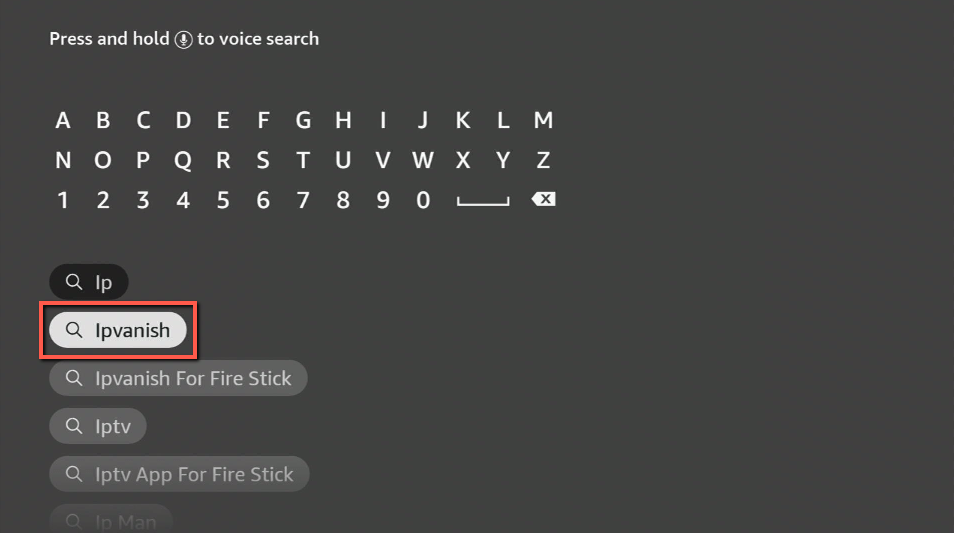
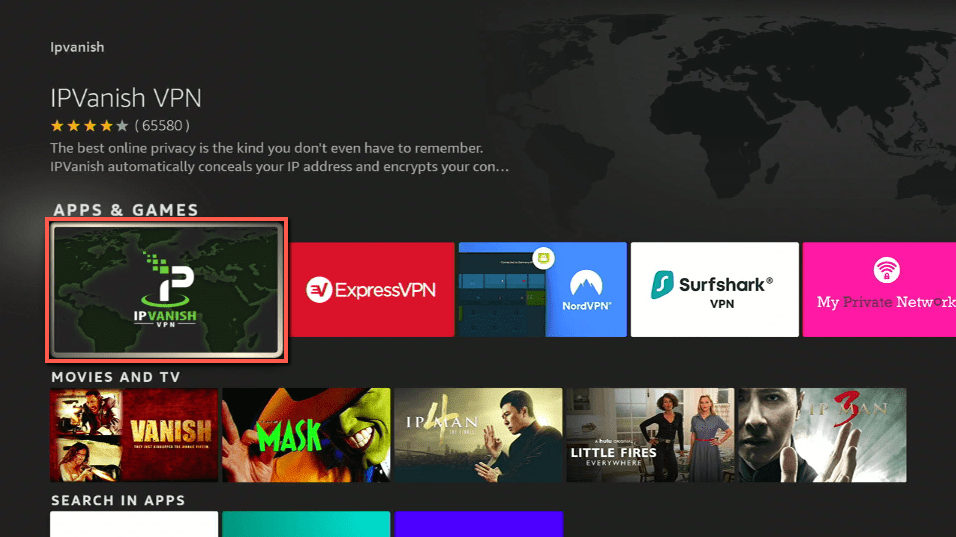
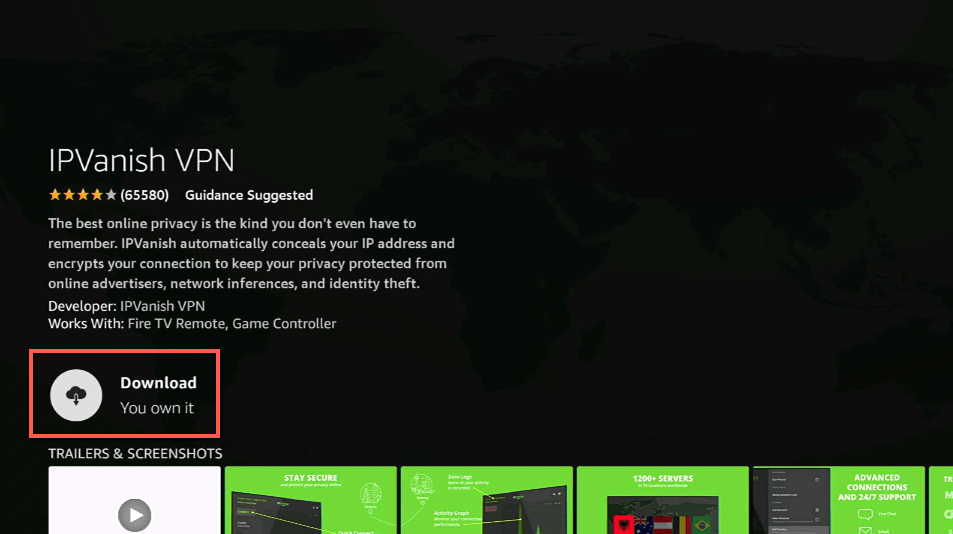
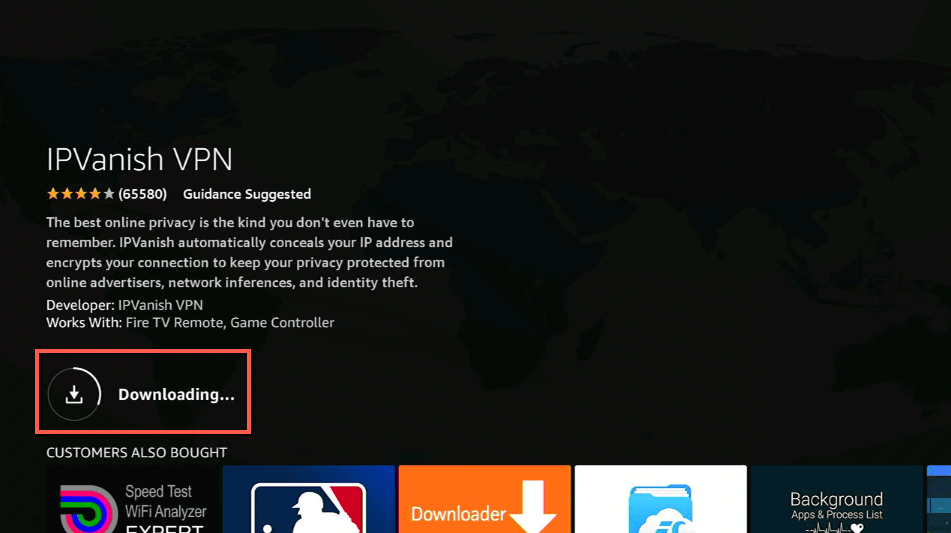
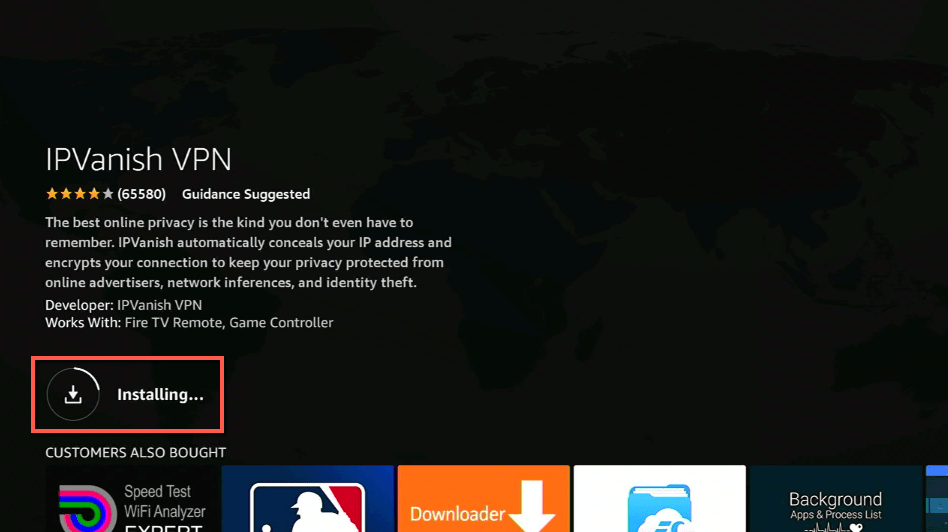
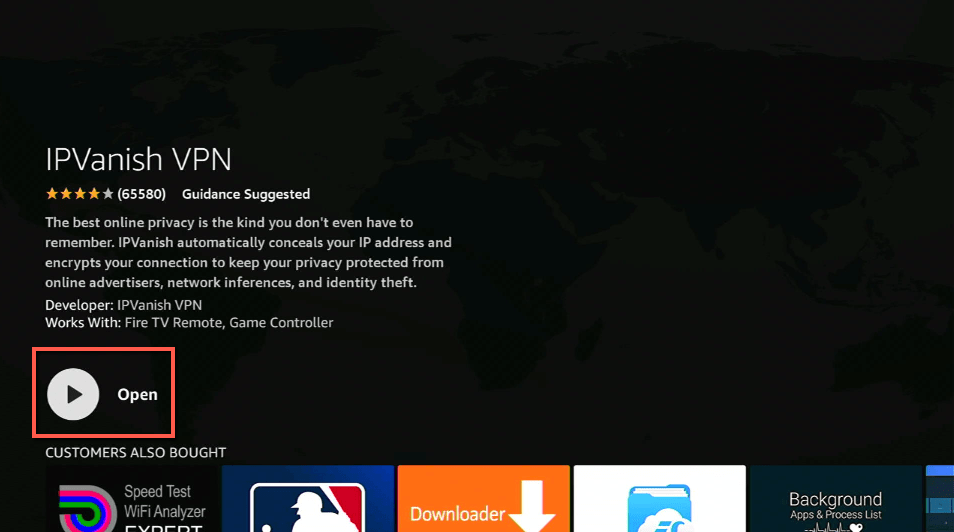
A VPN works be replacing your ISP-assigned IP address and creating an encrypted tunnel. We recommend the no log service offered by IPVanish. It works well on a Firestick and offers the fastest possible speeds.

Special Limited Time Offer - Get IPVanish


Features of Youtube Theater Kodi Addon

Comes with customizable themes

Easy to use interface with a standard layout

Scrapes links for YouTube programs


Installing Youtube Theater Kodi Addon

The first thing you ought to do when installing youtube theater Kodi addon is to enable the unknown sources of your Kodi app. 

Follow the below steps to enable the unknown sources and then download and install the Diamond wizard repository.

Step 1. Lauch your kodi app

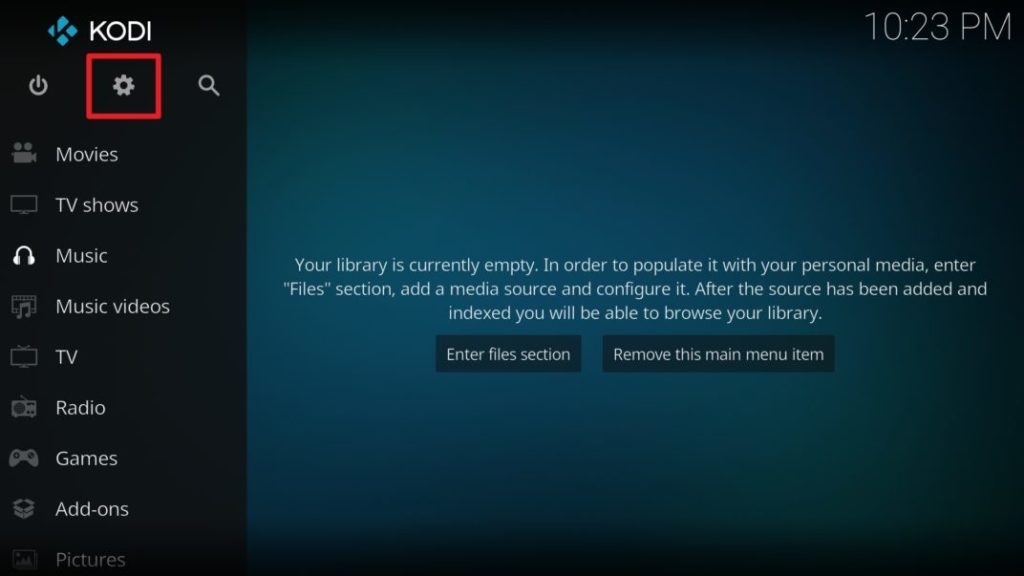
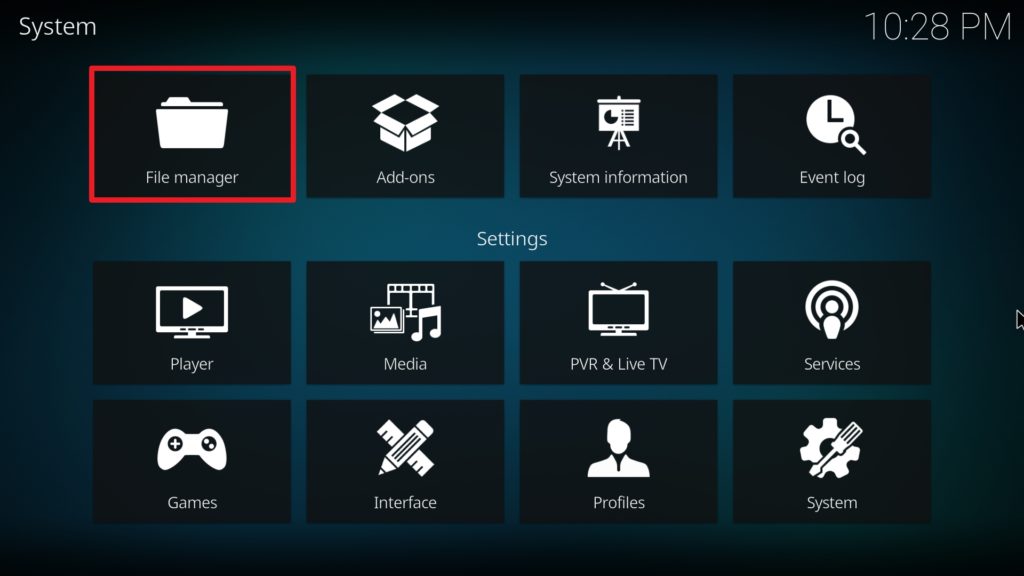
Step 2. Next, from the home screen, scroll up and click on the setting icon located at the top left corner of your screen.

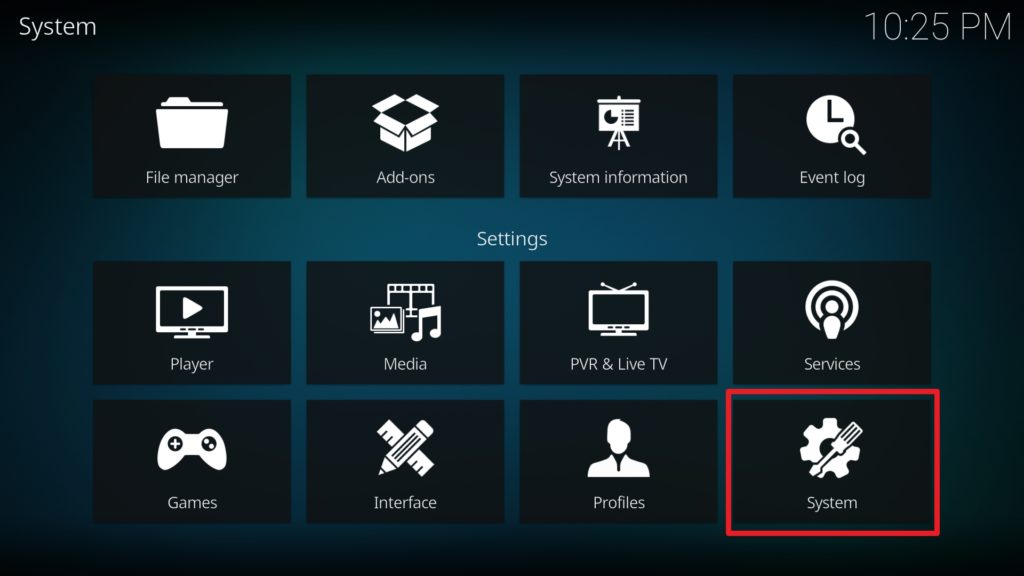
Step 3. Next, on the setting menu, scroll down to the system option and click on it.

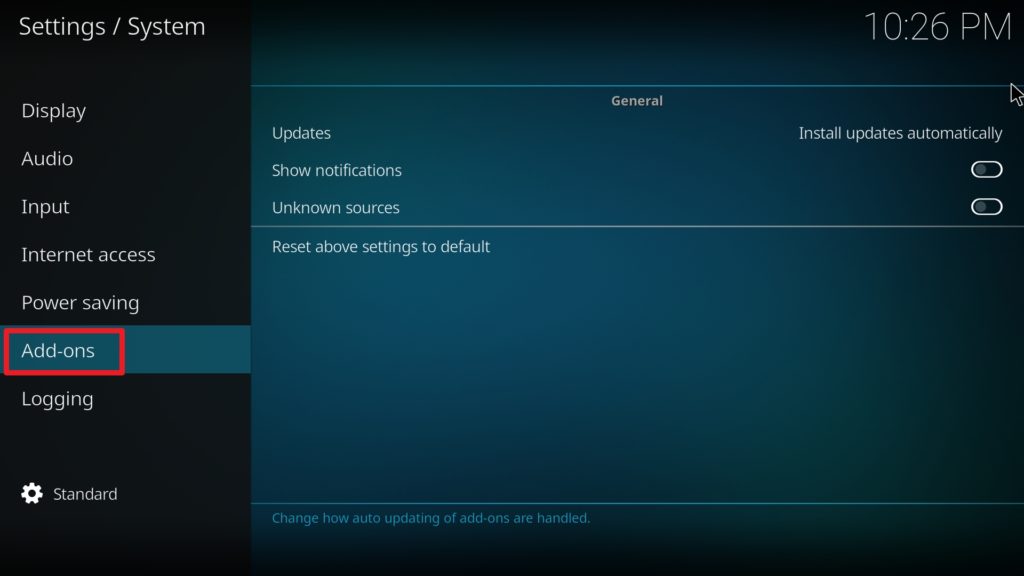
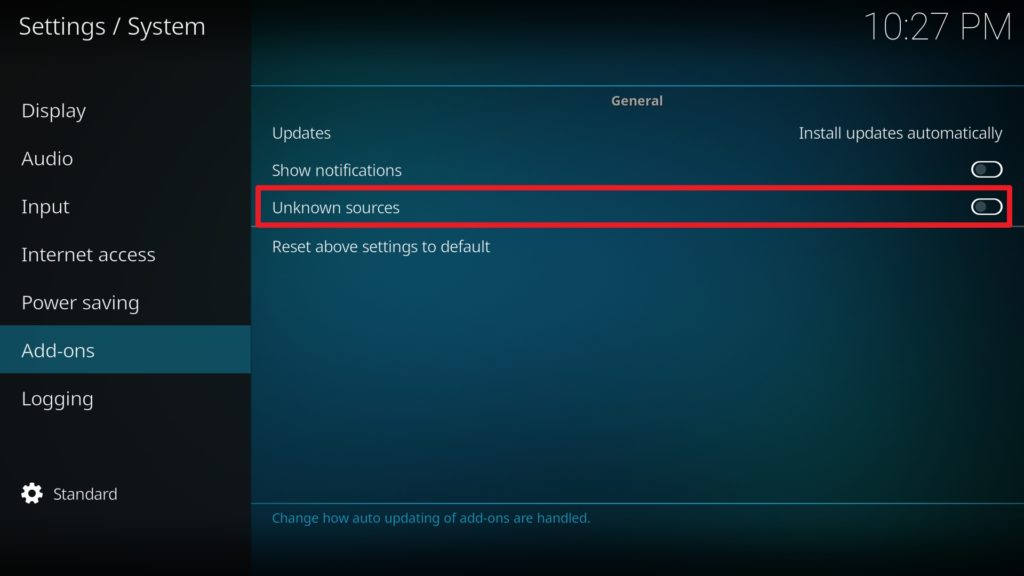
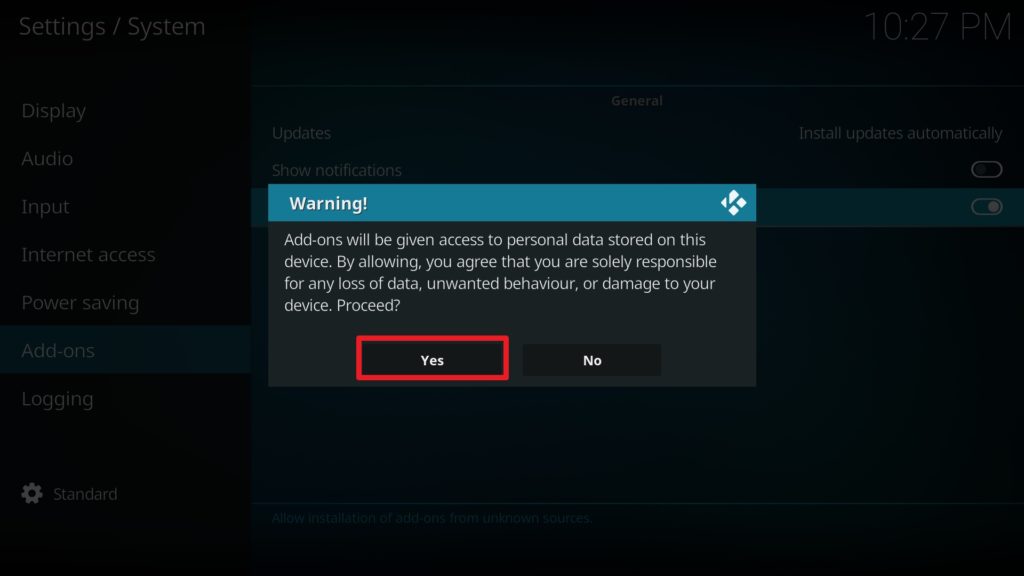
Step 4. On the new window that will appear, scroll down and click on addons. Navigate rightward and click on UNKNOWN SOURCES. Select the YES option to enable unknown sources.

Step 5. Return to the home screen either by pressing the back or arrow button on your remote.

Step 6. From the home screen, scroll up and click on the setting icon.

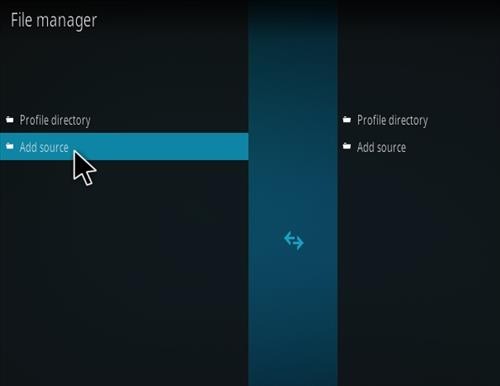
Step 7. On the new window that will appear, navigate and click on the file manager

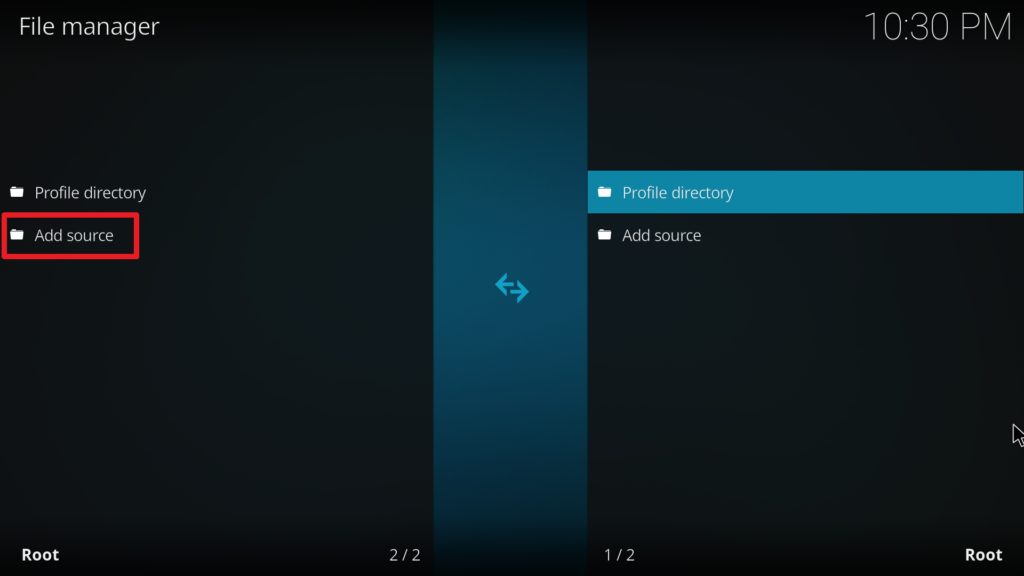
Step 8. Next, scroll down and click on add source.

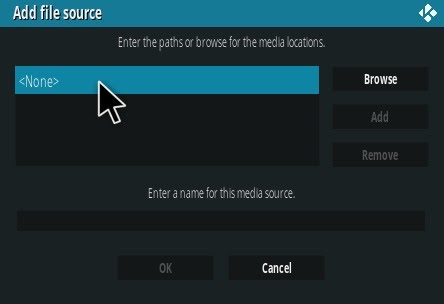
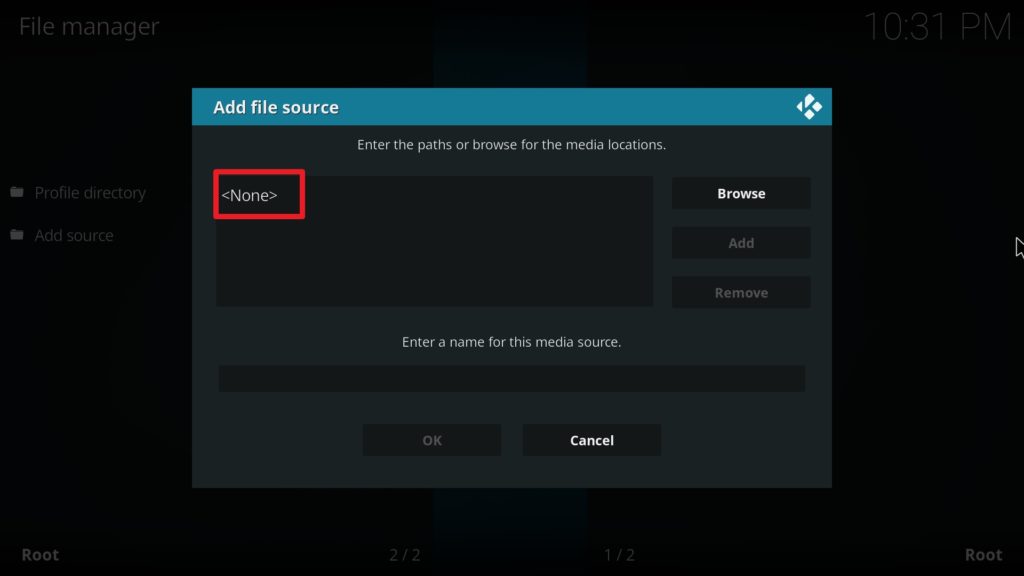
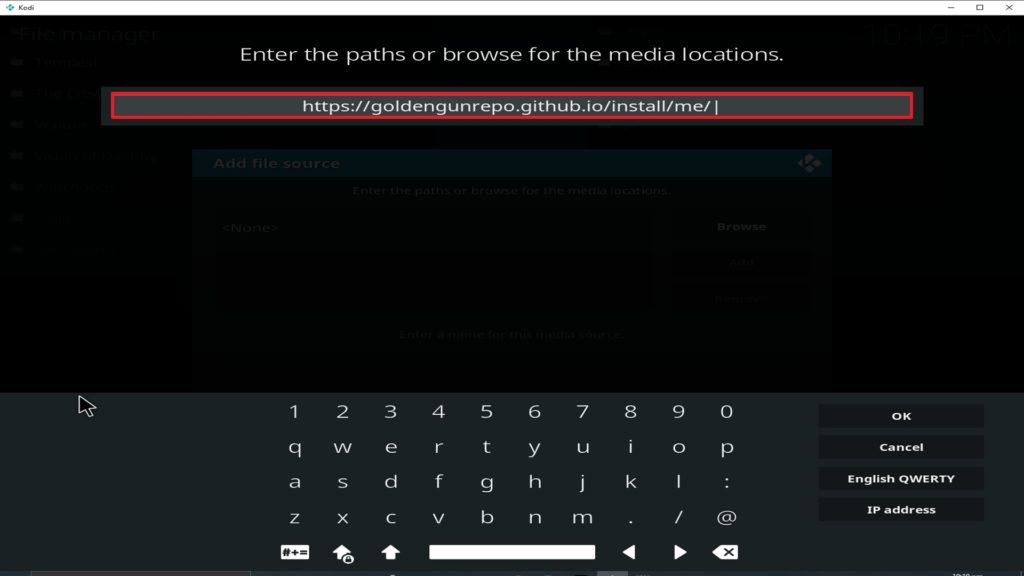
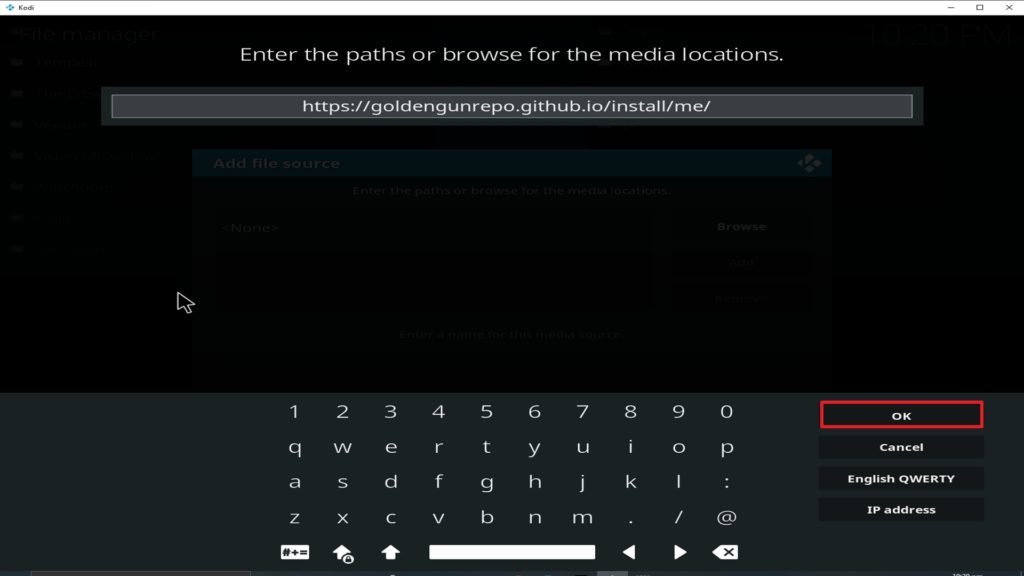
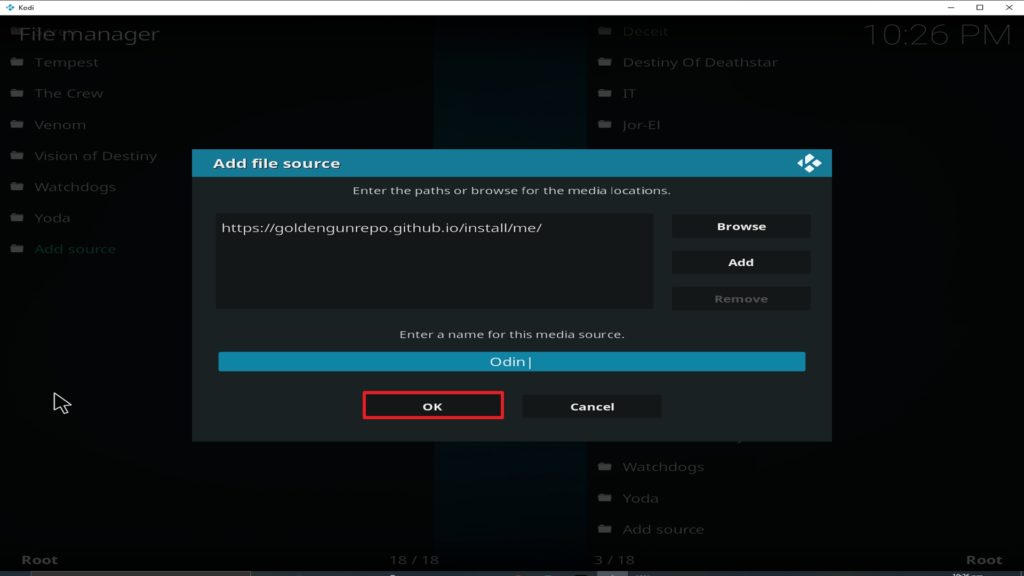
Step 9. Now, click on <NONE> and carefully type the media source link: http://repo.rubyjewelwizard.com and then click OK.

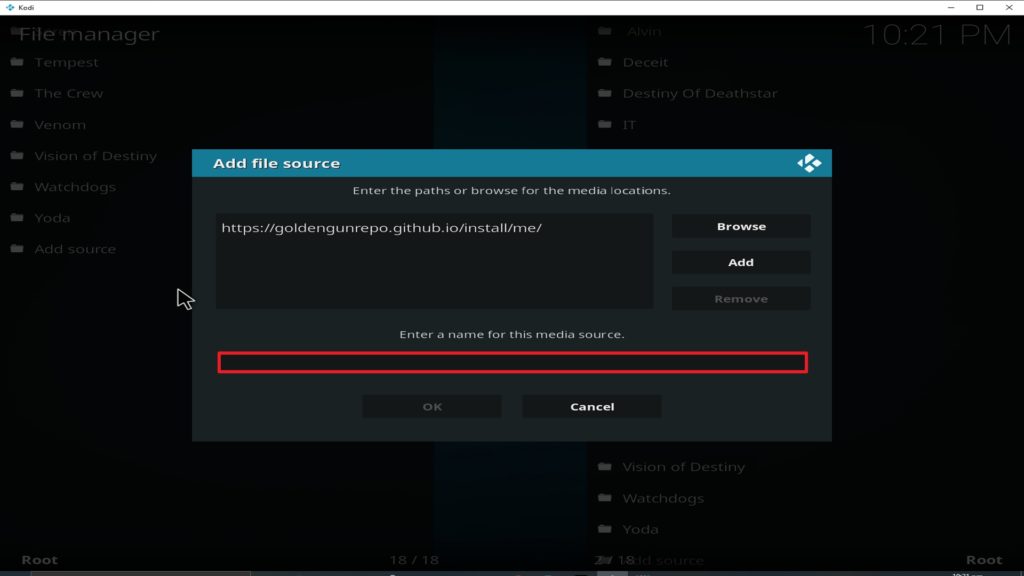
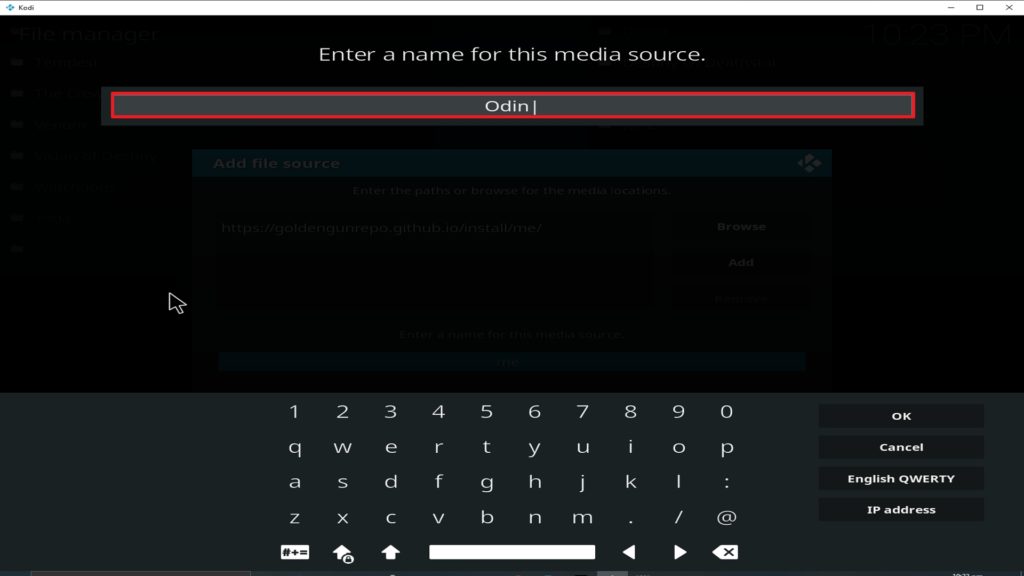
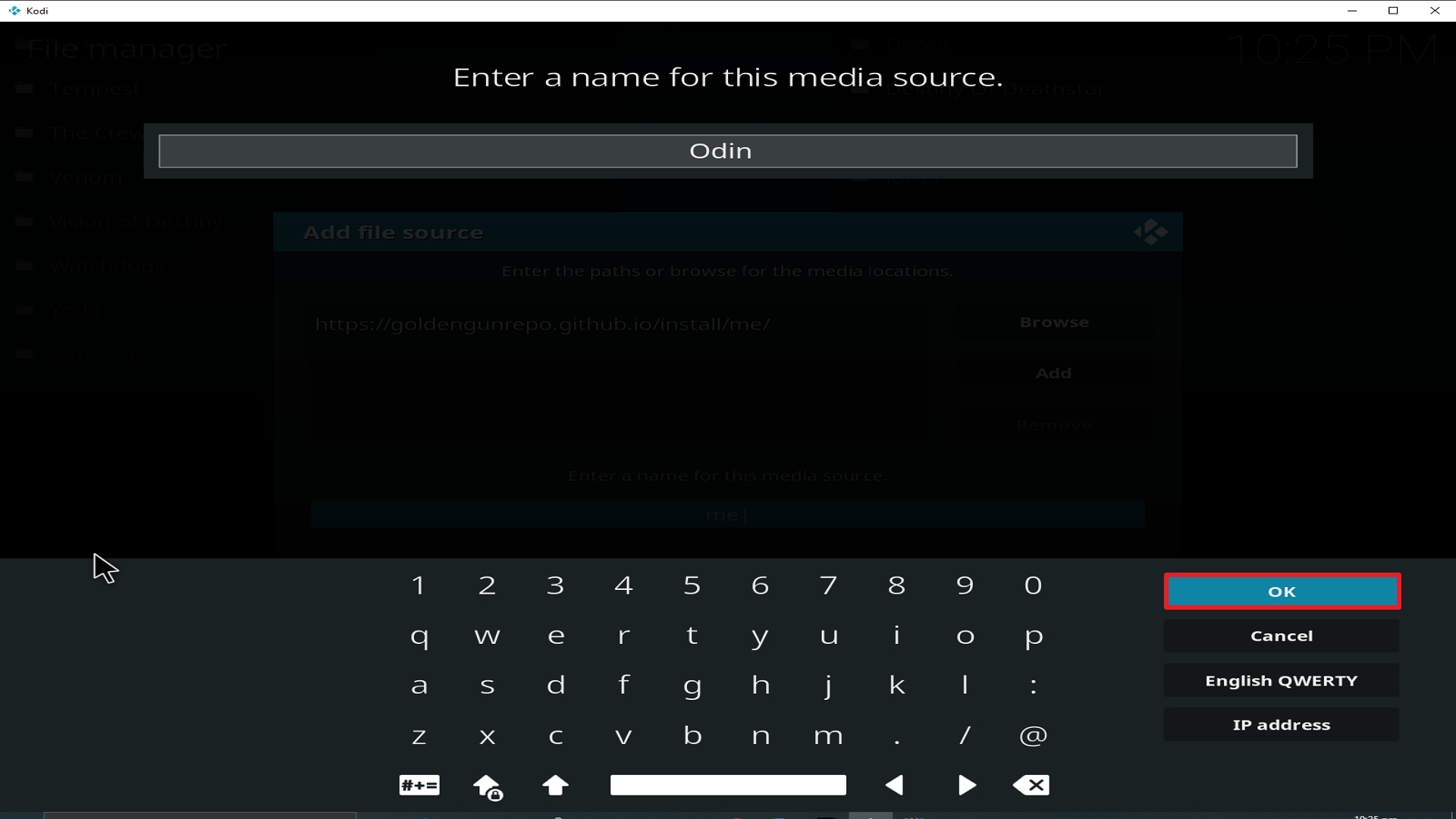
Step 10. Hover on the textbox that says Enter a name for this media source and type ….. and then click OK.

Step 11. Return to the home screen.

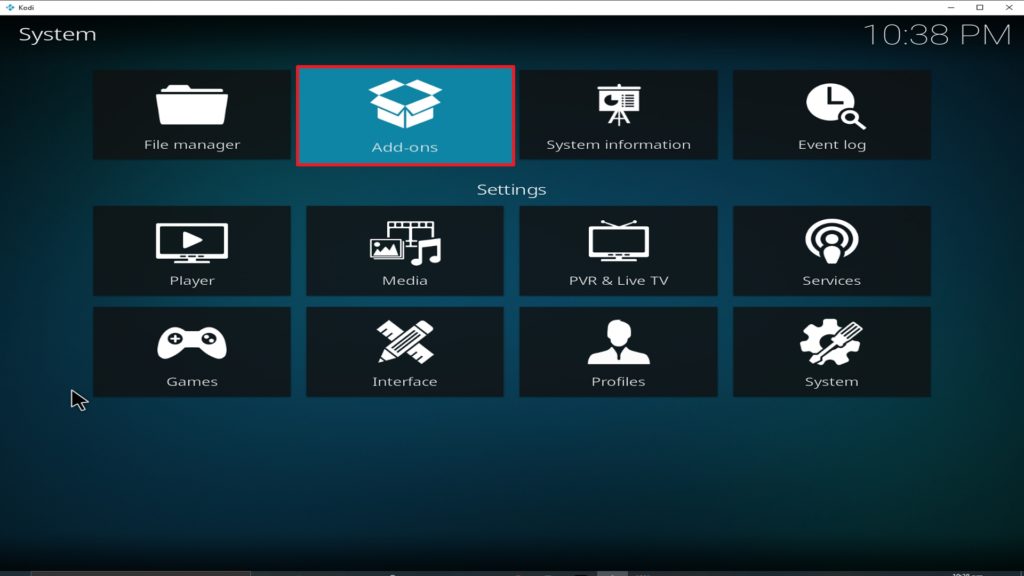
Step 12. From the home screen, scroll down and click on addons.

Step 13. Next, scroll up and click on the addon installer Icon.

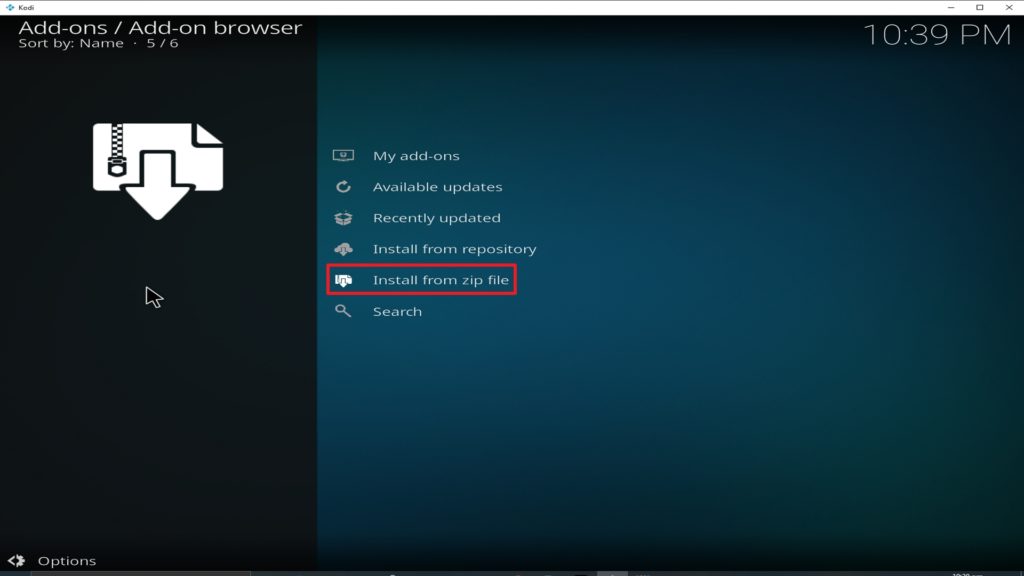
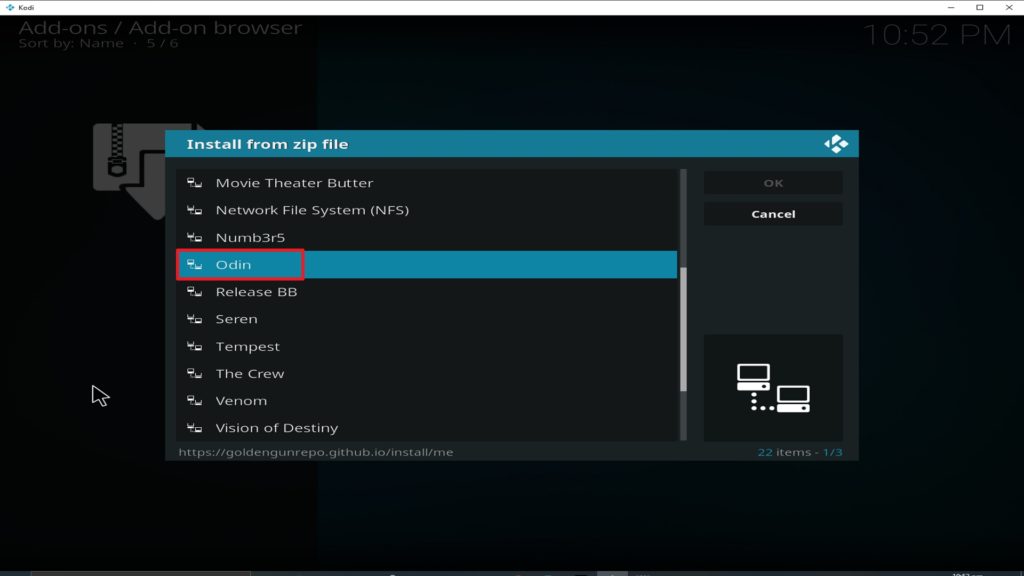
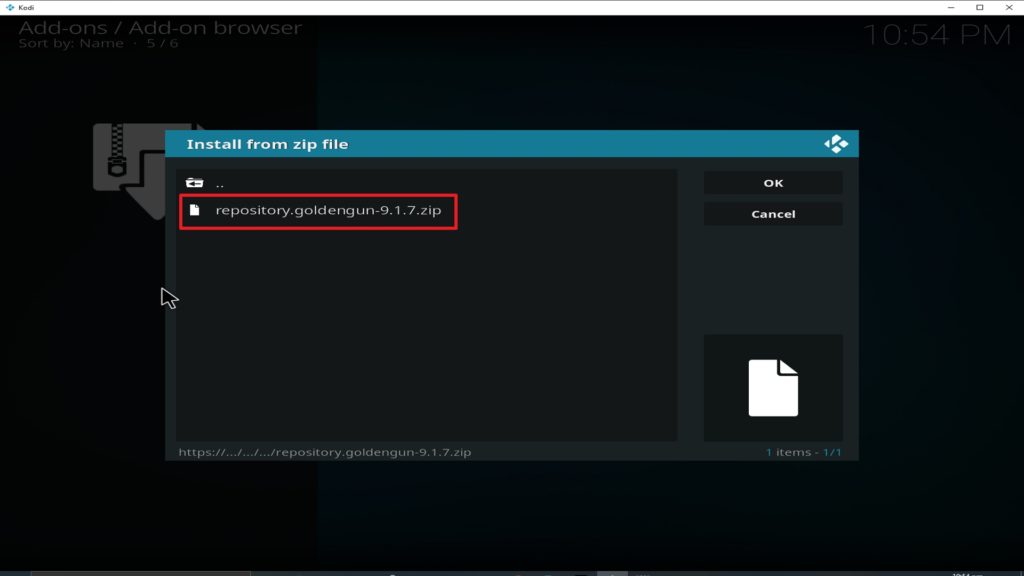
Step 14. On the new window that will appear, click on install from the zip file. Then click on diamond-rep-installer-zip

Step 15. Next, click on repository.daimond-repo-6.8.zip

Step 16. Wait for the diamond installation notification that will appear at the top right-hand side of your screen. 

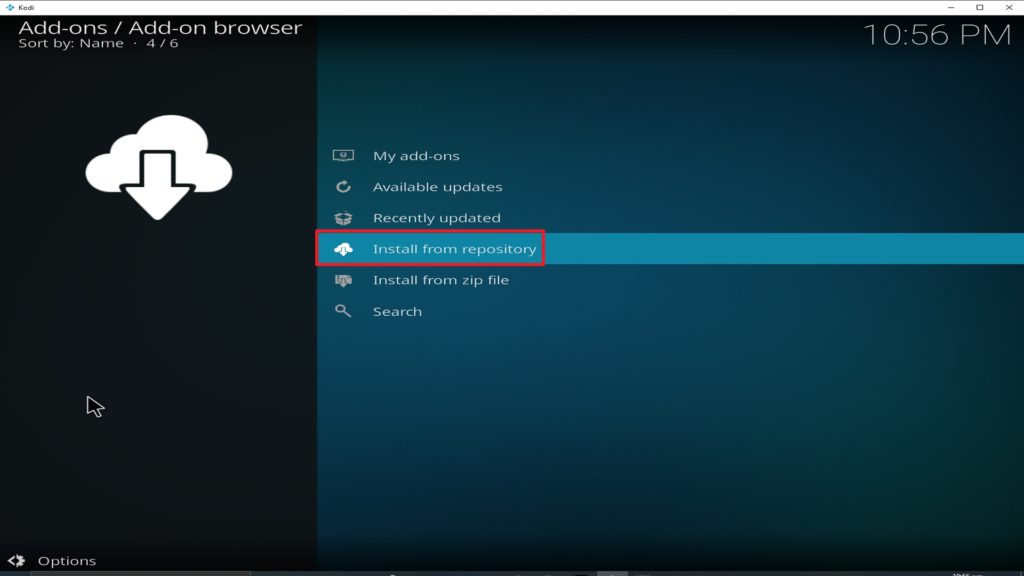
Step 17. Click on install from repository

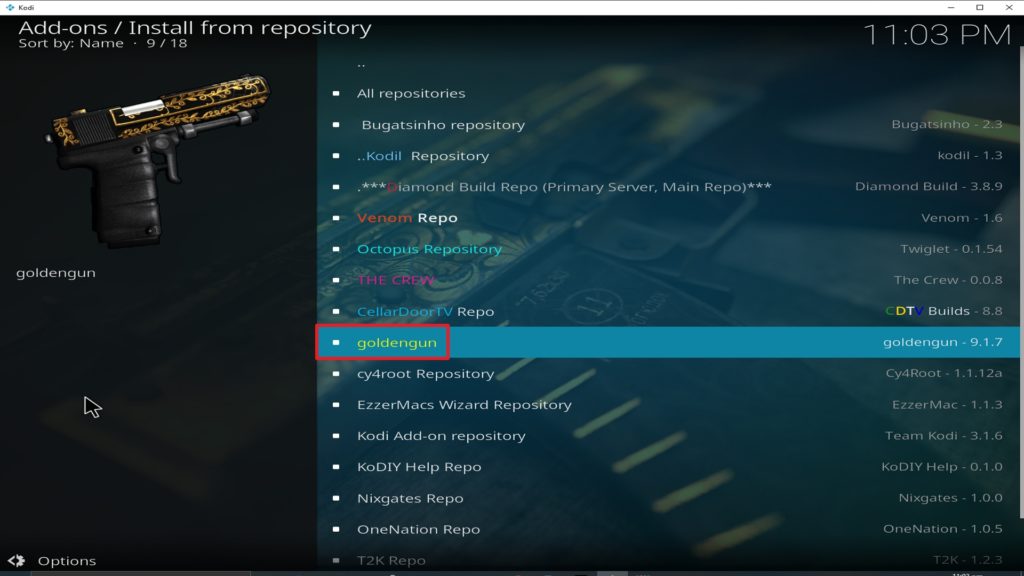
Step 18. Click on Diamond wizard repository

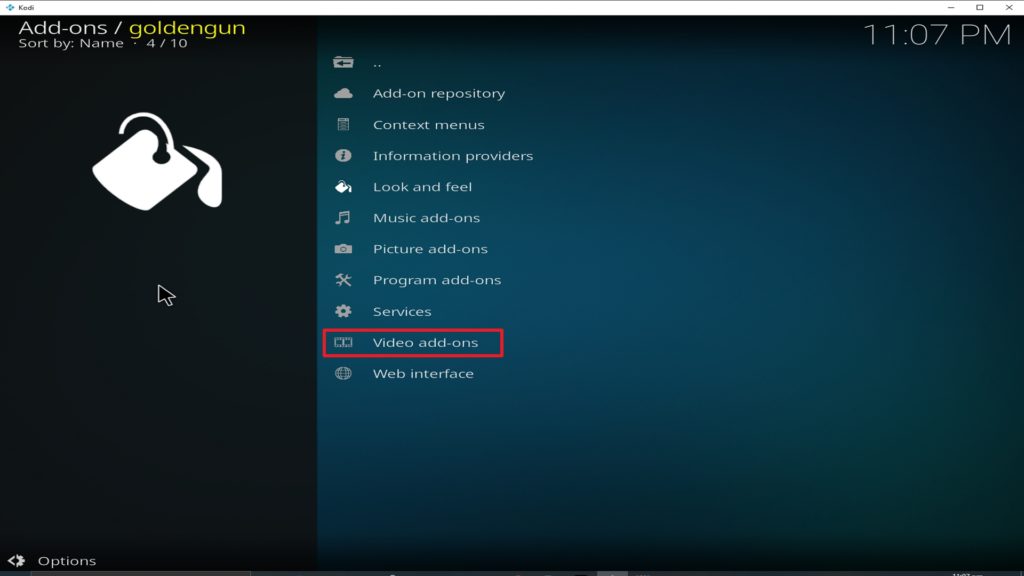
Step 19. Next on the new window that will appear, scroll down and click on video addons 

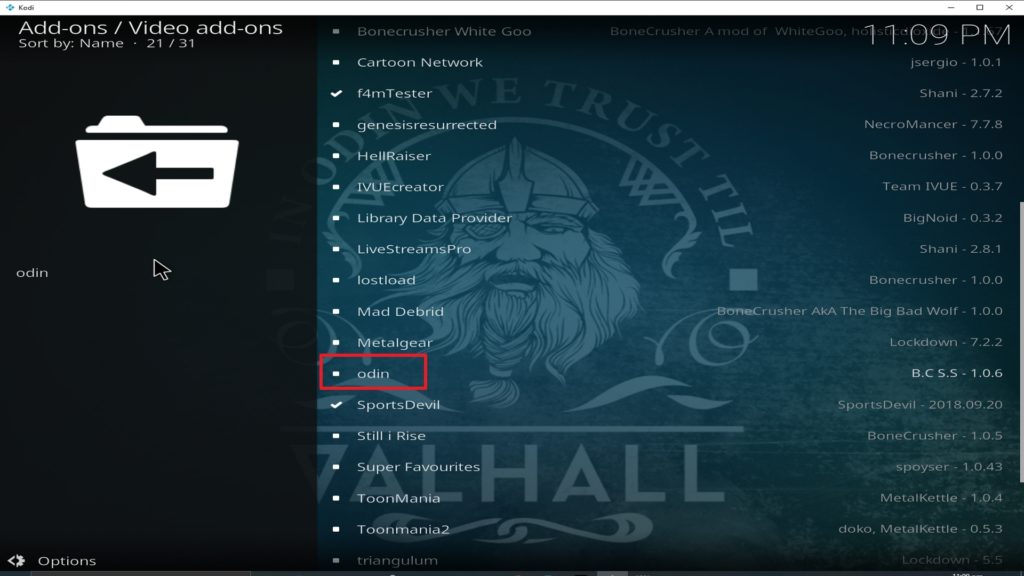
Step 20. Next, scroll down and click on YouTube theater

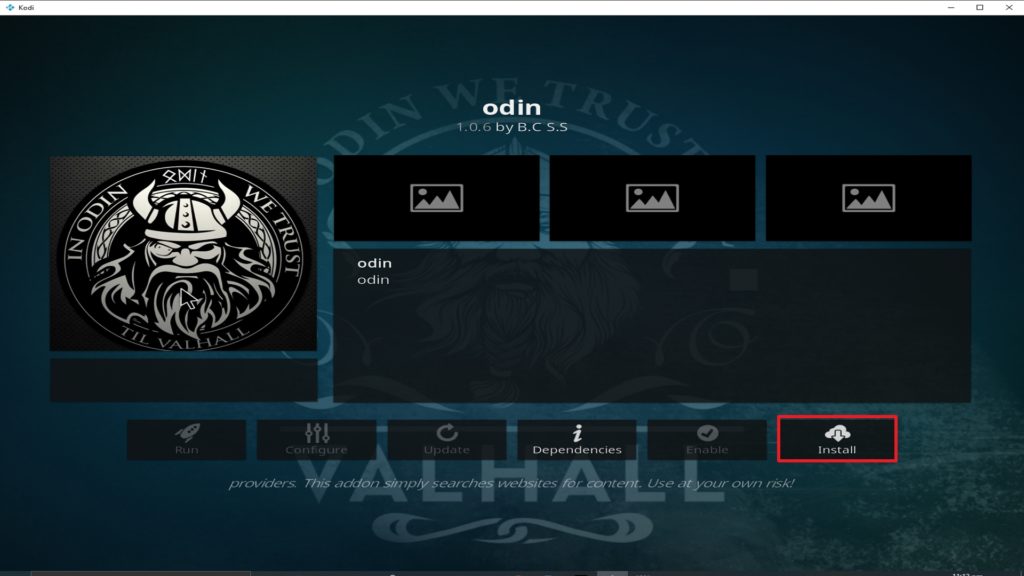
Step 21. Click on install. On the dialog box that says “the following additional addons will be installed”, click on Ok and wait for the installation to complete.

Use a VPN

We always recommend installing a VPN on your device. A VPN is software that encrypts and masks your IP address to appear on the internet service provider network as a secure and private user. When this happens, no one on the ISP network will be able to track or monitor whatever activities you are doing online.

The benefits of installing a VPN on your device can not be overemphasized. A VPN is all you need to stay secure, anonymous, and private all-time while accessing the internet or streaming content online.


The following are the benefits of installing a VPN on your device:

Beat third-party monitoring and tracking

Yes, these days, even though you are using your personal computer with a private internet connection, your online activities can still be tracked and monitored by your internet service provider. That way, your online activities or data are not safe.

By and large, a VPN will mask and encrypt your IP address to appear safe and secure while you access the internet or stream content.


Internet service provider throttling

Installing a VPN helps to minimize throttling which is caused by your internet service provider. Throttling affects the streaming Quality of videos and makes the videos buffer and lag. However, installing a VPN on your device will help minimize throttling and improve the streaming experience.


Security

Installing a VPN will mask and encrypt your IP address. This way, you will be secure and private whenever you stream or access the internet. Accessing the internet without a VPN is not a good idea.


Geolocation

One of the challenges faced by internet users is location restrictions. Internet content providers use location restrictions to protect their content. Netflix US only offers content to US residents. So how can someone outside of the US access and stream content from Netflix US? The only way is to install a VPN. When you install a VPN on your device, it allows you to change your location via changing your IP address. When this happens, you will be able to stream from anywhere around the world.

For maximum online privacy and security, we recommend Surfshark. Install Surfshark for 24/7 online protection.

They offer affordable subscription plans with a bu 30 days refund policy.

This VPN service has 3,200 VPN servers in 65 worldwide locations. It features military-grade encryption. It also has leak protection and a zeroes log policy.


Install Surfshark on Firestick

Best Surfshark Deal


How to Install Surfshark VPN on Firestick

If your Firestick still has the older interface, read this article to learn how to update it: Update Firestick Interface.

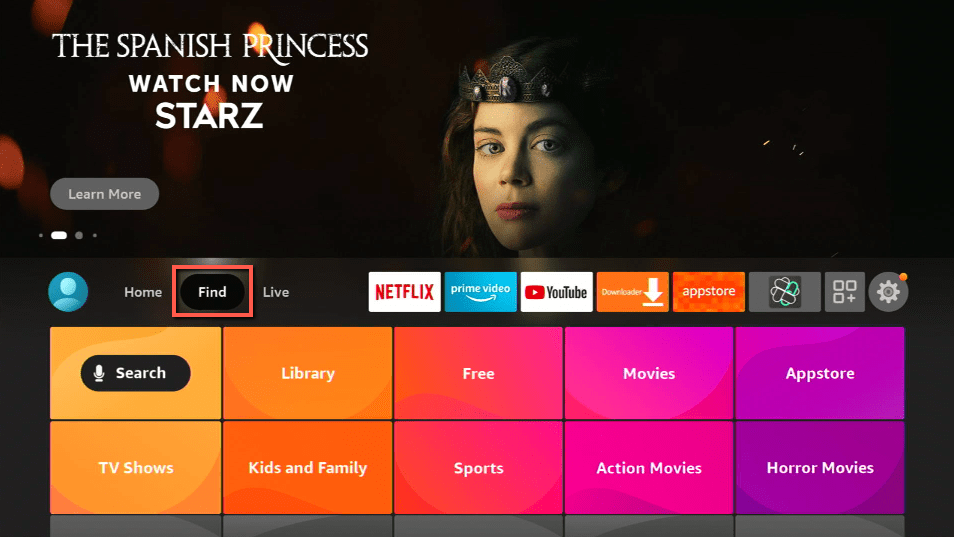
You can download Surfshark directly from the Amazon App store. It will be easy for you to find Surfshark with your Firestick’s Find feature. Refer to our screenshots below.

1. Go to the Home screen of your Firestick.
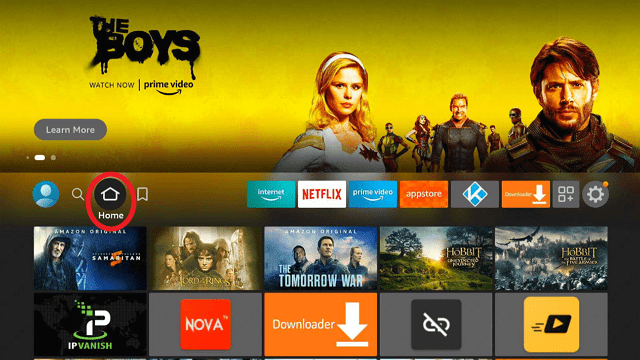
step 1 Install Surfshark VPN on Firestick


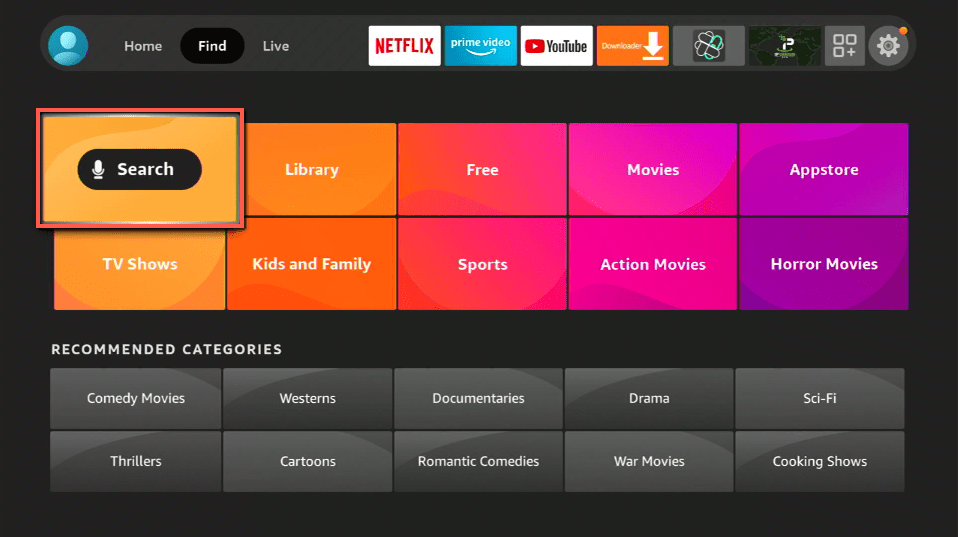
2. Navigate towards the Find tab. Press the Search button from the resulting dropdown.
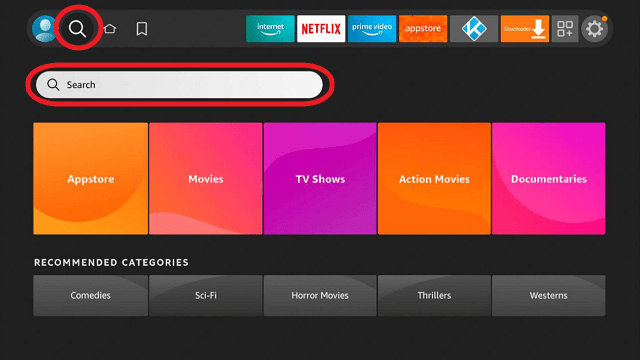
step 2 Install Surfshark VPN on Firestick


3. Type in the keyword of SurfShark and select from the suggestions that will appear.
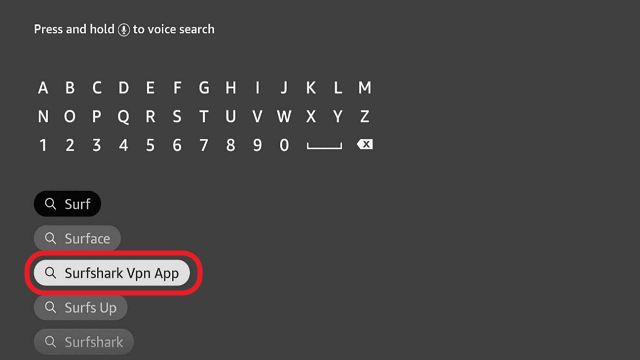
step 3 Install Surfshark VPN on Firestick


4. Click the official SurfShark icon from your search results.
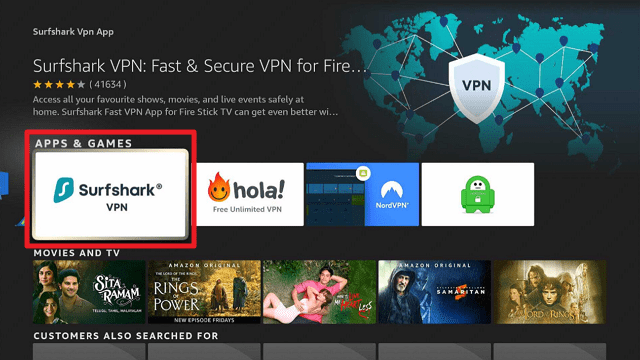
step 4 Install Surfshark VPN on Firestick


5. Press the Download (You own it) button.
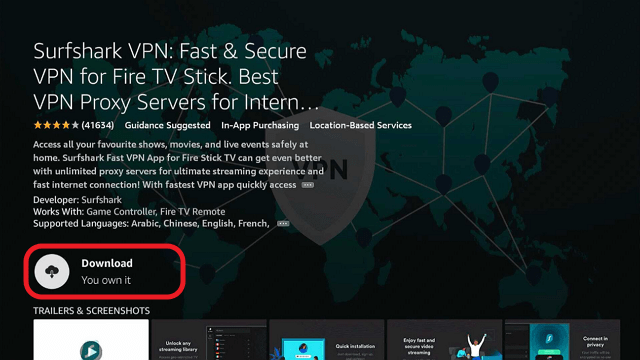
step 5 Install Surfshark VPN on Firestick


6. The SurfShark VPN installer will download on your device.
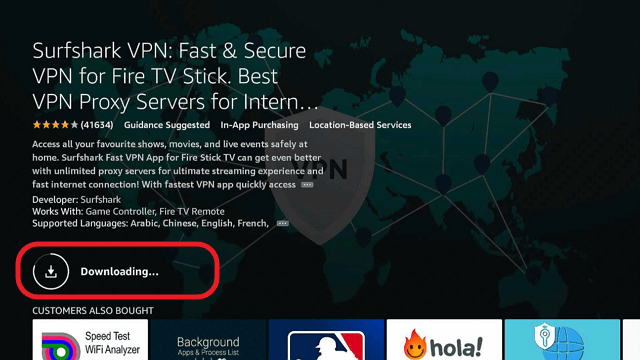
step 6 Install Surfshark VPN on Firestick


7. SurfShark VPN’s app will automatically install itself on your Fire TV stick.
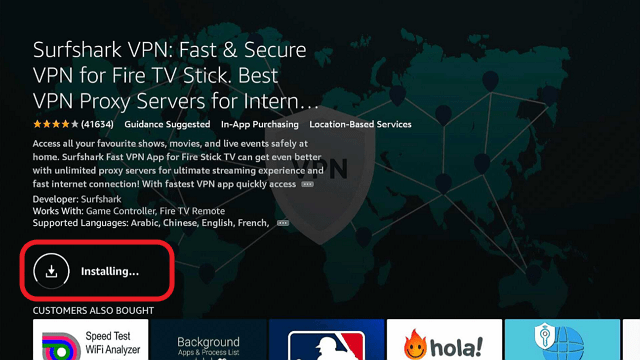
step 7 Install Surfshark VPN on Firestick


8. Press the Open button after completing SurfShark VPN’s installation process.
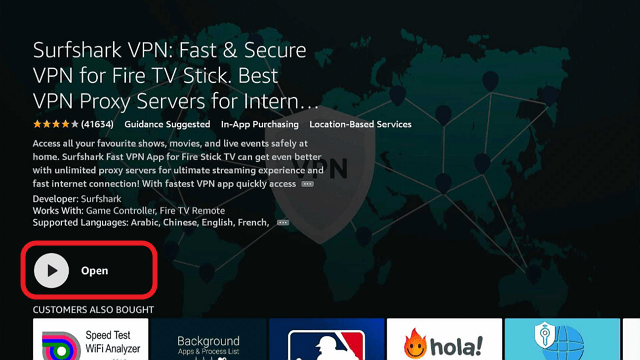
step 8 Install Surfshark VPN on Firestick


9. Please wait for the SurfShark VPN to load its user interface.
step 9 Install Surfshark VPN on Firestick


10. You can now log in with your SurfShark VPN account credentials.
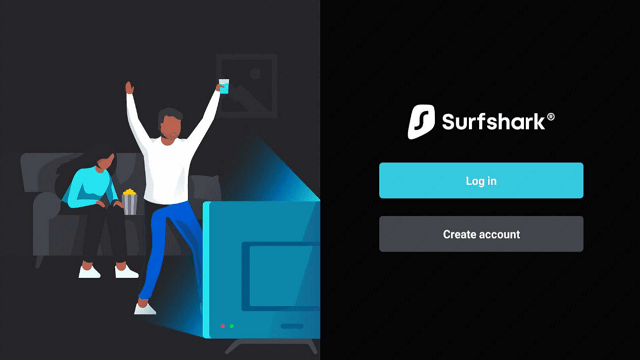
step 10 Install Surfshark VPN on Firestick

Learn more about Surfshark and Grab the Best Surfshark Deal Now!


Install Surfshark on Firestick
Best Surfshark Deal


Other VPNs to Consider

NordVPN (Best for Streaming)

Best Features

  • 5000+ Server in 50+ Countries 
  • Military-Grade Encryption
  • Fast Connection Speed
  • Suitable to a lot of devices
  • No-Log Policy

Prices
  • Complete $5.89 per month (64% Discount)
  • Plus $4.59 per month (56% Discount)
  • Standard $3.69 per month (55% Discount)

Best Features

  • 750+ High-speed VPN Servers in 43 Locations
  • Military-Grade Encryption
  • Fastest HD Streaming and Gaming
  • 30-Day Money-Back Guarantee
  • Unlimited Data & Devices
  • No-Log Policy

Prices
  • 3 Years $1.99 per month (82% Discount)
  • 1 Years $3.29 per month (70% Discount)
  • 1 Month $10.99 per month

IPVanish VPN (Most Secure)

Best Features

  • 1200+ Servers in 60+ Countries around the world
  • Unlimited Connections
  • No-Log Policy
  • Top Notch Military-Grade VPN Protocols and Encryptions
  • 100% Safe and Secured
  • Most Trusted VPN
  • Best VPN for Firestick
  • 30-Day Money-Back Guarantee

Prices
  • Yearly $3.99 per month (63% Discount) – 30 days risk free + Ransomware & Malware Protection
  • Quarterly $5.32 per month (51% Discount)
  • Monthly $10.99 per month


For more VPN discounts, go to ReviewVPN Deals and purchase the best VPN for you.

Click here to get the lowest price on Surfshark through our exclusive limited-time offer.


Install Kryptikz Kodi Build – 2023 Guide

Install Kryptikz Kodi Build Overview


In this tutorial, you will learn how to install Kryptikz Kodi build. Kryptikz Kodi build is a build within the TeamZT wizard and will consume about 374 megabytes of your device storage space. Kryptikz Kodi build is relatively a new build with tons of add-ons offering different categories and subcategories of entertainment for you to choose from.  


ANONYMOUSLY

This build allows you to access and stream 

  • Video streaming
  • TV shows
  • Live TV coverages 
  • Kids content
  • Sports 
  • Documentaries
  • Cartoons
  • Anime And lots more. 


Also, Kryptikz Kodi build gives you access to stream other types of digital home media entertainment from the comfort of your home.


Features of Kryptikz Kodi Build

  • Easy and navigable interface. The interface becomes accessible after installation.
  • Comes with categories and subcategories which you can find at the left-hand side or bottom of your screen (this depends on the Kodi version you are using). 
  • Categories and subcategories movies
  • Comes with entertainment sections such as Movies 
  • TV Shows 
  • Music 
  • Explore 
  • Recent 
  • My Lists 
  • kids-sports
  • Favorites system
  • Exit
  • In-theater 
  • Real-debris
  • Daily build update with new vides
  • Sports 
  • Doc Zone 
  • System  
  • Cartoons.
  • Customizable AEeON-NOX SILVO skin.
  • Comes with a menu and sub-menu 


YOUR INTERNET ACTIVITY IS BEING WATCHED

ReviewVPN cannot attest to the legality, security and privacy of the applications discussed on this site. It is highly recommended that you use a VPN service while streaming or using Kodi.

Currently, your IP 216.73.217.150 is visible to everyone and your Browser is being tracked by Advertisers & ISP Provider.

Save 65% Now

Limited Time Offer

Here are the main reasons why you must use a VPN:

  • Your activities are hidden from your ISP, the government, and from the apps you are using.
  • You can access additional movies and TV streams.
  • ISP attempts to throttle are thrwarted thus reducing buffering issues.
  • Geographically restricted content like Netflix and Hulu can be unblocked.

A VPN works be replacing your ISP-assigned IP address and creating an encrypted tunnel. We recommend the no log service offered by IPVanish. It works well on a Firestick and offers the fastest possible speeds.

Special Limited Time Offer - Get IPVanish


Legal Disclaimer: ReviewVPN.com does not encourage or endorse any illegal activity involved in the usage of services and applications referenced on this site. We do not verify the licensing agreements of services. The end-user is wholly responsible for ensuring that any media accessed through these services does not violate copyright and/or licensing laws. ReviewVPN does not promote, link to, or receive compensation from any Apps and IPTV services.


Install Surfshark on Firestick

Best Surfshark Deal


What is Kryptikz ZT Build

This is one of the few builds with a huge collection of addons. The number of addons within this build can’t be exhausted even on a day. Kryptikz ZT Builds comes with a large library of entertainment in different categories and subcategories that even when you try to stream all the content, it is impossible to do so in your entire lifetime. Kryptikz ZT builds houses addons offering action movies, top-rated and new releases.


Addons within Kryptikz ZT Build

  • Stream All The Sources
  • Openload Movies 
  • Super Favourites 
  • Pandora Box 
  • Wolfpack 
  • 1 Channel 
  • Supremacy 
  • UK Turk Playlists 
  • The Pyramid 
  • Music USA 
  • Gobble 
  • Bretts Retro TV 
  • One242415
  • Bobby’s Cartoons 
  • Gears TV 
  • Exodus 
  • Zen 
  • Project M 
  • Maverick TV 
  • Specto Fork 
  • YouTube 


What is Kodi?

Kodi has been in existence since 2002 and formerly was known as Xbox Media Player, which was changed to Xbox Media center in 2003. It remained that till 2014. However, It was later named Kodi by the XBMC foundation which remained until this day. 


It allows you to stream your favorite TV shows, Live TV channels, movies, cartoons, anime, documentaries, pre-recorded news, and lots more. Nonetheless, Kodi has made it possible for a lot of people to go cordless. 


What is Kodi?

it is open-source software that allows you to access and stream all kinds of content such as music, videos, music videos, and lots more. Also, Kodi house apps, games, weather, ETC. 


Compatible devices include TV, Laptop, Phone, Tablet. Also, you can as well run Kodi on Raspberry Pi.


Kodi features include: User-friendly interface, Works on both local and network storage. It has third-party addons for enhancing the streaming experience and is compatible with various operating systems. It houses addons offering movies, docs, TV shows, and a lot more. You can store and share content on it.


Is Kodi free and legal to use?

Using Kodi is completely free, however, some Kodi addons may require you to purchase a subscription plan to access the content they offer. Also, the use of Kodi is legal, however, when installing and using a third-party addon, we recommend protecting yourself with a VPN for protection purposes.


What is Kodi Build?

A Kodi build is a platform that houses various working addons. A Kodi build features tons of other tools, wizards, and weather for an improved streaming experience. 

However, with its huge size and complexity-installation, a lot of people find using a Kodi to build a herculean task.

Features of the Kodi build include a Huge collection of add-ons. Builds often have a user-friendly interface with customizable themes and skins. Builds require large storage space (although some builds may have lesser storage space)


Install Kryptikz Kodi Kuild

The installation process of Kryptikz Kodi builds involves two major steps. First, you should enable the unknown sources of your Kodi app. 


Step 1. Launch your Kodi app and scroll up to the setting icon found at the top left corner of your screen.

Step 2. On the setting menu, scroll down to the system and click on it.

Step 3. Next, on the new window that will appear, navigate down to the addon 

Step 4. On the addons menu, scroll rightward and click on “unknown sources”.

Step 5. Next, On the warning dialog box, select YES to enable unknown sources.

Step 6. Return to the home screen either by pressing the bac or arrow button.

Step 7. Next, From the home screen, scroll to the setting icon and click on it (it is found at the top left-hand side of your screen.)

Step 8. Next, click on file manager on the setting menu

Step 9. On the new window that will appear, scroll down and click on add source.

Step 10. Next, on the new window, click on <NONE> and carefully enter the media source URL: http://tinyurl.com/lostkodi and select OK.

Step 11. Click on the textbox that says “enter a name for this media source” type LOST and select OK.

Step 12. On the new window, cross-check if all the details you entered are correct and then select OK.

Step 13. Return home screen 

Step 14. From the home screen, scroll down and select addons

Step 15. On the new window, scroll up and click on the addon installer icon (found at the top left-hand side of your screen)

Step 16. Next, scroll to install from the zip file option and click on it.

Step 17. Next, on the new window, navigate and select LOST.

Step 18. Next, select zip file plugin.program.lostbuildswizard.zip and then select OK.

Step 19. You will have to wait for the “Lost Builds Wizard installed” notification to appear at the top right-hand side of your screen.

Step 20. Next, on the pop-up dialog box then select continue

Step 21. Next, on the dialog box that will appear, select build menu

Step 22. Next click on Kryptikz 

Step 24. Select the option that says install

Step 26. Next, select “Fresh Install” and then choose the option that says Continue

Step 26. Wait for the build installation to complete. Once the installation completes, select Force Close.

Step 27. Restart your Kodi app and Underverse Build is ready. 


Video on How to Install the Kryptikz Kodi Build on All Devices

[videopress u560JZVW]


Use a VPN

We strongly recommend protecting yourself while streaming with Kodi. This is because the majority of the addons on Kodi are third-party add-ons that do not have the copyright to the content they offer and as such, you ought to protect yourself with a VPN.

A VPN is software that encrypts and masks your IP address to appear on the internet service provider network as a secure, private, and anonymous user. It protects your IP address by encryption which is a process of hiding your IP address on the internet service provider network.


Benefits of using a VPN

  • Protection and Security

If you are a private person, then installing a VPN is highly recommended.

You may have a personal computer with a private internet connection, however, whatever activities you are doing online is being monitored and recorded by your internet service provider network. That said, you can beat being monitored and tracked by installing a VPN. 

  • Bypass location restrictions

Many websites and streaming apps use location restrictions to protect their content from unintended audiences. Let’s say, Netflix USA won’t allow someone from Canada or Australia to access and stream its content. However installing a VPN will enable you to change your IP address and as such, you can be able to access and stream content from anywhere around the world.

  • Reduce internet service provider throttling

A VPN helps you to bypass throttling which is caused by your internet service provider. Throttling affects streaming Quality and leads to lagging and buffering of videos streamed. So installing a VPN will help improve the video quality of the content you are streaming.

  • Beat third-party monitoring and tracking

Your internet service provider often sale your browsing history or data to third parties like government or advertising agencies. You may wonder how advertising companies will get to know what product you are interested in. It is because your internet service provider is supplying them with information about your online activities.

However, installing a VPN will enable you to bypass tracking and monitoring and access the internet securely, anonymously, and privately. That said, we recommend Surfshark. They offer affordable subscription plans with have the best VPN service you can think of in the market.

Note: For more information about Surfshark, please read our Surfshark Review.


Install Surfshark on Firestick

Best Surfshark Deal


How to Install Surfshark VPN on Firestick

If your Firestick still has the older interface, read this article to learn how to update it: Update Firestick Interface.

Follow our screenshots below to install the SurfShark VPN app on your Fire TV stick.

1. Go to the Home screen of your Firestick.

step 1 Install Surfshark VPN on Firestick


2. Navigate towards the Find tab. Press the Search button from the resulting dropdown.

step 2 Install Surfshark VPN on Firestick


3. Type in the keyword of SurfShark and select from the suggestions that will appear.

step 3 Install Surfshark VPN on Firestick


4. Click the official SurfShark icon from your search results.

step 4 Install Surfshark VPN on Firestick


5. Press the Download (You own it) button.

step 5 Install Surfshark VPN on Firestick


6. The SurfShark VPN installer will download on your device.

step 6 Install Surfshark VPN on Firestick


7. SurfShark VPN’s app will automatically install itself on your Fire TV stick.

step 7 Install Surfshark VPN on Firestick


8. Press the Open button after completing SurfShark VPN’s installation process.

step 8 Install Surfshark VPN on Firestick


9. Please wait for the SurfShark VPN to load its user interface.

step 9 Install Surfshark VPN on Firestick


10. You can now log in with your SurfShark VPN account credentials.

step 10 Install Surfshark VPN on Firestick

Learn more about Surfshark and Grab the Best Surfshark Deal Now!


Install Surfshark on Firestick
Best Surfshark Deal


Other VPNs to Consider

NordVPN (Best for Streaming)

Best Features

  • 5000+ Server in 50+ Countries 
  • Military-Grade Encryption
  • Fast Connection Speed
  • Suitable to a lot of devices
  • No-Log Policy

Prices
  • Complete $5.89 per month (64% Discount)
  • Plus $4.59 per month (56% Discount)
  • Standard $3.69 per month (55% Discount)

Best Features

  • 750+ High-speed VPN Servers in 43 Locations
  • Military-Grade Encryption
  • Fastest HD Streaming and Gaming
  • 30-Day Money-Back Guarantee
  • Unlimited Data & Devices
  • No-Log Policy

Prices
  • 3 Years $1.99 per month (82% Discount)
  • 1 Years $3.29 per month (70% Discount)
  • 1 Month $10.99 per month

IPVanish VPN (Most Secure)

Best Features

  • 1200+ Servers in 60+ Countries around the world
  • Unlimited Connections
  • No-Log Policy
  • Top Notch Military-Grade VPN Protocols and Encryptions
  • 100% Safe and Secured
  • Most Trusted VPN
  • Best VPN for Firestick
  • 30-Day Money-Back Guarantee

Prices
  • Yearly $3.99 per month (63% Discount) – 30 days risk free + Ransomware & Malware Protection
  • Quarterly $5.32 per month (51% Discount)
  • Monthly $10.99 per month


For more VPN discounts, go to ReviewVPN Deals and purchase the best VPN for you.


Frequently Asked Question

Is Kryptikz Kodi build-free?

Yes, Kryptikz Kodi build is completely free. However, you may find a few add-ons offering paid content.


Is Kryptikz Kodi build safe to use?

Yes, Kryptikz Kodi build is safe to use. However, it is recommended to protect yourself with Surfshark. Click here to get a discount on Surfshark.


History of Kryptikz Kodi build

When was Kryptikz Kodi build released?

Kryptikz Kodi build is a relatively new Kodi build. However, the exact date of release is yet unknown.


Alternatives

Many other Kodi builds abound and these builds offer the same content or most times different content as the Kryptikz Kodi build. Below is the alternative to Kryptikz Kodi build: Xanax Kodi Build, Silvo, Digzz Xenon Build


Note:

Builds often go down after a limited period. When this happens, you can make your research here for a working Kodi build. You may as well check out our list of Best Kodi Builds for more details.


Conclusion

Kryptikz Kodi Build features a user-friendly and stylish interface with a standard layout. Kryptikz Kodi build comes with tons of working Kodi addons for you to choose from making it a must-have on your Kodi app. Install Kryptikz Kodi build to access add-ons offering 24/7 movies, documentaries, live TV shows, sports, music, cartoons, anime, music videos, and lots more. 

Install Arconai TV Kodi Addon on Firestick

Arconai TV Overview

This article will show you how to install Arconai TV Kodi Addon on Firestick. 


Arconai TV Kodi addon is known for Live TV and this add-on can be found inside the Tempest or Temptv Repository. 

This add-on enables you to stream all of your favorite movies, TV shows, and watch any cable TV channel you want for free. However, many of the sections include Random Streams, 24/7 Movies, 24/7 TV shows, as well as Live TV channels.

Nonetheless,  Arconai TV Kodi is an amazing add-on that has been consistently updated and so far the add-on has been functioning great.


ANONYMOUSLY

Is it Any Good?

The Arconai TV is an incredible backup add-on for Live TV. It will deliver Live TV streaming throughout the day. Nonetheless, with Arconai TV, you can now watch any genre that you want.

It is worth noting that if you want something like the primary app to use for streaming, then it is suggested that you refrain from using Arconai TV. The website and application are considered unstable. Most of the time, their website is down at 90%. However, you might also experience difficulties looking for customer support if you ever face any problems since they don’t have customer support.


Screenshots with Step-by-Step Guide to Install Arconai TV Kodi Addon on a Firestick

1. At the top of the left side of the screen, click on the icon that says “System Settings“. 

Guide to Install Arconai TV Kodi Addon on a Firestick Step 1


2. Next is to click or open the File Manager

Guide to Install Arconai TV Kodi Addon on a Firestick Step 2


3. On the left side, click on “Add Source“. 

Guide to Install Arconai TV Kodi Addon on a Firestick Step 3


4. Then, click on the area that says “ NONE“. 

Guide to Install Arconai TV Kodi Addon on a Firestick Step 4


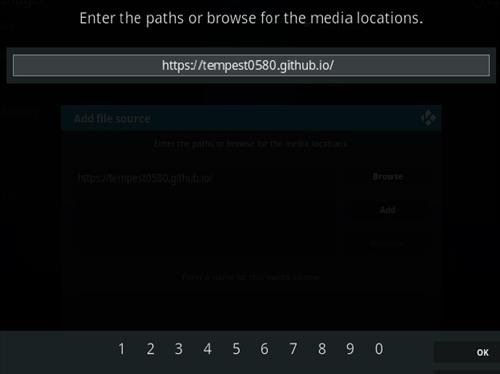
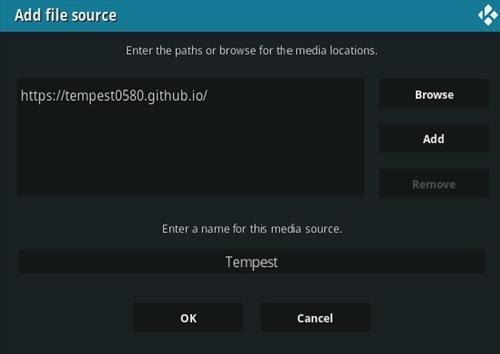
5. Here, enter in the URL:  https://tempest0580.github.io/ and click OK.

Guide to Install Arconai TV Kodi Addon on a Firestick Step 5


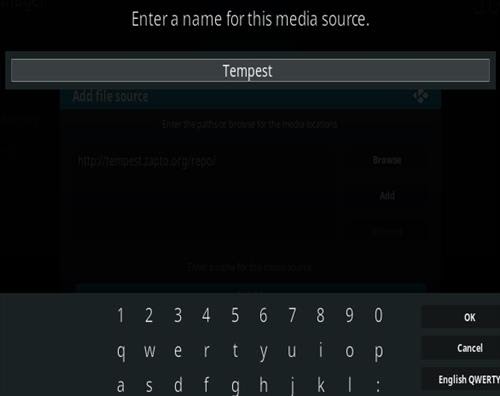
6. On the next page, enter the name “Tempest” and click on “OK”.     

Guide to Install Arconai TV Kodi Addon on a Firestick Step 6


7. Then,  make sure to check everything if it is all correct and then click “OK”

Guide to Install Arconai TV Kodi Addon on a Firestick Step 7


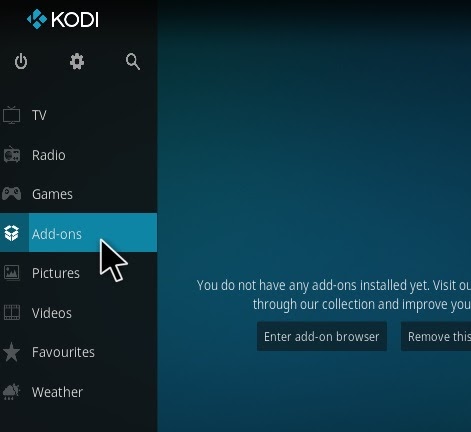
8. Return to the main menu and access “Add-ons“. 

Guide to Install Arconai TV Kodi Addon on a Firestick Step 8


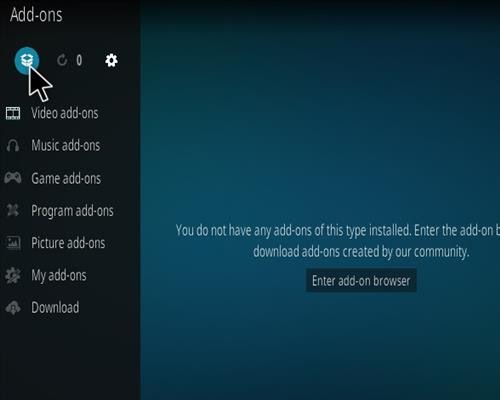
9. On the top left of the screen, click on the icon for Add-on Package Installer. 

Guide to Install Arconai TV Kodi Addon on a Firestick Step 9


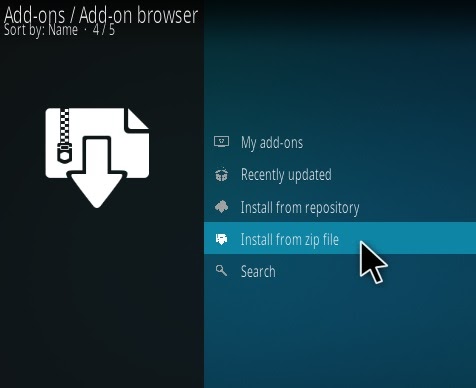
10. Then, click on the ” Install from zip file” tab. 

Guide to Install Arconai TV Kodi Addon on a Firestick Step 10


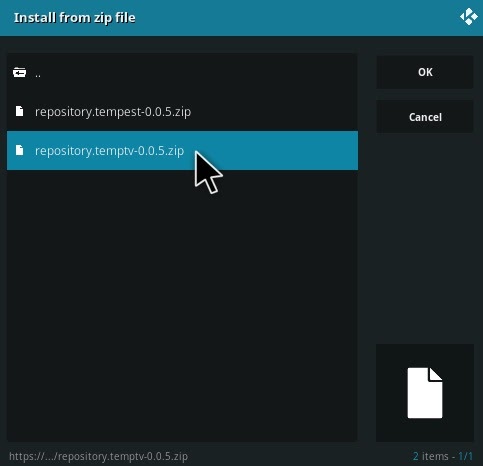
11. Now, click on the repository.temptv-0.0.5.zip.

Guide to Install Arconai TV Kodi Addon on a Firestick Step 11


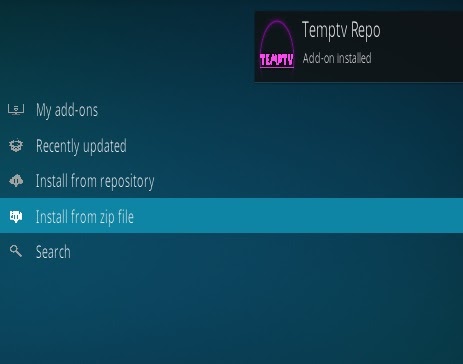
12. Patiently wait for the repository to finish downloading and display at the right of the screen and it will say “Temptv Repo Installed“. 

Guide to Install Arconai TV Kodi Addon on a Firestick Step 12


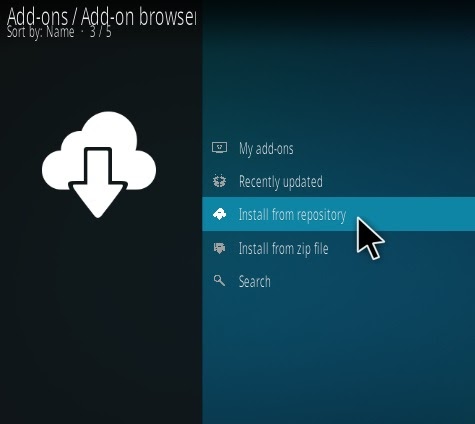
13. Next is to click on the ” Install from repository“. 

Guide to Install Arconai TV Kodi Addon on a Firestick Step 13


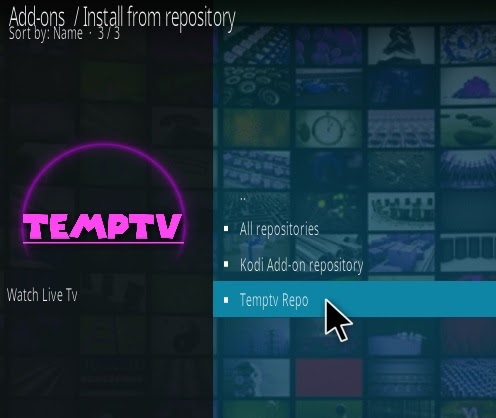
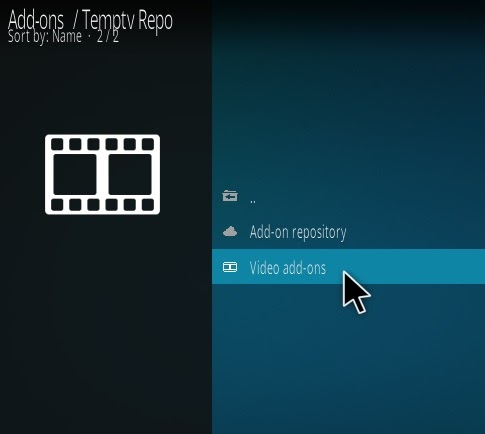
14. Then, click on the “Temptv Repo“.

Guide to Install Arconai TV Kodi Addon on a Firestick Step 14


15. Access the “Video Add-ons“.

Guide to Install Arconai TV Kodi Addon on a Firestick Step 15


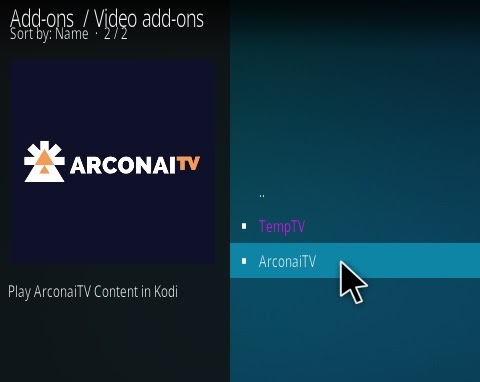
16. Now, click on “Arconai TV”.

Guide to Install Arconai TV Kodi Addon on a Firestick Step 16


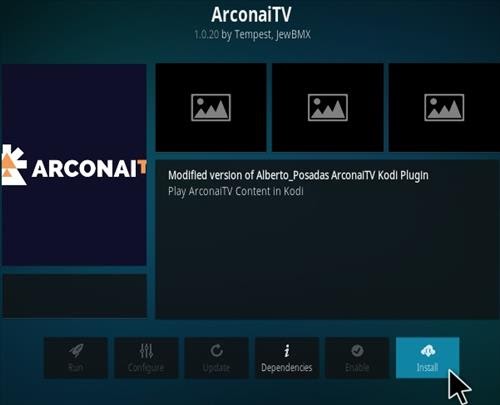
17. Then, click on the ” Install” icon. 

Guide to Install Arconai TV Kodi Addon on a Firestick Step 17


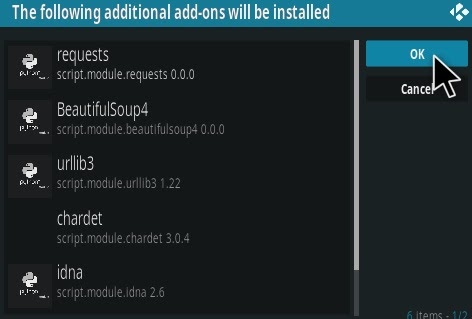
18. For users who are using the Kodi 18 Leia, a box will appear displaying all the add-ons and dependencies that will be installed. Then, click “OK”. 

Guide to Install Arconai TV Kodi Addon on a Firestick Step 18


YOUR INTERNET ACTIVITY IS BEING WATCHED

ReviewVPN cannot attest to the legality, security and privacy of the applications discussed on this site. It is highly recommended that you use a VPN service while streaming or using Kodi.

Currently, your IP 216.73.217.150 is visible to everyone and your Browser is being tracked by Advertisers & ISP Provider.

Save 65% Now

Limited Time Offer

Here are the main reasons why you must use a VPN:

  • Your activities are hidden from your ISP, the government, and from the apps you are using.
  • You can access additional movies and TV streams.
  • ISP attempts to throttle are thrwarted thus reducing buffering issues.
  • Geographically restricted content like Netflix and Hulu can be unblocked.

A VPN works be replacing your ISP-assigned IP address and creating an encrypted tunnel. We recommend the no log service offered by IPVanish. It works well on a Firestick and offers the fastest possible speeds.

Special Limited Time Offer - Get IPVanish


Legal Disclaimer: ReviewVPN.com does not encourage or endorse any illegal activity involved in the usage of services and applications referenced on this site. We do not verify the licensing agreements of services. The end-user is wholly responsible for ensuring that any media accessed through these services does not violate copyright and/or licensing laws. However, ReviewVPN does not promote, link to, or receive compensation from any Apps and IPTV services.


Install Surfshark on Firestick

Best Surfshark Deal


What Does Arconai TV Kodi Addon Do?

Arconai TV is a Kodi add-on that will allow you to stream any of your favorite movies, TV shows, and stream cable TV channels 24/7. Nonetheless, it is all for free! 


What Platforms Does Arconai TV Work on?

Arconai TV works on Android-supported devices. You can also use it on your computer with the help of a Plex or an Android emulator. Unfortunately, the app is unavailable for iOS devices.

Arconai TV Kodi Addon Features

  • Let’s stream any of your favorite movies, TV shows, and stream cable TV channels all for free. 
  • The add-on has Random Streams, 24/7 Movies, 24/7 TV shows, and Live TV channels. 
  • Nonetheless, you can install the add-on offline, as well. 


Pros and Cons

Pros

  • Enables you to watch any movie, TV show, and cable TV channel 24/7 for free. 
  • It has Random Streams, 24/7 TV shows, 24/7 Movies, and Live TV channels. 
  • Also, you can install Arconai TV offline.

Cons

  • This add-on does not fit well with clients that are web-based, such as Web or Plex. 
  • You can’t contact their customer support if face any problems. However, the Arconai TV add-on is not supported by that type of service. 

Stream Online Content with a VPN

Note: For more information about SurfShark, please read our SURFSHARK REVIEW.


Grab your subscription now!

Click here to get the lowest price on Surfshark through our exclusive limited-time offer.


How to Install Surfshark VPN on Firestick

If your Firestick still has the older interface, read this article to learn how to update it: Update Firestick Interface.

You can download Surfshark directly from the Amazon App store. It will be easy for you to find Surfshark with your Firestick’s Find feature. Refer to our screenshots below.

1. Go to the Home screen of your Firestick.

step 1 Install Surfshark VPN on Firestick


2. Navigate towards the Find tab. Press the Search button from the resulting dropdown.

step 2 Install Surfshark VPN on Firestick


3. Type in the keyword of SurfShark and select from the suggestions that will appear.

step 3 Install Surfshark VPN on Firestick


4. Click the official SurfShark icon from your search results.

step 4 Install Surfshark VPN on Firestick


5. Press the Download (You own it) button.

step 5 Install Surfshark VPN on Firestick


6. The SurfShark VPN installer will download on your device.

step 6 Install Surfshark VPN on Firestick


7. SurfShark VPN’s app will automatically install itself on your Fire TV stick.

step 7 Install Surfshark VPN on Firestick


8. Press the Open button after completing SurfShark VPN’s installation process.

step 8 Install Surfshark VPN on Firestick


9. Please wait for the SurfShark VPN to load its user interface.

step 9 Install Surfshark VPN on Firestick


10. You can now log in with your SurfShark VPN account credentials.

step 10 Install Surfshark VPN on Firestick

Learn more about Surfshark and Grab the Best Surfshark Deal Now!


Install Surfshark on Firestick

Best Surfshark Deal


Other VPNs to Consider

NordVPN (Best for Streaming)

Best Features

  • 5000+ Server in 50+ Countries 
  • Military-Grade Encryption
  • Fast Connection Speed
  • Suitable to a lot of devices
  • No-Log Policy

Prices
  • Complete $5.89 per month (64% Discount)
  • Plus $4.59 per month (56% Discount)
  • Standard $3.69 per month (55% Discount)

Best Features

  • 750+ High-speed VPN Servers in 43 Locations
  • Military-Grade Encryption
  • Fastest HD Streaming and Gaming
  • 30-Day Money-Back Guarantee
  • Unlimited Data & Devices
  • No-Log Policy

Prices
  • 3 Years $1.99 per month (82% Discount)
  • 1 Years $3.29 per month (70% Discount)
  • 1 Month $10.99 per month

IPVanish VPN (Most Secure)

Best Features

  • 1200+ Servers in 60+ Countries around the world
  • Unlimited Connections
  • No-Log Policy
  • Top Notch Military-Grade VPN Protocols and Encryptions
  • 100% Safe and Secured
  • Most Trusted VPN
  • Best VPN for Firestick
  • 30-Day Money-Back Guarantee

Prices
  • Yearly $3.99 per month (63% Discount) – 30 days risk free + Ransomware & Malware Protection
  • Quarterly $5.32 per month (51% Discount)
  • Monthly $10.99 per month


For more VPN discounts, go to ReviewVPN Deals and purchase the best VPN for you.

Click here to get the lowest price on Surfshark through our exclusive limited-time offer.


FAQ

Can I install Arconai TV offline?

Yes, you can install this add-on offline. All you have to do is follow these instructions:

  1. The first is to click on System.
  2. Next is to open the File manager.
  3. Then, double-click on the “Add source”.
  4. Click on where it says “<None>”.
  5. Carefully enter the URL: https://tempest0580.github.io/ and click on “OK”. After that, click on the “Enter a name for this media source.” type in “tempt” and then click “OK”.
  6. Return to the Kodi app’s main screen. Then click on the “Add-ons”.
  7. Open up the Install from the zip file.
  8. Click on temptv >> repository.temptv-x.x.x.zip.
  9. Then, wait patiently for the repository installation confirmation notification.
  10. Next is to click on the Install from repository >> Temptv Repo.
  11. Then, access the Video add-ons >> ArconaiTV addon.
  12. Click on “Install” and then click on “OK”.
  13. Patiently wait for a while for the add-on installation confirmation notification. 


How can I manually install Arconai TV?

The code for the Plex plugin like Arconai TV is stored inside a repository named with a suffix “.bundle”. Nonetheless, these are often called bundles. To manually install a plug-in bundle, you will have to acquire a link to plug in the said bundle. Now, oftentimes the bundle is displayed on the Plex forum or it is available by downloading it from GitHub. However, to install the plugin, follow these steps:

  1. You must first download the linked file. Nonetheless, if the link brings you to the GitHub page instead of being directed to download, then select the “Download Zip” button on the page and download the zipped bundle. 
  2. Normally, the bundle can be found in a zip archive. So, unzip the archive as it is necessary. 
  3. Bundles that are from the GitHub page have additional identifiers on the bundle’s file name, like “-master”. Change the folder or file name to remove anything after “.bundle”. 
  4. Then, move or copy the bundle into the Plug-Ins folder onto the computer that is running the Plex Media Server. 
  5. Now, restart the Plex Media Server to ensure that the new plugin will be launched and it is being loaded. 


Does Arconai TV have a website?

Yes, you can visit or go to their website by using this link:

 https://tempest0580.github.io/

Who developed Arconai TV?

The Arconai TV add-on was made by the developers who made the Tempest or the Temptv Repository.

When was Arconai TV created?

The Arconai TV add-on was made and launched approximately 5 years ago.

History

Sadly, there is not much information about Arconai TV’s history or background.


Review

If you want a reliable app and you can easily watch live TV streams 24/7, then we recommend that you avert from installing Arconai TV. This app is only great at being a backup if you ever run out of choices. Nonetheless, the app’s website is unstable to use and it is down 90% of the time.

However, with the app being constantly updated and also their website, then this app might turn into of those Live Streaming apps that you should look out for.

Install Mach Lite Kodi Build

Install Mach Lite Kodi Build

In this article, you are going to learn how to install Mach Lite Kodi build. Mach Lite Kodi build houses Mammoth and Kryptikz Builds and comes with so many amazing entertainment sections for your streaming purposes.

Mach Lite Kodi build works on various streaming devices such as  Firestick, Kodi, Windows, Andriod TV Box and so much more. 


ANONYMOUSLY


Mach Lite Kodi can be found with lostkodi repository and it houses addons offering the following entertainment sections;

  • Horror moves 
  • Live TV shows 
  • NVIDIA shield 
  • Adult 
  • Ranger 
  • Batman 
  • Formula and lots more. 


Mach Lite Kodi build features: clutter-free, neat user interface with a standard layout. It has easy to navigate content-feature with well-organized themes. Mach Lite Kodi build has customizable and useful addons and widgets for the improved streaming experience. This build only requires a small fraction of your device’s storage space and as such makes it compatible with low memory apps. You will find in Mach Lite Kodi build sections which include

  • Movies 
  • TV Shows 
  • Sports 
  • Favorites 
  • System 
  • Power 
  • Live TV 
  • Kids Zone 
  • Music 
  • Comedy 
  • Docs TV 
  • Fitness and lots more.


YOUR INTERNET ACTIVITY IS BEING WATCHED

ReviewVPN cannot attest to the legality, security and privacy of the applications discussed on this site. It is highly recommended that you use a VPN service while streaming or using Kodi.

Currently, your IP 216.73.217.150 is visible to everyone and your Browser is being tracked by Advertisers & ISP Provider.

Save 65% Now

Limited Time Offer

Here are the main reasons why you must use a VPN:

  • Your activities are hidden from your ISP, the government, and from the apps you are using.
  • You can access additional movies and TV streams.
  • ISP attempts to throttle are thrwarted thus reducing buffering issues.
  • Geographically restricted content like Netflix and Hulu can be unblocked.

A VPN works be replacing your ISP-assigned IP address and creating an encrypted tunnel. We recommend the no log service offered by IPVanish. It works well on a Firestick and offers the fastest possible speeds.

Special Limited Time Offer - Get IPVanish


What is Kodi

Nowadays, a lot of people are going cordless. This is due to the exorbitant fees charged by cable television networks. However, with the release of Kodi, you can go cordless, not only that you can as well share and store files around with anyone. It also allows you to download apps and games. 


Kodi has been around since 2002. It was known as an Xbox media player when it was released. However, it was later renamed Xbox media center in 2003 which remained till 2014. The name Kodi was later given by the XBMC foundation which is the developer and brian behind Kodi’s content and service it offers.  

With Kodi, you can stream entertainment such as 

  • Music 
  • Videos  
  • LiveTV shows
  • Documentaries
  • Comedies 
  • Cartoons
  • Anime and lots more. 


Also, Kodi allows you to store and access movies, music, document file, and lots more and access such content from anywhere around the home. Kodi works perfectly on almost all streaming devices. Kodi is compatible with different opening systems such as windows, iOS, Android, Linux, and lots more. 


That said, there have been questions arising concerning the use of Kodi. a lot of people seem to find Kodi a bit hard to use. This might be due to the fact that Kodi houses a lot of third-party add-ons and the majority of these addons do not have the copyright to the content they are offering. Nonetheless, a lot of people still find Kodi as the only when it comes to cutting cords. 

What Kodi means

Kodi is an open-source streaming software. It allows you to stream, and access entertainments such as:

  • Movies 
  • Cartoons
  • Anime 
  • Sports events
  • Documentaries 
  • Live TV shows 
  • Adult content and lots more. 


Kodi allows you to store, share, and access files or content with anyone around your home. 

Compatible device

Kodi can be installed on the following streaming device:

TV, Laptop, Android smartphones, iOS smartphones, Tablet, Raspberry Pi.


Compatible operating systems:

Windows, iOS, Linux, MAC, Android, and lots more. 


The key feature of Kodi Features of Kodi

Kodi comes with easy-to-customize skins and themes. It has a user-friendly interface with a standard layout. It allows you to stream movies in different categories and subcategories.

You can stream music in various formats such as MP3, AAC, and OGG. Kodi offers tons of add-ons allowing you to stream and access entertainment such as 

  • Movies 
  • TV shows 
  • Cartoons 
  • Anime, 
  • Sports shows, and lots more.
  • With Kodi, you can organize and create your playlist and also tag lots of music tracks as you want. Kodi is also compatible with ISO, H.264, and 3D formats.


What is Kodi Build?

In a layman’s understanding, a Kodi build is a collection of addons, contents, wizards, and lots more within a build. In other words, a Kodi build is a software that you can install on your Kodi app. It allows you to access and stream entertainment such as movies, music, documentaries, and lots more. You can also store and share files with a Kodi build. 

  • A Kodi build houses
  • Addon 
  • Wizards 
  • Program files that you can access once you install a Kodi build on your device.


Install Surfshark on Firestick

Best Surfshark Deal


Legal Disclaimer: ReviewVPN.com does not encourage or endorse any illegal activity involved in the usage of services and applications referenced on this site. We do not verify the licensing agreements of services. The end-user is wholly responsible for ensuring that any media accessed through these services does not violate copyright and/or licensing laws. ReviewVPN does not promote, link to, or receive compensation from any Apps and IPTV services.


Features of Kodi Build

A Kodi build comes with tons of Add-ons offering movies, music, cartoons, anime, TV shows, and lots more. It has Settings. You can customize the Skins and themes to your choice. You will Electronic program guide menu on Kodi built together with the Weather feature. A Kodi build comes with Tools and lots more. It has a Customizable User-friendly interface with a Standard layout


Installing Mach Lite Kodi build

The installation process of Mach Lite Kodi build involves first and foremost, enabling the unknown source of your Kodi app and then downloading and installing the repository zip file. 

Step by step guide on how to enable the unknown source and install the repository

Step 1. Open your Kodi app and allow it to start running properly.

Step 2. From the home screen of your Kodi, scroll up and click on the setting icon found at the top left-hand side of your screen.

Step 3. On the new window that will appear, scroll down and click on the System option. 

Step 4. On the system menu, navigate downwards and select the addon option and then scroll rightward and click on the unknown source option. Select the YES option to enable the unknown sources. 

Step 5. Return to home screen either by pressing the back button or the arrow button

Step 6. From the home screen, scroll up and select the setting icon

Step 7. On the setting menu, scroll to file manager and click on it 

Step 8. Next, on the new dialog box that will appear, scroll down and click on add source option

Step 9. Next, click on <NONE> and carefully type the media source URL: http://tinyurl.com/lostkodi and then click on OK

Note;

Double-check the URL you typed to avoid errors

Step 10. Hover on the textbox that says “enter a name for this media source” and type “maze” and click on OK.

Note; if Kodi automatically inputs a name for this media, just click on OK to proceed with the installation process. 

Step 11. Return to home screen home by pressing the back button

Step 12. From the home screen, scroll down and click on addons

Step 13. Next, on the new window that will appear, scroll up and click on the addon installer icon found at the top left corner of your screen. 

Step 14. On the new window that will appear, scroll to install from the zip file option and click on it.

Step 15. Next, scroll to lostkodi and click on it.

Step 16. Next, select lostkodi Build zip file “plugin.program.lostbuildswizard.zip and then select the OK option to continue with the installation process. Wait for the lostkodi repository installed notification at the top right-hand corner of your screen. 

Step 17. Next, click on Continue

Step 18. On the new window that will appear, click on the Ignore.

Step 19. Next, return to the home screen.

Step 20. From the home screen, click on the addons and then scroll down and click on program addons 

Step 21. Next, click on Lost Builds Wizard 

Step 22. Now, click on the install or Update Lost Builds option. Next select Mach 1 Lite build and Wait for the addon installed notification at the top right-hand side of your screen.

Step 23. Next, scroll to Fresh Install and click on it

Step 24. Click the Continue option to proceed with the installation process.

Step 25. Wait for the build to download and install. after successful installation, click on force close.

Step 26. Restart your Kodi app and Mach Lite Kodi build is ready.


Video on How to Install the Mach Lite Kodi Build on All Devices

[videopress 5rIkfmO1]


Why do you need a VPN

It is becoming increasingly challenging these days to stream or access the internet without having your activities being monitored or even recorded by your internet service provider. This is why it is highly recommended to protect and secure your online activities with a VPN. A VPN is software that hides your IP address over your internet service provider network. A VPN achieves security and anonymity by encrypting and masking your IP address over the ISP network. When this happens, you will appear on the internet service provider network as a private, secure, and anonymous user. 

However, we often advise people who are often fond of streaming with third-party apps to install a VPN on their device. This is because installing a VPN on your device will offer you privacy and protection. However, another good reason why installing a VPN is important is because the majority of third-party apps do not have the copyright to most of the content they offer.


Importance of using a VPN

  • Privacy

Installing a VPN on your device will ensure your online safety and protection. For instance, if you are fond of using a public wifi or data internet connection, your IP address will be visible to anyone on the network. If a potential hacker is also using the network, he might be able to get hold of your sensitive information such as a password. However, with a VPN, you will be protected and secure and your IP address will appear as an “anonymous, secure and private user”.


  • Minimize ISP throttling

Throttling is often caused by your internet service provider and it affects the video quality of content you are streaming and might even lead to the video lagging or buffering. However, installing a VPN will help to minimize the effects of throttling thereby improving the video quality.


  • Bypass restrictions due to location

Using Kodi without a VPN will only lead you to frustration because you won’t be able to explore all the content most of the add-ons have to offer. This is because most of the addons use “location restriction” to protect the contents they offer from unauthorized access. The majority of the addons on Kodi often have content for US and Canadian residents and someone from outside this region will not be able to access such content. However, installing a VPN will enable you to bypass geo-location and stream from anywhere around the world. 

After we reviewed several VPN service providers, we present to you Surfshark. They offer the best VPN service with pocket-friendly subscription plans. 


  • Features of Surfshark Over 10 simultaneous connections, Military Grade Encryption, Anonymous Browsing with zero logs policy, and Leak protection policy.
  • Has a total of 3200+ servers in 65 countries


Note: For more information about Surfshark, please read our Surfshark Review.


Grab your subscription now!

Click here to get the lowest price on Surfshark through our exclusive limited-time offer.


How to Install Surfshark VPN on Firestick

If your Firestick still has the older interface, read this article to learn how to update it: Update Firestick Interface.

Follow our screenshots below to install the SurfShark VPN app on your Fire TV stick.

1. Go to the Home screen of your Firestick.

step 1 Install Surfshark VPN on Firestick


2. Navigate towards the Find tab. Press the Search button from the resulting dropdown.

step 2 Install Surfshark VPN on Firestick


3. Type in the keyword of SurfShark and select from the suggestions that will appear.

step 3 Install Surfshark VPN on Firestick


4. Click the official SurfShark icon from your search results.

step 4 Install Surfshark VPN on Firestick


5. Press the Download (You own it) button.

step 5 Install Surfshark VPN on Firestick


6. The SurfShark VPN installer will download on your device.

step 6 Install Surfshark VPN on Firestick


7. SurfShark VPN’s app will automatically install itself on your Fire TV stick.

step 7 Install Surfshark VPN on Firestick


8. Press the Open button after completing SurfShark VPN’s installation process.

step 8 Install Surfshark VPN on Firestick


9. Please wait for the SurfShark VPN to load its user interface.

step 9 Install Surfshark VPN on Firestick


10. You can now log in with your SurfShark VPN account credentials.

step 10 Install Surfshark VPN on Firestick

Learn more about Surfshark and Grab the Best Surfshark Deal Now!


Install Surfshark on Firestick

Best Surfshark Deal


Other VPNs to Consider

NordVPN (Best for Streaming)

Best Features

  • 5000+ Server in 50+ Countries 
  • Military-Grade Encryption
  • Fast Connection Speed
  • Suitable to a lot of devices
  • No-Log Policy

Prices
  • Complete $5.89 per month (64% Discount)
  • Plus $4.59 per month (56% Discount)
  • Standard $3.69 per month (55% Discount)

Best Features

  • 750+ High-speed VPN Servers in 43 Locations
  • Military-Grade Encryption
  • Fastest HD Streaming and Gaming
  • 30-Day Money-Back Guarantee
  • Unlimited Data & Devices
  • No-Log Policy

Prices
  • 3 Years $1.99 per month (82% Discount)
  • 1 Years $3.29 per month (70% Discount)
  • 1 Month $10.99 per month

IPVanish VPN (Most Secure)

Best Features

  • 1200+ Servers in 60+ Countries around the world
  • Unlimited Connections
  • No-Log Policy
  • Top Notch Military-Grade VPN Protocols and Encryptions
  • 100% Safe and Secured
  • Most Trusted VPN
  • Best VPN for Firestick
  • 30-Day Money-Back Guarantee

Prices
  • Yearly $3.99 per month (63% Discount) – 30 days risk free + Ransomware & Malware Protection
  • Quarterly $5.32 per month (51% Discount)
  • Monthly $10.99 per month


For more VPN discounts, go to ReviewVPN Deals and purchase the best VPN for you.

Click here to get the lowest price on Surfshark through our exclusive limited-time offer.

 

Frequently Asked Question

When was Mach Lite Kodi build released?

Mach Lite Kodi build is a relatively new Kodi build. The release of the Mach Lite Kodi build is not public.


Is Mach Lite Kodi build free?

Installing and using Mach Lite Kodi build is free. It houses tons of addons also offering free content and has tools to improve your streaming experience. That said, you may find addons with pay-per-view content that requires a subscription.


Is Mach Lite Kodi build safe to use?

Mach Lite Kodi build is safe and offers safe content as well. By and large. We recommend you protect yourself by installing Surfshark

Click here to get a discount on Surfshark. Also, Surfshark offers an annual promo, so purchase a subscription to enjoy all the benefits they offer.


Alternatives Mach Lite Kodi build

You will find other amazing Kodi build that you can also install on your streaming device. Most of these builds offer the same or entirely different content as Mach Lite Kodi build. Below is the alternative to Mach Lite Kodi build: 


Note:

By and large lots of builds often stop functioning after a couple of weeks. When this happens, you can make your research via here for working Kodi build. You may as well check out our list of Best Kodi Builds for more details.


Note:

Ensure that your Surfshark is switched on before streaming with Kodi. 

How to Install Ravers Unite Kodi Addon

Ravers Unite Kodi Addon

Ravers Unite Kodi addon is a third-party Kodi found within the Loki Repo. This addon allows you to stream music, movies, documentaries, music videos, news, sports events, and lots more all free of charge. You will find in this addon, utility, and program sections.


Legal Disclaimer: ReviewVPN.com does not encourage or endorse any illegal activity involved in the usage of services and applications referenced on this site. We do not verify the licensing agreements of services. The end-user is wholly responsible for ensuring that any media accessed through these services does not violate copyright and/or licensing laws. ReviewVPN does not promote, link to, or receive compensation from any Apps and IPTV services.


ANONYMOUSLY


Features of Ravers Unite Kodi addon

  • Customizable skin and themes
  • Categories and subcategories of entertainment
  • Daily addon update
  • Huge collection of music such as:
  • Jazz 
  • RnB
  • POP
  • Rap
  • Blues


Steps on How to Install Ravers Unite Addon

Step 1. Open your Kodi app and scroll up to the setting icon

Step 2. Next, on the new window, scroll down to the system option and click on it.

Step 3. Select add-ons.

Step 4. ClicK on UNKNOWN SOURCES and select YES on the dialog box with the warning message.

Step 5. Go back to the home screen of your Kodi app.

Step 6. Select the setting icon.

Step 7. Next, on the new window, select file manager

Step 8. Select add source.

Step 9. Select <NONE> and input the media source link: ‘  http://kodiuk.tv/repo/ and select OK.

Step 10. Next, click on “Enter a name for this media source” and type “Loki“.

Step 11. Go back to the home screen.

Step 12. From the home menu, scroll down, and click on add-ons.

Step 13. On the new window, scroll up and select the add-on browser icon.

Step 14. Select install from the zip file.

Step 15. Click on Loki

Step 16. select on repository.Loki-0.0.5.zip and then wait for Add-on enabled notification.

Step 17. Select Install from Repository

Step 18. ClicK on Loki

Step 19. Select video add-ons

Step 20. Select Ravers Unite

Step 21. Select Install

Step 22. Select OK on the dialog box with “ the following additional add-ons will be installed” and wait for Add-on installed message notification.


YOUR INTERNET ACTIVITY IS BEING WATCHED

ReviewVPN cannot attest to the legality, security and privacy of the applications discussed on this site. It is highly recommended that you use a VPN service while streaming or using Kodi.

Currently, your IP 216.73.217.150 is visible to everyone and your Browser is being tracked by Advertisers & ISP Provider.

Save 65% Now

Limited Time Offer

Here are the main reasons why you must use a VPN:

  • Your activities are hidden from your ISP, the government, and from the apps you are using.
  • You can access additional movies and TV streams.
  • ISP attempts to throttle are thrwarted thus reducing buffering issues.
  • Geographically restricted content like Netflix and Hulu can be unblocked.

A VPN works be replacing your ISP-assigned IP address and creating an encrypted tunnel. We recommend the no log service offered by IPVanish. It works well on a Firestick and offers the fastest possible speeds.

Special Limited Time Offer - Get IPVanish


Do Not Use Kodi Without a VPN

Streaming online has drastically increased nowadays. Consequently, many streaming apps are being developed by app developers and most of these apps are third-party apps: meaning that they have full copyright to the content they offer. However, it is not recommendable to use any third-party apps because of the security and privacy risks involved. This is where a VPN comes in.

A VPN is software that encrypts and masks your IP address to appear on the internet service provider network as a secure and private user thereby bypassing any online security issues.

This is achieved when a VPN encrypts your IP address on the ISP network (hides your true identity on the ISP). 

Below are the importance of installing a VPN

Security and privacy

You may own your computer and internet connection (even though no one else uses them) still, whatever activities you are doing online isn’t private. Your internet service provider records and says whatever activity you are doing online. With a VPN installed on your device, you will be able to bypass being monitored or tracked by your internet service provider.


Restrictions

Most streaming apps protect their content by putting location restrictions. This makes it hard for anyone outside of the stipulated location to have access to the content they offer.

However, with a VPN, you will be able to change your IP address to a different one. When this happens, you will be able to have access to the contents of the app.

Minimize internet service provider throttling

Throttling reduces video quality. However, installing a VPN will help minimize the effects of throttling. 

Outsmart tracking and monitoring

A VPN encrypts and masks your IP address making it difficult for your Internet service provider to track or monitor whatever activities you are doing online.

For the best VPN service, we recommend Surfshark. You will enjoy pocket-friendly subscription packages (they also offer promo if you are going for annual subscription plans).


Surfshark Features:

  • Zero logs and leak protection policy so you need not worry about your browsing history or data being compromised.
  • Up to 30 days of a money-back guarantee.
  • Has a total of 3200+ servers in 65 countries to choose from

Note: To get Surfshark for a discounted rate, click here.


Install Surfshark on Firestick

Best Surfshark Deal


How to Install Surfshark VPN on Firestick

If your Firestick still has the older interface, read this article to learn how to update it: Update Firestick Interface.

Follow our screenshots below to install the SurfShark VPN app on your Fire TV stick.

1. Go to the Home screen of your Firestick.

step 1 Install Surfshark VPN on Firestick


2. Navigate towards the Find tab. Press the Search button from the resulting dropdown.

step 2 Install Surfshark VPN on Firestick


3. Type in the keyword of SurfShark and select from the suggestions that will appear.

step 3 Install Surfshark VPN on Firestick


4. Click the official SurfShark icon from your search results.

step 4 Install Surfshark VPN on Firestick


5. Press the Download (You own it) button.

step 5 Install Surfshark VPN on Firestick


6. The SurfShark VPN installer will download on your device.

step 6 Install Surfshark VPN on Firestick


7. SurfShark VPN’s app will automatically install itself on your Fire TV stick.

step 7 Install Surfshark VPN on Firestick


8. Press the Open button after completing SurfShark VPN’s installation process.

step 8 Install Surfshark VPN on Firestick


9. Please wait for the SurfShark VPN to load its user interface.

step 9 Install Surfshark VPN on Firestick


10. You can now log in with your SurfShark VPN account credentials.

step 10 Install Surfshark VPN on Firestick

Learn more about Surfshark and Grab the Best Surfshark Deal Now!


Install Surfshark on Firestick

Best Surfshark Deal


Other VPNs to Consider

NordVPN (Best for Streaming)

Best Features

  • 5000+ Server in 50+ Countries 
  • Military-Grade Encryption
  • Fast Connection Speed
  • Suitable to a lot of devices
  • No-Log Policy

Prices
  • Complete $5.89 per month (64% Discount)
  • Plus $4.59 per month (56% Discount)
  • Standard $3.69 per month (55% Discount)

Best Features

  • 750+ High-speed VPN Servers in 43 Locations
  • Military-Grade Encryption
  • Fastest HD Streaming and Gaming
  • 30-Day Money-Back Guarantee
  • Unlimited Data & Devices
  • No-Log Policy

Prices
  • 3 Years $1.99 per month (82% Discount)
  • 1 Years $3.29 per month (70% Discount)
  • 1 Month $10.99 per month

IPVanish VPN (Most Secure)

Best Features

  • 1200+ Servers in 60+ Countries around the world
  • Unlimited Connections
  • No-Log Policy
  • Top Notch Military-Grade VPN Protocols and Encryptions
  • 100% Safe and Secured
  • Most Trusted VPN
  • Best VPN for Firestick
  • 30-Day Money-Back Guarantee

Prices
  • Yearly $3.99 per month (63% Discount) – 30 days risk free + Ransomware & Malware Protection
  • Quarterly $5.32 per month (51% Discount)
  • Monthly $10.99 per month


For more VPN discounts, go to ReviewVPN Deals and purchase the best VPN for you.

Click here to get the lowest price on Surfshark through our exclusive limited-time offer.


Install Maze Kodi build – 2023 Edition

Maze Kodi build

In this tutorial, you will learn how to install Maze Kodi build on various devices such as Andriod TV Box, Kodi, Windows, Firestick, ETC. Maze Kodi build is a build found within the Maze wizard and has add-ons offering entertainment such as Horror moves, Live TV shows, NVIDIA shield, adult, Ranger, Batman, formula, and lots more. 


Install Surfshark on Firestick

Best Surfshark Deal


Legal Disclaimer: ReviewVPN.com does not encourage or endorse any illegal activity involved in the usage of services and applications referenced on this site. We do not verify the licensing agreements of services. The end-user is wholly responsible for ensuring that any media accessed through these services does not violate copyright and/or licensing laws. ReviewVPN does not promote, link to, or receive compensation from any Apps and IPTV services.


ANONYMOUSLY


Features of Maze Kodi build

  • Well organized and easy to navigate content 
  • Customizable and useful add ons for improved streaming experience
  • Neat, clutter-free interface.
  • Compatible on all streaming device (both low and large memory devices)
  • User-friendly interface with a standard layout
  • Has sections such as Movies, TV Shows, Sports, Favorites, System, Power, Live TV, Kids Zone, Music, Comedy, Docs TV, Fitness, and lots more.

Addons within Maze Kodi build

  • Exodus Redux
  • Venom
  • T2K Kingdom
  • YouTube 
  • Kratos
  • Limitless
  • SportsDevil
  • Sportowa TV
  • The Magic Dragon
  • DeathStar 
  • The Loop 
  • Exodus Redux


YOUR INTERNET ACTIVITY IS BEING WATCHED

ReviewVPN cannot attest to the legality, security and privacy of the applications discussed on this site. It is highly recommended that you use a VPN service while streaming or using Kodi.

Currently, your IP 216.73.217.150 is visible to everyone and your Browser is being tracked by Advertisers & ISP Provider.

Save 65% Now

Limited Time Offer

Here are the main reasons why you must use a VPN:

  • Your activities are hidden from your ISP, the government, and from the apps you are using.
  • You can access additional movies and TV streams.
  • ISP attempts to throttle are thrwarted thus reducing buffering issues.
  • Geographically restricted content like Netflix and Hulu can be unblocked.

A VPN works be replacing your ISP-assigned IP address and creating an encrypted tunnel. We recommend the no log service offered by IPVanish. It works well on a Firestick and offers the fastest possible speeds.

Special Limited Time Offer - Get IPVanish


What is Kodi?

A lot of people have started cutting codes due to the entry of Kodi into the streaming industry. Not only that, but Kodi also allows you to share files with others, download games and apps.


Kodi has been available since 2002. It was known as Xbox Media Player. However, in 2003, the name was changed to Xbox Media center which is used till the fall of 2014. The name “Kodi” was given by the XBMC foundation is the brain behind this software development and the services it offers.


That said, Kodi allows you to stream content such as music, videos, LiveTV shows, and lots more. You can as well store movies, music, and access such content from anywhere around the home. Kodi work perfectly on almost all streaming devices. Kodi is compatible with different opening systems such as windows, iOS, Android, Linux, and lots more. 


Nevertheless, a lot of people find Kodi to be more technical to use. Not only that, but there are also FAQs on using Kodi due to many third-party addons it houses. This is because the majority of the third-party add-ons do not have the copyright to most of the content they offer. However, for some people, Kodi remains the best option when cutting the cord.


Kodi, what it is?

It is an open-source streaming software that allows you to access and stream movies, cartoons, anime, sports events, documentaries, live TV shows, adult content, and lots more. You can also share and store content on Kodi. 

Compatible device


Kodi is compatible with the following devices


Compatible operating systems

  • Window
  • iOS
  • Linux
  • MAC
  • Android


Features of Kodi

  • User-friendly interface
  • Customizable themes and skins
  • Has both local and network storage service
  • Houses tons of addons offering entertainment such as movies, TV shows, cartoons, anime, sports shows, and lots more.
  • Allows you to stream music in different formats such as MP3, OGG and AAC 
  • Allows you to create your playlist and you can easily tag tons of track as you wish.
  • Compatible with 3D, H.264 and ISO formats.


What is Kodi Build?

A Kodi Build is technically a software that can be installed on Kodi for streaming or sharing file purposes. A Build has all the addon, wizards, program files altogether and becomes accessible once you install it on your Kodi app. 


Features of Kodi Build

  • Add-ons 
  • Settings 
  • Skins 
  • Electronic program guide 
  • Weather
  • Tools and lots more.
  • Customizable skins and themes 
  • User-friendly interface
  • Standard layout


Installing Maze Kodi Build

To install Maze Kodi build, first of all, you need to enable the unknown source of your Kodi app.

Follow the below steps to enable the unknown sources

Step 1. Launch your Kodi. from the home screen, scroll up and click on the setting icon found at the top left corner of your screen.

Step 2. On the setting menu, scroll down to SYSTEM and click on it 

Step 3. Next, on the system menu, scroll down to addons 

Step 4. On the addons menu, navigate rightward and click on unknown sources, and on the warning dialog box that will appear, select YES to enable the unknown sources of your Kodi app.

Step 5. Return to home screen either by pressing the back button or the arrow button

Step 6. From the home screen, scroll up and select the setting icon

Step 7. On the setting menu, scroll to file manager and click on it 

Step 8. Next, on the new dialog box that will appear, scroll down and click on add source option

Step 9. Next, click on <NONE> and carefully type the media source URL: http://tinyurl.com/lostkodi and then click on OK

Note;

Double-check the URL you typed to avoid errors

Step 10. Hover on the textbox that says “enter a name for this media source” and type “maze” and click on OK.

Note; if Kodi automatically inputs a name for this media, just click on OK to proceed with the installation process. 

Step 12. Return to home screen home by pressing the back button

Step 13. From the home screen, scroll down and click on addons

Step 14. Next, on the new window that will appear, scroll up and click on the addon installer icon found at the top left corner of your screen. 

Step 15. On the new window that will appear, scroll to install from the zip file option and click on it.

Step 16. Next, scroll to maze and click on it.

Step 17. Next, click on repository.maze 

Step 18. Next, select Maze Build zip file “repository.maze-x.x.zip and then select the OK option to continue with the installation process. Wait for the Maze repository installed notification at the top right-hand corner of your screen. 

Step 19. Next, scroll to “install from repository and click on it

Step 20. On the new window that will appear, click on the maze repository.

Step 21. Next, click on the program addons 

Step 22. Next, click on maze wizard 

Step 23, now, click on the install option

Step 24. Wait for the addon installed notification at the top right-hand side of your screen.

Step 25.clic Dismiss on the pop-up that will appear and then click on the Continue button to proceed.

Step 26. Next, on the pop dialog box that will appear, select build menu

Step 27. Next, click on the Maze family build

Step 28. Next, scroll to Standard install and click on it

Step 29. Click YES option

Step 30. Wait for the build to download and install. after successful installation, click on force close.

Step 31. Restart your Kodi app and Maze Build is ready.


Video on How to Install the Maze Kodi Build on All Devices

[videopress DREnV7qs]


Why do you need a VPN

A VPN is software that hides your IP address over your internet service provider network. This is achieved by encrypting and masking your IP address over the ISP network. When this happens, you will appear on the internet service provider network as a private, secure, and anonymous user. As some who is often fond of streaming with third-party apps, it is highly recommended that you install a VPN on your device. This is because the majority of third-party apps do not have the copyright to most of the content they offer.


Importance of using a VPN

Privacy

Installing a VPN on your device will ensure your online safety and protection. For instance, if you are fond of using a public wifi or data internet connection, your IP address will be visible to anyone on the network. If a potential hacker is also using the network, he might be able to get hold of your sensitive information such as a password. However, with a VPN, you will be protected and secure and your IP address will appear as an “anonymous, secure and private user”


Bypass restrictions due to location

Using Kodi without a VPN will only lead you to frustration because you won’t be able to explore all the content most of the add-ons have to offer. This is because most of the addons use “location restriction” to protect the contents they offer from unauthorized access. The majority of the addons on Kodi often have content for US and Canadian residents and someone from outside this region will not be able to access such content. However, installing a VPN will enable you to bypass geo-location and stream from anywhere around the world. 


Minimize ISP throttling

Throttling is often caused by your internet service provider and it affects the video quality of content you are streaming and might even lead to the video lagging or buffering. However, installing a VPN will help to minimize the effects of throttling thereby improving the video quality.

After we reviewed several VPN service providers, we present to you Surfshark. They offer the best VPN service with pocket-friendly subscription plans.  If you want to know more about this VPN, kindly read our Surfshark Review.


Grab your subscription now!

Click here to get the lowest price on Surfshark through our exclusive limited-time offer.


How to Install Surfshark VPN on Firestick

If your Firestick still has the older interface, read this article to learn how to update it: Update Firestick Interface.

Follow our screenshots below to install the SurfShark VPN app on your Fire TV stick.

1. Go to the Home screen of your Firestick.

step 1 Install Surfshark VPN on Firestick


2. Navigate towards the Find tab. Press the Search button from the resulting dropdown.

step 2 Install Surfshark VPN on Firestick


3. Type in the keyword of SurfShark and select from the suggestions that will appear.

step 3 Install Surfshark VPN on Firestick


4. Click the official SurfShark icon from your search results.

step 4 Install Surfshark VPN on Firestick


5. Press the Download (You own it) button.

step 5 Install Surfshark VPN on Firestick


6. The SurfShark VPN installer will download on your device.

step 6 Install Surfshark VPN on Firestick


7. SurfShark VPN’s app will automatically install itself on your Fire TV stick.

step 7 Install Surfshark VPN on Firestick


8. Press the Open button after completing SurfShark VPN’s installation process.

step 8 Install Surfshark VPN on Firestick


9. Please wait for the SurfShark VPN to load its user interface.

step 9 Install Surfshark VPN on Firestick


10. You can now log in with your SurfShark VPN account credentials.

step 10 Install Surfshark VPN on Firestick

Learn more about Surfshark and Grab the Best Surfshark Deal Now!


Install Surfshark on Firestick

Best Surfshark Deal


Other VPNs to Consider

NordVPN (Best for Streaming)

Best Features

  • 5000+ Server in 50+ Countries 
  • Military-Grade Encryption
  • Fast Connection Speed
  • Suitable to a lot of devices
  • No-Log Policy

Prices
  • Complete $5.89 per month (64% Discount)
  • Plus $4.59 per month (56% Discount)
  • Standard $3.69 per month (55% Discount)

Best Features

  • 750+ High-speed VPN Servers in 43 Locations
  • Military-Grade Encryption
  • Fastest HD Streaming and Gaming
  • 30-Day Money-Back Guarantee
  • Unlimited Data & Devices
  • No-Log Policy

Prices
  • 3 Years $1.99 per month (82% Discount)
  • 1 Years $3.29 per month (70% Discount)
  • 1 Month $10.99 per month

IPVanish VPN (Most Secure)

Best Features

  • 1200+ Servers in 60+ Countries around the world
  • Unlimited Connections
  • No-Log Policy
  • Top Notch Military-Grade VPN Protocols and Encryptions
  • 100% Safe and Secured
  • Most Trusted VPN
  • Best VPN for Firestick
  • 30-Day Money-Back Guarantee

Prices
  • Yearly $3.99 per month (63% Discount) – 30 days risk free + Ransomware & Malware Protection
  • Quarterly $5.32 per month (51% Discount)
  • Monthly $10.99 per month


For more VPN discounts, go to ReviewVPN Deals and purchase the best VPN for you.

Click here to get the lowest price on Surfshark through our exclusive limited-time offer.
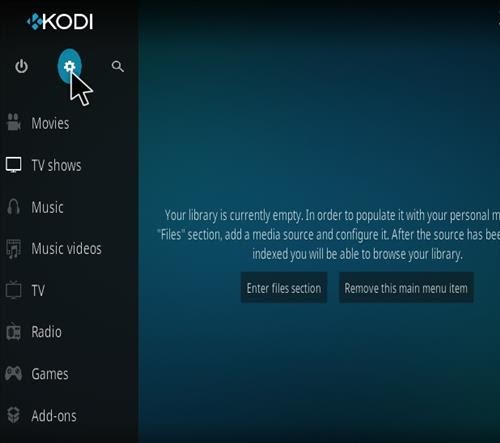


Frequently Asked Question

Is Maze Kodi build free?

Yes, Maze Kodi build is entirely free. However, you may find a few add-ons offering paid content. That said, Maze Kodi build offers free content.


Is Maze Kodi build safe to use?

Yes, Maze Kodi build is safe to use. However, it is recommended to protect yourself with Surfshark. Click here to get a discount on Surfshark. Also, Surfshark offers an annual promo, so purchase a subscription to enjoy all the benefits they offer.


History of Maze Kodi build

When was Maze Kodi build released?

Maze Kodi build is a relatively new Kodi build. However, the exact date of release is yet unknown. You may do your research to find out more about the history of Maze Kodi build.


Alternatives

Much other kid builds abound and this build offers the same content or most times different content as Maze Kodi build. Below is the alternative to Maze Kodi build: 


Note:

After a few months, builds often go down after a limited period. When this happens, you can make your research here for a working Kodi build. You may as well check out our list of Best Kodi Builds for more details.


How to use Maze Kodi build

After installing Maze Kodi build, restart your Kodi app once your Kodi app is already running, 

Step 1. Launch your Kodi app

Step 2. Navigate on the home screen and then select any addon or content you want to access.


Note:

Ensure that your Surfshark is switched on before streaming with Kodi. 

Install Underverse Kodi Builds – 2023 Edition

Underverse Kodi Builds


In this tutorial, you will learn how to install Underverse build on Kodi. Underverse build is found within the Lostkodi Wizard which also houses popular Kodi builds such as Maze and Mach Lite builds. 

Underverse has categories and subcategories, a neat, clutter-free, and easy-to-navigate interface with a standard layout (with customizable themes and skin). Also, Underverse build has a large collection of addons offering movies, Live TV shows, documentaries, cartoons, anime, kids’ shows, sports shows, and lots more. 


ANONYMOUSLY


Features of Underverse Kodi Builds

  • Low memory; Underverse Kodi Build occupies a small space on your device (suitable for devices with low memory like Amazon Firestick, ETC.)
  • Real Debrid integration (for better build experience)


Addons within Underverse Kodi Builds

  • Limitless 
  • Venom 
  • The Magic Dragon 
  • Uranus 
  • 7of9

What is Kodi?

Kodi has made it possible for a lot of people to go cordless. It allows you to stream your favorite TV shows, Live TV channels, movies, cartoons, anime, documentaries, pre-recorded news, and lots more.


Kodi has been in existence since 2002. Formerly, Kodi was known as Xbox Media Player, however, it was changed to Xbox Media center in 2003 till 2014. It was later named Kodi by the XBMC foundation which it remained until this day. 


But what is Kodi?

Kodi is open-source software that allows you to access and stream all kinds of content such as music, videos, music videos, and lots more. Also, Kodi house apps, games, weather, ETC. 


Install SurfShark on Firestick

Best SurfShark Deal


Legal Disclaimer: ReviewVPN.com does not encourage or endorse any illegal activity involved in the usage of services and applications referenced on this site. We do not verify the licensing agreements of services. The end-user is wholly responsible for ensuring that any media accessed through these services does not violate copyright and/or licensing laws. ReviewVPN does not promote, link to, or receive compensation from any Apps and IPTV services.


YOUR INTERNET ACTIVITY IS BEING WATCHED

ReviewVPN cannot attest to the legality, security and privacy of the applications discussed on this site. It is highly recommended that you use a VPN service while streaming or using Kodi.

Currently, your IP 216.73.217.150 is visible to everyone and your Browser is being tracked by Advertisers & ISP Provider.

Save 65% Now

Limited Time Offer

Here are the main reasons why you must use a VPN:

  • Your activities are hidden from your ISP, the government, and from the apps you are using.
  • You can access additional movies and TV streams.
  • ISP attempts to throttle are thrwarted thus reducing buffering issues.
  • Geographically restricted content like Netflix and Hulu can be unblocked.

A VPN works be replacing your ISP-assigned IP address and creating an encrypted tunnel. We recommend the no log service offered by IPVanish. It works well on a Firestick and offers the fastest possible speeds.

Special Limited Time Offer - Get IPVanish


Compatible Device

  • Kodi is compatible with the following devices:
  • TV
  • Laptop
  • Phone
  • Tablet 
  • Also, you can as well run Kodi on Raspberry Pi.


Kodi Features


  • User-friendly interface


  • Works on both local and network storage.
  • Has third-party addons for enhancing the streaming experience
  • Compatible with various operating systems
  • Houses addons offering movies, doc, TV shows, and a lot more
  • Allows you to store and share content


Is Kodi free and legal to use?

Using Kodi is completely free, however, some Kodi addons may require you to purchase a subscription plan to access the content they offer. Also, the use of Kodi is legal, however, when installing and using a third-party addon, we recommend protecting yourself with a VPN for protection purposes.


What is Kodi Build?

A Kodi build is a platform that houses various working addons. A Kodi build features tons of other tools, wizards, weather for the improved streaming experience. 

However, with its huge size and complexity-installation, a lot of people find using a Kodi Build a herculean task.


Features of Kodi build 

  • Huge collection of addons
  • User-friendly interface with customizable themes and skins 
  • Requires large storage space (although some builds may have lesser storage space)


Install Underverse Kodi Builds

The installation process of Underverse Kodi Builds involves two major steps. First, you should enable the unknown sources of your Kodi app. 


Step 1. Launch your Kodi app and scroll up to the setting icon found at the top left corner of your screen.

Step 2. On the setting menu, scroll down to the system

Step 3. Next, navigate down to addons 

Step 4. On the addons menu, scroll rightward and click on “unknown sources” 

Step 5. On the warning dialog box, select YES to enable unknown sources.

Step 6. Return to the home screen

Step 7. From the home screen, scroll to the setting icon

Step 8. Next, click on file manager on the setting menu

Step 9. On the file manager, scroll down and click on add source 

Step 10. Next, on the new window, click on <NONE> and carefully enter the media source URL: http://tinyurl.com/lostkodi and select OK.

Step 11. Click on the textbox that says “enter a name for this media source” type LOST and select OK.

Step 12. On the new window, cross-check if all the details you entered are correct and then select OK.

Step 13. Return home screen 

Step 14. From the home screen, scroll down and select addons

Step 15. On the new window, scroll up and click on the addon installer icon (found at the top left-hand side of your screen)

Step 16. Next, scroll to install from the zip file option and click on it.

Step 17. Next, on the new window, navigate and select LOST.

Step 18. Next, select zip file plugin.program.lostbuildswizard.zip and then select OK.

Step 19. You will have to wait for the “Lost Builds Wizard installed” notification to appear at the top right-hand side of your screen.

Step 20. Next, select Dismiss on the pop-up dialog box and then select continue

Step 21. Return to the home screen. From the home screen, click on addons

Step 22. Next click on program addons 

Step 23. On the new window, select Lost Builds Wizard

Step 24. Select the option that says “install/Update Lost Builds”

Step 25. next, scroll down and click on build Underverse v3.5

Step 26. Next, select “Fresh Install” and then choose the option that says Continue

Step 26. Wait for the build installation to complete. Once the installation completes, select Force Close.

Step 27. Restart your Kodi app and Underverse Build is ready. 


Video on How to get Underverse on a Firestick

[videopress l9H4We6H]

Why do you need a VPN?

It is becoming increasingly risky not to protect yourself, especially when streaming Kodi. Third parties such as your internet service provider often monitor and track your online activities and this is where protecting yourself comes in.

A VPN is software that encrypts and masks your IP address to appear on the internet service provider network as a private, secure, and anonymous user.


Importance of installing a VPN

Privacy and security

A VPN masks your IP address to keep/hide its real identity on the internet service provider network. When the masking happens, you will appear on the ISP network as a secure, private, and anonymous user. 


Bypass location restriction

Installing a VPN on your device will enable you to bypass restrictions due to location. As we know, the majority of the streaming platforms use location restrictions to protect some of their content. Also, some website makes use of location restriction as well. However, with a VPN installed on your device, you will be able to change your location to a different one via changing to a new server (location.


Minimize internet service provider throttling

A VPN helps to improve the streaming quality of videos by minimizing throttling. Throttling makes videos lag or buffer. That said, installing a VPN on your device will help to minimize throttling which is often caused by an internet service provider. 


Beat ISP tracking or monitoring

Wonder how Advert companies got to know a little bit of chat you had via your inbox? Your internet service provider often monitors and tracks your browsing history and most times give to share it with third parties. The only way to bypass this is by installing a VPN on your device. A VPN will encrypt and mask your IP address and as such make it difficult for your internet service provider to track your online activities.


Grab your subscription now!

Click here to get the lowest price on SurfShark through our exclusive limited-time offer.


How to Install Surfshark on Firestick with Screenshots

If your Firestick still has the older interface, read this article to learn how to update it: Update Firestick Interface.

You can download Surfshark directly from the Amazon App store. It will be easy for you to find Surfshark with your Firestick’s Find feature. Refer to our screenshots below.

Follow our screenshots below to install the SurfShark VPN app on your Fire TV stick.

1. Go to the Home screen of your Firestick.

step 1 Install Surfshark VPN on Firestick


2. Navigate towards the Find tab. Press the Search button from the resulting dropdown.

step 2 Install Surfshark VPN on Firestick


3. Type in the keyword of SurfShark and select from the suggestions that will appear.

step 3 Install Surfshark VPN on Firestick


4. Click the official SurfShark icon from your search results.

step 4 Install Surfshark VPN on Firestick


5. Press the Download (You own it) button.

step 5 Install Surfshark VPN on Firestick


6. The SurfShark VPN installer will download on your device.

step 6 Install Surfshark VPN on Firestick


7. SurfShark VPN’s app will automatically install itself on your Fire TV stick.

step 7 Install Surfshark VPN on Firestick


8. Press the Open button after completing SurfShark VPN’s installation process.

step 8 Install Surfshark VPN on Firestick


9. Please wait for the SurfShark VPN to load its user interface.

step 9 Install Surfshark VPN on Firestick


10. You can now log in with your SurfShark VPN account credentials.

step 10 Install Surfshark VPN on Firestick

Learn more about Surfshark and Grab the Best Surfshark Deal Now!


Install Surfshark on Firestick

Best Surfshark Deal

Other VPNs to Consider

NordVPN (Best for Streaming)

Best Features

  • 5000+ Server in 50+ Countries 
  • Military-Grade Encryption
  • Fast Connection Speed
  • Suitable to a lot of devices
  • No-Log Policy

Prices
  • Complete $5.89 per month (64% Discount)
  • Plus $4.59 per month (56% Discount)
  • Standard $3.69 per month (55% Discount)

Best Features

  • 750+ High-speed VPN Servers in 43 Locations
  • Military-Grade Encryption
  • Fastest HD Streaming and Gaming
  • 30-Day Money-Back Guarantee
  • Unlimited Data & Devices
  • No-Log Policy

Prices
  • 3 Years $1.99 per month (82% Discount)
  • 1 Years $3.29 per month (70% Discount)
  • 1 Month $10.99 per month

IPVanish VPN (Most Secure)

Best Features

  • 1200+ Servers in 60+ Countries around the world
  • Unlimited Connections
  • No-Log Policy
  • Top Notch Military-Grade VPN Protocols and Encryptions
  • 100% Safe and Secured
  • Most Trusted VPN
  • Best VPN for Firestick
  • 30-Day Money-Back Guarantee

Prices
  • Yearly $3.99 per month (63% Discount) – 30 days risk free + Ransomware & Malware Protection
  • Quarterly $5.32 per month (51% Discount)
  • Monthly $10.99 per month

For more VPN discounts, go to ReviewVPN Deals and purchase the best VPN for you.


FAQs


Is Underverse Kodi Builds free?

Yes, Underverse Kodi Builds is completely free. However, you may find a few add-ons offering paid content.


History of Underverse Kodi Builds

When was Underverse Kodi Builds released?

Underverse Kodi Builds is a relatively new Kodi build. However, the exact date of release is yet unknown. 


Alternatives 

Much other kid builds abound and these builds offer the same content or most times different content as Underverse Kodi Builds. Below is the alternative to Underverse Kodi Builds: 

Note:

After a few months, builds often go down after a limited period. When this happens, you can make your research here for working Kodi build. You may as well check out our list of Best Kodi Builds for more details.


Real-Debrid integration

Follow the below step-by-step guide on how to integrate real-debrid on Underverse Kodi build.

Step 1. From the home screen, scroll to the system option and click on Video Add-ons

Step 2. Next, navigate downwards and click on venom. 

Step 3. On the new window that will appear, scroll down and select Tools

Step 4. Select ResolveURL Settings

Step 5. On the Universal Resolvers, navigate downwards and select “(Re-Authorize My Account (found under “Real-Debrid heading”).

Step 6. On the new window that will appear, you should write out the code you see on your screen.

Step 7. Launch your browser and type this URL: https://real-debrid.com/device.

Step 8. Type the code you received on step 6 and then select the continue option.


Conclusion

Underverse Kodi Builds comes with tons of working Kodi addons for you to choose from making it a must-have on your Kodi app. Underverse Kodi Builds features a user-friendly and stylish interface with the standard layout. One good side of Underverse Kodi Builds is it scrapes links from high-quality sources to choose from. Underverse Kodi Builds does not require much storage space on your device and that’s one good reason to have this build on your Kodi app. 


Final thought

Install Underverse Kodi Builds to access add-ons offering 24/7 movies, documentaries, live TV shows, sports, music, cartoons, anime, music videos, and lots more. 

Install DaButcher Kodi Build – 2023 Edition

DaButcher Kodi Build

In this guide, you will learn how to install DaButcher Kodi Build. This build has a huge database of addons and tools to make your streaming experience a worthwhile one. DaButcher Kodi Build has a large collection of builds and comes with a lightweight, and loaded features.


Features DaButcher Kodi Build

  • Well-organized and easy-to-navigate content and Has sections such as Movies, TV Shows, Sports, Favorites, System, Power, Live TV, Kids Zone, Music, Comedy, Docs TV, Fitness, and lots more. Compatible on all streaming devices (both low and large memory devices)
  • User-friendly interface with a standard layout and a Neat, clutter-free interface. Customizable and useful addons for improved streaming experience


ANONYMOUSLY


Legal Disclaimer: ReviewVPN.com does not encourage or endorse any illegal activity involved in the usage of services and applications referenced on this site. We do not verify the licensing agreements of services. The end-user is wholly responsible for ensuring that any media accessed through these services does not violate copyright and/or licensing laws. ReviewVPN does not promote, link to, or receive compensation from any Apps and IPTV services.


What is Kodi

Kodi has been available since 2002. It was known as Xbox Media Player. However, in 2003, the name was changed to Xbox Media center which is used till the fall of 2014. The name “Kodi” was given by the XBMC foundation who is the brain behind this software development and the services it offers. A lot of people have started cutting codes due to the entry of Kodi into the streaming industry. Not only that, but Kodi also allows you to share files with others, and download games and apps.


Nevertheless, a lot of people find Kodi to be more technical to use. Not only that but there are also FAQs on using Kodi due to the many third-party addons it houses. This is because the majority of the third-party add-ons do not have the copyright to most of the content they offer. However, for some people, Kodi remains the best option when cutting the cord.


That said, Kodi allows you to stream content such as music, videos, LiveTV shows, and lots more. You can as well store movies, music, and access such content from anywhere around the home. Kodi works perfectly on almost all streaming devices. Kodi is compatible with different opening systems such as windows, iOS, Android, Linux, and lots more. 


Then, what actually is Kodi?

Kodi is an open-source streaming software that allows you to access and stream movies, cartoons, anime, sports events, documentaries, live TV shows, adult content, and lots more. You can also share and store content on Kodi. 


YOUR INTERNET ACTIVITY IS BEING WATCHED

ReviewVPN cannot attest to the legality, security and privacy of the applications discussed on this site. It is highly recommended that you use a VPN service while streaming or using Kodi.

Currently, your IP 216.73.217.150 is visible to everyone and your Browser is being tracked by Advertisers & ISP Provider.

Save 65% Now

Limited Time Offer

Here are the main reasons why you must use a VPN:

  • Your activities are hidden from your ISP, the government, and from the apps you are using.
  • You can access additional movies and TV streams.
  • ISP attempts to throttle are thrwarted thus reducing buffering issues.
  • Geographically restricted content like Netflix and Hulu can be unblocked.

A VPN works be replacing your ISP-assigned IP address and creating an encrypted tunnel. We recommend the no log service offered by IPVanish. It works well on a Firestick and offers the fastest possible speeds.

Special Limited Time Offer - Get IPVanish


Compatible Device


Kodi is compatible with the following devices

  • TV, Laptop, Android smartphones, iOS smartphones, Tablet, Raspberry Pi.


Compatible operating systems

  • Window, iOS, Linux, MAC, and Android

Features of Kodi

  • User-friendly interface. Allows you to stream music in different formats such as MP3, OGG, and AAC. Allows you to create your playlist and you can easily tag tons of track as you wish.
  • Compatible with 3D, H.264, and ISO formats. Houses tons of addons offering entertainment such as movies, TV shows, cartoons, anime, sports shows, and lots more. Customizable themes and skins and has both local and network storage service


Follow the below steps to enable the unknown sources

Step 1. Open your Kodi. from the home screen, scroll up and click on the setting icon found at the top left corner of your screen.

Step 2. On the setting menu, scroll down to SYSTEM and click on it 

Step 3. Next, on the system menu, scroll down to addons 

Step 4. On the addons menu, navigate rightward and click on unknown sources, and on the warning dialog box that will appear, select YES to enable the unknown sources of your Kodi app.

Step 5. Return to home screen either by pressing the back button or the arrow button

Step 6. From the home screen, scroll up and select the setting icon

Step 7. On the setting menu, scroll to file manager and click on it 

Step 8. Next, on the new dialog box that will appear, scroll down and click on the add source option

Step 9. Next, click on <NONE> and carefully type the media source URL: http://dabutcher.org/repo and then click on OK

Note;

Double-check the URL you typed to avoid errors

Step 10. Hover on the textbox that says “enter a name for this media source” type “DaButcher” and click on OK.

Note; When Kodi automatically inputs a name for this media, just click on OK to proceed with the installation process

Step 12. Return to home screen home by pressing the back button

Step 13. From the home screen, scroll down and click on addons

Step 14. Next, on the new window that will appear, scroll up and click on the addon installer icon found at the top left corner of your screen. 

Step 15. On the new window that will appear, scroll to install from the zip file option and click on it.

Step 16. Next, scroll to DaButcher and click on it.

Step 17. Next, select DaButcher Build zip file “repository.dab-x.x.zip and then select the OK option to continue with the installation process. Wait for the DaButcher repository installed notification at the top right-hand corner of your screen. 

Step 18. Next, scroll to “install from repository and click on it

Step 19. On the new window that will appear, click on the maze repository.

Step 20. Next, click on the program addons 

Step 21. Next, click on DaOnlyWizard 

Step 22. Now, click on the install option

Step 23. Wait for the addon installed notification at the top right-hand side of your screen.

Step 24. Click Dismiss on the pop-up that will appear and then click on the Continue button to proceed.

Step 25. Next, on the pop dialog box that will appear, select build menu

Step 26. Next, click on the DaLight build

Step 27. Next, scroll to fresh install and click on it

Step 28. Click YES option

Step 29. Then, you will Wait for the build to download and install. After successful installation, click on force close.

Step 30. Next, you will have to Restart your Kodi app, and Maze Build is ready.


Note: To get Surfshark for a discounted rate, click here.


Frequently Asked Question

Is DaButcher Kodi Build free?

Yes, DaButcher Kodi Build is completely free. However, you may find a few add-ons offering paid content. That said, DaButcher Kodi Build offers free content 


Is DaButcher Kodi Build safe to use?

Yes, DaButcher Kodi Build is safe to use. DaButcher Kodi Build has third-party addons and the majority of these addons do not have the copyright to the content they offer. However, it is recommended to protect yourself with Surfshark. Click here to get a discount on Surfshark. Also, Surfshark offers an annual promo, so purchase a subscription to enjoy all the benefits they offer.


History of DaButcher Kodi Build

When was DaButcher Kodi Build released?

DaButcher Kodi Build is a relatively new Kodi build. However, the exact date of release is yet unknown. You may do your research to find out more about the history of DaButcher Kodi Build.

Alternatives of DaButcher Kodi Build

Many other kids build abound and this build offers the same content or most times different content as DaButcher Kodi Build. Below is the alternative to DaButcher Kodi Build: 


Note:

After a few months, builds often go down after a limited period. When this happens, you can make your research here for working Kodi builds. You may as well check out our list of Best Kodi Builds for more details.


How to Use DaButcher Kodi Build

After installing DaButcher Kodi Build, restart your Kodi app once your Kodi app is already running, 

Step 1. Launch your Kodi app

Step 2. Navigate on the home screen and then select any addon or content you want to access.


Note:

Ensure that your Surfshark is switched on before streaming with Kodi. 


Use Kodi with a VPN

If you are fond of streaming with Kodi, especially with third-party add-ons, installing a VPN is highly recommended to keep yourself protected. 


A VPN is software that uses encryption to keep/hide your IP address on the internet service provider network. When this happens, no one on the ISP network will be able to see your IP address on the ISP network and as such, you will beat location restrictions, bypass monitoring and tracking, and minimize throttling.


Importance of using a VPN

Location

You can change your location with a VPN and stream from anywhere around the world. Most of the Kodi addons either offer content for a particular region or location and anyone outside of such location won’t be granted access. However, with a VPN, you will be able to change your location by changing your IP address.


Internet service provider throttling

Throttling is often caused by the ISP network and this affects the video quality of the content you streaming. That said, you can minimize throttling by installing a thereby improving the streaming quality of videos.


Bypassing government monitoring

Countries like China impose restrictions on their citizens on accessing some websites. Not only that, they often gather information about their citizen’s browsing data from various internet service providers. You will only be a victim if you are not using a VPN on your device. Installing a VPN on your device will encrypt your IP address thereby making it difficult for your IP address to be tracked or monitored.


Security

Installing a VPN guarantees your 24/7 online privacy and security. You need not worry about your browsing history being monitored or recorded. There are many VPN services out there, however, after reviewing tons of VPN service providers, we present to you Surfshark. They offer affordable plans with a refund policy.


Install Surfshark on Firestick

Best Surfshark Deal


Features of Surfshark
  • Leak and zero log policy
  • Unlimited bandwidth
  • Has a total of 3,200 VPN servers in 6 locations to choose from
  • Military-grade encryption


Note:  Our Surfshark Review will give you a piece of detailed information regarding a premium VPN service.


How to Install Surfshark VPN on Firestick

If your Firestick still has the older interface, read this article to learn how to update it: Update Firestick Interface.

You can download Surfshark directly from the Amazon App store. It will be easy for you to find Surfshark with your Firestick’s Find feature. Refer to our screenshots below.

1. Go to the Home screen of your Firestick.

step 1 Install Surfshark VPN on Firestick


2. Navigate towards the Find tab. Press the Search button from the resulting dropdown.

step 2 Install Surfshark VPN on Firestick


3. Type in the keyword of SurfShark and select from the suggestions that will appear.

step 3 Install Surfshark VPN on Firestick


4. Click the official SurfShark icon from your search results.

step 4 Install Surfshark VPN on Firestick


5. Press the Download (You own it) button.

step 5 Install Surfshark VPN on Firestick


6. The SurfShark VPN installer will download on your device.

step 6 Install Surfshark VPN on Firestick


7. SurfShark VPN’s app will automatically install itself on your Fire TV stick.

step 7 Install Surfshark VPN on Firestick


8. Press the Open button after completing SurfShark VPN’s installation process.

step 8 Install Surfshark VPN on Firestick


9. Please wait for the SurfShark VPN to load its user interface.

step 9 Install Surfshark VPN on Firestick


10. You can now log in with your SurfShark VPN account credentials.

step 10 Install Surfshark VPN on Firestick

Learn more about Surfshark and Grab the Best Surfshark Deal Now!


Install Surfshark on Firestick

Best Surfshark Deal


Other VPNs to Consider

NordVPN (Best for Streaming)

Best Features

  • 5000+ Server in 50+ Countries 
  • Military-Grade Encryption
  • Fast Connection Speed
  • Suitable to a lot of devices
  • No-Log Policy

Prices
  • Complete $5.89 per month (64% Discount)
  • Plus $4.59 per month (56% Discount)
  • Standard $3.69 per month (55% Discount)

Best Features

  • 750+ High-speed VPN Servers in 43 Locations
  • Military-Grade Encryption
  • Fastest HD Streaming and Gaming
  • 30-Day Money-Back Guarantee
  • Unlimited Data & Devices
  • No-Log Policy

Prices
  • 3 Years $1.99 per month (82% Discount)
  • 1 Years $3.29 per month (70% Discount)
  • 1 Month $10.99 per month

IPVanish VPN (Most Secure)

Best Features

  • 1200+ Servers in 60+ Countries around the world
  • Unlimited Connections
  • No-Log Policy
  • Top Notch Military-Grade VPN Protocols and Encryptions
  • 100% Safe and Secured
  • Most Trusted VPN
  • Best VPN for Firestick
  • 30-Day Money-Back Guarantee

Prices
  • Yearly $3.99 per month (63% Discount) – 30 days risk free + Ransomware & Malware Protection
  • Quarterly $5.32 per month (51% Discount)
  • Monthly $10.99 per month


For more VPN discounts, go to ReviewVPN Deals and purchase the best VPN for you.

Click here to get the lowest price on Surfshark through our exclusive limited-time offer.
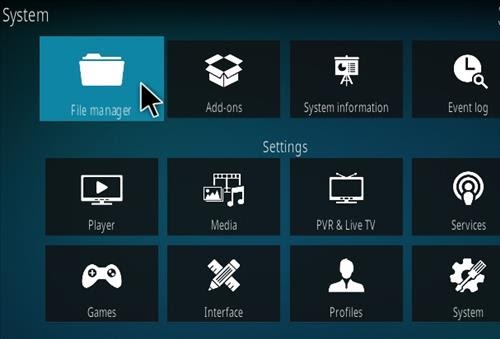
 

Conclusion

If you are looking for a good build that offers amazing content, then DaButcher Kodi Build is recommended for you. It houses addons offering movies in all categories, music, documentaries, live TV shows, sports, cartoons, anime, and lots more. That said, DaButcher Kodi Build is very easy to install and will only take 10-15 minutes of your time. You need not worry about the space this addon will consume as it will consume just a fraction of your device’s memory.

Best Firestick Apps

Note: ReviewVPN.com does not host any of these apps. They are hosted on Archive.org

BEST VPN

Install Odin Kodi Addon

Odin Kodi Addon

Source: https://goldengunrepo.github.io/install/me/ 

Odin is a pretty new Kodi addon having only come out this year but has fast gained in popularity. The most important reason being the repo it comes from. The Golden Gun repository has a long track record of producing quality Kodi add ons, so Odin comes from good stock.

Odin primarily is for Movies and TV Shows, they do have a “Test IPTV Zone” which is exactly what it is. A place where Live Tv Channels are tested, but there is no guarantee they will work, and currently it doesn’t seem like Odin has serious plans to become a multipurpose add on serving Live TV as well. Which is just as well as most add ons fail on that front.

You can integrate Odin with Real Debrid and Trakt.TV. We always recommend using a Kodi add on with Real Debrid. For a few dollars a month you can save yourself the trouble of finding great links, Real Debrid will do that for you from its 50+ paid servers. Just sit back and enjoy all your content in high-quality HD or above.

Odin has a diverse toolbox, and you can turn downloads on, to download content and watch offline. As well as being able to turn on subtitles with a wide range of languages. Though subtitles do tend to be hit and miss, so you might be better off downloading Open Subtitles instead.

ANONYMOUSLY

Common Errors

Use Kodi for any period and you will get used to seeing errors. Find our quick fix guides and simple suggestions here for the most common errors you might come across with Odin.

  • No Link Found. You tend to get no link found most often with Live TV. With Odin bear in mind, their Live TV function is not stable. So, chances are there just isn’t a working link currently. But you can also try and refresh the page, check your internet connection and make sure you are using a VPN. Your Internet Service Provider may be blocking the content. Find more fixes here.  <LINK>
  • Olpair Streaming Error. Olpair handles all the streaming for free users. You need to refresh your key every 4 hours. Normally this is straight forward just following the link, or you can disable Captcha streaming providers. To find more fixes click here.
  •  
  • Script Error. A script error can arise with either a script missing in the Odin add on (unlikely if you have downloaded it from the Golden Gun repository) or a script is missing with your Kodi installation. The quickest fix is a fresh install of Kodi, or one of our other fixes which you can find here.
  • Cannot download Odin. Check the URL you have entered is correct, also that you are using a VPN as your ISP may be blocking that content. If that doesn’t work, go through all the steps in our guide here.

Review

Categories include:

  • TV Shows
  • Movies
  • Test IPTV Zone
  • Tunes
  • Bone Crusher Old (Includes Boxsets, Classics and more sections)
  • My Movies
  • My TV Shows
  • New Movies
  • New Episodes
  • Channels
  • Tools
  • Search

Odin is a solid Kodi addon, which is probably going to continue to get better over time. They don’t have the range of content of some of the older add ons but that will change. They also have some unique sections like Tunes where you can tune into digital radio stations and Bone Crusher Old to get a tonne of classic content. 

The fact you can download content with Odin is a big plus, as most new add ons tend to avoid this feature. Certainly, one to watch for the future.

YOUR INTERNET ACTIVITY IS BEING WATCHED

ReviewVPN cannot attest to the legality, security and privacy of the applications discussed on this site. It is highly recommended that you use a VPN service while streaming or using Kodi.

Currently, your IP 216.73.217.150 is visible to everyone and your Browser is being tracked by Advertisers & ISP Provider.

Save 65% Now

Limited Time Offer

Here are the main reasons why you must use a VPN:

  • Your activities are hidden from your ISP, the government, and from the apps you are using.
  • You can access additional movies and TV streams.
  • ISP attempts to throttle are thrwarted thus reducing buffering issues.
  • Geographically restricted content like Netflix and Hulu can be unblocked.

A VPN works be replacing your ISP-assigned IP address and creating an encrypted tunnel. We recommend the no log service offered by IPVanish. It works well on a Firestick and offers the fastest possible speeds.

Special Limited Time Offer – Get IPVanish

How to Install Odin Addon on Kodi with Screenshots

  1. From the home screen, select the cogwheel at the upper left.

Step 1 Installing Odin addon on Kodi

2. Select System in the bottom right corner.

Step 2 Installing Odin addon on Kodi

3. Select Add-ons on the left side of the screen.

Step 3 Installing Odin addon on Kodi

4. Select Unknown sources.

Step 4 Installing Odin addon on Kodi

5. Click Yes to allow unknown sources.

Step 5 Installing Odin addon on Kodi

6. Select File manager.

Step 6 Installing Odin addon on Kodi

7. Click Add source.
Step 7 Installing Odin addon on Kodi

8. Click on .

Step 8 Installing Odin addon on Kodi

9. Type exactly: https://goldengunrepo.github.io/install/me/

Step 9 Installing Odin addon on Kodi

10. Click on OK.

Step 10 Installing Odin addon on Kodi

11. Select enter a name for this media source.

Step 11 Installing Odin addon on Kodi

12. Name is Odin (this part isn’t critical as long as you remember the name).

Step 12 Installing Odin addon on Kodi

13. Click on OK.

Step 13 Installing Odin addon on Kodi

14. Click on OK.

Step 14 Installing Odin addon on Kodi

15. Take one step back and click on Add-ons.

Step 15 Installing Odin addon on Kodi

16. Select install from zip file.

Step 16 Installing Odin addon on Kodi

17. Click on Odin (or whatever you named the source).

Step 17 Installing Odin addon on Kodi

18. Click on repository.goldengun-9.1.7.zip

Step 18 Installing Odin addon on Kodi

19. Select on Install from repository.

Step 19 Installing Odin addon on Kodi

20. Click on goldengun.

Step 20 Installing Odin addon on Kodi

21. Pick Video add-ons.

Step 21 Installing Odin addon on Kodi

22. Select  Odin again.

Step 22 Installing Odin addon on Kodi

23. Click on Install.

Step 23 Installing Odin addon on Kodi

24. Select OK after reviewing the add-ons that will be installed.

25. You should see a popup in the upper right corner saying Mirror has installed. There will actually be multiple popups for the various components.

26. Click on Open to start the Mirror add-on.

Install IPVanish on Firestick with Screenshots

If your Firestick still has the older interface, read this article to learn how to update it: Update Firestick Interface.

1.  Click Home on your remote and click “Find”.

Step 1 Install IPVanish

2. Click “Search”.

Step 2 Install IPVanish

3. You can either say “IPVanish” to your Alexa’s voice-enabled remote or start typing it. If you typed it, click on the suggestion when it appears.

Step 3 Install IPVanish

4. Click on the “IPVanish” icon.

Step 4 Install IPVanish

5. Click on “Download”.

Step 5 Install IPVanish

6. Wait to “Download”.

Step 6 Install IPVanish

7.  Wait to “Install”.

Step 8 Install IPVanish

8.  Click on “Open”.

Step 8 Install IPVanish

9.  Input your username and password to “Log In”.

10. Click “Connect”.

Learn more about IPVanish. Get an IPVANISH now.

2