Install Apollo Kodi Addon

Apollo Kodi Addon

Source: https://vkodi.net/repo/

ANONYMOUSLY

How to Install Apollo on Kodi with Screenshots

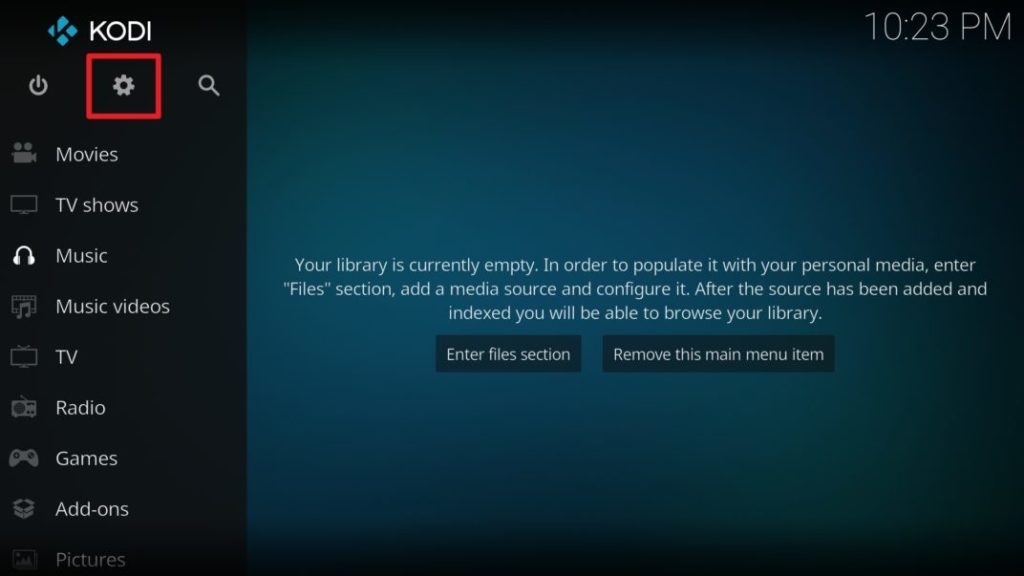
  1. From the home screen, select the cogwheel at the upper left.

Step 1 Installing Apollo addon on Kodi

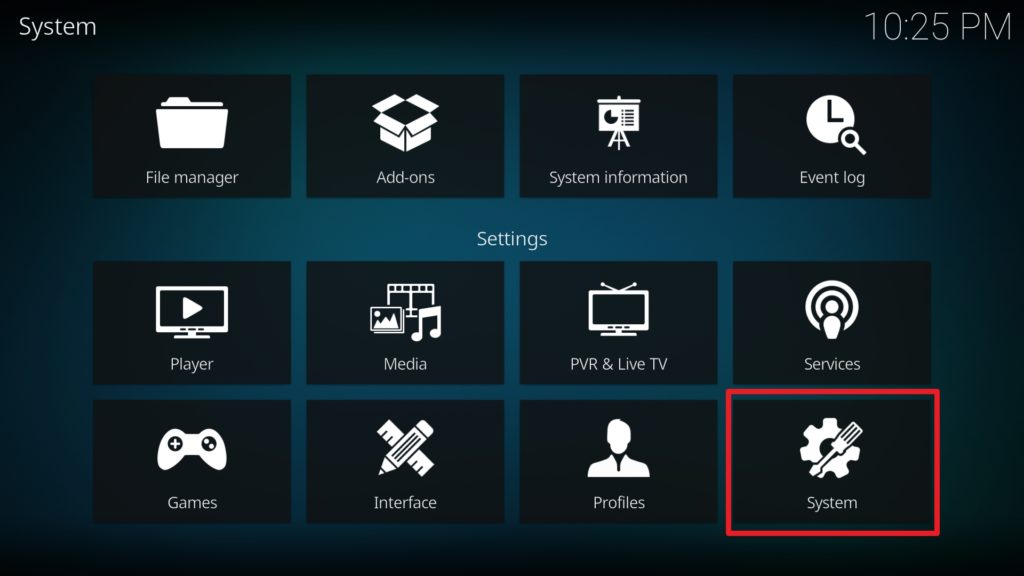
2. Select System in the bottom right corner.

Step 2 Installing Apollo addon on Kodi

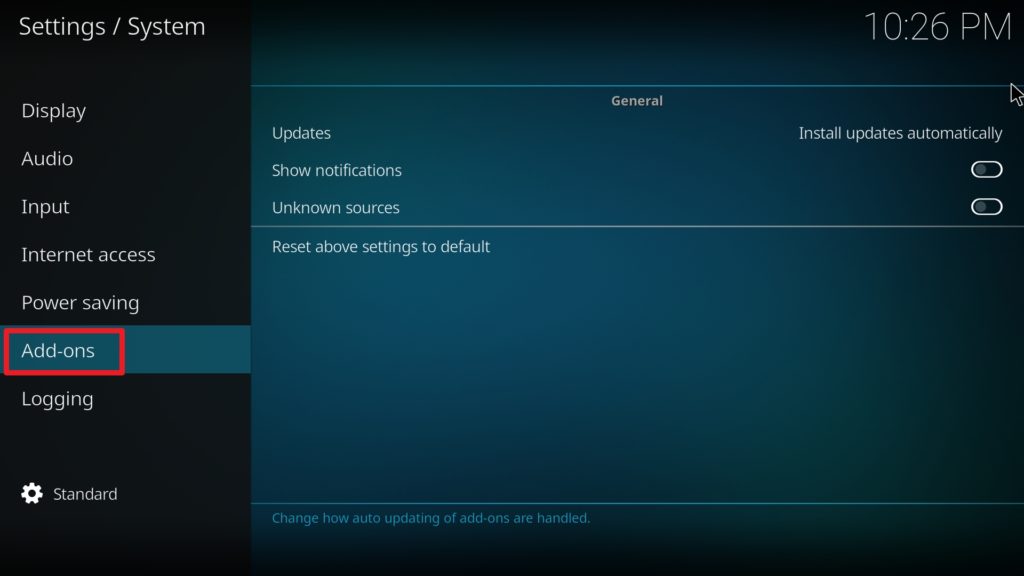
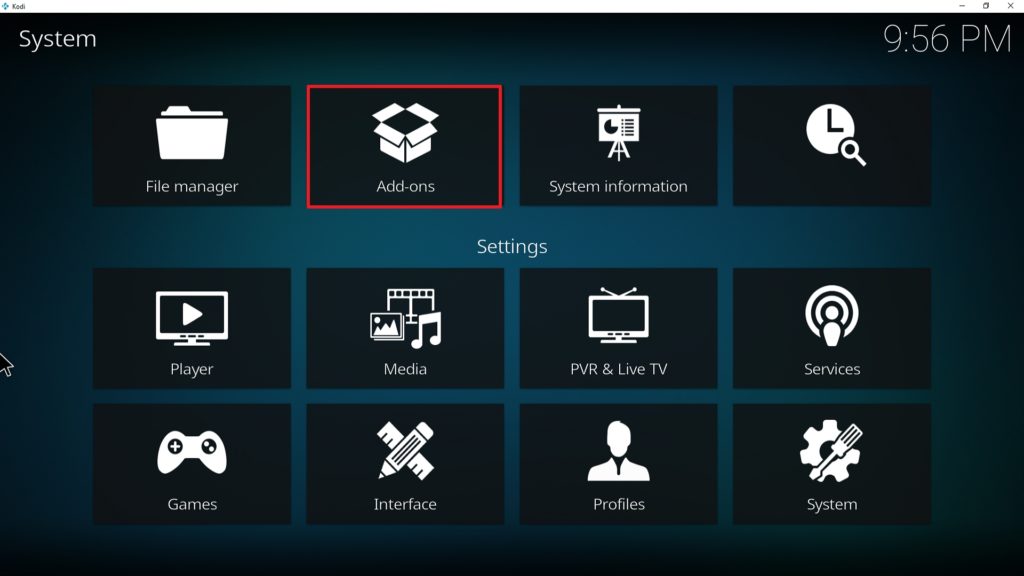
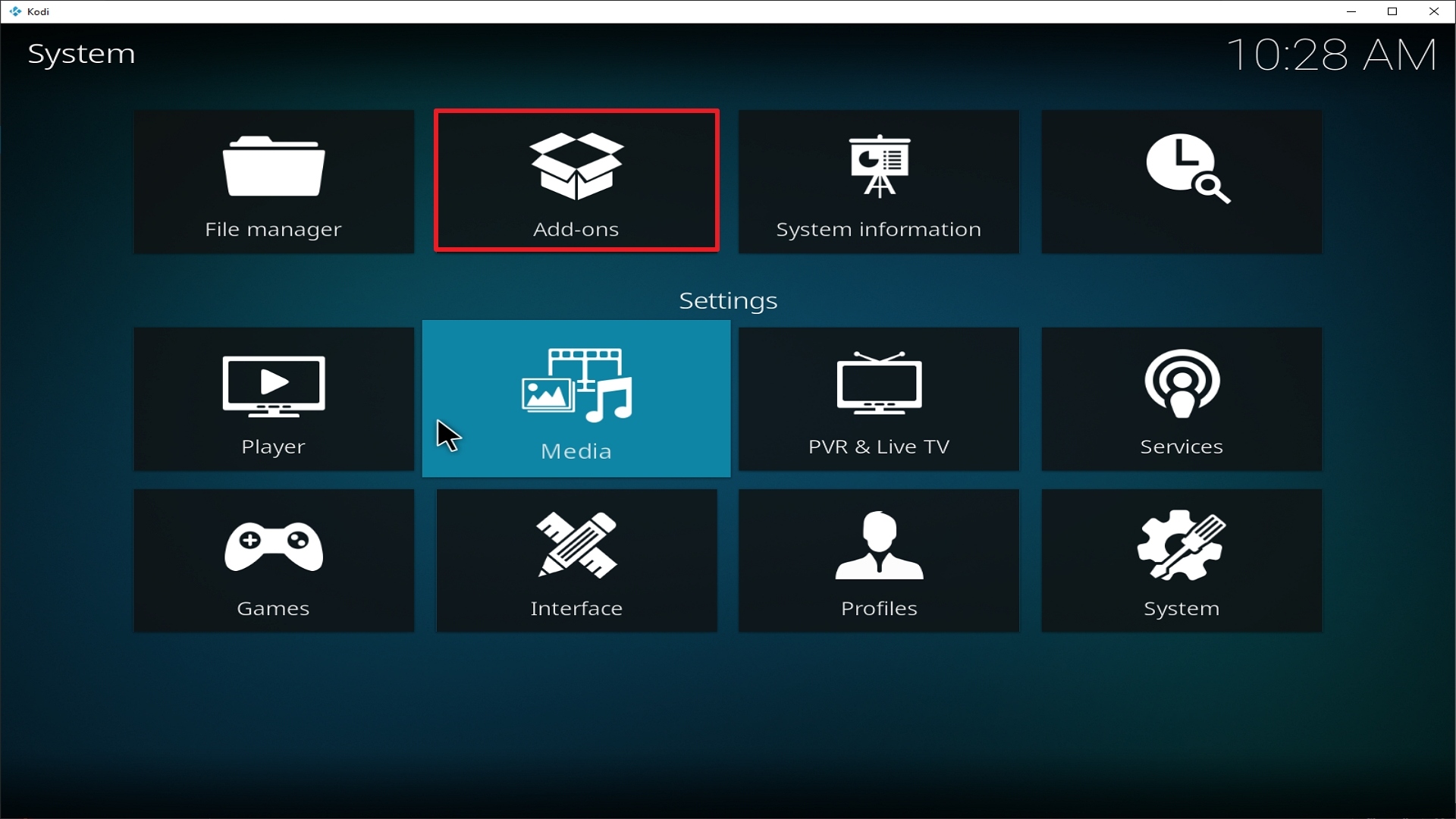
3. Select Add-ons on the left side of the screen.

Step 3 Installing Apollo addon on Kodi

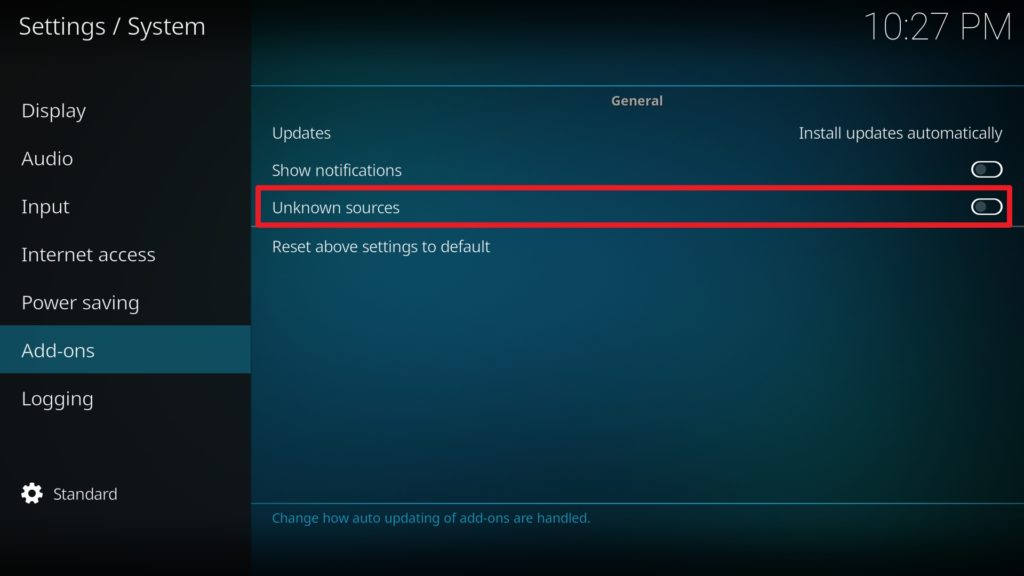
4. Select Unknown sources.

Step 4 Installing Apollo addon on Kodi

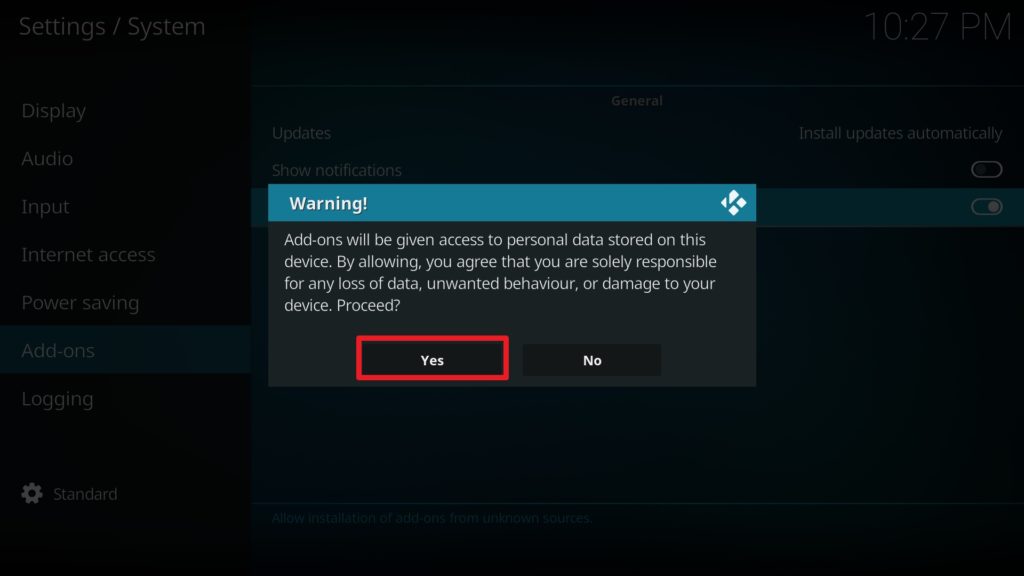
5. Click Yes to allow unknown sources.

Step 5 Installing Apollo addon on Kodi

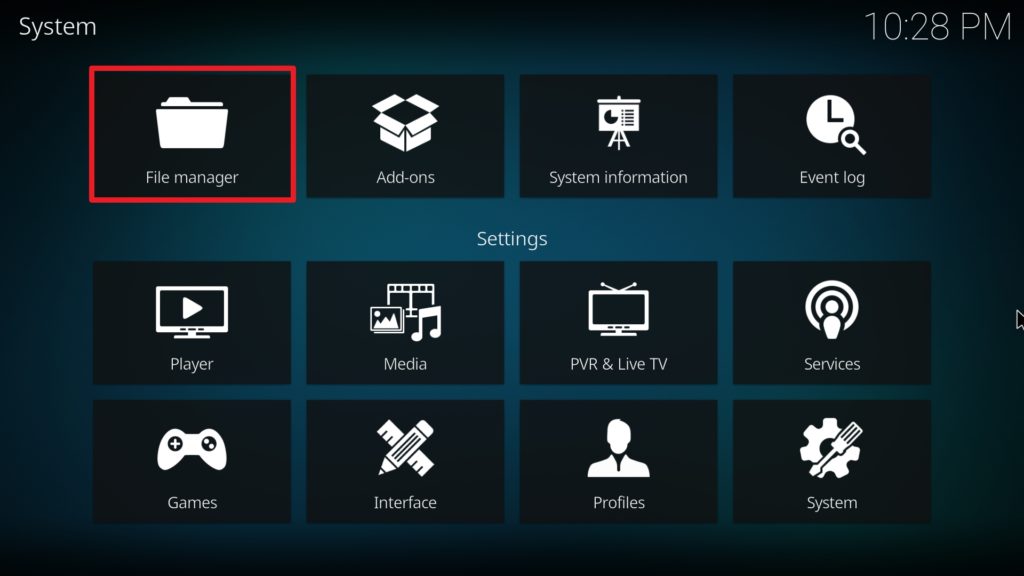
6. Select File manager.

Step 6 Installing Apollo on Kodi

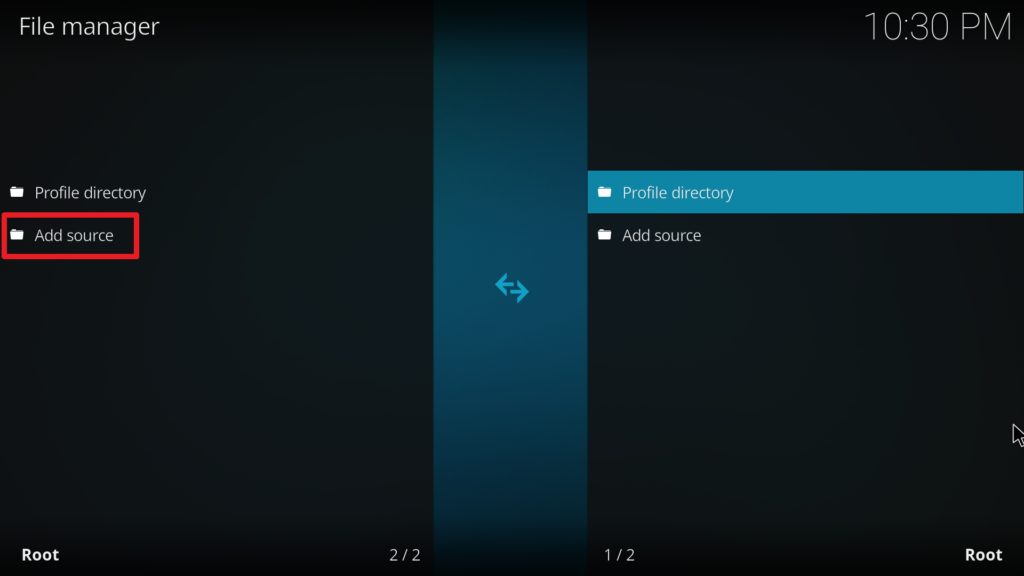
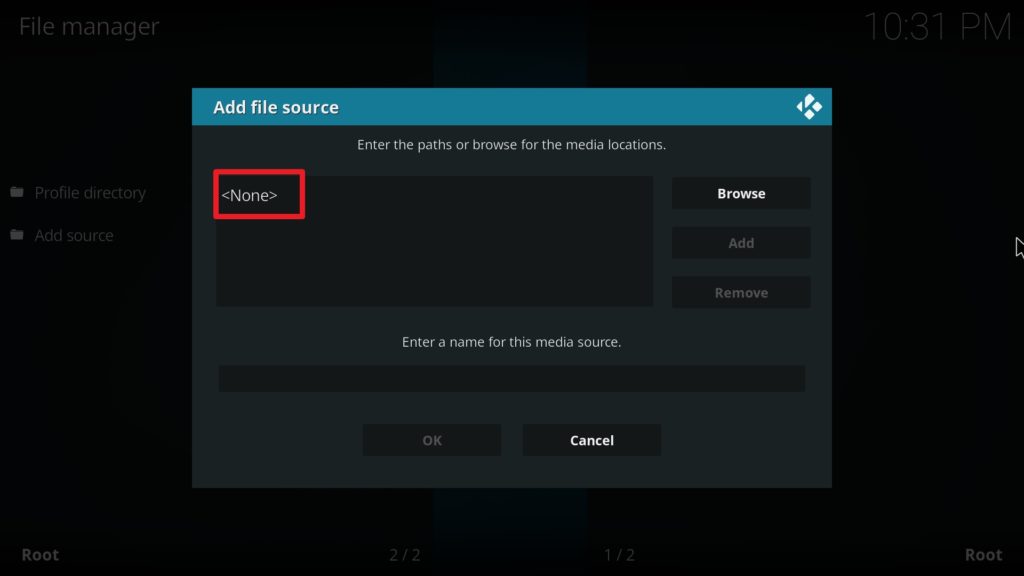
7. Click Add source.

Step 7 Installing Apollo addon on Kodi

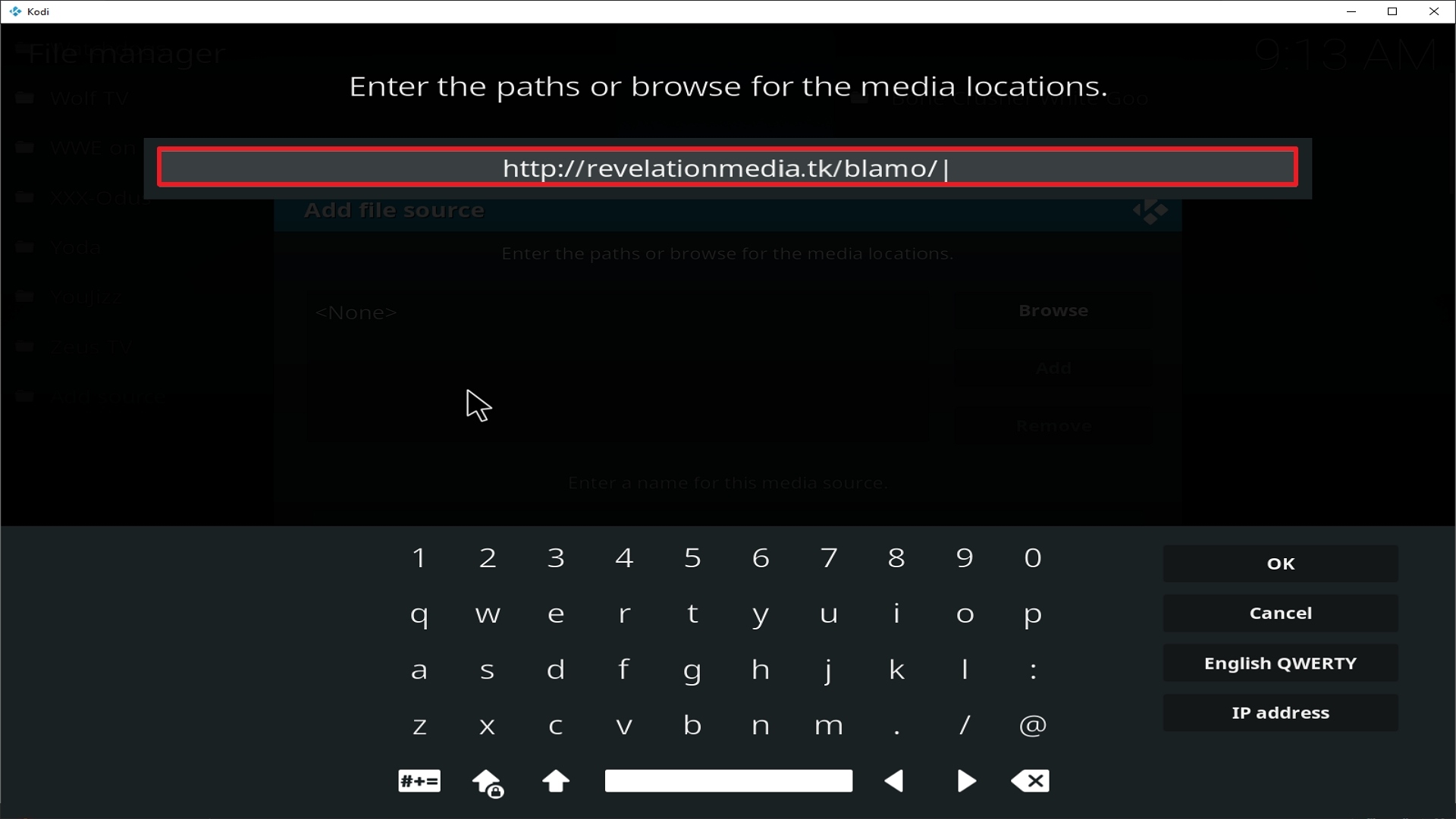
8. Click on .

Step 8 Installing Apollo addon on Kodi

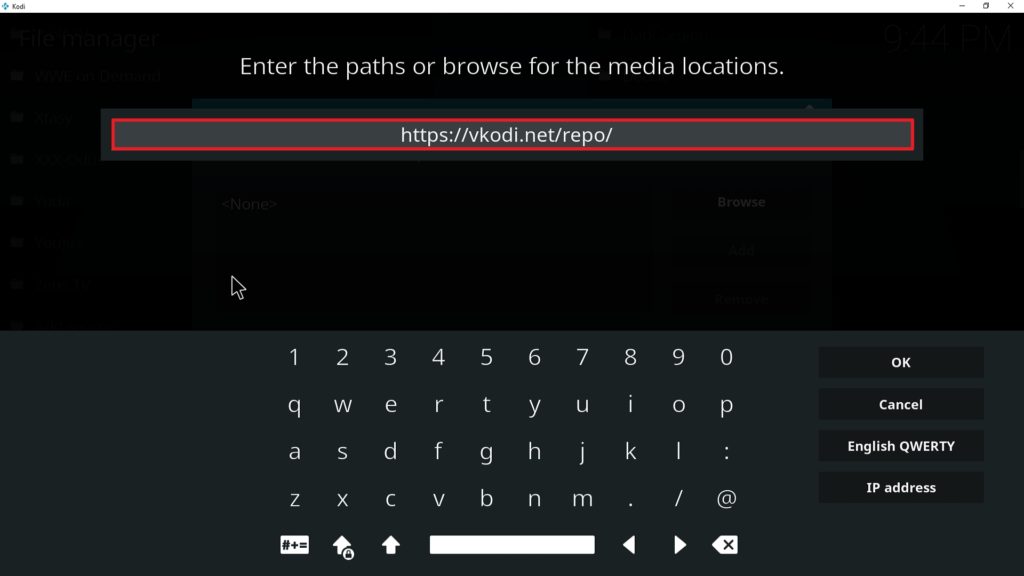
9. Type exactly: https://vkodi.net/repo/

Step 9 Installing Apollo addon on Kodi

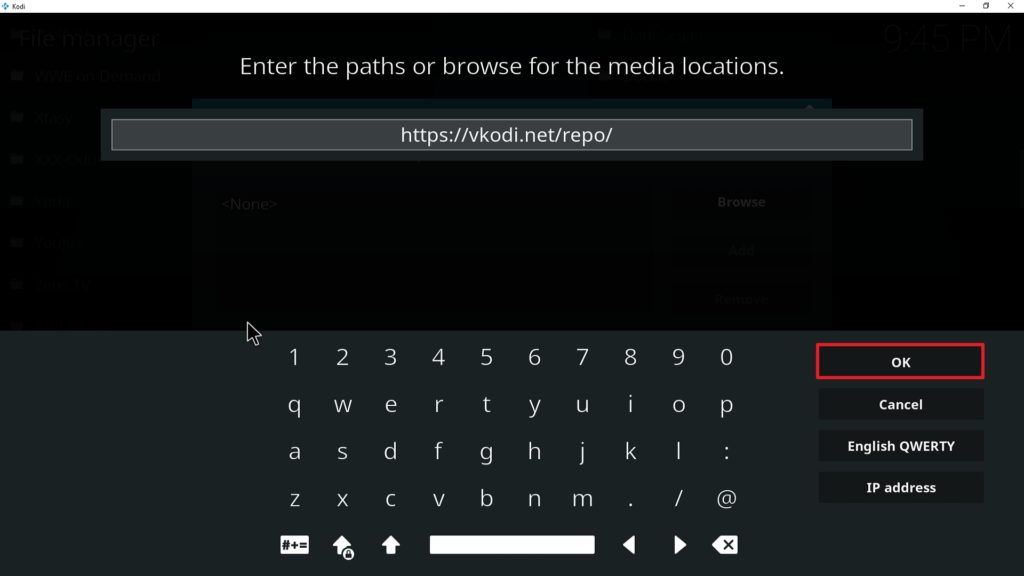
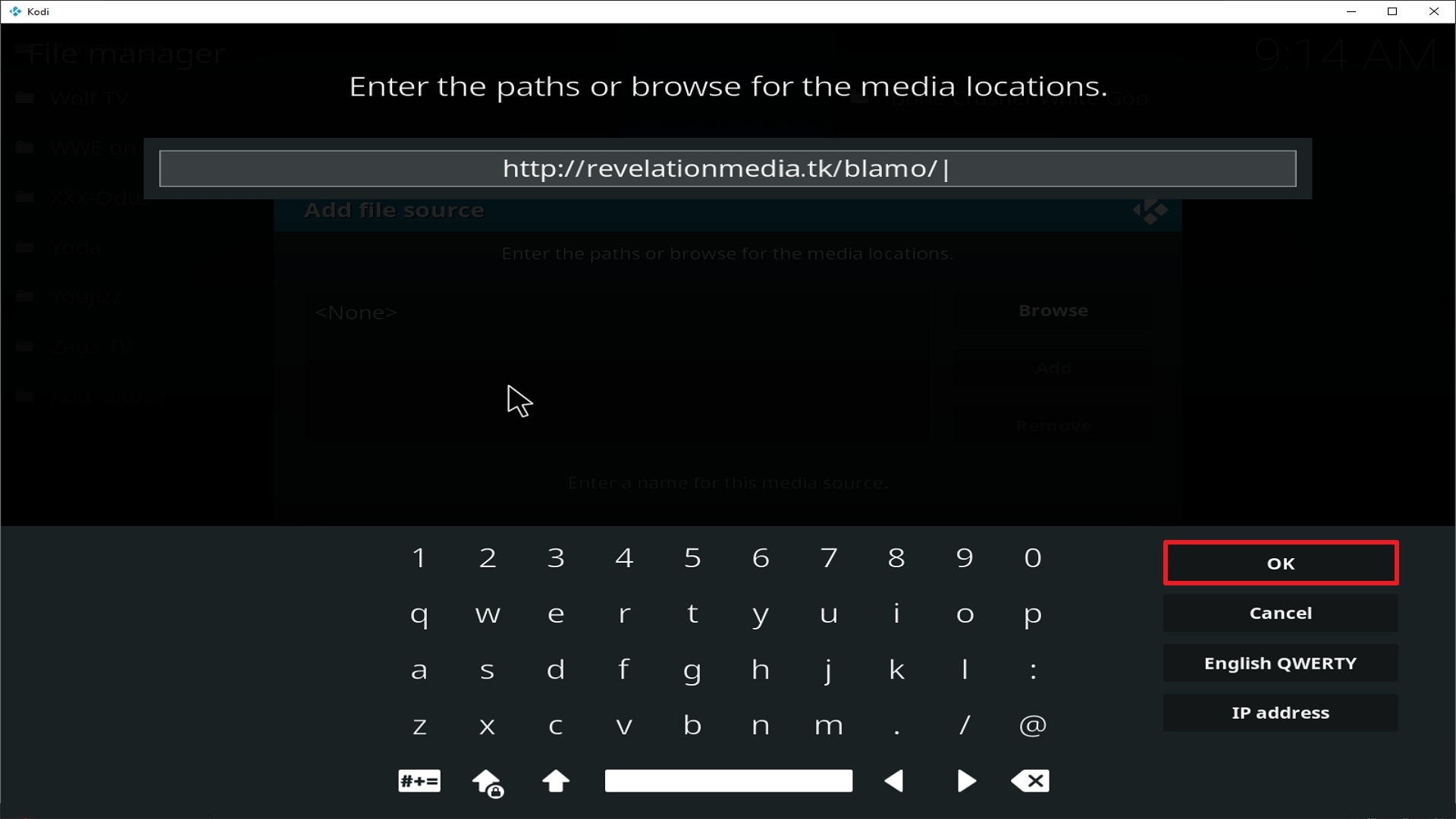
10. Click on OK.

Step 10 Installing Apollo addon on Kodi

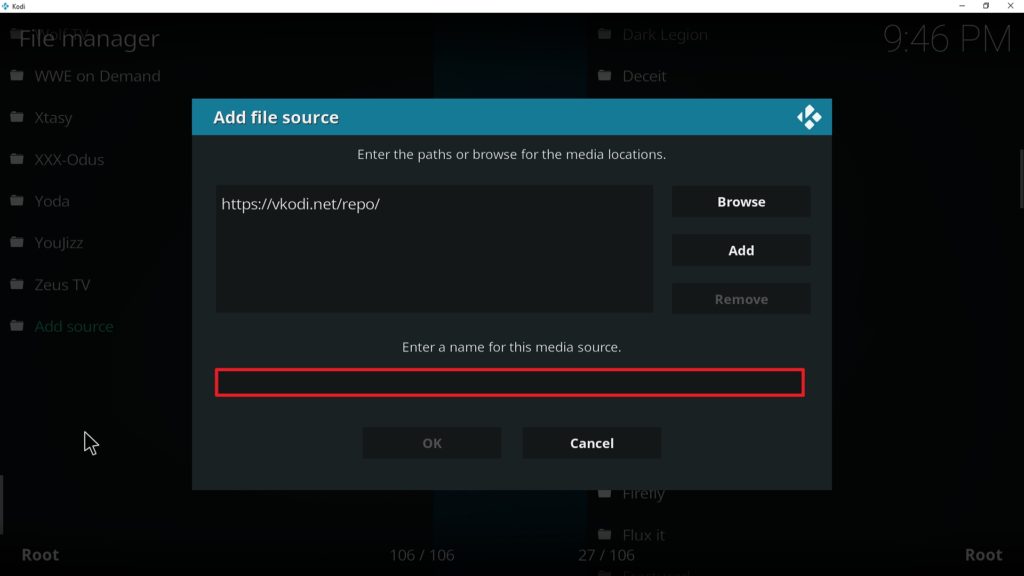
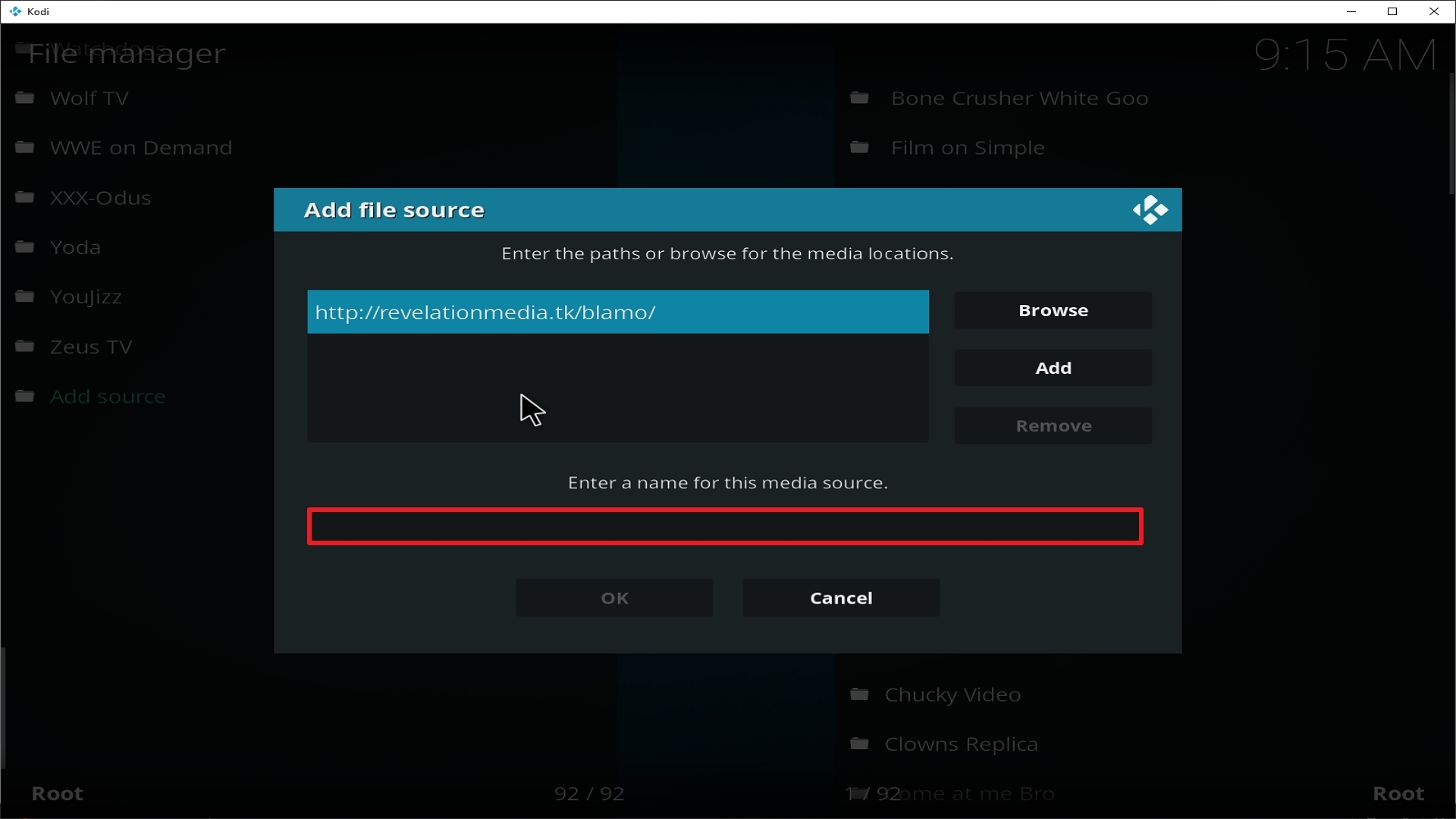
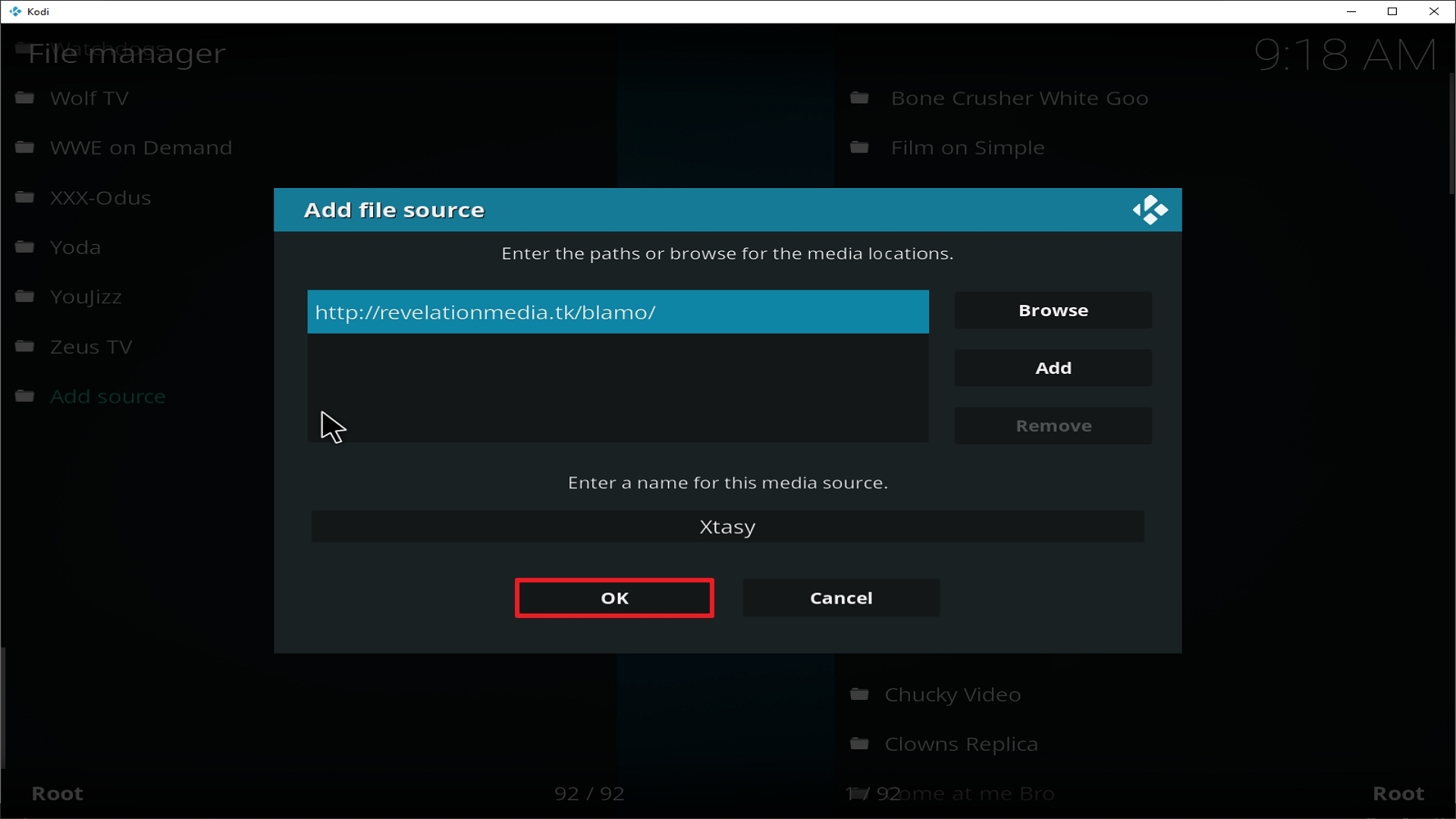
11. Select enter a name for this media source.

Step 11 Installing Apollo addon on Kodi

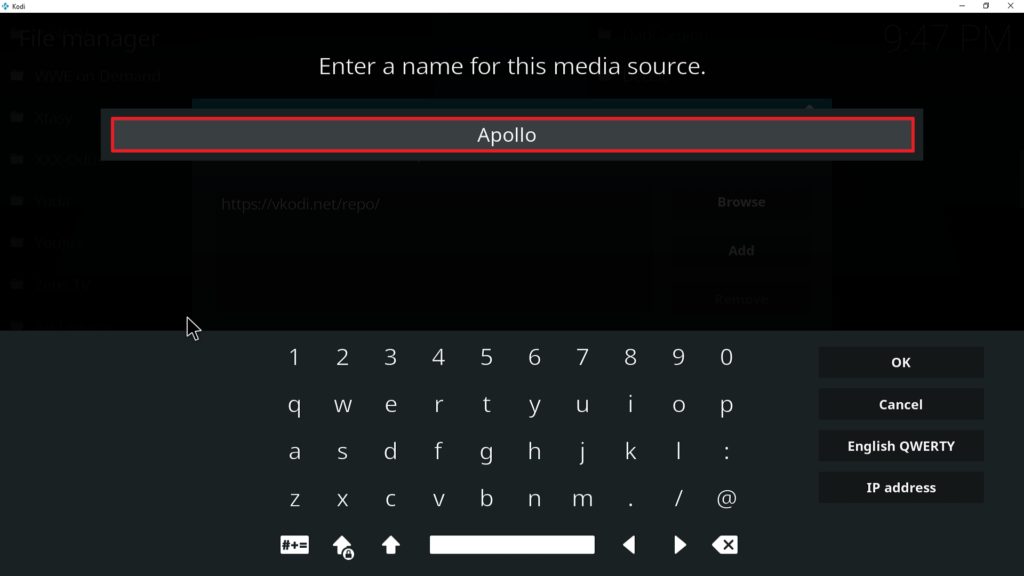
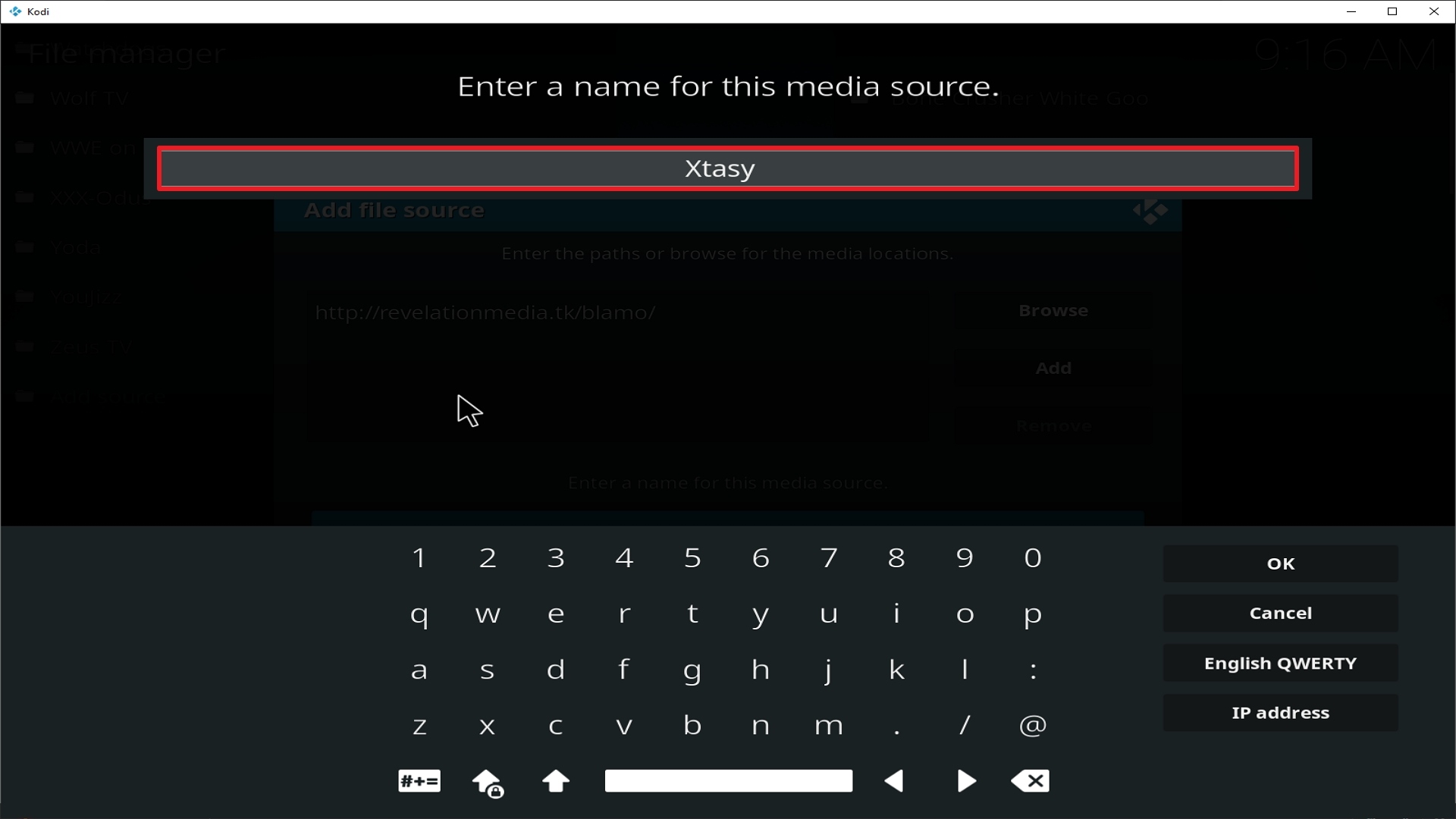
12. Name is Apollo (this part isn’t critical as long as you remember the name).

Step 12 Installing Apollo addon on Kodi

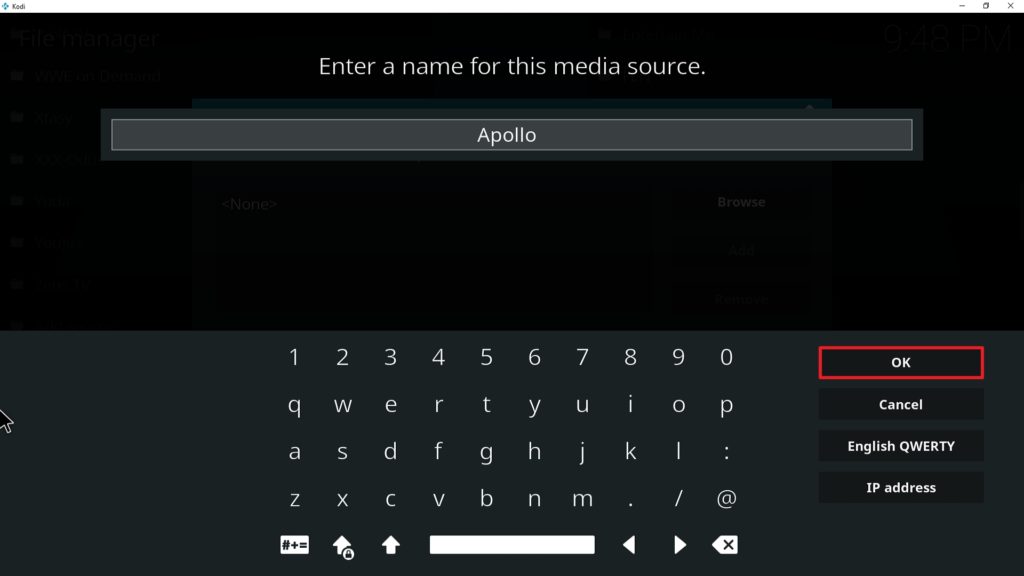
13. Click on OK.

Step 13 Installing Apollo addon on Kodi

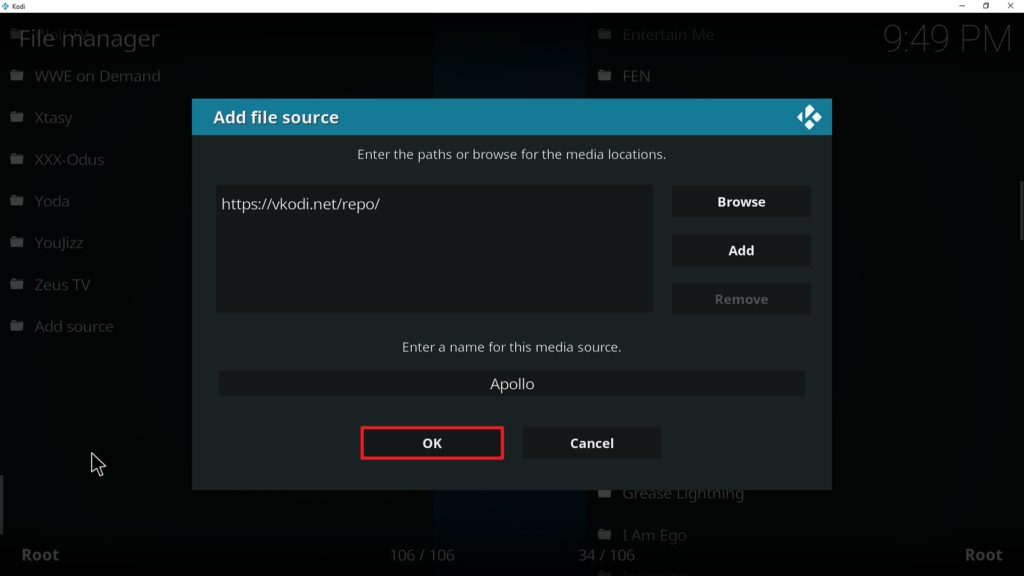
14. Click on OK.

Step 14 Installing Apollo addon on Kodi

15. Take one step back and click on Add-ons.

Step 15 Installing Apollo addon on Kodi

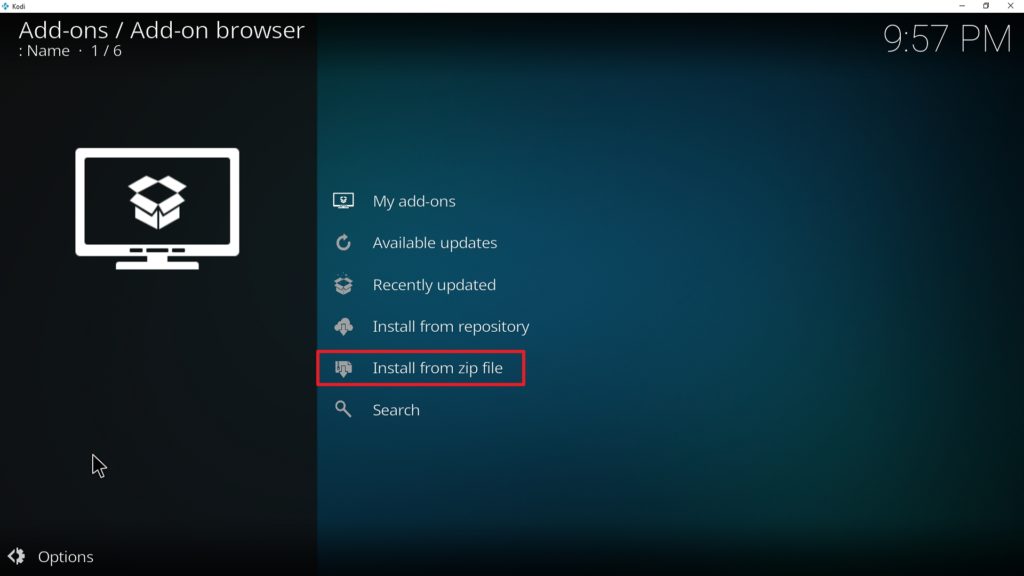
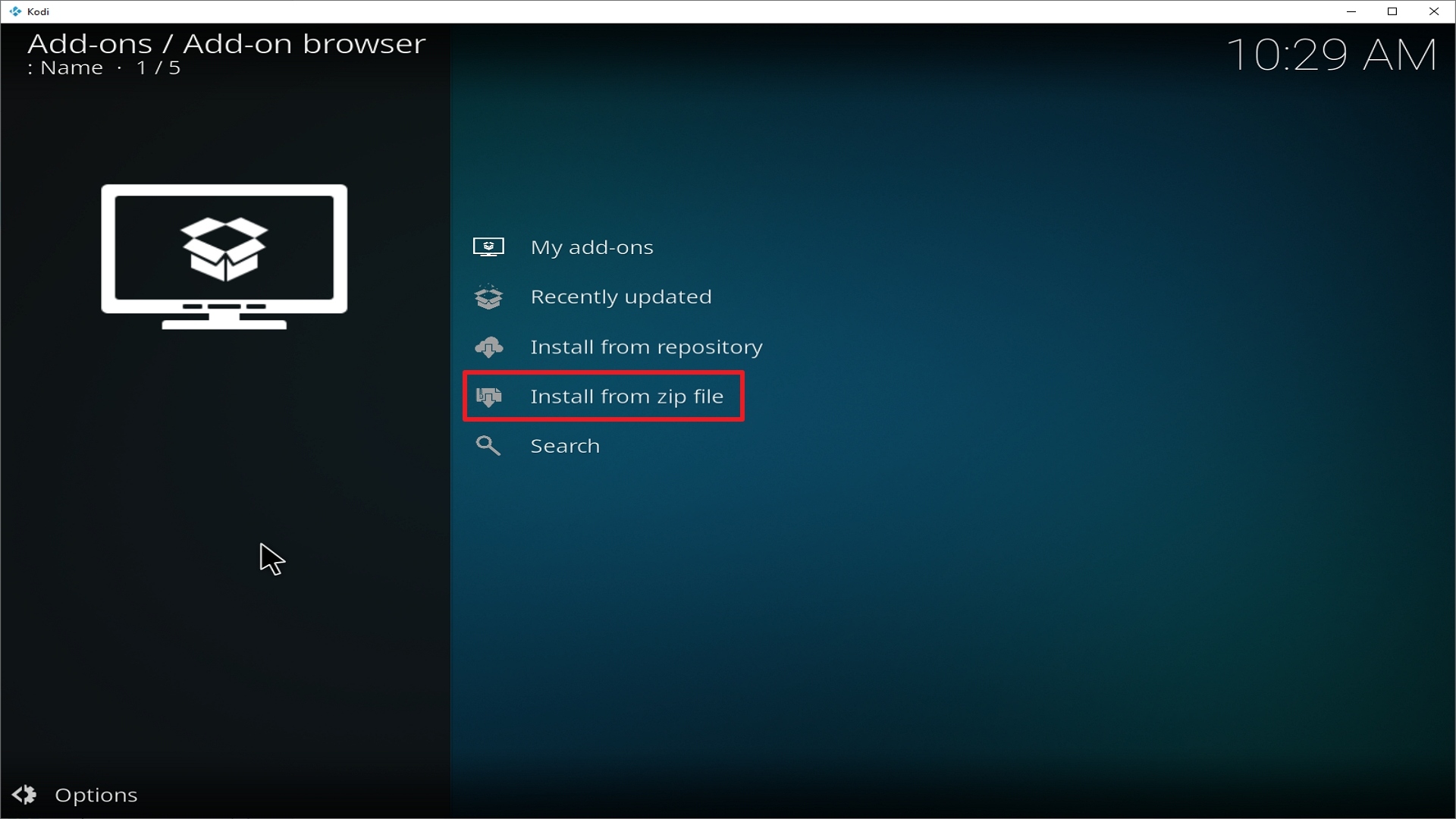
16. Select install from zip file.

Step 16 Installing Apollo addon on Kodi

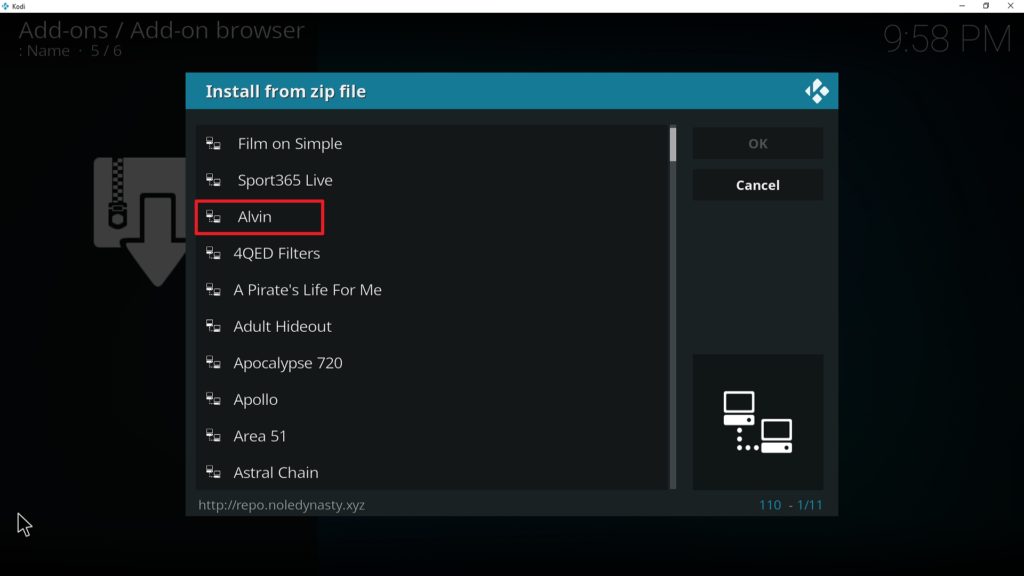
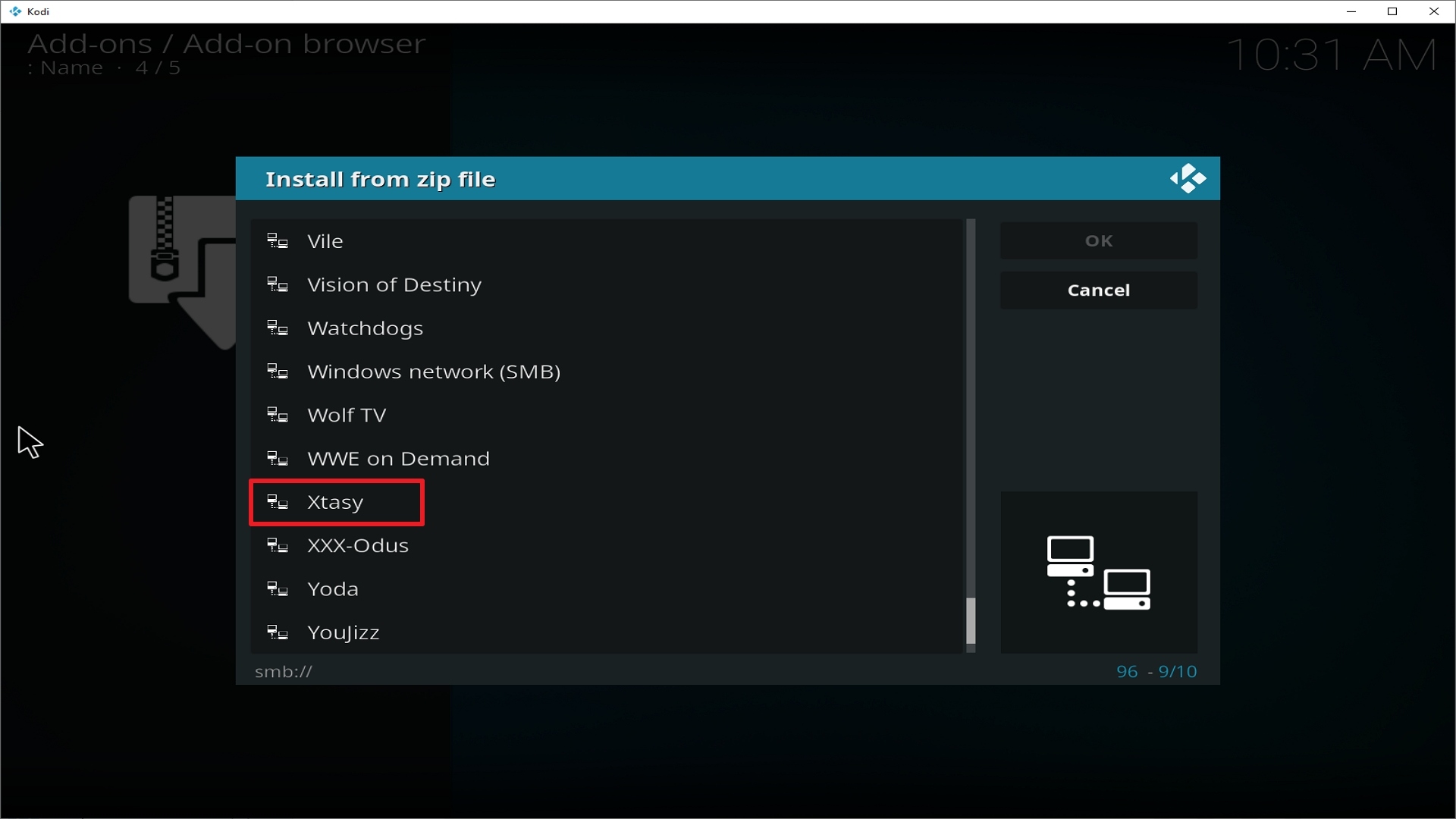
17. Click on Apollo (or whatever you named the source).

Step 17 Installing Apollo addon on Kodi

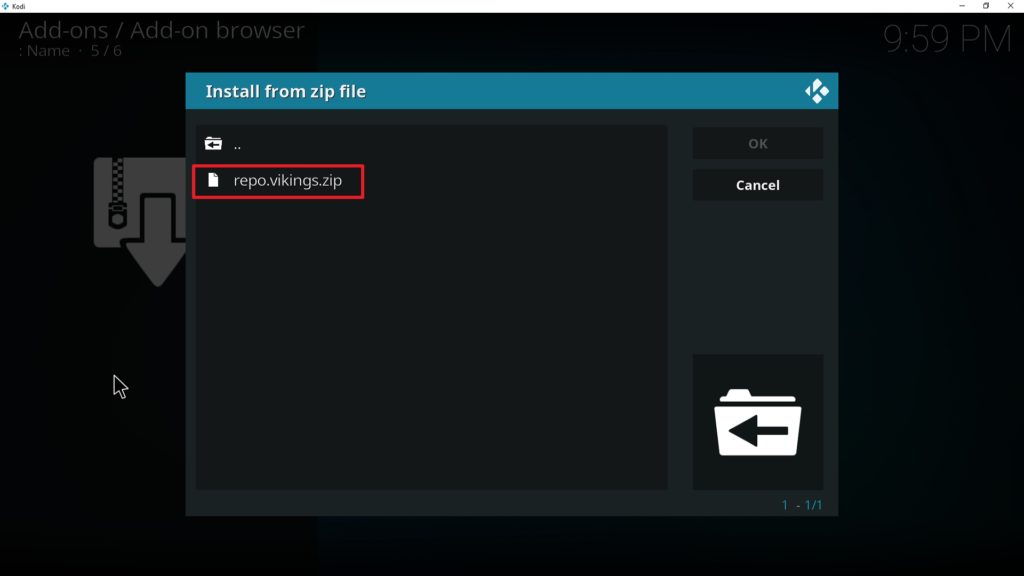
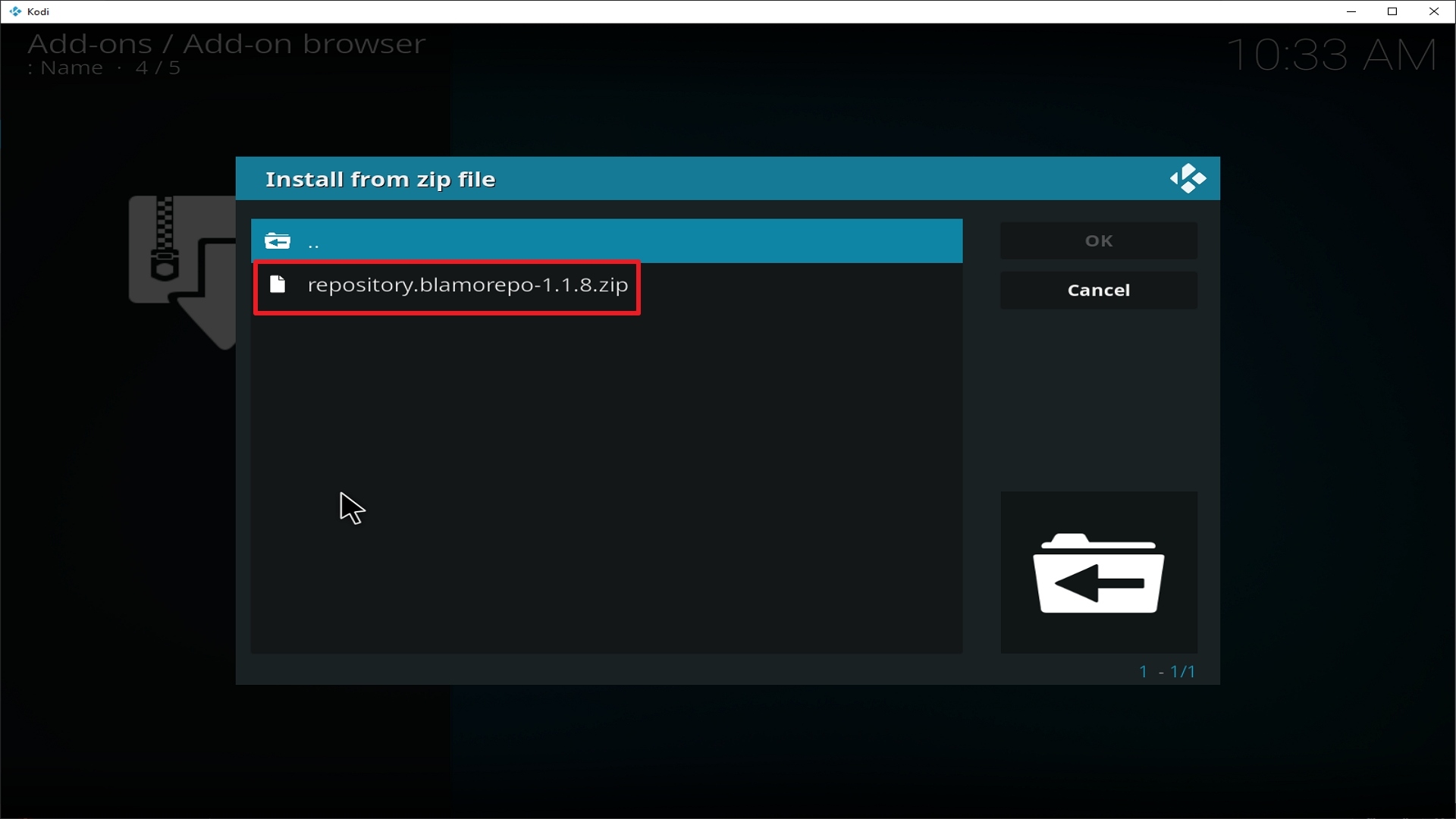
18. Click on repo.vikings.zip

Step 18 Installing Apollo addon on Kodi

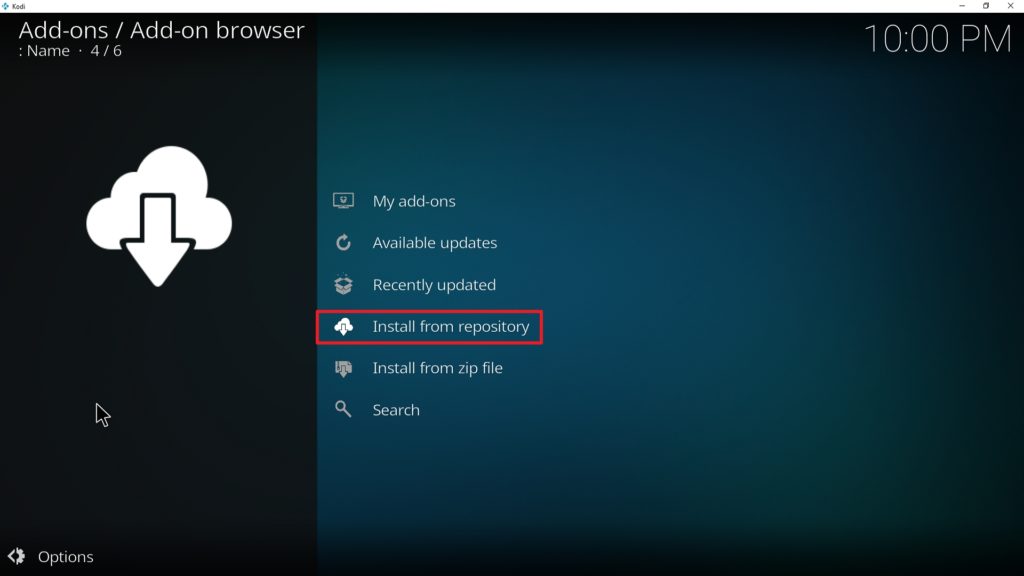
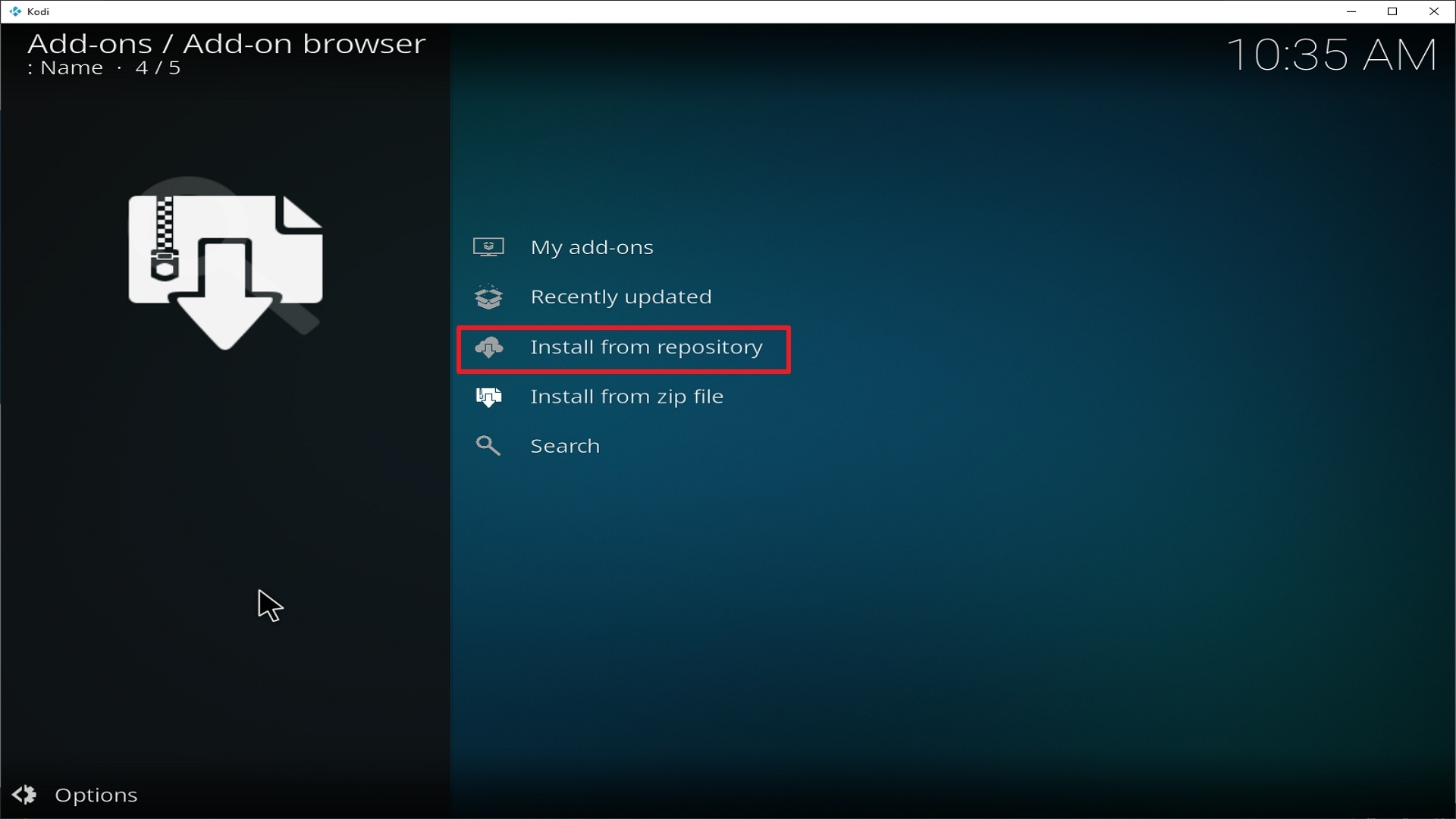
19. Select on Install from repository.

Step 19 Installing Apollo addon on Kodi

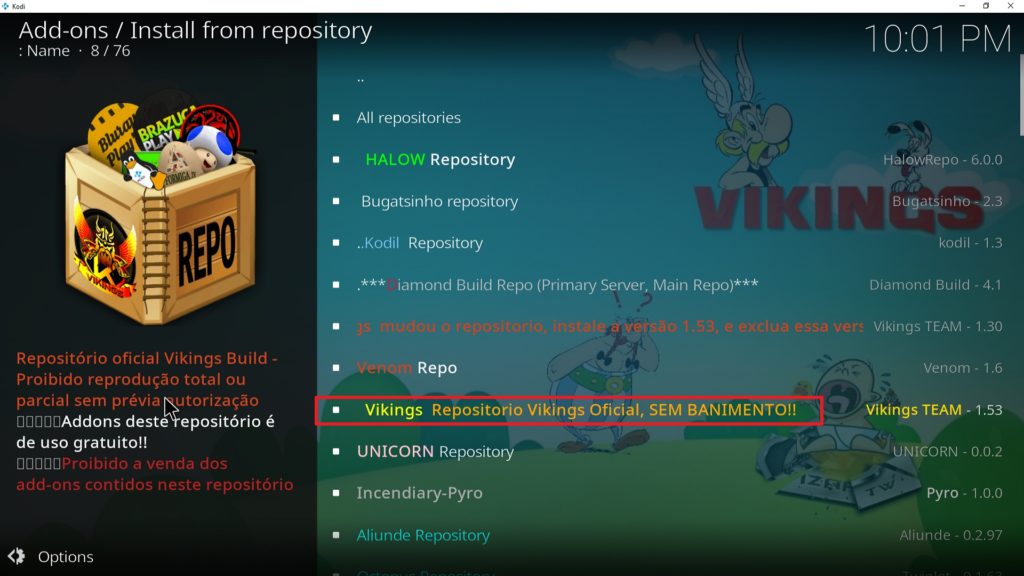
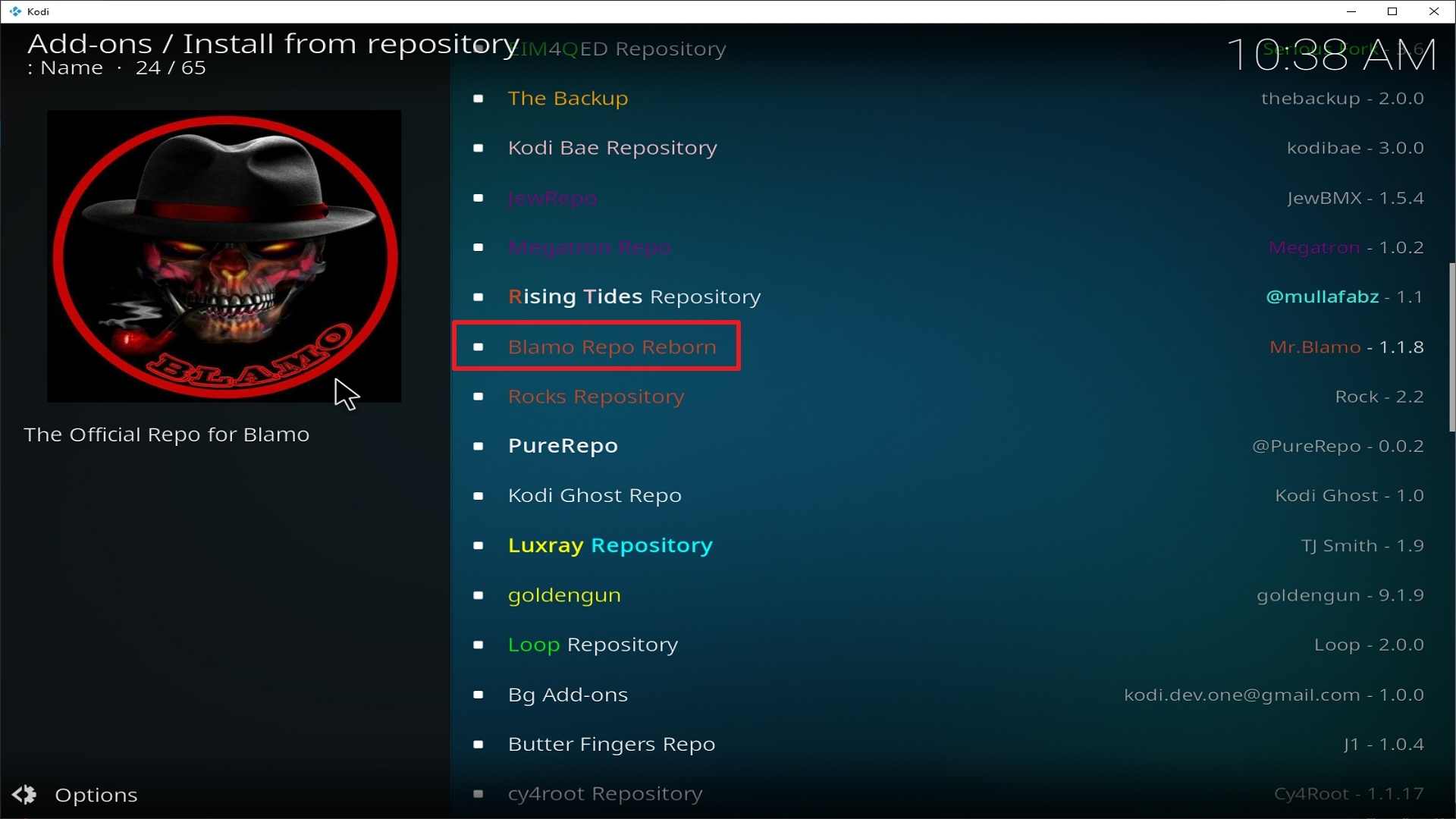
20. Click on Vikings Repo

Step 20 Installing Apollo addon on Kodi

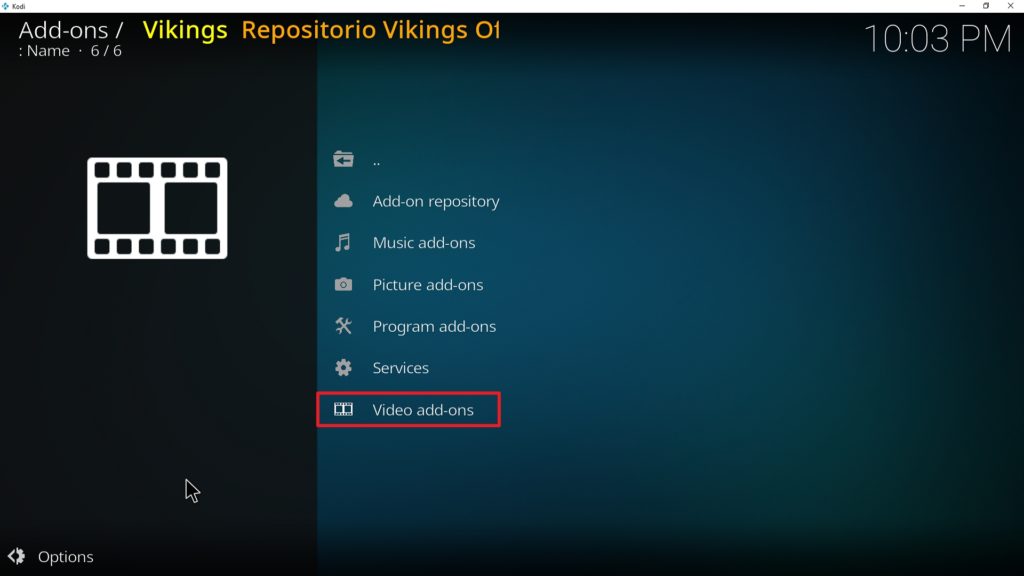
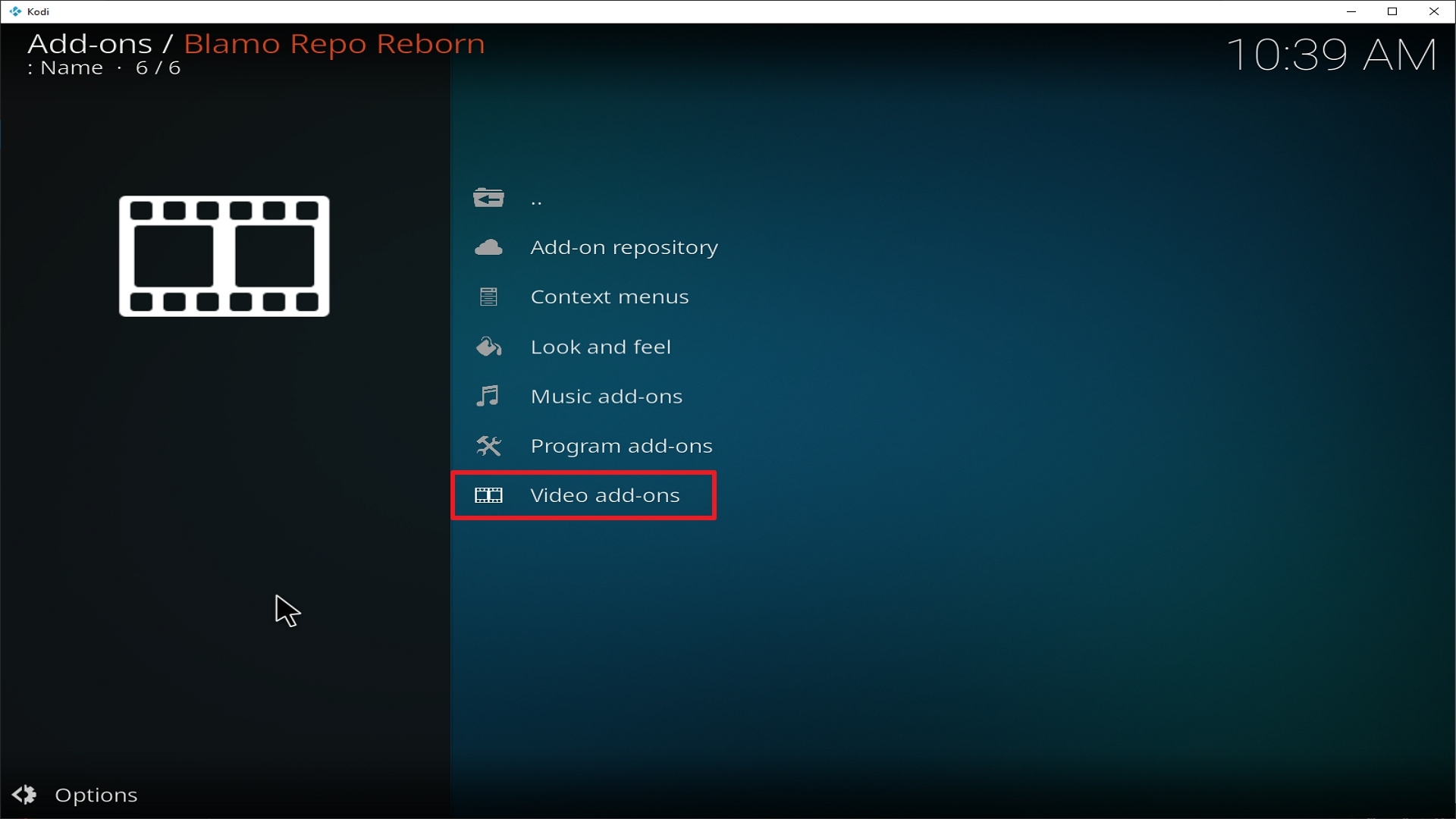
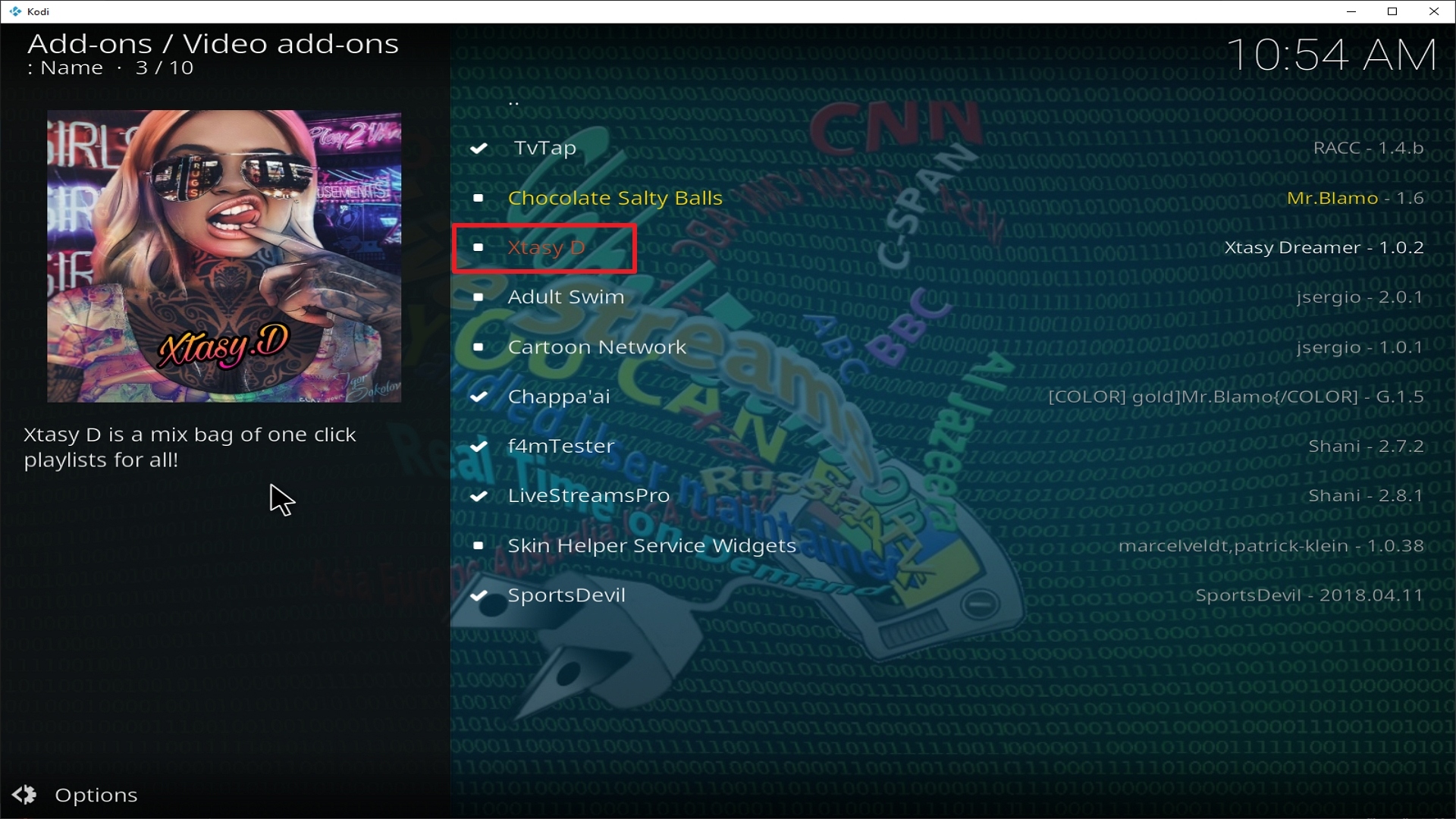
21. Pick Video add-ons.

Step 21 Installing Apollo addon on Kodi

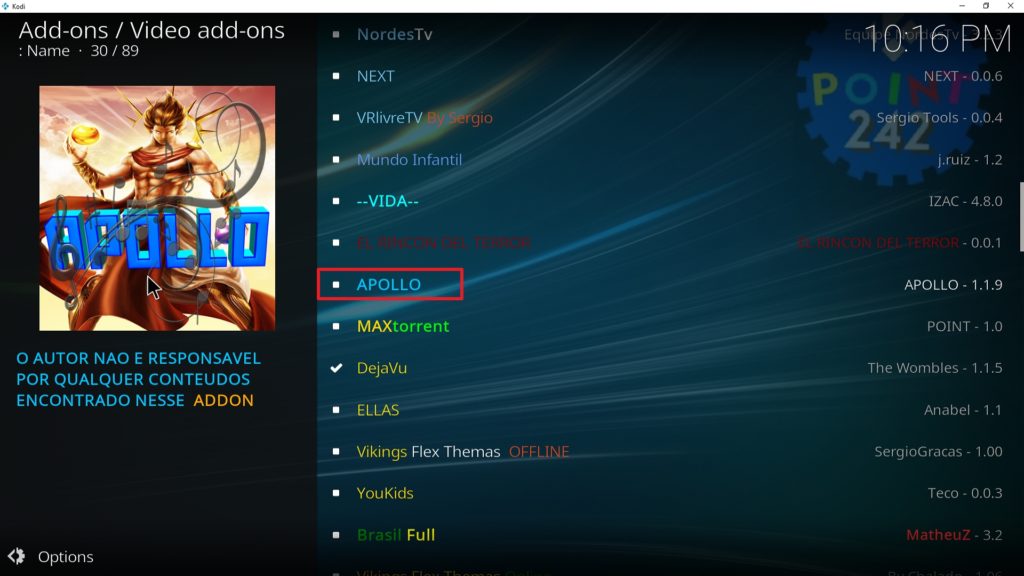
22. Select Apollo again.

Step 22 Installing Apollo addon on Kodi

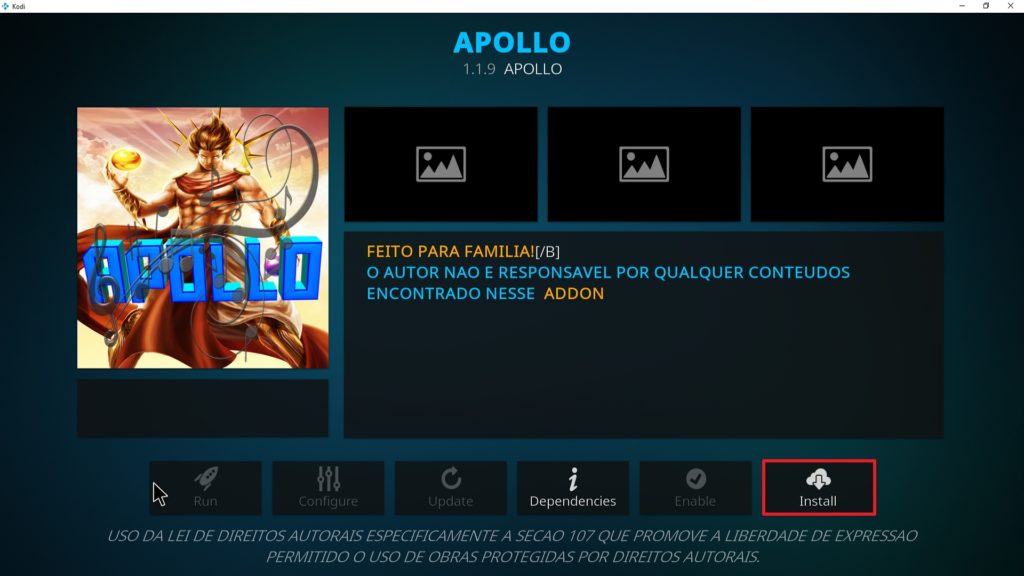
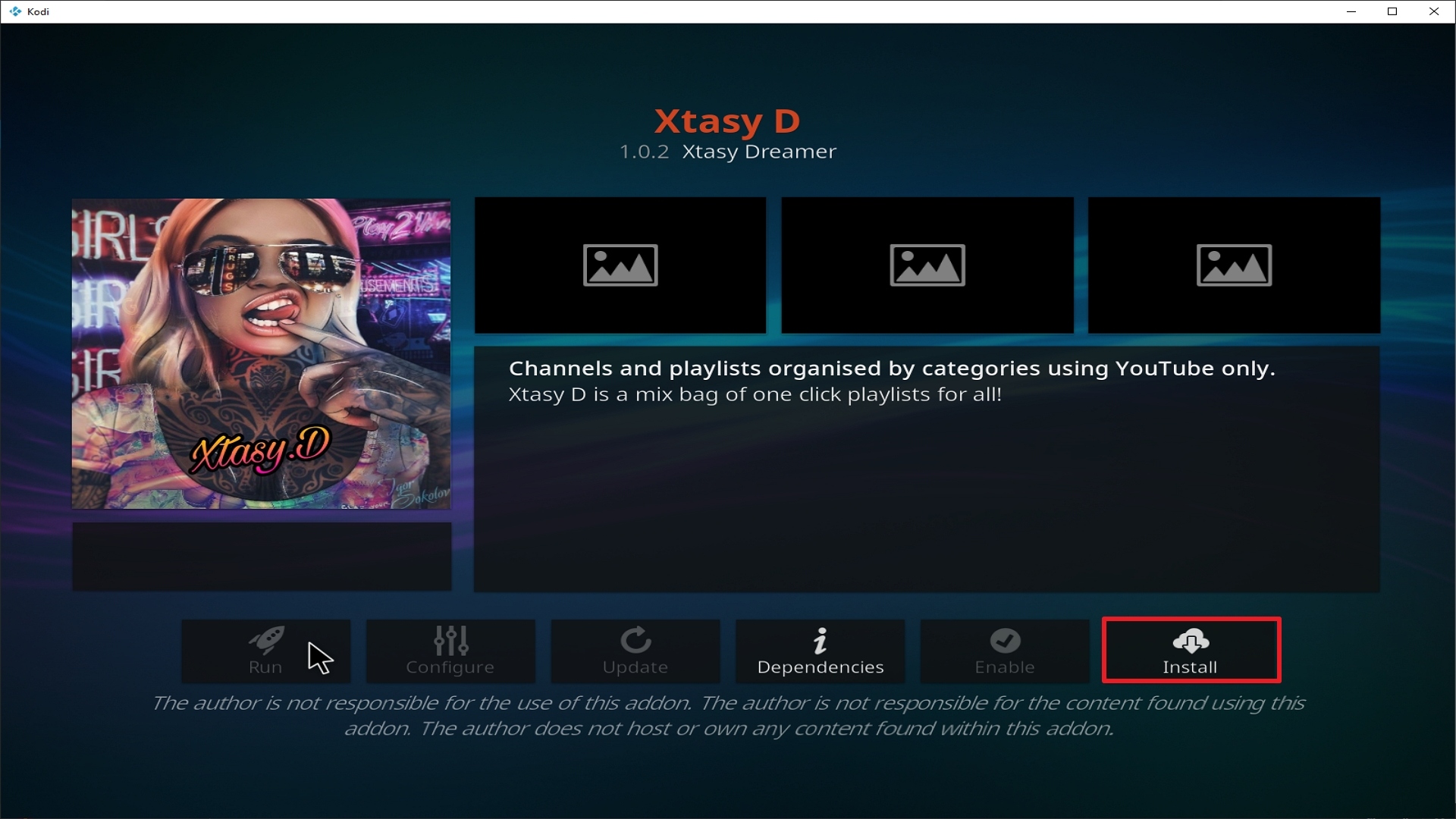
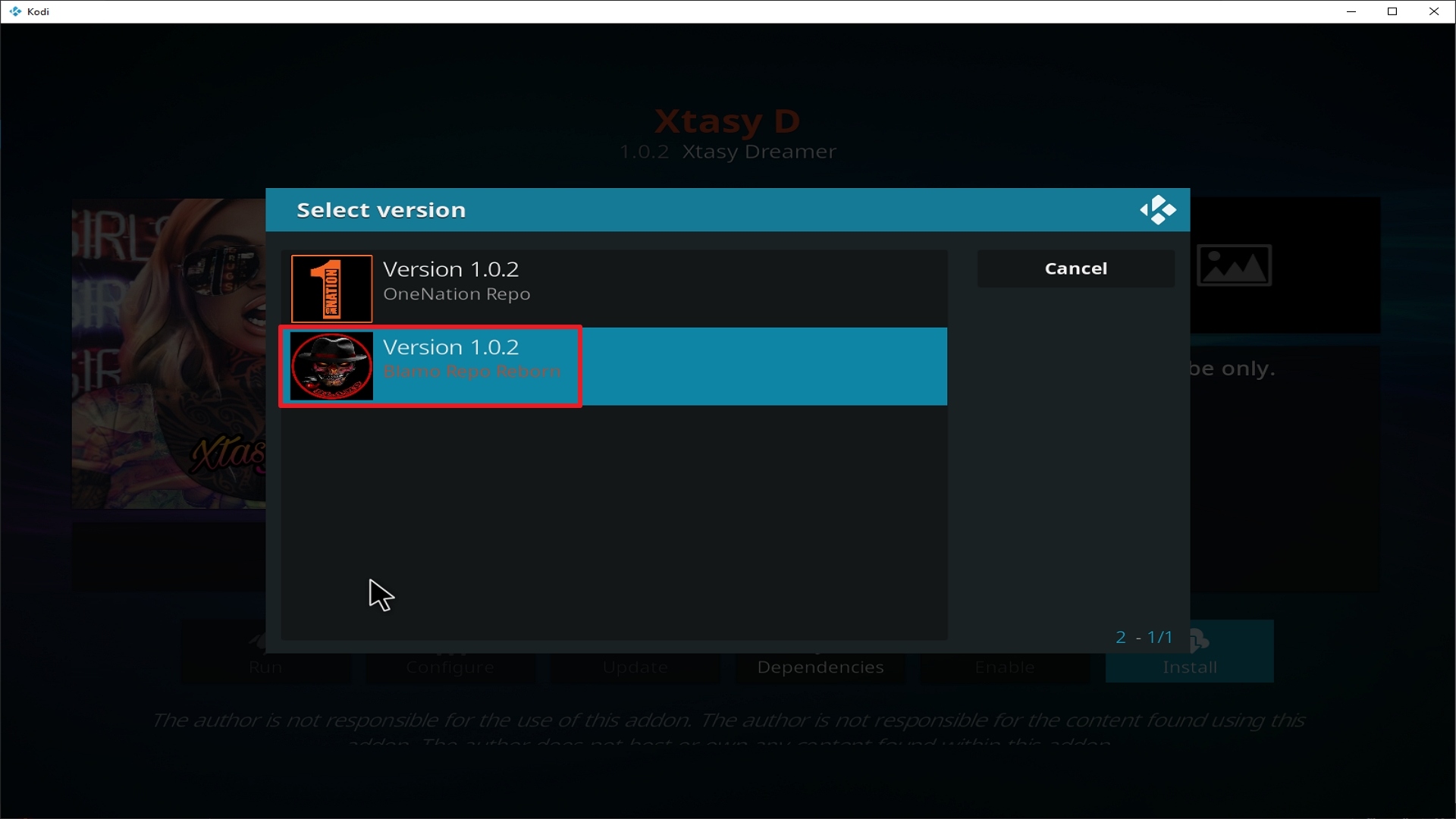
23. Click on Install.

Step 23 Installing Apollo addon on Kodi

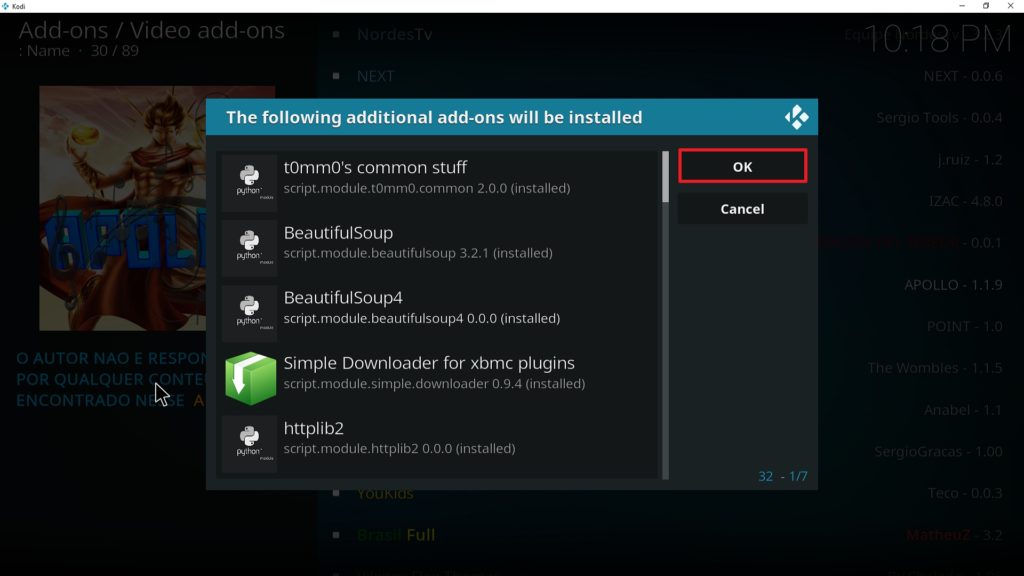
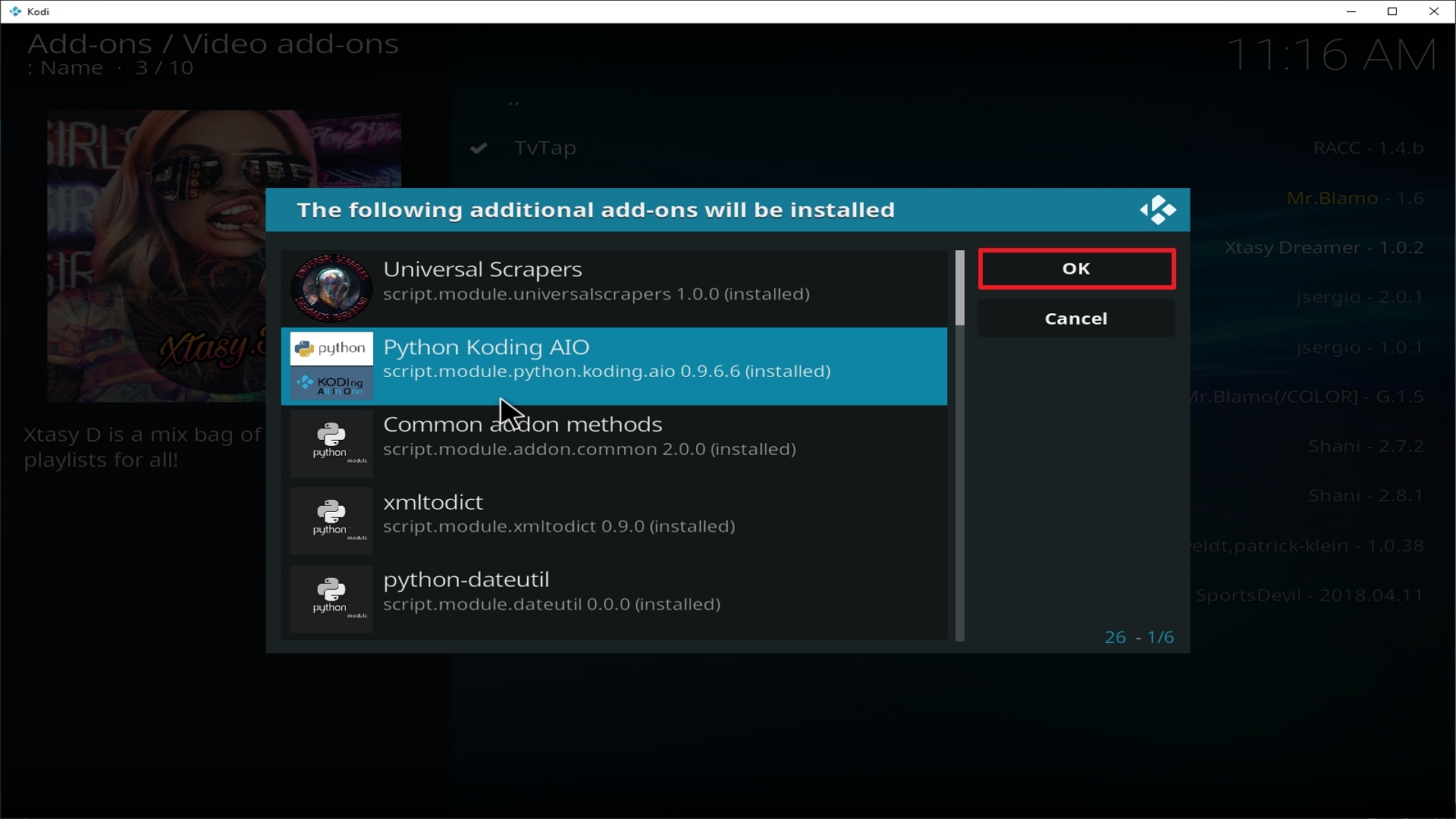
24.  Select OK after reviewing the add-ons that will be installed.

Step 24 Installing Apollo addon on Kodi

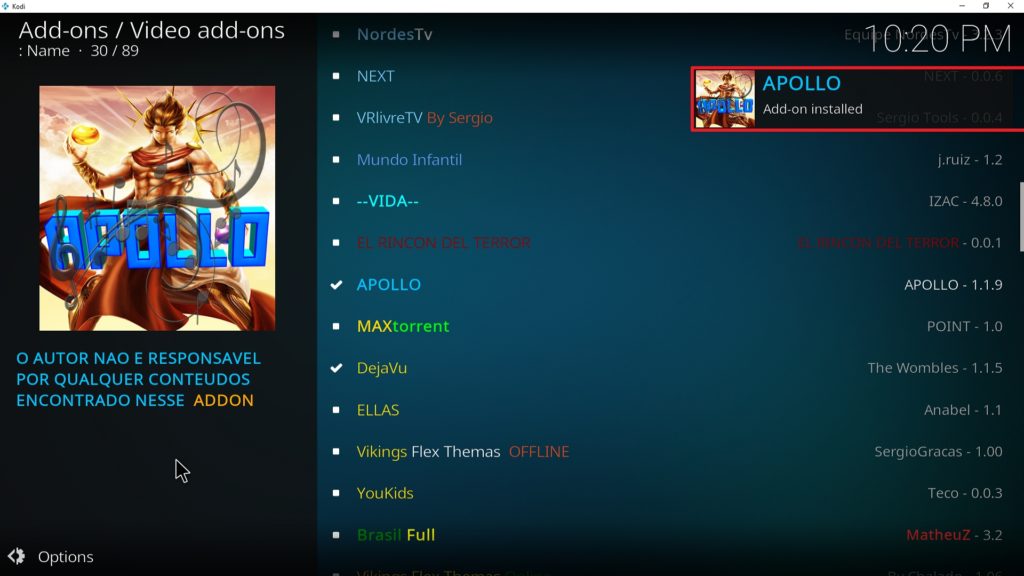
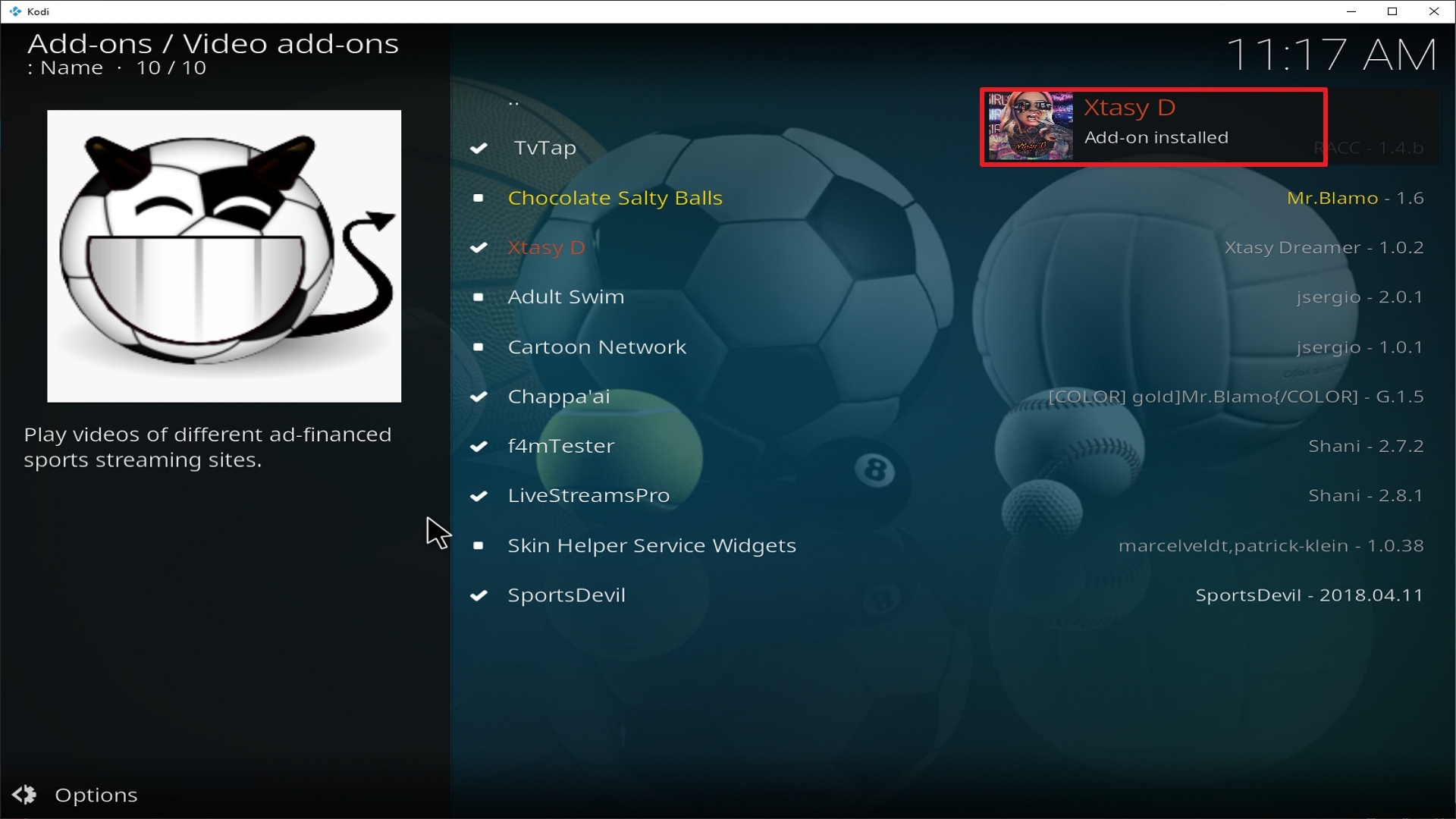
25. You should see a popup in the upper right corner saying Apollo has installed. There will actually be multiple popups for the various components.

Step 25 Installing Apollo addon on Kodi

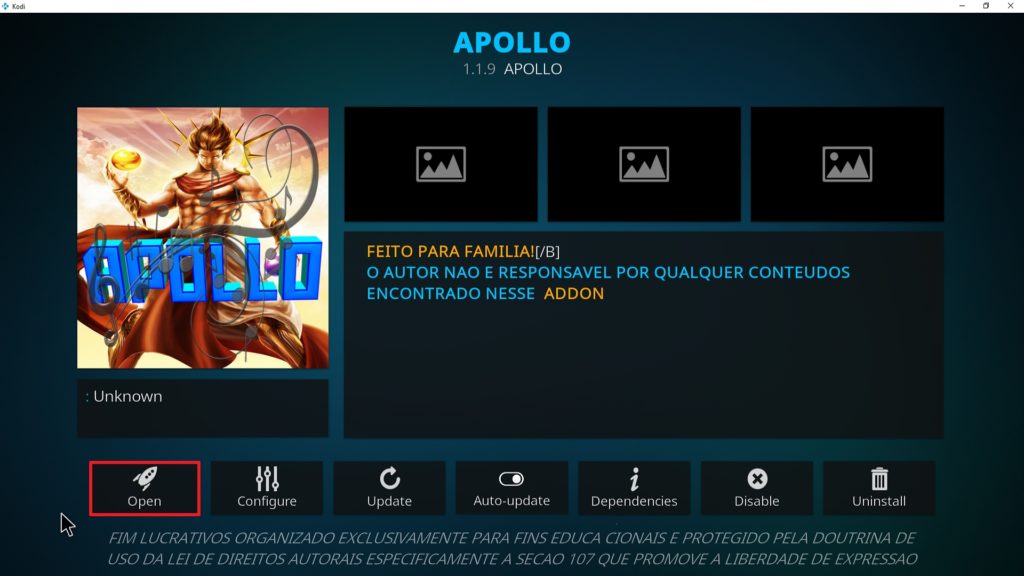
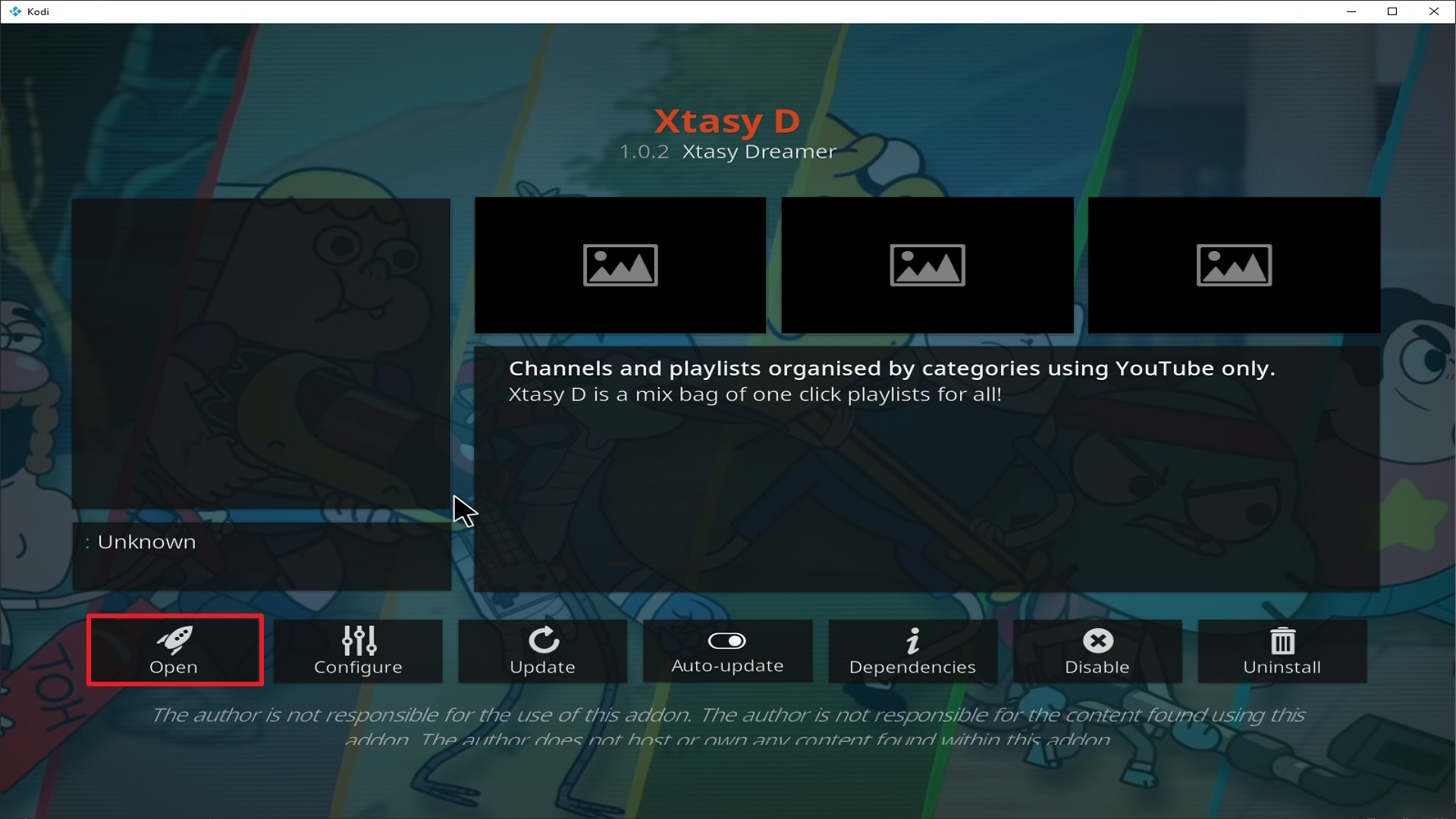
26. Click on Open to start Apollo add-on.

Step 26 Installing Apollo addon on Kodi


If you want to know more about this VPN, kindly read our SurfShark Review.


Grab your subscription now!

Click here to get the lowest price on SurfShark through our exclusive limited-time offer.


Install SurfShark on Firestick with Screenshots

If your Firestick still has the older interface, read this article to learn how to update it: Update Firestick Interface.

You can download Surfshark directly from the Amazon App store. It will be easy for you to find Surfshark with your Firestick’s Find feature. Refer to our screenshots below.

Follow our screenshots below to install the SurfShark VPN app on your Fire TV stick.

1. Go to the Home screen of your Firestick.

step 1 Install Surfshark VPN on Firestick


2. Navigate towards the Find tab. Press the Search button from the resulting dropdown.

step 2 Install Surfshark VPN on Firestick


3. Type in the keyword of SurfShark and select from the suggestions that will appear.

step 3 Install Surfshark VPN on Firestick


4. Click the official SurfShark icon from your search results.

step 4 Install Surfshark VPN on Firestick


5. Press the Download (You own it) button.

step 5 Install Surfshark VPN on Firestick


6. The SurfShark VPN installer will download on your device.

step 6 Install Surfshark VPN on Firestick


7. SurfShark VPN’s app will automatically install itself on your Fire TV stick.

step 7 Install Surfshark VPN on Firestick


8. Press the Open button after completing SurfShark VPN’s installation process.

step 8 Install Surfshark VPN on Firestick


9. Please wait for the SurfShark VPN to load its user interface.

step 9 Install Surfshark VPN on Firestick


10. You can now log in with your SurfShark VPN account credentials.

step 10 Install Surfshark VPN on Firestick

Learn more about Surfshark and Grab the Best Surfshark Deal Now!


Install Surfshark on Firestick

Best Surfshark Deal

Other VPNs to Consider

NordVPN (Best for Streaming)

Best Features

  • 5000+ Server in 50+ Countries 
  • Military-Grade Encryption
  • Fast Connection Speed
  • Suitable to a lot of devices
  • No-Log Policy

Prices
  • Complete $5.89 per month (64% Discount)
  • Plus $4.59 per month (56% Discount)
  • Standard $3.69 per month (55% Discount)

Best Features

  • 750+ High-speed VPN Servers in 43 Locations
  • Military-Grade Encryption
  • Fastest HD Streaming and Gaming
  • 30-Day Money-Back Guarantee
  • Unlimited Data & Devices
  • No-Log Policy

Prices
  • 3 Years $1.99 per month (82% Discount)
  • 1 Years $3.29 per month (70% Discount)
  • 1 Month $10.99 per month

IPVanish VPN (Most Secure)

Best Features

  • 1200+ Servers in 60+ Countries around the world
  • Unlimited Connections
  • No-Log Policy
  • Top Notch Military-Grade VPN Protocols and Encryptions
  • 100% Safe and Secured
  • Most Trusted VPN
  • Best VPN for Firestick
  • 30-Day Money-Back Guarantee

Prices
  • Yearly $3.99 per month (63% Discount) – 30 days risk free + Ransomware & Malware Protection
  • Quarterly $5.32 per month (51% Discount)
  • Monthly $10.99 per month

For more VPN discounts, go to ReviewVPN Deals and purchase the best VPN for you.

How To Install Techstreams Fork Kodi Addon

Install Techstreams Fork Kodi Addon

Source:  http://mcteam.tech/repo/ 

Techstreams Fork is a clone of the popular Techstreams addon. Coming from the well-respected Man Cave repo, this is a great addon for content and keeping up to date with sources.

Techstreams Fork pulls content directly from torrents, which is awesome, but it also means you will need to use a VPN with this addon or much of the content will be blocked straight away.

The addon is compatible with both Trakt and Real Debrid. We are advising using both to really get the best out of Techstreams Fork.

Trakt will allow you to start off programs where you left off, even when crossing over from watching the same film or episode on one addon to another. You can also get intelligent suggestions for the next thing to watch, and access content lists from people all around the world who share the same interests and viewing habits as you.

Real Debrid is a premium service you can get for as little as $2 a month when paying for an annual pass. They fix a real problem, which is a common issue with so much free information. You may get 100 links to the same piece of content, but chances are most of the links are old and dead, don’t load, or give you access to poor-quality content. Real Debrid gives you access to a network of 50+ paid servers and the best high-quality links for any content you want to watch.

Legal Disclaimer: ReviewVPN.com does not encourage or endorse any illegal activity involved in the usage of services and applications referenced on this site. We do not verify the licensing agreements of services. The end-user is wholly responsible for ensuring that any media accessed through these services does not violate copyright and/or licensing laws. ReviewVPN does not promote, link to, or receive compensation from any Apps and IPTV services.

ANONYMOUSLY

Common Errors

Here are the most common errors and fixes for Techstreams Fork:

  • Kodi check log error: A Kodi check log error is nothing to worry about. This has no relation to a corrupted script, or a missing dependency, and will only happen once you have installed Genesis and are streaming content within the add on. A check log error in most cases simply means that your media cache is full and needs to be emptied. Just like your web browser, Kodi will cache snippets of content, to make loading instant the next time you try to watch it. Over time this cache fills up. To learn how to empty your cache, download helpful system tools and more read on here.<LINK>
  • Could not Download/ Web URL failure. Check that you have typed in the right URL. If the repository has changed, refer to Google and Reddit to find the latest link. Also, you can try again just to make sure that it isn’t a problem with the server receiving too many requests. If those quick fixes don’t work, find more steps here
  • No stream available. An unlikely error with Techstreams Fork, but you can turn on and search for updated scraper lists in the Scraper settings. If the problem persists, check our step by step fix guide <LINK>

YOUR INTERNET ACTIVITY IS BEING WATCHED

ReviewVPN cannot attest to the legality, security and privacy of the applications discussed on this site. It is highly recommended that you use a VPN service while streaming or using Kodi.

Currently, your IP 216.73.217.150 is visible to everyone and your Browser is being tracked by Advertisers & ISP Provider.

Save 65% Now

Limited Time Offer

Here are the main reasons why you must use a VPN:

  • Your activities are hidden from your ISP, the government, and from the apps you are using.
  • You can access additional movies and TV streams.
  • ISP attempts to throttle are thrwarted thus reducing buffering issues.
  • Geographically restricted content like Netflix and Hulu can be unblocked.

A VPN works be replacing your ISP-assigned IP address and creating an encrypted tunnel. We recommend the no log service offered by IPVanish. It works well on a Firestick and offers the fastest possible speeds.

Special Limited Time Offer - Get IPVanish

Review

The original Techstreams was awesome and this fork really does it justice. There are several features worth mentioning. The direct clear cache function is rarely seen elsewhere and a good way for quickly checking if you can free up space.

Being able to check and upAugust 9, 2026

2. Select System in the bottom right corner.

Step 2 Installing Techstreams Fork addon on Kodi

3. Select Add-ons on the left side of the screen.

Step 3 Installing Techstreams Fork addon on Kodi

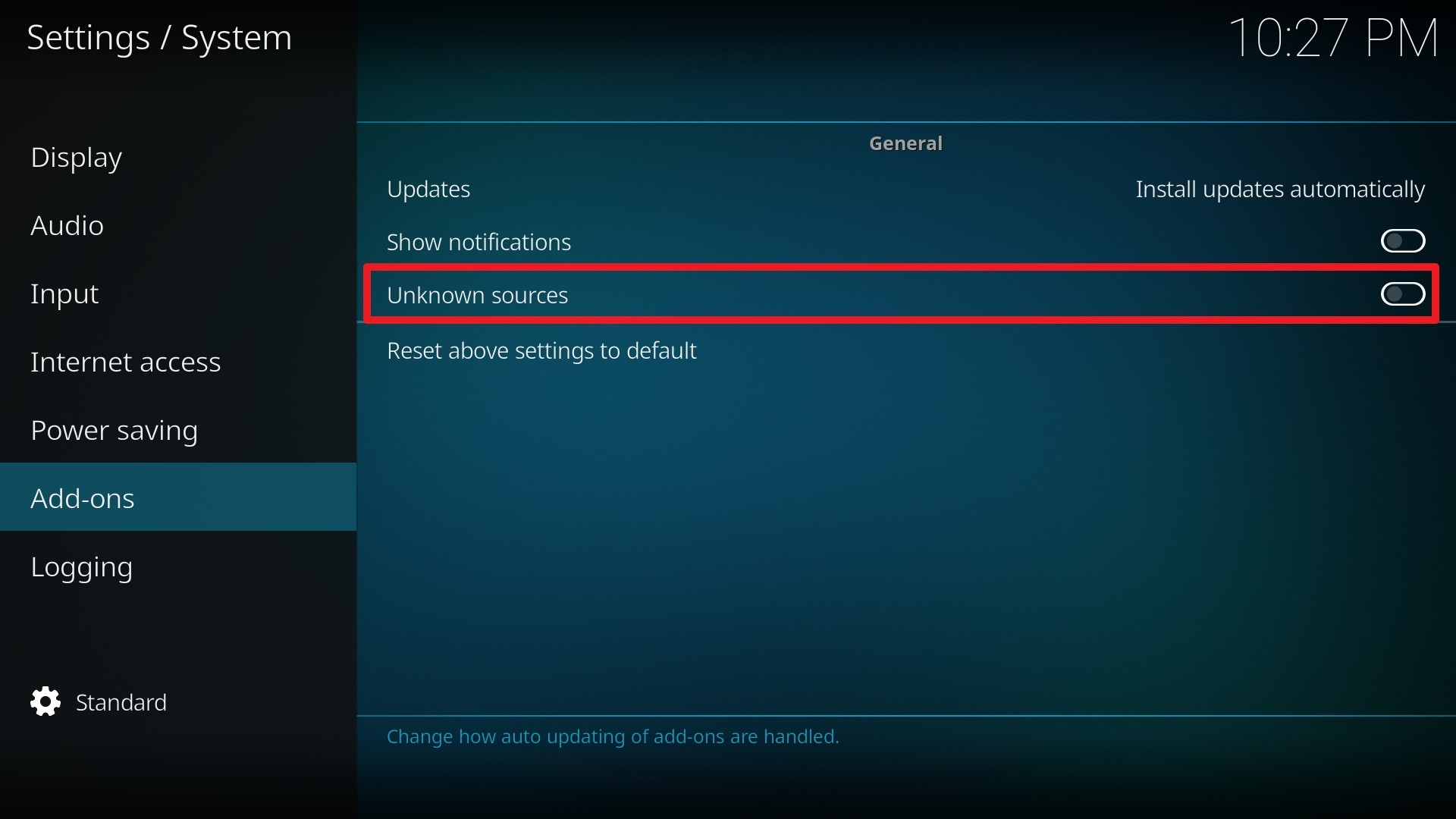
4. Select Unknown sources.

Step 4 Installing Techstreams Fork addon on Kodi

5. Click Yes to allow uknown sources.

Step 5 Installing Techstreams Fork addon on Kodi

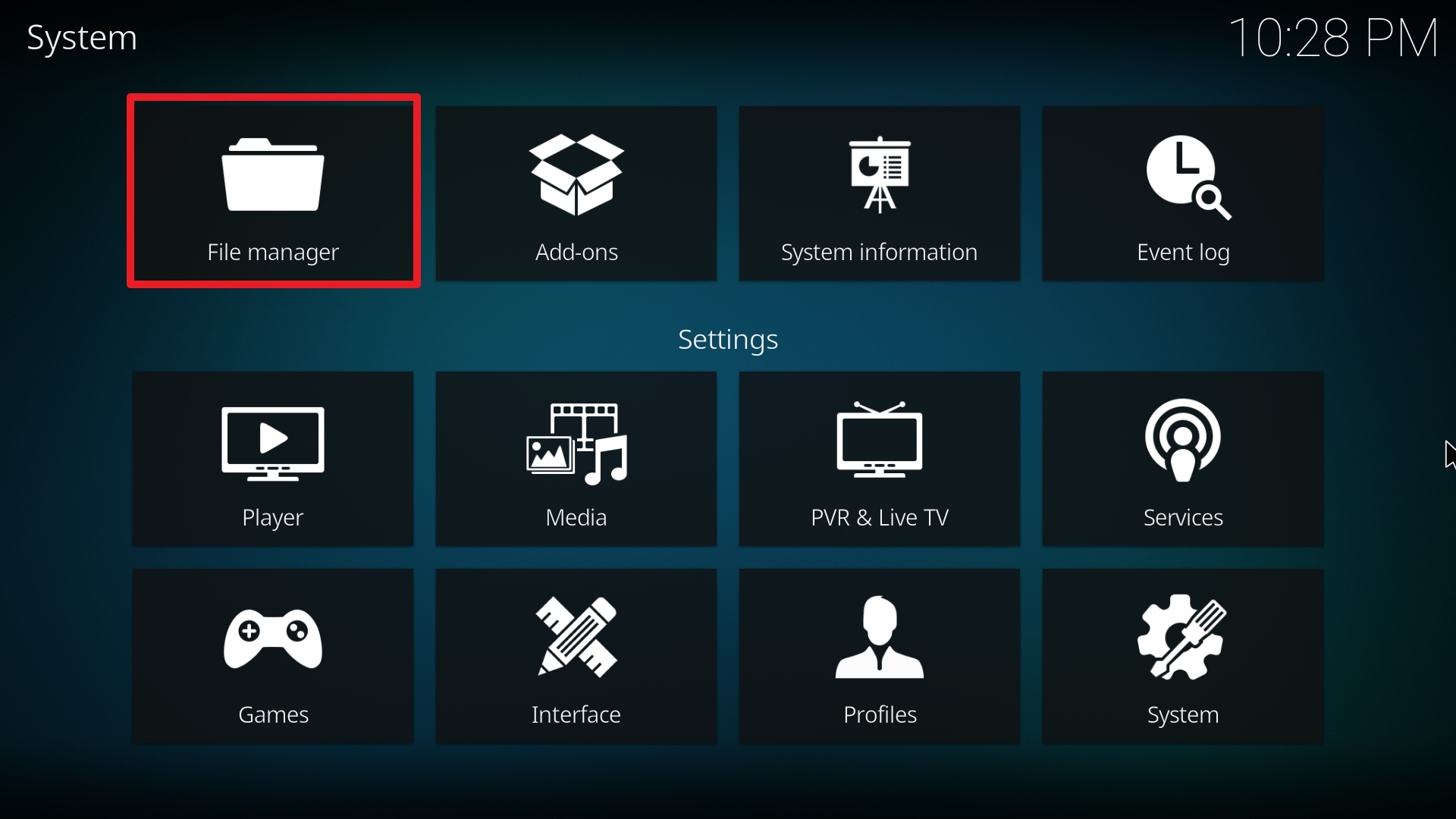
6. Select File manager.

Step 6 Installing Techstreams Fork on Kodi

7. Click Add source.

Step 7 Installing Techstreams Fork addon on Kodi

8. Click on .

Step 8 Installing Techstreams Fork addon on Kodi

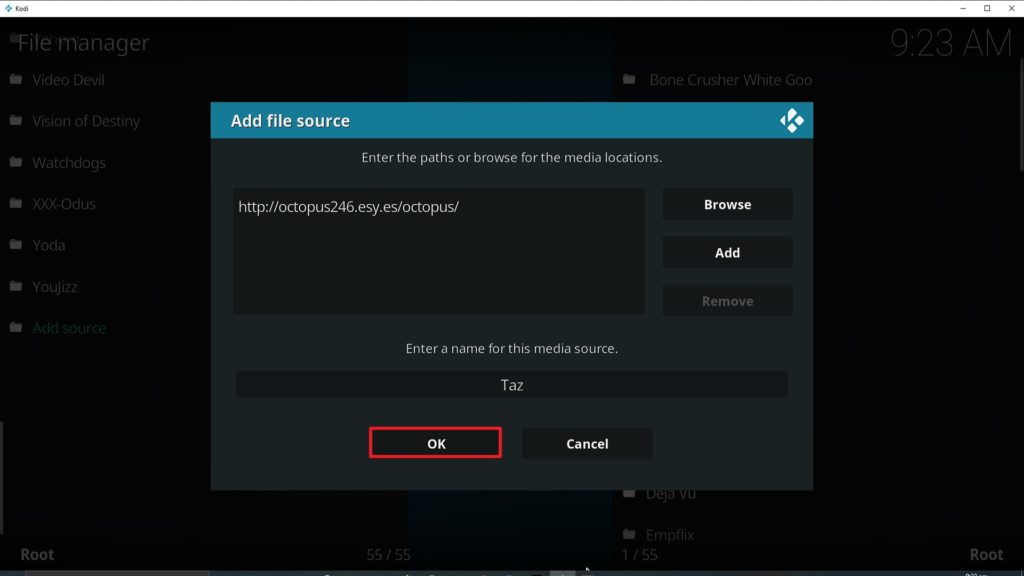
9. Type exactly: http://octopus246.esy.es/octopus/

10. Click on OK.

11. Select enter a name for this media source.

12. Name is Techstreams Fork (this part isn’t critical as long as you remember the name).

13. Click on OK.

14. Click on OK.

Step 14 Installing Taz addon on Kodi

15. Take one step back and click on Add-ons.

16. Select install from zip file.

17. Click on Techstreams Fork (or whatever you named the source).

18. Click on repository.octopus-0.1.54.zip

19. Select on Install from repository.

20. Click on Octopus Repo.

21. Pick Video add-ons.

22. Select Techstreams Fork again.

23. Click on Install.

24. Select OK after reviewing the add-ons that will be installed.

25. You should see a popup in the upper right corner saying Techstreams Fork has been installed. There will actually be multiple popups for the various components.

26. Click on Open to start the Techstreams Fork add-on.


Grab your subscription now!

Click here to get the lowest price on Surfshark through our exclusive limited-time offer.


How to Install Surfshark VPN on Firestick

If your Firestick still has the older interface, read this article to learn how to update it: Update Firestick Interface.

Follow our screenshots below to install the SurfShark VPN app on your Fire TV stick.

1. Go to the Home screen of your Firestick.

step 1 Install Surfshark VPN on Firestick


2. Navigate towards the Find tab. Press the Search button from the resulting dropdown.

step 2 Install Surfshark VPN on Firestick


3. Type in the keyword of SurfShark and select from the suggestions that will appear.

step 3 Install Surfshark VPN on Firestick


4. Click the official SurfShark icon from your search results.

step 4 Install Surfshark VPN on Firestick


5. Press the Download (You own it) button.

step 5 Install Surfshark VPN on Firestick


6. The SurfShark VPN installer will download on your device.

step 6 Install Surfshark VPN on Firestick


7. SurfShark VPN’s app will automatically install itself on your Fire TV stick.

step 7 Install Surfshark VPN on Firestick


8. Press the Open button after completing SurfShark VPN’s installation process.

step 8 Install Surfshark VPN on Firestick


9. Please wait for the SurfShark VPN to load its user interface.

step 9 Install Surfshark VPN on Firestick


10. You can now log in with your SurfShark VPN account credentials.

step 10 Install Surfshark VPN on Firestick

Learn more about Surfshark and Grab the Best Surfshark Deal Now!


Install Surfshark on Firestick

Best Surfshark Deal


Other VPNs to Consider

NordVPN (Best for Streaming)

Best Features

  • 5000+ Server in 50+ Countries 
  • Military-Grade Encryption
  • Fast Connection Speed
  • Suitable to a lot of devices
  • No-Log Policy

Prices
  • Complete $5.89 per month (64% Discount)
  • Plus $4.59 per month (56% Discount)
  • Standard $3.69 per month (55% Discount)

Best Features

  • 750+ High-speed VPN Servers in 43 Locations
  • Military-Grade Encryption
  • Fastest HD Streaming and Gaming
  • 30-Day Money-Back Guarantee
  • Unlimited Data & Devices
  • No-Log Policy

Prices
  • 3 Years $1.99 per month (82% Discount)
  • 1 Years $3.29 per month (70% Discount)
  • 1 Month $10.99 per month

IPVanish VPN (Most Secure)

Best Features

  • 1200+ Servers in 60+ Countries around the world
  • Unlimited Connections
  • No-Log Policy
  • Top Notch Military-Grade VPN Protocols and Encryptions
  • 100% Safe and Secured
  • Most Trusted VPN
  • Best VPN for Firestick
  • 30-Day Money-Back Guarantee

Prices
  • Yearly $3.99 per month (63% Discount) – 30 days risk free + Ransomware & Malware Protection
  • Quarterly $5.32 per month (51% Discount)
  • Monthly $10.99 per month


For more VPN discounts, go to ReviewVPN Deals and purchase the best VPN for you.

Click here to get the lowest price on Surfshark through our exclusive limited-time offer.


Install Live NetTV on Firestick, Fire TV & Android for Free Live TV – 2023

Is it Any Good?


With over 1,100+ reviews on its site and an average rating of 4.6/5 Live NetTV is one of the most popular live tv streaming applications around. With great features and a solid team of developers, it has remained a firm favorite among its faithful users.

The application also has history on its side first hitting the scene in June 2017, meaning it has seen lots of competitors come and go. A great application for live TV that consistently works and has been persistently stable in an industry where many apps either come and go or users have to come to terms with regular downtime.


ANONYMOUSLY

Is Live NetTV Safe and Virus-free?

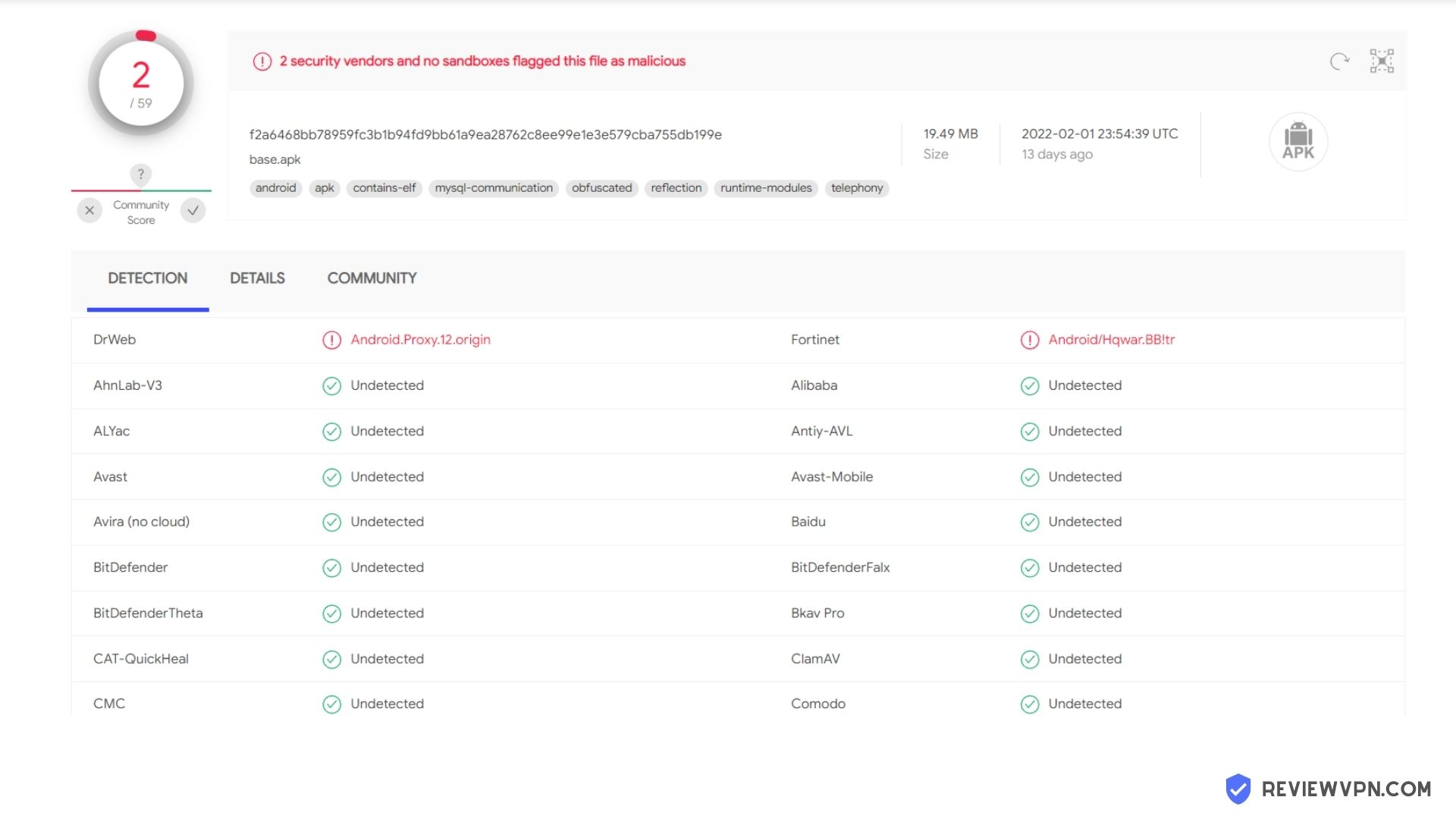
We tested this application using VirusTotal and found that there is/are malicious file/files. You can see the above result for your reference.

Because of this, we highly recommend using a VPN that can protect your privacy against any threat from Live NetTV.

Here’s how you can Install The Best VPN For Firestick and All Devices.


How to Install Live NetTV

You can download the application directly from their website: https://www.livenettv.sc/


Download Live Net TV


Note: ReviewVPN.com does not host this APK file. It is hosted on Archive.org.  


Video on How to Install Live NetTV APK on Firestick

[videopress njexqORH]


If your Firestick still has the older interface, read this article to learn how to update it: Update Firestick Interface.


Screenshots with Step by Step Instruction to Install Live NetTV on a Firestick

1. Install the Downloader app and jailbreak your firestick by enabling unknown sources. To learn more about the procedure, you may read How to Install the Downloader App and Enable Unknown Sources.


2. Open Downloader App. Type https://reviewvpn.com/livenet and click Go.

Install Live NetTV


3. Then wait for the APK to download.

Install Live NetTV 1


4. Choose “Install”.

Install Live NetTV 2


5. Click “Open”.

Install Live NetTV 3


YOUR INTERNET ACTIVITY IS BEING WATCHED

ReviewVPN cannot attest to the legality, security and privacy of the applications discussed on this site. It is highly recommended that you use a VPN service while streaming or using Kodi.

Currently, your IP 216.73.217.150 is visible to everyone and your Browser is being tracked by Advertisers & ISP Provider.

Save 65% Now

Limited Time Offer

Here are the main reasons why you must use a VPN:

  • Your activities are hidden from your ISP, the government, and from the apps you are using.
  • You can access additional movies and TV streams.
  • ISP attempts to throttle are thrwarted thus reducing buffering issues.
  • Geographically restricted content like Netflix and Hulu can be unblocked.

A VPN works be replacing your ISP-assigned IP address and creating an encrypted tunnel. We recommend the no log service offered by IPVanish. It works well on a Firestick and offers the fastest possible speeds.

Special Limited Time Offer - Get IPVanish


Legal Disclaimer: ReviewVPN.com does not encourage or endorse any illegal activity involved in the usage of services and applications referenced on this site. We do not verify the licensing agreements of services. The end-user is wholly responsible for ensuring that any media accessed through these services does not violate copyright and/or licensing laws. ReviewVPN does not promote, link to, or receive compensation from any Apps and IPTV services.


Install Surfshark on Firestick

Best Surfshark Deal


What Does it Do?

Live NetTV aggregates links using scrapers from across the web and allows you to fetch the best link within their application. You can choose from over 800 channels including channels in HD.

None of the content on Live NetTV is hosted on their servers, they simply act as a searching and indexing tool.


What Platforms Does it Work On?

Works on all Android devices


Features

  • 800+ channels in a wide range of categories and genres
  • Access to Video on Demand
  • Supports Chromecast
  • Access to a wide range of premium sports channels
  • Supports of a number of popular external media players
  • 100% free without ads
  • Simple and easy to use user interface
  • Filter and sorting system
  • Request channels from the developers
  • Report links that are broken
  • Access to movies and TV Shows in HD
  • No need to register
  • Video playback supported on certain external media players
  • Live Event scheduler
  • Get notified when your latest show is added


Live NetTV Pros and Cons

Pros

  • Massive range of channels only beaten by Mobdro and Red Box
  • Consistently stable over a long period of time
  • Constantly updated
  • The ability to report broken links is invaluable
  • Being able to requests new channels means a responsive development team
  • 100% free without ads is rare
  • Chrome cast support means you can cast to your TV
  • Support for a wide range of external media players means it works on a wide range of devices
  • No sign-up or email means you can maintain anonymity
  • Easy to use and clean interface
  • Swipe function means it’s easy to use on your phone
  • An active community and development team
  • Burden of social proof with a large number of positive reviews over 2 years


Cons

  • Some reports of needing to restart app and links not working, but it’s always hard to know whether people are trying to use the application with or without a VPN player


Live NetTV FAQs

Is it Safe to Use?

Live TV has been around since 2015 and has a long history of being safe and stable. Just beware of downloading the application from copycat websites or unknown sources. Be safe and use the website instead.


Is it Legal or Grey?

It’s a grey area but Live TV has done well to not go down more. Live TV providers are pretty hot on shutting down unofficial feeds or having people decode their encrypted signals.

We always recommend that you use the application with a VPN provider otherwise you run the risk of having your connection cut if your Internet Service Provider sees you accessing blocked IP addresses


Should I Use This App With a VPN?

Always use a VPN, even if you’re not using Live TV Net. We love VPNs because they keep our data safe and encrypted and prevent malicious third parties from tracking our data or seeing what IP addresses we are visiting.

VPNs can also be used on multiple devices, which means you can keep your mobile, tablet, and computer security. Allowing you to change your IP address, log onto different servers around the world and be safe wherever you go however insecure the public Wi-Fi is.


Grab your subscription now!

Click here to get the lowest price on Surfshark through our exclusive limited-time offer.


How to Install Surfshark VPN on Firestick

If your Firestick still has the older interface, read this article to learn how to update it: Update Firestick Interface.

1. Go to the Home screen of your Firestick.

step 1 Install Surfshark VPN on Firestick


2. Navigate towards the Find tab. Press the Search button from the resulting dropdown.

step 2 Install Surfshark VPN on Firestick


3. Type in the keyword of Surfshark and select from the suggestions that will appear.

step 3 Install Surfshark VPN on Firestick


4. Click the official Surfshark icon from your search results.

step 4 Install Surfshark VPN on Firestick


5. Press the Download (You own it) button.

step 5 Install Surfshark VPN on Firestick


6. The Surfshark VPN installer will download on your device.

step 6 Install Surfshark VPN on Firestick


7. Surfshark VPN’s app will automatically install itself on your Fire TV stick.

step 7 Install Surfshark VPN on Firestick


8. Press the Open button after completing Surfshark VPN’s installation process.

step 8 Install Surfshark VPN on Firestick


9. Please wait for the Surfshark VPN to load its user interface.

step 9 Install Surfshark VPN on Firestick


10. You can now log in with your Surfshark VPN account credentials.

step 10 Install Surfshark VPN on Firestick

Learn more about Surfshark and Grab the Best Surfshark Deal Now!


Install Surfshark on Firestick

Best Surfshark Deal


Other VPNs to Consider

NordVPN (Best for Streaming)

Best Features

  • 5000+ Server in 50+ Countries 
  • Military-Grade Encryption
  • Fast Connection Speed
  • Suitable to a lot of devices
  • No-Log Policy

Prices
  • Complete $5.89 per month (64% Discount)
  • Plus $4.59 per month (56% Discount)
  • Standard $3.69 per month (55% Discount)

Best Features

  • 750+ High-speed VPN Servers in 43 Locations
  • Military-Grade Encryption
  • Fastest HD Streaming and Gaming
  • 30-Day Money-Back Guarantee
  • Unlimited Data & Devices
  • No-Log Policy

Prices
  • 3 Years $1.99 per month (82% Discount)
  • 1 Years $3.29 per month (70% Discount)
  • 1 Month $10.99 per month

IPVanish VPN (Most Secure)

Best Features

  • 1200+ Servers in 60+ Countries around the world
  • Unlimited Connections
  • No-Log Policy
  • Top Notch Military-Grade VPN Protocols and Encryptions
  • 100% Safe and Secured
  • Most Trusted VPN
  • Best VPN for Firestick
  • 30-Day Money-Back Guarantee

Prices
  • Yearly $3.99 per month (63% Discount) – 30 days risk free + Ransomware & Malware Protection
  • Quarterly $5.32 per month (51% Discount)
  • Monthly $10.99 per month


For more VPN discounts, go to ReviewVPN Deals and purchase the best VPN for you.

Click here to get the lowest price on Surfshark through our exclusive limited-time offer.


Is it Free?

Yes, 100% free.


Are There Ads? (If it has ads is there a modded version)

There are no ads within the application.


Is There a Premium Version?

No.


Is There an Official Website?

Yes, they have a nice looking one-page website at https://www.livenettv.sc/

Though it’s just there for you to download the application, there are no user guides on the website.


What Other Devices Does it Work On?

Live TV Networks on all Android devices. You can use an Android emulator if you want to use it on Windows or iOS


How Does The App Work?

You can download the application on the Amazon store, or directly download the apk file from the Live Net TV website


What is the Minimum Version of Android I Need?

Android 4.0


History

How Long Has it Been Around?

Live Net TV has been around since at least June 2017


What is the Development Team Like?

We couldn’t find much about the development team though you can contact them through their website and also the application. They have made themselves pretty invisible on Reddit and Facebook.


Best Alternatives

Live Net TV is probably one of the longest working live TV apps out there. Just bear in mind if you want bigger libraries of films and TV Show you can find them at Zion TV, Cyberflix, Cinema HD, Bee TV or Tea TV.

Alternatively, if you want more options in terms of live TV then pick Mobdro or Red Box.


Our Opinion

Live Net TV is a great application that has managed to fly under the radar for a long time. They have a consistent history of having working TV channels. Their feedback and request function is great because you know as well as us how bloody annoying it is to constantly find broken links and not be able to report them.

No application gets this far without an active development team and community and we feel that Live Net TV should be in everyone’s backup list of applications if they not the first choice for Live TV.


Xumo TV for Firestick/Android/IOS

Xumo TV for Firestick/Android/IOS

In this article, we will show how to install Xumo TV on Firestick/Android/IOS.


Is It Any Good

First of all, Xumo TV has been recognized by the official app stores of Amazon, Android, and IOS as a legitimate application that’s why you can search for it in those app stores. Xumo TV is an online platform that offers streams. It varies from Movies, TV Shows, Live TV, and On-Demand Channels. It is compatible with all of the Operating Systems out there. We will see how good it is in this article.


ANONYMOUSLY

How to Install XUMO on Firestick and Fire TV

  1. On your Home Screen, go to the left portion and select the “Search” Icon and look for Xumo
  2. On your remote, click on the “Select” button and pick “Xumo”
  3. Select “Get”
  4. A notification that Xumo has been installed will appear
  5. Voila, Xumo is now installed and ready to use.


How to Install XUMO on an Android Device

  1. Launch your Google Play Store
  2. Search for Xumo
  3. Select “Install”
  4. Select your device and click on “Continue”
  5. Choose “Ok”
  6. Click “Install”
  7. In a minute or two, depending on your internet speed, Xumo will be finished installing.
  8. There you go, Xumo is now installed


How to Install XUMO on an iOS Device

  1.     Go to Apple App Store
  2.     Search for Xumo
  3.     Click Install
  4.     There you go, the app is now installed.

You may be wondering why the installation guide for Xumo is shorter compared to other apps. It is because the official app stores of Amazon and Android recognize it as a legitimate application. But bear in mind, Xumo is Geo-restricted to the following countries:  United States, Canada, France, Germany, UK, Italy, Spain, Brazil, and Mexico. You will be needing to sideload it if you are not able to download it on your app store. Just follow the same steps, but use “downloader” and make sure that your VPN is turned on. If you don’t have a VPN yet, please refer to this article Surfshark Review. It will guide you on how to properly install and run Surfshark, our most trusted VPN here in ReviewVPN.com


YOUR INTERNET ACTIVITY IS BEING WATCHED

ReviewVPN cannot attest to the legality, security and privacy of the applications discussed on this site. It is highly recommended that you use a VPN service while streaming or using Kodi.

Currently, your IP 216.73.217.150 is visible to everyone and your Browser is being tracked by Advertisers & ISP Provider.

Save 65% Now

Limited Time Offer

Here are the main reasons why you must use a VPN:

  • Your activities are hidden from your ISP, the government, and from the apps you are using.
  • You can access additional movies and TV streams.
  • ISP attempts to throttle are thrwarted thus reducing buffering issues.
  • Geographically restricted content like Netflix and Hulu can be unblocked.

A VPN works be replacing your ISP-assigned IP address and creating an encrypted tunnel. We recommend the no log service offered by IPVanish. It works well on a Firestick and offers the fastest possible speeds.

Special Limited Time Offer - Get IPVanish


Legal Disclaimer: ReviewVPN.com does not encourage or endorse any illegal activity involved in the usage of services and applications referenced on this site. We do not verify the licensing agreements of services. The end-user is wholly responsible for ensuring that any media accessed through these services does not violate copyright and/or licensing laws. ReviewVPN does not promote, link to, or receive compensation from any Apps and IPTV services.


Install Surfshark on Firestick

Best Surfshark Deal


What Does It Do?

Xumo TV provides over 90 channels that offer different kinds of content. It has movies, News Programs, Sports, and more. It does not scrape the web for working links because it has made partnerships with the channels that are under its arsenal. Xumo Tv is one of the many legitimate apps that you can directly download at the designated app stores of your devices.


Compatible Platforms

 Xumo TV works well with the Amazon Firestick, Fire TV, and all devices that run on Android OS.


Features

        Over 90 channels to choose from

        Movies and TV Shows

        Full HD Quality

        Popular Channels – NBC News, Fox Sports, TODAY, Newsy, Bloomberg, TIME, USA Today, CBSN, and more.

        Variety of content to choose from


Pros and Cons

Pros
      Filterable Content

  •       Decent Collection of cable tv channels
  •       Available on Kodi via Xumo.tv Add-on

          Very active technical support team

          The official website shows a very detailed category list on the channels it offers

          Potential to earn money by partnering with prospective users
Cons
          The interface for Amazon Firestick needs improvement

          The app doesn’t remain on the Home Screen for too long

          Auto plays the last channel or movie you have browsed

          No syncing of data across devices due to absence of app sign-in

          Geographical Restrictions


FAQ

Is It Safe To Use?

Xumo TV is recognized by app stores so it is very safe to use.


Is It Legal or Grey?

Xumo TV is 100% legal to use


Is It Free?

Xumo TV is free to download and install on your device.


Are There ADS?

Yes, Xumo TV has ads. It is their way of generating income in order to maintain the smooth run of the application.


Is There A Premium Version?

No premium version whatsoever.


Is There An Official Website?

The official website for Xumo TV is www.xumo.tv


What Other Devices Does It Work On?

Aside from the Amazon Firestick, Android OS, and IOS, the following are compatible devices that can be used with Xumo TV:

          Flex, Hisense, LG, Magnavox, Panasonic, Philips, Roku, Sanyo, Sony, VIZIO, and Xfinityx1 devices


How Does The App Work?

You can download the app at any of the following app stores:

          Google Play Store, Amazon App Store, and IOS Appstore


Minimum Version Required

Any Android device that has version 4.1 and above


History

How Long Has It Been Around?

Xumo TV is a privately held company located in Irvine, California. It was established in 2011 and currently houses more than 50 employees under its wing.


Is It A Terrarium Clone?

No, but it shares similarities with one.


What Is The Development Team Like?

The development team is very active in their social media platforms. They have a Facebook page, Twitter, LinkedIn, Snapchat, and Instagram. Should you have concerns, please feel free to reach out to them on any of those platforms


Alternatives

        Snappy Streamz

        HD Streamz

        Live Net TV

Although it is on a league of its own, the apps listed above can actually compete in terms of content and stability.


Should I Use a VPN?

It is advisable to use a VPN with Xumo TV if you are geographically restricted. What it does is to relocate your location to an ideal one where Xumo TV is available.

Note: For more information about Surfshark, please read our Surfshark Review.


Grab your subscription now!


How to Install Surfshark VPN on Firestick

If your Firestick still has the older interface, read this article to learn how to update it: Update Firestick Interface.

Follow our screenshots below to install the SurfShark VPN app on your Fire TV stick.

1. Go to the Home screen of your Firestick.

step 1 Install Surfshark VPN on Firestick


2. Navigate towards the Find tab. Press the Search button from the resulting dropdown.

step 2 Install Surfshark VPN on Firestick


3. Type in the keyword of SurfShark and select from the suggestions that will appear.

step 3 Install Surfshark VPN on Firestick


4. Click the official SurfShark icon from your search results.

step 4 Install Surfshark VPN on Firestick


5. Press the Download (You own it) button.

step 5 Install Surfshark VPN on Firestick


6. The SurfShark VPN installer will download on your device.

step 6 Install Surfshark VPN on Firestick


7. SurfShark VPN’s app will automatically install itself on your Fire TV stick.

step 7 Install Surfshark VPN on Firestick


8. Press the Open button after completing SurfShark VPN’s installation process.

step 8 Install Surfshark VPN on Firestick


9. Please wait for the SurfShark VPN to load its user interface.

step 9 Install Surfshark VPN on Firestick


10. You can now log in with your SurfShark VPN account credentials.

step 10 Install Surfshark VPN on Firestick

Learn more about Surfshark and Grab the Best Surfshark Deal Now!


Install Surfshark on Firestick

Best Surfshark Deal


Other VPNs to Consider

NordVPN (Best for Streaming)

Best Features

  • 5000+ Server in 50+ Countries 
  • Military-Grade Encryption
  • Fast Connection Speed
  • Suitable to a lot of devices
  • No-Log Policy

Prices
  • Complete $5.89 per month (64% Discount)
  • Plus $4.59 per month (56% Discount)
  • Standard $3.69 per month (55% Discount)

Best Features

  • 750+ High-speed VPN Servers in 43 Locations
  • Military-Grade Encryption
  • Fastest HD Streaming and Gaming
  • 30-Day Money-Back Guarantee
  • Unlimited Data & Devices
  • No-Log Policy

Prices
  • 3 Years $1.99 per month (82% Discount)
  • 1 Years $3.29 per month (70% Discount)
  • 1 Month $10.99 per month

IPVanish VPN (Most Secure)

Best Features

  • 1200+ Servers in 60+ Countries around the world
  • Unlimited Connections
  • No-Log Policy
  • Top Notch Military-Grade VPN Protocols and Encryptions
  • 100% Safe and Secured
  • Most Trusted VPN
  • Best VPN for Firestick
  • 30-Day Money-Back Guarantee

Prices
  • Yearly $3.99 per month (63% Discount) – 30 days risk free + Ransomware & Malware Protection
  • Quarterly $5.32 per month (51% Discount)
  • Monthly $10.99 per month


For more VPN discounts, go to ReviewVPN Deals and purchase the best VPN for you.

Click here to get the lowest price on Surfshark through our exclusive limited-time offer.


Our Opinion

Xumo TV is a very good application to use to watch Live TV. One of the many good things about it is that it is legit. It has partnered with different channels to provide legal streams. So you should not be worried about any illegal activity. Also, what we like about it is that the website is very informative on what channels they are offering. The channels available are all family-friendly, so anyone in the family can actually watch anything using this app. Lastly, partnering with users is also a good selling point. They are very transparent with the terms and will help you to earn money through them.

We hope that this article has been informative and helpful to you. Please drop a comment below if you have any questions, we will answer them back promptly. Thank you for reading and have a great day ahead!


TV Team IPTV REVIEW

TV Team IPTV

TV Team IPTV is a relative newcomer to the scene, but definitely worth a look. They offer lots of great features at a surprisingly affordable price. 

TV Team IPTV is a game-changer in the IPTV industry with its great features. However, their service has been in the industry for a while and so far, has delivered top-notch service at a pocket-friendly price.


Irrespective of the glitches associated with the IPTV landscape, TV Team IPTV offers efficient and excellent service with minimal errors. 

One major benefit of TV Team IPTV is that; it supports all media platforms and at the same time, delivers High-Definition quality videos. It is compatible with the following devices:

  • Windows
  • Linux
  • iOS
  • Android
  • Mac
  • Enigma
  • IPTV MAG.
  • You can also use it on your streaming devices like Android TV and Amazon Firestick.


You can choose from the wide range of channels available on TV Team IPTV. Channels available for streaming videos, TV shows or any events include; pay per view (PPV), music, movies, sports, entertainment, and kids shows. 

Some of the channels TV Team IPTV offers have been tested and so far, fewer functionality issues have occurred. You can easily set up TV Team IPTV on your Android Phone, windows computer, Linux machine, iOS, MAC, or streaming devices like Firestick.  

Having said all that, we will now go into the real deal which is TV Team IPTV review; where we will compare and contrast the services and features of TV Team IPTV.


ANONYMOUSLY


Legal Disclaimer: ReviewVPN.com does not encourage or endorse any illegal activity involved in the usage of services and applications referenced on this site. We do not verify the licensing agreements of services. The end-user is wholly responsible for ensuring that any media accessed through these services does not violate copyright and/or licensing laws. ReviewVPN does not promote, link to, or receive compensation from any Apps and IPTV services.


YOUR INTERNET ACTIVITY IS BEING WATCHED

ReviewVPN cannot attest to the legality, security and privacy of the applications discussed on this site. It is highly recommended that you use a VPN service while streaming or using Kodi.

Currently, your IP 216.73.217.150 is visible to everyone and your Browser is being tracked by Advertisers & ISP Provider.

Save 65% Now

Limited Time Offer

Here are the main reasons why you must use a VPN:

  • Your activities are hidden from your ISP, the government, and from the apps you are using.
  • You can access additional movies and TV streams.
  • ISP attempts to throttle are thrwarted thus reducing buffering issues.
  • Geographically restricted content like Netflix and Hulu can be unblocked.

A VPN works be replacing your ISP-assigned IP address and creating an encrypted tunnel. We recommend the no log service offered by IPVanish. It works well on a Firestick and offers the fastest possible speeds.

Special Limited Time Offer - Get IPVanish


Subscription Plans and Prices: TV Team IPTV Review

subscription image

One of the amazing things about TV Team IPTV subscription is that you will still get the same features on all the different subscription packages TV Team IPTV offers. The subscription plan comes in four packages ranging from two days trial to 12 months subscription package. 

However, the difference in the subscription is not the features each package offers, but the validity; a one-month subscription package has the same features as 12 months subscription package, but a different validity period. It is recommended that you go for a one or three months subscription package if you are trying out TV Team IPTV.

Below are the subscription packages with prices:

  • First two days: 4.95 Euros
  • One month: 19.95 Euros
  • Three months: 47 Euros
  • Six months: 70 Euros
  • Twelve months: 127 Euros.

Don’t be scared of the high subscription packages, as it is worth the service you will get. You will have access to over 8000 channels with any of the above subscription packages. And not only that, access to more than 8000 Video On Demand TV shows, movies, music, and lots more. 

The downside of TV Team IPTV is that you can only use the subscription plan on one device an ago; it doesn’t allow multiple device connectivity.

TV Team IPTV keeps your payment detail private and secure, so you have nothing to worry about hackers or credit card theft. You can choose from the different payment methods of your choice which include Debit/Credit card striping and PayPal. For those who would like to pay with cryptocurrency, TV Team IPTV also accepts that.

Channel List

Over 8000 channels are available on TV Team IPTV for you to choose from. Be you a sports fan, cartoon lover, or movie freak, TV Team IPTV has got you covered with your favorite channels. 

You can stream your favorite TV shows from around the globe; the USA, United Kingdom, Canada, Australia, Europe, and extending to Asia, the United Arab Emirates, India, and Pakistan. 

All channel comes in standard English language so you have nothing to worry about the language. TV Team IPTV offers a wide range of internationally recognized channels.

Popular sports events such as football; (UEFA champions league, Olympics game, La-Liga), Baseball, Basketball, Rugby, Cricket, Car racing, etc are aired on TV Teams IPTV. You will also have access to live streaming of popular sports channels like ESPN, E-sports, and lots more with any of the subscription plans.


Video-On-Demand

video on demand image

Video on demand is a service that allows you to save live aired TV shows or sports events. This feature gives you access to save and watch on a later day or time your favorite TV shows or events. 

TV Team IPTV offers these features which are amazing. You will have access to millions of TV shows out there via the Video-on-demand service. Missed any of your favorite TV shows? don’t worry, TV Team IPTV got you covered; just scroll to the VOD section and click on search, input your favorite TV show or movie and there you go.

TV Team IPTV does not offer porn content or channels. This is because their focus is on providing a family-friendly streaming services for their customers. 


Customer Care Support

customer support

Purchasing any of the subscription packages avails you of the customer care support service. Have any issues or complaints? Get in touch with the support team. They offer 24/7 responses via email. 

Skype support channels are also available where you have access to instant chat with the support team.


How To Watch TV Team IPTV: Andriod Player or Kodi?

You may choose how you want to use your TV Team IPTV; it is solely dependent on your choice or taste. However, whichever one you choose, Andriod player or Kodi, ensure that you know how to properly set it up. It is advisable to use the standard IPTV players on your device.


Installing TV Team IPTV on Fire TV, Kodi Android TV Box, and Firestick

install image

To install TV Team IPTV on your devices, such as Android TV box, firesticks, and SmartPhone, follow these steps below:

Log in to the Niklas website and download the perfect player or download from Google play if you are using a smartphone. However, you need to create an account on the TV Team IPTV website in order to activate the app.

When the download is completed, install it;

  • Launch the perfect player.
  • Click on the menu (settings) on the perfect player app
  • Select “General”
  • Click on playlist-2.
  • Go back to the email received when you created an account on the TV Team IPTV website and input the m3u code.
  • Rename the playlist to your choice
  • Select EPG-1
  • Input the XMLTV-code sent to you via email.
  • A drop-down menu will pop up, tap on it, and select “update on each download”.
  • Click the back button double and select the EPG setting to hide EPG by clicking on the three lines.


Installing on Kodi

  • Launch your Kodi.
  • Click on “choose to add on-browser”
  • Select PVR-IPTV
  • Choose configure
  • Select general
  • Change the location 
  • Select m3u playlist-URL and input the code you received earlier via email. 
  • Download the m3u file and set it up by changing the location to the local Path
  • Navigate your device and copy the m3u code file and tap activate

Within a few seconds, a pop-up message will show notifying you of the loaded channels. 


Install SurfShark on Firestick

Best SurfShark Deal


Should I use a VPN?

Surfshark vpn

We usually consume a lot of data when streaming content. This will be noticed by your ISP and will throttle down your speed which will result in lags and buffering. To avoid being monitored for your online activity, you must use a premium VPN service like SurfShark. It will block any attempt made by your ISP to slow down your connection. Once it has masked your activity, you are assured that lags and buffering will no longer be an issue to your viewing experience.


Note:  Our Surfshark Review will give you a piece of detailed information regarding a premium VPN service.


How to Install Surfshark on Firestick with Screenshots

If your Firestick still has the older interface, read this article to learn how to update it: Update Firestick Interface.

You can download Surfshark directly from the Amazon App store. It will be easy for you to find Surfshark with your Firestick’s Find feature. Refer to our screenshots below.

Follow our screenshots below to install the SurfShark VPN app on your Fire TV stick.

1. Go to the Home screen of your Firestick.

step 1 Install Surfshark VPN on Firestick


2. Navigate towards the Find tab. Press the Search button from the resulting dropdown.

step 2 Install Surfshark VPN on Firestick


3. Type in the keyword of SurfShark and select from the suggestions that will appear.

step 3 Install Surfshark VPN on Firestick


4. Click the official SurfShark icon from your search results.

step 4 Install Surfshark VPN on Firestick


5. Press the Download (You own it) button.

step 5 Install Surfshark VPN on Firestick


6. The SurfShark VPN installer will download on your device.

step 6 Install Surfshark VPN on Firestick


7. SurfShark VPN’s app will automatically install itself on your Fire TV stick.

step 7 Install Surfshark VPN on Firestick


8. Press the Open button after completing SurfShark VPN’s installation process.

step 8 Install Surfshark VPN on Firestick


9. Please wait for the SurfShark VPN to load its user interface.

step 9 Install Surfshark VPN on Firestick


10. You can now log in with your SurfShark VPN account credentials.

step 10 Install Surfshark VPN on Firestick

Learn more about Surfshark and Grab the Best Surfshark Deal Now!


Install Surfshark on Firestick

Best Surfshark Deal


Other VPNs to Consider

NordVPN (Best for Streaming)

Best Features

  • 5000+ Server in 50+ Countries 
  • Military-Grade Encryption
  • Fast Connection Speed
  • Suitable to a lot of devices
  • No-Log Policy

Prices
  • Complete $5.89 per month (64% Discount)
  • Plus $4.59 per month (56% Discount)
  • Standard $3.69 per month (55% Discount)

Best Features

  • 750+ High-speed VPN Servers in 43 Locations
  • Military-Grade Encryption
  • Fastest HD Streaming and Gaming
  • 30-Day Money-Back Guarantee
  • Unlimited Data & Devices
  • No-Log Policy

Prices
  • 3 Years $1.99 per month (82% Discount)
  • 1 Years $3.29 per month (70% Discount)
  • 1 Month $10.99 per month

IPVanish VPN (Most Secure)

Best Features

  • 1200+ Servers in 60+ Countries around the world
  • Unlimited Connections
  • No-Log Policy
  • Top Notch Military-Grade VPN Protocols and Encryptions
  • 100% Safe and Secured
  • Most Trusted VPN
  • Best VPN for Firestick
  • 30-Day Money-Back Guarantee

Prices
  • Yearly $3.99 per month (63% Discount) – 30 days risk free + Ransomware & Malware Protection
  • Quarterly $5.32 per month (51% Discount)
  • Monthly $10.99 per month


For more VPN discounts, go to ReviewVPN Deals and purchase the best VPN for you.

Click here to get the lowest price on Surfshark through our exclusive limited-time offer.


Conclusion

TV Team IPTV offers a wide range of services. The subscription packages may seem high, but the service offered equates. So if you are looking for an excellent service provider of video on demand, TV Team IPTV is definitely for you.

Iconic Streams IPTV Review

Iconic Streams IPTV Review


In the past years, the traditional methodology of television networks seems to offer lots of amazing features. You can just sit in the company of your family and friends while enjoying your favorite television programs or sports shows. 

However, the recent advancement in technology in different areas of life including the entertainment sector also brought advancement into the TV world by introducing IPTV into the game.


ANONYMOUSLY

IPTV: What It Is, The Difference Between Normal Television and IPTV?

The two types of television have so many differences. A major difference is the way both TVs deliver pictures. When signals are sent via satellite, the signals are interpreted and the resulting content is captured and produced on a plain surface being the screen. That’s the working principle of traditional television.

However, in the case of IPTV, the working principle is different as the contents to be received are transmitted via the internet through the internet-data packets. Consequently, this requires you to have a good connection of data connected via the internet to be able to enjoy your TV programs. This helps to minimize the amount of money spent on a monthly cable television subscription.

IPTV has one big comparison against traditional TV; which is enabling you to watch “video on demand”( that, if you have missed any episode of your favorite TV series, you have nothing to worry about as the VOD feature on IPTV will enable you to just log in and search the missed episode and there you go).

But this feature is not available on the traditional type of TV as everything is connected and aired on a real-time basis. Requesting for an already missed TV show would require some extra charge thereby increasing your monthly TV subscription.


The Three Formats of IPTV

  • Video On-demand
  • Live IPTV
  • Time-shifted media.

Video on demand: this feature of IPTV enables you to watch your favorite TV show or program when you are free. You can scroll through the list of your favorite TV shows or episodes and click on the save and watch later option. Once saved, you can be able to watch it later without any hassle.

Time-shifted media: The difference between this feature and VOD is that the VOD allows you to save a video and watch it later. But in this feature, you can be able to scroll through a list of videos that have been aired live later on, and once viewed, the video will be deleted, unlike the VOD that saves videos after watching.


Live IPTV: this feature allows you to watch the video on the go. It has the almost same feature as traditional cable TV. This feature is often used to broadcast sports events. 

From what we have already discussed about IPTV, I know by now you must have been abreast of what IPTV is all about. Next, we will delve into the real deal which is discussing the reviews of iconic stream IPTV on a full scale.

It should be noted that there are several IPTV providers out there offering different IPTV services with a specified subscription plan. 

YOUR INTERNET ACTIVITY IS BEING WATCHED

ReviewVPN cannot attest to the legality, security and privacy of the applications discussed on this site. It is highly recommended that you use a VPN service while streaming or using Kodi.

Currently, your IP 216.73.217.150 is visible to everyone and your Browser is being tracked by Advertisers & ISP Provider.

Save 65% Now

Limited Time Offer

Here are the main reasons why you must use a VPN:

  • Your activities are hidden from your ISP, the government, and from the apps you are using.
  • You can access additional movies and TV streams.
  • ISP attempts to throttle are thrwarted thus reducing buffering issues.
  • Geographically restricted content like Netflix and Hulu can be unblocked.

A VPN works be replacing your ISP-assigned IP address and creating an encrypted tunnel. We recommend the no log service offered by IPVanish. It works well on a Firestick and offers the fastest possible speeds.

Special Limited Time Offer - Get IPVanish


Legal Disclaimer: ReviewVPN.com does not encourage or endorse any illegal activity involved in the usage of services and applications referenced on this site. We do not verify the licensing agreements of services. The end-user is wholly responsible for ensuring that any media accessed through these services does not violate copyright and/or licensing laws. ReviewVPN does not promote, link to, or receive compensation from any Apps and IPTV services.


Install Surfshark on Firestick

Best Surfshark Deal


Iconic Streaming IPTV

It is new in the IPTV area. they are into offering a wide variety of subscription based-channels.

Iconic Stream IPTV Review #1: Pricing and Subscription Plans

They are offering a pocket-friendly subscription plan to suit your budget. You can enjoy their 2 days trial subscription for as low as 4.50 Euro. Their subscription periods range from 12, 6, 3, and 1 month depending on your budget and choice. 

  • 1-month subscription, it cost 15 Euro,
  • 3 months subscription, it cost 35 Euro, 
  • 6 months subscription, it costs 60 Euro,
  • 12 months subscription, it costs 85 Euro.

From the above, you can see for yourself that the subscription plans are quite affordable.

Iconic Stream IPTV Review #2: Subscription Channel List

They pride themselves on over 2500 channels for you. All the channels are High Definition quality. However, all of the channels have not been reviewed, that being said, the list of tested channels did well. 

But, often, a few channels show some glitches and take a longer time to play. The channels that have glitches are just a few when in comparison with the 2500 channels on the Iconic Stream IPTV and these channels at some time, will work perfectly. 

Some of the 2500 channels come in SD quality while some in High Definition (HD) quality. Sports events are aired live on Iconic stream IPTV for sports lovers. Video on Demand, pay-per-view (PPV), and a wide range of Porn channels are available for your entertainment.

Iconic Stream IPTV Review #3: Customer Care Service

Competition in the IPTV field has grown over the past years, with numerous companies joining the IPTV business. This competition led IPTV providers to engage in providing quality services to keep their customers glued to their service. Customer care service plays a big role in ensuring that customers are satisfied with the service they receive.

In iconic stream IPTV, customer care is given top priority. Once you sent a support ticket, you will receive a response within 24 hours. However, I hope that this time customer care service continues as it is now. This will give customers assurance and peace of mind.

Iconic Stream IPTV Review #4: IPTV APK

The Android version of the IPTV is not available at the moment. However, you may stream your favorite TV shows via IPTV using applications such as IPTV m3u player or IPTV smarter player. Be advised that there is no Android version of Iconic stream IPTV out there and don’t be scammed by anyone claiming to offer you IPTV APK App

Iconic Stream IPTV Review #5: Supported Devices

Iconic Stream IPTV can run on the following devices:

  • Firestick
  • Fire TV
  • Android TV.

Just in case you are planning to install iconic stream IPTV on any of the devices, you need to sign up on iconic stream IPTV and have your account activated via email. 

  • After that log into this website or visit your Google Play to download the Perfect player App.
  • When the download is completed, the app is the perfect play App and configure.
  • After configuring the setting to your choice
  • Click on general
  • Choose play-list 
  • Go back to your email and enter the code you received after signing up
  • Create a playlist
  • Select OK.

Should I use a VPN?

We usually consume a lot of data when streaming content. This will be noticed by your ISP and will throttle down your speed which will result in lags and buffering. To avoid being monitored for your online activity, you must use a premium VPN service like Surfshark. It will block any attempt made by your ISP to slow down your connection. Once it has masked your activity, you are assured that lags and buffering will no longer be an issue to your viewing experience.

Note: For more information about SurfShark, please read our SURFSHARK REVIEW.


Grab your subscription now!


How to Install Surfshark VPN on Firestick

If your Firestick still has the older interface, read this article to learn how to update it: Update Firestick Interface.

1. Go to the Home screen of your Firestick.

step 1 Install Surfshark VPN on Firestick


2. Navigate towards the Find tab. Press the Search button from the resulting dropdown.

step 2 Install Surfshark VPN on Firestick


3. Type in the keyword of SurfShark and select from the suggestions that will appear.

step 3 Install Surfshark VPN on Firestick


4. Click the official SurfShark icon from your search results.

step 4 Install Surfshark VPN on Firestick


5. Press the Download (You own it) button.

step 5 Install Surfshark VPN on Firestick


6. The SurfShark VPN installer will download on your device.

step 6 Install Surfshark VPN on Firestick


7. SurfShark VPN’s app will automatically install itself on your Fire TV stick.

step 7 Install Surfshark VPN on Firestick


8. Press the Open button after completing SurfShark VPN’s installation process.

step 8 Install Surfshark VPN on Firestick


9. Please wait for the SurfShark VPN to load its user interface.

step 9 Install Surfshark VPN on Firestick


10. You can now log in with your SurfShark VPN account credentials.

step 10 Install Surfshark VPN on Firestick

Learn more about Surfshark and Grab the Best Surfshark Deal Now!


Install Surfshark on Firestick

Best Surfshark Deal


Other VPNs to Consider

NordVPN (Best for Streaming)

Best Features

  • 5000+ Server in 50+ Countries 
  • Military-Grade Encryption
  • Fast Connection Speed
  • Suitable to a lot of devices
  • No-Log Policy

Prices
  • Complete $5.89 per month (64% Discount)
  • Plus $4.59 per month (56% Discount)
  • Standard $3.69 per month (55% Discount)

Best Features

  • 750+ High-speed VPN Servers in 43 Locations
  • Military-Grade Encryption
  • Fastest HD Streaming and Gaming
  • 30-Day Money-Back Guarantee
  • Unlimited Data & Devices
  • No-Log Policy

Prices
  • 3 Years $1.99 per month (82% Discount)
  • 1 Years $3.29 per month (70% Discount)
  • 1 Month $10.99 per month

IPVanish VPN (Most Secure)

Best Features

  • 1200+ Servers in 60+ Countries around the world
  • Unlimited Connections
  • No-Log Policy
  • Top Notch Military-Grade VPN Protocols and Encryptions
  • 100% Safe and Secured
  • Most Trusted VPN
  • Best VPN for Firestick
  • 30-Day Money-Back Guarantee

Prices
  • Yearly $3.99 per month (63% Discount) – 30 days risk free + Ransomware & Malware Protection
  • Quarterly $5.32 per month (51% Discount)
  • Monthly $10.99 per month


For more VPN discounts, go to ReviewVPN Deals and purchase the best VPN for you.

Click here to get the lowest price on Surfshark through our exclusive limited-time offer.


Conclusion

Iconic stream IPTV is new and its services so far have been excellent. However, you might give it a try and I am sure you will be glad you did.

The Beast TV IPTV Review

The Beast TV IPTV Review

The Beast TV IPTV has been in the IPTV industry for years now. It offers different categories of channels at affordable pricing. All channels come in SD and full HD quality. 


Legal Disclaimer: ReviewVPN.com does not encourage or endorse any illegal activity involved in the usage of services and applications referenced on this site. We do not verify the licensing agreements of services. The end-user is wholly responsible for ensuring that any media accessed through these services does not violate copyright and/or licensing laws. ReviewVPN does not promote, link to, or receive compensation from any Apps and IPTV services.


ANONYMOUSLY


What Is The Beast TV IPTV?

Beast TV is an internet protocol service provider. They use the internet protocol (IP) to deliver video content to their subscribers. Beast TV IPTV has over 1,700 channels for you to choose from. 

These channels include; entertainment, news, sports, movies, kids shows, and lots more. Beast TV IPTV allows multiple device connectivity; which means you can connect two or more streaming devices at the same time. 

YOUR INTERNET ACTIVITY IS BEING WATCHED

ReviewVPN cannot attest to the legality, security and privacy of the applications discussed on this site. It is highly recommended that you use a VPN service while streaming or using Kodi.

Currently, your IP 216.73.217.150 is visible to everyone and your Browser is being tracked by Advertisers & ISP Provider.

Save 65% Now

Limited Time Offer

Here are the main reasons why you must use a VPN:

  • Your activities are hidden from your ISP, the government, and from the apps you are using.
  • You can access additional movies and TV streams.
  • ISP attempts to throttle are thrwarted thus reducing buffering issues.
  • Geographically restricted content like Netflix and Hulu can be unblocked.

A VPN works be replacing your ISP-assigned IP address and creating an encrypted tunnel. We recommend the no log service offered by IPVanish. It works well on a Firestick and offers the fastest possible speeds.

Special Limited Time Offer - Get IPVanish


Beast TV IPTV Review: Pricing

Beast TV IPTV has different subscription plans for you to choose from. However, Beast TV IPTV allows for 24 to 48-hours paid trial; this trial goes for just $2.99; this is to enable you to pre-test the service before making any monthly subscription. 

On the 24/48-hour trial plan, you will have access to live streaming of your favorite channels. This trial subscription will also allow you to enjoy live sports events, premium movies, and over 1,700 full High Definition channels. 

The paid trial is available on Andriod TV, Kodi, MAG/STB, Apple TV, iPad, and iPhone. For a one-month subscription on Beast TV IPTV goes for $15. But Beast TV IPTV offers a discount if you are choosing three, six or twelve months plan. For any of the monthly plans, you will get a $3 discount upon renewal which is not bad at all.

Channel List

Beast TV IPTV offers over 1,700 full High Definition channels. Most of the channels are from the united states of America (over 200 regional channels), the united kingdom (over 200 national and regional channels), Canada (150 national and regional channels), Latin America, the United Arab Emirates, and Asia. 

The categories of the channels include sports, news, movies, TV shows, and lots more. Beast TV IPTV also offers porn channels; however, this comes with age consent and parental control; meaning parents can easily password porn channels with security pin. 

Sports fans can enjoy premium live sports events in 60-FPS High Definition quality. It also has an EPG menu; where you can access the schedules and events of your favorite channels and post TV catch up, where you can watch past TV shows.

Device Compatibility

Beast TV IPTV is all streaming device compatible. You can easily install and set up Beast TV IPTV on the following streaming devices: Fire TV, Android TV BOX, Amazon fire TV stick 4K, NVIDIA SHIELD, smart-phones, Apple TV (4TH generation) Kodi, Mag/ST (LG smart TV), tablets (Samsung smart TV) and lots more. 

Beast TV IPTV is also compatible with Xbox One, PS4, Formular devices, perfect player, and m3U player application.

Steps on How to Set Up Beast TV IPTV on Your Fire TV, Android TV BOX, Amazon Fire TV stick 4K, NVIDIA SHIELD, Smartphones, Apple TV, Kodi, Mag/ST (LG smart TV), Samsung smart TV, Xbox One, PS4, Formular devices, perfect player, and m3U player app

The first thing to do is creating an account on the Beast TV webpage. Log in here to create an account. After creating the account, you will receive a message via email with the m3u URL text file details. 

Next is downloading and installing the perfect player through Google play store. It is recommended that you have an active virtual private network on your device. 

This allows you to access the Beast TV IPTV without risking your personal information online. You can download and install a good VPN from here. They offer monthly subscription plans for as low as $7 per month. 

After installing a perfect player;

  • Tap on your device menu and click on perfect player 
  • Select Perfect Player and when it opens, click on the menu option
  • Select the General tab and click on “playlist” the playlist has three options, choose the option with “playlist-1”
  • When this is done, a dialog box will show up prompting you to enter the URL text file you received via email when you created an account on the Beast TV ITPV webpage; URL; http://www.beams-TV.stream:80/get.php?username=xxxx&password=xxxx&type=m3u_plus&output=ts. We recommend that you copy and save this URL in a word document. This is because losing this text file means you cant access your account.
  • Hover your mouse on your device screen; a dialog box where you will enter the URL text file will show up.
  • After entering the URL file 
  • Create a new playlist and change the name
  • Press OK to confirm
  • Next, you will need to change your URL: in your URL, replace the “XXXX” with the password and username you received. The link will look like this one here “http://www.beams-TV.stream:80/xmlTV.php?username=xxxx&password=xxxx”
  • Press OK to affirm your selection and choose the back option to return to the home screen.

Within a few minutes, you will receive a pop-up message with the loaded channels. ***Note that any typo error will not allow the channels to load at all. As such make sure to carefully input the m3u text file properly.

Steps On How To Install Beast TV Kodi

Ensure that you have the latest version of Kodi installed as Beast TV IPTV only runs on the latest version of Kodi

  • Go to your Kodi browser and select add-on
  • Choose configure
  • Select option and tap on general
  • Change the location to a remote patch
  • Click on the option and choose the m3u playlist. Carefully enter the URL text file you received through email.
  • Press OK to affirm your selection. In some devices, the option will be “activate”.
  • Wait while your channel loads. After a while, a dialog box will pop up with the list of loaded channels.

***We recommend you carefully follow the above steps while setting up your Beast TV IPTV on Kodi. Any typo error will invalidate your setup.


Install SurfShark on Firestick

Best SurfShark Deal


Should I use a VPN?

Surfshark vpn

We usually consume a lot of data when streaming content. This will be noticed by your ISP and will throttle down your speed that will result in lags and buffering. To avoid being monitored by your online activity, you must use a premium VPN service like SurfShark. It will block any attempt made by your ISP to slow down your connection. Once it has masked your activity, you are assured that lags and buffering will no longer be an issue to your viewing experience.


Note:  Our SurfShark Review will give you a piece of detailed information regarding a premium VPN service.


How to Install Surfshark on Firestick with Screenshots

If your Firestick still has the older interface, read this article to learn how to update it: Update Firestick Interface.

You can download Surfshark directly from the Amazon App store. It will be easy for you to find Surfshark with your Firestick’s Find feature. Refer to our screenshots below.

Follow our screenshots below to install the SurfShark VPN app on your Fire TV stick.

1. Go to the Home screen of your Firestick.

step 1 Install Surfshark VPN on Firestick


2. Navigate towards the Find tab. Press the Search button from the resulting dropdown.

step 2 Install Surfshark VPN on Firestick


3. Type in the keyword of SurfShark and select from the suggestions that will appear.

step 3 Install Surfshark VPN on Firestick


4. Click the official SurfShark icon from your search results.

step 4 Install Surfshark VPN on Firestick


5. Press the Download (You own it) button.

step 5 Install Surfshark VPN on Firestick


6. The SurfShark VPN installer will download on your device.

step 6 Install Surfshark VPN on Firestick


7. SurfShark VPN’s app will automatically install itself on your Fire TV stick.

step 7 Install Surfshark VPN on Firestick


8. Press the Open button after completing SurfShark VPN’s installation process.

step 8 Install Surfshark VPN on Firestick


9. Please wait for the SurfShark VPN to load its user interface.

step 9 Install Surfshark VPN on Firestick


10. You can now log in with your SurfShark VPN account credentials.

step 10 Install Surfshark VPN on Firestick

Learn more about Surfshark and Grab the Best Surfshark Deal Now!


Install Surfshark on Firestick

Best Surfshark Deal


Other VPNs to Consider

NordVPN (Best for Streaming)

Best Features

  • 5000+ Server in 50+ Countries 
  • Military-Grade Encryption
  • Fast Connection Speed
  • Suitable to a lot of devices
  • No-Log Policy

Prices
  • Complete $5.89 per month (64% Discount)
  • Plus $4.59 per month (56% Discount)
  • Standard $3.69 per month (55% Discount)

Best Features

  • 750+ High-speed VPN Servers in 43 Locations
  • Military-Grade Encryption
  • Fastest HD Streaming and Gaming
  • 30-Day Money-Back Guarantee
  • Unlimited Data & Devices
  • No-Log Policy

Prices
  • 3 Years $1.99 per month (82% Discount)
  • 1 Years $3.29 per month (70% Discount)
  • 1 Month $10.99 per month

IPVanish VPN (Most Secure)

Best Features

  • 1200+ Servers in 60+ Countries around the world
  • Unlimited Connections
  • No-Log Policy
  • Top Notch Military-Grade VPN Protocols and Encryptions
  • 100% Safe and Secured
  • Most Trusted VPN
  • Best VPN for Firestick
  • 30-Day Money-Back Guarantee

Prices
  • Yearly $3.99 per month (63% Discount) – 30 days risk free + Ransomware & Malware Protection
  • Quarterly $5.32 per month (51% Discount)
  • Monthly $10.99 per month


For more VPN discounts, go to ReviewVPN Deals and purchase the best VPN for you.

Click here to get the lowest price on Surfshark through our exclusive limited-time offer.


Final Verdict

Beast TV IPTV has been in the IPTV industry for years and its services so far have been excellent. However, we are not disputing the fact that it might also have some issues such as buffering and timeout errors. That being said, it is worth giving a try. You can go for a 48-hour trial plan which goes for just $2.99. 

King of Streams IPTV Review

King of Streams IPTV Review

Say goodbye to traditional cabled TV with IPTV. This is because, with King of Streams IPTV, you will have access to amazing channels to choose from. However, to use any IPTV service, a high-speed internet connection is needed. 

The internet protocol television which is abbreviated as IPTV is a platform that uses the internet to deliver video content to its end-user. Unlike the traditional cable television, which makes use of cable connection to deliver video content from the satellite. 


In internet protocol TV, you will need to purchase a subscription plan to be able to use this service. Different IPTV service providers offer subscription plans that are pocket-friendly for you to choose according to your budget.

Channels offered on IPTV range from entertainment, movies, TV shows, comedy, drama, and lots more. According to recent research, there are over 60,000 live channels on IPTV this means that you can choose as many channels as you want. 

IPTV can be installed on any streaming device such as Amazon TV, Android phones, tablets, Firestick TV, Fires TV, and lots more. 

Note: We recommend IPTV lovers to always have an active virtual private network on their devices. This comes as a result that many IPTV resellers and service providers often lack the required license to operate an IPTV service. 


ANONYMOUSLY


Legal Disclaimer: ReviewVPN.com does not encourage or endorse any illegal activity involved in the usage of services and applications referenced on this site. We do not verify the licensing agreements of services. The end-user is wholly responsible for ensuring that any media accessed through these services does not violate copyright and/or licensing laws. ReviewVPN does not promote, link to, or receive compensation from any Apps and IPTV services.


YOUR INTERNET ACTIVITY IS BEING WATCHED

ReviewVPN cannot attest to the legality, security and privacy of the applications discussed on this site. It is highly recommended that you use a VPN service while streaming or using Kodi.

Currently, your IP 216.73.217.150 is visible to everyone and your Browser is being tracked by Advertisers & ISP Provider.

Save 65% Now

Limited Time Offer

Here are the main reasons why you must use a VPN:

  • Your activities are hidden from your ISP, the government, and from the apps you are using.
  • You can access additional movies and TV streams.
  • ISP attempts to throttle are thrwarted thus reducing buffering issues.
  • Geographically restricted content like Netflix and Hulu can be unblocked.

A VPN works be replacing your ISP-assigned IP address and creating an encrypted tunnel. We recommend the no log service offered by IPVanish. It works well on a Firestick and offers the fastest possible speeds.

Special Limited Time Offer - Get IPVanish


IPTV Work In These Three Ways

Video on Demand:
This enables you to scroll through the list of  TV shows or movie episodes that are being aired live and save them on the video on demand section; doing so will allow you to be able to watch it later when you have the time. Video content on VOD can be accessed anytime as far as the server is up and running; it has no validity.

Live IPTV:
This stands for live internet protocol television; meaning with this feature, you can watch live TV programs such as sports and news even on the go!. This service often comes as pay per view.

Time-shifted media:
This has almost the same feature as video on demand. It allows you to navigate via a list of already past TV shows or events and watch them. The difference between time-shifted media and video on demand is that while both allow you to watch passed videos or TV shows, time-shifted media has validity period while video on demand doesn’t have.

King of Streams IPTV

King of Streams TV is an internet protocol television provider. They are one of the major service providers in the IPTV industry. They have over 6,500 channels for you to choose from. Channels come in these categories; sports, movies, news, entertainment, documentaries, and lots more.

Most of the channels come as pay per view and in High Definition quality. These channels are local channels from the united kingdom, the united states of America, and Canada.

Live channels of King of streams IPTV include; united kingdom entertainment, pay per view events, united kingdom kids, united states entertainment, united kingdom sports, united kingdom movies, united kingdom music, and news, united kingdom documentaries, NFL, NBA, MLB, extra 3PM links, international sports, ROCAY50, ESPN college, 24/7 channels, fox regional and national sports, NCAAF package, USA and Canada sports, VIP HD/FDH united kingdom sports, NHL and united states local news network.

King of streams TV also has the following channels from these countries; Albania, Brazil, France, Latin America, Hungary, Romania, India, Macedonia, Russia, German, Pakistan, Arab, Portugal Armenia, Belgium, China, Czech Republic, Greek, Indonesia, Vietnam, Iran, Israel, Italy, Japan, Korea, Netherlands, Spain, Denmark, Switzerland, Sweden, Thailand, Irish, Poland, New Zealand, Australia, the Philippines, Bahamas, Caribbean, Afghanistan, and Bangladesh. 

King of Streams IPTV also offers adult channels. This comes with a special feature; age confirmation and password/pin for parental control; meaning parents can password those channels that have adult content. 

Pricing

King of Streams IPTV has pocket-friendly subscription plans that start at $6. as of writing this post. King of Streams IPTV allows customers who want to pretest their service to request a trial period. 

For a one-month subscription plan on King of Streams IPTV goes for $7. Their special package of $6 goes for only the united kingdom and Canada package. However, we can not ascertain if King of Streams IPTV allows for multiple device connectivity or not. You can check them out to find them for yourself.

Customer Support

customer support

Just like every other IPTV service provider, King of Streams IPTV provides 24/7 customer care service for their customer. To avail of this service, you need to purchase their package. They also have after-sales service where you can submit a direct support ticket to the technical team. You can reach King of Streams IPTV via email; support@kingtvstreams.club

Device Compatibility

King of Streams IPTV is all streaming device compatible. This means that you can install King of Streams IPTV on the following devices: NVIDIA SHIELD, Amazon TV, Firestick TV, Fire TV, android phone, personal computer: WINDOWS, MAC, LINUX, phones, iPad, Xbox ONE, PS4, smart TV (Samsung, LG, etc), Apple TV, Kodi, MX player, VLC and lots more. 

King of Streams IPTV is also compatible with browser extensions such as chrome, firefox, safari, and so many others.


Install Surfshark on Firestick

Best Surfshark Deal


Should I use a VPN?

We usually consume a lot of data when streaming content. This will be noticed by your ISP and will throttle down your speed which will result in lags and buffering. To avoid being monitored by your online activity, you must use a premium VPN service like Surfshark. It will block any attempt made by your ISP to slow down your connection. Once it has masked your activity, you are assured that lags and buffering will no longer be an issue to your viewing experience.


So accessing their service will make your information vulnerable. Here is the VPN we suggest you install on your device. Download and install Surfshark by clicking on this: Install Surfshark on Firestick

They offer 30 days money-back program; which means you can use their service for 30 days free before making any subscription.


Note:  Our Surfshark Review will give you a piece of detailed information regarding a premium VPN service.


How to Install Surfshark VPN on Firestick

If your Firestick still has the older interface, read this article to learn how to update it: Update Firestick Interface.

Follow our screenshots below to install the SurfShark VPN app on your Fire TV stick.

1. Go to the Home screen of your Firestick.
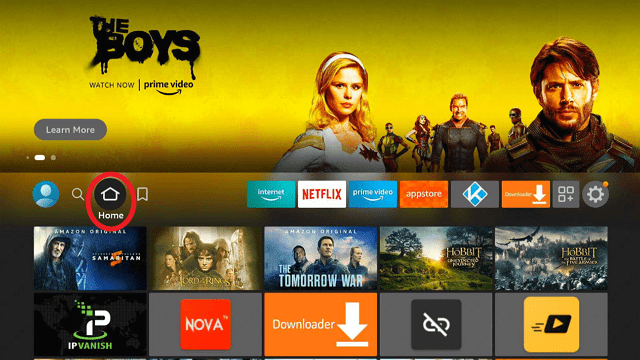
step 1 Install Surfshark VPN on Firestick


2. Navigate towards the Find tab. Press the Search button from the resulting dropdown.
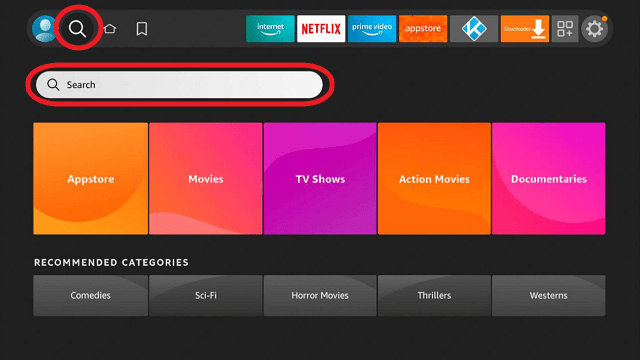
step 2 Install Surfshark VPN on Firestick


3. Type in the keyword of SurfShark and select from the suggestions that will appear.
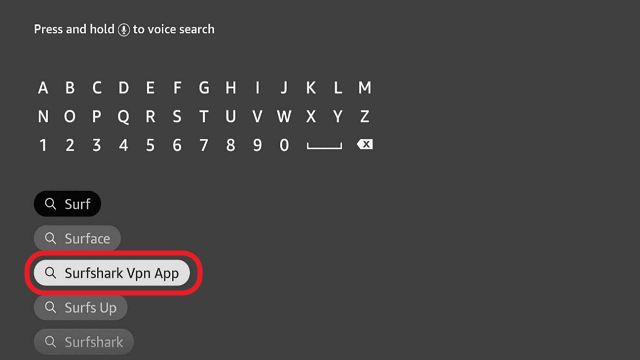
step 3 Install Surfshark VPN on Firestick


4. Click the official SurfShark icon from your search results.
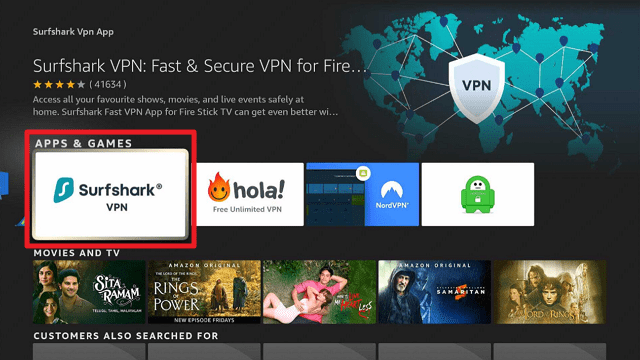
step 4 Install Surfshark VPN on Firestick


5. Press the Download (You own it) button.
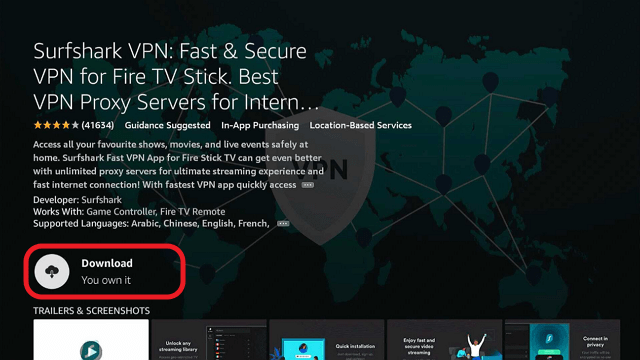
step 5 Install Surfshark VPN on Firestick


6. The SurfShark VPN installer will download on your device.
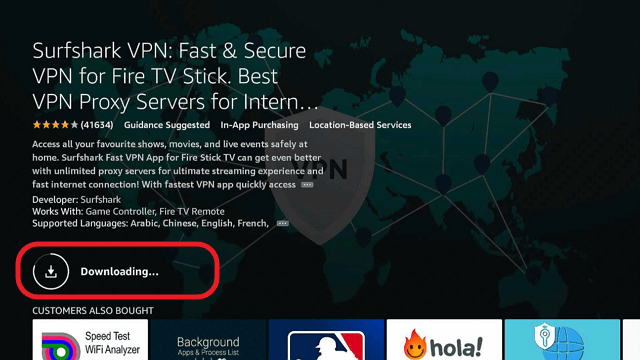
step 6 Install Surfshark VPN on Firestick


7. SurfShark VPN’s app will automatically install itself on your Fire TV stick.
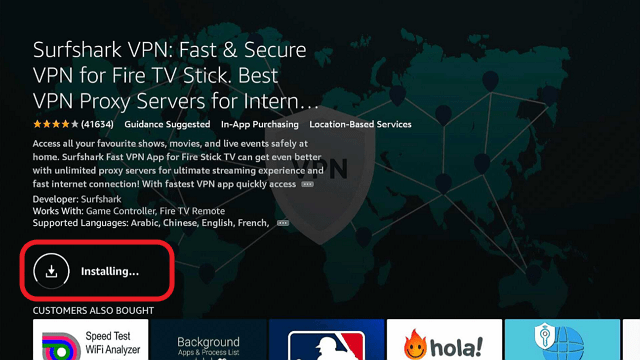
step 7 Install Surfshark VPN on Firestick


8. Press the Open button after completing SurfShark VPN’s installation process.
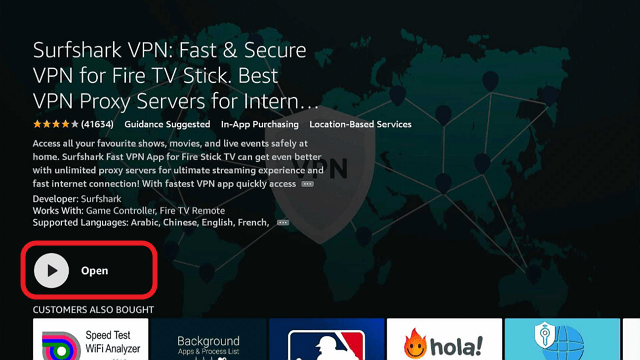
step 8 Install Surfshark VPN on Firestick


9. Please wait for the SurfShark VPN to load its user interface.
step 9 Install Surfshark VPN on Firestick


10. You can now log in with your SurfShark VPN account credentials.
step 10 Install Surfshark VPN on Firestick

Learn more about Surfshark and Grab the Best Surfshark Deal Now!


Install Surfshark on Firestick

Best Surfshark Deal


Other VPNs to Consider

NordVPN (Best for Streaming)

Best Features

  • 5000+ Server in 50+ Countries 
  • Military-Grade Encryption
  • Fast Connection Speed
  • Suitable to a lot of devices
  • No-Log Policy

Prices
  • Complete $5.89 per month (64% Discount)
  • Plus $4.59 per month (56% Discount)
  • Standard $3.69 per month (55% Discount)

Best Features

  • 750+ High-speed VPN Servers in 43 Locations
  • Military-Grade Encryption
  • Fastest HD Streaming and Gaming
  • 30-Day Money-Back Guarantee
  • Unlimited Data & Devices
  • No-Log Policy

Prices
  • 3 Years $1.99 per month (82% Discount)
  • 1 Years $3.29 per month (70% Discount)
  • 1 Month $10.99 per month

IPVanish VPN (Most Secure)

Best Features

  • 1200+ Servers in 60+ Countries around the world
  • Unlimited Connections
  • No-Log Policy
  • Top Notch Military-Grade VPN Protocols and Encryptions
  • 100% Safe and Secured
  • Most Trusted VPN
  • Best VPN for Firestick
  • 30-Day Money-Back Guarantee

Prices
  • Yearly $3.99 per month (63% Discount) – 30 days risk free + Ransomware & Malware Protection
  • Quarterly $5.32 per month (51% Discount)
  • Monthly $10.99 per month


For more VPN discounts, go to ReviewVPN Deals and purchase the best VPN for you.

Click here to get the lowest price on Surfshark through our exclusive limited-time offer.


Conclusion

King of Streams IPTV, just like every other IPTV service provider out there, has its glitches and errors. However, one good thing about King of Streams IPTV is that they offer over 6,500 amazing channels with a pocket-friendly subscription plan making it affordable for any IPTV fan out there. 

You will avail of their pretesting (trial) period upon request. Having said that, you can make your research by signing up for their service via the Web-page and choosing the trial version or purchasing any plan and I am sure you will be glad you did. 


How to Install Perks Media Kodi Addon

Perks Media Kodi Addon

Kodi is a universal platform that houses other media streaming players. Perks Media Kodi Add-on content like TV shows series, Movies, Thrillers, Kids portal. Perks Media Kodi Add-on has a TRACK feature that helps the users to download content.


Legal Disclaimer: ReviewVPN.com does not encourage or endorse any illegal activity involved in the usage of services and applications referenced on this site. We do not verify the licensing agreements of services. The end-user is wholly responsible for ensuring that any media accessed through these services does not violate copyright and/or licensing laws. ReviewVPN does not promote, link to, or receive compensation from any Apps and IPTV services.


ANONYMOUSLY


To install the Perks media Kodi add-on follow the steps below:

Note: The installation of Perks Media Kodi Add-on involves two processes:

  1. Enabling the unknown source
  2. Installing Perks Media Kodi Add-on


First process: Enabling the Unknown Source

Follow the below steps to enable the unknown source:

Step 1. Launch your Kodi app

Step 2. From the start menu or home menu, scroll up to the setting icon, and click on it.

Step 3. On the new window that will appear, scroll down to SYSTEM and click on it.

Step 4. On the system menu, scroll down to addons and click on it.

Step 5. Navigate to an unknown source and click on it. A dialog box will appear with a warning message, select YES to enable unknown sources.

Second process: Installing Perks Media Kodi Addon

Step 1: From the start menu or home menu of your Kodi scroll up to where the setting icon is located and locate the file manager option.

Step 2: Select the file manager option and navigate to the add source option.

Step 3: You will enter the media source URL: http://perksmedia.net/perksinstall/ and click on OK.

Step 4: Enter a name for this media source file. If Kodi auto-populate a name already, then just click OK to continue the installation process. Here we are using “PERKSINSTALL” as the name for this media source.

Step 5: To proceed further you need to check all the above-mentioned fields to ensure their correctness.

Step 7: Then go back to your KODI app main menu and click on the add-ons section.

Step 8: Scroll up to the left side of your Kodi screen and click on the add-on package installer.

Step 9: Next, on the new window, navigate down to select the INSTALL FROM ZIP FILE OPTION and click on it.

Step 10: From the install from zip file options click on PERKSINSTALL or the name you saved the media source file with.

Step 11: Click the repository.perksmedia.zip file and wait for the repository to complete downloading.

Step 12: when the download is completed, click install from the repository.

Step 13: Then select the “Perks Media repository”.

Step 14: Next, click on the option that says “Video addon”.

Step 15: Select on the Perks Media addon.

Step 16: Lastly, click on “install” on the new dialog box.


Note:

For the best performance of the Perks Media Kodi Addon, we recommend restarting your Kodi App when the installation is completed.

 

YOUR INTERNET ACTIVITY IS BEING WATCHED

ReviewVPN cannot attest to the legality, security and privacy of the applications discussed on this site. It is highly recommended that you use a VPN service while streaming or using Kodi.

Currently, your IP 216.73.217.150 is visible to everyone and your Browser is being tracked by Advertisers & ISP Provider.

Save 65% Now

Limited Time Offer

Here are the main reasons why you must use a VPN:

  • Your activities are hidden from your ISP, the government, and from the apps you are using.
  • You can access additional movies and TV streams.
  • ISP attempts to throttle are thrwarted thus reducing buffering issues.
  • Geographically restricted content like Netflix and Hulu can be unblocked.

A VPN works be replacing your ISP-assigned IP address and creating an encrypted tunnel. We recommend the no log service offered by IPVanish. It works well on a Firestick and offers the fastest possible speeds.

Special Limited Time Offer - Get IPVanish


To confirm if the Perk Media Kodi addon is installed, launch your Kodi app:

Step 1. Scroll down to add-ons and click on it.

Step 2. On the new window, navigate to video add-on and click on it and there you will find “Perks Media Kodi add-on”.


How to Use Perks Media Kodi Addon

Step 1. Open your Kodi app.

Step 2. From the start menu or home menu, click on addons

Step 3. Scroll down to video add-on on the new window that will appear

Step 4. Navigate to locate the Perks media Kodi addon and click on it.

Step 5. On the user interface of the Perks media Kodi addon; click on movies

Step 6. On the new window, you can choose any category you want to explore.


Use a VPN

We recommend using Surfshark when streaming content on Kodi or accessing the internet. Surfshark mas and encrypts your IP address thereby making your online data secure, private, and protected on the internet service provider network.

If you want to know more about this VPN, kindly read our Surfshark Review.

Grab your subscription now!

Click here to get the lowest price on Surfshark through our exclusive limited-time offer.


How to Install Surfshark VPN on Firestick

If your Firestick still has the older interface, read this article to learn how to update it: Update Firestick Interface.

Follow our screenshots below to install the SurfShark VPN app on your Fire TV stick.

1. Go to the Home screen of your Firestick.

step 1 Install Surfshark VPN on Firestick


2. Navigate towards the Find tab. Press the Search button from the resulting dropdown.

step 2 Install Surfshark VPN on Firestick


3. Type in the keyword of SurfShark and select from the suggestions that will appear.

step 3 Install Surfshark VPN on Firestick


4. Click the official SurfShark icon from your search results.

step 4 Install Surfshark VPN on Firestick


5. Press the Download (You own it) button.

step 5 Install Surfshark VPN on Firestick


6. The SurfShark VPN installer will download on your device.

step 6 Install Surfshark VPN on Firestick


7. SurfShark VPN’s app will automatically install itself on your Fire TV stick.

step 7 Install Surfshark VPN on Firestick


8. Press the Open button after completing SurfShark VPN’s installation process.

step 8 Install Surfshark VPN on Firestick


9. Please wait for the SurfShark VPN to load its user interface.

step 9 Install Surfshark VPN on Firestick


10. You can now log in with your SurfShark VPN account credentials.

step 10 Install Surfshark VPN on Firestick

Learn more about Surfshark and Grab the Best Surfshark Deal Now!


Install Surfshark on Firestick

Best Surfshark Deal


Other VPNs to Consider

NordVPN (Best for Streaming)

Best Features

  • 5000+ Server in 50+ Countries 
  • Military-Grade Encryption
  • Fast Connection Speed
  • Suitable to a lot of devices
  • No-Log Policy

Prices
  • Complete $5.89 per month (64% Discount)
  • Plus $4.59 per month (56% Discount)
  • Standard $3.69 per month (55% Discount)

Best Features

  • 750+ High-speed VPN Servers in 43 Locations
  • Military-Grade Encryption
  • Fastest HD Streaming and Gaming
  • 30-Day Money-Back Guarantee
  • Unlimited Data & Devices
  • No-Log Policy

Prices
  • 3 Years $1.99 per month (82% Discount)
  • 1 Years $3.29 per month (70% Discount)
  • 1 Month $10.99 per month

IPVanish VPN (Most Secure)

Best Features

  • 1200+ Servers in 60+ Countries around the world
  • Unlimited Connections
  • No-Log Policy
  • Top Notch Military-Grade VPN Protocols and Encryptions
  • 100% Safe and Secured
  • Most Trusted VPN
  • Best VPN for Firestick
  • 30-Day Money-Back Guarantee

Prices
  • Yearly $3.99 per month (63% Discount) – 30 days risk free + Ransomware & Malware Protection
  • Quarterly $5.32 per month (51% Discount)
  • Monthly $10.99 per month


For more VPN discounts, go to ReviewVPN Deals and purchase the best VPN for you.

Click here to get the lowest price on Surfshark through our exclusive limited-time offer.


How to Install XTASY D Kodi Addon

XTASY D Kodi Addon

In this tutorial, you will learn how to successfully install the XTASY D Kodi addon. XTASY D is a Kodi within the Saturn repository. XTASY D Kodi add-on has sections for movies, Kids, Music, Sport, fitness, and lots more.


Legal Disclaimer: ReviewVPN.com does not encourage or endorse any illegal activity involved in the usage of services and applications referenced on this site. We do not verify the licensing agreements of services. The end-user is wholly responsible for ensuring that any media accessed through these services does not violate copyright and/or licensing laws. ReviewVPN does not promote, link to, or receive compensation from any Apps and IPTV services.


ANONYMOUSLY


Step by Step Guide on How to Install XTASY D Kodi Addon

The first thing to do before installing the XTASY D addon is to enable the unknown source, you can do so by:

From the home menu of your Kodi app, scroll up to the setting icon, and click on it. then on the new window, scroll down to the system and select it. On the system menu, scroll to addons, navigate to an unknown source and click on it. On the warning message that will appear, select YES to enable unknown sources.


Step 1. After following the steps above steps to enable the unknown source, go back to your Kodi’s main screen by using the back arrow

Step 2. Locate the settings icon again which can be seen at the top left side of the screen, and click on it.

Step 3. After that, on the new window, locate File Manager, and click on it.

Step 4. Go ahead to find Add Source on the File Manager window, and click on it.

Step 5. Now, select the <NONE> option which will appear with an onscreen keyboard for you to enter the media source URL.

Step 6. Move on by typing the media sources URL: http://revelationmedia.tk/blamo/, then click OK.

Step 7. After typing the media source URL and clicking OK, look out for Textbox underneath which will have the option to “Enter a name for this media Source”. Click on it, type xtasy as the name of the media source, and then Click Ok. Note you may choose a different name if you wish so.

Step 8. Having completed the previous step, go back to Kodi’s main screen by making use of the return button or the back arrow on your remote.

Step 9. Select Addon on your Kodi home screen

Step 10. On the top left corner of your screen, you will see the Addon Browser Icon, Click on it.

Step 11. Scroll down to Find Install from Zip File, Click on it.

Step 12. You will now find rings, click on it.

Step 14. Select the “repository.blamorepo-1.1.8.zip” and wait for a notification that says Addon Enabled.

Step 15. Having done that, select Install from repository

Step 16. You will now find ‘Blamo Repo Reborn’, click on it.

Step 17. scroll down to “Video Add-ons” then click it

Step 18. Select XTASY D

Step 19. Go ahead to install it by clicking on install. If you are using Kodi Leia 18, a dialog box will appear with the message “THE FOLLOWING ADDITIONAL ADD-ON WILL BE INSTALLED”, click OK to continue the installation.

Step 20. Having carefully followed the guidelines above, you will now have XTASY D Addon installed on your Kodi. It can be accessed by returning to the main screen of your Kodi, from there click on Add-ons, and select video add-ons and there you will see the XTASY D Addon.


YOUR INTERNET ACTIVITY IS BEING WATCHED

ReviewVPN cannot attest to the legality, security and privacy of the applications discussed on this site. It is highly recommended that you use a VPN service while streaming or using Kodi.

Currently, your IP 216.73.217.150 is visible to everyone and your Browser is being tracked by Advertisers & ISP Provider.

Save 65% Now

Limited Time Offer

Here are the main reasons why you must use a VPN:

  • Your activities are hidden from your ISP, the government, and from the apps you are using.
  • You can access additional movies and TV streams.
  • ISP attempts to throttle are thrwarted thus reducing buffering issues.
  • Geographically restricted content like Netflix and Hulu can be unblocked.

A VPN works be replacing your ISP-assigned IP address and creating an encrypted tunnel. We recommend the no log service offered by IPVanish. It works well on a Firestick and offers the fastest possible speeds.

Special Limited Time Offer - Get IPVanish


Install XTASY D Kodi Addon with Screenshots

  1. From the home screen, select the cogwheel at the upper left.

Step 1 Installing Xtasy addon on Kodi

2. Select System in the bottom right corner.

Step 2 Installing Xtasy addon on Kodi


3. Select Add-ons on the left side of the screen.

Step 3 Installing Xtasy addon on Kodi


4. Select Unknown sources.

Step 4 Installing Xtasy addon on Kodi


5. Click Yes to allow unknown sources.

Step 5 Installing Xtasy addon on Kodi


6. Select File manager.

Step 6 Installing Xtasy on Kodi


7. Click Add source.

Step 7 Installing Xtasy addon on Kodi


8. Click on <None>.

Step 8 Installing Xtasy addon on Kodi


9. Type exactly: http://revelationmedia.tk/blamo/

Step 9 Installing Xtasy addon on Kodi


10. Click on OK.

Step 10 Installing Xtasy addon on Kodi


11. Select enter a name for this media source.

Step 11 Installing Xtasy addon on Kodi


12. Name is Xtasy (this part isn’t critical as long as you remember the name).

Step 12 Installing Xtasy addon on Kodi


13. Click on OK.

Step 13 Installing Xtasy addon on Kodi


14. Click on OK.

Step 14 Installing Xtasy addon on Kodi


15. Take one step back and click on Add-ons.

Step 15 Installing Xtasy addon on Kodi


16. Select install from zip file.

Step 16 Installing Xtasy addon on Kodi


17. Click on Xtasy (or whatever you named the source).

Step 17 Installing Xtasy addon on Kodi


18. Click on repository.blamorepo-1.1.8.zip

Step 18 Installing Xtasy addon on Kodi


19. Select on Install from repository.

Step 19 Installing Xtasy addon on Kodi


20. Click on Blamo Repo Reborn

Step 20 Installing Xtasy addon on Kodi


21. Pick Video add-ons.

Step 21 Installing Xtasy addon on Kodi


22. Select Xtasy again.

Step 22 Installing Xtasy addon on Kodi


23. Click on Install.

Step 23 Installing Xtasy addon on Kodi


24. Select  Version 1.0.2 Blamo Repo Reborn

Step 24 Installing Xtasy addon on Kodi


25. Select OK after reviewing the add-ons that will be installed.

Step 25 Installing Xtasy addon on Kodi


26. You should see a popup in the upper right corner saying Xtasy has installed. There will actually be multiple popups for the various components.

Step 26 Installing Xtasy addon on Kodi


27. Click on Open to start the Xtasy add-on.

Step 27 Installing Xtasy addon on Kodi


Install Surfshark on Firestick

Best Surfshark Deal


Don’t Use Kodi Without VPN

Never use Kodi without a VPN; this is because whenever you stream content online or access the internet, your online data is public on the internet service provider network and as such, your activities might be recorded or monitored by the government or your internet service provider.

We recommend using Surfshark as it offers the safest online security and privacy by encrypting and masking your IP address. Installing Surfshark will help you bypass ISP throttling and location restrictions encountered while streaming online.


Note:  Our Surfshark Review will give you a piece of detailed information regarding a premium VPN service.


How to Install Surfshark VPN on Firestick

If your Firestick still has the older interface, read this article to learn how to update it: Update Firestick Interface.

1. Go to the Home screen of your Firestick.

step 1 Install Surfshark VPN on Firestick


2. Navigate towards the Find tab. Press the Search button from the resulting dropdown.

step 2 Install Surfshark VPN on Firestick


3. Type in the keyword of SurfShark and select from the suggestions that will appear.

step 3 Install Surfshark VPN on Firestick


4. Click the official SurfShark icon from your search results.

step 4 Install Surfshark VPN on Firestick


5. Press the Download (You own it) button.

step 5 Install Surfshark VPN on Firestick


6. The SurfShark VPN installer will download on your device.

step 6 Install Surfshark VPN on Firestick


7. SurfShark VPN’s app will automatically install itself on your Fire TV stick.

step 7 Install Surfshark VPN on Firestick


8. Press the Open button after completing SurfShark VPN’s installation process.

step 8 Install Surfshark VPN on Firestick


9. Please wait for the SurfShark VPN to load its user interface.

step 9 Install Surfshark VPN on Firestick


10. You can now log in with your SurfShark VPN account credentials.

step 10 Install Surfshark VPN on Firestick

Learn more about Surfshark and Grab the Best Surfshark Deal Now!


Install Surfshark on Firestick

Best Surfshark Deal


Other VPNs to Consider

NordVPN (Best for Streaming)

Best Features

  • 5000+ Server in 50+ Countries 
  • Military-Grade Encryption
  • Fast Connection Speed
  • Suitable to a lot of devices
  • No-Log Policy

Prices
  • Complete $5.89 per month (64% Discount)
  • Plus $4.59 per month (56% Discount)
  • Standard $3.69 per month (55% Discount)

Best Features

  • 750+ High-speed VPN Servers in 43 Locations
  • Military-Grade Encryption
  • Fastest HD Streaming and Gaming
  • 30-Day Money-Back Guarantee
  • Unlimited Data & Devices
  • No-Log Policy

Prices
  • 3 Years $1.99 per month (82% Discount)
  • 1 Years $3.29 per month (70% Discount)
  • 1 Month $10.99 per month

IPVanish VPN (Most Secure)

Best Features

  • 1200+ Servers in 60+ Countries around the world
  • Unlimited Connections
  • No-Log Policy
  • Top Notch Military-Grade VPN Protocols and Encryptions
  • 100% Safe and Secured
  • Most Trusted VPN
  • Best VPN for Firestick
  • 30-Day Money-Back Guarantee

Prices
  • Yearly $3.99 per month (63% Discount) – 30 days risk free + Ransomware & Malware Protection
  • Quarterly $5.32 per month (51% Discount)
  • Monthly $10.99 per month


For more VPN discounts, go to ReviewVPN Deals and purchase the best VPN for you.

Click here to get the lowest price on Surfshark through our exclusive limited-time offer.


2