List of the Best CouchTuner Alternatives – 2023

CouchTuner Alternatives Overview

In this article, we will discuss the best CouchTuner Alternatives for you.


There are a lot of movie streaming websites available on the web, and one of those is CouchTuner. It was once a very popular site with millions of viewers a month. After a few years, this website went down, this is due to legal issues. That is why it is best to provide the best and working alternatives for it.

We cannot always assure the legality of a website. Most of them change their domain names because of this. To be always sure and protected while streaming, we suggest using a VPN.

As we said, there are a lot of streaming websites, you can find most of them in our list of the Best Movie Streaming Websites. We can all consider these as CouchTuner alternatives. In order to stream them on Firestick, you need to use Silk Browser or Firefox.


ANONYMOUSLY

If your Firestick still has the older interface, read this article to learn how to update it: Update Firestick Interface.


How to Install Silk Browser on Firestick

When streaming to different websites on your firestick, the Amazon Silk Browser is your best option. Upon installing just type in the correct URL and you are good to go.

In order to install the Silk Browser, you don’t need to Jailbreak Your Firestick and Install the Downloader App. It is one of the official Amazon apps.


1.  Click Home on your remote and click “Find”.

CouchTuner Alternatives

2. Click “Search”

CouchTuner Alternatives


3.Type in Silk Browser and choose this item that appears on the results.

CouchTuner Alternatives


4. Click on the Silk Browser Icon.

CouchTuner Alternatives


5. Choose Get or Download

CouchTuner Alternatives


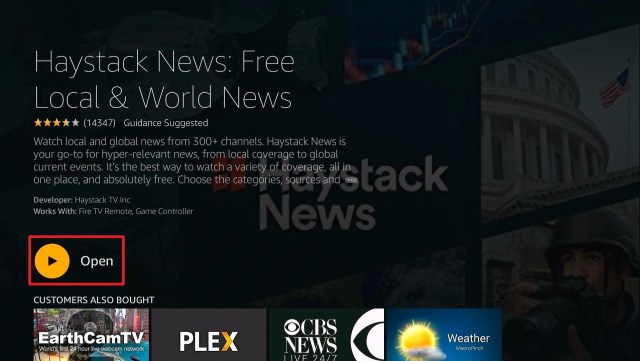
6. Select Open to launch the browser.

CouchTuner Alternatives


7. You can now start browsing using Amazon Silk Browser.


Best CouchTuner Alternatives

Now it is time to provide you the best alternatives for CouchTuner. The validity of the following websites may vary from time to time. More and more websites join the team of those that shut down.


JustWatch

CouchTuner Alternatives 1

website URL: https://www.justwatch.com/

The first website on our list of CouchTuner alternatives is JustWatch. It a free streaming website that has almost all of the features of the popular streaming applications.

It has its own amazon app available. Just Read How to Install JustWatch on Firestick.

There are some advertisements present on JustWatch. But these are all minimal.

Creating an account on JustWatch is also free. And the best thing is it works perfectly with a VPN especially Surfshark in destroying some ge0-blocks to some content.


Tubi TV

CouchTuner Alternatives

website URL: https://tubitv.com/

Another famous name when it comes to streaming is Tubi. It really earned its spot on our list of the best CouchTuner alternatives. Tubi provides thousands of titles to stream. Whether you are looking for movies or tv series, you can count on Tubi.

Tubi also offers an app called Tubi TV. This is available on Google Play, Amazon, Roku, etc. It was listed as one of the Best Firestick Apps. To learn more, read How to Watch on Tubi Abroad.

There are just some advertisements present on Tubi. But this website works well also with Surfshark.


MyBundleTV

CouchTuner Alternatives 2

website URL: https://mybundle.tv/

This CouchTuner alternative was formerly known as SnagFilms. It is now more improved that provides not only movies and TV shows but also live TV. If you are familiar with Yidio, This website is somehow familiar with it.

MyBundelTv also has advertisements present but not that much compared with other sites. You have to create an account to use this website, but it is absolutely free.

Like the first two CouchTuner alternatives, My BundleTV also works well with Surfshark.


Popcornflix

CouchTuner Alternatives 3

website URL: https://www.popcornflix.com/

One of the newest streaming websites and a good member of the CouchTuner alternatives is Popcornflix. It offers a lot of different genres for movies and tv shows.

This website is totally free with no registration required, but there are some advertisements present.

You can read about its app in this article, How to Install Popcornflix on Firestick.

Popcornflix Kids is also available as an application on Firestick.

This website also works well with Surfshark.


YOUR INTERNET ACTIVITY IS BEING WATCHED

ReviewVPN cannot attest to the legality, security and privacy of the applications discussed on this site. It is highly recommended that you use a VPN service while streaming or using Kodi.

Currently, your IP 216.73.216.211 is visible to everyone and your Browser is being tracked by Advertisers & ISP Provider.

Save 65% Now

Limited Time Offer

Here are the main reasons why you must use a VPN:

  • Your activities are hidden from your ISP, the government, and from the apps you are using.
  • You can access additional movies and TV streams.
  • ISP attempts to throttle are thrwarted thus reducing buffering issues.
  • Geographically restricted content like Netflix and Hulu can be unblocked.

A VPN works be replacing your ISP-assigned IP address and creating an encrypted tunnel. We recommend the no log service offered by IPVanish. It works well on a Firestick and offers the fastest possible speeds.

Special Limited Time Offer - Get IPVanish


Legal Disclaimer: ReviewVPN.com does not encourage or endorse any illegal activity involved in the usage of services and applications referenced on this site. We do not verify the licensing agreements of services. The end-user is wholly responsible for ensuring that any media accessed through these services does not violate copyright and/or licensing laws. ReviewVPN does not promote, link to, or receive compensation from any Apps and IPTV services.


Install Surfshark on Firestick

Best Surfshark Deal


Sony Crackle

CouchTuner Alternatives

website URL: https://www.crackle.com/

Crackle is one of the best streaming websites available. There might be some advertisements present but the content is sure good quality.

Take note that Sony Crackle is geo-blocked, so use a VPN to access it.

Learn How to Stream Sony Crackle on Firestick.


Vumoo

CouchTuner Alternatives 4

website URL: https://vumoo.to/

The Vumoo website houses a massive library of movies and tv shows. It is 100% free with no registration required. There are some advertisements but the frequency is not too much.

Learn more about Vumoo when you read, How to Stream Vumoo on Firestick.


123Movies

CouchTuner Alternatives

website URL: https://123moviesgo.ga/

123Movies is an easy and user-friendly website. It has all the latest movies and tv shows in just one search. No need to register for an account when you use 123Movies.

To learn more about 123Movies, read How to Stream on 123Movies using Different devices.


Vudu

CouchTuner Alternatives

website URL: https://www.vudu.com/

Vudu is one of the most popular streaming platforms. There is also an app for Vudu that is available on Firestick and other streaming devices.

This website has a good playback feature. The only problem is the advertisements present within the app.

If you want to know more, you can read How to stream Vudu on Firestick and Other Devices.


Stream All of the Best CouchTuner Alternatives Safely with a VPN

surfshark logo

When streaming, it is best to use a VPN for two main reasons. The first is safety. A VPN provides security to your identity when using any type of website. The second reason is, it lets you access geo-restricted content.

Surfshark provides both reasons and a whole lot more benefits for you. Take a look at the best features of Surfshark:

  • Has a total of 3200+ servers in 65 countries to choose from
  • It has a no-logs policy.
  • Protects your device from malware, and hackers.
  • Hides your identity from your ISP when streaming geo-restricted content.
  • Allows you to watch any content from a different country.
  • This VPN has the best protocols that keep your data encrypted.
  • Can relatively increase your internet speed.
  • Supports torrenting
  • Has a Kill Switch Feature.
  • Prevents Firestick Buffering and Kodi Buffering


Install Surfshark on Firestick

Best Surfshark Deal


How to Install Surfshark VPN on Firestick

If your Firestick still has the older interface, read this article to learn how to update it: Update Firestick Interface.

Follow our screenshots below to install the SurfShark VPN app on your Fire TV stick.

1. Go to the Home screen of your Firestick.

step 1 Install Surfshark VPN on Firestick


2. Navigate towards the Find tab. Press the Search button from the resulting dropdown.

step 2 Install Surfshark VPN on Firestick


3. Type in the keyword of SurfShark and select from the suggestions that will appear.

step 3 Install Surfshark VPN on Firestick


4. Click the official SurfShark icon from your search results.

step 4 Install Surfshark VPN on Firestick


5. Press the Download (You own it) button.

step 5 Install Surfshark VPN on Firestick


6. The SurfShark VPN installer will download on your device.

step 6 Install Surfshark VPN on Firestick


7. SurfShark VPN’s app will automatically install itself on your Fire TV stick.

step 7 Install Surfshark VPN on Firestick


8. Press the Open button after completing SurfShark VPN’s installation process.

step 8 Install Surfshark VPN on Firestick


9. Please wait for the SurfShark VPN to load its user interface.

step 9 Install Surfshark VPN on Firestick


10. You can now log in with your SurfShark VPN account credentials.

step 10 Install Surfshark VPN on Firestick

Learn more about Surfshark and Grab the Best Surfshark Deal Now!


Install Surfshark on Firestick

Best Surfshark Deal


Other VPNs to Consider

NordVPN (Best for Streaming)

Best Features

  • 5000+ Server in 50+ Countries 
  • Military-Grade Encryption
  • Fast Connection Speed
  • Suitable to a lot of devices
  • No-Log Policy

Prices
  • Complete $5.89 per month (64% Discount)
  • Plus $4.59 per month (56% Discount)
  • Standard $3.69 per month (55% Discount)

Best Features

  • 750+ High-speed VPN Servers in 43 Locations
  • Military-Grade Encryption
  • Fastest HD Streaming and Gaming
  • 30-Day Money-Back Guarantee
  • Unlimited Data & Devices
  • No-Log Policy

Prices
  • 3 Years $1.99 per month (82% Discount)
  • 1 Years $3.29 per month (70% Discount)
  • 1 Month $10.99 per month

IPVanish VPN (Most Secure)

Best Features

  • 1200+ Servers in 60+ Countries around the world
  • Unlimited Connections
  • No-Log Policy
  • Top Notch Military-Grade VPN Protocols and Encryptions
  • 100% Safe and Secured
  • Most Trusted VPN
  • Best VPN for Firestick
  • 30-Day Money-Back Guarantee

Prices
  • Yearly $3.99 per month (63% Discount) – 30 days risk free + Ransomware & Malware Protection
  • Quarterly $5.32 per month (51% Discount)
  • Monthly $10.99 per month


For more VPN discounts, go to ReviewVPN Deals and purchase the best VPN for you.

Click here to get the lowest price on Surfshark through our exclusive limited-time offer.


Conclusion

Like some other good things that come to an end, CouchTuner is no different. Good thing that we have all the best alternatives for you to choose from.

Here are the best alternatives for CouchTuner: JustWatch, Tubi, MyBundleTv, Popcornflix, Crackle, Vumoo, Vudu, and 123Movies.

We hope that this article is helpful in learning the best CouchTuner alternatives.


Note: ReviewVPN.com does not own or operate any app nor does it endorse any. The main purpose of this article is strictly for educational purposes only.


Related Articles:

Yes! Movies Alternatives

GoStream Alternatives

Soap2day Alternatives

OpenLoad Alternatives

Putlocker Alternatives

Afdah Alternatives

Flixtor Alternatives

SolarMovie Alternatives

The Best Alternatives for SolarMovie Website

SolarMovie Alternatives Overview

In this article, we will discuss the best SolarMovie alternatives for you.


SolarMovie is actually not available on three of the most popular app providers (Amazon, Google Play, and Apple). Since most of the official websites have their particular application, SolarMovies does not have one. Because of this, we sometimes question its legality. Although five of its official websites are still around, we still list down its best alternatives.

You can also check it out from the List of the Best Movie Streaming Websites. And in order to stream it on Firestick, you need to use a Browser. The best browser to use is the Amazon Silk Browser, but you can also try using Firefox if you like.

This website, like any other website, went to different domain changes and name switches. Right now, SolarMovie is functioning well. But we suggest using a VPN when streaming to different websites. We will discuss more of this later in this article.


ANONYMOUSLY


How to Install Silk Browser on Firestick

When streaming to different websites on your firestick, the Amazon Silk Browser is your best option. You can easily stream any SolarMovie website or any SolarMovie Alternatives.

In order to install the Silk Browser, you don’t need to Jailbreak Your Firestick and Install the Downloader App. It is one of the official Amazon apps.


1.  Click Home on your remote and click “Find”.

SolarMovie Alternatives Alternative 6

2. Click “Search”

SolarMovie Alternatives Alternative 6


3.Type in Silk Browser and choose this item that appears on the results.

SolarMovie Alternatives Alternative 6


4. Click on the Silk Browser Icon.

SolarMovie Alternatives Alternative 6


5. Choose Get or Download


6. Select Open to launch the browser.


7. You can now start browsing using Amazon Silk Browser.


List of Working SolarMovie Websites

Here, we list down the working solarmovie websites or domains. Please take note that this may vary from time to time. As explained earlier, SolarMovie may undergo different domain changes.


  • www2.solarmovie.to
  • www.solarmovie.fm
  • www6.solarmoviefree.net
  • wwv.solarmovie.one
  • www16.solarmoviesc.com

Using the Silk Browser, just type any of these URLs and stream the massive library of shows and movies from SolarMovie.

If your Firestick still has the older interface, read this article to learn how to update it: Update Firestick Interface.


Best SolarMovie Alternatives

It is now time to reveal the top picks for the SolarMovie Alternatives. We assure you that the websites included in this list are all safe and legal to use. There might be some that are not available in your area, so it is best to use a VPN to access geo-restricted content.


123Movies

SolarMovie Alternatives Alternative 1

website URL: https://123moviesgo.ga/

We will not list down the best SolarMovie alternatives without 123Movies. It has all the rights to be considered as a SolarMovie alternative because it houses a lot of great movie titles and tv shows.

Every month, 123movies earns more than a million visitors to stream its content. You won’t need to register or create an account. All you need to do is use the big search bar located in the middle of the website and type for the title you’d like to watch.

To learn more about 123Movies, read How to Stream on 123Movies using Different devices.


Flixtor

SolarMovie Alternatives Alternative 2

website URL: https://flixtor.to/

This website also has the right to be a SolarMovie alternative. Among all other SolarMovie Alternatives, this website comes and goes. We even list down the best flixtor alternatives.

A lot of viewers also use flixtor. It boasts a million users per month. You can actually filter titles on this website through genres. It also houses a massive library of content and categories to choose from.

To know more, read How to Stream on Flixtor on Your Firestick.


Sony Crackle

SolarMovie Alternatives Alternative 3

website URL: https://www.crackle.com/

Sony Crackle requires registration and signing up. But it houses a great list of movies that some are original content. There are no pop-ups but sometimes internal videos are present. You can actually skip them out if you’d like to

Take note that Sony Crackle is geo-blocked, so use a VPN to access it.

Learn How to Stream Sony Crackle on Firestick.


YOUR INTERNET ACTIVITY IS BEING WATCHED

ReviewVPN cannot attest to the legality, security and privacy of the applications discussed on this site. It is highly recommended that you use a VPN service while streaming or using Kodi.

Currently, your IP 216.73.216.211 is visible to everyone and your Browser is being tracked by Advertisers & ISP Provider.

Save 65% Now

Limited Time Offer

Here are the main reasons why you must use a VPN:

  • Your activities are hidden from your ISP, the government, and from the apps you are using.
  • You can access additional movies and TV streams.
  • ISP attempts to throttle are thrwarted thus reducing buffering issues.
  • Geographically restricted content like Netflix and Hulu can be unblocked.

A VPN works be replacing your ISP-assigned IP address and creating an encrypted tunnel. We recommend the no log service offered by IPVanish. It works well on a Firestick and offers the fastest possible speeds.

Special Limited Time Offer - Get IPVanish


Legal Disclaimer: ReviewVPN.com does not encourage or endorse any illegal activity involved in the usage of services and applications referenced on this site. We do not verify the licensing agreements of services. The end-user is wholly responsible for ensuring that any media accessed through these services does not violate copyright and/or licensing laws. ReviewVPN does not promote, link to, or receive compensation from any Apps and IPTV services.


Install Surfshark on Firestick

Best Surfshark Deal


Tubi TV

SolarMovie Alternatives Alternative 4

website URL: https://tubitv.com/

One of the best free and legal movie streaming platforms is Tubi. It offers tons of titles for movies and tv series. Although it requires viewers to have an account and register.

Tubi also offers an app called the Tubi TV. It was listed as one of the Best Firestick Apps. To learn more, read How to Watch on Tubi Abroad.


Vudu

SolarMovie Alternatives Alternative 5

website URL: https://www.vudu.com/

Vudu is one of the most popular streaming platforms and a good SolarMovie alternative. It also offers an app that is applicable to almost all types of devices including Firestick, and Roku.

This website is ad-supported. Despite that, high-quality free movies are offered by Vudu. It also has a great playback feature.

If you want to know more, you can read How to stream Vudu on Firestick and Other Devices.


Peacock TV

SolarMovie Alternatives Alternative 6

website URL: https://www.peacocktv.com/

Most people are familiar with NBC’s streaming service named Peacock TV. It is a perfect member of the list of best SolarMovie alternatives. Peacock TV provides thousands of titles for movies and tv shows.

The only problem we encounter with this website is that it is not available to all regions. To access it, make sure you are using a VPN like Surfshark.

If you want to know more, read the Peacock TV review.


Stream Safely with a VPN

surfshark logo

Accessing so many websites could be dangerous to your identity. Some domains are not legal and safe. There are also times when most websites are geo-blocked. To prevent these two and a lot more issues while streaming, you should use a VPN.

Here at ReviewVPN, we always recommend using Surfshark. It is the best and safest VPN for streaming. Surfshark provides a lot of great benefits for you and your device. It is also directly available on Firestick.

Take a look at some of the best features of Surfshark:

  • It provides 3,200 VPN servers in 65 locations worldwide.
  • There is no log policy.
  • Protects you from malware, hackers, and even your ISP when streaming geo-restricted content.
  • Destroys geo-blocks for content and websites not available in your region.
  • Keep your data encrypted with the best VPN protocols.
  • It can also make your internet speed faster than usual depending on the location and server you chose.
  • Best VPN for torrenting
  • It has a Kill Switch Feature.
  • Prevents Firestick Buffering and Kodi Buffering


Install Surfshark on Firestick

Best Surfshark Deal


How to Install Surfshark VPN on Firestick

If your Firestick still has the older interface, read this article to learn how to update it: Update Firestick Interface.

Follow our screenshots below to install the SurfShark VPN app on your Fire TV stick.

1. Go to the Home screen of your Firestick.

step 1 Install Surfshark VPN on Firestick


2. Navigate towards the Find tab. Press the Search button from the resulting dropdown.

step 2 Install Surfshark VPN on Firestick


3. Type in the keyword of SurfShark and select from the suggestions that will appear.

step 3 Install Surfshark VPN on Firestick


4. Click the official SurfShark icon from your search results.

step 4 Install Surfshark VPN on Firestick


5. Press the Download (You own it) button.

step 5 Install Surfshark VPN on Firestick


6. The SurfShark VPN installer will download on your device.

step 6 Install Surfshark VPN on Firestick


7. SurfShark VPN’s app will automatically install itself on your Fire TV stick.

step 7 Install Surfshark VPN on Firestick


8. Press the Open button after completing SurfShark VPN’s installation process.

step 8 Install Surfshark VPN on Firestick


9. Please wait for the SurfShark VPN to load its user interface.

step 9 Install Surfshark VPN on Firestick


10. You can now log in with your SurfShark VPN account credentials.

step 10 Install Surfshark VPN on Firestick

Learn more about Surfshark and Grab the Best Surfshark Deal Now!


Install Surfshark on Firestick

Best Surfshark Deal


Other VPNs to Consider

NordVPN (Best for Streaming)

Best Features

  • 5000+ Server in 50+ Countries 
  • Military-Grade Encryption
  • Fast Connection Speed
  • Suitable to a lot of devices
  • No-Log Policy

Prices
  • Complete $5.89 per month (64% Discount)
  • Plus $4.59 per month (56% Discount)
  • Standard $3.69 per month (55% Discount)

Best Features

  • 750+ High-speed VPN Servers in 43 Locations
  • Military-Grade Encryption
  • Fastest HD Streaming and Gaming
  • 30-Day Money-Back Guarantee
  • Unlimited Data & Devices
  • No-Log Policy

Prices
  • 3 Years $1.99 per month (82% Discount)
  • 1 Years $3.29 per month (70% Discount)
  • 1 Month $10.99 per month

IPVanish VPN (Most Secure)

Best Features

  • 1200+ Servers in 60+ Countries around the world
  • Unlimited Connections
  • No-Log Policy
  • Top Notch Military-Grade VPN Protocols and Encryptions
  • 100% Safe and Secured
  • Most Trusted VPN
  • Best VPN for Firestick
  • 30-Day Money-Back Guarantee

Prices
  • Yearly $3.99 per month (63% Discount) – 30 days risk free + Ransomware & Malware Protection
  • Quarterly $5.32 per month (51% Discount)
  • Monthly $10.99 per month


For more VPN discounts, go to ReviewVPN Deals and purchase the best VPN for you.

Click here to get the lowest price on Surfshark through our exclusive limited-time offer.


FAQs for SolarMovie Alternatives

What is the best alternative for SolarMovie?

We listed the top 6 for us. If we are going to choose, 123movies might be a good alternative for SolarMovie.


What SolarMovie website works well?

We provided 5 links for you on the above portion of this article. This may vary from time to time as SolarMovie sometimes undergoes domain and name changes.


Is SolarMoie legal?

We can say that it is partly legal. If you watch copyrighted content from this website, that is what makes it illegal.


What may happen if you watch from SolarMovie illegally?

Watching copyrighted content from any website is illegal. Reviewvpn.com does not endorse or promote any activity that you would do using this domain. You may face legal issues and problems if you are caught watching copyrighted content from SolarMovie.


Conclusion

To be considered as a SolarMovie alternative, we consider the safety and legality of the website. Of course, at this point in time, SolarMovie is still around. We are just not sure if it is 100% safe and legal. That is why we listed the best SolarMovie alternatives for you.

We hope that this article helped you a lot in knowing the best alternatives in watching movies and tv shows for free aside from SolarMovie.


Note: ReviewVPN.com does not own or operate any app nor does it endorse any. The main purpose of this article is strictly for educational purposes only.


See Also:

Best Flixtor Alternatives

Putlocker Alternatives

Afdah Alternatives

Soap2day Alternatives

OpenLoad Alternatives

Yes! Movies Alternatives

GoStream Alternatives

Best Sideloading Tools for Firestick

Best Sideloading Tools Overview

In this article, we will discuss the best sideloading tools for Firestick.

The Amazon app store houses tons of applications for firestick. We can easily search for a certain app and hit install immediately. You can check them out here:

Best Legal Apps on Firestick

List of Best Legal Apps for Movies and TV Shows

Best Legal Utility Apps

Legal Apps to Watch Sports

Best Legal Apps for News and Live TV


But there are also certain apps that are not available in the Amazon app store, Kodi for example. This is the reason why we need to use sideloading tools on our firesticks to install third-party applications.

We listed down the four best sideloading tools for firesticks, and we will discuss them one by one later in this article.

Sideloading lets users access, install, and use apps from third-party sources. This could not be 100% safe for the user so we suggest using a VPN for this kind of activity.

If your Firestick still has the older interface, read this article to learn how to update it: Update Firestick Interface.


ANONYMOUSLY


Jailbreak Firestick

Firestick allows sideloading from different sources. You have all the rights to use your device to its full extent. Amazon firestick lets you enable download by unknown sources. This means jailbreaking your firestick. Through this, you can sideload whenever you like.


How to Jailbreak Firestick

1.  Click Home on your remote and scroll once to your Right. Click Setting (Gear Wheel Icon)

MusicAll

2. Scroll down and to the right until you get to My Fire TV. Click on it.

MusicAll


3. Select Developer options.

MusicAll


4. Turn on ADB debugging and Apps from Unknown Sources.

MusicAll


5. Click Turn On when the pop-up appears.

MusicAll


Best Sideloading Tools on Firestick

We list down four of the best sideloading tools on Firestick


Downloader App

Downloader logo

The Downloader App is a browser and a downloader at the same time. You can sideload apks by typing the links on the provided search engine. It is the most convenient and easiest way to sideload apps to your firestick.

Learn more about the Downloader app by reading the Downloader App article review.


Pros

  • 100% free
  • serves as a browser as well
  • easily install third-party apps


Cons

  • The files are saved within the app, these files need to be deleted to save memory


How to Install the Downloader App


1. From your home screen, click FIND.

MusicAll


2. Click Search.

MusicAll


3. You can either say Downloader to your Alexa voice-enabled remote or start typing it. If you typed it, click on the suggestion when it appears.

MusicAll


49. Click on the Downloader icon

MusicAll


5. Click Download

MusicAll


6. Click on Open.

MusicAll


7. Click on Allow.

MusicAll


FileLinked

FileLinked

This is a perfect alternative for an app store. You can basically create your own app store with FileLinked. Just follow this article to create one, How to Create a FileLinked Store.

FileLinked simplifies APKs to easily install them on your Amazon Firestick. You will have to use a certain code to access each store. We list down the Best Filelinked Codes in this article, Top 10 Best Filelinked Codes.

You can also take your time to read Everything You Need to Know About Filelinked and How to Install FileLinked on Firestick.


Pros

  • 100% Free
  • Easy to Use
  • Allows you to generate your own store
  • You can download multiple files at once


Cons

  • Not available to all types of devices


How to Install the Filelinked App

1. Launch the Downloader app and click on Allow.

Step 12 jailbreak firestick


2. Type http://get.filelinked.com and click GO.

Step 12 Install Filelinked on a Firestick


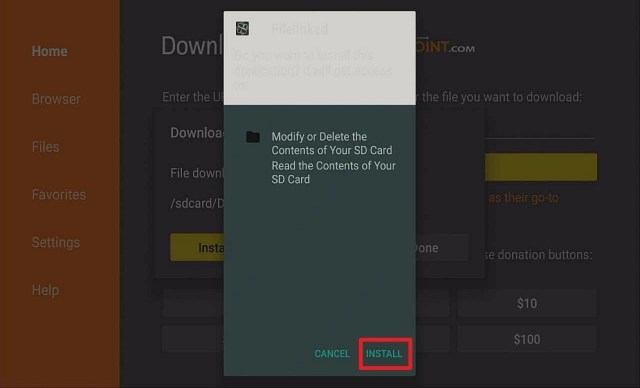
3. Click Install.

Step 13 Install Filelinked on a Firestick


4. Once the app is installed, click Open.

Step 14 Install Filelinked on a Firestick


5. You are can now use the Filelinked app on your Firestick.

Step 15 Install Filelinked on a Firestick


YOUR INTERNET ACTIVITY IS BEING WATCHED

ReviewVPN cannot attest to the legality, security and privacy of the applications discussed on this site. It is highly recommended that you use a VPN service while streaming or using Kodi.

Currently, your IP 216.73.216.211 is visible to everyone and your Browser is being tracked by Advertisers & ISP Provider.

Save 65% Now

Limited Time Offer

Here are the main reasons why you must use a VPN:

  • Your activities are hidden from your ISP, the government, and from the apps you are using.
  • You can access additional movies and TV streams.
  • ISP attempts to throttle are thrwarted thus reducing buffering issues.
  • Geographically restricted content like Netflix and Hulu can be unblocked.

A VPN works be replacing your ISP-assigned IP address and creating an encrypted tunnel. We recommend the no log service offered by IPVanish. It works well on a Firestick and offers the fastest possible speeds.

Special Limited Time Offer - Get IPVanish


Legal Disclaimer: ReviewVPN.com does not encourage or endorse any illegal activity involved in the usage of services and applications referenced on this site. We do not verify the licensing agreements of services. The end-user is wholly responsible for ensuring that any media accessed through these services does not violate copyright and/or licensing laws. ReviewVPN does not promote, link to, or receive compensation from any Apps and IPTV services.


Install Surfshark on Firestick

Best Surfshark Deal


Aptoide TV

Aptoide TV logo

Aptoide raised the bar as one of the best third-party app stores in the world. This is the reason why we listed it as one of the best sideloading tools for firesticks. This is very much compatible with Firestick.

To know more, read How to Install Aptoide TV on Firestick.


Pros

  • 100% free
  • Comes with rare apps

Cons

  • Downloading files takes too long sometimes
  • Be aware of malware


How to Install Aptoide on Firestick

1. Launch the Downloader app and type https://www.aptoide.com/en/home and click Go.

Step 12 Install Aptoide on Firestick


2. Click on INSTALL NOW!

Step 13 Install Aptoide on Firestick


3. Click on Install and you should be all set. Remember to delete the APK file after installation to save space.

Step 14 Install Aptoide on Firestick


4. Select OPEN

Step 15 Install Aptoide on Firestick


App Tuner

This app is the last but definitely not the least in our list of the best sideloading tools for firesticks. It allows you to install an app on your device. But you will need a pc to do it so.


Pros

  • Lets you manage many devices at once
  • Very easy to use


Cons

  • Not 100% free


Stream Safely with a VPN

https://get.surfshark.net/aff_c?offer_id=865&aff_id=12312

Downloading from third-party sources could be dangerous. This is why you need to ensure your safety. To make yourself anonymous, you need to use a VPN.

We suggest using Surfshark. It is the best VPN for firestick. Surfshark is a tested and proven VPN that changes your IP address so that accessing links, and geo-restricted content will be smooth. Your Internet Service Provider or ISP won’t notice your activities.

Here are some of the best Surfshark benefits that you can have when you subscribe:

  • Zero logs policy.
  • Protects you from malware, hackers, and ISP.
  • Unblocks geo-restriction for content outside your region.
  • Your data will be kept encrypted.
  • Makes your internet speed faster
  • Best VPN for torrenting
  • Prevents Firestick Buffering and Kodi Buffering


Grab your subscription now!

Best Surfshark Deal


How to Install Surfshark VPN on Firestick

If your Firestick still has the older interface, read this article to learn how to update it: Update Firestick Interface.

You can download Surfshark directly from the Amazon App store. It will be easy for you to find Surfshark with your Firestick’s Find feature. Refer to our screenshots below.

1. Go to the Home screen of your Firestick.

step 1 Install Surfshark VPN on Firestick


2. Navigate towards the Find tab. Press the Search button from the resulting dropdown.

step 2 Install Surfshark VPN on Firestick


3. Type in the keyword of SurfShark and select from the suggestions that will appear.

step 3 Install Surfshark VPN on Firestick


4. Click the official SurfShark icon from your search results.

step 4 Install Surfshark VPN on Firestick


5. Press the Download (You own it) button.

step 5 Install Surfshark VPN on Firestick


6. The SurfShark VPN installer will download on your device.

step 6 Install Surfshark VPN on Firestick


7. SurfShark VPN’s app will automatically install itself on your Fire TV stick.

step 7 Install Surfshark VPN on Firestick


8. Press the Open button after completing SurfShark VPN’s installation process.

step 8 Install Surfshark VPN on Firestick


9. Please wait for the SurfShark VPN to load its user interface.

step 9 Install Surfshark VPN on Firestick


10. You can now log in with your SurfShark VPN account credentials.

step 10 Install Surfshark VPN on Firestick

Learn more about Surfshark and Grab the Best Surfshark Deal Now!


Other VPNs to Consider

NordVPN (Best for Streaming)

Best Features

  • 5000+ Server in 50+ Countries 
  • Military-Grade Encryption
  • Fast Connection Speed
  • Suitable to a lot of devices
  • No-Log Policy

Prices
  • Complete $5.89 per month (64% Discount)
  • Plus $4.59 per month (56% Discount)
  • Standard $3.69 per month (55% Discount)

Best Features

  • 750+ High-speed VPN Servers in 43 Locations
  • Military-Grade Encryption
  • Fastest HD Streaming and Gaming
  • 30-Day Money-Back Guarantee
  • Unlimited Data & Devices
  • No-Log Policy

Prices
  • 3 Years $1.99 per month (82% Discount)
  • 1 Years $3.29 per month (70% Discount)
  • 1 Month $10.99 per month

IPVanish VPN (Most Secure)

Best Features

  • 1200+ Servers in 60+ Countries around the world
  • Unlimited Connections
  • No-Log Policy
  • Top Notch Military-Grade VPN Protocols and Encryptions
  • 100% Safe and Secured
  • Most Trusted VPN
  • Best VPN for Firestick
  • 30-Day Money-Back Guarantee

Prices
  • Yearly $3.99 per month (63% Discount) – 30 days risk free + Ransomware & Malware Protection
  • Quarterly $5.32 per month (51% Discount)
  • Monthly $10.99 per month


For more VPN discounts, go to ReviewVPN Deals and purchase the best VPN for you.


Conclusion

The best tools for us is the Downloader app and the Filelinked. These two are our tested and proven tools when sideloading apps to our firestick device. So we assure you that following the guidelines above will give you enough satisfaction to have brand new apps that are not available in the Amazon app store.

If Downloader and Filelinked are not fit for you, you can still consider using Aptoide TV and App Tuner.

We hope that this article was able to help you learn the best Sideloading Tools for Firestick.

Best Ways to Jailbreak Firestick – 2023 Update

Jailbreak Firestick

In this article, we will discuss the best ways to jailbreak your Firestick.


The Amazon Firestick became very famous throughout the years. At first, its main purpose is to provide entertainment from paid applications like Hulu, Amazon Prime, and Netflix. Kodi on the other hand said its goodbye to the Amazon App Store last 2015. Since then, people are craving free experiences from Firestick.

Some applications are not available in the Amazon app store.  These are third-party apps. To install these apps, you need to jailbreak your firestick first.

You will then have to use an APK Downloader app to complete the process of installation. This is very easy since the Downloader app is an official application. You can directly install it on your device.

But before anything else, it is very important to look after your safety. Since you will be dealing with third-party applications, we suggest using a VPN. A premium VPN like Surfshark works well with Firestick and is the best VPN for streaming.


Importance of Jailbreaking Firestick

The term Jailbreak the Firestick sounds a tad bit techy don’t you think?

To set the record straight, Jailbreak just means hacking the Firestick. This is in no way damaging or detrimental to your Firestick.

What it does is open up the boundary that inhibits your Firestick from installing applications from third-party sources. Having said that, to enjoy unlimited and free content, you need to Jailbreak the Firestick.

This process will also give you access to the Best Firestick Apps.

If your Firestick still has the older interface, read this article to learn how to update it: Update Firestick Interface.


ANONYMOUSLY


Is It Legal To Jailbreak Firestick?

Well, despite how it sounds, it is legal to jailbreak Firestick.

The process of jailbreaking your Firestick is both Safe and Legal. But we can ask ourselves again after the process of jailbreaking. If you are going to stream copyrighted content then this could be illegal.

Here are the proofs why Jailbreaking Firestick is Legal:

  • It is not the same as hacking a mobile phone or jailbreaking an iOS device.
  • Jailbreaking does not mean root-accessing your Firestick device.
  • You have all the rights to do whatever to your Firestick device, so you Jailbreak it any time you want.
  • This process does not make changes to the system file of the operating system of your Firestick.

So to set it straight, jailbreaking Firestick is legal but the third-party apps that you will install may contain copyrighted content. You have to be cautious, and always keep in mind that you should never come across some boundaries about the legality of copyright ownership.

Best Ways to Jailbreak Firestick

Jailbreaking your Firestick is not that hard. You don’t have to be a tech expert to do it. Just follow the following steps and ways and you will enjoy streaming in no time.

  1. Install a VPN on Your Firestick – We suggest using Surfshark. Surfshark is the best VPN for streaming. It provides safety, encryption, and destroys geo-restriction so you can access content outside of your region. You can also use one Surfshark account on many devices at once.
  2. Enable ADB Debugging and Apps From Unknown Sources – This is the simple and easy step of Jailbreaking your Firestick. We will show you the detailed steps later.
  3. Install the Downloader App – This is the app that will help you install third-party applications to your device.
  4. Download the Aptoide TV app Using Downloader – Aptoide TV is an app that serves as an app store to install third-party applications.
  5. Install Kodi from Aptoide TV – You can easily install one of the most popular streaming apps today which is Kodi using Aptoide TV.
  6. Installing the Latest Version of Kodi using Downloader -The version of Kodi on Apoide is not the latest version, we will show you how you can install the latest version of Kodi using the Downloader app.
  7. Connect Your VPN to a US Server – Whatever app you choose to stream, most of its content is only available in the US. But with Surfshark you can select a city or country that you would like to connect with.
  8. Login to Kodi – You can now install Kodi by Jailbreaking Firestick and enjoy all of its content with the help of Surfshark.


How to Install Surfshark VPN on Firestick

If your Firestick still has the older interface, read this article to learn how to update it: Update Firestick Interface.

You can download Surfshark directly from the Amazon App store. It will be easy for you to find Surfshark with your Firestick’s Find feature. Refer to our screenshots below.

1. Go to the Home screen of your Firestick.

step 1 Install Surfshark VPN on Firestick


2. Navigate towards the Find tab. Press the Search button from the resulting dropdown.

step 2 Install Surfshark VPN on Firestick


3. Type in the keyword of SurfShark and select from the suggestions that will appear.

step 3 Install Surfshark VPN on Firestick


4. Click the official SurfShark icon from your search results.

step 4 Install Surfshark VPN on Firestick


5. Press the Download (You own it) button.

step 5 Install Surfshark VPN on Firestick


6. The SurfShark VPN installer will download on your device.

step 6 Install Surfshark VPN on Firestick


7. SurfShark VPN’s app will automatically install itself on your Fire TV stick.

step 7 Install Surfshark VPN on Firestick


8. Press the Open button after completing SurfShark VPN’s installation process.

step 8 Install Surfshark VPN on Firestick


9. Please wait for the SurfShark VPN to load its user interface.

step 9 Install Surfshark VPN on Firestick


10. You can now log in with your SurfShark VPN account credentials.

step 10 Install Surfshark VPN on Firestick

Learn more about Surfshark and Grab the Best Surfshark Deal Now!


Install Surfshark on Firestick

Best Surfshark Deal


Other VPNs to Consider

NordVPN (Best for Streaming)

Best Features

  • 5000+ Server in 50+ Countries 
  • Military-Grade Encryption
  • Fast Connection Speed
  • Suitable to a lot of devices
  • No-Log Policy

Prices
  • Complete $5.89 per month (64% Discount)
  • Plus $4.59 per month (56% Discount)
  • Standard $3.69 per month (55% Discount)

Best Features

  • 750+ High-speed VPN Servers in 43 Locations
  • Military-Grade Encryption
  • Fastest HD Streaming and Gaming
  • 30-Day Money-Back Guarantee
  • Unlimited Data & Devices
  • No-Log Policy

Prices
  • 3 Years $1.99 per month (82% Discount)
  • 1 Years $3.29 per month (70% Discount)
  • 1 Month $10.99 per month

IPVanish VPN (Most Secure)

Best Features

  • 1200+ Servers in 60+ Countries around the world
  • Unlimited Connections
  • No-Log Policy
  • Top Notch Military-Grade VPN Protocols and Encryptions
  • 100% Safe and Secured
  • Most Trusted VPN
  • Best VPN for Firestick
  • 30-Day Money-Back Guarantee

Prices
  • Yearly $3.99 per month (63% Discount) – 30 days risk free + Ransomware & Malware Protection
  • Quarterly $5.32 per month (51% Discount)
  • Monthly $10.99 per month


For more VPN discounts, go to ReviewVPN Deals and purchase the best VPN for you.

Click here to get the lowest price on Surfshark through our exclusive limited-time offer.


Enable ADB Debugging and Apps From Unknown Sources

1.  Click Home on your remote and scroll once to your Right. Click Setting (Gear Wheel Icon)

Jailbreak Firestick and Install Downloader App


2. Scroll down and to the right until you get to My Fire TV. Click on it.

Jailbreak Firestick and Install Downloader App


3. Select Developer options.

Jailbreak Firestick and Install Downloader App


4. Turn on ADB debugging and Apps from Unknown Sources.

Jailbreak Firestick and Install Downloader App


5. Click Turn On when the pop-up appears.

Jailbreak Firestick and Install Downloader App

Take Note: You can also consider disabling some firestick settings to hinder Amazon from monitoring your streaming activities. Follow this article, Firestick Setting that You Need to Disable, to know more.

Learn also about the Best Firestick Settings to Boost Your Streaming Experience.


Install the Downloader App on Firestick

1.  From the Home page, click FIND.

Jailbreak Firestick and Install Downloader App


2. Click Search.

Jailbreak Firestick and Install Downloader App


3. You can either say Downloader to your Alexa voice-enabled remote or start typing it. If you typed it, click on the suggestion when it appears.

Jailbreak Firestick and Install Downloader App


4. Click on the Downloader icon

Jailbreak Firestick and Install Downloader App


5. Click Download

Jailbreak Firestick and Install Downloader App


6. Click on Open.

Jailbreak Firestick and Install Downloader App


7. Click on Allow.

Jailbreak Firestick and Install Downloader App


Install the Aptoide TV Using Downloader

1. Launch the Downloader app.

jailbreak firestick (1)


2. Type in https://reviewvpn.com/apt and click Go.

jailbreak firestick (2)


3. Wait for the app to be downloaded.

jailbreak firestick (3)


4. Choose Install.

jailbreak firestick (4)


5. Wait for the app to be installed

jailbreak firestick (4)


6. Select Open.

jailbreak firestick (6)


7. Click OK.

jailbreak firestick (7)


8. Choose Allow.

jailbreak firestick (8)


9. You are now at the home page of the Aptoide TV app.

jailbreak firestick (9)


YOUR INTERNET ACTIVITY IS BEING WATCHED

ReviewVPN cannot attest to the legality, security and privacy of the applications discussed on this site. It is highly recommended that you use a VPN service while streaming or using Kodi.

Currently, your IP 216.73.216.211 is visible to everyone and your Browser is being tracked by Advertisers & ISP Provider.

Save 65% Now

Limited Time Offer

Here are the main reasons why you must use a VPN:

  • Your activities are hidden from your ISP, the government, and from the apps you are using.
  • You can access additional movies and TV streams.
  • ISP attempts to throttle are thrwarted thus reducing buffering issues.
  • Geographically restricted content like Netflix and Hulu can be unblocked.

A VPN works be replacing your ISP-assigned IP address and creating an encrypted tunnel. We recommend the no log service offered by IPVanish. It works well on a Firestick and offers the fastest possible speeds.

Special Limited Time Offer - Get IPVanish


Legal Disclaimer: ReviewVPN.com does not encourage or endorse any illegal activity involved in the usage of services and applications referenced on this site. We do not verify the licensing agreements of services. The end-user is wholly responsible for ensuring that any media accessed through these services does not violate copyright and/or licensing laws. ReviewVPN does not promote, link to, or receive compensation from any Apps and IPTV services.


Install Surfshark on Firestick

Best Surfshark Deal


Install Kodi Using Aptoide TV App

You can choose whichever app you like to install from Aptoide TV. For this example, we are going to show you how to install one of the most popular streaming apps today, Kodi.

Please take note that the version of Kodi available on the Aptoide TV is not updated. It is still in version 17.2 Krypton. Later we will show you how to install the latest version of Kodi using the Downloader app.


1. Launch the Aptoide app and click on the big magnifying glass icon on the upper left part of the screen,

jailbreak firestick (10)


2. Click on the search bar.

jailbreak firestick (11)


3. Type the name of the app that you would like to install. In this case, we will type Kodi. Click Next.

jailbreak firestick (12)


4. Click on the result for Kodi.

jailbreak firestick (13)


5. Select Install.

jailbreak firestick (14)


6. Wait for the app to be downloaded.

jailbreak firestick (15)


7. Choose to Install one more time.

jailbreak firestick (16)


8. Wait for the installation process to be complete.

jailbreak firestick (17)


9. Then click Open.

jailbreak firestick (18)


Install The Latest Version of Kodi on Your Firestick

If you want the latest version of Kodi, follow the steps below:


1. Launch the Downloader app

downloader in firestick


2. Type in https://kodi.tv/download and click Go.

type url in downloader


3. Scroll down and select which type of device you are using. In the case of Amazon Firestick, it falls under Android.

kodi download on firestick


4.Click on the 32-bit ARM version in the middle between Google Play and 64-bit ARM

kodi 32 bit arm download on firestick


5. Wait for the app to be downloaded.

kodi downloading firestick install


6. Click Install.

click install on kodi in firestick


7. Once the app is already installed, you can now choose Open to launch it and the latest version of Kodi will appear.

click open firestick - kodi install on firestick


Grab your subscription now!

Best Surfshark Deal


Connect Your VPN to a US Server

1.  Open IPVanish, input your username and password to log in.


2. Select the best server for the United States, and click Connect.

Learn more about IPVanish. Get an IPVANISH now.


Login to Kodi

jailbreak firestick (14)

You can definitely learn more about Kodi by reading these article:

Jailbreaking, Is Jailbreaking Firestick Legal?

Everything You Need to Know About Kodi

How to Install Kodi on Windows

Downgrade Kodi from Kodi 19 Matrix to Kodi 18.9 Leia


FAQs

What are the features of a jailbroken Firestick?

Once the jailbreak process is done, the Firestick will allow you to watch anything for free by using Kodi and the streaming apps we mentioned above.


Is it ok to jailbreak a Firestick 4k?

Yes, stream with your heart’s content.


Featured Channels on a Firestick that is jailbroken

The most popular channels once you install a Live TV app.


Do I have to pay for anything?

Yes, that would be your internet connection.


Is it legal to use a Jailbroken Firestick?

Totally. As long as you are not streaming copyrighted content.


Is the jailbreak permanent?

No, you can always undo it by reversing the process we have stated above.


Is it ok to purchase a Jailbroken for sale Firestick on eBay?

No, these have a huge markup. Besides, the jailbreaking process is easy and you can do it on your own.


What is the Downloader App?

The Downloader app is an app that serves also as a browser where you can search and install third-party applications for your Amazon Firestick.


Is Downloader App Legal?

Downloader is actually an official amazon app. This is a good indication that Downloader is 100% legal.


Is Downloader App Safe?

We tested the app using Virus Total and found no threat. This is to prove that the Downloader app is safe to use.


What devices can I Install Downloader?

You can actually install Downloader on Firestick, Android devices, Google Chromecast, and many more.


How to Jailbreak Firestick?

You need to enable unknown sources to jailbreak your firestick. This process was shown in the above procedure.


Can I Jailbreak Firestick Without an Amazon Account?

No. In the first place, you will need an Amazon account to set up your firestick You won’t be able to jailbreak a firestick that is not yet set up.


Conclusion

Jailbreaking your firestick entitles you to install third-party apps. As we said above, be cautious in installing apps with copyrighted content. With this you can also look for the best firestick apps, best Kodi builds, and best Kodi addons that work well with a Jailbroken Firestick.

Personally, jailbreaking a firestick is one of the first things to do in setting up a new firestick. This is also a part of the best firestick settings and the settings that you need to disable while setting up.

We hope that this article was able to help you Jailbreak your Firestick device easily.

The Best IPVanish Secret Settings For You – 2023 Edition

IPVanish Secret Settings Overview

In this article, you will learn the top IPVanish secret settings for your online activities.


A Virtual Private Network or VPN is very much helpful in providing security and accessibility online. Although there are a lot of VPNs in the market, IPVanish really stands out. It is the best VPN for streaming.

IPVanish offers a lot of features to maintain your anonymity while accessing geo-restricted content. It has a zero log policy. This means IPVanish does not record your activities while using the platform.

Installing IPVanish is free, but you need to have an account to use it. Signing up for an account is not free. To learn the simple way of creating an IPVanish account, follow this guide: How to Sign Up For IPVanish VPN.

IPVanish is available in almost all types of devices like Android, iOS, Windows, Firestick, etc. For Firestick users, you can directly install it on your device. You don’t have to Jailbreak your Firestick and Install the Downloader app to do it so.

Now, there are secret IPVanish settings that we will reveal in this article. These settings will surely help you with your different online activities.


ANONYMOUSLY


If your Firestick still has the older interface, read this article to learn how to update it: Update Firestick Interface.


Best IPVanish Secret Settings

In this portion, we will reveal the top 4 IPVanish secret settings along with the reason why such a setting is important. Take your time to read, understand, and follow the following procedures.


Split Tunneling

In this feature, you are in control of whether which application can use your original IP and which can use the VPN-provided IP.

This secret setting is very much applicable to the IPVanish version for Android devices. This includes Amazon Firestick.

Here are the steps to set up the split tunneling settings on your IPVanish.

1. Launch your IPVanish app and click on the Settings button (gearwheel icon) on the upper right portion.

IPVanish Secret Settings (1)

2. Scroll down to the Split Tunneling option.

IPVanish Secret Settings (2)


3. You can choose between 3 types of apps namely: Recommended, User Apps, and System Apps.

IPVanish Secret Settings (3)


4. Choose and click any app that you would like to use your original IP address instead of the one provided by IPVanish.

IPVanish Secret Settings (4)


Allow LAN Access

This setting provides the best safety feature for your device. It protects your device from cyber hackers/cybercriminals.

But this feature is in contradiction to split tunneling somehow. By allowing local plan access, your device(mainly your laptops and computers) is the only one that can connect to your general network. Other users won’t be able to tunnel traffic to it.

Take a look at how you can set up this IPVanish feature on your device.

1. Launch your IPVanish app and click on the Settings button (gearwheel icon) on the upper right portion.

IPVanish Secret Settings (1)


2. Scroll down and look for Allow LAN access, and click it.

IPVanish Secret Settings (5)


IPVanish Protocol and Port

IPVanish has the best protocols for encryption. It offers two of the best protocols and 3 ports to choose from. You have the power to select which type of protocol that you wish to use and is perfectly fit for your device.

Follow these steps to easily set up which protocol you like to use.

1. Launch your IPVanish app and click on the Settings button (gearwheel icon) on the upper right portion.

IPVanish Secret Settings (1)


2. Scroll down to Protocols.

IPVanish Secret Settings (6)


3. Choose between Open VPN (TCP) or Open VPN (UDP).

IPVanish Secret Settings (7)


4. Click one step back and scroll down to Port.

IPVanish Secret Settings (8)


5. Choose between the following ports that will work well for you.

IPVanish Secret Settings (9)


Lowest Ping Latency Server

This IPVanish setting is very much applicable for gamers. You can easily set this app using your computers or laptops. Choosing the lowest ping server provides smooth and buffer-free access to landing pages especially when playing your favorite games.

Using IPVanish will also allow you to access geo-restricted features to boost your gaming experience. Look at the following steps to choose a low-ping IPVanish server.

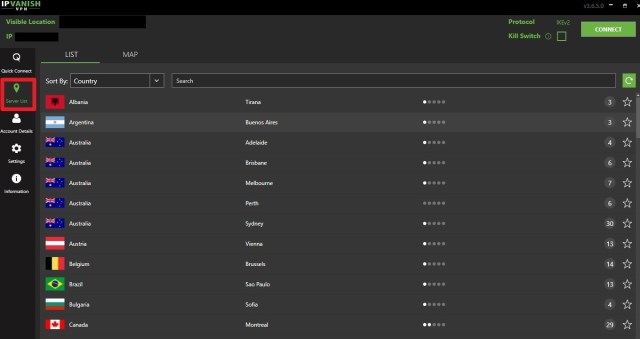
1. Launch the IPVanish app or software on your device, and click on Server List.

IPVanish Secret Settings 10


2. Sort the servers by Ping.

IPVanish Secret Settings 11


3. Choose a country, and city you would like to connect to and click on the number of servers available.

IPVanish Secret Settings 12


4. Choose the server with the lowest ping and load convo. Double click to immediately connect to it.

IPVanish Secret Settings 13


5. Wait for IPVanish to connect.

IPVanish Secret Settings 14


6. Double check whether you are really connected to your chooses server.

IPVanish Secret Settings 15


YOUR INTERNET ACTIVITY IS BEING WATCHED

ReviewVPN cannot attest to the legality, security and privacy of the applications discussed on this site. It is highly recommended that you use a VPN service while streaming or using Kodi.

Currently, your IP 216.73.216.211 is visible to everyone and your Browser is being tracked by Advertisers & ISP Provider.

Save 65% Now

Limited Time Offer

Here are the main reasons why you must use a VPN:

  • Your activities are hidden from your ISP, the government, and from the apps you are using.
  • You can access additional movies and TV streams.
  • ISP attempts to throttle are thrwarted thus reducing buffering issues.
  • Geographically restricted content like Netflix and Hulu can be unblocked.

A VPN works be replacing your ISP-assigned IP address and creating an encrypted tunnel. We recommend the no log service offered by IPVanish. It works well on a Firestick and offers the fastest possible speeds.

Special Limited Time Offer - Get IPVanish


Legal Disclaimer: ReviewVPN.com does not encourage or endorse any illegal activity involved in the usage of services and applications referenced on this site. We do not verify the licensing agreements of services. The end-user is wholly responsible for ensuring that any media accessed through these services does not violate copyright and/or licensing laws. ReviewVPN does not promote, link to, or receive compensation from any Apps and IPTV services.


Install IPVANISH on Firestick

Best IPVANISH Deal


IPVanish Features

  • Has a total of 2,000 servers, 40,000 IP addresses in 70+ locations to choose from
  • Follows the no-log policy
  • Offers the best Protocols: IKEv2, OpenVPN UDP, OpenVPN TCP, l2TP, PPTP
  • You are entitled to a 30-day money-back guarantee
  • Considered to be the best VPN for torrenting
  • Works very well with apps such as Kodi
  • Tor compatibility
  • Guaranteed to make your internet bandwidth faster depending on the location and server chosen.
  • Has a Kill Switch feature
  • Offers 27/7/365 customer support
  • The Privacy Jurisdiction under the United States of America
  • Covers your identity from your Internet Service Provider (ISP) especially when accessing geo-restricted content.
  • Protects your device from hackers
  • Destroy geo-blocks.
  • Make sure on the encryption to your data and information
  • Prevents Firestick Buffering and Kodi Buffering


Pros and Cons

Pros

  • One of the best and fast service in the market today
  • Follows a no-log policy
  • Kill Switch feature
  • Provides great app option
  • Compatible with almost all types of devices


Cons

  • There are other VPNs that are cheaper
  • Speed varies depending on server location


Grab your subscription now!

Best IPVANISH Deal


Install IPVanish on Firestick with Screenshots

1.  Click Home on your remote and click “Find”.

Step 1 Install IPVanish


2. Click “Search”

Step 2 Install IPVanish


3. You can either say IPVanish to your Alexa’s voice-enabled remote or start typing it. If you typed it, click on the suggestion when it appears.

Step 3 Install IPVanish


4. Click on the IPVanish icon.

Step 4 Install IPVanish


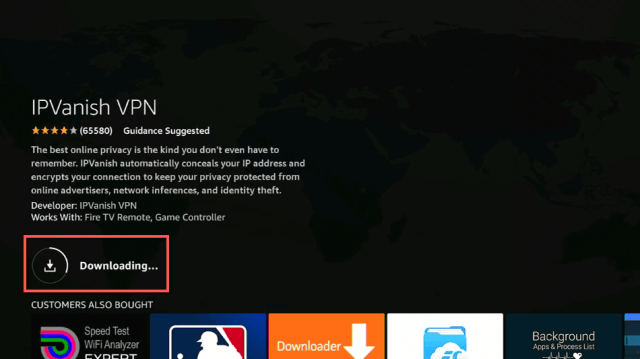
5. Click on Download

Step 5 Install IPVanish


6. Wait to download.

Step 6 Install IPVanish


7.  Wait to install.

IPVanish Settings


8.  Click on Open.

IPVanish Settings


9.  Input your username and password to log in.


10. Click Connect.

Learn more about IPVanish. Get an IPVANISH now.


Alternative VPNs for IPVanish


Opinion

IPVanish is indeed one of the best VPNs in the market today. With all of the benefits, we can get from it, we can say that it is really worth it. Especially upon knowing these best IPVanish secret settings that will surely boost my online activities. These are just added to the reasons why we should really use IPVanish VPN.

You can still choose other VPNs if you like but we really suggest using IPVanish for streaming or any other online activities.

We hope that this article was able to teach you about the best IPVanish secret settings.

How to Sign Up for IPVanish VPN

Overview About the Article

In this article, we will teach you how to sign up for IPVanish VPN.

Using a Virtual Private Network or VPN can surely protect your identity, encrypt your activities, and unblock geo-restricted content. If you will use this for streaming, you should have a premium one such as IPVanish.

IPVanish has a lot of wonderful things that it can offer on the table. We will discuss its features later in this article. But most importantly is how can you be able to sign up for an IPVanish account.


Signing up for an account is not free. But you can definitely choose the best offer for you. The good thing about this is that one account can host multiple devices at once. So having an IPVanish account is really worth it and useful.

IPVanish is also one of the best VPN for Firestick. You can install it directly on your firestick device. There is no need to Jailbreak your Firestick and Install the Downloader app. Installing is free but you have to pay for an account to use their service.


ANONYMOUSLY


If your Firestick still has the older interface, read this article to learn how to update it: Update Firestick Interface.


How to Sign Up for IPVanish VPN

1. Using your browser, go to https://reviewvpn.com/deal. This link contains a discount for the IPVanish account that you would like to purchase.

Sign Up IPVanish

2. Choose the best plan for you. Since you use the link we stated on step number 1, you are entitled to have a huge discount for a plan. Choose between VPN or VPN + Storage. You can also select if your plan is monthly or yearly whatever type of service you like.

sign up ipvanish


3. You will then be redirected to the signup page, and still, confirm the plan that you really like.

How to sign up for IPVanish (3)


4. Complete the details under create an account bar with your email address and password.

How to sign up for IPVanish (4)


5. Pick a payment term that is best for you. You can choose between a credit card or PayPal.

How to sign up for IPVanish (5)


6. Complete the details regarding the payment terms, like the name of the credit card owner, card number, country, etc. In terms of PayPal payment, details to include are different.

How to sign up for IPVanish (6)

or

How to sign up for IPVanish (7)


7. Upon settling the payment terms, take your time to review the Terms of Service and Privacy Policy. Click on I agree to the automatic renewal terms above. Note: You can always stop the renewal any time you like.

How to sign up for IPVanish (8)


8. Your payment is encrypted. Upon settling down, click on Subscribe Now.

How to sign up for IPVanish (9)


9. Upon subscribing, IPVanish will email you about your account details and subscription. Confirm your email, and you can now use your IPVanish account on your devices.


IPVanish Features

  • Provides 2000 servers, 40,000 IP addresses in 70+ locations to choose from
  • Zero log policy
  • IPVanish Protocols: IKEv2, OpenVPN UDP, OpenVPN TCP, l2TP, PPTP
  • 30-day money-back guarantee
  • The Best VPN for torrenting
  • Great VPN to use when having Kodi
  • Compatible VPN with Tor
  • Can make your internet speed faster depending on the location and server chosen.
  • Kill Switch
  • Has 24/7/365 customer support
  • Mask your identity from your Internet Service Provider (ISP)
  • Stops buffering with all of your devices and apps
  • Protects you from hackers when you are using a public Wi-Fi
  • Destroy geo-blocks and gives access to restricted contents in your region
  • Ensure encryption to your data and information
  • Prevents Firestick Buffering and Kodi Buffering


YOUR INTERNET ACTIVITY IS BEING WATCHED

ReviewVPN cannot attest to the legality, security and privacy of the applications discussed on this site. It is highly recommended that you use a VPN service while streaming or using Kodi.

Currently, your IP 216.73.216.211 is visible to everyone and your Browser is being tracked by Advertisers & ISP Provider.

Save 65% Now

Limited Time Offer

Here are the main reasons why you must use a VPN:

  • Your activities are hidden from your ISP, the government, and from the apps you are using.
  • You can access additional movies and TV streams.
  • ISP attempts to throttle are thrwarted thus reducing buffering issues.
  • Geographically restricted content like Netflix and Hulu can be unblocked.

A VPN works be replacing your ISP-assigned IP address and creating an encrypted tunnel. We recommend the no log service offered by IPVanish. It works well on a Firestick and offers the fastest possible speeds.

Special Limited Time Offer - Get IPVanish


Legal Disclaimer: ReviewVPN.com does not encourage or endorse any illegal activity involved in the usage of services and applications referenced on this site. We do not verify the licensing agreements of services. The end-user is wholly responsible for ensuring that any media accessed through these services does not violate copyright and/or licensing laws. ReviewVPN does not promote, link to, or receive compensation from any Apps and IPTV services.


Install IPVANISH on Firestick

Best IPVANISH Deal


Pros and Cons

Pros

  • The service is fast
  • Zero log policy
  • Kill Switch
  • Great app option
  • Compatible with almost all types of devices


Cons

  • Not the cheapest VPN in the market
  • Speed varies depending on the chosen location


Install IPVanish on Firestick with Screenshots

1.  Click Home on your remote and click “Find”.

Step 1 Install IPVanish


2. Click “Search”

Step 2 Install IPVanish


3. You can either say IPVanish to your Alexa’s voice-enabled remote or start typing it. If you typed it, click on the suggestion when it appears.

Step 3 Install IPVanish


4. Click on the IPVanish icon.

Step 4 Install IPVanish


5. Click on Download

Step 5 Install IPVanish


6. Wait to download.

Step 6 Install IPVanish


7.  Wait to install.

Step 8 Install IPVanish


8.  Click on Open.

Step 8 Install IPVanish


9.  Input your username and password to log in.


10. Click Connect.

Learn more about IPVanish. Get an IPVANISH now.


Alternative VPNs for IPVanish


FAQs

How to Sign up for IPVanish?

Just follow the steps we provided below and you will not only learn how to sign up for IPVanish but also have a discount for your subscription.


Is Signing up for IPVanish free?

IPVanish is a Premium VPN meaning it is not for free. But you can have a discount if you follow the link we provided above.


Is IPVanish Safe?

Of course. IPVanish provides safety and it also strictly follow the no-log policy under its jurisdiction. Using IPVanish is safe and also it will grant you safety while streaming.


Are there any advertisements?

There are no advertisements.


Opinion

If you sign up for IPVanish, we guarantee that you are having one of the best decisions of your life. It is really worth it to use IPVanish. With all of its benefits and great features, you will be able to enjoy streaming any content without thinking about your safety. You can also access tons of geo-restricted content with IPVanish. One of its best features is its availability and compatibility with many types of devices including firesticks. You can also use one account on different devices all at once, so whether it is not the cheapest in the market, is definitely worth it.

Also, don’t forget to use the link stated above for the discount that you truly deserve, Our coupon may be limited to a period of time. So grab your opportunity while it lasts. You will surely save a lot if you follow the steps above.


Final Words

We hope that this article was able to teach you how to sign up for IPVanish VPN.

Trakt TV Activate Using Amazon Firestick – No Need to Use Other Devices

Trakt TV Activate Overview

This article will teach you to activate trakt tv using only your firestick device.


As we are very much familiar that in order to activate trakt tv in our apps, we need to use a separate device. Most of the time, we use laptops, computers, or even mobile phones. Sometimes, they might not be available when we would like to integrate our trakt account. Good thing that there is a trakt app available for firestick.

This app is the exact replica of the trakt tv website. Sometimes you need to use a Mouse Toggle to click on some functions, but once you are set, there is no need to use it anymore. You can also sign up if you still don’t have an account for trakt. Creating an account is free, and you can use your personal data, and email address.

The only questionable thing is that when you launch the app you will see that it is not licensed. But you don’t have to worry, because after waiting for a minute or two, the app will still go to its home page. This app is not an official Amazon app. To install this on Firestick, you need to Jailbreak your Firestick and Install the Downloader app first.


To know more about trakt tv, you can read this article: What is Trakt Tv? Learn How to Use It.


ANONYMOUSLY

How to Install Trakt TV on Firestick

1.  Click Home on your remote and scroll once to your Right. Click Setting (Gear Wheel Icon)

trakt tv activate


2. Scroll down and to the right until you get to My Fire TV. Click on it.

trakt tv activate


3. Select Developer options.

trakt tv activate


4. Turn on ADB debugging and Apps from Unknown Sources.

trakt tv activate


5. Click Turn On when the pop-up appears.

trakt tv activate


6. Go back Home and then click FIND.

trakt tv activate


7. Click Search.

trakt tv activate


8. You can either say Downloader to your Alexa voice-enabled remote or start typing it. If you typed it, click on the suggestion when it appears.

trakt tv activate


9. Click on the Downloader icon

trakt tv activate


10. Click Download

trakt tv activate


11. Click on Open.

trakt tv activate


12. Click on Allow.

trakt tv activate


13. Open the Downloader on your Firestick and click on the search engine

trakt tv activate


14. Type https://reviewvpn.com/trakt and then click Go

trakt tv activate (1)


15. Let the apk be downloaded

trakt tv activate (2)


16. Click on Install

trakt tv activate (3)


17. Wait for the app to be installed

trakt tv activate (4)


18. Select Open

trakt tv activate (5)


YOUR INTERNET ACTIVITY IS BEING WATCHED

ReviewVPN cannot attest to the legality, security and privacy of the applications discussed on this site. It is highly recommended that you use a VPN service while streaming or using Kodi.

Currently, your IP 216.73.216.211 is visible to everyone and your Browser is being tracked by Advertisers & ISP Provider.

Save 65% Now

Limited Time Offer

Here are the main reasons why you must use a VPN:

  • Your activities are hidden from your ISP, the government, and from the apps you are using.
  • You can access additional movies and TV streams.
  • ISP attempts to throttle are thrwarted thus reducing buffering issues.
  • Geographically restricted content like Netflix and Hulu can be unblocked.

A VPN works be replacing your ISP-assigned IP address and creating an encrypted tunnel. We recommend the no log service offered by IPVanish. It works well on a Firestick and offers the fastest possible speeds.

Special Limited Time Offer - Get IPVanish


Legal Disclaimer: ReviewVPN.com does not encourage or endorse any illegal activity involved in the usage of services and applications referenced on this site. We do not verify the licensing agreements of services. The end-user is wholly responsible for ensuring that any media accessed through these services does not violate copyright and/or licensing laws. ReviewVPN does not promote, link to, or receive compensation from any Apps and IPTV services.


Install Surfshark on Firestick

Best Surfshark Deal


How to Sign Up for a Trakt tv Account

In order to trakt tv activate some apps that support this feature, you need to have a trakt tv account first. Follow these steps to know-how.

  1. Go to https://trakt.tv or you can use the app to sign in. Launch the app if you already installed it.
  2. Click Join Trakt for Freee.
  3. Input the needed details and information like email, username, etc.
  4. Select Join Trakt.
  5. Read the Terms of Use and Privacy Policy.
  6. Check the box that says “I Agree”.
  7. Input again the required information.
  8. Select Next Step.
  9. Choose genres that you are interested in.
  10. Choose Next Step.
  11. Put on TV and Movies to your account. Brand them by selecting mark items as watched, Collects items you own digital or on a disc, Watchlist items you want to watch, Find where to watch online, and Rate items on a scale of one to ten.
  12. Click Next Step.
  13. You will then be asked to choose the social media platforms you are using. Click on as many as you can and choose Next Step.
  14. You will also have an option to receive notifications when others follow you and leave comments.
  15. Select Continue to Dashboard
  16. You have finished the sign-up process.

If you want to know more about setting up your trakt account, you can go to How to Activate Trakt Tv Account.


How to Trakt TV Activate Your App Using Amazon Firestick

Even though there are tons of apps that support trakt tv, we will only use 1 as an example. The app that we are going to use is Cinema HD.

Later, we will show you some other apps that support trakt tv.

1. Launch the Cinema HD app on your firestick.

cinema hd 1


2. Navigate to the uppermost left part of the screen and click the hamburger button.

cinema hd 2


3. Scroll down to Settings.

cinema hd 3


4. Select Account

cinema hd 4


5. Go to Login to Trakt TV

cinema hd 5


6. Take note of the given code: EB941C51 is just an example.

trakt tv activate (12)


7. Click the home button of your amazon firestick remote.

trakt tv activate (13)


8. Scroll to Recently Used Apps and click on the Authorize Trakt TV.

trakt tv activate (14)


9. Make sure to sign in to your trakt tv account.

trakt tv activate (6)


10. Click on the box where you will type the given code.

trakt tv activate (15)


11. Type the given code: EB941C51 is just an example. Then click Next.

trakt tv activate (16)


12. Select Yes.

trakt tv activate (17)


13. Success verification will appear on your screen. Then you can now close the app.

trakt tv activate (18)


14. When you go back to Cinema HD, you will see that your tract tv is activated within the app.

trakt tv activate (19)


Pros and Cons of Trakt TV Activate Using Firestick

Pros

  • It is free
  • Exact replica of the website
  • No need to use other devices
  • More convenient
  • You can also sign up for a new account using the app


Cons

  • The app is not fully licensed
  • Need to use mouse toggle sometimes but not all the time
  • Wait for a minute or more when launching the app


Apps that Support Tract TV Activate

There are so many apps that support trakt tv. Most of them are not direct applications, but they are great apps. Here is the list of these apps that you might like to check out.


Stream Safely With A VPN

https://get.surfshark.net/aff_c?offer_id=865&aff_id=12312

Streaming using third-party applications, like the ones stated above, is not 100% safe. We are not sure of the domains that host this app. Safety is a crucial part when streaming.

To ensure our safety, we need to use a VPN. It will change our IP address, which serves as our online fingerprints. When our IP has an additional mask, the domains of the links that we click will not recognize our identity.

There is no better VPN that provides this benefit than Surfshark. It is the best VPN for streaming. Surfshark works well with Amazon Firestick and you can also install it easily.

Here are some of the best features given by Surfshark:

  • Protects you from your ISP, and from hackers.
  • Adds a layer of protection, not only from ISP but also from malware entering your devices.
  • Keeps all of your data encrypted.
  • There is no log policy for this VPN.
  • Connects you to different servers granting you access to geo-restricted content.
  • Allow you to choose a server location with tons of countries to choose from/
  • Makes your internet speed faster
  • Supports torrenting
  • Prevents Firestick Buffering and Kodi Buffering

Note: For more information about SurfShark, please read our SURFSHARK REVIEW.


Grab your subscription now!


How to Install Surfshark VPN on Firestick

If your Firestick still has the older interface, read this article to learn how to update it: Update Firestick Interface.

1. Go to the Home screen of your Firestick.

step 1 Install Surfshark VPN on Firestick


2. Navigate towards the Find tab. Press the Search button from the resulting dropdown.

step 2 Install Surfshark VPN on Firestick


3. Type in the keyword of SurfShark and select from the suggestions that will appear.

step 3 Install Surfshark VPN on Firestick


4. Click the official SurfShark icon from your search results.

step 4 Install Surfshark VPN on Firestick


5. Press the Download (You own it) button.

step 5 Install Surfshark VPN on Firestick


6. The SurfShark VPN installer will download on your device.

step 6 Install Surfshark VPN on Firestick


7. SurfShark VPN’s app will automatically install itself on your Fire TV stick.

step 7 Install Surfshark VPN on Firestick


8. Press the Open button after completing SurfShark VPN’s installation process.

step 8 Install Surfshark VPN on Firestick


9. Please wait for the SurfShark VPN to load its user interface.

step 9 Install Surfshark VPN on Firestick


10. You can now log in with your SurfShark VPN account credentials.

step 10 Install Surfshark VPN on Firestick

Learn more about Surfshark and Grab the Best Surfshark Deal Now!


Other VPNs to Consider

NordVPN (Best for Streaming)

Best Features

  • 5000+ Server in 50+ Countries 
  • Military-Grade Encryption
  • Fast Connection Speed
  • Suitable to a lot of devices
  • No-Log Policy

Prices
  • Complete $5.89 per month (64% Discount)
  • Plus $4.59 per month (56% Discount)
  • Standard $3.69 per month (55% Discount)

Best Features

  • 750+ High-speed VPN Servers in 43 Locations
  • Military-Grade Encryption
  • Fastest HD Streaming and Gaming
  • 30-Day Money-Back Guarantee
  • Unlimited Data & Devices
  • No-Log Policy

Prices
  • 3 Years $1.99 per month (82% Discount)
  • 1 Years $3.29 per month (70% Discount)
  • 1 Month $10.99 per month

IPVanish VPN (Most Secure)

Best Features

  • 1200+ Servers in 60+ Countries around the world
  • Unlimited Connections
  • No-Log Policy
  • Top Notch Military-Grade VPN Protocols and Encryptions
  • 100% Safe and Secured
  • Most Trusted VPN
  • Best VPN for Firestick
  • 30-Day Money-Back Guarantee

Prices
  • Yearly $3.99 per month (63% Discount) – 30 days risk free + Ransomware & Malware Protection
  • Quarterly $5.32 per month (51% Discount)
  • Monthly $10.99 per month


For more VPN discounts, go to ReviewVPN Deals and purchase the best VPN for you.


Grab the Best Surfshark Deal Now!

Click here to get the lowest price on Surfshark through our exclusive limited-time offer.


FAQs

Is Trakt TV free?

You can sign in to an account for free.


Is Trakt tv safe and legal?

Using trakt tv activate to your apps might be safe and legal, but to be 100% sure, use a VPN like Surfshark when streaming.


Are there any advertisements?

There are no advertisements present especially when you use the app for trakt tv activation.


Opinion

This process is wonderful because when you are using firestick while streaming, and you would like to integrate trakt tv, you won’t be needing any other devices to do that so.

The only problem only is that you will have to wait for a minute to fully launch the app. It says that it is not fully authorized to launch, and you need a licensed version, but then it will work after a few seconds.

Another thing is that you will be needing a mouse toggle from time to time, but not 100% of the time.

Despite these cons, we can still say that it is a good advantage that we can activate trakt tv using our firestick now.

We hope that this article was able to help activate trakt tv using firestick.

How to Install MusicAll On Firestick and Android – Spotify Alternative

MusicAll Overview

This article will help you install the MusicAll app on your Firestick and Android devices.


We all know that maybe Spotify is the most popular and widely used music app in the world. We even listed it as one of the best firestick apps. The only problem with this is that it is not 100% free when you use it on Android phones, tablets, iPhones, etc.

That is why a lot of alternative apps came into existence. One of these is the MusicAll. It is a sound streaming application that you can use on Firestick and Android. Although the app’s interface is more applicable for Android devices like smartphones, and tablets. When you install it on Firestick, you need to use Mouse Toggle to navigate, search, and type certain songs, or artists.

The best part of using this app is that it does not require any payment or account. But there are some pop-up advertisements, and banners on the screen.

You can even play music, and it won’t stop even if you exit the app. This is also applicable when you are using it on Firestick.

MusicAll is not an official Amazon app. To install it on Firestick, you need to Jailbreak your Firestick and Install the Downloader app first.


ANONYMOUSLY

Is MusicAll Safe and Virus-free?

We tested this app using VirusTotal and found no threats or any malicious files and malware.

Despite having good results, we still need to be vigilant in protecting our privacy while streaming.

A Virtual Private Network or VPN will definitely help us maintain our security and anonymity while using MusicAll.

Here’s how you can Install The Best VPN For Firestick and All Devices.


MusicAll Download for Android Devices


MusicAll

Note: ReviewVPN.com does not host this APK file. It is hosted by Archive.org


If your Firestick still has the older interface, read this article to learn how to update it: Update Firestick Interface.


How to Install the MusicAll App on Firestick Guide

  1. Go to the Wheelgear icon which represents Settings
  2. Choose Device or My Fire TV
  3. Hover to Developers Options
  4. Turn on the ADB debugging and the Apps from Unknown Sources
  5. Go back to Home
  6. Scroll to the right and click on Find
  7. Navigate to Search
  8. Type in Downloader
  9. Click the suggestion word
  10. Select the Downloader icon
  11. Click the Get or Download button
  12. The app is installing
  13. Tap the Open button
  14. Choose Allow
  15. Click Ok
  16. Type https://reviewvpn.com/msc on the search engine
  17. Click on Go
  18. APK is downloading
  19. Click Install
  20. The app is currently installing
  21. Select Open


How to Install MusicAll on Firestick with Screenshots

1.  Click Home on your remote and scroll once to your Right. Click Setting (Gear Wheel Icon)

MusicAll


2. Scroll down and to the right until you get to My Fire TV. Click on it.

MusicAll


3. Select Developer options.

MusicAll


4. Turn on ADB debugging and Apps from Unknown Sources.

MusicAll


5. Click Turn On when the pop-up appears.

MusicAll


6. Go back Home and then click FIND.

MusicAll


7. Click Search.

MusicAll


8. You can either say Downloader to your Alexa voice-enabled remote or start typing it. If you typed it, click on the suggestion when it appears.

MusicAll


9. Click on the Downloader icon

MusicAll


10. Click Download

MusicAll


11. Click on Open.

MusicAll


12. Click on Allow.

MusicAll


13. Open the Downloader on your Firestick and click on the search engine

MusicAll


14. Type https://reviewvpn.com/msc and then click Go

MusicAll (1)


15. Let the apk be downloaded

MusicAll (4)


16. Click on Install

MusicAll (3)


17. Wait for the app to be installed

MusicAll (5)


18. Select Open

MusicAll (6)


YOUR INTERNET ACTIVITY IS BEING WATCHED

ReviewVPN cannot attest to the legality, security and privacy of the applications discussed on this site. It is highly recommended that you use a VPN service while streaming or using Kodi.

Currently, your IP 216.73.216.211 is visible to everyone and your Browser is being tracked by Advertisers & ISP Provider.

Save 65% Now

Limited Time Offer

Here are the main reasons why you must use a VPN:

  • Your activities are hidden from your ISP, the government, and from the apps you are using.
  • You can access additional movies and TV streams.
  • ISP attempts to throttle are thrwarted thus reducing buffering issues.
  • Geographically restricted content like Netflix and Hulu can be unblocked.

A VPN works be replacing your ISP-assigned IP address and creating an encrypted tunnel. We recommend the no log service offered by IPVanish. It works well on a Firestick and offers the fastest possible speeds.

Special Limited Time Offer - Get IPVanish


Legal Disclaimer: ReviewVPN.com does not encourage or endorse any illegal activity involved in the usage of services and applications referenced on this site. We do not verify the licensing agreements of services. The end-user is wholly responsible for ensuring that any media accessed through these services does not violate copyright and/or licensing laws. ReviewVPN does not promote, link to, or receive compensation from any Apps and IPTV services.


Install Surfshark on Firestick

Best Surfshark Deal


App Features

  • Hard to navigate
  • Need to use Mouse Toggle
  • Featured Top songs
  • Song titles with a duration
  • No available play button and stop button
  • Advertisements are present
  • Search engine available
  • Updated library
  • New songs are present


Pros and Cons

Pros

  • 100% Free
  • No registration
  • Lots of new songs


Cons

  • Advertisements are present
  • There is an ad banner at the bottom
  • No available play and pause for the sound
  • The interface is not that good for firestick


Stream Safely With A VPN

surfshark logo

When you are streaming, your Internet Service Provider or ISP monitors your activities and throttles your bandwidth. This is part of their job. And when you exceed your data usage, you will experience a lot of buffering.

To stop your ISP from doing such a thing, you need to change your IP address. You can only do this if you use a VPN.

Make sure that you will use the premium ones. Because there are some VPNs that are free but not 100% safe.

That is why it is still best to use a premium VPN like Surfshark. It is a tested and proven VPN that will surely hide your identity from your ISP by changing your IP location.

Not only that Surfshark also provides the following:

  • Protects you from hackers.
  • Blocks malware to damage your devices while using the service.
  • All your data will be kept encrypted and anonymous
  • Makes your internet speed faster
  • Best VPN for torrenting
  • Prevents Firestick Buffering and Kodi Buffering

Note: For more information about Surfshark, please read our Surfshark Review.


Grab your subscription now!

Click here to get the lowest price on Surfshark through our exclusive limited-time offer.


How to Install Surfshark VPN on Firestick

If your Firestick still has the older interface, read this article to learn how to update it: Update Firestick Interface.

Follow our screenshots below to install the SurfShark VPN app on your Fire TV stick.

1. Go to the Home screen of your Firestick.

step 1 Install Surfshark VPN on Firestick


2. Navigate towards the Find tab. Press the Search button from the resulting dropdown.

step 2 Install Surfshark VPN on Firestick


3. Type in the keyword of SurfShark and select from the suggestions that will appear.

step 3 Install Surfshark VPN on Firestick


4. Click the official SurfShark icon from your search results.

step 4 Install Surfshark VPN on Firestick


5. Press the Download (You own it) button.

step 5 Install Surfshark VPN on Firestick


6. The SurfShark VPN installer will download on your device.

step 6 Install Surfshark VPN on Firestick


7. SurfShark VPN’s app will automatically install itself on your Fire TV stick.

step 7 Install Surfshark VPN on Firestick


8. Press the Open button after completing SurfShark VPN’s installation process.

step 8 Install Surfshark VPN on Firestick


9. Please wait for the SurfShark VPN to load its user interface.

step 9 Install Surfshark VPN on Firestick


10. You can now log in with your SurfShark VPN account credentials.

step 10 Install Surfshark VPN on Firestick

Learn more about Surfshark and Grab the Best Surfshark Deal Now!


Install Surfshark on Firestick

Best Surfshark Deal


Other VPNs to Consider

NordVPN (Best for Streaming)

Best Features

  • 5000+ Server in 50+ Countries 
  • Military-Grade Encryption
  • Fast Connection Speed
  • Suitable to a lot of devices
  • No-Log Policy

Prices
  • Complete $5.89 per month (64% Discount)
  • Plus $4.59 per month (56% Discount)
  • Standard $3.69 per month (55% Discount)

Best Features

  • 750+ High-speed VPN Servers in 43 Locations
  • Military-Grade Encryption
  • Fastest HD Streaming and Gaming
  • 30-Day Money-Back Guarantee
  • Unlimited Data & Devices
  • No-Log Policy

Prices
  • 3 Years $1.99 per month (82% Discount)
  • 1 Years $3.29 per month (70% Discount)
  • 1 Month $10.99 per month

IPVanish VPN (Most Secure)

Best Features

  • 1200+ Servers in 60+ Countries around the world
  • Unlimited Connections
  • No-Log Policy
  • Top Notch Military-Grade VPN Protocols and Encryptions
  • 100% Safe and Secured
  • Most Trusted VPN
  • Best VPN for Firestick
  • 30-Day Money-Back Guarantee

Prices
  • Yearly $3.99 per month (63% Discount) – 30 days risk free + Ransomware & Malware Protection
  • Quarterly $5.32 per month (51% Discount)
  • Monthly $10.99 per month


For more VPN discounts, go to ReviewVPN Deals and purchase the best VPN for you.

Click here to get the lowest price on Surfshark through our exclusive limited-time offer.


Alternative Applications for MusicAll

If MusicAll is not the best fit for you, you can choose from the following applications as the best alternatives:

To know more about these apps, you can read the Best Music Apps for Firestick.


FAQs

Is MusicAll Free?

Yes, this app is 100% free.


Is there a need for registration?

There is no registration required to use the app.


Is MusicAll Legal?

We cannot determine the legality of this app since it is a third-party application. For more safety, use a VPN like Surfshark.


Is MusicAll Safe?

We can say that MusicAll is safe to use.


Are there any ads?

Yes, there are some pop-ups and ad banners available.


Opinion

We can’t say that MusicAll is the best alternative for Spotify. Although it also holds updated songs, its interface isn’t the best one for all devices. This should be improved in order for it to be at least on the same level as Spotify.

The only best thing about this app is that it is 100% free. As we always say, there is no harm in trying some free apps for your firestick. Overall, this app still worth the try.


Final Words

We hope that this article was able to help you install the MusicAll app on your Firestick and Android.

How to Watch Local Channels and Live TV on Your Firestick

Article Overview

This article aims to provide information on how to watch local channels and live tv on Firestick.

For cord-cutters out there, it is so much easier now to watch live tv and local channels on Firestick. A lot of legal apps are now available to install on your device. Whether you are looking for News, Talk Shows, or even Sports, we’ve got you covered.

We have listed the best local channels and the best live tv application in the following articles. Take your time to know more about every one of them. The best part of this is that almost all of these apps are free.

Best Local Channels on Firestick

Best Live TV Apps on  Firestick


But before we start, you need to know that some apps require you to be in a certain country or region for you to access their content. You can do it even without going to that country by using a VPN. The best VPN that we can suggest to you is Surfshark. We will discuss more this VPN later in this article.

Since we are going to feature the best legal live tv and local channels apps in this article, you can directly install them. All you just need to do is search for them and click the install button. There is no need for you to Jailbreak your Firestick and Install the Downloader app.


If your Firestick still has the older interface, read this article to learn how to update it: Update Firestick Interface.


ANONYMOUSLY


How to Watch Local Channels and Live TV on Firestick

Here is the list of the best live tv and some local channels on Firestick:


CBS All Access

Local Channels and Live TV

Columbia Broadcasting System or CBS is a tv and radio commercial station based in New York City. It offers original content for live tv and shows as well. The station owns and operates about 240 radio stations throughout the United States.

But the app is only available on firestick if you are in America along with CBS Sports App. However, you can install CBS News App wherever you are located in the globe.

CBS is one of the most popular and the best live tv and local channel app to be available on Firestick. To know more about this app, and to install it on your Firestick, read How to Install CBS Channel App on Firestick.


Haystack News

One of the best free apps for world news and live TV is Haystack News. It is an official Amazon app that you can easily install on your Firestick and Android devices.

The app offers about 300 channels with a lot of genres like weather, current events, sci-tech, politics, international, entertainment, business, and many more.

To install it on Firestick, all you need to is

1.   Click FIND.

Local Channels and Live TV

2. Click Search.

Local Channels and Live TV


3. Type Haystack News and click on the suggestion

Local Channels and Live TV


4. Tap the icon of the Haystack News when it appears

Local Channels and Live TV


5. Click the Get or Download button to install the app

Local Channels and Live TV


6. Wait for the app to be installed

Local Channels and Live TV


7. Select Open to launch the app

Local Channels and Live TV


8. Choose if you would like to Get Started immediately or Sign In for free

Local Channels and Live TV


To know more about the app, go to How to Install Haystack News on Firestick and Android.


Tubi TV

tubi tv logo

Surprisingly, Tubi TV isn’t about free movies and tv anymore. It started to grow its business by making live TV available also.

Although it is also not available outside the USA, you can still install the app on your Firestick by reading these articles:

How to Watch Tubi TV Abroad

Watch Tubi TV for Free Movies and TV Shows

Install Tubi TV on Firestick and Android

Tubi TV Kodi Addon

Now, Tubi TV provides local news channels along with popular names like NBC News, CBS, and Euronews.

  • Atlanta (WAGA-TV)
  • Austin (KTBC-TV)
  • Chicago (WFLD-TV)
  • Dallas (KDFW-TV)
  • Detroit (WJBK-TV)
  • Houston (KRIV-TV)
  • Los Angeles (KTTV-TV)
  • Milwaukee (WITI-TV)
  • Minneapolis (KMSP-TV)
  • New York (WNYW-TV)
  • Orlando (WOFL-TV)
  • Philadelphia (WTXF-TV)
  • Phoenix (KSAZ-TV)
  • San Francisco (KTVU-TV)
  • Seattle (KCPQ-TV)
  • Tampa (WTVT-TV)
  • Washington DC (WTTG-TV)


Xumo

Xumo TV logo

This app is similar to Tubi TV. It provides movies and tv shows from the FilmRise App. But at the same time, it is a reliable source of live TV for Firestick. Xumo offers about 200 channels to choose from. The sad part is, it is also not applicable to other regions. You should be in the USA or countries like Canada, France, Germany, UK, Italy, Spain, Brazil, and Mexico. But you have to take note that content still varies depending on the country. So it is better to use a VPN like Surfshark.

To install Xumo TV on Firestick, follow these steps:

1. Click FIND.

Local Channels and Live TV


2. Click Search.

Local Channels and Live TV


3. Type Xumo on your search engine and click the suggestion

Local Channels and Live TV


4. Click the Xumo app icon when it appears on your screen

Local Channels and Live TV


5. Select the “Get” and “Download” button and wait for the app to be installed

Local Channels and Live TV


6. Click “Open” to launch the app

Local Channels and Live TV


Legal Disclaimer: ReviewVPN.com does not encourage or endorse any illegal activity involved in the usage of services and applications referenced on this site. We do not verify the licensing agreements of services. The end-user is wholly responsible for ensuring that any media accessed through these services does not violate copyright and/or licensing laws. ReviewVPN does not promote, link to, or receive compensation from any Apps and IPTV services.


Install Surfshark on Firestick

Best Surfshark Deal


Locast

Locast logo

Another app that is only applicable to at least 50% of the whole United States is Locast. It offers a great live tv experience for the viewers. You can choose from channels depending on your location.

Here are some of the states that can access locast: Atlanta, Baltimore, Boston, Chicago, Dallas, Denver, Detroit, Houston, Los Angeles, Miami, Minneapolis, New York, Philadelphia, Phoenix, Puerto Rico, Rapid City, San Francisco, Seattle, Sioux Falls, Tampa Bay, Washington DC, and West Palm Beach

This app is 100% free but it sometimes asks for donations to keep the app going.

To install it on Firestick, follow these steps:

1.   Click FIND.

Local Channels and Live TV


2. Click Search.

Local Channels and Live TV


3. Type in Locast on your search engine and click on the suggestion

Local Channels and Live TV


4. Tap on the Locast icon when it appears

Local Channels and Live TV


5. Click the “Get” or “Download” button

Local Channels and Live TV


6. Wait for the app to be installed on your device

Local Channels and Live TV


7. Select the “Open” button to launch the app

Local Channels and Live TV


8. Remember the given code and using your browser, go to locast.org/activate. PCHFKE is  just an example

Local Channels and Live TV


9. log in to your Locast account or create a new one by registering using your email

Local Channels and Live TV

Or

Local Channels and Live TV


10. Activate your Locast account by entering the given code. PCHFKE is just an example.

Local Channels and Live TV


11. Click on the “Submit” button to activate

Local Channels and Live TV


12. You will see a confirmation message if you successfully activate your account

Local Channels and Live TV


13. You can now go back to your TV and enjoy Locast

Local Channels and Live TV

Even though it is not available outside the US, you can still install it. Just follow these guidelines to install Locast wherever you are: How to Install Locast on Firestick.

Reminder: To access content within a specific City or State, connect your VPN to it.


Airy TV

Another great app for world news is Airy TV. It can also be installed directly on Firestick without any hustle. The app provides 100 channels to stream for free.

It is even available to all types of devices like Android, iPhone, macOS, and Firestick.

To know more about Airy TV, please read the Airy TV Review article.

Install Airy TV on Firestick by following these steps:

1. Click FIND.

Local Channels and Live TV


2. Click Search.

Local Channels and Live TV


3. Type in Airy TV on your search bar and select the suggestion

Local Channels and Live TV


4. Tap on the Airy TV app icon when it appears

Local Channels and Live TV


5. Click the “Get” or “Download” button to install the app

Local Channels and Live TV


6. Let the app be installed on your device

Local Channels and Live TV


7. Select the “Open” button to launch the app

Local Channels and Live TV


8. There you go, you can now start streaming on Airy TV.

Local Channels and Live TV


ABC Channel and ABC Action News

Even the American Broadcasting Company or ABC is available on Firestick. You can install it freely and directly. Although, it is not available outside the US.

You can install ABC Action News wherever country or region you are located. Read this article to know how: Install the ABC Action News on Firestick.

To install ABC Channel inside and outside of the US, go to How to Install ABC Channel on Firestick.


NBC; MSNBC; Today

The National Broadcasting Company or NBC is one of the oldest and most popular channels in the US. It stands with ABC and CBS, and also makes its way of providing live tv for Firestick.

NBC Channel App is only available inside the USA. See it here: Install NBC App on Firestick. But you can install the MSNBC App instead.

The MSNBC App offers three major NBC live channels. These are the NBC News, Today, and the MSNBC channel itself.


Fox

Fox channels are also available on Firestick. You can stream live tv, news, and sports from this famous channel for free. You can install these apps directly on your Amazon Firestick. Take a look at these three different Fox Applications:

Fox News Channel

The Fox Business News

FoxSports Go


Local Now App

This app is an American Internet Television Service owned by The Weather Group Channel. Local Now App provides the latest updates about local news, weather updates, movies, and TV shows.

You can stream 200 local channels and even movies and tv shows for free when you use the app.

Installing the Local Nows App is no problem for Firestick users as it is an official Amazon app. To know more about the app, go to Download The Local Now App on Firestick.


Stream Safely with a VPN

surfshark logo

As mentioned above, some content from a few of these apps can’t be accessed without a VPN. You need to connect your internet to a server that is located within a country or region by which certain content is available. To do that and more, you need to use a good and premium VPN.

Here at reviewvpn.com, we always recommended using Surfshark. It is the best VPN for streaming. Not only does it allow you to access content and features that are geo-restricted, but it also protects your identity from hackers and even from your Internet Service Provider (ISP).

There is more to it than you know. IPVaish provides tons of benefits and also contains lots of great features.

The following are only a few of the many great benefits that you can have when you use Surfshark.

  • Has a total of 3200+ servers in 65 countries
  • Do not log your online activities.
  • Protects you from malware, hackers, and ISP.
  • Unblocks geo-restriction
  • Protect your data by encrypting them properly with the best VPN protocols
  • Makes your internet speed faster
  • Best VPN for torrenting
  • Prevents Firestick Buffering and Kodi Buffering


Grab your subscription now!

Click here to get the lowest price on Surfshark through our exclusive limited-time offer.


How to Install Surfshark VPN on Firestick

If your Firestick still has the older interface, read this article to learn how to update it: Update Firestick Interface.

Follow our screenshots below to install the SurfShark VPN app on your Fire TV stick.

1. Go to the Home screen of your Firestick.

step 1 Install Surfshark VPN on Firestick


2. Navigate towards the Find tab. Press the Search button from the resulting dropdown.

step 2 Install Surfshark VPN on Firestick


3. Type in the keyword of SurfShark and select from the suggestions that will appear.

step 3 Install Surfshark VPN on Firestick


4. Click the official SurfShark icon from your search results.

step 4 Install Surfshark VPN on Firestick


5. Press the Download (You own it) button.

step 5 Install Surfshark VPN on Firestick


6. The SurfShark VPN installer will download on your device.

step 6 Install Surfshark VPN on Firestick


7. SurfShark VPN’s app will automatically install itself on your Fire TV stick.

step 7 Install Surfshark VPN on Firestick


8. Press the Open button after completing SurfShark VPN’s installation process.

step 8 Install Surfshark VPN on Firestick


9. Please wait for the SurfShark VPN to load its user interface.

step 9 Install Surfshark VPN on Firestick


10. You can now log in with your SurfShark VPN account credentials.

step 10 Install Surfshark VPN on Firestick

Learn more about Surfshark and Grab the Best Surfshark Deal Now!


Install Surfshark on Firestick

Best Surfshark Deal


Other VPNs to Consider

NordVPN (Best for Streaming)

Best Features

  • 5000+ Server in 50+ Countries 
  • Military-Grade Encryption
  • Fast Connection Speed
  • Suitable to a lot of devices
  • No-Log Policy

Prices
  • Complete $5.89 per month (64% Discount)
  • Plus $4.59 per month (56% Discount)
  • Standard $3.69 per month (55% Discount)

Best Features

  • 750+ High-speed VPN Servers in 43 Locations
  • Military-Grade Encryption
  • Fastest HD Streaming and Gaming
  • 30-Day Money-Back Guarantee
  • Unlimited Data & Devices
  • No-Log Policy

Prices
  • 3 Years $1.99 per month (82% Discount)
  • 1 Years $3.29 per month (70% Discount)
  • 1 Month $10.99 per month

IPVanish VPN (Most Secure)

Best Features

  • 1200+ Servers in 60+ Countries around the world
  • Unlimited Connections
  • No-Log Policy
  • Top Notch Military-Grade VPN Protocols and Encryptions
  • 100% Safe and Secured
  • Most Trusted VPN
  • Best VPN for Firestick
  • 30-Day Money-Back Guarantee

Prices
  • Yearly $3.99 per month (63% Discount) – 30 days risk free + Ransomware & Malware Protection
  • Quarterly $5.32 per month (51% Discount)
  • Monthly $10.99 per month


For more VPN discounts, go to ReviewVPN Deals and purchase the best VPN for you.

Click here to get the lowest price on Surfshark through our exclusive limited-time offer.


Conclusion

It is great that popular and free local channels are now available on your Firestick. You can really watch news, sports, and live tv legally without any hassle. All of the apps present here have great live tv features, safe to use, and do not require Mouse Toggle to operate.

Make sure to use a VPN so that you can access content that may be geo-restricted in your area. We always suggest Surfshark as stated above.

We hope that this article was able to help you learn how to watch local channels and live tv on your firestick device.


What Is Your Favorite Streaming App? Cast Your Vote Below.

Unblock Websites and Apps Using A VPN

Unblock Websites Overview

This article will help you unblock websites and apps using a VPN.


Have you ever come across a website or application using any device that you can’t access? This is mainly because your location is one of the biggest factors for accessibility.

For you to destroy these geo-blocks, you need to use a VPN or Virtual Private Network. It is also used to Unblock YouTube at School, Change Netflix Region, and Unblock Porn.

VPN connects you to the internet securely, and privately. It will mask your identity. Also, it serves as a tunnel that changes your IP address, giving you access to geo-restricted content.

In a much easier way, a VPN will unblock any website or application without exposing your original IP address. It can unblock even YouTube, Facebook, and a whole lot more.

Here at reviewvpn.com, we always suggest using the best VPN, which is Surfshark. It will surely unblock every website for the best movies, best anime, torrent sites, live tv, sports, and many more.

Even applications, third-party or direct that are geo-restricted can access through the help of Surfshark.

Live TV apps are the ones that are usually hard to access. You need to be in a certain area, region, or country to use them. Some examples are as follows:

ANONYMOUSLY

If your Firestick still has the older interface, read this article to learn how to update it: Update Firestick Interface.


How to Unblock Websites or Apps Using a VPN

  1. Install a VPN that is safe and works well with unblocking geo-restrictions like Surfshark.
  2. Log in to Surfshark.
  3. Choose a server or country where the website or app is available.
  4. Click connect.
  5. Wait for Surfshark to change your IP address.
  6. Once your IP address is changed, launch the website or app that you want to stream.
  7. You can now stream any website or app that was once geo-blocked.


Install SURFSHARK on Firestick

Best Surfshark Deal


How to Install Surfshark on Firestick with Screenshots

If your Firestick still has the older interface, read this article to learn how to update it: Update Firestick Interface.

You can download Surfshark directly from the Amazon App store. It will be easy for you to find Surfshark with your Firestick’s Find feature. Refer to our screenshots below.

Follow our screenshots below to install the SurfShark VPN app on your Fire TV stick.

1. Go to the Home screen of your Firestick.

step 1 Install Surfshark VPN on Firestick


2. Navigate toward the Find tab. Press the Search button from the resulting dropdown.

step 2 Install Surfshark VPN on Firestick


3. Type in the keyword of SurfShark and select from the suggestions that will appear.

step 3 Install Surfshark VPN on Firestick


4. Click the official SurfShark icon from your search results.

step 4 Install Surfshark VPN on Firestick


5. Press the Download (You own it) button.

step 5 Install Surfshark VPN on Firestick


6. The SurfShark VPN installer will download on your device.

step 6 Install Surfshark VPN on Firestick


7. SurfShark VPN’s app will automatically install itself on your Fire TV stick.

step 7 Install Surfshark VPN on Firestick


8. Press the Open button after completing SurfShark VPN’s installation process.

step 8 Install Surfshark VPN on Firestick


9. Please wait for the SurfShark VPN to load its user interface.

step 9 Install Surfshark VPN on Firestick


10. You can now log in with your SurfShark VPN account credentials.

step 10 Install Surfshark VPN on Firestick

Learn more about Surfshark and Grab the Best Surfshark Deal Now!


YOUR INTERNET ACTIVITY IS BEING WATCHED

ReviewVPN cannot attest to the legality, security and privacy of the applications discussed on this site. It is highly recommended that you use a VPN service while streaming or using Kodi.

Currently, your IP 216.73.216.211 is visible to everyone and your Browser is being tracked by Advertisers & ISP Provider.

Save 65% Now

Limited Time Offer

Here are the main reasons why you must use a VPN:

  • Your activities are hidden from your ISP, the government, and from the apps you are using.
  • You can access additional movies and TV streams.
  • ISP attempts to throttle are thrwarted thus reducing buffering issues.
  • Geographically restricted content like Netflix and Hulu can be unblocked.

A VPN works be replacing your ISP-assigned IP address and creating an encrypted tunnel. We recommend the no log service offered by IPVanish. It works well on a Firestick and offers the fastest possible speeds.

Special Limited Time Offer - Get IPVanish


Install Surfshark on Firestick

Best Surfshark Deal


Surfshark Features

Surfshark vpn

Surfshark is our number 1 pick. Their service offers a decent amount of servers to choose from, online security, an easy-to-use user interface, faster internet speed, and affordable prices.

It is also the best VPN for streaming that applies to so many devices such as Android, iOS, MAC, Windows, and Amazon Firestick.


Pricing

The official price of Surfshark starts at $2.49 monthly.


But by clicking on this link you can access a StreamItAll discount. It is a good deal to lessen the price for Surfshark.

surfshark deal


Servers and GeoIP

Surfshark provides 3,200 servers within 100+ locations.

Using these servers you can be able to connect to a different country and access geo-blocked content. For example, you are in the UK and can’t access a website in the US. All you need to do is connect your VPN to a US server and then freely access the content.

This is how you can break through Firewalls by creating encrypted passageways without being exposed.


Surfshark Speed

We have to consider the internet download speed for us to unblock any website. It is normal for the download speed to decrease upon connecting to a VPN.

With regards to Surfshark, it provides a great speed of up to 2X10Gbps upon connecting to any of its servers worldwide.


Jurisdiction and Log Policy

The country of Origin for Surfshark is the Netherlands. Under its jurisdiction, the Netherlands does not require internet service providers (ISP) to log any network activities from their users.

Surfshark has a zero log policy which is the best quality for a VPN. Your identity remains safe and secures whatever thing you do on the internet.


Security Protocols

Surfshark employs some of the best VPN protocols currently available. It makes use of OpenVPN, IKEv2/IPSec, and WireGuard.

All of these protocols combine to make Surfshark the fastest and most secure VPN service.


Customer Service

Surfshark provides 24/7/365 customer support. They offer live chat or email. Aside from that, they have a blog, a help center, and a YouTube channel for guides and knowledge bases.


Other Important Features of Surfshark

  • Best VPN for Torrenting
  • Unblocks Netflix and Other apps like Hulu, and Amazon Prime
  • Compatible with Tor
  • Works well with Kodi
  • 30-day money-back guarantee
  • Prevents Firestick Buffering and Kodi Buffering


Pros and Cons

Pros

  • Additional features such as IP Rotator, CleanWeb, Cookie pop-up blocker, and more
  • No log policy
  • Good app options
  • Compatible with a lot of devices


Cons

  • A new player in the VPN industry
  • Speed changes depending on the chosen location


Alternative VPNs

Of course, Surfshark isn’t the only one you can use to unblock websites or apps. There is no doubt that Surfshark is one of the best, but if you feel that it is not the right one for you, then take a look at these other VPNs as well:


FAQs

How to Unblock Websites?

The best way to unblock any website is by using a VPN. By connecting to a different server and changing your IP address, you can access any website you’d like.


How to Unblock Apps?

When it comes to installing, a VPN would not help you if the app is geo-blocked. But if you want to access content that is not available in your region, and change the whole dashboard of shows or features, you can use a VPN to do that.


Can a VPN unblock YouTube?

Of course, you can use a VPN to unblock sites such as YouTube.


Is VPN available for phones?

Some VPNs are only available for certain devices and there are some that you can use for all types of devices. Like Surfshark, it is available for Android, iOS, and many other devices.


Opinion

There are also other ways to unblock websites and applications. Most of them are hard, and perhaps illegal. So for us, the best, easiest, and safest way to do that is by using a VPN.

As you can see in this article, we chose the best VPN to unblock websites which is Surfshark.

If you do not like Surfshark, there are still other VPNs to choose from. Make sure that whichever you choose, is safe and will keep you from prying eyes.


Final Words

We hope that this article will help you how to unblock websites or apps using a VPN.