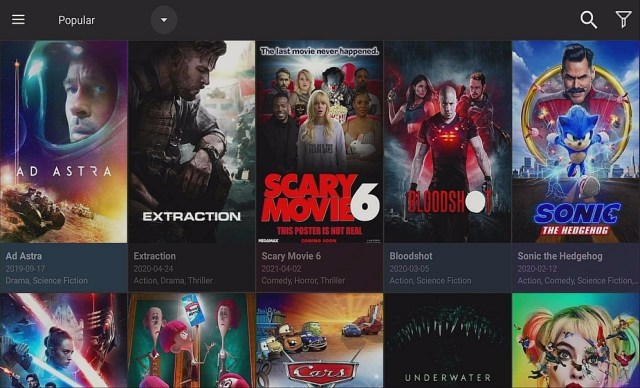
Install Apex Build On Kodi 19.5 Matrix

Apex Build on Kodi 19.5 Matrix

This article will teach you how to install Apex Kodi build on firestick, Smart TV, Mac, Windows, iOS, Android, Raspberry Pi, Chromecast, and many more.


Apex is a build developed by cMan and is within the cMan Wizard.

This build is currently running on version 1.2 and is compatible with the latest Kodi 19.5 Matrix.

It is a child-friendly build as it contains no Adult content.

It is a feature-rich build with a huge database of free-to-stream and watches movies, tv shows, sports, kids’ shows, and lots more.

Apex build is a lightweight build with approximately 250 MB. It has easy installation steps and comes with a user-friendly interface.

Sections within this build are movies, 4K, shows, kids, sports, Trakt, addons, wizard, setting, and power.

Note: You need a real Debrid and Trakt TV account to access some sections of this build.


ANONYMOUSLY


How to Install ApeX 19 Kodi Build with Screenshot

Installing a Kodi build has a lot of processes to take. That is why we will guide you step by step on how you can install it on Kodi.

 Follow the following steps below.  

1. On your Firestick, open Kodi and go to Settings.

Install ApeX 19 Kodi Build 1

2. Select on System.

Install ApeX 19 Kodi Build 2


3. Click on the Add-ons menu and Turn ON the Unknown Sources.

Install ApeX 19 Kodi Build 3


4. Select Yes when the box appears.

Install ApeX 19 Kodi Build 4


5. Go back one step and click on File Manager.

Install ApeX 19 Kodi Build 5


6. Select the Add Source.

Install ApeX 19 Kodi Build 6


7. A box will pop up, so click on the ‘None’ option.

Install ApeX 19 Kodi Build 7


8. Now type in this URL http://cmanbuilds.com/repo and click OK.

Install ApeX 19 Kodi Build 8


9. Name this URL as cman and tap OK.

Install ApeX 19 Kodi Build 9


10. After that, go back to the system menu and select Add-ons.

Install ApeX 19 Kodi Build 10


11. Click Install from Zip File.

Install ApeX 19 Kodi Build 11


12. When a box pop up, tap the Yes button.

Install ApeX 19 Kodi Build 12


13. Select cman or any name you have given.

Install ApeX 19 Kodi Build 13


14. Choose repository.cMaNWizard.zip

Install ApeX 19 Kodi Build 14


15. Wait a few minutes for the addon to be installed. After that, an icon will appear at the top menu.

Install ApeX 19 Kodi Build 15


16. Tap the  Install from Repository.

Install ApeX 19 Kodi Build 16


17. Then select cMaN’s Wizard Repository from the list.

Install ApeX 19 Kodi Build 17


18. Select the Program add-ons.

Install ApeX 19 Kodi Build 18


19. Click cMaN Wizard 19.

Install ApeX 19 Kodi Build 19


20. Tap the Install button.

Install ApeX 19 Kodi Build 20


21. Wait for the cMaN Wizard 19 installed notification.

Install ApeX 19 Kodi Build 21


22. Wait for the Installed message to appear and click the Continue.

Install ApeX 19 Kodi Build 22


23. Tap the Close.

Install ApeX 19 Kodi Build 23


24. Go back to the Kodi home screen and scroll down to Addon.

Install ApeX 19 Kodi Build 24


25. From the Program add-ons, select cMaN Wizard 19.

Install ApeX 19 Kodi Build 25


26. Select Builds.

Install ApeX 19 Kodi Build 26


27. Scroll down and select Apex 19.

Install ApeX 19 Kodi Build 27


28. Click Fresh Install.

Install ApeX 19 Kodi Build 28


29. Tap on the Yes button.

Install ApeX 19 Kodi Build 29


30. Wait for the build to download.

Install ApeX 19 Kodi Build 30


31. Click the OK button.

Install ApeX 19 Kodi Build 31


32. Launch your Kodi again.

Install ApeX 19 Kodi Build 32


33. That’s it! You have successfully installed the Apex 19 Kodi Build. 

Install ApeX 19 Kodi Build 33


Grab your subscription now!

Click here to get the lowest price on Surfshark through our exclusive limited-time offer.


Features of Apex Kodi Build

  • Has a submenu for every section
  • Amazing UI
  • Well-organized and arranged interface
  • Offers 4K content
  • Trakt TV authorization
  • Resume watching allows you to continue from where you stopped off.
  • Comes with FanArt background images
  • Has Artic Cephyr skin (you can change to a different skin as you wish)
  • Allows you to set and choose a screensaver
  • Has master lock code and settings
  • Allows you to set up startup settings: perform on startup (choose an image to display), start-up window (choose startup screen) and reset above settings
  • Video OSD: display additional onscreen information with controls or when paused.
  • Back up: allows you to do: backup skin settings, restore skin settings, change backup and restore path, reset skin settings to defaults 


Review of Apex Kodi Build

Setting Section

  • File manager, add-ons, system information, event log, skin setting, interface setting, media setting, player settings, system setting, service setting, PVT and live TV settings, profile setting, etc.


Trakt TV Section

  • Trakt, collection, watchlist, your recently watched, your most-watched, your in-progress, recommended.


Sports Section

  • Live events, football, basketball, motorsports, best leagues, UFC, wrestling, etc.


Kids Section

  • Raya and the last dragon, Tom and Jerry, dragon rider, etc.


Shows Section

  • 3D movies, 4K tv and movies, 1080 movies, tv shows, none Debrid, documentaries, free movies, movie box sets, stand-up, kids movies, kids box sets, brit fix movies, classic movies, comedy movies, horror movies, martial arts movies, want movies and more.


4K Section

  • Movies by year, movies alphabetically, movie box sets, movie genre, kids movies, tv shows, Trakt: Trakt world: no account needed, tv list, tv calendar, episode watchlist, series watchlist, tv collection, shows watchlist, liked lists, resume watching movies, resume watching the episode, etc.


Movie Section

  • One-click, movie world, tv world, Trakt, search, search history, last link played: what’s new, setting, resume watching, my RD history, and RD torrents.


Addons within Apex Build
  • Alvin
  • Octopus repos
  • Dejavu
  • Revolution
  • Seren


YOUR INTERNET ACTIVITY IS BEING WATCHED

ReviewVPN cannot attest to the legality, security and privacy of the applications discussed on this site. It is highly recommended that you use a VPN service while streaming or using Kodi.

Currently, your IP 216.73.216.84 is visible to everyone and your Browser is being tracked by Advertisers & ISP Provider.

Save 65% Now

Limited Time Offer

Here are the main reasons why you must use a VPN:

  • Your activities are hidden from your ISP, the government, and from the apps you are using.
  • You can access additional movies and TV streams.
  • ISP attempts to throttle are thrwarted thus reducing buffering issues.
  • Geographically restricted content like Netflix and Hulu can be unblocked.

A VPN works be replacing your ISP-assigned IP address and creating an encrypted tunnel. We recommend the no log service offered by IPVanish. It works well on a Firestick and offers the fastest possible speeds.

Special Limited Time Offer - Get IPVanish


Pros and Cons

Pros

  • Easy and navigable interface.
  • Standard layout.
  • No hidden files.
  • Scrapes streaming links from different sources.
  • Has dedicated addons for each section.


Cons

  • Unlike other builds, the Apex build requires you to authenticate your Real Debrid account before using this build.


Real Debrid Integration

Step 1. Log in to your real Debrid account or create one here if you don’t have one.

Step 2. Launch Apex Build and select settings.

Step 3. On the setting menu, scroll down and select RD. Or on any section that prompts you to authenticate real-debrid, copy out the code on your screen

Step 4. Open your browser and head to https://real-debrid.com/device

Step 5. Enter the code from step 3 and click Go.

Step 6. Go back to Apex build and enjoy.


Trakt TV Activation

Step 1. Log in to your Trakt tv account or create an account here if you are new.

Step 2. Open Apex build and go to Trakt 

Step 3. Click on Trakt on the new menu. Or on any section that requires Trakt TV activation, copy the code on your screen.

Step 4. Open your browser and go to https://trakt.tv/activate

Step 5. Enter the code from step 3 and click Activate.


Frequently Asked Questions

Is it free to use Apex Kodi Build?

Installing and streaming with Apex build is entirely free.


Is it safe to install Apex Kodi Build?

Installing and using this build is safe.


Is it legal to use Apex Kodi Build?

Yes, it is legal to use this build.


Do I need a VPN to use Apex Build?

Yes. It is very important to use Kodi with a VPN. This is because most builds within Kodi do not have the copyright to the content they offer. A VPN will mask and encrypt your IP address to be secure, private, and anonymous.


Best Alternative Kodi 19 Builds

Kodi builds can be unpredictable most time. Today, they are working, tomorrow they have stopped. As a result of this, having alternative builds is very crucial. Check out the list of our best Kodi 19 alternative builds here.


Install Surfshark on Firestick

Best Surfshark Deal


How to Install Surfshark VPN on Firestick

If your Firestick still has the older interface, read this article to learn how to update it: Update Firestick Interface.

You can download Surfshark directly from the Amazon App store. It will be easy for you to find Surfshark with your Firestick’s Find feature. Refer to our screenshots below.

1. Go to the Home screen of your Firestick.

step 1 Install Surfshark VPN on Firestick


2. Navigate towards the Find tab. Press the Search button from the resulting dropdown.

step 2 Install Surfshark VPN on Firestick


3. Type in the keyword of SurfShark and select from the suggestions that will appear.

step 3 Install Surfshark VPN on Firestick


4. Click the official SurfShark icon from your search results.

step 4 Install Surfshark VPN on Firestick


5. Press the Download (You own it) button.

step 5 Install Surfshark VPN on Firestick


6. The SurfShark VPN installer will download on your device.

step 6 Install Surfshark VPN on Firestick


7. SurfShark VPN’s app will automatically install itself on your Fire TV stick.

step 7 Install Surfshark VPN on Firestick


8. Press the Open button after completing SurfShark VPN’s installation process.

step 8 Install Surfshark VPN on Firestick


9. Please wait for the SurfShark VPN to load its user interface.

step 9 Install Surfshark VPN on Firestick


10. You can now log in with your SurfShark VPN account credentials.

step 10 Install Surfshark VPN on Firestick

Learn more about Surfshark and Grab the Best Surfshark Deal Now!


Other VPNs to Consider

NordVPN (Best for Streaming)

Best Features

  • 5000+ Server in 50+ Countries 
  • Military-Grade Encryption
  • Fast Connection Speed
  • Suitable to a lot of devices
  • No-Log Policy

Prices
  • Complete $5.89 per month (64% Discount)
  • Plus $4.59 per month (56% Discount)
  • Standard $3.69 per month (55% Discount)

Best Features

  • 750+ High-speed VPN Servers in 43 Locations
  • Military-Grade Encryption
  • Fastest HD Streaming and Gaming
  • 30-Day Money-Back Guarantee
  • Unlimited Data & Devices
  • No-Log Policy

Prices
  • 3 Years $1.99 per month (82% Discount)
  • 1 Years $3.29 per month (70% Discount)
  • 1 Month $10.99 per month

IPVanish VPN (Most Secure)

Best Features

  • 1200+ Servers in 60+ Countries around the world
  • Unlimited Connections
  • No-Log Policy
  • Top Notch Military-Grade VPN Protocols and Encryptions
  • 100% Safe and Secured
  • Most Trusted VPN
  • Best VPN for Firestick
  • 30-Day Money-Back Guarantee

Prices
  • Yearly $3.99 per month (63% Discount) – 30 days risk free + Ransomware & Malware Protection
  • Quarterly $5.32 per month (51% Discount)
  • Monthly $10.99 per month


For more VPN discounts, go to ReviewVPN Deals and purchase the best VPN for you.


Conclusion

Apex build is a relatively good build. It has a huge collection of free-to-stream content all in HD quality. Check out this build and drop a word in the comment section.

OttPlayer: Installation Guide and Review on Firestick, Android, iOS, and Windows – 2023

OttPlayer Overview

This article is going to help you install the OttPlayer on your Firestick, Android, iOS, and PC devices.


Who wouldn’t love to watch great shows from different sources using only one app? 

And what if we tell you that this app is free, and you can watch your favorite shows on your mobile, tablet, laptop, and even on TV?

Amazing, isn’t it? With OttPlayer, you can enjoy creating and managing your playlists and channels all in one place.

Before you start streaming with OttPlayer, you first have to jailbreak and install the Downloader app on your Firestick.


ANONYMOUSLY

Is OttPlayer Safe and Virus-free?


We tested this app using VirusTotal and found no threats or any malicious files and malware.

Despite having good results, we still need to be vigilant in protecting our privacy while streaming.

A Virtual Private Network or VPN will definitely help us maintain our security and anonymity while using OttPlayer.

Here’s how you can Install The Best VPN For Firestick and All Devices.


How to Install OttPlayer App on Firestick

  1. On your Firestick home screen, go to Settings.
  2. Choose My Fire TV.
  3. Navigate to Developer Options.
  4. Turn ON the ADB debugging and the Apps from Unknown Sources.
  5. Head back to Home, then click on Search.
  6. Type in “Downloader” then click the word from the suggested list.
  7. Select the Downloader icon.
  8. Click the Get or Download button.
  9.  Wait for the app to install.
  10.  Tap the Open button.
  11.  Choose Allow.
  12.  Click OK.
  13.  Hover to the search engine.
  14.  Type in https://reviewvpn.com/aptd on the search engine.
  15.  Click on Go.
  16.  Wait for the APK to download.
  17.  Click Install.
  18.  Wait for the app to install.
  19.  Select Open to launch the Aptoide TV app.
  20. Click on the Search button.
  21. Type in “OttPlayer”.
  22. Choose “Install”.
  23. Once the download is complete, select “Open”, then “Install”.
  24.  You can now sign in with your account to start streaming.


If your Firestick still has the older interface, read this article to learn how to update it: Update Firestick Interface.


Video on How to Install OttPlayer on Firestick


How to Install OttPlayer App on Firestick with Screenshots

1. Install the Downloader app and jailbreak your firestick by enabling unknown sources. To learn more about the procedure, you may read How to Install the Downloader App and Enable Unknown Sources.


2. Open Downloader App. Type https://reviewvpn.com/aptd and click Go.

OttPlayer


3. Click Install.

Step 13 Install OttPlayer App on Firestick


4. Click OPEN.

Step 14 Install OttPlayer App on Firestick


5. Click Skip.

Step 15 Install OttPlayer App on Firestick

6. Click Search Icon, and type “ottplayer” and Click Next,

Step 16 Install OttPlayer App on Firestick


7. Select Ottplayer.

Step 17 Install OttPlayer App on Firestick


8. Click Install.

Step 18 Install OttPlayer App on Firestick


9. Click OK.

Step 19 Install OttPlayer App on Firestick


10. Click Allow.

Step 20 Install OttPlayer App on Firestick


11. Click Install.

Step 21 Install OttPlayer App on Firestick


12. CliCK Open.

Step 22 Install OttPlayer App on Firestick


13. Click Start.

Step 23 Install OttPlayer App on Firestick


14. You can now sign in with your account to start streaming.

Step 24 Install OttPlayer App on Firestick


YOUR INTERNET ACTIVITY IS BEING WATCHED

ReviewVPN cannot attest to the legality, security and privacy of the applications discussed on this site. It is highly recommended that you use a VPN service while streaming or using Kodi.

Currently, your IP 216.73.216.84 is visible to everyone and your Browser is being tracked by Advertisers & ISP Provider.

Save 65% Now

Limited Time Offer

Here are the main reasons why you must use a VPN:

  • Your activities are hidden from your ISP, the government, and from the apps you are using.
  • You can access additional movies and TV streams.
  • ISP attempts to throttle are thrwarted thus reducing buffering issues.
  • Geographically restricted content like Netflix and Hulu can be unblocked.

A VPN works be replacing your ISP-assigned IP address and creating an encrypted tunnel. We recommend the no log service offered by IPVanish. It works well on a Firestick and offers the fastest possible speeds.

Special Limited Time Offer - Get IPVanish


Legal Disclaimer: ReviewVPN.com does not encourage or endorse any illegal activity involved in the usage of services and applications referenced on this site. We do not verify the licensing agreements of services. The end-user is wholly responsible for ensuring that any media accessed through these services does not violate copyright and/or licensing laws. ReviewVPN does not promote, link to, or receive compensation from any Apps and IPTV services.


Install Surfshark on Firestick

Best Surfshark Deal


How to Install OttPlayer on Android, iOS, and Windows

  1. Open Google Play Store (Android), Apple App Store (iOS), or Microsoft Windows Store (Windows) from your selected device.
  2. Search for “OttPlayer”.
  3. Choose “Download” or “Install”.
  4. Confirm download.
  5. Wait for the download to install.
  6. You can now open and enjoy OttPlayer on your devices.


OttPlayer App Features

Interface

  • Dark mode scheme
  • Two interfaces when you exit TV mode – needs Mouse Toggle for the other interface


Key Features

    • Needs to sign in or sign up to start streaming
    • Imports playlist using M3U/M3U8, XML, or XSPF
    • Supports protocols HLS, RTSP, TS by UDP and RTMP
    • Lets you add a new playlist with a direct link or file
    • Allows you to upload or edit your playlists
    • Enables addition or deletion channels
    • Lets you adjust the channel order
    • Receive Electronic Program Guide (EPG)


  • Settings

    • Return to last played channel/category, on startup
    • Select default media player
    • Select video scale (fit to screen, stretch, crop)
    • Resume (to ask, resume, or start over)
    • Exit TV mode


How to Use OttPlayer

  1. To start streaming with OttPlayer, you have to sign up for an account for OttPlayer activation. You can do this step on your devices or their website.
  2. OttPlayer will send a verification e-mail to your registered e-mail address. Open your mail and click the verification link.
  3. Sign in with your OttPlayer account.
  4. You may now start adding your playlists using direct links or files. 

To enter direct links, search playlist links or URLs on your browsers. You can also read more about how to find or get M3U playlists.


Pros and Cons

Pros

  • Collects your IPTV in one playlist
  • Allows you to watch on a bigger screen or on any device you want
  • Supports multiple platforms and devices
  • Ad-free


Cons


Stream Safely and Smoothly on OttPlayer with a VPN

https://get.surfshark.net/aff_c?offer_id=865&aff_id=12312

No matter where your media is located, streaming is best to run without any buffering issues. We highly recommend using Surfshark, a VPN service perfect for streaming. By using a VPN, you can avail of the following benefits in using your apps:

  • Speeds Up Your Streaming Experience

When you stream, your Internet Service Provider (ISP) throttles your internet bandwidth. This causes buffering on your Firestick or Kodi. Surfshark simply prevents this from happening.


  • Secures Your Internet Connection

When connecting to free public WiFi, the risk of your personal information being leaked is high. Using a Surfshark advanced encryption system will prevent any middleman from hacking your information.


  • Protects Your Online Privacy

Installing Surfshark on your Firestick will remove all your digital fingerprints. It boosts your online anonymity while streaming. When using a VPN, your real IP address is masked by an IP address that is used and shared by other users.


  • Prevents Data Stealing

You might not know that your personal information can be collected, stolen, and sold to advertising companies. Your data is scanned upon crossing its network. ISPs use deep packet inspection to monitor your internet usage and throttle your internet speed. This then slows down your connection and makes it difficult to play online games or stream your favorite media. With Surfshark, your traffic is encrypted and at the same time, you will be able to enjoy a smooth and lag-free streaming experience on your Firestick.


  • Get Censorship Filters

With Surfshark, you have the power to explore the web without being censored online. This is usually taken advantage of by government agencies, employers, and universities from across the world. However, not all free VPN services are safe, so better be careful in using the right one. To get all this protection, security, and smooth streaming experience, learn more in Surfshark


Note: For more information about Surfshark, please read our Surfshark Review.


Grab your subscription now!


How to Install Surfshark VPN on Firestick

You can download Surfshark directly from the Amazon App store. It will be easy for you to find Surfshark with your Firestick’s Find feature. Refer to our screenshots below.

1. Go to the Home screen of your Firestick.

step 1 Install Surfshark VPN on Firestick


2. Navigate towards the Find tab. Press the Search button from the resulting dropdown.

step 2 Install Surfshark VPN on Firestick


3. Type in the keyword of SurfShark and select from the suggestions that will appear.

step 3 Install Surfshark VPN on Firestick


4. Click the official SurfShark icon from your search results.

step 4 Install Surfshark VPN on Firestick


5. Press the Download (You own it) button.

step 5 Install Surfshark VPN on Firestick


6. The SurfShark VPN installer will download on your device.

step 6 Install Surfshark VPN on Firestick


7. SurfShark VPN’s app will automatically install itself on your Fire TV stick.

step 7 Install Surfshark VPN on Firestick


8. Press the Open button after completing SurfShark VPN’s installation process.

step 8 Install Surfshark VPN on Firestick


9. Please wait for the SurfShark VPN to load its user interface.

step 9 Install Surfshark VPN on Firestick


10. You can now log in with your SurfShark VPN account credentials.

step 10 Install Surfshark VPN on Firestick

Learn more about Surfshark and Grab the Best Surfshark Deal Now!


Other VPNs to Consider

NordVPN (Best for Streaming)

Best Features

  • 5000+ Server in 50+ Countries 
  • Military-Grade Encryption
  • Fast Connection Speed
  • Suitable to a lot of devices
  • No-Log Policy

Prices
  • Complete $5.89 per month (64% Discount)
  • Plus $4.59 per month (56% Discount)
  • Standard $3.69 per month (55% Discount)

Best Features

  • 750+ High-speed VPN Servers in 43 Locations
  • Military-Grade Encryption
  • Fastest HD Streaming and Gaming
  • 30-Day Money-Back Guarantee
  • Unlimited Data & Devices
  • No-Log Policy

Prices
  • 3 Years $1.99 per month (82% Discount)
  • 1 Years $3.29 per month (70% Discount)
  • 1 Month $10.99 per month

IPVanish VPN (Most Secure)

Best Features

  • 1200+ Servers in 60+ Countries around the world
  • Unlimited Connections
  • No-Log Policy
  • Top Notch Military-Grade VPN Protocols and Encryptions
  • 100% Safe and Secured
  • Most Trusted VPN
  • Best VPN for Firestick
  • 30-Day Money-Back Guarantee

Prices
  • Yearly $3.99 per month (63% Discount) – 30 days risk free + Ransomware & Malware Protection
  • Quarterly $5.32 per month (51% Discount)
  • Monthly $10.99 per month


For more VPN discounts, go to ReviewVPN Deals and purchase the best VPN for you.


OttPlayer Alternative Apps

OttPlayer is a great alternative to the known JW Player.

Aside from these two, you might also want to try other apps that we have tested and reviewed:


FAQs

History

OttPlayer was developed last 2015.


Is OttPlayer free?

Yes, it is free to download and use.


Is it legal?

Yes, it is 100% legal.


Is there a premium version?

There is no premium version.


Where can I use the app?

You can use OttPlayer on Firestick, Android, iOS, MacOS, Samsung and LG Smart TV, Roku, Windows, Windows Phone, and via the web. 


Are there ads?

Fortunately, there are no ads. 


Is there an app website?

Yes, you can see the OttPlayer app features, app download for compatible devices, news, and others on their website at https://ottplayer.es/. 


YOUR INTERNET ACTIVITY IS BEING WATCHED

ReviewVPN cannot attest to the legality, security and privacy of the applications discussed on this site. It is highly recommended that you use a VPN service while streaming or using Kodi.

Currently, your IP 216.73.216.84 is visible to everyone and your Browser is being tracked by Advertisers & ISP Provider.

Save 65% Now

Limited Time Offer

Here are the main reasons why you must use a VPN:

  • Your activities are hidden from your ISP, the government, and from the apps you are using.
  • You can access additional movies and TV streams.
  • ISP attempts to throttle are thrwarted thus reducing buffering issues.
  • Geographically restricted content like Netflix and Hulu can be unblocked.

A VPN works be replacing your ISP-assigned IP address and creating an encrypted tunnel. We recommend the no log service offered by IPVanish. It works well on a Firestick and offers the fastest possible speeds.

Special Limited Time Offer - Get IPVanish


Conclusion

OttPlayer is up for grabs — it’s free for everyone and everywhere. Compared to other similar IPTV apps out there, this is a competitive one. You won’t have a hard time using its simple interface. It also supports a lot of devices and platforms. Streaming goes smoothly and simply with OttPlayer. While it’s free, we recommend you use this app. You can even save lots when you use it as a substitute for your existing IPTV apps. 

We hope that this article has helped you install OttPlayer on your Firestick, Android, iOS, and PC devices. Thank you for reading!

Note: ReviewVPN.com is not affiliated with any App or IPTV Service nor are we endorsing or promoting any. The sole purpose of this article is for educational purposes only.

1Mobile Market: Installation Guide and Review on Firestick and Android – 2023

1Mobile Market Overview

This article will provide you a detailed review and installation of the 1Mobile Market app on your Firestick.


We’re certain that you are all familiar with the popular App Stores from your devices — Google Play Store, Apple App Store, Amazon App Store, and more.

1Mobile Market is your today’s featured app store.

In this marketplace, you can browse and download more than 1.2M free apps on your Firestick and Android smartphones.

There’s more to this app than your typical app store. You can manage your downloaded apps and a lot more to get you in control.

Before you can install 1Mobile Market, you first have to jailbreak and install the Downloader app on your Firestick. 


ANONYMOUSLY

Is 1Mobile Market App Safe and Virus-free?

We tested this application using VirusTotal and found that there is/are malicious file/files. You can see the above result for your reference.

Because of this, we highly recommend using a VPN that can protect your privacy against any threat from 1Mobile Market App.

Here’s how you can Install The Best VPN For Firestick and All Devices.


If your Firestick still has the older interface, read this article to learn how to update it: Update Firestick Interface.


How to Install 1Mobile Market App on Firestick with Screenshots

1. Install the Downloader app and jailbreak your firestick by enabling unknown sources. To learn more about the procedure, you may read How to Install the Downloader App and Enable Unknown Sources.


2. Open Downloader App. Type https://reviewvpn.com/1mob and click Go.

Install 1Mobile Market


3. Click Install.

Step 13 Install 1Mobile Market App on Firestick


4. Click OPEN.

Step 14 Install 1Mobile Market App on Firestick


5. Click Enter.

Step 15 Install 1Mobile Market App on Firestick


6.  1Mobile Market App is Installed.

Step 16 Install 1Mobile Market App on Firestick


YOUR INTERNET ACTIVITY IS BEING WATCHED

ReviewVPN cannot attest to the legality, security and privacy of the applications discussed on this site. It is highly recommended that you use a VPN service while streaming or using Kodi.

Currently, your IP 216.73.216.84 is visible to everyone and your Browser is being tracked by Advertisers & ISP Provider.

Save 65% Now

Limited Time Offer

Here are the main reasons why you must use a VPN:

  • Your activities are hidden from your ISP, the government, and from the apps you are using.
  • You can access additional movies and TV streams.
  • ISP attempts to throttle are thrwarted thus reducing buffering issues.
  • Geographically restricted content like Netflix and Hulu can be unblocked.

A VPN works be replacing your ISP-assigned IP address and creating an encrypted tunnel. We recommend the no log service offered by IPVanish. It works well on a Firestick and offers the fastest possible speeds.

Special Limited Time Offer - Get IPVanish


Legal Disclaimer: ReviewVPN.com does not encourage or endorse any illegal activity involved in the usage of services and applications referenced on this site. We do not verify the licensing agreements of services. The end-user is wholly responsible for ensuring that any media accessed through these services does not violate copyright and/or licensing laws. ReviewVPN does not promote, link to, or receive compensation from any Apps and IPTV services.


Install Surfshark on Firestick

Best Surfshark Deal


How to Install 1Mobile Market on Android

  1. Open your Google Chrome browser.
  2. In the search box, type in “1Mobile Market apk” to search for any apk file for Android. Click on the “Download” button to start your download.
  3. Wait for the download to finish then select Install.
  4. When 1Mobile Market is installed, enable the Unknown Sources on your Android device.  To do this, go to Settings > Security > Unknown Sources
  5. Launch the app, then search and download the app that you want to install.


1Mobile Market App Features

  • Interface and Features

    • Clean white scheme

    • Organized and convenient user interface

    • Search engine

    • Hamburger menu:

  • Home

Quick links for Apps, Games, Wallpaper, Funny, Top Charts, and Cracks


  •  Manager

    • Download: In progress and history
    • Update: For any update of installed apps on Firestick
    • APK Manager: Installs or deletes not installed and already installed apps
    • Uninstaller: Uninstalls personal and system apps on your Firestick
    • Move2SD: Apps to be moved on SD Card
    • Backup: This allows you to back up available apps and shows backed-up apps.
    • Sync to cloud or device
    • My Wallpaper: Displays stored images on your Firestick


  • Settings

      • Data Saving Setting
      • Download and Install setting
      • Clear settings
      • System settings
      • Root user settings


  • My Account

  • App Updates

  • Feedback

  • Tell a Friend

  • About 1Mobile


Pros and Cons

Pros

  • You can download and manage your apps at the same time in one app.
  • You can add shortcuts to the home screen widgets.
  • Lots of settings for better app management
  • Offers automatic app downloads when connected to WiFi


Cons

  • Search function not working – it keeps on loading and appears “no connection” even when the internet connection is stable.
  • Need to use Mouse Toggle to navigate through the app


Why Use 1Mobile Market with Surfshark on Firestick

You sure don’t want to keep your online activity and information private from your Internet Service Provider (ISP). In most cases, they share this information with third parties including intellectual property owners. From 1Mobile Market, you might download video streaming apps. This is where VPN kicks in. You don’t only get your online protection, but also the following perks when you install one on your device:


  • Speeds Up Your Streaming Experience

When you stream, your Internet Service Provider (ISP) throttles your internet bandwidth. This causes buffering on your Firestick or Kodi. Surfshark simply prevents this from happening.


  • Secures Your Internet Connection

When connecting to free public WiFi, the risk of your personal information being leaked is high. Using a Surfshark advanced encryption system will prevent any middleman from hacking your information.


  • Protects Your Online Privacy

Installing Surfshark on your Firestick will remove all your digital fingerprints. It boosts your online anonymity while streaming. When using a VPN, your real IP address is masked by an IP address that is used and shared by other users.


  • Prevents Data Stealing

You might not know that your personal information can be collected, stolen, and sold to advertising companies. Your data is scanned upon crossing its network. ISPs use deep packet inspection to monitor your internet usage and throttle your internet speed. This then slows down your connection and makes it difficult to play online games or stream your favorite media. With Surfshark, your traffic is encrypted and at the same time, you will be able to enjoy a smooth and lag-free streaming experience on your Firestick.


  • Get Censorship Filters

With Surfshark, you have the power to explore the web without being censored online. This is usually taken advantage of by government agencies, employers, and universities from across the world. However, not all free VPN services are safe, so better be careful in using the right one. To get all this protection, security, and smooth streaming experience, learn more in Surfshark

Note: For more information about Surfshark, please read our Surfshark Review.


Grab your subscription now!

Click here to get the lowest price on Surfshark through our exclusive limited-time offer.


How to Install Surfshark VPN on Firestick

Follow our screenshots below to install the SurfShark VPN app on your Fire TV stick.

1. Go to the Home screen of your Firestick.

step 1 Install Surfshark VPN on Firestick


2. Navigate towards the Find tab. Press the Search button from the resulting dropdown.

step 2 Install Surfshark VPN on Firestick


3. Type in the keyword of SurfShark and select from the suggestions that will appear.

step 3 Install Surfshark VPN on Firestick


4. Click the official SurfShark icon from your search results.

step 4 Install Surfshark VPN on Firestick


5. Press the Download (You own it) button.

step 5 Install Surfshark VPN on Firestick


6. The SurfShark VPN installer will download on your device.

step 6 Install Surfshark VPN on Firestick


7. SurfShark VPN’s app will automatically install itself on your Fire TV stick.

step 7 Install Surfshark VPN on Firestick


8. Press the Open button after completing SurfShark VPN’s installation process.

step 8 Install Surfshark VPN on Firestick


9. Please wait for the SurfShark VPN to load its user interface.

step 9 Install Surfshark VPN on Firestick


10. You can now log in with your SurfShark VPN account credentials.

step 10 Install Surfshark VPN on Firestick

Learn more about Surfshark and Grab the Best Surfshark Deal Now!


Install Surfshark on Firestick

Best Surfshark Deal


Other VPNs to Consider

NordVPN (Best for Streaming)

Best Features

  • 5000+ Server in 50+ Countries 
  • Military-Grade Encryption
  • Fast Connection Speed
  • Suitable to a lot of devices
  • No-Log Policy

Prices
  • Complete $5.89 per month (64% Discount)
  • Plus $4.59 per month (56% Discount)
  • Standard $3.69 per month (55% Discount)

Best Features

  • 750+ High-speed VPN Servers in 43 Locations
  • Military-Grade Encryption
  • Fastest HD Streaming and Gaming
  • 30-Day Money-Back Guarantee
  • Unlimited Data & Devices
  • No-Log Policy

Prices
  • 3 Years $1.99 per month (82% Discount)
  • 1 Years $3.29 per month (70% Discount)
  • 1 Month $10.99 per month

IPVanish VPN (Most Secure)

Best Features

  • 1200+ Servers in 60+ Countries around the world
  • Unlimited Connections
  • No-Log Policy
  • Top Notch Military-Grade VPN Protocols and Encryptions
  • 100% Safe and Secured
  • Most Trusted VPN
  • Best VPN for Firestick
  • 30-Day Money-Back Guarantee

Prices
  • Yearly $3.99 per month (63% Discount) – 30 days risk free + Ransomware & Malware Protection
  • Quarterly $5.32 per month (51% Discount)
  • Monthly $10.99 per month


For more VPN discounts, go to ReviewVPN Deals and purchase the best VPN for you.

Click here to get the lowest price on Surfshark through our exclusive limited-time offer.


1Mobile Market Alternative Apps

Since 1Mobile Market has some issues with its search functions, there are still a lot of similar apps worth trying:

  • Aptoide
  • APKTime
  • Aurora
  • F-Droid
  • APKPure
  • APKMirror
  • 1AppMarket
  • Mobango
  • Uptodown
  • appszoom
  • AppBrain
  • DownloadAtoZ
  • Mobogenie
  • GetJar
  • SlideMe
  • Apkplaygame.com
  • GetApk
  • Downlor.com
  • QuickAPK.com

If you want to see more app stores or APK downloaders, read more from our Best Sites for Modded Apps (APK Files) in 2021.


FAQs

How does 1Mobile Market work?

Just like in the normal app store, you just have to search for your favorite apps and download them in just one click.


Is 1Mobile Market free?

Yes, you can download and use the app for free.


Is there a premium version?

There is no premium version for 1Mobile Market.


Where can I use 1Mobile Market?

You can use the 1Mobile Market app on Amazon Fire TV/Firestick and Android devices.


Is there an app website?

We are not sure if there is an official website of 1Mobile Market, but there exists a website: http://1mobile-market-download.com/ where you can see a brief description of the app and its download.


Conclusion

When it comes to app management, 1Mobile Market is worth the go. 1Mobile Market offers numerous settings to customize your apps and 1Mobile settings. While testing, it also showed some previously downloaded apps on your Firestick that you can delete or reinstall. However, its basic function to search for apps did not work on Firestick upon our test.

We hope that this write-up helped you successfully install the 1Mobile Market app on your Firestick and Android devices. Thank you for reading!

Note: ReviewVPN.com is not affiliated with any App or IPTV Service nor are we endorsing or promoting any. The sole purpose of this article is for educational purposes only.

How To Install BOBO Live On Firestick

Stream BOBO Live on Firestick

This article is about BOBO Live and how you can install it on Firestick.


If you’re a fan of sports games such as Soccer, Tennis, and Basketball, then this app is for you.

The BOBOLive app is a free streaming service that covers a lot of sports channels from different countries.

However, their contents are only on SD quality and do not allow offline viewing.

You can install this app on firestick by jailbreaking or using a third-party app. Continue reading, and you’ll be guided on how to install it on a firestick.


ANONYMOUSLY

Is Bobo Live Safe and Virus-free?

We tested this app using VirusTotal and found no threats or any malicious files and malware.

Despite having good results, we still need to be vigilant in protecting our privacy while streaming.

A Virtual Private Network or VPN will definitely help us maintain our security and anonymity while using Bobo Live.

Here’s how you can Install The Best VPN For Firestick and All Devices.


Guide to Install BOBO Live on Firestick

Unfortunately, the BOBOLive is not available on the Amazon app store. To install it on Firesticks, you need to use a third-party app. 

Follow the steps below: 

  1. On the home screen, go to Settings.
  2. Select My Fire TV.
  3. Select Developer Options.
  4. Open Apps from Unknown Sources.
  5. Click Turn On.
  6. Go back to the home screen and select Search.
  7. Type in Downloader.
  8. Select the icon of the Downloader app.
  9. Click Get or Download.
  10. Click Open.
  11. Select Allow.
  12. Choose OK.
  13. Type https://reviewvpn.com/bobo and click Go.
  14. Click on Install.
  15. Click on Open.
  16. Tap on the Agree Button using your mouse toggle. 

 Note: To navigate the BOBOLive, you need to install the mouse toggle. Please read our Mouse toggle article to guide you on how you can install and use it. Click this link to direct you to the Article.

That’s it! You have successfully installed BOBO Live on Firestick


If your Firestick still has the older interface, read this article to learn how to update it: Update Firestick Interface.


Install BOBO Live App on Firestick with Screenshots

1. Install the Downloader app and jailbreak your firestick by enabling unknown sources. To learn more about the procedure, you may read How to Install the Downloader App and Enable Unknown Sources.


2. Open Downloader App. Type https://reviewvpn.com/bobo and click Go.


3. Wait for it to download.


4. Click on Install.


5. Click on Open.


6. Click on Accept.


7. BOBO Live is installed. Enjoy!

 Note: In navigating the BOBOLive you need to install the mouse toggle.  Please read our Mouse toggle article to guide you on how you can install and use it. Click this link to direct you to the article.

That’s it! You have successfully installed BOBO Live on Firestick. 


YOUR INTERNET ACTIVITY IS BEING WATCHED

ReviewVPN cannot attest to the legality, security and privacy of the applications discussed on this site. It is highly recommended that you use a VPN service while streaming or using Kodi.

Currently, your IP 216.73.216.84 is visible to everyone and your Browser is being tracked by Advertisers & ISP Provider.

Save 65% Now

Limited Time Offer

Here are the main reasons why you must use a VPN:

  • Your activities are hidden from your ISP, the government, and from the apps you are using.
  • You can access additional movies and TV streams.
  • ISP attempts to throttle are thrwarted thus reducing buffering issues.
  • Geographically restricted content like Netflix and Hulu can be unblocked.

A VPN works be replacing your ISP-assigned IP address and creating an encrypted tunnel. We recommend the no log service offered by IPVanish. It works well on a Firestick and offers the fastest possible speeds.

Special Limited Time Offer - Get IPVanish


Legal Disclaimer: ReviewVPN.com does not encourage or endorse any illegal activity involved in the usage of services and applications referenced on this site. We do not verify the licensing agreements of services. The end-user is wholly responsible for ensuring that any media accessed through these services does not violate copyright and/or licensing laws. ReviewVPN does not promote, link to, or receive compensation from any Apps and IPTV services.


Install SurfShark on Firestick

Best SurfShark Deal


Features of BOBO Live

Interface

  • This app is user-friendly with Material Design UI.
  • It does not have a search button.
  • It does not require users to log in or sign up.

LIVE Sports

  • This app covers LIVE sports events such a:
    •  Soccer
    • Basketball
    • Horse Racing
    • Car Racing
    • Golf
    • Snooker
    • Baseball
    • Volleyball
    • Boxing/MMA
    • Football
    • Hockey
    • Bike Racing
    • Tennis
    • Badminton.

Sport Channels

  • Stream from the popular sports channels like ESPN, Sky Net Sports, beIN Sports, and more – free of charge.


Why do you need a VPN?

Surfshark vpn

Having a Virtual Private Network is like having a companion while streaming because it provides a lot of benefits to its users. A VPN will automatically hide your IP address and keep you away from any hackers. It also protects you from snooping on Internet Service Providers. There are lots of VPNs, but we highly recommend using  SurfShark. It is one of the best VPN services that will give you the best security and protection that you deserve. 

Here are some of the impressive features of SurfShark

  • AES 256-bit encryption
  • Prevent ISPs from interfering with your connection.
  • Automatically hide all your online information.
  • Bypass censorship and restrictions.
  • It provides you with a secure environment for everyday internet activity.
  • Destroys geo-block and gains access to different content globally.
  • Keep your file protected from harmful malware. 

Note: For more information about SurfShark, please read our SURFSHARK REVIEW.


Grab your subscription now!


How to Install Surfshark on Firestick with Screenshots

If your Firestick still has the older interface, read this article to learn how to update it: Update Firestick Interface.

You can download Surfshark directly from the Amazon App store. It will be easy for you to find Surfshark with your Firestick’s Find feature. Refer to our screenshots below.

Follow our screenshots below to install the SurfShark VPN app on your Fire TV stick.

1. Go to the Home screen of your Firestick.

step 1 Install Surfshark VPN on Firestick


2. Navigate towards the Find tab. Press the Search button from the resulting dropdown.

step 2 Install Surfshark VPN on Firestick


3. Type in the keyword of SurfShark and select from the suggestions that will appear.

step 3 Install Surfshark VPN on Firestick


4. Click the official SurfShark icon from your search results.

step 4 Install Surfshark VPN on Firestick


5. Press the Download (You own it) button.

step 5 Install Surfshark VPN on Firestick


6. The SurfShark VPN installer will download on your device.

step 6 Install Surfshark VPN on Firestick


7. SurfShark VPN’s app will automatically install itself on your Fire TV stick.

step 7 Install Surfshark VPN on Firestick


8. Press the Open button after completing SurfShark VPN’s installation process.

step 8 Install Surfshark VPN on Firestick


9. Please wait for the SurfShark VPN to load its user interface.

step 9 Install Surfshark VPN on Firestick


10. You can now log in with your SurfShark VPN account credentials.

step 10 Install Surfshark VPN on Firestick

Learn more about Surfshark and Grab the Best Surfshark Deal Now!


Other VPNs to Consider

NordVPN (Best for Streaming)

Best Features

  • 5000+ Server in 50+ Countries 
  • Military-Grade Encryption
  • Fast Connection Speed
  • Suitable to a lot of devices
  • No-Log Policy

Prices
  • Complete $5.89 per month (64% Discount)
  • Plus $4.59 per month (56% Discount)
  • Standard $3.69 per month (55% Discount)

Best Features

  • 750+ High-speed VPN Servers in 43 Locations
  • Military-Grade Encryption
  • Fastest HD Streaming and Gaming
  • 30-Day Money-Back Guarantee
  • Unlimited Data & Devices
  • No-Log Policy

Prices
  • 3 Years $1.99 per month (82% Discount)
  • 1 Years $3.29 per month (70% Discount)
  • 1 Month $10.99 per month

IPVanish VPN (Most Secure)

Best Features

  • 1200+ Servers in 60+ Countries around the world
  • Unlimited Connections
  • No-Log Policy
  • Top Notch Military-Grade VPN Protocols and Encryptions
  • 100% Safe and Secured
  • Most Trusted VPN
  • Best VPN for Firestick
  • 30-Day Money-Back Guarantee

Prices
  • Yearly $3.99 per month (63% Discount) – 30 days risk free + Ransomware & Malware Protection
  • Quarterly $5.32 per month (51% Discount)
  • Monthly $10.99 per month


For more VPN discounts, go to ReviewVPN Deals and purchase the best VPN for you.


Install Surfshark on Firestick

Best Surfshark Deal


Other VPNs to Consider

NordVPN (Best for Streaming)

Best Features

  • 5000+ Server in 50+ Countries 
  • Military-Grade Encryption
  • Fast Connection Speed
  • Suitable to a lot of devices
  • No-Log Policy

Prices
  • Complete $5.89 per month (64% Discount)
  • Plus $4.59 per month (56% Discount)
  • Standard $3.69 per month (55% Discount)

Best Features

  • 750+ High-speed VPN Servers in 43 Locations
  • Military-Grade Encryption
  • Fastest HD Streaming and Gaming
  • 30-Day Money-Back Guarantee
  • Unlimited Data & Devices
  • No-Log Policy

Prices
  • 3 Years $1.99 per month (82% Discount)
  • 1 Years $3.29 per month (70% Discount)
  • 1 Month $10.99 per month

IPVanish VPN (Most Secure)

Best Features

  • 1200+ Servers in 60+ Countries around the world
  • Unlimited Connections
  • No-Log Policy
  • Top Notch Military-Grade VPN Protocols and Encryptions
  • 100% Safe and Secured
  • Most Trusted VPN
  • Best VPN for Firestick
  • 30-Day Money-Back Guarantee

Prices
  • Yearly $3.99 per month (63% Discount) – 30 days risk free + Ransomware & Malware Protection
  • Quarterly $5.32 per month (51% Discount)
  • Monthly $10.99 per month

For more VPN discounts, go to ReviewVPN Deals and purchase the best VPN for you.


Alternatives for BOBO Live

 We list down some of the alternative LIVE sports streaming services for you. 

  1. TVtap Pro
  2. Live Net TV
  3. Sports TV 3 
  4. LIVE Sport TV
  5. Media Lounge
  6. ESPN+
  7. Wawa Sport TV
  8. Sportsurge

Compatible Devices

This app works well on smart TV such as Amazon Firestick, Android TV, and on your Android Smartphone.


Pros and Cons

Pros

  • LIVE coverage
  • 100% Free
  • Ad-Free
  • No Login required

Cons

  • Poor Quality Videos
  • Need mouse toggle to navigate
  • It does not replay videos
  • Supports Wi-Fi only


FAQs

Is BOBO Live safe to use?

Yes, this app is safe to use. But to ensure your privacy and security, you need to use a VPN such as SurfShark.

 Is BOBO Live Free to use?

Yes, it is 100% free to use.

Are there Ads?

BOBO Live does not contain any ads. 

Is it available on the Amazon App Store?

Unfortunately no, if you want to download this, you need to use a third-party app because it is just an apk. 

Is there an official website for this app?

BOBO Live does not have any official website.


Our opinion

BOBO Live is a free streaming service, but it is not well-known because of its shortcomings. However, if they improve their service and improve all of these shortcomings, it might be one of the best LIVE-Sport streaming services. We hope this article gives you information about the BOBOLive and guides you on installing it on FireStick. 


What Is Your Favorite Streaming App? Cast Your Vote Below.

The Best CatMouse Alternatives for Firestick and Android Devices

CatMouse Overview

In this article, we will tackle the best CatMouse alternatives.


As we all know, CatMouse is a very popular app when it comes to on-demand and up-to-date movies and TV series.

It worked by providing links for every title that you wish to stream.

But lately, CatMouse is not performing very well. There is a lot of buffering and it is not providing great links.

This is mainly because the app is on the verge of shutting down.

That is why we should list down all the possible CatMouse alternatives.

Most of these alternatives are third-party applications. You will need to Jailbreak Your Firestick and Install the Downloader App to install them.

To know more about CatMouse, you can read our article, How to Install CatMouse on Firestick.

You may also want to learn about the Best Terrarium TV Alternatives for your device.


ANONYMOUSLY

Jailbreak Firestick and Install Downloader

Most of the apps featured in this article are third-party applications. Before you can download them, it is better to follow these steps first:

Jailbreak Your Firestick

1.  Click Home on your remote and scroll once to your Right. Click Setting (Gear Wheel Icon)

Jailbreak Firestick and Install Downloader App


2. Scroll down and to the right until you get to My Fire TV. Click on it.

Jailbreak Firestick and Install Downloader App


3. Select Developer options.

Jailbreak Firestick and Install Downloader App


4. Turn on ADB debugging and Apps from Unknown Sources.

Jailbreak Firestick and Install Downloader App


5. Click Turn On when the pop-up appears.

Jailbreak Firestick and Install Downloader App


Innstall the Downloader App

1.  From the Home page, click FIND.

Jailbreak Firestick and Install Downloader App


2. Click Search.

Jailbreak Firestick and Install Downloader App


3. You can either say Downloader to your Alexa voice-enabled remote or start typing it. If you typed it, click on the suggestion when it appears.

Jailbreak Firestick and Install Downloader App


4. Click on the Downloader icon

Jailbreak Firestick and Install Downloader App


5. Click Download

Jailbreak Firestick and Install Downloader App


6. Click on Open.

Jailbreak Firestick and Install Downloader App


7. Click on Allow.

Jailbreak Firestick and Install Downloader App


Install Surfshark on Firestick

Best Surfshark Deal


Best Alternatives for CatMouse

Since CatMouse was a well-known Terrarium clone, most of the apps featured here are terrarium clones as well.


Cinema HD

cinema hd logo

Cinema HD, also known as Cinema APK is a very much popular app when it comes to free movies and tv series. That is why it is always on the top of our list.

Like any other apps that are featured here, it works by finding the best HD links from the internet. It also allows Real-debrid integration for the best torrent links to offer.

You can also connect your Trakt.tv account on this app. Through this, you can access your added media to favorites using other devices.

The best part is all of these features are for free and without any registration. That is why Cinema HD is one of the perfect CatMouse alternatives.

To find out more about this app, you can read How to Install Cinema APK on Firestick and How to Install Cinema HD on Chromecast.


Cinema HD APK

How to Install Cinema APK on Firestick with Screenshots

1. Launch the Downloader App


2. Tap on the search bar and type https://reviewvpn.com/cin and click Go.

Install Cinema APK


2. Click on INSTALL.

Step 13 Install Cinema HD on firestick


3. Click on OPEN.

firestick


4. Click on Allow.

firestick


5. Click on ACCEPT.

firestick


6. Cinema APK is Installed. Enjoy Watching.

firestick

YOUR INTERNET ACTIVITY IS BEING WATCHED

ReviewVPN cannot attest to the legality, security and privacy of the applications discussed on this site. It is highly recommended that you use a VPN service while streaming or using Kodi.

Currently, your IP 216.73.216.84 is visible to everyone and your Browser is being tracked by Advertisers & ISP Provider.

Save 65% Now

Limited Time Offer

Here are the main reasons why you must use a VPN:

  • Your activities are hidden from your ISP, the government, and from the apps you are using.
  • You can access additional movies and TV streams.
  • ISP attempts to throttle are thrwarted thus reducing buffering issues.
  • Geographically restricted content like Netflix and Hulu can be unblocked.

A VPN works be replacing your ISP-assigned IP address and creating an encrypted tunnel. We recommend the no log service offered by IPVanish. It works well on a Firestick and offers the fastest possible speeds.

Special Limited Time Offer - Get IPVanish


Legal Disclaimer: ReviewVPN.com does not encourage or endorse any illegal activity involved in the usage of services and applications referenced on this site. We do not verify the licensing agreements of services. The end-user is wholly responsible for ensuring that any media accessed through these services does not violate copyright and/or licensing laws. ReviewVPN does not promote, link to, or receive compensation from any Apps and IPTV services.


Install Surfshark on Firestick

Best Surfshark Deal


Nova TV

Nova-TV-apk-mod-android Logo

Nova TV is listed as one of the Best Firestick Apps. It has a simple and easy-to-use interface with a massive selection of movies and tv shows.

Like Cinema HD, it provides HD links for all the titles it features.

Some of the impressive features of Nova TV are it supports other external media players like MX Player, supports multiple language subtitles, and allows Trakt and Real-debrid integration.

You can also use this app for free. This is very much applicable to all Android and Firestick devices.

If you want to learn more about this app, go to Install Nova TV App on Firestick article.


Nova TV APK

How to Install Nova TV on Firestick with Screenshots

1. Launch the Downloader App


2. Tap on the search bar and type https://reviewvpn.com/nova and click Go.

install Nova TV


3. Click INSTALL.

Step 13 Install Nova TV on Firestick


4. Click OPEN.

Step 14 Install Nova TV on Firestick


5. Click Allow.

Step 15 Install Nova TV on Firestick


6. Choose an Internal player.

Step 16 Install Nova TV on Firestick


7. Choose Language.

Step 17 Install Nova TV on Firestick


8. Enjoy Nova TV.

Step 18 Install Nova TV on Firestick


Titanium TV

Titanium Logo

This app is very much applicable to CatMouse alternatives. Like CatMouse, Titanium TV is a Terrarium clone. Many say that the interface and even the name of this app came from the highly anticipated dead app, Terrarium TV.

And now that CatMouse also shut down, we hope that Titanium TV is not near to an end.

Some of the many features of Titanium TV are its easy-to-use interface, great filtering and sorting ability, use of web scrappers, allows external media players, open subtitles, trakt and real-debrid integration, and many more.

You can know more about this CatMouse alternative by reading the Titanium TV article.


Titanium apk

How to Install Titanium TV on Firestick with Screenshots

1. Launch the Downloader App


2. Tap on the search bar and type https://reviewvpn.com/tit and click Go.

Step 13 Install Titanium TV on Firestick


3. Click INSTALL.

Step 14 Install Titanium TV on Firestick


4. Click OPEN.

Step 15 Install Titanium TV on Firestick


5. Enjoy Titanium TV!

Install Surfshark on Firestick

Best Surfshark Deal


BeeTV

BeeTV Logo

BeeTV is one of the newer Best Movies Apps. It is somehow a clone of Terrarium and a great alternative for CatMouse. It just started last 2018 and works really great with an intuitive and easy-to-navigate interface with a huge library of on-demand and up-to-date content.

The only problem with BeeTV right now is it promotes its own media player. You cannot play any video if you will not install the player it recommends.

Other than that, it works fine with lots of features like Trakt and Real-debrid integration, subtitles, and adds media to favorites.

Stream this app for free and learn more by reading BeeTV App for Firestick.


BeeTV apk

How to install BeeTV on Firestick with Screenshots

1. Launch the Downloader App


2. Tap on the search bar and type https://reviewvpn.com/bee and click Go.

Step 12 Install Bee TV on Firestick


3. Click INSTALL.

Step 13 Install Bee TV on Firestick


4. Click OPEN.

Step 14 Install Bee TV on Firestick


5. Click Allow.

Step 15 Install Bee TV on Firestick


6. Enjoy BeeTV!

Step 16 Install Bee TV on Firestick


Install Surfshark on Firestick

Best Surfshark Deal


Terrarium TV

TerrariumTV-Logo

Terrarium TV is back in the streaming world and also one of the best CatMouse Alternatives. To think that CatMouse was once a Terrarium clone, now they are vice versa.

This app has a very easy-to-use interface which sometimes requires Mouse Toggle. It can also integrate with Real-Debrid which is very amazing while streaming, especially because it has a debris manager feature.

Terrarium TV also offers a huge amount of content to choose from.

How to Install Terrarium TV on Firestick


CatMouse Alternatives


How to Install Terrarium TV on Firestick with Screenshots

1. Launch the Downloader App


2. Type https://reviewvpn.com/ter and click Go

Terrarium TV (1)


3. Wait for the APK to be downloaded.

Terrarium TV (2)


4. Select the Install button.

Terrarium TV (3)


5. Wait for the app to be installed.

Terrarium TV (4)


6. Launch the app by clicking Open.

Terrarium TV (5)


7. Select Allow

Terrarium TV (6)


8. When the Change Logs pops up, just click OK

Terrarium TV (7)


9. You can now select any titles you want to stream.

Terrarium TV (8)


Other Apps to Consider for CatMouse Alternatives

Although we only feature a few applications as the best CatMouse alternatives, it is not bad to consider some good ones as well.

Here are another 10 great applications to check out:


Stream Safely with a VPN

Using these applications, you will get a lot of torrent site links, had links from the internet. Accept it or not, this activity is very much dangerous for us.

When we stream, our IP that serves as our digital fingerprints is exposed to different domains. This is prone to hacks, or malware entrance to our devices. We need good protection.

Such protection will only be given by our Virtual Private Network or VPN.

A VPN is a great software technology that provides a wall of protection and destroys geo-restriction to all of the content that we stream online.

Finding the right VPN is never that hard. There might be others that offer free services but instead sell your identity to third-party advertisers and sometimes contaminate your device with dangerous malware.

That is why you need to invest in a good VPN service.

Surfshark is the best VPN to use. You will get more than what you pay for. It provides safety and satisfaction all at once.

Using Surfshark you will experience the following benefits and more:

  • Makes your internet speed faster
  • Keeps your data and files from harmful malware
  • Prevents Firestick Buffering and Kodi Buffering
  • Serves as a bridge that connects you to other servers
  • Your connections and data will be kept encrypted and anonymous
  • Destroys geo-blocks that hinder you from accessing different contents.
  • Gives easy access and downloads from different torrent sites without being caught.
  • Protects your online identity from hackers, especially when you are using public wi-fi
  • Gives you an additional wall of protection especially from your ISP while surfing and streaming.


Note: For more information about Surfshark, please read our Surfshark Review.


Grab your subscription now!

Click here to get the lowest price on Surfshark through our exclusive limited-time offer.


How to Install Surfshark VPN on Firestick

If your Firestick still has the older interface, read this article to learn how to update it: Update Firestick Interface.

Follow our screenshots below to install the SurfShark VPN app on your Fire TV stick.

1. Go to the Home screen of your Firestick.

step 1 Install Surfshark VPN on Firestick


2. Navigate towards the Find tab. Press the Search button from the resulting dropdown.

step 2 Install Surfshark VPN on Firestick


3. Type in the keyword of SurfShark and select from the suggestions that will appear.

step 3 Install Surfshark VPN on Firestick


4. Click the official SurfShark icon from your search results.

step 4 Install Surfshark VPN on Firestick


5. Press the Download (You own it) button.

step 5 Install Surfshark VPN on Firestick


6. The SurfShark VPN installer will download on your device.

step 6 Install Surfshark VPN on Firestick


7. SurfShark VPN’s app will automatically install itself on your Fire TV stick.

step 7 Install Surfshark VPN on Firestick


8. Press the Open button after completing SurfShark VPN’s installation process.

step 8 Install Surfshark VPN on Firestick


9. Please wait for the SurfShark VPN to load its user interface.

step 9 Install Surfshark VPN on Firestick


10. You can now log in with your SurfShark VPN account credentials.

step 10 Install Surfshark VPN on Firestick

Learn more about Surfshark and Grab the Best Surfshark Deal Now!


Install Surfshark on Firestick

Best Surfshark Deal


Other VPNs to Consider

NordVPN (Best for Streaming)

Best Features

  • 5000+ Server in 50+ Countries 
  • Military-Grade Encryption
  • Fast Connection Speed
  • Suitable to a lot of devices
  • No-Log Policy

Prices
  • Complete $5.89 per month (64% Discount)
  • Plus $4.59 per month (56% Discount)
  • Standard $3.69 per month (55% Discount)

Best Features

  • 750+ High-speed VPN Servers in 43 Locations
  • Military-Grade Encryption
  • Fastest HD Streaming and Gaming
  • 30-Day Money-Back Guarantee
  • Unlimited Data & Devices
  • No-Log Policy

Prices
  • 3 Years $1.99 per month (82% Discount)
  • 1 Years $3.29 per month (70% Discount)
  • 1 Month $10.99 per month

IPVanish VPN (Most Secure)

Best Features

  • 1200+ Servers in 60+ Countries around the world
  • Unlimited Connections
  • No-Log Policy
  • Top Notch Military-Grade VPN Protocols and Encryptions
  • 100% Safe and Secured
  • Most Trusted VPN
  • Best VPN for Firestick
  • 30-Day Money-Back Guarantee

Prices
  • Yearly $3.99 per month (63% Discount) – 30 days risk free + Ransomware & Malware Protection
  • Quarterly $5.32 per month (51% Discount)
  • Monthly $10.99 per month


For more VPN discounts, go to ReviewVPN Deals and purchase the best VPN for you.

Click here to get the lowest price on Surfshark through our exclusive limited-time offer.


FAQs for CatMouse

Is CatMouse Free?

Yes. CatMouse is 100% free.


What Devices Support CatMouse?

CatMouse APK is available for Android devices. It is very much applicable for Firestick as well.


Is there a CatMouse app for iPhone?

There is a CatMouse APK available for IOS devices. You can read this from the official CatMouse website, https://catmouseapk.org/


Is CatMouse available for PC?

Yes. There is a CatMosue APK available for PC. It is hosted by the official website of the app.


Why am I experiencing buffering in CatMouse?

CatMouse is currently shutting down, that is why you will experience a lot of buffering while using the app.


Is CatMouse not working right now?

It is very sad news that a popular app like CatMouse is currently not functioning well. It is currently shutting down.


Is CatMouse Safe to Use?

To check if some malicious and suspicious files host CatMosue, you can use Virus Total.

But from the very beginning, there are no issues concerning the safety of using this app. The best way to do this, not only when using CatMouse, is to have a VPN like Surfshark whenever you are streaming.


Is CatMouse Legal?

Not long ago when Terrarium App developers were sued because of copyright issues. Since CatMouse is a Terrarium clone itself, we cannot say that the app is 100% legal to use.

We suggest using a VPN like Surfshark to assure safety whenever you are using the app or others with the same nature.


Is CatMouse Available on Kodi?

There is no available addon that is named after CatMouse and can be used on Kodi.


Opinion

CatMouse was a wonderful app. It had great features and offered great movies and TV series. Knowing it’s shutting down news saddens the heart of many users. It is such a big loss for so many.

The good thing is there are a lot of apps like CatMouse.

If we are to choose, maybe the best alternative for CatMouse is Cinema HD. But since the CatMouse app is a highly acclaimed Terrarium clone. Maybe all apps that are Terrarium clones like Titanium TV and UnlockMyTTV are great choices.

We list down about 16 CatMouse alternatives for you. We believe that all of these apps are great and working. Hopefully, none of them will end soon like CatMouse.

You are free to check out all of them. These apps are all very good and working at the moment.

We hope that this article helps you learn all the possible CatMouse alternatives.


Note: ReviewVPN.com does not own or operate any app nor does it endorse any. The main purpose of this article is strictly for educational purposes only.


See also:

Best Firestick Apps

50 Best Free Movie Streaming Sites

40 Best TV Show Websites

Top Unlinked Codes

Best Adult Apps for Firestick

The Best Live TV Apps for Amazon Fire TV

Best Kissanime.RU Alternatives 

Install Swift Streamz on Firestick

The Best Adult Apps for Android

Install Live Lounge APK for Free Live TV, Sports, Adult Section, and Movies

Best Live TV (IPTV) Apps on Firestick and Android


What Is Your Favorite Streaming App? Cast Your Vote Below.

How To Install Kingo TV On Firestick

Kingo TV on Firestick

This article is about the  Kingo TV  and will guide you on how to install it on Firestick.


Kingo TV is one of the free streaming services that let you stream movies and TV shows in high quality just like Netflix, Prime Video, and other popular paid streaming services.

This android application contains the latest web series, popular streaming movies, Live TV Channels, Drama, and more. 

This app has no restriction that is why you can use this app anywhere and anytime you want without spending even a penny.

In addition, Kingo Tv has set a goal of providing restricted access to files on all genres, and languages that are on demand.

This amazing streaming service is brought to you by Redflix.  Continue reading and you’ll be guided on how to install it on Firestick. 


ANONYMOUSLY


If your Firestick still has the older interface, read this article to learn how to update it: Update Firestick Interface.


Install Kingo TV on Firesticks the with Screenshot Guide

1. Install the Downloader app and jailbreak your firestick by enabling unknown sources. To learn more about the procedure, you may read How to Install the Downloader App and Enable Unknown Sources.

2. Open Downloader App. Type https://reviewvpn.com/kngo and click Go.

Install Kingo TV


3. Click Install.

Step 13 Install Kingo TV on Firesticks


4. Click OPEN.

Step 14 Install Kingo TV on Firesticks


5. Click Accept to launch Kingo TV.

Step 15 Install Kingo TV on Firesticks


Grab your subscription now!

Click here to get the lowest price on Surfshark through our exclusive limited-time offer.


Features of Kingo TV

  • Indian Local Languages

This app is a good option for Indian users because it contains video content in the local languages of India. 


  • HD TV Channels 

Kingo TV supports more than 500 HD TV channels from 10+ global countries and global languages.


  • Movies & Web Series

Watch free of over 3000+  latest HD movies and web series in English, Tamil Hindi, Telugu, Malayalam, Kannada, and more.


  • Live TV

Stream live on your favorite TV channels in their supported languages.


  • Download 

This app also allows you to download any of their content and watch it later at your convenience. 


  • Request Content

Kingo TV allows you to send them a request if you want to add some movies and shows to their content. In the request section, you just need to type in the name of your desired movie or show you’d like to see in the app and send it to them.


YOUR INTERNET ACTIVITY IS BEING WATCHED

ReviewVPN cannot attest to the legality, security and privacy of the applications discussed on this site. It is highly recommended that you use a VPN service while streaming or using Kodi.

Currently, your IP 216.73.216.84 is visible to everyone and your Browser is being tracked by Advertisers & ISP Provider.

Save 65% Now

Limited Time Offer

Here are the main reasons why you must use a VPN:

  • Your activities are hidden from your ISP, the government, and from the apps you are using.
  • You can access additional movies and TV streams.
  • ISP attempts to throttle are thrwarted thus reducing buffering issues.
  • Geographically restricted content like Netflix and Hulu can be unblocked.

A VPN works be replacing your ISP-assigned IP address and creating an encrypted tunnel. We recommend the no log service offered by IPVanish. It works well on a Firestick and offers the fastest possible speeds.

Special Limited Time Offer - Get IPVanish


Pros and Cons

Pros

  • Free and Unlimited Content
  • Request content
  • HD videos
  • Downloadable Contents

Cons

  • Not Available on Amazon store


FAQs

History

Kingo TV was developed by Redflix Dev and has over 1,000,000+ total downloads.


Is Kingo safe?

Yes, this app is safe to use and download.


Is this app legal?

Yes, this app is 100% legal. 


What is the latest version of this app?

This app is updated, on October 09, 2020., with a version of 1.2

Safe and Fast Streaming with Surfshark

Slow connection is one of the concerns when streaming online, where if you use too much on the desired bandwidth, the ISPs will then interfere with your connection. Did you also know that ISP knows everything about you, such as all of your traffic goes through your ISP that can see all your unencrypted data? That is why we recommend that you use a VPN to prevent this kind of situation.

We highly recommend that you use Surfshark to solve all of your problems regarding privacy and connections. Surfshark is excellent at giving its users the security they deserve, in terms of security this VPN uses high standard encryption of AES-256 bit, to hide all of your online interaction and data. It also provides unlimited bandwidths to enjoy streaming and prevents ISPs from interfering with your connection to give a fast connection. 

Note: For more information about Surfshark, please read our Surfshark Review.


Install Surfshark on Firestick

Best Surfshark Deal


How to Install Surfshark VPN on Firestick

If your Firestick still has the older interface, read this article to learn how to update it: Update Firestick Interface.

Follow our screenshots below to install the SurfShark VPN app on your Fire TV stick.

1. Go to the Home screen of your Firestick.

step 1 Install Surfshark VPN on Firestick


2. Navigate towards the Find tab. Press the Search button from the resulting dropdown.

step 2 Install Surfshark VPN on Firestick


3. Type in the keyword of SurfShark and select from the suggestions that will appear.

step 3 Install Surfshark VPN on Firestick


4. Click the official SurfShark icon from your search results.

step 4 Install Surfshark VPN on Firestick


5. Press the Download (You own it) button.

step 5 Install Surfshark VPN on Firestick


6. The SurfShark VPN installer will download on your device.

step 6 Install Surfshark VPN on Firestick


7. SurfShark VPN’s app will automatically install itself on your Fire TV stick.

step 7 Install Surfshark VPN on Firestick


8. Press the Open button after completing SurfShark VPN’s installation process.

step 8 Install Surfshark VPN on Firestick


9. Please wait for the SurfShark VPN to load its user interface.

step 9 Install Surfshark VPN on Firestick


10. You can now log in with your SurfShark VPN account credentials.

step 10 Install Surfshark VPN on Firestick

Learn more about Surfshark and Grab the Best Surfshark Deal Now!


Install Surfshark on Firestick

Best Surfshark Deal


Other VPNs to Consider

NordVPN (Best for Streaming)

Best Features

  • 5000+ Server in 50+ Countries 
  • Military-Grade Encryption
  • Fast Connection Speed
  • Suitable to a lot of devices
  • No-Log Policy

Prices
  • Complete $5.89 per month (64% Discount)
  • Plus $4.59 per month (56% Discount)
  • Standard $3.69 per month (55% Discount)

Best Features

  • 750+ High-speed VPN Servers in 43 Locations
  • Military-Grade Encryption
  • Fastest HD Streaming and Gaming
  • 30-Day Money-Back Guarantee
  • Unlimited Data & Devices
  • No-Log Policy

Prices
  • 3 Years $1.99 per month (82% Discount)
  • 1 Years $3.29 per month (70% Discount)
  • 1 Month $10.99 per month

IPVanish VPN (Most Secure)

Best Features

  • 1200+ Servers in 60+ Countries around the world
  • Unlimited Connections
  • No-Log Policy
  • Top Notch Military-Grade VPN Protocols and Encryptions
  • 100% Safe and Secured
  • Most Trusted VPN
  • Best VPN for Firestick
  • 30-Day Money-Back Guarantee

Prices
  • Yearly $3.99 per month (63% Discount) – 30 days risk free + Ransomware & Malware Protection
  • Quarterly $5.32 per month (51% Discount)
  • Monthly $10.99 per month


For more VPN discounts, go to ReviewVPN Deals and purchase the best VPN for you.

Click here to get the lowest price on Surfshark through our exclusive limited-time offer.


Alternatives for Kingo TV

 Here are some of the free streaming services that you can have on Firestick. 

  1. Cinema HD
  2. Catmouse
  3. Typhoon TV
  4. CyberFlix TV
  5. UnlockMyTV
  6. Titanium TV
  7. BeeTV
  8. BBC iPlayer
  9. Stremio
  10. TeaTV
  11. Crackle
  12. Pluto TV
  13. OneBox HD

Compatible Devices

Here are some of the compatible devices for Kingo TV 

  • Android Smartphone
  • Amazon Fire TV
  • Android TV
  • Roku TV


Final Thoughts

Kingo TV is an android application that serves you the free latest and popular shows. You don’t need to buy or pay monthly just to watch your favorite shows, movies, and web series because this app brings you all of that for free. However, this is just an apk that you install on your firestick; you need to use a third-party app to enjoy its unlimited contents. We hope that this article gives you information about the Kingo TV apk and helps you with how to install it on firestick.


What Is Your Favorite Streaming App? Cast Your Vote Below.

How To Install Encourage TV App On Firestick

Encourage TV App on Firestick

This article is about Encourage TV and will guide you on how to install it on Firestick. 


Encourage TV is a streaming service that offers you a collection of uplifting movies and shows.

They provide its users content from Bridgestone Multimedia Group (BMG Global), which are Faith-Friendly, Family-Friendly, and Kid-Friendly.

You can watch hundreds of full-length uplifting and historical movies and series then and now.

The Encourage TV has been certified by the Dove Foundation as an official “Family-Approved” channel.

Besides, this app is also easy to use because it does not require its user to sign up or log in.

Continue reading to know more about this app and you’ll be guided on how to install it on Firestick. 


ANONYMOUSLY


Install Encourage TV App on Firestick (Video)


Install Encourage TV App on Firestick

Since Encourage TV is not available on the Amazon Store of Firestick, we will guide you on how you can get it using a third-party app.

Follow the simple steps below:

  1. Open your Firestick and go to the settings.
  2. In the settings, click on My Fire TV.
  3. Choose the Developer options.
  4. Click the Apps from Unknown Sources.
  5. Select Turn-On.
  6. Go back to your home screen and click on the search icon.
  7. Type in Downloader.
  8. Select the icon of the Downloader app.
  9. Click Get or Download.
  10. Click Open to launch the app.
  11. Click Allow.
  12. Click Ok.
  13. In the search bar, type in  reviewvpn.com/enc and click Go.
  14. Wait for the download to finish.
  15. Click Install.
  16. Click Open to launch the app.


If your Firestick still has the older interface, read this article to learn how to update it: Update Firestick Interface.


Install Encourage TV App on the Firesticks  with Screenshot Guide

1. Install the Downloader app and jailbreak your Firestick by enabling unknown sources. To learn more about the procedure, you may read How to Install the Downloader App and Enable Unknown Sources.

2. Open Downloader App. Type https://reviewvpn.com/enc and click Go.


3. Wait for a few minutes for the app to finish download.


4. Click Install.


5. Click Open to launch the app.


6. There you go! Enjoy watching and be inspired.


Install Surfshark on Firestick

Best Surfshark Deal


Features of Encourage TV

No Sign-Up Process

  •  You can watch their content for free and even without creating an account. they don’t require users to sign-up or -log-in.

Interface 

  • The Encourage TV comes with a simple and easy-to-use UI, where you can see all of their content displayed on the homepage. When you look at the left side of the screen, you will see categories. Overall there are 13 tabs they are as follows:
  1. Biblical Stories – It has limited, but uplifting and inspirational stories to offers such as St. John in exile (2008), David and Goliath (1960), The Book of Genesis (2015), Joseph and His Brethren (1961), Samson (2013), For Such A Time (2008) and Great Bible Stories (2011). 
  2. Patriotic & Westerns – You can watch popular western movies of the time, such as the Wicked Spring (2002), Wild Faith (2019), The Battle Of Bunker (2009), and All for Liberty (2012).
  3. Love & Romance – This app also recently added these categories which families can watch together. They have the movie Romance In the Outfield (2020), My name is Sarah (2020), and Home Sweet Home (2020). 
  4. Action & Drama – Family can watch together with the exciting adventures of The Cascadia Treasure (2020), Escape 2120 (2020), The collectors- Return of the Giants (2012), Seven Alone (1974), and Against a Crooked Sky (1975).
  5. Christmas – feel the Christmas and remember how special that day is, with their movie Chasing The Star (2017) and The Nativity (1984).
  6. Easter They also have the Easter holiday specials such as the Forty Night (2016) and The Christ Slayer (2018).
  7. Period Movies Enjoy streaming movies on your home with The Secret Garden (2020) and Where Red Fern Grows (1974).
  8. Documentaries – this app also presents exclusive documentaries that will touch your heart. They present documentation such as Soldiers Kiss (2020), Divorcing God (2020), Roadmap Jerusalem (2020), An Ordinary Hero (2013), Investigating the Historical Jesus (2016), Roadmap Genesis (2015), and more. 
  9. Inspirational – they have 122 inspirational dramas that will surely give you lessons about life. Some of their inspiration contents are The Wager(2020), Lost Heart (2020), The gift of Christmas (2020), The saint Tammany Miracle (2008), Healed By grace (2012), Take Two (2020), Forever Strong (2011), The Good Journey (2020) and more stories that will inspire you. 
  10. Thrillers & End Times – They also have thrilling contents that you can watch with your family, such as The Crossroads Hunter Wilde (2020), Be Still and Know (2020), Pray (2009), Divination (2011), My Refuge (2011), New World Order (2011), Charge Over You (2011), Adams and Testament (2017).
  11. For Teens and Tweens – watch and be related on their stories about teenage life that includes Flora (2017), Teen Musical (2020), Epiphany (2020), The Young Believers (2012), Pivot Point (2012), The Fix-It Boys (2014), The sound of the spirit (2012), Two Steps from Hope (2017) and more. 
  12. Comedy – laugh with your family as you watch The Big Fix (2020), Christmas Wander (2019), Father, Son & Holy Moses (2019), Disconnect Reconnect (2013), Diary of a Lunatic (2020), In over My head (2012), Altar Egos (2016) and more.
  13. For The Entire Family – This app will not be certified without these contents: Cross Purposes (2020), Benji’s Very own choice (1974), Benji (1974), The greatest gift is ever given (2020), Useless (2020), Designer Pups (2020), The Bible Part One (2020), Kid west (2015) and more. 


YOUR INTERNET ACTIVITY IS BEING WATCHED

ReviewVPN cannot attest to the legality, security and privacy of the applications discussed on this site. It is highly recommended that you use a VPN service while streaming or using Kodi.

Currently, your IP 216.73.216.84 is visible to everyone and your Browser is being tracked by Advertisers & ISP Provider.

Save 65% Now

Limited Time Offer

Here are the main reasons why you must use a VPN:

  • Your activities are hidden from your ISP, the government, and from the apps you are using.
  • You can access additional movies and TV streams.
  • ISP attempts to throttle are thrwarted thus reducing buffering issues.
  • Geographically restricted content like Netflix and Hulu can be unblocked.

A VPN works be replacing your ISP-assigned IP address and creating an encrypted tunnel. We recommend the no log service offered by IPVanish. It works well on a Firestick and offers the fastest possible speeds.

Special Limited Time Offer - Get IPVanish


Pros and Cons

Pros

  • It has a User-friendly UI
  • It is an Ad-FREE application
  • It was Certified ‘Family Channel”

Cons

  • Limited contents
  • Poor Quality Videos


FAQs

Who owns Encourage TV?

Encourage tv was developed by Bridgestone Multimedia Group, LLC  and launched in December 2020.

Is this app free?

Yes, this app is free without sign-up required.

Is this app legal?

Yes, this app is 100% legal.

Why you need a VPN in streaming

Privacy and security are one of the issues that most of us face while using the internet. You cannot be sure that all of your data are secured and private. Every time you are using the internet, your internet provider knows all of your online activities to save all of your data, which is prone to hackers. However, to address this issue, you need to use a Virtual Private Network to automatically hide all of your online information and make your identity anonymous while connected to public wi-fi. One of the best VPNs that we recommend you to use is Surfshark, a proven and tested VPN that provides its users the best quality of security they deserve. 

Here are the reasons why it is our VPN of choice.

  • Prevent ISPs from interfering with your connection to give a fast connection. 
  • Provide you Unlimited Bandwidth
  • Destroys geo-block and gains access to different content globally.
  • Keep your file protected from harmful malware. 
  • Automatically hide all your online information 
  • Bypass censorship and restrictions.
  • It provides you a secure environment for everyday internet activity.

Note: For more information about Surfshark, please read our Surfshark Review.


Install Surfshark on Firestick

Best Surfshark Deal


How to Install Surfshark VPN on Firestick

If your Firestick still has the older interface, read this article to learn how to update it: Update Firestick Interface.

Follow our screenshots below to install the SurfShark VPN app on your Fire TV stick.

1. Go to the Home screen of your Firestick.

step 1 Install Surfshark VPN on Firestick


2. Navigate towards the Find tab. Press the Search button from the resulting dropdown.

step 2 Install Surfshark VPN on Firestick


3. Type in the keyword of SurfShark and select from the suggestions that will appear.

step 3 Install Surfshark VPN on Firestick


4. Click the official SurfShark icon from your search results.

step 4 Install Surfshark VPN on Firestick


5. Press the Download (You own it) button.

step 5 Install Surfshark VPN on Firestick


6. The SurfShark VPN installer will download on your device.

step 6 Install Surfshark VPN on Firestick


7. SurfShark VPN’s app will automatically install itself on your Fire TV stick.

step 7 Install Surfshark VPN on Firestick


8. Press the Open button after completing SurfShark VPN’s installation process.

step 8 Install Surfshark VPN on Firestick


9. Please wait for the SurfShark VPN to load its user interface.

step 9 Install Surfshark VPN on Firestick


10. You can now log in with your SurfShark VPN account credentials.

step 10 Install Surfshark VPN on Firestick

Learn more about Surfshark and Grab the Best Surfshark Deal Now!


Install Surfshark on Firestick

Best Surfshark Deal


Other VPNs to Consider

NordVPN (Best for Streaming)

Best Features

  • 5000+ Server in 50+ Countries 
  • Military-Grade Encryption
  • Fast Connection Speed
  • Suitable to a lot of devices
  • No-Log Policy

Prices
  • Complete $5.89 per month (64% Discount)
  • Plus $4.59 per month (56% Discount)
  • Standard $3.69 per month (55% Discount)

Best Features

  • 750+ High-speed VPN Servers in 43 Locations
  • Military-Grade Encryption
  • Fastest HD Streaming and Gaming
  • 30-Day Money-Back Guarantee
  • Unlimited Data & Devices
  • No-Log Policy

Prices
  • 3 Years $1.99 per month (82% Discount)
  • 1 Years $3.29 per month (70% Discount)
  • 1 Month $10.99 per month

IPVanish VPN (Most Secure)

Best Features

  • 1200+ Servers in 60+ Countries around the world
  • Unlimited Connections
  • No-Log Policy
  • Top Notch Military-Grade VPN Protocols and Encryptions
  • 100% Safe and Secured
  • Most Trusted VPN
  • Best VPN for Firestick
  • 30-Day Money-Back Guarantee

Prices
  • Yearly $3.99 per month (63% Discount) – 30 days risk free + Ransomware & Malware Protection
  • Quarterly $5.32 per month (51% Discount)
  • Monthly $10.99 per month


For more VPN discounts, go to ReviewVPN Deals and purchase the best VPN for you.

Click here to get the lowest price on Surfshark through our exclusive limited-time offer.


Alternative apps for Encourage TV

Here are some applications that offer the same content as Encourage TV.

  •  PureFlix
  • Up Faith and Family
  • Dove Channel
  • Christian Cinema
  • Gaither TV


Compatible Devices

This app works well on iOS, Android devices, Amazon Fire TV, Roku TV, and other Smart TVs.


Conclusion

Encourage TV has limited content but is an inspirational and uplifting collection. This app offers you the best quality content that will give meaning to life and lessons that you can apply. All of the coasts are free without any ads to interrupt your streaming sessions and bond with your family. It is a good option for families who love to watch movies together.

We hope that this article gives you information about Encourage TV.

Thank you for reading!


What Is Your Favorite Streaming App? Cast Your Vote Below.

How To Install News 12 App On Firestick

News 12 App on Firestick

This article is about News 12  and how you can install it on Firestick.


Nowadays, staying up-to-date with the latest news and happenings around you is very important.

However, you don’t need to buy newspapers nor read magazines just to be updated, because the News 12 app will give you the latest news updates every day.

It is a network, owned by Altice USA which is a group of regional news TV channels in New York.

To extend their service for everyone, they have launched a News 12 application that brings 24/7 updates of the latest local news, weather forecast, traffic updates, and more news coverage from their supported regions. 

You can get this app on your firestick to watch the latest and Live news on the big screen. Continue reading and you’ll be guided on how you can install it. 


ANONYMOUSLY


How to Install News 12 App on the Firesticks with Screenshot Guide

Unfortunately, the News 12 app is only available in Google Play Store and App store, that is why to enjoy this app in Firestick you need to use a third-party app. 

Here is a step-by-step guide on how you can install News 12. 

1. Install the Downloader app and jailbreak your firestick by enabling unknown sources. To learn more about the procedure, you may read How to Install the Downloader App and Enable Unknown Sources.

2. Open Downloader App. Type https://reviewvpn.com/nw12 and click Go.


3. Wait for a few minutes for the app to finish download.


4. Click Install.


5. Click Open to launch the app.


6. Select your preferred area and there you go, you can now gain access to every news around your area. 


Grab your subscription now!

Click here to get the lowest price on Surfshark through our exclusive limited-time offer.


Features of News 12

1. Interface

News 12 has a simple interface with a combination of blue and white, which makes it look so pleasing and neat.


2. Categories

When you look at the top middle corner of the screen, you will see 5 tabs that contain different contents such as:

  1. News – this will present you with all of the top stories events in your chosen area. Every story is presented according to the time they upload with a catchy title; you can view them for free with HD quality. 
  2. Weather – be updated with Local weather forecasts, current temperatures, and storm coverage presented to you in this app. You will be alerted for every storm surge to be prepared. News 12 will give you hourly and the past 7 days’ weather forecast in your selected area.
  3. Education – You will never be late for every educational happening because this will present you with every announcement and happenings in your selected area schools. They also provide you educational stories, achievements, and inspirational education-related information. 
  4. Coronavirus – In this pandemic season, it is very important to stay up-to-date on events that are happening around you. They bring you the hot topic and news about Coronavirus and other health-related issues.
  5.  Power & Politics – Latest news about government events and issues that are currently happening in your area. Election, Announcement, Presidential speech and more Government-related news. 


3. Push Alerts

You will also receive push alerts on every new interesting topic that might matter to you.


4. Live

You can also watch live news just like on your normal Television. 


5. Browse Section

  • Easy to browse news because they provide you the browser section, where you can choose the type of news you want to watch. Choose from:
  1. Crime
  2. Unrest in America
  3. Consumer
  4. Number & Links
  5. State of Our Schools
  6. Noticias Univision 41
  7. Sports
  8. Food & Fun
  9. Environment
  10. Transportations
  11. N12 Events


6. Regions

  • You can choose your region and receive news that happens in that specific region. You can choose from The Bronx, Brooklyn, Connecticut, Hudson Valley, Long Island, New Jersey, and Westchester. 


Fast Streaming with Surfshark

Staying updated with the latest news and happenings around the world brings you a large number of benefits, in which you can rely on your future decision based on these facts. However, having a poor connection can be frustrating especially when you are streaming a piece of hot topic news. That is why we recommend that you use Surfshark because it provides tons of benefits to its users. One of these benefits is, it offers you a high-speed connection along with unlimited bandwidth for smooth streaming. 

This VPN also provide you lots of impressive features such as:

  • Advance Encryption that will safeguard all of your online activities. 
  • Online anonymity automatically hides your IP address and other online information.
  • Bypass Censorship and Restrictions
  • Prevent ISPs interfering with your connection to give a fast connection. 
  • Destroys geo-block and gains access to different content globally

Note: For more information about Surfshark, please read our Surfshark Review.


Install Surfshark on Firestick

Best Surfshark Deal


How to Install Surfshark VPN on Firestick

If your Firestick still has the older interface, read this article to learn how to update it: Update Firestick Interface.

Follow our screenshots below to install the SurfShark VPN app on your Fire TV stick.

1. Go to the Home screen of your Firestick.

step 1 Install Surfshark VPN on Firestick


2. Navigate towards the Find tab. Press the Search button from the resulting dropdown.

step 2 Install Surfshark VPN on Firestick


3. Type in the keyword of SurfShark and select from the suggestions that will appear.

step 3 Install Surfshark VPN on Firestick


4. Click the official SurfShark icon from your search results.

step 4 Install Surfshark VPN on Firestick


5. Press the Download (You own it) button.

step 5 Install Surfshark VPN on Firestick


6. The SurfShark VPN installer will download on your device.

step 6 Install Surfshark VPN on Firestick


7. SurfShark VPN’s app will automatically install itself on your Fire TV stick.

step 7 Install Surfshark VPN on Firestick


8. Press the Open button after completing SurfShark VPN’s installation process.

step 8 Install Surfshark VPN on Firestick


9. Please wait for the SurfShark VPN to load its user interface.

step 9 Install Surfshark VPN on Firestick


10. You can now log in with your SurfShark VPN account credentials.

step 10 Install Surfshark VPN on Firestick

Learn more about Surfshark and Grab the Best Surfshark Deal Now!


Install Surfshark on Firestick

Best Surfshark Deal


Other VPNs to Consider

NordVPN (Best for Streaming)

Best Features

  • 5000+ Server in 50+ Countries 
  • Military-Grade Encryption
  • Fast Connection Speed
  • Suitable to a lot of devices
  • No-Log Policy

Prices
  • Complete $5.89 per month (64% Discount)
  • Plus $4.59 per month (56% Discount)
  • Standard $3.69 per month (55% Discount)

Best Features

  • 750+ High-speed VPN Servers in 43 Locations
  • Military-Grade Encryption
  • Fastest HD Streaming and Gaming
  • 30-Day Money-Back Guarantee
  • Unlimited Data & Devices
  • No-Log Policy

Prices
  • 3 Years $1.99 per month (82% Discount)
  • 1 Years $3.29 per month (70% Discount)
  • 1 Month $10.99 per month

IPVanish VPN (Most Secure)

Best Features

  • 1200+ Servers in 60+ Countries around the world
  • Unlimited Connections
  • No-Log Policy
  • Top Notch Military-Grade VPN Protocols and Encryptions
  • 100% Safe and Secured
  • Most Trusted VPN
  • Best VPN for Firestick
  • 30-Day Money-Back Guarantee

Prices
  • Yearly $3.99 per month (63% Discount) – 30 days risk free + Ransomware & Malware Protection
  • Quarterly $5.32 per month (51% Discount)
  • Monthly $10.99 per month


For more VPN discounts, go to ReviewVPN Deals and purchase the best VPN for you.


Alternatives for News 12

 Here are some of the news streaming services that you can have on Firestick. 

  1. ABC News
  2. CBC News
  3. Apple News
  4. Google News
  5. Flipboard
  6. Smart News
  7. News360
  8. Knew
  9. News Break


Compatible Devices

Here are some of the compatible devices for News 12

  • Windows PC

Smartphones

  • Android 
  • iOS

Smart TVs

  • Amazon Fire TV
  • Android TV
  • Roku TV


Pros and Cons

Pros

  • Great UI
  • HD videos
  • Reliable Contents
  • Easy Access


Cons

  • Not Available on Amazon store
  • Limited Region Coverage


FAQs

History

The News 12 Networks is owned by Altice USA and has over 500,000+ downloads.


Is the News 12 app safe to use?

Yes, this app is safe to use and download.


Is this app legal?

Yes, this app is 100% legal. 


Does this app News coverage Reliable?

Yes, News 12 only serves its viewers factual and reliable news. 


What is the latest version of this app?

This app current version is 5.2.6


Where can I get this app?

This app is available on Google Play Store and App Store. 


What is the official website?

News 12, the official website is www.news12.com 


YOUR INTERNET ACTIVITY IS BEING WATCHED

ReviewVPN cannot attest to the legality, security and privacy of the applications discussed on this site. It is highly recommended that you use a VPN service while streaming or using Kodi.

Currently, your IP 216.73.216.84 is visible to everyone and your Browser is being tracked by Advertisers & ISP Provider.

Save 65% Now

Limited Time Offer

Here are the main reasons why you must use a VPN:

  • Your activities are hidden from your ISP, the government, and from the apps you are using.
  • You can access additional movies and TV streams.
  • ISP attempts to throttle are thrwarted thus reducing buffering issues.
  • Geographically restricted content like Netflix and Hulu can be unblocked.

A VPN works be replacing your ISP-assigned IP address and creating an encrypted tunnel. We recommend the no log service offered by IPVanish. It works well on a Firestick and offers the fastest possible speeds.

Special Limited Time Offer - Get IPVanish


Conclusion

If you are a news lover that loves to be updated with various news and weather forecasts every day,  this app is a good option for you. News 12 is one of the reliable networks that serves its viewers fresh and popular news every day. You can get news anywhere and anytime only on your phone and also on your big screen. 

We hope that this article gives you information about the News 12 app and helps you with how to install it on Firestick.

Rokkr: Installation Guide And Review On Firestick And Android

Rokkr Overview

In this article, you will learn how to install Rokkr on your Firestick and Android devices.


You’ve probably heard about Minnesota Rokkr. Well, this is not the popular sports team Rokkr that you have in mind, but this app absolutely “rokks”.

The Rokkr app is a media player and browser in a single app. It is a replica of a once-popular app “Watched”.

You’ll be pleased with the classy interface of Rokkr, so we’re going to help you install it using this article.

First, you have to jailbreak and install the Downloader app on your Firestick before you can install this app.


ANONYMOUSLY

Is Rokkr Safe and Virus-free?

We tested this app using VirusTotal and found no threats or any malicious files and malware.

Despite having good results, we still need to be vigilant in protecting our privacy while streaming.

A Virtual Private Network or VPN will definitely help us maintain our security and anonymity while using Rokkr.

Here’s how you can Install The Best VPN For Firestick and All Devices.


If your Firestick still has the older interface, read this article to learn how to update it: Update Firestick Interface.


How to Install Rokkr on Firestick (Video)


How to Install Rokkr on Firestick with Screenshots

1. Install the Downloader app and jailbreak your Firestick by enabling unknown sources. To learn more about the procedure, you may read How to Install the Downloader App and Enable Unknown Sources.


2. Open Downloader App. Type https://reviewvpn.com/rokk and click Go.

Rokkr


3. Click Install.

Step 13 Install Rokkr on Firestick


4. Click OPEN.

Step 14 Install Rokkr on Firestick


5. Rokkr is Installed.

Step 15 Install Rokkr on Firestick


YOUR INTERNET ACTIVITY IS BEING WATCHED

ReviewVPN cannot attest to the legality, security and privacy of the applications discussed on this site. It is highly recommended that you use a VPN service while streaming or using Kodi.

Currently, your IP 216.73.216.84 is visible to everyone and your Browser is being tracked by Advertisers & ISP Provider.

Save 65% Now

Limited Time Offer

Here are the main reasons why you must use a VPN:

  • Your activities are hidden from your ISP, the government, and from the apps you are using.
  • You can access additional movies and TV streams.
  • ISP attempts to throttle are thrwarted thus reducing buffering issues.
  • Geographically restricted content like Netflix and Hulu can be unblocked.

A VPN works be replacing your ISP-assigned IP address and creating an encrypted tunnel. We recommend the no log service offered by IPVanish. It works well on a Firestick and offers the fastest possible speeds.

Special Limited Time Offer - Get IPVanish


Legal Disclaimer: ReviewVPN.com does not encourage or endorse any illegal activity involved in the usage of services and applications referenced on this site. We do not verify the licensing agreements of services. The end-user is wholly responsible for ensuring that any media accessed through these services does not violate copyright and/or licensing laws. ReviewVPN does not promote, link to, or receive compensation from any Apps and IPTV services.


Install SurfShark on Firestick

Best SurfShark Deal


How to Install Rokkr on Android

  1. Open your Google Chrome browser.
  2. In the URL box, type in https://www.rokkr.net/download. Here you can see the “Get it on Android” button. Click this to start your download.
  3. Wait for the download to finish then select Install.
  4. When Rokkr is installed, enable the Unknown Sources on your Android device.  To do this, go to Settings > Security > Unknown Sources
  5. Launch the app, then enter the URL of the video that you want to play.


Rokkr App Features

Interface

  • Clean and nice dark mode scheme interface
  • Search engine for URL sources
  • Shows quick links to Dashboard and Live TV

Key Features

  • Lets you manage your playlists
  • Languages: English, Spanish, Deutsch, French, Netherlands, Portuguese, and Turkey
  • TV mode switch
  • Reset personalization
  • Player engine option: native or MPV


Pros and Cons

Pros

  • Serves as both media player and IPTV
  • Offers several languages for different audiences

Cons

  • Some streams are available only in SD quality and are unreliable.
  • Encounters crash and buffering


Stream Safely and Smoothly on Rokkr with a VPN

Surfshark vpn

To enjoy limitless streaming with this media player and IPTV, you will have to install a VPN service. This will give you unrestricted access to some content and other essential benefits.

We highly recommend using SurfShark, a VPN service perfect for streaming.

When you stream, your Internet Service Provider (ISP) throttles your internet bandwidth. This causes buffering on your Firestick or Kodi. SurfShark simply prevents this from happening.

Note: For more information about SurfShark, please read our SurfShark REVIEW.


Grab your subscription now!


How to Install Surfshark on Firestick with Screenshots

If your Firestick still has the older interface, read this article to learn how to update it: Update Firestick Interface.

You can download Surfshark directly from the Amazon App store. It will be easy for you to find Surfshark with your Firestick’s Find feature. Refer to our screenshots below.

Follow our screenshots below to install the SurfShark VPN app on your Fire TV stick.

1. Go to the Home screen of your Firestick.

step 1 Install Surfshark VPN on Firestick


2. Navigate towards the Find tab. Press the Search button from the resulting dropdown.

step 2 Install Surfshark VPN on Firestick


3. Type in the keyword of SurfShark and select from the suggestions that will appear.

step 3 Install Surfshark VPN on Firestick


4. Click the official SurfShark icon from your search results.

step 4 Install Surfshark VPN on Firestick


5. Press the Download (You own it) button.

step 5 Install Surfshark VPN on Firestick


6. The SurfShark VPN installer will download on your device.

step 6 Install Surfshark VPN on Firestick


7. SurfShark VPN’s app will automatically install itself on your Fire TV stick.

step 7 Install Surfshark VPN on Firestick


8. Press the Open button after completing SurfShark VPN’s installation process.

step 8 Install Surfshark VPN on Firestick


9. Please wait for the SurfShark VPN to load its user interface.

step 9 Install Surfshark VPN on Firestick


10. You can now log in with your SurfShark VPN account credentials.

step 10 Install Surfshark VPN on Firestick

Learn more about Surfshark and Grab the Best Surfshark Deal Now!


Install Surfshark on Firestick

Best Surfshark Deal

Other VPNs to Consider

NordVPN (Best for Streaming)

Best Features

  • 5000+ Server in 50+ Countries 
  • Military-Grade Encryption
  • Fast Connection Speed
  • Suitable to a lot of devices
  • No-Log Policy

Prices
  • Complete $5.89 per month (64% Discount)
  • Plus $4.59 per month (56% Discount)
  • Standard $3.69 per month (55% Discount)

Best Features

  • 750+ High-speed VPN Servers in 43 Locations
  • Military-Grade Encryption
  • Fastest HD Streaming and Gaming
  • 30-Day Money-Back Guarantee
  • Unlimited Data & Devices
  • No-Log Policy

Prices
  • 3 Years $1.99 per month (82% Discount)
  • 1 Years $3.29 per month (70% Discount)
  • 1 Month $10.99 per month

IPVanish VPN (Most Secure)

Best Features

  • 1200+ Servers in 60+ Countries around the world
  • Unlimited Connections
  • No-Log Policy
  • Top Notch Military-Grade VPN Protocols and Encryptions
  • 100% Safe and Secured
  • Most Trusted VPN
  • Best VPN for Firestick
  • 30-Day Money-Back Guarantee

Prices
  • Yearly $3.99 per month (63% Discount) – 30 days risk free + Ransomware & Malware Protection
  • Quarterly $5.32 per month (51% Discount)
  • Monthly $10.99 per month

For more VPN discounts, go to ReviewVPN Deals and purchase the best VPN for you.


Rokkr Alternative Apps

In case you encounter any trouble with Rokkr on your selected device, there are a lot of similar apps that you can also try on your Firestick:

You can see more of these apps from our Best IPTV Apps for Firestick.


FAQs

Is Rokkr free?

Yes, Rokkr is free.

Is the app legal?

Yes, Rokkr is 100% legal and available in Google Play Store. While some content may not be guaranteed to be legal, make sure to watch shows only in the public domain.

Is there a premium version?

There is no premium version of this app.

Where can I use Rokkr?

You can download and use Rokkr on Amazon Fire TV/Firestick, Android, Windows, and Linux devices.

How can I download videos from Rokkr?

Simply choose your desired video content and click on Download. Whenever you download, make sure that you use VPN to keep your IP address encrypted.

Is there an app website?

Yes, you can read a brief description of the app and app downloads of Rokkr at https://www.rokkr.net/.

What is Minessota Rokkr anyway?

Again, this app is not what you think it is. Minnesota Rokkr is another thing. It is the Call of Duty League sports team representing the upper Midwest. You can see more related news, match schedules, tickets at the Armory, players, merchandise such as hoodies and skins, and more on their website at https://rokkr.callofdutyleague.com/en-us/.


Conclusion

What we loved about this app is its classy and neat user-friendly interface. However, it has still a lot to improve when it comes to some playback issues such as buffering and crashes. Given that the developer improves these problems on the next updates, Rokkr is one of the decent apps for media players and IPTV today.

We hope that we were able to provide you a friendly guide to successfully install Rokkr on your Firestick and Android devices. Thank you for reading!

Note: ReviewVPN.com is not affiliated with any App or IPTV Service nor are we endorsing or promoting any. The sole purpose of this article is for educational purposes only.

How To Install Video & TV Cast App On Firestick

Video & TV Cast App on Firestick

This article will guide you on how to install and use the Video & TV Cast app on firestick.


About TV Cast

TV cast is a free, in-app purchase where you can browse through the web and stream your favorite videos, videos on the internet, personal videos, movies, live streams, and live-tv on the big screen of your smart TV. 

You don’t need to worry if you are a beginner in casting videos because this app has tutorial videos to guide its users on how to use and control video playback.

However, this app has limited free features, and to enjoy all of its features, you need to purchase the Premium Edition. 

This app works well on many devices such as the Firestick, you just need a smartphone device to cast it on TV.

You can get this app on the Amazon App Store, Google Play Store, and App Store. 


ANONYMOUSLY


How to install and use the TV Cast App on Firestick

Remember that your Firestick is just the receiver, and to use it, you need to install the corresponding TV cast app on iOS and Android. We will first show you how to install the TV Cast app on Firestick, and as we go along, you will be guided on how you can connect your smartphone TV cast app to the Firestick.

  1. Look for the Search button at the top left corner of your Firestick Homescreen. 
  2. In the search bar, type in TV Cast and click on the suggestions below.
  3. Now, Click on the Video & TV cast app icon. 
  4. Click on Get or Download.
  5. Wait for a few minutes for the app to be Installed.
  6. Tap on the Open button to launch the app.
  7. On your screen, you will see a QR code.
  8. Now on your ios or android devices scan the Qr code to download the corresponding app. After that, it will redirect you to the app and click on the Install button.
  9. Wait for the app to be installed and click open. 
  10. On your android screen, you will see that the app will automatically connect to your Fire TV. 
  11. On your Android TV cast app. Click the web browser.
  12. Search for the video that you want to watch. You can also paste the link and click the search.
  13. Go to the video and play it. 
  14. Below your screen, you will see the “Tap here to cast: (Title of the video). Click on that and the video will automatically show up on your Firestick screen. 

Note: If the video didn’t work, tap the ‘Report Video’, or find another link for the video. 


Features of Video & TV Cast

  • Stream online videos – browse any videos on the internet and stream them on your TV, just search on the video you want to watch and cast it on your Firestick. 
  • Stream Personal Media – You can stream recorded and local videos from your phone to your Firestick. 
  • 24/7 support – This app has 24/7 AI-powered supported chat, which is designed to help and guide its users for their concerns regarding the app.  

Premium Features

As we have mentioned above, Video & TV cast is a free and in-app purchase. To enjoy their premium offers, you must purchase the premium version of this app. Here are the premium features: 

  • Change Homepage – customize your home page in the settings and enable put on your visited websites.
  • Playbar/Remote – Manage your videos using your phone, fast forward, or brewing videos while browsing. 
  • Ad-Blocker – block popup ads on the website and remove all sponsoring ads. This ad-blocker is AI-powered which gets frequent updates to blocks even the newest ads. 
  • Bookmarks – this feature allows you to save unlimited bookmarks of websites and videos. You can manage them directly in the browser. 
  • Desktop Mode – Cloak your device as a desktop PC to load the desktop version of a website. 
  • Unlimited personal media – watch unlimited of the recorded and local videos from your device on your TV. 


Pricing

The app is free, and no subscription is required, but you can only access limited features. However, to enjoy all features, you must upgrade to the Premium Edition of this app. All payments are optional and one-time purchases/billed only. You can also use your purchases on multiple devices that use the same Apple ID or Google Account. Here is the price list of their Premium Features. 

  • Premium Edition – Unlock all features at once for Php260 only.
  • Remote Playbar – Php 185.00
  • Ad-blocker – Php 185.00
  • Change Homepage – Php185.00
  • Desktop Mode – Php185.00
  • Bookmarks – Php185.00


Safe Casting with Surfshark

Since TV cast allows you to stream on different websites, you cannot be sure that these websites are safe. That is why you need a VPN to secure your devices to avoid malware and protect you from hackers. We recommend that you use the fastest VPN, which is Surfshark. This VPN works as a tunnel that allows you to securely surf the web without worrying about any third-party onlookers and trackers while using public Wi-Fi.  

Note: Firestick is only a receiver, and all of the activities are done through your smartphones that’s why you need to use Surfshark on your android or iOS too. You can get Surfshark on Google Play and App Store.

Surfshark provides you impressive features that include:  

  • Advanced-standard encryptions (AES-256).
  • Prevent ISPs interfering with your connection to give a fast connection. 
  • Destroys geo-block and gains access to different content globally.
  • Keep your file protected from harmful malware. 
  • 24/7 customer support.
  • Bypass censorship and restrictions.

Note: For more information about Surfshark, please read our Surfshark Review.


Install Surfshark on Firestick

Best Surfshark Deal


How to Install Surfshark VPN on Firestick

If your Firestick still has the older interface, read this article to learn how to update it: Update Firestick Interface.

Follow our screenshots below to install the SurfShark VPN app on your Fire TV stick.

1. Go to the Home screen of your Firestick.

step 1 Install Surfshark VPN on Firestick


2. Navigate towards the Find tab. Press the Search button from the resulting dropdown.

step 2 Install Surfshark VPN on Firestick


3. Type in the keyword of SurfShark and select from the suggestions that will appear.

step 3 Install Surfshark VPN on Firestick


4. Click the official SurfShark icon from your search results.

step 4 Install Surfshark VPN on Firestick


5. Press the Download (You own it) button.

step 5 Install Surfshark VPN on Firestick


6. The SurfShark VPN installer will download on your device.

step 6 Install Surfshark VPN on Firestick


7. SurfShark VPN’s app will automatically install itself on your Fire TV stick.

step 7 Install Surfshark VPN on Firestick


8. Press the Open button after completing SurfShark VPN’s installation process.

step 8 Install Surfshark VPN on Firestick


9. Please wait for the SurfShark VPN to load its user interface.

step 9 Install Surfshark VPN on Firestick


10. You can now log in with your SurfShark VPN account credentials.

step 10 Install Surfshark VPN on Firestick

Learn more about Surfshark and Grab the Best Surfshark Deal Now!


Install Surfshark on Firestick

Best Surfshark Deal


Other VPNs to Consider

NordVPN (Best for Streaming)

Best Features

  • 5000+ Server in 50+ Countries 
  • Military-Grade Encryption
  • Fast Connection Speed
  • Suitable to a lot of devices
  • No-Log Policy

Prices
  • Complete $5.89 per month (64% Discount)
  • Plus $4.59 per month (56% Discount)
  • Standard $3.69 per month (55% Discount)

Best Features

  • 750+ High-speed VPN Servers in 43 Locations
  • Military-Grade Encryption
  • Fastest HD Streaming and Gaming
  • 30-Day Money-Back Guarantee
  • Unlimited Data & Devices
  • No-Log Policy

Prices
  • 3 Years $1.99 per month (82% Discount)
  • 1 Years $3.29 per month (70% Discount)
  • 1 Month $10.99 per month

IPVanish VPN (Most Secure)

Best Features

  • 1200+ Servers in 60+ Countries around the world
  • Unlimited Connections
  • No-Log Policy
  • Top Notch Military-Grade VPN Protocols and Encryptions
  • 100% Safe and Secured
  • Most Trusted VPN
  • Best VPN for Firestick
  • 30-Day Money-Back Guarantee

Prices
  • Yearly $3.99 per month (63% Discount) – 30 days risk free + Ransomware & Malware Protection
  • Quarterly $5.32 per month (51% Discount)
  • Monthly $10.99 per month


For more VPN discounts, go to ReviewVPN Deals and purchase the best VPN for you.

Click here to get the lowest price on Surfshark through our exclusive limited-time offer.


Alternatives for Video & TV Cast

  1. BubbleUPnP for DLNA
  2. LocalCast
  3. IMediaShare
  4. Cast to TV
  5. Mirroring360 Sender


Compatible Devices

  • Smartphones
  • iOS 
  • Android 


Smart TV

  • Amazon Fire TV
  • Chromecast
  • Samsung 
  • LG Smart
  • SONY
  • Roku TV
  • Android TV


Pros and Cons

Pros

  • 1080p Quality Videos
  • Fast and Easy to use
  • Many Supported devices
  • One time purchased

Cons

  • Limited free features
  • Pop-up ads


FAQs

History

This app was developed by Kraus und Karnath GbR and offered by 2kit consulting that launched on 2014z


What is cast to TV?

Cast to TV is a good way to stream your favorite videos on a big screen. 


Is this app free?

Yes, this app is free to download but in-app purchase.


Is this app legal?

Yes, this app is 100% legal.


What is the current version of this app?

The current version of this app is 2.37, which is updated on September 15, 2020.


What is their official website?

Video & TV cast official website is www.video-tv-cast.com 


What is their customer support email?

You can contact and address your concern at info@video-tv-cast.com


YOUR INTERNET ACTIVITY IS BEING WATCHED

ReviewVPN cannot attest to the legality, security and privacy of the applications discussed on this site. It is highly recommended that you use a VPN service while streaming or using Kodi.

Currently, your IP 216.73.216.84 is visible to everyone and your Browser is being tracked by Advertisers & ISP Provider.

Save 65% Now

Limited Time Offer

Here are the main reasons why you must use a VPN:

  • Your activities are hidden from your ISP, the government, and from the apps you are using.
  • You can access additional movies and TV streams.
  • ISP attempts to throttle are thrwarted thus reducing buffering issues.
  • Geographically restricted content like Netflix and Hulu can be unblocked.

A VPN works be replacing your ISP-assigned IP address and creating an encrypted tunnel. We recommend the no log service offered by IPVanish. It works well on a Firestick and offers the fastest possible speeds.

Special Limited Time Offer - Get IPVanish


Grab your subscription now!

Click here to get the lowest price on Surfshark through our exclusive limited-time offer.


Conclusions

Video & TV cast is the leading Video Streaming app with fair pricing. This app is a good option for those who want to present videos on the big screen and to watch with their families and friends. You can stream more than 100 million videos through the internet. 

We hope that this article gives you information about the Video & TV cast and guides you on how you can install and use it on Firestick.


What Is Your Favorite Streaming App? Cast Your Vote Below.