In this article, we will show you how to make Real Debrid properly work if it is malfunctioning.
The limits of our device storage take a toll as we accumulate numerous files. We then all opt for the same solution, the deletion of files from our drives. Unbeknownst to many, there is a viable method we can take to preserve them. We can use multi-hosters like Real Debrid.
Overall, multi-hosters function with a basic purpose. The storing of file uploads by any user. These multi-hosting services rely on the creation of a premium account. The owner of the account can then store huge amounts of content. They can also download content from multiple file links. Multihosters are services recommended for organized individuals. It helps them sustain a systematic approach with their digital files, documents, and media content.
Unfortunately, multiposting services like Real Debrid might sometimes malfunction. If your Real Debrid is not properly working, you have come across the right article. We will first discuss what Real Debrid is to give you a basic understanding of its functions. Then we will tackle possible solutions you can take when it does not work properly.
If your Firestick still has the older interface, read this article to learn how to update it: Update Firestick Interface.
What is Real Debrid?
Are you having trouble with your device storage nearly full? If you are, we recommend Real Debrid as a solution. Real Debrid is a service known as a multi-hoster. Its purpose is to provide people access to numerous file hosts.
Users of Real Debrid can then choose any file hosting service to store files they want. It is handy in taking off the load from your device storage. Another function of Real Debrid is to offer multiple sources for streaming. These sources are exclusive and private to their users. They cannot be easily found anywhere on the internet.
Real Debrid is a multi-hosting service that provides unrestricted downloads. Simplified, it balances and enhances your connection speed. Once Real Debrid boosts your connectivity, the download or upload of large digital files is made easy.
Users can also gain access to premium streaming hosts with Real Debrid. You can use Kodi simultaneously with Real Debrid. New sources for streaming are added to your list. You can gain access to Real Debrid’s features with a premium registration. Enjoy the benefits and features that a Real Debrid experience can offer.
Real Debrid Premium Account Features
Access to Premium File hosts
Bottomless file uploads
Stream and download files at the same time
Boosts connectivity speeds used in downloading and streaming
Speeds can be up to 300 Mbps
Eliminates your waiting time between file downloads
Enables multiple uploading of digital content
Streaming with HTML5
There are no advertisements or commercials while using Real Debrid
YOUR INTERNET ACTIVITY IS BEING WATCHED
ReviewVPN cannot attest to the legality, security and privacy of the applications discussed on this site. It is highly recommended that you use a VPN service while streaming or using Kodi.
Currently, your IP 216.73.216.156 is visible to everyone and your Browser is being tracked by Advertisers & ISP Provider.
Your activities are hidden from your ISP, the government, and from the apps you are using.
You can access additional movies and TV streams.
ISP attempts to throttle are thrwarted thus reducing buffering issues.
Geographically restricted content like Netflix and Hulu can be unblocked.
A VPN works be replacing your ISP-assigned IP address and creating an encrypted tunnel. We recommend the no log service offered by IPVanish. It works well on a Firestick and offers the fastest possible speeds.
Troubleshooting: What if Real Debrid is Not Working?
As a recap of Real Debrid’s purpose, it is to provide people with file hosts for the storage of media content. You can now cancel your worries about full device storage. Apart from additional storage, it also gives streaming links. These links may appear as additional content on your streaming list.
No matter how it performs or its additional value, users of Real Debrid complain about many problems:
The links given by Real Debrid are not working.
There is only a minimal addition of benefits for Real Debrid’s premium subscribers.
Why does Real Debrid malfunction?
Here are some of the reasons why Real Debrid links may not properly work.
Unreliable File Hosts – Real Debrid is known to associate itself with shady file hosts. It means that when you upload files to an untrustworthy file host, you can get into trouble. You may find yourself accidentally infringing copyright laws.
Illegal Applications – There are sketchy applications that Real Debrid gives. These applications contain illegal media files.
Missing Link Content – As we all know, copyrighted content can be taken down from any service. This includes online sources and digital public libraries. Real Debrid is no exception. Links can be deleted by site owners if they receive complaints.
What to do when Real Debrid is not working?
Check the Real Debrid link for legitimacy if it is not working.
Unpair Real Debrid from illegitimate streaming platforms.
Completely disable the add-on or application that is causing trouble.
Force stop the application or manually close.
Disable your VPN if it also causes trouble.
Restart the application or add-on if they are legal.
Pair your Real Debrid with the app or add-on.
Launch your VPN for an improved streaming experience.
The Best VPN while using Real Debrid
Real Debrid is an excellent multi-hosting service. It provides its users with multiple file links that can ease the near overloading of device storage drives. People can enjoy a faster device with more storage capacities.
Apart from maximized storage, you can also stream with Real Debrid. It offers premium streaming links. You can enjoy streaming HD videos. All these videos come in many quality options. Unfortunately, using Real Debrid may decrease your internet speed. It can affect your streaming activities. Uploading files can also become a daunting task.
All these problems occur due to ISP throttling. Your ISP may limit your bandwidth to reduce the loads processed by their servers. As an efficient solution, we recommend the installation of a powerful VPN like Surfshark. It is the best VPN for simultaneous Real Debrid usage.
Surfshark has many advantages to offer you as a VPN:
Eliminates ISP throttling.
Hides your online footprint.
Connects you to virtual tunnels.
Prevents stuttering and buffering.
Removes geo-blocks.
Protects your device from the latest cyber threats.
Guards your data.
Provides faster download speeds for large files.
Uploading files is easier.
Boosts your internet speed.
How to Install Surfshark VPN on Firestick
If your Firestick still has the older interface, read this article to learn how to update it: Update Firestick Interface.
You can download Surfshark directly from the Amazon App store. It will be easy for you to find Surfshark with your Firestick’s Find feature. Refer to our screenshots below.
1. Go to the Home screen of your Firestick.
2. Navigate towards the Find tab. Press the Search button from the resulting dropdown.
3. Type in the keyword of SurfShark and select from the suggestions that will appear.
4. Click the official SurfShark icon from your search results.
5. Press the Download (You own it) button.
6. The SurfShark VPN installer will download on your device.
7. SurfShark VPN’s app will automatically install itself on your Fire TV stick.
8. Press the Open button after completing SurfShark VPN’s installation process.
9. Please wait for the SurfShark VPN to load its user interface.
10. You can now log in with your SurfShark VPN account credentials.
For more VPN discounts, go to ReviewVPN Deals and purchase the best VPN for you.
FAQs
How do I start using Real Debrid?
The very first step is to create a Real Debrid account. Upon accessing its home screen, you are introduced to many file hosting services. You can choose any trustworthy and legal file host. The uploading of files from your device can begin.
Is Real Debrid free?
Real Debrid offers a free yet limited plan to its users. People can still enjoy some of its unique features. It is only accessible between 6 AM and 12 PM Central European Time.
Does Real Debrid require the creation of an account?
To be able to use the wonderful features of Real Debrid, registering for an account is required.
Are there ads while using Real Debrid?
No ads are visible while using the Real Debrid multi-hosting service. If you encounter ads, they may appear as a result of the streaming links.
Conclusion
Real Debrid is a popular multi-hosting service. Several file hosts are offered by Real Debrid for the upload and storage of personal media files and documents. Real Debrid also offers many streaming links that show high-quality videos. You can free up valuable device storage while enjoying quality video streams.
We hope that this article helps you if Real Debrid is not working on your device.
Are you looking for an excellent porn application for your Firestick? Here at ReviewVPN, we just have the right software for you. After testing multiple porn apps, we feature apps that work on Firestick. Let us introduce you to the AIO Streamer TV app. It is a porn application slowly gaining popularity. The app provides many porn website links. It also functions as an all-in-one library for adult content.
AIO Streamer TV distributes high-quality porn videos. The app has several categories and subgenres to choose from. You can easily select from all of the videos on display. AIO Streamer TV is compatible with android and mobile devices. We will now show you how to properly install AIO Streamer TV on your Firestick. However, it is not an official Amazon app. You need to jailbreak your Firestick and install the Downloader app.
AIO Streamer TV for Android Devices
Note: ReviewVPN.com does not host this APK file. It is hosted by Archive.org
How to Install AIO Streamer TV on Firestick
You can install AIO Streamer TV using the Downloader app. Follow this simple guide below.
The AIO Streamer TV app will install on Firestick.
Open yourAIO Streamer TV for viewing adult content.
How to Install AIO Streamer TV on Firestick with Screenshots
1. Click Home on your remote and scroll once to your Right. Click Setting (Gear Wheel Icon).
2. Scroll down and to the right until you get to My Fire TV. Click on it.
3. Select Developer options.
4. Turn on ADB debugging and Apps from Unknown Sources.
5. Click Turn On when the pop-up appears.
Then, after jailbreaking your Firestick, you’ll need to download the Downloader app to sideload AIO Streamer TV. This app, which is easily available on the Amazon App Store, allows you to download APK files.
6. Click Home, click FIND.
7. Click Search.
8. You can either say Downloader to your Alexa voice-enabled remote or start typing it. If you typed it, click on the suggestion when it appears.
9. Click on the Downloader Icon.
10. Click Download.
11. Click on Open.
12. Click on Allow.
13. Open the Downloader app on your Firestick. Go to its search bar.
15. Wait until APK completes its download process.
16. Click on Install.
17. Finalize AIO Streamer TV app’s installation.
18. Tap on Open.
19. Select any adult media content from the app’s home screen.
App Features
Library-style interface
Side-pane menu
Enables video downloads
Discreet icon for access
PIN lock installation per account
Built-In Player
External Player Compatibility (MX Player, VLC Media Player)
App Interface
Basic library-style home screen
Side Menu
Settings Option
App Settings
Setup Login Data
Update Checker
Setup Premium Pornhub Account
Premium HD Websites
PornHub
HQPorner
Porntrex
Spankbang
Sexyporn
Eporner.com
PornGo
XXXFiles
JoysPorn
Pornky
Pornktube
Pornone
Bingato
TrendyPorn
Ladhub
SAYPornPlease.com
Pornwz.com
RushPorn
FreeusePorn
Xgogi.com
German Amateurs Websites
Mydirtyhobby.com
Websites Based on Hosters
Porndays
Likuoo
Justfullporn
Game of Porn
Cam Porn Websites
camwhoresbay
YOUR INTERNET ACTIVITY IS BEING WATCHED
ReviewVPN cannot attest to the legality, security and privacy of the applications discussed on this site. It is highly recommended that you use a VPN service while streaming or using Kodi.
Currently, your IP 216.73.216.156 is visible to everyone and your Browser is being tracked by Advertisers & ISP Provider.
Your activities are hidden from your ISP, the government, and from the apps you are using.
You can access additional movies and TV streams.
ISP attempts to throttle are thrwarted thus reducing buffering issues.
Geographically restricted content like Netflix and Hulu can be unblocked.
A VPN works be replacing your ISP-assigned IP address and creating an encrypted tunnel. We recommend the no log service offered by IPVanish. It works well on a Firestick and offers the fastest possible speeds.
Click here to get the lowest price on Surfshark through our exclusive limited-time offer.
Watch Adult Content with a VPN
AIO Streamer TV is a great app for watching adult content. However, your ISP monitors your connection for unwanted activities. They throttle your internet to reduce their load. It results in stuttering and buffering while watching porn.
We recommend you install Surfsharkfor your online activities.
Makes your internet faster.
Renders you anonymous.
Guards your device from cyber threats
Enhances your streaming experience.
Prevents stuttering and buffering with Kodi and Firestick.
How to Install Surfshark VPN on Firestick
If your Firestick still has the older interface, read this article to learn how to update it: Update Firestick Interface.
Follow our screenshots below to install the SurfShark VPN app on your Fire TV stick.
1. Go to the Home screen of your Firestick.
2. Navigate towards the Find tab. Press the Search button from the resulting dropdown.
3. Type in the keyword of SurfShark and select from the suggestions that will appear.
4. Click the official SurfShark icon from your search results.
5. Press the Download (You own it) button.
6. The SurfShark VPN installer will download on your device.
7. SurfShark VPN’s app will automatically install itself on your Fire TV stick.
8. Press the Open button after completing SurfShark VPN’s installation process.
9. Please wait for the SurfShark VPN to load its user interface.
10. You can now log in with your SurfShark VPN account credentials.
For more VPN discounts, go to ReviewVPN Deals and purchase the best VPN for you.
Alternative Apps
If AIO Streamer TV does not meet your preferences, you can check out other porn applications. We have listed some porn applications as alternatives for AIO Streamer TV:
Yes. It can be installed onto your Firestick device. You have to sideload its installation with an APK file download.
Are there ads while using the app?
No. There are no ads while using the AIO Streamer TV app.
Does it require registration?
No. Installing AIO Streamer TV does not require prior registrations.
Are there any special features from the app?
The AIO Streamer TV app can link you to your premium Porntube account.
Conclusion
AIO Streamer is a famous application for streaming porn videos. It links users to many websites with adult content. You won’t run out of porn genres to choose from.
We hope that this article helps with your installation of AIO Streamer TV on your Firestick.
Do you enjoy reading the latest headlines to start your day? If yes, you have come across the right article. We will now discuss the Independent news network.
The Independent began as a newspaper publisher in 1986. It now presents an excellent news website. The network gathers reports from international sources. The latest situations from around the world are shown in detail.
Journalists from the news network spend hours of research into writing. They cover topics such as culture, lifestyle, and sports. Their articles also cover politics and social issues. It also features an online television service. You can watch news videos on your Firestick. All you need is to install a reliable web browser.
How to Install Silk Browser on Firestick With Screenshots
1. Go to the Home screen of your Firestick.
2. Click on Find.
3. Tap on the Search tab.
4.Type in Silk Browser and choose this item that appears on the results.
5. Click on the Silk Browser Icon.
6. Choose Download.
7. Silk Browser is Downloading into your Firestick.
8. The Silk Browser app will Install on Firestick.
9. Select Open to launch the browser.
10. You can now start browsing using Amazon Silk Browser.
Mouse Toggle for Firestick
For a smooth Silk browser experience. You have to install the Mouse Toggle for Firestick. The mouse cursor helps with interface navigation.
How to Stream Independent TV on Firestick.
Go to your Firestick’s Home screen.
Click on the Silk Browser’s icon.
The Silk Browser’s user interface will appear.
Move towards the address bar with your remote’s scroll buttons.
9. Select any news video that sparks your interest.
App Features
International News
Local news
Worldwide issues
Regional reports
Articles with the latest topics
Favorite Picks of their Editors
Sports
Lifestyle
Climate
Voices
Culture
Landing Page
Easy-to-use Interface.
Presents attractive headlines.
Shows the latest updates.
Written articles.
News reports from different continents.
News Topics
Local
Regional
International
Continental
Politics
Economics
Social
Voices
Sports
Lifestyle
Climate
Culture
YOUR INTERNET ACTIVITY IS BEING WATCHED
ReviewVPN cannot attest to the legality, security and privacy of the applications discussed on this site. It is highly recommended that you use a VPN service while streaming or using Kodi.
Currently, your IP 216.73.216.156 is visible to everyone and your Browser is being tracked by Advertisers & ISP Provider.
Your activities are hidden from your ISP, the government, and from the apps you are using.
You can access additional movies and TV streams.
ISP attempts to throttle are thrwarted thus reducing buffering issues.
Geographically restricted content like Netflix and Hulu can be unblocked.
A VPN works be replacing your ISP-assigned IP address and creating an encrypted tunnel. We recommend the no log service offered by IPVanish. It works well on a Firestick and offers the fastest possible speeds.
The Independent is a popular news website. You can watch live news and read articles. However, ISPs monitor your streaming activities. ISPs throttle your bandwidth if they dislike your traffic. It reduces your internet speed. Buffering can happen while watching videos.
To stop this from occurring, we recommend using a premium VPN like Surfshark. Many VPNs are available, but Surfshark is the best for news streaming. It ensures your safety while reading news articles. The VPN also works well with media file downloads.
Surfshark is the best VPN while using an internet browser.
Here are the benefits that Surfshark can offer you:
Stops ISP monitoring.
Digital tunnels bypass media restrictions.
Hides your personal information and credentials.
Protects your device from digital threats.
Guards your network connection.
Conceals your online identity.
Improves your internet speed.
Faster streaming of live news.
Prevents the onset of Firestick and Kodi buffering.
How to Install Surfshark VPN on Firestick
If your Firestick still has the older interface, read this article to learn how to update it: Update Firestick Interface.
You can download Surfshark directly from the Amazon App store. It will be easy for you to find Surfshark with your Firestick’s Find feature. Refer to our screenshots below.
1. Go to the Home screen of your Firestick.
2. Navigate towards the Find tab. Press the Search button from the resulting dropdown.
3. Type in the keyword of SurfShark and select from the suggestions that will appear.
4. Click the official SurfShark icon from your search results.
5. Press the Download (You own it) button.
6. The SurfShark VPN installer will download on your device.
7. SurfShark VPN’s app will automatically install itself on your Fire TV stick.
8. Press the Open button after completing SurfShark VPN’s installation process.
9. Please wait for the SurfShark VPN to load its user interface.
10. You can now log in with your SurfShark VPN account credentials.
In this article, we will show you the best VPN for torrenting.
Are you fond of downloading files for your daily activities? If you do, we will tell you about the best VPN for torrenting and online file sharing.
Torrenting lets us share files with the help of torrent networks. It allows many people to download different files from many sources.
When it comes to online file-sharing, torrent websites play a crucial role. They give us an online platform as they host thousands of file uploads daily. These websites contain apps, games, readable files, and other material. However, many torrent sites sometimes contain cyber threats such as hackers, malware, and viruses.
Aside from online threats, many people often download files with copyright protection. It is why many government agencies shut down some famous torrent sites.
To avoid difficulties and breaching the law, we will show you the best VPN for torrenting.
Why is Torrenting Dangerous?
Torrenting is a typical method of sharing files online. It is made possible with the help of peer networks. However, file sharing across many devices can sometimes cause cyber threat infections. Though the process may be quick, there are dangers to address.
Malware and Viruses
The wide reach of file sharing between many users can invite malware to infect our devices. Hackers, viruses, and malware are often present in some file uploads. However, people assume that torrent sites are safe. Contrary to popular belief, many cyber threats lurk on these websites.
ISP Throttling
Whenever you share or download a large file, it can affect your connection. The transfer and reception of large files result in a lumbering internet connection. Downloading large files eats up your bandwidth. As a result, your ISP throttles your connection to avoid the overloading of their servers.
Downloading Copyright Material
The past few years saw the shutdown of many torrenting sites. It particularly funnels down to copyright holders and their proprietary creations. Several torrent files are illegally uploaded by some users. Copyright holders are left with no option but to track down piracy.
SurfShark is the best VPN for torrenting. It has P2P features suitable for all your torrenting activities. Even if you want to use multiple devices for torrenting, 1 SurfShark account is enough. It has AES 256 encryption will ensure that your data is secured and private, and follows the no log policy.
SurfShark camouflage mode makes sure that even your ISP won’t be able to detect that you’re using a VPN. You can also use its Miltihop features. Multihop lets you connect to many countries at the same time. This is great because it ensures to protect your identity multiple times.
SurfShark also has CleanWeb. This protects your device from malware infections and prevents phishers from gaining access to your account. So no matter what website you visit while torrenting, SurfShark got you covered.
You can also contact their customer service 24/7 via live chat or email.
We can also consider NordVPN as one of the fastest and safest VPNs out there. Because of this, it is a good contender as the best VPN for torrenting. It has more than 5,400 servers in 59 locations worldwide. Compared with SurfShark, it only allows up to 6 devices per account.
NordVPN also follows the no log policy ensuring all of your data are safe with them.
The advanced CyberSec technology of NordVPN prevents malware from infecting your device by automatically blocking suspicious Websites
ReviewVPN cannot attest to the legality, security and privacy of the applications discussed on this site. It is highly recommended that you use a VPN service while streaming or using Kodi.
Currently, your IP 216.73.216.156 is visible to everyone and your Browser is being tracked by Advertisers & ISP Provider.
Your activities are hidden from your ISP, the government, and from the apps you are using.
You can access additional movies and TV streams.
ISP attempts to throttle are thrwarted thus reducing buffering issues.
Geographically restricted content like Netflix and Hulu can be unblocked.
A VPN works be replacing your ISP-assigned IP address and creating an encrypted tunnel. We recommend the no log service offered by IPVanish. It works well on a Firestick and offers the fastest possible speeds.
IPVanish is also one of the best VPNs out there and it is surely a good contender to be the best VPN for torrenting. It has P2P features as well as encrypted cloud storage that provides secure access to your files from any device. IPVanish also has advanced encryption standards to protect your network connection and the data sent from your device over the internet.
IPVanish works with all types of operating systems, and you can use it with unlimited devices simultaneously.
This VPN also has no log standards with top-notch VPN protocols. Individual apps and browsers can use this VPN’s SOCKS5 proxy to hide their IP addresses without encrypting their data. SOCKS5 Proxy is very great for torrenting.
IPVanish has 24/7 customer support that is available via live chat, email, and phone. They also offer a 30-day money-back guarantee on your 1st purchase.
Another best VPN for torrenting is Atlas VPN. It is a relatively new VPN in the market today with 750+ servers. Despite having fewer than others, it provides an unlimited connection. All of the servers are working perfectly and are all great for torrenting.
Like most VPNs, Atlas VPN has military-grade AES 256-bit encryption and uses IKEv2, and WireGuard protocols.
It also adheres to a strict no-log policy and is compatible with Windows, macOS, Linux, Android, and iOS.
One of the best parts about Atlas VPN is that it offers a free service with fewer servers.
ExpressVPN is also considered the best VPN for torrenting. Although it is more expensive than its competitors, ExpressVPN only allows 5 devices per account.
ExpressVPN Speed Test allows you to check the speed of your high-speed VPN server connections which is very impressive. Plus the fact that it has Network Lock kill switch feature.
This VPN also has faster DNS queries with no DNS blocking, filtering, or hijacking.
We suggest using SurfShark as the best VPN for torrenting but you can also consider NordVPN, IPVanish, Atlas VPN, and ExpressVPN.
How Does P2P Sharing Work?
P2P is the term for peer-to-peer file sharing. It allows users to download and share files through P2P networks. It is a file-sharing method that allows users to get files with the help of torrent client apps.
How do VPNs assist with torrenting?
Fortunately for torrent enthusiasts, many VPNs support P2P file sharing. These VPNs add layers of security to your device. They also conceal your identity while browsing the internet. When a person downloads from torrent websites, the VPN masks their connection by sending the internet traffic through digital tunnels.
Conclusion
Torrenting is a typical modern-day activity where people download or share files through P2P networks. P2P is the term for peer-to-peer networks. It allows torrent downloaders to get files they are searching for from the device of their peers. Luckily for many of us, many VPNs help us conceal our activities while we conduct file sharing with torrent websites.
We hope that this article teaches you about the best VPNs for safe torrenting.
This article will help you install the Play Ultra HD app on Firestick and Android.
Play Ultra HD is a beautifully designed streaming service that offers its large collection of movies and TV shows to watch for free. All of its contents have ratings provided on their cover that let you know the top-rated contents available to watch.
The good thing about it is you can easily find your favorite movies and TV shows to watch because it has a well-organized list of content. However, this app serves ads, but if you want to watch without any ads to interrupt, you can get their exclusive offers of a VIP account that lets you remove ads and watch unlimited movies/shows as much as you want.
It has a simple and easy-to-use interface that works well on android devices. In using this app on your Firestick, we suggest using a mouse toggle for easy navigation, and to know more about it, kindly read our mouse toggle review. You can also get this app on Firestick, but since it’s not an official amazon app, you need to Jailbreak Firestick and Install Downloader to have it on Firestick.
Is Play Ultra HD Safe and Virus-free?
We tested this app using VirusTotal and found no threats or any malicious files and malware.
Despite having good results, we still need to be vigilant in protecting our privacy while streaming.
A Virtual Private Network or VPN will definitely help us maintain our security and anonymity while using Play Ultra HD.
Note: ReviewVPN.com does not host this APK file. It is hosted by Archive.org
How to Install Play Ultra HD App on Firestick
Here is a step-by-step guide on how you can jailbreak Firestick to install the Play Ultra HD app.
1. On your firestick home screen, go to settings.
2. Select the My Fire TV
3. Click on Developer Options
4. Choose the Apps from Unknown Sources
5. Click on the Turn On
6. Go back to your home screen and click on the Find
7. Select the Search
8. Type in Downloader
9. Select the icon of the Downloader app.
10. Click Get or Download
11. Wait for the app to be downloaded.
12. Select Open to launch the app
13. Click Allow
14. Tap the search bar
15. In the search bar, type in https://reviewvpn.com/plul and click Go.
16. Wait for the file download to finish.
17. Click Install
18. Select Open to launch the app.
19. If there’s a pop-up box, Click Update later.
20. That’s it! You have successfully installed the Play Ultra HD app.
YOUR INTERNET ACTIVITY IS BEING WATCHED
ReviewVPN cannot attest to the legality, security and privacy of the applications discussed on this site. It is highly recommended that you use a VPN service while streaming or using Kodi.
Currently, your IP 216.73.216.156 is visible to everyone and your Browser is being tracked by Advertisers & ISP Provider.
Your activities are hidden from your ISP, the government, and from the apps you are using.
You can access additional movies and TV streams.
ISP attempts to throttle are thrwarted thus reducing buffering issues.
Geographically restricted content like Netflix and Hulu can be unblocked.
A VPN works be replacing your ISP-assigned IP address and creating an encrypted tunnel. We recommend the no log service offered by IPVanish. It works well on a Firestick and offers the fastest possible speeds.
Legal Disclaimer: ReviewVPN.com does not encourage or endorse any illegal activity involved in the usage of services and applications referenced on this site. We do not verify the licensing agreements of services. The end-user is wholly responsible for ensuring that any media accessed through these services does not violate copyright and/or licensing laws. ReviewVPN does not promote, link to, or receive compensation from any Apps and IPTV services.
Provided contents details such as a brief synopsis, genre type, ratings, release year, and runtime.
Available official trailer to watch.
You can mark on your favorite content and see them all together in one section.
Get notified of every movie suggestion and new episode alert.
360p to 1080p of video quality.
One tap 10 seconds playback and forward.
Content Tabs
You can see four tabs of contents, and they are as follows:
Discover
Each content is grouped according to their categories, such as Action, Adventure, Animation, Comedy, Crime, Documentary, Drama, Family, Fantasy, History, Horror, Music, Mystery, Romance, Science Fiction, TV movie, Thriller, War and Western.
You will never miss any trending movies because this app will regularly give you all trending movies to watch.
Watch the latest and most popular TV series.
Ranking
Contents are organized from highest to lowest ratings.
Collections
Choose from different collections of content, including SciFi, Natural Disaster, 30 Most popular Korean movies, 47 best movies 2019, Marvel Collection, Netflix movies, DC Movies, Oscar movies, and more.
Favourite
Create your personal watch list and see it here.
See what you have watched in the Viewing history section.
New episode alert section.
Compatible Devices
Here are some of the compatible devices for the Play Ultra HD app.
Android
iOS
Amazon Fire TV
Chromecast
Roku TV
Android TV
Samsung TV
Pros and Cons
Pros
No registration is needed.
Attractive and easy-to-use interface.
A well-organized list of contents.
Allows you to download content for offline viewing.
1080 HD quality of videos.
Cons
It has pop-up ads that cannot be skipped before you can play the videos.
Too much buffering when playing.
Fast and Safe Streaming with Surfshark
We recommend using a Virtual Private Network on your device in order to have a smooth and less buffering streaming experience online. This VPN is a great help in speeding up your internet connection and, at the same time, keeps you safe from any potential hackers and trackers online.
To enjoy a safe environment online, we advise you choose Surfshark as your VPN. This VPN is known as the most reliable and fastest VPN that will give you lots of benefits.
Note: For more information about SurfShark, please read our SURFSHARK REVIEW.
If your Firestick still has the older interface, read this article to learn how to update it: Update Firestick Interface.
You can download Surfshark directly from the Amazon App store. It will be easy for you to find Surfshark with your Firestick’s Find feature. Refer to our screenshots below.
1. Go to the Home screen of your Firestick.
2. Navigate towards the Find tab. Press the Search button from the resulting dropdown.
3. Type in the keyword of SurfShark and select from the suggestions that will appear.
4. Click the official SurfShark icon from your search results.
5. Press the Download (You own it) button.
6. The SurfShark VPN installer will download on your device.
7. SurfShark VPN’s app will automatically install itself on your Fire TV stick.
8. Press the Open button after completing SurfShark VPN’s installation process.
9. Please wait for the SurfShark VPN to load its user interface.
10. You can now log in with your SurfShark VPN account credentials.
We list some alternative apps for Play Ultra HD that you can install on your Firestick and android. To know more about the app, kindly read their corresponding articles.
Yes, this app offers a premium version where you can have its special features.
Are There ADS?
Yes, this app is supported with ads.
Is There an Official Website?
No, this app does not have any official website.
Can I download this app on my PC?
Yes, this app also works on a PC, and you can install it using an emulator such as Bluestacks.
Conclusion
Play Ultra HD app is one of the great streaming services online that offer you a great lineup of movies and TV series. This app has an excellent design interface that is easy to use. However, this app is supported with ads where you need to wait for an ad to finish before you can watch the content. Another downside of this app is, it’s too much buffering and stops while playing. But we can say that this app is really amazing from its features, interface, and list of contents. We hope that this article gives you information about the Play Ultra HD app and helps you how to install it on Firestick and Android.
In this article, we will be answering the most asked question regarding the Firestick which is, Is Jailbreaking the Amazon Firestick Illegal?
Jailbreaking the Firestick is not illegal nor detrimental to the device. The process of jailbreaking is going to allow you to install applications that are outside the Amazon App Store. To put it in short, all of these apps are coming from third-party sources.
Once you are able to jailbreak the Firestick, you can now start streaming content for free. From movies, TV Shows, Live TV, Sports, Music, and even adult content. You name it, the Firestick can bring it.
There is one thing worth noting though, you can only use free streaming apps with a VPN. That is the best advice we can give you.
If you are trying to jailbreak your Firestick, you can refer to our step-by-step tutorial by reading this:
Now that you have installed the downloader app, we can now start sideloading apps. The following section will show you how to download Kodi on the Firestick.
Exodus Redux is a part of our list of Best Kodi Add-ons. It is one of the most reliable and currently working add-ons.
By installing it on Kodi, you will be treated to a lot of choices for movies and TV Shows. It is one of the best because you get the best quality streaming links with its Real-Debrid Integration.
You can download and install it on your Firestick by following this guide:
The Magic Dragon has been on the scene for quite some time. Having been launched way back in 2017, it has won the favor of many Kodi users because of the content it offers.
You can watch the latest movies and TV Shows in HD and some 4k content. Additionally, it is easily one of the Best Kodi Sports Addons because it hosts many Live TV Sports channels.
It is also Kid-Friendly as it has numerous channels for cartoons and other education stuff for children.
If you are familiar with the add-ons Destiny and Deathstar, you already know that these add-ons are no longer working. To compensate for their absence, a new add-on was developed and that is Destiny of Deathstar.
Destiny of Deathstar is a trusted Kodi add-on that produces a huge amount of content that includes M3U8 and Ace Streams. These sources are popular for integrating 40 add-ons into 1.
You are guaranteed nothing but the best with Destiny of Deathstar.
Numbers Kodi Add-on is one of the popular add-ons up to this day. It has been in the game for 2 years now and we don’t see it going anywhere but up.
It has an excellent user interface coupled with a robust selection of streaming links. Numbers also boasts a very intelligent search functionality that will automatically suggest titles depending on what you have typed.
One of the best things about it is a very engaging developer. Keeping up with the changing times is how you stay on top of this cord-cutting world.
UK Turks Playlist is one of the pioneer add-ons in the Kodiverse. It allows users access to high-quality content because of its fantastic scraper settings. This will allow you to watch the latest movies and TV Shows.
ReviewVPN cannot attest to the legality, security and privacy of the applications discussed on this site. It is highly recommended that you use a VPN service while streaming or using Kodi.
Currently, your IP 216.73.216.156 is visible to everyone and your Browser is being tracked by Advertisers & ISP Provider.
Your activities are hidden from your ISP, the government, and from the apps you are using.
You can access additional movies and TV streams.
ISP attempts to throttle are thrwarted thus reducing buffering issues.
Geographically restricted content like Netflix and Hulu can be unblocked.
A VPN works be replacing your ISP-assigned IP address and creating an encrypted tunnel. We recommend the no log service offered by IPVanish. It works well on a Firestick and offers the fastest possible speeds.
Legal Disclaimer: ReviewVPN.com does not encourage or endorse any illegal activity involved in the usage of services and applications referenced on this site. We do not verify the licensing agreements of services. The end-user is wholly responsible for ensuring that any media accessed through these services does not violate copyright and/or licensing laws. ReviewVPN does not promote, link to, or receive compensation from any Apps and IPTV services.
Kodi Builds are your best bet if you do not like opening and closing different add-ons all at the same time.
A Kodi Build is basically a collection of add-ons put in one place. Instead of manually installing one add-on after another, a build will give you access to them in one set up.
For the next section, we are going to show you how to install one of the Best Kodi Builds, Xanax Kodi Build.
FilmPlus APK is relatively new to the scene but this terrarium clone is really doing well right now.
Stream the latest movies and TV Shows to your heart’s content. You can are also assured of nothing but the best links because of its Real-Debrid Support.
Please follow this guide and experience first hand what we are talking about:
Note: Read our Best Live TV Apps article for other good Live TV Apps.
Music
Spotify Premium Mod
Features:
This version allows users to pick what to listen to.
No payment is required.
Allows synching in your Social Media Accounts.
Customizable Playlists
Note: For other Best Music Apps please click here.
Maintenance and Anti Buffering
Background Apps and Processes List
The Firestick is just like any device. At one point, it will start to slow down and buffer. One of the best solutions to this is by performing routine maintenance on it using an official Amazon App called, Background Apps and Processes List.
Just like any other streaming device, the Firestick is prone to cyber-attacks if you are not being careful. Ensure your Firestick’s safety by regularly scanning it with Virus Total.
As we have mentioned in our opening statement, it is not illegal to jailbreak the Firestick. The tricky part is what type of applications you are going to install after the process.
Depending on what country you are from and the laws regarding free streaming, the best way to keep yourself protected is by having a premium VPN service like Surfshark.
Most ISPs are active in seeking users that use a lot of data. Your ISP can track what type of activity you are doing, and if you are caught using heavily using data, it will maximize its efforts in throttling down your internet speed. This will then result in lags and buffering and we don’t want that for you.
Here are the other reasons why you need Surfshark:
Permits you to stream geo-blocked content.
Safe and anonymous streaming online.
All of your online activities will be concealed from your ISP.
Protects all of your personal data when accessing public wifi internet connections.
If your Firestick still has the older interface, read this article to learn how to update it: Update Firestick Interface.
You can download Surfshark directly from the Amazon App store. It will be easy for you to find Surfshark with your Firestick’s Find feature. Refer to our screenshots below.
1. Go to the Home screen of your Firestick.
2. Navigate towards the Find tab. Press the Search button from the resulting dropdown.
3. Type in the keyword of SurfShark and select from the suggestions that will appear.
4. Click the official SurfShark icon from your search results.
5. Press the Download (You own it) button.
6. The SurfShark VPN installer will download on your device.
7. SurfShark VPN’s app will automatically install itself on your Fire TV stick.
8. Press the Open button after completing SurfShark VPN’s installation process.
9. Please wait for the SurfShark VPN to load its user interface.
10. You can now log in with your SurfShark VPN account credentials.
A hacked Firestick will allow you to download and Install the Best Firestick Apps on it. You get to enjoy free movies, TV Shows, Live TV, Sports, and even Adult Content.
Is it ok to hack a Firestick 4k?
Totally! As we have said earlier, the hack does not hurt your device in any way. It just allows your device to install apps from third-party sources.
Featured Channels on a Firestick that is hacked
Popular channels for News, Entertainment, Sports, Kids, Movies, and TV Shows are all available once you install the Best Live TV Apps on your Firestick.
Do I have to pay for anything?
Aside from your Internet Connection, you do not have to pay for anything.
Is it legal to use a Hacked Firestick?
Yes. As a precautionary measure, always use it with a premium VPN service like Surfshark.
Is the hack permanent?
The hack is not permanent. You can always undo it by turning off “ADB Debugging” and “Allow Apps From Unknown Sources”.
Is it ok to purchase a Hacked for sale Firestick on eBay?
We would like you to veer away from offers like this. You can do the hack by yourself. Besides, these “hacked” Firesticks often charge higher than the normal price and tend to be over faulty. Do not get fooled by false advertisements.
Conclusion
We have provided all of the things you can do with a hacked Firestick. From movies, TV Shows, Live TV, Sports, Music, and Maintenance, you can do anything with your device. Just follow the instructions mentioned above on how to hack the Firestick and enjoy a whole new level of Entertainment.
We hope this write-up suffices all the necessary information regarding the legality of jailbreaking the Firestick. Thank you for reading! Please safe.
Note: ReviewVPN.com does not own or operate any app nor does it endorse any. The main purpose of this article is strictly for educational purposes only.
In this article, we will be highlighting free movie apps that are best for Android smartphones and tablets.
The streaming apps that we are going to feature are only compatible with Android devices excluding the Amazon Firestick.
The contents of these apps are also diverse. Some of them are good for the latest movies and TV Shows while there is one that is really good for classics.
As we have mentioned above, there is one app that specializes in old classics. This is it, FilmRise.
This app will give you a wonderful streaming experience by providing movies and TV Shows that are not from this generation. It is filled with oldies but goodies.
Be sure to install this app on your device and witness what we are fuzzing about.
Install FilmRise on Android
Note: Please make sure that you set your device to allow apps from unknown sources. This varies on the type and brand of device that you are using. You can see this once you enter the settings of your device and go to apps and notifications.
Launch a web browser
Type in filelinked.com
Click on the thumbnail for Download Filelinked.
Select Download.
Wait for the download to finish.
Click on Open.
Select Install.
The installation will take a few seconds.
Choose Open.
Allow access to your files and select Continue.
Enter code 67664537.
Click on Continue.
Use the search function and look for FilmRise.
Once the thumbnail appears, click on the dropdown icon to start the download.
Click on the play button icon to install the app.
Select Open
There you go, FilmRise is now installed on your device.
ReviewVPN cannot attest to the legality, security and privacy of the applications discussed on this site. It is highly recommended that you use a VPN service while streaming or using Kodi.
Currently, your IP 216.73.216.156 is visible to everyone and your Browser is being tracked by Advertisers & ISP Provider.
Your activities are hidden from your ISP, the government, and from the apps you are using.
You can access additional movies and TV streams.
ISP attempts to throttle are thrwarted thus reducing buffering issues.
Geographically restricted content like Netflix and Hulu can be unblocked.
A VPN works be replacing your ISP-assigned IP address and creating an encrypted tunnel. We recommend the no log service offered by IPVanish. It works well on a Firestick and offers the fastest possible speeds.
Legal Disclaimer: ReviewVPN.com does not encourage or endorse any illegal activity involved in the usage of services and applications referenced on this site. We do not verify the licensing agreements of services. The end-user is wholly responsible for ensuring that any media accessed through these services does not violate copyright and/or licensing laws. ReviewVPN does not promote, link to, or receive compensation from any Apps and IPTV services.
TVIoo Pro is a free streaming app that offers the latest movies and TV Shows today.
It is not as popular as Cinema HD or Cyberflix but when it comes to content, it is as good as them.
Try it out now by following the installation guide below:
Open Google Play Store on your device.
Search for TVIoo Pro
Click on Install
Select Open
There you go, TVIoo Pro is now installed on your device.
Features
Easy User Interface
Authentic One-Click Play
Subtitles
Videos can be downloaded
Registration is Required
Robust Categories to choose from
Note: To learn more about this app, please refer to our TVIoo Pro Review.
Pocket TV App
Pocket TV is an amazing app that provides users with Movies, TV Shows, and Live TV.
It is one of the only free apps that offer content coming from India.
The selections are up to date so you are guaranteed that all of the contents are new. These selections also have multiple audios for popular movies and TV Shows.
Change the way you stream by using Pocket TV on your device!
Install Pocket TV on Android 2.0 Mod APK
Launch a web browser
Type in filelinked.com
Click on the thumbnail for Download Filelinked.
Select Download.
Wait for the download to finish.
Click on Open.
Select Install.
The installation will take a few seconds.
Choose Open.
Allow access to your files and select Continue.
Enter code 67664537.
Click on Continue.
Use the search function and look for Pocket TV.
Once the thumbnail appears, click on the dropdown icon to start the download.
Click on the play button icon to install the app.
Select Open
There you go, Pocket TV is now installed on your device.
Features
Fast Playback and Loading time
True One-Click Play
Regular Updates
Fully Functional Internal Player
Favorites Feature
Search Functionality
Note: Read our Pocket TV Review for further information regarding the app.
Stream Safely with a VPN
The best way to stream safely is by using a premium VPN service like Surfshark.
It will cloak all of your online activities most especially streaming. This type of activity requires a huge amount of data to perform, and your ISP will monitor this. Once it finds out the data traffic, it will proceed to throttle down your connection resulting in buffering.
Surfshark will prevent any attack on your connection speed.
Aside from that, it will also give you access to geo-restricted content. FilmRise has this type of content and you can bypass that by using Surfshark.
Note: For more information about SurfShark, please read our SURFSHARK REVIEW.
If your Firestick still has the older interface, read this article to learn how to update it: Update Firestick Interface.
You can download Surfshark directly from the Amazon App store. It will be easy for you to find Surfshark with your Firestick’s Find feature. Refer to our screenshots below.
1. Go to the Home screen of your Firestick.
2. Navigate towards the Find tab. Press the Search button from the resulting dropdown.
3. Type in the keyword of SurfShark and select from the suggestions that will appear.
4. Click the official SurfShark icon from your search results.
5. Press the Download (You own it) button.
6. The SurfShark VPN installer will download on your device.
7. SurfShark VPN’s app will automatically install itself on your Fire TV stick.
8. Press the Open button after completing SurfShark VPN’s installation process.
9. Please wait for the SurfShark VPN to load its user interface.
10. You can now log in with your SurfShark VPN account credentials.
FilmRise, TVIoo, and Pocket TV are all apps that can only be used on smartphones and tablets. They are not designed to work well with the Firestick.
But if you wish to know other streaming apps that are compatible with both the Firestick and other devices as well, here is a good list that you can use as reference:
All of the free movie apps featured in this article are great to use for streaming. They all have good content to offer and the best thing about them, you don’t have to spend any money. Please check them out by following the tutorials we have given above.
We wish that this article provides enough information on the installation of some of the best free movie apps for android devices except for the Amazon Firestick. Thank you for reading and stay safe!
Happy Streaming!
Note: ReviewVPN.com does not own or operate any app nor does it endorse any. The main purpose of this article is strictly for educational purposes only.
We must admit that although there are a lot of amazing free third-party streaming applications that work on the Amazon Firestick, there will always be issues that will arise such as not being a real one-click play, slow loading time, and the greatest issue of all, the presence of Ads.
Just like us, you can consider Ads as the most annoying part of free streaming. But do not worry, we already did all the research and testing, and, in this article, we will be highlighting all the Best Ad-Free Movie Apps.
Why Do Ads Exist?
If you use Youtube regularly, you would have already noticed the presence of Ads. These ads will appear every so often during the entirety of a video. To put it simply, Ads are how Youtubers, Bloggers, and App Developers generate income.
Ads are necessary to ensure the survival of FREE Streaming Applications. But this does not mean that we cannot enjoy an ad-free streaming experience. We can use Ad Blocking apps likeAd Guard Pro and other modified Movie streaming apps.
Ad-Free Streaming Apps
Viva TV
Viva TV is a popular free third-party streaming application that is compatible with the Amazon Firestick. Its content mainly focuses on Movies and TV Shows featured at popular paid streaming applications. Using Viva TV not only allows you to gain access to these contents but have an ad-free streaming experience as well.
Features:
–Subtitles and Closed Captioning.
–High Definition Movies and TV Shows.
–Huge Selection of Quality Movies and TV Shows.
–Fast Loading and Playing Time.
–The best links available through Real Debrid, All Debrid, and Premiumize.
–Mouse Toggle is not required making its User Interface easy to use.
–Watchlist feature to save videos that you would like to watch later.
–Trakt TV Support to make sure that you keep track of all the movies and TV Shows you are currently watching.
How to Install Viva TV on Firestick Guide
Go to Settings and select Device.
Choose Developer Options
Turn on the ADB Debugging and Apps From Unknown Sources
After turning these options on, launch the Amazon App Store on your device
Search and Download Downloader
Install Downloader and launch it after installing it.
Choose Allow and Select Ok
Type in https://reviewvpn.com/viva and select Go
Wait for it to finish and then select Viva TV
Select Done
This will automatically take you back to Downloader. Select Delete
Choose Delete one more time
Head back to the home screen and under the Your Apps & Channels select Choose All
Scroll down and select Viva TV and select the Options.
Then select Move to Front
Viva TV will be moved forward to Your Apps and Channels
After this, you will see Viva TVand click it to launch.
If your Firestick still has the older interface, read this article to learn how to update it: Update Firestick Interface.
2. Open Downloader App. Type https://reviewvpn.com/viva and click Go.
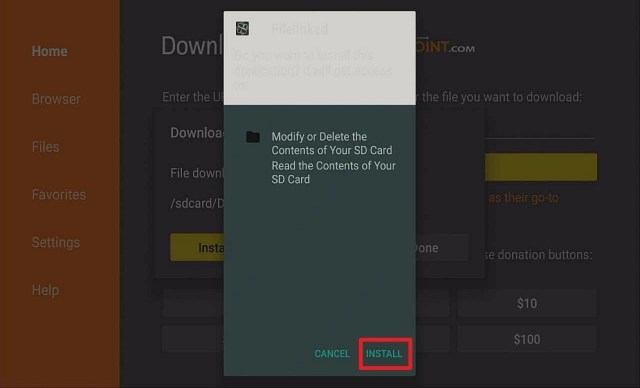
4. Click on Install.
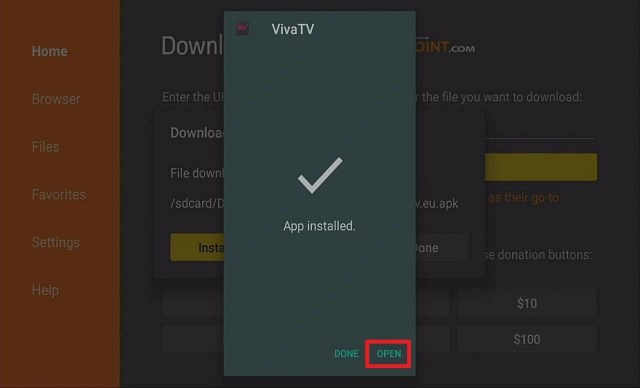
5. Click Open
6. Enjoy Watching Viva TV
How to Install Viva TV on Android
To download and install Viva TV on your Android device,click here.
Note: If you want to find out more about Viva TV, please read ourViva TV Review.
YOUR INTERNET ACTIVITY IS BEING WATCHED
ReviewVPN cannot attest to the legality, security and privacy of the applications discussed on this site. It is highly recommended that you use a VPN service while streaming or using Kodi.
Currently, your IP 216.73.216.156 is visible to everyone and your Browser is being tracked by Advertisers & ISP Provider.
Your activities are hidden from your ISP, the government, and from the apps you are using.
You can access additional movies and TV streams.
ISP attempts to throttle are thrwarted thus reducing buffering issues.
Geographically restricted content like Netflix and Hulu can be unblocked.
A VPN works be replacing your ISP-assigned IP address and creating an encrypted tunnel. We recommend the no log service offered by IPVanish. It works well on a Firestick and offers the fastest possible speeds.
Legal Disclaimer: ReviewVPN.com does not encourage or endorse any illegal activity involved in the usage of services and applications referenced on this site. We do not verify the licensing agreements of services. The end-user is wholly responsible for ensuring that any media accessed through these services does not violate copyright and/or licensing laws. ReviewVPN does not promote, link to, or receive compensation from any Apps and IPTV services.
Cat Mouse is a third-party streaming application that works much like Terrarium TV. It scrapes the web for working streaming links and gathers them in one place that is readily accessible to users. It allows users to watch a decent selection of popular Movies and TV Shows. The content it features is always up to date and you are assured of the best links because of its Real-Debrid Support.
Features:
–Subtitle Support
–HD Content
–Great Selection of Movies and TV Shows
–Fast in playing videos
–It is easy to use because Mouse Toggle is not required.
–Downloadable Content (for Android users).
–Favorites Function to tag all the videos you like.
–Ad-Free
–Real-Debrid Support ensures the highest quality of links.
–Trakt TV Support allows you to catch up where you left off.
–TV Calendar will give you all the scheduled TV Shows for the day.
How to Install Cat Mouse on Firestick Guide
Go to Settings and select Device.
Choose Developer Options
Turn on the ADB Debugging and Apps From Unknown Sources
After turning these options on, launch the Amazon App Store on your device
Search and Download Downloader
Install Downloader and launch it after installing it.
Choose Allow and Select Ok
Type in https://reviewvpn.com/cat and select Go
Wait for it to finish and then select Cat Mouse
Select Done
This will automatically take you back to Downloader. Select Delete
Choose Delete one more time
Head back to the home screen and under the Your Apps & Channels select Choose All
Scroll down and select Cat Mouse and select the Options.
Then select Move to Front
Cat Mouse will be moved forward to Your Apps and Channels
After this, you will see Cat Mouse and click it to launch.
2. Open Downloader App. Type https://reviewvpn.com/cat and click Go.
3. Click on Install.
4. Click Open
5. Click Allow.
6. Click OK.
7. Click ExoPlayer
8. Click Proceed.
9. Enjoy Watching.
How to Install Cat Mouse on Android
To download and install Cat Mouse on your Android device,click here.
Note: If you want to find out more about Cat Mouse, please read ourCat Mouse Review.
Bee TV (Modified Version)
Bee TV is another streaming application that comes from a long line of Terrarium clones. It works very similarly to all its contemporaries providing you with a huge list of TV Shows and Movies which are all updated regularly. You can either install the modified version which we are featuring to avoid ads, or you can choose the original version and use it in conjunction withAd Guard Pro to prevent ads from intruding your streaming experience.
Features:
–Subtitles are available.
–High Definition selection of Movies and TV Shows.
–Quick Loading and Playing Time.
–No Mouse Toggle needed so it is very easy to use.
–Downloadable Video (Android devices only)
–Tag a video as your Favorite
–Premium Links via Real-Debrid, All Debrid, and Premiumize.
–Trakt TV support to always be updated on the latest releases and keep track of your shows and movies.
How to Install Bee TV on Firestick Guide
Go to Settings and select Device.
Choose Developer Options
Turn on the ADB Debugging and Apps From Unknown Sources
After turning these options on, launch the Amazon App Store on your device
Search and Download Downloader
Install Downloader and launch it after installing it.
Choose Allow and Select Ok
Type in https://reviewvpn.com/bee and select Go
Wait for it to finish and then select Bee TV
Select Done
This will automatically take you back to Downloader. Select Delete
Choose Delete one more time
Head back to the home screen and under the Your Apps & Channels select Choose All
Scroll down and select Bee TVand select the Options.
Then select Move to Front
Bee TV will be moved forward to Your Apps and Channels
After this, you will see Bee TVand click it to launch.
2. Open Downloader App. Type https://reviewvpn.com/bee and click Go.
3. Click on Install.
4. Click Open
5. Click Allow.
6. Enjoy Watching Bee TV.
How to Install Bee TV on Android
To download and install Bee TV on your Android device,click here.
Note: Please read ourBee TV Review for other details regarding the application.
CyberFlix
Cyberflix is the heir apparent to Terrarium TV. It has been the go-to third-party streaming application by many users. Boasting high definition Movies and TV Shows that can be counted to the thousands, it is clear why this app is one of the leading terrarium clones out there. Aside from the quality it provides, you can also expect it to give you a seamless streaming experience because it is entirely ad-free. Given all of these reasons, CyberFlix is one of the best Ad-Free Movie Apps that we have encountered.
Features:
–It has subtitle support that makes streaming easier for many people.
–High Quality/Definition Videos through Real-Debrid.
–Relatively fast loading and playing time.
–Easy to use.
–Mouse Toggle is not required.
–Videos can be downloaded and watched offline (Android)
–Bookmark the shows you like by using the Favorites Feature.
–Trak TV Support to be updated on the latest Movie and TV Shows schedules and keep track of everything you are currently streaming.
–Ad-Free
How to Install CyberFlix on Firestick Guide
Go to Settings and select Device.
Choose Developer Options
Turn on the ADB Debugging and Apps From Unknown Sources
After turning these options on, launch the Amazon App Store on your device
Search and Download Downloader
Install Downloader and launch it after installing it.
Choose Allow and Select Ok
Type in https://reviewvpn.com/cyber and select Go
Wait for it to finish and then select CyberFlix
Select Done
This will automatically take you back to Downloader. Select Delete
Choose Delete one more time
Head back to the home screen and under the Your Apps & Channels select Choose All
Scroll down and select CyberFlix and select the Options.
Then select Move to Front
CyberFlix will be moved forward to Your Apps and Channels
After this, you will see CyberFlix and click it to launch.
Note: Cyberflix is now asking for a code. Code is: 1112
2. Open Downloader App. Type https://reviewvpn.com/cyber and click Go.
3. Click on INSTALL.
4. Click OPEN.
5. Click PASSWORD
Note: Cyberflix is now asking for a code.
6. Type 1112. Click NEXT.
7. Click DONE.
How to Install CyberFlix on Android
To download and install CyberFlix on your Android device,click here.
Note: Please read ourCyberFlix Review for more information about the app.
Zini Tevi APK
Among the list we have featured, we can say that Zini Tevi is the least popular. Please do not let its popularity fool you because this app is one to watch out for. It allows users to watch movies and TV shows of the highest quality. Aside from being one of the few streaming applications that have a One-Click Playability, it is also completely ad-free making it twice as lethal and can be considered as one of the Best Ad-Free Movie Apps.
Features:
–One-Click Play
–High-Definition Quality Links for Movies and TV Shows.
–Has a speedy Loading and Playing Time.
–Simple User Interface that makes it easy to use.
–All the videos can be downloaded to your device. (Android)
–Bookmark your favorites.
–Trakt TV Support to keep track of everything you are watching.
–Ad-free
How to Install Zini Tevi on Firestick Guide
Go to Settings and select Device.
Choose Developer Options
Turn on the ADB Debugging and Apps From Unknown Sources
After turning these options on, launch the Amazon App Store on your device
Search and Download Downloader
Install Downloader and launch it after installing it.
Choose Allow and Select Ok
Type in https://reviewvpn.com/zin and select Go
Wait for it to finish and then select Zini Tevi
Select Done
This will automatically take you back to Downloader. Select Delete
Choose Delete one more time
Head back to the home screen and under the Your Apps & Channels select Choose All
Scroll down and select Zini Teviand select the Options.
Then select Move to Front
Zini Tevi will be moved forward to Your Apps and Channels
After this, you will see Zini Teviand click it to launch.
2. Open Downloader App. Type https://reviewvpn.com/zin and click Go.
3. Click Install.
4. Click Open.
5. ZiniTevi is installed. Enjoy Watching!
How to Install Zini Tevi on Android
To download and install Zini Tevi on your Android device,click here.
Note: Please read ourZini Tevi Review for more information about the app.
Ad-Free Streaming with Smart Youtube
Although this app cannot be considered as an Ad-Free Movie Apps, it is the best alternative to ad-free streaming from the popular app of the same name minus Smart. You get the same number of videos and you can even sign in to your Google Account to sync all of your subscriptions.
How to Install Smart Youtube on Firestick Guide
Go to Settings and select Device.
Choose Developer Options
Turn on the ADB Debugging and Apps From Unknown Sources
After turning these options on, launch the Amazon App Store on your device
Search and Download Downloader
Install Downloader and launch it after installing it.
Choose Allow and Select Ok
Type in https://reviewvpn.com/sytv and select Go
Wait for it to finish and then select Smart Youtube
Select Done
This will automatically take you back to Downloader. Select Delete
Choose Delete one more time
Head back to the home screen and under the Your Apps & Channels select Choose All
Scroll down and select Smart Youtubeand select the Options.
Then select Move to Front
Smart Youtubewill be moved forward to Your Apps and Channels
After this, you will see Smart Youtubeand click it to launch.
Install Smart Youtube TV on Firesticks with Screenshots
Theater Plus recently went down for the Firestick and is only accessible to android users. The developer stated that he will release a Firestick version soon. Theater Plus deserves a shoutout because if not for the recent pullout from the Firestick, it is probably the Best Ad-Free streaming application out there. You check this out by installing it on your other android devices and see why it is one of the Best Ad-Free Movie Apps.
Features:
–Subtitle Support
–Dual Language
–One-Click Play
–HD Movies and TV Shows
–One of the fastest to load and play
–Simple user interface
–Does not require Mouse Toggle
–Favorites Function
–Ad-Free
How to Install Theater Plus on Android
To download and install Theater Plus on your Android device,click here.
Note: Please read ourTheater Plus Review for more information regarding the app.
Other Note-Worthy Ad-Free Apps
The following apps did not make it to the cream of the crop but also deserve special mention because they are compatible with the Firestick and are also ad-free.
This procedure is only applicable if you already have Filelinked installed to your Firestick.
How to Install Filelinked on Firestick Guide
Go to Settings and select Device.
Choose Developer Options
Turn on the ADB Debugging and Apps From Unknown Sources
After turning these options on, launch the Amazon App Store on your device
Search and Download Downloader
Install Downloader and launch it after installing it.
Choose Allow and Select Ok
Type in get.filelinked.com and select Go
Wait for the download to finish and select Install
Select Done
This will automatically take you back to Downloader. Select Delete
Choose Delete one more time
Head back to the home screen and under the Your Apps & Channels select Choose All
Scroll down and select Filelinked and select the Options.
Then select Move to Front
Filelinked will be moved forward to Your Apps and Channels
After this, you will see Filelinked and click it to launch.
Input Stream It All’s code which is 6764537 and click on Continue.
Dismiss all the pop-up messages.
Click on the search button and search for the applications we have listed above. i.e. CyberFlix.
Once the result comes back, go down and press on the dropdown button and wait for the download to finish.
After the download, click on the play button to install the app of your choice.
Click on Open to launch the app of your choice.
Note: Stream It All’s Filelinked Store is one of the most updated stores out there. Be sure to check it out using the code 67464537. You can also read ourBest Filelinked Codes for updates on the most popular Filelinked Stores.
2. Open Downloader App. Type https://get.filelinked.com and click Go.
3. Click Install.
4. Click Open.
5. Click Enter Code.
6. Type Code Number and Click Next.
7. Click Continue.
8. There you go, Filelinked is now installed.
Do You Need a VPN?
The most important thing to remember when you are streaming is that it will always be monitored by your ISP. Anything and everything you are being constantly watched by them and other online entities that we are unaware of. Streaming takes a lot of data, especially for HD and 4k content. When this type of activity is seen by your ISP, it will almost immediately throttle down your connection which results in buffering and lags. The only way to mitigate this is by using a premium VPN service likeSurfshark. It will conceal all of your online activity by only showing the ISP the amount of data your device is consuming but not the type of activity it is used for. Aside from this, Surfshark also gives you anonymity as another security feature most especially when you are accessing public WIFI when streaming.
Note: For more information about SurfShark, please read our SURFSHARK REVIEW.
If your Firestick still has the older interface, read this article to learn how to update it: Update Firestick Interface.
You can download Surfshark directly from the Amazon App store. It will be easy for you to find Surfshark with your Firestick’s Find feature. Refer to our screenshots below.
1. Go to the Home screen of your Firestick.
2. Navigate towards the Find tab. Press the Search button from the resulting dropdown.
3. Type in the keyword of SurfShark and select from the suggestions that will appear.
4. Click the official SurfShark icon from your search results.
5. Press the Download (You own it) button.
6. The SurfShark VPN installer will download on your device.
7. SurfShark VPN’s app will automatically install itself on your Fire TV stick.
8. Press the Open button after completing SurfShark VPN’s installation process.
9. Please wait for the SurfShark VPN to load its user interface.
10. You can now log in with your SurfShark VPN account credentials.
Selecting the Best Ad-free Movie Apps to download and install on your Firestick is a hard task. You must keep in mind that there are criteria that we should consider and one of which is Ad-free streaming. To maintain an uninterrupted streaming experience, this should be considered fully. The third-party streaming applications we have featured were all run and tested by us and we can attest to their capabilities. Please watch out for more of our BEST series to come.
We sincerely wish that this write-up helps you in choosing the Best Ad-Free Movie Apps for Firestick. Thank you for reading. Stay safe!
Note: ReviewVPN.com does not own or operate any app nor does it endorse any. The main purpose of this article is strictly for educational purposes only.
Watching your favorite TV Shows and movies can be a wholesome experience with your Amazon Firestick device. Until your Firestick audio does not produce any sounds at all. When you play something, nothing can be heard.
Your Netflix does not make audible effects, not even the other apps pre-loaded in your Firestick. You bump into the same problem over again. Or in some cases, your Firestick has an excellent track record in playing multiple media files without difficulties.
Suddenly, no sound comes out even with the finest display of high-resolution videos and images. Not even the audible clicks when navigating in the home screen or menu. It must be a frustrating scenario for you. What is going on with your Firestick? Are there any ways to fix it?
Probable Causes Why Your Firestick’s Audio Malfunctions
Incompatible Dolby Digital Settings
Media Files Not Supporting Your Sound Software
Built-In settings Override Your HDMI Connection
Faulty Power Cord Connection
Muted Audio
Audio Receiver (AV) Disabled
HDMI Connection Problems
HDMI Unsupported Audio
TV and AV Receiver Volume
Incompatible Audio Settings
Wrong Cable Attachment
HDMI Port Malfunction
Application Errors
Firestick System Not Updated
HDCP 2.2 Non-Compliant Ports
How to Fix Firestick’s No-Sound Problem
Here is a step-by-step guide addressing each problem encountered when your Firestick is not making any sound at all:
Incompatible Dolby Digital Settings
Your Firestick comes automatically with Dolby Digital Support. Upon purchase, these settings are already activated. Some Dolby Digital Settings may cause incompatibility with some media files or hardware. You can try these solutions for an easy fix.
Hit the Home button on your Firestick’s remote.
Press on the Menu tab.
Use the scroll wheel and proceed to Settings.
Then, Go to Display and Sounds.
Click on Audio.
Select Surround Sound.
Change Best Available to Stereo.
Disable Always Digital Dolby Plus (For Amazon Firestick Users).
Media Files Not Supporting Your Sound Software
Some movies preloaded into Firestick and its applications do not support a Dolby Digital Set-up. You will have to change some settings while playing the video.
Nonetheless, here’s the proper sequence of modifying some settings:
Proceed to the Menu.
The, Click on Settings.
Go to Display and Sounds.
Select Audio.
Press on Dolby Digital Plus.
Then, Change to Stereo.
Built-In settings Override Your HDMI Connection
Several sound systems installed with your TV set-up may not play videos and audio properly. Nonetheless, this is caused by their incompatibility with Dolby Digital.
You can switch off this feature by following these steps:
Go to the Menu.
Select the Settings tab.
Then, Click on Display and Sounds.
Press on Audio.
Then, Apply Dolby Digital Plus OFF.
Faulty Power Cord Connection
Many people opt to plug their Firestick’s USB power cord directly into their television sets. As a result, the Firestick’s USB power cord does not collect sufficient energy to simultaneously power both the TV set and the Firestick device. Nonetheless, this may cause difficulties with video and audio output.
Unplug your Firestick power cord from the TV set.
Plug the USB power cord directly into an electrical outlet.
Muted Audio
To the surprise of many users, their Amazon Firestick device would not play sounds as it used to previous viewing sessions. However, these problems are usually caused by a simple factor such as the unintentional muting of the device via the remote.
Check your TV set’s volume.
Inspect your remote control for low-battery.
Then, Click the MUTE button on your remote to restore the sound.
YOUR INTERNET ACTIVITY IS BEING WATCHED
ReviewVPN cannot attest to the legality, security and privacy of the applications discussed on this site. It is highly recommended that you use a VPN service while streaming or using Kodi.
Currently, your IP 216.73.216.156 is visible to everyone and your Browser is being tracked by Advertisers & ISP Provider.
Your activities are hidden from your ISP, the government, and from the apps you are using.
You can access additional movies and TV streams.
ISP attempts to throttle are thrwarted thus reducing buffering issues.
Geographically restricted content like Netflix and Hulu can be unblocked.
A VPN works be replacing your ISP-assigned IP address and creating an encrypted tunnel. We recommend the no log service offered by IPVanish. It works well on a Firestick and offers the fastest possible speeds.
Some Firestick and Home Entertainment set-ups utilize an AV receiver. This add-on hardware is necessary to process the Firestick’s sounds into external speakers. Nonetheless, they sometimes simply forget to switch on their AV receiver causing Firestick unable to produce sounds.
Inspect your AV Receiver for damages.
Check all the cable connections.
Then, Ensure that the power lights indicator of the AV unit is ON.
HDMI Connection Problems
There are occurrences when your Firestick’s sound problem is caused by a detached HDMI cable. In some instances, the HDMI plug might be loose. All these factors can cause sound malfunctions with your Firestick device.
Unplug your Firestick’s HDMI cable from the TV’s HDMI port.
Then, Reconnect the cable ensuring it is fixed and stable.
Secure your connection by slightly tightening it with pressure.
Reboot your Firestick and television set.
Then, Check for sound functionality.
HDMI Unsupported Audio
In some varied cases, your television’s HDMI port is not designed for audio connectivity. However, you can check out non-audio indicators such as DVI, Monitor, and PC. These types of ports are only designed to support video input and display.
Make sure that your TV’s HDMI port supports audio capabilities.
Attach your Firestick cable to a port without DVI, Monitor, and PC labels.
TV and AV Receiver Volume
A primarily overlooked reason why your Firestick is incapable of making sounds is due to volume levels. Some people often lower the volumes for different purposes such as sleeping and forget to turn it up again. Nonetheless, it leaves your Firestick or television in minimal volume levels where sounds might seem incomprehensible.
Increase the volume of your TV Set.
Up the volume of your AV receiver.
Use the surround sound remote to change the volume to higher levels.
Then, Ensure that all audio device volumes are above minimum ranges.
Incompatible Audio Settings
New home entertainment platforms are connected with AV receivers and surround sound hardware. There are cases where the output sound is configured with an incompatible port. Sometimes, the TV is set for analog audio but the audio signals are transmitted with an optical audio cable which causes incompatibility and sound malfunction.
Check the settings of your TV set.
Go to Settings.
Then, Change it to HDMI on Digital.
Wrong Cable Attachment
When your Firestick does not create audible frequencies, you might be connecting a video-only cable. Some AV receivers come with an optical audio port that requires an optical audio cable.
Inspect your TV set for optical connectivity port.
Purchase an AV receiver with an optical audio port.
Get an optical audio cable.
Then, Attach your optical audio cable to the ports of your AV receiver and television set.
HDMI Port Malfunction
Some TV HDMI ports malfunction due to damage or long periods of use. Luckily, modern TV sets come with extra HDMI ports for multiple connections. Nonetheless, these ports are labeled as HDMI, PC, or DVD. Users often attach their Firestick’s cable to another port and then reconnect to its original port.
Disconnect your Firestick from its initial connection.
Unplug your Firestick from the power supply.
Then, Carefully connect your Firestick’s cable to another HDMI port.
Return your Firestick’s cable to its primary port connection.
Then, Reboot your Firestick and your television set.
Application Errors
Glitches and errors are typical issues that can cause Firestick sound difficulties. It might be a system error, bugs, glitches, or sometimes even a compromised system. However, your applications can misbehave during the onset of system or connection problems.
Close your App player.
Navigate to Firestick’s Home Screen.
Then, Go to Settings.
Select the App Menu.
Click on Manage Installed Applications.
Choose the application you are using.
Force Close the application.
Then, Reboot your Firestick.
Restart the application you’ve previously opened.
Firestick System Not Updated
Just like other hardware, your Firestick requires periodic maintenance such as system updates. Amazon provides consistent updates for its proprietary hardware and software products. Nonetheless, these updates are necessary to fix glitches, bugs, and errors reported by other users.
Open your Firestick’s Home Screen.
Maneuver towards the Settings menu.
Click on System.
Select About.
Choose the Software Version option.
Press on Check for System Updates.
Wait for results to conclude.
Complete required system updates.
HDCP 2.2 Non-Compliant Ports
Several users connect adapters and HDMI splitters with their home entertainment platforms. Some of these hardware installations might not be HDCP 2.2 compliant. They might not be valid for use and cause sound problems as HDCP 2.2 is the latest copyright protection.
Disconnect your previous HDMI port connection.
Attach the cable to an HDCP 2.2 validated port.
Check all your connections to be HDCP 2.2 compliant.
Connect all AV cables to HDCP 2.2 compliant ports.
Stream Videos Safely with Surfshark
Streaming high-resolution videos can be monitored by your internet service provider (ISP). The streaming of quality videos that can exceed your connection’s bandwidth limit causes your IP to throttle up your connectivity rate resulting in lags, stuttering and buffering.
These factors can result in a ruined streaming experience. We recommend an effective solution which is to have a powerful and magnificent VPN like Surfshark. Several VPNs are available on the market, but Surfshark is designed for you while streaming your favorite video shows. Surfshark is the ultimate choice and companion while watching online video clips.
Here is a list of advantages that Surfshark may offer you:
Provides a digitized shield keeping your ISP from spying on your online activities.
Bridges you to virtual tunnels outmatching the effects of geo-blocks.
Cloaks your identity from online threats like hackers wanting to steal your valuable credentials.
Secures your data and files from malware.
Keeps your internet connection, digitized activities, and data anonymous.
Increases your internet speed.
Torrent downloads are faster and easily accessible.
Prevents Firestick buffering.
How to Install Surfshark VPN on Firestick
If your Firestick still has the older interface, read this article to learn how to update it: Update Firestick Interface.
Follow our screenshots below to install the SurfShark VPN app on your Fire TV stick.
1. Go to the Home screen of your Firestick.
2. Navigate towards the Find tab. Press the Search button from the resulting dropdown.
3. Type in the keyword of SurfShark and select from the suggestions that will appear.
4. Click the official SurfShark icon from your search results.
5. Press the Download (You own it) button.
6. The SurfShark VPN installer will download on your device.
7. SurfShark VPN’s app will automatically install itself on your Fire TV stick.
8. Press the Open button after completing SurfShark VPN’s installation process.
9. Please wait for the SurfShark VPN to load its user interface.
10. You can now log in with your SurfShark VPN account credentials.
For more VPN discounts, go to ReviewVPN Deals and purchase the best VPN for you.
Click here to get the lowest price on Surfshark through our exclusive limited-time offer.
FAQs
What is an Optical Audio Cable?
These are cables made from fiber optic materials that transmit both audio and video signals. Nonetheless, your home entertainment platform and AV receiver have ports designed for these types of cables.
What is HDCP 2.2?
HDCP 2.2 is the latest iteration of copyright protection for streaming devices. However, it functions to secure the connection between port and display devices.
Are there automatic updates with Firestick?
Yes. Upon Amazon Firestick purchase, the automatic updates are already activated. Nonetheless, you can always change this feature by accessing Firestick’s settings.
Conclusion
Several people have already reported and encountered the no sound problem occurring with their Firestick device. The causes of Firestick’s audio difficulties may stem from the device’s built-in settings, physical cable connections, faulty hardware, incompatible hardware, and some software issues.
Nonetheless, we hope that the article has helped you troubleshoot and fix your Firestick’s No Sound problem.
Youtube Kids is a 4+ video application that gives families an easier way to watch their favorite movies and explore contents that are suitable for children. It is developed by Youtube that gives kids a more contained environment because of its curated selection of content. And with that, it makes it easier for them to engage in the site while at the same time eases the concerns of parents that their child might be accessing inappropriate content online.
Guide to Install Youtube Kids on Firestick
Since Youtube Kids is an official app on the Amazon App Store, you can directly download the app without having to jailbreak your Firestick.
Go to “Search”
You may use the Alexa voice command or simply type in “Youtube Kids”
Tap on the icon of the application to download
Select “Get”
Then wait for the app to be installed
Once done, click “Open” to launch the app
Then, you will be asked to set up a few parental safety controls and settings
You can either choose to log in or be on the signed-out version
Choose the age bracket of your child for the content that Youtube will provide
Pre-school – 4 and under
Younger – 5-7
Older 8-12
Choose whether you want Search to be on or off
Install Youtube Kids on Firestick with Screenshots
1. Click FIND.
2. Click Search.
3. Search for the Youtube Kids.
4. Tap on the icon of the application to download.
5. Select “Get”
6. Once done, click “Open” to launch the app
7. Then, you will be asked to set up a few parental safety controls and settings and click Get started
Click here to get the lowest price on Surfshark through our exclusive limited-time offer.
App Features
Interface
There are tabs for the ff:
Shows
Music
Explore
Gaming
Search – if you turned on the search function during the set-up
Account
Recommended – this tab will appear after you’ve started watching videos
Padlock Icon – “for grown-ups only”. This tab will let you solve a math problem to verify if you are a parent. If you were able to access this, you’ll see the following:
Account
Content Settings (changing this selection impacts the videos available in the app)
Custom Passcode (this passcode is used to access parent settings)
Search (turning off search will restrict the experience to a more limited set of videos)
Pause history (stop the app from using new video views or search terms to recommend views)
Clear history (clear watch and search history, “watch it again”, and recommended videos)
Privacy and Terms
Video Quality
Videos in Youtube Kids are in HD but your internet speed would determine the quality when watched.
Playing Speed
The videos would take few seconds to load but are acceptable.
Pros and Cons
Pros
It’s a safe Youtube app for kids
Flagging of inappropriate videos is allowed
They have an option for different age brackets
Content can be changed anytime through parent settings
Their system is working hard to exclude mature contents
Being on the signed-out version would not require you to use your Google account for it to work
Cons
Though the playing speed is acceptable, it’s still a factor that the videos take a few seconds to load
YOUR INTERNET ACTIVITY IS BEING WATCHED
ReviewVPN cannot attest to the legality, security and privacy of the applications discussed on this site. It is highly recommended that you use a VPN service while streaming or using Kodi.
Currently, your IP 216.73.216.156 is visible to everyone and your Browser is being tracked by Advertisers & ISP Provider.
Your activities are hidden from your ISP, the government, and from the apps you are using.
You can access additional movies and TV streams.
ISP attempts to throttle are thrwarted thus reducing buffering issues.
Geographically restricted content like Netflix and Hulu can be unblocked.
A VPN works be replacing your ISP-assigned IP address and creating an encrypted tunnel. We recommend the no log service offered by IPVanish. It works well on a Firestick and offers the fastest possible speeds.
Yes, Youtube Kids is legal since you directly download it on the Amazon App Store
Is it free?
Yes, Youtube Kids is 100% free.
Are there registrations?
There is no need for registration to set up Youtube Kids on your Firestick but you have the option to sign-up.
Should I Use This App With a VPN?
In terms of content access, you will not be needing a VPN since Youtube Kids is free to use on Firestick. But for you to be able to enjoy unlimited streaming of videos on Youtube Kids is a different thing. Consequently, we all know that our ISPs are always on the loose on keeping track of our internet activities to find ways to cut down the speed of our internet connection. They track and log our internet activities just so our streaming would be lagged and buffered. But with a VPN like Surfshark, will give us an anonymous IP address which will make us free to access everything that we want to watch and access online without the fear of being watched by our ISP. Furthermore, it gives us the ease that we can watch anything that our favorite streaming site has to offer. Aside from that, a VPN would give you the ff benefits:
Geo-restricted websites and contents will not be a bother since you can freely access them
Your online activity and information will remain hidden
Phishers will not be able to gain your personal information since they wouldn’t be able to track down your logins
For more VPN discounts, go to ReviewVPN Deals and purchase the best VPN for you.
Click here to get the lowest price on Surfshark through our exclusive limited-time offer.
Conclusion
Per browsing the app, Youtube Kids is a recommendable app since it takes the kids’ welfare into a whole lot of consideration by making sure that they take extra precautions in preventing mature content to be accessible to its users. It gives ease to parents to be able to leave their children without worries because they know that the app screens their content well.
Furthermore, we’d like to thank you for taking the time to read and reaching out to the end of this article. In addition to teaching you how to install Youtube Kids on your Firestick device, we hope we were able to give you an overview of how it works.
Special offer
Get 80% Off for 29-Month Subscription + 5 Months Free on Surfshark VPN!