How to Install IcDrama Addon in Kodi

IcDrama Addon in Kodi

In this article, I will provide a step-by-step guide on how you can install the Icdrama on Kodi.


Icdrama is a third-party Kodi Add-on that provides you with content from Taiwanese, Japanese, Chinese Movies, dramas, TV shows, and other variety of entertainment. 

Installing this add-on gives you access to the same type of content you get on their ICdrama website.

Years ago, the ICdrama website was shut down and this left many of its users disappointed because it offered all its contents for free.

However, after shutting down, this add-on was developed as a replacement for the website (both the website and this add-on have the same and are free to access and stream).


ANONYMOUSLY


Installing IcDrama Addon

Step 1. Launch the Kodi application on any supported device

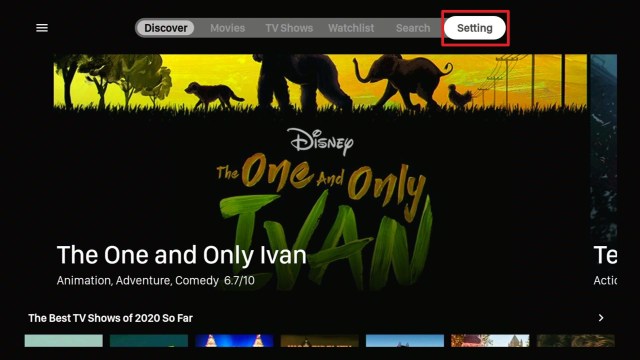
Step 2. On the Kodi Home screen, click on the Setting icon located between the power icon and the search icon at the top left side of your screen.

Step 3. On the setting menu window, locate the system icon, and select it.

Step 4. On the next window, select Add-ons. Next, click on the Unknown Source option.

Step 5. You will be prompted with a warning message, simply ignore this by clicking Yes.

(This will enable the installation from Unknown sources. You can then go back to the home screen).

Step 6. On the Kodi Home screen, click on the Setting icon ( this is found between the power icon and the search icon at the top left side of your screen).

Step 7. On the new window, select File Manager

Step 8. Next, click on the ‘Add Source’ from the right or left side of your screen.

Step 9. This will take you to a new window where you will see <NONE> and click on it.

Step 10. On the next window, enter the correct media source URL

https://cyweteow.github.io/repo and click Ok.

Step 11: On the Next windows, Click on ‘Enter a name for this media source’ and then type ‘IcDrama’ and then click on OK.

Step 12. Go back to the Home Screen

Step 13. On the Home screen, by the side of your screen, click on Add-ons.

Step 14. At the top left side of your screen, click on the small box icon located near the setting icon. (add-on package installer)

Step 15 On the next window, select ‘Install from Zip File’ from the list of options provided.

Step 16. A window will pop up, select the name of the media source in step 11. (In my case, I used IcDrama).

Step 17. Click on Repository.cyweteow-1.1.0.Zip and then Click OK

Step 18. Wait for cyweteow repo add-on installed notification (This will appear at the top right side of your screen)

Step 19. When the installation is complete, click on install from Repository.

Step 20. You will see a list of all the repositories installed on your device, look for the cyweteon repository.

Step 21. On the next window, select Video add-ons

Step 22. On the next screen, you will find a list of video add-ons, click on IcDrama.

Step 23. On the next screen, click on the install button located at the bottom-right corner of your screen.

Step 25: Click on Ok on the windows that appear.

Step 26: You will notice the progress of the installation and at the end of the installation; you will get a notification saying the IcDrama add-on installed.

(Now, your IcDrama Add-on has been successfully installed and you can now access all your

video contents). 

Return to the home screen. From the Home Screen, Click on > Add-ons and > IcDrama and open it. Once it is launched, you will see different categories of Asian Movies from HK Drama, Japanese Drama, Chinese Movies, and Korean Variety, etc).


What is Kodi?

Founded in 2002 as a box media player, Kodi has undergone several transformations; first as Xbox Media Centre in 2003 and then Kodi in 2014. It is maintained by the XBMC Foundation, a non-profit technology consortium which works behind the scene to keep its services up to date. For Music, it can play a variety of music formats including mp3, OGG, and AAC. 

It has smart playlists and can tag different tracks. For Videos, this software supports ISO, 3D, H.264, and other formats and also allows you to stream content via the internet. You can also add video extra, fan art, trailers, posters, etc to films you import into your Kodi app.

Kodi is an open-source media center application that allows you to have access to different types of entertainment such as movies, documentaries, music anime content, and lots more. You can run Kodi on any device of your choice from Raspberry Pi, Television, fire TV, firestick, Phone, tablet, and laptop.


YOUR INTERNET ACTIVITY IS BEING WATCHED

ReviewVPN cannot attest to the legality, security and privacy of the applications discussed on this site. It is highly recommended that you use a VPN service while streaming or using Kodi.

Currently, your IP 216.73.216.208 is visible to everyone and your Browser is being tracked by Advertisers & ISP Provider.

Save 65% Now

Limited Time Offer

Here are the main reasons why you must use a VPN:

  • Your activities are hidden from your ISP, the government, and from the apps you are using.
  • You can access additional movies and TV streams.
  • ISP attempts to throttle are thrwarted thus reducing buffering issues.
  • Geographically restricted content like Netflix and Hulu can be unblocked.

A VPN works be replacing your ISP-assigned IP address and creating an encrypted tunnel. We recommend the no log service offered by IPVanish. It works well on a Firestick and offers the fastest possible speeds.

Special Limited Time Offer - Get IPVanish


What is Kodi Addon?

Kodi Add-on is an application that you install on Kodi which allows you to stream music and video content on Kodi. in a nutshell, an Add-on provides you with streaming links from various streaming sources.


FAQs

What is the Current Version of IcDrama?

The current version of this add-on is version 2.1.0. However, you can also check this by going through the following path: Add-ons > My Add-Ons > Video > IcDrama > view version under the title. Nevertheless, you can always upgrade when a new version is released. 


Should I use a VPN with IcDrama?

It is highly recommended to use VPN not just for IcDrama but for all Kodi streaming. This is because Kodi houses lots of third-party addons and you may be in trouble for streaming copyrighted content. I recommend using this add-on with a VPN like Surfshark.


Is IcDrama not working?

IcDrama is working and if your own is not working. You may have to upgrade it to the Latest Version or check your internet connection.


Is it free to use the IcDrama Kodi addon?

Installing and streaming content with this add-on is entirely free.

Pros and Cons

Pros

  • Free to use
  • Easy installation: just install and stream
  • User-friendly interface
  • Regular add-on update
  • Subtitles 
  • No mouse toggle is needed for the firestick.

Cons

None.


Alternative Addons

Your best add-on may stop worKing anytime without prior notification. In that case, it is good to have an alternative add-on ready. I have prepared a list of our best add-ons for you to check out. Here they are Yoda, Gaia, Venom, The Magic Dragon, Destiny of Deathstar, Release BB.


Use Kodi with a VPN

We recommend installing a VPN like Surfshark if you are fond of streaming with Kodi. This is to keep you protected and secure while streaming or accessing the web.

A VPN is software that encrypts and masks your IP address to appear as an anonymous user on the internet service provider network. A VPN like Surfshark will help you:

  • Bypass location restriction
  • Minimize throttling
  • Stream securely and privately


Features of Surfshark

  • Bypass restrictions and geo-blocks to access lots of content.
  • Has a total of 3200+ servers in 65 countries to choose from
  • Military-grade AES-256 encryption follows FIPS (Federal Information Processing Standards) that oversee the handling of sensitive data.
  • It follows a strict No-Logs Policy
  • No Bandwidth limits – you can enjoy a full-speed VPN connection without any throttling.
  • It works on all unlimited simultaneous devices
  • 24/7 customer support.


Grab your subscription now!

Click here to get the lowest price on Surfshark through our exclusive limited-time offer.


How to Install Surfshark VPN on Firestick

If your Firestick still has the older interface, read this article to learn how to update it: Update Firestick Interface.

Follow our screenshots below to install the SurfShark VPN app on your Fire TV stick.

1. Go to the Home screen of your Firestick.

step 1 Install Surfshark VPN on Firestick


2. Navigate towards the Find tab. Press the Search button from the resulting dropdown.

step 2 Install Surfshark VPN on Firestick


3. Type in the keyword of SurfShark and select from the suggestions that will appear.

step 3 Install Surfshark VPN on Firestick


4. Click the official SurfShark icon from your search results.

step 4 Install Surfshark VPN on Firestick


5. Press the Download (You own it) button.

step 5 Install Surfshark VPN on Firestick


6. The SurfShark VPN installer will download on your device.

step 6 Install Surfshark VPN on Firestick


7. SurfShark VPN’s app will automatically install itself on your Fire TV stick.

step 7 Install Surfshark VPN on Firestick


8. Press the Open button after completing SurfShark VPN’s installation process.

step 8 Install Surfshark VPN on Firestick


9. Please wait for the SurfShark VPN to load its user interface.

step 9 Install Surfshark VPN on Firestick


10. You can now log in with your SurfShark VPN account credentials.

step 10 Install Surfshark VPN on Firestick

Learn more about Surfshark and Grab the Best Surfshark Deal Now!


Install Surfshark on Firestick

Best Surfshark Deal


Other VPNs to Consider

NordVPN (Best for Streaming)

Best Features

  • 5000+ Server in 50+ Countries 
  • Military-Grade Encryption
  • Fast Connection Speed
  • Suitable to a lot of devices
  • No-Log Policy

Prices
  • Complete $5.89 per month (64% Discount)
  • Plus $4.59 per month (56% Discount)
  • Standard $3.69 per month (55% Discount)

Best Features

  • 750+ High-speed VPN Servers in 43 Locations
  • Military-Grade Encryption
  • Fastest HD Streaming and Gaming
  • 30-Day Money-Back Guarantee
  • Unlimited Data & Devices
  • No-Log Policy

Prices
  • 3 Years $1.99 per month (82% Discount)
  • 1 Years $3.29 per month (70% Discount)
  • 1 Month $10.99 per month

IPVanish VPN (Most Secure)

Best Features

  • 1200+ Servers in 60+ Countries around the world
  • Unlimited Connections
  • No-Log Policy
  • Top Notch Military-Grade VPN Protocols and Encryptions
  • 100% Safe and Secured
  • Most Trusted VPN
  • Best VPN for Firestick
  • 30-Day Money-Back Guarantee

Prices
  • Yearly $3.99 per month (63% Discount) – 30 days risk free + Ransomware & Malware Protection
  • Quarterly $5.32 per month (51% Discount)
  • Monthly $10.99 per month


For more VPN discounts, go to ReviewVPN Deals and purchase the best VPN for you.

Click here to get the lowest price on Surfshark through our exclusive limited-time offer.


Conclusion

IcDrama is unarguably one of the finest add-ons that are available for those who want to stream Asian Animation, Dramas, movies, and lots more. It scrapes the best quality streaming linKs from different sources and has a very user-friendly interface. I highly recommend you try this add-on and drop me a comment.

Best Firestick App Launchers – 2023 Review

Overview

In this article, we will be providing all of the Best App Launchers for the Amazon Firestick.

In a nutshell, App Launchers are applications that allow Firestick users to compile all of their apps in one single folder.

Also, it simplifies the interface of the Firestick allowing you to navigate through the apps easily.

You can consider it as a skin that will give your Firestick a new appearance and interface. You can compare it to the popularity of themes for windows and android. These launchers will definitely breathe new life into your Firestick.

Once you install these launchers on the Firestick, you will be able to easily access all of the Best Firestick Apps installed on your device.

Let’s get right to it!


If your Firestick still has the older interface, read this article to learn how to update it: Update Firestick Interface.


ANONYMOUSLY


Best Firestick App Launchers

Since these launchers are not readily available at the Amazon App Store, you can only install them if your Firestick is Jailbroken.

Afterwhich, you need to install the Downloader App to sideload these launchers onto the Firestick. Kindly refer to the tutorial below to do these 2 steps:

1.  Click Home on your remote and scroll once to your Right. Click Setting (Gear Wheel Icon)

Step 1 jailbreak firestick

2. Scroll down and to the right until you get to My Fire TV. Click on it.

Step 2 jailbreak firestick


3. Select Developer options.

Step 3 jailbreak firestick


4. Turn on ADB debugging and Apps from Unknown Source.

Step 4 jailbreak firestick


5. Click Turn On when the pop-up appears.

Step 5 jailbreak firestick


6.  Click Home, click FIND.

Step 6 jailbreak firestick


7. Click Search.

Step 7 jailbreak firestick


8. You can either say Downloader to your Alexa voice-enabled remote or start typing it. If you typed it, click on the suggestion when it appears.

Step 8 jailbreak firestick


9. Click on the Downloader icon

Step 9 jailbreak firestick


10. Click Download

Step 10 jailbreak firestick


11. Click on Open.

Step 11 jailbreak firestick


12. Click on Allow.

Step 12 jailbreak firestick

Now that you have jailbroken the Firestick and installed the downloader app, we can now start installing the Best Firestick App Launchers onto your Firestick.


ATV Launcher Pro APK

ATV Launcher Pro logo

ATV Launcher Pro APK: https://reviewvpn.com/atv

This is one of the best app launchers for firestick. It has a simple interface wherein you can see all of your installed apps arranged alphabetically.

There is also a Bluetooth and wifi signal shown on the upper right corner of the app, together with the time, day, and date.

You can easily navigate through the list of apps and launch them. As usual, you will go back to the launcher app once you click on the return option on your firestick remote.

This launcher is so good that you can actually set ATV Launcher as the default launcher on your Firestick.


Install ATV Launcher on Firestick with Screenshots

1. Open the Downloader on your Firestick and go to https://reviewvpn.com/atv on the search engine.

atv 1


2. Click Go.

atv 2


3. Let the app be downloaded.

atv 3


4. Choose Install

atv 4


4. Wait for the app to be installed

atv 5


5. Click Open to launch the app

atv 6

Note: To learn more about this app, please read our ATV Launcher Review.


Wolf Launcher

Wolf Launcher logo

Wolf Launcher APK: https://reviewvpn.com/wolf

The Wolf Launcher allows you to customize nearly all aspects of your home screen experience that is not possible on the default Firestick launcher.

The Wolf Launcher does not only allow you to efficiently organize your apps on the home screen but it also removes Amazon’s sponsored banners and applications from the device’s default user interface.

This home screen replacement app contains a customizable status bar. Whether you wish to resize the app tiles, replace the background image, group applications in folders, or adjust columns, you can do nearly everything on the Wolf Launcher app. 

Additionally, Wolf Launcher allows you to conceal apps and protect application folders with a password.

Wolf Launcher gets rid of clutter from the customized home screen, which is one of the Firestick user interface’s most severe aspects.


Install Wolf Launcher on Firestick with Screenshots

1.. Launch Downloader on the Firestick. You will be asked to enter a download link. Type in https://reviewvpn.com/wolf and select Go.

Wolf 1


2. The APK would take a few seconds to download depending on your internet connection.

Wolf 2


3. After that, choose “Install”.

Wolf 3


4. Then click “Open”.

Wolf 4

Note: Read our Wolf Launcher Review for further details regarding the app.


HALauncher

HAL

HALauncher APK: https://reviewvpn.com/hala

After lots of criticism from Android TV launcher users, the HALauncher rolled out.

The developers created this app launcher according to the previous versions’ specifications.

Nonetheless, it contains a lot of enhancement with regard to aesthetic appearance and accessibility.

The HALauncher app separates the applications and games into two rows, which makes the Firestick menu very straightforward.

It also supports sideloading applications, allowing you to see the sideloaded apps on the device’s Home Screen. This feature is a big deal for tons of users who sideload applications onto their Firestick devices.

As HALauncher is one of the best Firestick App Launchers, it comes as no surprise that it enables you to customize the home screen with a distinctive background image.


Install HALauncher on Firestick with Screenshots

1. Open up the Downloader App. After that, you will be asked to enter a download link. Type in https://reviewvpn.com/hala and select Go.

Hala 1


2. The APK would take a few seconds to download depending on your internet connection.

Hala 2


3. After that, choose Install.

Hala 3


4. Then click Open.

Hala 4

Note: For more information, kindly read our HALauncher Review.


Leanback Launcher

leanback

Leanback Launcher APK: https://reviewvpn.com/lean

If you’re a purist of Android, or if you don’t like the user interface of Firestick, you’ll be glad to know that there’s a way to change the app launcher to something amazing.

One excellent option is downloading & installing the Leanback Launcher app onto your Firestick.

The Leanback Launcher app has an easy-to-use interface and very easy to navigate.

You can also customize the app with your recommendation rows, edit app rows, hidden applications, banner appearance, and default wallpaper.

Using this app, you can navigate not only to different apps but also to different features of your firestick like Settings, Network, and Notification.


Install Leanback Launcher on Firestick with Screenshots

1. Open Downloader. Type https://reviewvpn.com/lean and select GO.

Leanback 1


2. Click Go

Leanback 2


3. Let the apk be downloaded

Leanback 3


4. Choose Install

Leanback 4


5. Wait for the app to be installed

Leanback 5


6. Click on Done

Leanback 6


7. Select Delete

Leanback 7


8. Then select Delete one more time

Leanback 8


9. Go back to the Home screen and navigate to Settings

leanback launcher


10. Select Applications

leanback launcher2


11. Choose Manage Installed Applications

App Tray 11


12. Look for the Leanback On Fire and click it

Leanback 9


13. Click Launch Application

Leanback 10


Sideload Launcher

Sideload Launcher logo

Sideload Launcher APK: https://reviewvpn.com/side

The Sideload Launcher has almost the same and simple features as the rest of the applications included in this list.

It has a spaceship launching as a background, and the apps are only shown in icons. When you navigate through the apps, a big display of the name is featured at the bottom portion.

Unlike  Leanback Launcher, Sideload only launch apps and there are no other features.

This app is simple and easy to use.


Install Sideload Launcher on Firestick with Screenshots

1. Launch the Downloader App on the Firestick. Afterwhich, you will be asked to enter a download link. Type in https://reviewvpn.com/side and select Go.

Sideload 1


2. Let the apk be downloaded

Sideload 2


3. Choose Install

Sideload 3


4. Click on Done

Sideload 4


5. Select Delete

Sideload 5


6. Then select Delete one more time

Sideload 6


7. Go back to the Home screen and navigate to Settings

App Tray 9


8. Select Applications

App Tray 10


9. Choose Manage Installed Applications

App Tray 11


10. Look for the Sideload Launcher app and click it

Sideload 7


11. Click Launch Application

Sideload 8

Note: Kindly refer to our Sideload Launcher Review to know more about the application.


App Tray for TV

App Tray

App Tray for TV (Launcher) APK: https://reviewvpn.com/att

The App Tray is another launcher that manages and launches all of the apps installed on your device.

It has a simple interface and not so unique features as those of the other apps featured in this article.

The apps are arranged in no logical or specific order. You can launch them and go back to App Tray easily.

This app is 100% free but it is not available on the Amazon App Store. In order to install the app, you need to sideload it using a downloader.


Install App Tray for TV with Screenshots

1.  Open Downloader and type in https://reviewvpn.com/att on the search engine.

App Tray 1


2. Click Go

App Tray 2


3. Let the apk be downloaded

App Tray 3


3. Choose Install


4. Wait for the app to be installed

App Tray 5


5. Click on Done

App Tray 6


6. Select Delete

App Tray 7


7. Then select Delete one more time

App Tray 8


8. Go back to the Home screen and navigate to Settings

App Tray 9


9. Select Applications

App Tray 10


10. Choose Manage Installed Applications

App Tray 11


11. Look for the App Tray for TV and click it

App Tray 12


12. Click Launch Application

App Tray 13

Note: Our App Tray for TV Review will show you more details about the app.


Install Surfshark on Firestick

Best Surfshark Deal


Legal Disclaimer: ReviewVPN.com does not encourage or endorse any illegal activity involved in the usage of services and applications referenced on this site. We do not verify the licensing agreements of services. The end-user is wholly responsible for ensuring that any media accessed through these services does not violate copyright and/or licensing laws. ReviewVPN does not promote, link to, or receive compensation from any Apps and IPTV services.


YOUR INTERNET ACTIVITY IS BEING WATCHED

ReviewVPN cannot attest to the legality, security and privacy of the applications discussed on this site. It is highly recommended that you use a VPN service while streaming or using Kodi.

Currently, your IP 216.73.216.208 is visible to everyone and your Browser is being tracked by Advertisers & ISP Provider.

Save 65% Now

Limited Time Offer

Here are the main reasons why you must use a VPN:

  • Your activities are hidden from your ISP, the government, and from the apps you are using.
  • You can access additional movies and TV streams.
  • ISP attempts to throttle are thrwarted thus reducing buffering issues.
  • Geographically restricted content like Netflix and Hulu can be unblocked.

A VPN works be replacing your ISP-assigned IP address and creating an encrypted tunnel. We recommend the no log service offered by IPVanish. It works well on a Firestick and offers the fastest possible speeds.

Special Limited Time Offer - Get IPVanish


FAQs

What is the Best Fire TV App Launcher APK Available?

All of the launchers featured above can be individually considered as the Best Fire TV App Launcher today.


Is There a Fire TV Launcher Replacement?

Yes. ATV Launcher, Wolf Launcher, HALauncher, Sideload Launcher, and Leanback Launcher are the best options for Fire TV Launcher replacement.


Are these Apps Legal?

Absolutely. Unlike free streaming apps, which are under the grey area, App launchers are very safe and legal to use on the Firestick or any other device that is compatible with them.


What is The Best Launcher for Android TV Box?

All of these launchers are compatible with Android TV boxes but if we were to choose 2? We’d go with ATV Launcher and Wolf Launcher.

They have a similar interface and navigation can be done very easily.


Always Use A VPN

For the best results, be sure to use a Virtual Private Network or VPN whenever you stream or download anything on your Firestick device so you can steer clear of geo-restrictions, data throttling, as well as other irritating occurrences.

It is strongly advised to connect to the Surfshark VPN service on all your streaming devices. 

Surfshark is the fastest and most secure Virtual Private Network. The Surfshark VPN provider offers easy-to-use apps for nearly all devices, such as Android, Amazon Fire TV Stick, Windows, iOS, Apple TV, Linux, Mac, PlayStation, Xbox, and routers.


Surfshark Features

  • 3,200 VPN servers in 65 countries
  • Amazing speed
  • Anonymous Torrenting
  • With owned server network
  • Unlimited P2P Traffic
  • It works on all unlimited simultaneous devices
  • 256-Bit AES Encryption
  • Unlimited Bandwidth
  • SOCKS5 Web Proxy
  • Has additional privacy features
  • Geo-Locked Content Access
  • Platforms: IOS, Mac, Windows, Android
  • Zero Logs
  • Privacy & security features: OpenVPN, IKEv2, & L2TP/IPsec VPN protocols


Grab your subscription now!

Click here to get the lowest price on Surfshark through our exclusive limited-time offer.


How to Install Surfshark VPN on Firestick

If your Firestick still has the older interface, read this article to learn how to update it: Update Firestick Interface.

1. Go to the Home screen of your Firestick.

step 1 Install Surfshark VPN on Firestick


2. Navigate towards the Find tab. Press the Search button from the resulting dropdown.

step 2 Install Surfshark VPN on Firestick


3. Type in the keyword of Surfshark and select from the suggestions that will appear.

step 3 Install Surfshark VPN on Firestick


4. Click the official Surfshark icon from your search results.

step 4 Install Surfshark VPN on Firestick


5. Press the Download (You own it) button.

step 5 Install Surfshark VPN on Firestick


6. The Surfshark VPN installer will download on your device.

step 6 Install Surfshark VPN on Firestick


7. Surfshark VPN’s app will automatically install itself on your Fire TV stick.

step 7 Install Surfshark VPN on Firestick


8. Press the Open button after completing Surfshark VPN’s installation process.

step 8 Install Surfshark VPN on Firestick


9. Please wait for the Surfshark VPN to load its user interface.

step 9 Install Surfshark VPN on Firestick


10. You can now log in with your Surfshark VPN account credentials.

step 10 Install Surfshark VPN on Firestick

Learn more about Surfshark and Grab the Best Surfshark Deal Now!


Install Surfshark on Firestick

Best Surfshark Deal


Other VPNs to Consider

NordVPN (Best for Streaming)

Best Features

  • 5000+ Server in 50+ Countries 
  • Military-Grade Encryption
  • Fast Connection Speed
  • Suitable to a lot of devices
  • No-Log Policy

Prices
  • Complete $5.89 per month (64% Discount)
  • Plus $4.59 per month (56% Discount)
  • Standard $3.69 per month (55% Discount)

Best Features

  • 750+ High-speed VPN Servers in 43 Locations
  • Military-Grade Encryption
  • Fastest HD Streaming and Gaming
  • 30-Day Money-Back Guarantee
  • Unlimited Data & Devices
  • No-Log Policy

Prices
  • 3 Years $1.99 per month (82% Discount)
  • 1 Years $3.29 per month (70% Discount)
  • 1 Month $10.99 per month

IPVanish VPN (Most Secure)

Best Features

  • 1200+ Servers in 60+ Countries around the world
  • Unlimited Connections
  • No-Log Policy
  • Top Notch Military-Grade VPN Protocols and Encryptions
  • 100% Safe and Secured
  • Most Trusted VPN
  • Best VPN for Firestick
  • 30-Day Money-Back Guarantee

Prices
  • Yearly $3.99 per month (63% Discount) – 30 days risk free + Ransomware & Malware Protection
  • Quarterly $5.32 per month (51% Discount)
  • Monthly $10.99 per month


For more VPN discounts, go to ReviewVPN Deals and purchase the best VPN for you.

Click here to get the lowest price on Surfshark through our exclusive limited-time offer.


Conclusion

Whether you are enjoying your smart TV through Amazon Firestick, it is always a good thing to utilize a versatile and user-friendly app launcher, as the default app launcher could be frustrating. Hopefully, this article makes it easier for you to choose one of the best Firestick app launchers.

We hope that this article was able to shed some light on what are the Best Firestick App Launchers. Thank you for reading. Please be safe!


Note: ReviewVPN.com does not own or operate any app nor does it endorse any. The main purpose of this article is strictly for educational purposes only.


Best Firestick Streaming Reads

Best Firestick Apps

Top Unlinked Codes

Free TV Show Websites

Best Adult Apps for Firestick

Top Live TV Apps

Install Swift Streamz on Firestick

Best Kissanime.RU Alternatives

How to Install Leanback Launcher on Firestick and Android

Leanback Launcher Overview

This article will help you install Leanback Launcher on your firestick and android devices.


Leanback Launcher manages all your firestick apps in one application. It sorts the apps into different categories like Video, and Music.

Compared with other launchers, Leanback has more technical features to showcase. Not only does it launch an app easily but it also goes directly to certain features of your firestick such as Settings, Network, and Notification.

This app also lets users customize app rows, edit banner appearances, and set a certain wallpaper.

The bad news is that you cannot download this app directly from the amazon app store. You need to sideload it in order to enjoy the benefits of this app.

You need to jailbreak your firestick first before you are able to install the app using a Downloader application. Follow these articles to know more about those procedures.

How to Jailbreak Amazon Firestick

How to install the Downloader App


ANONYMOUSLY

Is Leanback Launcher Safe and Virus-free?

We tested this app using VirusTotal and found no threats or any malicious files and malware.

Despite having good results, we still need to be vigilant in protecting our privacy while streaming.

A Virtual Private Network or VPN will definitely help us maintain our security and anonymity while using Leanback Launcher.

Here’s how you can Install The Best VPN For Firestick and All Devices.


Leanback Launcher APK Download for Android

Leanback

Note: ReviewVPN.com does not host this APK file. It is hosted by Archive.org


Install Leanback Launcher on Firestick Guide

  1. Go to Settings
  2. Choose Device or My Fire TV
  3. Hover to Developers Options
  4. Turn on the ADB debugging and the Apps from Unknown Sources
  5. Go back to Home
  6. Navigate to Search
  7. Type in Downloader
  8. Click the suggestion word
  9. Select the Downloader icon
  10. Click the Get or Download button
  11. The app is installing
  12. Tap the Open button
  13. Choose Allow
  14. Click Ok
  15. Type https://reviewvpn.com/lean on the search engine
  16. Click on Go
  17. APK is downloading
  18. Click Install
  19. The app is currently installing
  20. Select Done
  21. Click on Delete for 2 times
  22. Go back to the Home page
  23. Go to Settings
  24. Select Applications
  25. Choose Manage Installed Applications
  26. Look for the Leanback on Fire and click it
  27. Click Launch Application


If your Firestick still has the older interface, read this article to learn how to update it: Update Firestick Interface.


How to Install Leanback Launcher on Firestick with Screenshots

1. Install the Downloader app and jailbreak your firestick by enabling unknown sources. To learn more about the procedure, you may read How to Install the Downloader App and Enable Unknown Sources.


2. Open Downloader.  Type https://reviwvpn.com/lean on the search engine

Leanback 1


3. Let the apk be downloaded

Leanback 3


4. Choose Install

Leanback 4


5. Wait for the app to be installed

Leanback 5


6. Click on Done

Leanback 6


7. Select Delete

Leanback 7


8. Then select Delete one more time

Leanback 8


9. Go back to the Home screen and navigate to Settings

App Tray 9


10. Select Applications

App Tray 10


11. Choose Manage Installed Applications

App Tray 11


12. Look for the Leanback On Fire and click it

Leanback 9


13. Click Launch Application

Leanback 10


YOUR INTERNET ACTIVITY IS BEING WATCHED

ReviewVPN cannot attest to the legality, security and privacy of the applications discussed on this site. It is highly recommended that you use a VPN service while streaming or using Kodi.

Currently, your IP 216.73.216.208 is visible to everyone and your Browser is being tracked by Advertisers & ISP Provider.

Save 65% Now

Limited Time Offer

Here are the main reasons why you must use a VPN:

  • Your activities are hidden from your ISP, the government, and from the apps you are using.
  • You can access additional movies and TV streams.
  • ISP attempts to throttle are thrwarted thus reducing buffering issues.
  • Geographically restricted content like Netflix and Hulu can be unblocked.

A VPN works be replacing your ISP-assigned IP address and creating an encrypted tunnel. We recommend the no log service offered by IPVanish. It works well on a Firestick and offers the fastest possible speeds.

Special Limited Time Offer - Get IPVanish


Legal Disclaimer: ReviewVPN.com does not encourage or endorse any illegal activity involved in the usage of services and applications referenced on this site. We do not verify the licensing agreements of services. The end-user is wholly responsible for ensuring that any media accessed through these services does not violate copyright and/or licensing laws. ReviewVPN does not promote, link to, or receive compensation from any Apps and IPTV services.


Install Surfshark on Firestick

Best Surfshark Deal


App Features

  • Easily launch any app on your device
  • Goes back to the launcher from one app to another
  • Artistic default background
  • Has a built-in clock on the home page
  • Apps are sorted depending on categories
  • Search engine available
  • Navigation to other firestick features like Settings, Network, and Notification
  • The app is 100% free


Customization

When you go to the Launcher feature you can be able to customize the interface of the app. Here is the list of features that you can edit:

  • Recommendation Row
  • Edit App Rows
  • Hidden Applications
  • Banners Appearance
  • Default Wallpaper


Pros and Cons

Pros

  • 100% free and safe
  • Customization features are available
  • Sorts apps depending on categories
  • Easy to use interface
  • Great navigation features


Cons

  • The long procedure of installing
  • System feature is the only feature that does not return back to the launcher app when you click the back button.
  • Not available in the Amazon App Store
  • Unavailability of Click to Search option


Should I Use a VPN for this app?

https://get.surfshark.net/aff_c?offer_id=865&aff_id=12312

You won’t need a VPN to install the app, but while streaming it is always safer and better to have a VPN for so many various reasons.

One of which is the throttling done by your internet service provider (ISP) while you are streaming. Because streaming requires a lot of data, your ISP manages to hinder you which results in buffering and having a slower connection.

Here at reviewvpn.com, we always recommend using Surfshark .

Note: For more information about SurfShark, please read our SURFSHARK REVIEW.


Grab your subscription now!

Click here to get the lowest price on Surfshark through our exclusive limited-time offer.


How to Install Surfshark VPN on Firestick

If your Firestick still has the older interface, read this article to learn how to update it: Update Firestick Interface.

You can download Surfshark directly from the Amazon App store. It will be easy for you to find Surfshark with your Firestick’s Find feature. Refer to our screenshots below.

1. Go to the Home screen of your Firestick.

step 1 Install Surfshark VPN on Firestick


2. Navigate towards the Find tab. Press the Search button from the resulting dropdown.

step 2 Install Surfshark VPN on Firestick


3. Type in the keyword of SurfShark and select from the suggestions that will appear.

step 3 Install Surfshark VPN on Firestick


4. Click the official SurfShark icon from your search results.

step 4 Install Surfshark VPN on Firestick


5. Press the Download (You own it) button.

step 5 Install Surfshark VPN on Firestick


6. The SurfShark VPN installer will download on your device.

step 6 Install Surfshark VPN on Firestick


7. SurfShark VPN’s app will automatically install itself on your Fire TV stick.

step 7 Install Surfshark VPN on Firestick


8. Press the Open button after completing SurfShark VPN’s installation process.

step 8 Install Surfshark VPN on Firestick


9. Please wait for the SurfShark VPN to load its user interface.

step 9 Install Surfshark VPN on Firestick


10. You can now log in with your SurfShark VPN account credentials.

step 10 Install Surfshark VPN on Firestick

Learn more about Surfshark and Grab the Best Surfshark Deal Now!


Other VPNs to Consider

NordVPN (Best for Streaming)

Best Features

  • 5000+ Server in 50+ Countries 
  • Military-Grade Encryption
  • Fast Connection Speed
  • Suitable to a lot of devices
  • No-Log Policy

Prices
  • Complete $5.89 per month (64% Discount)
  • Plus $4.59 per month (56% Discount)
  • Standard $3.69 per month (55% Discount)

Best Features

  • 750+ High-speed VPN Servers in 43 Locations
  • Military-Grade Encryption
  • Fastest HD Streaming and Gaming
  • 30-Day Money-Back Guarantee
  • Unlimited Data & Devices
  • No-Log Policy

Prices
  • 3 Years $1.99 per month (82% Discount)
  • 1 Years $3.29 per month (70% Discount)
  • 1 Month $10.99 per month

IPVanish VPN (Most Secure)

Best Features

  • 1200+ Servers in 60+ Countries around the world
  • Unlimited Connections
  • No-Log Policy
  • Top Notch Military-Grade VPN Protocols and Encryptions
  • 100% Safe and Secured
  • Most Trusted VPN
  • Best VPN for Firestick
  • 30-Day Money-Back Guarantee

Prices
  • Yearly $3.99 per month (63% Discount) – 30 days risk free + Ransomware & Malware Protection
  • Quarterly $5.32 per month (51% Discount)
  • Monthly $10.99 per month


For more VPN discounts, go to ReviewVPN Deals and purchase the best VPN for you.


Alternative Applications for Leanback Launcher

App Tray for TV (Launcher) is not the only launcher that you can install on your firestick device. Check out these other launchers:


FAQ

Is this app free?

This app is 100% free. Just follow the procedures stated above.


Are there any apps that can’t be launched by Leanback?

Leanback can launch all Apps (official, legal, and free) on your firestick device.


Is it safe?

Yes. This app is 100% safe to use.


Opinion

We could not help but emphasize that Leanback Launcher is a great app to check out. It has more and better features than other launcher apps like App Tray for TV (Launcher).

Two things that bother us are one, the unavailability of the click-to-search option, and two, when you return from Settings, you won’t come back to the app, instead, you will go back Home.

But overall this app is somehow great because it gives you the power to customize it and make it the way you want it to be. You can even hide some applications that you wish to not show on the home page.

And as we always say, if the app is free, there is no harm in trying it and checking out its features.


Final Thoughts

We hope that this article was able to help you learn about how to install Leanback Launcher on Firestick and Android devices.


Note: ReviewVPN.com does not own or operate any app nor does it endorse any. The main purpose of this article is strictly for educational purposes only.


See Also:

Best Firestick Apps

Top Unlinked Codes

Free Movie Streaming Websites

Best TV Show Websites

Best Adult Apps for Firestick

Top Live TV Apps

Install Swift Streamz on Firestick

Best Kissanime.RU Alternatives 

Best Adult Apps for Firestick

The Best Adult Apps for Android

Install Live Lounge APK for Free Live TV, Sports, Adult Section and Movies

50 Best Free Movie Streaming Sites

How to Install App Tray for TV (Launcher) on Firestick

App Tray for TV (Launcher) Overview

This article will help you install App Tray for TV (Launcher) on your firestick device.


App Tray for TV (Launcher) is your gateway to all of the apps installed on your firestick device. It launches the apps easily.

The interface of this app is very easy to use. When you close a certain app, you will go back immediately to App Tray for TV (Launcher).

This app is a third-party application. You cannot search for it on the Amazon App Store. In order for you to install the app, you need to sideload it.

The first thing that you need to do is to Jailbreak your firestick. Refer to this article: How to Jailbreak My Firestick to learn more about the process.

Next thing is to install the Downloader app on your device. Click on this link to know how: Install Downloader on Firestick.


ANONYMOUSLY

Is App Tray for TV Launcher Safe and Virus-free?

We tested this app using VirusTotal and found no threats or any malicious files and malware.

Despite having good results, we still need to be vigilant in protecting our privacy while streaming.

A Virtual Private Network or VPN will definitely help us maintain our security and anonymity while using App Tray for TV Launcher.

Here’s how you can Install The Best VPN For Firestick and All Devices.


Install App Tray for TV (Launcher) on Firestick Guide

  1. Go to Settings
  2. Choose Device or My Fire TV
  3. Hover to Developers Options
  4. Turn on the ADB debugging and the Apps from Unknown Sources
  5. Go back to Home
  6. Navigate to Search
  7. Type in Downloader
  8. Click the suggestion word
  9. Select the Downloader icon
  10. Click the Get or Download button
  11. The app is installing
  12. Tap the Open button
  13. Choose Allow
  14. Click Ok
  15. Type https://reviewvpn.com/att on the search engine
  16. Click on Go
  17. APK is downloading
  18. Click Install
  19. The app is currently installing
  20. Select Done
  21. Click on Delete for 2 times
  22. Go back to the Home page
  23. Go to Settings
  24. Select Applications
  25. Choose Manage Installed Applications
  26. Look for the App Tray for TV and click it
  27. Click Launch Application


If your Firestick still has the older interface, read this article to learn how to update it: Update Firestick Interface.

How to Install App Tray for TV (Launcher) on Firestick with Screenshots

1. Install the Downloader app and jailbreak your firestick by enabling unknown sources. To learn more about the procedure, you may read How to Install the Downloader App and Enable Unknown Sources.


2. Open Downloader.  Type https://reviwvpn.com/att and select Go.

App Tray 1


3. Let the apk be downloaded

App Tray 3


4. Choose Install


5. Wait for the app to be installed

App Tray 5


6. Click on Done

App Tray 6


7. Select Delete

App Tray 7


8. Then select Delete one more time

App Tray 8


9. Go back to the Home screen and navigate to Settings

leanback launcher


10. Select Applications

leanback launcher2


11. Choose Manage Installed Applications

App Tray 11


12. Look for the App Tray for TV and click it

App Tray 12


13. Click Launch Application

App Tray 13


YOUR INTERNET ACTIVITY IS BEING WATCHED

ReviewVPN cannot attest to the legality, security and privacy of the applications discussed on this site. It is highly recommended that you use a VPN service while streaming or using Kodi.

Currently, your IP 216.73.216.208 is visible to everyone and your Browser is being tracked by Advertisers & ISP Provider.

Save 65% Now

Limited Time Offer

Here are the main reasons why you must use a VPN:

  • Your activities are hidden from your ISP, the government, and from the apps you are using.
  • You can access additional movies and TV streams.
  • ISP attempts to throttle are thrwarted thus reducing buffering issues.
  • Geographically restricted content like Netflix and Hulu can be unblocked.

A VPN works be replacing your ISP-assigned IP address and creating an encrypted tunnel. We recommend the no log service offered by IPVanish. It works well on a Firestick and offers the fastest possible speeds.

Special Limited Time Offer - Get IPVanish


Legal Disclaimer: ReviewVPN.com does not encourage or endorse any illegal activity involved in the usage of services and applications referenced on this site. We do not verify the licensing agreements of services. The end-user is wholly responsible for ensuring that any media accessed through these services does not violate copyright and/or licensing laws. ReviewVPN does not promote, link to, or receive compensation from any Apps and IPTV services.


Install Surfshark on Firestick

Best Surfshark Deal


App Features

  • Simple interface
  • Easy to launch all of the apps
  • Goes back to App Tray upon closing an app
  • Full list of apps
  • 100% free


Pros and Cons

Pros

  • Easy to navigate interface
  • Apps are in only one place
  • Free


Cons

  • Long procedure to install
  • No sorting of apps if for movies, TV, utilities, and more.


Should I Use a VPN for this app?

surfshark logo

Installing the app won’t require any use of a VPN. But when you launch an app for streaming movies and live TV, you might probably consider having one.

Streaming is a great contributor to web traffic. Your Internet Service Provider or ISP controls your internet speed if they see that you are using a lot of data for streaming. To manage this, you should have a good quality VPN.

Be careful in choosing a VPN service. Others might be free but not safe.

Here at reviewvpn.com, we assure you that Surfshark is safe and worth every penny you pay for its service.

Note: For more information about Surfshark, please read our Surfshark Review.


Grab your subscription now!


How to Install Surfshark VPN on Firestick

If your Firestick still has the older interface, read this article to learn how to update it: Update Firestick Interface.

Follow our screenshots below to install the SurfShark VPN app on your Fire TV stick.

1. Go to the Home screen of your Firestick.

step 1 Install Surfshark VPN on Firestick


2. Navigate towards the Find tab. Press the Search button from the resulting dropdown.

step 2 Install Surfshark VPN on Firestick


3. Type in the keyword of SurfShark and select from the suggestions that will appear.

step 3 Install Surfshark VPN on Firestick


4. Click the official SurfShark icon from your search results.

step 4 Install Surfshark VPN on Firestick


5. Press the Download (You own it) button.

step 5 Install Surfshark VPN on Firestick


6. The SurfShark VPN installer will download on your device.

step 6 Install Surfshark VPN on Firestick


7. SurfShark VPN’s app will automatically install itself on your Fire TV stick.

step 7 Install Surfshark VPN on Firestick


8. Press the Open button after completing SurfShark VPN’s installation process.

step 8 Install Surfshark VPN on Firestick


9. Please wait for the SurfShark VPN to load its user interface.

step 9 Install Surfshark VPN on Firestick


10. You can now log in with your SurfShark VPN account credentials.

step 10 Install Surfshark VPN on Firestick

Learn more about Surfshark and Grab the Best Surfshark Deal Now!


Install Surfshark on Firestick

Best Surfshark Deal


Other VPNs to Consider

NordVPN (Best for Streaming)

Best Features

  • 5000+ Server in 50+ Countries 
  • Military-Grade Encryption
  • Fast Connection Speed
  • Suitable to a lot of devices
  • No-Log Policy

Prices
  • Complete $5.89 per month (64% Discount)
  • Plus $4.59 per month (56% Discount)
  • Standard $3.69 per month (55% Discount)

Best Features

  • 750+ High-speed VPN Servers in 43 Locations
  • Military-Grade Encryption
  • Fastest HD Streaming and Gaming
  • 30-Day Money-Back Guarantee
  • Unlimited Data & Devices
  • No-Log Policy

Prices
  • 3 Years $1.99 per month (82% Discount)
  • 1 Years $3.29 per month (70% Discount)
  • 1 Month $10.99 per month

IPVanish VPN (Most Secure)

Best Features

  • 1200+ Servers in 60+ Countries around the world
  • Unlimited Connections
  • No-Log Policy
  • Top Notch Military-Grade VPN Protocols and Encryptions
  • 100% Safe and Secured
  • Most Trusted VPN
  • Best VPN for Firestick
  • 30-Day Money-Back Guarantee

Prices
  • Yearly $3.99 per month (63% Discount) – 30 days risk free + Ransomware & Malware Protection
  • Quarterly $5.32 per month (51% Discount)
  • Monthly $10.99 per month


For more VPN discounts, go to ReviewVPN Deals and purchase the best VPN for you.

Click here to get the lowest price on Surfshark through our exclusive limited-time offer.


Alternative Applications for App Tray for TV (Launcher)

App Tray for TV (Launcher) is not the only launcher that you can install on your firestick device. Check out these other launchers:


FAQs

Is this app free?

This app is 100% free. Just follow the procedures stated above.


Are there any apps that can’t be launched by App Tray?

App Tray can launch all Apps (official, legal, and free) on your firestick device.


Is it safe?

Yes. This app is 100% safe to use.


Opinion

App Tray for TV (launcher) is a good app to manage all of your apps and launch them in just one organized window.

Installing this app might be a little too hard, but since it is free and safe, we can say that it is worth the try.

Although this app just has a few features to boast, its simplicity is what makes it good.


Final Thoughts

We hope that this article was able to help you learn about and how to install the App Tray for TV (Launcher).


Note: ReviewVPN.com does not own or operate any app nor does it endorse any. The main purpose of this article is strictly for educational purposes only.


See Also:

Best Firestick Apps

Top Filelinked Codes

Free Movie Streaming Websites

Best TV Show Websites

Best Adult Apps for Firestick

Top Live TV Apps

Install Swift Streamz on Firestick

Best Kissanime.RU Alternatives 

Best Adult Apps for Firestick

The Best Adult Apps for Android

Install Live Lounge APK for Free Live TV, Sports, Adult Section and Movies

Best Filelinked Codes 2020

50 Best Free Movie Streaming Sites

How To Install The Black Lightning Addon

Black Lightning Addon

In this article, I will be teaching you how to install Black Lighting Addon on your Amazon Firestick.


In this article, you are going to learn how to install the black lightning add-on. You need to create a Real Debrid and Trakt account in order to use this add-on. It comes with beautiful features and an easy-to-navigate interface.

This is a third-party add-on within the CMAN’s repository and has sections such as Movie World, TV world, trakt world: no account needed, Trakt, search, search history, the last link played, what’s new, settings, resume watching, my RD history and torrents.


ANONYMOUSLY

Installing Black Lightning Kodi Addon with Screenshots

1. Open your Kodi app on the home screen, scroll up, and click on the setting icon.

Install Black Lightning Kodi Addon 1


2. Next, on the new screen that will appear, click on the option of the system.

Install Black Lightning Kodi Addon 2


3. Now, select add-ons and scroll rightward, click unknown sources, and then on the warning dialog box, select Yes.

Install Black Lightning Kodi Addon 3

step 5


4. Next, return to the home screen settings

Install Black Lightning Kodi Addon 4


5. Select the file manager.

Install Black Lightning Kodi Addon 5


6. Next, on the new window, scroll down and click on add source

Install Black Lightning Kodi Addon 6


7. Now, click on <none>

Install Black Lightning Kodi Addon 7


8. On the new window, type the media source file URL: http://cmanbuilds.com/repo and then click OK

Install Black Lightning Kodi Addon 8


9. Next, click on “enter a name for this media source” and use the onscreen keyboard and type Black Lightning 

Install Black Lightning Kodi Addon 9


10. Now, return to the home screen 


11. Next, Select add-ons

Install Black Lightning Kodi Addon 11


12. Now, Click on install from zip file

Install Black Lightning Kodi Addon 12


13.  A warning box appears just click yes.

Install Black Lightning Kodi Addon 13


14. On the new window, Select Black Lightning  

Install Black Lightning Kodi Addon 14


15. Next, select repository.cMaNWizard.zip

Install Black Lightning Kodi Addon 15


Step 16. Next, wait for the CManWizard Repository add-on installed notification that will appear at the top right corner of your screen.

Install Black Lightning Kodi Addon 16


17. Next, select Install from the repository

Install Black Lightning Kodi Addon 17


18. Select CMan’s wizard Repository 

Install Black Lightning Kodi Addon 18


19. On the new window that will appear, video addons

Install Black Lightning Kodi Addon 19


20. Scroll down and then click on black lightning 

Install Black Lightning Kodi Addon 20


Step 21. On the new screen that will appear, scroll down and click install

Install Black Lightning Kodi Addon 21


Step 22. Then click on Open and Enjoy.

Install Black Lightning Kodi Addon 23


YOUR INTERNET ACTIVITY IS BEING WATCHED

ReviewVPN cannot attest to the legality, security and privacy of the applications discussed on this site. It is highly recommended that you use a VPN service while streaming or using Kodi.

Currently, your IP 216.73.216.208 is visible to everyone and your Browser is being tracked by Advertisers & ISP Provider.

Save 65% Now

Limited Time Offer

Here are the main reasons why you must use a VPN:

  • Your activities are hidden from your ISP, the government, and from the apps you are using.
  • You can access additional movies and TV streams.
  • ISP attempts to throttle are thrwarted thus reducing buffering issues.
  • Geographically restricted content like Netflix and Hulu can be unblocked.

A VPN works be replacing your ISP-assigned IP address and creating an encrypted tunnel. We recommend the no log service offered by IPVanish. It works well on a Firestick and offers the fastest possible speeds.

Special Limited Time Offer - Get IPVanish


Legal Disclaimer: ReviewVPN.com does not encourage or endorse any illegal activity involved in the usage of services and applications referenced on this site. We do not verify the licensing agreements of services. The end-user is wholly responsible for ensuring that any media accessed through these services does not violate copyright and/or licensing laws. ReviewVPN does not promote, link to, or receive compensation from any Apps and IPTV services.


Install Surfshark on Firestick

Best Surfshark Deal


How to Access Black Lightning

Step 1. From the home screen, select add-ons

Step 2. Next, select Video add-ons

Step 3. Now, select Black Lightning and double-click on it.


How to Integrate Real Debrid

Step 1. Click here and create a Real Debrid account.

Step 2. Launch Black Lightning and click on settings

Step 3. On the setting menu, select ResolveURL settings

Step 4. Select, (Re)Authorize My Account (under Real-Debrid option).

Step 5. Copy the code that will appear on your screen. 

Step 6. Next, open your browser and enter https://real-debrid.com/device

Step 7. Now, type the code you received in step 5 and select Continue. Now, your Real debrid authentication will be complete.


How to activate Trakt TV

Step 1. Create a Trakt TV account here

Step 2. Open Black Lightning add-on

Step 3. Select Trakt 

Step 4. Select any available options here (in movies, tv shows, etc)

Step 5. Copy the code that will appear on your screen

Step 6. Open Trakt.tv/activate

Step 7. Enter the code you received in step 5 and you are good to go.


Features of the Black Lightning Addon

Movie world sections:

  • Theatres, popular movies, actors, 3-D movies, genre, year’s, studio, advance content selection, search movie, search history, history, classic movies, western movies, 3-D movies, and keywords movies.


Tv sections:

  • Popular, on the air, new tv shows, new episodes, genre, year’s, network, advance content selection, search, search history, series tracker, and lots more.


Trakt sections:

  • Movie lists, TV lists, Tv calendar, progress, episode watchlist, series watchlist, TV collection, shows watchlist, shows recommendations, movies watchlist, movies recommendation, watched movies, watched shows, movies collection, liked lists, resume watching movies, and resume watching episodes.


What is Kodi?

You don’t have to pay a huge amount of money on a Cable TV subscription in order to enjoy your favorite TV shows, movies, Live shows, anime cartoons, and lots more. Installing Kodi allows you to stream and watch free entertainment in various categories and subcategories.

Kodi is an open-source software media that allows you to stream movies and other entertainment. It is free to download on the official Kodi website. To access the full potential of Kodi, you need to install an add-on like Black Lightning.

An add-on is an application that you can install in Kodi. It provides you streaming links for free animes, cartoons, tv shows, movies, and lots more.


Frequently Asked Questions

Is it safe to use black listening Kodi Addon?

Yes. It is safe to install and stream with this add-on. However, I recommend using this addon with a VPN like Surfshark.


Is it free to use the Black Lightning Addon?

It is entirely free to stream movies, tv shows, animes, and lots more with this addon.


Pros And Cons

Pros

  • Well organized sections
  • User friendly interface
  • Easy installation and set up
  • Real debrid, and Trakt integration for superior video quality.
  • Regular addon update

Cons

Movies take a long time to load and play.


Alternative Addons

Install any of these addons in case your current add-on stops working. Check out our list of best alternative addons: Gaia, Destiny of Deathstar, Venom, The Magic Dragon, and Yoda


Use Kodi with a VPN

I recommend installing a VPN like Surfshark when streaming with Kodi. This is because third-party add-ons do not have the copyright to most of the content they offer. 

Installing a VPN will encrypt your IP address to appear as a private, secure, and anonymous user on the internet service provider network.


Benefits of installing a VPN

  • Privacy and security while using the internet
  • Bypass location restrictions
  • Minimize throttling


Features of Surfshark

  • 30 days money-back guarantee
  • Unlimited bandwidth and works on all unlimited simultaneous devices
  • Zero log policy
  • Has a total of 3200+ servers in 65 countries


Note: For more information about Surfshark, please read our Surfshark Review.


Grab your subscription now!


How to Install Surfshark VPN on Firestick

If your Firestick still has the older interface, read this article to learn how to update it: Update Firestick Interface.

Follow our screenshots below to install the SurfShark VPN app on your Fire TV stick.

1. Go to the Home screen of your Firestick.

step 1 Install Surfshark VPN on Firestick


2. Navigate towards the Find tab. Press the Search button from the resulting dropdown.

step 2 Install Surfshark VPN on Firestick


3. Type in the keyword of SurfShark and select from the suggestions that will appear.

step 3 Install Surfshark VPN on Firestick


4. Click the official SurfShark icon from your search results.

step 4 Install Surfshark VPN on Firestick


5. Press the Download (You own it) button.

step 5 Install Surfshark VPN on Firestick


6. The SurfShark VPN installer will download on your device.

step 6 Install Surfshark VPN on Firestick


7. SurfShark VPN’s app will automatically install itself on your Fire TV stick.

step 7 Install Surfshark VPN on Firestick


8. Press the Open button after completing SurfShark VPN’s installation process.

step 8 Install Surfshark VPN on Firestick


9. Please wait for the SurfShark VPN to load its user interface.

step 9 Install Surfshark VPN on Firestick


10. You can now log in with your SurfShark VPN account credentials.

step 10 Install Surfshark VPN on Firestick

Learn more about Surfshark and Grab the Best Surfshark Deal Now!


Install Surfshark on Firestick

Best Surfshark Deal


Other VPNs to Consider

NordVPN (Best for Streaming)

Best Features

  • 5000+ Server in 50+ Countries 
  • Military-Grade Encryption
  • Fast Connection Speed
  • Suitable to a lot of devices
  • No-Log Policy

Prices
  • Complete $5.89 per month (64% Discount)
  • Plus $4.59 per month (56% Discount)
  • Standard $3.69 per month (55% Discount)

Best Features

  • 750+ High-speed VPN Servers in 43 Locations
  • Military-Grade Encryption
  • Fastest HD Streaming and Gaming
  • 30-Day Money-Back Guarantee
  • Unlimited Data & Devices
  • No-Log Policy

Prices
  • 3 Years $1.99 per month (82% Discount)
  • 1 Years $3.29 per month (70% Discount)
  • 1 Month $10.99 per month

IPVanish VPN (Most Secure)

Best Features

  • 1200+ Servers in 60+ Countries around the world
  • Unlimited Connections
  • No-Log Policy
  • Top Notch Military-Grade VPN Protocols and Encryptions
  • 100% Safe and Secured
  • Most Trusted VPN
  • Best VPN for Firestick
  • 30-Day Money-Back Guarantee

Prices
  • Yearly $3.99 per month (63% Discount) – 30 days risk free + Ransomware & Malware Protection
  • Quarterly $5.32 per month (51% Discount)
  • Monthly $10.99 per month


For more VPN discounts, go to ReviewVPN Deals and purchase the best VPN for you.

Click here to get the lowest price on Surfshark through our exclusive limited-time offer.


Conclusion

Black Lightning Kodi addon comes with beautiful features that improve streaming and video quality. Some movies take Time to load and play. That said, you can still install this add-on and share your thoughts.

How To Install Ghost Porn Addon

Ghost Porn Addon


Ghost Porn addon is a bank for porn movies. This addon allows you to access a huge database of porn movies in various categories and subcategories.

Arguably, this is one of the best porn addons you will find out there.

Ghost porn is a third-party addon within the Chains repository and has the following sections: Naughty, Eporner, adult genres, and adult movies.

It has a user-friendly interface with amazing features. 


ANONYMOUSLY


Installing Ghost Porn Kodi Addon

Step 1. Open your Kodi app on the home screen, scroll up, and click on the setting icon.

Step 2. Next, on the new screen that will appear, click on the systems option.

Step 3. Now, select addons and scroll rightward, click unknown sources, and then on the warning dialog box, select Yes.

Step 4. Next, return to the home screen 

Step 5. From the home screen, select the setting icon.

Step 6. Select the file manager.

Step 7. Next, on the new window, scroll down and click on add source 

Step 8. Now, click on <none> 

Step 9. On the new window, type the media source file URL: http://thechains24.com/ChainsRepo and then click OK

Step 10. Next, click on “enter a name for this media source” and use the onscreen keyboard and type Ghost Porn 

Step 11. Now, return to the home screen 

Step 12. Next, Select add-ons

Step 13. Now, scroll up and click on the addon installer icon which is found at the top right side of your screen.

Step 14. Now, Click on install from zip file

Step 15. On the new window, Select Ghost Porn  

Step 16. Next, select repository.ChainsRepo.zip

Step 17. Next, wait for the Chains Repository add-on installed notification that will appear at the top right corner of your screen.

Step 18. Next, select Install from the repository

Step 19. Next, select Chains Repository 

Step 20. On the new window that will appear, video addons

Step 21. On the new screen, scroll down and then click on Ghost Porn 

Step 22. Now, scroll down and then click install

Step 23. On the next screen that will appear, select OK on the following additional add-ons will be installed”. Wait for the installation to complete.


How to access Ghost Porn Addon

Step 1. Return to the home screen. From the home screen, select add-ons

Step 2. Next, select Video add-ons

Step 3. Select Ghost Porn and double click on it to open.


YOUR INTERNET ACTIVITY IS BEING WATCHED

ReviewVPN cannot attest to the legality, security and privacy of the applications discussed on this site. It is highly recommended that you use a VPN service while streaming or using Kodi.

Currently, your IP 216.73.216.208 is visible to everyone and your Browser is being tracked by Advertisers & ISP Provider.

Save 65% Now

Limited Time Offer

Here are the main reasons why you must use a VPN:

  • Your activities are hidden from your ISP, the government, and from the apps you are using.
  • You can access additional movies and TV streams.
  • ISP attempts to throttle are thrwarted thus reducing buffering issues.
  • Geographically restricted content like Netflix and Hulu can be unblocked.

A VPN works be replacing your ISP-assigned IP address and creating an encrypted tunnel. We recommend the no log service offered by IPVanish. It works well on a Firestick and offers the fastest possible speeds.

Special Limited Time Offer - Get IPVanish


Grab your subscription now!

Click here to get the lowest price on Surfshark through our exclusive limited-time offer.


Features of Ghost Porn Addon

Naught section:

  • Collection of best porn categories, collection of best porn squirting, Collection of best porn big ass, Collection of best porn anal, Collection of best porn Asian, Collection of best porn BBC, Collection of best porn big cock, Collection of best porn big tits, Collection of best porn blonde and lots more.


Eporner:

  • Top rated
  • Currently
  • Search


Adult genres:

  • Adultiptv.net live cams, Adultiptv.net anal, Adultiptv.net big ass, Adultiptv.net big cock, Adultiptv.net big tits, Adultiptv.net blonde, Adultiptv.net blowjob, Adultiptv.net brunette, Adultiptv.net compilation, Adultiptv.net cuckold, and lots more.


Adult movies:

  • 2000, 3000, 4000, 9000, 10000, 14000, 15000, 17000 and lots more.


Frequently Asked Questions

What is Kodi?

Kodi is an open-source media streaming software that allows you to access, stream, watch, store, and share digital files on the local and network storage. It is free to download and use the software. Formerly, it was known as “Xbox Media player” at the time of its first release in 2002. That said, the name was changed to Xbox Media center in 2003 which it retained till 2014 when it was renamed Kodi. This software is maintained by XBMC Foundation, a nonprofit technology consortium made up of developers. 

With Kodi, you can watch free content such as anime, cartoons, documentaries, movies, kids shows, TV series, TV shows, and many more. However, you need to install an add-on like Ghost Porn to use Kodi. An add-on is an app that provides you with streaming links to access movies on Kodi. Add-ons are so important that without them, you can not watch any entertainment with your Kodi app.


Is it legal to use Ghost Porn Kodi Addon?

Yes. Installing and streaming porn videos with this add-on is legal. That said, I recommend installing a VPN like Surfshark when streaming with Ghost Porn Kodi Addon.


Is it free to use the Ghost Porn Kodi Addon?

Yes. It is entirely free to install and stream with this add-on. Just make sure you have a reliable and strong Internet connection.


Do I need a VPN to use the Ghost Porn Addon?

Yes. This is a third-party add-on. As we know, third-party add-ons, many times do not have the copyright to most of their content. For security and privacy reasons, use this add-on with a VPN like Surfshark.


Install Surfshark on Firestick

Best Surfshark Deal


How to Install Surfshark VPN on Firestick

If your Firestick still has the older interface, read this article to learn how to update it: Update Firestick Interface.

Follow our screenshots below to install the SurfShark VPN app on your Fire TV stick.

1. Go to the Home screen of your Firestick.

step 1 Install Surfshark VPN on Firestick


2. Navigate towards the Find tab. Press the Search button from the resulting dropdown.

step 2 Install Surfshark VPN on Firestick


3. Type in the keyword of SurfShark and select from the suggestions that will appear.

step 3 Install Surfshark VPN on Firestick


4. Click the official SurfShark icon from your search results.

step 4 Install Surfshark VPN on Firestick


5. Press the Download (You own it) button.

step 5 Install Surfshark VPN on Firestick


6. The SurfShark VPN installer will download on your device.

step 6 Install Surfshark VPN on Firestick


7. SurfShark VPN’s app will automatically install itself on your Fire TV stick.

step 7 Install Surfshark VPN on Firestick


8. Press the Open button after completing SurfShark VPN’s installation process.

step 8 Install Surfshark VPN on Firestick


9. Please wait for the SurfShark VPN to load its user interface.

step 9 Install Surfshark VPN on Firestick


10. You can now log in with your SurfShark VPN account credentials.

step 10 Install Surfshark VPN on Firestick

Learn more about Surfshark and Grab the Best Surfshark Deal Now!


Install Surfshark on Firestick

Best Surfshark Deal


Other VPNs to Consider

NordVPN (Best for Streaming)

Best Features

  • 5000+ Server in 50+ Countries 
  • Military-Grade Encryption
  • Fast Connection Speed
  • Suitable to a lot of devices
  • No-Log Policy

Prices
  • Complete $5.89 per month (64% Discount)
  • Plus $4.59 per month (56% Discount)
  • Standard $3.69 per month (55% Discount)

Best Features

  • 750+ High-speed VPN Servers in 43 Locations
  • Military-Grade Encryption
  • Fastest HD Streaming and Gaming
  • 30-Day Money-Back Guarantee
  • Unlimited Data & Devices
  • No-Log Policy

Prices
  • 3 Years $1.99 per month (82% Discount)
  • 1 Years $3.29 per month (70% Discount)
  • 1 Month $10.99 per month

IPVanish VPN (Most Secure)

Best Features

  • 1200+ Servers in 60+ Countries around the world
  • Unlimited Connections
  • No-Log Policy
  • Top Notch Military-Grade VPN Protocols and Encryptions
  • 100% Safe and Secured
  • Most Trusted VPN
  • Best VPN for Firestick
  • 30-Day Money-Back Guarantee

Prices
  • Yearly $3.99 per month (63% Discount) – 30 days risk free + Ransomware & Malware Protection
  • Quarterly $5.32 per month (51% Discount)
  • Monthly $10.99 per month


For more VPN discounts, go to ReviewVPN Deals and purchase the best VPN for you.

Click here to get the lowest price on Surfshark through our exclusive limited-time offer.


Pros and Cons

Pros

  • A very huge database of porn movies and videos in various categories and subcategories.
  • User-friendly interface
  • No mouse toggle for firestick
  • Regular update
  • Easy installation
  • Video loads fast and play in HD quality.

Cons

This add-on is working very fine. All the videos are playing well.


Alternative Addons

It is always in the best practice to have alternative add-ons as you do not know when an add-on will stop working. In that case, I recommend you install any of our best alternative adult add-ons.


Use Kodi with a VPN

Streaming and accessing the internet nowadays have become challenging. You will encounter tons of security and privacy issues ranging from online identity theft, and lots more. In that sense, it has become so important to protect yourself with a VPN. a VPN is software that encrypts and masks your IP address to appear hidden on the internet service provider network.

The benefits of protecting yourself with a VPN while streaming online can not be overemphasized. For someone fond of streaming with Kodi, I highly recommend you install a VPN when using Kodi.

After reviewing several VPN providers, I recommend Surfshark. They offer:

  • Enhanced security, anonymity, and privacy
  • Zero log leak protection policy
  • Unlimited bandwidth
  • Military-grade encryption
  • 30 days money-back guarantee


Conclusion

This is a must-have add-on for porn freaks. It is a bank for free unlimited streaming of porn movies and videos in all categories and subcategories. I recommend you check out this amazing add-on and drop a comment. 

How To Install Faith Kodi Build

Overview


In this tutorial, you are going to learn how to install Faith Kodi build.

Faith is a new Kodi build within the Twisted repository. This build focuses on Christian content with an extension on the kids and sports section. 

This is one of the best builds you will find within the Twisted repository. It comes with AEONNOX slvo skin and theme which makes its interface so beautiful. One thing that makes this build stand out is having a large collection of Live Christian teaching in different languages with subtitles. 


ANONYMOUSLY


Installing Faith Kodi Build

Step 1. Launch your Kodi app and from the home screen, scroll up, and click on the setting icon (you will find this at the top left-hand side of your screen).

Step 2. On the new screen that will appear, scroll down and click on the System option.

Step 3. Next, click on addons 

Step 4. Scroll rightward and then click on unknown sources.

Step 5. On the warning dialogue box that will appear, click on Yes.

Step 6. Next, go back to the home screen. Now from the home screen, scroll up and click on the setting icon.

Step 7. Now, click on the file manager.

Step 8. On the new screen, Scroll down and select add source 

Step 9. Now click on <none> 

Step 10. Next, use the onscreen keyboard and type the media source URL: https://twistedbuilds.xyz/repo and then click OK

Step 11. Click on “enter a name for this media source” and use the onscreen keyboard and type Faith BUILD 

Step 12. Go back to the home screen and select add-ons

Step 13. On the home screen, scroll up and click on the addon installer icon.

Step 14. On the new screen that will appear, select install from zip file

Step 15. Select Faith BUILD  

Step 16. Select repository.twisted-1.1.0.zip

Step 17. Now, you will wait for the “Twisted add-on installed” notification that will appear at the top right corner of your screen.

Step 18. Next, scroll down and select Install from the repository

Step 19. On the new screen that will appear, select Twisted Repository 

Step 20. Next, click on program add-ons

Step 21. Now, click on Twisted Wizard 

Step 22. On the new window that will appear, scroll down and click install.

Step 23. Now, wait for the Twisted Wizard Add-On installed notification at the top right-hand side of your screen. 

Step 24. Next, click on continue

Step 25. Next, select the build menu.

Step 26. Click on builds (Twisted wizard)

Step 27. On the list of builds that will appear, scroll down and select Faith (v1.4).

Step 28. Next, click on a fresh install and click Continue

Step 29. Wait for the installation to complete. Click OK to force close when the installation is done.


Features Faith Kodi Build

  • User-friendly interface
  • Comes with AEON NOX slvo theme and skin.
  • Regular build update
  • No mouse toggle for firestick

Movie time section:

  • New movies, kids, genres, requested, 250 top movies, years, pantomime, movie trailers, actor/movie search, and many more.

Live TV section:

  • Australia, kids, sports, wildlife and docos, flux IPTV, big IPTV list, and many more.

Music box section:

  • Live gigs, more live gigs, movies, genres, karaoke, search, and more.

All sports section:

  • NFL, NHL, NBA, MLM, NCAAF, NCAAB, UFC MMA, WWE, BOXING, FIFA, TENNIS, MOTO GP, FORMULA 1, PGA, CRICKET, NASCAR, LFL, MISC SPORTS, SPORTS, and REPLAYS.

Kids time section:

  • Bob the builder, the brain scoop, and many more.


Install SurfShark on Firestick

Best SurfShark Deal


Legal Disclaimer: ReviewVPN.com does not encourage or endorse any illegal activity involved in the usage of services and applications referenced on this site. We do not verify the licensing agreements of services. The end-user is wholly responsible for ensuring that any media accessed through these services does not violate copyright and/or licensing laws. ReviewVPN does not promote, link to, or receive compensation from any Apps and IPTV services.


YOUR INTERNET ACTIVITY IS BEING WATCHED

ReviewVPN cannot attest to the legality, security and privacy of the applications discussed on this site. It is highly recommended that you use a VPN service while streaming or using Kodi.

Currently, your IP 216.73.216.208 is visible to everyone and your Browser is being tracked by Advertisers & ISP Provider.

Save 65% Now

Limited Time Offer

Here are the main reasons why you must use a VPN:

  • Your activities are hidden from your ISP, the government, and from the apps you are using.
  • You can access additional movies and TV streams.
  • ISP attempts to throttle are thrwarted thus reducing buffering issues.
  • Geographically restricted content like Netflix and Hulu can be unblocked.

A VPN works be replacing your ISP-assigned IP address and creating an encrypted tunnel. We recommend the no log service offered by IPVanish. It works well on a Firestick and offers the fastest possible speeds.

Special Limited Time Offer - Get IPVanish


Addons within Faith Kodi Build:

  • The Crew movies
  • The Crew sports
  • Rising Tides
  • Loop
  • Aliens
  • Evil
  • Tempest 
  • Tvone1112
  • Twisted
  • Scrubs


What is Kodi?

Kodi has been in existence since 2002. Formerly Known as Xbox media player at the time of its release, it was later changed to Xbox media center in 2003. With this software, you can cut cords and still enjoy your favorite movies, tv shows, documentaries, tv-series and lots more. 

Kodi is an open-source streaming software that allows you to access, stream and watch all types of entertainment such as tv shows, movies, tv-series, listen to the radio, watch live TV events (PPV), Animes, cartoons, and lots more. 

You can install this software on any operating system and hardware platforms such as computers, tablets, smartphones, Chromecast, remote control devices (Roku, firestick, and Fire TV devices).


What is a Kodi Build?

A Kodi Build is an application packaged file containing themes, skins, addons, display, information, graphics, settings, and lots more. Installing a build allows you to access a huge collection of add-ons in different categories and subcategories. You can not utilize the full potential of 

Kodi as a stand-alone app. You need to install a build or add-on.


Should I use Faith Kodi Build with a VPN?


I recommend Streaming Kodi with a VPN. This is because most third-party builds do not have the copyright to the content they offer. Not only that, using a VPN enables you to bypass monitoring and geolocation. 

By and large, you should use this build with a VPN for security reasons. I recommend SurfShark for 24/7 non-stop online protection and privacy. If you want to know more about this VPN, kindly read our SurfShark Review.

Features of SurfShark:
  • One of the Fastest as its raging speed.
  • This VPN will definitely hide all of your online activities. 
  • It works on all unlimited simultaneous devices
  • 24/7 customer support. 
  • It also supports P2p file-sharing activities which makes it applicable to torrenting
  • Strictly follows No-Log Policy.
  • Has a total of 3,200 servers in 65+ locations to choose from
  • DNS Leak Protection is active by default.
  • Military-grade AES-256 encryption follows FIPS (Federal Information Processing Standards) that oversees the handling of sensitive data.
  • It follows a strict No-Logs Policy
  • No Bandwidth limits – you can enjoy a full-speed VPN connection without any throttling.


Grab your subscription now!

Click here to get the lowest price on SurfShark through our exclusive limited-time offer.


How to Install Surfshark on Firestick with Screenshots

If your Firestick still has the older interface, read this article to learn how to update it: Update Firestick Interface.

You can download Surfshark directly from the Amazon App store. It will be easy for you to find Surfshark with your Firestick’s Find feature. Refer to our screenshots below.

Follow our screenshots below to install the SurfShark VPN app on your Fire TV stick.

1. Go to the Home screen of your Firestick.

step 1 Install Surfshark VPN on Firestick


2. Navigate towards the Find tab. Press the Search button from the resulting dropdown.

step 2 Install Surfshark VPN on Firestick


3. Type in the keyword of SurfShark and select from the suggestions that will appear.

step 3 Install Surfshark VPN on Firestick


4. Click the official SurfShark icon from your search results.

step 4 Install Surfshark VPN on Firestick


5. Press the Download (You own it) button.

step 5 Install Surfshark VPN on Firestick


6. The SurfShark VPN installer will download on your device.

step 6 Install Surfshark VPN on Firestick


7. SurfShark VPN’s app will automatically install itself on your Fire TV stick.

step 7 Install Surfshark VPN on Firestick


8. Press the Open button after completing SurfShark VPN’s installation process.

step 8 Install Surfshark VPN on Firestick


9. Please wait for the SurfShark VPN to load its user interface.

step 9 Install Surfshark VPN on Firestick


10. You can now log in with your SurfShark VPN account credentials.

step 10 Install Surfshark VPN on Firestick

Learn more about Surfshark and Grab the Best Surfshark Deal Now!


Install Surfshark on Firestick

Best Surfshark Deal

Other VPNs to Consider

NordVPN (Best for Streaming)

Best Features

  • 5000+ Server in 50+ Countries 
  • Military-Grade Encryption
  • Fast Connection Speed
  • Suitable to a lot of devices
  • No-Log Policy

Prices
  • Complete $5.89 per month (64% Discount)
  • Plus $4.59 per month (56% Discount)
  • Standard $3.69 per month (55% Discount)

Best Features

  • 750+ High-speed VPN Servers in 43 Locations
  • Military-Grade Encryption
  • Fastest HD Streaming and Gaming
  • 30-Day Money-Back Guarantee
  • Unlimited Data & Devices
  • No-Log Policy

Prices
  • 3 Years $1.99 per month (82% Discount)
  • 1 Years $3.29 per month (70% Discount)
  • 1 Month $10.99 per month

IPVanish VPN (Most Secure)

Best Features

  • 1200+ Servers in 60+ Countries around the world
  • Unlimited Connections
  • No-Log Policy
  • Top Notch Military-Grade VPN Protocols and Encryptions
  • 100% Safe and Secured
  • Most Trusted VPN
  • Best VPN for Firestick
  • 30-Day Money-Back Guarantee

Prices
  • Yearly $3.99 per month (63% Discount) – 30 days risk free + Ransomware & Malware Protection
  • Quarterly $5.32 per month (51% Discount)
  • Monthly $10.99 per month

For more VPN discounts, go to ReviewVPN Deals and purchase the best VPN for you.


Frequently Asked Questions

Is it safe to use Faith Kodi Build?

Yes. It is entirely free to download, install and stream content with this build. All you need is a VPN like SurfShark and a strong internet connection.


Is it free to use Faith Build?

It is entirely free to install and stream with this build.


Alternative Builds

I recommend you check out any of our best alternative builds as you do not know when the build you are using right now will stop working. Try any of these our best alternative builds below:


Conclusion

This is definitely a must-have build for everyone. Faith kodi build comes with beautiful AEON NOX slvo skins and themes. It also has a huge collection of Christian, kids, and sports content for you to check out. I recommend you try this build.

Install Old West Kodi Build

Old West Kodi Build


Old West is one of the best and latest builds within the Twisted Wizard Repository.

This build allows you to stream live entertainment from popular TV channels such as EWTN, FOX NEWS, ABC News, HBO and lots more.

Old West build has a user-friendly interface with customizable themes and skins.

One good side of this add-on is that it scrapes streaming links from different sources for you to choose from. Sections within this build include Documentaries, YouTube, sport, favorites, wizards, add-ons, systems, new movies, new tv shows, kids’ corner, and live streams.


ANONYMOUSLY


Installing Old West  Kodi Build

Step 1. Open Kodi app. On the home screen, scroll up, and click on the setting icon.

Step 2. On the new screen that will appear, scroll down and click on the System option.

Step 3. Next, click on add-ons 

Step 4. Click on unknown sources.

Step 5. On the warning dialogue box that will appear, click on Yes.

Step 6. Go back to the home screen. Now from the home screen, scroll up and click on the setting icon.

Step 7. Click on the file manager.

Step 8. Scroll down and select add source 

Step 9. Click on <none> 

Step 10. Next, use the onscreen keyboard and type the media source URL: https://twistedbuilds.xyz/repo and then click OK

Step 11. Click on “enter a name for this media source” and use the onscreen keyboard and type Old West BUILD 

Step 12. Go back to the home screen and select add-ons

Step 13. On the home screen, scroll up and click on the addon installer icon.

Step 14. Select install from zip file

Step 15. Select Old West BUILD  

Step 16. Select repository.twisted-1.1.0.zip

Step 17. Wait for the “Twisted add-on installed” notification that will appear at the top right corner of your screen.

Step 18. Select Install from the repository

Step 19. Select Twisted Repository 

Step 20. Click on program add-ons

Step 21. Click on Twisted Wizard 

Step 22. On the new window that will appear, scroll down and click install.

Step 23. Wait for the Twisted Wizard Add-On installed notification at the top right-hand side of your screen. 

Step 24. Click on continue

Step 25. Select the build menu.

Step 26. Next, Click on builds (Twisted wizard)

Step 27. Scroll down and select Old West (vx. x).

Step 28. Click on a fresh install and click Continue

Step 29. Wait for the installation to complete. Click OK to force close when the installation is done.


Grab your subscription now!

Click here to get the lowest price on Surfshark through our exclusive limited-time offer.


Features of Old West Kodi Build

  • User-friendly interface with a standard layout.
  • Easy to customize themes and skins.
  • Huge collection of streaming links from popular entertainment channels.
  • Regular build update
  • Huge collection of themes and skins

Documentaries section:

  • 9/11, art and artists, biography, conspiracy, crime, drugs, economics, environment, health, history, media, military and war, mystery, nature, politics, and lots more.

YouTube section:

  • Sign in, popular right now, search completed live, upcoming live, and live.

Sports section:

  • Documentaries, movies, live, MLB, UFC replays, and wrestling.

Kids corner section

  • Movies, TV shows, live TV, and lots more.

Live streams sections:

  • Fluxus TV, status tv, lodge tv, Pluto tv, xumo tv, bumblebee, distro tv, tub tv, live channels, live channels (s24), and lots more.


YOUR INTERNET ACTIVITY IS BEING WATCHED

ReviewVPN cannot attest to the legality, security and privacy of the applications discussed on this site. It is highly recommended that you use a VPN service while streaming or using Kodi.

Currently, your IP 216.73.216.208 is visible to everyone and your Browser is being tracked by Advertisers & ISP Provider.

Save 65% Now

Limited Time Offer

Here are the main reasons why you must use a VPN:

  • Your activities are hidden from your ISP, the government, and from the apps you are using.
  • You can access additional movies and TV streams.
  • ISP attempts to throttle are thrwarted thus reducing buffering issues.
  • Geographically restricted content like Netflix and Hulu can be unblocked.

A VPN works be replacing your ISP-assigned IP address and creating an encrypted tunnel. We recommend the no log service offered by IPVanish. It works well on a Firestick and offers the fastest possible speeds.

Special Limited Time Offer - Get IPVanish


Addons within Old West Kodi Build

  • The Crew
  • Twisted
  • Rising Tides
  • USS defiant
  • Aliens
  • Evil
  • LivestreamPro


What is Kodi?

Kodi was released in 2002 as X box Media Player. However, the name was changed to Xbox Media center. In 2014, XBMC Foundation, a nonprofit technology consortium changed the name to kodi which has remained to date.  Kodi is an open-source media software. It allows you to access and stream all types of entertainment in various categories such as movies, tv shows, tv series, sports events, and lots more. 

Kodi is compatible with most hardware platforms and operating systems such as smartphones, tablets, remote control devices (Roku, firestick, and Fire TV devices), computers, and Chromecast.


What is a Kodi Build?

You need a Kodi build to explore the full potential of the kodi app. A kodi build is a pre-canned/pre-packaged setup file where settings skins, themes, addons, display, information, graphics, and lots more. 

With a kodi build, you will access tons of addons offering different types of entertainment. 


Should I Use Old West Kodi Build with a VPN?

Even though this build is within a trusted repository, you need to use a VPN while streaming with this build. This is because Old West is a third-party build and as such, may not have the copyright to all the content it offers. This is why we recommend using a VPN like Surfshark. Surfshark offers you nonstop 24/7 online security and privacy.


Benefits of using Surfshark:

  • Encrypts and masks your IP address to appear on the ISP network as a private, secure, and anonymous user.
  • Best location restrictions and stream from anywhere around the world.
  • Bypass third party and internet service provider monitoring and tracking.


Features of Surfshark

  • Unlimited bandwidth and works on all unlimited simultaneous devices
  • 30 days money-back guarantee
  • Compatible with most operating systems
  • Zero log policy
  • Leak protection policy
  • Has a total of 3200+ servers in 65 countries


Install Surfshark on Firestick

Best Surfshark Deal


How to Install Surfshark VPN on Firestick

If your Firestick still has the older interface, read this article to learn how to update it: Update Firestick Interface.

Follow our screenshots below to install the SurfShark VPN app on your Fire TV stick.

1. Go to the Home screen of your Firestick.

step 1 Install Surfshark VPN on Firestick


2. Navigate towards the Find tab. Press the Search button from the resulting dropdown.

step 2 Install Surfshark VPN on Firestick


3. Type in the keyword of SurfShark and select from the suggestions that will appear.

step 3 Install Surfshark VPN on Firestick


4. Click the official SurfShark icon from your search results.

step 4 Install Surfshark VPN on Firestick


5. Press the Download (You own it) button.

step 5 Install Surfshark VPN on Firestick


6. The SurfShark VPN installer will download on your device.

step 6 Install Surfshark VPN on Firestick


7. SurfShark VPN’s app will automatically install itself on your Fire TV stick.

step 7 Install Surfshark VPN on Firestick


8. Press the Open button after completing SurfShark VPN’s installation process.

step 8 Install Surfshark VPN on Firestick


9. Please wait for the SurfShark VPN to load its user interface.

step 9 Install Surfshark VPN on Firestick


10. You can now log in with your SurfShark VPN account credentials.

step 10 Install Surfshark VPN on Firestick

Learn more about Surfshark and Grab the Best Surfshark Deal Now!


Install Surfshark on Firestick

Best Surfshark Deal


Other VPNs to Consider

NordVPN (Best for Streaming)

Best Features

  • 5000+ Server in 50+ Countries 
  • Military-Grade Encryption
  • Fast Connection Speed
  • Suitable to a lot of devices
  • No-Log Policy

Prices
  • Complete $5.89 per month (64% Discount)
  • Plus $4.59 per month (56% Discount)
  • Standard $3.69 per month (55% Discount)

Best Features

  • 750+ High-speed VPN Servers in 43 Locations
  • Military-Grade Encryption
  • Fastest HD Streaming and Gaming
  • 30-Day Money-Back Guarantee
  • Unlimited Data & Devices
  • No-Log Policy

Prices
  • 3 Years $1.99 per month (82% Discount)
  • 1 Years $3.29 per month (70% Discount)
  • 1 Month $10.99 per month

IPVanish VPN (Most Secure)

Best Features

  • 1200+ Servers in 60+ Countries around the world
  • Unlimited Connections
  • No-Log Policy
  • Top Notch Military-Grade VPN Protocols and Encryptions
  • 100% Safe and Secured
  • Most Trusted VPN
  • Best VPN for Firestick
  • 30-Day Money-Back Guarantee

Prices
  • Yearly $3.99 per month (63% Discount) – 30 days risk free + Ransomware & Malware Protection
  • Quarterly $5.32 per month (51% Discount)
  • Monthly $10.99 per month


For more VPN discounts, go to ReviewVPN Deals and purchase the best VPN for you.

Click here to get the lowest price on Surfshark through our exclusive limited-time offer.


Frequently Asked Questions

Is it free to use Old West Kodi Build?

It is free to install and stream with this build. All you need is a strong and reliable internet connection.


Is it safe to use Old West Kodi Build?

Installing this build is safe. Even though it is a third-party build, all its contents are virus-free. However, I recommend you use this build with a VPN. 


Alternative Builds

Builds are unpredictable and most times stop without prior notice. Consequently, it is good to have alternative builds handy. The following list of builds can be installed as an alternative build. Check out the list: No Limits Magic, Lobo, Turbo, and Titanium


Conclusion

Old West is arguable, one of the best Kodi Build you will find. It comes with an easy-to-navigate interface with amazing features. Not only that, this build has got a huge collection of themes and skins to spice up your experience. I recommend you install this build for 24/7 non-stop streaming of movies and other entertainments.

Install Clix 4K Build

Overview


In this tutorial, I am going to teach you how to install the Clix 4K build.

This is a new build offering tons of free movies, TV shows, TV series, documentaries, and lots more.

Clix 4k is a third-party build within the Narcacist repository. This build has sections like 4k, search, apps, system, power, and favorites. Each of the sections within this build comes with subsections. This build scrapes streaming links from different sources.


ANONYMOUSLY


Installing Clix 4K Kodi Build

Step 1. Launch your Kodi app and from the home screen, scroll up, and click on the setting icon.

Step 2. Scroll down and click on the System option.

Step 3. On the new screen, click on add-ons 

Step 4. Scroll rightward and then click on unknown sources.

Step 5. On the warning dialogue box that will appear, click on Yes.

Step 6. Next, go back to the home screen. Now from the home screen, scroll up and click on the setting icon.

Step 7. Now, click on the file manager.

Step 8. On the new screen, Scroll down and select add source 

Step 9. Now click on <none> 

Step 10. Next, use the onscreen keyboard and type the media source URL: http://narcacist.com/repo and then click OK

Step 11. Select “Enter a name for this media source” and use the onscreen keyboard and type Clix 4K 

Step 12. Go back to the home screen and select add-ons

Step 13. Scroll up and click on the addon installer icon.

Step 14. Click install from zip file

Step 15. On the new screen, click on Clix 4K 

Step 16. Click repository.NarcacistWizard.zip

Step 17. Next, wait for the “Narcacist Wizard add-on installed” notification that will appear at the top right corner of your screen.

Step 18. Click Install from the repository

Step 19. Click on Narcacist Wizard Repo and select Program add-ons

Step 20. Select Narcacist wizard 

Step 21. Select Install and Wait for Narcacist Add-on installed notification.

Step 22. On the new dialog box that will appear, click Continue.

Step 23. Next, select Click Here

Step 24. Return to the home screen.

Step 25. On the home screen, click on addons.

Step 26. Now, navigate and click on Narcacist Wizard.

Step 27. Next, click on Builds.

Step 28. On the list of builds that will appear, scroll down and click on Clix 4K 

Step 29. Now, select Fresh Install (this is because you are installing this build for the first time).

Step 30. On the dialog box that will appear, click Yes.

Step 31. Next, wait for the build to finish downloading and installing. 

Click OK to force close.


Grab your subscription now!

Click here to get the lowest price on Surfshark through our exclusive limited-time offer.


Features of Clix 4K Build

  • Comes with Resume watching (you can choose to start a video from where you left off)
  • Has meta description for movies.
  • Easy to navigate interface
  • You can customize skins and themes (it allows you to download more themes as well).
  • No need for mouse toggle on the Firestick
  • Sections and folders are well arranged and organized.


YOUR INTERNET ACTIVITY IS BEING WATCHED

ReviewVPN cannot attest to the legality, security and privacy of the applications discussed on this site. It is highly recommended that you use a VPN service while streaming or using Kodi.

Currently, your IP 216.73.216.208 is visible to everyone and your Browser is being tracked by Advertisers & ISP Provider.

Save 65% Now

Limited Time Offer

Here are the main reasons why you must use a VPN:

  • Your activities are hidden from your ISP, the government, and from the apps you are using.
  • You can access additional movies and TV streams.
  • ISP attempts to throttle are thrwarted thus reducing buffering issues.
  • Geographically restricted content like Netflix and Hulu can be unblocked.

A VPN works be replacing your ISP-assigned IP address and creating an encrypted tunnel. We recommend the no log service offered by IPVanish. It works well on a Firestick and offers the fastest possible speeds.

Special Limited Time Offer - Get IPVanish


What is Kodi?

Kodi has been around since 2002. It is a media software that allows you to watch free movies and other entertainment. As at the time of its release, this software was known as Xbox Media Player. However, it was changed to Xbox media center in 2003 which remained until 2014 when it was renamed Kodi. This software works on all major operating systems and hardware platforms. 

The compatible device includes computer, smartphones, tablets, firestick, fire TV, Chromecast, Roku and lots more. Downloading, installing, and streaming with this software is free. You can download kodi from the official website; it is free. 

Addons within Clix 4K Build:

  • The loop
  • Temptv repo
  • Live streamPro
  • Aliens
  • Rogue One


What is Kodi Build?

Kodi on its own does not offer much content. You need to install an auxiliary: an add-on or build. In this case, we are discussing the Kodi build. 

A Kodi build is an application (in zip file) housing a large collection of addons, settings, system, movies, and lots more. A Kodi build is different from an addon in that an addon offers limited content when in comparison with a build.


Should I Use Clix 4K Kodi Build with a VPN?

I recommend using Kodi with a VPN. This is because most of the builds and addons within Kodi are from third-party repositories. As you and I know, third-party builds and addon do not have the copyright to most of the content they offer.

To protect yourself while using this build, I recommend installing a VPN like Surfshark.


Benefits of Using Kodi with a VPN

  • Privacy, security, and anonymity while streaming movies

A VPN encrypts your IP address to appear on the internet service provider network as a private and secure user. 


  • Bypass location restrictions

installing a VPN enables you to change your location and stream from anywhere around the world without restrictions.


  • Beat third-party monitoring

A VPN hides your identity by masking your IP address.


Install Surfshark on Firestick

Best Surfshark Deal


How to Install Surfshark VPN on Firestick

If your Firestick still has the older interface, read this article to learn how to update it: Update Firestick Interface.

You can download Surfshark directly from the Amazon App store. It will be easy for you to find Surfshark with your Firestick’s Find feature. Refer to our screenshots below.

1. Go to the Home screen of your Firestick.

step 1 Install Surfshark VPN on Firestick


2. Navigate towards the Find tab. Press the Search button from the resulting dropdown.

step 2 Install Surfshark VPN on Firestick


3. Type in the keyword of SurfShark and select from the suggestions that will appear.

step 3 Install Surfshark VPN on Firestick


4. Click the official SurfShark icon from your search results.

step 4 Install Surfshark VPN on Firestick


5. Press the Download (You own it) button.

step 5 Install Surfshark VPN on Firestick


6. The SurfShark VPN installer will download on your device.

step 6 Install Surfshark VPN on Firestick


7. SurfShark VPN’s app will automatically install itself on your Fire TV stick.

step 7 Install Surfshark VPN on Firestick


8. Press the Open button after completing SurfShark VPN’s installation process.

step 8 Install Surfshark VPN on Firestick


9. Please wait for the SurfShark VPN to load its user interface.

step 9 Install Surfshark VPN on Firestick


10. You can now log in with your SurfShark VPN account credentials.

step 10 Install Surfshark VPN on Firestick

Learn more about Surfshark and Grab the Best Surfshark Deal Now!


Other VPNs to Consider

NordVPN (Best for Streaming)

Best Features

  • 5000+ Server in 50+ Countries 
  • Military-Grade Encryption
  • Fast Connection Speed
  • Suitable to a lot of devices
  • No-Log Policy

Prices
  • Complete $5.89 per month (64% Discount)
  • Plus $4.59 per month (56% Discount)
  • Standard $3.69 per month (55% Discount)

Best Features

  • 750+ High-speed VPN Servers in 43 Locations
  • Military-Grade Encryption
  • Fastest HD Streaming and Gaming
  • 30-Day Money-Back Guarantee
  • Unlimited Data & Devices
  • No-Log Policy

Prices
  • 3 Years $1.99 per month (82% Discount)
  • 1 Years $3.29 per month (70% Discount)
  • 1 Month $10.99 per month

IPVanish VPN (Most Secure)

Best Features

  • 1200+ Servers in 60+ Countries around the world
  • Unlimited Connections
  • No-Log Policy
  • Top Notch Military-Grade VPN Protocols and Encryptions
  • 100% Safe and Secured
  • Most Trusted VPN
  • Best VPN for Firestick
  • 30-Day Money-Back Guarantee

Prices
  • Yearly $3.99 per month (63% Discount) – 30 days risk free + Ransomware & Malware Protection
  • Quarterly $5.32 per month (51% Discount)
  • Monthly $10.99 per month


For more VPN discounts, go to ReviewVPN Deals and purchase the best VPN for you.


Frequently Asked Questions

Is it free to use Clix 4K Kodi build?

It is entirely free to install and stream content with this build. All you need is a reliable and strong internet connection.


Is it safe to stream with Clix 4K build?

Even though this is a third-party build, it does not offer corrupt content; all of its contents are free from viruses and are safe to stream and watch. That said, we recommend using this build with a VPN like Surfshark.


Can I install Clix 4K Kodi build on my firestick and fire TV devices?

This build works on all hardware platforms and operating systems that support Kodi such as firestick, fire TV, computer, smartphones, and lots more.


Alternative Kodi Builds

No build lasts for ages. Even the best Kodi build will one day stop functioning without prior notice. Consequently, it is good to have alternative builds. Below is the list of our best alternative builds:


Conclusion

Clix 4K is a new build within the Narcacist repo. with a huge database of free movies, TV shows, TV series, and lots more. This is a feature-rich build with a user-friendly interface. It scrapes links from different streaming sources. I recommend you install this build and share your thoughts.

What is Real Debrid and Is It Worth Paying For?

Real Debrid Review

In this article, we will be showing you how to sign up and set up Real Debrid on Kodi and the Best Movie Apps on Firestick.


Real-Debrid is one of the best premium link generators today. It allows users to get the best quality streaming links that can be used on Kodi and third-party streaming applications like Weyd APK and many more.

It is also one of the best solutions on How to Stop Buffering on Kodi and Firestick alike.

This write-up will give you information on topics like “How to Do I signup for a Real-Debrid Account“, “How to Download Real-Debrid on Firestick.“, and “How do you Use Real-Debrid.”


What is Real Debrid?

What is real debrid

Real Debrid has been used by Kodi and Android TV streaming application users for over 5 years and is one of the most popular addons.

It is a paid-for service that unifies a large host of popular file hosts from across the web.

The minimal service fee you pay goes towards paying for the upkeep of servers. In turn, you can access Real Debrid download links which means you can download high-quality files at speeds of up to 1GBps.

This means you can integrate Real Debrid with Kodi or the Best Movie Apps, so when you look for a link to download, Real Debrid links are always provided first.

This means you know you are downloading high-quality content that will take seconds and minutes and not hours or days.


ANONYMOUSLY

Benefits of Real-Debrid

  1. You can access files hosted on 51 high-speed providers including Vimeo, Redtube, and Youporn.
  2. Using Real Debrid also means that you don’t have to wait for other people to download in front of you, worry about traffic speed to click through countless ads to get to your download.
  3. It’s also worth remembering that Real Debrid is not just for those who want to access high-quality download links. Its links also help to eliminate buffering and give you access to the best streaming links for your content.


How To Subscribe to Real Debrid?

How To Purchase Real Debrid

Reminder: If you are using a VPN like SurfShark, be sure to turn it off first when you are signing up for a Real-Debrid account. Turn it back on once you are done with the registration process.

Here are the steps to Sign up for Real-Debrid

  1. Launch your browser from your Smartphone or computer and input this link http://real-debrid.com/?id=3699619.

step 1 to Sign up for Real Debrid


2. Click on Signup

step 2 to Sign up for Real Debrid


3. Input your personal information and set your desired username and password.

step 3 to Sign up for Real-Debrid


4. Choose Signup one more time.

step 4 to Sign up for Real-Debrid


5. A notification “Registration Complete will appear. There you go, the Registration process is completed.

step 5 to Sign up for Real-Debrid


YOUR INTERNET ACTIVITY IS BEING WATCHED

ReviewVPN cannot attest to the legality, security and privacy of the applications discussed on this site. It is highly recommended that you use a VPN service while streaming or using Kodi.

Currently, your IP 216.73.216.208 is visible to everyone and your Browser is being tracked by Advertisers & ISP Provider.

Save 65% Now

Limited Time Offer

Here are the main reasons why you must use a VPN:

  • Your activities are hidden from your ISP, the government, and from the apps you are using.
  • You can access additional movies and TV streams.
  • ISP attempts to throttle are thrwarted thus reducing buffering issues.
  • Geographically restricted content like Netflix and Hulu can be unblocked.

A VPN works be replacing your ISP-assigned IP address and creating an encrypted tunnel. We recommend the no log service offered by IPVanish. It works well on a Firestick and offers the fastest possible speeds.

Special Limited Time Offer - Get IPVanish


Legal Disclaimer: ReviewVPN.com does not encourage or endorse any illegal activity involved in the usage of services and applications referenced on this site. We do not verify the licensing agreements of services. The end-user is wholly responsible for ensuring that any media accessed through these services does not violate copyright and/or licensing laws. ReviewVPN does not promote, link to, or receive compensation from any Apps and IPTV services.


Install SurfShark on Firestick

Best SurfShark Deal


Real Debrid Features

  • High speed downloads up to 1GBps
  • HTML 5 streaming means there is no need to download a plugin you stream in the browser
  • No waiting times or adverts
  • Download a plugin for Firefox, Chrome or Jdownloader
  • RSDF, DLC, and CCF decrypter
  • Download more than one item at a time
  • Unlimited traffic
  • Integrate download accelerators
  • Access multiple hosters from a single website
  • Access AES secure downloads


How To Use Real Debrid on Kodi?

In this section, we will be showing you how to integrate Real Debrid on Kodi and the most popular third-party streaming apps.

Note: If you don’t have Kodi on your device yet, please follow this guide on How to Install Kodi on Firestick.

This guide will help you in setting up Real Debrid on Exodus Redux Kodi Add-on. If you do not have Exodus Redux on Kodi yet just follow this guide:

How to Install Exodus Redux on Kodi

1. Launch Exodus Redux on your Kodi device

How To Use Real Debrid on Kodi 1


2. Choose Tools on the main menu

How To Use Real Debrid on Kodi 2


3. Go down and select ResolveURL Settings

How To Use Real Debrid on Kodi 3


4. Choose Universal Resolvers by clicking once to the left and down once as well.

How To Use Real Debrid on Kodi 4


5. Go to the right and scroll down to Real-Debrid

How To Use Real Debrid on Kodi 5


6. Select (Re)Authorize My Account

How To Use Real Debrid on Kodi 6


7. Write down or memorize the given code.

How To Use Real Debrid on Kodi 7


8. Open a web browser and input real-debrid.com/device. Type in the code and click on Continue

How To Use Real Debrid on Kodi 8


9. It will take a few seconds before the authentication finishes.

How To Use Real Debrid on Kodi 9

There you go,  Real-Debrid is now integrated on Exodus Redux Kodi Add-on!


Grab your subscription now!

Click here to get the lowest price on SurfShark through our exclusive limited-time offer.


How To Use Real Debrid on Streaming Apps?

Cyberflix and Cinema HD used to be the best apps to use Real Debrid with.

Now, they are encountering so many issues. That is why we are going to feature Viva TV and how to integrate this into the app.

Viva TV is one of the Best Movie Apps and currently performing well rarely does it experience issues.

Note: Read our Viva TV Tutorial to install the app on your device.

1. Launch Viva TV on your Firestick

How To Use Real Debrid on Streaming Apps 1


2. Scroll to the right until you reach Settings and click on it.

How To Use Real Debrid on Streaming Apps 2


3. Scroll down until you reach Real Debrid and select it.

How To Use Real Debrid on Streaming Apps


4. Write down or memorize the code flashed on your TV screen.

How To Use Real Debrid on Streaming Apps 4


5. On a separate device, open a web browser.

How To Use Real Debrid on Streaming Apps 5


6. Type in https://real-debrid/com/device

How To Use Real Debrid on Streaming Apps 6


7. Input the code given earlier.

How To Use Real Debrid on Streaming Apps 7


8. Click on Continue

How To Use Real Debrid on Streaming Apps 8


9. Wait for the authentication.

How To Use Real Debrid on Streaming Apps 9


10. There you go, Real Debrid is now integrated on Viva TV.


11. Head back to the home screen and click on Search.


12. Type in Night of the Living Dead.


13. Click on Watch.


14. Wait for the links to populate. Choose any of the links that are in orange.

Is a VPN Required?

Surfshark vpn

As we have mentioned earlier, a VPN is not required for sign-up but it will be needed once you use streaming apps to watch movies, TV Shows, and Live TV on your Firestick.

You can also stay protected while streaming using the Best Free Movie Websites, Kissanime Alternatives, Primewire Alternatives, and Live TV Websites like USTV Go.

Here are the reasons why you need to use a VPN like SurfShark:

  • Covers all of your online activities that are being constantly monitored by your ISP.
  • Prevents Throlling especially when streaming.
  • Provides access to Location-Restricted content.
  • Allows you to select servers from other countries for more content.
  • One of the best ways to prevent buffering on your device.
  • Untraceable IP Address.

Now that we have stated the benefits of having SurfShark on your device, it is time to grab the Best SurfShark Deal Hurry while the promo is still up for grabs.


How to Install Surfshark on Firestick with Screenshots

If your Firestick still has the older interface, read this article to learn how to update it: Update Firestick Interface.

You can download Surfshark directly from the Amazon App store. It will be easy for you to find Surfshark with your Firestick’s Find feature. Refer to our screenshots below.

Follow our screenshots below to install the SurfShark VPN app on your Fire TV stick.

1. Go to the Home screen of your Firestick.

step 1 Install Surfshark VPN on Firestick


2. Navigate towards the Find tab. Press the Search button from the resulting dropdown.

step 2 Install Surfshark VPN on Firestick


3. Type in the keyword of SurfShark and select from the suggestions that will appear.

step 3 Install Surfshark VPN on Firestick


4. Click the official SurfShark icon from your search results.

step 4 Install Surfshark VPN on Firestick


5. Press the Download (You own it) button.

step 5 Install Surfshark VPN on Firestick


6. The SurfShark VPN installer will download on your device.

step 6 Install Surfshark VPN on Firestick


7. SurfShark VPN’s app will automatically install itself on your Fire TV stick.

step 7 Install Surfshark VPN on Firestick


8. Press the Open button after completing SurfShark VPN’s installation process.

step 8 Install Surfshark VPN on Firestick


9. Please wait for the SurfShark VPN to load its user interface.

step 9 Install Surfshark VPN on Firestick


10. You can now log in with your SurfShark VPN account credentials.

step 10 Install Surfshark VPN on Firestick

Learn more about Surfshark and Grab the Best Surfshark Deal Now!


Install Surfshark on Firestick

Best Surfshark Deal

Other VPNs to Consider

NordVPN (Best for Streaming)

Best Features

  • 5000+ Server in 50+ Countries 
  • Military-Grade Encryption
  • Fast Connection Speed
  • Suitable to a lot of devices
  • No-Log Policy

Prices
  • Complete $5.89 per month (64% Discount)
  • Plus $4.59 per month (56% Discount)
  • Standard $3.69 per month (55% Discount)

Best Features

  • 750+ High-speed VPN Servers in 43 Locations
  • Military-Grade Encryption
  • Fastest HD Streaming and Gaming
  • 30-Day Money-Back Guarantee
  • Unlimited Data & Devices
  • No-Log Policy

Prices
  • 3 Years $1.99 per month (82% Discount)
  • 1 Years $3.29 per month (70% Discount)
  • 1 Month $10.99 per month

IPVanish VPN (Most Secure)

Best Features

  • 1200+ Servers in 60+ Countries around the world
  • Unlimited Connections
  • No-Log Policy
  • Top Notch Military-Grade VPN Protocols and Encryptions
  • 100% Safe and Secured
  • Most Trusted VPN
  • Best VPN for Firestick
  • 30-Day Money-Back Guarantee

Prices
  • Yearly $3.99 per month (63% Discount) – 30 days risk free + Ransomware & Malware Protection
  • Quarterly $5.32 per month (51% Discount)
  • Monthly $10.99 per month

For more VPN discounts, go to ReviewVPN Deals and purchase the best VPN for you.


FAQ

Is Real Debrid Worth it?

100%, if you want to commit to using Kodi or free streaming apps, this service will help you access the faster links every time and save you so much time.

For the price, it is an absolute lifesaver and is widely used in the community for over 5 years.


How Much Would I be spending on Real Debrid Premium?

They have 4 one-off payment plans:

  • 15 days: 3 Euros and 150 Fidelity Points
  • 30 days: 4 Euros and 200 Fidelity Points
  • 90 days: 9 Euros and 450 Fidelity Points
  • 180 days: 16 Euros and 800 Fidelity Points

The only variation in each payment plan is the time you get to use it for as well as the number of Fidelity points you receive which serves as an internal rewards system.

Please do note that this does not have a Lifetime membership. You always have to renew your subscription every six months.

We highly suggest that you enroll in its affiliate program so that you get additional free days. 1000 Fidelity Points will give you 30 days of free subscription.

Every time somebody uses your personalized link for sign-up, that will give you 5 days free and 50 fidelity points.


Internet Speed Requirements

Standard Definition links would require at least 5MBPS.

HD Videos like 720p and 1080p would need 10MBPS.

For 4k Videos, 25MBPS and above is required.


Payment Methods

You can pay via:

  • Credit Card
  • Amazon Pay
  • Prepaid Tickets
  • Bitcoin
  • SMS and Phone
  • Or use their free offers (ads and surveys)

Some payment methods may not work if you are using a VPN. If you want to ensure anonymity, we advise a prepaid ticket that uses Pay SafeCard. This can be purchased anonymously using cash at a retail outlet. Or Bitcoin.


Is it Legal?

Real Debrid just like Kodi is legal software.

All the file providers that they use are also fully legal. What the disclaimer states are that if you choose to download something which you clearly know is illegal then they cannot be held accountable.

As a hosting provider, this service can’t police and filter every single download link that is provided by users online and so gives itself plausible deniability.


Best Free Streaming Apps that have Real Debrid Integration

All of the apps that will be mentioned here are third-party. Meaning, they are not native to the Amazon App Store so you have to make sure that your Firestick is Jailbroken.

If it is not yet jailbroken, kindly refer to this simple and easy guide of our:

Jailbreak Amazon Firestick.

Also, you have to sideload these apps by installing the Downloader App. Here is how to do it:

Install Downloader App on Firestick.

Now, you can check out each app below and see how to integrate Real-Debrid on them. It is very easy and will only take you a couple of minutes to accomplish.


Real Debrid Alternatives

Premiumize

The other alternative is Premiumize.

It is significantly more expensive with a monthly pass coming in at 10 Euros but does have some cool additional features like hosting their own super-fast cloud servers and accessing a wider range of links like UseNet files as well as your own inbuilt VPN if you don’t already have one.

However, Real Debrid is still integrated into many more apps than Premiumize. Make sure to read our article on Premiumize.

You can also try All Debrid which has a 7-day free trial as well as access to 70 host providers. Their pricing is pretty competitive starting at 4 Euros for 30 days.

Note: You can read our Comparative Article on Real Debrid, Premiumize, and Alldebrid for more information.


Conclusion

Real Debrid doesn’t have any free options and honestly, the price is so low and the value so great that it’s well worth just trying it even for 14 days.

Once you use it, you will realize why paying a bit of money can be so useful.


Final Thoughts

May this article give you all the necessary information you need regarding Real Debrid. Thank you for reading!


Note: ReviewVPN.com does not own or operate any app nor does it endorse any. The main purpose of this article is strictly for educational purposes only.


Read Also

Best Filelinked Codes 2020

50 Best Free Movie Streaming Sites

Best Adult Apps for Firestick

The Best Adult Apps for Android