Install Tor Browser on Firestick and Android- 2023

Tor Browser Overview

In this article, we will help you install the Tor Browser on your Firestick and Android devices.


Are you familiar with TOR, also known as The Onion Router? It is widely known as comparable with a VPN for having similar features. With this, you can stream anonymously, because Tor hides your IP from the websites you are visiting.

The TOR Project only supports one browser. It is none other than Tor Browser. There are two versions of this app available on the Google Play Store. They are the Tor Browser and the Tor Browser Alpha. We reviewed the Tor Browser Alpha and provided an installation procedure later on in this article.  It is a free browser available for Android devices including Firestick.

Please take note that somehow, the app is hard to navigate. It is better to have a Mouse Toggle for Tor Browser.

Tor Browser is not available in the Amazon App Store. To download it on your Firestick, you need to jailbreak it first and use the Downloader app.


ANONYMOUSLY

Is Tor Browser Safe and Virus-free?

We tested this app using VirusTotal and found no threats or any malicious files and malware.

Despite having good results, we still need to be vigilant in protecting our privacy while streaming.

A Virtual Private Network or VPN will definitely help us maintain our security and anonymity while using Tor Browser.

Here’s how you can Install The Best VPN For Firestick and All Devices.


Tor Browser APK for Android Devices


Tor Broswer


Note: ReviewVPN.com does not host this APK file. It is hosted by Archive.org


If your Firestick still has the older interface, read this article to learn how to update it: Update Firestick Interface.


How to Install Tor Browser on Firestick With Screenshots

In this process, we are going to use the Downloader app. Make sure you can jailbreak your firestick first. This is to allow you to install from sources unknown to Amazon. Here’s how:

1. Scroll to the right-most portion of your home screen and click the wheel gear button (Settings).

Step 1 jailbreak firestick


2. Scroll down and to the right until you get to My Fire TV. Click on it.

Step 2 jailbreak firestick


3. Select Developer options.

Step 3 jailbreak firestick


4. Turn on ADB debugging and Apps from Unknown Sources.

Step 4 jailbreak firestick


5. Click Turn On when the pop-up appears.

Step 5 jailbreak firestick


Then, after jailbreaking your Firestick, you’ll need to install the Downloader app to sideload Tor Browser. This app, which is easily available on the Amazon App Store, allows you to download APK files.


6. Click Home, click FIND.

Step 6 Install FitOn Pro App on Firestick


7. Click Search.

Step 7 Install FitOn Pro App on Firestick


8. You can either say Downloader to your Alexa voice-enabled remote or start typing it. If you typed it, click on the suggestion when it appears.

Step 8 Install FitOn Pro App on Firestick


9. Click on the Downloader Icon.

Step 9 Install FitOn Pro App on Firestick


10. Click Download.

Step 10 Install FitOn Pro App on Firestick


step 10 Install FitOn Pro App on Firestick


11. Click on Open.

Step 11 Install FitOn Pro App on Firestick


12. Click on Allow.

Step 12 Install FitOn Pro App on Firestick


13. Use the Downloader search tab.

Install the UPlayer App on Firestick Step 13


14. Type https://reviewvpn.com/torb and click Go

Tor Browser (1)


15. Wait for the APK to be downloaded.

Tor Browser (2)


16. Select the Install button.

Tor Browser (3)


17. Wait for the app to be installed.
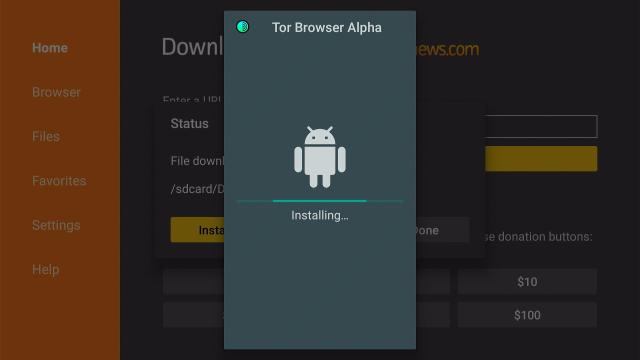
Tor Browser (4)


18. Launch the app by clicking Open.

Tor Browser (5)


19. Select Connect, you might have to use mouse toggle.

Tor Browser (6)


20. Set your security level.

Tor Browser (7)


21. Click on the search engine at the bottom part.

Tor Browser (8)


22. You can now type in the website you want to visit

Tor Browser (9)


YOUR INTERNET ACTIVITY IS BEING WATCHED

ReviewVPN cannot attest to the legality, security and privacy of the applications discussed on this site. It is highly recommended that you use a VPN service while streaming or using Kodi.

Currently, your IP 216.73.216.211 is visible to everyone and your Browser is being tracked by Advertisers & ISP Provider.

Save 65% Now

Limited Time Offer

Here are the main reasons why you must use a VPN:

  • Your activities are hidden from your ISP, the government, and from the apps you are using.
  • You can access additional movies and TV streams.
  • ISP attempts to throttle are thrwarted thus reducing buffering issues.
  • Geographically restricted content like Netflix and Hulu can be unblocked.

A VPN works be replacing your ISP-assigned IP address and creating an encrypted tunnel. We recommend the no log service offered by IPVanish. It works well on a Firestick and offers the fastest possible speeds.

Special Limited Time Offer - Get IPVanish


Legal Disclaimer: ReviewVPN.com does not encourage or endorse any illegal activity involved in the usage of services and applications referenced on this site. We do not verify the licensing agreements of services. The end-user is wholly responsible for ensuring that any media accessed through these services does not violate copyright and/or licensing laws. ReviewVPN does not promote, link to, or receive compensation from any Apps and IPTV services.


Install Surfshark on Firestick

Best Surfshark Deal


App Features

  • The app is a little hard to navigate
  • You can install it for free
  • Allows you to set your very own Privacy setting based on the websites you are visiting
  • The search engine is located on the bottom part
  • Used Duck Duck Go search engine
  • Ask for donation


Pros and Cons

Pros

  • 100% Free
  • Works well on firestick
  • Lets you set your privacy setting


Cons

  • Hard to navigate
  • Ask for donations


Stream Safely With A VPN

https://get.surfshark.net/aff_c?offer_id=865&aff_id=12312

Tor Browser can surely help you with your safety. Especially when the websites you are visiting are dangerous sites. To be 100% sure, you can also use a VPN. It will give you an additional layer of protection not only from websites but also from your ISP, and hackers. If you are using a Firestick, it is better to have a VPN for your apps as well.

Be careful in choosing a VPN. Always trust a great brand such as Surfshark. It is the best VPN for streaming. This also works well with your Amazon Firestick.

Note: For more information about Surfshark, please read our Surfshark Review.


Grab your subscription now!

Click here to get the lowest price on Surfshark through our exclusive limited-time offer.


How to Install Surfshark VPN on Firestick

If your Firestick still has the older interface, read this article to learn how to update it: Update Firestick Interface.

1. Go to the Home screen of your Firestick.

step 1 Install Surfshark VPN on Firestick


2. Navigate towards the Find tab. Press the Search button from the resulting dropdown.

step 2 Install Surfshark VPN on Firestick


3. Type in the keyword of SurfShark and select from the suggestions that will appear.

step 3 Install Surfshark VPN on Firestick


4. Click the official SurfShark icon from your search results.

step 4 Install Surfshark VPN on Firestick


5. Press the Download (You own it) button.

step 5 Install Surfshark VPN on Firestick


6. The SurfShark VPN installer will download on your device.

step 6 Install Surfshark VPN on Firestick


7. SurfShark VPN’s app will automatically install itself on your Fire TV stick.

step 7 Install Surfshark VPN on Firestick


8. Press the Open button after completing SurfShark VPN’s installation process.

step 8 Install Surfshark VPN on Firestick


9. Please wait for the SurfShark VPN to load its user interface.

step 9 Install Surfshark VPN on Firestick


10. You can now log in with your SurfShark VPN account credentials.

step 10 Install Surfshark VPN on Firestick

Learn more about Surfshark and Grab the Best Surfshark Deal Now!


Other VPNs to Consider

NordVPN (Best for Streaming)

Best Features

  • 5000+ Server in 50+ Countries 
  • Military-Grade Encryption
  • Fast Connection Speed
  • Suitable to a lot of devices
  • No-Log Policy

Prices
  • Complete $5.89 per month (64% Discount)
  • Plus $4.59 per month (56% Discount)
  • Standard $3.69 per month (55% Discount)

Best Features

  • 750+ High-speed VPN Servers in 43 Locations
  • Military-Grade Encryption
  • Fastest HD Streaming and Gaming
  • 30-Day Money-Back Guarantee
  • Unlimited Data & Devices
  • No-Log Policy

Prices
  • 3 Years $1.99 per month (82% Discount)
  • 1 Years $3.29 per month (70% Discount)
  • 1 Month $10.99 per month

IPVanish VPN (Most Secure)

Best Features

  • 1200+ Servers in 60+ Countries around the world
  • Unlimited Connections
  • No-Log Policy
  • Top Notch Military-Grade VPN Protocols and Encryptions
  • 100% Safe and Secured
  • Most Trusted VPN
  • Best VPN for Firestick
  • 30-Day Money-Back Guarantee

Prices
  • Yearly $3.99 per month (63% Discount) – 30 days risk free + Ransomware & Malware Protection
  • Quarterly $5.32 per month (51% Discount)
  • Monthly $10.99 per month


For more VPN discounts, go to ReviewVPN Deals and purchase the best VPN for you.


Alternatives for Tor Browser

If you are not satisfied with Tor Browser, then here are the best alternatives for you.


Downloader

It is a browser that allows you to install third-party applications to your device.


Amazon Silk Browser

So far the best official server provider by Amazon for Firestick.


Firefox

One of the most popular browsers for Windows and is also available for Firestick.


Duck Duck Go

Safest browser for privacy


TV Bro Browser

A robust best for listening to music and file management


Soul Browser

The best option for smooth, ad-free website streaming.


Opera Browser

An android-powered browser with a rebooted news feed, built-in ad blocker, and a VPN.


Brave Web Browser

One of the safest and the most protective browsers by preventing ads and trackers.


FAQs

Is It Safe to Use Tor Browser?

We have tested the app using Virus Total and there are no threats found, so we can say that it is safe to use.


Is Tor Browser free?

The app is 100% free but it asks for donations to keep the app running.


Is Tor Browser Legal?

Yes. The app is 100% legal.


Are there any Ads?

You will not see any advertisements on the home page of the app.


Conclusion

Tor Browser is another great web browser to use on Firestick. It surely has a lot of great and safe features to offer. The only problem is it is somehow hard to navigate. So we suggest using a mouse toggle, just in case.

You will notice that Tor Browser has a duck duck go logo on the search engine. It shows that privacy is really a key factor for this browser. Another thing is the option to donate to the app. If the app stops its operation, you can choose from the alternatives we provided above.

The best thing we’ve noticed on this browser is the liberty to choose privacy settings. You can access and visit websites based on your preferences.

With this article, we hope you’ve learned how to install Tor Browser on Firestick and Android.


Note: ReviewVPN.com does not own or operate any app nor does it endorse any. The main purpose of this article is strictly for educational purposes only.


Others Also Seach:

How to Hide Your IP Address

Does Tor Work Well with a VPN

How to Get on the Dark Web

FileSynced – Is This The Best FileLinked Clone?

FileSynced Overview

In this article, we will help you learn everything you need to know about FileSynced.

Another clone emerges weeks after the shocking shut down of FileLinked. Together with AppLinked and UnLinked, FileSynced works just like the same as FileLinked.

It is a new FileLinked alternative that helps you install the best Firestick apps on your device. We will also show the best working FileSynced codes that you can check out.


FileSynced is not an official Amazon app. You cannot install it directly on your Firestick. To install it, you have to Jailbreak your Firestick first and use the Downloader app.

Please also take note that FileSynced developers are still probably improving the app, but upon testing, we can say that is completely working on Amazon Firestick.

If your Firestick still has the older interface, read this article to learn how to update it: Update Firestick Interface.


ANONYMOUSLY


How to Install FileSynced on Firestick

In this process, we are going to use the Downloader app. Make sure you can jailbreak your firestick first. This is to allow you to install from sources unknown to Amazon. Here’s how:

1. Scroll to the right-most portion of your home screen and click the wheel gear button (Settings).

Step 1 jailbreak firestick

2. Scroll down and to the right until you get to My Fire TV. Click on it.

Step 2 jailbreak firestick


3. Select Developer options.

Step 3 jailbreak firestick


4. Turn on ADB debugging and Apps from Unknown Sources.

Step 4 jailbreak firestick


5. Click Turn On when the pop-up appears.

Step 5 jailbreak firestick


Then, after jailbreaking your Firestick, you’ll need to install the Downloader app to sideload FileSynced. This app, which is easily available on the Amazon App Store, allows you to download APK files.


6. Click Home, click FIND.

Step 6 Install FitOn Pro App on Firestick


7. Click Search.

Step 7 Install FitOn Pro App on Firestick


8. You can either say Downloader to your Alexa voice-enabled remote or start typing it. If you typed it, click on the suggestion when it appears.

Step 8 Install FitOn Pro App on Firestick


9. Click on the Downloader Icon.

Step 9 Install FitOn Pro App on Firestick


10. Click Download.

Step 10 Install FitOn Pro App on Firestick


step 10 Install FitOn Pro App on Firestick


11. Click on Open.

Step 11 Install FitOn Pro App on Firestick


12. Click on Allow.

Step 12 Install FitOn Pro App on Firestick


13. Use the Downloader search tab.

Install the UPlayer App on Firestick Step 13


14. Type in filesynced.com then click Go.

FileSynced (2)


15. Scroll down and click Download Now. The file will then begin to download; simply wait for it to complete.

FileSynced (3)


16. Click on Install.

FileSynced (5)


17. Then click Open.

FileSynced (7)


18. Select Allow.

FileSynced (9)


19. Type in the FileSynced Code and click Enter Code.

FileSynced (11)


YOUR INTERNET ACTIVITY IS BEING WATCHED

ReviewVPN cannot attest to the legality, security and privacy of the applications discussed on this site. It is highly recommended that you use a VPN service while streaming or using Kodi.

Currently, your IP 216.73.216.211 is visible to everyone and your Browser is being tracked by Advertisers & ISP Provider.

Save 65% Now

Limited Time Offer

Here are the main reasons why you must use a VPN:

  • Your activities are hidden from your ISP, the government, and from the apps you are using.
  • You can access additional movies and TV streams.
  • ISP attempts to throttle are thrwarted thus reducing buffering issues.
  • Geographically restricted content like Netflix and Hulu can be unblocked.

A VPN works be replacing your ISP-assigned IP address and creating an encrypted tunnel. We recommend the no log service offered by IPVanish. It works well on a Firestick and offers the fastest possible speeds.

Special Limited Time Offer - Get IPVanish


Legal Disclaimer: ReviewVPN.com does not encourage or endorse any illegal activity involved in the usage of services and applications referenced on this site. We do not verify the licensing agreements of services. The end-user is wholly responsible for ensuring that any media accessed through these services does not violate copyright and/or licensing laws. ReviewVPN does not promote, link to, or receive compensation from any Apps and IPTV services.


Install Surfshark on Firestick

Best Surfshark Deal


List of the Best Working FileSynced Codes

There are only a few codes working for FileSynced as of this moment. As you can see on the home page of the app, there is an option that says Trending Codes.

Here is the list of the best working codes as of July 2021.

  • 10000017 – Streaming Apps
  • 56001333 – FileLinked Store
  • 88888888 – DreamLocator
  • 55555555 – LeeTV Streaming Stuff
  • 10000008 – Apps
  • 10000042 – movie and tv shows
  • 10000013 – DaBs TV and Movie Options
  • 20212021 – DaBs Kodi Forks
  • 10000014 – Test


App Features

  • 100% free
  • Easy to navigate
  • Download page shows previously downloaded apps
  • Previous Codes page says the recent codes you enter
  • Trending Codes page allows you to see popular codes with the number of views they have


Should I Use This App With A VPN?

surfshark logo

Installing third-party apps to your devices makes them vulnerable to cyber threats. Your Internet Service Provider (ISP) also monitors your internet activities. You will suddenly experience buffering because your ISP will reduce your bandwidth.

To be protect your device from these threats, you must use the powerful Surfshark. It will protect your identity and provide you with the best features for streaming online videos.

Here are the benefits of using Surfshark:

  • Conceal everything you do online.
  • Bypass geo-blocks letting you watch exclusive online content.
  • Hides your identity from your Internet Service Provider (ISP) when accessing high-quality and geo-restricted content.
  • Serves as a bridge that connects you to different servers all over the world.
  • Protects all of your data with encryption.
  • Multiple device usage at once with only one account.
  • Speed up your internet bandwidth depending on your chosen server.
  • Best for torrenting.
  • Prevents Firestick Buffering and Kodi Buffering

Note: For more information about Surfshark, please read our Surfshark Review.


Grab your subscription now!


How to Install Surfshark VPN on Firestick

If your Firestick still has the older interface, read this article to learn how to update it: Update Firestick Interface.

Follow our screenshots below to install the SurfShark VPN app on your Fire TV stick.

1. Go to the Home screen of your Firestick.

step 1 Install Surfshark VPN on Firestick


2. Navigate towards the Find tab. Press the Search button from the resulting dropdown.

step 2 Install Surfshark VPN on Firestick


3. Type in the keyword of SurfShark and select from the suggestions that will appear.

step 3 Install Surfshark VPN on Firestick


4. Click the official SurfShark icon from your search results.

step 4 Install Surfshark VPN on Firestick


5. Press the Download (You own it) button.

step 5 Install Surfshark VPN on Firestick


6. The SurfShark VPN installer will download on your device.

step 6 Install Surfshark VPN on Firestick


7. SurfShark VPN’s app will automatically install itself on your Fire TV stick.

step 7 Install Surfshark VPN on Firestick


8. Press the Open button after completing SurfShark VPN’s installation process.

step 8 Install Surfshark VPN on Firestick


9. Please wait for the SurfShark VPN to load its user interface.

step 9 Install Surfshark VPN on Firestick


10. You can now log in with your SurfShark VPN account credentials.

step 10 Install Surfshark VPN on Firestick

Learn more about Surfshark and Grab the Best Surfshark Deal Now!


Install Surfshark on Firestick

Best Surfshark Deal


Other VPNs to Consider

NordVPN (Best for Streaming)

Best Features

  • 5000+ Server in 50+ Countries 
  • Military-Grade Encryption
  • Fast Connection Speed
  • Suitable to a lot of devices
  • No-Log Policy

Prices
  • Complete $5.89 per month (64% Discount)
  • Plus $4.59 per month (56% Discount)
  • Standard $3.69 per month (55% Discount)

Best Features

  • 750+ High-speed VPN Servers in 43 Locations
  • Military-Grade Encryption
  • Fastest HD Streaming and Gaming
  • 30-Day Money-Back Guarantee
  • Unlimited Data & Devices
  • No-Log Policy

Prices
  • 3 Years $1.99 per month (82% Discount)
  • 1 Years $3.29 per month (70% Discount)
  • 1 Month $10.99 per month

IPVanish VPN (Most Secure)

Best Features

  • 1200+ Servers in 60+ Countries around the world
  • Unlimited Connections
  • No-Log Policy
  • Top Notch Military-Grade VPN Protocols and Encryptions
  • 100% Safe and Secured
  • Most Trusted VPN
  • Best VPN for Firestick
  • 30-Day Money-Back Guarantee

Prices
  • Yearly $3.99 per month (63% Discount) – 30 days risk free + Ransomware & Malware Protection
  • Quarterly $5.32 per month (51% Discount)
  • Monthly $10.99 per month


For more VPN discounts, go to ReviewVPN Deals and purchase the best VPN for you.

Click here to get the lowest price on Surfshark through our exclusive limited-time offer.


Alternatives for FileSynced

Here are the two other FileLinked Clones known after FileLinked shutdown:


Other apps can serve as good alternatives to FileSynced:


FAQs

Is FileSynced Safe?

We have tested this app with Virus Total and found no malicious content. With this, we can say that it is safe to use the app.


What is FileSynced?

FileSynced is another clone patterned next to FileLinked. Through this, you can install other apps that are not available in Google Play Store, Amazon App Store, and the like.


It is Legal to Use FileSynced?

Yes. We can say that FileSynced is legal to use. But with content from apps, copyrights could be an issue. Make sure to use a VPN for your safety and protection.


What Devices Supports the Use of FileSynced?

FileSynced can be used mostly on Android devices. One of which is the Amazon Firestick which is the most popular streaming device.


Conclusion

FileLinked came to an end, but more and more similar apps are being born. One of which is FileSynced, another great FileLinked clone. It has better features like letting you know the trending codes you can use to install apps.

Since it is new, there are just only a few codes present but I guess this is one interesting app. So the best FileSynced codes will soon be many.

We can say it is one of the best clones like AppLinked and UnLinked, and really worth checking out.

With this,  we hope that you find this article helpful about FileSynced.


Note: ReviewVPN.com does not own or operate any app nor does it endorse any. The main purpose of this article is strictly for educational purposes only.


Others Also Read:

Alternatives for Netflix – Legal and Free Apps for Firestick

Netflix Alternative Overview

This article will tell you the best legal and free Netflix alternative for Firestick.

One of the most used and most popular streaming apps around the world is Netflix. It is a paid subscription that offers movies and tv series. Most of the titles are original Netflix shows. The content library depends on your location. Some contents are not available in other countries.

The solution is to know the best VPN that works with Netflix and change your Netflix region. Another one is to find the best Netflix alternative for you. Well, we may give you a list of so many best apps for firestick, but our criteria are based upon these two characteristics, legal and free.


Based on those criteria, we’ve narrowed it down to these 3 apps: Tubi TV, Crackle, and Popcornflix. Well, all of these three apps are official firestick apps. Although, Tubi TV and Crackle are only available in the US. For Tubi TV, we will show you an alternative way to install it outside the US, but you need to Jailbreak Your Firestick first and Install the Downloader App.

If your Firestick still has the older interface, read this article to learn how to update it: Update Firestick Interface.


ANONYMOUSLY


Best Alternatives For Netflix

Tubi TV

We may say that Tubi TV is the best Netflix alternative so far. Especially when we are talking about being free and legal to install on Firestick.

There are just a few advertisements that keep the app alive and have profit. But the app keeps updating its content almost every week.

If you are not in the USA, it’ll be hard for you to install Tubi TV. If you can’t install the app, you can use the official Tubi Website, https://tubitv.com/,but you might need to use a VPN to connect your windows internet to a US server.


Here is how you can install Tubi on Firestick directly if you are located anywhere in the USA:

1. Go to Find and click Search

netflix alternative 1

2. Search for Tubi TV

netflix alternative 2


3. Select the Tubi TV app

netflix alternative 3


4. Click Get or Download

netflix alternative 4


5. Once the installation is done, click Open.

netflix alternative 5


6. Tap on the  Get Started  button


7. Choose to Continue as Guest

netflix alternative 7


8. You can now watch movies and TV series on Tubi TV

netflix alternative 8


You don’t have to worry if you are not located in the USA and still want to install Tubi TV on your Firestick. Here is how:

1. Install the Downloader app and jailbreak your firestick by enabling unknown sources. To learn more about the procedure, you may read How to Install the Downloader App and Enable Unknown Sources.


2. Open Downloader App. Type https://reviewvpn.com/tub and click Go.

 Tubi TV1


3. Click Install.

 Tubi TV2


4. Click Open.

 Tubi TV3


5. Click Skip

Tubi TV5


6. Tubi TV is installed. Enjoy watching.

 Tubi TV4


To have the full experience of Tubi TV on your Firestick and access US-based content, install a VPN and connect it to a US server.

Learn more about Tubi TV, read Install Tubi TV on Firestick, Fire TV, and Android for Free and Legal Movies. You can also watch Tubi TV abroad.


Crackle

This app also offers tons of great movies and tv series for free. That is why we can also suggest this as a Netflix alternative. Just like Tubi TV, Crackle is mostly available in the USA.

At first, this app is referred to as Sony Crackle, but last 2019, Sony sold the brand Crackle to Chicken Soup for the Soul remaining the app to be known as Crackle alone.

You can directly install this app on Firestick. But this is also available on Google Play, Roku, and Apple App Store.


Here is how you can install Crackle on Firestick:

1. Go to Find and click Search.

netflix alternative 1


2. Search for Crackle.

netflix alternative 9


3. Select the Crackle app.

netflix alternative 10


4. Click the Get or Download button.

netflix alternative 11


5. Wait for the app to be installed.

netflix alternative 12


6. Tap the Open button

netflix alternative 13


7. Select Skip

netflix alternative 14


8. You can now watch Crackle on Firestick

netflix alternative 15


YOUR INTERNET ACTIVITY IS BEING WATCHED

ReviewVPN cannot attest to the legality, security and privacy of the applications discussed on this site. It is highly recommended that you use a VPN service while streaming or using Kodi.

Currently, your IP 216.73.216.211 is visible to everyone and your Browser is being tracked by Advertisers & ISP Provider.

Save 65% Now

Limited Time Offer

Here are the main reasons why you must use a VPN:

  • Your activities are hidden from your ISP, the government, and from the apps you are using.
  • You can access additional movies and TV streams.
  • ISP attempts to throttle are thrwarted thus reducing buffering issues.
  • Geographically restricted content like Netflix and Hulu can be unblocked.

A VPN works be replacing your ISP-assigned IP address and creating an encrypted tunnel. We recommend the no log service offered by IPVanish. It works well on a Firestick and offers the fastest possible speeds.

Special Limited Time Offer - Get IPVanish


Legal Disclaimer: ReviewVPN.com does not encourage or endorse any illegal activity involved in the usage of services and applications referenced on this site. We do not verify the licensing agreements of services. The end-user is wholly responsible for ensuring that any media accessed through these services does not violate copyright and/or licensing laws. ReviewVPN does not promote, link to, or receive compensation from any Apps and IPTV services.


Install Surfshark on Firestick

Best Surfshark Deal


Popcornflix

The last Netflix alternative is Popcornflix. It is an ad-supported but free app to watch movies and tv series on your devices. Popcornflix offers a variation of genres and it even has a different app for Popcornflix Kids.

This app has a very easy-to-use interface. And on top of that, this is available even if you are not in the USA. You can easily install this on your Firestick.

1. Click FIND.

Movie Nite 1


2. Click Search.

Movie Nite2


3. Type Popcornflix and click on the suggestion


4. Tap the icon of the Popcornflix app when it appears


5. Click the Get or Download button to install the app


6. Wait for the app to be installed


7. Select Open to launch the app


8. Popcornflix is now installed. Enjoy watching!


To know more about this app, read Popcornflix: Installation Guide and Review on Firestick, Android, PC, and iOS.


Stream Safely with a VPN

https://get.surfshark.net/aff_c?offer_id=865&aff_id=12312

Most of the apps featured in this article are geo-restricted. This means that most of the contents are only available in a specific area. Even when you have the ability to install it, the content is still unavailable unless you use a premium VPN.

By using a VPN, you can connect to a server from a different country and access the content only available in that area.

In this case, we always suggest using Surfshark. It is the best VPN for streaming. Not only does it allows you to access geo-blocked content but also provides you with the best features.

Most of the many features of Surfshark are:

  • Allows you to pick from 3,200 VPN servers in 65 locations from all over the world.
  • It works on all unlimited simultaneous devices.
  • Best VPN protocol based on your device’s needs.
  • Zero log policy.
  • Protect you from your Internet Service Provider (ISP) when accessing high-quality and geo-restricted content.
  • As mentioned above, connect you to a server from another country.
  • Makes your data encrypted and also stops malware from entering your device.
  • Allows you to use one account for several devices.
  • Makes your internet speed faster.
  • Supports torrenting.
  • Prevents Firestick Buffering and Kodi Buffering


Install Surfshark on Firestick

Best Surfshark Deal


How to Install Surfshark VPN on Firestick

If your Firestick still has the older interface, read this article to learn how to update it: Update Firestick Interface.

You can download Surfshark directly from the Amazon App store. It will be easy for you to find Surfshark with your Firestick’s Find feature. Refer to our screenshots below.

1. Go to the Home screen of your Firestick.

step 1 Install Surfshark VPN on Firestick


2. Navigate towards the Find tab. Press the Search button from the resulting dropdown.

step 2 Install Surfshark VPN on Firestick


3. Type in the keyword of SurfShark and select from the suggestions that will appear.

step 3 Install Surfshark VPN on Firestick


4. Click the official SurfShark icon from your search results.

step 4 Install Surfshark VPN on Firestick


5. Press the Download (You own it) button.

step 5 Install Surfshark VPN on Firestick


6. The SurfShark VPN installer will download on your device.

step 6 Install Surfshark VPN on Firestick


7. SurfShark VPN’s app will automatically install itself on your Fire TV stick.

step 7 Install Surfshark VPN on Firestick


8. Press the Open button after completing SurfShark VPN’s installation process.

step 8 Install Surfshark VPN on Firestick


9. Please wait for the SurfShark VPN to load its user interface.

step 9 Install Surfshark VPN on Firestick


10. You can now log in with your SurfShark VPN account credentials.

step 10 Install Surfshark VPN on Firestick

Learn more about Surfshark and Grab the Best Surfshark Deal Now!


Install Surfshark on Firestick

Best Surfshark Deal


Other VPNs to Consider

NordVPN (Best for Streaming)

Best Features

  • 5000+ Server in 50+ Countries 
  • Military-Grade Encryption
  • Fast Connection Speed
  • Suitable to a lot of devices
  • No-Log Policy

Prices
  • Complete $5.89 per month (64% Discount)
  • Plus $4.59 per month (56% Discount)
  • Standard $3.69 per month (55% Discount)

Best Features

  • 750+ High-speed VPN Servers in 43 Locations
  • Military-Grade Encryption
  • Fastest HD Streaming and Gaming
  • 30-Day Money-Back Guarantee
  • Unlimited Data & Devices
  • No-Log Policy

Prices
  • 3 Years $1.99 per month (82% Discount)
  • 1 Years $3.29 per month (70% Discount)
  • 1 Month $10.99 per month

IPVanish VPN (Most Secure)

Best Features

  • 1200+ Servers in 60+ Countries around the world
  • Unlimited Connections
  • No-Log Policy
  • Top Notch Military-Grade VPN Protocols and Encryptions
  • 100% Safe and Secured
  • Most Trusted VPN
  • Best VPN for Firestick
  • 30-Day Money-Back Guarantee

Prices
  • Yearly $3.99 per month (63% Discount) – 30 days risk free + Ransomware & Malware Protection
  • Quarterly $5.32 per month (51% Discount)
  • Monthly $10.99 per month


For more VPN discounts, go to ReviewVPN Deals and purchase the best VPN for you.

Click here to get the lowest price on Surfshark through our exclusive limited-time offer.


Netflix Alternative FAQ


What is the best Netflix alternative?

Based on our opinion, Tubi TV can be considered the best Netflix alternative especially when you are using Firestick.


Is there an alternative to Netflix?

Yes, actually there are three choices you can check out for the Netflix alternative. Read the top 3 apps featured above.


Executive Summary

Netflix is a wonderful application for movies and TV series. The only problem you might encounter with this is it’s not 100% free. So if you are looking for a Netflix alternative, you may check out these three applications:

  • Tubi TV
  • Crackle
  • Popcornflix

These three apps are 100% free and legal to use on Firestick. Choose what is the best Netflix alternative for you.


Note: ReviewVPN.com does not own or operate any app nor does it endorse any. The main purpose of this article is strictly for educational purposes only.


People Also Search:

Install Tubi TV Kodi Addon

Netflix Hidden Codes

How to Watch Tubi TV Abroad for Free and Legal Movies


What Is Your Favorite Streaming App? Cast Your Vote Below.

Amazon Prime Video Error – “This Title Isn’t Available in Your Location”

Overview About The Article

In this article, we will tell you what to do when you experience the “this title isn’t available in your location” error on Amazon Prime Video.

Amazon Prime Video is one of the official Amazon apps. Like Netflix, it offers thousands of award-winning and popular movies, and tv series. Most of them are original Amazon Prime shows.

This streaming service is not for free. Amazon Prime is a subscription-based platform mostly used in the US. The price of Amazon Prime is $13 per month or $199 a year. This includes all the other features of Prime like AmazonFresh. But if you only want to use Amazon Prime Video, the payment is only $9 per month.


If you are going to travel abroad, you will find it hard to stream some titles from Prime Video. You will experience an error that says, “this title isn’t available in your location”.


Why are you Experiencing This Amazon Prime Error?

You are experiencing the “this title isn’t available in your location” error because of geo-restriction. Most features and content of apps like Amazon Prime Video are only available in specific countries.

Actually, Amazon Prime Video is available in over 200 countries. But the content varies depending on location. Geo-restriction implies the imposed licensing restrictions per country.

Since Amazon Prime Video originated in the USA, the content library available in the US probably has the most to offer.

In a simpler explanation, if you want to access a US-only show on Amazon Prime Video, but you are not located in any of its states, you will surely experience this error.


ANONYMOUSLY


Other Possible Reasons Why You Experience the “this title isn’t available in your location” on Amazon Prime Video

Aside from location issues, there might still be other reasons why you are experiencing this “this title isn’t available in your location” error. Take a look at this list of possibilities:

  • It is possible to experience such errors when you change your payment method. If you use a credit card number that is available in a different country, you are to experience the “this title isn’t available in your location” error from Amazon.
  • By using software that blocks information to destroy location issues. Examples of this software are Firewalls, Anti-virus, and Browser extensions.
  • If you are using a VPN that does not work really well with Amazon Prime Video or is currently connected to a country with no access to Amazon Prime Video. Please take note that not all VPNs work with Amazon.


How to Remove the “this title isn’t available on your location” error on Amazon Prime Video

To remove this error, you need to have a good and working VPN for Amazon Prime Video. You can change your IP address through your VPN. This means changing your internet location. No need to travel, your VPN will serve as a bridge for you. It will connect you to another country’s server like the USA. You can finally access the title that formerly has an error.

The question for you right now is to know which VPN to use.

SurfShark VPN is the best VPN that can unblock almost all streaming platforms. This is why we recommend using this to remove the error with Amazon Prime.

There are only a few VPNs that work well with Amazon Prime Video and they are as follows:


Other Great Features of Surfshark

https://get.surfshark.net/aff_c?offer_id=865&aff_id=12312

  • This VPN boasts 3,200 VPN servers in 65 locations all over the world.
  • Surfshark’s VPN protocols work great and can actually adjust depending on your device type.
  • No-log policy is being followed by Surfshark. You don’t have to worry about your streaming activities because it does not record them.
  • Surfshark gives another layer of protection from your Internet Service Provider (ISP).
  • This prevents bandwidth throttling when you access content that requires higher internet speed.
  • By connecting to other servers, you can access content only available in that area.
  • Stops malware entry.
  • You can use one Surfshark account on different devices at one time.
  • Surfshark safely encrypts your data.
  • Makes your internet speed faster.
  • Supports torrenting
  • Prevents Firestick Buffering and Kodi Buffering


Grab your subscription now!

Best Surfshark Deal


How to Install Surfshark VPN on Firestick

If your Firestick still has the older interface, read this article to learn how to update it: Update Firestick Interface.

You can download Surfshark directly from the Amazon App store. It will be easy for you to find Surfshark with your Firestick’s Find feature. Refer to our screenshots below.

1. Go to the Home screen of your Firestick.

step 1 Install Surfshark VPN on Firestick


2. Navigate toward the Find tab. Press the Search button from the resulting dropdown.

step 2 Install Surfshark VPN on Firestick


3. Type in the keyword of SurfShark and select from the suggestions that will appear.

step 3 Install Surfshark VPN on Firestick


4. Click the official SurfShark icon from your search results.

step 4 Install Surfshark VPN on Firestick


5. Press the Download (You own it) button.

step 5 Install Surfshark VPN on Firestick


6. The SurfShark VPN installer will download on your device.

step 6 Install Surfshark VPN on Firestick


7. SurfShark VPN’s app will automatically install itself on your Fire TV stick.

step 7 Install Surfshark VPN on Firestick


8. Press the Open button after completing SurfShark VPN’s installation process.

step 8 Install Surfshark VPN on Firestick


9. Please wait for the SurfShark VPN to load its user interface.

step 9 Install Surfshark VPN on Firestick


10. You can now log in with your SurfShark VPN account credentials.

step 10 Install Surfshark VPN on Firestick

Learn more about Surfshark and Grab the Best Surfshark Deal Now!


Install Surfshark on Firestick

Best Surfshark Deal


Other VPNs to Consider

NordVPN (Best for Streaming)

Best Features

  • 5000+ Server in 50+ Countries 
  • Military-Grade Encryption
  • Fast Connection Speed
  • Suitable to a lot of devices
  • No-Log Policy

Prices
  • Complete $5.89 per month (64% Discount)
  • Plus $4.59 per month (56% Discount)
  • Standard $3.69 per month (55% Discount)

Best Features

  • 750+ High-speed VPN Servers in 43 Locations
  • Military-Grade Encryption
  • Fastest HD Streaming and Gaming
  • 30-Day Money-Back Guarantee
  • Unlimited Data & Devices
  • No-Log Policy

Prices
  • 3 Years $1.99 per month (82% Discount)
  • 1 Years $3.29 per month (70% Discount)
  • 1 Month $10.99 per month

IPVanish VPN (Most Secure)

Best Features

  • 1200+ Servers in 60+ Countries around the world
  • Unlimited Connections
  • No-Log Policy
  • Top Notch Military-Grade VPN Protocols and Encryptions
  • 100% Safe and Secured
  • Most Trusted VPN
  • Best VPN for Firestick
  • 30-Day Money-Back Guarantee

Prices
  • Yearly $3.99 per month (63% Discount) – 30 days risk free + Ransomware & Malware Protection
  • Quarterly $5.32 per month (51% Discount)
  • Monthly $10.99 per month


For more VPN discounts, go to ReviewVPN Deals and purchase the best VPN for you.

Click here to get the lowest price on Surfshark through our exclusive limited-time offer.


How to Access Amazon Prime Video Using Split Tunneling

There are some VPNs out there that cannot unblock SurfShark. IPVanish is one of them. And if you are currently using IPVanish wight now, you might still have problems using Amazon Prime outside the US.

The best thing you can do is to activate IPVanish Split Tunneling to access Amazon Prime.

Follow this simple steps to do so.

1. Launch your IPVanish app and click on the Settings button (gearwheel icon) on the upper right portion.

IPVanish Secret Settings (1)


2. Scroll down to the Split Tunneling option.

IPVanish Secret Settings (2)


3. You can choose between 3 types of apps namely: Recommended, User Apps, and System Apps.

IPVanish Secret Settings (3)


4. Choose and click any app that you would like to use your original IP address instead of the one provided by IPVanish.

Amazon Prime Video error This Title Isn't Available on Your Location

For more IPVanish features, read The Best IPVanish Secret Settings For You.


YOUR INTERNET ACTIVITY IS BEING WATCHED

ReviewVPN cannot attest to the legality, security and privacy of the applications discussed on this site. It is highly recommended that you use a VPN service while streaming or using Kodi.

Currently, your IP 216.73.216.211 is visible to everyone and your Browser is being tracked by Advertisers & ISP Provider.

Save 65% Now

Limited Time Offer

Here are the main reasons why you must use a VPN:

  • Your activities are hidden from your ISP, the government, and from the apps you are using.
  • You can access additional movies and TV streams.
  • ISP attempts to throttle are thrwarted thus reducing buffering issues.
  • Geographically restricted content like Netflix and Hulu can be unblocked.

A VPN works be replacing your ISP-assigned IP address and creating an encrypted tunnel. We recommend the no log service offered by IPVanish. It works well on a Firestick and offers the fastest possible speeds.

Special Limited Time Offer - Get IPVanish


Legal Disclaimer: ReviewVPN.com does not encourage or endorse any illegal activity involved in the usage of services and applications referenced on this site. We do not verify the licensing agreements of services. The end-user is wholly responsible for ensuring that any media accessed through these services does not violate copyright and/or licensing laws. ReviewVPN does not promote, link to, or receive compensation from any Apps and IPTV services.


Install Surfshark on Firestick

Best Surfshark Deal


Executive Summary

The “this title isn’t available in your location” error from Amazon Prime Video is caused by so many factors. Most of them are:

  1. Your current location
  2. The payment method, or credit card location
  3. By using a firewall, anti-virus, browser extension, or any software that blocks information to destroy location issues
  4. Your VPN is currently connected to a server where there is no access to Amazon Prime Video
  5. You are using a VPN that does not work with Amazon Prime Video

Not all VPNs can unblock Amazon Prime Video. The platform has a strict features that can detect the use of VPNs. Only a few can really bypass this restriction and best among others is none other than SurfShark. SurfShark VPN can unblock a huge number of streaming platforms that is why it is the best VPN for Firestick and all other devices.


Note: ReviewVPN.com does not own or operate any app nor does it endorse any. The main purpose of this article is strictly for educational purposes only.


Related Articles:

Is VPN Really Worth It?

Best VPN for Streaming

How to Sign Up For IPVanish VPN

Best VPN with Free Trials

The Best Hacks For Your Firestick and Fire TV (2023 Edition)

Firestick Hacks Overview

In this article, you will learn the best Firestick hacks to enjoy your streaming.


It is indeed sure that Firestick brings great entertainment to viewers. With so many apps, you can stream a lot of great shows.

Sometimes, it is difficult to stream a few contents depending on the app you are streaming. So with this article, we will tell you all the best hacks to level up your streaming.

This list of Firestick hacks includes some great apps, settings changes, and more. Some featured applications are part of the Best Legal Firestick apps and some are third-party. To install third-party apps, you need to Jailbreak Your Firestick and Install the Downloader App.

If your Firestick still has the older interface, read this article to learn how to update it: Update Firestick Interface.


ANONYMOUSLY


Best Firestick Hacks

Jailbreak Firestick

Jailbreaking your Amazon Firestick requires you to install third-party applications to your device. This might sound illegal, but it is actually not. And you can easily do this fast and easy.

1.  Click Home on your remote and scroll once to your Right. Click Setting (Gear Wheel Icon)

firestick hacks hack

2. Scroll down and to the right until you get to My Fire TV. Click on it.

firestick hacks hack


3. Select Developer options.

firestick hacks hack


4. Turn on ADB debugging and Apps from Unknown Sources.

firestick hacks hack


5. Click Turn On when the pop-up appears.

firestick hacks hack

Disable Firestick Monitoring To Your Streaming Activities

If you are new to Firestick, then this hack is actually a must. Don’t you know that Amazon can track your streaming activities? Only if you disable some settings can this stop.

1. Go to Settings

Firestick Settings (2)


2. Click on Preferences

Firestick Settings (3)


3. Go to Privacy Settings

Firestick Settings (7)


4. Turn off all the Settings Feature under Privacy Settings: Device Usage Data; Collect App Usage Data; Internat Based Ads.

Firestick Settings (8)


Firestick Settings (9)


Firestick Settings (10)


Firestick Settings (11)


Firestick Settings (12)


Firestick Settings (13)

For more settings that you need to disable, go to Firestick Settings That You Need to Disable Immediately After Updating to New Interface article.


Apps Used to Download Other Apps

The next firestick hack is about the apps used to download other apps. we’ve listed the top 3 for you.


Downloader

This is an official Amazon app that can be used as a browser and an app installer. By typing the link on its search engine, you can easily install the specific app you want. Here is how you install the Downloader app on your Firestick:

1.  Click Home, click FIND.

Step 6 jailbreak firestick


2. Click Search.

Step 7 jailbreak firestick


3. You can either say Downloader to your Alexa voice-enabled remote or start typing it. If you typed it, click on the suggestion when it appears.

Step 8 jailbreak firestick


4. Click on the Downloader icon

Step 9 jailbreak firestick


5. Click Download

Step 10 jailbreak firestick


6. Click on Open.

Step 11 jailbreak firestick


7. Click on Allow.

Install Virus Total Antivirus

If you want to learn more, read How to Install Downloader on Firestick.


Aptoide

One of the best FileLinked Alternatives is Aptoide. This app is an app store. It is actually one of the largest out there, in line with Google and Apple. To install it on your Firestick, you need to use Downloader first.


1. Install the Downloader app and jailbreak your firestick by enabling unknown sources. To learn more about the procedure, you may read How to Install the Downloader App and Enable Unknown Sources.


2. Open Downloader and type in https://reviewvpn.com/apt and click Go.

aptoide


3. Wait for the app to be downloaded.

aptoide


4. Choose Install.

aptoide


5. Wait for the app to be installed

aptoide


6. Select Open.

aptoide


7. Click OK.

aptoide


8. Choose Allow.

aptoide


9. You are now at the home page of the Aptoide TV app.

aptoide

To know more, Install Aptoide on Your Firestick.

Install Surfshark on Firestick

Best Surfshark Deal


AppLinked

Days after the shocking shut down of FileLinked, one of its clones exist in the streaming world. AppLinked is a new app that works almost the same as FileLinked. It is one of the new Firestick hacks that you can also apply to your streaming journey. This app also needs a Downloader for it to be installed.


1. Install the Downloader app and jailbreak your firestick by enabling unknown sources. To learn more about the procedure, you may read How to Install the Downloader App and Enable Unknown Sources.


2. Type in “https://i4studio.co.uk/applinked” then click “Go”.

AppLinked


3. Scroll down and click “Download”.

AppLinked 3


4. The file will then begin to download; simply wait for it to complete.

AppLinked 1


5. Click on “Install”.

AppLinked 3


6. Then click “Open”.

AppLinked 2


7. Click Allow.

AppLinked 5


8. There you have it, AppLinked is already installed on your device. 

AppLinked 4


If you want to know more, go to AppLinked Installation and Review article.


YOUR INTERNET ACTIVITY IS BEING WATCHED

ReviewVPN cannot attest to the legality, security and privacy of the applications discussed on this site. It is highly recommended that you use a VPN service while streaming or using Kodi.

Currently, your IP 216.73.216.211 is visible to everyone and your Browser is being tracked by Advertisers & ISP Provider.

Save 65% Now

Limited Time Offer

Here are the main reasons why you must use a VPN:

  • Your activities are hidden from your ISP, the government, and from the apps you are using.
  • You can access additional movies and TV streams.
  • ISP attempts to throttle are thrwarted thus reducing buffering issues.
  • Geographically restricted content like Netflix and Hulu can be unblocked.

A VPN works be replacing your ISP-assigned IP address and creating an encrypted tunnel. We recommend the no log service offered by IPVanish. It works well on a Firestick and offers the fastest possible speeds.

Special Limited Time Offer - Get IPVanish


Legal Disclaimer: ReviewVPN.com does not encourage or endorse any illegal activity involved in the usage of services and applications referenced on this site. We do not verify the licensing agreements of services. The end-user is wholly responsible for ensuring that any media accessed through these services does not violate copyright and/or licensing laws. ReviewVPN does not promote, link to, or receive compensation from any Apps and IPTV services.


Install Surfshark on Firestick

Best Surfshark Deal


Stream Almost Everything on Kodi

Kodi is a popular streaming app. You can use it for almost all types of streaming. That depends on the addon that you will use. Almost available legal and third-party apps on Firestick have an equivalent addon for Kodi.


1. Install the Downloader app and jailbreak your firestick by enabling unknown sources. To learn more about the procedure, you may read How to Install the Downloader App and Enable Unknown Sources.


2. Click on the URL line starting with https://kodi.tv/download and click Go.

type url in downloader


3.  Scroll down the screen and select the Android icon once. Be patient because it might take it 30 seconds or so to load the next screen

kodi download on firestick


4. Click on the 32-bit ARM version in the middle between Google Play and 64-bit ARM

kodi 32 bit arm download on firestick


5. The download should start (if it doesn’t, kick the screen a few times for good measure)

kodi downloading firestick install


6. Click INSTALL

click install on kodi in firestick


7.  After the Kodi App is installed, click OPEN (note, you will want to delete the APK in Downloader. You can do that at any point by going to Files and holding down on the APK file.)

click open firestick - kodi install on firestick


8. Click Allow

kodi allow access to files


9.  Your new Kodi install on your firestick should now load. Enjoy!

kodi 18.3 leia splash screen for kodi install on firestick


Stream Websites Using Your Firestick Device

The first firestick hack is that you can actually use your device to access websites. You can use the best browser on firestick which is the Amazon Silk Browser. It is an official Amazon app so you can install it directly.

1.  Click Home on your remote and click “Find”.


2. Click “Search”


3.Type in Silk Browser and choose this item that appears on the results.


4. Click on the Silk Browser Icon.


5. Choose Download


6. Select Open to launch the browser.


7. You can now start browsing using Amazon Silk Browser.


Install Surfshark on Firestick

Best Surfshark Deal


Other Best Firestick Hacks

Parental Controls

This feature allows you to manage that your kids cannot access some content. It is a good Firestick hack so whenever you are not home, you will not worry about your kids.

Best Firestick Settings (10)


Calibrate Display

This allows you to move your screen display to make it exactly fit your TV.

Best Firestick Settings (2)

To know more about these Settings, go to the Best Firestick Settings.


Stream Safely with a VPN

surfshark logo

Streaming could be dangerous to you because some apps and websites may see your IP address. Your identity can easily be known and your activities can be monitored. This is because your IP address serves as your online fingerprint.

You can filter this by changing your IP address through the use of a VPN. You just have to pick the best VPN for you. There are free VPNs but they are not completely safe. That is why we always suggest using the premium ones. And when we say premium VPN, Surfshark comes first. Through this, you’ll really get what you pay for.

Here are some of the best features and benefits you can get from Surfshark:

  • The VPN protocols of Surfshark are great and adjust depending on your device type.
  • It has a no-log policy.
  • Add a layer of protection from your Internet Service Provider to stop them from throttling your bandwidth.
  • It gives you a bridge that connects you to other regions or countries and access to geo-restricted content.
  • Prevents malware to corrupt your devices.
  • Let’s you use their service on multiple devices at the same time.
  • Encrypts your data.
  • Your internet speed will improve depending on your selected server.
  • This is the best VPN to use for torrenting.
  • Prevents Firestick Buffering and Kodi Buffering


Install Surfshark on Firestick

Best Surfshark Deal


How to Install Surfshark VPN on Firestick

If your Firestick still has the older interface, read this article to learn how to update it: Update Firestick Interface.

Follow our screenshots below to install the SurfShark VPN app on your Fire TV stick.

1. Go to the Home screen of your Firestick.

step 1 Install Surfshark VPN on Firestick


2. Navigate towards the Find tab. Press the Search button from the resulting dropdown.

step 2 Install Surfshark VPN on Firestick


3. Type in the keyword of SurfShark and select from the suggestions that will appear.

step 3 Install Surfshark VPN on Firestick


4. Click the official SurfShark icon from your search results.

step 4 Install Surfshark VPN on Firestick


5. Press the Download (You own it) button.

step 5 Install Surfshark VPN on Firestick


6. The SurfShark VPN installer will download on your device.

step 6 Install Surfshark VPN on Firestick


7. SurfShark VPN’s app will automatically install itself on your Fire TV stick.

step 7 Install Surfshark VPN on Firestick


8. Press the Open button after completing SurfShark VPN’s installation process.

step 8 Install Surfshark VPN on Firestick


9. Please wait for the SurfShark VPN to load its user interface.

step 9 Install Surfshark VPN on Firestick


10. You can now log in with your SurfShark VPN account credentials.

step 10 Install Surfshark VPN on Firestick

Learn more about Surfshark and Grab the Best Surfshark Deal Now!


Install Surfshark on Firestick

Best Surfshark Deal


Other VPNs to Consider

NordVPN (Best for Streaming)

Best Features

  • 5000+ Server in 50+ Countries 
  • Military-Grade Encryption
  • Fast Connection Speed
  • Suitable to a lot of devices
  • No-Log Policy

Prices
  • Complete $5.89 per month (64% Discount)
  • Plus $4.59 per month (56% Discount)
  • Standard $3.69 per month (55% Discount)

Best Features

  • 750+ High-speed VPN Servers in 43 Locations
  • Military-Grade Encryption
  • Fastest HD Streaming and Gaming
  • 30-Day Money-Back Guarantee
  • Unlimited Data & Devices
  • No-Log Policy

Prices
  • 3 Years $1.99 per month (82% Discount)
  • 1 Years $3.29 per month (70% Discount)
  • 1 Month $10.99 per month

IPVanish VPN (Most Secure)

Best Features

  • 1200+ Servers in 60+ Countries around the world
  • Unlimited Connections
  • No-Log Policy
  • Top Notch Military-Grade VPN Protocols and Encryptions
  • 100% Safe and Secured
  • Most Trusted VPN
  • Best VPN for Firestick
  • 30-Day Money-Back Guarantee

Prices
  • Yearly $3.99 per month (63% Discount) – 30 days risk free + Ransomware & Malware Protection
  • Quarterly $5.32 per month (51% Discount)
  • Monthly $10.99 per month


For more VPN discounts, go to ReviewVPN Deals and purchase the best VPN for you.

Click here to get the lowest price on Surfshark through our exclusive limited-time offer.


Wrapping Up

Firestick hacks are great. These help you to level up your streaming experience. To sum up, here are the best Firestick hacks for you:

  • Jailbreak Firestick
  • Disable Firestick Monitoring to Your Activities
  • Apps Used to Download Other Apps
  • Stream Almost Everything on Kodi
  • Stream Websites Using Your Firestick Device
  • Parental Control
  • Calibrate Display

We hope that this article was able to help you learn the best Firestick hacks for your streaming needs.

Note: ReviewVPN.com does not own or operate any app nor does it endorse any. The main purpose of this article is strictly for educational purposes only.

List of The Best Project Free TV Alternatives (2023)

Project Free TV Alternatives Overview

In this article, we will discuss the best Project Free TV alternatives for you.


Another popular movie and tv series streaming website went down years ago. This is Project Free TV. Just like Afdah, it went down because of some issues regarding legality and copyright.

When streaming on websites, it is best to use a VPN such as Surfshark. This is to make sure that you and your identity are safe when streaming.

Now, seems a lot of audiences are still looking for a good website to stream, we list down the best alternatives for Project Free TV. You can stream them in your Amazon Firestick using Silk Browser, or some other browsers like Firefox.

Silk Browser is one of the official Amazon apps. You don’t have to Jailbreak Your Firestick and Install the Downloader App to stream the best Project Free TV alternatives.

You can also read the List of the Best Websites to Watch Movies and TV Series for Free.


ANONYMOUSLY


How to Install the Amazon Silk Browser on Firestick

1.  Click Home on your remote and click “Find”.

Project Free TV Alternatives

2. Click “Search”

Project Free TV Alternatives


3.Type in Silk Browser and choose this item that appears on the results.

Project Free TV Alternatives


4. Click on the Silk Browser Icon.

Project Free TV Alternatives


5. Choose Get or Download

Project Free TV Alternatives


6. Select Open to launch the browser.

Project Free TV Alternatives


7. You can now start browsing using Amazon Silk Browser.

Project Free TV Alternatives


If your Firestick still has the older interface, read this article to learn how to update it: Update Firestick Interface.


Best Project Free TV Alternatives

We list down websites that we think best to be part of Project Free TV alternatives. Some of these websites might require registration and others might not be available outside the USA. You can use a VPN if you like to stream geo-restricted websites.


Vumoo

Project Free TV alternatives 1

website URL: https://vumoo.to/

This website has an interface that is user-friendly. Vumoo holds tons of titles to offer for streamers. With these good qualities, we named it the of the best Project Free TV alternatives. Although there are some advertisements present. The annoyance may be high for this website because right after you launch it, you’ll experience ad banners immediately.

You don’t need to have an account when you stream on Vumoo. It also works well with Surfshark.

To learn more, you may Stream Vumoo on Your Amazon Firestick and Other Devices.


Sony Crackle

Project Free TV Alternatives

website URL: https://www.crackle.com/

Crackle is a great movie and tv series streaming website. No wonder it is a part of the best Project Free TV alternatives. This website also contains advertisements but the video and audio qualities are great.

Please be reminded that Sony Crackle is geo-restricted. If you are located outside the United States, use a VPN to access Crackle.

Watch your favorite movies and TV shows on Crackle using your Amazon Firestick.


Vudu

Project Free TV Alternatives

website URL: https://www.vudu.com/

Vudu is a Video-on-demand (VOD) streaming website and a good one to be considered in the list of Project Free TV alternatives. It offers thousands of shows to stream with a lot of genres to choose from.

It requires an account and sometimes does not work well with a VPN. But overall this is a great website to consider.

Read How to Install Vudu on Firestick.


YOUR INTERNET ACTIVITY IS BEING WATCHED

ReviewVPN cannot attest to the legality, security and privacy of the applications discussed on this site. It is highly recommended that you use a VPN service while streaming or using Kodi.

Currently, your IP 216.73.216.211 is visible to everyone and your Browser is being tracked by Advertisers & ISP Provider.

Save 65% Now

Limited Time Offer

Here are the main reasons why you must use a VPN:

  • Your activities are hidden from your ISP, the government, and from the apps you are using.
  • You can access additional movies and TV streams.
  • ISP attempts to throttle are thrwarted thus reducing buffering issues.
  • Geographically restricted content like Netflix and Hulu can be unblocked.

A VPN works be replacing your ISP-assigned IP address and creating an encrypted tunnel. We recommend the no log service offered by IPVanish. It works well on a Firestick and offers the fastest possible speeds.

Special Limited Time Offer - Get IPVanish


Legal Disclaimer: ReviewVPN.com does not encourage or endorse any illegal activity involved in the usage of services and applications referenced on this site. We do not verify the licensing agreements of services. The end-user is wholly responsible for ensuring that any media accessed through these services does not violate copyright and/or licensing laws. ReviewVPN does not promote, link to, or receive compensation from any Apps and IPTV services.


Install Surfshark on Firestick

Best Surfshark Deal


Tubi TV

Project Free TV Alternatives

website URL: https://tubitv.com/

Tubi is a popular streaming app available on the Amazon Firestick. It also offers a streaming website and a good alternative for Project Free TV.

The app is available also in some other app stores like Google Play, Roku, etc.

This website does not require an account and works well with Surfshark. Although there are some advertisements present.

Stream your favorite shows when you Install Tubi on Firestick.


Peacock TV

Project Free TV Alternatives

website URL: https://www.peacocktv.com/

If you are familiar with NBC, then you might also hear of Peacock TV. This website offers great movies and shows to stream online. That is why we list it as one of the best Project Free TV alternatives.

Peacock TV is not available in all regions. To access the website, use a VPN. This works well with Surfshark. There are no account registration requirements but there are some advertisements.

If you want to know more, read the Peacock TV review.


Pluto TV

Project Free TV alternatives 2

website URL: http://pluto.tv/

One of the best streaming websites and apps available in the market today is Pluto TV. We will not list down the bets Project Free TV alternatives without it.

Like any other featured website in this article, Pluto TV does not require an account and works perfectly with Surfshark. It has some advertisements present, but not so bothersome.

Watch your favorite shows on Pluto TV.


Stream Safely with a VPN

https://get.surfshark.net/aff_c?offer_id=865&aff_id=12312

You have to take note some other websites are not safe to stream. Clicking some links may direct you to hacker domains. It is sometimes dangerous to stream.

Stream safely with the use of a VPN. By connecting to a different server, your IP address will be changed, you won’t also be hacked especially when you are using public wifi.

Another one is you’ll be able to access geo-restricted content.

The best VPN to provide these features is Surfshark. It works well with your Amazon Firestick and also with almost all of the listed Project Free TV alternatives above.

Here are some of the best features of Surfshark:

  • You can choose from 3,200 VPN servers in 65 locations all over the world.
  • Provides the best VPN Protocols for all types of devices.
  • Follows the zero-log policy.
  • Mask your identity even from your Internet Service Provider or ISP when streaming.
  • Serves as your tunnel that allows you to access geo-restricted content.
  • Stops malware from destroying your devices.
  • Your information will always be kept encrypted.
  • This makes your internet download and uploads speed faster than usual.
  • Allows torrenting safely.
  • Prevents Firestick Buffering and Kodi Buffering


Install Surfshark on Firestick

Best Surfshark Deal


How to Install Surfshark VPN on Firestick

If your Firestick still has the older interface, read this article to learn how to update it: Update Firestick Interface.

You can download Surfshark directly from the Amazon App store. It will be easy for you to find Surfshark with your Firestick’s Find feature. Refer to our screenshots below.

1. Go to the Home screen of your Firestick.

step 1 Install Surfshark VPN on Firestick


2. Navigate towards the Find tab. Press the Search button from the resulting dropdown.

step 2 Install Surfshark VPN on Firestick


3. Type in the keyword of SurfShark and select from the suggestions that will appear.

step 3 Install Surfshark VPN on Firestick


4. Click the official SurfShark icon from your search results.

step 4 Install Surfshark VPN on Firestick


5. Press the Download (You own it) button.

step 5 Install Surfshark VPN on Firestick


6. The SurfShark VPN installer will download on your device.

step 6 Install Surfshark VPN on Firestick


7. SurfShark VPN’s app will automatically install itself on your Fire TV stick.

step 7 Install Surfshark VPN on Firestick


8. Press the Open button after completing SurfShark VPN’s installation process.

step 8 Install Surfshark VPN on Firestick


9. Please wait for the SurfShark VPN to load its user interface.

step 9 Install Surfshark VPN on Firestick


10. You can now log in with your SurfShark VPN account credentials.

step 10 Install Surfshark VPN on Firestick

Learn more about Surfshark and Grab the Best Surfshark Deal Now!


Other VPNs to Consider

NordVPN (Best for Streaming)

Best Features

  • 5000+ Server in 50+ Countries 
  • Military-Grade Encryption
  • Fast Connection Speed
  • Suitable to a lot of devices
  • No-Log Policy

Prices
  • Complete $5.89 per month (64% Discount)
  • Plus $4.59 per month (56% Discount)
  • Standard $3.69 per month (55% Discount)

Best Features

  • 750+ High-speed VPN Servers in 43 Locations
  • Military-Grade Encryption
  • Fastest HD Streaming and Gaming
  • 30-Day Money-Back Guarantee
  • Unlimited Data & Devices
  • No-Log Policy

Prices
  • 3 Years $1.99 per month (82% Discount)
  • 1 Years $3.29 per month (70% Discount)
  • 1 Month $10.99 per month

IPVanish VPN (Most Secure)

Best Features

  • 1200+ Servers in 60+ Countries around the world
  • Unlimited Connections
  • No-Log Policy
  • Top Notch Military-Grade VPN Protocols and Encryptions
  • 100% Safe and Secured
  • Most Trusted VPN
  • Best VPN for Firestick
  • 30-Day Money-Back Guarantee

Prices
  • Yearly $3.99 per month (63% Discount) – 30 days risk free + Ransomware & Malware Protection
  • Quarterly $5.32 per month (51% Discount)
  • Monthly $10.99 per month


For more VPN discounts, go to ReviewVPN Deals and purchase the best VPN for you.

Wrapping Up

Project Free TV is one of the many websites that shut down due to legality issues. We’ve listed the best Project Free TV alternatives above. Here are they:

  • Vumoo
  • Crackle
  • Vudu
  • Tubi
  • Peacock TV
  • Pluto TV

We hope that this article was able to help you learn the best Project Free TV alternatives.

Note: ReviewVPN.com does not own or operate any app nor does it endorse any. The main purpose of this article is strictly for educational purposes only.


Related Articles:

Yes! Movies Alternatives

Soap2day Alternatives

GoStream Alternatives

Putlocker Alternatives

OpenLoad Alternatives

Flixtor Alternatives

Afdah Alternatives

SolarMovie Alternatives

CouchTuner Alternatives

Best Ways to Remove or Block Ads on Firestick

Overview About The Article

In this article, we will show you the best ways on how to remove or block ads on Firestick.

Have you ever experienced streaming with lots of annoying advertisements? Well, you don’t have to worry about it. You can actually block or even remove ads on your Firestick. There are a lot of ways to do that.

Ever since Amazon changed its firestick interface, many people are complaining about suggestions and advertisements. These have something to do with your settings. You may not know but you can actually change your data monitoring settings, privacy, and featured content. In less than five minutes, you can manipulate your Firestick to stop it suggesting shows to watch.


Aside from manipulating or changing your settings, you can also use other ways to remove ads on Firestick. By using ad-blocker apps, custom launchers, and installing ad-free applications. We will discuss all of these ways in the latter part of this article.

In order to install such apps, it is better to Jailbreak your Firestick first and Install the Downloader App.


If your Firestick still has the older interface, read this article to learn how to update it: Update Firestick Interface.


ANONYMOUSLY


How to Remove Ads on Firestick

You can choose from these ways if which one best suits your needs and capabilities.


Remove Ads on Firestick by Changing Your Settings

This process is available to all types of Amazon Firestick with the new interface. Follow the steps below to know more:


1. From your home screen, go to Settings. It is the gear wheel icon on the right-most part of your screen.

Remove Ads on Firestick (2)


2. Choose Preferences.

Remove Ads on Firestick (3)


3. Scroll down to Privacy Settings.

Remove Ads on Firestick (4)


4. Turn off all of the following settings: Device Usage Data; Collect App Usage Data; and Interest-based ads.

Remove Ads on Firestick (5)


5. Go back to Preferences and scroll down to Data Monitoring.

Remove Ads on Firestick (6)


6. Turn off the Data Monitoring settings right away.

Remove Ads on Firestick (7)


7. Go back once more to Preferences and scroll down again to Featured Content.

Remove Ads on Firestick (8)


8. Turn off all Featured Content Settings: Allow Video Autoplay and Allow Audio Auto Play.

Remove Ads on Firestick (9)


Some Firestick Settings can also provide you more security while streaming. To learn about this, read The Firestick Settings You Need to Turn Off Immediately article.


Remove Ads on Firestick by Using Ad-blockers

You can install ad-blockers apps to remove ads on Firestick. There 2 best ad-blockers we can suggest for you.


StopAd

This app hinders advertisements from different websites. This is a good way to stream freely without annoying pop-ups and ads. It is not an official Amazon app, so you will need to use a Downloader to install it. But in order to operate StopAd, you need to use a Mouse Toggle.


1. Open the Downloader app and type –  https://reviewvpn.com/stop and click GO

remove ads on firestick


2. Click Install.

remove ads on firestick


3. Click OPEN.

remove ads on firestick


4. Click NEXT.

remove ads on firestick

5. Turn it ON. However, you need to install a Mouse Toggle app to click ON. 

remove ads on firestick


To learn more, read the review about the StopAd app.


AdGuard

Another wonderful app to remove ads on Firestick is AdGuard. You’ll need to install it also using the Downloader app. This app can also block malware and online scams.


1. Open Downloader. Type in https://reviewvpn.com/ads and select Go.

remove ads on firestick


2. Select INSTALL.

remove ads on firestick


3. Select OPEN.

remove ads on firestick


4. Ad Guard is installed.

remove ads on firestick


You can also consider reading these articles to find out more about AdGuard: AdGuard Review and Ultimate Guide for Ad-blocking on Firestick.

Blokada

Another ad-blocker app that you can use on Firestick is Blokada. It is specially designed to block ads on Android-based devices and TVs. Blokada is an open-source ad-blocker. It is very easy to use and compatible with almost all types of Fire TV devices. You can sure install Blokada on your Firestick for free.


1. Open Downloader App. Type https://reviewvpn.com/blok and click Go.

remove ads on firestick


2. Click on INSTALL.

remove ads on firestick


3. Click on OPEN.remove ads on firestick


4 You installed Blokada on your Firestick successfully.

remove ads on firestick


Learn more about this app, Install Blokada on Firestick now.


Legal Disclaimer: ReviewVPN.com does not encourage or endorse any illegal activity involved in the usage of services and applications referenced on this site. We do not verify the licensing agreements of services. The end-user is wholly responsible for ensuring that any media accessed through these services does not violate copyright and/or licensing laws. ReviewVPN does not promote, link to, or receive compensation from any Apps and IPTV services.


Install Surfshark on Firestick

Best Surfshark Deal


Remove Ads on Firestick by Using Custom Launchers

Custom launchers can also help you remove ads on Firestick. Make sure that you only use ad-free launchers on your Firestick to be able to block advertisements. There are two great launchers you can use that are totally ad-free.


Leanback Launcher

If you are looking for an app that manages all of your apps for free and definitely ad-free, the Leanback launcher is one of the best choices. It works well with your Amazon Firestick, since it is ad-free, you won’t be able to experience advertisements and pop-ups when you use the app. This app offers a lot of customization options than any other launchers available for Firestick.

In order to install this, you should also use a Downloader app.


1. Open Downloader.  Type https://reviwvpn.com/lean on the search engine

remove ads on firestick


2.  Let the apk be downloaded

remove ads on firestick


3. Choose Install

remove ads on firestick


4. Wait for the app to be installed

remove ads on firestick


5. Click on Open

remove ads on firestick


Use this app by Installing Leanback Launcher on Firestick.


Wolf Launcher

Navigation is so much easier with Wolf Launcher. You can also customize it depending on your preference. It has a good interface and works really well with Firestick. To install this, you also need to use the Downloader app.


1. Open Downloader App.  Type in “https://reviewvpn.com/wolf” and select “Go”.

remove ads on firestick


2. The APK would take a few seconds to download depending on your internet connection.

remove ads on firestick


3. After that, choose “Install”.

remove ads on firestick


4. Then click “Open”.

remove ads on firestick


To be more knowledgeable about Wolf Launcher, read the article by clicking this link.


Remove Ads on Firestick by Installing Ad-Free APKs

Aside from all of the choices above, you can also choose apps that are ad-free. Here are some of the best choices for the best firestick apps with no advertisements.


Cinema HD

Play Cinemax logo

One of the best apks in the face of Firestick today is Cinema HD. With a massive library of content, and easy to use interface, you can really use the app without any advertisements. It is a crowd favorite and always the top pick for best firestick apks. You just cannot install the app directly. You need to jailbreak your firestick and use the Downloader app first. Follow the steps below:


1. Open Downloader App. Type https://reviewvpn.com/cin and click Go.


2.  Click on INSTALL

Step 13 Install Cinema HD on firestick


3. Click on OPEN

firestick


4. Click on Allow

firestick


5. Click on ACCEPT

firestick


Install Cinema HD on Firestick in just 5 minutes.


Kodi


One of the most popular streaming applications is Kodi. With so many addons, you can surely enjoy streaming. There are no advertisements present. We always recommend using a VPN when streaming on Kodi.

Kodi is also not an official Amazon app. You should also use a Downloader to install it on Firestick.


1. Open Downloader and type https://kodi.tv/download and click Go

type url in downloader


2. Choose which device you are using. Firestick falls under Android devices.

kodi download on firestick


3. Click on the 32-bit ARM version in the middle between Google Play and 64-bit ARM

kodi 32 bit arm download on firestick


4. Wait for the app to be downloaded.

kodi downloading firestick install


5. Click Install

click install on kodi in firestick


6. Choose Open.

click open firestick - kodi install on firestick


7. Select Allow

kodi allow access to files


Beginners Guide for Kodi


Syncler

One of the newest streaming apps on the block and a TVZion clone is Syncler. It also provides tons of titles for movies and TV shows without advertisement. Like any third-party apps, you can install this on Firestick using the Downloader app.


1. Open Downloader App. Type https://reviewvpn.com/syn and click Go.


2.  Click on INSTALL


3. Click on OPEN


Stream your favorite movies and TV shows on Firestick by Downloading Syncler.


Stremio

Stremio Logo

Stremio is one of Kodi’s best alternatives, because of the presence of Addons for streaming. The best part is there are also no advertisements when you stream on Stremio. But you also have to use a VPN for streaming privacy and security.


1. Open Downloader. Type https://www.stremio.com/downloads and click Go.

Step 12 Install Stremio on Firestick


2. Click on Stremio 1.2.22 ARM APK.

Step 13 Install Stremio on Firestick


3. Click Install and you should be all set. Remember to delete the APK file after installation to save space.

Step 14 Install Stremio on Firestick


4. Click Open.

Step 15 Install Stremio on Firestick


Read more about this app, How to Install Stremio on Firestick.


YouTube Apps With No Advertisements

There are three good YouTube Apps that you can use with no advertisements as well. Using the Downloader app, use our redirect codes to install them. You’ll have the full experience of YouTube for free without any advertisements.


Smart YouTube TV – https://reviewvpn.com/sytv

YouTube Vanced – https://reviewvpn.com/van

Smart YouTube Next TV  – https://reviewvpn.com/synxtv


Stream Safely With A VPN

https://get.surfshark.net/aff_c?offer_id=865&aff_id=12312

Streaming on different apps without advertisements will be a lot safer with the use of a VPN. You can choose a lot of premium VPNs in the market today. Beware of using the free ones. Most free VPNs have advertisements, some dangerous ones sell your identity to advertisers to earn money. Since they are free, they have to make money somehow, and your safety is at risk. That is why it is still best to use the premium ones.

Here at reviewvpn.com, we always suggest using Surfshark. It is the best VPN for Firestick and for streaming. You can assure that your privacy is safe with Surfshark.

There are tons of benefits you can have when you subscribe to Surfshark. Some of them are:

  • Has a total of 3,200 VPN servers in 65 locations to choose from
  • Their safety protocols are the best when streaming using different devices.
  • Surfshark follows the no-log policy so anything you do is secured.
  • Protects your identity from your Internet Service Provider or ISP when you access to content and power up your internet speed depending on your chosen server location.
  • Hinders hackers when you are using public Wi-Fi.
  • Serves as your bridge to accessing geo-restricted content that is originally not available in your region or country.
  • Prevents malware from entering and damaging your devices.
  • Keeps all of your data safe and encrypted.
  • Surfshark can make your Internet speed faster depending on your chosen server location.
  • It is the best VPN for torrenting.
  • Prevents Firestick Buffering and Kodi Buffering


Install Surfshark on Firestick

Best Surfshark Deal


How to Install Surfshark VPN on Firestick

If your Firestick still has the older interface, read this article to learn how to update it: Update Firestick Interface.

1. Go to the Home screen of your Firestick.

step 1 Install Surfshark VPN on Firestick


2. Navigate towards the Find tab. Press the Search button from the resulting dropdown.

step 2 Install Surfshark VPN on Firestick


3. Type in the keyword of SurfShark and select from the suggestions that will appear.

step 3 Install Surfshark VPN on Firestick


4. Click the official SurfShark icon from your search results.

step 4 Install Surfshark VPN on Firestick


5. Press the Download (You own it) button.

step 5 Install Surfshark VPN on Firestick


6. The SurfShark VPN installer will download on your device.

step 6 Install Surfshark VPN on Firestick


7. SurfShark VPN’s app will automatically install itself on your Fire TV stick.

step 7 Install Surfshark VPN on Firestick


8. Press the Open button after completing SurfShark VPN’s installation process.

step 8 Install Surfshark VPN on Firestick


9. Please wait for the SurfShark VPN to load its user interface.

step 9 Install Surfshark VPN on Firestick


10. You can now log in with your SurfShark VPN account credentials.

step 10 Install Surfshark VPN on Firestick

Learn more about Surfshark and Grab the Best Surfshark Deal Now!


Other VPNs to Consider

NordVPN (Best for Streaming)

Best Features

  • 5000+ Server in 50+ Countries 
  • Military-Grade Encryption
  • Fast Connection Speed
  • Suitable to a lot of devices
  • No-Log Policy

Prices
  • Complete $5.89 per month (64% Discount)
  • Plus $4.59 per month (56% Discount)
  • Standard $3.69 per month (55% Discount)

Best Features

  • 750+ High-speed VPN Servers in 43 Locations
  • Military-Grade Encryption
  • Fastest HD Streaming and Gaming
  • 30-Day Money-Back Guarantee
  • Unlimited Data & Devices
  • No-Log Policy

Prices
  • 3 Years $1.99 per month (82% Discount)
  • 1 Years $3.29 per month (70% Discount)
  • 1 Month $10.99 per month

IPVanish VPN (Most Secure)

Best Features

  • 1200+ Servers in 60+ Countries around the world
  • Unlimited Connections
  • No-Log Policy
  • Top Notch Military-Grade VPN Protocols and Encryptions
  • 100% Safe and Secured
  • Most Trusted VPN
  • Best VPN for Firestick
  • 30-Day Money-Back Guarantee

Prices
  • Yearly $3.99 per month (63% Discount) – 30 days risk free + Ransomware & Malware Protection
  • Quarterly $5.32 per month (51% Discount)
  • Monthly $10.99 per month


For more VPN discounts, go to ReviewVPN Deals and purchase the best VPN for you.


Final Words

We hope that this article was able to help you remove ads on your Firestick device.

Streaming Links Explained – How to Choose the Best Link For Streaming on Kodi and Other APKs

Streaming Links Overview

In this article, we will explain the streaming links you see when using Kodi and other APKs.


When you are searching for a title on Kodi and other streaming apps like Cinema HD, Nova TV, etc. you will be presented with a lot of links. Sometimes you are not sure of what is the best link to pick.

These streaming links are composed of series of text and numbers. We will do our best to explain what they mean. Through this, you will be able to choose the best applicable link on the type of device you are using or any other factors that may affect your streaming.

Real-debrid on the other hand helps in providing more streaming links. The only problem is, it provides links with a more confusing series of text and numbers combined. By the end of the article, we hope that you are able to understand and choose the best link for you.

Streaming could be a little dangerous, especially accessing different streaming links. It is better to use a VPN like SurfShark. We will discuss this later in this article.

In order to install the streaming apks mentioned above, you need to Jailbreak your Firestick first and Install the Downloader App.


If your Firestick still has the older interface, read this article to learn how to update it: Update Firestick Interface.


ANONYMOUSLY


Streaming Links on Kodi

The first part of this article will tackle one of the most popular streaming apps today which is Kodi. Kodi addons usually use a source-selecting feature to find movies and tv series.

It offers multiple links to choose from. But before you were able to look for streaming links, you will be presented with this: Kodi scrapping for streaming links.

streaming links 1

You will then see all the scraped streaming links. If you are using real-debrid, your streaming links will have the word torrent with them. Take a look at this portion:

streaming links 2


If you are not using a real-debrid account on your Kodi, you will see the following format of streaming links.

streaming links 3

This only shows that using a real-debrid will provide you about 280 plus additional streaming links when you search for the Night of the Living Dead movie.

Color

The links that are in the colors yellow, orange, purple, etc. are considered to be premium, real-debrid, and have better quality than the free ones.


RD

If the beginning of your link has RD in it, it only means that it is from real-debrid.


Video Resolutions

Streaming links have video resolutions with them. This is very important especially if your device or internet speed has limitations when it comes to video resolution. They are presented as 4k, 1080p, 720p, 360p, and SD or standard definition.


Source

The next thing you will notice on your streaming links is the source. This could be a website or torrent site. Examples of this are TORRENTQUEST, SKYTORRENTS, YOURBITTORRENT, LIMETORRENTS, PRIMEWIRE, 123MOVIES, and many more. Typically it follows the video resolution if the streaming link is through real-debrid. If the link is from normal scrapping without real-debrid, the source sometimes comes before the video resolution.


File Format

You should never mislook the file format. This could be the most important and dangerous information on your streaming links. Using a real-debrid account on your Kodi will provide you TORRENT file formats. It is better to use a VPN when accessing this type of file format. Torrent sites are dangerous, without a VPN, your IP Address is exposed to possible spying eyes. Your IP Address serves as your digital fingerprint. Hackers can get information.

You can also see a file format that says BLURAY. This can also come with this type of format BDRip, DVDRip, and BDRip. This means that the format came from an official DVD release of the movie or tv show. We could also expect that the video has a good quality.


File Size

You need to consider your internet speed in choosing the best link to the stream. If you just pick a streaming link without considering the file size and your internet speed then you will experience some buffering. Good thing, you can see the file size on most streaming links. Those with GB description shows the file size.

Let’s say you are a normal user with not so high internet speed, and you are not using a real-debrid, it is best to just choose 2GB or less file size for your streaming link.


Legal Disclaimer: ReviewVPN.com does not encourage or endorse any illegal activity involved in the usage of services and applications referenced on this site. We do not verify the licensing agreements of services. The end-user is wholly responsible for ensuring that any media accessed through these services does not violate copyright and/or licensing laws. ReviewVPN does not promote, link to, or receive compensation from any Apps and IPTV services.


Install SurfShark on Firestick

Best SurfShark Deal


Streaming Links on Other APKs

For this part, we use Cinema HD as an example apk to discuss streaming links.

Most of the streaming links presented on these types of APKs are pretty much like those in Kodi. You may also see the color if real-debrid, video resolution, file size, etc. But there are also other added information and they are as follows:

streaming links 4


Need Resolve

Instead of seeing RD, you will see the words NEED RESOLVE if the streaming links are provided by real-debrid. You may encounter some playing problems when streaming. This may be because of real-rebrid. If this happens, we suggest logging out of your real-debrid and reintegrate. To know more, read Real Debrid Not Working, Things To Do.


Audio Format

Real Debrid on Cinema HD also provides audio format information in the form of numbers. These are 5.1, 5.1 CH, and 7.1 CH. Each of them has its own meaning.


5.1 means 6-channel surround sound. This is very much applicable for those who have soundbars or home theater.

streaming links 5


7.1 stands for 8-channel surround sound. These links with this type of audio format provide the best sound experience for those with additional speakers.

streaming links 6


Stream Safely With A VPN

Surfshark vpn

As mentioned above, streaming is sometimes dangerous. Especially when you are using torrent sites. Your IP Address is exposed to spying eyes. Because of this, your safety and privacy are at risk. You need to stream safely with a VPN.

The best VPN or streaming is SurfShark. It works well with firestick apks and Kodi. SurfShark has the best VPN safety protocols that will surely hide your identity while streaming.

Look at these some features out of so many wonderful ones offered by SurfShark:

  • Has a total of 3,200 servers in 65+ locations to choose from
  • SurfShark protocols provide pure safety and satisfaction to users.
  • This VPN is under a zero-log policy.
  • Mask your identity from your Internet Service Provider or ISP
  • Protects you from hackers
  • Stops malware from damaging your devices.
  • Data encryption
  • Provides faster internet speed based on chosen server location
  • Supports torrenting
  • Prevents Firestick Buffering and Kodi Buffering


Grab your subscription now!

Click here to get the lowest price on SurfShark through our exclusive limited-time offer.


How to Install Surfshark on Firestick with Screenshots

If your Firestick still has the older interface, read this article to learn how to update it: Update Firestick Interface.

You can download Surfshark directly from the Amazon App store. It will be easy for you to find Surfshark with your Firestick’s Find feature. Refer to our screenshots below.

Follow our screenshots below to install the SurfShark VPN app on your Fire TV stick.

1. Go to the Home screen of your Firestick.

step 1 Install Surfshark VPN on Firestick


2. Navigate towards the Find tab. Press the Search button from the resulting dropdown.

step 2 Install Surfshark VPN on Firestick


3. Type in the keyword of SurfShark and select from the suggestions that will appear.

step 3 Install Surfshark VPN on Firestick


4. Click the official SurfShark icon from your search results.

step 4 Install Surfshark VPN on Firestick


5. Press the Download (You own it) button.

step 5 Install Surfshark VPN on Firestick


6. The SurfShark VPN installer will download on your device.

step 6 Install Surfshark VPN on Firestick


7. SurfShark VPN’s app will automatically install itself on your Fire TV stick.

step 7 Install Surfshark VPN on Firestick


8. Press the Open button after completing SurfShark VPN’s installation process.

step 8 Install Surfshark VPN on Firestick


9. Please wait for the SurfShark VPN to load its user interface.

step 9 Install Surfshark VPN on Firestick


10. You can now log in with your SurfShark VPN account credentials.

step 10 Install Surfshark VPN on Firestick

Learn more about Surfshark and Grab the Best Surfshark Deal Now!


Install Surfshark on Firestick

Best Surfshark Deal

Other VPNs to Consider

NordVPN (Best for Streaming)

Best Features

  • 5000+ Server in 50+ Countries 
  • Military-Grade Encryption
  • Fast Connection Speed
  • Suitable to a lot of devices
  • No-Log Policy

Prices
  • Complete $5.89 per month (64% Discount)
  • Plus $4.59 per month (56% Discount)
  • Standard $3.69 per month (55% Discount)

Best Features

  • 750+ High-speed VPN Servers in 43 Locations
  • Military-Grade Encryption
  • Fastest HD Streaming and Gaming
  • 30-Day Money-Back Guarantee
  • Unlimited Data & Devices
  • No-Log Policy

Prices
  • 3 Years $1.99 per month (82% Discount)
  • 1 Years $3.29 per month (70% Discount)
  • 1 Month $10.99 per month

IPVanish VPN (Most Secure)

Best Features

  • 1200+ Servers in 60+ Countries around the world
  • Unlimited Connections
  • No-Log Policy
  • Top Notch Military-Grade VPN Protocols and Encryptions
  • 100% Safe and Secured
  • Most Trusted VPN
  • Best VPN for Firestick
  • 30-Day Money-Back Guarantee

Prices
  • Yearly $3.99 per month (63% Discount) – 30 days risk free + Ransomware & Malware Protection
  • Quarterly $5.32 per month (51% Discount)
  • Monthly $10.99 per month

For more VPN discounts, go to ReviewVPN Deals and purchase the best VPN for you.


Final Words

We hope this article was able to help you understand the streaming links provided by Kodi and other streaming APKs on your Firestick.

Welcome to ReviewVPN.com

Greetings From Us

We, here at reviewvpn.com, are very happy to see you visit our website. We would like to welcome you with all of the important news and topics regarding VPNs, Firestick applications, and websites used for streaming.

Most of our featured apps are available on all platforms and devices.


We are very sorry that we can’t give you the authority to access some of our content. This is due to location issues. Not all of the featured apps are available to all countries.


ANONYMOUSLY


Why Are You Experiencing This?

You are experiencing this because your location restricts some apps that we discuss on this website. But we would like to inform you that you matter to us and how we can be of service to you.

ReviewVPN.com would like to add value to your streaming by helping you access some content through the help of a VPN.

We suggest using Surfshark. It is the best VPN for streaming. You can surely destroy geo-blocks when you access some websites or apps on your device.


Streaming Apps That You can Use

Follow this link to find out more.


Install SurfShark on Firestick

Best SurfShark Deal


YOUR INTERNET ACTIVITY IS BEING WATCHED

ReviewVPN cannot attest to the legality, security and privacy of the applications discussed on this site. It is highly recommended that you use a VPN service while streaming or using Kodi.

Currently, your IP 216.73.216.211 is visible to everyone and your Browser is being tracked by Advertisers & ISP Provider.

Save 65% Now

Limited Time Offer

Here are the main reasons why you must use a VPN:

  • Your activities are hidden from your ISP, the government, and from the apps you are using.
  • You can access additional movies and TV streams.
  • ISP attempts to throttle are thrwarted thus reducing buffering issues.
  • Geographically restricted content like Netflix and Hulu can be unblocked.

A VPN works be replacing your ISP-assigned IP address and creating an encrypted tunnel. We recommend the no log service offered by IPVanish. It works well on a Firestick and offers the fastest possible speeds.

Special Limited Time Offer - Get IPVanish


Streaming Websites That You Can Visit


Stream Safely With a VPN

Surfshark vpn


Install Surfshark on Firestick with Screenshots

If your Firestick still has the older interface, read this article to learn how to update it: Update Firestick Interface.

1. Go to the Home screen of your Firestick.

step 1 Install Surfshark VPN on Firestick


2. Navigate towards the Find tab. Press the Search button from the resulting dropdown.

step 2 Install Surfshark VPN on Firestick


3. Type in the keyword of Surfshark and select from the suggestions that will appear.

step 3 Install Surfshark VPN on Firestick


4. Click the official Surfshark icon from your search results.

step 4 Install Surfshark VPN on Firestick


5. Press the Download (You own it) button.

step 5 Install Surfshark VPN on Firestick


6. The Surfshark VPN installer will download on your device.

step 6 Install Surfshark VPN on Firestick


7. Surfshark VPN’s app will automatically install itself on your Fire TV stick.

step 7 Install Surfshark VPN on Firestick


8. Press the Open button after completing Surfshark VPN’s installation process.

step 8 Install Surfshark VPN on Firestick


9. Please wait for the Surfshark VPN to load its user interface.

step 9 Install Surfshark VPN on Firestick


10. You can now log in with your Surfshark VPN account credentials.

step 10 Install Surfshark VPN on Firestick

Learn more about Surfshark and Grab the Best Surfshark Deal Now!


Install Surfshark on Firestick

Best Surfshark Deal

Other VPNs to Consider

NordVPN (Best for Streaming)

Best Features

  • 5000+ Server in 50+ Countries 
  • Military-Grade Encryption
  • Fast Connection Speed
  • Suitable to a lot of devices
  • No-Log Policy

Prices
  • Complete $5.89 per month (64% Discount)
  • Plus $4.59 per month (56% Discount)
  • Standard $3.69 per month (55% Discount)

Best Features

  • 750+ High-speed VPN Servers in 43 Locations
  • Military-Grade Encryption
  • Fastest HD Streaming and Gaming
  • 30-Day Money-Back Guarantee
  • Unlimited Data & Devices
  • No-Log Policy

Prices
  • 3 Years $1.99 per month (82% Discount)
  • 1 Years $3.29 per month (70% Discount)
  • 1 Month $10.99 per month

IPVanish VPN (Most Secure)

Best Features

  • 1200+ Servers in 60+ Countries around the world
  • Unlimited Connections
  • No-Log Policy
  • Top Notch Military-Grade VPN Protocols and Encryptions
  • 100% Safe and Secured
  • Most Trusted VPN
  • Best VPN for Firestick
  • 30-Day Money-Back Guarantee

Prices
  • Yearly $3.99 per month (63% Discount) – 30 days risk free + Ransomware & Malware Protection
  • Quarterly $5.32 per month (51% Discount)
  • Monthly $10.99 per month

For more VPN discounts, go to ReviewVPN Deals and purchase the best VPN for you.


Final Words: ReviewVPN.com hope that this page has helped you with your accessibility issues and problems.

Install Aptoide TV on Firestick and Android – Best Alternative App Store

Aptoide Overview

In this article, we will discuss how to install Aptoide TV on Firestick and Android.


Since the FileLinked app shutdown, most of us are looking for the Best Filelinked Alternatives. Aptoide TV is one of the many apps that can surely be identified as an alternative.

Aptoide is an app library that houses tons of popular streaming applications for Firestick. It boasts over 250 million users and 10 billion downloads. It even has its own cryptocurrency.

Another good thing about Aptoide is that it protects the user’s identity. It has a malware scanning system and keeps user data safe.

Not most of us know this but Aptoide is actually the third largest mobile ecosystem. It ranks next to Apple and Google.

The only problem we see while using Aptoide is that not all apps are up to date, Kodi for example. Kodi’s latest version in Aptoide is at 17.2. This is relatively outdated compared with the current one.

In order to install Aptoide on your firestick, you need to Jailbreak Your Firestick and Install the Downloader App. Aptoide Tv is not one of the official Amazon apps.


ANONYMOUSLY

Is Aptoide TV Safe and Virus-free?

We tested this app using VirusTotal and found no threats or any malicious files and malware.

Despite having good results, we still need to be vigilant in protecting our privacy while streaming.

A Virtual Private Network or VPN will definitely help us maintain our security and anonymity while using Aptoide TV.

Here’s how you can Install The Best VPN For Firestick and All Devices.


How to Install Aptoide TV on Android Devices


aptoide tv


Note: ReviewVPN.com does not host this APK file. It is hosted on Archive.org. 


How to Install Aptoide TV on Firestick Guide

  1. Go to the Wheelgear icon which represents Settings
  2. Choose Device or My Fire TV
  3. Hover to Developers Options
  4. Turn on the ADB debugging and the Apps from Unknown Sources
  5. Go back to Home
  6. Scroll to the right and click on Find
  7. Navigate to Search
  8. Type in Downloader
  9. Click the suggestion word
  10. Select the Downloader icon
  11. Click the Get or Download button
  12. The app is installing
  13. Tap the Open button
  14. Choose Allow
  15. Click Ok
  16. Type https://reviewvpn.com/apt on the search engine
  17. Click on Go
  18. APK is downloading
  19. Click Install
  20. The app is currently installing
  21. Select Open


If your Firestick still has the older interface, read this article to learn how to update it: Update Firestick Interface.


How to Install Aptoide TV on Firestick with Screenshots

1.  Click Home on your remote and scroll once to your Right. Click Setting (Gear Wheel Icon)

aptoide


2. Scroll down and to the right until you get to My Fire TV. Click on it.

aptoide


3. Select Developer options.

aptoide


4. Turn on ADB debugging and Apps from Unknown Sources.

aptoide


5. Click Turn On when the pop-up appears.

aptoide


6. Go back Home and then click FIND.

aptoide


7. Click Search.

aptoide


8. You can either say Downloader to your Alexa voice-enabled remote or start typing it. If you typed it, click on the suggestion when it appears.

aptoide


9. Click on the Downloader icon

aptoide


10. Click Download

aptoide


11. Click on Open.

aptoide


12. Click on Allow.

aptoide


13. Open the Downloader on your Firestick and click on the search engine

aptoide


14. Type in https://reviewvpn.com/apt and click Go.

aptoide


15. Wait for the app to be downloaded.

aptoide


16. Choose Install.

aptoide


17. Wait for the app to be installed

aptoide


18. Select Open.

aptoide


19. Click OK.

aptoide


20. Choose Allow.

aptoide


21. You are now at the home page of the Aptoide TV app.

aptoide


YOUR INTERNET ACTIVITY IS BEING WATCHED

ReviewVPN cannot attest to the legality, security and privacy of the applications discussed on this site. It is highly recommended that you use a VPN service while streaming or using Kodi.

Currently, your IP 216.73.216.211 is visible to everyone and your Browser is being tracked by Advertisers & ISP Provider.

Save 65% Now

Limited Time Offer

Here are the main reasons why you must use a VPN:

  • Your activities are hidden from your ISP, the government, and from the apps you are using.
  • You can access additional movies and TV streams.
  • ISP attempts to throttle are thrwarted thus reducing buffering issues.
  • Geographically restricted content like Netflix and Hulu can be unblocked.

A VPN works be replacing your ISP-assigned IP address and creating an encrypted tunnel. We recommend the no log service offered by IPVanish. It works well on a Firestick and offers the fastest possible speeds.

Special Limited Time Offer - Get IPVanish


Legal Disclaimer: ReviewVPN.com does not encourage or endorse any illegal activity involved in the usage of services and applications referenced on this site. We do not verify the licensing agreements of services. The end-user is wholly responsible for ensuring that any media accessed through these services does not violate copyright and/or licensing laws. ReviewVPN does not promote, link to, or receive compensation from any Apps and IPTV services.


Install SurfShark on Firestick

Best SurfShark Deal


App Features

  • Enormous library
  • 1M + applications
  • 3rd largest application library in the world
  • Unfettered access and less restrictive than Google Play
  • Access to most of the apps you would expect to find at Apple and Google
  • Downgrade to a lower version of the application if you come across an instability or bug in their code
  • Like Google Play you can automatically sync all your applications and update them all at the same time
  • Creating a private store makes it desirable to developers, as well as the ability to target specific countries
  • An excellent Malware scanning system
  • Easy to publish and download applications


Pros and Cons

Pros

  • 100% free
  • Easy-to-Use
  • This version doesn’t need to use a mouse toggle
  • Compatible with Firestick


Cons

  • Some apps are outdated


Should I Use Aptoide TV with a VPN?

Surfshark vpn

Even if Aptoide TV provides safety to its users, some other apps that you can install from this app store might not be 100% safe. You need an extra layer of protection. This protection can be given to you by a VPN.

We always suggest using SurfShark. It is the best VPN for streaming and is applicable to all types of devices. SurfShark provides more benefits than any other VPN. You can actually use one account on multiple devices at once.

Note: For more information about SurfShark, please read our SurfShark REVIEW.


Grab your subscription now!


How to Install Surfshark on Firestick with Screenshots

If your Firestick still has the older interface, read this article to learn how to update it: Update Firestick Interface.

You can download Surfshark directly from the Amazon App store. It will be easy for you to find Surfshark with your Firestick’s Find feature. Refer to our screenshots below.

Follow our screenshots below to install the SurfShark VPN app on your Fire TV stick.

1. Go to the Home screen of your Firestick.

step 1 Install Surfshark VPN on Firestick


2. Navigate towards the Find tab. Press the Search button from the resulting dropdown.

step 2 Install Surfshark VPN on Firestick


3. Type in the keyword of SurfShark and select from the suggestions that will appear.

step 3 Install Surfshark VPN on Firestick


4. Click the official SurfShark icon from your search results.

step 4 Install Surfshark VPN on Firestick


5. Press the Download (You own it) button.

step 5 Install Surfshark VPN on Firestick


6. The SurfShark VPN installer will download on your device.

step 6 Install Surfshark VPN on Firestick


7. SurfShark VPN’s app will automatically install itself on your Fire TV stick.

step 7 Install Surfshark VPN on Firestick


8. Press the Open button after completing SurfShark VPN’s installation process.

step 8 Install Surfshark VPN on Firestick


9. Please wait for the SurfShark VPN to load its user interface.

step 9 Install Surfshark VPN on Firestick


10. You can now log in with your SurfShark VPN account credentials.

step 10 Install Surfshark VPN on Firestick

Learn more about Surfshark and Grab the Best Surfshark Deal Now!


Install Surfshark on Firestick

Best Surfshark Deal

Other VPNs to Consider

NordVPN (Best for Streaming)

Best Features

  • 5000+ Server in 50+ Countries 
  • Military-Grade Encryption
  • Fast Connection Speed
  • Suitable to a lot of devices
  • No-Log Policy

Prices
  • Complete $5.89 per month (64% Discount)
  • Plus $4.59 per month (56% Discount)
  • Standard $3.69 per month (55% Discount)

Best Features

  • 750+ High-speed VPN Servers in 43 Locations
  • Military-Grade Encryption
  • Fastest HD Streaming and Gaming
  • 30-Day Money-Back Guarantee
  • Unlimited Data & Devices
  • No-Log Policy

Prices
  • 3 Years $1.99 per month (82% Discount)
  • 1 Years $3.29 per month (70% Discount)
  • 1 Month $10.99 per month

IPVanish VPN (Most Secure)

Best Features

  • 1200+ Servers in 60+ Countries around the world
  • Unlimited Connections
  • No-Log Policy
  • Top Notch Military-Grade VPN Protocols and Encryptions
  • 100% Safe and Secured
  • Most Trusted VPN
  • Best VPN for Firestick
  • 30-Day Money-Back Guarantee

Prices
  • Yearly $3.99 per month (63% Discount) – 30 days risk free + Ransomware & Malware Protection
  • Quarterly $5.32 per month (51% Discount)
  • Monthly $10.99 per month

For more VPN discounts, go to ReviewVPN Deals and purchase the best VPN for you.


Aptoide Alternatives

There are also other apps that you can use instead of Aptoide. Take a look at this list to learn the best Aptoid alternatives:


FAQs

Is Aptoide Safe?

Aptoide is a safe application.


What is Aptoide TV?

Aptoide is an enormous software marketplace where each developer manages its own store of applications.

Unlike the Google Play Store, where Google manages and monetizes all the apps, developers are given more overall control which is why it has proven so popular over time with developers and users.

Aptoide is available in 40 different languages and reportedly offers over 1 million applications which would make it third to only the Apple App Store (1.6M + applications) and the Google Play Store (2.1M + applications)


How to Download Aptoide?

You can download aptoide on your android and firestick device. Follow the procedures shown above to do it so.


How to Download Aptoide on iPhone?

Aptoide is currently not available on the Apple App Store, so installing it on your iPhone would be a big challenge. We will update this article once there is a clear and definite way to do it so.


Conclusion

We can say that Aptoide TV is really a good alternative for FileLinked. Although some improvements should take place to the app sooner than later. At least we can say that even FileLinked shut down we can still use great apps to download third-party applications to our Firestick device.

We hope that through this article, you were able to know how to install Aptoide on your Firestick and Android.


Note: ReviewVPN.com does not own or operate any app nor does it endorse any. The main purpose of this article is strictly for educational purposes only.