Locast Got Suspended – What are the Best Alternatives

Locast Got Suspended

In this article, we will discuss the recent suspension of Locast and what are the best alternatives for it.


Way back in 2019 when four major local channels ABC, Fox, NBC, and CBS filed a lawsuit against Locast due to copyright issues. After 2 years, the court released a ruling stating that Locast does not exempt from these copyright issues even though it claimed to be a non-profit organization.

Locast did not formally ask for any payment from viewers, but seldom did it ask for donations amounting to at least $5 per month. It made more money than a true non-profit organization should have. Because of this, Locast can no longer stand with its claim and lost the trial.

It is said that Locast used the excess money for market expansion rather than for running the air time cost.

Locast was an amazing application that provides live TV streaming of local US channels to almost half of the USA. Those who were not part of the Locast market, tend to use a VPN to access the app’s content. To know more about Locast, click here.

We will also show you what are the best alternatives now that Locast got suspended. Some of these applications might be third-party apks, so you need to Jailbreak your Firestick and use the Downloader app to install them.


ANONYMOUSLY

Best Locast Alternatives

We list down the best alternatives for Locast. Here are the best live TV applications that you can check out.


Haystack TV

This app is a great Locast alternative that offers around 300 channels on many different topics. The sources may vary depending on your location, but the best part is it is available in the Amazon App Store, so you install it directly.


Best Features:

  • 100% free
  • Updated headlines
  • Many popular channels included
  • Works well with SurfShark
  • Provides 14 topics or genres to choose from
  • Easy to use
  • You can review your watch history from previous streaming


How to Install Haystack TV on Firestick

1.   Click FIND.

Locast Alternative alternatives


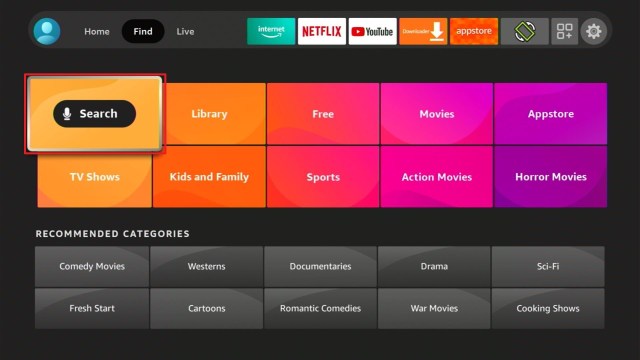
2. Click Search.

Locast Alternative alternatives


3. Type Haystack News and click on the suggestion

Locast Alternative alternatives


4. Tap the icon of the Haystack News when it appears

Locast Alternative alternatives


5. Click the Get or Download button to install the app

Locast Alternative alternatives


6. Wait for the app to be installed

Locast Alternative alternatives


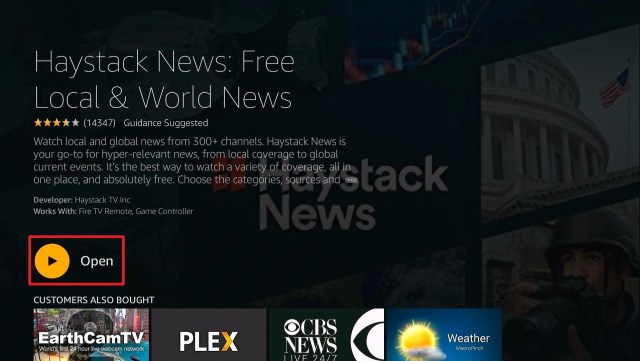
7. Select Open to launch the app

Locast Alternative alternatives


8. Choose if you would like to Get Started immediately or Sign In for free

Locast Alternative alternatives


VUit

This is a Locast alternative that is only available in the USA. To install it outside the USA, click here.

VUit offers on-demand local channels for live TV that feature sports, news, weather, and more. It collaborated with other local channels to provide original content like documentaries, short films, concert streams, and cultural events.


Best Features

  • More than 170 available channels
  • Easy access from one channel to another
  • HD content
  • Offers both local and international stories
  • 100% free
  • Has over 200 television partners


How to Install VUit on Firestick

1.   Click FIND.

Locast Alternative alternatives


2. Click Search.

Locast Alternative alternatives


3. Type in VUit on your search engine and click on the suggested word

Locast Alternative alternatives


4. Choose the VUit icon when it pops up on your screen

Locast Alternative alternatives


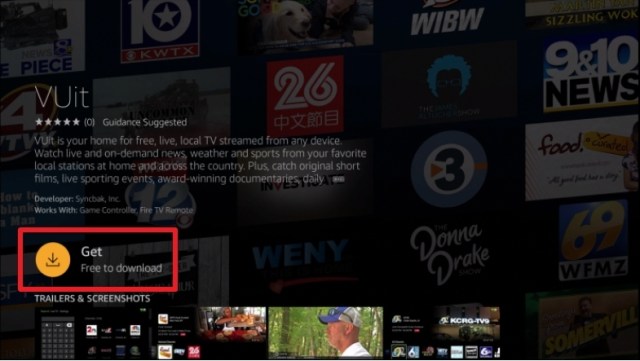
5. Click on the Download or Get button

Locast Alternative alternatives


6. Let the VUit app be downloaded on your device

Locast Alternative alternatives


7. Once the app has been downloaded, click Open to launch it.

Locast Alternative alternatives


Airy TV

Another application to add to our list of the best Locast alternatives is Airy TV. This is a wonderful application that is available in the Amazon app store, Google Play Store, and even Apple App Store. It offers 100 channels for both news and some shows. You can easily stream this app because it does not require any registration.


Best Features

  • Popular and On-demand channel list
  • 100% free with no registration
  • Covers genres for all types of viewers
  • Easy to navigate
  • Offers documentaries, music, lifestyle, and many many more even non-English content
  • Full HD Videos


How to Install Airy TV on Firestick

1. Click FIND.

Locast Alternative alternatives


2. Click Search.

Locast Alternative alternatives


3. Type in Airy TV on your search bar and select the suggestion

Locast Alternative alternatives


4. Tap on the Airy TV app icon when it appears

Locast Alternative alternatives


5. Click the “Get” or “Download” button to install the app

Locast Alternative alternatives


6. Let the app be installed on your device

Locast Alternative alternatives


7. Select the “Open” button to launch the app

Locast Alternative alternatives


8. There you go, you can now start streaming on Airy TV.

Locast Alternative alternatives


Legal Disclaimer: ReviewVPN.com does not encourage or endorse any illegal activity involved in the usage of services and applications referenced on this site. We do not verify the licensing agreements of services. The end-user is wholly responsible for ensuring that any media accessed through these services does not violate copyright and/or licensing laws. ReviewVPN does not promote, link to, or receive compensation from any Apps and IPTV services.


Install SurfShark on Firestick

Best SurfShark Deal


Pluto TV

Like other Locast alternatives listed in this article, Pluto TV is also not available in some parts of the world. It is only available for download in the US, Canada, Australia, most parts of Europe, and Latin America. We suggest using a VPN to access the geo-restricted content of Pluto TV.

How to Watch Pluto TV Abroad

Pluto TV Activate

This application is a one-stop-shop application because it offers live tv, and movies, and series as well. You can choose from over 250 channels within 80 categories.


Best Features

  • Available in other devices like Roku, Windows, and Android
  • Ask for an account to access
  • Video-on-demand (VOD) contents are available


How to Install Pluto TV on Firestick

1. Click FIND.

Locast Alternative alternatives


2. Click Search.

Locast Alternative alternatives


3. Type Pluto TV on your search engine and click on the suggestion

Locast Alternative alternatives


4. Tap the Pluto TV icon when it appears

Locast Alternative alternatives


5. Click the “Get” or “Download” button

Locast Alternative alternatives


6. Let the app be installed on your device

Locast Alternative alternatives


7. Select the “Open” button to launch the app

Locast Alternative alternatives


Xumo

Another Locast alternative is only available in certain countries such as the USA, Canada, France, Germany, UK, Italy, Spain, Brazil, and Mexico. Please also keep in mind that the content of Xumo varies depending on the country.

Xumo provides a website. To access geo-restricted content, we suggest you use a VPN like SurfShark.


Best Features

Offers both live TV and TV shows/movies

Has over 200 channels to choose from

Easy to navigate

Most of the movies provided are from FilmRise


How to Install Xumo on Firestick

1. Click FIND.

Locast Alternative alternatives


2. Click Search.

Locast Alternative alternatives


3. Type Xumo on your search engine and click the suggestion

Locast Alternative alternatives


4. Click the Xumo app icon when it appears on your screen

Locast Alternative alternatives


5. Select the “Get” or “Download” button and wait for the app to be installed

Locast Alternative alternatives


6. Click “Open” to launch the app

Locast Alternative alternatives


Stremium

This is another Locast alternative that offers both live TV, movies, TV shows, and also scheduled recordings. Streamium makes its content available for DVR. You can choose between free and premium subscriptions. You can download this app even you are outside of the USA, but some content is geo-restricted so it is still best to use a VPN.


Best Features

  • This app asks for a TV provider
  • Somehow turns your device into a DVR
  • Provides a lot of shows and channels to stream


How to Install Stremium on Firestick

1. Click FIND.


2. Click Search.


3. Search for the stremium app


4. Select the icon of Stremium


5. Click the “Get” or “Download” button


6. Wait for the app to be installed


7. Launch the app by clicking the “Open” button


8. Take note of the code given and go to www.stremium.com/link, WQJFHV is just an example

Locast Alternatives - Stremium


9. On your browser, register or login to your stremium account


10. Type in the code given by the app, WQJFHV is just an example.


11. Select “Link TV”


12. Choose your preferred subscription


Other Locast Alternatives To Consider

Aside from the best Locast alternatives mentioned above, we still want to consider some other applications both direct and third-party.

To more, please read the List of Best Live TV Apps on Firestick.


Stream Safely With A VPN

Surfshark vpn

Most of the applications stated above have geo-restricted content. Meaning to say, you won’t be able to stream them if you are not located in a certain country. That is why you really need a VPN to access them.

Many people have the same reason why they subscribe to a VPN. The only question is, which VPN is best to use. We cannot really rely on free VPNs, because in order to acquire profit, they sell their users’ data to third-party advertisers. That is why it is best to use premium VPNs like SurfShark.

We always suggest SurfShark, because we have tested this platform and we have no single reason to get disappointed. Aside from destroying geo-blocks, it has a lot of great features and benefits for its users.


Grab your subscription now!

Click here to get the lowest price on SurfShark through our exclusive limited-time offer.


How to Install Surfshark on Firestick with Screenshots

If your Firestick still has the older interface, read this article to learn how to update it: Update Firestick Interface.

You can download Surfshark directly from the Amazon App store. It will be easy for you to find Surfshark with your Firestick’s Find feature. Refer to our screenshots below.

Follow our screenshots below to install the SurfShark VPN app on your Fire TV stick.

1. Go to the Home screen of your Firestick.

step 1 Install Surfshark VPN on Firestick


2. Navigate towards the Find tab. Press the Search button from the resulting dropdown.

step 2 Install Surfshark VPN on Firestick


3. Type in the keyword of SurfShark and select from the suggestions that will appear.

step 3 Install Surfshark VPN on Firestick


4. Click the official SurfShark icon from your search results.

step 4 Install Surfshark VPN on Firestick


5. Press the Download (You own it) button.

step 5 Install Surfshark VPN on Firestick


6. The SurfShark VPN installer will download on your device.

step 6 Install Surfshark VPN on Firestick


7. SurfShark VPN’s app will automatically install itself on your Fire TV stick.

step 7 Install Surfshark VPN on Firestick


8. Press the Open button after completing SurfShark VPN’s installation process.

step 8 Install Surfshark VPN on Firestick


9. Please wait for the SurfShark VPN to load its user interface.

step 9 Install Surfshark VPN on Firestick


10. You can now log in with your SurfShark VPN account credentials.

step 10 Install Surfshark VPN on Firestick

Learn more about Surfshark and Grab the Best Surfshark Deal Now!


Install Surfshark on Firestick

Best Surfshark Deal

Other VPNs to Consider

NordVPN (Best for Streaming)

Best Features

  • 5000+ Server in 50+ Countries 
  • Military-Grade Encryption
  • Fast Connection Speed
  • Suitable to a lot of devices
  • No-Log Policy

Prices
  • Complete $5.89 per month (64% Discount)
  • Plus $4.59 per month (56% Discount)
  • Standard $3.69 per month (55% Discount)

Best Features

  • 750+ High-speed VPN Servers in 43 Locations
  • Military-Grade Encryption
  • Fastest HD Streaming and Gaming
  • 30-Day Money-Back Guarantee
  • Unlimited Data & Devices
  • No-Log Policy

Prices
  • 3 Years $1.99 per month (82% Discount)
  • 1 Years $3.29 per month (70% Discount)
  • 1 Month $10.99 per month

IPVanish VPN (Most Secure)

Best Features

  • 1200+ Servers in 60+ Countries around the world
  • Unlimited Connections
  • No-Log Policy
  • Top Notch Military-Grade VPN Protocols and Encryptions
  • 100% Safe and Secured
  • Most Trusted VPN
  • Best VPN for Firestick
  • 30-Day Money-Back Guarantee

Prices
  • Yearly $3.99 per month (63% Discount) – 30 days risk free + Ransomware & Malware Protection
  • Quarterly $5.32 per month (51% Discount)
  • Monthly $10.99 per month

For more VPN discounts, go to ReviewVPN Deals and purchase the best VPN for you.


FAQs

What is Locast?

Locast was a non-profit organization that broadcast live TV from local channels. Now, the application suspended its streaming because it lost on a trial against other channels regarding copyright issues. It did not win with its stand that it was a non-profit application due to earning more money than needed from the donations it got from viewers.


Is Locast Legal?

Right now, Locast suspends its broadcasting services due to copyright issues. This determines more than half of the percentage as to whether this app is legal or not.


What is/are the Best Locast Alternatives?

The best Locast alternative for us is Haystack TV, although some other alternatives like Airy TV, VUit, and Xumo are still remarkable candidates.


Conclusion

Locast was one of the best applications for Firestick. It really saddens most viewers to know that suspended its broadcasting services. Good thing that there are the best alternatives to consider.

What do you think about the court’s judgment for Locast? Let us know your opinions on that comments below. Also, help us know which do you think is the best alternative for Locast.

We hope that this article helped you learn the latest news about Locast and the best alternatives for it.

Why is It Important to Restart Your Firestick Regularly

Overview

In this article, we will discuss the benefits you’ll get when you restart your Firestick regularly.

To restart or reboot a firestick may sound simple to most users. Little do we know that there is an added value to our device every time we do this activity.

With the help of our remote, we can easily restart our firestick, and regularly doing it clears apps, and processes running in the background. Any apps on your Firestick that you’ve recently used keeps on running on your device. Even if you click on home and stop streaming the app, it will continue working. Other apks like Fast Task Killer easily stop all the apps working in the background. But the process of restarting your firestick provides more benefits than you think.


Restarting your device won’t require you to jailbreak your firestick or any other setting hacks. It is a simple process, and we will show you How to Restart Firestick easily using the new interface.

If your Firestick still has the older interface, read this article to learn how to update it: Update Firestick Interface.


ANONYMOUSLY


Restart Firestick Importance and Benefits To Your Device


Restart Your Firestick Regularly


Stops Apps and Processes Running in The Background

After installing and using several apps on your device, you’ll experience some buffering. It still boils down to the capacity of the Amazon Firestick. Especially when you just click on Home to stop streaming on any app. You may not think of it at first but all those apps are still running in your background. If you restart your firestick regularly, all of those running apps will stop as well.


Helps Speed Up Your Device

This is the result of removing those running apps on your device’s background. The more you get rid of those, the faster your firestick will be. Although some other apps like VPN help speed up your internet, TDUK Speed Toolbox also helps on making your firestick speed faster.


Clears Memory Cached Files

There is an exact way to clear the cache on your firestick. But in terms of restarting your device, this is just one of the few benefits you’ll get. If you spent a lot of time on your device, you are unconsciously earning tons of cache files that eat up your device’s memory.

The ratio for this is the more cached file you have, the slower your device will work. It will still come down to helping your device to speed up faster, but also gives you more memory to use.

If you are not familiar with cache, it is a space by which your device houses all the data and functions that a certain app uses over and over again.

Restarting your device is one of the easiest ways to clear all cached files.


Updates and Fixes Your Device

When you regularly restart your firestick, it checks on any possible updates and fixes from Amazon. So it automatically updates your device not unless you block the Amazon system update on your settings.

It is really better to have all the fixes and updates on your device because it improves the performance and features of your firestick. Actually, Amazon added some changes no matter how small or big it is every month.


Prevents Any Memory Consumptions Done By Memory Leaks

A memory leak is what happens when your firestick fails to release any unused data from the device’s memory. This is usually done by an application. Memory leaks consume a lot of memory that will affect your device after a long period of time.

By restarting your Amazon Firestick, you are releasing these unused data from your memory that are caused by leaks.


Legal Disclaimer: ReviewVPN.com does not encourage or endorse any illegal activity involved in the usage of services and applications referenced on this site. We do not verify the licensing agreements of services. The end-user is wholly responsible for ensuring that any media accessed through these services does not violate copyright and/or licensing laws. ReviewVPN does not promote, link to, or receive compensation from any Apps and IPTV services.


Install Surfshark on Firestick

Best Surfshark Deal


How to Restart Firestick


1. From your Home Screen, go to the wheel gear icon or Settings at the right part.

How to Restart Firestick (2)


2. Scroll down and select My Fire TV.

How to Restart Firestick (3)


3. Click on Restart.

How to Restart Firestick (4)


4. Select Restart one more time for confirmation.

How to Restart Firestick (5)


5. Now your Fire TV will turn off.

How to Restart Firestick (6)


6. Wait a little moment and your device will start again on its own.

How to Restart Firestick (7)


Always Use A VPN

surfshark logo

Using a VPN can also make your device experience optimized as well. Sp to fully utilize your device, having a VPN is another addition to it. It provides tons of features for streaming. A VPN can also make your internet faster depending on the server location you chose.

Her at reviewvpn, we always recommend Surfshark. we have tested the capabilities and efficiencies of Surfshark and we are 100% sure that it is indeed the best VPN for Firestick. It is also available on some other devices like Android, iOS, Raspberry Pi, and more.

To clarify it more, we listed some of the many benefits of having Surfshark on your firestick. Take a look below:

  • This VPN is tested to destroy geo-blocks that stop you from accessing some content.
  • Works well with other well-known apps like Hulu and Netflix.
  • Provides the best VPN protocols for all types of devices.
  • Offers a lot of great features like split tunneling and kill switch.
  • You can be sure of your safety because Surfshark does not record any of your online activity.
  • Prevents your Internet Service Provider (ISP) from throttling your bandwidth.
  • Protects you from hackers when using public wifi.
  • Encrypts all of your data.
  • Speeds up your internet connection
  • Works well with Torrenting.
  • Prevents Firestick Buffering and Kodi Buffering


Install Surfshark on Firestick

Best Surfshark Deal


How to Install Surfshark VPN on Firestick

If your Firestick still has the older interface, read this article to learn how to update it: Update Firestick Interface.

Follow our screenshots below to install the SurfShark VPN app on your Fire TV stick.

1. Go to the Home screen of your Firestick.

step 1 Install Surfshark VPN on Firestick


2. Navigate towards the Find tab. Press the Search button from the resulting dropdown.

step 2 Install Surfshark VPN on Firestick


3. Type in the keyword of SurfShark and select from the suggestions that will appear.

step 3 Install Surfshark VPN on Firestick


4. Click the official SurfShark icon from your search results.

step 4 Install Surfshark VPN on Firestick


5. Press the Download (You own it) button.

step 5 Install Surfshark VPN on Firestick


6. The SurfShark VPN installer will download on your device.

step 6 Install Surfshark VPN on Firestick


7. SurfShark VPN’s app will automatically install itself on your Fire TV stick.

step 7 Install Surfshark VPN on Firestick


8. Press the Open button after completing SurfShark VPN’s installation process.

step 8 Install Surfshark VPN on Firestick


9. Please wait for the SurfShark VPN to load its user interface.

step 9 Install Surfshark VPN on Firestick


10. You can now log in with your SurfShark VPN account credentials.

step 10 Install Surfshark VPN on Firestick

Learn more about Surfshark and Grab the Best Surfshark Deal Now!


Install Surfshark on Firestick

Best Surfshark Deal


Other VPNs to Consider

NordVPN (Best for Streaming)

Best Features

  • 5000+ Server in 50+ Countries 
  • Military-Grade Encryption
  • Fast Connection Speed
  • Suitable to a lot of devices
  • No-Log Policy

Prices
  • Complete $5.89 per month (64% Discount)
  • Plus $4.59 per month (56% Discount)
  • Standard $3.69 per month (55% Discount)

Best Features

  • 750+ High-speed VPN Servers in 43 Locations
  • Military-Grade Encryption
  • Fastest HD Streaming and Gaming
  • 30-Day Money-Back Guarantee
  • Unlimited Data & Devices
  • No-Log Policy

Prices
  • 3 Years $1.99 per month (82% Discount)
  • 1 Years $3.29 per month (70% Discount)
  • 1 Month $10.99 per month

IPVanish VPN (Most Secure)

Best Features

  • 1200+ Servers in 60+ Countries around the world
  • Unlimited Connections
  • No-Log Policy
  • Top Notch Military-Grade VPN Protocols and Encryptions
  • 100% Safe and Secured
  • Most Trusted VPN
  • Best VPN for Firestick
  • 30-Day Money-Back Guarantee

Prices
  • Yearly $3.99 per month (63% Discount) – 30 days risk free + Ransomware & Malware Protection
  • Quarterly $5.32 per month (51% Discount)
  • Monthly $10.99 per month


For more VPN discounts, go to ReviewVPN Deals and purchase the best VPN for you.

Click here to get the lowest price on Surfshark through our exclusive limited-time offer.


FAQs

Why Does My Firestick Keep Restarting?

Some Firesticks are having problems that need troubleshooting. Others have problems that are beyond repair. If this keeps on going, we suggest buying a new Firestick for a better experience.


How to Restart Firestick with Remote?

Your remote is really the best tool to restart or reboot a Firestick. If you follow the steps above on How to Restart a Firestick, you will need your remote to do it.


Conclusion

Regularly restarting your firestick provides you a lot of benefits that you might not think of. With this, you can achieve the following:

  • Stops Apps and Processes Running in The Background
  • Helps Speed Up Your Device
  • Clears Memory Cached Files
  • Updates and Fixes Your Device
  • Prevents Any Memory Consumptions Done By Memory Leaks


So we suggest restarting your firestick regularly. Once a week or twice a month is not a bad idea. This will help your device to recharge and serve you better.

With this, we hope that you learned about the importance and the benefit when you restart your firestick regularly.


Note: ReviewVPN.com does not own or operate any app nor does it endorse any. The main purpose of this article is strictly for educational purposes only.

YouTube Channel Shut Down for Reviewing Legal App

Overview

A popular YouTube channel, StreamItAll, with over 97,000 subscribers shut down after reviewing a legal app.


For a lot of years, YouTube serves as a platform where people may watch how to do a lot of stuff. One example of this is learning how to stream content for free.

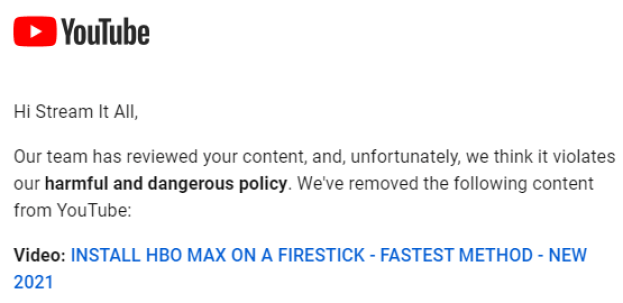
It is very questionable when YouTube sent its third and final strike to StreamItAll after reviewing HBO Max. As we all know, HBO Max is a legal application. It is not available on the Amazon App Store. Providing a helpful video about it did not seem to be harmful and dangerous which is contradicting to their email.


YouTube Channel 2


YouTube is very critical when it comes to its policies and community guidelines. They provide five sets of policies for different scenarios, which mostly focus on safety. Their guidelines, however, show that they will not tolerate any misleading information. Later, we will show you all the factors that contribute to their policies and guidelines.

Not only StreamItAll experienced the same problem. Other YouTube channels with the same type of content are also struggling with YouTube’s newly defined policies.


Reminder: If your Firestick still has the older interface, read this article to learn how to update it: Update Firestick Interface.


ANONYMOUSLY


How Does a YouTube Channel Shut Down

YouTube taking down channels is becoming a trend nowadays. The process for a YouTube channel to shut down is very simple. YouTube will review the channel’s content. If they think that a certain content is harmful and dangerous for someone’s safety, they strike it. If they send a third strike for a channel, it is time to say goodbye.

  1. YouTube review a channel’s content
  2. A certain content that tends to be harmful or dangerous according to YouTube’s policies and guidelines will receive a warning.
  3. The first strike or yellow flag indicates that a certain video is considered to be dangerous.
  4. An orange flag shows that the channel receives its second strike.
  5. When YouTube sends the 3rd and last strike to a channel, this indicates that the channel will shut down for good.


YOUTUBE CHANNEL SHUT DOWN


StreamItAll appealed for a second review but YouTube denied it immediately.

According to a survey, the rate of YouTube shutting down some channels increases. This is due to the implementation of the new hateful content policy. Since 2016, over 17,000 channels and 500 million comments were deleted.


youtube channel


Install Surfshark on Firestick

Best Surfshark Deal


Factors Affecting YouTube Policy and Guidelines

There are a lot of factors affecting YouTube on how they shut down some channels.


YouTube Policy

The YouTube Policy is composed of five major aspects. They are as follows:

  • Harmful and Dangerous Content Policies
  • Violent or Graphic Content Policies
  • Violent Criminal Organization Policy
  • Hate Speech Policy
  • Harassment and Cyberbullying Polices.


According to YouTube, StreamItAll violated the “Harmful and Dangerous Content Policies”. Let’s take a look at each type of policy and check whether this YouTube channel really violated any rule.

Harmful and Dangerous Content Policies

According to this policy, any content that has the following is dangerous:

  • Extremely dangerous challenges that cause any physical injury
  • Pranks that are threatening and dangerous and can cause both physical and emotional distress.
  • Showing instructions to kill someone
  • Contains hard and illegal drugs creation and usage
  • Imitation of anorexia, also known as eating disorder, and eating non-food items.
  • Videos on violent events like shooting
  • Instruction to cheat or steal something
  • Teach how to hack
  • Bypassing payment for digital content or service


Violent or Graphic Content Policies

YouTube prohibits any content that shows violent acts and graphics. This includes any clips that encourage any individual to commit an act.

You are also not allowed to pictures or videos that show:

  • Road accidents
  • Natural disaster
  • War aftermath
  • Terrorist attack
  • Street fights
  • Physical attacks
  • Sexual Assault
  • Immolation
  • Torture
  • Corpses
  • Protest or Riots
  • Robberies
  • Medical Procedures
  • Any scenes that may shock or disgust viewers


Violent Criminal Organizations Policy

This policy is all about videos that show any support, patronization, violent acts of any criminal or terrorist groups. YouTube does not also allow symbols, insignia, or logos of such terrorist groups in any channel, otherwise, they will shut down it.

If a channel also shows a hostage scene, recruitment of new criminal members, and the like, YouTube will shut it down.


Hate Speech Policy

YouTube does not allow any videos about hate speech. If your channel contains any videos that show anger or hatred towards certain individuals, then YouTube will also shut it down.


Harassment and Cyberbullying Policies

YouTube will shut down any channel that encourages cyberbullying. Examples of this are name-calling, insult, racism, shame, and deception to any individual or organization.

On the other hand, YouTube allows debates about high-profile officials or leaders, Scripted performances, and education purposes.


YouTube Community Guidelines

YouTubes include five factors in its guidelines. They are as follows:

  • Spam and Deceptive Practices
  • Sensitive Content
  • Violent or Dangerous Content
  • Regulated Goods
  • Misinformation


If YouTube finds your content to be one of these, then it will shut down your channel.


Best VPN For Streaming

https://get.surfshark.net/aff_c?offer_id=865&aff_id=12312

StreamItAll usually covers Firestick content. It featured apps for streaming. Before YouTube shuts it down, you can learn all types of apps like Movies, Live TV, Sports, and more.

Most applications have content that is not completely available in some parts of the world. To unblock this, you need to have the best VPN for streaming.

Here at reviewvpn.com, we always recommend Surfshark. We have tested this service for years now and never did we find any bad things from this app.

It is the best VPN for Firestick as well. Surfshark provides tons of features and benefits suitable for streaming. Take a look at these benefits when you use Surfshark:

  • Surfshark gives you the liberty to choose your own location, city, or country.
  • When you turn it on, it gives access to geo-restricted content and features that are not available in your region.
  • Tested and proven working with popular apps like Hulu and Netflix.
  • Surfshark has a flexible way of dealing with any type of device.
  • This VPN has protocols for any kind of device
  • Provides features like split tunneling and kill switch.
  • Surfshark follows the no-log policy so you can assure that your activities are safe.
  • Protects your identity even from your ISP.
  • Stops any hackers especially when you are using public wifi.
  • Keeps your data encrypted.
  • Surfshark allows users to use 1 account on multiple devices.
  • Makes your internet faster.
  • This VPN is the best for torrenting.
  • Prevents Firestick Buffering and Kodi Buffering


Grab your subscription now!

Best Surfshark Deal


How to Install Surfshark VPN on Firestick

If your Firestick still has the older interface, read this article to learn how to update it: Update Firestick Interface.

You can download Surfshark directly from the Amazon App store. It will be easy for you to find Surfshark with your Firestick’s Find feature. Refer to our screenshots below.

1. Go to the Home screen of your Firestick.

step 1 Install Surfshark VPN on Firestick


2. Navigate towards the Find tab. Press the Search button from the resulting dropdown.

step 2 Install Surfshark VPN on Firestick


3. Type in the keyword of SurfShark and select from the suggestions that will appear.

step 3 Install Surfshark VPN on Firestick


4. Click the official SurfShark icon from your search results.

step 4 Install Surfshark VPN on Firestick


5. Press the Download (You own it) button.

step 5 Install Surfshark VPN on Firestick


6. The SurfShark VPN installer will download on your device.

step 6 Install Surfshark VPN on Firestick


7. SurfShark VPN’s app will automatically install itself on your Fire TV stick.

step 7 Install Surfshark VPN on Firestick


8. Press the Open button after completing SurfShark VPN’s installation process.

step 8 Install Surfshark VPN on Firestick


9. Please wait for the SurfShark VPN to load its user interface.

step 9 Install Surfshark VPN on Firestick


10. You can now log in with your SurfShark VPN account credentials.

step 10 Install Surfshark VPN on Firestick

Learn more about Surfshark and Grab the Best Surfshark Deal Now!


Install Surfshark on Firestick

Best Surfshark Deal


Other VPNs to Consider

NordVPN (Best for Streaming)

Best Features

  • 5000+ Server in 50+ Countries 
  • Military-Grade Encryption
  • Fast Connection Speed
  • Suitable to a lot of devices
  • No-Log Policy

Prices
  • Complete $5.89 per month (64% Discount)
  • Plus $4.59 per month (56% Discount)
  • Standard $3.69 per month (55% Discount)

Best Features

  • 750+ High-speed VPN Servers in 43 Locations
  • Military-Grade Encryption
  • Fastest HD Streaming and Gaming
  • 30-Day Money-Back Guarantee
  • Unlimited Data & Devices
  • No-Log Policy

Prices
  • 3 Years $1.99 per month (82% Discount)
  • 1 Years $3.29 per month (70% Discount)
  • 1 Month $10.99 per month

IPVanish VPN (Most Secure)

Best Features

  • 1200+ Servers in 60+ Countries around the world
  • Unlimited Connections
  • No-Log Policy
  • Top Notch Military-Grade VPN Protocols and Encryptions
  • 100% Safe and Secured
  • Most Trusted VPN
  • Best VPN for Firestick
  • 30-Day Money-Back Guarantee

Prices
  • Yearly $3.99 per month (63% Discount) – 30 days risk free + Ransomware & Malware Protection
  • Quarterly $5.32 per month (51% Discount)
  • Monthly $10.99 per month


For more VPN discounts, go to ReviewVPN Deals and purchase the best VPN for you.

Click here to get the lowest price on Surfshark through our exclusive limited-time offer.


Other Well-known YouTube Channels That Experience The Same Problem

StreamItAll is not the only one. Other YouTube Channels also experience this problem. Some of them are:

  • TechDoctorUK
  • ElectricMD
  • Dic Squiffy


FAQs

How to Create or Create a YouTube Channel?

There are simple steps to creating a YouTube Channel:

  1. Sign in to YouTube
  2. Click Your Profile Picture
  3. Select Create a Channel
  4. Fill out the necessary details
  5. You can manage or add a manager to your channel once it is done


How to Start a YouTube Channel?

Create a YouTube channel and upload videos that fit YouTube’s policy and guidelines.


How to Delete a YouTube Channel?

To delete your YouTube channel, follow these steps:

  1. Sign in to YouTube
  2. Click on Settings
  3. Choose Channel Advanced Settings
  4. Scroll down and click Remove YouTube Content
  5. Select boxes if you want to permanently delete your content or your channel
  6. Click Delete my account.


How to Block a YouTube Channel?

You can easily block any video or channel on YouTube. Follow these simple steps:

  1. On the top of the video click the “More” button
  2. Select Block
  3. Choose if you like to block video, block channel, or block channels associated with this video.
  4. Tap block one more time.
  5. Enter the code you will see on the screen, or you may use your customer passcode.


Conclusion

We understand that YouTube wants the best for its viewers. There is only one reason why YouTube shut down StreamItAll. It was the Bypassing payment for digital content or service issue. It clearly states that showing viewers how to use apps to gain unauthorized free access is wrong.

But you will think of it more, it will still be questionable since HBO Max is a legal app. The same thing happened with the Dic Squiffy YouTube channel after reviewing Sony Crackle, another legal app.

Needless to say, YouTube is sometimes making false decisions that affect a lot of creators whose intentions are not bad.

With this, we hope that this article is a big help in understanding a lot of things about YouTube channels.


Note: ReviewVPN.com does not own or operate any app nor does it endorse any. The main purpose of this article is strictly for educational purposes only.


Other Related Articles:

How to Download Movies on Firestick

Overview About the Article

According to our analysis, more than 50% of streamers ask How to Download Movies on Firestick.

Believe it or not, but this is possible now. Using Movie Apps from the Best Firestick Apps like Cinema HD, Nova TV, Titanium TV and more allow you to stream apps through ES File Manager. With this, you can download any title and stream it anytime.

ES File Manager is a direct app that you can easily install from the Amazon App Store. It has amazing features of managing almost all of your files, from music to photos to videos. But the only problem is, it is not 100%. It offers a 1-week free trial and then asks for $9.99 monthly after the trial. So even though, there is a chance for you to download movies on your Firestick, you still need to pay for the ES File Explorer Manager.


In this article, we are going to use the Cinema HD app as an example of how to download movies on firestick. But this app is not an official Amazon app. In order to download this, you need to Jailbreak your Firestick and Use the Downloader App.

Before we show you how to download movies on firestick, we will teach you first how to install ES File Manager and Cinema HD on your device.

If your Firestick still has the older interface, read this article to learn how to update it: Update Firestick Interface.


ANONYMOUSLY


How to Install ES File Explorer on Firestick

1. From the Firestick Home Screen, click Find and select Search.

2. Type “ES File Explorer Manager” then select the result.


3. Select the ES File Explorer Manager app


4. Click Download


5. Wait for the download to finish


6. Click Open


7. Click Allow


8. Select Agree


9.  You can now use ES File Explorer Manager

Note: a Premium account costs $9.99 per month.


How to Install Cinema HD on Firestick

1. Install the Downloader app and jailbreak your firestick by enabling unknown sources. To learn more about the procedure, you may read How to Install the Downloader App and Enable Unknown Sources.


2. Open Downloader App. Type https://reviewvpn.com/cin and click Go.


3.  Click on INSTALL

Step 13 Install Cinema HD on firestick


4. Click on OPEN

firestick


5. Click on Allow

firestick


6. Click on ACCEPT

firestick


7. Cinema HD is Installed. Enjoy Watching.

firestick

Legal Disclaimer: ReviewVPN.com does not encourage or endorse any illegal activity involved in the usage of services and applications referenced on this site. We do not verify the licensing agreements of services. The end-user is wholly responsible for ensuring that any media accessed through these services does not violate copyright and/or licensing laws. ReviewVPN does not promote, link to, or receive compensation from any Apps and IPTV services.


Install Surfshark on Firestick

Best Surfshark Deal


How to Download Movies on Firestick

1. Launch the Cinema HD apk

How to Download Movies on Firestick (1)


2. Click the magnifying glass icon if you will search for the title of the movie that you like to download.

How to Download Movies on Firestick (2)


3. Type the title of the movie and click Next.

How to Download Movies on Firestick (3)


4. Select the movie you want to stream.

How to Download Movies on Firestick (4)


5. Choose a link that is suitable for your streaming needs. To learn about Streaming links, click here.

How to Download Movies on Firestick (6)


6. Click Open with

How to Download Movies on Firestick (7)


7. Select ES Downloader.

How to Download Movies on Firestick (8)


8. Let the movie be downloaded.

How to Download Movies on Firestick 10


9. Once done, launch the ES File Explorer Manager.

How to Download Movies on Firestick (9)


10. Tap on Library.

How to Download Movies on Firestick 11


11. Choose Movies.

How to Download Movies on Firestick 12


12. Select the movie you downloaded.

How to Download Movies on Firestick 13


13. All possible players will appear.

How to Download Movies on Firestick 14


14. Choose your preferred video player. You can use MX Media Player.

How to Download Movies on Firestick 15


15. Now you can stream your downloaded movie.

How to Download Movies on Firestick 16


Reminder: If Cinema HD is not working, here as some alternatives.


Stream Safely With a VPN

surfshark logo

Whichever apps you are using to download movies on your firestick, you need to be extra careful. We are not sure of the exact source from which Cinema HD or other related apps get their streaming links. You have to mask your identity so that any questionable activities done by the app will not trace back to you.

The best way to hide your identity is to change your IP address. Because your IP serves as your online fingerprint. To change it, you need to have a VPN.

Surfshark changes your IP address by connecting you to a different server of your choice. With this, you can access a lot of other content and even cover your activities from your internet service provider or ISP.

This VPN works well with Firestick and provides more features and benefits such as:

  • 3200+ servers in 65 countries
  • Lets you choose a city or country to connect your IP with.
  • Allows you to access geo-restricted content and features that are not available in your region.
  • Proven working with popular apps like Hulu and Netflix.
  • Has the best VPN protocols for each type of device.
  • Continues to develop great and wonderful features like split tunneling and kill switch.
  • Does not log any of your online activity while using the app.
  • Your ISP won’t be able to monitor you when you are using Surfshark.
  • Block any spying eyes and hackers when you are using public wifi.
  • Encrypts all of your data with the best VPN protocols.
  • You can use multiple devices for 1 account.
  • Boosts your internet bandwidth.
  • Proven working for torrent activities.
  • Prevents Firestick Buffering and Kodi Buffering


Install Surfshark on Firestick

Best Surfshark Deal


How to Install Surfshark VPN on Firestick

If your Firestick still has the older interface, read this article to learn how to update it: Update Firestick Interface.

Follow our screenshots below to install the SurfShark VPN app on your Fire TV stick.

1. Go to the Home screen of your Firestick.

step 1 Install Surfshark VPN on Firestick


2. Navigate towards the Find tab. Press the Search button from the resulting dropdown.

step 2 Install Surfshark VPN on Firestick


3. Type in the keyword of SurfShark and select from the suggestions that will appear.

step 3 Install Surfshark VPN on Firestick


4. Click the official SurfShark icon from your search results.

step 4 Install Surfshark VPN on Firestick


5. Press the Download (You own it) button.

step 5 Install Surfshark VPN on Firestick


6. The SurfShark VPN installer will download on your device.

step 6 Install Surfshark VPN on Firestick


7. SurfShark VPN’s app will automatically install itself on your Fire TV stick.

step 7 Install Surfshark VPN on Firestick


8. Press the Open button after completing SurfShark VPN’s installation process.

step 8 Install Surfshark VPN on Firestick


9. Please wait for the SurfShark VPN to load its user interface.

step 9 Install Surfshark VPN on Firestick


10. You can now log in with your SurfShark VPN account credentials.

step 10 Install Surfshark VPN on Firestick

Learn more about Surfshark and Grab the Best Surfshark Deal Now!


Install Surfshark on Firestick

Best Surfshark Deal


Other VPNs to Consider

NordVPN (Best for Streaming)

Best Features

  • 5000+ Server in 50+ Countries 
  • Military-Grade Encryption
  • Fast Connection Speed
  • Suitable to a lot of devices
  • No-Log Policy

Prices
  • Complete $5.89 per month (64% Discount)
  • Plus $4.59 per month (56% Discount)
  • Standard $3.69 per month (55% Discount)

Best Features

  • 750+ High-speed VPN Servers in 43 Locations
  • Military-Grade Encryption
  • Fastest HD Streaming and Gaming
  • 30-Day Money-Back Guarantee
  • Unlimited Data & Devices
  • No-Log Policy

Prices
  • 3 Years $1.99 per month (82% Discount)
  • 1 Years $3.29 per month (70% Discount)
  • 1 Month $10.99 per month

IPVanish VPN (Most Secure)

Best Features

  • 1200+ Servers in 60+ Countries around the world
  • Unlimited Connections
  • No-Log Policy
  • Top Notch Military-Grade VPN Protocols and Encryptions
  • 100% Safe and Secured
  • Most Trusted VPN
  • Best VPN for Firestick
  • 30-Day Money-Back Guarantee

Prices
  • Yearly $3.99 per month (63% Discount) – 30 days risk free + Ransomware & Malware Protection
  • Quarterly $5.32 per month (51% Discount)
  • Monthly $10.99 per month


For more VPN discounts, go to ReviewVPN Deals and purchase the best VPN for you.

Click here to get the lowest price on Surfshark through our exclusive limited-time offer.


FAQs

How to download movie HD on Firestick?

Movies of any definition can be downloaded to your firestick if you follow the procedure above.


How to Download Movie Apps on my Firestick?

Apps can be downloaded directly from the Amazon app store, while some other apps can be downloaded using the Downloader app upon jailbreaking your Firestick.


Can I download movies on Firestick?

The answer is Yes. But it is not 100% free. The procedure shown above uses ES File Explorer Manager. Today, this app requires payment of $9.99 a month.


Conclusion

The possibility of downloading movies on your Firestick is feasible. You need to have an ES File Explorer Manager app to do it. The bad thing is, the service is not for free. You can download it for free but you need to pay an amount of $9.99 to use its feature. As of now, it is the easiest and proven way to download movies on your Firestick.

You can use any apps that allow the use of ES File Downloader like Cinema HD, Nova TV, and more.

Even though it is not 100% free, we hope that this article helped you on How to Download Movies on your Firestick.


Note: ReviewVPN.com does not own or operate any app nor does it endorse any. The main purpose of this article is strictly for educational purposes only.


Please also read:

The Best VPN To Unblock Disney Plus on Firestick (2023)

Overview About The Article

In this article, we will discuss the best VPN to Unblock Disney Plus on Firestick.


People of all ages are familiar with Disney. It provides its own channel, Disney Plus, on the Amazon App Store. The only problem with this is that it is not available outside the USA.

Good thing, there is a right way to stream this platform wherever you are. But you still need to have login details to access it completely.

Disney Plus is one of the official Amazon apps. You can install it directly by just searching for it and choosing the download button.

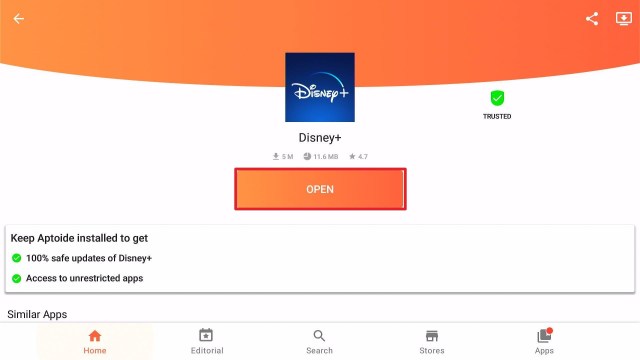
If you cannot find the app when you search for it, you need to use the Aptoide App. But first, you need to Jailbreak your Firestick and use the Downloader app. Later in this article, we’ll show you the option to install Disney Plus through Aptoide. It is the best way to Unblock Disney Plus.

Even if you have successfully installed the app, you still need to have a VPN. This way, you can completely access the content within the app and truly unblock it.

If your Firestick still has the older interface, read this article to learn how to update it: Update Firestick Interface.


ANONYMOUSLY


2 Ways to Install Disney Plus on Firestick

Install Disney Plus on Firestick

  1. From your home page, move one step to the right and click Find.
  2. Scroll down one time and select Search.
  3. Search for Disney Plus. Type in the Keyword and tap on the suggestion.
  4. Click on the Disney Plus application when it appears on the screen.
  5. Select the Get or Download button
  6. Wait for the app to be installed.
  7. Click Open to launch the app.

This process is only applicable if you are in the United States. If you cannot find the Disney Plus application, take a look at the next process.


Legal Disclaimer: ReviewVPN.com does not encourage or endorse any illegal activity involved in the usage of services and applications referenced on this site. We do not verify the licensing agreements of services. The end-user is wholly responsible for ensuring that any media accessed through these services does not violate copyright and/or licensing laws. ReviewVPN does not promote, link to, or receive compensation from any Apps and IPTV services.


Install Surfshark on Firestick

Best Surfshark Deal


Install Disney Plus Outside the USA Using Aptoide

We simplified this process for you. Instead of going a long way 0f install Downloader, then Aptoide, before Disney Plus, we’ll show you a continuous process of installing Disney Plus.

Please take note that this app is updated from time to time. Make sure to update it to its most recent version to lessen some problems while streaming.

1. Scroll to the right-most portion of your home screen and click the wheel gear button (Settings).

Best VPN To Unblock Disney Plus

2. Scroll down and to the right until you get to My Fire TV. Click on it.

Best VPN To Unblock Disney Plus


3. Select Developer options.

Best VPN To Unblock Disney Plus


4. Turn on ADB debugging and Apps from Unknown Sources.

Best VPN To Unblock Disney Plus


5. Click Turn On when the pop-up appears.

Best VPN To Unblock Disney Plus


Then, after jailbreaking your Firestick, you’ll need to install the Downloader app. This app, which is easily available on the Amazon App Store, allows you to download APK files.


6. Click Home, click FIND.

Best VPN To Unblock Disney Plus


7. Click Search.

Best VPN To Unblock Disney Plus


8. You can either say Downloader to your Alexa voice-enabled remote or start typing it. If you typed it, click on the suggestion when it appears.

Best VPN To Unblock Disney Plus


9. Click on the Downloader Icon.

Best VPN To Unblock Disney Plus


10. Click Download.

Best VPN To Unblock Disney Plus


Best VPN To Unblock Disney Plus


11. Click on Open.

Best VPN To Unblock Disney Plus


12. Click on Allow.

Best VPN To Unblock Disney Plus


13. Use the Downloader search tab.

Best VPN To Unblock Disney Plus


14. Type in https://reviewvpn.com/disn and click Go

Best VPN To Unblock Disney Plus


15. Wait for the APK to be downloaded.

Best VPN To Unblock Disney Plus


16. Click Install.

Best VPN To Unblock Disney Plus


17. Select Open.

Best VPN To Unblock Disney Plus


18. Aptoide App will launch directly to Disney plus. There might be some possibility that you need to use Mouse Toggle. Click on Install.

Best VPN To Unblock Disney Plus


19. Choose OK.

Best VPN To Unblock Disney Plus


20. Select Allow.

Best VPN To Unblock Disney Plus


21. The apk is now downloading.

Best VPN To Unblock Disney Plus


22. Select Install.

Best VPN To Unblock Disney Plus


23. Wait for the app to be installed

Best VPN To Unblock Disney Plus


24. Click Open.

Best VPN To Unblock Disney Plus


25. You can now use Disney Plus wherever you are.


Best VPN to Unblock Disney Plus

surfshark logo

When you install Disney Plus, even outside the USA, you won’t still be able to access its content unless you have a VPN.

Not all VPNs work well with this app. Only a few, and one of them is Surfshark. It is actually the best VPN for streaming. Surfshark works well with Amazon Firestick. Once you turn this on, you will be connected to a different server without being caught by your Internet Service Provider (ISP). Thus, giving you access to a lot of other content.

In other words, Surfshark is the best VPN to Unblock Disney Plus.

Other than that, Surfshark also provides tons of great features like:

  • You can pick a specific city and country to connect your IP.
  • Automatically provides access to a new set of content depending on your chosen location.
  • Works well with other apps like Netflix, and Hulu.
  • Adjustable VPN protocols depending on your device’s needs.
  • Provides new and more advanced features like split tunneling and kill switch.
  • Surfshark follows the no-log policy giving you 100% privacy on your online activities while using it.
  • Masks your identity from your ISP by changing your IP address without being noticed.
  • Protects you from hackers, especially when using public wi-fi.
  • An assured data encryptions.
  • Allows you to use one account for multiple devices.
  • Helps you strengthen and speed up your bandwidth depending on the server location of your choice.
  • This is the best VPN for torrenting.
  • Prevents Firestick Buffering and Kodi Buffering


Install Surfshark on Firestick

Best Surfshark Deal


How to Install Surfshark VPN on Firestick

If your Firestick still has the older interface, read this article to learn how to update it: Update Firestick Interface.

Follow our screenshots below to install the SurfShark VPN app on your Fire TV stick.

1. Go to the Home screen of your Firestick.

step 1 Install Surfshark VPN on Firestick


2. Navigate towards the Find tab. Press the Search button from the resulting dropdown.

step 2 Install Surfshark VPN on Firestick


3. Type in the keyword of SurfShark and select from the suggestions that will appear.

step 3 Install Surfshark VPN on Firestick


4. Click the official SurfShark icon from your search results.

step 4 Install Surfshark VPN on Firestick


5. Press the Download (You own it) button.

step 5 Install Surfshark VPN on Firestick


6. The SurfShark VPN installer will download on your device.

step 6 Install Surfshark VPN on Firestick


7. SurfShark VPN’s app will automatically install itself on your Fire TV stick.

step 7 Install Surfshark VPN on Firestick


8. Press the Open button after completing SurfShark VPN’s installation process.

step 8 Install Surfshark VPN on Firestick


9. Please wait for the SurfShark VPN to load its user interface.

step 9 Install Surfshark VPN on Firestick


10. You can now log in with your SurfShark VPN account credentials.

step 10 Install Surfshark VPN on Firestick

Learn more about Surfshark and Grab the Best Surfshark Deal Now!


Other VPNs to Consider

NordVPN (Best for Streaming)

Best Features

  • 5000+ Server in 50+ Countries 
  • Military-Grade Encryption
  • Fast Connection Speed
  • Suitable to a lot of devices
  • No-Log Policy

Prices
  • Complete $5.89 per month (64% Discount)
  • Plus $4.59 per month (56% Discount)
  • Standard $3.69 per month (55% Discount)

Best Features

  • 750+ High-speed VPN Servers in 43 Locations
  • Military-Grade Encryption
  • Fastest HD Streaming and Gaming
  • 30-Day Money-Back Guarantee
  • Unlimited Data & Devices
  • No-Log Policy

Prices
  • 3 Years $1.99 per month (82% Discount)
  • 1 Years $3.29 per month (70% Discount)
  • 1 Month $10.99 per month

IPVanish VPN (Most Secure)

Best Features

  • 1200+ Servers in 60+ Countries around the world
  • Unlimited Connections
  • No-Log Policy
  • Top Notch Military-Grade VPN Protocols and Encryptions
  • 100% Safe and Secured
  • Most Trusted VPN
  • Best VPN for Firestick
  • 30-Day Money-Back Guarantee

Prices
  • Yearly $3.99 per month (63% Discount) – 30 days risk free + Ransomware & Malware Protection
  • Quarterly $5.32 per month (51% Discount)
  • Monthly $10.99 per month


For more VPN discounts, go to ReviewVPN Deals and purchase the best VPN for you.


Install Surfshark on Firestick

Best Surfshark Deal


FAQs

How to Unblock Disney Plus?

You can unblock Disney Plus by using a VPN like Surfshark.


Can I Use VPN for Disney Plus?

Yes. You can use a VPN for Disney Plus. But not all VPNs work well with this app. We recommend using Surfshark.


Is it Illegal to Use a VPN for Disney Plus?

That depends on the VPN you are using. Use only the premium ones if you want to unblock Disney Plus with a VPN


Executive Summary

It is really a bummer if you want to access an app and it is not available in your region. One great example is Disney Plus. The good thing is, you can install it wherever you are through the use of the Aptoide App.

Even though you have installed the app, you cannot access it unless you use a VPN. Through the help of a VPN, you can connect to an American server and access Disney Plus completely.

The best VPN for Disney Plus is Surfshark. We have tested and proven this VPN for a long time and never fails. You can still use other VPNs of your choice as well. Make sure that it also works well with Disney Plus.

With this article, we hope that you learned how to unblock Disney Plus.


Note: ReviewVPN.com does not own or operate any app nor does it endorse any. The main purpose of this article is strictly for educational purposes only.


Others Also Read:

Screen Recorder App : How to Record Shows on Firestick (Firestick 2023)

Screen Recorder App Overview

In this article, we will help you install the screen recorder app and how to record your screen.


If you really want to record your screen on Firestick, then you should try the Screen Recorder app. It is the official screen recorder provided by Amazon. With just one click, you can start to record everything that will happens on your screen.

It comes with other features and functions too. Not only can you record your screen with this app but also can choose which video resolution you prefer. There are also some other quick launch shortcuts for you. To view all the recorded videos using Screen Recorder, you should have the Wireless Manager App. It is a free application that you can easily install on your Firestick.

Screen Recorder is a very useful application to monitor or to have the video or show that you don’t want to miss. The best part is it is 100% free and so easy to use.This app is part of the Best Legal Apps on Firestick. You can easily install it on your device. There is no need to Jailbreak your Firestick and Use The Downloader App.

If your Firestick still has the older interface, read this article to learn how to update it: Update Firestick Interface.


ANONYMOUSLY


How to Install The Screen Recorder App on  Firestick

  1. From your Home Page, Click on Find.
  2. Scroll down and tap on Search.
  3. Search for Screen Recorder.
  4. Click the Screen Recorder App.
  5. Select Get or Download.
  6. Wait for the app to be installed.
  7. Launch the app.


How to Install The Screen Recorder App with Screenshot

1. Go to Find.

Screen Recorder App (2)

2. Choose Search.

Screen Recorder App (3)


3. Search for Screen Recorder.

Screen Recorder App (4)


4. Select the Screen Recorder App.

Screen Recorder App (5)


5. Click Get or Download.

Screen Recorder App (6)


6. Wait for the app to be installed.

Screen Recorder App (7)


7. Tap Open to launch the app.

Screen Recorder App (8)


How to Record Your Screen

1. Launch the Screen Recorder App

Screen Recorder App (9)


2. Choose the Video resolution of your choice.

Screen Recorder App (9.5)


3. Click Start Recorder

Screen Recorder App (10)


4. Choose Allow.

Screen Recorder App (11)


5. A confirmation message will appear on your screen.

Screen Recorder App (12)


6. Select Start Now.

Screen Recorder App (13)


7. To stop the recording, just click Stop Recorder.

Screen Recorder App (14)


8. Your recording is saved and can be viewed on Wireless File Manager. Click OK.

Screen Recorder App (15)


Legal Disclaimer: ReviewVPN.com does not encourage or endorse any illegal activity involved in the usage of services and applications referenced on this site. We do not verify the licensing agreements of services. The end-user is wholly responsible for ensuring that any media accessed through these services does not violate copyright and/or licensing laws. ReviewVPN does not promote, link to, or receive compensation from any Apps and IPTV services.


Install Surfshark on Firestick

Best Surfshark Deal


App Features

  • Simple and Easy to navigate
  • Allows different types of video resolution
  • One-click recording
  • Quick Launch Shortcuts
  • Do not need to use Mouse Toggle
  • Works side by side with the Wireless File Manager app to store and share your recordings.
  • Offers net speed testing
  • Wifi Settings


Video Resolution Applicable

  • Device Default
  • 360P
  • 480P
  • 720P (HD)
  • 1080P (HD)


Quick Launch Shortcuts

  • List Background Apps and Process List
  • Test NetSpeed
  • Find my I.P.
  • Wireless File Manager (Send Files to TV)
  • Time NetSpeed Overlay
  • WiFi Settings


Pros and Cons

Pros

  • 100% free
  • Easy-to-use
  • Official Amazon App


Cons

  • Might track all of your Firestick activities


Should I Use a VPN with This App?

https://get.surfshark.net/aff_c?offer_id=865&aff_id=12312

The answer is Yes. Amazon might track your every move. That is why there are Settings that you need to Disable immediately to protect your privacy.  This app can also find your I.P. which is somehow questionable for us.

If you are going to use a VPN, you can manipulate your IP. Your Internet Service Provider (ISP) won’t be able to monitor your every move.

The best VPN to use especially for Amazon Firestick is Surfshark. It works well with any other device giving you the streaming satisfaction and safety you need.

To learn more, here are a few of the many things Surfshark can offer:

  • Surfshark has thousands of servers all over the world. You can choose from over 70+ locations with 40,000 available IP addresses.
  • When you are connected to a server from another country, you will have access to its contents. Especially those that are not available in your region.
  • Provides VPN protocols for all types of devices.
  • Continues to develop greater features like Kill Switch and Split Tunneling.
  • Follows the no-log policy.
  • Greatly hides your identity from your ISP and hackers.
  • With the help of its best safety features, Surfshark encrypts all of your online data.
  • Multi-device usage for a single account is applicable.
  • Provides faster internet speed depending on the connected server.
  • Surfshark is one of the best VPNs for Torrenting.
  • Prevents Firestick Buffering and Kodi Buffering


Grab your subscription now!

Best Surfshark Deal


How to Install Surfshark VPN on Firestick

If your Firestick still has the older interface, read this article to learn how to update it: Update Firestick Interface.

You can download Surfshark directly from the Amazon App store. It will be easy for you to find Surfshark with your Firestick’s Find feature. Refer to our screenshots below.

1. Go to the Home screen of your Firestick.

step 1 Install Surfshark VPN on Firestick


2. Navigate towards the Find tab. Press the Search button from the resulting dropdown.

step 2 Install Surfshark VPN on Firestick


3. Type in the keyword of SurfShark and select from the suggestions that will appear.

step 3 Install Surfshark VPN on Firestick


4. Click the official SurfShark icon from your search results.

step 4 Install Surfshark VPN on Firestick


5. Press the Download (You own it) button.

step 5 Install Surfshark VPN on Firestick


6. The SurfShark VPN installer will download on your device.

step 6 Install Surfshark VPN on Firestick


7. SurfShark VPN’s app will automatically install itself on your Fire TV stick.

step 7 Install Surfshark VPN on Firestick


8. Press the Open button after completing SurfShark VPN’s installation process.

step 8 Install Surfshark VPN on Firestick


9. Please wait for the SurfShark VPN to load its user interface.

step 9 Install Surfshark VPN on Firestick


10. You can now log in with your SurfShark VPN account credentials.

step 10 Install Surfshark VPN on Firestick

Learn more about Surfshark and Grab the Best Surfshark Deal Now!


Install Surfshark on Firestick

Best Surfshark Deal


Other VPNs to Consider

NordVPN (Best for Streaming)

Best Features

  • 5000+ Server in 50+ Countries 
  • Military-Grade Encryption
  • Fast Connection Speed
  • Suitable to a lot of devices
  • No-Log Policy

Prices
  • Complete $5.89 per month (64% Discount)
  • Plus $4.59 per month (56% Discount)
  • Standard $3.69 per month (55% Discount)

Best Features

  • 750+ High-speed VPN Servers in 43 Locations
  • Military-Grade Encryption
  • Fastest HD Streaming and Gaming
  • 30-Day Money-Back Guarantee
  • Unlimited Data & Devices
  • No-Log Policy

Prices
  • 3 Years $1.99 per month (82% Discount)
  • 1 Years $3.29 per month (70% Discount)
  • 1 Month $10.99 per month

IPVanish VPN (Most Secure)

Best Features

  • 1200+ Servers in 60+ Countries around the world
  • Unlimited Connections
  • No-Log Policy
  • Top Notch Military-Grade VPN Protocols and Encryptions
  • 100% Safe and Secured
  • Most Trusted VPN
  • Best VPN for Firestick
  • 30-Day Money-Back Guarantee

Prices
  • Yearly $3.99 per month (63% Discount) – 30 days risk free + Ransomware & Malware Protection
  • Quarterly $5.32 per month (51% Discount)
  • Monthly $10.99 per month


For more VPN discounts, go to ReviewVPN Deals and purchase the best VPN for you.

Click here to get the lowest price on Surfshark through our exclusive limited-time offer.


Alternative Applications for Screen Recorder App

Aside from the Screen Recorder app, Firestick Mirror App is one of the other ways to record your screen on Firestick.


You can also try Casting with these apps:


FAQs

Is the Screen Recorder App Safe?

The is safe to use.


Is the Screen Recorder App Legal?

Yes, the app is an official Amazon app and is 100% legal.


Conclusion

Amazon Firestick isn’t really good at recording itself. Most of the time, casting and mirroring are the only two options you can rely on in this kind of matter. Good thing, Amazon provided its very own Screen Recorder app.

You just have to be careful, because your privacy might be a bit unprotected with this app. But overall this is a good one. As we always say, as long as it’s free, there is no harm in trying.

We hope that this article is helpful for you to know how to record your screen on Firestick.


Note: ReviewVPN.com does not own or operate any app nor does it endorse any. The main purpose of this article is strictly for educational purposes only.


People Also Search:

List of the Best CrackStreams Alternatives for 2023

CrackStreams Alternatives

In this article, we will discuss the best Crackstreams alternatives. 


We all know that one of the most popular websites for Sports is Crackstreams. But over the past months, it went down and even had different domain changes. Because of this, we have decided to look for some other websites like it.

Along with Sportsurge, and USTVGo, it was part of the Best Sports Streaming Sites. Meaning to say that there are really other great alternatives for Crackstreams.

The alternatives included on this list can be streamed on different devices like PC, Android, iOS, and Firestick. If you are using Amazon Firestick, it is better to use the Silk Browser or any other browser like Firefox.

Since we are not 100% sure about other websites’ licensing agreements, we suggest using a VPN when streaming. Later in this article, we will discuss the best VPN to use while streaming on different apps and websites like Crackstreams.

If your Firestick still has the older interface, read this article to learn how to update it: Update Firestick Interface.


ANONYMOUSLY

How to Install Silk Browser on Firestick

As mentioned above, one of the best browsers to use on Firestick is Silk Browser. It is a direct app that you can easily install on your device. There is no need for you to Jailbreak your Firestick and use the Downloader App.

1.  Click Home on your remote and click “Find”.

crackstreams alternatives


2. Click “Search”

crackstreams alternatives


3.Type in Silk Browser and choose this item that appears on the results.

crackstreams alternatives


4. Click on the Silk Browser Icon.

crackstreams alternatives


5. Choose Get or Download

crackstreams alternatives


6. Select Open to launch the browser.

crackstreams alternatives


7. You can now start browsing using Amazon Silk Browser.

crackstreams alternatives


Legal Disclaimer: ReviewVPN.com does not encourage or endorse any illegal activity involved in the usage of services and applications referenced on this site. We do not verify the licensing agreements of services. The end-user is wholly responsible for ensuring that any media accessed through these services does not violate copyright and/or licensing laws. ReviewVPN does not promote, link to, or receive compensation from any Apps and IPTV services.


Install Surfshark on Firestick

Best Surfshark Deal


Best CrackStreams Alternatives

Sportsurge

crackstreams alternatives 1

website URL: https://sportsurge.net/#/groups/0

Another popular sports streaming site is Sportsurge. It is one of the best Crackstreams alternatives. You can pick which sport you want to stream from the moment you launch this website.

The type of sports included in Sportsurge are Football, Basketball, Hockey, MMA, Boxing, Baseball, and Motor Sports.

You may experience minimal advertisements while streaming. This is even when you are in the middle of a live show.

Refer to these articles below to learn more about Sportsurge.

How to Stream Sportsurge on Different Devices

Websites like Sportsurge


VIPRow Sports

crackstreams alternatives 5

website URL: https://www.viprow.me/

The second in our list of alternatives is VIPRow Sports. It houses a lot of genres to stream. You can choose from Football, UFC, WWE, Boxing, Tennis, Golf, and many many more.

VIPRow also provides tabs for live channels.

To know more about this website, read How to Watch on VIPRow Sports Using Any Device.


FootyBite

crackstreams aternatives 9

website URL: http://www.footybite.tv/

Another Crackstream alternative that got the spotlight by featuring football events. But now, you can stream both NFL and NBA on this website. The only problem is the presence of advertisements. But this depends on your streaming.

Since there are pop-ups and links present, we encourage using a VPN like Surfshark.

For more information, go to Footybite Details and Review.


VIP League

crackstreams alternatives 2

website URL: https://www.vipleague.lc/

Another best website to add to our list of Crackstreams alternatives is VIPLeague. It has a lot of genres to offer as well. This website has been around for so long and still working very great.

Live chat is available on this website to be connected and learn the latest news and updates from other sports fans.

There has to be a live sport going on when you stream on this website.


CricHD

crackstreams alternatives 2

website URL: https://fc4.crichd.com/new-home7

This crackstreams alternative is an easy-to-use website that has a full list of ongoing/live sports events. Most of its content is focused on live cricket streams after launching. This makes the name of the website CricHD.

There is also a live chat where you can message other streamers, and look for updates.

For more details, read How to Stream on CricHD Using Any Device.


Stream Safely with a VPN

In the United States, a website licensing agreement is really a big deal. Streaming unauthorized content, especially from other websites is really a big misdemeanor. You really have to protect yourself when streaming.

The number one thing that you really need to do is to have a premium VPN. Surfshark is the best VPN for streaming. It provides access to geo-restricted content and websites while protecting the user’s IP address. This works by completely changing your IP which serves as your online fingerprints. For any other spying eyes, even your Internet Service Provider (ISP) won’t be able to control and monitor your activities.

Not only those, but Surfshark also provides the following benefits to its users:

  • Connecting to other servers from different countries entitles you to access content and app features that are not available in your region.
  • Has the best VPN protocols for all types of devices.
  • Develops a lot of great added features like Kill Switch and Split Tunneling.
  • Does not record any online activities when using the software.
  • Hides your identity which makes you safe and protected from your ISP, hackers, and any malicious domains.
  • Encrypts all of your data with the best safety and protection features.
  • Allows you to use a single account for multiple devices.
  • Makes your bandwidth better and faster.
  • You can use this VPN for torrenting.
  • Prevents Firestick Buffering and Kodi Buffering


Grab your subscription now!


How to Install Surfshark VPN on Firestick

If your Firestick still has the older interface, read this article to learn how to update it: Update Firestick Interface.

Follow our screenshots below to install the SurfShark VPN app on your Fire TV stick.

1. Go to the Home screen of your Firestick.

step 1 Install Surfshark VPN on Firestick


2. Navigate towards the Find tab. Press the Search button from the resulting dropdown.

step 2 Install Surfshark VPN on Firestick


3. Type in the keyword of SurfShark and select from the suggestions that will appear.

step 3 Install Surfshark VPN on Firestick


4. Click the official SurfShark icon from your search results.

step 4 Install Surfshark VPN on Firestick


5. Press the Download (You own it) button.

step 5 Install Surfshark VPN on Firestick


6. The SurfShark VPN installer will download on your device.

step 6 Install Surfshark VPN on Firestick


7. SurfShark VPN’s app will automatically install itself on your Fire TV stick.

step 7 Install Surfshark VPN on Firestick


8. Press the Open button after completing SurfShark VPN’s installation process.

step 8 Install Surfshark VPN on Firestick


9. Please wait for the SurfShark VPN to load its user interface.

step 9 Install Surfshark VPN on Firestick


10. You can now log in with your SurfShark VPN account credentials.

step 10 Install Surfshark VPN on Firestick

Learn more about Surfshark and Grab the Best Surfshark Deal Now!


Install Surfshark on Firestick

Best Surfshark Deal


Other VPNs to Consider

NordVPN (Best for Streaming)

Best Features

  • 5000+ Server in 50+ Countries 
  • Military-Grade Encryption
  • Fast Connection Speed
  • Suitable to a lot of devices
  • No-Log Policy

Prices
  • Complete $5.89 per month (64% Discount)
  • Plus $4.59 per month (56% Discount)
  • Standard $3.69 per month (55% Discount)

Best Features

  • 750+ High-speed VPN Servers in 43 Locations
  • Military-Grade Encryption
  • Fastest HD Streaming and Gaming
  • 30-Day Money-Back Guarantee
  • Unlimited Data & Devices
  • No-Log Policy

Prices
  • 3 Years $1.99 per month (82% Discount)
  • 1 Years $3.29 per month (70% Discount)
  • 1 Month $10.99 per month

IPVanish VPN (Most Secure)

Best Features

  • 1200+ Servers in 60+ Countries around the world
  • Unlimited Connections
  • No-Log Policy
  • Top Notch Military-Grade VPN Protocols and Encryptions
  • 100% Safe and Secured
  • Most Trusted VPN
  • Best VPN for Firestick
  • 30-Day Money-Back Guarantee

Prices
  • Yearly $3.99 per month (63% Discount) – 30 days risk free + Ransomware & Malware Protection
  • Quarterly $5.32 per month (51% Discount)
  • Monthly $10.99 per month


For more VPN discounts, go to ReviewVPN Deals and purchase the best VPN for you.

Click here to get the lowest price on Surfshark through our exclusive limited-time offer.


FAQs

What is Crackstreams?

Crackstreams is one of the most popular sports streaming websites before. It underwent a lot of domain change and is currently not working.


Is Crackstreams Safe?

We cannot fully determine if this is 100% safe. Now that it is down, it is better to rely on other websites for Sports.


Is Crackstreams Legal?

We cannot fully state anything about the legality of this website. For your safety and security, please use a VPN like Surfshark.


What are the Best Crackstreams alternatives?

We provided the top 5 choices for you. They are Sportsurge, VIPRow Sports, Footybite, VIPLeague, and CricHD.


Are these Crackstreams alternatives legal?

ReviewVPN does not have the full capacity to determine the legality of any of these Crackstreams alternatives. That is why we suggest using a VPN like Surfshark when streaming.


Conclusion

All good things must come to an end, and Crackstreams is one of them. Good thing there are the top alternatives that you can still rely on for streaming the best sports events all over the world.

We cannot fully guarantee that all of these alternatives are working. Those that we listed here in this article are all working when we tested them. Make sure to use a VPN like Surfshark when streaming any website for safety purposes.

With this, we hope that you are able to learn which is the best Crackstreams alternative for you.


Note: ReviewVPN.com does not own or operate any app nor does it endorse any. The main purpose of this article is strictly for educational purposes only.


People Also Read:

IPVanish Kill Switch – What is It and How to Use It?

IPVanish Kill Switch Overview

In this article, we will tell you about the IPVanish kill switch feature.

Virtual Private Networks or VPN have a lot of features to offer. Some of these features are not available on all brands of VPN. One example is Kill Switch. Only several VPNs have a verified kill switch feature. One example of a VPN that has good kill switch features is IPVanish.

IPVanish Kill Switch makes sure that your IP address is not exposed accidentally and unexpectedly. It is important because a VPN should really work on the user’s anonymity, security, and privacy.


To further elaborate on how does kill switch works, we tested IPVanish on Windows 10. But IPVanish is also available on other types of devices like Android, iOS, Mac, Linux, and Amazon Firestick.

Installing IPVanish on your Amazon Firestick is not that hard. It is one of the Best Firestick Apps and Best Legal Apps. You can install it directly on your device. There is no need to Jailbreak your Firestick and Use the Downloader App.


Related Articles:

Best IPVanish Secret Settings 

How to SignUp for IPVanish VPN


If your Firestick still has the older interface, read this article to learn how to update it: Update Firestick Interface.


ANONYMOUSLY


How to Install IPVanish on Windows

Since we have tested the IPVanish Kill Switch on Windows 10, we will show you first how to install IP Vanish on your PC.


1. Go to this link.

2. After clicking the link, click on the IPVanish banner to go to the home page.

IPVanish Kill Switch 1


3. Tap on Apps.

IPVanish Kill Switch 2


4. Scroll down until you reach the device options, click on Windows.

IPVanish Kill Switch 3


5. Select Download Windows App.

IPVanish Kill Switch 4


6. The apk will now be downloaded on your pc. Click the apk once finished.

IPVanish Kill Switch 5


7. Click on Install.

IPVanish Kill Switch 6


Make sure to have an IPVanish account to test the IPVanish Kill Switch.


Legal Disclaimer: ReviewVPN.com does not encourage or endorse any illegal activity involved in the usage of services and applications referenced on this site. We do not verify the licensing agreements of services. The end-user is wholly responsible for ensuring that any media accessed through these services does not violate copyright and/or licensing laws. ReviewVPN does not promote, link to, or receive compensation from any Apps and IPTV services.


Install IPVANISH on Firestick

Best IPVANISH Deal


How to Sign Up for IPVanish

1. Using your browser, go to https://reviewvpn.com/deal. This link contains a discount for the IPVanish account that you would like to purchase.

Sign Up IPVanish


2. Choose the best plan for you. Since you use the link we stated on step number 1, you are entitled to have a huge discount for a plan. Choose between VPN or VPN + Storage. You can also select if your plan is monthly or yearly whatever type of service you like.

sign up ipvanish


3. You will then be redirected to the signup page, and still, confirm the plan that you really like.

How to sign up for IPVanish (3)


4. Complete the details under create an account bar with your email address and password.

How to sign up for IPVanish (4)


5. Pick a payment term that is best for you. You can choose between a credit card or PayPal.

How to sign up for IPVanish (5)


6. Complete the details regarding the payment terms, like the name of the credit card owner, card number, country, etc. In terms of PayPal payment, details to include are different.

How to sign up for IPVanish (6)

or

How to sign up for IPVanish (7)


7. Upon settling the payment terms, take your time to review the Terms of Service and Privacy Policy. Click on I agree to the automatic renewal terms above. Note: You can always stop the renewal any time you like.

How to sign up for IPVanish (8)


8. Your payment is encrypted. Upon settling down, click on Subscribe Now.

How to sign up for IPVanish (9)


9. Upon subscribing, IPVanish will email you about your account details and subscription. Confirm your email, and you can now use your IPVanish account on your devices.


How to Use IPVanish Kill Switch

IPVanish Kill Switch is a more secure feature. When it is activated, IPVanish will send information to your device if you become disconnected from a VPN server. It will also prevent you from connecting to any unsafe and unsecured Network.

Here is how you can activate your Kill Switch feature on your IPVanish VPN:

1. Launch the IPVanish app.

IPVanish kill Switch 7


2. Select the Kill Switch box to activate the feature.

IPVanish Kill Switch 10


3. Click on Connect.

IPVanish Kill Switch 8


4. You are now connected to a VPN server with a special security feature of a Kill Switch.

IPVanish Kill Switch 9


Best VPN for Amazon Firestick

IPVanish VPN Promo

IPVanish is considered one of the best VPNs for Amazon Firestick. Aside from its kill switch feature, it also provides numerous amount of amazing functions for streaming. It serves as a bridge that connects you to another country or region so you can access their content. This can also hide your identity from your Internet Service Provider or ISP when you reach your speed limit. It will stop them from throttling your bandwidth.

Here are the other features offered by IPVanish:

  • 2,000 servers with 40,000 IP addresses in over 70+ locations worldwide available.
  • Allows you to choose the best server depending on what country and city you choose.
  • Disable geo-restrictions to help you access content from other countries.
  • IPVanish has VPN protocols for all types of devices.
  • More advance features like Split tunneling.
  • Zero logs policy.
  • Mask your identity from your ISP and hackers.
  • The data encryption for safety.
  • You can use one account for multiple devices.
  • Speeds up your internet connection.
  • Best VPN for Torrenting.
  • Prevents Firestick Buffering and Kodi Buffering


Grab your subscription now!

Best IPVANISH Deal


Install IPVanish on Firestick with Screenshots

1.  Click Home on your remote and click “Find”.

SolarMovie Alternatives Alternative 6


2. Click “Search”

SolarMovie Alternatives Alternative 6


3. You can either say IPVanish to your Alexa’s voice-enabled remote or start typing it. If you typed it, click on the suggestion when it appears.

SolarMovie Alternatives Alternative 6


4. Click on the IPVanish icon.

SolarMovie Alternatives Alternative 6


5. Click on Download

Step 5 Install IPVanish


6. Wait to download.

Step 6 Install IPVanish


7.  Wait to install.

Step 8 Install IPVanish


8.  Click on Open.

Step 8 Install IPVanish


9.  Input your username and password to log in.


10. Click Connect.

Learn more about IPVanish. Get an IPVANISH now.


Other VPNs with Verified Kill Switch Features

Aside from IPVanish, there are also other VPNs with the Kill Switch function. Take a look at this list to learn more:


FAQs

What is IPVanish Kill Switch?

Kill Switch is one of the many advanced features offered by IPVanish. It prevents users to be connected to an unsafe and unsecured server.


Does IPVanish have a kill switch?

Yes. IPVanish is one of the several VPNs with a kill switch feature.


What is a Kill Switch?

In the VPN world, a kill switch is a feature that provides more security for the users. Once a VPN has a kill switch activated, it prevents your IP to be seen even you have been disconnected from a server. This feature will keep you disconnected as long as you’re VPN is restored.


Conclusion

Not all VPNs have a kill switch. It is a great feature that makes your anonymity and security become better. Luckily, IPVanish is one of those VPNs that has a kill switch.

IPVanish kill switch is verified working. Take a look above at how you can activate your kill switch in just seconds.

We hope that this article was able to help you learn more about the IPVanish kill switch.


Note: ReviewVPN.com does not own or operate any app nor does it endorse any. The main purpose of this article is strictly for educational purposes only.


See also:

Best Malware and Virus Detection Procedures For Amazon Firestick

Virus Detection Overview

In this article, we will tell the best virus detection procedures for Firestick.

You may be familiar with the saying, “prevention is better than cure”. Since we are installing files and applications on our devices, they are prone to viruses. Our Firestick for example, when we are using a lot of APK files for third-party applications, is at risk.

Malware and virus detection should be a huge part of our common procedures. Not only for Firestick but for all of our devices.

There are actually a lot of ways to detect viruses for firesticks. With this, we can easily prevent or block them from entering and corrupting our devices.


A few of the ways that we are going to feature in this article are using applications. Some of them might be third-party apps but are surely safe to use.

To install third-party applications, you need to Jailbreak your Firestick first and use the Downloader app.

If your Firestick still has the older interface, read this article to learn how to update it: Update Firestick Interface.


ANONYMOUSLY


Best Virus Detection Procedures for Amazon Firestick

We will show you several ways to detect and hopefully prevent malware and viruses from entering your Firestick.


Virus Total

This is a helpful third-party application that detects malicious domains, malware, etc. on each app installed on your Firestick. Virus Total will surely determine if you installed an app that is not safe.

We use this app to clarify whether a certain application is safe when we are reviewing it.

Virus Total scans the following:

  • apps
  • files up to 256 MB
  • IP addresses
  • multiple entries (Desktop version)
  • emails

This app is also available for any android device. Here is how you can install it on your Firestick:

1. Install the Downloader app and jailbreak your firestick by enabling unknown sources. To learn more about the procedure, you may read How to Install the Downloader App and Enable Unknown Sources.

2. Open Downloader App. Type https://reviewvpn.com/vir  and click Go.

Virus Detection


3. Click on “Click here” to start download quickly

Virus Detection


4. Click Install.

Virus Detection


5. Click Open.

Virus Detection


6. Enjoy your Virus Total Antivirus,

Virus Detection


Learn more about this app when you Install Virus Total on Firestick.


Virus Cleaner

This is also a third-party app that detects and removes viruses, malware, spyware, and trojans from your Firestick. Virus cleaner offers a whole lot more features like anti-theft, Anti-loss, junk cleaner, app lock, and app manager.

Another good thing about Virus cleaner is that it is very easy to use. We can say that it is a one-stop shop because it provides tons of other functions. Some of them are:

  • security master
  • phone junk cleaner
  • WIFI security
  • super speed booster
  • battery saver
  • CPU cooler
  • notification cleaner

You can install it on your Firestick using the downloader app. Here’s how:

1. Install the Downloader app and jailbreak your firestick by enabling unknown sources. To learn more about the procedure, you may read How to Install the Downloader App and Enable Unknown Sources.


2. Open Downloader App. Type https://reviewvpn.com/vic  and click Go.

Virus Detection


3. Depending on your internet connection, the APK will take a few seconds to download.

Virus Detection


4. After that, choose Install.

Virus Detection


5. Then click Open.

Virus Detection


For more information, read How to Install Virus Cleaner on Firestick.


Legal Disclaimer: ReviewVPN.com does not encourage or endorse any illegal activity involved in the usage of services and applications referenced on this site. We do not verify the licensing agreements of services. The end-user is wholly responsible for ensuring that any media accessed through these services does not violate copyright and/or licensing laws. ReviewVPN does not promote, link to, or receive compensation from any Apps and IPTV services.


Install Surfshark on Firestick

Best Surfshark Deal


Securza

It is a direct app that is available on the Amazon App Store. This means you can install it directly. Securza is a great help when it comes to virus detection on third-party apps. Especially those viruses that are called the ADB.miner.

Securza is easy to use with a one-tap scanning to detect and delete viruses. The best attribute of Securza is that it alerts users if it detects any virus on their device.

Take a look at how you can install Securza on Firestick:

1. Click FIND.

Virus Detection


2. Click Search.

Virus Detection


3. Search for the Securza.

Virus Detection


4. Select the icon of Securza.

Virus Detection


5. Click Download.

Virus Detection


6. Click Open.

Virus Detection


7. Click Allow.

Virus Detection


8. Securza or Security  Tool App is Installed.

Step 7 Install Securza or Security  Tool App On Firestick


Learn more about this app, Install Securza on Your Amazon Firestick.


Reset Firestick

If some of the virus-detection procedures are not working or it is too late for you, all you need to do is to reset your Firestick. With this, you will delete all files especially those that contain malware and viruses from your device.

Here is a simple and easy way to reset your Firestick:

1. Go to the Home menu. Scroll to the right and click settings.


2. Next is to select My Fire TV.


3. Click on the Reset to Factory Defaults option.


4. Then, click on the Reset button.


5. You will then see something similar to the photo below when your Amazon Fire TV Stick will begin resetting.


6. After that, your Fire TV or Firestick will then reboot and you will see something like the photo below that says “Resetting your Fire TV Stick”.

Step 6 How to Reset Firestick


Here is a complete explanation of How to Reset Your Amazon Firestick.


Stay Protected with a VPN

surfshark logo

If you really want to be protected from malware, especially when streaming dangerous apps and websites, you need to use a VPN. It will give you to liberty to stream and be anonymous from any malicious domains.

The VPN for streaming is none other than but Surfshark. We have tested this VPN for so long and never get disappointed. It offers tons of great features and functions to keep you safe from hackers, and malware.

Take a look at these wonderful features from Surfshark:

  • Offers 3200+ servers in 65 countries worldwide.
  • You can choose your very own server location.
  • Destroys geo-blocks and allows you to stream content not originally available in your region or country.
  • VPN Protocols depending on device needs.
  • Continues to develop new and more advanced features like split tunneling.
  • Do not record any of your online activities.
  • Mask your identity by changing your IP address.
  • Protects you from your Internet Service Provider or ISP when streaming geo-restricted content.
  • Encrypts all of your data.
  • Guard your devices against malware.
  • Applicable for multiple devices usage.
  • Makes your internet connection faster
  • Supports Torrenting.
  • Prevents Firestick Buffering and Kodi Buffering


Install Surfshark on Firestick

Best Surfshark Deal


How to Install Surfshark VPN on Firestick

If your Firestick still has the older interface, read this article to learn how to update it: Update Firestick Interface.

Follow our screenshots below to install the SurfShark VPN app on your Fire TV stick.

1. Go to the Home screen of your Firestick.

step 1 Install Surfshark VPN on Firestick


2. Navigate towards the Find tab. Press the Search button from the resulting dropdown.

step 2 Install Surfshark VPN on Firestick


3. Type in the keyword of SurfShark and select from the suggestions that will appear.

step 3 Install Surfshark VPN on Firestick


4. Click the official SurfShark icon from your search results.

step 4 Install Surfshark VPN on Firestick


5. Press the Download (You own it) button.

step 5 Install Surfshark VPN on Firestick


6. The SurfShark VPN installer will download on your device.

step 6 Install Surfshark VPN on Firestick


7. SurfShark VPN’s app will automatically install itself on your Fire TV stick.

step 7 Install Surfshark VPN on Firestick


8. Press the Open button after completing SurfShark VPN’s installation process.

step 8 Install Surfshark VPN on Firestick


9. Please wait for the SurfShark VPN to load its user interface.

step 9 Install Surfshark VPN on Firestick


10. You can now log in with your SurfShark VPN account credentials.

step 10 Install Surfshark VPN on Firestick

Learn more about Surfshark and Grab the Best Surfshark Deal Now!


Install Surfshark on Firestick

Best Surfshark Deal


Other VPNs to Consider

NordVPN (Best for Streaming)

Best Features

  • 5000+ Server in 50+ Countries 
  • Military-Grade Encryption
  • Fast Connection Speed
  • Suitable to a lot of devices
  • No-Log Policy

Prices
  • Complete $5.89 per month (64% Discount)
  • Plus $4.59 per month (56% Discount)
  • Standard $3.69 per month (55% Discount)

Best Features

  • 750+ High-speed VPN Servers in 43 Locations
  • Military-Grade Encryption
  • Fastest HD Streaming and Gaming
  • 30-Day Money-Back Guarantee
  • Unlimited Data & Devices
  • No-Log Policy

Prices
  • 3 Years $1.99 per month (82% Discount)
  • 1 Years $3.29 per month (70% Discount)
  • 1 Month $10.99 per month

IPVanish VPN (Most Secure)

Best Features

  • 1200+ Servers in 60+ Countries around the world
  • Unlimited Connections
  • No-Log Policy
  • Top Notch Military-Grade VPN Protocols and Encryptions
  • 100% Safe and Secured
  • Most Trusted VPN
  • Best VPN for Firestick
  • 30-Day Money-Back Guarantee

Prices
  • Yearly $3.99 per month (63% Discount) – 30 days risk free + Ransomware & Malware Protection
  • Quarterly $5.32 per month (51% Discount)
  • Monthly $10.99 per month


For more VPN discounts, go to ReviewVPN Deals and purchase the best VPN for you.

Click here to get the lowest price on Surfshark through our exclusive limited-time offer.


Executive Summary

We should really be careful and secure all of our devices from threats, malware, spyware, trojans, and viruses. Especially our Amazon Firestick. Good thing there are virus detection procedures that can help you stop threats from entering your device.

You can use third-party apps like Virus Total, and Virus Cleaner. There is also a direct app like Securza that can also protect you. If it is too late for you, you need to reset your Firestick. The best way to be protected is to use a VPN like Surfshark.

We hope that this article was able to help you learn the best virus detection procedures for Amazon Firestick.


Note: ReviewVPN.com does not own or operate any app nor does it endorse any. The main purpose of this article is strictly for educational purposes only.


See also:

Tor VS VPN – What are they and which is better?

Tor vs VPN Overview

In this article, we are going to talk about Tor vs VPN. What are the differences between the two and which do we think is better?

Tor vs VPN is one of the most confusing topics in the streaming world. Both platforms have features with nearly the same benefits to users. Although if we are going to clarify each of them, they are different in so many ways.


Over the past years, people are becoming more and more concerned about their online privacy. It is really alarming that hacking and online activity monitoring have been two of the major issues all over the world. Learn why we think you should ditch Google from your life right now.

Most people find ways to get rid of privacy issues. Proxy sites are a good example of this. Another way is using a Virtual Private Network or VPN. And since not all search engines respect your online privacy, there are also alternate browsers you can use like Duck duck Go and Tor Browser.


If your Firestick still has the older interface, read this article to learn how to update it: Update Firestick Interface.


ANONYMOUSLY


Tor vs VPN

In this portion, we will describe, and differentiate the two software, provide their pros and cons for each of them, and give ways on how you can use them on your Amazon Firestick.


What is TOR?

The real name of Tor is “The Onion Router”. This is an organization that looks, checks, and develops possible tools to enhance online privacy. It only supports their very own browser called Tor Browser. This app is 100% free and available to almost all types of devices like Android, Firestick, Linux, Mac, and Windows.

When using Tor, your IP is somehow hidden through relays of numerous computer servers. From you as the client, before you reach your destination website, your traffic will pass along these relays. Each computer server represents a layer of an onion, giving the logic to the name of the software. Your data will of course be encrypted as you pass along these other computer servers. No one can surely track you.

Before you reach your destination, your IP is somehow replaced by a new one. The more relay present on your operation, the faster and the safer you will be.

Comparing Tor vs VPN will show you that both of them secure your privacy but they work differently. VPNs are relatively faster than Tor. Let’s find out more about the advantages and disadvantages of Tor.


Tor Pros and Cons

Pros
  • Tor browser is very much the same as the other known browsers. It won’t be hard for you to use it.
  • This app (Tor browser) is 100% free.
  • Completely working and serving its purpose.
  • Hides your IP address
  • Works with almost all types of devices.
  • Cannot easily be shut down by the government of any other institution
  • Also allows you to access geo-restricted websites and contents


Cons
  • The speed is not very fast compared with a VPN and sometimes delay.
  • Not all parts of the relay are encrypted. Your data is completely encrypted but the traffic on the exit node is not.
  • Tor only supports their own browser and no other ones.
  • There are some web services that block access to Tor.
  • When you open files downloaded through Tor, and you currently not using Tor when you open it, your IP can still be monitored.
  • If someone is doing illegal activities through Tor and you happen to be the exit node or exit relay, your identity is at risk because your traffic will be tracked.
  • Tor browser is the only browser that can access onion sites (dark web), this could be dangerous for your safety.


YOUR INTERNET ACTIVITY IS BEING WATCHED

ReviewVPN cannot attest to the legality, security and privacy of the applications discussed on this site. It is highly recommended that you use a VPN service while streaming or using Kodi.

Currently, your IP 216.73.216.211 is visible to everyone and your Browser is being tracked by Advertisers & ISP Provider.

Save 65% Now

Limited Time Offer

Here are the main reasons why you must use a VPN:

  • Your activities are hidden from your ISP, the government, and from the apps you are using.
  • You can access additional movies and TV streams.
  • ISP attempts to throttle are thrwarted thus reducing buffering issues.
  • Geographically restricted content like Netflix and Hulu can be unblocked.

A VPN works be replacing your ISP-assigned IP address and creating an encrypted tunnel. We recommend the no log service offered by IPVanish. It works well on a Firestick and offers the fastest possible speeds.

Special Limited Time Offer - Get IPVanish


Legal Disclaimer: ReviewVPN.com does not encourage or endorse any illegal activity involved in the usage of services and applications referenced on this site. We do not verify the licensing agreements of services. The end-user is wholly responsible for ensuring that any media accessed through these services does not violate copyright and/or licensing laws. ReviewVPN does not promote, link to, or receive compensation from any Apps and IPTV services.


Install Surfshark on Firestick

Best Surfshark Deal


How to Install Tor Browser on Firestick With Screenshots

In this process, we are going to use the Downloader app. Make sure you can jailbreak your firestick first. This is to allow you to install from sources unknown to Amazon. Here’s how:

1. Scroll to the right-most portion of your home screen and click the wheel gear button (Settings).

Tor vs VPN

2. Scroll down and to the right until you get to My Fire TV. Click on it.

Tor vs VPN


3. Select Developer options.

Tor vs VPN


4. Turn on ADB debugging and Apps from Unknown Sources.

Tor vs VPN


5. Click Turn On when the pop-up appears.

Tor vs VPN


Then, after jailbreaking your Firestick, you’ll need to install the Downloader app to sideload Tor Browser. This app, which is easily available on the Amazon App Store, allows you to download APK files.


6. Click Home, click FIND.

Tor vs VPN


7. Click Search.

Tor vs VPN


8. You can either say Downloader to your Alexa voice-enabled remote or start typing it. If you typed it, click on the suggestion when it appears.

Tor vs VPN


9. Click on the Downloader Icon.

Tor vs VPN


10. Click Download.

Tor vs VPN


Tor vs VPN


11. Click on Open.

Tor vs VPN


12. Click on Allow.

Tor vs VPN


13. Use the Downloader search tab.

Tor vs VPN


14. Type https://reviewvpn.com/torb and click Go

Tor vs VPN


15. Wait for the APK to be downloaded.

Tor vs VPN


16. Select the Install button.

Tor vs VPN


17. Wait for the app to be installed.

Tor vs VPN


18. Launch the app by clicking Open.

Tor vs VPN


19. Select Connect, you might have to use mouse toggle.

Tor vs VPN


20. Set your security level.

Tor vs VPN


21. Click on the search engine at the bottom part.

Tor vs VPN


22. You can now type in the website you want to visit

Tor vs VPN


What is a VPN?

A VPN or virtual private network is a software with tons of features to secure your online privacy. Normally, businesses make their employees use a VPN when accessing sensitive information. Compared with Tor, a VPN completely changes your IP address. All of your traffic will be encrypted and you will have access to contents and websites only available in the country you are connected to. Now, a VPN can also secure the safety of the users from their very own Internet Service Provider, Government, and hackers.

There are actually a lot of VPN services available. Each brand has servers located all over the world. When you change your IP through a VPN, it will make you feel like you are using a device in a different place. No need to go to another country with the help of a VPN.

Not all VPN is safe.  Especially those that are free. The words VPN and free don’t really get along too well. Free VPNs need to gain profit to continue their operations. There are some reported to be dangerous. Read the Biggest VPN Scandals.

It is still best if you are using a premium VPN. They will surely provide the best services for you.


VPN Pros and Cons

Pros
  • VPNs are faster than Tor
  • Makes you access content and websites safely
  • Allows you to choose a specific location for an IP address
  • Provides the best safety protocols for your devices
  • Has more features like Kill Switch that can hinder data leaks


Cons
  • Services vary depending on the brand
  • The best ones are not free


Best VPN for Firestick

surfshark logo

Surfshark is the best VPN for streaming, and it works smoothly with your Firestick. Here are the benefits that you can have when you use Surfshark:

  • Has 2,000 servers in 75+ locations worldwide.
  • Removes geo-blocks to allow you to have access to content that is not available in your area, region, or country.
  • The best VPN protocols for all types of devices.
  • Has additional features depending on your needs like Split Tunneling.
  • Do not record any of your online activity.
  • Protect your identity from your Internet Service Provider (ISP) when accessing geo-restricted content.
  • Encrypts all of your online traffic.
  • You can use one account on multiple devices.
  • Makes your bandwidth faster.
  • Best VPN for torrenting.
  • Prevents Firestick Buffering and Kodi Buffering


Install Surfshark on Firestick

Best Surfshark Deal


How to Install Surfshark VPN on Firestick

If your Firestick still has the older interface, read this article to learn how to update it: Update Firestick Interface.

Follow our screenshots below to install the SurfShark VPN app on your Fire TV stick.

1. Go to the Home screen of your Firestick.

step 1 Install Surfshark VPN on Firestick


2. Navigate towards the Find tab. Press the Search button from the resulting dropdown.

step 2 Install Surfshark VPN on Firestick


3. Type in the keyword of SurfShark and select from the suggestions that will appear.

step 3 Install Surfshark VPN on Firestick


4. Click the official SurfShark icon from your search results.

step 4 Install Surfshark VPN on Firestick


5. Press the Download (You own it) button.

step 5 Install Surfshark VPN on Firestick


6. The SurfShark VPN installer will download on your device.

step 6 Install Surfshark VPN on Firestick


7. SurfShark VPN’s app will automatically install itself on your Fire TV stick.

step 7 Install Surfshark VPN on Firestick


8. Press the Open button after completing SurfShark VPN’s installation process.

step 8 Install Surfshark VPN on Firestick


9. Please wait for the SurfShark VPN to load its user interface.

step 9 Install Surfshark VPN on Firestick


10. You can now log in with your SurfShark VPN account credentials.

step 10 Install Surfshark VPN on Firestick

Learn more about Surfshark and Grab the Best Surfshark Deal Now!


Install Surfshark on Firestick

Best Surfshark Deal


Other VPNs to Consider

NordVPN (Best for Streaming)

Best Features

  • 5000+ Server in 50+ Countries 
  • Military-Grade Encryption
  • Fast Connection Speed
  • Suitable to a lot of devices
  • No-Log Policy

Prices
  • Complete $5.89 per month (64% Discount)
  • Plus $4.59 per month (56% Discount)
  • Standard $3.69 per month (55% Discount)

Best Features

  • 750+ High-speed VPN Servers in 43 Locations
  • Military-Grade Encryption
  • Fastest HD Streaming and Gaming
  • 30-Day Money-Back Guarantee
  • Unlimited Data & Devices
  • No-Log Policy

Prices
  • 3 Years $1.99 per month (82% Discount)
  • 1 Years $3.29 per month (70% Discount)
  • 1 Month $10.99 per month

IPVanish VPN (Most Secure)

Best Features

  • 1200+ Servers in 60+ Countries around the world
  • Unlimited Connections
  • No-Log Policy
  • Top Notch Military-Grade VPN Protocols and Encryptions
  • 100% Safe and Secured
  • Most Trusted VPN
  • Best VPN for Firestick
  • 30-Day Money-Back Guarantee

Prices
  • Yearly $3.99 per month (63% Discount) – 30 days risk free + Ransomware & Malware Protection
  • Quarterly $5.32 per month (51% Discount)
  • Monthly $10.99 per month


For more VPN discounts, go to ReviewVPN Deals and purchase the best VPN for you.

Click here to get the lowest price on Surfshark through our exclusive limited-time offer.


Tor vs VPN: Which is Better?

When choosing  Tor vs VPN, we would choose VPN better. Although both of them work to secure your privacy, VPN services are safer than Tor. VPN also has more features to offer. But in terms of the cost, Tor is free and less costly than a VPN. If this is the criteria, then we would suggest Tor is better.

But overall, we think that VPN is the winner compared with Tor. We suggest using a premium VPN such as Surfshark to make sure that you are 100% secure.

We hope that through this article, you are able to choose which is better, Tor or VPN.


Note: ReviewVPN.com does not own or operate any app nor does it endorse any. The main purpose of this article is strictly for educational purposes only.


People Also Read:

Does Tor Work Well with a VPN?

Google VS Duck Duck Go