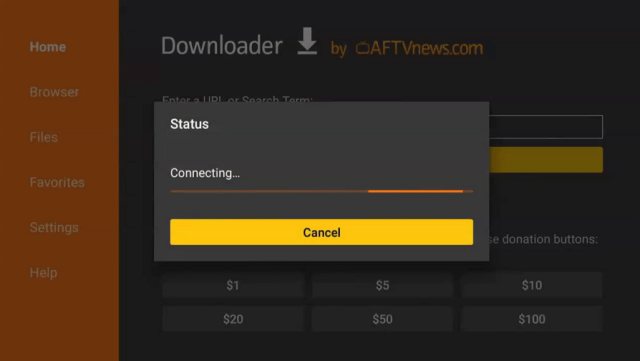
This article is going to help you with the installation of the Deezer Music app on your Firestick device.
Deezer Music is a music streaming app much similar to the popular Spotify Music. This app turns your Fire TV/Firestick into a karaoke device to sing with your favorite songs. You can enjoy about 56 million tracks that you can search and shuffle playing both with the free and premium versions. With its ready-made playlists and even your own playlist that you can create, you will surely be hooked on this music app.
Before you can completely install Deezer Music, you first have to jailbreak and install the Downloader app on your Firestick within just a few minutes.
Is Deezer Music Safe and Virus-free?
We tested this app using VirusTotal and found no threats or any malicious files and malware.
Despite having good results, we still need to be vigilant in protecting our privacy while streaming.
A Virtual Private Network or VPN will definitely help us maintain our security and anonymity while using Deezer Music.
2.Open Downloader App. Type https://reviewvpn.com/deez and click Go.
3. Click Install.
4. Click OPEN.
5. Sign up or Log in.
6. Deezer Music is Installed. Enjoy Listening.
YOUR INTERNET ACTIVITY IS BEING WATCHED
ReviewVPN cannot attest to the legality, security and privacy of the applications discussed on this site. It is highly recommended that you use a VPN service while streaming or using Kodi.
Currently, your IP 216.73.216.171 is visible to everyone and your Browser is being tracked by Advertisers & ISP Provider.
Your activities are hidden from your ISP, the government, and from the apps you are using.
You can access additional movies and TV streams.
ISP attempts to throttle are thrwarted thus reducing buffering issues.
Geographically restricted content like Netflix and Hulu can be unblocked.
A VPN works be replacing your ISP-assigned IP address and creating an encrypted tunnel. We recommend the no log service offered by IPVanish. It works well on a Firestick and offers the fastest possible speeds.
Legal Disclaimer: ReviewVPN.com does not encourage or endorse any illegal activity involved in the usage of services and applications referenced on this site. We do not verify the licensing agreements of services. The end-user is wholly responsible for ensuring that any media accessed through these services does not violate copyright and/or licensing laws. ReviewVPN does not promote, link to, or receive compensation from any Apps and IPTV services.
Deezer Music has been around for a long time on the Amazon App Store since October 2016.
Is it free?
Yes, the app is free to download but you have to subscribe to the premium version to enjoy unlimited access and limitless features.
Is the app legal?
Yes, it is legal and available on Amazon and Google Play Store.
Are there ads?
Yes, there are ads included for the free version.
Where can I watch/use the app?
Deezer Music can be used on Amazon Fire TV/Firestick, Android TV, and Android and iOS mobile devices.
Is there an app website?
Yes, there is a Deezer Music website where you can view some app and plan features at https://www.Deezer.com/en/.
Why Use Deezer Music on Firestick with Surfshark
You might be unaware that your internet activities are not only exclusive to you but there are also your Internet Service Providers (ISPs) and potential hackers that can cause harm to your browsing and streaming experience. Your personal information may be used especially when you are connected to a public Wifi connection.
When you stream, your ISP throttles your internet bandwidth since streaming requires a lot of data. This slows down your internet speed and in turn, decreases the audio or video quality.
By using a VPN such as Surfshark, you can enjoy protected, secured, smooth, and lag-free music streaming on Deezer Music.
Note: For more information about Surfshark, please read our Surfshark Review.
Deezer Music is indeed a piece of top-notch music streaming app that keeps up the competition with Spotify Music which is almost its replica. With the number of tracks in-store and a wide range of customization options for the audio and video settings from either free or paid versions, you will definitely love this addition to your Firestick application. However, the use of Mouse Toggle might cause hassle to use Deezer Music on your device.
Final Words
We hope that we have guided you to successfully install Deezer Music on your Firestick. If you have any comments, feedback, or question, please comment on them below.
Note: ReviewVPN.com is not affiliated with any App or IPTV Service nor are we endorsing or promoting any. The sole purpose of this article is for educational purposes only.
In this article, we will help you install 7Plus Kodi Addon on Firestick.
In this tutorial, you are going to learn how to install the 7Plus Addon on different streaming devices such as firestick, Roku, Linux, Android, iOS, windows, and lots more. 7Plus is a third-party addon from SlyGuy Repo.
This is one of the new addons from SlyGuy Repository with a huge collection of free-to-stream movies, tv shows, sports, and lots more. It scrapes streaming in from different streaming sources.
7Plus is a lightweight addon with approximately 200 MB. It has an easy-to-navigate interface. Sections within this addon include Home, live tv, shows, movies, sports, news, category, search, bookmarks, and setting.
How To Install 7Plus Kodi Addon on Firestick
1. Launch the Kodi app on your Firestick. Click on the gear wheel icon (Settings)
2. Select “System”
3. Scroll down to “Add-ons” Then Go to “Unknown sources” then toggle it on.
4. Select “Yes”. Then using your Firestick remote, press the return button to go back to the System page
5. Now choose “File Manager”
6. Scroll down and select “Add source”
7. Click “<None>”
8. Type the media source URL: http://k.slyguy.xyzand click OK.
9. Highlight the box under the source to give the media source a name, and put “7plus” or any other name that will help you identify it quickly. Click “OK”. Return to the System page by pressing the return button on your remote
10. Select “Add-ons”
11. Choose “Install from zip file”
12. Click “Yes”
13. Click on 7Plus.
14. Click on repository.slyguy.zip.
15. Wait for the “SlyGuy Repository add-on installed” notification.
16. Afterward, select “Install from repository”
17. Next, click on SlyGuy Repository.
18. Click on Video add-ons.
19. Click on 7Plus.
20. Click on install.
21. Click OK to “The following additional addons will be installed”.
22. Simply wait for it to install. It’s finished once you see the “7plusAdd-on Installed” message appear.
23. Select “7plus”. Then select “Open”.
24. That’s it, 7Plus Kodi Addon is already installed on your Firestick.
YOUR INTERNET ACTIVITY IS BEING WATCHED
ReviewVPN cannot attest to the legality, security and privacy of the applications discussed on this site. It is highly recommended that you use a VPN service while streaming or using Kodi.
Currently, your IP 216.73.216.171 is visible to everyone and your Browser is being tracked by Advertisers & ISP Provider.
Your activities are hidden from your ISP, the government, and from the apps you are using.
You can access additional movies and TV streams.
ISP attempts to throttle are thrwarted thus reducing buffering issues.
Geographically restricted content like Netflix and Hulu can be unblocked.
A VPN works be replacing your ISP-assigned IP address and creating an encrypted tunnel. We recommend the no log service offered by IPVanish. It works well on a Firestick and offers the fastest possible speeds.
Legal Disclaimer: ReviewVPN.com does not encourage or endorse any illegal activity involved in the usage of services and applications referenced on this site. We do not verify the licensing agreements of services. The end-user is wholly responsible for ensuring that any media accessed through these services does not violate copyright and/or licensing laws. ReviewVPN does not promote, link to, or receive compensation from any Apps and IPTV services.
USA 5, dave, yesterday, really, food channel, CBS reality,
CBS drama, viva, pick, CBBC, Aljazeera, rt, Roskilde festival
NASA, comedy, sport, docos, news, kids, food and cooking, travel, lifestyle, and more.
Frequently Asked Questions
What is Kodi?
Kodi is an open-source streaming software that allows you to access and stream free movies, tv shows, sports, and many more. This software is compatible with different hardware platforms and operating systems such as ios, windows, tablets, amazon firestick, android, and many more.
What is Kodi Addon?
Kodi addon is an application that you can install on Kodi. It scrapes streaming links for movies and other entertainment. You can install an addon on different streaming devices such as ios, windows, tablets, amazon fire stick, android, and many more.
Is it free to use the 7Plus Addon?
Yes. It is free to install and stream with this Addon.
Is it safe and legal to use the 7Plus Addon?
Yes. It is entirely safe and legal to install and use this Addon. However, whatever content you stream with this addon may be illegal. Consequently, we recommend using this addon with a VPN.
What is the 7Plus Addon?
This is a third-party addon from SlyGuy Repository.
It allows you to watch your favorite shows for free as seen on channels 7, 7mate, 7TWO, and 7flix. It also has 7plus exclusive content which you can easily explore.
Do I need a VPN to stream with Kodi?
Yes. We recommend using a VPN whenever you stream with Kodi. This is because most of the addons and builds on Kodi do not have the copyright to the contents they offer.
Note: For more information about SurfShark, please read our SURFSHARK REVIEW.
If your Firestick still has the older interface, read this article to learn how to update it: Update Firestick Interface.
You can download Surfshark directly from the Amazon App store. It will be easy for you to find Surfshark with your Firestick’s Find feature. Refer to our screenshots below.
1. Go to the Home screen of your Firestick.
2. Navigate towards the Find tab. Press the Search button from the resulting dropdown.
3. Type in the keyword of SurfShark and select from the suggestions that will appear.
4. Click the official SurfShark icon from your search results.
5. Press the Download (You own it) button.
6. The SurfShark VPN installer will download on your device.
7. SurfShark VPN’s app will automatically install itself on your Fire TV stick.
8. Press the Open button after completing SurfShark VPN’s installation process.
9. Please wait for the SurfShark VPN to load its user interface.
10. You can now log in with your SurfShark VPN account credentials.
We recommend having alternative Addons ready. This is because you do not know when an addon will stop working. Click here to access the list of our best alternative addons for 2021.
Conclusion
7Plus addon is a bank for free to stream movies, tv shows, sports, and so much more. It is a feature-rich addon with a beautiful and easy-to-navigate interface. I recommend you check out this Addon and share your thoughts.
This article will show you how to install 365Scores on Firestick.
Are you a sports fan who enjoys staying current on the latest news? Are you seeking a way to keep track of live scores, the schedule of upcoming events, and the latest news? If you’re tired of searching for scores across multiple websites, 365 Scores is the app for you. 365Scores is the fastest way to access live NFL, NBA, NBA Draft, and World Cup scores.
It features breaking news on Football (including NFL), Basketball (NBA scores, standings, and schedules), and Soccer (World Cup news, rankings), among other sports. Therefore, if you’re looking for the most up-to-date scores throughout the 102nd NFL Season, you can count on 365Scores. Moreover, it serves as the ultimate, lightning-fast scoreboard for all international games.
Furthermore, now you can stay current on current happenings and communicate with your favorite teams while watching the game. Without further ado, let us move on to the installation process, its features, and other information.
Note: If you don’t yet have Mouse Toggle, you’ll need it to navigate the app.
How to Install 365Scores on Firestick
To begin, if your Firestick has not yet been jailbroken, follow the simple steps below to jailbreak it to install 365Scores on your device:
1. Click Home on your remote and scroll once to your Right. Click Setting (Gear Wheel Icon).
2. Scroll down and to the right until you get to My Fire TV. Click on it.
3. Select Developer options.
4. Turn on ADB debugging and Apps from Unknown Sources.
5. Click Turn On when the pop-up appears.
Then, after jailbreaking your Firestick, you’ll need to download the Downloader app to sideload 365Scores. This app, which is easily available on the Amazon App Store, allows you to download APK files.
6. Click Home, click FIND.
7. Click Search.
8. You can either say Downloader to your Alexa voice-enabled remote or start typing it. If you typed it, click on the suggestion when it appears.
9. Click on the Downloader Icon.
10. Click Download.
11. Click on Open.
12. Click on Allow.
13. Use the Downloader search tab.
14. You will be asked to enter a download link. Type in “https://reviewvpn.com/3sc” and select Go.
15. Depending on your internet connection, the APK will take a few seconds to download.
16. After that, choose Install.
17. Then click Open.
365Scores APK Download for Android Devices
Note: ReviewVPN.com does not host this APK file. It is hosted by Archive.org
Legal Disclaimer: ReviewVPN.com does not encourage or endorse any illegal activity involved in the usage of services and applications referenced on this site. We do not verify the licensing agreements of services. The end-user is wholly responsible for ensuring that any media accessed through these services does not violate copyright and/or licensing laws. ReviewVPN does not promote, link to, or receive compensation from any Apps and IPTV services.
YOUR INTERNET ACTIVITY IS BEING WATCHED
ReviewVPN cannot attest to the legality, security and privacy of the applications discussed on this site. It is highly recommended that you use a VPN service while streaming or using Kodi.
Currently, your IP 216.73.216.171 is visible to everyone and your Browser is being tracked by Advertisers & ISP Provider.
Your activities are hidden from your ISP, the government, and from the apps you are using.
You can access additional movies and TV streams.
ISP attempts to throttle are thrwarted thus reducing buffering issues.
Geographically restricted content like Netflix and Hulu can be unblocked.
A VPN works be replacing your ISP-assigned IP address and creating an encrypted tunnel. We recommend the no log service offered by IPVanish. It works well on a Firestick and offers the fastest possible speeds.
Covers live scores, news, team and player updates, and much more.
Allows you to view scores for Football, Basketball, Tennis, Hockey, Rugby, American Football, Baseball, and Cricket on a single screen.
365Scores allows you to select leagues and teams to follow during the setup process, ensuring that you receive the most up-to-date information from them.
By selecting a date on the calendar, you can search for game scores from prior matchups.
You can find confirmed and rumored player transfers in its news section.
A search option enables you to view the most popular teams, competitions, and players.
It has a favorites section where you can keep track of your favorite teams, competitions, and players.
You have the option of enabling notifications for your favorite teams and competitions.
It enables you to localize and locate content in your area by utilizing your location.
You can customize your home page by specifying what you want to see: My Scores, All Scores, and News
English, Bahasa Indonesia, Deutsch, Espanol, Filipino, Francais, Italiano, Nederlands, and Portugues are all available as language options.
Pros and Cons
Pros
Scores for a variety of sporting events are available in a single app.
It is accessible in many languages, allowing those who feel more at ease using their native tongue to have it set.
The app can be customized according to the type of content you want to see.
Cons
The app is a little difficult to navigate.
There is simply too much activity in the app.
Protect Your Connection Using a VPN
When using services such as 365Scores, it is critical to safeguard your data. This is to prevent hackers and phishers from stealing your personal information through apps and websites, particularly free-to-use apps. In this manner, you can protect your data from being exposed and exploited by these cybercriminals for malevolent or financial gain. Apart from that, some permissions on apps may request access to your location and other information. Therefore, regardless of the reason for these permissions, whether legitimate or not, you can always be certain that no information is disclosed without your approval.
A VPN service such as Surfshark can help you avoid this by allowing you to connect from one of its 3,200 VPN servers in 65 locations to choose from. These IP addresses will encrypt your connection using AES 256-bit encryption, which is guaranteed to be uncrackable, assuring the security of all your traffic. Moreover, it adheres to a tight policy of no IP address leaks and no data breaches, ensuring that your data is not sold to third-party servers. Furthermore, some of its other advantages include the following:
It will provide you with an unlimited amount of bandwidth so that you can view any content from your favorite apps and websites.
A kill switch prevents unprotected content access by instantly disconnecting your device from the internet in the event of a VPN failure.
You can upgrade your subscription to include a VPN with backup or a VPN with antivirus to further secure your device.
It enables you to circumvent geo-restrictions, allowing you to effortlessly access blocked apps and websites.
For more VPN discounts, go to ReviewVPN Deals and purchase the best VPN for you.
Click here to get the lowest price on Surfshark through our exclusive limited-time offer.
App Alternatives
SofaScore
FlashScore
Goal.com
LiveScore
FotMob
FAQs
What does 365Scores do?
365Scores app provides live scores, breaking news, and other information about your favorite leagues, teams, and players. Moreover, it enables customization, allowing you to quickly access the information you wish to see on the app.
Is 365Scores safe?
Yes, using and installing 365Scores on your device is safe. However, it is still preferable to use a VPN service such as Surfshark to ensure that you are securely surfing its content.
Is 365Scores free?
Yes, installing and using 365Scores on Firestick is 100 % free.
The 365Scores app makes it easy to see live scores for your favorite matches. It also provides news, ensuring that you’re always informed about your favorite teams and leagues. Moreover, what I enjoy about the app is how many of its settings can be customized. Furthermore, it is free to install and use on your Firestick, allowing you to test the app and determine whether it meets your demands for staying current on the latest matches.
In this article, we will be divulging important details on how to install Ola TV on Firestick and other devices that run on the android platform.
Ola TV has been around since 2017 and leads the way when it comes to the sheer range of channels you can access through the app. With a selection of over 50,000 channels from all over the world, it is one of the best live streaming applications out there. Particularly for those who want TV from more obscure countries like Albania, or struggle to find channels on other providers like Mobdro and Red Box.
The application gets frequent updates and is now in its fifth iteration, also many users have returned after it turned down the frequency of adverts that plagued the first 3 versions.
What Does it Do?
Ola TV works just like most Android TV streaming applications, but instead of collating links for films and TV shows it only concentrates on Live TV links. The app’s web scrapers traverse the internet looking for working TV links which are then provided within the application
Ola TV does not host any of the content itself, it only provides links to third parties meaning you may have to cycle through a couple of links before finding one that works, but its scrapers are pretty reliable and refresh daily.
Is OLA TV Safe and Virus-free?
We tested this app using VirusTotal and found no threats or any malicious files and malware.
Despite having good results, we still need to be vigilant in protecting our privacy while streaming.
A Virtual Private Network or VPN will help us maintain our security and anonymity while using OLA TV.
Note: ReviewVPN.com does not host this APK file. It is hosted on Archive.org.
How to Install Ola TV on Firestick
Follow our guide below showing you how to jailbreak your Firestick and sideload the Ola TV app.
Open your Firestick Settings Tab. (Gear Wheel Icon).
Scroll down and to the right until you get to My Fire TV. Click on it.
Select Developer options.
Turn on ADB debugging and Apps from Unknown Sources.
Press the Turn On when the pop-up appears.
Click Home and press on FIND.
Press the Search button from the dropdown.
You can either say Downloader to your Alexa voice-enabled remote or start typing it. If you typed it, click on the suggestion when it appears.
Click on the Downloader Icon.
Tap on Download.
Click on Open.
Press on the Allow button.
You can now use the Downloader app.
Type in https://reviewvpn.com/ola and select the Go button.
Ola TV’s APK file will download.
Click on Install.
The Ola TV App will install on Firestick.
Click the Open button to launch the Ola TV app.
Please wait for the Ola TV app to load its home screen.
You can now add your IPTV or Live TV subscription to the Ola TV app to stream Spanish films and media.
How to Install Ola TV on Firestick (Screenshots)
1. Open your Firestick Settings Tab. (Gear Wheel Icon).
2. Scroll down and select My Fire TV.
3. Select Developeroptions.
4. Turn on ADB debugging and Apps from Unknown Sources.
5. Press the Turn On when the pop-up appears.
6. Click Home and press on FIND.
7. Press the Search button from the dropdown.
8. You can either say Downloader to your Alexa voice-enabled remote or start typing it. If you typed it, click on the suggestion when it appears.
9. Click on the Downloader Icon.
10. Tap on Download and please wait while the app is installing itself on your device.
11. Click on Open.
12. Press on the Allow button.
13. You can now use the Downloader app.
14. Type in https://reviewvpn.com/ola and select the Go button.
15. Ola TV’s APK file will download.
16. Click on Install.
17. The Ola TV App will install on Firestick.
18. Click the Open button to launch the Ola TV app.
19. Please wait for the Ola TV app to load its home screen.
20. You can now add your IPTV or Live TV subscription to the Ola TV app to stream Spanish films and media.
Ola TV Features
Clean and easy to use tile-based user interface
Lightweight application
50,000 channels to choose from
An enormous range of countries
The software has been adapted to reduce lag when buffering live TV
Easy to navigate by countries, categories, and sections
Kids TV section
Create a favorites tab of your chosen TV shows to manage your TV channel list
Compatible with a massive range of media players including MX Player
What Platforms Does it Work on?
Ola TV works on all Android-based devices
YOUR INTERNET ACTIVITY IS BEING WATCHED
ReviewVPN cannot attest to the legality, security and privacy of the applications discussed on this site. It is highly recommended that you use a VPN service while streaming or using Kodi.
Currently, your IP 216.73.216.171 is visible to everyone and your Browser is being tracked by Advertisers & ISP Provider.
Your activities are hidden from your ISP, the government, and from the apps you are using.
You can access additional movies and TV streams.
ISP attempts to throttle are thrwarted thus reducing buffering issues.
Geographically restricted content like Netflix and Hulu can be unblocked.
A VPN works be replacing your ISP-assigned IP address and creating an encrypted tunnel. We recommend the no log service offered by IPVanish. It works well on a Firestick and offers the fastest possible speeds.
Legal Disclaimer: ReviewVPN.com does not encourage or endorse any illegal activity involved in the usage of services and applications referenced on this site. We do not verify the licensing agreements of services. The end-user is wholly responsible for ensuring that any media accessed through these services does not violate copyright and/or licensing laws. ReviewVPN does not promote, link to, or receive compensation from any Apps and IPTV services.
The sheer size and number of channels that it offers is unparalleled, as well as the countries
Developed by IPTV Droid who have made a name for themselves by specifically developing IPTV apps like Relax TV
Easy to navigate and find channels
Navigate by section, country, genre, and even location by city
The favorites tab makes it easy for you to create a personal viewing list instead of having to search for the same channel each time
Great uptime and long history of stability
Still supported by the development team with decent ad revenue meaning that should continue
Specially adapted for Live TV meaning you would spend less time waiting for it to buffer than watching directly from a link
Variety of channels means if you find a link that doesn’t work they will always be something else similar
Cons
Specifically targeted for Live TV, not on-demand movies and tv shows
No active community available on Reddit or Facebook
Ola TV did have a repetition for too many ads which seems to have gotten better with the new updates
Only use a Live Streaming app if you have an unlimited data plan
The application may slow down mobile phones
No PVR functionality
What Is the Ola TV Pin Code
If Ola TV asks for a pin code, enter:
874452
Versions before 9 never asked for a pin code, but version 9 asks for one.
Ola TV FAQs
Is It Safe to Use?
Yes, the application is widely used and well-reviewed and has been stable for several years. We always recommend that you download the application either within the Amazon App Store or from the official website link below.
Is It Legal or Grey?
Let’s face it, Ola TV is just as grey as the rest of the streaming applications out there. You can access all the premium TV providers from ABC and Sky to Netflix and Hulu, so they will be pretty hot on shutting down streams whenever they can.
Ola TV simply won’t work without a VPN as all their content will be blocked by media providers and links will change regularly.
Is it Free?
Yes, Ola TV uses advertising to generate revenue
Are There Ads? (If it has ads is there a modded version)
Yes, there are quite a few ads but less than before
We always recommend you use the official website or the official application from the Amazon store.
What Other Devices Does Ola TV Work On?
Ola TV works on any device running the Android operating system
How Does Ola TV Work?
Simply download the apk file from the Amazon store or the official Ola TV Website and run the executable file. Then follow the instructions provided by Ola TV’s installation wizard.
What is the Minimum Version of Android I Need?
Android 4.0
How Long Has Ola TV Been Around?
Ola TV has been around since 2017 making it one of the oldest IPTV streaming apps still available
Is Ola TV a Terrarium Clone?
No. Ola TV is not a Terrarium clone.
What is the Development Team Like?
There wasn’t much that we could find about the development team, there doesn’t seem to be an active community on Facebook or Reddit.
We know it was developed by the IPTV Droid team who has released numerous IPTV streaming apps.
Should I Use Ola TV With a VPN?
You should always use a VPN with Ola TV. Media companies are hot on blocking companies that are allowing users to stream premium content for free. Sky, Virgin, and ABC will shut down streams as soon as they are detected, as well as active try to track users who are using illegal streaming software.
Using a VPN, you can change your home IP address and also make sure that your connection and browsing history is encrypted. This means that your data cannot be snooped on by any third parties not even your ISP won’t knows that you are using Ola TV.
Internet Service Providers are legally obliged to record people who try to access pirated content, this could lead to your IP being blocked, a cease and desist letter, or even a fine.
Note: For more information about Surfshark, please read our Surfshark Review.
Ola TV is a great app with a vast collection and range of IPTV channels. One for everyone to have in their IPTV app library. The adverts might get a bit annoying, but it’s good to subscribe to an application that has a sustainable revenue stream, as the developers are more likely to keep it up and running, rather than abandoning it for a new project.
In this article, we will provide the best downloader codes to install free apps.
Using the Downloader app is the best way to install free streaming apps on your Amazon Firestick. It helps users with apps that are not available in the Amazon App Store.
You can also use these best Downloader codes for other devices like Android. Amazon Firestick and Android, both use APK file format for their apps.
In this list, you will find the best apk pages where the best streaming apps are found. Please keep in mind that the Downloader app does not host any of the files, and apks that you may use.
In order to install third-party applications on your Firestick device, you need to jailbreak your firestick first. It is also safe to use a trusted VPN service when streaming on free third-party applications.
List of the Best Downloader Codes
Downloader Code
Logo
Content
Star Rating
64813
Modded APKs, Movie and TV Apps, Live TV, Tools, Kodi, Music, Browsers, App Stores, Anime, VPNs, Adult Apps
5/5
39048
Movie and TV Apps, Live TV, Tools, Music Apps, Browser
5/5
24547
Movie and TV Apps, Live TV, Tools, Music, Browsers, Anime, Adult Apps
5/5
13994
Movie and TV Apps, Live TV, Tools, Kodi, App Stores, Adult, Games
5/5
37764
Android APKs, Movie and TV Apps, Tools, Browsers, Android Games
5/5
49298
Modded APKs, Movie and TV Apps, Live TV, Tools, Kodi, Music, App Stores, VPNs
4.5/5
79378
Movie and TV Apps, Live TV, Tools, Music, VPNs, IOS Apps
ReviewVPN cannot attest to the legality, security and privacy of the applications discussed on this site. It is highly recommended that you use a VPN service while streaming or using Kodi.
Currently, your IP 216.73.216.171 is visible to everyone and your Browser is being tracked by Advertisers & ISP Provider.
Your activities are hidden from your ISP, the government, and from the apps you are using.
You can access additional movies and TV streams.
ISP attempts to throttle are thrwarted thus reducing buffering issues.
Geographically restricted content like Netflix and Hulu can be unblocked.
A VPN works be replacing your ISP-assigned IP address and creating an encrypted tunnel. We recommend the no log service offered by IPVanish. It works well on a Firestick and offers the fastest possible speeds.
Legal Disclaimer: ReviewVPN.com does not encourage or endorse any illegal activity involved in the usage of services and applications referenced on this site. We do not verify the licensing agreements of services. The end-user is wholly responsible for ensuring that any media accessed through these services does not violate copyright and/or licensing laws. ReviewVPN does not promote, link to, or receive compensation from any Apps and IPTV services.
How to Jailbreak Firestick and Install the Downloader App
To use the best Downloader codes, you must first need to jailbreak Firestick and install the Downloader app. Here is how you can do it:
1. Click Home on your remote and scroll once to your Right. Click Setting (Gear Wheel Icon)
2. Scroll down and to the right until you get to My Fire TV. Click on it.
3. Select Developer options.
4. Turn on ADB debugging and Apps from Unknown Sources.
5. Click Turn On when the pop-up appears.
6. Go back to your Home Page and click Find
7. Click Search.
8. You can either say Downloader to your Alexa voice-enabled remote or start typing it. If you typed it, click on the suggestion when it appears.
9. Click on the Downloader icon
10. Click Download
11. Click on Open.
12. Click on Allow.
Stream Safely With a VPN
When streaming on different third-party apps, you need to protect your privacy from trackers. Malicious domains from different streaming links and even your ISP can track you while using the internet. That’s why you need to be private when installing apps from the best downloader codes.
The best way to have private streaming is by using a VPN service. A VPN can hide your identity from trackers, and give you a new IP address from another country that can grant you access to geo-restricted content.
The best VPN to use when installing apps from the best Downloader codes is Surdshark. It can protect your privacy with its top-notch VPN protocols and it can help you unblock most streaming apps. Read our SurfShark review to know more about this amazing VPN.
How to Install Surfshark on Firestick with Screenshots
If your Firestick still has the older interface, read this article to learn how to update it: Update Firestick Interface.
You can download Surfshark directly from the Amazon App store. It will be easy for you to find Surfshark with your Firestick’s Find feature. Refer to our screenshots below.
Follow our screenshots below to install the SurfShark VPN app on your Fire TV stick.
1. Go to the Home screen of your Firestick.
2. Navigate toward the Find tab. Press the Search button from the resulting dropdown.
3. Type in the keyword of SurfShark and select from the suggestions that will appear.
4. Click the official SurfShark icon from your search results.
5. Press the Download (You own it) button.
6. The SurfShark VPN installer will download on your device.
7. SurfShark VPN’s app will automatically install itself on your Fire TV stick.
8. Press the Open button after completing SurfShark VPN’s installation process.
9. Please wait for the SurfShark VPN to load its user interface.
10. You can now log in with your SurfShark VPN account credentials.
For more VPN discounts, go to ReviewVPN Deals and purchase the best VPN for you.
Click here to get the lowest price on Surfshark through our exclusive limited-time offer.
Conclusion
The best Downloader codes are 64813 and 3904, but you can also check out some that are included on our list. These best Downloader codes are surely helpful in installing streaming apps easier on your Firestick, Fire TV, and Android devices. Make sure that you are safe when installing and using third-party apps with the help of a trusted VPN service like Surfshark.
In this article, we will show the Best Anime Websites where you can stream your favorite Anime series and Movies.
Anime websites are an online database that contains an array of animated cartoons, TV shows, and movies.
You can easily explore these websites to find anime in various categories, such as drama, action, comedy, shonen, shoujo, harem, mecha, and many more.
A lot of these anime sites provide you the ability to filter out anime by genre, year, season, and quality.
You can access these sites on tablets, smartphones, PCs, and streaming devices such as the Amazon Firestick.
Just like other Kissanime Alternatives, some of these anime sites are constantly removed or shut down. However, as we are writing this article, all the anime websites listed in this article are currently available to be used and functioning.
Most importantly, always use a secured VPN before accessing any of these websites.
Top Anime Websites
It is worth noting that this list is a mixture of both the best free and paid anime sites. Let us now begin with the list.
KissAnime is a popular streaming website that was once out of the spotlight. It went through a domain change from KissAnime.ru and we actually created a list of the best KissAnime alternatives.
KissAnime is similar to KissCartoon and KissAsian. It offers thousands of anime episodes and movies to stream. The former KissAnime website shut down due to copyright issues. It is best to use this website using a trusted VPN like Surfshark.
If you want to watch anime for free and learn Nihongo at the same time, then Animelon is the right anime streaming site for you. Animelon offers anime content in both Japanese and English subtitles that are displayed on your device’s screen. The website was made that way so that you can easily learn the translations. Apart from this feature, Animelon provides as well the most well-known anime content, it is regularly updated, has the absence of pop-up ads, and has excellent playing speeds.
This is a well-known anime streaming website that provides anime content in English dubbed. It is preferred by those users that would rather watch English-dubbed anime than read the subtitles and pause the video just to read them. It’s a great website and has features like it has no annoying banner ads, downloadable video content, 3 to 4 pop-up ads before you can play the video, and many more.
It is another prominent anime streaming website that features the latest anime episodes of all your favorite anime series within minutes after the episode’s official release. This site has two URLs which are 9anime-tv.com and 9anime.ru. The latter has a more excellent user interface and enables you to filter anime based on its types, genre, year, season, and status. Also, it offers both dubbed and subbed versions of all anime series in 1080p quality. 9anime also has a detailed estimated release of various episodes on the site’s calendar with the episode number.
With tons of episodes on today’s best anime shows and also in the past years, AnimeHeaven talks a lot when it comes to its name. Its media library stores anime shows that are difficult to find and the latest released episodes. AnimeHeaven’s user interface is the same as other anime streaming sites and allows you to leave comments at the foot of the page.
It has various categories, such as popular shows, ongoing series, shows per series, dubbed series, movies, and scheduled releases. However, due to it being a free anime website, you will have to face frequent ads when you click on the content and website.
AnimeDao
If you want to access a streaming website that stores tons of anime shows, then you will surely love and enjoy AnimeDao, as well as its clean and minimal user interface layout. You can easily browse through the website’s list of the most recent episodes, freshly added, classics, and ongoing series. If ever you encounter not knowing what to watch, then you can click on the “Random” button and AnimeDao will offer a list of recommendations. All of the anime movies and shows have English subtitles in High-Definition and Standard-Definition quality and can be played on different devices like smartphones. Tablets, and PCs. However, when streaming episodes on AnimeDao, expect that there will be some pop-up ads.
Many anime fans have enjoyed the Chia-Anime website due to the website’s ability to provide the best anime shows in High-Definition quality, like One Piece, Food Wars: Shokugeki no Soma, Moriarty the Patriot, and many others. After an hour of being aired in Japan, you can directly stream the show on the website. You may also access random suggested episodes and the most popular shows to satisfy your anime experience. It is also important to take note that all of the shows on Chia-Anime are for free since these shows are hosted by third-party sites. With that being said, there will be some pop-up ads.
AnimeFreak is another go-to anime streaming site that offers free anime content and has tons of episodes from your favorite anime in different genres, such as action, shoujo, harem, adventure, fantasy, and many more. You can now stream the latest movies, OVA series, and other top anime favorites in AnimeFreak. Additionally, it also stores tons of manga that are directly updated after the chapter has been released in Japan. However, the only down point with AnimeFreak is that it has pop-up ads.
With GoGoAnime, anime fans have multiple choices on this site since it has an array of genres available from standards like action or comedy to more certain anime like shounen-ai and mecha. There are also tons of English-dubbed series and provide you unlimited hours of anime entertainment. Moreover, you have the option to stream anime in Chinese subtitles as well. Additionally, GoGoAnime has the Best Original Video Animation (OVA) and Original Net Animation (ONA) in high-definition. You can access all the series you want because it’s all carried by external sources.
From classic anime shows like Naruto and Mushi-Shi to the most recent popular shows like One-Punch Man and Black Jack, Tubi TV is known to be one of the best streaming websites today and that is why it’s listed in the 30 best anime streaming sites. You can watch anime shows in high quality and keep up-to-date with the latest releases of your favorite anime. However, because Tubi TV is a free streaming platform, it inserts pop-up ads and some commercials to earn from the platform. However, it is worth mentioning that Tubi TV has limited anime content, but many are well-known.
Anime Digital Network is a well-known streaming website that builds its name on being one of the top anime websites in Belgium, Luxembourg, and France. You can easily alter the language in Chrome’s settings or any browser’s settings. This streaming website is legal to use since it has formed a partnership with Kana Home Video and Kaze publishers in Japan. Moreover, the anime content in Anime Digital Network is available in Japanese and French versions with French subtitles. Another aspect of this site is that it has a streaming plan of €6.99 that allows you to access HD content. Anime Digital Network is geo-restricted and we advise that you use a VPN, specifically Surfshark, to access its content.
IQIYI is another popular streaming site that praises itself for having the most popular anime favorites such as One Piece and Haikyuu. However, this website’s contents are mostly non-anime content, but there are still many anime selections that it offers. This streaming site has English subtitles that are available in many of the shows apart from Vietnamese, Thai, Bahasa Malaysia, and Chinese. The best element about IQIYI International is that it only has limited ads, which is great for a free streaming platform and also it features anime shows in HD quality. Another thing is that you can access other shows aside from anime from Taiwan, Korea, and China. Also, since the website offers free content, it only requires users to watch short ads.
The All4 streaming website that is owned by Channel 4, does not only have some of the top European shows but now it carries the best anime shows like Tokyo Ghoul, Megalobox, Persona 5, Sailor Moon, and many more. Moreover, this year, the website has added more popular anime shows like Persona 5 and Sword Art Online.
To watch anime content, click on the “Take me to All4” tab on the top right corner and then search for the category “Animation”, then finally scroll down and you will see the available anime content on the site. You can also easily add your favorite anime to your library list and enjoy streaming all the episodes. This website only has one plan which is the All4+ Plan which lets you skip ads and has a free trial period as well.
AniWatcher was formerly known as Anilinkz. This streaming website is quite popular and it offers the latest anime daily updates and releases. AniWatcher provides up to more than 10 decent streaming links that you can easily pick to watch your favorite anime. It features a user interface that may be a bit difficult on the eyes, 6 pop-up ads will appear before playing the video, however, it does provide sections for newly added, recommended, OVAs, movies, and ongoing series.
Lastly, ConTV is another unique anime streaming platform that lets you stream various anime shows, movies, OVAs, and even manga. The anime content on ConTV ranges from horror to shoujo, so this website surely has everything that you would want to watch. ConTV is recognized to be a one-stop shop for anime streaming. It has an elegant user interface that displays tons of genres divided into several categories.
Also, you can stream your favorite anime shows 24/7 to have a full experience of streaming enjoyment. However, this website can only be accessed in the U.S., if you wish to access this site, then you will need to use a VPN that is US-based, like Surfshark.
The Anime Planet website offers 45,000 episodes of your favorite anime titles. It has more categories to offer for movies, popularity, release dates, user tags, favorites, and recent updates.
You can sign up for an account although it is not necessary. There are also some ads present on this website.
Anime Planet works perfectly with a Surfshark VPN.
RetroCrush is one of the best free anime websites nowadays. If you are a fan of cult classics, then retrocrush is the best one for you. You can watch Lupin III, Voltes V, Appleseed, Bubblegrum Crisis, Great Teacher Onizuka, and many more.
What’s best for RetroCrush is that there are no advertisements present and the website looks so clean and easy to navigate. The website is free if you are in the US and Canada. You can still use a VPN like Surfshark to make you look like you are in these countries.
YOUR INTERNET ACTIVITY IS BEING WATCHED
ReviewVPN cannot attest to the legality, security and privacy of the applications discussed on this site. It is highly recommended that you use a VPN service while streaming or using Kodi.
Currently, your IP 216.73.216.171 is visible to everyone and your Browser is being tracked by Advertisers & ISP Provider.
Your activities are hidden from your ISP, the government, and from the apps you are using.
You can access additional movies and TV streams.
ISP attempts to throttle are thrwarted thus reducing buffering issues.
Geographically restricted content like Netflix and Hulu can be unblocked.
A VPN works be replacing your ISP-assigned IP address and creating an encrypted tunnel. We recommend the no log service offered by IPVanish. It works well on a Firestick and offers the fastest possible speeds.
Legal Disclaimer: ReviewVPN.com does not encourage or endorse any illegal activity involved in the usage of services and applications referenced on this site. We do not verify the licensing agreements of services. The end-user is wholly responsible for ensuring that any media accessed through these services does not violate copyright and/or licensing laws. ReviewVPN does not promote, link to, or receive compensation from any Apps and IPTV services.
The list of the Best Anime Websites won’t begin without mentioning Crunchyroll at the top of the list.
Crunchyroll is a popular anime streaming website that features a complete entertainment selection for avid anime fans.
The website has sections for the latest anime, featured shows, simulcasts, Crunchyroll news, and soon-to-be-released episodes and seasons.
One of the many great things about the Crunchyroll website is that it has an ad-free feature, but only for the paid subscription and on-time episode release, which is one hour after it airs in Japan.
It’s worth mentioning that Crunchyroll offers a 14-day free trial period so that you can stream full videos, use its offline viewing feature, and you can stream the site on up to four different devices.
ReviewVPN cannot attest to the legality, security and privacy of the applications discussed on this site. It is highly recommended that you use a VPN service while streaming or using Kodi.
Currently, your IP 216.73.216.171 is visible to everyone and your Browser is being tracked by Advertisers & ISP Provider.
Your activities are hidden from your ISP, the government, and from the apps you are using.
You can access additional movies and TV streams.
ISP attempts to throttle are thrwarted thus reducing buffering issues.
Geographically restricted content like Netflix and Hulu can be unblocked.
A VPN works be replacing your ISP-assigned IP address and creating an encrypted tunnel. We recommend the no log service offered by IPVanish. It works well on a Firestick and offers the fastest possible speeds.
Funimation is another popular anime streaming site and it is known to have the most reliable anime sources known by many users. Since it is produced by Aniplex of Japan and Sony Pictures, Funimation provides the full episodes of the current seasons of the most well-known anime shows. All of the shows are organized according to the genre, such as fantasy, comedy, shoujo, sci-fi, drama, horror, live-action, action, harem, romance, and shounen.
With the Funimation site, you won’t have to miss any of the latest anime movies and episodes because it has a complete schedule of completed programs. This website can be accessed on 15 different platforms in 47 different countries. However, if your location has geo-restrictions, then you will need to use a VPN to access the website.
Viz offers the latest anime shows as well as all-time favorite classics. This website has been part of the manga industry for three consecutive decades. Viz praises itself for advertising Japanese pop culture to multiple countries such as the US since it is the main source of manga. Presently, it provides anime shows from classic shows like Ranma to the most latest episode of Haikyuu. You can also save your favorite anime series in your favorite library for you to make your binge-watching experience better.
What’s great about Viz is that its anime collection has English subtitles just as soon after it is aired from Japan.
VRV is another streaming website that has anime titles sourced from popular anime websites like Crunchyroll so that you are provided with high-quality versions and excellent subtitles the most well-known anime shows on this website are One Piece, Sword Art Online, Hunter x Hunter, and Food Wars. However, if you are from outside the US, then you will have to use a VPN to access VRV.
A great thing about VRV is that it offers a 30-day trial period which is considerably longer than other free trials offered on other streaming websites. VRV has an ad-free package that costs $9.99 and enables you to access exclusive series, ad-free entertainment, and the latest episodes.
Hulu is a well-known paid streaming website and it’s known for its movies, original shows, and live TV but it has a collection of anime that can compete with other popular streaming sites. It has anime classics from Dragon Ball Z to the latest English-dubbed movies like Studio Ghibli productions and Akira. Hulu won’t disappoint any avid anime fan who wants to stream HD-quality anime. Also, it has a simulcast feature for the latest anime episodes. It also offers various plans that offer ad-free options.
MyAnimeList has now become a staple anime streaming website according to many anime fans due to its large collection of content and it has maintained its reputation for being an all-in-one anime platform. What makes MyAnimeList unique from other streaming lists is it has a detailed synopsis for every anime movie or show.
You can easily access alternative titles, synopsis, production information, background, voice actors, reviews, and popularity. This website can be accessed in Japan, Great Britain, and the U.S. Since it’s geo-restricted, you will need to use a VPN, but it must be a secured VPN. MyAnimeList provides one of the most inexpensive monthly fees for only $2.99 a month for you to experience ad-free streaming and you can access other perks as well. Always remember that whenever you don’t log in, ads will pop up when you watch your favorite show or movie.
This streaming platform is very popular. Netflix is today’s top leading streaming service. Netflix’s anime category provides a wide array of different shows like Sword Art Online, Attack on Titan, Fruits Basket, and many more, also there are many anime movies like Weathering With You, A Silent Voice, and many more. Netflix maintains a good job of organizing its anime content based on genres like action, sci-fi, crime, fantasy, drama, adventure, and top selections from many of Japan’s top studios.
Moreover, not only does Netflix carry popular anime shows from Japan, but it also has its original anime like Castlevania and Japan Sinks:2020 and other exclusive shows like Little Witch Academia. It is worth mentioning that Netflix is a paid streaming platform, but with tons of anime selections, it is surely worth the monthly payments.
HIDIVE is a streaming website based in Houston that offers top-notch anime catalogs and titles of various shows. The latest release can be simulcasted from Japan and streamed in 1080p or High-Definition resolution. What makes this website unique is the presence of a selection of hard-to-find OVAs and titles that can excite any avid anime fan. Also, it is worth mentioning, that HIDIVE offers only a limited selection of anime content. Moreover, you can easily customize your viewing pleasure by setting and changing it to uncensored content. HIDIVE has a subscription fee of $4.99 a month and comes with a 30-day trial period for new users.
Use Surfsharkon Anime Websites
When using a VPN, your entire internet traffic will undergo a secured and encrypted tunnel. This means that any prying eyes, like hackers or your Internet Service Provider, won’t be able to see or monitor your online activities. A VPN will also mask your real IP address which will make it difficult for anyone to trace you across the internet.
Surfshark is a VPN or a Virtual Private Network that can be used by anyone. It functions by providing complete anonymity whenever you are online. Surfsharkwill reroute your internet connection and traffic to its encryption tunnel and connect it to an anonymous server. Other than that, Surfsharkis like a middleman that runs behind to ensure full security and privacy for its users. Surfsharkhas numerous anonymous servers from across the globe, and you can select which server you want to connect to. You can do nearly anything when connecting to Surfshark.
Here are some benefits when using Surfshark:
Access media content and sites without any restrictions.
Block your Internet Service Provider from disrupting your connection.
For more VPN discounts, go to ReviewVPN Deals and purchase the best VPN for you.
Click here to get the lowest price on Surfshark through our exclusive limited-time offer.
FAQs
What are the best sites to stream anime?
The best websites to stream anime include Funimation, Crunchyroll, 4anime, and GoGoAnime.
Is streaming on anime sites legal?
We cannot verify that all websites are legal. However, to have the utmost security, we recommend that you use Surfsharkwhenever you stream on these websites.
Do we need a VPN when streaming?
Yes. Having a VPN, specifically Surfshark, is a must when using any of these websites. This will mask your streaming activities and maintain your anonymity, and prevent any hackers or ISPs from spying on you.
What devices can I use to watch anime?
For you to watch anime and use any of these websites. You can use any device such as a PC, smartphone, tablet, and many other devices.
Conclusion
And there you have it! That concludes our list of the 30 best anime streaming sites. As stated above, the websites in this list have been carefully chosen. Especially for their performance and functionality. We tested these websites using a PC and Amazon Firestick. That’s why we can assure you that they are functioning very well.
Tell us about other websites like the ones we listed above.
In this article, we will be showing you how to install Cyberflix on Firestick and other android devices.
CyberFlix is the leading Terrarium TV clone. It is driven by a strong community of 8,000+ members on Facebook. Cyberflix is the number 1 go-to app for free movies on Firesticks and Android devices for thousands.
It has cultivated this large base of support by reliably providing access to thousands of free movies and TV shows without cost or ads. It is damn good in this role and should be a go-to app for any Firestick-loving movie watcher.
You can only install Cyberflix on Firestick if it is Jailbroken. Please follow this guide to do so:
If your Firestick still has the older interface, read this article to learn how to update it: Update Firestick Interface.
Video – Install Cyberflix on a Firestick
Download Cyberflix TV on Android
We do not host the file for Cyberflix TV, but we have found a link that you can use below.
Note: ReviewVPN.com does not host this APK. It is hosted on Archive.org.
Screenshots with Step by Step Instruction to Install CyberFlix on a Firestick
1. From your home screen, go to Settings.
2. Scroll down and to the right until you get to My Fire TV. Click on it.
3. Select Developer options.
4. Turn on ADB debugging and Apps from Unknown Sources.
5. Click Turn On when the pop-up appears.
6. Click Home, click FIND.
7. Click Search.
8. You can either say Downloader to your Alexa voice-enabled remote or start typing it. If you typed it, click on the suggestion when it appears.
9. Click on the Downloader Icon.
10. Click Download.
11. Click on Open.
12. Click on Allow.
13. Use the Downloader search tab.
14. Type https://reviewvpn.com/cyber and click Go.
15. Wait for the APK to be downloaded.
16. Click install
17. Click open
18. Click allow, then select OK.
19. Click accept after choosing a player.
20. That’s it! Enjoy!
YOUR INTERNET ACTIVITY IS BEING WATCHED
ReviewVPN cannot attest to the legality, security and privacy of the applications discussed on this site. It is highly recommended that you use a VPN service while streaming or using Kodi.
Currently, your IP 216.73.216.171 is visible to everyone and your Browser is being tracked by Advertisers & ISP Provider.
Your activities are hidden from your ISP, the government, and from the apps you are using.
You can access additional movies and TV streams.
ISP attempts to throttle are thrwarted thus reducing buffering issues.
Geographically restricted content like Netflix and Hulu can be unblocked.
A VPN works be replacing your ISP-assigned IP address and creating an encrypted tunnel. We recommend the no log service offered by IPVanish. It works well on a Firestick and offers the fastest possible speeds.
One of the most recognizable and best working clones of Terrarium.tv
Compatibility with Real Debrid means you can easily access the latest shows and make your own list
Slick and customizable user interface
A wide selection of media including fringe tv-shows
Active community and forum meaning bugs and glitches are reported quickly and fixed
Completely free and ad-free
Regular updates
Best application for those familiar with Terrarium and its interface
Active developer who engages with the community
Cons
No Autoplay or Auto next function
Some lag reported in loading screens
The face that Cyberflix relies on donations is admirable but does mean they may eventually run out of resources and not have access to the best high-speed servers
As it used 3rd party content, expect links to change over time and content to sometimes not be available
Does not allow you to stream torrents directly within the app
FAQs
What Does it Do?
For those familiar with Terrarium TV, CyberFlix’s UI is almost identical. They have an enormous library of streams and resolvers all presented in a clean and easy interface to navigate. You can also sync it with your Real-Debrid account to get the newest streams and content.
CyberFlix, unlike other android TV apps, acts like a search engine and browser. So, it does not actually store or host the media on any of its servers. So essentially it’s like a Google for media.
Using scrapers, they amalgamate new titles, links, and discard broken links on a regular basis meaning you can always access titles, though this does mean that intermittently some content may not work.
By having an open relationship with 3rd parties wanting to shut down links to copyrighted material, has allowed Cyberflix to remain online and stable without the constant use of mirrors.
What Platforms Does it Work on?
CyberFlix works on Android and Firestick.
Is it Safe to Use?
Yes, there is a 100% virus-free apk that is widely used and available on the Amazon store
Is it Legal or Grey?
In principle Cyberflix is legal because it acts only as a search engine, returning links to media that are freely available only. They also actively work with parties alleging copyright infringement to take down content. If there is a conflict they will simply reveal where the link to the media is coming.
Is it Free?
Yes, Cyberflix sell merchandise and are supported by donations from its members
Are There Ads?
There are no ads, which is a rarity and awesome
Is There a Premium Version?
No, there is no need as the free version is essentially the premium version
Is There an Official Website?
Yes (though it could do with a facelift):https://cybermedia.cloud/
What Other Devices Does it Work on?
Cyberflix will work on any Android devices, including the Amazon fire series, Nvidia Shield and Android mobile phones and tablets
How Does The App Work?
Directly download the APK file from the Cybermedia websites
What is The Minimum Version of Android I Need?
Android 5.0
How Long Has it Been Around?
About the same time as TV Zion so maybe around 10 months. They have built an impressive following with an 8,000 strong Facebook Group and also a lively forum.
Is it a Terrarium Clone?
Yes.
What is The Development Team Like?
Run by a development team of 1 Shawn, who seems to be very active in the community as well as providing fairly regular updates, patches, and fixes
Should I Use Cyberflix With a VPN?
There are a couple of reasons why we always suggest you use a VPN:
A VPN will allow you to stay safe and anonymous online.
Your Internet Service Provider may block up to 50% of the content that you could potentially see online, as it is illegal or there has been a complaint lodged about the legality of being able to distribute that content. With a VPN you can look at anything you like. Your connection is encrypted using 256-bit encryption, the same used by the US Army. Meaning that your ISP is unable to snoop on what you are looking at
A VPN allows you to hide your original IP address, and appear to everyone including your ISP that you are logging on from a different physical location in your country. You can even log into different servers abroad, and access region-restricted content.
A VPN allows you to keep your data safe from malicious third parties and makes you untraceable with a Tier 1 Provider like Surfshark.
Note: For more information about Surfshark, please read our Surfshark Review.
ReviewVPN.com does not host any of these files. They are hosted on Archive.org.
Our Opinion
The way that Cyberflix is structured as a search engine means you may not get as much content as some of the other providers who can search and stream straight from Torrents.
Though we understand that this means Cyberflix won’t keep getting taken down and also can keep costs low by using 3rd party links instead of the expense of having to host a large media catalog on their own servers.
Cyberflix though is great for a casual user as the lack of ads is a rarity where free software needs to generate money somehow. If you do use Cyberflix show some love for Shawn, a hard-working developer who has built one of the most popular apps for media mostly out of love.
It is our wish that this write-up helps you with how to install Cyberflix on Firestick and other android devices. Thank you for reading!
Note: ReviewVPN.com does not own or operate any app nor does it endorse any. The main purpose of this article is strictly for educational purposes only.
This is a complete guide on how to install and use Cinema HD on Firestick
Cinema HD is one of the best free video apps available for Firestick and other Android devices. As a heads up, don’t be confused by the name. Cinema HD also goes by Cinema APK, Cinema v2, Cinema HD v2, etc.
It is known for high-quality links and an extensive library of media which is updated on a daily basis. The user interface is clean and very easy to use with sortable categories and big cover art, making it pretty similar looking to Netflix. In this article, we will be showing you how to download and install Cinema HD on a Firestick.
What Does Cinema HD Do?
Like Terrarium TV and Cyberflix, CinemaHD works by using scrapers to aggregate titles from across the web. CinemaHD’s engine then sorts and puts them in a category with the relevant cover art and a working link, creating an enormous library of content that is constantly being updated.
The interesting part is that the video files are actually hosted on other sites. These sites are typically cyberlockers.
Is Cinema HD Safe and Virus-free?
We tested this app using VirusTotal and found no threats or any malicious files and malware.
Despite having good results, we still need to be vigilant in protecting our privacy while streaming.
A Virtual Private Network or VPN will definitely help us maintain our security and anonymity while using Cinema HD.
2. Open Downloader App. Type https://reviewvpn.com/cin and click Go.
3. Wait for the file download to finish.
4. Click INSTALL.
5. Click on OPEN.
6. Click on ALLOW.
7. Click ACCEPT.
8. Click OK.
9. Cinema HD is Installed. Enjoy Watching.
Video on How to Install Cinema HD APK on Firestick
Legal Disclaimer: ReviewVPN.com does not encourage or endorse any illegal activity involved in the usage of services and applications referenced on this site. We do not verify the licensing agreements of services. The end-user is wholly responsible for ensuring that any media accessed through these services does not violate copyright and/or licensing laws. ReviewVPN does not promote, link to, or receive compensation from any Apps and IPTV services.
Absolutely, you will find that if you try to use Cinema HD without a VPN your ISP (Internet Service Provider) will limit your bandwidth and also record that you are accessing copyrighted content.
A VPN will also protect you from malicious parties who may either try to steal your data or trace your IP.
How to Install Surfshark VPN on Firestick
If your Firestick still has the older interface, read this article to learn how to update it: Update Firestick Interface.
1. Go to the Home screen of your Firestick.
2. Navigate towards the Find tab. Press the Search button from the resulting dropdown.
3. Type in the keyword of Surfshark and select from the suggestions that will appear.
4. Click the official SurfShark icon from your search results.
5. Press the Download (You own it) button.
6. The Surfshark VPN installer will download on your device.
7. SurfShark VPN’s app will automatically install itself on your Fire TV stick.
8. Press the Open button after completing Surfshark VPN’s installation process.
9. Please wait for the SurfShark VPN to load its user interface.
10. You can now log in with your Surfshark VPN account credentials.
Download any movies in the library to watch offline
Supports subtitles in multiple languages
Kids mode allows the parent to block movies not suitable for minors
A large collection of HD movies
Free and does not contain in-application adverts
Easy to navigate categories
Supports Real Debrid
Links to your Trak.tv account
YOUR INTERNET ACTIVITY IS BEING WATCHED
ReviewVPN cannot attest to the legality, security and privacy of the applications discussed on this site. It is highly recommended that you use a VPN service while streaming or using Kodi.
Currently, your IP 216.73.216.171 is visible to everyone and your Browser is being tracked by Advertisers & ISP Provider.
Your activities are hidden from your ISP, the government, and from the apps you are using.
You can access additional movies and TV streams.
ISP attempts to throttle are thrwarted thus reducing buffering issues.
Geographically restricted content like Netflix and Hulu can be unblocked.
A VPN works be replacing your ISP-assigned IP address and creating an encrypted tunnel. We recommend the no log service offered by IPVanish. It works well on a Firestick and offers the fastest possible speeds.
Activating Real-Debrid on your Cinema HD provides high-quality streaming links available on the internet for the movies and shows that you’d like to watch.
Follow these steps to integrate Real-Debrid on Cinema HD:
1. Open Cinema HD on your Firestick.
2. Click on the hamburger menu.
3. Go to settings.
4. Select Account
5. Select Login to Real-Debrid.
6. Memorize the given code.
7. Open up a web browser on another device and go to realdebrid.com/device.
8. Input the code earlier.
9. Select Continue.
10. Wait for this notification to appear.
11. Once you go back to the app, you will see that the status of Real Debrid is now connected.
12. All of the links highlighted in yellow are provided by Real Debrid.
Using Trakt TV, you can sync your media content on different devices. You can also immediately resume any shows where you left them the last time you watch.
Activating Trakt TV on Cinema HD is not that hard. Follow these steps to set up your trakt account on Cinema HD:
1. Launch the Cinema HD app on your Firestick Device
2. Navigate to the upper left portion of the app and click on the hamburger menu.
3. Scroll down to Settings
4. Select Account
5. Go to Login to Trakt TV
6. Take note of the given code: 20354CEF is just an example.
7. On a different browser, go to https://trakt.tv/activate. Make sure you have an account and currently logged in.
8. Type in the given code that is displayed on your firestick device. 20354CEF is just an example.
9. Select Continue upon typing the code.
10. Click on Yes.
11. A notification will appear that says your device is now connected.
You can use MX Player on your Cinema HD as your external video player. We will show you how to activate MX Player on this app.
But first, you need to install MX Player on your firestick device. You can use reviewvpn.com/mxp on the Downloader app or read our article: Install MX Player on Firestick to learn more about MX Player installation.
1. Launch the Cinema HD app on your Firestick Device
2. Navigate to the upper left portion of the app and click on the hamburger menu.
3. Scroll down to Settings
4. Select General
5. Click on Choose default player
6. Choose MX Video Player
7. It is now set that MX Player is the default video player of your Cinema HD App.
You can also use VLC Media Player as your preferred video player instead of MX Video Player.
If a link is found to be suspicious when scanned by the Cinema HD program then the next best link be provided
Compatibility with Real Debrid means you have access to a massive array of new titles and save your own playlists
With Trak.tv to resume watching a program where you left off instead of fast-forwarding and rewinding to find your place
A simple user interface makes it easy to watch something quickly, as well as well defined sections to find your favorite type of program
Able to find a wide range of media including fringe tv shows not usually found on other apps
Compatible with Chromecast and Fire devices
Consistently stable and reliable
Able to download movies to watch offline
100% free
Large community support group
Cons
Some reports of the application crashing
No streaming from torrents
FAQ
Does it Work on Other Android Devices?
Yes, Cinema HD works on other Android devices like a tablet, mobile phone, Android TV, and Android TV Boxes.
History
Cinema HD is positively old compared to some other applications out there, with the Beta version released in May 2018.
Is it Safe to Use?
Yes, the application is available to download from the Amazon Store. Always make sure you download from a trusted site, the Amazon store of Cinema HD’s official website.
Is it Free?
Yes, Cinema HD does ask for donations on its website to keep the application going.
Are There Ads? (If it has ads is there a modded version)
Like Cyberflix the free version is the premium version
Is There an Official Website?
Yes, Cinema HD has a really basic 1-page website with instructions on how to install as well as an official download link. The URL is cinemaapk.com
What Other Devices Does it Work on?
Cinema HD will work on any Android device, including the Amazon fire series, Nvidia Shield, and Android mobile phones and tablets
How Does The App Work?
You can download the application on the Amazon store, or directly download the APK file from the Cinema HD website
What is the Minimum Version of Android I Need?
Android 4.1
Is it a Terrarium Clone?
Yes (kind of). Cinema HD isn’t an exact Terrarium TV clone in the same way Cyberflix and Typhoon TV are. It is different but heavily inspired by Terrarium TV.
What is the Development Team Like?
Even digging through Reddit, we couldn’t find much information on the Cinema HD development team. We do know that they are associated with Yoku Streaming Video, but that is about it.
Regardless, the application is regularly updated so he/she is hard at work and responsive to changes.
Other Apps Like Cinema HD
Cyberflix, TV Zion, and Bee TV are all worth a shot if you like Cinema HD and are looking for alternatives. Cyberflix is the oldest and most stable Terrarium TV clone. It is also ad-free.
TV Zion and Bee TV aren’t Terrarium TV clones, but they are great apps for free movies and TV shows. TV Zion was our number one recommended movie app for a while. It hasn’t seen as much development of late. It does offer a paid service called Zion Club, which is similar to Read Debrid. Basically, you get premium access to a bunch of different cyberlockers (think Mega and Rapidgator) and the ability to play cached torrent files. These services are useful if you are having trouble finding the content you want or want to play higher quality 4k content without buffering.
Also since the closure of Openload and Streamango, we highly recommend giving Stremio a look. Stremio has been around a long time. What makes it interesting is much of the content on Stremio is derived using a method different than other streaming apps. Since some of these methods use torrents, we doubly recommend using a VPN with Stremio to protect your privacy.
Here is where you can find more information on the apps like Cinema HD:
ReviewVPN.com does not host any of these files. They are hosted on Archive.org.
Our Opinion
CinemaHD has a strong support base online and also through Reddit. Many Redditors claim that Cinema HD is the most stable of all the big 3 which include TV Zion and Cyberflix. Also, you are more likely to get better and higher-quality content than you would expect on Cyberflix.
Being free is awesome, as well as not having adverts, though you won’t expect to get the same features as you would if you paid a bit more money for say TV Zion.
But having said that with a clean and simple user interface and well over a year of uptime Cinema HD looks like it is set to stay.
We hope that this article helps you with how to install Cinema HD on your Firestick and Android device. Thank you for reading!
Note: ReviewVPN.com does not own any app nor does it promote any. This article is for educational purposes only.
In this article, we will discuss the best Live TV Kodi Addons.
Live TV streaming has been spreading and continuously evolving over the past few years, and now it becomes more convenient and easier as it is now all over the internet. Since cable TV shows are increasing, live TV streaming on the internet is one of the good options for cord-cutters to watch their favorite Live Tv shows without even paying anything.
The good thing is, that you can now watch Live TV on the popular open-source media player, which is the Kodi. This amazing media player allows you to watch a wide variety of content such as Movies, Tv shows, sports, and Live TV in a less buffering experience. You can choose from different legal and third-party Kodi addons and build to stream Live.
There are lots of legal and third-party Kodi addons that you can choose to watch on Live TV. These add-ons let you stream on your favorite channels for free. The good thing is the majority of these addons are free of charge, which means it allows you to stream on Live Tv without paying any cents. We handpicked some of the best Kodi addons that you can try to stream Live TV, some of these are on Kodis official repository and third-party addons.
Top 10 Best Live TV Kodi Addons
Here are some of the best live Tv Kodi add-ons that you can try. If you want to know how to install these addons, kindly read their corresponding article.
Pluto TV
Pluto TV is a legal Live Tv add-on that you can try on your Kodi. This add-on gives you free access to their wide range of TV channels from different countries. You can watch over 250+ live TV channels, including the NFL, MTV, CNN, CBSN, Crime Network, Sky News, Fox News, and more.
It is also one of the popular streaming services with thousands of movies and Tv shows to watch in HD quality. Its categories include Movies, Entertainment, News, Reality, Crime, Comedy, Sports, Kids, and more. Furthermore, this addon also supports a Real-Debrid account to provide you with high-quality streaming links.
Features:
No subscriptions and registration are required.
Wide variety of content categories.
Supports real debrid integration to provide you with better quality streaming sources.
Choose from 480p, 720p and 1080p video quality.
To know more about PLUTO TV, kindly click this linkto read its corresponding article.
NewsOn
NewsOn is also one of the best Live Tv addons and a live news channel that brings you daily breaking news updates. This add-on gives you local news through your local channels in the United States. The good thing with this addon is it provides you with a list of all states in the United States and you can watch their latest happenings and events from that area. You can also watch on their Live TV which is available 24/7.
Features:
No registration is needed.
Over 175 local stations from 114 regions.
24/7 available
High-quality videos to watch.
New updates on all US areas.
Weather forecasts, traffic updates, governmental issues, health programs, and more that might matter to you.
If you’re interested in NewsOn and want to learn more about it, check out this article.
Xumo TV
Xumo TV is a legal add-on that you can get on the Kodi official repository. It is also a popular streaming service that offers you a great lineup of free on-demand and lives TV content. This add-on offers you over 180+ Live TV channels such as Cheddar, NBC, Bloomberg, CBS, ABC, Newsy, Fox Sports, and more. You don’t need to worry about any legal matters because this add-on is legal and free. It also doesn’t require you to have registration just to watch their contents.
Features:
No registration and subscription are needed.
It has a wide variety of genres: movies, tv shows, sports, news, music, and more.
SportsDevil has always been one of the best addons when it comes to watching Live TV because it has a large collection of Live channels from all over the world. What makes this add-on good in streaming Live Tv is, that it has different content and it lets you explore TV channels from different countries such as the USA, Germany, France, UK, Italy, and more. As the name suggests, this add-on is mostly dedicated to sports content. You can also watch live sporting events, exclusive sports footage, and short replays online.
Features:
No signup process required
Easy to navigate interface.
Wide range category to choose from
Watch on HD Live tv channels from all over the world.
Sports include NFL, NBA, Football, WWE, Boxing, UFC, WWE, and more.
Different sports sources such as SportStream365, VIPBox, RojaDirecta, and more.
Fluxus IPTV is a live TV add-on that allows you to watch on thousands of TV channels from around the world. This add-on has over 4000+ IPTV channels that you can use. You can watch a wide collection of content such as Movies, TV shows, News Sports, Documentaries, and more. It also covers different countries such as Algeria, Canada, Egypt, Germany, Indonesia, Israel, Iraq, Libya, Mexico, and more.
The good thing is, that this addon brings you 24/7 news updates and allows you to watch Live Sports. It covers lots of popular news channels such as BBC World News, CNA, CNBC Europe, CNN international, Euronews, France 24, RT America, Sky News, and Telesur. You will surely love this add-on as it provides you with over 1000+ VOD and 1000+ Religious/Spiritual channels. The good thing is, that you don’t need to register or subscribe before you can watch it. If you want to know more about it, kindly read our Fluxus IPTV Review.
YOUR INTERNET ACTIVITY IS BEING WATCHED
ReviewVPN cannot attest to the legality, security and privacy of the applications discussed on this site. It is highly recommended that you use a VPN service while streaming or using Kodi.
Currently, your IP 216.73.216.171 is visible to everyone and your Browser is being tracked by Advertisers & ISP Provider.
Your activities are hidden from your ISP, the government, and from the apps you are using.
You can access additional movies and TV streams.
ISP attempts to throttle are thrwarted thus reducing buffering issues.
Geographically restricted content like Netflix and Hulu can be unblocked.
A VPN works be replacing your ISP-assigned IP address and creating an encrypted tunnel. We recommend the no log service offered by IPVanish. It works well on a Firestick and offers the fastest possible speeds.
Legal Disclaimer: ReviewVPN.com does not encourage or endorse any illegal activity involved in the usage of services and applications referenced on this site. We do not verify the licensing agreements of services. The end-user is wholly responsible for ensuring that any media accessed through these services does not violate copyright and/or licensing laws. ReviewVPN does not promote, link to, or receive compensation from any Apps and IPTV services.
The Crew Kodi Addon is one of the most promising and popular addons of all time. It has a great feature that tops our standards as the best live tv Kodi addons.
You can find this addon under the Github repository.
This addon offers live TV, sports, TV shows, movies, IPTV, comedy shows, and more.
Another popular addon that makes it to our best live tv Kodi addons is The Loop.
If you are looking for some great live TV channels to watch, this addon is a good choice. It offers Today’s Schedule, 24/7 Zone, Fan Zone, Score Zone, and more.
Sling TV is a legal Kodi addon located on Kodi’s official Repository. This add-on brings you over 200+ Live Tv channels that cover a wide variety of categories such as Sports, News, Movies, Tv shows, Kids’ content, and more. It also has over 85,000+on demand Movies and Tv shows that you can watch on Kodi in a less buffering experience. This add-on keeps you updated with every breaking news happening around you from different news channels such as CNN, CNBC, ABC News, Bloomberg, and more. However, this add-on requires you to have an existing Sling Tv account to watch their contents.
When it comes to live TV on Firestick, the Live Net TV app is really the one to think about. The great thing is that it is also available on Kodi.
The Live NetTV addon is one of the best addons to watch live TV using your Kodi device.
You can watch live sports, news, music, entertainment, movies, TV shows, and more.
Live Net TV Kodi addon is under the LooNatics Asylum Repository.
Rising Tides
Rising Tides addon is very popular when it comes to streaming sports. It also offers some PPV shows for on-demand sports, live sports channels, football, and many more.
You can find this addon under the Mullafabz repository.
Follow our guide below to help you download this addon easily.
Whatever platforms you use in streaming online, you need to assure that you are safe. These streaming platforms are not 100% safe and especially those addons with unknown servers. That is why you need to be extra careful by keeping your identity anonymous together with your IP address to keep you away from any harm online.
The best way to keep protected while streaming online is by having a Virtual Private Network on your device. Surfshark is one of the safest and most reliable VPNs that you can use to safely stream online. This VPN comes with a high standard of security that will automatically encrypt your identity and IP address online. With Surfshark you can now safely stream online and even prevent your ISP from interfering with your connection. If you want to know more about this VPN, kindly read ourSurfshark Review.
Here are some of the services and impressive features that this VPN offers:
This VPN uses a high standard of AES-256 encryption and uncrackable security to safeguard your data and activities.
It destroys Geo-block and bypasses any censorship and restriction by letting you connect to 2,000 servers, and 3200+ servers in 65 countries.
Surfshark also prevents ISPs from interfering with your connection to avoid lags and buffering. It also stops snooping ISPs and keeps you protected while being connected to a public network.
Keep your identity anonymous by hiding your real IP address and identity to protect you from hackers.
It gives you unlimited bandwidth to stream and downloads any content that you want.
Is it safe to stream on live Tv with these add-ons?
Yes, streaming Live Tv on the add-on is safe, but to ensure that you are safe, we suggest using a VPN such as Surfshark.
Are these Live Tv Kodi addons legal?
Yes, these Live Tv Kodi addons mentioned above are legal to use and it only offers you content from legitimate sources.
Is it free to stream Live Tv on these addons?
Yes, you got it right! The good thing with streaming Live Tv on Kodi is, that it offers you consent for free. You don’t have to pay any amount for streaming on these Live Tv channels.
Where can I download these addons?
Some of the live TV add-ons mentioned above are legal and you can get them on Kodi’s official repository. However, these third-party add-ons have a step-by-step guide on how you can install them.
Conclusion
There are lots of Live Tv Kodi addons, but we have listed down some of the best addons that you can try. The good thing with these addons is, that it offers you different popular live channels and allows you to stream their content for free.
We have personally tested all of these Kodi addons, and they will surely give you the best experience in streaming online in different categories. These live Tv Kodi addons are a good option for cord-cutters who want to continuously watch their favorite channels without any monthly fee. We hope this article helps you in choosing the best Live TV Kodi addon on Kodi.
Some apps here are best for movies and tv shows, others for live tv and sports streaming, but there are some that have all of these features altogether.
If a certain app is not available in the Amazon App Store, we will help you install it using the Downloader App. The first thing you need to do is Jailbreak your Firestick.
What Channels Are Free With The Firestick?
Most channels and apps are free with limited offers to provide. These are Segi TV, Red Bull TV, Airy TV, and many more. These applications are great in their own different ways.
As much as we could, we always feature applications on this website that are free and can be used easily.
Best Firestick Channels For Movies and TV Shows
BeeTV
BeeTV is becoming more and more popular as Cinema HD is shutting down. It instantly became the best alternative and yet the best channel for movies and TV shows.
If you are familiar with TVZion, one of the most popular free movie streaming apps before. You need to know Syncler. It is a clone of TVZion after it shut down years ago.
Syncler works like TVZion and Cinema HD in providing links to stream any title on your device.
If you are looking for a lot of options to watch live TV, then TV Tap Pro is the best for you. It is one of the best Firestick channels where you can watch hundreds of live TV categories.
You can easily install it on Firestick. Just follow the link below.
Xumo is really one of the best Firestick channels for free live TV. There is just a little red flag with this app like it is ad-supported and not available in all parts of the world.
ReviewVPN cannot attest to the legality, security and privacy of the applications discussed on this site. It is highly recommended that you use a VPN service while streaming or using Kodi.
Currently, your IP 216.73.216.171 is visible to everyone and your Browser is being tracked by Advertisers & ISP Provider.
Your activities are hidden from your ISP, the government, and from the apps you are using.
You can access additional movies and TV streams.
ISP attempts to throttle are thrwarted thus reducing buffering issues.
Geographically restricted content like Netflix and Hulu can be unblocked.
A VPN works be replacing your ISP-assigned IP address and creating an encrypted tunnel. We recommend the no log service offered by IPVanish. It works well on a Firestick and offers the fastest possible speeds.
Legal Disclaimer: ReviewVPN.com does not encourage or endorse any illegal activity involved in the usage of services and applications referenced on this site. We do not verify the licensing agreements of services. The end-user is wholly responsible for ensuring that any media accessed through these services does not violate copyright and/or licensing laws. ReviewVPN does not promote, link to, or receive compensation from any Apps and IPTV services.
Most Sports channels for Firestick are free to download but require subscription payment and pay-per-view. Most of them are also geo-restricted, so you will have to use a VPN if you are not located in their host countries. Here are the best ones to checkout.
DAZN
DAZN is the best channel for watching combat sports, MMA, and many others. It is a good option to watch pay-per-view sports events.
You can easily install this on your device. Just follow the instructions below:
We are talking about the real deal with Fox Sports Go. For those Sports fans who love watching NFL, MLB, NBA, and more, this firestick channel is best for you.
Fox Sports Go also offers Premier League, F1, Boxing, and many more.
This channel is only available in the USA. To access this, you need to use a VPN like Surfshark.
If you are not located in the USA and would love to stream on most of these best firestick channels, then it is best for you to use a VPN.
A VPN will grant you access to geo-blocked content and features on most of the apps available. But there is more to this than you think. A VPN can also protect your identity online and hide your fingerprints on every activity that you do while using it.
The best VPN to use is Surfshark. It works great with Firestick and other devices.
Here are some of the best features of Surfshark
Allows you to connect to other countries of your choice.
Zero log policy.
Protects your identity while streaming online
30-day money-back guarantee
Easy to install.
Best VPN protocols.
You can use one account on multiple devices at once.
For more VPN discounts, go to ReviewVPN Deals and purchase the best VPN for you.
Click here to get the lowest price on Surfshark through our exclusive limited-time offer.
Best Firestick Channels FAQs
What Are the Best Firestick Channels?
We list down the top 20 best firestick channels, which is 5 per category. You can try using BeeTV, Tubi TV, Live Net TV, Xumo, DAZN, ABC, and many more. Just refer to the list provided above.
Are Firestick Channels Legal?
ReviewVPN can’t determine the legality of any application. Most of the channels featured in this article are official amazon apps, so we can say that they are 100% legal and safe to use.
Conclusion
There are really tons of great channels for firestick. What we listed here is just a position of a whole. There are just the best ones for us. If you have other best Firestick channels that you want to share with us, feel free to write them in the comment section below. Thank you for your time.
Special offer
Get 80% Off for 29-Month Subscription + 5 Months Free on Surfshark VPN!