How To Install CineTrak On Firestick

Overview

This article will show you how to install CineTrak on Firestick.

If you’re a die-hard movie or television show fan, you’re probably looking for a way to keep track of all the films and episodes you have watched. Alternatively, you may like to make a list of films and television shows that you haven’t seen yet but intend to.


Fortunately, there is an app called CineTrak that acts as a movie and tv show diary, allowing you to discover new films and episodes and keep track of those you’ve already seen. It allows you to rate them while also displaying ratings from reputable film sources.

Moreover, if CineTrak seems familiar, it was formerly a part of Google’s Early Access Program. It was created using Google Material Design, which optimizes the user experience by enhancing the viewing of movies and television shows.


ANONYMOUSLY


How To Install CineTrak App on Firestick

To begin, if your Firestick has not yet been jailbroken, follow the simple steps below to jailbreak it to install CineTrak on your device: 

1.  Click Home on your remote and scroll once to your Right. Click Setting (Gear Wheel Icon).

Step 1 jailbreak firestick

2. Scroll down and to the right until you get to My Fire TV. Click on it.

Step 2 jailbreak firestick


3. Select Developer options.

Step 3 jailbreak firestick


4. Turn on ADB debugging and Apps from Unknown Sources.

Step 4 jailbreak firestick


5. Click Turn On when the pop-up appears.

Step 5 jailbreak firestick


Then, after jailbreaking your Firestick, you’ll need to download the Downloader app to sideload CineTrak App. This app, which is easily available on the Amazon App Store, allows you to download APK files.


6. Click Home, click FIND.

Step 6 Install FitOn Pro App on Firestick


7. Click Search.

Step 7 Install FitOn Pro App on Firestick


8. You can either say Downloader to your Alexa voice-enabled remote or start typing it. If you typed it, click on the suggestion when it appears.

Step 8 Install FitOn Pro App on Firestick


9. Click on the Downloader Icon.

Step 9 Install FitOn Pro App on Firestick


10. Click Download.

Step 10 Install FitOn Pro App on Firestick


step 10 Install FitOn Pro App on Firestick


11. Click on Open.

Step 11 Install FitOn Pro App on Firestick


12. Click on Allow.

Step 12 Install FitOn Pro App on Firestick


13. Use the Downloader search tab.

Install the UPlayer App on Firestick Step 13


8. You will be asked to enter a download link. Type in “https://reviewvpn.com/cnt” and select Go.

CINETRAK 1


9. Depending on your internet connection, the APK will take a few seconds to download.

CINETRAK


10. After that, choose Install.

CINETRAK 2


11. Then click Open.

CINETRAK 3


12. Enjoy watching!

CINETRAK 4

CineTrak APK Download for Android Devices


CineTrak APK

Note: ReviewVPN.com does not host this APK file. It is hosted by Archive.org


Install Surfshark on Firestick

Best Surfshark Deal


Legal Disclaimer: ReviewVPN.com does not encourage or endorse any illegal activity involved in the usage of services and applications referenced on this site. We do not verify the licensing agreements of services. The end-user is wholly responsible for ensuring that any media accessed through these services does not violate copyright and/or licensing laws. ReviewVPN does not promote, link to, or receive compensation from any Apps and IPTV services.


YOUR INTERNET ACTIVITY IS BEING WATCHED

ReviewVPN cannot attest to the legality, security and privacy of the applications discussed on this site. It is highly recommended that you use a VPN service while streaming or using Kodi.

Currently, your IP 216.73.216.109 is visible to everyone and your Browser is being tracked by Advertisers & ISP Provider.

Save 65% Now

Limited Time Offer

Here are the main reasons why you must use a VPN:

  • Your activities are hidden from your ISP, the government, and from the apps you are using.
  • You can access additional movies and TV streams.
  • ISP attempts to throttle are thrwarted thus reducing buffering issues.
  • Geographically restricted content like Netflix and Hulu can be unblocked.

A VPN works be replacing your ISP-assigned IP address and creating an encrypted tunnel. We recommend the no log service offered by IPVanish. It works well on a Firestick and offers the fastest possible speeds.

Special Limited Time Offer - Get IPVanish


App Features

  • Thousands of films and television shows that you may discover and track on your device.
  • You may create a watchlist for movies and television shows.
  • Allows you to rate films and television episodes you’ve already viewed.
  • There is a calendar where you may keep track of the films and television shows you’ve seen, collected, or added to your watchlist.
  • It includes a reminder feature that notifies you of new episodes and movie releases.
  • You can sort films and television shows according to their release year, genre, runtime, rating, country, language, and certifications.
  • It provides a search function that enables you to look for global, persons, movies, and television shows.
  • The title, director, release date, running time, and certifications are all displayed.
  • Provides ratings from the Trakt.tv community, IMDb, Rotten Tomatoes, and MetaCritic.
  • You may watch trailers for movies.


Categories

  • Genres
  • Trending
  • Popular
  • Top Played / Collected / Watched / Anticipated
  • Box Office (for Movies only)
  • DVD Releases (for Movies only)
  • Recently Updated (for TV Shows only)
  • Recommendations


Pros and Cons

Pros

  • Contains the most popular and recent films and television shows.
  • It includes movie ratings from the Trakt.tv community, IMDB, Rotten Tomatoes, and MetaCritic.
  • Provides trailers for films
  • Allows you to keep track of the films you’ve seen and the ones you’re going to watch.
  • You can create a reminder for new episodes and film releases.


Cons

  • It does not include the ability to watch movies or television shows.
  • You are unable to scroll to the bottom of the screen.


Protect Your Connection Using a VPN

Using the CineTrak app to keep track of your favorite movies and television shows is an entertaining online activity. Moreover, movie buffs and TV show aficionados can discover new films and television shows to add to their watch list. However, if you are careless about your internet security, surfing and streaming online might endanger your privacy. That is why it is always advisable to use a Virtual Private Network (VPN) whenever you use any online application or website. A VPN service such as Surfshark will assist you in avoiding cyber threats such as hackers and phishers from obtaining your data while using your favorite apps. It assists you by providing you with an anonymous IP address, masking your true IP address. To provide you with more information, the following are some of its additional advantages:

  • Allows you to bypass censorship and geo-restrictions to access any global content you desire.
  • It provides you with unlimited bandwidth, allowing you to stream and download without worrying about exceeding your data cap.
  • 40,000 anonymous IP addresses from 3200+ servers in 65 countries are accessible for daily streaming and tracking of movies and TV shows.
  • Enjoy the benefit of an unlimited number of simultaneous connections to ensure that you can protect all of your devices.
  • Allows you to avoid lags, buffering, and internet slowdown by disguising your connection from your ISP.


How to Install Surfshark VPN on Firestick

If your Firestick still has the older interface, read this article to learn how to update it: Update Firestick Interface.

Follow our screenshots below to install the SurfShark VPN app on your Fire TV stick.

1. Go to the Home screen of your Firestick.

step 1 Install Surfshark VPN on Firestick


2. Navigate towards the Find tab. Press the Search button from the resulting dropdown.

step 2 Install Surfshark VPN on Firestick


3. Type in the keyword of SurfShark and select from the suggestions that will appear.

step 3 Install Surfshark VPN on Firestick


4. Click the official SurfShark icon from your search results.

step 4 Install Surfshark VPN on Firestick


5. Press the Download (You own it) button.

step 5 Install Surfshark VPN on Firestick


6. The SurfShark VPN installer will download on your device.

step 6 Install Surfshark VPN on Firestick


7. SurfShark VPN’s app will automatically install itself on your Fire TV stick.

step 7 Install Surfshark VPN on Firestick


8. Press the Open button after completing SurfShark VPN’s installation process.

step 8 Install Surfshark VPN on Firestick


9. Please wait for the SurfShark VPN to load its user interface.

step 9 Install Surfshark VPN on Firestick


10. You can now log in with your SurfShark VPN account credentials.

step 10 Install Surfshark VPN on Firestick

Learn more about Surfshark and Grab the Best Surfshark Deal Now!


Install Surfshark on Firestick

Best Surfshark Deal


Other VPNs to Consider

NordVPN (Best for Streaming)

Best Features

  • 5000+ Server in 50+ Countries 
  • Military-Grade Encryption
  • Fast Connection Speed
  • Suitable to a lot of devices
  • No-Log Policy

Prices
  • Complete $5.89 per month (64% Discount)
  • Plus $4.59 per month (56% Discount)
  • Standard $3.69 per month (55% Discount)

Best Features

  • 750+ High-speed VPN Servers in 43 Locations
  • Military-Grade Encryption
  • Fastest HD Streaming and Gaming
  • 30-Day Money-Back Guarantee
  • Unlimited Data & Devices
  • No-Log Policy

Prices
  • 3 Years $1.99 per month (82% Discount)
  • 1 Years $3.29 per month (70% Discount)
  • 1 Month $10.99 per month

IPVanish VPN (Most Secure)

Best Features

  • 1200+ Servers in 60+ Countries around the world
  • Unlimited Connections
  • No-Log Policy
  • Top Notch Military-Grade VPN Protocols and Encryptions
  • 100% Safe and Secured
  • Most Trusted VPN
  • Best VPN for Firestick
  • 30-Day Money-Back Guarantee

Prices
  • Yearly $3.99 per month (63% Discount) – 30 days risk free + Ransomware & Malware Protection
  • Quarterly $5.32 per month (51% Discount)
  • Monthly $10.99 per month


For more VPN discounts, go to ReviewVPN Deals and purchase the best VPN for you.

Click here to get the lowest price on Surfshark through our exclusive limited-time offer.


Alternatives

  • MovieTracker
  • Flixi
  • TV Time
  • SeriesGuide
  • Letterboxd


FAQs

How to use CineTrak?

CineTrak is quite easy to use. First, simply follow the installation guide for your Firestick. Then simply launch the app and you’ll immediately see thumbnails of movies and television shows. Easily browse through them and create an account if you want to add them to your watchlist, set a reminder for upcoming releases, or anything else.


Is CineTrak safe?

Yes, CineTrak is a safe application to use and install on your Firestick. However, if you want to assure your safety while using CineTrak, you can add a layer of protection by using Surfshark.


Is CineTrak legal?

Yes, CineTrak is legal.  The fact that it does not include downloading copyrighted movies and TV series ensure that you will not face any legal issues while using the app. It merely serves as a film and television show diary.


Is CineTrak free?

Yes, CineTrak is free to install and use on your Firestick.


Is there a CineTrak Website?

Yes, CineTrak has an official website and you can visit them at “https://www.cinetrakapp.com/


Conclusion

CineTrak is an excellent tool for keeping track of your favorite movies and television shows. So if you’re a movie buff like me, you’ll love this app for sure. Moreover, it enables you to discover new and trending movies and television shows. This ensures that you are always informed about the most popular films and television episodes available.


How to Install Green Monster 19 Kodi Build

Overview

The article will help you on how to install Green Monster 19 Kodi Build.

Green Monster 19 is a great build from The Crew Wizard that contains a great lineup of Kodi addons and content to watch. This build has an amazing interface and lots of content categories to choose from.


It also has an amazing interface which is Greenfluence by default which makes it great to use. The good thing is you can also link to your Trakt account to monitor what you are watching.

It also has lots of pre-loaded Kodi add-ons, such as The Boys, Q Continuum, The Crew, Asgard, Maverick, The Loop, and more. This build is also one of the few Kodi builds compatible with Kodi 19 Matrix. However, it is a third-party build, which is why we suggest using a VPN such as SurfShark for your safety. 


ANONYMOUSLY


How to Install Green Monster Kodi Build with Screenshot

Follow the step-by-step guide below on how you can install it on Kodi.


1. On your Firestick, open Kodi and go to Settings.

Install Decades Kodi Build 1

2. Select on System.

Install Decades Kodi Build 2


3. Click on the Add-ons menu and Turn ON the Unknown Sources.

Install Decades Kodi Build 3


4. Select Yes when the box appears.

Install Decades Kodi Build 4


5. Go back one step and click on File Manager.

Install Decades Kodi Build 5


6. Select the Add Source.

Install Decades Kodi Build 6


7. A box will pop up, so click on the ‘None’ option.

Install Decades Kodi Build 7


8. Now type in this URL https://team-crew.github.io/ and click OK.

Install Green Monster 19 Kodi Build 8


9. Name this URL as crew and tap OK.

Install Green Monster 19 Kodi Build 9


10. After that, go back to the system menu and select Add-ons.

Install Decades Kodi Build 10


11. Click Install from Zip File.

Install Decades Kodi Build 11


12. When the box pop-up, select crew or any name you have given. 

Install Green Monster 19 Kodi Build 12


13. Choose repository.thecrew-0.3.4.zip

Install Green Monster 19 Kodi Build 13


14. Wait a few minutes for the addon to be installed. After that, an icon will appear at the top menu.

Install Green Monster 19 Kodi Build 14


15. Tap the  Install from Repository.

Install Green Monster 19 Kodi Build 15


16. Then select THE CREW REPO from the list.

Install Green Monster 19 Kodi Build 16


17. Go to Programs add-ons.

Install Green Monster 19 Kodi Build 17


18. Choose THE CREW WIZARD.

Install Green Monster 19 Kodi Build 18


19. Click Install.

Install Green Monster 19 Kodi Build 19


20. Wait for THE CREW WIZARD addon installed.

Install Green Monster 19 Kodi Build 20


21. When a box pops up, click on Dismiss.

Install Green Monster 19 Kodi Build 21


22. Another box will pop up and select Continue.

Install Green Monster 19 Kodi Build 22


23.  Select Ignore.

Install Green Monster 19 Kodi Build 23


24. Go back to the Kodi home screen and scroll down to Addon.

Install Green Monster 19 Kodi Build 24


25. From the Program Add-on, select THE CREW WIZARD Add-on icon.

Install Green Monster 19 Kodi Build 25


26. Click on the Builds.

Install Green Monster 19 Kodi Build 26


27. Scroll down and click Green Monster 19.

Install Green Monster 19 Kodi Build 27


28. Select the Fresh Install.

Install Green Monster 19 Kodi Build 28


29. When a box pop up, Tap Continue.

Install Green Monster 19 Kodi Build 29


30. Wait for the Green Monster Kodi Build to download.

Install Green Monster 19 Kodi Build 30


31. After it is done it will automatically exit your Kodi.


32. Exit your Kodi and reopen it again.

Install Green Monster 19 Kodi Build 32


33. That’s it! You have successfully installed the Green Monster 19 Kodi Build. 

Install Green Monster 19 Kodi Build 33

Install SurfShark on Firestick

Best SurfShark Deal


Legal Disclaimer: ReviewVPN.com does not encourage or endorse any illegal activity involved in the usage of services and applications referenced on this site. We do not verify the licensing agreements of services. The end-user is wholly responsible for ensuring that any media accessed through these services does not violate copyright and/or licensing laws. ReviewVPN does not promote, link to, or receive compensation from any Apps and IPTV services.


YOUR INTERNET ACTIVITY IS BEING WATCHED

ReviewVPN cannot attest to the legality, security and privacy of the applications discussed on this site. It is highly recommended that you use a VPN service while streaming or using Kodi.

Currently, your IP 216.73.216.109 is visible to everyone and your Browser is being tracked by Advertisers & ISP Provider.

Save 65% Now

Limited Time Offer

Here are the main reasons why you must use a VPN:

  • Your activities are hidden from your ISP, the government, and from the apps you are using.
  • You can access additional movies and TV streams.
  • ISP attempts to throttle are thrwarted thus reducing buffering issues.
  • Geographically restricted content like Netflix and Hulu can be unblocked.

A VPN works be replacing your ISP-assigned IP address and creating an encrypted tunnel. We recommend the no log service offered by IPVanish. It works well on a Firestick and offers the fastest possible speeds.

Special Limited Time Offer - Get IPVanish


Features of Green Monster 19 Kodi Build

Interface

  • No registration required 
  • GreenFluence interface theme by default 
  • Easy to navigate the interface without using the mouse toggle
  • It has a simple and easy-to-use interface.
  • It has an advanced content selection.  


Movies/TV Shows

  • Choose from different movie categories such as Theaters, Popular Movies, 3D Movies, Western Movies, Classic Movies, Box Office Movies, Oscar Winners Movies, and more. 
  • It has a large collection of movies from 1971 to 2021.
  • Choose from different genres: Action, Adventure, Animation, Comedy, Crime, Documentary, Drama, Family, Fantasy, Horror, Music, Mystery, Romance, Science Fiction, TV Movies, Thriller, War, and Western.
  •  You can also choose content according to their studios and some of the popular studios in this build are Marvel, DC Studios, Lucasfilm, Warner Bros, Walt Disney Pictures, Pixar, Paramount, Columbia Pictures, DreamWorks, Sony Pictures, 20th Century Fox, MGM and more.
  • Regularly uploading new release contents.


Sports

You can also watch special sports footage on NFL, NHL, NBA, MLB, NCAAF, NCAAB, UFC/MMA, WWE, FIFA, TENNIS, MOTO-GP, FORMULA 1, and other sports.


Live TV

It also has a live TV where you can watch live TV on different streaming services such as PLUTO TV, XUMO TV, BUMBLEBEE TV, DISTRO TV, TUBI TV, and other live channels.


Kids

Kids content such as Debrid Kids, Kids Trending Action Hero, DC vs Marvel, Walt Disney, Learning TV, and Kids Song.


Green Monster Preloaded Kodi Addons and Repos

  • SSTV, Aliunde, Cabal, Hypersonic K19, Dejavu, Asgard, XTASY D, Rogue One, THE CREW SOUNDS, Rising Tides, VMAXX, Maverick, Odin, Dracarys, Torque Lite, The Endzone 19, ApeX Sports, Fetahc, Fluxus IPTV, iPlayer WWW, PBS Kids, Plex, NewsOn, The Oath, Seren, Fen, Wolf Pack, and more.
  • THE CREW REPO, CellarDoorTV Repo, Bugatsinho Repository, Rising Tides Repository, Loop repository, Aenemapy Addons Repository, Chains Repository, Doomzday Repo, Diggz Matrix Repository, EzzerMacz Wizard Repository, Funsterplace 19 Repository, and more.


Grab your subscription now!

Click here to get the lowest price on SurfShark through our exclusive limited-time offer.


Pros and Cons

Pros

  • No registration and subscription needed
  • It has an easy-to-navigate interface.
  • You can choose from their wide variety of content categories.
  • The maximum video streaming quality of this build is up to 4k.
  • Lots of popular preloaded Kodi addons and Repos. 
  • Integrated with Trakt and Real Debrid account


Cons

  • Some add-ons are not working properly with their contents.
  • You need to download the add-on and the content before you can watch it.


Why do I need a VPN?

Surfshark vpn

We always recommend using a Virtual Private Network on your device, every time you use third-party addons and builds. Having a VPN also minimizes the chance of getting hacked and keeps you safe from any harm from these servers. It is also one of the best ways to ensure that you are secure while engaging online.

In terms of security and privacy online, one of the best VPNs that we can recommend is SurfShark. This VPN uses a high standard and uncrackable security to safeguard all of your data and keep your identity unknown from these servers. This VPN keeps you anonymous online by letting you connect to any server of your choice and hide your real IP addresses. If you want to know about this VPN, just read our SurfShark Review.

Other features of SurfShark are: 

  • Prevent ISPs from interfering with your connection and speed up your internet.
  • It gives you unlimited bandwidth and makes your internet speed faster. 
  • Keep your identity anonymous to protect you from hackers, especially when you are using public wi-fi.
  • Destroys geo-block and gains access to different content globally.
  • Bypass censorship and restrictions.
  • Has a total of 3,200 servers in 65 locations.
  • 100% zero logs and no IP address leaks. 
  • Keep your file protected from harmful malware.


How to Install Surfshark on Firestick with Screenshots

If your Firestick still has the older interface, read this article to learn how to update it: Update Firestick Interface.

You can download Surfshark directly from the Amazon App store. It will be easy for you to find Surfshark with your Firestick’s Find feature. Refer to our screenshots below.

Follow our screenshots below to install the SurfShark VPN app on your Fire TV stick.

1. Go to the Home screen of your Firestick.

step 1 Install Surfshark VPN on Firestick


2. Navigate towards the Find tab. Press the Search button from the resulting dropdown.

step 2 Install Surfshark VPN on Firestick


3. Type in the keyword of SurfShark and select from the suggestions that will appear.

step 3 Install Surfshark VPN on Firestick


4. Click the official SurfShark icon from your search results.

step 4 Install Surfshark VPN on Firestick


5. Press the Download (You own it) button.

step 5 Install Surfshark VPN on Firestick


6. The SurfShark VPN installer will download on your device.

step 6 Install Surfshark VPN on Firestick


7. SurfShark VPN’s app will automatically install itself on your Fire TV stick.

step 7 Install Surfshark VPN on Firestick


8. Press the Open button after completing SurfShark VPN’s installation process.

step 8 Install Surfshark VPN on Firestick


9. Please wait for the SurfShark VPN to load its user interface.

step 9 Install Surfshark VPN on Firestick


10. You can now log in with your SurfShark VPN account credentials.

step 10 Install Surfshark VPN on Firestick

Learn more about Surfshark and Grab the Best Surfshark Deal Now!


Install Surfshark on Firestick

Best Surfshark Deal

Other VPNs to Consider

NordVPN (Best for Streaming)

Best Features

  • 5000+ Server in 50+ Countries 
  • Military-Grade Encryption
  • Fast Connection Speed
  • Suitable to a lot of devices
  • No-Log Policy

Prices
  • Complete $5.89 per month (64% Discount)
  • Plus $4.59 per month (56% Discount)
  • Standard $3.69 per month (55% Discount)

Best Features

  • 750+ High-speed VPN Servers in 43 Locations
  • Military-Grade Encryption
  • Fastest HD Streaming and Gaming
  • 30-Day Money-Back Guarantee
  • Unlimited Data & Devices
  • No-Log Policy

Prices
  • 3 Years $1.99 per month (82% Discount)
  • 1 Years $3.29 per month (70% Discount)
  • 1 Month $10.99 per month

IPVanish VPN (Most Secure)

Best Features

  • 1200+ Servers in 60+ Countries around the world
  • Unlimited Connections
  • No-Log Policy
  • Top Notch Military-Grade VPN Protocols and Encryptions
  • 100% Safe and Secured
  • Most Trusted VPN
  • Best VPN for Firestick
  • 30-Day Money-Back Guarantee

Prices
  • Yearly $3.99 per month (63% Discount) – 30 days risk free + Ransomware & Malware Protection
  • Quarterly $5.32 per month (51% Discount)
  • Monthly $10.99 per month

For more VPN discounts, go to ReviewVPN Deals and purchase the best VPN for you.


Alternatives for Green Monster 19 Kodi Builds

We list down some of the Kodi builds that you can try. Kindly read their corresponding articles to know more about these add-ons.


FAQs

Does the Green Monster 19 Kodi Build work on Kodi 18 Leia?

No, this Kodi build only works well on the Kodi 19 matrix. 


Is the Green Monster 19 Kodi Build free?

Yes, this Build is free and allows you to access their content for free.


Is the Green Monster 19 Kodi Build legal?

It is a third-party build but downloading this build is not illegal.


Is the Green Monster 19 Kodi Build safe to use?

Yes, this build is safe to use, but we suggest using a VPN such as SurfShark to keep you safe. 


Do I need to use a VPN for this?

Yes, we always suggest using a VPN such as SurfShark to keep you safe and protected. 


Conclusion

Green Monster 19 is one of the few builds that are compatible with the Kodi 19 Matrix. This Build also brings you thousands of content to watch for free and a great lineup of movies and tv shows to watch for free.

It is also one of the Kodi builds that has a lot of popular and good Kodi addons to use. However, you cannot use this build on any other Kodi version. We hope this article helps you install the Green Monster 19 Kodi Build.


How to Install ApeX Sports Kodi Addon

ApeX Sports Kodi Addon Overview

The article will help you on how to install ApeX Sports Kodi Addon.

ApeX Sports is a live Tv and sports add-on from the Arxtic-ape Repository and it is also one of the few addons compatible with Kodi 19 Matrix. This add-on brings you a wide category of Live Tv channels and you can also watch different sports, such as NBA, NHL, MLB, and more.


It also brings you a high quality of live sports, live TV, highlights, and replays from different popular sports websites. Not just sports, you can also find TV shows, movies, news reports, and more in this add-on. 

They have a large collection of sports footage and Live TV shows to watch even without any registration needed. The good thing with ApeX Sports and a Kodi is that you can smoothly watch on a Live TV with a less buffering experience. It also has a simple and easy-to-use interface that works well on Kodi 19. 


ANONYMOUSLY


How to Install ApeX Sports Kodi Addon with a Screenshot

Follow these simple steps:

1. On your Firestick, open Kodi and go to Settings.

Install ApeX Sports Kodi Addon 1

2. Select on System.

Install ApeX Sports Kodi Addon 2


3. Click on the Add-ons menu and Turn ON the Unknown Sources.

Install ApeX Sports Kodi Addon 3


4. Select Yes when the box appears.

Install ApeX Sports Kodi Addon 4


5. Go back one step and click on File Manager.

Install ApeX Sports Kodi Addon 5


6. Select the Add Source.

Install ApeX Sports Kodi Addon 6


7. A box will pop up, so click on the ‘None’ option.

Install ApeX Sports Kodi Addon 7


8. Now type in this URL https://arxtic-ape.github.io and click OK.

Install ApeX Sports Kodi Addon 8


9. Name this URL as apex and tap OK.

Install ApeX Sports Kodi Addon 9


10. After that, go back to the system menu and select Add-ons.

Install ApeX Sports Kodi Addon 10


11. Click Install from Zip File.

Install ApeX Sports Kodi Addon 11


12. When the box pop-up, select apex or any name you have given. 

Install ApeX Sports Kodi Addon 12


13. Choose repository.arxtic-ape-1.0.0.zip

Install ApeX Sports Kodi Addon 13


14. Wait a few minutes for the addon to be installed. After that, an icon will appear at the top menu.

Install ApeX Sports Kodi Addon 14


15. Tap the  Install from Repository.

Install ApeX Sports Kodi Addon 15


16. Then select the arctic-ape repository from the list.

Install ApeX Sports Kodi Addon 16


17. Click on Video Add-ons.

Install ApeX Sports Kodi Addon 17


18. Select ApeX Sports.

Install ApeX Sports Kodi Addon 18


19. Click the Install button.

Install ApeX Sports Kodi Addon 19


20. When a box Pops up, click OK.

Install ApeX Sports Kodi Addon 20


21. Wait for the ApeX Sports Add-on installed message to appear.

Install ApeX Sports Kodi Addon 21


22. Go back to the Kodi home screen and scroll down to Addon.

Install ApeX Sports Kodi Addon 22


23. From the Video Add-on, select the ApeX Sports Add-on icon.

Install ApeX Sports Kodi Addon 23


24. That’s it! Choose from the categories and enjoy watching Live Sports.

Install ApeX Sports Kodi Addon 24


YOUR INTERNET ACTIVITY IS BEING WATCHED

ReviewVPN cannot attest to the legality, security and privacy of the applications discussed on this site. It is highly recommended that you use a VPN service while streaming or using Kodi.

Currently, your IP 216.73.216.109 is visible to everyone and your Browser is being tracked by Advertisers & ISP Provider.

Save 65% Now

Limited Time Offer

Here are the main reasons why you must use a VPN:

  • Your activities are hidden from your ISP, the government, and from the apps you are using.
  • You can access additional movies and TV streams.
  • ISP attempts to throttle are thrwarted thus reducing buffering issues.
  • Geographically restricted content like Netflix and Hulu can be unblocked.

A VPN works be replacing your ISP-assigned IP address and creating an encrypted tunnel. We recommend the no log service offered by IPVanish. It works well on a Firestick and offers the fastest possible speeds.

Special Limited Time Offer - Get IPVanish


Legal Disclaimer: ReviewVPN.com does not encourage or endorse any illegal activity involved in the usage of services and applications referenced on this site. We do not verify the licensing agreements of services. The end-user is wholly responsible for ensuring that any media accessed through these services does not violate copyright and/or licensing laws. ReviewVPN does not promote, link to, or receive compensation from any Apps and IPTV services.


Install Surfshark on Firestick

Best Surfshark Deal


Features of ApeX Sports Kodi Addon

Interface

  • No registration and subscription required
  • It has a simple and user-friendly interface. 


Contents

  • The main categories are Live Sport, Live TV, Replays & Highlights, and Tools.
  • Replays & Highlights: You can choose from full matchesandshows.com, fullmatchtv.com, mlb.com, nba.com, nhl.com, and replaymatches.net.
  • The sports are Football, Equestrianism, Athletics, Basketball, Volleyball, American Football, Water Polo, Tennis, Climbing, and Table Tennis.
  • It also has subcategories for MLB where you can choose content to watch such as Most Popular, Home Runs, Walk-offs, Curtain Calls, Top Defensive Plays, Legendary Moments, Statcast, Quick Pitch Recap, and more. 
  • You can watch your favorite MLB player’s game highlights. 
  • For NHL it also has special footage such as Game Recaps, Viral Video, NHL Stats, NHL Draft, Top 10 Plays, Men in Blazers on Ice, Team Playoffs, and more.
  • They also have NHL shows, Top Teamwork Moments, and other adorable moments of each team. 
  • You can choose a server for Live Sports, such as LiveTV.sx, MLB66, NHL66, NBAStreams, rojadirecta, SoccerStreams, Sportssurge, VIPbox, and more.
  • It also has different servers in Live TV, including Filmon, LMShows, Streamlive.to, sportsbay.org, and USTVGo.
  • This addon also allows you to directly search sites by typing their URL.
  • You can also select your Timezone for your sports schedule.
  • Aside from sports, you can also watch News TV, Bikini Babe, Comedy, Horror, Movies, documentaries, Music, Travel, Kids, Food and Wine, Lifestyle, and more. 
  • This addon also covers lots of popular channels such as ABC, ACC Network, AE, Animal, BBC America, BET, Boomerang, ESPN, HBO, Fox Sports, C-Span, and more.


Pros and Cons

Pros

  • Different Live TV sports and Live Tv channels to choose from.
  • It has a wide range of categories and genres.
  • You can watch on high-quality streaming links.
  • The maximum video streaming quality is up to 1080p.


Cons

  • Too much buffering when you stream on Live TV.
  • Some servers are not working.
  • This add-on brings you video scrapers from different websites. 


Stream Safely with Surfshark

https://get.surfshark.net/aff_c?offer_id=865&aff_id=12312

One of the hassles that you can experience in streaming online is the lags and buffering. But, with a Virtual Private Network or VPN, worry no more, because this VPN will ensure that you will have a great streaming experience online without any hassles. A VPN will give you a high-speed and secure connection. 

The most reliable and fastest VPN that we highly recommend is Surfshark. It is a proven and tested VPN that you can use to have a great expert in streaming online and have a high speed of connection. Surfshark gives you unlimited bandwidth to enjoy endless and fast streaming online. There are also lots of impressive features that this VPN offers and if you want to know them, kindly read this Surfshark Review.


Here are some of the services and impressive features that this VPN offers:

  • This VPN uses a high standard of AES-256 encryption and uncrackable security to safeguard your data and activities. 
  • It destroys Geo-blocks and bypasses any censorship and restriction by letting you connect to 3,200 VPN servers in 65 worldwide locations. 
  • Surfshark also prevents ISPs from interfering with your connection to avoid lags and buffering. It also stops snooping on ISP and keeps you protected while being connected to a public network. 
  • Keep your identity anonymous by hiding your real IP address and identity to protect you from hackers. 


Grab your subscription now!

Click here to get the lowest price on Surfshark through our exclusive limited-time offer.


How to Install Surfshark VPN on Firestick

If your Firestick still has the older interface, read this article to learn how to update it: Update Firestick Interface.

You can download Surfshark directly from the Amazon App store. It will be easy for you to find Surfshark with your Firestick’s Find feature. Refer to our screenshots below.

1. Go to the Home screen of your Firestick.

step 1 Install Surfshark VPN on Firestick


2. Navigate towards the Find tab. Press the Search button from the resulting dropdown.

step 2 Install Surfshark VPN on Firestick


3. Type in the keyword of SurfShark and select from the suggestions that will appear.

step 3 Install Surfshark VPN on Firestick


4. Click the official SurfShark icon from your search results.

step 4 Install Surfshark VPN on Firestick


5. Press the Download (You own it) button.

step 5 Install Surfshark VPN on Firestick


6. The SurfShark VPN installer will download on your device.

step 6 Install Surfshark VPN on Firestick


7. SurfShark VPN’s app will automatically install itself on your Fire TV stick.

step 7 Install Surfshark VPN on Firestick


8. Press the Open button after completing SurfShark VPN’s installation process.

step 8 Install Surfshark VPN on Firestick


9. Please wait for the SurfShark VPN to load its user interface.

step 9 Install Surfshark VPN on Firestick


10. You can now log in with your SurfShark VPN account credentials.

step 10 Install Surfshark VPN on Firestick

Learn more about Surfshark and Grab the Best Surfshark Deal Now!


Other VPNs to Consider

NordVPN (Best for Streaming)

Best Features

  • 5000+ Server in 50+ Countries 
  • Military-Grade Encryption
  • Fast Connection Speed
  • Suitable to a lot of devices
  • No-Log Policy

Prices
  • Complete $5.89 per month (64% Discount)
  • Plus $4.59 per month (56% Discount)
  • Standard $3.69 per month (55% Discount)

Best Features

  • 750+ High-speed VPN Servers in 43 Locations
  • Military-Grade Encryption
  • Fastest HD Streaming and Gaming
  • 30-Day Money-Back Guarantee
  • Unlimited Data & Devices
  • No-Log Policy

Prices
  • 3 Years $1.99 per month (82% Discount)
  • 1 Years $3.29 per month (70% Discount)
  • 1 Month $10.99 per month

IPVanish VPN (Most Secure)

Best Features

  • 1200+ Servers in 60+ Countries around the world
  • Unlimited Connections
  • No-Log Policy
  • Top Notch Military-Grade VPN Protocols and Encryptions
  • 100% Safe and Secured
  • Most Trusted VPN
  • Best VPN for Firestick
  • 30-Day Money-Back Guarantee

Prices
  • Yearly $3.99 per month (63% Discount) – 30 days risk free + Ransomware & Malware Protection
  • Quarterly $5.32 per month (51% Discount)
  • Monthly $10.99 per month


For more VPN discounts, go to ReviewVPN Deals and purchase the best VPN for you.


Alternatives for ApeX Sports Kodi Add-on

We list down some of the Kodi addons as an alternative for ApeX Sports Kodi Addon. Kindly read their corresponding articles to know more about these add-ons.


FAQs

Does streaming in this addon require users to have an account?

No, this add-on allows you to access their content without even registering or creating an account.


Is the ApeX Sports Kodi Addon safe?

Yes, this Add-on is safe to use, but we suggest using a VPN such as Surfshark to keep you safe. 


Is the ApeX Sports Kodi Addon free?

Yes, this Add-on is free and allows you to watch their content for free.


Is the ApeX Sports Kodi Addon legal?

Yes, this addon is not illegal to install and use. 


Conclusion

ApeX Sports is a sports add-on that brings you a wide range of content categories to choose from. This addon also has hundreds of Live Sports and Live Tv channels that you can use to access hundreds of their content. It is considered an all-in-one add-on because it brings you almost all kinds of content such as Movies, News, Sports Kids, and more to watch. We hope this article helps you install the ApeX Sports Kodi Addon.

NCAA College Football Live Streaming for Free – No Advertisements

Overview About This Article

In this article, we will help you use the NCAA Football Live Streaming app for free. 

We have been given a lot of possible websites and applications to watch the NCAA College Football. But there is a simpler way to stream it live on your Firestick. You can actually use the NCAA Football Live Streaming app for free and no advertisements.


The only problem with this app is that it was officially created for Android mobile phones. To use it on Firestick, you need to have a Mouse Toggle to navigate, and the Amazon Silk Browser to stream links. It is also applicable to media players like MX Player.

NCAA Football Live Stream app is 100% free and has no advertisement. That is why it is the best way to stream your favorite games. This App does not provide the NCAA Football Scores, the NCAA Football Rankings, and the NCAA Football Schedule. When you launch the app, it will only show the real-time games that are available to watch.

This is not an official Amazon app. To install this, you need to jailbreak your firestick first and use the Downloader app.


ANONYMOUSLY


NCAA Football Live Streaming APK Download for Android Devices

Click the button below if you are using android mobile phones. You can now stream NCAA Football Live on your device.

NCAA College Football Live Streaming

Note: ReviewVPN.com does not host this APK file. It is hosted by Archive.org


How to Install the NCAA Football Live Streaming App on Your Firestick

  1. Open your Firestick Settings Tab. (Gear Wheel Icon).
  2. Scroll down and to the right until you get to My Fire TV. Click on it.
  3. Select Developer options.
  4. Turn on ADB debugging and Apps from Unknown Sources.
  5. Press the Turn On when the pop-up appears.
  6. Click Home and press on FIND.
  7. Press the Search button from the dropdown.
  8. You can either say Downloader to your Alexa voice-enabled remote or start typing it. If you typed it, click on the suggestion when it appears.
  9. Click on the Downloader Icon.
  10. Tap on Download.
  11. Click on Open.
  12. Press on the Allow button.
  13. You can now use the Downloader app.
  14. Type https://reviewvpn.com/ncaa and click Go.
  15. Wait for the APK to be downloaded.
  16. Press the Install button.
  17. Please wait while the NCAA app installs itself on your device.
  18. Launch the app by clicking Open.

Install NCAA Football Live Streaming with Screenshots

1. Open your Firestick Settings Tab. (Gear Wheel Icon).


2. Scroll down and select My Fire TV.


3. Select Developer options.


4. Turn on ADB debugging and Apps from Unknown Sources.


5. Press the Turn On when the pop-up appears.


6. Click Home and press on FIND.


7. Press the Search button from the dropdown.


8. You can either say Downloader to your Alexa voice-enabled remote or start typing it. If you typed it, click on the suggestion when it appears.


9. Click on the Downloader Icon.


10. Tap on Download and please wait while the app is installing itself on your device.


11. Click on Open.


12. Press on the Allow button.


13. You can now use the Downloader app.


14. Type https://reviewvpn.com/ncaa and click Go

NCAA Football Live Streaming (1)


15. Wait for the APK to be downloaded.

NCAA Football Live Streaming (2)


16. Press the Install button.

NCAA Football Live Streaming (3)


17. Please wait while the NCAA app installs itself on your device.

NCAA Football Live Streaming (4)


18. Launch the app by clicking Open.

NCAA Football Live Streaming (5)


How to Watch the NCAA College Football Live Stream Using Silk Browser

Make sure that these two applications are installed on your Firestick device. Follow the guides on the links below to be guided properly.


1. Launch the NCAA Football Live Streaming App. If this question pops up, click Update or Cancel.

NCAA Football Live Streaming (6)


2. You are now on the home page of the NCAA Football Live Streaming.

NCAA Football Live Streaming (8)


3. Using Mouse Toggle, choose an available game to stream.

NCAA Football Live Streaming (9)


4. Click the OK button.

NCAA Football Live Streaming (10)


5. Select Open with Silk Browser: You can click Just Once or Always depending on your preference.

NCAA Football Live Streaming (11)


6. The Silk Browser App will automatically launch and you can now watch the game for free without any advertisements.

NCAA Football Live Streaming (12)


Legal Disclaimer: ReviewVPN.com does not encourage or endorse any illegal activity involved in the usage of services and applications referenced on this site. We do not verify the licensing agreements of services. The end-user is wholly responsible for ensuring that any media accessed through these services does not violate copyright and/or licensing laws. ReviewVPN does not promote, link to, or receive compensation from any Apps and IPTV services.


Install Surfshark on Firestick

Best Surfshark Deal

App Features

  • Mostly applicable for mobile phones
  • Needs Mouse Toggle to navigate
  • Applicable with Amazon Silk Browser and MX Player
  • Safe to use
  • Provides links for HD videos
  • No advertisements
  • 100% free
  • Updated game telecast


Pros and Cons

Pros

  • 100% free
  • Tested working
  • No advertisements
  • Less buffering


Cons

  • Need to use mouse toggle
  • Asks for app updates


Stream Safely With A VPN

https://get.surfshark.net/aff_c?offer_id=865&aff_id=12312

Streaming is both wonderful and dangerous at the same time. Naturally, we always keep up with our favorite sports, teams, and athletes. Streaming sports videos online lets us save money but does not ensure our safety.

We can hide from online threats while using a VPN. A VPN will also mask our identity from our Internet Service Provider (ISP). It will also protect us from malicious websites and various cyber threats.

Surfshark is the best VPN for streaming sports with its unique features.

Here are some advantages of using Surfshark:
  • Instantly connect with Surfshark servers.
  • Conceal all your online activities.
  • Encrypt your entire internet connection.
  • Provides military-grade protocol and security features.
  • Advanced features like split tunneling and a kill switch are available.
  • Follows the no-log policy so you are sure that your activities are still private.
  • Prevent hackers from stealing your files.
  • Boosts your internet speed.
  • Torrenting and large file downloads become faster than normal.
  • Prevents Firestick Buffering and Kodi Buffering


Grab your subscription now!

Click here to get the lowest price on Surfshark through our exclusive limited-time offer.


How to Install Surfshark VPN on Firestick

If your Firestick still has the older interface, read this article to learn how to update it: Update Firestick Interface.

You can download Surfshark directly from the Amazon App store. It will be easy for you to find Surfshark with your Firestick’s Find feature. Refer to our screenshots below.

1. Go to the Home screen of your Firestick.

step 1 Install Surfshark VPN on Firestick


2. Navigate towards the Find tab. Press the Search button from the resulting dropdown.

step 2 Install Surfshark VPN on Firestick


3. Type in the keyword of SurfShark and select from the suggestions that will appear.

step 3 Install Surfshark VPN on Firestick


4. Click the official SurfShark icon from your search results.

step 4 Install Surfshark VPN on Firestick


5. Press the Download (You own it) button.

step 5 Install Surfshark VPN on Firestick


6. The SurfShark VPN installer will download on your device.

step 6 Install Surfshark VPN on Firestick


7. SurfShark VPN’s app will automatically install itself on your Fire TV stick.

step 7 Install Surfshark VPN on Firestick


8. Press the Open button after completing SurfShark VPN’s installation process.

step 8 Install Surfshark VPN on Firestick


9. Please wait for the SurfShark VPN to load its user interface.

step 9 Install Surfshark VPN on Firestick


10. You can now log in with your SurfShark VPN account credentials.

step 10 Install Surfshark VPN on Firestick

Learn more about Surfshark and Grab the Best Surfshark Deal Now!


Other VPNs to Consider

NordVPN (Best for Streaming)

Best Features

  • 5000+ Server in 50+ Countries 
  • Military-Grade Encryption
  • Fast Connection Speed
  • Suitable to a lot of devices
  • No-Log Policy

Prices
  • Complete $5.89 per month (64% Discount)
  • Plus $4.59 per month (56% Discount)
  • Standard $3.69 per month (55% Discount)

Best Features

  • 750+ High-speed VPN Servers in 43 Locations
  • Military-Grade Encryption
  • Fastest HD Streaming and Gaming
  • 30-Day Money-Back Guarantee
  • Unlimited Data & Devices
  • No-Log Policy

Prices
  • 3 Years $1.99 per month (82% Discount)
  • 1 Years $3.29 per month (70% Discount)
  • 1 Month $10.99 per month

IPVanish VPN (Most Secure)

Best Features

  • 1200+ Servers in 60+ Countries around the world
  • Unlimited Connections
  • No-Log Policy
  • Top Notch Military-Grade VPN Protocols and Encryptions
  • 100% Safe and Secured
  • Most Trusted VPN
  • Best VPN for Firestick
  • 30-Day Money-Back Guarantee

Prices
  • Yearly $3.99 per month (63% Discount) – 30 days risk free + Ransomware & Malware Protection
  • Quarterly $5.32 per month (51% Discount)
  • Monthly $10.99 per month


For more VPN discounts, go to ReviewVPN Deals and purchase the best VPN for you.


NCAA Football Live Streaming Alternatives

Aside from this app, you can still stream the NCAA on your devices using other applications and websites. Take a look at this list to know some best alternatives to watch the NCAA College Football.

Applications:


Websites:


FAQs

How to Live Stream NCAA Football?

You can use this app, NCAA Football Live Streaming, to watch the games for free, real-time, without any advertisements.


Is NCAA Football Coming Back?

NCAA Football is a Yearly Event that People are really waiting for. For this year, NCAA football went back for the fans.


When is the NCAA Football Championship?

This season’s NCAA Football Championship game 2021-2022 will be on January 10, 2022.


Who won the NCAA Football Championship in 2020?

The champion for NCAA College Football last January 13, 2020, was the LSU Tigers.


Is this app safe?

We have tested this app with Virus Total and see no threat or any malicious domains or data. With this, we can say that this app is safe to use.


Conclusion

After a few months, NCAA College Football returns with an exciting season. A lot of applications and sports websites provide streaming for free but with some advertisements. With this app, you can watch College Football games without any advertisements.

Although this is very much applicable to mobile phones, you can still use this app on Firestick. Just make sure to have a Mouse Toggle and Amazon Silk Browser with you.

The things missing with this app are the list of the NCAA College football scores, rankings, and schedules. Overall, this app is worth checking out.

We hope that this article was able to help you watch the NCAA College Football Live Streaming on your Firestick.


Note: ReviewVPN.com does not own or operate any app nor does it endorse any. The main purpose of this article is strictly for educational purposes only.


People Also Read:

Best Kodi Addons to Watch NFL

Overview

This article is about the best addons to watch NFL on Kodi.

The National Football League (NFL) is a popular sport worldwide that everyone loves to stay tuned in. It is a professional American football league with a total of 32 teams, divided equally between the American Football Conference (AFC) and the National Football Conference (NFC). This sport provides viewers the entertainment they deserve, and it has something for each viewer, you can watch the full NFL season or the super bowl event once a year.


The good thing is, you can now stream NFL online from the comfort of your home, and watching online is much better when you use Kodi as your media player. Streaming online sports on your Kodi gives you smooth streaming with a less buffering experience. 

Well, this article will show you the best Kodi addon that you can use to watch NFL. There is a legal Kodi addon that brings you legal content from legitimate sources only, and there are also third-party sports addons that bring a wide range of collections and coverage of NFL games events. 

Before you use any of these addons, we suggest using a VPN such as the IPVnaish to keep you safe. Some Kodi addons are prone to malware and viruses that can affect your device and be a threat to your privacy. All of the Kodi addons that we will list down below are free and will surely give you a good streaming experience with over 256 live games. 


ANONYMOUSLY


Best Kodi Addons to Watch NFL

Here is the list of some best Kodi addons that you can watch on the NFL. 

Legal NFL Kodi Addon

Here are the legal sports addons that you can install directly from Kodi’s official repository. 

NFL.com

NFL Kodi Addons

NFL.com is a Kodi addon that brings you a large collection of NFL games events and coverage. It is an official Kodi addon that you can get from Kodi’s official repository. The good thing is you can access their large selection of NFL-related content directly from the National Football League’s official website. That is why you don’t need to worry about any legal or copyrighted issues. You can watch NFL-related content such as game replays, highlight videos, clips, live game coverage, interviews, and analyses of recent and upcoming games. The nFL.cpm Kodi addon gives you a smooth gaming experience and an easy-to-use interface that works well on Kodi.


Features:

  • Easy to navigate interface
  • Watch on high-quality NFL live game events footage 
  • Choose from different categories and subcategories. 
  • You can get updated with your favorite NFL team stats and analytics.
  • Allow background playing
  • It has closed captions are available  
  • Watch on a full-length high-quality streaming link from the NFL website.
  • A 720p and 1080p video streaming quality.

Click on the article below to know more about this addon and be guided on how to install it. 

NFL.com Kodi Addon

NFL Teams

Don’t be confused, NFL.com and NFL teams are two different Kodi addons that bring you a wide coverage of football sports games. However, the good thing with NFL teams is, it allows you directly stream content and live sports from NFL teams’ websites. You can watch each team’s game coverage, cheerleaders, interviews, highlights, and more about that team. 

This add-on keeps you updated with every event and happening on your favorite NFL teams. You don’t need to worry about any legal matter because it is an official Kodi addon and only brings you content from legitimate sources. You can choose from different NFL teams in your categories such as Arizona Cardinals, Atlanta Falcons, Baltimore Ravens, Buffalo Bills, Carolina Panthers, Chicago Bears, Cincinnati Bengals, and more. 


Features:

  • It is an official Kodi addon.
  • Simple and easy-to-use interface.
  • No registration is required. 
  • You can watch different teams’ game coverage.
  • High quality of videos from NFL teams website.
  • Get updated with your favorite team’s stats and interviews.
  • Allows background playing. 


Fox Sports Go

NFL Kodi Addons

Fox Sports Go is one of the popular live sports channels that brings you a high quality of sports coverage. This add-on brings you a wide range of sports content to watch for free. You can watch on Live NFL sports coverage, highlights, interviews, news, and sports shows that feature former athletes. It also covers different sports such as the MLB, NHL, NBA, cricket, and more. 

The good thing with this addon is you can get it on Kodi’s official repository. It also brings you legal content from the official Fox sports go website. You can watch your favorite NFL teams for free and stay updated with the latest news about them. 


Features:

  • It has an easy-to-navigate interface.
  • Bring you regular updates on your favorite team. 
  • You can stream on Live sports for free.
  • Watch on the high-quality streaming links.
  • Content is from legitimate sources.
  • It allows background plating.


ESPN 3

NFL Kodi Addons

ESPN 3 is a popular support channel that brings you a wide variety of sports coverage. This channel has now an official Kodi addon that works well on Kodi 18.9 and 19. You can watch live sports coverage of the NFL and other sports. The good thing is, you can now watch NFL sport for free even without creating an account. 

Other sports this addon covers are Auto Racing, NCAA Football, NBA, MLB, NHL, MLS, and more. You can also authenticate with the provider to access their premium content. It brings you legal content from legitimate sources or channels such as ESPN, ESPN2, ESPNU, ESPNews, ESPN Deportes, SEC, SECPlus, ACCExtra, and SECLonghorn.


Features:

  • It is a very simple and user-friendly interface.
  • No registration is required. 
  • You can choose from different categories such as Android TV, Apple TV, Roku, and tvos.
  • It presents you with Live sports coverage and the time it will air in your timezone. 
  • You can watch live sports in a less buffering experience.
  • HD quality of videos to watch.
  • ESPN3 brings you updated videos about your NFL team.


DAZN

NFL Kodi Addons

DAZN or Da Zone is a streaming service from the UK and a legal Kodi add-on that offers you a great lineup of sport-related programs. This streaming service is also available in different countries such as Germany, the US, Canada, and Japan. You can watch live and on-demand NFL sports coverage for free, even if you don’t need to get a subscription just to watch their content because the DAZN add-on gives you free access.  

Other than NFL, it also covers sports like Major League Baseball, World Cup highlights, Hockey, WWE, NBA games, NHL, Premier League matches, and more. However, you must create a DAZN account before using it to easily synchronize your library and list of content. 


Features:

  • Offers you content from legitimate sources.
  • Supported by the official DAZN website.
  • Watch on NFL live game events and replays. 
  • It provides you game relays, highlights, news, and more. 
  • Wide range selection of sports content.
  • Choose from 720p and 1080p videos streaming quality.
  • Allows background playing
  • High-quality streaming links.


Know more about the add-on, kindly read our DAZN Addon review.


Legal Disclaimer: ReviewVPN.com does not encourage or endorse any illegal activity involved in the usage of services and applications referenced on this site. We do not verify the licensing agreements of services. The end-user is wholly responsible for ensuring that any media accessed through these services does not violate copyright and/or licensing laws. ReviewVPN does not promote, link to, or receive compensation from any Apps and IPTV services.


Install SurfShark on Firestick

Best SurfShark Deal


Unofficial Sports Addon

We also list down some of the unofficial or third-party sports addons that cover the NFL. These add-ons bring you a great selection and coverage on NFL sport games events. However, since they are an official Kodi addon, we suggest using a VPN such as SurfShark before you stream on it. 


TVN Sports

Repository URL:https://techecoyote.github.io/Install_LooNatics/

TVN Sports is a streaming add-on from LooNatics Repository that offers you a large collection of Sports, movies, and Tv shows. It is also one of the few addons compatible with Kodi 19. This addon also allows you to stream NFL sports Live games, replays, highlights, and more about this sport. You can stay updated with the latest game events on NFL with this addon. 

It has different sources for sports such as LiveTV .sx, MLB66, NBAStreams, NHL66, Rojadirecta.me, SoccerStreams, Sportsurge, and Viprow. The good thing with this addon is it has an excellent search function that gives you a clicks searching function. It is also integrated with a Real Debrid account to provide you with high-quality streaming links. 


Features:

  • Easy to navigate interface. 
  • Free access to live sports coverage.
  • You can watch different sports aside from NFL, such as MLB, NBA, NHL, and more.
  • Bring you a high-quality streaming link. 
  • Excellent search function
  • Get updated with your favorite NFL team’s game.
  • You can set your own Time Zone
  • High quality of videos. 


TV Tap

NFL Kodi Addons

Repository URL:https://techecoyote.github.io/Install_LooNatics/

TvTap Kodi addon is from the LooNatics Repository and a Live TV add-on that covers NFL games events. The main menu for this addon is documentaries, Entertainment, Food, Kids, movies, Music, News, Sports, and USA Ch. It allows you to stream live sports for NFL games from different popular channels such as the BEin, SportsNet, TSN, DAZN, Euro Sport, La Liga, Fox Sports, NFL Network, NHL Network, and more.

You can watch hundreds of sports content from these sports networks for free. The good thing is, it allows you to stream live, and at the same time, it brings you game replays if you miss the game. TV channels are also from different countries such as the USA, Italy, Germany, and Uk. You will never get bored in using it because it has a wide variety of content categories to choose from.


Features:

  • Allow you to access their content for free.
  • Simple and user-friendly interface.
  • One-click full stop button.
  • You can watch on Live sports and live TV.
  • High-quality streaming links from different channels.
  • Hundreds of sports channels to choose from.
  • Allows background playing.


Rising Tides

NFL Kodi Addons

Repository URL: http://mullafabz.xyz/Repository/ 

Rising Tides is a football sports add-on that allows you to watch Live football games and football highlights for free. This addon’s main focus is on European football and soccer from England. You can watch your favorite NFL team in this add-on for free. It collects streaming links from different sports websites such as ESPN, Fox Sports, BEin, and more. Rising tides also cover other sports such as NBA, NHL, wrestling, and more. The good thing is it has a free IPTV stream of live sports events and lots of sports channels from all around the world. 


Features:

  • No registration is required. 
  • The main excision in this addon is Football highlights, Live Football, Live PPV Events, More sports events, and Test areas.
  • You can watch sports content from different sources. 
  • It brings you highlight sports and replays from popular networks 
  • Supported with popular sports networks such as ESPN, Fox Sports, DAZN, SportsNet, and more.
  • Less buffering and smooth streaming with Kodi.
  • High-quality streaming links from different sources.

Learn more about this addon by reading our Rising tides Review.


Keep safe with a VPN

Surfshark vpn

Streaming online while being connected to a public network is not safe because your identity, traffic, and IP address are vulnerable to your ISP. That is why, if you live to stream online we suggest that you use a Virtual Private Network on your device to keep you safe and protected while streaming online. Having a VPN also gives you safety and protection while being connected to a public network. 

SurfShark is one of the most reliable and fastest VPNs that you need on your Firestick. This VPN is the best service provider offering a secure and high-speed internet connection. It will also stop snooping ISP and prevent ISP from interfering with your connection. SurfShark has a lot of impressive features and benefits to give to its users. 


Features:

  • 3,200+ VPN servers in 65+ locations
  • High standard of 256-bit AES encryption
  • 100% zero logs and strictly no IP address leaks
  • Bypass censorship and restrictions.
  • Safely destroy geo-block
  • Prevent ISPs from interfering with your connection and speed up your internet


Grab your subscription now!

Click here to get the lowest price on SurfShark through our exclusive limited-time offer.


How to Install Surfshark on Firestick with Screenshots

If your Firestick still has the older interface, read this article to learn how to update it: Update Firestick Interface.

You can download Surfshark directly from the Amazon App store. It will be easy for you to find Surfshark with your Firestick’s Find feature. Refer to our screenshots below.

Follow our screenshots below to install the SurfShark VPN app on your Fire TV stick.

1. Go to the Home screen of your Firestick.

step 1 Install Surfshark VPN on Firestick


2. Navigate towards the Find tab. Press the Search button from the resulting dropdown.

step 2 Install Surfshark VPN on Firestick


3. Type in the keyword of SurfShark and select from the suggestions that will appear.

step 3 Install Surfshark VPN on Firestick


4. Click the official SurfShark icon from your search results.

step 4 Install Surfshark VPN on Firestick


5. Press the Download (You own it) button.

step 5 Install Surfshark VPN on Firestick


6. The SurfShark VPN installer will download on your device.

step 6 Install Surfshark VPN on Firestick


7. SurfShark VPN’s app will automatically install itself on your Fire TV stick.

step 7 Install Surfshark VPN on Firestick


8. Press the Open button after completing SurfShark VPN’s installation process.

step 8 Install Surfshark VPN on Firestick


9. Please wait for the SurfShark VPN to load its user interface.

step 9 Install Surfshark VPN on Firestick


10. You can now log in with your SurfShark VPN account credentials.

step 10 Install Surfshark VPN on Firestick

Learn more about Surfshark and Grab the Best Surfshark Deal Now!


Install Surfshark on Firestick

Best Surfshark Deal

Other VPNs to Consider

NordVPN (Best for Streaming)

Best Features

  • 5000+ Server in 50+ Countries 
  • Military-Grade Encryption
  • Fast Connection Speed
  • Suitable to a lot of devices
  • No-Log Policy

Prices
  • Complete $5.89 per month (64% Discount)
  • Plus $4.59 per month (56% Discount)
  • Standard $3.69 per month (55% Discount)

Best Features

  • 750+ High-speed VPN Servers in 43 Locations
  • Military-Grade Encryption
  • Fastest HD Streaming and Gaming
  • 30-Day Money-Back Guarantee
  • Unlimited Data & Devices
  • No-Log Policy

Prices
  • 3 Years $1.99 per month (82% Discount)
  • 1 Years $3.29 per month (70% Discount)
  • 1 Month $10.99 per month

IPVanish VPN (Most Secure)

Best Features

  • 1200+ Servers in 60+ Countries around the world
  • Unlimited Connections
  • No-Log Policy
  • Top Notch Military-Grade VPN Protocols and Encryptions
  • 100% Safe and Secured
  • Most Trusted VPN
  • Best VPN for Firestick
  • 30-Day Money-Back Guarantee

Prices
  • Yearly $3.99 per month (63% Discount) – 30 days risk free + Ransomware & Malware Protection
  • Quarterly $5.32 per month (51% Discount)
  • Monthly $10.99 per month

For more VPN discounts, go to ReviewVPN Deals and purchase the best VPN for you.


FAQs

What is the difference between Official and unofficial Kodi addons?

Official add-ons are those legal add-ons that can be found and installed through Kodi’s official repository. This add-on brings you legal content from the official website only. However, unofficial add-ons or third-party add-ons are from unknown sources. 


Can I stream NFL live sports for free using these addons?

Yes, streaming live NFL sports events with these addons is free. However, some Kodi add-ons require you to have an existing account.  


Is streaming on a third-party addon safe?

Yes, as long as the third-party addons do not offer any copyrighted contents and to ensure your safety and privacy, we suggest using a VPN such as IPVnaish. 


Conclusion

The NFL is a popular sport that has millions of fans worldwide. All of the official and unofficial Kodi addon mentioned above is for free, which means you can stream live NFL games for free. You can now watch live sports in a less buffering experience. However, before you use a third-party sports addon that we mentioned above. We suggest using a VPN such as IPvaniosh to ensure your safety. We hope that this article gives you the best sports add-on to watch NFL. 


Locast Got Suspended – What are the Best Alternatives

Locast Got Suspended

In this article, we will discuss the recent suspension of Locast and what are the best alternatives for it.


Way back in 2019 when four major local channels ABC, Fox, NBC, and CBS filed a lawsuit against Locast due to copyright issues. After 2 years, the court released a ruling stating that Locast does not exempt from these copyright issues even though it claimed to be a non-profit organization.

Locast did not formally ask for any payment from viewers, but seldom did it ask for donations amounting to at least $5 per month. It made more money than a true non-profit organization should have. Because of this, Locast can no longer stand with its claim and lost the trial.

It is said that Locast used the excess money for market expansion rather than for running the air time cost.

Locast was an amazing application that provides live TV streaming of local US channels to almost half of the USA. Those who were not part of the Locast market, tend to use a VPN to access the app’s content. To know more about Locast, click here.

We will also show you what are the best alternatives now that Locast got suspended. Some of these applications might be third-party apks, so you need to Jailbreak your Firestick and use the Downloader app to install them.


ANONYMOUSLY

Best Locast Alternatives

We list down the best alternatives for Locast. Here are the best live TV applications that you can check out.


Haystack TV

This app is a great Locast alternative that offers around 300 channels on many different topics. The sources may vary depending on your location, but the best part is it is available in the Amazon App Store, so you install it directly.


Best Features:

  • 100% free
  • Updated headlines
  • Many popular channels included
  • Works well with SurfShark
  • Provides 14 topics or genres to choose from
  • Easy to use
  • You can review your watch history from previous streaming


How to Install Haystack TV on Firestick

1.   Click FIND.

Locast Alternative alternatives


2. Click Search.

Locast Alternative alternatives


3. Type Haystack News and click on the suggestion

Locast Alternative alternatives


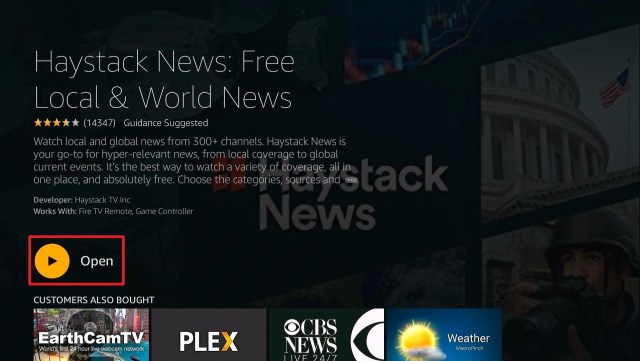
4. Tap the icon of the Haystack News when it appears

Locast Alternative alternatives


5. Click the Get or Download button to install the app

Locast Alternative alternatives


6. Wait for the app to be installed

Locast Alternative alternatives


7. Select Open to launch the app

Locast Alternative alternatives


8. Choose if you would like to Get Started immediately or Sign In for free

Locast Alternative alternatives


VUit

This is a Locast alternative that is only available in the USA. To install it outside the USA, click here.

VUit offers on-demand local channels for live TV that feature sports, news, weather, and more. It collaborated with other local channels to provide original content like documentaries, short films, concert streams, and cultural events.


Best Features

  • More than 170 available channels
  • Easy access from one channel to another
  • HD content
  • Offers both local and international stories
  • 100% free
  • Has over 200 television partners


How to Install VUit on Firestick

1.   Click FIND.

Locast Alternative alternatives


2. Click Search.

Locast Alternative alternatives


3. Type in VUit on your search engine and click on the suggested word

Locast Alternative alternatives


4. Choose the VUit icon when it pops up on your screen

Locast Alternative alternatives


5. Click on the Download or Get button

Locast Alternative alternatives


6. Let the VUit app be downloaded on your device

Locast Alternative alternatives


7. Once the app has been downloaded, click Open to launch it.

Locast Alternative alternatives


Airy TV

Another application to add to our list of the best Locast alternatives is Airy TV. This is a wonderful application that is available in the Amazon app store, Google Play Store, and even Apple App Store. It offers 100 channels for both news and some shows. You can easily stream this app because it does not require any registration.


Best Features

  • Popular and On-demand channel list
  • 100% free with no registration
  • Covers genres for all types of viewers
  • Easy to navigate
  • Offers documentaries, music, lifestyle, and many many more even non-English content
  • Full HD Videos


How to Install Airy TV on Firestick

1. Click FIND.

Locast Alternative alternatives


2. Click Search.

Locast Alternative alternatives


3. Type in Airy TV on your search bar and select the suggestion

Locast Alternative alternatives


4. Tap on the Airy TV app icon when it appears

Locast Alternative alternatives


5. Click the “Get” or “Download” button to install the app

Locast Alternative alternatives


6. Let the app be installed on your device

Locast Alternative alternatives


7. Select the “Open” button to launch the app

Locast Alternative alternatives


8. There you go, you can now start streaming on Airy TV.

Locast Alternative alternatives


Legal Disclaimer: ReviewVPN.com does not encourage or endorse any illegal activity involved in the usage of services and applications referenced on this site. We do not verify the licensing agreements of services. The end-user is wholly responsible for ensuring that any media accessed through these services does not violate copyright and/or licensing laws. ReviewVPN does not promote, link to, or receive compensation from any Apps and IPTV services.


Install SurfShark on Firestick

Best SurfShark Deal


Pluto TV

Like other Locast alternatives listed in this article, Pluto TV is also not available in some parts of the world. It is only available for download in the US, Canada, Australia, most parts of Europe, and Latin America. We suggest using a VPN to access the geo-restricted content of Pluto TV.

How to Watch Pluto TV Abroad

Pluto TV Activate

This application is a one-stop-shop application because it offers live tv, and movies, and series as well. You can choose from over 250 channels within 80 categories.


Best Features

  • Available in other devices like Roku, Windows, and Android
  • Ask for an account to access
  • Video-on-demand (VOD) contents are available


How to Install Pluto TV on Firestick

1. Click FIND.

Locast Alternative alternatives


2. Click Search.

Locast Alternative alternatives


3. Type Pluto TV on your search engine and click on the suggestion

Locast Alternative alternatives


4. Tap the Pluto TV icon when it appears

Locast Alternative alternatives


5. Click the “Get” or “Download” button

Locast Alternative alternatives


6. Let the app be installed on your device

Locast Alternative alternatives


7. Select the “Open” button to launch the app

Locast Alternative alternatives


Xumo

Another Locast alternative is only available in certain countries such as the USA, Canada, France, Germany, UK, Italy, Spain, Brazil, and Mexico. Please also keep in mind that the content of Xumo varies depending on the country.

Xumo provides a website. To access geo-restricted content, we suggest you use a VPN like SurfShark.


Best Features

Offers both live TV and TV shows/movies

Has over 200 channels to choose from

Easy to navigate

Most of the movies provided are from FilmRise


How to Install Xumo on Firestick

1. Click FIND.

Locast Alternative alternatives


2. Click Search.

Locast Alternative alternatives


3. Type Xumo on your search engine and click the suggestion

Locast Alternative alternatives


4. Click the Xumo app icon when it appears on your screen

Locast Alternative alternatives


5. Select the “Get” or “Download” button and wait for the app to be installed

Locast Alternative alternatives


6. Click “Open” to launch the app

Locast Alternative alternatives


Stremium

This is another Locast alternative that offers both live TV, movies, TV shows, and also scheduled recordings. Streamium makes its content available for DVR. You can choose between free and premium subscriptions. You can download this app even you are outside of the USA, but some content is geo-restricted so it is still best to use a VPN.


Best Features

  • This app asks for a TV provider
  • Somehow turns your device into a DVR
  • Provides a lot of shows and channels to stream


How to Install Stremium on Firestick

1. Click FIND.


2. Click Search.


3. Search for the stremium app


4. Select the icon of Stremium


5. Click the “Get” or “Download” button


6. Wait for the app to be installed


7. Launch the app by clicking the “Open” button


8. Take note of the code given and go to www.stremium.com/link, WQJFHV is just an example

Locast Alternatives - Stremium


9. On your browser, register or login to your stremium account


10. Type in the code given by the app, WQJFHV is just an example.


11. Select “Link TV”


12. Choose your preferred subscription


Other Locast Alternatives To Consider

Aside from the best Locast alternatives mentioned above, we still want to consider some other applications both direct and third-party.

To more, please read the List of Best Live TV Apps on Firestick.


Stream Safely With A VPN

Surfshark vpn

Most of the applications stated above have geo-restricted content. Meaning to say, you won’t be able to stream them if you are not located in a certain country. That is why you really need a VPN to access them.

Many people have the same reason why they subscribe to a VPN. The only question is, which VPN is best to use. We cannot really rely on free VPNs, because in order to acquire profit, they sell their users’ data to third-party advertisers. That is why it is best to use premium VPNs like SurfShark.

We always suggest SurfShark, because we have tested this platform and we have no single reason to get disappointed. Aside from destroying geo-blocks, it has a lot of great features and benefits for its users.


Grab your subscription now!

Click here to get the lowest price on SurfShark through our exclusive limited-time offer.


How to Install Surfshark on Firestick with Screenshots

If your Firestick still has the older interface, read this article to learn how to update it: Update Firestick Interface.

You can download Surfshark directly from the Amazon App store. It will be easy for you to find Surfshark with your Firestick’s Find feature. Refer to our screenshots below.

Follow our screenshots below to install the SurfShark VPN app on your Fire TV stick.

1. Go to the Home screen of your Firestick.

step 1 Install Surfshark VPN on Firestick


2. Navigate towards the Find tab. Press the Search button from the resulting dropdown.

step 2 Install Surfshark VPN on Firestick


3. Type in the keyword of SurfShark and select from the suggestions that will appear.

step 3 Install Surfshark VPN on Firestick


4. Click the official SurfShark icon from your search results.

step 4 Install Surfshark VPN on Firestick


5. Press the Download (You own it) button.

step 5 Install Surfshark VPN on Firestick


6. The SurfShark VPN installer will download on your device.

step 6 Install Surfshark VPN on Firestick


7. SurfShark VPN’s app will automatically install itself on your Fire TV stick.

step 7 Install Surfshark VPN on Firestick


8. Press the Open button after completing SurfShark VPN’s installation process.

step 8 Install Surfshark VPN on Firestick


9. Please wait for the SurfShark VPN to load its user interface.

step 9 Install Surfshark VPN on Firestick


10. You can now log in with your SurfShark VPN account credentials.

step 10 Install Surfshark VPN on Firestick

Learn more about Surfshark and Grab the Best Surfshark Deal Now!


Install Surfshark on Firestick

Best Surfshark Deal

Other VPNs to Consider

NordVPN (Best for Streaming)

Best Features

  • 5000+ Server in 50+ Countries 
  • Military-Grade Encryption
  • Fast Connection Speed
  • Suitable to a lot of devices
  • No-Log Policy

Prices
  • Complete $5.89 per month (64% Discount)
  • Plus $4.59 per month (56% Discount)
  • Standard $3.69 per month (55% Discount)

Best Features

  • 750+ High-speed VPN Servers in 43 Locations
  • Military-Grade Encryption
  • Fastest HD Streaming and Gaming
  • 30-Day Money-Back Guarantee
  • Unlimited Data & Devices
  • No-Log Policy

Prices
  • 3 Years $1.99 per month (82% Discount)
  • 1 Years $3.29 per month (70% Discount)
  • 1 Month $10.99 per month

IPVanish VPN (Most Secure)

Best Features

  • 1200+ Servers in 60+ Countries around the world
  • Unlimited Connections
  • No-Log Policy
  • Top Notch Military-Grade VPN Protocols and Encryptions
  • 100% Safe and Secured
  • Most Trusted VPN
  • Best VPN for Firestick
  • 30-Day Money-Back Guarantee

Prices
  • Yearly $3.99 per month (63% Discount) – 30 days risk free + Ransomware & Malware Protection
  • Quarterly $5.32 per month (51% Discount)
  • Monthly $10.99 per month

For more VPN discounts, go to ReviewVPN Deals and purchase the best VPN for you.


FAQs

What is Locast?

Locast was a non-profit organization that broadcast live TV from local channels. Now, the application suspended its streaming because it lost on a trial against other channels regarding copyright issues. It did not win with its stand that it was a non-profit application due to earning more money than needed from the donations it got from viewers.


Is Locast Legal?

Right now, Locast suspends its broadcasting services due to copyright issues. This determines more than half of the percentage as to whether this app is legal or not.


What is/are the Best Locast Alternatives?

The best Locast alternative for us is Haystack TV, although some other alternatives like Airy TV, VUit, and Xumo are still remarkable candidates.


Conclusion

Locast was one of the best applications for Firestick. It really saddens most viewers to know that suspended its broadcasting services. Good thing that there are the best alternatives to consider.

What do you think about the court’s judgment for Locast? Let us know your opinions on that comments below. Also, help us know which do you think is the best alternative for Locast.

We hope that this article helped you learn the latest news about Locast and the best alternatives for it.

How to Watch the 102nd NFL

Overview

This article will show you how to watch the 2021 NFL season.

The NFL is one of the most anticipated events of the year for football fans. Moreover, the 102nd season in 2021 will be the first to have a 17-game regular-season schedule. That is one more than their previous 16-game regular season, which adds to the excitement.


However, even if the season has begun, you may be unsure of where you can watch it on your Firestick. And, while we recently released an article on the legal applications for watching NFL on your Firestick, we’ll offer you the most up-to-date information on how to watch the league’s 102nd season.

Furthermore, this article will cover both applications and websites so you can decide which is best for you. In addition, while you can also view the 2021 NFL season via your preferred IPTV service, we strongly advise you to use a VPN as we are unable to verify its license agreements.

Without further ado, let’s get to the list of ways to watch the 102nd NFL season.


ANONYMOUSLY


How to Watch The 2021 NFL

Via Legal Applications

The simplest way to watch the 2021 NFL season is through apps that are easily accessible and installable on your Firestick.


NFL App

Fortunately, the Amazon Firestick includes an official NFL app. It features Live & Upcoming, Trending, and Game Replays, among other features. Apart from the 2021 NFL season, the NFL App lets you watch games from past seasons. Moreover, you can watch a variety of NFL-related shows, such as “NFL Films” and “NFL Throwback,” which replay historic games from the past. Therefore, whether you want to watch live NFL games or game highlights, the official NFL app enables you to do both. Finally, if you’re looking for an app that is solely dedicated to the NFL, this is the app for you.


Features:

  • Provides live streaming of National Football League games.
  • Gives access to the most recent football news, videos, and images.
  • It includes a schedule of NFL games.
  • Provides high-definition live streaming
  • You can select a team to personalize the app’s content.
  • Closed captioning is available.


How to Install the NFL App on a Firestick

  1. Choose “Find”.
  2. Then select “Search”.
  3. Enter “NFL App” in the search bar.
  4. Click on the application’s icon to begin the download.
  5. Then click “Get”.
  6. Next, simply wait for the application to install.
  7. When finished, click “Open” to launch the application.


Fubo TV

Fubo TV is one of my personal favorites for live sports streaming, including the NFL. It contains NFL Network, CBS, NBS, and FOX channels, making it a must-have app for NFL fans. Moreover, it includes 30 hours of free Cloud DVR storage, allowing you to record your favorite games and view them later. Apart from that, with your Fubo TV subscription, you’ll be able to watch all NFL Redzone games on-demand.


Features:

  • Available on a variety of different devices, including Fire TV, iOS, Android, Roku, macOS, Chromecast, and XBOX.
  • It includes a digital video recorder that enables you to conveniently record and playback live NFL games on your device.
  • Provides a seven-day free trial period.
  • Allows for simultaneous streaming on up to two devices.
  • Can be viewed from outside the United States


How to Install Fubo TV on a Firestick
  1. Click “Find”.
  2. Select “Search”.
  3. Enter “Fubo TV” in the search bar.
  4. Click on the application’s icon to begin the download.
  5. Choose “Get”.
  6. Then, simply wait for the application to install.
  7. When finished, click “Open” to begin the application.


AT&T TV

In the United States, NFL fans have been watching live games on AT&TV. AT&T Wireless and AT&T TV offer service options that bundle together TV, Internet, and wireless services to offer thousands of games to AT&T customers.   They frequently rerun the week’s top games; but, you can also purchase season-long packages, which make it easy to catch up on any matches you missed previously. Furthermore, AT&T has developed effective and dependable television services that enable customers to watch 100% live, high-definition video.


Features:

  • Allows you to watch the NFL’s 102nd game on your television, tablet, or computer.
  • Includes live broadcasts from NFL Network, CBS, FOX, NBC, and ESPN.
  • AT&T’s NFL Sunday Ticket is also available to watch.
  • You can also watch other sports leagues such as the NBA, MLB, Tennis, Soccer, Golf, and so on.
  • Available on the majority of popular platforms, including Amazon Firestick, iOS, macOS, Android, Roku, and Chromecast.


How to Install AT&T TV on a Firestick

  1. Select “Find”.
  2. Click “Search”.
  3. Enter “AT&T TV” in the search bar.
  4. Then click on the application’s icon to begin the download.
  5. Click “Get”.
  6. Then, simply wait for the application to install.
  7. When finished, click “Open” to begin the application.


Via Streaming Sites

Fortunately, there are also streaming sites that allow you to watch the 102nd season of the NFL. But first, you’ll need to install the Silk Browser on your Firestick to access streaming websites.


Silk Browser Installation Guide on Firestick

1. Go to the Home screen of your Firestick.

Silk Browser Installation Guide on Firestick Step 1

2. Click on Find.

Silk Browser Installation Guide on Firestick Step1


3. Tap on the Search tab.

Silk Browser Installation Guide on Firestick Step 2


4. Type in Silk Browser and choose this item that appears on the results.

Installation Guide on Firestick Step 3


5. Click on the Silk Browser Icon.

Silk Browser Installation Guide on Firestick Step 4


6. Choose Download.

Silk Browser Installation Guide on Firestick Step 5


7. Silk Browser is Downloading into your Firestick.

Silk Browser Installation Guide on Firestick Step6


8. The Silk Browser app will Install on Firestick.

Silk Browser Installation Guide on Firestick Step 7


9. Select Open to launch the browser.

Silk Browser Installation Guide on Firestick Step 8


10. You can now start browsing using Amazon Silk Browser. Simply type in https://cnbc.com/ and press enter.

Silk Browser Installation Guide on Firestick Step 9


Install Surfshark on Firestick

Best Surfshark Deal


Legal Disclaimer: ReviewVPN.com does not encourage or endorse any illegal activity involved in the usage of services and applications referenced on this site. We do not verify the licensing agreements of services. The end-user is wholly responsible for ensuring that any media accessed through these services does not violate copyright and/or licensing laws. ReviewVPN does not promote, link to, or receive compensation from any Apps and IPTV services.


YOUR INTERNET ACTIVITY IS BEING WATCHED

ReviewVPN cannot attest to the legality, security and privacy of the applications discussed on this site. It is highly recommended that you use a VPN service while streaming or using Kodi.

Currently, your IP 216.73.216.109 is visible to everyone and your Browser is being tracked by Advertisers & ISP Provider.

Save 65% Now

Limited Time Offer

Here are the main reasons why you must use a VPN:

  • Your activities are hidden from your ISP, the government, and from the apps you are using.
  • You can access additional movies and TV streams.
  • ISP attempts to throttle are thrwarted thus reducing buffering issues.
  • Geographically restricted content like Netflix and Hulu can be unblocked.

A VPN works be replacing your ISP-assigned IP address and creating an encrypted tunnel. We recommend the no log service offered by IPVanish. It works well on a Firestick and offers the fastest possible speeds.

Special Limited Time Offer - Get IPVanish


Sportsurge

If you’re a die-hard NFL fan, you’re probably already familiar with Sportsurge. However, if you’re unfamiliar with Sportsurge, allow me to explain that it is an online platform that provides the ideal experience for NFL fans looking to watch their favorite games. In addition, it enables sports fans worldwide to view their favorite games and events, including the 2021 NFL season.  All you need is a computer, tablet, smartphone, Xbox, or Firestick to enjoy hassle-free viewing of your favorite teams and players. Furthermore, Sportsurge has unquestionably been a top website for sports lovers beyond the NFL. 


Features:

  • Provides today’s NFL game schedule for the NFL Live Streams that are accessible.
  • Numerous servers are available for live HD streaming.
  • Contains NFL Game Pass, NFL Network, NBC, Sky Sports, NBC, and BEIN Sports channels, among others.
  • Live streaming is available for soccer, basketball, football, boxing, mixed martial arts, motorsports, hockey, and baseball.


CrackStreams

CrackStreams is also the best source for watching the 102nd NFL online from anywhere in the world. Moreover, CrackStreams offers the highest-quality NFL streams that are optimized for viewing on any device, including Firestick. Apart from that, using this site enables you to view NFL games in their entirety without the use of plug-ins. Furthermore, CrackStreams ensures that you will only be able to view high-quality HD videos of the NFL. To conclude, CrackStreams offers the highest-quality and most reliable NFL broadcasts accessible online.


Features:

  • Allows you to watch the 102nd NFL season on your mobile device for free.
  • Provides a schedule of upcoming and on-air NFL matches.
  • Fast streaming without lags or buffering
  • While watching its live streaming, you can post comments.
  • Streams of the NBA, MMA, and Boxing are also available.


VIPSports Row

VIPSports Row is a one-stop shop for live sports streaming, online television channels, and video content. Moreover, you may get a list of all sports channels and watch free live online streaming. It provides private television channels globally, allowing you to stream live and watch the 102nd NFL season. Apart from that, whether you’re looking for football, basketball, or cricket, they feature a comprehensive list of live sports channels.


Features:

  • Allows you to watch a live stream of an NFL game that is currently airing.
  • Gives access to NFL Network, NFL RedZone, Monday Night Football (MNF), Thursday Night Football (TNF), and Sunday Night Football (SNF) content.
  • Provides free access to the greatest NFL live streams.
  • Allows for effortless streaming on whatever device you choose, including the Firestick.


Stream Safely With a VPN

https://get.surfshark.net/aff_c?offer_id=865&aff_id=12312

​​The NFL season has begun, and I’m sure you’re ecstatic to be able to watch it on your preferred device, including the Firestick. However, we’d like to remind you to always safeguard your connection with a VPN. A VPN service such as Surfshark will hides your IP address, preventing third-party servers from obtaining your data. You never know when cybercriminals would use the 2021 NFL to steal data from NFL fans worldwide. We don’t want you to be at risk when using apps or websites that stream live video from these sources. Furthermore, Surfshark employs uncrackable AES 256-bit encryption, ensuring the highest level of end-to-end security. When you use Surfshark service, you won’t have to worry about data breaches or IP address leaks. Apart from that, it entitles you to the following advantages and benefits:

  • It has a large server network with 3,200 VPN servers in 65 worldwide locations.
  • You may bypass censorship and geo-restrictions and watch the 102nd NFL season from anywhere on the globe.
  • It gives unlimited bandwidth, allowing you to view any content without worrying about data restrictions.
  • Its availability on all major platforms allows you to safeguard all of your devices, whether they be Firestick, iOS, Android, or macOS.
  • It supports unlimited simultaneous streaming which allows you to protect all of your devices for viewing the 102nd NFL season.
  • ​​It operates the entirety of its network, which means that Surfshark will never uses or sell your data to a third party.
  • Surfshark has a kill switch that instantly disconnects your device from the internet in the event of a VPN connection failure.
  • It links you automatically to the fastest internet connection available in your area, ensuring that you get the best connection possible.  


Grab your subscription now!

Click here to get the lowest price on Surfshark through our exclusive limited-time offer.


How to Install Surfshark VPN on Firestick

If your Firestick still has the older interface, read this article to learn how to update it: Update Firestick Interface.

You can download Surfshark directly from the Amazon App store. It will be easy for you to find Surfshark with your Firestick’s Find feature. Refer to our screenshots below.

1. Go to the Home screen of your Firestick.

step 1 Install Surfshark VPN on Firestick


2. Navigate towards the Find tab. Press the Search button from the resulting dropdown.

step 2 Install Surfshark VPN on Firestick


3. Type in the keyword of SurfShark and select from the suggestions that will appear.

step 3 Install Surfshark VPN on Firestick


4. Click the official SurfShark icon from your search results.

step 4 Install Surfshark VPN on Firestick


5. Press the Download (You own it) button.

step 5 Install Surfshark VPN on Firestick


6. The SurfShark VPN installer will download on your device.

step 6 Install Surfshark VPN on Firestick


7. SurfShark VPN’s app will automatically install itself on your Fire TV stick.

step 7 Install Surfshark VPN on Firestick


8. Press the Open button after completing SurfShark VPN’s installation process.

step 8 Install Surfshark VPN on Firestick


9. Please wait for the SurfShark VPN to load its user interface.

step 9 Install Surfshark VPN on Firestick


10. You can now log in with your SurfShark VPN account credentials.

step 10 Install Surfshark VPN on Firestick

Learn more about Surfshark and Grab the Best Surfshark Deal Now!


Other VPNs to Consider

NordVPN (Best for Streaming)

Best Features

  • 5000+ Server in 50+ Countries 
  • Military-Grade Encryption
  • Fast Connection Speed
  • Suitable to a lot of devices
  • No-Log Policy

Prices
  • Complete $5.89 per month (64% Discount)
  • Plus $4.59 per month (56% Discount)
  • Standard $3.69 per month (55% Discount)

Best Features

  • 750+ High-speed VPN Servers in 43 Locations
  • Military-Grade Encryption
  • Fastest HD Streaming and Gaming
  • 30-Day Money-Back Guarantee
  • Unlimited Data & Devices
  • No-Log Policy

Prices
  • 3 Years $1.99 per month (82% Discount)
  • 1 Years $3.29 per month (70% Discount)
  • 1 Month $10.99 per month

IPVanish VPN (Most Secure)

Best Features

  • 1200+ Servers in 60+ Countries around the world
  • Unlimited Connections
  • No-Log Policy
  • Top Notch Military-Grade VPN Protocols and Encryptions
  • 100% Safe and Secured
  • Most Trusted VPN
  • Best VPN for Firestick
  • 30-Day Money-Back Guarantee

Prices
  • Yearly $3.99 per month (63% Discount) – 30 days risk free + Ransomware & Malware Protection
  • Quarterly $5.32 per month (51% Discount)
  • Monthly $10.99 per month


For more VPN discounts, go to ReviewVPN Deals and purchase the best VPN for you.


Grab the Best Surfshark Deal Now!


FAQs

Where can I find the schedule of the 102nd NFL matches?

You may access the preseason schedule until week 18 of the 102nd matches on the NFL’s official website or by visiting this link https://www.nfl.com/schedules/.


What are the upcoming matches for the 102nd NFL season?

While the Cowboys and Buccaneers are currently in-game, the following matchups are scheduled for September 12, Sunday:

  • Jaguars vs Texans
  • Chargers vs Washington
  • Seahawks vs Colts
  • Jets vs Panthers
  • Vikings vs Bengals


When does the NFL preseason start?

The NFL preseason began on August 12, 2021, with matches between the Washington Redskins and the New England Patriots, as well as the Pittsburgh Steelers and the Philadelphia Eagles.


When did the NFL regular season 2021 start?

The NFL’s 102nd regular season began on September 9, 2021. Moreover, the season is scheduled to end on January 9, 2022.


Conclusion

Fortunately, there are numerous streaming options for the 2021 NFL season, which begins this September 2021. Therefore, whether you like watching via an app or a streaming website, you have options to choose from.

We understand that some people find it inconvenient to download apps, while others are hesitant to use streaming websites. That is why we have compiled a list of the best providers for both applications and websites. However, we want to remind you once again to use a VPN to ensure that you can safely stream the 2021 NFL matches.

We always feel the need to protect our readers from hackers and phishers, especially when there are sporting events taking place. Have a safe and enjoyable 2021 NFL season streaming!

Best Kodi Addons to Watch College Football

Overview

This article is about the best addons to watch college football on Kodi.

National Collegiate Athletic Association (NCAA) known as College Football is an on-demand sport that brings hype for American viewers. Since it is a popular sport worldwide, many major broadcasters have been acquiring and showing game footage. There are over 100 college football games aired from different networks, such as CBS, ABC, Fox, NBC, and more.


You can watch college football on any popular networks such as Fox Sports 1, Fox Sports 2, ESPN, ESPN 2, ESPNU, ESPN Goal Line, Big Ten, and the SEC Network. The good thing is, you can now watch your favorite college football teams on Kodi using different kid addons. You can choose from different legal and third-party Kodi addons that provide you with great footage and high-quality college football videos.

You can watch your favorite Football team battling against the opponent to be champion and be called the best team. If you are an NCAA football fan, then this article is for you. It will show you some of the best addons that you can try to watch college football. 


ANONYMOUSLY


Best Kodi Addons to Watch College Football

Here are some of the sport Kodi addons that offer a free live stream on College football.


Legal Sports Addon

Here are the legal sports addons that offer free streaming on College football. These addons are located in Kodi’s official repository.


PS Vue

PS Vue

PS Vue or Playstation Vue is an official Kodi addon that allows you to stream live sports, Live TV, Movies, and Tv shows. This add-on offers you a wide variety of channels to choose from, such as ESPN, ABC, Fox, and more. You can watch your favorite college football team on it, even without getting a subscription.

The good thing with this addon is it is DVR capability, and you can stream on five devices simultaneously. However, this add-on requires you to put your account credentials, such as username and password, which is why you need to get an account first before you can watch. Since it is a legal add-on, you don’t need to worry about any legal issues because it brings you content from legitimate sources. 


Features:

  • Simple and easy-to-use interface.
  • Easy registration process
  • You can choose from their wide variety of channels 
  • Each channel brings you different sports footage such as College football.
  • You can watch high-quality streaming links.
  • Watch live sports with less buffering experience. 
  • Allows background playing 
ESPN 3

ESPN 3

ESPN 3 is one of the popular and official Kodi addons that bring you a great lineup of sports to watch. This addon also covers college football games and brings you highlights, live sports, replays, and more.

As we have mentioned above ESPN is one of the major channels showing NCAA Football, so if you want to watch on this add-on simply check on their schedule to know when it will air on ESPN. This add-on also covers baseball, basketball, cricket, and more. The good thing is it is a legal add-on that allows you to watch their content live for free.


Features:

  • Easy to use interface.
  • Choose from different platforms such as Android TV, Apple TV, Roku, and tvos.
  • Watch on Live sports in a less buffering experience.
  • Videos are presented with the exact time and date it was released. 
  • You can watch different NCAA Football teams. 
  • Other sports it covers are NFL, NBA, MLS, NHL, MLB, Auto Racing, and more.
  • HD quality of videos to watch.


DAZN

DAZN

DAZN is a popular sports streaming service that is now available and working well on Kodi. The DAZN add-on offers you live and on-demand channels of sports programming. It has a great and large collection of quality VOD sports events. The good thing is, this addon also gives you free live streaming on NCAA Football or college football.

You can now watch your favorite football team and stay updated with their game schedule with DAZN. This addon also covers sports like NBA games, NHL, Premier League matches, Major League Baseball, World Cup highlights, and more. However, this add-on is geo-restricted or it is only available and working in specific areas or countries. 


Features:

  • It has live sports available to watch.
  • You can keep on track with your NCAA Football team game.
  • This add-on offers you content from legitimate sources.
  • An official Kodi addon
  • You can watch on 720p and 1080p videos streaming quality.
  • Allows background playing

If you want to know more about the add-on, kindly read our DAZN Addon review.


Third-Party Sports Addon

Here are the Third-party Kodi addons that will also bring you College Football content to watch for free. However, these addons are called the third party because they are not located in Kodi’s official repository, and you will need to download them using a Repo Link. 


SportsDevil

SportsDevil

sports devil is one of the popular and well-known sports addons for streaming live sports events online. Since it is a popular addon you can see it on different repositories such as DejaVu and Rising Tide Repository. This add-on brings you different sports footage, highlights, replays, and more about sports.

It also covers NCAA Football, NFL, NBA, NHL, UFC the Premier League, and more. This add-on allows you to stream Live on any sports you want in high-quality videos. It has lots of content sources as it collects link scrapers from these websites to offer it for free. 


Features:

  • Simple and easy-to-use interface.
  • Watch live sports and Live Tv in a high-quality resolution.
  • Wide variety of content sources such as RojaDirecta, SportsStrean365, StopStream, and more.
  • Choose from 480p, 720p, 1080p, and 4k video quality.
  • It covers all NCAA Football teams. 
  • Allows background playing.
  • It shows game replays.

Learn more about this addon by reading our SportsDevil Review.


Sport HD

Sport HD

Repository URL: https://bugatsinho.github.io/repo/  

SportHD is a sports Kodi addon that covers college football or NCAA and it is located on Bugatsinho Repository. It brings you quality scrape streams from different popular sports streaming websites. It also covers different sports such as NHL, NFL, MLB, NBA, Wrestling, Handball, Hockey, Motorsport, Dart, Rugby, Cricket, and more. 

The main categories of this add-on are Live Events, Sports, Best Leagues, and Setting. You can watch high-quality Live sports events, Highlights, replays, and more in a less buffering experience. SportHD also comes with a simple and user-friendly interface that works well on both Kodi 18.9 and Kodi 19.


Features:

  • It has an easy-to-navigate interface. 
  • No registration and subscription is needed.
  • A Large collection of scrape links from different sports websites. 
  • You can stream live sports in a high quality
  • It has an available fast playback
  • You can watch sports previews, highlights, replays, and more.
  • Allows background playing.  


The Loop

The Loop

Repository URL: https://loopaddon.uk/loop 

The Loop is one of the best sports addons that you can use to watch Live Sports on College Football. This add-on provides you with live and on-demand content all about sports from different countries. It also covers NCAA or college football which shows you live sports games, replays, highlights, and teams.

You can choose from their categories including the Auto Zone, 24/7, Copa America Zone, Euro 2020 Zone, Fan Zone, Fight Zone, MLB, NBA, NHL, and more. The good thing is it has a simple and easy-to-use interface that lets you access their content without even having registration. 


Features:

  • No registration and subscription is needed.
  • Wide variety of categories to choose from
  • Large collection sports content 
  • Provide you with high-quality streaming links.
  • You can watch live sports in a less buffering experience. 
  • Allows background playing

To know more about this addon, kindly read our article on The Loop.


Rising Tides

Rising Tides

Repository URL: http://mullafabz.xyz/Repository/

Rising Tides is another popular sports add-on that brings you a great lineup of sports content to watch for free. You can find different streaming channels to stream live on NCAA or college football. This add-on covers College football and brings you a high quality of replays, highlights, and live sports games.

The good thing is, this add-on is not just about sports content because you can also watch movies, Live Tv, and Tv shows. Other sports clever by this addon are NHL, NFL, MLB, Basketball, and more. You can watch sports content from popular networks, including Bein Sports, ESPN, Arena Sports, NBA TV, Fox Sports, Sky Sports, and more. 


Features:

  • It has an easy-to-navigate interface.
  • Watch on Football Highlight, Live Football, and live PPV events.
  • Less buffering and smooth streaming with Kodi.
  • High-quality streaming links from different sources.
  • Supported by popular sports networks. 
  • You can watch HD videos for free.

Learn more about this addon by reading our Rising tides Review.


YOUR INTERNET ACTIVITY IS BEING WATCHED

ReviewVPN cannot attest to the legality, security and privacy of the applications discussed on this site. It is highly recommended that you use a VPN service while streaming or using Kodi.

Currently, your IP 216.73.216.109 is visible to everyone and your Browser is being tracked by Advertisers & ISP Provider.

Save 65% Now

Limited Time Offer

Here are the main reasons why you must use a VPN:

  • Your activities are hidden from your ISP, the government, and from the apps you are using.
  • You can access additional movies and TV streams.
  • ISP attempts to throttle are thrwarted thus reducing buffering issues.
  • Geographically restricted content like Netflix and Hulu can be unblocked.

A VPN works be replacing your ISP-assigned IP address and creating an encrypted tunnel. We recommend the no log service offered by IPVanish. It works well on a Firestick and offers the fastest possible speeds.

Special Limited Time Offer - Get IPVanish


Legal Disclaimer: ReviewVPN.com does not encourage or endorse any illegal activity involved in the usage of services and applications referenced on this site. We do not verify the licensing agreements of services. The end-user is wholly responsible for ensuring that any media accessed through these services does not violate copyright and/or licensing laws. ReviewVPN does not promote, link to, or receive compensation from any Apps and IPTV services.


Install Surfshark on Firestick

Best Surfshark Deal


Apex Sports

Apex Sports

Repository URL: https://arxtic-ape.github.io 

Apex Sports is a live Tv and sports add-on that you can get on Arxtic-ape Repository. It covers NCAA football and other sports, such as Rugby Union, Boxing, Tennis, Golf, Combat Sport, American Football, and more. 

The main menu of this add-on is Live Sport, Live TV, Replay & Highlights, and tools. It also has different streaming link sources such as LiveTV.sx, SoccerStreams, Rojadirecta.me, SportsPurge, and NBA Streams. The good thing with this addon is you can smoothly stream on both live TV and Live sports without any interruption. This addon is also one of the few addons compatible with the Kodi 19 matrix. 


Features:

  • Easy to use interface.
  • This add-on allows you to select your Timezone.
  • The maximum video streaming quality is up to 1080p.
  • It has a wide variety of content categories.
  • High-quality streaming links. 
  • Available background playing
  • One-click full stop button.


Sportowa TV

Sportowa TV

Repository URL: https://mbebe.github.io/blomqvist

Sportowa is an international sports Kodi addon and is also known as a replica of SportDevil. With this add-on, you can watch live NCAA football games in high-quality videos. You can get this add-on on Mbebe Repository, and the good thing is it works well on both Kodi 18.9 and Kodi 19 matrices.

This add-on covers all kinds of sports, and you can choose content from the different categories such as Sport 365 Live, LiveOn score, VIPLeague, LiveTV, Crickfree, LiveSport, TVP Sport, Strims World, and more. This add-on brings you almost all major sporting events from popular networks. 


Features:

  • Simple and easy-to-use interface.
  • It brings you replays, highlights, previews, and live sports footage.
  • You can stream live on sport and Tv with an HD resolution.
  • The maximum quality of videos is up to 1080p.
  • It covers international sports channels.
  • Bring you content from different sources. 

Read this article to know more about it — How to Install Sportowa TV Kodi Addon.


Fast and Safe Streaming with a VPN

Streaming lives online can be stressful, especially when you have a poor connection. Lags and buffering will interrupt your viewing experience. That is why to enjoy smooth streaming online, we highly recommend using a Virtual Private Network on your device to make your connection speed fast and high.

Surfshark is one of the best and fastest VPNs that you can rely on when it comes to these kinds of concerns. This VPN gives you unlimited bandwidth to enjoy streaming as much as you want. It is also a reliable and useful tool that ensures your safety and privacy online. Read our Surfshark Review, if you want to learn more about this VPN.

Here’s are the reasons why it is our VPN of choice:
  • Bypass restrictions and geo-blocks to access lots of content.
  • This VPN service has a total of 3200+ servers in 65 countries
  • Military-grade AES-256 encryption follows FIPS (Federal Information Processing Standards) that oversees the handling of sensitive data.
  • It follows a strict No-Logs Policy
  • No Bandwidth limits – you can enjoy a full-speed VPN connection without any throttling.
  • It works on all devices.
  • 24/7 customer support.


Grab your subscription now!

Click here to get the lowest price on Surfshark through our exclusive limited-time offer.


How to Install Surfshark VPN on Firestick

If your Firestick still has the older interface, read this article to learn how to update it: Update Firestick Interface.

Follow our screenshots below to install the SurfShark VPN app on your Fire TV stick.

1. Go to the Home screen of your Firestick.

step 1 Install Surfshark VPN on Firestick


2. Navigate towards the Find tab. Press the Search button from the resulting dropdown.

step 2 Install Surfshark VPN on Firestick


3. Type in the keyword of SurfShark and select from the suggestions that will appear.

step 3 Install Surfshark VPN on Firestick


4. Click the official SurfShark icon from your search results.

step 4 Install Surfshark VPN on Firestick


5. Press the Download (You own it) button.

step 5 Install Surfshark VPN on Firestick


6. The SurfShark VPN installer will download on your device.

step 6 Install Surfshark VPN on Firestick


7. SurfShark VPN’s app will automatically install itself on your Fire TV stick.

step 7 Install Surfshark VPN on Firestick


8. Press the Open button after completing SurfShark VPN’s installation process.

step 8 Install Surfshark VPN on Firestick


9. Please wait for the SurfShark VPN to load its user interface.

step 9 Install Surfshark VPN on Firestick


10. You can now log in with your SurfShark VPN account credentials.

step 10 Install Surfshark VPN on Firestick

Learn more about Surfshark and Grab the Best Surfshark Deal Now!


Install Surfshark on Firestick

Best Surfshark Deal


Other VPNs to Consider

NordVPN (Best for Streaming)

Best Features

  • 5000+ Server in 50+ Countries 
  • Military-Grade Encryption
  • Fast Connection Speed
  • Suitable to a lot of devices
  • No-Log Policy

Prices
  • Complete $5.89 per month (64% Discount)
  • Plus $4.59 per month (56% Discount)
  • Standard $3.69 per month (55% Discount)

Best Features

  • 750+ High-speed VPN Servers in 43 Locations
  • Military-Grade Encryption
  • Fastest HD Streaming and Gaming
  • 30-Day Money-Back Guarantee
  • Unlimited Data & Devices
  • No-Log Policy

Prices
  • 3 Years $1.99 per month (82% Discount)
  • 1 Years $3.29 per month (70% Discount)
  • 1 Month $10.99 per month

IPVanish VPN (Most Secure)

Best Features

  • 1200+ Servers in 60+ Countries around the world
  • Unlimited Connections
  • No-Log Policy
  • Top Notch Military-Grade VPN Protocols and Encryptions
  • 100% Safe and Secured
  • Most Trusted VPN
  • Best VPN for Firestick
  • 30-Day Money-Back Guarantee

Prices
  • Yearly $3.99 per month (63% Discount) – 30 days risk free + Ransomware & Malware Protection
  • Quarterly $5.32 per month (51% Discount)
  • Monthly $10.99 per month


For more VPN discounts, go to ReviewVPN Deals and purchase the best VPN for you.


FAQs

What is the difference between Legal and Third-party addons?

Legal add-ons are those add-ons that can be found and installed through Kodi’s official repository. However, third-party add-ons are from unknown sources, and you need to add sources before you can install them.


Can I stream these Kodi for free?

Yes, streaming with these addons is free, and no subscription is needed. 


Is streaming on a third-party addon safe?

Yes, as long as the third-party addons do not offer any copyrighted contents and to ensure your safety and privacy, we suggest using a VPN such as IPVnaish. 


Is streaming sports on these addons legal?

Yes, streaming on this add-on is legal as long as they offer only legal content.


Conclusion

All of the Kodi addons mentioned above cover NCAA or college football. These add-ons bring you a great quality of videos and a less buffering experience in streaming live sports. The good thing with these addons is that they offer all of their content for free.

However, since there is a third-party add-on, we suggest using a VPN such as Surfshark to keep you safe and protected online. We hope that this article helps you in choosing the best Kodi add-on to watch NCAA or college football.

How to Watch College Football (NCAA)

Overview

In this article, we will show you how to watch College Football.


Watching college football is an exciting hobby that many of us partake in. There is this inexplicable joy as we cheer on our favorite teams and players. Their wins are equivalent to our victories. It is why fans of the sport want to ensure that they do not miss any precious second while following every annual game.

As we all know, the 2021 college football season is near. Many sports enthusiasts are looking for ways to watch the game online for free. Although it can be a difficult task, we want to make sure that every football fan will have the opportunity to catch up with this year’s football events.

Do you want to learn about websites and apps that provide free and affordable live college football coverage? Then you have come across the right article. 

Today, we will discuss the best websites and apps where you can watch many 2021 college football events.


ANONYMOUSLY

Apps for Watching NCAA College Football

College Football season will arrive soon. It is one of the most exciting events in the US. All of us enjoy observing our favorite college football teams dish it out on the gridiron.

Many football fans will search for affordable ways to watch college football. It is why we now present you with some apps for streaming high-quality college football videos.


ESPN Plus

ESPN_Plus App Icon 1

ESPN Plus is the premium go-to app for college football fans. Aside from registering or watching on its website, the ESPN Plus app can accompany you wherever you go. 

The ESPN Plus app allows you to access many pro-sports channels. You can watch content from NBA, NHL, MLB, NFL, WWE, UFC, NFS, and many more.

We have to remind you that using the app requires you to pay some fees. Fans of football may easily register with its main website before downloading the app.


How to Install ESPN on Firestick

1. Install the Downloader app and jailbreak your firestick by enabling unknown sources. To learn more about the procedure, you may read How to Install the Downloader App and Enable Unknown Sources.

Step 13 Install KissAnime App on Fire TV Stick


2. Open Downloader App. Type https://reviewvpn.com/espn and click Go.

Install ESPN


3. Click on Install.

Install ESPN1


4. Click on OPEN

Install ESPN2


5. Choose Allow.

Install ESPN3


5. Choose Allow button one more time.
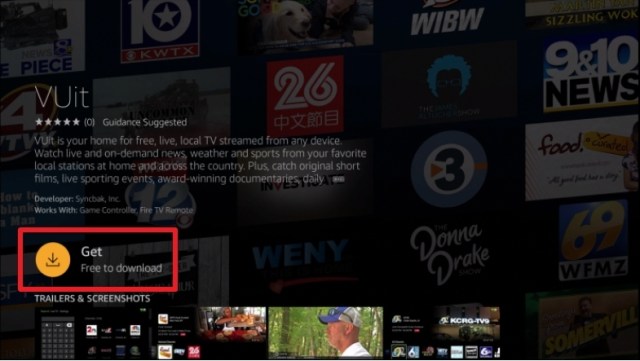
Install ESPN4


7. Sign in or Log in to your ESPN account

Install ESPN5

If you want to install it on your Fire TV stick, follow our article about ESPN: App Review and Installation Guide for Firestick and Android.


YOUR INTERNET ACTIVITY IS BEING WATCHED

ReviewVPN cannot attest to the legality, security and privacy of the applications discussed on this site. It is highly recommended that you use a VPN service while streaming or using Kodi.

Currently, your IP 216.73.216.109 is visible to everyone and your Browser is being tracked by Advertisers & ISP Provider.

Save 65% Now

Limited Time Offer

Here are the main reasons why you must use a VPN:

  • Your activities are hidden from your ISP, the government, and from the apps you are using.
  • You can access additional movies and TV streams.
  • ISP attempts to throttle are thrwarted thus reducing buffering issues.
  • Geographically restricted content like Netflix and Hulu can be unblocked.

A VPN works be replacing your ISP-assigned IP address and creating an encrypted tunnel. We recommend the no log service offered by IPVanish. It works well on a Firestick and offers the fastest possible speeds.

Special Limited Time Offer - Get IPVanish


Legal Disclaimer: ReviewVPN.com does not encourage or endorse any illegal activity involved in the usage of services and applications referenced on this site. We do not verify the licensing agreements of services. The end-user is wholly responsible for ensuring that any media accessed through these services does not violate copyright and/or licensing laws. ReviewVPN does not promote, link to, or receive compensation from any Apps and IPTV services.


Install Surfshark on Firestick

Best Surfshark Deal


Paramount Plus Sports and Live TV

Paramount Plus Icon 1

Paramount Plus is a fresh new app for fans of college football. It is the best app for sports streaming and is suitable for people wanting to catch the football season on a budget. 

If your favorite team is part of the Southeastern Conference, you will have the opportunity to watch the latest football games without paying expensive fees. Replacing the CBS All Access app, the Paramount Plus app aims to include a wide variety of sports.

People wanting to use the CBS Sports app may begin with a free trial. You can start paying for monthly fees after enjoying its free trial duration. Even on trial mode, fans of football may still enjoy watching SEC Football games.


How to Install Paramount Plus on Firestick

We will now teach you how to install the Paramount Plus app on your Fire TV stick.

1. Navigate your Firestick’s Home screen.

Paramount Plus App (1)


2. Press your remote’s scroll-right button to the Find tab.

Paramount Plus App (2)


3. Choose Search from the dropdown.

Paramount Plus App (3)


4. Type in Paramount Plus with your on-screen keyboard.

Paramount Plus App (4)


5. Select the official Paramount Plus app.

Paramount Plus App (5)


6. You can open the app and stream exclusive Paramount Plus programs and films.

Paramount Plus App (7)

If you want to install the Paramount Plus on Fire TV devices, just visit our guide on how to install the Paramount Plus app on your Firestick.


Fox Sports

FoxSports Icon 1

The Fox Sports app still provides you streaming of content from reputable sports icons. You can watch exclusive videos from NFL, NHL, MLB, NASCAR, NCAA College Sports, WWE, MMA, and many more. 

Before using the app, we recommend you create an account with its main website. Registering or subscribing to the services of the Fox network will give you access to many features.

While using a profile from Fox, people can choose their favorite College football teams. You may also receive recaps and highlights of your favorite college football sports events.


How to Install Fox Sports on Firestick

1. Install the Downloader app and jailbreak your firestick by enabling unknown sources. To learn more about the procedure, you may read How to Install the Downloader App and Enable Unknown Sources.

Step 13 Install KissAnime App on Fire TV Stick


2. Open Downloader App. Type https://reviewvpn.com/fxs and click Go.

Install FOX Sports Go

3. Click Install.

Install FOX Sports Go1

4. Click open.

Install FOX Sports Go2


5. Click OK.

Install FOX Sports Go3

6. FOX Sports Go is now installed.

Install FOX Sports Go4

Check out our app review and how to install the Fox Sports app on your Firestick.


ABC App

ABC Icon 1

For Fire TV users, the ABC app is one of the best options for catching up with this year’s college football season. We recommend the ABC app for streaming live sports events.

The ABC network famously affiliates itself with the ESPN Sports network. It is why they have the broadcasting rights to major sports like the seasonal NCAA College Football events.

However, some of the media content they provide can change at any given moment. But, you don’t need to worry since the sports coverage they stream is live and fresh from the ESPN Sports network.


How to Install the ABC App on Firestick

1. Install the Downloader app and jailbreak your firestick by enabling unknown sources. To learn more about the procedure, you may read How to Install the Downloader App and Enable Unknown Sources.

Step 13 Install KissAnime App on Fire TV Stick


2. Type in https://reviewvpn.com/abc  and click Go.

ABC App (1)


3. Wait for the file download to finish.

ABC App (2)


4. Click Install.

ABC App (3)


5. ABC’s app will install on your Fire TV stick.

ABC App (4)


6. Select Open to launch the app.

ABC App (5)


7. Wait for the ABC app to load.

ABC App (6)

Head to our ABC Channel app review and how to install it on your Fire TV stick.


Best Websites to Watch College Football

Streaming quality sports videos from reputable websites requires the use of effective browsers. If you are using a Firestick, then we recommend the Amazon Silk Browser for Firestick.

SportSurge

SportsSurge 1

The SportSurge website includes a variety of sports for streaming. People may choose from College Football, basketball, baseball, Mixed Martial Arts, and many more.

SportSurge delivers the latest college football videos. Prominently featuring live college football matches, its website is your best chance of catching live college football without paying for anything. Just select the football icon for streaming football videos.

If you want to learn more, visit our article about the SportSurge website and how you can open it on Android, IOS, and Fire TV devices.


FirstRow Sports

FirstRow Sports 1

People wanting to watch the most recent college football games may visit the FirstRow Sports website. You do not even have to pay for anything to catch your favorite teams in play. 

The main page of FirstRow Sports is easy to navigate. You will find a long list of available categories representing a different type of sport. Visitors will easily find the football section to watch college football video streams.

Do you want to watch FirstRow Sports with Kodi? Then visit our article about Sport’s Devil Kodi Addon and learn about its installation guide.


Vidgo

VidGo 1

For fans searching for a TV streaming service for sports, the Vidgo TV service is one of the best. You will find many channels for sports, live TV channels, TV shows, and other programs. All of them are available on one single website. Vidgo also has an IPTV service compatible with your computer, Android, and Fire TV devices.

Subscribers of the Vidgo website will receive a wide list of live TV channels they can select. Some channels can show you NCAA College Football sports videos. The Vidgo service relies on IPTV features. It means that you need to have an excellent internet connection.

Great news for sports enthusiasts! You may download and install the Vidgo TV app on your Fire TV stick.


CricFree

CricFree 1

Are you looking for a website with free sports coverage? Then we have a good recommendation. The CricFree website is a fascinating online source of sports videos. Its website presents a color theme that is cool to the eyes. On the main menu, you will find different ball icons that represent every sport you want to watch.

Navigating the main menu of CricFree is convenient for many users. It is complete with a schedule, details, and the recent live sports events available online. Visitors of the website may also check out the schedule of any game they want to stream.

Do you like to watch CricFree while using Kodi? Then installing the Sport’s Devil Kodi Addon will help you access the CricFree website.


Stream-HD Live

Stream HD 1

For people wanting to catch live college football games, then the Stream-HD website is your best option. As the name suggests, the website provides non-stop streaming of live sporting events. 

The main webpage of Stream-HD live immediately contains a video player that streams live sports coverage. If you choose to view college football, there is a football icon just above its main menu window. Click on the football icon and scroll down to select the latest football games as links.

Similar to Stream-HD live, there are apps you can download and use for watching live TV channels. Just visit our review about the Best Sports Apps for Android and Firestick 2021.


BuffStreams

BuffStreams 1

Previously the crackstreams website, the BuffStreams site still offers live channels for sports. With the recent shutdown of its predecessor, the website has to move to another domain.

Visitors of the site will see the changes in the airing schedule of your favorite sports category. The website also provides many links that will direct viewers to stream their favorite games.

Each button link represents a different sports category. For example, there are links for golf, basketball, MLB, and even the upcoming NCAA events. Fans of college football may easily scroll towards the NCAA links category. Each section is complete with sports icons and the schedule of airing.


ESPN Plus

ESPN Plus 1

We present ESPN Plus on our list for watching College Football since it streams quality videos. However, the ESPN Plus website requires an account and registration for visitors to continue. After you sign in, the ESPN Plus website offers 24/7 streaming of live sports coverage. 

ESPN Plus is an excellent choice to catch the upcoming football season this year. Just ensure to click on the Our Sports tab in the upper corner of your browser. The section will provide college football video streaming.

As one of the famous sports networks available, ESPN also has an app for watching sports. Visit our article about ESPN: How to Install it on Firestick and Android devices.


Reddit NFL Streams (NFL Bites)


Reddit NFL Streams 1

We recommend the Reddit website for watching college football since it has many web pages that cover college football.

The Reddit NFL Streams of NFL Bites is one of the best choices for viewing the latest football events. Keep in mind that the Reddit NFL Streams is only a part of a larger collection of sports streaming choices.

Here you will also find videos covering soccer, NFL, NBA, NHL, MLB, racing, MMA, Boxing, and even WWE wrestling events. 

Are you looking for ways to watch NFL live? You can learn to watch it by visiting our article about Watch NFL Live: App review and installation on Fire TV the stick.


USTVGo

USTVGo 1

USTVGo is a popular live TV streaming service available on the internet. We recommend USTVGo for catching the latest video coverage of college football events. 

Its wide selection of channels allows users to select sports channels that they want to visit. Some examples of the sports channels inside USTVGo’s list are CBS Sports, ESPN, Fox Sports, and other sports streaming channels.

The USTVGo website is available for viewing anywhere you are. 

Visit our main article about How to Watch USTVGo on Firestick, PC, and Android Devices.


FuboTV

FuboTV 1

The FuboTV website is a wonderful source for watching sports online. We recommend FuboTV for College football fans wanting a free streaming service to watch the upcoming football games.

FuboTV allows users to watch live sports streaming channels without requiring any payment. There are no contracts to sign or hidden fees that will surprise you. 

FuboTV offers the streaming of live sports from reputable names such as CPL, NBA, NFL, NHL, MLB, MLS, and international soccer. 

Luckily for us sports fans, FuboTV has an app. Follow our guide about how to install FuboTV on your Firestick.


Stream2Watch

Stream2Watch 2

Stream2Watch is one of the websites that sports fans always visit. The website also includes a built-in search engine so people can search for sports categories they want to view.

The Stream2Watch main page immediately provides a list of sports category options. For fans of college football, we recommend you to click on the NFL button.

Stream2Watch also provides a schedule for the airing of many live sports events. The website also allows users to watch sports that have geo-restrictions. 

Are you still looking for other ways to stream College Football? Then we have your back, visit our article about Stream2Watch Alternatives.


Watch College Football with a VPN

Streaming live football games can cause a slow internet speed. Sometimes, our ISPs reduce our internet bandwidth to avoid their servers from malfunctions. Cyber threats may also infiltrate your device while you browse different websites for watching live sports content.

As an effective solution for ISP throttling techniques, we recommend installing Surfshark. Surfshark is your best choice for streaming college football videos. The VPN has many benefits to share with us:

  • Faster streaming of live TV channels
  • Streaming of HD Sports Coverage
  • Protect your identity while browsing different sports streaming websites
  • Pass your connection through digital tunnels
  • Provide an untraceable IP address

Note: For more information about Surfshark, please read our Surfshark Review.


Install Surfshark on Firestick

Best Surfshark Deal


How to Install Surfshark VPN on Firestick

If your Firestick still has the older interface, read this article to learn how to update it: Update Firestick Interface.

Follow our screenshots below to install the SurfShark VPN app on your Fire TV stick.

1. Go to the Home screen of your Firestick.

step 1 Install Surfshark VPN on Firestick


2. Navigate towards the Find tab. Press the Search button from the resulting dropdown.

step 2 Install Surfshark VPN on Firestick


3. Type in the keyword of SurfShark and select from the suggestions that will appear.

step 3 Install Surfshark VPN on Firestick


4. Click the official SurfShark icon from your search results.

step 4 Install Surfshark VPN on Firestick


5. Press the Download (You own it) button.

step 5 Install Surfshark VPN on Firestick


6. The SurfShark VPN installer will download on your device.

step 6 Install Surfshark VPN on Firestick


7. SurfShark VPN’s app will automatically install itself on your Fire TV stick.

step 7 Install Surfshark VPN on Firestick


8. Press the Open button after completing SurfShark VPN’s installation process.

step 8 Install Surfshark VPN on Firestick


9. Please wait for the SurfShark VPN to load its user interface.

step 9 Install Surfshark VPN on Firestick


10. You can now log in with your SurfShark VPN account credentials.

step 10 Install Surfshark VPN on Firestick

Learn more about Surfshark and Grab the Best Surfshark Deal Now!


Install Surfshark on Firestick

Best Surfshark Deal


Other VPNs to Consider

NordVPN (Best for Streaming)

Best Features

  • 5000+ Server in 50+ Countries 
  • Military-Grade Encryption
  • Fast Connection Speed
  • Suitable to a lot of devices
  • No-Log Policy

Prices
  • Complete $5.89 per month (64% Discount)
  • Plus $4.59 per month (56% Discount)
  • Standard $3.69 per month (55% Discount)

Best Features

  • 750+ High-speed VPN Servers in 43 Locations
  • Military-Grade Encryption
  • Fastest HD Streaming and Gaming
  • 30-Day Money-Back Guarantee
  • Unlimited Data & Devices
  • No-Log Policy

Prices
  • 3 Years $1.99 per month (82% Discount)
  • 1 Years $3.29 per month (70% Discount)
  • 1 Month $10.99 per month

IPVanish VPN (Most Secure)

Best Features

  • 1200+ Servers in 60+ Countries around the world
  • Unlimited Connections
  • No-Log Policy
  • Top Notch Military-Grade VPN Protocols and Encryptions
  • 100% Safe and Secured
  • Most Trusted VPN
  • Best VPN for Firestick
  • 30-Day Money-Back Guarantee

Prices
  • Yearly $3.99 per month (63% Discount) – 30 days risk free + Ransomware & Malware Protection
  • Quarterly $5.32 per month (51% Discount)
  • Monthly $10.99 per month


For more VPN discounts, go to ReviewVPN Deals and purchase the best VPN for you.


FAQs

Are all these websites free for streaming?

No, not all the websites we mentioned are free of payment. Some of the best websites require you to create an account and pay for their services.


Are there pop-up ads on these websites?

Yes, there are some ads while watching live sports streaming on these websites. It is their method of earning revenue and continue to provide free sports videos online.


Conclusion

The college football season is near. It is why many fans of football are looking for websites that can provide either free streaming or watch live streams in HD quality. All the websites we mentioned allow you to watch college football with any device that can connect to the internet. However, not all of them are free and some require the creation of an account.

We hope this article helps you stream college football video coverage with any device you might be using.

Beyond Streamz IPTV

Overview


Beyond Streamz is a well-known IPTV platform that you can install on nearly all Android-powered devices. The Beyond Streamz IPTV service offers more than 6,000 live channels with tons in High Definition quality.

This IPTV platform has a standard package that costs $10.00 a month. The channels categories in the standard package are entertainment, news, pay-per-view (PPV), sports, international, and lots more.

Their basic package of Beyond Streamz comes with 5 connections. However, there are choices for purchasing even additional connections. Since you can’t install Beyond Streamz through an app store, you must sideload or access it via an IPTV player, such as Tivimate or IPTV Smarters.


What Is IPTV?

IPTV or Internet Protocol Television is a streaming technology that lets you stream Live TV channels and video-on-demand (VOD) on your Television. IPTV uses the Internet rather than satellite cable via a streaming application. Thus, in the IPTV world, this most cutting-edge technology can provide people with the most seamless streaming experience.


ANONYMOUSLY

What Is Beyond Streamz?

Beyond Streamz is a famous IPTV service that has channels available 24/7. It lets you stream some TV that plays certain movies or TV series in a loop. The Beyond Streamz IPTV service also has great technology for a seamless streaming experience. This IPTV service is most recommended for monthly users as well as video-on-demand lovers. It has 2 versions of service with a content delivery network (CDN).


Highlights of Beyond Streamz IPTV

  • More than 6,000 channels
  • Plans start at $10.00 a month
  • Major sports packages
  • 5 connections with the basic package
  • Not IP location locked
  • Entertainment channels
  • Video on demand (VOD) options
  • News channels
  • External video player support
  • VPN friendly – it functions great with Surfshark
  • Pay-per-view (PPV)
  • International channels
  • M3U URL
  • Compatible with IPTV Players
  • Customer support is available via the online contact form & email
  • Favorites manager
  • Electronic Program Guide (EPG)
  • Accepts Credit or Debit for payment


Why Choose Beyond Streamz IPTV

Adding up to great pricing as well as world-class customer service, the Beyond Streamz IPTV provides web hosting, website builder, premium & expired domain names, email, and SSL certificates.

  • Reliable Hardware – It has 10gbps servers situated across the globe, providing the best connection for buffer-free streaming.
  • Dedicated Support Team – the IPTV service keeps the cogs turning and ensures users have an uninterrupted streaming experience.
  • It has 99.9% server uptime so users can enjoy the IPTV service all the time!


Subscription Plans

1 Month Subscription (All) – $10.00 a month

  • Five Connections
  • Video On-demand 
  • Live Channels
  • Adult Channels
  • Android App


1 Month Subscription (Adults not included) – $10.00 a month

  • Five Connections
  • Video On-demand 
  • Live Channels
  • Adult Channels
  • Android App
  • Adult Channels Not Included
  • Support 24/7


1 Month Subscription (LIVE, 24/7, NO ADULT) – $7.00 a month

  • Five Connections
  • Support 24/7
  • Android App


Compatibility

You can use the Beyond Streamz IPTV on Android-based mobile phones or tablets, Android Boxes, Nvidia Shield, Google Chromecast, Amazon Fire Stick, iOS, and many more. 


YOUR INTERNET ACTIVITY IS BEING WATCHED

ReviewVPN cannot attest to the legality, security and privacy of the applications discussed on this site. It is highly recommended that you use a VPN service while streaming or using Kodi.

Currently, your IP 216.73.216.109 is visible to everyone and your Browser is being tracked by Advertisers & ISP Provider.

Save 65% Now

Limited Time Offer

Here are the main reasons why you must use a VPN:

  • Your activities are hidden from your ISP, the government, and from the apps you are using.
  • You can access additional movies and TV streams.
  • ISP attempts to throttle are thrwarted thus reducing buffering issues.
  • Geographically restricted content like Netflix and Hulu can be unblocked.

A VPN works be replacing your ISP-assigned IP address and creating an encrypted tunnel. We recommend the no log service offered by IPVanish. It works well on a Firestick and offers the fastest possible speeds.

Special Limited Time Offer - Get IPVanish


Always Use A VPN While Using Beyond Streamz IPTV

The best VPN for Amazon FireStick devices prevents hackers, ISPs, and governments from monitoring your streaming activities. The FireStick is a great way to access streaming platforms directly on the big screen. Nonetheless, you are still limited by geo-restrictions. Thus, using the best VPN for FireStick lets you stream videos from around the world.

The Surfshark service comes with a wide range of features. This includes the ff:

  • Availability of 3200+ servers in 65 countries
  • Uses Threat protection to prevent malware and other viruses from infecting your device
  • Lets you connect from unlimited simultaneous devices
  • Adheres to a strict zero-data logging policy
  • Features a kill switch function
  • Uses Multi-factor authentication so you can be sure that no one gets to access your account aside from you
  • Provides a dedicated IP address that will only be used by you


Install Surfshark on Firestick

Best Surfshark Deal


How to Install Surfshark VPN on Firestick

If your Firestick still has the older interface, read this article to learn how to update it: Update Firestick Interface.

Follow our screenshots below to install the SurfShark VPN app on your Fire TV stick.

1. Go to the Home screen of your Firestick.

step 1 Install Surfshark VPN on Firestick


2. Navigate towards the Find tab. Press the Search button from the resulting dropdown.

step 2 Install Surfshark VPN on Firestick


3. Type in the keyword of SurfShark and select from the suggestions that will appear.

step 3 Install Surfshark VPN on Firestick


4. Click the official SurfShark icon from your search results.

step 4 Install Surfshark VPN on Firestick


5. Press the Download (You own it) button.

step 5 Install Surfshark VPN on Firestick


6. The SurfShark VPN installer will download on your device.

step 6 Install Surfshark VPN on Firestick


7. SurfShark VPN’s app will automatically install itself on your Fire TV stick.

step 7 Install Surfshark VPN on Firestick


8. Press the Open button after completing SurfShark VPN’s installation process.

step 8 Install Surfshark VPN on Firestick


9. Please wait for the SurfShark VPN to load its user interface.

step 9 Install Surfshark VPN on Firestick


10. You can now log in with your SurfShark VPN account credentials.

step 10 Install Surfshark VPN on Firestick

Learn more about Surfshark and Grab the Best Surfshark Deal Now!


Install Surfshark on Firestick

Best Surfshark Deal


Other VPNs to Consider

NordVPN (Best for Streaming)

Best Features

  • 5000+ Server in 50+ Countries 
  • Military-Grade Encryption
  • Fast Connection Speed
  • Suitable to a lot of devices
  • No-Log Policy

Prices
  • Complete $5.89 per month (64% Discount)
  • Plus $4.59 per month (56% Discount)
  • Standard $3.69 per month (55% Discount)

Best Features

  • 750+ High-speed VPN Servers in 43 Locations
  • Military-Grade Encryption
  • Fastest HD Streaming and Gaming
  • 30-Day Money-Back Guarantee
  • Unlimited Data & Devices
  • No-Log Policy

Prices
  • 3 Years $1.99 per month (82% Discount)
  • 1 Years $3.29 per month (70% Discount)
  • 1 Month $10.99 per month

IPVanish VPN (Most Secure)

Best Features

  • 1200+ Servers in 60+ Countries around the world
  • Unlimited Connections
  • No-Log Policy
  • Top Notch Military-Grade VPN Protocols and Encryptions
  • 100% Safe and Secured
  • Most Trusted VPN
  • Best VPN for Firestick
  • 30-Day Money-Back Guarantee

Prices
  • Yearly $3.99 per month (63% Discount) – 30 days risk free + Ransomware & Malware Protection
  • Quarterly $5.32 per month (51% Discount)
  • Monthly $10.99 per month


For more VPN discounts, go to ReviewVPN Deals and purchase the best VPN for you.

Click here to get the lowest price on Surfshark through our exclusive limited-time offer.


FAQs

Does Beyond Streamz IPTV provide Live TV?

Yes, it provides more than 6,000 live channels in numerous categories.


Is the Beyond Streamz IPTV legal?

While we cannot determine the legality of IPTV services such as Beyond Streamz IPTV, we always advise our readers to use a VPN service such as Surfshark. This is to prevent any legal complications that may arise through the use of any streaming app.


What channels does Beyond Streamz IPTV have?

This IPTV platform offers more than 6,000 channels to choose from. These include Movies, Entertainment, News, Music, Documentaries, Sports, Food, & Kids.


Is the Beyond Streamz IPTV safe?

Yes, the Beyond Streamz IPTV is safe to use and doesn’t have any viruses & malware. 


Beyond Streamz IPTV Best Alternatives

Apollo Group TV

Apollo Group TV is a great IPTV service. With about 2000 live TV channels from the United States, United Kingdom, and Canada. The service has a good collection of Pay-per-view (PPV) & Video on demand (VOD). Additionally, it uses high-end streaming technology. 


Apollo Group TV Features:

  • Over 2000 TV Channels
  • PPV Events
  • Movies and VOD
  • Offers 10 Days Trial


Thop TV

Thop TV is an IPTV service provider that lets you stream Live TV channels through the web using a CDN or content delivery network.  This IPTV service provider lets you access & stream all kinds of media content such as TV shows, movies, and many more.


Thop TV Features:

  • Lets you choose what to watch 
  • Free to use – lets you access premium videos
  • Supports local & international languages
  • Lets you access and stream more than 8000 channels


D9TV IPTV

D9TV is an IPTV service provider providing more than 2000 Live channels in High Definition. This IPTV service has been available since 2015 and still provides a top-notch viewing experience. For only $10 a month, you’ll enjoy up to 5 device connections with tons of video-on-demand films, TV series, and much more. It has a great 24/7 customer support service with superfast video as well as audio features.

You’ll enjoy channels from the United States, United Kingdom, Canada, and many more.


Conclusion

Beyond Streamz is an awesome IPTV platform for streaming entertainment content on your Amazon Firestick or other Android-based devices. This IPTV provider is simple with a clean, easy-to-use interface.

With the Beyond Streamz IPTV service, you will enjoy High Definition streaming experience. Nonetheless, the Beyond Streamz IPTV service provides the added advantage of being able to choose the program you want to watch.