This article will help you install the ABC iview on your Firestick and Android devices even if you are outside of Australia.
The ABC iview is a catch-up TV service that provides original and on-demand video content from the Australian Broadcasting Corporation. You can watch popular shows and live TV channels like ABC News Live Stream, ABC TV Live Stream, and ABC Kids Live Stream.
Apparently, the ABC iview is only working in Australia. You can access the app anywhere in the world using a reliable VPN service. But for this article, we will help you easily install the app on your Amazon Firestick wherever you are located.
Installing the ABV iview on Firestick through sideloading will require you to jailbreak your Firestick first and use the Downloader app. This only takes a few minutes. Just follow the steps provided below to learn more.
ABC iview APK Download for Android Devices
Note: ReviewVPN.com does not host this APK file. It is hosted by Archive.org
How to Install ABC iview on Firestick (Video)
How to Install ABC iview on Firestick
1. From your home screen, go to Settings.
2. Scroll down and to the right until you get to My Fire TV. Click on it.
3. Select Developer options.
4. Turn on ADB debugging and Apps from Unknown Sources.
5. Click Turn On when the pop-up appears.
6. Click Home, click FIND.
7. Click Search.
8. You can either say Downloader to your Alexa voice-enabled remote or start typing it. If you type it, click on the suggestion when it appears.
9. Click on the Downloader Icon.
10. Click Download.
11. Click on Open.
12. Click on Allow.
13. Use the Downloader search tab.
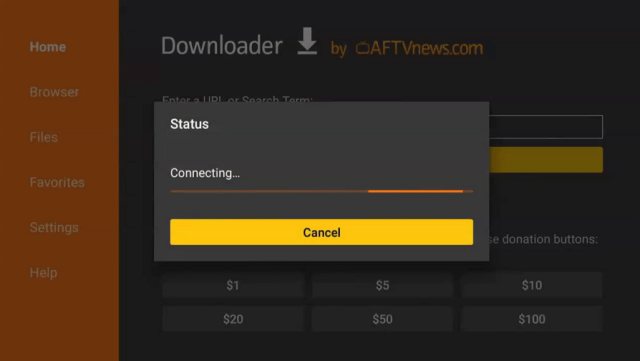
14. Type https://reviewvpn.com/abv and click go.
15. Wait for the APK to be downloaded.
16. Click install
17. Click open.
18. To get started, just follow these Three steps.
19. ABC iview is already installed! Enjoy!
YOUR INTERNET ACTIVITY IS BEING WATCHED
ReviewVPN cannot attest to the legality, security and privacy of the applications discussed on this site. It is highly recommended that you use a VPN service while streaming or using Kodi.
Currently, your IP 216.73.216.84 is visible to everyone and your Browser is being tracked by Advertisers & ISP Provider.
Your activities are hidden from your ISP, the government, and from the apps you are using.
You can access additional movies and TV streams.
ISP attempts to throttle are thrwarted thus reducing buffering issues.
Geographically restricted content like Netflix and Hulu can be unblocked.
A VPN works be replacing your ISP-assigned IP address and creating an encrypted tunnel. We recommend the no log service offered by IPVanish. It works well on a Firestick and offers the fastest possible speeds.
Legal Disclaimer: ReviewVPN.com does not encourage or endorse any illegal activity involved in the usage of services and applications referenced on this site. We do not verify the licensing agreements of services. The end-user is wholly responsible for ensuring that any media accessed through these services does not violate copyright and/or licensing laws. ReviewVPN does not promote, link to, or receive compensation from any Apps and IPTV services.
Not available on Amazon App Store Outside Australia
Need to register first before streaming
Stream Safely With A VPN
A lot of apps, websites, features, and content are geo-restricted. You won’t be able to access them if your IP address is located in a restricted country or region. But there is a way to bypass geo-blocks. If you do not expose your IP address and connect to a different server, you can be able to access the apps, websites, and content that you like.
The best way to do this is by using a Virtual Private Network or VPN. A VPN is a powerful tool that can hide your IP address while giving you safe access to different platforms. Aside from bypassing geo-restrictions, a VPN can also provide security and privacy from all malicious trackers and threats.
If you are looking for the best one, Surfshark VPN is the best choice to secure your privacy against malicious trackers. It has the best military-grade VPN encryption in all of its available servers worldwide.
How to Install Surfshark on Firestick with Screenshots
If your Firestick still has the older interface, read this article to learn how to update it: Update Firestick Interface.
You can download Surfshark directly from the Amazon App Store. It will be easy for you to find Surfshark with your Firestick’s Find feature. Refer to our screenshots below.
Follow our screenshots below to install the SurfShark VPN app on your Fire TV stick.
1. Go to the Home screen of your Firestick.
2. Navigate toward the Find tab. Press the Search button from the resulting dropdown.
3. Type in the keyword of SurfShark and select from the suggestions that will appear.
4. Click the official SurfShark icon from your search results.
5. Press the Download (You Own it) button.
6. The SurfShark VPN installer will download on your device.
7. SurfShark VPN’s app will automatically install itself on your Fire TV stick.
8. Press the Open button after completing SurfShark VPN’s installation process.
9. Please wait for the SurfShark VPN to load its user interface.
10. You can now log in with your SurfShark VPN account credentials.
For more VPN discounts, go to ReviewVPN Deals and purchase the best VPN for you.
Click here for the lowest price on Surfshark through our exclusive limited-time offer.
Best ABC iview App Alternatives
Aside from ABC iview, there are many great apps that offer live TV channels, and movies at the same time to stream on Firestick and Android. Here are the best ABC iview alternatives.
ABC iview is a catch-up TV service that provides original and on-demand video content from the Australian Broadcasting Corporation.
Is the ABC iview App Legal?
ReviewVPN.com cannot determine the legality of any app or website. This article is for educational purposes only. To ensure that you are safe from any legal matters regarding the apps and websites you are using, use a VPN service like Surfshark.
Is the ABC iview App Safe?
To ensure your safety and security when using the ABC view app on your devices, use a reliable VPN service like Surfshark VPN.
Is the ABC iview App Free?
Yes. The ABC iview app is 100% free but you need to register for an account to start streaming on this app.
Conclusion
It is now possible to install the ABC iview on Firestick and Android even if you are not in Australia. By following the steps above you can easily install the app on your device. Just make sure to use a reliable VPN service to bypass geo-restriction and stream safely on this app.
This article will show you how to install Nick Jr. on your Amazon Firestick device.
Nick Jr. is a popular kids network from Nickelodeon. This version of Nick targets younger audiences such as preschoolers. It focuses on providing a combination of both educational and entertainment for younger kids.
Nick Jr. also has a streaming application available for Amazon Firestick, and some other devices. This app houses a wide library of content for popular original Nick shows. The Nick Jr. app is also easy to navigate and use. It also offers a parental control feature to monitor and limit the screen time of kids making sure that this app is 100% kid-friendly and safe.
Nick Jr. is an official Amazon app. There is no need to jailbreak your Firestick and use the Downloader app to install it on your device. The only problem is this app is only available in certain parts of the world. In order to stream it from anywhere, you need to use a reliable VPN service to bypass geo-restrictions. Continue reading for more.
How to Install Nick Jr on Firestick
1. Go to the Home screen of your Firestick.
2. Click on Find.
3. Tap on the Search tab.
4. Search for the Nick Jr.app.
5. Click the icon of the app
6. Select Get or Download to install the app. Wait for the app to be installed then click OK
7. Downloading and installing the app will take a few seconds or minutes, depending on your internet connection.
8. After downloading the app, click Open to launch and set up the app.
YOUR INTERNET ACTIVITY IS BEING WATCHED
ReviewVPN cannot attest to the legality, security and privacy of the applications discussed on this site. It is highly recommended that you use a VPN service while streaming or using Kodi.
Currently, your IP 216.73.216.84 is visible to everyone and your Browser is being tracked by Advertisers & ISP Provider.
Your activities are hidden from your ISP, the government, and from the apps you are using.
You can access additional movies and TV streams.
ISP attempts to throttle are thrwarted thus reducing buffering issues.
Geographically restricted content like Netflix and Hulu can be unblocked.
A VPN works be replacing your ISP-assigned IP address and creating an encrypted tunnel. We recommend the no log service offered by IPVanish. It works well on a Firestick and offers the fastest possible speeds.
Legal Disclaimer: ReviewVPN.com does not encourage or endorse any illegal activity involved in the usage of services and applications referenced on this site. We do not verify the licensing agreements of services. The end-user is wholly responsible for ensuring that any media accessed through these services does not violate copyright and/or licensing laws. ReviewVPN does not promote, link to, or receive compensation from any Apps and IPTV services.
Promotes learning like colors, shapes, counting, and basic reading
Updates continue for more fun content for preschoolers
Pros and Cons
Pros
Easy to use
Kid-friendly
Parental control features
Cons
Geo-restricted
Stream Safely With a VPN
Nick Jr. is only available in limited areas, or countries. As sad as it may seem, geo-restriction is really one of the challenges for cord-cutters worldwide. Good thing that there is a great way to bypass geo-restriction safely using a Virtual Private Network or VPN.
A VPN can hide your IP address and provide a new one that will help you bypass geo-restriction and get rid of all malicious trackers that tend to locate and gather your information. It helps you to access different apps while staying safe and anonymous online wherever you are located in the world.
Surfshark is the best VPN in the market today. It provides the best-encrypted IP address from a desired location to make sure that the users are safe while streaming. It allows you to choose your own location with its military-grade protection servers. This can also help you get rid of any trackers that would like to locate and know your information.
Surfshark is the only VPN that can unblock all streaming platforms even the most popular ones like Netflix, Hulu, YouTube TV, and many more. It is also the best choice to bypass geo-restrictions when streaming on Nick Jr. from anywhere.
How to Install Surfshark on Firestick with Screenshots
If your Firestick still has the older interface, read this article to learn how to update it: Update Firestick Interface.
You can download Surfshark directly from the Amazon App Store. It will be easy for you to find Surfshark with your Firestick’s Find feature. Refer to our screenshots below.
Follow our screenshots below to install the SurfShark VPN app on your Fire TV stick.
1. Go to the Home screen of your Firestick.
2. Navigate toward the Find tab. Press the Search button from the resulting dropdown.
3. Type in the keyword of SurfShark and select from the suggestions that will appear.
4. Click the official SurfShark icon from your search results.
5. Press the Download (You Own it) button.
6. The SurfShark VPN installer will download on your device.
7. SurfShark VPN’s app will automatically install itself on your Fire TV stick.
8. Press the Open button after completing SurfShark VPN’s installation process.
9. Please wait for the SurfShark VPN to load its user interface.
10. You can now log in with your SurfShark VPN account credentials.
Nick Jr. is a kids network owned by Nick that focuses on the younger generation of children such as preschoolers. It provides a massive library of content for original Nick shows that teaches the kids basic learnings, and fun entertainment.
Is Nick Jr. legal?
ReviewVPN.com cannot determine the legality of any app or website. This article is for educational purposes only. To ensure that you are safe from any legal matters regarding the apps and websites you are using, use a VPN service like Surfshark.
Is Nick Jr. safe?
It is safe to install and use the Nick Jr. app on your device.
Is the Nick Jr. app Free?
You can install the app for free but there might be in-app purchases while using the platform.
Conclusion
You can install the Nick Jr. app on your Amazon Firestick for free but it is only available in certain countries like the US. In order to access this app wherever you are located, you need to use a reliable VPN service such as Surfshark.
This article will help you stream the MLB Playoffs this year on your Amazon Firestick device.
This year’s MLB Playoffs Post Season is on its way. Fans all over the world have been wondering how to stream the games on their Amazon Firestick device. There might be some free apps and websites where you can watch the MLB Playoffs but it is still better to use premium subscription platforms to make sure that you are secure and safe from any legal issues while streaming.
There are tons of channels where you can stream the MLB Playoffs this year. You can tune in to ABC, FOX, FS1, TBS, ESPN, ESPN2, and the MLB Network to watch the games. Of course, premium subscription apps that offer these channels are also the best options to watch the MLB playoffs. These are Fubo TV, Vidgo, Sling TV, YouTube TV, and Hulu+Live TV.
Most of these apps are available in the Amazon App Store. There is no need to jailbreak your Firestick and use the Downloader app just to install these apps.
If you are living outside the US, some apps to watch the MLB Playoffs may be geo-restricted. You need to use a reliable VPN service to bypass geo-restriction and watch MLB Playoffs from anywhere. Continue reading to learn more.
Best Channels to Watch MLB Playoffs on Amazon Firestick
Fox Sports
Fox Sports is one of the best choices to stream this year’s MLB Playoffs. It is not only available on Firestick but also on other devices as well. The Fox Network is such an amazing app where you can watch live TV channels including Fox Sports 1 and 2, Big Ten, and many others. This channel requires a TV provider for you to enjoy streaming different shows and sports events.
There are many other sports that you can stream on Fox aside from MLB like NFL, La Liga, MLR, NBA, Premiere League, and more.
You can install and use this app on Firestick, Android, and Roku as well.
Another channel that lets you stream this year’s MLB playoffs is the NBC Sports app. This app is really a great stop if you are looking for Sports of any sort.
To use the full potential of this app, you need to have a TV provider that you can integrate with NBC Sports.
It is also available on Android and Roku as well.
NBC Sports also offers highlights, updates, live events, and more for all sorts of Sports categories.
When we talk about ESPN+, it is a very popular app when it comes to fighting sports. It offers tons of great sports content and events to stream, and one of them the is MLB playoffs. Most of the sports that you can watch on ESPN are the latest Boxing match, MMA, and UFC pay-per-view events. It also offers other sports live streaming like Major League Rugby (MLR), NBA, NFL, and many others. This is the reason why ESPN+ is one of the best options for this category.
You can also have this app with your Android or Roku devices.
It can easily be downloaded on your Firestick or Fire TV. Just follow the link below.
ReviewVPN cannot attest to the legality, security and privacy of the applications discussed on this site. It is highly recommended that you use a VPN service while streaming or using Kodi.
Currently, your IP 216.73.216.84 is visible to everyone and your Browser is being tracked by Advertisers & ISP Provider.
Your activities are hidden from your ISP, the government, and from the apps you are using.
You can access additional movies and TV streams.
ISP attempts to throttle are thrwarted thus reducing buffering issues.
Geographically restricted content like Netflix and Hulu can be unblocked.
A VPN works be replacing your ISP-assigned IP address and creating an encrypted tunnel. We recommend the no log service offered by IPVanish. It works well on a Firestick and offers the fastest possible speeds.
Legal Disclaimer: ReviewVPN.com does not encourage or endorse any illegal activity involved in the usage of services and applications referenced on this site. We do not verify the licensing agreements of services. The end-user is wholly responsible for ensuring that any media accessed through these services does not violate copyright and/or licensing laws. ReviewVPN does not promote, link to, or receive compensation from any Apps and IPTV services.
Best Apps to Watch the MLB Playoffs on Amazon Firestick
Fubo TV
Fubo TV is one of the best apps that can let you stream the MLB Playoffs matches on your Amazon Firestick even without a cable subscription. This app offers more than about 200 channels where you can watch tons of live TV shows and sports. Most of the categories included on Fubo TV are kids, sports, news, movies, and documentaries.
Fubo TV is a little bit pricy compared to the options in this list. Given the number of channels it provides, you can say that it is worth it to subscribe and stream on Fubo TV. This platform costs $64.99 a month. It also offers a 7-day free trial if you are a first-time user of the app. Read the article below to learn more about Fubo TV.
YouTube TV is one of the best-paid applications to use when streaming live sports like MLB Playoffs on Firestick and any other devices . It is a great app that provides a marvelous list of channels for Sports, Entertainment, and News.
This app has an excellent DVR function that you can use whenever you miss something.
YouTube TV offers 70 channels for $64.99 a month. Follow the steps below to know how you can install YouTube TV on Firestick easily
On your Firestick Home Screen, click once to the left and hit the center button to access the search function.
Type in Youtube TV
Choose the YouTube TV App Icon
Click on Get
Select Open
Hulu + Live TV
Another app that you can use to stream this year’s MLB Playoffs on your Amazon Firestick and other devices is Hulu+Live TV. It is a paid streaming service that provides more than 50 channels for its Live TV features. This includes Sports, Food, Travel, Business, and many more. You can watch channels such as Fox Sports, ESPN, and many more.
This is the cheapest deal compared to the other ones on this list. It requires $54.99 a month with live TV features. Read the article below and know how you can easily install Hulu on your Firestick device.
On your Firestick Home Screen, click once to the left and hit the center button to access the search function.
Type in Hulu
Choose the Hulu App Icon
Click on Get
Select Open
Sling TV
When it comes to live TV and sports, Sling TV is always one to consider. This app offers tons of live TV streaming including MLB Playoffs.
Sling TV is a popular streaming service that offers up to 30 channels. This platform has 2 types of service packages, Sling Blue and Sling Orange. The Sling Blue costs $30 a month.
The good thing about this service is it is customizable. You can combine both packages or you can have add-ons for Sports and Comedy.
The add-on Sports channels are applicable to the Blue package. But there will be no need to have the additional channels because the Blue package already has Fox Sports. That is good enough to let you watch MLB on your device.
Register for an account at https://news.sling.com/registration
On your Firestick Home Screen, click once to the left and hit the center button to access the search function.
Type in Sling TV
Choose the Sling TV Icon
Click on Get
Select Open
Log in with your credentials.
You can now start watching the NFL.
Stream The MLB Playoffs Safelt From Anywhere With A VPN
Some of the apps included in this list are geo-restricted. Some of them offer content or features that are only available if you are in America or other selected countries. If you are traveling abroad, you might find it hard to stream MLB Playoffs from anywhere. This is why you need to use a reliable Virtual Private Network or VPN to stream the games.
Aside from bypassing geo-restrictions, a VPN can also help you stream anonymously from any malicious trackers. These trackers use your IP address to collect your information and learn your location. Since your VPN can change your IP address and make it look like you are located in a different country, any trackers will find it hard to get a hold of your personal information.
Surfshark VPN is the best VPN in the market today. It is a great combination of safety and accessibility. This VPN has the best military-grade encryption to all of its available servers and IPs. This can make sure that users are safe from trackers and any malicious domains. It is also the only VPN to unblock all streaming platforms even the most strict ones like Netflix, Hulu, YouTube TV, and more.
How to Install Surfshark on Firestick with Screenshots
If your Firestick still has the older interface, read this article to learn how to update it: Update Firestick Interface.
You can download Surfshark directly from the Amazon App Store. It will be easy for you to find Surfshark with your Firestick’s Find feature. Refer to our screenshots below.
Follow our screenshots below to install the SurfShark VPN app on your Fire TV stick.
1. Go to the Home screen of your Firestick.
2. Navigate toward the Find tab. Press the Search button from the resulting dropdown.
3. Type in the keyword of SurfShark and select from the suggestions that will appear.
4. Click the official SurfShark icon from your search results.
5. Press the Download (You Own it) button.
6. The SurfShark VPN installer will download on your device.
7. SurfShark VPN’s app will automatically install itself on your Fire TV stick.
8. Press the Open button after completing SurfShark VPN’s installation process.
9. Please wait for the SurfShark VPN to load its user interface.
10. You can now log in with your SurfShark VPN account credentials.
For more VPN discounts, go to ReviewVPN Deals and purchase the best VPN for you.
Click here for the lowest price on Surfshark through our exclusive limited-time offer.
FAQs
When Will the MLB Playoffs This Year?
The MLB Playoffs this year will take place from October 3 to November 4.
What Channels To Use To Stream the MLB Playoffs 2023?
You can watch MLB Playoffs on your Firestick or other devices using different channels such as ABC, FOX, FS1, TBS, ESPN, ESPN2, and the MLB Network.
What Apps To Use To Stream the MLB Playoffs 2023?
You can also use popular premium streaming apps like YouTube TV, Hulu+Live TV, Sling TV, Fubo TV, NBC Sports, ESPN+, CBS, and Fox Sports to watch the MLB Playoffs on Firestick and other devices.
Is it Safe to Watch MLB Playoffs on Firestick for Free?
To ensure your safety when streaming the MLB Playoffs on other sports and live TV channels for free, you need to use a Virtual Private Network or VPN. A VPN like Surfshark can make sure that you are safe from any malicious trackers who would like to know your information and location.
Conclusion
It is possible to stream this year’s MLB Playoffs on Firestick and other devices using different apps and channels.
You can watch the MLB Playoffs on channels like ABC, FOX, FS1, TBS, ESPN, ESPN2, and the MLB Network.
You can also use paid subscription apps like YouTube TV, Hulu+Live TV, Sling TV, NBC Sports, ESPN, CBS, and Fox Sports to game on any device
Make sure that you use a reliable VPN like Surfshark when streaming on any device to bypass geo-restrictions and to make sure that your privacy and information are safe from trackers.
This article will show you how to watch BKFC on your Amazon Firestick device.
BKFC also known as Bare Knuckle Fighting Championship is an American bare-knuckle boxing competition. The BKFC competition is based in Philadelphia.
BKFC is the first competition and promotion that is allowed to hold legal, sanctioned, and regulated bare-knuckle fights in all of the USA.
Millions of viewers, not only in the US but also all over the world watch matches for BKFC using their devices. Most of the fights are pay-per-view events. The best way to watch BKFC on Amazon Firestick is by using the Fite App.
The Fite App is an official Amazon app that offers tons of fighting sports shows and events to stream. It focuses on boxing, wrestling, MMA, knuckle mania, and more.
Streaming on the Fite App is not for free. You may easily install the app, but you some content ar pay-per-view, and in-app purchases.
Before you can watch BKFC or other sports on the Fite app, you need to register for an account using your email or Facebook.
If you cannot watch the BKFC outside of the USA, you may use a reliable VPN service to bypass geo-restriction. Continue reading to know more.
How to Install the Fite App on Amazon Firestick
1. Click FIND.
2. Click Search.
3. Search for the FITE App.
4. Select the icon of the FITE App.
5. Click the Get or Download button
6. Wait for the app to be installed
7. Launch the app by clicking the Open button
YOUR INTERNET ACTIVITY IS BEING WATCHED
ReviewVPN cannot attest to the legality, security and privacy of the applications discussed on this site. It is highly recommended that you use a VPN service while streaming or using Kodi.
Currently, your IP 216.73.216.84 is visible to everyone and your Browser is being tracked by Advertisers & ISP Provider.
Your activities are hidden from your ISP, the government, and from the apps you are using.
You can access additional movies and TV streams.
ISP attempts to throttle are thrwarted thus reducing buffering issues.
Geographically restricted content like Netflix and Hulu can be unblocked.
A VPN works be replacing your ISP-assigned IP address and creating an encrypted tunnel. We recommend the no log service offered by IPVanish. It works well on a Firestick and offers the fastest possible speeds.
Legal Disclaimer: ReviewVPN.com does not encourage or endorse any illegal activity involved in the usage of services and applications referenced on this site. We do not verify the licensing agreements of services. The end-user is wholly responsible for ensuring that any media accessed through these services does not violate copyright and/or licensing laws. ReviewVPN does not promote, link to, or receive compensation from any Apps and IPTV services.
How to Use the FITE App on Firestick with Screenshots
1. Upon launching the app, you will see all the login options. Choose anything that is best for you. On this one, we use Continue with FITE.
2. Take note of the code that the app provided for you. XPQY8K is just an example.
3. On a separate browser, go to fite.tv/connect.
4. Enter the given code by the app. XPQY8K is just an example.
5. Then click Connect
6. Choose any way that is possible for you. Log in to your account.
7. Check any type of shows that you prefer.
8. Click Save Preferences.
9. You can now use the FITE App on your Firestick device.
Stream BKFC From Anywhere
If you use the Fite app outside of the USA to stream the BKFC, you might encounter some problems like geo-restrictions. It is so annoying when you can’t access different apps, websites, features, content, and more in your region or country.
To bypass bypass geo-restrictions, you need to use a reliable VPN service. A VPN is a powerful tool that can hide your IP address and provide a new one that is safe and connected to a different server from the desired location or country.
Surfshark is the best VPN to use when streaming. Aside from its unblocking property, it can provide the best military-grade VPN encryption to all of its servers, making your privacy secure from any malicious trackers that collect your information. Surfshark is also the only VPN that can safely bypass the most strict platforms like Netflix, Hulu, and many more.
How to Install Surfshark on Firestick with Screenshots
If your Firestick still has the older interface, read this article to learn how to update it: Update Firestick Interface.
You can download Surfshark directly from the Amazon App Store. It will be easy for you to find Surfshark with your Firestick’s Find feature. Refer to our screenshots below.
Follow our screenshots below to install the SurfShark VPN app on your Fire TV stick.
1. Go to the Home screen of your Firestick.
2. Navigate toward the Find tab. Press the Search button from the resulting dropdown.
3. Type in the keyword of SurfShark and select from the suggestions that will appear.
4. Click the official SurfShark icon from your search results.
5. Press the Download (You Own it) button.
6. The SurfShark VPN installer will download on your device.
7. SurfShark VPN’s app will automatically install itself on your Fire TV stick.
8. Press the Open button after completing SurfShark VPN’s installation process.
9. Please wait for the SurfShark VPN to load its user interface.
10. You can now log in with your SurfShark VPN account credentials.
For more VPN discounts, go to ReviewVPN Deals and purchase the best VPN for you.
Click here for the lowest price on Surfshark through our exclusive limited-time offer.
FAQs
What is BKFC?
KFC also known as Bare Knuckle Fighting Championship is an American bare-knuckle boxing competition. The BKFC competition is based in Philadelphia.
BKFC is the first competition and promotion that is allowed to hold legal, sanctioned, and regulated bare-knuckle fights in all of the USA.
Is Streaming BKFC on Fite App Legal?
ReviewVPN.com cannot determine the legality of any app or website. This article is for educational purposes only. To make sure that you are safe from any legal matters regarding the apps and websites you are using, use a VPN service like Surfshark.
Is Streaming BKFC on Fite App Safe?
The Fite app is an official Amazon app, and streaming on this platform is safe.
Is Streaming BKFC on Fite App Free?
Some videos, and events present on the Fite App are not free and it requires payment per viewing.
Conclusion
If you are looking for the best option to watch the BKFC on Amazon Firestick, then you should try it on the Fite App. The Fite app is an official Amazon app but it is not 100% free. Some events and content require payment for you to enjoy.
If you cannot access the BKFC on the Fite app outside of the USA, then you should use a reliable VPN service like Surfshark to bypass geo-restrictions.
This article will show you how to stream Hoopla on your Amazon Firestick device.
Hoopla is a device web media library and streaming platform that can host different files. You can use Hoopla to stream audiobooks, comics, e-books, movies, music, and TV.
Different patrons who support hoopla through different content libraries have access to different collections of various media files.
You can use Hoopla on Amazon Firestick using Hoopla Digital. Hoopla Digital is a division of mid-west Tape where you can explore and stream different content on your device. To use it on Firestick, you need to have a compatible browser like the Amazon Silk Browser. It is an official Amazon app, which means you don’t need to jailbreak your Firestick and use the Downloader app to install it.
Make sure to protect your privacy from any trackers by using a reliable VPN service. Continue reading to learn more.
How to Stream on Hoopla Digital Using Your Amazon Firestick
1. Go to the Home screen of your Firestick.
2. Click on Find.
3. Tap on the Search tab.
4. Type in Silk Browser and choose the item that appears on the results.
5. Click on the Silk Browser Icon.
6. Choose Download.
7. Silk Browser is Downloading into your Firestick.
8. The Silk Browser app will be installed on Firestick.
9. Select Open to launch the browser.
10. You can now start using Amazon Silk Browser.
11. Tap on Cancel then Click Okay.
12. Type in: “https://www.hoopladigital.com/” then click GO.
13. Click Go Home.
14. That’s it! Enjoy!
YOUR INTERNET ACTIVITY IS BEING WATCHED
ReviewVPN cannot attest to the legality, security and privacy of the applications discussed on this site. It is highly recommended that you use a VPN service while streaming or using Kodi.
Currently, your IP 216.73.216.84 is visible to everyone and your Browser is being tracked by Advertisers & ISP Provider.
Your activities are hidden from your ISP, the government, and from the apps you are using.
You can access additional movies and TV streams.
ISP attempts to throttle are thrwarted thus reducing buffering issues.
Geographically restricted content like Netflix and Hulu can be unblocked.
A VPN works be replacing your ISP-assigned IP address and creating an encrypted tunnel. We recommend the no log service offered by IPVanish. It works well on a Firestick and offers the fastest possible speeds.
Legal Disclaimer: ReviewVPN.com does not encourage or endorse any illegal activity involved in the usage of services and applications referenced on this site. We do not verify the licensing agreements of services. The end-user is wholly responsible for ensuring that any media accessed through these services does not violate copyright and/or licensing laws. ReviewVPN does not promote, link to, or receive compensation from any Apps and IPTV services.
It is still best to stay private when streaming on different websites using your Amazon Firestick device. There are tons of rackers on the web. These trackers tend to know your personal information and location. Websites, apps, and even your internet service provider or ISP can track you using your IP address. You can get rid of trackers when you use a reliable and safe VPN service. A VPN can hide your identity by concealing your IP address making you anonymous while streaming on different apps and websites. It will provide a safe and new one which will make trackers have a hard time profiling you.
Surfshark is the best VPN to use when streaming. Aside from its unblocking property, it can provide the best military-grade VPN encryption to all of its servers, making your privacy secure from any malicious trackers that collect your information. Surfshark is also the only VPN that can safely bypass the most strict platforms like Netflix, Hulu, and many more.
How to Install Surfshark on Firestick with Screenshots
If your Firestick still has the older interface, read this article to learn how to update it: Update Firestick Interface.
You can download Surfshark directly from the Amazon App Store. It will be easy for you to find Surfshark with your Firestick’s Find feature. Refer to our screenshots below.
Follow our screenshots below to install the SurfShark VPN app on your Fire TV stick.
1. Go to the Home screen of your Firestick.
2. Navigate toward the Find tab. Press the Search button from the resulting dropdown.
3. Type in the keyword of SurfShark and select from the suggestions that will appear.
4. Click the official SurfShark icon from your search results.
5. Press the Download (You Own it) button.
6. The SurfShark VPN installer will download on your device.
7. SurfShark VPN’s app will automatically install itself on your Fire TV stick.
8. Press the Open button after completing SurfShark VPN’s installation process.
9. Please wait for the SurfShark VPN to load its user interface.
10. You can now log in with your SurfShark VPN account credentials.
For more VPN discounts, go to ReviewVPN Deals and purchase the best VPN for you.
Click here for the lowest price on Surfshark through our exclusive limited-time offer.
Hoopla Digital Alternatives
This list only focuses on movies and TV series. If you are using Hoopla Digital for movies, and still want to have more, you can check out these best alternatives.
Hoopla Digital is a division of the popular web media streaming platform Hoopla. It offers free streaming of different Audiobooks, Ebooks, Music, Movies, Comics, and TV shows.
Is Streaming on the Hoopla Digital Website legal?
ReviewVPN.com cannot determine the legality of any app or website. This article is for educational purposes only. To make sure that you are safe from any legal matters regarding the apps and websites you are using, use a VPN service like Surfshark.
Is Streaming on the Hoopla Digital Website Safe?
Upon checking the website URL on VirusTotal, we, therefore, conclude that it is safe to stream on Hoopla Digital on your devices. To make sure that you are completely safe against trackers, use a reliable VPN service like Surfshark.
Is Streaming on the Hoopla Digital Website Free?
Yes. Streaming on Hoopla Digital is 100% free wherever you are located in the world, although it might ask you to log in to an account in order to enjoy watching different titles on the website.
Conclusion
Hoopla Digital is really one of the best websites if you are looking for several media files to stream. It not only offers movies and TV shows, but it also provides music, comics, ebooks, and audiobooks. You can say that it is a one-stop shop for all your streaming needs.
Make sure that you protect yourself from trackers when streaming on the web. Use a reliable VPN such as Surfshark to keep your privacy and stream anonymously.
In this article, we will show you all of the best free streaming apps to watch movies, TV series, live TV, and more.
Streaming apps let viewers watch movies, TV shows, and live TV on different devices. The best streaming apps are Netflix, Hulu, YouTube, and many more which you can find in this article.
Many viewers who cut the cord find these streaming apps useful. They let you stream your favorite titles, and TV shows anytime. Some of them are free which is very important, but there are also some that require a monthly subscription.
Streaming apps are available on different devices. You can use it on Android TV, and Google Chromecast. A few are available on Roku, and most of them are applicable on Amazon Firestick. The Amazon Firestick is among the most popular streaming devices that most of our readers use. Some of the free streaming apps on this list are third-party applications. They will require you to jailbreak your Firestick and use the Downloader app to install them.
The most common problem that viewers from all over the world encounter when using streaming apps is geo-restriction. Some content and features of most streaming apps are not available in some parts of the world. One common example is Netflix. The US library of Netflix is different compared with the UK library. This is where a need for Virtual Private Network or VPN comes in. Using streaming apps with a trusted VPN service will help you unblock most streaming apps to enjoy more content and features. We will discuss more of this later in this article.
Best Streaming Apps for Movies and TV Shows
Most viewers spend their free time binge-watching their favorite titles. This is where the best streaming apps for movies and TV shows come along. Here are the best paid and free streaming apps that you can use when you like to watch movies and TV shows.
Netflix is probably one of the most popular streaming apps on the planet today. It is without a doubt a remarkable streaming platform when it comes to movies and TV series. Netflix is absolutely available in all app stores like Google Playstore, Apple App Store, and Amazon App Store.
Netflix is not a free application. You can install it for free but you need to pay a monthly subscription in order to stream its content. Another thing is that the library of content that Netflix offers in a particular country is different from the others. For example, the US Netflix is different from Japan’s content. Not all but some. This is why it is best to use a VPN service that Netflix allows. Not all VPNs can unblock Netflix’s strong geo-restriction. Our trusted VPN, Surfshark, has the ability to unblock Netflix from wherever you are located.
Do you know that Netflix also has secret codes? These are sets of numbers that you can use to immediately access certain genres like horror, action, anime, and more. Read the article below to know more about Netflix.
It was recently been reported that the developers of Cinema HD announced that they would stop developing the platform. Cinema HD became unavailable and no one could install it as a new app. Even though it is not available for installation, devices with Cinema HD already can still use the app perfectly, just waiting for it to become phased out. A couple of weeks passed, and a version of Cinema HD is said to be available on the internet. It seems like Cinema HD is not going anywhere soon. Upon latest checking, Cinema HD is still available and perfectly working on different devices.
Cinema HD is one of the best free streaming apps for Movies and TV series. It is one of the many apps that are considered Terrarium clones. The app works by providing scrapers and streaming links from different sources all over the internet. You just have to select a title that you want to watch and the app will provide tons of links for you especially if you integrate it with your Trakt TV and Real Debrid accounts.
Kodi is a very popular platform that is applicable to different types of devices. It is the ultimate streaming app and is 100% free. Actually, we can consider Kodi as one of the best streaming apps for movies, and also one of the best streaming apps for live TV. You can definitely use them for both. Kodi lets users use different addons and builds in order to watch shows. There are different add-ons for different viewing needs.
Kodi updates almost too often. The latest version of Kodi is always the best and most stable one. The only problem is that sometimes there are add-ons and builds that are not available immediately whenever Kodi updates its version. We need to test them all out in order to provide the best information to our readers.
Tubi TV offers free movies and TV shows. It is supported by advertisements so you have to brace yourself for some minor interruptions. Tubi TV offers so much different content to stream. You can watch Kids’ Entertainment and different genres. It actually recently added a feature for live TV. Because of this, we can also consider this one of the best streaming apps for live TV, but we still prefer it for Movies and TV shows.
If you want to know more about Tubi TV, read the articles below:
Disney+ is a huge platform created by Disney with other well-known production companies and channels. It is popular and available all over the world. Imagine all of the best Disney movies and shows plus more great content to stream. Expect a lot of titles also from Pixar, Star Wars, Marvel, National Geographic, and more.
Disney Plus is not for free. You can install this app on your devices with no payment but in order to enjoy all of its content, you need to pay a monthly subscription. At the moment, Disney+ is $7.99/month or $79.99/year. Take note there are apps like Hulu and ESPN that offers a bundle deal with Disney+.
If you are looking for original HBO movies and TV series like Game of Thrones, Silicon Valley, Sex and the City, and more, then HBO Max is the best choice for you. It also offers other box office movies besides their original content. Expect a lot of great titles from Warner Media, and more.
HBO Max is not for free. It requires a monthly subscription of $14.99. Read the articles below to learn how you can watch on this premium streaming app.
Amazon Prime Video is an official movie and TV streaming app that is installed on your Firestick by default. It also offers great original and box office titles to stream. You can watch so many genres on this app including Amazon Originals, Comedy, Thriller, Featured Movies, and more.
Read more about Amazon Prime through our article below.
ReviewVPN cannot attest to the legality, security and privacy of the applications discussed on this site. It is highly recommended that you use a VPN service while streaming or using Kodi.
Currently, your IP 216.73.216.84 is visible to everyone and your Browser is being tracked by Advertisers & ISP Provider.
Your activities are hidden from your ISP, the government, and from the apps you are using.
You can access additional movies and TV streams.
ISP attempts to throttle are thrwarted thus reducing buffering issues.
Geographically restricted content like Netflix and Hulu can be unblocked.
A VPN works be replacing your ISP-assigned IP address and creating an encrypted tunnel. We recommend the no log service offered by IPVanish. It works well on a Firestick and offers the fastest possible speeds.
Legal Disclaimer: ReviewVPN.com does not encourage or endorse any illegal activity involved in the usage of services and applications referenced on this site. We do not verify the licensing agreements of services. The end-user is wholly responsible for ensuring that any media accessed through these services does not violate copyright and/or licensing laws. ReviewVPN does not promote, link to, or receive compensation from any Apps and IPTV services.
Hulu is one of Netflix’s most popular competitors. It originally offer movies and TV shows to stream. Recently, Hulu added a Live TV feature which makes it one of the best streaming apps for live TV.
Actually, Hulu has three subscription types to offer. You can choose from ad-supported subscriptions, no-ads subscriptions, and Hulu+Live TV. If you only want to watch movies, and TV, no need to choose the one with live TV. But take note that Hulu partnered with other platforms like ESPN+ and Disney+ where you can subscribe in a bundle to save costs.
Plex started as a media player for different devices. Now, Plex added a Live TV feature that you can tune in for free. Plex + Live TV offers about 80 live TV channels about finance, entertainment, sports, comedy, kids, news, and more.
You don’t have to sign in for an account to watch on Plex Live TV, although it is an option.
Read our articles about Plex to learn more about this platform.
Peacock TV is one of the best streaming apps for live TV. It is geo-restricted and only available in the US and some countries like the UK, Ireland, Germany, Austria, Switzerland, and Italy.
Peacock TV lets you watch a lot of VOD content and live TV channels such as English Premier League, Telemundo, CNBC, and E!
Learn how you can install the Peacock TV app on your Firestick device.
Xumo offers live TV, news from NBC, free movies, TV shows, documentaries, and many more. This is the reason why we include it as one of the best streaming apps for your device.
Xumo is ad-supported and also geo-restricted. It means that you cannot access the app unless you are in the USA. We suggest using a trusted VPN service like Surfsharl to access the free live TV streaming feature of Xumo TV.
See the link below to learn how you can install the Xumo app on your Firestick.
Pluto TV is one of the best streaming apps for live TV that is only available in the US and some parts of the world. You can watch tons of Live TV and many Video-on-demand content. There are hundreds of live TV channels plus movies that you can stream for free.
There are some cons to using Pluto TV. Like most streaming apps, Pluto TV is supported by advertisements. It is also geo-restricted, so if you are outside the country, it will be hard for you to use Pluto TV. If you use a VPN service, you can watch on this website from anywhere in the world.
Read the article below to know how you can install this app on your Firestick device.
Airy TV has a caption that says Free TV Forever. It offers hundreds of live channels plus other media to enjoy. The categories that Airy TV offers include Featured Channels, Classic Kids, TV Shows, Reality, Comedy, Documentaries, Thrillers, Music, Sports, and more.
Airy TV is actually available on almost all types of devices, and you can install it easily wherever you are. Read the article to learn how you can install this app on Firestick.
YouTube TV is one of the best streaming apps for live TV. It offers almost all types of content to stream. you can watch sports, news, and many live entertainment channels.
This platform is not for free. YouTube TV costs $64.99 per month. This subscription will provide you with over 85 channels with unlimited DVR storage and 3 simultaneous streams.
If you want to learn more, read the article below.
ESPN+ is affiliated with Disney+ and Hulu. It offers a great service for only $6.99 a month. If you want to stream sports, ESPN is one of the best choices for you. You can stream a lot of sports like tennis, Formula 1, Football, and many more.
ESPN+ does not offer a live ESPN channel. This is only for sports content exclusively. Read the article below to know how you can install it on your device.
The list of the best live TV apps will not end without Fubo TV. It is one of the best apps to watch your favorite sports such as basketball, football, and more.
It offers 100+ channels and cloud DVR for $64.99 a month. Some of the channels that you can find on Fubo TV are ESPN, CBS Sports, NFL Network, and more.
Most streaming apps are geo-restricted. This means that they are only available in the US or other countries. People who are not located in the region or country where these apps are available will have no access to them. This is frustrating if you want to watch your favorite series and you are out of town for business or whatever. Good things there is a solution to this geo-restriction problem.
Using a Virtual Private Network (VPN), you can easily change your IP address, connect to a server from another country, and access geo-restricted content. This will also make your connection private. It means your Internet Service Provider won’t notice it and all trackers will have a hard time tracking you. A VPN can make your streaming private and secure your identity.
The best VPN to unblock almost all streaming apps is Surfshark VPN. It has the record to unblock most streaming apps like Netflix, Hulu, YouTube TV, and more. Almost all apps here on this list are compatible with Surfshark VPN.
How to Install Surfshark on Firestick with Screenshots
If your Firestick still has the older interface, read this article to learn how to update it: Update Firestick Interface.
You can download Surfshark directly from the Amazon App store. It will be easy for you to find Surfshark with your Firestick’s Find feature. Refer to our screenshots below.
Follow our screenshots below to install the SurfShark VPN app on your Fire TV stick.
1. Go to the Home screen of your Firestick.
2. Navigate toward the Find tab. Press the Search button from the resulting dropdown.
3. Type in the keyword of SurfShark and select from the suggestions that will appear.
4. Click the official SurfShark icon from your search results.
5. Press the Download (You own it) button.
6. The SurfShark VPN installer will download on your device.
7. SurfShark VPN’s app will automatically install itself on your Fire TV stick.
8. Press the Open button after completing SurfShark VPN’s installation process.
9. Please wait for the SurfShark VPN to load its user interface.
10. You can now log in with your SurfShark VPN account credentials.
For more VPN discounts, go to ReviewVPN Deals and purchase the best VPN for you.
Click here to get the lowest price on Surfshark through our exclusive limited-time offer.
FAQs
What are the best streaming apps?
We list down a lot of great streaming apps in this article. They are Netflix, Hulu, YouTube TV, Kodi, Cinema HD, and many more.
Are the streaming apps legal?
Most streaming apps are legal. We cannot fully determine the legality of another platform. To be safe when using any of these apps, use a trusted VPN service like Surfshark.
What are the best devices to use the best streaming apps?
The most popular device that cord-cutters use is the Amazon Firestick, and Amazon Fire TV. You can still use other devices to stream on these apps like Google Chromecast, Roku, Apple TV, Android TV, phones, and tablets.
Conclusion
There are tons of streaming apps out there that you can use to stream movies, TV shows, and live TV. Only a few passed our standards and can be considered as one of the best. All of the apps that we list in this article are tested and proven. They provide the best content whenever you will binge-watch during your free time.
Which of these streaming apps is the best one for you? Let us know in the comment section below. If you have other great apps to suggest, feel free to also comment down below.
We hope that you find this article useful in learning all of the best apps to watch movies, tv shows, and live TV on your device.
This article encompasses the best Kodi porn addons for you to utilize.
Kodi offers a lot to the viewers, whether you are looking for movies, music, streaming tools, and adult films. You can have all of those in your Kodi account.
You read it right, even adult films are present in Kodi. All you need to have are the best Kodi Porn addons for your viewing pleasures.
Moreover, there are a lot of Kodi Porn add-ons that you can install on your Kodi account. All of the types and genres are present here. To have these addons, you must have the right URLs for their repositories.
You may also check the Best Adult Kodi Addons for the master list of all of the best porn addons available in Kodi.
However, you need to jailbreak first your firestick device before you can install porn addons on your Kodi. Follow this link for the guide:
AdultHideout is a third-party add-on that holds videos from different pornsites and adult addons as well. The websites present in Adult Hideout are A Shemale Tube, Efukt, Empflix, Fantasti.cc, Datoporn.com, Hentaigasm, Heavy-R, JavTasty, LubeTube, LuxureTV, Motherless, PornCom, PornHD, PornHub, pornXS, RedTube, Tube8, Tubepornclassic, Txxx, Uflash, VikiPorn, xHamster, Xvideos, YesPornPlease, YouJizz, and YouPorn.
It comes from the TV Add-ons Adult Repository as well.
Based on our last checking, some videos in this addon are hard to play. But there are also other folders where you can play videos without having some errors.
If you have a fetish for kinky homemade porn videos, then EFUKT is the best for you. It houses amateur porn clips that last not longer than 10 minutes.
All of the contents are straight porn, and the interface is simple and easy to use.
JavStream provides perverted Japanese pictures of women in their undies, topless, and even while having sex. But these are all just images. This addon does not provide any video to stream.
The categories offered by JavStream are Latest JAV Censored, Latest JAV Uncensored, Latest Gravure, and Favorite JAV.
A Kodi addon from one of the biggest porn websites on the internet such as Pornhub and Redtube.
You can see tens of thousands of videos across 67 easy-to-navigate categories.
Because the addon is backed by a big porn website, you are almost always guaranteed to get high-speed links that are working, many of them with HD quality video.
The one drawback for such a great addon is that you will need to browse as the addon has no inbuilt search function.
Fantasty.cc offers a collection of popular and trending porn videos for the day, from the past week, from last month, and for all-time.
The length of the videos varies from 1 minute to more than 1 hour, and the quality is not in full HD. But there are a lot of videos to choose from.
It provides different fetish and hardcore actions for your viewing pleasure. Most of the featured videos are straight porn, but you can search for gay videos, and this addon stores a few.
XXX-O-DUS is one of the newest porn addons available.
It works just like Video Devil, but it’s better and more stable so far. It works to scrape many different adult websites and present an easy to navigate dashboard of content.
This addon had categories and a wide variety of content from straight movies to Hentai and Live Cameras.
FapZone has a complete selection of categories for porn videos. 72 to be exact.
It has a cute but sexy interface. In one playlist, you can see all the 72 categories and easily choose from them. You can also search for a specific fetish, genre, or category.
This addon not only features straight porn. It has lesbian, and gay categories as well.
Before entering this addon, you need to have a pin generated from https://pinsystem.co.uk/.
Cumination is another adult addon with a large collection of mature adult content. This add-on is popular as it collects scrap streaming links from different popular porn sites to offer it free. You can choose from different adult sites such as the Amateur Cool, BitPorno, BubbaPorn, Cambro, Cam4, Cum Louder, Dato Porn, ElReyX, Free Porn Streams, Hentaihaven, Vidoz8, XXX Streams, xVideos, Porn Hub, and more.
This add-on has a large collection of porn content like short videos, long films, webcam videos, and even adult movies that you will surely love. The good thing with Cumination is, it has a regularly updated list of content to provide you with the hottest videos to watch. If you want to know more about this addon kindly read the Cumination Review.
BewbsandBeer
Source: http://grindhousekodi.tk/repo
BewsandBeer is one of the latest adult addons from the Grindhouse Repository. It has a massive collection of adult videos that is only suited for mature viewers. This add-on presents you with a great lineup of porn videos from different popular porn sites. You can watch a wide variety of adult content such as a mix of wet t-shirts, bikinis, drunk fails, sexy girls, adult videos, and mild nudity.
The good thing is, it provides you with high-quality streaming links from different porn sites. It is also one of the few Kodi addons compatible with the Kodi 19.5 matrix and Kodi 18.9. Some of the genres you can choose on this addon are One-click Bewbs, Cumshots, Amateur, Documentaries, Hardcore, Softcore, Fetish, Porn Parody, and more.
LIKUOO
Source: http://fusion.tvaddons.co
LIKUOO is an adult addon located in Fusion TV addon along with the other adult addons. This add-on brings you a wide variety of adult categories that contain a great lineup of mature content such as Porn and sexy videos. You can watch this add-on for free as it brings you high-quality streaming links from different porn sites. It has main categories such as Latest, Categories, and Porn Stars.
This addon has over 50+ categories to choose from and some of these are Amateur, Anal, Asian, Babes, Bigboobs, Big Butts, Blowjobs, Brazilian, Cream Pie, and more. The good thing is, you can also choose from your favorite porn star and watch their videos for free, including Nicole Aniston, Angela White, Abigail Mac, Peta Jensen, Brooklyn Chase, Kelsi Monroe, and more. It is probably one of the best Kodi porn addons that you can use.
Not Recommended
This section will show you which adult Kodi add-ons are no longer working or do not contain any data at all.
Please try to avoid them at all costs to prevent you from wasting time.
7 of 9
Issue: No longer has an adult section
7 of 9 is one of our favorite Kodi porn addons and features an in-depth adult section. Just use the password “sexlover”
Don’t let the dated UI fool you, 7 of 9 remains popular because it has an enormous back catalog of content.
This Add on comes from the official XMBC Kodi add-on-page. The add-on has a slick design, and you can look at the newest videos, search through content, and find top-rated. It mimics a lot of the functionality you would find on Pornhub. Also, you can see a big range of live video streams.
Our one criticism is the addon could do with being a bit more pleasing to the eye and better organized, but apart from that, it is a great-looking ad with a bit more originality than most.
Another content aggregation add-on from a wide range of free adult websites. Nice UI, easy to use, and navigate.
Hot goo
Issue: The URL for the repository is not working anymore.
This add-on is pretty like Empflix with a wide selection of videos across 70+ categories. Again, many of the links will work and be of high quality, and you will also need to browse through individual videos and categories.
YOUR INTERNET ACTIVITY IS BEING WATCHED
ReviewVPN cannot attest to the legality, security and privacy of the applications discussed on this site. It is highly recommended that you use a VPN service while streaming or using Kodi.
Currently, your IP 216.73.216.84 is visible to everyone and your Browser is being tracked by Advertisers & ISP Provider.
Your activities are hidden from your ISP, the government, and from the apps you are using.
You can access additional movies and TV streams.
ISP attempts to throttle are thrwarted thus reducing buffering issues.
Geographically restricted content like Netflix and Hulu can be unblocked.
A VPN works be replacing your ISP-assigned IP address and creating an encrypted tunnel. We recommend the no log service offered by IPVanish. It works well on a Firestick and offers the fastest possible speeds.
Legal Disclaimer: ReviewVPN.com does not encourage or endorse any illegal activity involved in the usage of services and applications referenced on this site. We do not verify the licensing agreements of services. The end-user is wholly responsible for ensuring that any media accessed through these services does not violate copyright and/or licensing laws. ReviewVPN does not promote, link to, or receive compensation from any Apps and IPTV services.
In this section, we will be showing you how to install the Fusion TV Repository. It provides the majority of working adult addons featured in this article. Please refer to the guide below:
Make sure Kodi is up and running and that you have allowed addons from unknown sources
Click on settings which is the cog on the top left-hand corner of the home screen
Go to System and Turn on Unknown Sources if you haven’t already done so
Return to System and click File Manager
Click Add source and then choose “Add None”
A URL bar will pop up, enter the following exactly: https://fusion.tvaddons.co. If for any reason the URL does not work, enter it into Google and add the word mirror to find a working URL
Name the Source Fusion TV Repo
Return to the home screen and click add ons and then the box icon
Install from Zip file
Click on the Fusion TV Repository
Make sure to allow the add on to update and to restart Kodi
How to Install Fusion TV Repo on Kodi with Screenshots
1. From the home screen, select the cogwheel at the upper left.
2. Select System in the bottom right corner.
3. Select Add-ons on the left side of the screen.
4. Select Unknown sources.
5. Click Yes to allow unknown sources.
6. Select File manager.
7. Click Add source.
8. Click on <None>.
9. Type exactly: https://fusion.tvaddons.co
10. Click on OK.
11. Select enter a name for this media source.
12. Name is Fusion TV (this part isn’t critical as long as you remember the name).
13. Click on OK.
14. Click on OK.
15. Take one step back and click on Add-ons.
16. Select install from zip file.
17. Click on Fusion TV Repo
18. Click on kodi-repos
19. Select xxx-adult
20. Select repository.kodiadult-1.0.0.zip
21. You should see a popup in the upper right corner saying TVADDONS.CO Adult 18+ Addon Repository has installed/updated
In this section, we will be showing you how to install the StreamArmy Repository. It provides two working adult addons featured in this article. Please refer to the guide below:
Make sure Kodi is up and running and that you have allowed add ons from unknown sources
Click on settings which is the cog on the top left-hand corner of the home screen
Go to System and Turn on Unknown Sources if you haven’t already done so
Return to System and click File Manager
Click Add source and then choose “Add None”
A URL bar will pop up, enter the following exactly: https://streamarmy.co.uk/repo/. If for any reason the URL does not work, enter it into Google and add the word mirror to find a working URL
Name the streamarmy
Return to the home screen and click add ons and then the box icon
Install from Zip file
Click on the streamarmy repository
Make sure to allow the add on to update and to restart Kodi
How to Install StreamArmy Repo on Kodi with Screenshots
1. From the home screen, select the cogwheel at the upper left.
2. Select System in the bottom right corner.
3. Select Add-ons on the left side of the screen.
4. Select Unknown sources.
5. Click Yes to allow unknown sources.
6. Select File manager.
7. Click Add source.
8. Click on <None>.
9. Type exactly: http://streamarmy.co.uk/repo/
10. Click on OK.
11. Type StreamArmy on the Name for this media source.
12. Click on OK.
13. Click on OK.
14. Take one step back and click on Add-ons.
15. Select install from zip file.
16. Click on streamarmy
17. Choose the repository.StreamArmy-13.0.001.zip
Should I Use a VPN to Watch Kodi Porn Addons?
We always recommend that you use Kodi with a VPN for several reasons:
Much of the content that you will watch on Kodi using unofficial addon isn’t being streamed and shared legally. This means that over time many of the links that you use will be blocked, either because the content provider has served a DMCA notice, or the ISP has blocked the URL for other reasons
Up to 50% of all online content is blocked by your ISP. This could be because the material is illegal or of questionable origin.
A VPN helps to view any content by encrypting your connection with 256-bit AES encryption. The same type is used by the US military. This means that no one, not even your ISP can stop you from viewing content. Because they can’t see what URL your request is bound for.
Watching adult content means you may come across country restrictions on content like the UK porn block, or region-restricted content. Your VPN allows you to log onto servers in countries without restrictions and access any content you want
You are also able to obscure and change your original IP address to stop any traffic from being traced back to you, providing your VPN has no DNS leaks and has a solid zero logs policy
We recommend installing an active VPN on your device before downloading and installing Adult Kodi addons. One of the best VPNs that you can use with these adult addons is Surfshark, whereas this VPN will automatically hide all of your online activities and keep you anonymous. It also allows you to safely access all of the contents and at the same time keep your connection encrypted. If you want to know about the other service and features it offers, kindly read our Surfshark Review.
Kodi first came around in 2002, when Xbox users hacked together software that would allow them to play and store media on their Xbox, since then the software has grown enormously, to become one of the most downloaded open-source media players in the world.
Moreover, Kodi has become popular for several reasons, probably foremost amongst these are the thousands of addons, builds, and repositories that have been contributed by developers all around the world. These add-ons allow users to watch everything from blockbuster TV shows to obscure documentaries from foreign countries.
On top of this Kodi has had 17+ years of development and features, which means there really isn’t much it cannot do. Furthermore, it supports a wide range of codec or video formats and has almost 1,000 legal and legitimate add-ons to help users, as well as thousands more that are unsanctioned and added by third-party developers.
Kodi’s 10-foot user interface allows users to use the software to turn their TV into a home entertainment center and automatically scale and control Android applications effectively.
What is an Add On?
An addon allows a user to carry out a specific function and can be downloaded either through the Kodi Store or for unofficial addons you would allow access to unknown sources and download directly from a URL.
Think of Kodi as an iPhone, and the add ons as applications.
The add ons are what really bring Kodi to life, turning it from a media player into a diverse entertainment center.
Porn is one of the major reasons for internet traffic. Therefore, it is good for Kodi to have this feature and have porn addons in just one snap.
Moreover, most of the featured add-ons in this article come from the same Repo URL link. Because of that, you can easily have access to different porn sites immediately.
These add-ons featured in this article will surely fulfill your viewing pleasures.
Finally, we hope that this article helps you obtain the necessary information you need to find out the Best Kodi Porn Addons. Thank you for reading!
Free Live TV Streaming Sites are amongst the most searched websites of all time. They are useful for people who cut the cord from cable subscriptions, and paid services. In this article, we will show you the best free live TV streaming sites where you can watch live TV shows, sports, and more.
The best free live TV streaming sites are Pluto TV, Xumo, Airy TV, Plex Live TV, and more which you can find on this list.
You can stream on these websites using any device. We provide the links or URLs that you can follow to go directly to these websites. Launch your browser and start streaming live TV.
Since most of our readers are using Amazon Firestick, you can still watch on the free live TV streaming sites by using the Amazon Silk Browser. You can also use other browsers like Firefox, etc.
This list is very similar to our list of the best Sports Streaming Sites. Most of the websites also let you watch sports content aside from TV shows, news, and more.
We also suggest using a Virtual Private Network or VPN when streaming on free live TV streaming sites. This will keep your viewing private against your Internet Service Providers (ISP) and other dangerous trackers. We will discuss more of this later in this article.
How to Install The Amazon Silk Browser
In order to stream on the best free live TV streaming sites on Firestick, you must use the Amazon Silk Browser. Follow this guide to know how you can install it on your device.
1. Click Home on your remote and click “Find”.
2. Click “Search”
3. Type in Silk Browser and choose the item that appears on the results.
4. Click on the Silk Browser Icon.
5. Choose Download
6. Select Open to launch the browser.
7. You can now start browsing using Amazon Silk Browser.
YOUR INTERNET ACTIVITY IS BEING WATCHED
ReviewVPN cannot attest to the legality, security and privacy of the applications discussed on this site. It is highly recommended that you use a VPN service while streaming or using Kodi.
Currently, your IP 216.73.216.84 is visible to everyone and your Browser is being tracked by Advertisers & ISP Provider.
Your activities are hidden from your ISP, the government, and from the apps you are using.
You can access additional movies and TV streams.
ISP attempts to throttle are thrwarted thus reducing buffering issues.
Geographically restricted content like Netflix and Hulu can be unblocked.
A VPN works be replacing your ISP-assigned IP address and creating an encrypted tunnel. We recommend the no log service offered by IPVanish. It works well on a Firestick and offers the fastest possible speeds.
Legal Disclaimer: ReviewVPN.com does not encourage or endorse any illegal activity involved in the usage of services and applications referenced on this site. We do not verify the licensing agreements of services. The end-user is wholly responsible for ensuring that any media accessed through these services does not violate copyright and/or licensing laws. ReviewVPN does not promote, link to, or receive compensation from any Apps and IPTV services.
Pluto TV is a live TV platform available in the US and some parts of the world. It offers a great Live TV experience and many Video-on-demand content. Millions of cord-cutters are using this platform because it offers a lot of great shows. Aside from hundreds of live TV channels, you can also watch movies and more for free. All you need to do is to go to the website and watch immediately.
There are some cons to using Pluto TV. Like most free streaming sites, this website is supported by advertisements. It is also geo-restricted, so if you are outside the country, it will be hard for you to use Pluto TV. If you use a VPN service, you can watch on this website from anywhere in the world.
Aside from being a part of the best free live TV streaming sites, Pluto TV is also a popular application available on different devices. Read the article below to know how you can install this app on your Firestick device.
Xumo is a one-stop shop for all your streaming needs. It offers live TV, news from NBC, free movies, TV shows, documentaries, and many more.
You can watch on this website for free but it is ad-supported. Xumo is also geo-restricted. It means that you cannot access this website unless you are in the USA. We suggest using a trusted VPN service to access this free live TV streaming site outside of the country.
Like Pluto TV, it is also a popular streaming application available on different devices. See the link below to learn how you can install the Xumo app on your Firestick.
Airy TV has a caption that says Free TV Forever and it does not disappoint. It offers hundreds of live channels plus other media to enjoy. The categories that Airy TV offers include Featured Channels, Classic Kids, TV Shows, Reality, Comedy, Documentaries, Thrillers, Music, Sports, and more.
Airy TV is also available as an app available in the Amazon App Store. The best part is you can install this on your devices like Android, Apple, and more wherever you are located. Read the article to learn how you can install this app on Firestick.
Plex became popular as a media player applicable to a lot of devices. Now, this platform also offers Live TV that you can tune in for free. You can stream it on any type of device. Enjoy about 80 live TV channels about finance, entertainment, sports, comedy, kids, news, and more.
You don’t have to sign in for an account to watch on Plex Live TV, although it is an option.
Read our articles about Plex to learn more about this platform.
Just a few years ago, Peacock TV was launched, and eventually became one of the best streaming platforms. It is one of the best choices for the best free live TV streaming sites.
Peacock TV is only available in the US and other selected countries with extra costs like the UK, Ireland, Germany, Austria, Switzerland, and Italy.
You can watch a lot of VOD content and live TV channels such as English Premier League, Telemundo, CNBC, and E!
Learn how you can install the Peacock TV app on your Firestick device.
123TVNow is one of the best live-streaming sites available. It is one of the most popular cable TV alternatives in the US. You can access live US and UK TV shows on different devices.
The website provides different categories like news, sports, entertainment, kids, latest streams, top streams, and more.
When it comes to sports, Stream2watch is one of the best free live TV streaming sites online. It is very similar to the well-known Putlocker.
There were other sites that mimic the original stream2watch website. Like any other website, Stream2Watch also underwent different domain changes. It is best to use a trusted VPN like Surfshark when streaming on Stream2Watch.
The YuppTV website is the best free live TV streaming site for Indian content. It offers free content but it also offers a paid premium version for $3.99/month.
The paid services offer top-tier programs for the viewers. It offers different categories like Hindi, Telugu, Tamil, Malayalam, Kannada, Punjabi, and more.
Stream Safely With a VPN
When you are streaming on different free sites, you need to prevent trackers and malicious domains to track and profile you. Even your Internet Service Provider or ISP throttle your connection when you are watching different content online.
When watching on free live TV streaming sites, it is best if you use a Virtual Private Network or VPN. A VPN can mask your identity against trackers and spies that get your information. You will have a better connection and great viewing privacy through VPN protocols. Aside from privacy, a VPN is also useful in destroying geo-restrictions. As you can see, most of the best free live TV streaming sites are not available outside the USA. Using a VPN service can help you access them from anywhere around the world.
Ssurfshark VPN is the best VPN to use with the best free live TV streaming sites. Aside from the security and anonymity that it provides, Surfshark can also unblock most streaming platforms, making it one of the best VPNs in the market today. To know more about this amazing VPN, read our Surfshark VPN review,
Best SurfShark Features
3,200+ available servers from 100+ locations around the world
How to Install Surfshark on Firestick with Screenshots
If your Firestick still has the older interface, read this article to learn how to update it: Update Firestick Interface.
You can download Surfshark directly from the Amazon App store. It will be easy for you to find Surfshark with your Firestick’s Find feature. Refer to our screenshots below.
Follow our screenshots below to install the SurfShark VPN app on your Fire TV stick.
1. Go to the Home screen of your Firestick.
2. Navigate toward the Find tab. Press the Search button from the resulting dropdown.
3. Type in the keyword of SurfShark and select from the suggestions that will appear.
4. Click the official SurfShark icon from your search results.
5. Press the Download (You own it) button.
6. The SurfShark VPN installer will download on your device.
7. SurfShark VPN’s app will automatically install itself on your Fire TV stick.
8. Press the Open button after completing SurfShark VPN’s installation process.
9. Please wait for the SurfShark VPN to load its user interface.
10. You can now log in with your SurfShark VPN account credentials.
For more VPN discounts, go to ReviewVPN Deals and purchase the best VPN for you.
Click here to get the lowest price on Surfshark through our exclusive limited-time offer.
FAQs
What are the Best Free Live TV Streaming Sites?
The top five free live TV streaming sites are Pluto TV, Xumo, Airy TV, Plex Live TV, and Peacock TV
Are the free live TV streaming sites legal?
Reviewvpn.com cannot distinguish the legality of any website. We suggest using a VPN service like Surfshark when streaming on the best free live TV streaming sites
Are the free live TV streaming sites safe?
Yes. It is safe to use the free live TV streaming sites that we include in this article
Conclusion
Free live TV streaming sites are the best options for cord-cutters who still want to watch live TV from popular streaming channels. We list down the top five free live TV streaming sites because they are safe, work with Surfsahrk VPN, and offer the best content. They are Pluto TV, Xumo, Airy TV, Plex Live TV, and Peacock TV.
If you also have other great suggestions that you know are legal and safe, do not hesitate to comment them down below. We hope that you find this article helpful in finding the best free live TV streaming sites.
Are looking for the best streaming devices to watch your favorite shows and movies? You don’t have to look anymore! We have here a list of the best streaming devices for you.
The Amazon Firestick is the best streaming device because of its ability to allow users to install third-party applications. These apps offer a massive library of content to stream for free.
When using these best streaming devices, make sure that you use a trusted VPN service to make sure that your streaming is private. We will discuss more of this later in this article.
List of The Best Streaming Devices
The best streaming devices that you can use are Firestick, Roku, Android TV, and Google Chromecast. Let’s discuss each of them.
Disclaimer: We place a link where you can buy the best streaming devices with a huge discount. Purchasing through the link can help us earn a little commission.
The Amazon Firestick is really one of the best streaming devices out there. As mentioned before, it guarantees users to install third-party apps once you Jailbreak your device.
You can choose five types of Fire TV sticks such as:
Most Firestick devices come in Fire TV sticks. This new option with a built-in Alexa voice control is a bix type divide known as the Fire TV Cube.
YOUR INTERNET ACTIVITY IS BEING WATCHED
ReviewVPN cannot attest to the legality, security and privacy of the applications discussed on this site. It is highly recommended that you use a VPN service while streaming or using Kodi.
Currently, your IP 216.73.216.84 is visible to everyone and your Browser is being tracked by Advertisers & ISP Provider.
Your activities are hidden from your ISP, the government, and from the apps you are using.
You can access additional movies and TV streams.
ISP attempts to throttle are thrwarted thus reducing buffering issues.
Geographically restricted content like Netflix and Hulu can be unblocked.
A VPN works be replacing your ISP-assigned IP address and creating an encrypted tunnel. We recommend the no log service offered by IPVanish. It works well on a Firestick and offers the fastest possible speeds.
Legal Disclaimer: ReviewVPN.com does not encourage or endorse any illegal activity involved in the usage of services and applications referenced on this site. We do not verify the licensing agreements of services. The end-user is wholly responsible for ensuring that any media accessed through these services does not violate copyright and/or licensing laws. ReviewVPN does not promote, link to, or receive compensation from any Apps and IPTV services.
Another best streaming device is the Android TV Box. It is similar to Firestick although some apps are limited and not commonly available on this device.
Android TV Box is similar to Firestick in such a way that they are both operated on Android System. Apps in form of APKs are compatible with these devices.
There are a lot of Android TV devices that you can buy such as:
Another must-try streaming device is Google Chromecast. You can still install streaming apps for movies and TV shows on this device. If you are looking for a great alternative, this one is the best choice for you.
What’s good with Google Chromecast is that you can easily install apps from the Google Play Store.
Apple TV is the home of original and award-winning shows. You can also consider this one of the best streaming devices. It has a lot of great features and functions. It even works seamlessly with other Apple devices. If you are using most Apple devices personally and within your home, then this streaming device is what’s most applicable to you.
Take note that Apple TV is less compatible with 3rd-party apps as compared to Firestick.
The Roku device was once the best competitor of Firestick. It offers a lot of great channels to stream, especially if you are in the US, otherwise, you won’t have the best potential of Roku. Roku is geo-restricted and works only in the US and a few other countries. Although it works with VPN services like Surfshark, you will have a hard time installing channels on this device if you live outside the US.
We can say that Roku is one of the best streaming devices for you if you are in the USA.
Stream Safely With a VPN
Whatever device you are using, it is best if you always consider protecting your privacy. Most devices have settings that track the user by default. Aside from that, the apps that you will install mostly gather your personal information. Most third-party apps provide links from unknown sources, and you really need to be careful with those.
The best way to protect your identity online is by using a Virtual Private Network or VPN. A VPN can hide your real IP address from any trackers and provide a more secure one from a different server. This can help you bypass geo-restriction. It means you can access features, and content that are originally not available in your country.
The best VPN to use on any device is Surfshark. It has the best qualities that you can ask for when streaming. You can read them all here in our SurfShark review to know more about this amazing VPN.
How to Install Surfshark on Firestick with Screenshots
If your Firestick still has the older interface, read this article to learn how to update it: Update Firestick Interface.
You can download Surfshark directly from the Amazon App Store. It will be easy for you to find Surfshark with your Firestick’s Find feature. Refer to our screenshots below.
Follow our screenshots below to install the SurfShark VPN app on your Fire TV stick.
1. Go to the Home screen of your Firestick.
2. Navigate toward the Find tab. Press the Search button from the resulting dropdown.
3. Type in the keyword of SurfShark and select from the suggestions that will appear.
4. Click the official SurfShark icon from your search results.
5. Press the Download (You own it) button.
6. The SurfShark VPN installer will download on your device.
7. SurfShark VPN’s app will automatically install itself on your Fire TV stick.
8. Press the Open button after completing SurfShark VPN’s installation process.
9. Please wait for the SurfShark VPN to load its user interface.
10. You can now log in with your SurfShark VPN account credentials.
For more VPN discounts, go to ReviewVPN Deals and purchase the best VPN for you.
Click here to get the lowest price on Surfshark through our exclusive limited-time offer.
Conclusion
When it comes to the best streaming devices, Amazon Firestick is our top choice. Although there are a lot of great alternatives like Roku, Chromecast, Apple TV, and Android TV. Choose the one that is best for your lifestyle and streaming needs.
We hope that you find this article helpful in choosing the best streaming devices for you. If you have any suggestions, let us know in the comment section below.
This article will show you how to stream on RaiPlay using your Amazon Firestick device. It will also help you stream on this platform wherever you are located in the world.
RaiPlay is a streaming service of Rai Television, which is a company owned by the Italian government. This network serves as the official broadcasting service of Italy.
RaiPlay is only available and accessible in Italy and other surrounding countries like Albania, Bosnia, Croatia, France, Malta, Monaco, Montenegro, San Marino, Slovenia, Switzerland, Tunisia, and Vatican City. Since it is geo-restricted, you won’t be able to know the latest happenings broadcasted in this network if you are located elsewhere, unless you use a reliable VPN service.
To stream on RaiPlay using Amazon Firestick, you need to use a compatible web browser. For this article, we will be showing the Amazon Silk Browser. It is an official Amazon app, so there is no need to jailbreak your Firestick and use the Downloader app to install it. Continue reading to learn more.
How to Stream on RaiPlay on Amazon Firestick (Video)
How to Stream on RaiPlay on Amazon Firestick
Streaming websites on Amazon Firestick should be done by installing the Silk Browser beforehand.
1. Go to the Home screen of your Firestick.
2. Click on Find.
3. Tap on the Search tab.
4. Type in Silk Browser and choose the item that appears on the results.
5. Click on the Silk Browser Icon.
6. Choose Download.
7. Silk Browser is Downloading into your Firestick.
8. The Silk Browser app will be installed on Firestick.
9. Select Open to launch the browser.
10. You can now start using Amazon Silk Browser.
11. Click Cancel.
12. Click Okay.
13. Enter the following URL – www.raiplay.it/
14. You can now stream on RaiPlay using your Amazon Firestick
YOUR INTERNET ACTIVITY IS BEING WATCHED
ReviewVPN cannot attest to the legality, security and privacy of the applications discussed on this site. It is highly recommended that you use a VPN service while streaming or using Kodi.
Currently, your IP 216.73.216.84 is visible to everyone and your Browser is being tracked by Advertisers & ISP Provider.
Your activities are hidden from your ISP, the government, and from the apps you are using.
You can access additional movies and TV streams.
ISP attempts to throttle are thrwarted thus reducing buffering issues.
Geographically restricted content like Netflix and Hulu can be unblocked.
A VPN works be replacing your ISP-assigned IP address and creating an encrypted tunnel. We recommend the no log service offered by IPVanish. It works well on a Firestick and offers the fastest possible speeds.
Legal Disclaimer: ReviewVPN.com does not encourage or endorse any illegal activity involved in the usage of services and applications referenced on this site. We do not verify the licensing agreements of services. The end-user is wholly responsible for ensuring that any media accessed through these services does not violate copyright and/or licensing laws. ReviewVPN does not promote, link to, or receive compensation from any Apps and IPTV services.
Offers Italian movies, series, and live TV channels
Tons of different genres are available
Also provides international shows
Safe and clean after checking on Virus Total
Pros and Cons
Pros
100% free
Clean and safe to use
Cons
Geo-restricted
Stream Safely With a VPN?
Geo-restriction is one of the main problems that viewers all over the world face. Some apps, websites, features, and content are only available in certain areas, countries, and regions. In order to bypass geo-restrictions, you need to use a reliable Virtual Private Network or VPN.
A VPN is powerful too and can help you unblock streaming platforms, websites, and more by connecting you to a different server from another location. It can also help you be safe when streaming on different websites. Especially if certain websites gather information. A VPN can help you get rid of annoying trackers.
Surfshark is the best VPN to use when streaming. Aside from its unblocking property, it can provide the best military-grade VPN encryption to all of its servers, making your privacy secure from any malicious trackers that collect your information. Surfshark is also the only VPN that can safely bypass the most strict platforms like Netflix, Hulu, and many more.
How to Install Surfshark on Firestick with Screenshots
If your Firestick still has the older interface, read this article to learn how to update it: Update Firestick Interface.
You can download Surfshark directly from the Amazon App Store. It will be easy for you to find Surfshark with your Firestick’s Find feature. Refer to our screenshots below.
Follow our screenshots below to install the SurfShark VPN app on your Fire TV stick.
1. Go to the Home screen of your Firestick.
2. Navigate toward the Find tab. Press the Search button from the resulting dropdown.
3. Type in the keyword of SurfShark and select from the suggestions that will appear.
4. Click the official SurfShark icon from your search results.
5. Press the Download (You Own it) button.
6. The SurfShark VPN installer will download on your device.
7. SurfShark VPN’s app will automatically install itself on your Fire TV stick.
8. Press the Open button after completing SurfShark VPN’s installation process.
9. Please wait for the SurfShark VPN to load its user interface.
10. You can now log in with your SurfShark VPN account credentials.
RaiPlay is a streaming service of Rai Television, which is a company owned by the Italian government. This network serves as the official broadcasting service of Italy.
Is Watching on the RaiPlay Website legal?
ReviewVPN.com cannot determine the legality of any app or website. This article is for educational purposes only. To make sure that you are safe from any legal matters regarding the apps and websites you are using, use a VPN service like Surfshark.
Is Streaming on the RaiPlay Website Safe?
Upon checking the website URL on VirusTotal, we, therefore, conclude that it is safe to stream on RaiPlay on your devices. To ensure you are completely safe against trackers, use a reliable VPN service like Surfshark.
Is streaming on the RaiPlay Website Free?
Yes. Streaming on the RaiPlay website is 100% free wherever you are located in the world, although it might ask you to log in to an account in order to enjoy watching different titles on the website.
Conclusion
It is possible to stream the RaiPlay website on your Firestick using any compatible browser. Make sure to have a reliable VPN service like Surfshakr to easily bypass geo-restrictions and stay private whenever you are streaming on a different app and websites like RaiPlay.
Special offer
Get 80% Off for 29-Month Subscription + 5 Months Free on Surfshark VPN!