Best Sideloading Tools for Firestick

Best Sideloading Tools Overview

In this article, we will discuss the best sideloading tools for Firestick.

The Amazon app store houses tons of applications for firestick. We can easily search for a certain app and hit install immediately. You can check them out here:

Best Legal Apps on Firestick

List of Best Legal Apps for Movies and TV Shows

Best Legal Utility Apps

Legal Apps to Watch Sports

Best Legal Apps for News and Live TV


But there are also certain apps that are not available in the Amazon app store, Kodi for example. This is the reason why we need to use sideloading tools on our firesticks to install third-party applications.

We listed down the four best sideloading tools for firesticks, and we will discuss them one by one later in this article.

Sideloading lets users access, install, and use apps from third-party sources. This could not be 100% safe for the user so we suggest using a VPN for this kind of activity.

If your Firestick still has the older interface, read this article to learn how to update it: Update Firestick Interface.


ANONYMOUSLY


Jailbreak Firestick

Firestick allows sideloading from different sources. You have all the rights to use your device to its full extent. Amazon firestick lets you enable download by unknown sources. This means jailbreaking your firestick. Through this, you can sideload whenever you like.


How to Jailbreak Firestick

1.  Click Home on your remote and scroll once to your Right. Click Setting (Gear Wheel Icon)

MusicAll

2. Scroll down and to the right until you get to My Fire TV. Click on it.

MusicAll


3. Select Developer options.

MusicAll


4. Turn on ADB debugging and Apps from Unknown Sources.

MusicAll


5. Click Turn On when the pop-up appears.

MusicAll


Best Sideloading Tools on Firestick

We list down four of the best sideloading tools on Firestick


Downloader App

Downloader logo

The Downloader App is a browser and a downloader at the same time. You can sideload apks by typing the links on the provided search engine. It is the most convenient and easiest way to sideload apps to your firestick.

Learn more about the Downloader app by reading the Downloader App article review.


Pros

  • 100% free
  • serves as a browser as well
  • easily install third-party apps


Cons

  • The files are saved within the app, these files need to be deleted to save memory


How to Install the Downloader App


1. From your home screen, click FIND.

MusicAll


2. Click Search.

MusicAll


3. You can either say Downloader to your Alexa voice-enabled remote or start typing it. If you typed it, click on the suggestion when it appears.

MusicAll


49. Click on the Downloader icon

MusicAll


5. Click Download

MusicAll


6. Click on Open.

MusicAll


7. Click on Allow.

MusicAll


FileLinked

FileLinked

This is a perfect alternative for an app store. You can basically create your own app store with FileLinked. Just follow this article to create one, How to Create a FileLinked Store.

FileLinked simplifies APKs to easily install them on your Amazon Firestick. You will have to use a certain code to access each store. We list down the Best Filelinked Codes in this article, Top 10 Best Filelinked Codes.

You can also take your time to read Everything You Need to Know About Filelinked and How to Install FileLinked on Firestick.


Pros

  • 100% Free
  • Easy to Use
  • Allows you to generate your own store
  • You can download multiple files at once


Cons

  • Not available to all types of devices


How to Install the Filelinked App

1. Launch the Downloader app and click on Allow.

Step 12 jailbreak firestick


2. Type http://get.filelinked.com and click GO.

Step 12 Install Filelinked on a Firestick


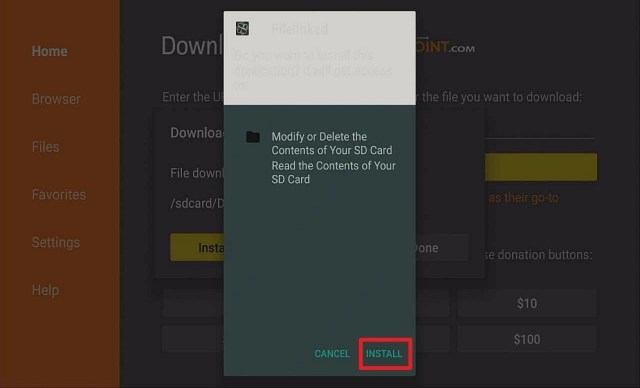
3. Click Install.

Step 13 Install Filelinked on a Firestick


4. Once the app is installed, click Open.

Step 14 Install Filelinked on a Firestick


5. You are can now use the Filelinked app on your Firestick.

Step 15 Install Filelinked on a Firestick


YOUR INTERNET ACTIVITY IS BEING WATCHED

ReviewVPN cannot attest to the legality, security and privacy of the applications discussed on this site. It is highly recommended that you use a VPN service while streaming or using Kodi.

Currently, your IP 216.73.216.102 is visible to everyone and your Browser is being tracked by Advertisers & ISP Provider.

Save 65% Now

Limited Time Offer

Here are the main reasons why you must use a VPN:

  • Your activities are hidden from your ISP, the government, and from the apps you are using.
  • You can access additional movies and TV streams.
  • ISP attempts to throttle are thrwarted thus reducing buffering issues.
  • Geographically restricted content like Netflix and Hulu can be unblocked.

A VPN works be replacing your ISP-assigned IP address and creating an encrypted tunnel. We recommend the no log service offered by IPVanish. It works well on a Firestick and offers the fastest possible speeds.

Special Limited Time Offer - Get IPVanish


Legal Disclaimer: ReviewVPN.com does not encourage or endorse any illegal activity involved in the usage of services and applications referenced on this site. We do not verify the licensing agreements of services. The end-user is wholly responsible for ensuring that any media accessed through these services does not violate copyright and/or licensing laws. ReviewVPN does not promote, link to, or receive compensation from any Apps and IPTV services.


Install Surfshark on Firestick

Best Surfshark Deal


Aptoide TV

Aptoide TV logo

Aptoide raised the bar as one of the best third-party app stores in the world. This is the reason why we listed it as one of the best sideloading tools for firesticks. This is very much compatible with Firestick.

To know more, read How to Install Aptoide TV on Firestick.


Pros

  • 100% free
  • Comes with rare apps

Cons

  • Downloading files takes too long sometimes
  • Be aware of malware


How to Install Aptoide on Firestick

1. Launch the Downloader app and type https://www.aptoide.com/en/home and click Go.

Step 12 Install Aptoide on Firestick


2. Click on INSTALL NOW!

Step 13 Install Aptoide on Firestick


3. Click on Install and you should be all set. Remember to delete the APK file after installation to save space.

Step 14 Install Aptoide on Firestick


4. Select OPEN

Step 15 Install Aptoide on Firestick


App Tuner

This app is the last but definitely not the least in our list of the best sideloading tools for firesticks. It allows you to install an app on your device. But you will need a pc to do it so.


Pros

  • Lets you manage many devices at once
  • Very easy to use


Cons

  • Not 100% free


Stream Safely with a VPN

https://get.surfshark.net/aff_c?offer_id=865&aff_id=12312

Downloading from third-party sources could be dangerous. This is why you need to ensure your safety. To make yourself anonymous, you need to use a VPN.

We suggest using Surfshark. It is the best VPN for firestick. Surfshark is a tested and proven VPN that changes your IP address so that accessing links, and geo-restricted content will be smooth. Your Internet Service Provider or ISP won’t notice your activities.

Here are some of the best Surfshark benefits that you can have when you subscribe:

  • Zero logs policy.
  • Protects you from malware, hackers, and ISP.
  • Unblocks geo-restriction for content outside your region.
  • Your data will be kept encrypted.
  • Makes your internet speed faster
  • Best VPN for torrenting
  • Prevents Firestick Buffering and Kodi Buffering


Grab your subscription now!

Best Surfshark Deal


How to Install Surfshark VPN on Firestick

If your Firestick still has the older interface, read this article to learn how to update it: Update Firestick Interface.

You can download Surfshark directly from the Amazon App store. It will be easy for you to find Surfshark with your Firestick’s Find feature. Refer to our screenshots below.

1. Go to the Home screen of your Firestick.

step 1 Install Surfshark VPN on Firestick


2. Navigate towards the Find tab. Press the Search button from the resulting dropdown.

step 2 Install Surfshark VPN on Firestick


3. Type in the keyword of SurfShark and select from the suggestions that will appear.

step 3 Install Surfshark VPN on Firestick


4. Click the official SurfShark icon from your search results.

step 4 Install Surfshark VPN on Firestick


5. Press the Download (You own it) button.

step 5 Install Surfshark VPN on Firestick


6. The SurfShark VPN installer will download on your device.

step 6 Install Surfshark VPN on Firestick


7. SurfShark VPN’s app will automatically install itself on your Fire TV stick.

step 7 Install Surfshark VPN on Firestick


8. Press the Open button after completing SurfShark VPN’s installation process.

step 8 Install Surfshark VPN on Firestick


9. Please wait for the SurfShark VPN to load its user interface.

step 9 Install Surfshark VPN on Firestick


10. You can now log in with your SurfShark VPN account credentials.

step 10 Install Surfshark VPN on Firestick

Learn more about Surfshark and Grab the Best Surfshark Deal Now!


Other VPNs to Consider

NordVPN (Best for Streaming)

Best Features

  • 5000+ Server in 50+ Countries 
  • Military-Grade Encryption
  • Fast Connection Speed
  • Suitable to a lot of devices
  • No-Log Policy

Prices
  • Complete $5.89 per month (64% Discount)
  • Plus $4.59 per month (56% Discount)
  • Standard $3.69 per month (55% Discount)

Best Features

  • 750+ High-speed VPN Servers in 43 Locations
  • Military-Grade Encryption
  • Fastest HD Streaming and Gaming
  • 30-Day Money-Back Guarantee
  • Unlimited Data & Devices
  • No-Log Policy

Prices
  • 3 Years $1.99 per month (82% Discount)
  • 1 Years $3.29 per month (70% Discount)
  • 1 Month $10.99 per month

IPVanish VPN (Most Secure)

Best Features

  • 1200+ Servers in 60+ Countries around the world
  • Unlimited Connections
  • No-Log Policy
  • Top Notch Military-Grade VPN Protocols and Encryptions
  • 100% Safe and Secured
  • Most Trusted VPN
  • Best VPN for Firestick
  • 30-Day Money-Back Guarantee

Prices
  • Yearly $3.99 per month (63% Discount) – 30 days risk free + Ransomware & Malware Protection
  • Quarterly $5.32 per month (51% Discount)
  • Monthly $10.99 per month


For more VPN discounts, go to ReviewVPN Deals and purchase the best VPN for you.


Conclusion

The best tools for us is the Downloader app and the Filelinked. These two are our tested and proven tools when sideloading apps to our firestick device. So we assure you that following the guidelines above will give you enough satisfaction to have brand new apps that are not available in the Amazon app store.

If Downloader and Filelinked are not fit for you, you can still consider using Aptoide TV and App Tuner.

We hope that this article was able to help you learn the best Sideloading Tools for Firestick.

Free Movies on Youtube

Overview

In this article, we will show you the best free movies on Youtube 2022.

Are you fond of watching free movies online? If yes, we have compiled a list of free movies found on Youtube. These movie uploads are complete from start to finish. You might even find something to include in your movie marathon. You can stream YouTube either with your Fire TV, Android, Tablet, Roku, and PC. Check out our guide about installing YouTube on your Firestick.


Watching with YouTube often requires a Google sign-in. However, watching free movies does not require an account. You can easily stream these movies for free. Free video streaming is the signature of YouTube. People can always watch a variety of video clips. You might be into documentaries, music, or films, YouTube has it all. You won’t run out of choices to select.

Suppose you are searching for free movies on YouTube, we have compiled a list for you. Here at ReviewVPN, we make sure that every app and media title we present works on Firestick. We also ensure that the movies are popular and available for viewing. So without further ado, we now present you with the best free movies on YouTube.


ANONYMOUSLY


Free Movies on Youtube 2022

ACTION

Blood Diamond (2006)

The movie is set during the Sierra Leone Conflict. Rebel factions terrorize the countryside. The insurgents kill many residents while enslaving some people to harvest diamonds. A local fisherman known as Solomon Vandy ends up in a labor camp after rebels separate him from his family.

He finds a blood diamond with significant monetary value. A Rhodesian mercenary who is in trouble with a Private Military Company searches for the diamond. Vandy on the other hand learns that the rebels took his son and trains him as their child soldier. Crossing paths, the fisherman and mercenary team up to save the young boy from the rebels.


Lord of War (2005)

The controversial film follows Yuri Orlov. A Ukrainian refugee visiting restaurant witnesses a Russian mobster fend off an attack by two assassins. He notices the mobster use an old cold-war era Kalashnikov for defending himself.

Orlov decides to become an arms dealer realizing that the world needs weapons. As his business grows by supplying most eastern bloc and African countries, a stubborn Interpol agent goes after him.


Tankers (2018)

Tankers is a film portraying the story of a WWII Russian tank crew. The tank unit defends a farm in the Rostov region from a German armored offensive. The movie details how a singular Russian KV-1 tank engages and destroys up to sixteen enemy tanks and two APCs.


The Contract (2006)

The movie involves an assassin getting into an accident after a successful hit. Government marshals swoop in to bring him to justice. Allied personnel of the assassin stages an ambush that frees him. A father and son duo stumbles upon the scene. One surviving marshal asks both of them to take the assassin out of the wilderness.


The Rock (1996)

The movie takes place at Alcatraz island or popularly known as “The Rock”. Tourists visiting the old correctional facility are taken hostage. The perpetrators are a rogue unit of US Marine Force Recon operatives. They want the government to pay the families of dead Force Recon personnel.

The unit is led by General Hummel who witnesses his men wrongfully die on the battlefield. The marines also request the government to pay the ransom money. If their demands are not met, they will release a deadly biochemical agent called VX into the populace.

FBI’s top chemical specialist and an ex-UK Special Air Service member join forces with a SEAL Team. Their objectives are to infiltrate the fortress island and disable the chemical launchers.


Install Surfshark on Firestick

Best Surfshark Deal


ADVENTURE

Into the Blue (2005)

The film follows a group of treasure hunters stumbling upon Zephyr. It is a sunken French ship with many valuable items. Not long into their discovery, they also find a plane crash with several pounds of cocaine. They soon find themselves getting into trouble with a local drug lord.


The Ash Lad: In the Hall of the Mountain King (2017)

Once upon a time, there is a princess named Kristin who should end up with a husband when she turns 18. If she does not succeed, a vile mountain troll known as the Mountain King will come for her. The princess leaves the castle premises to escape the grasp of an undesirable suitor. She runs from the situation not even aware of the mountain troll.

Ash Lad, the son of a farmer receives word about a reward to find the princess. His family in financial trouble, Ash Lad, and his brothers take on an unforgettable adventure to save the princess.


ANIMATED

Aladdin (1992/Disney Animated)

Jafar, the royal vizier of Agrabah, is searching for a magic lamp. Secretly dabbling with black magic, he wants the lamp badly for himself. He soon learns that Aladdin, a homeless youngster, is the key to uncovering the lamp. Jaffar manages to lure Aladdin with deception and chaos. Ending up in the cave of wonders, Aladdin finds the lamp with life-changing consequences.

COMEDY

Superhero Movie (2008)

Rick Riker, an orphan, and high school student get bit by a radioactive dragonfly. Developing superhuman abilities, he journeys to become a superhero. He soon meets many people who have similar capabilities.


Ripped (2017)

In the 1980s, the Central Intelligence Agency was researching time-bending methods. Two random stoners accidentally smoke time-traveling marijuana. Ending up in the year 2016, the pair struggle to adapt to modern-day living.


CRIME

Rough Draft (1998)

A freelance writer researching the transvestite nightlife encounters a serial killer on the loose. The two form a bizarre pact. The writer starts documenting the motives and activities of the serial killer. A government detective dealing with his demons tracks down the killer and his associate.


Catching the Black Widow (2017)

A tenacious New Zealander involves herself in the underground. Her objective is to find the person responsible for her brother’s murder.


DRAMA

Animal (2005)

Animal, a notorious gangster faces his past for reconciliation. He performs this personal quest to grant his violent son a better future.


Broken (2006)

The protagonist of the movie, Hope is a night shift waitress. She moves from Ohio, Cleveland to Los Angeles wanting to become a successful entertainer. The movie has alternating scenes from Ohio and L.A. It portrays how Hope fights off her drug addiction while dealing with her obsessive ex who wants to get back with her.


FANTASY

The Green Mile (1999)

The Green Mile is a film adaptation of the famous Stephen King novel. Set during the Great Depression, a prison guard witnesses many weird events. All the events ties with a new prison convict brought to death row.


The Polar Express (2004)

The Polar Express is a train for youngsters during the Christmas season. The mystical train brings young boys and girls to the North Pole to meet Santa Claus. Along the way, they find friendship, camaraderie, and learn about the Christmas spirit.


HORROR

Patient Seven (2016)

A psychiatrist enters Spring valley mental hospital with a brief intention: To interview six mental patients for his new book in Psychology. As the interviews begin, his unorthodox methods force his peers to question if he belongs to the facility.


Planet Terror (2007)

The movie begins with the release of an experimental bio-weapon. Many residents living near a military base slowly transform into blood-thirsty creatures. It is up to a few survivors to find means for an escape.


High Tension (2003)

Alexia travels with her friend Marie to spend a couple of days on their family farm. They arrive late and they are welcomed by Alexia’s father.

Late in the night, a sadistic and sick killer breaks into the farmhouse. The killer slaughters Alexia’s family, including their dog, and kidnaps Alexia. Marie hides from the criminal and tries to free Alexia from the killer.


Night of the Living Dead (1968)

One of the forerunners of modern-day zombie features, Night of the Living Dead is a George Romero masterpiece. The movie follows the survival attempts done by a group of Pennsylvanians as the undead invade their country. The group of survivors garrisons an abandoned farmhouse to hide from swarming zombies.


YOUR INTERNET ACTIVITY IS BEING WATCHED

ReviewVPN cannot attest to the legality, security and privacy of the applications discussed on this site. It is highly recommended that you use a VPN service while streaming or using Kodi.

Currently, your IP 216.73.216.102 is visible to everyone and your Browser is being tracked by Advertisers & ISP Provider.

Save 65% Now

Limited Time Offer

Here are the main reasons why you must use a VPN:

  • Your activities are hidden from your ISP, the government, and from the apps you are using.
  • You can access additional movies and TV streams.
  • ISP attempts to throttle are thrwarted thus reducing buffering issues.
  • Geographically restricted content like Netflix and Hulu can be unblocked.

A VPN works be replacing your ISP-assigned IP address and creating an encrypted tunnel. We recommend the no log service offered by IPVanish. It works well on a Firestick and offers the fastest possible speeds.

Special Limited Time Offer - Get IPVanish


ROMANCE

Finding Love in Mountain View (2020)

A career-driven architect learns that her cousin’s children are now under her care. The events unfold after her cousin’s death. She soon finds it hard to struggle between her career and her cousin’s final wish. Stepping into accidental romance, she juggles motherhood, career, and love.


The Best of Me (2014)

Based on the novel by Nicholas Sparks, the movie features Amanda and Dawson. Once high-school lovers. They both experience a bittersweet reunion when they return to their hometown. It is to attend the funeral of Dawson’s surrogate father. Reuniting after 20 years reignites the passion they’ve never forgotten. However, Amanda and Dawson discover that the forces responsible for their first separation still pose as threats.


THRILLER

The Big Trees (1952)

The Big Tree is a movie about a lumberman known as Jim Fallon. He travels to California to gain control over a Redwood forest. However, his tactics stir major unrest over the locals. The whole colony fights to preserve the giant sequoia trees from the timber baron.


The Experiment (2010)

Twenty-six men are chosen to participate in a prison setting. They are to assume the roles of guards and prisoners. The movie progress as the whole social experiment goes out of control.


SCI-FI

Stargate (1994)

Stargate follows a group of explorers going into a portal. The portal originates from a derelict device left by an ancient civilization. It now lies under the care of the US government. The expedition finds itself thrown into another world.


Europa Report (2013)

Europa is one of Jupiter’s moons. It is the fourth and largest moon known to contain life. An international assembly of astronauts departs for the moon. Their mission is the search for extraterrestrial life.


MARTIAL ARTS

Fist of Fury (1972)

Starring the main martial artist of the time, Bruce Lee, the movie follows the story of a young trainee. The protagonist Chen Zhen vows to avenge the death of his mother.


Shaolin Soccer (2001)

A young Shaolin practitioner encounters opponents in playing soccer. He decides to call upon his brothers and train with them. They compete with the opposing team putting their martial arts skills to the test.


MYSTERY


 Zodiac (2007)

A remarkable movie of our generation, Zodiac covers the story of a popular serial killer. The movie features the attempts by government officers trying to break the codes left by the Zodiac killer. Spanning for many decades, the identity of the Zodiac killer remains to be a mystery.


Watch Online Movies with a VPN

Watching online movies is a great hobby. YouTube is our best source for free movie viewing. However, our ISPs monitor the traffic of our connections. They will reduce your bandwidth rate when they dislike your online activities. ISPs perform throttling to reduce the loads on their servers. 

Once your internet speed decreases, buffering and stuttering can occur. Watching online movies can become hard. To prevent this from happening, we recommend a great VPN called Surfshark.

Surfshark is the best VPN for watching movies online. It increases your bandwidth rate while ensuring your safety.

Here are the benefits that Surfshark can offer you:

  • Stops your ISP from tracking your research.
  • Eliminates geo-blocks with the use of digital tunnels.
  • Hides your personal information and online activities.
  • Protects your device from cyber threats.
  • Secures your network credentials and internet connection.
  • Improves your internet speed.
  • Expect faster streams of online video content.
  • Prevents the onset of Firestick and Kodi buffering.


Grab your subscription now!

Click here to get the lowest price on Surfshark through our exclusive limited-time offer.


How to Install Surfshark VPN on Firestick

If your Firestick still has the older interface, read this article to learn how to update it: Update Firestick Interface.

You can download Surfshark directly from the Amazon App store. It will be easy for you to find Surfshark with your Firestick’s Find feature. Refer to our screenshots below.

1. Go to the Home screen of your Firestick.

step 1 Install Surfshark VPN on Firestick


2. Navigate towards the Find tab. Press the Search button from the resulting dropdown.

step 2 Install Surfshark VPN on Firestick


3. Type in the keyword of SurfShark and select from the suggestions that will appear.

step 3 Install Surfshark VPN on Firestick


4. Click the official SurfShark icon from your search results.

step 4 Install Surfshark VPN on Firestick


5. Press the Download (You own it) button.

step 5 Install Surfshark VPN on Firestick


6. The SurfShark VPN installer will download on your device.

step 6 Install Surfshark VPN on Firestick


7. SurfShark VPN’s app will automatically install itself on your Fire TV stick.

step 7 Install Surfshark VPN on Firestick


8. Press the Open button after completing SurfShark VPN’s installation process.

step 8 Install Surfshark VPN on Firestick


9. Please wait for the SurfShark VPN to load its user interface.

step 9 Install Surfshark VPN on Firestick


10. You can now log in with your SurfShark VPN account credentials.

step 10 Install Surfshark VPN on Firestick

Learn more about Surfshark and Grab the Best Surfshark Deal Now!


Other VPNs to Consider

NordVPN (Best for Streaming)

Best Features

  • 5000+ Server in 50+ Countries 
  • Military-Grade Encryption
  • Fast Connection Speed
  • Suitable to a lot of devices
  • No-Log Policy

Prices
  • Complete $5.89 per month (64% Discount)
  • Plus $4.59 per month (56% Discount)
  • Standard $3.69 per month (55% Discount)

Best Features

  • 750+ High-speed VPN Servers in 43 Locations
  • Military-Grade Encryption
  • Fastest HD Streaming and Gaming
  • 30-Day Money-Back Guarantee
  • Unlimited Data & Devices
  • No-Log Policy

Prices
  • 3 Years $1.99 per month (82% Discount)
  • 1 Years $3.29 per month (70% Discount)
  • 1 Month $10.99 per month

IPVanish VPN (Most Secure)

Best Features

  • 1200+ Servers in 60+ Countries around the world
  • Unlimited Connections
  • No-Log Policy
  • Top Notch Military-Grade VPN Protocols and Encryptions
  • 100% Safe and Secured
  • Most Trusted VPN
  • Best VPN for Firestick
  • 30-Day Money-Back Guarantee

Prices
  • Yearly $3.99 per month (63% Discount) – 30 days risk free + Ransomware & Malware Protection
  • Quarterly $5.32 per month (51% Discount)
  • Monthly $10.99 per month


For more VPN discounts, go to ReviewVPN Deals and purchase the best VPN for you.


Grab the Best Surfshark Deal Now!

FAQs

Do free movies on Youtube have ads?

No. There are no ads while streaming free movies on YouTube.


Do the movies require an account?

Yes. It is better to sign in to YouTube with your Google account. You can still watch free movies without any accounts.


Summary

YouTube has become the central website for many video uploads. It is valuable in distributing various media content to a worldwide audience. The best thing about YouTube is its delivery of many video categories. You can pick from our list of free movies found on YouTube.

We hope that this article has many movie titles for your free viewing.


What Is Your Favorite Streaming App? Cast Your Vote Below.

Best Ways to Jailbreak Firestick – 2023 Update

Jailbreak Firestick

In this article, we will discuss the best ways to jailbreak your Firestick.


The Amazon Firestick became very famous throughout the years. At first, its main purpose is to provide entertainment from paid applications like Hulu, Amazon Prime, and Netflix. Kodi on the other hand said its goodbye to the Amazon App Store last 2015. Since then, people are craving free experiences from Firestick.

Some applications are not available in the Amazon app store.  These are third-party apps. To install these apps, you need to jailbreak your firestick first.

You will then have to use an APK Downloader app to complete the process of installation. This is very easy since the Downloader app is an official application. You can directly install it on your device.

But before anything else, it is very important to look after your safety. Since you will be dealing with third-party applications, we suggest using a VPN. A premium VPN like Surfshark works well with Firestick and is the best VPN for streaming.


Importance of Jailbreaking Firestick

The term Jailbreak the Firestick sounds a tad bit techy don’t you think?

To set the record straight, Jailbreak just means hacking the Firestick. This is in no way damaging or detrimental to your Firestick.

What it does is open up the boundary that inhibits your Firestick from installing applications from third-party sources. Having said that, to enjoy unlimited and free content, you need to Jailbreak the Firestick.

This process will also give you access to the Best Firestick Apps.

If your Firestick still has the older interface, read this article to learn how to update it: Update Firestick Interface.


ANONYMOUSLY


Is It Legal To Jailbreak Firestick?

Well, despite how it sounds, it is legal to jailbreak Firestick.

The process of jailbreaking your Firestick is both Safe and Legal. But we can ask ourselves again after the process of jailbreaking. If you are going to stream copyrighted content then this could be illegal.

Here are the proofs why Jailbreaking Firestick is Legal:

  • It is not the same as hacking a mobile phone or jailbreaking an iOS device.
  • Jailbreaking does not mean root-accessing your Firestick device.
  • You have all the rights to do whatever to your Firestick device, so you Jailbreak it any time you want.
  • This process does not make changes to the system file of the operating system of your Firestick.

So to set it straight, jailbreaking Firestick is legal but the third-party apps that you will install may contain copyrighted content. You have to be cautious, and always keep in mind that you should never come across some boundaries about the legality of copyright ownership.

Best Ways to Jailbreak Firestick

Jailbreaking your Firestick is not that hard. You don’t have to be a tech expert to do it. Just follow the following steps and ways and you will enjoy streaming in no time.

  1. Install a VPN on Your Firestick – We suggest using Surfshark. Surfshark is the best VPN for streaming. It provides safety, encryption, and destroys geo-restriction so you can access content outside of your region. You can also use one Surfshark account on many devices at once.
  2. Enable ADB Debugging and Apps From Unknown Sources – This is the simple and easy step of Jailbreaking your Firestick. We will show you the detailed steps later.
  3. Install the Downloader App – This is the app that will help you install third-party applications to your device.
  4. Download the Aptoide TV app Using Downloader – Aptoide TV is an app that serves as an app store to install third-party applications.
  5. Install Kodi from Aptoide TV – You can easily install one of the most popular streaming apps today which is Kodi using Aptoide TV.
  6. Installing the Latest Version of Kodi using Downloader -The version of Kodi on Apoide is not the latest version, we will show you how you can install the latest version of Kodi using the Downloader app.
  7. Connect Your VPN to a US Server – Whatever app you choose to stream, most of its content is only available in the US. But with Surfshark you can select a city or country that you would like to connect with.
  8. Login to Kodi – You can now install Kodi by Jailbreaking Firestick and enjoy all of its content with the help of Surfshark.


How to Install Surfshark VPN on Firestick

If your Firestick still has the older interface, read this article to learn how to update it: Update Firestick Interface.

You can download Surfshark directly from the Amazon App store. It will be easy for you to find Surfshark with your Firestick’s Find feature. Refer to our screenshots below.

1. Go to the Home screen of your Firestick.

step 1 Install Surfshark VPN on Firestick


2. Navigate towards the Find tab. Press the Search button from the resulting dropdown.

step 2 Install Surfshark VPN on Firestick


3. Type in the keyword of SurfShark and select from the suggestions that will appear.

step 3 Install Surfshark VPN on Firestick


4. Click the official SurfShark icon from your search results.

step 4 Install Surfshark VPN on Firestick


5. Press the Download (You own it) button.

step 5 Install Surfshark VPN on Firestick


6. The SurfShark VPN installer will download on your device.

step 6 Install Surfshark VPN on Firestick


7. SurfShark VPN’s app will automatically install itself on your Fire TV stick.

step 7 Install Surfshark VPN on Firestick


8. Press the Open button after completing SurfShark VPN’s installation process.

step 8 Install Surfshark VPN on Firestick


9. Please wait for the SurfShark VPN to load its user interface.

step 9 Install Surfshark VPN on Firestick


10. You can now log in with your SurfShark VPN account credentials.

step 10 Install Surfshark VPN on Firestick

Learn more about Surfshark and Grab the Best Surfshark Deal Now!


Install Surfshark on Firestick

Best Surfshark Deal


Other VPNs to Consider

NordVPN (Best for Streaming)

Best Features

  • 5000+ Server in 50+ Countries 
  • Military-Grade Encryption
  • Fast Connection Speed
  • Suitable to a lot of devices
  • No-Log Policy

Prices
  • Complete $5.89 per month (64% Discount)
  • Plus $4.59 per month (56% Discount)
  • Standard $3.69 per month (55% Discount)

Best Features

  • 750+ High-speed VPN Servers in 43 Locations
  • Military-Grade Encryption
  • Fastest HD Streaming and Gaming
  • 30-Day Money-Back Guarantee
  • Unlimited Data & Devices
  • No-Log Policy

Prices
  • 3 Years $1.99 per month (82% Discount)
  • 1 Years $3.29 per month (70% Discount)
  • 1 Month $10.99 per month

IPVanish VPN (Most Secure)

Best Features

  • 1200+ Servers in 60+ Countries around the world
  • Unlimited Connections
  • No-Log Policy
  • Top Notch Military-Grade VPN Protocols and Encryptions
  • 100% Safe and Secured
  • Most Trusted VPN
  • Best VPN for Firestick
  • 30-Day Money-Back Guarantee

Prices
  • Yearly $3.99 per month (63% Discount) – 30 days risk free + Ransomware & Malware Protection
  • Quarterly $5.32 per month (51% Discount)
  • Monthly $10.99 per month


For more VPN discounts, go to ReviewVPN Deals and purchase the best VPN for you.

Click here to get the lowest price on Surfshark through our exclusive limited-time offer.


Enable ADB Debugging and Apps From Unknown Sources

1.  Click Home on your remote and scroll once to your Right. Click Setting (Gear Wheel Icon)

Jailbreak Firestick and Install Downloader App


2. Scroll down and to the right until you get to My Fire TV. Click on it.

Jailbreak Firestick and Install Downloader App


3. Select Developer options.

Jailbreak Firestick and Install Downloader App


4. Turn on ADB debugging and Apps from Unknown Sources.

Jailbreak Firestick and Install Downloader App


5. Click Turn On when the pop-up appears.

Jailbreak Firestick and Install Downloader App

Take Note: You can also consider disabling some firestick settings to hinder Amazon from monitoring your streaming activities. Follow this article, Firestick Setting that You Need to Disable, to know more.

Learn also about the Best Firestick Settings to Boost Your Streaming Experience.


Install the Downloader App on Firestick

1.  From the Home page, click FIND.

Jailbreak Firestick and Install Downloader App


2. Click Search.

Jailbreak Firestick and Install Downloader App


3. You can either say Downloader to your Alexa voice-enabled remote or start typing it. If you typed it, click on the suggestion when it appears.

Jailbreak Firestick and Install Downloader App


4. Click on the Downloader icon

Jailbreak Firestick and Install Downloader App


5. Click Download

Jailbreak Firestick and Install Downloader App


6. Click on Open.

Jailbreak Firestick and Install Downloader App


7. Click on Allow.

Jailbreak Firestick and Install Downloader App


Install the Aptoide TV Using Downloader

1. Launch the Downloader app.

jailbreak firestick (1)


2. Type in https://reviewvpn.com/apt and click Go.

jailbreak firestick (2)


3. Wait for the app to be downloaded.

jailbreak firestick (3)


4. Choose Install.

jailbreak firestick (4)


5. Wait for the app to be installed

jailbreak firestick (4)


6. Select Open.

jailbreak firestick (6)


7. Click OK.

jailbreak firestick (7)


8. Choose Allow.

jailbreak firestick (8)


9. You are now at the home page of the Aptoide TV app.

jailbreak firestick (9)


YOUR INTERNET ACTIVITY IS BEING WATCHED

ReviewVPN cannot attest to the legality, security and privacy of the applications discussed on this site. It is highly recommended that you use a VPN service while streaming or using Kodi.

Currently, your IP 216.73.216.102 is visible to everyone and your Browser is being tracked by Advertisers & ISP Provider.

Save 65% Now

Limited Time Offer

Here are the main reasons why you must use a VPN:

  • Your activities are hidden from your ISP, the government, and from the apps you are using.
  • You can access additional movies and TV streams.
  • ISP attempts to throttle are thrwarted thus reducing buffering issues.
  • Geographically restricted content like Netflix and Hulu can be unblocked.

A VPN works be replacing your ISP-assigned IP address and creating an encrypted tunnel. We recommend the no log service offered by IPVanish. It works well on a Firestick and offers the fastest possible speeds.

Special Limited Time Offer - Get IPVanish


Legal Disclaimer: ReviewVPN.com does not encourage or endorse any illegal activity involved in the usage of services and applications referenced on this site. We do not verify the licensing agreements of services. The end-user is wholly responsible for ensuring that any media accessed through these services does not violate copyright and/or licensing laws. ReviewVPN does not promote, link to, or receive compensation from any Apps and IPTV services.


Install Surfshark on Firestick

Best Surfshark Deal


Install Kodi Using Aptoide TV App

You can choose whichever app you like to install from Aptoide TV. For this example, we are going to show you how to install one of the most popular streaming apps today, Kodi.

Please take note that the version of Kodi available on the Aptoide TV is not updated. It is still in version 17.2 Krypton. Later we will show you how to install the latest version of Kodi using the Downloader app.


1. Launch the Aptoide app and click on the big magnifying glass icon on the upper left part of the screen,

jailbreak firestick (10)


2. Click on the search bar.

jailbreak firestick (11)


3. Type the name of the app that you would like to install. In this case, we will type Kodi. Click Next.

jailbreak firestick (12)


4. Click on the result for Kodi.

jailbreak firestick (13)


5. Select Install.

jailbreak firestick (14)


6. Wait for the app to be downloaded.

jailbreak firestick (15)


7. Choose to Install one more time.

jailbreak firestick (16)


8. Wait for the installation process to be complete.

jailbreak firestick (17)


9. Then click Open.

jailbreak firestick (18)


Install The Latest Version of Kodi on Your Firestick

If you want the latest version of Kodi, follow the steps below:


1. Launch the Downloader app

downloader in firestick


2. Type in https://kodi.tv/download and click Go.

type url in downloader


3. Scroll down and select which type of device you are using. In the case of Amazon Firestick, it falls under Android.

kodi download on firestick


4.Click on the 32-bit ARM version in the middle between Google Play and 64-bit ARM

kodi 32 bit arm download on firestick


5. Wait for the app to be downloaded.

kodi downloading firestick install


6. Click Install.

click install on kodi in firestick


7. Once the app is already installed, you can now choose Open to launch it and the latest version of Kodi will appear.

click open firestick - kodi install on firestick


Grab your subscription now!

Best Surfshark Deal


Connect Your VPN to a US Server

1.  Open IPVanish, input your username and password to log in.


2. Select the best server for the United States, and click Connect.

Learn more about IPVanish. Get an IPVANISH now.


Login to Kodi

jailbreak firestick (14)

You can definitely learn more about Kodi by reading these article:

Jailbreaking, Is Jailbreaking Firestick Legal?

Everything You Need to Know About Kodi

How to Install Kodi on Windows

Downgrade Kodi from Kodi 19 Matrix to Kodi 18.9 Leia


FAQs

What are the features of a jailbroken Firestick?

Once the jailbreak process is done, the Firestick will allow you to watch anything for free by using Kodi and the streaming apps we mentioned above.


Is it ok to jailbreak a Firestick 4k?

Yes, stream with your heart’s content.


Featured Channels on a Firestick that is jailbroken

The most popular channels once you install a Live TV app.


Do I have to pay for anything?

Yes, that would be your internet connection.


Is it legal to use a Jailbroken Firestick?

Totally. As long as you are not streaming copyrighted content.


Is the jailbreak permanent?

No, you can always undo it by reversing the process we have stated above.


Is it ok to purchase a Jailbroken for sale Firestick on eBay?

No, these have a huge markup. Besides, the jailbreaking process is easy and you can do it on your own.


What is the Downloader App?

The Downloader app is an app that serves also as a browser where you can search and install third-party applications for your Amazon Firestick.


Is Downloader App Legal?

Downloader is actually an official amazon app. This is a good indication that Downloader is 100% legal.


Is Downloader App Safe?

We tested the app using Virus Total and found no threat. This is to prove that the Downloader app is safe to use.


What devices can I Install Downloader?

You can actually install Downloader on Firestick, Android devices, Google Chromecast, and many more.


How to Jailbreak Firestick?

You need to enable unknown sources to jailbreak your firestick. This process was shown in the above procedure.


Can I Jailbreak Firestick Without an Amazon Account?

No. In the first place, you will need an Amazon account to set up your firestick You won’t be able to jailbreak a firestick that is not yet set up.


Conclusion

Jailbreaking your firestick entitles you to install third-party apps. As we said above, be cautious in installing apps with copyrighted content. With this you can also look for the best firestick apps, best Kodi builds, and best Kodi addons that work well with a Jailbroken Firestick.

Personally, jailbreaking a firestick is one of the first things to do in setting up a new firestick. This is also a part of the best firestick settings and the settings that you need to disable while setting up.

We hope that this article was able to help you Jailbreak your Firestick device easily.

How to Install KlowdTV on Firestick

Overview

In this article, we will show you how to install Klowdtv on your Amazon Firestick.


KlowdTV is another television channel streaming service. It is growing in popularity with the cord-cutting community. The app lets you access famous cable TV networks. Enjoy unique TV shows without expensive cable subscriptions.

The app of KlowdTV is launched by Herring Networks, Inc. It is a well-known company for its One America News Network. The network gained worldwide attention for delivering accurate news and updates.

The service of KlowdTV offers a variety of channels to view. You can stream multiple TV shows without limit. The media content presented with the app is consistent with One America News Network.

Using KlowdTV requires no monthly contract. Any person may always unsubscribe at any time. KlowdTV is available for free without additional costs. For people wanting more channels, they can subscribe to its Premium plan.

The KlowdTV software is not an official Firestick application. To be able to install it, you have to Jailbreak your Firestick and install the Downloader app.


ANONYMOUSLY

KlowdTV Downloader for Android Devices


Download Klowdy TV APK

Note: ReviewVPN.com does not host this APK file. It is hosted by Archive.org.


How to Install Klowdtv on Firestick

Here is a brief guide with the Klowdtv app’s installation on your Firestick device.

  1. Open your Firestick Settings Tab.
  2. Choose the My Fire TV icon.
  3. Go inside the Developer options.
  4. Turn on the Apps from Unknown Devices option.
  5. Enable ADB Debugging.
  6. Return to your Home Screen.
  7. Use the Search Bar.
  8. Input Downloader app.
  9. Tap on the suggested result.
  10. Click on the Get or Download button.
  11. The downloader app will install.
  12. Open the Downloader app.
  13. Select Allow.
  14. Press OK.
  15. Type in https://reviewvpn.com/klo
  16. Tap on the Go button. 
  17. The Klowdtv app’s APK file will download.
  18. Click on Install.
  19. The Klowdtv app will install on Firestick.
  20. Open your Klowdtv installed software.


Download Klowdtv on Firestick via the Downloader Method with Screenshots

1.  Click Home on your remote and scroll once to your Right. Click Setting (Gear Wheel Icon).

Step 1 jailbreak firestick


2. Scroll down and to the right until you get to My Fire TV. Click on it.

Step 2 jailbreak firestick


3. Select Developer options.

Step 3 jailbreak firestick


4. Turn on ADB debugging and Apps from Unknown Sources.

Step 4 jailbreak firestick


5. Click Turn On when the pop-up appears.

Step 5 jailbreak firestick


Then, after jailbreaking your Firestick, you’ll need to download the Downloader app to sideload KlowdTV. This app, which is easily available on the Amazon App Store, allows you to download APK files.


6. Click Home, click FIND.

Step 6 Install FitOn Pro App on Firestick


7. Click Search.

Step 7 Install FitOn Pro App on Firestick


8. You can either say Downloader to your Alexa voice-enabled remote or start typing it. If you typed it, click on the suggestion when it appears.

Step 8 Install FitOn Pro App on Firestick


9. Click on the Downloader Icon.

Step 9 Install FitOn Pro App on Firestick


10. Click Download.

Step 10 Install FitOn Pro App on Firestick


step 10 Install FitOn Pro App on Firestick


11. Click on Open.

Step 11 Install FitOn Pro App on Firestick


12. Click on Allow.

Step 12 Install FitOn Pro App on Firestick


13. Open the Downloader app on your Firestick. Go to its search bar.

Install Klowdtv on Firestick Step 13


14. Type in: https://reviewvpn.com/klo

Install Klowdtv on Firestick Step 14


15. Wait until APK completes its download process.

Install Klowdtv on Firestick Step 15


16. Click on Install.

Install Klowdtv on Firestick Step 16


17. Complete the app’s installation.

Install Klowdtv on Firestick Step 17


18. Tap on Open.

Install Klowdtv on Firestick Step 18


19. The Klowdtv app will now initiate.

Install Klowdtv on Firestick Step 19


YOUR INTERNET ACTIVITY IS BEING WATCHED

ReviewVPN cannot attest to the legality, security and privacy of the applications discussed on this site. It is highly recommended that you use a VPN service while streaming or using Kodi.

Currently, your IP 216.73.216.102 is visible to everyone and your Browser is being tracked by Advertisers & ISP Provider.

Save 65% Now

Limited Time Offer

Here are the main reasons why you must use a VPN:

  • Your activities are hidden from your ISP, the government, and from the apps you are using.
  • You can access additional movies and TV streams.
  • ISP attempts to throttle are thrwarted thus reducing buffering issues.
  • Geographically restricted content like Netflix and Hulu can be unblocked.

A VPN works be replacing your ISP-assigned IP address and creating an encrypted tunnel. We recommend the no log service offered by IPVanish. It works well on a Firestick and offers the fastest possible speeds.

Special Limited Time Offer - Get IPVanish


Legal Disclaimer: ReviewVPN.com does not encourage or endorse any illegal activity involved in the usage of services and applications referenced on this site. We do not verify the licensing agreements of services. The end-user is wholly responsible for ensuring that any media accessed through these services does not violate copyright and/or licensing laws. ReviewVPN does not promote, link to, or receive compensation from any Apps and IPTV services.


Install Surfshark on Firestick

Best Surfshark Deal


KlowdTV App Features

  • 100% Free and legal
  • Updated Media content
  • Watch OAN (One America News Network) on mobile 
  • Streams Movies and TV Series
  • Automated full screen for watching shows
  • Easy-to-use interface
  • High-quality Television Streams
  • Selecting a channel does not interrupt an ongoing stream
  • Provides access to live TV and educational content
  • Local networks and International News networks 
  • Access to exclusive cable TV Networks (11 networks)
  • Several News and TV Channels on Premium (29 channels)
  • Worldwide access to OAN Networks and News 


KlowdTV App Interface

  • Easy-to-Navigate Interface
  • Requires Credentials upon app initiation.
  • Focuses on One America News Network-related channels
  • Wide selection of Television shows and series


KlowdTV Worldwide Channel Plan

  • AWE Encore
  • AWE International
  • Euronews
  • Fido TV
  • Fite
  • France24
  • France24 Espanol
  • InfoWars
  • Law And Crime
  • OAN (One America News Network)
  • OAN Encore


KlowdTV Premium Plan

  • OAN
  • OAN Encore
  • NewsMax
  • France24
  • France24 Espanol
  • Law And Crime Euronews
  • Cheddar
  • InfoWars
  • CourtTV
  • Game Show Network
  • Buzzr
  • Sony Movie Channel
  • Cine Sony
  • Pop TV
  • Nautical Channel
  • QVC Live
  • QVC 2
  • Fido TV
  • Fite Fight Network
  • FNTSY Sports Network
  • Pursuit Channel
  • HorseTV
  • TVG
  • TVG2
  • Duck TV
  • NASA TV
  • CountryTV
  • ClubbingTV
  • Stingray Music


KlowdTV Compatible Devices

  • Android
  • IOS
  • Roku 
  • Apple TV 
  • Amazon Fire 
  • Android TV 
  • Samsung Smart TV
  • LG Smart TV’s
  • OperaTV


Pros and Cons

Pros

  • Legal and Free Plan
  • Worldwide and Premium Subscription
  • 29 Live TV Networks
  • One America News Network Streaming
  • Internationally available
  • Additional Unique TV Channels

Cons

  • Repeating query for user credentials
  • Application often hang-ups and freezes (recording, playback, pausing)
  • Some channels do not play


Watch International News with a VPN

Gaining access to online international news streams can affect your internet. Your ISP may impose limits on your connection. ISP throttling can happen that decreases your internet bandwidth. Worldwide news cannot be properly watched. Viewing disruptions may occur. It can also result in stuttering and buffering.

A slow connection may keep you from local and international news. It is why we recommend a powerful VPN like Surfshark. Many VPNs are available on the web. Surfshark is created for the smooth streaming of news and updates. It can also be used simultaneously with media file downloads. Surfshark is the best companion while streaming news.

Here are the benefits that Surfshark can offer you:

  • ISP throttling is prevented.
  • Digital tunnels neutralize geo-blocks.
  • Protects your personal information and credentials.
  • Guards your device from viruses, adware, and malware.
  • Conceals your network, online activities, and personal data.
  • Improves your internet connection.
  • Faster streaming of online news and updates.
  • Prevents the onset of Firestick and Kodi buffering.

Note: For more information about Surfshark, please read our Surfshark Review.


Grab your subscription now!


How to Install Surfshark VPN on Firestick

If your Firestick still has the older interface, read this article to learn how to update it: Update Firestick Interface.

Follow our screenshots below to install the SurfShark VPN app on your Fire TV stick.

1. Go to the Home screen of your Firestick.

step 1 Install Surfshark VPN on Firestick


2. Navigate towards the Find tab. Press the Search button from the resulting dropdown.

step 2 Install Surfshark VPN on Firestick


3. Type in the keyword of SurfShark and select from the suggestions that will appear.

step 3 Install Surfshark VPN on Firestick


4. Click the official SurfShark icon from your search results.

step 4 Install Surfshark VPN on Firestick


5. Press the Download (You own it) button.

step 5 Install Surfshark VPN on Firestick


6. The SurfShark VPN installer will download on your device.

step 6 Install Surfshark VPN on Firestick


7. SurfShark VPN’s app will automatically install itself on your Fire TV stick.

step 7 Install Surfshark VPN on Firestick


8. Press the Open button after completing SurfShark VPN’s installation process.

step 8 Install Surfshark VPN on Firestick


9. Please wait for the SurfShark VPN to load its user interface.

step 9 Install Surfshark VPN on Firestick


10. You can now log in with your SurfShark VPN account credentials.

step 10 Install Surfshark VPN on Firestick

Learn more about Surfshark and Grab the Best Surfshark Deal Now!


Install Surfshark on Firestick

Best Surfshark Deal


Other VPNs to Consider

NordVPN (Best for Streaming)

Best Features

  • 5000+ Server in 50+ Countries 
  • Military-Grade Encryption
  • Fast Connection Speed
  • Suitable to a lot of devices
  • No-Log Policy

Prices
  • Complete $5.89 per month (64% Discount)
  • Plus $4.59 per month (56% Discount)
  • Standard $3.69 per month (55% Discount)

Best Features

  • 750+ High-speed VPN Servers in 43 Locations
  • Military-Grade Encryption
  • Fastest HD Streaming and Gaming
  • 30-Day Money-Back Guarantee
  • Unlimited Data & Devices
  • No-Log Policy

Prices
  • 3 Years $1.99 per month (82% Discount)
  • 1 Years $3.29 per month (70% Discount)
  • 1 Month $10.99 per month

IPVanish VPN (Most Secure)

Best Features

  • 1200+ Servers in 60+ Countries around the world
  • Unlimited Connections
  • No-Log Policy
  • Top Notch Military-Grade VPN Protocols and Encryptions
  • 100% Safe and Secured
  • Most Trusted VPN
  • Best VPN for Firestick
  • 30-Day Money-Back Guarantee

Prices
  • Yearly $3.99 per month (63% Discount) – 30 days risk free + Ransomware & Malware Protection
  • Quarterly $5.32 per month (51% Discount)
  • Monthly $10.99 per month


For more VPN discounts, go to ReviewVPN Deals and purchase the best VPN for you.

Click here to get the lowest price on Surfshark through our exclusive limited-time offer.


The Best Firestick Browser

Surfing the internet with a Firestick may require an effective browser. We recommend Amazon’s Silk Browser for Firestick use. Follow our guide about the installation of the Amazon Silk Browser on Firestick. Also, learn more about its features and capabilities.


Alternative Apps

Several applications can deliver quality entertainment. They can stream videos and audio files. Suppose your KlowdTV application malfunctions, here are few alternatives for Firestick installation:

For more live tv apps that you can install on your firestick, see these two other articles: Best Free Live TV Apps for Firestick and Best IPTV Apps for Firestick and Android.


FAQs

History

KlowdTV was launched in 2015.


Are there any ads while using KlowdTV?

There have been no reports of advertisements.


Is the app legal?

Yes. It is owned by Herring Network Inc., popular for the One America News Network.


Conclusion

Several applications can stream live TV channels and news networks. KlowdTV differentiates itself by presenting content from OAN (One America News Network). The media content is trusted. It has many viewers in the Western hemisphere.

We hope that this helped with your installation of KlowdTV on your Amazon Firestick device.

How to Install Emby on Firestick

EMBY App Overview

In this article, we will discuss how to install the Emby app on your Firestick.


Emby is a great app for managing your media files. The software serves as a central hub for entertainment. It collects all of your pictures, videos, songs, etc. You can easily browse and stream your files using Emby.

The app is free to install on your firestick, although some features are not available immediately. It has in-app purchase functions like the playback button. You can also download files with this app thanks to its download function. There is a free Emby server given per installation. We surely recommend it if you are an organized individual. 

There are two ways to install this app on your firestick device. It is an official Amazon app, so you can install it directly. You can also sideload it, but you need to jailbreak your Firestick and install the Downloader app first.


ANONYMOUSLY

Is EMBY Safe and Virus-free?

We tested this app using VirusTotal and found no threats or any malicious files and malware.

Despite having good results, we still need to be vigilant in protecting our privacy while streaming.

A Virtual Private Network or VPN will definitely help us maintain our security and anonymity while using EMBY.

Here’s how you can Install The Best VPN For Firestick and All Devices.


Emby Downloader for Android Devices


Download Emby APK

Note: ReviewVPN.com does not host this APK file. It is hosted by Archive.org


How to Install Emby Directly on Firestick

In this portion, we will show you how to install Emby directly on Firestick.
  1. Open your Firestick Home screen
  2. Tap on the Find section.
  3. Click on the Search tab.
  4. Type in the keywords Emby
  5. Select the Emby icon.
  6. Click on the GET button.
  7. Download Emby into your Firestick. Do not turn off your device at this point.
  8. Install the Emby app.
  9. Open the Emby app to organize your media files.


Direct Download Method with Screenshots

1. Open your Firestick Home screen. (Insert tab every each picture/process).

Install Emby Directly on Firestick Step 1


2. Tap on the Find section.

Install Emby Directly on Firestick Step 2


3. Click on the Search tab.

Install Emby Directly on Firestick Step 3


4. Type in the keywords Emby

Install Emby Directly on Firestick Step 4


5. Select the Emby icon.

Install Emby Directly on Firestick Step 5


6. Click on the Get/Download button.

Install Emby Directly on Firestick Step 6


7. Download Emby into your Firestick. Do not turn off your device at this point.

Install Emby Directly on Firestick Step 7


8. Install the Emby app.

Install Emby Directly on Firestick Step 8


9. Open the Emby app to organize your media files.

Install Emby Directly on Firestick Step 9


YOUR INTERNET ACTIVITY IS BEING WATCHED

ReviewVPN cannot attest to the legality, security and privacy of the applications discussed on this site. It is highly recommended that you use a VPN service while streaming or using Kodi.

Currently, your IP 216.73.216.102 is visible to everyone and your Browser is being tracked by Advertisers & ISP Provider.

Save 65% Now

Limited Time Offer

Here are the main reasons why you must use a VPN:

  • Your activities are hidden from your ISP, the government, and from the apps you are using.
  • You can access additional movies and TV streams.
  • ISP attempts to throttle are thrwarted thus reducing buffering issues.
  • Geographically restricted content like Netflix and Hulu can be unblocked.

A VPN works be replacing your ISP-assigned IP address and creating an encrypted tunnel. We recommend the no log service offered by IPVanish. It works well on a Firestick and offers the fastest possible speeds.

Special Limited Time Offer - Get IPVanish


Legal Disclaimer: ReviewVPN.com does not encourage or endorse any illegal activity involved in the usage of services and applications referenced on this site. We do not verify the licensing agreements of services. The end-user is wholly responsible for ensuring that any media accessed through these services does not violate copyright and/or licensing laws. ReviewVPN does not promote, link to, or receive compensation from any Apps and IPTV services.


Install Surfshark on Firestick

Best Surfshark Deal


How to Install Emby on Firestick Using Downloader App

You can also install Emby using Downloader. Follow this simple guide below. 

  1. Open your Firestick Settings Tab.
  2. Choose the My Fire TV icon.
  3. Go inside the Developer options.
  4. Turn on the Apps from Unknown Devices option.
  5. Enable ADB Debugging.
  6. Return to your Home Screen.
  7. Use the Search Bar.
  8. Input Downloader app.
  9. Tap on the suggested result.
  10. Click on the Get or Download button.
  11. Downloader app will install.
  12. Open the Downloader app.
  13. Select Allow.
  14. Press OK.
  15. Type in https://reviewvpn.com/emb
  16. Tap on the Go button. 
  17. The Emby app’s APK file will download.
  18. Click on Install.
  19. The Emby app will install on Firestick.
  20. Open your Emby app to properly manage your media collection.


Download Emby on Firestick via the Downloader Method with Screenshots

1.  Click Home on your remote and scroll once to your Right. Click Setting (Gear Wheel Icon).

Step 1 jailbreak firestick


2. Scroll down and to the right until you get to My Fire TV. Click on it.

Step 2 jailbreak firestick


3. Select Developer options.

Step 3 jailbreak firestick


4. Turn on ADB debugging and Apps from Unknown Sources.

Step 4 jailbreak firestick


5. Click Turn On when the pop-up appears.

Step 5 jailbreak firestick


Then, after jailbreaking your Firestick, you’ll need to download the Downloader app to sideload SPlayer. This app, which is easily available on the Amazon App Store, allows you to download APK files.


6. Click Home, click FIND.

Step 6 Install FitOn Pro App on Firestick


7. Click Search.

Step 7 Install FitOn Pro App on Firestick


8. You can either say Downloader to your Alexa voice-enabled remote or start typing it. If you typed it, click on the suggestion when it appears.

Step 8 Install FitOn Pro App on Firestick


9. Click on the Downloader Icon.

Step 9 Install FitOn Pro App on Firestick


10. Click Download.

Step 10 Install FitOn Pro App on Firestick


step 10 Install FitOn Pro App on Firestick


11. Click on Open.

Step 11 Install FitOn Pro App on Firestick


12. Click on Allow.

Step 12 Install FitOn Pro App on Firestick


13. Open the Downloader app on your Firestick. Go to its search bar.

Install Emby on Firestick Using Downloader App Step 13


14. Type in: https://reviewvpn.com/emb

Install Emby on Firestick Using Downloader App Step 14


15. Wait until APK completes its download process.

Install Emby on Firestick Using Downloader App Step 15


16. Click on Install.

Install Emby on Firestick Using Downloader App Step 16


17. Complete the app’s installation.

Install Emby on Firestick Using Downloader App Step 17


18. Tap on Open.

Install Emby on Firestick Using Downloader App Step 18


19. Choose any media content category from Emby’s interface.

Install Emby on Firestick Using Downloader App Step 19


Emby App Features

  • Automatically converts all media formats quickly to play on any device.
  • Organizes your user media files into an elegant display with the artwork. 
  • Displays all your media with rich metadata and related content.
  • Easily share favorite media content with friends and family.
  • Rich parental control and management features 
  • Allow users to easily control access for the entire family.
  • Fast Channel Changing
  • Access various TV Channels.
  • Watch Live TV and manage user DVR (supported TV Tuner)
  • Stream your cloud-synced media (with installed cloud sync providers)
  • Find any media content with ease.
  • View movies and classical films.
  • Listen to music and audio tracks.
  • Playback Functionality (available with in-app purchase and Premium subscription)
  • Provides a free Emby server.
  • Capable of Recording online media content.


Emby App Interface

  • Comprehensive User Menu
  • Organized Dropdown tabs
  • Display customization
  • Playback Function
  • Change Language and Subtitles
  • Highly-detailed Interface
  • Media Files can be displayed with artworks
  • Attractive and creative layout
  • Default Night Theme
  • Presents Live TV Schedules
  • Emby server selection
  • User can mark favorite films and media


Emby App Content

  • User suggestions
  • Media Content Detail
  • Brief Description about Actors and Actresses
  • Guide to viewing Live TV channels
  • Selection of Live TV show schedules
  • Genres of Movies
  • Management of Downloaded Content
  • Audio Tracks
  • Album Collections
  • Popular Music Artists and Bands
  • Shows history of artist or celebrity
  • Upcoming movies and TV series


Pros and Cons

Pros

  • Provides Free Server
  • Organizes media files
  • Easy search option
  • Creative design and layout
  • Comprehensive User Interface
  • Downloading ability
  • Playback Function
  • View movies of different genres
  • Watch Live Television Channels
  • Detailed Description of Media content
  • Presents history and description (actors, actresses, celebrities, and musicians)
  • Provides a guide about watching Live TV channels and shows
  • Quick channel navigation

Cons

  • Do not let users exit or cancel media file downloads.
  • Malfunctioning repeat option for audio tracks and music albums.


Organize Media Files with a VPN

Internet Service Providers (ISP) record your internet traffic. Unwanted user activities cause ISP throttling.  ISP throttling affects your internet bandwidth. Because of this, your download and upload speed decrease. You will experience stuttering or buffering while streaming.

It is why we recommend using a premium VPN like Surfshark. There are a lot of VPNs out there but Surfshark is one of the best. It provides safety while streaming. This VPN can also work perfectly with media file downloading. Surfshark is the best companion while using a streaming application.

Here are the benefits that Surfshark can offer you:

  • ISP activity tracking is eliminated.
  • Encrypted tunnels eliminate geo-blocks.
  • Conceals your personal information and credentials.
  • Guards your device from viruses, adware, and malware.
  • Hides your network, online activities, and personal data.
  • Augments your internet connection.
  • Faster streaming of online media files.
  • Prevents the onset of Firestick and Kodi buffering.

Note: For more information about Surfshark, please read our Surfshark Review.


Grab your subscription now!


How to Install Surfshark VPN on Firestick

If your Firestick still has the older interface, read this article to learn how to update it: Update Firestick Interface.

Follow our screenshots below to install the SurfShark VPN app on your Fire TV stick.

1. Go to the Home screen of your Firestick.

step 1 Install Surfshark VPN on Firestick


2. Navigate towards the Find tab. Press the Search button from the resulting dropdown.

step 2 Install Surfshark VPN on Firestick


3. Type in the keyword of SurfShark and select from the suggestions that will appear.

step 3 Install Surfshark VPN on Firestick


4. Click the official SurfShark icon from your search results.

step 4 Install Surfshark VPN on Firestick


5. Press the Download (You own it) button.

step 5 Install Surfshark VPN on Firestick


6. The SurfShark VPN installer will download on your device.

step 6 Install Surfshark VPN on Firestick


7. SurfShark VPN’s app will automatically install itself on your Fire TV stick.

step 7 Install Surfshark VPN on Firestick


8. Press the Open button after completing SurfShark VPN’s installation process.

step 8 Install Surfshark VPN on Firestick


9. Please wait for the SurfShark VPN to load its user interface.

step 9 Install Surfshark VPN on Firestick


10. You can now log in with your SurfShark VPN account credentials.

step 10 Install Surfshark VPN on Firestick

Learn more about Surfshark and Grab the Best Surfshark Deal Now!


Install Surfshark on Firestick

Best Surfshark Deal


Other VPNs to Consider

NordVPN (Best for Streaming)

Best Features

  • 5000+ Server in 50+ Countries 
  • Military-Grade Encryption
  • Fast Connection Speed
  • Suitable to a lot of devices
  • No-Log Policy

Prices
  • Complete $5.89 per month (64% Discount)
  • Plus $4.59 per month (56% Discount)
  • Standard $3.69 per month (55% Discount)

Best Features

  • 750+ High-speed VPN Servers in 43 Locations
  • Military-Grade Encryption
  • Fastest HD Streaming and Gaming
  • 30-Day Money-Back Guarantee
  • Unlimited Data & Devices
  • No-Log Policy

Prices
  • 3 Years $1.99 per month (82% Discount)
  • 1 Years $3.29 per month (70% Discount)
  • 1 Month $10.99 per month

IPVanish VPN (Most Secure)

Best Features

  • 1200+ Servers in 60+ Countries around the world
  • Unlimited Connections
  • No-Log Policy
  • Top Notch Military-Grade VPN Protocols and Encryptions
  • 100% Safe and Secured
  • Most Trusted VPN
  • Best VPN for Firestick
  • 30-Day Money-Back Guarantee

Prices
  • Yearly $3.99 per month (63% Discount) – 30 days risk free + Ransomware & Malware Protection
  • Quarterly $5.32 per month (51% Discount)
  • Monthly $10.99 per month


For more VPN discounts, go to ReviewVPN Deals and purchase the best VPN for you.

Click here to get the lowest price on Surfshark through our exclusive limited-time offer.


Alternative Apps for Emby

If Emby is not the right fit for you and your files, there are still other apps that you can check out. We list down some of the best alternatives for Emby:


FAQs

Is the Emby app for free?

Yes. The Emby app is free for download. You can also download an apk file and jailbreak your Firestick for a third-party installation procedure.


Are there any special requirements for Emby?

Yes. You’ll need to accomplish an in-app purchase or subscribe to its premium account. You’ll gain a download and playback function for your media files.


Are there any ads while using Emby?

No. There are no ads reported while using Emby. The app only malfunctions at some features such as downloading cancellations.


Conclusion

Emby is an excellent app for organizing your device contents. It functions as a central hub for your pictures, videos, and music albums. We recommend Emby for the proper management of your media collections. 

We hope that this article has helped with your installation of Emby on your Firestick.

How to Install Rakuten Viki App on Firestick

Overview

In this article, we will guide you on how to install the Rakuten Viki App on Firestick. 

Are you a big fan of Asian TV series and shows? You can watch every K-drama, Chinese movie, and Japanese film with Subtitles on the Rakuten Viki App!


It is an app that allows you to stream your favorite Asian dramas and TV shows with the option of a free subscription or premium account. Get an awesome HD viewing experience anytime and anywhere just by using the app. 

Rakuten Viki has a wide range of TV show catalogs that is for everyone. It is Asian entertainment, both applicable for home viewing and on the go. As we discuss further, we will know more about Rakuten Viki and its benefits to its potential subscribers. 


ANONYMOUSLY


How to Install Rakuten Viki App on Firestick

Rakuten Viki is available on your local Amazon App Store and Google Play Store. With Firestick, you can directly download it and enjoy the streaming service. There is no need to use third-party apps or download the data. 

Here is the step by step procedure you can follow:

  1. Go to the home screen of your Firestick device
  2. Hover around and select the Find button on the menu bar
  3. Scroll down and select the Search button
  4. Type in the search bar Rakuten Viki App
  5. Click Rakuten Viki App on its search results and select the app icon
  6. Choose Get and start the download
  7. Your download speed depends on how fast your internet connection is
  8. Once your download and installation are complete, click Open
  9. You can now stream and enjoy the Rakuten Viki App whenever you want to.


Install Surfshark on Firestick

Best Surfshark Deal


Legal Disclaimer: ReviewVPN.com does not encourage or endorse any illegal activity involved in the usage of services and applications referenced on this site. We do not verify the licensing agreements of services. The end-user is wholly responsible for ensuring that any media accessed through these services does not violate copyright and/or licensing laws. ReviewVPN does not promote, link to, or receive compensation from any Apps and IPTV services.


YOUR INTERNET ACTIVITY IS BEING WATCHED

ReviewVPN cannot attest to the legality, security and privacy of the applications discussed on this site. It is highly recommended that you use a VPN service while streaming or using Kodi.

Currently, your IP 216.73.216.102 is visible to everyone and your Browser is being tracked by Advertisers & ISP Provider.

Save 65% Now

Limited Time Offer

Here are the main reasons why you must use a VPN:

  • Your activities are hidden from your ISP, the government, and from the apps you are using.
  • You can access additional movies and TV streams.
  • ISP attempts to throttle are thrwarted thus reducing buffering issues.
  • Geographically restricted content like Netflix and Hulu can be unblocked.

A VPN works be replacing your ISP-assigned IP address and creating an encrypted tunnel. We recommend the no log service offered by IPVanish. It works well on a Firestick and offers the fastest possible speeds.

Special Limited Time Offer - Get IPVanish


Step by Step Installation Guide of Rakuten Viki App with Screenshots

1. Go to the Home screen of your Firestick device.

Install Rakuten Viki App on Firestick Step 1

2. Hover around and select the Find button on the menu bar.

Install Rakuten Viki App on Firestick Step 2


3. Scroll down and select the Search button.

Install Rakuten Viki App on Firestick Step 3


4. Type in the search bar Rakuten Viki App.

Install Rakuten Viki App on Firestick Step 4


5. Click Rakuten Viki App on its search results and select the app icon.

Install Rakuten Viki App on Firestick Step 5


6. Choose Get and start the download.

Install Rakuten Viki App on Firestick Step 6


7. Your Download speed depends on how fast your internet connection is.

Install Rakuten Viki App on Firestick Step 7


8. Once your download and installation are complete, click Open or launch it on your Apps and Games.

Install Rakuten Viki App on Firestick Step 8


9.You can now stream and enjoy the Rakuten Viki App whenever you want to. You can create an account by linking your Facebook or directly signing up.

Install Rakuten Viki App on Firestick Step 9


App Features

Stream your favorite Asian Dramas, Movies, and TV Shows: 

  • Korean Dramas
  • Mainland Chinese Dramas
  • Taiwanese Dramas
  • Japanese Dramas
  • Thailand Dramas
  • Korean Variety Shows
  • K-Pop


Subtitles

Get access to different subtitles ranging from 150+ languages on movies and shows available on the app.


Favorites

You can create a watch list that you can choose to watch at a later time. All you have to do is save it as your favorites.


Ratings

Participate in online discussions by commenting on posts about an Asian movie or TV Show


Celebrity 

Allows you to have instant updates on your favorite Asian celebrities and the things they are up to


Legal Streaming

All of the contents available on the app are licensed and legal. 


Pros and Cons

Pros

  • It is free and easy to download
  • Hundreds of Asian shows and films 
  • Multiple languages and subtitles are available
  • Ability to save movies so you can watch them at a later time
  • HD quality and excellent audio
  • It is 100% legal

Cons

  • Subtitles are sometimes off and can be distracting
  • Latency of pausing or saving movies
  • Ads-free are only for those who have premium accounts


Streaming Safely With a Use of VPN

It is better to be safe when you are jailbreaking your Firestick devices or sideloading apps. Insecure servers can cause harm not only to your streaming activity but also to your internet connection. These issues need measures to stream everything online safely and securely.

To stop this from happening, you will need a VPN. Virtual Private Network serves as the wall that provides you with everything you need to keep your identity hidden and make you trust your internet connection without any hazards.

There are different VPNs that you can use to protect yourself. Most of them are showcasing 100% free, but not everything is accurate. We strongly recommend the use of Surfshark. It is the best VPN when streaming and also has the best security with excellent speed. 

Here are some of the reasons why:

  • It secures protection on your ISP when you are streaming the app.
  • It provides safety measures from hackers that can track your identity.
  • Your data will be encrypted and be kept anonymous all the time
  • Keeps your data from harmful malware
  • It makes your internet speed faster


Grab your subscription now!

Click here to get the lowest price on Surfshark through our exclusive limited-time offer.


How to Install Surfshark VPN on Firestick

If your Firestick still has the older interface, read this article to learn how to update it: Update Firestick Interface.

1. Go to the Home screen of your Firestick.

step 1 Install Surfshark VPN on Firestick


2. Navigate towards the Find tab. Press the Search button from the resulting dropdown.

step 2 Install Surfshark VPN on Firestick


3. Type in the keyword of SurfShark and select from the suggestions that will appear.

step 3 Install Surfshark VPN on Firestick


4. Click the official SurfShark icon from your search results.

step 4 Install Surfshark VPN on Firestick


5. Press the Download (You own it) button.

step 5 Install Surfshark VPN on Firestick


6. The SurfShark VPN installer will download on your device.

step 6 Install Surfshark VPN on Firestick


7. SurfShark VPN’s app will automatically install itself on your Fire TV stick.

step 7 Install Surfshark VPN on Firestick


8. Press the Open button after completing SurfShark VPN’s installation process.

step 8 Install Surfshark VPN on Firestick


9. Please wait for the SurfShark VPN to load its user interface.

step 9 Install Surfshark VPN on Firestick


10. You can now log in with your SurfShark VPN account credentials.

step 10 Install Surfshark VPN on Firestick

Learn more about Surfshark and Grab the Best Surfshark Deal Now!


Install Surfshark on Firestick

Best Surfshark Deal


Other VPNs to Consider

NordVPN (Best for Streaming)

Best Features

  • 5000+ Server in 50+ Countries 
  • Military-Grade Encryption
  • Fast Connection Speed
  • Suitable to a lot of devices
  • No-Log Policy

Prices
  • Complete $5.89 per month (64% Discount)
  • Plus $4.59 per month (56% Discount)
  • Standard $3.69 per month (55% Discount)

Best Features

  • 750+ High-speed VPN Servers in 43 Locations
  • Military-Grade Encryption
  • Fastest HD Streaming and Gaming
  • 30-Day Money-Back Guarantee
  • Unlimited Data & Devices
  • No-Log Policy

Prices
  • 3 Years $1.99 per month (82% Discount)
  • 1 Years $3.29 per month (70% Discount)
  • 1 Month $10.99 per month

IPVanish VPN (Most Secure)

Best Features

  • 1200+ Servers in 60+ Countries around the world
  • Unlimited Connections
  • No-Log Policy
  • Top Notch Military-Grade VPN Protocols and Encryptions
  • 100% Safe and Secured
  • Most Trusted VPN
  • Best VPN for Firestick
  • 30-Day Money-Back Guarantee

Prices
  • Yearly $3.99 per month (63% Discount) – 30 days risk free + Ransomware & Malware Protection
  • Quarterly $5.32 per month (51% Discount)
  • Monthly $10.99 per month


For more VPN discounts, go to ReviewVPN Deals and purchase the best VPN for you.

Click here to get the lowest price on Surfshark through our exclusive limited-time offer.


Best Alternatives App

Here are some of the applications you can use as an alternative to Rakuten Viki:


FAQs

What is Rakuten Viki App?

It is a streaming app for Asian films and tv shows.


Is Rakuten Viki App for free?

Yes. You can have it for free download. There is a premium account you can also avail yourself to remove ads while streaming.


Is Rakuten Viki App legal?

All the content available on the app is legal and has a license.


What devices are compatible with the Rakuten Viki App?

It is compatible with popular streaming platforms such as iOS, Android, Firestick, Chromecast, and Apple TV.


Conclusion

Rakuten Viki App is worth recommending for people who have a high interest in Asian Dramas. If you want to explore as well, this is your go-to app. It offers hundreds of new and old contents for Asian Dramas and Movies on which you can choose your preference.

Although it has downtimes and subtitle issues, it is still efficient because it comes for free. You can also use it anytime for your watching experience. If you think Rakuten Viki is the right app for you, download it now.

We hope we provided you with the details you needed on installing Rakuten Viki App and how to use it.


What Is Your Favorite Streaming App? Cast Your Vote Below.

How to Reset Kodi by Default

Overview

This article is about how to Reset Kodi by default.

Kodi is one of the amazing software out there that allows you to stream on any streaming service for free. Since it is free, you can install any addons and build you want. Installing on Kodi has no limit, but when you install many builds and addons, your Kodi might experience some technical issues like freezing the screen and slowing down. 


Another issue on Kodi is when you install a build, it is hard to exit or close, even if you exit the entire Kodi. Deleting and reinstalling Kodi does not also remove the current build. That is why the possible way to remove it is resetting the Kodi to get back to its default. 

Kodi factory reset is also a good way to start fresh with your system and make your Kodi fast. It is a great way to keep your Kodi running and operating smoothly. This article will show you how to remove a Kodi build and restore it to its original state. 


ANONYMOUSLY


Factory Reset Do

When you reset your Kodi you will be able to:

  • Delete all third-party repository addons and skins on your Kodi.
  • It will reset your Kodi to its original state. 
  • Remove a Kodi Build to get back on its default system
  • Reset customs and advanced settings on the system. 


Why is it Important to Reset Kodi?

Kodi is an amazing software that’s why you need to maintain good performance after installing addon/Builds. It is because some addons and repositories are regularly changing or updating their system that makes your Kodi setup vulnerable to some technical issues like:

  • Kodi will get slower because all addons are regularly checked for new updates, and if you do not monitor it, your Kodi will have outdated content.
  • Kodi Freeze, the more Addon and build, the more content to watch, but your Kodi might face technical issues because of too much data and repository installed. 
  • Your Kodi will be vulnerable to malicious files, content, and even viruses. 
  • Updating Kodi will eliminate some dead or inactive addons and repositories. 


Install Surfshark on Firestick

Best Surfshark Deal


Legal Disclaimer: ReviewVPN.com does not encourage or endorse any illegal activity involved in the usage of services and applications referenced on this site. We do not verify the licensing agreements of services. The end-user is wholly responsible for ensuring that any media accessed through these services does not violate copyright and/or licensing laws. ReviewVPN does not promote, link to, or receive compensation from any Apps and IPTV services.


YOUR INTERNET ACTIVITY IS BEING WATCHED

ReviewVPN cannot attest to the legality, security and privacy of the applications discussed on this site. It is highly recommended that you use a VPN service while streaming or using Kodi.

Currently, your IP 216.73.216.102 is visible to everyone and your Browser is being tracked by Advertisers & ISP Provider.

Save 65% Now

Limited Time Offer

Here are the main reasons why you must use a VPN:

  • Your activities are hidden from your ISP, the government, and from the apps you are using.
  • You can access additional movies and TV streams.
  • ISP attempts to throttle are thrwarted thus reducing buffering issues.
  • Geographically restricted content like Netflix and Hulu can be unblocked.

A VPN works be replacing your ISP-assigned IP address and creating an encrypted tunnel. We recommend the no log service offered by IPVanish. It works well on a Firestick and offers the fastest possible speeds.

Special Limited Time Offer - Get IPVanish


Ways on How to Reset Kodi to Default

We will show you different ways on how to reset Kodi and turn it into its original state or default.


Reset Kodi to Default Without Removing a Kodi Build

This step-by-step guide will show you how to exit a Kodi Build to get back on its default system. It is one of the problems of Kodi Builds users because once they install a build they cannot exit or close that build again, to install or try another addon or build. 

In this tutorial, we are using the Diggz Xenon Matrix Kodi Build.

1. Launch your Kodi, and you will see the build you are currently using.

2. Now go to the Settings of the Build.

Reset Kodi to Default Without Removing a Kodi Build Step 2


3. Select Interface.

Reset Kodi to Default Without Removing a Kodi Build Step 3


4. Click Skin.

Reset Kodi to Default Without Removing a Kodi Build Step 4


 5. Change the skin to Estuary.

Reset Kodi to Default Without Removing a Kodi Build Step 5


6. When a box pops up, click OK.

Reset Kodi to Default Without Removing a Kodi Build Step 6


7. That’s it! You get back to the Kodi default system. However, you can still see that the Kodi still runs in the background.


Install Ares Wizard and Reset Kodi By Default

This is a step-by-step guide on how you can erase all data and fresh start Kodi by default using an Ares Wizard. 

Follow the steps below:

1. On your Firestick, open Kodi and go to Settings.

Install Ares Wizard and Reset Kodi By Default Step 1

2. Select on System.

Install Ares Wizard and Reset Kodi By Default Step 2


3. Click on the Add-ons menu and Turn ON Unknown Sources.

Install Ares Wizard and Reset Kodi By Default Step 3


4. Select Yes when the box appears.

Install Ares Wizard and Reset Kodi By Default Step 4


5. Go back one step and click on File Manager.

Install Ares Wizard and Reset Kodi By Default Step 5


6. Click Add Source.

Install Ares Wizard and Reset Kodi By Default Step 6


7. A box will pop up, so click on the ‘None’ option.

Install Ares Wizard and Reset Kodi By Default Step 7


8. Type in http://areswizard.co.uk/ and click OK.

Install Ares Wizard and Reset Kodi By Default Step 8


9. Name the URL Ares or any other name you want to. Then select OK.

Install Ares Wizard and Reset Kodi By Default Step 9


10.Go back and Select Addon.

Install Ares Wizard and Reset Kodi By Default Step 10


11. Click Install from zip file.

Install Ares Wizard and Reset Kodi By Default Step 11


12. Select Ares or any other name you put.

Install Ares Wizard and Reset Kodi By Default Step 12


13. Click script.areswizard-0.0.69.zip


14. Go back to the system and select Add-ons. Click Ares Wizard.

Install Ares Wizard and Reset Kodi By Default Step 14


15. On your wizard home screen, click More.

Install Ares Wizard and Reset Kodi By Default Step 15


16. Select Erase all Data/Fresh Start.

Install Ares Wizard and Reset Kodi By Default Step 16


17. Click Yes.

Install Ares Wizard and Reset Kodi By Default Step 17


18.Select Proceed.

Install Ares Wizard and Reset Kodi By Default Step 18


19. After that, Click Force Close Kodi.

Install Ares Wizard and Reset Kodi By Default Step 19


20.That’s it! You have successfully set your Kodi into Default. 

Install Ares Wizard and Reset Kodi By Default Step 20


Reset Kodi Through Clear Data on Firestick

Another simple way of resetting Kodi to its default system is to clear its data. Whereas clearing data will keep Kodi on your Firestick, it will remove all add-ons along with their settings, customizations, and even Builds. 

Follow the simple steps below:

1. On your Firestick home screen, Go to settings.

Reset Kodi Through Clear Data on Firestick Step 1


2. Select Application.

Reset Kodi Through Clear Data on Firestick Step 2


3. Click Manage Installed Application.

Reset Kodi Through Clear Data on Firestick Step 3


4. Scroll down and choose Kodi.

Reset Kodi Through Clear Data on Firestick Step 4


5. Click Clear Data.

Reset Kodi Through Clear Data on Firestick Step 5


6. Go back and Launch your Kodi. Then that’s it! You have now successfully reset your Kodi to Default. 

Reset Kodi Through Clear Data on Firestick Step 6


Why do I need a VPN?

Since Kodi is prone to malicious content and files from unknown servers, we highly recommend using a Virtual Private Network on your devices to ensure that you are protected from these. A VPN is a trusted tool and an online companion that will keep your files, identity, and web traffic from developers and unknown servers. 

One of the best VPNs that you can rely on is Surfshark. This VPN uses a high standard of security tools and encryption to keep your identity safe from others. It is also known as the most reliable and fastest VPN committed to giving you a high quality of services and lots of benefits you deserve. If you want to know more about this VPN, kindly read our Surfshark Review.

Here are some of the services and impressive features that this VPN offers:

  • This VPN uses a high standard of AES-256 encryption and uncrackable security to safeguard your data and activities. 
  • It destroys Geo-block and bypasses any censorship and restriction by letting you connect to over 3200+ servers in 65 countries.
  • Surfshark also prevents ISPs from interfering with your connection to avoid having lags and buffering. It also stops snooping on ISP and keeps you protected while being connected on a public network. 
  • Keep your identity anonymous by hiding your real IP address and identity to protect you from hackers. 
  • It gives you unlimited bandwidth.


Grab your subscription now!

Click here to get the lowest price on Surfshark through our exclusive limited-time offer.


How to Install Surfshark VPN on Firestick

If your Firestick still has the older interface, read this article to learn how to update it: Update Firestick Interface.

Follow our screenshots below to install the SurfShark VPN app on your Fire TV stick.

1. Go to the Home screen of your Firestick.

step 1 Install Surfshark VPN on Firestick


2. Navigate towards the Find tab. Press the Search button from the resulting dropdown.

step 2 Install Surfshark VPN on Firestick


3. Type in the keyword of SurfShark and select from the suggestions that will appear.

step 3 Install Surfshark VPN on Firestick


4. Click the official SurfShark icon from your search results.

step 4 Install Surfshark VPN on Firestick


5. Press the Download (You own it) button.

step 5 Install Surfshark VPN on Firestick


6. The SurfShark VPN installer will download on your device.

step 6 Install Surfshark VPN on Firestick


7. SurfShark VPN’s app will automatically install itself on your Fire TV stick.

step 7 Install Surfshark VPN on Firestick


8. Press the Open button after completing SurfShark VPN’s installation process.

step 8 Install Surfshark VPN on Firestick


9. Please wait for the SurfShark VPN to load its user interface.

step 9 Install Surfshark VPN on Firestick


10. You can now log in with your SurfShark VPN account credentials.

step 10 Install Surfshark VPN on Firestick

Learn more about Surfshark and Grab the Best Surfshark Deal Now!


Install Surfshark on Firestick

Best Surfshark Deal


Other VPNs to Consider

NordVPN (Best for Streaming)

Best Features

  • 5000+ Server in 50+ Countries 
  • Military-Grade Encryption
  • Fast Connection Speed
  • Suitable to a lot of devices
  • No-Log Policy

Prices
  • Complete $5.89 per month (64% Discount)
  • Plus $4.59 per month (56% Discount)
  • Standard $3.69 per month (55% Discount)

Best Features

  • 750+ High-speed VPN Servers in 43 Locations
  • Military-Grade Encryption
  • Fastest HD Streaming and Gaming
  • 30-Day Money-Back Guarantee
  • Unlimited Data & Devices
  • No-Log Policy

Prices
  • 3 Years $1.99 per month (82% Discount)
  • 1 Years $3.29 per month (70% Discount)
  • 1 Month $10.99 per month

IPVanish VPN (Most Secure)

Best Features

  • 1200+ Servers in 60+ Countries around the world
  • Unlimited Connections
  • No-Log Policy
  • Top Notch Military-Grade VPN Protocols and Encryptions
  • 100% Safe and Secured
  • Most Trusted VPN
  • Best VPN for Firestick
  • 30-Day Money-Back Guarantee

Prices
  • Yearly $3.99 per month (63% Discount) – 30 days risk free + Ransomware & Malware Protection
  • Quarterly $5.32 per month (51% Discount)
  • Monthly $10.99 per month


For more VPN discounts, go to ReviewVPN Deals and purchase the best VPN for you.

Click here to get the lowest price on Surfshark through our exclusive limited-time offer.


FAQs

Why do I need to reset Kodi?

Resetting Kodi will reduce the possibility of your Kodi being vulnerable to malicious files and resolve minor technical issues. 


Is it safe to reset Kodi?

Yes, resetting Kodi is safe.


Can I reset Kodi on Firestick?

Yes, you can reset Kodi on Firestick by following the step-by-step guide above. 


Conclusion

Kodi needs to maintain good performance to give you a better experience in streaming. That is why resetting Kodi is recommended to keep eliminating and resolving some minor issues. There are multiple ways on how to reset Kodi and all of these work well as we have tested it. We hope this article helps you reset your Kodi in default without even reinstalling it.

How to Install Crackle Kodi Addon

Overview

The article will help you on how to install Crackle Kodi Addon.

Crackle is one of the most popular streaming services online that offer you high-quality content to watch. It is very similar to popular streaming services like Netflix, Hulu, and Amazon Prime Video, but this Kodi add-on does not require you to register and pay a subscription fee.


It means crackle offers free content for Kodi users with an easy-to-use interface and lots of content to watch. The good thing about the Crackle Kodi addon is, that allows users to stream their large collection of movies and TV shows even without using a web browser.

It also gives you a high-quality streaming link to watch with less buffering. It is an amazing Kodi add-on that delivers users free services with plenty of HD quality content. You can get this add-on directly from the Kodi repository.


ANONYMOUSLY


How to Install the Crackle Kodi Addon

Here is a step-by-step guide on how you can install the Crackle on Kodi.

  1. Launch Kodi and click the Settings icon.
  2. Select Addons.
  3. Click Install from the repository.
  4. Scroll down and select Video addons.
  5. Select Crackle.
  6. Click Install.
  7. Tap the OK button.
  8. Wait for the Crackle Add-on installed message to appear.
  9. Click the Crackle once again. 
  10. Select Open to launch the addon.
  11.  That’s it! You can now watch any content that you want.


How to Install Crackle on Kodi with a Screenshot

Follow the steps below:

1. Launch Kodi and click the Settings icon.

Install Crackle on Kodi Step 1

2. Select Addons.

Install Crackle on Kodi Step 2


3. Click Install from repository.

Install Crackle on Kodi Step 3


4. Scroll down and select Video addons.

Install Crackle on Kodi Step 4


5. Select Crackle.

Install Crackle on Kodi Step 5


6. Click Install.

Install Crackle on Kodi Step 6


7. Tap the OK button and wait for the Crackle Add-on installed message to appear.

Install Crackle on Kodi Step 7


8. Click the crackle once again. 

Install Crackle on Kodi Step 8

9. Select Open to launch the addon.

Install Crackle on Kodi Step 9


10. That’s it! You can now watch any content that you want.

Install Crackle on Kodi Step 10


Install Surfshark on Firestick

Best Surfshark Deal


Legal Disclaimer: ReviewVPN.com does not encourage or endorse any illegal activity involved in the usage of services and applications referenced on this site. We do not verify the licensing agreements of services. The end-user is wholly responsible for ensuring that any media accessed through these services does not violate copyright and/or licensing laws. ReviewVPN does not promote, link to, or receive compensation from any Apps and IPTV services.


YOUR INTERNET ACTIVITY IS BEING WATCHED

ReviewVPN cannot attest to the legality, security and privacy of the applications discussed on this site. It is highly recommended that you use a VPN service while streaming or using Kodi.

Currently, your IP 216.73.216.102 is visible to everyone and your Browser is being tracked by Advertisers & ISP Provider.

Save 65% Now

Limited Time Offer

Here are the main reasons why you must use a VPN:

  • Your activities are hidden from your ISP, the government, and from the apps you are using.
  • You can access additional movies and TV streams.
  • ISP attempts to throttle are thrwarted thus reducing buffering issues.
  • Geographically restricted content like Netflix and Hulu can be unblocked.

A VPN works be replacing your ISP-assigned IP address and creating an encrypted tunnel. We recommend the no log service offered by IPVanish. It works well on a Firestick and offers the fastest possible speeds.

Special Limited Time Offer - Get IPVanish


Features of Crackle Kodi Addon

Interface

  • A simple and user-friendly interface.
  • Easy to navigate interface even without using mouse toggle.
  • No signup process


Contents

  • Free and unlimited content to watch for free.
  • Great lineup of latest movies and Tv shows.
  • Well-organized categories and subcategories.
  • One-click Playback and Forward button
  • Background playing
  • Meta Description of contents. 
  • Resume watching that allows you to continue where you stopped off
  • You can create bookmarks and Clear bookmarks.
  • Available subtitle 
  • HD and UHD quality of video
  • A regularly updated list of the latest and popular content.


Movie Categories

You can choose genres, including Action, Classics, Comedy, Crackle Original, Documentary, Drama, Family, Horror, Reality Show, Sci-Fi, and Thriller. 


TV Categories

  • Choose from Action
  • Comedy
  • Classics
  • Crackle Original
  • Drama
  • Documentary
  • Family
  • Reality Show


Pros and Cons

Pros

  • No signup process and subscription fee
  • Easy to navigate the interface without using a mouse toggle.
  • Free and Unlimited to watch contents
  • HD and UHD quality of videos.
  • A regularly updated list of contents

Cons

  • Some contents are not working.
  • You need to download each content first before you can watch them.


Use Kodi safely with Surfshark

Kodi is probably one of the amazing software designed to give you the best experience in streaming. You can try plenty of streaming services for free. However, in using Kodi, you must also ensure that you are safe from its servers, especially with third-party addons and builds.  

That is why we recommend using a Virtual Private Network on your device to keep you protected from any servers while using Kodi. A VPN is one of the best software to help you with securing your online privacy and identity as well.

One of the best VPNs that we can recommend is Surfshark. It is proven and tested that VPN is committed to giving its users the quality of service they deserve at a budget-friendly price. This VPN also uses high-standard encryption to automatically encrypt your identity and IP address to keep you anonymous online. To know more about this VPN, kindly read our Surfshark Review.

Features of Surfshark:

  • Bypass restrictions and geo-blocks to access lots of content.
  • This VPN service has 3,200 VPN servers in 65 worldwide locations. 
  • Military-grade AES-256 encryption follows FIPS (Federal Information Processing Standards) that oversees the handling of sensitive data.
  • It follows a strict No-Logs Policy
  • No Bandwidth limits – you can enjoy a full-speed VPN connection without any throttling.
  • One of the Fastest as its raging speed
  • It works on all devices and can secure an unlimited number of devices.
  • 24/7 customer support.


Grab your subscription now!

Click here to get the lowest price on Surfshark through our exclusive limited-time offer.


How to Install Surfshark VPN on Firestick

If your Firestick still has the older interface, read this article to learn how to update it: Update Firestick Interface.

You can download Surfshark directly from the Amazon App store. It will be easy for you to find Surfshark with your Firestick’s Find feature. Refer to our screenshots below.

1. Go to the Home screen of your Firestick.

step 1 Install Surfshark VPN on Firestick


2. Navigate towards the Find tab. Press the Search button from the resulting dropdown.

step 2 Install Surfshark VPN on Firestick


3. Type in the keyword of SurfShark and select from the suggestions that will appear.

step 3 Install Surfshark VPN on Firestick


4. Click the official SurfShark icon from your search results.

step 4 Install Surfshark VPN on Firestick


5. Press the Download (You own it) button.

step 5 Install Surfshark VPN on Firestick


6. The SurfShark VPN installer will download on your device.

step 6 Install Surfshark VPN on Firestick


7. SurfShark VPN’s app will automatically install itself on your Fire TV stick.

step 7 Install Surfshark VPN on Firestick


8. Press the Open button after completing SurfShark VPN’s installation process.

step 8 Install Surfshark VPN on Firestick


9. Please wait for the SurfShark VPN to load its user interface.

step 9 Install Surfshark VPN on Firestick


10. You can now log in with your SurfShark VPN account credentials.

step 10 Install Surfshark VPN on Firestick

Learn more about Surfshark and Grab the Best Surfshark Deal Now!


Install Surfshark on Firestick

Best Surfshark Deal


Other VPNs to Consider

NordVPN (Best for Streaming)

Best Features

  • 5000+ Server in 50+ Countries 
  • Military-Grade Encryption
  • Fast Connection Speed
  • Suitable to a lot of devices
  • No-Log Policy

Prices
  • Complete $5.89 per month (64% Discount)
  • Plus $4.59 per month (56% Discount)
  • Standard $3.69 per month (55% Discount)

Best Features

  • 750+ High-speed VPN Servers in 43 Locations
  • Military-Grade Encryption
  • Fastest HD Streaming and Gaming
  • 30-Day Money-Back Guarantee
  • Unlimited Data & Devices
  • No-Log Policy

Prices
  • 3 Years $1.99 per month (82% Discount)
  • 1 Years $3.29 per month (70% Discount)
  • 1 Month $10.99 per month

IPVanish VPN (Most Secure)

Best Features

  • 1200+ Servers in 60+ Countries around the world
  • Unlimited Connections
  • No-Log Policy
  • Top Notch Military-Grade VPN Protocols and Encryptions
  • 100% Safe and Secured
  • Most Trusted VPN
  • Best VPN for Firestick
  • 30-Day Money-Back Guarantee

Prices
  • Yearly $3.99 per month (63% Discount) – 30 days risk free + Ransomware & Malware Protection
  • Quarterly $5.32 per month (51% Discount)
  • Monthly $10.99 per month


For more VPN discounts, go to ReviewVPN Deals and purchase the best VPN for you.

Click here to get the lowest price on Surfshark through our exclusive limited-time offer.


Alternatives for Crackle Kodi Addon

We list down some of the Crackle Kodi Add-on. To know more about these Addons, kindly read their corresponding articles.


FAQs

Is the Crackle Kodi Add-on safe?

Yes, this Add-on is safe, but we suggest that you use Surfshark to ensure your safety.


Is the Crackle Kodi Addon legal?

Yes, it is not illegal to use and download this Add-on.


Is the Crackle Kodi Add-on free?

Yes, this Add-on is free, and you can watch it without any hidden fees.


Should I use VPN with Aliunde Kodi Addon?

Yes, having a VPN such as Surfshark is recommended before you install a 3rd party Kodi addon and repositories. This VPN will ensure that your device is protected as well as your privacy and anonymity.  


Conclusion

Crackle is an official Kodi Addon that offers you a great lineup of popular and latest content to watch for free. This add-on gives you high-quality streaming links. It is also feature-rich that will give you the best experience in streaming with less buffering. You can see content that is hard to find elsewhere. We hope this article gives you information about the Crackle Addon and helps you to install it on Kodi Add-on.

How to Create a Filelinked Store

Overview

In this article, I’ll be teaching you how to create a Filelinked store.

Filelinked is a popular file-sharing platform available on Android and Fire TV devices. Its most popular feature is that it allows users to easily sideload apps from Filelinked stores that are not available on the App Store onto their devices.


Even so, it also allows you to upload files, images, videos, and APK files that you can easily download from your other devices or even share with other people. This feature is also useful if you want to ensure that you are downloading a safe APK of the app that you want to install on your device by providing your download link.

And if you want to start your Filelinked store but don’t know where or how to begin, then this article is for you. We’ll walk you through the process of creating a Filelinked account and generating your Filelinked code.


ANONYMOUSLY


How To Create A Filelinked Store

We’ve prepared a step-by-step guide with screenshots on how to create a Filelinked store so you can easily follow on through:

1. Go to Filelinked official website which is https://www.filelinked.com/

2. Click on Create Code (upper right part of the screen) or Create Your Own Code (lower part of the screen).

How To Create A Filelinked Store Step 2


3. Then click on “Sign Up”.

How To Create A Filelinked Store Step 3


4. Fill out the needed information such as name, email address, and password. Once done, click on “Register”.

How To Create A Filelinked Store Step 4


5. Then click on “Create a new configuration”.

How To Create A Filelinked Store Step 5


6. Type in the name of your Filelinked store. You can also include a description of your Filelinked store if you want.

How To Create A Filelinked Store Step 6


7. Then you can choose if you want to activate custom messages, PIN lock, add a logo, and link your bookmarks to other code. After identifying the configurations that you want to activate, click on “Save”.

How To Create A Filelinked Store Step 7


How to Generate Your Filelinked Code

To get your Filelinked code, you must first upload a file to your account. To help you with it, you may follow the guide below:

1. Click on “Add Files”.

How to Generate Your Filelinked Code Step 1


2. Supply the necessary details needed regarding the file such as Name, Description, Download URL, Logo URL, and Tutorial URL. Then click “Save”. Make sure to provide the correct Download URL because this is the file that will be downloaded from your Filelinked store.

How to Generate Your Filelinked Code Step 2


3. You can now return to your dashboard and find your Filelinked code there.


Install Surfshark on Firestick

Best Surfshark Deal


Legal Disclaimer: ReviewVPN.com does not encourage or endorse any illegal activity involved in the usage of services and applications referenced on this site. We do not verify the licensing agreements of services. The end-user is wholly responsible for ensuring that any media accessed through these services does not violate copyright and/or licensing laws. ReviewVPN does not promote, link to, or receive compensation from any Apps and IPTV services.


YOUR INTERNET ACTIVITY IS BEING WATCHED

ReviewVPN cannot attest to the legality, security and privacy of the applications discussed on this site. It is highly recommended that you use a VPN service while streaming or using Kodi.

Currently, your IP 216.73.216.102 is visible to everyone and your Browser is being tracked by Advertisers & ISP Provider.

Save 65% Now

Limited Time Offer

Here are the main reasons why you must use a VPN:

  • Your activities are hidden from your ISP, the government, and from the apps you are using.
  • You can access additional movies and TV streams.
  • ISP attempts to throttle are thrwarted thus reducing buffering issues.
  • Geographically restricted content like Netflix and Hulu can be unblocked.

A VPN works be replacing your ISP-assigned IP address and creating an encrypted tunnel. We recommend the no log service offered by IPVanish. It works well on a Firestick and offers the fastest possible speeds.

Special Limited Time Offer - Get IPVanish


FAQs

What is a Filelinked Store?

The Filelinked store, also known as the Filelinked code by some, consists of an 8-digit unique code that allows consumers to access and download their uploaded files for their usage. Filelinked stores typically contain the most recent and popular applications for movies and TV shows, live TV, utilities, and a variety of other things that you can install on your device.


Is Filelinked Safe?

Yes, Filelinked is safe to use and install. But for added security, we always advise our readers to use Surfshark whenever they connect to the internet.


Is Filelinked Legal?

Yes, Filelinked is legal. However, because they do not host files, it cannot guarantee that all of the files you can obtain from them are legal.


Is Filelinked free?

Yes. The best thing about Filelinked, and probably the main reason why it is so popular and used by so many streamers and cord-cutters, is that it offers only the best free apps in every category you can even think of.


Stream Safely With A VPN

Filelinked is the most popular app for getting the most recent and up-to-date APKs for movies, TV shows, and live TV. It has almost every application you can think of, which is why Filelinked is a favorite venue for most streamers and cord-cutters. But, whatever your reason for wanting to create your Filelinked store, we’d like to remind you to always remember to secure your private information when using both the website and the application. A VPN, such as Surfshark, can help you in doing so. Surfshark will allow you to connect to an anonymous IP address, encrypting all of your traffic and preventing data leaks and logs. It is needed for both uploading and downloading files from your device because doing these on the internet gives access to your device.

Aside from that, here are some of the other advantages that Surfshark will provide you:

  • Military-grade AES-256 bit encryption will safeguard your internet traffic and connection
  • Prevent hackers, phishers, and other third-party threats from stealing your confidential information
  • It protects your device against malware and ransomware
  • You will have unlimited bandwidth which will allow you to download and install as many applications as you want from Filelinked
  • Unlimited simultaneous connections will provide you with security across all of your devices
  • You’ll avoid internet speed slowdowns caused by ISP throttling since your ISP won’t be able to track your data because you’re using an anonymous one


Grab your subscription now!

Click here to get the lowest price on Surfshark through our exclusive limited-time offer.


How to Install Surfshark VPN on Firestick

If your Firestick still has the older interface, read this article to learn how to update it: Update Firestick Interface.

You can download Surfshark directly from the Amazon App store. It will be easy for you to find Surfshark with your Firestick’s Find feature. Refer to our screenshots below.

1. Go to the Home screen of your Firestick.

step 1 Install Surfshark VPN on Firestick


2. Navigate towards the Find tab. Press the Search button from the resulting dropdown.

step 2 Install Surfshark VPN on Firestick


3. Type in the keyword of SurfShark and select from the suggestions that will appear.

step 3 Install Surfshark VPN on Firestick


4. Click the official SurfShark icon from your search results.

step 4 Install Surfshark VPN on Firestick


5. Press the Download (You own it) button.

step 5 Install Surfshark VPN on Firestick


6. The SurfShark VPN installer will download on your device.

step 6 Install Surfshark VPN on Firestick


7. SurfShark VPN’s app will automatically install itself on your Fire TV stick.

step 7 Install Surfshark VPN on Firestick


8. Press the Open button after completing SurfShark VPN’s installation process.

step 8 Install Surfshark VPN on Firestick


9. Please wait for the SurfShark VPN to load its user interface.

step 9 Install Surfshark VPN on Firestick


10. You can now log in with your SurfShark VPN account credentials.

step 10 Install Surfshark VPN on Firestick

Learn more about Surfshark and Grab the Best Surfshark Deal Now!


Other VPNs to Consider

NordVPN (Best for Streaming)

Best Features

  • 5000+ Server in 50+ Countries 
  • Military-Grade Encryption
  • Fast Connection Speed
  • Suitable to a lot of devices
  • No-Log Policy

Prices
  • Complete $5.89 per month (64% Discount)
  • Plus $4.59 per month (56% Discount)
  • Standard $3.69 per month (55% Discount)

Best Features

  • 750+ High-speed VPN Servers in 43 Locations
  • Military-Grade Encryption
  • Fastest HD Streaming and Gaming
  • 30-Day Money-Back Guarantee
  • Unlimited Data & Devices
  • No-Log Policy

Prices
  • 3 Years $1.99 per month (82% Discount)
  • 1 Years $3.29 per month (70% Discount)
  • 1 Month $10.99 per month

IPVanish VPN (Most Secure)

Best Features

  • 1200+ Servers in 60+ Countries around the world
  • Unlimited Connections
  • No-Log Policy
  • Top Notch Military-Grade VPN Protocols and Encryptions
  • 100% Safe and Secured
  • Most Trusted VPN
  • Best VPN for Firestick
  • 30-Day Money-Back Guarantee

Prices
  • Yearly $3.99 per month (63% Discount) – 30 days risk free + Ransomware & Malware Protection
  • Quarterly $5.32 per month (51% Discount)
  • Monthly $10.99 per month


For more VPN discounts, go to ReviewVPN Deals and purchase the best VPN for you.


Conclusion

Filelinked is one of my personal favorites. It allows you to do a lot of things within its platform offering, so it isn’t just limited to sideloading apps on your device. What’s great about this platform is that you can upload various types of files so that you can download them on your device or simply have a place to store them. However, I’d like to remind you that once you create a Filelinked store, all of the content you upload is public unless you put a PIN on it. So, to avoid risking your data privacy, always make sure that the files you upload are appropriate for public viewing or downloading.

Thank you for reading our article on how to create a Filelinked store. We’re glad you’ve decided to rely on us in this tutorial. Have fun uploading and sharing your files on Filelinked, and best of luck with your Filelinked store.


Related Articles:

Everything You Need To Know About FileLinked

Top Unlinked Codes

How To Install Filelinked On Google Chromecast

How to Install Filelinked on a Firestick or Android Device in 3 Minutes

How to Check if Your Firestick Remote Battery is Low

Overview

In this article, I’ll be teaching you how to check if your Firestick Remote battery is low.

The Firestick remote is a little device that allows us to access a large number of online activities on the Firestick which includes streaming and browsing. And with that, we always want to make sure that our remote is in good working condition and that its battery won’t die while we’re engaged in the show we’re watching.


So, what better way to do this than to check the battery percentage? There aren’t many tools that will allow you to acquire this data, but there is a way to do it on your Firestick device. So now you won’t have to worry about the battery suddenly dying because you can check its status from time to time to be prepared and know when it needs to be replaced.

Let’s get started by downloading an app from the Amazon App Store that will allow you to do so.


ANONYMOUSLY


Developer Tools Menu Installation Guide on Firestick

Developer Tools Menu is an official app on the Amazon App Store so you can directly download the app without having to jailbreak your Firestick. For the steps on how to install it on your Firestick device, you may follow the guide below:

  1. On the Home screen, Go to “Find”.
  2. Then scroll down and click on “Search”.
  3. You may use the Alexa voice command or simply type in “Developer Tools Menu”.
  4. Tap on the icon of the application to download.
  5. Select “Get”.
  6. Then wait for the app to be installed.
  7. Once done, click “Open” to launch the app.
  8. After the app launches, you can find “System X-Ray” at the top of the menu and toggle it on.
  9. The system will then show data about your Display, CPU, Memory, Network, and Remote. The battery status of your Firestick Remote is displayed in the upper right corner. 


Install SurfShark on Firestick

Best SurfShark Deal


Legal Disclaimer: ReviewVPN.com does not encourage or endorse any illegal activity involved in the usage of services and applications referenced on this site. We do not verify the licensing agreements of services. The end-user is wholly responsible for ensuring that any media accessed through these services does not violate copyright and/or licensing laws. ReviewVPN does not promote, link to, or receive compensation from any Apps and IPTV services.


YOUR INTERNET ACTIVITY IS BEING WATCHED

ReviewVPN cannot attest to the legality, security and privacy of the applications discussed on this site. It is highly recommended that you use a VPN service while streaming or using Kodi.

Currently, your IP 216.73.216.102 is visible to everyone and your Browser is being tracked by Advertisers & ISP Provider.

Save 65% Now

Limited Time Offer

Here are the main reasons why you must use a VPN:

  • Your activities are hidden from your ISP, the government, and from the apps you are using.
  • You can access additional movies and TV streams.
  • ISP attempts to throttle are thrwarted thus reducing buffering issues.
  • Geographically restricted content like Netflix and Hulu can be unblocked.

A VPN works be replacing your ISP-assigned IP address and creating an encrypted tunnel. We recommend the no log service offered by IPVanish. It works well on a Firestick and offers the fastest possible speeds.

Special Limited Time Offer - Get IPVanish


What Details Does Developer Tool Menu Provide for your Firestick Remote?

Although the Developer Tools Menu only displays a few details about your Firestick device, it still provides the following important information that you need to know about your battery.


Serial Number

The serial number of your Firestick remote is shown in vertical text. You can also use this to verify if the detected Firestick remote by the app is yours.


Battery Percentage

This displays the percentage of your Firestick remote’s battery life. Aside from that, you can see how good your battery is by looking at the color of the bar:


Green – This indicates that your battery is still in its optimal condition

Orange – This means you won’t have to worry about replacing your batteries anytime soon because they’re still in good shape

Red – This implies that your battery is nearing the end of its usage and that you will need to replace it soon 


Battery Type

While this is difficult to detect, it will most likely display “UKN” which means unknown.

How Do You Exit From Developer Tools Menu?

You’ll probably notice that the System X-Ray results are still visible on your screen even if you’ve already quit the app. And surprisingly, it will still be there even if your Firestick is already in Standby mode. But don’t worry since it’s simple to stop the app from displaying these results on your screen. Just go back to the Developer Tools Menu app and toggle off System X-Ray. Now you can finally go back to streaming and browsing without any screen disruptions.


Why Do You Need To Check Firestick Remote’s Battery Health?

The main purpose for checking your battery percentage is to keep track of its life and be prepared to replace it when it runs out. The worst-case scenario is for your battery to die at an unexpected time or in an inconvenient location.

Aside from that, you can avoid buying extra batteries under the impression that you require a replacement when, in fact, your remote is already broken. You can save both money and time if you can identify what you need to purchase.


Safely Access The Internet With a VPN

Surfshark vpn

If you don’t already use a VPN service, you’re probably missing out on half of your life. A Virtual Private Network (VPN), such as SurfShark, helps you protect your online identity so you can stream and use the internet without risking your safety. It works by providing you with an anonymous IP address that allows you to hide your data from anyone on the internet while also providing you with a list of benefits which includes:

  • Ability to bypass censorships and access geo-restricted contents, apps, and websites anytime and anywhere
  • Never have to worry about exceeding your data limits because you’ll have unlimited bandwidth. You can download and stream any content you want for as long as you want with SurfShark.
  • Unlimited simultaneous connections will ensure that all your devices are safe with a 256-bit encryption
  • Protect your information from prying eyes, as well as hackers and phishers
  • Hides your online activity from your ISP to avoid ISP throttling and connection slowdown


Grab your subscription now!

Click here to get the lowest price on SurfShark through our exclusive limited-time offer.


How to Install Surfshark on Firestick with Screenshots

If your Firestick still has the older interface, read this article to learn how to update it: Update Firestick Interface.

You can download Surfshark directly from the Amazon App store. It will be easy for you to find Surfshark with your Firestick’s Find feature. Refer to our screenshots below.

Follow our screenshots below to install the SurfShark VPN app on your Fire TV stick.

1. Go to the Home screen of your Firestick.

step 1 Install Surfshark VPN on Firestick


2. Navigate towards the Find tab. Press the Search button from the resulting dropdown.

step 2 Install Surfshark VPN on Firestick


3. Type in the keyword of SurfShark and select from the suggestions that will appear.

step 3 Install Surfshark VPN on Firestick


4. Click the official SurfShark icon from your search results.

step 4 Install Surfshark VPN on Firestick


5. Press the Download (You own it) button.

step 5 Install Surfshark VPN on Firestick


6. The SurfShark VPN installer will download on your device.

step 6 Install Surfshark VPN on Firestick


7. SurfShark VPN’s app will automatically install itself on your Fire TV stick.

step 7 Install Surfshark VPN on Firestick


8. Press the Open button after completing SurfShark VPN’s installation process.

step 8 Install Surfshark VPN on Firestick


9. Please wait for the SurfShark VPN to load its user interface.

step 9 Install Surfshark VPN on Firestick


10. You can now log in with your SurfShark VPN account credentials.

step 10 Install Surfshark VPN on Firestick

Learn more about Surfshark and Grab the Best Surfshark Deal Now!


Install Surfshark on Firestick

Best Surfshark Deal

Other VPNs to Consider

NordVPN (Best for Streaming)

Best Features

  • 5000+ Server in 50+ Countries 
  • Military-Grade Encryption
  • Fast Connection Speed
  • Suitable to a lot of devices
  • No-Log Policy

Prices
  • Complete $5.89 per month (64% Discount)
  • Plus $4.59 per month (56% Discount)
  • Standard $3.69 per month (55% Discount)

Best Features

  • 750+ High-speed VPN Servers in 43 Locations
  • Military-Grade Encryption
  • Fastest HD Streaming and Gaming
  • 30-Day Money-Back Guarantee
  • Unlimited Data & Devices
  • No-Log Policy

Prices
  • 3 Years $1.99 per month (82% Discount)
  • 1 Years $3.29 per month (70% Discount)
  • 1 Month $10.99 per month

IPVanish VPN (Most Secure)

Best Features

  • 1200+ Servers in 60+ Countries around the world
  • Unlimited Connections
  • No-Log Policy
  • Top Notch Military-Grade VPN Protocols and Encryptions
  • 100% Safe and Secured
  • Most Trusted VPN
  • Best VPN for Firestick
  • 30-Day Money-Back Guarantee

Prices
  • Yearly $3.99 per month (63% Discount) – 30 days risk free + Ransomware & Malware Protection
  • Quarterly $5.32 per month (51% Discount)
  • Monthly $10.99 per month

For more VPN discounts, go to ReviewVPN Deals and purchase the best VPN for you.


Conclusion

I like this feature of the Developer Tools Menu app since it is hard to find a tool that will enable you to see the percentage of your battery. Now you won’t be left guessing or wondering when your battery will suddenly run out. It will help you avoid scenarios where it is late at night at home and your remote suddenly stops working and you are at a loss for what to do. Aside from that, it will also help determine whether your remote is still fully functional since the performance of the remote can be defined by both the device and the battery.

Thank you for reaching the end of this article. We hope that we were able to help you in checking the battery percentage of your Firestick remote. To add up, you can also use the Developer Tools Menu app to check the battery life of other batteries compatible with your Firestick remote.