FuboTV: Installation Guide and Review on Firestick

Stream FuboTV

This article is going to give you a detailed installation and review of the FuboTV app on your Firestick.


Grey’s Anatomy, This Is Us, The Simpsons, The Walking Dead, The Bachelor, Shark Tank, Keeping Up with the Kardashians, House Hunters, Saturday Night Live, Chopped, Tucker Carlson Tonight, The Rachel Maddow Show, The Conners, Family Guy, Atlanta, The Masked Singer, American Horror Story, Billions, Shameless, Ray Donovan.

We can go on with your favorite movies and series, and still would not get enough of what FuboTV has to offer.

FuboTV is a live TV streaming service that can replace your cable and satellite.

It has the perfect mix of news, sports, and entertainment in one place.

Before you can install this app, you first have to jailbreak and install the Downloader app on your Firestick.


ANONYMOUSLY


How to Install FuboTV App on Firestick

  1. On your Firestick home screen, go to Settings.
  2. Choose My Fire TV.
  3. Navigate to Developer Options.
  4. Turn ON the ADB debugging and the Apps from Unknown Sources.
  5. Head back to Home, then click on Search.
  6. Type in “Downloader” then click the word from the suggested list.
  7. Select the Downloader icon.
  8. Click the Get or Download button.
  9.  Wait for the app to install.
  10.  Tap the Open button.
  11.  Choose Allow.
  12.  Click OK.
  13.  Hover to the search engine.
  14.  Type in https://reviewvpn.com/apt on the search engine.
  15.  Click on Go.
  16.  Wait for the APK to download.
  17.  Click Install.
  18.  Wait for the app to install.
  19.  Select Open to launch the Aptoide TV app.
  20. Click on the Search button.
  21. Type in “FuboTV”.
  22. Choose “Install”.
  23. Once the download is complete, select “Install”.
  24.  You can now sign in with your account to start streaming.


If your Firestick still has the older interface, read this article to learn how to update it: Update Firestick Interface.


How to Install the FuboTV App on Firestick with Screenshots

1. Install the Downloader app and jailbreak your firestick by enabling unknown sources. To learn more about the procedure, you may read How to Install the Downloader App and Enable Unknown Sources.

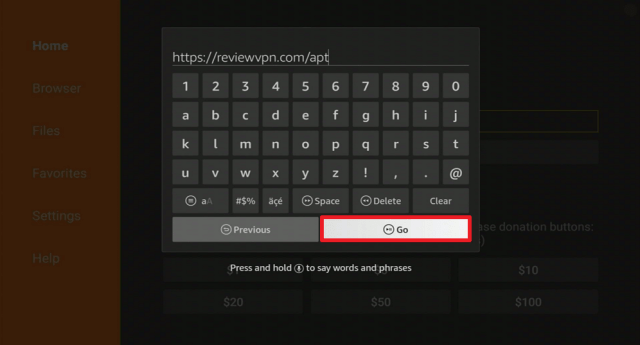
2. Open the Downloader App. Type https://reviewvpn.com/apt and click Go.
Install FuboTV App


3. Wait for the file download to finish.

Install FuboTV App 1


4. Click Install.

Install FuboTV App 2


5. Select Open to launch the app.

Install FuboTV App 3


6. Click OK.

Install FuboTV App 5


7. Choose Allow.

Install FuboTV App 4


8. Click on the Search button.

Install FuboTV App 6


9. Type in “FuboTV”.

Install FuboTV App 7


10. Choose “Install”.


11. Once the download is complete, select “Install”.

Install FuboTV App 9


12. Click

Install FuboTV App 12


13. Click Open.

Install FuboTV App 10


14. You can now sign in with your account to start streaming.

Install FuboTV App 11


Grab your subscription now!

Click here to get the lowest price on Surfshark through our exclusive limited-time offer.


FuboTV App Features

  • Contains more than 100 local and international channels
  • Categorizes content into shows and movies
  • Lets you search for your favorite shows
  • Offers as much as 500 hours of DVR storage capacity
  • Plays live content with only a 20-second lag
  • Lets you add to your Favorites list and flash them on the home screen
  • Allows you to organize your channels according to your preferred order
  • Streams video from 270p-1080p
  • Allows you to stream with 2 devices at a time


Available Channels

  • NBA TV
  • NHL Network
  • NFL Redzone
  • Golf Channel
  • Outdoor Channel
  • Big Ten Network
  • CBS Sports
  • Eleven Sports
  • Fox Soccer Plus
  • MLB Network
  • ESPN
  • ESPN2
  • ACCN
  • NBCSN
  • beIN Sports
  • ABC
  • CBS
  • FOX
  • NBC
  • AMC
  • MTV
  • SYFY
  • MSNBC
  • USA
  • Bravo
  • A&E
  • Food Network
  • E!
  • Discovery Channel
  • Lifetime
  • History Channel
  • Showtime
  • VH1
  • LaLiga
  • Premier League
  • UEFA Champions League
  • MLS
  • Ligue 1
  • Liga MX
  • Serie A
  • NASCAR


Subscription Plans

Features Fubo Standard Fubo Plus
Channels 75+ 90+
ESPN No No
Simultaneous Streams 2 2
Amazon Fire TV/Firestick Support Yes Yes
Android Support Yes Yes


YOUR INTERNET ACTIVITY IS BEING WATCHED

ReviewVPN cannot attest to the legality, security and privacy of the applications discussed on this site. It is highly recommended that you use a VPN service while streaming or using Kodi.

Currently, your IP 216.73.216.84 is visible to everyone and your Browser is being tracked by Advertisers & ISP Provider.

Save 65% Now

Limited Time Offer

Here are the main reasons why you must use a VPN:

  • Your activities are hidden from your ISP, the government, and from the apps you are using.
  • You can access additional movies and TV streams.
  • ISP attempts to throttle are thrwarted thus reducing buffering issues.
  • Geographically restricted content like Netflix and Hulu can be unblocked.

A VPN works be replacing your ISP-assigned IP address and creating an encrypted tunnel. We recommend the no log service offered by IPVanish. It works well on a Firestick and offers the fastest possible speeds.

Special Limited Time Offer - Get IPVanish


Legal Disclaimer: ReviewVPN.com does not encourage or endorse any illegal activity involved in the usage of services and applications referenced on this site. We do not verify the licensing agreements of services. The end-user is wholly responsible for ensuring that any media accessed through these services does not violate copyright and/or licensing laws. ReviewVPN does not promote, link to, or receive compensation from any Apps and IPTV services.


Pros and Cons

Pros

  • Offers a 7-day free trial
  • User-friendly interface
  • Easy switching from one channel to another
  • Fast loading time
  • Smooth and consistent video playback

Cons

  • Paid live TV app
  • Geo-restricted – available only in the US
  •  No Turner networks


FAQs

History

FuboTV was released on the Amazon App Store last December 2015.


Is FuboTV free?

The app is free for 7 days, but you have to pay for a subscription once finished.


Is the app legal?

Yes, it is 100% legal.


Does it have Love Alarm Season 2?

Unfortunately, FuboTV still does not have the series.


Is there a premium version?

Yes, FuboTV has plan subscriptions offered that you can read from the features section of this article.


Where can I watch FuboTV?

FuboTV is available on Amazon Fire TV/Firestick, Roku, Smart TV, Xbox, Chromecast, Android, and Apple devices.


Is there an FuboTV apk?

Yes, you can download them for your Android devices available across the web.


Is there an app website?

Yes, you can always visit FuboTV at their website, https://www.fubo.tv/welcome, and instantly learn about the app. 


Is there FuboTV customer service?

Yes, you may reach them at (844) 879-3826 or fill out a contact form on their website. 


What is the developer team like?

FuboTV, Inc. is a digital entertainment company. Recently, it reported its first $100 million quarter this 2021. It acquired California-based technology startup Balto Sports as its move into the online sports wagering market.


Why Use FuboTV App on Firestick with Surfshark

It sucks not to access live TV apps such as FuboTV when you’re not in Europe or the US. To unblock this restriction, Surfshark has got you covered. Surfshark is a VPN technology that will enable you to access FuboTV anywhere around the world. This does not only what a VPN can do for you:

  1. You can bypass geo-restrictions and watch your favorite movies from any location.
  2. You will have a safe and secured internet connection. Your online activities can be hidden and will allow you to access more content by replacing your ISP with an assigned IP address.
  3. You can use the internet anonymously without having your personal information stolen by potential hackers especially when you connect to public WiFi.
  4. The chance of your internet being throttled by ISPs is eliminated to avoid Firestick and Kodi buffering.

With Surfshark installed on your Firestick, you can enjoy a smooth, lag-free, secured, and protected streaming experience on FuboTV. 


Install Surfshark on Firestick

Best Surfshark Deal


How to Install Surfshark VPN on Firestick

If your Firestick still has the older interface, read this article to learn how to update it: Update Firestick Interface.

Follow our screenshots below to install the SurfShark VPN app on your Fire TV stick.

1. Go to the Home screen of your Firestick.

step 1 Install Surfshark VPN on Firestick


2. Navigate towards the Find tab. Press the Search button from the resulting dropdown.

step 2 Install Surfshark VPN on Firestick


3. Type in the keyword of SurfShark and select from the suggestions that will appear.

step 3 Install Surfshark VPN on Firestick


4. Click the official SurfShark icon from your search results.

step 4 Install Surfshark VPN on Firestick


5. Press the Download (You own it) button.

step 5 Install Surfshark VPN on Firestick


6. The SurfShark VPN installer will download on your device.

step 6 Install Surfshark VPN on Firestick


7. SurfShark VPN’s app will automatically install itself on your Fire TV stick.

step 7 Install Surfshark VPN on Firestick


8. Press the Open button after completing SurfShark VPN’s installation process.

step 8 Install Surfshark VPN on Firestick


9. Please wait for the SurfShark VPN to load its user interface.

step 9 Install Surfshark VPN on Firestick


10. You can now log in with your SurfShark VPN account credentials.

step 10 Install Surfshark VPN on Firestick

Learn more about Surfshark and Grab the Best Surfshark Deal Now!


Install Surfshark on Firestick

Best Surfshark Deal


Other VPNs to Consider

NordVPN (Best for Streaming)

Best Features

  • 5000+ Server in 50+ Countries 
  • Military-Grade Encryption
  • Fast Connection Speed
  • Suitable to a lot of devices
  • No-Log Policy

Prices
  • Complete $5.89 per month (64% Discount)
  • Plus $4.59 per month (56% Discount)
  • Standard $3.69 per month (55% Discount)

Best Features

  • 750+ High-speed VPN Servers in 43 Locations
  • Military-Grade Encryption
  • Fastest HD Streaming and Gaming
  • 30-Day Money-Back Guarantee
  • Unlimited Data & Devices
  • No-Log Policy

Prices
  • 3 Years $1.99 per month (82% Discount)
  • 1 Years $3.29 per month (70% Discount)
  • 1 Month $10.99 per month

IPVanish VPN (Most Secure)

Best Features

  • 1200+ Servers in 60+ Countries around the world
  • Unlimited Connections
  • No-Log Policy
  • Top Notch Military-Grade VPN Protocols and Encryptions
  • 100% Safe and Secured
  • Most Trusted VPN
  • Best VPN for Firestick
  • 30-Day Money-Back Guarantee

Prices
  • Yearly $3.99 per month (63% Discount) – 30 days risk free + Ransomware & Malware Protection
  • Quarterly $5.32 per month (51% Discount)
  • Monthly $10.99 per month


For more VPN discounts, go to ReviewVPN Deals and purchase the best VPN for you.

Click here to get the lowest price on Surfshark through our exclusive limited-time offer.


FuboTV Alternative Apps

This app comes with a higher price compared to other live TV apps. You might also encounter troubles while using FuboTV along the way. Here are some alternative streaming services that you can download on your Firestick:

You might have heard of Streams for Us. Unfortunately, it has already shut down. Don’t worry as we have provided you Streams for Us Alternatives that you can check out.


Conclusion

FuboTV is comparatively a pricey live TV streaming service. Given its features and a wide selection of content, we can say that it is fairly priced. Its impressive and notable features include the user-friendly interface and smooth video playback. The only downside of FuboTV is its high price and the absence of Turner networks. We can say that this streaming service is one of the most impressive of its kind today. However, if you’re on a budget, you can choose to find other live TV apps from our recommendations.

We hope that we were able to provide you with a helpful installation and detailed review of FuboTV on your Firestick.

Note: ReviewVPN.com is not affiliated with any App or IPTV Service nor are we endorsing or promoting any. The sole purpose of this article is for educational purposes only.


What Is Your Favorite Streaming App? Cast Your Vote Below.

MovieXYZ: Installation Guide and Review on Firestick

Stream MovieXYZ

This article is going to provide you with a detailed review and installation of MovieXYZ on your Firestick.


In this world full of paid streaming apps, there is an outstanding free app out there that might not have caught your attention all this time. 

There is no need to waste your effort finding a great app for your favorite movies.

All you have to do is jailbreak and install the Downloader app on your Firestick, and you can finally enjoy streaming on MovieXYZ.


ANONYMOUSLY

Is MovieXYZ Safe and Virus-free?

We tested this app using VirusTotal and found no threats or any malicious files and malware.

Despite having good results, we still need to be vigilant in protecting our privacy while streaming.

A Virtual Private Network or VPN will definitely help us maintain our security and anonymity while using MovieXYZ.

Here’s how you can Install The Best VPN For Firestick and All Devices.


If your Firestick still has the older interface, read this article to learn how to update it: Update Firestick Interface.


Install MovieXYZ on Firestick with Screenshots

1. Install the Downloader app and jailbreak your firestick by enabling unknown sources. To learn more about the procedure, you may read How to Install the Downloader App and Enable Unknown Sources.


2. Open Downloader App. Type https://reviewvpn.com/mxyz and click Go.

Install MovieXYZ


3. Click Install.

Install MovieXYZ 1


4. Click Open.

Install MovieXYZ 2


YOUR INTERNET ACTIVITY IS BEING WATCHED

ReviewVPN cannot attest to the legality, security and privacy of the applications discussed on this site. It is highly recommended that you use a VPN service while streaming or using Kodi.

Currently, your IP 216.73.216.84 is visible to everyone and your Browser is being tracked by Advertisers & ISP Provider.

Save 65% Now

Limited Time Offer

Here are the main reasons why you must use a VPN:

  • Your activities are hidden from your ISP, the government, and from the apps you are using.
  • You can access additional movies and TV streams.
  • ISP attempts to throttle are thrwarted thus reducing buffering issues.
  • Geographically restricted content like Netflix and Hulu can be unblocked.

A VPN works be replacing your ISP-assigned IP address and creating an encrypted tunnel. We recommend the no log service offered by IPVanish. It works well on a Firestick and offers the fastest possible speeds.

Special Limited Time Offer - Get IPVanish


Legal Disclaimer: ReviewVPN.com does not encourage or endorse any illegal activity involved in the usage of services and applications referenced on this site. We do not verify the licensing agreements of services. The end-user is wholly responsible for ensuring that any media accessed through these services does not violate copyright and/or licensing laws. ReviewVPN does not promote, link to, or receive compensation from any Apps and IPTV services.


Install Surfshark on Firestick

Best Surfshark Deal


MovieXYZ App Features

Interface

  • Stretched interface on TV (might depend on the APK file).
  • Simple and plain dark mode scheme design.
  • Displays show details such as synopsis director, writer, stars, ratings, number of views, date released, and a report button.
  • Comes with a search bar.
  • Shows quick links for movie genres on the home screen.
  • Allows you to add shows to your Favorites for easy access.
  • Hamburger icon shows your added favorite shows and other options like sharing and rating the app and requesting movies that you would like to add to the app.

Show Categories

  • Recently Watched
  • Newly Added
  • Box Office
  • Trending
  • Animations
  • Action
  • Romance
  • Adventure
  • Comedy 
  • Drama
  • Thriller
  • Horror
  • Sci-Fi
  • Family
  • Mystery 
  • Crimes 
  • Biography 
  • Documentary
  • Fantasy
  • History 
  • Musical 
  • Sports
  • Western

Key Features

  • Offers a huge library of old and new movie shows and anime grouped into genres.
  • Streams with HD video quality from 360p-1080p.
  • Display subtitles with English, Arabic, Greek, Spanish, and Indonesian.
  • Backward and forward video options.
  • Offers server options.


Pros and Cons

Pros

  • Free streaming app
  • A one-click app without ads
  • A wide selection of content

Cons

  • Not very pleasing user interface
  • Needs to be used with Mouse Toggle 


Stream Safely and Smoothly on MovieXYZ with Surfshark

https://get.surfshark.net/aff_c?offer_id=865&aff_id=12312

Streaming is best to be free of ads and without any buffering issues. MoviesXYZ has got you covered on the first. For the latter, a VPN technology will do its job. We highly recommend using Surfshark, a VPN service perfect for streaming apps such as MovieXYZ. 

Note: For more information about SurfShark, please read our SURFSHARK REVIEW.


Grab your subscription now!

Click here to get the lowest price on Surfshark through our exclusive limited-time offer.


How to Install Surfshark VPN on Firestick

If your Firestick still has the older interface, read this article to learn how to update it: Update Firestick Interface.

You can download Surfshark directly from the Amazon App store. It will be easy for you to find Surfshark with your Firestick’s Find feature. Refer to our screenshots below.

1. Go to the Home screen of your Firestick.

step 1 Install Surfshark VPN on Firestick


2. Navigate towards the Find tab. Press the Search button from the resulting dropdown.

step 2 Install Surfshark VPN on Firestick


3. Type in the keyword of SurfShark and select from the suggestions that will appear.

step 3 Install Surfshark VPN on Firestick


4. Click the official SurfShark icon from your search results.

step 4 Install Surfshark VPN on Firestick


5. Press the Download (You own it) button.

step 5 Install Surfshark VPN on Firestick


6. The SurfShark VPN installer will download on your device.

step 6 Install Surfshark VPN on Firestick


7. SurfShark VPN’s app will automatically install itself on your Fire TV stick.

step 7 Install Surfshark VPN on Firestick


8. Press the Open button after completing SurfShark VPN’s installation process.

step 8 Install Surfshark VPN on Firestick


9. Please wait for the SurfShark VPN to load its user interface.

step 9 Install Surfshark VPN on Firestick


10. You can now log in with your SurfShark VPN account credentials.

step 10 Install Surfshark VPN on Firestick

Learn more about Surfshark and Grab the Best Surfshark Deal Now!


Install Surfshark on Firestick

Best Surfshark Deal


Other VPNs to Consider

NordVPN (Best for Streaming)

Best Features

  • 5000+ Server in 50+ Countries 
  • Military-Grade Encryption
  • Fast Connection Speed
  • Suitable to a lot of devices
  • No-Log Policy

Prices
  • Complete $5.89 per month (64% Discount)
  • Plus $4.59 per month (56% Discount)
  • Standard $3.69 per month (55% Discount)

Best Features

  • 750+ High-speed VPN Servers in 43 Locations
  • Military-Grade Encryption
  • Fastest HD Streaming and Gaming
  • 30-Day Money-Back Guarantee
  • Unlimited Data & Devices
  • No-Log Policy

Prices
  • 3 Years $1.99 per month (82% Discount)
  • 1 Years $3.29 per month (70% Discount)
  • 1 Month $10.99 per month

IPVanish VPN (Most Secure)

Best Features

  • 1200+ Servers in 60+ Countries around the world
  • Unlimited Connections
  • No-Log Policy
  • Top Notch Military-Grade VPN Protocols and Encryptions
  • 100% Safe and Secured
  • Most Trusted VPN
  • Best VPN for Firestick
  • 30-Day Money-Back Guarantee

Prices
  • Yearly $3.99 per month (63% Discount) – 30 days risk free + Ransomware & Malware Protection
  • Quarterly $5.32 per month (51% Discount)
  • Monthly $10.99 per month


For more VPN discounts, go to ReviewVPN Deals and purchase the best VPN for you.

Click here to get the lowest price on Surfshark through our exclusive limited-time offer.


MovieXYZ Alternative Apps

App performance and functionality may vary from each device. Streaming services can sometimes be unpredictable. You might encounter troubles along the way. It’s always best to have a set of backups, and we got them reviewed for you to use on your Firestick:

To know more and download alternative apps, read our Movie Apps Reviews.


FAQs

Is MovieXYZ free?

Yes, it is absolutely free to download and stream.

Is MovieXYZ legal?

We cannot guarantee if this app is legal since it does not own any copyright of its content.

Are there ads?

Impressively, the free streaming app, MovieXYZ does not play any ads when you stream.

Is there a premium version?

There is no premium version for MoviesXYZ.

Where can I watch MoviesXYZ?

You can watch it on Amazon Firestick and Android devices using apk downloads.

Where can I download the MovieXYZ apk?

You can download its apk file at Android Apps Apk or Android Freeware website for your Android devices.

Is there an app website?

Unfortunately, MoviesXYZ does not have a website.


Conclusion

Indeed, we do not get to judge something by its cover. We have mentioned that MoviesXYZ has a simple, plain, and stretched design on Amazon Firestick. At first, it only looked like a typical streaming app. MoviesXYZ contains a huge library of free movies and shows WITHOUT ADS. Yes, you’ve read it right. It is a one-click free app that allows you to stream HD video quality without these annoying ads. Using a VPN will certainly elevate your streaming experience to perfection. Overall, MoviesXYZ deserves the top place among the best streaming apps. The only thing to improve is its interface design.

We hope that we’ve helped you successfully install and watch MoviesXYZ on your Firestick device. Thank you for reading!

Note: ReviewVPN.com is not affiliated with any App or IPTV Service nor are we endorsing or promoting any. The sole purpose of this article is for educational purposes only.


What Is Your Favorite Streaming App? Cast Your Vote Below.

Sling TV: Installation Guide And Review On Firestick

Sling TV

This article will serve as your friendly guide in installing Sling TV on your Firestick and everything you need to know about this app.

Viewers can’t simply get enough of watching cable Live TV shows. Cord-cutters see several options from left to right to replace their cables.

Using the internet, apps enable users to access not just limited channels but really a wide range of show selections across multiple devices.

Sling TV is one of the competing Live TV streaming apps downloadable in the market today. 

NBC, Fox local channels, AMC, Bet, CNN, Bravo, Fox News, National Geographic, Nick Jr., TNT, USA, and TBS are just some of the channels that you can access for a much cheaper price subscription.

Before you can install Sling TV, you need to install the “Downloader” app on your Firestick. Then, you can follow these easy steps to start with the installation.


ANONYMOUSLY


If your Firestick still has the older interface, read this article to learn how to update it: Update Firestick Interface.


Install Sling TV on Firestick with Screenshots

1. Install the Downloader app and jailbreak your firestick by enabling unknown sources. To learn more about the procedure, you may read How to Install the Downloader App and Enable Unknown Sources.

2. Open Downloader App. Type https://reviewvpn.com/sli and click Go.

Install Sling TV1


3. Click Install.

Install Sling TV2


4. Click Open.

Install Sling TV3


5.  Select Sign In to watch.

Install Sling TV4


Grab your subscription now!

Click here to get the lowest price on Surfshark through our exclusive limited-time offer.


Sling TV App Features

Interface

  • Dark color scheme
  • Displays featured cable networks
  • 10-second rewind button
  • The 30-second fast-forward button

Language Selections

  • English (default)
  • Spanish
  • Arabic
  • Hindi
  • Urdu
  • World Sports
  • Mandarin
  • French
  • Greek
  • Brazilian
  • Bangla
  • Bengali
  • Cantonese
  • German
  • Italian
  • Kannada
  • Malayalam
  • Marahu
  • Polish
  • Punjabi
  • Taiwanese
  • Tamil
  • Telugu
  • Vietnamese


YOUR INTERNET ACTIVITY IS BEING WATCHED

ReviewVPN cannot attest to the legality, security and privacy of the applications discussed on this site. It is highly recommended that you use a VPN service while streaming or using Kodi.

Currently, your IP 216.73.216.84 is visible to everyone and your Browser is being tracked by Advertisers & ISP Provider.

Save 65% Now

Limited Time Offer

Here are the main reasons why you must use a VPN:

  • Your activities are hidden from your ISP, the government, and from the apps you are using.
  • You can access additional movies and TV streams.
  • ISP attempts to throttle are thrwarted thus reducing buffering issues.
  • Geographically restricted content like Netflix and Hulu can be unblocked.

A VPN works be replacing your ISP-assigned IP address and creating an encrypted tunnel. We recommend the no log service offered by IPVanish. It works well on a Firestick and offers the fastest possible speeds.

Special Limited Time Offer - Get IPVanish


Legal Disclaimer: ReviewVPN.com does not encourage or endorse any illegal activity involved in the usage of services and applications referenced on this site. We do not verify the licensing agreements of services. The end-user is wholly responsible for ensuring that any media accessed through these services does not violate copyright and/or licensing laws. ReviewVPN does not promote, link to, or receive compensation from any Apps and IPTV services.


Pros and Cons

Pros

  • Offers a 3-day free trial
  • Good channel selection
  • Flexible subscription plans
  • Available free movie rentals
  • Reliable streaming performance
  • Offers 50 hours of DVR storage and can be upgraded into 200 hours
  • Streams videos at 720p
  • Comes with multiple language options

Cons

  • Requires subscription to access the content after the 3-day trial
  • Available only in the US – meaning it is a geo-restricted app
  • Limited local channels and regional sports shows
  • Does not support 4K Ultra HD video


Stream Safely and Smoothly on Sling TV App with Surfshark

https://get.surfshark.net/aff_c?offer_id=865&aff_id=12312

As mentioned in the features section, Sling TV has geo-restrictions, meaning the service is unavailable to its viewers outside the US and other authorized countries. This restriction will be unblocked by a VPN, but using it is not only limited to performing this function. We highly recommend using Surfshark, a VPN service, especially in streaming apps such as Sling TV. Through using a VPN, you can take advantage of the following benefits in using your apps:


  • Access to Apps and Websites with Geo-Restriction

Installing Surfshark will enables you to watch your favorite series or access some blocked websites with country/regional restrictions.


  • Secures Your Internet Connection

When connecting to free public WiFi, the risk of your personal information being leaked is high. Using the Surfshark advanced encryption system will prevent any middleman from hacking your information.


  • Protects Your Online Privacy

Installing Surfshark on your Firestick will remove all your digital fingerprints. It boosts up your online anonymity while streaming on Firestick, Morpheus, Popcorn Time, Kodi, ShowBox, Terrarium, and other streaming apps. When using a VPN, your real IP address is masked by an IP address that is used and shared by other users.


  • Prevents Data Stealing

You might not know that your personal information can be collected, stolen, and sold to advertising companies. Your data is scanned upon crossing its network. ISPs use deep packet inspection to monitor your internet usage and throttle your internet speed. This then slows down your connection and makes it difficult to play online games or stream your favorite media. With Surfshark, your traffic is encrypted and at the same time, you will be able to enjoy a smooth and lag-free streaming experience on your Firestick.


  • Get Censorship Filters

With Surfshark, you have the power to explore the web without being censored online. This is usually taken advantage of by government agencies, employers, and universities from across the world. However, not all free VPN services are safe, so better be careful in using the right one. To get all this protection, security, and smooth streaming experience, learn more in Surfshark


Install Surfshark on Firestick

Best Surfshark Deal


How to Install Surfshark VPN on Firestick

If your Firestick still has the older interface, read this article to learn how to update it: Update Firestick Interface.

You can download Surfshark directly from the Amazon App store. It will be easy for you to find Surfshark with your Firestick’s Find feature. Refer to our screenshots below.

1. Go to the Home screen of your Firestick.

step 1 Install Surfshark VPN on Firestick


2. Navigate towards the Find tab. Press the Search button from the resulting dropdown.

step 2 Install Surfshark VPN on Firestick


3. Type in the keyword of SurfShark and select from the suggestions that will appear.

step 3 Install Surfshark VPN on Firestick


4. Click the official SurfShark icon from your search results.

step 4 Install Surfshark VPN on Firestick


5. Press the Download (You own it) button.

step 5 Install Surfshark VPN on Firestick


6. The SurfShark VPN installer will download on your device.

step 6 Install Surfshark VPN on Firestick


7. SurfShark VPN’s app will automatically install itself on your Fire TV stick.

step 7 Install Surfshark VPN on Firestick


8. Press the Open button after completing SurfShark VPN’s installation process.

step 8 Install Surfshark VPN on Firestick


9. Please wait for the SurfShark VPN to load its user interface.

step 9 Install Surfshark VPN on Firestick


10. You can now log in with your SurfShark VPN account credentials.

step 10 Install Surfshark VPN on Firestick

Learn more about Surfshark and Grab the Best Surfshark Deal Now!


Install Surfshark on Firestick

Best Surfshark Deal


Other VPNs to Consider

NordVPN (Best for Streaming)

Best Features

  • 5000+ Server in 50+ Countries 
  • Military-Grade Encryption
  • Fast Connection Speed
  • Suitable to a lot of devices
  • No-Log Policy

Prices
  • Complete $5.89 per month (64% Discount)
  • Plus $4.59 per month (56% Discount)
  • Standard $3.69 per month (55% Discount)

Best Features

  • 750+ High-speed VPN Servers in 43 Locations
  • Military-Grade Encryption
  • Fastest HD Streaming and Gaming
  • 30-Day Money-Back Guarantee
  • Unlimited Data & Devices
  • No-Log Policy

Prices
  • 3 Years $1.99 per month (82% Discount)
  • 1 Years $3.29 per month (70% Discount)
  • 1 Month $10.99 per month

IPVanish VPN (Most Secure)

Best Features

  • 1200+ Servers in 60+ Countries around the world
  • Unlimited Connections
  • No-Log Policy
  • Top Notch Military-Grade VPN Protocols and Encryptions
  • 100% Safe and Secured
  • Most Trusted VPN
  • Best VPN for Firestick
  • 30-Day Money-Back Guarantee

Prices
  • Yearly $3.99 per month (63% Discount) – 30 days risk free + Ransomware & Malware Protection
  • Quarterly $5.32 per month (51% Discount)
  • Monthly $10.99 per month


For more VPN discounts, go to ReviewVPN Deals and purchase the best VPN for you.

Click here to get the lowest price on Surfshark through our exclusive limited-time offer.


Sling TV Alternative Apps

Trouble-free streaming will not always be the case for all users across different devices. As to many cord-cutters, switching to the best live TV app subscription is one thing to ponder. In this article, we have brought you alternative apps for Sling TV to install on your Firestick:

You can browse more similar apps from our Best Live TV Apps review.


FAQs

History

Sling TV has been available on the Amazon App Store since June 2017.


Is Sling TV free?

No, you have to pay for a subscription to access Sling TV content after the 3-day free trial.


Is Sling TV app legal?

Yes, it is 100% legal.


Are there ads?

Yes, there are ads when you stream on Sling TV. 


Where can I watch Sling TV?

Sling TV is available on Amazon Fire TV/Firestick, Apple TV, Roku, Xbox One, Chromecast, and Windows. 


Is there a Sling TV website?

Yes, you can browse through their website at https://www.sling.com/.


Is there a Sling TV contact number and customer service?

Yes, you may reach them for any concern and assistance:

Phone: 1-888-363-1777

E-mail:  support@sling.com


Conclusion

Sling TV is one reliable live TV streaming app. It keeps a competitive service with a fair and cheaper price compared to other similar apps. However, it offers a fewer selection of channels. The app is also restricted to other countries except for the US. We always recommend using a VPN to enjoy Sling TV on your favorite devices. Overall, it is a decent app with a reasonable price.

We hope that we have helped you install Sling TV on your Firestick and know a lot more about it. Tell us what you think of how we can improve our service. Just comment on your feedback below. 

Note: ReviewVPN.com is not affiliated with any App or IPTV Service nor are we endorsing or promoting any. The sole purpose of this article is for educational purposes only.
 

What Is Your Favorite Streaming App? Cast Your Vote Below.

Install NJPW World On Firestick

Install NJPW World on Firestick

This article aims to provide you information about the NJPW World app and helps you with how to install it on firestick. 


About NJPW World 

If you are looking for a site where you can rewatch the footage of your favorite wrestling match, this article is for you. NJPW World or The New Japan Pro-Wrestling World is a subscription-based streaming service owned by New Japan Pro-Wrestling.

This streaming service brings you all NJPW extraordinary game footage over the past 50 years. It also gives you the best footage of fantastic LIVE broadcasts of the main competitions of Japan Pro-Wrestling and streams the relive matches of your favorite wrestler. 

NJPW serves its subscribers the latest footage of tournaments in real-time, hot fighting matches, images of past fighting, top wrestling matches that became a hit, interviews, and let them experience time traveling by featuring matches in history since 1972.

Besides, they also present original documentaries which can only be seen on their site, such as  “World Pro-Wrestling related program” and more to satisfy their subscribers. 

Continue reading and know more about NJPW World app. Happy Reading! 


How to Install NJPW World on Firestick with a Screenshot Guide

NJPW world is only available within Chromecast devices only but to expand the popularity of this app, NJPW announced on June 28, 2017, that it is now officially available on Amazon Fire TV. Here is a guide on how you can install NJPW World on Firestick. 

  1. Look for the Search button at the top left corner of your Firestick Homescreen. 
  2. In the search bar, type in NJPW WORLD.
  3. Click on the NJPW World icon.
  4. Tap Get or Download.
  5. Wait for a few minutes for the app to be installed.
  6. Click on the Open button to launch the app.
  7. That’s it! You have successfully installed the NJPW World app.


ANONYMOUSLY


If your Firestick still has the older interface, read this article to learn how to update it: Update Firestick Interface.


How to Install NJPW World on Firestick (Video)


How to Install NJPW World on Firestick with a Screenshot Guide

1. Click FIND.

Movie Nite 1

2. Click Search.

Movie Nite2


3. Search for the NJPW World.

Step 2 Install NJPW World on Firestick


4. Select the icon of NJPW World.

Step 3 Install NJPW World on Firestick


5. Click Download.

Step 4 Install NJPW World on Firestick


6. Click Open.

Step 5 Install NJPW World on Firestick


7. Enjoy watching.

Step 6 Install NJPW World on Firestick


Grab your subscription now!

Click here to get the lowest price on Surfshark through our exclusive limited-time offer.


How to Register/ Create an Account on NJPW World

  1. Launch your NJPW World app and scroll down to Configuration/Other.
  2. Select Register an account if you are new to this. For existing subscribers, click on ‘Login’.
  3. Click on ‘Sign up now!’
  4. Click on ‘Subscribe Monthly’.
  5. If you have children, Enable your parental control. No thanks if none.
  6. Select ‘Register Now’.
  7. In member registration, Enter your account details (Email address, Password, Nickname, Birthday, and Sex.) After that, Click Sign up.
  8. That’s it! You have successfully created your NJPW world account.


Features of NJPW World App

On the left side corner of your screen, you will see all the tabs and their content. Overall, there are 14 tabs that you will find and they are as follows:

1. New

  •  In this section, you can see all of the latest wrestling videos that are all free to watch. This app will present you with an updated list of their latest videos every day.

2. Shows

  • This section is only accessible for subscribers, in which it will show you all NJPW shows such as Impact Wrestling, Road to Castle Attack, AEW Dynamite, NJPW STRONG, and more.

3. Age

  • It is the most exciting section because you can access all of the extraordinary game footage over the past 50 years, starting from the 1970s up to 2021. They compiled all of the historical footage of wrestling matches for you to enjoy. 

4. Trial Case

  • This section is also accessible for subscribers only, you can watch every day’s wrestling matches. Videos are also arranged by their released dates. 

5. NJPW Free Match 

  • Stay up to date with their Free match videos. 

6. NJPW On the road 

  •  This section brings you all the interviews with the winning wrestlers. 

7. NJPW Jr

  • The best hot fights videos of the super Jr, which is organized by dates.

8. Originals 

  • This section provides you all of the latest videos of NJPW WORLD Pre-match VTR, where you can watch them all for free. 

9. NJPW Documentary

  • Documentaries on your favorite wrestlers’ life. Know their stories and be inspired.

10. Wonderland 

  • It is a sit-in LIVE Interview with the wrestlers before and after the day of their match. 

11. Press Conference 

  • Watch the LIVE press conference of the wrestlers.

12. Tilt VTR 

  • this section provides you the highlight of the match or a Match Pre-VTR.

 13. Promotion VTR 

  • List of videos promoting the match by showing highlights of their last game.

14. Configuration/Other 

  • This section consists of Login, Register Account, User Guide, FAQ, Basic terms and conditions, Membership terms and conditions, Privacy Policy, and Display based on the act on specified transactions.


Stream Safe with Surfshark

Having a slow speed of connection while streaming LIVE can be so frustrating, buffering and low resolution of videos happen all the time when you have a poor connection. However, to speed up your internet connection and at the same time Prevent ISPs from interfering in your connection, you need a VPN. We highly recommend that you use Surfshark because it offers you a high-speed connection and unlimited bandwidth for a smooth streaming experience. This also provides you impressive security features, wherein in terms of encryption, Surfshark uses AES 256-bit encryption which is the same standard encryption to the United States that safeguards all your data.  

Other reasons why it is our VPN of choice: Fast 

  • Network and Secure Connections
  • Bypass Restrictions and Censorship
  • Automatically hide your IP Address to ensure your privacy.
  • Bypass Geo-Blocking


Install Surfshark on Firestick

Best Surfshark Deal


How to Install Surfshark VPN on Firestick

If your Firestick still has the older interface, read this article to learn how to update it: Update Firestick Interface.

Follow our screenshots below to install the SurfShark VPN app on your Fire TV stick.

1. Go to the Home screen of your Firestick.

step 1 Install Surfshark VPN on Firestick


2. Navigate towards the Find tab. Press the Search button from the resulting dropdown.

step 2 Install Surfshark VPN on Firestick


3. Type in the keyword of SurfShark and select from the suggestions that will appear.

step 3 Install Surfshark VPN on Firestick


4. Click the official SurfShark icon from your search results.

step 4 Install Surfshark VPN on Firestick


5. Press the Download (You own it) button.

step 5 Install Surfshark VPN on Firestick


6. The SurfShark VPN installer will download on your device.

step 6 Install Surfshark VPN on Firestick


7. SurfShark VPN’s app will automatically install itself on your Fire TV stick.

step 7 Install Surfshark VPN on Firestick


8. Press the Open button after completing SurfShark VPN’s installation process.

step 8 Install Surfshark VPN on Firestick


9. Please wait for the SurfShark VPN to load its user interface.

step 9 Install Surfshark VPN on Firestick


10. You can now log in with your SurfShark VPN account credentials.

step 10 Install Surfshark VPN on Firestick

Learn more about Surfshark and Grab the Best Surfshark Deal Now!


Install Surfshark on Firestick

Best Surfshark Deal


Other VPNs to Consider

NordVPN (Best for Streaming)

Best Features

  • 5000+ Server in 50+ Countries 
  • Military-Grade Encryption
  • Fast Connection Speed
  • Suitable to a lot of devices
  • No-Log Policy

Prices
  • Complete $5.89 per month (64% Discount)
  • Plus $4.59 per month (56% Discount)
  • Standard $3.69 per month (55% Discount)

Best Features

  • 750+ High-speed VPN Servers in 43 Locations
  • Military-Grade Encryption
  • Fastest HD Streaming and Gaming
  • 30-Day Money-Back Guarantee
  • Unlimited Data & Devices
  • No-Log Policy

Prices
  • 3 Years $1.99 per month (82% Discount)
  • 1 Years $3.29 per month (70% Discount)
  • 1 Month $10.99 per month

IPVanish VPN (Most Secure)

Best Features

  • 1200+ Servers in 60+ Countries around the world
  • Unlimited Connections
  • No-Log Policy
  • Top Notch Military-Grade VPN Protocols and Encryptions
  • 100% Safe and Secured
  • Most Trusted VPN
  • Best VPN for Firestick
  • 30-Day Money-Back Guarantee

Prices
  • Yearly $3.99 per month (63% Discount) – 30 days risk free + Ransomware & Malware Protection
  • Quarterly $5.32 per month (51% Discount)
  • Monthly $10.99 per month


For more VPN discounts, go to ReviewVPN Deals and purchase the best VPN for you.

Click here to get the lowest price on Surfshark through our exclusive limited-time offer.


Compatible Platforms

NJPW world has an official website where you can access its contents. However, it is only available to some limited devices such as PC, Windows desktops, Chromecast, and now on Amazon Fire TV.


Alternative Applications for New Japan Pro-Wrestling World

In case you don’t have any of their supported platforms, here are some alternative applications for you to enjoy watching wrestling matches.  


Pros and Cons

 Pros

  • Availability of old match videos
  • Free to download
  • Reliable Contents
  • Focuses better in Ring Performance
  • Provide a complete footage

Cons

  • Limited Supported Platforms
  • Limited free contents
  • The movie cannot be playback


FAQs

History

NJPW World is owned by TV Asahi and New Japan Pro-Wrestling and is launched on December 1, 2014


Is this app free?

Yes, It is free to download and you need to subscribe to have access to their contents.


Is this app legal?

This app is 100% legal.


How much is the subscription fee for this app?

The current monthly subscription price is ¥999.


Where can I get this app?

You can get this app on Amazon App Store.


What is their official website?

The official website of NJPW World is www.njpwworld.com 


YOUR INTERNET ACTIVITY IS BEING WATCHED

ReviewVPN cannot attest to the legality, security and privacy of the applications discussed on this site. It is highly recommended that you use a VPN service while streaming or using Kodi.

Currently, your IP 216.73.216.84 is visible to everyone and your Browser is being tracked by Advertisers & ISP Provider.

Save 65% Now

Limited Time Offer

Here are the main reasons why you must use a VPN:

  • Your activities are hidden from your ISP, the government, and from the apps you are using.
  • You can access additional movies and TV streams.
  • ISP attempts to throttle are thrwarted thus reducing buffering issues.
  • Geographically restricted content like Netflix and Hulu can be unblocked.

A VPN works be replacing your ISP-assigned IP address and creating an encrypted tunnel. We recommend the no log service offered by IPVanish. It works well on a Firestick and offers the fastest possible speeds.

Special Limited Time Offer - Get IPVanish


Final Thoughts

This app is a compilation of hot wrestling matches from 1972 until now. If you are a fan of wrestling this app is a good option for you. It is worth paying for because of its content and high-quality videos, especially those old videos.

We hope that this article gives you information about the NJPW World app and guides you on how to install it on Firestick. 


What Is Your Favorite Streaming App? Cast Your Vote Below.

Watch Chia-Anime On Firestick And Android

Watch Chia-Anime on Firestick and Android

This article will give you information about Chia-Anime and will guide you on how you can watch on Firestick and Android.


About Chia-Anime

Chia-anime is a free anime source and one of the top websites where you can watch tons of anime series and movies in high video quality.

On this website, you can find popular anime like Dragon Ball, One Piece, Fairy Tail, Ghost Fighter, My Hero Academia, and more.

This website is not just for streaming but you can also listen to anime soundtracks, watch popular Asian dramas and read Manga.

Chia-Anime interface is simple and organized, where the home page has different tabs at the top corner that consist of categorized contents such as the Most Popular, Most Recent, Cartoon and Anime List, and more.

A website that made it easy for you to find your favorite anime. You can watch anime on chia-anime using a browser from different devices like Firestick and Android.


How to watch Chia-Anime on Firestick

 To watch Chia-anime on Firestick, you need to install the Amazon Silk Browser first. This Browser is a built-in app for Amazon Devices that allows you to stream on different websites on Firestick. Here is a step-by-step guide on how to install Amazon Silk Browser to stream on the Chia-Anime website. 

Note: If you are streaming to any website such as Chia-Anime, you need Surfshark to ensure your safety and privacy. 

  1. On your Firestick home screen look for the Search button (Magnifying glass icon).
  2. Type in Silk Browser. Click on the suggestion.
  3. Tap the icon of Silk Browser.
  4. Click on Get or Download.
  5. Wait for a few minutes for the app to be installed.
  6. Click Open to launch the app.
  7. Launch the Silk Browser and Go to the search bar. 
  8. Type in chia-anime.me and click on Go.
  9. If a suggestion box pop up, clicks on cancel.
  10. That’s it! You can now stream on Chia-anime on your Firestick. 


ANONYMOUSLY


If your Firestick still has the older interface, read this article to learn how to update it: Update Firestick Interface.


How to Install Watch Chia-Anime on Firestick with Screenshots

1. Click FIND.

Movie Nite 1

2. Click Search.

Movie Nite2


3. Search for the Amazon Silk.

Step 2 Install Chia-Anime on Firestick


4. Select the icon of Amazon Silk.

Step 3 Install Chia-Anime on Firestick


5. Click Download.

Step 4 Install Chia-Anime on Firestick


6. Click Open.

Step 5 Install Chia-Anime on Firestick


7. Amazon Silk – Web Browser is Installed.

Step 6 Install Chia-Anime on Firestick


8. Hover to the URL box of the browser. Type in “https://chia-anime.su/” and then click on Go.

chia-anime


9. Enjoy watching.

Step 8 Chia-Anime on Firestick

Grab your subscription now!

Click here to get the lowest price on Surfshark through our exclusive limited-time offer.


How to Stream Chia-Anime on Android

This is a step-by-step Guide on how you can stream Chia-anime on Firestick. 

  1. Launch any browser on your android device.
  2. In the search bar type in chia-anime.su and Click Go.
  3. Choose from the homepage or search for your favorite anime and hit the PLAY button.


Features of Chia-Anime

Interface

  • This website’s interface is simple but surrounded by ads. Its homepage contains different tabs that consist of different animes categorized as Most Popular, Most Recent, Cartoon list, and Anime List. You can see what are the hits and the latest anime to watch.


Built-in Search Engine 

  • On the top of the Chia-Anime home page, you can see A-Z letters, this is meant for searching. Just tap the first initials of the anime you want to watch and it will show you all related animes.


No Sign-up Process

  • You can watch on this app even without creating an account. It doesn’t require you to sign up because it will directly give you access to its content as you visit their website.


Content Details 

  • This website also provides you with the details for each content. Information such as type, number of episodes, genres, status, time duration, ratings, and plot summary.


Anime Series List

  • In this feature, you will see all English subbed and dubbed anime series. It will also provide you with a list of genre buttons such as Adventure, Comedy, Drama, Erotica, Fantasy, Horror, mystery, romance, and more. You just need to tap the button of the genre you want and it will show you all related animes with that kind of genre. It is easy to find what you are looking for because they are grouped according to their genres and initials. 


Manga 

  • This website is not just for streaming because it also allows you to read mangas for free. If you are into reading and at the same time a fan of anime, this feature is for you. 


Anime Movies 

  • It has tons of English subbed and dubbed anime movies which are organized by their initials. It will never be difficult for you to find the movies you love. 


Anime Soundtracks 

  • Listen and download your favorite anime soundtrack.


Asian Drama 

  • Stream different Asian dramas in HD quality videos for free. 


Anime Mobile 

  • Watch HD quality videos anytime and anywhere using your mobile devices. 


Safe Streaming with Surfshark

https://get.surfshark.net/aff_c?offer_id=865&aff_id=12312

There are various anime websites where you can stream their content for free, but you cannot ensure that these websites are safe and legal. To ensure you provide and give protection from hackers, you need to have a VPN or Virtual Private Network. We highly recommend that you use Surfshark because it provides you with lots of impressive security features. You don’t need to worry about hackers when you stream in Chia-anime because they use high-standard encryption of AES 256-bit to safeguard all your data. 

Other reasons why Surfshark is our VPN of choice:

  • Stop ISPs interfering with your internet connection
  • Fast Network and Secure Connections
  • Bypass Restrictions and Censorship
  • Automatically hide your IP Address to ensure your privacy.
  • Bypass Geo-Blocking


Install Surfshark on Firestick

Best Surfshark Deal


How to Install Surfshark VPN on Firestick

You can download Surfshark directly from the Amazon App store. It will be easy for you to find Surfshark with your Firestick’s Find feature. Refer to our screenshots below.

1. Go to the Home screen of your Firestick.

step 1 Install Surfshark VPN on Firestick


2. Navigate towards the Find tab. Press the Search button from the resulting dropdown.

step 2 Install Surfshark VPN on Firestick


3. Type in the keyword of SurfShark and select from the suggestions that will appear.

step 3 Install Surfshark VPN on Firestick


4. Click the official SurfShark icon from your search results.

step 4 Install Surfshark VPN on Firestick


5. Press the Download (You own it) button.

step 5 Install Surfshark VPN on Firestick


6. The SurfShark VPN installer will download on your device.

step 6 Install Surfshark VPN on Firestick


7. SurfShark VPN’s app will automatically install itself on your Fire TV stick.

step 7 Install Surfshark VPN on Firestick


8. Press the Open button after completing SurfShark VPN’s installation process.

step 8 Install Surfshark VPN on Firestick


9. Please wait for the SurfShark VPN to load its user interface.

step 9 Install Surfshark VPN on Firestick


10. You can now log in with your SurfShark VPN account credentials.

step 10 Install Surfshark VPN on Firestick

Learn more about Surfshark and Grab the Best Surfshark Deal Now!


Other VPNs to Consider

NordVPN (Best for Streaming)

Best Features

  • 5000+ Server in 50+ Countries 
  • Military-Grade Encryption
  • Fast Connection Speed
  • Suitable to a lot of devices
  • No-Log Policy

Prices
  • Complete $5.89 per month (64% Discount)
  • Plus $4.59 per month (56% Discount)
  • Standard $3.69 per month (55% Discount)

Best Features

  • 750+ High-speed VPN Servers in 43 Locations
  • Military-Grade Encryption
  • Fastest HD Streaming and Gaming
  • 30-Day Money-Back Guarantee
  • Unlimited Data & Devices
  • No-Log Policy

Prices
  • 3 Years $1.99 per month (82% Discount)
  • 1 Years $3.29 per month (70% Discount)
  • 1 Month $10.99 per month

IPVanish VPN (Most Secure)

Best Features

  • 1200+ Servers in 60+ Countries around the world
  • Unlimited Connections
  • No-Log Policy
  • Top Notch Military-Grade VPN Protocols and Encryptions
  • 100% Safe and Secured
  • Most Trusted VPN
  • Best VPN for Firestick
  • 30-Day Money-Back Guarantee

Prices
  • Yearly $3.99 per month (63% Discount) – 30 days risk free + Ransomware & Malware Protection
  • Quarterly $5.32 per month (51% Discount)
  • Monthly $10.99 per month


For more VPN discounts, go to ReviewVPN Deals and purchase the best VPN for you.


Alternative for Chia-Anime

 Here is a list of similar sites for you to stream your favorite anime.


Compatible Devices

You can stream Chia-Anime on any device that has a browser, just type in the URL and stream on their contents. Here are some of the compatible devices for Chia-Anime. 

  • Windows PC
  • Mac
  • iOS
  • Android
  • Amazon Fire TV
  • Other Smart TVs


Pros and Cons

Pros

  • Access Free and Unlimited contents
  • Dubbed and subbed Contents
  • Does Not require a signup process
  • High-quality Videos


Cons

  • Too many pop-up ads 
  • Buffering and lags because of Ads


FAQs

Is there an official app for Chia-Anime?

There is no official Chia-Anime


Is their content free to stream?

Yes. All of the Chia-Anime content are free to stream.


Can I Download Chia-Anime on Firestick and Android using a third-party app?

Yes, but the app is not working on Firestick and Android. 


Is streaming on this website safe?

Yes, this website is safe to use but to ensure your safety and privacy you need a Surfshark.


YOUR INTERNET ACTIVITY IS BEING WATCHED

ReviewVPN cannot attest to the legality, security and privacy of the applications discussed on this site. It is highly recommended that you use a VPN service while streaming or using Kodi.

Currently, your IP 216.73.216.84 is visible to everyone and your Browser is being tracked by Advertisers & ISP Provider.

Save 65% Now

Limited Time Offer

Here are the main reasons why you must use a VPN:

  • Your activities are hidden from your ISP, the government, and from the apps you are using.
  • You can access additional movies and TV streams.
  • ISP attempts to throttle are thrwarted thus reducing buffering issues.
  • Geographically restricted content like Netflix and Hulu can be unblocked.

A VPN works be replacing your ISP-assigned IP address and creating an encrypted tunnel. We recommend the no log service offered by IPVanish. It works well on a Firestick and offers the fastest possible speeds.

Special Limited Time Offer - Get IPVanish


Conclusion

Chia-anime is a website where you can watch tons of anime, listen to their soundtracks, read manga and watch Asian drama. It has organized content that is grouped by categories, which makes it easy for you to find your favorite animes. However, this website is littered with ads everywhere.  

We hope that this article gives you information about Chia-Anime and helps you with how you can watch Firestick and Android. 

How To Watch AnimePahe On Firestick And Android

Watch AnimePahe on Firestick and Android

This article will give you information about AnimePahe and will guide you on how you can watch on Firestick and Android.


About AnimePahe

AnimePahe is one of the streaming websites for you to watch different anime series and movies. This website provides you with tons of English subbed and dubbed anime from old to new. All of AnimePahe’s contents are free to stream and you will never miss even a single episode of your favorite anime series because it has a complete and updated list of episodes. This website’s interface is very simple and user-friendly, which makes searching easy for you. This site is well-known for its high-quality content and huge database. Developers are regularly updating the website to give its users error-free streaming. Stream unlimited at the fastest speed without buffering. Continue reading to know more about the AnimePahe app.


How to watch AnimePahe on Firestick

 To stream AnimePahe on Firestick you need to install Amazon Silk Browser first. This Browser is a built-in app for Amazon Devices that allows you to stream on different websites on Firestick. Here’s a step-by-step guide on how to install Amazon Silk Browser and how to stream AnimePahe in this browser. 

Note: if you are streaming to any website such as AnimePahe you need Surfshark to ensure your safe streaming. 

  1. On your Firestick home screen look for the Search button (Magnifying glass icon).
  2. Type in Silk Browser. Click on the suggestion.
  3. Tap the icon of Silk Browser.
  4. Click on Get or Download.
  5. Wait for a few minutes for the app to be installed.
  6. Click Open to launch the app.
  7. Launch the Silk Browser and Go to the search bar. 
  8. Type in animepahe.com and click on Go.
  9. If a suggestion box pops up, click on the cancel.
  10. That’s it! You can now stream on Animepahe on your Firestick. 


ANONYMOUSLY


If your Firestick still has the older interface, read this article to learn how to update it: Update Firestick Interface.


How to  Watch AnimePahe on Firestick with Screenshots

1. Click FIND.

Movie Nite 1

2. Click Search.

Movie Nite2


3. Search for the Amazon Silk.

Step 2 Install AnimePahe on Firestick


4. Select the icon of Amazon Silk.

Step 3 Install AnimePahe on Firestick


5. Click Download.

Step 4 Install AnimePahe on Firestick


6. Click Open.

Step 5 Install AnimePahe on Firestick


7. Amazon Silk – Web Browser is Installed.

Step 6 Install AnimePahe on Firestick


8. Hover to the URL box of the browser. Type in “https://animepahe.com/” and then click on Go.

Step 7 Install AnimePahe on Firestick


9. Enjoy watching.

Step 8 Install AnimePahe on Firestick

Grab your subscription now!

Click here to get the lowest price on Surfshark through our exclusive limited-time offer.


How to stream AnimePahe on Android

This is a step-by-step Guide on how you can stream Animepahe on Android:

  1. Launch any browser on your android device.
  2. Go to the Animepahe website by typing in animepahe.com and Click Go.
  3. Choose from the homepage or search for your favorite anime and hit the PLAY button.
  4. Tap the play button once again and that’s it! Enjoy watching! 

Note: Animepahe is littered with ads everywhere, if it directs you to an advertising app, just click exit and go back to the website. 


Features of AnimePahe

  1.   Content

  • It has a huge collection of English dubbed and subbed contents of Japanese cartoons, anime movies, and series. It has a complete series of popular anime such as Naruto Shippuden, Fairy Tail, Dragon Ball, One Piece, Slam Dunk, and more old and new anime. You can watch all of these just for free in 720p to 1080p HD. 
  1.   Downloadable Contents

  • In this app, you can also download videos from a resolution of 360p, 720p, and 1080p HD. Download videos and stream anytime and anywhere.
  1.   Built-In Search Engine

  • This app has a built-in search engine where you can easily find your favorite anime, simply by clicking the initial letter of the anime and it will show you all the related animes starting with that letter.
  1.   Built-In Video Player

  •  This app allows you to stream HD videos because they offer you their built video player.
  1.   Trakt.tv

  • This app is supported with trakt. tv that keeps track of the watched content, to ensure the security of its users.
  1.   No Sign-Up Process

  • You can watch on this app even without creating an account. It doesn’t require you to sign up, it will directly give you access to their content. 


Popular AnimePahe Content

This website contains tons of anime and all-time favorite anime since then. we have listed some of the popular animes with complete series that you watch for free in animepahe.

  •  Attack on titan
  • Bleach
  • Death Note
  • Demon slayer
  • Detective Conan
  • Doraemon
  • Dragon Ball
  • Fairy Tail
  • Haikyuu
  • Hunter x Hunter
  • Inazuma
  • InuYasha
  • Kingdom
  • Kimetsu No Yalba
  • My Hero Academia
  • Naruto Shippuden
  • Natsume
  • One Punch man
  • One piece
  • Pokemon


Stream Safe with Surfshark

Streaming on websites is prone to malware and viruses that can affect your devices. You cannot assure your data is secured when you are streaming with these unprotected websites. To ensure your safety and privacy while streaming, you need a VPN or Virtual Private Network. We highly recommend that you use Surfshark because it is a proven and tested software that provides you with impressive security features. In terms of encryption, Surfshark uses AES 256-bit encryption which is the same standard encryption to the United States that safeguards all your data. Here are the reasons why it is our VPN of choice:

  • Stop ISPs interfering with your internet connection
  • Fast Network and Secure Connections
  • Bypass Restrictions and Censorship
  • Automatically hide your IP Address to ensure your privacy.
  • Bypass Geo-Blocking


Install Surfshark on Firestick

Best Surfshark Deal


How to Install Surfshark VPN on Firestick

If your Firestick still has the older interface, read this article to learn how to update it: Update Firestick Interface.

Follow our screenshots below to install the SurfShark VPN app on your Fire TV stick.

1. Go to the Home screen of your Firestick.

step 1 Install Surfshark VPN on Firestick


2. Navigate towards the Find tab. Press the Search button from the resulting dropdown.

step 2 Install Surfshark VPN on Firestick


3. Type in the keyword of SurfShark and select from the suggestions that will appear.

step 3 Install Surfshark VPN on Firestick


4. Click the official SurfShark icon from your search results.

step 4 Install Surfshark VPN on Firestick


5. Press the Download (You own it) button.

step 5 Install Surfshark VPN on Firestick


6. The SurfShark VPN installer will download on your device.

step 6 Install Surfshark VPN on Firestick


7. SurfShark VPN’s app will automatically install itself on your Fire TV stick.

step 7 Install Surfshark VPN on Firestick


8. Press the Open button after completing SurfShark VPN’s installation process.

step 8 Install Surfshark VPN on Firestick


9. Please wait for the SurfShark VPN to load its user interface.

step 9 Install Surfshark VPN on Firestick


10. You can now log in with your SurfShark VPN account credentials.

step 10 Install Surfshark VPN on Firestick

Learn more about Surfshark and Grab the Best Surfshark Deal Now!


Install Surfshark on Firestick

Best Surfshark Deal


Alternative for AnimePahe

 Here is the list of similar sites for you to stream your favorite anime.


Compatible Devices

  • Windows PC
  • Mac
  • iOS
  • Android
  • Amazon Fire TV


Pros and Cons

Pros

  • Access Free and Unlimited contents
  • Auto-embedded subtitles
  • No-signup Process
  • downloadable videos
  • 720p and 1080P HD Videos

Cons

  • Too many pop-up ads 
  • Too much buffering time


FAQs

Is there an official app for Animepahe?

There is no official AnimePahe app but you can stream it on any web browser.


How to download videos on Animepahe?

When you watch an anime episode or movie, you can see a download button below the video. You have 3 quality options per video (360p, 720p, 1080p) their sizes will depend on what resolution you choose. 


Can I download AnimePahe on Firestick using a third-party app?

Yes, but the app is not working on firestick. 


Is streaming on this website safe?

To ensure your safety you need to have a VPN, we highly recommend you to use Surfshark.


YOUR INTERNET ACTIVITY IS BEING WATCHED

ReviewVPN cannot attest to the legality, security and privacy of the applications discussed on this site. It is highly recommended that you use a VPN service while streaming or using Kodi.

Currently, your IP 216.73.216.84 is visible to everyone and your Browser is being tracked by Advertisers & ISP Provider.

Save 65% Now

Limited Time Offer

Here are the main reasons why you must use a VPN:

  • Your activities are hidden from your ISP, the government, and from the apps you are using.
  • You can access additional movies and TV streams.
  • ISP attempts to throttle are thrwarted thus reducing buffering issues.
  • Geographically restricted content like Netflix and Hulu can be unblocked.

A VPN works be replacing your ISP-assigned IP address and creating an encrypted tunnel. We recommend the no log service offered by IPVanish. It works well on a Firestick and offers the fastest possible speeds.

Special Limited Time Offer - Get IPVanish


Conclusion

AnimePahe is a website where you can stream and download HD videos of your favorite anime. You have tons of anime videos to watch. However, the only downside of this website is, it is littered with ads everywhere which can be so frustrating. 

We hope that this article gives you information about AnimePahe and helps you with how you can watch on Firestick and Android. 

How To Install LamBent Build On Kodi 19.5 Matrix

LamBent Build on Kodi 19.5 Matrix

In this article, you will learn how to install LamBent build on android, firestick tv, windows, Raspberry Pi, and more.


LamBent is among the few builds that are compatible with the new Kodi 19 Matrix.

Arguably, this is one of the best builds right now.

It is a bank for the latest movies, tv shows, docos, sports, and lots more.

This build is a lightweight build within LockDown Wizard.

The lamBent build comes with a unique ‘LamBent‘ skin and theme making its interface beautiful.

This build scrapes streaming links from different sources in HD video quality. Sections within LamBent are movies, tv shows, NixToons, Seren, apps, system, wizard, power, fav, etc.


ANONYMOUSLY


Installation Guide of LamBent Build

Step 1. Open your Kodi app and click on the setting icon.

Step 2. On the next window that will appear, click on the System option.

Step 3. Next, scroll down and then click on add-ons 

Step 4. Now, click on unknown sources.

Step 5. On the warning dialog box that will appear, click on Yes.

Step 6. Now, go back to the home screen and then click on the setting icon.

Step 7. On the new windows that will appear, click on the file manager.

Step 8. Next, scroll down and click on add source 

Step 9. Now, click on <none> 

Step 10. Use the onscreen keyboard and type the media source URL: http://nostromorepo.github.io/nostromo and click OK

Step 11. Next, click on “Enter a name for this media source” and type LamBent

Step 12. Now, return to the home screen and click on add-ons.

Step 13. On the new window, scroll up and click on the addon installer icon.

Step 14. Next, click on install from the zip file.

Step 15. Now, scroll down and click on LamBent

Step 16. On the next window, click on plugin.program.lockdown-matrix.zip

Step 17. Next, wait for the “Lockdown Wizard Repository add-on installed” notification (this will appear at the top right side of your screen).

Step 18. Return to the home screen.

Step 19. Next, click on addons 

Step 20. Click on program add-ons

Step 21. Next, click on Lockdown Wizard 

Step 22. Click on the build menu

Step 23. Select LamBent Matrix build. 

Step 24. Click on install and then select fresh install

Step 25. Next, click on install and wait for the installation to complete.

Step 26. Click on OK to force close and save settings


Grab your subscription now!

Click here to get the lowest price on Surfshark through our exclusive limited-time offer.


Features of LamBent Kodi Build

  • Resume watching
  • Easy to navigate interface
  • Has internet speed tester
  • Comes with LamBent skin and a theme
  • Customizable interface; allows you to change skin and theme.
  • Less than 300 Mb: this makes this build work so well on low-memory devices. 

Review of LamBent Kodi Build

Movies Section

  • Search, library, people search, genres, year, decade, people, language, certificates, people watching, most popular, most voted, box office, Oscar winners, in theatres, new movies, IMDb user list, Seren, search, most popular, recent movies, trending, most played, most-watched, most collected, trending lists, box office top 10.


Tv shows Section

  • Search, library, genres, networks, language, certificate, people watching, most popular, highly rated, most voted, tv shows most, airing today, new tv shows, new episode, tv calendar, my tv shows, Seren, recent shows, trending, trending shows, new tv shows, popular list, network, most-watched, most played, year’s, genres.


NixToons Section

  • Setting, search, ova series, movies, subbed anime, popular series, latest movies.


Seren Section

  • Provider tools, trakt tools, search shows, search movies, discover tv shows, discover movies.


Apps Section

  • Tubecast, power, extras, sweetest, trailer, resolve URL, maintenance, wizard, file manager, picture addons, program addons, video addons, music addons.


System Section

  • Event log, profile, file manager, skin setting, power, system info, EZ maintenance+, 


Addons within LamBent Kodi Build

  • YouTube
  • Tubed
  • TheOath
  • Seren


YOUR INTERNET ACTIVITY IS BEING WATCHED

ReviewVPN cannot attest to the legality, security and privacy of the applications discussed on this site. It is highly recommended that you use a VPN service while streaming or using Kodi.

Currently, your IP 216.73.216.84 is visible to everyone and your Browser is being tracked by Advertisers & ISP Provider.

Save 65% Now

Limited Time Offer

Here are the main reasons why you must use a VPN:

  • Your activities are hidden from your ISP, the government, and from the apps you are using.
  • You can access additional movies and TV streams.
  • ISP attempts to throttle are thrwarted thus reducing buffering issues.
  • Geographically restricted content like Netflix and Hulu can be unblocked.

A VPN works be replacing your ISP-assigned IP address and creating an encrypted tunnel. We recommend the no log service offered by IPVanish. It works well on a Firestick and offers the fastest possible speeds.

Special Limited Time Offer - Get IPVanish


Pros and Cons

Pros

  • Well organized sections
  • Beautiful UI
  • Intelligent search


Cons

  • LamBent build works well. Videos are playing in High Definition quality.


Frequently Asked Questions

What is Lambent Kodi Build?

The lamBent build is a new build within LockedDown Wizard. It is one of the best build housing tons of working addons. In a nutshell, LamBent is an all-encompassing build with huge collections of free-to-stream movies, tv shows, anime, docos, and lots more.


Do I need to pay to use the LamBent Kodi Build?

It is free to install and use this build.


Is it legal and safe to use LamBent Kodi Build?

Installing and streaming with the LamBent build is safe and legal. However, for security and privacy reasons, I recommend this build with a VPN.


Can I install the LamBent Kodi Build on my Firestick, Android, and Windows Devices?

Yes. You can install this build on any hardware platform or operating system such as firestick tv, windows, android, Raspberry Pi, Chromecast, and many more.


Best Alternative Build

I recommend installing an alternative Kodi build. This is because you don’t know when the current build you are using will stop working. To make things very simple and easy, I have compiled the list of our best alternative builds for 2021 here.


Why should you use a VPN?

Streaming content online and accessing the internet without a VPN may not be the best thing to do. This is because your internet service provider keeps track of and logs all your online activities. However, using a VPN will encrypt and mask your IP address to appear on the ISP network as a private and secure user. When this happens, no one, not even your internet service provider will be able to track or monitor whatever activities you are doing online.

What is a VPN?

A VPN is software that uses encryption to hide and keep safe your online data. 


Benefits of using a VPN while Streaming?

  • Bypass Geolocation
  • Privacy and Security
  • Minimize Throttling

For top-notch online security, privacy and anonymity, I recommend Surfshark.


Features of Surfshark

  • Unlimited bandwidth
  • Zero log policy
  • Military-grade encryption
  • Apps for iOS, windows, android, and more.
  • Leak protection policy
  • Kill Switch
  • Over 3200+ servers in 65 countries
  • 30-day money-back guarantee


Install Surfshark on Firestick

Best Surfshark Deal


How to Install Surfshark VPN on Firestick

If your Firestick still has the older interface, read this article to learn how to update it: Update Firestick Interface.

Follow our screenshots below to install the SurfShark VPN app on your Fire TV stick.

1. Go to the Home screen of your Firestick.

step 1 Install Surfshark VPN on Firestick


2. Navigate towards the Find tab. Press the Search button from the resulting dropdown.

step 2 Install Surfshark VPN on Firestick


3. Type in the keyword of SurfShark and select from the suggestions that will appear.

step 3 Install Surfshark VPN on Firestick


4. Click the official SurfShark icon from your search results.

step 4 Install Surfshark VPN on Firestick


5. Press the Download (You own it) button.

step 5 Install Surfshark VPN on Firestick


6. The SurfShark VPN installer will download on your device.

step 6 Install Surfshark VPN on Firestick


7. SurfShark VPN’s app will automatically install itself on your Fire TV stick.

step 7 Install Surfshark VPN on Firestick


8. Press the Open button after completing SurfShark VPN’s installation process.

step 8 Install Surfshark VPN on Firestick


9. Please wait for the SurfShark VPN to load its user interface.

step 9 Install Surfshark VPN on Firestick


10. You can now log in with your SurfShark VPN account credentials.

step 10 Install Surfshark VPN on Firestick

Learn more about Surfshark and Grab the Best Surfshark Deal Now!


Install Surfshark on Firestick

Best Surfshark Deal


Other VPNs to Consider

NordVPN (Best for Streaming)

Best Features

  • 5000+ Server in 50+ Countries 
  • Military-Grade Encryption
  • Fast Connection Speed
  • Suitable to a lot of devices
  • No-Log Policy

Prices
  • Complete $5.89 per month (64% Discount)
  • Plus $4.59 per month (56% Discount)
  • Standard $3.69 per month (55% Discount)

Best Features

  • 750+ High-speed VPN Servers in 43 Locations
  • Military-Grade Encryption
  • Fastest HD Streaming and Gaming
  • 30-Day Money-Back Guarantee
  • Unlimited Data & Devices
  • No-Log Policy

Prices
  • 3 Years $1.99 per month (82% Discount)
  • 1 Years $3.29 per month (70% Discount)
  • 1 Month $10.99 per month

IPVanish VPN (Most Secure)

Best Features

  • 1200+ Servers in 60+ Countries around the world
  • Unlimited Connections
  • No-Log Policy
  • Top Notch Military-Grade VPN Protocols and Encryptions
  • 100% Safe and Secured
  • Most Trusted VPN
  • Best VPN for Firestick
  • 30-Day Money-Back Guarantee

Prices
  • Yearly $3.99 per month (63% Discount) – 30 days risk free + Ransomware & Malware Protection
  • Quarterly $5.32 per month (51% Discount)
  • Monthly $10.99 per month


For more VPN discounts, go to ReviewVPN Deals and purchase the best VPN for you.

Click here to get the lowest price on Surfshark through our exclusive limited-time offer.


Conclusion

LamBent Kodi build offers you a huge collection of free-to-stream movies, tv shows, and lots more. It scrapes streaming links from different sources in HD quality for you to choose from. I recommend you install this build.

How to Install Thop TV IPTV

Thop TV IPTV

In this article, you will learn how to install Thop TV IPTV on different streaming devices like android, iOS, Amazon Fire TV, and Firestick.


What is Thop TV?

Thop TV is an internet protocol television service provider that allows you to watch Live TV channels via the internet using a content delivery network. 

It is an online TV app that allows you to access and stream all kinds of entertainment such as movies, TV shows, and lots more.


How to Use Thop TV

After downloading and installing the Thop TV app, you will find many options such as Airtel, Tulip, and Jio. Click on any of the options and enjoy streaming.

Note: if you are looking for TV channels, choose Tulip from the above options.


ANONYMOUSLY

Is Thop TV Safe and Virus-free?

We tested this app using VirusTotal and found no threats or any malicious files and malware.

Despite having good results, we still need to be vigilant in protecting our privacy while streaming.

A Virtual Private Network or VPN will definitely help us maintain our security and anonymity while using Thop TV.

Here’s how you can Install The Best VPN For Firestick and All Devices.


How to Install Thop TV on Android Devices

Before installing this IPTV app, we recommend installing a VPN on your device. Thop TV is available on the Google app store. However, the app available on the Google app store only contains a sports channel.

  1. Click on this URL https://thoptv.download/
  2. Select the download button.
  3. Install and launch Thop TV app


How to Install Thop TV on Various Operating Devices

If you are using a device with Windows or Linux operating system, then follow these steps to download and install Thop TV.

  1. Click on this URL https://www.allmobilesolutions.net/2020/01/thoptv-download.html?m=1
  2. Next, select your preferred operating system.
  3. Click on the download button

Note that downloading from the above website will be slowed.

  1. Install and launch the app.


YOUR INTERNET ACTIVITY IS BEING WATCHED

ReviewVPN cannot attest to the legality, security and privacy of the applications discussed on this site. It is highly recommended that you use a VPN service while streaming or using Kodi.

Currently, your IP 216.73.216.84 is visible to everyone and your Browser is being tracked by Advertisers & ISP Provider.

Save 65% Now

Limited Time Offer

Here are the main reasons why you must use a VPN:

  • Your activities are hidden from your ISP, the government, and from the apps you are using.
  • You can access additional movies and TV streams.
  • ISP attempts to throttle are thrwarted thus reducing buffering issues.
  • Geographically restricted content like Netflix and Hulu can be unblocked.

A VPN works be replacing your ISP-assigned IP address and creating an encrypted tunnel. We recommend the no log service offered by IPVanish. It works well on a Firestick and offers the fastest possible speeds.

Special Limited Time Offer - Get IPVanish


Legal Disclaimer: ReviewVPN.com does not encourage or endorse any illegal activity involved in the usage of services and applications referenced on this site. We do not verify the licensing agreements of services. The end-user is wholly responsible for ensuring that any media accessed through these services does not violate copyright and/or licensing laws. ReviewVPN does not promote, link to, or receive compensation from any Apps and IPTV services.


Install Surfshark on Firestick

Best Surfshark Deal


Features of Thop TV

  1. Allows you to select what to watch and when.
  2. Free to use: allows you to access the premium content.
  3. Supports both local and international languages.
  4. Allows you to access and stream over 8000 channels.
  5. Supports the creation of custom lists through bookmarking.
  6. Offers video and audio content in HD quality.
  7. User-friendly interface with the standard layout.
  8. Allows integration external video players such as VLC and MX player.
  9. Works with Android, and lots more.


Frequently Asked Questions

Is the THop TV app safe?

The answer to the above question is NO. Thop TV is not 100% safe and secure. This app often requests permission to access your camera, location, accessibility, contact, and lots more. That said, Thop TV is a third-party IPTV service provider and as such, does not have the copyright to most of the content they offer.

Even though this app offers free service, still it is not 100% safe to use without a VPN.


Is Thop TV illegal?

We can not say for sure if Thop TV is legal or not. However, you can not find the official app on the google play store.  You have to install the APK files which is might contain malicious codes.


Does Thop TV offer Netflix?

You can access Netflix on Thop TV. It also comes with integrated contents such as Amazon Prime, Zee, Hotstar, and many more.  One good side of this app is that it allows you to watch premium movies, documentaries, Tv shows, and much more free of charge.


Can I install Thop TV on iOS devices?

No, Thop TV is not available in the iOS app store. This is because Thop TV contains several security issues and it’s not legal (Third-party).


How do I block Ads popup on Thop TV?

You can not block ads on this app. This is because the app itself is monetized by its developers and does not have an ad-blocking feature.


Why You Need a VPN While Streaming?

One of the challenges faced today by internet users is privacy and security issues. Each time you access the Internet, your internet service provider often keeps a log of all your online activities and data.

However, you can outsmart your internet service provider by installing a VPN on your device.


What is a VPN?

A VPN (a virtual private network) is software that uses encryption and masking methods to hide your IP address on the internet service provider network. When your IP address becomes masked and encrypted, it will appear on the ISP network as a private, secure, and anonymous user.


Importance of Streaming with a VPN

Location restrictions

Many streaming apps and websites use location restrictions to protect their content from unintended audiences. Platforms like Netflix, Hulu use this method as well. That said, you can use a VPN to alter your location and stream from anywhere in the world.


Privacy

Protect yourself from third-party tracking and monitoring. It may interest you to know that every content you stream online and the website you access is being tracked and monitored. This shows that even when you use your personal computer and a private internet connection, you are not still private and secure on the ISP network.

By and large, installing a VPN on your device will enhance maximum privacy and security while you access and stream content online. We recommend installing Surfshark for maximum online security.

Note: For more information about Surfshark, please read our Surfshark Review.


Install Surfshark on Firestick

Best Surfshark Deal


How to Install Surfshark VPN on Firestick

If your Firestick still has the older interface, read this article to learn how to update it: Update Firestick Interface.

Follow our screenshots below to install the SurfShark VPN app on your Fire TV stick.

1. Go to the Home screen of your Firestick.

step 1 Install Surfshark VPN on Firestick


2. Navigate towards the Find tab. Press the Search button from the resulting dropdown.

step 2 Install Surfshark VPN on Firestick


3. Type in the keyword of SurfShark and select from the suggestions that will appear.

step 3 Install Surfshark VPN on Firestick


4. Click the official SurfShark icon from your search results.

step 4 Install Surfshark VPN on Firestick


5. Press the Download (You own it) button.

step 5 Install Surfshark VPN on Firestick


6. The SurfShark VPN installer will download on your device.

step 6 Install Surfshark VPN on Firestick


7. SurfShark VPN’s app will automatically install itself on your Fire TV stick.

step 7 Install Surfshark VPN on Firestick


8. Press the Open button after completing SurfShark VPN’s installation process.

step 8 Install Surfshark VPN on Firestick


9. Please wait for the SurfShark VPN to load its user interface.

step 9 Install Surfshark VPN on Firestick


10. You can now log in with your SurfShark VPN account credentials.

step 10 Install Surfshark VPN on Firestick

Learn more about Surfshark and Grab the Best Surfshark Deal Now!


Install Surfshark on Firestick

Best Surfshark Deal


Other VPNs to Consider

NordVPN (Best for Streaming)

Best Features

  • 5000+ Server in 50+ Countries 
  • Military-Grade Encryption
  • Fast Connection Speed
  • Suitable to a lot of devices
  • No-Log Policy

Prices
  • Complete $5.89 per month (64% Discount)
  • Plus $4.59 per month (56% Discount)
  • Standard $3.69 per month (55% Discount)

Best Features

  • 750+ High-speed VPN Servers in 43 Locations
  • Military-Grade Encryption
  • Fastest HD Streaming and Gaming
  • 30-Day Money-Back Guarantee
  • Unlimited Data & Devices
  • No-Log Policy

Prices
  • 3 Years $1.99 per month (82% Discount)
  • 1 Years $3.29 per month (70% Discount)
  • 1 Month $10.99 per month

IPVanish VPN (Most Secure)

Best Features

  • 1200+ Servers in 60+ Countries around the world
  • Unlimited Connections
  • No-Log Policy
  • Top Notch Military-Grade VPN Protocols and Encryptions
  • 100% Safe and Secured
  • Most Trusted VPN
  • Best VPN for Firestick
  • 30-Day Money-Back Guarantee

Prices
  • Yearly $3.99 per month (63% Discount) – 30 days risk free + Ransomware & Malware Protection
  • Quarterly $5.32 per month (51% Discount)
  • Monthly $10.99 per month


For more VPN discounts, go to ReviewVPN Deals and purchase the best VPN for you.


Final Thought

Thop TV is an Internet protocol television service provider offering you amazing channels with beautiful features. Enjoy 24/7 non-stop movies, tv shows, and lots more.

Streams For Us Alternatives – Best IPTV Apps for Firestick

Streams For Us Alternatives

In this article, we will tackle the best alternatives for the Streams for Us IPTV App.


Streams for Us is an Internet Protocol Television (IPTV) app that provides live TV channels to your devices.

Although this app provides a free trial, a monthly prize of $7 for one-device accessibility is a requirement.

Even though there has been funding, Streams for Us shuts down permanently. And with this shutdown, many IPTV services also follow. Some of these are The Players Klub, Area 51, and Universe IPTV.

That is why we listed down all the possible live TV apps that you can enjoy on your firestick.

Some of these live TV apps for firestick are not available on the Amazon App Store. There might be a need to Jailbreak your Firestick and Install the Downloader App to be able to install these apps.

If you like to learn more about Streams for Us, you can read our article: Streams For Us IPTV


Alternatives for Streams for Us

TV Tap Pro

TV Tap Logo

TV Tap Apk or TV Tap Pro landed on top of our list for Streams for Us Alternatives. This is because TV Tap Pro offers a great number of working live channels to stream for free.

Features:

  • 100% Free
  • 100+ working channels
  • No registrations
  • Zero ads
  • One-click play
  • Provides channels not only from the USA but also from Italy, UK, and many more
  • Filter the channels by Categories
  • Works fine with Firestick remote
  • High Definition Videos
  • Many of the channels have EPG
  • You can add channels to Favorites
  • Less buffering time
  • Fast Playbacks
  • Not all channels are automatically going on fullscreen
  • Some Channels are muted and some do not have live streaming


ANONYMOUSLY

Download the TV Tap Pro APK for Android


download TV Tap Pro APK


Note: ReviewVPN.com does not host this APK file. It is hosted on Archive.org.  


If your Firestick still has the older interface, read this article to learn how to update it: Update Firestick Interface.


Install TV Tap Pro on Firestick with Screenshots

1. Install the Downloader app and jailbreak your firestick by enabling unknown sources. To learn more about the procedure, you may read How to Install the Downloader App and Enable Unknown Sources.


2. Open Downloader App. Type https://reviewvpn.com/tvtap on the search engine.

Streams for Us (1)


3. Click Go

Streams for Us (2)


4. Let the apk be downloaded

Streams for Us (3)


5. Choose Install

Streams for Us (4)


6. Wait for the app to be installed

Streams for Us (5)


7. Click on Open

Streams for Us (6)


To learn more about the app, please read Install TV Tap APK on Firestick article.


Live NetTV

Live Net TV Logo

Live NetTV is another Streams for Us alternative that offers a big selection of live TV channels. You can stream for about 800 channels and video-on-demand for free without any advertisements.

Features:

  • Ad-free
  • Huge selection of live tv channels
  • Available on Google Chromecast
  • No registration required
  • Works perfectly with firestick remote
  • Less buffering
  • Fast playback response
  • Several channels do not have audio
  • Other channels are dead links


Download the Live NetTV APK for Android


Live Net TV APK

Note: ReviewVPN.com does not host this APK file. It is hosted on Archive.org.  


Install Live NetTV on Firestick with Screenshots

1. Install the Downloader app and jailbreak your firestick by enabling unknown sources. To learn more about the procedure, you may read How to Install the Downloader App and Enable Unknown Sources.


2. Open Downloader App. Type https://reviewvpn.com/livenet on the search engine.

Streams for Us (7)


3. Click Go

Streams for Us (8)


4. Let the apk be downloaded

Streams for Us (9)


5. Choose Install

Streams for Us (10)


6. Wait for the app to be installed

Streams for Us (11)


7. Click on Open

Streams for Us (12)


To read more about the app, go to Install Live NetTV on Firestick article.


Kraken TV

Kraken Logo

It is an easy-to-use IPTV app that you can install on your firestick device. Kraken TV offers a good variety of channels to stream.

This app also works perfectly on your Android device.

Features:

  • Some channels are in high-definition
  • Videos are one-click play
  • Fast loading and less buffering
  • Works perfectly with firestick remote
  • Compatible with MX Player
  • No EPG


Download the Kraken TV APK for Android


Kraken TV APK

Note: ReviewVPN.com does not host this APK file. It is hosted on Archive.org.  


Install Kraken TV on Firestick with Screenshots

1. Install the Downloader app and jailbreak your firestick by enabling unknown sources. To learn more about the procedure, you may read How to Install the Downloader App and Enable Unknown Sources.


2. Open Downloader App. Type https://reviewvpn.com/krak on the search engine.

Streams for Us (13)


3. Click Go

Streams for Us (14)


4. Let the apk be downloaded

Streams for Us (15)


5. Choose Install

Streams for Us (16)


6. Wait for the app to be installed

Streams for Us (17)


7. Click on Open

Streams for Us (18)


Please read more about How to Install Kraken TV on Firestick.


RedBox TV

RedBox TV Logo

RedBox TV offers channels not only from America but from all over the world. Some of these are from UK, Australia, Germany, France, Nepal, Sri Lanka, Iran, Portugal, Philippines, Turkey, Indonesia, Bangladesh, Saudi Arabia, Pakistan, and Malaysia.

Features:

  • Works best with MX Player
  • Interface similar to Live NetTV
  • User-friendly app
  • Can add channels to favorites
  • Some channels offer high-definition videos
  • Fast loading time
  • Good playback response
  • No PVR
  • Not all channels are working


Download the RedBox TV APK for Android


RedBox TV APK

Note: ReviewVPN.com does not host this APK file. It is hosted on Archive.org.  


Install RedBox TV on Firestick with Screenshots

1. Install the Downloader app and jailbreak your firestick by enabling unknown sources. To learn more about the procedure, you may read How to Install the Downloader App and Enable Unknown Sources.


2. Open Downloader App. Type https://reviewvpn.com/red on the search engine.

Streams for Us (19)


3. Click Go

Streams for Us (20)


4. Let the apk be downloaded

Streams for Us (21)


5. Choose Install

Streams for Us (22)


6. Wait for the app to be installed

Streams for Us (23)


7. Click on Open

Streams for Us (24)


Please read more about RedBox TV by clicking this link.


FreeFlix HQ

FreeFlix HQ Logo

This app underwent its downtime but perfectly working at the moment.

It offers most channels from the USA,  but there are some from other countries as well.

Features:

  • Provides sections for Adult, Movies, Sports, and Kids
  • Applicable for MX Player
  • Video-on-demand content
  • Some channels are in high-definition
  • Integration of Trakt.tv and Real-debrid are applicable
  • Works perfectly with Firestick remote
  • Adds to favorites function
  • Easy to navigate interface
  • Offers not just live TV but also movies
  • Streams radio channels
  • One-click play videos


Download the FreeFlix HQ APK for Android


FreeFlix HQ apk

Note: ReviewVPN.com does not host this APK file. It is hosted on Archive.org.  


Install FreeFlix HQ on Firestick with Screenshots

1. Install the Downloader app and jailbreak your firestick by enabling unknown sources. To learn more about the procedure, you may read How to Install the Downloader App and Enable Unknown Sources.


2. Open Downloader App. Type https://reviewvpn.com/free on the search engine.

Streams for Us (25)


3. Click Go

Streams for Us (26)


4. Let the apk be downloaded

Streams for Us (27)


5. Choose Install

Streams for Us (28)


6. Wait for the app to be installed

Streams for Us (29)


7. Click on Open

Streams for Us (30)


To know more about this app, read Install FreeFlix HQ on Firestick article.


YOUR INTERNET ACTIVITY IS BEING WATCHED

ReviewVPN cannot attest to the legality, security and privacy of the applications discussed on this site. It is highly recommended that you use a VPN service while streaming or using Kodi.

Currently, your IP 216.73.216.84 is visible to everyone and your Browser is being tracked by Advertisers & ISP Provider.

Save 65% Now

Limited Time Offer

Here are the main reasons why you must use a VPN:

  • Your activities are hidden from your ISP, the government, and from the apps you are using.
  • You can access additional movies and TV streams.
  • ISP attempts to throttle are thrwarted thus reducing buffering issues.
  • Geographically restricted content like Netflix and Hulu can be unblocked.

A VPN works be replacing your ISP-assigned IP address and creating an encrypted tunnel. We recommend the no log service offered by IPVanish. It works well on a Firestick and offers the fastest possible speeds.

Special Limited Time Offer - Get IPVanish


Legal Disclaimer: ReviewVPN.com does not encourage or endorse any illegal activity involved in the usage of services and applications referenced on this site. We do not verify the licensing agreements of services. The end-user is wholly responsible for ensuring that any media accessed through these services does not violate copyright and/or licensing laws. ReviewVPN does not promote, link to, or receive compensation from any Apps and IPTV services.


Install Surfshark on Firestick

Best Surfshark Deal


Swift Streamz

Swift Streamz logo

This app is very much like Kraken TV. They offer the same channel list to stream.

Features:

  • Incredible speed for play (Buffer-free)
  • Works perfectly with firestick remote
  • Compatible with MX Player
  • Channels are categorized by country


Download the Swift Streamz APK for Android


Swift Streamz apk

Note: ReviewVPN.com does not host this APK file. It is hosted on Archive.org.  


Install Swift Streamz on Firestick with Screenshots

1. Install the Downloader app and jailbreak your firestick by enabling unknown sources. To learn more about the procedure, you may read How to Install the Downloader App and Enable Unknown Sources.


2. Open Downloader App. Type https://reviewvpn.com/swi on the search engine.


3. Click Go


4. Let the apk be downloaded


5. Choose Install


6. Wait for the app to be installed


7. Click on Open


Learn more about the app by reading Swift Streamz Review.


If you like to more about other IPTV apps for firestick you can go to Best Live TV Apps (IPTV) for Firestick and Android.


List of Other IPTV Services


Live TV Apps as Streams for Us Alternatives

To know more about these apps, go to Best Free Live TV Apps for Firestick.


Stream Safely with a VPN

Streaming sometimes gives us a lot of buffering time. This is because your internet bandwidth is being throttled by your provider.

Other times when we cannot access some content because it is not available in our region.

These are just two of the many problems we face while streaming.

We can eliminate these problems if we use a VPN service.

But we have to be careful in choosing a VPN because there are some that are free but not safe. These unsafe VPNs may contain malware and host by suspicious domains.

That is why we suggest nothing but the best VPN service which is Surfshark.

Surfshark will give you all the things you need when you are streaming. Some of these are:

  • Gives you an additional wall of protection especially from your ISP while surfing and streaming.
  • Protects your online identity from hackers, especially when you are using public wi-fi
  • Gives easy access and downloads from different torrent sites without being caught.
  • Destroys geo-blocks that hinder you from accessing different contents.
  • Your connections and data will be kept encrypted and anonymous
  • Serves as a bridge that connects you to other servers
  • Keeps your data and files from harmful malware
  • Prevents Firestick Buffering and Kodi Buffering
  • Makes your internet speed faster


Grab your subscription now!

Click here to get the lowest price on Surfshark through our exclusive limited-time offer.


How to Install Surfshark VPN on Firestick

If your Firestick still has the older interface, read this article to learn how to update it: Update Firestick Interface.

You can download Surfshark directly from the Amazon App store. It will be easy for you to find Surfshark with your Firestick’s Find feature. Refer to our screenshots below.

1. Go to the Home screen of your Firestick.

step 1 Install Surfshark VPN on Firestick


2. Navigate towards the Find tab. Press the Search button from the resulting dropdown.

step 2 Install Surfshark VPN on Firestick


3. Type in the keyword of SurfShark and select from the suggestions that will appear.

step 3 Install Surfshark VPN on Firestick


4. Click the official SurfShark icon from your search results.

step 4 Install Surfshark VPN on Firestick


5. Press the Download (You own it) button.

step 5 Install Surfshark VPN on Firestick


6. The SurfShark VPN installer will download on your device.

step 6 Install Surfshark VPN on Firestick


7. SurfShark VPN’s app will automatically install itself on your Fire TV stick.

step 7 Install Surfshark VPN on Firestick


8. Press the Open button after completing SurfShark VPN’s installation process.

step 8 Install Surfshark VPN on Firestick


9. Please wait for the SurfShark VPN to load its user interface.

step 9 Install Surfshark VPN on Firestick


10. You can now log in with your SurfShark VPN account credentials.

step 10 Install Surfshark VPN on Firestick

Learn more about Surfshark and Grab the Best Surfshark Deal Now!


Other VPNs to Consider

NordVPN (Best for Streaming)

Best Features

  • 5000+ Server in 50+ Countries 
  • Military-Grade Encryption
  • Fast Connection Speed
  • Suitable to a lot of devices
  • No-Log Policy

Prices
  • Complete $5.89 per month (64% Discount)
  • Plus $4.59 per month (56% Discount)
  • Standard $3.69 per month (55% Discount)

Best Features

  • 750+ High-speed VPN Servers in 43 Locations
  • Military-Grade Encryption
  • Fastest HD Streaming and Gaming
  • 30-Day Money-Back Guarantee
  • Unlimited Data & Devices
  • No-Log Policy

Prices
  • 3 Years $1.99 per month (82% Discount)
  • 1 Years $3.29 per month (70% Discount)
  • 1 Month $10.99 per month

IPVanish VPN (Most Secure)

Best Features

  • 1200+ Servers in 60+ Countries around the world
  • Unlimited Connections
  • No-Log Policy
  • Top Notch Military-Grade VPN Protocols and Encryptions
  • 100% Safe and Secured
  • Most Trusted VPN
  • Best VPN for Firestick
  • 30-Day Money-Back Guarantee

Prices
  • Yearly $3.99 per month (63% Discount) – 30 days risk free + Ransomware & Malware Protection
  • Quarterly $5.32 per month (51% Discount)
  • Monthly $10.99 per month


For more VPN discounts, go to ReviewVPN Deals and purchase the best VPN for you.


FAQs

Are Streams for Us down?

Yes. But this time Streams for Us shuts down permanently.


Is an IPTV Legal?

There are some IPTVs that are legal and some that are not.


Do all IPTVs Safe?

We cannot speak for each and every IPTV,  but most of the apps are safe to use.


Is Streams R Us for Firestick the same as Streams for Us?

No, they are two different apps.


Are Streams for Us available on Roku?

Streams for Us shuts down permanently so we can say that it is not available on Roku.


What are the best Streams for Us Alternative?

We listed down a lot of alternatives for Streams for Us, you can try to use the live TV apps. Most of them are from Amazon App Store although a lot of them are only available in the USA.


Opinion

This is sad news that Streams for Us IPTV shut down permanently. The good thing is we immediately list down all the possible Streams for Us Replacements to choose from.

Now, even if we use Streams for Us even from Filelinked, we won’t be able to stream any live tv and movies for they will not be working anymore.

Just pick the best Streams for Us alternative or alternatives that we listed above and always stream with a VPN like Surfshark.


Final Thoughts

We hope that this article helped you know all the possible alternatives for Streams for Us IPTV.


Note: ReviewVPN.com does not own or operate any app nor does it endorse any. The main purpose of this article is strictly for educational purposes only.

See also:

Best Firestick Apps

50 Best Free Movie Streaming Sites

40 Best TV Show Websites

Top Unlinked Codes

Best Adult Apps for Firestick

The Best Live TV Apps for Amazon Fire TV

Best Kissanime.RU Alternatives 

Install Swift Streamz on Firestick

The Best Adult Apps for Android

Install Live Lounge APK for Free Live TV, Sports, Adult Section, and Movies

Best Live TV (IPTV) Apps on Firestick and Android

How To Install Diggz Xenon Build On Kodi 19.5 Matrix

Diggz Xenon Build on Kodi 19.5 Matrix

In this article, you are going to learn how to install Diggz Xenon Kodi build on firestick, fire tv, Android, iOS, Raspberry Pi, tablets, and many more.


Diggz Xenon is a build within the Diggz Repository. 

It is one of the few builds that work on the recently released Kodi 19.5 matrix.

It comes with AEON NOX slvo Matrix skin. The interface is easy to navigate through and the sections are well arranged.

Sections within this build include movies, live tv, sports, music, addons, wizard, and fav.


ANONYMOUSLY

Video on How to Install Diggz Xenon Build on Kodi (Any Device)


Installation Guide of Diggz Xenon Build

1. Launch the Kodi app on your Firestick. Click on the gear wheel icon (Settings)

Install EndZone Kodi Addon on Firestick step 1


2. Select “System

Install Diggz Xenon Build On Kodi 19.5 Matrix step 2

3. Scroll down to “Add-ons” Then Go to “Unknown sources” then toggle it on.

Install Diggz Xenon Build On Kodi 19.5 Matrix step 3


4. Select “Yes”. Then using your Firestick remote, press the return button to go back to the System page

Install Diggz Xenon Build On Kodi 19.5 Matrix step 4


5. Now choose “File Manager

Install Diggz Xenon Build On Kodi 19.5 Matrix step 5


6. Scroll down and select “Add source

Install Diggz Xenon Build On Kodi 19.5 Matrix step 6


7. Click “<None>

Install Diggz Xenon Build On Kodi 19.5 Matrix step 7


8. Type in https://diggz1.me/diggz19/ and tap the OK button. 

Install Diggz Xenon Build On Kodi 19.5 Matrix step 8


9. Name the URL- diggzrepo or any other name you want to. Then select OK.

Install Diggz Xenon Build On Kodi 19.5 Matrix step 9


10. Go back and Select Add-ons.

Install Diggz Xenon Build On Kodi 19.5 Matrix step 10


11. Select Install from zip file.

Install Diggz Xenon Build On Kodi 19.5 Matrix step 11


12. Select diggzrepo or any other name you put.

Install Diggz Xenon Build On Kodi 19.5 Matrix step 12


13. Click on Matrix_Repo.zip

Install Diggz Xenon Build On Kodi 19.5 Matrix step 13


14. Wait for the Diggz Matrix Repository installed text to appear.

Install Diggz Xenon Build On Kodi 19.5 Matrix step 14


15. Select Install from the repository.

Install Diggz Xenon Build On Kodi 19.5 Matrix step 15


16. Choose Diggz Matrix Repository.

Install Diggz Xenon Build On Kodi 19.5 Matrix step 16


17. Go to Program Addons

Install Diggz Xenon Build On Kodi 19.5 Matrix Step 17


18. Click the Chef Matrix Wizard

Install Diggz Xenon Build On Kodi 19.5 Matrix step 18


19. Tap the install button.

Install Diggz Xenon Build On Kodi 19.5 Matrix step 19


20. When a box pop up, Tap OK.

Install Diggz Xenon Build On Kodi 19.5 Matrix step 20


21. Wait for the notification “Grindhouse Repository Add-on installed” to appear on the upper right part of the screen


Install Diggz Xenon Build On Kodi 19.5 Matrix step 21


22. Click open.

Install Diggz Xenon Build On Kodi 19.5 Matrix step 22


23. Find and click (Chef Wizard)Builds

Install Diggz Xenon Build On Kodi 19.5 Matrix step 23


24. Scroll down and Click [19.5] Diggz Xenon (v8.9)  

Install Diggz Xenon Build On Kodi 19.5 Matrix step 24


25. Scroll down again then click on (Chef Wizard)Install.

Install Diggz Xenon Build On Kodi 19.5 Matrix step 25


26. Click Yes, Install

Install Diggz Xenon Build On Kodi 19.5 Matrix step 26


27. Wait for the build to download

Install Diggz Xenon Build On Kodi 19.5 Matrix step 27


28. That’s it! You have successfully installed the Diggz Xenon Build.

Install Diggz Xenon Build On Kodi 19.5 Matrix step 28


YOUR INTERNET ACTIVITY IS BEING WATCHED

ReviewVPN cannot attest to the legality, security and privacy of the applications discussed on this site. It is highly recommended that you use a VPN service while streaming or using Kodi.

Currently, your IP 216.73.216.84 is visible to everyone and your Browser is being tracked by Advertisers & ISP Provider.

Save 65% Now

Limited Time Offer

Here are the main reasons why you must use a VPN:

  • Your activities are hidden from your ISP, the government, and from the apps you are using.
  • You can access additional movies and TV streams.
  • ISP attempts to throttle are thrwarted thus reducing buffering issues.
  • Geographically restricted content like Netflix and Hulu can be unblocked.

A VPN works be replacing your ISP-assigned IP address and creating an encrypted tunnel. We recommend the no log service offered by IPVanish. It works well on a Firestick and offers the fastest possible speeds.

Special Limited Time Offer - Get IPVanish


Install Surfshark on Firestick

Best Surfshark Deal


Features of Diggz Xenon

  • Customizable theme and skin.
  • Easy to navigate interface
  • Less than 400 MB. 
  • Scrapes streaming links from various sources.
  • Offers videos in HD quality
  • Well-arranged sections
  • Intelligent search bar
  • Huge collection of movies, sports, docos, live tv, and adult content.
  • Allows you to set up a password for the adult section.
  • Comes with internet speed Tester
  • Utility sections such as logins: for passwords and username for the adult section. Others include set up, maintainer, etc.
  • Has weather focus feature: this allows you to stay updated with weather information.


Review of Diggz Xenon Kodi Build

Xenon Matrix Section

  • Skin setting, player, media, games, PVR and live tv, addons, services, interface, and system.


Movie Section

  • Search, popular, top-rated, upcoming, trending today, trending this week, in theatres, genres, highest revenue, most voted, collection, watchlist, you are recently watched, your most-watched, in progress, recommended for you, etc.


TV Shows Section

  • Popular, search, top-rated, trending today, trending this week, currently airing, most voted, collection, watchlist, next aired library, anticipated, most played, trending, next episode, etc.


Library Section

  • Movies collection, tv shows collection, movies watchlist, tv shows watchlist, in-progress movies, in-progress tv shows, movies recommended for you, etc.


Tv Guide Section

  • Update tv guide, stirr, Fluxus IPTV, flux CCTV, channels, guide, recording, timers, search, and more.


Streams Section

  • Home + DIY, NASA, Youtube, Twitch, daily motion, the new Yankee, and more.


Sports Section

  • Live events, sports, best leagues, settings, sports channel, sports HD, red bull TV, Pluto TV sports, etc.


Music Section

  • Radios, pandoki, tunein2017, Pluto tv music, music channels, alive.HD, beats.HD, slam tunes, files, addons, update the library, music playlist, music library, and clean library.


Addons within Diggz Xenon Kodi Build

  • Oath
  • Seren
  • Crew
  • Rising tides


Frequently Asked Questions

What is Kodi?

Kodi allows you to stream and watch movies, documentaries, anime, cartoons, music, sports events, and lots more. It is an open-source media software that allows you to stream free entertainment. Kodi was released in 2002 as an Xbox media player.

In 2003, the name was changed to Xbox media center which remained until 2014 when XBMC Foundation, a nonprofit technology consortium took over its management. Currently, it is known as Kodi and runs on version 19.5 Matrix. 

Kodi can be installed on computers, smartphones, tablets, Smart TV, iOS TV, Raspberry Pi, Chromecast, etc. To explore the full potential of Kodi, you need to install a build. A Kodi build is an application form which you can access addons, skin, themes, settings, wizards, after installation.


Do I need to pay to use the Diggz Xenon Kodi Build?

Installing and streaming with this build is totally free. No PayPal, no credit card needed to use this build.


Do I need a VPN to use Diggz Xenon Kodi Build?

Yes. I recommend using Kodi with a VPN. This is because most builds and addons on Kodi do not have the copyright to most of their Content. Installing a VPN will encrypt and mask your IP address to appear on the internet service provider network as a secure, private, and anonymous user. If you want to know about the other service and features it offers, kindly read our Surfshark Review.

Here are the reasons why it is our VPN of choice:
  • Bypass restrictions and geo-blocks to access lots of content.
  • This VPN service has 3,200 VPN servers in 65 countries to choose from
  • It follows a strict No-Logs Policy
  • No Bandwidth limits – you can enjoy a full-speed VPN connection without any throttling.
  • Military-grade AES-256 encryption follows FIPS (Federal Information Processing Standards) that oversee the handling of sensitive data
  • It works on all devices and can secure an unlimited number of devices.
  • 24/7 customer support.


Grab your subscription now!

Click here to get the lowest price on Surfshark through our exclusive limited-time offer.


How to Install Surfshark VPN on Firestick

1. Go to the Home screen of your Firestick.

step 1 Install Surfshark VPN on Firestick


2. Navigate towards the Find tab. Press the Search button from the resulting dropdown.

step 2 Install Surfshark VPN on Firestick


3. Type in the keyword of Surfshark and select from the suggestions that will appear.

step 3 Install Surfshark VPN on Firestick


4. Click the official Surfshark icon from your search results.

step 4 Install Surfshark VPN on Firestick


5. Press the Download (You own it) button.

step 5 Install Surfshark VPN on Firestick


6. The Surfshark VPN installer will download on your device.

step 6 Install Surfshark VPN on Firestick


7. Surfshark VPN’s app will automatically install itself on your Fire TV stick.

step 7 Install Surfshark VPN on Firestick


8. Press the Open button after completing Surfshark VPN’s installation process.

step 8 Install Surfshark VPN on Firestick


9. Please wait for the Surfshark VPN to load its user interface.

step 9 Install Surfshark VPN on Firestick


10. You can now log in with your Surfshark VPN account credentials.

step 10 Install Surfshark VPN on Firestick

Learn more about Surfshark and Grab the Best Surfshark Deal Now!


Install Surfshark on Firestick

Best Surfshark Deal


Other VPNs to Consider

NordVPN (Best for Streaming)

Best Features

  • 5000+ Server in 50+ Countries 
  • Military-Grade Encryption
  • Fast Connection Speed
  • Suitable to a lot of devices
  • No-Log Policy

Prices
  • Complete $5.89 per month (64% Discount)
  • Plus $4.59 per month (56% Discount)
  • Standard $3.69 per month (55% Discount)

Best Features

  • 750+ High-speed VPN Servers in 43 Locations
  • Military-Grade Encryption
  • Fastest HD Streaming and Gaming
  • 30-Day Money-Back Guarantee
  • Unlimited Data & Devices
  • No-Log Policy

Prices
  • 3 Years $1.99 per month (82% Discount)
  • 1 Years $3.29 per month (70% Discount)
  • 1 Month $10.99 per month

IPVanish VPN (Most Secure)

Best Features

  • 1200+ Servers in 60+ Countries around the world
  • Unlimited Connections
  • No-Log Policy
  • Top Notch Military-Grade VPN Protocols and Encryptions
  • 100% Safe and Secured
  • Most Trusted VPN
  • Best VPN for Firestick
  • 30-Day Money-Back Guarantee

Prices
  • Yearly $3.99 per month (63% Discount) – 30 days risk free + Ransomware & Malware Protection
  • Quarterly $5.32 per month (51% Discount)
  • Monthly $10.99 per month


For more VPN discounts, go to ReviewVPN Deals and purchase the best VPN for you.

Click here to get the lowest price on Surfshark through our exclusive limited-time offer.


Alternative Builds

It is crucial to have an alternative build ready. This is because Kodi builds are very unpredictable. Click here to access our best alternative builds for 2021.


Conclusion

Diggz Xenon allows you to stream and watch entertainment in different categories and subcategories. It is a build with a huge collection of features and a beautiful interface. It provides streaming links in HD video quality. I recommend you install this build.