How to Install Empflix Kodi Addon

Empflix Kodi Addon Overview

This article will guide you to install the EmpFlix Kodi Addon.


Source: https://fusion.tvaddons.co

Empflix is the same as YouPorn as it comes from another massive porn website that you have never heard of because all anyone thinks of is Porn Hub. You can access tens of thousands of videos across over 70 categories.

The categories are easy to navigate, and as another Porn website backed add you can rely on the links being fast and in HD quality to give you the best viewing possible. Also, no lengthy waiting times for your video to start playing.

You can download this addon individually from Fusion’s TV addons.

Along with Empflix, you will also get these 12 addons when you download Fists of Fury from the Megatron repository: XXXtreme, Fantasti.cc, Hot Goo, Just For Him, Tube8, Large Cam Tube, Lube Tube, Adult Hideout, Ultimate White cream, Video Devil, Wildfire, and You Jizz.


For more details about different adult addons for Kodi, you may check out these articles:

Best Adult Kodi Addons

Best Kodi Porn Addons

To enjoy the EmpFlix addon on Kodi using your firestick, you need to jailbreak your firestick first.

How to Jailbreak Firestick.

If you haven’t installed Kodi yet on your firestick account, you need to have a downloader first before doing it so.

Install Downloader on Firestick

Guide to Install Kodi on Firestick


ANONYMOUSLY

Install EmpFlix Kodi Addon Guide

  1. Make sure Kodi is up and running and that you have allowed add ons from unknown sources
  2. Click on settings which is the cog on the top left-hand corner of the home screen
  3. Go to System and Turn on Unknown Sources if you haven’t already done so
  4. Return to System and click File Manager
  5. Click Add source and then choose “Add None”
  6. A URL bar will pop up, enter the following exactly: https://fusion.tvaddons.co. If for any reason the URL does not work, enter it into Google and add the word mirror to find a working URL
  7. Name the Source Fusion TV Repo
  8. Return to the home screen and click add ons and then the box icon
  9.  Go to Install from Zip file
  10. Click on the Fusion TV Repository
  11. Choose Kodi-Repos
  12.  Select xxx-adult
  13. Click the repository.kodiadult-1.0.0.zip
  14. Go back to the add-on browser and click Install from Repository
  15.  Look for XBMC-Adult Addons
  16. Tap on Video Add-ons
  17. Select Fantasti.cc Addon
  18. Click the Install button


How to Install Empflix on Kodi with Screenshots

  1. From the home screen, select the cogwheel at the upper left.

Step 1 Installing Empflix addon on Kodi


2. Select System in the bottom right corner.

Step 2 Installing Empflix addon on Kodi

3. Select Add-ons on the left side of the screen.

Step 3 Installing Empflix addon on Kodi

4. Select Unknown sources.

Step 4 Installing Empflix addon on Kodi

5. Click Yes to allow unknown sources.

Step 5 Installing Empflix addon on Kodi

6. Select File manager.

Step 6 Installing Empflix on Kodi

7. Click Add source.

Step 7 Installing Empflix addon on Kodi

8. Click on .

Step 8 Installing Empflix addon on Kodi

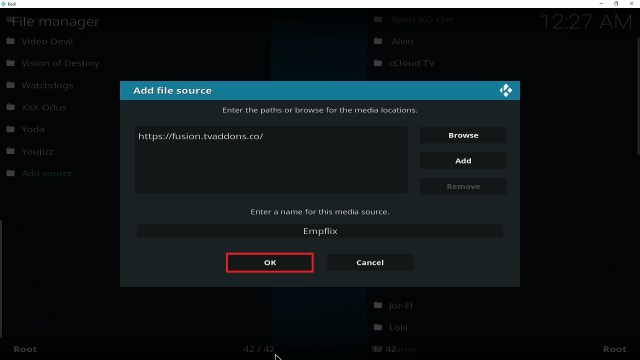
9. Type exactly: https://fusion.tvaddons.co

Step 9 Installing Empflix Kodi addon on Kodi

10. Click on OK.

Step 10 Installing Empflix Kodi addon on Kodi

11. Select enter a name for this media source.

Step 11 Installing Empflix Kodi addon on Kodi

12. Name is Empflix (this part isn’t critical as long as you remember the name).

Step 12 Installing Empflix Kodi addon on Kodi

13. Click on OK.

Step 13 Installing Empflix Kodi addon on Kodi

14. Click on OK.

Step 14 Installing Empflix Kodi addon on Kodi

15. Take one step back and click on Add-ons.

Step 15 Installing Empflix Kodi addon on Kodi

16. Select install from zip file.

Step 16 Installing Empflix Kodi addon on Kodi

17. Click on Empflix (or whatever you named the source).

Step 17 Installing Empflix Kodi addon on Kodi

18. Click kodi-repos

Step 18 Installing Empflix Kodi addon on Kodi

19. Click xxx-adult

Step 19 Installing Empflix Kodi addon on Kodi

20. Click on repository.xbmcadult-1.0.7.zip

Step 20 Installing Empflix Kodi addon on Kodi

21. Select on Install from repository.

Step 21 Installing Empflix Kodi addon on Kodi

22. Click on XBMC-Adult Addons

Step 22 Installing Empflix Kodi addon on Kodi

23. Pick Video add-ons.

Step 23 Installing Empflix Kodi addon on Kodi

24. Select Empflix Video again.

Step 24 Installing Empflix Kodi addon on Kodi

25. Click on Install.

Step 25 Installing Empflix Kodi addon on Kodi

26. Select Version 2.0.15 XBMC-Adult Addons

Step 26 Installing Empflix Kodi addon on Kodi

27. Select OK after reviewing the add-ons that will be installed.
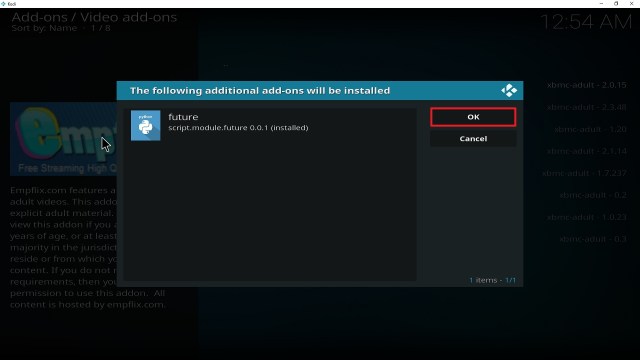
Step 27 Installing Empflix Kodi addon on Kodi

28. You should see a popup in the upper right corner saying Empflix has installed. There will actually be multiple popups for the various components.

Step 28 Installing Empflix Kodi addon on Kodi

29. Click on Open to start the Empflix add-on.

Step 29 Installing Empflix Kodi addon on Kodi


YOUR INTERNET ACTIVITY IS BEING WATCHED

ReviewVPN cannot attest to the legality, security and privacy of the applications discussed on this site. It is highly recommended that you use a VPN service while streaming or using Kodi.

Currently, your IP 123.27.137.117 is visible to everyone and your Browser is being tracked by Advertisers & ISP Provider.

Save 65% Now

Limited Time Offer

Here are the main reasons why you must use a VPN:

  • Your activities are hidden from your ISP, the government, and from the apps you are using.
  • You can access additional movies and TV streams.
  • ISP attempts to throttle are thrwarted thus reducing buffering issues.
  • Geographically restricted content like Netflix and Hulu can be unblocked.

A VPN works be replacing your ISP-assigned IP address and creating an encrypted tunnel. We recommend the no log service offered by IPVanish. It works well on a Firestick and offers the fastest possible speeds.

Special Limited Time Offer - Get IPVanish


Legal Disclaimer: ReviewVPN.com does not encourage or endorse any illegal activity involved in the usage of services and applications referenced on this site. We do not verify the licensing agreements of services. The end-user is wholly responsible for ensuring that any media accessed through these services does not violate copyright and/or licensing laws. ReviewVPN does not promote, link to, or receive compensation from any Apps and IPTV services.


Install Surfshark on Firestick

Best Surfshark Deal


EmpFlix Kodi Addon Features

  • Easy-to-use interface
  • Videos play immediately
  • Full of categories (70 items)
  • The length of the videos is not longer than 15 minutes
  • Not for straight porn only


Categories Available

  • All
  • Amateur Porn
  • Anal
  • Arabian Porn
  • Asian Girls Fucking
  • Ass
  • Babes Fucking
  • BBW
  • Bizarre Sex
  • Blonde
  • Blowjob
  • Brunette
  • Cartoon Sex
  • Celebrity
  • Classic Adult Videos
  • Club Chix
  • Creampie Sex
  • Cumshots
  • Double Penetration
  • Ebony
  • Euro
  • Extreme
  • Facial Cum Shots
  • Fat Girls
  • Fetish Sex
  • Flashing
  • Foot Fetish
  • Funny
  • Gang Bang Fucking
  • Gay/Bi-Male Fucking
  • German Porn
  • Gothic
  • Granny Sex
  • Group Sex
  • Huge Tits
  • Hairy
  • Huge Cocks
  • Hardcore
  • Homemade
  • Indian
  • Intersections
  • Interracial
  • Japanese
  • Latina
  • Lesbian
  • Mature
  • MILF
  • Masturbating
  • Petite Girls
  • Piss
  • Porn Stars
  • POV
  • Pregnant
  • Public Sex
  • Redhead
  • Sex Toys
  • Shemale/Trans
  • Softcore
  • Spanking
  • Squirting
  • Storyline Sex
  • Swingers
  • Teen Girls
  • UK Dogging
  • Upskirt Down Blouse
  • Voyeurism
  • VR Room


EmpFlix Pros and Cons

Pros

  • 67 categories to choose from
  • videos play easily
  • easy to use interface


Cons

  • Videos are shorter
  • Not all videos are top rated
  • Some are not in full HD


Alternative Addons for EmpFlix

There are a lot of porn addons available on Kodi. Here is the list of alternatives to choose from:


Should I Use EmpFlix Kodi Addon with a VPN?

We always recommend that you use Kodi with a VPN for several reasons:

  • Much of the content that you will watch on Kodi using the unofficial add-on isn’t being streamed and shared legally. This means that over time many of the links that you use will be blocked, either because the content provider has served a DMCA notice, or the ISP has blocked the URL for other reasons
  • All online content is blocked by your ISP. This could be because the material is illegal or of questionable origin. The problem is, that you don’t get to choose which half you see
  • A VPN helps to view any content by encrypting your connection with 256-bit AES encryption. The same type is used by the US military. This means that no one, not even your ISP can stop you from viewing content. Because they can’t see what URL your request is bound for. Only that your connection disappears into your VPN’s DNS and reappears later.
  • Watching adult content means you may come across country restrictions on content like the UK porn block, or region-restricted content. Your VPN allows you to log onto servers in countries without restrictions and access any content you want
  • You are also able to obscure and change your original IP address to stop any traffic from being traced back to you, providing your VPN has no DNS leaks and has a solid zero logs policy

We recommend installing an active VPN on your device before downloading and installing Adult Kodi addons. This is to keep your connection encrypted and anonymous.

Note: For more information about Surfshark, please read our Surfshark Review.


Grab your subscription now!


How to Install Surfshark VPN on Firestick

If your Firestick still has the older interface, read this article to learn how to update it: Update Firestick Interface.

1. Go to the Home screen of your Firestick.

step 1 Install Surfshark VPN on Firestick


2. Navigate towards the Find tab. Press the Search button from the resulting dropdown.

step 2 Install Surfshark VPN on Firestick


3. Type in the keyword of SurfShark and select from the suggestions that will appear.

step 3 Install Surfshark VPN on Firestick


4. Click the official SurfShark icon from your search results.

step 4 Install Surfshark VPN on Firestick


5. Press the Download (You own it) button.

step 5 Install Surfshark VPN on Firestick


6. The SurfShark VPN installer will download on your device.

step 6 Install Surfshark VPN on Firestick


7. SurfShark VPN’s app will automatically install itself on your Fire TV stick.

step 7 Install Surfshark VPN on Firestick


8. Press the Open button after completing SurfShark VPN’s installation process.

step 8 Install Surfshark VPN on Firestick


9. Please wait for the SurfShark VPN to load its user interface.

step 9 Install Surfshark VPN on Firestick


10. You can now log in with your SurfShark VPN account credentials.

step 10 Install Surfshark VPN on Firestick

Learn more about Surfshark and Grab the Best Surfshark Deal Now!


Install Surfshark on Firestick

Best Surfshark Deal


Other VPNs to Consider

NordVPN (Best for Streaming)

Best Features

  • 5000+ Server in 50+ Countries 
  • Military-Grade Encryption
  • Fast Connection Speed
  • Suitable to a lot of devices
  • No-Log Policy

Prices
  • Complete $5.89 per month (64% Discount)
  • Plus $4.59 per month (56% Discount)
  • Standard $3.69 per month (55% Discount)

Best Features

  • 750+ High-speed VPN Servers in 43 Locations
  • Military-Grade Encryption
  • Fastest HD Streaming and Gaming
  • 30-Day Money-Back Guarantee
  • Unlimited Data & Devices
  • No-Log Policy

Prices
  • 3 Years $1.99 per month (82% Discount)
  • 1 Years $3.29 per month (70% Discount)
  • 1 Month $10.99 per month

IPVanish VPN (Most Secure)

Best Features

  • 1200+ Servers in 60+ Countries around the world
  • Unlimited Connections
  • No-Log Policy
  • Top Notch Military-Grade VPN Protocols and Encryptions
  • 100% Safe and Secured
  • Most Trusted VPN
  • Best VPN for Firestick
  • 30-Day Money-Back Guarantee

Prices
  • Yearly $3.99 per month (63% Discount) – 30 days risk free + Ransomware & Malware Protection
  • Quarterly $5.32 per month (51% Discount)
  • Monthly $10.99 per month


For more VPN discounts, go to ReviewVPN Deals and purchase the best VPN for you.

Click here to get the lowest price on Surfshark through our exclusive limited-time offer.


FAQs

What is Kodi?

kodi logo

Kodi first came around in 2002, when Xbox users hacked together software that would allow them to play and store media on their Xbox, since then the software has grown enormously, to become one of the most downloaded open-source media players in the world.

Kodi has become popular for several reasons, probably foremost amongst these are the thousands of addons, builds, and repositories that have been contributed by developers all around the world. These add-ons allow users to watch everything from blockbuster TV shows to obscure documentaries from foreign countries.

On top of this Kodi has had 17+ years of development and features, which means there really isn’t much it cannot do. It supports a wide range of codec or video formats and has almost 1,000 legal and legitimate add-ons to help users, as well as thousands more that are unsanctioned and added by third-party developers.

Kodi’s 10-foot user interface allows users to use the software to turn their TV into a home entertainment center and automatically scale and control Android applications effectively.


What is an Add On?

kodi add on image

An add on allows a user to carry out a specific function and can be downloaded either through the Kodi Store or for unofficial add ons you would allow access to unknown sources and download directly from a URL.

Think of Kodi as an iPhone, and the add ons as applications.

The add ons are what really bring Kodi to life, turning it from a media player into a diverse entertainment center.

Common Errors

  • Kodi check log error:  This error may never come up if you are running a big storage device like the Nvidia Fire shield. However, with an Amazon Firestick, you’ll get this after a few days of streaming. Each piece of media you watch as well as every page of a Kodi addon’s navigation is cached as a media snippet, to make loading smoother and the faster second time around. So this is great for navigating Kodi, but the cache fills up quickly the more content you watch. Once full you will start getting the check log error.
  • Script Error: You will get a script error when installing Empflix. This means that a script is missing either in Kodi or the addon. If you try to reinstall Empflix and still get the same error, then the problem is with your Kodi installation. Kodi may have been corrupted by another addon or just need updating. To find out how to fix your Kodi installation and other steps read our in-depth guide linked above.
  • Source not working/slow/frozen: Empflix should play quick sources directly from the website. Be patient when the source is trying to connect. Wait up to 15 seconds and maybe try to play the source in a lower quality. If that doesn’t work, try another source and make sure that your VPN is connected as your ISP may be blocking your content. For more fixes read our fix guide linked above.
  • Could not connect to URL/Download: Check that you have spelled the URL correctly and you are downloading it from the right repository. Also, you have a working VPN, so you can be sure your ISP isn’t blocking your content. Check here for the best VPN deal. For other fixes read our in-depth guide linked above.

Opinion

Empflix is a great addon, although it doesn’t quite matchup up to XXX-O-DUS just like YouPorn the limitation is that it only fetches videos from one website, whereas other addons will scrape over 40 top websites. Still, you will get more choices and categories than you need.

A big drawback to Empflix is the lack of search function, which makes looking around fiddly, and a bit of a faff if you know exactly what you want to watch and don’t fancy browsing through hundreds of videos. It seems like a basic mistake to make with an addon with this much content to choose from.

We hope that this article helps you obtain the necessary information you need to install the EmpFlix Kodi Addon


See Also:

Best Adult Apps for Firestick

The Best Adult Apps for Android

Install Live Lounge APK for Free Live TV, Sports, Adult Section and Movies

Best Unlinked Codes

50 Best Free Movie Streaming Sites

AudioRave on Firestick – 2023 Review

AudioRave on Firestick

In this article, we will be divulging important details on how to install AudioRave on Firestick and other devices that run on the android platform.


Streaming music online nowadays has become very easy with the proliferation of many music apps.

You can stream your favorite music from the comfort of your smartphone free of charge without any hassle.

AudioRave App allows you to access millions of songs and music from all genres.


What is AudioRave App?

AudioRave is an app that lets you search, access, and stream millions of songs, free hip-hop mixtapes, and music.  This app is compatible with Windows computers, Android smartphones, tablets, and many more.


Features of AudioRave App

  • Allows you to search and stream tons of free songs, music, and lots more.
  • You can create a playlist of your favorite audio tracks and songs.
  • Allows you to save a song to listen to it later.
  • Search and find new and popular music, hit songs, EDM, hip hop, country, pop, and many more.
  • Works well on Android and Windows operating devices such as smartphones, tablets, computers, ETC.
  • Requires Android version 4.1 and upwards.


ANONYMOUSLY

Is AudioRave Safe and Virus-free?

We tested this application using VirusTotal and found that there is/are malicious file/files. You can see the above result for your reference.

Because of this, we highly recommend using a VPN that can protect your privacy against any threat from AudioRave.

Here’s how you can Install The Best VPN For Firestick and All Devices.


Frequently Asked Questions

Can I install AudioRave App on Windows devices?

Yes, you can install the AudioRave app on windows Devices using an android emulator such as Bluestack or Nox emulator.


Is it safe to use the AudioRave app?

Yes, it is completely safe to use this app. AudioRave app does not store or ask for your data. However, we recommend protecting yourself with a VPN.

Is AudioRave free to use?

Yes. Installing and running this app on your device is free. All you need is a strong and reliable internet connection.


Protect yourself with a VPN

If you are fond of using the internet: be it for streaming content: music or movies or accessing the web, you should know that your online activities are tracked and monitored. This is because your internet service provider keeps a log of websites you visited and tracks whatever activities you do online.

That is why we recommend installing a VPN on your device.


YOUR INTERNET ACTIVITY IS BEING WATCHED

ReviewVPN cannot attest to the legality, security and privacy of the applications discussed on this site. It is highly recommended that you use a VPN service while streaming or using Kodi.

Currently, your IP 123.27.137.117 is visible to everyone and your Browser is being tracked by Advertisers & ISP Provider.

Save 65% Now

Limited Time Offer

Here are the main reasons why you must use a VPN:

  • Your activities are hidden from your ISP, the government, and from the apps you are using.
  • You can access additional movies and TV streams.
  • ISP attempts to throttle are thrwarted thus reducing buffering issues.
  • Geographically restricted content like Netflix and Hulu can be unblocked.

A VPN works be replacing your ISP-assigned IP address and creating an encrypted tunnel. We recommend the no log service offered by IPVanish. It works well on a Firestick and offers the fastest possible speeds.

Special Limited Time Offer - Get IPVanish


Legal Disclaimer: ReviewVPN.com does not encourage or endorse any illegal activity involved in the usage of services and applications referenced on this site. We do not verify the licensing agreements of services. The end-user is wholly responsible for ensuring that any media accessed through these services does not violate copyright and/or licensing laws. ReviewVPN does not promote, link to, or receive compensation from any Apps and IPTV services.


Install Surfshark on Firestick

Best Surfshark Deal


What is a VPN?

A VPN (a virtual private network) is software that uses masking and encryption to protect your IP address on the internet service provider network. When a VPN performs encryption on your IP address, it will appear as a private, anonymous, and secure user on the internet service provider network.


Importance of protecting yourself with a VPN:

1. Security

You can access the internet without having your IP address logged on the ISP network. This is possible when a VPN masks your IP address, especially on a public Internet connection. Some website and apps often protect their content and track their users, however with a VPN, you can access any website and use any apps without the fear of your data being monitored or tracked.


2. Outsmart location restriction

Many streaming apps and websites use location restrictions to protect their content. When content is protected with location restrictions, it means that people outside of its designated location won’t have permission to access its content.

VPN comes with tons of locations and servers which you can easily switch to. So the only way to beat location restrictions is to install a VPN on your device. When you install a VPN, it gives you many options for servers and locations to choose from.


3. Bypass third-party tracking

installing a VPN  on your device will help you to bypass third-party monitoring. Each time you visit any site or stream content online, the website or app does collect your data. Often time, third parties sell your data to Ads companies for commercial purposes and all that. That said, with a VPN installed on your device, you will beat and bypass Third-party monitoring and access the internet without any fear of your data being collected. 

Note: For more information about Surfshark, please read our Surfshark Review.


Grab your subscription now!

Click here to get the lowest price on Surfshark through our exclusive limited-time offer.


How to Install Surfshark VPN on Firestick

If your Firestick still has the older interface, read this article to learn how to update it: Update Firestick Interface.

You can download Surfshark directly from the Amazon App store. It will be easy for you to find Surfshark with your Firestick’s Find feature. Refer to our screenshots below.

1. Go to the Home screen of your Firestick.

step 1 Install Surfshark VPN on Firestick


2. Navigate towards the Find tab. Press the Search button from the resulting dropdown.

step 2 Install Surfshark VPN on Firestick


3. Type in the keyword of SurfShark and select from the suggestions that will appear.

step 3 Install Surfshark VPN on Firestick


4. Click the official SurfShark icon from your search results.

step 4 Install Surfshark VPN on Firestick


5. Press the Download (You own it) button.

step 5 Install Surfshark VPN on Firestick


6. The SurfShark VPN installer will download on your device.

step 6 Install Surfshark VPN on Firestick


7. SurfShark VPN’s app will automatically install itself on your Fire TV stick.

step 7 Install Surfshark VPN on Firestick


8. Press the Open button after completing SurfShark VPN’s installation process.

step 8 Install Surfshark VPN on Firestick


9. Please wait for the SurfShark VPN to load its user interface.

step 9 Install Surfshark VPN on Firestick


10. You can now log in with your SurfShark VPN account credentials.

step 10 Install Surfshark VPN on Firestick

Learn more about Surfshark and Grab the Best Surfshark Deal Now!


Other VPNs to Consider

NordVPN (Best for Streaming)

Best Features

  • 5000+ Server in 50+ Countries 
  • Military-Grade Encryption
  • Fast Connection Speed
  • Suitable to a lot of devices
  • No-Log Policy

Prices
  • Complete $5.89 per month (64% Discount)
  • Plus $4.59 per month (56% Discount)
  • Standard $3.69 per month (55% Discount)

Best Features

  • 750+ High-speed VPN Servers in 43 Locations
  • Military-Grade Encryption
  • Fastest HD Streaming and Gaming
  • 30-Day Money-Back Guarantee
  • Unlimited Data & Devices
  • No-Log Policy

Prices
  • 3 Years $1.99 per month (82% Discount)
  • 1 Years $3.29 per month (70% Discount)
  • 1 Month $10.99 per month

IPVanish VPN (Most Secure)

Best Features

  • 1200+ Servers in 60+ Countries around the world
  • Unlimited Connections
  • No-Log Policy
  • Top Notch Military-Grade VPN Protocols and Encryptions
  • 100% Safe and Secured
  • Most Trusted VPN
  • Best VPN for Firestick
  • 30-Day Money-Back Guarantee

Prices
  • Yearly $3.99 per month (63% Discount) – 30 days risk free + Ransomware & Malware Protection
  • Quarterly $5.32 per month (51% Discount)
  • Monthly $10.99 per month


For more VPN discounts, go to ReviewVPN Deals and purchase the best VPN for you.


Final words

AudioRave is an app that gives you access to search and stream millions of songs, music, and hip hops tracks from around the world. This app is free to use and does not occupy much of your device storage memory. AudioSave app is compatible with Android and Windows-powered devices such as tablets, smartphones, TVs, and lots more. Install AudioSave for 24/7 unlimited streaming of music in different genres.

Stream Locator VPN on Firestick- 2023 Review

Stream Locator Overview 

In this article, we will give you a review of Stream Locator VPN on Firestick and Android devices.


With streaming content on the internet becoming so popular, people are spoilt for choice. Nonetheless, there is one holy grail people are still interested in – the American streaming services that only tend to function in the United States.

Watching American streaming platforms in the United Kingdom, as well as other countries, is now easy. Some streaming companies try to prevent people from doing that – for the reason for licensing issues. Thus, a common solution is to utilize a Virtual Private Network or VPN, but most VPNs have drawbacks – so another type of solution to stream content from other countries is to use Stream Locator.


ANONYMOUSLY


What is a Stream Locator hub?

The Stream Locator hub, which is a WiFi router with a number of tricks up its sleeve, provides access to the United States streaming platforms on basically any media player that links to the internet through WiFi. The Stream Locator is very easy to use and more accessible compared to a VPN.

When you have the Stream Locator streaming hub, you’ll never miss out on your best-loved movies, TV shows, and other entertainment content. This geo-unblocking streaming gadget automatically redirects your country so you do not have to adjust the settings. The StreamLocator is faster and more stable compared to VPNs with regard to getting rid of geo-restrictions from all video streaming platforms. 

This plug-and-play device sets up straightforwardly and functions with any Wi-Fi-enabled gadget, such as smart TV and other streaming devices. The Stream Locator streaming hub gives access to numerous popular streaming services from across the globe, including Netflix, Hulu, HBO, and many more. Coming with 1 year of service included, this video streaming hub is a device you’ll love.


Features

  • A simple way to watch movies and TV shows from other countries. Just select a country and you can access its streaming catalogs in your streaming applications (without dropping any internet speed).
  • It is the only VPN application that is specifically created for watching media content from other countries on Amazon Fire TV Stick. Whether accessing another country’s streaming applications, getting around blackouts, or watching TV channels from your hometown, you can do it all in a few seconds with the Stream Locator hub. 
  • Access entertainment content from a number of countries on the most famous streaming platforms, regardless of where you are in the world
  • Stop thinking about bad streaming quality & slow speeds – the StreamLocator hub has the speed you need to watch content in 4K Ultra HD
  • It automatically finds the perfect servers, thus you’ll save time testing the servers by yourself 

Pros & Cons 

PROS

  • No loss of speed
  • No installation
  • Supports a lot of international streaming platforms, which include 8 Netflix countries
  • No messing around with DNS settings
  • Easy to install & use
  • Works with nearly all streaming device, including Android-powered mobile phones & smart TVs


CONS

  • Not all streaming services supported
  • Not particularly cheap
  • Clunky appearance


YOUR INTERNET ACTIVITY IS BEING WATCHED

ReviewVPN cannot attest to the legality, security and privacy of the applications discussed on this site. It is highly recommended that you use a VPN service while streaming or using Kodi.

Currently, your IP 123.27.137.117 is visible to everyone and your Browser is being tracked by Advertisers & ISP Provider.

Save 65% Now

Limited Time Offer

Here are the main reasons why you must use a VPN:

  • Your activities are hidden from your ISP, the government, and from the apps you are using.
  • You can access additional movies and TV streams.
  • ISP attempts to throttle are thrwarted thus reducing buffering issues.
  • Geographically restricted content like Netflix and Hulu can be unblocked.

A VPN works be replacing your ISP-assigned IP address and creating an encrypted tunnel. We recommend the no log service offered by IPVanish. It works well on a Firestick and offers the fastest possible speeds.

Special Limited Time Offer - Get IPVanish


Grab your subscription now!

Click here to get the lowest price on SurfShark through our exclusive limited-time offer.


FAQs

What is the official website of Stream Locator VPN?

  • The official website is www.streamlocator.com


Where is its headquarters?

  • The geo-unblocking streaming device’s headquarters is in 200 – 155 East Beaver Creek Rd, Richmond Hill, Ontario, L4B 2N1, Canada


What is its technology stack?

  • The technologies used are – Google Global Site Tag, Play Framework, Impact Radius, Google Cloud Platform,


Stream Locator vs Traditional VPNs

Unlike most VPN services, you don’t have to link to a particular server – the Stream Locator Hub does it for you. Wherein, you can go to a United States streaming platform in the UK and it will automatically avoid the geo-restrictions.

When utilizing a VPN service, people have found that streams will stop in the mid part, or that they have to try numerous servers to find one that allows them to log on. This is quite a standard with Virtual Private Networks, though some VPNs are very good at unblocking geo-restrictions than others.

Nonetheless, Stream Locator Hub users had no such issues with the geo-unblocking streaming device. The Stream Locator has a faster and more stable connection compared to other VPN services. The Stream Locator Hub allows you to have several websites from various regions open simultaneously on your streaming device. It worked perfectly watching CWTV (United States-based) and BBC iPlayer (United Kingdom-based) side-by-side.

When you’re done streaming content and want to utilize your usual web connection, you just have to disconnect from the Stream Locator and link back to your normal one. You can’t apply this to wired devices. However, you can use StreamLocator even when you watch content that does not need any unblocking.


More Reliable Than Many VPNs

Bear in mind that watching content through the Stream Locator device is a smooth-running process that is more reliable compared to many VPN services. Thus, it comes down to the amount of international content you plan on streaming. If it is a lot and across different platforms then you should consider using the Stream Locator Hub.

One other thing you must remember is that VPN providers have other benefits like giving you online privacy protection. The Stream Locator device is not trying to be a replacement for a Virtual Private Network, but rather another solution for people who want to stream media content in other countries. 

However, the best VPN service for unblocking popular streaming platforms is SurfShark. SurfShark can unblock Amazon Prime Video, Netflix, HBO Max, BBC iPlayer, Hulu, and many more.


SurfShark Features:

  • Amazing speed
  • Anonymous Torrenting
  • With owned server network
  • Unlimited P2P Traffic
  • It works on all unlimited simultaneous devices
  • 256-Bit AES Encryption
  • Unlimited Bandwidth
  • SOCKS5 Web Proxy
  • Has additional privacy features
  • Geo-Locked Content Access
  • Platforms: IOS, Mac, Windows, Android
  • Zero Logs
  • Privacy & security features: OpenVPN, IKEv2, & L2TP/IPsec VPN protocols


Install SurfShark on Firestick

Best SurfShark Deal


How to Install Surfshark on Firestick with Screenshots

If your Firestick still has the older interface, read this article to learn how to update it: Update Firestick Interface.

You can download Surfshark directly from the Amazon App store. It will be easy for you to find Surfshark with your Firestick’s Find feature. Refer to our screenshots below.

Follow our screenshots below to install the SurfShark VPN app on your Fire TV stick.

1. Go to the Home screen of your Firestick.

step 1 Install Surfshark VPN on Firestick


2. Navigate towards the Find tab. Press the Search button from the resulting dropdown.

step 2 Install Surfshark VPN on Firestick


3. Type in the keyword of SurfShark and select from the suggestions that will appear.

step 3 Install Surfshark VPN on Firestick


4. Click the official SurfShark icon from your search results.

step 4 Install Surfshark VPN on Firestick


5. Press the Download (You own it) button.

step 5 Install Surfshark VPN on Firestick


6. The SurfShark VPN installer will download on your device.

step 6 Install Surfshark VPN on Firestick


7. SurfShark VPN’s app will automatically install itself on your Fire TV stick.

step 7 Install Surfshark VPN on Firestick


8. Press the Open button after completing SurfShark VPN’s installation process.

step 8 Install Surfshark VPN on Firestick


9. Please wait for the SurfShark VPN to load its user interface.

step 9 Install Surfshark VPN on Firestick


10. You can now log in with your SurfShark VPN account credentials.

step 10 Install Surfshark VPN on Firestick

Learn more about Surfshark and Grab the Best Surfshark Deal Now!


Install Surfshark on Firestick

Best Surfshark Deal

Other VPNs to Consider

NordVPN (Best for Streaming)

Best Features

  • 5000+ Server in 50+ Countries 
  • Military-Grade Encryption
  • Fast Connection Speed
  • Suitable to a lot of devices
  • No-Log Policy

Prices
  • Complete $5.89 per month (64% Discount)
  • Plus $4.59 per month (56% Discount)
  • Standard $3.69 per month (55% Discount)

Best Features

  • 750+ High-speed VPN Servers in 43 Locations
  • Military-Grade Encryption
  • Fastest HD Streaming and Gaming
  • 30-Day Money-Back Guarantee
  • Unlimited Data & Devices
  • No-Log Policy

Prices
  • 3 Years $1.99 per month (82% Discount)
  • 1 Years $3.29 per month (70% Discount)
  • 1 Month $10.99 per month

IPVanish VPN (Most Secure)

Best Features

  • 1200+ Servers in 60+ Countries around the world
  • Unlimited Connections
  • No-Log Policy
  • Top Notch Military-Grade VPN Protocols and Encryptions
  • 100% Safe and Secured
  • Most Trusted VPN
  • Best VPN for Firestick
  • 30-Day Money-Back Guarantee

Prices
  • Yearly $3.99 per month (63% Discount) – 30 days risk free + Ransomware & Malware Protection
  • Quarterly $5.32 per month (51% Discount)
  • Monthly $10.99 per month

For more VPN discounts, go to ReviewVPN Deals and purchase the best VPN for you.


Streaming Services Supported

Here are the streaming services that the Stream Locator hub support:


Free Services (US Based):

  • IMDb TV
  • Peacock
  • Plex TV
  • Tubi
  • Crackle
  • Pluto TV
  • FilmRise
  • Pandora
  • The CW
  • Xumo
  • Adult Swim 
  • VRV
  • Crunchyroll US
  • US Roku Channel
  • PBS
  • All 4 (Channel 4)
  • BBC iPlayer
  • iTV
  • My5 (Channel 5)
  • TVPlayer
  • UKTV Play
  • Zattoo Switzerland
  • Zattoo Germany
  • DPlay Italy
  • DPlay UK


Standalone Paid Services

  • Netflix USA
  • Netflix United Kingdom
  • Netflix Canada
  • Netflix Germany
  • Netflix South Korea
  • Netflix France
  • Netflix Mexico
  • DAZN Germany
  • DAZN Canada
  • Netflix Brazil
  • Disney+ UK
  • Disney+ USA
  • Disney+ Canada
  • Acorn TV UK
  • Acorn TV US


US Based:

  • HBO MAX
  • HBO Now
  • Amazon Prime USA
  • Hulu
  • AT&T TV Now 
  • Sling TV
  • Showtime
  • CBS All Access
  • ESPN+
  • NBC Sports Gold
  • Starz 
  • Philo
  • Epix NOW (Cable login available)
  • Shudder
  • VUDU
  • FuboTV


UK Based:

  • Amazon Prime UK 
  • NOW TV
  • Showmax UK


Cable Subscription Required (US Based):

  • NBC 
  • NBC Sports
  • ESPN
  • CBS Sports
  • TBS
  • FX Now
  • Showtime Anytime
  • TNT
  • USA Network


Stream Locator Hides Your IP Address

The Stream Locator hub supports all the most popular video streaming platforms. Since these video streaming platforms are only accessible in one country, the Stream Locator is adept to automatically ensure you’re a local in that country. Hulu will see you as being in the United States and BBC iPlayer will see you as in the United Kingdom – even simultaneously on various devices.

As for streaming services with numerous regions, the Stream Locator allows you to manually select via its website which region you want to link to. If you use that service in your own region, you may choose – disable relocation.

Not every country is accessible for this. For instance, Netflix will give you a choice of eight countries: United States, United Kingdom, France, Canada, Korea, Brazil, Mexico, and Germany. Australia, New Zealand, and Japan are not currently listed.

Additionally, not all streaming services are available. The Britbox, for instance, wasn’t on the list. Nonetheless, the developer of Stream Locator made it known that over time more streaming platforms & countries will be added according to people’s requests. 


Stream Locator Speed

The Stream Locator supports 4K streaming and functions with unlimited Wi-Fi-enabled devices. The geo-unblocking streaming device will not negatively affect your bandwidth while bragging a super-fast speed as well as a 5GHz compatibility. The streaming gadget developed a proprietary OpenWRT build firmware that runs on a dual-band router – which is a Mediatek MT7621A-based chipset. 

For wired connection, the Stream Locator contains 1 WAN & 4 LAN gigabit ports, and it comes along with a power supply & an ethernet cable. The router speed through Wi-Fi ranges from 200 – 300 Mbps, and through a wired connection, it ranges from 350-450 Mbps. However, you need an internet connection of 5Mbps for High Quality (HD) streaming and  25Mbps is for 4K streaming.

The new 5Ghz StreamLocator hub has a significant enhancement. On a 200Mbps connection, you’ll be able to reach WiFi speeds of about 160Mbps. If you have 802.11ac support, the WiFi range will be excellent.


Price

For the Stream Locator service to function, you need 2 elements – the StreamLocator hub as the hardware and a subscription. If you purchase the Stream Locator hub, you’ll be paying $83.88 (12 months in advance). Once the first 12 months are up, you can automatically renew the subscription for $6.99 per month. However, you can cancel the subscription anytime you want. Or You can try it for 30 days and if you don’t like it, you can return it for a full refund.

If you bump into some payment issues, for instance, some of the US-based streaming platforms only allow you to subscribe with a United States-based card. There are methods around those problems. If you need US billing information for services like HBO Max, www.statescard.com is an easy and affordable way to get it. This does a good job highlighting some of the main services you might need US billing information for.


Connectivity Ports

The connectivity ports of the StreamLocator are all located on the device’s rear and it comes along with WPS & reset pinhole buttons. Its router is powered by 12V/2A and appears like a typical router and works as a router but has great power, thanks to 5 Gigabit Ethernet ports. It also includes a dedicated WAN port for connecting your home router to the Stream Locator router. 

While the StreamLocator appears to be a typical ISP router, it is not since it can’t function standalone, it needs to be able to ride on the ISP router in order to work. 


How To Setup The Stream Locator

  • Connect the PC or mobile phone to the home network and go to start.streamlocator.com
  • Connect the Stream Locator hub 
  • Click I have connected my router
  • Confirm LED lights (the light on my router is ON or blinking)
  • Enter the last 2 characters MAC address (on the bottom of the Stream Locator hub)
  • Register an account 
  • You can change the WiFi name or password by going to the Update Settings


The second stage will be done on the Android-powered devices where you want to stream the content. Thus, on your Smart TV, for instance, you will now need to alter the way it links to the internet. If your smart TV is currently linked to the WiFi network of your home, you need to connect it to the new StreamLocator WiFi network. And the same goes for your Fire Stick, mobile phone, laptop, tablet, etc.

On devices like mobile phones and computers, it’s very easy to switch between Wi-Fi networks. You can switch to the network of the Stream Locator only when you wish to watch something and switch it back when you wish to connect to your usual network.

Nonetheless, the Stream Locator will automatically assign the perfect country to each streaming service. Thus, you can stream a US-based streaming platform in the living room, while another member of your family is streaming a supported streaming platform from the United Kingdom in the kitchen.


Using The Stream Locator

The moment you connect your device to the Stream Locator network, the geo-unblocking streaming will give you instant access to tons of the most popular streaming platforms, regardless of where you are located. The Stream Locator allows you to switch between numerous Netflix regions and bypass annoying sports blackouts.

Streaming gadgets these days need you to create an account and that account will be assigned to a particular country. Thus, if your Fire TV Stick, for instance, is registered with a United States account, you are not allowed to download UK-only applications.

However, if you want to access a streaming platform that is only available in one country, the Stream Locator hub will route the streaming traffic via that country. For streaming platforms with multiple regions, just choose the country in the online dashboard and the Stream Locator will ensure that is the version you get.

With StreamLocator, your streaming traffic will go to the perfect spot, so you’ll never have issues with geo-restricted content. Never mind about switching servers based on the media content you want to stream, the StreamLocator handles it all.


Design and Build

The StreamLocator hub is basically an 802.11n Wi-Fi router that runs on OpenWRT custom-based firmware. It can easily fit on a TV stand alongside other gadgets, and it has a slim main box. The StreamLocator’s aerials could be an eyesore, but when you’re not using the device you can fold them down. 

At the back of the StreamLocator is an Ethernet port that is used to connect to the router. It has four other ports for wired connections. These four other ports are useful for devices that are not Wi-Fi-enabled, or if you simply want a faster & reliable connection. As the StreamLocator is a router, it comes along with a WPS button, a reset button, and a USB port.

The Stream Locator has LED lights – connection status indicators and active ports indicators. You’ll find the password for the hub on a sticker located at the bottom of the hub. 


Final opinion

Whether you are an ex-pat missing your local TV channel, or you want to stream a wider variety of media content with geo-restrictions, the Stream Locator hub is a great choice, which is easier to use compared to a VPN. The Stream Locator works with an unlimited number of Android-powered devices. 

Installation Guides for FireStick/Fire TV For Different Devices

FireStick/Fire TV Overview

Watching TV has been evolving quickly around the world alongside the forerunners of video streaming services such as Amazon Prime Video, Hulu, Hotstar, Netflix, etc. DTH may possibly be a thing of the past. Video Streaming Services don’t only provide better and more content but also offer users the choice of what they want to stream. With millions of TV shows, documentaries, movies, etc, users can pick anything they want. The most recent service that has entered the video streaming category is the Amazon Fire TV Stick. 


The Firestick is an exclusive Amazon product that offers tons of services such as Netflix, Amazon Prime Video, Gaana, Hotstar, and many more. However, this is not the only summit of features that the Firestick has. That’s right, you guessed it! The Firestick remote now comes with the Alexa Voice control. So, now you can just relax and control everything by using your voice. It’s amazing, right?

If you are planning to buy an Amazon Fire TV Stick or if you have one already and you don’t know how to set the device, then do not worry. This article will guide you on how to set up your Amazon Fire TV Stick onto your TV.

 All you need to do is follow the steps carefully and everything will be a piece of cake. However, before you begin setting up the device, there are just a few prerequisites that need to be mentioned. These are the things that you will need in order to set up and launch your Amazon Fire TV Stick. Take note that these requirements are not part of the Fire Stick Box set, so what you will be needing are:

  • A TV that is compatible with Firestick. You will need an HDTV that has an HDMI port for the Firestick.
  • Internet connection. The device does come with its own internet source. So, you need to connect your Firestick device to a strong and active WiFi network so that you can watch video content in High Definition.
  • An Amazon account. You will need to register or sign up for your Amazon account so that you can link it to your Firestick device. However, if you buy the Firestick device using your Amazon account, then the device will already be registered on that account. You may change it anytime you want.


ANONYMOUSLY

Installation Guide For Fire TV Stick

  1. Plugin your Fire TV Stick device into the HDMI port of your TV and then plug in the adapter into an outlet.
  2. Place the batteries in the Fire TV remote.
  3. Switch your TV on and shift to the HDMI input channel to your Fire TV.
  4. Choose the language you prefer.
  5. Type in your Wi-Fi password.
  6. Once it’s prompted, download the latest software version of the Firestick.
  7. Register your Firestick device by using one of the following choices:
    • On the device, sign in to your Amazon account: 
      • Type in your login details.
      • Then type in your Amazon account password.
    • To register your device, you can use an on-screen code: 
      • Copy the code being displayed on your screen.
      • You can use either your smartphone or computer to go to the link being provided. Then enter the code to finish the registration. 
  8. This is optional: you can save your Wi-Fi password to your Amazon account.
  9. This is optional: you can enable the parental controls.
  10. Follow the guide on the screen to test the sound and set up equipment such as soundbars.

Installation Guide For Fire TV Cube

  1. Keep your Fire TV Cube 1 to 2 ft out from any speakers you own.
  2. Plug the other end of your HDMI cable in the TV, while the other is plugged into the Fire TV Cube device.  
  3. Plugin the adapter into a nearby outlet and then into the Fire TV Cube.  
  4. Place in the batteries into the Fire TV remote.
  5. Switch on the TV and go to the right HDMI input channel.
  6. If your remote does not link immediately, then press the Home button just about until the “Press to start” shows on the screen, this may take about 10 seconds.
  7. Follow carefully the on-screen guide in order to connect to a Wi-Fi network and download the device’s latest software update.
    Note: If you are experiencing problems with your WiFi password, then immediately contact your internet service provider. 
  8. Now, you can sign in using your Amazon account.
  9. Again, follow carefully the on-screen tests in order to set up equipment control for the device such as soundbars.


Installation Guide For Fire TV Edition TV

  1. Place the power cord into a nearby power outlet and then into the Fire TV Edition TV. 
  2. Place the batteries in the Fire TV remote.
  3. Switch your TV on. 
  4. If ever the remote does not connect automatically, then long-press on the Home button until “Press to start” shows up on the screen, this will only take about 10 seconds to do.
  5. Carefully follow the guide displayed on-screen in order to the WiFi and download the device’s recent software update.
    Note: If you are facing problems with the password of your WiFi, then you should contact your internet service provider. 
  6. Choose the Full Experience in order to use Alexa, open the entire AppStore, and get the Fire TV software updates.
  7. Lastly, sign in using your Amazon account.


Grab your subscription now!

Click here to get the lowest price on Surfshark through our exclusive limited-time offer.


YOUR INTERNET ACTIVITY IS BEING WATCHED

ReviewVPN cannot attest to the legality, security and privacy of the applications discussed on this site. It is highly recommended that you use a VPN service while streaming or using Kodi.

Currently, your IP 123.27.137.117 is visible to everyone and your Browser is being tracked by Advertisers & ISP Provider.

Save 65% Now

Limited Time Offer

Here are the main reasons why you must use a VPN:

  • Your activities are hidden from your ISP, the government, and from the apps you are using.
  • You can access additional movies and TV streams.
  • ISP attempts to throttle are thrwarted thus reducing buffering issues.
  • Geographically restricted content like Netflix and Hulu can be unblocked.

A VPN works be replacing your ISP-assigned IP address and creating an encrypted tunnel. We recommend the no log service offered by IPVanish. It works well on a Firestick and offers the fastest possible speeds.

Special Limited Time Offer - Get IPVanish


Installation Guide For Fire TV Blaster

  1. Prepare for the setup
    • Get the latest edition of the Fire TV application and the Alexa app from your smartphone’s app store. 
    • Double-check if your Echo and Fire TV device has their latest software edition. 
    • Register the Alexa app, Fire TV app, Echo app, and Fire TV device into your Amazon account. 
    • Now, with the same WiFi network, connect your Echo device, Alex app, and your Fire TV device. 
  2. Begin setting up your Fire TV app.
    • Access the Fire TV app that is on your smartphone device.
    • Choose the ” + New Devices”.
    • Now, select the  “Fire TV Blaster”.
    • Carefully follow the on-screen guide in order to link your Echo device and Fire TV. You will need to link your Echo device and Fire TV in order for the Fire TV Blaster to function.
    • Connect your Fire TV Blaster to Wi-Fi.
  3. Go on with setting up onto your TV.
    • Switch your TV on and go to the home screen of your Fire TV device. 
    • Go to the device’s Settings.
    • Open the Equipment Control.
    • Then select the Manage Equipment.
      • If your Alexa Voice Remote comes with a volume button, then open the Fire TV Blaster, and then enable the Fire TV Blaster.
      • However, if your Alexa Voice Remote does not come with a volume button, then select the Add Equipment, and then select TV.
    • If you have many TVs connected to your Amazon account, then use the Alexa app to provide each TV with a different name.
    • Carefully follow the guide displayed on the screen in order for the set up to be complete. 


Installation Guide For Fire TVRecast Over-the-Air DVR

  1. For your Fire TV Recast, you must install a digital antenna. 
  2. Plugin your Fire TV Recast and its power adapter into a nearby outlet. 
  3. Access your Fire TV app and sign in using your Amazon account. 
  4. Choose the ” New Device” and then the “Setup a Fire TV Recast”. 
  5. Carefully follow the app guides in order to connect to your Wifi and finish the device registration.


Why Use Surfshark With Your Firestick

https://get.surfshark.net/aff_c?offer_id=865&aff_id=12312

There are tons of reasons why you should have Surfshark when you are using your Firestick device.

  • STAY PROTECTED WITH ONLINE PRIVACY

Increase your online anonymity, remove any of your digital footprints, and protect yourself from any shoppers while you are using Terrarium, Showbox, Popcorn Time, Morpheus, and many more. 

Once you have a virtual private network, commonly known as a VPN, your actual IP address will now be masked with an IP address that is being shared also with other users. So, you can easily boost up your internet anonymity and turn your internet activities untraceable.


  • MAKE ANY INTERNET CONNECTION SECURE

Using free public WiFi will surely risk your personal information and data. Using an encryption process will protect all your information, and Surfshark will prevents any annoying middlemen, internet service providers, and hackers from overseeing your personal data and information.

From Surfshark customer service support to its app development, every bit of the service is being done appropriately from the inside. By removing any middlemen or hackers, Surfshark is now fully prepared to make sure that all your information is being secured and protected.


  • GET AROUND CENSORSHIP FILTERS

Governments, employers, and universities from different places are always using online censorship. Now, you have the liberty of any area constraints and browse through the internet as much as you want without being censored.

Surfshark now owns about 3,200 VPN servers in 65 locations to choose from around the globe, providing the chance to hide your IP address and all your internet activities encrypted with fast speeds.


  • STREAM & DOWNLOAD ANONYMOUSLY

If you want great internet protection, then you will surely need a virtual private network, and VPN, also you will need Surfshark to get many benefits from a VPN. There are platforms such as Popcorn Time and Kodi that get their content from torrent websites, however, they might as well have geo-restricted regulations.

Now using Surfshark will surely protect your entire internet network by using its advanced encryption system. So, it won’t matter what type of media platform you are streaming with, you will constantly be protected and secured to open any of those platforms. 

If you wish to check out and try Surfshark with your Firestick device, then you may easily visit their website.


Install Surfshark on Firestick

Best Surfshark Deal


How to Install Surfshark VPN on Firestick

If your Firestick still has the older interface, read this article to learn how to update it: Update Firestick Interface.

You can download Surfshark directly from the Amazon App store. It will be easy for you to find Surfshark with your Firestick’s Find feature. Refer to our screenshots below.

1. Go to the Home screen of your Firestick.

step 1 Install Surfshark VPN on Firestick


2. Navigate towards the Find tab. Press the Search button from the resulting dropdown.

step 2 Install Surfshark VPN on Firestick


3. Type in the keyword of SurfShark and select from the suggestions that will appear.

step 3 Install Surfshark VPN on Firestick


4. Click the official SurfShark icon from your search results.

step 4 Install Surfshark VPN on Firestick


5. Press the Download (You own it) button.

step 5 Install Surfshark VPN on Firestick


6. The SurfShark VPN installer will download on your device.

step 6 Install Surfshark VPN on Firestick


7. SurfShark VPN’s app will automatically install itself on your Fire TV stick.

step 7 Install Surfshark VPN on Firestick


8. Press the Open button after completing SurfShark VPN’s installation process.

step 8 Install Surfshark VPN on Firestick


9. Please wait for the SurfShark VPN to load its user interface.

step 9 Install Surfshark VPN on Firestick


10. You can now log in with your SurfShark VPN account credentials.

step 10 Install Surfshark VPN on Firestick

Learn more about Surfshark and Grab the Best Surfshark Deal Now!


Install Surfshark on Firestick

Best Surfshark Deal


Other VPNs to Consider

NordVPN (Best for Streaming)

Best Features

  • 5000+ Server in 50+ Countries 
  • Military-Grade Encryption
  • Fast Connection Speed
  • Suitable to a lot of devices
  • No-Log Policy

Prices
  • Complete $5.89 per month (64% Discount)
  • Plus $4.59 per month (56% Discount)
  • Standard $3.69 per month (55% Discount)

Best Features

  • 750+ High-speed VPN Servers in 43 Locations
  • Military-Grade Encryption
  • Fastest HD Streaming and Gaming
  • 30-Day Money-Back Guarantee
  • Unlimited Data & Devices
  • No-Log Policy

Prices
  • 3 Years $1.99 per month (82% Discount)
  • 1 Years $3.29 per month (70% Discount)
  • 1 Month $10.99 per month

IPVanish VPN (Most Secure)

Best Features

  • 1200+ Servers in 60+ Countries around the world
  • Unlimited Connections
  • No-Log Policy
  • Top Notch Military-Grade VPN Protocols and Encryptions
  • 100% Safe and Secured
  • Most Trusted VPN
  • Best VPN for Firestick
  • 30-Day Money-Back Guarantee

Prices
  • Yearly $3.99 per month (63% Discount) – 30 days risk free + Ransomware & Malware Protection
  • Quarterly $5.32 per month (51% Discount)
  • Monthly $10.99 per month


For more VPN discounts, go to ReviewVPN Deals and purchase the best VPN for you.

Click here to get the lowest price on Surfshark through our exclusive limited-time offer.


FAQs

Where Can I Buy a Firestick?

A lot of retail stores sell Amazon Firestick, stores as Target, Best Buy, Wal-Mart, and many more. However, you can buy the device online through the Amazon website.


What Channels Can I get on Firestick?

Actually, there are tons of application users that install the Firestick, which also includes free TV shows, movies, and as well as Live TV.


Can I Jailbreak a Firestick?

Yes, you can jailbreak the device. It is actually the best option to get applications that are not on the Amazon App Store. These apps are all free and have endless content for you to stream.


Does Firestick Have a Remote?

Yes, the device does come with a remote and it is now supported with the Alexa Voice Control.


Is there a Monthly Fee for Firestick?

No, there are no monthly fees. The Firestick is only a one-time purchase. However, there are some apps that can be installed that have a required monthly payment for it to be continually used.


Conclusion

So, that is all! You have now successfully set up your Amazon Fire TV Stick device for the very first time into your TV and now you simply enjoy the many media contents with the help of multiple applications or the jailbreak process that was mentioned. We hope that this article was helpful. However, if you face any issues with setting up the Amazon Firestick, feel free to let us know by writing in the comment section below this article.

Best Primewire Alternatives – 20+ Free Streaming Sites

Overview

In this article, we’ll be showing you a list of the Best Primewire Alternatives.


Primewire was once a popular free streaming site available online.  It was once considered one of the Best Free Movie Streaming Sites.

But due to Copywrite law violations, the main website has been taken down permanently.  But there are still new Primewire mirror sites out there that you can check out which are the following:

Now, people are looking for the best alternatives and that is the whole point of this write-up. We will be giving you only the best sites to stream the latest movies and TV Shows.


ANONYMOUSLY


If your Firestick still has the older interface, read this article to learn how to update it: Update Firestick Interface.

Important Tip

To access these websites on the Firestick, you need to download and install the Silk Browser. It is available on the Amazon App Store.

You don’t have to Jailbreak the Firestick nor the Downloader app for this process.

Kindly follow this step-by-step guide to install it on your Fire TV Stick:

1.   Click FIND.

Step 6 jailbreak firestick

2. Click Search.

Step 7 jailbreak firestick


3. Type in Silk Browser and choose this item that appears on the results.


4. Click on the Silk Browser Icon.


5. Choose Download


6. Wait for the installation to finish.


7. Select Open to launch the browser.


8. You can now start browsing using Amazon Silk Browser.

Alternatively, you can also install other browsers on the Firestick. Please follow the simple installation guides below:

Install Puffin Browser on Firestick

Download Firefox on the Amazon Fire TV Stick


Alternative Websites for Primewire

USTV Go

USTV GO

Watchability: 10/10

Ad Presence: 100% Ad-Free.

USTVGo is one of the most popular free live TV streaming sites. It is fast-loading and gives you access to News, Sports Networks, Kids, and Movies at the comfort of any device. On the site, you can also see the TV show schedule on the channel that you are streaming so you’ll always be updated on the next show.

Features:

  • 93 Live TV Channels
  • Sports
  • News
  • Kids
  • Entertainment
  • TV Guide
  • Completely free from ads
  • Search
  • High-Quality Streaming links
  • Subtitle Support

Watch Live TV on Firestick with USTVGo


StreamM4uSTREAM4U

STREAM4U

Watchability: 10/10

Ad Presence: You will be needing a pop-up blocker to disregard ads. 

StreamM4u is a free streaming site that has updated content that you can watch in HD. It has gained a huge amount of web visitors through time and is rated as popular by Alexa (Web Information Company) with a score of 61465. It also allows you to watch TV Series and movies for free without the need to register.


Features:

  • HD-quality movies and TV shows
  • There’s a drop-down menu for Year and Genre filter 
  • Has English and Japanese movie content
  • Includes a “backup” server link
  • TV shows available
  • In-app subtitle support
  • Push Notifications
  • Fast Playback and Loading time  

Stream Movies and TV Shows on StreamM4u


Grab your subscription now!

Click here to get the lowest price on SurfShark through our exclusive limited-time offer.


PopcornFlix

POPCORNMIX

Watchability: 10/10

Ad Presence: It does not have pop-ups. Although, you need to skip internal video ads.

Popcornflix is a free movie & TV show streaming app available online. It is also available on various platforms so you can watch your favorite movies and TV shows on any device. What’s unique about Popcornflix from other streaming sites is that it has its own PopcornFlix Originals.


Features:

  • Available on the App Store
  • Has Popcornflix Originals
  • Easy navigation
  • Free and no account required
  • TV series
  • Over 1,500 movies from the Screen Media Ventures LLC film library
  • Content is officially licensed
  • Geo-Restricted


FlixTor

FLIXTOR

Watchability: 10/10

Ad Presence: Flixtor may show one pop-up.

Flixtor lets you watch the latest movies and TV shows for free without the need for registration. It provides streamers both SD and HD quality depending on the available server or your preferred video provider. Flixtor users can also access 2 million links.

Features:

  • There is only one pop-up before you can play the video.
  • They have 3 video providers which are MyCloud, Streamtape, and Doodstream
  • Fast loading time and playback

Stream Latest Movies and TV Shows on Flixtor


Music HQ

MUSIC HQ

Watchability: 10/10

Ad Presence: There are banner ads.

MusicHQ is a free streaming site that allows you to watch full HD movies and TV shows online. It has an Alexa ranking of 45,085 considering that MusicHQ has only been registered for a year. It has a good amount of traffic so we can say that MusicHQ is one of the Best Primewire Alternatives.

Features:

  • This website is free. There is no sign-up or login requirement.
  • Movies are in HD quality
  • Fast-loading site
  • Excellent search functionality.
  • Tag videos as your Favorites
  • Night Mode

Stream using MusicHQ


Grab your subscription now!

Click here to get the lowest price on SurfShark through our exclusive limited-time offer.


Cineb.net

Watchability: 10/10

Ad Presence: Ad-Free

Cineb.net is a free-streaming website that has updated content for movies and TV shows in HD quality. Navigation is also easy since it has an interface of a streaming application. It also has a tab for Top Rating IMDb shows so you’ll always be updated on the trending movies.

Features:

  • Free
  • HD quality movies and TV shows
  • Up-to-date content
  • Excellent loading and playbacks
  • Simple and straightforward UI

Catch Recent Movies and TV Shows on Cineb


VexMovies 

VEX MOVIES

Watchability: 10/10

Ad Presence: Zero pop-ups/banner ads.

VexMovies is a free streaming movie site that lets you stream and download content on your devices. It also has content for 123movies.

All the movies on this video streaming site consist of various categories like War, Action, Romance, Love, Sci-Fi, and a lot more.

Features:

  • Quick Loading Time
  • It has content for 123movies
  • Provides Trailers and the movie cast
  • Free of advertisements

Watch Movies and TV Shows on VexMovies


Grab your subscription now!

Click here to get the lowest price on SurfShark through our exclusive limited-time offer.


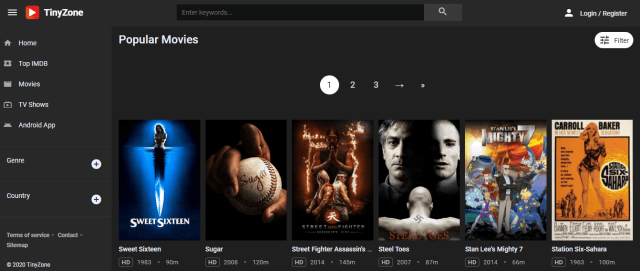
Tiny Zone

TINY ZONE

Watchability: 9/10

Ad Presence: One to two pop-ups encounter.

You can watch all the latest movies and TV Shows by using Tiny Zone. Tiny Zone is a free movie streaming website that provides HD Quality Movies and TV Shows. It has good playing speed and a very nice design that is pleasing to the eyes.

Features:

  • No payment needed
  • Optional registration
  • HD Media Content
  • Fast playing speed
  • Cool user interface

Stream on Tiny Zone


123TVNow

123TVNOW

Watchability: 9/10

Ad Presence: 2 pop-ups will appear when you start watching a video.

123TVNow is a website that is very similar to USTVGo. You can watch your favorite TV Shows and Movies live using this website. It is very kid-friendly because there are a lot of channels that are good for children. You can also enjoy a lot of other categories when you choose to stream with 123TVNow. Because of this, we have listed it as one of the Best Primewire Alternatives.

Features:

  • Sports
  • News
  • Documentaries
  • Entertainment
  • Kids

Live TV Channels Using 123TVNow


Vumoo 

VUMOO

Watchability: 9/10

Ad Presence: Only one pop-up ad will appear.

Are you looking for a website that has Netflix content? Vumoo is the right website for you. It is a website that can be used to watch free movies and TV Shows alike. The best thing about it is that it is free of charge. You don’t have to worry about paying for a monthly subscription. Vumoo also gives streamers Asian content, so for those who are into Asian Drama, Vumoo will surely do the job right.

Features:

  • Asian Content
  • Nice Playing speeds
  • Good Loading time
  • Free
  • Minimal Ads

Watch Movies and TV Shows on Vumoo


Grab your subscription now!

Click here to get the lowest price on SurfShark through our exclusive limited-time offer.

The Movie Bay

Movie Bay Screenshot

Watchability: 9/10

Ad Presence: There are 2 pop-ups when you click on a video. These can be avoided by signing up. 

Movie Bay is an excellent site to watch movies and TV shows. If you register and sign up for the membership, it will remove unwanted ads. This will also allow you to interact with other streamers and talk about how the movies and TV Shows are. It is one of the best primewire alternatives because of the content that it features on-site.

Features:

  • Free of charge
  • Little to no ads
  • Nice interface
  • A large group of categories
  • High-Quality Videos

How To Watch Movies and TV Shows on Movie Bay


Go Movies

GO MOVIES

Watchability: 9/10

Ad Presence: One pop-up appears when clicking on a video. Some ads can be seen on the side of the screen. 

GoMovies is one of the best primewire alternatives because it is very easy to use and the amount of content that it provides is very good. You can quickly catch up on the latest movies and watch recently released TV Show episodes. Most of the videos are very high in quality that is why you are going to enjoy this site for sure.

Features:

  • Free of charge
  • Navigating through the website is very easy
  • Updated movies and TV shows
  • High-Definition Media Content
  • You have the choice to download videos on your device.


GoStream

GoStream Screenshot

Watchability: 9/10

Ad Presence: Zero pop-ups but some ads can be seen on the right side of the website.

Just like the other Best Primewire Alternatives, GoStream is a pretty neat website that offers a bunch of content. If you want to do movie marathons, GoStream is one of the top candidates because it provides only the latest releases and updates. Kindly check it out and experience it yourself.

Features:

  • No pop-up ads
  • Information regarding IMDb rating is included
  • Gives 720p video quality
  • Favorites feature for quick access to movies or tv shows you bookmark

Watch Movies on GoStream


Grab your subscription now!

Click here to get the lowest price on SurfShark through our exclusive limited-time offer.


AZMovies

AZMovies Screenshot

Watchability: 9/10

Ad Presence: There will be 2 pop-ups when you click on a thumbnail.

AZMovies provides an unlimited amount of movies. Streamers will be able to select their movie of choice and have an awesome viewing time. This website does not require any payment so that is a big bonus. The media content that it offers is scraped by third-party entities. Just be sure to use a VPN whenever you decide to stream using this website.

Features:

  • Free of charge
  • There is a captcha verification
  • Nice playing speeds
  • Minimal Ads
  • Good web design
  • Vast Movie genres
  • High-Definition media content
  • Autoplay function

Stream Movies on AZMovies


Yify TV

Yify Movies Screenshot

Watchability: 9/10

Ad Presence: You will notice 2 pop-ups. There are ads that you can skip in the video. It also has some ads that appear on the screen that you can close.

Aside from being an excellent source of torrents, Yify Movies provides a huge amount of movies for cord-cutters. You can watch the latest movie releases on this website. The best thing about this site is it offers nothing but the highest quality of videos. This makes it one of the best Primewire alternatives. Enjoy streaming 720p and 1080p videos.

Features:

  • Minimal Ads
  • Free of charge
  • You do not have to sign-up or register for an account

Watch Movies on Yify TV


IMDb TV

IMDb TV Screenshot

Watchability: 9/10

Ad Presence: Youtube-like ads that are skippable can be traced.  

Probably one of the best Primewire Alternatives that is legit is IMDb TV. If we compare to other websites, the contents are not as updated. The good thing about this site is that you do not have to worry about streaming illegally. If you want to use this site and you are outside the US, you will have to use a trustworthy VPN to gain access to the content.

Features:

  • Free of charge
  • It supports ads for revenue
  • Sign-up is a must
  • Legal Streaming
  • Requires a VPN for those outside the US


Grab your subscription now!

Click here to get the lowest price on SurfShark through our exclusive limited-time offer.

Sony Crackle

Crackle Screenshot

Watchability: 9/10

Ad Presence: Zero pop-ups with Youtube-like ads. 

Crackle is one of the best primewire alternatives because it is also a legit way to watch movies and TV Shows for free. It has a collection of more than 700 movies and more than 100 TV Shows. It is a simple website to use because of its interface. The website itself also has a very nice-looking design. Just like IMDb TV, Sony Crackle has location-locked content. If you are outside the US, please use SurfShark to access movies and TV Shows on the website.

Features:

  • Official Copyrighted Videos
  • Movies and TV Shows
  • Supports youtube-like ads
  • You can use one account across many devices

Stream Movies and TV Shows on Sony Crackle


Tubi TV

Tubi TV Screenshot

Watchability: 9/10

Ad Presence: Zero pop-ups coupled with Youtube-like advertisements.

If you are looking for licensed media content that is free to watch, Tubi TV is one of your best options. It contains more than 20,000 TV series and free movies. It has a partnership with MGM, Lionsgate, Paramount, Lifetime, Starz, and A&E. Genres included are Action, Sci-Fi, Martial Arts, Drama, and a lot more. Although the content that it presents are not as updated as other Best Primewire alternatives, you can still have a lot of fun watching on this website. SurfShark is also needed to unlock content for those outside the US.

Features:

  • Free of charge
  • Youtube-like Ads
  • Good playing speeds
  • It requires registration to view movies and TV Shows

Stream on Tubi TV Website


Pluto TV

PLUTO TV

Watchability: 9/10

Ad Presence: Zero pop-ups with ads that are similar to Youtube ads.

Owned by ViacomCBS, Pluto TV is one of the best Primewire Alternatives because you can watch movies and TV shows legally with no cost at all. You can watch media content that is available on Nickelodeon, MTV, and Comedy Central because it supports live TV too. We suggest that you use SurfShark with it to unblock content if you are outside the US.

Features:

  • Free of charge
  • Excellent list of media content
  • Compatible with most streaming platforms
  • Provides Movies, TV Shows, and Live TV

Watch on Pluto TV


Grab your subscription now!

Click here to get the lowest price on SurfShark through our exclusive limited-time offer.


Vidcloud9

vidcloud9

Watchability: 9/10

Ad Presence: You will notice that there is only one pop-up that you will encounter.

Vidcloud9 is a premier website that offers the latest movies and TV Shows. We have included it in the list of Best Primewire alternatives simply because of the little to no pop-ups, unlike other streaming websites. You can enjoy the latest movie releases and TV Shows using this website. It also has a cool design that makes it look really good.

Features:

  • Media content is updated regularly
  • Excellent Catalog of movies and TV Shows
  • Excellent playing speeds.

Stream Movies and TV Shows on Vidcloud9


123Movies

123movies

Watchability: 9/10

Ad Presence: You will notice that 2 pop-ups will appear after you click on a video. 

Also known as Letmewatchthis, 123Movies is a good option to watch movies and TV Shows without having to pay for anything. You can watch all of the latest movies and tv show episodes with this website. We also like that it only produces 2 pop-ups. In this way, you can really enjoy watching everything without interruptions.

Features:

  • It has video subtitles
  • Videos can be downloaded to your device
  • Dark Mode
  • Good playing speeds
  • You can search for specific movies and TV Shows


Afdah 

AFDAH

Watchability: 9/10

Ad Presence: A window will appear but it will shut down by itself.

Afdah is a website where you can watch movies and TV Shows for free. Keep up with the latest media content with this website. Streamers are also able to watch high-quality videos. This is why we included it in the list of Best Primewire alternatives.

Features:

  • Free of charge
  • Minimal ads
  • High-Quality Media videos


Internet Archive

INTERNET ARCHIVE

Watchability: 9/10

Ad Presence: Zero pop-ups.

Last in our list of best Primewire alternatives is Internet Archive. Although it does not have ads, the content that you will find here is so outdated. But if you like this type of media, the Internet Archive is the best source for old movies online.

Features:

  • 1920-1930s movies and videos
  • Nice playing speeds
  • No lags


YOUR INTERNET ACTIVITY IS BEING WATCHED

ReviewVPN cannot attest to the legality, security and privacy of the applications discussed on this site. It is highly recommended that you use a VPN service while streaming or using Kodi.

Currently, your IP 123.27.137.117 is visible to everyone and your Browser is being tracked by Advertisers & ISP Provider.

Save 65% Now

Limited Time Offer

Here are the main reasons why you must use a VPN:

  • Your activities are hidden from your ISP, the government, and from the apps you are using.
  • You can access additional movies and TV streams.
  • ISP attempts to throttle are thrwarted thus reducing buffering issues.
  • Geographically restricted content like Netflix and Hulu can be unblocked.

A VPN works be replacing your ISP-assigned IP address and creating an encrypted tunnel. We recommend the no log service offered by IPVanish. It works well on a Firestick and offers the fastest possible speeds.

Special Limited Time Offer - Get IPVanish


Legal Disclaimer: ReviewVPN.com does not encourage or endorse any illegal activity involved in the usage of services and applications referenced on this site. We do not verify the licensing agreements of services. The end-user is wholly responsible for ensuring that any media accessed through these services does not violate copyright and/or licensing laws. ReviewVPN does not promote, link to, or receive compensation from any Apps and IPTV services.


Install SurfShark on Firestick

Best SurfShark Deal


Other Streaming Options

The websites that are listed above are really good sources of free content. If ever you like streaming apps more, you can read our Best Firestick Apps Review. Free streaming apps that are worth mentioning are:

Please be advised that these apps can only be installed if you have a jailbroken Firestick. If yours is not yet, kindly follow this guide:

Firestick Jailbreak.

You also need to sideload these apps by using the Downloader App.


Secure Streaming with a VPN

Surfshark vpn

The main considerations that you should think of when using a VPN are these:

  • Allows you to stream locked content on IMDb, Pluto TV, Tubi TV, and Sony Crackle.
  • Secures your IP Address so that your streaming cannot be traced back to it.
  • It solves buffering for Firestick and Kodi.


How to Install Surfshark on Firestick with Screenshots

If your Firestick still has the older interface, read this article to learn how to update it: Update Firestick Interface.

You can download Surfshark directly from the Amazon App store. It will be easy for you to find Surfshark with your Firestick’s Find feature. Refer to our screenshots below.

Follow our screenshots below to install the SurfShark VPN app on your Fire TV stick.

1. Go to the Home screen of your Firestick.

step 1 Install Surfshark VPN on Firestick


2. Navigate towards the Find tab. Press the Search button from the resulting dropdown.

step 2 Install Surfshark VPN on Firestick


3. Type in the keyword of SurfShark and select from the suggestions that will appear.

step 3 Install Surfshark VPN on Firestick


4. Click the official SurfShark icon from your search results.

step 4 Install Surfshark VPN on Firestick


5. Press the Download (You own it) button.

step 5 Install Surfshark VPN on Firestick


6. The SurfShark VPN installer will download on your device.

step 6 Install Surfshark VPN on Firestick


7. SurfShark VPN’s app will automatically install itself on your Fire TV stick.

step 7 Install Surfshark VPN on Firestick


8. Press the Open button after completing SurfShark VPN’s installation process.

step 8 Install Surfshark VPN on Firestick


9. Please wait for the SurfShark VPN to load its user interface.

step 9 Install Surfshark VPN on Firestick


10. You can now log in with your SurfShark VPN account credentials.

step 10 Install Surfshark VPN on Firestick

Learn more about Surfshark and Grab the Best Surfshark Deal Now!


Install Surfshark on Firestick

Best Surfshark Deal

Other VPNs to Consider

NordVPN (Best for Streaming)

Best Features

  • 5000+ Server in 50+ Countries 
  • Military-Grade Encryption
  • Fast Connection Speed
  • Suitable to a lot of devices
  • No-Log Policy

Prices
  • Complete $5.89 per month (64% Discount)
  • Plus $4.59 per month (56% Discount)
  • Standard $3.69 per month (55% Discount)

Best Features

  • 750+ High-speed VPN Servers in 43 Locations
  • Military-Grade Encryption
  • Fastest HD Streaming and Gaming
  • 30-Day Money-Back Guarantee
  • Unlimited Data & Devices
  • No-Log Policy

Prices
  • 3 Years $1.99 per month (82% Discount)
  • 1 Years $3.29 per month (70% Discount)
  • 1 Month $10.99 per month

IPVanish VPN (Most Secure)

Best Features

  • 1200+ Servers in 60+ Countries around the world
  • Unlimited Connections
  • No-Log Policy
  • Top Notch Military-Grade VPN Protocols and Encryptions
  • 100% Safe and Secured
  • Most Trusted VPN
  • Best VPN for Firestick
  • 30-Day Money-Back Guarantee

Prices
  • Yearly $3.99 per month (63% Discount) – 30 days risk free + Ransomware & Malware Protection
  • Quarterly $5.32 per month (51% Discount)
  • Monthly $10.99 per month

For more VPN discounts, go to ReviewVPN Deals and purchase the best VPN for you.


Conclusion

We have researched and tested all of these websites. And hopefully, you find them useful and consider them as the Best Primewire Alternatives.

Moreover, we hope you liked this article on Best Primewire Alternatives. We appreciate your time in reading it. Be safe!


Websites and Other Streaming Resources

Free Movie Streaming Websites

Best TV Shows Streaming Sites

Kissanime Alternatives

Top Unlinked Codes

Best Kodi Builds For Sports

Overview

This article contains an updated list of the best Kodi Builds from sports that are available in the market.


Using a build with the Kodi app is a terrific way if you want to get many of the Kodi add-ons with one quick installation process. Before you install a Kodi build, it is crucial that you check the build thoroughly to guarantee that it suits your preference. Note that it does not mean that a build is popular and that it will fit your Kodi app’s needs. When you use a build, you can now edit everything, from skins to general settings, add-ons being installed, and a lot more.

Having a guild is a great way for you to get to know the Kodi software. Is streaming sports content one of your favorite sources of entertainment? If yes, then you are aware that you can stream sports shows and events without any irritants of paying for satellite or cable subscriptions.

All that you need is a device that works well with Kodi, like a Firestick, and a few of the best add-ons for sports. This article will discuss the best 15 Kodi add-ons that any sports fan should have if they want to enjoy the best Live Sports shows from their own home or office. There are times when links for sports add-ons are taken down, which is somewhat a downer if that is the add-on that you usually use. Fortunately, the add-ons mentioned below have been tested to be functioning well.


ANONYMOUSLY


Best Kodi Builds For Sports

Area 51 IPTV

Are you surprised that the Area 51 IPTV is on this list? Don’t worry, it’s on this list for a very good reason. Many of the sports add-ons have been taken down and others are not stable, however, Area 51 IPTV is stable, premium, and offers good quality sports streams.

This add-on will only require $5 per month and you can access lots of Live TV channels. However, if you don’t want to pay for anything or you’re not interested in these kinds of services, then check out the other add-ons on this list.

TvTap

TVTap is an amazing add-on, therefore it’s one of the top add-ons on this list, especially for sports. Moreover, TVTap is an IPTV kind of add-on that has links to streams for tons of TV channels arranged in categories such as movies, entertainment, documentary, news, and others.

Even though this add-on does not specialize in sports, it does have a special Sports category that provides links to the primary international sports channels, including all types of sports, from Tennis to Football, and from WWE to UFC. 


Sport HD

Sport HD is an add-on for sports and it can be found in the Bugatsinho Repository. The add-on’s main menu contains sports, Live events, settings, best leagues, and many more. It gathers feeds from Sport HD and other sites and displays them in a list for you to choose from. There will be a green dot that is right next to the contents available and it will provide tons of links for you to pick from.


Rising Tides

Another IPTV kind of add-on for the Kodi app is the Rising Tides add-on. The offered streams are organized well, but in a more unique manner, in Live PPV events, Sports Channels, Live Football, and Extra Live content. In each category, you can find direct links to every event that is available, which will make it easier to find the sports that you want to watch, it comes with the event’s starting time and event name.


Sportowa TV

The Sportowa TV’s developers seem to have developed many inspirations from the now-defunct prominent Kodi sports add-on, which is the SportsDevil add-on. Although the add-on’s streaming choices are not the same as SportsDevil, it is still worth trying out because it contains almost all the major sports channels that you like to watch.

Most of the sports games that you can stream on Sportowa TV are Basketball, Baseball, Cricket, Tennis, Football, Table Tennis, and more. Sportowa TV also provides a good amount of Live sports channels where you can stream sports events live. 


Wolfpack

This add-on is known to be an all-in-one Kodi add-on of great quality. It contains a wide array of content such as movies, Live TV shows, music, kids shows, 3D movies, comedy shows, documentaries, and adult content. These contents are organized in categories that are hard to understand, but it does give room for users to explore the add-on.


YOUR INTERNET ACTIVITY IS BEING WATCHED

ReviewVPN cannot attest to the legality, security and privacy of the applications discussed on this site. It is highly recommended that you use a VPN service while streaming or using Kodi.

Currently, your IP 123.27.137.117 is visible to everyone and your Browser is being tracked by Advertisers & ISP Provider.

Save 65% Now

Limited Time Offer

Here are the main reasons why you must use a VPN:

  • Your activities are hidden from your ISP, the government, and from the apps you are using.
  • You can access additional movies and TV streams.
  • ISP attempts to throttle are thrwarted thus reducing buffering issues.
  • Geographically restricted content like Netflix and Hulu can be unblocked.

A VPN works be replacing your ISP-assigned IP address and creating an encrypted tunnel. We recommend the no log service offered by IPVanish. It works well on a Firestick and offers the fastest possible speeds.

Special Limited Time Offer - Get IPVanish


Grab your subscription now!

Click here to get the lowest price on Surfshark through our exclusive limited-time offer.


Sports Lounge

Here is another Kodi add-on for sports and it can be found in the Flecha Repository, this add-on is called Sports Lounge. This add-on provides a long list of Live sports games that can be streamed using 3 to 5 different links each for you to try. 


Johki’s

The Jokhi add-on is known to be a Wrestling Kodi add-on, however, it does not only offer links to the WWE events but also allows you to stream Live UFC fights. You can also find links to other sports and as well as tons of sports TV channels.


Fox Sports Go

The Fox Sports Go add-on is an official product from Fox, which can be found in the official Kodi Add-on Repository. For many sports enthusiasts, the Fox Sports Go add-on is known to be one of the must-haves for add-ons that you should have in your Kodi.

It provides approximately all the dominant games and sports events. However, there is a catch, and for you to use the Fox Sports Go add-on, you will need to subscribe to the Fox Sports channel. Aside from that, this is deemed to be one of the best sports add-ons for Kodi, and you will enjoy how this add-on delivers.


The Loop

The Loop is yet another Kodi add-on for sports. This add-on provides links from different websites and offers you on-demand and live content from TV services in countries such as the US, Canada, and the UK.

This add-on currently has categories that are Test Zone, NBC Sports Regionals, Golf 24/7, Game Zone Play, Fight Zone, Fan Zone, and CBC Regionals. Each of these categories is filled with lots of content.


Alpha Quadrant Sports

The Alpha Quadrant is another Kodi add-on for sports and it comes with many sections. These sections are known as Sports News and Documentaries, replays, channels, sexy sports, and a lot more.


WWE On Demand

Who does not enjoy good old-fashioned “wrestling”? For those who enjoy WWE content, you really can’t go wrong with the WWE On Demand add-on.

With it having access to replays from previous events and also it has the latest pay-per-view blockbusters, the WWE On Demand add-on is really one of the best add-ons out in the market. 


The EndZone

If you happen to be an avid fan of American Football and you don’t want to miss out on any game, then this is the add-on that you should try out and have. The EndZone add-on is entirely committed to providing only American Football and no other sport.

It has two categories from which you can stream, and you can always see Live sports matches whenever you want to stream a match. This may be the reason why it is part of this list.

Other than providing high-quality streams, you will be able to stream any live matches any time you want. However, the EndZone add-  does not have the catch-up feature, which means that when you miss a live game, you can no longer watch it.

If ever the catch-up feature was included, it would make things entirely better, however, American Football is one of the most-watched sports in the entire world, and it is not accessible on many other add-ons. With the EndZone add-on being one of the very few add-ons that offer American Football, we will have to get used to what it only offers.


World of Wrestling

There is without a doubt that this add-on earns the right to have a place on this list because many of its contents being offered have one-click playback. With it having high-quality playback feature, you can enjoy lots of WWE video content like WWE PPV, WWE Top 10, WWE YouTube, WWE DVD Specials, and many more.

Other than wrestling, the World of Wrestling add-on also has video content in other wrestling categories such as Ring of Honor Wrestling, Lucha Underground, and many others. Whether it is a match replay, new, or a talk show, this add-on has something that you may like.


Cloud Tv

The Cloud TV add-on is not entirely exclusive to sports content, but it does offer many sports content that is maybe not be found in other add-ons. With Cloud TV, there is something for everyone and it does offer some of the best Live TV streams. Some of the categories in this add-on include All channels, documentaries, sports news, entertainment, family shows, and a lot more. 


Why Use Surfshark With Your Firestick

https://get.surfshark.net/aff_c?offer_id=865&aff_id=12312

There are many explanations for why you should install Surfshark on your device when you are using Kodi.

Stay Protected with Online Privacy

Erase any of your digital fingerprints, increase your anonymity online, and get yourself protected against hackers while using Popcorn Time, Morpheus, Terrarium, Showbox, etc. When using a VPN or a virtual private network, your real IP address will be masked because of an IP address that is being used and shared amongst other users.

So, this will easily help you to boost your anonymity online and make any of your online activities undetectable.


Make Any Internet Connection Secure

Whenever you are connecting to public WiFi, you are risking your personal data. With the Surfshark encryption process, it will secure and protect all your data and prevent your Internet Service Provider and hackers from monitoring your every move and data.

From its app development team to its customer service, everything about its services is being worked properly from within the VPN. By eliminating the middlemen, Surfshark is now equipped to guarantee that all your data is being secured.


Get Around Censorship Filters

Employers, government agencies, and universities from various places are constantly using online censorship. Now, you are free from any regional regulations in your area and be able to explore the internet without being censored. Surfshark has 3,200 VPN servers in 65 worldwide locations, giving you the chance to mask your actual IP address and your data to be encrypted with its high speeds.


Stream & Download Anonymously

If you want to be properly protected online, then you will need a VPN, especially Surfshark. There are streaming platforms like Kodi and Popcorn Time that fetches their content from torrent sites, however, they may come with geological restraint laws.

With Surfshark, it will undoubtedly protect your whole internet server by using its very advanced encryption standard. So, it does not matter what streaming platform you are using, you will continue to be protected while accessing these platforms.

If you want to know more and try Surfsharkwith your Kodi app, then you can go onto their website.


Install Surfshark on Firestick

Best Surfshark Deal


How to Install Surfshark VPN on Firestick

If your Firestick still has the older interface, read this article to learn how to update it: Update Firestick Interface.

You can download Surfshark directly from the Amazon App store. It will be easy for you to find Surfshark with your Firestick’s Find feature. Refer to our screenshots below.

1. Go to the Home screen of your Firestick.

step 1 Install Surfshark VPN on Firestick


2. Navigate towards the Find tab. Press the Search button from the resulting dropdown.

step 2 Install Surfshark VPN on Firestick


3. Type in the keyword of SurfShark and select from the suggestions that will appear.

step 3 Install Surfshark VPN on Firestick


4. Click the official SurfShark icon from your search results.

step 4 Install Surfshark VPN on Firestick


5. Press the Download (You own it) button.

step 5 Install Surfshark VPN on Firestick


6. The SurfShark VPN installer will download on your device.

step 6 Install Surfshark VPN on Firestick


7. SurfShark VPN’s app will automatically install itself on your Fire TV stick.

step 7 Install Surfshark VPN on Firestick


8. Press the Open button after completing SurfShark VPN’s installation process.

step 8 Install Surfshark VPN on Firestick


9. Please wait for the SurfShark VPN to load its user interface.

step 9 Install Surfshark VPN on Firestick


10. You can now log in with your SurfShark VPN account credentials.

step 10 Install Surfshark VPN on Firestick

Learn more about Surfshark and Grab the Best Surfshark Deal Now!


Other VPNs to Consider

NordVPN (Best for Streaming)

Best Features

  • 5000+ Server in 50+ Countries 
  • Military-Grade Encryption
  • Fast Connection Speed
  • Suitable to a lot of devices
  • No-Log Policy

Prices
  • Complete $5.89 per month (64% Discount)
  • Plus $4.59 per month (56% Discount)
  • Standard $3.69 per month (55% Discount)

Best Features

  • 750+ High-speed VPN Servers in 43 Locations
  • Military-Grade Encryption
  • Fastest HD Streaming and Gaming
  • 30-Day Money-Back Guarantee
  • Unlimited Data & Devices
  • No-Log Policy

Prices
  • 3 Years $1.99 per month (82% Discount)
  • 1 Years $3.29 per month (70% Discount)
  • 1 Month $10.99 per month

IPVanish VPN (Most Secure)

Best Features

  • 1200+ Servers in 60+ Countries around the world
  • Unlimited Connections
  • No-Log Policy
  • Top Notch Military-Grade VPN Protocols and Encryptions
  • 100% Safe and Secured
  • Most Trusted VPN
  • Best VPN for Firestick
  • 30-Day Money-Back Guarantee

Prices
  • Yearly $3.99 per month (63% Discount) – 30 days risk free + Ransomware & Malware Protection
  • Quarterly $5.32 per month (51% Discount)
  • Monthly $10.99 per month


For more VPN discounts, go to ReviewVPN Deals and purchase the best VPN for you.


Grab the Best Surfshark Deal Now!


FAQs

What is Kodi? What is Leia?

Kodi is the rebranded name for the Xbox Media Center, XBMC. “Leia” is somewhat a code name for the Kodi 18 version, just like how “Krypton” is the code name got the Kodi 17 version, as well as “Jarvis” for the Kodi 16 version. Within the Kodi community, you oftentimes see “Leia” and “v18” being used alternately.


Where Do I Get Kodi?

The Kodi app is easy to get. You may download the app from different places, which will include its official website, or from the Google Play Store, Apple App Store, or Windows.


How can I reset my KODI?

  • If the Kodi app is being accessed, then exit out of the app.
  • Open the Android Settings. Then you need to open the “More Settings” tab. Scroll down the page and click on the “Apps” button. Now, on the list click on the Kodi section.  
  • At the next screen, click on the “Clear Data”.  Wait for the process to finish computer space, deleting, etc.  This may take a few minutes. Once the process is finished, you will then notice that the data size is now set to zero.
  • Lastly, exit this screen and go to the app’s home screen. Access the Kodi app and make sure that everything has been removed and now you are using a new installation.


Conclusion

As time goes on, the Kodi media center still adapts, evolves, and develops more useful and better content. Kodi add-ons make things easier and better for a Kodi player and using sports add-ons, sports fans are now able to access useful content for them to be entertained.

It is not recommended to depend on one add-on because any add-on can be taken down at any time by the developer without any notice. Hence, what you will need to do is get more than one add-on from the mentioned add-ons above just in case one of them gets taken down.

However, note that the add-ons in this article are all functioning well and working properly. If you face any issues with any of the above Kodi add-ons for sports being mentioned, please make sure to reach out to us, and we will help you in any way possible.

Moreover, be sure to check that the version of the Kodi app that you have installed has the latest version so that you won’t have to face issues when installing add-ons or streaming on any of the sports add-ons.

Install TinyTunes on Android, Firestick and Fire TV Devices

TinyTunes Overview

Today, we are going to teach you how to install the TinyTunes app on various streaming devices such as firestick, fire tv, and android.


TinyTunes is an app that allows you to download or stream different types of songs on your device. This app lets you have access to tons of songs from anywhere around the world on your tablet or smartphone. 

With TinyTunes, you can create different playlists, explore different categories of genres, billboard top 100, releases, songs, albums, and lots more. TinyTunes allows you to download any songs on your phone or tablet. You can as well share downloaded songs via social media platforms. It also allows you to edit the download location of the song.


ANONYMOUSLY

Is TinyTunes Safe and Virus-free?

We tested this app using VirusTotal and found no threats or any malicious files and malware.

Despite having good results, we still need to be vigilant in protecting our privacy while streaming.

A Virtual Private Network or VPN will definitely help us maintain our security and anonymity while using TinyTunes.

Here’s how you can Install The Best VPN For Firestick and All Devices.


How to Install TinyTunes On Firestick and Fire TV

Before proceeding with the installation of TinyTunes on amazon fire tv and firestick device, you need to enable the unknown source of your device.

1.  Click Home on your remote and scroll once to your Right. Click Setting (Gear Wheel Icon).

Step 1 Install TinyTunes On Firestick


2. Scroll down and to the right until you get to My Fire TV. Click on it.

Step 2 Install TinyTunes On Firestick


3. Select Developer options.

Step 3 Install TinyTunes On Firestick


4. Turn on ADB debugging and Apps from Unknown Sources.

Step 4 Install TinyTunes On Firestick


5. Click Turn On when the pop-up appears.

Step 5 Install TinyTunes On Firestick


6. Click Home, click FIND.

Step 6 Install TinyTunes On Firestick


7. Click Search.

Step 7 Install TinyTunes On Firestick


8. You can either say Downloader to your Alexa voice-enabled remote or start typing it. If you typed it, click on the suggestion when it appears.

Step 8 Install TinyTunes On Firestick


9. Click on the Downloader Icon.

Step 9 Install TinyTunes On Firestick


10. Click Download.

Step 10 Install TinyTunes On Firestick


step 10 Install TinyTunes On Firestick


11. Click on Open.

Step 11 Install TinyTunes On Firestick


12. Click on Allow.

Step 12 Install TinyTunes On Firestick


13. Use the Downloader search tab.

Step 13 Install TinyTunes On Firestick


14. Type this URL https://reviewvpn.com/tiny and click Go once done.

Step 14 Install TinyTunes On Firestick


15. Wait for the downloading and installation to complete and click done.

Step 15 Install TinyTunes On Firestick


16. Click install.

Step 16 Install TinyTunes On Firestick


17. Wait for the installation to finish.

Step 17 Install TinyTunes On Firestick


18. Click open.

Step 18 Install TinyTunes On Firestick


19. That’s it. Enjoy!

Step 19 Install TinyTunes On Firestick


YOUR INTERNET ACTIVITY IS BEING WATCHED

ReviewVPN cannot attest to the legality, security and privacy of the applications discussed on this site. It is highly recommended that you use a VPN service while streaming or using Kodi.

Currently, your IP 123.27.137.117 is visible to everyone and your Browser is being tracked by Advertisers & ISP Provider.

Save 65% Now

Limited Time Offer

Here are the main reasons why you must use a VPN:

  • Your activities are hidden from your ISP, the government, and from the apps you are using.
  • You can access additional movies and TV streams.
  • ISP attempts to throttle are thrwarted thus reducing buffering issues.
  • Geographically restricted content like Netflix and Hulu can be unblocked.

A VPN works be replacing your ISP-assigned IP address and creating an encrypted tunnel. We recommend the no log service offered by IPVanish. It works well on a Firestick and offers the fastest possible speeds.

Special Limited Time Offer - Get IPVanish


Legal Disclaimer: ReviewVPN.com does not encourage or endorse any illegal activity involved in the usage of services and applications referenced on this site. We do not verify the licensing agreements of services. The end-user is wholly responsible for ensuring that any media accessed through these services does not violate copyright and/or licensing laws. ReviewVPN does not promote, link to, or receive compensation from any Apps and IPTV services.


Install SurfShark on Firestick

Best SurfShark Deal


How to Install TinyTunes on Android Devices

  1. Visit tinytunes.app and click on the Install option.
  2. Download the APK file on your android device.
  3. Open the APK file and install it.

Note: you need to enable the unknown sources of your Android device before you can install any APK file. To enable the unknown sources:

On your Android device, open the menu and click on the Settings option. Next, select security and then click on Unknown sources to turn it ON.


How to Install TinyTunes on Computer (Windows)

To install TinyTunes on your windows device, you need an Android emulator.

  1. Download and install either Bluestack or Nox emulator
  2. Launch the Android emulator after install.
  3. Download the TinyTunes APK file from tinytunes.app and save the file on your computer desktop.
  4. Drag and drop the APK file onto the android emulator. The installation will begin automatically.


Features of TinyTunes

  • Allows you to create playlists
  • Gives you access to top albums, artist, songs in different genre and categories.
  • You can access and stream songs/music directly on this app
  • Allows you to search for different sources of song 
  • You can customize a frequently used search engine for songs, albums, and lots more.
  • Allow you to seamlessly manage your android music library.
  • You can listen to or queue any song you want 
  • You can easily search for songs on southbound or Shazam
  • Allows you to download any song directly on your device.
  • Easy to navigate and user-friendly interface.


Pros and Cons

Pros

  • No ads and free to use
  • No registration required to use the app
  • Friendly UI
  • Download and listen to songs offline and online
  • Houses latest and trending songs, albums, and many more.


Cons

  • Does not support many platforms
  • Requires an Android emulator
  • Might crash suddenly
  • Most often, search results do not match.


Frequently Asked Questions

How can I contact TinyTunes Customer Care?

You can reach TinyTunes customers via email for any concerns. Email them at exigodevelop@gmail.com


Is it safe to use the TinyTunes App?

Yes. It is safe to use the TinyTunes app to stream songs, albums, and many more. However, we advise you to protect yourself with a VPN while using any third-party apps.


Can I use TinyTunes on my Computer?

Yes. You can install TinyTunes on your computer using an Android emulator. 


Is it free to use TinyTunes?

Yes. Downloading and installing TinyTunes on your device is free. Using this app to stream songs, albums and many more is also free.


Protect Yourself While Streaming

We always recommend installing a VPN on your device while accessing the web or streaming contents online. This is because each time you use the Internet, your internet service provider monitors and tracks whatever activities you are doing online.


What is a VPN?

Surfshark vpn

A VPN which stands for the virtual private network is software that encrypts and masks your IP address to appear on the internet service provider network as a secure, anonymous, and private user. When this encryption and masking happens, no one on the internet service provider network will be able to monitor your online activities. With a VPN installed on your device, you will be able to bypass location restrictions, and third-party monitoring, and stream Anonymously, securely, and privately.

Note: For more information about SurfShark, please read our SurfShark REVIEW.


Grab your subscription now!


How to Install Surfshark on Firestick with Screenshots

If your Firestick still has the older interface, read this article to learn how to update it: Update Firestick Interface.

You can download Surfshark directly from the Amazon App store. It will be easy for you to find Surfshark with your Firestick’s Find feature. Refer to our screenshots below.

Follow our screenshots below to install the SurfShark VPN app on your Fire TV stick.

1. Go to the Home screen of your Firestick.

step 1 Install Surfshark VPN on Firestick


2. Navigate towards the Find tab. Press the Search button from the resulting dropdown.

step 2 Install Surfshark VPN on Firestick


3. Type in the keyword of SurfShark and select from the suggestions that will appear.

step 3 Install Surfshark VPN on Firestick


4. Click the official SurfShark icon from your search results.

step 4 Install Surfshark VPN on Firestick


5. Press the Download (You own it) button.

step 5 Install Surfshark VPN on Firestick


6. The SurfShark VPN installer will download on your device.

step 6 Install Surfshark VPN on Firestick


7. SurfShark VPN’s app will automatically install itself on your Fire TV stick.

step 7 Install Surfshark VPN on Firestick


8. Press the Open button after completing SurfShark VPN’s installation process.

step 8 Install Surfshark VPN on Firestick


9. Please wait for the SurfShark VPN to load its user interface.

step 9 Install Surfshark VPN on Firestick


10. You can now log in with your SurfShark VPN account credentials.

step 10 Install Surfshark VPN on Firestick

Learn more about Surfshark and Grab the Best Surfshark Deal Now!


Install Surfshark on Firestick

Best Surfshark Deal

Other VPNs to Consider

NordVPN (Best for Streaming)

Best Features

  • 5000+ Server in 50+ Countries 
  • Military-Grade Encryption
  • Fast Connection Speed
  • Suitable to a lot of devices
  • No-Log Policy

Prices
  • Complete $5.89 per month (64% Discount)
  • Plus $4.59 per month (56% Discount)
  • Standard $3.69 per month (55% Discount)

Best Features

  • 750+ High-speed VPN Servers in 43 Locations
  • Military-Grade Encryption
  • Fastest HD Streaming and Gaming
  • 30-Day Money-Back Guarantee
  • Unlimited Data & Devices
  • No-Log Policy

Prices
  • 3 Years $1.99 per month (82% Discount)
  • 1 Years $3.29 per month (70% Discount)
  • 1 Month $10.99 per month

IPVanish VPN (Most Secure)

Best Features

  • 1200+ Servers in 60+ Countries around the world
  • Unlimited Connections
  • No-Log Policy
  • Top Notch Military-Grade VPN Protocols and Encryptions
  • 100% Safe and Secured
  • Most Trusted VPN
  • Best VPN for Firestick
  • 30-Day Money-Back Guarantee

Prices
  • Yearly $3.99 per month (63% Discount) – 30 days risk free + Ransomware & Malware Protection
  • Quarterly $5.32 per month (51% Discount)
  • Monthly $10.99 per month

For more VPN discounts, go to ReviewVPN Deals and purchase the best VPN for you.


Verdict

Install TinyTunes to enjoy 24/7 unlimited streaming of songs, albums, and lots more. This app has an amazing user-friendly interface. It comes with a special feature that minimizes buffering and lagging while listening to songs online. TinyTunes also allows you to download any song directly on your device.

10 Best Sites to Download Subtitles for Movies & TV Shows

Overview

Watching movies and TV shows with subtitles is amazing because subtitles make viewers understand better, particularly when people are streaming foreign films. However, what if a movie has no subtitles? Do you know where to download subtitles for movies or TV shows? Fortunately, this article provides the 10 Best Sites to Download Subtitles.


Fortunately, there are many websites available on the internet where it allows you to download subtitles for popular and obscure movies. This allows you to experience films in a completely different language. While for movie or TV show enthusiasts, obtaining the subtitles for the latest update of their favorite movies and TV shows should be their survival skills.

In this article, we will showcase the best websites to download subtitles for the latest movies & TV shows in various languages.


ANONYMOUSLY


What Are Subtitles?

Subtitles are the texts that show the dialogues’ transcript as the video progresses forward. It helps you understand what is being stated in a scene from a film or TV show. The dialogues are typically displayed at the screen’s bottom center while providing the choice to show them in different places on the screen in various sizes, colors, and fonts.


Why Use Subtitles?

  • It can be handy in several ways, from helping viewers to understand the scripts that are provided in a foreign language.
  • Deaf or individuals with hearing problems can use subtitles to understand the videos.
  • If you don’t wish to hear the conversation, which depends upon reasons – from loud background audios, or accents that are hard to understand, you can mute the volume and take advantage of subtitles
  • Individuals prefer to listen to the original dialogues and sound even if it’s a language that they don’t understand rather than the dubbed version. This is because of the dialogue’s tone & pitch help them understand the actors’ feelings & emotions.
  • Subtitles help people to learn foreign languages or to enhance their grip on them if they begin to learn a language.

Best Websites to Download Subtitles

  • Opensubtitles

Opensubtitles is among the most popular websites to get English subtitles for films, TV shows, documentaries, and more. The website is available in more than 60 languages. Its interface has become out of date and its new look is still in beta mode, which the developers will launch soon.

Nonetheless, this platform doesn’t just come along with movie subtitles. It also allows you to download subtitles for television series, and lets you participate in the community forum, where other users provide support and tips for obtaining the best subtitles.

Features:

  • Look for subtitles in more than 55 languages, including Asian languages such as Telugu, Mandarin, Hindi, and many more.
  • Forum in various languages apart from English
  • It has an advanced search option that allows you to search on parameters such as IMDB ratings, genre, size, Frames Per Second (FPS), the subtitle format, movie year, and a lot more
  • It has a subtitle request section that allows you to request subtitles for any film or TV episode.
  • Free Media player – it downloads the accurate and synced subtitles as the movie or TV show is played 
  • Ratings for subtitles help other users choose the correct version to download

However, it has excessive ads and it is not very easy to download subtitles in a single click as various advertisements keep on popping. Opensubtitles is not mobile-friendly and could irk tons of users.


  • Subscene

Subscene is among the most visited platforms to download subtitles. This platform contains a search function that bears variants in search terms while displaying results for the keyword. 

It is among the few subtitles websites that offer subtitles for the deaf or individuals with hearing issues. Subtitles with deaf-friendly text can be found by checking the search filters’ Hearing Impaired option.

Features:

  • The website’s search bar contains a filter to eliminate subtitles in a certain language from the search results.
  • It has a dark theme with blue text that is easy on the eyes of people who spend hours looking at a screen.
  • The search results deal with spelling errors & display relevant results 
  • Forums committed to requesting movie subtitles
  • You have the option to flag erroneous subtitles.


  • Podnapisi

Podnapisi has more than 2 million subtitles for movies and TV shows in more than 100 languages. Also, the subtitle runs a community-operated translation project utilizing Weblate, a web-based translation tool.

With more than 60000 movies and over 7000 TV series available on Podnapisi, there is barely any subtitle that you cannot find on the website. 

On the website’s easy-to-use interface are sections committed to various categories. The website’s main page displays a list of uploaded subtitles based on date, while the sections display other categories like the most comments on an upload, most downloaded, best rated, and many more.

Features:

  • It is mobile-friendly, which is not the case with other subtitle sites.
  • Moderators virtually audited all subtitles for validity & quality
  • You can search the subtitles in two modes, through the movie database & typical keyword search. Searching the movie database pops up an option to choose the episode, year of release, and season number to lessen the search.
  • It allows you to categorize subtitles by Frames Per Second (FPS)


  • Yifysubtitles

Yify Subtitles is an awesome website where you can download subtitles for movies. It is free to use and doesn’t require user registration. However, it does not allow regular users to upload subtitles – it handles its subtitles on its own.

When you select a movie subtitle link, you will be taken to a page that mentions IMDb rating, movie length, release year, and at the top mentions Rotten Tomatoes score. Upon scrolling down, all various versions of that video subtitle are listed with data on full subtitle name, language, download link, and uploader name. However, it has no sorting or filter options, which can be one of the downsides of the subtitle website.

Features:

  • User-friendly interface.
  • It has a movie synopsis along with a subtitle list in various languages.
  • Search with options such as rating, release date, and genre.


YOUR INTERNET ACTIVITY IS BEING WATCHED

ReviewVPN cannot attest to the legality, security and privacy of the applications discussed on this site. It is highly recommended that you use a VPN service while streaming or using Kodi.

Currently, your IP 123.27.137.117 is visible to everyone and your Browser is being tracked by Advertisers & ISP Provider.

Save 65% Now

Limited Time Offer

Here are the main reasons why you must use a VPN:

  • Your activities are hidden from your ISP, the government, and from the apps you are using.
  • You can access additional movies and TV streams.
  • ISP attempts to throttle are thrwarted thus reducing buffering issues.
  • Geographically restricted content like Netflix and Hulu can be unblocked.

A VPN works be replacing your ISP-assigned IP address and creating an encrypted tunnel. We recommend the no log service offered by IPVanish. It works well on a Firestick and offers the fastest possible speeds.

Special Limited Time Offer - Get IPVanish


Install Surfshark on Firestick

Best Surfshark Deal


  • DIVX Subtitles

While the DIVX Subtitles website appears like something from the early 2000s, it is still a useful resource for downloading subtitles for movies, particularly for older releases. The DIVX Subtitles website has been around since 2002.

Nonetheless, updates for the subtitle website continue to flow, particularly for major releases & non-English films. It allows you to search by language, rating, keyword, or format, it also allows you to take a glimpse at the latest uploads through the category page.

The DIVX Subtitles are handy especially if you cannot find the subtitles for a classic or foreign language film. Numerous subtitles available on the DIVX Subtitles are in other languages other than English.

This makes the website a handy resource if you are having difficulties watching English-language movies or you would like to enhance your skills in foreign languages.


  • Subtitle Seeker

Subtitle Seeker works on the approach embraced by torrent search engines such as the Finland-based metasearch engine for BitTorrent – Torrentz. This platform acquires subtitles from other sites like Subscene and more. It has a search button you can utilize to search for English subtitles for films and TV shows in SubRip Subtitle file (SRT) format.

This platform has a unique approach to subtitle downloads. Instead of having a collection of contributed subtitles, it pulls in and integrates results from more than 20 subtitle download websites. Subtitle Seeker is very comprehensive, which makes it the best spot to go if you want to find your desired movie subtitles.

One of the good things about this subtitle download website is it has a straightforward, user-friendly interface that has been praised enthusiastically by many users. On its main page, it has a search bar and sections for recent subtitles for films and television shows.

However, this site is full of pop-up advertisements that you might find irritating. Also, it scores poorly on the user-friendly front.


  • My-subs.co

My-subs is among the most organized websites for downloading movie or TV show subtitles. You can download each subtitle in the direct SubRip Subtitle files (SRT) format and not in zip files just like other subtitle download websites.

Features

  • Subtitles are divided into various sections for different languages.
  • Search results are separated for movies and television shows on the same web page
  • The site functions well on mobile as well as other portable devices
  • You can contribute to translating subtitles of your most-liked movie, or TV show into your local language by choosing Join Translation which is provided in the subtitle box of the title

However, the subtitles have no advanced search or filter in foreign languages. Also, it has no option to ask for subtitles for movies or television shows.


  • Addic7ed

As you can see from its name, Addic7ed (which means addicted), it aims to be the all-in-one spot for providing subtitles to film buffs. It’s one of the subtitles websites that offer downloads for movies & television shows.

Addic7ed requires you to sign up to be able to download movie subtitles. Once you have signed up, it will allow you to search for movies utilizing a search bar, or scroll via a drop-down menu. The recent releases are displayed in the RSS feed – which can be found at the top of the page.

Also, it offers a schedule, displaying the next releases of TV shows you like to stay organized (with related links to subtitles given). The website provides frequently asked questions (FAQ), support forums for queries, and tutorials on how to use subtitles with usual programs.

Like OpenSubtitles, Addic7ed is available in numerous languages, from Swedish to Arabic.


  • Megasubtitles 

If you love subtitle websites, you would have heard of the Megasubtitles website. It has an amazing amount of popularity because of its effectiveness. The Megasubtitles website is loved due to its straightforward interface as well as easy navigation.

Megasubtitles’ search bar is appropriately positioned at the top, where you can head over to it right away after you load up the page.

It shows search results really fast and is typically well-tailored based on the keywords you used. The downloading subtitles format is also abundant, you have the option to download them in SRT  format. 

Below are some of  Megasubtitles’ Pros and Cons that gained the website a spot in the list of the best sites to download subtitles.

Pros:

  • Megasubtitles will give users a good idea of the movie subtitle they are downloading.
  • Users can check the synopsis below the movie poster and next to the subtitle file
  • It doesn’t redirect you to any ad pages. Wherein, in one click, you can download the subtitle, which will save you time & stress

Cons:

  • The main page contains tons of annoying ads that can be difficult to navigate 
  • Unlike other subtitle sites, you can’t directly ask for subtitles for TV movies or shows that are unavailable on the website.


  • Isubtitles

Isubtitles is a developing site where you can download subtitles for films and TV shows in various languages. It contains a huge subtitle collection for indie films.

Features:

  • This platform has suggestion-based search results as you type further
  • You can preview the subtitles on the download page before you download them.
  • Isubtitles is mobile friendly 

Nonetheless, it doesn’t cater to spelling errors. It does not filter subtitles.


Why Use A VPN While Streaming On The Internet?

Contrary to people’s belief, their internet activities are not private. It’s not just the Internet Service Provider (ISP) that knows what they get up to, the government and the websites they visit record their online activities too. The good thing is that you can hinder this type of tracking and stream privately by connecting to a Virtual Private Network or VPN.

Surfshark is the best VPN service for streaming on the internet. This VPN service has 3,200 VPN servers in 65 countries to choose from and unblock particularly stubborn platforms like Netflix abroad. Most importantly, the Surfshark VPN service keeps zero logs. It offers a 30-day money-back guarantee.


Grab your subscription now!

Click here to get the lowest price on Surfshark through our exclusive limited-time offer.


How to Install Surfshark VPN on Firestick

1. Go to the Home screen of your Firestick.

step 1 Install Surfshark VPN on Firestick


2. Navigate towards the Find tab. Press the Search button from the resulting dropdown.

step 2 Install Surfshark VPN on Firestick


3. Type in the keyword of SurfShark and select from the suggestions that will appear.

step 3 Install Surfshark VPN on Firestick


4. Click the official SurfShark icon from your search results.

step 4 Install Surfshark VPN on Firestick


5. Press the Download (You own it) button.

step 5 Install Surfshark VPN on Firestick


6. The SurfShark VPN installer will download on your device.

step 6 Install Surfshark VPN on Firestick


7. SurfShark VPN’s app will automatically install itself on your Fire TV stick.

step 7 Install Surfshark VPN on Firestick


8. Press the Open button after completing SurfShark VPN’s installation process.

step 8 Install Surfshark VPN on Firestick


9. Please wait for the SurfShark VPN to load its user interface.

step 9 Install Surfshark VPN on Firestick


10. You can now log in with your SurfShark VPN account credentials.

step 10 Install Surfshark VPN on Firestick

Learn more about Surfshark and Grab the Best Surfshark Deal Now!


Install Surfshark on Firestick

Best Surfshark Deal


Other VPNs to Consider

NordVPN (Best for Streaming)

Best Features

  • 5000+ Server in 50+ Countries 
  • Military-Grade Encryption
  • Fast Connection Speed
  • Suitable to a lot of devices
  • No-Log Policy

Prices
  • Complete $5.89 per month (64% Discount)
  • Plus $4.59 per month (56% Discount)
  • Standard $3.69 per month (55% Discount)

Best Features

  • 750+ High-speed VPN Servers in 43 Locations
  • Military-Grade Encryption
  • Fastest HD Streaming and Gaming
  • 30-Day Money-Back Guarantee
  • Unlimited Data & Devices
  • No-Log Policy

Prices
  • 3 Years $1.99 per month (82% Discount)
  • 1 Years $3.29 per month (70% Discount)
  • 1 Month $10.99 per month

IPVanish VPN (Most Secure)

Best Features

  • 1200+ Servers in 60+ Countries around the world
  • Unlimited Connections
  • No-Log Policy
  • Top Notch Military-Grade VPN Protocols and Encryptions
  • 100% Safe and Secured
  • Most Trusted VPN
  • Best VPN for Firestick
  • 30-Day Money-Back Guarantee

Prices
  • Yearly $3.99 per month (63% Discount) – 30 days risk free + Ransomware & Malware Protection
  • Quarterly $5.32 per month (51% Discount)
  • Monthly $10.99 per month


For more VPN discounts, go to ReviewVPN Deals and purchase the best VPN for you.

Click here to get the lowest price on Surfshark through our exclusive limited-time offer.


Wrap Up

There are tons of websites with numerous subtitles files available on the internet – free of charge. Watching movies or TV shows with subtitles may be handy in several situations, for instance, it can help people learn foreign languages. This article has given you the best websites to download subtitles for your favorite movie or TV show. Check them all out and choose the site that works best for you. However, if you don’t want to waste your time searching for the ideal subtitles – try utilizing the subtitle downloader.

How to Install Pornky.com Kodi Addon

About Pornky.com Kodi Addon

This article will guide you to install the Pornky.com Kodi Addon.

Repository URL source: http://fusion.tvaddons.co

Pornky.com Kodi addon has a complete set of porn content for the viewers.

It features a massive amount of HD porn videos that last for about 30 minutes until 1 hour.

It is also under TVADDONS.CO Adult 18+ Add-on Repository like AdultFlix, Adult Hideout, EFUKT, JavStream, Panty Raiders, and many more.

On the home page of this addon, you will immediately see a lot of videos to play. But there are also other features like search, latest updates, top-rated, most popular, and categories.

This porn addon is not for straight porn only. Although most videos are straight porn, there is a lesbian option under categories and you can also search for gay porn using the search engine.


For more details about different adult addons for Kodi, you may check out these articles:

Best Adult Kodi Addons

Best Kodi Porn Addons


To enjoy the pornky.com addon on Kodi using your firestick, you need to jailbreak your firestick first.

How to Jailbreak Firestick.

If you haven’t installed Kodi yet on your firestick account, you need to have a downloader first before doing it so.

Install Downloader on Firestick

Guide to Install Kodi on Firestick


ANONYMOUSLY


Install pornky.com Kodi Addon Guide

  1. Make sure Kodi is up and running and that you have allowed add ons from unknown sources
  2. Click on settings which is the cog on the top left-hand corner of the home screen
  3. Go to System and Turn on Unknown Sources if you haven’t already done so
  4. Return to System and click File Manager
  5. Click Add source and then choose “Add None”
  6. A URL bar will pop up, enter the following exactly: https://fusion.tvaddons.co. If for any reason the URL does not work, enter it into Google and add the word mirror to find a working URL
  7. Name the Source Fusion TV Repo
  8. Return to the home screen and click add ons and then the box icon
  9.  Go to Install from Zip file
  10. Click on the Fusion TV Repository
  11. Choose Kodi-Repos
  12.  Select xxx-adult
  13. Click the repository.kodiadult-1.0.0.zip
  14. Go back to the add-on browser and click Install from Repository
  15.  Look for TVADDONS.CO Adult 18+ Add-on Repository
  16. Tap on Video Add-ons
  17. Select pornky.com Addon
  18. Click the Install button


How to Install Pornky.com Kodi Addon with Screenshots

1. From the home screen, select the cogwheel at the upper left.

Step 1 Installing Pornky.com Kodi Addon

2. Select System in the bottom right corner.

Step 2 Installing Pornky.com Kodi Addon


3. Select Add-ons on the left side of the screen.

Step 3 Installing Pornky.com Kodi Addon


4. Select Unknown sources.

Step 4 Installing Pornky.com Kodi Addon


5. Click Yes to allow unknown sources.

Step 5 Installing Pornky.com Kodi Addon


6. Select File manager.

Step 6 Installing Pornky.com Kodi Addon


7. Click Add source.

Step 7 Installing Pornky.com Kodi Addon


8. Click on <None>.

Step 8 Installing Pornky.com Kodi Addon


9. Type exactly: https://fusion.tvaddons.co

Step 9 Installing Pornky.com Kodi Addon


10. Click on OK.

Step 10 Installing Pornky.com Kodi Addon


11. Select enter a name for this media source.

Step 11 Installing Pornky.com Kodi Addon


12. Name is Fusion TV (this part isn’t critical as long as you remember the name).

Step 12 Installing Pornky.com Kodi Addon


13. Click on OK.

Step 13 Installing Pornky.com Kodi Addon


14. Click on OK.

Step 14 Installing Pornky.com Kodi Addon


15. Take one step back and click on Add-ons.

Step 15 Installing Pornky.com Kodi Addon


16. Select install from zip file.

Step 16 Installing Pornky.com Kodi Addon


17. Click on Fusion TV Repo

Step 17 Installing Pornky.com Kodi Addon


18. Click on kodi-repos

Step 18 Installing Pornky.com Kodi Addon


19. Select xxx-adult

Step 19 Installing Pornky.com Kodi Addon


20. Select repository.kodiadult-1.0.0.zip

Step 20 Installing Pornky.com Kodi Addon


21. You should see a popup in the upper right corner saying TVADDONS.CO Adult 18+ Addon Repository has installed/updated

Step 21 Installing Pornky.com Kodi Addon


22. Go to Install from Repository

Install Pornky.com Kodi Addon


23. Look for TVADDONS.CO Adult 18+ Add-on Repository

Pornky.com Kodi Addon 23


24. Click on video add-ons

Pornky.com Kodi Addon 24


25. Choose pornky.com addon

pornky.com 25


26. Tap the Install option

pornky.com 26


27. Select the Open to launch the addon

pornky.com 27


Install SurfShark on Firestick

Best SurfShark Deal


Legal Disclaimer: ReviewVPN.com does not encourage or endorse any illegal activity involved in the usage of services and applications referenced on this site. We do not verify the licensing agreements of services. The end-user is wholly responsible for ensuring that any media accessed through these services does not violate copyright and/or licensing laws. ReviewVPN does not promote, link to, or receive compensation from any Apps and IPTV services.


YOUR INTERNET ACTIVITY IS BEING WATCHED

ReviewVPN cannot attest to the legality, security and privacy of the applications discussed on this site. It is highly recommended that you use a VPN service while streaming or using Kodi.

Currently, your IP 123.27.137.117 is visible to everyone and your Browser is being tracked by Advertisers & ISP Provider.

Save 65% Now

Limited Time Offer

Here are the main reasons why you must use a VPN:

  • Your activities are hidden from your ISP, the government, and from the apps you are using.
  • You can access additional movies and TV streams.
  • ISP attempts to throttle are thrwarted thus reducing buffering issues.
  • Geographically restricted content like Netflix and Hulu can be unblocked.

A VPN works be replacing your ISP-assigned IP address and creating an encrypted tunnel. We recommend the no log service offered by IPVanish. It works well on a Firestick and offers the fastest possible speeds.

Special Limited Time Offer - Get IPVanish


Pornky.com Kodi Addon Features

  • You can donate Bitcoin (BTC), Enthereum (ETH), and Ripple (XRP) using this addon
  • Has a search menu
  • Provides latest updates
  • Features top rated porn videos from many different porn production companies
  • Offers the most popular adult films to stream
  • Has a category feature to choose from


Contents

  • Full HD Videos
  • Top-rated porns
  • Updated selections
  • Contents depending on the season
  • Videos last from 30 minutes to 1 hour


Categories Available:

  • Full HD
  • Amateur
  • Anal
  • Asian
  • BDSM
  • Big Tits
  • Black
  • Blonde
  • Blowjob
  • Brunette
  • Cum
  • Double Penetration
  • Fisting
  • Group Sex
  • Hairy
  • Hardcore
  • Interracial
  • Latin
  • Lesbian
  • Massage
  • Masturbation
  • Mature
  • Pornstar
  • Public
  • Russian
  • Sex Toy
  • Solo
  • Squirting
  • Strapon
  • Tattoo
  • Teen


Alternative Addons for Pornky.com:

There are a lot of porn addons available on Kodi. Here is the list of alternatives to choose from:


Should I Use Kodi with a VPN?

Surfshark vpn

We always recommend that you use Kodi with a VPN for several reasons:

  • Much of the content that you will watch on Kodi using an unofficial add-on isn’t being streamed and shared legally. This means that over time many of the links that you use will be blocked, either because the content provider has served a DMCA notice, or the ISP has blocked the URL for other reasons
  • Up to 50% of all online content is blocked by your ISP. This could be because the material is illegal or of questionable origin. The problem is, that you don’t get to choose which half you see
  • A VPN helps to view any content by encrypting your connection with a 256-bit AES encryption. The same type used by the US military. This means that no one, not even your ISP can stop you from viewing content. Because they can’t see what URL your request is bound for. Only that your connection disappears into your VPN’s DNS and reappears later.
  • Watching adult content means you may come across country restrictions on content like the UK porn block, or region-restricted content. Your VPN allows you to log onto servers in countries without restrictions and access any content you want
  • You are also able to obscure and change your original IP address to stop any traffic from being traced back to you, providing your VPN has no DNS leaks and has a solid zero logs policy

We recommend installing an active VPN on your device before downloading and installing Adult Kodi addons. This is to keep your connection encrypted and anonymous.


Grab your subscription now!

Click here to get the lowest price on SurfShark through our exclusive limited-time offer.


How to Install Surfshark on Firestick with Screenshots

If your Firestick still has the older interface, read this article to learn how to update it: Update Firestick Interface.

You can download Surfshark directly from the Amazon App store. It will be easy for you to find Surfshark with your Firestick’s Find feature. Refer to our screenshots below.

Follow our screenshots below to install the SurfShark VPN app on your Fire TV stick.

1. Go to the Home screen of your Firestick.

step 1 Install Surfshark VPN on Firestick


2. Navigate towards the Find tab. Press the Search button from the resulting dropdown.

step 2 Install Surfshark VPN on Firestick


3. Type in the keyword of SurfShark and select from the suggestions that will appear.

step 3 Install Surfshark VPN on Firestick


4. Click the official SurfShark icon from your search results.

step 4 Install Surfshark VPN on Firestick


5. Press the Download (You own it) button.

step 5 Install Surfshark VPN on Firestick


6. The SurfShark VPN installer will download on your device.

step 6 Install Surfshark VPN on Firestick


7. SurfShark VPN’s app will automatically install itself on your Fire TV stick.

step 7 Install Surfshark VPN on Firestick


8. Press the Open button after completing SurfShark VPN’s installation process.

step 8 Install Surfshark VPN on Firestick


9. Please wait for the SurfShark VPN to load its user interface.

step 9 Install Surfshark VPN on Firestick


10. You can now log in with your SurfShark VPN account credentials.

step 10 Install Surfshark VPN on Firestick

Learn more about Surfshark and Grab the Best Surfshark Deal Now!


Install Surfshark on Firestick

Best Surfshark Deal

Other VPNs to Consider

NordVPN (Best for Streaming)

Best Features

  • 5000+ Server in 50+ Countries 
  • Military-Grade Encryption
  • Fast Connection Speed
  • Suitable to a lot of devices
  • No-Log Policy

Prices
  • Complete $5.89 per month (64% Discount)
  • Plus $4.59 per month (56% Discount)
  • Standard $3.69 per month (55% Discount)

Best Features

  • 750+ High-speed VPN Servers in 43 Locations
  • Military-Grade Encryption
  • Fastest HD Streaming and Gaming
  • 30-Day Money-Back Guarantee
  • Unlimited Data & Devices
  • No-Log Policy

Prices
  • 3 Years $1.99 per month (82% Discount)
  • 1 Years $3.29 per month (70% Discount)
  • 1 Month $10.99 per month

IPVanish VPN (Most Secure)

Best Features

  • 1200+ Servers in 60+ Countries around the world
  • Unlimited Connections
  • No-Log Policy
  • Top Notch Military-Grade VPN Protocols and Encryptions
  • 100% Safe and Secured
  • Most Trusted VPN
  • Best VPN for Firestick
  • 30-Day Money-Back Guarantee

Prices
  • Yearly $3.99 per month (63% Discount) – 30 days risk free + Ransomware & Malware Protection
  • Quarterly $5.32 per month (51% Discount)
  • Monthly $10.99 per month

For more VPN discounts, go to ReviewVPN Deals and purchase the best VPN for you.


FAQs

What is Kodi?

kodi logo

Kodi first came around in 2002, when Xbox users hacked together software that would allow them to play and store media on their Xbox, since then the software has grown enormously, to become one of the most downloaded open-source media players in the world.

Kodi has become popular for several reasons, probably foremost amongst these are the thousands of addons, builds, and repositories that have been contributed by developers all around the world. These add-ons allow users to watch everything from blockbuster TV shows to obscure documentaries from foreign countries.

On top of this Kodi has had 17+ years of development and features, which means there really isn’t much it cannot do. It supports a wide range of codec or video formats and has almost 1,000 legal and legitimate add-ons to help users, as well as thousands more that are unsanctioned and added by third-party developers.

Kodi’s 10-foot user interface allows users to use the software to turn their TV into a home entertainment center and automatically scale and control Android applications effectively.


What is an Add On?

kodi add on image

An add-on allows a user to carry out a specific function and can be downloaded either through the Kodi Store or for unofficial add ons you would allow access to unknown sources and download directly from a URL.

Think of Kodi as an iPhone, and the add ons as applications.

The add ons are what really bring Kodi to life, turning it from a media player into a diverse entertainment center.


Opinion

Pornky.com Kodi addon is the best porn addon so far. Since its contents are in full length and in high definition, you will not ask for more. It has a massive selection of top-rated porn videos that you will surely enjoy.

We do not see any problems so far while using this addon. We hope that this addon continues to be available on Kodi for a  very long time.

Contents are up-to-date and dependent on the current season. This addon is worth checking out.


Final Thoughts

We hope that this article helps you obtain the necessary information you need to install the Pornky.com Kodi Addon


See Also:

Best Adult Apps for Firestick

The Best Adult Apps for Android

Install Live Lounge APK for Free Live TV, Sports, Adult Section and Movies

Best Filelinked Codes 2020

50 Best Free Movie Streaming Sites

Best VPNs For Roku 2023

Overview

The Roku Video Streaming Players come along with a variety of set-top boxes & sticks. Roku provides tons of video & audio streaming options through its vast selection of applications and TV channels, which includes Amazon Prime Video, Netflix, BBC iPlayer, Hulu, and a lot more. 


However, some of those applications’ content is blocked because of geographical licensing restrictions. As a result, some of the best entertainment content may be unavailable in your region.

By utilizing a Virtual Private Network or VPN service, you can obtain access to geo-restricted content, as VPN gives a new IP address to the streaming device, allowing it to deceive a content provider that you’re located in a region where the media content is accessible.

This article reviews the top 5 Virtual Private Networks for keeping safe and improving your Roku streaming sessions. Let us first tell you about Roku.


What Is Roku?

Roku is a streaming device that allows you to watch media content from the web to your Television. It allows you to stream free and premium entertainment content on your television. It gives you access to movie streaming platforms such as Amazon Prime Video, Netflix,  Sling TV, Hulu, and many more.

The Roku Variants are Roku Express, Roku Streaming Stick, Roku Premiere, Roku Premiere Plus, Roku Ultra, and Roku TV.


ANONYMOUSLY

Best VPNs For Roku

A VPN protects the internet connection by transmitting web traffic inside an encrypted tunnel. This prevents hackers, Internet Service Providers, or the government, from monitoring your internet activities.


SurfShark

surfshark logo

You can’t help but appreciate the ability of Surf Shark to give you access to almost any streaming TV channel available on your Roku due to its 1700 servers.

Among SurfShark’s other innovative features, this VPN provides a multi-hop feature that gives twice the privacy & security. It could be one of the features you’ll highly admire. 

The Surf Shark is available for your Roku for $2.21 a month, which is a complete bargain. With Surf Shark’s robust encryption & privacy, you can use it to safely stream entertainment content on the streaming device.

As such, Surf Shark’s awesome features and cheap rates make this VPN service a great streaming experience.


SurfShark VPN Features

1. Servers

This VPN might be one of the few VPNs with extensive coverage of worldwide servers. Today, it has more than 3,200 servers in 65 different worldwide locations.


2. Speed

This VPN consistently enhances your internet connection speed by connecting you to its servers. Aside from that, it also provides you with unlimited bandwidth and data. This VPN can boost your internet speed to 71 Mbps. It is one of the fastest VPNs for watching online videos in HD.


3. Encryption and Protocols

  • AES -256 Encryption – The AES-256 complies with FIPS regulations. It is the standard military-grade protocol for handling sensitive information.
  • WireGuard® protocol – WireGuard is a next-generation VPN feature that uses a fast cryptography code. If you disconnect WireGuard, it quickly reconnects with its servers. 
  • OpenVPN SurfShark VPN’s protocol for securing connections between two points or two sites is OpenVPN. 
  • IPSec/IKEv2 – IPSec stands for Internet Security Protocol responsible for encrypting data packets. IKEV2 is a protocol for securing a connection with an IPSec protocol suite.
  • ShadowsocksThe Shadowsocks protocol is an underground VPN project that provides developers with open-source encryption.

4. Strict No-Logs Policy

This VPN has a Strict No-Logs Policy. The headquarter is in the British Virgin Islands. They don’t have the legal right to expose user data logs to other parties.

  • No-Logs Policy:
  • Never records user connection.
  • Do not monitor traffic.
  • No tracking of user data.

5. Privacy and Security

SurfShark prioritizes User Privacy. All the apps and their past VPN versions always receive updates for keeping their features secure. We now have a reliable VPN to maintain our private activities.


6. P2P File Sharing Compatibility

P2P stands for Peer-to-Peer file-sharing activities. It is another term for downloading or uploading files with torrent networks. We suggest using a VPN while performing torrent downloads. Many cyber threats lurk in torrent sites, and downloading the wrong file can expose your system to malware or viruses.

Fortunately, this is one of the VPNs that support P2P file-sharing methods.


7. Affordable Price

We recommend the SurfShark VPN for users who like to pay for a VPN service in the long run. Its two-year plan is more affordable than its one-month or six months plan. The monthly fee of a SurfShark VPN service costs US$ 12.95, which is more expensive than other VPN services.

  • 2 Year: US$ 2.49/month
  • 6 Months: US$ 6.49/month
  • 1 Month: US$ 12.95/month
  • SurfShark VPN offers a 7-day trial compatible with Android, iOS, and macOS platforms.


8. Connect an Unlimited Number of Devices

This VPN stands out from other VPN services regarding all the devices you can connect with its app. One account lets you connect many devices at the same time.


9. Device Compatibility

This VPN is compatible with all devices. It has an app for Android, macOS, iOS, Linux, Windows, and of course Firestick.

It also has a browser extension for Firefox and Google Chrome.


10. Unblock Streaming Platforms

Amazingly, this VPN holds the title of the best VPN to unblock the most numbers of streaming platforms.

It can unblock:

  • Kodi
  • Netflix
  • Hulu
  • Disney+
  • HBO Max
  • HBO Go
  • Amazon Prime Video
  • BBC iPlayer
  • DAZN
  • Fubo TV
  • Hotstar
  • ESPN
  • YouTube TV
  • Crunchyroll


Other Important Features

  • Kill Switch
  • Split Tunneling
  • Data Leak Protection
  • Compatible With Torrenting
  • Socks5 Proxy
  • 24/7 Customer Support


YOUR INTERNET ACTIVITY IS BEING WATCHED

ReviewVPN cannot attest to the legality, security and privacy of the applications discussed on this site. It is highly recommended that you use a VPN service while streaming or using Kodi.

Currently, your IP 123.27.137.117 is visible to everyone and your Browser is being tracked by Advertisers & ISP Provider.

Save 65% Now

Limited Time Offer

Here are the main reasons why you must use a VPN:

  • Your activities are hidden from your ISP, the government, and from the apps you are using.
  • You can access additional movies and TV streams.
  • ISP attempts to throttle are thrwarted thus reducing buffering issues.
  • Geographically restricted content like Netflix and Hulu can be unblocked.

A VPN works be replacing your ISP-assigned IP address and creating an encrypted tunnel. We recommend the no log service offered by IPVanish. It works well on a Firestick and offers the fastest possible speeds.

Special Limited Time Offer - Get IPVanish


Legal Disclaimer: ReviewVPN.com does not encourage or endorse any illegal activity involved in the usage of services and applications referenced on this site. We do not verify the licensing agreements of services. The end-user is wholly responsible for ensuring that any media accessed through these services does not violate copyright and/or licensing laws. ReviewVPN does not promote, link to, or receive compensation from any Apps and IPTV services.


Install IPVanish on Firestick

Best IPVanish Deal


NordVPN

If you want a strong, powerful, and reliable VPN, then we recommend NordVPN. It has high-ratings as a VPN service with consistent performance. It has over 5, 400 servers in 59 countries worldwide. While using NordVPN you can access popular streaming platforms such as US Netflix, Roku, etc. 

NordVPN also shares with us its Double IP feature. You can change your IP address twice ensuring you total safety while browsing the web. NordVPN offers a 30-day money-back guarantee and works great with Roku.


Features of NordVPN:

  • Conceals everything you do online
  • NordVPN features powerful VPN protocols such as NordLynx and OpenVPN with 256-Bit AES Encryption.
  • Zero Logs
  • Robust and reliable VPN service for streaming from US Netflix and many more.
  • Bypass geo-restrictions with the latest VPN protocols.


ExpressVPN

expressvpn logo

Another top VPN that works well with Roku is ExpressVPN. It provides a large customer base from across the globe. ExpressVPN provides servers in over 90 countries with more than 3000 servers. Thus, this VPN provider on Roku is always loaded with options with regards to servers, particularly for streaming platforms.

All ExpressVPN servers function with outstandingly high speeds and offer a stable web connection. A chunk of the reason behind the astounding fast speeds is its PPTP protocol. A small number of VPN services provide PPTP protocol which puts this VPN service among the best streaming Virtual Private Network.

Security-wise, ExpressVPN uses strong encryption methods of military-grade standards. If you want to stream media content on Roku anonymously and keep your internet activities concealed, ExpressVPN is one of the best VPNs available.


CyberGhost

The CyberGhost VPN service and apps boast a magnificent server infrastructure. with more than 6500 servers operating in over 90 countries, it allows you to access streaming channels through Roku from around the world.

CyberGhost supports the high-speed PPTP protocol for High Definition (HD) streaming. In fact, it is one of the main features pointed out in some of the CyberGhost reviews on the internet.

It offers a 1-day free trial. Aside from the excellent interface, security features, access for up to 7 devices simultaneously, and good privacy policy, CyberGhost is one of the best VPN providers for Roku, particularly because of its bypassing capabilities.


IPVanish

ipvanish-logo

The IPVanish VPN service is one of the best for accessing Roku as well as other video streaming platforms. IPVanish guarantees the highest possible internet speed & minimal buffering. It contains a DNS leak protection that makes sure that its assigned IP address will not be decrypted.

IPVanish is the best VPN service for unblocking popular streaming platforms. It can unblock Amazon Prime Video, Netflix, HBO Max, BBC iPlayer, Hulu, and many more.


IPVanish Features

  • Amazing VPN speed
  • SOCKS5 Web Proxy
  • With owned server network
  • Anonymous Torrenting
  • Allows 10 devices at the same time
  • Unlimited P2P Traffic
  • Unlimited Bandwidth
  • Best VPN for Torrenting


Use A VPN With Roku!

surfshark logo

A Virtual Private Network will provide you with an easy solution for existing geo-blocks. Its VPN protocols will keep many internet users safe from online spies. A VPN will also ensure your safety while streaming online videos and various content on the internet. You can also reduce your chances of a data leak by using a VPN service.

For your Roku device, we suggest you use Surfshark!

Why Should You Choose Surfshark for Your Roku over other VPN Services?

By utilizing the Surfshark service on your Roku device, you’re guaranteed the following:

  • Surfshark will hide everything you do on the web.
  • Access to over 3200+ servers in 65 countries.
  • It has the fastest VPN download speeds available.
  • Protection from other Android devices when sharing a local area network
  • All network traffic will be automatically blocked when the VPN connection is lost

Note: For more information about Surfshark, please read our Surfshark Review.


Grab your subscription now!


How to Install Surfshark VPN on Firestick

If your Firestick still has the older interface, read this article to learn how to update it: Update Firestick Interface.

Follow our screenshots below to install the SurfShark VPN app on your Fire TV stick.

1. Go to the Home screen of your Firestick.

step 1 Install Surfshark VPN on Firestick


2. Navigate towards the Find tab. Press the Search button from the resulting dropdown.

step 2 Install Surfshark VPN on Firestick


3. Type in the keyword of SurfShark and select from the suggestions that will appear.

step 3 Install Surfshark VPN on Firestick


4. Click the official SurfShark icon from your search results.

step 4 Install Surfshark VPN on Firestick


5. Press the Download (You own it) button.

step 5 Install Surfshark VPN on Firestick


6. The SurfShark VPN installer will download on your device.

step 6 Install Surfshark VPN on Firestick


7. SurfShark VPN’s app will automatically install itself on your Fire TV stick.

step 7 Install Surfshark VPN on Firestick


8. Press the Open button after completing SurfShark VPN’s installation process.

step 8 Install Surfshark VPN on Firestick


9. Please wait for the SurfShark VPN to load its user interface.

step 9 Install Surfshark VPN on Firestick


10. You can now log in with your SurfShark VPN account credentials.

step 10 Install Surfshark VPN on Firestick

Learn more about Surfshark and Grab the Best Surfshark Deal Now!


Install Surfshark on Firestick

Best Surfshark Deal


Other VPNs to Consider

NordVPN (Best for Streaming)

Best Features

  • 5000+ Server in 50+ Countries 
  • Military-Grade Encryption
  • Fast Connection Speed
  • Suitable to a lot of devices
  • No-Log Policy

Prices
  • Complete $5.89 per month (64% Discount)
  • Plus $4.59 per month (56% Discount)
  • Standard $3.69 per month (55% Discount)

Best Features

  • 750+ High-speed VPN Servers in 43 Locations
  • Military-Grade Encryption
  • Fastest HD Streaming and Gaming
  • 30-Day Money-Back Guarantee
  • Unlimited Data & Devices
  • No-Log Policy

Prices
  • 3 Years $1.99 per month (82% Discount)
  • 1 Years $3.29 per month (70% Discount)
  • 1 Month $10.99 per month

IPVanish VPN (Most Secure)

Best Features

  • 1200+ Servers in 60+ Countries around the world
  • Unlimited Connections
  • No-Log Policy
  • Top Notch Military-Grade VPN Protocols and Encryptions
  • 100% Safe and Secured
  • Most Trusted VPN
  • Best VPN for Firestick
  • 30-Day Money-Back Guarantee

Prices
  • Yearly $3.99 per month (63% Discount) – 30 days risk free + Ransomware & Malware Protection
  • Quarterly $5.32 per month (51% Discount)
  • Monthly $10.99 per month


For more VPN discounts, go to ReviewVPN Deals and purchase the best VPN for you.

Click here to get the lowest price on Surfshark through our exclusive limited-time offer.


Our Opinion

The Best VPN for Roku is Surfshark. It provides the best way to protect your Roku as well as other Android devices.  Surfshark shares with you powerful security options with its superb privacy and security protocols. There are 2.000 Surfshark servers in 59 worldwide locations helping you stream your favorite movies and TV shows anywhere in the world.

Final Words

We hope this article gives you the Best VPN for Roku. Thank you for reading!