How to Watch Harry Potter on Firestick

Overview

In this article, we will show you how to watch the Harry Potter films on your Fire TV stick.


This month brings the Halloween season. As for many of us horror enthusiasts, one day of terror, magic, sci-fi, action, and fantasy is not enough. For people who like mystery, we love to explore subjects such as the paranormal, occult, and magic.

One way to feed our curiosity is by watching the Harry Potter films. The Harry Potter movie series is a collection of live-action films. These movies revolve around magic, witchcraft, and spells. Every movie is based on the books of J.K. Rowling, a notable writer.

If you are a fan of the Harry Potter books, you will be glad to point out some mistakes in the films. For other people, they are fond of the story and the different experiences that the movies bring. It is like visiting another world and placing us in the shoes of Harry as he begins the journey to become a wizard.

Do you want to give the Harry Potter movies another run of viewing? Then we just have the best apps for streaming these movies!


ANONYMOUSLY

Stream Harry Potter Movies Online on Fire TV Stick with Silk Browser

Here is the best browser app if you want to marathon the whole Harry Potter movie verse! Ride in with young Harry’s train ride to Hogwarts and relive the final battle between the forces of good and evil.

To watch Harry Potter movies with an online movie streaming website, we recommend the Silk Browser app. Let us show you first how to install the Silk Browser app on your Fire TV stick. Afterward, we will show you what website to visit with the Silk Browser.


How to Install Silk Browser on your Fire TV stick with Screenshots

1. Go to the Home screen of your Firestick.

Stream Harry Potter Movies Online on Fire TV Stick 1


2. Click on Find.

Stream Harry Potter Movies Online on Fire TV Stick 2


3. Tap on the Search tab.

Stream Harry Potter Movies Online on Fire TV Stick 3


4. Type in Silk Browser and choose this item that appears on the results.

Stream Harry Potter Movies Online on Fire TV Stick 4


5. Click on the Silk Browser Icon.

Stream Harry Potter Movies Online on Fire TV Stick 5


6. Choose Download.

Stream Harry Potter Movies Online on Fire TV Stick 6


7. Silk Browser is Downloading into your Firestick.

Stream Harry Potter Movies Online on Fire TV Stick 7


8. The Silk Browser app will Install on Firestick.

Stream Harry Potter Movies Online on Fire TV Stick 8


9. Select Open to launch the browser.

Stream Harry Potter Movies Online on Fire TV Stick 9


10. You can now start browsing using Amazon Silk Browser. 

Stream Harry Potter Movies Online on Fire TV Stick 10


YOUR INTERNET ACTIVITY IS BEING WATCHED

ReviewVPN cannot attest to the legality, security and privacy of the applications discussed on this site. It is highly recommended that you use a VPN service while streaming or using Kodi.

Currently, your IP 216.73.216.144 is visible to everyone and your Browser is being tracked by Advertisers & ISP Provider.

Save 65% Now

Limited Time Offer

Here are the main reasons why you must use a VPN:

  • Your activities are hidden from your ISP, the government, and from the apps you are using.
  • You can access additional movies and TV streams.
  • ISP attempts to throttle are thrwarted thus reducing buffering issues.
  • Geographically restricted content like Netflix and Hulu can be unblocked.

A VPN works be replacing your ISP-assigned IP address and creating an encrypted tunnel. We recommend the no log service offered by IPVanish. It works well on a Firestick and offers the fastest possible speeds.

Special Limited Time Offer - Get IPVanish


Legal Disclaimer: ReviewVPN.com does not encourage or endorse any illegal activity involved in the usage of services and applications referenced on this site. We do not verify the licensing agreements of services. The end-user is wholly responsible for ensuring that any media accessed through these services does not violate copyright and/or licensing laws. ReviewVPN does not promote, link to, or receive compensation from any Apps and IPTV services.


Install Surfshark on Firestick

Best Surfshark Deal


How to Use the Silk Browser to stream Harry Potter Movies

1. Go to your Fire TV stick’s home screen.

Stream Harry Potter Movies Online on Fire TV Stick 11


2. Navigate towards the Amazon Silk Browser icon and click.

Stream Harry Potter Movies Online on Fire TV Stick 12


3. Silk Browser’s app interface will launch.

Stream Harry Potter Movies Online on Fire TV Stick 13


4. Tap on Silk Browser’s URL box on the top left of your screen.

Stream Harry Potter Movies Online on Fire TV Stick 14


5. After clicking on the URL box, type in: soap2day.to

Stream Harry Potter Movies Online on Fire TV Stick 15


6. Upon launching its welcome page, click the Home button.

Stream Harry Potter Movies Online on Fire TV Stick 16


7. Tap on the Search/Find box on the website’s home page.

Stream Harry Potter Movies Online on Fire TV Stick 17


8. Type in: Harry Potter, and click the Next button.

Stream Harry Potter Movies Online on Fire TV Stick 18


9. Either press Enter or click the Search button (magnifying glass icon).

Stream Harry Potter Movies Online on Fire TV Stick 19


10. All the Harry Potter movies available will show on the screen.

Stream Harry Potter Movies Online on Fire TV Stick 20


Best Apps for Streaming Harry Potter Movies on your Fire TV Stick

Here are the apps you can install on your Fire TV stick for streaming all the Harry Potter movies. All these apps are free and ready to use.


Cinema HD

Cinema HD is a reputable streaming app for watching videos on your Fire TV stick. No wonder it makes our list of the Best apps for watching Harry Potter on your Fire TV stick.

The Cinema HD app is known for high-quality links and a wide library of media files. All of the content receives daily updates from its developers. Just in time for the Halloween season, you will find the full list of Harry Potter movies. Cinema HD also includes a large collection of movies, TV shows, and videos.


How to Install Cinema HD on your Fire TV Stick

1. Install the Downloader app and jailbreak your firestick by enabling unknown sources. To learn more about the procedure, you may read How to Install the Downloader App and Enable Unknown Sources.

Stream Harry Potter Movies Online on Fire TV Stick 21


2. Type in: reviewvpn.com/cin and press the Go button.

Stream Harry Potter Movies Online on Fire TV Stick 22


3. The installer APK of the Cinema HD app will download.

Stream Harry Potter Movies Online on Fire TV Stick 23


4. Click on the Install button.

Stream Harry Potter Movies Online on Fire TV Stick 24


5. The Cinema HD app will automatically install on your Fire TV stick.

Stream Harry Potter Movies Online on Fire TV Stick 25


6. Press the Open button to launch the Cinema HD app.

Stream Harry Potter Movies Online on Fire TV Stick 26


7. Wait for the Cinema HD app to load its interface or main menu.

Stream Harry Potter Movies Online on Fire TV Stick 27


8. Tap on the Allow button to let the Cinema HD app access your media files.

Stream Harry Potter Movies Online on Fire TV Stick 28


9. Click on the Accept button after reading its Disclaimer file.

Stream Harry Potter Movies Online on Fire TV Stick 29


10. Press on the OK button after reading the ChangeLog of the Cinema HD app.

Stream Harry Potter Movies Online on Fire TV Stick 30


11. Users can now click on any movie title they want to watch.

Stream Harry Potter Movies Online on Fire TV Stick 31

For more details, visit our link about Cinema HD: App Review and Installation Guide for your Fire TV device.


Bee TV

Bee TV is a great app for streaming various movies and videos with your Fire TV stick. It is an app clone relatively new to the streaming industry.

The Bee TV app is one of the good options for streaming Harry Potter films. It offers a slick and intuitive interface that is easy to navigate. Users will enjoy a wide selection of media content they can view with their Fire TV stick.

Bee TV app’s performance continues to gather positive reviews. Its wide collection of media reinforces its potential to be a great streaming application.


How to Install Bee TV on your Fire TV Stick

1. Install the Downloader app and jailbreak your firestick by enabling unknown sources. To learn more about the procedure, you may read How to Install the Downloader App and Enable Unknown Sources.

Install Bee TV on your Fire TV Stick 1


2. Type in: reviewvpn.com/bee and click the Go button.

Install Bee TV on your Fire TV Stick 2


3. Bee TV’s APK installer file will download on your device.

Install Bee TV on your Fire TV Stick 3


4. Press the Install button.

Install Bee TV on your Fire TV Stick 4


5. Wait for the Bee TV app’s installation process to complete.

Install Bee TV on your Fire TV Stick 5


6. Click the Open button to launch the Bee TV app.

Install Bee TV on your Fire TV Stick 6


7. Wait for the Bee TV app to load its user interface.

Install Bee TV on your Fire TV Stick 7


8. Press the Allow button letting Bee TV access your media files.

Install Bee TV on your Fire TV Stick 8


9. Bee TV app’s user interface will appear, click on the Search button on the top right for searching Harry Potter films.

Install Bee TV on your Fire TV Stick 9

To learn more, visit our Bee TV Review and its installation guide for your Fire TV stick.


CyberFlix

Upon checking some popular apps for streaming, we have discovered the CyberFlix app.

Another Terrarium TV clone, the CyberFlix app serves a community of over 8,000+ people on its Facebook page. This is what fuels the CyberFlix app in delivering the latest content and recent movie titles.

There is no doubt you will find the Harry Potter movie series available on CyberFlix’s wide library of films.


How to Install CyberFlix on your Fire TV Stick

1. Install the Downloader app and jailbreak your firestick by enabling unknown sources. To learn more about the procedure, you may read How to Install the Downloader App and Enable Unknown Sources.

Install CyberFlix on your Fire TV Stick 1


2. Type in: reviewvpn.com/cyber and click the Go button.

Install CyberFlix on your Fire TV Stick 2


3. CyberFlix app’s APK installer file will download on your device.

Install CyberFlix on your Fire TV Stick 3


4. Press the Install button.

Install CyberFlix on your Fire TV Stick 4


5. Wait for the CyberFlix app’s installation process to complete.

Install CyberFlix on your Fire TV Stick 5


6. Click the Open button to launch the CyberFlix app.

Install CyberFlix on your Fire TV Stick 6


7. Press on the Allow button letting CyberFlix access your media files.

Install CyberFlix on your Fire TV Stick 7


8. Tap the OK button when its Changelog screen shows on your screen.

Install CyberFlix on your Fire TV Stick 8


9. Choose your default player, you can easily select ExoPlayer if you don’t have any external media player on your device.

Install CyberFlix on your Fire TV Stick 9


10. Press the Accept button after viewing its Disclaimer page.

Install CyberFlix on your Fire TV Stick 10


11. Click on the Search button (magnifying glass icon) if you’re searching for Harry Potter movies.

Install CyberFlix on your Fire TV Stick 11

For more details, visit our link about CyberFlix Review and Installation Guide for your Fire TV stick.


Peacock TV

The Peacock TV app contains over 7,500 movies and TV shows. All of its media content is watchable with the Fire TV stick. Peacock TV differentiates itself by providing daily news, sports updates, game shows, and TV shows. All of its features are accessible without the need for providing your credit card details. For fans of the Harry Potter movie series, Peacock TV is your best choice for streaming the whole movie collection.


How to Install the Peacock TV app on your Fire TV Stick

1. Install the Downloader app and jailbreak your firestick by enabling unknown sources. To learn more about the procedure, you may read How to Install the Downloader App and Enable Unknown Sources.

Install the Peacock TV app on your Fire TV Stick 1


2. Type in: reviewvpn.com/pea and click the Go button.

Install the Peacock TV app on your Fire TV Stick 2


3. Click the Install button.

Install the Peacock TV app on your Fire TV Stick 3


4. Press the Open button.

Install the Peacock TV app on your Fire TV Stick 4


5. Enjoy watching the Harry Potter movies with the Peacock TV app.

Install the Peacock TV app on your Fire TV Stick 5

Learn more about the Peacock TV app with our installation guide for your Fire TV stick.


Terrarium TV

One of the popular apps for streaming, the Terrarium TV has its share of difficulties, trials, and problems. However, the Terrarium TV makes its return for our streaming convenience. Many people use Terrarium TV since it offers the latest movies and TV shows. All of its media content is watchable in HD resolutions. If you are a fan of the Harry Potter books, then Terrarium TV is the app perfect for streaming its movie adaptations.


How to Install Terrarium TV on your Fire TV stick

1. Install the Downloader app and jailbreak your firestick by enabling unknown sources. To learn more about the procedure, you may read How to Install the Downloader App and Enable Unknown Sources.

Install Terrarium TV on your Fire TV stick 1


2. Type in: https://reviewvpn.com/ter and click the Go button.

Install Terrarium TV on your Fire TV stick 2


3. Wait for the APK to be downloaded.

Install Terrarium TV on your Fire TV stick 3


4. Select the Install button.

Install Terrarium TV on your Fire TV stick 4


5. Wait for the app to be installed.

Install Terrarium TV on your Fire TV stick 5


6. Launch the app by clicking Open.

Install Terrarium TV on your Fire TV stick 6


7. Select Allow

Install Terrarium TV on your Fire TV stick 7


8. When the Change Logs pop up, just click OK.

Install Terrarium TV on your Fire TV stick 8


9. Input Harry Potter on its Search box (magnifying glass icon).

Install Terrarium TV on your Fire TV stick 9

Check out our article showing you how to install Terrarium TV on your Fire TV stick.


Titanium TV

Being a straight clone of the Terrarium TV app, you can expect the same features. Presenting a simple interface, clean layout, and elegant design, Titanium TV is a good app to use. Titanium TV offers some features that were not available with the Terrarium TV app during its hiatus.

You will easily search for media content with its sorting and filtering features. It will also give you access to a TV calendar in case you’re looking for your favorite TV show. We recommend Titanium TV for its wide selection of films. There is no doubt you will find the Harry Potter movies amongst its large library of films.


How to Install Titanium TV on your Fire TV stick

1. Use your downloader app’s Search Engine bar. Check out our article showing you How to Jailbreak your Fire TV stick and install the Downloader app. The Downloader app helps you install third-party apps.

Install Titanium TV on your Fire TV stick 1


2. Type in: reviewvpn.com/tit press on the Go button.

Install Titanium TV on your Fire TV stick 2


3. The installer APK of the Titanium TV app will download.

Install Titanium TV on your Fire TV stick 3


4. Click on the Install button.

Install Titanium TV on your Fire TV stick 4


5. The Titanium TV app will automatically install on your Fire TV stick.

Install Titanium TV on your Fire TV stick 5


6. Press on the Open button to launch The Titanium TV app.

Install Titanium TV on your Fire TV stick 6


7. The Titanium TV app’s interface will load.

Install Titanium TV on your Fire TV stick 7


8. Press on the Allow button to let Titanium TV access your media files.

Install Titanium TV on your Fire TV stick 8


9. Click on the Ok button after viewing its Change Log.

Install Titanium TV on your Fire TV stick 9


10. Press on the ExoPlayer (Native Media Player). You can also click on other external media player apps.

Install Titanium TV on your Fire TV stick 10


11. Tap on the Accept button after viewing its Disclaimer page.

Install Titanium TV on your Fire TV stick 11


12. Select from its wide library of TV shows and movies present as clickable tiles.

Install Titanium TV on your Fire TV stick 12

Visit our Titanium TV: App Review and Installation Guide for your Fire TV stick.


Popcorn Time

As the app name’s states, it is a great option for streaming the whole Harry Potter movie series. Popcorn Time contains movies from YIFY and EZTV sources. The Popcorn Time app is one of the oldest streaming apps in existence.

Previous estimates show that the Popcorn Time app is installed on over 1 million smartphones in the US alone. The content of Popcorn Time receives daily updates. You will find the latest TV shows and movies while using the app for streaming.


How to Install Popcorn Time on your Fire TV Stick

1. Use your downloader app’s Search Engine bar. Check out our article showing you How to Jailbreak your Fire TV stick and install the Downloader app. The Downloader app helps you install third-party apps.

Install Popcorn Time on your Fire TV Stick 1


2. Type in: reviewvpn.com/pop and click the Go button.

Install Popcorn Time on your Fire TV Stick 2


3. Popcorn Time app’s APK installer will download on your device.

Install Popcorn Time on your Fire TV Stick 3


4. Press the Install button after the download completes.

Install Popcorn Time on your Fire TV Stick 4


5. Wait for the app to install on your Fire TV stick.

Install Popcorn Time on your Fire TV Stick 5


6. Click the Open button to launch the Popcorn Time app.

Install Popcorn Time on your Fire TV Stick 6


7. Press the Allow button letting Popcorn Time access your media files.

Install Popcorn Time on your Fire TV Stick 7


8. You can now enjoy streaming all Harry Potter movies with the Popcorn Time app.

Install Popcorn Time on your Fire TV Stick 8

Check out our article showing you how to install the Popcorn Time app on your Fire TV stick.


Enjoy the Harry Potter Movies with a VPN

The Harry Potter films offer us a magical escape to the rich world of Hogwarts. Learn with Harry Potter, Ron Weasley, and Hermione Granger the best spells against the dark arts. However, some users will experience some disturbances such as geo-blocks, lagging, and screen freeze while streaming a Harry Potter movie.

To solve this, Hermione, being a smart and witty person, uses Surfshark. It serves her purposes while streaming movies on her laptop. She discovered the VPN while time traveling to the future. Be like Hermione, smart and intuitive to use the best features of Surfshark!

Here are the VPN’s features that are beneficial to many streamers:

  • Stream Harry Potter films without disturbances.
  • Protect your internet traffic with magic.
  • Surfshark hides your wizard identity through mystical tunnels.
  • Prevents stuttering and buffering while streaming Harry Potter spell guide videos.

Note: For more information about Surfshark, please read our Surfshark Review.


Grab your subscription now!


How to Install Surfshark VPN on Firestick

If your Firestick still has the older interface, read this article to learn how to update it: Update Firestick Interface.

Follow our screenshots below to install the SurfShark VPN app on your Fire TV stick.

1. Go to the Home screen of your Firestick.

step 1 Install Surfshark VPN on Firestick


2. Navigate towards the Find tab. Press the Search button from the resulting dropdown.

step 2 Install Surfshark VPN on Firestick


3. Type in the keyword of SurfShark and select from the suggestions that will appear.

step 3 Install Surfshark VPN on Firestick


4. Click the official SurfShark icon from your search results.

step 4 Install Surfshark VPN on Firestick


5. Press the Download (You own it) button.

step 5 Install Surfshark VPN on Firestick


6. The SurfShark VPN installer will download on your device.

step 6 Install Surfshark VPN on Firestick


7. SurfShark VPN’s app will automatically install itself on your Fire TV stick.

step 7 Install Surfshark VPN on Firestick


8. Press the Open button after completing SurfShark VPN’s installation process.

step 8 Install Surfshark VPN on Firestick


9. Please wait for the SurfShark VPN to load its user interface.

step 9 Install Surfshark VPN on Firestick


10. You can now log in with your SurfShark VPN account credentials.

step 10 Install Surfshark VPN on Firestick

Learn more about Surfshark and Grab the Best Surfshark Deal Now!


Install Surfshark on Firestick

Best Surfshark Deal


Other VPNs to Consider

NordVPN (Best for Streaming)

Best Features

  • 5000+ Server in 50+ Countries 
  • Military-Grade Encryption
  • Fast Connection Speed
  • Suitable to a lot of devices
  • No-Log Policy

Prices
  • Complete $5.89 per month (64% Discount)
  • Plus $4.59 per month (56% Discount)
  • Standard $3.69 per month (55% Discount)

Best Features

  • 750+ High-speed VPN Servers in 43 Locations
  • Military-Grade Encryption
  • Fastest HD Streaming and Gaming
  • 30-Day Money-Back Guarantee
  • Unlimited Data & Devices
  • No-Log Policy

Prices
  • 3 Years $1.99 per month (82% Discount)
  • 1 Years $3.29 per month (70% Discount)
  • 1 Month $10.99 per month

IPVanish VPN (Most Secure)

Best Features

  • 1200+ Servers in 60+ Countries around the world
  • Unlimited Connections
  • No-Log Policy
  • Top Notch Military-Grade VPN Protocols and Encryptions
  • 100% Safe and Secured
  • Most Trusted VPN
  • Best VPN for Firestick
  • 30-Day Money-Back Guarantee

Prices
  • Yearly $3.99 per month (63% Discount) – 30 days risk free + Ransomware & Malware Protection
  • Quarterly $5.32 per month (51% Discount)
  • Monthly $10.99 per month


For more VPN discounts, go to ReviewVPN Deals and purchase the best VPN for you.

Click here to get the lowest price on Surfshark through our exclusive limited-time offer.


FAQs

Are all the apps free?

Yes. All the apps are free and do not require any payment.


Are the apps safe to use?

Yes. There are no malicious websites, malware, and viruses while streaming movies.


Conclusion

The Harry Potter movie collection is one of the best film series to watch consecutively. You will notice how the young stars Daniel Radcliffe, Rupert Grint, Emma Watson, and other students mature with their Harry Potter movie characters. Watching the Harry Potter film series introduces you to a new universe filled with magic, fantasy, and mysticism.

We hope this article helps you watch the Harry Potter movies on your Fire TV stick.

AppLinked Security Warning: Uninstall this App Now!!!

AppLinked Security Warning

We suggest uninstalling AppLinked now due to a security warning.


Since FileLinked stopped working, one of its clones, AppLinked became popular together with two others, FileSynced and UnLinked. It helps users install third-party applications to their Firestick devices.

Last October 2021, big news break the streaming world when TorrentFreak reported that there are threats in AppLinked’s codes.

A confirmation tweet from Inside 4ndroid (username: @Inside_4ndroid) says that they no longer own any right to any codes to AppLinked. They have sold the app to another party that released an update where the app is 30MB.

Even though the app grew its needed capacity there are no distinct updates on features whatsoever.

To check your current status if you have AppLinked on your device, it is best to check it with VirusTotal. If you still don’t have VirusTotal on your Firestick, you can easily install it, but you have to Jailbreak your Firestick and Install the Downloader App First.


ANONYMOUSLY

How to Install Virus Total on Firestick

1. Install the Downloader app and jailbreak your firestick by enabling unknown sources. To learn more about the procedure, you may read How to Install the Downloader App and Enable Unknown Sources.


2. Open Downloader App. Type https://reviewvpn.com/vir  and click Go.

AppLinked Security Warning


3. Click on “Click here” to start downloading quickly

AppLinked Security Warning


4. Click Install.

AppLinked Security Warning


5. Click Open.

AppLinked Security Warning


6. Enjoy your Virus Total Antivirus,

AppLinked Security Warning


YOUR INTERNET ACTIVITY IS BEING WATCHED

ReviewVPN cannot attest to the legality, security and privacy of the applications discussed on this site. It is highly recommended that you use a VPN service while streaming or using Kodi.

Currently, your IP 216.73.216.144 is visible to everyone and your Browser is being tracked by Advertisers & ISP Provider.

Save 65% Now

Limited Time Offer

Here are the main reasons why you must use a VPN:

  • Your activities are hidden from your ISP, the government, and from the apps you are using.
  • You can access additional movies and TV streams.
  • ISP attempts to throttle are thrwarted thus reducing buffering issues.
  • Geographically restricted content like Netflix and Hulu can be unblocked.

A VPN works be replacing your ISP-assigned IP address and creating an encrypted tunnel. We recommend the no log service offered by IPVanish. It works well on a Firestick and offers the fastest possible speeds.

Special Limited Time Offer - Get IPVanish


Legal Disclaimer: ReviewVPN.com does not encourage or endorse any illegal activity involved in the usage of services and applications referenced on this site. We do not verify the licensing agreements of services. The end-user is wholly responsible for ensuring that any media accessed through these services does not violate copyright and/or licensing laws. ReviewVPN does not promote, link to, or receive compensation from any Apps and IPTV services.


Install Surfshark on Firestick

Best Surfshark Deal


How to Scan Your Apps With Virus Total

1. Launch the Virus Total App and click scan.

AppLinked Security Warning


2. Choose the app you want to scan

AppLinked Security Warning


AppLinked Security Warning: Virus Total Result

It is certain that AppLinked currently has a security warning. The scan result of this app in Virus Total shows there are threats and malicious domains.

AppLinked Security Warning


Best Alternative For AppLinked

Because there is a big AppLinked Security Warning, we suggest you use other apps rather than this one. Of all the three FileLinked clones, we find UnLinked as the best one.

Follow these links to learn more about UnLinked:

How to Install UnLinked on Firestick

Best UnLinked Codes


Stream Safely With a VPN

https://get.surfshark.net/aff_c?offer_id=865&aff_id=12312

AppLinked security warning is such a big threat for users. Things like these shouldn’t be ignored. To have additional protection while streaming, you should consider having a Virtual Private Network.

The best VPN to use is Surfshark. You will get your money’s worth plus more when you subscribe to this service.

Here are the benefits of Surfshark:
  • Offers 3,200 VPN servers in 65 counties around the world.
  • Gives access to geo-restricted features and content of many streaming applications like Netflix and Hulu.
  • Has VPN protocols for all types of devices.
  • Provides advanced VPN features like split tunneling and a kill switch.
  • 100% secured with a no-log policy.
  • Data encryption.
  • You can use one account on multiple devices at the same time.
  • Speeds up your bandwidth.
  • Best VPN for torrenting.
  • Prevents Firestick Buffering and Kodi Buffering

Note: For more information about SurfShark, please read our SURFSHARK REVIEW.


Grab your subscription now!

Click here to get the lowest price on Surfshark through our exclusive limited-time offer.


How to Install Surfshark VPN on Firestick

If your Firestick still has the older interface, read this article to learn how to update it: Update Firestick Interface.

You can download Surfshark directly from the Amazon App store. It will be easy for you to find Surfshark with your Firestick’s Find feature. Refer to our screenshots below.

1. Go to the Home screen of your Firestick.

step 1 Install Surfshark VPN on Firestick


2. Navigate towards the Find tab. Press the Search button from the resulting dropdown.

step 2 Install Surfshark VPN on Firestick


3. Type in the keyword of SurfShark and select from the suggestions that will appear.

step 3 Install Surfshark VPN on Firestick


4. Click the official SurfShark icon from your search results.

step 4 Install Surfshark VPN on Firestick


5. Press the Download (You own it) button.

step 5 Install Surfshark VPN on Firestick


6. The SurfShark VPN installer will download on your device.

step 6 Install Surfshark VPN on Firestick


7. SurfShark VPN’s app will automatically install itself on your Fire TV stick.

step 7 Install Surfshark VPN on Firestick


8. Press the Open button after completing SurfShark VPN’s installation process.

step 8 Install Surfshark VPN on Firestick


9. Please wait for the SurfShark VPN to load its user interface.

step 9 Install Surfshark VPN on Firestick


10. You can now log in with your SurfShark VPN account credentials.

step 10 Install Surfshark VPN on Firestick

Learn more about Surfshark and Grab the Best Surfshark Deal Now!


Install Surfshark on Firestick

Best Surfshark Deal


Other VPNs to Consider

NordVPN (Best for Streaming)

Best Features

  • 5000+ Server in 50+ Countries 
  • Military-Grade Encryption
  • Fast Connection Speed
  • Suitable to a lot of devices
  • No-Log Policy

Prices
  • Complete $5.89 per month (64% Discount)
  • Plus $4.59 per month (56% Discount)
  • Standard $3.69 per month (55% Discount)

Best Features

  • 750+ High-speed VPN Servers in 43 Locations
  • Military-Grade Encryption
  • Fastest HD Streaming and Gaming
  • 30-Day Money-Back Guarantee
  • Unlimited Data & Devices
  • No-Log Policy

Prices
  • 3 Years $1.99 per month (82% Discount)
  • 1 Years $3.29 per month (70% Discount)
  • 1 Month $10.99 per month

IPVanish VPN (Most Secure)

Best Features

  • 1200+ Servers in 60+ Countries around the world
  • Unlimited Connections
  • No-Log Policy
  • Top Notch Military-Grade VPN Protocols and Encryptions
  • 100% Safe and Secured
  • Most Trusted VPN
  • Best VPN for Firestick
  • 30-Day Money-Back Guarantee

Prices
  • Yearly $3.99 per month (63% Discount) – 30 days risk free + Ransomware & Malware Protection
  • Quarterly $5.32 per month (51% Discount)
  • Monthly $10.99 per month


For more VPN discounts, go to ReviewVPN Deals and purchase the best VPN for you.

Click here to get the lowest price on Surfshark through our exclusive limited-time offer.


AppLinked Security Warning Conclusion

Due to this AppLinked security warning, we suggest uninstalling the app right away. You can use other apps like UnLinked to help you install third-party applications to your device.


Note: ReviewVPN.com does not own or operate any app nor does it endorse any. The main purpose of this article is strictly for educational purposes only.

How to Install Project BL Kodi Build

Project BL Kodi Build Overview

The article will help you on how to install Project BL Kodi Build.


 Project BL is a third-party build compatible with Kodi 19.5 located in the popular CmaN’s Repository. This build has a wide variety of content to choose from, such as Movies, Free, TV, Kids, Sports, Live Tv, and more. It also has a different interface design that is very simple and easy to navigate.

You can watch lots of popular and latest content from different addons and streaming services. It brings you a wide selection of high-quality streaming links provided by different sources. This build also allows you to integrate your Trakt account to access your personal contents libraries and monitor your watching history.

It also brings you a wide selection of preloaded addons to try along with their list of great lineup contents. Some of the preloaded addons you can use are Black Lighting, The Oath, Seren, The Xtream, Q Continuum, Asgard, and more. It is one of the best Kodi builds that brings you a wide variety of content to watch with well-organized categories to choose from. 


ANONYMOUSLY

How to Install Project BL Kodi Build with Screenshot Guide

Installing a Kodi build has a lot of processes to take. That is why we will guide you step by step on how you can install it on Kodi.

 Follow the following steps below.  

1. On your Firestick, open Kodi and go to Settings.

Install Project BL Kodi Build Step 1


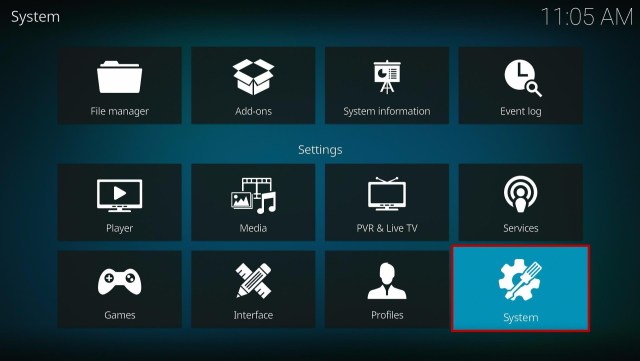
2. Select on System.

Install Project BL Kodi Build Step 2


3. Click on the Add-ons menu and Turn ON the Unknown Sources.

Install Project BL Kodi Build Step 3


4. Select Yes when the box appears.

Install Project BL Kodi Build Step 4


5. Go back one step and click on File Manager.

Install Project BL Kodi Build Step 5


6. Select the Add Source.

Install Project BL Kodi Build Step 6


7. A box will pop up, so click on the ‘None’ option.

Install Project BL Kodi Build Step 7


8. Now type in this URL http://cmanbuilds.com/repo and click OK. 

Install Project BL Kodi Build Step 8


9. Name this URL as cman and tap OK.

Install Project BL Kodi Build Step 9


10. After that, go back to the system menu and select Add-ons.

Install Project BL Kodi Build Step 10


11. Click Install from Zip File.

Install Project BL Kodi Build Step 11


12. When a box pop up, tap the Yes button.

Install Project BL Kodi Build Step 12


13. Select cman or any name you have given.

Install Project BL Kodi Build Step 13


14. Choose repository.cMaNWizard.zip

Install Project BL Kodi Build Step 14


15. Wait a few minutes for the addon to be installed. After that, an icon will appear at the top menu.

Install Project BL Kodi Build Step 15


16. Tap the  Install from Repository.

Install Project BL Kodi Build Step 16


17. Then select cMaN’s Wizard Repository from the list.

Install Project BL Kodi Build Step 17


18. Select the Program add-ons.

Install Project BL Kodi Build Step 18


19. Click cMaN Wizard 19.

Install Project BL Kodi Build Step 19


20. Tap the Install button.

Install Project BL Kodi Build Step 20


21. Click the Ok button.

Install Project BL Kodi Build Step 21


22. Wait for the Installed message to appear and click the Continue.

Install Project BL Kodi Build Step 22


23. Tap the Close.

Install Project BL Kodi Build Step 23


24. Go back to the Kodi home screen and scroll down to Addon.

Install Project BL Kodi Build Step 24


25. From the Program add-ons, select cMaN Wizard 19.

Install Project BL Kodi Build Step 25


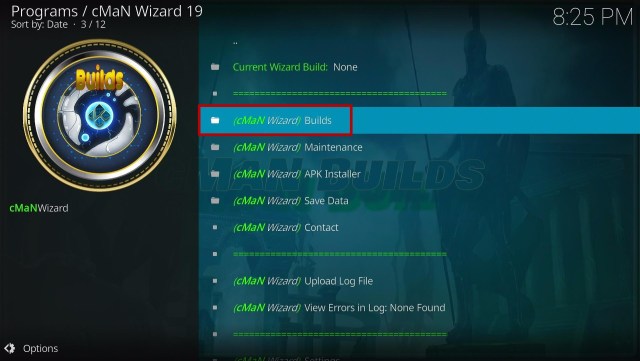
26. Select Builds.

Install Project BL Kodi Build Step 26


27. Scroll down and select Project BL.

Install Project BL Kodi Build Step 27


28. Tap the Install.

Install Project BL Kodi Build Step 28


29. Click the Yes, Install.

Install Project BL Kodi Build Step 29


30. Wait for the build to download.

Install Project BL Kodi Build Step 30


31. Tap on the Fresh Install.

Install Project BL Kodi Build Step 31


32. Wait a second for it to finish.

Install Project BL Kodi Build Step 32


33. Click the OK button.

Install Project BL Kodi Build Step 33


34. Launch your Kodi again.

Install Project BL Kodi Build Step 34


35. That’s it! You have successfully installed the Project BL Build. 

  Install Project BL Kodi Build Step 35


YOUR INTERNET ACTIVITY IS BEING WATCHED

ReviewVPN cannot attest to the legality, security and privacy of the applications discussed on this site. It is highly recommended that you use a VPN service while streaming or using Kodi.

Currently, your IP 216.73.216.144 is visible to everyone and your Browser is being tracked by Advertisers & ISP Provider.

Save 65% Now

Limited Time Offer

Here are the main reasons why you must use a VPN:

  • Your activities are hidden from your ISP, the government, and from the apps you are using.
  • You can access additional movies and TV streams.
  • ISP attempts to throttle are thrwarted thus reducing buffering issues.
  • Geographically restricted content like Netflix and Hulu can be unblocked.

A VPN works be replacing your ISP-assigned IP address and creating an encrypted tunnel. We recommend the no log service offered by IPVanish. It works well on a Firestick and offers the fastest possible speeds.

Special Limited Time Offer - Get IPVanish


Legal Disclaimer: ReviewVPN.com does not encourage or endorse any illegal activity involved in the usage of services and applications referenced on this site. We do not verify the licensing agreements of services. The end-user is wholly responsible for ensuring that any media accessed through these services does not violate copyright and/or licensing laws. ReviewVPN does not promote, link to, or receive compensation from any Apps and IPTV services.


Install SurfShark on Firestick

Best SurfShark Deal


Features of Project BL Kodi Build

  • The main sections are Movies, Free, TV, kids, Sports, Live TV, Trakt, Wizard, Add-ons, Settings, and Power. 
  • In the Movies section, you can watch the latest and popular movies from different add ons such as Q Continuum, The Xstream, Black Lightning, 4K, Asgard, and more. 
  • Watch the Theaters movies, Adventure, 1080p, 4K, and more.
  • In the Free section, you can watch free streaming links of movies, TV shows, Live Tv, Kids, Sports Replays, a List of Movies By year, and more.
  • It also allows you to stream Live TV from different popular channels such as Pluto TV, USTV Go, Tubi TV, and more.
  • Provides you with Kids’ content, such as Movies, Anime, Cartoons, Kids’ BoxSets, and more.
  • This build also covers different Live Sports events such as MMA Live, Football, Wrestling, Boxing, American Football, Formula 1, Baseball, and more.
  • Linked your Trakt account and see your TV Shows Collection, Movies Watchlist, Your Recent, and more.
  • Genres: Action, Adventures, Animation, Comedy, Crime, Documentary, Drama, Family, Fantasy, History, Horror, Music, Mystery, Romance, Science Fiction, TV Movies, Thriller and more. 
  • Wizard section, where you can see Build Menu, Maintenance, Addon Tools, Buffer Fix, System Info, and Save Options.
  • Provides you with SD to 4K quality streaming links.
  • Preload addons: Asgard, Rising Tides, Replay Me, The Endzone 19, ApeX Sports, Black Lightning, Dailimotion.com, Pluto.TV, Q Continuum, Seren, The Loop, The Xtream, TheMovieDB Helper, tvOne, Mad Titan Sports, YouTube, and more.


Pros and Cons

Pros

  • This build brings you both Free and Debrid links. 
  • You can choose from their wide selection and collection of contents. 
  • It has well-organized categories and subcategories. 
  • You can integrate your Trakt. tv account to monitor your watching history.
  • A maximum of 4k streaming links video quality. 


Cons

  • Some streaming links provided are not working at all.


Why do I need a VPN?

Surfshark vpn

One issue that always kills the fun in entertainment is geo-block content. Whereas some streaming services have geo-block content that is only playable and works within a specific area. You cannot watch these contents anywhere, that is why you need to use a Virtual Private Network or VPN to destroy geo-blocks. 

We highly suggest SurfShark as your best choice because it safely destroys geo-blocks to access their content anywhere you are. With SurfShark you can now watch any content you want without any problems at all and it bypasses censorship/restrictions put by the developers.

Note: For more information about SurfShark, please read our SurfShark REVIEW.


Grab your subscription now!


How to Install Surfshark on Firestick with Screenshots

If your Firestick still has the older interface, read this article to learn how to update it: Update Firestick Interface.

You can download Surfshark directly from the Amazon App store. It will be easy for you to find Surfshark with your Firestick’s Find feature. Refer to our screenshots below.

Follow our screenshots below to install the SurfShark VPN app on your Fire TV stick.

1. Go to the Home screen of your Firestick.

step 1 Install Surfshark VPN on Firestick


2. Navigate towards the Find tab. Press the Search button from the resulting dropdown.

step 2 Install Surfshark VPN on Firestick


3. Type in the keyword of SurfShark and select from the suggestions that will appear.

step 3 Install Surfshark VPN on Firestick


4. Click the official SurfShark icon from your search results.

step 4 Install Surfshark VPN on Firestick


5. Press the Download (You own it) button.

step 5 Install Surfshark VPN on Firestick


6. The SurfShark VPN installer will download on your device.

step 6 Install Surfshark VPN on Firestick


7. SurfShark VPN’s app will automatically install itself on your Fire TV stick.

step 7 Install Surfshark VPN on Firestick


8. Press the Open button after completing SurfShark VPN’s installation process.

step 8 Install Surfshark VPN on Firestick


9. Please wait for the SurfShark VPN to load its user interface.

step 9 Install Surfshark VPN on Firestick


10. You can now log in with your SurfShark VPN account credentials.

step 10 Install Surfshark VPN on Firestick

Learn more about Surfshark and Grab the Best Surfshark Deal Now!


Install Surfshark on Firestick

Best Surfshark Deal

Other VPNs to Consider

NordVPN (Best for Streaming)

Best Features

  • 5000+ Server in 50+ Countries 
  • Military-Grade Encryption
  • Fast Connection Speed
  • Suitable to a lot of devices
  • No-Log Policy

Prices
  • Complete $5.89 per month (64% Discount)
  • Plus $4.59 per month (56% Discount)
  • Standard $3.69 per month (55% Discount)

Best Features

  • 750+ High-speed VPN Servers in 43 Locations
  • Military-Grade Encryption
  • Fastest HD Streaming and Gaming
  • 30-Day Money-Back Guarantee
  • Unlimited Data & Devices
  • No-Log Policy

Prices
  • 3 Years $1.99 per month (82% Discount)
  • 1 Years $3.29 per month (70% Discount)
  • 1 Month $10.99 per month

IPVanish VPN (Most Secure)

Best Features

  • 1200+ Servers in 60+ Countries around the world
  • Unlimited Connections
  • No-Log Policy
  • Top Notch Military-Grade VPN Protocols and Encryptions
  • 100% Safe and Secured
  • Most Trusted VPN
  • Best VPN for Firestick
  • 30-Day Money-Back Guarantee

Prices
  • Yearly $3.99 per month (63% Discount) – 30 days risk free + Ransomware & Malware Protection
  • Quarterly $5.32 per month (51% Discount)
  • Monthly $10.99 per month

For more VPN discounts, go to ReviewVPN Deals and purchase the best VPN for you.


Alternatives for Project BL Kodi Build

We list down some Kodi builds that you can try on your Kodi aside from Project BL kindly read their corresponding articles to know more about these add-ons. If you want to know more about the addon build that is compatible with Kodi 19.5, kindly read our What’s working on Kodi 19.5 article.


FAQs

Do I need a Real Debrid account to access this build content?

No, Real Debrid is not required to access their content, but if you want to access high-quality streaming links, then you can link your Real Debrid account.


Can I watch Project BL Kodi Build for free?

Yes, this build is free and allows you to access their content for free.


Is the Project BL Kodi Build legal to use?

Yes, this build is legal as long as it only offers non-copyright content.


Is the Project BL Kodi Build safe to use?

Yes, this build is safe to use, but if you want to ensure your security, we suggest using a VPN such as SurfShark. 


Conclusion

Project BL is another third-party streaming build compatible with Kodi 19.5 This build brings you a large collection of content to watch for free. You will not be disappointed in this build because it brings you a well-organized list of content where you can easily choose your favorite Movies/Tv shows to watch.

We hope this article helps you install the Project BL Kodi Build. 

How to Install K19 Plus Kodi Build

Overview

The article will help you on how to install K19 Plus Kodi Build. 


K19 Plus is a third-party Kodi build that is very smooth to use and has an attractive kids theme interface. This build is from Cman’s Repository which is compatible with Kodi 19.5. It is also one of the builds appropriate for your kids cause it brings you a large collection of kids’ content such as Cartoons, Kids Live Tv, and more.

This build is supported by different popular kids channels and networks that bring you a great lineup of kids’ content to watch for free. The main sections in this build are Movies, Tv shows, Kids Live, Apps, systems, and Power. One thing that is very lovely about this build is its interface and an Aeon Tajo skin by default. Some of the popular children’s networks are Nick Toons, Disney, Nickelodeon, Nick Jr, and more. 


ANONYMOUSLY

How to Install K19 Plus Kodi Build with Screenshot Guide

Installing a Kodi build has a lot of processes to take. That is why we will guide you step by step on how you can install it on Kodi.

 Follow the following steps below. 

1. On your Firestick, open Kodi and go to Settings.

Install K19 Plus Kodi Build Step 1


2. Select on System.

Install K19 Plus Kodi Build Step 2


3. Click on the Add-ons menu and Turn ON the Unknown Sources.

Install K19 Plus Kodi Build Step 3


4. Select Yes when the box appears.

Install K19 Plus Kodi Build Step 4


5. Go back one step and click on File Manager.

Install K19 Plus Kodi Build Step 5


6. Select the Add Source.

Install K19 Plus Kodi Build Step 6


7. A box will pop up, so click on the ‘None’ option.

Install K19 Plus Kodi Build Step 7


8. Now type in this URL http://cmanbuilds.com/repo and click OK. 

Install K19 Plus Kodi Build Step 8


9. Name this URL as cman and tap OK.

Install K19 Plus Kodi Build Step 9


10. After that, go back to the system menu and select Add-ons.

Install K19 Plus Kodi Build 10


11. Click Install from Zip File.

Install K19 Plus Kodi Build 11


12. When a box pop up, tap the Yes button.

Install K19 Plus Kodi Build 12


13. Select cman or any name you have given.

Install K19 Plus Kodi Build Step 13


14. Choose repository.cMaNWizard.zip

Install K19 Plus Kodi Build Step 14


15. Wait a few minutes for the addon to be installed. After that, an icon will appear at the top menu.

Install K19 Plus Kodi Build Step 15


16. Tap the  Install from Repository.

Install K19 Plus Kodi Build Step 16


17. Then select cMaN’s Wizard Repository from the list.

Install K19 Plus Kodi Build Step 17


18. Select the Program add-ons.

Install K19 Plus Kodi Build Step 18


19. Click cMaN Wizard 19.

Install K19 Plus Kodi Build Step 19


20. Tap the Install button.

Install K19 Plus Kodi Build Step 20


21. Click the Ok button.

Install K19 Plus Kodi Build Step 21


22. Wait for the Installed message to appear and click the Continue.

Install K19 Plus Kodi Build Step 22


23. Tap the Close.

Install K19 Plus Kodi Build Step 23


24. Go back to the Kodi home screen and scroll down to Addon.

Install K19 Plus Kodi Build Step 24


25. From the Program add-ons, select cMaN Wizard 19.

Install K19 Plus Kodi Build Step 25


26. Select Builds.

Install K19 Plus Kodi Build Step 26


27. Scroll down and select K19 Plus.

Install K19 Plus Kodi Build Step 27


28. Tap the Install.

Install K19 Plus Kodi Build Step 28


29. Click the Yes, Install.

Install K19 Plus Kodi Build Step 29


30. Wait for the build to download.

Install K19 Plus Kodi Build Step 30


31. Click the OK button.

Install K19 Plus Kodi Build Step 31


32. Launch your Kodi again.

Install K19 Plus Kodi Build Step 32


33. That’s it! You have successfully installed the K19 Plus Build. 

Install K19 Plus Kodi Build Step 33


YOUR INTERNET ACTIVITY IS BEING WATCHED

ReviewVPN cannot attest to the legality, security and privacy of the applications discussed on this site. It is highly recommended that you use a VPN service while streaming or using Kodi.

Currently, your IP 216.73.216.144 is visible to everyone and your Browser is being tracked by Advertisers & ISP Provider.

Save 65% Now

Limited Time Offer

Here are the main reasons why you must use a VPN:

  • Your activities are hidden from your ISP, the government, and from the apps you are using.
  • You can access additional movies and TV streams.
  • ISP attempts to throttle are thrwarted thus reducing buffering issues.
  • Geographically restricted content like Netflix and Hulu can be unblocked.

A VPN works be replacing your ISP-assigned IP address and creating an encrypted tunnel. We recommend the no log service offered by IPVanish. It works well on a Firestick and offers the fastest possible speeds.

Special Limited Time Offer - Get IPVanish


Legal Disclaimer: ReviewVPN.com does not encourage or endorse any illegal activity involved in the usage of services and applications referenced on this site. We do not verify the licensing agreements of services. The end-user is wholly responsible for ensuring that any media accessed through these services does not violate copyright and/or licensing laws. ReviewVPN does not promote, link to, or receive compensation from any Apps and IPTV services.


Install Surfshark on Firestick

Best Surfshark Deal


Features of K19 Plus Kodi Build

Interface

  • No registration is needed and required.
  • It has a simple and easy-to-navigate interface.


Categories

  • The Main categories are Movies, TV Shows, Kids Live, Apps, Systems, and Power.
  • Kids Live section, you can choose from different kids networks such as Minika Go, Minika Cocuk, Disney Channel EN, Cartoon Network, Nick Toons, Disney Jr, Nick Jr, Sonic Nickelodeon, Hungama TV, Baby Tv and more.
  • In the Apps section, you can see different supported add-ons such as tvOne111, Free, PBS kids, Aliunde K19 Lite, The Oath, Mad Titan, DailyMotion, and more.  
  • The movie section contains the most recent and popular Kids and Family movies.
  • Tv shows bring you an ongoing and completed Kids Tv series.
  • You can also choose from different categories such as movies, Tv shows, music, Classic TV shows, Documentaries, Soap Catchup, YouTube, and more. 
  • This build contains Free New Movies, British Cinema, Family Movies, Documentaries, UK Soap Catchup, TV shows, Airt TV. Comedy 18+, Live In Concert, and more.
  • It has a resume to continue watching where you stopped off.
  • Available Skip steps and Playback button.
  • It also has Live Tv where you can watch it on different channels.
  • Brings you lots of 4K contents collection and Box sets. 
  • The maximum video streaming quality is up to 4k.


Pros and Cons

Pros

  • This build is compatible with Kodi 19.5 and has an easy-to-use interface.
  • It has a large collection of content to watch for free. 
  • You can stream your favorite kids’ content with less buffering and no interruption. 
  • It brings you kids collections that are appropriate to watch for kids. 
  • You can watch on a 4k streaming link video quality. 


Cons

  • There are some contents and addons that are not working well. 
  • Some streaming links provided are not working at all.


Streaming with a VPN

Whenever you stream online with a third-party build it is much better if you stream together with a Virtual Private Network. It is to ensure that you are safe from any harm or malicious acts from these servers. A VPN will give you a safe and protected connection so that every time you stream online, none of these potential hackers will know or access your activities. 

One of the best VPNs that will give you a safe connection is Surfshark. You can stream without anything to worry about with Surfshark because as you connect to it, it will automatically encrypt your Real IP address and keep you anonymous online. The good thing with this VPN is, that it uses a high standard of encryption with a quality security protocol to ensure your safeness. Surfshark also brings you an impressive list of features and services.

Note: For more information about Surfshark, please read our Surfshark Review.


Grab your subscription now!


How to Install Surfshark VPN on Firestick

If your Firestick still has the older interface, read this article to learn how to update it: Update Firestick Interface.

Follow our screenshots below to install the SurfShark VPN app on your Fire TV stick.

1. Go to the Home screen of your Firestick.

step 1 Install Surfshark VPN on Firestick


2. Navigate towards the Find tab. Press the Search button from the resulting dropdown.

step 2 Install Surfshark VPN on Firestick


3. Type in the keyword of SurfShark and select from the suggestions that will appear.

step 3 Install Surfshark VPN on Firestick


4. Click the official SurfShark icon from your search results.

step 4 Install Surfshark VPN on Firestick


5. Press the Download (You own it) button.

step 5 Install Surfshark VPN on Firestick


6. The SurfShark VPN installer will download on your device.

step 6 Install Surfshark VPN on Firestick


7. SurfShark VPN’s app will automatically install itself on your Fire TV stick.

step 7 Install Surfshark VPN on Firestick


8. Press the Open button after completing SurfShark VPN’s installation process.

step 8 Install Surfshark VPN on Firestick


9. Please wait for the SurfShark VPN to load its user interface.

step 9 Install Surfshark VPN on Firestick


10. You can now log in with your SurfShark VPN account credentials.

step 10 Install Surfshark VPN on Firestick

Learn more about Surfshark and Grab the Best Surfshark Deal Now!


Install Surfshark on Firestick

Best Surfshark Deal


Other VPNs to Consider

NordVPN (Best for Streaming)

Best Features

  • 5000+ Server in 50+ Countries 
  • Military-Grade Encryption
  • Fast Connection Speed
  • Suitable to a lot of devices
  • No-Log Policy

Prices
  • Complete $5.89 per month (64% Discount)
  • Plus $4.59 per month (56% Discount)
  • Standard $3.69 per month (55% Discount)

Best Features

  • 750+ High-speed VPN Servers in 43 Locations
  • Military-Grade Encryption
  • Fastest HD Streaming and Gaming
  • 30-Day Money-Back Guarantee
  • Unlimited Data & Devices
  • No-Log Policy

Prices
  • 3 Years $1.99 per month (82% Discount)
  • 1 Years $3.29 per month (70% Discount)
  • 1 Month $10.99 per month

IPVanish VPN (Most Secure)

Best Features

  • 1200+ Servers in 60+ Countries around the world
  • Unlimited Connections
  • No-Log Policy
  • Top Notch Military-Grade VPN Protocols and Encryptions
  • 100% Safe and Secured
  • Most Trusted VPN
  • Best VPN for Firestick
  • 30-Day Money-Back Guarantee

Prices
  • Yearly $3.99 per month (63% Discount) – 30 days risk free + Ransomware & Malware Protection
  • Quarterly $5.32 per month (51% Discount)
  • Monthly $10.99 per month


For more VPN discounts, go to ReviewVPN Deals and purchase the best VPN for you.

Click here to get the lowest price on Surfshark through our exclusive limited-time offer.


Alternatives for K19 Plus Kodi Build

We list down some Kodi builds that you can try on your Kodi aside from K19 Plus Kindly read their corresponding articles to know more about these add-ons. If you want to know more about the addon build that is compatible with Kodi 19.5, kindly read our What’s working on Kodi 19.5.


FAQs

Is the K19 Plus Kodi Build legal to use?

Yes, this build is legal as long as it only offers non-copyright content.


Is the K19 Plus Kodi Build safe to use?

Yes, this build is safe to use, but if you want to ensure your security, we suggest using a VPN such as Surfshark


Can I watch K19 Plus Kodi Build for free?

Yes, this build is free and allows you to access their content for free.


Conclusion

K19 Plus is a Kodi build that brings you a wide range of content to watch for free. This build is also compatible with Kodi 19.5 with an easy-to-use interface. It brings you a great lineup of kids’ content such as movies, Tv series, and more appropriate to watch for your kids. The good thing is, this build also brings you all of the latest and popular content. We hope this article helps you install the K19 Plus Kodi Build. 

How To Watch Movies on StreamLord Website On Amazon FireStick

Watch SreamLord Website on Firestick Overview


StreamLord is an amazing movie and TV show streaming platform. This streaming website provides Full high-definition films and TV series with an HD screen as well as sound quality. With the StreamLord website, you can easily stream your favorite entertainment content for free. Nonetheless, when you want to watch a movie or TV series at your desired time, you may play, pause, & restart the content.

The StreamLord website provides easily accessible videos to its users. The streaming platform has different tabs for various genres, such as comedy, drama, action, sci-fi, and many more. It has lots of options available. Nonetheless, if you want to watch an action movie, just click on the action tab and you get all the action films or TV series.


How to Stream StreamLord Website on Amazon FireStick Using Silk Browser
  1. Click Home on your remote.
  2. Select Find.
  3. Click Search.
  4. Type in Silk Browser and select this item that appears on the results.
  5. Click on the Silk Browser Icon.
  6. Choose Download.
  7. Select Open to launch the browser.
  8. Click on the URL section.
  9. Enter the following URL – www.streamlord.com
  10. Now! You’ll be able to watch movies & TV shows on StreamLord through a Firestick device using the Silk Browser.


ANONYMOUSLY

How to Stream StreamLord Website on FireStick With Screenshots

Streaming websites on Amazon Firestick should be done by installing the Silk Browser beforehand.

1. Go to the Home screen of your Firestick.

 Install StreamLord Website On Amazon FireStick Step 1


2. Click on Find.

 Install StreamLord Website On Amazon FireStick 2


3. Tap on the Search tab.

 Install StreamLord Website On Amazon FireStick 3


4. Type in Silk Browser and choose this item that appears on the results.

 Install StreamLord Website On Amazon FireStick 4


5. Click on the Silk Browser Icon.

 Install StreamLord Website On Amazon FireStick 5


6. Choose Download.

 Install StreamLord Website On Amazon FireStick 6


7. Silk Browser is Downloading into your Firestick.

 Install StreamLord Website On Amazon FireStick 7


8. The Silk Browser app will Install on Firestick.

 Install StreamLord Website On Amazon FireStick 8


9. Select Open to launch the browser.

 Install StreamLord Website On Amazon FireStick 9


10. You can now start using Amazon Silk Browser.

 Install StreamLord Website On Amazon FireStick 10


11. Enter the following URL – www.streamlord.com

 Install StreamLord Website On Amazon FireStick Step 11


12. Now! You’ll be able to watch movies & TV shows on StreamLord through a Firestick device using the Silk Browser.

 Install StreamLord Website On Amazon FireStick Step 12


YOUR INTERNET ACTIVITY IS BEING WATCHED

ReviewVPN cannot attest to the legality, security and privacy of the applications discussed on this site. It is highly recommended that you use a VPN service while streaming or using Kodi.

Currently, your IP 216.73.216.144 is visible to everyone and your Browser is being tracked by Advertisers & ISP Provider.

Save 65% Now

Limited Time Offer

Here are the main reasons why you must use a VPN:

  • Your activities are hidden from your ISP, the government, and from the apps you are using.
  • You can access additional movies and TV streams.
  • ISP attempts to throttle are thrwarted thus reducing buffering issues.
  • Geographically restricted content like Netflix and Hulu can be unblocked.

A VPN works be replacing your ISP-assigned IP address and creating an encrypted tunnel. We recommend the no log service offered by IPVanish. It works well on a Firestick and offers the fastest possible speeds.

Special Limited Time Offer - Get IPVanish


Legal Disclaimer: ReviewVPN.com does not encourage or endorse any illegal activity involved in the usage of services and applications referenced on this site. We do not verify the licensing agreements of services. The end-user is wholly responsible for ensuring that any media accessed through these services does not violate copyright and/or licensing laws. ReviewVPN does not promote, link to, or receive compensation from any Apps and IPTV services.


Install Surfshark on Firestick

Best Surfshark Deal


What Is StreamLord Website?

Streamlord is a streaming website where you can stream tons of Hollywood films for free. This streaming platform is completely free from malware or viruses. You can watch movies on Streamlord without ads.

Using StreamLord is very easy. All you have to do is go to the website. The home page displays some of the popular entertainment content. If you wish to start streaming one of them, just click on it and start streaming. The website’s top screen contains a search bar with the main categories.


Features

StreamLord has particular features that you should know. Below are the top features of the streaming website. 

  • With the StreamLord website, users can watch a huge collection of movies and TV series.
  • The website provides extremely fast servers. Thus, the likelihood of server errors is very low.
  • You don’t have to search online for data about the movie. The website has some information about the film.
  • StreamLord is a free streaming platform without a subscription fee
  • It comes with a user-friendly interface
  • It lets you watch movies & TV shows for free
  • Movies of all genres and categories are available


Free To Download Movies

StreamLord is an amazing movie & TV series download service. This streaming website allows you to download free videos quickly while you watch a movie or TV series on the internet. It allows you to easily download different media content. Even though this streaming website offers popular Hollywood films, you can stream and download lots of TV series and many more.

However, the website provides numerous genres, such as crime, action, adventure, fantasy, and lots more.


Genres

  • Drama
  • Comedy
  • Thriller
  • Action
  • Horror
  • Romance
  • Sport
  • Mystery
  • Thriller
  • Western
  • Adventure
  • Fantasy
  • History


Compatibility

The StreamLord website lets you easily stream your favorite movies & TV series on Android-powered devices. Nevertheless, this streaming website functions amazingly on numerous Android devices, such as Amazon Firestick, smartphones, tablets, PCs, and many more.


Pros & Cons

Pros

  • Extensive Choice of Content
  • Amazing user interface
  • Latest Movies & TV Shows
  • Numerous genres


Cons

  • Some reports of the app crashing


Stream Safely, Securely with VPN

Watching movies and TV shows online through streaming websites can raise some dangers with third parties, such as Internet Service Providers. Well, Internet Service Providers can log a user’s activity and share it with authorities. ISPs can also check internet connection speeds. However, if you want to keep safe from those issues then use a Virtual Private Network or VPN whenever you watch movies online. 

A great VPN service, like Surfshark, can conceal people’s online activities. This includes the search terms people lookup on Google, the URL links you use, and more. A VPN service masks the files you download, the web pages you visit, and all the content you stream. Nonetheless, a VPN service can work to mask the video games you play online, the apps you use, and the social media platforms you use. Wherein, a VPN service can make it impossible to trace what you do on the internet.

Note: For more information about Surfshark, please read our Surfshark Review.


Grab your subscription now!


How to Install Surfshark VPN on Firestick

If your Firestick still has the older interface, read this article to learn how to update it: Update Firestick Interface.

Follow our screenshots below to install the SurfShark VPN app on your Fire TV stick.

1. Go to the Home screen of your Firestick.

step 1 Install Surfshark VPN on Firestick


2. Navigate towards the Find tab. Press the Search button from the resulting dropdown.

step 2 Install Surfshark VPN on Firestick


3. Type in the keyword of SurfShark and select from the suggestions that will appear.

step 3 Install Surfshark VPN on Firestick


4. Click the official SurfShark icon from your search results.

step 4 Install Surfshark VPN on Firestick


5. Press the Download (You own it) button.

step 5 Install Surfshark VPN on Firestick


6. The SurfShark VPN installer will download on your device.

step 6 Install Surfshark VPN on Firestick


7. SurfShark VPN’s app will automatically install itself on your Fire TV stick.

step 7 Install Surfshark VPN on Firestick


8. Press the Open button after completing SurfShark VPN’s installation process.

step 8 Install Surfshark VPN on Firestick


9. Please wait for the SurfShark VPN to load its user interface.

step 9 Install Surfshark VPN on Firestick


10. You can now log in with your SurfShark VPN account credentials.

step 10 Install Surfshark VPN on Firestick

Learn more about Surfshark and Grab the Best Surfshark Deal Now!


Install Surfshark on Firestick

Best Surfshark Deal


Other VPNs to Consider

NordVPN (Best for Streaming)

Best Features

  • 5000+ Server in 50+ Countries 
  • Military-Grade Encryption
  • Fast Connection Speed
  • Suitable to a lot of devices
  • No-Log Policy

Prices
  • Complete $5.89 per month (64% Discount)
  • Plus $4.59 per month (56% Discount)
  • Standard $3.69 per month (55% Discount)

Best Features

  • 750+ High-speed VPN Servers in 43 Locations
  • Military-Grade Encryption
  • Fastest HD Streaming and Gaming
  • 30-Day Money-Back Guarantee
  • Unlimited Data & Devices
  • No-Log Policy

Prices
  • 3 Years $1.99 per month (82% Discount)
  • 1 Years $3.29 per month (70% Discount)
  • 1 Month $10.99 per month

IPVanish VPN (Most Secure)

Best Features

  • 1200+ Servers in 60+ Countries around the world
  • Unlimited Connections
  • No-Log Policy
  • Top Notch Military-Grade VPN Protocols and Encryptions
  • 100% Safe and Secured
  • Most Trusted VPN
  • Best VPN for Firestick
  • 30-Day Money-Back Guarantee

Prices
  • Yearly $3.99 per month (63% Discount) – 30 days risk free + Ransomware & Malware Protection
  • Quarterly $5.32 per month (51% Discount)
  • Monthly $10.99 per month


For more VPN discounts, go to ReviewVPN Deals and purchase the best VPN for you.

Click here to get the lowest price on Surfshark through our exclusive limited-time offer.


Alternatives for StreamLord Website

As free video streaming platforms come and go, the ideal solution to this problem is to have the best streaming website alternatives. The internet offers tons of streaming platforms that provide free entertainment content. However, you can’t trust all the free streaming websites. Some offer pirated videos that have malware & viruses.

Below are streaming platforms that are among the Best Free Movie Streaming Websites:


FAQs

Is the StreamLord website free?

You can use the streaming website for free.


Will the StreamLord website collect and use any private information?

No, the StreamLord website will not collect private data.


Is the StreamLord website safe?

The streaming website is very safe to use. 


Wrapping Up

In this article, we have provided information on how to stream StreamLord Website on Amazon FireStick using Silk Browser. The information above should really help you stream your favorite entertainment content on your Firestick.

However, always remember to use a VPN service every time you utilize your Firestick. If you have any thoughts about the article – “How to Stream StreamLord Website on Amazon FireStick using Silk Browser,” don’t hesitate to let us know in the comments section.

How To Stream 123Chill Website On Amazon FireStick Using Silk Browser

Stream 123Chill Website on Firestick Overview


Streaming media content on the internet has become very popular. You may find even one such family that does not stream videos online. Nowadays, only a few individuals rent movies or use DVD players. People can consume any entertainment content they want right at their fingertips. However, there are applications & websites that provide a quality streaming experience.

There is a misconception that high-quality videos are only provided on paid streaming platforms. Nonetheless, there are free websites, such as 123Chill, which boast better streaming than premium streaming websites out there.


How to Stream 123Chill on Amazon FireStick Using Silk Browser

  1. Click Home on your remote.
  2. Select Find.
  3. Click Search.
  4. Type in Silk Browser and select this item that appears on the results.
  5. Click on the Silk Browser Icon.
  6. Choose Download.
  7. Select Open to launch the browser.
  8. Click on the URL section.
  9. Enter the following URL – https://123chill.to/
  10. Finally! You’ll be able to watch movies & TV shows on 123Chill through a Firestick device using the Silk Browser.


ANONYMOUSLY

How to Stream 123Chill Website on FireStick With Screenshots

Streaming websites on Amazon Firestick should be done by installing the Silk Browser beforehand.

1. Go to the Home screen of your Firestick.

Stream 123Chill Website on FireStick Step 1


2. Click on Find.

Stream 123Chill Website on FireStickStep 2


3. Tap on the Search tab.

Stream 123Chill Website on FireStickStep 3


4. Type in Silk Browser and choose this item that appears on the results.

Stream 123Chill Website on FireStick Step 4


5. Click on the Silk Browser Icon.

Stream 123Chill Website on FireStick Step 5


6. Choose Download.

Stream 123Chill Website on FireStickStep 6


7. Silk Browser is Downloading into your Firestick.

Stream 123Chill Website on FireStick Step 7


8. The Silk Browser app will Install on Firestick.

Stream 123Chill Website on FireStick Step 8


9. Select Open to launch the browser.

Stream 123Chill Website on FireStick Step 9


10. You can now start using Amazon Silk Browser.

Stream 123Chill Website on FireStick Step 10


11. Enter the following URL – https://123chill.to/

Stream 123Chill Website on FireStick Step 11


12. Finally! You’ll be able to watch movies & TV shows on 123Chill through a Firestick device using the Silk Browser.

Stream 123Chill Website on FireStick Step 12


YOUR INTERNET ACTIVITY IS BEING WATCHED

ReviewVPN cannot attest to the legality, security and privacy of the applications discussed on this site. It is highly recommended that you use a VPN service while streaming or using Kodi.

Currently, your IP 216.73.216.144 is visible to everyone and your Browser is being tracked by Advertisers & ISP Provider.

Save 65% Now

Limited Time Offer

Here are the main reasons why you must use a VPN:

  • Your activities are hidden from your ISP, the government, and from the apps you are using.
  • You can access additional movies and TV streams.
  • ISP attempts to throttle are thrwarted thus reducing buffering issues.
  • Geographically restricted content like Netflix and Hulu can be unblocked.

A VPN works be replacing your ISP-assigned IP address and creating an encrypted tunnel. We recommend the no log service offered by IPVanish. It works well on a Firestick and offers the fastest possible speeds.

Special Limited Time Offer - Get IPVanish


Legal Disclaimer: ReviewVPN.com does not encourage or endorse any illegal activity involved in the usage of services and applications referenced on this site. We do not verify the licensing agreements of services. The end-user is wholly responsible for ensuring that any media accessed through these services does not violate copyright and/or licensing laws. ReviewVPN does not promote, link to, or receive compensation from any Apps and IPTV services.


Install Surfshark on Firestick

Best Surfshark Deal


What Is 123Chill  Website?

123Chill is a free movie & TV series streaming website that lets you watch uninterrupted videos without any annoying ads. Though 123Chill doesn’t come with banner ads, the website does have pre-roll ads just like YouTube. Nonetheless, that’s just a small thing against the amazing service that you obtain in return.

If you want to stream your favorite movies & TV series at the best quality free of charge, then the 123Chill website is your best option. The best thing about 123Chill is that users can find all the entertainment content in High Definition quality. But, you can’t download the content to watch it later. The 123Chill website offers many servers where users have the option to switch to any server they want if the video has issues.


Genres

  • Drama
  • Thriller
  • Comedy
  • Horror
  • Action
  • Music
  • Live Show
  • Romance
  • Mystery
  • Foreign
  • Sport
  • Soap
  • Thriller
  • Talk
  • Western
  • Fantasy
  • Adventure
  • History


User Interface

The 123Chill website is available with an amazing user-friendly interface. The streaming platform’s user interface allures individuals to utilize this awesome website to stream their favorite movies or television series. Nonetheless, the website lets users search for the entertainment content they want via its search section. Additionally, users may utilize the website’s numerous categories. You can filter films you like to watch.


Easiest Way To Watch Movies

123Chill is one of the best video streaming platforms that provide the easiest method to stream movies and TV series on the internet for free. However, the 123Chill website provides the best quality content available on the internet. This media streaming service has tons of high-quality video links. Additionally, the platform provides high-speed streaming.


Compatibility

With the 123Chill  website, you can easily stream movies & TV series free of charge on Android-powered devices. Nonetheless, this streaming platform functions great on many Android devices, such as Amazon Firestick, mobile phones tablets, PCs, Roku, and many more.


Hassle-free streaming experience

With the 123Chill  website, you don’t need to create IDs, subscribe to the service, or register. Just launch the website, select a movie or TV series title, and you are good to go. It lets you stream over 12,000 titles.


Pros & Cons

Pros

  • Extensive Content Library
  • Amazing user interface
  • Numerous genres
  • Sort feature


Cons

  • You are required to sign up to stream movies


Stream Safely, Securely with VPN

Nowadays, there are tons of options for watching your favorite movies & TV shows online for free. However, there are issues: lots of these platforms don’t work well with particular devices or in specific countries. Also, the premium options could be troublesome.

This is the reason it’s essential to use a Virtual Private Network or VPN while streaming movies or TV shows from any Android device. A VPN service helps secure your sensitive information when accessing social media services, using a public Wi-Fi network, and lots more. When choosing the best VPN service for video streaming online, the best choice is the Surfshark service. This VPN service is available with key features that a Virtual Private Network should possess, including:

  • Easy-to-use app for streaming devices
  • 30-day money-back guarantee
  • Fast download speeds
  • Compatible with streaming apps
  • No traffic logs
  • Offers secure VPN Protocols
  • Numerous servers located across the globe
  • 24/7 customer support
  • Allows simultaneous connections

Note: For more information about Surfshark, please read our Surfshark Review.


Grab your subscription now!


How to Install Surfshark VPN on Firestick

If your Firestick still has the older interface, read this article to learn how to update it: Update Firestick Interface.

Follow our screenshots below to install the SurfShark VPN app on your Fire TV stick.

1. Go to the Home screen of your Firestick.

step 1 Install Surfshark VPN on Firestick


2. Navigate towards the Find tab. Press the Search button from the resulting dropdown.

step 2 Install Surfshark VPN on Firestick


3. Type in the keyword of SurfShark and select from the suggestions that will appear.

step 3 Install Surfshark VPN on Firestick


4. Click the official SurfShark icon from your search results.

step 4 Install Surfshark VPN on Firestick


5. Press the Download (You own it) button.

step 5 Install Surfshark VPN on Firestick


6. The SurfShark VPN installer will download on your device.

step 6 Install Surfshark VPN on Firestick


7. SurfShark VPN’s app will automatically install itself on your Fire TV stick.

step 7 Install Surfshark VPN on Firestick


8. Press the Open button after completing SurfShark VPN’s installation process.

step 8 Install Surfshark VPN on Firestick


9. Please wait for the SurfShark VPN to load its user interface.

step 9 Install Surfshark VPN on Firestick


10. You can now log in with your SurfShark VPN account credentials.

step 10 Install Surfshark VPN on Firestick

Learn more about Surfshark and Grab the Best Surfshark Deal Now!


Install Surfshark on Firestick

Best Surfshark Deal


Other VPNs to Consider

NordVPN (Best for Streaming)

Best Features

  • 5000+ Server in 50+ Countries 
  • Military-Grade Encryption
  • Fast Connection Speed
  • Suitable to a lot of devices
  • No-Log Policy

Prices
  • Complete $5.89 per month (64% Discount)
  • Plus $4.59 per month (56% Discount)
  • Standard $3.69 per month (55% Discount)

Best Features

  • 750+ High-speed VPN Servers in 43 Locations
  • Military-Grade Encryption
  • Fastest HD Streaming and Gaming
  • 30-Day Money-Back Guarantee
  • Unlimited Data & Devices
  • No-Log Policy

Prices
  • 3 Years $1.99 per month (82% Discount)
  • 1 Years $3.29 per month (70% Discount)
  • 1 Month $10.99 per month

IPVanish VPN (Most Secure)

Best Features

  • 1200+ Servers in 60+ Countries around the world
  • Unlimited Connections
  • No-Log Policy
  • Top Notch Military-Grade VPN Protocols and Encryptions
  • 100% Safe and Secured
  • Most Trusted VPN
  • Best VPN for Firestick
  • 30-Day Money-Back Guarantee

Prices
  • Yearly $3.99 per month (63% Discount) – 30 days risk free + Ransomware & Malware Protection
  • Quarterly $5.32 per month (51% Discount)
  • Monthly $10.99 per month


For more VPN discounts, go to ReviewVPN Deals and purchase the best VPN for you.

Click here to get the lowest price on Surfshark through our exclusive limited-time offer.


Alternatives for 123Chill Website

Free video streaming platforms come & go every so often. You’ll never know when the platform shuts down. However, the ideal solution to this issue is to know the best streaming website alternatives. You can find tons of streaming services that offer free movies & TV shows. But, you can’t trust some of these free movie streaming platforms. There are video streaming services that offer pirated content that has viruses.

But, below are streaming platforms that are among the Best Free Movie Streaming Websites:


FAQs

Is the 123Chill website free?

You can use the 123Chill website for free.


Will the 123Chill  website collect and use any private information?

No, the streaming website will not collect private data.


Is the 123Chill website safe?

The 123Chill streaming website is very safe to use. 


Conclusion

In this article, we have provided information on how to stream the 123Chill Website on Amazon FireStick using Silk Browser. The information above should really help you stream your movies and TV series on your Firestick.

However, always remember to use a VPN service every time you utilize your Firestick. If you have any thoughts about the article – “How to Stream 123Chill Website on Amazon FireStick using Silk Browser,” don’t hesitate to let us know in the comments section.

Best Kodi Repositories

Overview

This article is about the Top 10 Best Kodi Repositories.


Kodi is known as a media player that allows you to stream thousands of content for free using Kodi addons and builds. There is an official and unofficial Kodi addon that you can try on your Kodi. However, third-party or unofficial addons are more popular than legal ones because they have thousands of free content from different sources.

You can watch Live TV, live sports, Movies, Tv shows, Kids’ content, sports, and more. Third-party addons are from the Kodi repository, which stores different addons and builds to install. These Kodi Repos contain dependencies files required for the addon to function properly, and to install them, you need to enable the unknown sources first.


What Are Kodi Repositories

Kodi Repositories is the main storehouse for different Kodi addons and builds. You can see lots of popular Kodi add-ons inside these repos, the developer creates a so-called Link that stores all kinds of add-ons such as videos, programs, Pictures, services, and more add-ons. A popular add-on is the video addons, where you can install lots of streaming addons to watch thousands of different content such as movies, Tv shows, and more. There are program add-ons with different wizards to install, whereas inside them are lots of Kodi builds, maintenance addons, and even utility services. 

Many developers have their own Kodi repositories, where you can install one specific addon, but some do not have one. Some of it stores more than 20+ Kodi addon sharing in one URL, which is why you can see some addons from different Kodi repos. Now, this article will show you some of the best working Kodi repositories and guide you on how to add sources on Kodi. There are also Kodi repositories with an addon that only works on Kodi 18.9 and Kodi 19. 


ANONYMOUSLY

How to Install Any Repository on Kodi

Now we will show you how you can add on a Kodi Repository and install a third-party addon using these repos. For this example, we used Cman’s Wizard Repository, which is also one of the popular working repo.

1. On your Firestick, open Kodi and go to Settings.

Top 10 Best Repo


2. Now, go and select System.

Top 10 Best Repo


3. Click on the Add-ons menu and Turn ON the Unknown Sources.

Top 10 Best Repo


4. Select Yes when the box appears.

Top 10 Best Repo


5. After that, go back one step and click on File Manager.

Top 10 Best Repo


6. Select the Add Source.

Top 10 Best Repo


7. A box will pop up, so click on the ‘None’ option.

Top 10 Best Repo


8. Now, type in the Kodi Repository URL as it is. You must be careful in typing it and check before you click OK

Type in http://cmanbuilds.com/repo and click OK

Top 10 Best Repo


9. Name this URL as cman and click OK.

Top 10 Best Repo


10. After that, go back to the system menu and click Add-ons.

Top 10 Best Repo


11. Select Install from Zip File.

Top 10 Best Repo


12. Click on the cman or any name you have given. 

Top 10 Best Repo


13. Choose repository.cMaNWizard.zip

Top 10 Best Repo


14. Wait a few minutes for the app to be installed. After that, an icon will appear at the top menu.

Top 10 Best Repo


15. Click on the Instal from Repository.

Top 10 Best Repo


16. Select on the cMaN’s Wizard Repository (or any Repo wizard you choose).

Top 10 Best Repo

After that, you will see different addon categories such as Video addon Program addons, and more. You’ll just need to choose and click on the Kodi addon or builds you want to install.


YOUR INTERNET ACTIVITY IS BEING WATCHED

ReviewVPN cannot attest to the legality, security and privacy of the applications discussed on this site. It is highly recommended that you use a VPN service while streaming or using Kodi.

Currently, your IP 216.73.216.144 is visible to everyone and your Browser is being tracked by Advertisers & ISP Provider.

Save 65% Now

Limited Time Offer

Here are the main reasons why you must use a VPN:

  • Your activities are hidden from your ISP, the government, and from the apps you are using.
  • You can access additional movies and TV streams.
  • ISP attempts to throttle are thrwarted thus reducing buffering issues.
  • Geographically restricted content like Netflix and Hulu can be unblocked.

A VPN works be replacing your ISP-assigned IP address and creating an encrypted tunnel. We recommend the no log service offered by IPVanish. It works well on a Firestick and offers the fastest possible speeds.

Special Limited Time Offer - Get IPVanish


Legal Disclaimer: ReviewVPN.com does not encourage or endorse any illegal activity involved in the usage of services and applications referenced on this site. We do not verify the licensing agreements of services. The end-user is wholly responsible for ensuring that any media accessed through these services does not violate copyright and/or licensing laws. ReviewVPN does not promote, link to, or receive compensation from any Apps and IPTV services.


Install Surfshark on Firestick

Best Surfshark Deal


Top 10 Best Kodi Repositories

EzzerMac Wizard Repository

EzzerMac Wizard Repository

Source: http://ezzer-mac.com/repo/

EzzerMacs is one of the popular Kodi Repos with lots of popular and good addons to use. It is also one of the best working repositories, with such a great lineup of Kodi addons and Builds to install for free. You can choose from different categories of addons, such as Music, Picture, Programs, Services, and Video.

This repo has a lot of great Kodi addons where you can watch sports, live tv, movies, Tv shows, kids’ content, and more. Some of the good Kodi addons you can find in it are the Destiny of Deathstar, Medusa, M-E-T-V, 4K, Q Continuum, SSTV, Torque, Asgard, Rogue One, Odin, Base, Q sports, and more.

EzzerMac is also the home of the great wizard that contains builds such as BreezzWizard, Wumpa Wizard, Brezz 19 Wizard, Funsterplace Wizard, and more.


How to Install EzzerMacs Repository on Kodi

1. On your Firestick, open Kodi and go to Settings.

2. Select System.

3. Click on the Add-ons menu and Turn ON the Unknown Sources.

4. Select Yes when the box appears.

5. Go back one step and click on File Manager.

6. Select the Add Source.

7. A box will pop up, so click on the ‘None’ option.

8. Type in http://ezzer-mac.com/repo and click OK.

9.  Name the URL- ezzer or any other name you want to. Then select OK.

10. Go back and Select Add-ons.

11.  Click Install from zip file.

12.  Choose ezzer or any other name you put.

13. Click  repository.EzzerMacsWizard.zip

14.  Wait for the EzzerMacs Wizard Repository installed text to appear.

15. After that, click the Install from repository.

16. Select the EzzerMacs Wizard Repository.


The Crew Repository

Source:  https://team-crew.github.io/

DejaVu Repository

The Crew is another popular repository and most known repository because of its amazing collections of add-ons. It is also one of the great repositories because it brings you almost all of the popular add-ons from a wide range of categories including, Music add-ons, Program add-ons, and Video add-ons.

For video addons, you can find some of the popular addons such as the Wasteland, SSTV, The Boys, Marauder, Pluto TV, THE CREW, Enigma, Chains, Base, Ghost Porn, Cumination, The boys, and more. It also has different wizards located in program add-ons such as the BreezzWizard, THE CREW WIZARD, Chains Build Wizard, Funsterplace Wizard, and more. 


How to Install The Crew Repository

1. From the home screen, select the cogwheel at the upper left.

2. Select System in the bottom right corner.

3. Then select Add-ons on the left side of the screen.

4. Choose Unknown sources.

5. Click Yes to allow unknown sources.

6. Select File manager.

7. Click Add source.

8. Then click on <None>.

9. Type exactly: https://team-crew.github.io

10. Click on OK.

11. Select enter a name for this media source.

12. Name it The Crew.

13. Click on OK.

14. Then click on OK again.

15. Take one step back and click on Add-ons.

16. Select install from zip file.

17. Click on The Crew (or whatever you named the source).

18. Then click on repository.the crew-0.0.8.zip

19. Select Install from repository.

20. Click on The Crew Repo.


cMaN Wizard Repository

Source: http://cmanbuilds.com/repo

cMaN Wizard Repository is one of the oldest and most popular Kodi repositories that contains lots of great addons and builds. This build is regularly updated to continuously serve its users a good quality of service. You can install and use this repo on any Kodi version. It offers you a great lineup of video and program addons that will bring you a massive collection of content such as Movies, Tv shows, Sports, Live TV, and more. 

You can install lots of popular video addons in this repo, including Asgard, Rogue One, Odin, Torque Lite, 4K, Black Lightning, Magic Dragon, Free TV, Fluxus TV, and more.

Under the program addon, you can install the cMaN Wizard 19 that contains different Kodi builds such as the Ghostbusters, Simples, Transcendent, Mad Dragon, Wave, Nito 19, The Lote 19, Mod 19, Apex 19, Reboot, and more. 


How to Install cMan Wizard Repository

1. Launch the Kodi app on your Firestick

2. Click on the gear wheel icon (Settings)

3. Select System

4. Scroll down to Add-ons

5. Go to Unknown sources then toggle it on

6. Select Yes

7. Then using your Firestick remote, press the return button to go back to the System page

8. Now choose File Manager

9. Scroll down and select Add source

10. Click <None>

11. Type in http://cmanbuilds.com/repo then click OK

12. Highlight the box under the source to give the media source a name, and put cman or any other name that will help you identify it quickly.

13. Click OK

14. Then click OK again

15. Return to the System page by pressing the return button on your remote

16. Select Add-ons

17. Choose Install from zip file

18. Click Yes

19. Select cman

20. Then click on the zip file URL – repository.cMaNWizard.zip

21. Wait for the notification cMaN’s Wizard Repository Add-on installed to appear on the upper right part of the screen

22. Then click Install from repository

23. Select cMaN’s Wizard Repository


Chains Repository

Chains Repository

Source: http://thechains24.com/ChainsRepo/

Chains repository is one of the best working Kodi repositories in 2021 with lots of working Kodi addon and build to use. This Repo brings you almost all kinds of content that you can watch on its addons. You can find here the popular Chains Sinisters that have a large collection of content. Other Addons that you can find in this repo are Marvel Universe, Black Tears, Ghost, Ghost Porn, DC Universe, and more. For program addons, you can find the Chains Build Wizard, Funsterplace, and more. 


How to Install Chains Repository

1. Launch the Kodi application on your Firestick

2. Then go to Settings (gear wheel icon)

3. Select System

4. Scroll down to Add-ons then hover to Unknown sources

5. A warning pop-up will then appear stating that “Add-ons will be given access to personal data stored on this device. By allowing, you agree that you are solely responsible for any loss of data, unwanted behavior, or damage to device. Proceed?”

6. Click Yes

7. Press the return button on your Firestick remote then go to File Manager

8. Select Add source

9. Click <None>

10. Type in http://thechains24.com/ChainsRepo then click OK

11. Once again, click OK

12. Then go back to the System screen by pressing the return button on your Firestick remote

13. Go to Add-ons

14. Choose Install from zip file

15. When a warning message pops up regarding manual update of add-ons, click Yes

16. Choose ChainsRepo

17. Hover to the zip file URL repository.chainsrepo-0.0.11.zip and click on it

18. Then select Install from repository

19. Choose Chains Repository


SouthPaw Repository

SouthPaw Repository

Source: https://southpawlefty2468rocky.com/repo 

The SouthPaw is also one of the amazing repositories that bring you a wide range of collections of Kodi addons. This repo brings you lots of Kodi addons, where you can watch Live Tv, Movies, and Tv shows for free. You can chase from Video and Program addons. 

In the Video addon, you can find Area 69, Seal Team 6, Seal K19 Lite, Bumblebee TV, Pluto TV, Popcornflix, Cartoon Network, TubiTV, tvOne, and more. You can also find some maintenance add-ons under program add-ons, such as the ARNU Box Speed tester, Navy Seal Force Refresh, and more.


How to Install The SouthPaw Repository

1. Open your Kodi app and click on the setting icon.

2. Click on the System option.

3. On the new window, click on addons.

4. Now, click on unknown sources.

5. On the warning dialog box that will appear, click on Yes.

6. Now, go back to the home screen and click on the setting icon.

7. Next, click on the file manager.

8. Click on add source. 

9. Click on <none>. 

10. Type the media source URL: https://southpawlefty2468rocky.com/repo and click OK.

11. Click on “Enter a name for this media source” and enter Seal Team 6.

12. Now, return to the home screen and scroll down and click on add-ons.

13. Select OK and then click on the addon installer icon.

14. Click on install from the zip file.

15. Click on Seal Team 6.

16. Click on Repository.southpaw-0.4.2.zip

17. Wait for the “SouthPaw Wizard Repository add-on installed” notification.

18. Click on Install from the repository.

19. Next, click on South Paw Repository. 


Stream Army Repo

Stream Army Repo

Source: http://streamarmy.co.uk/repo/

Stream Army Repo is one of the popular repo with lots of all-in-one addons that bring you a large collection of free movies, Tv shows, sports, music, and more.

This repo also has the same developer as the popular Nemesis AIO Kodi addon. It is also one shut down and blocked by Kodi because of some legal issues, but now Stream Army is back with lots of worthy add-ons to offer. You can find lots of Kodi addons in it that offer you a wide range of content such as Movies, Tv shows, Live Tv, and even adult content.

Some of the popular add-ons you can find in it are FapZone, Fight Club, FANime, Entertain Me, NemesisAIO, and more. 


How to Install Stream Army Repository

1. Launch your Kodi app

2. Scroll up to locate the setting icon and click on it

3. Click on File Manager

4. . Next, on the file manager menu, click on Add Source

5. On the new window that will appear, click on <None>

6. On the dialog box, enter exactly the media source URL: http://streamarmy.co.uk/repo and click on OK

7. Next, you should enter a name for this media source file. Click on the “Enter a name for this media source” and enter a name.

Note: if Kodi auto-populates a name for this add-on on your end, just click on Ok to continue with the installation process. Here we used “stream” as the name for this media source and select OK

8. Hit the back button or the backspace/escape key on your keyboard to go back to the home menu or home screen.

9. click on Add-ons found on the left side of your screen

10. On the new window that will appear, click on the add-on icon located at the top left corner of your screen

11. Next, click on Install from zip file

12. On the new window, scroll down to locate the stream or if you used a different name, navigate to locate it.

13. click on repository.StreamArmy-x.x.x.zip

14. Wait while the installation is completed. Once it is done, you will receive a notification at the top right corner of your screen that says “stream army repo Add-on installed. 

15. Click on Install from Repository

16. Next to the new window, navigate to Stream Army Repo and click on it.


Narcacist’s Wizard Repository

Narcacist’s Wizard

Source: http://www.narcacist.com/repo/

Narcacist is one of the best repositories that offer you another set of Kodi addons to use. You can see lots of Program add-ons and Video add-ons that offer you a large collection of content to watch for free.

Some of the popular add-ons that you can find in this repo are Asgard, Rogue 1, Q Continuum, Base, Black Lightning, Q Sports, and more.

You can also find lots of Wizard with a great lineup of Kodi build and some of these are cMan Wizard, Narcacist Wizard, and BreezzWizard


How to Install Narcacist Repository

1. Open your Kodi app on the home screen, scroll up, and click on the Setting icon.

2. Next, on the new screen that will appear, click on the option of the System.

3. Now, select add-ons and scroll rightward, click unknown sources, and then on the warning dialog box, select Yes.

4. Next, return to the home screen settings

5. Select the file manager.

6. Next, on the new window, scroll down and click on add source

7. Now, click on <none>

8. On the new window, type the media source file URL: http://narcacist.com/repo and then click OK

9. Next, click on “enter a name for this media source” use the onscreen keyboard and type narcacist and click ok.

10. Now, return to the home screen

11. Next, Select add-ons

12. Now, Click on install from zip file

13. On the new window, Select narcacist

14. A warning box appears just click yes.

15. Next, select repository.NarcacistWizard.zip.

16. Next, wait for the Narcacist Wizard Repository add-on installed notification that will appear at the top right corner of your screen.

17. Next, select Install from the repository

18. Select Narcacist Wizard Repository


TVAddons.co Repository

TVAddons.co Repository

Source: http://fusion.tvaddons.co 

TVAddons.co Repository is one of the finest and oldest repos with a large collection of quality add-ons from a variety of categories such as Video addon, Program addon, Subtitles, services, and music, and more. Back then this Repo was shut down because of legal issues, but now it is back with few but legal add-ons.

Some of the add-ons it offers are the popular maintenance addons which are the Indigo and Git browser. Other addons in this repo are the Jango, Adult Swim, UFO Tv, Mr. Bean, FilmOn, and more.


How to Install TVAddons Repository

1. Launch Kodi then select Settings.

2. Select System in the bottom right corner.

3. Then select Add-ons on the left side of the screen.

4. Choose Unknown sources.

5. Click Yes to allow unknown sources.

6. Select File manager.

7. Click Add source.

8. Then click on <None>.

9. Type exactly: http://fusion.tvaddons.co

10. Click on OK.

11. Select enter a name for this media source.

12. Name it Fusion.

13. Click on OK.

14. Then click on OK again.

15. Take one step back and click on Add-ons.

16. Select install from zip file.

17. Click on Fusion

18. Then click on repository.xmbchub.x.x.x.zip

19. Select Install from repository

20. Click on TVAddons Repository


Ghetto Astronaut Repo

Source: http://famdamnlyman.one/Matrix/Repo

Ghetto Astronaut is one of the latest repositories that have a large collection of Kodi builds to install for free. This Kodi repo might not be as popular as the cMan or The Crew repos, but it has a lot of the latest builds that you might be looking for. It is a compilation of top-shelf Kodi builds that provide you with a pleasing browsing experience with a lot of quality videos to watch for free. 

This repo provides you with a wide variety of streaming content such as Movies, TV shows, IPTV, sports, and more. 

From the Program addons, you can install over 39+ builds such as the 4K Hub, Aftermath, Endzone, Game of Thrones, The Crew, Chain Sinisters, Neuromancer, Sikflix Reloaded, and more. Aside from 1-click installation of Kodi builds, it also offers tools for Kodi maintenance, backup & restores, APK installation, and more.


How to Install Ghetto Astronaut Repository

1. Launch the Kodi app on your Firestick

2. Click on the gear wheel icon (Settings)

3. Select System

4. Scroll down to Add-ons

5. Go to Unknown sources then toggle it on

6. Select Yes

7. Then using your Firestick remote, press the return button to go back to the System page

8. Now choose File Manager

9. Scroll down and select Add source

10. Click <None>

11. Type in http://famdamnlyman.one/Matrix/Repo then click OK

12. Highlight the box under the source to give the media source a name, and put Ghetto or any other name that will help you identify it quickly.

13. Click OK

14. Then click OK again

15. Return to the System page by pressing the return button on your remote

16. Select Add-ons

17. Choose Install from zip file

18. Click Yes

19. Select Ghetto

20. Then click on the zip file URL – ghettomatrix-1.1.1.zip

21. Wait for the notification Ghetto Astronaut Matrix Repository Add-on installed to appear on the upper right part of the screen

22. Then click Install from repository

23. Select Ghetto Astronaut Matrix Repo

24. Then choose Program add-ons

25. Click on Ghetto Astronaut Wizard

26. Then click Install


Doomzday

Source: https://doomzdayteam.github.io/doomzday

Doomzday Wizard repo is an old repository that contains a great lineup of video and program addons. It has a wide range of Kodi builds to choose from. This repo also offers you a variety of alternatives, whether you want a lightweight, minimalist design or a feature-rich configuration. All of its builds have a good set of popular Kodi addons that provide you with a good quality of streaming options. 

This build has a great lineup of popular and working builds. Some of the popular builds in it are Nova TV, Dukes of Hazzard, Sports 101, Fabulous 50s, USA19, Aspire, BK19, NatureMan, and more. You can watch their large collection of content such as Live TV, movies, shows, sports, and more.


How to Install Doomzday Repository

1. On your Firestick, open Kodi and go to Settings.

2. Select System.

3. Click on the Add-ons menu and Turn ON the Unknown Sources.

4. Select Yes when the box appears.

5. Go back one step and click on File Manager.

6. Select the Add Source.

7. A box will pop up, so click on the ‘None’ option.

8. Type in https://doomzdayteam.github.io/dommzdayand tap the OK button.

9. Name the URL- doomzday or any other name you want to. Then select OK.

10. Go back and Select Add-ons.

11. Select Install from zip file.

12. Wen a box pop up, click Yes.

13. Select doomzday or any other name you put.

14. Click  repository.doomzday-1.0.7.zip

15. Wait for the Doomzday Repo installed text to appear.

16. Select Install from repository.

17. Choose Doomzday Repo.

18. Go to Program Addons.

19. Click the Doomzday 19 Wizard.

20. Tap the install button.


Keep Secured with Surfshark

All of the Kodi Repositories we have mentioned above bring you a third party or unofficial addon, that is why we recommend using a Virtual Private Network on your device before you add any source and install addons. It is to ensure that you and your devices are safe from any malware and viruses from these sources. The third party does not mean illegal but some addons use an unknown server to bring you free content. So if you are using a third-party addon, it is much better if you use a VPN.

One of the secured and reliable VPNs that you can use is Surfshark. This VPN has a military standard of encryption that safeguards your identity and keeps you anonymous online while streaming. With Surfshark, you don’t need to worry about your security because this VPN has uncrackable security of AES 256 bit of encryption.

Note: For more information about Surfshark, please read our Surfshark Review.


Grab your subscription now!


How to Install Surfshark VPN on Firestick

If your Firestick still has the older interface, read this article to learn how to update it: Update Firestick Interface.

Follow our screenshots below to install the SurfShark VPN app on your Fire TV stick.

1. Go to the Home screen of your Firestick.

step 1 Install Surfshark VPN on Firestick


2. Navigate towards the Find tab. Press the Search button from the resulting dropdown.

step 2 Install Surfshark VPN on Firestick


3. Type in the keyword of SurfShark and select from the suggestions that will appear.

step 3 Install Surfshark VPN on Firestick


4. Click the official SurfShark icon from your search results.

step 4 Install Surfshark VPN on Firestick


5. Press the Download (You own it) button.

step 5 Install Surfshark VPN on Firestick


6. The SurfShark VPN installer will download on your device.

step 6 Install Surfshark VPN on Firestick


7. SurfShark VPN’s app will automatically install itself on your Fire TV stick.

step 7 Install Surfshark VPN on Firestick


8. Press the Open button after completing SurfShark VPN’s installation process.

step 8 Install Surfshark VPN on Firestick


9. Please wait for the SurfShark VPN to load its user interface.

step 9 Install Surfshark VPN on Firestick


10. You can now log in with your SurfShark VPN account credentials.

step 10 Install Surfshark VPN on Firestick

Learn more about Surfshark and Grab the Best Surfshark Deal Now!


Install Surfshark on Firestick

Best Surfshark Deal


Other VPNs to Consider

NordVPN (Best for Streaming)

Best Features

  • 5000+ Server in 50+ Countries 
  • Military-Grade Encryption
  • Fast Connection Speed
  • Suitable to a lot of devices
  • No-Log Policy

Prices
  • Complete $5.89 per month (64% Discount)
  • Plus $4.59 per month (56% Discount)
  • Standard $3.69 per month (55% Discount)

Best Features

  • 750+ High-speed VPN Servers in 43 Locations
  • Military-Grade Encryption
  • Fastest HD Streaming and Gaming
  • 30-Day Money-Back Guarantee
  • Unlimited Data & Devices
  • No-Log Policy

Prices
  • 3 Years $1.99 per month (82% Discount)
  • 1 Years $3.29 per month (70% Discount)
  • 1 Month $10.99 per month

IPVanish VPN (Most Secure)

Best Features

  • 1200+ Servers in 60+ Countries around the world
  • Unlimited Connections
  • No-Log Policy
  • Top Notch Military-Grade VPN Protocols and Encryptions
  • 100% Safe and Secured
  • Most Trusted VPN
  • Best VPN for Firestick
  • 30-Day Money-Back Guarantee

Prices
  • Yearly $3.99 per month (63% Discount) – 30 days risk free + Ransomware & Malware Protection
  • Quarterly $5.32 per month (51% Discount)
  • Monthly $10.99 per month


For more VPN discounts, go to ReviewVPN Deals and purchase the best VPN for you.


FAQs

Are these Kodi repositories safe to use?

Yes, using any of these repositories is safe. However, if you want to ensure your safety while using these, we suggest using a VPN such as Surfshark.


Is it legal to use Kodi Repository and install addons from these?

Yes, using any of these repositories is legal, and also installing addons from these, as long as the addon you use offers only legal content. 


Are these Kodi Repositories free to use?

Yes, these repositories are free to use. 


Conclusion

The Kodi repository is a big help for every Kodi user who wants to try different Kodi addons and watch their content. All of the Kodi repositories we mentioned are all working and compatible with both Kodi 18.9 and 19. The good thing with these repositories is they have a great lineup of Kodi addons and builds to try. However, since they are still third parties, we highly suggest using Surfshark to keep you protected. We hope that this article shows you the Top 10 working Kodi Repositories in 2021.

How to Stream 123MovieWeb Website on Amazon FireStick

Overview About 123MovieWeb Website


While people may come across numerous websites that let them watch online movies and TV shows, the 123MovieWeb website stands out. With the 123MovieWeb website, you don’t have to subscribe or make an account. Just select a movie or TV series and you can start watching. The 123MovieWeb website provides great quality videos to give you a great streaming experience. 

Whether you’re enjoying the entertainment content alone or having family members to watch with, the 123MovieWeb website ensures that you have an awesome time streaming the movies. You can watch the content of your choice without worrying about the quality of the video. However, you can access the streaming service anytime and anywhere.


ANONYMOUSLY

How to Stream 123MovieWeb Website on Amazon FireStick Using Silk Browser

  1. Click Home on your remote 
  2. Select Find
  3. Click Search
  4. Type in Silk Browser and select this item that appears on the results.
  5. Click on the Silk Browser Icon.
  6. Choose Download
  7. Select Open to launch the browser.
  8. Click on the URL section 
  9. Enter the following URL – https://123movieweb.com/
  10. Finally! You’ll be able to watch movies & TV shows on 123MovieWeb through a Firestick device using the Silk Browser.


How to Stream 123MovieWeb Website on Amazon FireStick with Silk Browser (With Screenshots)

Streaming websites on Amazon Firestick should be done by installing the Silk Browser beforehand.

1. Go to the Home screen of your Firestick.

Stream Look Movie Website On FireStick Step 1


2. Click on Find.

Stream Look Movie Website On FireStick Step 2


3. Tap on the Search tab.

Stream Look Movie Website On FireStick Step 3


4. Type in Silk Browser and choose this item that appears on the results.

Stream Look Movie Website On FireStick Step 4


5. Click on the Silk Browser Icon.

Stream Look Movie Website On FireStick Step 5


6. Choose Download.

Stream Look Movie Website On FireStick Step 6


7. Silk Browser is Downloading into your Firestick.

Stream Look Movie Website On FireStick Step 7


8. The Silk Browser app will Install on Firestick.

Stream Look Movie Website On FireStick Step 8


9. Select Open to launch the browser.

Stream Look Movie Website On FireStick Step 9


10. You can now start using Amazon Silk Browser.

Stream Look Movie Website On FireStick Step 10


11. Enter the following URL – https://123movieweb.com/

123MovieWeb


12. Finally! You’ll be able to watch movies & TV shows on 123MovieWeb through a Firestick device using the Silk Browser.

123MovieWeb website


YOUR INTERNET ACTIVITY IS BEING WATCHED

ReviewVPN cannot attest to the legality, security and privacy of the applications discussed on this site. It is highly recommended that you use a VPN service while streaming or using Kodi.

Currently, your IP 216.73.216.144 is visible to everyone and your Browser is being tracked by Advertisers & ISP Provider.

Save 65% Now

Limited Time Offer

Here are the main reasons why you must use a VPN:

  • Your activities are hidden from your ISP, the government, and from the apps you are using.
  • You can access additional movies and TV streams.
  • ISP attempts to throttle are thrwarted thus reducing buffering issues.
  • Geographically restricted content like Netflix and Hulu can be unblocked.

A VPN works be replacing your ISP-assigned IP address and creating an encrypted tunnel. We recommend the no log service offered by IPVanish. It works well on a Firestick and offers the fastest possible speeds.

Special Limited Time Offer - Get IPVanish


Legal Disclaimer: ReviewVPN.com does not encourage or endorse any illegal activity involved in the usage of services and applications referenced on this site. We do not verify the licensing agreements of services. The end-user is wholly responsible for ensuring that any media accessed through these services does not violate copyright and/or licensing laws. ReviewVPN does not promote, link to, or receive compensation from any Apps and IPTV services.


Install Surfshark on Firestick

Best Surfshark Deal


What Is 123MovieWeb Website?

123MovieWeb is a great streaming website where people can stream movies and TV series for free. This website provides videos of the best possible quality. Nonetheless, the streaming website has a huge collection of movies, including nearly all popular movies that were ever made. 

With 123MovieWeb, there’s no subscription and you don’t need to create an account. The streaming website allows you to enjoy watching your favorite movies and TV series anytime, anywhere. You just need a good internet connection and Android streaming devices, such as a laptop, PC. smartphone, Firestick, Chromecast, and more. Just select the movie or TV series you want to watch and start streaming. You can watch movies with your family & friends during get-togethers.


Genres

  • Action
  • Comedy
  • Adventure
  • Documentary
  • Crime
  • Fantasy
  • Drama
  • Horror
  • Family
  • Music
  • History
  • Romance
  • Mystery
  • Western
  • Biography
  • Sport
  • War
  • Thriller
  • And more

You Can Save Time Utilizing 123MovieWeb

Sometimes, online movie websites let you download the movie first and then watch it. However, with 123MovieWeb, it’s not like that. Users don’t have to waste their time downloading the content as they can watch them seamlessly on the internet. It saves time as it will not keep users waiting especially when they are excited to stream a new film or TV show.


You Can Save Money Utilizing 123MovieWeb Website

When you stream movies through the 123MovieWeb website, you can save money. The streaming platform lets you enjoy streaming movies free of charge, all you have to pay on is your Internet bill. However, this streaming platform links to films present on the internet and generates a collective library that in turn can be used by other streaming platforms too.


Compatibility

With the 123MovieWeb website, you can easily watch your most-liked movies and TV series for free on Android-powered devices. However, the streaming website functions well on numerous Android devices, such as Roku, Amazon Firestick, mobile phones, and many more.


You’ll Never Run Out Of Content On 123MovieWeb Website

When it comes to streaming a movie or TV series, people often get bored particularly when they have exhausted the streaming website’s movie collection. With 123MovieWeb Website, you never run out of movies or TV series to watch as they have a huge database. However, the 123MovieWeb website keeps on adding content.


Stream Safely, Securely with VPN

If you’re looking for the best way to watch videos online while increasing your privacy & safety, then, a Virtual Private Network or VPN service can help you to acquire this. A VPN service, just like Surfshark, guarantees privacy & anonymity as you access various restricted or geo-blocked apps, streaming platforms, and websites.

A Virtual Private Network is an important tool to keep web users’ online activity & data private, safe & safe. Nonetheless, there are tons of advantages to obtaining a good VPN service. A VPN helps secure people’s information when accessing social media platforms, utilizing a public Wi-Fi network and many more. However, there are numerous VPN platforms available out there, and one of the best VPN services to use is Surfshark.

Note: For more information about Surfshark, please read our Surfshark Review.


Grab your subscription now!


How to Install Surfshark VPN on Firestick

If your Firestick still has the older interface, read this article to learn how to update it: Update Firestick Interface.

Follow our screenshots below to install the SurfShark VPN app on your Fire TV stick.

1. Go to the Home screen of your Firestick.

step 1 Install Surfshark VPN on Firestick


2. Navigate towards the Find tab. Press the Search button from the resulting dropdown.

step 2 Install Surfshark VPN on Firestick


3. Type in the keyword of SurfShark and select from the suggestions that will appear.

step 3 Install Surfshark VPN on Firestick


4. Click the official SurfShark icon from your search results.

step 4 Install Surfshark VPN on Firestick


5. Press the Download (You own it) button.

step 5 Install Surfshark VPN on Firestick


6. The SurfShark VPN installer will download on your device.

step 6 Install Surfshark VPN on Firestick


7. SurfShark VPN’s app will automatically install itself on your Fire TV stick.

step 7 Install Surfshark VPN on Firestick


8. Press the Open button after completing SurfShark VPN’s installation process.

step 8 Install Surfshark VPN on Firestick


9. Please wait for the SurfShark VPN to load its user interface.

step 9 Install Surfshark VPN on Firestick


10. You can now log in with your SurfShark VPN account credentials.

step 10 Install Surfshark VPN on Firestick

Learn more about Surfshark and Grab the Best Surfshark Deal Now!


Install Surfshark on Firestick

Best Surfshark Deal


Other VPNs to Consider

NordVPN (Best for Streaming)

Best Features

  • 5000+ Server in 50+ Countries 
  • Military-Grade Encryption
  • Fast Connection Speed
  • Suitable to a lot of devices
  • No-Log Policy

Prices
  • Complete $5.89 per month (64% Discount)
  • Plus $4.59 per month (56% Discount)
  • Standard $3.69 per month (55% Discount)

Best Features

  • 750+ High-speed VPN Servers in 43 Locations
  • Military-Grade Encryption
  • Fastest HD Streaming and Gaming
  • 30-Day Money-Back Guarantee
  • Unlimited Data & Devices
  • No-Log Policy

Prices
  • 3 Years $1.99 per month (82% Discount)
  • 1 Years $3.29 per month (70% Discount)
  • 1 Month $10.99 per month

IPVanish VPN (Most Secure)

Best Features

  • 1200+ Servers in 60+ Countries around the world
  • Unlimited Connections
  • No-Log Policy
  • Top Notch Military-Grade VPN Protocols and Encryptions
  • 100% Safe and Secured
  • Most Trusted VPN
  • Best VPN for Firestick
  • 30-Day Money-Back Guarantee

Prices
  • Yearly $3.99 per month (63% Discount) – 30 days risk free + Ransomware & Malware Protection
  • Quarterly $5.32 per month (51% Discount)
  • Monthly $10.99 per month


For more VPN discounts, go to ReviewVPN Deals and purchase the best VPN for you.

Click here to get the lowest price on Surfshark through our exclusive limited-time offer.


Alternatives for 123MoviesWeb

Below are the alternative websites to stream movies and TV shows aside from 123MovieWeb:

FMovies

Features:

  • Provides a description for every content
  • Easy to navigate website
  • Free movies & TV series
  • No subscription or registration required
  • Offers high-quality videos


StreamM4u

Features:

  • It is extremely easy to use
  • High Definition content
  • Search any title of your choice
  • Ad-Free
  • Push Notifications
  • It comes with a search function
  • Filter content by genre & year
  • Fast Loading time 
  • Fast Playback 
  • It is available with a backup server link
  • TV shows available

Nonetheless, check out the link for websites that are on the list of the Best Free Movie Streaming Websites


FAQs

Is the 123MovieWeb website free?

You can use the 123MovieWeb website for free


Will the 123MovieWeb website collect and use any private information?

No, the streaming website will not collect private data


Is the 123MovieWeb website safe?

The streaming service is very safe to use. 


Final Words

In this article, we have provided information on how to stream 123MovieWeb Website on Amazon FireStick using Silk Browser. The information above should really help you watch your best-loved movies and TV series on your Amazon Firestick.

However, always remember to use a VPN service every time you utilize your Firestick. If you have any thoughts about the article – “How to Stream 123MovieWeb Website on Amazon FireStick using Silk Browser,” don’t hesitate to let us know in the comments section.


Note: ReviewVPN.com does not own or operate any app nor does it endorse any. The main purpose of this article is strictly for educational purposes only.

Gears TV Reloaded IPTV Alternatives

Gears TV Reloaded IPTV Overview


Nowadays, Internet Protocol televisions (IPTV) are getting popular. IPTVs gain tons of subscribers due to their ability to let you watch live videos and on-demand content at an affordable price. One of the best things about Internet Protocol televisions is that people don’t need to install any particular app. People can just use any media player with web access to stream IPTV content. 

Nonetheless, the Gears TV Reloaded is a great IPTV service that comes with tons of alluring features. It lets you access over 350 channels in various categories. The IPTV’s categories include Entertainment, Sports, Music, News, Lifestyle, and many more. However, as the Gears Reloaded IPTV service seems to be unavailable, this article will explore all its alternatives and how to install them on Amazon Firestick. 


ANONYMOUSLY

Best Gears TV Reloaded IPTV Alternatives

Shack TV IPTV

Shack TV is an amazing IPTV service that lets you stream high-quality videos. It provides more than 800 channels from across the globe. This IPTV service offers the fastest servers to let you experience buffering free streaming. This IPTV service is fully secure & safe. The service has encrypted connections to avoid unauthorized access. Shack TV provides over 8000 on-demand videos and 800 more than TV programs. The IPTV app comes along with Electronic Program Guide (EPG) and a Catch-up facility. Nonetheless, it lets you access 1 account on 2 devices.


Features:

  • Reliable application for watching live TV channels
  • Provides channels from all around the world
  • Contains more than 8,000 live TV channels
  • Great IPTV Service platform
  • Request & receive video content from the developers of the app
  • Provides a cheap Subscription package
  • Catch Up TV feature to let you watch previous TV programs

How to Install the Shack TV IPTV App on your Fire TV Stick (Screenshots)

To successfully install the Shack TV IPTV app on your Fire TV stick, just follow our screenshots below:

1. Open your Firestick Settings Tab. (Gear Wheel Icon).

Shack TV IPTV


2. Scroll down and to the right until you get to My Fire TV. Click on it.

Shack TV IPTV


3. Select Developer options.

Shack TV IPTV


4. Turn on ADB debugging and Apps from Unknown Sources.

Shack TV IPTV


5. Press the Turn On when the pop-up appears.

Shack TV IPTV


6. Click Home and press on FIND.

Shack TV IPTV


7. Press on Search.

Shack TV IPTV


8. You can either say Downloader to your Alexa voice-enabled remote or start typing it. However, if you typed it, click on the suggestion when it appears.

Shack TV IPTV


9. Click on the Downloader Icon.

Shack TV IPTV


10. Tap on Download.

Shack TV IPTV


Shack TV IPTV


11. Click on Open.

Shack TV IPTV


12. Press on the Allow button.

Shack TV IPTV


13. You can now use the Downloader app.

Shack TV IPTV


14. Type in: reviewvpn.com/shck

Shack TV IPTV


15. The Shack TV IPTV app’s APK file will download.

Shack TV IPTV


16. Click on the Install button.

Shack TV IPTV


17. The Shack TV IPTV app will install automatically on your Fire TV stick.

Shack TV IPTV


18. Launch the Shack TV IPTV app by pressing the Open button after its installation.

Shack TV IPTV


19. Login with your Shack TV IPTV app credentials so you can use its IPTV services.

Shack TV IPTV


YOUR INTERNET ACTIVITY IS BEING WATCHED

ReviewVPN cannot attest to the legality, security and privacy of the applications discussed on this site. It is highly recommended that you use a VPN service while streaming or using Kodi.

Currently, your IP 216.73.216.144 is visible to everyone and your Browser is being tracked by Advertisers & ISP Provider.

Save 65% Now

Limited Time Offer

Here are the main reasons why you must use a VPN:

  • Your activities are hidden from your ISP, the government, and from the apps you are using.
  • You can access additional movies and TV streams.
  • ISP attempts to throttle are thrwarted thus reducing buffering issues.
  • Geographically restricted content like Netflix and Hulu can be unblocked.

A VPN works be replacing your ISP-assigned IP address and creating an encrypted tunnel. We recommend the no log service offered by IPVanish. It works well on a Firestick and offers the fastest possible speeds.

Special Limited Time Offer - Get IPVanish


Legal Disclaimer: ReviewVPN.com does not encourage or endorse any illegal activity involved in the usage of services and applications referenced on this site. We do not verify the licensing agreements of services. The end-user is wholly responsible for ensuring that any media accessed through these services does not violate copyright and/or licensing laws. ReviewVPN does not promote, link to, or receive compensation from any Apps and IPTV services.


Install Surfshark on Firestick

Best Surfshark Deal


Area 51 IPTV

Area 51 provides more than 500 channels from numerous countries, including the United States, United Kingdom, Canada, India, Australia, New Zealand, Pakistan, Russia, and many more. From the United States, it has cable channels such as TBS, SYFY, and truTV. It has premium sports channels such as NBA Pass & NFL Sunday Ticket. The movie channels it provides include HBO. & Starz. Nonetheless, from the United Kingdom, Area 51 provides all of the BBC & ITV channels and lots more.

However, this total package of channels will cost you only $5 a month. The price tag comes along with the ability to watch on 2 devices simultaneously.


Features

  • It provides a wide range of TV channels 
  • You can stream high-quality videos
  • The IPTV service offers live & VOD content.
  • You can stream live IPTV channels from the United States, United Kingdom, Canada, and different global sources
  • Area 51 is a family-friendly Internet Protocol television provider.
  • It lets you stream all of the IPTV service’s content in the English language.


Pros and Cons

Pros

  • Completely Free
  • Amazing IPTV service
  • Provides numerous live TV channels from around the world
  • Offers high-quality videos


Cons

  • You need to create an account before utilizing the app’s features


How to Install the Area 51 IPTV app on your Fire TV Stick (Screenshots)

1. Open your Firestick Settings Tab. (Gear Wheel Icon).

Area 51 IPTV


2. Scroll down and to the right until you get to My Fire TV. Click on it.

Area 51 IPTV


3. Select Developer options.

Area 51 IPTV


4. Turn on ADB debugging and Apps from Unknown Sources.

Area 51 IPTV


5. Press the Turn On when the pop-up appears.

Area 51 IPTV


6. Click Home and press on FIND.

Area 51 IPTV


7. Press on Search.

Area 51 IPTV


8. You can either say Downloader to your Alexa voice-enabled remote or start typing it. If you typed it, click on the suggestion when it appears.

Area 51 IPTV


9. Click on the Downloader Icon.

Area 51 IPTV


10. Tap on Download.

Area 51 IPTV


Area 51 IPTV


11. Click on Open.

Area 51 IPTV


12. Press on the Allow button.

Area 51 IPTV


13. You can now use the Downloader app.

Area 51 IPTV


14. Type in: reviewvpn.com/a51

Area 51 IPTV


15. The Area 51 IPTV app’s APK file will download.

Area 51 IPTV


16. Click on the Install button.

Area 51 IPTV


17. The Area 51 IPTV app will install automatically on your Fire TV stick.

Area 51 IPTV


18. Launch the Area 51 IPTV app by pressing the Open button after its installation.

Area 51 IPTV


19. You can now log in with your Area 51 IPTV app credentials to access the app’s features.

Area 51 IPTV


Sling TV

Sling TV provides quality streaming of IPTV content. Users won’t run out of television shows to stream. However, it is compatible with any Android-based device. Whether you’re utilizing an Android smartphone, tablet, or Amazon Firestick, you may use the Sling TV wherever you are. The Sling TV IPTV contains almost 200 live TV channels. Nonetheless, it is one of the best IPTV platforms you can use on the Amazon Fire TV stick.


Features

  • Offers 3 subscription plans
  • The Standard plans of the IPTV service cost $30 a month 
  • Numerous channels depending on the plan & location of the subscriber
  • Offers a 3-day free trial 
  • 1-minute live delay
  • Provides local channels (limited)
  • The platform is compatible with numerous popular streaming devices
  • It allows 3 devices for simultaneous streaming 
  • You can get 10 free hours of cloud DVR recording 
  • Parental controls
  • Stereo audio
  • Less than five seconds in channel switching time


Install Sling TV on Firestick with Screenshots

1. Install the Downloader app and jailbreak your firestick by enabling unknown sources. However, to learn more about the procedure, you may read How to Install the Downloader App and Enable Unknown Sources.

2. Open Downloader App. Type https://reviewvpn.com/sli and click Go.

Install Sling TV1


3. Click Install.

Install Sling TV2


4. Click Open.

Install Sling TV3


5.  Select Sign In to watch.

Install Sling TV4


Airy TV

The Airy TV IPTV service offers 24/7 entertainment free of charge. It is completely free without any hidden charges. This IPTV service is compatible with tons of Android devices, such as smartphones, Fire TV devices, and more. However, you can install the Airy TV app fast and easily. 

Airy TV IPTV is up for grabs on the Amazon App Store & Google Play. If you want to install the Airy TV on your Firestick, you’ll easily find the IPTV service through the Find or Search buttons on the home screen of the device. Nonetheless, the Airy TV IPTV service hosts over 100 channels, ranging from Featured Channels, Live Streams, TV Shows, Movies, Classic TV Series, & Classic Movies. Additionally, it provides Classic Kids, Classic TV, Comedy, Reality, Food & Travel, Thriller, Documentaries, Sports, and many Music.

Install Airy TV on Firestick

1.   Click FIND.

Step 6 jailbreak firestick


2. Click Search.

Step 7 jailbreak firestick


3. Type in Airy TV on your search bar and select the suggestion

Airy 3


4. Tap on the Airy TV app icon when it appears

Airy 4


5. Click the “Get” or “Download” button to install the app

Airy 5


6. Let the app be installed on your device

Airy 6


7. Select the “Open” button to launch the app

Airy 7


8. There you have it. Airy TV is now installed on your Firestick.

Download Airy TV on Google Play Store

1. Launch Google Play Store on your smartphone/tablet.

2. Search for Airy TV and click on the magnifying glass icon.


3. Click on Install.


4. Open the App.


5. There you go, Airy TV is now installed on your android streaming device.


Pluto TV

Pluto TV is an awesome IPTV service that provides free live-stream television as well as on-demand video. This IPTV service is from ViacomCBS. It has over 250 live channels without charge to the consumer. Users can also have on-demand selections. However, with numerous free live streaming TV channels, it provides a wide range of content. Additionally, you’ll love the service’s on-demand movies & TV series that are available for streaming.


Features

  • Completely free to use
  • High Definition (HD) streaming of online videos
  • Offers Live TV streams
  • Follows a strict broadcasting schedule of media contents
  • Displays modern & classic movie titles
  • It offers local TV channels


How to Stream Pluto TV Website on Your Fire TV Stick With Screenshots

1. Go to the Home screen of your Firestick.

Silk Browser Installation Guide on Firestick Step 1


2. Click on Find.

Silk Browser Installation Guide on Firestick Step1


3. Tap on the Search tab.

Silk Browser Installation Guide on Firestick Step 2


4. Type in Silk Browser and choose this item that appears on the results.

Installation Guide on Firestick Step 3


5. Click on the Silk Browser Icon.

Silk Browser Installation Guide on Firestick Step 4


6. Choose Download.

Silk Browser Installation Guide on Firestick Step 5


7. Silk Browser is Downloading into your Firestick.

Silk Browser Installation Guide on Firestick Step6


8. The Silk Browser app will Install on Firestick.

Silk Browser Installation Guide on Firestick Step 7


9. Select Open to launch the browser.

Silk Browser Installation Guide on Firestick Step 8


11. You can now start browsing using Amazon Silk Browser.

Silk Browser Installation Guide on Firestick Step 9


12. Go to the URL bar on the top corner of your browsing screen.

APK Exe website on your Fire TV Stick 3


13. Type in: https://pluto.tv/tv

Stream the Pluto TV Website on your Fire TV Stick Step 13


14. You will then open Pluto TV’s main website.

Stream the Pluto TV Website on your Fire TV Stick step 14


15. Watch the latest media content that is streaming live.

Stream the Pluto TV Website on your Fire TV Stick step 15


Gears TV Reloaded Pros & Cons

Pros

  • It offers more than 400 High Definition TV channels 
  • Gears TV Reloaded provides a complete TV guide & premium sports channels
  • 24/7 support

Cons

  • You can’t watch your most-liked sporting events


Always Use A VPN While Using The Amazon Firestick

While streaming videos on IPTV services, it is highly recommended to use a Virtual Private Network or VPN. IPTV platforms don’t own any media content. They collect video content from unauthorized websites. Wherein, these unauthorized platforms will exploit people’s internet activities and data. Nonetheless, to protect your data, use a reliable, trustworthy VPN like the Surfshark service. The Surfshark service will protect your IP & location.

Surfshark offers super-fast servers and amazing live chat support. You can easily use the Surfshark app. However, make sure to turn it on when you’re streaming, browsing, downloading, etc., on the internet.

Note: For more information about SurfShark, please read our SURFSHARK REVIEW.


Grab your subscription now!


How to Install Surfshark VPN on Firestick

If your Firestick still has the older interface, read this article to learn how to update it: Update Firestick Interface.

You can download Surfshark directly from the Amazon App store. It will be easy for you to find Surfshark with your Firestick’s Find feature. Refer to our screenshots below.

1. Go to the Home screen of your Firestick.

step 1 Install Surfshark VPN on Firestick


2. Navigate towards the Find tab. Press the Search button from the resulting dropdown.

step 2 Install Surfshark VPN on Firestick


3. Type in the keyword of SurfShark and select from the suggestions that will appear.

step 3 Install Surfshark VPN on Firestick


4. Click the official SurfShark icon from your search results.

step 4 Install Surfshark VPN on Firestick


5. Press the Download (You own it) button.

step 5 Install Surfshark VPN on Firestick


6. The SurfShark VPN installer will download on your device.

step 6 Install Surfshark VPN on Firestick


7. SurfShark VPN’s app will automatically install itself on your Fire TV stick.

step 7 Install Surfshark VPN on Firestick


8. Press the Open button after completing SurfShark VPN’s installation process.

step 8 Install Surfshark VPN on Firestick


9. Please wait for the SurfShark VPN to load its user interface.

step 9 Install Surfshark VPN on Firestick


10. You can now log in with your SurfShark VPN account credentials.

step 10 Install Surfshark VPN on Firestick

Learn more about Surfshark and Grab the Best Surfshark Deal Now!


Other VPNs to Consider

NordVPN (Best for Streaming)

Best Features

  • 5000+ Server in 50+ Countries 
  • Military-Grade Encryption
  • Fast Connection Speed
  • Suitable to a lot of devices
  • No-Log Policy

Prices
  • Complete $5.89 per month (64% Discount)
  • Plus $4.59 per month (56% Discount)
  • Standard $3.69 per month (55% Discount)

Best Features

  • 750+ High-speed VPN Servers in 43 Locations
  • Military-Grade Encryption
  • Fastest HD Streaming and Gaming
  • 30-Day Money-Back Guarantee
  • Unlimited Data & Devices
  • No-Log Policy

Prices
  • 3 Years $1.99 per month (82% Discount)
  • 1 Years $3.29 per month (70% Discount)
  • 1 Month $10.99 per month

IPVanish VPN (Most Secure)

Best Features

  • 1200+ Servers in 60+ Countries around the world
  • Unlimited Connections
  • No-Log Policy
  • Top Notch Military-Grade VPN Protocols and Encryptions
  • 100% Safe and Secured
  • Most Trusted VPN
  • Best VPN for Firestick
  • 30-Day Money-Back Guarantee

Prices
  • Yearly $3.99 per month (63% Discount) – 30 days risk free + Ransomware & Malware Protection
  • Quarterly $5.32 per month (51% Discount)
  • Monthly $10.99 per month


For more VPN discounts, go to ReviewVPN Deals and purchase the best VPN for you.


Grab the Best Surfshark Deal Now!


FAQs

Are Gears TV Reloaded IPTV alternatives legal?

  • These alternatives are completely legal to download, install, & use. 


Are Gears TV Reloaded IPTV alternatives safe?

  • Yes, the alternatives are safe to use and have no viruses & malware. 


What devices can the Gears TV Reloaded alternatives be installed on?

  • These alternatives are compatible and function with devices running the Android OS (operating system). Nonetheless, Gears TV Reloaded alternatives run on Amazon Firestick, Google Chromecast, Nvidia Shield, Android TV Boxes, and many more.


Conclusion

It’s easy to install the Gears TV Reloaded IPTV alternatives on a Firestick device. The methods above should help you do so. After installing any of the Gears TV Reloaded alternatives above, you’ll be able to enhance your home entertainment. 

However, always remember to turn on a VPN every time you use your Firestick. Feel free to let us know what you think of our best Gears TV Reloaded alternatives in the comments section below.


Note: ReviewVPN.com does not own or operate any app nor does it endorse any. The main purpose of this article is strictly for educational purposes only.

How to Watch T20 World Cup on Firestick

Overview

In this article, we will show you how to watch the T20 World Cup on your Fire TV stick.


Do you want some apps that let you catch the ICC’s T20 World Cup on your Fire TV stick? Then, we have some good news for you! We have a collection of sports streaming apps you can use for streaming cricket games.

Also known as the ICC World Twenty20, it is a major cricket sports event held every two years. The governing body is the ICC (International Cricket Council).

Here are the apps letting you view the ICC T20 event on your Fire TV stick:


ANONYMOUSLY

How to Watch the ICC T20 World Cup on Firestick

All the apps we will give you are free. You don’t have to pay for anything, some apps require prior registration.

To install these apps, you only have to Jailbreak your Fire TV stick and install the Downloader app.


Vidgo TV

Vidgo TV is considerably a new app for watching sports either on your Android device or Fire TV stick. Giving you access to over 65 channels. It will let you watch live sports videos of cricket.

The Vidgo TV app is suitable for fans of college sports. No wonder many sports enthusiasts like using the Vidgo TV app. Aside from sports channels, users will also enjoy a variety of TV shows and media content. There are channels for learning new things, lifestyle, kid’s TV, and news.

The Vidgo TV app widely caters to the Latino population both inside and outside the US.


How to Install the Vidgo TV app on your Fire TV stick:

1. Use the Downloader app’s URL Search browser. Read our article showing you How to Install the Downloader App.


2. Type in: reviewvpn.com/vdg and tap on the Go button.

T20 World Cup


3. Vidgo TV’s APK file will download.

T20 World Cup


4. Click on Install.

T20 World Cup


5. The Vidgo TV App will install on Firestick.

T20 World Cup


6. Open Vidgo TV’s app to stream television channels.

T20 World Cup


7. Wait for the Vidgo TV app to load.

T20 World Cup


8. Use your Mouse Toggle app and simultaneously press your Fire TV stick’s select and left buttons to swipe the screen.

T20 World Cup


9. Sign in with your Vidgo TV credentials.

T20 World Cup

Check out our Vidgo TV app review if you want to learn more about its features and complete the installation guide on your Fire TV stick.


YOUR INTERNET ACTIVITY IS BEING WATCHED

ReviewVPN cannot attest to the legality, security and privacy of the applications discussed on this site. It is highly recommended that you use a VPN service while streaming or using Kodi.

Currently, your IP 216.73.216.144 is visible to everyone and your Browser is being tracked by Advertisers & ISP Provider.

Save 65% Now

Limited Time Offer

Here are the main reasons why you must use a VPN:

  • Your activities are hidden from your ISP, the government, and from the apps you are using.
  • You can access additional movies and TV streams.
  • ISP attempts to throttle are thrwarted thus reducing buffering issues.
  • Geographically restricted content like Netflix and Hulu can be unblocked.

A VPN works be replacing your ISP-assigned IP address and creating an encrypted tunnel. We recommend the no log service offered by IPVanish. It works well on a Firestick and offers the fastest possible speeds.

Special Limited Time Offer - Get IPVanish


Legal Disclaimer: ReviewVPN.com does not encourage or endorse any illegal activity involved in the usage of services and applications referenced on this site. We do not verify the licensing agreements of services. The end-user is wholly responsible for ensuring that any media accessed through these services does not violate copyright and/or licensing laws. ReviewVPN does not promote, link to, or receive compensation from any Apps and IPTV services.


Install Surfshark on Firestick

Best Surfshark Deal


TVTap Pro

Another app popping up on our radar is the TVTap Pro. The TVTap Pro app comes to our mind since it delivers quality TV channels. It includes a variety of sports channels you can select.

The app is suitable for viewing the ICC T20 World Cup. Some notable sports channels are Fox Sports Go, CBS Sports Network, NHL Network, ESPN, and many more.

TVTap Pro contains a wide selection of sports channels to watch the international cricket event. It is why we include TVTap Pro since it can access the famous Fox Sports 1 channel. Let us now guide you on how to install TVTap Pro on your Fire TV stick.


How to Install the TVTap Pro app on your Fire TV stick:

1. Use the Downloader app’s URL Search browser. Read our article showing you How to Install the Downloader App.


2. Type in https://reviewvpn.com/tvtap and click the Go button.


3. The TVTap Pro installer will download.


4. Press the Install button.


5. Wait for TVTap to install on your device.


6. Click the Open button to launch the TVTap Pro app.


7. There you go! You have successfully installed TVTap.

Install TVTap APK 4


For more information, visit our article showing you How to Install TVTap Pro on your Fire TV stick.


LiveNet TV

LiveNet TV is another great app for catching the ICC T20 World Cup. Either you are a sports cricket enthusiast or just browsing for other sports videos, LiveNet TV will answer all your sports streaming needs.

The LiveNet TV app and service are relatively new. In 2021, the app celebrates is 3+ more years of providing quality TV streaming. This covers all types of channels, whether providing news, TV shows, movies, and sports videos, LiveNet TV can stream it all.

The LiveNet TV app will also allow you to stream the latest matches from the ICC T20 World Cup. It contains the popular sports channels able to stream the sports event live on your gadget.


How to Install the LiveNet TV app on your Fire TV stick:

1. Install the Downloader app and jailbreak your firestick by enabling unknown sources. To learn more about the procedure, you may read How to Install the Downloader App and Enable Unknown Sources. Use the Downloader app’s URL Search browser.


2. Type https://reviewvpn.com/livenet and click the Go button.


3. Wait for the LiveNet installer to download your device.


4. Click the Install button.


5. Please wait while the LiveNet TV app installs on your Firestick.


6. Tap on the Open button to launch the LiveNet TV app on your Fire TV stick.


7. Press the Continue button.

T20 World Cup


8. Select Allow letting the LiveNet TV app access your media files.

T20 World Cup


7. You can now watch the 2021 World Series with your LiveNet TV app.

T20 World Cup


Check out our article showing you our LiveNet TV app review and how to install it on your Fire TV stick.


YouTube TV

The last app we like to feature on our how-to stream the T20 World Cup on Firestick list is the YouTube TV app.

Many people might be surprised why we include the YouTube TV app for streaming a popular event. However, let us give you an explanation.

The YouTube TV app offers viable subscription plans. The plan you will prefer will determine if you can live stream the T20 World Cup on your Android or Fire TV device.

We like the YouTube TV app since it provides millions of live TV channels, videos, and even famous user video channels you can follow.

The YouTube TV app is suitable for the live streaming of the 2021 World Cup series. It is also able to let you watch remarkable clips after the event comes to fruition.


How to Install the YouTube TV app on your Fire TV stick:

1. Go to the Home button from the main menu of your Fire TV stick’s interface.

T20 World Cup


2. Navigate to the Find button of its main menu.

T20 World Cup


3. Press on the Search tab from the resulting drop-down.

T20 World Cup


4. On the search screen, type in YouTube or YouTube TV.

T20 World Cup


5. Click on the primary YouTube icon that represents the YouTube TV app.

T20 World Cup


6. Press on the Download – You Own It button just below the app’s description.

T20 World Cup


7. YouTube TV app’s installer will download shortly.

T20 World Cup


8. The YouTube TV app will automatically install itself on your Fire TV stick.

T20 World Cup


9. After its installation process, you can now press the Open button to launch the YouTube TV app.

T20 World Cup


Watch the ICC T20 World Cup with a VPN

You might be wondering if you need a VPN for watching the ICC T20 World Cup event. We suggest you do so. You might encounter some disturbances while streaming sports videos if you reside in another country.

Whether you experience ISP throttling, reduced streaming speeds, or content with geo-restrictions, streaming cricket games will be difficult without a VPN.

As a solution, we recommend you use Surfshark. It will share with you some advantages while streaming sports videos:

  • Stream the ICC T20 World Cup without disturbances.
  • Help you outmaneuver geo-restrictions.
  • Enhance your streaming speeds.
  • Prevent lagging and buffering while watching cricket sports videos.
  • Stream the ICC T20 World Cup without disturbances.
  • Help you outmaneuver geo-restrictions.
  • Enhance your streaming speeds.
  • Prevent lagging and buffering while watching cricket sports videos.

Note: For more information about Surfshark, please read our Surfshark Review.


Grab your subscription now!


How to Install Surfshark VPN on Firestick

If your Firestick still has the older interface, read this article to learn how to update it: Update Firestick Interface.

Follow our screenshots below to install the SurfShark VPN app on your Fire TV stick.

1. Go to the Home screen of your Firestick.

step 1 Install Surfshark VPN on Firestick


2. Navigate towards the Find tab. Press the Search button from the resulting dropdown.

step 2 Install Surfshark VPN on Firestick


3. Type in the keyword of SurfShark and select from the suggestions that will appear.

step 3 Install Surfshark VPN on Firestick


4. Click the official SurfShark icon from your search results.

step 4 Install Surfshark VPN on Firestick


5. Press the Download (You own it) button.

step 5 Install Surfshark VPN on Firestick


6. The SurfShark VPN installer will download on your device.

step 6 Install Surfshark VPN on Firestick


7. SurfShark VPN’s app will automatically install itself on your Fire TV stick.

step 7 Install Surfshark VPN on Firestick


8. Press the Open button after completing SurfShark VPN’s installation process.

step 8 Install Surfshark VPN on Firestick


9. Please wait for the SurfShark VPN to load its user interface.

step 9 Install Surfshark VPN on Firestick


10. You can now log in with your SurfShark VPN account credentials.

step 10 Install Surfshark VPN on Firestick

Learn more about Surfshark and Grab the Best Surfshark Deal Now!


Install Surfshark on Firestick

Best Surfshark Deal


Other VPNs to Consider

NordVPN (Best for Streaming)

Best Features

  • 5000+ Server in 50+ Countries 
  • Military-Grade Encryption
  • Fast Connection Speed
  • Suitable to a lot of devices
  • No-Log Policy

Prices
  • Complete $5.89 per month (64% Discount)
  • Plus $4.59 per month (56% Discount)
  • Standard $3.69 per month (55% Discount)

Best Features

  • 750+ High-speed VPN Servers in 43 Locations
  • Military-Grade Encryption
  • Fastest HD Streaming and Gaming
  • 30-Day Money-Back Guarantee
  • Unlimited Data & Devices
  • No-Log Policy

Prices
  • 3 Years $1.99 per month (82% Discount)
  • 1 Years $3.29 per month (70% Discount)
  • 1 Month $10.99 per month

IPVanish VPN (Most Secure)

Best Features

  • 1200+ Servers in 60+ Countries around the world
  • Unlimited Connections
  • No-Log Policy
  • Top Notch Military-Grade VPN Protocols and Encryptions
  • 100% Safe and Secured
  • Most Trusted VPN
  • Best VPN for Firestick
  • 30-Day Money-Back Guarantee

Prices
  • Yearly $3.99 per month (63% Discount) – 30 days risk free + Ransomware & Malware Protection
  • Quarterly $5.32 per month (51% Discount)
  • Monthly $10.99 per month


For more VPN discounts, go to ReviewVPN Deals and purchase the best VPN for you.

Click here to get the lowest price on Surfshark through our exclusive limited-time offer.


FAQs

Do these apps have special requirements?

Some apps we have on our list require you to register an account.


Are all the apps for free?

When downloading the apps they are for free. However, when accessing the latest sports videos and events, apps like YouTube TV require you to subscribe. Vidgo TV requires your sign-in.


Is it safe to use these apps?

Ads might appear on some streaming sessions. However, all the apps are devoid of cyber threats such as viruses and malware. They are safe to use for streaming the ICC T20 World Cup.

Conclusion

The ICC T20 World Cup is an international cricket event drawing all the best cricket players to compete. The event is organized and hosted by the ICC (International Cricket Council) every two years. Fortunately for sports enthusiasts, you can use our app suggestions for streaming the sports event.


Final Words

We hope this article helps you watch the ICC T20 World Cup on your Fire TV stick.


Note: ReviewVPN.com does not own or operate any app nor does it endorse any. The main purpose of this article is strictly for educational purposes only.