In this tutorial, you will learn how to install SPK build on firestick, Android, Mac, iOS, Raspberry Pi, Chromecast, and lots more.
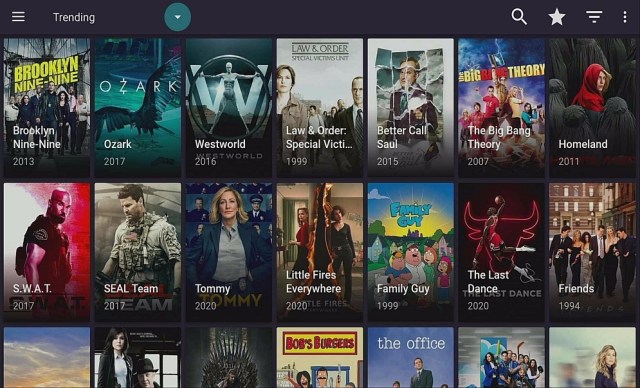
SPK build is a new build within the SG wizard repository. It works so well on the Kodi 19.5 matrix. This build has an easy-to-navigate interface with well-arranged sections. SPK is a lightweight build occupying approximately 200 MB of your device storage space.
This build offers you streaming links from different sources all in High Definition video quality. It has SPK skin and theme which is customizable. Common sections within this build include free tv, sports, kids, music, tv shows, movies, search, fav, youtube, my addons, etc.
How to Install SPK Kodi Build with Screenshot
Installing a Kodi build has a lot of processes to take. That is why we will guide you step by step on how you can install it on Kodi.
Follow the following steps below.
1. On your Firestick, open Kodi and go to Settings.
2. Select on System.
3. Click on the Add-ons menu and Turn ON the Unknown Sources.
4. Select Yes when the box appears.
5. Go back one step and click on File Manager.
6. Select the Add Source.
7. A box will pop up, so click on the ‘None’ option.
8. Type in https://ezzer-mac.com/sg/wiz and tap the OK button.
9. Name the URL- sgwiz or any other name you want to. Then select OK.
10. Go back and Select Add-ons.
11. Select Install from zip file.
12. Wen a box pop up, click Yes.
13. Select sgwiz or any other name you put.
14. Click plugin.program.sgmatrix.zip
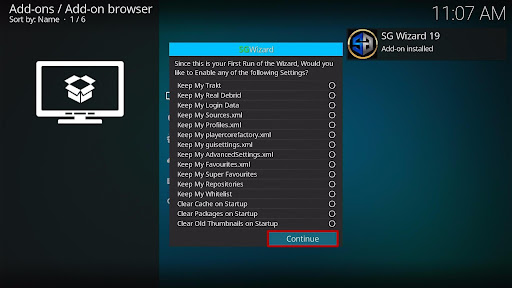
15. Wait for the Doomzday Repo installed text to appear and when a box pop up, Tap Continue.
16. Click the Ignore button.
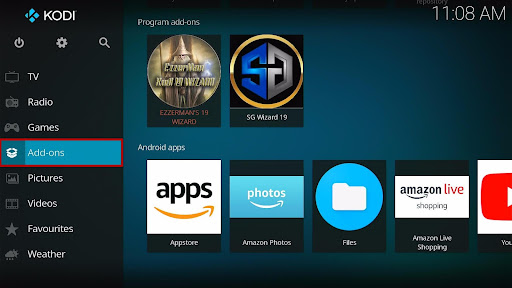
17. Go back to the main menu and scroll down to the Add-ons.
18. On the Program add-ons, click on the SG Wizard 19.
19. After that, click on Builds.
20. Find and click SPK.
21. Scroll down and click Install.
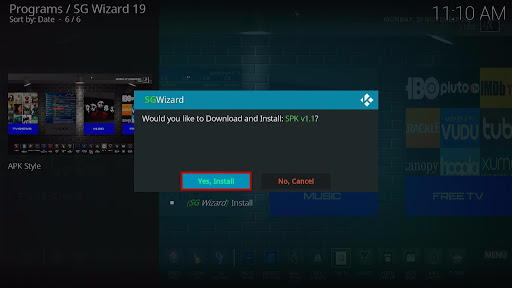
22. When a box pops up, Click Yes, Install.
23. Wait for the SPK build to download.
24. After that, when the box pop up, click the Fresh Install.
25. Wait for it to be finished.
26. Tap the OK button.
27. Now, click exit your Kodi and Relaunch it again.
28. That’s it! You have successfully installed the SPK Kodi Build.
YOUR INTERNET ACTIVITY IS BEING WATCHED
ReviewVPN cannot attest to the legality, security and privacy of the applications discussed on this site. It is highly recommended that you use a VPN service while streaming or using Kodi.
Currently, your IP 216.73.216.171 is visible to everyone and your Browser is being tracked by Advertisers & ISP Provider.
Your activities are hidden from your ISP, the government, and from the apps you are using.
You can access additional movies and TV streams.
ISP attempts to throttle are thrwarted thus reducing buffering issues.
Geographically restricted content like Netflix and Hulu can be unblocked.
A VPN works be replacing your ISP-assigned IP address and creating an encrypted tunnel. We recommend the no log service offered by IPVanish. It works well on a Firestick and offers the fastest possible speeds.
Legal Disclaimer: ReviewVPN.com does not encourage or endorse any illegal activity involved in the usage of services and applications referenced on this site. We do not verify the licensing agreements of services. The end-user is wholly responsible for ensuring that any media accessed through these services does not violate copyright and/or licensing laws. ReviewVPN does not promote, link to, or receive compensation from any Apps and IPTV services.
Resume watching: this enables you to continue watching a movie from where you stopped off.
Well arranged and organized sections. This makes it easy to access any section.
Easy to navigate interface.
Comes with SPK skin and theme and you can as well customize the skin of this build.
No need for a mouse toggle for firestick.
Review of SPK Kodi Build
Search Section
Movies, tv shows, people (movies), people.
Movies Section
People watching, certificates, language, people, decade, genres, year, search, my movies, movie most, popular IMDb user list, in theatres, new movies, IMDb keywords searches, most voted, box office, Oscar winners, etc.
TV Shows Section
Genres, network, language, certificates, people watching, most popular, highly rated, most voted, airing today, new tv shows, new episodes, my tv shows, tv calendar, etc.
Sports Section
Live events, sports, best leagues, settings, etc.
Music Section
Rock, metal, punk, industrial, jazz, indie, etc.
YouTube Section
The setting, switch user, live, upcoming live, completed the live, search, popular right now, sign in, etc.
Kids Section
Tom and Jerry, Flora and Ulysses, soul, Raya, and the last dragon, the crood: a new age, Harry Potter and the philosopher’s stone, spider-man: into the spider-verse, finding ohana, the goonies, Mulan, the karate kid, Cinderella, Tomorrowland, the book of life, etc.
Addons within SPK Build
Seren
TheOath
Alvin
Frequently Asked Questions
What is Kodi?
Kodi is an open-source media software that allows you to access and stream free movies and lots more. This software has been around since 2002 and currently runs on version 19 Matrix. Kodi was released in 2002 as an Xbox media player. In 2003, it was changed to Xbox media center which it remained until 2014 when it was changed to Kodi.
This software is currently updated and managed by XBMC Foundation, a nonprofit technology consortium of developers. You can install Kodi on different hardware platforms or operating systems such as computers (windows, Mac), iOS, Android, tablets, Raspberry Pi, Chromecast, firestick, and lots more. You can use Kodi to stream and watch free movies, tv shows, music, sports, kids shows, anime, cartoons, adult content, etc.
What is a Kodi Build?
Kodi build is an application that houses tons of addons, entertainment, settings, tools, wizard, and lots more. You can install a Kodi build on android, iOS, Mac, and more.
Do I have to pay to use SPK Build?
No. Installing and streaming with this build is free. You are not required to purchase any subscription or submit credit card details before using this build.
Is it legal and safe to install SPK Build?
Installing and streaming with this build is safe. After installing this build, I found no hidden content or virus within this build. That said, it is very important to use Kodi with a VPN for security and privacy reasons.
Why should you use Kodi with a VPN?
Streaming with Kodi without a VPN can be risky. This is because most content on Kodi does not have copyright. Consequently, you may be in trouble for accessing content with copyright issues. That is why we recommend using Kodi with a VPN. A VPN is software that uses encryption and masking to hide your IP address on the internet service provider network. The importance of using a VPN can not be overemphasized.
Best Alternative Build
Builds are unpredictable and as such, having alternative builds is very important. Click here to see the list of our best alternative builds.
Benefits of using a VPN
Stream Anonymously
A VPN gives you the avenue to stream from anywhere around the world by offering you tons of VPN server locations to choose from. Many movie websites and apps use location restrictions to hide their content from people from different locations. However, installing a VPN enables you to change your IP address and stream from anywhere.
Stream Securely and Privately
When you stream with a VPN on your device, you will be seen on the internet service provider network as a secure and private user.
Minimize Internet Service Provider Throttling
Each time you stream movies or play online games, your internet service provider slows down your internet speed. However, using a VPN while streaming or playing online games helps to minimize throttling.
Note: For more information about Surfshark, please read our Surfshark Review.
For more VPN discounts, go to ReviewVPN Deals and purchase the best VPN for you.
Conclusion
SPK build is a feature-rich build with tons of free-to-stream entertainment in various categories and subcategories. This build comes with an easy-to-navigate interface and has SPK skin and theme. I recommend you check out this build and share your thoughts in the comment section.
Guide to install SPK build on Kodi. This build includes free tv, sports, kids, music, tv shows, movies, search, fav, youtube, my addons, etc.
Clipz build is a new build within Kodi that currently runs on version 1.0. It is a lightweight build of approximately 200 MB within the SG wizard repository. It is one of the few builds that work well on the new Kodi 19.5 Matrix. Clips build is a child-friendly build as it does not contain any adult content.
One good side of this build is that it works well on all hardware platforms and operating systems that support Kodi such as firestick, android, windows, Mac, iOS, tablets, Chromecast, Raspberry Pi, and more. Clipz build has easy-to-install proceeds and offers amazing features that improve the streaming experience.
The interface has Fuse (Neue) skin which you can easily customize to suit your taste. Sections within this build include music, tv shows, family, sports, add-ons, settings, movies, and fav. Note to use this build, you need a Real Debrid account and authorization.
How to Install Clipz Build on Kodi 19.5 Matrix with Screenshot
Installing a Kodi build has a lot of processes to take. That is why we will guide you step by step on how you can install it on Kodi.
Follow the following steps below.
1. On your Firestick, open Kodi and go to Settings.
2. Select on System.
3. Click on the Add-ons menu and Turn ON the Unknown Sources.
4. Select Yes when the box appears.
5. Go back one step and click on File Manager.
6. Select the Add Source.
7. A box will pop up, so click on the ‘None’ option.
8. Type in https://ezzer-mac.com/sg/wiz and tap the OK button.
9. Name the URL- sgwiz or any other name you want to. Then select OK.
10. Go back and Select Add-ons.
11. Select Install from zip file.
12. Wen a box pop up, click Yes.
13. Select sgwiz or any other name you put.
14. Click plugin.program.sgmatrix.zip
15. Wait for the Doomzday Repo installed text to appear and when a box pop up, Tap Continue.
16. Click the Ignore button.
17. Go back to the main menu and scroll down to the Add-ons.
18. On the Program add-ons, click on the SG Wizard 19.
19. After that, click on Builds.
20. Find and click CLIPZ MATRIX.
21. Scroll down and click Install.
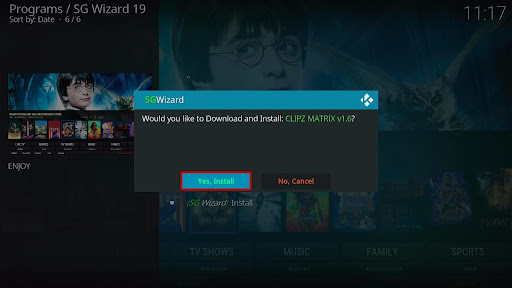
22. When a box pops up, Click Yes, Install.
23. Wait for the CLIPZ MATRIX build to download.
24. After that, when the box pop up, click the Fresh Install.
25. Wait for it to be finished.
26. Tap the OK button.
27. Now, click exit your Kodi and Relaunch it again.
28. That’s it! You have successfully installed the CLIPZ MATRIX Kodi Build.
Resume playing allows you to continue watching from where you stopped off.
The meta description for movies and other sections.
Scrapes streaming links from different sources in HD video quality.
Setting: Customize Home Menu
Widget: fallback widget, replace widget fanart with background, widget auto-scroll, show PVR recording notification.
Maintenance
Cleaning tools, addon tools, logging tools, misc maintenance, system tweak, and fixes.
SG Wizard Section
Maintenance builds, APK installer, save data, contact, setting.
Review of Clipz Build
Well arranged and organized sections.
Comes with view mode which shows you the information of the content you are streaming while watching.
Movie Section
Search, genres, new movies, 4k movies, black lightning, seren, Oath, year’s, decade, people, language, certificate, my movies, people search, etc.
Live TV Section
Pluto. tv, Freeview, UKTV play, network, tv calendar, airing today, 5USA HD, A&E Eng. HD, BBC AME HD eng, etc.
Tv Shows Section
Search, genres, new tv shows, people watching, most popular, and lots more.
Music Section
Alive HD, house, rap, DNB, karaoke, uke chart, genres, artists, songs, years, top 100, recently added albums, roles, sources, discs, etc.
Sports Section
Espn2HD, Edgesport, football, ESPN 1, formula 1, golf channel HD, best league, setting, etc.
Real Debrid Authorization
You need a Real Debrid account to use this build. Follow the step-by-step guide below.
Step 1. Log in to your real Debrid account or create one here.
Step 2. Open Clipz build
Step 3. On the home screen, scroll down and click on RD auth.
Step 4. Copy the code that will appear on your screen.
Step 5. Minimize Kodi and then open your browser and head to https://real-debrid.com/device and enter the code you received in step 4 and click Go.
Step 6. Open Clipz build and start enjoying it.
Addon within Clipz Build on Kodi 19 Matrix
Youtube
the path
SportHD
Serena
Pluto. tv
FDJ.HD
Alvin
YOUR INTERNET ACTIVITY IS BEING WATCHED
ReviewVPN cannot attest to the legality, security and privacy of the applications discussed on this site. It is highly recommended that you use a VPN service while streaming or using Kodi.
Currently, your IP 216.73.216.171 is visible to everyone and your Browser is being tracked by Advertisers & ISP Provider.
Your activities are hidden from your ISP, the government, and from the apps you are using.
You can access additional movies and TV streams.
ISP attempts to throttle are thrwarted thus reducing buffering issues.
Geographically restricted content like Netflix and Hulu can be unblocked.
A VPN works be replacing your ISP-assigned IP address and creating an encrypted tunnel. We recommend the no log service offered by IPVanish. It works well on a Firestick and offers the fastest possible speeds.
Click here to get the lowest price on Surfshark through our exclusive limited-time offer.
Frequently Asked Questions
Is it free to use Clipz Kodi Build?
Yes. It is entirely free to install and stream with this build. No billings, no credit card required to use this build. However, for a smooth streaming experience, I recommend having a strong and reliable internet connection.
Is it legal to use Clipz Kodi Build?
Installing and streaming with this build is legal. However, whatever content you stream on this build may be illegal and that is why we recommend using Kodi with a VPN like Surfshark.
Is it safe to install the Clipz Kodi Build?
Yes, it is safe to install and stream with this build. Clipz Kodi build does not contain any harmful content or viruses. However, always use Kodi with a VPN for security and privacy purposes.
Can I install Clipz Build on my Firestick and Android devices?
Yes, this build works well on devices such as firestick, android, Mac, iOS, and more.
Why do you need a VPN while streaming with Kodi?
A VPN encrypts and masks your IP address to appear secure, private, and anonymous on the internet service provider network. When this encryption occurs, your online identity is hidden on the ISP network.
Installing a VPN helps you to:
Bypass location restrictions and stream from anywhere around the world. Most movie streaming websites and apps use location restrictions to prevent unwanted audiences from accessing their content. A VPN offers you tons of VPN server locations to choose from.
Privacy
A VPN encrypts your IP address to appear Anonymous on the internet especially if you are using a public internet connection. For maximum online security, privacy and anonymity, I recommend Surfshark.
Features of Surfshark
Unlimited bandwidth
Has a total of 3,200 VPN servers in 65 locations to choose from
Military-grade encryption
Zero log policy
How to Install Surfshark VPN on Firestick
If your Firestick still has the older interface, read this article to learn how to update it: Update Firestick Interface.
You can download Surfshark directly from the Amazon App store. It will be easy for you to find Surfshark with your Firestick’s Find feature. Refer to our screenshots below.
1. Go to the Home screen of your Firestick.
2. Navigate towards the Find tab. Press the Search button from the resulting dropdown.
3. Type in the keyword of SurfShark and select from the suggestions that will appear.
4. Click the official SurfShark icon from your search results.
5. Press the Download (You own it) button.
6. The SurfShark VPN installer will download on your device.
7. SurfShark VPN’s app will automatically install itself on your Fire TV stick.
8. Press the Open button after completing SurfShark VPN’s installation process.
9. Please wait for the SurfShark VPN to load its user interface.
10. You can now log in with your SurfShark VPN account credentials.
For more VPN discounts, go to ReviewVPN Deals and purchase the best VPN for you.
Conclusion
This is one of the best builds you will find out there. All the sections work so well. The live tv section plays allows you to stream live music channels, sports channels, and news channels. If you are looking for a build that offers amazing content, then Clipz build is for you.
Torrentvilla is a torrent search engine app that brings search results in a categorized manner for easy movie finds.
Even when a lot of torrent sites were turned down, this app remains in service, especially for Indians. Right now, it is the only torrent search engine with Indian and dubbed movie search results.
It contains Hollywood movies, but most Hindi content. You can make use of this application to search for other torrents unavailable on other torrent sites and platforms, including Malayalam movies.
Click here to get the lowest price on Surfshark through our exclusive limited-time offer.
How to Install Torrentvilla on Android
Open your Google Chrome browser.
In the URL box, type in https://www.torrentvilla.com/. Here you can see the APK Download button. Click this button to start your download.
Wait for the download to finish then select Install.
When Torrentvilla is installed, enable the Unknown Sources on your Android device. To do this, go to Settings > Security > Unknown Sources.
Launch the app, then choose a video that you want to download.
Tap on “Magnet” and select any of your preferred torrents.
Wait for the download to finish to finally enjoy the video.
YOUR INTERNET ACTIVITY IS BEING WATCHED
ReviewVPN cannot attest to the legality, security and privacy of the applications discussed on this site. It is highly recommended that you use a VPN service while streaming or using Kodi.
Currently, your IP 216.73.216.171 is visible to everyone and your Browser is being tracked by Advertisers & ISP Provider.
Your activities are hidden from your ISP, the government, and from the apps you are using.
You can access additional movies and TV streams.
ISP attempts to throttle are thrwarted thus reducing buffering issues.
Geographically restricted content like Netflix and Hulu can be unblocked.
A VPN works be replacing your ISP-assigned IP address and creating an encrypted tunnel. We recommend the no log service offered by IPVanish. It works well on a Firestick and offers the fastest possible speeds.
Shows settings and Terms of Use pages upon start-up
Dashboard display show categories, movies (HD and favorites), and TV (series, anime, live)
Key Features
Dark mode theme settings
Allows you to seed finished torrents
Plays videos via YouTube or other players and browsers installed on your Firestick
Allows you to directly download within the app using the magnet links
Comes with a built-in proxy that hides your location
Displays movie trailer, details, magnet, streams, and similar movies when you open the movie
Customizable file name and storage when you download torrent
Supports Hindi, English, Spanish, Punjabi, and other languages
Shows any available update in the About section
Show Categories
Trending Today
Popular Movies
Now Playing (India)
Now Playing (World)
Top Rated Movies
Upcoming Movies (India)
Upcoming Movies (World)
Legal Disclaimer: ReviewVPN.com does not encourage or endorse any illegal activity involved in the usage of services and applications referenced on this site. We do not verify the licensing agreements of services. The end-user is wholly responsible for ensuring that any media accessed through these services does not violate copyright and/or licensing laws. ReviewVPN does not promote, link to, or receive compensation from any Apps and IPTV services.
Pros and Cons
Pros
Quick search response even when using custom searches
You can turn off notifications for the latest shows.
Supports multiple languages
Contains minimal ads
Cons
Needs to use Mouse Toggle to navigate through some parts of the app
After your video has played on YouTube, it does not turn you back to the Torrentvilla app
No status update if the torrent has completed the download
Use Torrentvilla with Surfshark on Firestick
You sure have read that the app comes with a built-in proxy that protects one of your information – location. It’s one thing that a VPN does for you when you use your devices, but its job isn’t limited to this. Torrenting is very risky. Keeping your identity anonymous is important especially when you stream and download online. Getting a VPN for your protection is a no-brainer, so let’s get to the list of the benefits of what it can do for you:
You will have a safe and secure internet connection. Your online activities can be hidden and will allow you to access more content by replacing your ISP with an assigned IP address.
You can use the internet anonymously without having your personal information stolen by potential hackers especially when you connect to public WiFi.
You can bypass geo-restrictions and use your apps from any location.
The chance of your internet being throttled by ISPs is eliminated to avoid Firestick buffering.
If your Firestick still has the older interface, read this article to learn how to update it: Update Firestick Interface.
You can download Surfshark directly from the Amazon App store. It will be easy for you to find Surfshark with your Firestick’s Find feature. Refer to our screenshots below.
1. Go to the Home screen of your Firestick.
2. Navigate towards the Find tab. Press the Search button from the resulting dropdown.
3. Type in the keyword of SurfShark and select from the suggestions that will appear.
4. Click the official SurfShark icon from your search results.
5. Press the Download (You own it) button.
6. The SurfShark VPN installer will download on your device.
7. SurfShark VPN’s app will automatically install itself on your Fire TV stick.
8. Press the Open button after completing SurfShark VPN’s installation process.
9. Please wait for the SurfShark VPN to load its user interface.
10. You can now log in with your SurfShark VPN account credentials.
Yes, Torrentvilla is free to download and install.
Are there ads?
Yes, there are minimal ads in the app.
Is there a premium version?
There is no premium version.
Where can I use the Torrentvilla app?
You can download and use it on Amazon Fire TV/Firestick and Android devices using APK file downloads available from its website.
Can I download Torrentvilla on my PC?
Yes, you can download this app using an emulator on your PC.
Is there an app website?
Yes, you can see its features, APK download, and everything you need to know about Torrentvilla at https://www.torrentvilla.com/.
Conclusion
So far, Torrentvilla is a rare find and the best tool to grab torrent downloads all in one place. It has a user-friendly interface and shows quick search results. Some torrents that you cannot search from other torrent sites are available on this one, so it deserves a thumbs up. There are still a lot of bugs needed to be fixed on the Torrentvilla app. Overall, this is a great free torrent app.
We hope that you’ve successfully installed Torrentvilla on your Firestick and Android devices.
Note: ReviewVPN.com is not affiliated with any App or IPTV Service nor are we endorsing or promoting any. The sole purpose of this article is for educational purposes only.
Anime Heaven is a site with a user-friendly interface that allows you to stream anime for free. It has a massive collection of anime from 1970 up to the latest anime today.
This site is regularly updated with the latest and trending anime and cartoons to watch. However, just like other online streaming sites, AnimeHeaven doesn’t store any content on their own, which all of their shows are hosted by various third-party content providers.
This website is also littered with ads everywhere and some inappropriate images displayed. You can watch Anime Heaven on all devices that have a browser, continue reading and you will be guided on how you can watch on all devices.
How to Watch Anime Heaven on Firestick
If you want to stream Anime Heaven on your Firestick, you need to install the Amazon Silk Browser first. Here is a step-by-step guide on how to install the Silk Browser to stream Anime Heaven on Firestick.
On your Firestick’s home screen, look for the Search button (Magnifying glass icon).
Type in Silk Browser. Click on the suggestion.
Tap the icon of Silk Browser.
Click on Get or Download.
Wait for a few minutes for the app to be installed.
Click Open to launch the app.
Launch the Silk Browser and Go to the search bar.
Type in animeheaven.ru and click on Go.
If a suggestion box pops up, click on the cancel.
There you go! You can now stream Anime Heaven on your Firestick.
How to Stream Anime Heaven on Android
This is a step-by-step Guide on how you can stream Anime Heaven on Android.
Launch any browser on your android device.
In the search bar, type in animeheaven.ru and Click Go.
Search for the title of the anime or click on the menu bar and choose your content library. After that click on your chosen anime.
Scroll down and click on the episode that you want to watch and Hit on the play button.
Note: This website is littered with ads everywhere, so if it directs you to an advertisement, just tap on the exit button and go back to the website.
How to Watch Anime Heaven on iOs Devices
Here is a step-by-step guide on how you can watch Anime Heaven on iOS.
On your iOS device go to your safari browser.
Type in animeheaven.ru and click Go.
Search for the title of the anime or click on the menu bar and choose your content library. Then click on your chosen anime.
Scroll down and click on the episode that you want to watch and Hit on the play button.
Note: This website is littered with ads everywhere, so if it directs you to an advertisement, just tap on the exit button and go back to the website.
How to Watch Anime Heaven on Windows
Launch any browser on your computer, PC, or windows.
In the search bar, type in animeheaven.ru and tap enter button.
Search for the title of the anime or click on the menu bar and choose your content library to. After that click on your chosen anime.
Scroll down and click on the episode that you want to watch and Hit on the play button.
Note: This website is littered with ads everywhere, so if it directs you to an advertisement, just tap on the exit button and go back to the website.
Features of Anime Heaven
1. Interface
One of the most beautifully designed interfaces and user-friendly is the Anime Heaven. The search is at the left- top corner of the homepage, and on the top right side is the categories that include Anime, Dubbed, Series, Movies, Ongoing, Popular, Schedule, and Random. There is also a button where you can set your homepage into dark and light mode.
2. Categories
Every category contains tons of anime series and movies that are English subbed and dubbed. This site also made searching easy for you because you can filter them by Anime Type, genre, Audio (sub/dub), released date, and status. At the right side of the screen, you will see eight tabs, and they are as follows:
Anime – this section provides you all of the latest anime of 2021, and this section has over 8,000+ of anime movies and series.
Dubbed – Choose from over 2000+ of the latest English dubbed anime series and movies.
Series – watch over 8000+ latest, old and popular animes that are English subbed and dubbed.
Movies – In this section, you will see 3000+ anime and cartoon movies. Each movie is provided with details such as a plot summary and more.
Ongoing – Be updated with the ongoing series, in which this section provides you all of the latest episodes of the series you are watching. It also shows you details such as the time it is uploaded and the status.
Popular – This site has a massive collection of popular anime series which are completed and ongoing. Some of their popular contents are One Piece (Sub) with 964 ep, Naruto Shippuden (Dub) with 500 ep, Hunter x Hunter (Sub) with 142 ep, Detective Conan (Sub) with 999 ep and more.
Schedule – Anime Heaven is updating their list of animes every day and you will see all of their latest uploads in this section.
Random – if you’re looking for what to watch next, just tap on the random tab, and it will give you one anime series that you might love to watch.
3. Content Details
Anime Heaven provides its users’ details on each content such as Plot Summary, Alias or other name, Genres, Status, Number of episodes, and the released date.
Safe Streaming with Surfshark
Privacy and security are some of the major concerns of online streamers because the online world has various hackers and identity thieves, especially when you are streaming to an unprotected website. To ensure your privacy and security while streaming online, you need a VPN. We highly recommend that you use Surfshark where in terms of encryption, this VPN uses AES 256-bit encryption which is high standard encryption that safeguards all your data. Other reasons why Surfshark is our VPN of choice:
Prevent ISPs interfering with your connection to give a fast connection.
Destroys geo-block and gains access to different content globally.
Keep your file protected from harmful malware.
Automatically hide all your online information
Bypass censorship and restrictions.
It provides you a secure environment for everyday internet activity.
Note: For more information about Surfshark, please read our Surfshark Review.
Anime Heaven was shut-down on December 25, 2019, because of some copyright content.
Is streaming on this website safe?
No, streaming on this website is not 100% free because of some malicious content it has.
YOUR INTERNET ACTIVITY IS BEING WATCHED
ReviewVPN cannot attest to the legality, security and privacy of the applications discussed on this site. It is highly recommended that you use a VPN service while streaming or using Kodi.
Currently, your IP 216.73.216.171 is visible to everyone and your Browser is being tracked by Advertisers & ISP Provider.
Your activities are hidden from your ISP, the government, and from the apps you are using.
You can access additional movies and TV streams.
ISP attempts to throttle are thrwarted thus reducing buffering issues.
Geographically restricted content like Netflix and Hulu can be unblocked.
A VPN works be replacing your ISP-assigned IP address and creating an encrypted tunnel. We recommend the no log service offered by IPVanish. It works well on a Firestick and offers the fastest possible speeds.
Anime heaven is one of the best websites that you can visit, where it provides you unlimited contents of both latest and old. This website also has a pleasing interface that made searching easy for you. Visit their website and enjoy streaming on their unlimited content in HD videos. The only downside of this app is its pop-up inappropriate ads, but overall this website is fantastic.
We hope that this article gives you information about the Anime Heaven website and helps you with how you can watch on all devices.
This article is about Aniwatcher and how to watch it on all devices.
About Aniwatcher
Aniwatcher is a free streaming site that provides its user’s tons of old and latest animes to watch. You will never miss any of the trending animes because this website is updated regularly.
This site has over 2000+ anime series and movies, where you can watch them for free. All of their contents are properly organized and made searching easy for you where in the home page you can see categories.
The only downside of this website is its pop-up ads, it is littered with ads everywhere, and some ads are inappropriate for children, which is why minors who are streaming on this site need parental guidance.
Continue on reading, and you will be guided on how you can watch it on all devices.
If your Firestick still has the older interface, read this article to learn how to update it: Update Firestick Interface.
How to Watch AniWatcher on Firestick
If you want to stream AniWatcher on big screens such as Amazon Fire TV, you need to install the Amazon Silk Browser first. This browser allows you to stream on different websites but remember to use a VPN for protection. Here is a step-by-step guide on how to install the Amazon Silk Browser and how to stream AniWatcher on it.
1. Go to the Home screen of your Firestick.
2. Click on Find.
3. Tap on the Search tab.
4. Type in Silk Browser and choose this item that appears on the results.
5. Click on the Silk Browser Icon.
6. Choose Download.
7. Silk Browser is Downloading into your Firestick.
8. The Silk Browser app will Install on Firestick.
9. Select Open to launch the browser.
10. You can now start browsing using Amazon Silk Browser.
11. Type in aniwatcher.com and click on Go.
12. If a suggestion box pops up, click on the Cancel.
13. There you go! You can now stream AniWatcher on your Firestick.
How to Stream AniWatcher on Android
This is a step-by-step Guide on how you can stream AniWacther on Android.
1. Launch any browser on your android device.
2. In the search bar, type in aniwatcher.com and Click Go.
3. Choose from the homepage or search for your favorite anime and Click on your chosen anime.
4. Scroll down and hit the play button. If the server is not working, choose another server below.
Note: This website is littered with ads everywhere, so if you tap on the play button and it will suddenly direct you to an ad, click on the exit button and go back to the website. Just be patient and enjoy streaming!
How to Watch AniWatcher on iOs Devices
Here is a step-by-step guide on how you can watch AniWatcher on iOS.
1. On your iOS device go to your safari browser.
2. Type in aniwatcher.com and click Go.
3. Choose from the homepage or search for your favorite anime and Click it.
4. Scroll down and hit the play button. If the server is not working, choose another server below.
Note: This website is littered with ads everywhere, so if you tap on the play button and it suddenly directs you to an ad, click on the exit button and go back to the website. Just be patient and enjoy streaming!
How to Watch AniWatcher on Windows
1. Launch any browser on your computer, PC, or windows.
2. In the search bar, type in aniwatcher.com and tap the enter button.
3. Choose from the homepage or search for your favorite anime and click it.
4. Scroll down and hit the play button. If the server is not working, choose another server below.
Note: This website is littered with ads everywhere, so if you tap on the play button and it suddenly directs you to an ad, click on the exit button and go back to the website. Just be patient and enjoy streaming!
YOUR INTERNET ACTIVITY IS BEING WATCHED
ReviewVPN cannot attest to the legality, security and privacy of the applications discussed on this site. It is highly recommended that you use a VPN service while streaming or using Kodi.
Currently, your IP 216.73.216.171 is visible to everyone and your Browser is being tracked by Advertisers & ISP Provider.
Your activities are hidden from your ISP, the government, and from the apps you are using.
You can access additional movies and TV streams.
ISP attempts to throttle are thrwarted thus reducing buffering issues.
Geographically restricted content like Netflix and Hulu can be unblocked.
A VPN works be replacing your ISP-assigned IP address and creating an encrypted tunnel. We recommend the no log service offered by IPVanish. It works well on a Firestick and offers the fastest possible speeds.
AniWatcher has a chat box where you can interact with other streamers and get to read what other people think about a series. Don’t worry about any spam or sensitive messages because this site has chat rules that forbid advertising, Sexual Content, Alcohol and Drugs, Cursing/Vulgar context, Violence, and Staff Function. All of your interactions are observed by the chat moderators, and you will be banned if you break one of their rules. You can also hide the chat if you don’t want any spoilers or interact with others.
2. Send Request
Aniwatcher has a request box that allows users to send them a request for their favorite anime or cartoon. Just look at the request button at the right corner of your screen and write a message by putting the title of the anime/cartoon you want to request.
3. Content Libraries
Random – If you are new to this site and don’t know what to watch. Just click on the random tab, and Aniwatcher will show you one anime series that you might love to watch. You can also see comments below from other streamers about that series. It also allows you to send them feedback about what you think and see other streamer responses.
Anime List – in this section, you can see anime that are alphabetically organized. It also allows you to search anime by checking genres and checking two or more genres of your choice. Aniwatcher has 50 genres such as Action, Drama, Historical, Mecha, Romance, Ecchi, Thriller, Josei, Fantasy, Demons, and more.
Ongoing Series – This section consists of all the ongoing latest, and old series that are English subbed and dubbed.
Newly Added – the latest and newly added series that are English subbed and dubbed.
Recommendation – Aniwatcher personally picks anime for you to watch. You can choose among 200+ anime recommended by this site.
(AotS) Anime of the Season – Aniwatcher compiled all of the hit anime series every season and regularly updated the list.
Movies/OVA – This site has a complete list of popular and old Anime movies that are alphabetically organized.
Cartoon List – Choose from over 300+ of their Japanese cartoons that are alphabetically organized.
4. Downloadable Content
AniWatcher also allows you to download their contents from different servers with a resolution of 360p, 480p, and 720p, the video size (MB) depends on its quality.
Streaming on websites that are hosted with malicious domains can harm your devices. Also streaming on these unprotected websites is prone to hackers. To protect you from these, you need a proven and tested VPN such as Surfshark. This will guarantee your privacy and protection because Surfshark uses high-standard encryption that secures all of your online information to keep you away from online hackers and protect your devices from viruses.
Other reasons why Surfshark is our VPN of choice:
Prevent ISPs from interfering with your connection to give a fast connection.
Destroys geo-block and gains access to different content globally.
Keep your file protected from harmful malware.
Automatically hide all your online information
Bypass censorship and restrictions.
It provides you with a secure environment for everyday internet activity.
Note: For more information about Surfshark, please read our Surfshark Review.
You can stream AniWatcher on any device that has a browser, just type in the URL and stream on their contents. Here are some of the compatible devices for AniWatcher.
AniWatcher is a good anime website because it provides you with tons of anime that are well-organized by category. The only downside of this website is its ads, there are too many pop-up ads and inappropriate ads displayed on every page. Streaming on this website requires patience.
We hope that this article gives you information about the AniWatcher website and helps you on how to watch it on all devices.
This article will provide you a detailed installation guide and review of the DuplexPlay app on your Firestick, Android, and Windows devices.
DuplexPlay, also known as Duplex IPTV, is a general media player and IPTV in one app.
If you have lots of multimedia files in different formats or you have a wide range of URL sources for streaming, then it is one of the most user-friendly apps that you can download.
It does not include any playlist and you have to upload your own to use this app.
Comes with a premium version after the 7-day free trial: activation of $0.99 for 6 months and $1.99 for one year.
To manage a playlist, you either have to enter an existing TV subscription or enter the Device ID and Device Key flashed on the screen on Edit.DuplexPlay.com.
Allows you to add playlists online or from local storage.
Interchangeable language, background, and thumbnail cover image quality.
Customizable startup list options (show playlist, play last watched, or favorite).
Allows you to show or hide recent items, sample playlist, watched indicator, and ratings on the home screen.
Lets you set a device PIN that can be used to remove unwanted playlists.
Lock/unlock playlist option.
Backup and restore option.
Parental control option.
Video player settings include adjustment of default sound and brightness level and aspect ratio.
Allows you to choose playback end options to stop, go back to the previous page, replay, or play next.
Customizable keys mapping.
YOUR INTERNET ACTIVITY IS BEING WATCHED
ReviewVPN cannot attest to the legality, security and privacy of the applications discussed on this site. It is highly recommended that you use a VPN service while streaming or using Kodi.
Currently, your IP 216.73.216.171 is visible to everyone and your Browser is being tracked by Advertisers & ISP Provider.
Your activities are hidden from your ISP, the government, and from the apps you are using.
You can access additional movies and TV streams.
ISP attempts to throttle are thrwarted thus reducing buffering issues.
Geographically restricted content like Netflix and Hulu can be unblocked.
A VPN works be replacing your ISP-assigned IP address and creating an encrypted tunnel. We recommend the no log service offered by IPVanish. It works well on a Firestick and offers the fastest possible speeds.
Legal Disclaimer: ReviewVPN.com does not encourage or endorse any illegal activity involved in the usage of services and applications referenced on this site. We do not verify the licensing agreements of services. The end-user is wholly responsible for ensuring that any media accessed through these services does not violate copyright and/or licensing laws. ReviewVPN does not promote, link to, or receive compensation from any Apps and IPTV services.
No built-in channels – needs to login with your TV provider or external playlists with URL to navigate.
FAQs
Is DuplexPlay free?
Yes, it is free for the first 7 days of installation.
Is the app legal?
Yes, DuplexPlay is 100% legal.
Is there a premium version?
Yes, there is a premium version for DuplexPlay after the 7-day free trial. See the features section of this article.
Where can I use DuplexPlay?
You can download and use it on Amazon Fire TV/Firestick, Android mobile and tablets, Android TV, Windows, Xbox One, LG TV, and Samsung Smart TV.
Is there an app website?
Yes, there is a DuplexPlay website where you can see the app features and also installation guides for compatible devices. Visit them at https://www.duplexplay.com/.
Why Use DuplexPlay with a VPN
To enjoy more powerful and limitless streaming with DuplexPlay, we highly recommend using and installing a VPN service such as Surfshark. This will give you essential benefits when you use your favorite apps:
Access to your app anywhere by masking your IP address and making it look like you are streaming in an allowed location
Anti-detection of anti-VPN technology by refreshing IP address regularly
Protected identity to stay anonymous online where your Internet Service Provider(ISP) can’t track you onlineorlimit your streaming speed
Secured personal information even when connected to public WiFI networks
Log-free browsing to ensure hackers will not steal your sensitive data by encrypting your internet data, preventing hackers, advertisers, and data thieves
You will get all the online security and protection when you use Surfshark.
How to Install Surfshark on Firestick with Screenshots
If your Firestick still has the older interface, read this article to learn how to update it: Update Firestick Interface.
You can download Surfshark directly from the Amazon App store. It will be easy for you to find Surfshark with your Firestick’s Find feature. Refer to our screenshots below.
Follow our screenshots below to install the Surfshark VPN app on your Fire TV stick.
1. Go to the Home screen of your Firestick.
2. Navigate towards the Find tab. Press the Search button from the resulting dropdown.
3. Type in the keyword of Surfshark and select from the suggestions that will appear.
4. Click the official Surfshark icon from your search results.
5. Press the Download (You own it) button.
6. The Surfshark VPN installer will download on your device.
7. Surfshark VPN’s app will automatically install itself on your Fire TV stick.
8. Press the Open button after completing Surfshark VPN’s installation process.
9. Please wait for the Surfshark VPN to load its user interface.
10. You can now log in with your Surfshark VPN account credentials.
For more VPN discounts, go to ReviewVPN Deals and purchase the best VPN for you.
How to Install Surfsharkon Android
Launch the Google Play Store app on your Android device.
Select the Google Play search box, and type in “Surfshark”.
Select Surfsharkfrom the results and tap the “Install” button.
After the app is installed, tap the “Open” button.
When you open the app, you will be redirected to the Surfsharklogin screen. Here, enter your Surfsharkusername and password.
Tap the “Login” button to finally log into Surfshark.
Select either “Begin Tutorial” to learn more about the Surfsharkapp, or if you are already familiar with the app, simply tap the “Skip” option.
You will now see the Quick Connect screen. Select your preferred country, city, and server below the Quick ConnectPreferences section.
Tap the “Connect” button.
Select OK when the Connection request pops up to authorize Surfsharkto connect and route your internet traffic through VPN servers.
From this screen, you can now see the Connection Status, IP Address, Location, Time Connected, and the Server to which you are connected from this screen.
To confirm if you are already connected via Surfsharkserver, you will see a graph displaying the connection status and the DISCONNECT button displayed at the bottom of the screen.
DuplexPlay Alternative Apps
If DuplexPlay is not working, you may check out our reviewed alternative apps:
There is nothing very unique with this DuplexPlay but we liked its clean, nice, and friendly user interface. A lot of similar apps are available over the internet. Compared to these, it comes with a much cheaper price than the paid ones. However, there are also free media players that can already support internet content through entering links. If you are after the smooth performance and nice user interface, then Duplex Play or Duplex IPTV is a great addition to your device.
We hope that this write-up has helped you install and use DuplexPlay on your Firestick, Android, and Windows devices.
Note: ReviewVPN.com is not affiliated with any App or IPTV Service nor are we endorsing or promoting any. The sole purpose of this article is for educational purposes only.
FOX Sports GO lets you enjoy live streaming of your favorite soccer, basketball, golf, baseball, and other games, shows, and events from your FOX Regional Sports Networks.
This includes MLB, NBA, NHL, YES Network, FOX Sports Midwest, Prime Ticket, and many more, depending on the availability of your TV provider.
If you also have a paid subscription from Hulu, Sling TV, and FuboTV, you can have access to FOX Sports content. But first, you have to jailbreak and install the Downloader app before you can enjoy FOX Sports Go on your Firestick.
How to Install FOX Sports Go App on Firestick
On your Firestick home screen, go to Settings.
Choose My Fire TV.
Navigate to Developer Options.
Turn ON the ADB debugging and the Apps from Unknown Sources.
Head back to Home, then click on Search.
Type in “Downloader” then click the word from the suggested list.
Select the Downloader icon.
Click the Get or Download button.
Wait for the app to install.
Tap the Open button.
Choose Allow.
Click OK.
Hover to the search engine.
Type in https://reviewvpn.com/fxs on the search engine.
Click on Go.
Wait for the APK to download.
Click Install.
Wait for the app to install.
Select Open to launch the app.
If your Firestick still has the older interface, read this article to learn how to update it: Update Firestick Interface.
2. Open Downloader App. Type https://reviewvpn.com/fxsand click Go.
3. Click Install.
4. Click Open.
5. Click OK.
6. FOX Sports Go is now installed.
FOX Sports Go App Features
Prompts FOX, FS1, FS2, Deportes, and BTN download on start-up
Comes with a search bar
Displays content subtitles
Allows you to rewind or fast forward videos for 10 seconds
Displays quick links for Live TV, Replays, Highlights, and Settings
Shows “All Highlights” tabs:
MLB
Soccer
UFC
NASCAR
Golf
NFL
NCAA FB
NBA
NHL
NCAA BK
Boxing
Allows you to choose among playback options to join Live videos in progress, watch from the start of the program, and ask each time you select a program
Shows FAQs, feedback, privacy policy, terms of use, and closed caption info
Legal Disclaimer: ReviewVPN.com does not encourage or endorse any illegal activity involved in the usage of services and applications referenced on this site. We do not verify the licensing agreements of services. The end-user is wholly responsible for ensuring that any media accessed through these services does not violate copyright and/or licensing laws. ReviewVPN does not promote, link to, or receive compensation from any Apps and IPTV services.
Pros and Cons
Pros
Accessible without cable on FuboTV, Sling TV, Hulu + Live TV, Youtube TV, Vidgo, and AT&T TV Now
Allows you to stream with your TV cable on the go
Cons
Blank show icons – no content in Live TV, Replays, and Top Highlights
Unable to access content updates
Needs you to sign in with your TV provider credentials
No sign in option on Firestick
Cannot be used if your TV provider is not supported
Plays only a 2-minute clip of highlights
Closed captioning is only available for programs and events that provide it.
Watch FOX Sports Go Videos with a VPN!
In streaming, we suggest using SurfShark. It is a VPN service that lets you watch smoothly and safely on your favorite devices.
Here are some advantages of using SurfShark.
Conceals your location and identity.
Hides everything you do online.
Protects your device from the latest cyber threats.
Assign you an anonymous IP address.
Bypass geo-restrictions letting you access exclusive media content.
Prevent buffering and stuttering both on Kodi & Firestick.
Note: For more information about SurfShark, please read our SurfShark REVIEW.
How to Install Surfshark on Firestick with Screenshots
If your Firestick still has the older interface, read this article to learn how to update it: Update Firestick Interface.
You can download Surfshark directly from the Amazon App store. It will be easy for you to find Surfshark with your Firestick’s Find feature. Refer to our screenshots below.
Follow our screenshots below to install the SurfShark VPN app on your Fire TV stick.
1. Go to the Home screen of your Firestick.
2. Navigate towards the Find tab. Press the Search button from the resulting dropdown.
3. Type in the keyword of SurfShark and select from the suggestions that will appear.
4. Click the official SurfShark icon from your search results.
5. Press the Download (You own it) button.
6. The SurfShark VPN installer will download on your device.
7. SurfShark VPN’s app will automatically install itself on your Fire TV stick.
8. Press the Open button after completing SurfShark VPN’s installation process.
9. Please wait for the SurfShark VPN to load its user interface.
10. You can now log in with your SurfShark VPN account credentials.
FOX Sports Go has been available on the Amazon App Store since May 2019. Previously, its content that you were used to watching on FOXsportsgo.com are no longer available. Currently, only regional sports content is available in the app.
How does the app work?
You have to log in with your TV provider credentials. If some networks are not part of your cable package, you may not receive any content on FOX Sports GO. Make sure that you don’t log out so that you need not re-enter your TV credentials every time you use the app.
Is FOX Sports Go free?
Yes, the download is free.
Is there a premium version? How much does FOX Sports Go cost?
There is no premium version. Charges will apply from your TV provider.
Where can I watch FOX Sports Go?
You can watch on the website, Amazon Fire TV/Firestick, Android Smart TVs including Samsung TV, Roku, iOS, and most Windows PC.
Can I use multiple devices while streaming with Fox Sports Go?
Yes, but it depends on your TV provider. There may be a limit to the number of devices you can be simultaneously signed in to.
Does it have an official website?
Yes, and you can access the website for streaming at https://www.FOXsportsgo.com/.
YOUR INTERNET ACTIVITY IS BEING WATCHED
ReviewVPN cannot attest to the legality, security and privacy of the applications discussed on this site. It is highly recommended that you use a VPN service while streaming or using Kodi.
Currently, your IP 216.73.216.171 is visible to everyone and your Browser is being tracked by Advertisers & ISP Provider.
Your activities are hidden from your ISP, the government, and from the apps you are using.
You can access additional movies and TV streams.
ISP attempts to throttle are thrwarted thus reducing buffering issues.
Geographically restricted content like Netflix and Hulu can be unblocked.
A VPN works be replacing your ISP-assigned IP address and creating an encrypted tunnel. We recommend the no log service offered by IPVanish. It works well on a Firestick and offers the fastest possible speeds.
The only good thing that we have noted about FOX Sports Go is that you get to bring your cable on your devices other than TV. It contains limited shows depending on your TV provider, and the user interface is not as good to serve its users.
Compared to other live IPTV and sports apps, it does not have much to offer. A lot of functions are not available on Firestick. Other paid sports TV streaming services exist mainly to beat existing TV cable and satellite providers, while FOX Sports Go simply have substandard to basic features. It’s like you won’t have to need such an app if you have an existing TV provider. This will be a great app if live IPTV streaming features are improved.
We hope that we have helped you be informed about FOX Sports Go and its installation on your Firestick. Thank you for reading!
Note: ReviewVPN.com is not affiliated with any App or IPTV Service nor are we endorsing or promoting any. The sole purpose of this article is for educational purposes only.
This article will help you watch anime on AnimeFreak using different devices.
AnimeFreak is a free anime streaming website where people can actually comment on each show.
Through this, you will see some opinions on new episodes, storylines, and others. Talk about some spoiler alert.
There is also a chatbox present for anime fans to share their thoughts and insights about Anime as well.
Although there is a Login, and Register menu, you can stream any episode even without registering.
There are some advertisements present on the home page of the app but there will be none when you start watching an episode, which is somehow great as well.
Keep in mind that it is important to have a VPN service on your device before going to different websites.
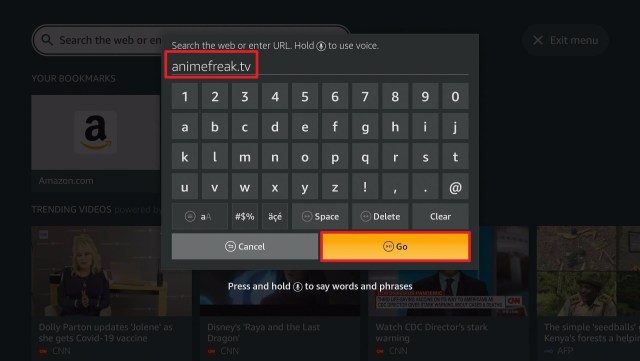
1. Launch any browser on your computer, PC, or Windows. For this one, we are going to use Google.
2. Search for anaimefreak.tv
How to Watch AnimeFreak on iOS
Always use aVPN before streaming any website on your device.
1. Launch the Safari browser on your iOS device.
2. Type animefreak.tv and click on Go.
3. You can now stream animes on your iOS device.
YOUR INTERNET ACTIVITY IS BEING WATCHED
ReviewVPN cannot attest to the legality, security and privacy of the applications discussed on this site. It is highly recommended that you use a VPN service while streaming or using Kodi.
Currently, your IP 216.73.216.171 is visible to everyone and your Browser is being tracked by Advertisers & ISP Provider.
Your activities are hidden from your ISP, the government, and from the apps you are using.
You can access additional movies and TV streams.
ISP attempts to throttle are thrwarted thus reducing buffering issues.
Geographically restricted content like Netflix and Hulu can be unblocked.
A VPN works be replacing your ISP-assigned IP address and creating an encrypted tunnel. We recommend the no log service offered by IPVanish. It works well on a Firestick and offers the fastest possible speeds.
Legal Disclaimer: ReviewVPN.com does not encourage or endorse any illegal activity involved in the usage of services and applications referenced on this site. We do not verify the licensing agreements of services. The end-user is wholly responsible for ensuring that any media accessed through these services does not violate copyright and/or licensing laws. ReviewVPN does not promote, link to, or receive compensation from any Apps and IPTV services.
Tabs for Ongoing, Winter, Anime List, Browse by Genre, Latest Episodes, Latest Anime, and Popular Anime,
Content
High-definition content
No ads in between shows
Not a one-click play
Massive selection of shows
Less buffering time
Good playback response
Pros and Cons
Pros
100% Free
No registration required
Dubbed content
No ads
Support subtitles
Cons
Too many banner ads on the home page
Not a one-click play videos
Stream Safely with a VPN
While streaming, we might go to dangerous sites. Links that contain malicious content and domain. These might harm our devices or even hack our accounts.
In order to be protected, we need to use a VPN. But we have to be careful in choosing which VPN service is best for us. Some offer free services but contain malware. Others give our data to advertisers for them to gain profit.
That is why we always suggest Surfshark. It offers more than what you pay for. It is the best VPN, especially for streaming.
Here are some of the many benefits of Surfshark:
Gives you an additional wall of protection especially from your ISP while surfing and streaming.
Protects your online identity from hackers, especially when you are using public wi-fi
Gives easy access and downloads from different torrent sites without being caught.
Makes your connections and data will be kept encrypted and anonymous
Serves as a bridge that connects you to other servers around the world
Destroys geo-blocks that hinder you from accessing different contents.
If your Firestick still has the older interface, read this article to learn how to update it: Update Firestick Interface.
You can download Surfshark directly from the Amazon App store. It will be easy for you to find Surfshark with your Firestick’s Find feature. Refer to our screenshots below.
1. Go to the Home screen of your Firestick.
2. Navigate towards the Find tab. Press the Search button from the resulting dropdown.
3. Type in the keyword of SurfShark and select from the suggestions that will appear.
4. Click the official SurfShark icon from your search results.
5. Press the Download (You own it) button.
6. The SurfShark VPN installer will download on your device.
7. SurfShark VPN’s app will automatically install itself on your Fire TV stick.
8. Press the Open button after completing SurfShark VPN’s installation process.
9. Please wait for the SurfShark VPN to load its user interface.
10. You can now log in with your SurfShark VPN account credentials.
AnimeFreak is one of the many alternatives for KissAnime. Here are also the other websites that you can stream on your devices if you don’t like AnimeFreak.
Note: ReviewVPN.com does not own or operate any app nor does it endorse any. The main purpose of this article is strictly for educational purposes only.
Cinema HD or Cinema APK is really one of the best alternatives whenever we are talking about movies and series for firestick. It is best compared to Terrarium TV as well.
This app uses scrappers to aggregate links from all over the internet.
Aside from being the closest name, Titanium TV was said to be the clone of the Terrarium TV App.
It is also great when it comes to finding the best links for movies and series online. That is why it should be a part of the alternatives for the TVZion App.
Features:
Clean and easy-to-use interface
Sorting and Filtering abilities are great
Uses proprietary web scrappers
Works with MX Player and other external media player
Supports subtitles from Open Subtitles
Trakt.tv Integration
Real Debrid Integration
Can Add media to Favorites
100% free
Download Titanium TV APK for Android
Note: ReviewVPN.com does not host this APK file. It is hosted on Archive.org.
Install Titanium TV on Firestick
Go to Settings
Choose Device or My Fire TV
Hover to Developers Options
Turn on the ADB debugging and the Apps from Unknown Sources
Go back to Home
Navigate to Search
Type in Downloader
Click the suggestion word
Select the Downloader icon
Click the Get or Download button
The app is installing
Tap the Open button
Choose Allow
Click Ok
Type https://reviewvpn.com/tit on the search engine
Click here to get the lowest price on Surfshark through our exclusive limited-time offer.
FilmPlus
This app is just a new member of the block but it is also considered as another Terrarium clone. Because of this, we list it as one of the alternatives for TVZion.
Features:
Good playing speed and less buffering time
Provides HD links
Supports Real-Debrid and Trakt Integration
Adds media to Favorites
Supports subtitles
Allows the use of external media players
Search engine available
Download FilmPlus APK for Android
Note: ReviewVPN.com does not host this APK file. It is hosted on Archive.org.
Install FilmPlus on Firestick
Go to Settings
Choose Device or My Fire TV
Hover to Developers Options
Turn on the ADB debugging and the Apps from Unknown Sources
Go back to Home
Navigate to Search
Type in Downloader
Click the suggestion word
Select the Downloader icon
Click the Get or Download button
The app is installing
Tap the Open button
Choose Allow
Click Ok
Type https://reviewvpn.com/film on the search engine
Tea TV is one of the oldest movies and tv series apps for firestick. With all the years it has been available, it is really good to include it in our list of TVZion Alternatives.
Features:
It Plays HD to ultra HD movies and series
Great suggestions
Multiple language support
Also offers live tv
Automatically plays next episode
Supports Real-debrid and Trakt integrations
Add media to watchlist and collection
Download Tea TV APK for Android
Note: ReviewVPN.com does not host this APK file. It is hosted on Archive.org.
The apps stated above work by providing links from different sources on the internet. We cannot assure if this is 100% safe and legal. That is why we need to protect our identity while streaming.
Such protection will only be given if we use a VPN service.
There are a few VPNs that are free. But most of them are not safe. That is why it is best to use a premium VPN.
The best premium VPN out there is Surfshark. It provides security and satisfaction to its users.
Surfshark provides these benefits and more:
Gives you an additional wall of protection especially from your ISP while surfing and streaming.
Protects your online identity from hackers, especially when you are using public wi-fi
Gives easy access and downloads from different torrent sites without being caught.
Destroys geo-blocks that hinder you from accessing different contents.
Your connections and data will be kept encrypted and anonymous
Serves as a bridge that connects you to other servers
For more VPN discounts, go to ReviewVPN Deals and purchase the best VPN for you.
Click here to get the lowest price on Surfshark through our exclusive limited-time offer.
FAQs for TVZion
Is TVZion Free?
Yes, but there is also a paid subscription for TVZion.
Is TVZion Safe?
Since TV Zion is currently shut down, we cannot attest if the app is 100% safe.
What other devices support TV zion APK?
TV zion app was available for Android devices as well.
How much was the payment for the TVZion club?
For the premium tvzion apk mod, here are the following available subscriptions:
Zion Club Personal – 5 devices
4 months – $1.50 per month
8 months – $1.25 per month
12 months – $1.25 per month
Zion Club Family – 10 devices
4 months – $2.50 per month
8 months – $2.00 per month
12 months – $2.00 per month
Zion Club Friends and Family – 15 devices
4 months – $3.75 per month
8 months – $3.37 per month
12 months – $3.33 per month
Zion Club Ultimate– 20 Devices
4 months – $5.00 per month
8 months – $4.10 per month
12 months – $4.00 per month
Opinion
Another great app has given its farewell. Good thing that there a lot of other apps like tv zion.
We think that still, the best alternative for TVZion is Cinema HD, but there are also a lot of other choices. Nova TV and Titanium TV are both great apps as well.
But overall the apps listed above are pretty much the same as each other and worth checking out.
Final Thoughts
We hope that this article helped you know all the possible alternatives for TVZion App.
Note: ReviewVPN.com does not own or operate any app nor does it endorse any. The main purpose of this article is strictly for educational purposes only.
Here comes another free, ad-supported streaming service that lets you watch a wide array of movie content on all your favorite devices.
This includes popular studio cinemas, independent films, cult classics, documentaries, and more that you will read in the features section of this write-up.
Popcornflix literally gives you a hassle-free streaming experience.
All you have to do is to follow the simple steps to finally install the Popcornflix app and watch with just a few clicks.
How to Install Popcornflix App on Firestick
On your Firestick home screen, press the center button of your remote directional pad to click the magnifying glass or the “Search” icon on the top left corner of the screen.
Type in “Popcornflix” on the Search field, then click on “Popcornflix”from the suggested list below.
Select the Popcornflix app by pressing the center button of the directional pad.
Click “Get” to finally download the app.
Once the app download is completed, it will be automatically installed on your Firestick.
Select the “Open” button to launch the Popcornflix app.
If your Firestick still has the older interface, read this article to learn how to update it: Update Firestick Interface.
How to Install Popcornflix on Firestick with Screenshots
1. Click FIND.
2. Click Search.
3. Type Popcornflix and click on the suggestion
4. Tap the icon of the Popcornflix app when it appears
5. Click the Get or Download button to install the app
Click here to get the lowest price on Surfshark through our exclusive limited-time offer.
How to Install Popcornflix on Android and iOS
Open Google Play Store (Android) or Apple App Store (iOS) from your selected device.
Search for “Popcornflix”.
Choose “Download” or “Get”.
Confirm download.
Wait for the download to install.
You can now open and enjoy streaming with Popcornflix.
How to Watch Popcornflix on PC
On your device, open any browser to start. In this article, we will use the Google Chrome browser.
On the URL box, type in “https://www.popcornflix.com/pages/discover/d/movies”.
Now, you can start watching your favorite movies on your devices.
Popcornflix App Features
This app’s features vary for different devices. In this review, we tested Popcornflix with Firestick, Android, PC, and iOS devices.
Interface
Dark mode scheme
Displays movie duration, rating, synopsis, and director
Shows similar shows below the video
Quick links to Movies, TV Shows, and Viral Vid categories in Android, PC, and iOS
YOUR INTERNET ACTIVITY IS BEING WATCHED
ReviewVPN cannot attest to the legality, security and privacy of the applications discussed on this site. It is highly recommended that you use a VPN service while streaming or using Kodi.
Currently, your IP 216.73.216.171 is visible to everyone and your Browser is being tracked by Advertisers & ISP Provider.
Your activities are hidden from your ISP, the government, and from the apps you are using.
You can access additional movies and TV streams.
ISP attempts to throttle are thrwarted thus reducing buffering issues.
Geographically restricted content like Netflix and Hulu can be unblocked.
A VPN works be replacing your ISP-assigned IP address and creating an encrypted tunnel. We recommend the no log service offered by IPVanish. It works well on a Firestick and offers the fastest possible speeds.
Legal Disclaimer: ReviewVPN.com does not encourage or endorse any illegal activity involved in the usage of services and applications referenced on this site. We do not verify the licensing agreements of services. The end-user is wholly responsible for ensuring that any media accessed through these services does not violate copyright and/or licensing laws. ReviewVPN does not promote, link to, or receive compensation from any Apps and IPTV services.
Pros and Cons
Pros
Free streaming app.
No need to log in.
Compatible with Amazon Fire TV/Firestick, Android, PC, and iOS.
Streams in HD video quality.
Displays English subtitles.
Smooth streaming even when you fast forward the video
Comes with a search bar on iOS, Android, and PC.
No ads playing in iOS and Android/skippable ads in a PC browser.
Allows you to add to queue, comment, view GIFs and details related to the movie you’re watching, and share the movie link to Facebook and Twitter in the web browser.
Cons
Some video contents are geo-restricted
Firestick
Plays ads before you stream and every 15 minutes
No search bar
Needs to use Mouse Toggle to play your selected movie
Unclickable “Options” icon
Limited settings and customizable features
Android and iOS
No full-screen feature for the “Viral Vids” category
Encounters crash at times
Stream Safely and Smoothly on Popcornflix App with Surfshark
Poor video quality and playing are a major no-no when it comes to streaming. Buffering is often caused by poor internet connection where your Internet Service Provider (ISP) gets notified when you stream and then throttles your bandwidth. There is also some Popcornflix content only available in the US. With Surfshark, these problems are given solutions, and you can get additional benefits when you subscribe to this VPN service:
The chance of your bandwidth being throttled by your ISP is eliminated.
You can bypass geo-restriction.
You can use the internet anonymously.
Your internet connection will remain secure and safe. Your online activities are hidden and allow you to access more content by replacing your ISP with an assigned IP address.
You can unblock add-ons.
With these VPN functions, you can enjoy lag-free and smooth Popcornflix steaming. We recommend using Surfshark, the best VPN service for Firestick and other devices.
If your Firestick still has the older interface, read this article to learn how to update it: Update Firestick Interface.
You can download Surfshark directly from the Amazon App store. It will be easy for you to find Surfshark with your Firestick’s Find feature. Refer to our screenshots below.
1. Go to the Home screen of your Firestick.
2. Navigate towards the Find tab. Press the Search button from the resulting dropdown.
3. Type in the keyword of SurfShark and select from the suggestions that will appear.
4. Click the official SurfShark icon from your search results.
5. Press the Download (You own it) button.
6. The SurfShark VPN installer will download on your device.
7. SurfShark VPN’s app will automatically install itself on your Fire TV stick.
8. Press the Open button after completing SurfShark VPN’s installation process.
9. Please wait for the SurfShark VPN to load its user interface.
10. You can now log in with your SurfShark VPN account credentials.
For more VPN discounts, go to ReviewVPN Deals and purchase the best VPN for you.
Click here to get the lowest price on Surfshark through our exclusive limited-time offer.
Popcornflix Alternative Apps
For whatever reason, some apps just won’t work well with your devices. It’s always best to have backups, and we have brought you the best free streaming apps that you can also download on Firestick:
To learn more about these apps and see similar kinds, you can visit our Movie Apps List.
FAQs
History
Popcornflix was released on the Amazon App Store last April 2015.
Is Popcornflix free?
Yes, it is free for download and streaming.
Is it safe?
Yes, it is safe unless you click on the ads played while streaming.
Are there available apk files for Popcornflix?
Yes, you can search “Popcornflix apk” from your web browsers to download.
Is there Popcornflix for kids?
Yes, there is the “Kids” category on the app, but you can also download a separate app from Popcornflix Kids.
Are there ads?
Yes, there are ads on the browser and Firestick. The good news is that you can stream without ads on your mobile devices.
Is there a premium version?
There is no premium version of this Popcornflix.
Where can I watch Popcornflix?
You can watch it on Firestick, Android, PC, and iOS devices. Just refer to our installation guide for know-how.
Is there an app website?
Yes, you can also stream on the Popcornflix website at https://www.popcornflix.com/.
Conclusion
For a free app, Popcornflix is definitely a catch. With its massive library of content and specified genres, you will never run out of movies to watch. You will also love the HD quality of the videos on Popcornflix. It will require a little patience for the ads frequently shown on some devices. Don’t worry though, the ads are still tolerable compared to other streaming apps. Some functions are lacking on Firestick, such as the search bar and the failure of clicking the “options”. Streaming with Popcornflix is hassle-free and as easy as 1-2-3. So we say, go ahead and install this app on your Firestick and other devices.
We hope that we were able to guide you in installing Popcornflix on your Firestick, Android, PC, and iOS devices. For any feedback or question, please feel free to comment below.
Note: ReviewVPN.com is not affiliated with any App or IPTV Service nor are we endorsing or promoting any. The sole purpose of this article is for educational purposes only.
Special offer
Get 80% Off for 29-Month Subscription + 5 Months Free on Surfshark VPN!