AnimeGlare App – Installation Guide 2023

AnimeGlare App Overview

In this article, we will give you step-by-step instructions on how to install AnimeGlare on a Firestick and other android devices.


Finding a free anime app that works great with the Firestick is quite hard.

Most of the anime apps that are featured on our Best Filelinked Codes are either touchscreen-exclusive or not compatible with the Firestick.

We only found three that work with the Firestick and they are Crunchyroll, Fire Anime, and this one, AnimeGlare.

You can watch your favorite anime online by using AnimeGlare on your Firestick and other handheld touchscreen devices.

To make the installation successful, you will need your Firestick to be jailbroken. Please follow this guide to do so:

Jailbreak the Firestick.

After the jailbreak, you will need another app called Downloader to sideload AnimeGlare onto the Firestick. Here is a quick guide for that:

Install Downloader App on Firestick.


Note: AnimeGlare is still on Beta Testing on the Firestick. The developer said that it may not operate like the others but we assure you, although it is still in the testing phase, it is already showing a lot of potentials.

AnimeGlare Beta version


ANONYMOUSLY

Is AnimeGlare Safe and Virus-free?

AnimeGlare Virus Total Result

We tested this app using VirusTotal and found no threats or any malicious files and malware.

Despite having good results, we still need to be vigilant in protecting our privacy while streaming.

A Virtual Private Network or VPN will definitely help us maintain our security and anonymity while using AnimeGlare.

Here’s how you can Install The Best VPN For Firestick and All Devices.


How To Install AnimeGlare v3.0.1 APK on Android

Install AnimeGlare on Firestick Download Button

Note: ReviewVPN.com does not host this APK file. It is hosted on Archive.org.


How to Install AnimeGlare on Firestick Guide

  1. Go to Settings and select Device.
  2. Choose Developer Options
  3. Turn on the ADB Debugging and Apps From Unknown Sources
  4. After turning these options on, launch the Amazon App Store on your device
  5. Search and Download Downloader
  6. Install Downloader and launch it after installing it.
  7. Choose Allow and Select Ok
  8. Type in https://reviewvpn.com/anigl and select Go
  9. Select AnimeGlare after the installation
  10. Select Done
  11. This will automatically take you back to Downloader. Select Delete
  12. Choose Delete one more time
  13. Head back to the home screen and under the Your Apps & Channels select Choose All
  14. Scroll down and select AnimeGlare and select the Options.
  15. Select Move to Front
  16. AnimeGlare is going to your Apps and channels
  17. After this, you will see AnimeGlare and click it to launch.


If your Firestick still has the older interface, read this article to learn how to update it: Update Firestick Interface.


Install AnimeGlare on Firestick Sideloading Guide with Screenshots

1. Install the Downloader app and jailbreak your firestick by enabling unknown sources. To learn more about the procedure, you may read How to Install the Downloader App and Enable Unknown Sources.


2. Open Downloader App. Type https://reviewvpn.com/anigl and click Go.

AnimeGlare Step 12


3. Click Install.

AnimeGlare Step 13


4. Click Open.

AnimeGlare Step 14


5. This prompt will appear, just click on Close.

AnimeGlare Step 15


6. There you go, AnimeGlare is now installed on your Firestick.

AnimeGlare Step 16


YOUR INTERNET ACTIVITY IS BEING WATCHED

ReviewVPN cannot attest to the legality, security and privacy of the applications discussed on this site. It is highly recommended that you use a VPN service while streaming or using Kodi.

Currently, your IP 216.73.216.156 is visible to everyone and your Browser is being tracked by Advertisers & ISP Provider.

Save 65% Now

Limited Time Offer

Here are the main reasons why you must use a VPN:

  • Your activities are hidden from your ISP, the government, and from the apps you are using.
  • You can access additional movies and TV streams.
  • ISP attempts to throttle are thrwarted thus reducing buffering issues.
  • Geographically restricted content like Netflix and Hulu can be unblocked.

A VPN works be replacing your ISP-assigned IP address and creating an encrypted tunnel. We recommend the no log service offered by IPVanish. It works well on a Firestick and offers the fastest possible speeds.

Special Limited Time Offer - Get IPVanish


Legal Disclaimer: ReviewVPN.com does not encourage or endorse any illegal activity involved in the usage of services and applications referenced on this site. We do not verify the licensing agreements of services. The end-user is wholly responsible for ensuring that any media accessed through these services does not violate copyright and/or licensing laws. ReviewVPN does not promote, link to, or receive compensation from any Apps and IPTV services.


Install Surfshark on Firestick

Best Surfshark Deal


Is It Any Good?

As we have stated earlier, AnimeGlare is still on Beta Testing and you may or may not experience issues when you are using the app. However, as we have played 5 anime, we found out that the internal player is more conducive to use rather than MX Player Pro.

If the app is further developed, we bet that it will work wonders with MX Player Pro.

AnimeGlare’s potential is that high!


AnimeGlare Features

After you install AnimeGlare on Firestick, you will be treated to the following:

Interface

AnimeGlare is very easy to use. Navigation went very smoothly and we did not need Mouse Toggle to browse through the app. We can compare the interface to the like of the Best Firestick Movie Apps like Cinema HD, Cyberflix, Viva TV, and FilmPlus APK.


Home Page

This section will show you what are the trending Anime right now.

AnimeGlare Homepage


Click here to get the lowest price on Surfshark through our exclusive limited-time offer.


Explore Tab

This section will show you the most popular Anime Series, Top Movies, Trending Now, FUNimation Entertainment Anime, Kyoto Animation, Studio Ghibli, and Curated Lists.

Curated Lists are a compilation of anime like Meliodas Top Picks, The Best Isekai Anime, The 15 Best Anime About College Life, Top 10 Anime like “A Silent Voice”, Top 5 Anime like “Your Name”, and many more. This is probably one of the best features of the app because it gives you suggestions on what to watch especially when you are new to Anime streaming.


Settings

Here are the things that you can do under the settings:

  • Change Themes and Layouts.
  • Adjust Color Scheme.
  • Login with Simkl (A TV Tracker website very similar to Trakt TV.)
  • Choose Language.
  • Login to Real Debrid
  • Login to Premiumize


Supported Languages

There are ten supported Languages. They are as follows:

  • English
  • Dutch
  • German
  • Swedish
  • Hungarian
  • Russian
  • Filipino
  • Chinese
  • Italian

Take note however that once you change the Language, you need to restart the app for the changes to apply.


How To Use AnimeGlare

AnimeGlare is a pretty straightforward app. Navigation is very simple and you will find that it has unique qualities compared to other Anime Apps.

The Best way to use AnimeGlare is by integrating Real-Debrid on it.

A lot of you may not know this, but you can get the best quality streaming links by using Real-Debrid on any streaming app.

The good news is, AnimeGlare is supported by Real-Debrid. So, you are assured of nothing but the highest quality streaming links. Here is how you activate Real-Debrid on AnimeGlare:


Integrate Real-Debrid on AnimeGlare

1. Open AnimeGlare on your Firestick.

AnimeGlare Real-debrid


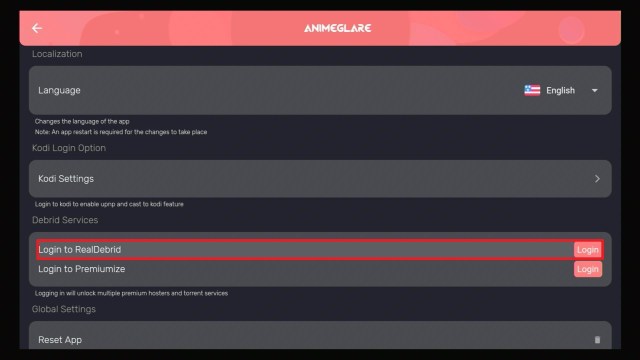
2. Go the Settings.AnimeGlare Real-debrid 2


3. Select Login to Real Debrid.

AnimeGlare Real-debrid 3


4. Take note of the given code.AnimeGlare Real-debrid 4


5. Open a web browser from another device.AnimeGlare Real-debrid 5


6. Input the code earlier.AnimeGlare Real-debrid 6


7. Click on Continue.

AnimeGlare Real-debrid 7


8. There you go, AnimeGlare is now supported by Real Debrid.

AnimeGlare Real-debrid 8


Pros and Cons

Pros

  • Easy to use.
  • HD Links.
  • Fast Playing speeds.
  • Has Simkl Support which will allow you to pick up where you left off and show you what a really good EPG is.
  • Buffer-free
  • Ad-Free.
  • Search Functionality
  • The internal player is working really great.
  • Automatic Subtitle Support System
  • Supports content from FUNimation, Studio Ghibli, and Kyoto Animation.

Cons

  • Anime Selections are not as extensive. This is primarily because it is in the Beta Testing process.
  • There are some links that are not working.
  • Not One-Click Play.


Stream Safely with a VPN

Surfshark vpn

After you install AnimeGlare on Firestick, your online activities are constantly being monitored by your ISP. This includes streaming which requires a huge amount of data. So, if you are in the mood to binge-watch Anime, be sure to use a VPN service like Surfshark.

It will allow you to stream anonymously and it will prevent ISP Throttling which is usually the root cause of buffering and lags.

Aside from the aforementioned facts, here are the other advantages of using Surfshark on your Firestick:

  • It gives users access to Geo-Blocked content. This is helpful when you want to watch Netflix content from other countries.
  • Allows you to use public wifi connections safely and securely. You do not know what is out there and this is where Surfshark works its magic. You will not be traceable and all of your personal data are secured against threats like Malware, Viruses, Phishing, and many more.
  • Ultimately, it is the best solution for Firestick Buffering and Kodi Buffering.


Grab your subscription now!

Click here to get the lowest price on Surfshark through our exclusive limited-time offer.


How to Install Surfshark on Firestick with Screenshots

If your Firestick still has the older interface, read this article to learn how to update it: Update Firestick Interface.

You can download Surfshark directly from the Amazon App store. It will be easy for you to find Surfshark with your Firestick’s Find feature. Refer to our screenshots below.

Follow our screenshots below to install the Surfshark VPN app on your Fire TV stick.

1. Go to the Home screen of your Firestick.

step 1 Install Surfshark VPN on Firestick


2. Navigate towards the Find tab. Press the Search button from the resulting dropdown.

step 2 Install Surfshark VPN on Firestick


3. Type in the keyword of Surfshark and select from the suggestions that will appear.

step 3 Install Surfshark VPN on Firestick


4. Click the official Surfshark icon from your search results.

step 4 Install Surfshark VPN on Firestick


5. Press the Download (You own it) button.

step 5 Install Surfshark VPN on Firestick


6. The Surfshark VPN installer will download on your device.

step 6 Install Surfshark VPN on Firestick


7. Surfshark VPN’s app will automatically install itself on your Fire TV stick.

step 7 Install Surfshark VPN on Firestick


8. Press the Open button after completing Surfshark VPN’s installation process.

step 8 Install Surfshark VPN on Firestick


9. Please wait for the Surfshark VPN to load its user interface.

step 9 Install Surfshark VPN on Firestick


10. You can now log in with your Surfshark VPN account credentials.

step 10 Install Surfshark VPN on Firestick

Learn more about Surfshark and Grab the Best Surfshark Deal Now!


Other VPNs to Consider

NordVPN (Best for Streaming)

Best Features

  • 5000+ Server in 50+ Countries 
  • Military-Grade Encryption
  • Fast Connection Speed
  • Suitable to a lot of devices
  • No-Log Policy

Prices
  • Complete $5.89 per month (64% Discount)
  • Plus $4.59 per month (56% Discount)
  • Standard $3.69 per month (55% Discount)

Best Features

  • 750+ High-speed VPN Servers in 43 Locations
  • Military-Grade Encryption
  • Fastest HD Streaming and Gaming
  • 30-Day Money-Back Guarantee
  • Unlimited Data & Devices
  • No-Log Policy

Prices
  • 3 Years $1.99 per month (82% Discount)
  • 1 Years $3.29 per month (70% Discount)
  • 1 Month $10.99 per month

IPVanish VPN (Most Secure)

Best Features

  • 1200+ Servers in 60+ Countries around the world
  • Unlimited Connections
  • No-Log Policy
  • Top Notch Military-Grade VPN Protocols and Encryptions
  • 100% Safe and Secured
  • Most Trusted VPN
  • Best VPN for Firestick
  • 30-Day Money-Back Guarantee

Prices
  • Yearly $3.99 per month (63% Discount) – 30 days risk free + Ransomware & Malware Protection
  • Quarterly $5.32 per month (51% Discount)
  • Monthly $10.99 per month


For more VPN discounts, go to ReviewVPN Deals and purchase the best VPN for you.


Install Surfshark on Firestick

Best Surfshark Deal

Other VPNs to Consider

NordVPN (Best for Streaming)

Best Features

  • 5000+ Server in 50+ Countries 
  • Military-Grade Encryption
  • Fast Connection Speed
  • Suitable to a lot of devices
  • No-Log Policy

Prices
  • Complete $5.89 per month (64% Discount)
  • Plus $4.59 per month (56% Discount)
  • Standard $3.69 per month (55% Discount)

Best Features

  • 750+ High-speed VPN Servers in 43 Locations
  • Military-Grade Encryption
  • Fastest HD Streaming and Gaming
  • 30-Day Money-Back Guarantee
  • Unlimited Data & Devices
  • No-Log Policy

Prices
  • 3 Years $1.99 per month (82% Discount)
  • 1 Years $3.29 per month (70% Discount)
  • 1 Month $10.99 per month

IPVanish VPN (Most Secure)

Best Features

  • 1200+ Servers in 60+ Countries around the world
  • Unlimited Connections
  • No-Log Policy
  • Top Notch Military-Grade VPN Protocols and Encryptions
  • 100% Safe and Secured
  • Most Trusted VPN
  • Best VPN for Firestick
  • 30-Day Money-Back Guarantee

Prices
  • Yearly $3.99 per month (63% Discount) – 30 days risk free + Ransomware & Malware Protection
  • Quarterly $5.32 per month (51% Discount)
  • Monthly $10.99 per month

For more VPN discounts, go to ReviewVPN Deals and purchase the best VPN for you.


FAQs

Is AnimeGlare safe to download?

Yes. you do not have to worry about anything. Just be sure to use a trusted VPN when streaming using AnimeGlare.


Is it legal?

AnimeGlare is 100% legal to use as long as you use a VPN in conjunction with it.


Is it free?

 Yes, you do not have to spend a single dime.


Are there ADS?

One of the best features of AnimeGlare is being Ad-free. You will not be needing the assistance of an ad-blocking app like AdGuard Pro.


Is there a premium version?

There is none.


Is there an official website?

Yes, you can go to https://animeglare.xyz/ and check the official website out.


What other devices does it work on?

 Aside from the Amazon Firestick, AnimeGlare works on other android devices and iOS/iPhone.


How does the app work?

AnimeGlare is a scraper app. It searches the web for working streaming links that it provides to users for immediate use.


Minimum Version Required

Your device needs at least 5.0 and above.


Is AnimeGlare Compatible with Testflight?

There is no need to use Testflight because AnimeGlare is available on the Apple App Store.


AnimeGlare Alternative for Firestick

Some sites would suggest that Anime DLR is the best AnimeGlare Alternative for Firestick but that is not true. That app is installable but not usable as it does not offer any content.

We have tested apps and other methods to watch anime on Firestick, these are all 100% guaranteed to work. Here they are:


Free Anime Apps

Fire Anime

Fire Anime is one of the only three verified anime apps that are working on Firestick that offers real content. Others are not as good. If you want to have it on your Firestick, you can follow this guide:

Install Fire Anime on Firestick.


Crunchyroll

Crunchyroll logo

A lot of anime fans already know that Crunchyroll is reigning supreme in this arena that is why it is not surprising that it is one of the best alternatives to AnimeGlare.

Although, you do need to pay for a subscription and be a member. Do not worry though, we found a way to handle that situation. To learn more please read this tutorial:

Install Crunchyroll on Firestick.


Free Anime Websites

To watch these on the Firestick, you need to install the Silk Browser. You can install it on your Firestick by referring to this guide:

Install Silk Browser on Firestick.

Once you have installed the Silk Browser, you can stream by using these resources:


Our Opinion

AnimeGlare has a lot of promise. We surmise that it will go on full blast once it is done with the Beta Testing.

We will be on the lookout and assure you that once it goes OFFICIAL, you guys will be the first ones to know.

Overall, it works great with the Firestick and if you are just starting to become an anime fan, using AnimeGlare on the Firestick is one of the best ways to go for.

It is our wish that this article helps you with how to install AnimeGlare on Firestick. Thank you for reading and stay safe.


Note: ReviewVPN.com does not own or operate any app nor does it endorse any. The main purpose of this article is strictly for educational purposes only.


Top Anime Resources

Install Fire Anime on Firestick

Stream Crunchyroll on Firestick

Stream Anime on Firestick with 9Anime

Best Kissanime.ru Alternatives

Watch Anime with Silk Browser


What Is Your Favorite Streaming App? Cast Your Vote Below.

How To Install StrongVPN On a Firestick

StrongVPN Overview

Online privacy is what everyone wants, but the big question is how do we achieve this? Imagine surfing the internet not knowing that all your activities are being monitored and imagine being restricted from accessing your favorite websites.

This can be frustrating and this is where a VPN comes in handy. With a VPN service such as StrongVPN, you can alter your device’s IP address,  have access to restricted webpages, and anonymously browse the internet. In this blog post, we will discuss How to Install StrongVPN on a Firestick.

We will systematically list the step by step guide on how you will install StrongVPN on your Firestick device. However, before going into the specifics, understanding what a VPN is and the reason why you need to install one on your Firestick and other device is very important. 


Legal Disclaimer: ReviewVPN.com does not encourage or endorse any illegal activity involved in the usage of services and applications referenced on this site. We do not verify the licensing agreements of services. The end-user is wholly responsible for ensuring that any media accessed through these services does not violate copyright and/or licensing laws. ReviewVPN does not promote, link to, or receive compensation from any Apps and IPTV services.


ANONYMOUSLY


What is a VPN?

what is vpn

A VPN stands for the virtual private network; with a VPN, you will be able to access the web with much privacy and the highest degree of anonymity; both indoors or outdoors. 

A good question that will be blowing your mind is how will VPN, especially StrongVPN be able to do such or offer such privacy? The answer to the above question is very simple and concise, a virtual private network such as StrongVPN does what is called security encryption (secure connection). this is done over the internet network especially if the network is a public network.  

Note: To know more about a VPN Service, please read our article Best VPNs for Android Review.


What Does StrongVPN  Do For A Firestick And Other Devices?

Let’s say, you often go to a cafe or hotspot center to access the internet or even home, VPN will create a secure connection when you access the internet from any of the above environments. 

StrongVPN encrypts your online data and routs your internet traffic via specialized server; by so doing, StrongVPN will ensure that your online data are private, secure, and protected from identity theft, hackers, online data theft, and lots more.

There are other things StrongVPN does which include but not limited to: 

1. You can alter your IP address

StrongVPN is a good VPN service. As you will recall, many webpages have restrictions. Not only that, but even those using IPTV (internet protocol television) also complain that some channels are geolocated. So how would someone access websites or in the case of IPTV, access channels that have location restriction? It is only by using VPN especially StrongVPN. StrongVPN encrypts your data when you change your device location with it or when StrongVPN is installed on your device. The encryption makes your online data private.


2. StrongVPN secures your online data

You don’t have to worry about your information online. With StrongVPN, you rest assured of peace of mind and security as well. StrongVPN encrypts your online information making it anonymous on the internet service provider’s network (ISP).


3. Secures data transfer and privacy

VPN such as StrongVPN enables you to transfer online data with privacy and the highest degree of security. You can use StrongVPN to transfer files or data in or out in a safe mode. To do this, all you have to do is install StrongVPN on your device and ensure that you turned on the remote connection on your device.


StrongVPN Features

Note: To use the StrongVPN service, the first thing is to sign up for an account. You will receive your login password and username. Return to the home page and input your login detail. After that, purchase a subscription plan. Start by visiting www.strongvpn.com.

  • Has over 950 servers scattered all over 27 countries worldwide. Just as its name, StrongVPN does all it can to avoid the market clap-trap. It offers monthly plans which start at $10. But don’t worry as this VPN subscription plan has been slashed to just $5.84 per month. Also, StrongVPN has an amazing money-back guarantee on its annual subscription plan which has 30 days validity period. 
  • Has great customer reviews where customers applaud their 24/7 responsive customer-oriented care service. One of the reasons why “you must” choose StrongVPN is because it functions perfectly with geolocated services such as Hulu or Netflix.
  • Its only StrongVPN among the numerous VPNs in the market that can bypass Netflix’s geolocation or restrictions. StrongVPN promises its users zero log policy, this means that whatever site you visit or things you do with your device will not be recorded anywhere. That is free to flow privacy. StrongVPN is compatible with BBC iPlayer and Hulu.
  • One best side of having StrongVPN is that all your online data and information are being stored in StrongVPN’s in-house DNS system. This means that you need not worry about your data being released or leaked to the public or a third party.
  • StrongVPN has multiple device connectivity. Meaning you can connect as many as the device you want to connect reaching up to 12 devices. However, you should know that StrongVPN company join the first set of VPN companies that tried the beta of the Wireguard protocol; the beta Wireguard protocol, however, is a great contender to the present day open VPN protocol.
  • Has already made an application that you can just download from the Apple Store or Google play store. StrongVPN can also be downloaded from the Amazon application store. If you are using Kodi or firestick, StrongVPN is ideal for you.

YOUR INTERNET ACTIVITY IS BEING WATCHED

ReviewVPN cannot attest to the legality, security and privacy of the applications discussed on this site. It is highly recommended that you use a VPN service while streaming or using Kodi.

Currently, your IP 216.73.216.156 is visible to everyone and your Browser is being tracked by Advertisers & ISP Provider.

Save 65% Now

Limited Time Offer

Here are the main reasons why you must use a VPN:

  • Your activities are hidden from your ISP, the government, and from the apps you are using.
  • You can access additional movies and TV streams.
  • ISP attempts to throttle are thrwarted thus reducing buffering issues.
  • Geographically restricted content like Netflix and Hulu can be unblocked.

A VPN works be replacing your ISP-assigned IP address and creating an encrypted tunnel. We recommend the no log service offered by IPVanish. It works well on a Firestick and offers the fastest possible speeds.

Special Limited Time Offer - Get IPVanish


How To Install StrongVPN on Firestick

Remember as we have mention above, you must create an account on StrongVPN and purchase a subscription plan. After that follow these steps to install StrongVPN on your Firestick.

  1.  Switch on your Amazon firestick device (do so gently)
  2.  On your firestick, navigate to the home screen section and click on the Application category or Apps category depending on what comes up on the screen.
  3.  Click on the categories option. A new option will come up, select the utility option. 
  4.  On the utility’s option (when it opens up), navigate to find  the icon of the app.
  5.  You will see the download option, you will have to click on it to download the StrongVPN App. After download, click on the open option. A new window will come up requesting your login details: password and username.
  6.  After inputting your details, it will open a new window, here you have to choose your preferred server, or when you can’t find it, choose any location you prefer. When done, select connect. You are advise to allow StrongVPN to run a connection request. Within seconds, a pop-up message will appear alerting you that StrongVPN will monitor network traffic. Click OK and exit.


Screenshots with Step by Step Instruction to Install StrongVPN on a Firestick

1.  Click Home on your remote and scroll once to your left. It will be the search icon.

Install StrongVPN on a Firestick step 1

2. You can either say the name of the app to your Alexa’s voice-enabled remote or start typing it. If you typed it, click on the suggestion when it appears.

Install StrongVPN on a Firestick step 2


3. Click on the icon of the app.

Install StrongVPN on a Firestick step 3


4. Click Download

Install StrongVPN on a Firestick step 4


5. Click Open.

Install StrongVPN on a Firestick step 5


6. Input your username and password to log in.

Install StrongVPN on a Firestick step 6


Conclusion

StrongVPN is an ideal VPN service. If you are looking for a stable and working VPN service, you can check it out.


Final Thoughts

We hope this article helps you with how to install StrongVPN on your Firestick. Thank you for reading and stay safe!


Note: ReviewVPN.com does not own or operate any app nor does it endorse any. The main purpose of this article is strictly for educational purposes only.

How To Install Set Orientation On A Firestick

Set Orientation

In this article, we will be divulging important details on how to install Set Orientation on Firestick and other android tv devices.


Touch Screen Devices usually have a toggle function for their screen orientation and it can be found when you swipe down at the upper portion of your screen.

When you turn this on, any app that runs on both orientations will automatically adapt whenever you tilt your device.

There are also applications that are playable with portrait and landscape orientation.

Some apps on the other hand just stick with the portrait orientation. For some, this is irritating because they don’t get to fully use the size of their screen in running applications.

Luckily for those who are nitpicky in this aspect, there is an application that we can use to do something about that and it is called Set Orientation.


ANONYMOUSLY

Is Set Orientation Safe and Virus-free?

We tested this app using VirusTotal and found no threats or any malicious files and malware.

Despite having good results, we still need to be vigilant in protecting our privacy while streaming.

A Virtual Private Network or VPN will definitely help us maintain our security and anonymity while using Set Orientation.

Here’s how you can Install The Best VPN For Firestick and All Devices.


Download Set Orientation on Firestick


Download Set Orientation


Note: ReviewVPN.com does not host this APK file. It is hosted on Archive.org.


Installation Guide on a Firestick

Note: In order to operate Google Chrome on your firestick, you would be needing a Mouse Toggle function installed. If you haven’t installed mouse toggle yet, please follow our guide by clicking on this link.

  1. On the home screen, go to “Settings”.
  2. Select My Fire TV.
  3. Select Developer Options.
  4. Open Apps from Unknown Sources.
  5. Click Turn On.
  6. Head back to the home screen and select “Search”.
  7. Search Downloader and click on “Downloader”. It will appear under the keyboard.
  8. Choose the “Downloader app”.
  9. Download it.
  10. Choose Open.
  11. Select Allow.
  12. Choose OK.
  13. Type in http://reviewvpn.com/set and select Go.
  14. Wait for it to finish.
  15. Install Set Orientation.
  16. Select Done.
  17. This will automatically take you back to Downloader. Select Delete.
  18. Choose Delete Again.
  19. Head back to the home screen and under the “Your Apps & Channels” choose See All.
  20. Scroll down and choose Set Orientation and select the “Options”. Then select “Move to front”.
  21. Set Orientation will be moved forward to “Your Apps and Channels”.
  22. Open Set Orientation.
  23. There, it is now installed and ready to use.


If your Firestick still has the older interface, read this article to learn how to update it: Update Firestick Interface.


Video on How to Install Set Orientation on Firestick


Install Set Orientation on a Firestick with Screenshots

1. Install the Downloader app and jailbreak your firestick by enabling unknown sources. To learn more about the procedure, you may read How to Install the Downloader App and Enable Unknown Sources.


2.Open Downloader App. Type https://reviewvpn.com/set and click Go.

Install Set Orientation


3. Select INSTALL.

Step 13 Install Set Orientation a on firestick


4. Select OPEN.

Step 14 Install Set Orientation on a firestick


5. Select INSTALL again.

Step 15 Install Set Orientation on a firestick


6. Click on the OK button.

Step 16 Install Set Orientation on a firestick


7. Select Allow.

Step 17 Install Set Orientation on a firestick


8. Select INSTALL.

Step 18 Install Set Orientation on a firestick


9. Choose OPEN.

Step 19 Install Set Orientation on a firestick


10. Choose Automatic (full).

Step 20 Install Set Orientation on a firestick


11. And click on OK. There, it is now installed and ready to use.

Step 21 Install Set Orientation on a firestick


YOUR INTERNET ACTIVITY IS BEING WATCHED

ReviewVPN cannot attest to the legality, security and privacy of the applications discussed on this site. It is highly recommended that you use a VPN service while streaming or using Kodi.

Currently, your IP 216.73.216.156 is visible to everyone and your Browser is being tracked by Advertisers & ISP Provider.

Save 65% Now

Limited Time Offer

Here are the main reasons why you must use a VPN:

  • Your activities are hidden from your ISP, the government, and from the apps you are using.
  • You can access additional movies and TV streams.
  • ISP attempts to throttle are thrwarted thus reducing buffering issues.
  • Geographically restricted content like Netflix and Hulu can be unblocked.

A VPN works be replacing your ISP-assigned IP address and creating an encrypted tunnel. We recommend the no log service offered by IPVanish. It works well on a Firestick and offers the fastest possible speeds.

Special Limited Time Offer - Get IPVanish


Legal Disclaimer: ReviewVPN.com does not encourage or endorse any illegal activity involved in the usage of services and applications referenced on this site. We do not verify the licensing agreements of services. The end-user is wholly responsible for ensuring that any media accessed through these services does not violate copyright and/or licensing laws. ReviewVPN does not promote, link to, or receive compensation from any Apps and IPTV services.


Install Surfshark on Firestick

Best Surfshark Deal


What Does It Do?

Set Orientation is an application that forces your device to be placed in a certain orientation. Even if the app is only set to portrait, you can coax it to be put in landscape. 


Compatible Platforms

Set Orientation is compatible with almost all devices. You can run it on Android, Firestick, and Windows.


Features

You can set your device to the following orientations:

  • Disabled
  • Default
  • Automatic and Automatic (Full)
  • Landscape – Reverse and Sensor
  • Portrait – Reverse and Sensor

Pros and Cons

 The good thing about this app is its ability to force any device to any orientation you prefer but the only drawback it has is there is a limit to how much you can stretch out. For apps that are only playable on portrait mode, you will see that there are portions that will be stretched out and there will also be portions that cannot be stretched out. Aesthetically speaking, it is not very pleasing to the eyes but if you don’t mind as long as you view your game on a bigger screen, then feel free to use this application.


FAQ

Is It Safe To Use?

Yes, it is very safe to use.


Is It Legal Or Grey?

Set Orientation is legal to use.


Should I Use A VPN?

There is no actual need for a VPN service when running this app but if you are intending to use an app that requires both a VPN and Set Orientation, you can always turn on your VPN because it doesn’t interfere with Set Orientation’s performance. If you are new to this kind of thing and are in need of a VPN service, you can follow our step-by-step guide by clicking on this link.

Note: For more information about Surfshark, please read our Surfshark Review.


Grab your subscription now!


How to Install Surfshark VPN on Firestick

If your Firestick still has the older interface, read this article to learn how to update it: Update Firestick Interface.

1. Go to the Home screen of your Firestick.

step 1 Install Surfshark VPN on Firestick


2. Navigate towards the Find tab. Press the Search button from the resulting dropdown.

step 2 Install Surfshark VPN on Firestick


3. Type in the keyword of SurfShark and select from the suggestions that will appear.

step 3 Install Surfshark VPN on Firestick


4. Click the official SurfShark icon from your search results.

step 4 Install Surfshark VPN on Firestick


5. Press the Download (You own it) button.

step 5 Install Surfshark VPN on Firestick


6. The SurfShark VPN installer will download on your device.

step 6 Install Surfshark VPN on Firestick


7. SurfShark VPN’s app will automatically install itself on your Fire TV stick.

step 7 Install Surfshark VPN on Firestick


8. Press the Open button after completing SurfShark VPN’s installation process.

step 8 Install Surfshark VPN on Firestick


9. Please wait for the SurfShark VPN to load its user interface.

step 9 Install Surfshark VPN on Firestick


10. You can now log in with your SurfShark VPN account credentials.

step 10 Install Surfshark VPN on Firestick

Learn more about Surfshark and Grab the Best Surfshark Deal Now!


Other VPNs to Consider

NordVPN (Best for Streaming)

Best Features

  • 5000+ Server in 50+ Countries 
  • Military-Grade Encryption
  • Fast Connection Speed
  • Suitable to a lot of devices
  • No-Log Policy

Prices
  • Complete $5.89 per month (64% Discount)
  • Plus $4.59 per month (56% Discount)
  • Standard $3.69 per month (55% Discount)

Best Features

  • 750+ High-speed VPN Servers in 43 Locations
  • Military-Grade Encryption
  • Fastest HD Streaming and Gaming
  • 30-Day Money-Back Guarantee
  • Unlimited Data & Devices
  • No-Log Policy

Prices
  • 3 Years $1.99 per month (82% Discount)
  • 1 Years $3.29 per month (70% Discount)
  • 1 Month $10.99 per month

IPVanish VPN (Most Secure)

Best Features

  • 1200+ Servers in 60+ Countries around the world
  • Unlimited Connections
  • No-Log Policy
  • Top Notch Military-Grade VPN Protocols and Encryptions
  • 100% Safe and Secured
  • Most Trusted VPN
  • Best VPN for Firestick
  • 30-Day Money-Back Guarantee

Prices
  • Yearly $3.99 per month (63% Discount) – 30 days risk free + Ransomware & Malware Protection
  • Quarterly $5.32 per month (51% Discount)
  • Monthly $10.99 per month


For more VPN discounts, go to ReviewVPN Deals and purchase the best VPN for you.


Grab the Best Surfshark Deal Now!

Click here to get the lowest price on Surfshark through our exclusive limited-time offer.


Is It Free?

Yes, it is free to download and install on your device.


Are There ADS?

No ads whatsoever.


Is There A Premium Version?

No, there is no premium version.


Is There An Official Website?

There is no known official website for Set Orientation.


What Other Devices Does It Work On?

Any device that runs on the Android OS is compatible with Set Orientation.


How Does The App Work?

You can go to http://reviewvpn.com/set to download the APK.


Minimum Version Required

Any Android device that has version 4.1 and above


History

 How Long Has It Been Around?

According to Google search results, the oldest post regarding Set Orientation can be dated back to the year 2014. Not much is know because it doesn’t have an official website.


What Is The Development Team Like?

Just like the official website being out of reach, we could not find anything regarding the developer of this particular application.


Alternatives

  • Rotation Control
  • Screen Rotation Control
  • Control Screen Orientation


Our Opinion

Set Orientation is a pretty basic app that you can use to change the orientation of your device. Beyond that, it is pretty straightforward and nothing much can be done with it. It is useful when you want apps that operate on portrait mode to be changed to landscape. At the end of the day, it will depend on you if you need an app like this on your device. 

We hope that this article helped you in installing Set Orientation on your device. Should you have queries, feel free to leave a comment below and contact us on any of our other social media platforms. Thank you for reading and stay safe!

Install Duck Duck Go Privacy Web Browser on Firestick

Duck Duck Go Browser Overview


Have you ever been wary of someone finding out what you do on the internet?

Afraid that you might get caught due to your online activities?

These concerns usually arise whenever you download media for free and when you are watching adult content.

But what if there was a way for you to do all of these without getting caught? Yes, you heard it right!

We would like to introduce to you Duck Duck Privacy Web Browser.

In this article, we will be showing you how it works, how to install it, and if it is worth your time.


Is It Any Good?

There is a lot of nasty stuff hidden on the internet with Duck Duck Go Privacy Web Browser, you are assured that none of these threats will ever be allowed to your system. With its unique features, you will be confident that you have a problem-free and seamless browsing experience.


Is Duck Duck Go Privacy Web Browser Safe and Virus-free?

We tested this app using VirusTotal and found no threats or any malicious files and malware.

Despite having good results, we still need to be vigilant in protecting our privacy while streaming.

A Virtual Private Network or VPN will definitely help us maintain our security and anonymity while using Duck Duck Go Privacy Web Browser.

Here’s how you can Install The Best VPN For Firestick and All Devices.


ANONYMOUSLY


Note: ReviewVPN.com does not host this APK file. It is hosted on Archive.org.

Download Duck Duck Go Privacy Browser button


Installation Guide on a Firestick

  1. On the home screen, go to “Settings”.
  2. Select My Fire TV.
  3. Select Developer Options.
  4. Open Apps from Unknown Sources.
  5. Click Turn On.
  6. Head back to the home screen and select “Search”.
  7. Search Downloader and click “Downloader”. It will appear under the keyboard.
  8. Choose the “Downloader app”.
  9. Download it.
  10. Choose Open.
  11. Select Allow.
  12. Choose OK.
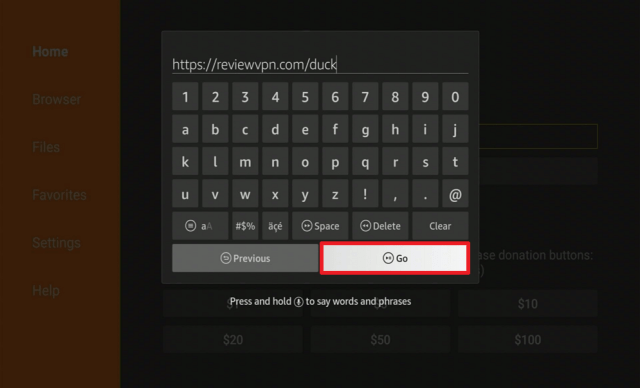
  13. Type http://reviewvpn.com/duck and select Go.
  14. Wait for it to finish.
  15. Install Duck Duck Go.
  16. Select Done.
  17. This will automatically take you back to Downloader. Select Delete.
  18. Choose Delete Again.
  19. Head back to the home screen and under the “Your Apps & Channels” choose See All.
  20. Scroll down and choose Duck Duck Go select the “Options”. Then select “Move to front”.
  21. Duck Duck Go will be moved forward to “Your Apps and Channels”.
  22. Open Duck Duck Go.
  23. There you go, it is now installed on your device.


YOUR INTERNET ACTIVITY IS BEING WATCHED

ReviewVPN cannot attest to the legality, security and privacy of the applications discussed on this site. It is highly recommended that you use a VPN service while streaming or using Kodi.

Currently, your IP 216.73.216.156 is visible to everyone and your Browser is being tracked by Advertisers & ISP Provider.

Save 65% Now

Limited Time Offer

Here are the main reasons why you must use a VPN:

  • Your activities are hidden from your ISP, the government, and from the apps you are using.
  • You can access additional movies and TV streams.
  • ISP attempts to throttle are thrwarted thus reducing buffering issues.
  • Geographically restricted content like Netflix and Hulu can be unblocked.

A VPN works be replacing your ISP-assigned IP address and creating an encrypted tunnel. We recommend the no log service offered by IPVanish. It works well on a Firestick and offers the fastest possible speeds.

Special Limited Time Offer - Get IPVanish


If your Firestick still has the older interface, read this article to learn how to update it: Update Firestick Interface.


Install Duck Duck Go Browser on a Firestick with Screenshots

1. Install the Downloader app and jailbreak your firestick by enabling unknown sources. To learn more about the procedure, you may read How to Install the Downloader App and Enable Unknown Sources.


2. Open Downloader App. Type https://reviewvpn.com/duck and click Go.

Install Duck Duck Go Browser


3. Select INSTALL.

Step 13 Install Duck Duck on a firestick


4. Select OPEN.

Step 14 Install Duck Duck on a firestick


5. Click on the “Let’s Do It!” button.

Step 15 Install Duck Duck on a firestick


6. Choose Maybe Later.

Step 16 Install Duck Duck on a firestick


7. There you go, Duck Duck Browser is now installed on your device.

Step 17 Install Duck Duck on a firestick


YOUR INTERNET ACTIVITY IS BEING WATCHED

ReviewVPN cannot attest to the legality, security and privacy of the applications discussed on this site. It is highly recommended that you use a VPN service while streaming or using Kodi.

Currently, your IP 216.73.216.156 is visible to everyone and your Browser is being tracked by Advertisers & ISP Provider.

Save 65% Now

Limited Time Offer

Here are the main reasons why you must use a VPN:

  • Your activities are hidden from your ISP, the government, and from the apps you are using.
  • You can access additional movies and TV streams.
  • ISP attempts to throttle are thrwarted thus reducing buffering issues.
  • Geographically restricted content like Netflix and Hulu can be unblocked.

A VPN works be replacing your ISP-assigned IP address and creating an encrypted tunnel. We recommend the no log service offered by IPVanish. It works well on a Firestick and offers the fastest possible speeds.

Special Limited Time Offer - Get IPVanish


Legal Disclaimer: ReviewVPN.com does not encourage or endorse any illegal activity involved in the usage of services and applications referenced on this site. We do not verify the licensing agreements of services. The end-user is wholly responsible for ensuring that any media accessed through these services does not violate copyright and/or licensing laws. ReviewVPN does not promote, link to, or receive compensation from any Apps and IPTV services.


Install Surfshark on Firestick

Best Surfshark Deal


What Does It Do?

Duck Duck Go provides a secured browsing experience by blocking unwanted trackers. It also gives the website you visit a letter grade (A being the highest) depending on the security, and shows you what trackers it blocked. It is very simple yet powerful in providing you safe browsing experience.


Compatible Platforms

You can use it with the Amazon Firestick and Android Devices. You can use it as a stand-alone browser but you can also integrate it into Chrome, Firefox, Internet Explorer, Microsoft Edge, and Safari.


App Features

  • Interactive Tutorial Guide
  • Tracker Blocker
  • Upgrades the security of your connection
  • Smart Encryption
  • Private Search
  • Anonymous Search


Pros and Cons

 Pros

  • Can be integrated with other browsers like Firefox, Internet Explorer, Microsoft Edge, Opera, and Safari
  • It tells you who is tracking you while blocking them out.
  • Gives you a letter grading to know how secure they made the website for you.
  • Privacy crash courses help you understand more what privacy means on the world wide web.
  • Stable and Secure
  • Easy to use
  • Can be used to download content Preview (opens in a new tab)
  • Multiple Tab Capable

Cons

  • Do not block ads


FAQ

Is It Safe To Use?
Duck Duck Go is very safe to use.

 
Is It Legal Or Grey?
It is 100% legal to use.

 
Should I Use A VPN?
Duck Duck Go only protects you from being tracked by websites. It does not afford you any protection against your ISP so you must secure yourself by using a VPN. A good VPN service will hide all of your online activity from your ISP and it will also help you in fully utilizing your internet speed as it blocks internet throttling done by your ISP.  If you are in need of a VPN service, you can follow our step-by-step guide by clicking on this link.

Note: For more information about Surfshark, please read our Surfshark Review.


Grab your subscription now!


How to Install Surfshark VPN on Firestick

If your Firestick still has the older interface, read this article to learn how to update it: Update Firestick Interface.

You can download Surfshark directly from the Amazon App store. It will be easy for you to find Surfshark with your Firestick’s Find feature. Refer to our screenshots below.

1. Go to the Home screen of your Firestick.

step 1 Install Surfshark VPN on Firestick


2. Navigate towards the Find tab. Press the Search button from the resulting dropdown.

step 2 Install Surfshark VPN on Firestick


3. Type in the keyword of SurfShark and select from the suggestions that will appear.

step 3 Install Surfshark VPN on Firestick


4. Click the official SurfShark icon from your search results.

step 4 Install Surfshark VPN on Firestick


5. Press the Download (You own it) button.

step 5 Install Surfshark VPN on Firestick


6. The SurfShark VPN installer will download on your device.

step 6 Install Surfshark VPN on Firestick


7. SurfShark VPN’s app will automatically install itself on your Fire TV stick.

step 7 Install Surfshark VPN on Firestick


8. Press the Open button after completing SurfShark VPN’s installation process.

step 8 Install Surfshark VPN on Firestick


9. Please wait for the SurfShark VPN to load its user interface.

step 9 Install Surfshark VPN on Firestick


10. You can now log in with your SurfShark VPN account credentials.

step 10 Install Surfshark VPN on Firestick

Learn more about Surfshark and Grab the Best Surfshark Deal Now!


Other VPNs to Consider

NordVPN (Best for Streaming)

Best Features

  • 5000+ Server in 50+ Countries 
  • Military-Grade Encryption
  • Fast Connection Speed
  • Suitable to a lot of devices
  • No-Log Policy

Prices
  • Complete $5.89 per month (64% Discount)
  • Plus $4.59 per month (56% Discount)
  • Standard $3.69 per month (55% Discount)

Best Features

  • 750+ High-speed VPN Servers in 43 Locations
  • Military-Grade Encryption
  • Fastest HD Streaming and Gaming
  • 30-Day Money-Back Guarantee
  • Unlimited Data & Devices
  • No-Log Policy

Prices
  • 3 Years $1.99 per month (82% Discount)
  • 1 Years $3.29 per month (70% Discount)
  • 1 Month $10.99 per month

IPVanish VPN (Most Secure)

Best Features

  • 1200+ Servers in 60+ Countries around the world
  • Unlimited Connections
  • No-Log Policy
  • Top Notch Military-Grade VPN Protocols and Encryptions
  • 100% Safe and Secured
  • Most Trusted VPN
  • Best VPN for Firestick
  • 30-Day Money-Back Guarantee

Prices
  • Yearly $3.99 per month (63% Discount) – 30 days risk free + Ransomware & Malware Protection
  • Quarterly $5.32 per month (51% Discount)
  • Monthly $10.99 per month


For more VPN discounts, go to ReviewVPN Deals and purchase the best VPN for you.


Grab the Best Surfshark Deal Now!


Is It Free?
Yes, it is free to download and install on your device.

 
Are There ADS?
Yes, ads will appear depending on the website you visit but fear not, the ads that will show are not that intrusive and will go away by just closing them.

 
Is There A Premium Version?
No, there is no premium version.

 
Is There An Official Website?
Its official website is https://duckduckgo.com/. You visit the website for additional information regarding the browser.

 
What Other Devices Does It Work On?
Duck Duck Go can be used on devices that already have pre-existing web browsers like Chrome, Firefox, and many more. Almost all devices can run these other browsers so in short, you can also use Duck Duck Go with any type of device.

 
How Does The App Work?
You can go to https://duckduckgo.com// and download/integrate it on your device.


Minimum Version Required

Any Android device that has version 4.1 and above


History

How Long Has It Been Around?

Its been around since early 2008 and has been running ever since. 

 
What Is The Development Team Like?
They are very active in accommodating questions from users. We also found that they are very active on social media. They have Twitter, blogs, and Reddit pages. You can visit them at these websites using these links:


Alternatives

Our Opinion

We really find Duck Duck Go a very useful browser when it comes to safe and secure browsing. It totally blocks trackers from seeing your online activity so you can browse anything to your heart’s content. What we liked about it is that it can be integrated with most browsers. It does not interfere with the browsers you use but adds an extra layer of protection when you browse the web. We also find that the ads that do appear are non-intrusive and don’t really affect you a lot. Showing what trackers are blocked also gives you an idea of which websites are really harmful to your system. It allows you to assess which ones are risky and which ones are safe to visit. We also find their website very educational as it gives you information regarding technical stuff in simplified terms. Having a very active support system is also a plus to its already impressive resume. Given all of these reasons, we are putting Duck Duck Go as one of our top web browsers here at ReviewVPN.

If we were able to help out, please do leave us a comment down below. Thank you for reading and stay safe!

How To Install Media Lounge on Firestick – 2023 Update

Install Media Lounge on Firestick Overview

In this article, we will be helping you with how to install Media Lounge on Firestick.


How frequently do you see a streaming application that gives Movies, TV Shows, Live TV, Sports TV, and Adult Content?

This is very rare because the most popular streaming apps usually only offer Movies, TV Shows, and Live TV.

You are probably wondering what this wonderful app is and how it can provide all of the said categories. 

Before you can install Media Lounge on your Firestick, you need to jailbreak it. Here is how you do it:

Jailbreak Firestick Guide

Additionally, you will also need the Downloader app to sideload Media Lounge. Please refer to this guide:

Install Downloader App on Firestick.


ANONYMOUSLY

Is Media Lounge Safe and Virus-free?

We tested this application using VirusTotal and found that there is/are malicious file/files. You can see the above result for your reference.

Because of this, we highly recommend using a VPN that can protect your privacy against any threat from Media Lounge.

Here’s how you can Install The Best VPN For Firestick and All Devices.


How To Install Media Lounge on Android


Media Lounge Download Icon

Note: ReviewVPN.com does not host this APK file. It is hosted on Archive.org.


If your Firestick still has the older interface, read this article to learn how to update it: Update Firestick Interface.


How to Install Media Lounge on Firestick (Video)


How To Install Media Lounge on Firestick

1.  Install the Downloader app and jailbreak your firestick by enabling unknown sources.
To learn more about the procedure, you may read How to Install the Downloader App and Enable Unknown Sources.


2. Open Downloader. Type https://reviewvpn.com/med and click GO.


3. Click Install.

Step 13 Install Media Lounge on firestick


4. Click Open.

Step 14 Install Media Lounge on firestick


5. Click Allow.

Step 15 Install Media Lounge on firestick


6. Create a Parental Pin. Click OK.

Step 16 Install Media Lounge on firestick


7. Type your pin. Click Next.

Step 17 Install Media Lounge on firestick


8. Click OK.

Step 18 Install Media Lounge on firestick


9. Media Lounge is installed. Enjoy watching.

Step 19 Install Media Lounge on firestick


YOUR INTERNET ACTIVITY IS BEING WATCHED

ReviewVPN cannot attest to the legality, security and privacy of the applications discussed on this site. It is highly recommended that you use a VPN service while streaming or using Kodi.

Currently, your IP 216.73.216.156 is visible to everyone and your Browser is being tracked by Advertisers & ISP Provider.

Save 65% Now

Limited Time Offer

Here are the main reasons why you must use a VPN:

  • Your activities are hidden from your ISP, the government, and from the apps you are using.
  • You can access additional movies and TV streams.
  • ISP attempts to throttle are thrwarted thus reducing buffering issues.
  • Geographically restricted content like Netflix and Hulu can be unblocked.

A VPN works be replacing your ISP-assigned IP address and creating an encrypted tunnel. We recommend the no log service offered by IPVanish. It works well on a Firestick and offers the fastest possible speeds.

Special Limited Time Offer - Get IPVanish


Legal Disclaimer: ReviewVPN.com does not encourage or endorse any illegal activity involved in the usage of services and applications referenced on this site. We do not verify the licensing agreements of services. The end-user is wholly responsible for ensuring that any media accessed through these services does not violate copyright and/or licensing laws. ReviewVPN does not promote, link to, or receive compensation from any Apps and IPTV services.


Grab your subscription now!

Click here to get the lowest price on Surfshark through our exclusive limited-time offer.


Is It Any Good?

Media Lounge is a very reliable third-party streaming application whose contents are Movies, TV Shows, Live TV, Sports TV, and Adult content.

It was created by the same developers of Live Lounge. As we all know, Live Lounge is no longer working.

Consider Media Lounge as the heir to the throne of the once-popular streaming app. 

It provides the best quality links due to its compatibility with Real-Debrid. Learn how to integrate it by following the tutorial below.


Integrate Real-Debrid on Medial Lounge

1. Launch Media Lounge on the Firestick.


2. Click on the Hamburger menu.


3. Choose Real Debrid – Login


4. Take note of the given code.


5. Launch a web browser on another device.


6. Type in the code given earlier.


7. Select Continue.


8. This confirmation will appear.


9. You will now see that Real Debrid is connected.


10. Real Debrid links are highlighted.


Integrate MX Player for Media Lounge

You can choose the default player for this app. But first, you have to make sure that MX Player is already installed on your firestick device.


1. Launch the Media Lounge app on firestick

media lounge (1)


2. Navigate to the hamburger button on the upper-left side of the app.

media lounge (2)


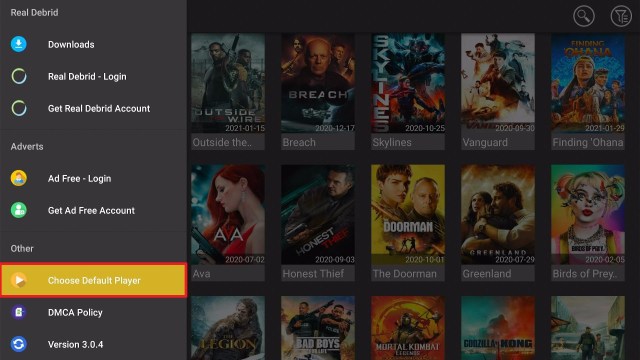
3. Scroll down to Choose Default Player

media lounge (3)


4. Choose MX Player

media lounge (4)


5. A notification will show on the lower part of the home page to clarify the chosen player.

media lounge (5)

You can also use VLC Media Player for Media Lounge.


Media Lounge Features

After you install the app on Firestick, you will be treated with the following features.

Interface

Media Lounge is very easy to use. Navigation is a breeze and you will not be needing an additional app called Mouse Toggle. It also collects working streaming links that you can choose from to watch videos.

Movie Genres

The Genres are Action, Adventure, Animation, Comedy, Crime, Documentary, Drama, Family, Fantasy, History, Horror, Music, Mystery, Romance, Science Fiction, TV Movie, Thriller, War, and Western

Live TV Section

The Live TV section provides a robust list of channels from Pakistan, India, Bangladesh, UK, USA, Afghanistan, Arabian, Punjabi, South Indian, Religious, Kids, Wildlife and Science, Canada, Philippines, Nepal, France, Australia, Portugal, Germany, Italy, Turkish, Poland, Belgium, Spain, Kurdish, Albania, Romania, Greece, Thailand, and OSN. 

Sports TV Section

Featured Sports channels are Sony, ESPN, Bein, Star Sports, Willow Cricket, Premier Sports, Sky Sports, BT Sports, Euro Sport, Box Nation, Setanta Sports, UK Racing, WWE Network, Dubai Sports, MUTV, Real Madrid, LFC TV, Chelsea TV, Arena Sports, Fox Sports, TSN Sports, Sports Net One, Ad Sports, Viasat Football, NBA TV, NBC SN, NFL Network, and many more.

Adult Section

This section has tons of content. It ranges from Straight, Gay, Lesbian, Hentai, Tranny, and many more.


Media Lounge Pros and Cons 

Pros

  • Incredible playback and loading time
  • Downloadable Content (Ideal for Android Users to watch offline)
  • Its internal player functions very well. External players like MX Player Pro are not required.
  • Regular Updates
  • One-Click Play for the Live TV Section.
  • Additional privacy feature with the parental pin
  • Ad-Free
  • Real-Debrid Integration


Cons

  • A few movies and TV Shows do not have working links
  • Most videos are in Standard Definition. Only a few HD links are available.


Grab your subscription now!

Click here to get the lowest price on Surfshark through our exclusive limited-time offer.


Should I use Media Lounge with a VPN?

https://get.surfshark.net/aff_c?offer_id=865&aff_id=12312

Free streaming is nice and all but it should be done responsibly. Streaming is a type of activity that your ISP will notice. Remember, all of your activities online are being monitored by your ISP. The best way to maintain anonymity is by using a premium VPN service like Surfshark. It will hide everything that you do online, especially streaming. You can also gain access to geo-restricted content like those on Netflix. Surfshark will also ensure that your viewing experience is lag-free because it will block any attempt by your ISP to throttle down your speed.

Note:  If you wish to subscribe to Surfshark, you can avail of it at a very affordable price by clicking our Surfshark BEST DEAL. Hurry while the promo still lasts!


How to Install Surfshark VPN on Firestick

1. Go to the Home screen of your Firestick.

step 1 Install Surfshark VPN on Firestick


2. Navigate towards the Find tab. Press the Search button from the resulting dropdown.

step 2 Install Surfshark VPN on Firestick


3. Type in the keyword of Surfshark and select from the suggestions that will appear.

step 3 Install Surfshark VPN on Firestick


4. Click the official SurfShark icon from your search results.

step 4 Install Surfshark VPN on Firestick


5. Press the Download (You own it) button.

step 5 Install Surfshark VPN on Firestick


6. The Surfshark VPN installer will download on your device.

step 6 Install Surfshark VPN on Firestick


7. SurfShark VPN’s app will automatically install itself on your Fire TV stick.

step 7 Install Surfshark VPN on Firestick


8. Press the Open button after completing Surfshark VPN’s installation process.

step 8 Install Surfshark VPN on Firestick


9. Please wait for the SurfShark VPN to load its user interface.

step 9 Install Surfshark VPN on Firestick


10. You can now log in with your Surfshark VPN account credentials.

step 10 Install Surfshark VPN on Firestick

Learn more about Surfshark and Grab the Best Surfshark Deal Now!


Install Surfshark on Firestick

Best Surfshark Deal


Other VPNs to Consider

NordVPN (Best for Streaming)

Best Features

  • 5000+ Server in 50+ Countries 
  • Military-Grade Encryption
  • Fast Connection Speed
  • Suitable to a lot of devices
  • No-Log Policy

Prices
  • Complete $5.89 per month (64% Discount)
  • Plus $4.59 per month (56% Discount)
  • Standard $3.69 per month (55% Discount)

Best Features

  • 750+ High-speed VPN Servers in 43 Locations
  • Military-Grade Encryption
  • Fastest HD Streaming and Gaming
  • 30-Day Money-Back Guarantee
  • Unlimited Data & Devices
  • No-Log Policy

Prices
  • 3 Years $1.99 per month (82% Discount)
  • 1 Years $3.29 per month (70% Discount)
  • 1 Month $10.99 per month

IPVanish VPN (Most Secure)

Best Features

  • 1200+ Servers in 60+ Countries around the world
  • Unlimited Connections
  • No-Log Policy
  • Top Notch Military-Grade VPN Protocols and Encryptions
  • 100% Safe and Secured
  • Most Trusted VPN
  • Best VPN for Firestick
  • 30-Day Money-Back Guarantee

Prices
  • Yearly $3.99 per month (63% Discount) – 30 days risk free + Ransomware & Malware Protection
  • Quarterly $5.32 per month (51% Discount)
  • Monthly $10.99 per month


For more VPN discounts, go to ReviewVPN Deals and purchase the best VPN for you.

Click here to get the lowest price on Surfshark through our exclusive limited-time offer.


 FAQ

Is Media Lounge safe to download?

Yes, it is safe to download and install Media Lounge on any device.


Is it legal or grey?

It is 100% legal to download and install Media Lounge on Firestick.


Is it free?

One of the best things about Media Lounge is that it’s free.


Are there ADS?

Ad Guard will not be needed when using Media Lounge because this app is Ad-Free


Is there a premium version?

Media Lounge does not have a premium version.


Is Media Lounge a Terrarium Clone?

No, Media Lounge is not a terrarium clone.


Is there an official website?

It does not have an official website.


What other devices does it work on?

Aside from the Amazon Firestick, you can download and install Media Lounge on Android Devices and other gadgets that run on similar platforms. 


How does Media Lounge work?

Just like any third-party streaming application, Media Lounge scrapes for working links that are available on the web. Just follow the installation guide we have provided above and witness how amazing this app is.


Minimum Version Required

Your device needs to be version 5.0.


How long has it been around?

Media Lounge was released in 2019.


Media Lounge Alternatives

Real talk? After you install Media Lounge on Firestick and find that it is not functioning well, the only app that functions like it is Strix. This is not surprising because Media Lounge is the predecessor of Strix. If you ever find that Media Lounge is not working or has some issues, the best alternative is Strix. However, there are also other noteworthy apps that you can use like Viva TV which is awesome for Movies and TV Shows. There is TV Tap Pro for Live TV, and Stremio for Movies, TV Shows, and Adult content. 

                 APPS

               REVIEW

           DOWNLOAD

                 Nova TV

           Nova TV Review

                  Viva TV

            Viva TV Review

                    Strix

               Strix Review

                  Bee TV

             Bee TV Review

               TV Tap Pro

         TV Tap Pro Review

                  Stremio

            Stremio Review

ReviewVPN.com does not host any of these files. They are hosted on Archive.org.


Our Opinion

Media Lounge is very handy if you don’t want to switch between apps because of the robust content it provides. There is a minor hiccup like having no links available for certain movies, but this can be easily resolved when you use Real-Debrid. Beyond that, it is the perfect app for you to stream everything. Just follow our tutorial on how to install Media Lounge on Firestick and be on your merry way to watch anything.


Final Thoughts

We hope that this article helps you with how to install Media Lounge on Firestick. Thank you for reading and stay safe!


Note: ReviewVPN.com does not own or operate any app nor does it endorse any. The main purpose of this article is strictly for educational purposes only.


 Read Also

Best Unlinked Codes

50 Best Free Movie Streaming Sites

Best Adult Apps for Firestick

The Best Adult Apps for Android

How To Install Strix on Firestick and Android- 2023 Update

Install Strix on Firestick Overview

In this article, we will be showing you how to install Strix on  Firestick. If Strix asks for a 6 digit access code on startup, enter – 229156


How often do you encounter a streaming app that provides Movies, TV Shows, Live TV, Sports TV, and Adult Content all at the same time?

How about downloading it directly from the Amazon App Store? It sounds hard to believe right?

Well, you have to believe it because there is this hidden gem called Strix.

From the creators of Live Lounge and Media Lounge, Strix is a free third-party streaming application that has it all. 


Strix TV APK Download for Android


Strix Download Button

Note: ReviewVPN.com does not host this APK file. It is hosted on Archive.org.

ANONYMOUSLY

Is Strix Safe and Virus-free?

We tested this application using VirusTotal and found that there is/are malicious file/files. You can see the above result for your reference.

Because of this, we highly recommend using a VPN that can protect your privacy against any threat from Strix.

Here’s how you can Install The Best VPN For Firestick and All Devices.


Strix App Download via Amazon App Store Guide

  1. Turn on your Firestick
  2. Click on the search button.
  3. Type in Strix or you can use the voice search function
  4. Scroll down and click on Strix
  5. Click on the Strix Icon
  6. Select Get
  7. Choose Download
  8. Wait for the download to finish
  9. Click on Open to launch the app
  10. Give the app access to your photos and media by selecting Allow
  11. Open a web browser on your other device and go to https://liveloungeapk.vip/strix-apk/ to obtain the pin.
  12. Click on Submit
  13. Set up your parental pin by selecting any 4-digit number of your choice and clicking on Next
  14. Select Ok
  15. You can now enjoy streaming!


If your Firestick still has the older interface, read this article to learn how to update it: Update Firestick Interface.

Strix APK Download on Firestick with Screenshots

1.   Click FIND.

Step 6 jailbreak firestick


2. Click Search.

Step 7 jailbreak firestick


3. You can either say Strix to your Alexa’s voice-enabled remote or start typing it. If you typed it, click on the suggestion when it appears.

Step 2 Install Strix on Firestick


4. Click on the Strix icon.

Step 3 Install Strix on Firestick


5. Click on Download

Step 4 Install Strix on Firestick


6. Wait to download.

Step 5 Install Strix on Firestick


7. Wait to install.

Step 6 Install Strix on Firetick


8. Click on Open.

Step 7 Install Strix on Firestick


9. Click on Allow

Step 8 Install Strix on Firestick


10. Go to https://liveloungeapk.vip/strix-apk/ to obtain the pin

Step 9 Install Strix on Firestick


11. Enter the Strix 6 digit access code and click on Next.

Step 10 Install Strix on Firestick


12. Select Submit

Step 11 Install Strix on Firestick


13. Set up a parental pin code (any four numbered digits will do)


14. Click on Next

Step 13


15. Click on Ok

Step 14


16. Enjoy Watching Movies, TV Shows, Live TV, and Adult Content with Strix.

Step 15


YOUR INTERNET ACTIVITY IS BEING WATCHED

ReviewVPN cannot attest to the legality, security and privacy of the applications discussed on this site. It is highly recommended that you use a VPN service while streaming or using Kodi.

Currently, your IP 216.73.216.156 is visible to everyone and your Browser is being tracked by Advertisers & ISP Provider.

Save 65% Now

Limited Time Offer

Here are the main reasons why you must use a VPN:

  • Your activities are hidden from your ISP, the government, and from the apps you are using.
  • You can access additional movies and TV streams.
  • ISP attempts to throttle are thrwarted thus reducing buffering issues.
  • Geographically restricted content like Netflix and Hulu can be unblocked.

A VPN works be replacing your ISP-assigned IP address and creating an encrypted tunnel. We recommend the no log service offered by IPVanish. It works well on a Firestick and offers the fastest possible speeds.

Special Limited Time Offer - Get IPVanish


Legal Disclaimer: ReviewVPN.com does not encourage or endorse any illegal activity involved in the usage of services and applications referenced on this site. We do not verify the licensing agreements of services. The end-user is wholly responsible for ensuring that any media accessed through these services does not violate copyright and/or licensing laws. ReviewVPN does not promote, link to, or receive compensation from any Apps and IPTV services.


Install Surfshark on Firestick

Best Surfshark Deal


Sideload Strix App Download Guide

  1. Go to Settings and select Device.
  2. Choose Developer Options
  3. Turn on the ADB Debugging and Apps From Unknown Sources
  4. After turning these options on, launch the Amazon App Store on your device
  5. Search and Download Downloader
  6. Install Downloader and launch it after installing it.
  7. Choose Allow and Select Ok
  8. Type in https://reviewvpn.com/strix and select Go
  9. Wait for it to finish and then select Strix
  10. Select Done
  11. This will automatically take you back to Downloader. Select Delete
  12. Choose Delete one more time
  13. Head back to the home screen and under the Your Apps & Channels select Choose All
  14. Scroll down and select Strix and select the Options.
  15. Then select Move to Front
  16. Strix will be moved forward to Your Apps and Channels
  17. After this, you will see Strix and click it to launch.
  18. Give the app access to your photos and media by selecting Allow
  19. Launch a browser on another device and go to https://liveloungeapk.vip/strix-apk/ to get the pin.
  20. Click on Submit
  21. Set up your parental pin by selecting any 4-digit number of your choice and click on Next
  22. Select Ok
  23. You can now enjoy streaming!


Install Strix on Firestick Sideloading Guide with Screenshots

1. Install the Downloader app and jailbreak your firestick by enabling unknown sources. To learn more about the procedure, you may read How to Install the Downloader App and Enable Unknown Sources.


2. Open Downloader App. Type https://reviewvpn.com/strix and click Go. 

Step


3. Click Install

Step Install

4. Select OpenStep Open

5. Click on Allow

Step 8 Install Strix on Firestick


6. Go to https://liveloungeapk.vip/strix-apk/ and get the pin to access the app.

Step 9 Install Strix on Firestick

7. Click on Next

Step 10 Install Strix on Firestick

8. Select Submit

Step 11 Install Strix on Firestick

9. Set up a parental pin code (any four numbered digits will do)


10. Click on Next

Step 13

11. Choose  Ok

Step 14

12. Enjoy Watching Movies, TV Shows, Live TV, and Adult Content with Strix.

Step 15


Grab your subscription now!

Click here to get the lowest price on Surfshark through our exclusive limited


What is Strix APK?

Strix is developed by the same people behind the popular streaming app Medias Lounge and Live Lounge.

It is no surprise why the app is as good as its predecessors.

You can expect the same quality and performance. It also specializes in five categories which are Movies, TV Shows, Live TV, Sports TV, and Adult content.

You can see apps like this only once in a blue moon so it really is exciting to use an app that covers just about everything.


Strix Features

Interface

It has a straightforward interface. You will not bee needing Mouse Toggle to navigate through the app. To play a movie and TV Show you will need to click on a link. 


Movie Genre

Featured Genres are Action, Adventure, Animation, Comedy, Crime, Documentary, Drama, Family, Fantasy, History, Horror, Music, Mystery, Romance, Science Fiction, TV Movie, Thriller, War, and Western.


Live TV Section

The Live TV section features a massive list of channels from Pakistan, India, Bangladesh, UK, USA, Afghanistan, Arabian, Punjabi, South Indian, Religious, Kids, Wildlife and Science, Canada, Philippines, Nepal, France, Australia, Portugal, Germany, Italy, Turkish, Poland, Belgium, Spain, Kurdish, Albania, Romania, Greece, Thailand, and OSN. 


Sports TV Section

The Sports TV Section houses an extensive list of channels from Sony, ESPN, Bein, Star Sports, Willow Cricket, Premier Sports, Sky Sports, BT Sports, Euro Sport, Box Nation, Setanta Sports, UK Racing, WWE Network, Dubai Sports, MUTV, Real Madrid, LFC TV, Chelsea TV, Arena Sports, Fox Sports, TSN Sports, Sports Net One, Ad Sports, Viasat Football, NBA TV, NBC SN, NFL Network, and many more.


Adult Section

The Adult Section has robust content. You can filter the videos depending on the category of your choosing. Surprisingly, the videos are gender friendly. There are Gay, Lesbian, Hentai, and even Tranny Porn. So, you can thoroughly enjoy watching adult content using Strix.


Settings

Under this section, you can do the following

  1. Choose Preferred player – Strix Player, or MX Player Pro.
  2. Hide Adult Category
  3. Change Adult Pin
  4. Real-Debrid Login


Integrate Real-Debrid on Strix APK

1. Launch Strix on your Firestick.


2. Click on Settings.


3. Select Real Debrid – Login.


4. Take note of the given code.


5. On your web browser, type in realdebrid.com/device.


6. Input the given code earlier.


7. Click on Continue.


8. Wait for the Confirmation.


9. Real Debrid is now integrated on Strix APK.


10. You will see that yellow-colored links are the ones from Real Debrid.


Set MX Player as the Default Player for Strix

You can have the ability to set your video player on Strix depending on your choice. MX Player is one of the best Video Player to use. Make sure to install it first on your firestick so that you can set it as the default player for Strix.

1. Launch the Strix App.

Strix (1)


2. Navigate to the upper left portion and click Settings

Strix (2)


3. Click on Choose Preferred Player

Strix (3)


4. Choose MX Player

Strix (4)


Pros and Cons

Pros

  • Fast loading time and playback
  • The internal player works well. There is no need to integrate an external player like MX Player Pro.
  • Up to date movie titles and TV Shows
  • Live TV Section is one click play
  • It has a pin for the adult section which is good if you do not want anyone else to view this type of content
  • You have the option of hiding the adult section to maintain your privacy.
  • One interesting fact about Strix is that it offers older Movie titles going as far as the 90s. Not many apps do this because the trend is to always provide the newest movies. SO, if you feel like walking down memory lane, Strix has you covered
  • Ad-Free


Cons

  • Some movies do not have working links.
  • Some recent TV Shows do not have working links.
  • The app seems to mostly feature SD Quality but you can use Real Debrid to include premium links.
  • There is a time when the app will go to sleep due to inactivity from the remote. Just click on the up or down button to avoid this. 


Should I use a VPN?

Surfshark vpn

It is best to always use a premium VPN service like Surfshark when streaming using third-party applications.

By using one, you are assured to have online security and anonymity. Your online activity is being strictly monitored by your ISP.

Streaming requires a huge amount of data and when this gets noticed by your ISP, it will then result in throttling.

Throttling will reduce your speed and will lead to lags and buffering. This can be prevented by using Surfshark.

You can also access geo-restricted content while using it. 

Note:  Get the best Surfshark deal by clicking here. Hurry while the promo still lasts!


How to Install Surfshark on Firestick with Screenshots

If your Firestick still has the older interface, read this article to learn how to update it: Update Firestick Interface.

You can download Surfshark directly from the Amazon App store. It will be easy for you to find Surfshark with your Firestick’s Find feature. Refer to our screenshots below.

Follow our screenshots below to install the Surfshark VPN app on your Fire TV stick.

1. Go to the Home screen of your Firestick.

step 1 Install Surfshark VPN on Firestick


2. Navigate towards the Find tab. Press the Search button from the resulting dropdown.

step 2 Install Surfshark VPN on Firestick


3. Type in the keyword of Surfshark and select from the suggestions that will appear.

step 3 Install Surfshark VPN on Firestick


4. Click the official Surfshark icon from your search results.

step 4 Install Surfshark VPN on Firestick


5. Press the Download (You own it) button.

step 5 Install Surfshark VPN on Firestick


6. The Surfshark VPN installer will download on your device.

step 6 Install Surfshark VPN on Firestick


7. Surfshark VPN’s app will automatically install itself on your Fire TV stick.

step 7 Install Surfshark VPN on Firestick


8. Press the Open button after completing Surfshark VPN’s installation process.

step 8 Install Surfshark VPN on Firestick


9. Please wait for the Surfshark VPN to load its user interface.

step 9 Install Surfshark VPN on Firestick


10. You can now log in with your Surfshark VPN account credentials.

step 10 Install Surfshark VPN on Firestick

Learn more about Surfshark and Grab the Best Surfshark Deal Now!


Install Surfshark on Firestick

Best Surfshark Deal

Other VPNs to Consider

NordVPN (Best for Streaming)

Best Features

  • 5000+ Server in 50+ Countries 
  • Military-Grade Encryption
  • Fast Connection Speed
  • Suitable to a lot of devices
  • No-Log Policy

Prices
  • Complete $5.89 per month (64% Discount)
  • Plus $4.59 per month (56% Discount)
  • Standard $3.69 per month (55% Discount)

Best Features

  • 750+ High-speed VPN Servers in 43 Locations
  • Military-Grade Encryption
  • Fastest HD Streaming and Gaming
  • 30-Day Money-Back Guarantee
  • Unlimited Data & Devices
  • No-Log Policy

Prices
  • 3 Years $1.99 per month (82% Discount)
  • 1 Years $3.29 per month (70% Discount)
  • 1 Month $10.99 per month

IPVanish VPN (Most Secure)

Best Features

  • 1200+ Servers in 60+ Countries around the world
  • Unlimited Connections
  • No-Log Policy
  • Top Notch Military-Grade VPN Protocols and Encryptions
  • 100% Safe and Secured
  • Most Trusted VPN
  • Best VPN for Firestick
  • 30-Day Money-Back Guarantee

Prices
  • Yearly $3.99 per month (63% Discount) – 30 days risk free + Ransomware & Malware Protection
  • Quarterly $5.32 per month (51% Discount)
  • Monthly $10.99 per month

For more VPN discounts, go to ReviewVPN Deals and purchase the best VPN for you.


FAQs

Is it safe to download?

Yes, it poses no risk so it is safe to download and install Strix on Firestick.


Is it legal or grey?

It is 100% legal to download and install Strix on Firestick.


Is it free?

Strix is free of charge. You do not need to spend a single dime. 


Are there ADS?

The good news is, that you will not be needing Ad Guard. Strix is ad-free!


Is there a premium version?

Strix has no premium version.


Is it a Terrarium Clone?

Strix is not a terrarium clone.


Is there an official website?

Visit http://strixdev.co.uk/?i=1 for the official website.


What other devices does it work on?

Aside from the Amazon Firestick, you can download and install Strix on Android Devices and other gadgets that run on similar platforms. 


How does the app work?

After installation, Strix scrapes the web for working streaming links. Just follow the installation guide provided above to see how it works. 


Minimum Version Required

Your device needs to be version 5.0 and above in order to operate Strix.


How long has it been around?

We can safely assume that it was released in 2019. The latest version is already at 10.0 and it was launched in July 2020.


Alternatives

To be very honest, there are no existing apps like Strix which offers Movies, TV Shows, Live TV, Sports TV, and Adult content. It would be hard to find apps like this one but if it malfunctions, you can use a combination of the following apps:

                 APPS

               REVIEW

           DOWNLOAD

            Media Lounge

       Media Lounge Review

               TV Tap Pro

         TV Tap Pro Review

                  Viva TV

            Viva TV Review

                  Stremio

            Stremio Review

ReviewVPN.com does not host any of these files. They are hosted on Archive.org.


Our Opinion

Strix is on a different level compared to the most popular streaming apps.

Its main selling point is providing all sorts of content available online. It is extremely fast and very easy to navigate.

Movies and TV shows are up to date and the Live TV Section is also reliable. Aside from the minor hiccups, we can say that Strix is the best streaming app for all types of content.

So, what are you waiting for? Follow the guide above and install Strix on Firestick and see for yourself how awesome the app is.


Final Thoughts

We hope that this article helps you with how to install Strix on Firestick and Android. Thank you for reading and stay safe!


Note: ReviewVPN.com does not own or operate any app nor does it endorse any. The main purpose of this article is strictly for educational purposes only.


Read Also

Best Filelinked Codes 2022

50 Best Free Movie Streaming Sites

Best Adult Apps for Firestick

The Best Adult Apps for Android


What Is Your Favorite Streaming App? Cast Your Vote Below.

Install Cuco TV on Firestick and Android – 2023 Guide

Cuco TV App Overview

In this article, we will be divulging important details on how to install Cuco TV on Firestick and other devices that run on the android platform.


If you are familiar with the app called ZiniTevi, you will find Cuco TV very familiar-looking. We are not sure if it is a replica or a successor to ZiniTevi but one thing is for sure, it performs just like it.

Cuco TV is one of the newest free streaming apps that provide users with TV Shows and movies.

It gives cord-cutters the chance to stream the latest movies and trending TV Shows this new year, 2021. For this reason, we are including it in our roster of the Best Firestick Apps.

First things first, you can only install this app on your Firestick if it is jailbroken. To do that, please follow our easy step-by-step tutorial:

Jailbreak Amazon Firestick.

You will also need the Downloader App to sideload Cuco TV on your Firestick. Kindly refer to our easy tutorial:

Install Downloader App on Firestick.


ANONYMOUSLY

Is Cuco TV Safe and Virus-free?

We tested this app using VirusTotal and found no threats or any malicious files and malware.

Despite having good results, we still need to be vigilant in protecting our privacy while streaming.

A Virtual Private Network or VPN will definitely help us maintain our security and anonymity while using Cuco TV.

Here’s how you can Install The Best VPN For Firestick and All Devices.


How To Install Cuco TV APK on Android


Install Cuco TV Download Button

Note: ReviewVPN.com does not host this APK file. It is hosted on Archive.org.


How to Install Cuco TV on Firestick (Video)


How to Install Cuco TV on Firestick Guide

  1. Go to Settings and select Device.
  2. Choose Developer Options
  3. Turn on the ADB Debugging and Apps From Unknown Sources
  4. After turning these options on, launch the Amazon App Store on your device
  5. Search and Download Downloader
  6. Install Downloader and launch it after installing it.
  7. Choose Allow and Select Ok
  8. Type in https://reviewvpn.com/ctv and select Go
  9. Select Cuco TV after the installation
  10. Select Done
  11. This will automatically take you back to Downloader. Select Delete
  12. Choose Delete one more time
  13. Head back to the home screen and under the Your Apps & Channels select Choose All
  14. Scroll down and select Cuco TV and select the Options.
  15. Select Move to Front
  16. Cuco TV is going to your Apps and channels
  17. After this, you will see Cuco TV and click it to launch.

If your Firestick still has the older interface, read this article to learn how to update it: Update Firestick Interface.

Install Cuco TV on Firestick Sideloading Guide with Screenshots

1. Install the Downloader app and jailbreak your firestick by enabling unknown sources. To learn more about the procedure, you may read How to Install the Downloader App and Enable Unknown Sources.


2. Open Downloader App. Type https://reviewvpn.com/ctv and click GO.

step 12 cuco


3. Click Install.

Install Cuco TV 2


4. Select Open and then when a notification appears, please click on Get Started.

Install Cuco TV 3


5.  There, Cuco TV is now installed on your Firestick.

Install Cuco TV 4


YOUR INTERNET ACTIVITY IS BEING WATCHED

ReviewVPN cannot attest to the legality, security and privacy of the applications discussed on this site. It is highly recommended that you use a VPN service while streaming or using Kodi.

Currently, your IP 216.73.216.156 is visible to everyone and your Browser is being tracked by Advertisers & ISP Provider.

Save 65% Now

Limited Time Offer

Here are the main reasons why you must use a VPN:

  • Your activities are hidden from your ISP, the government, and from the apps you are using.
  • You can access additional movies and TV streams.
  • ISP attempts to throttle are thrwarted thus reducing buffering issues.
  • Geographically restricted content like Netflix and Hulu can be unblocked.

A VPN works be replacing your ISP-assigned IP address and creating an encrypted tunnel. We recommend the no log service offered by IPVanish. It works well on a Firestick and offers the fastest possible speeds.

Special Limited Time Offer - Get IPVanish


Legal Disclaimer: ReviewVPN.com does not encourage or endorse any illegal activity involved in the usage of services and applications referenced on this site. We do not verify the licensing agreements of services. The end-user is wholly responsible for ensuring that any media accessed through these services does not violate copyright and/or licensing laws. ReviewVPN does not promote, link to, or receive compensation from any Apps and IPTV services.


Install Surfshark on Firestick

Best Surfshark Deal


Best Way To Enjoy Cuco TV

The best way to enjoy streaming using this app is by employing its Trakt and Real-Debrid functions. We will be giving you step-by-step instructions on how to integrate them below.

Integrate Real-Debrid on Cuco TV

Note: If you do not have a Real-Debrid account, please sign-up using our Real-Debrid Referral Link.

1. Open Cuco TV on your Firestick.

Install Cuco TV 4


2. At the upper right corner of the screen you will see a cogwheel, please click on it.

Cuco TV RD 1


3. Scroll down and choose Real-Debrid.

Cuco TV RD 2


4. Take note of the given code.


5. Type in https://real-debrid.com/device on a separate browser apart from your Firestick.

Install Weyd APK RD 4


6. Input the code.

Cuco TV RD 4


7. Click on Continue.

Cuco TV RD 5


8. Real-Debrid is now integrated on Cuco TV.

Cuco TV RD 6


Activate Trakt TV on Cuco TV

1. Launch the app on your device.

Install Cuco TV 4


2. At the top right corner of the screen, click on Settings.

Cuco TV RD 1


3. Select Trakt.

Cuco TV T 1


4. Memorize the code.

Cuco TV T 2


5. On your smartphone, open up a web browser and go to https://trakt.tv/activate

Install Weyd APK Trakt 3


6. Supply the code given earlier.

Cuco TV T 3


7. Click on Continue.

Cuco TV T 4


8. Select Yes.

Cuco TV T 5


9. Trakt is now integrated on Cuco TV.

Cuco TV T 6


How to Add Movies or Series to Favorites on Cuco TV

Cuco TV and ZiniTevi have similar interfaces. Most of the features present on ZiniTevi are present also on Cuco TV. Once you integrate your trakt account to your Cuco TV, you can add media to your library.

We will show you how can you add movies or shows to favorites

1. Launch the Cuco TV App

ZiniTevi (1)


2. Choose a movie or TV series that you wish to add. For this example, we are going to use The Avengers 2012 movie.

ZiniTevi (2)


3. Click on the star icon after the watch now button.

ZiniTevi (3)


4. A notification that says Added to Favorites will appear on your screen.

ZiniTevi (4)


5. To check your library, go back to the home page of the app and click on Favorites

ZiniTevi (5)


6. You will see the movies or shows that you added.

ZiniTevi (6)


7. To remove a certain show or movie, all you need is to remove the highlight of the star icon.

ZiniTevi (7)


8. A Removed from Favorites notification will appear.

ZiniTevi (8)


How to Enable Subtitles on Cuco TV

Cuco TV has the same function of enabling subtitles as ZiniTevi. We will show you how to activate subtitles on Cuco TV in 7 easy steps.


1. Launch the Cuco TV app on your firestick device

ZiniTevi (1)


2. Navigate to the upper right corner and go to settings

ZiniTevi (1)


3. Scroll down to Enable Automatic Subtitles for Videos

ZiniTevi (2)


4. Activate the enable automatic subtitles for videos.

ZiniTevi (3)


5. Go back to the home screen and search for the movie or show that you like to watch

ZiniTevi (1)


6. Select Enter movie, TV Show, person search bar

ZiniTevi (2)


7. Type the show you like to search and click on Next

ZiniTevi (3)


8. Click the icon of the show that you searched

ZiniTevi (4)


9. Select the Watch Now button

ZiniTevi (5)


10. While the movie is playing, click on the subtitle option

ZiniTevi (6)


11. Stream option will be shown on the screen

ZiniTevi (7)


12. Menu will pop-up. You need to scroll down to the On/Off button

ZiniTevi (8)


13. Choose a subtitle file for the movie.

ZiniTevi (9)


14. You can now stream the show with subtitles

ZiniTevi (10)


Is It Any Good?

Cuco TV lets users feel at ease with how familiar the app is.

It is very straightforward and will treat cord-cutters with a variety of movies and TV Shows to choose from.

Using this app will keep you posted on the latest episodes of your favorite TV Shows! Please check it out now!


Cuco TV Features

Interface

The interface of this app is very smooth. Remote control commands are very easy to execute. It responds very well to each command.


Content

Content-wise, Cuco TV can go toe-to-toe with the most popular free streaming apps like Cyberflix, Cinema HD, Nova TV, Viva TV, FilmPlus APK, and many more.

You will enjoy a massive amount of movies and TV Shows to stream on your device.


Streaming Links

Cuco TV provides high-definition links that range from 720p up to 1080p. You can choose the type of video that corresponds to your internet connection.

For HD links, you will need at least 10mbps. For those with slower internet connections, do not worry. Cuco TV also provides Standard Definitions, these links only need 3 to 5mpbs.


Pros and Cons

Pros

  • One-Click Play
  • Closed Captioning and Subtitle Support
  • High-Quality Streaming Links
  • Fast Speeds
  • Videos can be downloaded. (Ideal for devices with vast memory storage.)
  • Tag videos as your favorites for easy access in the future.
  • Intelligent search function
  • Trakt TV Integration
  • Real-Debrid Support


Cons

  • Some links are not what they seem. Playing a 1080p video yielded something of lower quality.


Stream Safely with a VPN

We always remind our readers and subscribers that free streaming should always come with responsibility. What do we mean by that?

In case you are unaware, all of our online activities are constantly under scrutiny by our designated ISP. This means that everything is monitored. In the cord-cutting scene, streaming is a red flag.

Once your ISP detects that you are streaming for free, you can say goodbye to a seamless streaming experience. You will be bombarded with buffering and lags.

Do not worry, there is a FIX.

You can avoid this predicament by subscribing to a premium VPN service like Surfshark.

Here are the other reasons why you should acquire such a service:


Grab your subscription now!

Click here to get the lowest price on Surfshark through our exclusive limited-time offer.


How to Install Surfshark VPN on Firestick

If your Firestick still has the older interface, read this article to learn how to update it: Update Firestick Interface.

1. Go to the Home screen of your Firestick.

step 1 Install Surfshark VPN on Firestick


2. Navigate towards the Find tab. Press the Search button from the resulting dropdown.

step 2 Install Surfshark VPN on Firestick


3. Type in the keyword of Surfshark and select from the suggestions that will appear.

step 3 Install Surfshark VPN on Firestick


4. Click the official Surfshark icon from your search results.

step 4 Install Surfshark VPN on Firestick


5. Press the Download (You own it) button.

step 5 Install Surfshark VPN on Firestick


6. The Surfshark VPN installer will download on your device.

step 6 Install Surfshark VPN on Firestick


7. Surfshark VPN’s app will automatically install itself on your Fire TV stick.

step 7 Install Surfshark VPN on Firestick


8. Press the Open button after completing Surfshark VPN’s installation process.

step 8 Install Surfshark VPN on Firestick


9. Please wait for the Surfshark VPN to load its user interface.

step 9 Install Surfshark VPN on Firestick


10. You can now log in with your Surfshark VPN account credentials.

step 10 Install Surfshark VPN on Firestick

Learn more about Surfshark and Grab the Best Surfshark Deal Now!


Install Surfshark on Firestick

Best Surfshark Deal


Other VPNs to Consider

NordVPN (Best for Streaming)

Best Features

  • 5000+ Server in 50+ Countries 
  • Military-Grade Encryption
  • Fast Connection Speed
  • Suitable to a lot of devices
  • No-Log Policy

Prices
  • Complete $5.89 per month (64% Discount)
  • Plus $4.59 per month (56% Discount)
  • Standard $3.69 per month (55% Discount)

Best Features

  • 750+ High-speed VPN Servers in 43 Locations
  • Military-Grade Encryption
  • Fastest HD Streaming and Gaming
  • 30-Day Money-Back Guarantee
  • Unlimited Data & Devices
  • No-Log Policy

Prices
  • 3 Years $1.99 per month (82% Discount)
  • 1 Years $3.29 per month (70% Discount)
  • 1 Month $10.99 per month

IPVanish VPN (Most Secure)

Best Features

  • 1200+ Servers in 60+ Countries around the world
  • Unlimited Connections
  • No-Log Policy
  • Top Notch Military-Grade VPN Protocols and Encryptions
  • 100% Safe and Secured
  • Most Trusted VPN
  • Best VPN for Firestick
  • 30-Day Money-Back Guarantee

Prices
  • Yearly $3.99 per month (63% Discount) – 30 days risk free + Ransomware & Malware Protection
  • Quarterly $5.32 per month (51% Discount)
  • Monthly $10.99 per month


For more VPN discounts, go to ReviewVPN Deals and purchase the best VPN for you.

Click here to get the lowest price on Surfshark through our exclusive limited-time offer.


FAQs

Is Cuco TV safe to download?

Yes. It is safe to install Cuco TV on any device. In fact, we also ran it on Virus Total and it passed the scan.


Is it legal?

Cuco TV is legal to install on the Firestick. For that extra layer of protection, please always use a VPN with it.


Is it free?

Totally free!


Are there ADS?

Cuco TV is Ad-Free.


Is there a premium version?

No premium version.


Is there an official website?

Yes. You can check it out by going to https://cucotv.github.io/.


What other devices does it work on?

  • Android Phone / Android Box
  • PC / Laptop / MacOS
  • Chromecast, Smart TV, Roku, and Mibox


How does the app work?

It scrapes the web for working streaming links.


Minimum Version Required

At least version 5.0 and above is required.


Alternatives

There is a possibility that Cuco TV might encounter internal issues. This is one fact that we have to accept when it comes to free streaming apps.

You should always have a good set of alternative apps so that your streaming experience does not get interrupted.

Below are some of our best choices and are all part of our list of Best Firestick Apps. Here they are:

If you wish to go straight to the sources of the videos that are featured by Cuco TV, you can check out our articles on  Best Free Movie Streaming Websites and Top Free TV Show Websites.


Our Opinion

Cuco TV is a promising new app that you can use. We found it very entertaining and reliable when it comes to streaming movies and TV Shows.

Although, there is still room for improvement interface-wise. We are guessing that it is designed this way to make it unique and have its own identity far from the popular Terrarium TV clones.

Overall, Cuco TV did a great job for us. We highly recommend that you check it out for yourself.

We hope that this article has provided the necessary details on how to install Cuco TV on Firestick and other android devices. Happy New Year! Thank you for reading!


Note: ReviewVPN.com does not own or operate any app nor does it endorse any. The main purpose of this article is strictly for educational purposes only.


Best Selling Articles!

Best Firestick Apps

Top Unlinked Codes

Free Movie Streaming Websites

Best TV Show Websites

Best Adult Apps for Firestick

Top Live TV Apps

Install Swift Streamz on Firestick

Best Kissanime.RU Alternatives


What Is Your Favorite Streaming App? Cast Your Vote Below.

Install ZiniTevi on Firestick – 2023 Guide and Review

ZiniTevi APK Reviews

In this article, we will be discussing the basic features and how to install ZiniTevi on firestick and hopefully shed some light on why it can be considered as an alternative to cable tv and other paid streaming applications.


Nowadays, people are trying to find numerous ways on how to watch entertainment for free.

We can’t blame them because there are tons of content available on the web just waiting to be downloaded or watched.

There is a particular Firestick app that you can use to stream and download videos all at the same time and that is Zini Tevi.

ZiniTevi is not native to the Amazon App Store. You can only install it if the Firestick is jailbroken. This process is the best way how to install third-party apps on Firestick. You can do that by referring to this guide:

Jailbreak Amazon Fire TV Stick.

For a successful installation, you will need the Downloader App installed on your Firestick. Kindly follow this guide:

Downloader App on Firestick.

Let’s proceed with how to install ZiniTevi on Firestick.

Note: If you wish to directly access the sources upon which ZiniTevi collects its links, you may refer to the Best Free Movie Streaming Websites and Free TV Show Streaming Websites.


ANONYMOUSLY

Is ZiniTevi Safe and Virus-free?

We tested this app using VirusTotal and found no threats or any malicious files and malware.

Despite having good results, we still need to be vigilant in protecting our privacy while streaming.

A Virtual Private Network or VPN will definitely help us maintain our security and anonymity while using ZiniTevi.

Here’s how you can Install The Best VPN For Firestick and All Devices.


How To Install ZiniTevi On Firestick

  1. On the Home Screen, go to Settings.
  2. Select My Fire TV
  3. Choose Developer Options
  4. Turn On ADB debugging and Apps from Unknown Sources.
  5. Head back to the Home Screen and select the Search icon.
  6. Search for Downloader and click on Downloader (It will appear under the keyboard).
  7. Choose the Downloader orange button.
  8. Download it.
  9. Select Allow.
  10. Choose OK.
  11. Type https://reviewvpn.com/zin and click on GO.
  12. Click on INSTALL.
  13. Select on OPEN.
  14. ZiniTevi is installed. Enjoy Watching!


If your Firestick still has the older interface, read this article to learn how to update it: Update Firestick Interface.


Video on How to Install Zinitevi on Firestick


Install ZiniTevi on Firestick with Screenshots

1. Install the Downloader app and jailbreak your firestick by enabling unknown sources. To learn more about the procedure, you may read How to Install the Downloader App and Enable Unknown Sources.


2. Open Downloader App. Type https://reviewvpn.com/zin and click Go.


3. Select INSTALL.


4. Select OPEN.


5. Click Get Started


6. Select the language of your choice.


7. Click Done


8. Select the TV logo.

9. Select Allow


10. ZiniTevi is installed. Enjoy Watching!


YOUR INTERNET ACTIVITY IS BEING WATCHED

ReviewVPN cannot attest to the legality, security and privacy of the applications discussed on this site. It is highly recommended that you use a VPN service while streaming or using Kodi.

Currently, your IP 216.73.216.156 is visible to everyone and your Browser is being tracked by Advertisers & ISP Provider.

Save 65% Now

Limited Time Offer

Here are the main reasons why you must use a VPN:

  • Your activities are hidden from your ISP, the government, and from the apps you are using.
  • You can access additional movies and TV streams.
  • ISP attempts to throttle are thrwarted thus reducing buffering issues.
  • Geographically restricted content like Netflix and Hulu can be unblocked.

A VPN works be replacing your ISP-assigned IP address and creating an encrypted tunnel. We recommend the no log service offered by IPVanish. It works well on a Firestick and offers the fastest possible speeds.

Special Limited Time Offer - Get IPVanish


Legal Disclaimer: ReviewVPN.com does not encourage or endorse any illegal activity involved in the usage of services and applications referenced on this site. We do not verify the licensing agreements of services. The end-user is wholly responsible for ensuring that any media accessed through these services does not violate copyright and/or licensing laws. ReviewVPN does not promote, link to, or receive compensation from any Apps and IPTV services.


Install Surfshark on Firestick

Best Surfshark Deal


How To Install ZiniTevi On Windows Laptop/PC

There is no official windows version for Zini Tevi but you can still use the app via an android emulator like Bluestacks or Nox Player.

  1.  Using Google Chrome, type in Bluestacks, or Nox Player. A download link will appear in the results. Make sure to download the installer package and after that finishes, install the emulator on your Laptop/PC.
  2.  Once the emulator is installed, go back to your browser and type in https://reviewvpn.com/zin
  3.  When the download finishes, click on it and it will automatically be parsed and installed on your emulator.
  4.  That’s it. The app is now installed and ready to use on your Laptop/PC.


ZiniTevi APK Features

Zini Tevi offers a wide range of movies and TV shows. Its offerings are old titles or very recent ones. It is a very straightforward application.

Once you launch the app you will immediately see the Boxset Collections of different movie franchises highlighted in the topmost portion of the screen.

Just below the boxset collections, you will see a section for the popular production companies like Walt Disney Pictures, Disney Films, Sony Pictures, and Dream Works.

Home Screen Categories:

Note – This feature is accompanied by thumbnails of the shows or movies.

  • Popular Movies
  • Trending Movies
  • Popular TV Shows
  • Trending TV Shows


Note – This portion is specified by an icon of the same name. There are no thumbnails involved. You will also notice that for each of these categories, there are two separate tabs at the upper right corner of the screen: TV Shows and Movies

  • Animation
  •  Action
  • Kids
  • Drama
  • Top Actors Actresses


Search Button Categories

Movie Genre

  • Adventure
  • Animations
  • Comedy
  • Crime
  • Documentaries
  • Drama
  • Family
  • Fantasy
  • History
  • Horror
  • Music
  • Mystery
  • Romance
  • Sci-Fi
  • TV Movies
  • Thriller
  • War
  • Western


TV Shows Genre

  • Action and Adventure
  • Animation
  • Comedy
  • Crime
  • Documentaries
  • Drama
  • Family
  • Kids
  • Mystery
  • News
  • Reality
  • Sci-Fi
  • Fantasy
  • Soap
  • Talk
  • War and Politics
  • Western


Three Dots Categories (This is beside the Search Button Tab)

  • Settings
  • Download
  • Watched
  • Favorites


Activate Real-Debrid on ZiniTevi

The best way to prevent ZiniTevi from buffering is by integrating Real-Debrid with it.  Just be sure to sign-up for an account.

1. Launch ZiniTevi on your Firestick.


2. Go to the upper right-hand corner of the screen and click on Settings.


3. Choose Real Debrid.


4. Remember the prompted code.


5. On a separate web browser, go to https://real-debrid.com/device


6. Input the code.


7. Select Continue.


8. There you have it. Real Debrid is now activated on ZiniTevi.


Integrate Trakt on Zinitevi

1. Launch ZiniTevi on your Firestick.


2. Go to the upper right-hand corner of the screen and click on Settings.


3. Select Trakt.


4. Take note of the given code.


5. Open a web browser on your smartphone or laptop and go to https://trakt.tv/activate and type in the code given earlier.


6. Choose Continue.


7. Select Yes.


8. That’s it! Trakt TV is now activated.


How to Add Movies or Series to Favorites on ZiniTevi

Once you integrate your trakt account to your ZiniTevi, you can add media to your library.

We will show you how can you add movies or shows to favorites

1. Launch the ZiniTevi App

ZiniTevi (1)


2. Choose a movie or TV series that you wish to add. For this example, we are going to use The Avengers 2012 movie.

ZiniTevi (2)


3. Click on the star icon after the watch now button.

ZiniTevi (3)


4. A notification that says Added to Favorites will appear on your screen.

ZiniTevi (4)


5. To check your library, go back to the home page of the app and click on Favorites

ZiniTevi (5)


6. You will see the movies or shows that you added.

ZiniTevi (6)


7. To remove a certain show or movie, all you need is to remove the highlight of the star icon.

ZiniTevi (7)


8. A Removed from Favorites notification will appear.

ZiniTevi (8)


How to Enable Subtitles on ZiniTevi

ZiniTevi allows you to use subtitles easily compared with other streaming apps. We will show you how to instantly activate subtitles on your device.


1. Launch the ZiniTevi app on your firestick device

ZiniTevi (1)


2. Navigate to the upper right corner and go to settings

ZiniTevi (1)


3. Scroll down to Enable Automatic Subtitles for Videos

ZiniTevi (2)


4. Activate the enable automatic subtitles for videos.

ZiniTevi (3)


5. Go back to the home screen and search for the movie or show that you like to watch

ZiniTevi (1)


6. Select Enter movie, TV Show, person search bar

ZiniTevi (2)


7. Type the show you like to search and click on Next

ZiniTevi (3)


8. Click the icon of the show that you searched

ZiniTevi (4)


9. Select the Watch Now button

ZiniTevi (5)


10. While the movie is playing, click on the subtitle option

ZiniTevi (6)


11. Stream option will be shown on the screen

ZiniTevi (7)


12. Menu will pop-up. You need to scroll down to the On/Off button

ZiniTevi (8)


13. Choose a subtitle file for the movie.

ZiniTevi (9)


14. You can now stream the show with subtitles

ZiniTevi (10)


ZiniTevi Pros and Cons 

Pros

Trakt Support

This allows you to know which video you last watched and where you left off.

Note: For a more detailed guide regarding Trakt, please read our article regarding it by clicking on this link.


Offline Mode

 Just like other paid streaming apps, Zini Tevi has an offline mode that allows you to watch videos you have downloaded. This is very ideal if you are on the go and want to catch up with your TV Shows without using any of your mobile data.


Chromecast Support

As long as you have your Chromecast and device connected under the same WIFI, you can watch your TV Shows and Movies on a larger screen.


Favorites

You can save your favorite TV Shows and no longer need to manually search for them.


Downloadable Content

You can download your favorite TV Shows and movies on your device with this feature. This is handy when you travel and when you are on the go.


Cons

Screen Orientation

The default screen orientation is portrait. We found out that we can resolve this issue by using Set Orientation.


Loading Time

The provided movie links load slower compared to the links in TV Shows. 


Should I Use ZiniTevi with a VPN?

Here are the reasons why you need a VPN:

  •     It hides your online identity and activity which is vulnerable and always seen by your ISP.
  •     Surfshark allows you to view location-specific content by allowing you to change your IP Address
  •     It grants you faster connection speed by thwarting the efforts of your ISP to throttle your connection.

Note:  A more in-depth Surfshark guide is provided here in our archives, please read it by clicking on this link.


Grab your subscription now!

Click here to get the lowest price on Surfshark through our exclusive limited-time offer.


How to Install Surfshark VPN on Firestick

If your Firestick still has the older interface, read this article to learn how to update it: Update Firestick Interface.

Follow our screenshots below to install the SurfShark VPN app on your Fire TV stick.

1. Go to the Home screen of your Firestick.

step 1 Install Surfshark VPN on Firestick


2. Navigate towards the Find tab. Press the Search button from the resulting dropdown.

step 2 Install Surfshark VPN on Firestick


3. Type in the keyword of SurfShark and select from the suggestions that will appear.

step 3 Install Surfshark VPN on Firestick


4. Click the official SurfShark icon from your search results.

step 4 Install Surfshark VPN on Firestick


5. Press the Download (You own it) button.

step 5 Install Surfshark VPN on Firestick


6. The SurfShark VPN installer will download on your device.

step 6 Install Surfshark VPN on Firestick


7. SurfShark VPN’s app will automatically install itself on your Fire TV stick.

step 7 Install Surfshark VPN on Firestick


8. Press the Open button after completing SurfShark VPN’s installation process.

step 8 Install Surfshark VPN on Firestick


9. Please wait for the SurfShark VPN to load its user interface.

step 9 Install Surfshark VPN on Firestick


10. You can now log in with your SurfShark VPN account credentials.

step 10 Install Surfshark VPN on Firestick

Learn more about Surfshark and Grab the Best Surfshark Deal Now!


Install Surfshark on Firestick

Best Surfshark Deal


Other VPNs to Consider

NordVPN (Best for Streaming)

Best Features

  • 5000+ Server in 50+ Countries 
  • Military-Grade Encryption
  • Fast Connection Speed
  • Suitable to a lot of devices
  • No-Log Policy

Prices
  • Complete $5.89 per month (64% Discount)
  • Plus $4.59 per month (56% Discount)
  • Standard $3.69 per month (55% Discount)

Best Features

  • 750+ High-speed VPN Servers in 43 Locations
  • Military-Grade Encryption
  • Fastest HD Streaming and Gaming
  • 30-Day Money-Back Guarantee
  • Unlimited Data & Devices
  • No-Log Policy

Prices
  • 3 Years $1.99 per month (82% Discount)
  • 1 Years $3.29 per month (70% Discount)
  • 1 Month $10.99 per month

IPVanish VPN (Most Secure)

Best Features

  • 1200+ Servers in 60+ Countries around the world
  • Unlimited Connections
  • No-Log Policy
  • Top Notch Military-Grade VPN Protocols and Encryptions
  • 100% Safe and Secured
  • Most Trusted VPN
  • Best VPN for Firestick
  • 30-Day Money-Back Guarantee

Prices
  • Yearly $3.99 per month (63% Discount) – 30 days risk free + Ransomware & Malware Protection
  • Quarterly $5.32 per month (51% Discount)
  • Monthly $10.99 per month


For more VPN discounts, go to ReviewVPN Deals and purchase the best VPN for you.

Click here to get the lowest price on Surfshark through our exclusive limited-time offer.


FAQs

How Does ZiniTevi Work?

Just like all third-party streaming apps, Zini Tevi works by scraping the web for working streaming links and then features them inside the application.


Compatible Platforms

Zini Tevi is compatible with iPhone, Ipad, Android, Amazon Firestick, Apple TV, Smart TV, Roku, MiBox, PS, Xbox, PC, and Laptop.


Is It Safe To Use?

Zini Tevi is relatively safe to use and poses no threat to your device.


Is ZiniTevi Illegal?

It is 100% safe to download and use.


Are There ADS?

Unfortunately, there are going to be ads appearing here and there. The good news is you can use Adguard in conjunction with this app to disable annoying ads.


Is There A Premium Version?

No premium version whatsoever.


Is ZiniTevi A Terrarium Clone?

We can say that it has a very similar interface with a terrarium tv clone.


What Other Devices Does ZiniTevi Work On?

It is also compatible with most IOS devices and most especially devices that run on Android OS.


Is ZiniTevi Legal or Grey?

It is 100% safe to download and use.


Is ZiniTevi Free?

Yes, Zini Tevi is free to download and install on your device.


How Does ZiniTevi Work?

It will work with all the compatible devices we have listed. Just be sure to follow the installation procedures properly.


Is There An Official Website?

Yes, you can find the official website by going to in-app settings and when you click the “Visit Site” tab, it will automatically open your default browser and redirect it to their official website.


Minimum Version Required

Version 5.0 and above is required.


How Long Has ZiniTevi Been Around?

We were unable to find specific proof on how long Zini Tevi has been around but we made the effort to scour the web and found out that their official Twitter page was registered back in October 2019. Based on that fact, we can say that Zini Tevi is a relatively new app on the scene. It is less than a year old.


What Is The Development Team Like?

You can find the devs on Twitter and Telegram. They actually have two separate telegram accounts, one is for technical support, and the other one is meant for updates. Just search for Zini Tevi in those particular social media apps and you will surely see their official pages.


ZiniTevi Alternatives

Problems are inevitable most especially with third-party streaming applications. It may or may not work. It really depends on variables that even we cannot begin to fathom.

So, having a back-up is always the ideal option when it comes to these things.

The following apps were carefully studied and reviewed by ReviewVPN.com and we believe that each app is an ideal ZiniTevi alternative. They are as follows:

                 APPS

               REVIEW

           DOWNLOAD

                 Cyberflix

           Cyberflix Review

               Cinema HD

         Cinema HD Review

                 Nova TV

           Nova TV Review

                  Viva TV

            Viva TV Review

                   Bee TV

             Bee TV Review

                  FilmPlus

            FilmPlus Review

ReviewVPN.com does not host any of these files. They are hosted on Archive.org.

Also, if you are into Live TV APK on the Firestick, you can refer to these write-ups:

TV Tap Firestick by Troypoint.

&

Best Live TV Apps for the Firestick.


Our Opinion

We like the fact that it has Trakt Support because this is really a must for any streaming app.

The offline mode is also an asset because you don’t have to worry about having wifi or mobile data just to watch videos.

Its download feature is also one of the highlights of this app because it is handy for when you travel.

The issue with the loading time and movie links is something that we have already submitted to the development team. We hope that they reply to our complaint as soon as possible.

Aside from the minor hiccup, we find Zini Tevi a solid streaming application. You can try and test it for yourself so you’ll know if it is worthy of your time.


Final Thoughts

Thank you for taking the time in reading our article and we hope that this guide will help you with how to install  ZiniTevi on Firestick or any of the aforementioned platforms. Stay Safe and practice social distancing.


Note: ReviewVPN.com does not own or operate any app nor does it endorse any. The main purpose of this article is strictly for educational purposes only.


Best Firestick Reads

Best Firestick Apps

Top Unlinked Codes

Free Movie Streaming Websites

Best TV Show Websites

Best Adult Apps for Firestick

Top Live TV Apps

Install Swift Streamz on Firestick

Best Kissanime.RU Alternatives


What Is Your Favorite Streaming App? Cast Your Vote Below.

Best Free Sports Apps – Firestick and Android Guide 2023 [HD & No Buffer]

Best  Free Sports Apps Overview

You will find in this article the Best Free Sports Apps for Firestick and other Android devices.


The best thing about jailbreaking any device is that it now can use third-party streaming applications that offer free Movies, TV Shows, Live TV, most especially Sports.

Looking for the Best Sports Streaming App for Android and Firestick is difficult. There are a bunch of Sports Apps claiming to be the best free sports apps, but trust us, they are not good.

Either you find something with texts you will not be able to read or something that has no content at all. Luckily for you, we have already done the research and testing. 

This write-up will help you find the best free sports Firestick and other android devices.


If your Firestick still has the older interface, read this article to learn how to update it: Update Firestick Interface.


ANONYMOUSLY

Best Free Sports Apps

Before we show you the best free sports apps for the Firestick, you have to have your Firestick Jailbroken first. Here is how you do it:

1.  Click Home on your remote and scroll once to your Right. Click Setting (Gear Wheel Icon)

Step 1 jailbreak firestick


2. Scroll down and to the right until you get to My Fire TV. Click on it.

Step 2 jailbreak firestick


3. Select Developer options.

Step 3 jailbreak firestick


4. Turn on ADB debugging and Apps from Unknown Sources.

Step 4 jailbreak firestick


5. Click Turn On when the pop-up appears.

Step 5 jailbreak firestick


After which, you need to install the Downloader App since the apps we are going to feature are not available at the Amazon App Store. Sideloading them is only possible if you have the Downloader App.

Here is how you install it on your device:

1.  Click Home, click FIND.

Step 6 jailbreak firestick


2. Click Search.

Step 7 jailbreak firestick


3. You can either say Downloader to your Alexa voice-enabled remote or start typing it. If you typed it, click on the suggestion when it appears.

Step 8 jailbreak firestick


4. Click on the Downloader icon

Step 9 jailbreak firestick


5. Click Download

Step 10 jailbreak firestick


6. Click on Open.

Step 11 jailbreak firestick


7. Click on Allow.

Step 11 Install Kraken TV v1.4.9

There you have it. Your Firestick is now jailbroken and the Downloader App is already installed as well.

Below are the Best Free Sports Apps for the Firestick.


TV Tap Pro

TV Tap Image

TV Tap Pro was launched back in mid-2018. It has been the favorite of a lot of users because of the variety of channels it offers.

Aside from Live TV, it provides users with a robust list of Sports Channels. Thus, making it legitimately one of the Best Free Sports Apps today.

From Basketball, Football, Hockey, Tennis, Golf, and many more. You name it, TV Tap Pro has. It is no wonder why it is considered one of the best android sports apps you can find nowadays. 


How to Install TV Tap on Android Devices

Download TV Tap

Note: ReviewVPN.com does not host this APK file. It is hosted on Archive.org.  


Install TV Tap on Firestick 

1. Open Downloader. Type https://reviewvpn.com/tvtap and click Go.

Install TV Tap


2. Click on INSTALL

Step 13 Install TV Tap Pro on firestick


3. Click on OPEN

Step 14 Install TV Tap Pro on firestick


4. TV Tap Pro is Installed. Enjoy Watching.

Step 15 Install TV Tap Pro on firestick


Featured Sports  Channels

  • Arena Sport, At The Races, Automoto TV, Bein Sports, Benfica TV 1, Box Nation, BT Sport, BT Sport ESPN, Canal+Sport, CBS Sports Network, Celtic TV, DAZN, Eir Sports, Eleven Sports, ESPN, Euro Sports, Fox Sports, Golf Channel, InfoSport+, Inter TV, La Liga, Lazio Style, LFC TV, Mediaset Extra, Milan TV, MLB Network, Motor Trend, Movistar Deportes, Movistar F1, Movistar Futbol, Movistar Motogp, MU TV, NBA TV, NBCSN, NFL Network, NHL Network, Premier Sports, PTV Sports, Racing UK, Rai Sport+, Rangers TV, Real Madrid, RMC Sport, Roma TV, Sport1, Sport Italia, Sport Klub, Sports TV, Sportsnet, Super Tennis, Tennis Channel, Torino Channel, TSN, WWE HD, and Ziggo.  


Pros and Cons

Pros

  • Single Click Play. 
  • No Mouse Toggle is required. 
  • You can most love the channels you like and access them rapidly on the menu and not scan for it physically.
  • Advertisement Free. 
  • Most channels have EPG. 
  • More than 100 Channels to browse. 
  • Has channels for the US, UK, Italy, and different nations. 
  • HD Channels are accessible. 
  • You can sort channels by their classifications. 
  • Plays incredibly quickly. 
  • No enrollment is required.
  • VLC is the preferred player for lag-free streaming.


Cons

  • It is not automatically set on full-screen mode.
  • Some channels do not have working streams.
  • Other channels have audio issues.

Note: Our TV Tap Review will give you more details regarding the app. Be sure to read it.


Live Net TV

Live Net TV Logo

Live Net TV is three years old now and it is still one of the go-to Live TV Apps by many users.

The Live TV section not only features channels from popular daytime shows and news, but it also provides a huge list of sports channels that you can use to stream different Sports like Basketball, American Football, Hockey, Rugby, Soccer, Tennis, Golf, and many more.

We consider it as one of the best free sports apps that you can use on Firestick and other Android devices. 


How to Install Live NetTV  on Android Devices

Download Live Net TV

Note: ReviewVPN.com does not host this APK file. It is hosted on Archive.org. 


How to Install Live NetTV Firestick Guide

1. Open Downloader. Type https://reviewvpn.com/livenet and click Go.

Install Live NetTV


2. Click on INSTALL

Step 13 Install Live NetTV on firestick


3. Click on OPEN

Step 14 Install Live NetTV on firestick


4. Click Continue.

Step 15 Install Live NetTV on firestick


5. Click Allow.

Step 16 Install Live NetTV on firestick


6. Live NetTV is Installed. Enjoy Watching.

Step 17 Install Live NetTV on firestick


 Features

  • Indian and Pakistani Sports Channels
  • International Sports Channels are Chelsea TV, Digi Sport, Fight Box, Setanta Sports, Super Sports, Viasat Football, Viasat Hockey, Willow Cricket, Arena Sport, At The Races, Automoto TV, Bein Sports, Benfica TV 1, Box Nation, BT Sport, BT Sport ESPN, Canal+Sport, CBS Sports Network, Celtic TV, DAZN, Eir Sports, Eleven Sports, ESPN, Euro Sports, Fox Sports, Golf Channel, InfoSport+, Inter TV, La Liga, Lazio Style, LFC TV, Mediaset Extra, Milan TV, MLB Network, Motor Trend, Movistar Deportes, Movistar F1, Movistar Futbol, Movistar Motogp, MU TV, NBA TV, NBCSN, NFL Network, NHL Network, Premier Sports, PTV Sports, Racing UK, Rai Sport+, Rangers TV, Real Madrid, RMC Sport, Roma TV, Sport1, Sport Italia, Sport Klub, Sports TV, Sportsnet, Super Tennis, Tennis Channel, Torino Channel, TSN, WWE HD, and Ziggo.  


Pros and Cons

Pros

  • Robust Sports Channels
  • Ad-free
  • Aside from the Sports Channels, you also have access to VOD.
  • Chromecast Capable
  • No  Registration required
  • Mouse Toggle is not needed.

Cons

  • Some channels have audio problems.
  • A few channels have zero links
  • Some buffering depends on your connection.

Note: Our Live Net TV Review will give you more details regarding the app. Please read it.


Media Lounge (Live TV Currently Offline)

Media lounge logo

Media Lounge is arguably one of the best apps that cover five different categories.

It allows users to watch Movies, TV Shows, Live TV, Adult Content, and most especially, Sports. For those who do not know, Media Lounge is the successor to the Live Lounge.

Live Lounge is no longer working but not to worry, Media Lounge now has the throne.

With the versatility of content it offers, there is no doubt that it is one of the Best Free Sports Apps you can ever find.


How To Install Media Lounge on Android

Media Lounge Download Icon

Note: ReviewVPN.com does not host this APK file. It is hosted on Archive.org.


How To Install Media Lounge on Firestick

1. Open Downloader. Type https://reviewvpn.com/med and click GO.

Install Media Lounge


2. Click Install.

Step 13 Install Media Lounge on firestick


3. Click Open.

Step 14 Install Media Lounge on firestick


4. Click Allow.

Step 15 Install Media Lounge on firestick


5. Create a Parental Pin. Click OK.

Step 16 Install Media Lounge on firestick


6. Type your pin. Click Next.

Step 17 Best Free Sports Apps


7. Click OK.

Step 18 Install Media Lounge on firestick Best Free Sports Apps


8. Media Lounge is installed. Enjoy watching.

Step 19 Install Media Lounge on firestick Best Free Sports Apps


Features 

Sports TV Section

You can enjoy watching your favorite sports and matches because the featured channels are huge. Sony, ESPN, Bein, Star Sports, Willow Cricket, Premier Sports, Sky Sports, BT Sports, Euro Sport, Box Nation, Setanta Sports, UK Racing, WWE Network, Dubai Sports, MUTV, Real Madrid, LFC TV, Chelsea TV, Arena Sports, Fox Sports, TSN Sports, Sports Net One, Ad Sports, Viasat Football, NBA TV, NBCSN, NFL Network, and many more are the channels highlighted in the Sports section.


Pros and Cons 

Pros

  • Top-notch playback and loading time
  • Compatible with external players like MX Player Pro.
  • Well maintained and updated
  • One-Click Play.
  • Parental Restrictions for the adult section. 
  • Ad-Free
  • Premium links due to Real-Debrid support.

 Cons

  • Some of the featured Sports channels are not working.
  • Lacks HD videos since most of them are in SD.

 Note: For more details regarding the app, please read our Media Lounge Review.


FreeFlix HQ

freeflix hq logo

FreeFlix HQ is a popular streaming app that is compatible with multiple devices like Firestick and Android devices.

It provides users with HD links and has Chromecast support. The Sports Section purportedly claims that it has 414 working channels. But upon closer inspection, some of them are not working. Do not worry though, some of these channels are not that popular.

Aside from Sports, FreeFlix HQ also offers the latest movies and TV Shows making it a very flexible streaming app.

This just shows that it deserves the title one of the Best Free Sports Apps.


How to Install Free Flix HQ Firestick Guide

1. Open Downloader. Type https://reviewvpn.com/free and click Go.

 Install Free Flix HQ


2. Click Install.

Step 13 Install Free Flix HQ on firestick


3. Click Open.

Step 14 Install Free Flix HQ on firestick


4. FreeFlix HQ is Installed. Enjoy Watching.

Step 15 Install Free Flix HQ on firestick


Features

  • Compatible with Real-Debrid
  • Trakt TV Support
  • TV Calendar
  • 414 Sports Channels that are from Afghanistan, Africa, Albania, Arabia, Argentina, Bulgaria, France, Germany, Italy, Mexico, Netherlands, Portugal, Romania, Russia, Slovenia, Spain, Sweden, Turkey, UK, and the US.


Pros and Cons

Pros

  • Simple and easy to use interface
  • Massive Sports Channels
  • Real-Debrid Integration
  • Works well with the Firestick and other android devices.


Cons

  • Some links are not working.
  • Some links take time to load. 

Note: You can get more information on this app by reading our Free Flix HQ Review


Strix

strix logo

From the developers of Live Lounge and Media Lounge, Strix is a streaming app that also operates the same as its predecessors.

Along with Media Lounge, these are the only apps that offer Movies, TV Shows, Live TV, Sports, and Adult content.

The Sports Section is also robust because it features the best sports channels on the planet. You are assured of nothing but only the most popular sports channels.

Being next in line to the throne of the Lounge apps, Strix is without a doubt one of the Best Free Sports Apps.

It is compatible with Firestick and other Android devices. You can also download it directly from the app store which is why it is one of the most downloaded sports apps right now. 


How To Install Strix on Android

Strix Download Button

Note: ReviewVPN.com does not host this APK file. It is hosted on Archive.org.


How To Install Strix on Firestick Amazon App Store Guide

1. Open Downloader. Type https://reviewvpn.com/strix and click Go. 

Step


2. Click Install

Step Install

3. Select OpenStep Open

4. Click on Allow

Step 8 Install Strix on Firestick


5. Go to https://liveloungeapk.vip/strix-apk/ and get the pin to access the app.

Step 9 Install Strix on Firestick

6. Click on Next

Step 10 Install Strix on Firestick

7. Select Submit

Step 11 Install Strix on Firestick

8. Set up a parental pin code (any four numbered digits will do)


9. Click on Next

Step 13

10. Choose  Ok

Step 14


11. Enjoy Watching Movies, TV Shows, Live TV, and Adult Content with Strix.

Step 15

Features

Featured Sports channels are Sony, ESPN, Bein, Star Sports, Willow Cricket, Premier Sports, Sky Sports, BT Sports, Euro Sport, Box Nation, Setanta Sports, UK Racing, WWE Network, Dubai Sports, MUTV, Real Madrid, LFC TV, Chelsea TV, Arena Sports, Fox Sports, TSN Sports, Sports Net One, Ad Sports, Viasat Football, NBA TV, NBCSN, NFL Network, and many more. Given this diverse list of channels, you can watch any type of sport. 


Pros and Cons

Pros

  • Incredible loading time and playback
  • You can use MX Player Pro but the internal player will work just fine.
  • Regular Updates
  • One-Click Play
  • Adult Section Pin
  • Mask the Adult Section.
  • Ad-Free


Cons

  • Some Sports channels do not have streams.
  • There are static channels
  • Some Sports Channels have audio issues.


Why Do You Need a VPN?

Streaming using the best free sports apps should always be used with a premium VPN service like Surfshark Review

The activities you do online are always monitored by your ISP. Streaming consumes a huge amount of data and this will be flagged by your ISP.

To maintain your anonymity and hide your activities, you have to use Surfshark.

Aside from being anonymous, it will help you with geo-restricted access content. Also, it will block the efforts of your ISP when it tries to throttle down your connection which results in buffering.

For that smooth viewing experience, we highly recommend using Surfshark


Install Surfshark on Firestick

Best Surfshark Deal


How to Install Surfshark VPN on Firestick

1. Go to the Home screen of your Firestick.

step 1 Install Surfshark VPN on Firestick


2. Navigate towards the Find tab. Press the Search button from the resulting dropdown.

step 2 Install Surfshark VPN on Firestick


3. Type in the keyword of Surfshark and select from the suggestions that will appear.

step 3 Install Surfshark VPN on Firestick


4. Click the official Surfshark icon from your search results.

step 4 Install Surfshark VPN on Firestick


5. Press the Download (You own it) button.

step 5 Install Surfshark VPN on Firestick


6. The Surfshark VPN installer will download on your device.

step 6 Install Surfshark VPN on Firestick


7. SurfShark VPN’s app will automatically install itself on your Fire TV stick.

step 7 Install Surfshark VPN on Firestick


8. Press the Open button after completing Surfshark VPN’s installation process.

step 8 Install Surfshark VPN on Firestick


9. Please wait for the SurfShark VPN to load its user interface.

step 9 Install Surfshark VPN on Firestick


10. You can now log in with your Surfshark VPN account credentials.

step 10 Install Surfshark VPN on Firestick

Learn more about Surfshark and Grab the Best Surfshark Deal Now!


Install Surfshark on Firestick

Best Surfshark Deal


Other VPNs to Consider

NordVPN (Best for Streaming)

Best Features

  • 5000+ Server in 50+ Countries 
  • Military-Grade Encryption
  • Fast Connection Speed
  • Suitable to a lot of devices
  • No-Log Policy

Prices
  • Complete $5.89 per month (64% Discount)
  • Plus $4.59 per month (56% Discount)
  • Standard $3.69 per month (55% Discount)

Best Features

  • 750+ High-speed VPN Servers in 43 Locations
  • Military-Grade Encryption
  • Fastest HD Streaming and Gaming
  • 30-Day Money-Back Guarantee
  • Unlimited Data & Devices
  • No-Log Policy

Prices
  • 3 Years $1.99 per month (82% Discount)
  • 1 Years $3.29 per month (70% Discount)
  • 1 Month $10.99 per month

IPVanish VPN (Most Secure)

Best Features

  • 1200+ Servers in 60+ Countries around the world
  • Unlimited Connections
  • No-Log Policy
  • Top Notch Military-Grade VPN Protocols and Encryptions
  • 100% Safe and Secured
  • Most Trusted VPN
  • Best VPN for Firestick
  • 30-Day Money-Back Guarantee

Prices
  • Yearly $3.99 per month (63% Discount) – 30 days risk free + Ransomware & Malware Protection
  • Quarterly $5.32 per month (51% Discount)
  • Monthly $10.99 per month


For more VPN discounts, go to ReviewVPN Deals and purchase the best VPN for you.

Click here to get the lowest price on Surfshark through our exclusive limited-time offer.


YOUR INTERNET ACTIVITY IS BEING WATCHED

ReviewVPN cannot attest to the legality, security and privacy of the applications discussed on this site. It is highly recommended that you use a VPN service while streaming or using Kodi.

Currently, your IP 216.73.216.156 is visible to everyone and your Browser is being tracked by Advertisers & ISP Provider.

Save 65% Now

Limited Time Offer

Here are the main reasons why you must use a VPN:

  • Your activities are hidden from your ISP, the government, and from the apps you are using.
  • You can access additional movies and TV streams.
  • ISP attempts to throttle are thrwarted thus reducing buffering issues.
  • Geographically restricted content like Netflix and Hulu can be unblocked.

A VPN works be replacing your ISP-assigned IP address and creating an encrypted tunnel. We recommend the no log service offered by IPVanish. It works well on a Firestick and offers the fastest possible speeds.

Special Limited Time Offer - Get IPVanish


Legal Disclaimer: ReviewVPN.com does not encourage or endorse any illegal activity involved in the usage of services and applications referenced on this site. We do not verify the licensing agreements of services. The end-user is wholly responsible for ensuring that any media accessed through these services does not violate copyright and/or licensing laws. ReviewVPN does not promote, link to, or receive compensation from any Apps and IPTV services.


Grab your subscription now!

Click here to get the lowest price on Surfshark through our exclusive limited-time offer.


Alternatives for Best Free Sports Apps

Aside from the Best Free Sports Apps, you can also use the following websites to watch your favorite sports. 


720pStream (http://www.720pstream.me/)

720p stream logo

Features

  • Loads Fast
  • Live Streams
  • 2-3 pop-ups before you can play the stream.


YourSport Live (http://yoursports.stream/)

yousports live logo

Features

  • Fast Loading time
  • Provides Live Streams
  • Some Ads


World Cup Football Sports HD (http://www.worldcupfootball.me/)

World Football Cup Logo

Features

  • Mostly concentrated in Football.
  • Loads quickly
  • A few ads before streaming continues


Sports 24 (https://sports24.club/)

sports24 logo

Features

  • Incredible playback and loading time
  • Offers Live Streams
  • Non-intrusive ads that make the viewing experience superb.


Conclusion

We guarantee that all of the streaming apps featured above are working and compatible with Firestick and other Android devices. You can use them to watch all of your favorites Sports and many more.

We hope that this article helps you in enjoying Sports by downloading and installing the Best Free Sports Apps on your device. Thank you for reading and stay safe!


What Is Your Favorite Streaming App? Cast Your Vote Below.

How to Install Airy TV – Firestick/Android/iOS Guide

Airy TV App Overview

In this article, we will guide you on how to install Airy TV on Firestick, android devices, iOS, and PC.


Airy TV is a free live TV streaming application that is available for download on both the Amazon App Store and Google Play Store. It provides more than 100 channels that feature Live TV and a few movies and TV Shows.

Airy TV is compatible with the Firestick, Android OS, iOS, and Windows PC.

One of the best things about Airy TV is sign-up is not required. You can enjoy unlimited streaming without needing to take extra steps.

Having said that, we consider Airy TV as one of the Best Firestick Apps.


ANONYMOUSLY

Is Airy TV Safe and Virus-free?

We tested this app using VirusTotal and found no threats or any malicious files and malware.

Despite having good results, we still need to be vigilant in protecting our privacy while streaming.

A Virtual Private Network or VPN will help us maintain our security and anonymity while using Airy TV.

Here’s how you can Install The Best VPN For Firestick and All Devices.


Download Airy TV on Google Play Store

1. Launch Google Play Store on your smartphone/tablet.


2. Search for Airy TV and click on the magnifying glass icon.


3. Click on Install.


4. Open the App.


5. There you go, Airy TV is now installed on your android streaming device.


If your Firestick still has the older interface, read this article to learn how to update it: Update Firestick Interface.


Video on How to Install Airy TV on Firestick


Install Airy TV on Firestick

1.   Click FIND.

Step 6 jailbreak firestick


2. Click Search.

Step 7 jailbreak firestick


3. Type in Airy TV on your search bar and select the suggestion

Airy 3


4. Tap on the Airy TV app icon when it appears

Airy 4


5. Click the “Get” or “Download” button to install the app

Airy 5


6. Let the app be installed on your device

Airy 6


7. Select the “Open” button to launch the app

Airy 7


8. There you have it. The Airy TV app is now installed on your Firestick.


How to Install Airy TV on iOS

  1. Launch the App Store and use the search button.
  2. Type in Airy TV.
  3. Choose Get.
  4. Click on Install.
  5. Launch the app.


Use Airy TV for Windows PC Guide

You can also access Airy TV online by going to https://live.airy.tv/.

That’s it!


YOUR INTERNET ACTIVITY IS BEING WATCHED

ReviewVPN cannot attest to the legality, security and privacy of the applications discussed on this site. It is highly recommended that you use a VPN service while streaming or using Kodi.

Currently, your IP 216.73.216.156 is visible to everyone and your Browser is being tracked by Advertisers & ISP Provider.

Save 65% Now

Limited Time Offer

Here are the main reasons why you must use a VPN:

  • Your activities are hidden from your ISP, the government, and from the apps you are using.
  • You can access additional movies and TV streams.
  • ISP attempts to throttle are thrwarted thus reducing buffering issues.
  • Geographically restricted content like Netflix and Hulu can be unblocked.

A VPN works be replacing your ISP-assigned IP address and creating an encrypted tunnel. We recommend the no log service offered by IPVanish. It works well on a Firestick and offers the fastest possible speeds.

Special Limited Time Offer - Get IPVanish


Legal Disclaimer: ReviewVPN.com does not encourage or endorse any illegal activity involved in the usage of services and applications referenced on this site. We do not verify the licensing agreements of services. The end-user is wholly responsible for ensuring that any media accessed through these services does not violate copyright and/or licensing laws. ReviewVPN does not promote, link to, or receive compensation from any Apps and IPTV services.


Install Surfshark on Firestick

Best Surfshark Deal


App Features

Airy TV hosts more than 100 channels that range from Live Streams, Featured Channels, Movies, Classic Movies, Classic TV Series, Classic TV, Classic Kids, TV Shows, Reality, Comedy, Food & Travel, Documentaries, Thriller, Spanish TV, Sports, and Music.

 Airy TV Channels List

  • Celebrity Scene TV
  • Newsmax TV
  • FightTV plus
  • SportsTV plus
  • Camera Smile TV
  • Spydar TV
  • Kartoon Funtime
  • Classic Comedy
  • Cartoon Classics
  • Travel & Food TV
  • Race Central TV


Featured Channels

  • Octoberfest
  • Creepfest
  • Horror TV
  • Conspiracy
  • Fright Night
  • Paranormal


Classic Movie Channels

  • Classics
  • Classics 2
  • Western Club 1/2/3
  • Godzilla TV
  • Blaxploitation
  • Kung Fu Movies
  • Monsters & Aliens
  • Screen Sirens
  • Musicals


Classic TV Series Channels

  • 50’s Classics
  • 50’s Classics 2
  • 60’s Classics 1/2/3
  • 70’s Classics
  • 70’s Classics 2
  • Horror TV
  • Sci-Fi TV


Classic TV

  • Gimme a Break! TV
  • The Greatest
  • Midsomer Murders
  • Doctor Who TV
  • McHale’s Navy TV
  • Highlander
  • Dragnet TV
  • Bob Newhart
  • The Rifleman
  • Degrassi TV
  • Gomer Pyle TV
  • Hogan’s Heroes TV
  • Dukes of Hazard
  • My Three Sons TV
  • Rockford Files TV
  • Highway To
  • Bonanza TV
  • Renegade
  • Green Acres TV
  • The Commish
  • Sanford and Son
  • Moonlighting
  • All In The Family TV
  • The Man Show TV
  • Rhonda TV
  • Amen TV
  • The Jeffersons
  • Mission Impossible
  • Hee Haw TV
  • The Three Stooges
  • MXC TV
  • 21 Jump Street
  • Barney Miller TV
  • Columbo TV


Classic Kids

  • Classic Cartoons
  • 90’s Cartoons
  • 80’s Cartoons
  • 70’s Cartoons


TV Shows

  • Encore+
  • Celebri-TEA
  • Talk Shows
  • How It’s Made TV


Reality

  • Kitchen Nigh
  • TLC
  • Judge TV
  • OMG Network
  • Reality Pleasure
  • Conspiracy
  • Hell’s KitchenHoarders TV
  • Ice Road Truckers
  • The Maury
  • Duck Dynasty


Comedy

  • Comedy Club
  • Shade Room
  • Comedy Central
  • British Comedy
  • Just For Laughs


Food & Travel

  • wanderlust
  • Bon Appetit
  • Disaster Channel
  • Open House


Documentaries

  • World Documentary
  • History Vault
  • Ancient Aliens TV
  • Wildlife
  • Military
  • Deep Space


Thriller

  • True Crime
  • Unsolved Mysteries
  • Fright Night
  • Paranormal
  • Real Stories
  • Crime Stoppers


Espanol

  • TV Espanola
  • Captiva TV


Sports

  • Tennis
  • Rugby
  • Table Tennis
  • Climbing
  • CrossFit games
  • Ultimate Frisbee
  • Floorball
  • Beach Volleyball
  • Curling
  • Golf
  • Yoga
  • Roller Derby


Music

  • Music Videos
  • Code Music
  • Vintage Radio


Stream Safely with a VPN

All of your online activities are being tracked by your ISP. Streaming, most especially, is closely monitored because it consumes a lot of data.

Once your ISP discovers that you are exceeding your data cap, it will do everything to disrupt your streaming experience. It will throttle down your connection which results in buffering. And we do not want that for you.

To prevent this from happening, we highly recommend using streaming apps with a premium VPN service like Surfshark.

Here are the other perks of having it on your device:

  • Provides access to geo-restricted content.
  • Protects all of your personal data when accessing public wifi internet.
  • Cloaks all of your online activities and identity that may be used by online threats like hackers and ISP.
  • It is the best solution for Firestick buffering and Kodi Buffering as well.

Note: For more information about Surfshark, please read our Surfshark Review.


Grab your subscription now!

Click here to get the lowest price on Surfshark through our exclusive limited-time offer.


How to Install Surfshark VPN on Firestick

If your Firestick still has the older interface, read this article to learn how to update it: Update Firestick Interface.

Follow our screenshots below to install the SurfShark VPN app on your Fire TV stick.

1. Go to the Home screen of your Firestick.

step 1 Install Surfshark VPN on Firestick


2. Navigate towards the Find tab. Press the Search button from the resulting dropdown.

step 2 Install Surfshark VPN on Firestick


3. Type in the keyword of SurfShark and select from the suggestions that will appear.

step 3 Install Surfshark VPN on Firestick


4. Click the official SurfShark icon from your search results.

step 4 Install Surfshark VPN on Firestick


5. Press the Download (You own it) button.

step 5 Install Surfshark VPN on Firestick


6. The SurfShark VPN installer will download on your device.

step 6 Install Surfshark VPN on Firestick


7. SurfShark VPN’s app will automatically install itself on your Fire TV stick.

step 7 Install Surfshark VPN on Firestick


8. Press the Open button after completing SurfShark VPN’s installation process.

step 8 Install Surfshark VPN on Firestick


9. Please wait for the SurfShark VPN to load its user interface.

step 9 Install Surfshark VPN on Firestick


10. You can now log in with your SurfShark VPN account credentials.

step 10 Install Surfshark VPN on Firestick

Learn more about Surfshark and Grab the Best Surfshark Deal Now!


Install Surfshark on Firestick

Best Surfshark Deal


Other VPNs to Consider

NordVPN (Best for Streaming)

Best Features

  • 5000+ Server in 50+ Countries 
  • Military-Grade Encryption
  • Fast Connection Speed
  • Suitable to a lot of devices
  • No-Log Policy

Prices
  • Complete $5.89 per month (64% Discount)
  • Plus $4.59 per month (56% Discount)
  • Standard $3.69 per month (55% Discount)

Best Features

  • 750+ High-speed VPN Servers in 43 Locations
  • Military-Grade Encryption
  • Fastest HD Streaming and Gaming
  • 30-Day Money-Back Guarantee
  • Unlimited Data & Devices
  • No-Log Policy

Prices
  • 3 Years $1.99 per month (82% Discount)
  • 1 Years $3.29 per month (70% Discount)
  • 1 Month $10.99 per month

IPVanish VPN (Most Secure)

Best Features

  • 1200+ Servers in 60+ Countries around the world
  • Unlimited Connections
  • No-Log Policy
  • Top Notch Military-Grade VPN Protocols and Encryptions
  • 100% Safe and Secured
  • Most Trusted VPN
  • Best VPN for Firestick
  • 30-Day Money-Back Guarantee

Prices
  • Yearly $3.99 per month (63% Discount) – 30 days risk free + Ransomware & Malware Protection
  • Quarterly $5.32 per month (51% Discount)
  • Monthly $10.99 per month


For more VPN discounts, go to ReviewVPN Deals and purchase the best VPN for you.


Pros and Cons

Pros

  • Airy TV has a detailed calendar/EPG.
  • No buffering.
  • Robust channel list.
  • Good for streaming old-time classics.
  • Easy navigation because it does not require the use of a Mouse Toggle.


Cons

  • It has ads.
  • There are quite a few channels that are not broadcasting.
  • Content is limited to dated content. It does not show popular TV Channels and the most recent movie releases.


FAQ

Is Airy TV Legal?

Yes. We can verify that it is legal to use because it can be downloaded on official app stores.


Is it Safe?

Yes, you can install Airy TV safely on any device.


How do I Download Airy TV APK on Firestick?

Just launch the official app store of your device and search for Airy TV. You can easily download and install it after you see it.


How to use Airy TV App for Windows PC

Just type in https://live.airy.tv/on your browser.


How Many Channels does Airy TV have?

It showcases more than 100 channels that are divided into different categories/genres.


Compatible Devices

Airy TV can be installed on the Firestick, Android Smartphones and Tablets, iPhones, and iPads.


Are There Ads?

Unfortunately, there are ads. But they are not intrusive nor annoying. If you wish to block out the ads, please refer to this guide:

Block Ads with AdGuard on Firestick.


How Do I Update Airy TV?

There is no need to manually update Airy TV because once a new version is released, you will be immediately notified, and the update process is going to be automatic.


Grab your subscription now!

Click here to get the lowest price on Surfshark through our exclusive limited-time offer.


Alternatives

One of the setbacks with Airy TV is the lack of popular channels and VOD. Please refer to our Best Live TV Apps for better Live TV Channels. For Movies, please read our Best Free Movie Apps.


Conclusion

In terms of playback, Airy TV is top-notch. It does not buffer or anything. One of the caveats we have found out is that most of the channels are not the most popular. Also, some channels do not have streams.

Overall, it is a good alternative to cable TV. You can use it to keep up with current news and some sports events. You can also walk down memory lane since it has a lot of classic channels. It is good to watch your childhood cartoons as well.


Final Thoughts

We hope that this article provides you with all the information you will need on how to install Airy TV on Firestick, iOS, and other android devices.


Note: ReviewVPN.com does not own or operate any app nor does it endorse any. The main purpose of this article is strictly for educational purposes only.


Please also read:

Best Filelinked Codes 2020

50 Best Free Movie Streaming Sites

Best Adult Apps for Firestick

The Best Adult Apps for Android


What Is Your Favorite Streaming App? Cast Your Vote Below.