How to Install and Watch Talk TV on Firestick

Talk TV

This article will show you how to install and watch Talk TV on your Amazon Firestick device.

Talk TV is a British television and radio channel that is free-to-air. It is opinion-operated and is owned by News UK. This channel is available on different platforms and cable TV providers such as Sky, Freeview, Freesat, Virgin Media, and via the Internet using YouTube.

There are two ways by which you can stream Talk TV on Amazon Firestick. The first one is by installing the official Talk TV app. There are tons of UK channels available on this app such as BBC, ITV, Channel 4, SkyNews, and more.

Talk TV app is an official Amazon application. You can install it directly on your device. It means that there is no need for you to jailbreak your Firestick and use the Downloader app to install it.

The second way to stream Talk TV on Firestick is by using the Amazon Silk Browser and watching on the official Talk TV website. Since Talk TV is only available in the UK, you need to use a reliable VPN service to bypass geo-restrictions and access it from anywhere in the world.


ANONYMOUSLY


How to Watch Talk TV on Firestick Using The Amazon Silk Browser (Video)


How to Install Talk TV on Firestick and Fire TV

  1. From your Home screen, go to Search (magnifying glass icon).
  2. Search for Talk TV.
  3. Click the icon of the Talk TV app on your screen.
  4. Choose Get or Download.
  5. Wait for the app to be downloaded.
  6. Click Open to launch the Talk TV app.


How to Watch Talk TV on Firestick Using The Amazon Silk Browser

Streaming websites on Amazon Firestick should be done by installing the Silk Browser beforehand.

1. Go to the Home screen of your Firestick.

Talk TV


2. Click on Find.

Talk TV


3. Tap on the Search tab.

Talk TV


4. Type in Silk Browser and choose the item that appears on the results.

Talk TV


5. Click on the Silk Browser Icon.

Talk TV


6. Choose Download.

Talk TV


7. Silk Browser is Downloading into your Firestick.

Talk TV


8. The Silk Browser app will be installed on Firestick.

Talk TV


9. Select Open to launch the browser.

Talk TV


10. You can now start using Amazon Silk Browser.

Talk TV


11. Click Cancel.

Talk TV


12. Click Okay.

Talk TV


13. Enter the following URL – https://watch.talk.tv/ and click Go

Talk TV


14. You can now stream on the official Talk TV website.

Talk TV


YOUR INTERNET ACTIVITY IS BEING WATCHED

ReviewVPN cannot attest to the legality, security and privacy of the applications discussed on this site. It is highly recommended that you use a VPN service while streaming or using Kodi.

Currently, your IP 216.73.216.144 is visible to everyone and your Browser is being tracked by Advertisers & ISP Provider.

Save 65% Now

Limited Time Offer

Here are the main reasons why you must use a VPN:

  • Your activities are hidden from your ISP, the government, and from the apps you are using.
  • You can access additional movies and TV streams.
  • ISP attempts to throttle are thrwarted thus reducing buffering issues.
  • Geographically restricted content like Netflix and Hulu can be unblocked.

A VPN works be replacing your ISP-assigned IP address and creating an encrypted tunnel. We recommend the no log service offered by IPVanish. It works well on a Firestick and offers the fastest possible speeds.

Special Limited Time Offer - Get IPVanish


Legal Disclaimer: ReviewVPN.com does not encourage or endorse any illegal activity involved in the usage of services and applications referenced on this site. We do not verify the licensing agreements of services. The end-user is wholly responsible for ensuring that any media accessed through these services does not violate copyright and/or licensing laws. ReviewVPN does not promote, link to, or receive compensation from any Apps and IPTV services.


Install Surfshark on Firestick

Get the Best Surfshark Deal


Talk TV Features

  • Opinion-based content
  • No registration required
  • Live TV streaming
  • Allows you to watch episodes of different shows
  • Geo-restricted
  • Works well with Surfshark VPN
  • Great content selection
  • Safe after testing on Virus Total
  • No advertisements


Pros and Cons

Pros

  • Lots of information-based content to offer


Cons

  • Geo-restricted


Stream Safely With a VPN?

Surfshark vpn

Talk TV is geo-restricted. Geo-restriction is one of the main challenges that most cord-cutters experience. It happens when a certain app, website, features, and more are only available in certain countries. Since these apps and websites can track your location through your IP address, they know if you are allowed to access them.

It is easy to bypass geo-restrictions if you are using a reliable VPN service. A VPN can connect your IP address to another location which unblocks geo-restrictions and provides access to a lot of features, and content.

Surfshark is the best VPN to bypass geo-restrictions. It is the only VPN to unblock all streaming platforms like Netflix, Hulu, and many more. Surfshark provides military-grade encryption to all of its available servers which helps you be safe when streaming on different platforms, apps, and websites.

Read our  SurfShark review to know more about this amazing VPN.

Other SurfShark Features

  • 3200 servers available in 100+ countries
  • Best VPN for torrenting
  • Destroys geo-restriction
  • Dedicated IP
  • 30-day money-back guarantee
  • Cloud Storage
  • P2P friendly VPN
  • SOCKS5 Proxy
  • Allows Torrenting
  • Kill Switch
  • Split Tunneling
  • DNS Leak Protection
  • Prevents Firestick Buffering and Kodi Buffering

For more details about this VPN, read our SurfShark review.


Grab your subscription now!

Best Surfshark Deal


How to Install Surfshark on Firestick with Screenshots

If your Firestick still has the older interface, read this article to learn how to update it: Update Firestick Interface.

You can download Surfshark directly from the Amazon App Store. It will be easy for you to find Surfshark with your Firestick’s Find feature. Refer to our screenshots below.

Follow our screenshots below to install the SurfShark VPN app on your Fire TV stick.

1. Go to the Home screen of your Firestick.

step 1 Install Surfshark VPN on Firestick


2. Navigate toward the Find tab. Press the Search button from the resulting dropdown.

step 2 Install Surfshark VPN on Firestick


3. Type in the keyword of SurfShark and select from the suggestions that will appear.

step 3 Install Surfshark VPN on Firestick


4. Click the official SurfShark icon from your search results.

step 4 Install Surfshark VPN on Firestick


5. Press the Download (You Own it) button.

step 5 Install Surfshark VPN on Firestick


6. The SurfShark VPN installer will download on your device.

step 6 Install Surfshark VPN on Firestick


7. SurfShark VPN’s app will automatically install itself on your Fire TV stick.

step 7 Install Surfshark VPN on Firestick


8. Press the Open button after completing SurfShark VPN’s installation process.

step 8 Install Surfshark VPN on Firestick


9. Please wait for the SurfShark VPN to load its user interface.

step 9 Install Surfshark VPN on Firestick


10. You can now log in with your SurfShark VPN account credentials.

step 10 Install Surfshark VPN on Firestick

Learn more about Surfshark and Grab the Best Surfshark Deal Now!


Install Surfshark on Firestick

Best Surfshark Deal


Other VPNs to Consider

NordVPN (Best for Streaming)

Best Features

  • 5000+ Server in 50+ Countries 
  • Military-Grade Encryption
  • Fast Connection Speed
  • Suitable to a lot of devices
  • No-Log Policy

Prices
  • Complete $5.89 per month (64% Discount)
  • Plus $4.59 per month (56% Discount)
  • Standard $3.69 per month (55% Discount)

Best Features

  • 750+ High-speed VPN Servers in 43 Locations
  • Military-Grade Encryption
  • Fastest HD Streaming and Gaming
  • 30-Day Money-Back Guarantee
  • Unlimited Data & Devices
  • No-Log Policy

Prices
  • 3 Years $1.99 per month (82% Discount)
  • 1 Years $3.29 per month (70% Discount)
  • 1 Month $10.99 per month

IPVanish VPN (Most Secure)

Best Features

  • 1200+ Servers in 60+ Countries around the world
  • Unlimited Connections
  • No-Log Policy
  • Top Notch Military-Grade VPN Protocols and Encryptions
  • 100% Safe and Secured
  • Most Trusted VPN
  • Best VPN for Firestick
  • 30-Day Money-Back Guarantee

Prices
  • Yearly $3.99 per month (63% Discount) – 30 days risk free + Ransomware & Malware Protection
  • Quarterly $5.32 per month (51% Discount)
  • Monthly $10.99 per month


For more VPN discounts, go to ReviewVPN Deals and purchase the best VPN for you.

Click here for the lowest price on Surfshark through our exclusive limited-time offer.


Best Talk TV Alternatives

Aside from Talk TV, you can also watch tons of content on these amazing alternatives


FAQs

What is Talk TV?

Talk TV is a British free-to-air opinion-based radio and television channel. It is owned by UK News company.


Is Talk TV legal?

ReviewVPN.com cannot determine the legality of any app or website. This article is for educational purposes only. To make sure that you are safe from any legal matters regarding the apps and websites you are using, use a VPN service like Surfshark.


Is Talk TV safe?

It is safe to install the app and use the website of Talk TV on any of your devices.


Is Talk TV Free?

You can install the app and stream on the websites for free but you need to be in the UK. Some cable subscription that offers Talk TV requires a monthly payment to stream the platform.


Conclusion

If you are looking for opinion-based content about current events, politics, and news in the UK and worldwide, then you should definitely check out Talk TV.

Make sure to use a reliable VPN like Surfshark to access the Talk TV app and website wherever you are located in the world. Just connect to a UK server and you are good to go.

Kodi 21 “Omega” Alpha 3 Release – Everything You Should Know About It

Kodi 21 “Omega” Alpha 3 Release

The Kodi Team has now made the Kodi 21 “Omega” available, and they have announced the arrival of Alpha 3.


What has changed, exactly? Which enhancements are there? What new features are there?

Since this is a significant release from the Kodi team, you can expect a lot of features and advancements with Kodi 21 Omega.

However, because it is a major modification to FFmpeg 6.0, Kodi has previously stated that there is a high possibility of regressions. Indeed, much like with the transition to Kodi 20, you should be prepared for the possibility that some addons and builds will not function with the new version.

Nonetheless, you can submit glitches and debug logs to Github issues to resolve and correct problems that need to be addressed.

Without further ado, let’s learn more about the improvements made to Kodi 21 “Omega” Alpha 3.


ANONYMOUSLY

Kodi 21 Omega – Updates and Fixes

Alpha 3 Release

Kodi Omega Alpha 3 has been released last Sept. 9, 2023. You may find the latest updates and fixes below:


Estuary

  • The estuary has been updated to include “more…” in size-limited lists. Home screen widgets with more than 15 items will notice this impact.
  • Several adjustments have been made to enable video data for TV seasons and movie sets.


FFmpeg

  • Several improvements were made to their FFmpeg library usage. This has undergone several iterations and to varying degrees has impacted seeking and playback. Hopefully, this is the end of these regressions.


Filesystem

  • To increase data performance, the chunk size of data requests for local media has been raised to 64 kb.


Games

  • Enhancing Kodi’s game interface constantly. There have been updates to player management and assignments at https://github.com/xbmc/xbmc/pull/23548. Read that PR for more information and specifics.


General

  • Issues with menu usage in the Kodi codebase were dealt with using a whack-a-mole strategy. Some of the most recent improvements include ones for music video information dialog issues, “Local art” missing from the art selection dialog, and other problems with art dialog selection.
  • TV Shows, Seasons, Movie Sets, and Recording Folders now make their “in progress” status visible via LISTITEM_IS_RESUMABLE.
  • The current season and episode that is being refreshed are now displayed in the refresh progress box, making it more informative for the user.
  • A (remaining) PR that solves a memory leak in context menus was merged.
  • There have been several adjustments and upgrades. Database and curl consumption are two areas that are impacted, therefore any performance improvements are valued.
  • Has been analyzing how Kodi uses images (caching, allowing remote viewers to view photos that haven’t been displayed in Kodi, preloading of images, and general API streamlining), and has developed a few enhancements that have paved the way for more eagerly awaited updates in the future.


Platform Specifics

Android:
  • A PR has been merged that allows for the conversion of various Dolby Vision media types to more common types for playing. For more information and any comments or support on the feature, go to this forum topic that has been around for testing: https://forum.kodi.tv/showthread.php?tid=371557.
  • Has dug into their Audio Engine once more to fix a problem for Amazon FireTV 4K users: https://github.com/xbmc/xbmc/pull/23687.
  • Has further updated a few Android dependencies and modernized/fixed some of their usage of the Android API.


Linux:
  • There is now support for cpu_thermal hwmon. This makes it possible for gadgets like the Raspberry Pi to report CPU temperatures devoid of the need for additional scripts (as has traditionally been the case with initiatives like LibreELEC).
  • A patch for VAAPI VP9 Profile 2 playback has been submitted.


macOS:
  • Has fixed a crash that occurred when pressing the Caps-Lock key in the SDL versions of Kodi. Although they switched to the “native windowing” version of Kodi for the v21 nightlies, this should make utilizing that key easier if you are building for x86_64 Intel Macs.
  • Continually improves Kodi for macOS. Attempts have been made to speed up and better portray network data, such as the DNS servers used.
  • Due to their use of a library that does not support Apple Silicon devices, macOS temperature information is not yet available on such devices. So instead of reporting 0.0 for CPU/GPU temps, they now display N/A.
  • macOS operating system now accepts media keys.
  • The Kodi app window can now be moved from high-DPI screens with different refresh rates after a few upgrades.
  • “Native windowing” system is now the default setting in new macOS versions.


webOS:
  • The webOS port has continued to receive enhancements, most notably in the passthrough and video decoding areas.


Windows:
  • The Windows platform frequently lost track of the audio output device, so a PR to address this problem has been merged. This should strengthen Windows audio outputs in scenarios where driver updates might cause name changes.
  • Several fixes and enhancements targeted especially at Windows. Among these is a repair for refresh rate switching for graphics cards made by Intel and Nvidia that was unintentionally broken by a fix for AMD cards.
  • The recently added Video Super Resolution implementation has undergone more upgrades.


PVR

  • Has had a PR merged to expand the padding timer for PVR recordings to include a “2-minute” option.
  • The Kodi PVR system is being continually improved. There have been a lot of changes, including fixes and cleanups from static analysis tools (cppcheck and clang-tidy).
  • Fixed a long-standing issue where the subtitle choice was lost when the channel playback restarted.


Python

  • Modifications to enable the building of Kodi using Python 3.12.
  • Python invoker now delivers the sys.argv arguments to Python addons in a logical order.


Skinning

  • Adds a patch to allow the loading of font sets defined in a skins/fonts folder: https://github.com/xbmc/xbmc/pull/22993.


Subtitles

  • There is now support for.ttc font collections.


Video

  • TV show groups (seasons, movie sets, PVR recording folders) are now regarded as “in progress” if they have at least one started element (episodes, movies, recordings) but no completely watched ones. As a result, they now, for example, show up in the corresponding “In progress” GUI elements, such as widgets and video windows.
  • The last played date and fixed play counts (watched status) for episodes and movies are not kept after internet updates.
  • Fixed default video select action.


VideoPlayer

Has made it possible to switch from yadiff to bwdif deinterlacing using the FFmpeg software. According to reports, this performs far better than the previous interlacing technique.


Alpha 2 Release

The following are the release notes made available on Kodi’s Alpha 2 Release last June 18, 2023.


Build/Dependencies

  • All current Apple platforms are developed utilizing a more recent version of Xcode (14.2) and the appropriate SDKs. They have been able to decommission their old Intel Mac minis that have been in use for a long time thanks to a combination of a new M1 Mac mini hardware donation from longtime project sponsor MacMiniVault.com and the Kodi foundation buying a second M1 Mac mini.
  • Instead of the (outdated) supplied “wget” executable, Building on Windows now uses the system “curl” executable.
  • To strengthen the downloading/hash checking, improvements to dependency building have been made.


Estuary

  • The seek window timeouts have been improved to more accurately disappear after the ideal timeouts.
  • In PVRTimers, the ‘next recording’ label visibility was also fixed.


FFmpeg

  • They improved their use of the FFmpeg API, did some cleanups, and solved some crashes in their FFmpeg side data usage.


General

  • Movement keys (such as PageUp, PageDown, Home, and End) are handled in some lists, like Settings, and have been improved.
  • Improvement on how GUI objects handle picture caches.
  • When upgrading, advancedsettings.xml configurations for Kodi 18 will no longer be transferred to the new GUI settings.
  • Instead of resetting the selection to the top of the list after playback finished or changing an item’s watched status, the navigation history was extended to track the line number of the selected item so that it could be recovered after the item disappeared from the list.
  • Pictures in portrait orientation no longer produce incorrect thumbnails.


JSON-RPC


Platform Specifics

Android
  • Continued with additional code base cleanups and enhancements for Android.
  • Been able to enhance AudioTrack further to accommodate hardware that contains sinks that can become “stuck”.


Linux
  • Added the possibility for users to choose the audio backend when launching Kodi via a command line switch. Likewise, this makes it possible to inspect the audio backends Kodi was built using.


macOS
  • Mojave (10.14) is now the minimum possible OS requirement for Kodi on macOS. This was done to enable the project to continue leveraging more recent C++ 17 capabilities. Moreover, the hardware supported by macOS Mojave may be seen on Apple.com.
  • Improved “Native windowing” within the macOS codebase in a way that will eventually result in a formal Apple Silicon version.
  • Window resizing, menus, window blanking, multiple monitor support, and other improvements.
  • Kodi can now be run from Xcode more quickly and without requiring any changes to schemes, which is good news for developers.
  • The correct addition of Speech Recognition entitlements for Apple platforms (including iOS and tvOS) resolves a crash that occurred when the microphone was activated.
  • The native windowing version now supports HiDPI resolutions, such as those labeled as Retina displays. Because of this improvement, Kodi’s graphical user interface (GUI) can display greater pixel densities, giving it a professional appearance on current Macs.


webOS
  • They added more enhancements to the webOS platform.
  • Updates to codec hardware support, audio sink enhancements, and screensaver support have all been made.


Windows
  • The minimum supported version of Windows has been increased to Windows 8.1.
  • They have added tone mapping and hardware DXVA support for several combinations of those media types to the Windows HDR/SDR/HLG display.
  • “Video Super Resolution” support has been implemented for hardware that is compatible with Nvidia (RTX) and Intel (ARC).
  • An upgrade to libdav1d version 1.20 should enhance Windows platforms’ support for AV1 playback.


Python

  • To correct a regression, addon paths are now in front of system paths. As a result, this resolves the issue by using system modules with the same names as prospective customized Kodi modules. Linux-based systems are mainly affected by this.


YOUR INTERNET ACTIVITY IS BEING WATCHED

ReviewVPN cannot attest to the legality, security and privacy of the applications discussed on this site. It is highly recommended that you use a VPN service while streaming or using Kodi.

Currently, your IP 216.73.216.144 is visible to everyone and your Browser is being tracked by Advertisers & ISP Provider.

Save 65% Now

Limited Time Offer

Here are the main reasons why you must use a VPN:

  • Your activities are hidden from your ISP, the government, and from the apps you are using.
  • You can access additional movies and TV streams.
  • ISP attempts to throttle are thrwarted thus reducing buffering issues.
  • Geographically restricted content like Netflix and Hulu can be unblocked.

A VPN works be replacing your ISP-assigned IP address and creating an encrypted tunnel. We recommend the no log service offered by IPVanish. It works well on a Firestick and offers the fastest possible speeds.

Special Limited Time Offer - Get IPVanish


Legal Disclaimer: ReviewVPN.com does not encourage or endorse any illegal activity involved in the usage of services and applications referenced on this site. We do not verify the licensing agreements of services. The end-user is wholly responsible for ensuring that any media accessed through these services does not violate copyright and/or licensing laws. ReviewVPN does not promote, link to, or receive compensation from any Apps and IPTV services.


Install Surfshark on Firestick

Best Surfshark Deal


FAQs

What is Kodi 21 Omega?

The most recent Kodi release, Kodi 21 Omega, came after Kodi 20 Nexus. What’s more, it has all of the most recent fixes and updates on Kodi.


Is Kodi 21 Omega Safe?

Yes, Kodi 21 Omega is certainly safe to install on your device just like any other Kodi version. However, to ensure that your device is always protected from internet hazards, it is nevertheless recommended that you install an antivirus program on it. TotalAV is a great recommendation for this.


Is Kodi 21 Omega available for download?

Yes, Kodi 21 Omega is certainly already downloadable. Further, it is accessible through the “Prerelease” section of the Kodi official website.


Is it advisable to download Kodi 21 Omega right now?

Since it is currently in its Alpha Release, we cannot state that it is already advisable because you can anticipate specific bugs and glitches while using it. Additionally, it’s possible that some Builds and Add-ons won’t function with it.

However, feel free to test out Kodi 21 Omega if you’re a true Kodi devotee and want to aid them in identifying problems.


Wrapping Up

Soon after the introduction of Kodi 20 Nexus, Kodi once more published a new version. But, of course, they always intend well when they upgrade to correct earlier issues on their previous versions.

Moreover, we genuinely hope Kodi 21 Omega becomes stable as soon as possible so we may have the best streaming experience possible, especially with the additional features and corrections that come with this new version. We also hope we were able to provide you with the recent update on the Kodi 21 Omega Alpha Release.

How to Install Play Cinema on Firestick and Android

Play Cinema

This article will show you how to install Play Cinema on Firestick and Android.

Play Cinema is an app that offers Portuguese movies and TV shows to watch for free. It has different categories available on its home screen.

Pay Cinema is available on different devices including Android and Amazon Firestick. However, it applies more to Android mobile phones and tablets than TV and Firestick. The version of this apk is expanded on TV devices including Firestick.

For Firestick users, it is better to use a Mouse Toggle to navigate the app smoothly.

Play Cinema is a third-party application. In order to install this app on Amazon Firestick, you need to jailbreak your Firestick first, and then use the Downloader app.

Be careful when using and installing third-party apps on your device. Use a reliable VPN service to make sure you are secure and safe from any threats and trackers.


ANONYMOUSLY


Play Cinema APK Download for Android Devices


Play Cinema

Note: ReviewVPN.com does not host this APK file. It is hosted by Archive.org


How to Install Play Cinema On Firestick & Fire TV

1.  Click Home on your remote and scroll once to your Right. Click Setting (Gear Wheel Icon).

Play Cinema


2. Scroll down and to the right until you get to My Fire TV. Click on it.

Play Cinema


3. Select Developer options.

Play Cinema


4. Turn on ADB debugging and Apps from Unknown Sources.

Play Cinema


5. Click Turn On when the pop-up appears.

Play Cinema


6. Click Home, click FIND.

Play Cinema


7. Click Search.

Play Cinema


8. You can either say Downloader to your Alexa voice-enabled remote or start typing it. If you type it, click on the suggestion when it appears.

Play Cinema


9. Click on the Downloader Icon.

Play Cinema


10. Click Download.

Play Cinema

Play Cinema


11. Click on Open.

Play Cinema


12. Click on Allow.

Play Cinema


13. Use the Downloader search tab.

Play Cinema


14. Open the Downloader App. Type https://reviewvpn.com/plc and click Go.

Play Cinema


15. Wait for the APK to be downloaded.

Play Cinema

Play Cinema


16. Click install

Play Cinema


17. Click open.

Play Cinema


18. Play Cinema is already installed.

Play Cinema


YOUR INTERNET ACTIVITY IS BEING WATCHED

ReviewVPN cannot attest to the legality, security and privacy of the applications discussed on this site. It is highly recommended that you use a VPN service while streaming or using Kodi.

Currently, your IP 216.73.216.144 is visible to everyone and your Browser is being tracked by Advertisers & ISP Provider.

Save 65% Now

Limited Time Offer

Here are the main reasons why you must use a VPN:

  • Your activities are hidden from your ISP, the government, and from the apps you are using.
  • You can access additional movies and TV streams.
  • ISP attempts to throttle are thrwarted thus reducing buffering issues.
  • Geographically restricted content like Netflix and Hulu can be unblocked.

A VPN works be replacing your ISP-assigned IP address and creating an encrypted tunnel. We recommend the no log service offered by IPVanish. It works well on a Firestick and offers the fastest possible speeds.

Special Limited Time Offer - Get IPVanish


Legal Disclaimer: ReviewVPN.com does not encourage or endorse any illegal activity involved in the usage of services and applications referenced on this site. We do not verify the licensing agreements of services. The end-user is wholly responsible for ensuring that any media accessed through these services does not violate copyright and/or licensing laws. ReviewVPN does not promote, link to, or receive compensation from any Apps and IPTV services.


Install Surfshark on Firestick

Get the Best Surfshark Deal


Play Cinema Features

  • 100% free
  • Portuguese Content
  • Works better for Android phones and Tablets
  • Not geo-restricted
  • Better to use with a Mouse Toggle for Firestick users


Pros and Cons

Pros

  • Free Streaming Platform


Cons

  • Hard to navigate for Firestick users


Stream Safely With A VPN

Surfshark vpn

When streaming on third-party apps, you need to make sure that your privacy is secured. There are a lot of trackers that tend to gather your personal information and locate you using your IP address.

When your IP address is exposed, you are giving these trackers the power over you to know your private information and location. That is why the best thing to do is to hide your IP address using a Virtual Private Network or VPN.

A VPN can conceal your IP address and provide a new one that is safe and protected. It can also bypass geo-restrictions when you cannot access some apps, websites, features, and more.

Surfshark VPN is the best VPN to secure your privacy against malicious trackers. It has the best military-grade VPN encryption in all of its available servers worldwide.

If you want to know more, read our  SurfShark VPN review.

Other SurfShark Features

  • 3200 servers available in 100+ countries
  • Best VPN for torrenting
  • Destroys geo-restriction
  • Dedicated IP
  • 30-day money-back guarantee
  • Cloud Storage
  • P2P friendly VPN
  • SOCKS5 Proxy
  • Allows Torrenting
  • Kill Switch
  • Split Tunneling
  • DNS Leak Protection
  • Prevents Firestick Buffering and Kodi Buffering

For more details about this VPN, read our SurfShark review.


Grab your subscription now!

Best Surfshark Deal


How to Install Surfshark on Firestick with Screenshots

If your Firestick still has the older interface, read this article to learn how to update it: Update Firestick Interface.

You can download Surfshark directly from the Amazon App Store. It will be easy for you to find Surfshark with your Firestick’s Find feature. Refer to our screenshots below.

Follow our screenshots below to install the SurfShark VPN app on your Fire TV stick.

1. Go to the Home screen of your Firestick.

step 1 Install Surfshark VPN on Firestick


2. Navigate toward the Find tab. Press the Search button from the resulting dropdown.

step 2 Install Surfshark VPN on Firestick


3. Type in the keyword of SurfShark and select from the suggestions that will appear.

step 3 Install Surfshark VPN on Firestick


4. Click the official SurfShark icon from your search results.

step 4 Install Surfshark VPN on Firestick


5. Press the Download (You Own it) button.

step 5 Install Surfshark VPN on Firestick


6. The SurfShark VPN installer will download on your device.

step 6 Install Surfshark VPN on Firestick


7. SurfShark VPN’s app will automatically install itself on your Fire TV stick.

step 7 Install Surfshark VPN on Firestick


8. Press the Open button after completing SurfShark VPN’s installation process.

step 8 Install Surfshark VPN on Firestick


9. Please wait for the SurfShark VPN to load its user interface.

step 9 Install Surfshark VPN on Firestick


10. You can now log in with your SurfShark VPN account credentials.

step 10 Install Surfshark VPN on Firestick

Learn more about Surfshark and Grab the Best Surfshark Deal Now!


Install Surfshark on Firestick

Best Surfshark Deal


Other VPNs to Consider

NordVPN (Best for Streaming)

Best Features

  • 5000+ Server in 50+ Countries 
  • Military-Grade Encryption
  • Fast Connection Speed
  • Suitable to a lot of devices
  • No-Log Policy

Prices
  • Complete $5.89 per month (64% Discount)
  • Plus $4.59 per month (56% Discount)
  • Standard $3.69 per month (55% Discount)

Best Features

  • 750+ High-speed VPN Servers in 43 Locations
  • Military-Grade Encryption
  • Fastest HD Streaming and Gaming
  • 30-Day Money-Back Guarantee
  • Unlimited Data & Devices
  • No-Log Policy

Prices
  • 3 Years $1.99 per month (82% Discount)
  • 1 Years $3.29 per month (70% Discount)
  • 1 Month $10.99 per month

IPVanish VPN (Most Secure)

Best Features

  • 1200+ Servers in 60+ Countries around the world
  • Unlimited Connections
  • No-Log Policy
  • Top Notch Military-Grade VPN Protocols and Encryptions
  • 100% Safe and Secured
  • Most Trusted VPN
  • Best VPN for Firestick
  • 30-Day Money-Back Guarantee

Prices
  • Yearly $3.99 per month (63% Discount) – 30 days risk free + Ransomware & Malware Protection
  • Quarterly $5.32 per month (51% Discount)
  • Monthly $10.99 per month


For more VPN discounts, go to ReviewVPN Deals and purchase the best VPN for you.

Click here for the lowest price on Surfshark through our exclusive limited-time offer.


Best Play Cinema Alternatives

There are a lot of great apps that you can use on your Android and Firestick devices to watch movies and TV shows for free. Here are the best Play Cinema alternatives that you can check out.


FAQs

What is Play Cinema?

Play Cinema is a free app that offers Portuguese films and TV shows to stream for free.


Is Play Cinema Legal?

ReviewVPN.com cannot determine the legality of any app or website. This article is for educational purposes only. To ensure that you are safe from any legal matters regarding the apps and websites you are using, use a VPN service like Surfshark.


Is Play Cinema Safe?

To ensure your safety and security when using the Play Cinema app on your devices, use a reliable VPN service like Surfshark VPN.


Is Play Cinema Free?

The Play Cinema app is 100% free.


Conclusion

If you like Portuguese movies and TV shows, then you should definitely try the Play Cinema app. It has tons of genres to offer. This app is better to use on Android phones and tablets rather than on TV. But make sure to use a reliable VPN service like Surfshark to ensure your privacy when streaming on different apps.

How to Install Eternal TV on Firestick and Android

Eternal TV

This article will show you how to install Eternal TV on your Firestick and Android devices.

Eternal TV is an affordable live TV app that provides about 9000 video-on-demand (VOD) content plus more than 7000 channels. It offers content from different countries all over the world.

This app is not for free. You need to pay a monthly subscription of at least $6.99. It also offers a 24-hour free trial for first-time users.

Eternal TV provides channels and shows from Canada, the UK, Other parts of Europe, South East Asia, and more. For users who are in the US, you won’t be able to access this app unless you use a reliable VPN service and connect to a UK, or Canadian server.

Eternal TV is a third-party application. In order to install this on your Firestick, you need to jailbreak your device first and use the Downloader app. Continue reading to learn more.


ANONYMOUSLY


Eternal TV APK Download for Android Devices


Eternal TV

Note: ReviewVPN.com does not host this APK file. It is hosted by Archive.org


How to Install Eternal TV On Firestick & Fire TV

1.  Click Home on your remote and scroll once to your Right. Click Setting (Gear Wheel Icon).

Eternal TV


2. Scroll down and to the right until you get to My Fire TV. Click on it.

Eternal TV


3. Select Developer options.

Eternal TV


4. Turn on ADB debugging and Apps from Unknown Sources.

Eternal TV


5. Click Turn On when the pop-up appears.

Eternal TV


6. Click Home, click FIND.

Eternal TV


7. Click Search.

Eternal TV


8. You can either say Downloader to your Alexa voice-enabled remote or start typing it. If you type it, click on the suggestion when it appears.

Eternal TV


9. Click on the Downloader Icon.

Eternal TV


10. Click Download.

Eternal TV

Eternal TV


11. Click on Open.

Eternal TV


12. Click on Allow.

Eternal TV


13. Use the Downloader search tab.

Volta


14. Open the Downloader App. Type https://reviewvpn.com/etv and click Go.

Eternal TV


15. Wait for the APK to be downloaded.

Volta

Eternal TV


16. Click install

Eternal TV


17. Click open.

Eternal TV


18. Eternal TV is already installed.

Eternal TV


YOUR INTERNET ACTIVITY IS BEING WATCHED

ReviewVPN cannot attest to the legality, security and privacy of the applications discussed on this site. It is highly recommended that you use a VPN service while streaming or using Kodi.

Currently, your IP 216.73.216.144 is visible to everyone and your Browser is being tracked by Advertisers & ISP Provider.

Save 65% Now

Limited Time Offer

Here are the main reasons why you must use a VPN:

  • Your activities are hidden from your ISP, the government, and from the apps you are using.
  • You can access additional movies and TV streams.
  • ISP attempts to throttle are thrwarted thus reducing buffering issues.
  • Geographically restricted content like Netflix and Hulu can be unblocked.

A VPN works be replacing your ISP-assigned IP address and creating an encrypted tunnel. We recommend the no log service offered by IPVanish. It works well on a Firestick and offers the fastest possible speeds.

Special Limited Time Offer - Get IPVanish


Legal Disclaimer: ReviewVPN.com does not encourage or endorse any illegal activity involved in the usage of services and applications referenced on this site. We do not verify the licensing agreements of services. The end-user is wholly responsible for ensuring that any media accessed through these services does not violate copyright and/or licensing laws. ReviewVPN does not promote, link to, or receive compensation from any Apps and IPTV services.


Install Surfshark on Firestick

Get the Best Surfshark Deal


Eternal TV Features

  • Not for free
  • Offers 24-hour free trial
  • Often face some errors
  • 7000+ live TV Channels
  • EPG available
  • 9000+ VOD content
  • Not available in the US
  • Works perfectly with Surfshark VPN


Pros and Cons

Pros

  • Thousands of channels from all over the world


Cons

  • Geo-restricted
  • Not for free
  • Sometimes the app has some errors


Stream Safely With A VPN

Surfshark vpn

Eternal TV is only available if you are in Canada, the UK, some parts of Europe, and some countries in South East Asia. If you are in the US and would like to access Eternal TV, you will not be permitted. Unless you bypass geo-restriction.  Geo-restriction is one of the main problems that most cord-cutters face nowadays. You will not know the full potential of this app if your IP is not located in a designated location for a specific channel. This platform can know your location through your IP address. All trackers also use your IP address not just to know your site but also to know your personal information. This is very dangerous for your privacy.

By using a Virtual Private Network or VPN, you can set your IP address in a desired location or country. It can also secure your privacy against malicious trackers that tend to collect your personal information.

Surfshark is the best VPN in the market today. It lets you choose from over 3200 servers around the world. This VPN provides the best VPN protocols and military-grade encryption that can assure your privacy.

If you want to know more, read our  SurfShark VPN review.

Other SurfShark Features

  • 3200 servers available in 100+ countries
  • Best VPN for torrenting
  • Destroys geo-restriction
  • Dedicated IP
  • 30-day money-back guarantee
  • Cloud Storage
  • P2P friendly VPN
  • SOCKS5 Proxy
  • Allows Torrenting
  • Kill Switch
  • Split Tunneling
  • DNS Leak Protection
  • Prevents Firestick Buffering and Kodi Buffering

For more details about this VPN, read our SurfShark review.


Grab your subscription now!

Best Surfshark Deal


How to Install Surfshark on Firestick with Screenshots

If your Firestick still has the older interface, read this article to learn how to update it: Update Firestick Interface.

You can download Surfshark directly from the Amazon App Store. It will be easy for you to find Surfshark with your Firestick’s Find feature. Refer to our screenshots below.

Follow our screenshots below to install the SurfShark VPN app on your Fire TV stick.

1. Go to the Home screen of your Firestick.

step 1 Install Surfshark VPN on Firestick


2. Navigate toward the Find tab. Press the Search button from the resulting dropdown.

step 2 Install Surfshark VPN on Firestick


3. Type in the keyword of SurfShark and select from the suggestions that will appear.

step 3 Install Surfshark VPN on Firestick


4. Click the official SurfShark icon from your search results.

step 4 Install Surfshark VPN on Firestick


5. Press the Download (You Own it) button.

step 5 Install Surfshark VPN on Firestick


6. The SurfShark VPN installer will download on your device.

step 6 Install Surfshark VPN on Firestick


7. SurfShark VPN’s app will automatically install itself on your Fire TV stick.

step 7 Install Surfshark VPN on Firestick


8. Press the Open button after completing SurfShark VPN’s installation process.

step 8 Install Surfshark VPN on Firestick


9. Please wait for the SurfShark VPN to load its user interface.

step 9 Install Surfshark VPN on Firestick


10. You can now log in with your SurfShark VPN account credentials.

step 10 Install Surfshark VPN on Firestick

Learn more about Surfshark and Grab the Best Surfshark Deal Now!


Install Surfshark on Firestick

Best Surfshark Deal


Other VPNs to Consider

NordVPN (Best for Streaming)

Best Features

  • 5000+ Server in 50+ Countries 
  • Military-Grade Encryption
  • Fast Connection Speed
  • Suitable to a lot of devices
  • No-Log Policy

Prices
  • Complete $5.89 per month (64% Discount)
  • Plus $4.59 per month (56% Discount)
  • Standard $3.69 per month (55% Discount)

Best Features

  • 750+ High-speed VPN Servers in 43 Locations
  • Military-Grade Encryption
  • Fastest HD Streaming and Gaming
  • 30-Day Money-Back Guarantee
  • Unlimited Data & Devices
  • No-Log Policy

Prices
  • 3 Years $1.99 per month (82% Discount)
  • 1 Years $3.29 per month (70% Discount)
  • 1 Month $10.99 per month

IPVanish VPN (Most Secure)

Best Features

  • 1200+ Servers in 60+ Countries around the world
  • Unlimited Connections
  • No-Log Policy
  • Top Notch Military-Grade VPN Protocols and Encryptions
  • 100% Safe and Secured
  • Most Trusted VPN
  • Best VPN for Firestick
  • 30-Day Money-Back Guarantee

Prices
  • Yearly $3.99 per month (63% Discount) – 30 days risk free + Ransomware & Malware Protection
  • Quarterly $5.32 per month (51% Discount)
  • Monthly $10.99 per month


For more VPN discounts, go to ReviewVPN Deals and purchase the best VPN for you.

Click here for the lowest price on Surfshark through our exclusive limited-time offer.


Best Eternal TV Alternatives

Aside from Eternal TV, there are tons of live TV apps that you can install on your Firestick. Some of these apps are 100% free.


FAQs

What is Eternal TV?

Eternal TV is a live TV app that offers 7000+ channels and 9000+ VOD content from all over the world.


Is Eternal TV Legal?

ReviewVPN.com cannot determine the legality of any app or website. This article is for educational purposes only. To ensure that you are safe from any legal matters regarding the apps and websites you are using, use a VPN service like Surfshark.


Is Eternal Safe?

To ensure your safety and security when using the Eternal TV app on your devices, use a reliable VPN service like Surfshark VPN.


Is Eternal TV Free?

The Eternal TV app is not for free. You need to pay a monthly subscription for at least $6.99. It offers a 24-hour free trial for first-time users.


Conclusion

Eternal TV is an amazing pp with thousands of channels and content to stream. This app is not for free and is only accessible if you are in Canada, the UK, some parts of Europe, and some countries in South East Asia. To access this outside those countries, you need to use a VPN like Surfshark.

How to Watch Thursday Night Football on Firestick Even Without Cable

Thursday Night Football

Are you an American Football fan? If yes, then this article is perfect for you—this is an in-depth description of how you can watch Thursday Night Football on your Firestick without cable.

Thursday Night Football is a weekly broadcast of the National Football League, popularly known as the NFL. As the name suggests, it airs every Thursday night. This is very similar to Sunday Night Football and Monday Night Football.

The NFL Network is the primary channel for Thursday Night Football, but after quite some time, it finally found a new home on Amazon Prime Video.

You can see the official NFL website to know the Thursday Night Football Schedule.

Streaming the games is not for free but you can watch Thursday Night Football on Firestick even without cable subscriptions.

The best apps to watch Thursday Night Football on Firestick without cable are Vidgo and Fubo TV. We’ll show you how you can install these two on your Firestick device. But first, you need to Jailbreak your Firestick and install the Downloader app.

Vidgo and Fubo TV are also geo-restricted. To access the content outside the US, use a reliable VPN service.


ANONYMOUSLY


Before anything else, follow the steps below to install the Downloader app on your device.


How to Install the Downloader App

1. Open your Firestick Settings Tab. (Gear Wheel Icon).

Vidgo TV


2. Scroll down and to the right until you get to My Fire TV. Click on it.

Vidgo TV


3. Select Developer options.

Vidgo TV


4. Turn on ADB debugging and Apps from Unknown Sources.

Vidgo TV


5. Press the Turn On when the pop-up appears.

Vidgo TV


6. Click Home and press FIND.

Vidgo TV


7. Press the Search button from the dropdown.

Vidgo TV


8. You can either say Downloader to your Alexa voice-enabled remote or start typing it. If you typed it, click on the suggestion when it appears.


9. Click on the Downloader Icon.


10. Tap on Download.


11. Click on Open.


12. Press the Allow button.


13. You can now use the Downloader app.


How to Watch Thursday Night Football on Firestick Even Without Cable

These 2 apps may allow you to watch the games without a cable subscription but they are not for free.


Vidgo

Vidgo TV

Vidgo TV is one of the best choices to watch Thursday Night Football without cable.  It has 95 live TV channels like ESPN, FOX, ABC, Redzone, NFL, and many more.

Vidgo is compatible with a lot of streaming devices including Firestick, Roku, and Android.

You can use Vidgo TV as a live TV provider to watch sports on other apps. An example of this is ESPN.

Vidgo provides its service for about $55 per month.

Here is how you can install it on Firestick


How to Install Vidgo on Firestick

1. Install the Downloader app and jailbreak your firestick by enabling unknown sources. To learn more about the procedure, you may read How to Install the Downloader App and Enable Unknown Sources.


2. Type in reviewvpn.com/vdt and click the Go button.

Vidgo TV


3. Vidgo TV’s APK file will download on your device.

Vidgo TV


4. Click on Install.

Vidgo TV


5. The Vidgo TV App will install on Firestick.

Vidgo TV


6. Press the Open button to launch the Vidgo TV app.

Vidgo TV


7. Vidgo TV app will load on your Fire TV stick.

Vidgo TV


8. Enter your Vidgo TV registration or user account credentials to access its features.

Vidgo TV


YOUR INTERNET ACTIVITY IS BEING WATCHED

ReviewVPN cannot attest to the legality, security and privacy of the applications discussed on this site. It is highly recommended that you use a VPN service while streaming or using Kodi.

Currently, your IP 216.73.216.144 is visible to everyone and your Browser is being tracked by Advertisers & ISP Provider.

Save 65% Now

Limited Time Offer

Here are the main reasons why you must use a VPN:

  • Your activities are hidden from your ISP, the government, and from the apps you are using.
  • You can access additional movies and TV streams.
  • ISP attempts to throttle are thrwarted thus reducing buffering issues.
  • Geographically restricted content like Netflix and Hulu can be unblocked.

A VPN works be replacing your ISP-assigned IP address and creating an encrypted tunnel. We recommend the no log service offered by IPVanish. It works well on a Firestick and offers the fastest possible speeds.

Special Limited Time Offer - Get IPVanish


Legal Disclaimer: ReviewVPN.com does not encourage or endorse any illegal activity involved in the usage of services and applications referenced on this site. We do not verify the licensing agreements of services. The end-user is wholly responsible for ensuring that any media accessed through these services does not violate copyright and/or licensing laws. ReviewVPN does not promote, link to, or receive compensation from any Apps and IPTV services.


Install Surfshark on Firestick

Best Surfshark Deal


Fubo TV

Fubo tv

Fubo TV is one of the best IPTV providers today. It allows you to stream channels like ESPN, NFL, ABC, Big Ten Network, FOX, and many more.

There are 3 types of subscriptions for Fubo TV. It also has a 7-day free trial to check if its service is good for you.

It is not that easy to install Fubo TV on a firestick. With the use of Aptoide, you’ll be able to install it without Google.

If you are living outside the US, here’s how you can access Fubo TV outside the USA.


How to Install Fubo TV on Firestick

1. Install the Downloader app and jailbreak your firestick by enabling unknown sources. To learn more about the procedure, you may read How to Install the Downloader App and Enable Unknown Sources.


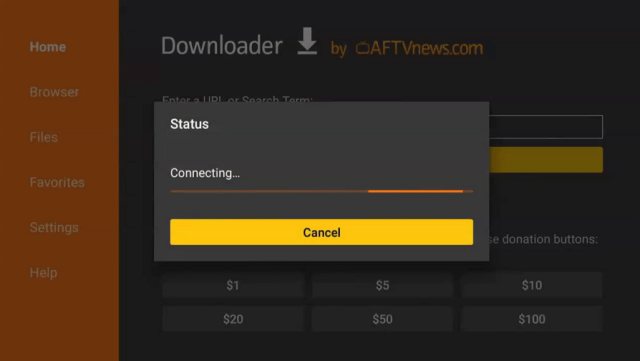
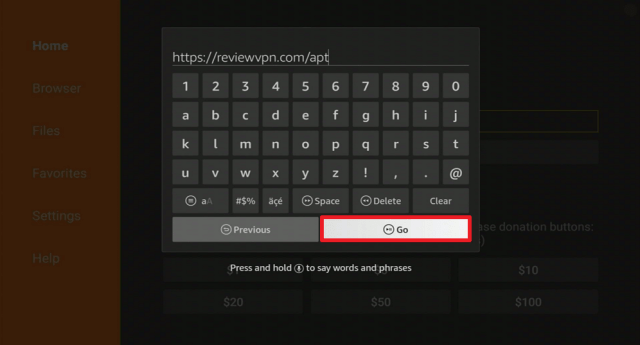
2. Open the Downloader App. Type https://reviewvpn.com/apt and click Go.

Install FuboTV App


3. Wait for the file download to finish.

Install FuboTV App 1


4. Click Install.

Install FuboTV App 2


5. Select Open to launch the app.

Install FuboTV App 3


6. Click OK.

Install FuboTV App 5


7. Choose Allow.

Install FuboTV App 4


8. Click on the Search button.

Install FuboTV App 6


9. Type in “FuboTV”.

Install FuboTV App 7


10. Choose “Install”.


11. Once the download is complete, select “Install”.

Install FuboTV App 9


12. Click Package installer

Install FuboTV App 12


13. Click Open.

Install FuboTV App 10


14. You can now sign in with your account to start streaming.

Install FuboTV App 11


Stream Safely With a VPN

https://get.surfshark.net/aff_c?offer_id=865&aff_id=12312

Geo-restricted apps like Fubo TV and Vidgo give us a hard time when we are out of the country. Good thing that there is a way to solve this problem.

A Virtual Private Network or VPN is a great way to destroy geo-restrictions and still access any apps, websites, and content that are not available in your area. No need to hop on a plane and go to another country just to watch any content.

A VPN is software that hides your real IP, provides a new one from another country, and changes your online location. Through this, you can access a lot of services online. This can also hide the user’s identity and information, making him anonymous while streaming. So you can enjoy watching your favorite shows and not worrying about trackers and hackers that would want to locate and profile you.

We always suggest using Surfshark. It is the best VPN overall as it works by providing all of the services that we need when streaming. To know more about this, you can read our Surfshark Review.

Best Surfshark Features
  • Thousands of servers are available
  • Lets you choose a specific location and network
  • Military-grade VPN protocols and encryption
  • Gives access to geo-restricted content
  • Follows a Zero Log Policy
  • 100% 30-day money-back guarantee on your first trial
  • Compatible with all types of devices
  • Unlimited devices simultaneously
  • Cloud Storage
  • P2P friendly
  • SOCKS5 Proxy
  • Best for Torrenting
  • Kill Switch
  • Split Tunneling
  • DNS Leak Protection
  • Prevents Firestick Buffering and Kodi Buffering


Grab your subscription now!

Best Surfshark Deal


How to Install Surfshark VPN on Firestick

If your Firestick still has the older interface, read this article to learn how to update it: Update Firestick Interface.

You can download Surfshark directly from the Amazon App store. It will be easy for you to find Surfshark with your Firestick’s Find feature. Refer to our screenshots below.

1. Go to the Home screen of your Firestick.

step 1 Install Surfshark VPN on Firestick


2. Navigate towards the Find tab. Press the Search button from the resulting dropdown.

step 2 Install Surfshark VPN on Firestick


3. Type in the keyword of SurfShark and select from the suggestions that will appear.

step 3 Install Surfshark VPN on Firestick


4. Click the official SurfShark icon from your search results.

step 4 Install Surfshark VPN on Firestick


5. Press the Download (You own it) button.

step 5 Install Surfshark VPN on Firestick


6. The SurfShark VPN installer will download on your device.

step 6 Install Surfshark VPN on Firestick


7. SurfShark VPN’s app will automatically install itself on your Fire TV stick.

step 7 Install Surfshark VPN on Firestick


8. Press the Open button after completing SurfShark VPN’s installation process.

step 8 Install Surfshark VPN on Firestick


9. Please wait for the SurfShark VPN to load its user interface.

step 9 Install Surfshark VPN on Firestick


10. You can now log in with your SurfShark VPN account credentials.

step 10 Install Surfshark VPN on Firestick

Learn more about Surfshark and Grab the Best Surfshark Deal Now!


Install Surfshark on Firestick

Best Surfshark Deal


Other VPNs to Consider

NordVPN (Best for Streaming)

Best Features

  • 5000+ Server in 50+ Countries 
  • Military-Grade Encryption
  • Fast Connection Speed
  • Suitable to a lot of devices
  • No-Log Policy

Prices
  • Complete $5.89 per month (64% Discount)
  • Plus $4.59 per month (56% Discount)
  • Standard $3.69 per month (55% Discount)

Best Features

  • 750+ High-speed VPN Servers in 43 Locations
  • Military-Grade Encryption
  • Fastest HD Streaming and Gaming
  • 30-Day Money-Back Guarantee
  • Unlimited Data & Devices
  • No-Log Policy

Prices
  • 3 Years $1.99 per month (82% Discount)
  • 1 Years $3.29 per month (70% Discount)
  • 1 Month $10.99 per month

IPVanish VPN (Most Secure)

Best Features

  • 1200+ Servers in 60+ Countries around the world
  • Unlimited Connections
  • No-Log Policy
  • Top Notch Military-Grade VPN Protocols and Encryptions
  • 100% Safe and Secured
  • Most Trusted VPN
  • Best VPN for Firestick
  • 30-Day Money-Back Guarantee

Prices
  • Yearly $3.99 per month (63% Discount) – 30 days risk free + Ransomware & Malware Protection
  • Quarterly $5.32 per month (51% Discount)
  • Monthly $10.99 per month


For more VPN discounts, go to ReviewVPN Deals and purchase the best VPN for you.

Click here to get the lowest price on Surfshark through our exclusive limited-time offer.


FAQs

What Channel is Thursday Night Football On?

The NFL Network, Amazon Prime Video, and FOX are the channels where you can watch Thursday Night Football.


Who Plays Monday Night Football?

To know who plays Thursday Night Football tonight go to the official Thursday Night Football Schedule.


Can I Stream Thursday Night Football Without Cable?

You can definitely stream Thursday Night Football even without cable. Vidgo and Fubo TV are the best options to stream the games on Firestick without any cable subscription.


How to Watch Thursday Night Football on Firestick?

You can watch Thursday Night Football on Firestick using Amazon Prime Video. You can also stream the Games on NFL, Fox, Vidgo, and Fubo TV.


Conclusion

After years of changing the channel where we can watch Thursday Night Football, it finally found a new home on Amazon Prime. Although watching the games aren’t exactly free. To watch it without cable is very much possible with the help of Vidgo and Fubo TV. You can check the above details to install these apps on Firestick.

We hope that we are able to help you watch TNF on your Firestick even without a cable subscription.


How to Watch NFL Live Stream on Firestick – 3 Easy Methods (2023)

NFL Live Stream Overview

In this article, we will show you how the 3 best methods to watch the NFL Live Stream on Firestick.


It is that time of the year again to watch the National Football League, commonly known as NFL. Fans all over the world are already getting pumped up and excited to know the current NFL scores, schedule, standings, and games.

There are a variety of options on how to watch the NFL live stream on the Firestick. We will show you 3 different methods for this. Some of them are paid services and some are free. There are also some other websites featured in this article. To know more about this year’s NFL, click here.

We will be providing you authentic details on how to do this whether you prefer paid services or not. This is a win-win for everyone. So grab your beer and let’s have fun!


People Also Search for NFL:


ANONYMOUSLY

Is NFL Live Streaming Safe and Virus-free?

We tested this app using VirusTotal and found no threats or any malicious files and malware.

Despite having good results, we still need to be vigilant in protecting our privacy while streaming.

A Virtual Private Network or VPN will definitely help us maintain our security and anonymity while using NFL Live Streaming.

Here’s how you can Install The Best VPN For Firestick and All Devices.


How to Watch NFL Live Stream on Firestick – 3 Methods

NFL Live Stream Method 1 – Paid Streaming Services

This method is the best option for those who don’t mind paying just to keep up with current updates on the NFL.


NFL App

Price: $99/Whole NFL Season

The NFL App is available at the Amazon App Store. The download itself is free of charge but you will need to shell out $99 to get the NFL Game Pass that is good to cover the whole season.

Install NFL App on Firestick Guide
  1. On your Firestick Home Screen, click once to the left and hit the center button to access the search function.
  2. Type in NFL
  3. Choose the NFL Game Pass International App Icon
  4. Click on Get
  5. Select Open
  6. Input your username and password


AT&TV via https://www.directv.com/

Price: $69.99/Monthly for 12 Months Taxes Included

AT&T TV is a cable subscription that provides channels like Fox Sports, NBC Sports, and CBS. These channels show Live feeds for matches.

NFL Sunday Ticket Sunday

Install AT&T TV on Firestick Guide
  1. On your Firestick Home Screen, click once to the left and hit the center button to access the search function.
  2. Type in AT&T TV
  3. Choose the AT&T TV App Icon
  4. Click on Get
  5. Select Open


Youtube TV

Price: $64.99/month

Youtube TV is a great app that provides a superb list of channels for Sports, Entertainment, and News channels. it has an excellent DVR function that you can use whenever you miss something.

Install Youtube TV on Firestick Guide
  1. On your Firestick Home Screen, click once to the left and hit the center button to access the search function.
  2. Type in Youtube TV
  3. Choose the Youtube TV App Icon
  4. Click on Get
  5. Select Open


Hulu + Live TV

Price: $54.99/Monthly

Hulu + Live TV is a paid streaming service that treats its subscribers to more than 50 channels for Live TV. This includes Sports, Food, Travel, Business, and many more.

This is the cheapest deal compared to the other ones on this list.

Install Hulu on Firestick Guide
  1. On your Firestick Home Screen, click once to the left and hit the center button to access the search function.
  2. Type in Hulu
  3. Choose the Hulu App Icon
  4. Click on Get
  5. Select Open


Amazon Prime Video

Price: Starts with a 3-day free trial and then it charges $5.99 per month.

Amazon Prime Video is Amazon’s video streaming service. It has acquired the rights to Thursday Night Football.

You can watch movies, TV Shows, and Live TV channels using it. This also includes live games like the NFL, MLB, and NBA.

The Prime Video service is already pre-installed on the Firestick so there will be no need to install it manually.


How to Watch NFL Live Stream on Amazon Prime Video
  1. Launch Amazon Prime Video on your Firestick
  2. Use the Search Function
  3. Type in NFL
  4. Scroll to the right and choose NFL
  5. Click on the NFL icon
  6. Navigate through the episodes and click on one.


Sling TV

Price: Sling Blue $30

Sling TV is a popular streaming service that offers up to 30 channels. It has 2 types of service packages, Sling Blue and Sling Orange.

The good thing about this service is it is customizable. You can combine both packages or you can have add-ons for Sports and Comedy.

The add-on Sports channels are applicable to the Blue package. But there will be no need to have the additional channels because the Blue package already has Fox Sports. That is good enough to let you watch NFL Live.


How to Watch NFL Live Stream on Sling TV
  1. Register for an account at https://news.sling.com/registration
  2. On your Firestick Home Screen, click once to the left and hit the center button to access the search function.
  3. Type in Sling TV
  4. Choose the Sling TV Icon
  5. Click on Get
  6. Select Open
  7. Login your credentials.
  8. You can now start watching the NFL.


NFL Live Stream Method 2 – Free Live TV Apps

If you are an avid fan of the NFL but are on a tight budget, this next section is the best bet for you.

Aside from paid streaming apps and services, the Amazon Firestick can also allow users to watch content for free. You can only do this by having your Firestick jailbroken. Follow this guide to do it:

Jailbreak Firestick

After jailbreaking the Firestick, you will be needing the Downloader App. Read this tutorial to install it on your Firestick:

Install Downloader App on Firestick.

After installing these apps on your Firestick, we can now proceed to install free Live TV Apps on your Firestick.

LiveNet TV

LiveNet TV is amongst our list of Best Live TV Apps.

This is no wonder because LiveNet TV has been in the game for so long. It is a reliable app for Live TV because of the robust list of channels it offers.

It provides 135 Sports channels and included in that list is Fox Sports USA. This channel has live feeds for NFL matches.

Having said that, LiveNet TV is one of the best NFL Live Stream APK for Firestick and also one of the Best Free Sports.

Note: You can refer to our article, Best Free Sports Apps, for other good Sports Apps.

YOUR INTERNET ACTIVITY IS BEING WATCHED

ReviewVPN cannot attest to the legality, security and privacy of the applications discussed on this site. It is highly recommended that you use a VPN service while streaming or using Kodi.

Currently, your IP 216.73.216.144 is visible to everyone and your Browser is being tracked by Advertisers & ISP Provider.

Save 65% Now

Limited Time Offer

Here are the main reasons why you must use a VPN:

  • Your activities are hidden from your ISP, the government, and from the apps you are using.
  • You can access additional movies and TV streams.
  • ISP attempts to throttle are thrwarted thus reducing buffering issues.
  • Geographically restricted content like Netflix and Hulu can be unblocked.

A VPN works be replacing your ISP-assigned IP address and creating an encrypted tunnel. We recommend the no log service offered by IPVanish. It works well on a Firestick and offers the fastest possible speeds.

Special Limited Time Offer - Get IPVanish


Legal Disclaimer: ReviewVPN.com does not encourage or endorse any illegal activity involved in the usage of services and applications referenced on this site. We do not verify the licensing agreements of services. The end-user is wholly responsible for ensuring that any media accessed through these services does not violate copyright and/or licensing laws. ReviewVPN does not promote, link to, or receive compensation from any Apps and IPTV services.


Install Surfshark on Firestick

Best Surfshark Deal


How to Install Live NetTV Firestick Guide

  1. Go to Settings and select Device.
  2. Choose Developer Options
  3. Turn on the ADB Debugging and Apps From Unknown Sources
  4. After turning these options on, launch the Amazon App Store on your device
  5. Search and Download Downloader
  6. Install Downloader and launch it after installing it.
  7. Choose Allow and Select Ok
  8. Type in https://reviewvpn.com/livenet and select Go
  9. Wait for it to finish and then select Live NetTV
  10. Select Done
  11. This will automatically take you back to Downloader. Select Delete
  12. Choose Delete one more time
  13. Head back to the home screen and under the Your Apps & Channels select Choose All
  14. Scroll down and select Live NetTV and select the Options.
  15. Then select Move to Front
  16. Live NetTV will be moved forward to Your Apps and Channels
  17. After this, you will see Live NetTV and click it to launch.


Install Live NetTV on Firestick Sideloading Guide with Screenshots

1. Install the Downloader app and jailbreak your firestick by enabling unknown sources. To learn more about the procedure, you may read How to Install the Downloader App and Enable Unknown Sources.


2.  Type https://reviewvpn.com/livenet and click Go.

NFL Live Stream


3. Click on INSTALL

NFL Live Stream


4. Click on OPEN

NFL Live Stream


5. Click Continue.

NFL Live Stream


6. Click Allow.

NFL Live Stream


7. Live NetTV is Installed. Enjoy Watching.

NFL Live Stream

Note: Please read our Live NetTV Review for more information.

Other Good Sports Apps

TV Tap Pro

TV Tap Image

Install TV Tap Pro on Firestick


Swift Streamz

Install Swift Streamz on Firestick

Media Lounge

media lounge logo

Install Media Lounge on Firestick

Free Flix HQ

freeflix hq logo

Install Free Flix HQ on Firestick

Strix

strix logo

Install Strix on Firestick

All of these aforementioned streaming apps are free and have a good Live TV Section. You can read our Best Sports Apps Review for further details regarding these apps.


Note: If you prefer using Kodi to stream on your Firestick, you can read our Best Kodi Sports Add-ons Article to help you choose which add-ons are the best to watch NFL Live on Firestick.


NFL Live Stream Method 3 – NFL Free Streaming Websites

The following websites feature Live feeds for the NFL. You can use these links on the Silk Browser on your Firestick. There will be some ads but they are not really annoying. You can still enjoy NFL Live streams using these sites.


Please avoid this site:

https://sports24.club/

This site is now requiring an account. The site is now asking for personal information and credit card details. We see this as a red flag that is why we are no longer recommending it.

Be sure to use a VPN like Surfshark whenever you access these websites.


Stream Safely with a VPN

surfshark logo

The most important thing to remember about streaming is that it consumes a lot of data. In the US, ISPs are adamant about monitoring all of your online activities. Once it sees most of your data, it will surely bring down your connection speed. To prevent this from happening, you will need a reliable VPN service like Surfshark.

Here are the other advantages of using it while streaming:

  • It hides your online identity and activities as well.
  • Provides users access to location-based content.
  • Fixes buffering on any device.
  • Prevents ISP Throttling
  • Provides users an extra layer of protection against online threats.
  • Keeps all of your personal data secured.
  • 3200+ servers in 65 countries

Note: For more information about Surfshark, please read our Surfshark Review.


Grab your subscription now!

Click here to get the lowest price on Surfshark through our exclusive limited-time offer.


How to Install Surfshark VPN on Firestick

If your Firestick still has the older interface, read this article to learn how to update it: Update Firestick Interface.

Follow our screenshots below to install the SurfShark VPN app on your Fire TV stick.

1. Go to the Home screen of your Firestick.

step 1 Install Surfshark VPN on Firestick


2. Navigate towards the Find tab. Press the Search button from the resulting dropdown.

step 2 Install Surfshark VPN on Firestick


3. Type in the keyword of SurfShark and select from the suggestions that will appear.

step 3 Install Surfshark VPN on Firestick


4. Click the official SurfShark icon from your search results.

step 4 Install Surfshark VPN on Firestick


5. Press the Download (You own it) button.

step 5 Install Surfshark VPN on Firestick


6. The SurfShark VPN installer will download on your device.

step 6 Install Surfshark VPN on Firestick


7. SurfShark VPN’s app will automatically install itself on your Fire TV stick.

step 7 Install Surfshark VPN on Firestick


8. Press the Open button after completing SurfShark VPN’s installation process.

step 8 Install Surfshark VPN on Firestick


9. Please wait for the SurfShark VPN to load its user interface.

step 9 Install Surfshark VPN on Firestick


10. You can now log in with your SurfShark VPN account credentials.

step 10 Install Surfshark VPN on Firestick

Learn more about Surfshark and Grab the Best Surfshark Deal Now!


Install Surfshark on Firestick

Best Surfshark Deal


Other VPNs to Consider

NordVPN (Best for Streaming)

Best Features

  • 5000+ Server in 50+ Countries 
  • Military-Grade Encryption
  • Fast Connection Speed
  • Suitable to a lot of devices
  • No-Log Policy

Prices
  • Complete $5.89 per month (64% Discount)
  • Plus $4.59 per month (56% Discount)
  • Standard $3.69 per month (55% Discount)

Best Features

  • 750+ High-speed VPN Servers in 43 Locations
  • Military-Grade Encryption
  • Fastest HD Streaming and Gaming
  • 30-Day Money-Back Guarantee
  • Unlimited Data & Devices
  • No-Log Policy

Prices
  • 3 Years $1.99 per month (82% Discount)
  • 1 Years $3.29 per month (70% Discount)
  • 1 Month $10.99 per month

IPVanish VPN (Most Secure)

Best Features

  • 1200+ Servers in 60+ Countries around the world
  • Unlimited Connections
  • No-Log Policy
  • Top Notch Military-Grade VPN Protocols and Encryptions
  • 100% Safe and Secured
  • Most Trusted VPN
  • Best VPN for Firestick
  • 30-Day Money-Back Guarantee

Prices
  • Yearly $3.99 per month (63% Discount) – 30 days risk free + Ransomware & Malware Protection
  • Quarterly $5.32 per month (51% Discount)
  • Monthly $10.99 per month


For more VPN discounts, go to ReviewVPN Deals and purchase the best VPN for you.


FAQ

How to Watch the NFL Games Live?

You can refer to our article on Best Free Sports Apps to get the top sports apps for the Firestick.


What are the Channels that feature Live NFL Games?

The most popular channels that feature NFL are Fox, CBS, ESPN, NBC, and NFL Network on Firestick. You can access these channels on apps featured in our Best Live TV Apps.


How to activate NFL on Amazon Fire Stick?

Install the NFL App on your Firestick. Be sure to get your NFL Game Pass here to activate NFL on Amazon Fire Stick.


How to Watch Football on Amazon Fire Stick?

The methods we have presented above are the best ways how you can watch Football on Amazon Fire Stick.


When does NFL Season Start?

The NFL season commonly starts at the end of August or the early weeks of September every year.


How to Live Stream the NFL Games?

You can live stream the NFL games by following the 3 methods stated above. You can use paid applications, free applications, and websites.


Conclusion

The NFL is indeed one of the most anticipated sports events during the year.

With the pandemic ongoing, the next best thing to watch it in the arena is by streaming it.

Any of the aforementioned methods are really good and working.

Try them out now so you can cheer for your favorite team. Enjoy the best matches with friends and family!

We hope that this article provides you with all the necessary information you will need to watch NFL Live on Firestick. Thank you for reading! Stay Safe!


Note: ReviewVPN.com does not own or operate any app nor does it endorse any. The main purpose of this article is strictly for educational purposes only.

You may also like:

Top Unlinked Codes

Best Free Streaming Movie Websites

Best Firestick Apps

Stop Buffering on Kodi


What Is Your Favorite Streaming App? Cast Your Vote Below.

How to Watch Sunday Night Football on Firestick Without Cable

Sunday Night Football

If you like football so much then you’ll definitely love this article too. We will show you how you can watch Sunday Night Football on your Fire TV even without cable.

Sunday Night Football is a weekly telecast of the National Football League, NFL on the NBC Channel, and Peacock. It has been a tradition to watch Sunday Night Football during the Fall season for more than 15 years. This is very similar to Monday Night Football and Thursday Night Football.

Sometimes, the games air on Thursdays, but since it is NBC’s broadcast rights, they still call it Sunday Night Football.

You can go to the official NFL website to check the Sunday Night Football Schedule.

It is not free to watch the games but you can stream them on your Firestick even without cable.

NBC Sport is the best app to watch Sunday Night Football. We will help you install this app on your device.

We also want to introduce the best alternative which is Fubo TV, but you need to Jailbreak your Firestick first and use the Downloader app to install it.

These apps are geo-restricted, so to watch the games outside the US, you need to use a reliable VPN.


ANONYMOUSLY


How to Watch Sunday Night Football on Firestick Without Cable

It is better if you are a premium Peacock subscriber because there are a lot of great ways for you to watch Sunday Night Football even without cable subscriptions.


NBC Sports App

NBC Sports App - Sunday Night Football

The NBC Sports app is the best way to watch Sunday Night Football. It is available on Firestick, Android, iOS, and Roku.

You can install it directly on your Fire TV device because it is an official Amazon app.

What’s amazing is that you can integrate other apps like Vidgo as a TV Provider to watch the games live.

There are also other sports that you can stream on NBC Sports App.

Here is How you can stream NBC outside the US.


How to Install the NBC Sports App with Screenshots

1.   Click FIND.

Sunday Night Football


2. Click Search.

Sunday Night Football


3. Type NBC Sports and click on the suggestion

Sunday Night Football


4. Tap the icon of the app when it appears

Sunday Night Football


5. Click the Get or Download button to install the app

Sunday Night Football


6. Select Open to launch the app

Sunday Night Football


YOUR INTERNET ACTIVITY IS BEING WATCHED

ReviewVPN cannot attest to the legality, security and privacy of the applications discussed on this site. It is highly recommended that you use a VPN service while streaming or using Kodi.

Currently, your IP 216.73.216.144 is visible to everyone and your Browser is being tracked by Advertisers & ISP Provider.

Save 65% Now

Limited Time Offer

Here are the main reasons why you must use a VPN:

  • Your activities are hidden from your ISP, the government, and from the apps you are using.
  • You can access additional movies and TV streams.
  • ISP attempts to throttle are thrwarted thus reducing buffering issues.
  • Geographically restricted content like Netflix and Hulu can be unblocked.

A VPN works be replacing your ISP-assigned IP address and creating an encrypted tunnel. We recommend the no log service offered by IPVanish. It works well on a Firestick and offers the fastest possible speeds.

Special Limited Time Offer - Get IPVanish


Legal Disclaimer: ReviewVPN.com does not encourage or endorse any illegal activity involved in the usage of services and applications referenced on this site. We do not verify the licensing agreements of services. The end-user is wholly responsible for ensuring that any media accessed through these services does not violate copyright and/or licensing laws. ReviewVPN does not promote, link to, or receive compensation from any Apps and IPTV services.


Install Surfshark on Firestick

Best Surfshark Deal


Fubo TV

Fubo tv

Fubo TV is one of the best IPTV providers where you can stream on different channels. Some of them are ESPN, NFL, ABC, Big Ten Network, FOX, and many more.

Fubo TV offers 3 types of subscriptions. You can acquire the 7-day free trial to check if it’s service firsthand before paying.

You need Google on Firestick to install Fubo TV, and that is hard to do. So we are using Aptoide to install the app. Take note that you need to jailbreak your Firestick and use the Downloader app.

Fubo TV is geo-restricted but here is how you can access Fubo TV outside the USA.


How to Install Fubo TV on Firestick

1. Install the Downloader app and jailbreak your firestick by enabling unknown sources. To learn more about the procedure, you may read How to Install the Downloader App and Enable Unknown Sources.


2. Open the Downloader App. Type https://reviewvpn.com/apt and click Go.

Install FuboTV App


3. Wait for the file download to finish.

Install FuboTV App 1


4. Click Install.

Install FuboTV App 2


5. Select Open to launch the app.

Install FuboTV App 3


6. Click OK.

Install FuboTV App 5


7. Choose Allow.

Install FuboTV App 4


8. Click on the Search button.

Install FuboTV App 6


9. Type in “FuboTV”.

Install FuboTV App 7


10. Choose “Install”.


11. Once the download is complete, select “Install”.

Install FuboTV App 9


12. Click the Package installer

Install FuboTV App 12


13. Click Open.

Install FuboTV App 10


14. You can now sign in with your account to start streaming.

Install FuboTV App 11


Stream Safely With a VPN

https://get.surfshark.net/aff_c?offer_id=865&aff_id=12312

Streaming Sunday Night Football outside the USA is very hard without the use of a Virtual Private Network. A VPN is a great software that can hide your IP address and connect you to a different one from another country that you want to access. Say, for example, you want to access US Netflix outside the country, a VPN will help you do that. In this case, Fubo TV and NBC Sports App are both geo-restricted apps. To use them outside the US, you definitely need a VPN.

Not only does it help you bypass geo-restriction but also protects your identity from trackers, malicious domains, and websites that would try to locate, and profile you. It even protects you from your Internet Service Provider (ISP) from seeing your online activities.

The best VPN in the market today is Surfshark. It is affordable, fast, bypasses geo-restrictions, and secures your identity online. It has more benefits and you can find them all here in our Surfshark Review.

Best Surfshark Features
  • Thousands of servers worldwide
  • Provides the best possible network
  • Military-grade VPN protocols and encryption
  • By-pass geo-restrictions
  • No Log Policy
  • 30-day money-back guarantee
  • Compatible with all types of devices
  • Unlimited devices simultaneously
  • Cloud Storage
  • P2P friendly
  • SOCKS5 Proxy
  • Best for Torrenting
  • Kill Switch
  • Split Tunneling
  • DNS Leak Protection
  • Prevents Firestick Buffering and Kodi Buffering


Grab your subscription now!

Best Surfshark Deal


How to Install Surfshark VPN on Firestick

If your Firestick still has the older interface, read this article to learn how to update it: Update Firestick Interface.

You can download Surfshark directly from the Amazon App store. It will be easy for you to find Surfshark with your Firestick’s Find feature. Refer to our screenshots below.

1. Go to the Home screen of your Firestick.

step 1 Install Surfshark VPN on Firestick


2. Navigate towards the Find tab. Press the Search button from the resulting dropdown.

step 2 Install Surfshark VPN on Firestick


3. Type in the keyword of SurfShark and select from the suggestions that will appear.

step 3 Install Surfshark VPN on Firestick


4. Click the official SurfShark icon from your search results.

step 4 Install Surfshark VPN on Firestick


5. Press the Download (You own it) button.

step 5 Install Surfshark VPN on Firestick


6. The SurfShark VPN installer will download on your device.

step 6 Install Surfshark VPN on Firestick


7. SurfShark VPN’s app will automatically install itself on your Fire TV stick.

step 7 Install Surfshark VPN on Firestick


8. Press the Open button after completing SurfShark VPN’s installation process.

step 8 Install Surfshark VPN on Firestick


9. Please wait for the SurfShark VPN to load its user interface.

step 9 Install Surfshark VPN on Firestick


10. You can now log in with your SurfShark VPN account credentials.

step 10 Install Surfshark VPN on Firestick

Learn more about Surfshark and Grab the Best Surfshark Deal Now!


Install Surfshark on Firestick

Best Surfshark Deal


Other VPNs to Consider

NordVPN (Best for Streaming)

Best Features

  • 5000+ Server in 50+ Countries 
  • Military-Grade Encryption
  • Fast Connection Speed
  • Suitable to a lot of devices
  • No-Log Policy

Prices
  • Complete $5.89 per month (64% Discount)
  • Plus $4.59 per month (56% Discount)
  • Standard $3.69 per month (55% Discount)

Best Features

  • 750+ High-speed VPN Servers in 43 Locations
  • Military-Grade Encryption
  • Fastest HD Streaming and Gaming
  • 30-Day Money-Back Guarantee
  • Unlimited Data & Devices
  • No-Log Policy

Prices
  • 3 Years $1.99 per month (82% Discount)
  • 1 Years $3.29 per month (70% Discount)
  • 1 Month $10.99 per month

IPVanish VPN (Most Secure)

Best Features

  • 1200+ Servers in 60+ Countries around the world
  • Unlimited Connections
  • No-Log Policy
  • Top Notch Military-Grade VPN Protocols and Encryptions
  • 100% Safe and Secured
  • Most Trusted VPN
  • Best VPN for Firestick
  • 30-Day Money-Back Guarantee

Prices
  • Yearly $3.99 per month (63% Discount) – 30 days risk free + Ransomware & Malware Protection
  • Quarterly $5.32 per month (51% Discount)
  • Monthly $10.99 per month


For more VPN discounts, go to ReviewVPN Deals and purchase the best VPN for you.

Click here to get the lowest price on Surfshark through our exclusive limited-time offer.


FAQs

What Channel is Sunday Night Football On?

You can watch Sunday Night Football on NBC and on its sub-channels.


Who Plays Sunday Night Football?

To know who plays Sunday Night Football tonight go to the official Sunday Night Football Schedule.


Can I Stream Sunday Night Football Without Cable?

If you have subscriptions for Peacock, there are many ways that you stream Sunday Night Football even without cable. NBC Sports App is the best option yo stream the games. You can also try Fubo TV and Vidgo TV.


How to Watch Sunday Night Football on Firestick?

Install the NBC Sports App to watch the games on Firestick. It is only available in the US so use a VPN if you are located outside the country. You can also install Fubo TV to watch Sunday Night Football on Firestick. See the instructions above to easily install the apps on your device.


Conclusion

NBC has its rights to broadcast Sunday Night Football. Even if the games aren’t streaming on Sunday nights, you can still stream them on Sunday Night Football shows on NBC.

For Peacock subscribers, the NBC Sports App is the best option to watch the games. You can still stream them using Vidgo and Fubo TV.

We hope that we are able to help you stream Sunday Night Football on your Firestick device even without cable subscriptions.

How to Install Volta on Firestick and Android

Volta

This article will show you how to install the Volta App on your Firestick and Android devices.

There are a lot of apps that you can use on Firestick and Android that provide free streaming for movies and TV shows. One of the newest apps that we can add to our arsenal of movie apks is Volta.

Volta offers free streaming of your favorite and newly released titles, international independent films, and documentaries to watch on any device. Especially if you are looking for Irish cinema, then this is the best app for you.

Volta is a third-party application. In order to install this app on your device, you need to jailbreak your Firestick first and use the Downloader app.

Make sure to use a reliable VPN service when streaming on and using third-party apps to secure your privacy from malicious trackers. Continue reading for more information.

ANONYMOUSLY


Volta APK Download for Android Devices


Volta

Note: ReviewVPN.com does not host this APK file. It is hosted by Archive.org


How to Install Volta On Firestick & Fire TV

1.  Click Home on your remote and scroll once to your Right. Click Setting (Gear Wheel Icon).

Volta


2. Scroll down and to the right until you get to My Fire TV. Click on it.

Volta


3. Select Developer options.

Volta


4. Turn on ADB debugging and Apps from Unknown Sources.

Volta


5. Click Turn On when the pop-up appears.

Volta


6. Click Home, click FIND.

Volta


7. Click Search.

Volta


8. You can either say Downloader to your Alexa voice-enabled remote or start typing it. If you type it, click on the suggestion when it appears.

Volta


9. Click on the Downloader Icon.

Volta


10. Click Download.

Volta

Volta


11. Click on Open.

Volta


12. Click on Allow.

Volta


13. Use the Downloader search tab.

Volta


14. Open the Downloader App. Type https://reviewvpn.com/vlt and click Go.

Volta


15. Wait for the APK to be downloaded.

Volta

Volta


16. Click install

Volta


17. Click open.

Volta


18. Volta is already installed. Choose how would you like to sign in.

Volta


YOUR INTERNET ACTIVITY IS BEING WATCHED

ReviewVPN cannot attest to the legality, security and privacy of the applications discussed on this site. It is highly recommended that you use a VPN service while streaming or using Kodi.

Currently, your IP 216.73.216.144 is visible to everyone and your Browser is being tracked by Advertisers & ISP Provider.

Save 65% Now

Limited Time Offer

Here are the main reasons why you must use a VPN:

  • Your activities are hidden from your ISP, the government, and from the apps you are using.
  • You can access additional movies and TV streams.
  • ISP attempts to throttle are thrwarted thus reducing buffering issues.
  • Geographically restricted content like Netflix and Hulu can be unblocked.

A VPN works be replacing your ISP-assigned IP address and creating an encrypted tunnel. We recommend the no log service offered by IPVanish. It works well on a Firestick and offers the fastest possible speeds.

Special Limited Time Offer - Get IPVanish


Legal Disclaimer: ReviewVPN.com does not encourage or endorse any illegal activity involved in the usage of services and applications referenced on this site. We do not verify the licensing agreements of services. The end-user is wholly responsible for ensuring that any media accessed through these services does not violate copyright and/or licensing laws. ReviewVPN does not promote, link to, or receive compensation from any Apps and IPTV services.


Install Surfshark on Firestick

Get the Best Surfshark Deal


Volta Features

  • Works on Irish Server
  • Compatible with Surfshark
  • Requires registration or Code
  • Free streaming platform
  • Tons of great shows and genres


Pros and Cons

Pros

  • Free Streaming Platform


Cons

  • Geo-restricted


Stream Safely With A VPN

Surfshark vpn

Volta is best when you are connected to an Irish server. Geo-restriction is one of the main problems that most cord-cutters face nowadays. You will not know the full potential of this app if your IP is not located in a designated location for a specific channel. This platform can know your location through your IP address. All trackers also use your IP address not just to know your site but also to know your personal information. This is very dangerous for your privacy.

By using a Virtual Private Network or VPN, you can set your IP address in a desired location or country. It can also secure your privacy against malicious trackers that tend to collect your personal information.

Surfshark is the best VPN in the market today. It lets you choose from over 3200 servers around the world. This VPN provides the best VPN protocols and military-grade encryption that can assure your privacy.

If you want to know more, read our  SurfShark VPN review.

Other SurfShark Features

  • 3200 servers available in 100+ countries
  • Best VPN for torrenting
  • Destroys geo-restriction
  • Dedicated IP
  • 30-day money-back guarantee
  • Cloud Storage
  • P2P friendly VPN
  • SOCKS5 Proxy
  • Allows Torrenting
  • Kill Switch
  • Split Tunneling
  • DNS Leak Protection
  • Prevents Firestick Buffering and Kodi Buffering

For more details about this VPN, read our SurfShark review.


Grab your subscription now!

Best Surfshark Deal


How to Install Surfshark on Firestick with Screenshots

If your Firestick still has the older interface, read this article to learn how to update it: Update Firestick Interface.

You can download Surfshark directly from the Amazon App Store. It will be easy for you to find Surfshark with your Firestick’s Find feature. Refer to our screenshots below.

Follow our screenshots below to install the SurfShark VPN app on your Fire TV stick.

1. Go to the Home screen of your Firestick.

step 1 Install Surfshark VPN on Firestick


2. Navigate toward the Find tab. Press the Search button from the resulting dropdown.

step 2 Install Surfshark VPN on Firestick


3. Type in the keyword of SurfShark and select from the suggestions that will appear.

step 3 Install Surfshark VPN on Firestick


4. Click the official SurfShark icon from your search results.

step 4 Install Surfshark VPN on Firestick


5. Press the Download (You Own it) button.

step 5 Install Surfshark VPN on Firestick


6. The SurfShark VPN installer will download on your device.

step 6 Install Surfshark VPN on Firestick


7. SurfShark VPN’s app will automatically install itself on your Fire TV stick.

step 7 Install Surfshark VPN on Firestick


8. Press the Open button after completing SurfShark VPN’s installation process.

step 8 Install Surfshark VPN on Firestick


9. Please wait for the SurfShark VPN to load its user interface.

step 9 Install Surfshark VPN on Firestick


10. You can now log in with your SurfShark VPN account credentials.

step 10 Install Surfshark VPN on Firestick

Learn more about Surfshark and Grab the Best Surfshark Deal Now!


Install Surfshark on Firestick

Best Surfshark Deal


Other VPNs to Consider

NordVPN (Best for Streaming)

Best Features

  • 5000+ Server in 50+ Countries 
  • Military-Grade Encryption
  • Fast Connection Speed
  • Suitable to a lot of devices
  • No-Log Policy

Prices
  • Complete $5.89 per month (64% Discount)
  • Plus $4.59 per month (56% Discount)
  • Standard $3.69 per month (55% Discount)

Best Features

  • 750+ High-speed VPN Servers in 43 Locations
  • Military-Grade Encryption
  • Fastest HD Streaming and Gaming
  • 30-Day Money-Back Guarantee
  • Unlimited Data & Devices
  • No-Log Policy

Prices
  • 3 Years $1.99 per month (82% Discount)
  • 1 Years $3.29 per month (70% Discount)
  • 1 Month $10.99 per month

IPVanish VPN (Most Secure)

Best Features

  • 1200+ Servers in 60+ Countries around the world
  • Unlimited Connections
  • No-Log Policy
  • Top Notch Military-Grade VPN Protocols and Encryptions
  • 100% Safe and Secured
  • Most Trusted VPN
  • Best VPN for Firestick
  • 30-Day Money-Back Guarantee

Prices
  • Yearly $3.99 per month (63% Discount) – 30 days risk free + Ransomware & Malware Protection
  • Quarterly $5.32 per month (51% Discount)
  • Monthly $10.99 per month


For more VPN discounts, go to ReviewVPN Deals and purchase the best VPN for you.

Click here for the lowest price on Surfshark through our exclusive limited-time offer.


Best Volta Alternatives

There are a lot of great apps that you can use on your Android and Firestick devices to watch movies and TV shows for free. Here are the best Volta alternatives that you can install.


FAQs

What is Volta?

Volta is an Irish app that offers free streaming of your favorite and newly released titles, international independent films, and documentaries to watch on any device.


Is Volta Legal?

ReviewVPN.com cannot determine the legality of any app or website. This article is for educational purposes only. To ensure that you are safe from any legal matters regarding the apps and websites you are using, use a VPN service like Surfshark.


Is Volta Safe?

To ensure your safety and security when using the Volta app on your devices, use a reliable VPN service like Surfshark VPN.


Is Volta Free?

The Volta app is 100% free but it is only accessible if you use a reliable VPN like Surfshark and connect to an Irish server.


Conclusion

If you are looking for international independent films and documentaries, then you should definitely try this app. Just make sure to use a reliable VPN like Surfshark and connect to an Irish server to access and enjoy Volta completely.

How To Install Gallifrey Kodi Addon on Firestick/Android

Install Gallifrey Kodi Addon

This article will show you how to install Gallifrey Kodi Addon on Firestick/Android.

The Chains Repository’s Gallifrey Kodi Addon provides exclusive Torchwood and Doctor Who content. The primary categories are The Doctors, Torchwood, Specials, Movies, and Tools. Additionally, it allows you to use Debrid accounts like Real-Debrid, AllDebrid, and Premiumize to access the most excellent streaming links.

But first, let us caution you about the dangers of downloading an unofficial addon before we show you how to install the Gallifrey Kodi Addon on your device. You are unsure of if your logs or data are being collected and saved because independent developers operate it. Even Kodi denies all responsibility for any damages resulting from their installation on your device. Because of this, we strongly suggest using a VPN, such as Surfshark, to hide your IP address by giving you an anonymous one.


ANONYMOUSLY


How To Install Gallifrey Kodi Addon on Firestick

You can follow this tutorial to install Gallifrey Kodi Addon on your Firestick.

1. Launch the Kodi app on your Firestick. Click on the gear wheel icon (Settings)

Gallifrey Kodi Addon


2. Select “System

Gallifrey Kodi Addon

3. Scroll down to “Add-ons” Then Go to “Unknown sources” then toggle it on.

Gallifrey Kodi Addon


4. Select “Yes”. Then using your Firestick remote, press the return button to go back to the System page

Gallifrey Kodi Addon


5. Now choose “File Manager

Gallifrey Kodi Addon


6. Scroll down and select “Add source

Gallifrey Kodi Addon


7. Click “<None>

Gallifrey Kodi Addon


8. Type in “https://unhingedthemes.github.io then click “OK”

Gallifrey Kodi Addon


9. Highlight the box under the source to give the media source a name, and put “unhinged” or any other name that will help you identify it quickly. Click “OK”. Return to the System page by pressing the return button on your remote

Gallifrey Kodi Addon


10. Select “Add-ons

Gallifrey Kodi Addon


11. Choose “Install from zip file

Gallifrey Kodi Addon


12. Click “Yes

Gallifrey Kodi Addon


13. Select “unhinged

Gallifrey Kodi Addon


14. Then click on the zip file URL – repository.chainsrepo-x.x.x.zip

Gallifrey Kodi Addon


15. Wait for the notification “Chains Repository Add-on installed” to appear on the upper right part of the screen

Gallifrey Kodi Addon


16. Afterward, select “Install from repository

Gallifrey Kodi Addon


17. Then click “Chains Repository

Gallifrey Kodi Addon


18. Select “Video add-ons

Gallifrey Kodi Addon


19. Click on “Gallifrey

Gallifrey Kodi Addon


20. Then click “Install

Gallifrey Kodi Addon


21. Click “OK” for the additional add-ons that will be installed

Gallifrey Kodi Addon


22. Wait for the add-on to install. It’s finished once you see the “Gallifry Add-on Installed” message appear.

Gallifrey Kodi Addon


23. Select “Gallifrey” Then select “Open

Gallifrey Kodi Addon


24. That’s it, Gallifrey Kodi Addon is already installed in your Firestick.

Gallifrey Kodi Addon


YOUR INTERNET ACTIVITY IS BEING WATCHED

ReviewVPN cannot attest to the legality, security and privacy of the applications discussed on this site. It is highly recommended that you use a VPN service while streaming or using Kodi.

Currently, your IP 216.73.216.144 is visible to everyone and your Browser is being tracked by Advertisers & ISP Provider.

Save 65% Now

Limited Time Offer

Here are the main reasons why you must use a VPN:

  • Your activities are hidden from your ISP, the government, and from the apps you are using.
  • You can access additional movies and TV streams.
  • ISP attempts to throttle are thrwarted thus reducing buffering issues.
  • Geographically restricted content like Netflix and Hulu can be unblocked.

A VPN works be replacing your ISP-assigned IP address and creating an encrypted tunnel. We recommend the no log service offered by IPVanish. It works well on a Firestick and offers the fastest possible speeds.

Special Limited Time Offer - Get IPVanish


Legal Disclaimer: ReviewVPN.com does not encourage or endorse any illegal activity involved in the usage of services and applications referenced on this site. We do not verify the licensing agreements of services. The end-user is wholly responsible for ensuring that any media accessed through these services does not violate copyright and/or licensing laws. ReviewVPN does not promote, link to, or receive compensation from any Apps and IPTV services.


Install Surfshark on Firestick

Best Surfshark Deal


Features

  • Offers exclusive access to Doctor Who and Torchwood
  • Its Main sections are The Doctors, Torchwood, Specials, Movies, and Tools
  • The Doctors section provides individual shows per Doctor Who actors
  • Provides Trakt support
  • You can set the minimum and maximum quality of Movies and TV Shows
  • Supports debrid accounts such as Real-Debrid, AllDebrid, and Premiumize
  • Next Up, Auto Play, Shows Next Episode, Activate Next Episode, and Show Recommended Movie are available
  • Customizable context menu


Pros & Cons

Pros

  • Contains all the episodes of Doctor Who and Torchwood
  • Offers Trakt and debrid support
  • Easy to navigate

Cons

  • There are several playback failures
  • Log errors occur
  • No other content aside from Doctor Who, Torchwood, and The Doctors


Stream Safely With a VPN

Surfshark vpn

Software like Kodi makes streaming seem limitless. When looking for movies and television shows to watch on your smart devices, your options are virtually endless. But you can never be confident of their security because there are so many unofficial builds and add-ons accessible.

First, you’re unsure about the legitimacy of the streams you receive via these add-ons. The worst-case scenario is that you may be stopped and asked about your streaming behavior.

Second, you are not aware that behind these screens there can be invisible eyes. You can view movies, TV shows, and live TV, but we sincerely hope that you don’t endanger your data in the process. You will therefore need a powerful tool to assist you in keeping your online anonymity.

Therefore, we highly recommend choosing Surfshark as your VPN. It provides the following security precautions:

  • Extremely secure AES-256 GCM encryption.
  • The kill switch on your VPN will automatically disconnect you if your connection drops.
  • There are more than 3,200 servers spread across 100 locations.
  • There won’t be any logs or exposed IP addresses.
  • Its Cleanweb function prevents malware and ads.
  • A pop-up blocker for cookie consent is included.
  • Enables the usage of two-factor authentication to protect your account.

Note: For more information about Surfshark, please read our Surfshark Review.


Install Surfshark on Firestick

Best Surfshark Deal


How to Install Surfshark VPN on Firestick

If your Firestick still has the older interface, read this article to learn how to update it: Update Firestick Interface.

Follow our screenshots below to install the SurfShark VPN app on your Fire TV stick.

1. Go to the Home screen of your Firestick.

step 1 Install Surfshark VPN on Firestick


2. Navigate towards the Find tab. Press the Search button from the resulting dropdown.

step 2 Install Surfshark VPN on Firestick


3. Type in the keyword of SurfShark and select from the suggestions that will appear.

step 3 Install Surfshark VPN on Firestick


4. Click the official SurfShark icon from your search results.

step 4 Install Surfshark VPN on Firestick


5. Press the Download (You own it) button.

step 5 Install Surfshark VPN on Firestick


6. The SurfShark VPN installer will download on your device.

step 6 Install Surfshark VPN on Firestick


7. SurfShark VPN’s app will automatically install itself on your Fire TV stick.

step 7 Install Surfshark VPN on Firestick


8. Press the Open button after completing SurfShark VPN’s installation process.

step 8 Install Surfshark VPN on Firestick


9. Please wait for the SurfShark VPN to load its user interface.

step 9 Install Surfshark VPN on Firestick


10. You can now log in with your SurfShark VPN account credentials.

step 10 Install Surfshark VPN on Firestick

Learn more about Surfshark and Grab the Best Surfshark Deal Now!


Install Surfshark on Firestick

Best Surfshark Deal


Other VPNs to Consider

NordVPN (Best for Streaming)

Best Features

  • 5000+ Server in 50+ Countries 
  • Military-Grade Encryption
  • Fast Connection Speed
  • Suitable to a lot of devices
  • No-Log Policy

Prices
  • Complete $5.89 per month (64% Discount)
  • Plus $4.59 per month (56% Discount)
  • Standard $3.69 per month (55% Discount)

Best Features

  • 750+ High-speed VPN Servers in 43 Locations
  • Military-Grade Encryption
  • Fastest HD Streaming and Gaming
  • 30-Day Money-Back Guarantee
  • Unlimited Data & Devices
  • No-Log Policy

Prices
  • 3 Years $1.99 per month (82% Discount)
  • 1 Years $3.29 per month (70% Discount)
  • 1 Month $10.99 per month

IPVanish VPN (Most Secure)

Best Features

  • 1200+ Servers in 60+ Countries around the world
  • Unlimited Connections
  • No-Log Policy
  • Top Notch Military-Grade VPN Protocols and Encryptions
  • 100% Safe and Secured
  • Most Trusted VPN
  • Best VPN for Firestick
  • 30-Day Money-Back Guarantee

Prices
  • Yearly $3.99 per month (63% Discount) – 30 days risk free + Ransomware & Malware Protection
  • Quarterly $5.32 per month (51% Discount)
  • Monthly $10.99 per month


For more VPN discounts, go to ReviewVPN Deals and purchase the best VPN for you.


FAQs

What is Gallifrey Kodi Addon?

Gallifrey is a Kodi Addon from the Chains Repository that provides streaming for Doctor Who and Torchwood.


Is Gallifrey Kodi Addon safe?

Yes, it is safe to install and use on any Kodi-compatible device. However, we always recommend improving your security by employing antivirus software like TotalAV.


Is Gallifrey Kodi Addon legal?

We cannot guarantee the legality of the streams offered by Gallifrey. That is why we encourage you to remain anonymous when streaming from third-party addons like Gallifrey.


Wrapping Up

If you like Doctor Who and Torchwood then you might want to check out Gallifrey. However, as of this writing, I cannot find a title that provides a working streaming link. So I find this addon unstable even if it comes from the famous Chains Repository. But, of course, you can still try and see if it’ll work for you.

How to Watch ASB Classic on Amazon Firestick

ASB Classic

This article will show you how to watch ASB Classic on your Amazon Firestick device.

The ASB Classic is a series of World Class Tennis competitions. It includes both men’s and women’s tournaments (ATP Auckland Open & WTA Auckland Open). Fans all over the world enjoy ASB Classic as it also offers tons of great content related to world-class tennis, even Food and beverage offerings, Fashion, and Entertainment on show.

Although there are certain schedules for each tournament throughout the year, we will tell you how you can watch them on your Amazon Firestick.

You can stream the ASB Classic on your device using a popular, paid subscription app called DAZN.

DAZN is an official Amazon app that offers great content for sports. Most popular tournaments all over the world are available on DAZN.

You can install DAZN on your Firestick device directly. There is no need to jailbreak your Firestick and use the Downloader app. Just make sure to have a reliable VPN service to bypass geo-restriction and stream safely from anywhere in the world. Continue reading to know more.


ANONYMOUSLY


Watch ASB Classic on Firestick Using DAZN (Installation Guide)

1. Click FIND.

DAZN


2. Click Search.

DAZN


3. On the search bar, Type in DAZN. 

DAZN


4. Click on the icon of the DAZN.

DAZN


6. Tap on the Get or Download button to install the app.

DAZN


7. Wait a few minutes for the app to be installed.

DAZN


8. Click Open to launch the app.

DAZN


8. Select Sign-in, if you already have an account. If not, go to the DAZN website and create an account.

DAZN


YOUR INTERNET ACTIVITY IS BEING WATCHED

ReviewVPN cannot attest to the legality, security and privacy of the applications discussed on this site. It is highly recommended that you use a VPN service while streaming or using Kodi.

Currently, your IP 216.73.216.144 is visible to everyone and your Browser is being tracked by Advertisers & ISP Provider.

Save 65% Now

Limited Time Offer

Here are the main reasons why you must use a VPN:

  • Your activities are hidden from your ISP, the government, and from the apps you are using.
  • You can access additional movies and TV streams.
  • ISP attempts to throttle are thrwarted thus reducing buffering issues.
  • Geographically restricted content like Netflix and Hulu can be unblocked.

A VPN works be replacing your ISP-assigned IP address and creating an encrypted tunnel. We recommend the no log service offered by IPVanish. It works well on a Firestick and offers the fastest possible speeds.

Special Limited Time Offer - Get IPVanish


Legal Disclaimer: ReviewVPN.com does not encourage or endorse any illegal activity involved in the usage of services and applications referenced on this site. We do not verify the licensing agreements of services. The end-user is wholly responsible for ensuring that any media accessed through these services does not violate copyright and/or licensing laws. ReviewVPN does not promote, link to, or receive compensation from any Apps and IPTV services.


Install Surfshark on Firestick

Get the Best Surfshark Deal


ASB Classic Offers

  • ATP Auckland Open
  • WTA Auckland Open
  • Food and Beverage offerings
  • Fashion
  • Entertainment on Shows
  • Available on DAZN


Stream Safely With a VPN?

Surfshark vpn

When streaming sports on Firestick, you need to make sure that the platform you are using is safe. Most streaming apps and websites track the user using their IP address. If your IP address is exposed, even malicious trackers can know your personal information and location. This is dangerous to your privacy.

In order to get rid of trackers, you need to use a reliable VPN service. A VPN can hide your identity by concealing your IP address and providing an encrypted one that makes sure your information is safe from any spying eyes.

Surfshark is the best VPN for security. It has military-grade VPN encryptions that protect the users from any DNS leaks and tracking. It is the only VPN to unblock all streaming platforms like Netflix, Hulu, and many more. Surfshark provides military-grade encryption to all of its available servers which helps you be safe when streaming on different platforms, apps, and websites.

Read our  SurfShark review to know more about this amazing VPN.

Other SurfShark Features

  • 3200 servers available in 100+ countries
  • Best VPN for torrenting
  • Destroys geo-restriction
  • Dedicated IP
  • 30-day money-back guarantee
  • Cloud Storage
  • P2P friendly VPN
  • SOCKS5 Proxy
  • Allows Torrenting
  • Kill Switch
  • Split Tunneling
  • DNS Leak Protection
  • Prevents Firestick Buffering and Kodi Buffering

For more details about this VPN, read our SurfShark review.


Grab your subscription now!

Best Surfshark Deal


How to Install Surfshark on Firestick with Screenshots

If your Firestick still has the older interface, read this article to learn how to update it: Update Firestick Interface.

You can download Surfshark directly from the Amazon App Store. It will be easy for you to find Surfshark with your Firestick’s Find feature. Refer to our screenshots below.

Follow our screenshots below to install the SurfShark VPN app on your Fire TV stick.

1. Go to the Home screen of your Firestick.

step 1 Install Surfshark VPN on Firestick


2. Navigate toward the Find tab. Press the Search button from the resulting dropdown.

step 2 Install Surfshark VPN on Firestick


3. Type in the keyword of SurfShark and select from the suggestions that will appear.

step 3 Install Surfshark VPN on Firestick


4. Click the official SurfShark icon from your search results.

step 4 Install Surfshark VPN on Firestick


5. Press the Download (You Own it) button.

step 5 Install Surfshark VPN on Firestick


6. The SurfShark VPN installer will download on your device.

step 6 Install Surfshark VPN on Firestick


7. SurfShark VPN’s app will automatically install itself on your Fire TV stick.

step 7 Install Surfshark VPN on Firestick


8. Press the Open button after completing SurfShark VPN’s installation process.

step 8 Install Surfshark VPN on Firestick


9. Please wait for the SurfShark VPN to load its user interface.

step 9 Install Surfshark VPN on Firestick


10. You can now log in with your SurfShark VPN account credentials.

step 10 Install Surfshark VPN on Firestick

Learn more about Surfshark and Grab the Best Surfshark Deal Now!


Install Surfshark on Firestick

Best Surfshark Deal


Other VPNs to Consider

NordVPN (Best for Streaming)

Best Features

  • 5000+ Server in 50+ Countries 
  • Military-Grade Encryption
  • Fast Connection Speed
  • Suitable to a lot of devices
  • No-Log Policy

Prices
  • Complete $5.89 per month (64% Discount)
  • Plus $4.59 per month (56% Discount)
  • Standard $3.69 per month (55% Discount)

Best Features

  • 750+ High-speed VPN Servers in 43 Locations
  • Military-Grade Encryption
  • Fastest HD Streaming and Gaming
  • 30-Day Money-Back Guarantee
  • Unlimited Data & Devices
  • No-Log Policy

Prices
  • 3 Years $1.99 per month (82% Discount)
  • 1 Years $3.29 per month (70% Discount)
  • 1 Month $10.99 per month

IPVanish VPN (Most Secure)

Best Features

  • 1200+ Servers in 60+ Countries around the world
  • Unlimited Connections
  • No-Log Policy
  • Top Notch Military-Grade VPN Protocols and Encryptions
  • 100% Safe and Secured
  • Most Trusted VPN
  • Best VPN for Firestick
  • 30-Day Money-Back Guarantee

Prices
  • Yearly $3.99 per month (63% Discount) – 30 days risk free + Ransomware & Malware Protection
  • Quarterly $5.32 per month (51% Discount)
  • Monthly $10.99 per month


For more VPN discounts, go to ReviewVPN Deals and purchase the best VPN for you.

Click here for the lowest price on Surfshark through our exclusive limited-time offer.


FAQs

What is ASB Classic?

ASB Classic is a series that offers World-class Tennis like the ATP Auckland Open and  WTA Auckland Open. The ATP Auckland Open and  WTA Auckland Open referred to Men’s and Women’s respectively. ASB Classic also offers content for  Food and beverage offerings, Fashion, and Entertainment on show.


How can I watch The ASB Classic?

You can watch the ASB Classic on Firestick and other devices using the DAZN app.


Is It Legal to Watch The ASB Classic on DAZN?

ReviewVPN.com cannot determine the legality of any app or website. This article is for educational purposes only. To make sure that you are safe from any legal matters regarding the apps and websites you are using, use a VPN service like Surfshark.


Is It Safe to Watch ASB Classic on DAZN?

It is safe to watch ASB Classic on DAZN.


Is It Free To Watch ASB Classic on DAZN?

You can install the DAZN app for free but you need to sign app for an account and pay a monthly subscription to enjoy watching shows like the ASB Classic on your device.


Conclusion

Watching ASB Classic is possible on any device. You only need to use the DAZN app. Itis an official Amazon app so you can install it directly on your device. Make sure to use a reliable VPN like Surfshark when streaming on DAZN and other apps.