Install FapZone Kodi Addon

FapZone Kodi Addon Overview

This article will guide you to install the FapZone Kodi Addon.


Repository URL source: http://streamarmy.co.uk/repo/

FapZone Kodi Addon features complete categories of porn videos. It has a cute but sexy interface with all of the categories present in one playlist.

You can also search for a certain category like MILF, gay, threesome, etc.

Before entering and enjoying this addon, you must have a pin generated by the pin system and input it for not more than 30 minutes.

This addon is under the Stream Army Repo 18/19 Compatible Addon alongside Fight Club, FANime, EnterTain Me, NemesisAio, f4mTester, Feel The Music, SMR Link Tester, and XXX-O-DUS.

For more details about different adult addons for Kodi, you may check out these articles:

Best Adult Kodi Addons

Best Kodi Porn Addons


To enjoy the FapZone addon on Kodi using your Firestick, you need to jailbreak your Firestick first.

How to Jailbreak Firestick.

If you haven’t installed Kodi yet on your Firestick account, you need to have a downloader first before doing it so.

Install Downloader on Firestick

Guide to Install Kodi on Firestick


ANONYMOUSLY

Install FapZone Kodi Addon Guide

  1. Make sure Kodi is up and running and that you have allowed add-ons from unknown sources
  2. Click on settings which is the cog on the top left-hand corner of the home screen
  3. Go to System and Turn on Unknown Sources if you haven’t already done so
  4. Return to System and click File Manager
  5. Click Add Source and then choose “Add None”
  6. A URL bar will pop up, enter the following exactly: https://streamarmy.co.uk/repo/. If for any reason the URL does not work, enter it into Google and add the word mirror to find a working URL
  7. Name the streamarmy
  8. Return to the home screen and click add ons and then the box icon
  9. Install from Zip file
  10. Click on the streamarmy repository
  11. Choose the repository.StreamArmy-13.0.001.zip
  12. Go to Install from repository
  13. Select the Stream Army Repo 18/19 Compatible Addon
  14. Tap on Video add-ons
  15. Select the.FapZone addon
  16. Click Install


How to Install FapZone Kodi Addon with Screenshots

1. From the home screen, select the cogwheel at the upper left.

Step 1 Installing FapZone addon on Kodi


2. Select System in the bottom right corner.

Step 2 Installing FapZone addon on Kodi


3. Select Add-ons on the left side of the screen.

Step 3 Installing FapZone addon on Kodi


4. Select Unknown sources.

Step 4 Installing FapZone addon on Kodi


5. Click Yes to allow unknown sources.

Step 5 Installing FapZone addon on Kodi


6. Select File Manager.

Step 6 Installing FapZone addon on Kodi


7. Click Add source.

Step 7 Installing FapZone addon on Kodi


8. Click on <None>.

Step 8 Installing FapZone addon on Kodi


9. Type exactly: http://streamarmy.co.uk/repo/

FapZone 9


10. Click on OK.

FapZone 10


11. Type StreamArmy on the Name of this media source.

FapZone 11


12. Click on OK.

FapZone 12


13. Click on OK.

FapZone 13


14. Take one step back and click on Add-ons.

Step 15 Installing FapZone addon on Kodi


15. Select Install from zip file.

Step 16 Installing FapZone addon on Kodi


16. Click on streamarmy

FapZone 16


17. Choose the repository.StreamArmy-13.0.001.zip

FapZone 17


18. Go to Install from repository

FapZone 18


19. Look for Stream Army Repo 18/19 Compatible Addons

FapZone 19


20. Click Video Add-ons

FapZone 20


21. Select.FapZone addon

FapZone 21


22. Choose the Install button

FapZone 22


23. Upon installing, launch the addon by clicking Open

FapZone 23


YOUR INTERNET ACTIVITY IS BEING WATCHED

ReviewVPN cannot attest to the legality, security and privacy of the applications discussed on this site. It is highly recommended that you use a VPN service while streaming or using Kodi.

Currently, your IP 216.73.216.102 is visible to everyone and your Browser is being tracked by Advertisers & ISP Provider.

Save 65% Now

Limited Time Offer

Here are the main reasons why you must use a VPN:

  • Your activities are hidden from your ISP, the government, and from the apps you are using.
  • You can access additional movies and TV streams.
  • ISP attempts to throttle are thrwarted thus reducing buffering issues.
  • Geographically restricted content like Netflix and Hulu can be unblocked.

A VPN works be replacing your ISP-assigned IP address and creating an encrypted tunnel. We recommend the no log service offered by IPVanish. It works well on a Firestick and offers the fastest possible speeds.

Special Limited Time Offer - Get IPVanish

Legal Disclaimer: ReviewVPN.com does not encourage or endorse any illegal activity involved in the usage of services and applications referenced on this site. We do not verify the licensing agreements of services. The end-user is wholly responsible for ensuring that any media accessed through these services does not violate copyright and/or licensing laws. ReviewVPN does not promote, link to, or receive compensation from any Apps and IPTV services.


Install Surfshark on Firestick

Best Surfshark Deal


FapZone Kodi Addon Features

Interface

  • cute but sexy interface
  • lots of categories in one playlist
  • preview image available per category
  • Search bar available
  • need to generate a pin first before entering


Content

  • 72 categories available
  • massive selections of porn videos
  • full HD available


Categories Available

  • FapZone
  • HD Porn 1080p
  • Anal
  • 60 FPS
  • Teen
  • Japanese
  • Big Tits
  • Asian
  • POV
  • Amateur
  • MILF
  • Masturbation
  • Lesbian
  • Threesome
  • Interracial
  • Mature
  • Creampie
  • Big Ass
  • Hardcore
  • Ebony
  • Group Sex
  • Blowjob
  • Shemale
  • Homemade
  • Pornstar
  • Big Dick
  • Double Penetration
  • Blonde
  • HD Sex
  • Toys
  • BBW
  • Lingerie
  • Cumshot
  • Webcam
  • BDSM
  • Latina
  • Massage
  • Brunette
  • Squirt
  • Public
  • Orgy
  • Students
  • Petite
  • Gay
  • Striptease
  • Handjob
  • Indian
  • Redhead
  • Outdoor
  • Footjob
  • Small Tits
  • Fat
  • Older Men
  • Hentai
  • Fetish
  • Spy cams
  • Vintage
  • Swinger
  • Housewives
  • Office
  • Bondage
  • Uniform
  • HQ Porn
  • Bukkake
  • Doctor
  • For Women
  • Hotel
  • Fisting
  • Bisexual
  • Sleep
  • VR Porn
  • Nurses


Alternative Addons for FapZone:

There are a lot of porn add-ons available on Kodi. Here is the list of alternatives to choose from:


Should I Use Kodi with a VPN?

surfshark logo

We always recommend that you use Kodi with a VPN for several reasons:

  • Much of the content that you will watch on Kodi using unofficial add-ons isn’t being streamed and shared legally. This means that over time many of the links that you use will be blocked, either because the content provider has served a DMCA notice, or the ISP has blocked the URL for other reasons
  • Up to 50% of all online content is blocked by your ISP. This could be because the material is illegal or of questionable origin. The problem is, that you don’t get to choose which half you see
  • A VPN helps to view any content by encrypting your connection with 256-bit AES encryption. The same type is used by the US military. This means that no one, not even your ISP can stop you from viewing content. Because they can’t see what URL your request is bound for. Only that your connection disappears into your VPN’s DNS and reappears later.
  • Watching adult content means you may come across country restrictions on content like the UK porn block, or region-restricted content. Your VPN allows you to log onto servers in countries without restrictions and access any content you want
  • You are also able to obscure and change your original IP address to stop any traffic from being traced back to you, providing your VPN has no DNS leaks and has a solid zero logs policy

We recommend installing an active VPN on your device before downloading and installing Adult Kodi addons. This is to keep your connection encrypted and anonymous.

YOUR INTERNET ACTIVITY IS BEING WATCHED

ReviewVPN cannot attest to the legality, security and privacy of the applications discussed on this site. It is highly recommended that you use a VPN service while streaming or using Kodi.

Currently, your IP 216.73.216.102 is visible to everyone and your Browser is being tracked by Advertisers & ISP Provider.

Save 65% Now

Limited Time Offer

Here are the main reasons why you must use a VPN:

  • Your activities are hidden from your ISP, the government, and from the apps you are using.
  • You can access additional movies and TV streams.
  • ISP attempts to throttle are thrwarted thus reducing buffering issues.
  • Geographically restricted content like Netflix and Hulu can be unblocked.

A VPN works be replacing your ISP-assigned IP address and creating an encrypted tunnel. We recommend the no log service offered by IPVanish. It works well on a Firestick and offers the fastest possible speeds.

Special Limited Time Offer - Get IPVanish

Legal Disclaimer: ReviewVPN.com does not encourage or endorse any illegal activity involved in the usage of services and applications referenced on this site. We do not verify the licensing agreements of services. The end-user is wholly responsible for ensuring that any media accessed through these services does not violate copyright and/or licensing laws. ReviewVPN does not promote, link to, or receive compensation from any Apps and IPTV services.


Install Surfshark on Firestick

Best Surfshark Deal


How to Install Surfshark VPN on Firestick

If your Firestick still has the older interface, read this article to learn how to update it: Update Firestick Interface.

Follow our screenshots below to install the SurfShark VPN app on your Fire TV stick.

1. Go to the Home screen of your Firestick.

step 1 Install Surfshark VPN on Firestick


2. Navigate toward the Find tab. Press the Search button from the resulting dropdown.

step 2 Install Surfshark VPN on Firestick


3. Type in the keyword of SurfShark and select from the suggestions that will appear.

step 3 Install Surfshark VPN on Firestick


4. Click the official SurfShark icon from your search results.

step 4 Install Surfshark VPN on Firestick


5. Press the Download (You Own it) button.

step 5 Install Surfshark VPN on Firestick


6. The SurfShark VPN installer will download on your device.

step 6 Install Surfshark VPN on Firestick


7. SurfShark VPN’s app will automatically install itself on your Fire TV stick.

step 7 Install Surfshark VPN on Firestick


8. Press the Open button after completing SurfShark VPN’s installation process.

step 8 Install Surfshark VPN on Firestick


9. Please wait for the SurfShark VPN to load its user interface.

step 9 Install Surfshark VPN on Firestick


10. You can now log in with your SurfShark VPN account credentials.

step 10 Install Surfshark VPN on Firestick

Learn more about Surfshark and Grab the Best Surfshark Deal Now!


Install Surfshark on Firestick

Best Surfshark Deal


Other VPNs to Consider

NordVPN (Best for Streaming)

Best Features

  • 5000+ Server in 50+ Countries 
  • Military-Grade Encryption
  • Fast Connection Speed
  • Suitable to a lot of devices
  • No-Log Policy

Prices
  • Complete $5.89 per month (64% Discount)
  • Plus $4.59 per month (56% Discount)
  • Standard $3.69 per month (55% Discount)

Best Features

  • 750+ High-speed VPN Servers in 43 Locations
  • Military-Grade Encryption
  • Fastest HD Streaming and Gaming
  • 30-Day Money-Back Guarantee
  • Unlimited Data & Devices
  • No-Log Policy

Prices
  • 3 Years $1.99 per month (82% Discount)
  • 1 Years $3.29 per month (70% Discount)
  • 1 Month $10.99 per month

IPVanish VPN (Most Secure)

Best Features

  • 1200+ Servers in 60+ Countries around the world
  • Unlimited Connections
  • No-Log Policy
  • Top Notch Military-Grade VPN Protocols and Encryptions
  • 100% Safe and Secured
  • Most Trusted VPN
  • Best VPN for Firestick
  • 30-Day Money-Back Guarantee

Prices
  • Yearly $3.99 per month (63% Discount) – 30 days risk free + Ransomware & Malware Protection
  • Quarterly $5.32 per month (51% Discount)
  • Monthly $10.99 per month


For more VPN discounts, go to ReviewVPN Deals and purchase the best VPN for you.

Click here to get the lowest price on Surfshark through our exclusive limited-time offer.


FAQ

What is Kodi?

kodi logo

Kodi first came around in 2002, when Xbox users hacked together software that would allow them to play and store media on their Xbox, since then the software has grown enormously, to become one of the most downloaded open-source media players in the world.

Kodi has become popular for several reasons, probably foremost among these are the thousands of addons, builds, and repositories that have been contributed by developers all around the world. These add-ons allow users to watch everything from blockbuster TV shows to obscure documentaries from foreign countries.

On top of this Kodi has had 17+ years of development and features, which means it isn’t much it cannot do. It supports a wide range of codec or video formats and has almost 1,000 legal and legitimate add-ons to help users, as well as thousands more that are unsanctioned and added by third-party developers.

Kodi’s 10-foot user interface allows users to use the software to turn their TV into a home entertainment center and automatically scale and control Android applications effectively.


What is an Add On?

kodi add on image

An add-on allows a user to carry out a specific function and can be downloaded either through the Kodi Store or for unofficial add ons you would allow access to unknown sources and download directly from a URL.

Think of Kodi as an iPhone, and the add-ons as applications.

The add-ons are what bring Kodi to life, turning it from a media player into a diverse entertainment center.


Opinion

One word to describe FapZone is complete. All the categories are present here. not to mention that videos are in full HD.

This is a very wonderful addon. It is not only for straight porn because lesbian and gay videos are also available. You can also search for your fetish and rest assured that there is something in store in this addon for you.

This addon is a must-try if you are looking for some wild fun and adult content. It even has a category for women that features not hardcore but passionate sex videos.

We recommend you install FapZone Kodi Addon is one of the best porn addons available.


Final Thoughts

We hope that this article helps you obtain the necessary information you need to install the FapZone Kodi Addon


See Also:

Best Adult Apps for Firestick

The Best Adult Apps for Android

Install Live Lounge APK for Free Live TV, Sports, Adult Sections, and Movies

Best Unlinked Codes

50 Best Free Movie Streaming Sites

How to Install SmartTube on Firestick and Android – YouTube With No Ads

SmartTube

This article will show you how to install SmartTube on your Firestick and Android devices.

SmartTube is a free version of YouTube that has no advertisements. It is impressive since most YouTube users are bothered by so many annoying ads before, in the middle, and after watching a video.

SmartTube is also known as SmartTubeNext, a good YouTube alternative similar to Smart Youtube TV App. It has a very easy-to-use interface and offers exactly what your normal YouTube app will provide.

This app is applicable on both Firestick and Android devices like NVIDIA Shield, Chromecast, MECOOL, and more.

It is a third-party app, so if you plan to use it on Firestick, make sure to jailbreak your device first and use the Downloader app to install it.

When using any third-party apps, make sure to use a trusted VPN service to keep you safe and secure against all trackers.


ANONYMOUSLY


SmartTube APK Download for Android Devices


Note: ReviewVPN.com does not host this APK file. It is hosted by Archive.org


How to Install SmartTube on Firestick (Video)


How to Install SmartTube on Firestick

1.  From your home screen, go to Settings.

Install SmartTubeNext  on Firestick


2. Scroll down and to the right until you get to My Fire TV. Click on it.

Install SmartTubeNext  on Firestick


3. Select Developer options.

Install SmartTubeNext on Firestick


4. Turn on ADB debugging and Apps from Unknown Sources.

Install SmartTubeNext on Firestick


5. Click Turn On when the pop-up appears.

Install SmartTubeNext on Firestick


6. Click Home, click FIND.

Install SmartTubeNext on Firestick


7. Click Search.

Install SmartTubeNext on Firestick


8. You can either say Downloader to your Alexa voice-enabled remote or start typing it. If you typed it, click on the suggestion when it appears.

Install SmartTubeNext on Firestick


9. Click on the Downloader Icon.

Install SmartTubeNext on Firestick


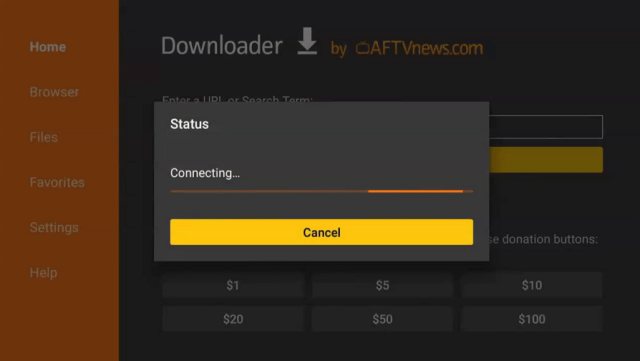
10. Click Download.

Install SmartTubeNext on Firestick


Install SmartTubeNext on Firestick


11. Click on Open.

Install SmartTubeNext on Firestick


12. Click on Allow.

Install SmartTubeNext on Firestick


13. Use the Downloader search tab.

Install SmartTubeNext on Firestick


14. Type https://reviewvpn.com/stn and click go.

Install SmartTubeNext on Firestick


15. Wait for the APK to be downloaded.

Install SmartTubeNext on Firestick

Install SmartTubeNext on Firestick


16. Click install

Install SmartTubeNext on Firestick


17. Click open.

Install SmartTubeNext on Firestick


18. SmartTubeNext is already installed. Enjoy!

Install SmartTubeNext on Firestick


YOUR INTERNET ACTIVITY IS BEING WATCHED

ReviewVPN cannot attest to the legality, security and privacy of the applications discussed on this site. It is highly recommended that you use a VPN service while streaming or using Kodi.

Currently, your IP 216.73.216.102 is visible to everyone and your Browser is being tracked by Advertisers & ISP Provider.

Save 65% Now

Limited Time Offer

Here are the main reasons why you must use a VPN:

  • Your activities are hidden from your ISP, the government, and from the apps you are using.
  • You can access additional movies and TV streams.
  • ISP attempts to throttle are thrwarted thus reducing buffering issues.
  • Geographically restricted content like Netflix and Hulu can be unblocked.

A VPN works be replacing your ISP-assigned IP address and creating an encrypted tunnel. We recommend the no log service offered by IPVanish. It works well on a Firestick and offers the fastest possible speeds.

Special Limited Time Offer - Get IPVanish


Legal Disclaimer: ReviewVPN.com does not encourage or endorse any illegal activity involved in the usage of services and applications referenced on this site. We do not verify the licensing agreements of services. The end-user is wholly responsible for ensuring that any media accessed through these services does not violate copyright and/or licensing laws. ReviewVPN does not promote, link to, or receive compensation from any Apps and IPTV services.


Install Surfshark on Firestick

Get the Best Surfshark Deal


SmartTube Features

  • No advertisements
  • Easy to use
  • Works well without a mouse toggle
  • Applicable on most types of devices
  • 100% Free
  • Lost of categories to offer


Pros and Cons

Pros

  • 100% free
  • Easy to use
  • No registration needed
  • No advertisements


Cons

  • Not good on playback option when using the remote control of Firestick


Stream Safely With a VPN

Surfshark vpn

When using streaming apps, you might encounter some buffering. This is because your Internet Service Provider or ISP is throttling your connection. When you watch high-definition videos, it will ping your ISP that you want to pursue a video that will require more of your Mbps. It bothers us so much that these things happen. That is why it is better to stream with a Virtual Private Network or VPN.

A VPN will connect you to a different server so you can hide from your ISP. They will not know if you are watching high-definition videos, and they will not see what you are doing online. A VPN will provide a different IP that will hide your real IP from all trackers out there.

The best VPN to use when streaming is Surfshark. It has the best qualities that you can ask for when streaming. You can read them all here in our SurfShark review to know more about this amazing VPN.

Other SurfShark Features

  • 3200 servers available in 100+ countries
  • Best VPN for torrenting
  • Destroys geo-restriction
  • Dedicated IP
  • 30-day money-back guarantee
  • Cloud Storage
  • P2P friendly VPN
  • SOCKS5 Proxy
  • Allows Torrenting
  • Kill Switch
  • Split Tunneling
  • DNS Leak Protection
  • Prevents Firestick Buffering and Kodi Buffering

For more details about this VPN, read our SurfShark review.


Grab your subscription now!

Best Surfshark Deal


How to Install Surfshark on Firestick with Screenshots

If your Firestick still has the older interface, read this article to learn how to update it: Update Firestick Interface.

You can download Surfshark directly from the Amazon App Store. It will be easy for you to find Surfshark with your Firestick’s Find feature. Refer to our screenshots below.

Follow our screenshots below to install the SurfShark VPN app on your Fire TV stick.

1. Go to the Home screen of your Firestick.

step 1 Install Surfshark VPN on Firestick


2. Navigate toward the Find tab. Press the Search button from the resulting dropdown.

step 2 Install Surfshark VPN on Firestick


3. Type in the keyword of SurfShark and select from the suggestions that will appear.

step 3 Install Surfshark VPN on Firestick


4. Click the official SurfShark icon from your search results.

step 4 Install Surfshark VPN on Firestick


5. Press the Download (You Own it) button.

step 5 Install Surfshark VPN on Firestick


6. The SurfShark VPN installer will download on your device.

step 6 Install Surfshark VPN on Firestick


7. SurfShark VPN’s app will automatically install itself on your Fire TV stick.

step 7 Install Surfshark VPN on Firestick


8. Press the Open button after completing SurfShark VPN’s installation process.

step 8 Install Surfshark VPN on Firestick


9. Please wait for the SurfShark VPN to load its user interface.

step 9 Install Surfshark VPN on Firestick


10. You can now log in with your SurfShark VPN account credentials.

step 10 Install Surfshark VPN on Firestick

Learn more about Surfshark and Grab the Best Surfshark Deal Now!


Install Surfshark on Firestick

Best Surfshark Deal


Other VPNs to Consider

NordVPN (Best for Streaming)

Best Features

  • 5000+ Server in 50+ Countries 
  • Military-Grade Encryption
  • Fast Connection Speed
  • Suitable to a lot of devices
  • No-Log Policy

Prices
  • Complete $5.89 per month (64% Discount)
  • Plus $4.59 per month (56% Discount)
  • Standard $3.69 per month (55% Discount)

Best Features

  • 750+ High-speed VPN Servers in 43 Locations
  • Military-Grade Encryption
  • Fastest HD Streaming and Gaming
  • 30-Day Money-Back Guarantee
  • Unlimited Data & Devices
  • No-Log Policy

Prices
  • 3 Years $1.99 per month (82% Discount)
  • 1 Years $3.29 per month (70% Discount)
  • 1 Month $10.99 per month

IPVanish VPN (Most Secure)

Best Features

  • 1200+ Servers in 60+ Countries around the world
  • Unlimited Connections
  • No-Log Policy
  • Top Notch Military-Grade VPN Protocols and Encryptions
  • 100% Safe and Secured
  • Most Trusted VPN
  • Best VPN for Firestick
  • 30-Day Money-Back Guarantee

Prices
  • Yearly $3.99 per month (63% Discount) – 30 days risk free + Ransomware & Malware Protection
  • Quarterly $5.32 per month (51% Discount)
  • Monthly $10.99 per month


For more VPN discounts, go to ReviewVPN Deals and purchase the best VPN for you.

Click here for the lowest price on Surfshark through our exclusive limited-time offer.


Best Alternatives to SmartTube

Aside from SmartTube, there are also some apps that provide free YouTube with no ads. Here are the best ones for you:


FAQs

What is SmartTube?

SmartTube is a free version of YouTube that lets users watch videos with no annoying ads.


Is SmartTube legal?

ReviewVPN.com cannot determine the legality of any app or website. This article is for educational purposes only. To make sure that you are safe from any legal matters regarding the apps and websites you are using, use a VPN service like Surfshark.


Is SmartTube safe?

Yes, It is safe to install SmartTube on your device. You can ensure your safety while streaming by using a trusted VPN like Surfshark.


Is SmartTube Free?

Yes. SmartTube is 100% free to install.


Are there any ads?

There are some ads present on this app.


Conclusion

SmartTube is indeed a useful app since you will get YouTube Premium for free. This means no annoying advertisements, no registration requires, and 100% free.

SmartTube is really an amazing app but be sure you are safe when streaming on this app. Get yourself a premium VPN service like Surfshark.

We hope that we are able to help you install SmartTube on your Firestick and Android devices.

How to Install YouCine APK on Firestick and Android

YouCine

In this article, we will show you how you can install the YouCine apk on Firestick and Android.

YouCine is a free streaming app that lets you watch the latest movies, TV series, Kids’ Shows, Anime, and more. It lets you watch directly once you install this app, although, you can still create your account and profile. Most of the content available on YouCine is uploaded by the users. It has a smooth user interface and allows you to navigate easily on Firestick even without the help of a Mouse Toggle.

YouCine is not an official Amazon app. You won’t find it when you search for it on Firestick. It is a third-party application and requires you to jailbreak your Firestick first and use the Downloader app to install it. If you want to know more about this app and how you can install it on your device, continue reading this article.

We suggest you use a trusted VPN service whenever you are using third-party applications like YouCine.


ANONYMOUSLY

Install YouCine on Android


YouCine

Note: ReviewVPN.com does not host this APK file. It is hosted by Archive.org


If your Firestick still has the older interface, read this article to learn how to update it: Update Firestick Interface.


How to Install YouCine on Firestick (Video)


How to Install YouCine on Firestick

1.  From your home screen, go to Settings.

Install YouCine on Firestick


2. Scroll down and to the right until you get to My Fire TV. Click on it.

Install YouCine on Firestick


3. Select Developer options.

Install YouCine on Firestick


4. Turn on ADB debugging and Apps from Unknown Sources.

Install YouCine on Firestick


5. Click Turn On when the pop-up appears.

Install YouCine on Firestick


6. Click Home, click FIND.

Install YouCine on Firestick


7. Click Search.

Install YouCine on Firestick


8. You can either say Downloader to your Alexa voice-enabled remote or start typing it. If you typed it, click on the suggestion when it appears.

Install YouCine on Firestick


9. Click on the Downloader Icon.

Install YouCine on Firestick


10. Click Download.

Install YouCine on Firestick


Install YouCine on Firestick


11. Click on Open.

Install YouCine on Firestick


12. Click on Allow.

Install YouCine on Firestick


13. Use the Downloader search tab.

Install YouCine on Firestick


14. Type https://reviewvpn.com/ycn and click go.

Install YouCine on Firestick


15. Wait for the APK to be downloaded.

Install YouCine on Firestick

Install YouCine on Firestick


16. Click install

Install YouCine on Firestick


17. Click open.

Install YouCine on Firestick


18. Click allow.

Install YouCine on Firestick


19. YouCine is already installed. Enjoy watching!

Install YouCine on Firestick


YOUR INTERNET ACTIVITY IS BEING WATCHED

ReviewVPN cannot attest to the legality, security and privacy of the applications discussed on this site. It is highly recommended that you use a VPN service while streaming or using Kodi.

Currently, your IP 216.73.216.102 is visible to everyone and your Browser is being tracked by Advertisers & ISP Provider.

Save 65% Now

Limited Time Offer

Here are the main reasons why you must use a VPN:

  • Your activities are hidden from your ISP, the government, and from the apps you are using.
  • You can access additional movies and TV streams.
  • ISP attempts to throttle are thrwarted thus reducing buffering issues.
  • Geographically restricted content like Netflix and Hulu can be unblocked.

A VPN works be replacing your ISP-assigned IP address and creating an encrypted tunnel. We recommend the no log service offered by IPVanish. It works well on a Firestick and offers the fastest possible speeds.

Special Limited Time Offer - Get IPVanish


Legal Disclaimer: ReviewVPN.com does not encourage or endorse any illegal activity involved in the usage of services and applications referenced on this site. We do not verify the licensing agreements of services. The end-user is wholly responsible for ensuring that any media accessed through these services does not violate copyright and/or licensing laws. ReviewVPN does not promote, link to, or receive compensation from any Apps and IPTV services.


Install Surfshark on Firestick

Get the Best Surfshark Deal


YouCine App Features

  • Spanish subtitle
  • Allows subscription for upcoming sports events in Europe
  • Updated list of shows
  • No need to use Mouse Toggle on Firestick
  • Applicable on Android and Firestick
  • Free streaming
  • Allows users to create an account
  • Netflix shows are available
  • Lost of categories to offer


Categories

  • Movies
  • Series
  • Kids
  • Anime
  • Explorar
  • Medieval Era
  • This Year’s Shows
  • Dubbed
  • Netflix
  • On The Air
  • Soap Opera
  • National
  • Coming Soon (Trailers)
  • Dead or Alive
  • Burst Out Laughing
  • Adaptation of Real Events
  • Oscars
  • Attack on Titan
  • Interastral Travel
  • The Black Panther in Cinematic Universe
  • Nordic Legends
  • The Most Popular Series Last Year
  • The Most Popular Movies Last Year
  • A Fantasy Universe
  • many more


Pros and Cons

Pros

  • Free
  • Easy to use
  • Thousands of available shows


Cons

  • No option for an English subtitle


Stream Safely With a VPN

Surfshark vpn

Most third-party applications provide links from unknown sources on the internet. This could be tricky since there are a lot of threats roaming the internet today. That is why you need a trusted Virtual Private Network or VPN when streaming on third-party apps.

VPNs work by hiding and protecting your real IP address since this is your online identification. most trackers use your IP to know your personal information. By using a trusted VPN, your IP is safe from any trackers. A VPN will then provide you with another IP from a different server so that you are safe from all trackers and allows you to access geo-restricted content.

The best VPN to use when streaming is Surfshark. It has the best qualities that you can ask for when streaming. You can read them all here in our SurfShark review to know more about this amazing VPN.

Other SurfShark Features

  • 3200 servers available in 100+ countries
  • Best VPN for torrenting
  • Destroys geo-restriction
  • Dedicated IP
  • 30-day money-back guarantee
  • Cloud Storage
  • P2P friendly VPN
  • SOCKS5 Proxy
  • Allows Torrenting
  • Kill Switch
  • Split Tunneling
  • DNS Leak Protection
  • Prevents Firestick Buffering and Kodi Buffering

For more details about this VPN, read our SurfShark review.


Grab your subscription now!

Best Surfshark Deal


How to Install Surfshark on Firestick with Screenshots

If your Firestick still has the older interface, read this article to learn how to update it: Update Firestick Interface.

You can download Surfshark directly from the Amazon App Store. It will be easy for you to find Surfshark with your Firestick’s Find feature. Refer to our screenshots below.

Follow our screenshots below to install the SurfShark VPN app on your Fire TV stick.

1. Go to the Home screen of your Firestick.

step 1 Install Surfshark VPN on Firestick


2. Navigate toward the Find tab. Press the Search button from the resulting dropdown.

step 2 Install Surfshark VPN on Firestick


3. Type in the keyword of SurfShark and select from the suggestions that will appear.

step 3 Install Surfshark VPN on Firestick


4. Click the official SurfShark icon from your search results.

step 4 Install Surfshark VPN on Firestick


5. Press the Download (You Own it) button.

step 5 Install Surfshark VPN on Firestick


6. The SurfShark VPN installer will download on your device.

step 6 Install Surfshark VPN on Firestick


7. SurfShark VPN’s app will automatically install itself on your Fire TV stick.

step 7 Install Surfshark VPN on Firestick


8. Press the Open button after completing SurfShark VPN’s installation process.

step 8 Install Surfshark VPN on Firestick


9. Please wait for the SurfShark VPN to load its user interface.

step 9 Install Surfshark VPN on Firestick


10. You can now log in with your SurfShark VPN account credentials.

step 10 Install Surfshark VPN on Firestick

Learn more about Surfshark and Grab the Best Surfshark Deal Now!


Install Surfshark on Firestick

Best Surfshark Deal


Other VPNs to Consider

NordVPN (Best for Streaming)

Best Features

  • 5000+ Server in 50+ Countries 
  • Military-Grade Encryption
  • Fast Connection Speed
  • Suitable to a lot of devices
  • No-Log Policy

Prices
  • Complete $5.89 per month (64% Discount)
  • Plus $4.59 per month (56% Discount)
  • Standard $3.69 per month (55% Discount)

Best Features

  • 750+ High-speed VPN Servers in 43 Locations
  • Military-Grade Encryption
  • Fastest HD Streaming and Gaming
  • 30-Day Money-Back Guarantee
  • Unlimited Data & Devices
  • No-Log Policy

Prices
  • 3 Years $1.99 per month (82% Discount)
  • 1 Years $3.29 per month (70% Discount)
  • 1 Month $10.99 per month

IPVanish VPN (Most Secure)

Best Features

  • 1200+ Servers in 60+ Countries around the world
  • Unlimited Connections
  • No-Log Policy
  • Top Notch Military-Grade VPN Protocols and Encryptions
  • 100% Safe and Secured
  • Most Trusted VPN
  • Best VPN for Firestick
  • 30-Day Money-Back Guarantee

Prices
  • Yearly $3.99 per month (63% Discount) – 30 days risk free + Ransomware & Malware Protection
  • Quarterly $5.32 per month (51% Discount)
  • Monthly $10.99 per month


For more VPN discounts, go to ReviewVPN Deals and purchase the best VPN for you.

Click here for the lowest price on Surfshark through our exclusive limited-time offer.


Best Alternatives to YouCine

Aside from YouCine, there are a lot of great apps that will let you watch your favorite titles and shows on your device. Here are they:


FAQs

What is YouCine?

YouCine is a free streaming app that lets you watch movies, series, anime, kids’ shows, and more.


Is YouCine legal?

ReviewVPN.com cannot determine the legality of any app or website. This article is for educational purposes only. To make sure that you are safe from any legal matters regarding the apps and websites you are using, use a VPN service like Surfshark.


Is YouCine safe?

Yes, It is safe to install YouCine on your device. You can ensure your safety while streaming by using a trusted VPN like Surfshark.


Is YouCine Free?

Yes. YouCine is 100% free to install.


Are there any ads?

There are some ads present on this app.


Conclusion

YouCine is a great app where you can stream numerous content. It is really a one-stop shop because of the titles it has to offer. YouCine is free yet you can create an account and also subscribe to sports events that are featured on the home page.

What’s amazing about YouCine is that it is applicable on Firestick and Android. Although the subtitle it provides is not in English. Overall, we suggest that you try using this app for streaming.

We hope that you find this article helpful in installing YouCine on your device. If you have any questions, let us know in the comment section below. Thank you for your time.


Surfshark VPN Dedicated IP – What Is It Exactly?

Surfshark VPN Dedicated IP

This article wil discuss everything you need to know about Surfshark VPN dedicated IP.

What exactly is dedicated IP? Surfshark VPN recently launched its new and amazing feature called dedicated IP. It is not as hard as its sounds, and better to discuss with a scenario.

For example, you are using a VPN service. Your real IP address will be hidden, which is important cause it makes others track you online. You will then have a new IP address from your VPN service. The concern is you don’t know how many people have the same IP address as you. It could be thousands. Hence the reason why you encounter CAPTCHA when using a VPN. It makes sure that the user behind the IP address is a real person. There is where dedicated IP comes along.

Dedicated IP is a VPN-provided IP address that is only intended for you. This will still hide your real IP address. It will help you get rid of annoying CAPTCHA, access services sensitive to IP addresses, and many more. Continue reading this article to find out more interesting features about Surfshar VPN’s dedicated IP.

ANONYMOUSLY


Features of Surfshark VPN Dedicated IP

Surfshark VPN’s dedicated IP provides an interesting set of features that you will definitely love.


Works With All Surfshark’s Connection Protocol

There is no need for users to worry about website speed and fixed IP because the dedicated IP works with all connection protocols.


Protects Unlimited Devices

Surfshark VPN has no limits when it comes to the number of connected devices. All of your devices can use a single dedicated IP and assure that all of them are protected by Surfshark.


It Secures Manual Connection

Users can download the available Surfshark dedicated IP configuration files for manual connection to whichever router they are using.


Hinders Other Users In Using and Abusing Your IP

No need for a shared IP address. You don’t have to worry about other users that might have the same IP as you.

Extra Privacy

Surfshark does not record whose dedicated IP it is. You will have the best private network all to yourself.


Helps Access Remote Networks Easily

Dedicated IP has no issue when it comes to networks remotely compared with a shared server.


Avoid CAPTCHA

Captchas are annoying. With a dedicated IP address, you won’t have to deal with any of them anymore.


Improves access to IP-sensitive websites

There are websites that can recognize you changing your IPs when using a VPN with no dedicated IP. With Surfshark’s dedicated IP, it helps you access these websites and still protects your identity.


How to Install Surfshark VPN on Firestick

Follow our screenshots below to install the Surfshark VPN app on your Fire TV stick.

1. Go to the Home screen of your Firestick.

step 1 Install Surfshark VPN on Firestick


2. Navigate towards the Find tab. Press the Search button from the resulting dropdown.

step 2 Install Surfshark VPN on Firestick


3. Type in the keyword of Surfshark and select from the suggestions that will appear.

step 3 Install Surfshark VPN on Firestick


4. Click the official SurfShark icon from your search results.

step 4 Install Surfshark VPN on Firestick


5. Press the Download (You Own it) button.

step 5 Install Surfshark VPN on Firestick


6. The Surfshark VPN installer will download on your device.

step 6 Install Surfshark VPN on Firestick


7. SurfShark VPN’s app will automatically install itself on your Fire TV stick.

step 7 Install Surfshark VPN on Firestick


8. Press the Open button after completing Surfshark VPN’s installation process.

step 8 Install Surfshark VPN on Firestick


9. Please wait for the SurfShark VPN to load its user interface.

step 9 Install Surfshark VPN on Firestick


10. You can now log in with your Surfshark VPN account credentials.

step 10 Install Surfshark VPN on Firestick


How To Install Surfshark VPN on Windows

1. Go to https://surfshark.com

Surfshark VPN


2. Select Download.

Surfshark VPN


3. Scroll down then choose Windows

Surfshark VPN


4. Click on Download the Windows App

Surfshark VPN


5. You will see then on the bottom side that it is downloading and just wait for it to finish.

Surfshark VPN


6. Just follow the indicated numbers on the arrows

Surfshark VPN


7. Click Install.

Surfshark VPN


8. After installation click on Finish.

Surfshark VPN


9. Go to the Surfshark App and open then Create an account, Sign Up, or Log In with your Credentials. Then click on Log in.

Surfshark VPN

Surfshark VPN


10. Surfshark installed. You can now connect to the server you want.

Surfshark VPN


YOUR INTERNET ACTIVITY IS BEING WATCHED

ReviewVPN cannot attest to the legality, security and privacy of the applications discussed on this site. It is highly recommended that you use a VPN service while streaming or using Kodi.

Currently, your IP 216.73.216.102 is visible to everyone and your Browser is being tracked by Advertisers & ISP Provider.

Save 65% Now

Limited Time Offer

Here are the main reasons why you must use a VPN:

  • Your activities are hidden from your ISP, the government, and from the apps you are using.
  • You can access additional movies and TV streams.
  • ISP attempts to throttle are thrwarted thus reducing buffering issues.
  • Geographically restricted content like Netflix and Hulu can be unblocked.

A VPN works be replacing your ISP-assigned IP address and creating an encrypted tunnel. We recommend the no log service offered by IPVanish. It works well on a Firestick and offers the fastest possible speeds.

Special Limited Time Offer - Get IPVanish


Legal Disclaimer: ReviewVPN.com does not encourage or endorse any illegal activity involved in the usage of services and applications referenced on this site. We do not verify the licensing agreements of services. The end-user is wholly responsible for ensuring that any media accessed through these services does not violate copyright and/or licensing laws. ReviewVPN does not promote, link to, or receive compensation from any Apps and IPTV services.


Install Surfshark on Firestick

Get the Best Surfshark Deal


How To Install Surfshark VPN on Your Android Devices

1. Go to your Play Store App.

Surfshark VPN on Your Android


2. Go to the search bar and type Surfshark VPN App then click Install.

Surfshark VPN on Your Android


3. After installation click Open.

Surfshark VPN on Your Android


4. Click on login then Log In with your Credentials.

Surfshark VPN on Your Android


5. Now type in your email and password then click on Log In.

Surfshark VPN on Your Android


6. Surfshark installed. You can now connect to the server you want.

Surfshark VPN on Your Android


How To Set Up Surfshark on Mac

The instructions below will walk you through installing and configuring Surfshark on your Mac device.

1. On the Apple App store, type in “Surfshark

surfshark for mac 1


2. When it appears, click “Get

surfshark for mac 2


3. Once the file is installed, click “Open“.

surfshark for mac 3


4. Then select “Log in with credentials” or “Log in with code“. Here I’ll be choosing to log in with credentials.

surfshark for mac 4


5. Type in your username or email address and password. Then click “Log in“.

surfshark for mac 5


6. You can either click “Quick connect” or select your preferred country to connect.

surfshark for mac 6


7. That’s it, you’re done with the set-up of your Surfshark account on macOS.

surfshark 7


How To Set up Surfshark for iOS

This detailed guide will show you how to install and set up the Surfshark app for iPhone and iPad:


1. On the Apple Appstore, type in “Surfshark

surfshark for ios 1


2. Since Surfshark is already installed on this device, you can tap the cloud icon. Those installing the app for the first time can tap “Get” and then “Install“.

surfshark for ios 2


3. The app will then start to download.

surfshark for ios 3


4. Tap “Open”.

surfshark for ios 4


5. Then tap “Existing user? Login”.

surfshark for ios 5


6. You can choose “Log in with email” or “Log in with code”. Here we’ll be selecting to log in with email.


7. Type in your email address and password then tap “Log in” afterward.

surfshark for ios 7


8. Tap “Quick Connect” or select from the list of countries available.

surfshark for ios 8


9. Then “Continue”.

surfshark for ios 9


10. Tap “Allow”.

surfshark for ios 10


11. Then enter your iPhone/iPad passcode to proceed with the configurations.

surfshark for ios 11


12. That’s it. If you chose the Quick Connect option, you are now connected to the fastest location available.

surfshark for ios 12


How to Install Surfshark on Google Chromecast

1. Click Home on your remote then select Search.

Install SurfShark on Google Chromecast


2. On the search bar, you can use the google voice assistant to find Surfshark VPN or by typing it.

Install SurfShark on Google Chromecast


3. Click on Surfshark VPN icon.

Install SurfShark on Google Chromecast


4. Click on Install.

Install SurfShark on Google Chromecast


5. Surfshark VPN is now installing just wait for it until it’s done.

Install SurfShark on Google Chromecast


6. Click open.

Install SurfShark on Google Chromecast


7. Input your username and password to log in

Install SurfShark on Google Chromecast


Conclusion

With Surfshark’s dedicated IP, it provides much better protection and privacy to the user. It adds a lot of great functions when using a VPN service like on IP-sensitive websites, annoying CAPTCHA, and more.

We suggest you try out this new feature by Surfshark VPN. If you have more questions, let us know in the comment section below.

Adult Live TV – How to Install The RedShoes App on Firestick

RedShoes – Adult Live TV

Are you looking for a live TV app that offers adult channels? You don’t have to look anymore. The RedShoes app is an adult live TV app that offers only adult channels to stream. Continue reading to know how you can install this app on your Firestick device.

The RedShoes app is an adult live TV app that offers both free and subscription-based plans. It is strictly for 18 years old and above only. The app allows you to set a number code to make sure that it is not easily accessible by children. There are many channels available in the RedShoes app, so if you enjoy watching adult content non-stop, you will surely enjoy this app.

The RedShoes app offers mostly asian content and adult channels. It works well on devices like Android and Firestick. This app is a third-party app which means that you need to jailbreak your Firestick first and use the Downloader App in order to install it.

Streaming on third-party apps such as RedShoes could be dangerous to your online privacy. It is best to use a trusted VPN service when doing so.


ANONYMOUSLY


How to Install RedShoes on Firestick (Video)


How to Install RedShoes on Firestick

1.  From your home screen, go to Settings.

Install RedShoes on Firestick


2. Scroll down and to the right until you get to My Fire TV. Click on it.

Install RedShoes on Firestick


3. Select Developer options.

Install RedShoes on Firestick


4. Turn on ADB debugging and Apps from Unknown Sources.

Install RedShoes on Firestick


5. Click Turn On when the pop-up appears.

Install RedShoes on Firestick


6. Click Home, click FIND.

Install RedShoes on Firestick


7. Click Search.

Install RedShoes on Firestick


8. You can either say Downloader to your Alexa voice-enabled remote or start typing it. If you typed it, click on the suggestion when it appears.

Install RedShoes on Firestick


9. Click on the Downloader Icon.

Install RedShoes on Firestick


10. Click Download.

Install RedShoes on Firestick


Install RedShoes on Firestick


11. Click on Open.

Install RedShoes on Firestick


12. Click on Allow.

Install RedShoes on Firestick


13. Use the Downloader search tab.

Install RedShoes on Firestick


14. Type https://reviewvpn.com/rdsh and click go.

Install RedShoes on Firestick


15. Wait for the APK to be downloaded.

Install RedShoes on Firestick

Install RedShoes on Firestick


16. Click install

Install RedShoes on Firestick


17. Click open.

Install RedShoes on Firestick


18. Click enter.

Install RedShoes on Firestick


19. Please create any password you want and then click OK.

Install RedShoes on Firestick


YOUR INTERNET ACTIVITY IS BEING WATCHED

ReviewVPN cannot attest to the legality, security and privacy of the applications discussed on this site. It is highly recommended that you use a VPN service while streaming or using Kodi.

Currently, your IP 216.73.216.102 is visible to everyone and your Browser is being tracked by Advertisers & ISP Provider.

Save 65% Now

Limited Time Offer

Here are the main reasons why you must use a VPN:

  • Your activities are hidden from your ISP, the government, and from the apps you are using.
  • You can access additional movies and TV streams.
  • ISP attempts to throttle are thrwarted thus reducing buffering issues.
  • Geographically restricted content like Netflix and Hulu can be unblocked.

A VPN works be replacing your ISP-assigned IP address and creating an encrypted tunnel. We recommend the no log service offered by IPVanish. It works well on a Firestick and offers the fastest possible speeds.

Special Limited Time Offer - Get IPVanish


Legal Disclaimer: ReviewVPN.com does not encourage or endorse any illegal activity involved in the usage of services and applications referenced on this site. We do not verify the licensing agreements of services. The end-user is wholly responsible for ensuring that any media accessed through these services does not violate copyright and/or licensing laws. ReviewVPN does not promote, link to, or receive compensation from any Apps and IPTV services.


Install Surfshark on Firestick

Get the Best Surfshark Deal


RedShoes App Features

  • Asian Content
  • Offers free and paid services
  • Adult Live TV
  • Hundreds of adult channels are available
  • EPG
  • Mild adult content


Pros and Cons

Pros

  • Offers free service
  • Protected with a password


Cons

  • No subtitles
  • For adult only


Stream Safely With a VPN

Surfshark vpn

When streaming on any third-party apps like the RedShoes, you need to be more protective of your privacy. Many domains and links can track you as you stream on these apps. Internet Service Providers (ISP) can also throttle your connection every time you play a high-definition video, and also observe all of your online activities. This is the reason why you may experience some buffering when streaming your favorite titles and shows.

You can stop this tracking when you use a VPN. Aside from hiding your identity from any trackers, a VPN can also bypass geo-restrictions and let you watch content that is not originally available in your country.

The best VPN to use when streaming is Surfshark. It has the best qualities that you can ask for when streaming. You can read them all here in our SurfShark review to know more about this amazing VPN.

Other SurfShark Features

  • 30-day money-back guarantee
  • Cloud Storage
  • P2P friendly VPN
  • SOCKS5 Proxy
  • Allows Torrenting
  • Kill Switch
  • Split Tunneling
  • DNS Leak Protection
  • Prevents Firestick Buffering and Kodi Buffering

For more details about this VPN, read our SurfShark review.


Grab your subscription now!

Best Surfshark Deal


How to Install Surfshark on Firestick with Screenshots

If your Firestick still has the older interface, read this article to learn how to update it: Update Firestick Interface.

You can download Surfshark directly from the Amazon App Store. It will be easy for you to find Surfshark with your Firestick’s Find feature. Refer to our screenshots below.

Follow our screenshots below to install the SurfShark VPN app on your Fire TV stick.

1. Go to the Home screen of your Firestick.

step 1 Install Surfshark VPN on Firestick


2. Navigate toward the Find tab. Press the Search button from the resulting dropdown.

step 2 Install Surfshark VPN on Firestick


3. Type in the keyword of SurfShark and select from the suggestions that will appear.

step 3 Install Surfshark VPN on Firestick


4. Click the official SurfShark icon from your search results.

step 4 Install Surfshark VPN on Firestick


5. Press the Download (You own it) button.

step 5 Install Surfshark VPN on Firestick


6. The SurfShark VPN installer will download on your device.

step 6 Install Surfshark VPN on Firestick


7. SurfShark VPN’s app will automatically install itself on your Fire TV stick.

step 7 Install Surfshark VPN on Firestick


8. Press the Open button after completing SurfShark VPN’s installation process.

step 8 Install Surfshark VPN on Firestick


9. Please wait for the SurfShark VPN to load its user interface.

step 9 Install Surfshark VPN on Firestick


10. You can now log in with your SurfShark VPN account credentials.

step 10 Install Surfshark VPN on Firestick

Learn more about Surfshark and Grab the Best Surfshark Deal Now!


Install Surfshark on Firestick

Best Surfshark Deal


Other VPNs to Consider

NordVPN (Best for Streaming)

Best Features

  • 5000+ Server in 50+ Countries 
  • Military-Grade Encryption
  • Fast Connection Speed
  • Suitable to a lot of devices
  • No-Log Policy

Prices
  • Complete $5.89 per month (64% Discount)
  • Plus $4.59 per month (56% Discount)
  • Standard $3.69 per month (55% Discount)

Best Features

  • 750+ High-speed VPN Servers in 43 Locations
  • Military-Grade Encryption
  • Fastest HD Streaming and Gaming
  • 30-Day Money-Back Guarantee
  • Unlimited Data & Devices
  • No-Log Policy

Prices
  • 3 Years $1.99 per month (82% Discount)
  • 1 Years $3.29 per month (70% Discount)
  • 1 Month $10.99 per month

IPVanish VPN (Most Secure)

Best Features

  • 1200+ Servers in 60+ Countries around the world
  • Unlimited Connections
  • No-Log Policy
  • Top Notch Military-Grade VPN Protocols and Encryptions
  • 100% Safe and Secured
  • Most Trusted VPN
  • Best VPN for Firestick
  • 30-Day Money-Back Guarantee

Prices
  • Yearly $3.99 per month (63% Discount) – 30 days risk free + Ransomware & Malware Protection
  • Quarterly $5.32 per month (51% Discount)
  • Monthly $10.99 per month


For more VPN discounts, go to ReviewVPN Deals and purchase the best VPN for you.

Click here to get the lowest price on Surfshark through our exclusive limited-time offer.


Best Alternatives to RedShoes

Aside from RedShoes, you can also watch adult content on Firestick when you use these apps:

For more adult apps, read our list of the Top 10 Best Adult Apps on Firestick.


FAQs

What is RedShoes?

RedShoes is an adult live TV app that houses asian adult channels where you can watch porn movies and more.


Is RedShoes legal?

ReviewVPN.com cannot determine the legality of any app or website. This article is for educational purposes only. To make sure that you are safe from any legal matters regarding the apps and websites you are using, use a VPN service like Surfshark.


Is RedShoes safe?

You can ensure your safety while streaming by using a trusted VPN like Surfshark.


Is RedShoes Free?

RedShoes offer both free and paid services


Are there any ads?

There are no ads present on this app.


Conclusion

If you like to watch live TV for porn, then the RedShoes app is perfect for you. It houses mostly asian channels for porn movies and shows. You can install it easily on Firestick, and other devices like Android.

The RedShoes app offers free service but you can also register for a paid subscription for more exciting content and features. It is a must-try porn app.

How to Install AnimeScrap on Firestick and Android

AnimeScrap

In this article, we will show you how you can install AnimeScrap on your Firestick and Android devices

It is another good news for Anime fans out there. This new app is an excellent platform for watching your favorite Anime for free. Introducing the AnimeScrap app.

AnimeScrap is a free application that is available on Firestick and Android devices. It offers the most recent anime titles to stream. You can watch the most popular anime series and movies with just one click.

Most of our readers are Firestick users. When installing this app on Firestick, you need to Jailbreak your Firestick first and use the Downloader App. We will show you this process later in this article.

Please also take note that when using the AnimeScrap on Firestick, you need Mouse Toggle to navigate through the app.

It is safer for you to use a trusted VPN service when streaming on any third-party apps like AnimeScrap.


ANONYMOUSLY


Install AnimeScrap on Android

AnimeScrap


Note: ReviewVPN.com does not host this APK file. It is hosted by Archive.org


If your Firestick still has the older interface, read this article to learn how to update it: Update Firestick Interface.


How to Install AnimeScrap on Firestick (Video)


How to Install AnimeScrap on Firestick

1.  From your home screen, go to Settings.

Install AnimeScrap on Firestick


2. Scroll down and to the right until you get to My Fire TV. Click on it.

Install AnimeScrap on Firestick


3. Select Developer options.

Install AnimeScrap on Firestick


4. Turn on ADB debugging and Apps from Unknown Sources.

Install AnimeScrap on Firestick


5. Click Turn On when the pop-up appears.

Install AnimeScrap on Firestick


6. Click Home, click FIND.

Install AnimeScrap on Firestick


7. Click Search.

Install AnimeScrap on Firestick


8. You can either say Downloader to your Alexa voice-enabled remote or start typing it. If you typed it, click on the suggestion when it appears.

Install AnimeScrap on Firestick


9. Click on the Downloader Icon.

Install AnimeScrap on Firestick


10. Click Download.

Install AnimeScrap on Firestick


Install AnimeScrap on Firestick


11. Click on Open.

Install AnimeScrap on Firestick


12. Click on Allow.

Install AnimeScrap on Firestick


13. Use the Downloader search tab.

Install AnimeScrap on Firestick


14. Type https://reviewvpn.com/ansc and click go.

Install AnimeScrap on Firestick


15. Wait for the APK to be downloaded.

Install AnimeScrap on Firestick

Install AnimeScrap on Firestick


16. Click install

Install AnimeScrap on Firestick


17. Click open.

Install AnimeScrap on Firestick


18. That’s it! Enjoy!

Install AnimeScrap on Firestick


YOUR INTERNET ACTIVITY IS BEING WATCHED

ReviewVPN cannot attest to the legality, security and privacy of the applications discussed on this site. It is highly recommended that you use a VPN service while streaming or using Kodi.

Currently, your IP 216.73.216.102 is visible to everyone and your Browser is being tracked by Advertisers & ISP Provider.

Save 65% Now

Limited Time Offer

Here are the main reasons why you must use a VPN:

  • Your activities are hidden from your ISP, the government, and from the apps you are using.
  • You can access additional movies and TV streams.
  • ISP attempts to throttle are thrwarted thus reducing buffering issues.
  • Geographically restricted content like Netflix and Hulu can be unblocked.

A VPN works be replacing your ISP-assigned IP address and creating an encrypted tunnel. We recommend the no log service offered by IPVanish. It works well on a Firestick and offers the fastest possible speeds.

Special Limited Time Offer - Get IPVanish


Legal Disclaimer: ReviewVPN.com does not encourage or endorse any illegal activity involved in the usage of services and applications referenced on this site. We do not verify the licensing agreements of services. The end-user is wholly responsible for ensuring that any media accessed through these services does not violate copyright and/or licensing laws. ReviewVPN does not promote, link to, or receive compensation from any Apps and IPTV services.


Install Surfshark on Firestick

Get the Best Surfshark Deal


AnimeScrap Features

  • 100% free
  • No advertisements
  • Works on Android and Firestick
  • High definition videos
  • An updated list of content
  • Needs Mouse Toggle when Using on Firestick


Pros and Cons

Pros

  • No ads present
  • The titles and episodes are up to date
  • Free to install and use


Cons

  • Hard to navigate without Mouse Toggle on Firestick


Stream Safely With a VPN

Surfshark vpn

When streaming on any third-party apps, you need to be more protective of your privacy. There are links and malicious domains that might track you and profile you. Also, your Internet Service Provider or ISP is throttling your connection every time you play a video in high definition. This is the reason why you may experience some buffering when streaming your favorite titles on AnimeScrap.

You can stop this tracking when you use a VPN. Aside from hiding your identity from any trackers, a VPN can also bypass geo-restrictions and let you watch content that is not originally available in your country.

The best VPN to use when streaming is Surfshark. It has the best qualities that you can ask for when streaming. You can read them all here in our SurfShark review to know more about this amazing VPN.

Other SurfShark Features

  • 30-day money-back guarantee
  • Cloud Storage
  • P2P friendly VPN
  • SOCKS5 Proxy
  • Allows Torrenting
  • Kill Switch
  • Split Tunneling
  • DNS Leak Protection
  • Prevents Firestick Buffering and Kodi Buffering

For more details about this VPN, read our SurfShark review.


Grab your subscription now!

Best Surfshark Deal


How to Install Surfshark on Firestick with Screenshots

If your Firestick still has the older interface, read this article to learn how to update it: Update Firestick Interface.

You can download Surfshark directly from the Amazon App store. It will be easy for you to find Surfshark with your Firestick’s Find feature. Refer to our screenshots below.

Follow our screenshots below to install the SurfShark VPN app on your Fire TV stick.

1. Go to the Home screen of your Firestick.

step 1 Install Surfshark VPN on Firestick


2. Navigate toward the Find tab. Press the Search button from the resulting dropdown.

step 2 Install Surfshark VPN on Firestick


3. Type in the keyword of SurfShark and select from the suggestions that will appear.

step 3 Install Surfshark VPN on Firestick


4. Click the official SurfShark icon from your search results.

step 4 Install Surfshark VPN on Firestick


5. Press the Download (You own it) button.

step 5 Install Surfshark VPN on Firestick


6. The SurfShark VPN installer will download on your device.

step 6 Install Surfshark VPN on Firestick


7. SurfShark VPN’s app will automatically install itself on your Fire TV stick.

step 7 Install Surfshark VPN on Firestick


8. Press the Open button after completing SurfShark VPN’s installation process.

step 8 Install Surfshark VPN on Firestick


9. Please wait for the SurfShark VPN to load its user interface.

step 9 Install Surfshark VPN on Firestick


10. You can now log in with your SurfShark VPN account credentials.

step 10 Install Surfshark VPN on Firestick

Learn more about Surfshark and Grab the Best Surfshark Deal Now!


Install Surfshark on Firestick

Best Surfshark Deal


Other VPNs to Consider

NordVPN (Best for Streaming)

Best Features

  • 5000+ Server in 50+ Countries 
  • Military-Grade Encryption
  • Fast Connection Speed
  • Suitable to a lot of devices
  • No-Log Policy

Prices
  • Complete $5.89 per month (64% Discount)
  • Plus $4.59 per month (56% Discount)
  • Standard $3.69 per month (55% Discount)

Best Features

  • 750+ High-speed VPN Servers in 43 Locations
  • Military-Grade Encryption
  • Fastest HD Streaming and Gaming
  • 30-Day Money-Back Guarantee
  • Unlimited Data & Devices
  • No-Log Policy

Prices
  • 3 Years $1.99 per month (82% Discount)
  • 1 Years $3.29 per month (70% Discount)
  • 1 Month $10.99 per month

IPVanish VPN (Most Secure)

Best Features

  • 1200+ Servers in 60+ Countries around the world
  • Unlimited Connections
  • No-Log Policy
  • Top Notch Military-Grade VPN Protocols and Encryptions
  • 100% Safe and Secured
  • Most Trusted VPN
  • Best VPN for Firestick
  • 30-Day Money-Back Guarantee

Prices
  • Yearly $3.99 per month (63% Discount) – 30 days risk free + Ransomware & Malware Protection
  • Quarterly $5.32 per month (51% Discount)
  • Monthly $10.99 per month


For more VPN discounts, go to ReviewVPN Deals and purchase the best VPN for you.

Click here to get the lowest price on Surfshark through our exclusive limited-time offer.


Best Alternatives to AnimeScrap

Aside from AnimeScrap, you can also watch your favorite Anime on these applications:


For more great anime apps, read our list of the Top 10 Best Anime Apps on Firestick.


FAQs

What is AnimeScrap?

AnimeScrap lets viewers watch the latest anime series and movies for free.


Is AnimeScrap legal?

ReviewVPN.com cannot determine the legality of any app or website. This article is for educational purposes only. To make sure that you are safe from any legal matters regarding the apps and websites you are using, use a VPN service like Surfshark.


Is AnimeScrap safe?

Yes, It is safe to install AnimeScrap on your device. You can ensure your safety while streaming by using a trusted VPN like Surfshark.


Is AnimeScrap Free?

Yes. AnimeScrap is 100% free to install.


Are there any ads?

There are no ads present on this app.


Conclusion

AnimeScrap is a must-try anime app to watch the latest anime episodes for free. It works well with Android and Firestick, although you might need to use a mouse toggle to navigate this app on your Firestick.

The best part is, there are no ads present and you can use it safely on your devices. Make sure to protect your privacy while streaming with use of Surfshark VPN.

How to Unlock Social Media Apps From Anywhere

Unlock Social Media

In this article, we will help you unlock social media apps from anywhere.

Have you experienced going to a different country, city, or even to school and offices and you can’t access your social media apps? This is because they are blocked. When you connect to your school wifi, there are certain apps that your school does not permit you to use. Most of the time, they are social media apps like Facebook, Twitter, Instagram, and more. This is also applicable in some companies, and offices that hinder their employees to use too much social media while at work.

The same thing happens when you are traveling. There are certain apps that are not available in some countries. Most of the time they are streaming applications. Sometimes, the content varies depending on location. For some countries, it is social media.

Good thing because there is a wonderful way how you can unlock social media apps wherever you are. By using a trusted VPN service, you can unlock all applications including social media. You just need to know which VPN service is trustworthy.


ANONYMOUSLY


How to Unlock Social Media Apps

Using a Virtual Private Network or VPN is the best way to unlock social media apps. A VPN can connect you to a different server. It means that even if you are connected to your local wifi, school wifi, or office wifi, a VPN can hide your IP address and make it seems like you are connected in a different location. Since this is the case, most apps like social media are not locked anymore. The best thing is that VPNs are legal, and most of them are safe.

Speaking of safe, not all VPNs are safe. You need to be careful in choosing the best VPN to unlock social media apps. When choosing a VPN, look for something premium and not free. Because free VPNs commonly use your data and information to gain profit. It is the opposite of what a VPN should be doing. VPNs with ads usually sell your information to advertisers. Would you think, people will invest in high-end technology just to let people use it for free? Let us accept the fact that the words VPN and free are not friends with each other. You can try those free trials for one month just to test out the product. It is better than using free ones.


Best VPN to Unlock Social Media Apps

The best VPN to unlock social media apps is Surfshark. It is a top-notch VPN service that is available on any device and can unblock all platforms including social media.

Surfshark VPN is our trusted VPN when streaming on apps on Amazon Firestick. It offers thousands of available servers in 100+ locations worldwide. You can choose the country and city that you want to connect to. This is how amazing Surfshark is.

Surfshark also provides military-grade VPN protocols and encryption that surely make your connection secure and private when accessing geo-restricted apps. You don’t need to worry about your information because Surfshark does not record any data of its users. Surfshark is indeed the ideal and the best VPN when unlocking social media apps.

If you want to know more, read our Surfshark VPN review.


How to Install Surfshark VPN on Android

1. Go to your Play Store App.

Surfshark VPN on Your Android


2. Go to the search bar and type Surfshark VPN App then click Install.

Surfshark VPN on Your Android


3. After installation click Open.

Surfshark VPN on Your Android


4. Click on login then Log In with your Credentials.

Surfshark VPN on Your Android


5. Now type in your email and password then click on Log In.

Surfshark VPN on Your Android


6. Surfshark installed. You can now connect to the server you want.

Surfshark VPN on Your Android


How to Install Surfshark VPN on Windows

1. Go to https://surfshark.com

Surfshark VPN


2. Select Download.

Surfshark VPN


3. Scroll down then choose Windows

Surfshark VPN


4. Click on Download the Windows App

Surfshark VPN


5. You will see then on the bottom side that it is downloading and just wait for it to finish.

Surfshark VPN


6. Just follow the indicated numbers on the arrows

Surfshark VPN


7. Click Install.

Surfshark VPN


8. After installation click on Finish.

Surfshark VPN


9. Go to the Surfshark App and open then Create an account, Sign Up, or Log In with your Credentials. Then click on Log in.

Surfshark VPN

Surfshark VPN


10. Surfshark installed. You can now connect to the server you want.

Surfshark VPN


How to Install Surfshark VPN on iOS

1. On the Apple Appstore, type in “Surfshark

surfshark for ios 1


2. Since Surfshark is already installed on this device, you can tap the cloud icon. Those installing the app for the first time can tap “Get” and then “Install“.

surfshark for ios 2


3. The app will then start to download.

surfshark for ios 3


4. Tap “Open”.

surfshark for ios 4


5. Then tap “Existing user? Log in”.

surfshark for ios 5


6. You can choose “Log in with email” or “Log in with code”. Here we’ll be selecting to log in with email.


7. Type in your email address and password then tap “Log in” afterward.

surfshark for ios 7


8. Tap “Quick Connect” or select from the list of countries available.

surfshark for ios 8


9. Then “Continue”.

surfshark for ios 9


10. Tap “Allow”.

surfshark for ios 10


11. Then enter your iPhone/iPad passcode to proceed with the configurations.

surfshark for ios 11


12. That’s it. If you chose the Quick Connect option, you are now connected to the fastest location available.

surfshark for ios 12


How to Install Surfshark VPN on MAC

1. On the Apple App store, type in “Surfshark

surfshark for mac 1


2. When it appears, click “Get

surfshark for mac 2


3. Once the file is installed, click “Open“.

surfshark for mac 3


4. Then select “Log in with credentials” or “Log in with code“. Here I’ll be choosing to log in with credentials.

surfshark for mac 4


5. Type in your username or email address and password. Then click “Log in“.

surfshark for mac 5


6. You can either click “Quick connect” or select your preferred country to connect.

surfshark for mac 6


7. That’s it, you’re done with the set-up of your Surfshark account on macOS.

surfshark 7


Conclusion

Surfshark VPN is indeed the best VPN to use to unlock social media apps. It is applicable to any device. If you don’t like Surfshark, be careful with other VPNs because not all of them are as safe as Surfshark.

We hope that we are able to help you unlock social media apps wherever you are located.

NBA Playoffs 2023 – How to Watch Live NBA on Any Device

NBA Playoffs

In this article, we will show you how to watch NBA playoffs on any device. 

It is that time of the year again for some great basketball action brought to you by the much-awaited NBA playoffs. The NBA playoffs is a best-of-seven postseason tournament that the NBA holds to determine the league’s best teams of the season. This tournament always takes place after every regular season and the preliminary playoffs, also known as the Play-in tournament.

There are many ways that you can watch the NBA playoffs on any device wherever you are located. You can use subscription-based live TV applications, free sports streaming websites, Kodi addons, IPTV services, and more. We will show you all of these ways as you continue reading this article.

Most of our readers are using Amazon Firestick. Some apps and websites might require you to jailbreak your Firestick first before installing them on your device.

It is also important that you use a trusted VPN service when streaming the NBA playoffs on your device. It will protect you from any trackers and provides more private streaming.

Continue reading this article to know more about the NBA playoffs bracket, NBA playoffs schedule, and many more.


ANONYMOUSLY


NBA Playoffs Brackets 2023

The 2023 NBA Playoffs bracket for round 1 for both Westerns and Eastern Conferences are as follows:

NBA Playoffs Western Conference 2023 Round 1:

Here are the eight teams included NBA playoffs western conference.

  • Denver Nuggets vs Minnesota Timberwolves
  • Phoenix Suns vs LA Clippers
  • Sacramento Kings vs Golden State Warriors
  • Memphis Grizzlies vs Los Angeles Lakers


NBA Playoffs Eastern Conference 2023 Round 1:

Here are the eight teams included NBA playoffs eastern conference.

  • Milwaukee Bucks vs Miami Heat
  • Cleveland Cavaliers vs New York Knicks
  • Philadelphia 76ers vs Brooklyn Nets
  • Boston Celtics vs Atlanta Hawks


NBA Playoffs Schedule 2023

The NBA Play-in will end on April 14, 2023. The NBA Playoffs will immediately take place on April 15 at around 1:00 PM EST.

Click here for a more updated NBA playoffs schedule this 2023.


How to Watch the NBA Playoffs 2023 Using Live TV Apps (Video)


How to Watch the NBA Playoffs 2023 Using Live TV Apps

You can watch the NBA Playoffs 2023 on verified services. These services are applicable on different devices and require a monthly subscription fee.


Fubo TV

File:FuboTV logo.svg - Wikipedia

You can watch the NBA Playoffs on Fubo TV. It is a subscription-based live TV app that offers 100+ channels and cloud DVR. Some of the channels that you can find on Fubo TV are ESPN, CBS Sports, NFL Network, and more.

Aside from sports, Fubo TV also offers other entertainment content, hence the reason why they call it the perfect mix of sports and entertainment.

Fubo Tv costs $74.99 a month, but it also offers free trials for new users.

If you want to know more, read the article below:

How to Install Fubo TV on Firestick


Vidgo TV

vidgo+channels cheap buy online

Another verified service that lets you watch the NBA playoffs is Vidgo TV. It is a well-known live TV app that you can install on your devices. It offers a lot of great sports channels like ESPN, ESPN U, ESPN2, Stadium, ABC, and more.

Creating an account on Vidgo TV requires payment. Read the article below to learn more.

How to Install Vidgo TV on Firestick


Hulu + Live TV

2022 Hulu Live TV Logo - AllEars.Net

Hulu recently added a Live TV feature which makes it one of the best streaming apps for live TV. Because of this, you can also stream the NBA playoffs on this platform.

There are three subscription types that Hulu+Live TV offers. You can choose from ad-supported subscriptions, no-ads subscriptions, and Hulu+Live TV. If you only want to watch movies, and TV, no need to choose the one with live TV. But take note that Hulu partnered with other platforms like ESPN+ and Disney+ where you can subscribe in a bundle to save costs.

Read more about Hulu through the articles below:

How to Install Hulu on Firestick

How to Unblock Hulu from Anywhere


ESPN+

espn logo

ESPN+ is affiliated with Disney+ and Hulu. It offers a great service for only $6.99 a month. If you want to stream the NBA playoffs, ESPN is one of the best choices for you.

ESPN+ only offers sports content. If you want to learn more, read the article below to know how you can install it on your device.

How to Install ESPN+ on Firestick


YouTube TV

File:YouTube TV logo.svg - Wikimedia Commons

YouTube TV is one of the best streaming apps for live TV. It offers almost all types of content to stream. YouTube TV also lets users watch the NBA playoffs live.

As we all know, YouTube TV is not free. It costs $64.99 per month. This subscription will provide you with over 85 channels with unlimited DVR storage and 3 simultaneous streams.

If you want to learn more, read the article below.

How to Install YouTube TV on Firestick


YOUR INTERNET ACTIVITY IS BEING WATCHED

ReviewVPN cannot attest to the legality, security and privacy of the applications discussed on this site. It is highly recommended that you use a VPN service while streaming or using Kodi.

Currently, your IP 216.73.216.102 is visible to everyone and your Browser is being tracked by Advertisers & ISP Provider.

Save 65% Now

Limited Time Offer

Here are the main reasons why you must use a VPN:

  • Your activities are hidden from your ISP, the government, and from the apps you are using.
  • You can access additional movies and TV streams.
  • ISP attempts to throttle are thrwarted thus reducing buffering issues.
  • Geographically restricted content like Netflix and Hulu can be unblocked.

A VPN works be replacing your ISP-assigned IP address and creating an encrypted tunnel. We recommend the no log service offered by IPVanish. It works well on a Firestick and offers the fastest possible speeds.

Special Limited Time Offer - Get IPVanish


Legal Disclaimer: ReviewVPN.com does not encourage or endorse any illegal activity involved in the usage of services and applications referenced on this site. We do not verify the licensing agreements of services. The end-user is wholly responsible for ensuring that any media accessed through these services does not violate copyright and/or licensing laws. ReviewVPN does not promote, link to, or receive compensation from any Apps and IPTV services.


Install Surfshark on Firestick

Get the Best Surfshark Deal


How to Watch the NBA Playoffs on Free Sports Streaming Websites

Sports streaming websites are the best choices when streaming the NBA playoffs on any device. All you need to do is type in the URLs on your browsers and start streaming for free.

Streaming on free sports streaming websites may damage your privacy. There are malicious domains that track and profile users. That is why it is important to always value your privacy with a VPN service like Surfshark.

Since many of our readers are using Amazon Firestick, we will discuss how you can watch the NBA playoffs on different streaming websites. By using the Amazon Silk Browser, you can easily stream on different websites on your Firestick and Fire TV. You can also use other applicable browsers like Firefox.


How to Install The Amazon Silk Browser

1.  Click Home on your remote and click “Find”.


2. Click “Search”


3. Type in Silk Browser and choose the item that appears on the results.


4. Click on the Silk Browser Icon.


5. Choose Download


6. Select Open to launch the browser.


7. You can now start browsing using Amazon Silk Browser.


Best Streaming Sites to Watch the NBA Playoffs


How to Watch the NBA Playoffs on Kodi

Kodi is yet another popular streaming app that lets users watch different types of content like movies, TV series, live TV, sports, and many more. You can also watch the NBA playoffs on your Kodi account by using the following Kodi add-ons. Click the link below to learn more.

Best Kodi Addons to Watch the NBA Playoffs


Stream the NBA Playoffs with a VPN

Surfshark vpn

When streaming on different platforms, you need to consider your privacy at all times. There are apps and streaming websites that collect your information and track your location. Even your Internet Service Provider or ISP is observing your every move and may throttle your connection at any time. This is the reason why you experience some buffering when watching your favorite shows, even the NBA playoffs.

When streaming the NBA Playoffs on any device, you need to use a trusted VPN service. A VPN can mask your connection and hide your identity from all online trackers like malicious domains, and apps, even from your ISP and in some cases from the government as well. Aside from this, a VPN can also let you bypass geo-restriction so that you can watch your favorite shows wherever you are located.

Surfshark VPN is the best VPN to use when streaming the NBA playoffs on any device. It is applicable on any device and works well with all streaming platforms.

To know more details about this VPN, read our SurfShark review.

Other SurfShark Features

  • 30-day money-back guarantee
  • Cloud Storage
  • P2P friendly VPN
  • SOCKS5 Proxy
  • Allows Torrenting
  • Kill Switch
  • Split Tunneling
  • DNS Leak Protection
  • Prevents Firestick Buffering and Kodi Buffering

For more details about this VPN, read our SurfShark review.


Grab your subscription now!

Best Surfshark Deal


How to Install Surfshark on Firestick with Screenshots

If your Firestick still has the older interface, read this article to learn how to update it: Update Firestick Interface.

You can download Surfshark directly from the Amazon App Store. It will be easy for you to find Surfshark with your Firestick’s Find feature. Refer to our screenshots below.

Follow our screenshots below to install the SurfShark VPN app on your Fire TV stick.

1. Go to the Home screen of your Firestick.

step 1 Install Surfshark VPN on Firestick


2. Navigate toward the Find tab. Press the Search button from the resulting dropdown.

step 2 Install Surfshark VPN on Firestick


3. Type in the keyword of SurfShark and select from the suggestions that will appear.

step 3 Install Surfshark VPN on Firestick


4. Click the official SurfShark icon from your search results.

step 4 Install Surfshark VPN on Firestick


5. Press the Download (You own it) button.

step 5 Install Surfshark VPN on Firestick


6. The SurfShark VPN installer will download on your device.

step 6 Install Surfshark VPN on Firestick


7. SurfShark VPN’s app will automatically install itself on your Fire TV stick.

step 7 Install Surfshark VPN on Firestick


8. Press the Open button after completing SurfShark VPN’s installation process.

step 8 Install Surfshark VPN on Firestick


9. Please wait for the SurfShark VPN to load its user interface.

step 9 Install Surfshark VPN on Firestick


10. You can now log in with your SurfShark VPN account credentials.

step 10 Install Surfshark VPN on Firestick

Learn more about Surfshark and Grab the Best Surfshark Deal Now!


Install Surfshark on Firestick

Best Surfshark Deal


Other VPNs to Consider

NordVPN (Best for Streaming)

Best Features

  • 5000+ Server in 50+ Countries 
  • Military-Grade Encryption
  • Fast Connection Speed
  • Suitable to a lot of devices
  • No-Log Policy

Prices
  • Complete $5.89 per month (64% Discount)
  • Plus $4.59 per month (56% Discount)
  • Standard $3.69 per month (55% Discount)

Best Features

  • 750+ High-speed VPN Servers in 43 Locations
  • Military-Grade Encryption
  • Fastest HD Streaming and Gaming
  • 30-Day Money-Back Guarantee
  • Unlimited Data & Devices
  • No-Log Policy

Prices
  • 3 Years $1.99 per month (82% Discount)
  • 1 Years $3.29 per month (70% Discount)
  • 1 Month $10.99 per month

IPVanish VPN (Most Secure)

Best Features

  • 1200+ Servers in 60+ Countries around the world
  • Unlimited Connections
  • No-Log Policy
  • Top Notch Military-Grade VPN Protocols and Encryptions
  • 100% Safe and Secured
  • Most Trusted VPN
  • Best VPN for Firestick
  • 30-Day Money-Back Guarantee

Prices
  • Yearly $3.99 per month (63% Discount) – 30 days risk free + Ransomware & Malware Protection
  • Quarterly $5.32 per month (51% Discount)
  • Monthly $10.99 per month


For more VPN discounts, go to ReviewVPN Deals and purchase the best VPN for you.

Click here to get the lowest price on Surfshark through our exclusive limited-time offer.


FAQs

When do NBA playoffs start?

For this year, the NBA playoffs will start on April 15. Click here to know the full schedule of the NBA playoffs.


How many teams make the NBA playoffs?

There are a total of 16 teams that make it to this year’s NBA playoffs. Eight for the Western conference and another eight for the Eastern conference. The complete list of the teams is as follows:

Western Conference:

  • Denver Nuggets
  • Minnesota Timberwolves
  • Phoenix Suns
  • LA Clippers
  • Sacramento Kings
  • Golden State Warriors
  • Memphis Grizzlies
  • Los Angeles Lakers

Eastern Conference:

  • Milwaukee Bucks
  • Miami Heat
  • Cleveland Cavaliers
  • New York Knicks
  • Philadelphia 76ers
  • Brooklyn Nets
  • Boston Celtics
  • Atlanta Hawks


What Channel Can I Watch The NBA Playoffs?

You can watch the NBA playoffs live on TNT, ESPN, ABC, and NBA TV.


Conclusion

There are tons of ways to watch the NBA playoffs on different devices. You can use verified and paid services like Fubo TV, Vidgo, ESPN, Hulu+Live TV, and YouTube TV. You can also use the best free sports streaming websites to watch the games live. Make sure to use a VPN such as Surfshark when streaming on these platforms. The NBA playoffs are also available on the best Kodi addons that stream live sports.

The NBA playoffs will air live on TNT, ESPN, ABC, and NBA TV. We hope that you learn how you can watch the NBA playoffs on your device. If you have any suggestions, let us know in the comment section below.

How to Use ChatGPT in Countries Like Hong Kong and Italy

ChatGPT

In this article, we will show you how you can use and access ChatGPT in countries like Hong Kong and Italy.

ChatGPT is an artificial-intelligent chatbot. It can answer your queries and even write articles for you. OpenAI developed and launched ChatGPT last November 2022. Since then, ChatGPT started to become hype for most users.

OpenAI also just recently launched the ChatGPT app. The problem that users all over the world encounter are that ChatGPT is not available in countries like Hong Kong, China, Iran, Russia, and North Korea. So if you are living in Hong Kong, you are geo-blocked by using this artificial intelligence.

Even if this is the case, there is always a way to access ChatGPT on these, if not all, countries. You can stay anonymous while using this artificial intelligence that is becoming a trend for quite some time now.

The best way to access and use ChatGPT in countries like Hong Kong is by using a trusted, safe, and working VPN service. This is what we are going to elaborate on and examine in this article.

ANONYMOUSLY

How to Access ChatGPT in HongKong Using a VPN

Surfshark vpn

If you want to access ChatGPT in countries like Hong Kong, Surfshark VPN is the best tool to use. It can unblock all platforms including ChatGPT. Most streaming apps like Netflix, Hulu, YouTube, and more are also accessible by Surfshark VPN. It is one of the best VPNs in the market today.

When you use Surfshark, you may connect to a different server where ChatGPT is available. Surfshark has military-grade security protocols that can hide you from all trackers, internet service providers, and the government. This is why your identity is still safe while using geo-restricted platforms as long as you are using Surfshark VPN.

We created a SurfShark VPN review to elaborate on all of the many best features and functions that this VPN has to offer.


Other SurfShark Features

  • 30-day money-back guarantee
  • Cloud Storage
  • P2P friendly VPN
  • SOCKS5 Proxy
  • Allows Torrenting
  • Kill Switch
  • Split Tunneling
  • DNS Leak Protection
  • Prevents Firestick Buffering and Kodi Buffering

For more details about this VPN, read our SurfShark review.


Grab your subscription now!

Best Surfshark Deal


ChatGPT is applicable on different devices like Windows, Android, Mac, and iOS. This is why we will teach you how you can install Surfshark VPN on these devices.


How to Install Surfshark on iOS

This detailed guide will show you how to install and set up the Surfshark app for iPhone and iPad:


1. On the Apple Appstore, type in “Surfshark

surfshark for ios 1


2. Since Surfshark is already installed on this device, you can tap the cloud icon. Those installing the app for the first time can tap “Get” and then “Install“.

surfshark for ios 2


3. The app will then start to download.

surfshark for ios 3


4. Tap “Open”.

surfshark for ios 4


5. Then tap “Existing user? Login”.

surfshark for ios 5


6. You can choose “Log in with email” or “Log in with code”. Here we’ll be selecting to log in with email.


7. Type in your email address and password then tap “Login” afterward.

surfshark for ios 7


8. Tap “Quick Connect” or select from the list of countries available.

surfshark for ios 8


9. Then “Continue”.

surfshark for ios 9


10. Tap “Allow”.

surfshark for ios 10


11. Then enter your iPhone/iPad passcode to proceed with the configurations.

surfshark for ios 11


12. That’s it. If you chose the Quick Connect option, you are now connected to the fastest location available.

surfshark for ios 12


How to Install Surfshark VPN on Mac

Please keep in mind that if you have already installed Surfshark for Mac from the Apple App Store, it will not have the Surfshark Antivirus. As a result, you must delete it and download a new one from Surfshark’s website. The step-by-step guide is provided below:


1. Go to http://www.surfshark.com/ then click “Download


surfshark antivirus for mac 1


2. Scroll down then select “macOS

surfshark antivirus for mac 2


3. Click “Download app

surfshark antivirus for mac 3


4. Once the file is installed, click on it.

surfshark antivirus for mac 4


5. Then move Surfshark to Applications.

surfshark antivirus for mac 5


6. Click “Open

surfshark antivirus for mac


7. Click “Agree & Continue

surfshark antivirus for mac 7


8. You may either “log in with credentials” or “log in with code”. Here, we’ll choose to log in using our credentials.

surfshark antivirus for mac 8


9. Type in your email address and password then click “Log in

surfshark antivirus for mac 9


10. Then choose “Antivirus” on the selections on the left side of the app.

surfshark antivirus for mac 10


YOUR INTERNET ACTIVITY IS BEING WATCHED

ReviewVPN cannot attest to the legality, security and privacy of the applications discussed on this site. It is highly recommended that you use a VPN service while streaming or using Kodi.

Currently, your IP 216.73.216.102 is visible to everyone and your Browser is being tracked by Advertisers & ISP Provider.

Save 65% Now

Limited Time Offer

Here are the main reasons why you must use a VPN:

  • Your activities are hidden from your ISP, the government, and from the apps you are using.
  • You can access additional movies and TV streams.
  • ISP attempts to throttle are thrwarted thus reducing buffering issues.
  • Geographically restricted content like Netflix and Hulu can be unblocked.

A VPN works be replacing your ISP-assigned IP address and creating an encrypted tunnel. We recommend the no log service offered by IPVanish. It works well on a Firestick and offers the fastest possible speeds.

Special Limited Time Offer - Get IPVanish


Legal Disclaimer: ReviewVPN.com does not encourage or endorse any illegal activity involved in the usage of services and applications referenced on this site. We do not verify the licensing agreements of services. The end-user is wholly responsible for ensuring that any media accessed through these services does not violate copyright and/or licensing laws. ReviewVPN does not promote, link to, or receive compensation from any Apps and IPTV services.


Install Surfshark on Firestick

Get the Best Surfshark Deal


How to Install Surfshark VPN on Android

1. Go to your Play Store App.

Surfshark VPN on Your Android


2. Go to the search bar and type Surfshark VPN App then click Install.

Surfshark VPN on Your Android


3. After installation click Open.

Surfshark VPN on Your Android


4. Click on login then Log In with your Credentials.

Surfshark VPN on Your Android


5. Now type in your email and password then click on Log In.

Surfshark VPN on Your Android


6. Surfshark installed. You can now connect to the server you want.

Surfshark VPN on Your Android


How to Install Surfshark VPN on Windows

1. Go to https://surfshark.com

Surfshark VPN


2. Select Download.

Surfshark VPN


3. Scroll down then choose Windows

Surfshark VPN


4. Click on Download the Windows App

Surfshark VPN


5. You will see then on the bottom side that it is downloading and just wait for it to finish.

Surfshark VPN


6. Just follow the indicated numbers on the arrows

Surfshark VPN


7. Click Install.

Surfshark VPN


8. After installation click on Finish.

Surfshark VPN


9. Go to the Surfshark App and open then Create an account, Sign Up, or Log In with your Credentials. Then click on Log in.

Surfshark VPN

Surfshark VPN


10. Surfshark installed. You can now connect to the server you want.

Surfshark VPN


Learn more about Surfshark and Grab the Best Surfshark Deal Now!


Install Surfshark on Firestick

Best Surfshark Deal


Other VPNs to Consider

NordVPN (Best for Streaming)

Best Features

  • 5000+ Server in 50+ Countries 
  • Military-Grade Encryption
  • Fast Connection Speed
  • Suitable to a lot of devices
  • No-Log Policy

Prices
  • Complete $5.89 per month (64% Discount)
  • Plus $4.59 per month (56% Discount)
  • Standard $3.69 per month (55% Discount)

Best Features

  • 750+ High-speed VPN Servers in 43 Locations
  • Military-Grade Encryption
  • Fastest HD Streaming and Gaming
  • 30-Day Money-Back Guarantee
  • Unlimited Data & Devices
  • No-Log Policy

Prices
  • 3 Years $1.99 per month (82% Discount)
  • 1 Years $3.29 per month (70% Discount)
  • 1 Month $10.99 per month

IPVanish VPN (Most Secure)

Best Features

  • 1200+ Servers in 60+ Countries around the world
  • Unlimited Connections
  • No-Log Policy
  • Top Notch Military-Grade VPN Protocols and Encryptions
  • 100% Safe and Secured
  • Most Trusted VPN
  • Best VPN for Firestick
  • 30-Day Money-Back Guarantee

Prices
  • Yearly $3.99 per month (63% Discount) – 30 days risk free + Ransomware & Malware Protection
  • Quarterly $5.32 per month (51% Discount)
  • Monthly $10.99 per month


For more VPN discounts, go to ReviewVPN Deals and purchase the best VPN for you.

Click here to get the lowest price on Surfshark through our exclusive limited-time offer.


Conclusion

ChatGPT is indeed becoming the hype today ever since it was introduced. If you are in countries like Hong Kong, China, Russia, Iran, and North Korea, you are not allowed to use ChatGPT. This is because of geo-restrictions implied by these countries. It is not said that it is illegal to use ChatGPT in these countries. You can still try out this artificial intelligence with the help of a trusted VPN service.

Surfshark VPN is the best VPN to use with ChatGPT, and it is applicable on devices like iOS, Mac, Android, and Windows.

TikTok Ban or the US Bill S. 686: The Restrict Act – To Prohibits the Use of VPN? (20 Years in Prison)

TikTok Ban (US Bill S. 686: The Restrict Act)

This article is about the new bill that is being brought to US Congress with the title US Bill S. 686: The Restrict Act. The US Bill S. 686 is also known as the TikTok Ban, following the current issue the government has with TikTok. What’s alarming is that the context of this bill might provide severe punishment for anyone who is accessing the internet. Continue reading this article to learn more.

The US Bill S. 686 aims for more than just banning TikTok. It also tackles “foreign adversaries” of apps like TikTok and more as long as they consider it a threat to US residents. Some of us may not be familiar with foreign adversaries. Let us discuss a little bit about this.


What are Foreign Adversaries?

Foreign adversaries pertain to foreign governments or foreign nongovernment organizations that are adverse to the safety of the United States of America or its people. We may consider them as foreign adversaries if they engage in a long-term pattern or serious instances of conduct that may affect the safety of the country and the people. The Secretary of Commerce, known as the “Secretary” in the US Bill S. 686 is the one who will determine whether an organization is adverse to the safety of the country and its people. He or she is not elected but rather appointed by the government.

The foreign adversaries include the following governments: the People’s Republic of China, the Republic of Cuba, the Islamic Republic of Iran, the Democratic People’s Republic of Korea, the Russian Federation, and the Bolivian Republic of Venezuela.


What Does The US Bill  S. 686 (TikTok Ban) Say About Foreign Adversaries?

The US Bill S. 686 states that it will ban any technology device that may be used to communicate with any foreign adversaries. Examples of these technology devices are mobile networks, wireless networks, modems, routers, and more.

Apparently, applications like TikTok are also considered one of these technology devices. This is the reason why the US government is working on banning TikTok.

What Does The US Bill S. 686 (TikTok Ban) Grant The Government?

This bill about the TikTok ban is actually more than what we expected. It will give the government access to a lot of data via different access points. The access points are wireless local networks, cable access points, wireline access points, core networking systems, and more. It means that your data is not safe from the government. What’s more intriguing is that one of the access points is any app or platform with more than 1,000,000 users. This includes internet hosting services which means your internet service provider, cloud-based storage like your androids, iPhones, and even content delivery services.


What is the Consequence When You Violate the US Bill S. 686 (TikTok Ban)?

When you violate this bill or when you violate the TikTok ban, you will face some major consequences. Anyone who will try to bypass the blockage or banning of the app will pay a fine or years in prison. The Secretary may impose the following civic penalties on someone who will bypass the bill:

  • A fine of $20,000 up to $1,000,000 depending on the severity of the violation and conviction
  • 20 years of imprisonment

To learn more, you can read the US Bill S. 686 – Restrict Act


US Bill S. 686 on The Use of a VPN

The Us Bill S. 686 – Restrict Act also known as the TikTok Ban has no official mention of the use of a Virtual Private Network or VPN. Although the bill discusses bypassing restricted platforms is punishable by law.

We commonly use a VPN to access geo-restricted apps, content, and more. If this bill about the TikTok ban will become law, people in the US are not allowed to bypass geo-blocks even with the use of a VPN.

If haven’t had the opportunity to have yourself a VPN to protect your online privacy even from the government, then now is your chance. Click here for the best VPN deal.


Conclusion

A lot of people are against the TikTok ban. The US government in particular is prosecuting the CEO of TikTok and connecting him to the People’s Republic of China even though he is from Singapore.

We keep on wondering if this is the only motive of the government or if is it because there are tons of content on TikTok that exposes controversies, and conspiracies that the public is not supposed to know.

Which do you think of this bill that promotes TikTok ban? Let us know in the comment section below.