Best Terrarium TV Alternatives

Best Terrarium TV Alternatives Overview

In this article, we will show you the Best Terrarium TV Alternatives.

Terrarium was ground-breaking when it first came out in 2017. Nitro Xenon coded this app. It was the first application to integrate several highly popular features into one application. This app collects 3rd-party scrapers to stream links online, just like Cinema HD, and Titanium TV

A lot of the Android TV streaming industry copied the functionality and usability of Terrarium TV. In September 2018, the app shut down. This news leaves the streaming world nothing but to rely on the best working Terrarium TV Alternatives. 3 years after it shut down, Terrarium TV is back again.


It is very wonderful news to know that Terrarum TV is working and available on Firestick again. But just in case this app shuts down once again, we have listed the Best Terrarium TV Alternatives for you.

Most of these applications are third-party apks. To install them on your Firestick, you need to Jailbreak it first and Use the Downloader App.


ANONYMOUSLY


Best Terrarium  TV Alternatives


Titanium TV

Best Terrarium TV Alternatives


Titanium TV is one of the less used clones for Terrarium. Put together by Team No Name who have form designing several Live TV applications including Morph TV.

Recently Titanium TV users were redirected to download and use Typhoon instead. Titanium has lacked updates since March, and it seems the development team has moved on to other projects and is no longer supporting the app.

Titanium lacks the premium compatibility that you get with other clones. It is compatible with Google Chromecast, but not with Real Debrid or Trakt.Tv. Also, in March this year the download content and watch, the offline function was removed.

You get a Live TV Calendar as well as an intelligent search function, which also includes suggestions for titles you might like.

But we’d say go for Cyberflix or Typhoon TV as they seem more popular and have better functionality than Titanium TV which seems like a clone of Terrarium without added improvements.

The shame is, it was a great application in its heyday and like Cyberflix didn’t serve any ads within the application. Make sure to read our article on Titanium TV.


Install Titanium TV on Firestick

1. Install the Downloader app and jailbreak your firestick by enabling unknown sources. To learn more about the procedure, you may read How to Install the Downloader App and Enable Unknown Sources.


2. Open Downloader App. Type https://reviewvpn.com/tit and click Go.

Best Terrarium TV Alternatives


3. Click Install.

Best Terrarium TV Alternatives


4. Click Open.

Best Terrarium TV Alternatives


5. Enjoy Titanium TV!

Best Terrarium TV Alternatives

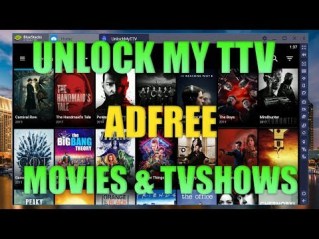
Unlock My TTV

Best Terrarium TV Alternatives

Unlock my TTV comes from the makers of Unlock My TV, which is itself a clone of Cinema HD. They may not be original, but the developers know how to make good clones. The User Interface is identical with the added difference that you can play trailers within the applications for content before you watch it.

You can favorite movies and TV shows and save them to watch later, also take advantage of their intelligent search function to easily find content via several filters. 

Their large content library has several HD and Ultra HD links and is compatible with Real Debrid and Trakt.TV, meaning if you are willing to pay you can always access high-quality links. You can also download and watch content offline.

Unlock my TTV is unique, as it has a Kid’s mode, which means certain content is blocked, and you can set a code to unlock content rated for adults.

The app is free but expects adverts as you use it. Make sure to read our article on Unlock my TTV.


Install UnockMyTTV on Firestick

1. Install the Downloader app and jailbreak your firestick by enabling unknown sources. To learn more about the procedure, you may read How to Install the Downloader App and Enable Unknown Sources.


2. Open Downloader. Type https://reviewvpn.com/ttv and select Go.

Best Terrarium TV Alternatives


3. Click Install.

Best Terrarium TV Alternatives


4. Click Open

Best Terrarium TV Alternatives


5. Click Allow.

Best Terrarium TV Alternatives


6. Click OK.

Step 16 Install UnlockMyTTV on Firestick


7. Click ExoPlayer.

Step 17 Install UnlockMyTTV on Firestick


8. Click Proceed.

Step 18 Install UnlockMyTTV on Firestick


9. UnlockMyTTV is Installed. Enjoy Watching.

Step 19 Install UnlockMyTTV on Firestick

Legal Disclaimer: ReviewVPN.com does not encourage or endorse any illegal activity involved in the usage of services and applications referenced on this site. We do not verify the licensing agreements of services. The end-user is wholly responsible for ensuring that any media accessed through these services does not violate copyright and/or licensing laws. ReviewVPN does not promote, link to, or receive compensation from any Apps and IPTV services.


Install Surfshark on Firestick

Best Surfshark Deal


Cinema HD

Best Terrarium TV Alternatives

Cinema HD deserves to be in a class with Cyberflix and TV Zion for quality and support. Just like Cyberflix, it is supported by a community of 10,000 on Facebook and Reddit.

Concentrating mainly on movies, they serve a massive library of content. What sets Cinema HD apart is its ability to scan links before playing them on your device. If the link doesn’t work or seems suspicious then the application will automatically move on to the next link. You can get better links and content by using Real Debrid and Trakt.TV.

Also, Cinema HD like Cyberflix is completely free and does not even have an advert within the application. You can also set it to Kid’s mode and enable a passcode to be entered to get restricted content.

Plus, download movies and watch them offline with Cinema HD’s best-in-class scrapers. Cinema HD has maintained a big user base because they feel the application is one of the most stable out there. Make sure to read our article on Cinema HD.


Install Cinema HD on Firestick

1. Install the Downloader app and jailbreak your firestick by enabling unknown sources. To learn more about the procedure, you may read How to Install the Downloader App and Enable Unknown Sources.


2. Open Downloader App. Type https://reviewvpn.com/cin and click Go.


3.  Click on INSTALL

Step 13 Install Cinema HD on firestick


4. Click on OPEN

firestick


5. Click on Allow

firestick


6. Click on ACCEPT

firestick


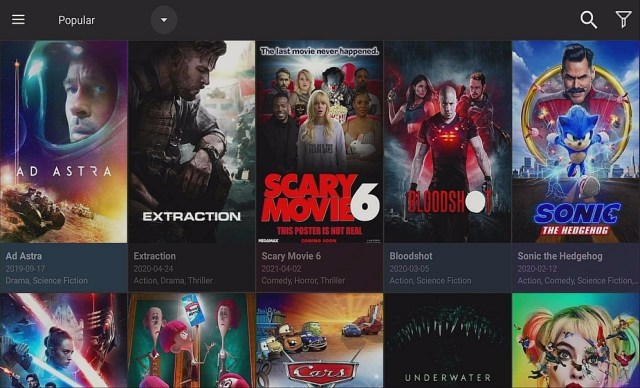
7. Cinema HD is Installed. Enjoy Watching.
firestick


Bee TV

Best Terrarium TV Alternatives beetv-app logo


Bee TV had a rough start in 2018 and was almost abandoned by users who complained about the number of dead links being served, but since the overhaul by the developer in late 2018, it has gone from strength to strength. Users stayed because they loved the UI and Bee TV was so easy to use.

Bee TV has some unique features you won’t find in many other applications. You get an Auto Play and Auto Next function. Download add ons which help you to watch specific or niche types of TV programs. Bee TV also has an internal media player meaning you don’t need to worry about third-party media player compatibility.

The app is also compatible with Premiumize, Real Debrid, and Trakt.TV, and supported by a great community and an active developer. Make sure to read our article on Bee TV.


Install Bee TV on Firestick

1. Install the Downloader app and jailbreak your firestick by enabling unknown sources. To learn more about the procedure, you may read How to Install the Downloader App and Enable Unknown Sources.


2. Open Downloader App. Type https://reviewvpn.com/bee and click Go.

Beetv Step 12


3. Click Install.

Beetv Step 13


4. Click Open.

Beetv Step 14


5. Click Allow

Beetv Step 15


6. Enjoy BeeTV!

Beetv Step 16

Stream Safely With A VPN


https://get.surfshark.net/aff_c?offer_id=865&aff_id=12312

All apps featured in this article are third-party apps. They provide streaming links from all over the internet. We are not 100% sure that every domain and link is safe, especially if they are torrent links. That is why we need to protect our identity while streaming.

Surfshark provides safety while enjoying yourself through watching these applications. It changes your IP address so that your Internet Service provider won’t be able to monitor and control your bandwidth. In addition to this, you can also stream content that is originally not available in your country.

Here are the benefits of IPVanisg when you Use it For Streaming:
  • Surfshark Has a total of 3,200 VPN servers in 65 countries to choose from
  • Masks your identity by changing your IP address
  • Let’s stream geo-restricted content by connecting you to a different server.
  • Applicable with Netflix and Hulu
  • Can be used with any type of device.
  • Has a VPN protocol for each type of device.
  • Offers more advanced features like split tunneling and a kill switch.
  • No log policy.
  • Data Encryption.
  • One account is applicable for multiple devices.
  • Makes your bandwidth faster
  • Best VPN for torrenting.
  • Prevents Firestick Buffering and Kodi Buffering


Grab your subscription now!

Best Surfshark Deal


How to Install Surfshark VPN on Firestick

1. Go to the Home screen of your Firestick.

step 1 Install Surfshark VPN on Firestick


2. Navigate towards the Find tab. Press the Search button from the resulting dropdown.

step 2 Install Surfshark VPN on Firestick


3. Type in the keyword of SurfShark and select from the suggestions that will appear.

step 3 Install Surfshark VPN on Firestick


4. Click the official SurfShark icon from your search results.

step 4 Install Surfshark VPN on Firestick


5. Press the Download (You own it) button.

step 5 Install Surfshark VPN on Firestick


6. The SurfShark VPN installer will download on your device.

step 6 Install Surfshark VPN on Firestick


7. SurfShark VPN’s app will automatically install itself on your Fire TV stick.

step 7 Install Surfshark VPN on Firestick


8. Press the Open button after completing SurfShark VPN’s installation process.

step 8 Install Surfshark VPN on Firestick


9. Please wait for the SurfShark VPN to load its user interface.

step 9 Install Surfshark VPN on Firestick


10. You can now log in with your SurfShark VPN account credentials.

step 10 Install Surfshark VPN on Firestick

Learn more about Surfshark and Grab the Best Surfshark Deal Now!


Other VPNs to Consider

NordVPN (Best for Streaming)

Best Features

  • 5000+ Server in 50+ Countries 
  • Military-Grade Encryption
  • Fast Connection Speed
  • Suitable to a lot of devices
  • No-Log Policy

Prices
  • Complete $5.89 per month (64% Discount)
  • Plus $4.59 per month (56% Discount)
  • Standard $3.69 per month (55% Discount)

Best Features

  • 750+ High-speed VPN Servers in 43 Locations
  • Military-Grade Encryption
  • Fastest HD Streaming and Gaming
  • 30-Day Money-Back Guarantee
  • Unlimited Data & Devices
  • No-Log Policy

Prices
  • 3 Years $1.99 per month (82% Discount)
  • 1 Years $3.29 per month (70% Discount)
  • 1 Month $10.99 per month

IPVanish VPN (Most Secure)

Best Features

  • 1200+ Servers in 60+ Countries around the world
  • Unlimited Connections
  • No-Log Policy
  • Top Notch Military-Grade VPN Protocols and Encryptions
  • 100% Safe and Secured
  • Most Trusted VPN
  • Best VPN for Firestick
  • 30-Day Money-Back Guarantee

Prices
  • Yearly $3.99 per month (63% Discount) – 30 days risk free + Ransomware & Malware Protection
  • Quarterly $5.32 per month (51% Discount)
  • Monthly $10.99 per month


For more VPN discounts, go to ReviewVPN Deals and purchase the best VPN for you.


Best Terrarium TV Alternatives Conclusion

After seeing the Best Terrarium TV Alternatives, what do you think will be your ultimate choice? All of these apps were tested by us and can guarantee that they work well with the Firestick.

It is up to you what to pick.


Final Thoughts

We hope that this article was able to help you out with knowing what are the Best Terrarium TV Alternatives. Thank you for reading!

How to Install Live Channels APK On Firestick

Overview

The Live Channels app is one of the great apps for Android devices to watch Live TV. The app primarily rolled out for the Android TV OS. Moreover, this app is quite interesting, and it comes along with nice features.

This live TV streaming app allows you to access your favorite movies, TV shows, news, sports, and more. The content is from numerous channel sources like IP-based tuners, built-in tuners, and more. Furthermore, the Live TV app has a cool concept that’s really needed for Android streaming devices.

In addition, the Live Channels app comes with amazing features, such as closed captioning, parental controls, and picture-in-picture.


Live Channels APK Installation on FireStick
  1. Turn on the FireStick device, go to the top menu bar and choose > Settings.
  2. Click My Fire TV > Developer Options.
  3. Enable Apps from Unknown Sources.
  4. Go back to FireStick’s home screen and go to the menu bar.
  5. Go to the Search option.
  6. Search & install the Downloader app on FireStick.
  7. After installing the Downloader app, launch it.
  8. Enter the Live Channels app download URL/APK – https://reviewvpn.com/lvc
  9. Click GO.
  10. When the Live Channels file download is complete – click Install.
  11. Now, you have successfully installed the Live Channels app on FireStick.


ANONYMOUSLY


Install Live Channels App on Firestick with Screenshots

Install the Downloader app and jailbreak your firestick by enabling unknown sources. To learn more about the procedure, you may read How to Install the Downloader App and Enable Unknown Sources.

1. After installing the Downloader app, launch it.

Install Live Channels App Step 12

2. Enter the Live Channels app download URL/APK – https://reviewvpn.com/lvc and click GO

Install Live Channels App Step 13


3. When the Live Channels file download is complete – click Install

Live Channels install 15


4. Now, you have successfully installed the Live Channels app on FireStick

Install Live Channels App Step 16


Moving the Newly Installed App to the Front

  • Go back to FireStick’s Home Screen (you may click the Home Button on the Fire Stick remote)
  • Go to Your Apps & Games/Channels
  • Scroll once to the left
  • Click See All
  • All the newly installed apps are located at the bottom – you can move the Live Channels app by clicking the Options button (at the right side of the Home Button)


YOUR INTERNET ACTIVITY IS BEING WATCHED

ReviewVPN cannot attest to the legality, security and privacy of the applications discussed on this site. It is highly recommended that you use a VPN service while streaming or using Kodi.

Currently, your IP 14.186.228.28 is visible to everyone and your Browser is being tracked by Advertisers & ISP Provider.

Save 65% Now

Limited Time Offer

Here are the main reasons why you must use a VPN:

  • Your activities are hidden from your ISP, the government, and from the apps you are using.
  • You can access additional movies and TV streams.
  • ISP attempts to throttle are thrwarted thus reducing buffering issues.
  • Geographically restricted content like Netflix and Hulu can be unblocked.

A VPN works be replacing your ISP-assigned IP address and creating an encrypted tunnel. We recommend the no log service offered by IPVanish. It works well on a Firestick and offers the fastest possible speeds.

Special Limited Time Offer - Get IPVanish


What Is the Live Channels App?

The Live Channels APK is a great app for streaming live television. It lets you watch your favorite sports, movies, TV shows, news, and more. The Live Channels app shows the content instantaneously on your Android streaming devices.


Permissions

To access GEODATA, it is required to make a TV guide. It is needed to download posters to television programs in order to access the storage. You are required to display the TV guide & channel banner to access TV programs.


Compatibility

With the Live Channels app, you can easily watch your favorite live TV channels. It is compatible with numerous Android-powered devices, such as the Amazon Firestick, Google Chromecast, smartphones, and lots more.


Always Use a VPN on Firestick

A Virtual Private Network or VPN is a great service that conceals data by transmitting the web activities to a secure, safe location. The VPN service generates a secure tunnel to offer end-to-end protection. Thus, Internet Service Providers will not know what you are doing online. 

The Amazon Firestick is a very useful device that allows you to stream Netflix, Hulu, as well as any other content you want.

Nonetheless, streaming apps or platforms come with geographical restrictions. Thus, if you’re not residing in the United States, you will not be able to watch the US content library of Netflix. That is the major benefit of using a VPN service like the Surfshark service. If the content is not accessible in your country, the Surfshark service gives you the option to replace your real IP address with the location where the content is available.


Install Surfshark on Firestick

Best Surfshark Deal


How to Install Surfshark VPN on Firestick

If your Firestick still has the older interface, read this article to learn how to update it: Update Firestick Interface.

Follow our screenshots below to install the SurfShark VPN app on your Fire TV stick.

1. Go to the Home screen of your Firestick.

step 1 Install Surfshark VPN on Firestick


2. Navigate towards the Find tab. Press the Search button from the resulting dropdown.

step 2 Install Surfshark VPN on Firestick


3. Type in the keyword of SurfShark and select from the suggestions that will appear.

step 3 Install Surfshark VPN on Firestick


4. Click the official SurfShark icon from your search results.

step 4 Install Surfshark VPN on Firestick


5. Press the Download (You own it) button.

step 5 Install Surfshark VPN on Firestick


6. The SurfShark VPN installer will download on your device.

step 6 Install Surfshark VPN on Firestick


7. SurfShark VPN’s app will automatically install itself on your Fire TV stick.

step 7 Install Surfshark VPN on Firestick


8. Press the Open button after completing SurfShark VPN’s installation process.

step 8 Install Surfshark VPN on Firestick


9. Please wait for the SurfShark VPN to load its user interface.

step 9 Install Surfshark VPN on Firestick


10. You can now log in with your SurfShark VPN account credentials.

step 10 Install Surfshark VPN on Firestick

Learn more about Surfshark and Grab the Best Surfshark Deal Now!


Install Surfshark on Firestick

Best Surfshark Deal


Other VPNs to Consider

NordVPN (Best for Streaming)

Best Features

  • 5000+ Server in 50+ Countries 
  • Military-Grade Encryption
  • Fast Connection Speed
  • Suitable to a lot of devices
  • No-Log Policy

Prices
  • Complete $5.89 per month (64% Discount)
  • Plus $4.59 per month (56% Discount)
  • Standard $3.69 per month (55% Discount)

Best Features

  • 750+ High-speed VPN Servers in 43 Locations
  • Military-Grade Encryption
  • Fastest HD Streaming and Gaming
  • 30-Day Money-Back Guarantee
  • Unlimited Data & Devices
  • No-Log Policy

Prices
  • 3 Years $1.99 per month (82% Discount)
  • 1 Years $3.29 per month (70% Discount)
  • 1 Month $10.99 per month

IPVanish VPN (Most Secure)

Best Features

  • 1200+ Servers in 60+ Countries around the world
  • Unlimited Connections
  • No-Log Policy
  • Top Notch Military-Grade VPN Protocols and Encryptions
  • 100% Safe and Secured
  • Most Trusted VPN
  • Best VPN for Firestick
  • 30-Day Money-Back Guarantee

Prices
  • Yearly $3.99 per month (63% Discount) – 30 days risk free + Ransomware & Malware Protection
  • Quarterly $5.32 per month (51% Discount)
  • Monthly $10.99 per month


For more VPN discounts, go to ReviewVPN Deals and purchase the best VPN for you.

Click here to get the lowest price on Surfshark through our exclusive limited-time offer.


Live Channels App Alternatives

Oreo TV

Orea TV is an amazing live TV streaming app for your Android device. The app comes with proper navigation & options to speedily access the videos without subscription or login problems.

Pros & Cons

Pros

  • Limitless movies, TV shows, & new releases
  • Easy to use Interface 
  • Live TV in High Definition
  • A small number of ads


Cons

  • Several links may be unavailable
  • Launching content may take some time


Live NetTV

Live NetTV is a great entertainment application that provides more than 800 Live Channels, VOD, Movies, TV Shows, Live Sports, and more. It has all popular programming from over 8 countries. The streaming platform is completely FREE. You can use the app easily and you will immediately love it. 


Features:

  • More than 800 channels in numerous categories & genres
  • Access to Video on Demand or VOD
  • Supports several famous external media players
  • Access to numerous premium sports channels
  • Simple & easy to use user interface
  • Completely free without ads
  • You may request channels from the developers
  • It has a filter & sorting system
  • Lets you access movies & TV Shows in High Definition
  • You can report broken links
  • Video playback support on particular external media players
  • Does not require you to register
  • You’ll get notifications when the latest shows are added
  • Live Event scheduler


AOS TV

AOS TV is an awesome free live TV application that allows you to watch free television channels on Android-powered devices. The live TV app offers over 1000 channels. AOS TV’s interface is very straightforward. Simply search for the TV channel you want to watch and the app provides multiple links.


Features:

  • Easy to use interface
  • More than 1000 TV Channels
  • TV channels from the USA, UK, Portugal, Italy, Canada, India, France, Bangladesh, Pakistan, France, & Saudi Arabia amongst others
  • Easy navigation 
  • You may search by trending content, such as the latest sporting events


FAQs

How is the Live Channels app different from other live TV applications?

The Live Channels app uses a distinctive technology that functions on nearly all Android devices & networks. 


Is the Live Channels app free?

Yes, the app is free to download, install, & use.


Is the Live Channels app legal?

Yes, this app is legal. 


Is the Live Channels app safe?

Yes, the Live Channels app is very safe to use and has no viruses or malware. 


Grab your subscription now!

Click here to get the lowest price on Surfshark through our exclusive limited-time offer.


Conclusion

In this article, we have provided information on how to install the Live Channels app on Firestick. The information above should really help enhance your Firestick experience. Moreover, the app lets you watch your favorite sports, movies, TV shows, news, and more.

However, always remember to use A VPN service every time you use your Firestick. If you have any thoughts about the Live Channels app, don’t hesitate to let us know in the comments section.

Best DNS Server

Overview

In this article, we will tell you about the best DNS server.

Are you looking for the best DNS server you can use for a safer browsing experience? If you are, then we just have the right recommendation for you. However, to understand what a DNS is, we will briefly discuss how it works.

We will also show you factors you have to consider before you get a DNS. After you gain some understanding of how a DNS function works, we will tell you about the best DNS servers you can get online.


What is DNS and How Does it Work?

DNS stands for Domain Name System. As people browse the internet, they go to search engines to input their questions, phrases, and words that will produce all relevant results. A DNS is like a person’s phone number in the old school phonebook. However, it applies to each address of every website from the world wide web. Each website has a domain name.


How Does a DNS Work?

The Domain Name System (DNS) converts a website’s URL into an IP address that is readable by any gadget. It is how our modern devices allow you to connect with the internet. The process is also helpful for finding adequate answers to the questions we type in search engine boxes.

The process of getting results from different online sources is known as DNS Resolution. When any individual inputs a web address (www.metalcompass.org), the DNS will convert it to a readable IP address (192.168.6.9). After obtaining an IP address conversion, the client’s device will now read the IP address. It will result in the website that answers the query of the client’s search engine.


Purpose of a DNS Server


ANONYMOUSLY


Factors to Consider When Searching for a DNS

DNS plays a crucial role in providing security against prying eyes. As we all know, many websites contain harmful software. Using a DNS may also result in a device with better performance.

While using the web, you will find many paid DNS providers. However, we all want to save money. Before we will show you the Best Free DNS providers, we will tell you about some factors to consider before getting one.


Default DNS

During the first time you get an internet connection, your internet service provider (ISP) will give you a default DNS. Every time an ISP creates a new domain name, it will be assigned a set of name servers. They are also known as default domain name servers (Default DNS). These default name servers are responsible for keeping a new domain name active from the beginning.


Third-Party DNS

Third-Party DNS is a public domain name server. They can perform similar to default domain name servers (Default DNS). However, many third-party DNS belong to different operators worldwide. They represent alternative DNS services to the Default DNS we always use. It makes third-party domain name servers difficult to track or find the client device using them.


Free DNS

A free DNS is a public domain name server from different operators all over the planet. Free DNS services do not charge their users any type of payment. However, free domain name servers offer few features. Free DNS are hosting services that provide people a domain name if their registrars do not have a DNS hosting service.


Paid DNS

Paid DNS is another form of a third-party DNS hosting service. They offer the use of a private DNS by including extra features that require fees. These features are better security, safety, performance, customer support, and more options for user customization.


Public DNS

A public DNS is a domain name server available for anyone that is using the internet. Some examples are the default DNS from our internet service providers and a dedicated DNS hosting service. The public DNS is useful to a network of computers for searching answers to queries with the domain name server. A public DNS is similar to the DNS you use while browsing inside the safety of your house.


Private DNS

A private DNS is a domain name server that operates with the utmost privacy. Typically, private DNS is common with companies. A private DNS allows company employees to access their original websites and internal IP addresses. An example of a private DNS is the one you use while using the devices at your workstation while accessing the internet for information.

Best Free DNS Providers

We hope you gain some additional knowledge of what a DNS is all about, how it works, and the different types of DNS you typically encounter. Getting a free third-party DNS is now prevalent while connecting with the modern-day internet.

Although free DNS lacks some special features, there are free DNS providers that still ensure your safety while browsing the world wide web.


Cloudflare DNS

CloudFare DNS 1

CloudFare DNS is a free and fast DNS hosting service available for public use. It is a DNS service made for the use of online enterprises. The CloudFare DNS is also an authoritative DNS service that provides its users the fastest response time.

CloudFare DNS offers an outstanding speed of nearly 13.00 milliseconds. It is undoubtedly a fast and free DNS service you can use while browsing the internet. CloudFare has over 200 domain name servers in different worldwide locations. It is no surprise that anyone wanting to use the CloudFare DNS will find a server close to their location.

The CloudFare DNS uses a redundancy with no parallels. It has a distributed cache system that stores many DNS queries on its many servers. This is useful for improving latency and getting query results at excellent speeds. For better security, the CloudFare DNS uses DNS over HTTPS and TLS protocols.

  • CloudFare Primary DNS:

    • 1.1.1.1

  • CloudFare Secondary DNS:

    • 1.0.0.1


OpenDNS

Quad9 DNS 1

OpenDNS is a domain name server from the reputable company of Cisco. The DNS contains a package of features that attempts to provide a safer, reliable, and faster DNS service for its users. OpenDNS also aims to become a family-friendly DNS hosting service that is free of any fees.

The OpenDNS name is a popular term that represents a DNS concept. It accepts queries from any kind of input or online source. OpenDNS does not have any bandwidth limit. The OpenDNS company is a product of its parent company Cisco.

OpenDNS offers many special features. Some of these features are phishing protection, options for filtering website contents, and a DNS Lookup. Two of its main features are FamilyShield and Home. FamilyShield helps parents block adult content from their youngsters. Users may customize some filters and implement a network ban on many adult websites.

  • OpenDNS’ Primary DNS:

    • Home: 208.67.222.222

    • FamilyShield: 208.67.222.123

  • OpenDNS’ Secondary DNS:

    • Home: 208.67.222.222

    • FamilyShield: 208.67.222.123


Google Public DNS

Google Public DNS 1

Luckily for many users who are security conscious, the popular search engine of Google provides its public DNS server. The Google Public DNS is available for anyone to use while browsing the internet. Google’s Public DNS functions as a public recursive server. It aims to provide a DNS for a faster and more secured web browsing experience.

The Google Public DNS utilizes the power of its global data center network. This allows the Google Public DNS to provide excellent browsing speeds and offer more security options. Each data center of Google uses the Anycast Routing technique. Anycast Routing is a traffic algorithm for routing many user queries.

The Anycast Routing algorithm will map together with its network of global servers. As a result, any person will receive a query result with excellent speed. The Google Public DNS also supports user devices with IPv6 connections. Suppose you have an IPv6 connection, you just have to use a different set of DNS numbers.

  • Primary DNS:

    • 8.8.8.8

  • Secondary DNS:

    • 8.8.4.4


YOUR INTERNET ACTIVITY IS BEING WATCHED

ReviewVPN cannot attest to the legality, security and privacy of the applications discussed on this site. It is highly recommended that you use a VPN service while streaming or using Kodi.

Currently, your IP 14.186.228.28 is visible to everyone and your Browser is being tracked by Advertisers & ISP Provider.

Save 65% Now

Limited Time Offer

Here are the main reasons why you must use a VPN:

  • Your activities are hidden from your ISP, the government, and from the apps you are using.
  • You can access additional movies and TV streams.
  • ISP attempts to throttle are thrwarted thus reducing buffering issues.
  • Geographically restricted content like Netflix and Hulu can be unblocked.

A VPN works be replacing your ISP-assigned IP address and creating an encrypted tunnel. We recommend the no log service offered by IPVanish. It works well on a Firestick and offers the fastest possible speeds.

Special Limited Time Offer - Get IPVanish


Quad9

Quad9 DNS 1

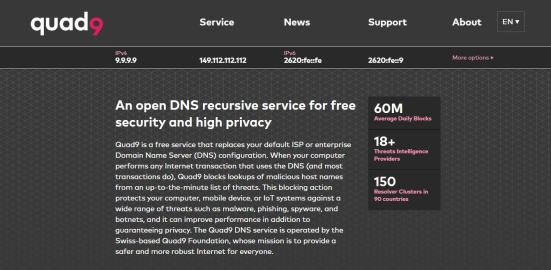
When it comes to providing many security measures against online threats, the DNS of Quad9 tops all other free DNS hosting services. Quad9 offers its users robust and reliable security measures. The free DNS provider aims to protect you against the latest harmful software, malware and lurking cyber threats.

Quad9 holds the highest record of stopping malware attacks worldwide. Ensuring a high level of security to its users, Quad9 follows DNSSEC extensions. These security extensions are efficient with the prevention of domain spoofing, malware intrusions, and cyber attacks. DNSSEC extensions also accurately match your DNS queries to the appropriate domain operator.

Quad9 also uses the live threat intelligence feature. The live threat intelligence feature combines the data collection of thirteen online cyber security firms. It is handy in detecting websites with infections or websites that have clones. The live threat intelligence feature also stops phishing and malware websites from infiltrating your domain.

  • Primary DNS:

    • 9.9.9.9

  • Secondary DNS:

    • 149.112.112.112


Comodo Secure

Comodo Secure 1

Comodo Secure is a public domain name server that does not require any fees. People may begin using Comodo secure by clicking on its free trial button. Comodo Secure is a public DNS that focuses on providing the utmost security measures against the latest cyber threats. It offers efficient protection against adware, spyware, malware, and C&C Callbacks.

If you use Comodo Secure, the public DNS will immediately warn you before opening a website with ads and malicious threats. The public DNS is also handy in blocking phishing websites and malware domains. When Comodo Secure detects a new website threat, it will add it to its existing blocklist of dangerous sites. This helps the public DNS provide a secure experience to its future users.

Comodo Secure also directs your queries to the correct domain operator. If any person is trying to visit an inactive domain, the Comodo Secure public DNS will redirect you towards active ones. Suppose you are an avid gamer wanting an increase in your connection speed, then Comodo Secure will help you achieve it.

  • Primary DNS:

    • 8.26.56.26

  • Secondary DNS:

    • 8.20.247.20


OpenNIC Project

OpenNIC Project DNS 1

OpenNIC Project is a free public domain server provider from an organization of hobbyists. The OpenNIC DNS provides users access to all the domains that do not fall under the administration of ICANN. OpenNIC resolves DNS queries with the help of their original namespaces.

The OpenNIC DNS does not contain any type of content blocking features. This means that any user cannot use OpenNIC to block some websites they do not want to visit. OpenNIC does not apply any type of internet censorship. It allows the users of the OpenNIC public DNS to have a free browsing experience without any limits.

OpenNIC DNS can also increase your internet speeds. The public DNS operates as a volunteer project and focuses on providing DNS neutrality. OpenNIC DNS has many global servers. One of the security measures of OpenNIC is the prevention of DNS Hijacking. It ensures that your DNS queries will not result in you visiting malicious websites.

  • Primary DNS:

    • 198.206.14.241

  • Secondary DNS:

    • 172.98.193.42


Yandex DNS

Yandex DNS 1

Yandex DNS is another third-party and public domain name server provider. The DNS hosting service is from Russia and offers its users a smooth and unforgettable experience like drinking vodka. Yandex DNS holds a record for providing an uptime of 99.95% efficiency. It means that its servers do not result in query failures almost 99.95% every time.

Yandex DNS provides three types of security features. These security features are Basic, Family, and Safe. Yandex DNS Basic feature offers an increase in your internet speed. The Family feature allows users to implement content filtering options. Yandex DNS’ Safe feature enhances your speed and protects you from DoS attacks and malware intrusions.

However, the Yandex DNS hosting service sometimes shares your data with third parties. It is not a private DNS provider. Yandex DNS still helps in giving a robust, reliable, and effective security measure against the latest cyber threats. It also allows users to access many customization features that will help you filter some online content.

  • Primary DNS:

    • 77.88.8.8

  • Secondary DNS:

    • 77.88.8.1


Use a DNS Provider with a VPN

surfshark logo

DNS services aim to provide people with a secure, fast, and reliable internet connection. Utilizing the help of powerful server networks, intelligence gathering techniques, and security protocols, many DNS services stop harmful attacks from many cyber threats.

However, not all DNS services are trustworthy. There are still providers that sell your information and distribute them to third parties. It is why we recommend you install the Surfshark.

Surfshark will help you stop many cyber threats. It will pass your online traffic through encrypted tunnels. It is the best for gaming and streaming activities. Here are some benefits of using this VPN:

  • Pass your connection through digital tunnels.
  • Counter the effects of ISP throttling.
  • Cloak your device from prying eyes.
  • Provide you with an invisible IP address.
  • Protect you from the latest cyber threats.
  • Prevents the onset of lagging and buffering while streaming with Fire TV devices.


Install Surfshark on Firestick

Best Surfshark Deal


How to Install Surfshark VPN on Firestick

If your Firestick still has the older interface, read this article to learn how to update it: Update Firestick Interface.

Follow our screenshots below to install the SurfShark VPN app on your Fire TV stick.

1. Go to the Home screen of your Firestick.

step 1 Install Surfshark VPN on Firestick


2. Navigate towards the Find tab. Press the Search button from the resulting dropdown.

step 2 Install Surfshark VPN on Firestick


3. Type in the keyword of SurfShark and select from the suggestions that will appear.

step 3 Install Surfshark VPN on Firestick


4. Click the official SurfShark icon from your search results.

step 4 Install Surfshark VPN on Firestick


5. Press the Download (You own it) button.

step 5 Install Surfshark VPN on Firestick


6. The SurfShark VPN installer will download on your device.

step 6 Install Surfshark VPN on Firestick


7. SurfShark VPN’s app will automatically install itself on your Fire TV stick.

step 7 Install Surfshark VPN on Firestick


8. Press the Open button after completing SurfShark VPN’s installation process.

step 8 Install Surfshark VPN on Firestick


9. Please wait for the SurfShark VPN to load its user interface.

step 9 Install Surfshark VPN on Firestick


10. You can now log in with your SurfShark VPN account credentials.

step 10 Install Surfshark VPN on Firestick

Learn more about Surfshark and Grab the Best Surfshark Deal Now!


Install Surfshark on Firestick

Best Surfshark Deal


Other VPNs to Consider

NordVPN (Best for Streaming)

Best Features

  • 5000+ Server in 50+ Countries 
  • Military-Grade Encryption
  • Fast Connection Speed
  • Suitable to a lot of devices
  • No-Log Policy

Prices
  • Complete $5.89 per month (64% Discount)
  • Plus $4.59 per month (56% Discount)
  • Standard $3.69 per month (55% Discount)

Best Features

  • 750+ High-speed VPN Servers in 43 Locations
  • Military-Grade Encryption
  • Fastest HD Streaming and Gaming
  • 30-Day Money-Back Guarantee
  • Unlimited Data & Devices
  • No-Log Policy

Prices
  • 3 Years $1.99 per month (82% Discount)
  • 1 Years $3.29 per month (70% Discount)
  • 1 Month $10.99 per month

IPVanish VPN (Most Secure)

Best Features

  • 1200+ Servers in 60+ Countries around the world
  • Unlimited Connections
  • No-Log Policy
  • Top Notch Military-Grade VPN Protocols and Encryptions
  • 100% Safe and Secured
  • Most Trusted VPN
  • Best VPN for Firestick
  • 30-Day Money-Back Guarantee

Prices
  • Yearly $3.99 per month (63% Discount) – 30 days risk free + Ransomware & Malware Protection
  • Quarterly $5.32 per month (51% Discount)
  • Monthly $10.99 per month


For more VPN discounts, go to ReviewVPN Deals and purchase the best VPN for you.

Click here to get the lowest price on Surfshark through our exclusive limited-time offer.


FAQs

Do these DNS Providers require any payment?

No, not all of them require any payment. However, if you want to get extra features, you may have to pay some extra fees.


Is it safe to use DNS servers?

Yes. One of the primary purposes of DNS servers is to provide a safe, secure, and faster web browsing experience. They also implement many security protocols that prevent online threats. There are DNS hosting services that specialize in preventing cyber attacks, malware, viruses, and even stop you from accessing malicious domains.


Conclusion

DNS is the acronym for Domain Name System. All of us use a different type of DNS while browsing the internet. Unbeknownst to many people, the internet contains many cyber threats such as hackers, viruses, and harmful software. To ensure security while browsing, people may opt to get the services of free public domain name servers.

We hope this article teaches you about the best DNS servers that provide a safe, faster, and reliable browsing experience.

How To Install 3C All in One Toolbox On Firestick

Overview

The 3C All-in-One Toolbox app is a useful tool that lets people take full control of their Android devices. It lets users monitor the status & heating of the memory, battery, network’s presence & quality, processor, clean & reboot, SD-card, and backup & restore. Also, it indicates adapters’ connection & disconnection, and many more.


Furthermore, the 3C All-in-One Toolbox pro combines several features from other awesome apps into one huge toolbox with an easy-to-use and state-of-the-art interface. This app has every tool people need to control, fine-tune, and monitor all their Android-based devices.

In addition, it offers very powerful activity scheduling, device watchdogs, and profiles to optimize device performance and battery savings based on your situation. The app comes with a great File manager. Finally, the 3C All-in-One Toolbox app lets you stream videos & images directly to your desired player. 


ANONYMOUSLY


3C All in One Toolbox APK Installation on FireStick
  1. Turn on the FireStick device, go to the top menu bar and choose > Settings.
  2. Click My Fire TV > Developer Options.
  3. Enable Apps from Unknown Sources.
  4. Go back to FireStick’s home screen and go to the menu bar.
  5. Go to the Search option.
  6. Search & install the Downloader app on FireStick.
  7. After installing the Downloader app, launch it.
  8. Enter the 3C All in One Toolbox app download URL/APK – https://reviewvpn.com/3ca
  9. Click GO.
  10. When the 3C All in One Toolbox file download is complete – click Install.
  11. Now, you have successfully installed the 3C All in One Toolbox app on FireStick.


Install 3C All in One Toolbox APK on Firestick with Screenshots

Install the Downloader app and jailbreak your firestick by enabling unknown sources. To learn more about the procedure, you may read How to Install the Downloader App and Enable Unknown Sources.

1. After installing the Downloader app, launch it.

Install 3C All in One Toolbox APK on Firestick Step 13

2. Enter the 3C All in One Toolbox app download URL/APK – https://reviewvpn.com/3ca and click GO.

Install 3C All in One Toolbox APK on Firestick Step 14


3. When the 3C All in One Toolbox file download is complete – click Install.

Install 3C All in One Toolbox APK on Firestick Step 15


4. Now, you have successfully installed the 3C All in One Toolbox app on FireStick

Install 3C All in One Toolbox APK on Firestick Step 16


Install Surfshark on Firestick

Best Surfshark Deal


Moving the Newly Installed App to the Front

  • Go back to FireStick’s Home Screen (you may click the Home Button on the Fire Stick remote)
  • Go to Your Apps & Games/Channels
  • Scroll once to the left
  • Click See All
  • All the newly installed apps are located at the bottom – you can move the 3C All in One Toolbox app by clicking the Options button (at the right side of the Home Button)


What Is 3C All in One Toolbox?

The 3C All-in-One Toolbox Pro app is an absolute solution for people who need to set up and control their Android-powered devices. It is a useful app that will keep your Android devices clean and under control. Nonetheless, the 3C All-in-One Toolbox application comes with a File Manager, device Manager, battery Manager, application Manager, task Manager, Network Manager, CPU Manager, and many more.

The 3C All-in-One Toolbox app lets you access the file manage section to see all the files. Then, you can manage the files by deleting some files to make some storage for new files. Also, the app displays info about all the applications running in the background.


YOUR INTERNET ACTIVITY IS BEING WATCHED

ReviewVPN cannot attest to the legality, security and privacy of the applications discussed on this site. It is highly recommended that you use a VPN service while streaming or using Kodi.

Currently, your IP 14.186.228.28 is visible to everyone and your Browser is being tracked by Advertisers & ISP Provider.

Save 65% Now

Limited Time Offer

Here are the main reasons why you must use a VPN:

  • Your activities are hidden from your ISP, the government, and from the apps you are using.
  • You can access additional movies and TV streams.
  • ISP attempts to throttle are thrwarted thus reducing buffering issues.
  • Geographically restricted content like Netflix and Hulu can be unblocked.

A VPN works be replacing your ISP-assigned IP address and creating an encrypted tunnel. We recommend the no log service offered by IPVanish. It works well on a Firestick and offers the fastest possible speeds.

Special Limited Time Offer - Get IPVanish


App Features

  • Device manager provides powerful profiles, device watchdog, and task scheduling to optimize performance and saves battery.
  • It has a File manager with folder size, thumbnails, and many more. It allows you to stream videos & photos. You can stream locally or from FTP, Samba, Google Drive, Dropbox, or WebDAV.
  • The 3C All in One Toolbox provides backup or restore of all the apps, which include the ability to import Android’s most powerful backup tool – Titanium Backup. Additionally, the app lets you customize & secure applications’ orientation, events, control permissions, and full-screen 
  • Its battery manager helps improve and analyze your device consumption. The app provides complete data on charge cycles history, approximate calculations in use or standby, as well as custom statistics on profiles. Nonetheless, it has special support for battery changes and dual battery devices
  • The app lets you configure and monitor network traffic.
  • The 3C All in One Toolbox app offers a simple user interface yet is extremely effective in sorting applications by different usage and eliminating unwanted applications
  • It has a CPU manager that controls single to octa-core central processing units, multi-core, most custom kernel settings, and thermal
  • The 3C All in One Toolbox app allows you to configure Linux kernel settings
  • The app allows you to configure Android operating system settings.
  • You can monitor and record all your apps and hardware components’ activities. However, it comes with status bar notifications accompanied by historical graphics.
  • The 3C All in One Toolbox app switches in-app or in-widgets. It allows you to switch on or off more than 20 device components, including Bluetooth, Wi-Fi, and more
  • It has information notifications allowing you to display major info in the status bar.
  • The app has line indicators to display simple data 
  • The app allows you to quickly access application features or toggle different system components
  • It comes with a toolbox integration that saves battery and optimizes performance. Nonetheless, you can control hardware and manage applications from anywhere.
  • Highly configurable user interface allowing you to change the app based on your liking
  • The widgets are highly configurable, from a basic gauge to more compound data display, historical graphics,  as well as component toggles


Pro-only Features

  • Conceal tabs or menu item
  • Multi or auto-select & sort applications
  • You can edit the main screen buttons
  • Recording items & options
  • Auto backup & new application notification
  • Automatic battery markers 
  • Make multiple watchers, profiles, and schedules
  • Notification shortcut 
  • Be in charge of multiple batteries
  • Several extra widgets


Always Use a VPN on Firestick

A Virtual Private Network or VPN is a great service that conceals data by transmitting web activities to a secure, safe location. The VPN service generates a secure tunnel to offer end-to-end protection. Thus, Internet Service Providers will not know what you are doing online. The Amazon Firestick is a very useful device that allows you to stream Netflix, Hulu, as well as any other content you want.

Nonetheless, streaming apps or platforms come with geographical restrictions. Thus, if you’re not residing in the United States, you will not be able to watch the US content library of Netflix. That is the major benefit of using a VPN service like the Surfshark service. If the content is not accessible in your country, the Surfshark service gives you the option to replace your real IP address with the location where the content is available.


Grab your subscription now!

Click here to get the lowest price on Surfshark through our exclusive limited-time offer.


How to Install Surfshark VPN on Firestick

If your Firestick still has the older interface, read this article to learn how to update it: Update Firestick Interface.

Follow our screenshots below to install the SurfShark VPN app on your Fire TV stick.

1. Go to the Home screen of your Firestick.

step 1 Install Surfshark VPN on Firestick


2. Navigate towards the Find tab. Press the Search button from the resulting dropdown.

step 2 Install Surfshark VPN on Firestick


3. Type in the keyword of SurfShark and select from the suggestions that will appear.

step 3 Install Surfshark VPN on Firestick


4. Click the official SurfShark icon from your search results.

step 4 Install Surfshark VPN on Firestick


5. Press the Download (You own it) button.

step 5 Install Surfshark VPN on Firestick


6. The SurfShark VPN installer will download on your device.

step 6 Install Surfshark VPN on Firestick


7. SurfShark VPN’s app will automatically install itself on your Fire TV stick.

step 7 Install Surfshark VPN on Firestick


8. Press the Open button after completing SurfShark VPN’s installation process.

step 8 Install Surfshark VPN on Firestick


9. Please wait for the SurfShark VPN to load its user interface.

step 9 Install Surfshark VPN on Firestick


10. You can now log in with your SurfShark VPN account credentials.

step 10 Install Surfshark VPN on Firestick

Learn more about Surfshark and Grab the Best Surfshark Deal Now!


Install Surfshark on Firestick

Best Surfshark Deal


Other VPNs to Consider

NordVPN (Best for Streaming)

Best Features

  • 5000+ Server in 50+ Countries 
  • Military-Grade Encryption
  • Fast Connection Speed
  • Suitable to a lot of devices
  • No-Log Policy

Prices
  • Complete $5.89 per month (64% Discount)
  • Plus $4.59 per month (56% Discount)
  • Standard $3.69 per month (55% Discount)

Best Features

  • 750+ High-speed VPN Servers in 43 Locations
  • Military-Grade Encryption
  • Fastest HD Streaming and Gaming
  • 30-Day Money-Back Guarantee
  • Unlimited Data & Devices
  • No-Log Policy

Prices
  • 3 Years $1.99 per month (82% Discount)
  • 1 Years $3.29 per month (70% Discount)
  • 1 Month $10.99 per month

IPVanish VPN (Most Secure)

Best Features

  • 1200+ Servers in 60+ Countries around the world
  • Unlimited Connections
  • No-Log Policy
  • Top Notch Military-Grade VPN Protocols and Encryptions
  • 100% Safe and Secured
  • Most Trusted VPN
  • Best VPN for Firestick
  • 30-Day Money-Back Guarantee

Prices
  • Yearly $3.99 per month (63% Discount) – 30 days risk free + Ransomware & Malware Protection
  • Quarterly $5.32 per month (51% Discount)
  • Monthly $10.99 per month


For more VPN discounts, go to ReviewVPN Deals and purchase the best VPN for you.

Click here to get the lowest price on Surfshark through our exclusive limited-time offer.


FAQs

Is the 3C All in One Toolbox app Good?

Yes, the 3C All in One Toolbox app is good and worth trying.


Is the 3C All in One Toolbox app free?

Yes, the 3C All in One Toolbox app is free to download, install, & use.


Conclusion

In this article, we have provided information on how to install the 3C All in One Toolbox app on Firestick. The information above should really help enhance your Firestick.

However, always remember to use A VPN service every time you use your Firestick. If you have any thoughts about the 3C All in One Toolbox app, don’t hesitate to let us know in the comments section.

How to Install Anime TV App on Firestick

Overview

In this article, we will show you how to install the Anime TV app on your Fire TV stick.

Anime represents the peak of Japanese culture. Their animations come from comic books popularly known as Mangas. The art of Manga still holds the world standard. No wonder both manga and anime gather millions of followers worldwide.


Are you looking for a TV app with many Anime shows to choose from? If yes, we will tell you about an app for streaming anime content. ReviewVPN tackles the best apps for streaming. We also cover some issues you might encounter while using the Fire TV stick. Our research and testing ensure that you receive the best apps.

Let us now introduce you to the Anime TV app. The Anime TV app is an awesome software for watching anime content. It contains many anime genres. Users may also select from its collection of movies, series, and TV shows. It is your one-stop app for accessing anime content.


We will now teach you how to install the Anime TV app on your Fire TV stick. You only have to Jailbreak your Fire TV Stick and sideload the app for its successful installation.


Anime TV App for Android Devices


Anime TV Button 1

Note: ReviewVPN.com does not host this APK file. It is hosted by Archive.org


ANONYMOUSLY


How to Install Anime TV App on your Fire TV stick

You can install the Anime TV app on your Fire TV stick by using the Downloader app. Just follow our simple guide below.

  1. Open your Firestick Settings Tab. (Gear Wheel Icon).
  2. Scroll down and to the right until you get to My Fire TV. Click on it.
  3. Select Developer options.
  4. Turn on ADB debugging and Apps from Unknown Sources.
  5. Press the Turn On when the pop-up appears.
  6. Click Home and press on FIND.
  7. Press on Search.
  8. You can either say Downloader to your Alexa voice-enabled remote or start typing it. If you typed it, click on the suggestion when it appears.
  9. Click on the Downloader Icon.
  10. Tap on Download.
  11. Click on Open.
  12. Press on the Allow button.
  13. Use the Downloader app’s Search tab.
  14. Type in: reviewvpn.com/anm
  15. The Anime TV app’s APK file will download.
  16. Click on Install.
  17. The Anime TV app will install on Firestick.
  18. Users may Open the Anime TV app for watching anime shows and reading manga comics.


How to Install Anime TV App on your Fire TV stick With Screenshots

Use the Downloader app to install the Anime TV app on your Fire TV stick. Follow each of our screenshots down below and not miss one step of its installation procedure.

1. Open your Firestick Settings Tab. (Gear Wheel Icon).

Step 1 Install Anime TV App on Firestick

2. Scroll down and to the right until you get to My Fire TV. Click on it.

Step 2 Install Anime TV App on Firestick


3. Select Developer options.

Step 3 Install Anime TV App on Firestick


4. Turn on ADB debugging and Apps from Unknown Sources.

Step 4 Install Anime TV App on Firestick


5. Press the Turn On when the pop-up appears.

Step 5 Install Anime TV App on Firestick


6. Click Home and press on FIND.

Step 6 Install Anime TV App on Firestick


7. Press on Search.

Step 7 Install Anime TV App on Firestick


8. You can either say Downloader to your Alexa voice-enabled remote or start typing it. If you typed it, click on the suggestion when it appears.

Step 8 Install Anime TV App on Firestick


9. Click on the Downloader Icon.

Step 9 Install Anime TV App on Firestick


10. Tap on Download.

Step 10 Install Anime TV App on Firestick


step 10 Install Anime TV App on Firestick


11. Click on Open.

Step 11 Install Anime TV App on Firestick


12. Press on the Allow button.

Step 12 Install Anime TV App on Firestick


13. Use the Downloader search tab.

Step 13 Install Anime TV App on Firestick


14. Type in: reviewvpn.com/anm

Install Anime TV App on Firestick Step 14


15. The Anime TV app’s APK file will download.

Install Anime TV App on Firestick Step 15


16. Click on Install.

Install Anime TV App on Firestick Step 16


17. The Anime TV app will install on Firestick.

Install Anime TV App on Firestick Step 17


18. Users may Open the Anime TV app for watching anime shows and reading manga comics.

Install Anime TV App on Firestick Step 18


Install Anime TV App on Firestick Step 19


Features of the Anime TV App

  • Anime TV show provider
  • Free anime movies and TV series
  • Updates app content daily
  • Select TV show episodes or exclusive Anime OVAs
  • Large collection of Japanese Manga and Anime content
  • One-stop app for Japanese Manga and Anime content
  • Provide subs for every language
  • English-dubbing for shows and movies
  • Allows users to access their viewing history
  • Lets people add TV shows, series, and movies as their favorite
  • Provides a Watch history feature
Technical Specifications of the Anime TV App

The Anime TV app is a free to use, community software, and comics app. You can install the app on many modern devices. We have the technical specifications for the Anime TV app so you can learn about its requirements.

Anime TV App Infographic


Anime TV App Interface

  • Simple user interface
  • Gallery style video list
  • Contains the latest Anime titles and Episodes
  • Comprehensive Interface
  • Find anime media content titles based on filters


Genres Inside the Anime TV App

  • Action
  • Demons
  • Drama
  • Horror
  • Shoujo
  • Shounen
  • Supernatural
  • Realistic
  • Romance
  • Magic
  • Mecha
  • Psychological
  • Sci-fi
  • Mystery


Pros and Cons

Pros

  • 100% Free
  • Legal-to-Use
  • A one-stop source of Japanese Anime
  • Comic book app
  • Allows users to read manga comics
  • Easy to install
  • Comprehensive interface
  • Contains many Anime genres
  • Provides an add to Favorite feature
  • Adds a Watch history feature


Cons

  • The app requires its users to either log in, signup, or create an account before using the app.


Watch Anime Online with a VPN

https://get.surfshark.net/aff_c?offer_id=865&aff_id=12312

Several anime enthusiasts now enjoy the free streaming of their favorite shows and movies. Accessing many Anime channels and manga websites is easier with the modern-day internet. The availability of many apps providing people 24/7 access to anime media continues to gather many anime fans worldwide.

Streaming anime is an excellent hobby to take. However, our internet service providers (ISPs) can decrease the rate of our connections. They do this if they detect heavy traffic from our devices. This process is known as ISP throttling.

Aside from ISP throttling, many online threats prey on avid streamers. To protect your device and connection, we recommend installing the Surfshark VPN. It is the best VPN for streaming anime content. This VPN service has many benefits to give us:

  • Fast streaming of anime videos.
  • Quick loading of manga pages.
  • Renders your connection invisible from online predators.
  • Keep your data secure with virtual tunnels.
  • Stuttering and buffering will not occur while using Fire TV and Kodi devices.


Grab your subscription now!

Best Surfshark Deal


YOUR INTERNET ACTIVITY IS BEING WATCHED

ReviewVPN cannot attest to the legality, security and privacy of the applications discussed on this site. It is highly recommended that you use a VPN service while streaming or using Kodi.

Currently, your IP 14.186.228.28 is visible to everyone and your Browser is being tracked by Advertisers & ISP Provider.

Save 65% Now

Limited Time Offer

Here are the main reasons why you must use a VPN:

  • Your activities are hidden from your ISP, the government, and from the apps you are using.
  • You can access additional movies and TV streams.
  • ISP attempts to throttle are thrwarted thus reducing buffering issues.
  • Geographically restricted content like Netflix and Hulu can be unblocked.

A VPN works be replacing your ISP-assigned IP address and creating an encrypted tunnel. We recommend the no log service offered by IPVanish. It works well on a Firestick and offers the fastest possible speeds.

Special Limited Time Offer - Get IPVanish


How to Install Surfshark VPN on Firestick

If your Firestick still has the older interface, read this article to learn how to update it: Update Firestick Interface.

You can download Surfshark directly from the Amazon App store. It will be easy for you to find Surfshark with your Firestick’s Find feature. Refer to our screenshots below.

1. Go to the Home screen of your Firestick.

step 1 Install Surfshark VPN on Firestick


2. Navigate towards the Find tab. Press the Search button from the resulting dropdown.

step 2 Install Surfshark VPN on Firestick


3. Type in the keyword of SurfShark and select from the suggestions that will appear.

step 3 Install Surfshark VPN on Firestick


4. Click the official SurfShark icon from your search results.

step 4 Install Surfshark VPN on Firestick


5. Press the Download (You own it) button.

step 5 Install Surfshark VPN on Firestick


6. The SurfShark VPN installer will download on your device.

step 6 Install Surfshark VPN on Firestick


7. SurfShark VPN’s app will automatically install itself on your Fire TV stick.

step 7 Install Surfshark VPN on Firestick


8. Press the Open button after completing SurfShark VPN’s installation process.

step 8 Install Surfshark VPN on Firestick


9. Please wait for the SurfShark VPN to load its user interface.

step 9 Install Surfshark VPN on Firestick


10. You can now log in with your SurfShark VPN account credentials.

step 10 Install Surfshark VPN on Firestick

Learn more about Surfshark and Grab the Best Surfshark Deal Now!


Install Surfshark on Firestick

Best Surfshark Deal


Other VPNs to Consider

NordVPN (Best for Streaming)

Best Features

  • 5000+ Server in 50+ Countries 
  • Military-Grade Encryption
  • Fast Connection Speed
  • Suitable to a lot of devices
  • No-Log Policy

Prices
  • Complete $5.89 per month (64% Discount)
  • Plus $4.59 per month (56% Discount)
  • Standard $3.69 per month (55% Discount)

Best Features

  • 750+ High-speed VPN Servers in 43 Locations
  • Military-Grade Encryption
  • Fastest HD Streaming and Gaming
  • 30-Day Money-Back Guarantee
  • Unlimited Data & Devices
  • No-Log Policy

Prices
  • 3 Years $1.99 per month (82% Discount)
  • 1 Years $3.29 per month (70% Discount)
  • 1 Month $10.99 per month

IPVanish VPN (Most Secure)

Best Features

  • 1200+ Servers in 60+ Countries around the world
  • Unlimited Connections
  • No-Log Policy
  • Top Notch Military-Grade VPN Protocols and Encryptions
  • 100% Safe and Secured
  • Most Trusted VPN
  • Best VPN for Firestick
  • 30-Day Money-Back Guarantee

Prices
  • Yearly $3.99 per month (63% Discount) – 30 days risk free + Ransomware & Malware Protection
  • Quarterly $5.32 per month (51% Discount)
  • Monthly $10.99 per month


For more VPN discounts, go to ReviewVPN Deals and purchase the best VPN for you.

Click here to get the lowest price on Surfshark through our exclusive limited-time offer.


Alternative Apps for Anime TV App

Anime TV app is a wonderful app for all things about anime. However, some anime fans might still look for content not present on the app. We have a list of apps that can serve as viable alternatives:


FAQs

Is the Anime TV app free?

Yes, but users of the app may have to create their login account to use the features of the app.


Are there ads while using the Anime TV app?

Yes, there are a few occasional pop-up ads while using the app. However, they do not disrupt your streaming experience.


Conclusion

The Anime TV app is one of the best apps for streaming anime. It allows users to find anime titles with different filters. Anime fans may also add titles as their favorite, or check out their viewing history.

We hope this article helps you install the Anime TV app on your Fire TV stick.

How to Install Insta IPTV on Firestick

Overview

In this article, we will show you how to install the Insta IPTV app on your Fire TV stick.

Internet Protocol Television or IPTV allows many people to stream TV channels with the help of the internet. It is a modern and fascinating feature. With the help of modern devices connecting to the web, we can watch our favorite TV shows anywhere.


Are you searching for an IPTV app that has tons of TV content? If you are, you have come across the right article. We will now introduce you to the wonderful capabilities of the Insta IPTV app. If you want instant IPTV streaming anywhere you might be, the Insta IPTV app is suitable for your needs.

The Insta IPTV app allows users to watch live IPTV channels either on their Android phone or Fire TV device. It contains an astounding eight thousand IPTV channels from different worldwide sources. You can now catch your favorite TV show, catch the latest sports event, watch the news, or even binge-watch movies with your mobile.

We will now show you the technical specifications of the Insta IPTV app.


We will now teach you how to install the Insta IPTV app on your Fire TV stick. You only have to Jailbreak your Fire TV Stick and sideload the app for its successful installation.


Insta IPTV App for Android Devices


Insta IPTV DL Button 1

Note: ReviewVPN.com does not host this APK file. It is hosted by Archive.org


ANONYMOUSLY


How to Install Insta IPTV App on your Fire TV stick

You can install the Insta IPTV app on your Fire TV stick by using the Downloader app. Just follow our simple guide below.

  1. Open your Firestick Settings Tab. (Gear Wheel Icon).
  2. Scroll down and to the right until you get to My Fire TV. Click on it.
  3. Select Developer options.
  4. Turn on ADB debugging and Apps from Unknown Sources.
  5. Press the Turn On when the pop-up appears.
  6. Click Home and press on FIND.
  7. Press on Search.
  8. You can either say Downloader to your Alexa voice-enabled remote or start typing it. If you typed it, click on the suggestion when it appears.
  9. Click on the Downloader Icon.
  10. Tap on Download.
  11. Click on Open.
  12. Press on the Allow button.
  13. Use the Downloader app’s Search tab.
  14. Type in: reviewvpn.com/ins
  15. The Insta IPTV app’s APK file will download.
  16. Click on Install.
  17. The Insta IPTV app will install on Firestick.
  18. You can now open the Insta IPTV app after installing it on your device.
  19. Click on any live IPTV channel for watching any programs you like.


How to Install Insta IPTV App on your Fire TV stick With Screenshots

Installing the Insta IPTV app on your Fire TV stick is easier with the Downloader app. You can then install third-party apps like the Insta IPTV app by jailbreaking your Fire TV stick Follow each instruction and image down below:

1. Open your Firestick Settings Tab. (Gear Wheel Icon).

Step 1 Install Insta IPTV App on your Fire TV stick

2. Scroll down and to the right until you get to My Fire TV. Click on it.

Step 2 Install Insta IPTV App on your Fire TV stick


3. Select Developer options.

Step 3 Install Insta IPTV App on your Fire TV stick


4. Turn on ADB debugging and Apps from Unknown Sources.

Step 4 Install Insta IPTV App on your Fire TV stick


5. Press the Turn On when the pop-up appears.

Step 5 Install Insta IPTV App on your Fire TV stick


6. Click Home and press on FIND.

Step 6 Install Insta IPTV App on your Fire TV stick


7. Press on Search.

Step 7 Install Insta IPTV App on your Fire TV stick


8. You can either say Downloader to your Alexa voice-enabled remote or start typing it. If you typed it, click on the suggestion when it appears.

Step 8 Install Insta IPTV App on your Fire TV stick


9. Click on the Downloader Icon.

Step 9 Install Insta IPTV App on your Fire TV stick


10. Tap on Download.

Step 10 Install Insta IPTV App on your Fire TV stick


step 10 Install Insta IPTV App on your Fire TV stick


11. Click on Open.

Step 11 Install Insta IPTV App on your Fire TV stick


12. Press on the Allow button.

Step 12 Install Insta IPTV App on your Fire TV stick


13. Use the Downloader search tab.

Step 13 Install Insta IPTV App on your Fire TV stick


14. Type in: reviewvpn.com/ins

Install Insta IPTV App on your Fire TV stick Step 14


15. The Insta IPTV app’s APK file will download.

Install Insta IPTV App on your Fire TV stick Step 15


16. Click on Install.

Install Insta IPTV App on your Fire TV stick Step 16


17. The Insta IPTV app will install on Firestick.

Install Insta IPTV App on your Fire TV stick Step 17


18. You can now open the Insta IPTV app after installing it on your device.

Install Insta IPTV App on your Fire TV stick Step 18


19. Click on any live IPTV channel for watching any programs you like.

Install Insta IPTV App on your Fire TV stick Step 19


Install Insta IPTV App on your Fire TV stick Step 19


Features of the Insta IPTV App

  • Contains over eight thousand live IPTV channels
  • Embed any channel from different worldwide sources
  • Choose from a wide selection of different IPTV channels
  • Select either a local or global IPTV channel
  • Watching live TV is now possible on your Android or Fire TV device
  • Instant IPTV channel viewing by clicking on any channel links


YOUR INTERNET ACTIVITY IS BEING WATCHED

ReviewVPN cannot attest to the legality, security and privacy of the applications discussed on this site. It is highly recommended that you use a VPN service while streaming or using Kodi.

Currently, your IP 14.186.228.28 is visible to everyone and your Browser is being tracked by Advertisers & ISP Provider.

Save 65% Now

Limited Time Offer

Here are the main reasons why you must use a VPN:

  • Your activities are hidden from your ISP, the government, and from the apps you are using.
  • You can access additional movies and TV streams.
  • ISP attempts to throttle are thrwarted thus reducing buffering issues.
  • Geographically restricted content like Netflix and Hulu can be unblocked.

A VPN works be replacing your ISP-assigned IP address and creating an encrypted tunnel. We recommend the no log service offered by IPVanish. It works well on a Firestick and offers the fastest possible speeds.

Special Limited Time Offer - Get IPVanish


Technical Specifications of the Insta IPTV App

The Insta IPTV app is compatible with installation with many Android and Fire TV devices. Here is a brief infographic showing the technical specifications of the Insta IPTV app.

Insta IPTV Specs 1 (1)

The Interface of the Insta IPTV App

  • Natural day-mode
  • Bright background theme
  • Displays all available IPTV Channel in tile format
  • Built-in search engine (Magnifying glass icon)
  • Settings button (Gear Wheel Icon)
  • Presents the name and icon of available IPTV channels


Pros and Cons

Pros

  • 100% Free.
  • Immediately displays all available IPTV channels.
  • No need to load other IPTV channel sources.
  • Does not require the addition of an M3U Playlist.
  • Built-in search engine for discovering IPTV channels.
  • Allows users to check their viewing history.
  • Contains over eight thousand IPTV channels from worldwide sources.


Cons

  • Has a pop-up ad that does not disappear.


View IPTV Channels with a VPN

surfshark logo

IPTV stands for Internet Protocol Television. It is a fresh new feature that allows app developers to create software for streaming. All that this type of app requires is a fast and reliable internet connection. IPTV apps rely on the internet for delivering 24/7 TV streaming services.

Sadly, streaming many channels can cause a reduction in our internet speed. It might disturb your movie marathon or while you are watching your favorite TV show. In some cases, cyber threats might also be the culprit for a lagging connection.

To counter disruptions from ISP throttling, we recommend installing Surfshark. The VPN allows you to watch media content with geo-restrictions. Surfshark also has many features to share with its users:

  • Increase the rate of your streaming speed.
  • Reduce the effects of ISP throttling.
  • Let you access media content with geo-blocks.
  • Allow you anonymous web browsing while protecting your data.
  • Keeps your device safe from cyber threats and hackers.


Grab your subscription now!

Click here to get the lowest price on Surfshark through our exclusive limited-time offer.


How to Install Surfshark VPN on Firestick

If your Firestick still has the older interface, read this article to learn how to update it: Update Firestick Interface.

Follow our screenshots below to install the SurfShark VPN app on your Fire TV stick.

1. Go to the Home screen of your Firestick.

step 1 Install Surfshark VPN on Firestick


2. Navigate towards the Find tab. Press the Search button from the resulting dropdown.

step 2 Install Surfshark VPN on Firestick


3. Type in the keyword of SurfShark and select from the suggestions that will appear.

step 3 Install Surfshark VPN on Firestick


4. Click the official SurfShark icon from your search results.

step 4 Install Surfshark VPN on Firestick


5. Press the Download (You own it) button.

step 5 Install Surfshark VPN on Firestick


6. The SurfShark VPN installer will download on your device.

step 6 Install Surfshark VPN on Firestick


7. SurfShark VPN’s app will automatically install itself on your Fire TV stick.

step 7 Install Surfshark VPN on Firestick


8. Press the Open button after completing SurfShark VPN’s installation process.

step 8 Install Surfshark VPN on Firestick


9. Please wait for the SurfShark VPN to load its user interface.

step 9 Install Surfshark VPN on Firestick


10. You can now log in with your SurfShark VPN account credentials.

step 10 Install Surfshark VPN on Firestick

Learn more about Surfshark and Grab the Best Surfshark Deal Now!


Install Surfshark on Firestick

Best Surfshark Deal


Other VPNs to Consider

NordVPN (Best for Streaming)

Best Features

  • 5000+ Server in 50+ Countries 
  • Military-Grade Encryption
  • Fast Connection Speed
  • Suitable to a lot of devices
  • No-Log Policy

Prices
  • Complete $5.89 per month (64% Discount)
  • Plus $4.59 per month (56% Discount)
  • Standard $3.69 per month (55% Discount)

Best Features

  • 750+ High-speed VPN Servers in 43 Locations
  • Military-Grade Encryption
  • Fastest HD Streaming and Gaming
  • 30-Day Money-Back Guarantee
  • Unlimited Data & Devices
  • No-Log Policy

Prices
  • 3 Years $1.99 per month (82% Discount)
  • 1 Years $3.29 per month (70% Discount)
  • 1 Month $10.99 per month

IPVanish VPN (Most Secure)

Best Features

  • 1200+ Servers in 60+ Countries around the world
  • Unlimited Connections
  • No-Log Policy
  • Top Notch Military-Grade VPN Protocols and Encryptions
  • 100% Safe and Secured
  • Most Trusted VPN
  • Best VPN for Firestick
  • 30-Day Money-Back Guarantee

Prices
  • Yearly $3.99 per month (63% Discount) – 30 days risk free + Ransomware & Malware Protection
  • Quarterly $5.32 per month (51% Discount)
  • Monthly $10.99 per month


For more VPN discounts, go to ReviewVPN Deals and purchase the best VPN for you.

Click here to get the lowest price on Surfshark through our exclusive limited-time offer.


Alternative Apps for the Insta IPTV App

IPTV apps rely on an excellent internet connection. We might encounter some disturbances while streaming our favorite TV shows. In some cases, your device might be a malfunction or your app or have a slow internet speed. For these types of situations, we have a list of IPTV apps for continuous streaming:


FAQs

Is the Insta IPTV app free?

Yes, its download and installation are easy and free both on Android and Fire TV devices.


Are there ads while using the app?

Yes, there is a small ad window on the bottom of the page.


Conclusion

The Insta IPTV app is yet another app relying on IPTV capabilities. However, users might enjoy using the app for its simple interface. The app also contains a massive collection of eight thousand IPTV channels. All you have to do is click on any channel available while using the Insta IPTV app.

We hope this article helps you install the Insta IPTV app on your Fire TV stick.

How to Install Block This APK on Firestick

Overview

Block This is a great app to block advertisements, spam, and malware. You can browse safely, and securely from any internet browser or application. Also, the Block This app speeds up browsing loading time and slightly reduces internet data consumption. Moreover, using this adblocking app is as easy as just tapping a button.

The Block This app is completely free to download, install, & use. However, satisfied users can freely choose to support the ad-blocker app through donations. The donations are processed in three ways – downloading third-party applications, supporting the app on Patreon, or donating directly to the app’s PayPal account.


Block This App Installation on FireStick
  1. Turn on the FireStick device, go to the top menu bar and choose > Settings.
  2. Click My Fire TV > Developer Options.
  3. Enable Apps from Unknown Sources.
  4. Go back to FireStick’s home screen and go to the menu bar.
  5. Go to the Search option.
  6. Search & install the Downloader app on FireStick.
  7. After installing the Downloader app, launch it.
  8. Enter the Block This app download URL/APK – https://reviewvpn.com/bth
  9. Click GO.
  10. When the Block This file download is complete – click Install.
  11. Now, you have successfully installed the Block This app on FireStick.


ANONYMOUSLY


Install Block This App on Firestick (Video)


Install Block This App on Firestick with Screenshots

Install the Downloader app and jailbreak your firestick by enabling unknown sources. To learn more about the procedure, you may read How to Install the Downloader App and Enable Unknown Sources.

1. After installing the Downloader app, launch it.

Install the UPlayer App on Firestick Step 13

2. Enter the Block This app download URL/APK – https://reviewvpn.com/bth and click GO.

Block This


3. When the Block This file download is complete – click Install.

Block This install


4. Now, you have successfully installed the Block This app on FireStick.

Block This app


Install Surfshark on Firestick

Best Surfshark Deal


Moving the Newly Installed App to the Front

  • Go back to FireStick’s Home Screen (you may click the Home Button on the Fire Stick remote)
  • Go to Your Apps & Games/Channels
  • Scroll once to the left
  • Click See All
  • All the newly installed apps are located at the bottom – you can move the Block This app by clicking the Options button (at the right side of the Home Button)


What Is Block This App?

The Block This is an open-source free ad blocker app for Android devices that functions in all browsers & apps. The ad blocker app offers additional benefits of increased browsing speed, malware protection, as well as reduction of data traffic.

The Block This! App is extremely easy to use. Thanks to the app’s features, you can browse the internet peacefully & safely. You don’t need to be constantly shutting down and ignoring annoying ads.


Features

  • Block all ads – The Block This app blocks all browser & in-app ads, including pop-up ads, audio & video ads, tracking cookies, & banners
  • Stop malware – the app takes care of users’ security with its antivirus features. It has a large list of malware distributors to protect users from viruses
  • No Censorship – It bypasses internet service provider (ISP) censorship and access parts of the internet that were previously not accessible for people.


Compatibility

With the Block This app, you can easily block all browser & in-app ads. Moreover, the Block This app is compatible with tons of Android-based devices, such as the Amazon Firestick, smartphones, tablets, and much more.


A Useful Tool

The Block This app is extremely useful to every individual who wants to eliminate the ceaseless flow of ads, spam as well as malware attempts. The app works well with all web browsers & apps, making the app universal. Nonetheless, spectacular productivity will not permit anything to disclose via the protection. Additionally, it has the function to avoid censorship  & blocking at various activity levels. The Block This app works so great that it saves up to 25% of previously used traffic with no blockers.


Always Use a VPN on Firestick

If privacy really matters to you, Virtual Private Network or VPN is an essential utility tool on your Android devices. Thus, installing a VPN on Firestick requires no second opinion. There are tons of premium VPN service providers available out there, this article deals with the best VPN for firestick – the Surfshark service. 

Surfshark is an end-to-end encrypted VPN service that guarantees your privacy & security every time you’re online. People who want a private experience on the internet can choose the Surfshark service on Firestick. If you want to unblock content with geo-restrictions, acquire unlimited access or avoid internet throttling, Surfshark does the job easily. 


Surfshark Features:

  • Robust encryption
  • Great download speed
  • Amazing customer service
  • Strict zero log policy
  • Unlimited simultaneous devices
  • Unblocks Disney+, Hulu, Netflix, and many more
  • 30-day money-back guarantee
  • Compatible with Android, Windows, Linux,  iOS, and other routers


Grab your subscription now!

Click here to get the lowest price on Surfshark through our exclusive limited-time offer.


How to Install Surfshark VPN on Firestick

If your Firestick still has the older interface, read this article to learn how to update it: Update Firestick Interface.

Follow our screenshots below to install the SurfShark VPN app on your Fire TV stick.

1. Go to the Home screen of your Firestick.

step 1 Install Surfshark VPN on Firestick


2. Navigate towards the Find tab. Press the Search button from the resulting dropdown.

step 2 Install Surfshark VPN on Firestick


3. Type in the keyword of SurfShark and select from the suggestions that will appear.

step 3 Install Surfshark VPN on Firestick


4. Click the official SurfShark icon from your search results.

step 4 Install Surfshark VPN on Firestick


5. Press the Download (You own it) button.

step 5 Install Surfshark VPN on Firestick


6. The SurfShark VPN installer will download on your device.

step 6 Install Surfshark VPN on Firestick


7. SurfShark VPN’s app will automatically install itself on your Fire TV stick.

step 7 Install Surfshark VPN on Firestick


8. Press the Open button after completing SurfShark VPN’s installation process.

step 8 Install Surfshark VPN on Firestick


9. Please wait for the SurfShark VPN to load its user interface.

step 9 Install Surfshark VPN on Firestick


10. You can now log in with your SurfShark VPN account credentials.

step 10 Install Surfshark VPN on Firestick

Learn more about Surfshark and Grab the Best Surfshark Deal Now!


Install Surfshark on Firestick

Best Surfshark Deal


Other VPNs to Consider

NordVPN (Best for Streaming)

Best Features

  • 5000+ Server in 50+ Countries 
  • Military-Grade Encryption
  • Fast Connection Speed
  • Suitable to a lot of devices
  • No-Log Policy

Prices
  • Complete $5.89 per month (64% Discount)
  • Plus $4.59 per month (56% Discount)
  • Standard $3.69 per month (55% Discount)

Best Features

  • 750+ High-speed VPN Servers in 43 Locations
  • Military-Grade Encryption
  • Fastest HD Streaming and Gaming
  • 30-Day Money-Back Guarantee
  • Unlimited Data & Devices
  • No-Log Policy

Prices
  • 3 Years $1.99 per month (82% Discount)
  • 1 Years $3.29 per month (70% Discount)
  • 1 Month $10.99 per month

IPVanish VPN (Most Secure)

Best Features

  • 1200+ Servers in 60+ Countries around the world
  • Unlimited Connections
  • No-Log Policy
  • Top Notch Military-Grade VPN Protocols and Encryptions
  • 100% Safe and Secured
  • Most Trusted VPN
  • Best VPN for Firestick
  • 30-Day Money-Back Guarantee

Prices
  • Yearly $3.99 per month (63% Discount) – 30 days risk free + Ransomware & Malware Protection
  • Quarterly $5.32 per month (51% Discount)
  • Monthly $10.99 per month


For more VPN discounts, go to ReviewVPN Deals and purchase the best VPN for you.

Click here to get the lowest price on Surfshark through our exclusive limited-time offer.


FAQs

How is the Block This app different from other adblocker applications?

The Block This app uses a distinctive technology that functions on nearly all devices & networks. Nonetheless, it blocks in-app ads & browsers.


Is the Block This app free?

Yes, the Block This app is free to download, install, & use.


Is the Block This app legal?

Yes, the Block This app is legal. 


Is the Block This app safe?

Yes, the Block This app is very safe to use and has no viruses or malware. 


Alternatives

  • AdGuard

AdGuard is a distinctive ad blocker app for Android devices that eliminates ads in browsers & apps. It protects users’ privacy and helps them manage their apps. The AdGuard is easy to set up. It is powerful & highly customizable. The ad blocker app has everything people will ever need from an ad-blocking tool. Also, it functions both on rooted & unrooted devices.

AdGuard can protect you from all types of internet threats, such as malicious websites, spam, phishing, and many more. Users’ personal info will remain secured & safe thanks to the app’s amazing filter that obstructs all analytics & counters.


  • StopAd

StopAd is an amazing software design to get rid of pop-up ads from different kinds of websites. It eliminates sponsored advertisements that tend to swarm social media platforms, such as Facebook. StopAd app promises to provide a smoother & more satisfying internet experience. However, one of the amazing things about this ad-blocking app is that it also boosts security while browsing the web.


Wrapping Up

In this article, we have provided information on how to install the Block This app on Firestick. The information above should really help enhance your Firestick experience. Moreover, this app lets you block ads, spam as well as malware.

In addition, always remember to use A VPN service every time you use your Firestick. If you have any thoughts about the Block This app, don’t hesitate to let us know in the comments section.

How to Install Terrarium TV on Firestick and Android (Updated 2023)

Terrarium TV is Back!

The long wait is finally over. Terrarium TV is officially back in the streaming world. 


This article will help you install Terrarium TV app on your Firestick and Android.

Not long ago when terrarium TV stopped working. This had been a piece of bad news in the streaming world for quite a time. Good thing that there are tons of Terrarium TV clones developed to provide the same service. One of them is Titanium TV.

Terrarium TV offers up-to-date and in-demand titles for movies and TV shows. You can stream them for free with no advertisements on your Firestick and Android. Just like other apps like Cinema HD, Nova TV, and the like, this app provides links through scrappers to play any title.

It is better for you to use a VPN when using this app. Since links are aggregated anywhere in the net, privacy and protection are at risk.

This app is a third-party application. To install this on your Firestick, you need to Jailbreak it first and use the Downloader app.


ANONYMOUSLY

Is Terrarium TV Safe and Virus-free?

Terrarium TV Virus Total Result

We tested this app using VirusTotal and found no threats or any malicious files and malware.

Despite having good results, we still need to be vigilant in protecting our privacy while streaming.

A Virtual Private Network or VPN will definitely help us maintain our security and anonymity while using Terrarium TV.

Here’s how you can Install The Best VPN For Firestick and All Devices.


Terrarium TV APK Download for Android Devices


terrarium TV

Note: ReviewVPN.com does not host this APK file. It is hosted by Archive.org


How to Install Terrarium TV on Firestick

  1. Go to Settings
  2. Choose Device or My Fire TV
  3. Hover to Developers Options
  4. Turn on the ADB debugging and the Apps from Unknown Sources
  5. Go back to Home
  6. Move one step to Find
  7. Navigate to Search
  8. Type in Downloader
  9. Click the suggestion word
  10. Select the Downloader icon
  11. Click the Get or Download button
  12. The app is installing
  13. Tap the Open button
  14. Choose Allow
  15. Click Ok
  16. Type https://reviewvpn.com/ter on the search engine
  17. Click on Go
  18. APK is downloading
  19. Click Install
  20. The app is currently installing
  21. Choose Open


How to Install Terrarium TV on Firestick with Screenshots

1. Scroll to the right-most portion of your home screen and click the wheel gear button (Settings).

NCAA College Football Live Streaming


2. Scroll down and to the right until you get to My Fire TV. Click on it.

NCAA College Football Live Streaming


3. Select Developer options.

NCAA College Football Live Streaming


4. Turn on ADB debugging and Apps from Unknown Sources.

NCAA College Football Live Streaming


5. Click Turn On when the pop-up appears.

NCAA College Football Live Streaming


Then, after jailbreaking your Firestick, you’ll need to install the Downloader app to sideload Terrarium TV. Downloader is easily available on the Amazon App Store that allows you to download APK files.


6. Click Home, click FIND.

NCAA College Football Live Streaming


7. Click Search.

NCAA College Football Live Streaming


8. You can either say Downloader to your Alexa voice-enabled remote or start typing it. If you typed it, click on the suggestion when it appears.

NCAA College Football Live Streaming


9. Click on the Downloader Icon.

NCAA College Football Live Streaming


10. Click Download.

NCAA College Football Live Streaming


NCAA Football Live Streaming


11. Click on Open.

NCAA Football Live Streaming


12. Click on Allow.

NCAA Football Live Streaming


13. Use the Downloader search tab.

NCAA College Football Live Streaming


14. Type https://reviewvpn.com/ter and click Go

Terrarium TV (1)


15. Wait for the APK to be downloaded.

Terrarium TV (2)


16. Select the Install button.

Terrarium TV (3)


17. Wait for the app to be installed.

Terrarium TV (4)


18. Launch the app by clicking Open.

Terrarium TV (5)


19. Select Allow

Terrarium TV (6)


20. When the Change Logs pops up, just click OK

Terrarium TV (7)


21. You can now select any titles you want to stream.

Terrarium TV (8)


YOUR INTERNET ACTIVITY IS BEING WATCHED

ReviewVPN cannot attest to the legality, security and privacy of the applications discussed on this site. It is highly recommended that you use a VPN service while streaming or using Kodi.

Currently, your IP 14.186.228.28 is visible to everyone and your Browser is being tracked by Advertisers & ISP Provider.

Save 65% Now

Limited Time Offer

Here are the main reasons why you must use a VPN:

  • Your activities are hidden from your ISP, the government, and from the apps you are using.
  • You can access additional movies and TV streams.
  • ISP attempts to throttle are thrwarted thus reducing buffering issues.
  • Geographically restricted content like Netflix and Hulu can be unblocked.

A VPN works be replacing your ISP-assigned IP address and creating an encrypted tunnel. We recommend the no log service offered by IPVanish. It works well on a Firestick and offers the fastest possible speeds.

Special Limited Time Offer - Get IPVanish


Legal Disclaimer: ReviewVPN.com does not encourage or endorse any illegal activity involved in the usage of services and applications referenced on this site. We do not verify the licensing agreements of services. The end-user is wholly responsible for ensuring that any media accessed through these services does not violate copyright and/or licensing laws. ReviewVPN does not promote, link to, or receive compensation from any Apps and IPTV services.


Install Surfshark on Firestick

Best Surfshark Deal


App Features

Terrarium TV Interface

  • Easy to use
  • There are times when you need to use Mouse Toggle, but not all the time
  • Can integrate with Real-Debrid
  • Categories are Most Popular, TV Shows, and Movies
  • Debrid Manager available
  • Has a TV Calendar Tool
  • Genres can be found on the upper-right side when you click on the three lines
  • Search bar available


Terrarum TV Content

  • Popular TV shows and movie titles
  • High definition Available videos
  • Good sounds


Genres Available

  • Popular
  • Action
  • Adventure
  • Animes
  • Comedy
  • Crime
  • Documentary
  • Drama
  • Family
  • Fantasy
  • History
  • Horror
  • Music
  • Mystery
  • Romance
  • Science Fiction
  • Tv Movie
  • Thriller
  • War
  • Western


How to Integrate Real Debrid on Terrarium TV

1. On the home screen of Terrarium TV, go to the hamburger sign on the upper-left part.

Terrarium TV 9


2. Scroll down to Settings.

Terrarium TV 10


3. Choose Sign Into Real Debrid.

Terrarium TV 11


4. The instruction will appear on your screen, take note of the code provided (This varies every time, BJ66MX7O is just an example)

Terrarium TV 12


5. Go to https://realdebrid.com/device on your computer or laptop. Make sure that you have a valid account on Real Debrid.

Terrarium TV 13


6. Enter the given code and click Continue.

Terrarium TV 14


7. Set up the device name and then you are good to go.

Terrarium TV 15


Pros and Cons

Pros

  • 100% free
  • Easy to use
  • No advertisements
  • Has an updated list of content
  • Integrates with Real-Debrid


Cons

  • Do not integrate with Trakt
  • Some titles only have few links to stream


Stream Safely With A VPN

surfshark logo

As we stated above, it is better to use a VPN while using Terrarium TV. This app works by providing links from different unknown sources on the internet. Your privacy and safety are at risk.

Internet Service Providers (ISP) can also monitor you’d data whether you stream aggregate links. When you stream high-definition videos that are above your Mbps limit, they throttle your internet that results in massive buffering on your end. The only solution to this is to change your IP address. This way, your ISP won’t be able to control and monitor your actions.

A VPN is the best way to change your IP Address. Not only that it hides you from your ISP, but changing your IP address can also give you access to geo-restricted content.

Surfshark is the best VPN to trust. It has tons of other features that can surely help you enjoy your streaming without worrying about your safety.

List of some benefits by using Surfshark:
  • Has a total of 3200+ servers in 65 countries
  • Hides your identity by changing your IP
  • Destroys geo-blocks when you stream content originally not available in your area/country.
  • Works well with other well-known apps like Netflix and Hulu
  • Available and applicable with all types of devices.
  • VPN Protocol is flexible whether you are using Android, Windows, MAC, Firestick, etc.
  • Develops advanced features like split tunneling and a kill switch.
  • Does not log your activity when you are using the app.
  • Encrypts all of your data.
  • You can use 1 account with multiple devices
  • Improves your speed and bandwidth when you change your IP.
  • Allows torrenting.
  • Prevents Firestick Buffering and Kodi Buffering


Grab your subscription now!

Click here to get the lowest price on Surfshark through our exclusive limited-time offer.


How to Install Surfshark VPN on Firestick

If your Firestick still has the older interface, read this article to learn how to update it: Update Firestick Interface.

Follow our screenshots below to install the SurfShark VPN app on your Fire TV stick.

1. Go to the Home screen of your Firestick.

step 1 Install Surfshark VPN on Firestick


2. Navigate towards the Find tab. Press the Search button from the resulting dropdown.

step 2 Install Surfshark VPN on Firestick


3. Type in the keyword of SurfShark and select from the suggestions that will appear.

step 3 Install Surfshark VPN on Firestick


4. Click the official SurfShark icon from your search results.

step 4 Install Surfshark VPN on Firestick


5. Press the Download (You own it) button.

step 5 Install Surfshark VPN on Firestick


6. The SurfShark VPN installer will download on your device.

step 6 Install Surfshark VPN on Firestick


7. SurfShark VPN’s app will automatically install itself on your Fire TV stick.

step 7 Install Surfshark VPN on Firestick


8. Press the Open button after completing SurfShark VPN’s installation process.

step 8 Install Surfshark VPN on Firestick


9. Please wait for the SurfShark VPN to load its user interface.

step 9 Install Surfshark VPN on Firestick


10. You can now log in with your SurfShark VPN account credentials.

step 10 Install Surfshark VPN on Firestick

Learn more about Surfshark and Grab the Best Surfshark Deal Now!


Install Surfshark on Firestick

Best Surfshark Deal


Other VPNs to Consider

NordVPN (Best for Streaming)

Best Features

  • 5000+ Server in 50+ Countries 
  • Military-Grade Encryption
  • Fast Connection Speed
  • Suitable to a lot of devices
  • No-Log Policy

Prices
  • Complete $5.89 per month (64% Discount)
  • Plus $4.59 per month (56% Discount)
  • Standard $3.69 per month (55% Discount)

Best Features

  • 750+ High-speed VPN Servers in 43 Locations
  • Military-Grade Encryption
  • Fastest HD Streaming and Gaming
  • 30-Day Money-Back Guarantee
  • Unlimited Data & Devices
  • No-Log Policy

Prices
  • 3 Years $1.99 per month (82% Discount)
  • 1 Years $3.29 per month (70% Discount)
  • 1 Month $10.99 per month

IPVanish VPN (Most Secure)

Best Features

  • 1200+ Servers in 60+ Countries around the world
  • Unlimited Connections
  • No-Log Policy
  • Top Notch Military-Grade VPN Protocols and Encryptions
  • 100% Safe and Secured
  • Most Trusted VPN
  • Best VPN for Firestick
  • 30-Day Money-Back Guarantee

Prices
  • Yearly $3.99 per month (63% Discount) – 30 days risk free + Ransomware & Malware Protection
  • Quarterly $5.32 per month (51% Discount)
  • Monthly $10.99 per month


For more VPN discounts, go to ReviewVPN Deals and purchase the best VPN for you.

Click here to get the lowest price on Surfshark through our exclusive limited-time offer.


Alternative Applications for Terrarium TV

There are many apps like Terrarium TV. We list down the best alternatives so you can be able to choose if Terrarium TV goes down any minute.


FAQs

Is Terrarium TV Safe?

We have tested this app using Virus Total and find no threat of using the app.


Are there any Advertisements?

There are no advertisements when you stream any show or movie on Terrarium TV


Is Terrarium TV Legal?

We cannot state the legality of any application featured and reviewed on this website. To make sure of your protection, you can use a VPN like Surfshark.


Is Terrarium TV Free?

Terrarium TV is 100% free.


Conclusion

This is a piece of good news now that Terrarium TV is back. It has amazing and up-to-date titles and features to offer. You can watch a lot of popular TV shows and movies here. We suggest trying this app in no time.

We conclude that the app is still developing so other features like trakt integration and the likes could be added to improve the app’s service.

With this article, we hope that you were able to learn how to install terrarium TV on your Firestick and android devices.


Note: ReviewVPN.com does not own or operate any app nor does it endorse any. The main purpose of this article is strictly for educational purposes only.

How to Install Outside TV on Firestick

Overview

This article will show you how to install Outside TV on Firestick.


Are you a fan of the outdoors and the adventure lifestyle but can’t seem to find the perfect app for your Firestick? Then look no further, since an app called Outside TV Sports contains everything you’re looking for.

Outside TV is the top video source of outdoor lifestyle content available today. Moreover, you might recognize their name since they have nearly 200,000 subscribers on their Youtube channel as of this writing. In addition, they also have a website that you can visit to watch their interesting narratives about outdoor activities.

Furthermore, the Outside TV app includes not just movies and television shows, but also live tv and shorts, ensuring that there is always something to enjoy. It’s not your typical sports app that you’re used to accessing and streaming on your Firestick, which makes it an intriguing app to download and try on your device.


ANONYMOUSLY

Outside TV APK Download for Android Devices


Outside TV APK Download for Android Devices

Note: ReviewVPN.com does not host this APK file. It is hosted by Archive.org


How to Install Outside TV on Firestick

To begin, if your Firestick has not yet been jailbroken, follow the simple steps below to jailbreak it to install Outside TV on your device: 

1.  Click Home on your remote and scroll once to your Right. Click Setting (Gear Wheel Icon).

Step 1 Install Outside TV on Firestick


2. Scroll down and to the right until you get to My Fire TV. Click on it.

Step 2 Install Outside TV on Firestick


3. Select Developer options.

Step 3 Install Outside TV on Firestick


4. Turn on ADB debugging and Apps from Unknown Sources.

Step 4 Install Outside TV on Firestick


5. Click Turn On when the pop-up appears.

Step 5 Install Outside TV on Firestick


Then, after jailbreaking your Firestick, you’ll need to download the Downloader app to sideload Outside TV. This app, which is easily available on the Amazon App Store, allows you to download APK files.


6. Click Home, click FIND.

Step 6 Install Outside TV on Firestick


7. Click Search.

Step 7 Install Outside TV on Firestick


8. You can either say Downloader to your Alexa voice-enabled remote or start typing it. If you typed it, click on the suggestion when it appears.

Step 8 Install Outside TV on Firestick


9. Click on the Downloader Icon.

Step 9 Install Outside TV on Firestick


10. Click Download.

Step 10 Install Outside TV on Firestick


step 10 Install Outside TV on Firestick


11. Click on Open.

Step 11 Install Outside TV on Firestick


12. Click on Allow.

Step 12 Install Outside TV on Firestick


13. Use the Downloader search tab.

Step 13 Install Outside TV on Firestick


14. You will be asked to enter a download link. Type in “https://reviewvpn.com/out” and select Go.

Outside TV


15. Depending on your internet connection, the APK will take a few seconds to download.

Outside TV 1


16. After that, choose Install.

Outside TV 2


17. Then click Open.

Outside TV 3


18. Once the app launches, it will request permission for your location, choose “Allow”.

Outside TV 4


YOUR INTERNET ACTIVITY IS BEING WATCHED

ReviewVPN cannot attest to the legality, security and privacy of the applications discussed on this site. It is highly recommended that you use a VPN service while streaming or using Kodi.

Currently, your IP 14.186.228.28 is visible to everyone and your Browser is being tracked by Advertisers & ISP Provider.

Save 65% Now

Limited Time Offer

Here are the main reasons why you must use a VPN:

  • Your activities are hidden from your ISP, the government, and from the apps you are using.
  • You can access additional movies and TV streams.
  • ISP attempts to throttle are thrwarted thus reducing buffering issues.
  • Geographically restricted content like Netflix and Hulu can be unblocked.

A VPN works be replacing your ISP-assigned IP address and creating an encrypted tunnel. We recommend the no log service offered by IPVanish. It works well on a Firestick and offers the fastest possible speeds.

Special Limited Time Offer - Get IPVanish


Legal Disclaimer: ReviewVPN.com does not encourage or endorse any illegal activity involved in the usage of services and applications referenced on this site. We do not verify the licensing agreements of services. The end-user is wholly responsible for ensuring that any media accessed through these services does not violate copyright and/or licensing laws. ReviewVPN does not promote, link to, or receive compensation from any Apps and IPTV services.


Install Surfshark on Firestick

Best Surfshark Deal


App Features

  • Free outdoor sports content including swimming, climbing, biking, running, skiing, and a lot more.
  • Includes live television and on-demand programming about outdoor adventure.
  • Provides streaming in both SD and HD quality.
  • You can create an account to save and sync content across several devices.
  • It includes a search tool that allows you to enter keywords directly.
  • The video speed can be adjusted between 0.25x and 2x.
  • There is an option for Stereo audio.
  • Good video playback (Fast forward and rewind)


Pros & Cons

Pros


  • Content can be saved and synced across many devices.
  • Provides free outdoor adventure content
  • Includes live TV, series, and VOD content, ensuring that you have more than enough streaming options.
  • Distinctive content


Cons

  • The Screen is scaled in such a way that you cannot see all of its content.
  • If you allow access to your location, you won’t be able to continue with the app.
  • The app is difficult to navigate.


Stream Safely With a VPN

Outside TV provides its users with unique outdoor sports and lifestyle content. However, before you become hooked on binge-watching videos on the app, allow us to remind you to stream safely with the help of a VPN. A VPN, such as Surfshark, ensures safe and secure streaming for its users, allowing for worry-free viewing of your favorite Outside TV channels. It conceals your connection by giving you an anonymous IP address, helping you to stream freely, and preventing third-party services from accessing your data. Apart from that, it protects you from hackers and phishers stealing your data and using it for financial or dangerous threats. Furthermore, it conceals your online activities from your ISP, allowing you to avoid ISP throttling. In addition, it provides you with the following benefits:

  • Assures that you are protected even when using public wifi or a hotspot.
  • Provides unlimited bandwidth, which means you’ll never have to worry about data restrictions or internet slowdowns.
  • It enables you to access content that is geo-restricted by connecting to its more than 3200+ servers in 65 countries
  • Surfshark ensures that no logs are kept and that no IP addresses are leaked, so you never have to fear that your data will be sold to a third party.

Note: For more information about Surfshark, please read our Surfshark Review.


Grab your subscription now!


How to Install Surfshark VPN on Firestick

If your Firestick still has the older interface, read this article to learn how to update it: Update Firestick Interface.

Follow our screenshots below to install the SurfShark VPN app on your Fire TV stick.

1. Go to the Home screen of your Firestick.

step 1 Install Surfshark VPN on Firestick


2. Navigate towards the Find tab. Press the Search button from the resulting dropdown.

step 2 Install Surfshark VPN on Firestick


3. Type in the keyword of SurfShark and select from the suggestions that will appear.

step 3 Install Surfshark VPN on Firestick


4. Click the official SurfShark icon from your search results.

step 4 Install Surfshark VPN on Firestick


5. Press the Download (You own it) button.

step 5 Install Surfshark VPN on Firestick


6. The SurfShark VPN installer will download on your device.

step 6 Install Surfshark VPN on Firestick


7. SurfShark VPN’s app will automatically install itself on your Fire TV stick.

step 7 Install Surfshark VPN on Firestick


8. Press the Open button after completing SurfShark VPN’s installation process.

step 8 Install Surfshark VPN on Firestick


9. Please wait for the SurfShark VPN to load its user interface.

step 9 Install Surfshark VPN on Firestick


10. You can now log in with your SurfShark VPN account credentials.

step 10 Install Surfshark VPN on Firestick

Learn more about Surfshark and Grab the Best Surfshark Deal Now!


Install Surfshark on Firestick

Best Surfshark Deal


Other VPNs to Consider

NordVPN (Best for Streaming)

Best Features

  • 5000+ Server in 50+ Countries 
  • Military-Grade Encryption
  • Fast Connection Speed
  • Suitable to a lot of devices
  • No-Log Policy

Prices
  • Complete $5.89 per month (64% Discount)
  • Plus $4.59 per month (56% Discount)
  • Standard $3.69 per month (55% Discount)

Best Features

  • 750+ High-speed VPN Servers in 43 Locations
  • Military-Grade Encryption
  • Fastest HD Streaming and Gaming
  • 30-Day Money-Back Guarantee
  • Unlimited Data & Devices
  • No-Log Policy

Prices
  • 3 Years $1.99 per month (82% Discount)
  • 1 Years $3.29 per month (70% Discount)
  • 1 Month $10.99 per month

IPVanish VPN (Most Secure)

Best Features

  • 1200+ Servers in 60+ Countries around the world
  • Unlimited Connections
  • No-Log Policy
  • Top Notch Military-Grade VPN Protocols and Encryptions
  • 100% Safe and Secured
  • Most Trusted VPN
  • Best VPN for Firestick
  • 30-Day Money-Back Guarantee

Prices
  • Yearly $3.99 per month (63% Discount) – 30 days risk free + Ransomware & Malware Protection
  • Quarterly $5.32 per month (51% Discount)
  • Monthly $10.99 per month


For more VPN discounts, go to ReviewVPN Deals and purchase the best VPN for you.

Click here to get the lowest price on Surfshark through our exclusive limited-time offer.


App Alternatives

  • Campfire
  • MyOutdoorTV
  • Teton Gravity Research TV


FAQs

What is Outside TV?

Outside TV is an application that offers content related to outdoor adventure and lifestyle. It features programs and Live television for mountain biking, swimming, and a variety of other sports that are not available on other sports apps for Firestick and other devices.


Is Outside TV safe?

Yes, Outside TV is a safe application to install and use on your Firestick. You can, however, use Surfshark to guarantee your privacy and security while using the app.


Is Outside TV free?

Yes, Outside TV streaming is free on Firestick.


Is Outside TV legal?

Yes, Outside TV is legal.


What is Outside TV Plus?

Outside TV Plus is a premium version of Outside TV that includes premium shows and additional features.


How much is the Outside TV subscription?

Outside TV Plus is available for $4.99 per month. However, it comes with a free trial for 7 days.


Final Thoughts

Outside TV is a great source for outdoor sports and lifestyle programming. They provide free shows and live television that you may stream from any location and at any time. However, the software is difficult to navigate on the Firestick, making it a bit of a hassle to use. Nonetheless, you can give it a try if you’re seeking an app to watch outdoor sports and similar events.

How to Install Dash Radio on Firestick

Overview

Are you tired of playing the same tracks on the radio and creating playlists repeatedly? Or listening to a bunch of radio commercials? Then, download & install the Dash Radio app on your Android device. It is a free digital radio broadcasting platform with zero commercials, credible & authentic DJs, personalities as well as stations.


This digital radio broadcasting service provides an amazing platform for artists while offering music without limitations. Dash Radio is the biggest radio broadcasting service across the globe. It allows you to stream music 24/7. Moreover, it features the biggest DJs, curators, personalities across the globe on more than 75 exclusive and original stations in all genres.

However, the digital radio broadcasting platform has a fast and very easy-to-use interface. Simply click on your favorite preset stations and go. It has no advertisements, searching, or pop-up windows. All you do is done with a tap.


ANONYMOUSLY


Dash Radio App Installation on FireStick
  1. Turn on the FireStick device, go to the top menu bar and choose > Settings.
  2. Click My Fire TV > Developer Options.
  3. Enable Apps from Unknown Sources.
  4. Go back to FireStick’s home screen and go to the menu bar.
  5. Go to the Search option.
  6. Search & install the Downloader app on FireStick.
  7. After installing the Downloader app, launch it.
  8. Enter the Dash Radio app download URL/APK –  https://reviewvpn.com/dar
  9. Click GO.
  10. When the Dash Radio file download is complete – click Install.
  11. Now, you have successfully installed the Dash Radio app on FireStick.


Install Dash Radio on Firestick with Screenshots

Install the Downloader app and jailbreak your firestick by enabling unknown sources. To learn more about the procedure, you may read How to Install the Downloader App and Enable Unknown Sources.

1. After installing the Downloader app, launch it.

Install the UPlayer App on Firestick Step 13

2. Enter the Dash Radio app download URL/APK –  https://reviewvpn.com/dar and click GO.

Dash Radio


3. When the Dash Radio file download is complete – click Install.

Dash Radio install


4. Now, you have successfully installed the Dash Radio app on FireStick.

Dash Radio app


Install Surfshark on Firestick

Best Surfshark Deal


Moving the Newly Installed app to the Front

  • Go back to FireStick’s Home Screen (you may click the Home Button on the Fire Stick remote)
  • Go to Your Apps & Games/Channels
  • Scroll once to the left
  • Click See All
  • All the newly installed apps are located at the bottom – you can move the Dash Radio app by clicking the Options button (at the right side of the Home Button)


What Is Dash Radio App?

Dash Radio is a digital radio broadcasting platform that lets you listen to radio stations broadcasting on the internet directly from your Android device. You can choose from a wide variety of radio stations or choose the genres you like. However, users can have the platform recommend radio channels for them to listen to. Nevertheless, the digital radio broadcasting app doesn’t come along with any advertisements or pop-ups.

Dash Radio functions on Android & iOS devices. Also, you can download & install this app on your computer/PC by utilizing an emulator app. But, with a community of more than 450 personalities across over 80 stations, this digital radio broadcasting app is the largest, original digital radio broadcast service in the world. 


Features Of Dash Radio

  • It has zero commercials or awkward pauses 
  • The app has real DJs and personalities playing your music. It has no algorithms & computers controlling you
  • With more than 75 original live streaming stations
  • It lets you stream music through Bluetooth or cord to devices
  • Comes with an amazing sound quality
  • It is the best programming across the globe
  • You may win prizes every day by listening
  • Completely free music, more variety, no ads
  • A radio app that is a great Radio USA alternative
  • The Dash Radio APK is available for free download


Genres

  • Hip-Hop
  • Pop
  • Latin
  • Electronic & Dance
  • Decades
  • Rock
  • Talk
  • R&B
  • Country
  • Jazz & Classical
  • World
  • Faith & Gospel
  • Health & Wellness


Sample Stations:

  • Insomniac Radio
  • DoggyStyle
  • Snoop Dogg’s Cadillacc Music
  • Monstercat Radio
  • YG Presents
  • and many more


No Sign Up Needed

The Dash Radio app doesn’t need you to sign- up for an account or tediously create a playlist repeatedly. Just choose a station that suits your mood and start listening to the music. Nonetheless, all original ad-free stations of the app have everything users need to straightforwardly set any mood on their device.


What does the Dash Radio app do?

The Dash Radio app provides free non-stop music without creating a playlist. It lets you choose any station (select from more than 80 premium stations) or select genres. The platform lets you instantly play its hand-curated stations. 


YOUR INTERNET ACTIVITY IS BEING WATCHED

ReviewVPN cannot attest to the legality, security and privacy of the applications discussed on this site. It is highly recommended that you use a VPN service while streaming or using Kodi.

Currently, your IP 14.186.228.28 is visible to everyone and your Browser is being tracked by Advertisers & ISP Provider.

Save 65% Now

Limited Time Offer

Here are the main reasons why you must use a VPN:

  • Your activities are hidden from your ISP, the government, and from the apps you are using.
  • You can access additional movies and TV streams.
  • ISP attempts to throttle are thrwarted thus reducing buffering issues.
  • Geographically restricted content like Netflix and Hulu can be unblocked.

A VPN works be replacing your ISP-assigned IP address and creating an encrypted tunnel. We recommend the no log service offered by IPVanish. It works well on a Firestick and offers the fastest possible speeds.

Special Limited Time Offer - Get IPVanish


Importance of a VPN on Firestick

surfshark logo

While Amazon’s Firestick is available in multiple countries across the world, the content provided on the gadget varies from country to country. Wherein, movies, music, TV shows, games, & apps that are available in one region may be unavailable in others. Nonetheless, there’s a method to bypass these geographical restrictions. A Virtual Private Network or VPN is the best, most dependable way to acquire access content with geo-restrictions, thanks to the location-spoofing abilities of a VPN service.

Nonetheless, when you connect your Firestick to a VPN server, the Virtual Private Network makes it seem the device is in the same location as the VPN server. This will provide you access to content available for that particular region. However, it is recommended to utilize Surfshark. It is among the fastest, most dependable, and most secure VPN service providers. You can use the Surfshark service with all types of video streaming platforms or applications. Additionally, the app is very easy to use.


Grab your subscription now!

Click here to get the lowest price on Surfshark through our exclusive limited-time offer.


How to Install Surfshark VPN on Firestick

If your Firestick still has the older interface, read this article to learn how to update it: Update Firestick Interface.

Follow our screenshots below to install the SurfShark VPN app on your Fire TV stick.

1. Go to the Home screen of your Firestick.

step 1 Install Surfshark VPN on Firestick


2. Navigate towards the Find tab. Press the Search button from the resulting dropdown.

step 2 Install Surfshark VPN on Firestick


3. Type in the keyword of SurfShark and select from the suggestions that will appear.

step 3 Install Surfshark VPN on Firestick


4. Click the official SurfShark icon from your search results.

step 4 Install Surfshark VPN on Firestick


5. Press the Download (You own it) button.

step 5 Install Surfshark VPN on Firestick


6. The SurfShark VPN installer will download on your device.

step 6 Install Surfshark VPN on Firestick


7. SurfShark VPN’s app will automatically install itself on your Fire TV stick.

step 7 Install Surfshark VPN on Firestick


8. Press the Open button after completing SurfShark VPN’s installation process.

step 8 Install Surfshark VPN on Firestick


9. Please wait for the SurfShark VPN to load its user interface.

step 9 Install Surfshark VPN on Firestick


10. You can now log in with your SurfShark VPN account credentials.

step 10 Install Surfshark VPN on Firestick

Learn more about Surfshark and Grab the Best Surfshark Deal Now!


Install Surfshark on Firestick

Best Surfshark Deal


Other VPNs to Consider

NordVPN (Best for Streaming)

Best Features

  • 5000+ Server in 50+ Countries 
  • Military-Grade Encryption
  • Fast Connection Speed
  • Suitable to a lot of devices
  • No-Log Policy

Prices
  • Complete $5.89 per month (64% Discount)
  • Plus $4.59 per month (56% Discount)
  • Standard $3.69 per month (55% Discount)

Best Features

  • 750+ High-speed VPN Servers in 43 Locations
  • Military-Grade Encryption
  • Fastest HD Streaming and Gaming
  • 30-Day Money-Back Guarantee
  • Unlimited Data & Devices
  • No-Log Policy

Prices
  • 3 Years $1.99 per month (82% Discount)
  • 1 Years $3.29 per month (70% Discount)
  • 1 Month $10.99 per month

IPVanish VPN (Most Secure)

Best Features

  • 1200+ Servers in 60+ Countries around the world
  • Unlimited Connections
  • No-Log Policy
  • Top Notch Military-Grade VPN Protocols and Encryptions
  • 100% Safe and Secured
  • Most Trusted VPN
  • Best VPN for Firestick
  • 30-Day Money-Back Guarantee

Prices
  • Yearly $3.99 per month (63% Discount) – 30 days risk free + Ransomware & Malware Protection
  • Quarterly $5.32 per month (51% Discount)
  • Monthly $10.99 per month


For more VPN discounts, go to ReviewVPN Deals and purchase the best VPN for you.

Click here to get the lowest price on Surfshark through our exclusive limited-time offer.


FAQs

Is the Dash Radio APK free?

Yes, the Dash Radio APK is free to download, install, & use.


Is the Dash Radio app legal?

Yes, the Dash Radio App is legal. 


Is the Dash Radio app safe?

Yes, the Dash Radio is very safe to use and has no viruses or malware. 


Compatibility

With the Dash Radio app, you can easily listen to radio stations broadcasting on the web. The digital radio broadcasting platform lets you create a playlist. It is compatible with an impressive number of iOS & Android-based devices, Generally, Dash Radio is a great digital radio broadcasting platform.


Conclusion

In this article, we have provided information on how to install the Google TV Launcher App on Firestick. The information above should really help enhance your Firestick experience. 

However, always remember to use A VPN service every time you use your Firestick. If you have any thoughts about the Dash Radio app, don’t hesitate to let us know in the comments section.