Vudu is a streaming application that is available for free for the Amazon Firestick. This is where you can stream tons of movies online without having to pay for any subscription. The app has the latest and most recent TV shows and movies that you can either buy or rent online.
Unlike other streaming apps, Vudu does not require you to pay for a monthly subscription. Rather than paying monthly, you can pay for the movies or TV shows that you want to rent or buy individually. The price of renting a movie or TV show ranges from $0.99 to $5.99 while buying them will vary from $4.99 to $24.99 only. This is a big advantage for those who only want to pay for the content they want. Moreover, Vudu offers special rates for users who buy or rent content.
In this article, it will provide a thorough guide that will help you install the Vudu app on your Firestick. Once you have installed Vudu on your Firestick you can now enjoy streaming content up to 4K Ultra-High resolution of your favorite movie or TV show.
The Amazon Firestick has prevailed as the fastest-growing cord-cutting streaming device that runs Android APKs and other apps including the Vudu app.
Note: the Vudu app is not available in regions outside the U.S. You won’t be able to use and access this app without the assistance of a VPN.
Now that the Vudu app has been discussed, this portion of the article will guide you on how to install the Vudu app on your Firestick device.
Open your Firestick Settings Tab. (Gear Wheel Icon).
Scroll down and to the right until you get to My Fire TV. Click on it.
Select Developer options.
Turn on ADB debugging and Apps from Unknown Sources.
Press the Turn On when the pop-up appears.
Click Home and press on FIND.
Press the Search button from the dropdown.
You can either say Downloader to your Alexa voice-enabled remote or start typing it. If you typed it, click on the suggestion when it appears.
Click on the Downloader Icon.
Tap on Download.
Click on Open.
Press on the Allow button.
You can now use the Downloader app.
Type in https://reviewvpn.com/vudu and click the Go button.
Vudu’s APK installer will download on your device.
Press the Install button.
The Vudu app will now install on your Fire TV stick.
Tap the Open button to launch the Vudu app.
Please wait while Vudu loads its user interface.
You can sign in or create a new account with Vudu. Users can also browse its library by clicking the button on middle bottom portion of the screen.
Enjoy watching new movies and TV shows with the Vudu app.
How to Install Vudu on Firestick (Screenshots)
1. Open your Firestick Settings Tab. (Gear Wheel Icon).
2. Scroll down and select My Fire TV.
3. Select Developeroptions.
4. Turn on ADB debugging and Apps from Unknown Sources.
5. Press the Turn On when the pop-up appears.
6. Click Home and press on FIND.
7. Press the Search button from the dropdown.
8. You can either say Downloader to your Alexa voice-enabled remote or start typing it. If you typed it, click on the suggestion when it appears.
9. Click on the Downloader Icon.
10. Tap on Download and please wait while the app is installing itself on your device.
11. Click on Open.
12. Press on the Allow button.
13. You can now use the Downloader app.
14. Type in https://reviewvpn.com/vudu and click the Go button.
15. Vudu’s APK installer will download on your device.
16. Press the Install button.
17. The Vudu app will now install on your Fire TV stick.
18. Tap the Open button to launch the Vudu app.
19. Please wait while Vudu loads its user interface.
20. You can sign in or create a new account with Vudu. Users can also browse its library by clicking the button on middle bottom portion of the screen.
21. Enjoy watching new movies and TV shows with the Vudu app.
YOUR INTERNET ACTIVITY IS BEING WATCHED
ReviewVPN cannot attest to the legality, security and privacy of the applications discussed on this site. It is highly recommended that you use a VPN service while streaming or using Kodi.
Currently, your IP 216.73.216.109 is visible to everyone and your Browser is being tracked by Advertisers & ISP Provider.
Your activities are hidden from your ISP, the government, and from the apps you are using.
You can access additional movies and TV streams.
ISP attempts to throttle are thrwarted thus reducing buffering issues.
Geographically restricted content like Netflix and Hulu can be unblocked.
A VPN works be replacing your ISP-assigned IP address and creating an encrypted tunnel. We recommend the no log service offered by IPVanish. It works well on a Firestick and offers the fastest possible speeds.
There are a lot of explanations on why you should have Surfsharkand why use it with your Firestick.
STAY PROTECTED WITH ONLINE PRIVACY
Having Surfsharkwill remove all your digital fingerprints, boost up your online anonymity. More importantly, it will protect you from prying eyes while you are streaming on platforms such as ShowBox, Terrarium, Morpheus, Popcorn Time, etc.
When using a VPN or a virtual private network, it will make sure that your real IP address is masked by an IP address that is used and shared by other users. Hence, it can easily guarantee that your anonymity is increased and that you are undetected online.
MAKE ANY INTERNET CONNECTION SECURE
When you connect to a free public WiFi server you enhance the risk of your personal information being leaked. Using Surfsharkadvanced encryption system will surely secure your personal information online. More importantly, it will prevent any middlemen or prying eyes from hacking your information.
From this VPN’s customer service support to its app development, every ounce of its services is being worked efficiently from within. By eliminating the middlemen, or in this case your internet service provider, Surfsharkis now entirely prepared to make sure that all your information and data are secured.
GET AROUND CENSORSHIP FILTERS
Government agencies, employers, and universities from across the world have always used online censorship. However, with Surfsharkyou have the freedom to explore the internet without any worries about being censored online.
Surfshark has around 2,000 anonymous servers in 75 different places all scattered around the world. This will ensure that your IP address will be completely masked and that all your internet activities will be encrypted using its fast speeds.
STREAM & DOWNLOAD ANONYMOUSLY
If you want to be protected while streaming or downloading online, then you should probably get a virtual private network, specifically Surfshark. Moreover, having Surfsharkon your Firestick will protect you while you are streaming platforms such as Kodi and Popcorn Time because they get their sources from torrent websites and they may carry gei-restricted laws.
With its advanced encryption system, Surfsharkwill guarantee to protect your entire internet network. Therefore, the kind of streaming platform won’t matter because Surfsharkwill continue to protect you while you are streaming any platforms or visiting any websites.
If you want to know more about this VPN and wish to try it out, then simply visit their website.
For more VPN discounts, go to ReviewVPN Deals and purchase the best VPN for you.
Click here to get the lowest price on Surfshark through our exclusive limited-time offer.
FAQs
Is Vudu available on FireStick?
Yes, the Vudu app is available for Firestick. However, the app is not available on the official Amazon App Store. This means that you will have to sideload it for it to function on your Firestick device.
Is the Vudu app free?
Yes, the Vudu app is free. It has tons of free TV shows and movies. Many of the recent movies and shows are available to be rented or purchased. All in all, this app is both free and paid.
What is Vudu for a Firestick?
Vudu is a great app and it is an excellent choice when choosing a streaming service. The app will allow users to rent or buy the movie they want on their Amazon Firestick. This is one of the many reasons why users should install Vudu when watching on their Firestick device.
What features does the Vudu app offer?
The Vudu app has a straightforward and smooth user interface. Its amazing content library is why it is most preferred by many users. The library is organized in a way that users can find their favorite movies or TV shows easily. Vudu only requires payment when users want to buy or rent video content. This means that users will only have to pay for what they want to specifically watch.
What is an Amazon Firestick?
An Amazon Firestick is a streaming device that is connected to your TV and allows you to stream any content using the internet. It is officially known as the Amazon Fire TV Stick but it is commonly called Firestick.
Firestick is known to be an Android-based device. However, unlike other Android-based devices, the Firestick does not have Google Play Store support. It has a modified Android operating system and it supports its very own Amazon App Store.
You can easily stream any movie, Live TV, TV shows, and just about anything. This device can download tons of applications from the Amazon App Store, including popular apps such as Amazon Prime, Netflix, Hulu, and many more.
Are there other Fire TV devices?
Amazon Inc. currently sells only three devices, the Firestick 2nd Generation, Firestick 4K, and the Fire TV Cube. All of these devices are generally similar. However, notable differences are depending on your preference of what you are looking for and what you need from it.
What does a Firestick do?
A Firestick lets you stream videos such as TV shows, movies, music, etc. you can also play games on your Firestick. It comes with Alexa Voice. Control. This device is mainly used to stream video content. The Firestick has altered how the world perceives modern home entertainment, that is why it is so popular. Additionally, you can download popular streaming apps from the Amazon App Store or sideload third-party applications.
Wrap Up
Overall, all you have to do is to install the Vudu app on your Firestick device and enjoy unlimited content on your Firestick. Vudu is unique because it lets you rent and buy movies or TV shows or simply watch them for free. The app is popular because it does not require a monthly paid subscription, but it only requires payments when you rent or buy a movie, making you only pay for the content you want to have. Remember to use a secured VPN, such as Surfshark, to protect you while streaming.
If you would like to know more about Vudu or if there is something that we missed mentioning, then feel free to leave a comment below the article.
In this article, we will help you install Zorro TV APK on Firestick.
In this article, you are going to learn how to install Zorro TV APK on various streaming devices such as Amazon Fire TV and Firestick, Android, and computer (windows devices).
Using the internet comes with many intentions and purposes. Some people will use the Internet for information and learning purposes others will use it for entertainment. That said, when it comes to using the Internet for entertainment, many people usually go for the adult category and that’s where Zorro TV APK 1.4 comes into play.
How to Install Zorro TV APK on Firestick and Fire TV Devices
Open your Firestick or Fire TV device. On the home screen, scroll and select the setting option.
Next, select My Fire TV option.
Now, select the developer option and click on Apps from unknown sources, and select Turn On option.
Go back to the home screen.
On the home screen, click on the magnifying glass or the search icon.
Type the Downloader app
Click on the downloader App icon when it appears and waits for the download and installation to complete.
Open the downloader app and click OK once it opens.
Next, on the left corner of your screen, click on JavaScript, and enable it.
Click on the Home option and on the textbox, use the onscreen keyboard to type https://reviewvpn.com/zor
Next, click on Go.
Click on install.
Once the installation is completed, click on Done.
Click on done twice to delete the raw file.
Next, return to the home screen and you will find Zorro TV Installed.
Note: ReviewVPN.com does not host any of these apps.
If your Firestick still has the older interface, read this article to learn how to update it: Update Firestick Interface.
Install Zorro TV APK on a Firestick with Screenshots
2. Open Downloader App. Type https://reviewvpn.com/zor and click Go.
3. Select INSTALL.
4. Select OPEN.
YOUR INTERNET ACTIVITY IS BEING WATCHED
ReviewVPN cannot attest to the legality, security and privacy of the applications discussed on this site. It is highly recommended that you use a VPN service while streaming or using Kodi.
Currently, your IP 216.73.216.109 is visible to everyone and your Browser is being tracked by Advertisers & ISP Provider.
Your activities are hidden from your ISP, the government, and from the apps you are using.
You can access additional movies and TV streams.
ISP attempts to throttle are thrwarted thus reducing buffering issues.
Geographically restricted content like Netflix and Hulu can be unblocked.
A VPN works be replacing your ISP-assigned IP address and creating an encrypted tunnel. We recommend the no log service offered by IPVanish. It works well on a Firestick and offers the fastest possible speeds.
Legal Disclaimer: ReviewVPN.com does not encourage or endorse any illegal activity involved in the usage of services and applications referenced on this site. We do not verify the licensing agreements of services. The end-user is wholly responsible for ensuring that any media accessed through these services does not violate copyright and/or licensing laws. ReviewVPN does not promote, link to, or receive compensation from any Apps and IPTV services.
To install Zorro TV APK on your Windows device, you need to first and foremost, install an Android emulator.
Download Nox or Bluestack Android emulator.
Launch the .exe file and install.
Next, open your browser and download Zorro TV APK file
Now, open the installed Android emulator.
Drag and drop the APK file onto the Android emulator and installation will start automatically.
How to Install Zorro TV APK on Android Devices
Download the Zorro TV APK file.
Open the file and install
Note: Before you can successfully install any APK file on your Android device, ensure you have enabled the unknown sources of your device.
Open your Android device
Go to setting options.
Click on security
Next, click on Apps from unknown sources.
How to Bring Newly Installed App to the Front on Your Fire TV and Firestick Devices
Open your fire TV or Firestick device.
Go to Games and Apps channels
Scroll to the left corner of your screen and then select See all. The list of all installed apps will appear here.
Next, highlight any app you want to bring to the front and then click on options (this is found on the right side of the home button).
Click on the app and then move it to the place you want.
What is Zorro TV APK?
Zorro TV is an app that allows you to access and stream millions of adult content (softcore and hardcore porn) directly from the comfort of your devices.
It gives you direct access to tons of adult channels in different categories and subcategories. You can find this app on the official Google play store. This is because of the strict pornography policy. However, you can download the APK version of the app.
Features of Zorro TV APK
No ads.
Easy to install and use: no required knowledge or technical know-how before using this app on your device. You also don’t need to be tech-savvy before you can use this app. All you need to do is download the APK file, install and confirm that you are above 18 years of age.
Allows you to share adult videos with friends.
Occupies only a small amount of space on your device.
Compatible on Android smartphone, windows, Firestick, and Fire TV devices.
Zorro TV APK Specifications
App name: Zorro TV
Latest version: 1.4
APK memory: 8.55MB
OS requirements: Android 4.4 and above.
App developer: Zorro Team
Frequently Asked Questions
Is Zorro TV APK safe?
Yes, it is absolutely safe to use this app on your device. In fact, downloading, installing, and running this app on your device is 100% safe. That said, Zorro TV being a third-party app, we recommend using this app together with a VPN.
Is Zorro TV APK Free to Use?
Yes, using this app is free. Downloading and installing this app on your device is free. All you need to do is to have a strong and reliable internet connection.
Protect Yourself While Streaming Online
If you are new to using the Internet, especially streaming movies online, you will realize that some websites will not give you access because of your location. This is because such a website has used location restrictions to protect its content from the unintended audience.
A VPN is software that uses encryption and masking to protect your IP address on the internet service provider network. When this happens, no one on the ISP network will be able to monitor whatever activities you are doing online.
Privacy
A VPN protects you while you are streaming movies online or accessing the internet. For instance, if you are using public wifi, everyone that is connected to that network can see your IP address. But when you install a VPN, it encrypts and masks your online identity to appear as a secure and private user.
Bypass third-party monitoring
Installing a VPN prevents third parties from monitoring your IP address. Third parties and your internet service provider often track whatever activities you are doing online.
Stream from anywhere
Most movie streaming websites and apps use location restrictions to prevent their content from unintended audiences. Imagine when you want to watch your favorite movie and you are not allowed to. However, installing a VPN will enable you to change your location via a new server and then stream from anywhere you want without restrictions.
Note: For more information about Surfshark, please read our Surfshark Review.
Install Zorro TV APK for none stop streaming of adult softcore and adult hardcore content online. This app comes with amazing features to enhance the streaming experience. If you are a porn addict, then this app is definitely for you.
Today, we are going to teach you how to install Sex Tube Pro APK on Fire TV and Firestick devices.
Sex Tube Pro APK is the app version of the popular adult video site Sex Tube. This app is an intimate video service provider allowing you to stream and watch both adult soft porn and adult hardcore porn videos.
To install Install Sex Tube Pro APK on a windows computer, you need an android emulator.
Download either Bluestack or Nox android emulator.
Next, install the emulator once the downloading is completed.
Download the Sex Pro APK file from here and save it on your desktop
Open the android emulator
Drag and drop Sex Pro APK file on the android emulator
The installation will begin automatically.
YOUR INTERNET ACTIVITY IS BEING WATCHED
ReviewVPN cannot attest to the legality, security and privacy of the applications discussed on this site. It is highly recommended that you use a VPN service while streaming or using Kodi.
Currently, your IP 216.73.216.109 is visible to everyone and your Browser is being tracked by Advertisers & ISP Provider.
Your activities are hidden from your ISP, the government, and from the apps you are using.
You can access additional movies and TV streams.
ISP attempts to throttle are thrwarted thus reducing buffering issues.
Geographically restricted content like Netflix and Hulu can be unblocked.
A VPN works be replacing your ISP-assigned IP address and creating an encrypted tunnel. We recommend the no log service offered by IPVanish. It works well on a Firestick and offers the fastest possible speeds.
Open your browser and type this URL: https://reviewvpn.com/sext
Download and install the Sex Pro APK file.
Note: You need to enable Apps from an unknown source on your android device. Go to settings >security>Apps from unknown sources.
How to move newly installed apps to the front on your firestick and fire TV Devices
On the home screen, scroll and select Apps and Games channels/section
Navigate to the left side of your screen and click on see all. Here you will see the list of all newly installed apps. Highlight any app you want to bring to the front and click on the options button (located at the right side of the home button).
Next, select move and then move to the front and place the app at the front or any place you want.
Sex Tube Pro APK App Specification
App name: sex Tube Pro
Size and version: v2.00 (6.3MB)
App developer: Youblue
Requirement: Android version 4.4 and above
Latest update: November 06, 2020.
Sex Tube Pro APK Features
No ads
You can add or create favorites
Allows you to access sections such as top-rated, most viewed adult videos
Allow you to save videos on your device
You can access millions of adult content on various video formats
Well detailed and organized menus
Daily app update with new features and videos
Allows you to write a review, rate any adult videos you watched.
Allows you to aceess amateur nd semi-opros vidoes
So sign up is needed to use this app.
Thumbnail
Why You Need to Protect Yourself With a VPN
If you are fond of streaming content online, it is very crucial to install a VPN on your device for security reasons. A VPN which stands for the virtual private network is software that encrypts and mas your IP address to appear on the internet service provider network as a private, secure, and anonymous user.
The function of a VPN on your device especially on firestick devices cannot be overemphasized. Installing a VPN helps you solve the bandwidth throttling problem which is often caused by your internet service provider when you stream movies or tv Series Online.
A VPN helps to ensure your internet connection bandwidth is stable when you are streaming movies, playing online games, or browsing.
With a VPN, you will stay safe, protected, and secure while using the internet. It will also hide your IP address from your internet service provider.
After reviewing tons of VPN service providers out there, we present to you, Surfshark. They offer the best VPN service at an affordable rate. Visit https://reviewvpn.com/deal to enjoy over 70% off on any plan.
For more VPN discounts, go to ReviewVPN Deals and purchase the best VPN for you.
Click here to get the lowest price on Surfshark through our exclusive limited-time offer.
Features of Surfshark
30 days money-back guarantee
User-friendly interface
256-bit military-grade encryption
Over 1,300 servers in 70+ worldwide locations.
Fastest internet connection
Unlimited bandwidth
Compatible with major operating systems
Unlimited streaming
24/7 customer care
Allows you to access Netflix and iPlayer.
Conclusion
Install Sex Tube Pro APK for 24/7 unlimited streaming and watching of adult soft porn and adult hardcore porn movies. This app comes with amazing and beautiful features aimed at improving the streaming experience. It is free to use this app and it’s ad-free as well.
One of the major criteria we consider when reviewing and testing streaming apps is their ability to integrate Trakt into its system. Trakt is a useful tool in making your viewing experience organized and seamless.
It allows you to manage all of your content by making sure that whenever you exit a video midway, you are assured that when you go back, you will resume where you left off.
This is also helpful when you are going to switch between devices because you will no longer need to search for the last movie or tv show you are watching and go to the process of skimming through it.
Incorporating Trakt on movie and tv streaming applications will help you assemble everything in no time.
Legal Disclaimer: ReviewVPN.com does not encourage or endorse any illegal activity involved in the usage of services and applications referenced on this site. We do not verify the licensing agreements of services. The end-user is wholly responsible for ensuring that any media accessed through these services does not violate copyright and/or licensing laws. ReviewVPN does not promote, link to, or receive compensation from any Apps and IPTV services.
Signing-up For Trakt.tv
The first thing we need to do before anything else is sign up for a Trakt account. Head to the official website which ishttps://trakt.tv
You will see a button that says Join Trakt For Free. Go ahead and choose this.
Input your email, preferred user name, and password in the blank spaces provided.
Select Join Trakt
Read the Terms of Use and Privacy Policy and check the box that says I Agree
Supply your desired username and location. Choose your time display, birthdate, and gender.
Choose Next Step
You will be then asked to select the genres you are interested in. After the selection, choose Next Step.
Put on TV and Movies to your account. Brand them by selecting mark items as watched, Collects items you own digital or on a disc, Watchlist items you want to watch, Find where to watch online, and Rate items on a scale of one to ten.
Choose Next Step
You will then be asked to choose the social media platforms you are using. Click on as many as you can and choose Next Step.
You will also have an option to receive notifications when others follow you and leave comments.
Select Continue to Dashboard
You have finished the sign-up process.
After signing up, you can now proceed to sync your Trakt account to your go-to streaming applications. The streaming app we will be using to demonstrate the synchronization process isNova TV.
Synching Trakt on Nova TV
Note: If you don’t have Nova TV on your device, please readOur Nova TV Guide.
Open Nova TV on your device
You will see a red-colored icon at the upper left corner of the Home Screen. Click on it.
You will be redirected to the login page
Type in your email address and password and click on Sign in
A notification box will appear asking for a code sent to your device.
Wait until the code appears and then type it in the space provided.
Click Continue.
An Allow Nova TV to use your account notification will appear.
Select Yes and wait for a few seconds for the sync to finish. After that, you will be redirected back to the Home Screen of Nova TV.
Service Features
When you are done signing up and logging in, one of the noticeable features of Trakt is its simple interface. You can do a lot of things when you are logged in like see your watch history and upcoming episodes. This is where you see all the magic. One of the main selling points of Trakt is showing you future schedules of the categories you have tagged when you were signing up. It serves as a calendar of events where you can see the full schedule of the shows you like.
You can access the website through your phone’s browser as well so that you never miss out on any new updates.
Do I Need a VPN for Trakt.Tv?
To be technically precise, there is no emergent need to use a VPN service with Trakt.Tv. However, the streaming application that you will use Trakt.Tv will require the services of a VPN. Here are the reasons why:
Online Anonymity
Using free streaming apps leaves you vulnerable to your ISP because you are being constantly monitored for your online activities.
Access to Geo-Restricted Content
A VPN service will help you access location-restricted content by re-routing your current IP Address to the location of the content you are trying to watch.
Faster Speeds
Your ISP will throttle your connection. This means watching videos full of buffering. A premium VPN service likeSurfshark has no encryption thus enabling you to watch your favorite shows buffer-free and seamlessly.
If your Firestick still has the older interface, read this article to learn how to update it: Update Firestick Interface.
You can download Surfshark directly from the Amazon App store. It will be easy for you to find Surfshark with your Firestick’s Find feature. Refer to our screenshots below.
1. Go to the Home screen of your Firestick.
2. Navigate towards the Find tab. Press the Search button from the resulting dropdown.
3. Type in the keyword of SurfShark and select from the suggestions that will appear.
4. Click the official SurfShark icon from your search results.
5. Press the Download (You own it) button.
6. The SurfShark VPN installer will download on your device.
7. SurfShark VPN’s app will automatically install itself on your Fire TV stick.
8. Press the Open button after completing SurfShark VPN’s installation process.
9. Please wait for the SurfShark VPN to load its user interface.
10. You can now log in with your SurfShark VPN account credentials.
For more VPN discounts, go to ReviewVPN Deals and purchase the best VPN for you.
Is Trakt Free?
Trakt has two versions, the free version, and the premium version. The premium version has multiple perks that the free version is lacking. They are as follows:
Removal of the need to watch ads
It helps the community to maintain the free version
Review of the content you have seen all year round
Calendar updates
iCal news of future TV shows and Movies
RSS feeds
CSV exports
You can choose what to see on Watch Now
Upgraded filtering
Upgraded search
Bookmarking Watch now
Progress Redo
Widgets
You can customize the calendar
List replication
Sync Alexa
Forum
These added features come at a price of $2.50 a month. This is a very affordable price and you will surely get your money’s worth.
YOUR INTERNET ACTIVITY IS BEING WATCHED
ReviewVPN cannot attest to the legality, security and privacy of the applications discussed on this site. It is highly recommended that you use a VPN service while streaming or using Kodi.
Currently, your IP 216.73.216.109 is visible to everyone and your Browser is being tracked by Advertisers & ISP Provider.
Your activities are hidden from your ISP, the government, and from the apps you are using.
You can access additional movies and TV streams.
ISP attempts to throttle are thrwarted thus reducing buffering issues.
Geographically restricted content like Netflix and Hulu can be unblocked.
A VPN works be replacing your ISP-assigned IP address and creating an encrypted tunnel. We recommend the no log service offered by IPVanish. It works well on a Firestick and offers the fastest possible speeds.
We do find the added features of the premium version very attractive. It will level up the way you watch your favorite TV shows and movies. But if you find the price too high, you can always use the free version and still get the standard features that are enough to make a difference in your viewing experience.
We hope that this article helps you in activating your Trakt Account. Please feel free to comment down below for any questions and suggestions. Your feedback will be highly appreciated. Thank you for reading and stay safe!
Note: ReviewVPN.com is not affiliated with any App or IPTV Service nor are we endorsing or promoting any. The sole purpose of this article is for educational purposes only.
This article is about how to watch Live TV on Kodo.
Since its debut back in 2002, Kodi has made strides in becoming the most sought-after free open-source player for everything.
Kodi has been a sanctuary for the most popular builds and addons that allow you to watch movies, tv shows, documentaries, sports, and most importantly Live TV.
There are three essential processes that you need to watch Live TV on Kodi.
First, you need to have your Firestick jailbroken. Kindly refer to this guide: Jailbreak the Firestick.
Lastly, Kodi must be installed on your device. Just follow this step-by-step walkthrough: Download Kodi on Firestick.
How To Watch Live TV Using Kodi Build
A build is basically a collaboration between multiple addons. By using a build, you no longer need to switch between addons just to search for the content you are looking for.
Using a build will automatically compile everything into a single platform that you can access to watch your favorite tv shows, movies, documentaries, sports, and most especially, Live TV.
In this section, we will demonstrate how you can watch Live TV on Kodi by using a Build.
Note: To learn more about Kodi Builds, please read our take onBest Kodi Builds.
Blue Hats Aeon Terror Build
A lot of people may be unfamiliar with this build, but let us assure you that Blue Hats Aeon Terror Build really embodies an ideal Kodi Build to watch Live TV. We decided to feature this build because it houses the contents of Pluto TV.
For those who aren’t too familiar with Pluto TV, it is an Official Kodi Addon that specializes in Live TV.
Blue Hats Aeon Terror build hails from the popular The Crew Wizard.
The individual addon The Crew is one of the most popular Live TV addons so it’s no question why Blue Hats Aeon Terror Build is as formidable. We consider this build as lightweight in terms of storage size because it is only 103.55MB. Don’t let that fool you because this build, aside from TV shows and movies, has an extensive list of Live TV channel Offerings.
What surprised us with this build is the video quality of the channels.
You will see standard definition but there are a lot of high definition channels. An added bonus is its Trakt Compatibility which allows you to keep track of all the TV Shows you are watching.
How Do We Use Blue Hats Aeon Terror Build to Watch Live TV?
Step 1. On your Firestick, open Kodi and go to Settings.
Step 2. Select on System
Step 3. Click on the Add-ons menu and Turn ON Unknown Sources.
Step 4. Select Yes when the box appears
Step 5. Go back one step and click on File Manager.
Step 6. Click Add Source
Step 7. A box will pop up, so click on the ‘None’ option.
Step 10. After that, go back to the system menu and select Add-ons.
Step 11. Click Install from Zip File.
Step 12. When a box pop up, click Yes.
Step 13. When the box pop-up, select crew or any name you have given.
Step 14. Choose repository.thecrew-0.3.4.zip
Step 15. Wait a few minutes for a noticifation on installed.
Step 16. Tap the Install from Repository
Step 17. Then select THE CREW REPO from the list
Step 18. Click on Program Add-ons
Step 19. Select the THE CREW WIZARD.
Step 20. Click Install button.
Step 21. When a message pop up click on Dismiss
Step 22. Select on Continue.
Step 23. A box will pop up, tap on the Ignore button.
Step 24. Go back to the Kodi home screen and scroll down to Addon.
Step 25. From the Program Add-on, select THE CREW icon.
Step 26. Click on Builds.
Step 27. Scroll down and choose Blue Hats – Aeon Terror Build – Matrix.
Step 28. Select Fresh Install.
Step 29. Tap on the Continue Button.
Step 30. Wait for the Kodi Build to install.
Step 31. Exit your Kodi and Relaunch it again.
Step 32. Now, on your Blue Hats Build, click the LIVE TV.
Step 33. Choose your preferred channel.
Step 34. Click on the Program you like.
Step 35. That’s it! You can now watch on Live TV channel on Blue Hats – Aeon Terror Build.
YOUR INTERNET ACTIVITY IS BEING WATCHED
ReviewVPN cannot attest to the legality, security and privacy of the applications discussed on this site. It is highly recommended that you use a VPN service while streaming or using Kodi.
Currently, your IP 216.73.216.109 is visible to everyone and your Browser is being tracked by Advertisers & ISP Provider.
Your activities are hidden from your ISP, the government, and from the apps you are using.
You can access additional movies and TV streams.
ISP attempts to throttle are thrwarted thus reducing buffering issues.
Geographically restricted content like Netflix and Hulu can be unblocked.
A VPN works be replacing your ISP-assigned IP address and creating an encrypted tunnel. We recommend the no log service offered by IPVanish. It works well on a Firestick and offers the fastest possible speeds.
Legal Disclaimer: ReviewVPN.com does not encourage or endorse any illegal activity involved in the usage of services and applications referenced on this site. We do not verify the licensing agreements of services. The end-user is wholly responsible for ensuring that any media accessed through these services does not violate copyright and/or licensing laws. ReviewVPN does not promote, link to, or receive compensation from any Apps and IPTV services.
After showing you how to watch Live TV using the Build technique, we will now proceed to a less tedious process by installing a standalone Kodi Add-on called The Crew.
Step 1. On your Firestick, open Kodi and go to Settings.
Step 2. Select on System
Step 3. Click on the Add-ons menu and Turn ON Unknown Sources.
Step 4. Select Yes when the box appears
Step 5. Go back one step and click on File Manager.
Step 6. Click Add Source
Step 7. A box will pop up, so click on the ‘None’ option.
Step 10. After that, go back to the system menu and select Add-ons.
Step 11. Click Install from Zip File.
Step 12. When a box pop up, click Yes.
Step 13. When the box pop-up, select crew or any name you have given.
Step 14. Choose repository.thecrew-0.3.4.zip
Step 15. Wait a few minutes for the addon to be installed. After that, an icon will appear at the top menu.
Step 16. Tap the Install from Repository
Step 17. Then select THE CREW REPO from the list.
Step 18. Click on Video Add-ons.
Step 19. Select on The Crew.
Step 20. Click on Install.
Step 21. A dialog box saying The Following Add-ons will be installed will appear, select OK.
Step 22. Wait for the download and installation to finish.
Step 23. There you go, The Crew Kodi Add-on is now installed.
The Crew Kodi Addon Features
Arconai TV
TV Shows
Movies
Cable (USA Network, TV Ontario, TLC, The CW, Syfy, Sundance TV, PBS, NBC, Nat Geo, Nasa HD, MSNBC, Mav TV, Lifetime Movies, Game Show Network, FYI, FX, Freeform, Fox News, Fox 43 WMPT, Fox, Fight Network, Discovery Channel, CTV, CNBC, City TV, CBS, CBC Toronto, Bravo TV, BBC America, Animal Planet, AMC, ABC, A &E.)
Fluxus TV
IPTV (5077 channels)
En Español (5077 channels)
Faith (487 channels)
CCTV (74 channels)
Stratus TV
USA (185 channels)
Arabic
Argentina
Brazil and Portugal
Chile
Colombia
India and Pakistan
Spain
Lodge TV
English (477 channels)
Spanish
Arabic
Your Sports Stream – 175 Live Sports channels
Weakspell – 108 Live channels
Sports 24 TV – 191 Live sports channels
Sportsbay TV – 39 Live sports channels
Swift Streamz – Features channels coming from 40 countries from all over the world.
IPTV Org – It provides 161 channels from all around the globe.
Aside from Live TV, The Crew Kodi Add-on also has movies, tv shows, sports, kids, 1-clicks, cc collections, Stand-up comedy, and Radio. For a more detailed review of The Crew Kodi Add-on, please clickhere.
Alternative Kodi Addons to Watch Live TV
Rising Tides
(http://mullafabz.xyz/Repository/)
Sports Channels – Arena sports 1 to 5, At The Races UK, beIn Sports News, Bein sport 1 to 10 AR, bein sport 11 and 12 Eng, Bein Sports 1 to 3 FR, BeTEE Siporos, ESEEPNNN USA, MLB Network, NeeBeeCee Golf US, NeeBeeCee Siporots Boston US, NFL Now, NHL Network, Real Madrid TV, Slyyy Sports
Live Football – 32 UEL Channels
Live PPV – This section shows the featured live PPV and upcoming PPV
Extra Live Content – For more information regarding the Rising Tides Kodi Add-on, readRising Tides.
7 of 9 World
(http://repo.rubyjewelwizard.com/)
Documentary Channels – Discovery, Crime Investigation, Nat Geo Wild, Nat Geo Geographic, Discovery Science, and more.
Entertainment Channels – Viceland, USA Network, Travel, TNT, TLC, TBS, Syfy, Sundance TV, PBS, Paramount Network, Own, NBC, Lifetime, and more.
Food Channels – Gambero Rosso, Uk Food Network, US Food Network
Kids Channels – Cartoon Network, Boomerang, Nickelodeon, Disney
News- Bloomberg, Fox News, MSNBC, CNN, CNBC, Sky News, BBC News, ABC, India TV
Sports – Bein Sports Channels
USA Channels – Cartoon Networ
For more information regarding 7 of 9 Kodi Add-on, readOur 7 of 9 article.
Limitless
From: http://luxurywizard.space/luxury/
Sections
Live tv by country – 27 Canadian channels, 2 French channels, 1 German channel, 1 Japanese channel, 2 Russian channels, 1 South Korean channel, 1 Turkish channel, 1 UAE channel, 37 UK channels, 131 USA
US Live TV
Canada Live TV – 148 channels combination of entertainment, movies, music, kids, docs, and news
Limitless TV Tap
39 Documentary channels including Nat Geo, Discovery, Animal Planet, H2, History Investigation, Voyage, Crime Investigation
203 Entertainment channels from countries all over the world
Food Channels like Gambero Rosso, UK Food Network, US Food Network
Any activity you will do online is going to be monitored by your ISP. They are especially keen on keeping an eye on people who use free Live TV streaming applications. This will be prevented by a VPN service. Your activities will be hidden from your ISP.
Access to location-restricted content will be granted.
Faster connection speeds by preventing your ISP’s attempt to throttle your connection.
Note: For more information about SurfShark, please read our SURFSHARK REVIEW.
How to Install Surfshark on Firestick with Screenshots
If your Firestick still has the older interface, read this article to learn how to update it: Update Firestick Interface.
You can download Surfshark directly from the Amazon App store. It will be easy for you to find Surfshark with your Firestick’s Find feature. Refer to our screenshots below.
Follow our screenshots below to install the SurfShark VPN app on your Fire TV stick.
1. Go to the Home screen of your Firestick.
2. Navigate towards the Find tab. Press the Search button from the resulting dropdown.
3. Type in the keyword of SurfShark and select from the suggestions that will appear.
4. Click the official SurfShark icon from your search results.
5. Press the Download (You own it) button.
6. The SurfShark VPN installer will download on your device.
7. SurfShark VPN’s app will automatically install itself on your Fire TV stick.
8. Press the Open button after completing SurfShark VPN’s installation process.
9. Please wait for the SurfShark VPN to load its user interface.
10. You can now log in with your SurfShark VPN account credentials.
If you are new to the Kodiverse, you might get overwhelmed by the amount of information we are providing. It is quite a tedious task to do at first, but let us assure you that the processes you will go through are worth it.
Final Thoughts
We hope that this article helps you in watching Live TV on Kodi. For comments and suggestions, please comment down below. Thank you for reading and stay safe!
Note: ReviewVPN.com is not affiliated with any App or IPTV Service nor are we endorsing or promoting any. The sole purpose of this article is for educational purposes only.
In this article, we will give you the easiest way how to install elMubashir APK on Firestick and other streaming devices such as android phones and tablets.
The word Mubashir in Islam means “bringer of good news” or “bringer of good tidings”.
To use it as a reference for an app, knowing that our Muslim brothers take it seriously when using names, we believe that this app has a huge potential and that it will deliver quality content.
Is elMubashir Safe and Virus-free?
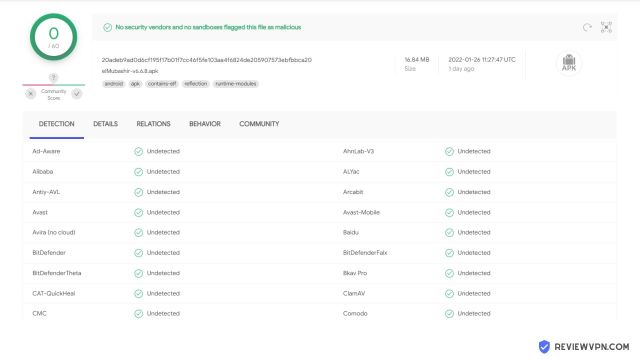
We tested this app using VirusTotal and found no threats or malicious files and malware.
Despite having good results, we still need to be vigilant in protecting our privacy while streaming.
A Virtual Private Network or VPN will definitely help us maintain our security and anonymity while using elMubashir.
Note: ReviewVPN.com does not host this APK file. It is hosted on Archive.org.
Installation Guide on a Firestick
For first-time users of Firestick, you will first need to have your Firestick jailbroken. Just follow the simple steps below:
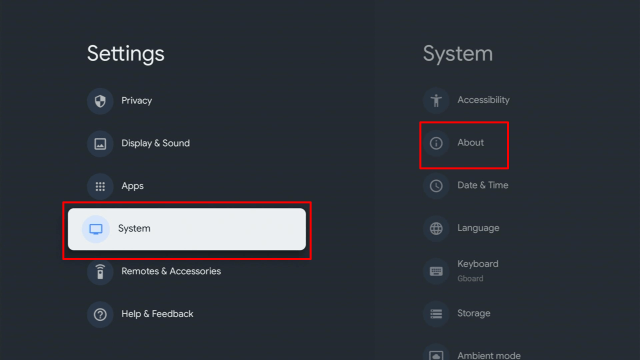
On the home screen, go to “Settings”
Select My Fire TV
Select Developer Options
Turn on ADB debugging
Then also turn on Apps from Unknown Sources.
There you go, your Firestick is now jailbroken. Now for the main download, you’ll be needing the Downloader App. To install the Downloader App as well as elMubashir, just follow the guide below:
Head back to the Home Screen and select “Search”
Search Downloader and click “Downloader”. It will appear under the keyboard
Choose the “Downloader app”
Download it
Choose Open
Select Allow
Choose OK
Type: https://reviewvpn.com/elm and select Go ( Note: ReviewVPN.com does not host this APK file. It is hosted on archive.org)
Wait for it to finish
Install elMubashir
Select Done
This will automatically take you back to Downloader. Select Delete
Choose Delete Again
Head back to the Home Screen and under the “Your Apps & Channels” choose See All.
Scroll down and choose elMubashir and select the “Options”. Then select “Move to front”
El Mubashir will be moved forward to “Your Apps and Channels”
Open elMubashir
Choose your preferred language
A message will appear, just click OK
There you go, elMubashir is now installed.
If your Firestick still has the older interface, read this article to learn how to update it: Update Firestick Interface.
2. Open Downloader. Type: https://reviewvpn.com/elm and select Go.
3. Click on Install and you should be all set. Remember to delete the APK file after installation to save space.
4. Click Open.
5. Select Language.
6. Click OK.
7. Enjoy your elMubashir on a Firestick.
YOUR INTERNET ACTIVITY IS BEING WATCHED
ReviewVPN cannot attest to the legality, security and privacy of the applications discussed on this site. It is highly recommended that you use a VPN service while streaming or using Kodi.
Currently, your IP 216.73.216.109 is visible to everyone and your Browser is being tracked by Advertisers & ISP Provider.
Your activities are hidden from your ISP, the government, and from the apps you are using.
You can access additional movies and TV streams.
ISP attempts to throttle are thrwarted thus reducing buffering issues.
Geographically restricted content like Netflix and Hulu can be unblocked.
A VPN works be replacing your ISP-assigned IP address and creating an encrypted tunnel. We recommend the no log service offered by IPVanish. It works well on a Firestick and offers the fastest possible speeds.
Legal Disclaimer: ReviewVPN.com does not encourage or endorse any illegal activity involved in the usage of services and applications referenced on this site. We do not verify the licensing agreements of services. The end-user is wholly responsible for ensuring that any media accessed through these services does not violate copyright and/or licensing laws. ReviewVPN does not promote, link to, or receive compensation from any Apps and IPTV services.
elMubashir allows access to streaming media such as videos, music, podcasts, and videos from the internet, especially IPTV. It also features a lot of content from Arab countries and that is good news for our Muslim brothers.
elMubashir Features
Live TV
Movies
High-Quality Streams
Standard Definition Quality for Live TV
More than 50 channels cover networks from all over the globe
Pros and Cons
Pros
The majority of the links for Live TV are working properly
One-Click Play
Customizable Interface
Cons
No TV Shows that you can access for previous episodes
Cannot be integrated with Real-Debrid and Trakt
Does not offer in-app subtitling
Should I Use a VPN?
Oftentimes these apps are legal to use but what we are uncertain of is how they obtain the links.
Are they legally obtained or not? So for us not to worry about that, we always recommend that you secure yourself with a VPN.
If a link is obtained legally and you were able to use it, that activity will be cloaked by your VPN.
It masks your online activity and places you in a different location so you cannot be traced by your ISP. VPNs also give you direct access to content that is geographically restricted.
If you happen to find content that you like and it is not available in your location, the VPN will do its magic and then you can view that content.
Also, there will be times when loading the links will become an issue because of your internet connection, ISPs regulate the amount of speed you get so this will cause problems when watching.
The VPN will block your ISP’s attempt to throttle your speed and will ensure that you get the most out of it. Always settle for a trusted and reliable VPN and we usually recommend one of the best which is, Surfshark.
elMubashir provides working links by collecting them and putting them in one server and allowing access to those working links.
Compatible Platforms
elMubashir is compatible with the Amazon Firestick and other devices that run on Android OS.
Is It Safe To Use?
It is safe to download and Install elMubashir APK on Firestick and other devices.
Is It Legal or Grey?
We’d say that it is in the grey area. It is legal to use but we are not entirely sure if it obtains its links legally so that makes it more of a grey area.
Is It Free?
Yes. It is free to install elMubashir APK on Firestick and other devices.
Are There ADS?
With free apps like this, expect that there will be ads because it is one way for them to generate income to maintain the app.
Is There A Premium Version?
No premium version whatsoever.
Is There An Official Website?
They do not have an official website but they do however have a support Facebook page where you can contact them. It is FB/swadessawa and FB/apeeegosoft.
What Other Devices Does It Work On?
It works well with the Firestick, Fire TV, Fire Cube, Windows (Via emulator), and all other devices that run on Android OS.
Minimum Version Required
Any Android device that has version 4.1 and above
How Long Has It Been Around?
Not much is known regarding its history since it doesn’t have an official website. But the oldest Facebook page can be dated back to May 14, 2019.
Is It A Terrarium Clone?
No, but it does share some similar traits to this one.
What Is The Development Team Like?
The team does exert an effort to be available to users with complaints. In-app, they have given information regarding where to reach them if issues arise. You can reach through FB/swadessawa and FB/apeeegosoft
Alternatives
Mobdro
This one-click play app offers you live-streaming of News, TV shows, Movies, Sports, Music, Gaming, Animals, Tech, Podcasts, and Spiritual. They also have contents for anime and cartoons so this app is good for all ages.
To learn more about Mobdro Live TV, just click here.
Swift Streamz
This fast-loading app has live streaming content from Pakistan, India, Bangladesh, UK, USA, Afghanistan, UAE, Canada, Philippines, Nepal, France, Indonesia, Australia, etc. It has ads but it’s a good live streaming application available on Firestick.
To know more about Swift Streamz, just click here.
RedBox TV
This one-click play live-streaming app has content for Sports, Science, Kids, and Religion. They also have shows from India, Pakistan, South India, UAE, UK, USA, Canada, Bangladesh, Indonesia, Turkey, Philippines, Portugal, Iran, etc. so you really have a lot of options for streaming.
To learn more about RedBox TV, just click here.
HD Streamz
This app gives you access to stream content for Sports, Entertainment, Music, Movies, and Kids on the comfort of your devices. These contents are from countries such as UK, India, Bangladesh, Pakistan, USA, Nepal, France, UAE, Qatar, Serbia, Portugal, Romania, Germany, Ireland, Netherlands, etc. so you are dominating the world of streaming. Plus, they also have a built-in media player for a convenient streaming experience.
TV Tap Pro
This app is also a one-click play live streaming app for Entertainment, Movies, Music, News, Sports, Documentary, Kids, and Food. It is also fast-loading so you could immediately watch your favorite live TV shows on your device.
In terms of content, the apps listed above offer more and better quality. So if you are experiencing issues with El Mubashir, you can always check out these awesome apps.
Our Opinion
elMubashir promises good content and actually offers good movies and Live TV Shows, but the lack of TV Shows makes it incomplete compared to other apps that offer everything. The good thing is that the links that it provides are working and you experience less buffering. Overall, it is still a good app to try and explore.
For questions and suggestions, please drop a comment below and feel free to contact us at any of our other social media platforms. Thank you for reading and have a great day ahead.
We hope that this article helps you with how to install elMubashir APK on Firestick and other devices. Thank you for reading!
Note: ReviewVPN.com does not own or operate any app nor does it endorse any. The main purpose of this article is strictly for educational purposes only.
This article will shed some light on the best Free TV Show Websites.
The demand for watching free content has rapidly increased over the years.
Noxx has been one of the go-to websites by many cord-cutters. But now that it is already defunct, the challenge for most cord-cutters is finding websites that they can access to watch their favorite TV Shows, movies, and Live TV.
It is also worth taking note that there will be times when these websites get taken down without prior notice. Constantly having the need to look for new and working streaming sites.
We have done the research for you and tested several websites. This article will help you watch your favorite TV Shows on any device. Be it the Firestick, smartphones, tablets, Android TV Boxes, or even iOS.
Ensure to bookmark this webpage for your future reference.
If you are using a smartphone or tablet, you can easily access the websites by clicking on the NAMES for each site.
But if you are using Firestick, you can quickly access these websites by using two of our most recommended web browsers for the Firestick which are Silk Browser and Firefox.
Please follow these guides to install them on your Firestick:
These browsers are game-changers because they will not allow pop-ups to suddenly appear. Using these browsers will ensure that you gain uninterrupted streaming.
The following websites are very good in terms of ad presence. Most of these sites either do not have pop-ups or only one. This ensures that you have a smooth streaming experience.
The selections are also updated on a regular basis and loading time and playback are excellent too.
USTV Go
Watchability: 10/10
Ad Presence: 100% Ad-Free.
What better way to watch TV Shows than Live and Reeltime? Right?
USTV Go is a premier website that provides Live TV Channels for free. You can watch all of your favorite TV shows without the need to have a cable subscription.
You can also enjoy streaming without worrying about pesky ads that are annoying most of the time.
USTV Go is accessible via web browsers. It will work on any type of device as long as it has a browser.
Ad Presence: Streamm4u is free of pop-ups and banner ads.
StreamM4u has an enormous selection of movies from Hollywood as well as TV shows.
It also offers High Definition (HD) quality movies and TV shows on its website. Most of its users often stream or download films in High Definition quality.
It does have a captcha verification requirement. After you pass that, you can start watching content without any interruption.
Also, a prompt saying that it wants to send notifications will appear, please sure not give it access.
Ad Presence: No pop-ups. There are in-video ads that need to be skipped. Just go ahead and skip them to continue watching your favorite TV show.
Popcornflix has a wide variety of TV shows and movies that people would love to stream.
All the content of Popcornflix is entirely free.
It boasts distinctive TV shows particularly those from the 90s. In case people would like to go down memory lane then Popcornflix is the best site to be.
The video streaming platform also provides full-length TV series, documentaries, and movies.
Users can also stream without having to sign up for an account particularly if they just want to check the site out.
Features:
The TV Show section has the most popular tv series offering.
It easy to navigate through the website.
One-Click Play
Free
It has ads but they are not intrusive nor annoying
No account required
Content is officially licensed.
Geo-Restricted. Use a VPN if you are outside the US.
Ad Presence: Flixtor is 100% free from any type of ad.
Flixtor is a video streaming service that provides high-quality TV shows and movies.
Unlike other free websites, it doesn’t utilize Peer-to-peer (P2P) technology. It is an open-source, multi-platform service with a media player that is up for grabs on the web.
Flixtor is safe because it does not host any files and only provides content it fetches.
Flixtor now has limited slots for streaming. So you may encounter a message that says the site is already full. Just go back after a few minutes and you are good to go.
Features:
Provides TV Shows, Movies, and Cartoons.
Offers trailers to get a glimpse of what the videos are about.
The search function allows streamers to go through thousands upon thousands of videos.
Filters that allow users to browse through specific categories.
Ad Presence: No pop-ups. Just a few banner ads that you can easily close.
Music HQ is a good streaming site if you are looking for the latest episodes of the TV Shows you follow. You can also watch the latest movie releases on this site.
Features:
Music HQ is free. No need to sign-up or register for an account.
Ad Presence: There are a few pop-ups while using the website. Only 1 to 2 upon searching and playing the video.
This website has an interface seemingly with a streaming app. It offers trending and the latest shows, movies, and series. You can also register or login into your account using this website.
It offers high-definition movies for free. You don’t need to register before accessing the videos. Also, a prompt saying that it wants to send notifications will appear, please sure not to give it access.
Ad Presence: 2 pop-ups before you can play the video.
Just like USTV Go, 123TV is a website wherein you can watch your favorite TV Shows live for free. It features several popular USA TV Channels that most people watch.
Features:
Sports Channels
News Channels
Documentary Channels
Entertainment Channels
Kids Section
Vumoo
Watchability: 9/10
Ad Presence: It has one pop-up. Just close it immediately once it shows up. After that, you are good to stream anything you want.
Movies and TV series offered by this video streaming platform are huge in number.
From Hollywood films, recent movies to old flicks are available on this certain media content streaming service.
If you love movies and TV shows and want to stream high-quality videos without paying a single penny, then this website is perfect for you.
Features:
Quick Loading time and playback
A very good selection of TV shows and movies to choose from.
Search Function
There are banner ads and overlays that are not really hard to close.
Ad Presence: The Movie Bay now has pop-ups. To have your streaming experience ad-free, you need to sign-up for an account and login. But if you prefer not signing up or logging in, you may have to close 1 or 2 pop-ups.
Movie Bay provides a robust list of movies and TV shows.
It is detail-oriented as it provides the option for streamers to bookmark actors, tag videos to favorites, interact with other users, send DM’s, comment, and many more.
Videos are stored in TMB servers and collected through third-party sources.
Features:
Free-of-charge
No Ads when logging in
Easy UI
Contents are given by third-party sources
HD content (720p and 1080p)
Included Genres are Fantasy-SciFi, Rom-Coms, Mystery-Crime, Action-Thriller, Action-Comedy, and Drama-Comedy.
Ad Presence: There in-video ads that you can skip or at least wait for them until it finishes.
The IMDb TV is a free video web-based feature that is associated with the Internet Movie Database site just as the application.
Since the free online film streaming website isn’t charging a month-to-month expense, it expects clients to watch advertisements that are demonstrated discontinuously all through the media content.
The free film streaming site’s film choice is somewhat useful for help with no month-to-month membership expenses.
Even though there is no membership needed to begin, you have to have an IMDb account.
Features:
Free
Has Ads
IMDb Account required
Content is officially licensed
Older titles
Original TV Shows
Content is Geo-Restricted. Use VPN if you are outside the US.
Ad Presence: In-video ads are present, but there are no pop-ups which makes it an excellent website to watch TV shows and movies.
Sony Crackle is also an ideal choice for streaming the best TV shows for free.
This media content streaming platform gives its users the chance to filter out their search results in their particular genres.
The free TV show website has a user-friendly interface and an extensive database.
Even though the services of Sony Crackle have regional limitations, users can watch their favorite TV shows if they are using a Virtual Private Network like Surfshark.
Features:
TV Shows and Movies
Subtitle Support
Watchlist
Sign-up to unlock other features like a watchlist and many more.
Ad Presence: There is a brief commercial before your video starts. Aside from that, there are no pop-ups.
The CW is a TV show streaming platform with the latest media content being updated regularly. Nonetheless, the video streaming website has limited free media content mainly for the reason that it regularly deletes a few of the media content from their site.
The best thing about this video streaming platform is that users can find all the CW network entertainment content they want.
This free TV show streaming site also provides high video quality and doesn’t require registration.
Nonetheless, note that this video streaming platform is only accessible to United States residents because of license restrictions. But, you can use a Virtual Private Network or VPN service to bypass geo-restrictions.
Features:
Contents featured are the most popular TV Shows from the network.
Ad Presence: There will be in-video ads present when you access the website. Just wait for them to finish and your video will resume playing.
This video streaming service doesn’t require people to sign up for an account to watch the content. Just go to its official website, choose the content you want, and enjoy streaming.
Tubi TV is also available for free as a standalone app on iOS, Android, Apple TV, Roku, Xfinity X1, Amazon Fire TV Stick, PlayStation, Samsung Smart televisions, Xbox, Sony Smart televisions, as well as on the web.
One of the main selling points of Tubi TV is its Kids’ Section. Kids and Kids at heart will truly enjoy this section because of the sheer number of choices you can select.
Pluto TV is a very popular streaming site that you can use to watch movies and TV Shows for free. We gave it a rating of 9 only because of the content that it provides which is not up-to-date. But beyond that, Pluto TV has a very smooth interface. You will not have trouble watching anything with this site.
If you are outside the US, you need to use a VPN like Surfshark to access the content.
Ad Presence: You will encounter 2 pop-ups before you are able to watch videos.
The best list will not be complete without 123Movies. It has been one of the most popular free streaming websites for quite some time now.
You can watch all of your favorite TV Shows using this website. It also provides the latest movie releases and episodes for trending TV Shows.
Features:
Closed Captioning
Downloadable Content
Dark Mode
Fast loading time and playback
Search Functionality
YOUR INTERNET ACTIVITY IS BEING WATCHED
ReviewVPN cannot attest to the legality, security and privacy of the applications discussed on this site. It is highly recommended that you use a VPN service while streaming or using Kodi.
Currently, your IP 216.73.216.109 is visible to everyone and your Browser is being tracked by Advertisers & ISP Provider.
Your activities are hidden from your ISP, the government, and from the apps you are using.
You can access additional movies and TV streams.
ISP attempts to throttle are thrwarted thus reducing buffering issues.
Geographically restricted content like Netflix and Hulu can be unblocked.
A VPN works be replacing your ISP-assigned IP address and creating an encrypted tunnel. We recommend the no log service offered by IPVanish. It works well on a Firestick and offers the fastest possible speeds.
Legal Disclaimer: ReviewVPN.com does not encourage or endorse any illegal activity involved in the usage of services and applications referenced on this site. We do not verify the licensing agreements of services. The end-user is wholly responsible for ensuring that any media accessed through these services does not violate copyright and/or licensing laws. ReviewVPN does not promote, link to, or receive compensation from any Apps and IPTV services.
The following websites are also good to use for streaming. However, they are in this section because of the number of pop-ups that you will encounter. The minimum amount of pop-ups usually ranges from 2 to 3. You can close these with ease and enjoy streaming at its finest.
M4Ufree
Watchability: 8/10
Ad Presence: It has a few pop-ups but it doesn’t have any ads nor ad banners.
M4Ufree features the latest movies and TV series in HD for free. It provides mostly the top shows on the list for both movies and TV series.
Using the interface of the website, you can easily filter the show of your choice depending on the type of show, genre, year it was released, language, and another sorting by.
Features:
Easy to use
Free
No need to register for an account before watching
Ad Presence: There are banner ads present. You can close them all if you like but once you enter full-screen mode, these ads will not appear. Also, please make sure to click on “I prefer ads” when you see a window pop-up on the lower-left portion of the screen. Do not close the pop-up by clicking on the close button. This will lead to another huge pop-up that will require you to install an extension on Chrome. This is very dangerous and can be used for malicious means. Please be careful.
LookMovie provides a wide variety of TV shows and movies that users can easily locate.
This media content streaming platform is separated into movies and TV shows.
The movies are grouped into categories, genres, and the latest while the TV shows are arranged into trending, categories, and the latest.
Users also get the chance to look for the movies and TV shows they’d like to stream.
Features:
Search Function
Popular TV Shows are available
Filterable content
High Definition streaming (720p and 1080p videos)
123movie.cc
Watchability: 8/10
Ad Presence: 2 to 3 pop-ups.
123movie.cc also stores movies and TV series to watch for free. Although it contains not as much compared with other websites, it has fewer pop-ups.
It has a one search interface but it also has a button to access what are the trending shows it offers.
This website doesn’t have advertisements during the show neither does it have ad banners.
Features:
Easy to use interface
Fewer pop-ups
Does not have annoying ad banners
Good sound and video quality
Can choose what episode to watch while watching a series.
Ad Presence: You will encounter 2 pop-ups with MoviesJoy. Also, there are banner ads that you can easily close without hassle.
MoviesJoy is easily one of the most popular free TV Show Websites.
We have ranked it as second-tier because of the 2 pop-ups that you will encounter. But overall, everything will work out just fine once you get to close these pop-ups and banner ads.
Features:
A wide array of movies and TV Shows to choose from.
Night Mode
Favorites Function
Search Functionality
Incredible playback and loading time.
Solar Movies
Watchability: 8/10
Ad Presence: You will encounter 2 pop-ups before playing a video. There are also banner ads and overlays. Be very careful when closing these as they might trigger a new round of pop-ups.
Solar Movies is a free streaming site that you can use to watch your favorite TV Shows and the latest movie releases.
You have the option of streaming or downloading content into your device. Now, this is only advisable for people who have a huge amount of storage. We highly discourage it for Firestick users due to its limited amount of memory storage.
The only caveat for this website is that there is certain content blocked in their system. To solve this, you will need a premium VPN service like Surfshark.
Features:
Spend nothing at all
Excellent UI and easy navigation
Updated content.
It has search functionality that you can use to search for specific TV Shows you would like to watch.
Ad Presence: It has some pop-ups that have to be closed and in-video ads that you have to skip to continue watching the video.
The goal of this site is to provide free TV Shows and movies online. The content is so vast that you can practically go on a marathon for days.
Features:
You can use the search function to look for your favorite TV Shows.
Ads here and there but they are not that annoying.
You have the option to stream, download, and search for torrents.
Incredible loading time and playback.
New Prime Wire
Watchability: 8/10
Ad Presence: 2-3 pop-ups. It has a lot of ad banners.
New PrimeWire offers the latest movies and series for free.
There are a lot of ad banners on this website. There are also advertisements during watching.
While watching, you will be asked if you would like to watch the video with better quality. To access the HD version, you will need to have a premium subscription.
It does not require a captcha verification to access the website.
Also, a prompt saying that it wants to send notifications will appear, please sure not to give it access.
Ad Presence: There will be a total of 3 pop-ups before you can start playing a video.
YesMovies is one of the best free TV show websites that provides a variety of TV shows and movies that are updated regularly when the latest episodes are released.
The video streaming service is very easy to use mainly for the reason that it is divided into categories like country, genre, top IMDb, request, and TV series.
The genre provides many types of films while the country is where they are captured on film.
Top IMDb contains highly-rated films and the request offers all the flicks that are being streamed the most.
Ad Presence: A few pop-ups before the video starts playing. You do have the option to remove these ads by signing up.
Movie Stars is a relatively good website wherein you can watch your favorite TV shows and movies alike. It has a very decent user interface and you can easily close pop-ups without being redirected to other websites that can be malicious.
It provides users with the latest content so we think that you will really enjoy streaming using this website.
These websites have more than 3 pop-ups. Nonetheless, they are still good for viewing your favorite TV Shows and movies as well.
Soap2Day
Watchability: 7/10
Ad Presence: 3 pop-ups before you can play the video. There are also banner ads present.
This media content streaming platform allows you to watch full TV series and movies in High Definition (HD) without the need to register. Soap2Day users can personalize their search by utilizing the available filters such as recently released, most popular, and IMDb rating.
If users want to stream any particular TV series, then they can type the name of the TV series in the search bar and it will show them relevant results.
There is no sign-up needed to stream TV shows. The entertainment content streaming site is also an ideal choice to watch sports and movies on the web.
Features:
New Releases and Most Popular Videos
Night Mode
Organized Episode List
Huge Collection of TV Shows and Movies.
Watch Series HD
Watchability: 7/10
Ad Presence: 3 pop-ups and 1 ad that needs to be skipped. It also contains banner ads that can be closed without any fuzz.
This media content streaming platform provides a great variety of TV series and movies, which are well categorized.
This provides a very good opportunity for users to research and locate the latest shows.
Going through this part of the video streaming platform will give users a very good insight into the content they’d like to stream. It will help users decide whether the content is worth streaming or not.
Europix HD has the coolest interface while streaming your favorite movies and series. It offers a high definition resolution for the shows it offers. The background of the website will change depending on the show that you like to watch.
You will be asked to choose a server for the movie or series that you would like to stream.
It requires a captcha verification for the first time to visit the website.
Ad Presence: 4 pop-ups, banner ads, youtube-like ads, and another 2 sets of ads that need to be skipped.
This video streaming platform is the favorite of numerous movie fanatics, and the website hosts popular TV shows like Flash, the Vikings, and Sacred Games.
The interface of the stream Tstreamings the online free website is also excellent and is free from annoying ads and pop-ups. The video streaming platform continues to build up its database.
The TV series this media content streaming platform provides is categorized into New Seasons and New Episodes. Movie4u is indeed the best spot to watch your best-loved TV shows for free.
Ad Presence: There are banner ads and some pop-ups. We gave it this rating because the video takes too long to play.
1Movies is a site where you stream TV shows and movies. It has both a free and premium version. You can enjoy ad-free streaming when you subscribe to its premium version.
Features:
Premium version
Captcha Verification
Subtitle Support
SD Video Quality
Autoplay
Websites with Ads
These websites are almost impossible to use for streaming. Several pop-ups and banner ads are present but eventually, you will get them to play. Just click on the logos to access these websites.
Ad Presence: 4-5 pop-ups. There are a lot of pop-ups for every possible command. You will be having at least two pop-ups before you will be able to play, pause, or even search the show.
SockShares brings high-quality resolution shows to the viewers. It offers a lot of movies, series, animes, and many more on only one website for free.
The website’s user-interface is not that easy to use as well.
The websites featured under this table are not accessible due to several reasons. Other review sites would still include these on their list, but here at ReviewVPN, we test everything and give you nothing but factual content.
So, to save time, kindly take note of these and do everything you can to avoid them.
Free streaming is not without consequences. If you do it irresponsibly, there are risks that will surely pose threats to your device.
We always tell our readers that the best and safest way to stream safely for free is by using a premium VPN service like Surfshark.
Here are the reasons why:
It cloaks all of your online activities, especially streaming which eats up a huge amount of data that is the main reason for ISP Throttling.
In the case of Sony Crackle, Tubi TV, and CW TV websites, if you are outside the US, you can access them by turning on your VPN. We call this bypassing geographically restricted content.
Allows you to access public internet connections safely and securely. You do not have to worry about invisible threats that can use your personal information for your own benefit.
If your Firestick still has the older interface, read this article to learn how to update it: Update Firestick Interface.
You can download Surfshark directly from the Amazon App store. It will be easy for you to find Surfshark with your Firestick’s Find feature. Refer to our screenshots below.
1. Go to the Home screen of your Firestick.
2. Navigate towards the Find tab. Press the Search button from the resulting dropdown.
3. Type in the keyword of SurfShark and select from the suggestions that will appear.
4. Click the official SurfShark icon from your search results.
5. Press the Download (You own it) button.
6. The SurfShark VPN installer will download on your device.
7. SurfShark VPN’s app will automatically install itself on your Fire TV stick.
8. Press the Open button after completing SurfShark VPN’s installation process.
9. Please wait for the SurfShark VPN to load its user interface.
10. You can now log in with your SurfShark VPN account credentials.
We understand that typing the websites, especially on Firestick can be time-consuming. As an alternative, we highly suggest that you use free streaming apps.
But before you install these on your Firestick, you must have it jailbroken first. Please follow this easy step-by-step tutorial on how to do so:
It is really challenging to find free TV Show Websites. We recommend trying the Best Sites we have featured above. Some of them may have pop-ups but rest assured, after these pop-ups, you will be able to stream continuously.
We hope that this article provides you with the necessary information regarding Free TV Show Websites. Thank you for reading!
Note: ReviewVPN.com does not own or operate any app nor does it endorse any. The main purpose of this article is strictly for educational purposes only.
Kodi gets regular updates as well as a new version, running since 2002, Kodi has a major update roughly once a year and is currently on its 18th version called Leia.
If you miss an update, things can start to break on Kodi. Also, your favorite addons may stop working as they also update to the latest version.
Luckily this article will show you how to update Kodi whatever your device. So, scroll on through whether you have an Apple TV or an Amazon Firestick to find the best and easiest way to update Kodi on your device.
If you run a Windows PC, there are 3 different ways that you can update Kodi. Probably the easiest platform to run and update Kodi from.
From Kodi 18 onwards, the file now comes in a 64-bit version as standard, which means that you can easily install the latest version of Kodi over your older version.
You can either navigate to Kodi and download the latest version manually and allow Windows to install the .exe file, or you can find the latest application version through the Windows App Store.
In February 2019, the development team at Kodi also released a Kodi Windows installer which you can find here: https://kodi.tv/addon/scripts/kodi-windows-installer
The Windows Installer is really interesting if you want to get your hands on the latest nightly builds, updates and even test builds that the team has to offer. It is a good option for those who are more technically minded. Bear in mind that nightly builds and fresh installs which have been untested are more likely to have bugs.
MacOS
On Mac there is only one way for you to update Kodi, by reinstalling the latest version on your OS supported device:
Go to the link in the introduction to find the latest version of Kodi
Scroll down the page until you find Mac OS
You want to install the 64-bit format, which will download as a DMG file
When your file has finished download, double click on it
Now all you need to do is drag and drop the Kodi icon into your applications folder
Your Mac will ask if you want to replace the existing Kodi installation, click yes to update to the latest version of Kodi
Linux
As any good Linux user knows, your better off installing and upgrading Kodi through the terminal rather than navigating through the Kodi website:
Open Terminal on your Linux device
Input: sudo apt-get update ,to find all applications where an update is available
These commands will update all the applications on your device where an upgrade is available including Kodi
Some Linux versions like Ubuntu, have a Software Updater built into the GUI, where Linux will automatically check for updates and indicate them on your home screen. So, alternatively, you can update using this method.
As Linux users already know, applications are typically installed on this OS by typing a series of commands. Therefore, it’s not surprising to see the same procedure is applied to updating Kodi.
As any Linus user knows, its worth running the update and upgrade commands at least once a week to make sure all your software is up to date, especially when it comes to minor patches and security fixes.
Android
There are two ways to update Kodi on your Android device, it depends on how you installed Kodi in the first place.
Google Play Store
If you installed Kodi using the Google Play store, then Google will automatically detect that a new version of the Android Application is ready. If automatic updates aren’t set, you can manually update Kodi through the Google Play Store
Sideloaded Android Application
You might not have the Google Play Store on your device, or you chose to download Kodi directly from a URL.
In that case, you simply need to repeat the process, by navigating to the downloads section on Kodi, scroll down and click on the most up-to-date version for Android. When you download the latest version, your device will ask if you want to overwrite the existing version, agree and Kodi will update.
Amazon Fire TV / Fire TV Stick
As an Amazon device user, you’ll know that you can’t download Kodi through the Amazon App user, which means you will have to repeat the process you first went through sideloading Kodi to install the latest version:
From the home screen, go to settings, my fire tv, developer options, and enable ADB debugging and apps from unknown sources
Click the home button and scroll one to the left
Search for and install Downloader (it is a browser that can download files from the Internet)
In downloader type Kodi.tv/download/852
Download the ARMV7A (32BIT) Android version
When prompted, allow your Amazon device to overwrite the current version of Kodi
It’s worth mentioning that updating Kodi on an Amazon Fire device can be glitchy at times. If you get a persistent problem with updating Kodi, you might have to delete the original version and download the latest version fresh. It’s a pain we know, just make sure you make a note of your favorite builds and addons to download on your updated version of Kodi.
Legal Disclaimer: ReviewVPN.com does not encourage or endorse any illegal activity involved in the usage of services and applications referenced on this site. We do not verify the licensing agreements of services. The end-user is wholly responsible for ensuring that any media accessed through these services does not violate copyright and/or licensing laws. ReviewVPN does not promote, link to, or receive compensation from any Apps and IPTV services.
YOUR INTERNET ACTIVITY IS BEING WATCHED
ReviewVPN cannot attest to the legality, security and privacy of the applications discussed on this site. It is highly recommended that you use a VPN service while streaming or using Kodi.
Currently, your IP 216.73.216.109 is visible to everyone and your Browser is being tracked by Advertisers & ISP Provider.
Your activities are hidden from your ISP, the government, and from the apps you are using.
You can access additional movies and TV streams.
ISP attempts to throttle are thrwarted thus reducing buffering issues.
Geographically restricted content like Netflix and Hulu can be unblocked.
A VPN works be replacing your ISP-assigned IP address and creating an encrypted tunnel. We recommend the no log service offered by IPVanish. It works well on a Firestick and offers the fastest possible speeds.
The original device that Kodi was created for will normally operate like the Google Play Store and always check for updates for all your applications.
However, if for some reason you encounter a glitch its pretty simple to get an update for Kodi:
Press the Xbox button on your controller
Go to My Games and Apps
On the left-hand side of the screen, click Updates
Click the available Kodi update
You can fully automate this process by simply going to Settings and System Updates and setting this to automatic, so you don’t need to do the same thing next time.
iOS
Just like Amazon, the iOS store doesn’t host Kodi in the app store, so you’ll need to go back and repeat the process you first did to sideload Kodi onto your iOS device:
Repeat the process that you first installed Kodi, either using Cydia Impactor or XCode
We found that Kodi can be really glitchy if you don’t first uninstall the original version of the software. You would be better off going through a fresh install of the latest version of Kodi. Keep a note of all your existing addons and builds to install on your fresh version of Kodi.
Chromebook
Chromebooks are a breed of their own when it comes to laptops, using all of Google’s software. Luckily it also makes it extremely easy to update Kodi:
Open the Google Play Store and check for automatic updates, or manually update Kodi through the My Application section under your profile
Alternatively, if you used one of the other 2 methods to install Kodi, you can repeat that process through Arc Welder or updating the Kodi extension on Chrome
If you didn’t do so before, we recommend that you install and run Kodi through the Google Play Store. Particularly if you were quirky enough to install Kodi through Arc Welder, this method is experimental, and you’ll probably end up having to install a fresh copy of Kodi. So, use the Google Play Store for a seamless update and to avoid having to reinstall your build and addons each time you update Kodi.
Apple TV
Just like iOS you can’t get the Kodi application through the tvOS store.
You will need to repeat the original process you went through installing Kodi through Cydia Impactor or XCode.
Again, like iOS there is a chance the updated version of Kodi may be glitchy, so you might need to carry out a fresh install every time you want to update Kodi.
Nvidia Shield TV
One thing we love about the Nvidia Shield is that it comes with the Google Play Store fully integrated in the OS. Which means if automatic updates are set, then Kodi should automatically update.
If you need to update Kodi manually:
Start the Google Play Store
Go to My Apps
Click and update the Kodi installation if its available to update
Raspberry Pi
For the most intrepid and experimental of Kodi users, you’ll be familiar with LibreELEC which you would have originally used to install Kodi.
The Pi is the only device where you don’t have to update Kodi, but the software you installed it with:
Start your Pi and go to Settings
Go to LibreELEC/OpenELEC
Click System
Go to Updates
From Updates Channel click Main Version
Confirm and the software will update
Kodi should automatically update, but you may need to restart your Pi to see the updated version.
Smart TVs
You can download Kodi on most Smart TV’s directly. To update it you just need to follow the same process as any other Android device:
Open the Google Play Store on your device
Go to My Apps
Click and update Kodi
If your Smart TV isn’t running an Android OS, then you will need to update the device that you are using to mirror Kodi onto your TV.
This article will guide you on how to install FileLinked on your Google Chromecast.
You can use the FileLinked app to install Android application packages (APK) on your Android-powered device. With the FileLinked app, you can have access to numerous apps that are unavailable on Google’s Play Store or Amazon App Store.
The FileLinked allows you to install numerous apps at the same time. With particular codes for tons of Android application packages, installing video streaming applications and more onto your Google Chromecast and other Android-based devices will be a breeze.
Installing Filelinked App On Google Chromecast
1. Turn on the Google Chromecast device and scroll to your account from the home screen.
2. On the upper right of the screen, choose > Settings
3. Once in Settings, scroll down to System > About
4. Scroll down to Android TV OS Build & click on it seven times until it goes into Developer options and it’s gonna say “you are now a developer”
5. Click the Back Button, scroll down to see the Developer options
6. Go back to Settings and select > Apps
7. Scroll down to Security & Restriction – to turn on Unknown Sources
8. Go back to the home screen and hover over the Search icon
9. Type in Downloader app
10. Select the Downloader
11. Click Install
12. Open the Downloader app
13. Type in get.filelinked.com
14. Wait for a few seconds for the file download progress
15.Click Install
16. Click Done
17. Click Delete > click Delete again
18. Go back to Home screen
19. Now, you have successfully installed the Filelinked app on Google Chromecast
20. Open the Filelinked app and type in your store code & click continue
21. That’s it, you’ll be taken into the Filelinked store
YOUR INTERNET ACTIVITY IS BEING WATCHED
ReviewVPN cannot attest to the legality, security and privacy of the applications discussed on this site. It is highly recommended that you use a VPN service while streaming or using Kodi.
Currently, your IP 216.73.216.109 is visible to everyone and your Browser is being tracked by Advertisers & ISP Provider.
Your activities are hidden from your ISP, the government, and from the apps you are using.
You can access additional movies and TV streams.
ISP attempts to throttle are thrwarted thus reducing buffering issues.
Geographically restricted content like Netflix and Hulu can be unblocked.
A VPN works be replacing your ISP-assigned IP address and creating an encrypted tunnel. We recommend the no log service offered by IPVanish. It works well on a Firestick and offers the fastest possible speeds.
Legal Disclaimer: ReviewVPN.com does not encourage or endorse any illegal activity involved in the usage of services and applications referenced on this site. We do not verify the licensing agreements of services. The end-user is wholly responsible for ensuring that any media accessed through these services does not violate copyright and/or licensing laws. ReviewVPN does not promote, link to, or receive compensation from any Apps and IPTV services.
There are tons of ways to download & install non-App Store applications on Google Chromecast but that could be redundant. However, once you’ve installed FileLinked on your Google Chromecast, downloading & installing other apps will be a lot easier.
FileLinked is a platform that creates download links into a code. It has become a popular service for downloading applications outside Google’s Play Store or Amazon App Store. You can create a code for your favorite app, share the code with others, and make the download process of that app a lot easier. You can even bundle numerous apps into a single code, which allows you to acquire a ton of useful apps with just a couple of button presses.
All you have to do is put the Filelinked code for the download link in the FileLinked app and you’ll be able to download that app or tool with just one click.
FileLinked Features
To share & download apps and/or tools in bulk, Filelinked is your perfect choice because of its unique features:
Straightforward User Interface
The Filelinked app’s user interface is very simple, attractive, and clean making it very easy to use. You can use this app without requiring much guidance.
Free to Register
You can download & use Filelinked absolutely free of cost. You are not required to pay for signing up to make a Filelinked account.
Share Numerous Files
You are allowed to add any kinds of files such as movies, games, songs, images, documents files, and more in your Filelinked app and obtain a link. With just a single link, you are allowed to share all types of files.
Download Bulk Files
Just like the way you can share numerous files, you can also download multiple files utilizing one link.
Stream Movies and TV Shows
Filelinked app allows you to watch or stream movies & TV shows on the internet.
Saves Time
The Filelinked app allows you to easily share & download files in bulk with a unique Filelinked code, which helps save your time & energy. The time needed to share or download files in bulk is also insignificant.
Why You Need A VPN While Streaming Online
The Internet has multiple built-in flaws that make web users vulnerable when they are online. Internet users must know that the government, hackers, snoopers, and advertisers can take full advantage of their vulnerability on the web. Nonetheless, you can make the Internet more secure, more private, and safer with the help of a Virtual Private Network or VPN service.
Here’s what happens once you use a VPN service while you’re online:
Your actual IP address will be concealed
You’ll have a hack-proof web connection
Your Internet activity will be encrypted & unreadable
The first thing a VPN service asks for is a username and a password. Surfsharkis a premium service but it has an exclusive discount that offers 70% OFF. To obtain the user name & password and avail of the huge discount, type https://reviewvpn.com/deal into any browser.
The Surfsharkservice offers a 30-day money-back guarantee to let people try the VPN for up to amonth and make a decision on whether to acquire the VPN provider on a long-term basis.
Note: For more information about Surfshark, please read our Surfshark Review.
The FileLinked app is a useful way to side-load applications onto Google Chromecast as well as other Android-powered devices. All you have to do is get numeric code and easily download any type of file without needing long URLs. Also, FileLinked is a wonderful way to share APKs, files, and a lot more. Nonetheless, if you have any difficulty installing or utilizing FileLinked on your Google Chromecast, Amazon Fire Stick/ Fire TV, or other Android-based devices, feel free to share them with us through the comments section below.
Special offer
Get 80% Off for 29-Month Subscription + 5 Months Free on Surfshark VPN!