Top 10 Best Anime Apps for Firestick and Android – 2023 Update

Anime Apps Overview

This article will discuss the list of best anime apps for Firestick and Android.


If you are another anime fan, then you would probably enjoy this list.

We can say that anime is really one of the trends in today’s generation, and many anime fans have been wanting to watch their favorite titles for free. We are going to feature more anime apps that require no registration and work well with Android and Firestick.

You can also see the best websites to watch anime for free when you read about KissAnimeRu Alternatives or The Top 10 Best Anime Websites. To stream these websites, you need to use a browser like Amazon Silk Browser or Firefox on your Firestick.

In order to install these anime apps on your Amazon Firestick device, most of them require you to Jailbreak your Firestick and Install the Downloader app.

We will show you all of the redirect links that you will use to install the apps using Downloader.


If your Firestick still has the older interface, read this article to learn how to update it: Update Firestick Interface.


ANONYMOUSLY

Jailbreak Firestick and Install the Downloader App

1.  Click Home on your remote and scroll once to your Right. Click Setting (Gear Wheel Icon)

Anime World


2. Scroll down and to the right until you get to My Fire TV. Click on it.

Anime World


3. Select Developer options.

Anime World


4. Turn on ADB debugging and Apps from Unknown Sources.

Anime World


5. Click Turn On when the pop-up appears.

Anime World


6. Go back Home and then click FIND.

Anime World


7. Click Search.

Anime World


8. You can either say Downloader to your Alexa voice-enabled remote or start typing it. If you typed it, click on the suggestion when it appears.

Anime World


9. Click on the Downloader icon

Anime World


10. Click Download

Anime World


11. Click on Open.

Anime World


12. Click on Allow.

Anime World


YOUR INTERNET ACTIVITY IS BEING WATCHED

ReviewVPN cannot attest to the legality, security and privacy of the applications discussed on this site. It is highly recommended that you use a VPN service while streaming or using Kodi.

Currently, your IP 216.73.216.211 is visible to everyone and your Browser is being tracked by Advertisers & ISP Provider.

Save 65% Now

Limited Time Offer

Here are the main reasons why you must use a VPN:

  • Your activities are hidden from your ISP, the government, and from the apps you are using.
  • You can access additional movies and TV streams.
  • ISP attempts to throttle are thrwarted thus reducing buffering issues.
  • Geographically restricted content like Netflix and Hulu can be unblocked.

A VPN works be replacing your ISP-assigned IP address and creating an encrypted tunnel. We recommend the no log service offered by IPVanish. It works well on a Firestick and offers the fastest possible speeds.

Special Limited Time Offer - Get IPVanish


Legal Disclaimer: ReviewVPN.com does not encourage or endorse any illegal activity involved in the usage of services and applications referenced on this site. We do not verify the licensing agreements of services. The end-user is wholly responsible for ensuring that any media accessed through these services does not violate copyright and/or licensing laws. ReviewVPN does not promote, link to, or receive compensation from any Apps and IPTV services.


Install Surfshark on Firestick

Best Surfshark Deal


Best Anime Apps for Firestick and Android

In this portion, we list down the 10 working apps to stream Anime.


Crunchyroll

crunchyroll image

The number one pick for the best anime apps is Crunchyroll. It is indeed the leading application in bringing anime on your Firestick, but the sad part is it is not 100% free. Crunchyroll provides free but limited content. If you want to experience its full features, you need to subscribe to a plan (which we will discuss a little later below).

There are two ways to install this app on your Firestick. You can do it directly or use a modded version of the app.


Install Crunchyroll on Firestick Directly

  1. Use the search functionality of the Firestick.
  2. Type in Crunchyroll.
  3. Scroll down and click on Crunchyroll.
  4. Click on the Crunchyroll icon.
  5. Choose Get.
  6. Click on Download.
  7. Select Open


Install Crunchyroll on Firestick using the Downloader App

1. Open DownloaderType https://reviewvpn.com/crun and click GO.


2. Click Install.


3. Click Open.


4. There you go, Crunchyroll is now installed on your Firestick.


Crunchyroll App Features

  • Prices: $6.95 – Monthly; $19.95 – Three-Month Plan; $59.95 – Annual Plan
  • Straightforward and easy-to-use interface
  • Contents are limited to partnered anime producers only
  • Great video quality
  • Subtitle supported
  • No buffering
  • Allows logging in

To learn more about this application, read the Crunchyroll review article.


AnimeDLR

animedlr image

Another flexible application to add to our list of best anime apps is AnimeDLR. It is applicable to almost all types of streaming devices like Amazon Firestick, Nvidia Shield, Android TV, and the like.

AnimeDLR brings titles from different sources. Before completely using the app, you will need to pick which source you want to stream. It is also better to use external video players that support AnimeDLR like MX Player and VLC Media Player.

You will also need to use Mouse Toggle when you use this app on Firestick.


Install AnimeDLR on Firestick using the Downloader App

1. Open the Downloader app and type https://reviewvpn.com/dlr and click GO.

Install AnimeDLR


2. Click Install.

Step 13 Install AnimeDLR firestick


3. Click Open

Step 14 Install AnimeDLR firestick


4. Click Allow.

Step 15 Install AnimeDLR firestick


5. Select Sources.

Step 16 Install AnimeDLR firestick


6. Enjoy Watching.

Step 17 Install AnimeDLR firestick


AnimeDLR Features

  • Download available to watch shows offline
  • Filter function available to easily look for a specific title
  • Ad-free
  • Supports Subtitles and Dubbed Content
  • Bookmark available
  • Simple interface
  • Updated content list

Learn more about the app, Install AnimeDLR on Firestick.


AnimeGlare

animeglare image

The third app to be included in our list of top anime apps on Firestick is AnimeGlare. This app works great on Amazon Firestick devices.

AnimeGlare started as a beta-type application for testing if it will truly be a success. Now it has an interface similar to popular apps included in The List of Best Firestick Movie Apps like Cinema HDCyberflixViva TV, and FilmPlus APK.


Install AnimeGlare on Firestick using the Downloader App

1. Open Downloader App. Type https://reviewvpn.com/anigl and click Go.

AnimeGlare Step 12


2. Click Install.

AnimeGlare Step 13


3. Click Open.

AnimeGlare Step 14


4. This prompt will appear, just click on Close.

AnimeGlare Step 15


5. There you go, AnimeGlare is now installed on your Firestick.

AnimeGlare Step 16


AnimeGlare App Features

  • Shows the trending animes
  • Adjustable and Editable interface on Settings
  • Supports a lot of languages
  • Can integrate Real-Debrid on this app
  • HD Links
  • Buffer-free
  • Ad-free
  • Good EPG
  • Good playing speed

Stream your favorite animes by downloading AnimeGlare on Firestick.


Fire Anime

fireanime image

Another streaming application to add to our list of best anime apps is Fire Anime. It provides titles from popular streaming sites like 4Anime, Anime Twist, GogoAnime, and many more.

No content is hosted by this application. We can claim it to be a legal app and safe to use. There are also no advertisements present. You will not need to use Ad Guard Pro to remove them.


Install Fire Anime on Firestick using the Downloader App

1. Open Downloader App. Type https://reviewvpn.com/fira and click Go.

Fire Anime App Step 12


2. Click Install.

Fire Anime App Step 13


3. Click Open.

Fire Anime App Step 14


4. There you have it. Fire Anime App is now installed on the Firestick.

Fire Anime App Step 15


Fire Anime App Features

  • Some commands are hard to execute but overall good for navigation
  • Huge collection of shows
  • High definition videos
  • Automatic Sub-titles
  • Works well with external media players
  • One-click play
  • Automatic Full-screen mode
  • Compatible with Android devices

Watch your favorite anime, stream Fire Anime on Firestick.


AnimeFox

animefox image

This app has a wide selection of anime movies and series. You can choose from a lot of categories to watch anime. AnimeFox works well on Firestick and Android Devices. These are a few of the reasons why we include this app in the list of top anime apps.


Install AnimeFox on Firestick using the Downloader App

1. Open Downloader App. Type https://reviewvpn.com/anf and click Go.

Install AnimeFox


2. Click Install.

Fire Anime App Step 13


3. Click Open.

Install AnimeFox1


AnimeFox App Features

  • User-friendly interface
  • Allows viewing customization
  • Can download content to watch online
  • Lots of genres to see
  • Features lots of anime studios
  • Complete anime seasons
  • Updated content
  • Compatible with almost all devices

You can read more about this app on our AnimeFox Review article.


TMS Anime

TMS anime image

If you are familiar with TMS studio, you can watch some of their shows on firestick as well. TMS Anime is an app that you can install directly on firestick. It is our top six for the best anime apps on Firestick and Android.

This app only has limited titles to offer but yet focuses to provide entertainment to viewers.


Install TMS Anime on Firestick

1. Click FIND.

Movie Nite 1


2. Click Search.

Movie Nite2


3. Search for the TMS Anime App.

TMS Anime (2)


4. Select the icon of the TMS Anime App.

TMS Anime (3)


5. Click the Get or Download button

TMS Anime (4)


6. Wait for the app to be installed

TMS Anime (5)


7. Launch the app by clicking the Open button

TMS Anime (6)


TMS Anime Features

  • Direct Installation on Firestick; No need to Jailbreak Firestick and Install the Downloader App
  • Easy to navigate
  • Classic TMS Animes are featured
  • Supports subtitles
  • Limited shows

To know more about TMS Anime, click on this link.


OP Anime

op image

Another great anime application to add to our list. OP Anime has a simple and easy-to-use interface. It supports dubbed and subbed content, and has a huge selection of shows to offer.


Install OP Anime on Firestick using the Downloader App

  1. Open the Downloader app and type in https://reviewvpn.com/opn and click Go.
  2. Wait for the file download to finish.
  3. Click Install
  4. Select Open to launch the app.
  5. That’s it! You have successfully installed the OP Anime app


OP Anime App Features

  • 100% free
  • User-friendly interface
  • Complete and updated anime series featured
  • HD videos
  • Compatible with a lot of devices
  • Search tab available

Learn more about the app, read How to Install OP Anime App on Firestick.


Anime TV

anime tv image

Anime TV is a streaming website and yet became an app available for firestick. It has a large library of content where you can find thousands of episodes, movies, and OVAs of your favorite animes.

You can stream the website by reading this article or visiting anime-tv.fun directly.


Install Anime TV on Firestick Using Downloader

  1. Open Downloader and type in https://reviewvpn.com/ant and select Go.
  2. The APK will take a few seconds to download.
  3. After that, choose Install.
  4. Then click Open.


Anime TV App Features

  • HD and SD quality videos
  • Dubbed Animes
  • Shows are separated into genres
  • Supports external media players


AnYme X

anymex image

This app includes anime and manga to stream on your firestick. We include this app in our list of best anime apps because of its features like no advertisements, chat service, and free.


Install AnYme X on Firestick using Downloader

  1. Open Downloader and type in https://reviewvpn.com/any then select go.
  2. Anyme X’s APK file will download.
  3. Click on Install.
  4. The Anyme X App will install on Firestick.
  5. Open the Anyme X app to stream anime series and manga.


AnYme X App Features

  • Lots of genres
  • Simple interface
  • Zero ads
  • Updated anime list and episodes

Watch your favorite animes by streaming AnYme X on Firestick.


Anime World

anime world image

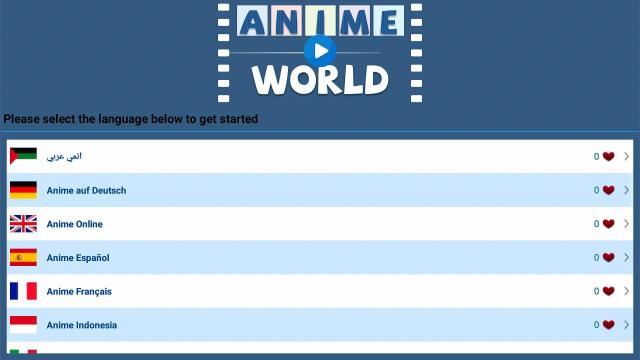
This app would not work without a Mouse Toggle on Firestick, yet we can consider it best applicable on Android. Anime World won the number 10 spot for our list of Best Anime Apps. It has an up-to-date list of content and supports different languages for streaming. This app also supports subtitles and dubbing.


Install Anime World on Firestick Using Downloader

1. Open Downloader and type https://reviewvpn.com/aniw and then click Go

Anime World (1)


2. Let the apk be downloaded

Anime World (2)


3. Click on Install

Anime World (3)


4. Wait for the app to be installed

Anime World (4)


5. Select Open

Anime World (5)


6. Select a language of your choice.

Anime World (6)


Anime World Features

  • Hard to navigate the app
  • Supports many languages
  • Need to use Mouse Toggle
  • No advertisements
  • Subtitles sometimes available
  • Automatic Full Screen

Learn more about the app, install Anime World on Firestick.


Stream Anime Apps Safely With A VPN

When streaming, your Internet Service Provider is controlling your bandwidth. This will result in buffering on your end. Buffering is very stressful while watching your favorite anime shows. That’s why you need to use a premium VPN.

Here at reviewvpn.com, we always recommend Surfshark. It is the best VPN for streaming and works great with Amazon Firestick.

To know more, here are some benefits when using Surfshark:

  • Protect your identity from your ISP and also from hackers.
  • Serves as a bridge that connects you to another server, giving you access to geo-restricted content.
  • Do not allow malware to damage your devices.
  • Protect your data by encrypting them properly with the best VPN protocols
  • Makes your internet speed faster
  • Best VPN for torrenting
  • Prevents Firestick Buffering and Kodi Buffering


Note: For more information about Surfshark, please read our Surfshark Review.


Grab your subscription now!


How to Install Surfshark VPN on Firestick

If your Firestick still has the older interface, read this article to learn how to update it: Update Firestick Interface.

You can download Surfshark directly from the Amazon App store. It will be easy for you to find Surfshark with your Firestick’s Find feature. Refer to our screenshots below.

1. Go to the Home screen of your Firestick.

step 1 Install Surfshark VPN on Firestick


2. Navigate towards the Find tab. Press the Search button from the resulting dropdown.

step 2 Install Surfshark VPN on Firestick


3. Type in the keyword of Surfshark and select from the suggestions that will appear.

step 3 Install Surfshark VPN on Firestick


4. Click the official SurfShark icon from your search results.

step 4 Install Surfshark VPN on Firestick


5. Press the Download (You own it) button.

step 5 Install Surfshark VPN on Firestick


6. The Surfshark VPN installer will download on your device.

step 6 Install Surfshark VPN on Firestick


7. SurfShark VPN’s app will automatically install itself on your Fire TV stick.

step 7 Install Surfshark VPN on Firestick


8. Press the Open button after completing Surfshark VPN’s installation process.

step 8 Install Surfshark VPN on Firestick


9. Please wait for the SurfShark VPN to load its user interface.

step 9 Install Surfshark VPN on Firestick


10. You can now log in with your Surfshark VPN account credentials.

step 10 Install Surfshark VPN on Firestick

Learn more about Surfshark and Grab the Best Surfshark Deal Now!


Install Surfshark on Firestick

Best Surfshark Deal


Other VPNs to Consider

NordVPN (Best for Streaming)

Best Features

  • 5000+ Server in 50+ Countries 
  • Military-Grade Encryption
  • Fast Connection Speed
  • Suitable to a lot of devices
  • No-Log Policy

Prices
  • Complete $5.89 per month (64% Discount)
  • Plus $4.59 per month (56% Discount)
  • Standard $3.69 per month (55% Discount)

Best Features

  • 750+ High-speed VPN Servers in 43 Locations
  • Military-Grade Encryption
  • Fastest HD Streaming and Gaming
  • 30-Day Money-Back Guarantee
  • Unlimited Data & Devices
  • No-Log Policy

Prices
  • 3 Years $1.99 per month (82% Discount)
  • 1 Years $3.29 per month (70% Discount)
  • 1 Month $10.99 per month

IPVanish VPN (Most Secure)

Best Features

  • 1200+ Servers in 60+ Countries around the world
  • Unlimited Connections
  • No-Log Policy
  • Top Notch Military-Grade VPN Protocols and Encryptions
  • 100% Safe and Secured
  • Most Trusted VPN
  • Best VPN for Firestick
  • 30-Day Money-Back Guarantee

Prices
  • Yearly $3.99 per month (63% Discount) – 30 days risk free + Ransomware & Malware Protection
  • Quarterly $5.32 per month (51% Discount)
  • Monthly $10.99 per month


For more VPN discounts, go to ReviewVPN Deals and purchase the best VPN for you.

Click here to get the lowest price on Surfshark through our exclusive limited-time offer.


Conclusion

If you are going to ask us what is the best out of this list, we can say that the top 5 applications are. You can really try Crunchyroll first and then go to the next one if it does not work for you. We guarantee that all of these apps are working on your firestick device.

We hope that this article helps you with the best anime apps for your Firestick and Android devices.


What Is Your Favorite Streaming App? Cast Your Vote Below.

Best YouTube Alternatives to Stream Videos Online

YouTube Alternatives Overview

This article will show you the best YouTube alternatives to watch videos online.


YouTube is indeed one of the most popular and leading platforms today. We can learn a lot of things by watching online videos on YouTube. Even when searching for a topic, Google would recommend YouTube videos as top picks.

The most common problem that viewers face on YouTube is the presence of advertisements. Sometimes, it tends to be annoying and cut our streaming on bad timing. Because of this, and some other factors, we see there is a need to list down the best YouTube alternatives.

We can also recommend some YouTube applications that you can install on Firestick. These apps do not have annoying advertisements compared with the usual ones. Take your time to look out for this portion below.

Another complaint from Youtube users is censorship. This is also referred to as geo-restrictions. We can unblock a lot of websites using a VPN. It has become a major trend for destroying geo-blocks.


ANONYMOUSLY

List of Best YouTube Alternatives

You can stream the following websites using any device. To stream them on Firestick, you should use browsers like the Amazon Silk Browser or Firefox.


If your Firestick still has the older interface, read this article to learn how to update it: Update Firestick Interface.


DTube

YouTube Alternatives 1

Having almost the same interface as Youtube, DTube is listed as one of the best alternatives. It has the menu part at the left portion as well, very much identical to what Youtube has. The selections are Home, Upload, Hot Videos, Trending Videos, New Videos, Watch Later, Watch Again, Leaders, Settings, and Help.

Although this website is not that popular, it is very much worth the try. It has zero advertisements as of this moment. This is a very good feature that we are looking for in a streaming site.

But the funny thing is it suggest videos that direct to YouTube.


YouTube Alternatives (1)


Twitch

YouTube Alternatives 6

Twitch is not only an app that we can install on Firestick. It is also a good YouTube alternative, especially if you are into gaming or esports.

Over the past years, Twitch becomes more and more popular with millions of visitors daily.

Some of the amazing features of Twitch are:

  • Live Shows (gaming and esports)
  • Chat Box
  • Categories You’d Like
  • Fewer Advertisements compared to YouTube
  • Music contents
  • TV Series


YouTube Alternatives (7)


Vimeo

YouTube Alternatives 4

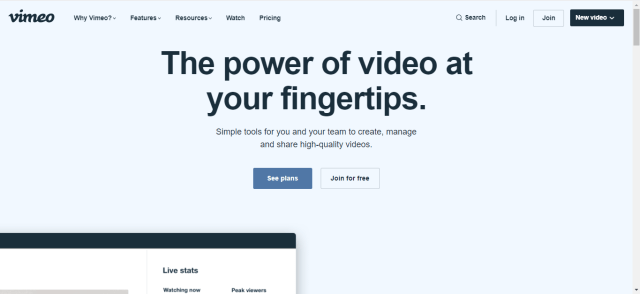
Vimeo is an OTT platform and at the same time one of the best alternatives for YouTube.

As an OTT platform, it is popular for video content creators all over the world. As a streaming website, it has tens of thousands of visitors monthly. The best qualities offered by Vimeo are good category selections, quality tools for content creation, and high-definition videos.

Please take note that there are a few advertisements when you stream on Vimeo.


YouTube Alternatives (4)


YOUR INTERNET ACTIVITY IS BEING WATCHED

ReviewVPN cannot attest to the legality, security and privacy of the applications discussed on this site. It is highly recommended that you use a VPN service while streaming or using Kodi.

Currently, your IP 216.73.216.211 is visible to everyone and your Browser is being tracked by Advertisers & ISP Provider.

Save 65% Now

Limited Time Offer

Here are the main reasons why you must use a VPN:

  • Your activities are hidden from your ISP, the government, and from the apps you are using.
  • You can access additional movies and TV streams.
  • ISP attempts to throttle are thrwarted thus reducing buffering issues.
  • Geographically restricted content like Netflix and Hulu can be unblocked.

A VPN works be replacing your ISP-assigned IP address and creating an encrypted tunnel. We recommend the no log service offered by IPVanish. It works well on a Firestick and offers the fastest possible speeds.

Special Limited Time Offer - Get IPVanish


Legal Disclaimer: ReviewVPN.com does not encourage or endorse any illegal activity involved in the usage of services and applications referenced on this site. We do not verify the licensing agreements of services. The end-user is wholly responsible for ensuring that any media accessed through these services does not violate copyright and/or licensing laws. ReviewVPN does not promote, link to, or receive compensation from any Apps and IPTV services.


Install Surfshark on Firestick

Best Surfshark Deal


Rumble

YouTube Alternatives 2

Rumble is indeed the best alternative for YouTube. Many YouTubers shift and transfer their videos on Rumble. This is because of the strict policies of YouTube that strike a lot of Youtubers lately.

The problem with this is that since it is becoming more and more popular over the past few months, it started gaining more advertisements as well. But if this isn’t the case we would really suggest that Rumble is our top pick for best YouTube alternatives.

Rumble categories include Editor’s Pick, Top Videos, Viral News, Sports, Live Shows, and many more.


YouTube Alternatives (6)


MetaCafe

YouTube Alternatives 7

Metacafe started about 2003 that features only 1 and a half minute videos. Over the past years, it grew into featuring larger content. This makes it a good fit for YouTube alternatives.

With this website, you will get a lot of good vibes as it promotes more comedy-oriented videos.

This website also provides fewer advertisements compared with the other alternatives on this list.


YouTube Alternatives (2)


Daily Motion

YouTube Alternatives 3

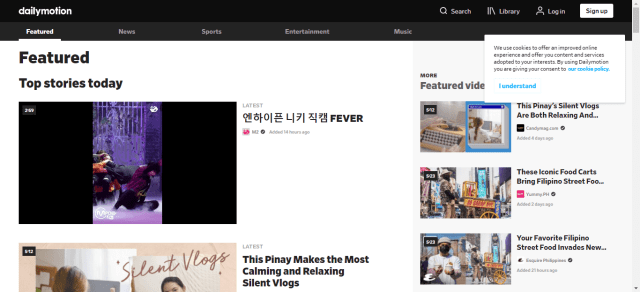
Another great YouTube alternative, Daily Motion also has the same categories for the videos it offers. The website also has fewer to a little more advertisements which are somehow tolerable.

It has an easy-to-use interface, and a lower rate of restrictions compare to YouTube.

Categories of Daily Motion include:

  • Featured
  • News
  • Sports
  • Entertainment
  • Music


YouTube Alternatives (5)


TikTok

YouTube Alternatives 5

Last but definitely not the least is TikTok. It had an enormous increase in popularity as it sets the World into the newest trends on life hacks, music, dance, and many more.

This website has an available app for mobile devices which also helps to promote the name TikTok itself.

As TikTok only allows a few minutes for every video, people still tend to create their own content and absolutely the same content.

The main purpose of TikTok is for entertainment and yet somehow educational content to be shared.


YouTube Alternatives (3)


Stream Safely With A VPN

surfshark logo

As we said earlier, YouTube has a lot of restrictions. One of them is geo-blocking or the process of restricting people from another region to access content that is only available in another one.

Website unblocking has become a tactic by so many people because of this. It can only be done if you will use a VPN.

Premium VPNs like Surfshark guarantee your safety when you are streaming different websites, It will keep your identity safe and it will give access to a lot of content.

Surfshark is also applicable for Firestick, Kodi, Android, MAC, and a lot more. Not only does it destroys geo-blocks but also does the following:

  • Protects your online identity from your Internet Service Provider while streaming content and using more data than usual.
  • Serves as a tunnel that hides and yet connects you to a server from another region or country.
  • Do not allow malware to damage your devices.
  • Keep your data and information encrypted.
  • Block hackers when you are using public wifi
  • Makes your internet speed faster
  • It is the VPN for torrenting
  • Prevents Firestick Buffering and Kodi Buffering


Install Surfshark on Firestick

Best Surfshark Deal


How to Install Surfshark VPN on Firestick

If your Firestick still has the older interface, read this article to learn how to update it: Update Firestick Interface.

Follow our screenshots below to install the SurfShark VPN app on your Fire TV stick.

1. Go to the Home screen of your Firestick.

step 1 Install Surfshark VPN on Firestick


2. Navigate towards the Find tab. Press the Search button from the resulting dropdown.

step 2 Install Surfshark VPN on Firestick


3. Type in the keyword of SurfShark and select from the suggestions that will appear.

step 3 Install Surfshark VPN on Firestick


4. Click the official SurfShark icon from your search results.

step 4 Install Surfshark VPN on Firestick


5. Press the Download (You own it) button.

step 5 Install Surfshark VPN on Firestick


6. The SurfShark VPN installer will download on your device.

step 6 Install Surfshark VPN on Firestick


7. SurfShark VPN’s app will automatically install itself on your Fire TV stick.

step 7 Install Surfshark VPN on Firestick


8. Press the Open button after completing SurfShark VPN’s installation process.

step 8 Install Surfshark VPN on Firestick


9. Please wait for the SurfShark VPN to load its user interface.

step 9 Install Surfshark VPN on Firestick


10. You can now log in with your SurfShark VPN account credentials.

step 10 Install Surfshark VPN on Firestick

Learn more about Surfshark and Grab the Best Surfshark Deal Now!


Install Surfshark on Firestick

Best Surfshark Deal


Other VPNs to Consider

NordVPN (Best for Streaming)

Best Features

  • 5000+ Server in 50+ Countries 
  • Military-Grade Encryption
  • Fast Connection Speed
  • Suitable to a lot of devices
  • No-Log Policy

Prices
  • Complete $5.89 per month (64% Discount)
  • Plus $4.59 per month (56% Discount)
  • Standard $3.69 per month (55% Discount)

Best Features

  • 750+ High-speed VPN Servers in 43 Locations
  • Military-Grade Encryption
  • Fastest HD Streaming and Gaming
  • 30-Day Money-Back Guarantee
  • Unlimited Data & Devices
  • No-Log Policy

Prices
  • 3 Years $1.99 per month (82% Discount)
  • 1 Years $3.29 per month (70% Discount)
  • 1 Month $10.99 per month

IPVanish VPN (Most Secure)

Best Features

  • 1200+ Servers in 60+ Countries around the world
  • Unlimited Connections
  • No-Log Policy
  • Top Notch Military-Grade VPN Protocols and Encryptions
  • 100% Safe and Secured
  • Most Trusted VPN
  • Best VPN for Firestick
  • 30-Day Money-Back Guarantee

Prices
  • Yearly $3.99 per month (63% Discount) – 30 days risk free + Ransomware & Malware Protection
  • Quarterly $5.32 per month (51% Discount)
  • Monthly $10.99 per month


For more VPN discounts, go to ReviewVPN Deals and purchase the best VPN for you.

Click here to get the lowest price on Surfshark through our exclusive limited-time offer.


YouTube Applications that Do Not Have Advertisements

As promised earlier, we will show you YouTube applications for Android and Firestick that do not have annoying advertisements. But most of them are third-party applications, in order to install them, you need to Jailbreak your Firestick and Install the Downloader app.


FAQs

Is There an Alternative to YouTube?

Of course, there are so many alternatives you can choose from. Take a look at the top portion of the article to see the Best YouTube Alternatives for Streaming Online Videos.


What is the Alternative to YouTube?

We can say a lot but Rumble is the best alternative to YouTube.


Are The YouTube Alternatives Legal?

All of the featured websites in this article are legal and safe to use.


Do You Need A VPN?

When streaming to so many websites, we recommend using a VPN like Surfshark.


What are the Best YouTube Alternatives?

We recommend these top 7 YouTube Alternatives for you: Rumble, DailyMotion, Vimeo, Twitch, MetaCafe, DTube, and TikTok.


Opinion

YouTube is indeed one of the best, but it has a lot of restrictions now. We can say that Rumble is the best alternative to YouTube but it started gaining advertisements as well. But still, it is one of the best.

You can definitely check one after the other to know which alternative is best for you.


Final Words

We hope that this article was able to help you learn the best YouTube alternatives for watching videos online.


Must Read:

Best Firestick Apps

Top Filelinked Codes

Best TV Show Websites

Best Adult Apps for Firestick

How to Install Anime World on Firestick and Android – 2023

Anime World Overview

In this article, we will discuss how to install the Anime World app on your firestick and android.


Yet another free app that provides updated animes to your device, Anime World is perfect for Android. It requires Mouse Toggle when you stream it on Firestick.

This app does not require registration for you to use it. You just have to choose a language that you prefer before using the app.

Most titles are popular and new, but not all are subtitle-supported. Those are usually dubbed which is somehow great as well for viewers to understand the show better.

You can even download shows per episode and watch them online. The app provides tracking of your completed and ongoing streaming.

Anime World is a third-party application. To install it on Firestick, you need to Jailbreak your Firestick and Install the Downloader app.


ANONYMOUSLY

Anime World Download for Android Devices


Anime World

Note: ReviewVPN.com does not host this APK file. It is hosted by Archive.org


How to Install the Anime World App on Firestick Guide

  1. Go to the Wheelgear icon which represents Settings
  2. Choose Device or My Fire TV
  3. Hover to Developers Options
  4. Turn on the ADB debugging and the Apps from Unknown Sources
  5. Go back to Home
  6. Scroll to the right and click on Find
  7. Navigate to Search
  8. Type in Downloader
  9. Click the suggestion word
  10. Select the Downloader icon
  11. Click the Get or Download button
  12. The app is installing
  13. Tap the Open button
  14. Choose Allow
  15. Click Ok
  16. Type https://reviewvpn.com/aniw on the search engine
  17. Click on Go
  18. APK is downloading
  19. Click Install
  20. The app is currently installing
  21. Select Open


If your Firestick still has the older interface, read this article to learn how to update it: Update Firestick Interface.


How to Install Anime World on Firestick with Screenshots

1.  Click Home on your remote and scroll once to your Right. Click Setting (Gear Wheel Icon)

Anime World


2. Scroll down and to the right until you get to My Fire TV. Click on it.

Anime World


3. Select Developer options.

Anime World


4. Turn on ADB debugging and Apps from Unknown Source.

Anime World


5. Click Turn On when the pop-up appears.

Anime World


6. Go back Home and then click FIND.

Anime World


7. Click Search.

Anime World


8. You can either say Downloader to your Alexa voice-enabled remote or start typing it. If you typed it, click on the suggestion when it appears.

Anime World


9. Click on the Downloader icon

Anime World


10. Click Download

Anime World


11. Click on Open.

Anime World


12. Click on Allow.

Anime World


13. Open the Downloader on your Firestick and click on the search engine

Anime World


14. Type https://reviewvpn.com/aniw and then click Go

Anime World (1)


15. Let the apk be downloaded

Anime World (2)


16. Click on Install

Anime World (3)


17. Wait for the app to be installed

Anime World (4)


18. Select Open

Anime World (5)


19. Select a language of your choice.

Anime World (6)


YOUR INTERNET ACTIVITY IS BEING WATCHED

ReviewVPN cannot attest to the legality, security and privacy of the applications discussed on this site. It is highly recommended that you use a VPN service while streaming or using Kodi.

Currently, your IP 216.73.216.211 is visible to everyone and your Browser is being tracked by Advertisers & ISP Provider.

Save 65% Now

Limited Time Offer

Here are the main reasons why you must use a VPN:

  • Your activities are hidden from your ISP, the government, and from the apps you are using.
  • You can access additional movies and TV streams.
  • ISP attempts to throttle are thrwarted thus reducing buffering issues.
  • Geographically restricted content like Netflix and Hulu can be unblocked.

A VPN works be replacing your ISP-assigned IP address and creating an encrypted tunnel. We recommend the no log service offered by IPVanish. It works well on a Firestick and offers the fastest possible speeds.

Special Limited Time Offer - Get IPVanish


Legal Disclaimer: ReviewVPN.com does not encourage or endorse any illegal activity involved in the usage of services and applications referenced on this site. We do not verify the licensing agreements of services. The end-user is wholly responsible for ensuring that any media accessed through these services does not violate copyright and/or licensing laws. ReviewVPN does not promote, link to, or receive compensation from any Apps and IPTV services.


Install Surfshark on Firestick

Best Surfshark Deal


Anime World App Features

Interface

  • Hard to navigate
  • Search Engine available
  • Allows Favorites
  • Tracks streaming status if completed or ongoing
  • Provides Genres
  • Settings Menu available
  • Allows Download
  • Let user follow titles and shows for updates


Content

  • High definition videos
  • Popular and updated animes
  • A few titles support subtitles
  • Some shows are English dubbed
  • Automatic Full Screen
  • No advertisements


Pros and Cons of Using Anime World

Pros

  • 100% Free
  • No registrations
  • Ad-free app


Cons

  • A little buffering before playing
  • Hard to navigate the app on firestick


Stream Safely With A VPN

surfshark logo

Streaming is very much dangerous when you use apps that are not 100% safe. Your IP Address serves as the digital fingerprint that you leave where you go. You have to protect or even hide it, especially from your Internet Service Provider (ISP). They monitor your online activities and most of the time control your bandwidth.

In order to prevent this, you should always stream with a VPN. It hides your real IP and connects you to a different one which is relatively faster and from another country. This is the reason why you can access geo-restricted content while streaming.

Such features can be given to you by Surfshark. It is one of the best premium VPNs in the market today. Surfshark guarantees your online safety and provides other wonderful features to use while streaming.

Take  a look at some of the best features of Surfshark:

  • Hide your online identity from your ISP and also from hackers.
  • Connects you to another server, giving you access to geo-restricted content.
  • Blocks malware to damage your devices while using the service.
  • All your data will be kept encrypted and anonymous
  • Makes your internet speed faster
  • Best VPN for torrenting
  • Prevents Firestick Buffering and Kodi Buffering


Grab your subscription now!

Click here to get the lowest price on Surfshark through our exclusive limited-time offer.


How to Install Surfshark VPN on Firestick

If your Firestick still has the older interface, read this article to learn how to update it: Update Firestick Interface.

Follow our screenshots below to install the SurfShark VPN app on your Fire TV stick.

1. Go to the Home screen of your Firestick.

step 1 Install Surfshark VPN on Firestick


2. Navigate towards the Find tab. Press the Search button from the resulting dropdown.

step 2 Install Surfshark VPN on Firestick


3. Type in the keyword of SurfShark and select from the suggestions that will appear.

step 3 Install Surfshark VPN on Firestick


4. Click the official SurfShark icon from your search results.

step 4 Install Surfshark VPN on Firestick


5. Press the Download (You own it) button.

step 5 Install Surfshark VPN on Firestick


6. The SurfShark VPN installer will download on your device.

step 6 Install Surfshark VPN on Firestick


7. SurfShark VPN’s app will automatically install itself on your Fire TV stick.

step 7 Install Surfshark VPN on Firestick


8. Press the Open button after completing SurfShark VPN’s installation process.

step 8 Install Surfshark VPN on Firestick


9. Please wait for the SurfShark VPN to load its user interface.

step 9 Install Surfshark VPN on Firestick


10. You can now log in with your SurfShark VPN account credentials.

step 10 Install Surfshark VPN on Firestick

Learn more about Surfshark and Grab the Best Surfshark Deal Now!


Install Surfshark on Firestick

Best Surfshark Deal


Other VPNs to Consider

NordVPN (Best for Streaming)

Best Features

  • 5000+ Server in 50+ Countries 
  • Military-Grade Encryption
  • Fast Connection Speed
  • Suitable to a lot of devices
  • No-Log Policy

Prices
  • Complete $5.89 per month (64% Discount)
  • Plus $4.59 per month (56% Discount)
  • Standard $3.69 per month (55% Discount)

Best Features

  • 750+ High-speed VPN Servers in 43 Locations
  • Military-Grade Encryption
  • Fastest HD Streaming and Gaming
  • 30-Day Money-Back Guarantee
  • Unlimited Data & Devices
  • No-Log Policy

Prices
  • 3 Years $1.99 per month (82% Discount)
  • 1 Years $3.29 per month (70% Discount)
  • 1 Month $10.99 per month

IPVanish VPN (Most Secure)

Best Features

  • 1200+ Servers in 60+ Countries around the world
  • Unlimited Connections
  • No-Log Policy
  • Top Notch Military-Grade VPN Protocols and Encryptions
  • 100% Safe and Secured
  • Most Trusted VPN
  • Best VPN for Firestick
  • 30-Day Money-Back Guarantee

Prices
  • Yearly $3.99 per month (63% Discount) – 30 days risk free + Ransomware & Malware Protection
  • Quarterly $5.32 per month (51% Discount)
  • Monthly $10.99 per month


For more VPN discounts, go to ReviewVPN Deals and purchase the best VPN for you.

Click here to get the lowest price on Surfshark through our exclusive limited-time offer.


Alternative Applications for Anime World

If Anime World is not the best fit for you, and it does not meet your streaming needs, take a look at these other great alternatives:


FAQs

Is Anime World Free?

Yes, this app is 100% free.


Is there a need for registration?

There is no registration required to use the app.


Is AnimeWorld Legal?

We cannot determine the legality of this app since it is a third-party application. For more safety, use a VPN like Surfshark.


Is AnimeWorld Safe?

We test the app using Virus Total and see no malicious data to use the app.


Are there any ads?

No, there are no advertisements present.


Opinion

Anime World is a good app, but we cannot consider it to be the best one. It provides great titles and is working perfectly but the interface is not very fit for firestick. The app is hard to navigate and it requires a Mouse Toggle to use it.

But the app is free and there is no registration, it is one of the best characteristics of this app. Overall we can say that it is worth the try.

You may consider using this app on android phones or tablets rather than on a firestick.


Final Words

We hope that this article helped you install Anime World on your Firestick and Android.


Must Read:

Best Firestick Apps

Top Filelinked Codes

Best Kissanime.RU Alternatives 


What Is Your Favorite Streaming App? Cast Your Vote Below.

15 Best Firestick Settings You Should Know – 2023

Best Firestick Settings Overview

This article will teach you the best settings for your firestick device.


Whether you are an old or a new firestick user, you might still be not yet familiar with some of its settings. Of course, our number one goal is to watch movies and tv shows, and we can easily do them without changing any settings. But there are more things we can achieve if we are familiar with them.

With the new firestick interface, there are also some settings that change. To fully optimize your firestick after updating, take your time to Disable These Settings Immediately.


ANONYMOUSLY

If your Firestick still has the older interface, read this article to learn how to update it: Update Firestick Interface.

Then we can fully discuss some of the best firestick settings. We can easily see them on the wheel gear icon located on the right-most part of our home screen. Take a look at this picture below:

Best Firestick Settings (14)


Best Firestick Settings

Parental Controls

Best Firestick Settings (10)

Amazon really does care for viewers and their kids. One of the best settings that firestick has is that it lets users set parental controls easily for the apps and accounts connected to your device. This prevents your children to access all the inappropriate content.

Some other apps also have their own parental control feature. So there might be a possibility that you need to enable them separately.

Another good thing about this one is that you are sure that you won’t get any surprise payments especially when your kids are the only ones using your firestick device.

You can find this feature under the Preferences option of your Firestick Settings.


Manage Installed Applications

Best Firestick Settings (11)

If you are experiencing a lot of buffering while using your firestick might be because of the apps that are currently running. You can actually clear all of their cache and data or even uninstall applications that you don’t need anymore. Just go to the Applications option under Settings, and scroll down to the Manage Installed Applications. You will see all of your installed apps there. Click on any app and find the option that you want to do.

Your Amazon Firestick normally has 8GB of storage. With all of the wonderful applications and features, your storage may seem very insufficient at times. That is why this is one of your best firestick settings to rely on when that happens.


Calibrate Display

Best Firestick Settings (2)

You may not know that you can calibrate your TV using your firestick. This may happen once in a blue moon, but if you are experiencing that your TV is off-center, you can adjust it using this function.

Just go to Display & Sounds, look for Display and then scroll down to Calibrate Display.

The display option also lets you set up the resolution of your videos.


Audio Settings

There are three best firestick settings for Audio settings. They are as follows:


Volume Leveler

Best Firestick Settings (1)

This lets you turn it on or off if you want to have an option to enhance the volume of your firestick device.


Dialogue Enhancer

Best Firestick Settings (4)

With this option, you can have the ability to make the dialogues and vocals clear while watching.

Volume Leveler and Dialogue Enhancer settings are both under Advanced Audio. You can see it when you click on Display and Sound settings, then click on Audio and look for Advanced Audio.


Surround Sound

Best Firestick Settings (3)

Before you go to Advanced Audio, you will see the Surround Sound feature. You can choose your option of choice but the default setting is always the best available.


Display Mirroring

Best Firestick Settings (5)

Display Mirroring is one of the best firestick settings that lets you stream everything from your phone to your Firestick screen. Your phone should be an Android or an iPhone.


Best Firestick Settings (6)

When you click on this function you should go connect your phone to your device immediately. Everything you do on your phone will be seen on your TV screen.

You can see this feature under Display and Sounds as well.


Appstore Settings

Best Firestick Settings (7)

When you click on the Appstore setting, you will see a lot of options and features to explore. One of which is the External Market Links.

You can also see the In-App purchase option that you can turn on or off to make sure that you will not purchase things from different apps with this feature.

This setting also has other great features like manage subscriptions, notifications, and cloud apps. You can hide Cloud Apps so that people won’t see your app when searching on your firestick.


Equipment Control

Best Firestick Settings (8)

Equipment Control is another best of all the firestick settings because it lets you use other equipment to boost up your streaming. It is automatic by default, but you can still change it if you’d like.

On the other hand, you can also manage all equipment connected to your Amazon Firestick. Just click on Manage Equipment.


Add Equipment

Best Firestick Settings (9)

When you click on Manage Equipment, you can see the Add Equipment Function. This is an awesome feature because it allows you to add new and even greater features from other equipment such as cable TV, Roku TV, Xbox, Game Console, Apple TV, DVD player, and a lot more.


Game Controllers

Best Firestick Settings (13)

We can also use our Amazon Firesticks to play video games. Some of them really don’t work well with just using the firestick remote. It is best to use the Game Controllers function. You can pair, and unpair all suitable game controllers. They should work through a Bluetooth connection.

If this is not applicable, some games still require a gamepad to work well with a firestick.


Other Bluetooth Devices

Best Firestick Settings (12)

You can also pair other Bluetooth devices to your amazon firestick. Not only the game controller and remote control. Pair your headphones, and the like easily. Just go to Settings, head to Controllers and Bluetooth Devices, and then click on Other Bluetooth Devices. Your Amazon Firestick will automatically search for a nearby device and ask to pair with it.


YOUR INTERNET ACTIVITY IS BEING WATCHED

ReviewVPN cannot attest to the legality, security and privacy of the applications discussed on this site. It is highly recommended that you use a VPN service while streaming or using Kodi.

Currently, your IP 216.73.216.211 is visible to everyone and your Browser is being tracked by Advertisers & ISP Provider.

Save 65% Now

Limited Time Offer

Here are the main reasons why you must use a VPN:

  • Your activities are hidden from your ISP, the government, and from the apps you are using.
  • You can access additional movies and TV streams.
  • ISP attempts to throttle are thrwarted thus reducing buffering issues.
  • Geographically restricted content like Netflix and Hulu can be unblocked.

A VPN works be replacing your ISP-assigned IP address and creating an encrypted tunnel. We recommend the no log service offered by IPVanish. It works well on a Firestick and offers the fastest possible speeds.

Special Limited Time Offer - Get IPVanish


Install Surfshark on Firestick

Best Surfshark Deal


Other Worth Mentioning Best Firestick Settings

What we have listed above really wow us and boost our firestick experience. But there are still other worth mentioning settings that you might want to check out.


Second Screen Notification

Works perfectly if you have an Amazon Fire HD tablet or an HDX. This feature allows your tablet to be a second screen while watching on your Fire TV screen.


Screensaver

Although the Amazon Firestick features a lot of great images as a screen saver, you can use this function to customize your screensaver if your want personal or other pictures display when you are not using your screen.


Allows Phones as Firestick Remote Alternatives

When you lose or misplace your firestick remote, all you have to do is download the app and pair it with your firestick.


Power Control Options

It is best to keep your power control settings. This is very helpful when your firestick is not responding perfectly as it should always be.


Best VPN for Firestick

https://get.surfshark.net/aff_c?offer_id=865&aff_id=12312

We have listed a lot of wonderful settings for your firestick. All of these best firestick settings are helpful but to complete the optimization, you need to have a premium VPN.

Surfshark is the best VPN that works on firestick. It has so many great features that boost streaming, torrenting, and the like.

It also works well with Kodi and other streaming apps like Netflix, Hulu, Roku, and more.

Take a look at some of the best features you will get when you use Surfshark:

  • Builds a wall of protection from hackers, and even from your very own Internet Service Provider.
  • Connects you to a different server that allows access to a lot more content.
  • Defend your devices from malware intrusion.
  • Crash all geo-blocks and serve as a bridge to other regions.
  • Keeps encryption to all of your data
  • Makes your internet speed faster
  • Protects your identity while torrenting.
  • Prevents Firestick Buffering and Kodi Buffering


Install Surfshark on Firestick

Best Surfshark Deal


How to Install Surfshark VPN on Firestick

If your Firestick still has the older interface, read this article to learn how to update it: Update Firestick Interface.

You can download Surfshark directly from the Amazon App store. It will be easy for you to find Surfshark with your Firestick’s Find feature. Refer to our screenshots below.

1. Go to the Home screen of your Firestick.

step 1 Install Surfshark VPN on Firestick


2. Navigate towards the Find tab. Press the Search button from the resulting dropdown.

step 2 Install Surfshark VPN on Firestick


3. Type in the keyword of SurfShark and select from the suggestions that will appear.

step 3 Install Surfshark VPN on Firestick


4. Click the official SurfShark icon from your search results.

step 4 Install Surfshark VPN on Firestick


5. Press the Download (You own it) button.

step 5 Install Surfshark VPN on Firestick


6. The SurfShark VPN installer will download on your device.

step 6 Install Surfshark VPN on Firestick


7. SurfShark VPN’s app will automatically install itself on your Fire TV stick.

step 7 Install Surfshark VPN on Firestick


8. Press the Open button after completing SurfShark VPN’s installation process.

step 8 Install Surfshark VPN on Firestick


9. Please wait for the SurfShark VPN to load its user interface.

step 9 Install Surfshark VPN on Firestick


10. You can now log in with your SurfShark VPN account credentials.

step 10 Install Surfshark VPN on Firestick

Learn more about Surfshark and Grab the Best Surfshark Deal Now!


Other VPNs to Consider

NordVPN (Best for Streaming)

Best Features

  • 5000+ Server in 50+ Countries 
  • Military-Grade Encryption
  • Fast Connection Speed
  • Suitable to a lot of devices
  • No-Log Policy

Prices
  • Complete $5.89 per month (64% Discount)
  • Plus $4.59 per month (56% Discount)
  • Standard $3.69 per month (55% Discount)

Best Features

  • 750+ High-speed VPN Servers in 43 Locations
  • Military-Grade Encryption
  • Fastest HD Streaming and Gaming
  • 30-Day Money-Back Guarantee
  • Unlimited Data & Devices
  • No-Log Policy

Prices
  • 3 Years $1.99 per month (82% Discount)
  • 1 Years $3.29 per month (70% Discount)
  • 1 Month $10.99 per month

IPVanish VPN (Most Secure)

Best Features

  • 1200+ Servers in 60+ Countries around the world
  • Unlimited Connections
  • No-Log Policy
  • Top Notch Military-Grade VPN Protocols and Encryptions
  • 100% Safe and Secured
  • Most Trusted VPN
  • Best VPN for Firestick
  • 30-Day Money-Back Guarantee

Prices
  • Yearly $3.99 per month (63% Discount) – 30 days risk free + Ransomware & Malware Protection
  • Quarterly $5.32 per month (51% Discount)
  • Monthly $10.99 per month


For more VPN discounts, go to ReviewVPN Deals and purchase the best VPN for you.


Final Words:

It is so great when you know that you are using your device in the best possible way. That is what we would like you to achieve if you acknowledge all of these settings. We hope we were able to help you learn all the best firestick settings that you need to know.

How to Change Your Netflix Region

Overview About The Article

In this article, we will help you change your region when you use Netflix.


You might be familiar with the fact that the titles you see on Netflix vary depending on your geographic location. Some shows are not available in your area. For example, you are living in the United Kingdom, there are some US shows that you won’t see in your home or dashboard even you search for them.

The main reason for this is because these contents are geo-blocked. But you do not need to worry anymore, because we will show you how you can change your region without going out of your house. No need to buy a ticket and take a plane ride to America, or Japan, or anywhere else just to watch a show.

On the other hand, there are also some other shows that you can’t basically see because it is not within your radar. Netflix tends to suggest shows that are related to what you are currently watching or what you have already watched.

To know about some hidden gems for you, take your time to read about the Hidden Netflix Codes. Through them, you will check if a title is really not part of the contents that you have access to. But most definitely there are a lot of shows that are geo-blocked where ever you are in the world.

The most perfect way to change your region is to use a VPN. The Best VPN that works with Netflix is none other than Surfshark. It also works well with any device. You can use it with Android, iOS, Windows, MAC, and Amazon Firestick.


ANONYMOUSLY

How to Change Your Netflix Region

  1. Install Netflix on your device. Do the necessary process to have an account.
  2. Choose a VPN that unblocks Netflix. The best choice for this is Surfshark.
  3. Install the VPN to your Device.
  4. Turn on the VPN and choose a particular country that you want to access the contents.
  5. Go to the Netflix app and you will eventually see that the titles available are changed.


Reason for Content Geo-restriction on Netflix

As most platforms do, Netflix tracks your location giving you titles that only available for you. It is because of the licensing agreements that make Netflix puts geo-restrictions to most shows and movies.

And also because of those agreements that per every country that Netflix is available, it has its very library of shows.

That is why it is the perfect way for a good VPN like Surfshark to change your IP address and hide your real location.


Best VPN to Change Your Netflix Region

Surfshark vpn

Surfshark is the best VPN in the market. It works well with all devices, and can definitely unblock Netflix geo-restrictions.

Not only does it blocks Netflix but also other streaming platforms such as Hulu, Amazon Prime, Roku, etc. It is also one of the best VPNs for firestick.


Surfshark Features:

  • Has 3,200+ servers in 100 locations
  • No log policy
  • Many protocols exist like IKEv2, OpenVPN, and WireGuard
  • Offer a 30-day money-back guarantee
  • Works really well with Kodi
  • Compatible with Tor
  • Definitely makes your Internet Speed faster
  • Provides 27/7/365 customer support
  • The Netherlands Jurisdiction
  • Protects your identity from your Internet Service Provider (ISP)
  • Hinders buffering with all of your devices and apps
  • Protects you from hackers
  • Gives access to geo-blocked contents
  • Ensure encryption of your data


Grab your subscription now!

Best Surfshark Deal


How to Install Surfshark on Firestick with Screenshots

If your Firestick still has the older interface, read this article to learn how to update it: Update Firestick Interface.

You can download Surfshark directly from the Amazon App store. It will be easy for you to find Surfshark with your Firestick’s Find feature. Refer to our screenshots below.

Follow our screenshots below to install the SurfShark VPN app on your Fire TV stick.

1. Go to the Home screen of your Firestick.

step 1 Install Surfshark VPN on Firestick


2. Navigate towards the Find tab. Press the Search button from the resulting dropdown.

step 2 Install Surfshark VPN on Firestick


3. Type in the keyword of SurfShark and select from the suggestions that will appear.

step 3 Install Surfshark VPN on Firestick


4. Click the official SurfShark icon from your search results.

step 4 Install Surfshark VPN on Firestick


5. Press the Download (You own it) button.

step 5 Install Surfshark VPN on Firestick


6. The SurfShark VPN installer will download on your device.

step 6 Install Surfshark VPN on Firestick


7. SurfShark VPN’s app will automatically install itself on your Fire TV stick.

step 7 Install Surfshark VPN on Firestick


8. Press the Open button after completing SurfShark VPN’s installation process.

step 8 Install Surfshark VPN on Firestick


9. Please wait for the SurfShark VPN to load its user interface.

step 9 Install Surfshark VPN on Firestick


10. You can now log in with your SurfShark VPN account credentials.

step 10 Install Surfshark VPN on Firestick

Learn more about Surfshark and Grab the Best Surfshark Deal Now!


Install Surfshark on Firestick

Best Surfshark Deal


Other VPNs to Change Netflix Region

There are also other VPNs that unblock Netflix as well. In this portion, you can take a look at some of the other good VPNs to change your Netflix region.


To know more about these VPNs you can go to the List of Best Netflix VPNs – Fast and Working. Also take your time to read this article: How to Get American Netflix.


FAQs

How to change Netflix Region?

Take a look at this portion above to easily change your Netflix region


How to change a Netflix region without a VPN?

The only way to do this is to go directly to the country or place where you would like to access the content. For us, the best way to change your Netflix region is by using a VPN service like Surfshark.


How to Change Netflix Country?

You need to use a VPN like Surfshark to change the country of your IP Address, hides your exact location, and access Netflix from a different country.


Opinion

Really the best thing is to feel that you can access a lot with your fingers. Most especially with Netflix. That is why we think that this is a very important article for you to know your option. With this, you can now access the world’s content.

In our opinion, Surfshark is the best VPN. It is a tested and proven VPN that definitely unblocks Netflix. With all of its wonderful features, you can also use it with other online and streaming activities. It will also protect your privacy from any prying eyes. So with all that, we can assure you that using Surfshark is a good deal.

If ever you are not contented with Surfshark changing your Netflix region, there are still others. The top alternatives for this are NordVPN and IPVanish.


Final Words

We hope that this article was able to help you learn how to change your Netflix region and use the best VPN to do that.


See Also:

News 12 App

Best Firestick Apps

Best Unlinked Codes

Free Movie Streaming Websites

Best TV Show Websites

Best Adult Apps for Firestick

Top Live TV Apps

Install Swift Streamz on Firestick

Best Kissanime.RU Alternatives 

Unblock Youtube School

Install Live Lounge APK for Free Live TV, Sports, Adult Section, and Movies

50 Best Free Movie Streaming Sites

How to Install the A&E App on Firestick – 2023 Edition

Overview for A&E

This article will help you install the A&E app on your firestick and android devices.


A&E or A and E which stands for Arts and Entertainment is another American cable network that hits the Amazon Firestick. It provides services to more than 95 million American households during 2015.

Now, it provides lots of wonderful shows, free of charge to your firestick. Although, there are some titles that you need to sign in to your A&E account first for you to watch them. The Application is only available in the USA, that is why you will need a VPN like Surfshark to access it if you are from other countries.

Besides being free, you won’t even need to use Mouse Toggle to navigate the app. It works well with your Amazon Firestick Remote. We will also help you install the app wherever you are located. But first, you need to Jailbreak your Firestick and Install the Downloader app.


ANONYMOUSLY

If your Firestick still has the older interface, read this article to learn how to update it: Update Firestick Interface.


How to Install the A&E App on Firestick Guide

  1. Go to the Wheelgear icon which represents Settings.
  2. Choose Device or My Fire TV.
  3. Hover to Developers Options.
  4. Turn on the ADB debugging and the Apps from Unknown Sources.
  5. Go back to Home.
  6. Scroll to the right and click on Find.
  7. Navigate to Search.
  8. Type in Downloader.
  9. Click the suggestion word.
  10. Select the Downloader icon.
  11. Click the Get or Download button.
  12. The app is installing.
  13. Tap the Open button.
  14. Choose Allow.
  15. Click Ok.
  16. Type https://reviewvpn.com/A&E on the search engine.
  17. Click on Go.
  18. APK is downloading.
  19. Click Install.
  20. The app is currently installing.
  21. Select Open.


How to Install A&E App on Firestick with Screenshots

1.  Click Home on your remote and scroll once to your Right. Click Setting (Gear Wheel Icon)

A&E


2. Scroll down and to the right until you get to My Fire TV. Click on it.

A&E


3. Select Developer options.

A&E


4. Turn on ADB debugging and Apps from Unknown Sources.

A&E


5. Click Turn On when the pop-up appears.

A&E


6. Go back Home and then click FIND.

A&E


7. Click Search.

A&E


8. You can either say Downloader to your Alexa voice-enabled remote or start typing it. If you typed it, click on the suggestion when it appears.

Step 8 Install FitOn Pro App on Firestick


9. Click on the Downloader icon

A&E


10. Click Download

A&E


11. Click on Open.

A&E


12. Click on Allow.

A&E


13. Open the Downloader on your Firestick and click on the search engine

A&E


14. Type https://reviewvpn.com/A&E and then click Go

A&E (1)


15. Let the apk be downloaded

A&E (2)


16. Click on Install

A&E (3)


17. Wait for the app to be installed

A&E (4)


18. Select Open

A&E (5)


YOUR INTERNET ACTIVITY IS BEING WATCHED

ReviewVPN cannot attest to the legality, security and privacy of the applications discussed on this site. It is highly recommended that you use a VPN service while streaming or using Kodi.

Currently, your IP 216.73.216.211 is visible to everyone and your Browser is being tracked by Advertisers & ISP Provider.

Save 65% Now

Limited Time Offer

Here are the main reasons why you must use a VPN:

  • Your activities are hidden from your ISP, the government, and from the apps you are using.
  • You can access additional movies and TV streams.
  • ISP attempts to throttle are thrwarted thus reducing buffering issues.
  • Geographically restricted content like Netflix and Hulu can be unblocked.

A VPN works be replacing your ISP-assigned IP address and creating an encrypted tunnel. We recommend the no log service offered by IPVanish. It works well on a Firestick and offers the fastest possible speeds.

Special Limited Time Offer - Get IPVanish


Legal Disclaimer: ReviewVPN.com does not encourage or endorse any illegal activity involved in the usage of services and applications referenced on this site. We do not verify the licensing agreements of services. The end-user is wholly responsible for ensuring that any media accessed through these services does not violate copyright and/or licensing laws. ReviewVPN does not promote, link to, or receive compensation from any Apps and IPTV services.


Install Surfshark on Firestick

Best Surfshark Deal


A&E App Features

Interface

  • Easy to navigate
  • Featured contents are present on the top portion
  • Sign In button is available
  • Search tab available
  • Tabs for Featured, Shows, and Live TV
  • Ask you to activate your account when you click the live tv app


Contents

  • Lots of TV Shows
  • Some original shows are available
  • WWE Shows
  • High definition videos
  • Live TV shows


List of Shows Present on A&E App:

  • 60 Days In
  • Accused: Guilty or Innocent
  • After the First 48
  • Alaska 911
  • America on Fires
  • Alaska PD
  • America’s Top Dog
  • Barter Kings
  • Bates Motel
  • Behind Bars (Rookie Year, Women Inside, Women Unchained)
  • Beyond Breathless
  • Biggie: The Life of Notorious
  • Billy the Exterminator
  • Biography (Randy Savage, Roddy Piper, Steve Austin, Booker T, Comedy Icons, Farrah Fawcett)
  • I Want My MTV
  • Born This Way
  • Casey Anthony’s
  • Celebrity Ghost Stories
  • The Clinton Affair
  • Cold Case Files
  • Court Cam
  • Crime 360
  • and many more


Pros and Cons

Pros

  • The app is free for download
  • Simple and easy-to-use interface


Cons

  • Available only in the USA
  • Advertisements are present
  • Some shows require signing in
  • The app crashes and forces close sometimes


Stream Safely With A VPN

surfshark logo

A&E is only available in the USA. Through the use of this article, you can now install it to your firestick wherever you are, but if you will not use a VPN, you won’t be able to access its content.

If you connect your VPN to a US server, you can freely watch all of the shows in the app. That is how useful, important, and needed a VPN is for this app.

But that’s not the only feature you will get when you use a VPN. Especially when you use a premium VPN like Surfshark. Surfshark guarantees your safety while streaming. Wherever you are, you will be protected and at the same time, you will enjoy watching your favorite shows.

Here are some of the many benefits that you will get when you use Surfshark:

  • Protects and hides your identity from your ISP and hackers.
  • Links your connection to a different server or country of your choice.
  • Blocks hacking and malware to damage your devices
  • Gives access to shows, features, and other content that are not available in your region.
  • All your data will be kept encrypted and anonymous
  • Makes your internet speed faster
  • Gives easy access and downloads from different torrent sites without being caught.
  • Prevents Firestick Buffering and Kodi Buffering

Note: For more information about Surfshark, please read our Surfshark Review.


Grab your subscription now!

Click here to get the lowest price on Surfshark through our exclusive limited-time offer.


How to Install Surfshark VPN on Firestick

If your Firestick still has the older interface, read this article to learn how to update it: Update Firestick Interface.

Follow our screenshots below to install the SurfShark VPN app on your Fire TV stick.

1. Go to the Home screen of your Firestick.

step 1 Install Surfshark VPN on Firestick


2. Navigate towards the Find tab. Press the Search button from the resulting dropdown.

step 2 Install Surfshark VPN on Firestick


3. Type in the keyword of SurfShark and select from the suggestions that will appear.

step 3 Install Surfshark VPN on Firestick


4. Click the official SurfShark icon from your search results.

step 4 Install Surfshark VPN on Firestick


5. Press the Download (You own it) button.

step 5 Install Surfshark VPN on Firestick


6. The SurfShark VPN installer will download on your device.

step 6 Install Surfshark VPN on Firestick


7. SurfShark VPN’s app will automatically install itself on your Fire TV stick.

step 7 Install Surfshark VPN on Firestick


8. Press the Open button after completing SurfShark VPN’s installation process.

step 8 Install Surfshark VPN on Firestick


9. Please wait for the SurfShark VPN to load its user interface.

step 9 Install Surfshark VPN on Firestick


10. You can now log in with your SurfShark VPN account credentials.

step 10 Install Surfshark VPN on Firestick

Learn more about Surfshark and Grab the Best Surfshark Deal Now!


Install Surfshark on Firestick

Best Surfshark Deal


Other VPNs to Consider

NordVPN (Best for Streaming)

Best Features

  • 5000+ Server in 50+ Countries 
  • Military-Grade Encryption
  • Fast Connection Speed
  • Suitable to a lot of devices
  • No-Log Policy

Prices
  • Complete $5.89 per month (64% Discount)
  • Plus $4.59 per month (56% Discount)
  • Standard $3.69 per month (55% Discount)

Best Features

  • 750+ High-speed VPN Servers in 43 Locations
  • Military-Grade Encryption
  • Fastest HD Streaming and Gaming
  • 30-Day Money-Back Guarantee
  • Unlimited Data & Devices
  • No-Log Policy

Prices
  • 3 Years $1.99 per month (82% Discount)
  • 1 Years $3.29 per month (70% Discount)
  • 1 Month $10.99 per month

IPVanish VPN (Most Secure)

Best Features

  • 1200+ Servers in 60+ Countries around the world
  • Unlimited Connections
  • No-Log Policy
  • Top Notch Military-Grade VPN Protocols and Encryptions
  • 100% Safe and Secured
  • Most Trusted VPN
  • Best VPN for Firestick
  • 30-Day Money-Back Guarantee

Prices
  • Yearly $3.99 per month (63% Discount) – 30 days risk free + Ransomware & Malware Protection
  • Quarterly $5.32 per month (51% Discount)
  • Monthly $10.99 per month


For more VPN discounts, go to ReviewVPN Deals and purchase the best VPN for you.

Click here to get the lowest price on Surfshark through our exclusive limited-time offer.


Alternative Applications for A&E

Here are some of the best alternatives for A&E:


FAQs

Is A&E App free?

The app is free for download.


Is there a need for registration?

Some content requires registrations while others don’t


Is A&E App Legal?

Yes, the app is legal.


Is A&E App Safe?

Yes, it is safe to use the app.


Are there any ads?

Yes, there are some ads present.


Opinion

A&E is such a wonderful application to be added to your firestick device. Although there are some cons of using the app like sometimes force close and need to sign in before you watch some shows. Meaning to say, you won’t have the app completely free. Only a few titles and episodes are available without signing in.

But on a bigger picture, we can say that the A&E app is worth your while, so come and check it out.

We hope that this article helped you install the A&E App on your Firestick and Android devices.


Note: ReviewVPN.com does not own or operate any app nor does it endorse any. The main purpose of this article is strictly for educational purposes only.


See Also:

Best Free Movie Apps for 2021 Firestick and Android

Online TV

Best TV Show Websites

List of Best Adult Apps for Firestick

Top Live TV Apps

Install Swift Streamz on Firestick

Best Kissanime.RU Alternatives

Best Firestick Apps

Top Unlinked Codes

Free Movie Streaming Websites


What Is Your Favorite Streaming App? Cast Your Vote Below.

How to Install APKUpdater on Firestick and Android

APKUpdater Overview

In this article, we will discuss how to install APKUpdater on Firestick and Android.


APKUpdater is another amazing application for your firestick, android, or even NVidia Shield. It makes a complete scan of all of the installed applications. This app is amazing because it tells you which app has a new version and needs to update.

Not only that, but with just one click, you can update your application instantly. No need to worry as to where you got the app.  They could be from someone’s Filelinked, direct installation, or through the downloader app.

The best part is, this app is 100% free. No registrations are needed so you should not worry about your identification privacy. It also does not even require a Mouse Toggle. You can easily navigate through the app using your remote control only. This app is not an official Amazon app. To install it, you need to Jailbreak your Firestick and Install the Downloader app.


ANONYMOUSLY

APKUpdater Download for Android Devices


APKUpdater


Note: ReviewVPN.com does not host this APK file. It is hosted by Archive.org


If your Firestick still has the older interface, read this article to learn how to update it: Update Firestick Interface.


How to Install the APKUpdater on Firestick Guide
  1. Go to the Wheelgear icon which represents Settings.
  2. Choose Device or My Fire TV.
  3. Hover to Developers Options.
  4. Turn on the ADB debugging and the Apps from Unknown Sources.
  5. Go back to Home.
  6. Scroll to the right and click on Find.
  7. Navigate to Search.
  8. Type in Downloader.
  9. Click the suggested word.
  10. Select the Downloader icon.
  11. Click the Get or Download button.
  12. The app is installed.
  13. Tap the Open button.
  14. Choose Allow.
  15. Click Ok.
  16. Type https://reviewvpn.com/apkup on the search engine.
  17. Click on Go.
  18. APK is downloading.
  19. Click Install.
  20. The app is currently installed.
  21. Select Open.


How to Install APKUpdater on Firestick with Screenshots

1.  Click Home on your remote and scroll once to your Right. Click Setting (Gear Wheel Icon)

APKUpdater


2. Scroll down and to the right until you get to My Fire TV. Click on it.

APKUpdater


3. Select Developer options.

APKUpdater


4. Turn on ADB debugging and Apps from Unknown Sources.

APKUpdater


5. Click Turn On when the pop-up appears.

APKUpdater


6. Go back Home and then click FIND.

APKUpdater


7. Click Search.

APKUpdater


8. You can either say Downloader to your Alexa voice-enabled remote or start typing it. If you typed it, click on the suggestion when it appears.

APKUpdater


9. Click on the Downloader icon

APKUpdater


10. Click Download

APKUpdater


11. Click on Open.

Step 11 Install FitOn Pro App on Firestick


12. Click on Allow.

APKUpdater


13. Open the Downloader on your Firestick and click on the search engine

APKUpdater


14. Type https://reviewvpn.com/apkup and then click Go

APKUpdater (1)


15. Let the apk be downloaded

APKUpdater (2)


16. Click on Install

APKUpdater (3)


17. Wait for the app to be installed

APKUpdater (4)


18. Select Open

APKUpdater (5)


YOUR INTERNET ACTIVITY IS BEING WATCHED

ReviewVPN cannot attest to the legality, security and privacy of the applications discussed on this site. It is highly recommended that you use a VPN service while streaming or using Kodi.

Currently, your IP 216.73.216.211 is visible to everyone and your Browser is being tracked by Advertisers & ISP Provider.

Save 65% Now

Limited Time Offer

Here are the main reasons why you must use a VPN:

  • Your activities are hidden from your ISP, the government, and from the apps you are using.
  • You can access additional movies and TV streams.
  • ISP attempts to throttle are thrwarted thus reducing buffering issues.
  • Geographically restricted content like Netflix and Hulu can be unblocked.

A VPN works be replacing your ISP-assigned IP address and creating an encrypted tunnel. We recommend the no log service offered by IPVanish. It works well on a Firestick and offers the fastest possible speeds.

Special Limited Time Offer - Get IPVanish


Legal Disclaimer: ReviewVPN.com does not encourage or endorse any illegal activity involved in the usage of services and applications referenced on this site. We do not verify the licensing agreements of services. The end-user is wholly responsible for ensuring that any media accessed through these services does not violate copyright and/or licensing laws. ReviewVPN does not promote, link to, or receive compensation from any Apps and IPTV services.


Install Surfshark on Firestick

Best Surfshark Deal


App Features

  • Easy-to-use interface
  • One-click function
  • Scans all installed apps
  • Lets you ignore any app you don’t want to update
  • Search function available
  • Can customize the interface in the Settings tab


APKUpdater Settings

  • Theme
  • Background Check for Updates (default is daily)
  • Update Hour


Update Sources:

  • APKMirror
  • Aptoide
  • D-Droid


Themes Available:

  • Dark Blue
  • Light Blue
  • Dark Orange
  • Light Orange
  • Dark Green
  • Light Green


Pros and Cons

Pros

  • 100% Free
  • No need for a Mouse Toggle
  • There are no advertisements present
  • You do not need to register to use the app


Cons

  • The app only has 1 function.


Should I Use a VPN for this App?

https://get.surfshark.net/aff_c?offer_id=865&aff_id=12312

Using and installing different applications from unknown sources could be dangerous. You should always protect your identity from malicious domains and hackers. Be mindful that your IP Address serves as your online fingerprint, so whatever website or link you access, you leave a mark on it.

To protect your privacy, you should use a VPN. And we always say that using a paid and premium subscription is always better than having the free ones. Most free VPNs use your data to have an income which is not a quality of a good and premium VPN.

We always suggest using Surfshark. It is the best VPN for Firestick, Android, and almost all types of devices.

Take a look at some of the benefits that you will get from Surfshark:

  • Provides a set of gloves for your digital fingerprint and hides your IP Address from your Internet Service Provider (ISP) and other malicious domains.
  • Connects you to different services all over the world.
  • Prevents hacks and malware to access your system
  • Lets you access geo-restricted content
  • All your data will be kept encrypted and anonymous
  • Makes your internet speed faster
  • Gives easy access and downloads from different torrent sites without being caught.
  • Prevents Firestick Buffering and Kodi Buffering

Note: For more information about SurfShark, please read our SURFSHARK REVIEW.


Grab your subscription now!

Click here to get the lowest price on Surfshark through our exclusive limited-time offer.


How to Install Surfshark VPN on Firestick

You can download Surfshark directly from the Amazon App store. It will be easy for you to find Surfshark with your Firestick’s Find feature. Refer to our screenshots below.

1. Go to the Home screen of your Firestick.

step 1 Install Surfshark VPN on Firestick


2. Navigate towards the Find tab. Press the Search button from the resulting dropdown.

step 2 Install Surfshark VPN on Firestick


3. Type in the keyword of SurfShark and select from the suggestions that will appear.

step 3 Install Surfshark VPN on Firestick


4. Click the official SurfShark icon from your search results.

step 4 Install Surfshark VPN on Firestick


5. Press the Download (You own it) button.

step 5 Install Surfshark VPN on Firestick


6. The SurfShark VPN installer will download on your device.

step 6 Install Surfshark VPN on Firestick


7. SurfShark VPN’s app will automatically install itself on your Fire TV stick.

step 7 Install Surfshark VPN on Firestick


8. Press the Open button after completing SurfShark VPN’s installation process.

step 8 Install Surfshark VPN on Firestick


9. Please wait for the SurfShark VPN to load its user interface.

step 9 Install Surfshark VPN on Firestick


10. You can now log in with your SurfShark VPN account credentials.

step 10 Install Surfshark VPN on Firestick

Learn more about Surfshark and Grab the Best Surfshark Deal Now!


Other VPNs to Consider

NordVPN (Best for Streaming)

Best Features

  • 5000+ Server in 50+ Countries 
  • Military-Grade Encryption
  • Fast Connection Speed
  • Suitable to a lot of devices
  • No-Log Policy

Prices
  • Complete $5.89 per month (64% Discount)
  • Plus $4.59 per month (56% Discount)
  • Standard $3.69 per month (55% Discount)

Best Features

  • 750+ High-speed VPN Servers in 43 Locations
  • Military-Grade Encryption
  • Fastest HD Streaming and Gaming
  • 30-Day Money-Back Guarantee
  • Unlimited Data & Devices
  • No-Log Policy

Prices
  • 3 Years $1.99 per month (82% Discount)
  • 1 Years $3.29 per month (70% Discount)
  • 1 Month $10.99 per month

IPVanish VPN (Most Secure)

Best Features

  • 1200+ Servers in 60+ Countries around the world
  • Unlimited Connections
  • No-Log Policy
  • Top Notch Military-Grade VPN Protocols and Encryptions
  • 100% Safe and Secured
  • Most Trusted VPN
  • Best VPN for Firestick
  • 30-Day Money-Back Guarantee

Prices
  • Yearly $3.99 per month (63% Discount) – 30 days risk free + Ransomware & Malware Protection
  • Quarterly $5.32 per month (51% Discount)
  • Monthly $10.99 per month


For more VPN discounts, go to ReviewVPN Deals and purchase the best VPN for you.


Alternatives for APKUpdater

Not so many apps are like APKUPdater but there are some that we can consider being an alternative for it:

Different App Stores like Amazon, Google Play, and Apple can be considered alternatives.

Here are some platforms to consider:

  • APKMirror
  • Aptoide
  • D-Droid


FAQs

Is APKUpdater free?

Yes. The app is 100% free.


Is there a need for registration?

You don’t need to register to use the app.


Is APKUpdater Legal?

We cannot determine the legality of this app since it is a third-party application. For more safety, use a VPN like Surfshark.


Is APKUPdater Safe?

Yes, it is safe to use the app.


Are there any ads?

No, there are no advertisements present.


How to use APKUpdater?

You just have to click the icon of the app that has an available update and let it be updated.


How to Uninstall APKUpdater on Firestick?

To uninstall any app, go to Settings > Applications > Manage Installed Apps > Click the app you want to Uninstall > and then choose Uninstall App.


Opinion

APKUpdater is quite nice. Although it has only one purpose for your device it still comes in handy since all of your apps are listed in it. In just one click you will be able to update your app. Plus the fact that it can easily be used. That is a great feature for the app. And as we always say, as long as it is free, there is no harm in trying it.

We hope that this article helped you install the APKUpdater on your Firestick and Android devices.


Note: ReviewVPN.com does not own or operate any app nor does it endorse any. The main purpose of this article is strictly for educational purposes only.


You Might Also Like To See:

Install the Downloader App

Top 3 Free VPNs for Firestick

Best Firestick Apps

Top Unlinked Codes

Why Should You Delete Google From Your Life

Overview About Google

In this article, we will discuss why should you delete Google from your life.


Many of us are familiar with Google. In today’s modern and technical world, almost all things can be searched on the internet. Google is one of the biggest and most popular names for searching.

It was founded by Larry Page and Sergey Brin. In 1995, its first name was BackRub until the name Google was registered in 1997.

The platform began as a search engine. Now, it offers a lot of online services. Some of them are Google Translate, Google Drive, Google Classroom, Google Maps, Google Docs, and many more. Google built a digital empire and you can see it everywhere.

As the company evolves, so do its intentions and services. Sometimes we are not very sure if our privacy is still safe and protected as we use this search engine.


This is but a simple and one of the many reasons why we should ditch Google from our lives.


ANONYMOUSLY

Reasons Why We Should Delete Google from Our Lives

We narrow it down to two major reasons, Too Much Data Collection and Algorithm Bias. Let’s find out why.


Too Much Data Collection

For a normal person, you would think that you are okay with this. Since you are not doing something bad, you may not have a problem with data collection. But the main issue here is how Google uses your data.

Google does above and beyond to collect data based on how you search things. They record it under your name. It will give all of these data to DAI. Using your recorded data, DAI will then predict your future behavior. We can compare this to mind reading.

These predictions will determine how customers think. And we both agree, this is not enough measure for producers, because this only determines wants rather than needs. And from these, companies establish prices and economic profit based on risks.

We are talking about you specifically and not the generality of the users. Like what we said above, all data are under your name. It will also let private companies such as hotels,  banks, and even your employer know what kind of person you are.

These are all silent works of Google. It builds your profile based on your collected data of information from your search behavior. Everything you do with this search engine contributes to your recorded personal information.


Algorithm Bias

Google Algorithm is somehow different from before. Most reviews accused it to be bias. And why do they think it that way?

First, let’s discuss what is an Algorithm. It is basically a search engine that should deliver the best possible results for every query.

Google search engine somehow tracks users across the web and lock users’ search query. It shows results based on the most profitable way possible, that is why we called it bias. Sometimes it also provides less helpful search results than other search engines (which we will discuss later). Meaning to say, this search engine does not provide search neutrality anymore. We can say that Google is not as much a search engine as it was before. Being the most popular doesn’t necessarily mean that you are the best.

If we are going to compare Google with other search engines, it shows more like a simulation. It provides information that it thinks will keep you stay with it. Unlike others that show the best results immediately once you type in a keyword.

Because of this, you may really consider staying away from Google as much as possible.


YOUR INTERNET ACTIVITY IS BEING WATCHED

ReviewVPN cannot attest to the legality, security and privacy of the applications discussed on this site. It is highly recommended that you use a VPN service while streaming or using Kodi.

Currently, your IP 216.73.216.211 is visible to everyone and your Browser is being tracked by Advertisers & ISP Provider.

Save 65% Now

Limited Time Offer

Here are the main reasons why you must use a VPN:

  • Your activities are hidden from your ISP, the government, and from the apps you are using.
  • You can access additional movies and TV streams.
  • ISP attempts to throttle are thrwarted thus reducing buffering issues.
  • Geographically restricted content like Netflix and Hulu can be unblocked.

A VPN works be replacing your ISP-assigned IP address and creating an encrypted tunnel. We recommend the no log service offered by IPVanish. It works well on a Firestick and offers the fastest possible speeds.

Special Limited Time Offer - Get IPVanish


Legal Disclaimer: ReviewVPN.com does not encourage or endorse any illegal activity involved in the usage of services and applications referenced on this site. We do not verify the licensing agreements of services. The end-user is wholly responsible for ensuring that any media accessed through these services does not violate copyright and/or licensing laws. ReviewVPN does not promote, link to, or receive compensation from any Apps and IPTV services.


Install Surfshark on Firestick

Best Surfshark Deal


Search Engines That Works The Same as Google

If you think of changing your default search engine, you should know what are platforms that work like Google if not worse. Here are the search engines that are pretty much the same as Google.

  • Yahoo
  • Bing
  • Yandex


Search Engines That Provide User Privacy

If you are going to ditch Google from your life completely, here are the best options. These search engines provide user privacy.


Cons of Removing Google from Your Life

Since most of our daily activities revolve around the internet, and Google is a big part of that, there are really some consequences when you delete it from your life. Take a look at some of the cons after removing Google completely.

  • No more Youtube
  • Most schools and universities use Google Classroom
  • Takes a lot of work to finally remove it (See the next portion)


How to Remove Google From Your Life

There are a lot of certain ways to ditch off Google. Here are some of them:

  • Change your Search Engine
  • Replace it with other available browsers
  • Discard Password Manager
  • Use other domains or platforms for your emails
  • Transfer your files from the platform’s drive
  • Do not use Google Maps
  • Use other alternatives for weather, location, and many more


Boost Your Privacy Using a VPN

https://get.surfshark.net/aff_c?offer_id=865&aff_id=12312

A VPN will help you acquire additional privacy. Since we are dealing with how our personal data are being used by other platforms, we should really consider using it.

We should also consider using the paid ones because the free ones aren’t as safe as you think. To gain profit, free VPNs will sell your data to third-party advertisers. This is contradicting what a VPN should really do.

That’s why using a premium VPN such as Surfshark is the best.  With Surfshark, you will surely have the security and privacy that you need as you search through the internet.

Not only those, but you will also receive the following:

  • Gives a layer of protection so your Internet Service Provider (ISP) won’t monitor your online activities.
  • Protects you from hackers.
  • Drives away malware to harm your devices.
  • Destroys geo-blocks. This will let access to tons of content from other regions.
  • It is the best VPN for torrenting.
  • Secure your privacy by encrypting all of your data.
  • Provides additional speed to your internet.
  • Prevents Firestick Buffering and Kodi Buffering

Note: For more information about SurfShark, please read our SURFSHARK REVIEW.


Grab your subscription now!


How to Install Surfshark VPN on Firestick

If your Firestick still has the older interface, read this article to learn how to update it: Update Firestick Interface.

You can download Surfshark directly from the Amazon App store. It will be easy for you to find Surfshark with your Firestick’s Find feature. Refer to our screenshots below.

1. Go to the Home screen of your Firestick.

step 1 Install Surfshark VPN on Firestick


2. Navigate towards the Find tab. Press the Search button from the resulting dropdown.

step 2 Install Surfshark VPN on Firestick


3. Type in the keyword of SurfShark and select from the suggestions that will appear.

step 3 Install Surfshark VPN on Firestick


4. Click the official SurfShark icon from your search results.

step 4 Install Surfshark VPN on Firestick


5. Press the Download (You own it) button.

step 5 Install Surfshark VPN on Firestick


6. The SurfShark VPN installer will download on your device.

step 6 Install Surfshark VPN on Firestick


7. SurfShark VPN’s app will automatically install itself on your Fire TV stick.

step 7 Install Surfshark VPN on Firestick


8. Press the Open button after completing SurfShark VPN’s installation process.

step 8 Install Surfshark VPN on Firestick


9. Please wait for the SurfShark VPN to load its user interface.

step 9 Install Surfshark VPN on Firestick


10. You can now log in with your SurfShark VPN account credentials.

step 10 Install Surfshark VPN on Firestick

Learn more about Surfshark and Grab the Best Surfshark Deal Now!


Other VPNs to Consider

NordVPN (Best for Streaming)

Best Features

  • 5000+ Server in 50+ Countries 
  • Military-Grade Encryption
  • Fast Connection Speed
  • Suitable to a lot of devices
  • No-Log Policy

Prices
  • Complete $5.89 per month (64% Discount)
  • Plus $4.59 per month (56% Discount)
  • Standard $3.69 per month (55% Discount)

Best Features

  • 750+ High-speed VPN Servers in 43 Locations
  • Military-Grade Encryption
  • Fastest HD Streaming and Gaming
  • 30-Day Money-Back Guarantee
  • Unlimited Data & Devices
  • No-Log Policy

Prices
  • 3 Years $1.99 per month (82% Discount)
  • 1 Years $3.29 per month (70% Discount)
  • 1 Month $10.99 per month

IPVanish VPN (Most Secure)

Best Features

  • 1200+ Servers in 60+ Countries around the world
  • Unlimited Connections
  • No-Log Policy
  • Top Notch Military-Grade VPN Protocols and Encryptions
  • 100% Safe and Secured
  • Most Trusted VPN
  • Best VPN for Firestick
  • 30-Day Money-Back Guarantee

Prices
  • Yearly $3.99 per month (63% Discount) – 30 days risk free + Ransomware & Malware Protection
  • Quarterly $5.32 per month (51% Discount)
  • Monthly $10.99 per month


For more VPN discounts, go to ReviewVPN Deals and purchase the best VPN for you.


Grab the Best Surfshark Deal Now!

Click here to get the lowest price on Surfshark through our exclusive limited-time offer.


FAQs

How to delete a Google account?

You can easily delete your account when you go to the official website. Look for Delete account under the Data and Personalization option.


How to Share Google Calendar?

You can share it by opening the calendar and looking for share under the My Calendar section.


How Old is Google?

If we will start in 1997, the company would probably be 24 years old.


What is Google?

Google is a platform that serves your online needs like a search engine, documentation purposes, location, classroom, maps, and many more.


How to make Google Forms?

Go to forms.google.com and start creating a form.


Opinion

Knowing all of this stuff makes us wonder if we really have to ditch off the platform for good. Given the circumstances and privacy issues, we think that we really should. But there are a lot of consequences to consider. If you are a solid user of the docs, maps, drive, and many others, then think first before you do.

At the end of the day, we can say that there are a lot of better alternatives for every situation and things that you need on the internet. You just have to work your way out of this platform and establish it again.


Final Words

We hope that we were able to inform you of the reasons why you should delete Google from your life.

5 Firestick Settings That You Need to Disable Immediately After Updating

Article Overview

This article will discuss the firestick settings that you need to disable immediately after the interface update.


As we all know, Amazon Firestick updates frequently. If your firestick is still having the old interface, learn How to Update the Firestick to New Interface now.

Upon updating your firestick, you may still notice some firestick buffering that annoys you most of the time. Well, this is easily tolerable and avoidable. But that is not the only problem, little do you know that Amazon is spying and tracking everything that you do. That is why you need to take note of all of the things that we will discuss in this article.

We will be showing the hidden settings to protect your privacy and more. Of course, using a VPN is a great help to do it as well. That is why we always recommend using Surfshark as the best Firestick VPN.


ANONYMOUSLY

Firestick Settings That You Need to Turn Off Immediately

Most of your settings and functions are turned on by default. Especially now that you updated to a new interface. To protect your privacy from Amazon, here are the things you need to do:

First of all, you need to look out for Settings on your home page. You will see the wheel gear at the rightmost part of the screen.

Firestick Settings (2)


Most of the things that you need to turn off are located in the Preferences section of the Settings. Click on Preferences to start disabling the firestick settings.

Firestick Settings (3)


Firestick Privacy Settings

1. From Preferences, scroll down to Privacy Settings

Firestick Settings (7)


2. Click on Device Usage Data

Firestick Settings (8)


3. Choose Turn Off

Firestick Settings (9)


4. Then scroll down to Collect App Usage Data

Firestick Settings (10)


5. Choose Turn Off once more.

Firestick Settings (11)


6. Switch off the Interest-based Ads

Firestick Settings (12)


7. Once the Interest-based Ads function is off, you will no longer see the Your Advertising ID option.

Firestick Settings (13)


Data Monitoring Firestick Settings

1. From preferences, scroll down to Data Monitoring.

Firestick Settings (14)


2. Data Monitoring is turned on by default. If you click it, it will automatically turn off.

Firestick Settings (15)


3. Once data monitoring is turned off, the functions after it will disappear as well. You will no longer see the Set Video Quality, Set Data Alert, and Monthly Top Data Usage.

Firestick Settings (16)


Firestick Notification Settings

1. Another option from Preferences is the Notification Settings

Firestick Settings (17)


2. You can manage which installed application is allowed to send you any notification. Click on App Notifications to do it so.

Firestick Settings (18)


3. You will see a list of installed apps. Easily click on any app to turn on or off their notifications.

Firestick Settings (19)


Featured Content (Optional)

1. From preferences, go to the Featured Content option

Firestick Settings (20)


2. Click on Allow Video Autoplay and Allow Audio Autoplay to easily turn them off. This will stop the playing of videos on the home screen, instead, you will only see photos of the featured contents.

Firestick Settings (21)


Parental Controls Firestick Settings (Optional)

If you have kids at home and you want to hide some content from them, you may create a pin to lock your firestick.


1. From Preferences, click on Parental Controls

Firestick Settings (4)


2. Click on Parental Control that shows OFF to turn it ON

Firestick Settings (5)


4. Create a 5-digit PIN for parental controls.

Firestick Settings (6)


YOUR INTERNET ACTIVITY IS BEING WATCHED

ReviewVPN cannot attest to the legality, security and privacy of the applications discussed on this site. It is highly recommended that you use a VPN service while streaming or using Kodi.

Currently, your IP 216.73.216.211 is visible to everyone and your Browser is being tracked by Advertisers & ISP Provider.

Save 65% Now

Limited Time Offer

Here are the main reasons why you must use a VPN:

  • Your activities are hidden from your ISP, the government, and from the apps you are using.
  • You can access additional movies and TV streams.
  • ISP attempts to throttle are thrwarted thus reducing buffering issues.
  • Geographically restricted content like Netflix and Hulu can be unblocked.

A VPN works be replacing your ISP-assigned IP address and creating an encrypted tunnel. We recommend the no log service offered by IPVanish. It works well on a Firestick and offers the fastest possible speeds.

Special Limited Time Offer - Get IPVanish


Legal Disclaimer: ReviewVPN.com does not encourage or endorse any illegal activity involved in the usage of services and applications referenced on this site. We do not verify the licensing agreements of services. The end-user is wholly responsible for ensuring that any media accessed through these services does not violate copyright and/or licensing laws. ReviewVPN does not promote, link to, or receive compensation from any Apps and IPTV services.


Install Surfshark on Firestick

Best Surfshark Deal


Firestick Settings That You need To Turn Off To Lessen Data Usage

This is somehow optional as well. It is all up to you. If you like to lessen firestick buffering, aside from using cleaning tool apps and clearing cache and data in each app, you can also turn off some settings.

1. Go to Settings

Firestick Settings (2)


2. Scroll to Applications

Firestick Settings (22)


3. Go to Game Circle. (Optional)

Firestick Settings (23)


4. It is up to you if you want to turn off Whympersync for Games. If you are using this function on your firestick then you should not turn it off.

Firestick Settings (24)


5. Click on back one time and scroll to Appstore

Firestick Settings (25)


6. You can turn off In-app purchases and Notifications to lessen the data usage as well. This will help you with your firestick buffering issues.

Firestick Settings (26)


Stream Safely with a VPN

Surfshark vpn

To add up your privacy and protection for your firestick, you should use a VPN. It will also give a passage through geo-blocks and access the content that is not available in your area.

But choosing a VPN might be hard. You may get tempted to use the free ones. But we are not sure if the free ones are safe to use. That is why it is still better to have premium ones.

We always recommend using Surfshark. It is the best VPN to use on Firestick and all other devices.

Surfshark provides tons of features and benefits to its users. You will surely get what you pay for or maybe even more.

Here are some of the benefits that Surfshark provides:

  • Create an additional layer of protection from your Internet Service Provider (ISP)
  • Blocks hackers and malware from damaging your accounts and devices especially while using public wifi.
  • Gives access to geo-restricted contents
  • You can use the full advantages of torrent sites without being caught.
  • Encrypts your connections and data
  • Makes your internet speed faster
  • Prevents Firestick Buffering and Kodi Buffering

Note: For more information about Surfshark, please read our Surfshark Review.


Install Surfshark on Firestick

Best Surfshark Deal


How to Install Surfshark VPN on Firestick

If your Firestick still has the older interface, read this article to learn how to update it: Update Firestick Interface.

Follow our screenshots below to install the SurfShark VPN app on your Fire TV stick.

1. Go to the Home screen of your Firestick.

step 1 Install Surfshark VPN on Firestick


2. Navigate towards the Find tab. Press the Search button from the resulting dropdown.

step 2 Install Surfshark VPN on Firestick


3. Type in the keyword of SurfShark and select from the suggestions that will appear.

step 3 Install Surfshark VPN on Firestick


4. Click the official SurfShark icon from your search results.

step 4 Install Surfshark VPN on Firestick


5. Press the Download (You own it) button.

step 5 Install Surfshark VPN on Firestick


6. The SurfShark VPN installer will download on your device.

step 6 Install Surfshark VPN on Firestick


7. SurfShark VPN’s app will automatically install itself on your Fire TV stick.

step 7 Install Surfshark VPN on Firestick


8. Press the Open button after completing SurfShark VPN’s installation process.

step 8 Install Surfshark VPN on Firestick


9. Please wait for the SurfShark VPN to load its user interface.

step 9 Install Surfshark VPN on Firestick


10. You can now log in with your SurfShark VPN account credentials.

step 10 Install Surfshark VPN on Firestick

Learn more about Surfshark and Grab the Best Surfshark Deal Now!


Install Surfshark on Firestick

Best Surfshark Deal


Other VPNs to Consider

NordVPN (Best for Streaming)

Best Features

  • 5000+ Server in 50+ Countries 
  • Military-Grade Encryption
  • Fast Connection Speed
  • Suitable to a lot of devices
  • No-Log Policy

Prices
  • Complete $5.89 per month (64% Discount)
  • Plus $4.59 per month (56% Discount)
  • Standard $3.69 per month (55% Discount)

Best Features

  • 750+ High-speed VPN Servers in 43 Locations
  • Military-Grade Encryption
  • Fastest HD Streaming and Gaming
  • 30-Day Money-Back Guarantee
  • Unlimited Data & Devices
  • No-Log Policy

Prices
  • 3 Years $1.99 per month (82% Discount)
  • 1 Years $3.29 per month (70% Discount)
  • 1 Month $10.99 per month

IPVanish VPN (Most Secure)

Best Features

  • 1200+ Servers in 60+ Countries around the world
  • Unlimited Connections
  • No-Log Policy
  • Top Notch Military-Grade VPN Protocols and Encryptions
  • 100% Safe and Secured
  • Most Trusted VPN
  • Best VPN for Firestick
  • 30-Day Money-Back Guarantee

Prices
  • Yearly $3.99 per month (63% Discount) – 30 days risk free + Ransomware & Malware Protection
  • Quarterly $5.32 per month (51% Discount)
  • Monthly $10.99 per month


For more VPN discounts, go to ReviewVPN Deals and purchase the best VPN for you.


Opinion

Turning off these settings is a big must, especially for your privacy. If you are going to read their functions, Amazon is really collecting information and data on the things that you do online. So it is truly needed to turn them off. These are really the hidden settings that you need to disable once you update your firestick interface.


Final Words

We hope that this article was able to help you claim your privacy by turning off some Firestick Settings after updating to the new interface.

How to Update Firestick Software Manually – A Tour to the New Interface 2023

Overview

In this article, we will tackle how to update firestick to its latest version.


Amazon Firestick, as we know it, offers a lot of great features and content. And it always provides updates for people to enjoy it fully.

The last time Amazon updated its Fire TV software was in the year 2016. After almost five years, a whole new interface comes in.

If your device is always plugged in, then it may update on its own. But there is still a way where you can manually update your firestick. We will show you all of this as you continue reading the article.

Updating your Amazon Firestick to its latest version will give a whole different interface from the previous one. We will also make you familiar with all the locations and how-to of some functions.


ANONYMOUSLY


How to Update Firestick Manually

  1. Go to Settings
  2. Select My Fire TV / Device
  3. Choose About
  4. Scroll down to Install Update
  5. The device will immediately power off and then reboot for installation
  6. Wait for the installation to be finished


Guide on How to Update Firestick with Screenshots

1. From the home screen of your firestick, scroll to the right until you reach Settings.

how to update firestick

2. Look for Device / My Fire TV option

how to update firestick


3. Choose About

how to update firestick


4. Click on Install Update

how to update firestick


5. The device will now start the update

how to update firestick


YOUR INTERNET ACTIVITY IS BEING WATCHED

ReviewVPN cannot attest to the legality, security and privacy of the applications discussed on this site. It is highly recommended that you use a VPN service while streaming or using Kodi.

Currently, your IP 216.73.216.211 is visible to everyone and your Browser is being tracked by Advertisers & ISP Provider.

Save 65% Now

Limited Time Offer

Here are the main reasons why you must use a VPN:

  • Your activities are hidden from your ISP, the government, and from the apps you are using.
  • You can access additional movies and TV streams.
  • ISP attempts to throttle are thrwarted thus reducing buffering issues.
  • Geographically restricted content like Netflix and Hulu can be unblocked.

A VPN works be replacing your ISP-assigned IP address and creating an encrypted tunnel. We recommend the no log service offered by IPVanish. It works well on a Firestick and offers the fastest possible speeds.

Special Limited Time Offer - Get IPVanish


Legal Disclaimer: ReviewVPN.com does not encourage or endorse any illegal activity involved in the usage of services and applications referenced on this site. We do not verify the licensing agreements of services. The end-user is wholly responsible for ensuring that any media accessed through these services does not violate copyright and/or licensing laws. ReviewVPN does not promote, link to, or receive compensation from any Apps and IPTV services.


Install Surfshark on Firestick

Best Surfshark Deal


New Update Interface

Location of Home and Other tabs were changed

From the before software version, we can see the home, search, and another tab at the topmost portion of the screen. In the new interface, we can definitely see the home and other stuff in the middle portion.

How to Update Firestick (1)


Bigger screen portion for featured posters or shows

We can definitely see a bigger portion of any featured shows or posters from the home screen of the Amazon Firestick.

How to Update Firestick (2)


Profile Tab

A new addition to the interface and features of the Amazon firestick is the presence of the profile tab. You can also see a plus sign for add profile feature. You can have more than 1 profile home for an Amazon firestick.

How to Update Firestick (3)


A Somehow Similar Home Page

The current home page of the Amazon firestick is somehow similar to the previous one. Of course, there are quite the differences but the feature shows and apps are still the same.

How to Update Firestick (4)


The word for search is Find

Always been familiar to search as the option to look for apps and other shows. But since the new update took place, we can no longer see the magnifying glass icon, instead, we are going to click on Find.

How to Update Firestick (5)


Then from there, we can scroll down to Search or other categories.

How to Update Firestick (6)


We can still type letter-by-letter words to look out for apps and other shows.
How to Update Firestick (7)


Live Tab

From here, we can see all the live tv apps available on the Amazon App Store.

How to Update Firestick (8)


List of Popular Apps

We can see next to the Live tab is a selection of a few but mostly used apps on Firestick.

How to Update Firestick (9)


Apps and Channels

If you are having a hard time looking for your installed apps, or channels, then you just have to scroll over the three-box and plus icon.

How to Update Firestick (10)


Clicking this icon will show you your installed Apps and Games.

How to Update Firestick (11)


Settings

One of the most important functions of any interface is the Settings. And of course, there is a new set of settings tab for the new update of our Amazon Firestick.
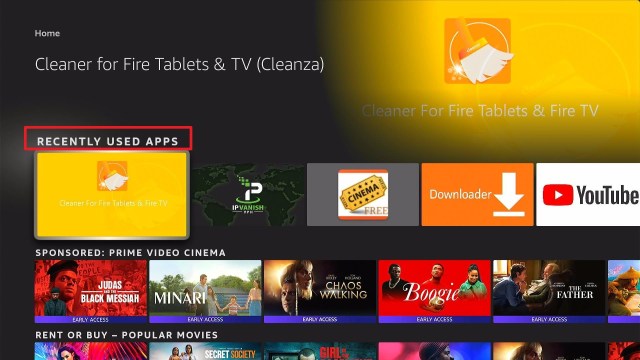
How to Update Firestick (12)


You can easily choose which function you like to change in the Settings tab.

How to Update Firestick (13)


New Update Home Page

Almost the same but still different. This is how we describe our new home page interface after updating the Amazon Firestick.

This portion includes 27 categories for users to navigate, explore and have an amazing Amazon firestick experience.


Popular Movies and TV Shows – From your Subscriptions

How to Update Firestick (15)


Recently Used Apps

How to Update Firestick (14)


Sponsored: Prime Video Cinema

How to Update Firestick (16)


Rent or Buy – Popular Movies

How to Update Firestick (17)


Rent or Buy – Movies We Think You’ll Like

How to Update Firestick (18)


TV Shows We Think You’ll Like

How to Update Firestick (19)


Rent or Buy – New Release Movies

How to Update Firestick (20)


Martial Arts Movies

How to Update Firestick (21)


Kids and Family Movies

How to Update Firestick (22)


Rent – New Releases Movies

How to Update Firestick (23)


$9.99 Or Less Movies Deals

How to Update Firestick (24)


Drama TV


Drama Movies


Science Fiction TV


Rent or Buy – Kids and Family Movies


Foreign TV


Country Movies


Action and Adventure Movies


Recommended Apps for You


Watch with Your Cable Subscription


Top Free Games


Popular Games for You


Celebrate National Pet Day


Sponsored: This Week on Fire TV


Play and Learn


IMDb TV Free Family Movies and TV


Stream Safely with a VPN

Surfshark vpn

Using the Amazon Firestick is fun. Although sometimes you may experience being blocked by a lot of content. Especially those that are not available in your region. Because of this, you won’t utilize the full potential of your firestick device.

If you want to completely use your device to the limit, you will need help from a VPN.

A VPN gives so many advantages when using Firestick. And you will have so much more enjoyable if you will be using a premium VPN. You see, using free ones is a little dangerous. That’s why we always recommend using Surfshark.

Surfshark is a tested and proven VPN that satisfies its user by giving a lot of premium and great features when using the Amazon Fire TV.

Some of these benefits are:

  • Adds up a wall of protection from your ISP and from hackers at all costs.
  • Connects you to other servers in different parts of the world to access geo-restricted content.
  • Helps you access and easily download shows from torrent sites.
  • Encrypts your connections and data
  • Serves as a shield against  malware
  • Speeds up your internet connection
  • Prevents Firestick Buffering and Kodi Buffering
  • Has 3200+ servers in 65 countries

Install Surfshark on Firestick

Best Surfshark Deal


How to Install Surfshark on Firestick with Screenshots

If your Firestick still has the older interface, read this article to learn how to update it: Update Firestick Interface.

You can download Surfshark directly from the Amazon App store. It will be easy for you to find Surfshark with your Firestick’s Find feature. Refer to our screenshots below.

Follow our screenshots below to install the Surfshark VPN app on your Fire TV stick.

1. Go to the Home screen of your Firestick.

step 1 Install Surfshark VPN on Firestick


2. Navigate towards the Find tab. Press the Search button from the resulting dropdown.

step 2 Install Surfshark VPN on Firestick


3. Type in the keyword of Surfshark and select from the suggestions that will appear.

step 3 Install Surfshark VPN on Firestick


4. Click the official Surfshark icon from your search results.

step 4 Install Surfshark VPN on Firestick


5. Press the Download (You own it) button.

step 5 Install Surfshark VPN on Firestick


6. The Surfshark VPN installer will download on your device.

step 6 Install Surfshark VPN on Firestick


7. Surfshark VPN’s app will automatically install itself on your Fire TV stick.

step 7 Install Surfshark VPN on Firestick


8. Press the Open button after completing Surfshark VPN’s installation process.

step 8 Install Surfshark VPN on Firestick


9. Please wait for the Surfshark VPN to load its user interface.

step 9 Install Surfshark VPN on Firestick


10. You can now log in with your Surfshark VPN account credentials.

step 10 Install Surfshark VPN on Firestick

Learn more about Surfshark and Grab the Best Surfshark Deal Now!


Install Surfshark on Firestick

Best Surfshark Deal

Other VPNs to Consider

NordVPN (Best for Streaming)

Best Features

  • 5000+ Server in 50+ Countries 
  • Military-Grade Encryption
  • Fast Connection Speed
  • Suitable to a lot of devices
  • No-Log Policy

Prices
  • Complete $5.89 per month (64% Discount)
  • Plus $4.59 per month (56% Discount)
  • Standard $3.69 per month (55% Discount)

Best Features

  • 750+ High-speed VPN Servers in 43 Locations
  • Military-Grade Encryption
  • Fastest HD Streaming and Gaming
  • 30-Day Money-Back Guarantee
  • Unlimited Data & Devices
  • No-Log Policy

Prices
  • 3 Years $1.99 per month (82% Discount)
  • 1 Years $3.29 per month (70% Discount)
  • 1 Month $10.99 per month

IPVanish VPN (Most Secure)

Best Features

  • 1200+ Servers in 60+ Countries around the world
  • Unlimited Connections
  • No-Log Policy
  • Top Notch Military-Grade VPN Protocols and Encryptions
  • 100% Safe and Secured
  • Most Trusted VPN
  • Best VPN for Firestick
  • 30-Day Money-Back Guarantee

Prices
  • Yearly $3.99 per month (63% Discount) – 30 days risk free + Ransomware & Malware Protection
  • Quarterly $5.32 per month (51% Discount)
  • Monthly $10.99 per month

For more VPN discounts, go to ReviewVPN Deals and purchase the best VPN for you.


Opinion

It’s pretty amazing. Although a lot has changed from the previous version compared to the new one, we can say that the upgrade is still awesome.

One noticeable con is how we usually search for shows and apps. It changed a lot, we can no longer see the magnifying glass. In order to search, we have to go to find, and then go to Seach, before we type. Compared to the previous version, once we click the magnifying glass, we are good to go. We can immediately type any topic we like to search.

But all in all, the update was really fantastic.


Final Words

We hope that this article was able to help you how to update your Amazon Firestick.