List of The Best Project Free TV Alternatives (2023)

Project Free TV Alternatives Overview

In this article, we will discuss the best Project Free TV alternatives for you.


Another popular movie and tv series streaming website went down years ago. This is Project Free TV. Just like Afdah, it went down because of some issues regarding legality and copyright.

When streaming on websites, it is best to use a VPN such as Surfshark. This is to make sure that you and your identity are safe when streaming.

Now, seems a lot of audiences are still looking for a good website to stream, we list down the best alternatives for Project Free TV. You can stream them in your Amazon Firestick using Silk Browser, or some other browsers like Firefox.

Silk Browser is one of the official Amazon apps. You don’t have to Jailbreak Your Firestick and Install the Downloader App to stream the best Project Free TV alternatives.

You can also read the List of the Best Websites to Watch Movies and TV Series for Free.


ANONYMOUSLY


How to Install the Amazon Silk Browser on Firestick

1.  Click Home on your remote and click “Find”.

Project Free TV Alternatives

2. Click “Search”

Project Free TV Alternatives


3.Type in Silk Browser and choose this item that appears on the results.

Project Free TV Alternatives


4. Click on the Silk Browser Icon.

Project Free TV Alternatives


5. Choose Get or Download

Project Free TV Alternatives


6. Select Open to launch the browser.

Project Free TV Alternatives


7. You can now start browsing using Amazon Silk Browser.

Project Free TV Alternatives


If your Firestick still has the older interface, read this article to learn how to update it: Update Firestick Interface.


Best Project Free TV Alternatives

We list down websites that we think best to be part of Project Free TV alternatives. Some of these websites might require registration and others might not be available outside the USA. You can use a VPN if you like to stream geo-restricted websites.


Vumoo

Project Free TV alternatives 1

website URL: https://vumoo.to/

This website has an interface that is user-friendly. Vumoo holds tons of titles to offer for streamers. With these good qualities, we named it the of the best Project Free TV alternatives. Although there are some advertisements present. The annoyance may be high for this website because right after you launch it, you’ll experience ad banners immediately.

You don’t need to have an account when you stream on Vumoo. It also works well with Surfshark.

To learn more, you may Stream Vumoo on Your Amazon Firestick and Other Devices.


Sony Crackle

Project Free TV Alternatives

website URL: https://www.crackle.com/

Crackle is a great movie and tv series streaming website. No wonder it is a part of the best Project Free TV alternatives. This website also contains advertisements but the video and audio qualities are great.

Please be reminded that Sony Crackle is geo-restricted. If you are located outside the United States, use a VPN to access Crackle.

Watch your favorite movies and TV shows on Crackle using your Amazon Firestick.


Vudu
Project Free TV Alternatives

website URL: https://www.vudu.com/

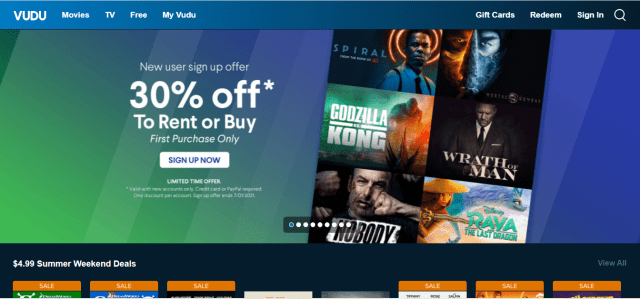
Vudu is a Video-on-demand (VOD) streaming website and a good one to be considered in the list of Project Free TV alternatives. It offers thousands of shows to stream with a lot of genres to choose from.

It requires an account and sometimes does not work well with a VPN. But overall this is a great website to consider.

Read How to Install Vudu on Firestick.


YOUR INTERNET ACTIVITY IS BEING WATCHED

ReviewVPN cannot attest to the legality, security and privacy of the applications discussed on this site. It is highly recommended that you use a VPN service while streaming or using Kodi.

Currently, your IP 216.73.216.208 is visible to everyone and your Browser is being tracked by Advertisers & ISP Provider.

Save 65% Now

Limited Time Offer

Here are the main reasons why you must use a VPN:

  • Your activities are hidden from your ISP, the government, and from the apps you are using.
  • You can access additional movies and TV streams.
  • ISP attempts to throttle are thrwarted thus reducing buffering issues.
  • Geographically restricted content like Netflix and Hulu can be unblocked.

A VPN works be replacing your ISP-assigned IP address and creating an encrypted tunnel. We recommend the no log service offered by IPVanish. It works well on a Firestick and offers the fastest possible speeds.

Special Limited Time Offer - Get IPVanish


Legal Disclaimer: ReviewVPN.com does not encourage or endorse any illegal activity involved in the usage of services and applications referenced on this site. We do not verify the licensing agreements of services. The end-user is wholly responsible for ensuring that any media accessed through these services does not violate copyright and/or licensing laws. ReviewVPN does not promote, link to, or receive compensation from any Apps and IPTV services.


Install Surfshark on Firestick

Best Surfshark Deal


Tubi TV

Project Free TV Alternatives

website URL: https://tubitv.com/

Tubi is a popular streaming app available on the Amazon Firestick. It also offers a streaming website and a good alternative for Project Free TV.

The app is available also in some other app stores like Google Play, Roku, etc.

This website does not require an account and works well with Surfshark. Although there are some advertisements present.

Stream your favorite shows when you Install Tubi on Firestick.


Peacock TV

Project Free TV Alternatives

website URL: https://www.peacocktv.com/

If you are familiar with NBC, then you might also hear of Peacock TV. This website offers great movies and shows to stream online. That is why we list it as one of the best Project Free TV alternatives.

Peacock TV is not available in all regions. To access the website, use a VPN. This works well with Surfshark. There are no account registration requirements but there are some advertisements.

If you want to know more, read the Peacock TV review.


Pluto TV

Project Free TV alternatives 2

website URL: http://pluto.tv/

One of the best streaming websites and apps available in the market today is Pluto TV. We will not list down the bets Project Free TV alternatives without it.

Like any other featured website in this article, Pluto TV does not require an account and works perfectly with Surfshark. It has some advertisements present, but not so bothersome.

Watch your favorite shows on Pluto TV.


Stream Safely with a VPN

https://get.surfshark.net/aff_c?offer_id=865&aff_id=12312

You have to take note some other websites are not safe to stream. Clicking some links may direct you to hacker domains. It is sometimes dangerous to stream.

Stream safely with the use of a VPN. By connecting to a different server, your IP address will be changed, you won’t also be hacked especially when you are using public wifi.

Another one is you’ll be able to access geo-restricted content.

The best VPN to provide these features is Surfshark. It works well with your Amazon Firestick and also with almost all of the listed Project Free TV alternatives above.

Here are some of the best features of Surfshark:

  • You can choose from 3,200 VPN servers in 65 locations all over the world.
  • Provides the best VPN Protocols for all types of devices.
  • Follows the zero-log policy.
  • Mask your identity even from your Internet Service Provider or ISP when streaming.
  • Serves as your tunnel that allows you to access geo-restricted content.
  • Stops malware from destroying your devices.
  • Your information will always be kept encrypted.
  • This makes your internet download and uploads speed faster than usual.
  • Allows torrenting safely.
  • Prevents Firestick Buffering and Kodi Buffering


Install Surfshark on Firestick

Best Surfshark Deal


How to Install Surfshark VPN on Firestick

If your Firestick still has the older interface, read this article to learn how to update it: Update Firestick Interface.

You can download Surfshark directly from the Amazon App store. It will be easy for you to find Surfshark with your Firestick’s Find feature. Refer to our screenshots below.

1. Go to the Home screen of your Firestick.

step 1 Install Surfshark VPN on Firestick


2. Navigate towards the Find tab. Press the Search button from the resulting dropdown.

step 2 Install Surfshark VPN on Firestick


3. Type in the keyword of SurfShark and select from the suggestions that will appear.

step 3 Install Surfshark VPN on Firestick


4. Click the official SurfShark icon from your search results.

step 4 Install Surfshark VPN on Firestick


5. Press the Download (You own it) button.

step 5 Install Surfshark VPN on Firestick


6. The SurfShark VPN installer will download on your device.

step 6 Install Surfshark VPN on Firestick


7. SurfShark VPN’s app will automatically install itself on your Fire TV stick.

step 7 Install Surfshark VPN on Firestick


8. Press the Open button after completing SurfShark VPN’s installation process.

step 8 Install Surfshark VPN on Firestick


9. Please wait for the SurfShark VPN to load its user interface.

step 9 Install Surfshark VPN on Firestick


10. You can now log in with your SurfShark VPN account credentials.

step 10 Install Surfshark VPN on Firestick

Learn more about Surfshark and Grab the Best Surfshark Deal Now!


Other VPNs to Consider

NordVPN (Best for Streaming)

Best Features

  • 5000+ Server in 50+ Countries 
  • Military-Grade Encryption
  • Fast Connection Speed
  • Suitable to a lot of devices
  • No-Log Policy

Prices
  • Complete $5.89 per month (64% Discount)
  • Plus $4.59 per month (56% Discount)
  • Standard $3.69 per month (55% Discount)

Best Features

  • 750+ High-speed VPN Servers in 43 Locations
  • Military-Grade Encryption
  • Fastest HD Streaming and Gaming
  • 30-Day Money-Back Guarantee
  • Unlimited Data & Devices
  • No-Log Policy

Prices
  • 3 Years $1.99 per month (82% Discount)
  • 1 Years $3.29 per month (70% Discount)
  • 1 Month $10.99 per month

IPVanish VPN (Most Secure)

Best Features

  • 1200+ Servers in 60+ Countries around the world
  • Unlimited Connections
  • No-Log Policy
  • Top Notch Military-Grade VPN Protocols and Encryptions
  • 100% Safe and Secured
  • Most Trusted VPN
  • Best VPN for Firestick
  • 30-Day Money-Back Guarantee

Prices
  • Yearly $3.99 per month (63% Discount) – 30 days risk free + Ransomware & Malware Protection
  • Quarterly $5.32 per month (51% Discount)
  • Monthly $10.99 per month


For more VPN discounts, go to ReviewVPN Deals and purchase the best VPN for you.

Wrapping Up

Project Free TV is one of the many websites that shut down due to legality issues. We’ve listed the best Project Free TV alternatives above. Here are they:

  • Vumoo
  • Crackle
  • Vudu
  • Tubi
  • Peacock TV
  • Pluto TV

We hope that this article was able to help you learn the best Project Free TV alternatives.

Note: ReviewVPN.com does not own or operate any app nor does it endorse any. The main purpose of this article is strictly for educational purposes only.


Related Articles:

Yes! Movies Alternatives

Soap2day Alternatives

GoStream Alternatives

Putlocker Alternatives

OpenLoad Alternatives

Flixtor Alternatives

Afdah Alternatives

SolarMovie Alternatives

CouchTuner Alternatives

DroidMote App On Firestick

Overview

The DroidMote remote app is among the best remote control apps people can use to control their Amazon Firestick or another Android streaming device. This remote application has a D-pad mode that lets you make use of it to navigate the Firestick app through Wi-Fi. You can get this awesome DroidMote remote app on Google Play Store.


Control your Amazon Firestick easily with the help of the DroidMote app. This is the server part that you must install on the streaming device that you wish to control. In addition, with the DroidMote remote app, you can utilize multi-touch apps & games – also works on devices that don’t have the touch screen feature (for instance, when connected to a television).

By default, the DroidMote remote app doesn’t have noticeable lags or delays, if you experience slowness, you may check the network connections or try it with other Client devices.

DroidMote is a remote application and an input devices emulator that can turn hardware input devices into various input devices. For example, a hardware gamepad in keyboard & mouse, or touch screen/hardware keyboard & mouse in gamepad.


ANONYMOUSLY


Setting Up DroidMote App

1. Install DroidMate Server on your Android device (FireStick) through Google Play Store

droidmate

2. Go to Settings located on the upper right of the screen

droidmate


3. Allow DroidMate Server to access photos, media, and files on your device (Also, install also the DroidMate client on your Android smartphone through Google Play Store)

droidmate


4. Launch the DroidMate app on your device

ON


5. Now, you can use the DroidMote remote app

droidmate


Install Surfshark on Firestick

Best Surfshark Deal


How to pair the DroidMote app?

When you launch the DroidMote app, a listing of IP addresses will come into view (each is running the server of the DroidMote). Select the IP address where your Firestick is connected, and you will be connected to the server automatically. You can now use your smartphone device as your Firestick trackpad.


What Is DroidMate?

DroidMate app acts as a Remote Mouse for the Amazon Fire TV or FireStick. Once you install the DroidMate app on both your Android smartphone and Firestick, the app lets you use your mobile phone to control your FireStick in several ways.

The DroidMote remote app allows you to control Linux, Android, Chrome, and Windows OS devices. With your smartphone, you can control games & apps on your Firestick that support all types of interactions, such as a mouse, gamepad, keyboard – including touch actions. With a hardware gamepad, you can be in charge of multi-touch games as well as games that require a keyboard & mouse. However, the DroidMote KMredirect add-on lets you control multi-touch games as well as games with gamepad support.


DroidMote Uses

The DroidMote app emulates hardware devices in the Windows, Linux, and Android operating systems – this includes a keyboard, touch screen, mouse, multi-touch trackpad, and a gamepad. The DroidMote app allows you to use a hardware gamepad, soft gamepad, mouse & keyboard to play with all installed games on the server device. This works also for those without the gamepad support because of the Gamepad2Touch functionality and the touch profiles.

Games that have hardware gamepad support recognize the DroidMote app as a hardware gamepad device. If you don’t have a router, no worries – you can create a connection point to point between the devices by using Tethering or a portable hotspot of the device. 


YOUR INTERNET ACTIVITY IS BEING WATCHED

ReviewVPN cannot attest to the legality, security and privacy of the applications discussed on this site. It is highly recommended that you use a VPN service while streaming or using Kodi.

Currently, your IP 216.73.216.208 is visible to everyone and your Browser is being tracked by Advertisers & ISP Provider.

Save 65% Now

Limited Time Offer

Here are the main reasons why you must use a VPN:

  • Your activities are hidden from your ISP, the government, and from the apps you are using.
  • You can access additional movies and TV streams.
  • ISP attempts to throttle are thrwarted thus reducing buffering issues.
  • Geographically restricted content like Netflix and Hulu can be unblocked.

A VPN works be replacing your ISP-assigned IP address and creating an encrypted tunnel. We recommend the no log service offered by IPVanish. It works well on a Firestick and offers the fastest possible speeds.

Special Limited Time Offer - Get IPVanish


Gamepad2Touch Feature

Apart from being a remote mouse, a remote gamepad, a remote multi-touch touchpad, and a remote keyboard, DroidMote is something more. As a matter of fact, the Gamepad2Touch feature lets you use all the apps and games that were developed to support devices with touch-screen features only. With DroidMote, you can remote control games that are designed for touch screen devices on a large TV screen.


Features

  • Mouse
  • Multi-touch trackpad
  • Air Mouse
  • Keyboard
  • Two fingers scroll to rotate the zoom
  • Dpad
  • Media controls
  • Supports multiple mobile phones simultaneously
  • Controller for games
  • Touch emulation lets you map buttons & analog sticks to the screen. You can play all the games you like with full analog support – including those without built-in controller support
  • Two virtual analog stick
  • Voice dictation
  • Touch Mouse for games that don’t support a hardware mouse
  • Copy & paste from one device to the other
  • You can link a hardware gamepad to the smartphone through Bluetooth and play with multi-touch games or video games that need a mouse & keyboard. 
  • Android TV compatible
  • The app functions well on Windows, Android, Chrome, or Linux OS.


Compatible Devices

If you want to use your Amazon FireStick to easily stream movies, and shows, or play games, you must use the DroidMote. You can download & install the DroidMote app on Android TV, Google Chromecast, and Apple TV. DroidMote Server is available for Android, Linux, Windows, and Chrome OS.


Always Use A VPN While Using Your Firestick

Using Virtual Private Network or VPN can be very handy on a Fire TV Stick. Thanks to a VPN service, you can access platforms or services that are unavailable in your country or bypass the meaningless restrictions that several platforms sometimes impose. When you use Fire TV Stick, an encrypted Virtual Private Network service provider is highly recommended to hide your online activities, identity, and location. Many FireStick users prefer Surfshark services for privacy, price, and speed.

Providing the fastest server speeds and amazing live chat support, Surfshark is also an easy-to-use VPN app. Make sure to enable the VPN service when you are streaming on the internet.


Surfshark Features:

  • Unblocks Netflix, Disney+, and lots more
  • Unlimited devices
  • 30-day money-back guarantee
  • Robust encryption
  • Great download speed
  • Zero log policy
  • Great customer service
  • Compatible with Android, Windows, Linux, iOS, Mac, and other routers


Grab your subscription now!

Click here to get the lowest price on Surfshark through our exclusive limited-time offer.


How to Install Surfshark VPN on Firestick

If your Firestick still has the older interface, read this article to learn how to update it: Update Firestick Interface.

You can download Surfshark directly from the Amazon App store. It will be easy for you to find Surfshark with your Firestick’s Find feature. Refer to our screenshots below.

1. Go to the Home screen of your Firestick.

step 1 Install Surfshark VPN on Firestick


2. Navigate towards the Find tab. Press the Search button from the resulting dropdown.

step 2 Install Surfshark VPN on Firestick


3. Type in the keyword of SurfShark and select from the suggestions that will appear.

step 3 Install Surfshark VPN on Firestick


4. Click the official SurfShark icon from your search results.

step 4 Install Surfshark VPN on Firestick


5. Press the Download (You own it) button.

step 5 Install Surfshark VPN on Firestick


6. The SurfShark VPN installer will download on your device.

step 6 Install Surfshark VPN on Firestick


7. SurfShark VPN’s app will automatically install itself on your Fire TV stick.

step 7 Install Surfshark VPN on Firestick


8. Press the Open button after completing SurfShark VPN’s installation process.

step 8 Install Surfshark VPN on Firestick


9. Please wait for the SurfShark VPN to load its user interface.

step 9 Install Surfshark VPN on Firestick


10. You can now log in with your SurfShark VPN account credentials.

step 10 Install Surfshark VPN on Firestick

Learn more about Surfshark and Grab the Best Surfshark Deal Now!


Other VPNs to Consider

NordVPN (Best for Streaming)

Best Features

  • 5000+ Server in 50+ Countries 
  • Military-Grade Encryption
  • Fast Connection Speed
  • Suitable to a lot of devices
  • No-Log Policy

Prices
  • Complete $5.89 per month (64% Discount)
  • Plus $4.59 per month (56% Discount)
  • Standard $3.69 per month (55% Discount)

Best Features

  • 750+ High-speed VPN Servers in 43 Locations
  • Military-Grade Encryption
  • Fastest HD Streaming and Gaming
  • 30-Day Money-Back Guarantee
  • Unlimited Data & Devices
  • No-Log Policy

Prices
  • 3 Years $1.99 per month (82% Discount)
  • 1 Years $3.29 per month (70% Discount)
  • 1 Month $10.99 per month

IPVanish VPN (Most Secure)

Best Features

  • 1200+ Servers in 60+ Countries around the world
  • Unlimited Connections
  • No-Log Policy
  • Top Notch Military-Grade VPN Protocols and Encryptions
  • 100% Safe and Secured
  • Most Trusted VPN
  • Best VPN for Firestick
  • 30-Day Money-Back Guarantee

Prices
  • Yearly $3.99 per month (63% Discount) – 30 days risk free + Ransomware & Malware Protection
  • Quarterly $5.32 per month (51% Discount)
  • Monthly $10.99 per month


For more VPN discounts, go to ReviewVPN Deals and purchase the best VPN for you.


Conclusion

Now you know how to stream the DroidMote app on your Amazon Firestick. It is a great remote app, especially if you like to be entertained during in-between moments. It’s like easily controlling your Amazon Firestick from the comfort of your couch. 

Always remember to use A VPN every time you use your Amazon Firestick. Please feel free to let us know what you think of the DroidMote app in the comments section below.

How to Install Humbug Flix Kodi Build

Overview

The article will help you on how to install Humbug Flix Kodi Build.

Humbug Flix is a Christmas theme Kodi build from the cMan’s Repository. This build offers you different categories such as Kids, Sports, Music, Movies, TV shows, and a list of supported addons. If you want to feel the presence of Christmas, this add-on is a good option for you. It offers you hundreds of Christmas-related content to watch at a high quality in a less buffering experience. 


You can watch different categories of content, including some all-time favorite TV shows, Kid content and movies, sports coverage, and even sing-along on their lots of great Christmas songs. The good thing is it is integrated with Real-Debrid, which is why you can be sure that they provide you with high-quality streaming links. It is also a lightweight Kodi build that is easy to install. It also covers different popular add ons such as Asgard, Venom, Athena, Shadow, YouTube, and more. 


ANONYMOUSLY


How to Install Humbug Flix Kodi Build with Screenshot

Installing a Kodi build has a lot of processes to take. That is why we will guide you step by step on how you can install it on Kodi.

Follow the following steps below. 

1. On your Firestick, open Kodi and go to Settings.

Install Humbug Flix Kodi Build 1

2. Select on System.

Install Humbug Flix Kodi Build 2


3. Click on the Add-ons menu and Turn ON Unknown Sources.

Install Humbug Flix Kodi Build 3


4. Select Yes when the box appears.

Install Humbug Flix Kodi Build 4


5. Go back one step and click on File Manager.

Install Humbug Flix Kodi Build 5


6. Click Add Source.

Install Humbug Flix Kodi Build 6


7. A box will pop up, so click on the ‘None’ option.

Install Humbug Flix Kodi Build 7


8. Type in http://cmanbuilds.com/repo and click OK.

Install Humbug Flix Kodi Build 8


9. Name the URL- cman or any other name you want to. Then select OK.

Install Humbug Flix Kodi Build 9


10. Go back and Select Add-ons.

Install Humbug Flix Kodi Build 10


11. Click Install from zip file.

Install Humbug Flix Kodi Build 11


12. Choose cman or any other name you put.

Install Humbug Flix Kodi Build 12


13. Click  repository.cMaNWizard.zip

Install Humbug Flix Kodi Build 13


14. Wait for the message to appear and after that click the Install from repository.

Install Humbug Flix Kodi Build 14


15. Click cMaN’s Wizard Repository.

Install Humbug Flix Kodi Build 15


16. Go to Programs add-ons.

Install Humbug Flix Kodi Build 16


17. Choose cMaN Wizard.

Install Humbug Flix Kodi Build 17


18. Click Install.

Install Humbug Flix Kodi Build 18


19. Wait for a message to appear and click the Version 1.0.9

Install Humbug Flix Kodi Build 19


20. A box will pop up, select Continue.

Install Humbug Flix Kodi Build 20


21. Click Open Wizard.

Install Humbug Flix Kodi Build 21


22. Select Builds.

Install Humbug Flix Kodi Build 22


23. Scroll down and click Humbug Flix.

Install Humbug Flix Kodi Build 23


24. Select the Fresh Install.

Install Humbug Flix Kodi Build 24


25. When a box pops up, Tap Yes.

Install Humbug Flix Kodi Build 25


26. Wait for the Humbug Flix Kodi Build to download.

Install Humbug Flix Kodi Build 26


27. Tap Ok.

Install Humbug Flix Kodi Build 27


28. Exit your Kodi and reopen it again.

Install Humbug Flix Kodi Build 28


29. That’s it! You have successfully installed the Humbug Flix Kodi Build. 

Install Humbug Flix Kodi Build 29


Features of Humbug Flix Kodi Build

Interface

  • It has a simple and user-friendly interface
  • Beautiful Christmas design interface.
  • Easy to navigate the interface without using mouse toggle
  • Available power, shutdown, and quit buttons.


Content

  • It also covers different popular add-ons such as Asgard, Venom, Athena, Shadow, YouTube, and more. 
  • Available different Skins themes. 
  • Supports Torrenting
  • Great lineup of content in a wide variety of categories, 
  • A regularly updated list of movies and Tv shows. 
  • Well-organized categories and subcategories. 


Video Quality

  • HD and UHD 4K video quality
  • Playback and forward button
  • Available subtitles in multi-language
  • Real debrid Integration account from high quality streaming links


Install Surfshark on Firestick

Best Surfshark Deal


Legal Disclaimer: ReviewVPN.com does not encourage or endorse any illegal activity involved in the usage of services and applications referenced on this site. We do not verify the licensing agreements of services. The end-user is wholly responsible for ensuring that any media accessed through these services does not violate copyright and/or licensing laws. ReviewVPN does not promote, link to, or receive compensation from any Apps and IPTV services.


YOUR INTERNET ACTIVITY IS BEING WATCHED

ReviewVPN cannot attest to the legality, security and privacy of the applications discussed on this site. It is highly recommended that you use a VPN service while streaming or using Kodi.

Currently, your IP 216.73.216.208 is visible to everyone and your Browser is being tracked by Advertisers & ISP Provider.

Save 65% Now

Limited Time Offer

Here are the main reasons why you must use a VPN:

  • Your activities are hidden from your ISP, the government, and from the apps you are using.
  • You can access additional movies and TV streams.
  • ISP attempts to throttle are thrwarted thus reducing buffering issues.
  • Geographically restricted content like Netflix and Hulu can be unblocked.

A VPN works be replacing your ISP-assigned IP address and creating an encrypted tunnel. We recommend the no log service offered by IPVanish. It works well on a Firestick and offers the fastest possible speeds.

Special Limited Time Offer - Get IPVanish


Pros and Cons

Pros

  • No registration and subscription needed
  • Simple and easy to use interface
  • Large collection of regularly updated contents
  • Integrated with Real Debrid account
  • High quality of streaming links
  • Lightweight Kodi build

Cons

  • Some add-ons are not working along with other content. 


Why do I need a VPN?

We always recommend using a Virtual Private Network on your device to enhance your privacy and security, whereas some Kodi builds and addons are not safe to use at all. Whereas some Kodi users reportedly experience some technical issues and threats while using these builds, Which is why you must use a VPN on your device to ensure that your data and your identity are safe.

 In terms of privacy and security, we highly choose Surfshark as your VPN, because it has uncrackable security and a high standard of encryption that will keep you anonymous online. This VPN has impressive security features and a US standard of AES-256-bit encryptions will safeguard all of your data. If you want to know more about this VPN, kindly read our Surfshark Review.

Other features of Surfshark are: 

  • Prevent ISPs from interfering with your connection
  • Over 2,000 servers
  • Advanced Encryption
  • Unlimited bandwidth 
  • Multi-Platform Protection
  • Zero logs and No IP leaks protocol
  • SOCKS5 Web Proxy
  • Geo-Locked Content Access


Grab your subscription now!

Click here to get the lowest price on Surfshark through our exclusive limited-time offer.


How to Install Surfshark VPN on Firestick

If your Firestick still has the older interface, read this article to learn how to update it: Update Firestick Interface.

Follow our screenshots below to install the SurfShark VPN app on your Fire TV stick.

1. Go to the Home screen of your Firestick.

step 1 Install Surfshark VPN on Firestick


2. Navigate towards the Find tab. Press the Search button from the resulting dropdown.

step 2 Install Surfshark VPN on Firestick


3. Type in the keyword of SurfShark and select from the suggestions that will appear.

step 3 Install Surfshark VPN on Firestick


4. Click the official SurfShark icon from your search results.

step 4 Install Surfshark VPN on Firestick


5. Press the Download (You own it) button.

step 5 Install Surfshark VPN on Firestick


6. The SurfShark VPN installer will download on your device.

step 6 Install Surfshark VPN on Firestick


7. SurfShark VPN’s app will automatically install itself on your Fire TV stick.

step 7 Install Surfshark VPN on Firestick


8. Press the Open button after completing SurfShark VPN’s installation process.

step 8 Install Surfshark VPN on Firestick


9. Please wait for the SurfShark VPN to load its user interface.

step 9 Install Surfshark VPN on Firestick


10. You can now log in with your SurfShark VPN account credentials.

step 10 Install Surfshark VPN on Firestick

Learn more about Surfshark and Grab the Best Surfshark Deal Now!


Install Surfshark on Firestick

Best Surfshark Deal


Other VPNs to Consider

NordVPN (Best for Streaming)

Best Features

  • 5000+ Server in 50+ Countries 
  • Military-Grade Encryption
  • Fast Connection Speed
  • Suitable to a lot of devices
  • No-Log Policy

Prices
  • Complete $5.89 per month (64% Discount)
  • Plus $4.59 per month (56% Discount)
  • Standard $3.69 per month (55% Discount)

Best Features

  • 750+ High-speed VPN Servers in 43 Locations
  • Military-Grade Encryption
  • Fastest HD Streaming and Gaming
  • 30-Day Money-Back Guarantee
  • Unlimited Data & Devices
  • No-Log Policy

Prices
  • 3 Years $1.99 per month (82% Discount)
  • 1 Years $3.29 per month (70% Discount)
  • 1 Month $10.99 per month

IPVanish VPN (Most Secure)

Best Features

  • 1200+ Servers in 60+ Countries around the world
  • Unlimited Connections
  • No-Log Policy
  • Top Notch Military-Grade VPN Protocols and Encryptions
  • 100% Safe and Secured
  • Most Trusted VPN
  • Best VPN for Firestick
  • 30-Day Money-Back Guarantee

Prices
  • Yearly $3.99 per month (63% Discount) – 30 days risk free + Ransomware & Malware Protection
  • Quarterly $5.32 per month (51% Discount)
  • Monthly $10.99 per month


For more VPN discounts, go to ReviewVPN Deals and purchase the best VPN for you.

Click here to get the lowest price on Surfshark through our exclusive limited-time offer.


Alternatives for Humbug Flix Kodi Builds

We list down some of the Kodi builds that you can try. Kindly read their corresponding articles to know more about these add-ons.


FAQs

Is the Humbug Flix Kodi Build legal?

Yes, downloading this build is not illegal.


Is the Humbug Flix Kodi Build safe to use?

Yes, this Build is safe to use, but we suggest using a VPN such as Surfshark to keep you safe. 


Is the Humbug Flix Kodi Build free?

Yes, this Build is free and allows you to access their content for free.


Do I need to use a VPN for this?

Yes, we always suggest using a VPN such as Surfshark to keep you safe and protected. 


Conclusion

Humbug Flix is a lightweight Kodi build that offers you a great selection of content fit for Christmas. This add-on is fit for the Christmas season because it offers you lots of Christmas-related content to watch for free. The good thing is it supports Real debrid, so reassured that it serves you with good content and high-quality links. We hope this article helps you install the Humbug Flix Kodi Build.

How to Install Duffman Kodi Build

Overview

The article will help you how to install Duffman Kodi Build.


Duffman is an amazing Build from Stream Digital Repository that works well on Kodi. This build has a great lineup of content such as Movies, TV shows, music, sports, and more interesting videos to watch. It has an attractive and easy-to-use interface that supports lots of popular Kodi addons. 

This build together with its supported addons brings you lots of high-quality streaming links to watch for free. It is also a feature-rich build, integrated with real debrid to provide you a quality of links. Some of the popular addons pre-loaded with Duffman build are Rising tides, Joker, Numbers, The Crew, and more. 


ANONYMOUSLY

How to Install Duffman Kodi Build with Screenshot

Installing a Kodi build has a lot of processes to take. That is why we will guide you step by step on how you can install it on Kodi.

 Follow the following steps below. 

1. On your Firestick, open Kodi and go to Settings.

Install Duffman Kodi Build Step 1


2. Select on System.

Install Duffman Kodi Build Step 2


3. Click on the Add-ons menu and Turn ON Unknown Sources.

Install Duffman Kodi Build Step 3


4. Select Yes when the box appears.

Install Duffman Kodi Build Step 4


5. Go back one step and click on File Manager.

Install Duffman Kodi Build Step 5


6. Click Add Source.

Install Duffman Kodi Build Step 6


7. A box will pop up, so click on the ‘None’ option.

Install Duffman Kodi Build Step 7


8. Type in http://streamdigital.org/wiz/ and tap the OK button.

Install Duffman Kodi Build Step 8


9. Name the URL- wiz or any other name you want to. Then select OK.

Install Duffman Kodi Build Step 9


10. Go back and Select Add-ons.

Install Duffman Kodi Build Step 10


 11. Select Install from zip file.

Install Duffman Kodi Build Step 11


 12. Select wiz or any other name you put.

Install Duffman Kodi Build Step 12


13. Click  plugin.program.sdwiz.zip

Install Duffman Kodi Build Step 13


 14. Wait for the Stream Digital Addon installed text to appear.

Install Duffman Kodi Build Step 14


15. When a box pops up, tap on the Dismiss button.

Install Duffman Kodi Build Step 15


16. Another box will pop up, just select on Continue

Install Duffman Kodi Build Step 16


17. Click Ignore.

Install Duffman Kodi Build Step 17


18. Hover back to the home screen of Kodi and go to Addons.

Install Duffman Kodi Build Step 18


19. Select on Program Addons.

Install Duffman Kodi Build Step 19


20. Click the Stream Digital icon.

Install Duffman Kodi Build Step 20


21. Scroll and select Builds.

Install Duffman Kodi Build Step 21


22. Find and click the (18.6) Duffman Reloaded.

Install Duffman Kodi Build Step 22


23. Select the Fresh Install.

Install Duffman Kodi Build Step 23


24. When a box pop up, Tap Continue.

Install Duffman Kodi Build Step 24


25. Wait for the Stream Digital to download.

Install Duffman Kodi Build Step 25


26. Tap Force Close.

Install Duffman Kodi Build Step 26


27. Exit your Kodi and reopen it again.

Install Duffman Kodi Build Step 27


28. That’s it! You have successfully installed the Duffman Kodi Build. 

Install Duffman Kodi Build Step 28


YOUR INTERNET ACTIVITY IS BEING WATCHED

ReviewVPN cannot attest to the legality, security and privacy of the applications discussed on this site. It is highly recommended that you use a VPN service while streaming or using Kodi.

Currently, your IP 216.73.216.208 is visible to everyone and your Browser is being tracked by Advertisers & ISP Provider.

Save 65% Now

Limited Time Offer

Here are the main reasons why you must use a VPN:

  • Your activities are hidden from your ISP, the government, and from the apps you are using.
  • You can access additional movies and TV streams.
  • ISP attempts to throttle are thrwarted thus reducing buffering issues.
  • Geographically restricted content like Netflix and Hulu can be unblocked.

A VPN works be replacing your ISP-assigned IP address and creating an encrypted tunnel. We recommend the no log service offered by IPVanish. It works well on a Firestick and offers the fastest possible speeds.

Special Limited Time Offer - Get IPVanish


Legal Disclaimer: ReviewVPN.com does not encourage or endorse any illegal activity involved in the usage of services and applications referenced on this site. We do not verify the licensing agreements of services. The end-user is wholly responsible for ensuring that any media accessed through these services does not violate copyright and/or licensing laws. ReviewVPN does not promote, link to, or receive compensation from any Apps and IPTV services.


Install Surfshark on Firestick

Best Surfshark Deal


Features of Duffman Kodi Build

  • It has a user-friendly and beautifully designed interface.
  • Easy to navigate the interface without using the mouse toggle
  • It also covers different popular add ons such as The Crew, Joker, Numbers, Ghost, Chain Reaction, The Magic Dragon, Nole Cinema, Rising Tides, Marauder, and more. 
  • It uses Bello Nero Skin and has different skin themes. 
  • Great lineup of content in a wide variety of categories including TV shows, Music, kids shows, Movies, Documentaries, and more., 
  • A regularly updated list of movies and Tv shows. 
  • It supports uploading and downloading Torrenting.
  • Integrated with Real Debrid to provide you a high quality streaming links
  • Well-organized categories and subcategories. 
  • 720 to 1080p HD video quality
  • Rewind and fast forward button
  • Available subtitles in multi-language


Pros and Cons

Pros

  • No registration and subscription needed
  • Attractive and easy to use interface
  • Preload popular Kodi addons. 
  • Integrated with Real Debrid account
  • HD quality of the video to watch for free

Cons

  • Some add-ons are not working along with other content. 


Why do I need a VPN?

We recommend using a Virtual Private Network on your device before using a Kodi build or add-on to ensure that you are safe and protected while streaming. Whereas, some Kodi builds and addons are sometimes served with unprotected and insecure files that may affect your device. That is why using a VPN is very recommendable. 

Since there are lots of VPNs to choose from online, we recommend Surfshark as your best choice, as it uses a high standard and advanced security of AES-256-bit encryptions that will safeguard all of your data and supports IKEv2, OpenVPN, and L2TP/IPsec VPN protocols. 

This VPN also prevents any trackers, hackers, and even snooping ISP and keeping you anonymous online.

Note: For more information about Surfshark, please read our Surfshark Review.


Install Surfshark on Firestick

Best Surfshark Deal


How to Install Surfshark VPN on Firestick

If your Firestick still has the older interface, read this article to learn how to update it: Update Firestick Interface.

Follow our screenshots below to install the SurfShark VPN app on your Fire TV stick.

1. Go to the Home screen of your Firestick.

step 1 Install Surfshark VPN on Firestick


2. Navigate towards the Find tab. Press the Search button from the resulting dropdown.

step 2 Install Surfshark VPN on Firestick


3. Type in the keyword of SurfShark and select from the suggestions that will appear.

step 3 Install Surfshark VPN on Firestick


4. Click the official SurfShark icon from your search results.

step 4 Install Surfshark VPN on Firestick


5. Press the Download (You own it) button.

step 5 Install Surfshark VPN on Firestick


6. The SurfShark VPN installer will download on your device.

step 6 Install Surfshark VPN on Firestick


7. SurfShark VPN’s app will automatically install itself on your Fire TV stick.

step 7 Install Surfshark VPN on Firestick


8. Press the Open button after completing SurfShark VPN’s installation process.

step 8 Install Surfshark VPN on Firestick


9. Please wait for the SurfShark VPN to load its user interface.

step 9 Install Surfshark VPN on Firestick


10. You can now log in with your SurfShark VPN account credentials.

step 10 Install Surfshark VPN on Firestick

Learn more about Surfshark and Grab the Best Surfshark Deal Now!


Install Surfshark on Firestick

Best Surfshark Deal


Other VPNs to Consider

NordVPN (Best for Streaming)

Best Features

  • 5000+ Server in 50+ Countries 
  • Military-Grade Encryption
  • Fast Connection Speed
  • Suitable to a lot of devices
  • No-Log Policy

Prices
  • Complete $5.89 per month (64% Discount)
  • Plus $4.59 per month (56% Discount)
  • Standard $3.69 per month (55% Discount)

Best Features

  • 750+ High-speed VPN Servers in 43 Locations
  • Military-Grade Encryption
  • Fastest HD Streaming and Gaming
  • 30-Day Money-Back Guarantee
  • Unlimited Data & Devices
  • No-Log Policy

Prices
  • 3 Years $1.99 per month (82% Discount)
  • 1 Years $3.29 per month (70% Discount)
  • 1 Month $10.99 per month

IPVanish VPN (Most Secure)

Best Features

  • 1200+ Servers in 60+ Countries around the world
  • Unlimited Connections
  • No-Log Policy
  • Top Notch Military-Grade VPN Protocols and Encryptions
  • 100% Safe and Secured
  • Most Trusted VPN
  • Best VPN for Firestick
  • 30-Day Money-Back Guarantee

Prices
  • Yearly $3.99 per month (63% Discount) – 30 days risk free + Ransomware & Malware Protection
  • Quarterly $5.32 per month (51% Discount)
  • Monthly $10.99 per month


For more VPN discounts, go to ReviewVPN Deals and purchase the best VPN for you.


Alternatives for Duffman Kodi Builds

We list down some of the Kodi builds that you can try. Kindly read their corresponding articles to know more about these add-ons.


FAQs

Is the Duffman Kodi Build safe to use?

Yes, this Build is safe to use, but we suggest using a VPN such as Surfshark to keep you safe. 


Is the Duffman Kodi Build legal?

Yes, downloading this build is not illegal.


Is the Duffman Kodi Build free?

Yes, this Build is free and allows you to access their content for free.


Do I need to use a VPN for this?

Yes, we always suggest using a VPN such as Surfshark to keep you safe and protected. 


Is this an official Kodi Build?

No, this is a third-party Kodi build, which we suggest using Surfshark.


Conclusion

Duffman Kodi Build is one of the great builds to try, where it offers you a great lineup of content together with its preload Kodi addons. It is a lightweight Kodi build that gives you an easy-to-use interface to enjoy streaming different content on popular addons. The good thing about this build is it gives you a high quality of streaming links because it is integrated with Real debrid. We hope this article helps you install the Duffman Kodi Build.

List of the Best VPNs For Google Chromecast – Reviewed and Ranked

Overview

The Google Chromecast is one of the most popular video-streaming devices.


It can provide a wide range of movies and TV channels to your television. Sadly, many of those TV channels have geographical restrictions, which means you can only access those channels from a specific country. Also, there are live streams that are subject to geo-location that block you from streaming sports as well as other events if they go live within a particular region. 

Nonetheless, a Virtual Private Network or VPN can bypass these geographic limitations and let you stream your favorite streaming TV channels from across the globe. A VPN encrypts all the internet traffic of the Google Chromecast and routes it via a server in a remote location of your choice, thus concealing your actual location from the streaming platform.


ANONYMOUSLY


What Is a Virtual Private Network or VPN?

A Virtual Private Network or VPN provides you privacy & anonymity on the internet by generating a private network that originated from a public web connection. A VPN service hides your internet protocol address or IP so your online activities will be untraceable. Most importantly, a VPN establishes secure & encrypted connections to deliver greater privacy compared to a secured Wi-Fi hotspot.

Chromecast is a great device that digitally projects video content from PC, mobile phone, or tablet to the television. Nonetheless, the streaming platforms available with it, such as Netflix or Hulu, are Geo-restricted in several countries of the world, and in order to access them, you must have a VPN for your Chromecast.

For instance, you can’t stream movies or TV shows on Hulu if you are outside the United States, and BBC iPlayer is inaccessible from outside the United Kingdom – unless you use a reliable, secure Virtual Private Network.


The Best VPN for Google Chromecast

SurfShark

surfshark logo

If you’re on a budget, then one of your best options would be SurfShark. Despite only costing $2.49 per month, it allows you to unblock pretty much all geo-restricted platforms and websites from across the globe.

In addition, with more than 3200 servers all over the globe, SurfShark manages to provide fast streaming speeds. It lets you literally stream your most-liked movies & TV shows in Ultra High Definition (UHD) picture quality. For streaming fanatics out there asking – Can I stream Netflix in Spain? Definitely yes, streaming enthusiasts can watch any Netflix content including in Spain with the fast-speed servers of SurfShark.


NordVPN

nordvpn

NordVPN is among the most popular VPN service providers for Google Chromecast in the market. It has the largest network servers compared to other VPN service providers, consisting of over 5500 servers in more than 59 countries. Similar to any VPN service provider, NordVPN utilizes powerful encryption protocols that not only aid users secure their privacy but also help them unblock popular streaming platforms, such as Netflix.

Additionally, the NordVPN privacy policy is flawless, as it ensures strict no data logging. Thus, NordVPN on Google Chromecast offers one of the best experiences when using the streaming device through VPN.


IPVanish

ipvanish-logo

IPVanish is a fast, very easy-to-use, and affordable VPN service provider that incorporates sturdy encryption and guarantees a perfect user experience. With the IPVanish VPN service, your web activity is untraceable. This VPN service has a strict no-logs policy so even its own employees will never know your activities on the internet. It offers an internet kill switch feature. Wherein, your information or data will still be secured even if your internet connection drops. 

The VPN’s encryption standards are very tight. It utilizes a SHA512 authentication, 256-bit encryption on the OpenVPN protocol, & a DHE-RSA 2,048-bit key exchange with remarkable forward secrecy. Thus, even if a person’s account is vulnerable, hackers, ISPs, or the government can never decrypt previous session information and launch browsing history.

IPVanish VPN service lets you select between 850 servers across 60 countries. It allows ten devices to connect simultaneously, which makes it an even affordable VPN service provider if you want to share it with your family or friends. The VPN service has applications for both Android and iOS.

IPVanish Features:

  • Unblocks Netflix in the United States
  • A database of over 40,000 IP addresses
  • Split tunneling
  • 30-day money-back guarantee
  • User-friendly dashboard
  • SOCKS5 proxy support
  • It is compatible with most computer software
  • More than 70+ countries
  • PayPal accepted and credit cards
  • P2P permitted
  • Can connect to 10 different servers simultaneously
  • Zero logs policy
  • Provides Kill switch feature
  • Leak protection
  • Superb encryption
  • Unlimited bandwidth and data allowance

If you want a VPN service provider that is robust in the United States and Europe but also provides servers in places such as Brazil, Australia, Japan, & South Africa, then IPVanish VPN is the best option. 


Other VPN Services for Google Chromecast

ExpressVPN

expressvpn logo

ExpressVPN is one of the best VPN service providers in the world. It offers more than 3000 servers in about 94 locations. All of its servers are heavily encrypted and provide fast speeds.

Regarding speeds, this VPN provider is one of the fastest VPN services you’ll ever find on the web. However, all the performance ExpressVPN does come at a price. The ExpressVPN for Chromecast will cost you $6.67 a month. That said, the expensive price of ExpressVPN is worth it and makes casting with Virtual Private Network a lot easier.

Features:

  • Outstanding connection speeds
  • More than 3,000 servers in 90 countries
  • 30-day money-back guarantee
  • 5 simultaneous device connections
  • It functions with Spotify, Sling TV, Disney+, HBO Now, Netflix, and many more
  • Compatible with Android, macOS, iOS, Windows,  Linux, and many more


CyberGhost

With over 7,400 servers around the world, CyberGhost lets you connect to almost all countries, including Germany, Sweden, France, the United Kingdom, Australia, and the United States. Also, you’ll be amazed by the compatibility of this VPN service with a wide range of Android-powered devices, which include Google Chromecast, Amazon Fire Stick, Android TV, Android smartphone, and tablet.


Features:

  • 45-day money-back guarantee
  • 7,400 servers in 91 countries
  • Also works with Netflix,  Amazon Prime Video, BBC iPlayer, Spotify, HBO, and many more
  • 7 simultaneous device connections
  • Amazing speeds for streaming music
  • Compatible with Linux, macOS, Android,  iOS, Windows, and lots more


Important VPN features for Chromecast

For you to get the most out of a VPN service for Chromecast, the VPN service must have the following features:

  • Provides access to streaming services – The VPN service provider must unblock streaming platforms such as iPlayer, Netflix, Hulu, and many more – so you can watch your favorite videos regardless of where you are.
  • Easy to use the app – the VPN service should be an easy-to-use app for Mac, Windows, iOS, and Android. The VPN also works well with VPN-ready routers.  
  • Must have fast servers – there are Virtual Private Networks that slow down the internet connection, nonetheless, by using a VPN service with super-fast servers, you’ll notice the difference. 
  • A global server network – allows you to unblock videos from all over the globe. The VPN service must have large networks of servers across the globe. 
  • Great customer service – the VPN services must have 24/7 live chat support so users can immediately talk to someone if some issues occur. 
  • It has affordable or cheap plans – Even though VPNs vary in price, there are VPNs for Chromecast listed in this article that provide good value for your money. 
  • Strong encryption – A VPN service provider is first and foremost a privacy tool and thus it is important that it offers strong encryption. This way, your Internet Service Provider (ISP), the government, and hackers can’t spy on what you’re doing on the web, giving you peace of mind.


How To Set Up Surfshark On Google Chromecast

A VPN is a user-friendly app that functions in the background and does everything for you. An amazing VPN, such as Surfshark, is very fast, you will not even notice it while you’re streaming videos on your Google Chromecast. To get access to geo-restricted content on Chromecast, follow the steps below:


Why do You need a VPN for your Google Chromecast?

A Virtual Private Network or VPN is a handy online tool that lets you gain added privacy & freedom on the web. A VPN functions by encrypting data and allowing web users to hide their IP address – making the person be in a different region or country. When used in combination with Google Chromecast, your streaming device acquires these benefits – ensuring your privacy while streaming on the internet, protecting you from WiFi hackers, and letting you access geo-restricted content from across the globe to cast onto your TV screen.

Due to how consumer VPN services work, a VPN app excludes local IP addresses to allow you to access local resources like LAN drives, Chromecast dongles, and printers. Thus, running a VPN app on the streaming device will not prevent users from casting to Google Chromecast. You need to connect the VPN on the streaming device before you start casting.


Install Surfshark VPN on Google Chromecast with Screenshots

1. Click Home on your remote then select Search.

Surfshark VPN on Google Chromecast step 1


2. On the search bar, you can use google voice assistant to find Surfshark VPN or by typing it.

Surfshark VPN on Google Chromecast step 2


3. Click on Surfshark VPN icon.

Surfshark VPN on Google Chromecast step 3


4. Click on Install.

Surfshark VPN on Google Chromecast step 4


5. Surfshark VPN is now installing just wait for it until it’s done.

Surfshark VPN on Google Chromecast step 5


6. Click open.

Surfshark VPN on Google Chromecast step 6


7. Input your username and password to log in

Surfshark VPN on Google Chromecast step 7

Learn more about Surfshark and Grab the Best Surfshark Deal Now!


Best Surfshark Deal


Other VPNs to Consider

NordVPN (Best for Streaming)

Best Features

  • 5000+ Server in 50+ Countries 
  • Military-Grade Encryption
  • Fast Connection Speed
  • Suitable to a lot of devices
  • No-Log Policy

Prices
  • Complete $5.89 per month (64% Discount)
  • Plus $4.59 per month (56% Discount)
  • Standard $3.69 per month (55% Discount)

Best Features

  • 750+ High-speed VPN Servers in 43 Locations
  • Military-Grade Encryption
  • Fastest HD Streaming and Gaming
  • 30-Day Money-Back Guarantee
  • Unlimited Data & Devices
  • No-Log Policy

Prices
  • 3 Years $1.99 per month (82% Discount)
  • 1 Years $3.29 per month (70% Discount)
  • 1 Month $10.99 per month

IPVanish VPN (Most Secure)

Best Features

  • 1200+ Servers in 60+ Countries around the world
  • Unlimited Connections
  • No-Log Policy
  • Top Notch Military-Grade VPN Protocols and Encryptions
  • 100% Safe and Secured
  • Most Trusted VPN
  • Best VPN for Firestick
  • 30-Day Money-Back Guarantee

Prices
  • Yearly $3.99 per month (63% Discount) – 30 days risk free + Ransomware & Malware Protection
  • Quarterly $5.32 per month (51% Discount)
  • Monthly $10.99 per month


For more VPN discounts, go to ReviewVPN Deals and purchase the best VPN for you.

Click here to get the lowest price on Surfshark through our exclusive limited-time offer.


How does a VPN work?

When you connect the Chromecast to a VPN server, your true IP address is masked and the websites and streaming platforms you visit will indicate that you’re positioned in the remote location where the server of the VPN you’re linking to is located. For instance, if you live in the United States but connect to a VPN server in the United Kingdom, you actually seem to live in the U.K. and you can use streaming platforms to stream videos from there that are usually geographically restricted.

If you utilize a VPN app, it is not important where you actually live. A VPN lets you instantly connect to a network server in another country and use the web as if you were actually residing in that place. Wherein, you’ll be given the freedom to access a nearly endless list of entertainment content with your Google Chromecast.


FAQs

Can I use a VPN app with Google Chromecast?

  • Yes, all you have to do is download & install the VPN app on Chromecast or choose a VPN that functions well with your router and is great for streaming movies & TV shows. Then, set the VPN up on the router and you can utilize it on Google Chromecast.


Does Surfshark work with Google Chromecast?

  • You can use the Surfshark app with Chromecast by connecting to a virtual or a physical router. The Surfshark app is good for using Chromecast as it provides lots of servers to let you avoid geo-restrictions.

Is it okay to use a free VPN service with Google Chromecast?

  • You may use a free VPN service with Google Chromecast. Just make sure that it’s in tune with your router. Nonetheless, it is not recommended to use a free VPN service, as they are not as reliable, secure and are more likely can’t unblock streaming services.

In any case, nearly all free VPN services require you to use their applications and you can’t manually configure the connections. Thus, router setup is not an option. Also, free VPN services implement bandwidth restrictions  & data caps that can suspend whatever you are doing on the internet.


Conclusion

Google Chromecast is one of the most popular videos streaming devices.  If the content has geo-restrictions, you can bypass the block by using a VPN service. The best VPN service provider for Google Chromecast is the Surfshark VPN service.

Best Ways to Remove or Block Ads on Firestick

Overview About The Article

In this article, we will show you the best ways on how to remove or block ads on Firestick.

Have you ever experienced streaming with lots of annoying advertisements? Well, you don’t have to worry about it. You can actually block or even remove ads on your Firestick. There are a lot of ways to do that.

Ever since Amazon changed its firestick interface, many people are complaining about suggestions and advertisements. These have something to do with your settings. You may not know but you can actually change your data monitoring settings, privacy, and featured content. In less than five minutes, you can manipulate your Firestick to stop it suggesting shows to watch.


Aside from manipulating or changing your settings, you can also use other ways to remove ads on Firestick. By using ad-blocker apps, custom launchers, and installing ad-free applications. We will discuss all of these ways in the latter part of this article.

In order to install such apps, it is better to Jailbreak your Firestick first and Install the Downloader App.


If your Firestick still has the older interface, read this article to learn how to update it: Update Firestick Interface.


ANONYMOUSLY


How to Remove Ads on Firestick

You can choose from these ways if which one best suits your needs and capabilities.


Remove Ads on Firestick by Changing Your Settings

This process is available to all types of Amazon Firestick with the new interface. Follow the steps below to know more:


1. From your home screen, go to Settings. It is the gear wheel icon on the right-most part of your screen.

Remove Ads on Firestick (2)


2. Choose Preferences.

Remove Ads on Firestick (3)


3. Scroll down to Privacy Settings.

Remove Ads on Firestick (4)


4. Turn off all of the following settings: Device Usage Data; Collect App Usage Data; and Interest-based ads.

Remove Ads on Firestick (5)


5. Go back to Preferences and scroll down to Data Monitoring.

Remove Ads on Firestick (6)


6. Turn off the Data Monitoring settings right away.

Remove Ads on Firestick (7)


7. Go back once more to Preferences and scroll down again to Featured Content.

Remove Ads on Firestick (8)


8. Turn off all Featured Content Settings: Allow Video Autoplay and Allow Audio Auto Play.

Remove Ads on Firestick (9)


Some Firestick Settings can also provide you more security while streaming. To learn about this, read The Firestick Settings You Need to Turn Off Immediately article.


Remove Ads on Firestick by Using Ad-blockers

You can install ad-blockers apps to remove ads on Firestick. There 2 best ad-blockers we can suggest for you.


StopAd

This app hinders advertisements from different websites. This is a good way to stream freely without annoying pop-ups and ads. It is not an official Amazon app, so you will need to use a Downloader to install it. But in order to operate StopAd, you need to use a Mouse Toggle.


1. Open the Downloader app and type –  https://reviewvpn.com/stop and click GO

remove ads on firestick


2. Click Install.

remove ads on firestick


3. Click OPEN.

remove ads on firestick


4. Click NEXT.

remove ads on firestick

5. Turn it ON. However, you need to install a Mouse Toggle app to click ON. 

remove ads on firestick


To learn more, read the review about the StopAd app.


AdGuard

Another wonderful app to remove ads on Firestick is AdGuard. You’ll need to install it also using the Downloader app. This app can also block malware and online scams.


1. Open Downloader. Type in https://reviewvpn.com/ads and select Go.

remove ads on firestick


2. Select INSTALL.

remove ads on firestick


3. Select OPEN.

remove ads on firestick


4. Ad Guard is installed.

remove ads on firestick


You can also consider reading these articles to find out more about AdGuard: AdGuard Review and Ultimate Guide for Ad-blocking on Firestick.

Blokada

Another ad-blocker app that you can use on Firestick is Blokada. It is specially designed to block ads on Android-based devices and TVs. Blokada is an open-source ad-blocker. It is very easy to use and compatible with almost all types of Fire TV devices. You can sure install Blokada on your Firestick for free.


1. Open Downloader App. Type https://reviewvpn.com/blok and click Go.

remove ads on firestick


2. Click on INSTALL.

remove ads on firestick


3. Click on OPEN.remove ads on firestick


4 You installed Blokada on your Firestick successfully.
remove ads on firestick


Learn more about this app, Install Blokada on Firestick now.


Legal Disclaimer: ReviewVPN.com does not encourage or endorse any illegal activity involved in the usage of services and applications referenced on this site. We do not verify the licensing agreements of services. The end-user is wholly responsible for ensuring that any media accessed through these services does not violate copyright and/or licensing laws. ReviewVPN does not promote, link to, or receive compensation from any Apps and IPTV services.


Install Surfshark on Firestick

Best Surfshark Deal


Remove Ads on Firestick by Using Custom Launchers

Custom launchers can also help you remove ads on Firestick. Make sure that you only use ad-free launchers on your Firestick to be able to block advertisements. There are two great launchers you can use that are totally ad-free.


Leanback Launcher

If you are looking for an app that manages all of your apps for free and definitely ad-free, the Leanback launcher is one of the best choices. It works well with your Amazon Firestick, since it is ad-free, you won’t be able to experience advertisements and pop-ups when you use the app. This app offers a lot of customization options than any other launchers available for Firestick.

In order to install this, you should also use a Downloader app.


1. Open Downloader.  Type https://reviwvpn.com/lean on the search engine

remove ads on firestick


2.  Let the apk be downloaded

remove ads on firestick


3. Choose Install

remove ads on firestick


4. Wait for the app to be installed

remove ads on firestick


5. Click on Open

remove ads on firestick


Use this app by Installing Leanback Launcher on Firestick.


Wolf Launcher

Navigation is so much easier with Wolf Launcher. You can also customize it depending on your preference. It has a good interface and works really well with Firestick. To install this, you also need to use the Downloader app.


1. Open Downloader App.  Type in “https://reviewvpn.com/wolf” and select “Go”.

remove ads on firestick


2. The APK would take a few seconds to download depending on your internet connection.

remove ads on firestick


3. After that, choose “Install”.

remove ads on firestick


4. Then click “Open”.

remove ads on firestick


To be more knowledgeable about Wolf Launcher, read the article by clicking this link.


Remove Ads on Firestick by Installing Ad-Free APKs

Aside from all of the choices above, you can also choose apps that are ad-free. Here are some of the best choices for the best firestick apps with no advertisements.


Cinema HD

Play Cinemax logo

One of the best apks in the face of Firestick today is Cinema HD. With a massive library of content, and easy to use interface, you can really use the app without any advertisements. It is a crowd favorite and always the top pick for best firestick apks. You just cannot install the app directly. You need to jailbreak your firestick and use the Downloader app first. Follow the steps below:


1. Open Downloader App. Type https://reviewvpn.com/cin and click Go.


2.  Click on INSTALL

Step 13 Install Cinema HD on firestick


3. Click on OPEN

firestick


4. Click on Allow

firestick


5. Click on ACCEPT

firestick


Install Cinema HD on Firestick in just 5 minutes.


Kodi


One of the most popular streaming applications is Kodi. With so many addons, you can surely enjoy streaming. There are no advertisements present. We always recommend using a VPN when streaming on Kodi.

Kodi is also not an official Amazon app. You should also use a Downloader to install it on Firestick.


1. Open Downloader and type https://kodi.tv/download and click Go

type url in downloader


2. Choose which device you are using. Firestick falls under Android devices.

kodi download on firestick


3. Click on the 32-bit ARM version in the middle between Google Play and 64-bit ARM

kodi 32 bit arm download on firestick


4. Wait for the app to be downloaded.

kodi downloading firestick install


5. Click Install

click install on kodi in firestick


6. Choose Open.

click open firestick - kodi install on firestick


7. Select Allow

kodi allow access to files


Beginners Guide for Kodi


Syncler

One of the newest streaming apps on the block and a TVZion clone is Syncler. It also provides tons of titles for movies and TV shows without advertisement. Like any third-party apps, you can install this on Firestick using the Downloader app.


1. Open Downloader App. Type https://reviewvpn.com/syn and click Go.


2.  Click on INSTALL


3. Click on OPEN


Stream your favorite movies and TV shows on Firestick by Downloading Syncler.


Stremio

Stremio Logo

Stremio is one of Kodi’s best alternatives, because of the presence of Addons for streaming. The best part is there are also no advertisements when you stream on Stremio. But you also have to use a VPN for streaming privacy and security.


1. Open Downloader. Type https://www.stremio.com/downloads and click Go.

Step 12 Install Stremio on Firestick


2. Click on Stremio 1.2.22 ARM APK.

Step 13 Install Stremio on Firestick


3. Click Install and you should be all set. Remember to delete the APK file after installation to save space.

Step 14 Install Stremio on Firestick


4. Click Open.

Step 15 Install Stremio on Firestick


Read more about this app, How to Install Stremio on Firestick.


YouTube Apps With No Advertisements

There are three good YouTube Apps that you can use with no advertisements as well. Using the Downloader app, use our redirect codes to install them. You’ll have the full experience of YouTube for free without any advertisements.


Smart YouTube TV – https://reviewvpn.com/sytv

YouTube Vanced – https://reviewvpn.com/van

Smart YouTube Next TV  – https://reviewvpn.com/synxtv


Stream Safely With A VPN

https://get.surfshark.net/aff_c?offer_id=865&aff_id=12312

Streaming on different apps without advertisements will be a lot safer with the use of a VPN. You can choose a lot of premium VPNs in the market today. Beware of using the free ones. Most free VPNs have advertisements, some dangerous ones sell your identity to advertisers to earn money. Since they are free, they have to make money somehow, and your safety is at risk. That is why it is still best to use the premium ones.

Here at reviewvpn.com, we always suggest using Surfshark. It is the best VPN for Firestick and for streaming. You can assure that your privacy is safe with Surfshark.

There are tons of benefits you can have when you subscribe to Surfshark. Some of them are:

  • Has a total of 3,200 VPN servers in 65 locations to choose from
  • Their safety protocols are the best when streaming using different devices.
  • Surfshark follows the no-log policy so anything you do is secured.
  • Protects your identity from your Internet Service Provider or ISP when you access to content and power up your internet speed depending on your chosen server location.
  • Hinders hackers when you are using public Wi-Fi.
  • Serves as your bridge to accessing geo-restricted content that is originally not available in your region or country.
  • Prevents malware from entering and damaging your devices.
  • Keeps all of your data safe and encrypted.
  • Surfshark can make your Internet speed faster depending on your chosen server location.
  • It is the best VPN for torrenting.
  • Prevents Firestick Buffering and Kodi Buffering


Install Surfshark on Firestick

Best Surfshark Deal


How to Install Surfshark VPN on Firestick

If your Firestick still has the older interface, read this article to learn how to update it: Update Firestick Interface.

1. Go to the Home screen of your Firestick.

step 1 Install Surfshark VPN on Firestick


2. Navigate towards the Find tab. Press the Search button from the resulting dropdown.

step 2 Install Surfshark VPN on Firestick


3. Type in the keyword of SurfShark and select from the suggestions that will appear.

step 3 Install Surfshark VPN on Firestick


4. Click the official SurfShark icon from your search results.

step 4 Install Surfshark VPN on Firestick


5. Press the Download (You own it) button.

step 5 Install Surfshark VPN on Firestick


6. The SurfShark VPN installer will download on your device.

step 6 Install Surfshark VPN on Firestick


7. SurfShark VPN’s app will automatically install itself on your Fire TV stick.

step 7 Install Surfshark VPN on Firestick


8. Press the Open button after completing SurfShark VPN’s installation process.

step 8 Install Surfshark VPN on Firestick


9. Please wait for the SurfShark VPN to load its user interface.

step 9 Install Surfshark VPN on Firestick


10. You can now log in with your SurfShark VPN account credentials.

step 10 Install Surfshark VPN on Firestick

Learn more about Surfshark and Grab the Best Surfshark Deal Now!


Other VPNs to Consider

NordVPN (Best for Streaming)

Best Features

  • 5000+ Server in 50+ Countries 
  • Military-Grade Encryption
  • Fast Connection Speed
  • Suitable to a lot of devices
  • No-Log Policy

Prices
  • Complete $5.89 per month (64% Discount)
  • Plus $4.59 per month (56% Discount)
  • Standard $3.69 per month (55% Discount)

Best Features

  • 750+ High-speed VPN Servers in 43 Locations
  • Military-Grade Encryption
  • Fastest HD Streaming and Gaming
  • 30-Day Money-Back Guarantee
  • Unlimited Data & Devices
  • No-Log Policy

Prices
  • 3 Years $1.99 per month (82% Discount)
  • 1 Years $3.29 per month (70% Discount)
  • 1 Month $10.99 per month

IPVanish VPN (Most Secure)

Best Features

  • 1200+ Servers in 60+ Countries around the world
  • Unlimited Connections
  • No-Log Policy
  • Top Notch Military-Grade VPN Protocols and Encryptions
  • 100% Safe and Secured
  • Most Trusted VPN
  • Best VPN for Firestick
  • 30-Day Money-Back Guarantee

Prices
  • Yearly $3.99 per month (63% Discount) – 30 days risk free + Ransomware & Malware Protection
  • Quarterly $5.32 per month (51% Discount)
  • Monthly $10.99 per month


For more VPN discounts, go to ReviewVPN Deals and purchase the best VPN for you.


Final Words

We hope that this article was able to help you remove ads on your Firestick device.

How to Install Morpheus Kodi Addon

Overview

The article will help you on how to install Morpheus Kodi Addon.


Morpheus is a Kodi addon with a large collection of content in different categories, such as Anime, documentaries, movies, TV shows, and other worth to watch videos. This add-on is also feature-rich as it is integrated with Trakt TV and a Real debrid account, which is why you can also assure that this add-on will give you the good and highest quality of links to watch.   

This addon will satisfy you with its list of contents as it covers even 90s movies and trending shows in the 20s. The good thing is, this addon also works well on Kodi 19 matrix to give you wide access to their content. However, it is still a third-party addon, which is why we suggest connecting to your VPN before you use this addon.


ANONYMOUSLY

How to Install Morpheus Kodi Addon with Screenshot

Follow these simple steps:

1. On your Firestick, open Kodi and go to Settings.

install 4K Kodi Add-on 1


2. Select on System.

install 4K Kodi Add-on 2


3. Click on the Add-ons menu and Turn ON Unknown Sources.

install 4K Kodi Add-on 3


4. Select Yes when the box appears.

install 4K Kodi Add-on 4


5. Go back one step and click on File Manager.

install 4K Kodi Add-on 5


6. Click Add Source.

install 4K Kodi Add-on 6


7. A box will pop up, so click on the ‘None’ option.

install 4K Kodi Add-on 7


8. Now type in this URL http://defcon-one.tk/fracturedrepo/  and click OK.

Install Morpheus Kodi Addon Step 8


9. Name this URL as a fracturedrepo and tap OK.

Install Morpheus Kodi Addon Step 9


10. After that, go back to the system menu and select Add-ons.

Install Morpheus Kodi Addon Step 10


11. Click Install from Zip File.

Install Morpheus Kodi Addon Step 11


12. Tap the Yes button.

Install Morpheus Kodi Addon Step 12


13. When the box pop-up, select fracturedrepo or any name you have given. 

Install Morpheus Kodi Addon Step 13


14. Select repository.fracturedrepo-0.6.2.zip 

Install Morpheus Kodi Addon Step 14


15. Wait a few minutes for the addon to be installed. After that, an icon will appear at the top menu.


16. Click Install from Repository.

Install Morpheus Kodi Addon Step 16


17. Then select Fractured Repo from the list.

Install Morpheus Kodi Addon Step 17


18. Click on Video Add-ons.

Install Morpheus Kodi Addon Step 18


19. Tap the MORPHEUS.

Install Morpheus Kodi Addon Step 19


20. Click the Install button.

Install Morpheus Kodi Addon Step 20


21. When a box Pops up, click OK.

Install Morpheus Kodi Addon Step 21


22. Wait for the MORPHEUS Add-on installed message to appear.

Install Morpheus Kodi Addon Step 22


23. Go back to the Kodi home screen and scroll down to Addon.

Install Morpheus Kodi Addon Step 23


24. Then Select the MORPHEUS icon.

Install Morpheus Kodi Addon Step 24


25. That’s it! Choose any of the categories and enjoy watching.

Install Morpheus Kodi Addon Step 25


YOUR INTERNET ACTIVITY IS BEING WATCHED

ReviewVPN cannot attest to the legality, security and privacy of the applications discussed on this site. It is highly recommended that you use a VPN service while streaming or using Kodi.

Currently, your IP 216.73.216.208 is visible to everyone and your Browser is being tracked by Advertisers & ISP Provider.

Save 65% Now

Limited Time Offer

Here are the main reasons why you must use a VPN:

  • Your activities are hidden from your ISP, the government, and from the apps you are using.
  • You can access additional movies and TV streams.
  • ISP attempts to throttle are thrwarted thus reducing buffering issues.
  • Geographically restricted content like Netflix and Hulu can be unblocked.

A VPN works be replacing your ISP-assigned IP address and creating an encrypted tunnel. We recommend the no log service offered by IPVanish. It works well on a Firestick and offers the fastest possible speeds.

Special Limited Time Offer - Get IPVanish


Legal Disclaimer: ReviewVPN.com does not encourage or endorse any illegal activity involved in the usage of services and applications referenced on this site. We do not verify the licensing agreements of services. The end-user is wholly responsible for ensuring that any media accessed through these services does not violate copyright and/or licensing laws. ReviewVPN does not promote, link to, or receive compensation from any Apps and IPTV services.


Install Surfshark on Firestick

Best Surfshark Deal


Features of Morpheus Kodi Addon

Interface

  • Simple and user-friendly interface
  • Easy to navigate interface even without using mouse toggle
  • No subscriptions and registration are required.
  • Excellent search function and search history.


Categories

  • Choose from different categories: Real debrid and Non-Real Debrid Movies, Chill & Flix Movies, Chill & Flix TV Shows, Anime, documentary, Stand-Up Comedy, Movies, tv Shows, Trakt, Search, Search History, the Last Link Played, Settings, Resume Watching, My RD History, RD Torrents, and Actress/Actor.
  • Thousand of alphabetically arranged contents. 
  •  A well-organized list of categories and subcategories.
  • Watch on the highest streaming links provided by Real debrid.
  • This add-on also has a movie recommendation section.
  • Watch shows and movies to monitor what you have watched.
  • Complete collection of TV series. 
  • You also search for content by actors and actresses.


Video Features

  • Integrated with Trakt account to monitor what you are watching.
  • Allows you to clear Trakt history. 
  • Resume watching movies and episodes to continue where you stopped off.
  • Integrated with Real Debrid to provide you with high-quality streaming links.
  • One-click play/pause, stop and fast forward, rewind buttons.
  • Allows background playing
  • 720p and 1080p video quality.
  • Information icon to see a brief description for each content.
  • Bookmark button to mark your favorite content.
  • Available subtitles in multi-language.


Pros and Cons

Pros

  • No registration and subscription required
  • Integrated with Trakt and Real Debrid account
  • Thousands of content to choose from in a wide variety of genres.
  • HD quality of the video to watch in a less buffering experience

Cons

  • Some contents are unavailable to play.


Fast and Safe streaming with Surfshark

Streaming online can be frustrating because of too much buffering that interrupts your viewing experience. This kind of issue is because your ISP interferes with the connection that gives you buffering and lag. That is why we recommend using a Virtual Private Network to help you with these kinds of issues.

One of the best VPNs that you can rely on when it comes to connection and security concerns is Surfshark. It is also known as the fastest and most reliable VPN committed to giving its users the best quality of service worth every cent. Surfshark is a great help in speeding up your internet connection and, at the same time, keeps you safe from any potential hackers and trackers online. 


We list down some of the benefits Surfshark offers:

  • Bypass restrictions and geo-blocks to access lots of content.
  • Has a total of 3200+ servers in 65 countries to choose from
  • Military-grade AES-256 encryption follows FIPS (Federal Information Processing Standards) that oversee the handling of sensitive data.
  • It follows a strict No-Logs Policy
  • No Bandwidth limits – you can enjoy a full-speed VPN connection without any throttling.
  • It works on all unlimited simultaneous devices
  • 24/7 customer support.

Note: For more information about Surfshark, please read our Surfshark Review.


Grab your subscription now!


How to Install Surfshark VPN on Firestick

If your Firestick still has the older interface, read this article to learn how to update it: Update Firestick Interface.

Follow our screenshots below to install the SurfShark VPN app on your Fire TV stick.

1. Go to the Home screen of your Firestick.

step 1 Install Surfshark VPN on Firestick


2. Navigate towards the Find tab. Press the Search button from the resulting dropdown.

step 2 Install Surfshark VPN on Firestick


3. Type in the keyword of SurfShark and select from the suggestions that will appear.

step 3 Install Surfshark VPN on Firestick


4. Click the official SurfShark icon from your search results.

step 4 Install Surfshark VPN on Firestick


5. Press the Download (You own it) button.

step 5 Install Surfshark VPN on Firestick


6. The SurfShark VPN installer will download on your device.

step 6 Install Surfshark VPN on Firestick


7. SurfShark VPN’s app will automatically install itself on your Fire TV stick.

step 7 Install Surfshark VPN on Firestick


8. Press the Open button after completing SurfShark VPN’s installation process.

step 8 Install Surfshark VPN on Firestick


9. Please wait for the SurfShark VPN to load its user interface.

step 9 Install Surfshark VPN on Firestick


10. You can now log in with your SurfShark VPN account credentials.

step 10 Install Surfshark VPN on Firestick

Learn more about Surfshark and Grab the Best Surfshark Deal Now!


Install Surfshark on Firestick

Best Surfshark Deal


Other VPNs to Consider

NordVPN (Best for Streaming)

Best Features

  • 5000+ Server in 50+ Countries 
  • Military-Grade Encryption
  • Fast Connection Speed
  • Suitable to a lot of devices
  • No-Log Policy

Prices
  • Complete $5.89 per month (64% Discount)
  • Plus $4.59 per month (56% Discount)
  • Standard $3.69 per month (55% Discount)

Best Features

  • 750+ High-speed VPN Servers in 43 Locations
  • Military-Grade Encryption
  • Fastest HD Streaming and Gaming
  • 30-Day Money-Back Guarantee
  • Unlimited Data & Devices
  • No-Log Policy

Prices
  • 3 Years $1.99 per month (82% Discount)
  • 1 Years $3.29 per month (70% Discount)
  • 1 Month $10.99 per month

IPVanish VPN (Most Secure)

Best Features

  • 1200+ Servers in 60+ Countries around the world
  • Unlimited Connections
  • No-Log Policy
  • Top Notch Military-Grade VPN Protocols and Encryptions
  • 100% Safe and Secured
  • Most Trusted VPN
  • Best VPN for Firestick
  • 30-Day Money-Back Guarantee

Prices
  • Yearly $3.99 per month (63% Discount) – 30 days risk free + Ransomware & Malware Protection
  • Quarterly $5.32 per month (51% Discount)
  • Monthly $10.99 per month


For more VPN discounts, go to ReviewVPN Deals and purchase the best VPN for you.

Click here to get the lowest price on Surfshark through our exclusive limited-time offer.


Alternatives for Morpheus Kodi Addon

We list down some of the alternative Kodi addons for Morpheus. Kindly read their corresponding articles to know more about these add-ons.


FAQs

Is the Morpheus Kodi addon legal?

Yes, downloading this addon is not illegal and they offer content from legitimate sources. 


Is it safe to stream in Morpheus Kodi addon?

Yes, streaming in this addon is safe, but to ensure your safety, we suggest using a VPN such as Surfshark


Is it free to use the Morpheus Kodi addon?

Yes, streaming in Morpheus Kodi addon is free and does not require any subscription. 


Conclusion

Morpheus Kodi addon is one of the great streaming services on Kodi, that has a collection of content. This addon will satisfy you with its great selection of content to watch for free, in a less buffering experience. It also provides you with high-quality streaming links. To ensure your safety while using this third-party addon, we suggest using Surfshark. We hope this article helps you install the Morpheus Kodi addon.

How to Install SnagFilms on Firestick

Overview

This article will teach you how to install the SnagFilms app on your Fire TV stick.

Are you fond of watching video-on-demand shows and movies? If yes, we just got the best app for you. Here at ReviewVPN, we perform reviews and testing of many apps. Before suggesting an app, we ensure that it will work on your Fire TV stick. That is why we want to acquaint you with the SnagFilms app.


Initially, SnagFilms is a website that supports documentaries, advertisements, and independent films. It has many followers and video streamers from all around the world. Seeing their potential for streaming media content, the developers began creating an app for mobile devices.

We now present you with the SnagFilms app for your Fire TV stick.

The SnagFilms app helps you find unique videos, movies, and television shows. Users can search and stream videos on demand with its easy search option. It contains a wide library of independent films and documentaries. You won’t run out of genres to select.

Be aware that the SnagFilms app is not an official Amazon app store release. You have to Jailbreak your Fire TV stick and install the downloader app for its Fire TV stick installation. 

We will now teach you how to install the SnagFilms app on your Fire TV stick.


ANONYMOUSLY


SnagFilms app for Android Devices


Download SnagFilms APK

Note: ReviewVPN.com does not host this APK file. It is hosted by Archive.org


How to Install the SnagFilms app on Fire TV stick

Follow our guide below to install the SnagFilms app using the Downloader app of your Fire TV stick.

  1. Open your Firestick Settings Tab.
  2. Choose the My Fire TV icon.
  3. Go inside the Developer options.
  4. Turn On ADB Debugging and Apps from Unknown Sources.
  5. Return to your Home Screen and click on Find.
  6. Use the Search Bar.
  7. Input Downloader app.
  8. Tap on the suggested result.
  9. Click on the Get or Download button.
  10. Open the Downloader app.
  11. Select Allow.
  12. Use the Downloader search tab.
  13. Type in: https://reviewvpn.com/snag
  14. SnagFilms app’s APK file will download.
  15. Click on Install.
  16. Complete its installation process.
  17. You can Open the SnagFilms app after installing it.
  18. Use the SnagFilms app for streaming videos on demand.


How to Install the SnagFilms app on your Fire TV stick With Screenshots

1.  Click Home on your remote and scroll once to your Right. Click Setting (Gear Wheel Icon).

Step 1 jailbreak firestick

2. Scroll down and to the right until you get to My Fire TV. Click on it.

Step 2 jailbreak firestick


3. Select Developer options.

Step 3 jailbreak firestick


4. Turn on ADB debugging and Apps from Unknown Sources.

Step 4 jailbreak firestick


5. Click Turn On when the pop-up appears.

Step 5 jailbreak firestick


Then, after jailbreaking your Firestick, you’ll need to download the Downloader app to sideload SnagFilms. This app, which is easily available on the Amazon App Store, allows you to download APK files.


6. Click Home, click FIND.

Step 6 Install FitOn Pro App on Firestick


7. Click Search.

Step 7 Install FitOn Pro App on Firestick


8. You can either say Downloader to your Alexa voice-enabled remote or start typing it. If you typed it, click on the suggestion when it appears.

Step 8 Install FitOn Pro App on Firestick


9. Click on the Downloader Icon.

Step 9 Install FitOn Pro App on Firestick


10. Click Download.

Step 10 Install FitOn Pro App on Firestick


step 10 Install FitOn Pro App on Firestick


11. Click on Open.

Step 11 Install FitOn Pro App on Firestick


12. Click on Allow.

Step 12 Install FitOn Pro App on Firestick


13. Use the Downloader search tab.

Install the UPlayer App on Firestick Step 13


14. Type in: https://reviewvpn.com/snag

Install SnagFilms on Firestick Step 14


15. SnagFilms app’s APK file will download.

Install SnagFilms on Firestick Step 15


16. Click on Install.

Install SnagFilms on Firestick Step 16


17. Complete its installation process.

Install SnagFilms on Firestick Step 17


18. You can Open the SnagFilms app after installing it.

Install SnagFilms on Firestick Step 18


19. Use the Snag Films app for streaming videos on demand.

Install SnagFilms on Firestick Step 19


YOUR INTERNET ACTIVITY IS BEING WATCHED

ReviewVPN cannot attest to the legality, security and privacy of the applications discussed on this site. It is highly recommended that you use a VPN service while streaming or using Kodi.

Currently, your IP 216.73.216.208 is visible to everyone and your Browser is being tracked by Advertisers & ISP Provider.

Save 65% Now

Limited Time Offer

Here are the main reasons why you must use a VPN:

  • Your activities are hidden from your ISP, the government, and from the apps you are using.
  • You can access additional movies and TV streams.
  • ISP attempts to throttle are thrwarted thus reducing buffering issues.
  • Geographically restricted content like Netflix and Hulu can be unblocked.

A VPN works be replacing your ISP-assigned IP address and creating an encrypted tunnel. We recommend the no log service offered by IPVanish. It works well on a Firestick and offers the fastest possible speeds.

Special Limited Time Offer - Get IPVanish


Install Surfshark on Firestick

Best Surfshark Deal


SnagFilms App Features

  • Watch videos on Demand
  • Choose from different global channels
  • Thousands of TV Channels
  • Select from many media genres
  • Watch many television shows
  • Stream Live TV with any gadget
  • Compatible with many operating systems
  • Uses IPTV Technology
  • Displays a list of movies
  • Supports of WiFi Multicasting
  • Vibrating notifications
  • Cutting-edge streaming
  • View many international TV channels
  • Extensive playback option
  • Catalog of shows and movies
  • Replay Series and TV show episodes
  • Hosts creations of Independent filmmakers
  • Watch documentaries and independent films


SnagFilms Interface

  • Easy to Use
  • Simple and Basic layout
  • Built-in Search bar
  • Categories of TV shows and Movies
  • Helps you find Independent film titles


SnagFilms Media Content

  • Advertisements
  • Commercials
  • Videos on demand
  • International TV Channels
  • Documentaries
  • Independent films and videos
  • Original video creations
  • Different media genres
  • Short films


SnagFilms Platform Collaboration

  • VUDU
  • Samsung Media Hub
  • Xbox Live
  • PlayStation Streaming Network
  • Thundershorts
  • Indiewire


Pros and Cons

Pros

  • 100% free
  • Safe and Legal to use
  • Collaborates with many media platforms
  • Supports independent filmmaking
  • Expect thousands of documentaries and short films
  • Recommended for independent filmmakers
  • Original media content
  • Offers videos on demand
  • Distributes many popular TV shows and movies
  • Library of short films and indie films

Cons

  • Supports commercials and advertisements for revenue


Play Videos on Demand with a VPN

Snag Films is a popular streaming service for independent media. Choose from thousands of short films and indie films. 

However, your ISP monitors your video streaming activities. They will throttle your internet to prevent server overload. 

Surfshark helps you eliminate the effects of ISP throttling. It also has many features to give to its users:


  • Hides your online identity while browsing the web.
  • Keeps you safe from harm.
  • Cloaks your device and connection from cyber threats.
  • Faster streaming speeds without buffering and stuttering.


Grab your subscription now!

Click here to get the lowest price on Surfshark through our exclusive limited-time offer.


How to Install Surfshark VPN on Firestick

If your Firestick still has the older interface, read this article to learn how to update it: Update Firestick Interface.

Follow our screenshots below to install the SurfShark VPN app on your Fire TV stick.

1. Go to the Home screen of your Firestick.

step 1 Install Surfshark VPN on Firestick


2. Navigate towards the Find tab. Press the Search button from the resulting dropdown.

step 2 Install Surfshark VPN on Firestick


3. Type in the keyword of SurfShark and select from the suggestions that will appear.

step 3 Install Surfshark VPN on Firestick


4. Click the official SurfShark icon from your search results.

step 4 Install Surfshark VPN on Firestick


5. Press the Download (You own it) button.

step 5 Install Surfshark VPN on Firestick


6. The SurfShark VPN installer will download on your device.

step 6 Install Surfshark VPN on Firestick


7. SurfShark VPN’s app will automatically install itself on your Fire TV stick.

step 7 Install Surfshark VPN on Firestick


8. Press the Open button after completing SurfShark VPN’s installation process.

step 8 Install Surfshark VPN on Firestick


9. Please wait for the SurfShark VPN to load its user interface.

step 9 Install Surfshark VPN on Firestick


10. You can now log in with your SurfShark VPN account credentials.

step 10 Install Surfshark VPN on Firestick

Learn more about Surfshark and Grab the Best Surfshark Deal Now!


Install Surfshark on Firestick

Best Surfshark Deal


Other VPNs to Consider

NordVPN (Best for Streaming)

Best Features

  • 5000+ Server in 50+ Countries 
  • Military-Grade Encryption
  • Fast Connection Speed
  • Suitable to a lot of devices
  • No-Log Policy

Prices
  • Complete $5.89 per month (64% Discount)
  • Plus $4.59 per month (56% Discount)
  • Standard $3.69 per month (55% Discount)

Best Features

  • 750+ High-speed VPN Servers in 43 Locations
  • Military-Grade Encryption
  • Fastest HD Streaming and Gaming
  • 30-Day Money-Back Guarantee
  • Unlimited Data & Devices
  • No-Log Policy

Prices
  • 3 Years $1.99 per month (82% Discount)
  • 1 Years $3.29 per month (70% Discount)
  • 1 Month $10.99 per month

IPVanish VPN (Most Secure)

Best Features

  • 1200+ Servers in 60+ Countries around the world
  • Unlimited Connections
  • No-Log Policy
  • Top Notch Military-Grade VPN Protocols and Encryptions
  • 100% Safe and Secured
  • Most Trusted VPN
  • Best VPN for Firestick
  • 30-Day Money-Back Guarantee

Prices
  • Yearly $3.99 per month (63% Discount) – 30 days risk free + Ransomware & Malware Protection
  • Quarterly $5.32 per month (51% Discount)
  • Monthly $10.99 per month


For more VPN discounts, go to ReviewVPN Deals and purchase the best VPN for you.

Click here to get the lowest price on Surfshark through our exclusive limited-time offer.


Alternatives for SnagFilms

SnagFilms is a great source of original film creations and videos on demand. Unfortunately, it might not meet your standards. If this is the case, you can check out other online TV applications. We have listed some apps as alternatives for the SnagFilms app.


FAQs

History

Originally, SnagFilms is a website for advertisements, documentaries, and independent films. It was launched by Ted Leonsis in 2008 and was a free streaming service. Today, SnagFilms has its app for mobile devices. You can now enjoy watching short films and documentaries with the app.


Are there any ads while using the app?

Yes. The SnagFilms app supports ads while using its features.


Does SnagFilms require any payment?

No. It does not require you any payment to download it on your Fire TV stick.


Conclusion

The SnagFilms website supports indie film creations. It also provides documentaries, advertisements, and videos on demand. Now, the SnagFilms app can be installed on your mobile device. It is also compatible with android operating systems like the Fire TV stick. You only have to sideload the app for its successful installation.

We hope this article helps with your installation of the SnagFilms app on your Fire TV stick.


What Is Your Favorite Streaming App? Cast Your Vote Below.

How to Install Toonmania on Firestick

Overview

This article will teach you how to install the Toonmania app on your Fire TV stick.

Do you enjoy watching cartoons with your favorite device? If yes, we have an app for you that plays cartoons anywhere!

There might be many apps for watching TV shows and movies, but only a few of them deliver quality service. Here at ReviewVPN, we assure you that the apps are working. Before suggesting an app, we perform rigorous testing.


Let us introduce you to the famous Toonmania app.

Toonmania is an app for streaming cartoon series for free. It does not only play cartoons but also feeds your desire to watch Anime TV shows and series. The app delivers a great library of cartoons and anime shows with excellent dubbing.

The interface of the Toonmania app is simple. Users will enjoy navigating the app with its smooth and responsive interface. You can choose any shows which are the latest and popular with anime fans.

When searching for any cartoon title, you can use many special filters. The filters help you isolate a particular TV show that you want. You are then given access to many cartoons around the world.

The Toonmania app is not an official Amazon store application. You have to Jailbreak your Fire TV stick and install the downloader app for its Fire TV stick installation. We will now teach you how to install the Toonmania app on your Fire TV stick.


ANONYMOUSLY


Toonmania app for Android Devices


Download Toonmania APK

Note: ReviewVPN.com does not host this APK file. It is hosted by Archive.org


How to Install the Toonmania app on Fire TV stick

Follow our guide below to install the Toonmania app using the Downloader app of your Fire TV stick.

  1. Open your Firestick Settings Tab.
  2. Choose the My Fire TV icon.
  3. Go inside the Developer options.
  4. Turn On ADB Debugging and Apps from Unknown Sources.
  5. Return to your Home Screen and click on Find.
  6. Use the Search Bar.
  7. Input Downloader app.
  8. Tap on the suggested result.
  9. Click on the Get or Download button.
  10. Open the Downloader app.
  11. Select Allow.
  12. Use the Downloader search tab.
  13. Type in: https://reviewvpn.com/toon
  14. Toonmania app’s APK file will download.
  15. Click on Install.
  16. Complete its installation process.
  17. You can Open the Toonmania app after installing it.
  18. Use the Toonmania app for watching unlimited cartoons and anime series.


How to Install the Toonmania app on your Fire TV stick With Screenshots

1.  Click Home on your remote and scroll once to your Right. Click Setting (Gear Wheel Icon).

Step 1 jailbreak firestick

2. Scroll down and to the right until you get to My Fire TV. Click on it.

Step 2 jailbreak firestick


3. Select Developer options.

Step 3 jailbreak firestick


4. Turn on ADB debugging and Apps from Unknown Sources.

Step 4 jailbreak firestick


5. Click Turn On when the pop-up appears.

Step 5 jailbreak firestick


Then, after jailbreaking your Firestick, you’ll need to download the Downloader app to sideload Toonmania. This app, which is easily available on the Amazon App Store, allows you to download APK files.


6. Click Home, click FIND.

Step 6 Install FitOn Pro App on Firestick


7. Click Search.

Step 7 Install FitOn Pro App on Firestick


8. You can either say Downloader to your Alexa voice-enabled remote or start typing it. If you typed it, click on the suggestion when it appears.

Step 8 Install FitOn Pro App on Firestick


9. Click on the Downloader Icon.

Step 9 Install FitOn Pro App on Firestick


10. Click Download.

Step 10 Install FitOn Pro App on Firestick


step 10 Install FitOn Pro App on Firestick


11. Click on Open.

Step 11 Install FitOn Pro App on Firestick


12. Click on Allow.

Step 12 Install FitOn Pro App on Firestick


13. Use the Downloader search tab.

Install the UPlayer App on Firestick Step 13


14. Type in: https://reviewvpn.com/toon

Install Toonmania on Firestick Step 14


15. Toonmania app’s APK file will download.

Install Toonmania on Firestick Step 15


16. Click on Install.

Install Toonmania on Firestick Step 16


17. Complete its installation process.

Install Toonmania on Firestick Step 17


18. You can Open the Toonmania app after installing it.

Install Toonmania on Firestick Step 18


19. Use the Toonmania app for watching unlimited cartoons and anime series.

Install Toonmania on Firestick Step 19

Install Toonmania on Firestick Step 20


YOUR INTERNET ACTIVITY IS BEING WATCHED

ReviewVPN cannot attest to the legality, security and privacy of the applications discussed on this site. It is highly recommended that you use a VPN service while streaming or using Kodi.

Currently, your IP 216.73.216.208 is visible to everyone and your Browser is being tracked by Advertisers & ISP Provider.

Save 65% Now

Limited Time Offer

Here are the main reasons why you must use a VPN:

  • Your activities are hidden from your ISP, the government, and from the apps you are using.
  • You can access additional movies and TV streams.
  • ISP attempts to throttle are thrwarted thus reducing buffering issues.
  • Geographically restricted content like Netflix and Hulu can be unblocked.

A VPN works be replacing your ISP-assigned IP address and creating an encrypted tunnel. We recommend the no log service offered by IPVanish. It works well on a Firestick and offers the fastest possible speeds.

Special Limited Time Offer - Get IPVanish


Install Surfshark on Firestick

Best Surfshark Deal


Toonmania Features

  • The app is free of ads
  • 100% Free with no payment
  • Does not require user registration and account
  • Unique user interface (Designed with Material UI Style)
  • Built-in Internal player
  • Supports External Players (VLC, MX Player, etc.)
  • Download Cartoon series
  • Save media content for later viewing
  • Offline Saving mode
  • Chromecast compatibility and support
  • Anime shows come with dubbing
  • Multi-language support


Toonmania Interface

  • Simple interface
  • Easy to use
  • Bright Yellow color
  • Browsing feature
  • Mark content as favorite
  • Download content for offline viewing
  • Find popular anime shows
  • Search for existing cartoons
  • Material Design UI Style Interface


Toonmania Home Tab

  • Favorites
  • Wishlist
  • Watchlist
  • Downloads
  • History
  • Updates
  • Anime with Dubbing
  • Browse Cartoon series


ToonMania Special Features

  • Huge vault of anime series with dubbing
  • Download whole cartoon episodes
  • Supports Chromecast
  • Playback option
  • Users can play media content from their last point of viewing
  • Browse their library by typing in series titles
  • Learn about the latest anime releases
  • Find existing anime titles
  • Offline saving of content
  • Play cartoon episodes with its built-in player
  • Supports External players (VLC, MX Player, etc.)


Pros and Cons

Pros

  • 100% Free
  • Legal and safe to use
  • Does not require any payment
  • You can create your account
  • Anime series are dubbed
  • Multi-language support
  • Chromecast support
  • Offline viewing of media content
  • Downloadable episodes
  • Internal and External player support

Cons

  • Some users report an unresponsive user interface


Watch Anime Series with a VPN

Watching anime series is an entertaining hobby. Many of us enjoy the wide selection of categories present with anime TV shows. 

Unfortunately, watching international cartoons can reduce your internet speeds. Your ISP will destabilize your connection when they discover traffic they dislike.

Surfshark is the best VPN for streaming anime. The VPN has many advantages to offer:


  • Excellent streaming of Anime shows without disturbances.
  • Eliminates the effects of geo-blocks.
  • Conceals your internet traffic through virtual tunnels.
  • Keeps you safe from the latest harmful software.
  • Enhances your streaming rate.


Grab your subscription now!

Click here to get the lowest price on Surfshark through our exclusive limited-time offer.


How to Install Surfshark VPN on Firestick

If your Firestick still has the older interface, read this article to learn how to update it: Update Firestick Interface.

Follow our screenshots below to install the SurfShark VPN app on your Fire TV stick.

1. Go to the Home screen of your Firestick.

step 1 Install Surfshark VPN on Firestick


2. Navigate towards the Find tab. Press the Search button from the resulting dropdown.

step 2 Install Surfshark VPN on Firestick


3. Type in the keyword of SurfShark and select from the suggestions that will appear.

step 3 Install Surfshark VPN on Firestick


4. Click the official SurfShark icon from your search results.

step 4 Install Surfshark VPN on Firestick


5. Press the Download (You own it) button.

step 5 Install Surfshark VPN on Firestick


6. The SurfShark VPN installer will download on your device.

step 6 Install Surfshark VPN on Firestick


7. SurfShark VPN’s app will automatically install itself on your Fire TV stick.

step 7 Install Surfshark VPN on Firestick


8. Press the Open button after completing SurfShark VPN’s installation process.

step 8 Install Surfshark VPN on Firestick


9. Please wait for the SurfShark VPN to load its user interface.

step 9 Install Surfshark VPN on Firestick


10. You can now log in with your SurfShark VPN account credentials.

step 10 Install Surfshark VPN on Firestick

Learn more about Surfshark and Grab the Best Surfshark Deal Now!


Install Surfshark on Firestick

Best Surfshark Deal


Other VPNs to Consider

NordVPN (Best for Streaming)

Best Features

  • 5000+ Server in 50+ Countries 
  • Military-Grade Encryption
  • Fast Connection Speed
  • Suitable to a lot of devices
  • No-Log Policy

Prices
  • Complete $5.89 per month (64% Discount)
  • Plus $4.59 per month (56% Discount)
  • Standard $3.69 per month (55% Discount)

Best Features

  • 750+ High-speed VPN Servers in 43 Locations
  • Military-Grade Encryption
  • Fastest HD Streaming and Gaming
  • 30-Day Money-Back Guarantee
  • Unlimited Data & Devices
  • No-Log Policy

Prices
  • 3 Years $1.99 per month (82% Discount)
  • 1 Years $3.29 per month (70% Discount)
  • 1 Month $10.99 per month

IPVanish VPN (Most Secure)

Best Features

  • 1200+ Servers in 60+ Countries around the world
  • Unlimited Connections
  • No-Log Policy
  • Top Notch Military-Grade VPN Protocols and Encryptions
  • 100% Safe and Secured
  • Most Trusted VPN
  • Best VPN for Firestick
  • 30-Day Money-Back Guarantee

Prices
  • Yearly $3.99 per month (63% Discount) – 30 days risk free + Ransomware & Malware Protection
  • Quarterly $5.32 per month (51% Discount)
  • Monthly $10.99 per month


For more VPN discounts, go to ReviewVPN Deals and purchase the best VPN for you.

Click here to get the lowest price on Surfshark through our exclusive limited-time offer.


FAQs

Does the Toonmania app require any payment?

No. It does not require any payment. Users may create an account to enjoy some of its special features.


Do ads show up while using the Toonmania app?

No. There are no ads that appear while playing anime episodes. But we have to warn you that ads might appear when streaming from different sources.


Conclusion

The Toonmania app is great for avid fans of cartoons and anime series. All you have to do is learn how to sideload an app to install it on your Fire TV stick. From there, you can enjoy watching many anime episodes 24/7. Choose from Toonmania’s wide selection of anime episodes, genres, and categories.

We hope that this article helps with your installation of the Toonmania app on your Fire TV stick.


What Is Your Favorite Streaming App? Cast Your Vote Below.

How to Install 4Shared on Firestick

Overview

In this article, we will show you how to install the 4Shared app on your Fire TV stick.

Do you want to learn about a website that acts as a library for many file types? Then the 4Shared app is perfect for you. On top of that, the 4Shared website now has an official app. You won’t have a hard time installing it on your favorite devices.


The 4Shared for android app is your best companion for discovering files from the web. 4Shared began its career in 2005. Initially, it was a website where people can upload files of different formats. While using its website, people can download software, installers, APKs, songs, and readable content. You can also find eBooks and PDF files.

Expanding its capabilities, the website developers decided to create a mobile app. Any device like smartphones, tablets, and PDAs can access many files online. You just have to install the 4Shared app for searching. Mentioning gadget compatibility, you can also install the app on your Fire TV stick.

The 4shared app has a built-in search feature. It can help you discover any files that you need. All of them are available from 4Shared’s huge collection of content.

Looking for files is made easier by using its search filters (date, time, file size, format, etc.) to get the best results. You can also add any file type with your personal 4Shared account.

We have to warn you that the 4Shared app is not an official Amazon release. You have to jailbreak your Fire TV stick and get the Downloader app for its installation.


ANONYMOUSLY


4Shared App for Android Devices


Download 4Shared APK

Note: ReviewVPN.com does not host this APK file. It is hosted by Archive.org


How to Install 4Shared on your Firestick

Follow our guide below to install the 4Shared app using the Downloader app of your Fire TV stick.

  1. Open your Firestick Settings Tab.
  2. Choose the My Fire TV icon.
  3. Go inside the Developer options.
  4. Turn On ADB Debugging and Apps from Unknown Sources.
  5. Return to your Home Screen and click on Find.
  6. Use the Search Bar.
  7. Input Downloader app.
  8. Tap on the suggested result.
  9. Click on the Get or Download button.
  10. Open the Downloader app.
  11. Select Allow.
  12. Use the Downloader search tab.
  13. Type in: https://reviewvpn.com/4sh
  14. 4Shared app’s APK file will download.
  15. Click on Install.
  16. Complete its installation process.
  17. You can Open the 4Shared app after installing it.
  18. Use the 4Shared app for searching many apps and getting files from the web.


How to Install 4Shared on Firestick with Screenshots

1.  Click Home on your remote and scroll once to your Right. Click Setting (Gear Wheel Icon).

Step 1 jailbreak firestick

2. Scroll down and to the right until you get to My Fire TV. Click on it.

Step 2 jailbreak firestick


3. Select Developer options.

Step 3 jailbreak firestick


4. Turn on ADB debugging and Apps from Unknown Sources.

Step 4 jailbreak firestick


5. Click Turn On when the pop-up appears.

Step 5 jailbreak firestick


Then, after jailbreaking your Firestick, you’ll need to download the Downloader app to sideload 4Shared. This app, which is easily available on the Amazon App Store, allows you to download APK files.


6. Click Home, click FIND.

Step 6 Install FitOn Pro App on Firestick


7. Click Search.

Step 7 Install FitOn Pro App on Firestick


8. You can either say Downloader to your Alexa voice-enabled remote or start typing it. If you typed it, click on the suggestion when it appears.

Step 8 Install FitOn Pro App on Firestick


9. Click on the Downloader Icon.

Step 9 Install FitOn Pro App on Firestick


10. Click Download.

Step 10 Install FitOn Pro App on Firestick


step 10 Install FitOn Pro App on Firestick


11. Click on Open.

Step 11 Install FitOn Pro App on Firestick


12. Click on Allow.

Step 12 Install FitOn Pro App on Firestick


13. Use the Downloader search tab.

Install the UPlayer App on Firestick Step 13


14. Type in: https://reviewvpn.com/4sh

Install 4Shared on Firestick Step 14


15. 4Shared app’s APK file will download.

Install 4Shared on Firestick Step 15


16. Click on Install.

Install 4Shared on Firestick Step 16


17. Complete its installation process.

Install 4Shared on Firestick Step 17


18. You can Open the 4Shared app after installing it.

Install 4Shared on Firestick Step 18


19. Use the 4Shared app for searching many apps and getting files from the web.

Install 4Shared on Firestick Step 19


YOUR INTERNET ACTIVITY IS BEING WATCHED

ReviewVPN cannot attest to the legality, security and privacy of the applications discussed on this site. It is highly recommended that you use a VPN service while streaming or using Kodi.

Currently, your IP 216.73.216.208 is visible to everyone and your Browser is being tracked by Advertisers & ISP Provider.

Save 65% Now

Limited Time Offer

Here are the main reasons why you must use a VPN:

  • Your activities are hidden from your ISP, the government, and from the apps you are using.
  • You can access additional movies and TV streams.
  • ISP attempts to throttle are thrwarted thus reducing buffering issues.
  • Geographically restricted content like Netflix and Hulu can be unblocked.

A VPN works be replacing your ISP-assigned IP address and creating an encrypted tunnel. We recommend the no log service offered by IPVanish. It works well on a Firestick and offers the fastest possible speeds.

Special Limited Time Offer - Get IPVanish


Install Surfshark on Firestick

Best Surfshark Deal


4Shared App Features

  • Rapid File search
  • Discover new media content
  • Contains over 30,000,000 digital content.
  • Convenient Search bar
  • User-friendly search:
  • Search files within its huge collection
  • Instantly add digital content to your account
  • Manage your personal 4Shared account
  • Listen to music
  • Play any audio files
  • Watch videos on your mobile device.
  • Instantly share your files with your contacts 


4Shared File Management

  • Copy
  • Move
  • Rename
  • Delete
  • Upload
  • Download
  • Save


4Shared App Permissions

  • Add contacts to your contact list
  • Share your files with contacts
  • Does connect third parties to your contacts
  • Identifies your Device ID
  • Monitors your Connection 
  • Tracks the status of your present calls
  • You can pause music tracks when someone is calling
  • Upload files from your mobile device
  • Camera uploading of photos and images
  • Transfer files from your account to your device storage
  • Identifies and confirms your account credentials when you sign in
  • Does not traffic your data to any third party
  • Monitors the state of your Wi-Fi
  • Helps improve your file upload speeds
  • Assists you when downloading files


Pros and Cons

Pros

  • Works when you have a reliable connection
  • Compatible with many devices
  • Lets you access your files anywhere
  • Functions like an online vault of files
  • Quick creation of an account
  • Use the app with any mobile devices
  • Share files with people you know

Cons

  • You cannot use the 4shared app without a reliable connection.
  • Limits your file upload to 200 megabytes
  • The danger of downloading illegal files from other users
  • Can get you in trouble with copyright laws if you download copyright content


Discover files online with a VPN

Looking for files is made easier with the 4Shared app. Initially a website, it now has an android app compatible with many devices. You can upload your files for storage or later viewing. Downloading files from other users is made possible.

Unfortunately, searching many files online can hinder your internet speeds. Your ISP can destabilize your connection with ISP throttling.

You can stop ISP throttling from happening with Surfshark. The VPN has many cool features to share with us:


  • Faster downloads and uploading of files.
  • Stream online videos without disturbances.
  • Hides your online activities with virtual tunnels.
  • Keeps your device and connection safe from cyber threats.


Grab your subscription now!

Click here to get the lowest price on Surfshark through our exclusive limited-time offer.


How to Install Surfshark VPN on Firestick

If your Firestick still has the older interface, read this article to learn how to update it: Update Firestick Interface.

You can download Surfshark directly from the Amazon App store. It will be easy for you to find Surfshark with your Firestick’s Find feature. Refer to our screenshots below.

1. Go to the Home screen of your Firestick.

step 1 Install Surfshark VPN on Firestick


2. Navigate towards the Find tab. Press the Search button from the resulting dropdown.

step 2 Install Surfshark VPN on Firestick


3. Type in the keyword of SurfShark and select from the suggestions that will appear.

step 3 Install Surfshark VPN on Firestick


4. Click the official SurfShark icon from your search results.

step 4 Install Surfshark VPN on Firestick


5. Press the Download (You own it) button.

step 5 Install Surfshark VPN on Firestick


6. The SurfShark VPN installer will download on your device.

step 6 Install Surfshark VPN on Firestick


7. SurfShark VPN’s app will automatically install itself on your Fire TV stick.

step 7 Install Surfshark VPN on Firestick


8. Press the Open button after completing SurfShark VPN’s installation process.

step 8 Install Surfshark VPN on Firestick


9. Please wait for the SurfShark VPN to load its user interface.

step 9 Install Surfshark VPN on Firestick


10. You can now log in with your SurfShark VPN account credentials.

step 10 Install Surfshark VPN on Firestick

Learn more about Surfshark and Grab the Best Surfshark Deal Now!


Other VPNs to Consider

NordVPN (Best for Streaming)

Best Features

  • 5000+ Server in 50+ Countries 
  • Military-Grade Encryption
  • Fast Connection Speed
  • Suitable to a lot of devices
  • No-Log Policy

Prices
  • Complete $5.89 per month (64% Discount)
  • Plus $4.59 per month (56% Discount)
  • Standard $3.69 per month (55% Discount)

Best Features

  • 750+ High-speed VPN Servers in 43 Locations
  • Military-Grade Encryption
  • Fastest HD Streaming and Gaming
  • 30-Day Money-Back Guarantee
  • Unlimited Data & Devices
  • No-Log Policy

Prices
  • 3 Years $1.99 per month (82% Discount)
  • 1 Years $3.29 per month (70% Discount)
  • 1 Month $10.99 per month

IPVanish VPN (Most Secure)

Best Features

  • 1200+ Servers in 60+ Countries around the world
  • Unlimited Connections
  • No-Log Policy
  • Top Notch Military-Grade VPN Protocols and Encryptions
  • 100% Safe and Secured
  • Most Trusted VPN
  • Best VPN for Firestick
  • 30-Day Money-Back Guarantee

Prices
  • Yearly $3.99 per month (63% Discount) – 30 days risk free + Ransomware & Malware Protection
  • Quarterly $5.32 per month (51% Discount)
  • Monthly $10.99 per month


For more VPN discounts, go to ReviewVPN Deals and purchase the best VPN for you.


FAQs

Is the 4Shared for android app free?

Yes, you only have to Jailbreak your Fire TV stick and learn how to sideload an app. Using the Downloader app is useful with this method.


Does the 4Shared for the android app have ads?

No. There are no ads while using the 4Shared website and android application.


Conclusion

The 4Shared app is the best android app to find files on the internet. You can get files from other sources. Uploading your files is also made possible with the 4Shared app. We have to warn you though that uploading has a limit of 200 MB per file. Choose the files you want to store online.

We hope that this article helps with your installation of the 4Shared app on your Fire TV stick.