How to Install Red Glory on Firestick

Red Glory Overview

In this article, we will show you how to install Red Glory on your Firestick.


Red Glory is a fan-developed app created by Manchester United fans. It is free of charge, sports-dedicated software. The Red Glory app is compatible with several device platforms. It was designed to be installed into android. You can also use the app with your Amazon Firestick. The mobile app of Red Glory intends to provide users sports coverage.

You can keep updated with the latest news about Manchester United. The app also contains updated content covering the wide world of football. Developed by Infinity Sports, the Red Glory app prioritizes information about the famous football team – Manchester United. The Manchester Football Club is a United Kingdom-based football team. They are a famous football club based in Old Trafford, Greater Manchester, England. 

The app of Red Glory was meant for fans of the popular English Football club. The creation of the Red Glory software was funded by the faithful fans of the sports team. Stay on top of the news about Manchester United with its constant updates and football game news and sporting events.

If you want to install Red Glory on Firestick, follow our guide down below. 


ANONYMOUSLY

Is Red Glory Safe and Virus-free?

We tested this app using VirusTotal and found no threats or any malicious files and malware.

Despite having good results, we still need to be vigilant in protecting our privacy while streaming.

A Virtual Private Network or VPN will definitely help us maintain our security and anonymity while using Red Glory.

Here’s how you can Install The Best VPN For Firestick and All Devices.


If your Firestick still has the older interface, read this article to learn how to update it: Update Firestick Interface.


Install Red Glory on Firestick with Screenshots

Here is a brief guide with the Red Glory app’s installation on your Firestick device.

1.  Click Home on your remote and scroll once to your Right. Click Setting (Gear Wheel Icon).

Step 1 Install Red Glory on Firestick


2. Scroll down and to the right until you get to My Fire TV. Click on it.

Step 2 Install Red Glory on Firestick


3. Select Developer options.

Step 3 Install Red Glory on Firestick


4. Turn on ADB debugging and Apps from Unknown Sources.

Step 4 Install Red Glory on Firestick


5. Click Turn On when the pop-up appears.

Step 5 Install Red Glory on Firestick


6. Click Home, click FIND.

Step 6 Install Red Glory on Firestick


7. Click Search.

Step 7 Install Red Glory on Firestick


8. You can either say Downloader to your Alexa voice-enabled remote or start typing it. If you typed it, click on the suggestion when it appears.

Step 8 Install Red Glory on Firestick


9. Click on the Downloader Icon.

Step 9 Install Red Glory on Firestick


10. Click Download.

Step 10 Install Red Glory on Firestick


step 10 Install Red Glory on Firestick


11. Click on Open.

Step 11 Install Red Glory on Firestick


12. Click on Allow.

Step 12 Install Red Glory on Firestick


13. Use the Downloader search tab.

Step 13 Install Red Glory on Firestick


14. Type in reviewvpn.com/redgTap on the Go button.  

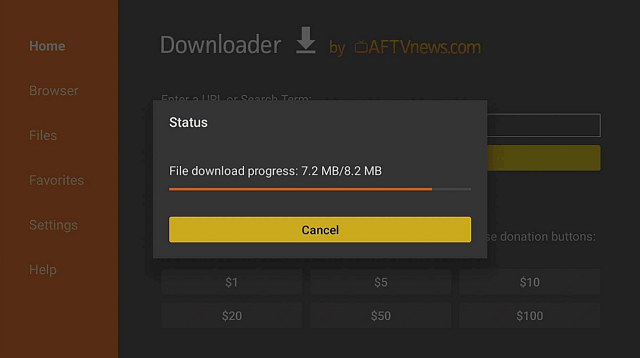
15. Red Glory’s APK file will download.

16. Click on Install.

17. The Red Glory App will install on Firestick

18. Open Red Glory’s app to stream Manchester United Sports footage.


YOUR INTERNET ACTIVITY IS BEING WATCHED

ReviewVPN cannot attest to the legality, security and privacy of the applications discussed on this site. It is highly recommended that you use a VPN service while streaming or using Kodi.

Currently, your IP 216.73.216.84 is visible to everyone and your Browser is being tracked by Advertisers & ISP Provider.

Save 65% Now

Limited Time Offer

Here are the main reasons why you must use a VPN:

  • Your activities are hidden from your ISP, the government, and from the apps you are using.
  • You can access additional movies and TV streams.
  • ISP attempts to throttle are thrwarted thus reducing buffering issues.
  • Geographically restricted content like Netflix and Hulu can be unblocked.

A VPN works be replacing your ISP-assigned IP address and creating an encrypted tunnel. We recommend the no log service offered by IPVanish. It works well on a Firestick and offers the fastest possible speeds.

Special Limited Time Offer - Get IPVanish


Legal Disclaimer: ReviewVPN.com does not encourage or endorse any illegal activity involved in the usage of services and applications referenced on this site. We do not verify the licensing agreements of services. The end-user is wholly responsible for ensuring that any media accessed through these services does not violate copyright and/or licensing laws. ReviewVPN does not promote, link to, or receive compensation from any Apps and IPTV services.


Install SurfShark on Firestick

Best SurfShark Deal


App Features

  • Free Dedicated-mobile sports streaming app
  • Sports Events Coverage
  • Prioritize information about Manchester United.
  • Includes news around Football matches.
  • Official Announcements about Manchester United
  • Tabloid Articles about Manchester United
  • Headlines about Manchester United
  • Highlights 
  • Team Statistics
  • Scores 
  • Game Tracking
  • Updated News
  • No advertisements


App Interface

  • Basic User Interface
  • Easy to Learn Interface
  • Organized app sections
  • Access to Personal Profile
  • Red Glory Account Creation
  • League Standings
  • Football Club Details (Club Chants, Stadium Info, Club History, About)
  • List of Manchester United Game Videos
  • Check Newest Updates
  • Watch Premier League Videos 
  • Track Team and Game stats


App Content

  • Videos about Manchester United
  • News about Manchester United
  • Monitor Sports Events
  • Access to Premier Leagues
  • Team Statistics
  • Score Updates
  • In-game Highlights
  • Live Broadcasts
  • Manchester United Matches
  • Official Manchester United Announcements
  • Check Official Updates
  • Articles about Team Members
  • Stories about Team Experiences
  • Speculative Stories by Faithful Manchester United fans
  • Manchester United’s Current In-Game Standing
  • Team Chants
  • Competition Statistics
  • Football Club Team History
  • Home Stadium History


Pros and Cons

Pros

  • Live stream of Manchester United Matches
  • Exclusive Club Information
  • Speculative Fan stories
  • Football Club Team History
  • Home Stadium History
  • In-Game Statistics
  • Sports Event Highlights
  • Latest News about Manchester United
  • Free of Charge
  • Articles about Team Members
  • Stories about Team Experiences
  • Track and Follow your Favorite Team Members


Cons

  • Frequent Crashing of Live Stream
  • Filtering of News Articles
  • Requires an Account Registration
  • Email Input Malfunction 


Watch Sports Events with a VPN

Surfshark vpn

Streaming sports videos online can strain your internet bandwidth. It causes your IP to send subsequent requests to the main server. The server struggles to maintain a decent connection.

It results in stuttering and buffering. The streaming of sports events and live matches can be tracked by your internet service provider (ISP). To stop the streaming difficulties, we recommend an efficient VPN like SurfShark.

Several VPN applications are available. SurfShark is the only VPN created for your overall security while viewing sports videos. It is the best VPN for streaming with your Firestick device.

SurfShark is the best for streaming purposes.

Here is a list of advantages that SurfShark may offer you:

  • Prevents your ISP from tracking your online viewing.
  • Geo-restrictions are neutralized through virtual bridge connections.
  • Digital bridges give access to exclusive team content.
  • Shields your device from the latest cyber threats.
  • Protects your data and important files from viruses and malware.
  • Keeps you anonymous while surfing the internet.
  • Improves your internet speed.
  • Streaming football games are faster and easier.
  • Stops Firestick buffering and Kodi buffering.

Note: For more information about SurfShark, please read our SurfShark REVIEW.


Grab your subscription now!

Click here to get the lowest price on SurfShark through our exclusive limited-time offer.


How to Install Surfshark on Firestick with Screenshots

If your Firestick still has the older interface, read this article to learn how to update it: Update Firestick Interface.

You can download Surfshark directly from the Amazon App store. It will be easy for you to find Surfshark with your Firestick’s Find feature. Refer to our screenshots below.

Follow our screenshots below to install the SurfShark VPN app on your Fire TV stick.

1. Go to the Home screen of your Firestick.

step 1 Install Surfshark VPN on Firestick


2. Navigate towards the Find tab. Press the Search button from the resulting dropdown.

step 2 Install Surfshark VPN on Firestick


3. Type in the keyword of SurfShark and select from the suggestions that will appear.

step 3 Install Surfshark VPN on Firestick


4. Click the official SurfShark icon from your search results.

step 4 Install Surfshark VPN on Firestick


5. Press the Download (You own it) button.

step 5 Install Surfshark VPN on Firestick


6. The SurfShark VPN installer will download on your device.

step 6 Install Surfshark VPN on Firestick


7. SurfShark VPN’s app will automatically install itself on your Fire TV stick.

step 7 Install Surfshark VPN on Firestick


8. Press the Open button after completing SurfShark VPN’s installation process.

step 8 Install Surfshark VPN on Firestick


9. Please wait for the SurfShark VPN to load its user interface.

step 9 Install Surfshark VPN on Firestick


10. You can now log in with your SurfShark VPN account credentials.

step 10 Install Surfshark VPN on Firestick

Learn more about Surfshark and Grab the Best Surfshark Deal Now!


Install Surfshark on Firestick

Best Surfshark Deal

Other VPNs to Consider

NordVPN (Best for Streaming)

Best Features

  • 5000+ Server in 50+ Countries 
  • Military-Grade Encryption
  • Fast Connection Speed
  • Suitable to a lot of devices
  • No-Log Policy

Prices
  • Complete $5.89 per month (64% Discount)
  • Plus $4.59 per month (56% Discount)
  • Standard $3.69 per month (55% Discount)

Best Features

  • 750+ High-speed VPN Servers in 43 Locations
  • Military-Grade Encryption
  • Fastest HD Streaming and Gaming
  • 30-Day Money-Back Guarantee
  • Unlimited Data & Devices
  • No-Log Policy

Prices
  • 3 Years $1.99 per month (82% Discount)
  • 1 Years $3.29 per month (70% Discount)
  • 1 Month $10.99 per month

IPVanish VPN (Most Secure)

Best Features

  • 1200+ Servers in 60+ Countries around the world
  • Unlimited Connections
  • No-Log Policy
  • Top Notch Military-Grade VPN Protocols and Encryptions
  • 100% Safe and Secured
  • Most Trusted VPN
  • Best VPN for Firestick
  • 30-Day Money-Back Guarantee

Prices
  • Yearly $3.99 per month (63% Discount) – 30 days risk free + Ransomware & Malware Protection
  • Quarterly $5.32 per month (51% Discount)
  • Monthly $10.99 per month

For more VPN discounts, go to ReviewVPN Deals and purchase the best VPN for you.


The Best Firestick Browser

Streaming multiple videos online can require the use of effective browsers. If you are using a Firestick, then Amazon’s Silk Browser is highly recommended. You can follow our guide for the installation of the Amazon Silk Browser on Firestick. You can also learn more about its capabilities.


Alternative Applications

The Firestick contains several applications that can stream sports video footage. If your installation of Red Glory does malfunctions, we have a list of applications for your unlimited sports viewing:


To learn more about other free sports apps, you may read our List of Best Free Sports Apps for Firestick.


FAQs

What is Manchester United Football Club?

The Manchester United Football Club is a UK-based professional football team. They are nicknamed Man United, Man Utd, MUFC, and “The Red Devils”. The popular group is based in Old Trafford, Greater Manchester, England. The Manchester United football team is known to compete with various football teams.


Is the Red Glory app for free?

Yes.  You can install its application on your Firestick device. Enjoy videos, live matches, and news covering the experiences of Man UTD.


Conclusion

The Red Glory app is developed by Infinity Soft. Its creation is funded by the most faithful fans of Manchester United. The app provides streaming of live matches, news, and updates focused on the popular football team. It also contains information such as the team’s history, experiences, and individual team member stories.

We hope that this article has helped with your installation of Manchester United Football Club on your Amazon Firestick.


What Is Your Favorite Streaming App? Cast Your Vote Below.

How to Install AnYme X on Firestick

Overview

In this article, we will teach you how to install the AnYme X app on your Firestick.


AnYme X is a streaming application that includes streaming anime and manga. It provides the viewing of both features into one solid application. The software has some unique features not present in other anime viewing applications.

The application of AnYme X APK can be installed on various devices. It is a great software platform that allows its users to access a great collection of animated videos and media materials.

AnYme X’s app database is periodically updated with the latest anime shows. Inside the app, you can browse a good list of the latest anime shows. You may also search for recent anime series through a vast organization of different anime genres.

Users can check out their favorite anime characters. It can be done with the app’s large database and actionable options. If you are an avid fan of anime, never miss the chance to download this app on your Firestick device.

Japanese anime has been a staple of exemplary and excellent animation worldwide. It has now grown into several genres that cater to multiple fans. The AnYme X app can be installed into your Firestick with a unique method. Follow our instructions down below for its successful installment.


ANONYMOUSLY

If your Firestick still has the older interface, read this article to learn how to update it: Update Firestick Interface.


Install AnYme X App on Firestick with Screenshots

Here is a brief guide with the AnYme app’s installation on your Firestick device.

1.  Click Home on your remote and scroll once to your Right. Click Setting (Gear Wheel Icon).

Step 1 Install AnYme X App on Firestick


2. Scroll down and to the right until you get to My Fire TV. Click on it.

Step 2 Install AnYme X App on Firestick


3. Select Developer options.

Step 3 Install AnYme X App on Firestick


4. Turn on ADB debugging and Apps from Unknown Sources.

Step 4 Install AnYme X App on Firestick


5. Click Turn On when the pop-up appears.

Step 5 Install AnYme X App on Firestick


6. Click Home, click FIND.

Step 6 Install AnYme X App on Firestick


7. Click Search.

Step 7 Install AnYme X App on Firestick


8. You can either say Downloader to your Alexa voice-enabled remote or start typing it. If you typed it, click on the suggestion when it appears.

Step 8 Install AnYme X App on Firestick


9. Click on the Downloader Icon.

Step 9 Install AnYme X App on Firestick


10. Click Download.

Step 10 Install AnYme X App on Firestick


step 10 Install AnYme X App on Firestick


11. Click on Open.

Step 11 Install AnYme X App on Firestick


12. Click on Allow.

Step 12 Install AnYme X App on Firestick


13. Use the Downloader search tab.

Step 13 Install AnYme X App on Firestick


14. Type in https://reviewvpn.com/any & Tap on the Go button. 

Step 14 Install AnYme X App on Firestick


15.  Anyme X’s APK file will download.

Step 15 Install AnYme X App on Firestick


16. Click on Install.

Step 16 Install AnYme X App on Firestick


17. The Anyme X App will install on Firestick.

Step 17 Install AnYme X App on Firestick


18. Open the Anyme X’s app to stream anime series and manga.

Step 18 Install AnYme X App on Firestick


YOUR INTERNET ACTIVITY IS BEING WATCHED

ReviewVPN cannot attest to the legality, security and privacy of the applications discussed on this site. It is highly recommended that you use a VPN service while streaming or using Kodi.

Currently, your IP 216.73.216.84 is visible to everyone and your Browser is being tracked by Advertisers & ISP Provider.

Save 65% Now

Limited Time Offer

Here are the main reasons why you must use a VPN:

  • Your activities are hidden from your ISP, the government, and from the apps you are using.
  • You can access additional movies and TV streams.
  • ISP attempts to throttle are thrwarted thus reducing buffering issues.
  • Geographically restricted content like Netflix and Hulu can be unblocked.

A VPN works be replacing your ISP-assigned IP address and creating an encrypted tunnel. We recommend the no log service offered by IPVanish. It works well on a Firestick and offers the fastest possible speeds.

Special Limited Time Offer - Get IPVanish


Legal Disclaimer: ReviewVPN.com does not encourage or endorse any illegal activity involved in the usage of services and applications referenced on this site. We do not verify the licensing agreements of services. The end-user is wholly responsible for ensuring that any media accessed through these services does not violate copyright and/or licensing laws. ReviewVPN does not promote, link to, or receive compensation from any Apps and IPTV services.


Install Surfshark on Firestick

Best Surfshark Deal


AnYme X App Features

  • Simplified User Interface
  • Free of Charge
  • No ads while using the app
  • Special Chat Server
  • Recommendation Feature
  • Vast Category of Anime series and shows
  • Statistics
  • Access to external websites
  • Character website links
  • Track your favorite anime series
  • Add bookmarks to remarkable anime titles
  • Discover prescribed anime titles
  • WIP Calendar Function
  • Create folders to customize your anime list


App Interface

  • User-Friendly Interface
  • Primary sections on the bottom center of the screen (Home, Bookmarks, Discover, Calendar, Stats)
  • Home (Watching, Plan to Watch, On Hold, Completed, Dropped, All)
  • Messaging Icon and Feature (Top Right of the screen)
  • Users can explore (Shows, Genres, Categories, Characters)
  • Characters can be linked with various actions with corresponding web links.


App Contents

  • Action
  • Adventure
  • Cars
  • Comedy
  • Drama
  • Fantasy
  • Game
  • Historical
  • Horror
  • Kids
  • Magic
  • Martial Arts
  • Mecha
  • Military
  • Music
  • Mystery
  • Parody
  • Psychological
  • Romance
  • Science Fiction


AnYme X Pros and Cons

Pros

  • Updated anime content
  • Highly Organized interface
  • Efficiently Detailed Information per Anime Title
  • Several Anime Categories
  • Systemized Genres
  • Anime Character research
  • Bookmarks function
  • Create new folder
  • Store Favorite Anime Titles, Series, and Episodes
  • Calendar Feature


Cons

  • Requires Kanon and Google Play to run shows.
  • Account for AnYme app required.


Watch Anime with a VPN

surfshark logo

Streaming anime shows online can strain your internet bandwidth. It causes your IP to overload the main server. The server struggles to maintain a decent connection. It results in stuttering and buffering. The streaming of anime shows and series can be tracked by your internet service provider (ISP).

To stop the streaming difficulties, we recommend an efficient VPN like Surfshark. Several VPN applications are available. Surfshark is the only VPN created for your overall security while viewing anime videos. It is the best VPN for streaming with your Firestick device.

Here is a list of advantages that Surfshark may offer you:

  • Prevents your ISP from monitoring your streaming activities.
  • Geo-blocks are canceled through virtual bridge connections.
  • Digital bridges provide access to exclusive anime content.
  • Guards your device from the latest cyber threats.
  • Shields your data and important files from viruses and malware.
  • Keeps you concealed while surfing the internet.
  • Enhances your internet speed.
  • Streaming anime media is faster and easier.
  • Stops Firestick buffering and Kodi buffering.

Note: For more information about Surfshark, please read our Surfshark Review.


Grab your subscription now!

Click here to get the lowest price on Surfshark through our exclusive limited-time offer.


How to Install Surfshark VPN on Firestick

If your Firestick still has the older interface, read this article to learn how to update it: Update Firestick Interface.

Follow our screenshots below to install the SurfShark VPN app on your Fire TV stick.

1. Go to the Home screen of your Firestick.

step 1 Install Surfshark VPN on Firestick


2. Navigate towards the Find tab. Press the Search button from the resulting dropdown.

step 2 Install Surfshark VPN on Firestick


3. Type in the keyword of SurfShark and select from the suggestions that will appear.

step 3 Install Surfshark VPN on Firestick


4. Click the official SurfShark icon from your search results.

step 4 Install Surfshark VPN on Firestick


5. Press the Download (You own it) button.

step 5 Install Surfshark VPN on Firestick


6. The SurfShark VPN installer will download on your device.

step 6 Install Surfshark VPN on Firestick


7. SurfShark VPN’s app will automatically install itself on your Fire TV stick.

step 7 Install Surfshark VPN on Firestick


8. Press the Open button after completing SurfShark VPN’s installation process.

step 8 Install Surfshark VPN on Firestick


9. Please wait for the SurfShark VPN to load its user interface.

step 9 Install Surfshark VPN on Firestick


10. You can now log in with your SurfShark VPN account credentials.

step 10 Install Surfshark VPN on Firestick

Learn more about Surfshark and Grab the Best Surfshark Deal Now!


Install Surfshark on Firestick

Best Surfshark Deal


Other VPNs to Consider

NordVPN (Best for Streaming)

Best Features

  • 5000+ Server in 50+ Countries 
  • Military-Grade Encryption
  • Fast Connection Speed
  • Suitable to a lot of devices
  • No-Log Policy

Prices
  • Complete $5.89 per month (64% Discount)
  • Plus $4.59 per month (56% Discount)
  • Standard $3.69 per month (55% Discount)

Best Features

  • 750+ High-speed VPN Servers in 43 Locations
  • Military-Grade Encryption
  • Fastest HD Streaming and Gaming
  • 30-Day Money-Back Guarantee
  • Unlimited Data & Devices
  • No-Log Policy

Prices
  • 3 Years $1.99 per month (82% Discount)
  • 1 Years $3.29 per month (70% Discount)
  • 1 Month $10.99 per month

IPVanish VPN (Most Secure)

Best Features

  • 1200+ Servers in 60+ Countries around the world
  • Unlimited Connections
  • No-Log Policy
  • Top Notch Military-Grade VPN Protocols and Encryptions
  • 100% Safe and Secured
  • Most Trusted VPN
  • Best VPN for Firestick
  • 30-Day Money-Back Guarantee

Prices
  • Yearly $3.99 per month (63% Discount) – 30 days risk free + Ransomware & Malware Protection
  • Quarterly $5.32 per month (51% Discount)
  • Monthly $10.99 per month


For more VPN discounts, go to ReviewVPN Deals and purchase the best VPN for you.

Click here to get the lowest price on Surfshark through our exclusive limited-time offer.


The Best Firestick Browser

Streaming multiple videos online can require the use of effective browsers. If you are using a Firestick, then Amazon’s Silk Browser is highly recommended. You can follow our guide for the installation of the Amazon Silk Browser on Firestick. You can also learn more about its capabilities.


AnYme X Alternative Apps

We have provided you with a list of anime streaming applications. These apps can substitute your AnYme app with your Firestick device. 


FAQs

Is the AnYme X app for free?

Yes. Using the app is free. You are only required to create an account.


Does the AnYme X app have special requirements?

Yes. You would need to have a Kanon subscription to further access the app’s features.


Conclusion

AnYme X is an online streaming application for anime enthusiasts. Avid fans of anime can expect a ton of anime-related content. Users may also use several unique application features available with the AnYme X app.

We hope that this article has helped with your installation of the AnYme X app on your Firestick device.


What Is Your Favorite Streaming App? Cast Your Vote Below.

How to Install Eurosports App on Firestick and Android

Overview

This article will help you install the Eurosports app on Firestick and Android.


The Eurosport app is a streaming service and go-to source that brings you sports updates right on your device. It also has an updated digital experience in giving you daily access to sports news, live scores, video highlights, and more about your favorite sports. 

You can get free access to breaking news and updated articles with on-demand videos from the world of sports. The good thing about this app is it provides you with a regularly updated list of over 150+ articles daily. 

It also has a simple and easy-to-use interface, but we suggest that you use a mouse toggle for easy navigation.  However, Eurosport is not an official Amazon app, which is why to install it on firestick, you need to Jailbreak Firestick and Install Downloader.


ANONYMOUSLY

Eurosports APK Download for Android


Download Eurosports APK


Note: ReviewVPN.com does not host this APK file. It is hosted by Archive.org


Note: If your Firestick still has the older interface, read this article to learn how to update it: Update Firestick Interface.


How to Install Eurosports App on Firestick with Screenshots

Here is a step-by-step guide on how you can jailbreak Firestick to install the Eurosports app.


1.  Click Home on your remote and scroll once to your Right. Click Setting (Gear Wheel Icon).

Step 1 Install AnYme X App on Firestick


2. Scroll down and to the right until you get to My Fire TV. Click on it.

Step 2 Install AnYme X App on Firestick


3. Select Developer options.

Step 3 Install AnYme X App on Firestick


4. Turn on ADB debugging and Apps from Unknown Sources.

Step 4 Install AnYme X App on Firestick


5. Click Turn On when the pop-up appears.

Step 5 Install AnYme X App on Firestick


6. Click Home, click FIND.

Step 6 Install AnYme X App on Firestick


7. Click Search.

Step 7 Install AnYme X App on Firestick


8. You can either say Downloader to your Alexa voice-enabled remote or start typing it. If you typed it, click on the suggestion when it appears.

Step 8 Install AnYme X App on Firestick


9. Click on the Downloader Icon.

Step 9 Install AnYme X App on Firestick


10. Click Download.

Step 10 Install AnYme X App on Firestick


step 10 Install AnYme X App on Firestick


11. Click on Open.

Step 11 Install AnYme X App on Firestick


12. Click on Allow.

Step 12 Install AnYme X App on Firestick


13. Use the Downloader search tab.

Step 13 Install Eurosports App on Firestick


14. In the search bar, type in https://reviewvpn.com/eur  and Click Go.

Step 14 Install Eurosports App on Firestick


15. Wait for the file download to finish.

Step 15 Install Eurosports App on Firestick


16. Click Install.

Step 16 Install Eurosports App on Firestick


17. Wait for the installation to be done.

Step 17 Install Eurosports App on Firestick


18.  Select Open to launch the app.

Step 18 Install Eurosports App on Firestick


YOUR INTERNET ACTIVITY IS BEING WATCHED

ReviewVPN cannot attest to the legality, security and privacy of the applications discussed on this site. It is highly recommended that you use a VPN service while streaming or using Kodi.

Currently, your IP 216.73.216.84 is visible to everyone and your Browser is being tracked by Advertisers & ISP Provider.

Save 65% Now

Limited Time Offer

Here are the main reasons why you must use a VPN:

  • Your activities are hidden from your ISP, the government, and from the apps you are using.
  • You can access additional movies and TV streams.
  • ISP attempts to throttle are thrwarted thus reducing buffering issues.
  • Geographically restricted content like Netflix and Hulu can be unblocked.

A VPN works be replacing your ISP-assigned IP address and creating an encrypted tunnel. We recommend the no log service offered by IPVanish. It works well on a Firestick and offers the fastest possible speeds.

Special Limited Time Offer - Get IPVanish


Legal Disclaimer: ReviewVPN.com does not encourage or endorse any illegal activity involved in the usage of services and applications referenced on this site. We do not verify the licensing agreements of services. The end-user is wholly responsible for ensuring that any media accessed through these services does not violate copyright and/or licensing laws. ReviewVPN does not promote, link to, or receive compensation from any Apps and IPTV services.


Install Surfshark on Firestick

Best Surfshark Deal


App Features

  • User-friendly interface
  • No registration is required.
  • Stay up to date with the latest happening about your favorite team.
  • Videos on demand from world sports events.
  • Get the latest and hottest sports news and articles daily.
  • It will give you all the latest sports game results. 
  • Watch live sports game events and replays. 
  • HD quality of videos 
  • It covers different sports teams and leagues.
  • Get alerts about your favorite team and sports. 
  • You can choose your home country over 14 countries.


Sports to View

  • Football
  • Tennis
  • Olympics
  • Formula 1
  • Motorsports
  • Cycling
  • Swimming
  • Athletics
  • Golf
  • Boxing
  • Basketball
  • Winter sports
  • Snooker
  • Rugby
  • Cricket
  • Handball
  • Volleyball
  • Sailing
  • Surfing
  • Skeleton
  • Fencing
  • Horse racing
  • Xtreme Sports


Compatible Devices

Here are some of the compatible devices for the Eurosports app.

  • Windows PC
  • Android
  •  iOS
  • Amazon Fire TV
  • Chromecast
  • Roku TV
  • Apple TV
  • Samsung TV


Pros and Cons

Pros

  • Free access to their contents.
  • It covers all kinds of sports.
  • Daily updates on every sports event.
  • HD quality of videos 


Cons

  • Some contents are geo-blocked


Do I need a VPN?

Some Eurosports contents are geo-block, which means these contents are only available to play within a certain area. However, to help you with this issue, you need to use a Virtual Private Network on your device. 

We highly recommend choosing Surfshark since because it is proven and tested. It is one of the VPNs committed to giving its users the quality service they need.

Here are the reasons why it is our VPN of choice:

  • Hide all your online activities.
  • Bypass censorship and restrictions.
  • Military-grade AES 256-bit encryptions will safeguard all of your data.
  • Prevent ISPs throttling.
  • Makes your internet speed faster. 
  • Keep you anonymous while browsing the web.
  • Protects your data from harmful malware.

Note: For more information about Surfshark, please read our Surfshark Review.


Grab your subscription now!


How to Install Surfshark VPN on Firestick

If your Firestick still has the older interface, read this article to learn how to update it: Update Firestick Interface.

1. Go to the Home screen of your Firestick.

step 1 Install Surfshark VPN on Firestick


2. Navigate towards the Find tab. Press the Search button from the resulting dropdown.

step 2 Install Surfshark VPN on Firestick


3. Type in the keyword of SurfShark and select from the suggestions that will appear.

step 3 Install Surfshark VPN on Firestick


4. Click the official SurfShark icon from your search results.

step 4 Install Surfshark VPN on Firestick


5. Press the Download (You own it) button.

step 5 Install Surfshark VPN on Firestick


6. The SurfShark VPN installer will download on your device.

step 6 Install Surfshark VPN on Firestick


7. SurfShark VPN’s app will automatically install itself on your Fire TV stick.

step 7 Install Surfshark VPN on Firestick


8. Press the Open button after completing SurfShark VPN’s installation process.

step 8 Install Surfshark VPN on Firestick


9. Please wait for the SurfShark VPN to load its user interface.

step 9 Install Surfshark VPN on Firestick


10. You can now log in with your SurfShark VPN account credentials.

step 10 Install Surfshark VPN on Firestick

Learn more about Surfshark and Grab the Best Surfshark Deal Now!


Other VPNs to Consider

NordVPN (Best for Streaming)

Best Features

  • 5000+ Server in 50+ Countries 
  • Military-Grade Encryption
  • Fast Connection Speed
  • Suitable to a lot of devices
  • No-Log Policy

Prices
  • Complete $5.89 per month (64% Discount)
  • Plus $4.59 per month (56% Discount)
  • Standard $3.69 per month (55% Discount)

Best Features

  • 750+ High-speed VPN Servers in 43 Locations
  • Military-Grade Encryption
  • Fastest HD Streaming and Gaming
  • 30-Day Money-Back Guarantee
  • Unlimited Data & Devices
  • No-Log Policy

Prices
  • 3 Years $1.99 per month (82% Discount)
  • 1 Years $3.29 per month (70% Discount)
  • 1 Month $10.99 per month

IPVanish VPN (Most Secure)

Best Features

  • 1200+ Servers in 60+ Countries around the world
  • Unlimited Connections
  • No-Log Policy
  • Top Notch Military-Grade VPN Protocols and Encryptions
  • 100% Safe and Secured
  • Most Trusted VPN
  • Best VPN for Firestick
  • 30-Day Money-Back Guarantee

Prices
  • Yearly $3.99 per month (63% Discount) – 30 days risk free + Ransomware & Malware Protection
  • Quarterly $5.32 per month (51% Discount)
  • Monthly $10.99 per month


For more VPN discounts, go to ReviewVPN Deals and purchase the best VPN for you.


App Alternatives

We list down some of the streaming apps alternatives to Eurosports that you can install on your Firestick and android. To know more about the app, kindly read their corresponding articles. 


FAQs

Is Eurosports App free with Amazon Prime?

No, but you can get Eurosport free for 7 days on Amazon Prime.


Is the Eurosports app safe?

Yes, this app is safe to use.


Is Eurosports Legal?

Yes, this app is legal.


Can I get Eurosports on my PC?

Yes, this app also works well on a PC, and to install it, you need to use an emulator such as BlueStacks.


Can I watch Eurosports in Australia?

Yes, it is possible if you use a VPN such as Surfshark.


Conclusion

If you want to be updated with every latest happening on Sports events, then Eurosports is a good option for you. It provides you with daily news, scores, features, and latest videos, and more about your favorite sports team. The good thing about this app is it covers all kinds of sports and allows you to choose a home country. We hope that this article gives you information about the Eurosports app and helps you with how to install it on Firestick and Android.


What Is Your Favorite Streaming App? Cast Your Vote Below.

How To Install Lepto Sports on Firestick

Overview

In this article, I will be teaching you how to install Lepto Sports on your Amazon Firestick.


Are you someone who’s into sports? A sports fan of some sort? You might be a die-hard fan who loves watching matches all over the world.

Or, you might just enjoy the action once in a while.

No matter what kind of sports fan you are, I’m sure you’re looking for ways to improve your experience by watching more TV shows and sports channels.

A fantastic way you can do that is by using Lepto Sports app on your Firestick device.

Lepto Sports is the updated and redesigned version of Vola Sports.

It provides free and unrestricted access to live basketball, cricket, and football streams.

It includes match highlights that you can watch from the comfort of your devices at any time and any location.

And, despite its limited content, it’s a decent app given that not all sites that stream live sporting events are accessible from outside the United States. 


ANONYMOUSLY

If your Firestick still has the older interface, read this article to learn how to update it: Update Firestick Interface.


Video on How to Install Lepto Sports on a Firestick


Installation Guide on Firestick

To begin, if your Firestick has not yet been jailbroken, follow the simple steps below to jailbreak it to install Lepto Sports on your device: 

1. Click Home on your remote and scroll once to your Right. Click Setting 

Step 1 Installation Guide on Firestick


2. Scroll down and to the right until you get to My Fire TV. Click on it.

Step 2 Installation Guide on Firestick


3. Select Developer options.

Step 3 Installation Guide on Firestick


4. Turn on ADB debugging and Apps from Unknown Source.

Step 4 Installation Guide on Firestick


5. Click Turn On when the pop-up appears.

Step 5 Installation Guide on Firestick


Then, after jailbreaking your Firestick, you’ll need to download the Downloader app to sideload Lepto Sports. This app, which is easily available on the Amazon App Store, allows you to download APK files.

1. Click Home, click FIND.

step 1 install downloader


2. Click Search.

step 2 install downloader


3. You can either say Downloader to your Alexa voice-enabled remote or start typing it. If you typed it, click on the suggestion when it appears.

step 3 install downloader


4. Click on the Downloader icon.

step 4 install downloader


5. Click Download.

step 5 install downloader


6. Click on Open.

step 6 install downloader


7. Click on Allow.

step 7 install downloader


8. You will be asked to enter a download link. Type in “https://reviewvpn.com/lep” and select Go.

Install Lepto Sports2


9. Depending on your internet connection, the APK will take a few seconds to download.

Install Lepto Sports1


10. After that, choose Install.

Install Lepto Sports3


11. Then click Open.

Install Lepto Sports4


YOUR INTERNET ACTIVITY IS BEING WATCHED

ReviewVPN cannot attest to the legality, security and privacy of the applications discussed on this site. It is highly recommended that you use a VPN service while streaming or using Kodi.

Currently, your IP 216.73.216.84 is visible to everyone and your Browser is being tracked by Advertisers & ISP Provider.

Save 65% Now

Limited Time Offer

Here are the main reasons why you must use a VPN:

  • Your activities are hidden from your ISP, the government, and from the apps you are using.
  • You can access additional movies and TV streams.
  • ISP attempts to throttle are thrwarted thus reducing buffering issues.
  • Geographically restricted content like Netflix and Hulu can be unblocked.

A VPN works be replacing your ISP-assigned IP address and creating an encrypted tunnel. We recommend the no log service offered by IPVanish. It works well on a Firestick and offers the fastest possible speeds.

Special Limited Time Offer - Get IPVanish


Legal Disclaimer: ReviewVPN.com does not encourage or endorse any illegal activity involved in the usage of services and applications referenced on this site. We do not verify the licensing agreements of services. The end-user is wholly responsible for ensuring that any media accessed through these services does not violate copyright and/or licensing laws. ReviewVPN does not promote, link to, or receive compensation from any Apps and IPTV services.


Install Surfshark on Firestick

Best Surfshark Deal


App Features

  • Offers free live TV for your favorite matches
  • The User Interface is very simple and clean, with white and blue colors
  • On the homepage, you can already see everything that you can watch on the app, including matches and highlights
  • If the game has already ended, there is a countdown to when the next match will begin
  • You can watch highlights of matches anytime for free
  • There is a Home button and a Share button on the upper right corner of the screen
  • HD quality videos with no buffers
  • Multiple live streaming links are available


Content

  • Football
  • Cricket
  • Basketball


Pros and Cons

Pros

  • Easy to navigate
  • You can watch highlights from previous matches
  • Free to use
  • No need for registration
  • The app is available for Android devices and Firestick
  • Ad-free 
  • No broken links

Cons

  • Limited content 
  • You’ll need a mouse toggle to pause and play videos
  • No subtitle support for videos that are not in the English language


Grab your subscription now!

Click here to get the lowest price on Surfshark through our exclusive limited-time offer.


Stream Safely with a VPN

https://get.surfshark.net/aff_c?offer_id=865&aff_id=12312

We know that once your favorite game begins, you may lose track of how much data you’re using on your device. You may also forget the fact that streaming public content online allows threats such as hackers and phishers to gain access to your account. That is why we always remind our readers to turn on their VPNs before accessing any online content. A VPN, such as Surfshark, will encrypt your data connection and provide you with an anonymous IP address, allowing you to stream your favorite live TV events without being tracked and logged. Aside from that, here are some of its other benefits:

  • Unrestricted and unlimited access to websites and media
  • Avoid snooping and spying while using public Wi-Fi
  • Customer service is available 24 hours a day, seven days a week via email, and live chat
  • Maintain the privacy of your internet presence and information
  • Ensure zero logs and no IP address leaks
  • Bypass geo-restrictions and IP address blocking 


Grab your subscription now!

Click here to get the lowest price on Surfshark through our exclusive limited-time offer.


You can download Surfshark directly from the Amazon App store. It will be easy for you to find Surfshark with your Firestick’s Find feature. Refer to our screenshots below.

How to Install Surfshark VPN on Firestick

If your Firestick still has the older interface, read this article to learn how to update it: Update Firestick Interface.

1. Go to the Home screen of your Firestick.

step 1 Install Surfshark VPN on Firestick


2. Navigate towards the Find tab. Press the Search button from the resulting dropdown.

step 2 Install Surfshark VPN on Firestick


3. Type in the keyword of SurfShark and select from the suggestions that will appear.

step 3 Install Surfshark VPN on Firestick


4. Click the official SurfShark icon from your search results.

step 4 Install Surfshark VPN on Firestick


5. Press the Download (You own it) button.

step 5 Install Surfshark VPN on Firestick


6. The SurfShark VPN installer will download on your device.

step 6 Install Surfshark VPN on Firestick


7. SurfShark VPN’s app will automatically install itself on your Fire TV stick.

step 7 Install Surfshark VPN on Firestick


8. Press the Open button after completing SurfShark VPN’s installation process.

step 8 Install Surfshark VPN on Firestick


9. Please wait for the SurfShark VPN to load its user interface.

step 9 Install Surfshark VPN on Firestick


10. You can now log in with your SurfShark VPN account credentials.

step 10 Install Surfshark VPN on Firestick

Learn more about Surfshark and Grab the Best Surfshark Deal Now!


Other VPNs to Consider

NordVPN (Best for Streaming)

Best Features

  • 5000+ Server in 50+ Countries 
  • Military-Grade Encryption
  • Fast Connection Speed
  • Suitable to a lot of devices
  • No-Log Policy

Prices
  • Complete $5.89 per month (64% Discount)
  • Plus $4.59 per month (56% Discount)
  • Standard $3.69 per month (55% Discount)

Best Features

  • 750+ High-speed VPN Servers in 43 Locations
  • Military-Grade Encryption
  • Fastest HD Streaming and Gaming
  • 30-Day Money-Back Guarantee
  • Unlimited Data & Devices
  • No-Log Policy

Prices
  • 3 Years $1.99 per month (82% Discount)
  • 1 Years $3.29 per month (70% Discount)
  • 1 Month $10.99 per month

IPVanish VPN (Most Secure)

Best Features

  • 1200+ Servers in 60+ Countries around the world
  • Unlimited Connections
  • No-Log Policy
  • Top Notch Military-Grade VPN Protocols and Encryptions
  • 100% Safe and Secured
  • Most Trusted VPN
  • Best VPN for Firestick
  • 30-Day Money-Back Guarantee

Prices
  • Yearly $3.99 per month (63% Discount) – 30 days risk free + Ransomware & Malware Protection
  • Quarterly $5.32 per month (51% Discount)
  • Monthly $10.99 per month


For more VPN discounts, go to ReviewVPN Deals and purchase the best VPN for you.


FAQs

What is Lepto Sports?

Lepto Sports is a live TV streaming app for Android and Firestick that offers basketball, football, and cricket content. It also gives users access to match schedules and highlights, which they can stream at any time and anywhere.


Is it safe?

Yes, Lepto Sports is safe. However, for safer internet streaming, we recommend that you have a VPN like Surfshark.


Is it free?

Yes, Lepto Sports is free.


Are there Ads?

Lepto Sports is ad-free


Is there a need for registration?

There’s no need to register to be able to watch Lepto Sports


Conclusion

Lepto Sports does not have a lot of content yet because it’s a new app, but it’s still a decent live streaming application for basketball, football, and cricket matches. There are several live stream connections available, and there are no advertisements. What I like most about it is that you can see when the next match is and that you can watch highlighted videos while you wait. Lepto Sports is also not geo-restricted, so anyone from anywhere in the world can watch it for free.

Thank you for taking the time to read our Lepto Sports article. We hope we were able to help you in installing it on your Firestick as well as use it to watch live TV and matches from your favorite sports teams.


What Is Your Favorite Streaming App? Cast Your Vote Below.

How to Install NHL TV™ Kodi Addon

Overview

This article will help you install NHL TV™ Kodi Addon.


NHL TV™ is a popular sports channel that will bring you all replays and live videos of hockey game events.

It has over 500 national and out-of-market hockey-related entertainment and game footage to watch in high quality. 

This Addon broadcasts a variety of channels in North America, the USA, and Canada to stay updated with every Hockey match from these countries.

The good thing with NHL TV™ Kodi addon is you can access revolutionary 60fps videos and a buffer-free streaming experience.

However, before you can access their content, you need to sign in or create an account. 

You will be updated with every team standing and happening as they provide you news, game stats, scores, tickets, highlights, arena info, and more.

This Addon has an easy-to-use interface that works well on Kodi and other devices. 


ANONYMOUSLY

How to Install NHL TV™ Kodi Addon

Follow these simple steps:

  1. On your Firestick, open Kodi and go to Settings.
  2. Select Addons.
  3. Click Install From Repository.
  4. Scroll down and select Video Addons.
  5. Find and Choose NHL TV™.
  6. Click Install.
  7. A box will pop up. Select OK.
  8. Wait for the NHL TV™ Addon installed, and a notification will pop up. 
  9. Go back to the home screen of Kodi and click Addons.
  10. Scroll down and select Video Addons.
  11. Click the icon of NHL TV™.
  12. Choose any of the shows/categories. 
  13. Select Program.
  14. Then, sign in to your account credentials.
  15. That’s it! You can now enjoy NHL TV™ content on Kodi.


YOUR INTERNET ACTIVITY IS BEING WATCHED

ReviewVPN cannot attest to the legality, security and privacy of the applications discussed on this site. It is highly recommended that you use a VPN service while streaming or using Kodi.

Currently, your IP 216.73.216.84 is visible to everyone and your Browser is being tracked by Advertisers & ISP Provider.

Save 65% Now

Limited Time Offer

Here are the main reasons why you must use a VPN:

  • Your activities are hidden from your ISP, the government, and from the apps you are using.
  • You can access additional movies and TV streams.
  • ISP attempts to throttle are thrwarted thus reducing buffering issues.
  • Geographically restricted content like Netflix and Hulu can be unblocked.

A VPN works be replacing your ISP-assigned IP address and creating an encrypted tunnel. We recommend the no log service offered by IPVanish. It works well on a Firestick and offers the fastest possible speeds.

Special Limited Time Offer - Get IPVanish


Legal Disclaimer: ReviewVPN.com does not encourage or endorse any illegal activity involved in the usage of services and applications referenced on this site. We do not verify the licensing agreements of services. The end-user is wholly responsible for ensuring that any media accessed through these services does not violate copyright and/or licensing laws. ReviewVPN does not promote, link to, or receive compensation from any Apps and IPTV services.


Install Surfshark on Firestick

Best Surfshark Deal


App Features

  • You can choose from four categories, including Today Games, Yesterday Games, Goto Date, and Featured Videos. 
  • Allows you to choose stream types like Home, Away, and Multi-cam 1.
  • Available Live and replay game footage.
  • Follow your favorite team and be updated with their scores, standings, videos, schedules, and more about this team. 
  • Stay up to date with the latest news, scores, standings, videos, schedules, and more about each team and league.
  • Customize the Addon and features your favorite team
  • Access your NHL.TV™ subscription to watch out-of-market games live or on-demand
  • Listen to live radio broadcasts and even on the road through Apple CarPlay and Android Auto
  • Get notification from your favorite team’s official goal horn
  • Watch 60fps (frames per second) HD streaming for live video
  • Available DVR controls
  • It has a multitasking and picture-in-picture functionality
  • Allows you to closed captioning for live video


Pros and Cons

Pros

  • Easy to navigate interface.
  • It has a large collection of replay match footage. 
  • HD quality of videos.
  • It does not serve ads 
  • Buffer-free live video and replay footage.

Cons

  • It requires you to sign up before you can watch. 
  • Some contents are not working.


Kodi with a VPN

Using a Kodi with a VPN is quite a good combination and the best way to avoid nastygrams from your ISP to give you a high-speed connection and smooth streaming online. A VPN has lots of benefits to give to its users, and choosing the best VPN will also give you the quality of service you need. 

Since there are lots of VPNs out there, we would like to recommend Surfshark as your best choice. This VPN is quite popular among Kodi users because of its impressive security features and good performance in many aspects. One of the benefits that this VPN will give you is unlimited bandwidth and a high-speed connection. If you want to know more about this VPN, kindly read our Surfshark Review.

Here are some of the services and impressive features that this VPN offers:

  • This VPN uses a high standard of AES-256 encryption and uncrackable security to safeguard your data and activities. 
  • It destroys Geo-block and bypasses any censorship and restriction by letting you connect to 2,000+ servers in 75+ locations worldwide.
  • Surfshark also prevents ISPs from interfering with your connection to avoid lags and buffering. It also stops snooping on ISP and keeps you protected while being connected to a public network. 
  • Keep your identity anonymous by hiding your real IP address and identity to protect you from hackers.


Grab your subscription now!

Click here to get the lowest price on Surfshark through our exclusive limited-time offer.


How to Install Surfshark VPN on Firestick

If your Firestick still has the older interface, read this article to learn how to update it: Update Firestick Interface.

You can download Surfshark directly from the Amazon App store. It will be easy for you to find Surfshark with your Firestick’s Find feature. Refer to our screenshots below.

1. Go to the Home screen of your Firestick.

step 1 Install Surfshark VPN on Firestick


2. Navigate towards the Find tab. Press the Search button from the resulting dropdown.

step 2 Install Surfshark VPN on Firestick


3. Type in the keyword of SurfShark and select from the suggestions that will appear.

step 3 Install Surfshark VPN on Firestick


4. Click the official SurfShark icon from your search results.

step 4 Install Surfshark VPN on Firestick


5. Press the Download (You own it) button.

step 5 Install Surfshark VPN on Firestick


6. The SurfShark VPN installer will download on your device.

step 6 Install Surfshark VPN on Firestick


7. SurfShark VPN’s app will automatically install itself on your Fire TV stick.

step 7 Install Surfshark VPN on Firestick


8. Press the Open button after completing SurfShark VPN’s installation process.

step 8 Install Surfshark VPN on Firestick


9. Please wait for the SurfShark VPN to load its user interface.

step 9 Install Surfshark VPN on Firestick


10. You can now log in with your SurfShark VPN account credentials.

step 10 Install Surfshark VPN on Firestick

Learn more about Surfshark and Grab the Best Surfshark Deal Now!


Other VPNs to Consider

NordVPN (Best for Streaming)

Best Features

  • 5000+ Server in 50+ Countries 
  • Military-Grade Encryption
  • Fast Connection Speed
  • Suitable to a lot of devices
  • No-Log Policy

Prices
  • Complete $5.89 per month (64% Discount)
  • Plus $4.59 per month (56% Discount)
  • Standard $3.69 per month (55% Discount)

Best Features

  • 750+ High-speed VPN Servers in 43 Locations
  • Military-Grade Encryption
  • Fastest HD Streaming and Gaming
  • 30-Day Money-Back Guarantee
  • Unlimited Data & Devices
  • No-Log Policy

Prices
  • 3 Years $1.99 per month (82% Discount)
  • 1 Years $3.29 per month (70% Discount)
  • 1 Month $10.99 per month

IPVanish VPN (Most Secure)

Best Features

  • 1200+ Servers in 60+ Countries around the world
  • Unlimited Connections
  • No-Log Policy
  • Top Notch Military-Grade VPN Protocols and Encryptions
  • 100% Safe and Secured
  • Most Trusted VPN
  • Best VPN for Firestick
  • 30-Day Money-Back Guarantee

Prices
  • Yearly $3.99 per month (63% Discount) – 30 days risk free + Ransomware & Malware Protection
  • Quarterly $5.32 per month (51% Discount)
  • Monthly $10.99 per month


For more VPN discounts, go to ReviewVPN Deals and purchase the best VPN for you.


Alternatives for NHL TV™ Addon

We list down some of the NHL TV™ Kodi Add-on. To know more about these Addons, kindly read their corresponding articles.


FAQs

Is the NHL TV™ Kodi Addon safe?

Yes, this Addon is safe, but we suggest that you use Surfshark to ensure your safety.


Is the NHL TV™ Kodi Addon legal?

Yes, it is not illegal to use and download this Addon.

Where can I get the NHL TV?

If you want to install the NHL TV on other devices aside from Kodi, you get its official app on Google Play Store, Apple Store, and Amazon App Store.


Conclusion

NHL TV™ Kodi Addon is a great sports channel that offers all hockey-related content and programs. The good thing about it is it brings you a great selection of content to watch in good quality. However, you cannot access their content unless you have an NHL account and subscribers. In conclusion, this addon is a great option for hockey sports fans who want to stay updated with the latest happening and the stats of their favorite team. We hope that this article gives you information about the NHL TV™, and helps you how to install it on Kodi Add-on.

How to Install Sling TV Kodi Addon

Overview

This article will help you install Sling TV Canada Kodi Addon.


Sling TV Kodi Addon is a great option for cord-cutter because it offers a live streaming service.

It is a streaming service that brings you over 200+ channels and a great lineup of sports, news, movies, TV shows, and children’s programs at a budget-friendly monthly fee. 

This Add-on provides buffer-free HD videos of over 85,000 movies & shows on demand.

However, before you can watch their contents, you must log in to your account credentials or if you do not have an account yet, kindly create and get a subscription first.  

It has a user-friendly interface with a great selection of content to view.

The good thing with this Addon is it works well on any device aside from Kodi. 


ANONYMOUSLY

How to Install Sling TV Kodi Addon

Follow these simple steps:

  1. On your Firestick, open Kodi and go to Settings.
  2. Select Add-ons
  3. Click Install From Repository
  4. Scroll down and select Video Add-ons
  5. Find and Choose Sling TV Canada
  6. Click Install
  7. A box will pop up. Select OK
  8. Wait for the Sling TV Canada Addon installed, and a notification will pop up. 
  9. Go back to the home screen of Kodi and click Add-ons
  10. Scroll down and select Video Add-ons
  11. Click the icon of Sling TV 
  12. Click Sign-In and enter your account credentials if you already have an account. If you don’t have any, select Exit Add-on and create an account for Sling TV by clicking this link
  13. After that! Choose any program you want to watch.
  14. That’s it! You can now enjoy Sling TV content on Kodi. 


YOUR INTERNET ACTIVITY IS BEING WATCHED

ReviewVPN cannot attest to the legality, security and privacy of the applications discussed on this site. It is highly recommended that you use a VPN service while streaming or using Kodi.

Currently, your IP 216.73.216.84 is visible to everyone and your Browser is being tracked by Advertisers & ISP Provider.

Save 65% Now

Limited Time Offer

Here are the main reasons why you must use a VPN:

  • Your activities are hidden from your ISP, the government, and from the apps you are using.
  • You can access additional movies and TV streams.
  • ISP attempts to throttle are thrwarted thus reducing buffering issues.
  • Geographically restricted content like Netflix and Hulu can be unblocked.

A VPN works be replacing your ISP-assigned IP address and creating an encrypted tunnel. We recommend the no log service offered by IPVanish. It works well on a Firestick and offers the fastest possible speeds.

Special Limited Time Offer - Get IPVanish


Legal Disclaimer: ReviewVPN.com does not encourage or endorse any illegal activity involved in the usage of services and applications referenced on this site. We do not verify the licensing agreements of services. The end-user is wholly responsible for ensuring that any media accessed through these services does not violate copyright and/or licensing laws. ReviewVPN does not promote, link to, or receive compensation from any Apps and IPTV services.


Install SurfShark on Firestick

Best SurfShark Deal


App Features

Available Programs on Sling TV

News

Watch and stay updated with breaking news about the happenings around you from popular news channels like Fox News, CNN, MSNBC, CNBC, ABC News, Bloomberg, and more.


Entertainment

Enjoy all entertaining videos with your family as Sling brings you all entertainment programs from popular channels, including Freeform, Bravo, TBS, A&E, Investigation Discovery, and TNT.


Lifestyle

You can learn only by watching Sling TV programs about DIY projects, learn new recipes on Food Network and other lifestyle channels such as Hallmark, TLC, and Discovery.


Kids Show

This Addon also has a great collection of different kids’ shows from popular kids’ channels like Disney and Cartoon Network.


Sports

Be updated with the latest news, game highlights, analysis, schedule, game events, and feature films of your favorite sports on TNT, ESPN, ESPN2, and more. 


International

Sling TV is one of the best international streaming services in the U.S that provides programs in multi-language including English, French, Spanish, Arabic, and Hindi.


Pros and Cons

Pros

  • Easy to use interface. 
  • Full-length HD quality of videos.
  • Lots of channels with unlimited content to watch. 
  • It does not serve any ads.
  • Different categories and programs to choose from.

Cons

  • You need to sign in before watching.
  • Some contents are geo-blocked.


Fast and Safe streaming with VPN

Surfshark vpn

We recommend using a Virtual Private Network on your device every time you stream online. This VPN is to ensure that your device is protected from any malware from services and gives you a high-speed connection to enjoy buffer-free streaming. Having a VPN on your device is the best way to prevent your ISP from interfering with your connection. 

There are lots of good VPNs that you can see online, but we highly recommend using SurfShark as your best choice. SurfShark is one of the best VPNs committed to giving its users the impressive quality of service they deserve. If you want to know more about this VPN, kindly read our SurfShaek Review.

Here are some of the services SurfShark offers:

  • Destroys geo-block and gains access to different content globally.
  • Bypass censorship and restrictions.
  • A high standard of AES 256-bit encryptions will safeguard all of your data.
  • 100% zero logs and no IP address leaks. 
  • It has over 3,200+ servers in 65+ locations worldwide.
  • Keep your file protected from harmful malware.
  • Prevent ISPs from interfering with your connection and speed up your internet.
  • It gives you unlimited bandwidth and makes your internet speed faster. 
  • Keep your identity anonymous to protect you from hackers, especially when you are using public wi-fi.

Note: For more information about SurfShark, please read our SurfShark REVIEW.


Grab your subscription now!

Click here to get the lowest price on SurfShark through our exclusive limited-time offer.


How to Install Surfshark on Firestick with Screenshots

If your Firestick still has the older interface, read this article to learn how to update it: Update Firestick Interface.

You can download Surfshark directly from the Amazon App store. It will be easy for you to find Surfshark with your Firestick’s Find feature. Refer to our screenshots below.

Follow our screenshots below to install the SurfShark VPN app on your Fire TV stick.

1. Go to the Home screen of your Firestick.

step 1 Install Surfshark VPN on Firestick


2. Navigate towards the Find tab. Press the Search button from the resulting dropdown.

step 2 Install Surfshark VPN on Firestick


3. Type in the keyword of SurfShark and select from the suggestions that will appear.

step 3 Install Surfshark VPN on Firestick


4. Click the official SurfShark icon from your search results.

step 4 Install Surfshark VPN on Firestick


5. Press the Download (You own it) button.

step 5 Install Surfshark VPN on Firestick


6. The SurfShark VPN installer will download on your device.

step 6 Install Surfshark VPN on Firestick


7. SurfShark VPN’s app will automatically install itself on your Fire TV stick.

step 7 Install Surfshark VPN on Firestick


8. Press the Open button after completing SurfShark VPN’s installation process.

step 8 Install Surfshark VPN on Firestick


9. Please wait for the SurfShark VPN to load its user interface.

step 9 Install Surfshark VPN on Firestick


10. You can now log in with your SurfShark VPN account credentials.

step 10 Install Surfshark VPN on Firestick

Learn more about Surfshark and Grab the Best Surfshark Deal Now!


Install Surfshark on Firestick

Best Surfshark Deal

Other VPNs to Consider

NordVPN (Best for Streaming)

Best Features

  • 5000+ Server in 50+ Countries 
  • Military-Grade Encryption
  • Fast Connection Speed
  • Suitable to a lot of devices
  • No-Log Policy

Prices
  • Complete $5.89 per month (64% Discount)
  • Plus $4.59 per month (56% Discount)
  • Standard $3.69 per month (55% Discount)

Best Features

  • 750+ High-speed VPN Servers in 43 Locations
  • Military-Grade Encryption
  • Fastest HD Streaming and Gaming
  • 30-Day Money-Back Guarantee
  • Unlimited Data & Devices
  • No-Log Policy

Prices
  • 3 Years $1.99 per month (82% Discount)
  • 1 Years $3.29 per month (70% Discount)
  • 1 Month $10.99 per month

IPVanish VPN (Most Secure)

Best Features

  • 1200+ Servers in 60+ Countries around the world
  • Unlimited Connections
  • No-Log Policy
  • Top Notch Military-Grade VPN Protocols and Encryptions
  • 100% Safe and Secured
  • Most Trusted VPN
  • Best VPN for Firestick
  • 30-Day Money-Back Guarantee

Prices
  • Yearly $3.99 per month (63% Discount) – 30 days risk free + Ransomware & Malware Protection
  • Quarterly $5.32 per month (51% Discount)
  • Monthly $10.99 per month

For more VPN discounts, go to ReviewVPN Deals and purchase the best VPN for you.


App Alternatives

We list down some of the Sling TV Kodi Add-on. To know more about these Addons, kindly read their corresponding articles.


FAQs

How much is a Sling TV subscription?

Sling TV has three packages, such as Sling Orange which cost $30 per month with 32 channels, Sling Blue costs $30 per month with 47 channels, and a combination of sling orange and blue that costs $45 per month with 53 channels. 


Can I cancel my Sling TV subscription?

Yes, the good thing with this Addon is it allows users to cancel their subscription anytime. 


Is Sling TV Kodi Addon safe?

Yes, this Addon is safe, but to ensure your safety, we recommend using SurfShark.


Is Sling TV Kodi Addon legal?

Yes, it is legal to use and download this Addon on Kodi. 


Is Sling TV applicable on Firestick?

Yes, you can directly install Sling TV on firestick, because it is an official Amazon app. 


Conclusion

Sling TV Kodi Addon is a good option for cable or cord-cutters, where you just need to get a monthly subscription, and you can get access to their large collection of content. The good thing with Sling TV Kodi Addon is it gives you a free-buffer streaming experience. It also has thousands of content to view in good quality, but we suggest that you install a VPN such as SurfShark to access their content anywhere you are and to ensure your privacy and safety. We hope that this article gives you information about Sling TV and helps you how to install it on Kodi Add-on.

How to Install DOGTV App on your Firestick

Overview

This article will guide you on how to install DOGTV App on your firestick device.


Have you ever dreamed of TV programming that benefits your dogs? Good news, pup-parents, there is an app that offers content created for your dogs.

DogTV App is an all-rounder app that deals with everything related to dogs.

The design of the app is to help your pet keep calm, and get relaxation and entertainment.

It is available in 13 different countries and shows run 24/7.

Accedo’s cloud-based video experience platform is the one that manages the DogTV experience.

You can purchase the app for premium access to its contents.

It is available on different streaming devices like Fire TV, Roku, Apple TV, iOS, Chromecast, and Android devices.

As we read on, we will discuss further DogTV and what its purpose is.


ANONYMOUSLY

How to Install DOGTV App on your Firestick Device

Luckily, DogTV App is available in the Amazon App Store. There is no need for third-party apps or sideloading the app because you can instantly install it on your Firestick.

Here is the step by step procedure you can follow:

  1. Go to the home screen of your Firestick device
  2. Hover around and select the Find button on the menu bar
  3. Scroll down and select the Search button
  4. Type in the search bar DOGTV App
  5. Click DOGTV on its search results and select the app icon
  6. Choose Get and start the download
  7. Your download speed depends on how fast your internet connection is
  8. Once your download and installation are complete, click Open
  9. It will redirect you to their subscription page, where you need to sign up. There is a free trial for seven days before the app charges your account.
  10. After signing up, you can now stream and enjoy the DOGTV App whenever you wanted to.


YOUR INTERNET ACTIVITY IS BEING WATCHED

ReviewVPN cannot attest to the legality, security and privacy of the applications discussed on this site. It is highly recommended that you use a VPN service while streaming or using Kodi.

Currently, your IP 216.73.216.84 is visible to everyone and your Browser is being tracked by Advertisers & ISP Provider.

Save 65% Now

Limited Time Offer

Here are the main reasons why you must use a VPN:

  • Your activities are hidden from your ISP, the government, and from the apps you are using.
  • You can access additional movies and TV streams.
  • ISP attempts to throttle are thrwarted thus reducing buffering issues.
  • Geographically restricted content like Netflix and Hulu can be unblocked.

A VPN works be replacing your ISP-assigned IP address and creating an encrypted tunnel. We recommend the no log service offered by IPVanish. It works well on a Firestick and offers the fastest possible speeds.

Special Limited Time Offer - Get IPVanish


Legal Disclaimer: ReviewVPN.com does not encourage or endorse any illegal activity involved in the usage of services and applications referenced on this site. We do not verify the licensing agreements of services. The end-user is wholly responsible for ensuring that any media accessed through these services does not violate copyright and/or licensing laws. ReviewVPN does not promote, link to, or receive compensation from any Apps and IPTV services.


Install Surfshark on Firestick

Best Surfshark Deal


App features

Content

The programs available in DOGTV App have three segments:

Stimulation: Playful animations of dogs and other animals that can help dogs with their mental stimulations

Relaxation: Series of contents about calming sceneries and soothing sounds. It is to keep your dog relaxed.

Exposure: Programs that specifically target certain sounds that can help your dogs get accustomed. These are car rides, doorbells, whistles, and many more.

There are also contents for the fur parents. You can choose from different educational and entertaining material about training your dogs. 


Some of the shows are:

  • Dogstar
  • The DogChef
  • Dogs A-Z
  • Things We Woof About
  • Meet and Breed


Interface

  • Easy to navigate
  • The high definition of program contents
  • There is a “Continue Watching” feature
  • No need to re-subscribe on the app.


Pros and Cons

Pros

  • Dedicated to dogs and fur-parents
  • Good quality of program contents and HD features
  • Shows are available 24/7
  • Available on most of your streaming devices like Fire TV, Roku, Chromecast, Apple TV, etc

Cons

  • It only offers a free trial for a limited time
  • There are pop-up notifications of “Are You Still Watching” that pauses the program
  • It has service errors


Streaming Safely with a VPN

It is not easy to stream online without actually worrying if you are doing it safely. It is necessary to consider using a VPN for any restrictions and safe usage. These issues need concrete measures to stream everything online safely and securely.

Good thing, a Virtual Private Network exists. VPN serves as the wall that provides you with everything you need – to keep your identity hidden and make you trust your internet connection without any hazards.

There are different VPNs that you can use to protect yourself. Most of them are showcasing 100% free, but not everything is accurate. We strongly recommend the use of Surfshark. It is the best VPN when streaming and also has the best security with excellent speed.

Here are some of the reasons why:

  • It secures protection on your ISP when you are streaming the app.
  • It provides safety measures from hackers that can track your identity.
  • You can stay anonymous
  • Keeps your data from harmful viruses or malware
  • It makes your internet speed faster

Note: For more information about SurfShark, please read our SURFSHARK REVIEW.


Grab your subscription now!

Click here to get the lowest price on Surfshark through our exclusive limited-time offer.


How to Install Surfshark VPN on Firestick

If your Firestick still has the older interface, read this article to learn how to update it: Update Firestick Interface.

1. Go to the Home screen of your Firestick.

step 1 Install Surfshark VPN on Firestick


2. Navigate towards the Find tab. Press the Search button from the resulting dropdown.

step 2 Install Surfshark VPN on Firestick


3. Type in the keyword of SurfShark and select from the suggestions that will appear.

step 3 Install Surfshark VPN on Firestick


4. Click the official SurfShark icon from your search results.

step 4 Install Surfshark VPN on Firestick


5. Press the Download (You own it) button.

step 5 Install Surfshark VPN on Firestick


6. The SurfShark VPN installer will download on your device.

step 6 Install Surfshark VPN on Firestick


7. SurfShark VPN’s app will automatically install itself on your Fire TV stick.

step 7 Install Surfshark VPN on Firestick


8. Press the Open button after completing SurfShark VPN’s installation process.

step 8 Install Surfshark VPN on Firestick


9. Please wait for the SurfShark VPN to load its user interface.

step 9 Install Surfshark VPN on Firestick


10. You can now log in with your SurfShark VPN account credentials.

step 10 Install Surfshark VPN on Firestick

Learn more about Surfshark and Grab the Best Surfshark Deal Now!


Install Surfshark on Firestick

Best Surfshark Deal


Other VPNs to Consider

NordVPN (Best for Streaming)

Best Features

  • 5000+ Server in 50+ Countries 
  • Military-Grade Encryption
  • Fast Connection Speed
  • Suitable to a lot of devices
  • No-Log Policy

Prices
  • Complete $5.89 per month (64% Discount)
  • Plus $4.59 per month (56% Discount)
  • Standard $3.69 per month (55% Discount)

Best Features

  • 750+ High-speed VPN Servers in 43 Locations
  • Military-Grade Encryption
  • Fastest HD Streaming and Gaming
  • 30-Day Money-Back Guarantee
  • Unlimited Data & Devices
  • No-Log Policy

Prices
  • 3 Years $1.99 per month (82% Discount)
  • 1 Years $3.29 per month (70% Discount)
  • 1 Month $10.99 per month

IPVanish VPN (Most Secure)

Best Features

  • 1200+ Servers in 60+ Countries around the world
  • Unlimited Connections
  • No-Log Policy
  • Top Notch Military-Grade VPN Protocols and Encryptions
  • 100% Safe and Secured
  • Most Trusted VPN
  • Best VPN for Firestick
  • 30-Day Money-Back Guarantee

Prices
  • Yearly $3.99 per month (63% Discount) – 30 days risk free + Ransomware & Malware Protection
  • Quarterly $5.32 per month (51% Discount)
  • Monthly $10.99 per month


For more VPN discounts, go to ReviewVPN Deals and purchase the best VPN for you.

Click here to get the lowest price on Surfshark through our exclusive limited-time offer.


Alternatives App

Unfortunately, there are not many apps that have the same programming as DOGTV. Here, you can check these streaming apps where you can at least find few content about your pets:


FAQs

What is a DOGTV App?

DOGTV App is a streaming app that is dedicated to dogs. It is to help them stay calm and relaxed for any duration of the day.


Do dogs watch DOGTV?

In studies, when dogs are all alone, they find watching television interesting.


Is it for free?

No. There is only a free trial to check the programming of the app. It will charge you after the free trial has ended.


Is DOGTV App compatible with my streaming device?

DOGTV App is compatible with popular streaming devices such as Fire TV, Chromecast, Roku, Android, and iOS.


Conclusion

Indeed, having an app that is purely created for your pets is something worth considering. DOGTV App is popular because it should be. Its scientific reasons why programming is essential can be entertaining for the user and their pets.

Although the app is not for free, there are multiple features stored if you purchased their subscription. Good app for your Firestick? We hope we provided you with the information you needed about DOGTV App.


What Is Your Favorite Streaming App? Cast Your Vote Below.

How to Install Kyte TV App on Firestick

Overview

In this article, we will show you how to install Kyte TV on your Firestick device.


Kyte TV was originally launched in 2007. It is a media service that lets users create their television channels. It is meant to be a combination of blogging tools, a social media website, and live TV online channels.

Instead of utilizing expensive cameras, people can now post original videos with just their handheld gadgets. The application of Kyte TV has evolved into one of the top TV streaming platforms. It can easily be used for your enjoyment.

The Kyte TV app is also flexible for any viewing activities of your choice. Kyte TV distributes free television viewing without the need for payments. You now have information from global sources right on your screen.

The Kyte TV app provides top-notch entertainment. You can expect a wide variety of media files such as movies, live shows, documentaries, and live television channels. The app gives its users the capability to watch their preferred programs with their favorite gadgets. The app is also the latest source for live matches, sports events, and tournaments.

Users worldwide can enjoy different language settings. Several media files from various countries are present like Hollywood, Bollywood, French, Spanish, South Indian, Gujarati, and Chinese films. News updates, Kids’ TV, Cartoons, and live television can also be accessed with the app. 

If you want to install the Kyte TV app on your Firestick – just follow our guide below.


ANONYMOUSLY

Install Kyte TV on Firestick with Screenshots

Here is a brief guide with Kyte TV’s installation on your Firestick device.

1.  Click Home on your remote and scroll once to your Right. Click Setting (Gear Wheel Icon).

Step 1 Install Kyte TV on Firestick


2. Scroll down and to the right until you get to My Fire TV. Click on it.

Step 2 Install Kyte TV on Firestick


3. Select Developer options.

Step 3 Install Kyte TV on Firestick


4. Turn on ADB debugging and Apps from Unknown Sources.

Step 4 Install Kyte TV on Firestick


5. Click Turn On when the pop-up appears.

Step 5 Install Kyte TV on Firestick


6. Click Home, click FIND.

Step 6 Install Kyte TV on Firestick


7. Click Search.

Step 7 Install Kyte TV on Firestick


8. You can either say Downloader to your Alexa voice-enabled remote or start typing it. If you typed it, click on the suggestion when it appears.

Step 8 Install Kyte TV on Firestick


9. Click on the Downloader Icon.

Step 9 Install Kyte TV on Firestick


10. Click Download.

Step 10 Install Kyte TV on Firestick


step 10 Install Kyte TV on Firestick


11. Click on Open.

Step 11 Install Kyte TV on Firestick


12. Click on Allow.

Step 12 Install Kyte TV on Firestick


13. Use the Downloader search tab.

Step 13 Install Kyte TV on Firestick


14. Type in https://reviewvpn.com/kyt

15. Tap on the Go button. 

16. Kyte TV’s APK file will download.

17. Click on Install.

18. The Kyte TV App will install on Firestick.

19. Open Kyte TV’s app to begin streaming.


YOUR INTERNET ACTIVITY IS BEING WATCHED

ReviewVPN cannot attest to the legality, security and privacy of the applications discussed on this site. It is highly recommended that you use a VPN service while streaming or using Kodi.

Currently, your IP 216.73.216.84 is visible to everyone and your Browser is being tracked by Advertisers & ISP Provider.

Save 65% Now

Limited Time Offer

Here are the main reasons why you must use a VPN:

  • Your activities are hidden from your ISP, the government, and from the apps you are using.
  • You can access additional movies and TV streams.
  • ISP attempts to throttle are thrwarted thus reducing buffering issues.
  • Geographically restricted content like Netflix and Hulu can be unblocked.

A VPN works be replacing your ISP-assigned IP address and creating an encrypted tunnel. We recommend the no log service offered by IPVanish. It works well on a Firestick and offers the fastest possible speeds.

Special Limited Time Offer - Get IPVanish


Legal Disclaimer: ReviewVPN.com does not encourage or endorse any illegal activity involved in the usage of services and applications referenced on this site. We do not verify the licensing agreements of services. The end-user is wholly responsible for ensuring that any media accessed through these services does not violate copyright and/or licensing laws. ReviewVPN does not promote, link to, or receive compensation from any Apps and IPTV services.


Install Surfshark on Firestick

Best Surfshark Deal


App Features

  • Portable TV application
  • Access entertainment wherever you go
  • Stream Media Content
  • Watch Various Movies 
  • Listen to Music
  • Radio Programs
  • Watch Videos for Free
  • Kyte TV app has a storage requirement of 94.05 MB
  • Safe to Use 


App Interface

  • Basic User Interface
  • User-Friendly Interface
  • Multiple Language Settings
  • Organized Media Content 
  • Quick Search for preferable content
  • Wide Selection of media entertainment
  • Several shows and Television Programs


Categories

  • Bengali
  • Bollywood
  • Brazile
  • Chanessices
  • Chinese
  • Hollywood
  • Lollywood
  • English
  • French
  • Gujarati
  • Hindi
  • Kannada
  • Korean
  • Marathi
  • Punjabi
  • Spanish
  • Tamil
  • Telugu
  • United Kingdom (English)
  • Urdu
  • etc.


Pros and Cons

Pros

  • Portable Television application
  • Radio Programs
  • No Fees Required
  • Listen to Music and Radio Stations
  • New Movies and Classic Films
  • Multiple Language settings
  • Collects Media Content from Worldwide sources


Cons

  • Requires an account to access the application
  • Rare malfunction after installation


Watch Television Shows with a VPN

Streaming television channels online can strain your internet bandwidth. It causes your IP to overload the main server. The server struggles to maintain a decent connection.

It results in stuttering and buffering. The streaming of television shows and channels can be monitored by your internet service provider (ISP). To stop the onset of difficulties, we recommend a powerful VPN like Surfshark.

Many VPN applications are available online. However, Surfshark is the only VPN created for your overall security while viewing television streams. It is the primary VPN for streaming with your Firestick device.

Surfshark is the best for streaming purposes. Here is a list of advantages that Surfshark may offer you:

  • Prevents your ISP from tracking your streaming activities.
  • Geo-blocks are neutralized through virtual bridge connections.
  • Digital bridges enable you access to faster video streaming.
  • Shields your device from the latest cyber threats.
  • Protects your data and important files from viruses and malware.
  • Keeps you hidden while browsing the internet.
  • Enhances your internet speed.
  • Streaming television shows is faster and easier.
  • Stops Firestick buffering and Kodi buffering.

Note: For more information about SurfShark, please read our SURFSHARK REVIEW.


Grab your subscription now!

Click here to get the lowest price on Surfshark through our exclusive limited-time offer.


How to Install Surfshark VPN on Firestick

If your Firestick still has the older interface, read this article to learn how to update it: Update Firestick Interface.

You can download Surfshark directly from the Amazon App store. It will be easy for you to find Surfshark with your Firestick’s Find feature. Refer to our screenshots below.

1. Go to the Home screen of your Firestick.

step 1 Install Surfshark VPN on Firestick


2. Navigate towards the Find tab. Press the Search button from the resulting dropdown.

step 2 Install Surfshark VPN on Firestick


3. Type in the keyword of SurfShark and select from the suggestions that will appear.

step 3 Install Surfshark VPN on Firestick


4. Click the official SurfShark icon from your search results.

step 4 Install Surfshark VPN on Firestick


5. Press the Download (You own it) button.

step 5 Install Surfshark VPN on Firestick


6. The SurfShark VPN installer will download on your device.

step 6 Install Surfshark VPN on Firestick


7. SurfShark VPN’s app will automatically install itself on your Fire TV stick.

step 7 Install Surfshark VPN on Firestick


8. Press the Open button after completing SurfShark VPN’s installation process.

step 8 Install Surfshark VPN on Firestick


9. Please wait for the SurfShark VPN to load its user interface.

step 9 Install Surfshark VPN on Firestick


10. You can now log in with your SurfShark VPN account credentials.

step 10 Install Surfshark VPN on Firestick

Learn more about Surfshark and Grab the Best Surfshark Deal Now!


Install Surfshark on Firestick

Best Surfshark Deal


Other VPNs to Consider

NordVPN (Best for Streaming)

Best Features

  • 5000+ Server in 50+ Countries 
  • Military-Grade Encryption
  • Fast Connection Speed
  • Suitable to a lot of devices
  • No-Log Policy

Prices
  • Complete $5.89 per month (64% Discount)
  • Plus $4.59 per month (56% Discount)
  • Standard $3.69 per month (55% Discount)

Best Features

  • 750+ High-speed VPN Servers in 43 Locations
  • Military-Grade Encryption
  • Fastest HD Streaming and Gaming
  • 30-Day Money-Back Guarantee
  • Unlimited Data & Devices
  • No-Log Policy

Prices
  • 3 Years $1.99 per month (82% Discount)
  • 1 Years $3.29 per month (70% Discount)
  • 1 Month $10.99 per month

IPVanish VPN (Most Secure)

Best Features

  • 1200+ Servers in 60+ Countries around the world
  • Unlimited Connections
  • No-Log Policy
  • Top Notch Military-Grade VPN Protocols and Encryptions
  • 100% Safe and Secured
  • Most Trusted VPN
  • Best VPN for Firestick
  • 30-Day Money-Back Guarantee

Prices
  • Yearly $3.99 per month (63% Discount) – 30 days risk free + Ransomware & Malware Protection
  • Quarterly $5.32 per month (51% Discount)
  • Monthly $10.99 per month


For more VPN discounts, go to ReviewVPN Deals and purchase the best VPN for you.

Click here to get the lowest price on Surfshark through our exclusive limited-time offer.


The Best Firestick Browser

Streaming multiple videos online can require the use of effective browsers. If you are using a Firestick, then Amazon’s Silk Browser is highly recommended. You can follow our guide for the installation of the Amazon Silk Browser on Firestick. You can also learn more about its capabilities.


Alternative Apps

Software engineers have created various streaming software for multiple devices. You can use these apps for streaming movies and television shows. We have a list of alternative apps in case your Kyte TV malfunctions on Firestick:

For more alternative app suggestions, you can visit our article about the best Live TV app recommendations.


FAQs

Is the Kyte App for free?

Yes. The Kyte TV app is free to download on your Firestick device.


What is Kyte TV Lite?

It is a popular android application for the free streaming of entertaining shows and movies.


Does Kyte TV have extended requirements?

Yes. Kyte TV runs smoothly with Android Devices Version 6.0 and higher. It can also be installed on your Firestick via an apk. file.


Conclusion

Television was once the apex of entertainment services. Several channels are made popular for the broadcasting of television programs. Today, modern connectivity has given us advanced gadgets and applications to stream several television shows and movies. The Kite TV application was created for free streaming activities.

We hope that this article has helped with your installation of the Kyte TV app on your Firestick device.


What Is Your Favorite Streaming App? Cast Your Vote Below.


Best Websites for Documentaries

Overview

In this article, we will be listing down the best websites for Documentaries.


Documentaries are considered a medium of entertainment nowadays. Almost everyone loves to watch documentaries because it is never boring and always interesting. People love to watch documentaries on different topics and themes.

And there are many places where you can find the best documentaries to watch online for free. There are even several websites dedicated to people who want to watch documentaries exclusively. 

Nonetheless, these Documentaries appeal to the masses and are very popular in certain countries like the US. Many people like to fulfill their leisure time watching documentary films since most of us are busy doing some work-related things in our homes or offices that we don’t have much time for resting or sleeping.

And the popularity of documentaries on the internet is pretty clear given the number of documentaries you can find on YouTube alone. According to some statistics, the world produces around 1,000-2,000 new documentary films every single year, which is a huge number of videos.

Thus, if you are one of those many people who are fond of watching documentaries, then I think that you would love to view the list of the best websites for documentaries that we’ve prepared.

These websites are here to offer us a lot of documentary films in different genres on a single website. However, rest assured that we thoroughly tested these apps before posting them to ensure everything is working properly.


ANONYMOUSLY

How to Watch on Firestick

Installing the Silk Browser first will enable you to use free streaming websites on your Firestick. When it comes to using streaming websites, this browser is the best because it can prevent pop-up ads from appearing.

It is available at the Amazon App Store so there is no need to Jailbreak the Firestick or download the Downloader app on your Firestick.

Nonetheless, if you do not know how to install it, here is an easy guide for you:

  1. Click Home on your remote and click “Find”.

Step 1 How to Watch on Firestick


  1. Click “Search”

Step 2 How to Watch on Firestick


     3.Type in Silk Browser and choose this item that appears on the results.

Step 3 How to Watch on Firestick


  1. Click on the Silk Browser Icon.

Step 4 How to Watch on Firestick


  1. Choose Download

Step 5 How to Watch on Firestick


  1. Select Open to launch the browser.

Step 6 How to Watch on Firestick


  1. You can now start browsing using Amazon Silk Browser.

Step 7 How to Watch on Firestick


YOUR INTERNET ACTIVITY IS BEING WATCHED

ReviewVPN cannot attest to the legality, security and privacy of the applications discussed on this site. It is highly recommended that you use a VPN service while streaming or using Kodi.

Currently, your IP 216.73.216.84 is visible to everyone and your Browser is being tracked by Advertisers & ISP Provider.

Save 65% Now

Limited Time Offer

Here are the main reasons why you must use a VPN:

  • Your activities are hidden from your ISP, the government, and from the apps you are using.
  • You can access additional movies and TV streams.
  • ISP attempts to throttle are thrwarted thus reducing buffering issues.
  • Geographically restricted content like Netflix and Hulu can be unblocked.

A VPN works be replacing your ISP-assigned IP address and creating an encrypted tunnel. We recommend the no log service offered by IPVanish. It works well on a Firestick and offers the fastest possible speeds.

Special Limited Time Offer - Get IPVanish


Legal Disclaimer: ReviewVPN.com does not encourage or endorse any illegal activity involved in the usage of services and applications referenced on this site. We do not verify the licensing agreements of services. The end-user is wholly responsible for ensuring that any media accessed through these services does not violate copyright and/or licensing laws. ReviewVPN does not promote, link to, or receive compensation from any Apps and IPTV services.


Install Surfshark on Firestick

Best Surfshark Deal


Best Websites for Documentaries

DocumentaryHeaven

https://documentaryheaven.com/

DocumentaryHeaven is a free streaming website that has loads of free video documentaries that can be browsed by genre, popularity, and top 100, as well as a single, one-page list of all the documentaries available. It has 38 genres which include 911, History, Activist, Lifestyle, Biographies, Nature, Celebrity, Business, Philosophy, Conspiracy, Religion, Science, Drugs, Society, and Economics. Documentary Heaven also updates their website regularly. Thus, you can be sure you’ll get the most up-to-date and best documentary films.


Pros and Cons

Pros

  • The site is easy to navigate
  • Free video content
  • Does not require sign-up
  • Has subtitle support
  • One-click play videos
  • No buffers encountered
  • You can subscribe for free mail updates
  • Can watch later

Cons

  • It has pop-up ads
  • There are ad banners


The Documentary Network

https://documentary.net/

The Documentary Network holds a documentary database with a great number of documentaries available for free viewing in a variety of categories such as Animals, Children, Education & Learning, Food & Nutrition, Health & Medicine, Leisure & Travel, Media, Music, Places & Landscape, Technology & Innovation, and Politics. However, it is also free to use and no registration is required.


Pros and Cons

Pros

  • Free content for streaming
  • HD quality videos
  • The site has several browsing features
  • Subtitle support / Closed captioning
  • One-click play video content
  • Can “watch later”
  • Nonetheless, there’s No need to sign-up

Cons

  • There are videos wherein closed captions are not in English
  • It has ads that will interrupt your video streaming  
  • Ad banners are present


Documentary24

https://www.documentary24.com/

Though Documentary24 only has War, Conspiracy, Science, Lifestyle, History, Biography, Business, Culture, Nature, Religion, and Politics categories, it’s still a good streaming site because it collects the best documentary films available on the web. However, it allows you to watch high-quality documentaries directly in your browser without the need to sign-up.


Pros and Cons

Pros

  • Explains and gives knowledge on what a documentary is on its Homepage 
  • Has an additional selection of new and popular documentaries 
  • Multiple categories
  • Free videos for streaming
  • Fast-loading site 
  • Subtitle support
  • Does not require registration
  • Nonetheless, it has No banners and pop-ups

Cons

  • It has ads
  • Limited genres compared to other documentary sites 


DocumentaryTube.com

http://www.documentarytube.com/

Documentarytube.com offers free access to top full-length documentaries. Without registering, you can browse its 43 genres, which include Activism, Aliens/UFO, Aviation, Conspiracy, Crime, Gambling, Love, Disaster, Military/War, Indie, Philosophy, Sexuality, and Travel. Nonetheless, you can also search for a documentary by subject or title to see whether it’s available on the site. DocumentaryTube.com also features the all-time Top 100 documentary videos.


Pros and Cons

Pros

  • No need to sign-up
  • 100% free content
  • Lots of categories that you can choose from
  • Subtitle support
  • HD quality videos
  • Can “watch later”
  • Add to Playlist function 
  • Nonetheless, it has No ads, banners, and pop-ups

Cons

  • This site could still improve its User Interface


Top Documentary Films

https://topdocumentaryfilms.com/

Top Documentary Films is a free online documentary database that features thousands of new documentaries that can be viewed online. Browse free content in categories such as 9/11, Art and Artists, Biography, Conspiracy, Crime, Drugs, Economics, Environment, Health, History, Media, and Technology. Rate and comment on videos to share your thoughts on their content.


Pros and Cons

Pros

  • No need for registration
  • Fast-loading videos
  • 100% free content
  • HD quality videos
  • Includes 100 highest-rated documentaries
  • Nonetheless, No annoying ad interruptions while the video is playing

Cons

  • Has pop-up ads
  • Some videos do not have subtitle support or are not in English


Films For Action

https://www.filmsforaction.org/

Films For Actions is an ad-free streaming documentary website that operates on $5 monthly donations. It has HD quality videos because it gets its content from major video providers, but it is free to use. Activism, Animal Rights, Big Ideas, and Cities are among the topics covered. Nonetheless, Climate Change, Community, Consumerism, Corporations, Culture, Drug Prohibition, Globalization, Health, Empire, Human Rights, Indigenous Issues, Permaculture, and Social Issues are just a few of the topics covered from its over 10,000 videos available.


Pros and Cons

Pros

  • Fast-playing video content
  • HD quality videos
  • Their content is 100% free (but you have the option to donate so you could support the site) 
  • Subtitle support
  • Ad-free streaming
  • No need for sign-up
  • Variety of genres and languages are available
  • Has a filter option for genres
  • Nonetheless, you can sort new videos, top views, as well as the top rating 

Cons

  • The user Interface is not that attractive


Spread The Word

http://www.sprword.com/mustwatch.html

Spread the Word is a free streaming website that collects documentaries from a variety of sources and provides links for each documentary subject. The site’s goal is to disseminate information that is probably neglected by the mass media, as well as to provide valuable information to its users. However, its genres include Ancient History, Civil Rights, Consciousness, Corporatism, Environmental, Global Elite, Globalization, Hidden History, Human Rights, Inspirational, Money/Economic, and Societal from regions such as Africa, Asia, Europe, Latin America, Middle East, Russia, and the U.S.


Pros and Cons

Pros

  • Free content for streaming
  • Fast-playing videos
  • No need for registration to watch their free content
  • No pop-ups and ad interruptions while the video is playing
  • Nonetheless, it has a unique library of content

Cons

  • The homepage does not look like a streaming app, but more like a blog
  • The site is not user-friendly
  • It has ad banners
  • Can’t rate nor leave comments on videos
  • Their videos are from other sources


Thought Maybe

https://thoughtmaybe.com/

Thought Maybe has the most documentary topics, with 194, including Addiction, Assassination, Artificial Intelligence, Black Power, Civilisation, Colonisation, Conspiracy Theories, Corruption, Financial Crisis, Freedom of Information, Hacker Culture, Human Experiments, Pornography, Slave Labor, Transhumanism, War on Drugs, and so many more. Nonetheless, they created their library to share, educate, and encourage real-world, actionable solutions.


Pros and Cons

Pros

  • Wide variety of topics that you can choose from
  • 100% free content 
  • No ads, no pop-ups, and no banners are present on the site
  • Registration is not required
  • Fast-playing videos
  • No buffers were experienced

Cons

  • No subtitle support


Vimeo

https://vimeo.com/channels/documentaryfilm

If you enjoy documentaries, then you’ll likely enjoy Vimeo’s new documentary channel. The documentary section of the website was launched last February, and it has since hosted over 200 documentaries. Nonetheless, while it still has a lot to improve in comparison to the other websites mentioned above, it’s still a good website where you can watch documentaries on a variety of topics.


Pros and Cons

Pros

  • HD quality content
  • Fast-playing videos
  • Can add to watch later
  • It has a function wherein you can like the video by tapping on the heart button
  • Registration is not required
  • 100% free content 

Cons

  • You can’t filter the videos per genre
  • Manual searching of content
  • Not all videos have title support
  • Some videos buffer


Stream Safely with a VPN

Streaming content from publicly accessible websites is incredibly risky because it exposes your personal information to third-party users and servers. You never know when hackers and phishers will appear on a website looking for a victim with vulnerable data as a result of an unsecured connection. That’s why we always advise our readers to use a VPN, such as Surfshark, to hide their internet activity and information while streaming online. Nonetheless, Surfshark will encrypts your data connection by allocating you an anonymous IP address, ensuring that your real IP address is not recorded and your streaming activity remains private. Aside from that, here are some of its benefits:

  • Advanced encryption will provide uncrackable security for any connection that handles your data. 
  • Online anonymity will protect the privacy of your daily internet usage to avoid ISP tracking
  • Secures every device you own with no connection caps
  • Make any open Wi-Fi network or public hotspot risk-free for handling personal data
  • Unlimited storage and VPN protection for every computer, tablet, and smartphone you own
  • Connect to one of 3,200 VPN servers in 65 worldwide locations the world
  • Surfshark owns thousands of IP addresses, which are shared among subscribers for anonymity
  • Sync files across devices connected to your account automatically, ensuring that your most important files are always available and up to date.
  • However, customer service is available 24 hours a day, seven days a week via live chat, email, and phone for immediate assistance 

Note: For more information about SurfShark, please read our SURFSHARK REVIEW.


Grab your subscription now!

Click here to get the lowest price on Surfshark through our exclusive limited-time offer.


How to Install Surfshark VPN on Firestick

If your Firestick still has the older interface, read this article to learn how to update it: Update Firestick Interface.

You can download Surfshark directly from the Amazon App store. It will be easy for you to find Surfshark with your Firestick’s Find feature. Refer to our screenshots below.

1. Go to the Home screen of your Firestick.

step 1 Install Surfshark VPN on Firestick


2. Navigate towards the Find tab. Press the Search button from the resulting dropdown.

step 2 Install Surfshark VPN on Firestick


3. Type in the keyword of SurfShark and select from the suggestions that will appear.

step 3 Install Surfshark VPN on Firestick


4. Click the official SurfShark icon from your search results.

step 4 Install Surfshark VPN on Firestick


5. Press the Download (You own it) button.

step 5 Install Surfshark VPN on Firestick


6. The SurfShark VPN installer will download on your device.

step 6 Install Surfshark VPN on Firestick


7. SurfShark VPN’s app will automatically install itself on your Fire TV stick.

step 7 Install Surfshark VPN on Firestick


8. Press the Open button after completing SurfShark VPN’s installation process.

step 8 Install Surfshark VPN on Firestick


9. Please wait for the SurfShark VPN to load its user interface.

step 9 Install Surfshark VPN on Firestick


10. You can now log in with your SurfShark VPN account credentials.

step 10 Install Surfshark VPN on Firestick

Learn more about Surfshark and Grab the Best Surfshark Deal Now!


Other VPNs to Consider

NordVPN (Best for Streaming)

Best Features

  • 5000+ Server in 50+ Countries 
  • Military-Grade Encryption
  • Fast Connection Speed
  • Suitable to a lot of devices
  • No-Log Policy

Prices
  • Complete $5.89 per month (64% Discount)
  • Plus $4.59 per month (56% Discount)
  • Standard $3.69 per month (55% Discount)

Best Features

  • 750+ High-speed VPN Servers in 43 Locations
  • Military-Grade Encryption
  • Fastest HD Streaming and Gaming
  • 30-Day Money-Back Guarantee
  • Unlimited Data & Devices
  • No-Log Policy

Prices
  • 3 Years $1.99 per month (82% Discount)
  • 1 Years $3.29 per month (70% Discount)
  • 1 Month $10.99 per month

IPVanish VPN (Most Secure)

Best Features

  • 1200+ Servers in 60+ Countries around the world
  • Unlimited Connections
  • No-Log Policy
  • Top Notch Military-Grade VPN Protocols and Encryptions
  • 100% Safe and Secured
  • Most Trusted VPN
  • Best VPN for Firestick
  • 30-Day Money-Back Guarantee

Prices
  • Yearly $3.99 per month (63% Discount) – 30 days risk free + Ransomware & Malware Protection
  • Quarterly $5.32 per month (51% Discount)
  • Monthly $10.99 per month


For more VPN discounts, go to ReviewVPN Deals and purchase the best VPN for you.


Conclusion

Though finding a list of the best websites for Documentaries is more difficult than finding websites for other genres such as Drama, Comedy, Action, and Romance, these websites are gems because of the quality of content that they provide. Nonetheless, they have a wide range of topics to cover, all of which are interesting, educational, and informative. And what’s great about these websites is that they’re free to use and, in most cases, ad-free, so you can enjoy uninterrupted streaming while watching your chosen or favorite content.

Thank you for reaching the end of this article. We hope we were able to provide you with the best Documentary websites available on the internet. Have fun streaming!

Install Cleaner & Speed Booster for Fire Tablets & TV

Overview

In this article, I’m going to feature and show you how to install Cleaner & Speed Booster on your Firestick device.


Have you ever noticed how slow your device seems after a few months? It’s not because it’s so old but rather because of the junk and cache that built up over time. And no matter how many times you deleted temporary files, cache, or cleaned the device, it never seems to run as fast as when you first bought it.

And the best way to get rid of bloat and unnecessary files from your Amazon Fire device is to use an app designed for that purpose. Amazon gives us free apps to improve our experience on their tablet range.

The App Store offers a variety of apps that the user can modify their Fire tablet to find the best app for them. Fire Tablet devices are well known for fast performance but sometimes users installed a less or heavy application which messes with the system and reduces the device’s speed.

The Amazon app store provides various tools and applications to enhance the tablet’s performance. And here, I will be introducing an application from Amazon called Cleaner & Speed Boost. 

Cleaner & Speed Booster is an application that helps you to keep your device clean, faster, and improve overall performance.  It is a perfect app designed to make your phone faster, clear the cache and junk files, boost battery life and remove or reduce the background processes.

You can kill unnecessary processes, clean cache files, and boost your device easily.


ANONYMOUSLY

Install Cleaner & Speed Booster on Firestick Guide

Since Cleaner & Speed Booster is an official Amazon App Store app, you can download it without having to jailbreak your Firestick. Follow the steps below to install Cleaner & Speed Booster on your Firestick device:

  1. On the Home screen, Go to “Find”.
  2. Then scroll down click on “Search”.
  3. You may use the Alexa voice command or simply type in “Cleaner and Speed Booster”.
  4. Tap on the icon of the application to download.
  5. Select “Get”.
  6. Then wait for the app to be installed.
  7. Once done, click “Open” to launch the app.
  8. There you have it, Cleaner & Speed Booster for Tablets & TV is now installed on your Firestick device and you can now start browsing the app.


YOUR INTERNET ACTIVITY IS BEING WATCHED

ReviewVPN cannot attest to the legality, security and privacy of the applications discussed on this site. It is highly recommended that you use a VPN service while streaming or using Kodi.

Currently, your IP 216.73.216.84 is visible to everyone and your Browser is being tracked by Advertisers & ISP Provider.

Save 65% Now

Limited Time Offer

Here are the main reasons why you must use a VPN:

  • Your activities are hidden from your ISP, the government, and from the apps you are using.
  • You can access additional movies and TV streams.
  • ISP attempts to throttle are thrwarted thus reducing buffering issues.
  • Geographically restricted content like Netflix and Hulu can be unblocked.

A VPN works be replacing your ISP-assigned IP address and creating an encrypted tunnel. We recommend the no log service offered by IPVanish. It works well on a Firestick and offers the fastest possible speeds.

Special Limited Time Offer - Get IPVanish


Legal Disclaimer: ReviewVPN.com does not encourage or endorse any illegal activity involved in the usage of services and applications referenced on this site. We do not verify the licensing agreements of services. The end-user is wholly responsible for ensuring that any media accessed through these services does not violate copyright and/or licensing laws. ReviewVPN does not promote, link to, or receive compensation from any Apps and IPTV services.


Install Surfshark on Firestick

Best Surfshark Deal


App Features

  • Optimizes a tablet and TV by cleaning out the cache, trash, and temporary files that can cause your computer to slow down.
  • The speed test function lets you check your device’s current speed 
  • Cleans up all the unwanted files and clutter on your device
  • Improves the performance of your Fire tablet and TV with noticeable speed and performance improvement


In-App Purchases

Complete Trash Cleaning, Device Refresh, Device Speed Up, and Customer Support

  • $1.79 for 1 month
  • $4.89 for 3 months
  • $9.89 for 1 year


Pros and Cons

Pros

  • Easy-to-use application
  • Helps you clear cache and junk
  • Frees up space
  • Improves performance on your device
  • Has a customer support

Cons

  • You will need a subscription to use any of its function


Secure Your Connection with a VPN

We are always concerned about the safety of our readers whenever they access information and applications online. So we always recommend they use a VPN like Surfshark to safeguard their internet connection and avoid phishers and hackers from attacking and gaining their personal information. It does the job by encrypting your connection by using an anonymous IP address to make your data hidden to developers and third-party sources. Aside from that, here are some other benefits of Surfshark:

  • Ensures zero logs and no IP address leaks 
  • SOCKS5 proxy provides IP address privacy without encryption to your apps and browsers
  • Customer support is available for assistance via live chat, email, and phone 24 hours a day, 7 days a week.
  • Sync files across all devices linked to your account automatically, ensuring that your most relevant files are still accessible and up to date.

Note: For more information about Surfshark, please read our Surfshark Review.


Grab your subscription now!

Click here to get the lowest price on Surfshark through our exclusive limited-time offer.


How to Install Surfshark VPN on Firestick

If your Firestick still has the older interface, read this article to learn how to update it: Update Firestick Interface.

Follow our screenshots below to install the SurfShark VPN app on your Fire TV stick.

1. Go to the Home screen of your Firestick.

step 1 Install Surfshark VPN on Firestick


2. Navigate towards the Find tab. Press the Search button from the resulting dropdown.

step 2 Install Surfshark VPN on Firestick


3. Type in the keyword of SurfShark and select from the suggestions that will appear.

step 3 Install Surfshark VPN on Firestick


4. Click the official SurfShark icon from your search results.

step 4 Install Surfshark VPN on Firestick


5. Press the Download (You own it) button.

step 5 Install Surfshark VPN on Firestick


6. The SurfShark VPN installer will download on your device.

step 6 Install Surfshark VPN on Firestick


7. SurfShark VPN’s app will automatically install itself on your Fire TV stick.

step 7 Install Surfshark VPN on Firestick


8. Press the Open button after completing SurfShark VPN’s installation process.

step 8 Install Surfshark VPN on Firestick


9. Please wait for the SurfShark VPN to load its user interface.

step 9 Install Surfshark VPN on Firestick


10. You can now log in with your SurfShark VPN account credentials.

step 10 Install Surfshark VPN on Firestick

Learn more about Surfshark and Grab the Best Surfshark Deal Now!


Install Surfshark on Firestick

Best Surfshark Deal


Other VPNs to Consider

NordVPN (Best for Streaming)

Best Features

  • 5000+ Server in 50+ Countries 
  • Military-Grade Encryption
  • Fast Connection Speed
  • Suitable to a lot of devices
  • No-Log Policy

Prices
  • Complete $5.89 per month (64% Discount)
  • Plus $4.59 per month (56% Discount)
  • Standard $3.69 per month (55% Discount)

Best Features

  • 750+ High-speed VPN Servers in 43 Locations
  • Military-Grade Encryption
  • Fastest HD Streaming and Gaming
  • 30-Day Money-Back Guarantee
  • Unlimited Data & Devices
  • No-Log Policy

Prices
  • 3 Years $1.99 per month (82% Discount)
  • 1 Years $3.29 per month (70% Discount)
  • 1 Month $10.99 per month

IPVanish VPN (Most Secure)

Best Features

  • 1200+ Servers in 60+ Countries around the world
  • Unlimited Connections
  • No-Log Policy
  • Top Notch Military-Grade VPN Protocols and Encryptions
  • 100% Safe and Secured
  • Most Trusted VPN
  • Best VPN for Firestick
  • 30-Day Money-Back Guarantee

Prices
  • Yearly $3.99 per month (63% Discount) – 30 days risk free + Ransomware & Malware Protection
  • Quarterly $5.32 per month (51% Discount)
  • Monthly $10.99 per month


For more VPN discounts, go to ReviewVPN Deals and purchase the best VPN for you.

Click here to get the lowest price on Surfshark through our exclusive limited-time offer.


FAQs

What is Cleaner & Speed Booster TV?

Cleaner and Speed Booster is a lightweight app that cleans your computer and speeds up slowing applications to make your Fire devices run faster. It’s an all-in-one optimizer that clears caches, junk files, and boosts overall device performance.


Is Cleaner & Speed Booster safe?

Yes, it is safe. But if you want a more secured connection then we recommend you to have a VPN like Surfshark.


Is Cleaner & Speed Booster legal?

Yes, it is legal. It’s a verified app that you can find, download, and use legally from the Amazon App Store.


Is Cleaner & Speed Booster free?

No, it is not free. You will need a subscription to access any of its services.


How long has it been around?

Cleaner & Speed Booster was originally released in May 2018.


Does it have an official Website?

None.


Conclusion

If you are looking for a free cleaner and optimizer for Fire Tablet and TV then Cleaner & Booster app might not be for you. Even though it is available for free on the Amazon Appstore, there is no single feature that can be used for free, unlike some apps that have both free and paid versions. However, if you want to give this app a try, you may go ahead and subscribe.   

Thank you for taking the time to read our article on Cleaner & Speed Booster. We hope we were able to help you in installing the app on your Firestick and learning how to use it.


Other Related Articles

CCleaner Pro App

Cleaner for Fire Tablets & Fire TV (Cleanza)

Garbage Cleaner & RAM Booster