How To Install The Lite Build On Kodi 19.5 Matrix

The Lite Build on Kodi 19.5 Matrix

In this article, you will learn how to install The Lite build on Android, firestick, windows, tablets, Linux, Raspberry Pi, Chromecast, and iOS devices.


The Lite build comes with beautiful AEON NOX slvo skin and theme which you can easily customize. This build comes with an easy-to-navigate interface and has customizable skin and themes. One good thing about The Lite build is that it comes with lots of features that improve the streaming experience. The Lite is a child-friendly build with the popular cMan 19 wizard repository.

This build offers you all kinds of entertainment in different sections and subsections except adult content. This build is one of the few builds that work well on the new Kodi 19.5 Matrix. Sections within this build include movies, tv shows, cMan 19 wizard, apps, system, favorite, and videos.


ANONYMOUSLY

How to Install The Lite 19 Kodi Build with Screenshot

Installing a Kodi build has a lot of processes to take. That is why we will guide you step by step on how you can install it on Kodi.

 Follow the following steps below.  

1. On your Firestick, open Kodi and go to Settings.

Install The Lite 19 Kodi Build 1


2. Select on System.

Install The Lite 19 Kodi Build 2


3. Click on the Add-ons menu and Turn ON the Unknown Sources.

Install The Lite 19 Kodi Build 3


4. Select Yes when the box appears.

Install The Lite 19 Kodi Build 4


5. Go back one step and click on File Manager.

Install The Lite 19 Kodi Build 5


6. Select the Add Source.

Install The Lite 19 Kodi Build 6


7. A box will pop up, so click on the ‘None’ option.

Install The Lite 19 Kodi Build 7


8. Now type in this URL http://cmanbuilds.com/repo and click OK.

Install The Lite 19 Kodi Build 8


9. Name this URL as cman and tap OK.

Install The Lite 19 Kodi Build 9


10. After that, go back to the system menu and select Add-ons.

Install The Lite 19 Kodi Build 10


11. Click Install from Zip File.

Install The Lite 19 Kodi Build 11


12. When a box pop up, tap the Yes button.

Install The Lite 19 Kodi Build 12


13. Select cman or any name you have given.

Install The Lite 19 Kodi Build 13


14. Choose repository.cMaNWizard.zip

Install The Lite 19 Kodi Build 14


15. Wait a few minutes for the addon to be installed. After that, an icon will appear at the top menu.

Install The Lite 19 Kodi Build 15


16. Tap the  Install from Repository.

Install The Lite 19 Kodi Build 16


17. Then select cMaN’s Wizard Repository from the list.

Install The Lite 19 Kodi Build 17


18. Select the Program add-ons.

Install The Lite 19 Kodi Build 18


19. Click cMaN Wizard 19.

Install The Lite 19 Kodi Build 19


20. Tap the Install button.

Install The Lite 19 Kodi Build 20


21. Wait for the cMaN Wizard 19 installed notification.

Install The Lite 19 Kodi Build 21


22. Wait for the Installed message to appear and click the Continue.

Install The Lite 19 Kodi Build 22


23. Tap the Close.

Install The Lite 19 Kodi Build 23


24. Go back to the Kodi home screen and scroll down to Addon.

Install The Lite 19 Kodi Build 24


25. From the Program add-ons, select cMaN Wizard 19.

Install The Lite 19 Kodi Build 25


26. Select Builds.

Install The Lite 19 Kodi Build 26


27. Scroll down and select The Lite 19.
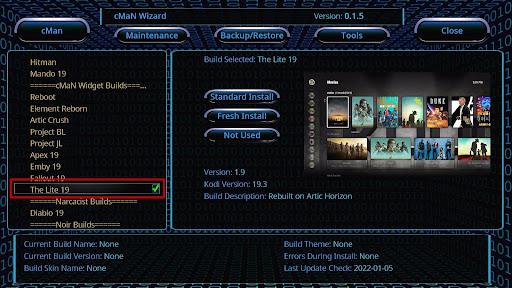
Install The Lite 19 Kodi Build 27


28. Click Fresh Install.

Install The Lite 19 Kodi Build 28


29. Tap on the Yes button.

Install The Lite 19 Kodi Build 29


30. Wait for the build to download.

Install The Lite 19 Kodi Build 30


31. Click the OK button.

Install The Lite 19 Kodi Build 31


32. Launch your Kodi again.

Install The Lite 19 Kodi Build 32


33. That’s it! You have successfully installed the ”The Lite 19 Kodi Build”. 

Install The Lite 19 Kodi Build 33


YOUR INTERNET ACTIVITY IS BEING WATCHED

ReviewVPN cannot attest to the legality, security and privacy of the applications discussed on this site. It is highly recommended that you use a VPN service while streaming or using Kodi.

Currently, your IP 216.73.216.208 is visible to everyone and your Browser is being tracked by Advertisers & ISP Provider.

Save 65% Now

Limited Time Offer

Here are the main reasons why you must use a VPN:

  • Your activities are hidden from your ISP, the government, and from the apps you are using.
  • You can access additional movies and TV streams.
  • ISP attempts to throttle are thrwarted thus reducing buffering issues.
  • Geographically restricted content like Netflix and Hulu can be unblocked.

A VPN works be replacing your ISP-assigned IP address and creating an encrypted tunnel. We recommend the no log service offered by IPVanish. It works well on a Firestick and offers the fastest possible speeds.

Special Limited Time Offer - Get IPVanish


Legal Disclaimer: ReviewVPN.com does not encourage or endorse any illegal activity involved in the usage of services and applications referenced on this site. We do not verify the licensing agreements of services. The end-user is wholly responsible for ensuring that any media accessed through these services does not violate copyright and/or licensing laws. ReviewVPN does not promote, link to, or receive compensation from any Apps and IPTV services.


Install Surfshark on Firestick

Best Surfshark Deal


Features of The Lite Kodi Build

  • Comes with AEON NOX skin 
  • Customizable interface.
  • Less than 300 Megabytes make this build compatible with low-memory devices such as firestick and Chromecast.


Review of The Lite Kodi Build

System

  • Nemesis AIO, The boys, 
  • Deja Vu again, the Oath, XXX-O-DUS, 4k
  • Entertain Me, crackle, Fen, Pluto.TV, popcorn time.tv, revolution, Seren, sport HD, Venom, YouTube.
  • Submenu always visible, reset main menu item to their default, customization, 
  • General, advanced, widgets, extras, Silvio extras, and help
  • System info section; summary, storage, network, video, hardware, PRV service, about Kodi, privacy policy.
  • Skin setting section; main menu: setup the ton box main menu, center date, and time
  • Video addons, music add-ons, picture addon, program addons, addon browser, recently updated, favorite


Tv Shows Section

  • New episodes, genres, years, network, advanced content selection, search, search history, series tracker.
  • Popular, on the air, new tv shows


Pros and Cons

Cons

  • Easy to navigate interface with the standard layout
  • Regular build update: each update comes with the addition of new movies, the latest tv shows, and fixes. 
  • You can easily run the update by going to the system and then system info.


Cons

  • No issues with this build.


Real Debrid Integration

Step 1. Open your browser and Log in to your real Debrid or if you are new, create a Real Debrid account here.

Step 2. Next, minimize your browser and then launch the Kodi app. 

Step 3. Now, open The Lite build

Step 3. Next, on any section that requires Real-Debrid integration, click on it.

Step 4. Copy the code on your screen ( you have to be fast as you have only 60 seconds)

Step 5. Open your browser and then go to https://real-debrid.com/device and enter the code from step 4.

Step 6. Click Go and then go back to the Kodi app.


Addons within The Lite Kodi Build
  • Deja Vu again
  • The Oath
  • XXX-O-DUSNemesis AIO
  • The boys
  • 4k
  • Entertain Me


Frequently Asked Questions

What is Kodi?

Kodi is an open-source media released in 2002 as an Xbox media player. In 2003, the name was changed to Xbox media center which remained till 2014 when XBMC foundation, a nonprofit technology consortium took over its management. With Kodi, you can cut cords and still enjoy your favorite TV shows, movies, live tv, anime, cartoons, sports events, docos, and many more without spending any amount of money. 


What is a Kodi Build?

A Kodi build is a bundle of wizards, settings, addons, skin, themes, and entertainments. You can install a build on different hardware platforms and operating systems that support Kodi. 


Is it free to use The Lite Kodi Build?

Installing and using this build is free.


Can I install The Lite Kodi Build on my Android and Firestick Device?

You can install this build on any hardware platform or operating system.


Is it safe to use The Lite Kodi Build on my Streaming Devices?

It is safe to install and stream with this build. However, use Nature Man build with a VPN.


Do I need a VPN to use Nature Man Build?

Yes, we recommend using this build with a VPN for security and privacy purposes. A VPN is software that uses encryption to hide your online presence.


Importance of a VPN

Surfshark vpn

  • Bypass censorship and stream from anywhere 
  • Reduce throttling
  • Security, privacy, and anonymity

Note: For more information about Surfshark, please read our SURFSHARK REVIEW.


Grab your subscription now!


How to Install Surfshark on Firestick with Screenshots

If your Firestick still has the older interface, read this article to learn how to update it: Update Firestick Interface.

You can download Surfshark directly from the Amazon App store. It will be easy for you to find Surfshark with your Firestick’s Find feature. Refer to our screenshots below.

Follow our screenshots below to install the Surfshark VPN app on your Fire TV stick.

1. Go to the Home screen of your Firestick.

step 1 Install Surfshark VPN on Firestick


2. Navigate towards the Find tab. Press the Search button from the resulting dropdown.

step 2 Install Surfshark VPN on Firestick


3. Type in the keyword of Surfshark and select from the suggestions that will appear.

step 3 Install Surfshark VPN on Firestick


4. Click the official Surfshark icon from your search results.

step 4 Install Surfshark VPN on Firestick


5. Press the Download (You own it) button.

step 5 Install Surfshark VPN on Firestick


6. The Surfshark VPN installer will download on your device.

step 6 Install Surfshark VPN on Firestick


7. Surfshark VPN’s app will automatically install itself on your Fire TV stick.

step 7 Install Surfshark VPN on Firestick


8. Press the Open button after completing Surfshark VPN’s installation process.

step 8 Install Surfshark VPN on Firestick


9. Please wait for the Surfshark VPN to load its user interface.

step 9 Install Surfshark VPN on Firestick


10. You can now log in with your Surfshark VPN account credentials.

step 10 Install Surfshark VPN on Firestick

Learn more about Surfshark and Grab the Best Surfshark Deal Now!


Install Surfshark on Firestick

Best Surfshark Deal

Other VPNs to Consider

NordVPN (Best for Streaming)

Best Features

  • 5000+ Server in 50+ Countries 
  • Military-Grade Encryption
  • Fast Connection Speed
  • Suitable to a lot of devices
  • No-Log Policy

Prices
  • Complete $5.89 per month (64% Discount)
  • Plus $4.59 per month (56% Discount)
  • Standard $3.69 per month (55% Discount)

Best Features

  • 750+ High-speed VPN Servers in 43 Locations
  • Military-Grade Encryption
  • Fastest HD Streaming and Gaming
  • 30-Day Money-Back Guarantee
  • Unlimited Data & Devices
  • No-Log Policy

Prices
  • 3 Years $1.99 per month (82% Discount)
  • 1 Years $3.29 per month (70% Discount)
  • 1 Month $10.99 per month

IPVanish VPN (Most Secure)

Best Features

  • 1200+ Servers in 60+ Countries around the world
  • Unlimited Connections
  • No-Log Policy
  • Top Notch Military-Grade VPN Protocols and Encryptions
  • 100% Safe and Secured
  • Most Trusted VPN
  • Best VPN for Firestick
  • 30-Day Money-Back Guarantee

Prices
  • Yearly $3.99 per month (63% Discount) – 30 days risk free + Ransomware & Malware Protection
  • Quarterly $5.32 per month (51% Discount)
  • Monthly $10.99 per month

For more VPN discounts, go to ReviewVPN Deals and purchase the best VPN for you.


Best Alternative Build

It is important to have an alternative build handy. Click here to see the list of our best alternative builds for 2021. 


Conclusion

The Lite build is an amazing build that offers the hottest add-ons right now. It is a bank for free movies, tv shows, live tv, and many more. It is a feature-rich build with a navigable interface. I recommend you check out this build.

How To Install Nature Man – NM19 Reborn Kodi Build on Kodi 19.5 Matrix

Overview

In this tutorial, you are going to learn how to install Nature Man – NM 19 Build on Android, firestick, windows, tablets, Linux, Raspberry Pi, Chromecast, and iOS devices. 


Nature Man – 19 is a child-friendly build with the popular Doomzday 19 wizard repository. This build offers you all kinds of entertainment in different sections and subsections except adult content. This build is one of the few builds that work well on the new Kodi 19.5 Matrix.

It comes with an easy-to-navigate interface and has customizable skin and themes. One good thing about this build is that it comes with lots of features that improve the streaming experience. Nature Man build comes with beautiful AEON NOX slvo skin and theme which you can easily customize. Sections within this build include movies, tv shows, Doomzday 19 wizard, apps, system, favorites, and videos.

Note: To use this build, you need Real-Debrid integration (you will find a step-by-step guide on how to integrate Real Debrid on this build below).


ANONYMOUSLY


How to Install Nature Man – NM19 Reborn Kodi Build with Screenshot

Installing a Kodi build has a lot of processes to take. That is why we will guide you step by step on how you can install it on Kodi.

 Follow the following steps below. 

1. On your Firestick, open Kodi and go to Settings.

Install Nature Man - NM19 Reborn Kodi Build 1

2. Select on System.

Install Nature Man - NM19 Reborn Kodi Build 2


3. Click on the Add-ons menu and Turn ON the Unknown Sources.

Install Nature Man - NM19 Reborn Kodi Build 3


4. Select Yes when the box appears.

Install Nature Man - NM19 Reborn Kodi Build 4


5. Go back one step and click on File Manager.

Install Nature Man - NM19 Reborn Kodi Build 5


6. Select the Add Source.

Install Nature Man - NM19 Reborn Kodi Build 6


7. A box will pop up, so click on the ‘None’ option.

Install Nature Man - NM19 Reborn Kodi Build 7


8. Type in https://doomzdayteam.github.io/dommzday/ and tap the OK button.

Install Nature Man - NM19 Reborn Kodi Build 8


9. Name the URL- doomzday or any other name you want to. Then select OK.

Install Nature Man - NM19 Reborn Kodi Build 9


10. Go back and Select Add-ons.

Install Nature Man - NM19 Reborn Kodi Build 10


11. Select Install from zip file.

Install Nature Man - NM19 Reborn Kodi Build 11


12. Wen a box pop up, click Yes.

Install Nature Man - NM19 Reborn Kodi Build 12


13. Select doomzday or any other name you put.

Install Nature Man - NM19 Reborn Kodi Build 13


14. Click  repository.doomzday-1.0.7.zip

Install Nature Man - NM19 Reborn Kodi Build 14


15. Wait for the Doomzday Repo installed text to appear.

Install Nature Man - NM19 Reborn Kodi Build 15


16. Select Install from repository.

Install Nature Man - NM19 Reborn Kodi Build 16


17. Choose Doomzday Repo.

Install Nature Man - NM19 Reborn Kodi Build 17


18.  Go to Program Addons.

Install Nature Man - NM19 Reborn Kodi Build 18


19. Click the Doomzday 19 Wizard.

Install Nature Man - NM19 Reborn Kodi Build 19


20. Tap the install button.

Install Nature Man - NM19 Reborn Kodi Build 20


21. When a box pop up, Tap OK.

Install Nature Man - NM19 Reborn Kodi Build 21


22. Another box will pop up, select Continue.

Install Nature Man - NM19 Reborn Kodi Build 22


23. Tap the Ignore button.

Install Nature Man - NM19 Reborn Kodi Build 23


24. When a message pops up, click on Dismiss.

Install Nature Man - NM19 Reborn Kodi Build 24


25. Go back to the main menu and scroll down to the Add-ons.

Install Nature Man - NM19 Reborn Kodi Build 25


26. On the Program add-ons, click on the Doomzday 19 Wizard.

Install Nature Man - NM19 Reborn Kodi Build 26


27. After that, click on Builds.

Install Nature Man - NM19 Reborn Kodi Build 27


28. Find and click Nature Man – NM19 Reborn.

Install Nature Man - NM19 Reborn Kodi Build 28


29. Scroll down and click Install.

Install Nature Man - NM19 Reborn Kodi Build 29


30. When a box pops up, Click Yes, Install.

Install Nature Man - NM19 Reborn Kodi Build 30


31. Wait for the DoomzDay Wizard to download.

Install Nature Man - NM19 Reborn Kodi Build 31


32. Tap the OK  button.

Install Nature Man - NM19 Reborn Kodi Build 32


33. Now, click exit your Kodi and Relaunch it again.

Install Nature Man - NM19 Reborn Kodi Build 33


34. That’s it! You have successfully installed the Nature Man – NM19 Reborn 19 Kodi Build.

Install Nature Man - NM19 Reborn Kodi Build 34


Grab your subscription now!

Click here to get the lowest price on Surfshark through our exclusive limited-time offer.


Features of Nature Man – NM 19 Kodi Build

  • Comes with AEON NOX skin (which you can customize or change to suit your taste.
  • Less than 300 Megabytes make this build compatible with low-memory devices such as firestick and Chromecast.


Review of Nature Man – NM 19 Kodi Build

System

  • System info section; summary, storage, network, video, hardware, PRV service, about Kodi, privacy policy.
  • Skin setting section; main menu: set up the ton box main menu, center date and time, submenu always visible, reset main menu item to their default, customization, General, advanced, widgets, extras, Silvio extras, and help.


File Manager Section; Doomsday, Nostromo, Profile Directory, Repo.

Tv Shows Section

  • Popular, on the air, new tv shows, new episodes, genres, years, network, advanced content selection, search, search history, series tracker.


App Section

  • Video addons, music add-ons, picture addon, program addons, addon browser, recently updated, favorite
  • Nemesis AIO, The boys, Deja Vu again, the Oath, XXX-O-DUS, 4k, Entertain Me, crackle, Fen, Pluto.TV, popcorn time.tv, revolution, Seren, sport HD, Venom, YouTube.


YOUR INTERNET ACTIVITY IS BEING WATCHED

ReviewVPN cannot attest to the legality, security and privacy of the applications discussed on this site. It is highly recommended that you use a VPN service while streaming or using Kodi.

Currently, your IP 216.73.216.208 is visible to everyone and your Browser is being tracked by Advertisers & ISP Provider.

Save 65% Now

Limited Time Offer

Here are the main reasons why you must use a VPN:

  • Your activities are hidden from your ISP, the government, and from the apps you are using.
  • You can access additional movies and TV streams.
  • ISP attempts to throttle are thrwarted thus reducing buffering issues.
  • Geographically restricted content like Netflix and Hulu can be unblocked.

A VPN works be replacing your ISP-assigned IP address and creating an encrypted tunnel. We recommend the no log service offered by IPVanish. It works well on a Firestick and offers the fastest possible speeds.

Special Limited Time Offer - Get IPVanish


Pros and Cons

Pros

  • Regular build update: each update comes with the addition of new movies, the latest tv shows, and fixes. You can easily run the update by going to the system and then system info.
  • Easy to navigate interface with the standard layout.


Cons

  • No issues with this build.


Real Debrid Integration

Step 1. Open your browser and Log in to your real Debrid or if you are new, create a Real Debrid account here.

Step 2. Minimize your browser and then launch the Kodi app. Open Nature Man build. 

Step 3. On any section that requires Real-Debrid integration, click on it.

Step 4. Copy the code on your screen ( you have to be fast as you have only 60 seconds).

Step 5. Open your browser and then go to https://real-debrid.com/device and enter the code from step 4.

Step 6. Click Go and then go back to Kodi app.


Addons within Nature Man – NM 19 Kodi Build

  • Nemesis AIO
  • The boys
  • Deja Vu again
  • The Oath
  • XXX-O-DUS
  • 4k
  • Entertain Me
  • Crackle
  • Fen
  • Pluto.TV, 
  • Popcorn time. tv


Frequently Asked Questions

What is Kodi?

With Kodi, you can cut cords and still enjoy your favorite TV shows, movies, live tv, anime, cartoons, sports events, docos, and many more without spending any amount of money. Kodi is an open-source media released in 2002 as an Xbox media player.

In 2003, the name was changed to Xbox media center which remained till 2014 when XBMC foundation, a nonprofit technology consortium took over its management. 


What is a Kodi Build?

A Kodi build is a bundle of wizards, settings, addons, skin, themes, and entertainments. You can install a build on different hardware platforms and operating systems that support Kodi. 


Is it safe to use Nature Man – NM 19 Kodi Build on my Streaming Devices?

It is safe to install and stream with this build. However, use Nature Man build with a VPN.


Is it free to use Nature Man – NM 19 Kodi Build?

Installing and using this build is free.


Can I install Nature Man – NM 19 Kodi Build on my Android and Firestick Device?

You can install this build on any hardware platform or operating system.


Do I need a VPN to use Nature Man Build?

Yes, we recommend using this build with a VPN for security and privacy purposes. A VPN is software that uses encryption to hide your online presence.


Importance of a VPN
  • Security, privacy, and anonymity
  • Bypass censorship and stream from anywhere 
  • Reduce throttling


Install Surfshark on Firestick

Best Surfshark Deal


How to Install Surfshark VPN on Firestick

If your Firestick still has the older interface, read this article to learn how to update it: Update Firestick Interface.

You can download Surfshark directly from the Amazon App store. It will be easy for you to find Surfshark with your Firestick’s Find feature. Refer to our screenshots below.

1. Go to the Home screen of your Firestick.

step 1 Install Surfshark VPN on Firestick


2. Navigate towards the Find tab. Press the Search button from the resulting dropdown.

step 2 Install Surfshark VPN on Firestick


3. Type in the keyword of SurfShark and select from the suggestions that will appear.

step 3 Install Surfshark VPN on Firestick


4. Click the official SurfShark icon from your search results.

step 4 Install Surfshark VPN on Firestick


5. Press the Download (You own it) button.

step 5 Install Surfshark VPN on Firestick


6. The SurfShark VPN installer will download on your device.

step 6 Install Surfshark VPN on Firestick


7. SurfShark VPN’s app will automatically install itself on your Fire TV stick.

step 7 Install Surfshark VPN on Firestick


8. Press the Open button after completing SurfShark VPN’s installation process.

step 8 Install Surfshark VPN on Firestick


9. Please wait for the SurfShark VPN to load its user interface.

step 9 Install Surfshark VPN on Firestick


10. You can now log in with your SurfShark VPN account credentials.

step 10 Install Surfshark VPN on Firestick

Learn more about Surfshark and Grab the Best Surfshark Deal Now!


Other VPNs to Consider

NordVPN (Best for Streaming)

Best Features

  • 5000+ Server in 50+ Countries 
  • Military-Grade Encryption
  • Fast Connection Speed
  • Suitable to a lot of devices
  • No-Log Policy

Prices
  • Complete $5.89 per month (64% Discount)
  • Plus $4.59 per month (56% Discount)
  • Standard $3.69 per month (55% Discount)

Best Features

  • 750+ High-speed VPN Servers in 43 Locations
  • Military-Grade Encryption
  • Fastest HD Streaming and Gaming
  • 30-Day Money-Back Guarantee
  • Unlimited Data & Devices
  • No-Log Policy

Prices
  • 3 Years $1.99 per month (82% Discount)
  • 1 Years $3.29 per month (70% Discount)
  • 1 Month $10.99 per month

IPVanish VPN (Most Secure)

Best Features

  • 1200+ Servers in 60+ Countries around the world
  • Unlimited Connections
  • No-Log Policy
  • Top Notch Military-Grade VPN Protocols and Encryptions
  • 100% Safe and Secured
  • Most Trusted VPN
  • Best VPN for Firestick
  • 30-Day Money-Back Guarantee

Prices
  • Yearly $3.99 per month (63% Discount) – 30 days risk free + Ransomware & Malware Protection
  • Quarterly $5.32 per month (51% Discount)
  • Monthly $10.99 per month


For more VPN discounts, go to ReviewVPN Deals and purchase the best VPN for you.


Best Alternative Build

It is important to have an alternative build handy. Click here to see the list of our best alternative builds for 2021. 


Conclusion

Nature build is an amazing build that offers the hottest add-ons right now. It is a bank for free movies, tv shows, live tv, and many more. It is a feature-rich build with a navigable interface. I recommend you check out this build.

Install YuMu Music on Firestick and Android – 2023 Edition

YuMu Music Overview

This article will teach you how to install YuMu Music on Firestick and Android.


YuMu Music is a very wonderful app to play and download songs to your devices.

With its simple interface, you can easily search for an artist or a song that you want to listen to.

There are no music videos present on this app.  Although navigating through the app is not that easy.

We suggest using Mouse Toggle to help you click on any button or menu within the app.

Another great characteristic of this app is it is 100% free. There is no registration needed, so you would not be worried because you will not give any personal information.

There aren’t also any advertisements. But not all songs are present and available on this app. If the title that you wish to play is not available on Gato then it won’t be a success.

You cannot install this app directly from the Amazon App Store. It needs to be sideloaded through the use of the Downloader App. But first, you need to Jailbreak your Firestick.


ANONYMOUSLY

Is Yumu Music Safe and Virus-free?

We tested this app using VirusTotal and found no threats or any malicious files and malware.

Despite having good results, we still need to be vigilant in protecting our privacy while streaming.

A Virtual Private Network or VPN will help us maintain our security and anonymity while using Yumu Music.

Here’s how you can Install The Best VPN For Firestick and All Devices.


YuMu Music APK Download for Android Devices


YuMu Music

Note: ReviewVPN.com does not host this APK file. It is hosted by Archive.org


Install YuMu Music on Firestick Guide

  1. Go to Settings
  2. Choose Device or My Fire TV
  3. Hover to Developers Options
  4. Turn on the ADB debugging and the Apps from Unknown Sources
  5. Go back to Home
  6. Navigate to Search
  7. Type in Downloader
  8. Click the suggestion word
  9. Select the Downloader icon
  10. Click the Get or Download button
  11. The app is installing
  12. Tap the Open button
  13. Choose Allow
  14. Click Ok
  15. Type https://reviewvpn.com/yumu on the search engine
  16. Click on Go
  17. APK is downloading
  18. Click Install
  19. The app is currently installing
  20. Select Open


If your Firestick still has the older interface, read this article to learn how to update it: Update Firestick Interface.


Install YuMu Music App on Firestick with Screenshots

1. Install the Downloader app and jailbreak your firestick by enabling unknown sources. To learn more about the procedure, you may read How to Install the Downloader App and Enable Unknown Sources.


2. Open Downloader App. Type https://reviewvpn.com/yumu and click Go.

Yumu Music (1)


3. Click Go

Yumu Music (2)


4. Let the apk be downloaded

Yumu Music (3)


5. Choose Install

Yumu Music (4)


6. Wait for the app to be installed

Yumu Music (5)


7. Click on Open

Yumu Music (6)


8. Choose Allow.

Yumu Music (7)


9. Select Yes, I Agree.

Yumu Music (8)


YOUR INTERNET ACTIVITY IS BEING WATCHED

ReviewVPN cannot attest to the legality, security and privacy of the applications discussed on this site. It is highly recommended that you use a VPN service while streaming or using Kodi.

Currently, your IP 216.73.216.208 is visible to everyone and your Browser is being tracked by Advertisers & ISP Provider.

Save 65% Now

Limited Time Offer

Here are the main reasons why you must use a VPN:

  • Your activities are hidden from your ISP, the government, and from the apps you are using.
  • You can access additional movies and TV streams.
  • ISP attempts to throttle are thrwarted thus reducing buffering issues.
  • Geographically restricted content like Netflix and Hulu can be unblocked.

A VPN works be replacing your ISP-assigned IP address and creating an encrypted tunnel. We recommend the no log service offered by IPVanish. It works well on a Firestick and offers the fastest possible speeds.

Special Limited Time Offer - Get IPVanish


Legal Disclaimer: ReviewVPN.com does not encourage or endorse any illegal activity involved in the usage of services and applications referenced on this site. We do not verify the licensing agreements of services. The end-user is wholly responsible for ensuring that any media accessed through these services does not violate copyright and/or licensing laws. ReviewVPN does not promote, link to, or receive compensation from any Apps and IPTV services.


Install Surfshark on Firestick

Best Surfshark Deal


YOUR INTERNET ACTIVITY IS BEING WATCHED

ReviewVPN cannot attest to the legality, security and privacy of the applications discussed on this site. It is highly recommended that you use a VPN service while streaming or using Kodi.

Currently, your IP 216.73.216.208 is visible to everyone and your Browser is being tracked by Advertisers & ISP Provider.

Save 65% Now

Limited Time Offer

Here are the main reasons why you must use a VPN:

  • Your activities are hidden from your ISP, the government, and from the apps you are using.
  • You can access additional movies and TV streams.
  • ISP attempts to throttle are thrwarted thus reducing buffering issues.
  • Geographically restricted content like Netflix and Hulu can be unblocked.

A VPN works be replacing your ISP-assigned IP address and creating an encrypted tunnel. We recommend the no log service offered by IPVanish. It works well on a Firestick and offers the fastest possible speeds.

Special Limited Time Offer - Get IPVanish


App Features

Interface

  • Simple Interface
  • Search bar available
  • No ad banners
  • Tab for Top Weekly Songs
  • Download Page
  • Settings
  • No pop-ups


Content

  • Good quality music
  • Not all songs are available
  • No music videos


Pros and Cons

Pros

  • 100% free
  • No registration
  • Ad-free


Cons

  • Not easy to navigate
  • Some songs are not available


Should I Use this App with a VPN?

https://get.surfshark.net/aff_c?offer_id=865&aff_id=12312

Have you experienced clicking on a certain media and you cannot accessing it? It might say that this is because of your location. The media you try is access is geo-blocked.

To access these kinds of content, you need to have a VPN connection to a server from which the file you want to access is not geo-restricted.

The best VPN to do that is Surfshark. It demolished geo-blocks that stop you from accessing different contents outside your location.

Aside from that, there are also some of the many benefits of Surfshark:

  • Provides protection against hackers when you are using public wi-fi
  • Adds a layer of protection especially from your ISP while using the internet.
  • Your connections and data will be kept encrypted and anonymous
  • Keeps your data and files from harmful malware
  • Gives easy access and downloads from different torrent sites without being caught.
  • Makes your internet speed faster
  • Prevents Firestick Buffering and Kodi Buffering

Note: For more information about SurfShark, please read our SURFSHARK REVIEW.


Grab your subscription now!


How to Install Surfshark VPN on Firestick

If your Firestick still has the older interface, read this article to learn how to update it: Update Firestick Interface.

You can download Surfshark directly from the Amazon App store. It will be easy for you to find Surfshark with your Firestick’s Find feature. Refer to our screenshots below.

1. Go to the Home screen of your Firestick.

step 1 Install Surfshark VPN on Firestick


2. Navigate towards the Find tab. Press the Search button from the resulting dropdown.

step 2 Install Surfshark VPN on Firestick


3. Type in the keyword of SurfShark and select from the suggestions that will appear.

step 3 Install Surfshark VPN on Firestick


4. Click the official SurfShark icon from your search results.

step 4 Install Surfshark VPN on Firestick


5. Press the Download (You own it) button.

step 5 Install Surfshark VPN on Firestick


6. The SurfShark VPN installer will download on your device.

step 6 Install Surfshark VPN on Firestick


7. SurfShark VPN’s app will automatically install itself on your Fire TV stick.

step 7 Install Surfshark VPN on Firestick


8. Press the Open button after completing SurfShark VPN’s installation process.

step 8 Install Surfshark VPN on Firestick


9. Please wait for the SurfShark VPN to load its user interface.

step 9 Install Surfshark VPN on Firestick


10. You can now log in with your SurfShark VPN account credentials.

step 10 Install Surfshark VPN on Firestick

Learn more about Surfshark and Grab the Best Surfshark Deal Now!


Other VPNs to Consider

NordVPN (Best for Streaming)

Best Features

  • 5000+ Server in 50+ Countries 
  • Military-Grade Encryption
  • Fast Connection Speed
  • Suitable to a lot of devices
  • No-Log Policy

Prices
  • Complete $5.89 per month (64% Discount)
  • Plus $4.59 per month (56% Discount)
  • Standard $3.69 per month (55% Discount)

Best Features

  • 750+ High-speed VPN Servers in 43 Locations
  • Military-Grade Encryption
  • Fastest HD Streaming and Gaming
  • 30-Day Money-Back Guarantee
  • Unlimited Data & Devices
  • No-Log Policy

Prices
  • 3 Years $1.99 per month (82% Discount)
  • 1 Years $3.29 per month (70% Discount)
  • 1 Month $10.99 per month

IPVanish VPN (Most Secure)

Best Features

  • 1200+ Servers in 60+ Countries around the world
  • Unlimited Connections
  • No-Log Policy
  • Top Notch Military-Grade VPN Protocols and Encryptions
  • 100% Safe and Secured
  • Most Trusted VPN
  • Best VPN for Firestick
  • 30-Day Money-Back Guarantee

Prices
  • Yearly $3.99 per month (63% Discount) – 30 days risk free + Ransomware & Malware Protection
  • Quarterly $5.32 per month (51% Discount)
  • Monthly $10.99 per month


For more VPN discounts, go to ReviewVPN Deals and purchase the best VPN for you.


Alternative Applications for YuMu Music

Other apps also offer music to stream on your devices. Now we listed some apps that you might be interested in as well.


FAQs

Is YuMu Music free to download?

Yes. This app is 100% free.


Does YuMu Music require a login?

No. There is no need for registration on this app.


Where does YuMu come from?

The app was from Charanga Music World.


Is YuMu Music Safe?

We tested the app using Virus Total and there are no signs of any threat from the app.


Is the app legal?

We were not able to make it clear if the app is 100% legitimate to operate. But we suggest using a VPN while streaming.


Are there any ads?

No. There are no ads present on the app.


Opinion

This app could be a great addition to your list of music apps. You can look out for songs and listen to them for free. There are no fees, no subscription, no registration, and no advertisements which we find as all great qualities for an application.

The only problem is that some songs are not available. So if you can’t listen to your favorite ones, you can look out for some other applications similar to YuMu Music.


Final Thoughts

We hope that this article helped you install YuMu Music on your firestick and android devices.


Note: ReviewVPN.com does not own or operate any app nor does it endorse any. The main purpose of this article is strictly for educational purposes only.


Must Read:

Best Firestick Apps

Top Unlinked Codes

Free Movie Streaming Websites

Best TV Show Websites

Best Adult Apps for Firestick

Top Live TV Apps

Install Swift Streamz on Firestick

Best Kissanime.RU Alternatives 

Best Adult Apps for Firestick

The Best Adult Apps for Android

Install Live Lounge APK for Free Live TV, Sports, Adult Section, and Movies

50 Best Free Movie Streaming Sites

Watch HD Films Online 2018 App on Firestick and Android- Is it Worth the Try?

Watch HD Films Online 2018 APK Overview

In this article, we will discuss how to install Watch HD Films Online 2018 on your firestick and android devices.


Watch HD Films Online 2018 is an app that offers up-to-date movies to watch for free. It also considers providing TV series for the audience.

It works by finding links from the internet. But somehow, most of the links it provides are not working.

This is a very disappointing quality of the app. Although the titles it features are popular and on-demand but you cannot watch almost everything from it.

Because of this, we might list down all the possible alternatives you can check out if you want to watch movies and tv series on your firestick and android device.

But still, you might like to check out this app for yourself.

This app is a third-party application. To install this on your firestick device, you need to Jailbreak your Firestick first, and then Install the Downloader App.


ANONYMOUSLY

Is Watch HD Films Online App Safe and Virus-free?

We tested this app using VirusTotal and found no threats or malicious files and malware.

Despite having good results, we still need to be vigilant in protecting our privacy while streaming.

A Virtual Private Network or VPN will definitely help us maintain our security and anonymity while using Watch HD Films Online App.

Here’s how you can Install The Best VPN For Firestick and All Devices.


Watch HD Films Online 2018 APK Download for Android Devices


watch hd films online 2018


Note: ReviewVPN.com does not host this APK file. It is hosted by Archive.org


Install Watch HD Films Online 2018 on Firestick Guide

  1. Go to Settings
  2. Choose Device or My Fire TV
  3. Hover to Developers Options
  4. Turn on the ADB debugging and the Apps from Unknown Sources
  5. Go back to Home
  6. Navigate to Search
  7. Type in Downloader
  8. Click the suggestion word
  9. Select the Downloader icon
  10. Click the Get or Download button
  11. The app is installing
  12. Tap the Open button
  13. Choose Allow
  14. Click Ok
  15. Type https://reviewvpn.com/wat on the search engine
  16. Click on Go
  17. APK is downloading
  18. Click Install
  19. The app is currently installing
  20. Select Open


How to Install Watch HD Films Online 2018 on Firestick with Screenshots

1. Go to Settings

watch hd films online 2018


2. Select Device or My Fire TV

watch hd films online 2018


3. Choose Developer Options

watch hd films online 2018


4. Turn on the ADB Debugging and the Apps from Unknown Sources

watch hd films online 2018


5. Click Turn On

watch hd films online 2018


6. Go back to Home and navigate to Search

watch hd films online 2018


7. Type in Downloader and click the suggestion

watch hd films online 2018


8. Tap the Downloader icon when it appears on the screen

watch hd films online 2018


9. Click Get or Download

watch hd films online 2018


10. Wait for the app to be installed

watch hd films online 2018


11. Select the Open button to launch the app

watch hd films online 2018


12. Click Allow

watch hd films online 2018


13. Tap the OK button

watch hd films online 2018


14. Hover to the search engine

watch hd films online 2018


15. Type https://reviewvpn.com/wat on the search engine

Watch HD Films Online 2018 (1)


16. Click Go

Watch HD Films Online 2018 (2)


17. Let the apk be downloaded

Watch HD Films Online 2018 (3)


18. Choose Install

Watch HD Films Online 2018 (4)


19. Wait for the app to be installed

Watch HD Films Online 2018 (5)


20. Click on Open

Watch HD Films Online 2018 (6)


21. Select Allow.

Watch HD Films Online 2018 (7)


YOUR INTERNET ACTIVITY IS BEING WATCHED

ReviewVPN cannot attest to the legality, security and privacy of the applications discussed on this site. It is highly recommended that you use a VPN service while streaming or using Kodi.

Currently, your IP 216.73.216.208 is visible to everyone and your Browser is being tracked by Advertisers & ISP Provider.

Save 65% Now

Limited Time Offer

Here are the main reasons why you must use a VPN:

  • Your activities are hidden from your ISP, the government, and from the apps you are using.
  • You can access additional movies and TV streams.
  • ISP attempts to throttle are thrwarted thus reducing buffering issues.
  • Geographically restricted content like Netflix and Hulu can be unblocked.

A VPN works be replacing your ISP-assigned IP address and creating an encrypted tunnel. We recommend the no log service offered by IPVanish. It works well on a Firestick and offers the fastest possible speeds.

Special Limited Time Offer - Get IPVanish


Legal Disclaimer: ReviewVPN.com does not encourage or endorse any illegal activity involved in the usage of services and applications referenced on this site. We do not verify the licensing agreements of services. The end-user is wholly responsible for ensuring that any media accessed through these services does not violate copyright and/or licensing laws. ReviewVPN does not promote, link to, or receive compensation from any Apps and IPTV services.


Install Surfshark on Firestick

Best Surfshark Deal


How to Integrate Real-Debrid on Watch HD Films Online 2018 App

1. Launch the app

Watch HD Films Online 2018 (8)


2. Navigate to the hamburger button on the upper left portion of the app.

Watch HD Films Online 2018 (9)


3. Scroll down to Settings

Watch HD Films Online 2018 (10)


4. Choose Log into RealDebrid

Watch HD Films Online 2018 (11)


5. Take note of the code given by the app. X2XDE8JW is just an example.

Watch HD Films Online 2018 (12)


6. On a separate device, go to real-debrid.com/device

Watch HD Films Online 2018 13


7. Type in the given code and click Continue

Watch HD Films Online 2018 14


8. You will see a confirmation that your device is connected to your real-debrid account.

Watch HD Films Online 2018 15


App Features

  • Can add media to favorites
  • Offers TV shows and movies
  • Allows reminders for upcoming shows
  • Download page present
  • Contact Support is Available
  • Can customize subtitles’ language and provider
  • Trakt.tv Integration
  • Real-Debrid Integration


Interface

  • Easy to navigate interface
  • Search menu available
  • Filter button for shows is present
  • Features a lot of movies on the home page


Content

  • Bad in finding links for any title even with real-debrid integration
  • Offers a lot of titles


Pros and Cons

Pros

  • 100% free
  • No registration


Cons

  • Bad in finding links for any shows even Real-debrid is already integrated
  • Can’t really watch any title featured on the app


Stream Safely With A VPN

https://get.surfshark.net/aff_c?offer_id=865&aff_id=12312

Streaming could be dangerous when your IP address is out in the open. Your IP serves as your online fingerprint. And when you use different links, your Internet Service Provider (ISP) is monitoring your activities.

Sometimes they throttle your connection because you exceed your data limit. And when that happens, you will experience a lot of buffering on your end.

If you want to have smooth and secure streaming, you need to have a VPN service.

A VPN service that is as good as Surfshark in gives satisfaction and security to its subscribers.

Using Surfshark, you will receive the following and more:

  • Demolish geo-restrictions that stop you from accessing different contents outside your location.
  • Provides protection against hackers when you are using public wi-fi
  • Adds an additional layer of protection especially from your ISP while using the internet.
  • Your connections and data will be kept encrypted and anonymous
  • Keeps your data and files from harmful malware
  • Gives easy access and downloads from different torrent sites without being caught.
  • Makes your internet speed faster
  • Prevents Firestick Buffering and Kodi Buffering

Note: For more information about SurfShark, please read our SURFSHARK REVIEW.


Grab your subscription now!


How to Install Surfshark VPN on Firestick

If your Firestick still has the older interface, read this article to learn how to update it: Update Firestick Interface.

You can download Surfshark directly from the Amazon App store. It will be easy for you to find Surfshark with your Firestick’s Find feature. Refer to our screenshots below.

1. Go to the Home screen of your Firestick.

step 1 Install Surfshark VPN on Firestick


2. Navigate towards the Find tab. Press the Search button from the resulting dropdown.

step 2 Install Surfshark VPN on Firestick


3. Type in the keyword of SurfShark and select from the suggestions that will appear.

step 3 Install Surfshark VPN on Firestick


4. Click the official SurfShark icon from your search results.

step 4 Install Surfshark VPN on Firestick


5. Press the Download (You own it) button.

step 5 Install Surfshark VPN on Firestick


6. The SurfShark VPN installer will download on your device.

step 6 Install Surfshark VPN on Firestick


7. SurfShark VPN’s app will automatically install itself on your Fire TV stick.

step 7 Install Surfshark VPN on Firestick


8. Press the Open button after completing SurfShark VPN’s installation process.

step 8 Install Surfshark VPN on Firestick


9. Please wait for the SurfShark VPN to load its user interface.

step 9 Install Surfshark VPN on Firestick


10. You can now log in with your SurfShark VPN account credentials.

step 10 Install Surfshark VPN on Firestick

Learn more about Surfshark and Grab the Best Surfshark Deal Now!


Other VPNs to Consider

NordVPN (Best for Streaming)

Best Features

  • 5000+ Server in 50+ Countries 
  • Military-Grade Encryption
  • Fast Connection Speed
  • Suitable to a lot of devices
  • No-Log Policy

Prices
  • Complete $5.89 per month (64% Discount)
  • Plus $4.59 per month (56% Discount)
  • Standard $3.69 per month (55% Discount)

Best Features

  • 750+ High-speed VPN Servers in 43 Locations
  • Military-Grade Encryption
  • Fastest HD Streaming and Gaming
  • 30-Day Money-Back Guarantee
  • Unlimited Data & Devices
  • No-Log Policy

Prices
  • 3 Years $1.99 per month (82% Discount)
  • 1 Years $3.29 per month (70% Discount)
  • 1 Month $10.99 per month

IPVanish VPN (Most Secure)

Best Features

  • 1200+ Servers in 60+ Countries around the world
  • Unlimited Connections
  • No-Log Policy
  • Top Notch Military-Grade VPN Protocols and Encryptions
  • 100% Safe and Secured
  • Most Trusted VPN
  • Best VPN for Firestick
  • 30-Day Money-Back Guarantee

Prices
  • Yearly $3.99 per month (63% Discount) – 30 days risk free + Ransomware & Malware Protection
  • Quarterly $5.32 per month (51% Discount)
  • Monthly $10.99 per month


For more VPN discounts, go to ReviewVPN Deals and purchase the best VPN for you.


Grab the Best Surfshark Deal Now!


Alternative Applications for Watch HD Films Online 2018

When we check out this app, there are really a lot of grey areas. We cannot find any good links to the titles it features. That is why we really suggest looking out for these alternatives:


FAQs

Is Watch HD Films Online Safe?

We tested the app using Virus Total and found no threat.


Is this app legal?

We were not able to check the full legality of the app. Just to make sure, use a VPN while streaming.


Is this app free?

Yes, this app is 100% free.


Opinion

We are not very satisfied with this app. It does not meet our expectations for streaming movies and series on firestick. That is why we recommend using other apps where you can find great links for every title that you like to stream.


Final Thoughts

We hope that this article helped you install Watch HD Films Online 2018 on your firestick and android devices.


Note: ReviewVPN.com does not own or operate any app nor does it endorse any. The main purpose of this article is strictly for educational purposes only.


Must Read:

Best Firestick Apps

Top Unlinked Codes

Free Movie Streaming Websites

Best TV Show Websites

Best Adult Apps for Firestick

Top Live TV Apps

Install Swift Streamz on Firestick

Best Kissanime.RU Alternatives 

Best Adult Apps for Firestick

The Best Adult Apps for Android

Install Live Lounge APK for Free Live TV, Sports, Adult Section and Movies

50 Best Free Movie Streaming Sites


What Is Your Favorite Streaming App? Cast Your Vote Below.

How To Install FileChef On Firestick For Free – 2023 Review

FileChef Overview

This article is going to provide you with a quick installation guide and review of FileChef on your Firestick and Android.


Looking up things over the internet might get a little exhausting and time-consuming when your browser shows all file formats and information when you enter keywords.

FileChef is your buddy to help you with optimizing your search. With its advanced search, it redirects you to the open directories based on your preferred file category.

These include videos, music, games, books, and a lot more.

This app is not found on the Amazon App Store, so you first have to jailbreak and install the Downloader app on your Firestick. 


ANONYMOUSLY

Is FileChef Safe and Virus-free?

We tested this app using VirusTotal and found no threats or any malicious files and malware.

Despite having good results, we still need to be vigilant in protecting our privacy while streaming.

A Virtual Private Network or VPN will definitely help us maintain our security and anonymity while using FileChef.

Here’s how you can Install The Best VPN For Firestick and All Devices.


How to Install FileChef on Firestick

1. Install the Downloader app and jailbreak your firestick by enabling unknown sources. To learn more about the procedure, you may read How to Install the Downloader App and Enable Unknown Sources.


2. Open Downloader App. Type https://reviewvpn.com/chef and click Go.

FileChef2


3.Wait for the APK to download.

filechef5


4. Click Install.

FileChef7


5. Select Open to launch the app.

FileChef 5


6. You’ve successfully installed FileChef.

FileChef9


YOUR INTERNET ACTIVITY IS BEING WATCHED

ReviewVPN cannot attest to the legality, security and privacy of the applications discussed on this site. It is highly recommended that you use a VPN service while streaming or using Kodi.

Currently, your IP 216.73.216.208 is visible to everyone and your Browser is being tracked by Advertisers & ISP Provider.

Save 65% Now

Limited Time Offer

Here are the main reasons why you must use a VPN:

  • Your activities are hidden from your ISP, the government, and from the apps you are using.
  • You can access additional movies and TV streams.
  • ISP attempts to throttle are thrwarted thus reducing buffering issues.
  • Geographically restricted content like Netflix and Hulu can be unblocked.

A VPN works be replacing your ISP-assigned IP address and creating an encrypted tunnel. We recommend the no log service offered by IPVanish. It works well on a Firestick and offers the fastest possible speeds.

Special Limited Time Offer - Get IPVanish


Legal Disclaimer: ReviewVPN.com does not encourage or endorse any illegal activity involved in the usage of services and applications referenced on this site. We do not verify the licensing agreements of services. The end-user is wholly responsible for ensuring that any media accessed through these services does not violate copyright and/or licensing laws. ReviewVPN does not promote, link to, or receive compensation from any Apps and IPTV services.


Install Surfshark on Firestick

Best Surfshark Deal


How to Install FileChef on Android

  1. Open Google Play Store from your Android device.
  2. Search for “FileChef”.
  3. Choose “Download”.
  4. Confirm download.
  5. Wait for the download to install.
  6. You can now open and explore FileChef on your device.


How to Use FileChef on Firestick

  1. On the search bar, type in the keyword that you want to browse or download.
  2. Activate Mouse Toggle by double-clicking the play button on your Alexa remote. Hover to the “Search” or magnifying glass button, then select it to start the search.
  3. It will redirect you to your browser and will show the search results depending on the file type you chose from FileChef.
  4. Browse through these search results and select the one you are looking for.


FileChef App Features

Interface

  • Plain and simple interface
  • On the top portion of the screen, you will see icons of:
    • Share via social media platforms (which must be installed on your Firestick) 
    • Star to search the app from app stores installed on your Firestick
    • The question mark to view the Privacy Policy (redirects you to a browser)
  • Shows a search bar, and file type/categories below
  • Displays ads below the file category option

File Categories

  • All
  • Videos
  • Music/Audio
  • Images
  • Gif
  • Books/Docs
  • Software/Games
  • Android apps


Pros and Cons

Pros

  • Simple and easy-to-use interface
  • Categorizes your search into specific file formats that make search results efficient and accurate

Cons

  • Needs a Mouse Toggle to click on the Search button
  • With ads at the bottom of the page 


Why Use FileChef with Surfshark

If you’re still not aware that your personal information might be unsafe while browsing, now is the time to reveal the real story behind your every online activity. Getting a VPN service will get you all the security and protection that you need, including the following perks:

  1. You will have a safe and secured internet connection. Your online activities can be hidden and will allow you to access more content by replacing your ISP with an assigned IP address.
  2. You can use the internet anonymously without having your personal information stolen by potential hackers especially when you connect to public WiFi.
  3. The chance of your internet being throttled by ISPs is eliminated to avoid Firestick buffering.
  4. You can bypass geo-restrictions and watch your favorite movies from any location.

Note: For more information about Surfshark, please read our Surfshark Review.


Grab your subscription now!

Click here to get the lowest price on Surfshark through our exclusive limited-time offer.


How to Install Surfshark VPN on Firestick

If your Firestick still has the older interface, read this article to learn how to update it: Update Firestick Interface.

Follow our screenshots below to install the SurfShark VPN app on your Fire TV stick.

1. Go to the Home screen of your Firestick.

step 1 Install Surfshark VPN on Firestick


2. Navigate towards the Find tab. Press the Search button from the resulting dropdown.

step 2 Install Surfshark VPN on Firestick


3. Type in the keyword of SurfShark and select from the suggestions that will appear.

step 3 Install Surfshark VPN on Firestick


4. Click the official SurfShark icon from your search results.

step 4 Install Surfshark VPN on Firestick


5. Press the Download (You own it) button.

step 5 Install Surfshark VPN on Firestick


6. The SurfShark VPN installer will download on your device.

step 6 Install Surfshark VPN on Firestick


7. SurfShark VPN’s app will automatically install itself on your Fire TV stick.

step 7 Install Surfshark VPN on Firestick


8. Press the Open button after completing SurfShark VPN’s installation process.

step 8 Install Surfshark VPN on Firestick


9. Please wait for the SurfShark VPN to load its user interface.

step 9 Install Surfshark VPN on Firestick


10. You can now log in with your SurfShark VPN account credentials.

step 10 Install Surfshark VPN on Firestick

Learn more about Surfshark and Grab the Best Surfshark Deal Now!


Install Surfshark on Firestick

Best Surfshark Deal


Other VPNs to Consider

NordVPN (Best for Streaming)

Best Features

  • 5000+ Server in 50+ Countries 
  • Military-Grade Encryption
  • Fast Connection Speed
  • Suitable to a lot of devices
  • No-Log Policy

Prices
  • Complete $5.89 per month (64% Discount)
  • Plus $4.59 per month (56% Discount)
  • Standard $3.69 per month (55% Discount)

Best Features

  • 750+ High-speed VPN Servers in 43 Locations
  • Military-Grade Encryption
  • Fastest HD Streaming and Gaming
  • 30-Day Money-Back Guarantee
  • Unlimited Data & Devices
  • No-Log Policy

Prices
  • 3 Years $1.99 per month (82% Discount)
  • 1 Years $3.29 per month (70% Discount)
  • 1 Month $10.99 per month

IPVanish VPN (Most Secure)

Best Features

  • 1200+ Servers in 60+ Countries around the world
  • Unlimited Connections
  • No-Log Policy
  • Top Notch Military-Grade VPN Protocols and Encryptions
  • 100% Safe and Secured
  • Most Trusted VPN
  • Best VPN for Firestick
  • 30-Day Money-Back Guarantee

Prices
  • Yearly $3.99 per month (63% Discount) – 30 days risk free + Ransomware & Malware Protection
  • Quarterly $5.32 per month (51% Discount)
  • Monthly $10.99 per month


For more VPN discounts, go to ReviewVPN Deals and purchase the best VPN for you.

Click here to get the lowest price on Surfshark through our exclusive limited-time offer.


FileChef Alternative Apps

If you are somehow unsatisfied with this app or it simply does not work for you, then there are some directory search apps available yet to be reviewed on our website:

  • FileCrop
  • FilePursuit
  • FileMare
  • Searx
  • SearchFTPS
  • Limefiles
  • MegaDownload
  • Files Tube
  • Entireweb
  • AIO Search
  • UVRX
  • SearchFiles
  • FindFiles


FAQs

History

FileChef has been available on Google Play Store since July 2019.


Is FileChef free?

Yes, it is free to download and use.


Is the app legal?

Yes, it is 100% legal and you can download it from the Google Play Store.


Are there ads?

Yes, there are some ads located at the bottom of the page. Make sure not to click them to prevent any unsafe malware.


Is there a premium version?

There is none.


Where can I download FileChef?

You can download it from Google Play Store for Android devices. For other devices such as PC, you may opt to download the APK from a safe website or simply use the official website for searching.


Where can I use FileChef?

You may install the app on any Amazon Fire TV/Firestick and Android phones and tablets. 


Is there an app website?

There is no official website for this app developed by ZQ Labs. You might be mistaken with https://www.filechef.com/ — which is not the same app with a different developer.


Conclusion

FileChef is a totally useful app that saves you a lot of time, effort, and patience in looking for the exact thing that you are looking for. Using this app is as easy as ABC. We recommend using FileChef especially when you are a researcher or a heavy downloader. 

We hope that this article has helped you successfully install FileChef on your Firestick and Android devices.

Note: ReviewVPN.com is not affiliated with any App or IPTV Service nor are we endorsing or promoting any. The sole purpose of this article is for educational purposes only.

How To Install 3ABN App On Firestick

3ABN Overview

This article will help you install 3ABN on your firestick device. 


Three Angels Broadcasting Network or 3ABN is a 24/7 Christian television and radio network.

It is also known as the “Mending Broken People Network”.

Most of the programs on this app focus on helping people find answers to their emotional, physical, and spiritual problems with biblical quotes and God’s words. 

Their programs will surely feed your souls with uplifting sounds of biblical preachings.

The best part is you can install this app for free without registration.

It is an official Amazon App, so there is no need to Jailbreak Firestick and Install the Downloader App.


ANONYMOUSLY


How to Install 3ABN App on Firestick

Follow these simple steps below.

  1. On your Firestick home screen, look for the Search button (Magnifying glass icon).
  2. On the search bar, Type in 3ABN.
  3. Select the suggestion.
  4. Click on the icon of the 3ABN.
  5. Click on Get or Download button to install the app.
  6. Wait a few minutes for the app to be installed.
  7. Click Open to launch the app.
  8. Choose programs from TV and Radio. Click on that and Enjoy!


Guide on How to Install the 3ABN App on Firestick with a Screenshot

1. Click FIND.

Movie Nite 1

2. Click Search.

Movie Nite2


3. In the search bar, type in 3ABN and click on the suggestions below.

3ABN


4. Now, Click on the app icon. 

3ABN 2


5. Click on Get or Download.

3abn 4


6. Wait for a few minutes for the app to be installed. 

3abn 6


7. Tap on the Open button to launch the app.

3abn 7


8. Choose programs from TV and Radio. 

3abn 8


Grab your subscription now!

Click here to get the lowest price on Surfshark through our exclusive limited-time offer.


Features of 3ABN

Interface

  • This app does not require users to sign-up for a membership account. 
  • It is easy to use and has an elegant UI. 
  • One-click, and it will direct you to the program. 
  • 9 tabs for TV
  • 5 tabs for Radio


Programs

  • Each program has a schedule provided below where you can view their program listings with the time they will be aired in your time zone. 
  • 3ABN offers programs on Christian money management, divorce recovery, cooking & health, drug & alcohol rehabilitation, stop smoking & weight loss, natural home remedies, and children & family issues. 
  • You can view all of their videos in Full-Length HD quality. 
  • You can also listen to their uplifting music, such as gospel songs and a variety of inspirational themes from the bible. 


For TV-Programs They Have:

  • Three Angels Broadcasting Network
  • International Network
  • Proclaim Network
  • Latino Network
  • Francais Network
  • Kids Network
  • Russia Network
  • Praise HIM Music Network


For Radio-Programs They Have:

  • Radio Network
  • Radio Music Channel
  • Radio Latino
  • Australia Radio
  • Три Ангела (Russian Radio)


Stream Safely with Surfshark

Streaming online can be frustrating when you experience buffering, which is because your Internet Service Provider monitors your activities and throttles your connection. To solve this problem, you need to have a VPN and we highly recommend using Surfshark. This VPN is committed to providing its users with the best service and security they deserve.

Here are the reasons why it is our VPN of choice. 

  • Prevent ISPs from interfering with your connection.
  • It gives you unlimited bandwidth and makes your internet speed faster. 
  • Keep your identity anonymous to protect you from hackers, especially when you are using public wi-fi. 
  • A high standard of Encryption: AES 256-bit 
  • Bypass censorship and restrictions.
  • It provides you with a secure environment for everyday internet activity.
  • Destroys geo-block and gains access to different content globally.
  • Keep your file protected from harmful malware. 

Note: For more information about Surfshark, please read our Surfshark Review.


Install Surfshark on Firestick

Best Surfshark Deal


How to Install Surfshark VPN on Firestick

If your Firestick still has the older interface, read this article to learn how to update it: Update Firestick Interface.

Follow our screenshots below to install the SurfShark VPN app on your Fire TV stick.

1. Go to the Home screen of your Firestick.

step 1 Install Surfshark VPN on Firestick


2. Navigate towards the Find tab. Press the Search button from the resulting dropdown.

step 2 Install Surfshark VPN on Firestick


3. Type in the keyword of SurfShark and select from the suggestions that will appear.

step 3 Install Surfshark VPN on Firestick


4. Click the official SurfShark icon from your search results.

step 4 Install Surfshark VPN on Firestick


5. Press the Download (You own it) button.

step 5 Install Surfshark VPN on Firestick


6. The SurfShark VPN installer will download on your device.

step 6 Install Surfshark VPN on Firestick


7. SurfShark VPN’s app will automatically install itself on your Fire TV stick.

step 7 Install Surfshark VPN on Firestick


8. Press the Open button after completing SurfShark VPN’s installation process.

step 8 Install Surfshark VPN on Firestick


9. Please wait for the SurfShark VPN to load its user interface.

step 9 Install Surfshark VPN on Firestick


10. You can now log in with your SurfShark VPN account credentials.

step 10 Install Surfshark VPN on Firestick

Learn more about Surfshark and Grab the Best Surfshark Deal Now!


Install Surfshark on Firestick

Best Surfshark Deal


Other VPNs to Consider

NordVPN (Best for Streaming)

Best Features

  • 5000+ Server in 50+ Countries 
  • Military-Grade Encryption
  • Fast Connection Speed
  • Suitable to a lot of devices
  • No-Log Policy

Prices
  • Complete $5.89 per month (64% Discount)
  • Plus $4.59 per month (56% Discount)
  • Standard $3.69 per month (55% Discount)

Best Features

  • 750+ High-speed VPN Servers in 43 Locations
  • Military-Grade Encryption
  • Fastest HD Streaming and Gaming
  • 30-Day Money-Back Guarantee
  • Unlimited Data & Devices
  • No-Log Policy

Prices
  • 3 Years $1.99 per month (82% Discount)
  • 1 Years $3.29 per month (70% Discount)
  • 1 Month $10.99 per month

IPVanish VPN (Most Secure)

Best Features

  • 1200+ Servers in 60+ Countries around the world
  • Unlimited Connections
  • No-Log Policy
  • Top Notch Military-Grade VPN Protocols and Encryptions
  • 100% Safe and Secured
  • Most Trusted VPN
  • Best VPN for Firestick
  • 30-Day Money-Back Guarantee

Prices
  • Yearly $3.99 per month (63% Discount) – 30 days risk free + Ransomware & Malware Protection
  • Quarterly $5.32 per month (51% Discount)
  • Monthly $10.99 per month


For more VPN discounts, go to ReviewVPN Deals and purchase the best VPN for you.

Click here to get the lowest price on Surfshark through our exclusive limited-time offer.


Alternatives for 3ABN

We list down some of the applications available on Firestick, which also offers the same contents as the 3ABN.

  • Good News TV – this app is designed to reach metropolitan communities and provide them with the good news of Christ’s love through a broad selection of relevant, inspiring, Christ-centered programs that are unmistakably faithful to the gospel commission and Biblical truth. 
  • Christian TV – In this app, you can view 33 Christian TV channels such as the 3ABN, Moments of Peace TV, SUM TV, It is written TV, and more. You do not need to download them one by one because this app combines them in one app all for you. 
  • Madison Mission – This app is committed to living out the Great Commission of Jesus the Christ found in Matthew 28:18-20. They committed to showing God’s love in our church, community, and throughout the world.


Compatible Devices

This app works well on: 

  • Amazon Fire TV and Firestick
  • ROKU TV
  • Apple TV
  • Verizon FiOS TV
  • mySDAtv
  • SDAdish
  • DISH
  • Android and iOS smartphones 


Pros and Cons

Pros

  • No sign-up process.
  • Free access to all programs.
  • There is no interruption because this app is ad-free.
  • Full-Length HD videos

Cons

  • Limited countries coverage.
  • They do not provide subtitles for each content. 


FAQs

Who owns the 3ABN app?

This app is a non-profit company which is why it is not owned or operated by anyone. Instead, it is governed by a Board of Directors. 


Is this app legal?

Yes, this app is 100% legal. 


Is this app safe to use?

Yes, this app is safe to use but to ensure your security, you need to use Surfshark.


 Is this app Free?

Yes, this app is Free, and there are no hidden fees or charges, but if you want to support the network you can donate any amount on their website. 


Where can I get this app?

You can get this app for free on Amazon App Store, Apple Store, and Google Play store. 


YOUR INTERNET ACTIVITY IS BEING WATCHED

ReviewVPN cannot attest to the legality, security and privacy of the applications discussed on this site. It is highly recommended that you use a VPN service while streaming or using Kodi.

Currently, your IP 216.73.216.208 is visible to everyone and your Browser is being tracked by Advertisers & ISP Provider.

Save 65% Now

Limited Time Offer

Here are the main reasons why you must use a VPN:

  • Your activities are hidden from your ISP, the government, and from the apps you are using.
  • You can access additional movies and TV streams.
  • ISP attempts to throttle are thrwarted thus reducing buffering issues.
  • Geographically restricted content like Netflix and Hulu can be unblocked.

A VPN works be replacing your ISP-assigned IP address and creating an encrypted tunnel. We recommend the no log service offered by IPVanish. It works well on a Firestick and offers the fastest possible speeds.

Special Limited Time Offer - Get IPVanish


Conclusion

This is a very wonderful app to use for soul searching and for people who are looking for a way to be closer to God. A good-looking app, that offers free uplifting and inspirational content. If you are down right now, this app is a good option for you. We hope that this article gives you information about the 3ABN app and helps you on how to install it on Firestick.

How To Install Flux Duo Matrix Build

Flux Duo V1.0 Build on Kodi 19 Matrix

This article will teach you how to install Flux Duo Kodi build on firestick, android, windows, iOS, Raspberry, Linux, smartTV, Android TV, and lots more.


Flux Duo is a build within the SG Wizard repository. This build works so well on the new Kodi 19 Matrix.

Flux Duo build is a feature-rich build with a huge collection of free-to-stream movies, tv shows, and other entertainments.

One good side of this build is that it does not contain any adult content making it a child-friendly build. Flux Duo comes with customizable AMBER skin and has.

This build has an easy-to-navigate interface with sections such as tv shows, live tv, music, movies, settings, fav., etc.


ANONYMOUSLY

Installation Guide of Flux Duo V1.0 Kodi Build

Step 1. Open your Kodi app and click on the setting icon.

Step 2. Click on the System option.

Step 3. Click on add-ons.

Step 4. Click on unknown sources.

Step 5. Click on Yes.

Step 6. Go back to the home screen and then click on the setting icon.

Step 7. Click on the file manager.

Step 8. Click on add source.

Step 9. Click on <none>.

Step 10. Type the media source URL: http://ezzer-mac.com/sg/wiz and click OK

Step 11. Click on “Enter a name for this media source” and type Flux Duo.

Step 12. Return to the home screen and click on add-ons.

Step 13. Click on the addon installer icon.

Step 14. Click on install from the zip file.

Step 15. Select OK on the warning dialog box and scroll down and click on Flux Duo.

Step 16. Click on plugin.program.sgmatrix.zip.

Step 17. Wait for the “SG Wizard Repository add-on installed” notification.

Step 18. Select Continue.

Step 19. Click on Build Menu.

Step 20. Click on Flux Build v1.2

Step 21. Click on Install.

Step 22. Click on fresh Install and then Ok. Wait for the installation to complete. Click OK to force close. 


YOUR INTERNET ACTIVITY IS BEING WATCHED

ReviewVPN cannot attest to the legality, security and privacy of the applications discussed on this site. It is highly recommended that you use a VPN service while streaming or using Kodi.

Currently, your IP 216.73.216.208 is visible to everyone and your Browser is being tracked by Advertisers & ISP Provider.

Save 65% Now

Limited Time Offer

Here are the main reasons why you must use a VPN:

  • Your activities are hidden from your ISP, the government, and from the apps you are using.
  • You can access additional movies and TV streams.
  • ISP attempts to throttle are thrwarted thus reducing buffering issues.
  • Geographically restricted content like Netflix and Hulu can be unblocked.

A VPN works be replacing your ISP-assigned IP address and creating an encrypted tunnel. We recommend the no log service offered by IPVanish. It works well on a Firestick and offers the fastest possible speeds.

Special Limited Time Offer - Get IPVanish


Legal Disclaimer: ReviewVPN.com does not encourage or endorse any illegal activity involved in the usage of services and applications referenced on this site. We do not verify the licensing agreements of services. The end-user is wholly responsible for ensuring that any media accessed through these services does not violate copyright and/or licensing laws. ReviewVPN does not promote, link to, or receive compensation from any Apps and IPTV services.


Install Surfshark on Firestick

Best Surfshark Deal


Features of Flux Duo Kodi Build

  • Comes with AMBER skin: which you can as well change from the setting menu.
  • Less than 200 Mb making it very compatible on low memory devices such as firestick.
  • User-friendly interface: it allows you to customize the interface to suit you. You can easily change the skin and themes as well.
  • Allows you to add a channel on the live tv section. “Favorites”.
  • Well-organized sections and subsections.
  • Regular build update.


Pros and Cons

Pros

  • No mouse toggle for firestick.
  • Resume watching: allows you to continue watching from where you stopped off.
  • Fast playback and Easy installation.

Cons

  • No issues with this build as of the moment. build works well. 


Review of Flux Duo Kodi Build

Family Section

  • Soul, Raya, and the dragon, Tom and Jerry, Mulan, Disney, Pixar, DreamWorks, Harry Potter, star wars, toy stories, cars, etc.


Sports Section

  • Greece super league, Argentina super league, Portuguese, Primera division, Bundesliga 
  • UFC, wrestling, chess, snooker, baseball, cricket, boxing, tennis, darts, volleyball
  •  rugby, NFL, hockey, rugby top, edge sports, eleven sports, Bein sports, football, basketball, motorsport, handball, ESPN 1 
  • ESPN 2, formulas 1, Greece super league
  • Belarus league, MLB networks, NFL Network, PGA tour, etc.


Music Section

  • MTV lives, YouTube, the box, CMC, box hits, kerrang, kiss, 
  • Magic, rock, metal, punk, industrial, Indie, Jazz
  • Intelligent dance music, house, techno, trance, gabber, Dnb, rap, etc.


TV Shows Section

  • Alvin, Dejavu again, Seren, black lightning
  • 1 click, docu, 4k shows
  • Calendar, network, genres, fav, search, etc.


Live TV Section

  • SG TV, UK TV Play, Pluto TV.
  • Countries: Japan, Belgium, Canada, the United States of America, France.
  • Ethiopia, China, Netherlands, Italian, Tunisia, all countries, etc.


Setting Section

  • Network link, video, CPU – not available.
  • memory used storage, version – 19, system uptime, system information, maintenance.
  • SG wizard, Auth Debrid.
  • Trakt Auth, Zilt Setting, interface.
  • Profiles, file manager, profiles, etc.


Addons within Flux Duo Build

  • Dejavu again
  • Alvin
  • Seren
  • Black lightning


Frequently Asked Questions

What is Kodi?

Kodi is an open-source media software that was released in 2002 as an Xbox media player. Since then, it has evolved into a world-class streaming software, having apps for most hardware platforms and operating systems. It allows you to cut cords and still enjoy your favorite tv shows, live tv, music channels, sports events, etc., all for free. It is software that hosts applications offering free-to-stream entertainment in different categories and subcategories. In 2003, the name was changed to Xbox media center which remained until 2014 when XBMC Foundation, a nonprofit consortium took over its management. Kodi is compatible with most hardware platforms and operating systems such as Windows, MAC OS, firestick, Raspberry Pi, Chromecast, Android, etc. To utilize the full potential of this software, you have to install a build or add-on. 


What is Kodi Build?

In a nutshell, a build is a bundle housing other repositories from where you can access addons and wizards. A Kodi build is an app from which add-ons, systems, wizards, entertainment, fav, skin, themes are accessed after installation. A Kodi can be installed on any device that supports Kodi such as computers, tablets, firesticks, smartphones, and lots more.


Is it legal to use Flux Duo Kodi Build?

It is legal to use this build. However, use Flux Duo build with a VPN.


Do I have to pay to use the Flux Duo Kodi Build?

Installing and using Flux Duo build is free. However, you need a reliable internet connection to use this build.


Use Kodi with a VPN

Installing a VPN will encrypt and mask your IP address to appear secure, hidden, and anonymous on the internet service provider network. That said, accessing the Internet and streaming content online nowadays can be challenging. This is because your internet service provider keeps logs and tracts whatever activities you are doing online. Although you may be using your computer and a private internet connection, your internet service provider still spies on your online activities. 

Note: For more information about SurfShark, please read our SURFSHARK REVIEW.


Grab your subscription now!


How to Install Surfshark VPN on Firestick

If your Firestick still has the older interface, read this article to learn how to update it: Update Firestick Interface.

You can download Surfshark directly from the Amazon App store. It will be easy for you to find Surfshark with your Firestick’s Find feature. Refer to our screenshots below.

1. Go to the Home screen of your Firestick.

step 1 Install Surfshark VPN on Firestick


2. Navigate towards the Find tab. Press the Search button from the resulting dropdown.

step 2 Install Surfshark VPN on Firestick


3. Type in the keyword of SurfShark and select from the suggestions that will appear.

step 3 Install Surfshark VPN on Firestick


4. Click the official SurfShark icon from your search results.

step 4 Install Surfshark VPN on Firestick


5. Press the Download (You own it) button.

step 5 Install Surfshark VPN on Firestick


6. The SurfShark VPN installer will download on your device.

step 6 Install Surfshark VPN on Firestick


7. SurfShark VPN’s app will automatically install itself on your Fire TV stick.

step 7 Install Surfshark VPN on Firestick


8. Press the Open button after completing SurfShark VPN’s installation process.

step 8 Install Surfshark VPN on Firestick


9. Please wait for the SurfShark VPN to load its user interface.

step 9 Install Surfshark VPN on Firestick


10. You can now log in with your SurfShark VPN account credentials.

step 10 Install Surfshark VPN on Firestick

Learn more about Surfshark and Grab the Best Surfshark Deal Now!


Other VPNs to Consider

NordVPN (Best for Streaming)

Best Features

  • 5000+ Server in 50+ Countries 
  • Military-Grade Encryption
  • Fast Connection Speed
  • Suitable to a lot of devices
  • No-Log Policy

Prices
  • Complete $5.89 per month (64% Discount)
  • Plus $4.59 per month (56% Discount)
  • Standard $3.69 per month (55% Discount)

Best Features

  • 750+ High-speed VPN Servers in 43 Locations
  • Military-Grade Encryption
  • Fastest HD Streaming and Gaming
  • 30-Day Money-Back Guarantee
  • Unlimited Data & Devices
  • No-Log Policy

Prices
  • 3 Years $1.99 per month (82% Discount)
  • 1 Years $3.29 per month (70% Discount)
  • 1 Month $10.99 per month

IPVanish VPN (Most Secure)

Best Features

  • 1200+ Servers in 60+ Countries around the world
  • Unlimited Connections
  • No-Log Policy
  • Top Notch Military-Grade VPN Protocols and Encryptions
  • 100% Safe and Secured
  • Most Trusted VPN
  • Best VPN for Firestick
  • 30-Day Money-Back Guarantee

Prices
  • Yearly $3.99 per month (63% Discount) – 30 days risk free + Ransomware & Malware Protection
  • Quarterly $5.32 per month (51% Discount)
  • Monthly $10.99 per month


For more VPN discounts, go to ReviewVPN Deals and purchase the best VPN for you.


Grab the Best Surfshark Deal Now!

Click here to get the lowest price on Surfshark through our exclusive limited-time offer.


Best Alternative Builds

Having alternative builds is very important. This is because builds are very unpredictable. Check out the list of our best alternative builds here.


Conclusion

Flux Duo build offers you any type of entertainment. All you need to enjoy this amazing build is to have a strong internet connection. It comes with a beautiful interface that is very easy to customize. I recommend you try this build and drop a comment.

How To Install Zilt Build On Kodi 19.5 Matrix

Zilt Build on Kodi 19.5 Matrix


In this article, you are going to learn how to install Zilt build on firestick, android, windows, iOS, Raspberry, Linux, smartTV, Android TV, and lots more.

Zilt is one of the few builds that are compatible with the Kodi 19.5 Matrix. It is a feature-rich build with a huge collection of free-to-stream movies, tv shows, and other entertainments.

Zilt is a child-friendly build as it does not contain any adult content.

It comes with customizable AMBER skin and has an easy-to-navigate interface.

Sections within this amazing build include tv shows, live tv, music, movies, settings, fav., etc.


ANONYMOUSLY


Installation Guide of Zilt Kodi Build

Step 1. Open your Kodi app and click on the setting icon.

Step 2. Click on the System option.

Step 3. Click on add-ons.

Step 4. Click on unknown sources.

Step 5. Click on Yes.

Step 6. Go back to the home screen and then click on the setting icon.

Step 7. Click on the file manager.

Step 8. Click on add source.

Step 9. Click on <none>.

Step 10. Type the media source URL: http://ezzer-mac.com/sg/wiz and click OK.

Step 11. Click on “Enter a name for this media source” and type Zilt.

Step 12. Return to the home screen and click on add-ons.

Step 13. Click on the addon installer icon.

Step 14. Click on install from the zip file.

Step 15. Select OK on the warning dialog box and scroll down and click on clipz.

Step 16. Click on plugin.program.sgmatrix.zip.

Step 17. Wait for the “SG Wizard Repository add-on installed” notification.

Step 18. Select Continue.

Step 19. Click on Build Menu.

Step 20. Click on Zilt Build.

Step 21. Click on Install.

Step 22. Click on fresh Install and then Ok. Wait for the installation to complete. Click OK to force close. 


Features of Zilt Kodi Build

  • Allows you to add a channel on the live tv section. “Favorites”.
  • Well-organized sections and subsections.
  • User-friendly interface: it allows you to customize the interface to suit you. You can easily change the skin and themes as well.
  • Regular build update.
  • Less than 200 Mb making it very compatible on low memory devices such as firestick.
  • Comes with AMBER skin: which you can as well change from the setting menu.


Install SurfShark on Firestick

Best SurfShark Deal


YOUR INTERNET ACTIVITY IS BEING WATCHED

ReviewVPN cannot attest to the legality, security and privacy of the applications discussed on this site. It is highly recommended that you use a VPN service while streaming or using Kodi.

Currently, your IP 216.73.216.208 is visible to everyone and your Browser is being tracked by Advertisers & ISP Provider.

Save 65% Now

Limited Time Offer

Here are the main reasons why you must use a VPN:

  • Your activities are hidden from your ISP, the government, and from the apps you are using.
  • You can access additional movies and TV streams.
  • ISP attempts to throttle are thrwarted thus reducing buffering issues.
  • Geographically restricted content like Netflix and Hulu can be unblocked.

A VPN works be replacing your ISP-assigned IP address and creating an encrypted tunnel. We recommend the no log service offered by IPVanish. It works well on a Firestick and offers the fastest possible speeds.

Special Limited Time Offer - Get IPVanish


Pros and Cons

Pros

  • No mouse toggle for firestick
  • Easy installation
  • Fast playback
  • Resume watching: allows you to continue watching from where you stopped off.

Cons

  • Zilt build works well. No issues with this build as of the moment.


Review of Zilt Kodi Build

Family Section

  • Soul, Raya, and the dragon, Tom and Jerry, Mulan, Disney, Pixar, DreamWorks, Harry Potter, star wars, toy story, cars, etc.

Sports Section

  • Bein sports, football, basketball, motorsport, handball, rugby, NFL, UFC, wrestling, chess, snooker, baseball, cricket, boxing, tennis, darts, volleyball, hockey, rugby top, Greece super league, Argentina super league, Portuguese, Primera division, Bundesliga, Greece super league, Belarus league, MLB networks, NFL Network, PGA tour, edge sports, eleven sports, ESPN 1, ESPN 2, formulas 1, etc.

Music Section

  • MTV lives, YouTube, the box, CMC, box hits, kerrang, kiss, magic, rock, metal, punk, industrial, Indie, jazz, intelligent dance music, house, techno, trance, gabber, Dnb, rap, etc.

TV Shows Section

  • Alvin, Dejavu again, Seren, black lightning, 1 click, docu, 4k shows, calendar, network, genres, fav, search, etc.

Live TV Section

  • SG TV, UK TV Play, Pluto TV, countries: Japan, Belgium, Canada, United States of America, France, Ethiopia, China, Netherlands, Italian, Tunisia, all countries, etc.

Setting Section

  • Network link, video, CPU – not available, memory used, storage, version – 19, system uptime, system information, maintenance, SG wizard, Auth Debrid, Trakt Auth, Zilt Setting, interface, profiles, file manager, profiles, etc.

Addons within Zilt Build

  • Alvin
  • Dejavu again
  • Seren
  • Black lightning


Frequently Asked Questions

Is it legal to use Zilt Kodi Build?

It is legal to use this build. However, use Zilt build with a VPN.


Do I have to pay to use the Zilt Kodi Build?

Installing and using Zilt build is free.


What is Kodi?

You can cut cords and still enjoy your favorite tv shows, live tv, music channels, sports events, etc., all for free. Kodi is a software that hosts applications offering free-to-stream entertainment in different categories and subcategories. Kodi is an open-source media software that was released in 2002 as an Xbox media player. Since then, it has evolved into a world-class streaming software, having apps for most hardware platforms and operating systems. In 2003, the name was changed to Xbox media center which remained until 2014 when XBMC Foundation, a nonprofit consortium took over its management. Kodi is compatible with most of the hardware platforms and operating systems such as Windows, MAC OS, firestick, Raspberry Pi, Chromecast, Android, etc. To utilize the full potential of this software, you have to install a build or add-on. 


What is Kodi Build?

A Kodi build is an application form in which add-ons, systems, wizards, entertainment, fav, skin, themes are accessed after installation. In a nutshell, a build is a bundle housing other repositories from where you can access addons and wizards. A Kodi can be installed on any device that supports Kodi such as computers, tablets, firesticks, smartphones, and lots more.


Why do I need a VPN to stream with Kodi?

Surfshark vpn

Accessing the Internet and streaming contents online nowadays can be challenging. Your internet service provider keeps logs and tracts whatever activities you are doing online. Even though you may be using your computer and a private internet connection, your internet service provider still spies into your online activities. Installing a VPN will encrypt and mask your IP address to appear secure, hidden, and anonymous on the internet service provider network. 


Grab your subscription now!

Click here to get the lowest price on SurfShark through our exclusive limited-time offer.


How to Install Surfshark on Firestick with Screenshots

If your Firestick still has the older interface, read this article to learn how to update it: Update Firestick Interface.

You can download Surfshark directly from the Amazon App store. It will be easy for you to find Surfshark with your Firestick’s Find feature. Refer to our screenshots below.

Follow our screenshots below to install the SurfShark VPN app on your Fire TV stick.

1. Go to the Home screen of your Firestick.

step 1 Install Surfshark VPN on Firestick


2. Navigate towards the Find tab. Press the Search button from the resulting dropdown.

step 2 Install Surfshark VPN on Firestick


3. Type in the keyword of SurfShark and select from the suggestions that will appear.

step 3 Install Surfshark VPN on Firestick


4. Click the official SurfShark icon from your search results.

step 4 Install Surfshark VPN on Firestick


5. Press the Download (You own it) button.

step 5 Install Surfshark VPN on Firestick


6. The SurfShark VPN installer will download on your device.

step 6 Install Surfshark VPN on Firestick


7. SurfShark VPN’s app will automatically install itself on your Fire TV stick.

step 7 Install Surfshark VPN on Firestick


8. Press the Open button after completing SurfShark VPN’s installation process.

step 8 Install Surfshark VPN on Firestick


9. Please wait for the SurfShark VPN to load its user interface.

step 9 Install Surfshark VPN on Firestick


10. You can now log in with your SurfShark VPN account credentials.

step 10 Install Surfshark VPN on Firestick

Learn more about Surfshark and Grab the Best Surfshark Deal Now!


Install Surfshark on Firestick

Best Surfshark Deal

Other VPNs to Consider

NordVPN (Best for Streaming)

Best Features

  • 5000+ Server in 50+ Countries 
  • Military-Grade Encryption
  • Fast Connection Speed
  • Suitable to a lot of devices
  • No-Log Policy

Prices
  • Complete $5.89 per month (64% Discount)
  • Plus $4.59 per month (56% Discount)
  • Standard $3.69 per month (55% Discount)

Best Features

  • 750+ High-speed VPN Servers in 43 Locations
  • Military-Grade Encryption
  • Fastest HD Streaming and Gaming
  • 30-Day Money-Back Guarantee
  • Unlimited Data & Devices
  • No-Log Policy

Prices
  • 3 Years $1.99 per month (82% Discount)
  • 1 Years $3.29 per month (70% Discount)
  • 1 Month $10.99 per month

IPVanish VPN (Most Secure)

Best Features

  • 1200+ Servers in 60+ Countries around the world
  • Unlimited Connections
  • No-Log Policy
  • Top Notch Military-Grade VPN Protocols and Encryptions
  • 100% Safe and Secured
  • Most Trusted VPN
  • Best VPN for Firestick
  • 30-Day Money-Back Guarantee

Prices
  • Yearly $3.99 per month (63% Discount) – 30 days risk free + Ransomware & Malware Protection
  • Quarterly $5.32 per month (51% Discount)
  • Monthly $10.99 per month

For more VPN discounts, go to ReviewVPN Deals and purchase the best VPN for you.


Best Alternative Builds

No builds last forever. Consequently, to stay on top of the game, you need to have alternative builds handy. Check out the list of our best alternative builds here.


Conclusion

Zilt build is one of the best builds when it comes to entertainment. All the sections of this build work well. The video loads fast and play in High Definition video quality. The interface is easy to navigate as well and it has amazing features that improve the streaming experience. I recommend you check out this build and share your thoughts. 

How To Install Zapier Build On Kodi 19.5 Matrix

Zapier Build on Kodi 19.5 Matrix

This tutorial will guide you on how to install Zapier build on different streaming devices such as firestick, android, windows, iOS, MAC, Linux, and many more.


Zapier build is a new build within the popular SG wizard repository. It is among the few builds that work on the new Kodi 19.5 Matrix. This is a lightweight build with approximately 200 Mb making it compatible with low memory devices such as firestick, Chromecast, etc.

It has a user-friendly interface that you can customize to suit your taste. Sections within this build are well arranged for easy navigation. Common sections are movies, tv shows, sports, live tv, addons, and more. 


ANONYMOUSLY


How to Install Zapier Matrix Kodi Build with Screenshot

Installing a Kodi build has a lot of processes to take. That is why we will guide you step by step on how you can install it on Kodi.

 Follow the following steps below. 

1. On your Firestick, open Kodi and go to Settings.

Install Zapier Matrix Kodi Build 1

2. Select on System.

Install Zapier Matrix Kodi Build 2


3. Click on the Add-ons menu and Turn ON the Unknown Sources.

Install Zapier Matrix Kodi Build 3


4. Select Yes when the box appears.

Install Zapier Matrix Kodi Build 4


5. Go back one step and click on File Manager.

Install Zapier Matrix Kodi Build 5


6. Select the Add Source.

Install Zapier Matrix Kodi Build 6


7. A box will pop up, so click on the ‘None’ option.

Install Zapier Matrix Kodi Build 7


8. Type in https://ezzer-mac.com/sg/wiz and tap the OK button.

Install Zapier Matrix Kodi Build 8


9. Name the URL- sgwiz or any other name you want to. Then select OK.

Install Zapier Matrix Kodi Build 9


10. Go back and Select Add-ons.

Install Zapier Matrix Kodi Build 10


11. Select Install from zip file.

Install Zapier Matrix Kodi Build 11


12. Wen a box pop up, click Yes.

Install Zapier Matrix Kodi Build 12


13. Select sgwiz or any other name you put.

Install Zapier Matrix Kodi Build 13


14. Click  plugin.program.sgmatrix.zip

Install Zapier Matrix Kodi Build 14


15. Wait for the Doomzday Repo installed text to appear and when a box pop up, Tap Continue.

Install Zapier Matrix Kodi Build 15


16. Click the Ignore button.

Install Zapier Matrix Kodi Build 16


17. Go back to the main menu and scroll down to the Add-ons.

Install Zapier Matrix Kodi Build 17


18. On the Program add-ons, click on the SG Wizard 19.

Install Zapier Matrix Kodi Build 18


19. After that, click on Builds.

Install Zapier Matrix Kodi Build 19


20. Find and click Zapier Matrix.

Install Zapier Matrix Kodi Build 20


21. Scroll down and click Install.

Install Zapier Matrix Kodi Build 21


22. When a box pops up, Click Yes, Install.

Install Zapier Matrix Kodi Build 22


23. Wait for the Zapier Matrix build to download.

Install Zapier Matrix Kodi Build 23


24. After that, when the box pops up, click the Fresh Install.

Install Zapier Matrix Kodi Build 24


25. Wait for it to be finished.

Install Zapier Matrix Kodi Build 25


26. Tap the OK  button. 

Install Zapier Matrix Kodi Build 26


27. Now, click exit your Kodi and Relaunch it again.

Install Zapier Matrix Kodi Build 27


28. That’s it! You have successfully installed theZapier Matrix Kodi Build.

Install Zapier Matrix Kodi Build 28


Grab your subscription now!

Click here to get the lowest price on Surfshark through our exclusive limited-time offer.


Features of Zapier Build

  • Customizable interface: skin and theme
  • Easy to install
  • Reduce watching
  • Regular build update with the addition of new content: latest movies, tv shows, live tv, sports, and more.


Review of Zapier Build

Movie Section

  • Ages, genres, certificates, action, adventure, etc.


Tv Shows Section

  • Family shows, certificates, language, etc.


Addons within Zapier Build

  • Seren
  • Oath
  • Alvin
  • Revolution 


YOUR INTERNET ACTIVITY IS BEING WATCHED

ReviewVPN cannot attest to the legality, security and privacy of the applications discussed on this site. It is highly recommended that you use a VPN service while streaming or using Kodi.

Currently, your IP 216.73.216.208 is visible to everyone and your Browser is being tracked by Advertisers & ISP Provider.

Save 65% Now

Limited Time Offer

Here are the main reasons why you must use a VPN:

  • Your activities are hidden from your ISP, the government, and from the apps you are using.
  • You can access additional movies and TV streams.
  • ISP attempts to throttle are thrwarted thus reducing buffering issues.
  • Geographically restricted content like Netflix and Hulu can be unblocked.

A VPN works be replacing your ISP-assigned IP address and creating an encrypted tunnel. We recommend the no log service offered by IPVanish. It works well on a Firestick and offers the fastest possible speeds.

Special Limited Time Offer - Get IPVanish


Pros and Cons

Pros

  • Consumes only 200 of your device’s memory.
  • Beautiful and easy to navigate interface.


Cons

  • Zapier build is working just so fine. No issues whatsoever with this build.


Frequently Asked Questions

What is Kodi?

Kodi is an open-source streaming software. It allows you to access and stream tons of free entertainment content in different categories and subcategories.


Can I install the Zapier Kodi build on my Firestick and Android devices?

Yes. You can easily install and use this build on any device that supports Kodi. Compatible devices include firestick, Android, Windows, Raspberry Pi, Chromecast, Mac, tablets, etc.


Is it legal to use Zapier Kodi Build?

It is legal to install this build on any of your streaming devices. It is also legal to use Zilt Kodi build. However, the content you stream with this build may be illegal as most of its content is not licensed. Consequently, I recommend using this build with a VPN.


Do I have to pay to use the Zapier Kodi Build?

Installing and streaming with this is free. No need for a credit card, No commitment, no billing required to use this build. However, for a smooth streaming experience, I recommend having a strong and fast internet connection.


Why should you use Kodi with a VPN?

Using the Internet in recent times has become challenging with your internet service provider tracking and keeping records of your online activities. Using a VPN on your device each time you use the Internet will ensure you are safe and private on the network. A VPN is software that encrypts and masks your IP address to appear secure, private, and anonymous on the internet service provider network.


Benefits of streaming with a VPN

Streaming Securely and Privately

With a VPN installed on your device, no one on the internet service network will be able to track and monitor whatever activities you are doing online. This is because you will appear hidden and your IP address will be encrypted as well.

Often when you use the internet or stream movies without a VPN, your internet service provider keeps logs of all the activity you did online. A VPN offers you the much-needed encryption to bypass internet service provider monitoring and tracking.


Reduce Internet Service Provider Throttling

Many a time, when you stream movies and play online games, your internet service provider network slows down your internet connection. This can be very annoying and at the same time, frustrating. Installing a VPN on your device helps to minimize ISP triggered throttling to the nearest minimum.


Bypassing Location Restriction

Many streaming websites and apps use geolocation to limit or rather hide content from unwanted audiences. Location restriction means that people who are not from the stipulated region or location will not be able to access whatever content is within a website or app. 

Sometimes the aim behind location restriction is good. For example, some streaming apps and websites offering adult content may use location restrictions to prevent a certain category of people from accessing its content. However, with a VPN, you can bypass location restrictions and stream from anywhere around the world seamlessly.


Stream Anonymously

With a VPN installed on your device, you will appear hidden on the internet service provider network. When this happens, no one will be able to track or monitor whatever activities you are doing online. After reviewing tons of VPN service providers, we recommend Surfshark. They offer the best VPN service with pocket-friendly subscription plans.


Features of Surfshark

  • Unlimited bandwidth
  • Apps for windows, android, iOS, and lots more.
  • Zero log policy
  • Kill Switch
  • Leak protection policy
  • This VPN service has more than 2,000 servers in 75 worldwide locations
  • Military-grade encryption
  • Up to 70% off on subscription plans.


Install Surfshark on Firestick

Best Surfshark Deal


How to Install Surfshark VPN on Firestick

If your Firestick still has the older interface, read this article to learn how to update it: Update Firestick Interface.

Follow our screenshots below to install the SurfShark VPN app on your Fire TV stick.

1. Go to the Home screen of your Firestick.

step 1 Install Surfshark VPN on Firestick


2. Navigate towards the Find tab. Press the Search button from the resulting dropdown.

step 2 Install Surfshark VPN on Firestick


3. Type in the keyword of SurfShark and select from the suggestions that will appear.

step 3 Install Surfshark VPN on Firestick


4. Click the official SurfShark icon from your search results.

step 4 Install Surfshark VPN on Firestick


5. Press the Download (You own it) button.

step 5 Install Surfshark VPN on Firestick


6. The SurfShark VPN installer will download on your device.

step 6 Install Surfshark VPN on Firestick


7. SurfShark VPN’s app will automatically install itself on your Fire TV stick.

step 7 Install Surfshark VPN on Firestick


8. Press the Open button after completing SurfShark VPN’s installation process.

step 8 Install Surfshark VPN on Firestick


9. Please wait for the SurfShark VPN to load its user interface.

step 9 Install Surfshark VPN on Firestick


10. You can now log in with your SurfShark VPN account credentials.

step 10 Install Surfshark VPN on Firestick

Learn more about Surfshark and Grab the Best Surfshark Deal Now!


Install Surfshark on Firestick

Best Surfshark Deal


Other VPNs to Consider

NordVPN (Best for Streaming)

Best Features

  • 5000+ Server in 50+ Countries 
  • Military-Grade Encryption
  • Fast Connection Speed
  • Suitable to a lot of devices
  • No-Log Policy

Prices
  • Complete $5.89 per month (64% Discount)
  • Plus $4.59 per month (56% Discount)
  • Standard $3.69 per month (55% Discount)

Best Features

  • 750+ High-speed VPN Servers in 43 Locations
  • Military-Grade Encryption
  • Fastest HD Streaming and Gaming
  • 30-Day Money-Back Guarantee
  • Unlimited Data & Devices
  • No-Log Policy

Prices
  • 3 Years $1.99 per month (82% Discount)
  • 1 Years $3.29 per month (70% Discount)
  • 1 Month $10.99 per month

IPVanish VPN (Most Secure)

Best Features

  • 1200+ Servers in 60+ Countries around the world
  • Unlimited Connections
  • No-Log Policy
  • Top Notch Military-Grade VPN Protocols and Encryptions
  • 100% Safe and Secured
  • Most Trusted VPN
  • Best VPN for Firestick
  • 30-Day Money-Back Guarantee

Prices
  • Yearly $3.99 per month (63% Discount) – 30 days risk free + Ransomware & Malware Protection
  • Quarterly $5.32 per month (51% Discount)
  • Monthly $10.99 per month


For more VPN discounts, go to ReviewVPN Deals and purchase the best VPN for you.

Click here to get the lowest price on Surfshark through our exclusive limited-time offer.


Best Alternative Builds

I recommend having an alternative build as you do not know when a Kodi build will stop working. Click here to see the list of our best alternative build 2021.


Conclusion

I recommend installing Zapier build for unlimited streaming of movies, tv shows, sports, and lots more. One good thing about this build is that it scrapes streaming links from different sources in High Definition video quality. 

How to Install iMPlayer on Firestick

Stream iMPlayer

In this article, we will give you a detailed installation guide and review of the iMPlayer on Firestick.


You might be on this page because you’re one of the cord-cutters hoping to replace their existing TV cable providers with a worthy substitute.

Don’t worry though, we have found a reliable IPTV for you.

iMPlayer is an IPTV and live TV app that lets you watch live, video on demand, and catch up with an M3U URL or Xtreme Codes API.

Unlike any other app, it offers both free and lifetime membership at a reasonable price.

Since this application is not available on Amazon App Store, you first have to jailbreak and install the Downloader app on your Firestick.


ANONYMOUSLY

How to Install iMPlayer on Firestick

  1. On your Firestick home screen, go to Settings.
  2. Choose My Fire TV.
  3. Navigate to Developer Options.
  4. Turn ON the ADB debugging and the Apps from Unknown Sources.
  5. Head back to Home, then click on Search.
  6. Type in “Downloader” then click the word from the suggested list.
  7. Select the Downloader icon.
  8. Click the Get or Download button.
  9.  Wait for the app to install.
  10.  Tap the Open button.
  11.  Choose Allow.
  12.  Click OK.
  13.  Hover to the search engine.
  14.  Type in https://reviewvpn.com/imp on the search engine.
  15.  Click on Go.
  16.  Wait for the APK to download.
  17.  Click Install.
  18.  Wait for the app to install.
  19.  Select Open to launch the app.


If your Firestick still has the older interface, read this article to learn how to update it: Update Firestick Interface.


Install iMPlayer on Firestick with Screenshots

1. Install the Downloader app and jailbreak your firestick by enabling unknown sources. To learn more about the procedure, you may read How to Install the Downloader App and Enable Unknown Sources.


2. Open Downloader App. Type https://reviewvpn.com/imp and click Go.

INSTALL iMPlayer


3. Click Install.

Install iMPlayer1


4. Click Open.

Install iMPlayer2

5. Click Allow.

Install iMPlayer3


6. iMPlayer is now installed.

Install iMPlayer4

YOUR INTERNET ACTIVITY IS BEING WATCHED

ReviewVPN cannot attest to the legality, security and privacy of the applications discussed on this site. It is highly recommended that you use a VPN service while streaming or using Kodi.

Currently, your IP 216.73.216.208 is visible to everyone and your Browser is being tracked by Advertisers & ISP Provider.

Save 65% Now

Limited Time Offer

Here are the main reasons why you must use a VPN:

  • Your activities are hidden from your ISP, the government, and from the apps you are using.
  • You can access additional movies and TV streams.
  • ISP attempts to throttle are thrwarted thus reducing buffering issues.
  • Geographically restricted content like Netflix and Hulu can be unblocked.

A VPN works be replacing your ISP-assigned IP address and creating an encrypted tunnel. We recommend the no log service offered by IPVanish. It works well on a Firestick and offers the fastest possible speeds.

Special Limited Time Offer - Get IPVanish


Legal Disclaimer: ReviewVPN.com does not encourage or endorse any illegal activity involved in the usage of services and applications referenced on this site. We do not verify the licensing agreements of services. The end-user is wholly responsible for ensuring that any media accessed through these services does not violate copyright and/or licensing laws. ReviewVPN does not promote, link to, or receive compensation from any Apps and IPTV services.


Install Surfshark on Firestick

Best Surfshark Deal


How to Setup iMPlayer

  1. On the home screen, click Add Playlist.
  2. Log in with an M3U URL or Xtreme Codes API. (M3U URLs are quite long, so we recommend using an Xtream Code or API if available. You can search some working URLs from Google or Youtube if you do not have any.)
  3. Type in your account information then selects Add & Connect.
  4. Wait for your IPTV service to load then you’re finally up to experience streaming with iMPlayer.


iMPlayer App Features

Interface

  • Classy, neat, and user-friendly interface
  • Upon installing and opening the home screen, you can choose from 6 themes.
  • On the home screen, you will see Add Playlist, Movies, TV series, Management Code, Restore, Themes, and Close.
  • It also displays Discord, Subreddit, and website links, and MAC ID on the bottom of the page.

Key Features

  • Management Code: connects your external provider to give you a customized experience
  • Supports MU, XML, TV, EPG URLs
  • Allows you to generate links via XC Portal, use XC portal login API and stalker/MAG portal, and use HLS (M3U8) format for XC Portal Login
  • Displays time and date
  • Plays SD-HD quality depending on the internet speed
  • Allows you to record your played video
  • Comes with parental controls
  • Shows channel and show genres for easy channel selection
  • Customizable buttons and playback option

Note that some features are not available in the free version, and they include the following:

Premium Version Features:

  • Customizable TV guide
  • Manual channel sorting
  • Favorite channels addition option
  • Locking channels
  • Rewind feature
  • Recording feature
  • Catch-up
  • Multiview
  • Multiple playlist support

Most app subscriptions that exist are paid on a monthly basis. iMPlayer, fortunately, requires a lifetime membership at reasonable prices. The premium version comes at different prices depending on the number of supported devices per subscription:

  • 2 devices: $18
  • 3 devices: $22
  • 4 devices: $25
  • 5 devices: $30

To subscribe, visit their website indicated in the FAQs section of this article.


Pros and Cons

Pros

  • Does not need login credentials to start entering M3U URLs
  • Nice interface with great themes
  • The picture in picture feature allows you to browse within the page while searching for other channels.
  • Offers a 24-hour free trial

*This feature is confusing during our testing. In installing this app, there was no required signup/sign-in of account, which conflicts with the 24-hour trial as mentioned on their website. There was no prompt or information that you are only in for a trial.

Cons

  • Needs to use Mouse Toggle to navigate through the app
  • Needs subscription to support multiple devices and channels
  • Limited supported devices (Amazon Fire TV/Firestick and Android TV)


FAQs

How does the app work?

You just have to enter your M3U URL or other supported formats mentioned in the features section of this app to start streaming on iMPlayer.

Is iMPlayer free?

Yes, it is free to download. You can stream with a single channel or URL with the free version and on only one device.

Is there a premium version?

Yes, there is. You may refer to the features section of this article to see the prices and features.

Is the app legal?

Yes, iMPlayer is 100% legal. It is not recommended to use this app with any illegal content.

Are there ads?

There are no in-app ads. The only ads that you will watch are the commercials on the TV channels.

Where can I use iMPlayer?

You can install and use iMPlayer on Amazon Fire TV/Firestick and Android TV.

Is iMPlayer supported in Android phones?

Unfortunately, it is not compatible with Android phones and tablets as of this writing.

Is there an app website?

Yes, there is a website: https://implayer.tv/. However, you cannot stream with the website. It is only for the premium subscription process, manage your account and profile settings.


Stream Safely and Smoothly on iMPlayer with Surfshark

Streaming with a lot of lags and buffering is quite stressful. We hate to know that you suffer, especially when you love watching. You might wonder the reasons why these things happen, and most may also be unaware of some online streaming and use facts. By using Surfshark, a VPN technology service, you can save all the stress and time, and get these benefits:

  1. You will have a safe and secured internet connection. Your online activities can be hidden and will allow you to access more content by replacing your ISP with an assigned IP address.
  2. You can use the internet anonymously without having your personal information stolen by potential hackers especially when you connect to public WiFi.
  3. You can bypass geo-restrictions and use your apps from any location.
  4. The chance of your internet being throttled by ISPs is eliminated to avoid Firestick buffering.

You will get all this online security, protection, and smooth streaming when you use Surfshark

Note: For more information about Surfshark, please read our Surfshark Review.


Grab your subscription now!


How to Install Surfshark VPN on Firestick

If your Firestick still has the older interface, read this article to learn how to update it: Update Firestick Interface.

Follow our screenshots below to install the SurfShark VPN app on your Fire TV stick.

1. Go to the Home screen of your Firestick.

step 1 Install Surfshark VPN on Firestick


2. Navigate towards the Find tab. Press the Search button from the resulting dropdown.

step 2 Install Surfshark VPN on Firestick


3. Type in the keyword of SurfShark and select from the suggestions that will appear.

step 3 Install Surfshark VPN on Firestick


4. Click the official SurfShark icon from your search results.

step 4 Install Surfshark VPN on Firestick


5. Press the Download (You own it) button.

step 5 Install Surfshark VPN on Firestick


6. The SurfShark VPN installer will download on your device.

step 6 Install Surfshark VPN on Firestick


7. SurfShark VPN’s app will automatically install itself on your Fire TV stick.

step 7 Install Surfshark VPN on Firestick


8. Press the Open button after completing SurfShark VPN’s installation process.

step 8 Install Surfshark VPN on Firestick


9. Please wait for the SurfShark VPN to load its user interface.

step 9 Install Surfshark VPN on Firestick


10. You can now log in with your SurfShark VPN account credentials.

step 10 Install Surfshark VPN on Firestick

Learn more about Surfshark and Grab the Best Surfshark Deal Now!


Install Surfshark on Firestick

Best Surfshark Deal


Other VPNs to Consider

NordVPN (Best for Streaming)

Best Features

  • 5000+ Server in 50+ Countries 
  • Military-Grade Encryption
  • Fast Connection Speed
  • Suitable to a lot of devices
  • No-Log Policy

Prices
  • Complete $5.89 per month (64% Discount)
  • Plus $4.59 per month (56% Discount)
  • Standard $3.69 per month (55% Discount)

Best Features

  • 750+ High-speed VPN Servers in 43 Locations
  • Military-Grade Encryption
  • Fastest HD Streaming and Gaming
  • 30-Day Money-Back Guarantee
  • Unlimited Data & Devices
  • No-Log Policy

Prices
  • 3 Years $1.99 per month (82% Discount)
  • 1 Years $3.29 per month (70% Discount)
  • 1 Month $10.99 per month

IPVanish VPN (Most Secure)

Best Features

  • 1200+ Servers in 60+ Countries around the world
  • Unlimited Connections
  • No-Log Policy
  • Top Notch Military-Grade VPN Protocols and Encryptions
  • 100% Safe and Secured
  • Most Trusted VPN
  • Best VPN for Firestick
  • 30-Day Money-Back Guarantee

Prices
  • Yearly $3.99 per month (63% Discount) – 30 days risk free + Ransomware & Malware Protection
  • Quarterly $5.32 per month (51% Discount)
  • Monthly $10.99 per month


For more VPN discounts, go to ReviewVPN Deals and purchase the best VPN for you.


iMPlayer Alternative Apps

It’s inevitable to encounter some issues with app installation, playback, and functionality at times. The important thing is to always have backups, and we have reviewed some similar apps for you to enjoy on your Firestick:

These apps are only some of the few existing streaming and IPTV apps today. 

You might want to check out our Best IPTV Apps for Firestick.


Conclusion

After reviewing a number of IPTV and Live TV apps on Firestick, we can say that iMPlayer keeps up a strong game. Its wonderful, classy user interface is undeniably a winner compared to similar applications. You can switch themes any time you want, and it will give you a hard time choosing among them. What we also loved about this app, among others, is its functionality. It plays the channels smoothly and perfectly especially when you use a VPN and a strong internet connection. The subscription is fairly and reasonably priced, and what we’re waiting for is for it to be available to more devices. 

We hope that we have helped you to install iMPlayer on your Firestick. 

Note: ReviewVPN.com is not affiliated with any App or IPTV Service nor are we endorsing or promoting any. The sole purpose of this article is for educational purposes only.