How to Install The SYFY App on Firestick and Android

SYFY App

This article will show you how you can install the SYFY app on your Firestick and Android devices.

The SYFY app is a free streaming application from the NBC Universal family that offers movies and live TV at the same time. You can watch a lot of genres for movies and TV shows like thriller, fantasy, and more. For live TV, you can watch other shows from other NBC channels like USA channel, Bravo, CNBC, E!, Telemundo, and more.

Before you can start streaming for free on the SYFY app, you need to register for an account, and there is no monthly subscription or cable service needed to watch any shows.

In order to install the SYFY app on Firestick, you need to jailbreak your Firestick first and use the Downloader app. You should also use a reliable VPN service to bypass geo-restrictions and stream privately without any trackers. Continue reading to learn more.


ANONYMOUSLY


How to Install SYFY on Firestick (Video)


SYFY APK Download for Android Devices


SYFY

Note: ReviewVPN.com does not host this APK file. It is hosted by Archive.org


How to Install SYFY on Firestick

1.  From your home screen, go to Settings.

SyFy


2. Scroll down and to the right until you get to My Fire TV. Click on it.

SyFy


3. Select Developer options.

SyFy


4. Turn on ADB debugging and Apps from Unknown Sources.

SyFy


5. Click Turn On when the pop-up appears.

SyFy


6. Click Home, click FIND.

SyFy


7. Click Search.

SyFy


8. You can either say Downloader to your Alexa voice-enabled remote or start typing it. If you type it, click on the suggestion when it appears.

SyFy


9. Click on the Downloader Icon.

SyFy


10. Click Download.

SyFy


SyFy


11. Click on Open.

SyFy


12. Click on Allow.

SyFy


13. Use the Downloader search tab.

SyFy


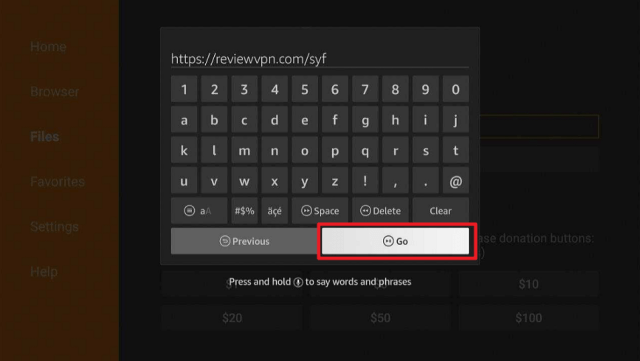
14. Type https://reviewvpn.com/syf and click go.

SyFy


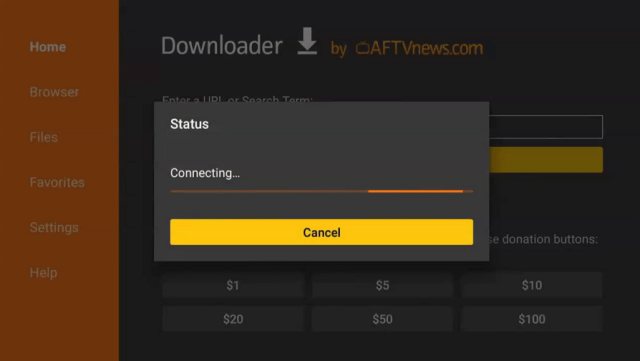
15. Wait for the APK to be downloaded.

SyFy

SyFy


16. Click install

SyFy


17. Click open.

SyFy


18. Click Let’s get started

SyFy


19. Sign Up for a Free Profile and start watching.

SyFy


20. SYFY is now installed! Enjoy!

SyFy

SyFy


YOUR INTERNET ACTIVITY IS BEING WATCHED

ReviewVPN cannot attest to the legality, security and privacy of the applications discussed on this site. It is highly recommended that you use a VPN service while streaming or using Kodi.

Currently, your IP 46.250.173.127 is visible to everyone and your Browser is being tracked by Advertisers & ISP Provider.

Save 65% Now

Limited Time Offer

Here are the main reasons why you must use a VPN:

  • Your activities are hidden from your ISP, the government, and from the apps you are using.
  • You can access additional movies and TV streams.
  • ISP attempts to throttle are thrwarted thus reducing buffering issues.
  • Geographically restricted content like Netflix and Hulu can be unblocked.

A VPN works be replacing your ISP-assigned IP address and creating an encrypted tunnel. We recommend the no log service offered by IPVanish. It works well on a Firestick and offers the fastest possible speeds.

Special Limited Time Offer - Get IPVanish


Legal Disclaimer: ReviewVPN.com does not encourage or endorse any illegal activity involved in the usage of services and applications referenced on this site. We do not verify the licensing agreements of services. The end-user is wholly responsible for ensuring that any media accessed through these services does not violate copyright and/or licensing laws. ReviewVPN does not promote, link to, or receive compensation from any Apps and IPTV services.


Install Surfshark on Firestick

Get the Best Surfshark Deal


SYFY App Features

  • 100% free
  • Not geo-restricted
  • Offers tons of movies and live TV channels
  • Easy-to-use
  • Applicable on different devices
  • Requires registration


Pros and Cons

Pros

  • Free
  • Lots of channels and shows are available


Cons

  • Not available on Amazon App Store
  • Need to register first before streaming


Stream Safely With A VPN

Surfshark vpn

We have to be careful when installing third-party apps on our devices. We are not familiar with the main sources from where these files were taken and even the sources of the shows and links they provide. It can be linked or hosted by malicious files that can harm our privacy and track our location and information.

To avoid these threats, and be safer when streaming, we need to use a reliable VPN service. A VPN is a powerful tool that can hide your IP address and provide a new one that can block all trackers from accessing your personal information and location. It can also bypass geo-restrictions giving access to a lot of apps, features, and websites safely.

If you are looking for the best one, Surfshark VPN is the best choice to secure your privacy against malicious trackers. It has the best military-grade VPN encryption in all of its available servers worldwide.

If you want to know more, read our  SurfShark VPN review.

Other SurfShark Features

  • 3200 servers available in 100+ countries
  • Best VPN for torrenting
  • Destroys geo-restriction
  • Dedicated IP
  • 30-day money-back guarantee
  • Cloud Storage
  • P2P friendly VPN
  • SOCKS5 Proxy
  • Allows Torrenting
  • Kill Switch
  • Split Tunneling
  • DNS Leak Protection
  • Prevents Firestick Buffering and Kodi Buffering

For more details about this VPN, read our SurfShark review.


Grab your subscription now!

Best Surfshark Deal


How to Install Surfshark on Firestick with Screenshots

If your Firestick still has the older interface, read this article to learn how to update it: Update Firestick Interface.

You can download Surfshark directly from the Amazon App Store. It will be easy for you to find Surfshark with your Firestick’s Find feature. Refer to our screenshots below.

Follow our screenshots below to install the SurfShark VPN app on your Fire TV stick.

1. Go to the Home screen of your Firestick.

step 1 Install Surfshark VPN on Firestick


2. Navigate toward the Find tab. Press the Search button from the resulting dropdown.

step 2 Install Surfshark VPN on Firestick


3. Type in the keyword of SurfShark and select from the suggestions that will appear.

step 3 Install Surfshark VPN on Firestick


4. Click the official SurfShark icon from your search results.

step 4 Install Surfshark VPN on Firestick


5. Press the Download (You Own it) button.

step 5 Install Surfshark VPN on Firestick


6. The SurfShark VPN installer will download on your device.

step 6 Install Surfshark VPN on Firestick


7. SurfShark VPN’s app will automatically install itself on your Fire TV stick.

step 7 Install Surfshark VPN on Firestick


8. Press the Open button after completing SurfShark VPN’s installation process.

step 8 Install Surfshark VPN on Firestick


9. Please wait for the SurfShark VPN to load its user interface.

step 9 Install Surfshark VPN on Firestick


10. You can now log in with your SurfShark VPN account credentials.

step 10 Install Surfshark VPN on Firestick

Learn more about Surfshark and Grab the Best Surfshark Deal Now!


Install Surfshark on Firestick

Best Surfshark Deal


Other VPNs to Consider

NordVPN (Best for Streaming)

Best Features

  • 5000+ Server in 50+ Countries 
  • Military-Grade Encryption
  • Fast Connection Speed
  • Suitable to a lot of devices
  • No-Log Policy

Prices
  • Complete $5.89 per month (64% Discount)
  • Plus $4.59 per month (56% Discount)
  • Standard $3.69 per month (55% Discount)

Best Features

  • 750+ High-speed VPN Servers in 43 Locations
  • Military-Grade Encryption
  • Fastest HD Streaming and Gaming
  • 30-Day Money-Back Guarantee
  • Unlimited Data & Devices
  • No-Log Policy

Prices
  • 3 Years $1.99 per month (82% Discount)
  • 1 Years $3.29 per month (70% Discount)
  • 1 Month $10.99 per month

IPVanish VPN (Most Secure)

Best Features

  • 1200+ Servers in 60+ Countries around the world
  • Unlimited Connections
  • No-Log Policy
  • Top Notch Military-Grade VPN Protocols and Encryptions
  • 100% Safe and Secured
  • Most Trusted VPN
  • Best VPN for Firestick
  • 30-Day Money-Back Guarantee

Prices
  • Yearly $3.99 per month (63% Discount) – 30 days risk free + Ransomware & Malware Protection
  • Quarterly $5.32 per month (51% Discount)
  • Monthly $10.99 per month


For more VPN discounts, go to ReviewVPN Deals and purchase the best VPN for you.

Click here for the lowest price on Surfshark through our exclusive limited-time offer.


Best SYFY App Alternatives

Aside from SYFY, there are many great apps that offer live TV channels, and movies at the same time to stream on Firestick and Android. Here are the best SYFY alternatives.


FAQs

What is SYFY?

SYFY is another platform from the NBC Universal family. It offers bot movies and live TV channels to stream on any device like Android and Firestick.


Is the SYFY App Legal?

ReviewVPN.com cannot determine the legality of any app or website. This article is for educational purposes only. To ensure that you are safe from any legal matters regarding the apps and websites you are using, use a VPN service like Surfshark.


Is the SYFY App Safe?

To ensure your safety and security when using the SYFY app on your devices, use a reliable VPN service like Surfshark VPN.


Is the SYFY App Free?

Yes. The SYFY app is 100% free but you need to register for an account to start streaming on this app.


Conclusion

SYFY is another great app to watch movies and TV shows for free. To stay safe from any trackers while streaming on any app such as SYFY, you need to use a reliable VPN like Surfshark.

How to Stream on WatchSeries Using Amazon Firestick

WatchSeries

This article will show you how to stream on WatchSeries using your Amazon Firestick device.

WatchSeries is a free movie and TV show streaming website that offers tons of great and updated content for the viewers. This website does not host any content it offers. Most links on this platform are from third-party sources and providers like Streamtape, VidStream, Filemoon, MyCloud, and more.

Upon checking out WatchSeries on Virus Total, there are a lot of suspicious and malicious files present. It is always better to check first the streaming website that you’ll be using in order to know if you are 100% safe from any dangerous files, and trackers. We do not recommend using this website more often unless you use a reliable VPN service. It is still your choice if you are still willing to pursue using the WatchSeries website on your device.

To stream WatchSeries on Amazon Firestick, you need to use a compatible browser. One of the best choices for Firestick is the Amazon Silk Browser. It is an official Amazon app so there is no need for you to jailbreak your Firestick and use the Downloader app to install. Continue reading to learn how you can use this app to stream the WatchSeries website on your Amazon Firestick device.


ANONYMOUSLY


How to Stream on the WatchSeries Website Using Amazon Firestick (Video)


How to Stream on the WatchSeries Website Using Amazon Firestick

1. Go to the Home screen of your Firestick.

WatchSeries


2. Click on Find.

WatchSeries


3. Tap on the Search tab.

WatchSeries


4. Type in Silk Browser and choose the item that appears on the results.

WatchSeries


5. Click on the Silk Browser Icon.

WatchSeries


6. Choose Download.

WatchSeries


7. Silk Browser is Downloading into your Firestick.

WatchSeries


8. The Silk Browser app will be installed on Firestick.

WatchSeries


9. Select Open to launch the browser.

WatchSeries


10. You can now start using Amazon Silk Browser.

WatchSeries


11. Tap on Cancel then Click Okay.

WatchSeries


12. Type in: “https://watchseries.id/” then click GO.

Watch Series


13. Click Go Home.

Watch Series


14. That’s it! Enjoy!

Watch Series


YOUR INTERNET ACTIVITY IS BEING WATCHED

ReviewVPN cannot attest to the legality, security and privacy of the applications discussed on this site. It is highly recommended that you use a VPN service while streaming or using Kodi.

Currently, your IP 46.250.173.127 is visible to everyone and your Browser is being tracked by Advertisers & ISP Provider.

Save 65% Now

Limited Time Offer

Here are the main reasons why you must use a VPN:

  • Your activities are hidden from your ISP, the government, and from the apps you are using.
  • You can access additional movies and TV streams.
  • ISP attempts to throttle are thrwarted thus reducing buffering issues.
  • Geographically restricted content like Netflix and Hulu can be unblocked.

A VPN works be replacing your ISP-assigned IP address and creating an encrypted tunnel. We recommend the no log service offered by IPVanish. It works well on a Firestick and offers the fastest possible speeds.

Special Limited Time Offer - Get IPVanish


Legal Disclaimer: ReviewVPN.com does not encourage or endorse any illegal activity involved in the usage of services and applications referenced on this site. We do not verify the licensing agreements of services. The end-user is wholly responsible for ensuring that any media accessed through these services does not violate copyright and/or licensing laws. ReviewVPN does not promote, link to, or receive compensation from any Apps and IPTV services.


Install Surfshark on Firestick

Get the Best Surfshark Deal


WatchSeries Website Features

  • 100% free
  • Lots of popular titles
  • Not geo-restricted
  • Easy-to-play videos
  • Sub-title supported


Pros and Cons

Pros

  • 100% free
  • Lots of titles to play


Cons

  • Contains malicious and suspicious files upon checking on Virus Total


Stream Safely With a VPN?

Surfshark vpn

The WatchSeries website contains some malicious and dangerous files upon checking on Virus Total. When streaming on different websites, make sure that you secure your privacy. Especially if you are not familiar with the website you are using. Most websites use your IP address to locate you and know your personal information. If your IP address is exposed, trackers can easily know your information.

The best way to protect yourself is to hide your IP address. You can do it by using a Virtual Private Network or VPN. A VPN can also help you access geo-restricted content, pages, sites, and apps since you will be connected to a different server. It is easy to bypass geo-restrictions if you are using a reliable VPN service. A VPN can connect your IP address to another location which unblocks geo-restrictions and provides access to a lot of features, and content.

Surfshark is the best VPN to bypass geo-restrictions and get rid of trackers at the same time. It is the only VPN to unblock all streaming platforms like Netflix, Hulu, and many more. Surfshark provides military-grade encryption to all of its available servers which helps you be safe when streaming on different platforms, apps, and websites.

Read our  SurfShark review to know more about this amazing VPN.

Other SurfShark Features

  • 3200 servers available in 100+ countries
  • Best VPN for torrenting
  • Destroys geo-restriction
  • Dedicated IP
  • 30-day money-back guarantee
  • Cloud Storage
  • P2P friendly VPN
  • SOCKS5 Proxy
  • Allows Torrenting
  • Kill Switch
  • Split Tunneling
  • DNS Leak Protection
  • Prevents Firestick Buffering and Kodi Buffering

For more details about this VPN, read our SurfShark review.


Grab your subscription now!

Best Surfshark Deal


How to Install Surfshark on Firestick with Screenshots

If your Firestick still has the older interface, read this article to learn how to update it: Update Firestick Interface.

You can download Surfshark directly from the Amazon App Store. It will be easy for you to find Surfshark with your Firestick’s Find feature. Refer to our screenshots below.

Follow our screenshots below to install the SurfShark VPN app on your Fire TV stick.

1. Go to the Home screen of your Firestick.

step 1 Install Surfshark VPN on Firestick


2. Navigate toward the Find tab. Press the Search button from the resulting dropdown.

step 2 Install Surfshark VPN on Firestick


3. Type in the keyword of SurfShark and select from the suggestions that will appear.

step 3 Install Surfshark VPN on Firestick


4. Click the official SurfShark icon from your search results.

step 4 Install Surfshark VPN on Firestick


5. Press the Download (You Own it) button.

step 5 Install Surfshark VPN on Firestick


6. The SurfShark VPN installer will download on your device.

step 6 Install Surfshark VPN on Firestick


7. SurfShark VPN’s app will automatically install itself on your Fire TV stick.

step 7 Install Surfshark VPN on Firestick


8. Press the Open button after completing SurfShark VPN’s installation process.

step 8 Install Surfshark VPN on Firestick


9. Please wait for the SurfShark VPN to load its user interface.

step 9 Install Surfshark VPN on Firestick


10. You can now log in with your SurfShark VPN account credentials.

step 10 Install Surfshark VPN on Firestick

Learn more about Surfshark and Grab the Best Surfshark Deal Now!


Install Surfshark on Firestick

Best Surfshark Deal


Other VPNs to Consider

NordVPN (Best for Streaming)

Best Features

  • 5000+ Server in 50+ Countries 
  • Military-Grade Encryption
  • Fast Connection Speed
  • Suitable to a lot of devices
  • No-Log Policy

Prices
  • Complete $5.89 per month (64% Discount)
  • Plus $4.59 per month (56% Discount)
  • Standard $3.69 per month (55% Discount)

Best Features

  • 750+ High-speed VPN Servers in 43 Locations
  • Military-Grade Encryption
  • Fastest HD Streaming and Gaming
  • 30-Day Money-Back Guarantee
  • Unlimited Data & Devices
  • No-Log Policy

Prices
  • 3 Years $1.99 per month (82% Discount)
  • 1 Years $3.29 per month (70% Discount)
  • 1 Month $10.99 per month

IPVanish VPN (Most Secure)

Best Features

  • 1200+ Servers in 60+ Countries around the world
  • Unlimited Connections
  • No-Log Policy
  • Top Notch Military-Grade VPN Protocols and Encryptions
  • 100% Safe and Secured
  • Most Trusted VPN
  • Best VPN for Firestick
  • 30-Day Money-Back Guarantee

Prices
  • Yearly $3.99 per month (63% Discount) – 30 days risk free + Ransomware & Malware Protection
  • Quarterly $5.32 per month (51% Discount)
  • Monthly $10.99 per month


For more VPN discounts, go to ReviewVPN Deals and purchase the best VPN for you.

Click here for the lowest price on Surfshark through our exclusive limited-time offer.


Best WatchSeries Alternatives

Aside from WatchSeries, you can use these alternatives to watch movies and TV shows on your device.


FAQs

What is WatchSeries?

WatchSeries is a free streaming website that offers tons of titles for movies and TV shows to watch on your device.


Is WatchSeries legal?

ReviewVPN.com cannot determine the legality of any app or website. This article is for educational purposes only. To make sure that you are safe from any legal matters regarding the apps and websites you are using, use a VPN service like Surfshark.


Is WatchSeries safe?

We tested the WatchSeries website on Virus Total and found some malicious and malicious files or threats. To make sure you are safe, use a reliable VPN like Surfshark.


Is WatchSeries Free?

The WatchSeries website is 100% free to use.


Conclusion

WatchSeries is a free streaming website. It is great to use but the only problem is that when we tested this on VirusTotal, there were some malicious and suspicious files present. To make yourself secure when streaming on this website, use a reliable VPN like Surfshark.

How to Watch Yellowstone on Amazon Firestick

Yellowstone

This article will show you how to watch Yellowstone on Amazon Firestick.

Yellowstone is one of the most popular, and anticipated series amongst millions of viewers. A lot of people search for how you can stream all of its seasons on different devices.

There are two ways you can watch all episodes of Yellowstone on your Amazon Firestick device. The first one is by using the official broadcaster of Yellowstone which is Paramount. Paramount is an official Amazon application that you can install on your device directly from the Amazon App Store. There is no need for you to jailbreak your Firestick and use the Downloader app to install this app.

The second one is through a free streaming website called gomovies. You can use any applicable browser to stream on this website, but for this article, we will show you how you can stream using the Amazon Silk Browser.

Make sure to use a reliable VPN service when streaming on different apps and websites to block all trackers and stream safely. It can also help you bypass geo-restrictions when you cannot access an app, website, content, features, and more. Continue reading to learn more.


ANONYMOUSLY


Stream Yellowstone on Paramount

Here is how you can easily install the Param

Follow our screenshots down below showing you how to install the Paramount Plus app on your Fire TV stick.

1. Navigate your Firestick’s Home screen.

Yellowstone


2. Press your remote’s scroll-right button to the Find tab.

Yellowstone


3. Choose Search from the dropdown.

Yellowstone


4. Type in Paramount Plus with your on-screen keyboard.

Yellowstone


5. Select the official Paramount Plus app.

Yellowstone


6. You can open the app and stream exclusive Paramount Plus programs and films.

Yellowstone


YOUR INTERNET ACTIVITY IS BEING WATCHED

ReviewVPN cannot attest to the legality, security and privacy of the applications discussed on this site. It is highly recommended that you use a VPN service while streaming or using Kodi.

Currently, your IP 46.250.173.127 is visible to everyone and your Browser is being tracked by Advertisers & ISP Provider.

Save 65% Now

Limited Time Offer

Here are the main reasons why you must use a VPN:

  • Your activities are hidden from your ISP, the government, and from the apps you are using.
  • You can access additional movies and TV streams.
  • ISP attempts to throttle are thrwarted thus reducing buffering issues.
  • Geographically restricted content like Netflix and Hulu can be unblocked.

A VPN works be replacing your ISP-assigned IP address and creating an encrypted tunnel. We recommend the no log service offered by IPVanish. It works well on a Firestick and offers the fastest possible speeds.

Special Limited Time Offer - Get IPVanish


Legal Disclaimer: ReviewVPN.com does not encourage or endorse any illegal activity involved in the usage of services and applications referenced on this site. We do not verify the licensing agreements of services. The end-user is wholly responsible for ensuring that any media accessed through these services does not violate copyright and/or licensing laws. ReviewVPN does not promote, link to, or receive compensation from any Apps and IPTV services.


Install Surfshark on Firestick

Get the Best Surfshark Deal


Stream Yellowstone Using Free Streaming Website

Streaming websites on Amazon Firestick should be done by installing the Silk Browser beforehand.

1. Go to the Home screen of your Firestick.

Yellowstone


2. Click on Find.

Yellowstone


3. Tap on the Search tab.

Yellowstone


4. Type in Silk Browser and choose the item that appears on the results.

Yellowstone


5. Click on the Silk Browser Icon.

Yellowstone


6. Choose Download.

Yellowstone


7. Silk Browser is Downloading into your Firestick.

Yellowstone


8. The Silk Browser app will be installed on Firestick.

Yellowstone


9. Select Open to launch the browser.

Yellowstone


10. You can now start using Amazon Silk Browser.

Yellowstone


11. Click Cancel.

Yellowstone


12. Click Okay.

Yellowstone


13. Enter the following URL – gomovies.sx

Yellowstone


14. This is the Official website of Gomovies. Easily search for the Yellowstone title and start streaming.

Yellowstone


Stream Safely With a VPN?

Surfshark vpn

There are two things why you should use a VPN when streaming on different apps and websites. The first one if for privacy and security. Since there are tons of trackers out there, your privacy is at risk. Trackers can easily know your personal information and location using your very own IP address. Your IP address serves as your online fingerprint, and when they are exposed, apps, websites, and even devices can easily track everything you are doing on the internet. Even your internet service provider and the government can track you using your IP address. A VPN can hide your IP address and connect you to an encrypted server so that trackers can no longer see all your information. You can stream privately and anonymously.

The second reason is for you to bypass geo-restrictions. There are some apps, websites, features, and content that are only available in certain countries or regions. When you are traveling a lot, your local IP won’t be able to access any of these. Since a VPN will connect you to a country or location of your choice, you can easily unblock geo-restrictions and enjoy streaming on your favorite shows.

Surfshark is the best VPN to bypass geo-restrictions and get rid of trackers at the same time. It is the only VPN to unblock all streaming platforms like Netflix, Hulu, and many more. Surfshark provides military-grade encryption to all of its available servers which helps you be safe when streaming on different platforms, apps, and websites.

Read our  SurfShark review to know more about this amazing VPN.

Other SurfShark Features

  • 3200 servers available in 100+ countries
  • Best VPN for torrenting
  • Destroys geo-restriction
  • Dedicated IP
  • 30-day money-back guarantee
  • Cloud Storage
  • P2P friendly VPN
  • SOCKS5 Proxy
  • Allows Torrenting
  • Kill Switch
  • Split Tunneling
  • DNS Leak Protection
  • Prevents Firestick Buffering and Kodi Buffering

For more details about this VPN, read our SurfShark review.


Grab your subscription now!

Best Surfshark Deal


How to Install Surfshark on Firestick with Screenshots

If your Firestick still has the older interface, read this article to learn how to update it: Update Firestick Interface.

You can download Surfshark directly from the Amazon App Store. It will be easy for you to find Surfshark with your Firestick’s Find feature. Refer to our screenshots below.

Follow our screenshots below to install the SurfShark VPN app on your Fire TV stick.

1. Go to the Home screen of your Firestick.

step 1 Install Surfshark VPN on Firestick


2. Navigate toward the Find tab. Press the Search button from the resulting dropdown.

step 2 Install Surfshark VPN on Firestick


3. Type in the keyword of SurfShark and select from the suggestions that will appear.

step 3 Install Surfshark VPN on Firestick


4. Click the official SurfShark icon from your search results.

step 4 Install Surfshark VPN on Firestick


5. Press the Download (You Own it) button.

step 5 Install Surfshark VPN on Firestick


6. The SurfShark VPN installer will download on your device.

step 6 Install Surfshark VPN on Firestick


7. SurfShark VPN’s app will automatically install itself on your Fire TV stick.

step 7 Install Surfshark VPN on Firestick


8. Press the Open button after completing SurfShark VPN’s installation process.

step 8 Install Surfshark VPN on Firestick


9. Please wait for the SurfShark VPN to load its user interface.

step 9 Install Surfshark VPN on Firestick


10. You can now log in with your SurfShark VPN account credentials.

step 10 Install Surfshark VPN on Firestick

Learn more about Surfshark and Grab the Best Surfshark Deal Now!


Install Surfshark on Firestick

Best Surfshark Deal


Other VPNs to Consider

NordVPN (Best for Streaming)

Best Features

  • 5000+ Server in 50+ Countries 
  • Military-Grade Encryption
  • Fast Connection Speed
  • Suitable to a lot of devices
  • No-Log Policy

Prices
  • Complete $5.89 per month (64% Discount)
  • Plus $4.59 per month (56% Discount)
  • Standard $3.69 per month (55% Discount)

Best Features

  • 750+ High-speed VPN Servers in 43 Locations
  • Military-Grade Encryption
  • Fastest HD Streaming and Gaming
  • 30-Day Money-Back Guarantee
  • Unlimited Data & Devices
  • No-Log Policy

Prices
  • 3 Years $1.99 per month (82% Discount)
  • 1 Years $3.29 per month (70% Discount)
  • 1 Month $10.99 per month

IPVanish VPN (Most Secure)

Best Features

  • 1200+ Servers in 60+ Countries around the world
  • Unlimited Connections
  • No-Log Policy
  • Top Notch Military-Grade VPN Protocols and Encryptions
  • 100% Safe and Secured
  • Most Trusted VPN
  • Best VPN for Firestick
  • 30-Day Money-Back Guarantee

Prices
  • Yearly $3.99 per month (63% Discount) – 30 days risk free + Ransomware & Malware Protection
  • Quarterly $5.32 per month (51% Discount)
  • Monthly $10.99 per month


For more VPN discounts, go to ReviewVPN Deals and purchase the best VPN for you.

Click here for the lowest price on Surfshark through our exclusive limited-time offer.


Other Websites Where You Can Stream Yellowstone on Firestick

Here are the best Mediaset Infinity alternatives that you can use to watch free movies and TV shows on your device.


FAQs

What is Yellowstone?

Yellowstone is a popular and award-winning TV series that you can watch on Paramount and Peacock. It is a story about a complicated family of ranchers.


Is Watching Yellowstone on Free Streaming Sites legal?

ReviewVPN.com cannot determine the legality of any app or website. This article is for educational purposes only. To make sure that you are safe from any legal matters regarding the apps and websites you are using, use a VPN service like Surfshark.


Is Streaming Yellowstone on Free Streaming Sites Safe?

For your safety, while watching any shows on different websites, use a VPN like Surfshark.


How many seasons are there for Yellowstone?

Yellowstone currently has 5 seasons.


Who are Yellowstone Casts?

Yellowstone has a great ensemble of casts. The main characters are Kevin Costner, Kelly Reilly, Cole Hauser, Luke Grimes, Taylor Sheridan, Kesley Asbille, Wes Bentley, and Jefferson White.


Conclusion

There are two ways you can stream Yellowstone on Amazon Firestick. The first option is by using official broadcaster apps like Paramount, and Peacock. The next one is by using free streaming websites like GoMovies.

When streaming on different apps and websites, make sure to use a reliable VPN like Surfshark to bypass geo-restriction and stream privately against malicious trackers.

How to Listen to Amazon Music Using your Firestick and Fire TV Devices

Amazon Music

This article will help you listen to your favorite songs on Amazon Music using your Firestick and Fire TV devices.

Amazon Music is definitely one of the many well-known music platforms worldwide. You can stream a variety of music content, podcasts, songs, tracks, and even music stations on this app.

Amazon Music is automatically installed on your Firestick device. But you won’t be able to listen on this platform unless you set up your account completely. You need to go to music.amazon.com/account/manage.

There is also another app called Amazon Music for Fire TV, but it is only available for compatible devices, and countries. You can easily bypass geo-restriction when you use a reliable VPN service on your device.

Since Amazon Music is an official Amazon app, there is no need to jailbreak your Firestick and use the Downloader app to install it. You can easily search for the app, open it, set up your account, and start listening. Continue reading this article to find out more.


ANONYMOUSLY


How to Listen to Amazon Music on Your Firestick and Fire TV Devices

1. From your home screen, go to the magnifying glass icon

Red Ball


2. Scroll down to the Search bar.

Amazon Music


3. Search for the Amazon Music app.

Amazon Music


4. Click the icon of the app when it appears on your screen.

Amazon Music


5. Open your browser on any device and go to music.amazon.com/account/manage to set up your account.


6. Go back to the Amazon Music App and click Try Again.


YOUR INTERNET ACTIVITY IS BEING WATCHED

ReviewVPN cannot attest to the legality, security and privacy of the applications discussed on this site. It is highly recommended that you use a VPN service while streaming or using Kodi.

Currently, your IP 46.250.173.127 is visible to everyone and your Browser is being tracked by Advertisers & ISP Provider.

Save 65% Now

Limited Time Offer

Here are the main reasons why you must use a VPN:

  • Your activities are hidden from your ISP, the government, and from the apps you are using.
  • You can access additional movies and TV streams.
  • ISP attempts to throttle are thrwarted thus reducing buffering issues.
  • Geographically restricted content like Netflix and Hulu can be unblocked.

A VPN works be replacing your ISP-assigned IP address and creating an encrypted tunnel. We recommend the no log service offered by IPVanish. It works well on a Firestick and offers the fastest possible speeds.

Special Limited Time Offer - Get IPVanish


Legal Disclaimer: ReviewVPN.com does not encourage or endorse any illegal activity involved in the usage of services and applications referenced on this site. We do not verify the licensing agreements of services. The end-user is wholly responsible for ensuring that any media accessed through these services does not violate copyright and/or licensing laws. ReviewVPN does not promote, link to, or receive compensation from any Apps and IPTV services.


Install Surfshark on Firestick

Get the Best Surfshark Deal


Amazon Music Subscription Plans

Amazon Music is not for free. The Prime and Individual Plans cost $8.99 a month. The Family Plan is $15.99 a month, the Single Device Plan is $4.99 a month, and while Student Plan is $0.99 a month.


Amazon Music Features

You will find a lot of features on Amazon Music. Here are the tabs that you can navigate throughout the app.

  • Home
  • Library
  • Recent
  • Search
  • Settings

Aside from these, here are other features that Amazon Music has to offer.

  • Offers millions of songs to stream on your device
  • Has plenty of podcasts to listen to
  • Provides Music Stations for random song selections
  • Allows you to create your own Playlist
  • Alexa support software
  • You can transfer files, and songs from other streaming devices
  • Simple and easy-to-use interface


Stream Safely With a VPN

Surfshark vpn

If you want to access the Amazon Music for Fire TV app from anywhere you are, you need to bypass geo-restriction. Geo-restriction is one of the major problems that streamers face all over the world. There are a lot of content, apps, websites, and features that are not available in the country or region they are living in. The only way to unblock this is by using a Virtual Private Network or VPN.

A VPN is powerful software that can connect you to a different server from a different location without disconnecting you from your original internet provider. What’s amazing is it will hide your real IP so trackers won’t be able to know your personal information and exact location. When you use a VPN, you can have an IP address connected in the US or other countries without hoping in the plane and actually being there.

When choosing the perfect VPN for Firestick and other devices, we always recommend using Surfshark. Surfshark is the only VPN that can unblock all streaming platforms even the most popular and strict ones like Netflix, Hulu, YouTube TV, and many more.

To know more about this amazing VPN, read our  SurfShark review.

Other SurfShark Features

  • 3200 servers available in 100+ countries
  • Best VPN for torrenting
  • Destroys geo-restriction
  • Dedicated IP
  • 30-day money-back guarantee
  • Cloud Storage
  • P2P friendly VPN
  • SOCKS5 Proxy
  • Allows Torrenting
  • Kill Switch
  • Split Tunneling
  • DNS Leak Protection
  • Prevents Firestick Buffering and Kodi Buffering

For more details about this VPN, read our SurfShark review.


Grab your subscription now!

Best Surfshark Deal


How to Install Surfshark on Firestick with Screenshots

If your Firestick still has the older interface, read this article to learn how to update it: Update Firestick Interface.

You can download Surfshark directly from the Amazon App Store. It will be easy for you to find Surfshark with your Firestick’s Find feature. Refer to our screenshots below.

Follow our screenshots below to install the SurfShark VPN app on your Fire TV stick.

1. Go to the Home screen of your Firestick.

step 1 Install Surfshark VPN on Firestick


2. Navigate toward the Find tab. Press the Search button from the resulting dropdown.

step 2 Install Surfshark VPN on Firestick


3. Type in the keyword of SurfShark and select from the suggestions that will appear.

step 3 Install Surfshark VPN on Firestick


4. Click the official SurfShark icon from your search results.

step 4 Install Surfshark VPN on Firestick


5. Press the Download (You Own it) button.

step 5 Install Surfshark VPN on Firestick


6. The SurfShark VPN installer will download on your device.

step 6 Install Surfshark VPN on Firestick


7. SurfShark VPN’s app will automatically install itself on your Fire TV stick.

step 7 Install Surfshark VPN on Firestick


8. Press the Open button after completing SurfShark VPN’s installation process.

step 8 Install Surfshark VPN on Firestick


9. Please wait for the SurfShark VPN to load its user interface.

step 9 Install Surfshark VPN on Firestick


10. You can now log in with your SurfShark VPN account credentials.

step 10 Install Surfshark VPN on Firestick

Learn more about Surfshark and Grab the Best Surfshark Deal Now!


Install Surfshark on Firestick

Best Surfshark Deal


Other VPNs to Consider

NordVPN (Best for Streaming)

Best Features

  • 5000+ Server in 50+ Countries 
  • Military-Grade Encryption
  • Fast Connection Speed
  • Suitable to a lot of devices
  • No-Log Policy

Prices
  • Complete $5.89 per month (64% Discount)
  • Plus $4.59 per month (56% Discount)
  • Standard $3.69 per month (55% Discount)

Best Features

  • 750+ High-speed VPN Servers in 43 Locations
  • Military-Grade Encryption
  • Fastest HD Streaming and Gaming
  • 30-Day Money-Back Guarantee
  • Unlimited Data & Devices
  • No-Log Policy

Prices
  • 3 Years $1.99 per month (82% Discount)
  • 1 Years $3.29 per month (70% Discount)
  • 1 Month $10.99 per month

IPVanish VPN (Most Secure)

Best Features

  • 1200+ Servers in 60+ Countries around the world
  • Unlimited Connections
  • No-Log Policy
  • Top Notch Military-Grade VPN Protocols and Encryptions
  • 100% Safe and Secured
  • Most Trusted VPN
  • Best VPN for Firestick
  • 30-Day Money-Back Guarantee

Prices
  • Yearly $3.99 per month (63% Discount) – 30 days risk free + Ransomware & Malware Protection
  • Quarterly $5.32 per month (51% Discount)
  • Monthly $10.99 per month


For more VPN discounts, go to ReviewVPN Deals and purchase the best VPN for you.

Click here for the lowest price on Surfshark through our exclusive limited-time offer.


Best Alternatives for Amazon Music

Amazon Music might be the best music app for Firestick and Fire TV devices, but there are still other great alternatives that you can install. Here they are:


FAQs

What is Amazon Music?

Amazon Music is the official music platform of Amazon. It offers streaming of millions of songs, tracks, podcasts, and music channels.


Is Amazon Music legal?

The Amazon Music App is 100% legal.


Is Amazon Music safe?

Amazon Music is 100% safe to use.


Is Amazon Music Free?

The Amazon Music app is automatically installed on your Firestick and Fire TV device, but using it is not for free. There are lots of subscription plans that you can use to enjoy streaming on Amazon Music.


Conclusion

Amazon Music is the official music app of Amazon. You can enjoy streaming on this app when you set up your account, but it is not for free.

You can also use a reliable VPN like Surfshark to bypass any geo-restriction features, songs, etc. on Amazon Music app.

How to Install The Sun App on Firestick and Android

The Sun

This article will show you how to install The Sun App on Firestick and Android devices.

The Sun App is a third-party application that provides a daily dose of news. This app is very much compatible with Android devices like mobile phones and tablets.

For Firestick users, this version of the Sun apk is expanded. But it is still compatible. We suggest you use the Mouse Toggle App to easily navigate through the Sun app using your Firestick.

Since The Sun app is a third-party application, you need to jailbreak your Firestick first and use the Downloader app in order to install it on your devices.

It is best to use a reliable VPN service when using any third-party application like The Sun app on any device. This is to make sure that you are safe from annoying trackers, and malicious domains. Continue reading to learn more about this application.


ANONYMOUSLY


The Sun APK Download for Android Devices


The Sun

Note: ReviewVPN.com does not host this APK file. It is hosted by Archive.org


How to Install The Sun On Firestick

1.  Click Home on your remote and scroll once to your Right. Click Setting (Gear Wheel Icon).

The Sun


2. Scroll down and to the right until you get to My Fire TV. Click on it.

The Sun


3. Select Developer options.

The Sun


4. Turn on ADB debugging and Apps from Unknown Sources.

The Sun


5. Click Turn On when the pop-up appears.

The Sun


6. Click Home, click FIND.

The Sun


7. Click Search.

The Sun


8. You can either say Downloader to your Alexa voice-enabled remote or start typing it. If you type it, click on the suggestion when it appears.

The Sun


9. Click on the Downloader Icon.

The Sun


10. Click Download.

The Sun

The Sun


11. Click on Open.

The Sun


12. Click on Allow.

The Sun


13. Use the Downloader search tab.

The Sun


14. Open the Downloader App. Type https://reviewvpn.com/tsu and click Go.

The Sun


15. Wait for the APK to be downloaded.

Doramasflix

The Sun


16. Click install

The Sun


17. Click open.

The Sun


18. The Sun is already installed.

The Sun


YOUR INTERNET ACTIVITY IS BEING WATCHED

ReviewVPN cannot attest to the legality, security and privacy of the applications discussed on this site. It is highly recommended that you use a VPN service while streaming or using Kodi.

Currently, your IP 46.250.173.127 is visible to everyone and your Browser is being tracked by Advertisers & ISP Provider.

Save 65% Now

Limited Time Offer

Here are the main reasons why you must use a VPN:

  • Your activities are hidden from your ISP, the government, and from the apps you are using.
  • You can access additional movies and TV streams.
  • ISP attempts to throttle are thrwarted thus reducing buffering issues.
  • Geographically restricted content like Netflix and Hulu can be unblocked.

A VPN works be replacing your ISP-assigned IP address and creating an encrypted tunnel. We recommend the no log service offered by IPVanish. It works well on a Firestick and offers the fastest possible speeds.

Special Limited Time Offer - Get IPVanish


Legal Disclaimer: ReviewVPN.com does not encourage or endorse any illegal activity involved in the usage of services and applications referenced on this site. We do not verify the licensing agreements of services. The end-user is wholly responsible for ensuring that any media accessed through these services does not violate copyright and/or licensing laws. ReviewVPN does not promote, link to, or receive compensation from any Apps and IPTV services.


Install Surfshark on Firestick

Get the Best Surfshark Deal


The Sun App Features

  • 100% free
  • Not geo-restricted
  • Provides daily news
  • Easy-to-use
  • More applicable to Android phones and tablets
  • Expanded screen on Firestick
  • Better to use with a Mouse Toggle


Pros and Cons

Pros

  • Free
  • Reliable news app


Cons

  • An expanded view on Firestick


Stream Safely With A VPN

Surfshark vpn

Beware when using third-party apps on Firestick and other devices. Apps from unknown sources sometimes have malicious files and domains that trigger the security of your privacy. These apps could know your locations, and even your personal information through the use of your IP address. When your IP address is exposed, trackers can easily access your online activities and whatnot.

To secure your privacy, you need to use a reliable VPN service like Surfshark. A VPN is a powerful tool that can hide your IP address and provide a new one that can help you get rid of trackers and even bypass geo-restrictions.

Surfshark is the best VPN in the market today. It has a great selection of servers from different locations that are all encrypted and safe. It is the only VPN to unblock all streaming platforms including Netflix, Hulu, and many more.

If you want to know more, read our  SurfShark VPN review.

Other SurfShark Features

  • 3200 servers available in 100+ countries
  • Best VPN for torrenting
  • Destroys geo-restriction
  • Dedicated IP
  • 30-day money-back guarantee
  • Cloud Storage
  • P2P friendly VPN
  • SOCKS5 Proxy
  • Allows Torrenting
  • Kill Switch
  • Split Tunneling
  • DNS Leak Protection
  • Prevents Firestick Buffering and Kodi Buffering

For more details about this VPN, read our SurfShark review.


Grab your subscription now!

Best Surfshark Deal


How to Install Surfshark on Firestick with Screenshots

If your Firestick still has the older interface, read this article to learn how to update it: Update Firestick Interface.

You can download Surfshark directly from the Amazon App Store. It will be easy for you to find Surfshark with your Firestick’s Find feature. Refer to our screenshots below.

Follow our screenshots below to install the SurfShark VPN app on your Fire TV stick.

1. Go to the Home screen of your Firestick.

step 1 Install Surfshark VPN on Firestick


2. Navigate toward the Find tab. Press the Search button from the resulting dropdown.

step 2 Install Surfshark VPN on Firestick


3. Type in the keyword of SurfShark and select from the suggestions that will appear.

step 3 Install Surfshark VPN on Firestick


4. Click the official SurfShark icon from your search results.

step 4 Install Surfshark VPN on Firestick


5. Press the Download (You Own it) button.

step 5 Install Surfshark VPN on Firestick


6. The SurfShark VPN installer will download on your device.

step 6 Install Surfshark VPN on Firestick


7. SurfShark VPN’s app will automatically install itself on your Fire TV stick.

step 7 Install Surfshark VPN on Firestick


8. Press the Open button after completing SurfShark VPN’s installation process.

step 8 Install Surfshark VPN on Firestick


9. Please wait for the SurfShark VPN to load its user interface.

step 9 Install Surfshark VPN on Firestick


10. You can now log in with your SurfShark VPN account credentials.

step 10 Install Surfshark VPN on Firestick

Learn more about Surfshark and Grab the Best Surfshark Deal Now!


Install Surfshark on Firestick

Best Surfshark Deal


Other VPNs to Consider

NordVPN (Best for Streaming)

Best Features

  • 5000+ Server in 50+ Countries 
  • Military-Grade Encryption
  • Fast Connection Speed
  • Suitable to a lot of devices
  • No-Log Policy

Prices
  • Complete $5.89 per month (64% Discount)
  • Plus $4.59 per month (56% Discount)
  • Standard $3.69 per month (55% Discount)

Best Features

  • 750+ High-speed VPN Servers in 43 Locations
  • Military-Grade Encryption
  • Fastest HD Streaming and Gaming
  • 30-Day Money-Back Guarantee
  • Unlimited Data & Devices
  • No-Log Policy

Prices
  • 3 Years $1.99 per month (82% Discount)
  • 1 Years $3.29 per month (70% Discount)
  • 1 Month $10.99 per month

IPVanish VPN (Most Secure)

Best Features

  • 1200+ Servers in 60+ Countries around the world
  • Unlimited Connections
  • No-Log Policy
  • Top Notch Military-Grade VPN Protocols and Encryptions
  • 100% Safe and Secured
  • Most Trusted VPN
  • Best VPN for Firestick
  • 30-Day Money-Back Guarantee

Prices
  • Yearly $3.99 per month (63% Discount) – 30 days risk free + Ransomware & Malware Protection
  • Quarterly $5.32 per month (51% Discount)
  • Monthly $10.99 per month


For more VPN discounts, go to ReviewVPN Deals and purchase the best VPN for you.

Click here for the lowest price on Surfshark through our exclusive limited-time offer.


Best Alternatives for The Sun App

For more news updates, here are the best news apps that you can use on your Firestick and Android devices.


FAQs

What is The Sun App?

The Sun app is a news application that covers a daily dose of information and happenings near you.


Is The Sun App Legal?

ReviewVPN.com cannot determine the legality of any app or website. This article is for educational purposes only. To ensure that you are safe from any legal matters regarding the apps and websites you are using, use a VPN service like Surfshark.


Is The Sun App Safe?

To ensure your safety and security when using the Sun app on your devices, use a reliable VPN service like Surfshark VPN.


Is The Sun App Free?

Yes. The Sun app is 100% free.


Conclusion

You can check out the Sun app on your device especially if you are using an Android phone or tablet. It is more compatible there compared to Firestick.

Make sure to use a reliable VPN like Surfshark when streaming onf any third-party application like the Sun app.

How to Install Skype on Firestick

Skype on Firestick

This article will discuss how to install Skype on your Amazon Firestick device.

Most of us are familiar with Skype. We use this app for communication like chatting, video calls, meetings, and more. But do you know that you can also install this app on Amazon Firestick?

Skype is also available on Firestick but not in all countries. Not like how it is available on all devices. When you use Skype on Firestick you can easily host HD video meetings and conferences. You can have as many as 50 participants when you host a video call on Skype using Amazon Firestick.

It is easy to install the Skype app on Firestick, especially if you are in the US and other applicable countries. This app is available in the Amazon App Store, you don’t need to jailbreak your Firestick and use the Downloader app to install it.

Since it is geo-restricted you can only use this app outside of the US if you use a reliable VPN service. Continue reading for more information.


ANONYMOUSLY


How to Install Skype on Firestick

Some countries won’t be able to search for the Skype app on their Amazon Firestick device. If your location is not geo-restricted for Skype installation, here is the best way for you to install this app.

  1. From your home screen, go to the magnifying glass icon
  2. Scroll down to Search
  3. Search for the Skype App
  4. Select the Skype icon when it appears on the screen
  5. Click the Get or Download button
  6. Wait for the app to be installed
  7. Click open to launch the app and start using Skype on Firestick


YOUR INTERNET ACTIVITY IS BEING WATCHED

ReviewVPN cannot attest to the legality, security and privacy of the applications discussed on this site. It is highly recommended that you use a VPN service while streaming or using Kodi.

Currently, your IP 46.250.173.127 is visible to everyone and your Browser is being tracked by Advertisers & ISP Provider.

Save 65% Now

Limited Time Offer

Here are the main reasons why you must use a VPN:

  • Your activities are hidden from your ISP, the government, and from the apps you are using.
  • You can access additional movies and TV streams.
  • ISP attempts to throttle are thrwarted thus reducing buffering issues.
  • Geographically restricted content like Netflix and Hulu can be unblocked.

A VPN works be replacing your ISP-assigned IP address and creating an encrypted tunnel. We recommend the no log service offered by IPVanish. It works well on a Firestick and offers the fastest possible speeds.

Special Limited Time Offer - Get IPVanish


Legal Disclaimer: ReviewVPN.com does not encourage or endorse any illegal activity involved in the usage of services and applications referenced on this site. We do not verify the licensing agreements of services. The end-user is wholly responsible for ensuring that any media accessed through these services does not violate copyright and/or licensing laws. ReviewVPN does not promote, link to, or receive compensation from any Apps and IPTV services.


Install Surfshark on Firestick

Get the Best Surfshark Deal


Skype Features

  • Provides users the capacity to conduct HD video meetings and calls
  • Call meetings let you record important portions of the video meetings
  • Free Skype to Skype calls
  • Easily shares presentations for meetings
  • Subscription is a must for group sharing


Pros and Cons

Pros

  • Amazing features for Skype users
  • Free calls for Skype to Skype


Cons

  • Geo-restricted or Not available to all countries (For Firestick devices)


Stream Safely With A VPN

Surfshark vpn

Geo-restriction is one of the main problems that most cord-cutters face nowadays. For the Skype app on Firestick, it is only available in certain countries. If you want to access it from anywhere on your Firestick device, you need to use a Virtual Private Network or VPN.

A VPN is a tool that can enhance your connection by hiding your original IP address and providing a new one that is encrypted and secured. It can bypass geo-restrictions and access apps, websites, features, and more anywhere in the world.

Surfshark is the best VPN to bypass geo-restriction. Among many other competitors, it is the only VPN to access even the most strict apps like Netflix, Hulu, and YouTube. It works properly with any application like Skype on Amazon Firestick devices.

If you want to know more, read our  SurfShark VPN review.

Other SurfShark Features

  • 3200 servers available in 100+ countries
  • Best VPN for torrenting
  • Destroys geo-restriction
  • Dedicated IP
  • 30-day money-back guarantee
  • Cloud Storage
  • P2P friendly VPN
  • SOCKS5 Proxy
  • Allows Torrenting
  • Kill Switch
  • Split Tunneling
  • DNS Leak Protection
  • Prevents Firestick Buffering and Kodi Buffering

For more details about this VPN, read our SurfShark review.


Grab your subscription now!

Best Surfshark Deal


How to Install Surfshark on Firestick with Screenshots

If your Firestick still has the older interface, read this article to learn how to update it: Update Firestick Interface.

You can download Surfshark directly from the Amazon App Store. It will be easy for you to find Surfshark with your Firestick’s Find feature. Refer to our screenshots below.

Follow our screenshots below to install the SurfShark VPN app on your Fire TV stick.

1. Go to the Home screen of your Firestick.

step 1 Install Surfshark VPN on Firestick


2. Navigate toward the Find tab. Press the Search button from the resulting dropdown.

step 2 Install Surfshark VPN on Firestick


3. Type in the keyword of SurfShark and select from the suggestions that will appear.

step 3 Install Surfshark VPN on Firestick


4. Click the official SurfShark icon from your search results.

step 4 Install Surfshark VPN on Firestick


5. Press the Download (You Own it) button.

step 5 Install Surfshark VPN on Firestick


6. The SurfShark VPN installer will download on your device.

step 6 Install Surfshark VPN on Firestick


7. SurfShark VPN’s app will automatically install itself on your Fire TV stick.

step 7 Install Surfshark VPN on Firestick


8. Press the Open button after completing SurfShark VPN’s installation process.

step 8 Install Surfshark VPN on Firestick


9. Please wait for the SurfShark VPN to load its user interface.

step 9 Install Surfshark VPN on Firestick


10. You can now log in with your SurfShark VPN account credentials.

step 10 Install Surfshark VPN on Firestick

Learn more about Surfshark and Grab the Best Surfshark Deal Now!


Install Surfshark on Firestick

Best Surfshark Deal


Other VPNs to Consider

NordVPN (Best for Streaming)

Best Features

  • 5000+ Server in 50+ Countries 
  • Military-Grade Encryption
  • Fast Connection Speed
  • Suitable to a lot of devices
  • No-Log Policy

Prices
  • Complete $5.89 per month (64% Discount)
  • Plus $4.59 per month (56% Discount)
  • Standard $3.69 per month (55% Discount)

Best Features

  • 750+ High-speed VPN Servers in 43 Locations
  • Military-Grade Encryption
  • Fastest HD Streaming and Gaming
  • 30-Day Money-Back Guarantee
  • Unlimited Data & Devices
  • No-Log Policy

Prices
  • 3 Years $1.99 per month (82% Discount)
  • 1 Years $3.29 per month (70% Discount)
  • 1 Month $10.99 per month

IPVanish VPN (Most Secure)

Best Features

  • 1200+ Servers in 60+ Countries around the world
  • Unlimited Connections
  • No-Log Policy
  • Top Notch Military-Grade VPN Protocols and Encryptions
  • 100% Safe and Secured
  • Most Trusted VPN
  • Best VPN for Firestick
  • 30-Day Money-Back Guarantee

Prices
  • Yearly $3.99 per month (63% Discount) – 30 days risk free + Ransomware & Malware Protection
  • Quarterly $5.32 per month (51% Discount)
  • Monthly $10.99 per month


For more VPN discounts, go to ReviewVPN Deals and purchase the best VPN for you.

Click here for the lowest price on Surfshark through our exclusive limited-time offer.


FAQs

What is the Skype App?

Skype is a well-known communication app that allows users to chat, host meetings, and video call for work or other purposes.


Is the Skype App Legal?

ReviewVPN.com cannot determine the legality of any app or website. This article is for educational purposes only. To ensure that you are safe from any legal matters regarding the apps and websites you are using, use a VPN service like Surfshark.


Is Skype App Safe?

The Skype app is safe to use on your Amazon Firestick or any other device. If you want to ensure your privacy, use a reliable VPN service like Surfshark VPN.


Is the Skype App Free?

Skype is free to install, but it is geo-restricted on Firestick. You can only install it on Firestick if you are in certain countries like the US.


Conclusion

Skype is a wonderful app to use for connection and communication but it is only available on Firestick in certain countries. Make sure to use a reliable VPN like Surfshark to access the app anywhere in the world.

How to Install Brasil TV on Android and Firestick

Brasil TV

This article will show you how to install the Brasil TV on your Firestick and Android devices.

Brasil TV is a free application that offers a wide selection of live TV channels. You can stream TV Classicos, Com Brasil, Loading TV, and many more. There are also some sports channels like All Sports TV, Xtreme TV, and more on this app.

Brasil TV is a third-party application that you can install on your Android and Firestick devices. Since it is not available on the official app stores, you need to jailbreak your Firestick first and use the Downloader app in order to install it.

Brasil TV is ad-supported. You will notice some ads at the bottom of the home screen of the app. Beware third-party apps with ads because they might track your location and information. It is best to protect your privacy with a reliable VPN service. Continue reading to know more.


ANONYMOUSLY


Brasil TV APK Download for Android Devices


Brasil TV

Note: ReviewVPN.com does not host this APK file. It is hosted by Archive.org


How to Install Brasil TV On Firestick (Video)


How to Install Brasil TV On Firestick

1.  Click Home on your remote and scroll once to your Right. Click Setting (Gear Wheel Icon).

Brasil TV


2. Scroll down and to the right until you get to My Fire TV. Click on it.

Brasil TV


3. Select Developer options.

Brasil TV


4. Turn on ADB debugging and Apps from Unknown Sources.

Brasil TV


5. Click Turn On when the pop-up appears.

Brasil TV


6. Click Home, click FIND.

Brasil TV


7. Click Search.

Brasil TV


8. You can either say Downloader to your Alexa voice-enabled remote or start typing it. If you type it, click on the suggestion when it appears.

Brasil TV


9. Click on the Downloader Icon.

Brasil TV


10. Click Download.

Brasil TV

Brasil TV


11. Click on Open.

Brasil TV


12. Click on Allow.

Brasil TV


13. Use the Downloader search tab.

Brasil TV


14. Open the Downloader App. Type https://reviewvpn.com/br and click Go.

Brasil TV


15. Wait for the APK to be downloaded.

Doramasflix

Brasil TV


16. Click install

Brasil TV


17. Click open.

Brasil TV


18. You can now watch on Brasil TV on your Firestick device.

Brasil TV


YOUR INTERNET ACTIVITY IS BEING WATCHED

ReviewVPN cannot attest to the legality, security and privacy of the applications discussed on this site. It is highly recommended that you use a VPN service while streaming or using Kodi.

Currently, your IP 46.250.173.127 is visible to everyone and your Browser is being tracked by Advertisers & ISP Provider.

Save 65% Now

Limited Time Offer

Here are the main reasons why you must use a VPN:

  • Your activities are hidden from your ISP, the government, and from the apps you are using.
  • You can access additional movies and TV streams.
  • ISP attempts to throttle are thrwarted thus reducing buffering issues.
  • Geographically restricted content like Netflix and Hulu can be unblocked.

A VPN works be replacing your ISP-assigned IP address and creating an encrypted tunnel. We recommend the no log service offered by IPVanish. It works well on a Firestick and offers the fastest possible speeds.

Special Limited Time Offer - Get IPVanish


Legal Disclaimer: ReviewVPN.com does not encourage or endorse any illegal activity involved in the usage of services and applications referenced on this site. We do not verify the licensing agreements of services. The end-user is wholly responsible for ensuring that any media accessed through these services does not violate copyright and/or licensing laws. ReviewVPN does not promote, link to, or receive compensation from any Apps and IPTV services.


Install Surfshark on Firestick

Get the Best Surfshark Deal


Brasil TV Features

  • 100% free
  • Not geo-restricted
  • Offers tons of live TV channels
  • Easy-to-use
  • Applicable on different devices
  • Ad-supported


Pros and Cons

Pros

  • Free
  • Lots of channels available


Cons

  • Not available on Amazon App Store
  • Ad-supported


Stream Safely With A VPN

Surfshark vpn

Most third-party apps with ads commonly track users based on how they search, or stream. They also provide advertisements based on your location. Trackers can quickly know your information when your IP address is exposed. This is why you need to use a Virtual Private Network or VPN.

A VPN is a powerful tool that can hide your IP address and provide a new one that can block all trackers from accessing your personal information and location. It can also bypass geo-restrictions giving access to a lot of apps, features, and websites safely.

If you are looking for the best one, Surfshark VPN is the best choice to secure your privacy against malicious trackers. It has the best military-grade VPN encryption in all of its available servers worldwide.

If you want to know more, read our  SurfShark VPN review.

Other SurfShark Features

  • 3200 servers available in 100+ countries
  • Best VPN for torrenting
  • Destroys geo-restriction
  • Dedicated IP
  • 30-day money-back guarantee
  • Cloud Storage
  • P2P friendly VPN
  • SOCKS5 Proxy
  • Allows Torrenting
  • Kill Switch
  • Split Tunneling
  • DNS Leak Protection
  • Prevents Firestick Buffering and Kodi Buffering

For more details about this VPN, read our SurfShark review.


Grab your subscription now!

Best Surfshark Deal


How to Install Surfshark on Firestick with Screenshots

If your Firestick still has the older interface, read this article to learn how to update it: Update Firestick Interface.

You can download Surfshark directly from the Amazon App Store. It will be easy for you to find Surfshark with your Firestick’s Find feature. Refer to our screenshots below.

Follow our screenshots below to install the SurfShark VPN app on your Fire TV stick.

1. Go to the Home screen of your Firestick.

step 1 Install Surfshark VPN on Firestick


2. Navigate toward the Find tab. Press the Search button from the resulting dropdown.

step 2 Install Surfshark VPN on Firestick


3. Type in the keyword of SurfShark and select from the suggestions that will appear.

step 3 Install Surfshark VPN on Firestick


4. Click the official SurfShark icon from your search results.

step 4 Install Surfshark VPN on Firestick


5. Press the Download (You Own it) button.

step 5 Install Surfshark VPN on Firestick


6. The SurfShark VPN installer will download on your device.

step 6 Install Surfshark VPN on Firestick


7. SurfShark VPN’s app will automatically install itself on your Fire TV stick.

step 7 Install Surfshark VPN on Firestick


8. Press the Open button after completing SurfShark VPN’s installation process.

step 8 Install Surfshark VPN on Firestick


9. Please wait for the SurfShark VPN to load its user interface.

step 9 Install Surfshark VPN on Firestick


10. You can now log in with your SurfShark VPN account credentials.

step 10 Install Surfshark VPN on Firestick

Learn more about Surfshark and Grab the Best Surfshark Deal Now!


Install Surfshark on Firestick

Best Surfshark Deal


Other VPNs to Consider

NordVPN (Best for Streaming)

Best Features

  • 5000+ Server in 50+ Countries 
  • Military-Grade Encryption
  • Fast Connection Speed
  • Suitable to a lot of devices
  • No-Log Policy

Prices
  • Complete $5.89 per month (64% Discount)
  • Plus $4.59 per month (56% Discount)
  • Standard $3.69 per month (55% Discount)

Best Features

  • 750+ High-speed VPN Servers in 43 Locations
  • Military-Grade Encryption
  • Fastest HD Streaming and Gaming
  • 30-Day Money-Back Guarantee
  • Unlimited Data & Devices
  • No-Log Policy

Prices
  • 3 Years $1.99 per month (82% Discount)
  • 1 Years $3.29 per month (70% Discount)
  • 1 Month $10.99 per month

IPVanish VPN (Most Secure)

Best Features

  • 1200+ Servers in 60+ Countries around the world
  • Unlimited Connections
  • No-Log Policy
  • Top Notch Military-Grade VPN Protocols and Encryptions
  • 100% Safe and Secured
  • Most Trusted VPN
  • Best VPN for Firestick
  • 30-Day Money-Back Guarantee

Prices
  • Yearly $3.99 per month (63% Discount) – 30 days risk free + Ransomware & Malware Protection
  • Quarterly $5.32 per month (51% Discount)
  • Monthly $10.99 per month


For more VPN discounts, go to ReviewVPN Deals and purchase the best VPN for you.

Click here for the lowest price on Surfshark through our exclusive limited-time offer.


Best Brasil TV Alternatives

Aside from Brasil TV, many great apps offer live TV channels on Firestick and Android. Here are the best Brasil TV alternatives.


FAQs

What is Brasil TV?

Brasil TV is a third-party app that offers tons of live TV channels to stream on any device.


Is Brasil TV Legal?

ReviewVPN.com cannot determine the legality of any app or website. This article is for educational purposes only. To ensure that you are safe from any legal matters regarding the apps and websites you are using, use a VPN service like Surfshark.


Is Brasil TV Safe?

To ensure your safety and security when using the Brasil TV app on your devices, use a reliable VPN service like Surfshark VPN.


Is Brasil TV Free?

Yes. Brasil TV is 100% free.


Conclusion

If you like live TV channels in one app, then you should try Brasil TV. Although most of the channels are based in Brazil, there are other channels for sports and other genres.

Make sure to use a reliable VPN like Surfshark when streaming on different third-party apps like Brasil TV.


How to Watch WNBA on Firestick

WNBA

This article will show you how to watch the WNBA on your Amazon Firestick device.

WNBA or the Women’s National Basketball Association is one of the many basketball leagues in the USA 12 teams from all over the US compete to dominate in the championship.

If you are an avid basketball fan, you will definitely enjoy watching the WNBA on your Amazon Firestick. The best way to watch the games on your device is by using premium subscription platforms like YouTube TV, Fubo TV, and Sling TV. These apps are paid subscription apps that offer tons of channels. Some of the channels are those that televise the WNBA like ABC, ESPN, NBA TV, and CBS.

All of these apps are official Amazon apps. There is no need for you to jailbreak your Firestick and use the Downloader app to install them.

Some of them are geo-restricted. You need to use a reliable VPN service in order to bypass geo-restriction and stream the games wherever you are located in the world.


ANONYMOUSLY


Best Apps to Watch WNBA on Firestick

YouTube TV

youtube-tv-logo-2000px

Youtube TV is a great app that provides a superb list of channels for Sports, Entertainment, and News. This app has an excellent DVR function that you can use whenever you miss something. This is why it is one of the best apps to watch WNBA on your Amazon Firestick device.

This app is not for free. YouTube TV offers 70 channels including ESPN and other channels to stream WNBA for  $64.99 a month for the first three months. In the fourth month, the subscription price will increase to $72.99 a month.  Follow the steps below to know how you can install YouTube TV on Firestick easily

How to Install YouTube TV on Firestick


Sling TV

Sling TV Logo

Sling TV is definitely one of the best choices when it comes to live TV and sports streaming. It is also one of the great options to watch the WNBA on Firestick

Sling TV is a popular streaming service that offers up to 30 channels. Currently, it has 2 types of service packages, Sling Blue and Sling Orange. The Sling Blue costs $30 a month while Sling Orange costs $35 a month.

The Sling TV service is customizable. You can combine both packages or you can have add-ons for Sports and Comedy for a $50 subscription a month.

How to Install Sling TV Firestick


Fubo TV

Fubo tv

Fubo TV is one of the best apps that can let you stream the WNBA Amazon Firestick even without any cable subscription. This app offers more than 200 channels where you can watch tons of live TV shows and sports. Most of the categories included on Fubo TV are kids, sports, news, movies, and documentaries.

Compared to the first two options above, Fubo TV is quite pricier. Given the number of channels it provides, you can say that it is worth its cost. Fubo TV costs $64.99 a month. It also offers a 7-day free trial if you are a first-time user of the app. Read the article below to learn more about Fubo TV.

How to Install Fubo TV on Firestick


YOUR INTERNET ACTIVITY IS BEING WATCHED

ReviewVPN cannot attest to the legality, security and privacy of the applications discussed on this site. It is highly recommended that you use a VPN service while streaming or using Kodi.

Currently, your IP 46.250.173.127 is visible to everyone and your Browser is being tracked by Advertisers & ISP Provider.

Save 65% Now

Limited Time Offer

Here are the main reasons why you must use a VPN:

  • Your activities are hidden from your ISP, the government, and from the apps you are using.
  • You can access additional movies and TV streams.
  • ISP attempts to throttle are thrwarted thus reducing buffering issues.
  • Geographically restricted content like Netflix and Hulu can be unblocked.

A VPN works be replacing your ISP-assigned IP address and creating an encrypted tunnel. We recommend the no log service offered by IPVanish. It works well on a Firestick and offers the fastest possible speeds.

Special Limited Time Offer - Get IPVanish


Legal Disclaimer: ReviewVPN.com does not encourage or endorse any illegal activity involved in the usage of services and applications referenced on this site. We do not verify the licensing agreements of services. The end-user is wholly responsible for ensuring that any media accessed through these services does not violate copyright and/or licensing laws. ReviewVPN does not promote, link to, or receive compensation from any Apps and IPTV services.


Install Surfshark on Firestick

Get the Best Surfshark Deal


CBS Sports

CBS Sports 1

CBS Sports is one of the best channels to stream the WNBA matches on your device.

This app provides the best game highlights, replays, live events, and more.

You can also stream on CBS Sports using other devices like Android and Roku.

The app covers many sports categories. Aside from teh Women’s National Basketball Associatuon, you can expect content from football, rugby, soccer, hockey, golf, and many more.

Follow our guide to easily install this on your device.

How to Install CBS Sports on Firestick


ESPN+

ESPN_Plus App Icon 1

When we talk about sports, ESPN+ is a very popular option. It offers tons of great sports content. Although, most of the sports that you can watch on ESPN are the latest Boxing match, MMA, and UFC pay-per-view events.

This app also offers live streaming of the WNBA, which makes it one of the best options on this list.

You can also have this app with your Android or Roku devices.

It can easily be downloaded on your Firestick or Fire TV. Just follow the link below.

How to Install ESPN+ on Firestick


Stream WNBA Safely With A VPN

Surfshark vpn

Most of the apps mentioned above are only available in certain countries like the US. If you are located outside the country and wish to stream on WNBA on geo-restricted apps, you won’t be able to do so. Unless you connect your VPN to a different server.

A VPN is a great technology that hides your IP address from any trackers, and connect you to a different server to bypass geo-restriction and access any apps, websites, and features safely.

Surfshark VPN is the best VPN in the market today. It is a great combination of safety and accessibility. This VPN has the best military-grade encryption to all of its available servers and IPs. This can make sure that users are safe from trackers and any malicious domains. It is also the only VPN to unblock all streaming platforms even the most strict ones like Netflix, Hulu, YouTube TV, and more.

If you want to know more, read our  SurfShark VPN review.

Other SurfShark Features

  • 3200 servers available in 100+ countries
  • Best VPN for torrenting
  • Destroys geo-restriction
  • Dedicated IP
  • 30-day money-back guarantee
  • Cloud Storage
  • P2P friendly VPN
  • SOCKS5 Proxy
  • Allows Torrenting
  • Kill Switch
  • Split Tunneling
  • DNS Leak Protection
  • Prevents Firestick Buffering and Kodi Buffering

For more details about this VPN, read our SurfShark review.


Grab your subscription now!

Best Surfshark Deal


How to Install Surfshark on Firestick with Screenshots

If your Firestick still has the older interface, read this article to learn how to update it: Update Firestick Interface.

You can download Surfshark directly from the Amazon App Store. It will be easy for you to find Surfshark with your Firestick’s Find feature. Refer to our screenshots below.

Follow our screenshots below to install the SurfShark VPN app on your Fire TV stick.

1. Go to the Home screen of your Firestick.

step 1 Install Surfshark VPN on Firestick


2. Navigate toward the Find tab. Press the Search button from the resulting dropdown.

step 2 Install Surfshark VPN on Firestick


3. Type in the keyword of SurfShark and select from the suggestions that will appear.

step 3 Install Surfshark VPN on Firestick


4. Click the official SurfShark icon from your search results.

step 4 Install Surfshark VPN on Firestick


5. Press the Download (You Own it) button.

step 5 Install Surfshark VPN on Firestick


6. The SurfShark VPN installer will download on your device.

step 6 Install Surfshark VPN on Firestick


7. SurfShark VPN’s app will automatically install itself on your Fire TV stick.

step 7 Install Surfshark VPN on Firestick


8. Press the Open button after completing SurfShark VPN’s installation process.

step 8 Install Surfshark VPN on Firestick


9. Please wait for the SurfShark VPN to load its user interface.

step 9 Install Surfshark VPN on Firestick


10. You can now log in with your SurfShark VPN account credentials.

step 10 Install Surfshark VPN on Firestick

Learn more about Surfshark and Grab the Best Surfshark Deal Now!


Install Surfshark on Firestick

Best Surfshark Deal


Other VPNs to Consider

NordVPN (Best for Streaming)

Best Features

  • 5000+ Server in 50+ Countries 
  • Military-Grade Encryption
  • Fast Connection Speed
  • Suitable to a lot of devices
  • No-Log Policy

Prices
  • Complete $5.89 per month (64% Discount)
  • Plus $4.59 per month (56% Discount)
  • Standard $3.69 per month (55% Discount)

Best Features

  • 750+ High-speed VPN Servers in 43 Locations
  • Military-Grade Encryption
  • Fastest HD Streaming and Gaming
  • 30-Day Money-Back Guarantee
  • Unlimited Data & Devices
  • No-Log Policy

Prices
  • 3 Years $1.99 per month (82% Discount)
  • 1 Years $3.29 per month (70% Discount)
  • 1 Month $10.99 per month

IPVanish VPN (Most Secure)

Best Features

  • 1200+ Servers in 60+ Countries around the world
  • Unlimited Connections
  • No-Log Policy
  • Top Notch Military-Grade VPN Protocols and Encryptions
  • 100% Safe and Secured
  • Most Trusted VPN
  • Best VPN for Firestick
  • 30-Day Money-Back Guarantee

Prices
  • Yearly $3.99 per month (63% Discount) – 30 days risk free + Ransomware & Malware Protection
  • Quarterly $5.32 per month (51% Discount)
  • Monthly $10.99 per month


For more VPN discounts, go to ReviewVPN Deals and purchase the best VPN for you.

Click here for the lowest price on Surfshark through our exclusive limited-time offer.

Conclusion

You can stream the WNBA on Amazon Firestick using premium apps and channels like YouTube TV, Sling TV, Fubo TV, CBS Sports, ESPN, and many more. Make sure to use a reliable VPN like Surfshark to stream on any sports app safely.

How to Stream on FX Now Using Amazon Firestick

FX Now

This article will show you how to install and watch FX Now on Amazon Firestick.

FX Now is one of the new apps that offer streaming of different movies, TV shows, and even live TV channels on devices like Amazon Firestick. The FX Now app is very straightforward and easy to use. This is similar to the official website of FX Now, where you can also watch your favorite titles at any time.

There are two ways you can stream on FX Now using your Amazon Firestick. The first one is by installing the official app of FX Now directly from the Amazon App Store. Since it is a direct installation, there is no need for you to jailbreak your Firestick, and use the Downloader app.

The next one is by using the official website of FX Now. Using any available browser on Firestick like the Amazon Silk Browser, you can stream on any website. We will show both ways later in this article.

FX Now is geo-restricted. Both the app and website cannot be accessed if you are located outside the US. Use a reliable VPN service to make sure that you can stream on FX Now wherever you are located.


ANONYMOUSLY


How to Install FX Now on Firestick

This direct installation is only available or applicable if you are in the US. Follow the easy steps below to know how.

  1. From your Home screen, go to the magnifying glass icon.
  2. Scroll down to Search
  3. Search for the FX Now app
  4. Click on the icon of the app once it appears on your screen
  5. Select Get or Download
  6. Wait for the app to be installed
  7. Click Open to launch the app


Video on How to Stream on the FX Now Website on Firestick (Even Outside the US)


How to Stream on the FX Now Website on Firestick (Even Outside the US)

If you are outside the USA and want to stream on FX Now, you can do so by using its official website. You can use any browser you like, just make sure that your VPN is connected to a US server so you can bypass geo-restriction.

For this process, we will use the Amazon Silk Browser.

1. Go to the Home screen of your Firestick.

Mediaset Infinity


2. Click on Find.

Mediaset Infinity


3. Tap on the Search tab.

Mediaset Infinity


4. Type in Silk Browser and choose the item that appears on the results.

Mediaset Infinity


5. Click on the Silk Browser Icon.

Mediaset Infinity


6. Choose Download.

Mediaset Infinity


7. Silk Browser is Downloading into your Firestick.

Mediaset Infinity


8. The Silk Browser app will be installed on Firestick.

Mediaset Infinity


9. Select Open to launch the browser.

Mediaset Infinity


10. You can now start using Amazon Silk Browser.

Mediaset Infinity


11. Click Cancel.

Mediaset Infinity


12. Click Okay.

Mediaset Infinity


13. Enter the following URL – https://fxnow.fxnetworks.com

Mediaset Infinity


14. You can now stream on FX Now on Firestick.

FX Now


YOUR INTERNET ACTIVITY IS BEING WATCHED

ReviewVPN cannot attest to the legality, security and privacy of the applications discussed on this site. It is highly recommended that you use a VPN service while streaming or using Kodi.

Currently, your IP 46.250.173.127 is visible to everyone and your Browser is being tracked by Advertisers & ISP Provider.

Save 65% Now

Limited Time Offer

Here are the main reasons why you must use a VPN:

  • Your activities are hidden from your ISP, the government, and from the apps you are using.
  • You can access additional movies and TV streams.
  • ISP attempts to throttle are thrwarted thus reducing buffering issues.
  • Geographically restricted content like Netflix and Hulu can be unblocked.

A VPN works be replacing your ISP-assigned IP address and creating an encrypted tunnel. We recommend the no log service offered by IPVanish. It works well on a Firestick and offers the fastest possible speeds.

Special Limited Time Offer - Get IPVanish


Legal Disclaimer: ReviewVPN.com does not encourage or endorse any illegal activity involved in the usage of services and applications referenced on this site. We do not verify the licensing agreements of services. The end-user is wholly responsible for ensuring that any media accessed through these services does not violate copyright and/or licensing laws. ReviewVPN does not promote, link to, or receive compensation from any Apps and IPTV services.


Install Surfshark on Firestick

Get the Best Surfshark Deal


You can also Stream FX Now on These Apps

There are different applications where you can stream FX Now on your device. Here are they:


FX Now Features

  • Offers live TV channels, schedules, movies, and TV shows
  • User-friendly interface
  • Available only on US servers
  • Requires cable subscription


Pros and Cons

Pros

  • Easy to use
  • Available on different platforms


Cons

  • Geo-restricted


Access FX Now Outside The US

Surfshark vpn

FX Now is only available if you are in the US. Geo-restriction is one of the major problems that cord-cutters face, but it is easy to solve. By using a reliable VPN, you can connect to a different server from a preferred location. This will help you bypass geo-restrictions easily and access apps, websites, features, and content that were originally not available in your area.

Another best thing when using a VPN is that it can help you hide your identity from annoying ads and malicious trackers. There are tons of trackers out there that collect your information. This is dangerous to your privacy and by using a VPN, it encrypts your IP address which trackers use to gain your information.

Surfshark is the best VPN to bypass geo-restrictions and get rid of trackers at the same time. It is the only VPN to unblock all streaming platforms like Netflix, Hulu, and many more. Surfshark provides military-grade encryption to all of its available servers which helps you be safe when streaming on different platforms, apps, and websites.

Read our  SurfShark review to know more about this amazing VPN.

Other SurfShark Features

  • 3200 servers available in 100+ countries
  • Best VPN for torrenting
  • Destroys geo-restriction
  • Dedicated IP
  • 30-day money-back guarantee
  • Cloud Storage
  • P2P friendly VPN
  • SOCKS5 Proxy
  • Allows Torrenting
  • Kill Switch
  • Split Tunneling
  • DNS Leak Protection
  • Prevents Firestick Buffering and Kodi Buffering

For more details about this VPN, read our SurfShark review.


Grab your subscription now!

Best Surfshark Deal


How to Install Surfshark on Firestick with Screenshots

If your Firestick still has the older interface, read this article to learn how to update it: Update Firestick Interface.

You can download Surfshark directly from the Amazon App Store. It will be easy for you to find Surfshark with your Firestick’s Find feature. Refer to our screenshots below.

Follow our screenshots below to install the SurfShark VPN app on your Fire TV stick.

1. Go to the Home screen of your Firestick.

step 1 Install Surfshark VPN on Firestick


2. Navigate toward the Find tab. Press the Search button from the resulting dropdown.

step 2 Install Surfshark VPN on Firestick


3. Type in the keyword of SurfShark and select from the suggestions that will appear.

step 3 Install Surfshark VPN on Firestick


4. Click the official SurfShark icon from your search results.

step 4 Install Surfshark VPN on Firestick


5. Press the Download (You Own it) button.

step 5 Install Surfshark VPN on Firestick


6. The SurfShark VPN installer will download on your device.

step 6 Install Surfshark VPN on Firestick


7. SurfShark VPN’s app will automatically install itself on your Fire TV stick.

step 7 Install Surfshark VPN on Firestick


8. Press the Open button after completing SurfShark VPN’s installation process.

step 8 Install Surfshark VPN on Firestick


9. Please wait for the SurfShark VPN to load its user interface.

step 9 Install Surfshark VPN on Firestick


10. You can now log in with your SurfShark VPN account credentials.

step 10 Install Surfshark VPN on Firestick

Learn more about Surfshark and Grab the Best Surfshark Deal Now!


Install Surfshark on Firestick

Best Surfshark Deal


Other VPNs to Consider

NordVPN (Best for Streaming)

Best Features

  • 5000+ Server in 50+ Countries 
  • Military-Grade Encryption
  • Fast Connection Speed
  • Suitable to a lot of devices
  • No-Log Policy

Prices
  • Complete $5.89 per month (64% Discount)
  • Plus $4.59 per month (56% Discount)
  • Standard $3.69 per month (55% Discount)

Best Features

  • 750+ High-speed VPN Servers in 43 Locations
  • Military-Grade Encryption
  • Fastest HD Streaming and Gaming
  • 30-Day Money-Back Guarantee
  • Unlimited Data & Devices
  • No-Log Policy

Prices
  • 3 Years $1.99 per month (82% Discount)
  • 1 Years $3.29 per month (70% Discount)
  • 1 Month $10.99 per month

IPVanish VPN (Most Secure)

Best Features

  • 1200+ Servers in 60+ Countries around the world
  • Unlimited Connections
  • No-Log Policy
  • Top Notch Military-Grade VPN Protocols and Encryptions
  • 100% Safe and Secured
  • Most Trusted VPN
  • Best VPN for Firestick
  • 30-Day Money-Back Guarantee

Prices
  • Yearly $3.99 per month (63% Discount) – 30 days risk free + Ransomware & Malware Protection
  • Quarterly $5.32 per month (51% Discount)
  • Monthly $10.99 per month


For more VPN discounts, go to ReviewVPN Deals and purchase the best VPN for you.

Click here for the lowest price on Surfshark through our exclusive limited-time offer.


Best Alternatives to FX Now

Aside from FX Now, here are the best apps that you can use to watch movies, TV shows, and live TV channels.


FAQs

What is FX Now?

FX Now is a US-based platform that offers tons of great movies, TV shows, and live channels to stream on different devices like Amazon Firestick.


Is FX Now legal?

ReviewVPN.com cannot determine the legality of any app or website. This article is for educational purposes only. To make sure that you are safe from any legal matters regarding the apps and websites you are using, use a VPN service like Surfshark.


Is FX Now safe?

It is safe to use the FX Now app and website on your Amazon Firestick device.


Is FX Now Free?

You need a cable subscription in order to stream on FX Now.


Conclusion

FX Now is an amazing app that offers tons of great shows, titles, and channels to stream on Amazon Firestick. You need a cable subscription in order to stream on this platform, and it is only available if you are in the US. Otherwise, you need to use a reliable VPN like Surfshark to bypass geo-restriction and enjoy watching on FX Now from anywhere in the world.

How to Watch DC Movies on Firestick

DC Movies

In this article, we will show you how you can watch your favorite DC movies on your Amazon Firestick device.

DC movies, produced by DC Studios, tell some of the greatest stories about different superheroes known to many. If you want to watch Batman, Superman, Wonder Woman, or even the Justice League, then you should check out these titles.

DC Studios is an American film production company under Warner Bros. production.

If you want to watch your favorite DC movies on Firestick, without any ads then you should follow this guide. We feature specific websites, and apps for you to check out.

There are two ways to watch DC movies on Firestick. You can use the Amazon Silk Browser and stream on different websites like cineb, flixtor, and streamM4u.

You can also watch DC movies using third-party apps like Cinema HD, Nova TV, Ocean Streamz, Terrarium TV, and Titanium TV. Since they are third-party apps, you need to jailbreak Firestick and use the Downloader app to install them.

Make sure to use a reliable VPN service when streaming on different websites and apps to make sure that your privacy is protected against malicious domains and trackers.


ANONYMOUSLY


How to Install The Amazon Silk Browser on Firestick

In order to watch DC movies on Firestick using different websites, you need to use the Amazon Silk Browser or other available browsers on your device.

Here is how you can install the Amazon Silk Browser on Firestick:

1. Go to the Home screen of your Firestick.

Mediaset Infinity


2. Click on Find.

Mediaset Infinity


3. Tap on the Search tab.

Mediaset Infinity


4. Type in Silk Browser and choose the item that appears on the results.

Mediaset Infinity


5. Click on the Silk Browser Icon.

Mediaset Infinity


6. Choose Download.

Mediaset Infinity


7. Silk Browser is Downloading into your Firestick.

Mediaset Infinity


8. The Silk Browser app will be installed on Firestick.

Mediaset Infinity


9. Select Open to launch the browser.

Mediaset Infinity


10. You can now start using Amazon Silk Browser.

Mediaset Infinity


11. Click Cancel.

Mediaset Infinity


12. Click Okay.

Mediaset Infinity


Best Websites to Watch DC Movies on Firestick

StreamM4U

URL: http://streamm4u.com/

STREAM4U

The best website to watch DC movies on your device is StreamM4U. StreamM4u allows you to watch a bunch of TV Series and movies for free. You can easily search for the title that you want to stream.

StreamM4U provides HD content, with tons of genres. There are some pop-ups before you can start playing any shows and movies.


Popcornflix

URL: https://www.popcornflix.com/

POPCORNMIX

Another website to watch DC movies is Popcornflix. This website is 100% free without any registration needed. You can watch tons of titles on this website.

The free movie streaming site is also available on various platforms, so users shouldn’t have much difficulty finding a way to use it. You can use it on Roku, Apple TV, Amazon Fire TV, Xbox, iOS, and Android devices.

A large number of videos on PopcornFlix seemed to have similar quality as a DVD movie. However, the exact video resolution of the movies is unknown for the reason that PopcornFlix users can’t change the video quality.

Some of the features of Popcornflix are easy navigation, ad-supported, and geo-restricted.


Flixtor

URL: https://flixtor.stream/

FLIXTOR

Flixtor is one of the best streaming websites for free TV shows and movies. You can also use it to watch DC movies on your device. The search filters of Flixtor allow users to quickly search via different categories. Flixtor allows its users to watch movies or trailers. There are just a few pop-ups before you can play any video, but it has a fast loading time and playback.


MusicHQ

URL: https://www1.musichq.net/

MUSIC HQ

Music HQ is a good streaming site if you are looking for the latest episodes of the TV Shows you follow. It is also one of the best free movie streaming websites that you can use to watch your favorite DC movies. You can also watch the latest movie releases on this site. There is no sign-up or login requirement to watch any titles. It also has an excellent search functionality great for streamers. You can also tag videos as your Favorites.


Cineb

URL: https://cineb.net

CINEBNET

The last website that we can recommend to watch DC movies on Firestick is Cineb. Cineb is a free movie streaming website that offers even the latest movie releases and TV shows. It provides Top Rating IMDb shows in the right-hand corner of the website. You have an option of registering but it is not required for streaming.

It boasts high-definition videos with excellent sound quality. When you see a prompt asking you to allow sending notifications, kindly do not give it access.


YOUR INTERNET ACTIVITY IS BEING WATCHED

ReviewVPN cannot attest to the legality, security and privacy of the applications discussed on this site. It is highly recommended that you use a VPN service while streaming or using Kodi.

Currently, your IP 46.250.173.127 is visible to everyone and your Browser is being tracked by Advertisers & ISP Provider.

Save 65% Now

Limited Time Offer

Here are the main reasons why you must use a VPN:

  • Your activities are hidden from your ISP, the government, and from the apps you are using.
  • You can access additional movies and TV streams.
  • ISP attempts to throttle are thrwarted thus reducing buffering issues.
  • Geographically restricted content like Netflix and Hulu can be unblocked.

A VPN works be replacing your ISP-assigned IP address and creating an encrypted tunnel. We recommend the no log service offered by IPVanish. It works well on a Firestick and offers the fastest possible speeds.

Special Limited Time Offer - Get IPVanish


Legal Disclaimer: ReviewVPN.com does not encourage or endorse any illegal activity involved in the usage of services and applications referenced on this site. We do not verify the licensing agreements of services. The end-user is wholly responsible for ensuring that any media accessed through these services does not violate copyright and/or licensing laws. ReviewVPN does not promote, link to, or receive compensation from any Apps and IPTV services.


Install Surfshark on Firestick

Get the Best Surfshark Deal


Best Apps to Watch DC Movies on Firestick

Here are the best apps to watch DC movies on Firestick.

Cinema HD APK

 Best Firestick Apps

Cinema HD is one of the best third-party apps that you can use to watch movies and TV shows on your Firestick and Android devices. It is one of the best Firestick apps out there to watch any DC movies that you want to stream.

Cinema HD APK was originally named HDMovies, but since then it has been renamed and rebranded. This app is the right one for you to binge-watch all of your favorite movies or TV shows. There was some news that this app is going to shut down but it still in the spotlight as one of the top apps to consider.

The app has a minimalist, yet simple user interface. Cinema HD has everything that you need to stream video content. To know more about this app, you can read the article below.

Install Cinema APK on Firestick


Nova TV

 Best Firestick Apps

Nova TV is another amazing streaming app for Firestick and it has a great collection of well-known TV shows and movies for you to select from. Most of the best DC movies are also available on this app.

There are a lot of apps that are great but eventually shutting down, for Nova TV, this app is currently working great and fetching tons of high-quality streaming links, especially when you integrate it with Real-Debrid.

Nova TV has a simple user interface and an easy navigation system.

As mentioned above, there are a lot of well-known TV shows and movies for you to choose from, and they all work amazingly.

There are tons of genres to check out from in the Movie category such as romance, sci-fi, family, horror, history, action, fantasy, drama, adventure, and many others.

Read the article below to know how you can install this app on Firestick.

Download Nova TV on the Firestick


Titanium TV

 Best Firestick Apps

The Titanium TV App is known to be a clone of the once-famous streaming app, Terrarium TV.  It has similar features, settings, layout, interface, etc. This app is also one of the best third-party apps that offer free movies and TV shows including DC movies.

The app can also use the MX Player as a video player and provides many sources for an amazing streaming experience. More importantly, the app provides subtitles as well.

The app’s main menu provides the option to choose TV shows and movies. You can also pick from many sub-categories which include Genre, Top Rated, Most Popular, Trending, and many more.

TitaniumTV  App on Firestick


Kodi

Kodi logo

Kodi is a very popular platform that is applicable to different types of devices. It is the ultimate streaming app and is 100% free. We can cosnider Kodi as one of the most well-known apps for streaming.

Kodi lets users use different addons and builds in order to watch shows. There are different add-ons for different viewing needs.

Kodi updates almost too often. The latest version of Kodi is always the best and most stable one. The only problem is that sometimes there are add-ons and builds that are not available immediately whenever Kodi updates its version. We need to test them all out in order to provide the best information to our readers.

Read the articles below to know more about Kodi

How to Install the Latest Version of Kodi on any Device

Best Kodi Builds

Best Kodi Addons


Stremio

 Best Firestick Apps

Stremio is another streaming app that allows you to stream TV shows, movies, and other types of online content. You can also use this to watch your favorite DC movies on your device.

This app is being supported by a lot of platforms such as mobile phones, computers, TV devices, and many more. However, it may not be available through official app stores on specific devices.

Stremio has a lot of add-ons when you install them from their repository. This includes a lot of various streaming choices like audiobooks, Spanish channels, recipes, anime, sports, Netflix, Trailers, podcasts Live TV, Twitch, and more.

Watch Movies and TV Shows on Stremio


Stream Safely With a VPN?

Surfshark vpn

When streaming on different websites and apps, make sure that your privacy is protected. Especially if you are not familiar with the website you are using, or the apps provide links from unknown sources in the internet. Most websites and apps use your IP address to locate you and know your personal information. If your IP address is exposed, you are prone to malicious domains, and trackers.

The best way to hide your IP address is by using a Virtual Private Network or VPN. It can conceal your location and encrypt your information so that trackers won’be able to know your information.

A VPN can also help you access geo-restricted content, pages, sites, and apps since you will be connected to a different server. It is easy to bypass geo-restrictions if you are using a reliable VPN service. A VPN can connect your IP address to another location which unblocks geo-restrictions and provides access to a lot of features, and content.

Surfshark is the best VPN to bypass geo-restrictions and get rid of trackers at the same time. It is the only VPN to unblock all streaming platforms like Netflix, Hulu, and many more. Surfshark provides military-grade encryption to all of its available servers which helps you be safe when streaming on different platforms, apps, and websites.

Read our  SurfShark review to know more about this amazing VPN.

Other SurfShark Features

  • 3200 servers available in 100+ countries
  • Best VPN for torrenting
  • Destroys geo-restriction
  • Dedicated IP
  • 30-day money-back guarantee
  • Cloud Storage
  • P2P friendly VPN
  • SOCKS5 Proxy
  • Allows Torrenting
  • Kill Switch
  • Split Tunneling
  • DNS Leak Protection
  • Prevents Firestick Buffering and Kodi Buffering

For more details about this VPN, read our SurfShark review.


Grab your subscription now!

Best Surfshark Deal


How to Install Surfshark on Firestick with Screenshots

If your Firestick still has the older interface, read this article to learn how to update it: Update Firestick Interface.

You can download Surfshark directly from the Amazon App Store. It will be easy for you to find Surfshark with your Firestick’s Find feature. Refer to our screenshots below.

Follow our screenshots below to install the SurfShark VPN app on your Fire TV stick.

1. Go to the Home screen of your Firestick.

step 1 Install Surfshark VPN on Firestick


2. Navigate toward the Find tab. Press the Search button from the resulting dropdown.

step 2 Install Surfshark VPN on Firestick


3. Type in the keyword of SurfShark and select from the suggestions that will appear.

step 3 Install Surfshark VPN on Firestick


4. Click the official SurfShark icon from your search results.

step 4 Install Surfshark VPN on Firestick


5. Press the Download (You Own it) button.

step 5 Install Surfshark VPN on Firestick


6. The SurfShark VPN installer will download on your device.

step 6 Install Surfshark VPN on Firestick


7. SurfShark VPN’s app will automatically install itself on your Fire TV stick.

step 7 Install Surfshark VPN on Firestick


8. Press the Open button after completing SurfShark VPN’s installation process.

step 8 Install Surfshark VPN on Firestick


9. Please wait for the SurfShark VPN to load its user interface.

step 9 Install Surfshark VPN on Firestick


10. You can now log in with your SurfShark VPN account credentials.

step 10 Install Surfshark VPN on Firestick

Learn more about Surfshark and Grab the Best Surfshark Deal Now!


Install Surfshark on Firestick

Best Surfshark Deal


Other VPNs to Consider

NordVPN (Best for Streaming)

Best Features

  • 5000+ Server in 50+ Countries 
  • Military-Grade Encryption
  • Fast Connection Speed
  • Suitable to a lot of devices
  • No-Log Policy

Prices
  • Complete $5.89 per month (64% Discount)
  • Plus $4.59 per month (56% Discount)
  • Standard $3.69 per month (55% Discount)

Best Features

  • 750+ High-speed VPN Servers in 43 Locations
  • Military-Grade Encryption
  • Fastest HD Streaming and Gaming
  • 30-Day Money-Back Guarantee
  • Unlimited Data & Devices
  • No-Log Policy

Prices
  • 3 Years $1.99 per month (82% Discount)
  • 1 Years $3.29 per month (70% Discount)
  • 1 Month $10.99 per month

IPVanish VPN (Most Secure)

Best Features

  • 1200+ Servers in 60+ Countries around the world
  • Unlimited Connections
  • No-Log Policy
  • Top Notch Military-Grade VPN Protocols and Encryptions
  • 100% Safe and Secured
  • Most Trusted VPN
  • Best VPN for Firestick
  • 30-Day Money-Back Guarantee

Prices
  • Yearly $3.99 per month (63% Discount) – 30 days risk free + Ransomware & Malware Protection
  • Quarterly $5.32 per month (51% Discount)
  • Monthly $10.99 per month


For more VPN discounts, go to ReviewVPN Deals and purchase the best VPN for you.

Click here for the lowest price on Surfshark through our exclusive limited-time offer.


Conclusion

There are different ways to watch DC movies on Firestick. The first one is by using a browser like the Amazon Silk Browser and stream on a specific website that offers a great library of content for DC movies.

The nest one is by using free apps like Cinema HD, Nova TV, Kodi and more. Just make sure to use a reliable VPN service when streaming on different apps and websites for your privacy protection.