How To Install DAZN On Firestick

DAZN Overview

This article will help you install DAZN on Firestick. 


DAZN is a subscription-based video streaming platform that brings you boxing and Mixed Martial Arts (MMA) match events. This app was first launched in Austria, Germany, Switzerland, and Japan in 2016 and continues in spreading its popularity all over the world. It is now well known as the world’s first truly dedicated live sports streaming service.

It also offers video on demand of sports events such as cricket, darts, fishing, gymnastics, and Japanese soccer. However, you cannot easily watch their contents because this app requires the user to login and present payment details for a subscription of $19.99 a month.  DAZN is also giving you the power to stop your subscription any time you want. You can get this app on Firestick, and the good thing is, it is an official Amazon App, so there is no need to Jailbreak Firestick and Install the Downloader App.


ANONYMOUSLY


If your Firestick still has the older interface, read this article to learn how to update it: Update Firestick Interface.


How to Install DAZN App on Firestick

Follow these simple steps below.

1. Click FIND.

DAZN

2. Click Search.

DAZN


3.On the search bar, Type in DAZN. 

DAZN


4. Click on the icon of the DAZN.

DAZN


6. Tap on the Get or Download button to install the app.

DAZN


7. Wait a few minutes for the app to be installed.

DAZN


8. Click Open to launch the app.

DAZN


8. Select Sign-in, if you already have an account. If not, go to the DAZN website and create an account.

DAZN

Note: In creating an account, you must present payment details for subscribing to finish the process. 


Install Surfshark on Firestick

Best Surfshark Deal


Legal Disclaimer: ReviewVPN.com does not encourage or endorse any illegal activity involved in the usage of services and applications referenced on this site. We do not verify the licensing agreements of services. The end-user is wholly responsible for ensuring that any media accessed through these services does not violate copyright and/or licensing laws. ReviewVPN does not promote, link to, or receive compensation from any Apps and IPTV services.


YOUR INTERNET ACTIVITY IS BEING WATCHED

ReviewVPN cannot attest to the legality, security and privacy of the applications discussed on this site. It is highly recommended that you use a VPN service while streaming or using Kodi.

Currently, your IP 52.167.144.161 is visible to everyone and your Browser is being tracked by Advertisers & ISP Provider.

Save 65% Now

Limited Time Offer

Here are the main reasons why you must use a VPN:

  • Your activities are hidden from your ISP, the government, and from the apps you are using.
  • You can access additional movies and TV streams.
  • ISP attempts to throttle are thrwarted thus reducing buffering issues.
  • Geographically restricted content like Netflix and Hulu can be unblocked.

A VPN works be replacing your ISP-assigned IP address and creating an encrypted tunnel. We recommend the no log service offered by IPVanish. It works well on a Firestick and offers the fastest possible speeds.

Special Limited Time Offer - Get IPVanish


Features of DAZN

Interface

  • DAZN app has an elegant and user-friendly UI.
  • It has a search button to easily find videos you want to watch.


Contents

  • All of their contents are Live and on-demand, available to watch anywhere.
  • It has a line-up of fights of popular boxers
  • Provides playback of classic fights and full fights.
  • This app will also show you the recommended highlights of the fights.
  • Also covers women boxing featuring Saniessa Estrada, Ramla Ali, Jessica McCaskill, Cecilia Braekhus, and other exclusive fights. 
  • They also present documentaries of the boxer’s life and his/her fight to get into this kind of career. 
  • Watch not just fights but shows like Jabs, Boxing with Chris Mannix, The AK & Barak Show, and more.


Schedule

  • This app provides you a schedule of all the upcoming game events every month. 
  • They present you with detailed info about the game, such as the exact date and time it will air. 


Compatible Devices

Here are some of the compatible devices for DAZN:

Smart TV’s

  • Amazon Fire TV 
  • Samsung
  •  LG
  •  Android TV
  • Chromecast
  • Apple TV


Smartphones

  • iOS
  • Android


Web Browser

  • Chrome
  • Firefox
  • Internet Explorer,
  • Microsoft Edge
  • Safari


Games-Consoles

  • PlayStation®4
  • PlayStation®5
  • Xbox One
  • Xbox Series X


Pros and Cons

Pros

  • Exclusive boxing and MMA broadcasts.
  • They show all replay and rewind fights that air on DAZN.
  • There is no pay-per-view for documentaries.

Cons

  • You need to subscribe first before watching. 
  • Subscription is expensive, and it has pay-per-view content.
  • Limited coverage of other sports.
  • They only have 720p Live streaming quality.


Should I use a VPN?

We recommend using a Virtual Private Network to destroy geo-blocks since some of their content is only available in selected areas. This VPN is also to ensure your safety and privacy while streaming online. It also prevents ISPs from interfering with your connection and gives you a speed connection to stream smoothly. Having the best VPN will provide you the best quality of service you deserve. We highly recommend using Surfshark because it has a lot of benefits to its users. 

Here is the reason why it is our VPN of choice:

  • Destroys geo-block and gains access to different content globally.
  • It provides a secure environment for everyday internet activity.
  • Keep your file protected from harmful malware.
  • It gives you unlimited bandwidth and makes your internet speed faster. 
  • Keep your identity anonymous to protect you from hackers, especially when you are using public wi-fi. 
  • A high standard of AES 256-bit encryptions will safeguard all of your data.
  • Bypass censorship and restrictions.
  • Prevent ISPs from interfering with your connection and speed up your internet.

Note: For more information about Surfshark, please read our Surfshark Review.


Grab your subscription now!

Click here to get the lowest price on Surfshark through our exclusive limited-time offer.


How to Install Surfshark VPN on Firestick

If your Firestick still has the older interface, read this article to learn how to update it: Update Firestick Interface.

Follow our screenshots below to install the SurfShark VPN app on your Fire TV stick.

1. Go to the Home screen of your Firestick.

step 1 Install Surfshark VPN on Firestick


2. Navigate towards the Find tab. Press the Search button from the resulting dropdown.

step 2 Install Surfshark VPN on Firestick


3. Type in the keyword of SurfShark and select from the suggestions that will appear.

step 3 Install Surfshark VPN on Firestick


4. Click the official SurfShark icon from your search results.

step 4 Install Surfshark VPN on Firestick


5. Press the Download (You own it) button.

step 5 Install Surfshark VPN on Firestick


6. The SurfShark VPN installer will download on your device.

step 6 Install Surfshark VPN on Firestick


7. SurfShark VPN’s app will automatically install itself on your Fire TV stick.

step 7 Install Surfshark VPN on Firestick


8. Press the Open button after completing SurfShark VPN’s installation process.

step 8 Install Surfshark VPN on Firestick


9. Please wait for the SurfShark VPN to load its user interface.

step 9 Install Surfshark VPN on Firestick


10. You can now log in with your SurfShark VPN account credentials.

step 10 Install Surfshark VPN on Firestick

Learn more about Surfshark and Grab the Best Surfshark Deal Now!


Install Surfshark on Firestick

Best Surfshark Deal


Other VPNs to Consider

NordVPN (Best for Streaming)

Best Features

  • 5000+ Server in 50+ Countries 
  • Military-Grade Encryption
  • Fast Connection Speed
  • Suitable to a lot of devices
  • No-Log Policy

Prices
  • Complete $5.89 per month (64% Discount)
  • Plus $4.59 per month (56% Discount)
  • Standard $3.69 per month (55% Discount)

Best Features

  • 750+ High-speed VPN Servers in 43 Locations
  • Military-Grade Encryption
  • Fastest HD Streaming and Gaming
  • 30-Day Money-Back Guarantee
  • Unlimited Data & Devices
  • No-Log Policy

Prices
  • 3 Years $1.99 per month (82% Discount)
  • 1 Years $3.29 per month (70% Discount)
  • 1 Month $10.99 per month

IPVanish VPN (Most Secure)

Best Features

  • 1200+ Servers in 60+ Countries around the world
  • Unlimited Connections
  • No-Log Policy
  • Top Notch Military-Grade VPN Protocols and Encryptions
  • 100% Safe and Secured
  • Most Trusted VPN
  • Best VPN for Firestick
  • 30-Day Money-Back Guarantee

Prices
  • Yearly $3.99 per month (63% Discount) – 30 days risk free + Ransomware & Malware Protection
  • Quarterly $5.32 per month (51% Discount)
  • Monthly $10.99 per month


For more VPN discounts, go to ReviewVPN Deals and purchase the best VPN for you.

Click here to get the lowest price on Surfshark through our exclusive limited-time offer.


Alternatives for DAZN

We list down some alternative streaming services for the DAZN app that you can have on your firestick. 

  • FITE – Boxing, Wrestling, MMA & More
  • All MMA – UFC, One, Bellator News & Live Fights
  • MMA TV


FAQs

Who owns DAZN?

The DAZN is owned by Kevin A. Mayer.


Is DAZN free?

No, this app is a subscription service, to which you need to subscribe first to watch their content.


Is DAZN legal?

Yes, this app is 100% legal.


Does it provide a free trial?

Yes, DAZN offers 30 days free trial.


How to cancel a DAZN subscription?

After 30 days of a free trial, the app allows you to cancel it anytime without being charged. Just go to the My Account section and cancel it.


Where is DAZN available?

DAZN is currently available in Brazil, Spain, Germany, Austria, Switzerland, Canada, Italy, United States, and Japan. However, this app continues to work to be available in more than 200 countries.


Conclusion

DAZN is a subscription service that offers you quality MMA and boxing videos. You’ll be updated with every upcoming game, and you will never miss any single live sports match because of the detailed information presented. The only downside of this app is its expensive subscription fee and PPV content. However, this app is a good option for sports lovers. We hope that this article gives you information about the DAZN apk and helps you with how to install it on firestick.

Stremio on a Firestick and Android in 5 Minutes [2023]

Stremio App Overview

This article will help you install Stremio on Firestick and Android.


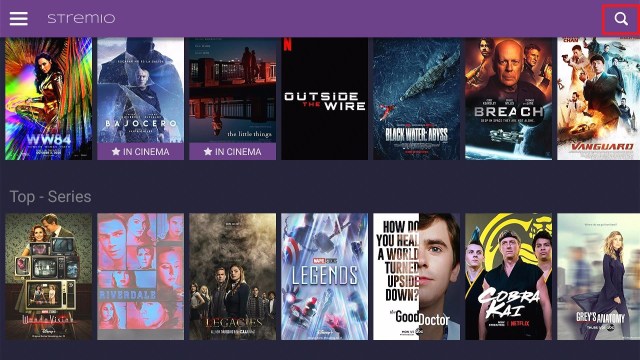
Stremio is a new kid on the block when it comes to media streaming, but it has been making waves. Dubbed as the future of organizing and streaming all your media content, it has fast taken a foothold.

It is often described as the best alternative to Kodi because of the presence of addons as one of its features. Using Stremio, you can stream different files and shows. The purpose of its addons is to find the best torrent sites for any titles you wish to stream.

It also features different addons for Sports, Podcasts, TV Channels, Games, and Kyuchek. To learn more about different addons available on Stremio, you can check out this article: Best Stremio Addons

Stremio is a third party application. In order to install it on your firestick device, you need to jailbreak it first.

How to Jailbreak Firestick

You need to use a Downloader application to install Stremio on your firestick device.

Install Downloader on Firestick


ANONYMOUSLY

Is Stremio Safe and Virus-free?

We tested this app using VirusTotal and found no threats or any malicious files and malware.

Despite having good results, we still need to be vigilant in protecting our privacy while streaming.

A Virtual Private Network or VPN will definitely help us maintain our security and anonymity while using Stremio.

Here’s how you can Install The Best VPN For Firestick and All Devices.


Install Stremio APK on Android


Stremio

Note: ReviewVPN.com does not host this APK file. It is hosted on Archive.org. 


Install Stremio on Firestick Guide

  1. Go to Settings and select Device.
  2. Choose Developer Options
  3. Turn on the ADB Debugging and Apps From Unknown Sources
  4. After turning these options on, launch the Amazon App Store on your device
  5. Search and Download Downloader
  6. Install Downloader and launch it after installing it.
  7. Choose Allow and Select Ok
  8. Type in http://reviewvpn.com/stremio and select Go
  9. Wait for it to finish and then select Stremio
  10. Select Done
  11. This will automatically take you back to Downloader. Select Delete
  12. Choose Delete one more time
  13. Head back to the home screen and under the Your Apps & Channels select Choose All
  14. Scroll down and select Stremio and select the Options.
  15. Then select Move to Front
  16. Stremio will be moved forward to Your Apps and Channels
  17. After this, you will see Stremio and click it to launch.


If your Firestick still has the older interface, read this article to learn how to update it: Update Firestick Interface.


Install Stremio on Firesticks with Screenshots

1. Install the Downloader app and jailbreak your firestick by enabling unknown sources. To learn more about the procedure, you may read How to Install the Downloader App and Enable Unknown Sources.


2. Open Downloader. Type https://www.stremio.com/downloads and click Go.

Step 12 Install Stremio on Firestick


3. Click on Stremio 1.2.22 ARM APK.

Step 13 Install Stremio on Firestick


4. Click Install and you should be all set. Remember to delete the APK file after installation to save space.

Step 14 Install Stremio on Firestick


5. Click Open.

Step 15 Install Stremio on Firestick


YOUR INTERNET ACTIVITY IS BEING WATCHED

ReviewVPN cannot attest to the legality, security and privacy of the applications discussed on this site. It is highly recommended that you use a VPN service while streaming or using Kodi.

Currently, your IP 52.167.144.161 is visible to everyone and your Browser is being tracked by Advertisers & ISP Provider.

Save 65% Now

Limited Time Offer

Here are the main reasons why you must use a VPN:

  • Your activities are hidden from your ISP, the government, and from the apps you are using.
  • You can access additional movies and TV streams.
  • ISP attempts to throttle are thrwarted thus reducing buffering issues.
  • Geographically restricted content like Netflix and Hulu can be unblocked.

A VPN works be replacing your ISP-assigned IP address and creating an encrypted tunnel. We recommend the no log service offered by IPVanish. It works well on a Firestick and offers the fastest possible speeds.

Special Limited Time Offer - Get IPVanish


Legal Disclaimer: ReviewVPN.com does not encourage or endorse any illegal activity involved in the usage of services and applications referenced on this site. We do not verify the licensing agreements of services. The end-user is wholly responsible for ensuring that any media accessed through these services does not violate copyright and/or licensing laws. ReviewVPN does not promote, link to, or receive compensation from any Apps and IPTV services.


Install Surfshark on Firestick

Best Surfshark Deal


Stremio Features

  • A unified platform of content with an open dashboard
  • Sort and search easily with intelligent functions including category, recency, and popularity
  • The calendar allows you to access content and see and track upcoming shows
  • Sync it so that you always know when new episodes for your favorite shows are coming and when movies are going to be released
  • Easy access to a wide range of add-ons including large Torrent sites
  • Intelligent recommendation system which is based upon your browsing habits like Netflix
  • Easily discover new content
  • All content and add ons are stored on the cloud, meaning it’s easily usable with lower RAM devices like the Amazon Fire Stick
  • Cast to device easily
  • Watch videos from a wide variety of sources using add ons
  • Accessible through mobile


Stremio vs Kodi

When we talk about an all-in-one media center, it would be hard to think of a program that’s better than Kodi, so how do the two match up, and what are the major differences between them?


Add on Library

Kodi has been around 14 years longer than Stremio coming around in 2002, so it has an enormous library of add-ons. Developers are going to spend time and money developing great add-ons where they feel they can have a great impact and importantly drive revenue from subscriptions and ad views.

Stremio though has a decent range of add ons and that list is growing, whether it will become quite as prolific as Kodi is another question.


Disk Space

One of the big drawbacks of Kodi is that it is a pretty heavy application and add-ons and builds only add to that. You can easily use 1GB+ of disk space before you have even gotten started. Stremio is a much lighter application and this is reflected in both the size of the application but also the fact that the application is cloud-based.

Much like Netflix, you access their content through their servers, rather than store the content on a local disk.

This means you’ll generally spend much less time buffering on Stremio than you would on Kodi. It’s also an important consideration if you are using a light and cheap device like an Amazon Fire Stick.


Security

One big pitfall of Kodi’s success is that its files need to be downloaded and installed, which leaves a route for malicious third parties to infect your computer with malware. That’s the downside for a locally hosted application. Stremio has greater security because the add-ons are downloaded and loaded within your login session which is hosted on their server. Minimizing the risk to you.


Ease of Use

For a beginner Kodi is fiddly. There is no denying that you get a massive range of add ons and choices with Kodi, but anyone who uses it knows it’s a complicated multi-step process to download, unzip and install an add-on or plugin.

Stremio is simply a search, click, and go. Much easier to use.


Should I use a VPN with Stremio?

Stremio is a free and legal platform, but like Kodi, it features several add-ons that allow you to access content that isn’t legal. For that reason and several others, we recommend you use a VPN:

  • Your Internet Service Provider (ISP) monitors and logs every website you visit, as well as your browsing activity. If they can see you are frequenting IP addresses that are associated with distributing illegal content, they can do anything from blacklisting your account to slowing down your internet connection.


  • If you plan to use Netflix through Stremio you will be limited to the country, in which you currently reside. Using a VPN, you can change your IP address and country of origin, to anywhere that the VPN provider has servers. Meaning you can be in Asia watching US Netflix at your leisure, and access more content, as soon as it is released.
  • Whether it be your ISP snooping on your browsing history, or a malicious third party trying to harvest your data a VPN can help you to browse online, anonymously and safely. All your data is encrypted using unbreakable 256-bit AES encryption, the same as the US Military, meaning no one can censor or monitor where you go and what you do.


How to Install Surfshark VPN on Firestick

If your Firestick still has the older interface, read this article to learn how to update it: Update Firestick Interface.

1. Go to the Home screen of your Firestick.

step 1 Install Surfshark VPN on Firestick


2. Navigate towards the Find tab. Press the Search button from the resulting dropdown.

step 2 Install Surfshark VPN on Firestick


3. Type in the keyword of Surfshark and select from the suggestions that will appear.

step 3 Install Surfshark VPN on Firestick


4. Click the official SurfShark icon from your search results.

step 4 Install Surfshark VPN on Firestick


5. Press the Download (You own it) button.

step 5 Install Surfshark VPN on Firestick


6. The Surfshark VPN installer will download on your device.

step 6 Install Surfshark VPN on Firestick


7. SurfShark VPN’s app will automatically install itself on your Fire TV stick.

step 7 Install Surfshark VPN on Firestick


8. Press the Open button after completing Surfshark VPN’s installation process.

step 8 Install Surfshark VPN on Firestick


9. Please wait for the SurfShark VPN to load its user interface.

step 9 Install Surfshark VPN on Firestick


10. You can now log in with your Surfshark VPN account credentials.

step 10 Install Surfshark VPN on Firestick

Learn more about Surfshark and Grab the Best Surfshark Deal Now!


Install Surfshark on Firestick

Best Surfshark Deal


Other VPNs to Consider

NordVPN (Best for Streaming)

Best Features

  • 5000+ Server in 50+ Countries 
  • Military-Grade Encryption
  • Fast Connection Speed
  • Suitable to a lot of devices
  • No-Log Policy

Prices
  • Complete $5.89 per month (64% Discount)
  • Plus $4.59 per month (56% Discount)
  • Standard $3.69 per month (55% Discount)

Best Features

  • 750+ High-speed VPN Servers in 43 Locations
  • Military-Grade Encryption
  • Fastest HD Streaming and Gaming
  • 30-Day Money-Back Guarantee
  • Unlimited Data & Devices
  • No-Log Policy

Prices
  • 3 Years $1.99 per month (82% Discount)
  • 1 Years $3.29 per month (70% Discount)
  • 1 Month $10.99 per month

IPVanish VPN (Most Secure)

Best Features

  • 1200+ Servers in 60+ Countries around the world
  • Unlimited Connections
  • No-Log Policy
  • Top Notch Military-Grade VPN Protocols and Encryptions
  • 100% Safe and Secured
  • Most Trusted VPN
  • Best VPN for Firestick
  • 30-Day Money-Back Guarantee

Prices
  • Yearly $3.99 per month (63% Discount) – 30 days risk free + Ransomware & Malware Protection
  • Quarterly $5.32 per month (51% Discount)
  • Monthly $10.99 per month


For more VPN discounts, go to ReviewVPN Deals and purchase the best VPN for you.

Click here to get the lowest price on Surfshark through our exclusive limited-time offer.


Integrate Real-Debrid within Torrentio Addon on Stremio

Torrentio is one of the best add-ons on Stremio that gathers the best torrent links when you like to stream movies and shows.

To better help Torrentio on finding the best torrent links, you can integrate your real-debrid account within this addon.

Make sure that before integrating real-debrid within Torrentio, your VPN is turned off or disconnected.

1. From the home page of your firestick, navigate to the right until you reach Settings.


2. Go to Applications


3. Scroll down to Manage Installed Applications


4. Select Stremio App


5. Choose Clear data


6. Click Clear data one more time


7. On a separate device and browser, go to real-debrid.com/apitoken. Make sure that you have an existing and logged-in real-debrid account on the device you are using.

Stremio (7)


8. Copy the API Private Token provided by Real-debrid.

Stremio (8)


9. You can use a sticky note, notepad, or any app to paste your code.

Stremio (9)


10. Go back to your firestick and launch your browser. You can use Silk Browser or Firefox for this one.


11. Navigate and click on the search bar of the browser.

Stremio (11)


12. Type in https://torrentio.strem.fun and click on Go

Stremio (12)


13. When the suggestion box appears click on Cancel.

Stremio (13)


14. Click on Sorting. Make sure to have a Mouse Toggle installed on your device.

Stremio (14)


15. Choose a sorting pattern that you like. For this one, we choose By seeders because it shows links that are mostly used by a lot of people.

Stremio (15)


16. Navigate down and click on Debrid Provider.

Stremio (16)


17. Select RealDebrid

Stremio (17)


18. Click on RealDebrid API Key (Find it here).

Stremio (18)


19. Type in the code given by Real-Debrid. This may take a lot of your time because you will be given a lot of alphanumeric combinations. Then click on Next.


20. Click on Install.

Stremio (20)


21. Select Not now.

Stremio (21)


22. Choose Log In.

Stremio (22)


23. Log in to your account if you already have, or you can use your Facebook account or even as a guest.

Stremio (23)


24. Click on Install.

Stremio (24)


25. One more time, click on Install.

Stremio (25)


26. Run your VPN on your device. You can use Surfshark is the best VPN for Streaming.


27. You can now have torrent links provided by Torrentio with RealDebrid.

Stremio (27)


How to Add Media to Favorites on Stremio

Before you can add media to Favorites, you should not use a guest login. You should use an actual Stremio account on your device to add any media to your Favorites.


1. Launch the Stremio App.

Stremio


2. Choose or search for the movie or show you like to stream.

Stremio


3. For this example, we are searching for Night of the Living Dead. Type the title of the movie and click on Next.

Stremio


4. Click on the show you like to add.

Stremio


5. Highlight the add to library icon on the upper right corner of the screen

Stremio (1)


6. Added to Library notification will appear on the screen.

Stremio (2)


7. To check your library, go back to the home page and click on the hamburger button.

Stremio (5)


8. Scroll down to My Library.

Stremio (6)


9. Click on Movies or TV Shows depending on what you like to search.

Stremio (7)


10. You will see the title you added to your favorites.

Stremio (8)


11. To remove the movie or show from your library, click on the icon at the upper right corner of the screen.

Stremio (3)


12. Remove from Library notification will appear on the screen.

Stremio (4)


Install Surfshark on Firestick

Best Surfshark Deal


Best Stremio Add-ons

The Pirate Bay

Access the entire Torrent database of one of the most popular torrent sites online. Stream straight from Torrent without needing to download.


RARBG add on

Pooling links from multiple torrent servers to create a massive library of content, including HD and 4K streams.


Juan Carlos 2

Another highly popular torrent source, with multiple streams on offer for each title.


Popcorn Time

A favorite for some older users. Popcorn Time has been going strong since 2014. Drawing from the YTS and EZTV torrent libraries, you get a massive range of content that is updated daily


To know more about Addons available on Stremio, go to Best Stremio Addons.


YOUR INTERNET ACTIVITY IS BEING WATCHED

ReviewVPN cannot attest to the legality, security and privacy of the applications discussed on this site. It is highly recommended that you use a VPN service while streaming or using Kodi.

Currently, your IP 52.167.144.161 is visible to everyone and your Browser is being tracked by Advertisers & ISP Provider.

Save 65% Now

Limited Time Offer

Here are the main reasons why you must use a VPN:

  • Your activities are hidden from your ISP, the government, and from the apps you are using.
  • You can access additional movies and TV streams.
  • ISP attempts to throttle are thrwarted thus reducing buffering issues.
  • Geographically restricted content like Netflix and Hulu can be unblocked.

A VPN works be replacing your ISP-assigned IP address and creating an encrypted tunnel. We recommend the no log service offered by IPVanish. It works well on a Firestick and offers the fastest possible speeds.

Special Limited Time Offer - Get IPVanish


Alternative Applications for Stremio

There are some other applications that have the same functions as Stremio, like having addons or getting the best torrent links for some movies and series. Check out this list of alternative applications:


FAQs

What is Stremio?

Stremio first hit the scene in 2016, and basically helps to unify everything in one place including add ons. Instead of having lots of outside developers making apps and then putting them onto their app store, they have an in-house team of developers who create their own applications based upon the needs of their users.

Stremio uses add ons for streaming like Kodi, the platform itself is a bit like Windows Media Player, it can play and store any kind of media file but is made dynamic by adding additional software and scripts.

Plus, Stremio is completely cloud-based meaning none of your add-ons or content is stored on the device. Making all devices equal in terms of performance to a certain extent, unlike a lot of Android streaming apps and add ons which require you to download and install it on your device.


Is Stremio Legal?

Stremio satisfies all the requirements of being legal just like Kodi.

It acts as a platform and exonerates itself from the responsibility of what people do with add ons that they may download and use through the platform.


Where Can I Find Stremio?

You can find Stremio on the Apple App Store, Google Play Store, or just download it directly from their website at https://www.stremio.com/downloads.

Stremio works across all devices and operating systems and has applications for Windows, macOS, Linux, and Android.


What’s Better Stremio or Kodi?

Kodi for us is still the undisputed king when it comes to sheer choice and range in terms of versatility. But you pay for it with risks to security, a bulky application, and cumbersome installation procedures. Kodi is the best application for pros.

If you just want access to Torrents and are incidental users, we really like Stremio.

It is lightweight, easy to use, secure, and most importantly simple.

You’ll get less choice, but as you’ll see with some of them add ons, there is a great future for Stremio if it can continue to grow and improve in terms of community support.


How To Install Stremio on Nvidia Shield, Android TV and Mi Box?

The process is very similar to how you install it on a Firestick. You will need to “jailbreak” and install the Downloader App.


How to Download Movies on Stremio?

Downloading movies on Stremio is only advisable for devices that have huge memory capacities.

We do not recommend downloading anything on your Firestick since it has a very low memory storage capacity.


Is there a Stremio Sign Up?

Technically, there is no immediate need to sign up for a Stremio Account.

What you can do is link your Facebook Profile to unlock other features of the app.


Can I Find Stremio Subrredits on Reddit?

Absolutely, there are a lot of subreddits out there that can help you out whenever you are experiencing issues with Stremio.


Opinion

Whether we compare Stremio to Kodi or any other apps, we might say that it is great overall. It serves you right with all its features for free. And it is also always updated. Even the recent movies and series to grace Netflix is already available on Stremio.

It also has wonderful working add-ons that are easy to install. All these and more make this app wonderful.

Upon our last checking, some other addons are no longer available, but there are still others that remain and some that are new. Which is somehow a great thing.


Final Thoughts

We hope that this article helps you obtain the necessary information on how to install Stremio on Firestick.


Note: ReviewVPN.com does not own or operate any app nor does it endorse any. The main purpose of this article is strictly for educational purposes only.


See Also:

Best Firestick Apps

Top Unlinked Codes

Free Movie Streaming Websites

Best TV Show Websites

Best Adult Apps for Firestick

Top Live TV Apps

Install Swift Streamz on Firestick

Best Kissanime.RU Alternatives 

The Best Adult Apps for Android


What Is Your Favorite Streaming App? Cast Your Vote Below.

Install BeeTV on Firestick, FireTV & Android for Free Movies in 2023

BeeTV APK on Firestick Overview

In this article, we will show how to install BeeTV on Firestick, FireTV & Android for free.


Bee TV is one of the newer cloned Firestick App we’re reviewing having only started in late 2018.

It offers a clean and intuitive user interface as well as a wide range of media. Though there had been previous complaints of lots of dead links the developer seems to have resolved many of the previous issues they had by adding more resolvers and refining their scrapers.

BeeTV is a good application with solid performance and a growing fan base, as well as a hard-working developer who seems to be rolling out an update at least once a month and actively engaging the community for feedback through their Facebook page.

Given these facts, BeeTV is included in our list of Best Firestick Apps and Best Free Movie Apps.

Important Reminder: You will need a jailbroken firestick to be able to install BeeTV APK MOD on your device. If you haven’t done that yet, please refer to the guide below:

Jailbreak Firestick Guide

If you wish to go directly to the source where BeeTV gets the links it provides, you can go ahead and read our Best Free Movie Streaming Websites.


ANONYMOUSLY

Is BeeTV Safe and Virus-free?

We tested this app using VirusTotal and found no threats or any malicious files and malware.

Despite having good results, we still need to be vigilant in protecting our privacy while streaming.

A Virtual Private Network or VPN will definitely help us maintain our security and anonymity while using BeeTV.

Here’s how you can Install The Best VPN For Firestick and All Devices.


BeeTV APK Download for Android Phone


download beetv

Note: ReviewVPN.com does not host this APK file. It is hosted on Archive.org.


How to Install BeeTV APK on Firestick

Reminder: To install BeeTV on your Firestick, you will need the Downloader App. Here is how you get it:

Install Downloader App on Firestick

  1. Go to Settings and select Device
  2. Choose Developer Options
  3. Turn on the ADB Debugging and Apps From Unknown Sources
  4. After turning these options on, launch the Amazon App Store on your device
  5. Search and Download Downloader
  6. Install Downloader and launch it after installing it.
  7. Choose Allow and Select Ok
  8. Type in https://reviewvpn.com/bee and select Go
  9. Wait for it to finish and then select BeeTV
  10. Select Done
  11. This will automatically take you back to Downloader. Select Delete
  12. Choose Delete one more time
  13. Head back to the home screen and under the Your Apps & Channels select Choose All
  14. Scroll down and select BeeTV and select the Options.
  15. Then select Move to Front
  16. BeeTV will be moved forward to Your Apps and Channels
  17. After this, you will see BeeTV and click it to launch.


If your Firestick still has the older interface, read this article to learn how to update it: Update Firestick Interface.


Install BeeTV App on Firestick (Video)


Install BeeTV App on Firestick with Screenshots

1. Install the Downloader app and jailbreak your firestick by enabling unknown sources. To learn more about the procedure, you may read How to Install the Downloader App and Enable Unknown Sources.


2. Open Downloader App. Type https://reviewvpn.com/bee and click Go.

Beetv Step 12


3. Click Install.

Beetv Step 13


4. Click Open.

Beetv Step 14


5. Click Allow

Beetv Step 15


6. Enjoy BeeTV!

Beetv Step 16


YOUR INTERNET ACTIVITY IS BEING WATCHED

ReviewVPN cannot attest to the legality, security and privacy of the applications discussed on this site. It is highly recommended that you use a VPN service while streaming or using Kodi.

Currently, your IP 52.167.144.161 is visible to everyone and your Browser is being tracked by Advertisers & ISP Provider.

Save 65% Now

Limited Time Offer

Here are the main reasons why you must use a VPN:

  • Your activities are hidden from your ISP, the government, and from the apps you are using.
  • You can access additional movies and TV streams.
  • ISP attempts to throttle are thrwarted thus reducing buffering issues.
  • Geographically restricted content like Netflix and Hulu can be unblocked.

A VPN works be replacing your ISP-assigned IP address and creating an encrypted tunnel. We recommend the no log service offered by IPVanish. It works well on a Firestick and offers the fastest possible speeds.

Special Limited Time Offer - Get IPVanish


Legal Disclaimer: ReviewVPN.com does not encourage or endorse any illegal activity involved in the usage of services and applications referenced on this site. We do not verify the licensing agreements of services. The end-user is wholly responsible for ensuring that any media accessed through these services does not violate copyright and/or licensing laws. ReviewVPN does not promote, link to, or receive compensation from any Apps and IPTV services.


Install Surfshark on Firestick

Best Surfshark Deal


What does it do?

BeeTV works in the same way as Cyberflix and Cinema HD, using scrapers that aggregate links from across the web to give you a massive range of media presented in an easy-to-use interface.

What makes them a little different is that they also have community-built modules, which means hobbyist developers within the fan club also build add ons which can be integrated with Bee TV to deliver specialized content like Hindi movies.

They characterize themselves as a media search tool, though we’ve learned this is mainly to avoid scrutiny of copyright hunters so that the developer doesn’t make themselves liable for a lawsuit.


Features

  • Intuitive user interface
  • Good sort functions
  • Compatible with external media players like MX Player Pro
  • Compatible with Real-Debrid and Trakt
  • Simple Categories
  • Choose default play action
  • Auto Play and Auto Next
  • Multiple link providers
  • Fast link providers
  • Episode lists
  • Open Subtitle compatible
  • Full art as well as cast and crew photos
  • Compatible with Premiumize


Integrate Real-Debrid on BeeTV Guide

1. Open Bee TV on your Firestick.


2. Click on the hamburger menu.


3. Select Settings


4. Choose Login to Real-Debrid


5. Memorize the given code.


6. Launch your web browser and go to realdebrid.com/device.


7. Type in the code earlier.


8. Select Continue


9. Wait for this confirmation.


10. There you go, Real-Debrid is now integrated to Bee TV.


11. These highlighted links are all from Real-Debrid


Integrate Trakt TV on BeeTV

Activating your trakt.tv account on BeeTV will sync your device and access your media anywhere. Just make sure to have an account for trakt and you can easily integrate it on Bee TV.


1. Launch the BeeTV app on firestick

Bee TV (1)


2. Select the hamburger button on the upper left portion of the app.

Bee TV (2)


3. Scroll down to Settings.

Bee TV (3)


4. Look for Login to Trakt.tv.

Bee TV (4)


5. Take note of the code given by the app. 6BA2DC7F is just an example.

Bee TV (5)


6. On a separate browser or device, go to https://trakt.tv/activate.

Bee TV (6)


7. Enter the given code. 6BA2DC7F is just an example.

Bee TV (7)


8. Click Continue

Bee TV (8)


9. Select on Yes.

Bee TV (9)


10. You will be notified that your trakt account has been activated on  Bee TV.

Bee TV (10)


11. You will notice that the status for trakt tv on Bee TV is now Logged in.

Bee TV (11)


How to Add Media to BeeTV Collections

Once you activated your trakt tv account on Bee TV, you can now add movies or tv shows to your collections. Follow these easy steps to it so:

1. Launch the Bee TV app on firestick.

Bee TV (1)


2. You can choose or search for any shows or movies.

Bee TV (1)


3. For this example, we are going to search for the Night of the Living Dead movie. After typing the movie, click on Next.

Bee TV (2)


4. Click on the show.

Bee TV (3)


5. Tap on the hamburger with a plus sign on the upper right corner of the screen.

Bee TV (4)


6. The Add collection success notification will appear on the screen.

Bee TV (5)


7. To check on your collection library, go to the home page of the app and click on the hamburger button on the upper left part.

Bee TV (12)


8. Scroll down to Collection.

Bee TV (14)


9. You will see the title of the added under movies.

Bee TV (15)


10. To remove it from the library, remove the highlight of the hamburger with the plus sign icon.

Bee TV (6)


11. The Remove Collection success will appear on your screen.

Bee TV (7)


How to Add Media on Bee TV Watchlist

You can also add media to the watchlist of the Bee TV app. We will show you how you can easily add your favorite shows and movies to your watchlist.

1. Launch the BeeTV app on firestick.

Bee TV (1)


2. You can choose or search for any shows or movies.

Bee TV (1)


3. For this example, we are going to search for the Night of the Living Dead movie. After typing the movie, click on Next.

Bee TV (2)


4. Click on the show.

Bee TV (3)


5. Tap on the watchlist icon on the upper right corner of the screen.

Bee TV (8)


6. The Added to watchlist notification will appear on the screen.

Bee TV (9)


7. To check on your collection library, go to the home page of the app and click on the hamburger button on the upper left part.

Bee TV (12)


8. Scroll down to Watchlist.

Bee TV (13)


9. You will see the title of the added under movies.

Bee TV (15)


10. To remove it from the library, remove the highlight of the watchlist icon.

Bee TV (10)


11. The Removed Watchlist will appear on your screen.

Bee TV (11)


Setup Subtitles on BeeTV

You can watch shows or movies on Bee TV with subtitles. And the best part is you can customize your subtitles in terms of language, size, and color.

Take a look at these steps to set up and customize subtitles for the Bee TV app.

1. Launch the BeeTV App

Bee TV (1)


2. Select or Search for the movie or show you like to stream.

Bee TV (2)


3. If you search, you can type in the name of the show and select Next.

Bee TV (3)


4. Select the movie or show that you searched

Bee TV (4)


5. Click on Play

Bee TV (5)


6. Choose a streaming link.

Bee TV (6)


7. An option will show, select Play with subtitles.

Bee TV (7)


8. Select a subtitle link of your choice.

Bee TV (8)


9. You can now watch the show with subtitles.

Nova TV (8)


10. To customize the BeeTV Subtitles, click the hamburger button on the home screen of the app.

Bee TV (9)


11. Scroll down to Settings

Bee TV (10)


12. Go Subtitles, and click on Choose primary subtitles.

Bee TV (11)


13. Select your preferred language for the subtitles.

Bee TV (12)


14. Go back and click on Subtitle size.

Bee TV (13)


15. Choose a preferred font size for the subtitle.

Bee TV (14)


16. Click the back button and choose Subtitle color.

Bee TV (15)


17. You can select a color of your choice for subtitles.

Bee TV (16)


Pros and Cons

Pros

  • Massive media library with high-quality scrapers
  • The ability to download add ons means you are also more able to access obscure TV or foreign language tv shows and films
  • Compatible with Trakt TV, Real Debrid, and Premiumize which means you can access more content, pick up where you left off, and also get access to high quality working links
  • Intuitive and simple user interface
  • Autoplay and auto next function for binge-watching box sets
  • Hard-working developer who regularly releases updates
  • Supportive Community
  • Community engagement is high along with the development of new features
  • Compatible with Open Subtitle making it easy to get the right subtitles in your language
  • Has an internal media player


Cons

  • Some reports of application crashing but this has mostly been addressed in updates

Should I use a VPN?

The most important thing when you stream using free apps is the use of a reliable VPN service like Surfshark. It provides online safety and security.

Surfshark will also allow you access to geo-restricted content that is unavailable in your country.

It is also one of the best solutions to stop buffering on Kodi and Firestick as well.

You can also rest assured that it will prevent any attempts made by your ISP to throttle your connection speed.

How to Install Surfshark VPN on Firestick

If your Firestick still has the older interface, read this article to learn how to update it: Update Firestick Interface.

1. Go to the Home screen of your Firestick.

step 1 Install Surfshark VPN on Firestick


2. Navigate towards the Find tab. Press the Search button from the resulting dropdown.

step 2 Install Surfshark VPN on Firestick


3. Type in the keyword of Surfshark and select from the suggestions that will appear.

step 3 Install Surfshark VPN on Firestick


4. Click the official SurfShark icon from your search results.

step 4 Install Surfshark VPN on Firestick


5. Press the Download (You own it) button.

step 5 Install Surfshark VPN on Firestick


6. The Surfshark VPN installer will download on your device.

step 6 Install Surfshark VPN on Firestick


7. SurfShark VPN’s app will automatically install itself on your Fire TV stick.

step 7 Install Surfshark VPN on Firestick


8. Press the Open button after completing Surfshark VPN’s installation process.

step 8 Install Surfshark VPN on Firestick


9. Please wait for the SurfShark VPN to load its user interface.

step 9 Install Surfshark VPN on Firestick


10. You can now log in with your Surfshark VPN account credentials.

step 10 Install Surfshark VPN on Firestick

Learn more about Surfshark and Grab the Best Surfshark Deal Now!


Other VPNs to Consider

NordVPN (Best for Streaming)

Best Features

  • 5000+ Server in 50+ Countries 
  • Military-Grade Encryption
  • Fast Connection Speed
  • Suitable to a lot of devices
  • No-Log Policy

Prices
  • Complete $5.89 per month (64% Discount)
  • Plus $4.59 per month (56% Discount)
  • Standard $3.69 per month (55% Discount)

Best Features

  • 750+ High-speed VPN Servers in 43 Locations
  • Military-Grade Encryption
  • Fastest HD Streaming and Gaming
  • 30-Day Money-Back Guarantee
  • Unlimited Data & Devices
  • No-Log Policy

Prices
  • 3 Years $1.99 per month (82% Discount)
  • 1 Years $3.29 per month (70% Discount)
  • 1 Month $10.99 per month

IPVanish VPN (Most Secure)

Best Features

  • 1200+ Servers in 60+ Countries around the world
  • Unlimited Connections
  • No-Log Policy
  • Top Notch Military-Grade VPN Protocols and Encryptions
  • 100% Safe and Secured
  • Most Trusted VPN
  • Best VPN for Firestick
  • 30-Day Money-Back Guarantee

Prices
  • Yearly $3.99 per month (63% Discount) – 30 days risk free + Ransomware & Malware Protection
  • Quarterly $5.32 per month (51% Discount)
  • Monthly $10.99 per month


For more VPN discounts, go to ReviewVPN Deals and purchase the best VPN for you.


FAQ

What platforms does BeeTV work on?

Bee TV works on all Android-based devices.

Is BeeTV safe to use?

Yes, the application is available to download from the Amazon Store. When you download, make sure that you get it directly from the source, also check the official file link ID given on Bee TV’s website.


Is BeeTV legal?

It’s a grey area, but despite Bee TV’s website about not wanting to allow copyrighted content to be streamed, we all know that it’s happening.

Bear in mind that BeeTV may not even work unless you are using a VPN.


Is BeeTV iOS Compatible?

Sadly, BeeTV is not compatible with any device that runs on iOS.


Is BeeTV free?

Yes, BeeTV is entirely free, in fact, they currently don’t even seem to be asking for donations.


Are there ads? (If it has ads is there a modded version)

No, there are no ads at all.


Is there a premium version?

Like Cinema HD the free version is the premium version.


Is there an official BeeTV website?

Yes, BeeTV has a one-page website with a simple FAQ section as well as a download link: http://beetvapk.me/

One thing we found really helpful was that both the website and also their Facebook page: https://www.facebook.com/beetvmovies/

They provide a changelog of what has happened with the updates which are greatly appreciated.


What other devices does Bee TV works on?

BeeTV will work on any Android device, including the Amazon fire series, Nvidia Shield, and Android mobile phones and tablets.


Is there a BeeTV Windows Version?

Not exactly a version that you can download on the Windows Store. You need to use an android emulator like Noxx or Bluestacks to use BeeTV on Windows.

After you install one on your PC, just open a browser and use this link https://reviewvpn.com/bee to install it.


Is BeeTV Available on APK Pure?

Yes. BeeTV is available at APK Pure for download.


How does Bee TV work?

You can download the application on the Amazon store, or directly download the APK file from the BeeTV website.


What is the minimum version of Android I need?

Android 4.0


How long has BeeTV been around?

BeeTV has been around a good while in a relative sense. They started in November 2018, and have built a strong following.


Is Bee TV a Terrarium clone?

Yes.


What is the development team like?

We couldn’t find any information about the developer though we suspect they hail from India or that region. What we did like is that whoever they are, they regularly post updates and general posts on Facebook looking for feedback and replying to questions.

Developers who lack responsiveness can also signal a great application that will soon go dark when the developer gets bored.

Best Alternatives

If you ever find that BeeTV on Firestick is not working, do not panic. This is totally normal for free streaming apps.

That is why it is always best to keep a good list of reliable alternatives.

                 APPS

               REVIEW

           DOWNLOAD

                 Nova TV

           Nova TV Review

                  Viva TV

            Viva TV Review

                PikaShow

           PikaShow Review

                    Strix

               Strix Review

                  FilmPlus

            FilmPlus Review

ReviewVPN.com does not host any of these files. They are hosted on Archive.org.


Our Opinion

BeeTV had a bit of a rocky start and garnered some negative reviews, but we feel this is definitely one to watch.

The developer is absolutely smashing out the updates and it has the same amount of functionality and usability as the other best-in-class apps out there.

As well as having some cool extras like autoplay, auto next as well as an in-app video player which means you don’t have to worry about compatibility.


Note: ReviewVPN.com does not own or operate any app nor does it endorse any. The main purpose of this article is strictly for educational purposes only.


You may also like:

The Best Unlinked Codes

50 Best Free Movie Streaming Websites

Top Free Sports Apps

Best Adult Apps for Firestick


What Is Your Favorite Streaming App? Cast Your Vote Below.

Install Viva TV on Firestick in 5 Minutes – Safe and Secure 2023

Viva TV for the Amazon Firestick

In this article, we will be showing you how to install Viva TV on Firestick and other android devices.


VIVA TV is a free streaming application that provides access to high-definition movies and TV shows.

It works on all Android platforms including Firestick, Nvidia Shield, tablets, and smartphones. It is easy to use and has unique features that make it stand out from the pack.

To install Viva TV on Firestick, you will need to jailbreak your Firestick first. Here is the guide to do it:

Jailbreak Firestick

After the jailbreak, you also need the Downloader app to sideload Viva TV on Firestick. Please refer to this guide:

Install Downloader App on Firestick

Note: If you wish to go directly to the sources upon which Viva TV gathers its links, please read our Best Free Streaming Movie Websites.


ANONYMOUSLY

Is Viva TV Safe and Virus-free?

We tested this app using VirusTotal and found no threats or any malicious files and malware.

Despite having good results, we still need to be vigilant in protecting our privacy while streaming.

A Virtual Private Network or VPN will definitely help us maintain our security and anonymity while using Viva TV.

Here’s how you can Install The Best VPN For Firestick and All Devices.


How to Install Viva TV on Android


VIVA TV button

Note: ReviewVPN.com does not host this APK file. It is hosted on Archive.org.

How to Install Viva TV on Firestick Guide

  1. Go to Settings and select Device.
  2. Choose Developer Options
  3. Turn on the ADB Debugging and Apps From Unknown Sources
  4. After turning these options on, launch the Amazon App Store on your device
  5. Search and Download Downloader
  6. Install Downloader and launch it after installing it.
  7. Choose Allow and Select Ok
  8. Type in https://reviewvpn.com/viva and select Go
  9. Wait for it to finish and then select Viva TV
  10. Select Done
  11. This will automatically take you back to Downloader. Select Delete
  12. Choose Delete one more time
  13. Head back to the home screen and under the Your Apps & Channels select Choose All
  14. Scroll down and select Viva TV and select the Options.
  15. Then select Move to Front
  16. Viva TV will be moved forward to Your Apps and Channels
  17. After this, you will see Viva TV and click it to launch.


If your Firestick still has the older interface, read this article to learn how to update it: Update Firestick Interface.


YOUR INTERNET ACTIVITY IS BEING WATCHED

ReviewVPN cannot attest to the legality, security and privacy of the applications discussed on this site. It is highly recommended that you use a VPN service while streaming or using Kodi.

Currently, your IP 52.167.144.161 is visible to everyone and your Browser is being tracked by Advertisers & ISP Provider.

Save 65% Now

Limited Time Offer

Here are the main reasons why you must use a VPN:

  • Your activities are hidden from your ISP, the government, and from the apps you are using.
  • You can access additional movies and TV streams.
  • ISP attempts to throttle are thrwarted thus reducing buffering issues.
  • Geographically restricted content like Netflix and Hulu can be unblocked.

A VPN works be replacing your ISP-assigned IP address and creating an encrypted tunnel. We recommend the no log service offered by IPVanish. It works well on a Firestick and offers the fastest possible speeds.

Special Limited Time Offer - Get IPVanish


Install Viva TV on Firestick with Screenshots

1. Install the Downloader app and jailbreak your firestick by enabling unknown sources. To learn more about the procedure, you may read How to Install the Downloader App and Enable Unknown Sources.


2. Open Downloader App. Type https://reviewvpn.com/viva and click Go.


3. Click on Install.

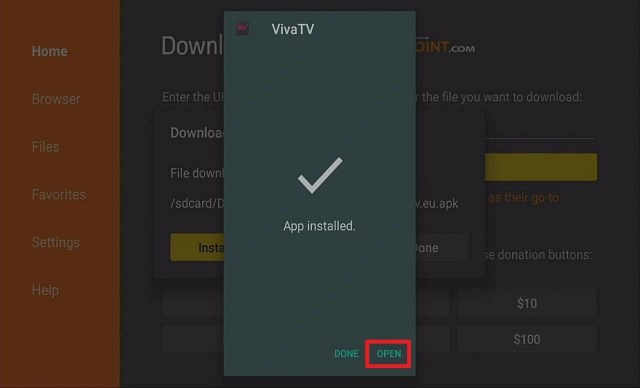
Step 13 Install VIVA TV IPTV on Firestick


4. Click Open

Step 14 Install VIVA TV IPTV on Firestick


5. Enjoy Watching Viva TV

Step 15 Install VIVA TV IPTV on Firestick


Is it any Good?

Viva Tv does not host any of its content. Instead, it searches for the best streaming links available from a wide variety of file hosting websites. This allows Viva Tv to claim they have a hands-off approach.

With support for Trakt, you can always keep track of what you have watched and resume where you left off.

Real-Debrid, All Debrid, and Premiumize integrations allow users to access the highest quality links, including 4k links.

Those are all premium services that cost money. They allow for premium access to 50+ different file lockers. Premiumize also has Usenet access.


Stream Safely With a VPN

Even though Viva TV shows great results on Virus Total test, the way it performs its purpose could still harm your privacy. It provides links from all over the internet. These links might be harmful, that is why you need to stream the app with a VPN.

Surfshark is the best VPN in terms of speed and privacy which gives you access to a lot of great shows and apps. You can easily install the app on your Firestick.


Install Surfshark on Firestick

Best Surfshark Deal


How to Install Surfshark VPN on Firestick

If your Firestick still has the older interface, read this article to learn how to update it: Update Firestick Interface.

Follow our screenshots below to install the SurfShark VPN app on your Fire TV stick.

1. Go to the Home screen of your Firestick.

step 1 Install Surfshark VPN on Firestick


2. Navigate towards the Find tab. Press the Search button from the resulting dropdown.

step 2 Install Surfshark VPN on Firestick


3. Type in the keyword of SurfShark and select from the suggestions that will appear.

step 3 Install Surfshark VPN on Firestick


4. Click the official SurfShark icon from your search results.

step 4 Install Surfshark VPN on Firestick


5. Press the Download (You own it) button.

step 5 Install Surfshark VPN on Firestick


6. The SurfShark VPN installer will download on your device.

step 6 Install Surfshark VPN on Firestick


7. SurfShark VPN’s app will automatically install itself on your Fire TV stick.

step 7 Install Surfshark VPN on Firestick


8. Press the Open button after completing SurfShark VPN’s installation process.

step 8 Install Surfshark VPN on Firestick


9. Please wait for the SurfShark VPN to load its user interface.

step 9 Install Surfshark VPN on Firestick


10. You can now log in with your SurfShark VPN account credentials.

step 10 Install Surfshark VPN on Firestick

Learn more about Surfshark and Grab the Best Surfshark Deal Now!


Install Surfshark on Firestick

Best Surfshark Deal


Other VPNs to Consider

NordVPN (Best for Streaming)

Best Features

  • 5000+ Server in 50+ Countries 
  • Military-Grade Encryption
  • Fast Connection Speed
  • Suitable to a lot of devices
  • No-Log Policy

Prices
  • Complete $5.89 per month (64% Discount)
  • Plus $4.59 per month (56% Discount)
  • Standard $3.69 per month (55% Discount)

Best Features

  • 750+ High-speed VPN Servers in 43 Locations
  • Military-Grade Encryption
  • Fastest HD Streaming and Gaming
  • 30-Day Money-Back Guarantee
  • Unlimited Data & Devices
  • No-Log Policy

Prices
  • 3 Years $1.99 per month (82% Discount)
  • 1 Years $3.29 per month (70% Discount)
  • 1 Month $10.99 per month

IPVanish VPN (Most Secure)

Best Features

  • 1200+ Servers in 60+ Countries around the world
  • Unlimited Connections
  • No-Log Policy
  • Top Notch Military-Grade VPN Protocols and Encryptions
  • 100% Safe and Secured
  • Most Trusted VPN
  • Best VPN for Firestick
  • 30-Day Money-Back Guarantee

Prices
  • Yearly $3.99 per month (63% Discount) – 30 days risk free + Ransomware & Malware Protection
  • Quarterly $5.32 per month (51% Discount)
  • Monthly $10.99 per month


For more VPN discounts, go to ReviewVPN Deals and purchase the best VPN for you.


Integrate Real-Debrid on Viva TV Guide

1. Launch Viva TV on your Firestick

2. Scroll to the right until you reach Settings and click on it.

3. Scroll down until you reach Real Debrid and select it.

4. Write down or memorize the code flashed on your TV screen.

5. On a separate device, open a web browser.

6. Type in https://real-debrid/com/device

7. Input the code given earlier.

8. Click on Continue

8. Wait for the authentication.

9. There you go, Real Debrid is now integrated on Viva TV.

10. Head back to the home screen and click on Search.

11. Type in Night of the Living Dead.

12. Click on Watch.

13. Wait for the links to populate. The orange links are from Real Debrid.


Integrate Trakt TV on Viva TV

Activating trakt tv on your Viva TV will give you permission to watch your media on different devices. You just need to follow these simple and easy steps:


1. Launch the Viva TV app on your firestick


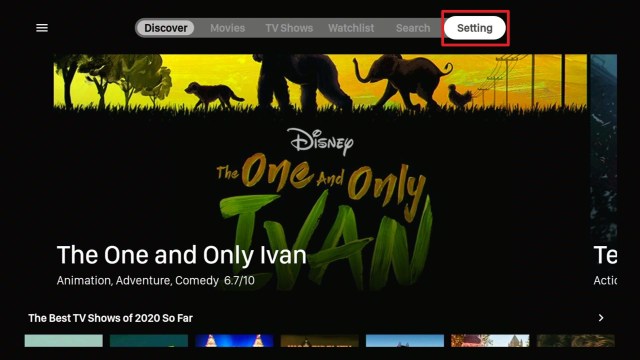
2. Navigate to the upper right corner to reach Settings

viva tv (1)


3. Scroll down to trakt

viva tv (2)


4. Take note of the given code by the app. CA09C157 is just an example.

viva tv (3)


5. On a separate device, go to www.trakt.tv/activate. Make sure you have an existing trakt account and are currently logged in.

viva tv (4)


6. Enter the given code by the app. CA09C157 is just an example.

viva tv (5)


7. Click on Continue

viva tv (6)


8. Select Yes

viva tv (7)


9. You will be notified that you have successfully linked your trakt account on your Viva TV app.

viva tv (8)


10. The status of your trakt tv should be Logged in as (your trakt user name).

viva tv (9)


How to Add Shows or Movies to Collection on Viva TV

After integrating your trakt tv account on Viva TV, you can now add media to your collection library.

Follow these steps to know-how:

1. Launch the Viva TV app


2. Choose a certain movie or tv show that you wish to add to your collection. For this example, we will use the Party of Five tv series.

viva tv (1)


3. Go to the upper right corner and click the icon in the middle.

viva tv (2)


4. Add collection success will appear.

viva tv (3)


5. To check your collection library, go to the home page of viva tv and click on the hamburger icon.

viva tv (4)


6. Scroll down to the collection

viva tv (5)


7. Make sure that if you choose a movie or tv series, it is the one selected.

viva tv (6)


8. Under tv series, you will see the show you added a while ago. The same goes if you chose a movie instead of a tv show.

viva tv (7)


9. To remove the show, you just need to unhighlight the collection icon on the upper right corner.

viva tv (8)


10. You will see a notification that says Remove collection success.

viva tv (9)


Pros and Cons

Pros

  • Closed Captioning and Subtitle support
  • No Ads
  • Adaptive Search
  • Summary of the videos to show a little context
  • 1080p and 4K video formats
  • Simple and engaging design
  • A huge category list for movies and tv shows

Cons

  • The website is poorly updated
  • It doesn’t have a premium version

FAQ

Is It Safe to Use?

Yes, Viva TV is safe to use. We have scanned the app with Virus Total and the results are clean. 

Is It Any Good

Viva TV has a very good selection of movies and TV shows. We believe that the developer has dedicated a sufficient amount of time to build it to be a great streaming application.

Is It Free?

Yes, Viva TV is free to download and does not have hidden costs

Are there Ads?

Viva TV does not have ads.

Is There a Premium Version?

None.

Is There an Official Website?

You may visit their website https://vivatv.io/

Minimum Version Required

For Android users, version 5.0 and above is needed to run the application

How Long Has It Been Around?

Viva TV has been around since 2019. In this sense, it is a newcomer to pack, although it has already found a solid place in the top 10 best apps for free movies and TV shows.

What Is the Development Team Like?

The development team has been pretty active over the past few months before entering the year 2021. They have a Facebook page and a Twitter account that reflects how dedicated they are to providing technical support to their users. Also, their “News” section on the website has a pretty decent amount of content that provides users with recommendations on what is best to watch depending on the type of Genre. You can follow their Twitter account which is www.twitter.com/VivaTv2347446


Alternatives

Viva TV is a great app for free movies and TV shows. That said, it is always nice to have a backup plan. The apps below are also the best in class.

                 APPS

               REVIEW

           DOWNLOAD

                 Cyberflix

           Cyberflix Review

               Cinema HD

         Cinema HD Review

                 Nova TV

           Nova TV Review

                   Bee TV

             Bee TV Review

                  FilmPlus

            FilmPlus Review

ReviewVPN.com does not host any of these files. They are hosted on Archive.org.


Review

Viva TV is a one-of-a-kind application. Its unique subtitling support shows you the available subtitles and you can choose any one of them. What really stands out with this app is that it has all the integrations you need for a flawless, high-definition movie experience (Trakt, Real-Debrid, Premiumize, and Alldebrid). 

They also have a very active development team. Some apps work great when they are released, but then they aren’t updated for months or even years. The one thing we find weird on this front is that even though the app is updated, the website isn’t updated properly. This is a bit strange, but a minor detail in the grand scheme.

If you find this article helpful, please leave a comment down below. Thank you for reading and stay safe!


What Is Your Favorite Streaming App? Cast Your Vote Below.

How to Install Grindhouse Kodi Build in 5 Minutes [2023]

Grindhouse Kodi Build Wizard

This article will show you how to install Grindhouse Kodi Build on Firestick/Android.

The Grindhouse Kodi Build Wizard offers tons of builds with different skins and varying sizes. It’s a good repo if you want a choice of lots of different builds depending on your device and your mood. It enables you to watch movies, TV shows, Live TV, Sports, and more. 

But before we begin with the guide on how you can install it on your Firestick, we’d like to inform you that Grindhouse is a third-party Kodi Build. Meaning, it is not from the official Kodi Repository and is being run by third-party developers.

As such, Kodi disclaims any liability or damages that may occur while using this Build. That is why we’d like to recommend you always turn on your VPN such as Surfshark to prevent leaking your data.


ANONYMOUSLY


How to Install Grindhouse Kodi Build Wizard

To install Grindhouse Wizard just run through these simple steps:

  1. Open up Kodi
  2. Click on settings (the gear icon in the top left-hand corner)
  3. Click System
  4. Go to Addons
  5. Turn on Unknown sources
  6. Go back to the previous screen using the back button and click File Manager
  7. Click Add source
  8. Click <None>
  9. Type in:  http://grindhousekodi.tk/repo (If for any reason this link stops working use Google to find a working link/mirror site for the latest working version)
  10. Name the source Grindhouse
  11. Go back to the Add ons menu
  12. Select Install from zip file
  13. Click the file name Grindhouse
  14. Then click the URL – repository.grindhousekodi-x.x.zip
  15. Next, go to Install from repository
  16. Click Grindhouse Repository
  17. Select Program Add-ons
  18. Click MF’in Grindhouse 19 Wizard
  19. Then click Install
  20. Simply wait for it to install. It’s finished once you see the “MF’in Grindhouse 19 Wizard Add-on Installed” message appears
  21. Then click Continue
  22. Select Ignore
  23. Go back to the Home Screen then click Add-ons
  24. Select MF’in Grindhouse 19 Wizard
  25. Click Builds
  26. That’s it, you can start selecting which Builds you want to install on Firestick


Install Surfshark on Firestick

Best Surfshark Deal


Legal Disclaimer: ReviewVPN.com does not encourage or endorse any illegal activity involved in the usage of services and applications referenced on this site. We do not verify the licensing agreements of services. The end-user is wholly responsible for ensuring that any media accessed through these services does not violate copyright and/or licensing laws. ReviewVPN does not promote, link to, or receive compensation from any Apps and IPTV services.


YOUR INTERNET ACTIVITY IS BEING WATCHED

ReviewVPN cannot attest to the legality, security and privacy of the applications discussed on this site. It is highly recommended that you use a VPN service while streaming or using Kodi.

Currently, your IP 52.167.144.161 is visible to everyone and your Browser is being tracked by Advertisers & ISP Provider.

Save 65% Now

Limited Time Offer

Here are the main reasons why you must use a VPN:

  • Your activities are hidden from your ISP, the government, and from the apps you are using.
  • You can access additional movies and TV streams.
  • ISP attempts to throttle are thrwarted thus reducing buffering issues.
  • Geographically restricted content like Netflix and Hulu can be unblocked.

A VPN works be replacing your ISP-assigned IP address and creating an encrypted tunnel. We recommend the no log service offered by IPVanish. It works well on a Firestick and offers the fastest possible speeds.

Special Limited Time Offer - Get IPVanish


Features

  • Contains 30+ Kodi Builds including Youtube, The Magic Dragon, Sports Devil, Jor-El, F9mTester, Cartoon Network, Yoda, Supremacy, Monster Munch, Gen-X, Deathstar, and a lot more
  • You can find the latest movies, TV shows, and more
  • Enables you to add Live TV,  Sports, and other content through menu settings
  • Provides a snappy yet simple UI
  • Colorful interchangeable skins are available
  • Customizable settings to enhance user experience


Pros & Cons

Pros

  • Lots of additional add-ons are accessible
  • Customizable settings

Con

  • The sole drawback of this Build is that as of this writing. versions later than 19 Matrix is not compatible with it


Should I Use This App With a VPN?

surfshark logo

We always recommend that you use a VPN when using any add-on or build on Kodi for several reasons:

  • A VPN helps to keep your identity and your location anonymous by masking your IP and encrypting your data which is transmitted through your ISP
  • Many of the unofficial add-ons won’t work on Kodi without a VPN. Because your Internet Service provider will have blacklisted their IP addresses. So, if you want to get the best out of Kodi you’ll need a VPN
  • Your connection may even be faster with a VPN if your ISP has been throttling your connection because they see what you are streaming. To avoid your browsing being logged and your speed slowed down, use a VPN to stream undetected. With a VPN all of your traffic appears just like other regular SSL traffic

Note: For more information about Surfshark, please read our Surfshark Review.


Grab your subscription now!

Click here to get the lowest price on Surfshark through our exclusive limited-time offer.


How to Install Surfshark VPN on Firestick

If your Firestick still has the older interface, read this article to learn how to update it: Update Firestick Interface.

Follow our screenshots below to install the SurfShark VPN app on your Fire TV stick.

1. Go to the Home screen of your Firestick.

step 1 Install Surfshark VPN on Firestick


2. Navigate toward the Find tab. Press the Search button from the resulting dropdown.

step 2 Install Surfshark VPN on Firestick


3. Type in the keyword of SurfShark and select from the suggestions that will appear.

step 3 Install Surfshark VPN on Firestick


4. Click the official SurfShark icon from your search results.

step 4 Install Surfshark VPN on Firestick


5. Press the Download (You Own it) button.

step 5 Install Surfshark VPN on Firestick


6. The SurfShark VPN installer will download on your device.

step 6 Install Surfshark VPN on Firestick


7. SurfShark VPN’s app will automatically install itself on your Fire TV stick.

step 7 Install Surfshark VPN on Firestick


8. Press the Open button after completing SurfShark VPN’s installation process.

step 8 Install Surfshark VPN on Firestick


9. Please wait for the SurfShark VPN to load its user interface.

step 9 Install Surfshark VPN on Firestick


10. You can now log in with your SurfShark VPN account credentials.

step 10 Install Surfshark VPN on Firestick

Learn more about Surfshark and Grab the Best Surfshark Deal Now!


Install Surfshark on Firestick

Best Surfshark Deal


Other VPNs to Consider

NordVPN (Best for Streaming)

Best Features

  • 5000+ Server in 50+ Countries 
  • Military-Grade Encryption
  • Fast Connection Speed
  • Suitable to a lot of devices
  • No-Log Policy

Prices
  • Complete $5.89 per month (64% Discount)
  • Plus $4.59 per month (56% Discount)
  • Standard $3.69 per month (55% Discount)

Best Features

  • 750+ High-speed VPN Servers in 43 Locations
  • Military-Grade Encryption
  • Fastest HD Streaming and Gaming
  • 30-Day Money-Back Guarantee
  • Unlimited Data & Devices
  • No-Log Policy

Prices
  • 3 Years $1.99 per month (82% Discount)
  • 1 Years $3.29 per month (70% Discount)
  • 1 Month $10.99 per month

IPVanish VPN (Most Secure)

Best Features

  • 1200+ Servers in 60+ Countries around the world
  • Unlimited Connections
  • No-Log Policy
  • Top Notch Military-Grade VPN Protocols and Encryptions
  • 100% Safe and Secured
  • Most Trusted VPN
  • Best VPN for Firestick
  • 30-Day Money-Back Guarantee

Prices
  • Yearly $3.99 per month (63% Discount) – 30 days risk free + Ransomware & Malware Protection
  • Quarterly $5.32 per month (51% Discount)
  • Monthly $10.99 per month


For more VPN discounts, go to ReviewVPN Deals and purchase the best VPN for you.

Click here to get the lowest price on Surfshark through our exclusive limited-time offer.


FAQs

What is Grindhouse Kodi Build Wizard?

Grindhouse is a Kodi Build preloaded with tons of add-ons that you can use to stream movies, TV shows, sports, Live TV, and more.


Is it Safe to Use?

We cannot guarantee the safety of Grindhouse’s users because it is a third-party Build. We nonetheless encourage using antivirus tools like TotalAV to ensure that your device is always safe from any online harm. 


Is it Legal or Grey?

Grindhouse Wizard operates in a grey area and offers plenty of add-ons like Supremacy and Yoda which will allow you to access copyrighted content.

Many of the add-ons that are used in Grindhouse would almost certainly be barred, and if you tried to use it with a regular unencrypted internet connection you will find a lot of the add-ons won’t work. To get the best out of Grindhouse and Kodi always use it with a VPN.


Is it Free?

Yes

History

When Was It Released?

Grindhouse Wizard was released in 2018


What is Kodi?

Kodi is a globally popular open-source software that first came out back in 2002. It was groundbreaking at the time and in some ways still is, as it allowed so many different types of media files to be stored and played through one application. With Smart TV this also allowed Kodi to become an all-in-one entertainment center, with its inbuilt 10-foot user interface, allowing Android applications to be scaled effectively to be watched on the big screen.


What is a Build?

A build allows you to install a version of Kodi which means you can have all of your favorite add-ons in one place, alongside cool-looking skins that can be stylized after your favorite superhero, action film, or anything else you can think of.


Our Opinion

Grindhouse Wizard is a great set of builds with various sizes and add-ons. The list of add-ons we provided relates to their lighter models. They have plenty to offer for those who want a more comprehensive package of services. If you’re still using Kodi 19 Matrix then you can consider checking this Build out. 

How To Install CW App on Firestick

THE CW App

This article will help you with installing the CW app on your Firestick and everything you need to know about this app.


Most of the streaming apps available in digital stores today require a paid subscription for you to enjoy binge-watching your favorite shows and movies. Fortunately, CW is one of the few streaming apps available for free and which you can install even without a cable provider.

You can enjoy watching most comic series such as Supergirl, Black Lightning, Arrow, Flash, Riverdale, and Deathstroke, and other CW shows. You can stay on track with the regularly updated episodes of primetime shows right a day after they were aired.


Download THE CW APK For Android Devices


Download THE CW For Android

Note: ReviewVPN.com does not host this APK file. It is hosted by Archive.org


ANONYMOUSLY


How to Install The CW On Firestick & Fire TV (Video)

How to Install The CW On Firestick & Fire TV

1.  Click Home on your remote and scroll once to your Right. Click Setting (Gear Wheel Icon).

The CW


2. Scroll down and to the right until you get to My Fire TV. Click on it.

The CW


3. Select Developer options.

The CW


4. Turn on ADB debugging and Apps from Unknown Sources.

The CW


5. Click Turn On when the pop-up appears.

The CW


6. Click Home, click FIND.

The CW


7. Click Search.

The CW


8. You can either say Downloader to your Alexa voice-enabled remote or start typing it. If you typed it, click on the suggestion when it appears.

The CW


9. Click on the Downloader Icon.

The CW


10. Click Download.

The CW

The CW


11. Click on Open.

The CW


12. Click on Allow.

The CW


13. Use the Downloader search tab.

The CW


14. Open the Downloader App. Type https://reviewvpn.com/cw and click Go.

The CW


15. Wait for the APK to be downloaded.

Install Hentaiser On Firestick

The CW


16. Click install

The CW


17. Click open.

The CW


18. The CW is already installed! That’s it, Enjoy!

The CW


YOUR INTERNET ACTIVITY IS BEING WATCHED

ReviewVPN cannot attest to the legality, security and privacy of the applications discussed on this site. It is highly recommended that you use a VPN service while streaming or using Kodi.

Currently, your IP 52.167.144.161 is visible to everyone and your Browser is being tracked by Advertisers & ISP Provider.

Save 65% Now

Limited Time Offer

Here are the main reasons why you must use a VPN:

  • Your activities are hidden from your ISP, the government, and from the apps you are using.
  • You can access additional movies and TV streams.
  • ISP attempts to throttle are thrwarted thus reducing buffering issues.
  • Geographically restricted content like Netflix and Hulu can be unblocked.

A VPN works be replacing your ISP-assigned IP address and creating an encrypted tunnel. We recommend the no log service offered by IPVanish. It works well on a Firestick and offers the fastest possible speeds.

Special Limited Time Offer - Get IPVanish

Legal Disclaimer: ReviewVPN.com does not encourage or endorse any illegal activity involved in the usage of services and applications referenced on this site. We do not verify the licensing agreements of services. The end-user is wholly responsible for ensuring that any media accessed through these services does not violate copyright and/or licensing laws. ReviewVPN does not promote, link to, or receive compensation from any Apps and IPTV services.

Install Surfshark on Firestick

Get the Best Surfshark Deal


Install CW App on Firestick

Everyone loves watching on Firestick, and installing the CW app definitely adds up to this streaming experience. With these easy steps, you can instantly enjoy this app:

  • On your home screen, select the search icon.
  • Using the on-screen keyboard, type in “CW” using the remote control.
  • From the search results, click “CW” and press the center button of the directional pad.
  • Click “Get” to download the app. 
  • Once done with the download, click “Open” to launch the CW app. Now, you can explore and enjoy your new streaming app.


CW App Features

Video streaming is just a click away when you download the CW app. You can access and watch the latest famous shows and TV series such as The Flash, The Vampire Diaries, Jane The Virgin, and other comic series as mentioned in the first part of this article. CW also offers access to full seasons, previews for upcoming episodes, behind-the-scenes extras, and cast interviews of various shows. Refer to the below features if you wish to know more about this app:


Technical Features

Size: 13.8MB

Version: 1.3.2

Developer: The CW Network

Minimum Operating System: Android 5.0

Estimated Download Time: Less than 2 minutes

Pros and Cons

Pros

  • All videos can be viewed in HD quality.
  • You can stream CW content for free on Amazon Fire TV, Android TV, Roku, Apple TV,  Chromecast. Xbox One, Windows 10 devices, iOS phones, and tablets.
  • Watch without any login, subscription, or cable TV provider.

Cons

  • Too many ads while streaming (no-skip 5-6 block ads for 1-hour streaming)

Currently without running series such as Pushing Daisies and Forever, Dynasty and Everwood, The Elevator Talk Show, Very Mallory


Why Use VPN on CW App

The best way to watch CW wherever you are is with the use of a VPN. With this, you can unblock CW geo-restriction feature and watch its content anywhere. 

  1. You can bypass Geo-restriction and unblock add-ons.
  2. Your internet connection will remain secure and safe. Your online activities are hidden and allow you to access more content by replacing your ISP assigned IP address.
  3. You can use the internet anonymously.
  4. The chance of being throttled is eliminated. 

With these VPN functions, you can enjoy lag-free, smooth, and secured video streaming from the CW app anywhere. We recommend using Surfshark, one of the best VPN services for Firestick.


How to Install Surfshark VPN on Firestick

If your Firestick still has the older interface, read this article to learn how to update it: Update Firestick Interface.

Follow our screenshots below to install the SurfShark VPN app on your Fire TV stick.

1. Go to the Home screen of your Firestick.

step 1 Install Surfshark VPN on Firestick


2. Navigate towards the Find tab. Press the Search button from the resulting dropdown.

step 2 Install Surfshark VPN on Firestick


3. Type in the keyword of SurfShark and select from the suggestions that will appear.

step 3 Install Surfshark VPN on Firestick


4. Click the official SurfShark icon from your search results.

step 4 Install Surfshark VPN on Firestick


5. Press the Download (You own it) button.

step 5 Install Surfshark VPN on Firestick


6. The SurfShark VPN installer will download on your device.

step 6 Install Surfshark VPN on Firestick


7. SurfShark VPN’s app will automatically install itself on your Fire TV stick.

step 7 Install Surfshark VPN on Firestick


8. Press the Open button after completing SurfShark VPN’s installation process.

step 8 Install Surfshark VPN on Firestick


9. Please wait for the SurfShark VPN to load its user interface.

step 9 Install Surfshark VPN on Firestick


10. You can now log in with your SurfShark VPN account credentials.

step 10 Install Surfshark VPN on Firestick

Learn more about Surfshark and Grab the Best Surfshark Deal Now!


Install Surfshark on Firestick

Best Surfshark Deal


Other VPNs to Consider

NordVPN (Best for Streaming)

Best Features

  • 5000+ Server in 50+ Countries 
  • Military-Grade Encryption
  • Fast Connection Speed
  • Suitable to a lot of devices
  • No-Log Policy

Prices
  • Complete $5.89 per month (64% Discount)
  • Plus $4.59 per month (56% Discount)
  • Standard $3.69 per month (55% Discount)

Best Features

  • 750+ High-speed VPN Servers in 43 Locations
  • Military-Grade Encryption
  • Fastest HD Streaming and Gaming
  • 30-Day Money-Back Guarantee
  • Unlimited Data & Devices
  • No-Log Policy

Prices
  • 3 Years $1.99 per month (82% Discount)
  • 1 Years $3.29 per month (70% Discount)
  • 1 Month $10.99 per month

IPVanish VPN (Most Secure)

Best Features

  • 1200+ Servers in 60+ Countries around the world
  • Unlimited Connections
  • No-Log Policy
  • Top Notch Military-Grade VPN Protocols and Encryptions
  • 100% Safe and Secured
  • Most Trusted VPN
  • Best VPN for Firestick
  • 30-Day Money-Back Guarantee

Prices
  • Yearly $3.99 per month (63% Discount) – 30 days risk free + Ransomware & Malware Protection
  • Quarterly $5.32 per month (51% Discount)
  • Monthly $10.99 per month


For more VPN discounts, go to ReviewVPN Deals and purchase the best VPN for you.

Click here to get the lowest price on Surfshark through our exclusive limited-time offer.


CW Alternative Apps

This app is often compared to Netflix with its fast and impressive playback and easy selection for TV viewers. It offers free TV shows and old classical shows for free, but access to world-famous TV channel networks like Fox Entertainment Group, Disney-ABS Television Group, and NBCUniversal requires a subscription fee of $7.99 pr month. 


This app allows its users to record their own live and VOD on mobile and computer devices. It is a licensed television network with over 200 local channels, 600 additional channels, and 90,000 video titles accessible to US, UK, and Middle East countries. Similar to other streaming apps, FilmOn also offers a premium version for some channel access.


If you are looking for free videos of TV shows, music, special events such as the World Cup and the Olympics, then this is a great app for you. It collects videos from different platforms such as TV channels, YouTube, Facebook, Twitter, and other social media to bring you the latest news, fashion, health, food, technology, and entertainment news.


If you are hooked on online famous channels such as TwiT and TED Talks, this app is for you. It organizes all your media on your screen. You can even share your videos with your friends and make a “Watch Later” list. To unlock other premium videos, the app requires to a paid subscription.


Find out what’s currently trending and most-watched with this app. It simply helps you find out where to watch your favorite movies and TV shows, It has a list of high video networks of USA like Hulu, iTunes, Fandor, Amazon Prime Instant Video, Crackle, Mubi, HBO Now, Vudu, and Playstation XBOX accessible to UK, US, Canada, New Zealand, Germany, and Brazil. Just like CW, Just Watch doesn’t require a login to stream regularly.


FAQs

Why is my Android phone or tablet “not compatible?”

CW app supports Android OS 5.1 and higher on devices located in US only. If you meet the above qualifications and are still encountering issues downloading or installing the app, try clearing your data/cache on the Play Store app. For more detailed instructions, read more from this article.


Why are the older episodes of some shows unavailable on the CW App?

The oldest episode will be removed each time a new one has been added to every five uploaded episodes from a current season. In case an older episode of a show re-airs on TV, it will become available on the CW App as part of the five-episode offering. 

You may refer to the on-air schedule at cwtv.com/schedule to see what the weekly airing episodes.


YOUR INTERNET ACTIVITY IS BEING WATCHED

ReviewVPN cannot attest to the legality, security and privacy of the applications discussed on this site. It is highly recommended that you use a VPN service while streaming or using Kodi.

Currently, your IP 52.167.144.161 is visible to everyone and your Browser is being tracked by Advertisers & ISP Provider.

Save 65% Now

Limited Time Offer

Here are the main reasons why you must use a VPN:

  • Your activities are hidden from your ISP, the government, and from the apps you are using.
  • You can access additional movies and TV streams.
  • ISP attempts to throttle are thrwarted thus reducing buffering issues.
  • Geographically restricted content like Netflix and Hulu can be unblocked.

A VPN works be replacing your ISP-assigned IP address and creating an encrypted tunnel. We recommend the no log service offered by IPVanish. It works well on a Firestick and offers the fastest possible speeds.

Special Limited Time Offer - Get IPVanish


Conclusion

The CW app is one of the best free streaming apps available for watching HD videos. It comes with reasonable ads with its free version, and if you wish to stream smoothly, you may subscribe to its premium version. If you happen to be in a restricted country, you can use VPN to be able to stream with CW. Compared with other alternative apps, this app is average and recommended to viewers who don’t get too bothered with running ads. 


Final Words

Tell us about what you think and how you want us to improve. Thank you for reading!

Note: ReviewVPN.com is not affiliated with any App or IPTV Service nor are we endorsing or promoting any. The sole purpose of this article is for educational purposes only.


What Is Your Favorite Streaming App? Cast Your Vote Below.

How To Install Seal Team 6 Addon on Firestick/Android

Seal Team 6 Addon on Kodi

This article will show you how to install Seal Team 6 on Kodi-compatible devices such as Firestick, Linux, Windows, Android, and more.


Seal Team 6 is a Video Addon from the South Paw repository.  This is one of the hottest add-ons right now with a massive database of movies and tv shows. It also enables the use of Debrid services to get the best streaming links available.

Moreover, Seal Team 6 Addon is a feature-rich addon with a customizable interface.  Its sections and subsections within this addon are well-organized and arranged for easier access. Standard sections within this addon include movies, tv shows, people, tools, and many more.

But before we move on to how you can install Seal Team 6 on Kodi, we’d like to inform you that this is a third-party Kodi Addon. Meaning, it is not from the official Kodi repository and is managed by third-party developers.

We, therefore, recommend the use of a VPN like Surfshark to ensure that there won’t be data breaches or IP address leaks that will occur while using this add-on.


ANONYMOUSLY


Installation Guide of Seal Team 6 Addon

1. Launch the Kodi app on your Firestick. Click on the gear wheel icon (Settings)

Json IPTV Kodi Addon


2. Select “System

Json IPTV Kodi Addon

3. Scroll down to “Add-ons” Then Go to “Unknown sources” then toggle it on.

Json IPTV Kodi Addon


4. Select “Yes”. Then using your Firestick remote, press the return button to go back to the System page

Json IPTV Kodi Addon


5. Now choose “File Manager

Json IPTV Kodi Addon


6. Scroll down and select “Add source

Json IPTV Kodi Addon


7. Click “<None>

Json IPTV Kodi Addon


8. Type in https://southpawlefty2468rocky.com/repo and click OK.

Sealteam6 Kodi Addon


9. Highlight the box under the source to give the media source a name, and put “sealteam6.” or any other name that will help you identify it quickly. Click “OK” Return to the System page by pressing the return button on your remote

Sealteam6 Kodi Addon


10. Select “Add-ons

Sealteam6 Kodi Addon


11. Choose “Install from zip file

Sealteam6 Kodi Addon


12. Click “Yes

Sealteam6 Kodi Addon


13. Select “Sealteam6

Sealteam6 Kodi Addon


14. Then click on the zip file URL – repository.southpaw-0.3.1.zip

Sealteam6 Kodi Addon


15. Wait for the notification “The South Paw Repository Add-on installed” to appear on the upper right part of the screen

Sealteam6 Kodi Addon


16. Afterward, select “Install from repository

Sealteam6 Kodi Addon


17. Then click “The South Paw Repository. ” 

Sealteam6 Kodi Addon


18. Select “Video Addons

Sealteam6 Kodi Addon


19. Scroll down and click on “Sealteam6.”

Sealteam6 Kodi Addon


20. Then click “Install

Sealteam6 Kodi Addon


21. Click OK for additional add-ons to be installed.

Sealteam6 Kodi Addon


22. Simply wait for it to install. It’s finished once you see the “Sealteam6 Add-on Installed” message appears.

Sealteam6 Kodi Addon


23. Select “Sealteam6”. Then select “Open

Sealteam6 Kodi Addon


24. That’s it, Sealteam6 Kodi Addon is already installed on your Firestick.

Sealteam6 Kodi Addon


YOUR INTERNET ACTIVITY IS BEING WATCHED

ReviewVPN cannot attest to the legality, security and privacy of the applications discussed on this site. It is highly recommended that you use a VPN service while streaming or using Kodi.

Currently, your IP 52.167.144.161 is visible to everyone and your Browser is being tracked by Advertisers & ISP Provider.

Save 65% Now

Limited Time Offer

Here are the main reasons why you must use a VPN:

  • Your activities are hidden from your ISP, the government, and from the apps you are using.
  • You can access additional movies and TV streams.
  • ISP attempts to throttle are thrwarted thus reducing buffering issues.
  • Geographically restricted content like Netflix and Hulu can be unblocked.

A VPN works be replacing your ISP-assigned IP address and creating an encrypted tunnel. We recommend the no log service offered by IPVanish. It works well on a Firestick and offers the fastest possible speeds.

Special Limited Time Offer - Get IPVanish


Legal Disclaimer: ReviewVPN.com does not encourage or endorse any illegal activity involved in the usage of services and applications referenced on this site. We do not verify the licensing agreements of services. The end-user is wholly responsible for ensuring that any media accessed through these services does not violate copyright and/or licensing laws. ReviewVPN does not promote, link to, or receive compensation from any Apps and IPTV services.


Install Surfshark on Firestick

Best Surfshark Deal


Features of Seal Team 6 Addon

  • Contains Movies and TV Shows
  • Enables syncing of Trakt and IMDb for your Movies & TV Shows
  • Works with Orion
  • Supports Debrid services like AllDebrid, Debrid-Link, Mega Debrid, Premiumize, Real Debrid, and more
  • Less than 200 MB.
  • Compatible with all hardware platforms and operating systems 
  • Background playing: this allows you to play any video in the background while on the home screen.

Pros and Cons

Pros

  • No need for a mouse toggle on the Firestick
  • Offers videos in High Definition quality.
  • Well-arranged and organized sections and subsections.

Cons

  • There are playback failures
  • Long loading times


Frequently Asked Questions

What is Kodi?

You can go cordless and still enjoy your favorite entertainment by installing Kodi. Just by installing this software, you will not spend a huge amount of money on a cable tv subscription to enjoy your free movies, tv shows, live tv shows, and many more. Kodi is a software that was first released in 2002 as Xbox Media Player. 

It allows you to access and stream movies and other entertainment in different categories and subcategories. In 2003, its name was changed from Xbox media player to Xbox media center. 

However, when the XBMC Foundation, a nonprofit technology consortium took over the management of this addon, the name was changed to Kodi which it remained to date. Kodi as a stand-alone app does not offer much content. Consequently, you need an auxiliary app like a third-party addon.


What is a Kodi Addon?

An addon works on any hardware platforms or operating systems that support Kodi such as firestick, Chromecast, Linux, Android, and lots more. An addon offers you links for streaming free movies and other entertainment.


Do I have to pay to stream with Seal Team 6 Kodi Addon?

Installing and streaming with this addon is free of charge. You are not required to pay for any subscription to use this add-on. No credit card, no billing required.


Is it illegal to use Seal Team 6 Addon?

Installing Seal Team 6 Kodi addon on your device is legal. However, Seal Team 6 is a third-party addon and most of the content within its database may be illegal (without a license). Consequently, we recommend using this addon with a VPN like Surfshark.


Do I need a VPN to use Seal Team 6 Addon?

You need a VPN to use this add-on. We recommend Surfshark for maximum online privacy and security. 


Why should you use a VPN while streaming online?

We recommend using a VPN each time you stream with Kodi, especially with third-party addons or builds. A VPN will mask your internet protocol address (IP address) to appear hidden, secure, and private while online.


The Importance of Streaming with a VPN

Surfshark vpn

Bypass Third-Party Monitoring and Tracking

A VPN will mask and encrypt your internet protocol address to appear hidden on the internet service provider network. When this happens, no one will be able to track or monitor whatever activities you do online.


Stream Securely, Privately, and Anonymously

A VPN offers you the needed security, privacy, and anonymity when you stream content online. This is achieved when the VPN establishes a connection between you and your internet service provider.


Minimize Throttling

Whenever you stream movies or other content online, you will notice that your connection is slow. This is because your internet service provider slows down your connection when you stream content online. Installing a VPN will help reduce the impact of throttling.


Install Surfshark on Firestick

Best Surfshark Deal


How to Install Surfshark VPN on Firestick

If your Firestick still has the older interface, read this article to learn how to update it: Update Firestick Interface.

Follow our screenshots below to install the SurfShark VPN app on your Fire TV stick.

1. Go to the Home screen of your Firestick.

step 1 Install Surfshark VPN on Firestick


2. Navigate toward the Find tab. Press the Search button from the resulting dropdown.

step 2 Install Surfshark VPN on Firestick


3. Type in the keyword of SurfShark and select from the suggestions that will appear.

step 3 Install Surfshark VPN on Firestick


4. Click the official SurfShark icon from your search results.

step 4 Install Surfshark VPN on Firestick


5. Press the Download (You Own it) button.

step 5 Install Surfshark VPN on Firestick


6. The SurfShark VPN installer will download on your device.

step 6 Install Surfshark VPN on Firestick


7. SurfShark VPN’s app will automatically install itself on your Fire TV stick.

step 7 Install Surfshark VPN on Firestick


8. Press the Open button after completing SurfShark VPN’s installation process.

step 8 Install Surfshark VPN on Firestick


9. Please wait for the SurfShark VPN to load its user interface.

step 9 Install Surfshark VPN on Firestick


10. You can now log in with your SurfShark VPN account credentials.

step 10 Install Surfshark VPN on Firestick

Learn more about Surfshark and Grab the Best Surfshark Deal Now!


Install Surfshark on Firestick

Best Surfshark Deal


Other VPNs to Consider

NordVPN (Best for Streaming)

Best Features

  • 5000+ Server in 50+ Countries 
  • Military-Grade Encryption
  • Fast Connection Speed
  • Suitable to a lot of devices
  • No-Log Policy

Prices
  • Complete $5.89 per month (64% Discount)
  • Plus $4.59 per month (56% Discount)
  • Standard $3.69 per month (55% Discount)

Best Features

  • 750+ High-speed VPN Servers in 43 Locations
  • Military-Grade Encryption
  • Fastest HD Streaming and Gaming
  • 30-Day Money-Back Guarantee
  • Unlimited Data & Devices
  • No-Log Policy

Prices
  • 3 Years $1.99 per month (82% Discount)
  • 1 Years $3.29 per month (70% Discount)
  • 1 Month $10.99 per month

IPVanish VPN (Most Secure)

Best Features

  • 1200+ Servers in 60+ Countries around the world
  • Unlimited Connections
  • No-Log Policy
  • Top Notch Military-Grade VPN Protocols and Encryptions
  • 100% Safe and Secured
  • Most Trusted VPN
  • Best VPN for Firestick
  • 30-Day Money-Back Guarantee

Prices
  • Yearly $3.99 per month (63% Discount) – 30 days risk free + Ransomware & Malware Protection
  • Quarterly $5.32 per month (51% Discount)
  • Monthly $10.99 per month


For more VPN discounts, go to ReviewVPN Deals and purchase the best VPN for you.

Click here to get the lowest price on Surfshark through our exclusive limited-time offer.


Best Alternative Kodi Addon

We recommend having alternative add-ons handy. This is because Kodi addons are very unpredictable. Check out the complete list of our best alternative add-ons for 2023 here.


Conclusion

Seal Team 6 is a new addon from the South Paw repo. It is one of the hottest and best Addons right now with a vast collection of free-to-stream entertainment in different categories and subcategories. I recommend Installing Seal Team 6 for unlimited access and streaming of free movies and a lot more.

6 Best Kodi Alternatives (2023)

Best Kodi Alternatives Overview

In this article, we will discuss the best Kodi alternatives for Firestick and other devices.


The best Kodi alternatives are Stremio, Plex, Emby, Media Portal, BeeTV, and Jellyfin.

Kodi is the most popular platform for people to stream and watch content for free online. Since it started in 2002, Kodi has been downloaded over 50 million times. Just because it’s popular, doesn’t mean Kodi is perfect. There are still some other drawbacks of using this app.

Kodi is widely used for a few good reasons. The software is supported and platform agnostics. There is a massive range of add-ons and content. Plus, it tends to be the first software on anyone’s lips when people talk about streaming online.

In order to install Kodi, you need to Jailbreak Your Firestick first. With the help of the Downloader app, you can easily install easily.

We recommend using a VPN service while streaming on Kodi. This is to protect your identity while accessing content online. Use a VPN every time even with the best Kodi alternatives.


ANONYMOUSLY

Best Kodi Alternatives

Stremio

stremio logo

Stremio is the best Kodi alternative. It has been going since 2016, and quickly gained popularity for its slick user interface and great add-ons.

A big difference between Kodi and Stremio is that with Stremio you don’t need to download, and host add-ons on your device. Everything is added to your account which is stored on Stremio servers. This is particularly helpful if you have a low RAM or low storage device like an Amazon Firestick.

Just like Kodi, Stremio is completely legal, however, there is a growing library of community add-ons that give you access to a wide range of free content. As well as unifying your media library and premium subscriptions like Netflix or Amazon Prime TV.

Stremio has a much nicer interface and dashboard than Kodi. It’s much easier to navigate your content and add-ons. You also get an inbuilt TV calendar and can keep track of everything you have watched. So, you don’t need to sign up for Trakt.TV to track your content. Step-by-step installation screenshot for Stremio


What Makes Stremio Great?

A couple of big pros for Stremio is that you use very little storage space as everything is cloud-based, plus security is much better. You don’t have to download anything and install it on your computer, so even if an add-on is malicious, it’s Stremio’s problem, not yours.

They also have great add-ons which allow you to access and download directly from torrents. Including Pirate Bay, RARBG, and Juan Carlos 2. Most streams for any add-on come from torrents anyway. This just means you get to cut out the middleman and stream directly from the source. Though this does mean a bit more leg work on your part, as links aren’t curated as much as they might be in some Kodi add-ons.

Stremio, may not have as big an ecosystem as Kodi, and certainly doesn’t have as many add-ons. But for a new streamer, who isn’t that tech-savvy and wants a simple click-and-play service, Stremio is well worth trying out.


Best Streamio Addons

Plex

Plex Image

Plex is probably the one Kodi alternative that you’ve heard of, it originally came from a ported version of Kodi in 2007 but has since evolved into quite a public and versatile media player.

They originally served content from a wide range of premium media producers like Hulu and Netflix, but they have since separated. Now they offer a complete media package. You can get everything from a Tidal music subscription to arranging the media on your device beautifully and playing a holiday slideshow for the family.


What’s the Difference Between Plex and Kodi?

Plex has come a long way since forking Kodi. Plex really comes into its own when you purchase a Plex Pass which costs $4.99 a month. Or you can $119.99 and get access for a lifetime, and up to 15 users on one account.

The big selling point for Plex Pass is the ability to record and watch back Live TV and access its massive library of content. Honestly, it’s kind of questionable whether you would pick Plex over Netflix.

You also get access to additional features, like access to early media releases, perks, and probably most importantly syncing your media across multiple devices. So, you can have Plex on your TV, sync it up with your phone and keep watching your favorite box set as you travel to work.

Plex is a great solution for unifying a home media center for the family, it has all the perks from photo tagging, premium music audio, and content, including syncing across multiple devices. So, one household could use a single Plex Pass and all get what they want. You can even put child locks on the account and curate content.

Plex is easy to use but lacks the open-source nature of Kodi, so there is a much-reduced number of third-party community add-ons, but there is a good selection of unofficial channels and streams through the Unsupported App Store.


Top 10 Best Plex Channels

Best Plex Channels for Sports

Best Plex Channels for Kids


Emby

Emby Image

Emby is the newest of the 3 media platformers we’re reviewing today. Starting in 2017, Emby has gained popularity by being more open source in nature than Plex. Though they are quite similar. Even down to the premium subscription model.

If you like the flexibility and tweaking you get with Kodi, then Emby could well be the right media player for you. It offers greater versatility, even altering the CSS styling sheet. But this might be for the more technically minded.


What’s Better Plex or Emby?

On price they are identical, but when it comes to technical know-how and installation, plex is certainly better designed for the mass market and much easier to get started with initially.

Plex has also been around longer and is back by VCs so will feel much slicker when it comes to their UI. Though a big plus point for Emby is that free users can stream Live TV free if they are using the web application. Though you’ll have to pay a premium if you want to watch it on another device.

When it comes to devising compatibility and streaming from any device, they bear anything else currently on the market. They have an application for pretty much every device. Emby doesn’t. you’ll need to do it via the web, Apple or Samsung TV, or Roku.

Emby also loses out when it comes to third-party add-ons, being so young it is still attracting and growing its community. Having said that, it seems less rigid than Plex and offers greater usability as a free user.

Choose Emby if you want better functionality as a free user, rather than having to pay. 


YOUR INTERNET ACTIVITY IS BEING WATCHED

ReviewVPN cannot attest to the legality, security and privacy of the applications discussed on this site. It is highly recommended that you use a VPN service while streaming or using Kodi.

Currently, your IP 52.167.144.161 is visible to everyone and your Browser is being tracked by Advertisers & ISP Provider.

Save 65% Now

Limited Time Offer

Here are the main reasons why you must use a VPN:

  • Your activities are hidden from your ISP, the government, and from the apps you are using.
  • You can access additional movies and TV streams.
  • ISP attempts to throttle are thrwarted thus reducing buffering issues.
  • Geographically restricted content like Netflix and Hulu can be unblocked.

A VPN works be replacing your ISP-assigned IP address and creating an encrypted tunnel. We recommend the no log service offered by IPVanish. It works well on a Firestick and offers the fastest possible speeds.

Special Limited Time Offer - Get IPVanish


Legal Disclaimer: ReviewVPN.com does not encourage or endorse any illegal activity involved in the usage of services and applications referenced on this site. We do not verify the licensing agreements of services. The end-user is wholly responsible for ensuring that any media accessed through these services does not violate copyright and/or licensing laws. ReviewVPN does not promote, link to, or receive compensation from any Apps and IPTV services.


Install Surfshark on Firestick

Best Surfshark Deal


Media Portal

Best Kodi Alternatives - Media Portal

Media Portal is also an amazing Kodi alternative. It is a tool that can make your device into a media hub. This is very applicable to your computers or Windows.

Using Media Portal, you can easily connect your device to a TV, Projector, DVD player, etc.

Media Portal works with different plugins to make users watch different movies and shows online. This makes it a remarkable alternative to Kodi.


BeeTV

BeeTV Logo

There are a lot of 3rd-party applications that you can use on firestick to watch movies, and TV shows online. Starting from Terrarium TV, you can also use Titanium TV, TeaTV, and Cinema HD. All of them are parts of the Best Apps for Firestick and are best Kodi alternatives. But since Cinema HD is shutting down, BeeTV is becoming more popular than it already is.

BeeTV is very easy to use. It provides links from all over the internet to watch any titles you like. The best thing is, it is 100% free. It is also best to integrate this app with Trakt TV and Real Debrid.


Jellyfin

Best Kodi Alternatives - Jellyfin

We can describe Jellyfin as the combination of Kodi and Plex altogether. It works very similar to Kodi which makes it a great alternative.

You can also describe it like Emby.

Jellyfin is open-source software that can be used and connected to any device using the internet. It is used in storing hundreds of files for streaming.


Stream Safely With a VPN

https://get.surfshark.net/aff_c?offer_id=865&aff_id=12312

When using Kodi and its best alternatives, a VPN is a must. Since we are not 100% sure of the sources that these apps get different links and content for streaming, our online safety is at risk.

Using a VPN, we can hide our IP address which makes it safer. We should consider our IP address as our online fingerprints. Whatever we do, it will always reflect on it. A VPN will give us another IP address and can connect us to a different server from other countries. This can also help us access geo-restricted features and content.

We recommend using Surfshark. It is the best VPN for every device.

Here are some of its remarkable features

  • Works well with all devices
  • 3,200 VPN servers in 65 countries to choose from
  • No log policy
  • Mask your online identity for protection
  • Relatively cheap and has a 30-day money-back guarantee.
  • Easy to use with one click connect button.
  • Military-grade VPN protocols.
  • Works with multiple devices at the same time
  • Best VPN for torrenting
  • It has a Kill Switch Feature.
  • Prevents Firestick Buffering and Kodi Buffering


Grab your subscription now!

Best Surfshark Deal


How to Install Surfshark VPN on Firestick

If your Firestick still has the older interface, read this article to learn how to update it: Update Firestick Interface.

1. Go to the Home screen of your Firestick.

step 1 Install Surfshark VPN on Firestick


2. Navigate towards the Find tab. Press the Search button from the resulting dropdown.

step 2 Install Surfshark VPN on Firestick


3. Type in the keyword of SurfShark and select from the suggestions that will appear.

step 3 Install Surfshark VPN on Firestick


4. Click the official SurfShark icon from your search results.

step 4 Install Surfshark VPN on Firestick


5. Press the Download (You own it) button.

step 5 Install Surfshark VPN on Firestick


6. The SurfShark VPN installer will download on your device.

step 6 Install Surfshark VPN on Firestick


7. SurfShark VPN’s app will automatically install itself on your Fire TV stick.

step 7 Install Surfshark VPN on Firestick


8. Press the Open button after completing SurfShark VPN’s installation process.

step 8 Install Surfshark VPN on Firestick


9. Please wait for the SurfShark VPN to load its user interface.

step 9 Install Surfshark VPN on Firestick


10. You can now log in with your SurfShark VPN account credentials.

step 10 Install Surfshark VPN on Firestick

Learn more about Surfshark and Grab the Best Surfshark Deal Now!


Install Surfshark on Firestick

Best Surfshark Deal


Other VPNs to Consider

NordVPN (Best for Streaming)

Best Features

  • 5000+ Server in 50+ Countries 
  • Military-Grade Encryption
  • Fast Connection Speed
  • Suitable to a lot of devices
  • No-Log Policy

Prices
  • Complete $5.89 per month (64% Discount)
  • Plus $4.59 per month (56% Discount)
  • Standard $3.69 per month (55% Discount)

Best Features

  • 750+ High-speed VPN Servers in 43 Locations
  • Military-Grade Encryption
  • Fastest HD Streaming and Gaming
  • 30-Day Money-Back Guarantee
  • Unlimited Data & Devices
  • No-Log Policy

Prices
  • 3 Years $1.99 per month (82% Discount)
  • 1 Years $3.29 per month (70% Discount)
  • 1 Month $10.99 per month

IPVanish VPN (Most Secure)

Best Features

  • 1200+ Servers in 60+ Countries around the world
  • Unlimited Connections
  • No-Log Policy
  • Top Notch Military-Grade VPN Protocols and Encryptions
  • 100% Safe and Secured
  • Most Trusted VPN
  • Best VPN for Firestick
  • 30-Day Money-Back Guarantee

Prices
  • Yearly $3.99 per month (63% Discount) – 30 days risk free + Ransomware & Malware Protection
  • Quarterly $5.32 per month (51% Discount)
  • Monthly $10.99 per month


For more VPN discounts, go to ReviewVPN Deals and purchase the best VPN for you.

Click here to get the lowest price on Surfshark through our exclusive limited-time offer.


Other Things You Need to Know About Kodi

What Add-On is Right For Me?

Kodi is enormous, there are 1,000 or so official add-ons, and ten times more unofficial. Not to mention builds, wizards, and repositories. For someone who just wants to watch the latest Marvel movie, Kodi can be daunting and frustrating.


Add On Stability and Security

Many of the unofficial add-ons for Kodi are made by solo developers. They may stay and maintain the project, but unless it’s a labor of love, or the ad revenue pays, chances are they will abandon it after a few months. This means you constantly must contend with add-ons becoming less and less effective at finding the latest content. Combine that with the numerous security issues add-ons have. Many of these add-ons can contain malware or malicious code to scrape your data, or even use resources on your device. Problem is, for a new user it’s hard to know what’s safe and what isn’t.


User Experience

The interface for Kodi is great but downloading add-ons and getting new content can be frustrating and tricky. Not everyone wants to through 15 steps every time they want to download a new add-on.


Support and Help

Kodi is run by the XMBC Foundation and supports its users, but not if you are using an unofficial add-on. Chances are if you get stuck with an ad you are on your own. Developers rarely provide reliable support. You can turn to forums, but often problems need to be solved yourself.

Kodi is a great piece of software, but if you are less technology savvy, or just want a simpler experience there are plenty of great alternatives out there.


Conclusion

Kodi is really one of the best apps for streaming. It might still have some downside which is why we list down the best Kodi alternatives.

The top 6 best Kodi alternatives are Stremio, Plex, Emby, Media Portal, BeeTV, and Jellyfin.

If you have any other best Kodi alternatives that we can add to the list, feel free to write them down in the comment section below.


How To Install STARZ On Your Firestick

STARZ on Your Firestick

In this article, we will be helping you in installing the STARZ app on your Firestick device.


STARZ is a cable and satellite television network that offers you a wide range of channels.

Available in the US and its legal territories, it allows you to download your favorite movies and original series anytime and anywhere using your smartphone, tablet, computer, or TV.

You can even download any show and movie that you can watch offline, generate movie recommendations that suit your interests, and link your Spotify account.


ANONYMOUSLY


Install STARZ on Firestick

Installing the STARZ app on your Firestick is made easy since the app is available on the Amazon app store. To watch your favorite video content on Firestick, follow this step-by-step guide to help you with the installation:

  • On your Firestick home screen, click the magnifying glass or the “Search” icon on the top left corner of the screen using your remote control.
  • Type in “STARZ” on the Search field, then click on the “STARZ” from the suggested list below.
  • Select the STARZ App by pressing the center button of the directional pad.
  • Click “Get” to finally download the app.
  • Once the app download is completed, it will be automatically installed on your Firestick.
  • Select the “Open” button to launch the STARZ app. 


How to Install STARZ APK on Firestick

1.  From your home screen, go to Settings.

STARZ


2. Scroll down and to the right until you get to My Fire TV. Click on it.

STARZ


3. Select Developer options.

STARZ


4. Turn on ADB debugging and Apps from Unknown Sources.

STARZ


5. Click Turn On when the pop-up appears.

STARZ


6. Click Home, click FIND.

STARZ


7. Click Search.

STARZ


8. You can either say Downloader to your Alexa voice-enabled remote or start typing it. If you typed it, click on the suggestion when it appears.

STARZ


9. Click on the Downloader Icon.

STARZ


10. Click Download.

STARZ


STARZ


11. Click on Open.

STARZ


12. Click on Allow.

STARZ


13. Use the Downloader search tab.

STARZ


14. Type https://reviewvpn.com/strz and click go.

STARZ


15. Wait for the APK to be downloaded.

STARZ

STARZ


16. Click install

STARZ


17. Click open.

STARZ


18. STARZ is already installed! Enjoy!

STARZ


YOUR INTERNET ACTIVITY IS BEING WATCHED

ReviewVPN cannot attest to the legality, security and privacy of the applications discussed on this site. It is highly recommended that you use a VPN service while streaming or using Kodi.

Currently, your IP 52.167.144.161 is visible to everyone and your Browser is being tracked by Advertisers & ISP Provider.

Save 65% Now

Limited Time Offer

Here are the main reasons why you must use a VPN:

  • Your activities are hidden from your ISP, the government, and from the apps you are using.
  • You can access additional movies and TV streams.
  • ISP attempts to throttle are thrwarted thus reducing buffering issues.
  • Geographically restricted content like Netflix and Hulu can be unblocked.

A VPN works be replacing your ISP-assigned IP address and creating an encrypted tunnel. We recommend the no log service offered by IPVanish. It works well on a Firestick and offers the fastest possible speeds.

Special Limited Time Offer - Get IPVanish


Legal Disclaimer: ReviewVPN.com does not encourage or endorse any illegal activity involved in the usage of services and applications referenced on this site. We do not verify the licensing agreements of services. The end-user is wholly responsible for ensuring that any media accessed through these services does not violate copyright and/or licensing laws. ReviewVPN does not promote, link to, or receive compensation from any Apps and IPTV services.


Install Surfshark on Firestick

Best Surfshark Deal


Setting Up STARZ on Firestick

  • Open your recently installed STARZ on your Firestick.
  • Opening STARZ the first time after installation will show you an activation link together with activation codes with alphanumeric characters.
  • Using your PC or mobile browser, enter this link to visit the STARZ site.
  • Enter the activation code flashed on your Firestick on the displayed activation code bar on your browser.
  • Enter your login details to activate your device.
  • Once the activation is completed, you will be automatically redirected to STARZ main menu. 


STARZ App Features

Starz is a US TV network created to stream your favorite popular films and original television series with high-quality content. 

It allows you to watch on-demand content on multiple devices simultaneously, with up to 5 registered devices.  The app is compatible with Firestick, Roku, Xbox, Kindle Fire, Apple TV, and more devices.

The app download is free but you will need to pay a monthly subscription fee of $8.99 to access all its content after the 7-day free trial.

In addition to the US and its legal territories, STARZ is also available in 17 Middle East and North Africa (MENA) countries.

Pros and Cons

Pros

  • Provides a good user experience with its user-friendly layout
  • Streams in HD
  • Only available in the US and its legal territories, and selected the Middle East and North African countries
  • Supports Chrome, Safari, Firefox, and Edge browsers with Windows 7 or higher and OSX 10.5.7. or higher (To see the complete list of devices, visit this page.)
  • Works with a direct internet connection, Wi-Fi, or even 4G
  • Can be downloaded without cable, telco, or satellite subscription
  • Synced streaming from one device to another


Cons

  • Country Restrictions
  • Subscription plan after 7-day free trial
  • Downloaded content will be automatically deleted after 2 weeks.
  • Bugs such as black screen, audio failure, and other playback issues are reported by some users.


Why Use VPN for STARZ

As mentioned in the features section, STARZ has geo-restrictions, meaning the service is unavailable to its viewers outside the US and other authorized countries.

This restriction will be unblocked by a VPN, but using it is not only limited to performing this function.

With Surfshark, you will get the following benefits with your streaming:

  • Access STARZ anywhere by masking your IP address and making it look like you are streaming in an allowed location
  • Anti-detection of anti-VPN technology by refreshing IP address regularly
  • Protected identity to stay anonymous online where your Internet Service Provider (ISP) can’t track you online or limit your streaming speed
  • Secured personal information even when connected to public WiFI networks
  • Log-free browsing to ensure hackers will not steal your sensitive data by encrypting your internet data, preventing hackers, advertisers, and data thieves 

By using a great VPN, you will now get unlimited access to your STARZ content library.


How to Install Surfshark VPN on Firestick

If your Firestick still has the older interface, read this article to learn how to update it: Update Firestick Interface.

You can download Surfshark directly from the Amazon App store. It will be easy for you to find Surfshark with your Firestick’s Find feature. Refer to our screenshots below.

1. Go to the Home screen of your Firestick.

step 1 Install Surfshark VPN on Firestick


2. Navigate towards the Find tab. Press the Search button from the resulting dropdown.

step 2 Install Surfshark VPN on Firestick


3. Type in the keyword of SurfShark and select from the suggestions that will appear.

step 3 Install Surfshark VPN on Firestick


4. Click the official SurfShark icon from your search results.

step 4 Install Surfshark VPN on Firestick


5. Press the Download (You own it) button.

step 5 Install Surfshark VPN on Firestick


6. The SurfShark VPN installer will download on your device.

step 6 Install Surfshark VPN on Firestick


7. SurfShark VPN’s app will automatically install itself on your Fire TV stick.

step 7 Install Surfshark VPN on Firestick


8. Press the Open button after completing SurfShark VPN’s installation process.

step 8 Install Surfshark VPN on Firestick


9. Please wait for the SurfShark VPN to load its user interface.

step 9 Install Surfshark VPN on Firestick


10. You can now log in with your SurfShark VPN account credentials.

step 10 Install Surfshark VPN on Firestick

Learn more about Surfshark and Grab the Best Surfshark Deal Now!


Install Surfshark on Firestick

Best Surfshark Deal


Other VPNs to Consider

NordVPN (Best for Streaming)

Best Features

  • 5000+ Server in 50+ Countries 
  • Military-Grade Encryption
  • Fast Connection Speed
  • Suitable to a lot of devices
  • No-Log Policy

Prices
  • Complete $5.89 per month (64% Discount)
  • Plus $4.59 per month (56% Discount)
  • Standard $3.69 per month (55% Discount)

Best Features

  • 750+ High-speed VPN Servers in 43 Locations
  • Military-Grade Encryption
  • Fastest HD Streaming and Gaming
  • 30-Day Money-Back Guarantee
  • Unlimited Data & Devices
  • No-Log Policy

Prices
  • 3 Years $1.99 per month (82% Discount)
  • 1 Years $3.29 per month (70% Discount)
  • 1 Month $10.99 per month

IPVanish VPN (Most Secure)

Best Features

  • 1200+ Servers in 60+ Countries around the world
  • Unlimited Connections
  • No-Log Policy
  • Top Notch Military-Grade VPN Protocols and Encryptions
  • 100% Safe and Secured
  • Most Trusted VPN
  • Best VPN for Firestick
  • 30-Day Money-Back Guarantee

Prices
  • Yearly $3.99 per month (63% Discount) – 30 days risk free + Ransomware & Malware Protection
  • Quarterly $5.32 per month (51% Discount)
  • Monthly $10.99 per month


For more VPN discounts, go to ReviewVPN Deals and purchase the best VPN for you.

Click here to get the lowest price on Surfshark through our exclusive limited-time offer.


STARZ Alternative Apps

We have filtered similar streaming apps to STARZ with remarkable user ratings:

This app lets you enjoy the best lineup of drama, binge-worthy series, comedy, and rom-com shows like The Bold Type, Shadowhunters Everything’s Gonna Be Okay, Motherland, Siren, and many more. You just have to sign in with your TV provider to watch your favorite shows live. You can also have access to behind-the-scenes footage, cast interviews, and sneak peeks. And of course, you can personalize your experience by saving your favorites, continuing where you left off using your free account logged onto your registered devices.


Just sign in with your TV provider (Xfinity, DirecTV, Dish, Time Warner Cable, AT&T U-Verse, and Verizon FiOS) to access new top FOX shows live, local news, and other news specials. If you do not have a provider, you can still view unlocked FOX shows including the latest 5 episodes of new shows. FOX shows unlock 8 days after their airing.


  • FandangoNOW

FandangoNOW collects all your movies and TV shows in one place without monthly subscription fees. It enables you to stream and download more than 100,000 shows including newly-released films out of theatres, shows with next-day TV, and relive classics unavailable on Amazon Prime, Hulu, or Netflix. Other app features include:
• Access to hit TV series show from your favorite networks such as HBO, Showtime, and STARZ
• Explore the Rotten Tomatoes list
• Sync your account with devices like Roku, Samsung, LG, and more
• Cast to your TV using Chromecast or Airplay


With AMC, all you have to do is to sign in with your TV provider (AT&T U-Verse, DIRECTV, COX, Verizon FiOS, Optimum, DISH, Xfinity)  on your phone or tablet to Chromecast directly to your television. This app brings you some of the most famous programs on television, and users continue to install this app because of its early access to full show seasons before airing, with special content like extended episodes, bonus scenes, uncut movie parts and sneak peeks.


Users commend this app for a fast and hassle-free viewing experience with no registration, signing up, or credit card for a subscription to watch free TV and movies.

This app gives you free access to more than 160 channels and a streaming library with known TV shows, 24/7 network news, sports video coverage, family-friendly and educational films, and thousands of Hollywood movies.

  • Prodigal Son
  • The Masked Dancer
  • Call Me Kat
  • Name That Tune
  • Last Man Standing (Final Season)
  • Bill Hemmer Reports
  • Special Report with Bret Baier


FAQs

How can I add or remove content on my playlist?

Just click on the “Playlist” button on the title description page. The button will change to show you if the title has been added or removed. You can view your playlist titles by selecting “My List” from the menu options.


What can I do if my device is not currently supported?

New devices are added all the time. You may check regularly to see if your device has been added to the list.


Can I get a VPN for my mobile device?

Yes, most of the premium VPNs offer apps for mobile devices including iOS, Android, and Windows.


Conclusion

STARZ is a great app for watching your movies and TV shows in HD quality.

Though it does have some playback issues, STARZ gives a good fight with other similar apps.

Aside from its content, it is also an affordable streaming app. Location won’t be a problem after all when you choose to use it with a VPN.

Now that we’ve come to familiarize you with the STARZ app, you can decide if you would install it and enjoy the app offers. Thanks for reading!

Note: ReviewVPN.com is not affiliated with any App or IPTV Service nor are we endorsing or promoting any. The sole purpose of this article is for educational purposes only.


What Is Your Favorite Streaming App? Cast Your Vote Below.

Top 10 Best Filelinked Codes – 2023 Update

Overview

In this article, I’ll be listing down the best FileLinked codes for March 2023.


FileLinked is currently not working as of this very moment. Here are the top alternatives you can use:

To know more about the best alternatives, go to the Best FileLinked Alternatives article; AppLinked, and UnLinked.


Firestick is one of the most popular streaming devices available at the moment. But if you are looking for the best Firestick experience, then you need to sideload apps to watch movies, TV shows, documentaries at zero cost as compared to other paid applications.

Sideloading means adding third-party apps to the Fire TV Stick that you install manually through apps like FileLinked.FileLinked is a popular application on Firestick and Android devices that lets you sideload Android APKs, HD Movies, TV Shows, Live Shows, Sports TV, and other miscellaneous media that are not available on the Appstore.

It has been around for several years, with a variety of stores that are constantly upgrading their content libraries to provide their users with the most up-to-date applications and versions available online. But first, if you don’t have the FileLinked app installed on your Firestick device yet, then let’s get started with the installation.


ANONYMOUSLY

If your Firestick still has the older interface, read this article to learn how to update it: Update Firestick Interface.


Install Filelinked on Firestick Guide (with Screenshots)

Note: Steps 1-5 are the process of Jailbreaking the Firestick. Steps 6-12 are How to Download Downloader App

1.  Click Home on your remote and scroll once to your Right. Click Setting (Gear Wheel Icon).

Step 1 jailbreak firestick


2. Scroll down and to the right until you get to My Fire TV. Click on it.

Step 2 jailbreak firestick


3. Select Developer options.

Step 3 jailbreak firestick


4. Turn on ADB debugging and Apps from Unknown Source.

Step 4 jailbreak firestick


5. Click Turn On when the pop-up appears.

Step 5 jailbreak firestick


6. Click Home, click FIND.

Step 6 jailbreak firestick


7. Click Search.

Step 7 jailbreak firestick


8. You can either say Downloader to your Alexa voice-enabled remote or start typing it. If you typed it, click on the suggestion when it appears.

Step 8 jailbreak firestick


9. Click on the Downloader icon

Step 9 jailbreak firestick


10. Click Download

Step 10 jailbreak firestick


11. Click on Open.

Step 11 jailbreak firestick


12. Click on Allow.

Step 12 jailbreak firestick


13. Open Downloader. Type http://get.filelinked.com and click GO.

Step 13 jailbreak firestick


14. Click Install.

Step 13 jailbreak firestick


15. Click Open.

Step 14 jailbreak firestick


16. Click Enter Code.

Step 15 jailbreak firestick


17. Type Code Number and Click Next.

18. Click Continue.

19. There you go, Filelinked is now installed.


YOUR INTERNET ACTIVITY IS BEING WATCHED

ReviewVPN cannot attest to the legality, security and privacy of the applications discussed on this site. It is highly recommended that you use a VPN service while streaming or using Kodi.

Currently, your IP 52.167.144.161 is visible to everyone and your Browser is being tracked by Advertisers & ISP Provider.

Save 65% Now

Limited Time Offer

Here are the main reasons why you must use a VPN:

  • Your activities are hidden from your ISP, the government, and from the apps you are using.
  • You can access additional movies and TV streams.
  • ISP attempts to throttle are thrwarted thus reducing buffering issues.
  • Geographically restricted content like Netflix and Hulu can be unblocked.

A VPN works be replacing your ISP-assigned IP address and creating an encrypted tunnel. We recommend the no log service offered by IPVanish. It works well on a Firestick and offers the fastest possible speeds.

Special Limited Time Offer - Get IPVanish


Legal Disclaimer: ReviewVPN.com does not encourage or endorse any illegal activity involved in the usage of services and applications referenced on this site. We do not verify the licensing agreements of services. The end-user is wholly responsible for ensuring that any media accessed through these services does not violate copyright and/or licensing laws. ReviewVPN does not promote, link to, or receive compensation from any Apps and IPTV services.


Install Surfshark on Firestick

Best Surfshark Deal


Top 10 FileLinked Codes – March 2023


51829986

Stream & Tech Now

Since it has the largest FileLinked store with 500+ apps, Stream Tech & Now is one of the most popular and advanced FileLinked codes you’ll find on the web. You’ll find everything in this repository a lot of applications and services, including Movies, TV Shows, Live TV, Video players, and utility apps. Stream & Tech Now has just about every free streaming app and service you might imagine so if you’re searching for shows and movies or live TV apps, then you might want to visit their Filelinked store. It includes popular FireStick Apps like Cinema HD, CineHub, CyberFlix, Bee TV, Cuco TV, Mobdro, FilmPlus, Kyte TV, Syncler, Live Net TV, and Nova TV, and is updated regularly, allowing you to stay up to date on the latest versions of your favorite apps as well as new ones.


67664537

StreamItAll

StreamItAll is another Filelinked favorite, with over 200 popular applications in different categories available for free download. It has Movies, TV Shows, Live TV, Music, Anime, Free and Paid IPTV, Adult apps, and utility apps, making it a one-stop-shop for all your Firestick and Android needs. Popular apps like ZiniTevi, PikaShow, Sofa TV, Cinema HD, Media Lounge, CyberFlix, Bee TV, Strix, Mobdro, Smart YouTube TV, Cuco TV, Movies Time, Weyd, UK Turks, Stremio, FilmPlus, and USTVGO are available in their store, along with access to the best streaming websites.


95030652

Review on This and That

If you choose to access Review This and That on Filelinked, you can select from over 270 movie and utility apps in categories like Movies, Sports, Live TV, Kodi, TV shows, video players, and web browsers. It includes popular apps like BeeTV, Cinema HD, Crackle, Nova TV, YouTube Vanced, FX File Explorer, and VirusTotal, making it a useful Filinked store for getting the latest apps on your Firestick device. It also includes direct links to Amazon products, making shopping easier for those who use this Filelinked Store.


76705196 (Pin: 3223)

Kevin Porteous

This filelinked code is one of the best Filelinked stores since it has a large variety of quality applications for Movies, TV Shows, Live TV, Media Players, IPTV Players, Music, Utilities, and Sports TV. Kevin Porteous is a Youtube content creator who makes tutorials on apps and websites for the most up-to-date and requested APKs, making him one of the most trusted people when it comes to your favorite apps and websites, and his store one of the best. Because of his Youtube account, his Filelinked store is also reliable, and among its over 140 apps are common ones like Cinema APK, Aptoide, APKTime, Aurora Store, CCleaner, Mouse Toggle, Puffin Browser, SD Maid, Ace Stream Engine, GSE Smart IPTV Player, Ludio Media Player, and MX Player.


YOUR INTERNET ACTIVITY IS BEING WATCHED

ReviewVPN cannot attest to the legality, security and privacy of the applications discussed on this site. It is highly recommended that you use a VPN service while streaming or using Kodi.

Currently, your IP 52.167.144.161 is visible to everyone and your Browser is being tracked by Advertisers & ISP Provider.

Save 65% Now

Limited Time Offer

Here are the main reasons why you must use a VPN:

  • Your activities are hidden from your ISP, the government, and from the apps you are using.
  • You can access additional movies and TV streams.
  • ISP attempts to throttle are thrwarted thus reducing buffering issues.
  • Geographically restricted content like Netflix and Hulu can be unblocked.

A VPN works be replacing your ISP-assigned IP address and creating an encrypted tunnel. We recommend the no log service offered by IPVanish. It works well on a Firestick and offers the fastest possible speeds.

Special Limited Time Offer - Get IPVanish


22222222 (Pin: 9898)

New Tech Evolution

New Tech Evolution is one of the longest-running Filelinked stores that have over 100 applications for Movies, TV Shows, Live TV, IPTV, Media Players, Utility, Launchers, Web Browsers, and Kodi Builds. Its applications available in-store include XUMO, BeeTV, CucoTV, Cinema APK, ZiniTevi, ATV Launcher, and Mouse Toggle. You can also get modded, ad-free versions of several popular apps from this FileLinked store.


11039868

NxtLvlTech

NxtLvLTech is also one of the oldest FileLinked stores that offer all of the important apps as well as the best free streaming apps available today. It provides free access to movies, TV shows, Live TV, and utility applications for your Firestick and Android device. It contains nearly 300 apps, including well-known ones such as Cinema APK, BeeTV, Cinehub, Cyberflix, FilmPlus, Flixoid, PikaShow, Morpheus TV, Peacock TV, Sofa TV, Strix, MV Cast Player, Roku Channel, Syncler, AdGuard, ATV Launcher, Blokada, CCleaner Pro, and many others. The best thing about this FileLinked store is that its owner is committed to keeping it up to date.


10093418

Rohas

Rohas is another trustworthy YouTube content creator who offers tech and media reviews, as well as simple tutorials and overviews on how to install apps on the Amazon Firestick. So you’ll find popular apps for Movies, TV Shows, Media Players, Tools, Utilities, and Kodi Builds in Rohas’ FileLinked store. These include Bee TV, Cinema APK, Cyberflix, FilmPlus, Nova TV, Peacock TV, PikaShow, One Box HD, MV Cast Player, Syncler, Tea TV, UK Turks, Viva TV, Youtube TV Smart, CCleaner, VLC, Clean Master, Speedtest Premium, TeamViewer, AdGuard, Blokada. And aside from the modded versions of these apps, there are also Kodi apps available for downloads such as Krypton, Leia, and Matrix.   


85810914

Electrical MD

Electrical MD is one of the best FileLinked codes because, even though it only has over 50 apps, it has really useful ones. It has applications for Movies, TV Shows, Live TV, Media Players, Utilities, and Kodi Builds, all of which are up to date since the store is updated regularly. Cinema APK, Viva TV, Bee TV, CyberFlix, VLC, SD Maid, Mobdro, Quick Task Killer, Oreo TV, AstonCine, Live Net TV, and many other famous apps are available in this store. You can also get various Kodi models, including those that come with pre-installed Kodi builds like Xanax and Xenon. To top it off, he’s another Youtuber with a significant collection on his FileLinked store.


71607934

FireTVSticks

Since it has over 200 superb paid and free applications, FireTVStick’s FileLinked code is certainly one that you should try. Movies, TV Shows, Live TV, Media Players, Web browsers, Utility, and Ad Blockers are among the applications available on the store. Meanwhile, Blokada, Cetus Play, Mouse Toggle, and MX Player are some of its utility apps, while Peacock TV APK, Cinema HD, Morpheus TV, FilmPlus, CyberFlix, FunPlay, Sofa TV, Stremio, Mobdro, Live Net TV, are some of its on-demand movie apps and Live TV. FireTVSticks is also one of the best FileLinked codes to have for your Fire TV and Android TV devices since it has modded versions of many apps.


33627466

Stream Doctor

Stream Doctor is another one of the best FileLinked codes that features the best apps that are compatible with Firestick. It has a lot of apps for Movies, TV shows, Live TV, Media Player, Adult Apps, Alternative App Stores, and Kodi builds that you can download for free. The apps that you can find on Stream Doctor are Cinema APK, Nova TV, Viva TV, Stremio, FilmPlus, UnlockMyTTV, Morpheus TV, Cat Mouse, Cyberflix, Magellan TV, Weyd, Smart Youtube TV, ZiniTevi, Sofa TV, PTV Max, UK Turks, Rokkr, TV Tap Pro, SwiftStreamz, and Mouse Toggle.  


Stream Safely With a VPN

https://get.surfshark.net/aff_c?offer_id=865&aff_id=12312

Thanks to applications such as FileLinked, we can download apps for movies, TV Shows, Live TV, Sporting events, IPTV, as well as for tools and utilities. But while we have unlimited access to these apps and websites, we also have to make sure that our internet connection is still protected and secured. That’s why, whenever our readers access content online, we always recommend using a VPN like Surfshark. Before engaging in any internet activity, you should always make sure to turn on a VPN to ensure that your personal information is not leaked to third-party servers or even to threats like hackers and phishers. Here are some of the Surfshark advantages to offer you more detail:

  • Has a total of 3,200 VPN servers in 65 locations to choose from
  • To safely access online media from anywhere, Internet traffic encryption and anonymous IP addresses are used
  • With anonymous IP addresses, you can keep your internet activity private and keep network hackers, ISPs, and advertisers out of your connection
  • With no connection caps, unmetered connections will secure every device you own
  • Customer service is available 24 hours a day, 7 days a week via phone, email, and live chat.

Note: For more information about SurfShark, please read our SURFSHARK REVIEW.


Grab your subscription now!


How to Install Surfshark VPN on Firestick

You can download Surfshark directly from the Amazon App store. It will be easy for you to find Surfshark with your Firestick’s Find feature. Refer to our screenshots below.

1. Go to the Home screen of your Firestick.

step 1 Install Surfshark VPN on Firestick


2. Navigate towards the Find tab. Press the Search button from the resulting dropdown.

step 2 Install Surfshark VPN on Firestick


3. Type in the keyword of SurfShark and select from the suggestions that will appear.

step 3 Install Surfshark VPN on Firestick


4. Click the official SurfShark icon from your search results.

step 4 Install Surfshark VPN on Firestick


5. Press the Download (You own it) button.

step 5 Install Surfshark VPN on Firestick


6. The SurfShark VPN installer will download on your device.

step 6 Install Surfshark VPN on Firestick


7. SurfShark VPN’s app will automatically install itself on your Fire TV stick.

step 7 Install Surfshark VPN on Firestick


8. Press the Open button after completing SurfShark VPN’s installation process.

step 8 Install Surfshark VPN on Firestick


9. Please wait for the SurfShark VPN to load its user interface.

step 9 Install Surfshark VPN on Firestick


10. You can now log in with your SurfShark VPN account credentials.

step 10 Install Surfshark VPN on Firestick

Learn more about Surfshark and Grab the Best Surfshark Deal Now!


Other VPNs to Consider

NordVPN (Best for Streaming)

Best Features

  • 5000+ Server in 50+ Countries 
  • Military-Grade Encryption
  • Fast Connection Speed
  • Suitable to a lot of devices
  • No-Log Policy

Prices
  • Complete $5.89 per month (64% Discount)
  • Plus $4.59 per month (56% Discount)
  • Standard $3.69 per month (55% Discount)

Best Features

  • 750+ High-speed VPN Servers in 43 Locations
  • Military-Grade Encryption
  • Fastest HD Streaming and Gaming
  • 30-Day Money-Back Guarantee
  • Unlimited Data & Devices
  • No-Log Policy

Prices
  • 3 Years $1.99 per month (82% Discount)
  • 1 Years $3.29 per month (70% Discount)
  • 1 Month $10.99 per month

IPVanish VPN (Most Secure)

Best Features

  • 1200+ Servers in 60+ Countries around the world
  • Unlimited Connections
  • No-Log Policy
  • Top Notch Military-Grade VPN Protocols and Encryptions
  • 100% Safe and Secured
  • Most Trusted VPN
  • Best VPN for Firestick
  • 30-Day Money-Back Guarantee

Prices
  • Yearly $3.99 per month (63% Discount) – 30 days risk free + Ransomware & Malware Protection
  • Quarterly $5.32 per month (51% Discount)
  • Monthly $10.99 per month


For more VPN discounts, go to ReviewVPN Deals and purchase the best VPN for you.


FAQs

Are FileLinked Codes Safe?

Yes, FileLinked codes are safe. But to ensure that you are downloading and accessing content safely, then we recommend you to use Surfshark.


Are FileLinked Codes Legal?

Yes, it is legal if you are installing and streaming content within the public domain


Are FileLinked Codes Free?

Yes, FileLinked codes are free. But there are some apps and products (such as Amazon Fire devices) within FileLinked stores that can be purchased.  


What are the best FileLinked Codes?

Our top FileLinked Codes are 51829986, 67664537, 95030652, and the 7 others that we’ve included in our list.


On what devices can FileLinked be used?

FileLinked can also be used on Fire TV, Chromecast, NVIDIA Shield, and other Android devices. 


Conclusion

You can use a variety of free FileLinked codes to download your favorite movie apps, TV show apps, live tv apps, and other miscellaneous apps. However, getting up-to-date apps and updated versions that you can download is the most important factor in determining what the best FileLinked code is. Most codes have the same downloadable apps, but what makes them unique is their tool and utility variation. And even if some codes have only a few apps available for download, it’s always a good idea to double-check if these are important and useful apps, because quality always outweighs quantity. 

Thank you for reaching the end of this article. We hope we were able to provide you with the best FileLinked codes so you could download and discover new apps on your Firestick device. Enjoy!