In this article, we will show you the method to install TVIoo Pro on Android devices like Smartphones and Tablets.
TVIoo Pro is a free streaming app that allows users to watch movies, TV Shows, and Live TV.
One of the best selling points of the app is its One-Click Play capability. You do not have to manually click on links which totally cool. Don’t you think?
Tip: If you wish to go directly to the sources in which this app gathers its links, you can read our article on Best Free Movie Streaming Sites.
Is TVIoo Pro Safe and Virus-free?
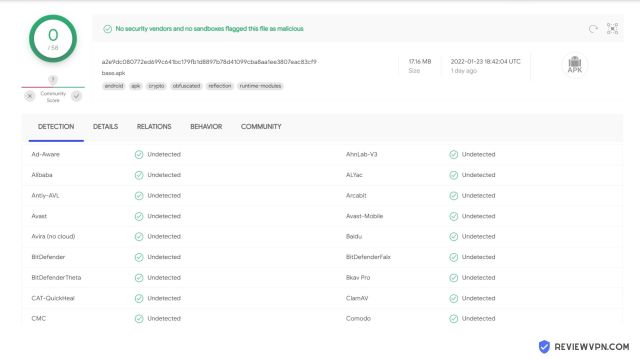
We tested this app using VirusTotal and found no threats or any malicious files and malware.
Despite having good results, we still need to be vigilant in protecting our privacy while streaming.
A Virtual Private Network or VPN will definitely help us maintain our security and anonymity while using TVIoo Pro.
There you go, TVIoo Pro is now installed on your device.
How to Install TVIoo Pro on Android via Filelinked
Note: Please make sure that you set your device to allow apps from unknown sources. This varies on the type and brand of device that you are using. You can see this once you enter the settings of your device and go to apps and notifications.
Launch a web browser
Type in filelinked.com
Click on the thumbnail for Download Filelinked.
Select Download.
Wait for the download to finish.
Click on Open.
Select Install.
The installation will take a few seconds.
Choose Open.
Allow access to your files and select Continue.
Enter the code 67664537.
Click on Continue.
Use the search function and look for TV Ioo Pro.
Once the thumbnail appears, click on the dropdown icon to start the download.
Click on the play button icon to install the app.
Select Open
There you go, TVIoo Pro is now installed on your device.
Is It Any Good?
TVIoo Pro is a great app for streaming especially for Movies. It is an up-to-date free app so you can catch the latest movies in the comfort of your home and it is absolutely free!
YOUR INTERNET ACTIVITY IS BEING WATCHED
ReviewVPN cannot attest to the legality, security and privacy of the applications discussed on this site. It is highly recommended that you use a VPN service while streaming or using Kodi.
Currently, your IP 216.73.216.208 is visible to everyone and your Browser is being tracked by Advertisers & ISP Provider.
Your activities are hidden from your ISP, the government, and from the apps you are using.
You can access additional movies and TV streams.
ISP attempts to throttle are thrwarted thus reducing buffering issues.
Geographically restricted content like Netflix and Hulu can be unblocked.
A VPN works be replacing your ISP-assigned IP address and creating an encrypted tunnel. We recommend the no log service offered by IPVanish. It works well on a Firestick and offers the fastest possible speeds.
Legal Disclaimer: ReviewVPN.com does not encourage or endorse any illegal activity involved in the usage of services and applications referenced on this site. We do not verify the licensing agreements of services. The end-user is wholly responsible for ensuring that any media accessed through these services does not violate copyright and/or licensing laws. ReviewVPN does not promote, link to, or receive compensation from any Apps and IPTV services.
Sign-up and registration for comments and suggestions
Several Genres to choose from
Pros and Cons
Pros
Real One-Click Play
Fast Loading Time and Playback
Updated regularly
Cons
The app has a limited resources for the TV Show section
You will find that the featured channels are mostly from Turkey.
Stream Safely with Surfshark
We always remind our readers that free streaming comes with great responsibility. In order to fully enjoy it, you must protect and secure your online activities that are being constantly monitored by your ISP. Here are the reasons why you should use a premium VPN service like Surfshark:
It cloaks all of your activities online.
Access to geo-restricted content
Provides safe streaming and browsing when using public wifi internet connections.
One of the best solutions for buffering. You can use it to fix buffering on Kodi and Firestick as well.
Prevents ISP Throttling
Note: For more information about SurfShark, please read our SURFSHARK REVIEW.
If your Firestick still has the older interface, read this article to learn how to update it: Update Firestick Interface.
You can download Surfshark directly from the Amazon App store. It will be easy for you to find Surfshark with your Firestick’s Find feature. Refer to our screenshots below.
1. Go to the Home screen of your Firestick.
2. Navigate towards the Find tab. Press the Search button from the resulting dropdown.
3. Type in the keyword of SurfShark and select from the suggestions that will appear.
4. Click the official SurfShark icon from your search results.
5. Press the Download (You own it) button.
6. The SurfShark VPN installer will download on your device.
7. SurfShark VPN’s app will automatically install itself on your Fire TV stick.
8. Press the Open button after completing SurfShark VPN’s installation process.
9. Please wait for the SurfShark VPN to load its user interface.
10. You can now log in with your SurfShark VPN account credentials.
For more VPN discounts, go to ReviewVPN Deals and purchase the best VPN for you.
Click here to get the lowest price on Surfshark through our exclusive limited-time offer.
FAQ
Is it safe to download?
Yes, it is safe to install TVIoo Pro on Android devices. As a matter of fact, aside from the Filelinked method of installation, you can grab it on the Google Play Store as well.
Is it legal or grey?
TVIoo Pro is 100% legal.
Is it free?
Yes, TVIoo Pro is absolutely free
Are there ADS?
Yes, there are a few ads but they are not really intrusive. If you want to block them out, you can use Ad Guard Pro. Here is how you do it:
Yes, you can visit https://www.movilada.com/ for more information regarding the app.
What other devices does it work on?
TVIoo Pro is tailor made for android devices. Unfortunately, it will not work properly on the Amazon Firestick.
How does the app work?
It works by scraping the web for working streaming links. Just follow the installation guide we have provided above and see how well it works.
Minimum Version Required
At least version 4.1 and above.
How long has it been around?
TVIoo Pro was released in May 2020.
Alternatives
The thing with free streaming apps is that one day it works really well, and then it will not. To prepare for this scenario, you need to have a good set of backup streaming apps.
Since TVIoo Pro is a One-Click Play app, it is imperative that we give you the same apps as alternatives.
ReviewVPN.com does not host any of these files. They are hosted on Archive.org.
You can also watch movies for free by using your device’s web browser. Please read our Best Free Movie Streaming Sites Article to get the best free movie websites.
TVIoo Pro is a legit app to use for streaming movies.
In our opinion, there is no need to subscribe to the premium version because the free version is already good. But if you don’t mind the extra cost, you subscribe to the premium version to unlock perks like Ad-Free Watching, Download Premium Content, and Watch Premium Content.
Having said that, please follow the installation guides we have provided above and experience free streaming with TVIoo Pro.
It is our hope that this article helps you with how to install TVIoo Pro on Android devices. Thank you for reading and stay safe!
Note: ReviewVPN.com does not own or operate any app nor does it endorse any. The main purpose of this article is strictly for educational purposes only.
This write-up will show you how to install FilmRise on Android devices like smartphones, tablets, and Smart TVs.
FilmRise is a very unique app that allows anyone to watch movies and TV Shows for free.
Why is it unique? It is so because the content that you are going to watch is dated and a lot of them are not even available online. You can walk down on memory lane and enjoy a lot of oldies but goodies using this app.
According to its website, the company has invested more than $100 million dollars to get rights for 20k movie and TV Show titles. Meaning, this app is absolutely legit to use on any device.
It is available for download on the Amazon App Store, App App Store, and Roku App Store. Unfortunately, it is not available on Google Play Store. But do not worry, we will teach you how to install FilmRise on your device as this article progresses.
Tip: If you prefer using browsers for streaming, you can watch unlimited movies by reading our article on Best Free Movie Streaming Websites.
Is FilmRise Safe and Virus-free?
We tested this application using VirusTotal and found that there is/are malicious file/files. You can see the above result for your reference.
Because of this, we highly recommend using a VPN that can protect your privacy against any threat from FilmRise.
Note: Please make sure that you set your device to allow apps from unknown sources. This varies on the type and brand of device that you are using. You can see this once you enter the settings of your device and go to apps and notifications.
1. Launch a web browser
2. Go to the search bar.
3. Simply type dl.unlinked.link and click the enter button on your android keyboard.
4. Click Open.
5. Select Install.
6. Wait for the installation to finish.
7. Choose Open.
8. Click on Add a new library.
9. Type the code 67664537 then press Enter.
10. Click Enter again.
11. Scroll down and look for the FilmRise app and Tap on it.
12. Click on the dropdown icon to start the download
13. Click Install app.
14. Permission required, tap OK.
15. Tap “Allow from this source” to Turn On, then click the arrow button on the left side to turn back.
16. Click Install again.
17. Press the Home button of your android to go back.
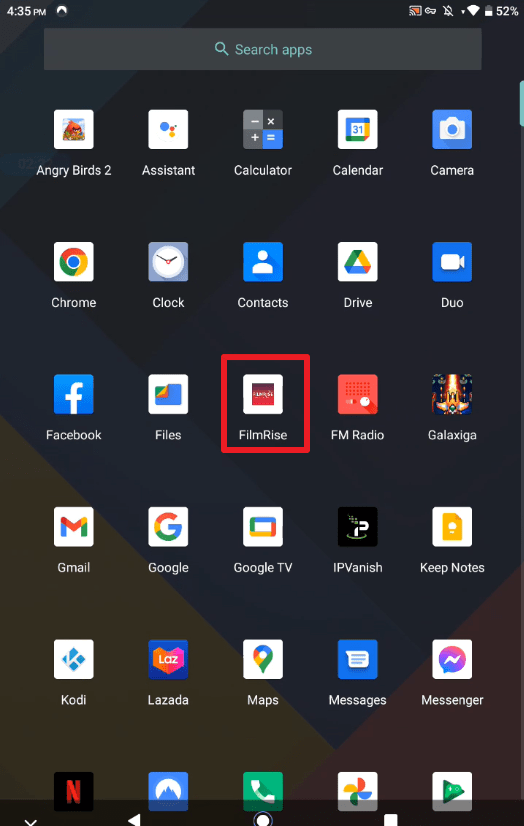
18. Then GO to your App Menu and look for the FilmRise app then Tap on it.
19. Congrats! You can now watch your favorite movies.
YOUR INTERNET ACTIVITY IS BEING WATCHED
ReviewVPN cannot attest to the legality, security and privacy of the applications discussed on this site. It is highly recommended that you use a VPN service while streaming or using Kodi.
Currently, your IP 216.73.216.208 is visible to everyone and your Browser is being tracked by Advertisers & ISP Provider.
Your activities are hidden from your ISP, the government, and from the apps you are using.
You can access additional movies and TV streams.
ISP attempts to throttle are thrwarted thus reducing buffering issues.
Geographically restricted content like Netflix and Hulu can be unblocked.
A VPN works be replacing your ISP-assigned IP address and creating an encrypted tunnel. We recommend the no log service offered by IPVanish. It works well on a Firestick and offers the fastest possible speeds.
Legal Disclaimer: ReviewVPN.com does not encourage or endorse any illegal activity involved in the usage of services and applications referenced on this site. We do not verify the licensing agreements of services. The end-user is wholly responsible for ensuring that any media accessed through these services does not violate copyright and/or licensing laws. ReviewVPN does not promote, link to, or receive compensation from any Apps and IPTV services.
FilmRise is a streaming app for movies and TV Shows.
Although it does not provide the most popular and latest content, it is still a very cool app to use to watch old movies and TV Shows.
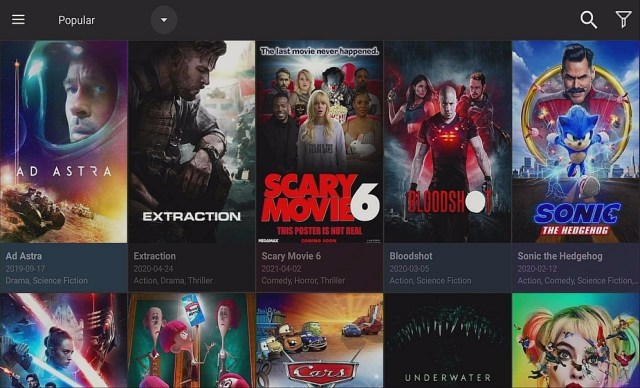
FilmRise has a really great movie list and catalog. Using FilmRise, you can watch horror movies and shows with the theme of True Crime.
You can also enjoy classics like Unsolved Mysteries, The Real Mccoys, and even our childhood favorite Popeye.
FilmRise Features
Movie Section
Genres included in this area are Action, Adventure, Animal, Animated, Apocalyptic, Book Adaptations, Comedy, Courtroom, Crime, Cult, Documentary, Drama, Detective, Disaster, Educational, Espionage, Faith, Fantasy, Food, Future, Gangster, Horror, Kids, Martial Arts, Military Sci-Fi, Murder Mystery, Musicals, Mystery, Nature, Political Thriller, Reality, Science Fiction, Shorts, Space, Sports, Technology, Thriller, and War.
TV Show Section
Genres featured in this section are Mystery, Detective, Law Enforcement, Prison, True Crime, Action and Thriller, Drama, Family, Sci-Fi, Fantasy, Romance, Western, Comedy, Sitcom, Kids, Reality, Documentary, Nature, Paranormal, and Travel.
Pros and Cons
Pros
Authentic One-Click Play
Subtitle Support
No buffering
HD Videos which are 1080p in a format most of the time
A watchlist serves as a way to bookmark videos you want to watch next.
Search Functionality
Cons
Limited amount of content that will run out if you watch every movie and TV Show it has.
Stream Safely with a VPN
Even though FilmRise is a legitimate app, it is always desirable to stream using a premium VPN service like Surfshark.
In this case, you will be needing it to prevent any attempt of your ISP to throttle down your connection. Throttling is one of the root causes of buffering. So, it is wise to use a VPN.
Also, there are some videos that will be unavailable in your region/country. Using Surfshark will help you unlock this type of content.
Note: For more information about SurfShark, please read our SURFSHARK REVIEW.
If your Firestick still has the older interface, read this article to learn how to update it: Update Firestick Interface.
You can download Surfshark directly from the Amazon App store. It will be easy for you to find Surfshark with your Firestick’s Find feature. Refer to our screenshots below.
1. Go to the Home screen of your Firestick.
2. Navigate towards the Find tab. Press the Search button from the resulting dropdown.
3. Type in the keyword of SurfShark and select from the suggestions that will appear.
4. Click the official SurfShark icon from your search results.
5. Press the Download (You own it) button.
6. The SurfShark VPN installer will download on your device.
7. SurfShark VPN’s app will automatically install itself on your Fire TV stick.
8. Press the Open button after completing SurfShark VPN’s installation process.
9. Please wait for the SurfShark VPN to load its user interface.
10. You can now log in with your SurfShark VPN account credentials.
Yes, you can visit https://filmrise.com/ for more details regarding FilmRise.
Version Required
At least version 5.0 and above.
Alternatives
Tubi TV and Sony Crackle are probably the best alternatives for FilmRise if ever it experiences any issues.
But if you want to watch the latest movies and TV Shows, it is best to use the Best Free Movie Apps.
The most ideal alternatives that we are going to feature are a part of our Best One-Click Play Apps. They are very similar to FilmRise in terms of interface and you will enjoy these without a doubt.
ReviewVPN.com does not host any of these files. They are hosted on Archive.org.
Our Opinion
FilmRise is not your typical free movie app because of the content it offers. You will not see the latest movies and TV Shows. But that is not a bad thing.
There are so many movies and TV Shows that the new generation of streamers hasn’t seen yet and most of these are really good. You can discover what was very popular back then and get to experience them yourself.
Overall, FilmRise is a great app for free streaming.
It is our hope that this article helps you with how to install FilmRise on Android devices. Thank you for reading and stay safe!
Note: ReviewVPN.com does not own or operate any app nor does it endorse any. The main purpose of this article is strictly for educational purposes only.
In this article, we will be showing you a collection of the Best One Click Play Apps for Firestick and other Android devices.
The Amazon Firestick is a device that allows you to watch anything and everything.
From paid streaming apps up to using third-party free streaming applications. You can do almost everything with the Firestick.
The only problem would be finding the best streaming apps that are compatible with the Firestick. With regard to that aspect, we have you covered. We have done all the research and testing.
UPDATE: TV ZION IS PERMANENTLY SHUT DOWN BY THE DEVELOPER.
Legal Disclaimer: ReviewVPN.com does not encourage or endorse any illegal activity involved in the usage of services and applications referenced on this site. We do not verify the licensing agreements of services. The end-user is wholly responsible for ensuring that any media accessed through these services does not violate copyright and/or licensing laws. ReviewVPN does not promote, link to, or receive compensation from any Apps and IPTV services.
One-Click Play Defined
One defining characteristic of a good Movie app is its ability to play movies with just one click of the Firestick remote.
There are many good streaming apps out there but not all of them are Real One-Click Play.
We define One-Click Play as the process of playing a video by just clicking on the thumbnail or when they do not need to show links to play a video.
There are only a select few free streaming applications that have this ability, and, in this article, you will be knowing our top five choices for the Best One Click Play Apps.
YOUR INTERNET ACTIVITY IS BEING WATCHED
ReviewVPN cannot attest to the legality, security and privacy of the applications discussed on this site. It is highly recommended that you use a VPN service while streaming or using Kodi.
Currently, your IP 216.73.216.208 is visible to everyone and your Browser is being tracked by Advertisers & ISP Provider.
Your activities are hidden from your ISP, the government, and from the apps you are using.
You can access additional movies and TV streams.
ISP attempts to throttle are thrwarted thus reducing buffering issues.
Geographically restricted content like Netflix and Hulu can be unblocked.
A VPN works be replacing your ISP-assigned IP address and creating an encrypted tunnel. We recommend the no log service offered by IPVanish. It works well on a Firestick and offers the fastest possible speeds.
After you have jailbroken your Firestick, you will also need a sideloading app called Downloader to install free streaming applications. Follow the guide below:
If you are looking for Bollywood and Hollywood content all at the same time, then PikaShow is the app for you.
PikaShow is a hidden gem because only a few people know of it. The interface is pretty straight forward and you get all of the latest movies and TV Shows.
The best thing about it is its One-Click Play functionality.
Features:
One-Click Play
Fast Loading time and Playback
HD Content
Up to date
Downloadable videos for smartphone and tablet users.
Easy navigation because it does not require the use of a Mouse Toggle.
Download and Install PikaShow on Android
Note: ReviewVPN.com does not host this APK file. It is hosted on Archive.org.
How To Install PikaShow on Firestick
Go to Settings and select Device.
Choose Developer Options
Turn on the ADB Debugging and Apps From Unknown Sources
After turning these options on, launch the Amazon App Store on your device
Search and Download Downloader
Install Downloader and launch it after installing it.
Choose Allow and Select Ok
Type in https://reviewvpn.com/pika and select Go
Wait for it to finish and then select PikaShow
Select Done
This will automatically take you back to Downloader. Select Delete
Choose Delete one more time
Head back to the home screen and under the Your Apps & Channels select Choose All
Scroll down and select PikaShow and select the Options.
Then select Move to Front
PikaShow will be moved forward to Your Apps and Channels
After this, you will see PikaShow and click it to launch.
Once you access the app, it will ask you to set up a parental pin for the Adult Section.
There you go, you can now enjoy using PikaShow.
Install PikaShow on Firestick with Screenshots Guide
Cinema HD is a very popular free movie and TV Shows application and has been in the game for a long time.
It is a very reliable app that provides Movies and TV Shows which are always up to date.
Unlike other free streaming apps, it has a feature that allows users to customize the app to automatically play videos once it gathered a certain number of links.
Update: TV Zion was shut down permanently by the developer.
TV Zion offers both a free version and a paid version.
It works just like any free movie app by searching the web for working links.
The user then has the option of manually selecting the link or can configure the app to play a video automatically once a certain number of links are collected.
You can also integrate your Real-Debrid account to ensure the quality of links is the best.
Features:
HD Movies and TV Shows.
One-Click Play
Loading time is fast.
Easy to use.
Mouse Toggle is not required to navigate through the app.
Trakt TV Support to keep track of your TV Shows
Real-Debrid Integration
Subtitles are embedded on the video automatically
You can avoid ads by using an Ad Blocker likeAd Guard Pro
How to Install TV Zion on Android
Note: ReviewVPN.com does not host this APK file. It is hosted on Archive.org.
How to Install TV Zion on Firestick Guide
Go to Settings and select Device
Choose Developer Options
Turn on the ADB Debugging and Apps From Unknown Sources
After turning these options on, launch the Amazon App Store on your device
Search and Download Downloader
Install Downloader and launch it after installing it.
Choose Allow and Select Ok
Type in https://reviewvpn.com/zion and select Go
Wait for it to finish and then select TV Zion
Select Done
This will automatically take you back to Downloader. Select Delete
Choose Delete one more time
Head back to the home screen and under the Your Apps & Channels select Choose All
Scroll down and select TV Zion and select the Options.
Then select Move to Front
TV Zion will be moved forward to Your Apps and Channels
After this, you will see TV Zionand click it to launch.
Update: Media Box HD is currently experiencing issues that is why we moved it to this section. We will keep you posted once the issues have subsided.
MediaBox HD is the renewed application formerly known as The Movie DB application. It has a history quite recently like Tea TV. It has a strong fan base, one of the significant reasons being that it just shows content that has working connections. Fixing is probably the most concerning issue confronted when utilizing android television applications.
Features:
One-Click Play
Subtitles and Closed Captioning
High Definition Movies and TV Shows
Very fast loading time and playback
Relatively easy to use
Has downloadable content
Favorites Section
Premium Link generators like Real-Debrid, All Debrid, and Premiumize can be integrated into the app.
How to Install MediaBox HD on Android
Note: ReviewVPN.com does not host this APK file. It is hosted on Archive.org.
How to Install MediaBox HD on Firestick Guide
Go to Settings and select Device
Choose Developer Options
Turn on the ADB Debugging and Apps From Unknown Sources
After turning these options on, launch the Amazon App Store on your device
Search and Download Downloader
Install Downloader and launch it after installing it.
Choose Allow and Select Ok
Type in https://reviewvpn.com/mhd and select Go
Wait for it to finish and then select MediaBox HD
Select Done
This will automatically take you back to Downloader. Select Delete
Choose Delete one more time
Head back to the home screen and under the Your Apps & Channels select Choose All
Scroll down and select MediaBox HD and select the Options.
Then select Move to Front
MediaBox HD will be moved forward to Your Apps and Channels
After this, you will see MediaBox HDand click it to launch.
Install MediaBox HD on Firesticks with Screenshots
Update: Theater Plus has been shut down both for the Firestick and other Android Devices.
Theater Plus is one of the only few working free streaming apps that have real One-Click Play. It may not be as popular as Nova TV or Cyberflix, but it landed on the number two spot because, in terms of this category, it outperforms the said apps. Aside from being a one-click play, it also offers various TV shows and recently released movies. The Developer has been very active in updating the app so everything you need can be found in this app.
Features:
Subtitle Support
Dual Language
One-Click Play
HD Movies and TV Shows
One of the fastest to load and play
Simple user interface
Does not require Mouse Toggle
Favorites Function
Ad-Free
Do You Need a VPN?
When we do online streaming, the chances of being monitored by your ISP and other online entities are very high. This type of activity consumes a huge amount of data thus, it will be noticed by your ISP.
What happens next is that your ISP will do everything it can to impede your connection which results in lags and buffering.
To prevent this from happening, you must need the protection of a premium VPN service Surfshark. What it does is prevent any attempt made by your ISP to throttle down your speed.
It will mask your activity and the only thing that will be seen is the amount of data being consumed, but not what it is being used for.
Aside from this, a VPN will also ensure your online anonymity and allow you to transfer data without the risk of being attacked by other online risks.
Having a VPN is also one of the best solutions to Stop Buffering for Kodi and Firestick alike.
Click the Best Surfshark Deal to get it for a discounted price. Grab your subscription now!
Note: To learn more about a premium VPN service, kindly read our Surfshark Review
Choosing the best free movie streaming app is a tough call. There are certain categories that you must consider, and one should be a One-Click Play feature. We are currently doing other BEST Category articles and we hope that these will help you in choosing what fits your standards and needs.
Please let us know if this article was able to help you in choosing the best One-Click Play Movie Apps by commenting down below. Thank you for reading!
Note: ReviewVPN.com does not own or operate any app nor does it endorse any. The main purpose of this article is strictly for educational purposes only.
TV Shows are an essential part of our daily lives. We watch them for entertainment and unwind or to get the latest news. There are shows that always keep us on our feet. Waiting and waiting until the next episode drops. The excitement is almost suffocating.
Anyway, what apps do you use to watch them? We bet you are subscribed to a paid streaming application. But did you know that you can enjoy your favorite TV Shows without having to pay an extra cost? That is right! You will only need your reliable internet connection and a VPN service. In this article, we will be highlighting the Best TV Show Apps for 2022.
Legal Disclaimer: ReviewVPN.com does not encourage or endorse any illegal activity involved in the usage of services and applications referenced on this site. We do not verify the licensing agreements of services. The end-user is wholly responsible for ensuring that any media accessed through these services does not violate copyright and/or licensing laws. ReviewVPN does not promote, link to, or receive compensation from any Apps and IPTV services.
Do you need a VPN for the Best TV Show Apps?
Before we install the Best TV Show Apps on any device, it is mandatory that you use them in conjunction with a premium VPN service like Surfshark.
Many people do not realize that all of their online activities are being watched by their ISP. Streaming is one of the most monitored activities due to its consuming a huge amount of data. When your ISP finds out about this, it will then throttle down your internet connection which then results in lag and buffering. We do not want that to happen so the most responsible thing to do when streaming is to use a VPN. It will cloak everything you do online, give you access to location-restricted content, provide anonymity, and most especially, thwart the efforts of your ISP to slow down your speed.
For more VPN discounts, go to ReviewVPN Deals and purchase the best VPN for you.
Click here to get the lowest price on Surfshark through our exclusive limited-time offer.
Best TV Shows Apps
We have tried and tested several streaming applications and came up with this list of Best TV Show Apps. We guarantee that all of these are working excellently on the Amazon Firestick, Android, and other devices. So, without further ado, we present to you the Best TV Show Apps for 2020.
Viva TV
Viva TV is a third-party streaming application that not only offers Movies but also high-quality TV Shows. It works perfectly with the Firestick and Android devices. Viva TV has a straight forward interface and you won’t be needing Mouse Toggle to navigate through the app. It has Real-Debrid Integration and Trakt Support. These features make it stand out amongst other popular streaming applications. For these reasons, Viva TV made it to the top of the list for Best TV Show Apps.
How to Install Viva TV on Android
Note: ReviewVPN.com does not host this APK file. It is hosted on Archive.org.
How To Install Viva TV on Firestick
Go to Settings and select Device.
Choose Developer Options
Turn on the ADB Debugging and Apps From Unknown Sources
After turning these options on, launch the Amazon App Store on your device
Search and Download Downloader
Install Downloader and launch it after installing it.
Choose Allow and Select Ok
Type in https://reviewvpn.com/viva and select Go
Wait for it to finish and then select Viva TV
Select Done
This will automatically take you back to Downloader. Select Delete
Choose Delete one more time
Head back to the home screen and under the Your Apps & Channels select Choose All
Scroll down and select Viva TV and select the Options.
Then select Move to Front
Viva TV will be moved forward to Your Apps and Channels
After this, you will see Viva TV and click it to launch.
Click here to get the lowest price on Surfshark through our exclusive limited-time offer.
Nova TV App
Being around for a year now, Nova TV has kept up with competitor applications. It is one of the best streaming applications because it is frequently updated. Nova TV provides the best streaming links for Movies and TV Shows. It is easy to use and navigation will be a breeze. You can expect a robust list of categories to select from. This app also features integrations for premium link generators like Real-Debrid and Premiumize. It also works well with the Firestick and Android devices making it one of The Best TV Show apps today.
How To Install Nova TV on Android
Note: ReviewVPN.com does not host this APK file. It is hosted on Archive.org.
How To Install Nova TV on Firestick
Go to Settings and select Device.
Choose Developer Options
Turn on the ADB Debugging and Apps From Unknown Sources
After turning these options on, launch the Amazon App Store on your device
Search and Download Downloader
Install Downloader and launch it after installing it.
Choose Allow and Select Ok
Type in https://reviewvpn.com/novaaf and select Go
Wait for it to finish and then select Nova TV
Select Done
This will automatically take you back to Downloader. Select Delete
Choose b>Delete one more time
Head back to the home screen and under the Your Apps & Channels select Choose All
Scroll down and select Nova TV and select the Options.
Then select Move to Front
Nova TV will be moved forward to Your Apps and Channels
After this, you will see Nova TV and click it to launch.
TV Show Genres are Western, War and Politics, Talk, Soap, Sci-Fi and Fantasy, Reality TV, News, Mystery, Kids, Family, Drama, Documentary, Crime, Comedy, and Action and Adventure.
Recently released episodes and movies.
Easy Navigation that does not require Mouse Toggle.
Click here to get the lowest price on Surfshark through our exclusive limited-time offer.
Media Lounge
Media Lounge is an all-around streaming app that provides Movies, TV Shows, Live TV, Sports, and Adult content. It is the successor of the defunct app Live Lounge. What it does is scrape the web for streaming links and then present them on its platform. You can use it to watch your favorite TV Shows which are constantly updated. Given that it offers five categories are enough reasons for it to be included in the list of Best TV Show Apps.
How To Install Media Lounge on Android
Note: ReviewVPN.com does not host this APK file. It is hosted on Archive.org.
How To Install Media Lounge on Firestick
Go to Settings and select Device.
Choose Developer Options
Turn on the ADB Debugging and Apps From Unknown Sources
After turning these options on, launch the Amazon App Store on your device
Search and Download Downloader
Install Downloader and launch it after installing it.
Choose Allow and Select Ok
Type in https://reviewvpn.com/med and select Go
Wait for it to finish and then select Media Lounge
Select Done
This will automatically take you back to Downloader. Select Delete
Choose Delete one more time
Head back to the home screen and under the Your Apps & Channels select Choose All
Scroll down and select Media Lounge and select the Options.
Then select Move to Front
Media Lounge will be moved forward to Your Apps and Channels
After this, you will see Media Lounge and click it to launch.
Once you access the app, it will ask you to set up a parental pin for the Adult Section.
There you go, you can now enjoy using Media Lounge.
Install Media Lounge on Firestick with Screenshots
2. Open Downloader. Type https://reviewvpn.com/med and click GO.
3. Click Install.
4. Click Open.
5. Click Allow.
6. Create a Parental Pin. Click OK.
7. Type your pin. Click Next.
8. Click OK.
9. Media Lounge is installed. Enjoy watching.
Media Lounge Features
Quick and easy to use Interface
Movie Genres are Action, Adventure, Animation, Comedy, Crime, Documentary, Drama, Family, Fantasy, History, Horror, Music, Mystery, Romance, Science Fiction, TV Movie, Thriller, War, and Western.
The Live TV section gives users channels from Pakistan, India, Bangladesh, UK, USA, Afghanistan, Arabian, Punjabi, South Indian, Religious, Kids, Wildlife and Science, Canada, Philippines, Nepal, France, Australia, Portugal, Germany, Italy, Turkish, Poland, Belgium, Spain, Kurdish, Albania, Romania, Greece, Thailand, and OSN.
Highlighted Sports channels are Sony, ESPN, Bein, Star Sports, Willow Cricket, Premier Sports, Sky Sports, BT Sports, Euro Sport, Box Nation, Setanta Sports, UK Racing, WWE Network, Dubai Sports, MUTV, Real Madrid, LFC TV, Chelsea TV, Arena Sports, Fox Sports, TSN Sports, Sports Net One, Ad Sports, Viasat Football, NBA TV, NBCSN, NFL Network, and many more.
The Adult Section provides content for Straight and Gay Men and women alike.
Pros and Cons
Pros
Excellent playback and loading time
Downloadable Content (Ideal for Android Users to watch offline)
Strix is the newest addition to the Lounge Family. Although Media Lounge is still very great, Strix is the next in line to the throne. Just like Media Lounge, it treats streamers with Movies, TV Shows, Live TV, Sports, and Adult Content. There are only two streaming apps on this planet that offer all of this in one go and they are Strix and Media Lounge. Coming from the same developer makes these two a cut above from the rest. So, it is no surprise that Strix is also included in the list of Best TV Shows App.
How To Install Strix on Android
Note: ReviewVPN.com does not host this APK file. It is hosted on Archive.org.
How To Install Strix on Firestick Sideloading Guide
Go to Settings and select Device.
Choose Developer Options
Turn on the ADB Debugging and Apps From Unknown Sources
After turning these options on, launch the Amazon App Store on your device
Search and Download Downloader
Install Downloader and launch it after installing it.
Choose Allow and Select Ok
Type in https://reviewvpn.com/strix and select Go
Wait for it to finish and then select Strix
Select Done
This will automatically take you back to Downloader. Select Delete
Choose Delete one more time
Head back to the home screen and under the Your Apps & Channels select Choose All
Scroll down and select Strix and select the Options.
Then select Move to Front
Strix will be moved forward to Your Apps and Channels
After this, you will see Strix and click it to launch.
Give the app access to your photos and media by selecting Allow
Launch a browser on another device and go to https://liveloungeapk.vip/strix-apk/ to get the pin.
Click on Submit
Set up your parental pin by selecting any 4-digit number of your choice and click on Next
6. Go to https://liveloungeapk.vip/strix-apk/ and get the pin to access the app.
7. Click on Next
8. Select Submit
9. Set up a parental pin code (any four numbered digits will do)
10. Click on Next
11. Choose Ok
12. Enjoy Watching Movies, TV Shows, Live TV, and Adult Content with Strix.
Strix Features
Straightforward interface. No need to use Mouse Toggle to go through the app.
The Movie Genres are Action, Adventure, Animation, Comedy, Crime, Documentary, Drama, Family, Fantasy, History, Horror, Music, Mystery, Romance, Science Fiction, TV Movie, Thriller, War, and Western
The Live TV section offers channels from different countries like Pakistan, India, Bangladesh, UK, USA, Afghanistan, Arabian, Punjabi, South Indian, Religious, Kids, Wildlife and Science, Canada, Philippines, Nepal, France, Australia, Portugal, Germany, Italy, Turkish, Poland, Belgium, Spain, Kurdish, Albania, Romania, Greece, Thailand, and OSN.
Popular Sports Channels are Sony, ESPN, Bein, Star Sports, Willow Cricket, Premier Sports, Sky Sports, BT Sports, Euro Sport, Box Nation, Setanta Sports, UK Racing, WWE Network, Dubai Sports, MUTV, Real Madrid, LFC TV, Chelsea TV, Arena Sports, Fox Sports, TSN Sports, Sports Net One, Ad Sports, Viasat Football, NBA TV, NBCSN, NFL Network, and many more.
The Adult Section caters to all genders.
Pros and Cons
Pros
Magnificent loading time and playback
The internal player is great. No need to use MX Player Pro.
Regular Updates
One-Click Play for the Live TV Section
Adult Pin for that extra layer of protection.
Hide the Adult section.
Ad-Free
Cons
There are movies with no links.
There are TV Shows with no working links.
SD Quality Videos
Auto-Sleep when the Firestick remote is not pressed within minutes.
Note: To learn further regarding this app, please read our Strix Review.
YOUR INTERNET ACTIVITY IS BEING WATCHED
ReviewVPN cannot attest to the legality, security and privacy of the applications discussed on this site. It is highly recommended that you use a VPN service while streaming or using Kodi.
Currently, your IP 216.73.216.208 is visible to everyone and your Browser is being tracked by Advertisers & ISP Provider.
Your activities are hidden from your ISP, the government, and from the apps you are using.
You can access additional movies and TV streams.
ISP attempts to throttle are thrwarted thus reducing buffering issues.
Geographically restricted content like Netflix and Hulu can be unblocked.
A VPN works be replacing your ISP-assigned IP address and creating an encrypted tunnel. We recommend the no log service offered by IPVanish. It works well on a Firestick and offers the fastest possible speeds.
Click here to get the lowest price on Surfshark through our exclusive limited-time offer.
No Longer Recommended
TV Zion
Update: TV Zion is now a dead app due to being shut down by the developer. This appears to be permanent.
TV Zion is a popular third-party streaming application that is the successor of Terrarium TV. You can get both a free and paid subscription. We think that the free version is already amazing and there is no need to get the paid version anymore. This is a very nice app that provides the latest Movies and TV Shows. It also has Real-Debrid and Trakt Support which signifies that it is a competent streaming application. Due to these, we have listed it as one of the Best TV Show Apps in 2020.
How To Install TV Zion Android
Note: ReviewVPN.com does not host this APK file. It is hosted on Archive.org.
How To Install TV Zion on Firestick
Go to Settings and select Device.
Choose Developer Options
Turn on the ADB Debugging and Apps From Unknown Sources
After turning these options on, launch the Amazon App Store on your device
Search and Download Downloader
Install Downloader and launch it after installing it.
Choose Allow and Select Ok
Type in https://reviewvpn.com/zion and select Go
Wait for it to finish and then select TV Zion
Select Done
This will automatically take you back to Downloader. Select Delete
Choose Delete one more time
Head back to the home screen and under the Your Apps & Channels select Choose All
Scroll down and select TV Zion and select the Options.
Then select Move to Front
TV Zion will be moved forward to Your Apps and Channels
After this, you will see TV Zion and click it to launch.
Click here to get the lowest price on Surfshark through our exclusive limited-time offer.
Conclusion
Picking which one is a matter we leave to you. We can vouch for each app featured in this article. Rest assured that they are all worthy of being called the Best TV Show Apps. Just choose one and binge-watch to your heart’s content.
We hope that this article gives you enough information regarding the Best TV Show Apps. Thank you for reading and stay safe!
2. Open Downloader App. Type https://reviewvpn.com/sof and click Go.
3. Click Install.
4. Click Open.
5. Click Allow. Click Cancel to join the Telegraph Group.
6. Sofa TV is installed. Enjoy Watching!
YOUR INTERNET ACTIVITY IS BEING WATCHED
ReviewVPN cannot attest to the legality, security and privacy of the applications discussed on this site. It is highly recommended that you use a VPN service while streaming or using Kodi.
Currently, your IP 216.73.216.208 is visible to everyone and your Browser is being tracked by Advertisers & ISP Provider.
Your activities are hidden from your ISP, the government, and from the apps you are using.
You can access additional movies and TV streams.
ISP attempts to throttle are thrwarted thus reducing buffering issues.
Geographically restricted content like Netflix and Hulu can be unblocked.
A VPN works be replacing your ISP-assigned IP address and creating an encrypted tunnel. We recommend the no log service offered by IPVanish. It works well on a Firestick and offers the fastest possible speeds.
Legal Disclaimer: ReviewVPN.com does not encourage or endorse any illegal activity involved in the usage of services and applications referenced on this site. We do not verify the licensing agreements of services. The end-user is wholly responsible for ensuring that any media accessed through these services does not violate copyright and/or licensing laws. ReviewVPN does not promote, link to, or receive compensation from any Apps and IPTV services.
The absence of this will bring about broken connections most particularly if the video being played is mainstream and probably used by numerous clients.
No Trakt Integration
Trakt TV allows you to pick up where you left off.
If this is not present in a streaming app, you will need to manually skim through the video just to get where you have been in the video the last time.
Should I use a VPN?
Activities like streaming expend a huge amount of data.
When an ISP notices this, it will throttle down your connection.
What a VPN does is cloak all your online activity. In this way, only the flow of data will be seen but not what it is being used for.
We recommend Surfshark to help you stay secure when using free streaming apps.
Note: For more information about Surfshark, please read our Surfshark Review.
For more VPN discounts, go to ReviewVPN Deals and purchase the best VPN for you.
FAQ
Is it safe to download?
Sofa TV is safe to download and install on the Firestick and other devices.
Is it legal or grey?
Sofa TV is 100% legal to use on your Firestick.
Is it free?
Sofa TV is free.
Are there ADS?
Sofa TV does not have ads.
Is there a premium version?
Sofa TV does not have a premium version.
Is it a Terrarium Clone?
No, it is not a terrarium clone.
Is there an official website?
Yes, Sofa TV has an official website. You can see this under settings>about.
What other devices does it work on?
Aside from the Amazon Firestick, Sofa TV will work well with android devices and the Amazon Fire Tablet 7 and 10.
How does the app work?
Just follow the step-by-step guide we have provided above, and you will see how quick it is to download and install Sofa TV on Firestick.
Minimum Version Required
At least version 5.0 and above will be needed for Sofa TV to run on your Firestick.
How long has it been around?
Sofa TV was released just this year, 2020.
Is there a Sofa TV Mod APK
No, there is none. The version of the app is already ad-free. There will be no sense in having a modded version.
Alternatives
Please always prepare a good back-up in case Sofa TV experiences trouble. All of the following streaming apps are tested by and we can guarantee that they all function well on the Firestick. Ideal Alternatives for Sofa TV are as follows:
Not a lot of apps are out there that feature Bollywood content like Sofa TV does.
Sofa TV may lack in the TV Shows department but it will make up for that in the Movies section.
If you watch movies more than TV Shows, then Sofa TV is ideal for you.
Final Thoughts
We hope that this article helps you with how to install Sofa TV Firestick version. Let us know what you think about it by dropping a comment down below. Thank you for reading and stay safe!
Note: ReviewVPN.com does not own or operate any app nor does it endorse any. The main purpose of this article is strictly for educational purposes only.
2. Open Downloader App. Type https://reviewvpn.com/mov and click Go.
3. Select INSTALL.
4. Select OPEN.
5. Movies Time is installed!
YOUR INTERNET ACTIVITY IS BEING WATCHED
ReviewVPN cannot attest to the legality, security and privacy of the applications discussed on this site. It is highly recommended that you use a VPN service while streaming or using Kodi.
Currently, your IP 216.73.216.208 is visible to everyone and your Browser is being tracked by Advertisers & ISP Provider.
Your activities are hidden from your ISP, the government, and from the apps you are using.
You can access additional movies and TV streams.
ISP attempts to throttle are thrwarted thus reducing buffering issues.
Geographically restricted content like Netflix and Hulu can be unblocked.
A VPN works be replacing your ISP-assigned IP address and creating an encrypted tunnel. We recommend the no log service offered by IPVanish. It works well on a Firestick and offers the fastest possible speeds.
Legal Disclaimer: ReviewVPN.com does not encourage or endorse any illegal activity involved in the usage of services and applications referenced on this site. We do not verify the licensing agreements of services. The end-user is wholly responsible for ensuring that any media accessed through these services does not violate copyright and/or licensing laws. ReviewVPN does not promote, link to, or receive compensation from any Apps and IPTV services.
Movies Time is a free third-party streaming application that is focused on featuring content from India/Bollywood. It does, however, offer English content, TV Shows, and Live TV Channels. It is also amongst the few true one-click play apps out there. So, you can expect a smooth viewing experience.
Movies Time Features
Homepage
The Homepage has four different sections. Bollywood, Hollywood, Web Shows, and Live TV.
Interface
Movies Time works without the need for Mouse Toggle that is why navigation will be easy. The internal player also allows you to rewind or fast forward the video by ten seconds. You can also change the language here and select subtitles.
Live TV Categories
These are mostly Indian channels that are categorized into Entertainment, Kids, Music, Movie, Sports, Information, Devotional, News, And All.
Pros and Cons
Pros
Mouse Toggle is not required to use Movies Time.
Real One-Click Play
Subtitle Support
Dual Language Support
Fast Loading Time and Playback.
Cons
Most of the Live TV channels are not working. There are only a few channels that are working
Some TV show links are not working
No Real-Debrid and Trakt Integration
Alternatives
In terms of specializing in Bollywood content, there are a few apps that operate the same way as Sofa TV. But when we talk about other decent free third-party streaming applications, here is a list of apps that we have tried and tested. Here they are:
Always remember this, whatever you do online is being monitored by your ISP. Whether you browse, stream, and download, everything is seen. These types of activities consume a lot of data which is why they will be flagged by your ISP. After being flagged, your speed will be significantly affected and slowed down. To prevent this from happening, you must use a premium VPN service like SurfShark. It will help you hide all of your activities and also ensure your online anonymity.
Note: For more information about SurfShark, please read our SurfShark REVIEW.
How to Install Surfshark on Firestick with Screenshots
If your Firestick still has the older interface, read this article to learn how to update it: Update Firestick Interface.
You can download Surfshark directly from the Amazon App store. It will be easy for you to find Surfshark with your Firestick’s Find feature. Refer to our screenshots below.
Follow our screenshots below to install the SurfShark VPN app on your Fire TV stick.
1. Go to the Home screen of your Firestick.
2. Navigate towards the Find tab. Press the Search button from the resulting dropdown.
3. Type in the keyword of SurfShark and select from the suggestions that will appear.
4. Click the official SurfShark icon from your search results.
5. Press the Download (You own it) button.
6. The SurfShark VPN installer will download on your device.
7. SurfShark VPN’s app will automatically install itself on your Fire TV stick.
8. Press the Open button after completing SurfShark VPN’s installation process.
9. Please wait for the SurfShark VPN to load its user interface.
10. You can now log in with your SurfShark VPN account credentials.
For more VPN discounts, go to ReviewVPN Deals and purchase the best VPN for you.
FAQ
Is it safe to download?
Yes, Movies Time is safe to download and install on your Amazon Firestick and other compatible devices.
Is it legal or grey?
Movies Time is 100% to download, install, and use on a Firestick.
Is it free?
Movies Time is totally free.
Are there ADS?
You will be glad to know that Movies Time does not have ads. You are ensured of smooth and hassle-free streaming.
Is there a premium version?
No, Movies Time does not have a premium version.
Is it a Terrarium Clone?
No, Movies Time is not a terrarium clone.
Is there an official website?
No Movies Time does not have an official website.
What other devices does it work on?
Movies Time will work on Android TV, Fire Cube, Windows via an android emulator, and Fire Tablets.
How does the app work?
Kindly read the guide we have provided above on how to install Movies Time Firestick version and witness firsthand how fast and easy it is to use.
Minimum Version Required
Your device needs to have at least version 5.0 for Movies Time to work properly.
How long has it been around?
Movies Time is pretty new and was launched this year, 2020.
Our Opinion
What we liked about Movies Time is the fact that it is a One-Click Play. It also has a fast playback and loading time. We believe that it should focus more on Movies and remove the Live TV Shows section that only has a few working channels. Please follow the guide provided above on how to install Movies Time Firestick version and see what we are talking about.
Final Thoughts
We hope that this article helps you with how to install Movies Time Firestick Version. Thank you for reading and be safe!
Note: ReviewVPN.com does not own or operate any app nor does it endorse any. The main purpose of this article is strictly for educational purposes only.
In this article, we will be guiding you on how to install PTV Max on Firestick.
Are you looking for a free third-party streaming application that has everything? From Movies, TV Shows, and Live TV? Seems hard to find right?
You do not have to look any further because we already did the research and testing.
We present to you, PTV Max. It is an all-in-one streaming app that will give you Bollywood Movies, Hollywood Movies, US TV Shows, Live TV, and many more.
Is PTV Max Safe and Virus-free?
We tested this app using VirusTotal and found no threats or any malicious files and malware.
Despite having good results, we still need to be vigilant in protecting our privacy while streaming.
A Virtual Private Network or VPN will definitely help us maintain our security and anonymity while using PTV Max.
2. Open Downloader App. Type https://reviewvpn.com/ptv and click Go.
3. Select INSTALL.
4. Select OPEN.
5. Select Accept.
6. Select Allow.
7. There you go, the PTV Max is installed!
YOUR INTERNET ACTIVITY IS BEING WATCHED
ReviewVPN cannot attest to the legality, security and privacy of the applications discussed on this site. It is highly recommended that you use a VPN service while streaming or using Kodi.
Currently, your IP 216.73.216.208 is visible to everyone and your Browser is being tracked by Advertisers & ISP Provider.
Your activities are hidden from your ISP, the government, and from the apps you are using.
You can access additional movies and TV streams.
ISP attempts to throttle are thrwarted thus reducing buffering issues.
Geographically restricted content like Netflix and Hulu can be unblocked.
A VPN works be replacing your ISP-assigned IP address and creating an encrypted tunnel. We recommend the no log service offered by IPVanish. It works well on a Firestick and offers the fastest possible speeds.
Legal Disclaimer: ReviewVPN.com does not encourage or endorse any illegal activity involved in the usage of services and applications referenced on this site. We do not verify the licensing agreements of services. The end-user is wholly responsible for ensuring that any media accessed through these services does not violate copyright and/or licensing laws. ReviewVPN does not promote, link to, or receive compensation from any Apps and IPTV services.
Movies Time is a free third-party streaming application that is focused on featuring content from India/Bollywood. It does, however, offer English content, TV Shows, and Live TV Channels. It is also amongst the few true one-click play apps out there. So, you can expect a smooth viewing experience.
PTV Max Features
Hamburger Menu
This section of the app will allow you to choose between Home, Live TV, Movies, Shows, Genre, login, Share App, and Settings.
Genres
Action, Sci-fi, Animation, Documentary, Family, Historic, Music, TV Shows, Adventure, Sushant Ko Tribute, Crime, Drama, Fantasy, Horror, and Musical
Live TV Channels
Road Safety World Series, Cricket LIVE, Pakistan Super League
Search Button
It allows you to search for anything you would like to stream.
Discover Tab
Upon clicking on this tab while scrolling down, you will be shown the Latest Movies, Latest TV Shows, Sushant Ko Tribute, Featured TV Shows, Featured Movies, Web Series, Hollywood Movies, Bollywood Movies, Kollywood Movies, Tollywood Movies, Mollywood Movies, Tamil Dubbed Movies, Hindi Dubbed Movies, Telugu Dubbed Movies, South Hindi Movies, Sandalwood Movies, Punjabi Movies, and Marathi Movies
Movies Tab
This section will give you all the Movies under PTV Max’s roster. From recent releases of Hollywood Movies up to the Bollywood ones and the like.
Shows Tab
This area highlights all the popular US TV Shows and other shows that originate from India, Pakistan, and other Asian countries.
Settings
Configure if you want push notifications or not, see the app version, check for updates, visit the official website, join their telegram, email address, and view the terms and policies.
Interface
You will be glad to know that PTV max does not require Mouse Toggle so navigation is going to be a breeze. You also have the option of using Zini Tevi as a player source or MX Player.
Thumbnail Menu
After you click on a video thumbnail, you will see the available links, a summary of the video trailer, date of release, Cast, and other recommended movies.
Pros and Cons
Pros
Fast Loading Time and Playback
Subtitle Support
HD Selection of Movies and TV Shows
Hindi and Tamil Subbed Movies that will cater to a specific audience.
Cons
Live TV Channels are not working
There seems to be a limit on the number of tv shows it features. Most are of Bollywood origin, and the English TV Shows featured are the only popular ones.
Should I use a VPN?
The Golden Rule of free streaming is always doing it with the use of a premium VPN service like Surfshark. Do you know why? It is because free streaming is always flagged by your ISP as a heavy-data-consuming type of activity. Once you are noticed by your ISP, the inevitable result is always going to be throttling down your speed which will always result in lags and buffering. This will be the death of your seamless streaming experience. In order to prevent this from happening, you must use Surfshark. It will block all the efforts of your ISP to slow down your speed and will assure your online anonymity.
Note: For more information about Surfshark, please read our Surfshark Review.
PTV Max is safe to download and install on a Firestick and other devices that run on the Android OS.
Is it legal or grey?
PTV Max is 100% legal to use on your device.
Is it free?
You do not have to worry about spending a single dime as PTV Max is free of charge.
Are there ADS?
The developer made it possible for PTV Max to be ad-free. That is why it landed a special mention in our article Best Ad-Free Movie Apps.
Is there a premium version?
PTV Max has no premium version whatsoever.
Is it a Terrarium Clone?
No, PTV Max is not a terrarium clone.
Is there an official website?
Yes, PTV Max has an official website. You can access it by clicking on the Settings button under the hamburger menu.
What other devices does it work on?
Aside from the Amazon Firestick, PTV Max will also run on all Android OS-run devices. You can also download and install it on other Fire devices like Fire Tablet 7 and 10.
How does the app work?
Please follow the guide we have given above on how to install the PTV Max Firestick edition and see firsthand how it operates.
Minimum Version Required
PTV Max will run smoothly on your device as long as it has a minimum version of 5.0 and above.
How long has it been around?
PTV Max is already a year old. It was registered on March 20, 2019
Alternatives
If you are looking for other streaming apps that specialize in Bollywood, Hollywood, and US TV Shows, Sofa TV will be the right choice. But if you are looking for content mostly focused on US-based Movies and TV Shows, the following apps are good alternatives:
PTV Max is without a doubt a huge surprise for us here at Reviewvpn.com. You get to have all the amazing content from Hollywood, Bollywood, and US TV Shows in just one application. Be sure to follow our guide on how to install PTV Max on Firestick and see for yourself what we are fuzzing about.
Final Thoughts
It is our wish that this article helps you with how to install PTV Max on the Firestick edition. Should you have questions and suggestions, please feel free to comment down below. Thank you for reading and stay safe!
Note: ReviewVPN.com does not own or operate any app nor does it endorse any. The main purpose of this article is strictly for educational purposes only.
In this write-up, we will be teaching you how to install Downloader App on Firestick and other Fire devices.
After learning how to Jailbreak the Firestick, you will need to install the downloader app apk on the Firestick.
Downloader App plays a crucial role in side-loading the APKs and the Best Firestick Apps that you can use to stream Movies, TV Shows, Live TV, Sports, and even Adult content for free.
It is readily available at the Amazon App Store so the process of how to install the Downloader app for Firestick is going to be easy.
Is Downloader App Safe and Virus-free?
We tested this app using VirusTotal and found no threats or any malicious files and malware.
Despite having good results, we still need to be vigilant in protecting our privacy while streaming.
A Virtual Private Network or VPN will definitely help us maintain our security and anonymity while using Downloader.
If your Firestick still has the older interface, read this article to learn how to update it: Update Firestick Interface
How to Install Downloader App with Screenshot Guide
1. Click Home on your remote and scroll once to your Right. Click Setting (Gear Wheel Icon)
2. Scroll down and to the right until you get to My Fire TV. Click on it.
3. Select Developer options.
4. Turn on ADB debugging and Apps from Unknown Source.
5. Click Turn On when the pop-up appears.
6. Click Home, click FIND.
7. Click Search.
8. You can either say Downloader to your Alexa voice-enabled remote or start typing it. If you typed it, click on the suggestion when it appears.
9. Click on the Downloader icon
10. Click Download
11. Click on Open.
12. Click on Allow.
13. There you go, you now use Downloader to sideload free streaming apps.
YOUR INTERNET ACTIVITY IS BEING WATCHED
ReviewVPN cannot attest to the legality, security and privacy of the applications discussed on this site. It is highly recommended that you use a VPN service while streaming or using Kodi.
Currently, your IP 216.73.216.208 is visible to everyone and your Browser is being tracked by Advertisers & ISP Provider.
Your activities are hidden from your ISP, the government, and from the apps you are using.
You can access additional movies and TV streams.
ISP attempts to throttle are thrwarted thus reducing buffering issues.
Geographically restricted content like Netflix and Hulu can be unblocked.
A VPN works be replacing your ISP-assigned IP address and creating an encrypted tunnel. We recommend the no log service offered by IPVanish. It works well on a Firestick and offers the fastest possible speeds.
Legal Disclaimer: ReviewVPN.com does not encourage or endorse any illegal activity involved in the usage of services and applications referenced on this site. We do not verify the licensing agreements of services. The end-user is wholly responsible for ensuring that any media accessed through these services does not violate copyright and/or licensing laws. ReviewVPN does not promote, link to, or receive compensation from any Apps and IPTV services.
Now that you have downloaded Downloader on Firestick, there are a lot of good third-party apps that you can use to watch anything for free.
Note: It is imperative that you download these apps while using Surfshark. Read this article to help you with this matter.
Let us side-load a popular streaming app for Movies and TV Shows called Viva TV. Follow the instructions below:
Install Viva TV on Firestick with Screenshots
1. Open Downloader App. Type https://reviewvpn.com/viva and click Go.
2. Click on Install.
3. Click Open
4. Enjoy Watching Viva TV
Note: Read our Viva TV Review for further details regarding this application.
You can also watch Cable TV and Sports by side-loading Live NetTV. It is a third-party streaming app that specializes in Live TV and Sports. You can install it by following the guide below:
Install Live Net TV on Firestick Sideloading Guide with Screenshots
1. Open Downloader App. Type https://reviewvpn.com/livenet and click Go.
2. Click on INSTALL
3. Click on OPEN
4. Click Continue.
5. Click Allow.
6. Live NetTV is Installed. Enjoy Watching.
Note: Our Live NetTV Review will provide more information regarding the app.
Now that you have installed free streaming applications, we would like to remind you that it is important to use these apps in combination with a reliable and trustworthy VPN service like Surfshark.
Here are the reasons why you should use it:
Surfshark will provide users with anonymity and security.
How to Install Surfshark on Firestick with Screenshots
If your Firestick still has the older interface, read this article to learn how to update it: Update Firestick Interface.
You can download Surfshark directly from the Amazon App store. It will be easy for you to find Surfshark with your Firestick’s Find feature. Refer to our screenshots below.
Follow our screenshots below to install the Surfshark VPN app on your Fire TV stick.
1. Go to the Home screen of your Firestick.
2. Navigate towards the Find tab. Press the Search button from the resulting dropdown.
3. Type in the keyword of Surfshark and select from the suggestions that will appear.
4. Click the official Surfshark icon from your search results.
5. Press the Download (You own it) button.
6. The Surfshark VPN installer will download on your device.
7. Surfshark VPN’s app will automatically install itself on your Fire TV stick.
8. Press the Open button after completing Surfshark VPN’s installation process.
9. Please wait for the Surfshark VPN to load its user interface.
10. You can now log in with your Surfshark VPN account credentials.
The Downloader app is one of the best ways to help you install streaming apps that will give you access to free content. Be sure to follow the tutorials we have provided above and you will have a wonderful streaming experience.
We hope that this article helps you with how to install the Downloader app on your device. Thank you for reading!
Note: ReviewVPN.com does not own or operate any app nor does it endorse any. The main purpose of this article is strictly for educational purposes only.
Music has been a part of our lives. We listen to it to do daily activities like jogging, cleaning, meditating, and have a good sweat by dancing our hearts out. Did you know that you can listen to music using the Amazon Firestick? Yes, that is right! You can listen to the latest tracks or your favorite oldies but goodies, Radio Stations, Podcasts, and many more.
You just need the right Music Apps that are compatible with the Firestick. In this article, we will be highlighting the Best Music Apps for Firestick.
Legal Disclaimer: ReviewVPN.com does not encourage or endorse any illegal activity involved in the usage of services and applications referenced on this site. We do not verify the licensing agreements of services. The end-user is wholly responsible for ensuring that any media accessed through these services does not violate copyright and/or licensing laws. ReviewVPN does not promote, link to, or receive compensation from any Apps and IPTV services.
Friendly Reminder
Before we jump right into it, you have to consider things that will like Is it One-Click Play? Do you need Mouse Toggle to navigate through the app? Can you build a playlist? Does it offer a huge variety of content? Is the content up to date? Does it have ads? What makes the app unique? These are some of the things we have to think of when choosing the Best Music Apps for the Amazon Firestick.
Best Music Apps Firestick Edition
Spotify Premium Mod
It is no surprise that Spotify would reign supreme in this list of Best Music Apps for Firestick. Spotify has been the go-to music app for millions of people around the globe. Spotify allows you to listen to music for free and luckily this modified version does not limit you to randomly streaming. By using this version, you can specifically search for anything and play them unlimited times. You can enjoy free music without having the need to pay for anything.
How To Install Spotify Premium Mod on a Firestick Guide
Go to Settings and select Device.
Choose Developer Options
Turn on the ADB Debugging and Apps From Unknown Sources
After turning these options on, launch the Amazon App Store on your device
Search and Download Downloader
Install Downloader and launch it after installing it.
Choose Allow and Select Ok
Type in get.filelinked.com and select Go
Wait for it to finish and then select Filelinked
Select Done
This will automatically take you back to Downloader. Select Delete
Choose Delete one more time
Head back to the home screen and under the Your Apps & Channels select Choose All
Scroll down and select Filelinked and select the Options.
Then select Move to Front
Filelinked will be moved forward to Your Apps and Channels
After this, you will see Filelinked and click it to launch.
Type in the code 67664537 and wait for it to load.
On the search box, type in Spotify Premium Mod
Download Spotify Premium Mod by clicking on the drop-down button.
Once the download finishes, click on the play button to install Spotify Premium Mod.
Select Install
Click Open to launch Spotify Premium Mod on your Firestick.
If your Firestick still has the older interface, read this article to learn how to update it: Update Firestick Interface.
Install Spotify Premium Mod Guide with Screenshots
2. Open Downloader. Type get.filelinked.com and click Go.
3. Click Install.
4. Select Open.
5. Type this code 67664537 then Press Next.
6. Press continue and wait for it to load.
7. Search for Spotify Premium Mod then Press Next.
8. Click the download icon.
9. Wait for it to download.
10. Click the play icon.
11. Click Next.
12. Select Open.
13. Log in and listen to your favorite music and artists.
Features:
Background Listening
Personalized Playlists
Multiple Device Support in One Account
Shuffle Play feature
A huge library of songs to choose from
One-Click Play
Search Function
Listen to music without accessing the app. Just click on the play button and the app will automatically play songs.
YOUR INTERNET ACTIVITY IS BEING WATCHED
ReviewVPN cannot attest to the legality, security and privacy of the applications discussed on this site. It is highly recommended that you use a VPN service while streaming or using Kodi.
Currently, your IP 216.73.216.208 is visible to everyone and your Browser is being tracked by Advertisers & ISP Provider.
Your activities are hidden from your ISP, the government, and from the apps you are using.
You can access additional movies and TV streams.
ISP attempts to throttle are thrwarted thus reducing buffering issues.
Geographically restricted content like Netflix and Hulu can be unblocked.
A VPN works be replacing your ISP-assigned IP address and creating an encrypted tunnel. We recommend the no log service offered by IPVanish. It works well on a Firestick and offers the fastest possible speeds.
This modified version removes the restriction of listening to songs randomly.
Smart programming that suggests playlists depending on your listening behavior.
Background Playing
Ad-Free
Best Audio Quality
Cons
The only setback we saw is having the need to use Mouse Toggle to breeze through the app.
Deezer Music
Deezer Music is a Music Streaming application that has both a free version and premium version. It allows you to customize the music you want to listen to. You can choose your favorite artists and the app will intelligently build a recommended playlist for you. The app is also able to play in the background. For these reasons alone, Deezer Music is listed as one of the Best Music Apps for Firestick.
How To Install Deezer Music on a Firestick Guide
Go to Settings and select Device.
Choose Developer Options
Turn on the ADB Debugging and Apps From Unknown Sources
After turning these options on, launch the Amazon App Store on your device
Search and Download Downloader
Install Downloader and launch it after installing it.
Choose Allow and Select Ok
Type in get.filelinked.com and select Go
Wait for it to finish and then select Filelinked
Select Done
This will automatically take you back to Downloader. Select Delete
Choose Delete one more time
Head back to the home screen and under the Your Apps & Channels select Choose All
Scroll down and select Filelinked and select the Options.
Then select Move to Front
Filelinked will be moved forward to Your Apps and Channels
After this, you will see Filelinked and click it to launch.
Type in the code 67664537 and wait for it to load.
On the search box, type in Deezer Music
Download Deezer Music by clicking on the drop-down button.
Once the download finishes, click on the play button to install Deezer Music.
Select Install
Click Open to launch Deezer Music on your Firestick.
2. Open Downloader. Type get.filelinked.com and click Go.
3. Click Install.
4. Select Open.
5. Type this code 67664537 then Press Next.
6. Press continue and wait for it to load.
7. Search for Deezer Music then Press Next.
8. Click the download icon.
9. Wait for it to download.
10. Click the play icon.
11. Click Next.
12. Select Open.
13. Log in and listen to your favorite music and artists.
Features:
Free Version
Personalized Mixes and Playlists
Background Listening
Favorites Function
You can search for any music you want to listen to
Premium Version
Personalized Mixes and Playlists
Background Listening without accessing the app, just click on the play button of your remote.
Unlimited Access to a lot of content
Ad-Free Streaming
High-Quality Tracks
Offline Mode
Pros and Cons
Pros
Intelligent UI that builds you a personalized playlist based on the Artists you have chosen as your favorite.
Good Audio Quality
Free Version allows you to listen to music without having the need to pay for anything.
You will find tracks that are equipped with Lyrics. You can sing along as much as you want when a track has this feature.
Cons
You will be needing Mouse Toggle to click on the thumbnails but you can still navigate through the app with only your Firestick remote control.
It has ads but upon close inspection, you can block out the ads by using Ad Guard Pro.
Fildo Music
This application permits clients to stream music from various sources and supports different sound arrangements, for example, MP3, MIDI, WAV, AAC, FLAC, among others. Browse classifications, for example, tune title, collection, or even your own playlist to begin playing your tunes. The best part is that you can get the application for nothing. Because of this, we have listed it as one of the Best Music Apps for Firestick.
How To Install Fildo Music on a Firestick Guide
Go to Settings and select Device.
Choose Developer Options
Turn on the ADB Debugging and Apps From Unknown Sources
After turning these options on, launch the Amazon App Store on your device
Search and Download Downloader
Install Downloader and launch it after installing it.
Choose Allow and Select Ok
Type in get.filelinked.com and select Go
Wait for it to finish and then select Filelinked
Select Done
This will automatically take you back to Downloader. Select Delete
Choose Delete one more time
Head back to the home screen and under the Your Apps & Channels select Choose All
Scroll down and select Filelinked and select the Options.
Then select Move to Front
Filelinked will be moved forward to Your Apps and Channels
After this, you will see Filelinked and click it to launch.
Type in the code 67664537 and wait for it to load.
On the search box, type in Fildo Music
Download Fildo Music by clicking on the drop-down button.
Once the download finishes, click on the play button to install Fildo Music.
Select Install
Click Open to launch Fildo Music on your Firestick.
2. Open Downloader. Type get.filelinked.com and click Go.
3. Click Install.
4. Select Open.
5. Type this code 67664537 then Press Next.
6. Press continue and wait for it to load.
7. Search for Fildo Music then Press Next.
8. Click the download icon.
9. Wait for it to download.
10. Click the play icon.
11. Select Install.
12. Select Open.
13. Select Allow.
14. Enjoy and listen to your favorite music and artists.
Features:
Browse songs according to the Top Albums, Latest Albums, Top Artists, and World Top Charts.
Access to American Billboard, UK Charts, iTunes, and many more.
Search Functionality
The playlist function will allow you to queue up songs and play them without needing to manually search and play.
Pros and Cons
Pros
Ad-Free
You can import your Spotify Account
Downloadable Content
Good Audio Quality
Up to Date Content
Preset Playlists like American Billboard Chart, Uk Weekly Chart, iTunes, Beatport Electronic, Electronic Music, New Music, Hot Music, and many more.
Select Songs per Artist
Cons
Not One-Click Play
Navigating through the app is a bit challenging, you have to turn on and turn off Mouse Toggle most of the time.
Response Time is dependent on the speed of your internet connection.
YMusic
YMusic is a free music streaming app that plays the audio from Youtube videos. Never worry about playing music with a slow internet connection because YMusic consumes fewer data compared to playing music using videos. It allows you to download mp3s from Youtube videos. Due to its unique features, we have added it to the list of Best Music Apps for Firestick.
How To Install YMusic on a Firestick Guide
Go to Settings and select Device.
Choose Developer Options
Turn on the ADB Debugging and Apps From Unknown Sources
After turning these options on, launch the Amazon App Store on your device
Search and Download Downloader
Install Downloader and launch it after installing it.
Choose Allow and Select Ok
Type in get.filelinked.com and select Go
Wait for it to finish and then select Filelinked
Select Done
This will automatically take you back to Downloader. Select Delete
Choose Delete one more time
Head back to the home screen and under the Your Apps & Channels select Choose All
Scroll down and select Filelinked and select the Options.
Then select Move to Front
Filelinked will be moved forward to Your Apps and Channels
After this, you will see Filelinked and click it to launch.
Type in the code 67664537 and wait for it to load.
On the search box, type in YMusic
Download YMusic by clicking on the drop-down button.
Once the download finishes, click on the play button to install YMusic.
2. Open Downloader. Type get.filelinked.com and click Go.
3. Click Install.
4. Select Open.
5. Type this code 67664537 then Press Next.
6. Press continue and wait for it to load.
7. Search for YMusic then Press Next.
8. Click the download icon.
9. Wait for it to download.
10. Click the play icon.
11. Select Install.
12. Click Open.
13. Select Allow.
14. Select Allow.
15. Select Allow.
16. Press Done.
17. Enjoy and listen to your favorite music and artists.
Features:
Sync up your Youtube Account
Suggestions depending on your Youtube viewing pattern
Plays the audio from Youtube videos
Queue up songs on a playlist
No need to manually open the app to play, just click on the play button on your Firestick remote.
Search Function
Pros and Cons
Pros
Mouse Toggle will only be required when you sync your Youtube account. Beyond that, navigation is aa breeze.
The Playlist will allow you to listen to music longer without any interruption rather than manually searching and playing.
Downloadable Content
Ad-Free
Up to date
Variety of tracks to play
Cons
The color scheme of the app is a bit hard on the eyes.
AudioRave
AudioRave is another music streaming application that you can use for free. It allows users to build a playlist depending on the songs searched. The content is also separated by genre. So, it will be easier to find songs depending on your vibe. AudioRave has a very easy user interface with only a minimum amount of Mouse Toggle usage required. Users will find this app convenient and easy to use. For these reasons, it has landed on our list for the Best Music Apps for Firestick.
How To Install AudioRave on a Firestick Guide
Go to Settings and select Device.
Choose Developer Options
Turn on the ADB Debugging and Apps From Unknown Sources
After turning these options on, launch the Amazon App Store on your device
Search and Download Downloader
Install Downloader and launch it after installing it.
Choose Allow and Select Ok
Type in get.filelinked.com and select Go
Wait for it to finish and then select Filelinked
Select Done
This will automatically take you back to Downloader. Select Delete
Choose Delete one more time
Head back to the home screen and under the Your Apps & Channels select Choose All
Scroll down and select Filelinked and select the Options.
Then select Move to Front
Filelinked will be moved forward to Your Apps and Channels
After this, you will see Filelinked and click it to launch.
Type in the code 67664537 and wait for it to load.
On the search box, type in AudioRave
Download AudioRave by clicking on the drop-down button.
Once the download finishes, click on the play button to install AudioRave.
2. Open Downloader. Type get.filelinked.com and click Go.
3. Click Install.
4. Select Open.
5. Type this code 67664537 then Press Next.
6. Press continue and wait for it to load.
7. Search for AudioRave then Press Next.
8. Click the download icon.
9. Wait for it to download.
10. Click the play icon.
11. Click Next.
12. Select Install.
13. Click Open.
14. Enjoy and listen to your favorite music and artists.
Features:
Genres include Trending Music, Hip Hop & Rap, Dance & EDM, Pop, Country, Alternative Rock, Ambient, Classical, Disco, Dubstep, Electronic, Folk, House, Indie, Jazz, Latin, Metal, Piano, R&B & Soul, Reggae, Rock, Soundtrack, Techno, Trance, Trap, and World.
One-Click Play
Search Function
Playlist
Pros and Cons
Pros
Good Audio Quality
Minimal use of Mouse Toggle makes the navigation easy.
Variety of content
There is no need to launch the app in order to play songs. Just click on the play button of your Firestick remote and you are good to go.
Cons
Some links appear to be broken.
The songs that are featured appear somewhat limited due to the lack of popular music coming from the top artists.
You will need Set Orientation to make the app fit perfectly on your TV Screen.
Stream Safely with a VPN
The things that we do online are always seen by our ISP (Internet Service Provider). We need to be vigilant to protect our privacy. In order to do this, we must secure our connection by using a premium VPN service like Surfshark. What it does is conceal all of our activities especially streaming from being logged by your ISP. It will also allow you to access Location-Restricted content and will give you anonymity, safety, and security online. So, please hurry up and click here to get Surfshark at a reasonable price.
Note: For more information about Surfshark, please read our Surfshark Review.
TuneIn Radio Pro may not function just like the apps we have listed above because of its nature. It is an application that you can use to listen to Live Radio. In essence, you can still listen to the latest and most popular tracks out there by using the app. We decided to include it to this list because it is very simple to use and it features all of the local Radio Stations near you.
How To Install TuneIn Radio Pro on a Firestick Guide
Go to Settings and select Device.
Choose Developer Options
Turn on the ADB Debugging and Apps From Unknown Sources
After turning these options on, launch the Amazon App Store on your device
Search and Download Downloader
Install Downloader and launch it after installing it.
Choose Allow and Select Ok
Type in get.filelinked.com and select Go
Wait for it to finish and then select Filelinked
Select Done
This will automatically take you back to Downloader. Select Delete
Choose Delete one more time
Head back to the home screen and under the Your Apps & Channels select Choose All
Scroll down and select Filelinked and select the Options.
Then select Move to Front
Filelinked will be moved forward to Your Apps and Channels
After this, you will see Filelinked and click it to launch.
Type in the code 67664537 and wait for it to load.
On the search box, type in TuneIn Radio Pro
Download TuneIn Radio Pro by clicking on the drop-down button.
Once the download finishes, click on the play button to install TuneIn Radio Pro.
Select Install
Click Open to launch TuneIn Radio Pro on your Firestick.
2. Open Downloader. Type get.filelinked.com and click Go.
3. Click Install.
4. Select Open.
5. Type this code 67664537 then Press Next.
6. Press continue and wait for it to load.
7. Search for TuneIn Radio Pro then Press Next.
8. Click the download icon.
9. Wait for it to download.
10. Click the play icon.
11. Select Install.
12. Click Open.
13. Enjoy and listen to your favorite music and artists.
Conclusion
Music is indeed important in our daily lives most especially during these trying times. Here at Reviewvpn.com, we always value our readers’ money’s worth. That is why we always find ways to provide them with honest and authentic reviews. Hopefully, this guide helps you listen to yo music for free using your Amazon Firestick.
Final Thoughts
We hope that this guide helps in choosing the Best Music Apps for Firestick. Thank you for reading and be safe.
Note: ReviewVPN.com does not own or operate any app nor does it endorse any. The main purpose of this article is strictly for educational purposes only.
Watchdogs Kodi addon is a third-party Kodi found within the LooNatics 3000 Asylum Repo. This addon allows you to stream movies, documentaries, music, news, sports events, sports documentaries, and lots more free of charge. You will find in this addon, utility, and program sections.
Legal Disclaimer: ReviewVPN.com does not encourage or endorse any illegal activity involved in the usage of services and applications referenced on this site. We do not verify the licensing agreements of services. The end-user is wholly responsible for ensuring that any media accessed through these services does not violate copyright and/or licensing laws. ReviewVPN does not promote, link to, or receive compensation from any Apps and IPTV services.
Features of Watchdogs Kodi Addon
Customizable skin and themes
Categories and subcategories of entertainment
Daily addon update
Huge collection of movies such as:
Action
Horror
Adventure
Sci-fi
Comedy and love more.
YOUR INTERNET ACTIVITY IS BEING WATCHED
ReviewVPN cannot attest to the legality, security and privacy of the applications discussed on this site. It is highly recommended that you use a VPN service while streaming or using Kodi.
Currently, your IP 216.73.216.208 is visible to everyone and your Browser is being tracked by Advertisers & ISP Provider.
Your activities are hidden from your ISP, the government, and from the apps you are using.
You can access additional movies and TV streams.
ISP attempts to throttle are thrwarted thus reducing buffering issues.
Geographically restricted content like Netflix and Hulu can be unblocked.
A VPN works be replacing your ISP-assigned IP address and creating an encrypted tunnel. We recommend the no log service offered by IPVanish. It works well on a Firestick and offers the fastest possible speeds.
1. Open your Kodi app and scroll up to the setting icon
2. Next, on the new window, scroll down to the system option and click on it.
3. Select add-ons.
4. Click on UNKNOWN SOURCES and select YES on the dialog box with the warning message.
5. Go back to the home screen of your Kodi app.
6. Select the setting icon.
7. Next, on the new window, select file manager
8. Tap the add source.
9. Select <NONE> and input the media source link: ‘ https://techecoyote.github.io/Install_LooNatics and select OK.
10. Next, click on “Enter a name for this media source” and type “sup-cydia“.
11. Go back to the home screen.
12. from the home menu, scroll down, and Click on add-ons.
13. On the new window, scroll up and select the add-on browser icon.
14. Select install from the zip file.
15. Click on
16. Choose the repository.LoonaticsAsylum-xx.x.x.zip and then wait for Add-on enabled notification.
17. Select Install from Repository
18. Clic on LooNatics 3000 Asylum Repo
19. Select video add-ons
20. Tap the WatchDogs
21. Click on Install
22. Select OK on the dialog box with “ the following additional add-ons will be installed” and wait for Add-on installed message notification.
Do Not Use Kodi Without a VPN
Streaming online has drastically increased nowadays. Consequently, many streaming apps are being developed by app developers and most of these apps are third-party apps: meaning that they have full copyright to the content they offer. However, it is not recommendable to use any third-party apps because of the security and privacy risks involved. This is where a VPN comes in.
A VPN is a software that encrypts and masks your IP address to appear on the internet service provider network as a secure and private user thereby bypassing any online security issues. This is achieved when a VPN encrypts your IP address on the ISP network (hides your true identity on the ISP).
Below are The Importance Of Installing a VPN
Security and privacy
You may own your computer and internet connection (even though no one else uses them) still, whatever activities you are doing online isn’t private. Your internet service provider records and says whatever activity you are doing online. With a VPN installed on your device, you will be able to bypass being monitored or tracked by your internet service provider.
Restrictions
Most streaming apps protect their content by putting location restrictions. This makes it hard for anyone outside of the stipulated location to have access to the content they offer.
However, with a VPN, you will be able to change your IP address to a different one. When this happens, you will be able to have access to the contents from the app.
Minimize Internet Service Provider Throttling
Throttling reduces video quality. However, installing a VPN will help minimize the effects of throttling.
Outsmart Tracking and Monitoring
A VPN encrypts and masks your IP address making it difficult for your Internet service provider to track or monitor whatever activities you are doing online.
For the best VPN service, we recommend Surfshark. You will enjoy pocket-friendly subscription packages (they also offer promo if you are going for annual subscription plans).
Note: For more information about Surfshark, please read our Surfshark Review.