Apps to Watch UFC Fights

Overview

This article will feature the best apps to watch UFC Fights.

The internet has entirely changed how people stream sporting and pay-per-view (PPV) events. A couple of years ago, people would have to rely on cable TV to stream one of the greatest fighters in mixed martial arts (MMA) history – Georges St-Pierre.


However, people can now watch the world’s biggest UFC events on their smartphone, tablet, Firestick, or Google Chromecast from anywhere free of charge. This is because of the many Android APKs (Android Application Package) that have been available over the last couple of years.

Installing the right app, you can watch all PPVs live and Ultimate Fighting Championship fights without a subscription. Nonetheless, this article has rounded up the best apps to watch UFC fights free of charge – read on to check them out below.


ANONYMOUSLY


What is the Ultimate Fighting Championship or UFC?

The Ultimate Fighting Championship or UFC is Mixed Martial Arts’ biggest promoter across the globe. Kicked off in 1993, the UFC has put on about 500 fighting events. Recently, a deal with ESPN for five years rights for $1.5 billion hardened its title as the topmost promoter for the biggest Mixed Martial Arts fights around the world. It has become the most profitable pay-per-view promoter surpassing WWE (World Wrestling Entertainment) and Boxing.


Best Apps to watch UFC Fights

Live NetTV

Live NetTV is among the most popular streaming apps, and tons of individuals find it as the best app to stream UFC fights free of charge. Just like its moniker implies, the streaming APK is dedicated to Live TV streaming. It features more than 800 channels.

One of Live NetTV’s features that make it a top option for UFC fights is the app’s live event section. The live event section lists all upcoming & ongoing UFC events, which makes it easy for people to watch live events. This section of the app will suggest the event’s best stream. However, people can also opt for a random channel. If Live NetTV users want a different broadcaster, they can head to the sports section or search for the TV channel they like. Nearly all channels provide multiple streams to make sure better service.


Screenshots with Step by Step Instruction to Install Live NetTV on a Firestick

1. Install the Downloader app and jailbreak your firestick by enabling unknown sources. To learn more about the procedure, you may read How to Install the Downloader App and Enable Unknown Sources.

2. Open Downloader App. Type https://livenettv.sc and click Go.

Install Live NetTV


3. Click on Download The App.

Step 13 Install Live NetTV on Firestick


4. Click on Install and you should be all set. Remember to delete the APK file after installation to save space.

Step 14 Install Live NetTV on Firestick


RedBox TV

RedBox TV is an amazing streaming app that promises a load of entertainment. The streaming app stands out from other Live TV applications because of its consistent performance as well as the fact that it provides buffer-free streams.

The app lets you watch UFC fights free of charge via channels such as Sky, BT Sport, & Fox Sports. Also, you can enjoy TV channels from various countries, including the United States, the United Kingdom, France, Pakistan, India, Spain, Australia, and many more.


Install RedBox TV APK on Firestick with Screenshots

1. Install the Downloader app and jailbreak your firestick by enabling unknown sources. To learn more about the procedure, you may read How to Install the Downloader App and Enable Unknown Sources.


2. Open Downloader App. Type https://reviewvpn.com/red and click Go.

RedBox TV1


3.  Click on INSTALL

RedBox TV2


4. Click on OPEN

RedBox Tv3


5. RedBox TV is Installed. Enjoy Watching.

RedBox TV4


Click here to get the lowest price on Surfshark through our exclusive limited-time offer.


TVTap Pro

If you are familiar with the popular streaming app UKTV Now, TVTap Pro is its updated version. TVTap Pro is one of the best apps to watch UFC fights because of its modern interface, a large number of sports channels. This app provides quality streaming. You can use the app to enjoy over 900 TV channels.

Most of TVTap Pro’s channels are from Europe. The app provides a lot of UFC broadcasters, including Sky, BT Sport, DAZN, ESPN, and Fox Sports. This streaming app lets you locate the official UFC Fight Pass stream

TVTap Pro lets you disable advertisements by sharing idle resources. Also, you can customize the TVTap Pro to your liking.


Install the TV Tap on Firestick with Screenshots

1. Install the Downloader app and jailbreak your firestick by enabling unknown sources. To learn more about the procedure, you may read How to Install the Downloader App and Enable Unknown Sources.


2. Open the Downloader App. Type https://reviewvpn.com/tvtap and click Go.

Install TV Tap APK


3. Wait for the file download to finish.

Install TV Tap APK 1


4. Click Install.

Install TV Tap APK 2


5. Select Open to launch the app.

Install TV Tap APK 3


6. There you go! You have successfully installed TV Tap.

Install TV Tap APK 4


Click here to get the lowest price on Surfshark through our exclusive limited-time offer.


HD Streamz

HD Streamz is a new streaming app but it’s one of the best applications to stream UFC fights for free. It provides users with more than 1000 live TV channels from around the globe. These channels are arranged into categories such as Entertainment, Sports, Movies, Music, Infotainment, Kids, and many more.

The sports section of HD Streamz consists of channels that people can use to watch live UFC matches. These include BT Sport, Sky Sports Arena, and Supersport. One of the best features of the streaming app is its modern interface. You can customize the HD Streamz app with a dark theme, disable advertisements by sharing idle resources, and floating-style streaming.


Install HD Streamz IPTV on Firestick with Screenshots

1. Install the Downloader app and jailbreak your firestick by enabling unknown sources. To learn more about the procedure, you may read How to Install the Downloader App and Enable Unknown Sources.


2. Open Downloader App. Type https://reviewvpn.com/hds and click Go.

Install HD Streamz IPTV


3. Click on Install and you should be all set. Remember to delete the APK file after installation to save space.

Step 13 Install HD Streamz IPTV on Firestick


4. Click Open

Step 14 Install HD Streamz IPTV on Firestick


5. Click I Agree.

Step 15 Install HD Streamz IPTV on Firestick


Click here to get the lowest price on Surfshark through our exclusive limited-time offer.


Swift Streamz

Swift Streamz is a great live TV streaming application and is one of the most searched apps on the internet. The app provides more than 700 TV channels from around the globe. These TV channels are divided into different categories such as UK TV, US TV,  Sports TV, Kids TV, and much more.

The sports section of Swift Streamz has a number of UFC broadcasting channels that people can use to stream UFC fight events for free. In case a channel on Swift Streamz is not functioning, you can report it and request a new channel. Also, the Swift Streamz app allows you to customize the app to get rid of TV channels you don’t like.


Install Swift Streamz IPTV on Firestick with Screenshots

1. Install the Downloader app and jailbreak your firestick by enabling unknown sources. To learn more about the procedure, you may read How to Install the Downloader App and Enable Unknown Sources.


2. Open Downloader App. Type https://reviewvpn.com/swift  and click Go.

swift1


3. Click on Download.

Step 13 Install Swift Streamz IPTV on Firestick


4. Click on Install and you should be all set. Remember to delete the APK file after installation to save space.

Step 14 Install Swift Streamz IPTV on Firestick


5. Click Open.

Step 15 Install Swift Streamz IPTV on Firestick


Click here to get the lowest price on Surfshark through our exclusive limited-time offer.


FuboTV

FuboTV is an awesome streaming app that is shaping up to be the best streaming service for sports enthusiasts, including people who want to watch live UFC fights. The app offers 2 standard plans. This includes ESPN: The Family plan that offers more than 100 TV channels and costs $65 a month. The Elite plan features over 150 channels along with other extras for $80 per month.


Install the FuboTV App on Firestick with Screenshots

1. Install the Downloader app and jailbreak your firestick by enabling unknown sources. To learn more about the procedure, you may read How to Install the Downloader App and Enable Unknown Sources.


2. Open the Downloader App. Type https://reviewvpn.com/apt and click Go.

Install FuboTV App


3. Wait for the file download to finish.

Install FuboTV App 1


4. Click Install.

Install FuboTV App 2


5. Select Open to launch the app.

Install FuboTV App 3


6. Click OK.

Install FuboTV App 5


7. Choose Allow.

Install FuboTV App 4


8. Click on the Search button.

Install FuboTV App 6


9. Type in “FuboTV”.

Install FuboTV App 7


10. Choose “Install”.


11. Once the download is complete, select “Install”.

Install FuboTV App 9


12. Click

Install FuboTV App 12


13. Click Open.

Install FuboTV App 10


14. You can now sign in with your account to start streaming.

Install FuboTV App 11


Click here to get the lowest price on Surfshark through our exclusive limited-time offer.


Hulu

Hulu could have significant name recognition regarding streaming TV shows & channels (with UFC). Thus, it’s one of the major players in the industry. Its $65 a month Live TV plan comes along with ESPN and users can add premium TV channels such as Starz, Showtime, HBO, and many more to the plan a la carte. However, if you like ESPN+, then another awesome option is The Disney Bundle that provides basic ad-supported Hulu (different from the complete Hulu Live package), ESPN+, & Disney+ for only $14 a month.


Install Hulu on Firestick with Screenshots

1. Install the Downloader app and jailbreak your firestick by enabling unknown sources. To learn more about the procedure, you may read How to Install the Downloader App and Enable Unknown Sources.


2. Open Downloader App. Type https://reviewvpn.com/hul and click Go.

Install Hulu


3. Wait for the file download to finish

Install Hulu 1


3. Click Install.


4. Click OPEN.

Install Hulu 3


5. Click LOG IN.

Install Hulu 4


YOUR INTERNET ACTIVITY IS BEING WATCHED

ReviewVPN cannot attest to the legality, security and privacy of the applications discussed on this site. It is highly recommended that you use a VPN service while streaming or using Kodi.

Currently, your IP 216.73.216.208 is visible to everyone and your Browser is being tracked by Advertisers & ISP Provider.

Save 65% Now

Limited Time Offer

Here are the main reasons why you must use a VPN:

  • Your activities are hidden from your ISP, the government, and from the apps you are using.
  • You can access additional movies and TV streams.
  • ISP attempts to throttle are thrwarted thus reducing buffering issues.
  • Geographically restricted content like Netflix and Hulu can be unblocked.

A VPN works be replacing your ISP-assigned IP address and creating an encrypted tunnel. We recommend the no log service offered by IPVanish. It works well on a Firestick and offers the fastest possible speeds.

Special Limited Time Offer - Get IPVanish


Install Surfshark on Firestick

Best Surfshark Deal


Sling TV

Sling TV is a cost-effective option for people who don’t wish to pay for tons of channels they are not going to use. It has 2 plans, the Orange and Blue plans. You can get these plans for $35 a month each. The Orange plan has ESPN channels for stuff like UFC live streams. However, you can combine the packages into the Orange & Blue plan for $50 a month. With regard to Hulu, premium TV channels are up for grabs at extra cost.


Install Sling TV on Firestick with Screenshots

1. Install the Downloader app and jailbreak your firestick by enabling unknown sources. To learn more about the procedure, you may read How to Install the Downloader App and Enable Unknown Sources.


2. Open Downloader App. Type https://reviewvpn.com/sli and click Go.

Install Sling TV1


3. Click Install.

Install Sling TV2


4. Click Open.

Install Sling TV3


5.  Select Sign In to watch.

Install Sling TV4


Click here to get the lowest price on Surfshark through our exclusive limited-time offer.


YouTube TV

YouTube TV is the foray of YouTube into the world of premium video streaming platforms. It costs $65 a month – just like Fubo or Hulu – and consists of ESPN, allowing you to stream live UFC events. The streaming app offers over 85 channels from the start with premium add-ons up for grabs.


Screenshots with Step by Step Instruction to Install Youtube on a Firestick

1. From the Firestick Home Screen, click Find and select Search.
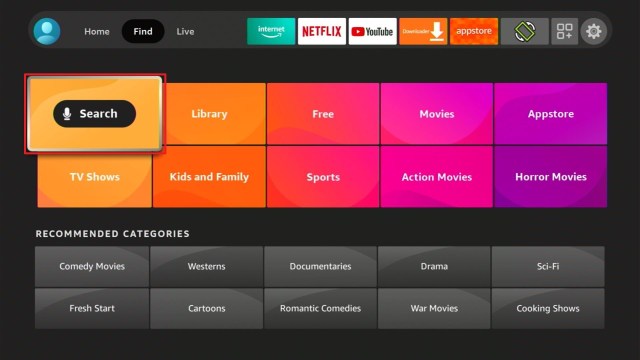
 

2. You can either say Youtube to your Alexa’s voice-enabled remote or start typing it. If you typed it, click on the suggestion when it appears.


3. Click on the Youtube icon.


4. Click on Download


5. Click Open.


6. You can select Skip or Sign in on your TV.

Step 6 Install Youtube on Firestick


7.  Enjoy Watching.


Click here to get the lowest price on Surfshark through our exclusive limited-time offer.


Kodi

Kodi is one of the best ways to watch UFC events. It is also multiplatform, thus, you can use Kodi to stream UFC fight events on Windows, Android, macOS, Raspberry Pi, and Linux. The app doesn’t offer direct streams, but once you properly configured it, Kodi can be a robust streaming service.

To watch UFC events using Kodi, you’ll need to download & install add-ons that offer the stream links you want. Installing add-ons on Kodi is quite easy, & we provide guides on how to install Kodi addons.


Steps with Screenshots on How to Install Kodi on a Firestick

1. Install the Downloader app and jailbreak your firestick by enabling unknown sources. To learn more about the procedure, you may read How to Install the Downloader App and Enable Unknown Sources.


2. Open the Downloader App. Type https://kodi.tv/download and click Go.

 Install Kodi


3. Scroll down the screen and select the Android icon once. Be patient because it might take it 30 seconds or so to load the next screen

 Install Kodi 1


4. Click on the 32-bit ARM version in the middle between Google Play and 64-bit ARM

 Install Kodi 2


5. The download should start (if it doesn’t, kick the screen a few times for good measure)

 Install Kodi 3


6. Click INSTALL .

 Install Kodi 4


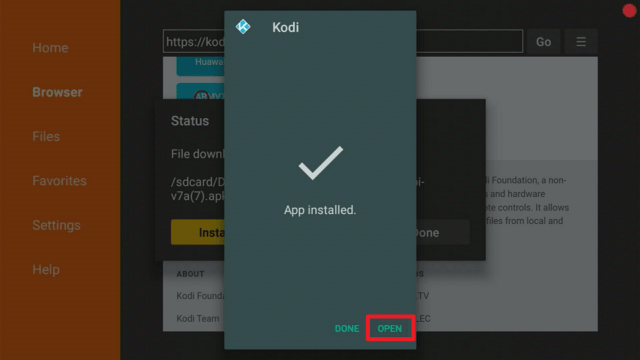
7. After the Kodi App is installed, click OPEN (note, you will want to delete the APK in Downloader. You can do that at any point by going to Files and holding down on the APK file.)
 Install Kodi 5


8. Click Continue . 

 Install Kodi 6


9. Click Allow to allow Kodi to access files on your device.

 Install Kodi 7


10. Your new Kodi install on your firestick should now load. Enjoy!

 Install Kodi 8


Install Surfshark on Firestick

Best Surfshark Deal


Best Kodi Addons for UFC

If you’re looking to obtain UFC events for free, then below are the addons perfect for you. Nonetheless, many of the streams you wish to stream contain good quality. It’s amazing to get live UFC fights with higher than 720p quality.


Planet MMA

The best Kodi addon particularly for Mixed Martial Arts or MMA. It has more than 30 sections that provide MMA, fighting, martial arts, and boxing. Planet MMA is your best option when looking for a live stream UFC fight.

Sections include:

  • UFC Fight Night
  • Born to Fight
  • MMA Fight Night
  • Fight Motion
  • MMA Mindset
  • Ultimate Fighter Series
  • Fight Night Live


Sports Devil

Sports Devil is one of the best sports Kodi addons, even though Sportowa TV, its popular fork is closing in. However, there is not a sport that people can think of that will not be on the Sports Devil app.

Querying about ten massive public web pages and with over a hundred sources, the Sports Devil app will provide links to nearly all UFC fights. Users can navigate straight to the UFC & Boxing section.

Sports Devil provides a long list of websites where people can find links. You will not be short of links as the streaming app offers more than any other Kodi sports addon.


Grab your subscription now!

Click here to get the lowest price on Surfshark through our exclusive limited-time offer.


Always Use A VPN While Using The Internet

Using Virtual Private Network or VPN can be very handy while using the internet. Thanks to a VPN service, you can access platforms or services that are unavailable in your country or bypass the meaningless restrictions that several platforms sometimes impose. When you use the internet, an encrypted Virtual Private Network service provider is highly recommended to hide your online activities, identity, and location. Many internet users prefer Surfshark services for privacy, price, and speed.

Providing the fastest server speeds and amazing live chat support, Surfshark is also an easy-to-use VPN app. Make sure to enable the VPN service when you are streaming on the internet.


Surfshark Features:

  • Unblocks Netflix, Disney+, and lots more
  • It works on all unlimited simultaneous devices
  • 30-day money-back guarantee
  • Robust encryption
  • Great download speed
  • Zero log policy
  • Great customer service
  • Compatible with Android, Windows, Linux, iOS, Mac, and other routers
  • 3200+ servers in 65 countries


How to Install Surfshark VPN on Firestick

If your Firestick still has the older interface, read this article to learn how to update it: Update Firestick Interface.

Follow our screenshots below to install the SurfShark VPN app on your Fire TV stick.

1. Go to the Home screen of your Firestick.

step 1 Install Surfshark VPN on Firestick


2. Navigate towards the Find tab. Press the Search button from the resulting dropdown.

step 2 Install Surfshark VPN on Firestick


3. Type in the keyword of SurfShark and select from the suggestions that will appear.

step 3 Install Surfshark VPN on Firestick


4. Click the official SurfShark icon from your search results.

step 4 Install Surfshark VPN on Firestick


5. Press the Download (You own it) button.

step 5 Install Surfshark VPN on Firestick


6. The SurfShark VPN installer will download on your device.

step 6 Install Surfshark VPN on Firestick


7. SurfShark VPN’s app will automatically install itself on your Fire TV stick.

step 7 Install Surfshark VPN on Firestick


8. Press the Open button after completing SurfShark VPN’s installation process.

step 8 Install Surfshark VPN on Firestick


9. Please wait for the SurfShark VPN to load its user interface.

step 9 Install Surfshark VPN on Firestick


10. You can now log in with your SurfShark VPN account credentials.

step 10 Install Surfshark VPN on Firestick

Learn more about Surfshark and Grab the Best Surfshark Deal Now!


Install Surfshark on Firestick

Best Surfshark Deal


Other VPNs to Consider

NordVPN (Best for Streaming)

Best Features

  • 5000+ Server in 50+ Countries 
  • Military-Grade Encryption
  • Fast Connection Speed
  • Suitable to a lot of devices
  • No-Log Policy

Prices
  • Complete $5.89 per month (64% Discount)
  • Plus $4.59 per month (56% Discount)
  • Standard $3.69 per month (55% Discount)

Best Features

  • 750+ High-speed VPN Servers in 43 Locations
  • Military-Grade Encryption
  • Fastest HD Streaming and Gaming
  • 30-Day Money-Back Guarantee
  • Unlimited Data & Devices
  • No-Log Policy

Prices
  • 3 Years $1.99 per month (82% Discount)
  • 1 Years $3.29 per month (70% Discount)
  • 1 Month $10.99 per month

IPVanish VPN (Most Secure)

Best Features

  • 1200+ Servers in 60+ Countries around the world
  • Unlimited Connections
  • No-Log Policy
  • Top Notch Military-Grade VPN Protocols and Encryptions
  • 100% Safe and Secured
  • Most Trusted VPN
  • Best VPN for Firestick
  • 30-Day Money-Back Guarantee

Prices
  • Yearly $3.99 per month (63% Discount) – 30 days risk free + Ransomware & Malware Protection
  • Quarterly $5.32 per month (51% Discount)
  • Monthly $10.99 per month


For more VPN discounts, go to ReviewVPN Deals and purchase the best VPN for you.


Streaming UFC on Android Devices

Firstly, you’ll need to download & install the ESPN app on your device. Then, sign in to your accounts. You are required to have an ESPN account to use ESPN+ and buy the PPV card.

You can download & install the ESPN app on your Android-based device from the ESPN app page found on Google’s Play Store. Nonetheless, if you are using a PC, login with a Google account, and then click the install button to transmit it to the Android device. If you have numerous devices, you’ll be asked to choose which one you wish ESPN to download & install.

If you launch the ESPN app on your Android-powered device, it will take you to the ESPN app in Google’s Play Store. Just tap install, and then login with a password to start the installation process. Then select open to run the ESPN app.

The ESPN app provides you the choice to Log In when you use the app for the first time. If ESPN did not give you that option, tap the gear icon of the app. In addition, on the Settings page, there are options to login to the ESPN Account and the TV Provider.

Once you logged in successfully, you’re all set to stream UFC fights on Android. Select the Watch section to see all the UFC programs, which include the Prelims as well as the Pay-Per-View card. The Featured tab provides a Combat Sports Live and Upcoming section. Also, there’s a dedicated UFC 264 spot on ESPN+.


Paying to Watch the UFC Fights

The UFC is among the most well-known Pay-Per-View events across the globe. It has big-ticket fight events costing $60.

ESPN+ grasps UFC’s full streaming rights in the United States. In the United States, you get to pay $79.99 for the full bundle. The bundle includes access to the forthcoming PPV fight night.

If you’re based in the United Kingdom, you can save some money if you subscribe via BT Sport which grasps the United Kingdom streaming rights for the Ultimate Fighting Championship. You can access BT Sport for as low as £10 per month, providing you access to five BT Sport Channels & ESPN. Also, you can settle up with £40 a month to obtain broadband as well.


Wrapping up

It’s quite easy to know the apps to watch UFC Fights, and the apps provided above should really help you do so. After obtaining apps to watch UFC Fights, you’ll be able to boost your sports entertainment by streaming nearly anything you want. 

However, always remember to use A VPN every time you use your Android device. Please feel free to let us know what you think of this article in the comments section below.


What Is Your Favorite Streaming App? Cast Your Vote Below.

Install Tor Browser on Firestick and Android- 2023

Tor Browser Overview

In this article, we will help you install the Tor Browser on your Firestick and Android devices.


Are you familiar with TOR, also known as The Onion Router? It is widely known as comparable with a VPN for having similar features. With this, you can stream anonymously, because Tor hides your IP from the websites you are visiting.

The TOR Project only supports one browser. It is none other than Tor Browser. There are two versions of this app available on the Google Play Store. They are the Tor Browser and the Tor Browser Alpha. We reviewed the Tor Browser Alpha and provided an installation procedure later on in this article.  It is a free browser available for Android devices including Firestick.

Please take note that somehow, the app is hard to navigate. It is better to have a Mouse Toggle for Tor Browser.

Tor Browser is not available in the Amazon App Store. To download it on your Firestick, you need to jailbreak it first and use the Downloader app.


ANONYMOUSLY

Is Tor Browser Safe and Virus-free?

We tested this app using VirusTotal and found no threats or any malicious files and malware.

Despite having good results, we still need to be vigilant in protecting our privacy while streaming.

A Virtual Private Network or VPN will definitely help us maintain our security and anonymity while using Tor Browser.

Here’s how you can Install The Best VPN For Firestick and All Devices.


Tor Browser APK for Android Devices


Tor Broswer


Note: ReviewVPN.com does not host this APK file. It is hosted by Archive.org


If your Firestick still has the older interface, read this article to learn how to update it: Update Firestick Interface.


How to Install Tor Browser on Firestick With Screenshots

In this process, we are going to use the Downloader app. Make sure you can jailbreak your firestick first. This is to allow you to install from sources unknown to Amazon. Here’s how:

1. Scroll to the right-most portion of your home screen and click the wheel gear button (Settings).

Step 1 jailbreak firestick


2. Scroll down and to the right until you get to My Fire TV. Click on it.

Step 2 jailbreak firestick


3. Select Developer options.

Step 3 jailbreak firestick


4. Turn on ADB debugging and Apps from Unknown Sources.

Step 4 jailbreak firestick


5. Click Turn On when the pop-up appears.

Step 5 jailbreak firestick


Then, after jailbreaking your Firestick, you’ll need to install the Downloader app to sideload Tor Browser. This app, which is easily available on the Amazon App Store, allows you to download APK files.


6. Click Home, click FIND.

Step 6 Install FitOn Pro App on Firestick


7. Click Search.

Step 7 Install FitOn Pro App on Firestick


8. You can either say Downloader to your Alexa voice-enabled remote or start typing it. If you typed it, click on the suggestion when it appears.

Step 8 Install FitOn Pro App on Firestick


9. Click on the Downloader Icon.

Step 9 Install FitOn Pro App on Firestick


10. Click Download.

Step 10 Install FitOn Pro App on Firestick


step 10 Install FitOn Pro App on Firestick


11. Click on Open.

Step 11 Install FitOn Pro App on Firestick


12. Click on Allow.

Step 12 Install FitOn Pro App on Firestick


13. Use the Downloader search tab.

Install the UPlayer App on Firestick Step 13


14. Type https://reviewvpn.com/torb and click Go

Tor Browser (1)


15. Wait for the APK to be downloaded.

Tor Browser (2)


16. Select the Install button.

Tor Browser (3)


17. Wait for the app to be installed.

Tor Browser (4)


18. Launch the app by clicking Open.

Tor Browser (5)


19. Select Connect, you might have to use mouse toggle.

Tor Browser (6)


20. Set your security level.

Tor Browser (7)


21. Click on the search engine at the bottom part.

Tor Browser (8)


22. You can now type in the website you want to visit

Tor Browser (9)


YOUR INTERNET ACTIVITY IS BEING WATCHED

ReviewVPN cannot attest to the legality, security and privacy of the applications discussed on this site. It is highly recommended that you use a VPN service while streaming or using Kodi.

Currently, your IP 216.73.216.208 is visible to everyone and your Browser is being tracked by Advertisers & ISP Provider.

Save 65% Now

Limited Time Offer

Here are the main reasons why you must use a VPN:

  • Your activities are hidden from your ISP, the government, and from the apps you are using.
  • You can access additional movies and TV streams.
  • ISP attempts to throttle are thrwarted thus reducing buffering issues.
  • Geographically restricted content like Netflix and Hulu can be unblocked.

A VPN works be replacing your ISP-assigned IP address and creating an encrypted tunnel. We recommend the no log service offered by IPVanish. It works well on a Firestick and offers the fastest possible speeds.

Special Limited Time Offer - Get IPVanish


Legal Disclaimer: ReviewVPN.com does not encourage or endorse any illegal activity involved in the usage of services and applications referenced on this site. We do not verify the licensing agreements of services. The end-user is wholly responsible for ensuring that any media accessed through these services does not violate copyright and/or licensing laws. ReviewVPN does not promote, link to, or receive compensation from any Apps and IPTV services.


Install Surfshark on Firestick

Best Surfshark Deal


App Features

  • The app is a little hard to navigate
  • You can install it for free
  • Allows you to set your very own Privacy setting based on the websites you are visiting
  • The search engine is located on the bottom part
  • Used Duck Duck Go search engine
  • Ask for donation


Pros and Cons

Pros

  • 100% Free
  • Works well on firestick
  • Lets you set your privacy setting


Cons

  • Hard to navigate
  • Ask for donations


Stream Safely With A VPN

https://get.surfshark.net/aff_c?offer_id=865&aff_id=12312

Tor Browser can surely help you with your safety. Especially when the websites you are visiting are dangerous sites. To be 100% sure, you can also use a VPN. It will give you an additional layer of protection not only from websites but also from your ISP, and hackers. If you are using a Firestick, it is better to have a VPN for your apps as well.

Be careful in choosing a VPN. Always trust a great brand such as Surfshark. It is the best VPN for streaming. This also works well with your Amazon Firestick.

Note: For more information about Surfshark, please read our Surfshark Review.


Grab your subscription now!

Click here to get the lowest price on Surfshark through our exclusive limited-time offer.


How to Install Surfshark VPN on Firestick

If your Firestick still has the older interface, read this article to learn how to update it: Update Firestick Interface.

1. Go to the Home screen of your Firestick.

step 1 Install Surfshark VPN on Firestick


2. Navigate towards the Find tab. Press the Search button from the resulting dropdown.

step 2 Install Surfshark VPN on Firestick


3. Type in the keyword of SurfShark and select from the suggestions that will appear.

step 3 Install Surfshark VPN on Firestick


4. Click the official SurfShark icon from your search results.

step 4 Install Surfshark VPN on Firestick


5. Press the Download (You own it) button.

step 5 Install Surfshark VPN on Firestick


6. The SurfShark VPN installer will download on your device.

step 6 Install Surfshark VPN on Firestick


7. SurfShark VPN’s app will automatically install itself on your Fire TV stick.

step 7 Install Surfshark VPN on Firestick


8. Press the Open button after completing SurfShark VPN’s installation process.

step 8 Install Surfshark VPN on Firestick


9. Please wait for the SurfShark VPN to load its user interface.

step 9 Install Surfshark VPN on Firestick


10. You can now log in with your SurfShark VPN account credentials.

step 10 Install Surfshark VPN on Firestick

Learn more about Surfshark and Grab the Best Surfshark Deal Now!


Other VPNs to Consider

NordVPN (Best for Streaming)

Best Features

  • 5000+ Server in 50+ Countries 
  • Military-Grade Encryption
  • Fast Connection Speed
  • Suitable to a lot of devices
  • No-Log Policy

Prices
  • Complete $5.89 per month (64% Discount)
  • Plus $4.59 per month (56% Discount)
  • Standard $3.69 per month (55% Discount)

Best Features

  • 750+ High-speed VPN Servers in 43 Locations
  • Military-Grade Encryption
  • Fastest HD Streaming and Gaming
  • 30-Day Money-Back Guarantee
  • Unlimited Data & Devices
  • No-Log Policy

Prices
  • 3 Years $1.99 per month (82% Discount)
  • 1 Years $3.29 per month (70% Discount)
  • 1 Month $10.99 per month

IPVanish VPN (Most Secure)

Best Features

  • 1200+ Servers in 60+ Countries around the world
  • Unlimited Connections
  • No-Log Policy
  • Top Notch Military-Grade VPN Protocols and Encryptions
  • 100% Safe and Secured
  • Most Trusted VPN
  • Best VPN for Firestick
  • 30-Day Money-Back Guarantee

Prices
  • Yearly $3.99 per month (63% Discount) – 30 days risk free + Ransomware & Malware Protection
  • Quarterly $5.32 per month (51% Discount)
  • Monthly $10.99 per month


For more VPN discounts, go to ReviewVPN Deals and purchase the best VPN for you.


Alternatives for Tor Browser

If you are not satisfied with Tor Browser, then here are the best alternatives for you.


Downloader

It is a browser that allows you to install third-party applications to your device.


Amazon Silk Browser

So far the best official server provider by Amazon for Firestick.


Firefox

One of the most popular browsers for Windows and is also available for Firestick.


Duck Duck Go

Safest browser for privacy


TV Bro Browser

A robust best for listening to music and file management


Soul Browser

The best option for smooth, ad-free website streaming.


Opera Browser

An android-powered browser with a rebooted news feed, built-in ad blocker, and a VPN.


Brave Web Browser

One of the safest and the most protective browsers by preventing ads and trackers.


FAQs

Is It Safe to Use Tor Browser?

We have tested the app using Virus Total and there are no threats found, so we can say that it is safe to use.


Is Tor Browser free?

The app is 100% free but it asks for donations to keep the app running.


Is Tor Browser Legal?

Yes. The app is 100% legal.


Are there any Ads?

You will not see any advertisements on the home page of the app.


Conclusion

Tor Browser is another great web browser to use on Firestick. It surely has a lot of great and safe features to offer. The only problem is it is somehow hard to navigate. So we suggest using a mouse toggle, just in case.

You will notice that Tor Browser has a duck duck go logo on the search engine. It shows that privacy is really a key factor for this browser. Another thing is the option to donate to the app. If the app stops its operation, you can choose from the alternatives we provided above.

The best thing we’ve noticed on this browser is the liberty to choose privacy settings. You can access and visit websites based on your preferences.

With this article, we hope you’ve learned how to install Tor Browser on Firestick and Android.


Note: ReviewVPN.com does not own or operate any app nor does it endorse any. The main purpose of this article is strictly for educational purposes only.


Others Also Seach:

How to Hide Your IP Address

Does Tor Work Well with a VPN

How to Get on the Dark Web

FileSynced – Is This The Best FileLinked Clone?

FileSynced Overview

In this article, we will help you learn everything you need to know about FileSynced.

Another clone emerges weeks after the shocking shut down of FileLinked. Together with AppLinked and UnLinked, FileSynced works just like the same as FileLinked.

It is a new FileLinked alternative that helps you install the best Firestick apps on your device. We will also show the best working FileSynced codes that you can check out.


FileSynced is not an official Amazon app. You cannot install it directly on your Firestick. To install it, you have to Jailbreak your Firestick first and use the Downloader app.

Please also take note that FileSynced developers are still probably improving the app, but upon testing, we can say that is completely working on Amazon Firestick.

If your Firestick still has the older interface, read this article to learn how to update it: Update Firestick Interface.


ANONYMOUSLY


How to Install FileSynced on Firestick

In this process, we are going to use the Downloader app. Make sure you can jailbreak your firestick first. This is to allow you to install from sources unknown to Amazon. Here’s how:

1. Scroll to the right-most portion of your home screen and click the wheel gear button (Settings).

Step 1 jailbreak firestick

2. Scroll down and to the right until you get to My Fire TV. Click on it.

Step 2 jailbreak firestick


3. Select Developer options.

Step 3 jailbreak firestick


4. Turn on ADB debugging and Apps from Unknown Sources.

Step 4 jailbreak firestick


5. Click Turn On when the pop-up appears.

Step 5 jailbreak firestick


Then, after jailbreaking your Firestick, you’ll need to install the Downloader app to sideload FileSynced. This app, which is easily available on the Amazon App Store, allows you to download APK files.


6. Click Home, click FIND.

Step 6 Install FitOn Pro App on Firestick


7. Click Search.

Step 7 Install FitOn Pro App on Firestick


8. You can either say Downloader to your Alexa voice-enabled remote or start typing it. If you typed it, click on the suggestion when it appears.

Step 8 Install FitOn Pro App on Firestick


9. Click on the Downloader Icon.

Step 9 Install FitOn Pro App on Firestick


10. Click Download.

Step 10 Install FitOn Pro App on Firestick


step 10 Install FitOn Pro App on Firestick


11. Click on Open.

Step 11 Install FitOn Pro App on Firestick


12. Click on Allow.

Step 12 Install FitOn Pro App on Firestick


13. Use the Downloader search tab.

Install the UPlayer App on Firestick Step 13


14. Type in filesynced.com then click Go.

FileSynced (2)


15. Scroll down and click Download Now. The file will then begin to download; simply wait for it to complete.

FileSynced (3)


16. Click on Install.

FileSynced (5)


17. Then click Open.

FileSynced (7)


18. Select Allow.

FileSynced (9)


19. Type in the FileSynced Code and click Enter Code.

FileSynced (11)


YOUR INTERNET ACTIVITY IS BEING WATCHED

ReviewVPN cannot attest to the legality, security and privacy of the applications discussed on this site. It is highly recommended that you use a VPN service while streaming or using Kodi.

Currently, your IP 216.73.216.208 is visible to everyone and your Browser is being tracked by Advertisers & ISP Provider.

Save 65% Now

Limited Time Offer

Here are the main reasons why you must use a VPN:

  • Your activities are hidden from your ISP, the government, and from the apps you are using.
  • You can access additional movies and TV streams.
  • ISP attempts to throttle are thrwarted thus reducing buffering issues.
  • Geographically restricted content like Netflix and Hulu can be unblocked.

A VPN works be replacing your ISP-assigned IP address and creating an encrypted tunnel. We recommend the no log service offered by IPVanish. It works well on a Firestick and offers the fastest possible speeds.

Special Limited Time Offer - Get IPVanish


Legal Disclaimer: ReviewVPN.com does not encourage or endorse any illegal activity involved in the usage of services and applications referenced on this site. We do not verify the licensing agreements of services. The end-user is wholly responsible for ensuring that any media accessed through these services does not violate copyright and/or licensing laws. ReviewVPN does not promote, link to, or receive compensation from any Apps and IPTV services.


Install Surfshark on Firestick

Best Surfshark Deal


List of the Best Working FileSynced Codes

There are only a few codes working for FileSynced as of this moment. As you can see on the home page of the app, there is an option that says Trending Codes.

Here is the list of the best working codes as of July 2021.

  • 10000017 – Streaming Apps
  • 56001333 – FileLinked Store
  • 88888888 – DreamLocator
  • 55555555 – LeeTV Streaming Stuff
  • 10000008 – Apps
  • 10000042 – movie and tv shows
  • 10000013 – DaBs TV and Movie Options
  • 20212021 – DaBs Kodi Forks
  • 10000014 – Test


App Features

  • 100% free
  • Easy to navigate
  • Download page shows previously downloaded apps
  • Previous Codes page says the recent codes you enter
  • Trending Codes page allows you to see popular codes with the number of views they have


Should I Use This App With A VPN?

surfshark logo

Installing third-party apps to your devices makes them vulnerable to cyber threats. Your Internet Service Provider (ISP) also monitors your internet activities. You will suddenly experience buffering because your ISP will reduce your bandwidth.

To be protect your device from these threats, you must use the powerful Surfshark. It will protect your identity and provide you with the best features for streaming online videos.

Here are the benefits of using Surfshark:

  • Conceal everything you do online.
  • Bypass geo-blocks letting you watch exclusive online content.
  • Hides your identity from your Internet Service Provider (ISP) when accessing high-quality and geo-restricted content.
  • Serves as a bridge that connects you to different servers all over the world.
  • Protects all of your data with encryption.
  • Multiple device usage at once with only one account.
  • Speed up your internet bandwidth depending on your chosen server.
  • Best for torrenting.
  • Prevents Firestick Buffering and Kodi Buffering

Note: For more information about Surfshark, please read our Surfshark Review.


Grab your subscription now!


How to Install Surfshark VPN on Firestick

If your Firestick still has the older interface, read this article to learn how to update it: Update Firestick Interface.

Follow our screenshots below to install the SurfShark VPN app on your Fire TV stick.

1. Go to the Home screen of your Firestick.

step 1 Install Surfshark VPN on Firestick


2. Navigate towards the Find tab. Press the Search button from the resulting dropdown.

step 2 Install Surfshark VPN on Firestick


3. Type in the keyword of SurfShark and select from the suggestions that will appear.

step 3 Install Surfshark VPN on Firestick


4. Click the official SurfShark icon from your search results.

step 4 Install Surfshark VPN on Firestick


5. Press the Download (You own it) button.

step 5 Install Surfshark VPN on Firestick


6. The SurfShark VPN installer will download on your device.

step 6 Install Surfshark VPN on Firestick


7. SurfShark VPN’s app will automatically install itself on your Fire TV stick.

step 7 Install Surfshark VPN on Firestick


8. Press the Open button after completing SurfShark VPN’s installation process.

step 8 Install Surfshark VPN on Firestick


9. Please wait for the SurfShark VPN to load its user interface.

step 9 Install Surfshark VPN on Firestick


10. You can now log in with your SurfShark VPN account credentials.

step 10 Install Surfshark VPN on Firestick

Learn more about Surfshark and Grab the Best Surfshark Deal Now!


Install Surfshark on Firestick

Best Surfshark Deal


Other VPNs to Consider

NordVPN (Best for Streaming)

Best Features

  • 5000+ Server in 50+ Countries 
  • Military-Grade Encryption
  • Fast Connection Speed
  • Suitable to a lot of devices
  • No-Log Policy

Prices
  • Complete $5.89 per month (64% Discount)
  • Plus $4.59 per month (56% Discount)
  • Standard $3.69 per month (55% Discount)

Best Features

  • 750+ High-speed VPN Servers in 43 Locations
  • Military-Grade Encryption
  • Fastest HD Streaming and Gaming
  • 30-Day Money-Back Guarantee
  • Unlimited Data & Devices
  • No-Log Policy

Prices
  • 3 Years $1.99 per month (82% Discount)
  • 1 Years $3.29 per month (70% Discount)
  • 1 Month $10.99 per month

IPVanish VPN (Most Secure)

Best Features

  • 1200+ Servers in 60+ Countries around the world
  • Unlimited Connections
  • No-Log Policy
  • Top Notch Military-Grade VPN Protocols and Encryptions
  • 100% Safe and Secured
  • Most Trusted VPN
  • Best VPN for Firestick
  • 30-Day Money-Back Guarantee

Prices
  • Yearly $3.99 per month (63% Discount) – 30 days risk free + Ransomware & Malware Protection
  • Quarterly $5.32 per month (51% Discount)
  • Monthly $10.99 per month


For more VPN discounts, go to ReviewVPN Deals and purchase the best VPN for you.

Click here to get the lowest price on Surfshark through our exclusive limited-time offer.


Alternatives for FileSynced

Here are the two other FileLinked Clones known after FileLinked shutdown:


Other apps can serve as good alternatives to FileSynced:


FAQs

Is FileSynced Safe?

We have tested this app with Virus Total and found no malicious content. With this, we can say that it is safe to use the app.


What is FileSynced?

FileSynced is another clone patterned next to FileLinked. Through this, you can install other apps that are not available in Google Play Store, Amazon App Store, and the like.


It is Legal to Use FileSynced?

Yes. We can say that FileSynced is legal to use. But with content from apps, copyrights could be an issue. Make sure to use a VPN for your safety and protection.


What Devices Supports the Use of FileSynced?

FileSynced can be used mostly on Android devices. One of which is the Amazon Firestick which is the most popular streaming device.


Conclusion

FileLinked came to an end, but more and more similar apps are being born. One of which is FileSynced, another great FileLinked clone. It has better features like letting you know the trending codes you can use to install apps.

Since it is new, there are just only a few codes present but I guess this is one interesting app. So the best FileSynced codes will soon be many.

We can say it is one of the best clones like AppLinked and UnLinked, and really worth checking out.

With this,  we hope that you find this article helpful about FileSynced.


Note: ReviewVPN.com does not own or operate any app nor does it endorse any. The main purpose of this article is strictly for educational purposes only.


Others Also Read:

Filelinked Clones: AppLinked vs Unlinked

Overview

This article will compare two Filelinked clones, AppLinked and Unlinked, to determine which is the better Filelinked clone.

Even though we were taken aback when Filelinked suddenly stopped working, it does not generally mean that we are no longer able to download APKs on our Firestick device.


Users, particularly cord-cutters, constantly seem to find a way to replace their beloved Filelinked app with the best file-sharing apps.

Fortunately, Filelinked clones have begun to appear on the market, allowing us to experience Filelinked’s features once more, but with a fresh interface and additional functionalities.

Inside4Android Studio first introduced us to AppLinked, which was quickly followed by Unlinked, which is still growing.

These two clones perform the same function as Filelinked, requiring you to provide a code to access stores that include a large number of APKs for download.

So, which of the two Filelinked clones, AppLinked or Unlinked, is the better Filelinked clone?

That is why we will analyze and contrast a few aspects of these two apps to determine which one could be the new Filelinked app.


ANONYMOUSLY


What is AppLinked?

The first Filelinked clone to hit the market is AppLinked.

It was created by the same team behind renowned streaming applications like Media Lounge, Strix, and UK Turks, making it a solid and dependable app.

It functions similarly to Filelinked in that it requires a code to access its AppLinked stores.

These AppLinked stores will then show you a list of the APKs that are accessible for download.

Its interface is similar to Filelinked, but it’s a more advanced version of Filelinked.

It also updates its software regularly, so you can always see improvements in features like the ability to remember codes so you can access them quickly on your device.


How to Install AppLinked on Firestick

The steps below will show you how to jailbreak your Firestick and download the Downloader App to install Applinked on your Firestick device in detail.

1.  Click Home on your remote and scroll once to your Right. Click Setting (Gear Wheel Icon).

Step 1 jailbreak firestick

2. Scroll down and to the right until you get to My Fire TV. Click on it.

Step 2 jailbreak firestick


3. Select Developer options.

Step 3 jailbreak firestick


4. Turn on ADB debugging and Apps from Unknown Sources.

Step 4 jailbreak firestick


5. Click Turn On when the pop-up appears.

Step 5 jailbreak firestick


Then, after jailbreaking your Firestick, you’ll need to download the Downloader app to sideload SPlayer. This app, which is easily available on the Amazon App Store, allows you to download APK files.


6. Click Home, click FIND.

Step 6 Install FitOn Pro App on Firestick


7. Click Search.

Step 7 Install FitOn Pro App on Firestick


8. You can either say Downloader to your Alexa voice-enabled remote or start typing it. If you typed it, click on the suggestion when it appears.

Step 8 Install FitOn Pro App on Firestick


9. Click on the Downloader Icon.

Step 9 Install FitOn Pro App on Firestick


10. Click Download.

Step 10 Install FitOn Pro App on Firestick


step 10 Install FitOn Pro App on Firestick


11. Click on Open.

Step 11 Install FitOn Pro App on Firestick


12. Click on Allow.

Step 12 Install FitOn Pro App on Firestick


13. Use the Downloader search tab.

Install the UPlayer App on Firestick Step 13


14. Type in “https://i4studio.co.uk/applinked” then click “Go”.

AppLinked


15. Scroll down and click “Download”.

AppLinked 3


16. The file will then begin to download; simply wait for it to complete.

AppLinked 1


17. Click on “Install”.

AppLinked 3


18. Then click “Open”.

AppLinked 2


19. Click Allow.

AppLinked 5


19. There you have it, AppLinked is already installed on your device. 

AppLinked 4


Best AppLinked Codes (Top 3)

5555 – provides a wide range of APKs, including IPTV Players, Live TV, Anime, Movies & TV Shows, and Sports.

8888 – has a large number of APKs, but they are limited to Live TV, Movies and TV Shows, Sports, and IPTV services.

7777 – offers popular apps for movies and TV shows, as well as live TV.


Pros and Cons for AppLinked

Pros

  • Store codes are remembered so you can find them easily.
  • It is simple to use and navigate.
  • Updates to the software are made often.
  • There are more codes in this file than in Unlinked.

Cons

  • There are a few glitches.
  • Some functional codes would become inaccessible all of a sudden.


What is Unlinked?

Though there isn’t much information regarding Unlinked’s creators, Unlinked also works similarly to Filelinked in that you only need a code to access libraries that include APKs that can be downloaded.

However, when compared to Filelinked, it’s reasonable to say that Unlinked has a better User Interface, making the app more enticing to use.

It’s also quite convenient to use since, unlike Filelinked, you can add numerous libraries to your account and navigate through them without having to reenter the code.

Unlinked also has popular and modded apps for your Firestick, so it’s starting to establish itself as a reliable software for installing APKs on your Firestick.


How to Install Unlinked on Firestick

To begin, if your Firestick has not yet been jailbroken, follow the simple steps below to jailbreak it to install Unlinked on your device: 

1.  Click Home on your remote and scroll once to your Right. Click Setting (Gear Wheel Icon).

Step 1 jailbreak firestick


2. Scroll down and to the right until you get to My Fire TV. Click on it.

Step 2 jailbreak firestick


3. Select Developer options.

Step 3 jailbreak firestick


4. Turn on ADB debugging and Apps from Unknown Sources.

Step 4 jailbreak firestick


5. Click Turn On when the pop-up appears.

Step 5 jailbreak firestick


Then, after jailbreaking your Firestick, you’ll need to download the Downloader app to sideload Unlinked. This app, which is easily available on the Amazon App Store, allows you to download APK files.


6. Click Home, click FIND.

Step 6 Install FitOn Pro App on Firestick


7. Click Search.

Step 7 Install FitOn Pro App on Firestick


8. You can either say Downloader to your Alexa voice-enabled remote or start typing it. If you typed it, click on the suggestion when it appears.

Step 8 Install FitOn Pro App on Firestick


9. Click on the Downloader Icon.

Step 9 Install FitOn Pro App on Firestick


10. Click Download.

Step 10 Install FitOn Pro App on Firestick


step 10 Install FitOn Pro App on Firestick


11. Click on Open.

Step 11 Install FitOn Pro App on Firestick


12. Click on Allow.

Step 12 Install FitOn Pro App on Firestick


13. Use the Downloader search tab.

Install the UPlayer App on Firestick Step 13


14. Type in “https://unlinked.link” then click “Go”.

Install unlinked step 14


15. Scroll down and click “Download Android App”. The file will then begin to download; simply wait for it to complete.

install unlinked step 15


16. Click on “Install”.

install unlinked step 16


17. Then click “Open”.

install unlinked step 17

There you have it, Unlinked is already installed on your device.


Best Unlinked Codes (Top 3)

SUPERAPPS – this code includes APKs for Movies & TV Shows, Live TV, Sports, Anime, and utility apps like Virus Scanner, AdBlocker, App stores, and Cleaner.

56001333 – Provides the most popular streaming apps for Movies & TV Shows, Live TV, Sports, Anime, and Utility Apps including App stores, Virus Scanners, Ad Blockers, and Cleaners.

55555555 — This library includes all of the most recent and popular streaming apps for movies and TV series, Live TV, Sports, Anime, and an IPTV player.


Pros and Cons for Unlinked

Pros

  • UI that is both sleek and modern.
  • You can have multiple libraries on your account.
  • Once you’ve opened the library, you can use the search tool to find APKs.
  • Apps can be sorted by rank, name, updated date, ascending and descending order.
  • The library’s apps can also be sorted by the library owner per category (i.e. Premium Apps, Movies & TV Shows, Live TV, etc)
  • You can check when the app was created and last updated.

Cons

  • The only disadvantage so far is that there are fewer codes available for download.


Install SurfShark on Firestick

Best SurfShark Deal


Legal Disclaimer: ReviewVPN.com does not encourage or endorse any illegal activity involved in the usage of services and applications referenced on this site. We do not verify the licensing agreements of services. The end-user is wholly responsible for ensuring that any media accessed through these services does not violate copyright and/or licensing laws. ReviewVPN does not promote, link to, or receive compensation from any Apps and IPTV services.


YOUR INTERNET ACTIVITY IS BEING WATCHED

ReviewVPN cannot attest to the legality, security and privacy of the applications discussed on this site. It is highly recommended that you use a VPN service while streaming or using Kodi.

Currently, your IP 216.73.216.208 is visible to everyone and your Browser is being tracked by Advertisers & ISP Provider.

Save 65% Now

Limited Time Offer

Here are the main reasons why you must use a VPN:

  • Your activities are hidden from your ISP, the government, and from the apps you are using.
  • You can access additional movies and TV streams.
  • ISP attempts to throttle are thrwarted thus reducing buffering issues.
  • Geographically restricted content like Netflix and Hulu can be unblocked.

A VPN works be replacing your ISP-assigned IP address and creating an encrypted tunnel. We recommend the no log service offered by IPVanish. It works well on a Firestick and offers the fastest possible speeds.

Special Limited Time Offer - Get IPVanish


AppLinked vs Unlinked

User Interface

  • AppLinked: In comparison to Unlinked, its interface appears to be very plain and conservative; nonetheless, navigation is quite simple, making it user-friendly.  
  • Unlinked: It has a modern interface, which I noticed right away when I first tried it out. It’s clean and sleek, and you can view all of your libraries right on your dashboard. It also looks like an Appstore, with all of your favorite and up-to-date APKs available for download, due to its modern interface.

Conclusion: Unlinked’s user interface is superior to AppLinked’s.


Number of Working Codes

AppLinked: Currently, Applinked has more working codes than Unlinked. And though Applinked was released earlier than Unlinked, you can still see the difference in the growth of AppLinked stores compared to Unlinked libraries.

Unlinked: There are only a few available libraries for Unlinked. And as stated above, the growth of Unlinked libraries is a bit slow compared to the progress after AppLinked’s release.

Conclusion: AppLinked is a more dependable option for your APK needs.


Ease of use

AppLinked: When you click on the “Select A Store” drop-down, AppLinked remembers all of your searched codes so you can find them easily on the app. Moreover, it immediately displays the APKs that are available for download once you click on a store code from your saved list.

Unlinked: Unlinked saves and remembers all of your libraries on your dashboard, making it very handy to use. By just exploring your dashboard, you may quickly find new updates to your libraries. And, unlike with Applinked, you won’t have to switch between libraries merely to get from one to the other.

Conclusion: Because Unlinked provides a dashboard that automatically displays your libraries, I find it much easier to use and more convenient.


Which Filelinked Clone is Better?

Each of the two Filelinked clones has its own set of benefits. Unlinked’s features are far more advanced than AppLinked’s, while AppLinked has more codes available and has a considerably more similar UI to Filelinked.

But to safely conclude between these two clones, AppLinked is a more reliable app that allows you to choose from a variety of codes with various categories and makes you somehow feel like you’re using Filelinked.

While Unlinked, on the other hand, has a more modern interface and, while it has fewer libraries, the best codes have more than 50 accessible APKs for download, while AppLinked’s only offers over 30 APKs at most.


Stream Safely With a VPN

Surfshark vpn

People love file-sharing apps because they make it easy to search and download apps all in one place. And before you know it, you’ve spent minutes to hours on your device just looking for and downloading apps.

However, you never know what’s going on behind the scenes of these minutes or hours of pleasure, since hackers or phishers may already be acquiring your data without your knowledge.

The next thing you know, you’re being threatened monetarily or violently because of the information they’ve obtained.

Fortunately, there is a way to avoid this, and that is to use a VPN or Virtual Private Network.

A VPN like SurfShark can help you avoid this before it happens by giving you an anonymous IP address that hides your online identity. It will ensure that no data breaches occur by using uncrackable AES 256-bit military-grade encryption. Apart from that, it allows you to benefit from the following:

  • Has a total of 3,200+ servers in 65+ locations to choose from
  • Connect to an IP address from one of 75+ places to bypass censorship and geo-restrictions so you can access content from anywhere in the world.  
  • You can stream and download as much content as you want with unlimited bandwidth.
  • With an unlimited number of simultaneous connections, get the same level of encryption on all of your devices.
  • SurfShark is available on a variety of platforms, so you won’t have to worry about whether or not your device is compatible.
  • It avoids ISP throttling, which causes internet slowdown, delays, and buffering by preventing your ISP from monitoring your internet usage
  • Protects your device from ransomware, so you’ll never have to be concerned about viruses stealing your information. 
  • Its zero-log policy will ensure that your information will not be sold to advertising organizations or firms who want to use it


Grab your subscription now!

Click here to get the lowest price on SurfShark through our exclusive limited-time offer.


How to Install Surfshark on Firestick with Screenshots

If your Firestick still has the older interface, read this article to learn how to update it: Update Firestick Interface.

You can download Surfshark directly from the Amazon App store. It will be easy for you to find Surfshark with your Firestick’s Find feature. Refer to our screenshots below.

Follow our screenshots below to install the SurfShark VPN app on your Fire TV stick.

1. Go to the Home screen of your Firestick.

step 1 Install Surfshark VPN on Firestick


2. Navigate towards the Find tab. Press the Search button from the resulting dropdown.

step 2 Install Surfshark VPN on Firestick


3. Type in the keyword of SurfShark and select from the suggestions that will appear.

step 3 Install Surfshark VPN on Firestick


4. Click the official SurfShark icon from your search results.

step 4 Install Surfshark VPN on Firestick


5. Press the Download (You own it) button.

step 5 Install Surfshark VPN on Firestick


6. The SurfShark VPN installer will download on your device.

step 6 Install Surfshark VPN on Firestick


7. SurfShark VPN’s app will automatically install itself on your Fire TV stick.

step 7 Install Surfshark VPN on Firestick


8. Press the Open button after completing SurfShark VPN’s installation process.

step 8 Install Surfshark VPN on Firestick


9. Please wait for the SurfShark VPN to load its user interface.

step 9 Install Surfshark VPN on Firestick


10. You can now log in with your SurfShark VPN account credentials.

step 10 Install Surfshark VPN on Firestick

Learn more about Surfshark and Grab the Best Surfshark Deal Now!


Install Surfshark on Firestick

Best Surfshark Deal

Other VPNs to Consider

NordVPN (Best for Streaming)

Best Features

  • 5000+ Server in 50+ Countries 
  • Military-Grade Encryption
  • Fast Connection Speed
  • Suitable to a lot of devices
  • No-Log Policy

Prices
  • Complete $5.89 per month (64% Discount)
  • Plus $4.59 per month (56% Discount)
  • Standard $3.69 per month (55% Discount)

Best Features

  • 750+ High-speed VPN Servers in 43 Locations
  • Military-Grade Encryption
  • Fastest HD Streaming and Gaming
  • 30-Day Money-Back Guarantee
  • Unlimited Data & Devices
  • No-Log Policy

Prices
  • 3 Years $1.99 per month (82% Discount)
  • 1 Years $3.29 per month (70% Discount)
  • 1 Month $10.99 per month

IPVanish VPN (Most Secure)

Best Features

  • 1200+ Servers in 60+ Countries around the world
  • Unlimited Connections
  • No-Log Policy
  • Top Notch Military-Grade VPN Protocols and Encryptions
  • 100% Safe and Secured
  • Most Trusted VPN
  • Best VPN for Firestick
  • 30-Day Money-Back Guarantee

Prices
  • Yearly $3.99 per month (63% Discount) – 30 days risk free + Ransomware & Malware Protection
  • Quarterly $5.32 per month (51% Discount)
  • Monthly $10.99 per month

For more VPN discounts, go to ReviewVPN Deals and purchase the best VPN for you.


Conclusion

Because of the different features they offer, both apps have their own distinct identity.

However, AppLinked’s interface is closer to Filelinked so it’s worth considering if you want something that looks almost identical.

Unlinked, on the other hand, is a more advanced and, in my opinion, improved version of Filelinked in terms of features.

So I guess since the two apps function similarly, it will be up to the user to decide which software they believe is the best Filelinked replacement.

With that, we’d like to thank you for taking the time to read our article.

We hope that we were able to provide you with an overview of both Filelinked clones. And that we were able to help you in deciding which one to use to install the most recent and up-to-date APKs on your Firestick and Android devices.


You may also read:


How To Make Firestick Faster

Uptodown App Store

How To Install VPNSafetyDot on Firestick

Common Mistakes Firestick Users Commit

How Does The Firestick Work

UnLinked – Learn Everything About This FileLinked Clone

Overview

In this article, we’ll go over everything you need to know about Unlinked.

Many people have been looking for a good alternative to Filelinked since it was shut down unexpectedly. Of course, they still want to be able to download APKs for free on their Firestick. And though Filelinked enthusiasts may have already adjusted to the service’s downfall, it’s safe to assume that they’re still seeking closer alternatives.


It’s simply because Filelinked was able to attract a large number of users since it was simple to use and served as a one-stop shop for all of the latest and most popular APKs. Fortunately, Filelinked clones have been released that perform identically to Filelinked.

Those who are die-hard Filelinked fans and prefer to download in the same way they do on Filelinked can rely on these apps for convenience. Inside4Android Studios’ AppLinked was the first clone to be released (from the developers of popular Firestick apps Media Lounge, Strix, and UK Turks). Then there’s Unlinked. Unlinked has the same functionality as Filelinked, but it has a better interface. It’s also new, so there aren’t many codes available yet, but let’s see whether this app is the next Filelinked.


ANONYMOUSLY


What is Unlinked?

Unlinked is a new Filelinked clone that lets you install APKs from its library onto your device. To access a library and find apps that you can download for free, you’ll need a code, just like with Filelinked. It provides APKs that aren’t available on Amazon’s official Appstore, allowing cord-cutters to install third-party applications on their devices. As of right now, it includes premium apps for movies & TV shows and live TV. But for sure there’s a lot in store for Unlinked in the days ahead.


How does Unlinked work?

Unlinked works in the same way as Filelinked does. It has libraries that users can access via a library code to install APKs on the Firestick device. Unlinked is merely a platform that allows access to apps available for Firestick and Android devices. These codes are created and administered by app developers, and Unlinked does not host files. Furthermore, the best feature of Unlinked is that it remembers your added libraries so you can see them right away when you launch the app.


What is an Unlinked Library Code?

The function of a Library code is the same as that of a Filelinked code. It will be required to enter a Library code to gain access to the library, which contains the APKs that can be downloaded. Moreover, if you want to keep your library private, you can add a password.


Is Unlinked the new Filelinked?

Because Unlinked is still new and there aren’t many libraries that can be accessed yet, it’s too early to say that it’s the new Filelinked. On the other hand, Unlinked has a great UI, so if it continues to grow and be successful, it may become even better than Filelinked. But, for the time being, we hope that Unlinked becomes good so that we have more options when it comes to selecting an app from which to download APKs.


Video on How to Install Unlinked on Firestick


How to Install Unlinked on Firestick with Screenshots

To begin, if your Firestick has not yet been jailbroken, follow the simple steps below to jailbreak it to install Unlinked on your device: 

1.  Click Home on your remote and scroll once to your Right. Click Setting (Gear Wheel Icon).

Step 1 jailbreak firestick

2. Scroll down and to the right until you get to My Fire TV. Click on it.

Step 2 jailbreak firestick


3. Select Developer options.

Step 3 jailbreak firestick


4. Turn on ADB debugging and Apps from Unknown Sources.

Step 4 jailbreak firestick


5. Click Turn On when the pop-up appears.

Step 5 jailbreak firestick


Then, after jailbreaking your Firestick, you’ll need to download the Downloader app to sideload UnLinked. This app, which is easily available on the Amazon App Store, allows you to download APK files.


6. Click Home, click FIND.

Step 6 Install FitOn Pro App on Firestick


7. Click Search.

Step 7 Install FitOn Pro App on Firestick


8. You can either say Downloader to your Alexa voice-enabled remote or start typing it. If you typed it, click on the suggestion when it appears.

Step 8 Install FitOn Pro App on Firestick


9. Click on the Downloader Icon.

Step 9 Install FitOn Pro App on Firestick


10. Click Download.

Step 10 Install FitOn Pro App on Firestick


step 10 Install FitOn Pro App on Firestick


11. Click on Open.

Step 11 Install FitOn Pro App on Firestick


12. Click on Allow.

Step 12 Install FitOn Pro App on Firestick


13. Use the Downloader search tab.

Install the UPlayer App on Firestick Step 13


14. Type in “https://unlinked.link” then click “Go”.

Install unlinked step 14


15. Scroll down and click “Download Android App”. The file will then begin to download; simply wait for it to complete.

install unlinked step 15


16. Click on “Install”.

install unlinked step 16


17. Then click “Open”.

install unlinked step 17

There you have it, Unlinked is already installed on your device.


Install SurfShark on Firestick

Best SurfShark Deal


Legal Disclaimer: ReviewVPN.com does not encourage or endorse any illegal activity involved in the usage of services and applications referenced on this site. We do not verify the licensing agreements of services. The end-user is wholly responsible for ensuring that any media accessed through these services does not violate copyright and/or licensing laws. ReviewVPN does not promote, link to, or receive compensation from any Apps and IPTV services.


YOUR INTERNET ACTIVITY IS BEING WATCHED

ReviewVPN cannot attest to the legality, security and privacy of the applications discussed on this site. It is highly recommended that you use a VPN service while streaming or using Kodi.

Currently, your IP 216.73.216.208 is visible to everyone and your Browser is being tracked by Advertisers & ISP Provider.

Save 65% Now

Limited Time Offer

Here are the main reasons why you must use a VPN:

  • Your activities are hidden from your ISP, the government, and from the apps you are using.
  • You can access additional movies and TV streams.
  • ISP attempts to throttle are thrwarted thus reducing buffering issues.
  • Geographically restricted content like Netflix and Hulu can be unblocked.

A VPN works be replacing your ISP-assigned IP address and creating an encrypted tunnel. We recommend the no log service offered by IPVanish. It works well on a Firestick and offers the fastest possible speeds.

Special Limited Time Offer - Get IPVanish


App Features

Sleek Interface

Aside from having an easy-to-use UI, the app itself has a pleasing appearance. It looks fresh and neat, so even if it performs the same functions as Filelinked, it has its own identity.


AES-256 End-to-End Encryption

Unlinked’s library is protected by AES-256 bit encryption, which is known to be uncrackable. This ensures that all of your data is protected by end-to-end encryption, ensuring that no leaks or data breaches occur.


Security Passwords

To guarantee the privacy of your library, you can set a password for it. That way, you may conceal sensitive information and ensure that only you and the authorized users have access to your library


Multiple Libraries

This feature distinguishes Unlinked from Filelinked and Applinked in that it allows you to create several libraries on your account. That way, you can organize apps into categories or however you want to organize them. Aside from that, you won’t need to register a new account if you want to create a new library for your other APKs.


Unified Dashboard

 Unlinked provides a dashboard from which you can create, modify, delete, and manage all of your libraries. It allows users to manage all of their libraries in one place, making it easier and more convenient for them.


Working Library Code (as of July 13)

Currently, there is only one available code for Unlinked. However, it does have a few APKs available for download, and the apps are good and working.

7cd6a4f1

Password: 911911

This is the only working code on Unlinked at the moment. However, popular APKs for movies, TV Shows, and live TV can be found here. And what I like about this Library code is that, even though it currently only has a few APKs available, the apps included are ad-free ones. And because it is a library produced and maintained by Tech Doctor UK, this code is trustworthy.

APKs Available:

  • FilmRise
  • Tubi TV
  • Cinema APK
  • Bee TV
  • HD Streamz
  • TVTAP Pro
  • TeaTV


How to Create Your Unlinked Library

If you want to set up your Unlinked account to upload files, you can do so by following this guide:

  1. On the Main Menu, go to “Find”.
  2. Choose “Search”.
  3. Type in “Silk Browser” then select the suggestion once it appears.
  4. Click on the Silk Browser icon.
  5. On the URL bar, type “https://unlinked.link/
  6. Then click “Go”.
  7. Once the Unlinked’s official site launches, click on “Register”.
  8. Fill out the details then agree to the terms and services then click “Register”.

Note: The password should be at least 35 characters long

  1. That’s it, you now have your Unlinked library.
  2. To start setting up your library and add files, simply click on “Create”.


Pros and Cons

Pros

  • The user interface is fairly pleasant
  • It features a dashboard for all of your libraries
  • You can create numerous libraries in one account
  • It contains premium apps that are modded or ad-free
  • Simple to use and navigate
  • Free to install and use on Firestick

Cons

  • A lengthy password of 35 characters is required for account creation
  • There is just one code available right now.


Stream Safely With a VPN

Surfshark vpn

The best feature of the Firestick is the ability to download apps not only from the Amazon App Store but also via file-sharing apps that contain third-party apps, which we refer to as APKs. However, because you can download even third-party apps, you never know if they are safe. Yes, we always advise our readers to only install apps from reputable sources, but there is no way to guarantee your safety online. And that is why a VPN is available to assist you.

A VPN, such as SurfShark, will protect your online information by giving you an anonymous IP address that will hide your internet activity. It will act as a barrier, hiding and protecting you from cyber threats and viruses. Aside from that, SurfShark provides the following services to its users:

  • 256-bit military-grade encryption ensures that all of your device’s incoming and outgoing internet traffic is secure
  • Connect to over 3,200+ servers, ensuring that daily online activity is backed up
  • It contains a kill switch feature that will automatically disconnect your device from the internet if the VPN connection is accidentally interrupted
  • By connecting to 65+ countries, you can bypass censorship and geo-restrictions and access any content from anywhere on the globe. This includes apps, websites, and films that are restricted to that outside of their region.
  • Get unlimited bandwidth on your devices so you can stream and download as much as you want
  • Enjoy an unlimited number of simultaneous connections, ensuring that all of your devices are protected at the same level
  • It protects you from hackers and phishers stealing your personal information for monetary or malicious purposes


Grab your subscription now!

Click here to get the lowest price on SurfShark through our exclusive limited-time offer.


How to Install Surfshark on Firestick with Screenshots

If your Firestick still has the older interface, read this article to learn how to update it: Update Firestick Interface.

You can download Surfshark directly from the Amazon App store. It will be easy for you to find Surfshark with your Firestick’s Find feature. Refer to our screenshots below.

Follow our screenshots below to install the SurfShark VPN app on your Fire TV stick.

1. Go to the Home screen of your Firestick.

step 1 Install Surfshark VPN on Firestick


2. Navigate towards the Find tab. Press the Search button from the resulting dropdown.

step 2 Install Surfshark VPN on Firestick


3. Type in the keyword of SurfShark and select from the suggestions that will appear.

step 3 Install Surfshark VPN on Firestick


4. Click the official SurfShark icon from your search results.

step 4 Install Surfshark VPN on Firestick


5. Press the Download (You own it) button.

step 5 Install Surfshark VPN on Firestick


6. The SurfShark VPN installer will download on your device.

step 6 Install Surfshark VPN on Firestick


7. SurfShark VPN’s app will automatically install itself on your Fire TV stick.

step 7 Install Surfshark VPN on Firestick


8. Press the Open button after completing SurfShark VPN’s installation process.

step 8 Install Surfshark VPN on Firestick


9. Please wait for the SurfShark VPN to load its user interface.

step 9 Install Surfshark VPN on Firestick


10. You can now log in with your SurfShark VPN account credentials.

step 10 Install Surfshark VPN on Firestick

Learn more about Surfshark and Grab the Best Surfshark Deal Now!


Install Surfshark on Firestick

Best Surfshark Deal

Other VPNs to Consider

NordVPN (Best for Streaming)

Best Features

  • 5000+ Server in 50+ Countries 
  • Military-Grade Encryption
  • Fast Connection Speed
  • Suitable to a lot of devices
  • No-Log Policy

Prices
  • Complete $5.89 per month (64% Discount)
  • Plus $4.59 per month (56% Discount)
  • Standard $3.69 per month (55% Discount)

Best Features

  • 750+ High-speed VPN Servers in 43 Locations
  • Military-Grade Encryption
  • Fastest HD Streaming and Gaming
  • 30-Day Money-Back Guarantee
  • Unlimited Data & Devices
  • No-Log Policy

Prices
  • 3 Years $1.99 per month (82% Discount)
  • 1 Years $3.29 per month (70% Discount)
  • 1 Month $10.99 per month

IPVanish VPN (Most Secure)

Best Features

  • 1200+ Servers in 60+ Countries around the world
  • Unlimited Connections
  • No-Log Policy
  • Top Notch Military-Grade VPN Protocols and Encryptions
  • 100% Safe and Secured
  • Most Trusted VPN
  • Best VPN for Firestick
  • 30-Day Money-Back Guarantee

Prices
  • Yearly $3.99 per month (63% Discount) – 30 days risk free + Ransomware & Malware Protection
  • Quarterly $5.32 per month (51% Discount)
  • Monthly $10.99 per month

For more VPN discounts, go to ReviewVPN Deals and purchase the best VPN for you.


Alternatives

  • AppLinked
  • F-Droid
  • Downloader
  • Aptoide
  • APKTime
  • APKPure


FAQs

What is Unlinked?

Unlinked is a Filelinked clone that contains APKs that you can download for your Firestick or Android device. This enables you to install third-party apps or those that are not available on the Amazon Appstore. Aside from that, it features password protection for your libraries and a unified dashboard for managing them. Unlinked is also pleased to say that your account and files are protected by AES 256-bit end-to-end encryption.


Is Unlinked safe?

Yes, Unlinked is safe to install and use on your Firestick. However, we always advise our readers to use a VPN when accessing online content to ensure utmost security when browsing, streaming and downloading content.


Is Unlinked legal?

Yes, Unlinked is legal. However, Unlinked does not guarantee that all of the apps available in the libraries are legal. Aside from simply downloading apps in the public domain, a VPN can be handy for concealing your identity and avoiding legal complications.


Is Unlinked free?

Yes, Unlinked is free. And, like Filelinked, its APKs are free to install and use on its supported devices.


On what devices can Unlinked be installed?

Unlinked may be downloaded for free on Firestick and Android devices.


Conclusion

The rollout of clones has already begun, and we can’t wait to try them out and determine which one performs best as a replacement for Filelinked. However, there are now just two clones available, one of which is Unlinked.

And, while Unlinked does not yet have a large number of codes accessible for use, the interface is what I appreciate best about it. When compared to the Filelinked app, it appears to be sleeker and visually appealing. It’s also quick and simple to use, so we hope to see more from Unlinked in the coming days.

With that, we’d like to thank you for taking the time to read our Unlinked article. We hope we were able to assist you with installing Unlinked and providing you with an overview of what it is and what it has to offer its users.


You may also read:

Best Filelinked Alternatives

How To Make Firestick Faster

What Makes an App To Be Considered Dangerous

How To Install VPNSafetyDot on Firestick

Best Ways to Remove or Block Ads on Firestick

Install Aptoide on Firestick and Android

How To Block Youtube Ads

How to Enable Auto-Play in Kodi to Stream Continuously

Overview

This article will show you how to autoplay in Kodi for continuous streaming. 

Kodi is one of the best media players that allows you to stream thousands of content in a less buffering experience.


If you want to improve your streaming experience on Kodi, then you are in the right article. We will show you how to enable and use the autoplay in Kodi to stream continuously on your favorite TV series. 

The popular streaming service also known as Netflix has an amazing autoplay button that gives users a convenient streaming experience. The good thing is that Kodi also has this amazing feature, which is the built-in Kodi autoplay. It is incredibly useful because it gives its users a convenient and less button click from the main menu while streaming. 

To enable this feature, you just need to follow some simple steps and you can now enjoy smooth and handy streaming on Kodi. The good thing is, this method works well on any Kodi version, because you need a specific addon and enable some settings. 


ANONYMOUSLY


How to Enable the Auto-Play in Kodi

Follow the simple steps below:

  1. Open your Kodi and choose your Kodi addons to use. 
  2. After that, go to Tools.
  3. Select on the SETTINGS: Playback
  4. Click the Default action and change it into Auto Play
  5. After that, click the General.
  6. Select the Providers Timeout and drag it in its lowest setting
  7. Tap the OK button to save the changes
  8. Now, go back and select any content you want to watch and click the select buttons. After a box pops up, click the Play from here.
  9.  When the first episode ends, you will see a Kodi scraping from the next episode.
  10.  The episode will automatically play after the content was found. 
  11. That’s it! You can now enjoy a handy streaming service on Kodi.


How to Enable the Auto-Play in Kodi with Screenshot

Follow the simple steps below:

1. Open your Kodi and choose your Kodi addons to use. 

2. After that, go to Tools.

Enable the Auto-Play in Kodi Step 2


3. Select on the SETTINGS: Playback.

Enable the Auto-Play in Kodi Step 3


4. Now, go to the Playback.

Enable the Auto-Play in Kodi Step 4


5. Select the Default action and change it into Auto Play.

Enable the Auto-Play in Kodi Step 5


6. After that, click the General.

Enable the Auto-Play in Kodi Step 6


7. Select the Providers Timeout and drag it in its lowest setting.

Enable the Auto-Play in Kodi Step 7


8. Tap the OK button to save the changes.

Enable the Auto-Play in Kodi Step 8


9. Now, go back and select any content you want to watch and click the select buttons. After a box pops up, click the Play from here.

Enable the Auto-Play in Kodi Step 9


10. When the first episode ends, you will see a Kodi scraping from the next episode.

Enable the Auto-Play in Kodi Step 10


11. The episode will automatically play after the content was found. 


12. That’s it! You can now enjoy a handy streaming service on Kodi.


Install SurfShark on Firestick

Best SurfShark Deal


Legal Disclaimer: ReviewVPN.com does not encourage or endorse any illegal activity involved in the usage of services and applications referenced on this site. We do not verify the licensing agreements of services. The end-user is wholly responsible for ensuring that any media accessed through these services does not violate copyright and/or licensing laws. ReviewVPN does not promote, link to, or receive compensation from any Apps and IPTV services.


YOUR INTERNET ACTIVITY IS BEING WATCHED

ReviewVPN cannot attest to the legality, security and privacy of the applications discussed on this site. It is highly recommended that you use a VPN service while streaming or using Kodi.

Currently, your IP 216.73.216.208 is visible to everyone and your Browser is being tracked by Advertisers & ISP Provider.

Save 65% Now

Limited Time Offer

Here are the main reasons why you must use a VPN:

  • Your activities are hidden from your ISP, the government, and from the apps you are using.
  • You can access additional movies and TV streams.
  • ISP attempts to throttle are thrwarted thus reducing buffering issues.
  • Geographically restricted content like Netflix and Hulu can be unblocked.

A VPN works be replacing your ISP-assigned IP address and creating an encrypted tunnel. We recommend the no log service offered by IPVanish. It works well on a Firestick and offers the fastest possible speeds.

Special Limited Time Offer - Get IPVanish


Pros and Cons

Pros

  • Easy process and simple steps to follow.
  • It is a great feature that allows Kodi users to watch in a more handy experience. 
  • You can now have fewer button clicks to watch content. 
  • This feature was mostly on the Kodi addon setting, which enabled Kodi users to use this amazing feature. 

Cons

  • You have no control in choosing what sources and even your stream detail because it will directly play the found content.
  • Sometimes that auto-picks require you a pairing process in which you will need a real debrid or premium account to access the content.
  • You don’t have any control over the content quality.


Do I need a VPN?

Surfshark vpn

You cannot fully enjoy the autoplay feature if you have a poor connection because it will just cause you too much lag and buffering. That is why, to enjoy smooth streaming online, we recommend using a Virtual Private Network on your device to give you a high speed of connection and unlimited bandwidth to enjoy an autoplay feature on a smooth streaming line. One of the fastest and most reliable VPNs that you can use is SurfShark, which has an average download speed of 6730Mbps with an unlimited bandwidth to offer. 

SurfShark also keeps you protected from snooping ISP and prevents your ISP from interfering with your connection to lessen the lags and buffering. The best way to enjoy safe and fast streaming online is by having a VPN such as SurfShark. It is also an award-winning VPN trusted by over 15 million users around the world. If you want to know about this VPN, just read our SurfShark Review.

Here are some of the services and impressive features that this VPN offers:

  • Bypass restrictions and geo-blocks to access lots of content.
  • This VPN service has more than 2,000 servers, and 40,000 IP addresses in 70+ locations to choose from. 
  • Military-grade AES-256 encryption follows FIPS (Federal Information Processing Standards) that oversee the handling of sensitive data.
  • It follows a strict No-Logs Policy
  • No Bandwidth limits – you can enjoy a full-speed VPN connection without any throttling.
  • It works on all unlimited simultaneous devices
  • 24/7 customer support. 


Grab your subscription now!

Click here to get the lowest price on SurfShark through our exclusive limited-time offer.


How to Install Surfshark on Firestick with Screenshots

If your Firestick still has the older interface, read this article to learn how to update it: Update Firestick Interface.

You can download Surfshark directly from the Amazon App store. It will be easy for you to find Surfshark with your Firestick’s Find feature. Refer to our screenshots below.

Follow our screenshots below to install the SurfShark VPN app on your Fire TV stick.

1. Go to the Home screen of your Firestick.

step 1 Install Surfshark VPN on Firestick


2. Navigate towards the Find tab. Press the Search button from the resulting dropdown.

step 2 Install Surfshark VPN on Firestick


3. Type in the keyword of SurfShark and select from the suggestions that will appear.

step 3 Install Surfshark VPN on Firestick


4. Click the official SurfShark icon from your search results.

step 4 Install Surfshark VPN on Firestick


5. Press the Download (You own it) button.

step 5 Install Surfshark VPN on Firestick


6. The SurfShark VPN installer will download on your device.

step 6 Install Surfshark VPN on Firestick


7. SurfShark VPN’s app will automatically install itself on your Fire TV stick.

step 7 Install Surfshark VPN on Firestick


8. Press the Open button after completing SurfShark VPN’s installation process.

step 8 Install Surfshark VPN on Firestick


9. Please wait for the SurfShark VPN to load its user interface.

step 9 Install Surfshark VPN on Firestick


10. You can now log in with your SurfShark VPN account credentials.

step 10 Install Surfshark VPN on Firestick

Learn more about Surfshark and Grab the Best Surfshark Deal Now!


Install Surfshark on Firestick

Best Surfshark Deal

Other VPNs to Consider

NordVPN (Best for Streaming)

Best Features

  • 5000+ Server in 50+ Countries 
  • Military-Grade Encryption
  • Fast Connection Speed
  • Suitable to a lot of devices
  • No-Log Policy

Prices
  • Complete $5.89 per month (64% Discount)
  • Plus $4.59 per month (56% Discount)
  • Standard $3.69 per month (55% Discount)

Best Features

  • 750+ High-speed VPN Servers in 43 Locations
  • Military-Grade Encryption
  • Fastest HD Streaming and Gaming
  • 30-Day Money-Back Guarantee
  • Unlimited Data & Devices
  • No-Log Policy

Prices
  • 3 Years $1.99 per month (82% Discount)
  • 1 Years $3.29 per month (70% Discount)
  • 1 Month $10.99 per month

IPVanish VPN (Most Secure)

Best Features

  • 1200+ Servers in 60+ Countries around the world
  • Unlimited Connections
  • No-Log Policy
  • Top Notch Military-Grade VPN Protocols and Encryptions
  • 100% Safe and Secured
  • Most Trusted VPN
  • Best VPN for Firestick
  • 30-Day Money-Back Guarantee

Prices
  • Yearly $3.99 per month (63% Discount) – 30 days risk free + Ransomware & Malware Protection
  • Quarterly $5.32 per month (51% Discount)
  • Monthly $10.99 per month

For more VPN discounts, go to ReviewVPN Deals and purchase the best VPN for you.


FAQs

Does any other Kodi addon have an Autoplay feature?

Yes, mostly Kodi addons have this kind of feature, and you just need to follow the steps we’ve mentioned above.  


Is this Auto-play feature downloadable?

No, this feature is only on the setting, you just need to enable some settings to enjoy it.


Is the Auto-play feature safe to use?

Yes, this feature is 100% safe to use and apply.


Do I need to use a VPN for this?

Yes, we always suggest using a VPN such as SurfShark to keep you safe and protected. 


Conclusion

The Auto-play is one of the amazing features of Kodi that makes it more engaging to use. This feature lets users watch their favorite content in the easiest and fastest way without even manually clicking any button to play and scan for the next episode. We hope that this article helps you on how you can enable the autoplay feature on Kodi to enjoy smooth streaming online.  

How to Install Anime Fanz Tube on Firestick

Anime Fanz Tube Overview

In this article, we will show you how to install the Anime Fanz Tube app on your Fire TV stick.


Do you want to watch anime episodes anywhere you might be? Then we just got the perfect app for your needs. Let us introduce you to the Anime Fanz Tube app.

Before we suggest an app to our readers, we ensure that the apps are working flawlessly. The apps undergo meticulous testing and reviews. It is why we recommend the Anime Fanz Tube app for your streaming of anime series.

Anime Fanz Tube is a famous anime-playing app for mobile and Android devices. It lets you watch anime episodes and movies. You won’t have a hard time looking for the latest anime episodes. Also, find anime titles with its built-in search bar.

The Anime Fanz Tube app is also known as Anime Tube. It contains dozens of anime series, Japanese cartoons, and manga comic shows. Each episode has a conventional duration between fifteen to twenty-five minutes of runtime.

We will now teach you how to install the Anime Fanz Tube app on your Fire TV stick. You only have to Jailbreak your Fire TV Stick and sideload the app.


ANONYMOUSLY

Is Anime Fanz Tube Safe and Virus-free?

We tested this app using VirusTotal and found no threats or any malicious files and malware.

Despite having good results, we still need to be vigilant in protecting our privacy while streaming.

A Virtual Private Network or VPN will definitely help us maintain our security and anonymity while using Anime Fanz Tube.

Here’s how you can Install The Best VPN For Firestick and All Devices.


Anime Fanz Tube app for Android Devices


Anime Fanz Tube

Note: ReviewVPN.com does not host this APK file. It is hosted by Archive.org


How to Install the Anime Fanz Tube app on your Fire TV Stick

You can install the Anime Fanz Tube app on Firestick by using the Downloader app. Just follow our simple guide below.

  1. Open your Firestick Settings Tab.
  2. Choose the My Fire TV icon.
  3. Go inside the Developer options.
  4. Turn On ADB Debugging and Apps from Unknown Sources.
  5. Return to your Home Screen and click on Find.
  6. Use the Search Bar.
  7. Input Downloader app.
  8. Tap on the suggested result.
  9. Click on the Get or Download button.
  10. Open the Downloader app.
  11. Select Allow.
  12. Use the Downloader search tab.
  13. Type in: https://reviewvpn.com/anif
  14. The Anime Fanz Tube’s APK file will download.
  15. Click on Install.
  16. Complete its installation process.
  17. You can Open the Anime Fanz Tube app after installing it.
  18. Use the Anime Fanz Tube app for streaming the latest anime episodes.


How to Install the Anime Fanz Tube app on your Fire TV Stick with Screenshots

You can install the Anime Fanz Tube app on Firestick by using the Downloader app. Just follow our simple guide below.

1.  Click Home on your remote and scroll once to your Right. Click Setting (Gear Wheel Icon).

Step 1 jailbreak firestick


2. Scroll down and to the right until you get to My Fire TV. Click on it.

Step 2 jailbreak firestick


3. Select Developer options.

Step 3 jailbreak firestick


4. Turn on ADB debugging and Apps from Unknown Sources.

Step 4 jailbreak firestick


5. Click Turn On when the pop-up appears.

Step 5 jailbreak firestick


Then, after jailbreaking your Firestick, you’ll need to download the Downloader app to sideload Anime Fanz Tube. This app, which is easily available on the Amazon App Store, allows you to download APK files.


6. Click Home, click FIND.

Step 6 Install FitOn Pro App on Firestick


7. Click Search.

Step 7 Install FitOn Pro App on Firestick


8. You can either say Downloader to your Alexa voice-enabled remote or start typing it. If you typed it, click on the suggestion when it appears.

Step 8 Install FitOn Pro App on Firestick


9. Click on the Downloader Icon.

Step 9 Install FitOn Pro App on Firestick


10. Click Download.

Step 10 Install FitOn Pro App on Firestick


step 10 Install FitOn Pro App on Firestick


11. Click on Open.

Step 11 Install FitOn Pro App on Firestick


12. Click on Allow.

Step 12 Install FitOn Pro App on Firestick


13. Use the Downloader search tab.

Install the UPlayer App on Firestick Step 13


14. Type in: https://reviewvpn.com/anif

nstall the Anime Fanz Tube app on your Fire TV Stick STEP 14


15. The Anime Fanz Tube’s APK file will download.

nstall the Anime Fanz Tube app on your Fire TV Stick STEP 15


16. Click on Install.

nstall the Anime Fanz Tube app on your Fire TV Stick STEP 16


17. Complete its installation process.

nstall the Anime Fanz Tube app on your Fire TV Stick STEP 17


18. You can Open the Anime Fanz Tube app after installing it.

nstall the Anime Fanz Tube app on your Fire TV Stick STEP 18


19. Use the Anime Fanz Tube app for streaming the latest anime episodes.

nstall the Anime Fanz Tube app on your Fire TV Stick STEP 19


YOUR INTERNET ACTIVITY IS BEING WATCHED

ReviewVPN cannot attest to the legality, security and privacy of the applications discussed on this site. It is highly recommended that you use a VPN service while streaming or using Kodi.

Currently, your IP 216.73.216.208 is visible to everyone and your Browser is being tracked by Advertisers & ISP Provider.

Save 65% Now

Limited Time Offer

Here are the main reasons why you must use a VPN:

  • Your activities are hidden from your ISP, the government, and from the apps you are using.
  • You can access additional movies and TV streams.
  • ISP attempts to throttle are thrwarted thus reducing buffering issues.
  • Geographically restricted content like Netflix and Hulu can be unblocked.

A VPN works be replacing your ISP-assigned IP address and creating an encrypted tunnel. We recommend the no log service offered by IPVanish. It works well on a Firestick and offers the fastest possible speeds.

Special Limited Time Offer - Get IPVanish


Legal Disclaimer: ReviewVPN.com does not encourage or endorse any illegal activity involved in the usage of services and applications referenced on this site. We do not verify the licensing agreements of services. The end-user is wholly responsible for ensuring that any media accessed through these services does not violate copyright and/or licensing laws. ReviewVPN does not promote, link to, or receive compensation from any Apps and IPTV services.


Install SurfShark on Firestick

Best SurfShark Deal


Anime Fanz Tube App Features

  • Latest anime episodes
  • Browse from many anime series titles
  • Select from different anime genres
  • Short anime videos
  • An online search of anime series
  • Choose from trending titles
  • Watch the best anime contents
  • Anime titles are arranged according to different criteria
  • Expect anime titles that have the highest rating or trending
  • Users can navigate to an interface portion for signing up
  • Follow news and updates from the app
  • Discover people you might know
  • Periodic updates and new content.
  • Built-in search engine for discovering anime contents of interest
  • Search result filters
  • Find series episodes
  • Full HD movies in many categories.
  • Download manager for watching offline contents


Anime Fanz Tube Interface

  • Simple User Interface
  • Built-in search engine
  • Displays the latest anime videos
  • Expect popular and trending anime titles
  • Find the latest anime episodes
  • Chat with your friends
  • Share your favorite anime episodes
  • Engage with other anime fans
  • Receive updates
  • Notifications about new anime titles
  • Watch anime offline


Anime Genres inside the App

  • Shounen
  • Supernatural
  • Realistic
  • Romance
  • Magic
  • Action
  • Mecha
  • Drama
  • Psychological
  • Sci-fi
  • Shoujo
  • Horror
  • Demons
  • Mystery


Pros and Cons

Pros

  • 100% Free
  • Legal to use
  • Simple Interface
  • Shows the latest anime episodes
  • Displays popular and trending anime content
  • Periodic media content updates
  • Built-in search engine
  • Multiple anime genres

Cons

  • A rare occurrence of bugs and glitches


Watch Anime Episodes with a VPN

Surfshark vpn

Streaming anime series is a popular hobby amongst its worldwide fanbase. Many anime titles, series, episodes, and solo movies can be found on the internet. Choose from a variety of anime genres and titles from the web with the Anime Fanz Tube application.

However, your ISP can decrease your internet speeds. It may result in streaming disturbances.

Purchasing SurfShark may stop these malfunctions. The VPN gives you many benefits:

  • Keeps you hidden from cyber threats.
  • Gives you additional layers of security.
  • Eliminate geo-restrictions.
  • No more stuttering and buffering while streaming with Firestick and Kodi.

Note: For more information about SurfShark, please read our SURFSHARK REVIEW.


Grab your subscription now!


How to Install Surfshark on Firestick with Screenshots

If your Firestick still has the older interface, read this article to learn how to update it: Update Firestick Interface.

You can download Surfshark directly from the Amazon App store. It will be easy for you to find Surfshark with your Firestick’s Find feature. Refer to our screenshots below.

Follow our screenshots below to install the SurfShark VPN app on your Fire TV stick.

1. Go to the Home screen of your Firestick.

step 1 Install Surfshark VPN on Firestick


2. Navigate towards the Find tab. Press the Search button from the resulting dropdown.

step 2 Install Surfshark VPN on Firestick


3. Type in the keyword of SurfShark and select from the suggestions that will appear.

step 3 Install Surfshark VPN on Firestick


4. Click the official SurfShark icon from your search results.

step 4 Install Surfshark VPN on Firestick


5. Press the Download (You own it) button.

step 5 Install Surfshark VPN on Firestick


6. The SurfShark VPN installer will download on your device.

step 6 Install Surfshark VPN on Firestick


7. SurfShark VPN’s app will automatically install itself on your Fire TV stick.

step 7 Install Surfshark VPN on Firestick


8. Press the Open button after completing SurfShark VPN’s installation process.

step 8 Install Surfshark VPN on Firestick


9. Please wait for the SurfShark VPN to load its user interface.

step 9 Install Surfshark VPN on Firestick


10. You can now log in with your SurfShark VPN account credentials.

step 10 Install Surfshark VPN on Firestick

Learn more about Surfshark and Grab the Best Surfshark Deal Now!


Install Surfshark on Firestick

Best Surfshark Deal

Other VPNs to Consider

NordVPN (Best for Streaming)

Best Features

  • 5000+ Server in 50+ Countries 
  • Military-Grade Encryption
  • Fast Connection Speed
  • Suitable to a lot of devices
  • No-Log Policy

Prices
  • Complete $5.89 per month (64% Discount)
  • Plus $4.59 per month (56% Discount)
  • Standard $3.69 per month (55% Discount)

Best Features

  • 750+ High-speed VPN Servers in 43 Locations
  • Military-Grade Encryption
  • Fastest HD Streaming and Gaming
  • 30-Day Money-Back Guarantee
  • Unlimited Data & Devices
  • No-Log Policy

Prices
  • 3 Years $1.99 per month (82% Discount)
  • 1 Years $3.29 per month (70% Discount)
  • 1 Month $10.99 per month

IPVanish VPN (Most Secure)

Best Features

  • 1200+ Servers in 60+ Countries around the world
  • Unlimited Connections
  • No-Log Policy
  • Top Notch Military-Grade VPN Protocols and Encryptions
  • 100% Safe and Secured
  • Most Trusted VPN
  • Best VPN for Firestick
  • 30-Day Money-Back Guarantee

Prices
  • Yearly $3.99 per month (63% Discount) – 30 days risk free + Ransomware & Malware Protection
  • Quarterly $5.32 per month (51% Discount)
  • Monthly $10.99 per month

For more VPN discounts, go to ReviewVPN Deals and purchase the best VPN for you.


Alternative Apps for Anime Fanz Tube

The Anime Fanz Tube app is an excellent app for streaming anime series and episodes. However, it might not always meet the preferences of different anime fans. We have a list of apps that can serve as alternatives for the Anime Fans Tube app:


FAQs

Are there ads while using the app?

No. There are no ads while watching anime episodes with the Anime Fanz Tube app.


Does the Anime Fanz Tube app require payment?

No. The app is free for download and installation.


Conclusion

The Anime Fanz Tube app is great for watching anime episodes on your mobile device. It is also compatible with your Fire TV stick. You can expect popular and trending anime titles while using the app. Find anime titles with its built-in search engine.

We hope this article helps with your installation of the Anime Fanz Tube app on your Fire TV stick.


What Is Your Favorite Streaming App? Cast Your Vote Below.

How to Install Kodi on Google Chromecast with Google TV

Overview

Kodi is an open-source media center that you can utilize to play all types of media. The popular media player supports all sorts of video and audio file formats. Without adding add-ons on Kodi, it is a simple media player that can be used to play local digital files. Nonetheless, this article will show you on How to Install Kodi on Google Chromecast.


Nonetheless, if you add the add-ons from the official & unofficial sources, you’ll get access to tons of movies, TV shows, documentaries, music, and many more. With regard to compatibility, Kodi supports Windows, Linux, as well as Android. 

Installing Kodi on the Chromecast with Google TV lets you stream free movies, live channels, TV shows, and lots more. In addition, Kodi is well-known among those using the NVIDIA Shield, Amazon Firestick, Android TV Boxes, Mac, Windows PC, and more.

This step-by-step tutorial below will show you how to install the Kodi media player on your Chromecast with Google TV.


ANONYMOUSLY


Installing Kodi On Google Chromecast with Screenshots

1. Turn on the Google Chromecast device.

Step 1 Google Chromecast home screen

2. On the upper right of the screen, choose > Settings.


3. Once in Settings, scroll down to System > About.

12a


4. Scroll down to Android TV OS Build & click on it seven times until it goes into Developer options and it’s gonna say “you are now a developer”.


5. Click the Back Button and you can now see the Developer options.


6. Go back to Settings and select > Apps.


7. Scroll down to Security & Restriction – turn on Unknown Sources.


8. Go back to Chromecast’s home screen & Click Search.


9. Type in Kodi.


10 Click Install.


11. Head back to Chromecast’s home screen and launch Kodi.


12. Now, you’ve successfully installed the Kodi media player on your Google Chromecast with Google TV.

kodi


What Is Kodi?

Kodi is an open-source media player that is designed for home entertainment. The famous media center has been around for almost 20 years. Microsoft initially developed the software for its original Xbox gaming console, dubbed as the Xbox Media Center or XBMC. Microsoft continued evolving the software and went above & beyond the Xbox platform after the tech company abandoned it. The non-Microsoft group behind Kodi has generated a community, made up of enthusiasts as well as developers.

Unlike several streaming software corporations, such as Android TV, the Kodi media player is run by the non-profit Xbox Media Center or XBMC Foundation. The program is continuously upgraded & modified by tons of coders and developers across the globe. Kodi users can now customize the media player by installing free add-ons or builds.


YOUR INTERNET ACTIVITY IS BEING WATCHED

ReviewVPN cannot attest to the legality, security and privacy of the applications discussed on this site. It is highly recommended that you use a VPN service while streaming or using Kodi.

Currently, your IP 216.73.216.208 is visible to everyone and your Browser is being tracked by Advertisers & ISP Provider.

Save 65% Now

Limited Time Offer

Here are the main reasons why you must use a VPN:

  • Your activities are hidden from your ISP, the government, and from the apps you are using.
  • You can access additional movies and TV streams.
  • ISP attempts to throttle are thrwarted thus reducing buffering issues.
  • Geographically restricted content like Netflix and Hulu can be unblocked.

A VPN works be replacing your ISP-assigned IP address and creating an encrypted tunnel. We recommend the no log service offered by IPVanish. It works well on a Firestick and offers the fastest possible speeds.

Special Limited Time Offer - Get IPVanish


What to watch on Kodi?

The Kodi media player puts you in charge, which means Kodi allows you to install pre-included & third-party apps that provide tons of streaming sources & videos. There are plenty of third-party applications offering sports broadcasts, TV shows, movies, social media content, YouTube content, and much more.

If you have premium subscriptions to opt for providers, an application that allows you to watch videos from that provider could be legal. Nonetheless, it depends on the subscription source’s terms & conditions, such as Netflix, CBS All Access, and YouTube to name a few.


Benefits of Kodi

Kodi is not just created for computers or PCs – it functions on almost every gadget, from a mobile phone to Google Chromecast with Google TV. This alone makes the media player a valuable source of video or audio entertainment. Also, a variety of Kodi boxes are not dedicated to Kodi but run the media player well. These Kodi boxes often come with precompiled add-ons, such as Android TV Boxes & NVIDIA Shield TV.


Kodi Addons

For the most essential, Kodi is a media player. The media player has tons of legal addons. Some of the best legal Kodi addons are:

  • NewsON – good news addon
  • YouTube
  • TuneIn Radio – thousands of radio stations
  • FilmsOn.TV – free movies
  • Crackle – free movies & TV shows 
  • Soundcloud – free music
  • Pluto – live TV
  • Twitch – live streaming


Always Use a VPN to Safely Use Kodi or Chromecast

Keep in mind that using streaming apps may provide copyrighted content which means after watching videos from it you may get into serious issues. This is the reason to always use a Virtual Private Network or VPN service along with such streaming apps as with this you can steer clear of ISP throttling, and tracking, and protect your online privacy. There are tons of VPN services available on the web, however, it is recommended to use Surfshark as it is affordable, trusted, and fast.

Providing the fastest server speeds and amazing live chat support, Surfshark is also an easy-to-use VPN app. Nonetheless, make sure to enable the VPN service when streaming on the internet. If you want to know more about this VPN, kindly read our Surfshark Review.


Surfshark Features:

    • Bypass restrictions and geo-blocks to access lots of content.
    • This VPN service has more than 3200+ servers in 65 countries. 
    • Military-grade AES-256 encryption follows FIPS (Federal Information Processing Standards) that oversees the handling of sensitive data.
    • It follows a strict No-Logs Policy
    • No Bandwidth limits – you can enjoy a full-speed VPN connection without any throttling.
    • One of the Fastest as its raging speed
    • It works on all unlimited simultaneous devices
    • 24/7 customer support.


Install Surfshark on Google Chromecast

Best Surfshark Deal


Install Surfshark VPN on Google Chromecast with Screenshots

1. Click Home on your remote then select Search.

Surfshark VPN on Google Chromecast step 1


2. On the search bar, you can use google voice assistant to find Surfshark VPN or by typing it.

Surfshark VPN on Google Chromecast step 2


3. Click on Surfshark VPN icon.

Surfshark VPN on Google Chromecast step 3


4. Click on Install.

Surfshark VPN on Google Chromecast step 4


5. Surfshark VPN is now installing just wait for it until it’s done.

Surfshark VPN on Google Chromecast step 5


6. Click open.

Surfshark VPN on Google Chromecast step 6


7. Input your username and password to log in

Surfshark VPN on Google Chromecast step 7

Learn more about Surfshark and Grab the Best Surfshark Deal Now!


Install Surfshark on Google Chromecast

Best Surfshark Deal


Other VPNs to Consider

NordVPN (Best for Streaming)

Best Features

  • 5000+ Server in 50+ Countries 
  • Military-Grade Encryption
  • Fast Connection Speed
  • Suitable to a lot of devices
  • No-Log Policy

Prices
  • Complete $5.89 per month (64% Discount)
  • Plus $4.59 per month (56% Discount)
  • Standard $3.69 per month (55% Discount)

Best Features

  • 750+ High-speed VPN Servers in 43 Locations
  • Military-Grade Encryption
  • Fastest HD Streaming and Gaming
  • 30-Day Money-Back Guarantee
  • Unlimited Data & Devices
  • No-Log Policy

Prices
  • 3 Years $1.99 per month (82% Discount)
  • 1 Years $3.29 per month (70% Discount)
  • 1 Month $10.99 per month

IPVanish VPN (Most Secure)

Best Features

  • 1200+ Servers in 60+ Countries around the world
  • Unlimited Connections
  • No-Log Policy
  • Top Notch Military-Grade VPN Protocols and Encryptions
  • 100% Safe and Secured
  • Most Trusted VPN
  • Best VPN for Firestick
  • 30-Day Money-Back Guarantee

Prices
  • Yearly $3.99 per month (63% Discount) – 30 days risk free + Ransomware & Malware Protection
  • Quarterly $5.32 per month (51% Discount)
  • Monthly $10.99 per month


For more VPN discounts, go to ReviewVPN Deals and purchase the best VPN for you.

Click here to get the lowest price on Surfshark through our exclusive limited-time offer.


FAQs

Is the Kodi media player safe to download?

Kodi is completely safe to download & install on any type of Android device – that includes the Google Chromecast, Amazon Firestick, Android TV Boxes & NVIDIA Shield TV.


Is Kodi legal?

Yes, the Kodi media player is legal to download, install, and use


How To Fix Kodi on Google Chromecast?

Oftentimes a quick reboot or reset of the Kodi media player will fix any problems. Simply clear the data of Kodi within the device settings.


Can I Jailbreak Google Chromecast with Kodi?

Installing Kodi or other applications that are unavailable on Google’s Play Store can be considered jailbreaking the device.


Wrapping Up

It’s quite uncomplicated to install Kodi on Google Chromecast with Google TV, and the methods outlined above should really help you do so. After installing Kodi on Chromecast, you’ll be able to improve your home entertainment via various Kodi addons that allow you to stream almost anything you want. However, always remember to use A VPN every time you use your Google Chromecast. Please feel free to let us know what you think of the Kodi media player in the comments section below.

How To Install PromoteMe On FireStick

Overview

This article will teach you how to install PromoteMe on your FireStick device.

PromoteMe is an app used for cross-promotion on the internet. The app can help people promote an original app they built. Also, the PromoteMe app can promote other applications made by some developers. PromoteMe app users can earn points when they install the apps of other publishers.


Each application contains its share of points. In addition to promoting other developers’ apps, PromoteMe users can get other applications for free. Users can find apps compatible with their daily activities & preference.

The PromoteMe app comes along with a unique conversion rate unseen in other similar services. The cross-promotion app has eye-catching Ad placements to aid users to promote their app. Also, it has a simple user interface that you can easily navigate.


ANONYMOUSLY


PromoteMe App Installation on FireStick

1.  Click Home on your remote and scroll once to your Right. Click Setting (Gear Wheel Icon).

Step 1 jailbreak firestick

2. Scroll down and to the right until you get to My Fire TV. Click on it.

Step 2 jailbreak firestick


3. Select Developer options.

Step 3 jailbreak firestick


4. Turn on ADB debugging and Apps from Unknown Sources.

Step 4 jailbreak firestick


5. Click Turn On when the pop-up appears.

Step 5 jailbreak firestick


Then, after jailbreaking your Firestick, you’ll need to download the Downloader app to sideload PromoteMe. This app, which is easily available on the Amazon App Store, allows you to download APK files.


6. Click Home, click FIND.

Step 6 Install FitOn Pro App on Firestick


7. Click Search.

Step 7 Install FitOn Pro App on Firestick


8. You can either say Downloader to your Alexa voice-enabled remote or start typing it. If you typed it, click on the suggestion when it appears.

Step 8 Install FitOn Pro App on Firestick


9. Click on the Downloader Icon.

Step 9 Install FitOn Pro App on Firestick


10. Click Download.

Step 10 Install FitOn Pro App on Firestick


step 10 Install FitOn Pro App on Firestick


11. Click on Open.

Step 11 Install FitOn Pro App on Firestick


12. Click on Allow.

Step 12 Install FitOn Pro App on Firestick


13. Use the Downloader search tab.

Install the UPlayer App on Firestick Step 13


14. Open Downloader App. Type https://reviewvpn.com/mbase and click Go.

promote me


15. Click on INSTALL.

promote me 2


16. Click on OPEN.

promote me 3


17. Now, you have successfully installed the PromoteMe app on FireStick.

promote me 4


Install Surfshark on Firestick

Best Surfshark Deal


Moving the Newly Installed App to the Front

  • Go back to Fire Stick Home Screen (you may click the Home Button on the Fire Stick remote)
  • Go to Your Apps & Games/Channels
  • Scroll once to the left
  • Click See All
  • All the newly installed apps are located at the bottom – you can move the PromoteMe app by clicking the Options button (at the right side of the Home Button)
  • Click Move > move to front > and pick any spot you want to put the app


How does PromoteMe work?

As PromoteMe is a cross-promotion app, this means that it not only helps people promote their own app but also promotes other applications along the way. Thus, PromoteMe users earn points by installing the apps of publishers. Each application has certain points linked to it. PromoteMe users can utilize these points to promote their app and acquire free installations. This Free app also provides points for users who check in daily. In addition, this Android Apps and games app lets users watch various advertisements and acquire points in return.


Why is the PromoteMe app awesome?

Following are several amazing features that make this cross-promotion app special:

  • Simple, effective UI user interface
  • Contains eye-catching Ad placements
  • Allows users to upload their detail with easy to follow methods
  • The app has an exemplary conversion rate
  • Promote Me app & others combined
  • It is a reward app free


YOUR INTERNET ACTIVITY IS BEING WATCHED

ReviewVPN cannot attest to the legality, security and privacy of the applications discussed on this site. It is highly recommended that you use a VPN service while streaming or using Kodi.

Currently, your IP 216.73.216.208 is visible to everyone and your Browser is being tracked by Advertisers & ISP Provider.

Save 65% Now

Limited Time Offer

Here are the main reasons why you must use a VPN:

  • Your activities are hidden from your ISP, the government, and from the apps you are using.
  • You can access additional movies and TV streams.
  • ISP attempts to throttle are thrwarted thus reducing buffering issues.
  • Geographically restricted content like Netflix and Hulu can be unblocked.

A VPN works be replacing your ISP-assigned IP address and creating an encrypted tunnel. We recommend the no log service offered by IPVanish. It works well on a Firestick and offers the fastest possible speeds.

Special Limited Time Offer - Get IPVanish


Who can benefit from the Promote Me app?

PromoteMe is an Android apps and games promotion app that allows people to use its amazing features to boost an app. In the digital marketing era, people spend hundreds of dollars only to promote their products or brand. Nonetheless, with the PromoteMe app, people can have a Free app & game promotion.


Reward Application Free Promotion

People who are looking to promote their new or existing app or game will be amazed by this Free Promotion app as it will also help them in that regard. In addition, the Promote Me app will not only help people in promoting their own app but others in the industry.

Whether a person wants to promote his/her product for free or wants to find great products to purchase, the Promote Me app is a must-have. People don’t need to be business-minded to avail the perks of this awesome app. The features of the app are equally helpful for individuals looking to buy things.

Many individuals use the PromoteMe app to promote their applications for the reason that it simply works. Additionally, people can use this app Free of cost.


APPVN compatible Devices

The PromoteMe app is compatible and functions well with devices that run on the Android OS, such as Google Chromecast, Amazon Fire Stick, Fire TV, Fire TV Cube, Kindle Fire Tablet, and other Android TV Boxes. The PromoteMe app also runs on iOS and Windows.


Why You Need A VPN

The Internet has several built-in flaws that make individuals vulnerable when they’re online. People must know that hackers, government, snoopers, advertisers, and Internet Service Providers (ISP) can take full advantage of their vulnerability on the internet. Nevertheless, you can make the web more secure, more private, & safer with the aid of a Virtual Private Network (VPN).

Here’s what transpires once you use a  Virtual Private Network or VPN service while you are online:

  1. The actual IP address will be masked
  2. You will have a hack-proof internet connection
  3. Your activities on the internet will be encrypted and unreadable
  4. You will be very secure in an unsecured hotspot
  5. You’ll have the ability to avoid geographical restrictions

Providing the fastest server speeds and awesome live chat support, Surfshark is also an easy-to-use Virtual Private Network app. Make sure to enable Surfshark when you’re using the internet.


Surfshark Features:

  • Unblocks Disney+, Netflix, and many more
  • It works on all unlimited simultaneous devices
  • Strong encryption
  • Great customer service
  • 30-day money-back guarantee
  • No connection records
  • Great download speed
  • Compatible with Linux, Windows, Mac, iOS, Android, and other routers


Grab your subscription now!

Click here to get the lowest price on Surfshark through our exclusive limited-time offer.


How to Install Surfshark VPN on Firestick

If your Firestick still has the older interface, read this article to learn how to update it: Update Firestick Interface.

Follow our screenshots below to install the SurfShark VPN app on your Fire TV stick.

1. Go to the Home screen of your Firestick.

step 1 Install Surfshark VPN on Firestick


2. Navigate towards the Find tab. Press the Search button from the resulting dropdown.

step 2 Install Surfshark VPN on Firestick


3. Type in the keyword of SurfShark and select from the suggestions that will appear.

step 3 Install Surfshark VPN on Firestick


4. Click the official SurfShark icon from your search results.

step 4 Install Surfshark VPN on Firestick


5. Press the Download (You own it) button.

step 5 Install Surfshark VPN on Firestick


6. The SurfShark VPN installer will download on your device.

step 6 Install Surfshark VPN on Firestick


7. SurfShark VPN’s app will automatically install itself on your Fire TV stick.

step 7 Install Surfshark VPN on Firestick


8. Press the Open button after completing SurfShark VPN’s installation process.

step 8 Install Surfshark VPN on Firestick


9. Please wait for the SurfShark VPN to load its user interface.

step 9 Install Surfshark VPN on Firestick


10. You can now log in with your SurfShark VPN account credentials.

step 10 Install Surfshark VPN on Firestick

Learn more about Surfshark and Grab the Best Surfshark Deal Now!


Install Surfshark on Firestick

Best Surfshark Deal


Other VPNs to Consider

NordVPN (Best for Streaming)

Best Features

  • 5000+ Server in 50+ Countries 
  • Military-Grade Encryption
  • Fast Connection Speed
  • Suitable to a lot of devices
  • No-Log Policy

Prices
  • Complete $5.89 per month (64% Discount)
  • Plus $4.59 per month (56% Discount)
  • Standard $3.69 per month (55% Discount)

Best Features

  • 750+ High-speed VPN Servers in 43 Locations
  • Military-Grade Encryption
  • Fastest HD Streaming and Gaming
  • 30-Day Money-Back Guarantee
  • Unlimited Data & Devices
  • No-Log Policy

Prices
  • 3 Years $1.99 per month (82% Discount)
  • 1 Years $3.29 per month (70% Discount)
  • 1 Month $10.99 per month

IPVanish VPN (Most Secure)

Best Features

  • 1200+ Servers in 60+ Countries around the world
  • Unlimited Connections
  • No-Log Policy
  • Top Notch Military-Grade VPN Protocols and Encryptions
  • 100% Safe and Secured
  • Most Trusted VPN
  • Best VPN for Firestick
  • 30-Day Money-Back Guarantee

Prices
  • Yearly $3.99 per month (63% Discount) – 30 days risk free + Ransomware & Malware Protection
  • Quarterly $5.32 per month (51% Discount)
  • Monthly $10.99 per month


For more VPN discounts, go to ReviewVPN Deals and purchase the best VPN for you.

Click here to get the lowest price on Surfshark through our exclusive limited-time offer.


Best PromoteMe Alternatives

  • APPVN 
  • Filelinked
  • APKTime
  • Aptoide
  • Aurora Store
  • APKPure
  • FireDL
  • 1Mobile Market
  • AppStarter
  • Appflix


FAQs

Is the PromoteMe app safe to download?

PromoteMe is completely safe to download and install on Android devices – such as Amazon Firestick, Google Chromecast,  smartphones, and tablets.


Is PromoteMe safe?

Yes, PromoteMe is completely safe to use.


Wrapping Up

We hope that this article will help you in navigating the best way to use the PromoteMe app. If you know of any good PromoteMe app alternatives, please help by leaving a note in the comments section.

Always remember that in this digital age, caution is advised, and utilizing a VPN is highly recommended to protect your activities on the internet. Please let us know if you have any questions about the Surfshark service.

Alternatives for Netflix – Legal and Free Apps for Firestick

Netflix Alternative Overview

This article will tell you the best legal and free Netflix alternative for Firestick.

One of the most used and most popular streaming apps around the world is Netflix. It is a paid subscription that offers movies and tv series. Most of the titles are original Netflix shows. The content library depends on your location. Some contents are not available in other countries.

The solution is to know the best VPN that works with Netflix and change your Netflix region. Another one is to find the best Netflix alternative for you. Well, we may give you a list of so many best apps for firestick, but our criteria are based upon these two characteristics, legal and free.


Based on those criteria, we’ve narrowed it down to these 3 apps: Tubi TV, Crackle, and Popcornflix. Well, all of these three apps are official firestick apps. Although, Tubi TV and Crackle are only available in the US. For Tubi TV, we will show you an alternative way to install it outside the US, but you need to Jailbreak Your Firestick first and Install the Downloader App.

If your Firestick still has the older interface, read this article to learn how to update it: Update Firestick Interface.


ANONYMOUSLY


Best Alternatives For Netflix

Tubi TV

We may say that Tubi TV is the best Netflix alternative so far. Especially when we are talking about being free and legal to install on Firestick.

There are just a few advertisements that keep the app alive and have profit. But the app keeps updating its content almost every week.

If you are not in the USA, it’ll be hard for you to install Tubi TV. If you can’t install the app, you can use the official Tubi Website, https://tubitv.com/,but you might need to use a VPN to connect your windows internet to a US server.


Here is how you can install Tubi on Firestick directly if you are located anywhere in the USA:

1. Go to Find and click Search

netflix alternative 1

2. Search for Tubi TV

netflix alternative 2


3. Select the Tubi TV app

netflix alternative 3


4. Click Get or Download

netflix alternative 4


5. Once the installation is done, click Open.

netflix alternative 5


6. Tap on the  Get Started  button


7. Choose to Continue as Guest

netflix alternative 7


8. You can now watch movies and TV series on Tubi TV

netflix alternative 8


You don’t have to worry if you are not located in the USA and still want to install Tubi TV on your Firestick. Here is how:

1. Install the Downloader app and jailbreak your firestick by enabling unknown sources. To learn more about the procedure, you may read How to Install the Downloader App and Enable Unknown Sources.


2. Open Downloader App. Type https://reviewvpn.com/tub and click Go.

 Tubi TV1


3. Click Install.

 Tubi TV2


4. Click Open.

 Tubi TV3


5. Click Skip

Tubi TV5


6. Tubi TV is installed. Enjoy watching.

 Tubi TV4


To have the full experience of Tubi TV on your Firestick and access US-based content, install a VPN and connect it to a US server.

Learn more about Tubi TV, read Install Tubi TV on Firestick, Fire TV, and Android for Free and Legal Movies. You can also watch Tubi TV abroad.


Crackle

This app also offers tons of great movies and tv series for free. That is why we can also suggest this as a Netflix alternative. Just like Tubi TV, Crackle is mostly available in the USA.

At first, this app is referred to as Sony Crackle, but last 2019, Sony sold the brand Crackle to Chicken Soup for the Soul remaining the app to be known as Crackle alone.

You can directly install this app on Firestick. But this is also available on Google Play, Roku, and Apple App Store.


Here is how you can install Crackle on Firestick:

1. Go to Find and click Search.

netflix alternative 1


2. Search for Crackle.

netflix alternative 9


3. Select the Crackle app.

netflix alternative 10


4. Click the Get or Download button.

netflix alternative 11


5. Wait for the app to be installed.

netflix alternative 12


6. Tap the Open button

netflix alternative 13


7. Select Skip

netflix alternative 14


8. You can now watch Crackle on Firestick

netflix alternative 15


YOUR INTERNET ACTIVITY IS BEING WATCHED

ReviewVPN cannot attest to the legality, security and privacy of the applications discussed on this site. It is highly recommended that you use a VPN service while streaming or using Kodi.

Currently, your IP 216.73.216.208 is visible to everyone and your Browser is being tracked by Advertisers & ISP Provider.

Save 65% Now

Limited Time Offer

Here are the main reasons why you must use a VPN:

  • Your activities are hidden from your ISP, the government, and from the apps you are using.
  • You can access additional movies and TV streams.
  • ISP attempts to throttle are thrwarted thus reducing buffering issues.
  • Geographically restricted content like Netflix and Hulu can be unblocked.

A VPN works be replacing your ISP-assigned IP address and creating an encrypted tunnel. We recommend the no log service offered by IPVanish. It works well on a Firestick and offers the fastest possible speeds.

Special Limited Time Offer - Get IPVanish


Legal Disclaimer: ReviewVPN.com does not encourage or endorse any illegal activity involved in the usage of services and applications referenced on this site. We do not verify the licensing agreements of services. The end-user is wholly responsible for ensuring that any media accessed through these services does not violate copyright and/or licensing laws. ReviewVPN does not promote, link to, or receive compensation from any Apps and IPTV services.


Install Surfshark on Firestick

Best Surfshark Deal


Popcornflix

The last Netflix alternative is Popcornflix. It is an ad-supported but free app to watch movies and tv series on your devices. Popcornflix offers a variation of genres and it even has a different app for Popcornflix Kids.

This app has a very easy-to-use interface. And on top of that, this is available even if you are not in the USA. You can easily install this on your Firestick.

1. Click FIND.

Movie Nite 1


2. Click Search.

Movie Nite2


3. Type Popcornflix and click on the suggestion


4. Tap the icon of the Popcornflix app when it appears


5. Click the Get or Download button to install the app


6. Wait for the app to be installed


7. Select Open to launch the app


8. Popcornflix is now installed. Enjoy watching!


To know more about this app, read Popcornflix: Installation Guide and Review on Firestick, Android, PC, and iOS.


Stream Safely with a VPN

https://get.surfshark.net/aff_c?offer_id=865&aff_id=12312

Most of the apps featured in this article are geo-restricted. This means that most of the contents are only available in a specific area. Even when you have the ability to install it, the content is still unavailable unless you use a premium VPN.

By using a VPN, you can connect to a server from a different country and access the content only available in that area.

In this case, we always suggest using Surfshark. It is the best VPN for streaming. Not only does it allows you to access geo-blocked content but also provides you with the best features.

Most of the many features of Surfshark are:

  • Allows you to pick from 3,200 VPN servers in 65 locations from all over the world.
  • It works on all unlimited simultaneous devices.
  • Best VPN protocol based on your device’s needs.
  • Zero log policy.
  • Protect you from your Internet Service Provider (ISP) when accessing high-quality and geo-restricted content.
  • As mentioned above, connect you to a server from another country.
  • Makes your data encrypted and also stops malware from entering your device.
  • Allows you to use one account for several devices.
  • Makes your internet speed faster.
  • Supports torrenting.
  • Prevents Firestick Buffering and Kodi Buffering


Install Surfshark on Firestick

Best Surfshark Deal


How to Install Surfshark VPN on Firestick

If your Firestick still has the older interface, read this article to learn how to update it: Update Firestick Interface.

You can download Surfshark directly from the Amazon App store. It will be easy for you to find Surfshark with your Firestick’s Find feature. Refer to our screenshots below.

1. Go to the Home screen of your Firestick.

step 1 Install Surfshark VPN on Firestick


2. Navigate towards the Find tab. Press the Search button from the resulting dropdown.

step 2 Install Surfshark VPN on Firestick


3. Type in the keyword of SurfShark and select from the suggestions that will appear.

step 3 Install Surfshark VPN on Firestick


4. Click the official SurfShark icon from your search results.

step 4 Install Surfshark VPN on Firestick


5. Press the Download (You own it) button.

step 5 Install Surfshark VPN on Firestick


6. The SurfShark VPN installer will download on your device.

step 6 Install Surfshark VPN on Firestick


7. SurfShark VPN’s app will automatically install itself on your Fire TV stick.

step 7 Install Surfshark VPN on Firestick


8. Press the Open button after completing SurfShark VPN’s installation process.

step 8 Install Surfshark VPN on Firestick


9. Please wait for the SurfShark VPN to load its user interface.

step 9 Install Surfshark VPN on Firestick


10. You can now log in with your SurfShark VPN account credentials.

step 10 Install Surfshark VPN on Firestick

Learn more about Surfshark and Grab the Best Surfshark Deal Now!


Install Surfshark on Firestick

Best Surfshark Deal


Other VPNs to Consider

NordVPN (Best for Streaming)

Best Features

  • 5000+ Server in 50+ Countries 
  • Military-Grade Encryption
  • Fast Connection Speed
  • Suitable to a lot of devices
  • No-Log Policy

Prices
  • Complete $5.89 per month (64% Discount)
  • Plus $4.59 per month (56% Discount)
  • Standard $3.69 per month (55% Discount)

Best Features

  • 750+ High-speed VPN Servers in 43 Locations
  • Military-Grade Encryption
  • Fastest HD Streaming and Gaming
  • 30-Day Money-Back Guarantee
  • Unlimited Data & Devices
  • No-Log Policy

Prices
  • 3 Years $1.99 per month (82% Discount)
  • 1 Years $3.29 per month (70% Discount)
  • 1 Month $10.99 per month

IPVanish VPN (Most Secure)

Best Features

  • 1200+ Servers in 60+ Countries around the world
  • Unlimited Connections
  • No-Log Policy
  • Top Notch Military-Grade VPN Protocols and Encryptions
  • 100% Safe and Secured
  • Most Trusted VPN
  • Best VPN for Firestick
  • 30-Day Money-Back Guarantee

Prices
  • Yearly $3.99 per month (63% Discount) – 30 days risk free + Ransomware & Malware Protection
  • Quarterly $5.32 per month (51% Discount)
  • Monthly $10.99 per month


For more VPN discounts, go to ReviewVPN Deals and purchase the best VPN for you.

Click here to get the lowest price on Surfshark through our exclusive limited-time offer.


Netflix Alternative FAQ


What is the best Netflix alternative?

Based on our opinion, Tubi TV can be considered the best Netflix alternative especially when you are using Firestick.


Is there an alternative to Netflix?

Yes, actually there are three choices you can check out for the Netflix alternative. Read the top 3 apps featured above.


Executive Summary

Netflix is a wonderful application for movies and TV series. The only problem you might encounter with this is it’s not 100% free. So if you are looking for a Netflix alternative, you may check out these three applications:

  • Tubi TV
  • Crackle
  • Popcornflix

These three apps are 100% free and legal to use on Firestick. Choose what is the best Netflix alternative for you.


Note: ReviewVPN.com does not own or operate any app nor does it endorse any. The main purpose of this article is strictly for educational purposes only.


People Also Search:

Install Tubi TV Kodi Addon

Netflix Hidden Codes

How to Watch Tubi TV Abroad for Free and Legal Movies


What Is Your Favorite Streaming App? Cast Your Vote Below.