Best Kodi Builds For Xbox One

Best Kodi Builds For Xbox One

Aside from the Xbox One being an amazing gaming system, it is also a great device for video streaming. One way to obtain the most from the gaming console as a video streaming player is to install the open-source media player software app – Kodi. Originally, Kodi started as an application for the Xbox, which made a highly desirable Xbox-Kodi app.


This article will provide a list of the best Kodi builds for Xbox One and show you how to install Kodi on Xbox One.

Kodi builds are a technique to configure Kodi’s copy all at the same time without changing the menu options, skins, and other settings, as well as not installing extra add-ons. The huge advantage to install a Kodi build is that you’ll be allowed to personalize the open-source media player app. Nonetheless, one disadvantage of installing builds is that they frequently come along with copyright-infringing add-ons that can provide security risks.

If you do opt to utilize a Kodi build for your Xbox One, it is recommended to uninstall most of its add-ons and install your own. Below this article, you’ll see some addons that are handy and fairly safe.

Check out our list of some of Xbox One’s best Kodi builds. These builds work well with Kodi 18 Leia – an essential feature for Xbox One users.


ANONYMOUSLY


Duff X

The Duff X build was created particularly for the Xbox One. This build comes along with a splash screen and the logo of Xbox One. It has the word Duff in green above the logo of Kodi 18 Leia. Duff X’s main menu consists of the following categories: Movies, Music, TV Shows, Kids, Anime, Sports, 4K UHD, SD Wizard, TNT Preview, Settings, and Add-ons.

Duff X build is equipped with the following pre-installed add-ons – Incursion, FlixNet, Placenta, Covenant, Maverick TV Yoda, Supremacy, Genesis Reborn, YouTube, and much more.

Kronos Lite

Kronos Lite provides a horizontal menu and a black background with a strand of energy afloat in the main menu’s image. The main menu categories of Kronos Lite are Live TV, Sports,  Setups, Settings, Kids Movies, and TV shows.


Magic Dragon

Magic Dragon comes along with the famous Aeon Nox Kodi skin. Magic Dragon contains giant red dragon photos and a scene from The Meg film with a gigantic Megalodon shark in the background. The menu items of the Magic Dragon include Favorites, Games, Apps, Sports, Movies, and TV shows.

The Magic Dragon build also comes along with the Just Sports, Yoda, Supremacy, Maverick TV, Joker Sports, Numbers, as well as other addons.


Leia Silvo

Leia Silvo is available with 35 different themes to choose from. Leia Silvo’s main menu categories include Live TV, Her Place, Sports, Kids, Movies, and TV shows.


Gold Build Leia

Gold Build Leia comes along with a gold background and consists of photos of individuals and a golden dragon. Gold Build Leia has categories for Favorites, Tools, Live TV, Kids, Extras, Sports, Music, System, Power, Movies, and TV shows.


YOUR INTERNET ACTIVITY IS BEING WATCHED

ReviewVPN cannot attest to the legality, security and privacy of the applications discussed on this site. It is highly recommended that you use a VPN service while streaming or using Kodi.

Currently, your IP 216.73.216.208 is visible to everyone and your Browser is being tracked by Advertisers & ISP Provider.

Save 65% Now

Limited Time Offer

Here are the main reasons why you must use a VPN:

  • Your activities are hidden from your ISP, the government, and from the apps you are using.
  • You can access additional movies and TV streams.
  • ISP attempts to throttle are thrwarted thus reducing buffering issues.
  • Geographically restricted content like Netflix and Hulu can be unblocked.

A VPN works be replacing your ISP-assigned IP address and creating an encrypted tunnel. We recommend the no log service offered by IPVanish. It works well on a Firestick and offers the fastest possible speeds.

Special Limited Time Offer - Get IPVanish


Installing Kodi on Xbox One

  • From the main menu of Xbox One, click > search
  • In the search box, type > Kodi
  • Then, click on the Kodi icon 
  • Select the get button
  • Kodi will be downloaded and installed
  • When the installation is complete, click launch
  • That’s it! You’ve successfully installed Kodi on your Xbox One.


Is the Splash Screen Appearing to be Different?

If you’ve used your Kodi on your other devices, you could be shocked by the splash screen that will be displayed when you first launch the Kodi on the Xbox One. The splash screen is different compared to other devices because the Xbox One utilizes the Beta version of Kodi 18 Leia. 

There could be some bugs remaining in this experimental version. However, several users find the Kodi 18 Leia Beta to be superbly stable. 


Why You Need a VPN service To Stream Video On The Internet

Streaming a video appears to be simple. However, whenever a person streams video on the web, his/her device transmits data to the hosting server. Except if your internet connection is well-protected, any person can access your information and monitor your online activities. If a person can access your connection, he/she may also obtain your passwords as well as other sensitive information.

Nonetheless, the solution to that issue is to use a Virtual Private Network or VPN. A VPN service masks your internet activities in a cloak of anonymity. A VPN service whisks sensitive data away from unsafe public servers, redirecting it via the VPN’s servers. Wherein, your data will be protected from prying eyes. 

A VPN changes the IP address of your choice or you’ll use an IP address that is generated randomly. This way, it could appear you’re in another country where geo-restrictions don’t apply. Wherein, you can stream your favorite movies or TV shows wherever you are.

The best VPN service for streaming is Surfshark. It is the fastest and most secure Virtual Private Network. You can easily install Surfshark on any Android-powered device such as Amazon FireStick. The Surfshark service offers a 30-day money-back guarantee. If you’re not satisfied with the VPN service, you can ask for a refund.

Surfshark is very easy to use and it provides astonishing security features. Surfshark is a solid, reliable Virtual Private Network that’s ideal for security-conscious internet browsing. It allows you to connect up to unlimited simultaneous devices.


Grab your subscription now!

Click here to get the lowest price on Surfshark through our exclusive limited-time offer.


How to Install Surfshark VPN on Firestick

If your Firestick still has the older interface, read this article to learn how to update it: Update Firestick Interface.

Follow our screenshots below to install the SurfShark VPN app on your Fire TV stick.

1. Go to the Home screen of your Firestick.

step 1 Install Surfshark VPN on Firestick


2. Navigate towards the Find tab. Press the Search button from the resulting dropdown.

step 2 Install Surfshark VPN on Firestick


3. Type in the keyword of SurfShark and select from the suggestions that will appear.

step 3 Install Surfshark VPN on Firestick


4. Click the official SurfShark icon from your search results.

step 4 Install Surfshark VPN on Firestick


5. Press the Download (You own it) button.

step 5 Install Surfshark VPN on Firestick


6. The SurfShark VPN installer will download on your device.

step 6 Install Surfshark VPN on Firestick


7. SurfShark VPN’s app will automatically install itself on your Fire TV stick.

step 7 Install Surfshark VPN on Firestick


8. Press the Open button after completing SurfShark VPN’s installation process.

step 8 Install Surfshark VPN on Firestick


9. Please wait for the SurfShark VPN to load its user interface.

step 9 Install Surfshark VPN on Firestick


10. You can now log in with your SurfShark VPN account credentials.

step 10 Install Surfshark VPN on Firestick

Learn more about Surfshark and Grab the Best Surfshark Deal Now!


Install Surfshark on Firestick

Best Surfshark Deal


Other VPNs to Consider

NordVPN (Best for Streaming)

Best Features

  • 5000+ Server in 50+ Countries 
  • Military-Grade Encryption
  • Fast Connection Speed
  • Suitable to a lot of devices
  • No-Log Policy

Prices
  • Complete $5.89 per month (64% Discount)
  • Plus $4.59 per month (56% Discount)
  • Standard $3.69 per month (55% Discount)

Best Features

  • 750+ High-speed VPN Servers in 43 Locations
  • Military-Grade Encryption
  • Fastest HD Streaming and Gaming
  • 30-Day Money-Back Guarantee
  • Unlimited Data & Devices
  • No-Log Policy

Prices
  • 3 Years $1.99 per month (82% Discount)
  • 1 Years $3.29 per month (70% Discount)
  • 1 Month $10.99 per month

IPVanish VPN (Most Secure)

Best Features

  • 1200+ Servers in 60+ Countries around the world
  • Unlimited Connections
  • No-Log Policy
  • Top Notch Military-Grade VPN Protocols and Encryptions
  • 100% Safe and Secured
  • Most Trusted VPN
  • Best VPN for Firestick
  • 30-Day Money-Back Guarantee

Prices
  • Yearly $3.99 per month (63% Discount) – 30 days risk free + Ransomware & Malware Protection
  • Quarterly $5.32 per month (51% Discount)
  • Monthly $10.99 per month


For more VPN discounts, go to ReviewVPN Deals and purchase the best VPN for you.

Click here to get the lowest price on Surfshark through our exclusive limited-time offer.


Surfshark

Note: For more information about Surfshark, please read our Surfshark Review.


How To Install Crunchyroll on Firestick – The Best Anime App

Crunchyroll on Firestick

In this article, we will be providing details on how to install the Crunchyroll App on Firestick and other android-based devices.


Crunchyroll is the leading authority when it comes to distributing anime. It has been in business for 14 years giving subscribers the best of the best.

It is arguably the best anime paid streaming service. Albeit, you can easily find a modded version on the internet.

You can access it on any device, even the Amazon Firestick has been invaded by this giant.

It provides free but limited content which is kind of a bummer for us huge anime fans. You will only get full access to its massive library once you subscribe to its services which would cost you an average of $7 a month. This amount is pretty affordable. Just think about the content that you are going to watch.

Without further ado, let us begin the review.


ANONYMOUSLY

Is Crunchyroll Safe and Virus-free?

We tested this app using VirusTotal and found no threats or any malicious files and malware.

Despite having good results, we still need to be vigilant in protecting our privacy while streaming.

A Virtual Private Network or VPN will definitely help us maintain our security and anonymity while using Crunchyroll.

Here’s how you can Install The Best VPN For Firestick and All Devices.


How to Install Crunchyroll on Firestick

So there will be two methods on how to install Crunchyroll on Firestick. The first one is downloading it from the Amazon App Store. The next method will be sideloading it onto the Firestick and for this one, you will need a jailbroken Firestick. If yours is not yet jailbroken, please refer to this guide:

Jailbreak Amazon Firestick.

After the jailbreak, you will need an extra app called Downloader App to fully sideload Crunchyroll to your device.

We are also doing the sideloading guide because there are instances that Crunchyroll may not be available on the Amazon App Store.


Download from the Amazon App Store

  1. Use the search functionality of the Firestick.
  2. Type in Crunchyroll.
  3. Scroll down and click on Crunchyroll.
  4. Click on the Crunchyroll icon.
  5. Choose Get.
  6. Click on Download.
  7. Select Open


If your Firestick still has the older interface, read this article to learn how to update it: Update Firestick Interface.


Install Crunchyroll on Firestick (Video)


Install Crunchyroll on Firestick with Screenshots

1.  Install the Downloader app and jailbreak your firestick by enabling unknown sources. To learn more about the procedure, you may read How to Install the Downloader App and Enable Unknown Sources.


2. Open Downloader. Type https://reviewvpn.com/crun and click GO.


3. Click Install.


4. Click Open.


5. There you go, Crunchyroll is now installed on your Firestick.


YOUR INTERNET ACTIVITY IS BEING WATCHED

ReviewVPN cannot attest to the legality, security and privacy of the applications discussed on this site. It is highly recommended that you use a VPN service while streaming or using Kodi.

Currently, your IP 216.73.216.208 is visible to everyone and your Browser is being tracked by Advertisers & ISP Provider.

Save 65% Now

Limited Time Offer

Here are the main reasons why you must use a VPN:

  • Your activities are hidden from your ISP, the government, and from the apps you are using.
  • You can access additional movies and TV streams.
  • ISP attempts to throttle are thrwarted thus reducing buffering issues.
  • Geographically restricted content like Netflix and Hulu can be unblocked.

A VPN works be replacing your ISP-assigned IP address and creating an encrypted tunnel. We recommend the no log service offered by IPVanish. It works well on a Firestick and offers the fastest possible speeds.

Special Limited Time Offer - Get IPVanish


Legal Disclaimer: ReviewVPN.com does not encourage or endorse any illegal activity involved in the usage of services and applications referenced on this site. We do not verify the licensing agreements of services. The end-user is wholly responsible for ensuring that any media accessed through these services does not violate copyright and/or licensing laws. ReviewVPN does not promote, link to, or receive compensation from any Apps and IPTV services.


Install SurfShark on Firestick

Best SurfShark Deal


Is It Any Good?

Without a doubt, Crunchyroll is the best source for anything anime-related.

Not only that, but it also provides Japanese and Korean dramas. You get the best of both worlds!

So for those of you who love binge-watching K-dramas and Japanese dramas, Crunchyroll is the better choice in terms of price.


Crunchyroll Features

Price/Plans

$6.95 – Monthly

$19.95 – Three-Month Plan

$59.95 – Annual Plan

We highly highly recommend the annual plan because you will $23.52/annually compared to paying for the subscription monthly.


Interface

One of the good things about Crunchyroll APK is that its interface is pretty straightforward. The Firestick remote responds well to the commands. You are not going to need Mouse Toggle on this app. Breeze through the app with ease without any difficulty.


Catalog

Crunchyroll is a bit behind on this one. The anime they provide is limited to the partnerships and deals they made with studio companies.

On the other hand, it has original and exclusive anime. Meaning, they are the only source for that content. That makes up for the lack of other popular anime.


Video Quality

We would rate video quality 10/10. If you are using a UHD Smart TV, you’re in for a treat!

You will thoroughly enjoy the vivid colors and immersive display. This is one of its best features.


Subtitle Support

Supports up to 10 languages for subtitles.


Pros and Cons

Pros

  • Automatic Closed Caption and subtitle support.
  • Extremely fast speeds with no buffering at all.
  • Logging in allows you to access your queue (Favorited Anime).
  • Vast Library of anime and dramas.

Cons

  • The content they provide is limited to the partnerships and distribution deals they have. Do not expect that all of the popular and current airings will be on Crunchyroll.


Stream Safely with a VPN

Surfshark vpn

There are two reasons why you need a premium VPN service like SurfShark when streaming on Crunchyroll:

1. It prevents ISP Throttling

    • A lot of people do not realize that streaming takes a huge chunk of data. If you are on a budget meal-like subscription, streaming activities will be immediately noticed by your ISP. The end result? Buffering and lags. We don’t want that right?

2. Safe Streaming on Public Wifi Connections

    • You and your personal information are always at risk whenever you access public wifi internet. There are a lot of threats out there that can steal your personal data and use them in unscrupulous ways. Using a VPN will make sure you are safe, undetected, and untraceable.

Other VPN Benefits:

Note: For more information about SurfShark, please read our SurfShark REVIEW.


Grab your subscription now!


How to Install Surfshark on Firestick with Screenshots

If your Firestick still has the older interface, read this article to learn how to update it: Update Firestick Interface.

You can download Surfshark directly from the Amazon App store. It will be easy for you to find Surfshark with your Firestick’s Find feature. Refer to our screenshots below.

Follow our screenshots below to install the SurfShark VPN app on your Fire TV stick.

1. Go to the Home screen of your Firestick.

step 1 Install Surfshark VPN on Firestick


2. Navigate towards the Find tab. Press the Search button from the resulting dropdown.

step 2 Install Surfshark VPN on Firestick


3. Type in the keyword of SurfShark and select from the suggestions that will appear.

step 3 Install Surfshark VPN on Firestick


4. Click the official SurfShark icon from your search results.

step 4 Install Surfshark VPN on Firestick


5. Press the Download (You own it) button.

step 5 Install Surfshark VPN on Firestick


6. The SurfShark VPN installer will download on your device.

step 6 Install Surfshark VPN on Firestick


7. SurfShark VPN’s app will automatically install itself on your Fire TV stick.

step 7 Install Surfshark VPN on Firestick


8. Press the Open button after completing SurfShark VPN’s installation process.

step 8 Install Surfshark VPN on Firestick


9. Please wait for the SurfShark VPN to load its user interface.

step 9 Install Surfshark VPN on Firestick


10. You can now log in with your SurfShark VPN account credentials.

step 10 Install Surfshark VPN on Firestick

Learn more about Surfshark and Grab the Best Surfshark Deal Now!


Install Surfshark on Firestick

Best Surfshark Deal

Other VPNs to Consider

NordVPN (Best for Streaming)

Best Features

  • 5000+ Server in 50+ Countries 
  • Military-Grade Encryption
  • Fast Connection Speed
  • Suitable to a lot of devices
  • No-Log Policy

Prices
  • Complete $5.89 per month (64% Discount)
  • Plus $4.59 per month (56% Discount)
  • Standard $3.69 per month (55% Discount)

Best Features

  • 750+ High-speed VPN Servers in 43 Locations
  • Military-Grade Encryption
  • Fastest HD Streaming and Gaming
  • 30-Day Money-Back Guarantee
  • Unlimited Data & Devices
  • No-Log Policy

Prices
  • 3 Years $1.99 per month (82% Discount)
  • 1 Years $3.29 per month (70% Discount)
  • 1 Month $10.99 per month

IPVanish VPN (Most Secure)

Best Features

  • 1200+ Servers in 60+ Countries around the world
  • Unlimited Connections
  • No-Log Policy
  • Top Notch Military-Grade VPN Protocols and Encryptions
  • 100% Safe and Secured
  • Most Trusted VPN
  • Best VPN for Firestick
  • 30-Day Money-Back Guarantee

Prices
  • Yearly $3.99 per month (63% Discount) – 30 days risk free + Ransomware & Malware Protection
  • Quarterly $5.32 per month (51% Discount)
  • Monthly $10.99 per month

For more VPN discounts, go to ReviewVPN Deals and purchase the best VPN for you.


FAQs

Is it safe to download?

Yes. Crunchyroll being an official Amazon App is very safe to download and install on your Firestick.


Is it legal?

Crunchyroll is 100% legit.


Is it free?

Crunchyroll has a free version but that is very limited. You can only watch snippets and clips of anime. 


Are there ADS?

There are no ads. Ad Blockers like Ad Guard Pro is not required,


Is there a premium version?

Yes. The premium version will cost you at least $7 a month. But you can subscribe to a one-time payment annual plan that will say you as much as $24. We highly recommend that option.


Is it a Terrarium Clone?

No. Crunchyroll specializes in anime, not in Hollywood VOD.


Is there an official website?

Yes. You can visit https://www.crunchyroll.com/.


What other devices does it work on?

Including the Firestick, Crunchyroll APK will work on smartphones, tablets, Android TV, and even iOS.


How does the app work?

Crunchyroll hosts the content it has because it is an official distributor of a lot of anime. You can test it out by downloading and installing it on your device. It is pretty easy to use. 


Minimum Version Required

The minimum version required is at least 5.0 and above.


Is There a Crunchy Roll Premium APK on Firestick?

Technically, yes. Once you become a subscriber, Crunchy Roll becomes a Premium APK.


How Do I Fix “Crunchyroll Firestick Unauthenticated Request” Error?

  1. Go to the settings of your Firestick
  2. Click on Applications
  3. Select Manage Applications
  4. Scroll down until you see Crunchyroll and make sure that it is highlighted.
  5. Click on it.
  6. Click on it again and do select “Clear Cache” and Clear Data”.

Note: Please let us know if this does not help. There may be a problem with regards to the version of the app or you will need to reset the app. 


Best Alternatives

If you ever find Crunchyroll not working on Firestick, we have listed several alternatives both paid and free services. Here they are:

Paid Streaming Services

Netflix

Netflix Logo Best Kissanime Alternatives

Plans:

$8.99 – Basic Plan Monthly

$12.99 – Standard Plan Monthly

$15.99 – Premium Plan Monthly

These plans include anime as viewable content. The only difference is with the number of devices you can use and the video quality.


VRV

VRV Logo Best Kissanime Alternatives

(https://vrv.co/)

Plan:

$9.99 – Monthly


Funimation

Funimation Logo Best Kissanime Alternatives

(https://www.funimation.com/)

“King of English-Dubbed Anime”

Plan:

$4.95 – Monthly

Free Anime Apps

Fire Anime

Install Fire Anime on Firestick.


Free Anime Websites

You will need the Silk Browser to have access to these free anime websites. Please follow this guide:

Install Silk Browser on Firestick.

Once the Silk Browser is installed, you can check out these resources:

Best Kissanime.ru Alternatives

Stream 9Anime on Firestick.


Our Opinion

Crunchyroll is probably one of the best ways to stream anime legally on the Firestick. You don’t have to worry about getting into trouble with your ISP and copyright laws. That may be, we wish that it expands more in terms of content. It is kind of limited in the sense that it is only providing content that it is lawfully allowed to distribute.

Overall, Crunchyroll is still the one to beat in this area of paid streaming anime services.


Final Thoughts

We hope that this article guides you on how to install Crunchyroll on Firestick. Thank you for reading. Please stay safe.


Note: ReviewVPN.com does not own or operate any app nor does it endorse any. The main purpose of this article is strictly for educational purposes only.


Other Ways To Stream Anime on Firestick

Stream Anime on Firestick with 9Anime

Best Kissanime.ru Alternatives

Watch Anime with Silk Browser


What Is Your Favorite Streaming App? Cast Your Vote Below.

USA TV and Radio on Firestick – Live TV App

USA TV and Radio for Overview

In this article, we will be teaching you how to install USA TV and Radio on Firestick and other android devices.


Are you looking for an alternative to cable tv? The good news is that you don’t have to spend anything.

You only need a very reliable internet connection and you can stay updated with the shows you really like watching.

In this article, we will be showing you how to install a Live TV streaming application called USA TV and Radio.

Note: You need a jailbroken broken firestick and the downloader app to install USA TV and Radio on Firestick.

How to Install USA TV and Radio APK on Android


Note: ReviewVPN.com does not host this APK file. It is hosted on Archive.org.


ANONYMOUSLY

Is USA TV and Radio Safe and Virus-free?

We tested this app using VirusTotal and found no threats or any malicious files and malware.

Despite having good results, we still need to be vigilant in protecting our privacy while streaming.

A Virtual Private Network or VPN will definitely help us maintain our security and anonymity while using USA TV and Radio.

Here’s how you can Install The Best VPN For Firestick and All Devices.


How to Install USA TV and Radio on Firestick Guide

  1. Go to Settings and select Device.
  2. Choose Developer Options
  3. Turn on the ADB Debugging and Apps From Unknown Sources
  4. After turning these options on, launch the Amazon App Store on your device
  5. Search and Download Downloader
  6. Install Downloader and launch it after installing it.
  7. Choose Allow and Select Ok
  8. Type in https://reviewvpn.com/usa Go
  9. Wait for it to finish and then select USA TV and Radio
  10. Select Done
  11. This will automatically take you back to Downloader. Select Delete
  12. Choose Delete one more time
  13. Head back to the home screen and under the Your Apps & Channels select Choose All
  14. Scroll down and select USA TV and Radio and select the Options.
  15. Then select Move to Front
  16. USA TV and Radio will be moved forward to Your Apps and Channels
  17. After this, you will see USA TV and Radio and click it to launch.


If your Firestick still has the older interface, read this article to learn how to update it: Update Firestick Interface.


Video on How to Install USA TV and Radio on Firestick


Install USA TV and Radio on Firestick Sideloading Guide with Screenshots

1. Install the Downloader app and jailbreak your firestick by enabling unknown sources. To learn more about the procedure, you may read How to Install the Downloader App and Enable Unknown Sources.


2. Open Downloader App. Type https://reviewvpn.com/usa and click Go.


3. Select INSTALL.


4. Select OPEN.


5. Select Simple Mode.


6.  USA TV and Radio is now installed.


YOUR INTERNET ACTIVITY IS BEING WATCHED

ReviewVPN cannot attest to the legality, security and privacy of the applications discussed on this site. It is highly recommended that you use a VPN service while streaming or using Kodi.

Currently, your IP 216.73.216.208 is visible to everyone and your Browser is being tracked by Advertisers & ISP Provider.

Save 65% Now

Limited Time Offer

Here are the main reasons why you must use a VPN:

  • Your activities are hidden from your ISP, the government, and from the apps you are using.
  • You can access additional movies and TV streams.
  • ISP attempts to throttle are thrwarted thus reducing buffering issues.
  • Geographically restricted content like Netflix and Hulu can be unblocked.

A VPN works be replacing your ISP-assigned IP address and creating an encrypted tunnel. We recommend the no log service offered by IPVanish. It works well on a Firestick and offers the fastest possible speeds.

Special Limited Time Offer - Get IPVanish


Legal Disclaimer: ReviewVPN.com does not encourage or endorse any illegal activity involved in the usage of services and applications referenced on this site. We do not verify the licensing agreements of services. The end-user is wholly responsible for ensuring that any media accessed through these services does not violate copyright and/or licensing laws. ReviewVPN does not promote, link to, or receive compensation from any Apps and IPTV services.


Install Surfshark on Firestick

Best Surfshark Deal


App Features

Live TV Section

  •       753 Channels
  •       Live TV
  •       News and Public Affairs
  •       Educational
  •       Music
  •       Cartoons


Radio Section

  •       51 Radio Stations
  •       Different Genres


Settings

  •       Default Player – You can choose your preferred player here.
  •       Channel Numbering
  •       Video Preferences
  •       EPG Preferences


Simple Mode

  • The default mode is this once you install it on your device.


Advanced Mode

  •       12  Interface Styles/Format to choose from


Should I use a VPN?

We always recommend the use of a trusted and reliable VPN when using apps like this.

It helps mask your online activity and gives you access to content that may be Geo-Restricted.

It will also optimize your viewing experience by blocking the efforts of your ISP to regulate your internet speed.

For a complete VPN Guide, please click on this link. It will show you how why you need to install Surfshark on your Amazon Firestick.


How to Install Surfshark VPN on Firestick

If your Firestick still has the older interface, read this article to learn how to update it: Update Firestick Interface.

1. Go to the Home screen of your Firestick.

step 1 Install Surfshark VPN on Firestick


2. Navigate towards the Find tab. Press the Search button from the resulting dropdown.

step 2 Install Surfshark VPN on Firestick


3. Type in the keyword of Surfshark and select from the suggestions that will appear.

step 3 Install Surfshark VPN on Firestick


4. Click the official SurfShark icon from your search results.

step 4 Install Surfshark VPN on Firestick


5. Press the Download (You own it) button.

step 5 Install Surfshark VPN on Firestick


6. The Surfshark VPN installer will download on your device.

step 6 Install Surfshark VPN on Firestick


7. SurfShark VPN’s app will automatically install itself on your Fire TV stick.

step 7 Install Surfshark VPN on Firestick


8. Press the Open button after completing Surfshark VPN’s installation process.

step 8 Install Surfshark VPN on Firestick


9. Please wait for the SurfShark VPN to load its user interface.

step 9 Install Surfshark VPN on Firestick


10. You can now log in with your Surfshark VPN account credentials.

step 10 Install Surfshark VPN on Firestick

Learn more about Surfshark and Grab the Best Surfshark Deal Now!


Install Surfshark on Firestick

Best Surfshark Deal


Other VPNs to Consider

NordVPN (Best for Streaming)

Best Features

  • 5000+ Server in 50+ Countries 
  • Military-Grade Encryption
  • Fast Connection Speed
  • Suitable to a lot of devices
  • No-Log Policy

Prices
  • Complete $5.89 per month (64% Discount)
  • Plus $4.59 per month (56% Discount)
  • Standard $3.69 per month (55% Discount)

Best Features

  • 750+ High-speed VPN Servers in 43 Locations
  • Military-Grade Encryption
  • Fastest HD Streaming and Gaming
  • 30-Day Money-Back Guarantee
  • Unlimited Data & Devices
  • No-Log Policy

Prices
  • 3 Years $1.99 per month (82% Discount)
  • 1 Years $3.29 per month (70% Discount)
  • 1 Month $10.99 per month

IPVanish VPN (Most Secure)

Best Features

  • 1200+ Servers in 60+ Countries around the world
  • Unlimited Connections
  • No-Log Policy
  • Top Notch Military-Grade VPN Protocols and Encryptions
  • 100% Safe and Secured
  • Most Trusted VPN
  • Best VPN for Firestick
  • 30-Day Money-Back Guarantee

Prices
  • Yearly $3.99 per month (63% Discount) – 30 days risk free + Ransomware & Malware Protection
  • Quarterly $5.32 per month (51% Discount)
  • Monthly $10.99 per month


For more VPN discounts, go to ReviewVPN Deals and purchase the best VPN for you.

Click here to get the lowest price on Surfshark through our exclusive limited-time offer.


Pros and Cons

Pros

  • For every click, a picture of how to use your remote with the app will be shown.
  • EPG for the Advanced Mode
  • Most Channels are working properly
  • News Channels for every US State
  • Alternative Links


Cons

  • Additional Plug-in to get access to the Advanced Mode
  • Advanced Mode is not really far from the Simple Mode
  • Some of the links are not working properly especially the least popular ones.
  • The channel list may overwhelm you. What you can do is simply type the channel you want to watch using the search button.


FAQs

Is It Any Good?

USA TV and Radio will give you access to more than 700 local channels and 51 radio stations. It features the most popular channels in the US. It has two modes to choose from Simple Mode and Advanced Mode. Depending on your preference, both modes will do well with your viewing experience.


What does it do?

USA TV and Radio collect working links for TV Channels that are US-based and some foreign then puts them together in its server thereby giving the users working channels to choose from.


Compatible Platforms

USA TV and Radio is compatible with almost any device available in the market. It is tailor-made for the Amazon Firestick and Android Devices.


Is it safe to use?

Yes, it is very safe and easy to use. You can use the simple mode or the advanced mode depending on your preference.


Is it free?

Absolutely. USA TV and Radio is free to download.


Are there ADS?

Yes. For the advanced mode, the ads will only appear as banners below the screen which will not affect your viewing experience while with the Simple Mode, the ads are more frequent and tend to interfere more with the way you watch.


Is there a premium version?

No premium version whatsoever.


Is there an official website?

There is no official website for it. But in-app there is a tab wherein the email of the developer can be seen.


What other devices does it work on?

It will work well with the Fire TV, Fire Cube, Android TV Box, Windows via emulator, and any device that tuns on the Android OS.


Minimum Version Required

Any Android device that has version 4.1 and above


How long has it been around?

The earliest search result we have gathered is 2019. So we are assuming that it has been a year old since there is no official website to help us figure this out. 


Is it a terrarium clone?

No, it is mainly focused on showing Live TV channels.


What is the development team like?

In-app, you can see that the developer left his email address which you can use to get in touch with him. This shows that he is devoted to making the app better by receiving feedback from its users.


Alternatives

In terms of channel offerings, USA TV and Radio is by far the leader that we have encountered. The apps listed below will do if an issue arises with the run of USA TV and Radio. 


Our Opinion

The sheer number of channels it is capable of offering makes USA TV and Radio an ideal alternative to Cable TV. Every channel has an alternative link when the main one isn’t working properly. Although the Advanced Mode and Simple Mode has no difference in terms of navigation, using the Advanced Mode is easier looking to the eyes.


Final Thoughts

If you have questions, please feel free to drop them at the comments section below or at any of our other social media platforms. Thank you for reading and have a good day ahead!


Note: ReviewVPN.com does not own or operate any app nor does it endorse any. The main purpose of this article is strictly for educational purposes only.


Our Best of the Best

Best Firestick Apps

Best Firestick Movie Apps

The Best Live TV Apps for Firestick

Top Unlinked Codes

Install Swift Streamz on Firestick

Best Kissanime.Ru Alternatives


What Is Your Favorite Streaming App? Cast Your Vote Below.

How To Install UK TV and Radio on Firestick – Guide

UK TV and Radio Overview

In this article, we will be featuring how to install UK TV and Radio on the Firestick. 


Looking for a working Live TV streaming application that specializes in UK content can be a challenging task. Not only are there applications who claim that they are the best but also scam users with tons of ads. 

Luckily for you, we have found and tested a very simple yet effective Live TV app called UK TV and Radio.

UK TV and Radio is a free app that provides live tv channels and radio stations from the UK.

Before we dive into the installation process, first you must know how to jailbreak your Firestick. Please refer to this guide to do so:

Jailbreak the Amazon Firestick.

The Downloader App is also necessary to sideload UK TV and Radio on the Firestick. Here is the guide for that:

Install Downloader App on Amazon Firestick.


ANONYMOUSLY

Is UK TV and Radio Safe and Virus-free?

We tested this app using VirusTotal and found no threats or any malicious files and malware.

Despite having good results, we still need to be vigilant in protecting our privacy while streaming.

A Virtual Private Network or VPN will definitely help us maintain our security and anonymity while using UK TV and Radio.

Here’s how you can Install The Best VPN For Firestick and All Devices.


How to Install UK TV and Radio APK on Android


Note: ReviewVPN.com does not host this APK file. It is hosted on Archive.org.


How to Install UK TV and Radio Firestick Guide

  1. Go to Settings and select Device.
  2. Choose Developer Options
  3. Turn on the ADB Debugging and Apps From Unknown Sources
  4. After turning these options on, launch the Amazon App Store on your device
  5. Search and Download Downloader
  6. Install Downloader and launch it after installing it.
  7. Choose Allow and Select Ok
  8. Type in https://reviewvpn.com/uk Go
  9. Wait for it to finish and then select UK TV and Radio
  10. Select Done
  11. This will automatically take you back to Downloader. Select Delete
  12. Choose Delete one more time
  13. Head back to the home screen and under the Your Apps & Channels select Choose All
  14. Scroll down and select UK TV and Radio and select the Options.
  15. Then select Move to Front
  16. UK TV and Radio will be moved forward to Your Apps and Channels
  17. After this, you will see UK TV and Radio and click it to launch.


If your Firestick still has the older interface, read this article to learn how to update it: Update Firestick Interface.

Install UK TV and Radio on Firestick Sideloading Guide with Screenshots

1. Install the Downloader app and jailbreak your firestick by enabling unknown sources. To learn more about the procedure, you may read How to Install the Downloader App and Enable Unknown Sources.


2. Open Downloader App. Type https://reviewvpn.com/uk and click Go.


3. Select INSTALL.


4. Select OPEN.


5.  UK TV and Radio is now installed.


YOUR INTERNET ACTIVITY IS BEING WATCHED

ReviewVPN cannot attest to the legality, security and privacy of the applications discussed on this site. It is highly recommended that you use a VPN service while streaming or using Kodi.

Currently, your IP 216.73.216.208 is visible to everyone and your Browser is being tracked by Advertisers & ISP Provider.

Save 65% Now

Limited Time Offer

Here are the main reasons why you must use a VPN:

  • Your activities are hidden from your ISP, the government, and from the apps you are using.
  • You can access additional movies and TV streams.
  • ISP attempts to throttle are thrwarted thus reducing buffering issues.
  • Geographically restricted content like Netflix and Hulu can be unblocked.

A VPN works be replacing your ISP-assigned IP address and creating an encrypted tunnel. We recommend the no log service offered by IPVanish. It works well on a Firestick and offers the fastest possible speeds.

Special Limited Time Offer - Get IPVanish


Legal Disclaimer: ReviewVPN.com does not encourage or endorse any illegal activity involved in the usage of services and applications referenced on this site. We do not verify the licensing agreements of services. The end-user is wholly responsible for ensuring that any media accessed through these services does not violate copyright and/or licensing laws. ReviewVPN does not promote, link to, or receive compensation from any Apps and IPTV services.


Install Surfshark on Firestick

Best Surfshark Deal


Features

Live TV Section

  •       107 Channels
  •       Live TV
  •       News and Public Affairs
  •       Educational

Radio Section

  •       89 Radio Stations
  •       Different Genres


Should I Use VPN?

It is very important to use a reliable VPN service when using apps like this.

First of all, it protects your online activity and redirects your location to another server so that your ISP can never track you.

Secondly, it will give you access to content that has been barred to your location, and finally, it will speed up your internet connection by blocking your ISP’s attempt to throttle your connection.

We always use Surfshark because it is one of the best in the market. 

Note: For more information about Surfshark, please read our Surfshark Review.


Grab your subscription now!


How to Install Surfshark VPN on Firestick

If your Firestick still has the older interface, read this article to learn how to update it: Update Firestick Interface.

Follow our screenshots below to install the SurfShark VPN app on your Fire TV stick.

1. Go to the Home screen of your Firestick.

step 1 Install Surfshark VPN on Firestick


2. Navigate towards the Find tab. Press the Search button from the resulting dropdown.

step 2 Install Surfshark VPN on Firestick


3. Type in the keyword of SurfShark and select from the suggestions that will appear.

step 3 Install Surfshark VPN on Firestick


4. Click the official SurfShark icon from your search results.

step 4 Install Surfshark VPN on Firestick


5. Press the Download (You own it) button.

step 5 Install Surfshark VPN on Firestick


6. The SurfShark VPN installer will download on your device.

step 6 Install Surfshark VPN on Firestick


7. SurfShark VPN’s app will automatically install itself on your Fire TV stick.

step 7 Install Surfshark VPN on Firestick


8. Press the Open button after completing SurfShark VPN’s installation process.

step 8 Install Surfshark VPN on Firestick


9. Please wait for the SurfShark VPN to load its user interface.

step 9 Install Surfshark VPN on Firestick


10. You can now log in with your SurfShark VPN account credentials.

step 10 Install Surfshark VPN on Firestick

Learn more about Surfshark and Grab the Best Surfshark Deal Now!


Install Surfshark on Firestick

Best Surfshark Deal


Other VPNs to Consider

NordVPN (Best for Streaming)

Best Features

  • 5000+ Server in 50+ Countries 
  • Military-Grade Encryption
  • Fast Connection Speed
  • Suitable to a lot of devices
  • No-Log Policy

Prices
  • Complete $5.89 per month (64% Discount)
  • Plus $4.59 per month (56% Discount)
  • Standard $3.69 per month (55% Discount)

Best Features

  • 750+ High-speed VPN Servers in 43 Locations
  • Military-Grade Encryption
  • Fastest HD Streaming and Gaming
  • 30-Day Money-Back Guarantee
  • Unlimited Data & Devices
  • No-Log Policy

Prices
  • 3 Years $1.99 per month (82% Discount)
  • 1 Years $3.29 per month (70% Discount)
  • 1 Month $10.99 per month

IPVanish VPN (Most Secure)

Best Features

  • 1200+ Servers in 60+ Countries around the world
  • Unlimited Connections
  • No-Log Policy
  • Top Notch Military-Grade VPN Protocols and Encryptions
  • 100% Safe and Secured
  • Most Trusted VPN
  • Best VPN for Firestick
  • 30-Day Money-Back Guarantee

Prices
  • Yearly $3.99 per month (63% Discount) – 30 days risk free + Ransomware & Malware Protection
  • Quarterly $5.32 per month (51% Discount)
  • Monthly $10.99 per month


For more VPN discounts, go to ReviewVPN Deals and purchase the best VPN for you.

Click here to get the lowest price on Surfshark through our exclusive limited-time offer.


Pros and Cons

 Pros

  • The majority of the links are working nicely
  • Diverse genres of music
  • EPG
  • Alternative Links for the Main Channels


Cons

  • Some of the links are not playing
  • Ads are quite bothersome


FAQs

Is UK TV and Radio Any Good?

UK TV and Radio will give you access to more than 100 local channels and 89 radio stations in the UK.

All channels are working properly and so does the radio stations.

Just like its sister app, US TV and Radio, this app is all you need if you do not want to spend a dime on a cable/satellite tv subscription.

All you will be needing is a very reliable internet connection and of course the protection that a VPN can afford you.

Unlike US TV and Radio, it only has one mode which is Simple Mode.


What does it do?

UK TV and Radio scours the web for working links and puts them together in a server that users are able to see to watch their favorite TV Channels and listen to music at any time of the day.


Compatible Platforms

UK TV and Radio work well with almost any device available in the market. It is the perfect fit for the Amazon Firestick and Android Devices.


Is it safe to use?

Yes, it is very safe and easy to use. 


Is it free?

Of course, UK TV and Radio is free to download and install on your device.


Are there ADS?

Unfortunately, yes. The ads that will be seen here are more petulant compared to those that can be found in USA TV and Radio. You can use an ad blocker like Ad Guard if you don’t want these intrusive ads.


Is there a premium version?

No premium version whatsoever.


Is there an official website?

There is no official website for it. But in-app there is a tab wherein the email of the developer can be seen.


What other devices does it work on?

It will work well with the Fire TV, Fire Cube, Android TV Box, Windows via emulator, and any device that tuns on the Android OS.


Minimum Version Required

Any Android device that has version 4.1 and above


How long has it been around?

We are not entirely sure how long has it been around but our guess is that it was established around 2019.


Is it a terrarium clone?

No, it is focused on Live TV and does not provide movies and TV Shows.


What is the development team like?

In-app, you can see that the developer left his email address. You can contact him there. This shows that he is devoted to making the app better by receiving feedback from its users.


Alternatives

We have tested several free live apps and came up with the best alternatives for UK TV and Radio once it experiences issues. Here they are:


Conclusion

If you are from the UK then this app will be useful for you.

You don’t have to spend anything for you to be able to watch Live TV.

What we like about this app is that it has different channels under the BBC Company. Wherever you may be located in the UK, it will give you up-to-date news. Especially now that the whole world is under crisis.

We need to get news from networks that we trust the most. The only thing that we can say negatively about it is that some of the links that it provides are either broken or not working. But that is totally tolerable because the majority of the links are working well.


Final Thoughts

We hope that this article will help you with how to install UK TV and Radio on Firestick. Thank you for reading! Feel free to drop us a comment down below.


Note: ReviewVPN.com does not own or operate any app nor does it endorse any. The main purpose of this article is strictly for educational purposes only.


Must Read

Best Live TV Apps

Best Filelinked Codes

50 Best Free Movie Streaming Websites

Best Firestick Apps

Best Adult Apps for Firestick


What Is Your Favorite Streaming App? Cast Your Vote Below.

How To Download and Install Movie Hunt App On FireStick

Movie Hunt Overview


Movie Hunt is a video streaming app that is very easy to use. This video streaming app offers a huge library and various genres of films, which includes the latest blockbusters and classic films.

Movie Hunt’s latest version allows you to view the movie ratings so you may know how popular a film is. You can also use the video streaming app’s search button to easily find the content you want without having to scroll via the app’s huge library.

Users can save their best-loved film to the app’s Favourites section, which makes it convenient to find all their saved movies so they can pick up where they left off. The video streaming app is easy to use but unlike Cinema HD, CyberFlix, Titanium TV, and Typhoon TV you can’t access your RealDebrid account. However, it’s still a great app that goes directly to the media content without loading links.

The Movie Hunt provides a catalog of movies that you can search according to its categories. You can enter the movie title that you want to watch so that it comes back with the results that match the request.

Once you’ve found the movie you want to stream, you can watch it in whatever way you want. The video streaming app allows you to see the movies’ technical information such as cast, plot, year of release, length, and a lot more. You can play entertainment content through the app’s integrated player. You can also download the media content to watch it offline.


ANONYMOUSLY

Is Movie Hunt Safe and Virus-free?

We tested this app using VirusTotal and found no threats or any malicious files and malware.

Despite having good results, we still need to be vigilant in protecting our privacy while streaming.

A Virtual Private Network or VPN will definitely help us maintain our security and anonymity while using Movie Hunt.

Here’s how you can Install The Best VPN For Firestick and All Devices.


How to Install Movie Hunt APK on Android


Note: ReviewVPN.com does not host this APK file. It is hosted on Archive.org.


How to Install Movie Hunt Firestick Guide

  1. Go to Settings and select Device.
  2. Choose Developer Options
  3. Turn on the ADB Debugging and Apps From Unknown Sources
  4. After turning these options on, launch the Amazon App Store on your device
  5. Search and Download Downloader
  6. Install Downloader and launch it after installing it.
  7. Choose Allow and Select Ok
  8. Type in https://reviewvpn.com/movh Go
  9. Wait for it to finish and then select Movie Hunt
  10. Select Done
  11. This will automatically take you back to Downloader. Select Delete
  12. Choose Delete one more time
  13. Head back to the home screen and under the Your Apps & Channels select Choose All
  14. Scroll down and select Movie Hunt and select the Options.
  15. Then select Move to Front
  16. Movie Hunt will be moved forward to Your Apps and Channels
  17. After this, you will see Movie Hunt and click it to launch.


If your Firestick still has the older interface, read this article to learn how to update it: Update Firestick Interface.


Install Movie Hunt on Firestick Sideloading Guide with Screenshots

1. Install the Downloader app and jailbreak your firestick by enabling unknown sources. To learn more about the procedure, you may read How to Install the Downloader App and Enable Unknown Sources.


2. Open Downloader. Type https://reviewvpn.com/movh and click GO.


3. Click Install.


4. Click Open.


YOUR INTERNET ACTIVITY IS BEING WATCHED

ReviewVPN cannot attest to the legality, security and privacy of the applications discussed on this site. It is highly recommended that you use a VPN service while streaming or using Kodi.

Currently, your IP 216.73.216.208 is visible to everyone and your Browser is being tracked by Advertisers & ISP Provider.

Save 65% Now

Limited Time Offer

Here are the main reasons why you must use a VPN:

  • Your activities are hidden from your ISP, the government, and from the apps you are using.
  • You can access additional movies and TV streams.
  • ISP attempts to throttle are thrwarted thus reducing buffering issues.
  • Geographically restricted content like Netflix and Hulu can be unblocked.

A VPN works be replacing your ISP-assigned IP address and creating an encrypted tunnel. We recommend the no log service offered by IPVanish. It works well on a Firestick and offers the fastest possible speeds.

Special Limited Time Offer - Get IPVanish


Legal Disclaimer: ReviewVPN.com does not encourage or endorse any illegal activity involved in the usage of services and applications referenced on this site. We do not verify the licensing agreements of services. The end-user is wholly responsible for ensuring that any media accessed through these services does not violate copyright and/or licensing laws. ReviewVPN does not promote, link to, or receive compensation from any Apps and IPTV services.


Install Surfshark on Firestick

Best Surfshark Deal


Features:

  • HD Quality Movies
  • 720p and 1080p HD
  • Smart Search
  • Attractive interface
  • No Registration Needed

What’s New:

  • Version 3.0
  • Enhanced performance
  • Improved User Interface
  • Added new server


Always Use A Vpn When Streaming On The Web

There are numerous reasons to utilize a Virtual Private Network service right now.  Being connected to a VPN service and masking your IP address via encryption has tons of security benefits. A VPN service is also an ideal way to access online entertainment content such as movies and TV shows. There are good reasons to get around your Internet Service Provider (ISP) utilizing a Virtual Private Network service.

It could be really disappointing when you want to stream a certain movie or TV show through a streaming service but you can’t access the content in your country. However, that’s where utilizing the best VPN can help, as it allows you to bypass geo-restricted content by linking to  VPN servers in other countries. Thus, if there is a movie or TV show on Netflix that is only available through Netflix Australia, just connect to an Australian server.

Choosing a free VPN service for streaming or any other Android-powered device is not a good idea. There are VPN services that have bad intentions and will sell people’s personal data or their browsing history. That is why we recommend you pay a few dollars a month for a reputable Virtual Private Network provider.

After extensively testing and analyzing tons of VPN providers, we found the Surfshark service to be the best at unblocking Amazon Prime Video, HBO Max, Netflix, BBC iPlayer, Hulu, and a lot more.

Most of the best Virtual Private Network services enable you to stream geo-restricted music, movies, and TV shows through various streaming services. Nonetheless, you may be wondering which streaming service really works with VPN services? Read on to find out.


Best VPN Services For Streaming

If you are looking for a VPN service for streaming online, you must opt for a VPN that has great speed. Wherein, you can stream movies and TV shows from across the globe in crisp High Definition or even 4K resolution.

However, all of our best VPN providers for streaming will provide you reliable and zero-buffer access to geo-restricted entertainment content anywhere in the world.

Note: For more information about Surfshark, please read our Surfshark Review.


Grab your subscription now!


How to Install Surfshark VPN on Firestick

If your Firestick still has the older interface, read this article to learn how to update it: Update Firestick Interface.

Follow our screenshots below to install the SurfShark VPN app on your Fire TV stick.

1. Go to the Home screen of your Firestick.

step 1 Install Surfshark VPN on Firestick


2. Navigate towards the Find tab. Press the Search button from the resulting dropdown.

step 2 Install Surfshark VPN on Firestick


3. Type in the keyword of SurfShark and select from the suggestions that will appear.

step 3 Install Surfshark VPN on Firestick


4. Click the official SurfShark icon from your search results.

step 4 Install Surfshark VPN on Firestick


5. Press the Download (You own it) button.

step 5 Install Surfshark VPN on Firestick


6. The SurfShark VPN installer will download on your device.

step 6 Install Surfshark VPN on Firestick


7. SurfShark VPN’s app will automatically install itself on your Fire TV stick.

step 7 Install Surfshark VPN on Firestick


8. Press the Open button after completing SurfShark VPN’s installation process.

step 8 Install Surfshark VPN on Firestick


9. Please wait for the SurfShark VPN to load its user interface.

step 9 Install Surfshark VPN on Firestick


10. You can now log in with your SurfShark VPN account credentials.

step 10 Install Surfshark VPN on Firestick

Learn more about Surfshark and Grab the Best Surfshark Deal Now!


Install Surfshark on Firestick

Best Surfshark Deal


Other VPNs to Consider

NordVPN (Best for Streaming)

Best Features

  • 5000+ Server in 50+ Countries 
  • Military-Grade Encryption
  • Fast Connection Speed
  • Suitable to a lot of devices
  • No-Log Policy

Prices
  • Complete $5.89 per month (64% Discount)
  • Plus $4.59 per month (56% Discount)
  • Standard $3.69 per month (55% Discount)

Best Features

  • 750+ High-speed VPN Servers in 43 Locations
  • Military-Grade Encryption
  • Fastest HD Streaming and Gaming
  • 30-Day Money-Back Guarantee
  • Unlimited Data & Devices
  • No-Log Policy

Prices
  • 3 Years $1.99 per month (82% Discount)
  • 1 Years $3.29 per month (70% Discount)
  • 1 Month $10.99 per month

IPVanish VPN (Most Secure)

Best Features

  • 1200+ Servers in 60+ Countries around the world
  • Unlimited Connections
  • No-Log Policy
  • Top Notch Military-Grade VPN Protocols and Encryptions
  • 100% Safe and Secured
  • Most Trusted VPN
  • Best VPN for Firestick
  • 30-Day Money-Back Guarantee

Prices
  • Yearly $3.99 per month (63% Discount) – 30 days risk free + Ransomware & Malware Protection
  • Quarterly $5.32 per month (51% Discount)
  • Monthly $10.99 per month


For more VPN discounts, go to ReviewVPN Deals and purchase the best VPN for you.

Click here to get the lowest price on Surfshark through our exclusive limited-time offer.


ExpressVPN

  • Unblocks Netflix and iPlayer
  • Native Amazon Fire TV app
  • Servers in 94 countries
  • Impressive and reliable speeds
  • Minimal logging


IPVanish

  • High-speed access to Disney+, iPlayer, Netflix, and much more
  • Unlimited P2P and Torrenting
  • Consistently fast speeds
  • Instant setup and very easy to use
  • 30 days risk-free
  • 24/7 customer support
  • Zero-logs policy
  • Easy setup
  • Servers in 59 countries


Surf Shark

  • More than 160 locations and 64 countries
  • Zero logs
  • Unlocks BBC iPlayer, Netflix, Disney+ and much more
  • Unlimited and anonymous P2P and torrenting
  • No IP address leaks
  • Unlimited Devices


Cyber Ghost

  • More than 6,000 servers
  • Dedicated servers for streaming
  • Unlocks BBC iPlayer, Netflix, Disney+ and much more
  • Zero logs
  • 45 days money back
  • 24/7 Support
  • Best VPN service for Amazon Fire Stick


Out of all the VPN providers we tested, Surfshark wins because of its high-end features. Users get fast speeds, a secure connection, and unlimited bandwidth. This makes the Surfshark service stand out from its competitors.

Surfshark is not Typically free. Surfshark service is actually a premium VPN provider equipped with a lot of advanced features. With the 30-day money-back guarantee of Surfshark, you can utilize its premium service for an entire month safely. At ReviewVPN.com, we tested the guarantee ourselves.


What Is Your Favorite Streaming App? Cast Your Vote Below.

How to Install Dream TV on Firestick

Dream TV App Overview

In this article, we will be guiding you on how to install Dream TV Firestick version.


The Amazon Firestick is considered an all-in-one media player and has increased in popularity over the last six years.

You can use it with paid streaming applications to view your favorite shows and movies.

But did you know that you can also use free third-party streaming applications to watch content without any charge? Yes, you heard that right!

To do that, your Firestick must be jailbroken first. Please follow this tutorial:

Jailbreak Firestick.

You will also need the Downloader App to sideload Dream TV onto the Firestick. Refer to this guide:

Install Downloader App on Amazon Firestick.


ANONYMOUSLY

Is Dream TV Safe and Virus-free?

We tested this app using VirusTotal and found no threats or any malicious files and malware.

Despite having good results, we still need to be vigilant in protecting our privacy while streaming.

A Virtual Private Network or VPN will help us maintain our security and anonymity while using Dream TV.

Here’s how you can Install The Best VPN For Firestick and All Devices.


How to Install Dream TV APK on Android


Install Dream TV on Firestick Download Button

Note: ReviewVPN.com does not host this APK file. It is hosted on Archive.org.


How to Install Dream TV Firestick Guide

  1. Go to Settings and select Device.
  2. Choose Developer Options
  3. Turn on the ADB Debugging and Apps From Unknown Sources
  4. After turning these options on, launch the Amazon App Store on your device
  5. Search and Download Downloader
  6. Install Downloader and launch it after installing it.
  7. Choose Allow and Select Ok
  8. Type in https://reviewvpn.com/dre Go
  9. Wait for it to finish and then select Dream TV
  10. Select Done
  11. This will automatically take you back to Downloader. Select Delete
  12. Choose Delete one more time
  13. Head back to the home screen and under the Your Apps & Channels select Choose All
  14. Scroll down and select Dream TV and select the Options.
  15. Then select Move to Front
  16. Dream TV will be moved forward to Your Apps and Channels
  17. After this, you will see Dream TV and click it to launch.


If your Firestick still has the older interface, read this article to learn how to update it: Update Firestick Interface.

Install Dream TV on Firestick Sideloading Guide with Screenshots

1. Install the Downloader app and jailbreak your firestick by enabling unknown sources. To learn more about the procedure, you may read How to Install the Downloader App and Enable Unknown Sources.


2. Open Downloader Type https://reviewvpn.com/dre and click GO.

Dream TV1


3. Wait for the file download to finish.

Dream TV2


4. Click Install.

Dream TV3


5.  Select Open.

Dream TV4


6. Select Allow.

Dream TV5


7. Click OK.

Dream TV6


8. Select ExoPlayer (Built-in).

Dream TV7


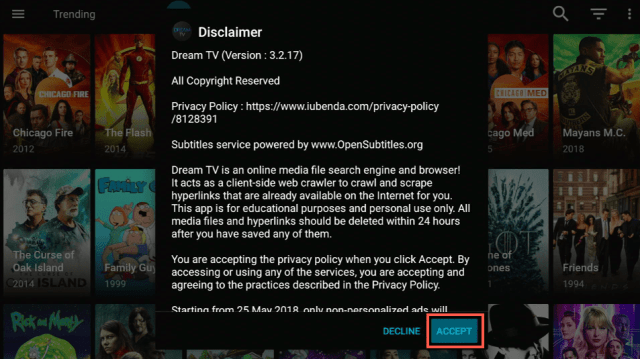
9. Click Accept.

Dream TV8


10. There you go! You have successfully installed Dream TV.

Dream TV9


YOUR INTERNET ACTIVITY IS BEING WATCHED

ReviewVPN cannot attest to the legality, security and privacy of the applications discussed on this site. It is highly recommended that you use a VPN service while streaming or using Kodi.

Currently, your IP 216.73.216.208 is visible to everyone and your Browser is being tracked by Advertisers & ISP Provider.

Save 65% Now

Limited Time Offer

Here are the main reasons why you must use a VPN:

  • Your activities are hidden from your ISP, the government, and from the apps you are using.
  • You can access additional movies and TV streams.
  • ISP attempts to throttle are thrwarted thus reducing buffering issues.
  • Geographically restricted content like Netflix and Hulu can be unblocked.

A VPN works be replacing your ISP-assigned IP address and creating an encrypted tunnel. We recommend the no log service offered by IPVanish. It works well on a Firestick and offers the fastest possible speeds.

Special Limited Time Offer - Get IPVanish


Legal Disclaimer: ReviewVPN.com does not encourage or endorse any illegal activity involved in the usage of services and applications referenced on this site. We do not verify the licensing agreements of services. The end-user is wholly responsible for ensuring that any media accessed through these services does not violate copyright and/or licensing laws. ReviewVPN does not promote, link to, or receive compensation from any Apps and IPTV services.


Install SurfShark on Firestick

Best SurfShark Deal


Is It Any Good?

Dream TV shares a familiar design and interfaces with some of the other popular free streaming applications.

It boasts a large number of tv shows and movie selections that will surely quench your excitement to be updated on the latest.

Dream TV also has Real-Debrid Integration that will assure you of high-quality links that will surely give you a better viewing experience.


Dream TV Features

Main Menu

Hamburger Menu

The Hamburger Menu contains TV Shows, Movies, and Favorites. Once you click on each tab, you will be automatically redirected to that specific selection.


Drop Down Button

TV Shows Genres 

Favorites, Trending, Recently Updated, New Shows, Premieres, Airing Today, Most Popular, Most Played, Most Watched, Top Rated, Netflix And Hulu, Law and Med, Ghost, Youtube And Amazon, Action And Adventure, Sci-Fi And Fantasy, Mystery, Crime, Drama, Comedy, Family, Western, War and Politics, Soap, Reality, Documentary, Kids, Animation


Movies Genres 

Most Popular, In Theaters, New HH Releases, Top Rated, Action, Adventure, Thriller, Sci-Fi, Fantasy, Mystery, Horror, Crime, Drama, Romance, Comedy, Family, Animation, Western, History, War, Documentary, Music, 4k, Standup, Paranormal, Premium, Christmas, Superhero, Children.


Search Button

You can use this feature to search for anything you would like to watch.


Filter Button

The Filter Button only appears under the TV Shows section. You can use this feature to sort out the TV Shows depending on the date of their release.


Settings

You can do a lot of things in this section. You can manipulate the way you want the app to work by configuring the settings. In this section, you can also integrate your Real-Debrid Account and Trak TV.


Interface

Dream TV has a straightforward interface. You will find it very easy to navigate through the app. Every TV Show and Movie also features a summary before you play. This is helpful if you want are taking your time in choosing what to watch next. You will get an idea of what each show is all about. Dream TV also has snippets/trailers that you can view before fully committing to anything.


Pros and Cons

Pros

1. No Mouse Toggle Required

One defining aspect of a promising free streaming app is not having to use Mouse Toggle. You can navigate through the app with a breeze if you can utilize the remote without any assistance at all.


2. Subtitle and Closed Captioning

A lot of viewers prefer watching content with subtitles. This helps with fully understanding what you are watching. You can rest assured that Dream TV has multiple language support when it comes to subtitles.


3. Favorites

This feature is important to any streaming app because it gives convenience to its user. By using the favorite function, you can tag any video that you like and are following.


4. Easy User Interface

One of the main highlights of this free streaming app is its easy UI.


5. No Ads


Cons

1. Not Real One-Click Play

You will have to manually choose a working link before you get to watch anything.


2. It takes a little while to gather working links. This is where Real-Debrid truly works its magic.


Should I use a VPN?


Have you ever wondered why some video buffer? Buffering is a result of throttling that is done by your ISP.

Our Internet Connection plans only have a certain allocation for streaming and downloading. Once your ISP sees that you are expending too much data on streaming, it will throttle down your connection speed.

So, what should be done to prevent this? The answer is simple. You will be needing the help of a premium VPN service like SurfShark.

What it does is hide all your online activity. The amount of data being consumed will be the only thing that reflects on your account but the activity the data is being used for will be cloaked.

Note: For more information about SurfShark, please read our SurfShark Review.


Grab your subscription now!

Click here to get the lowest price on SurfShark through our exclusive limited-time offer.


How to Install Surfshark on Firestick with Screenshots

If your Firestick still has the older interface, read this article to learn how to update it: Update Firestick Interface.

You can download Surfshark directly from the Amazon App store. It will be easy for you to find Surfshark with your Firestick’s Find feature. Refer to our screenshots below.

Follow our screenshots below to install the SurfShark VPN app on your Fire TV stick.

1. Go to the Home screen of your Firestick.

step 1 Install Surfshark VPN on Firestick


2. Navigate towards the Find tab. Press the Search button from the resulting dropdown.

step 2 Install Surfshark VPN on Firestick


3. Type in the keyword of SurfShark and select from the suggestions that will appear.

step 3 Install Surfshark VPN on Firestick


4. Click the official SurfShark icon from your search results.

step 4 Install Surfshark VPN on Firestick


5. Press the Download (You own it) button.

step 5 Install Surfshark VPN on Firestick


6. The SurfShark VPN installer will download on your device.

step 6 Install Surfshark VPN on Firestick


7. SurfShark VPN’s app will automatically install itself on your Fire TV stick.

step 7 Install Surfshark VPN on Firestick


8. Press the Open button after completing SurfShark VPN’s installation process.

step 8 Install Surfshark VPN on Firestick


9. Please wait for the SurfShark VPN to load its user interface.

step 9 Install Surfshark VPN on Firestick


10. You can now log in with your SurfShark VPN account credentials.

step 10 Install Surfshark VPN on Firestick

Learn more about Surfshark and Grab the Best Surfshark Deal Now!


Install Surfshark on Firestick

Best Surfshark Deal

Other VPNs to Consider

NordVPN (Best for Streaming)

Best Features

  • 5000+ Server in 50+ Countries 
  • Military-Grade Encryption
  • Fast Connection Speed
  • Suitable to a lot of devices
  • No-Log Policy

Prices
  • Complete $5.89 per month (64% Discount)
  • Plus $4.59 per month (56% Discount)
  • Standard $3.69 per month (55% Discount)

Best Features

  • 750+ High-speed VPN Servers in 43 Locations
  • Military-Grade Encryption
  • Fastest HD Streaming and Gaming
  • 30-Day Money-Back Guarantee
  • Unlimited Data & Devices
  • No-Log Policy

Prices
  • 3 Years $1.99 per month (82% Discount)
  • 1 Years $3.29 per month (70% Discount)
  • 1 Month $10.99 per month

IPVanish VPN (Most Secure)

Best Features

  • 1200+ Servers in 60+ Countries around the world
  • Unlimited Connections
  • No-Log Policy
  • Top Notch Military-Grade VPN Protocols and Encryptions
  • 100% Safe and Secured
  • Most Trusted VPN
  • Best VPN for Firestick
  • 30-Day Money-Back Guarantee

Prices
  • Yearly $3.99 per month (63% Discount) – 30 days risk free + Ransomware & Malware Protection
  • Quarterly $5.32 per month (51% Discount)
  • Monthly $10.99 per month

For more VPN discounts, go to ReviewVPN Deals and purchase the best VPN for you.


FAQs

Is it safe to download?

Dream TV is safe to download and install on your Amazon Firestick and Android devices.


Is it legal or grey?

Dream TV is legal to use on the Amazon Firestick and other Android devices.


Is it free?

Yes, Dream TV is free. You don’t have to worry about paying for anything.


Are there ADS?

Who likes ads? We are sure you are not a big fan of them just like us and we are glad to inform you that Dream TV is Ad-Free!


Is there a premium version?

Technically, Dream TV has no Premium Version or Subscription. But do you remember that it has Real-Debrid Integration? If you access this function of the app, you can also consider that as premium content.


Is it a Terrarium Clone?

Yes, Dream TV is a terrarium clone.


Is there an official website?

Dream Tv does not have an official website.


What other devices does it work on?

Dream TV will work with Android devices, Smart TVs, and Fire Tablets 7 and 10.


How does the app work?

Just follow our guide on how to install Dream TV on Firestick and see how it works.


Minimum Version Required

At least a minimum version of 5.0 is needed to run Dream TV.


How long has it been around?

Dream TV was launched last year, 2019.


Alternatives

The odd thing about free movie applications is that they have an unpredictable nature.

This means that there will be instances where they work perfectly fine and there will be times when they will not.

What we usually advise our readers are to have a good set of backup plans.

Should Dream TV experience glitches or issues, the following free streaming apps are the best alternatives:

Note: Click on this link to find out the best TV Shows and Movie Streaming applications out there. Also, you can check out the Best Free Streaming Websites. This is where most free streaming apps get their links from.


Our Opinion

There are only a few free streaming apps that are compatible with the Amazon Firestick and Dream TV is one of them. The lack of need for Mouse Toggle has caught our attention because navigating the app will be very easy. The few minor setbacks are tolerable and can be worked on.


Final Thoughts

It is our wish that this article helps you with how to install Dream TV Firestick Version on your device. Let us know if it worked out for you by commenting down below. Thank you for reading! Be safe!


Note: ReviewVPN.com does not own or operate any app nor does it endorse any. The main purpose of this article is strictly for educational purposes only.


Additional Resources

Best Firestick Apps

Best Firestick Movie Apps

The Best Live TV Apps for Firestick

Best Filelinked Codes 2020

Install Swift Streamz on Firestick

Best Kissanime.Ru Alternatives


What Is Your Favorite Streaming App? Cast Your Vote Below.

Firestick Not Connecting To The Internet – How To Troubleshoot

Overview


Whenever a problem occurs with the Amazon Firestick or Fire TV, it is always recommended to restart the device. In doing so, unplug the device’s power cord. Then, wait for 10 to 20 seconds, and plug it back in. If the issue persists, a factory reset for the device may be needed. Nonetheless, this article will discuss Firestick Not Connecting To The Internet issue – How To Troubleshoot.

Firestick not connecting to the internet problem is a usual occurrence among Amazon Firestick or Fire TV users. Some users have experienced it several times and others bumped into the issue only very recently. Thus, it will be a great idea to know the causes and arrange different practical solutions. The first thing you do to find the solution to the Firestick not connecting to the internet issue is to check the strength of your internet connection. Whether or not the internet connection strength is great will discover the solutions.


ANONYMOUSLY


Checking the Internet or WiFi Connection

If restarting the Amazon Firestick or Fire TV doesn’t work, there’s a possibility that the Firestick not connecting to the internet problem lies in the internet connection. Start checking if the WiFi is working on other devices, such as smartphones, tablets, or laptops. If it is, you found out the issue lies squarely with the Fire TV or Fire Stick, and you have to use the built-in network tool to check the status of the network and gather some pointers on how to fix the problem.


Check your WiFi networks:

  • Go to the settings menu on your device
  • Choose Network
  • Press Play or Pause to check the Network
  • This will let you know whether or not the home WiFi network is functioning
  • If it’s not, then you must restart the modem or router to restore a connection

Restart Your Modem or Router

If the network isn’t functioning as it’s supposed to, restart your modem or router to fix the connectivity problem so that the Fire TV will reconnect to WiFi.

  • Kick-off by turning off the router. Turn off the modem and wait for 20 to 30 seconds and then power it back on. Also, you may unplug the adapter to turn the device off.
  • After 20 to 30 seconds, turn the router back on and wait for the device to establish a connection. It could take several minutes for the modem or router to totally power back on and link to the web.
  • Once the modem or router fully connects, reconnect your Fire Stick or Fire TV to the WiFi.
  • Reminder: If you use both a modem and a router, you need to turn on your modem first, then your router.


YOUR INTERNET ACTIVITY IS BEING WATCHED

ReviewVPN cannot attest to the legality, security and privacy of the applications discussed on this site. It is highly recommended that you use a VPN service while streaming or using Kodi.

Currently, your IP 216.73.216.208 is visible to everyone and your Browser is being tracked by Advertisers & ISP Provider.

Save 65% Now

Limited Time Offer

Here are the main reasons why you must use a VPN:

  • Your activities are hidden from your ISP, the government, and from the apps you are using.
  • You can access additional movies and TV streams.
  • ISP attempts to throttle are thrwarted thus reducing buffering issues.
  • Geographically restricted content like Netflix and Hulu can be unblocked.

A VPN works be replacing your ISP-assigned IP address and creating an encrypted tunnel. We recommend the no log service offered by IPVanish. It works well on a Firestick and offers the fastest possible speeds.

Special Limited Time Offer - Get IPVanish


What Causes a Fire TV or Fire Stick Not Connecting to Wi-Fi?

The major cause of FireStick or Fire TV connectivity problems is internet connection strength, but there are tons of other causes. Below are the most usual causes of a Fire Stick or Fire TV not connecting to Wi-Fi:

  • Internet connection strength: If the FireStick or Fire TV is too far away from the router, the device will not be able to link to Wi-Fi. Too many obstructions may also have similar effects.
  • Interference: Android-powered devices that create interference on an exactly similar frequency as the Wi-Fi network can prevent the Fire Stick from connecting. Microwaves, cordless phones, as well as other similar devices could cause this kind of issue.
  • Router problems: Router issues tend to occur the longer you restart the hardware. Most of these problems will fix themselves after restarting the router.
  • Fire Stick problems: In some cases, an issue with the Amazon FireStick may prevent the device from linking to your Wi-Fi. Nearly all Fire Stick problems can be fixed with a simple reboot unless you are having a hardware failure.
  • Remote sync problems: If your Fire Stick will not connect to your Wi-Fi, and you can’t proceed due to the remote will not connect either, you will have to repair the Fire Stick remote to proceed.


Reconnect to the VPN

If you’re using a superior Virtual Private Network or VPN service, like Surfshark, it has a Kill-Switch feature that automatically blocks the web connection whenever you unintentionally disconnect from a VPN server. Thus, it’s likely that the VPN service has blocked the internet to keep your privacy and to keep the FireStick secure.

Just launch the VPN app and reconnect to a server to fix the Fire TV Stick internet connection issue.

Surfshark is the best VPN service for your Amazon Fire TV or FireStick while you stream sports, movies, and TV shows on the internet. The Surfshark VPN service will encrypt your connection to the web and generate an anonymous connection via a cloaked IP address. The features of Surfshark VPN service include:

  • Best VPN service for Firestick and Kodi
  • Best VPN for anonymous torrenting
  • Fast same-country speeds
  • No logs and no IP address leaks
  • 10 simultaneous connections

How to Install Surfshark VPN on Firestick

If your Firestick still has the older interface, read this article to learn how to update it: Update Firestick Interface.

You can download Surfshark directly from the Amazon App store. It will be easy for you to find Surfshark with your Firestick’s Find feature. Refer to our screenshots below.

1. Go to the Home screen of your Firestick.

step 1 Install Surfshark VPN on Firestick


2. Navigate towards the Find tab. Press the Search button from the resulting dropdown.

step 2 Install Surfshark VPN on Firestick


3. Type in the keyword of SurfShark and select from the suggestions that will appear.

step 3 Install Surfshark VPN on Firestick


4. Click the official SurfShark icon from your search results.

step 4 Install Surfshark VPN on Firestick


5. Press the Download (You own it) button.

step 5 Install Surfshark VPN on Firestick


6. The SurfShark VPN installer will download on your device.

step 6 Install Surfshark VPN on Firestick


7. SurfShark VPN’s app will automatically install itself on your Fire TV stick.

step 7 Install Surfshark VPN on Firestick


8. Press the Open button after completing SurfShark VPN’s installation process.

step 8 Install Surfshark VPN on Firestick


9. Please wait for the SurfShark VPN to load its user interface.

step 9 Install Surfshark VPN on Firestick


10. You can now log in with your SurfShark VPN account credentials.

step 10 Install Surfshark VPN on Firestick

Learn more about Surfshark and Grab the Best Surfshark Deal Now!


Other VPNs to Consider

NordVPN (Best for Streaming)

Best Features

  • 5000+ Server in 50+ Countries 
  • Military-Grade Encryption
  • Fast Connection Speed
  • Suitable to a lot of devices
  • No-Log Policy

Prices
  • Complete $5.89 per month (64% Discount)
  • Plus $4.59 per month (56% Discount)
  • Standard $3.69 per month (55% Discount)

Best Features

  • 750+ High-speed VPN Servers in 43 Locations
  • Military-Grade Encryption
  • Fastest HD Streaming and Gaming
  • 30-Day Money-Back Guarantee
  • Unlimited Data & Devices
  • No-Log Policy

Prices
  • 3 Years $1.99 per month (82% Discount)
  • 1 Years $3.29 per month (70% Discount)
  • 1 Month $10.99 per month

IPVanish VPN (Most Secure)

Best Features

  • 1200+ Servers in 60+ Countries around the world
  • Unlimited Connections
  • No-Log Policy
  • Top Notch Military-Grade VPN Protocols and Encryptions
  • 100% Safe and Secured
  • Most Trusted VPN
  • Best VPN for Firestick
  • 30-Day Money-Back Guarantee

Prices
  • Yearly $3.99 per month (63% Discount) – 30 days risk free + Ransomware & Malware Protection
  • Quarterly $5.32 per month (51% Discount)
  • Monthly $10.99 per month


For more VPN discounts, go to ReviewVPN Deals and purchase the best VPN for you.


Reset the Fire Stick to Factory Defaults

Some Amazon FireStick users keep resetting their devices once in several months as it aids with trouble-free device performance. Nonetheless, resetting could delete all existing applications as well as settings. That’s why resetting Amazon FireStick is the last troubleshooting option.

However, when nothing works, resetting typically fixes the Firestick not connecting to the internet issue.

Once you’ve reset your Firestick, you’ll need to set up the device like it’s new. Below is a guide on How to set up your FireStick.

  • Head to FireStick Settings
  • Go to My Fire TV
  • Click Reset to Factory Defaults
  • Then, click Reset to confirm


Compatibility Issues

Fire TV or FireStick requires a particular network and router/modem specifications. With regards to networks, you can connect your Fire TV or FireStick to WPA-PSK, WEP, WPA1-PSK encrypted, open, as well as hidden networks. Also, it supports AC, A, and N routers on 5 GHz, and N, B, and G routers on 2.4 GHz.

If you want to avoid this issue, check if your equipment and network are compatible with Fire TV or Fire Stick before purchasing the device.

Wi-Fi connectivity problems could be a bit annoying. Nonetheless, this write-up should help Fire Stick users easily discover the real issue. The procedures above are very simple, and frequently effective in fixing Fire Stick internet connectivity issues.

IPTV Smarters Pro Review: Is It Really That Good?

IPTV Smarters Pro Review

In this article, we will be reviewing the IPTV Smarters Pro app to know if it’s really good and worth recommending to our readers.


IPTV Smarters Pro is an amazing video streaming player which is created particularly for people who want to be given the facility to stream live TV, Video on demand, TV Catchup, and TV Series on their Android-based devices such as mobile phones, Amazon Fire Stick, Android boxes, and more.

Moreover, the IPTV Smarters Pro app is easy to use. This video streaming app is highly efficient with a powerful player, a very impressive layout, and a user-friendly interface. You can opt to load your playlist or file, or you may log in using Xtream Codes API.

One of the major reasons the IPTV Smarters app has acquired so much attention is because of the fact that it runs on Firestick, Android, and iOS mobile devices. Wherein, users can stream live TV wherever they are.

But first, if you still don’t have the IPTV Smarters App, you may read this article on how to install IPTV Smarters Pro on Firestick, iOS, and Android devices.


ANONYMOUSLY

Is IPTV Smarters Safe and Virus-free?

We tested this app using VirusTotal and found no threats or any malicious files and malware.

Despite having good results, we still need to be vigilant in protecting our privacy while streaming.

A Virtual Private Network or VPN will definitely help us maintain our security and anonymity while using IPTV Smarters.

Here’s how you can Install The Best VPN For Firestick and All Devices.


Is It Good?

The IPTV Smarters App offers multiple amazing features that will allow you to enjoy live television anytime & anywhere. The IPTV Smarters App supports Xtream Codes API and it loads URLs as well as MP3 files. This video streaming player allows you to watch live TV, TV series, TV Catchup, and movies with the support of EPG (Electronic program guide). For each category provided on the video streaming app, there’s an integrated parental control. The app’s built-in player with external players’ integration supports dynamic language switching with the selection of players and different player settings.


YOUR INTERNET ACTIVITY IS BEING WATCHED

ReviewVPN cannot attest to the legality, security and privacy of the applications discussed on this site. It is highly recommended that you use a VPN service while streaming or using Kodi.

Currently, your IP 216.73.216.208 is visible to everyone and your Browser is being tracked by Advertisers & ISP Provider.

Save 65% Now

Limited Time Offer

Here are the main reasons why you must use a VPN:

  • Your activities are hidden from your ISP, the government, and from the apps you are using.
  • You can access additional movies and TV streams.
  • ISP attempts to throttle are thrwarted thus reducing buffering issues.
  • Geographically restricted content like Netflix and Hulu can be unblocked.

A VPN works be replacing your ISP-assigned IP address and creating an encrypted tunnel. We recommend the no log service offered by IPVanish. It works well on a Firestick and offers the fastest possible speeds.

Special Limited Time Offer - Get IPVanish


Legal Disclaimer: ReviewVPN.com does not encourage or endorse any illegal activity involved in the usage of services and applications referenced on this site. We do not verify the licensing agreements of services. The end-user is wholly responsible for ensuring that any media accessed through these services does not violate copyright and/or licensing laws. ReviewVPN does not promote, link to, or receive compensation from any Apps and IPTV services.


Install Surfshark on Firestick

Best Surfshark Deal


IPTV Smarters Pro Features

  • Support loading M3u File / URL
  • Support Xtream Codes API
  • Live TV, Movies, TV Series, and TV Catchup Streaming IPTV High Definition Played via IPTV app
  • EPG (Electronic program guide) supported
  • External Players Integration
  • In-built powerful IPTV player
  • Parental Control
  • Attractive and impressive layout
  • User-friendly interface
  • Support: Embedded subtitle and Dynamic language switching
  • Master Search Function

Compatible Devices

  • Firestick/Fire TV
  • iOS
  • Android
  • Nvidia Shield
  • PC – Windows & macOS
  • Smart TV
  • Apple TV

Why Will You Love The IPTV Smarters Pro App?

You can use the IPTV Smarters App to watch trailers, your recently watched content, resume videos, decode software & hardware, reconnect recording if it falls short in recording in SD card as well as external memory. The IPTV Smarters App allows you to easily find the movies’ data section and optimize the APK (Android application package) file size. However, you must remember that you must have your own content with a server, username, password, or load files/URLs from the television service provider.


Always Use IPTV Smarter Pro With A VPN Service

Internet Protocol Television or IPTV is an umbrella term typically utilized to recount a video streaming platform that lives streams television channels on the web. IPTV services provide a great number of live TV channels for an affordable monthly cost. The TV channels are usually the same as what people will get on cable TV, satellite TV, or terrestrial TV but strictly on the internet.

Most legitimate Internet Protocol Television providers are geo-restricted, which means the services can only be utilized from a particular country. Wherein, If you are outside of the country and you want to stream IPTV, the media content could be blocked. Nonetheless, connecting to a Virtual Private Network or VPN service in the right country will give you access to the stream.

A VPN service will prevent internet service providers (ISP) and third parties from spying on what you do on the internet. There are ISPs that throttle bandwidth for people who are watching entertainment content. A VPN service prevents these ISPs from distinguishing and discriminating against specific kinds of information as well as internet usage.


The Best VPNs for IPTV Should have:

  • Fast connection speeds
  • Service for mobile devices
  • Good customer support
  • Keep internet browsing private
  • Ability to bypass regional restrictions

Note: For more information about Surfshark, please read our Surfshark Review.


Grab your subscription now!


How to Install Surfshark VPN on Firestick

If your Firestick still has the older interface, read this article to learn how to update it: Update Firestick Interface.

Follow our screenshots below to install the Surfshark VPN app on your Fire TV stick.

1. Go to the Home screen of your Firestick.

step 1 Install Surfshark VPN on Firestick


2. Navigate towards the Find tab. Press the Search button from the resulting dropdown.

step 2 Install Surfshark VPN on Firestick


3. Type in the keyword of Surfshark and select from the suggestions that will appear.

step 3 Install Surfshark VPN on Firestick


4. Click the official SurfShark icon from your search results.

step 4 Install Surfshark VPN on Firestick


5. Press the Download (You own it) button.

step 5 Install Surfshark VPN on Firestick


6. The Surfshark VPN installer will download on your device.

step 6 Install Surfshark VPN on Firestick


7. SurfShark VPN’s app will automatically install itself on your Fire TV stick.

step 7 Install Surfshark VPN on Firestick


8. Press the Open button after completing Surfshark VPN’s installation process.

step 8 Install Surfshark VPN on Firestick


9. Please wait for the SurfShark VPN to load its user interface.

step 9 Install Surfshark VPN on Firestick


10. You can now log in with your Surfshark VPN account credentials.

step 10 Install Surfshark VPN on Firestick

Learn more about Surfshark and Grab the Best Surfshark Deal Now!


Install Surfshark on Firestick

Best Surfshark Deal


Other VPNs to Consider

NordVPN (Best for Streaming)

Best Features

  • 5000+ Server in 50+ Countries 
  • Military-Grade Encryption
  • Fast Connection Speed
  • Suitable to a lot of devices
  • No-Log Policy

Prices
  • Complete $5.89 per month (64% Discount)
  • Plus $4.59 per month (56% Discount)
  • Standard $3.69 per month (55% Discount)

Best Features

  • 750+ High-speed VPN Servers in 43 Locations
  • Military-Grade Encryption
  • Fastest HD Streaming and Gaming
  • 30-Day Money-Back Guarantee
  • Unlimited Data & Devices
  • No-Log Policy

Prices
  • 3 Years $1.99 per month (82% Discount)
  • 1 Years $3.29 per month (70% Discount)
  • 1 Month $10.99 per month

IPVanish VPN (Most Secure)

Best Features

  • 1200+ Servers in 60+ Countries around the world
  • Unlimited Connections
  • No-Log Policy
  • Top Notch Military-Grade VPN Protocols and Encryptions
  • 100% Safe and Secured
  • Most Trusted VPN
  • Best VPN for Firestick
  • 30-Day Money-Back Guarantee

Prices
  • Yearly $3.99 per month (63% Discount) – 30 days risk free + Ransomware & Malware Protection
  • Quarterly $5.32 per month (51% Discount)
  • Monthly $10.99 per month


For more VPN discounts, go to ReviewVPN Deals and purchase the best VPN for you.


The Verdict

The IPTV Smarters app is a terrific tool to watch your favorite movies, series, and live shows. It also supports audio streaming so you can always listen to your favorite radio shows. Furthermore, it is available on any device, including the Firestick, iOS, Android, and Smart TV, so whether you want to watch it at home or on the move, you will always discover the best options for you. You can also add external players, such as the MX Player, allowing you to watch videos through your preferred players. In addition, it has Parental Control making it ideal for families of all ages.

To sum up, what I like most about it is its versatility to tailor to its users to provide the best streaming activities for them. All of its features add up to provide a superb experience for everybody who uses the app for streaming activities.

Finally, who doesn’t want free, right? You get to enjoy all of its features without having to pay anything out of pocket.

So if you’re wondering if it’s really good? Then the answer is YES.

Best Browser for Firestick (2023) – Amazon Silk Browser Review

Overview

In this article, we will be tackling the Best Firestick Browser, Amazon Silk Browser.


We will also give you the best Silk Browser Alternatives so that you have other options.

The Silk Browser was tailor-made for Amazon Devices, which is comprised of the Firestick and other Fire Devices.

Previously, internet browsers must be sideloaded from the Downloader application. In any case, presently, we can download the Amazon Silk Browser from the Amazon App store directly.

Web browsers will allow your Firestick to download APKs that are not readily available at the Amazon App Store. You can install the Best Firestick Apps onto the Firestick or watch with the Best Free Movie Websites and Best Free TV Show Websites.

We will show you how to install Amazon Silk and highlight its features as we go along.


ANONYMOUSLY


Tutorial on Installing Silk on Firestick

1.  Click Home on your remote and click “Find”.

2. Click “Search”


3.Type in Silk Browser and choose this item that appears on the results.


4. Click on the Silk Browser Icon.


5. Choose Download


6. Select Open to launch the browser.


7. You can now start browsing using Amazon Silk Browser.


8. Take it for a test run and type in the URL Box https://reviewvpn.com/best-filelinked-codes/ and select Go.


9. There you go, you can now browse on the Firestick using Silk Web Browser.


How to Use Silk Browser on Firestick

The best way to use the Silk browser is to stream videos online. For example, you can watch the latest movies by referring to this article:

Best Free Movie Websites.

You can watch the latest episodes of your favorite TV Shows with this guide:

Best Free TV Show Websites.

If you are an anime fan, you can also binge watch on 9Anime or the Best Kissanime Alternatives.


Grab your subscription now!

Click here to get the lowest price on Surfshark through our exclusive limited-time offer.


Stream Safely with a VPN

As we always say, stream responsibly by using a premium VPN service like Surfshark. Here are the reasons why:

How to Install Surfshark VPN on Firestick

If your Firestick still has the older interface, read this article to learn how to update it: Update Firestick Interface.

1. Go to the Home screen of your Firestick.

step 1 Install Surfshark VPN on Firestick


2. Navigate towards the Find tab. Press the Search button from the resulting dropdown.

step 2 Install Surfshark VPN on Firestick


3. Type in the keyword of SurfShark and select from the suggestions that will appear.

step 3 Install Surfshark VPN on Firestick


4. Click the official SurfShark icon from your search results.

step 4 Install Surfshark VPN on Firestick


5. Press the Download (You own it) button.

step 5 Install Surfshark VPN on Firestick


6. The SurfShark VPN installer will download on your device.

step 6 Install Surfshark VPN on Firestick


7. SurfShark VPN’s app will automatically install itself on your Fire TV stick.

step 7 Install Surfshark VPN on Firestick


8. Press the Open button after completing SurfShark VPN’s installation process.

step 8 Install Surfshark VPN on Firestick


9. Please wait for the SurfShark VPN to load its user interface.

step 9 Install Surfshark VPN on Firestick


10. You can now log in with your SurfShark VPN account credentials.

step 10 Install Surfshark VPN on Firestick

Learn more about Surfshark and Grab the Best Surfshark Deal Now!


Install Surfshark on Firestick

Best Surfshark Deal


Other VPNs to Consider

NordVPN (Best for Streaming)

Best Features

  • 5000+ Server in 50+ Countries 
  • Military-Grade Encryption
  • Fast Connection Speed
  • Suitable to a lot of devices
  • No-Log Policy

Prices
  • Complete $5.89 per month (64% Discount)
  • Plus $4.59 per month (56% Discount)
  • Standard $3.69 per month (55% Discount)

Best Features

  • 750+ High-speed VPN Servers in 43 Locations
  • Military-Grade Encryption
  • Fastest HD Streaming and Gaming
  • 30-Day Money-Back Guarantee
  • Unlimited Data & Devices
  • No-Log Policy

Prices
  • 3 Years $1.99 per month (82% Discount)
  • 1 Years $3.29 per month (70% Discount)
  • 1 Month $10.99 per month

IPVanish VPN (Most Secure)

Best Features

  • 1200+ Servers in 60+ Countries around the world
  • Unlimited Connections
  • No-Log Policy
  • Top Notch Military-Grade VPN Protocols and Encryptions
  • 100% Safe and Secured
  • Most Trusted VPN
  • Best VPN for Firestick
  • 30-Day Money-Back Guarantee

Prices
  • Yearly $3.99 per month (63% Discount) – 30 days risk free + Ransomware & Malware Protection
  • Quarterly $5.32 per month (51% Discount)
  • Monthly $10.99 per month


For more VPN discounts, go to ReviewVPN Deals and purchase the best VPN for you.

Click here to get the lowest price on Surfshark through our exclusive limited-time offer.


Silk Browser Features

Bookmark Feature

Allows you to bookmark a website for easy access in the future.


Desktop Mode

In this section, you can choose how you want the browser to look like. Either Desktop View or Site View.


Incognito Mode

If you want private browsing, this feature will help you out. This is very helpful when you are trying to access rated SPG content.


Grab your subscription now!

Click here to get the lowest price on Surfshark through our exclusive limited-time offer.


Menu

Under the Menu, you can do the following actions:

Clear History and Data

Clear out your browsing history and delete data to improve the performance of the browser.


Cursor Speed

Adjust the speed of your cursor and scrolling. There are a total of 5 speeds:

  • Fastest
  • Fast
  • Medium
  • Slow
  • Slowest


Settings

In this section, you can customize the cursor speed, pairing, passwords, addresses/more, Privacy, Accessibility, Parental Controls, and Advanced.


Send Feedback

This portion will help you file a complaint. There are options on what you are having trouble with. Check one and then click on “Send Feedback”


Help and Support

Upon clicking on this, you will be redirected to Amazon’s website. You can search for more solutions here if you are having issues with the Silk Web Browser.


Legal Disclaimer: ReviewVPN.com does not encourage or endorse any illegal activity involved in the usage of services and applications referenced on this site. We do not verify the licensing agreements of services. The end-user is wholly responsible for ensuring that any media accessed through these services does not violate copyright and/or licensing laws. ReviewVPN does not promote, link to, or receive compensation from any Apps and IPTV services.


YOUR INTERNET ACTIVITY IS BEING WATCHED

ReviewVPN cannot attest to the legality, security and privacy of the applications discussed on this site. It is highly recommended that you use a VPN service while streaming or using Kodi.

Currently, your IP 216.73.216.208 is visible to everyone and your Browser is being tracked by Advertisers & ISP Provider.

Save 65% Now

Limited Time Offer

Here are the main reasons why you must use a VPN:

  • Your activities are hidden from your ISP, the government, and from the apps you are using.
  • You can access additional movies and TV streams.
  • ISP attempts to throttle are thrwarted thus reducing buffering issues.
  • Geographically restricted content like Netflix and Hulu can be unblocked.

A VPN works be replacing your ISP-assigned IP address and creating an encrypted tunnel. We recommend the no log service offered by IPVanish. It works well on a Firestick and offers the fastest possible speeds.

Special Limited Time Offer - Get IPVanish


Install Surfshark on Firestick

Best Surfshark Deal


Pros and Cons

Pros

  • Fast
  • Easy Navigation. You do not need Mouse Toggle to browse through the interface.
  • It does not allow pop-ups to suddenly show up. It will ask you if you want to stay on the page or leave.
  • Incognito mode helps you with privacy most especially if you are trying to stream adult content.


Cons

  • It cannot download files and APKs.


Best Alternative

Mozilla Firefox

Firefox logo Best Browser for Firestick

Mozilla Firefox dominated the web browsers game back in the early 2000s. It was sought after by millions of internet users because of the features it has that the internet explorer lacked.

Today, it is still one of the leading internet browsers and we suspect that it will stay that way for a long time.

Aside from the Silk Browser, Firefox has a built-in mouse that allows you to navigate through its interface very easily. Also, it has a Turbo Mode that automatically blocks annoying ads and trackers. With this feature on, you will never be pestered by ads and pop-ups which are common when you are streaming on movie and TV Show websites.

It is compatible with most touchscreen devices and other smart TVs.

Follow this guide to install Firefox on the Firestick:

1.  Click Home on your remote and click “Find”.


2. Click “Search”


3. You can either say Firefox to your Alexa’s voice-enabled remote or start typing it. If you typed it, click on the suggestion when it appears.


4. Click on the Firefox icon.


5. Click on Download.


6. Click Open


7. Select Keep Turbo Mode Enabled.

Step 5 Install Firefox On a Firestick


8. Click on the “Ok, got it” button.

Step 6 Install Firefox On a Firestick


9. Select Not now

Step 7 Install Firefox On a Firestick new


10. There you go, Firefox is now installed on your Firestick.

Step 8 Install Firefox On a Firestick

FYI, the version of Firefox that comes from the Amazon App Store does not have the ability to download files and APKs. If you prefer the version that allows downloads, please refer to this guide:

Install Firefox with Download Feature on Firestick.


Other Alternatives

The browsers that will be featured in this section can only be installed with a jailbroken Firestick. If your Firestick is not yet jailbroken, please follow this tutorial:

Jailbreak Firestick Guide.

After Jailbreaking the Firestick, you will also need to install another browser called Downloader. This will allow you to sideload apps that are not available on the Amazon App Store. You can follow this guide to do so:

Install Downloader on Firestick.


Grab your subscription now!

Click here to get the lowest price on Surfshark through our exclusive limited-time offer.


Duck Duck Go

DuckDuckGo logo

Duck Duck Go is one of the best browsers for Firestick because it provides a safe browsing experience by prohibiting trackers.

It also informs you regarding a website’s rating. The grades are rated alphabetically with A being the highest.

Duck Duck Go Browser also provides information on what it has blocked. This is essential to browsing as it will give you information on what sites are harmful to your device.

Duck Duck Go may seem simple but it packs a punch when it comes to supplying a safe browsing and streaming experience. 

Pros

  • Automatic URL Box Pop-up.
  • Clicking on a thumbnail is easy.
  • Can Download files and APKs


Cons

  • Navigation is not so smooth.
  • Playing a video on streaming sites is quite difficult.
  • Requires Mouse Toggle.
  • Response Time is slow.

Install Duck Duck Go Browser Now!


Brave Browser

Brave Browser prevents intrusive ads and protects your device from trackers you get from the websites you visit.

This browser affords you an extra wall of defense against anything malicious that will cause harm to your device and prevent trackers from getting your private data.

Pros

  • Masks your IP Address.
  • It does not reveal your browsing history.
  • Allows you to browse anonymously.
  • Protects you against malware and viruses.
  • It allows you to purchase premium content via its rewards system.
  • The browser is very informative and provides useful insights.


Cons

  • Mouse Toggle is required to click on search results, play videos, and close ads.
  • There are quite a few pop-ups when you are accessing streaming sites.
  • Takes too much time to play a video.


Puffin Browser

Puffin Web browser logo

Install Puffin on Firestick.


Google Chrome

Chrome browser logo

Google Chrome is probably the most used web browser today. It works well with touchscreen devices, laptops, and PCs.

The only problem with it is it was not designed for the Firestick. Navigation is easy but when you want to click on something, you will need Mouse Toggle.

The good thing about it is that you can download files and APKs to install third-party applications.


Pros

  • Can Download APKs


Cons

  • Mouse Toggle is required to use the URL Box, click on thumbnails, and enter full screen for streaming websites.
  • The remote is not responding well when you are going to watch using free streaming sites.

Install Chrome on Fire TV Stick


Grab your subscription now!

Click here to get the lowest price on Surfshark through our exclusive limited-time offer.


FAQs

How to Open Web Browser in Amazon Firestick?

This is easy. Once you have installed Silk Browser, you can easily locate it under “Your Apps and Channels”. One trick is to long-press the home button, once the menu appears, you can click on “Apps” and locate the icon that says “Internet”. Click on it to launch the Silk Browser. That is how you open a web browser in Amazon Firestick.


How To Connect To The Internet on Firestick

Go to settings>Network>Choose your wifi connection>Input password and click on connect.

That’s it. Your Firestick is now connected to the Internet.


Can I Add Chrome Extension on Firestick?

Unfortunately, no. This is only applicable to the windows version.


What is the best Firestick Browser?

In our honest opinion, the Silk Browser is the best. Mozilla Firefox comes on second.


Conclusion

The  Amazon Silk browser is an amazing tool that will allow you to stream content online for free. Just be cautious about the type of content you are going to stream. Always remember to use a VPN to keep yourself protected.


Final Thoughts

It is our sincerest hope that our article provides the necessary information on how to install the Best Browser for Firestick. The crown belongs to Amazon Silk Browser.

If you have any suggestions or queries, please feel free to comment down below.

Thank you for reading and stay safe. Wear your mask.


Best Silk Browser Options:

50 Best Free Movie Streaming Sites

Best Free TV Shows Websites

The Best Firestick Apps

Best Live TV Apps

Best Unlinked Codes

How To Watch Live TV on Firestick – Paid and Free 2023

Live TV Streaming on a Firestick

For today’s article, our topic will be on how to watch Live TV on a Firestick.


The Amazon Firestick is arguably the most popular streaming device right now. It allows users to watch movies, TV Shows, Live TV, Sports, and a whole lot more.

There are several options that you can do with it. You can either install official apps that are available at the Amazon App Store or free streaming apps from third-party sources.

It does not matter which option you go for because both are safe for your Firestick.

The main focus of this article is to provide tips on how to watch Live TV on the Firestick both paid and free.

By the end of this write-up, you will be equipped with the necessary information on how to do so.


ANONYMOUSLY


Paid Streaming Applications

Youtube TV

Youtube TV Logo Watch Live TV on Firestick

Price: $64.99/month

Youtube TV provides services much like your regular cable TV. It offers a total of 75 channels which include top local networks such as ABC, CBS, Fox, and NBC.

Aside from these channels, it also gives users access to VOD and DVR. These two aspects along with superb channel listings make Youtube TV standout amongst its contemporaries.

Full Channel List

  • ABC
  • NBC
  • CBS
  • Fox
  • CW
  • PBS
  • MyNetworkTV
  • ACC Network
  • AMC
  • Animal Planet
  • BBC America
  • BBC World News
  • BET
  • Big Ten Network
  • Bravo
  • Cartoon Network
  • CBS Sports Network
  • Cheddar
  • CMT
  • CNBC
  • CNN
  • Comedy Central
  • Discovery Channel
  • Disney Junior
  • Disney XD
  • E!
  • ESPN
  • ESPN 2
  • ESPNEWS
  • Food Network
  • Fox Business
  • Fox News
  • Freeform
  • Fox Sports 1
  • Fox Sports 2
  • FX
  • FX Movies
  • FXX
  • Golf Channel
  • HGTV
  • HLN
  • IFC
  • Investigation Discovery
  • MLB Network
  • Motor Trend
  • MSNBC
  • MTV
  • National Geographic
  • Nat Geo Wild
  • NBA TV
  • NBC Sports Network
  • Newsy
  • Nickelodeon
  • Oxygen
  • Paramount Network
  • SEC Network
  • Smithsonian
  • Sundance TV
  • Syfy
  • Tastemade
  • TBS
  • TCM
  • Telemundo
  • Tennis Channel
  • TLC
  • TNT
  • Travel Channel
  • TruTV
  • TV Land
  • USA Network
  • VH1
  • WE tv

Install Youtube TV on Firestick Guide

  1. On your Firestick Home Screen, click once to the left and hit the center button to access the search function.
  2. Type in Youtube TV
  3. Choose the Youtube TV App Icon
  4. Click on Get
  5. Select Open


Hulu + Live TV

Hulu Logo Watch Live TV on Firestick

Price: $54.99/Monthly

Hulu + Live TV is a paid streaming service that offers on-demand content and Live TV as well.

You can definitely use it as the perfect replacement for cable TV.

Its price is very fair considering the number of channels it offers. You can stay updated with current news and enjoy entertainment channels, Sports Channels, Movies, and many more.

Full Channel List:

  • A&E
  • ABC
  • ABC News Live
  • ACC Network
  • ACC Network Extra
  • Animal Planet
  • Big Ten Network
  • Boomerang
  • Bravo
  • Cartoon Network/Adult Swim
  • CBS
  • CBS Sports Network
  • Cheddar Business
  • Chiller
  • CNBC
  • CNN International
  • CoziTV
  • Discovery Channel
  • Disney Channel
  • Disney Junior
  • DisneyXD
  • E!
  • ESPN
  • Food Network
  • ESPN 2
  • ESPN Bases Loaded
  • FOX
  • Fox Business
  • ESPN College Extra
  • ESPN Goal Line
  • Fox News
  • ESPNEws
  • ESPNU
  • FS1
  • FS2
  • Freeform
  • FX
  • FXM
  • FXX
  • Golf Channel
  • HGTV
  • History
  • HLN
  • Investigation Discovery
  • Lifetime
  • Marquee Sports Network
  • MotorTrend
  • MSNBC
  • MyNetworkTV
  • NASA TV
  • National Geographic
  • Nat Geo Wild
  • NBCSN
  • Olympic Channel
  • Oxygen
  • Pop
  • Regional Sports Network
  • SEC Network
  • Smithsonian
  • Syfy
  • TBS
  • TCM
  • Telemundo
  • The CW
  • TLC
  • TNT
  • Travel Channel
  • truTV
  • Universal Kids
  • USA Network
  • Viceland
  • YES Network

Install Hulu on Firestick Guide

  1. On your Firestick Home Screen, click once to the left and hit the center button to access the search function.
  2. Type in Hulu
  3. Choose the Hulu App Icon
  4. Click on Get
  5. Select Open


Amazon Prime Video

Amazon Prime Video Watch Live TV on Firestick

Amazon Prime Video is a popular paid streaming service that you can use to watch movies, TV Shows, Amazon Originals, and Live TV.

Applying for a Prime membership does not include Live TV. You have to pay for the channels separately and the prices vary depending on the popularity of the channel. Each channel gives you a 7-day free trial so you can check if you really want it or not.

The good thing about this service is that you can customize the channels that you want. In this way, you can save money rather than having a bunch of channels that you don’t really watch. Sounds like a good deal right?

Sample Price List:

$5.99 (Prime Membership) + $5.99 (CBS All Access) + $10.99 (Show Time) + $3.99 (Comedy Central) = $26.96

As you can see, this pricing is very affordable. The Prime membership already gives you tons of Movies and TV Shows so you don’t need to add movie channels.

Look at that! Compared to cable TV, this is outstanding. You get it at half the price and enjoy the same thing. This is a very good deal if you ask us.

Try it now!


How To Watch Live TV on Amazon Prime Video

  1. Launch Amazon Prime Video on your Firestick
  2. Use the Search Function
  3. Type in any channel that you have included in your subscription
  4. Scroll to the right and choose it.
  5. Click on it.
  6. You can now watch Live TV on Firestick with Amazon Prime Video


Sling TV

sling tv logo Watch Live TV on Firestick

Price: Sling Blue $30 ($20 First Month) Sling Orange $30 ($20 First Month) Sling Blue + Orange $45 ($35 First Month)

Sling TV is one of the most affordable streaming services you will ever find. If you compare it to other leading services, it is cheaper by at least $10.

Sling TV offers 3 packages:

  • Blue – Best for News and Kids
  • Orange – Best for Entertainment and Families
  • Blue + Orange – Complete Package

It is up to you which plan to choose depending on your wants and needs.

Featured Channels:

  • A&E
  • ACC Network
  • ACC Network Extra
  • AMC
  • American Heroes
  • Atlanta Hawks
  • AXS TV
  • BabyTV
  • BBC America
  • BBC World News
  • beIN SPORTS
  • beIN Sports Connect
  • BET
  • Bloomberg Television
  • Boomerang
  • Boston Celtics
  • Bravo
  • Brooklyn Nets
  • Cartoon Network & Adult Swim
  • CGTN
  • Charlotte Hornets
  • Cheddar Business
  • Cheddar News
  • Chicago Bulls
  • Cinefest
  • Cinemoi
  • Cleveland Cavaliers
  • CMT
  • CNBC
  • CNN
  • Comedy Central
  • Comedy Dynamics
  • Comet
  • CONtv
  • Cooking Channel
  • CuriosityStream
  • Dallas Mavericks
  • Denver Nuggets
  • Destination America
  • Detroit Pistons
  • Discovery Channel
  • Disney Channel
  • Disney Junior
  • DIY Network
  • Disney XD
  • Docurama
  • DOGTV
  • Dove Channel
  • Dox
  • ducktv
  • E!
  • Echoboom Sports
  • EPIX
  • EPIX 2
  • ESPN
  • ESPN 3
  • EPIX Drive-In
  • EPIX Hits
  • ESPN Bases Loaded
  • ESPN2
  • Euronews
  • ESPNEWS
  • ESPNU
  • Food Network
  • Fox Business Network
  • Fox News
  • France 24 (English)
  • FOX Sports 1
  • FOX Sports 2
  • Freeform
  • Fuse
  • FX
  • FXM
  • FXX
  • FYI
  • Genius Brands
  • Golden State Warriors
  • Golf Channel
  • Great American Country
  • Grokker
  • GSN
  • Hallmark Channel
  • Hallmark Drama
  • HDNet Movies
  • Hallmark Movies & Mysteries
  • Hallmark Movies Now
  • Here TV
  • HGTV
  • Hi-YAH!
  • History
  • HLN
  • Hopster
  • Houston Rockets
  • IFC
  • Indiana Pacers
  • Investigation Discovery
  • Law & Crime
  • Lifetime
  • Lifetime Movie Network
  • Lion Mountain TV
  • Local Network
  • Logo
  • Longhorn Network
  • Los Angeles Clipper
  • Los Angeles Lakers
  • MagellanTV History
  • Magnolia Selects
  • Memphis Grizzlies

Additional Channels

  • Miami Heat
  • Milwaukee Bucks
  • Minnesota Timberwolves
  • MLB Network
  • MLB Strike Zone
  • Monsters & Nightmares
  • MotorTrend
  • MSNBC
  • MTV
  • MTV2
  • Nat Geo WILD
  • National Geographic
  • Nautical Channel
  • NBA TV
  • NBC Networks
  • NBC Sports Networks
  • New Orleans Pelicans
  • New York Knicks
  • News18
  • Newsmax
  • Newsy
  • NFL Network
  • NFL RedZone
  • NHL Network
  • Nick Jr.
  • NickToons
  • Oklahoma City Thunder
  • Olympic Channel
  • Orlando Magic
  • Outdoor Channel
  • Outside TV
  • Outside TV Features
  • Oxygen
  • PAC 12 Network
  • Paramount Network
  • Philadelphia 76ers
  • Phoenix Suns
  • PixL
  • PlayKids
  • Portland Trail Blazers
  • Pursuit Channel
  • Real Vision
  • REELZ
  • Revolt TV
  • RFD-TV
  • Ride T
  • Hallmark Movies & Mysteries
  • Hallmark Movies Now

Additional Channels

  • RT America
  • Sacramento Kings
  • San Antonio Spurs
  • Science
  • SEC Network
  • SEC+
  • Showtime*
  • Sportsman Channel
  • Stadium
  • Starz**
  • Stingray Karaoke
  • Stingray Qello
  • Sundance
  • SYFY
  • TBS
  • TCM
  • TeenNick
  • Tennis Channel
  • The Country Network Plus
  • The Cowboy Channel
  • TLC
  • TNT
  • Toronto Raptors
  • Travel Channel
  • True Royalty TV
  • truTV
  • Tumblebooks TV
  • TV Land
  • UP Faith & Family
  • USA
  • Utah Jazz
  • VH1
  • VICE
  • VSiN
  • Warriors & Gangsters
  • Washington Wizards
  • WE TV
  • Weather Nation
  • Willow Cricket HD
  • Willow Extra
  • World Fishing Network
  • Z Living HD

Sling TV Installation Tutorial

  1. Register for an account at https://news.sling.com/registration
  2. On your Firestick Home Screen, click once to the left and hit the center button to access the search function.
  3. Type in Sling TV
  4. Choose the Sling TV Icon
  5. Click on Get
  6. Select Open
  7. Login your credentials.
  8. You can now start watching Live TV on Firestick with Sling TV.

Other Paid Streaming Services

These services are all downloadable at the Amazon App Store.

AT&T TV NOW/ DirecTV Now

AT&T TV NOW/ DirecTV Now Logo

Packages

  • PLUS – 45+ Channels – $55 Monthly
  • MAX – 60+ Channels – $80 Monthly
  • ENTERTAINMENT – 65+ Channels – $90 Monthly
  • CHOICE – 85+ Channels – $110 Monthly
  • XTRA – 105+ Channels – $124 Monthly
  • ULTIMATE – 125+ Channels – $135 Monthly
  • OPTIMO MAS – 90+ Channels – $86 Monthly


fuboTV

Fubo Logo

Packages:

  • fubo Standard – 99 Channels – $54.99 Monthly
  • Family -99 Channels – $59.99 Monthly
  • Family Plan with Showtime – 108 Channels – $69.99 Monthly
  • Ultra – 170 Channels – $79.99 Monthly
  • Futbol Quarterly – 30 Channels – $19.99 Monthly


Philo

Philo Logo

Basic Package – 55+ Channels – $20 Monthly


Free Official Amazon Apps

Did you know that you can watch Live TV on Firestick using official Amazon Apps? If not, we have researched and tested a few apps that are downloadable on the Amazon App Store. We can guarantee that all of them are working and really does the job.

Without further ado, here they are.


Locast

Locast Logo Watch Live TV on Firestick

Locast is an official Amazon  free streaming app that offers Live TV channels.

You can use it to watch Live TV, movies, Classics, Documentaries, Sports, Music, and many more.

Although it does give free tv, the channels that it offers are not that popular.

But hey, it is still free tv right? Please follow the guide below to install it on your Amazon Firestick.


If your Firestick still has the older interface, read this article to learn how to update it: Update Firestick Interface.


Install Locast on Firestick with Screenshots

1. Install the Downloader app and jailbreak your firestick by enabling unknown sources. To learn more about the procedure, you may read How to Install the Downloader App and Enable Unknown Sources.

2. Open Downloader App. Type https://reviewvpn.com/loc and click Go.

install Locast


3. Select Install


4. Choose Open


5. Take note of the given code.


6. Open a separate browser and go to locast.org/activate


7. Input the given code earlier.


8. Click on Submit


9. Wait for this confirmation to appear.


10. Enjoy Locast on your Firestick.


Other Free Amazon Apps for Live TV

All of the following apps are readily available at the Amazon App Store. Just search for them and the installation process is going to be easy.

Take note that the channels that these apps provide are not as popular compared to the channels that paid streaming services offer. But overall, the channels are still useful for day-to-day news, entertainment, and other stuff.

  • Plex
  • Distro TV
  • Airy TV
  • Tubox


Install SurfShark on Firestick

Best SurfShark Deal


Legal Disclaimer: ReviewVPN.com does not encourage or endorse any illegal activity involved in the usage of services and applications referenced on this site. We do not verify the licensing agreements of services. The end-user is wholly responsible for ensuring that any media accessed through these services does not violate copyright and/or licensing laws. ReviewVPN does not promote, link to, or receive compensation from any Apps and IPTV services.


YOUR INTERNET ACTIVITY IS BEING WATCHED

ReviewVPN cannot attest to the legality, security and privacy of the applications discussed on this site. It is highly recommended that you use a VPN service while streaming or using Kodi.

Currently, your IP 216.73.216.208 is visible to everyone and your Browser is being tracked by Advertisers & ISP Provider.

Save 65% Now

Limited Time Offer

Here are the main reasons why you must use a VPN:

  • Your activities are hidden from your ISP, the government, and from the apps you are using.
  • You can access additional movies and TV streams.
  • ISP attempts to throttle are thrwarted thus reducing buffering issues.
  • Geographically restricted content like Netflix and Hulu can be unblocked.

A VPN works be replacing your ISP-assigned IP address and creating an encrypted tunnel. We recommend the no log service offered by IPVanish. It works well on a Firestick and offers the fastest possible speeds.

Special Limited Time Offer - Get IPVanish


Free Live TV Apps

Now this section is the most anticipated of all. FREE LIVE TV APPS!

Yes, you read that right. The following apps are free and you do not have to spend a single dime. All you need is your reliable internet connection and a premium VPN service like SurfShark

Also, you need to have your Firestick jailbroken to install the following apps. If your Firestick is not yet jailbroken, you can follow this tutorial:

Jailbreak the Amazon Firestick.

Additionaly, you will also need the Downloader app to sideload these free Live TV apps. Here is how you do it:

Install Downloader App on Firestick.

By the end of this section, you will have known how to watch Live TV on Firestick for free.


TV Tap Pro

TV Tap Image

Features:

  • One-Click Play Feature
  • Easy navigation because Mouse Toggle will not be needed.
  • Bookmark your favorite channels.
  • Ad-Free.
  • Detailed EPG.
  • Boasts more than 100 channels to choose from.
  • There are a few HD Channels available.
  • No sign-up required.
  • Plays well and does not buffer.


How to Install TV Tap on Android Devices


Download TV Tap

Note: ReviewVPN.com does not host this APK file. It is hosted on Archive.org.  


How to Install TV Tap Firestick Guide

  1. Go to Settings and select Device.
  2. Choose Developer Options
  3. Turn on the ADB Debugging and Apps From Unknown Sources
  4. After turning these options on, launch the Amazon App Store on your device
  5. Search and Download Downloader
  6. Install Downloader and launch it after installing it.
  7. Choose Allow and Select Ok
  8. Type in https://reviewvpn.com/tvtap and select Go
  9. Wait for it to finish and then select TV Tap
  10. Select Done
  11. This will automatically take you back to Downloader. Select Delete
  12. Choose Delete one more time
  13. Head back to the home screen and under the Your Apps & Channels select Choose All
  14. Scroll down and select TV Tap and select the Options.
  15. Then select Move to Front
  16. TV Tap will be moved forward to Your Apps and Channels
  17. After this, you will see TV Tap and click it to launch.

Note: Please read our TV Tap Pro Review for more details.

Live NetTV

Live Net TV Logo

Features:

  • Superb playing speeds.
  • A robust list of channels that come from different countries.
  • Ad-free
  • It also offers Video On Demand.
  • Chromecast Compatible.
  • No need to sign-up.
  • Mouse Toggle is not needed.


How to Install Live NetTV  on Android Devices


Live NetTV apk

Note: ReviewVPN.com does not host this APK file. It is hosted on Archive.org. 


How to Install Live Net TV Firestick Guide

  1. Go to Settings and select Device.
  2. Choose Developer Options
  3. Turn on the ADB Debugging and Apps From Unknown Sources
  4. After turning these options on, launch the Amazon App Store on your device
  5. Search and Download Downloader
  6. Install Downloader and launch it after installing it.
  7. Choose Allow and Select Ok
  8. Type in https://reviewvpn.com/livenet and select Go
  9. Wait for it to finish and then select Live NetTV
  10. Select Done
  11. This will automatically take you back to Downloader. Select Delete
  12. Choose Delete one more time
  13. Head back to the home screen and under the Your Apps & Channels select Choose All
  14. Scroll down and select TV Tap and select the Options.
  15. Then select Move to Front
  16. Live NetTV will be moved forward to Your Apps and Channels
  17. After this, you will see Live NetTV and click it to launch.

Note: You can learn more regarding this app by reading our Live Net TV Firestick Review.


Grab your subscription now!

Click here to get the lowest price on SurfShark through our exclusive limited-time offer.


Kraken TV

kraken Logo

Features:

  • Simple and Easy Navigation.
  • Works best with  MX Player Pro.
  • Quick Loading Time and Playback
  • The provided channels are from different parts of the world.
  • One-Click Play.
  • There are a few HD Channels.


How to Install Kraken Tv v1.4.9 on Android


kraken TV Image

Note: ReviewVPN.com does not host this APK file. It is hosted on Archive.org.


How to Install Kraken TV  Firestick Guide

  1. Go to Settings and select Device.
  2. Choose Developer Options
  3. Turn on the ADB Debugging and Apps From Unknown Sources
  4. After turning these options on, launch the Amazon App Store on your device
  5. Search and Download Downloader
  6. Install Downloader and launch it after installing it.
  7. Choose Allow and Select Ok
  8. Type in https://reviewvpn.com/krak and select Go
  9. Wait for it to finish and then select Kraken TV
  10. Select Done
  11. This will automatically take you back to Downloader. Select Delete
  12. Choose Delete one more time
  13. Head back to the home screen and under the Your Apps & Channels select Choose All
  14. Scroll down and select Kraken TV and select the Options.
  15. Then select Move to Front
  16. Kraken TV will be moved forward to Your Apps and Channels
  17. After this, you will see Kraken TV and click it to launch.

Note: Find out more details by referring to our Kraken TV Review.


Swift Streamz

Swift Streamz IPTV Logo

Features:

  • It provides more than 100 channels that come from differents parts of the globe.
  • Smooth Navigation because you will not be needing Mouse Toggle.
  • Buffer-free streaming because it is compatible with MX Player.


How to Install Swift Streamz on Android


Swift Streamz Image

Note: ReviewVPN.com does not host this APK file. It is hosted on Archive.org.


How to Install Swift Streamz  Firestick Guide

  1. Go to Settings and select Device.
  2. Choose Developer Options
  3. Turn on the ADB Debugging and Apps From Unknown Sources
  4. After turning these options on, launch the Amazon App Store on your device
  5. Search and Download Downloader
  6. Install Downloader and launch it after installing it.
  7. Choose Allow and Select Ok
  8. Type in https://reviewvpn.com/swi and select Go
  9. Wait for it to finish and then select Swift Streamz
  10. Select Done
  11. This will automatically take you back to Downloader. Select Delete
  12. Choose Delete one more time
  13. Head back to the home screen and under the Your Apps & Channels select Choose All
  14. Scroll down and select Swift Streamz and select the Options.
  15. Then select Move to Front
  16. Swift Streamz will be moved forward to Your Apps and Channels
  17. After this, you will see Swift Streamz and click it to launch.

Note: Learn more about Swift Streamz by clicking here.


Install SurfShark on Firestick

Best SurfShark Deal


Stream Safely with a VPN

Surfshark vpn

Why do we need a VPN when streaming? There are a number of reasons as to why it is important to have one installed on your Firestick.

Streaming is an activity that eats up a huge volume of data. This is automatically detected by your ISP. Once you reach your data cap, the end result will be throttling. You will now experience lags and buffering which will totally ruin your streaming experience.

How do we prevent this from happening? The best solution to this is subscribing to a premium VPN service like SurfShark. It will block any attempt your ISP will do throttle down your speeds.

Aside from that, here are the other benefits of having a VPN:

  • Access to Geo-Locked content.
  • Allows you to browse, stream, and download anonymously.
  • Protects your personal data when you access public wifi internet.
  • Relocates your IP Address so that your activity can never be traced back to you.


How to Install Surfshark on Firestick with Screenshots

If your Firestick still has the older interface, read this article to learn how to update it: Update Firestick Interface.

You can download Surfshark directly from the Amazon App store. It will be easy for you to find Surfshark with your Firestick’s Find feature. Refer to our screenshots below.

Follow our screenshots below to install the SurfShark VPN app on your Fire TV stick.

1. Go to the Home screen of your Firestick.

step 1 Install Surfshark VPN on Firestick


2. Navigate towards the Find tab. Press the Search button from the resulting dropdown.

step 2 Install Surfshark VPN on Firestick


3. Type in the keyword of SurfShark and select from the suggestions that will appear.

step 3 Install Surfshark VPN on Firestick


4. Click the official SurfShark icon from your search results.

step 4 Install Surfshark VPN on Firestick


5. Press the Download (You own it) button.

step 5 Install Surfshark VPN on Firestick


6. The SurfShark VPN installer will download on your device.

step 6 Install Surfshark VPN on Firestick


7. SurfShark VPN’s app will automatically install itself on your Fire TV stick.

step 7 Install Surfshark VPN on Firestick


8. Press the Open button after completing SurfShark VPN’s installation process.

step 8 Install Surfshark VPN on Firestick


9. Please wait for the SurfShark VPN to load its user interface.

step 9 Install Surfshark VPN on Firestick


10. You can now log in with your SurfShark VPN account credentials.

step 10 Install Surfshark VPN on Firestick

Learn more about Surfshark and Grab the Best Surfshark Deal Now!


Install Surfshark on Firestick

Best Surfshark Deal

Other VPNs to Consider

NordVPN (Best for Streaming)

Best Features

  • 5000+ Server in 50+ Countries 
  • Military-Grade Encryption
  • Fast Connection Speed
  • Suitable to a lot of devices
  • No-Log Policy

Prices
  • Complete $5.89 per month (64% Discount)
  • Plus $4.59 per month (56% Discount)
  • Standard $3.69 per month (55% Discount)

Best Features

  • 750+ High-speed VPN Servers in 43 Locations
  • Military-Grade Encryption
  • Fastest HD Streaming and Gaming
  • 30-Day Money-Back Guarantee
  • Unlimited Data & Devices
  • No-Log Policy

Prices
  • 3 Years $1.99 per month (82% Discount)
  • 1 Years $3.29 per month (70% Discount)
  • 1 Month $10.99 per month

IPVanish VPN (Most Secure)

Best Features

  • 1200+ Servers in 60+ Countries around the world
  • Unlimited Connections
  • No-Log Policy
  • Top Notch Military-Grade VPN Protocols and Encryptions
  • 100% Safe and Secured
  • Most Trusted VPN
  • Best VPN for Firestick
  • 30-Day Money-Back Guarantee

Prices
  • Yearly $3.99 per month (63% Discount) – 30 days risk free + Ransomware & Malware Protection
  • Quarterly $5.32 per month (51% Discount)
  • Monthly $10.99 per month

For more VPN discounts, go to ReviewVPN Deals and purchase the best VPN for you.


FAQs

What is the Best Live TV App for Amazon Firestick?

The apps and streaming services we provided above are all the Best Live TV App for the Amazon Firestick.


Can You Watch Live TV on Amazon Firestick?

Yes. Just follow all of the tutorials we have given earlier and be on your merry way.


Can You Watch Normal TV on Amazon Firestick?

Of course. The paid streaming services, free official Amazon Apps, and Free Live TV apps featured in this article are all good to help you watch normal tv on the Firestick.


How To Watch Portuguese TV on Firestick?

All of the free live tv apps that we have featured have a section where they provide Portuguese channels. Please do check them out.


How To Update Live Net TV?

Live Net TV will always notify you when there is a new version and that you need to update the app.


Conclusion

Everything that we mentioned in this article is safe and legal to watch Live TV on Firestick. We guarantee you that all of these are working because we have already done the testing ourselves. It is up to you on what you want to use. If you have that extra cash, then, by all means, go for the paid services but if you are on a tight budget, we suggest that you install the free official apps and the third-party ones.

We hope that this write-up helps you with how to watch Live TV on Firestick. Thank you for reading and please stay safe.


Note: ReviewVPN.com does not own or operate any app nor does it endorse any. The main purpose of this article is strictly for educational purposes only.


Relevant Topics

50 Best Free Movie Streaming Sites

Best Free TV Shows Websites

The Best Firestick Apps

Best Live TV Apps

Best Filelinked Codes 2020


What Is Your Favorite Streaming App? Cast Your Vote Below.