How To Turn On Firestick Guide

Overview

Taking time to figure out how to use your Firestick is easy.

However, mastering it can be a bit complicated, especially learning the ins and outs of the streaming device.

Fortunately, you have us on your side, and we’ll start with how to turn on Firestick.


How To Turn On Firestick Guide

Amazon Firestick is a streaming device that you can directly plug into your HDTV. When using the device, you need to have an Amazon account and an active internet connection. 

Plug your Firestick into your HDTV, then specify which port you’ve connected your Firestick  on your TV. Then, follow the different methods below:


ANONYMOUSLY


Method 1: How to Turn on Firestick with Remote?

  • To start using your device, you need to plug one end of the USB power cord into the Micro-USB port of your Firestick. Then, plug the other end into a power adapter.  
  • Find a wall outlet and connect your power adapter to it.
  • Then, look for the HDMI port of your TV and insert your Firestick.
  • Turn your TV on, then choose the HDMI channel for the port where you’ve connected your Firestick.
  • Look at the Loading screen display of your TV, you’ll see the Firestick logo.
  • Get your remote that came with your Amazon Firestick.
  • Move the cover up by putting pressure on the arrows. Then, insert the batteries on your remote. Lastly, close the cover.
  • Your remote will then begin pairing your Firestick. If your remote and Firestick are unable to pair, press the Home button on your remote for a few seconds. 
  • The Discovery mode will then be enabled.
  • Now, you can manually pair your remote to your Firestick.
  • You can now use your remote in choosing options and icons on your TV.
  • To turn on Firestick with Alexa, click the Home button on your remote. Your TV will automatically turn on and tunes to the right Input.
  • Amazon Fire TV will then be automatically loaded.

Congrats! This is how you turn on Firestick with the remote.

Method 2: How to Turn on Fire Stick Without Remote?

If your Firestick remote has stopped working or has lost your Fire TV remote, you’ll still be able to use your Firestick. There’s an available Fire TV Remote App on Amazon; it can act like a remote for your Fire TV. It’s also available on Apple App Store and Google Play Store.  When using the Fire TV Remote App, follow these steps:

  • Connect your tablet or phone to the same Wifi network as your Firestick is connected to.
  • Install the Fire TV Remote App on your mobile device.
  • Open the Fire TV Remote App and choose the Fire TV device that you want to pair.
  • You’ll then see a code displayed on your Fire TV screen. Then, enter the code on the Fire TV Remote app to pair it with your Fire TV.
  • You can now start using your mobile device as a remote through your voice or touch.
  • Once you’ve paired your Fire TV Remote App, it won’t be removed. 
  • You need to reset your device to remove any paired controllers and remotes.
  • To make sure that your app is paired, choose the Settings menu on your Firestick home screen.
  • Look for the Controllers and Bluetooth Devices option and choose it.
  • Scroll to choose the Amazon Fire TV Remotes. You’ll be able to see every remote that’s connected to your device. Check out if your remote app is on the screen.
  • Alternately, you’ll be able to use Alexa voice control to command your Fire TV.
  • Install then launch your Alexa app.
  • Tap the Menu button of your App, then choose Music, Video, & Books option.
  • Then, go to the Video section, and choose Fire TV.  Pick the Link your Alexa Device option.
  • Choose the Continue option, then select Link after picking the device you want to use as remote.

Congrats! This is how you turn on Firestick without a remote.


YOUR INTERNET ACTIVITY IS BEING WATCHED

ReviewVPN cannot attest to the legality, security and privacy of the applications discussed on this site. It is highly recommended that you use a VPN service while streaming or using Kodi.

Currently, your IP 216.73.216.102 is visible to everyone and your Browser is being tracked by Advertisers & ISP Provider.

Save 65% Now

Limited Time Offer

Here are the main reasons why you must use a VPN:

  • Your activities are hidden from your ISP, the government, and from the apps you are using.
  • You can access additional movies and TV streams.
  • ISP attempts to throttle are thrwarted thus reducing buffering issues.
  • Geographically restricted content like Netflix and Hulu can be unblocked.

A VPN works be replacing your ISP-assigned IP address and creating an encrypted tunnel. We recommend the no log service offered by IPVanish. It works well on a Firestick and offers the fastest possible speeds.

Special Limited Time Offer - Get IPVanish


Install Surfshark on Firestick

Best Surfshark Deal


Method #3: There is An Issue With Your Fire TV Remote

If your screen is not responding to your remote or if you’re having issues with your voice remote of your Fire TV, then you may have pairing problems. The solution to your problem is rebooting your Firestick and Fire TV before you start repairing.

To reboot your Firestick, you need to unplug it and then plug it back. 

After you’ve re-plugged your device, you need to press the Home button. The Home button can be easily found on your remote and you need to press it for 5-10 seconds. However, you need to make sure your Firestick is fully charged.

At times, your batteries may be the real problem. Your device might be in great condition, however, you might have forgotten to check your batteries in a while. In that case, you should open the back of your remote and check out whether your batteries are working well or not. See if your batteries are connected with the metal spring or are bloated. If one of these things occur, you need to change your batteries with a new one.

Most of the time, your problem might just be with your remote. Your remote might have faulty buttons, thus, you need to replace your remote. You can easily order one online.


Why Use Surfshark With Your Firestick?

There are plenty of reasons why you should have a VPN such as Surfshark in place on your Firestick. Here are they:

  • Stay Protected With Online Privacy

Surfshark will remove any of your digital fingerprints online, safeguard you from any hackers while you are streaming using Terrarium, Morpheus, Popcorn Time, ShowBox, and more. Most importantly, your anonymity online will be boosted.

Once you have a Virtual Private Network (VPN), your actual IP address will be hidden by other IP addresses that are shared and used by other users. So, this will help you increase your anonymity and become undetected.


  • Make Any Internet Connection Secure

Whenever you are using a WiFi network in public, you will be putting at risk your personal data. It can be easily viewed by hackers and even your internet service provider. With the encryption process of Surfshark, the VPN will secure and encrypt all your data and any other middlemen from viewing your personal activities and data online.

From Surfshark app development to their customer service support, all parts of this VPN are being continuously worked from within. Now that any middleman is removed, Surfshark can provide you with a 100% guarantee that each of your data is encrypted and protected.


  • Get Around Censorship Filters

Every important entity such as universities, government organizations, and companies from different areas are taking advantage of online censorship. Now, you can enjoy the freedom to explore the internet all you want without worrying about getting censored.

Surfshark has over 3200+ servers in 65 countries. This will make hiding your IP address better and encrypt your data with higher speeds.


  • Stream & Download Anonymously

If you want to have better safety and protection on the internet, then you should have a VPN installed such as Surfshark. Platforms such as Kodi and Popcorn Time collect their content from sites such as torrent, however, they may have geo-restricted laws.

With Surfshark, the whole internet server will be secured by using its advanced encryption process. So, the kind of media platform won’t matter because, with Surfshark, you will be protected when you access these platforms at all times.

If you want to know more about the best VPN, Surfshark and would want to try it out, then you can check out their website.


Grab your subscription now!

Click here to get the lowest price on Surfshark through our exclusive limited-time offer.


How to Install Surfshark VPN on Firestick

If your Firestick still has the older interface, read this article to learn how to update it: Update Firestick Interface.

Follow our screenshots below to install the SurfShark VPN app on your Fire TV stick.

1. Go to the Home screen of your Firestick.

step 1 Install Surfshark VPN on Firestick


2. Navigate towards the Find tab. Press the Search button from the resulting dropdown.

step 2 Install Surfshark VPN on Firestick


3. Type in the keyword of SurfShark and select from the suggestions that will appear.

step 3 Install Surfshark VPN on Firestick


4. Click the official SurfShark icon from your search results.

step 4 Install Surfshark VPN on Firestick


5. Press the Download (You own it) button.

step 5 Install Surfshark VPN on Firestick


6. The SurfShark VPN installer will download on your device.

step 6 Install Surfshark VPN on Firestick


7. SurfShark VPN’s app will automatically install itself on your Fire TV stick.

step 7 Install Surfshark VPN on Firestick


8. Press the Open button after completing SurfShark VPN’s installation process.

step 8 Install Surfshark VPN on Firestick


9. Please wait for the SurfShark VPN to load its user interface.

step 9 Install Surfshark VPN on Firestick


10. You can now log in with your SurfShark VPN account credentials.

step 10 Install Surfshark VPN on Firestick

Learn more about Surfshark and Grab the Best Surfshark Deal Now!


Install Surfshark on Firestick

Best Surfshark Deal


Other VPNs to Consider

NordVPN (Best for Streaming)

Best Features

  • 5000+ Server in 50+ Countries 
  • Military-Grade Encryption
  • Fast Connection Speed
  • Suitable to a lot of devices
  • No-Log Policy

Prices
  • Complete $5.89 per month (64% Discount)
  • Plus $4.59 per month (56% Discount)
  • Standard $3.69 per month (55% Discount)

Best Features

  • 750+ High-speed VPN Servers in 43 Locations
  • Military-Grade Encryption
  • Fastest HD Streaming and Gaming
  • 30-Day Money-Back Guarantee
  • Unlimited Data & Devices
  • No-Log Policy

Prices
  • 3 Years $1.99 per month (82% Discount)
  • 1 Years $3.29 per month (70% Discount)
  • 1 Month $10.99 per month

IPVanish VPN (Most Secure)

Best Features

  • 1200+ Servers in 60+ Countries around the world
  • Unlimited Connections
  • No-Log Policy
  • Top Notch Military-Grade VPN Protocols and Encryptions
  • 100% Safe and Secured
  • Most Trusted VPN
  • Best VPN for Firestick
  • 30-Day Money-Back Guarantee

Prices
  • Yearly $3.99 per month (63% Discount) – 30 days risk free + Ransomware & Malware Protection
  • Quarterly $5.32 per month (51% Discount)
  • Monthly $10.99 per month


For more VPN discounts, go to ReviewVPN Deals and purchase the best VPN for you.

Click here to get the lowest price on Surfshark through our exclusive limited-time offer.


FAQ’s

Does the Amazon Firestick need the Internet?

Yes, you will need to have an internet connection to use your Amazon Firestick. If you don’t have a connection, you’ll be unable to stream content and view local networks.


Do you need Wi-Fi at all for the Amazon Firestick?

Yes, you need to have Wifi to use your Amazon Firestick. Your Firestick can be connected to external media, however, it’s unable to connect to an ethernet port. For your Firestick to properly function, you need to have WiFi. 


What are the requirements for an Amazon Firestick?

To use your Firestick, you need to have an outlet, an HDMI port, and a stable internet connection. If you don’t have an HDMI port, you can choose to use an HDMI converter, but your videos will be of low quality. 


Why does my Firestick keep restarting?

If your Firestick keeps restarting, you can use a different adapter.


Why does my Firestick keep rebooting?

If your Firestick keeps rebooting, you can try unplugging your power adapter and restart your device.


What do I do if my Firestick won’t turn on?

You can unplug your TV, hold the power button for at least 30 seconds, and then check inputs.


Conclusion

That’s it! You already have turned on your Firestick and can start enjoying the thousands and thousands of multimedia content. There are plenty of things and other things you can do with your now turned on Firestick. We hope that this has helped you. Don’t forget to leave a comment and let us know any of your questions.0

Best Torrentz2.eu Alternatives

Overview


In this article, we will be introducing the best Torrentz2.eu alternatives. Let’s begin with a bit of what Torrentz2.eu and what it’s about. So, Torrentz2.eu is known to be one of the most popular and accessed torrent websites for the past years.


This website used to have the name “Torrentz”, but it was later altered in 2016 to Torrentz2 and it continues to operate.

However, the site is now shut down, but before that, Torrentz2.eu obtained millions of users daily and it was the most accessed torrent website on the internet. 

Sadly, due to its rising popularity, Torrentz2.eu has been monitored by copyright holders who have gained a successful request that the website will be banned in other countries.

This resulted in many Torrentz2.eu users looking for similar alternatives to the website. 

The best Torrentz2.eu alternatives listed below can be accessed and used on various devices, such as tablets, smartphones, PCs, and also on streaming devices such as the Amazon Firestick.


ANONYMOUSLY


Best Torrentz2.eu Alternatives

The websites mentioned below are deemed to be the best Torrentz2.eu alternatives.

  • The Pirate Bay

This list cannot start without The Pirate Bay. The Pirate Bay is known to be more than just an ordinary torrent website. This website represents the very meaning of file sharing. The Pirate Bay is very popular and is known to be the best Torrentz2.eu alternative. This site features a simple navigation page, few ads, various contents, and popularity, so it’s very unlikely that anything can go wrong with this website.


  • RARBG

RARBG has gained quite a reputation for getting its uploaders to talk about each of the torrent files in detail. Due to its well-curated environment, RARBG is sometimes more preferred by avid torrent users who are only interested in a specific type of content and for those who do not want to rake through tons of files to find official releases on the contents.


  • 1337x

1337x up close is quite more polished than other Torrents search engine tools. The website’s user interface has an easy-to-use navigation layout with large icons for each category and it has a unique dark layout as well. 1337x displays current trends such as the 100 most downloaded torrents. You can easily search for the torrents you want just by using its search engine.


  •  LimeTorrents

LimeTorrents is considered to be one of those torrent websites that are sometimes overlooked despite it providing a wide collection of torrent files and lots of great features. Nonetheless, any category of content provided will surely pique your interest and you can easily find any torrent file in LimeTorrents. 

  • TorLock

TorLock is a rather rising torrent file-sharing website with a neat design and also newly released torrent files. You can easily browse any torrent by category, view the top 100 most well-known torrents, and search any specific torrent by using its helpful search bar. The TorLock website has newer category sections that focus more on BitTorrent and privacy-related topics. 


  • Zooqle

Zooqle is an up-and-coming star among other torrent websites. The website has approximately 4 million verified torrent files and numerous amount of active seeds. Zooqle is known to be the best source of the latest released and classic content. You can surely admire Zooqle’s home page, which contains all the well-known TV shows and movies, and also you can access the most seeded torrent files. Aside from English, Zooqle can also be set in the Russian language, which is where the website is based.


  • iDope

iDope is a moderately new torrent website, but it has obtained quite a popularity. Not only is its design very user-friendly, but it also manages to store up over 12 million torrent files. Which is amazing! Undoubtedly, this website has managed to build itself a name. However, iDope does lack some of the common features that we always see with other sites, such as a subscription box or community support, it is still a great Torrents2.eu alternative.


  • ExtraTorrent

ExtraTorrent is known to be the biggest BitTorrent system, and it provides an easy-to-use search engine tool that will help you find any torrent that you want. Not only will you find TV shows and movies, but you will also find torrent files for music, books, games, and even software. Its user interface is quite messy, but all in all, it’s an amazing Torrentz2.eu alternative. The best thing about this website is that you won’t have to experience any annoying pop-up ads.


  • SeedPeer

SeedPeer is another best Torrentz2.eu alternatives. This website is the renamed version of the once-popular torrent website, the Meganova website.  Just like other torrent websites in this article, SeedPeer has a minimal and neat user interface. The contents offered are properly organized into different categories like apps, anime, books, movies, music, TV shows, etc. SeedPeer displays the number of download files and file size on its websites. 


  • BitPort

The last best Torrentz2.eu alternative is BitPort. So, if you don’t mind paying a monthly subscription fee of $5 just to have faster and better download speeds, unlimited torrent downloads, lots of download slots, then BitPort is the best Torrentz2.eu alternative. When you download a torrent file, you can directly save it on the cloud and access it on any device you have. You may as well use the free plan to see and try out the site’s services and if it’s worth the monthly fee.   


YOUR INTERNET ACTIVITY IS BEING WATCHED

ReviewVPN cannot attest to the legality, security and privacy of the applications discussed on this site. It is highly recommended that you use a VPN service while streaming or using Kodi.

Currently, your IP 216.73.216.102 is visible to everyone and your Browser is being tracked by Advertisers & ISP Provider.

Save 65% Now

Limited Time Offer

Here are the main reasons why you must use a VPN:

  • Your activities are hidden from your ISP, the government, and from the apps you are using.
  • You can access additional movies and TV streams.
  • ISP attempts to throttle are thrwarted thus reducing buffering issues.
  • Geographically restricted content like Netflix and Hulu can be unblocked.

A VPN works be replacing your ISP-assigned IP address and creating an encrypted tunnel. We recommend the no log service offered by IPVanish. It works well on a Firestick and offers the fastest possible speeds.

Special Limited Time Offer - Get IPVanish


Why Use Surfshark On Your Firestick?

https://get.surfshark.net/aff_c?offer_id=865&aff_id=12312

  • Prevent Geo-Tracking

Geo-tracking happens when your IP address has been known and then it’s used by others such as hackers or websites to send you unnecessary ads that are linked to where you are from. However, using Surfshark will mask your IP address with an anonymous IP address, so that hackers, middlemen, Internet Service providers, and others can’t monitor your online activities. You can easily avoid getting annoying ads and also prevent your identification from being known when you connect to one of the Surfshark anonymous servers.  


  • Remove Online Censorship

With Surfshark, you will have the freedom to explore the internet in your region without any constraints, this will allow you to browse the web as much as you want. Surfshark will also let you access any media content from any website. You can also download any of your favorite content, such as apps, movies, TV shows, and visit any website you wish.


  • Protect Your Freedom Online

Surfshark will guarantee your security while being online and enables you to explore the internet with excellent protection. Because your IP address is concealed with the VPN’s numerous anonymous servers, this will make it difficult for your Internet Service Provider from monitoring you and your browsing activities, moreover, it will automatically encrypt all your data. The encryption system of IPVansih will maintain your identity in anonymity and prevent any ISPs, cybercriminals, or hackers from spying on your online activities.


  • Secure Yourself While Using A Public WiFi

Using Surfshark  will encrypt your whole internet traffic will go through its encryption process, this will result in the protection of your online activities from any prying eyes or hackers. So, if ever any hacker tries to hack or spy on you, with Surfshark, all they will see is your data encrypted, and none of your actual data will be displayed. Surfshark will assists you in safely browsing the web even if you are connected to a public WiFi server.

If you wish to check out Surfshark or learn more about this VPN, then we recommend that you go onto their website.


Install Surfshark on Firestick

Best Surfshark Deal


How to Install Surfshark VPN on Firestick

If your Firestick still has the older interface, read this article to learn how to update it: Update Firestick Interface.

You can download Surfshark directly from the Amazon App store. It will be easy for you to find Surfshark with your Firestick’s Find feature. Refer to our screenshots below.

1. Go to the Home screen of your Firestick.

step 1 Install Surfshark VPN on Firestick


2. Navigate towards the Find tab. Press the Search button from the resulting dropdown.

step 2 Install Surfshark VPN on Firestick


3. Type in the keyword of SurfShark and select from the suggestions that will appear.

step 3 Install Surfshark VPN on Firestick


4. Click the official SurfShark icon from your search results.

step 4 Install Surfshark VPN on Firestick


5. Press the Download (You own it) button.

step 5 Install Surfshark VPN on Firestick


6. The SurfShark VPN installer will download on your device.

step 6 Install Surfshark VPN on Firestick


7. SurfShark VPN’s app will automatically install itself on your Fire TV stick.

step 7 Install Surfshark VPN on Firestick


8. Press the Open button after completing SurfShark VPN’s installation process.

step 8 Install Surfshark VPN on Firestick


9. Please wait for the SurfShark VPN to load its user interface.

step 9 Install Surfshark VPN on Firestick


10. You can now log in with your SurfShark VPN account credentials.

step 10 Install Surfshark VPN on Firestick

Learn more about Surfshark and Grab the Best Surfshark Deal Now!


Install Surfshark on Firestick

Best Surfshark Deal


Other VPNs to Consider

NordVPN (Best for Streaming)

Best Features

  • 5000+ Server in 50+ Countries 
  • Military-Grade Encryption
  • Fast Connection Speed
  • Suitable to a lot of devices
  • No-Log Policy

Prices
  • Complete $5.89 per month (64% Discount)
  • Plus $4.59 per month (56% Discount)
  • Standard $3.69 per month (55% Discount)

Best Features

  • 750+ High-speed VPN Servers in 43 Locations
  • Military-Grade Encryption
  • Fastest HD Streaming and Gaming
  • 30-Day Money-Back Guarantee
  • Unlimited Data & Devices
  • No-Log Policy

Prices
  • 3 Years $1.99 per month (82% Discount)
  • 1 Years $3.29 per month (70% Discount)
  • 1 Month $10.99 per month

IPVanish VPN (Most Secure)

Best Features

  • 1200+ Servers in 60+ Countries around the world
  • Unlimited Connections
  • No-Log Policy
  • Top Notch Military-Grade VPN Protocols and Encryptions
  • 100% Safe and Secured
  • Most Trusted VPN
  • Best VPN for Firestick
  • 30-Day Money-Back Guarantee

Prices
  • Yearly $3.99 per month (63% Discount) – 30 days risk free + Ransomware & Malware Protection
  • Quarterly $5.32 per month (51% Discount)
  • Monthly $10.99 per month


For more VPN discounts, go to ReviewVPN Deals and purchase the best VPN for you.

Click here to get the lowest price on Surfshark through our exclusive limited-time offer.


FAQ’s

  • Is torrenting safe?

Yes, it is safe to torrent. It is an easy way to share files. However, it is being criticized for being illegal in other countries around the world. Torrenting is legal in some countries, too. To guarantee that you are legally torrenting, make sure that you have a VPN running in the background before opening or using any torrent website.


  • Why use a VPN when torrenting?

We all know that torrenting has potential risks. There are a lot of various reasons why you should have and why you should use a VPN whenever you’re torrenting. Using a VPN will prevent any of these problems to happen to you, problems as paying a hefty amount of charges if caught by authorities, mistakenly downloading malware viruses, experiencing DMCA notices, and you can face jail time. If you happen to use a torrent website, then be sure to connect to a good VPN. It will guarantee full protection not only for your internet server but for yourself, as well. 


  • Why use Surfshark?

Surfshark provides a secure and safe community for your day-to-day internet activities. When you connect to Surfshark servers, your whole internet traffic will undergo the VPN’s encryption tunnel, while your IP address is being concealed.


Conclusion

And there you have it! That is our entire list of the Best Torrentz2.eu Alternatives. There is a wide variety of Torrentz2.eu alternatives for you to choose from, fortunately, you won’t have to worry about selecting or the fears of torrenting with the list. However, there is one crucial element that you should always keep in mind, and that is to always use a VPN when torrenting, or else it’s not safe.

If ever there is anything we forgot to mention or might have missed, then feel free to write a comment in the section below.

How To Expand Firestick Installation Guide

Overview

The Amazon Firestick is known to be the right device when downloading applications, streaming video content and playing music.


Regardless, just like other storage devices, the Amazon Firestick has also its limits. 

The Firestick is provided with an internal storage of 8GB, but it only has 5GB available because of the Fire operating system and applications that are already pre-installed by Amazon.

The 5GB being mentioned is being eaten up quickly after installing all of your favorite apps into the device.

However, you can attach a USB thumb drive by using an OTG cable, but until now, this does not enable you to install apps into the external storage.

A lot of users get the notification message “critically low on storage”, even if they have cleared up the data and cache. On the next day, the Amazon Firestick still maintains full storage.

Additionally, the storage prerequisites of the applications are too little too stiff for the whole device.


Expand Firestick Installation Guide

For many users, maybe all users, having low storage is a crucial issue. Fortunately, this article will teach you what to do to have the storage space back in your Amazon Firestick device.

What You Will Need

  • A Fire TV Stick in 4K. 
  • An OTG cable.
  • 3.0 USB flash drive. 
  • A Rufus Drive Utility – which is only necessary if you want to format your USB flash drive. 
  • The Remote ADB Shell App.


ANONYMOUSLY

Expand Firestick Storage Guide

Below is a helpful guide that will guide you to expand your Firestick storage:

1.  You should first, connect the USB flash drive and OTG Cable to your Fire TV Stick 4K, then connect your Firestick device to your TV and turn it on. 

2. Access your Firestick device. 

3. Go to its Settings. 

4. Look for My Fire TV and click on it.

5. Next is to click About.

6. Scroll down to Network and type in your IP address.   

7. On your remote, click on the Back button and then open the Developers Options on the menu of the My Fire TV. 

8. Enable or turn on the Apps from Unknown Sources and ADB debugging. 

9. Go back to the home screen and look for the search icon. 

10. Enter the word Downloader and click on the Downloader which will be displayed under the search bar. 

11. Now, click the app that says Downloader.

12. Next, is to click Download.

13. After that, open the Downloader app.

14. Click on the Allow button.

15. Then click on the OK button.

16. At the home screen, carefully enter the exact URL into the search bar – troypoint.com/radb. This will now install the Remote ADB Shell App. 

17. When a pop-up appears, click on Install.

18. After clicking on Install, click on the Open button.

19. At the next pop-up click on OK.

20. At the primary screen of the Remote ADB App, enter the IP address that you wrote in Step 4 and then click on the Next button. 

21. Type in 5555 at the box and then click on Next. 

22. Click on Connect.

23. Put a check on the box that says “Always allow from this computer” and then click on OK. 

24. Now, you will be faced with the command line from the Remote ADB App. Click on the OK button in order to access the keyboard. 

25. On the box, carefully enter the following command, sm list-disks, and then click on Run.

26. In the background, you can see your disk name, however, it may be listed under a different name. Take note of this because you will acquire it at the next step. However, you can also click on the back button of the remote to close the keyboard if you prefer to view the words in the background without needing the dark hue. 

27. Here, you will have to choose how you would like your USB flash drive to be configured. 

If the drive name is the same as 8,0, then you will need to input that before you run this code. This will result in two equally sized partitions in your drive. In other’s experience, they are using the 256GB SanDisk 3.0 Flash Drive and it will then be divided into 2 parts with a 128GB size on each part. One part will be utilized to run apps, internal storage, and while the other is used for storing different files, external storage.


YOUR INTERNET ACTIVITY IS BEING WATCHED

ReviewVPN cannot attest to the legality, security and privacy of the applications discussed on this site. It is highly recommended that you use a VPN service while streaming or using Kodi.

Currently, your IP 216.73.216.102 is visible to everyone and your Browser is being tracked by Advertisers & ISP Provider.

Save 65% Now

Limited Time Offer

Here are the main reasons why you must use a VPN:

  • Your activities are hidden from your ISP, the government, and from the apps you are using.
  • You can access additional movies and TV streams.
  • ISP attempts to throttle are thrwarted thus reducing buffering issues.
  • Geographically restricted content like Netflix and Hulu can be unblocked.

A VPN works be replacing your ISP-assigned IP address and creating an encrypted tunnel. We recommend the no log service offered by IPVanish. It works well on a Firestick and offers the fastest possible speeds.

Special Limited Time Offer - Get IPVanish


Legal Disclaimer: ReviewVPN.com does not encourage or endorse any illegal activity involved in the usage of services and applications referenced on this site. We do not verify the licensing agreements of services. The end-user is wholly responsible for ensuring that any media accessed through these services does not violate copyright and/or licensing laws. ReviewVPN does not promote, link to, or receive compensation from any Apps and IPTV services.


Install Surfshark on Firestick

Best Surfshark Deal


Enter in the command that you prefer and then click on the Run button.

  1. Once you have administered the command, you will see at the bottom right corner that your USB Drive is now enabled to be removed.
  2. After that, you will see that it is connected again, which is normal. 
  3. The command provided here will verify that the format has properly functioned. Enter in dd -h and then click on the Run button.
  4. Now, you will be able to see the size of the partitions and how much storage space is now available. 


The very first /dev/fuse in the list will be the Fire TV Stick 4K onboard storage.  You can now view that there is only 415MB left on the onboard storage. 

Then, the second /dev/fuse in the list is the external storage that may be utilized for media files, etc.

The /dev/block/dm-2 is the partition that will house and run applications from the device.


Why Use SurfsharkWith Your Firestick

There are tons of reasons why you should pair Surfshark with your Firestick device. 

  • Stay Protected With Online Privacy

Boost up your internet anonymity, remove any of your digital fingerprints, and protect yourself from any meddlesome teachers while you are using Morpheus, Popcorn Time, ShowBox, Terrarium, and many more.

Once you have connected to a secure virtual private network or a VPN, your actual IP address is now being masked with an IP address that is being shared by tons of other users. So, you can easily boost your anonymity online and make your internet activities unnoticeable.


  • Make Any Internet Connection Secure

Using free Wi-Fi usually comes with the cost and risking your personal information. Maintain your data to be secured with encryption, and Surfshark will prevent your ISP, hackers, and middlemen from snooping on your worthwhile device data and information.

From the VPN’s customer support service to their app development, every factor of their service is being dealt with solely from within. By removing any middleman, Surfshark is furnished to guarantee that your information is being secured and protected. 


  • Get Around Censorship Filters

Online censorship is being done by employers, governments, and universities from different places. You can now be free from any regional constraints and broad through the internet as much as possible.

Surfshark has over 3,200 servers in 65 worldwide locations, giving the means of hiding IP location information and encrypting all browsing activities at fast speeds.


  • Stream & Download Anonymously

For internet protection, you will surely need a VPN, however, you will need Surfshark to access tons of benefits. Platforms such as Popcorn Time and Kodi get their sources from torrent sites, they might also have geo-restricted regulations.

With Surfshark, it will protect your entire internet connection with its advanced standard encryption. So, no matter what type of media platform you are utilizing, you will constantly have protected and secure access to that platform.

If you wish to check out and try Surfshark with your Firestick device, then you can visit their website.

Note: For more information about Surfshark, please read our Surfshark Review.


Install Surfshark on Firestick

Best Surfshark Deal


How to Install Surfshark VPN on Firestick

If your Firestick still has the older interface, read this article to learn how to update it: Update Firestick Interface.

Follow our screenshots below to install the SurfShark VPN app on your Fire TV stick.

1. Go to the Home screen of your Firestick.

step 1 Install Surfshark VPN on Firestick


2. Navigate towards the Find tab. Press the Search button from the resulting dropdown.

step 2 Install Surfshark VPN on Firestick


3. Type in the keyword of SurfShark and select from the suggestions that will appear.

step 3 Install Surfshark VPN on Firestick


4. Click the official SurfShark icon from your search results.

step 4 Install Surfshark VPN on Firestick


5. Press the Download (You own it) button.

step 5 Install Surfshark VPN on Firestick


6. The SurfShark VPN installer will download on your device.

step 6 Install Surfshark VPN on Firestick


7. SurfShark VPN’s app will automatically install itself on your Fire TV stick.

step 7 Install Surfshark VPN on Firestick


8. Press the Open button after completing SurfShark VPN’s installation process.

step 8 Install Surfshark VPN on Firestick


9. Please wait for the SurfShark VPN to load its user interface.

step 9 Install Surfshark VPN on Firestick


10. You can now log in with your SurfShark VPN account credentials.

step 10 Install Surfshark VPN on Firestick

Learn more about Surfshark and Grab the Best Surfshark Deal Now!


Install Surfshark on Firestick

Best Surfshark Deal


Other VPNs to Consider

NordVPN (Best for Streaming)

Best Features

  • 5000+ Server in 50+ Countries 
  • Military-Grade Encryption
  • Fast Connection Speed
  • Suitable to a lot of devices
  • No-Log Policy

Prices
  • Complete $5.89 per month (64% Discount)
  • Plus $4.59 per month (56% Discount)
  • Standard $3.69 per month (55% Discount)

Best Features

  • 750+ High-speed VPN Servers in 43 Locations
  • Military-Grade Encryption
  • Fastest HD Streaming and Gaming
  • 30-Day Money-Back Guarantee
  • Unlimited Data & Devices
  • No-Log Policy

Prices
  • 3 Years $1.99 per month (82% Discount)
  • 1 Years $3.29 per month (70% Discount)
  • 1 Month $10.99 per month

IPVanish VPN (Most Secure)

Best Features

  • 1200+ Servers in 60+ Countries around the world
  • Unlimited Connections
  • No-Log Policy
  • Top Notch Military-Grade VPN Protocols and Encryptions
  • 100% Safe and Secured
  • Most Trusted VPN
  • Best VPN for Firestick
  • 30-Day Money-Back Guarantee

Prices
  • Yearly $3.99 per month (63% Discount) – 30 days risk free + Ransomware & Malware Protection
  • Quarterly $5.32 per month (51% Discount)
  • Monthly $10.99 per month


For more VPN discounts, go to ReviewVPN Deals and purchase the best VPN for you.


FAQ’s

What is Amazon Firestick?

The Amazon Fire TV Stick is currently one of the best choices for home entertainment in the market today.

Aside from it being affordable, this streaming device can be connected directly to an HDMI port, making the Firestick a reliable option for anyone that has insufficient space near their TV set.


How does Amazon Firestick Work?

Since this device is a product of Amazon Inc., you can stream TV shows and movies on Amazon Prime Video.

However, that’s not all. You can also access a wide collection of other subscription streaming services such as HBO Now, Disney+, Netflix, and many more.

The cord-cutter community will be very pleased to hear that streaming TV services such as DirecTV Now, Sling TV, or Hulu are now available as well on the Firestick device.

It is also the place to access any of the contents bought from Amazon such as TV shows, movies, and especially, music.


What comes with the Amazon Firestick?

Inside the box set, customers can find the Fire TV Stick, a power adapter, an HDMI extender, two AAA batteries, and the Alexa Voice Remote.

The HDMI extender delivers a better and fast WiFi connection to the device and also enables its users to not crowd any HDMI ports that are near.

That is specifically important if you have a limited slot for free HDMI ports on your TV.


Conclusion

The Amazon Firestick is a device that is worthwhile. However, having a low storage space can be a big issue. Luckily for you, you can now simply extend the storage space of your Firestick device. Just be sure that you are following the guide that this article has provided for you and you will no longer experience the troubles of low storage space in your device.

Install PMovies on Firestick – Watch Spanish Movies

PMovies V.2 Overview

This article will tackle everything you need to know on how to install PMovies on Firestick and other devices that run on Android Operating System.


Pato Player 2 (TV Pato 2) has dominated the Spanish Content scene in less than a year. It has provided viewers with tons of Live TV channels but the only setback it has was not offering a movie section.

The developer of this app is famous for his hard work and dedication which is why he listened to requests made by many people and created PMovies.

PMovies is a separate third-party movie streaming app that features Spanish content. It features Spanish films and other Spanish dubbed titles. 

PMovies can only be installed on your Firestick once it is jailbroken. To do this on your device, follow this tutorial:

Jailbreak Firestick.

Also, please download the Downloader App to sideload PMovies on your Firestick. Kindly refer to this guide:

Install Downloader App on Firestick.


Install PMovies on Android


Download PMovies

Note: ReviewVPN.com does not host this APK file. It is hosted on Archive.org.


ANONYMOUSLY

Is PMovies Safe and Virus-free?

We tested this app using VirusTotal and found no threats or any malicious files and malware.

Despite having good results, we still need to be vigilant in protecting our privacy while streaming.

A Virtual Private Network or VPN will definitely help us maintain our security and anonymity while using PMovies.

Here’s how you can Install The Best VPN For Firestick and All Devices.


How to Install PMovies On A Firestick

In this section, we will show you how to install Pmovies on a Firestick. Please guide the step-by-step instructions on how to install PMovies on Firestick.

  1. Go to Settings and select My Fire TV.
  2. Choose Developer Options.
  3. Turn on the ADB Debugging and Apps From Unknown Sources.
  4. After turning these options on, launch the Amazon App Store on your device.
  5. Search and Download Downloader.
  6. Install Downloader and launch it after installing it.
  7. Choose Allow and Select Ok
  8. Type in http://reviewvpn.com/pmo and select GO.
  9. Wait for it to finish and then select Install PMovies.
  10. Select Done.
  11. This will automatically take you back to Downloader. Select Delete.
  12. Choose Delete one more time.
  13. Head back to the home screen and under the Your Apps & Channels. Select Choose All.
  14. Scroll down and select PMovies and select the Options.
  15. Then select Move to Front. Pmovies will be moved forward to Your Apps and Channels
  16. After this, you will see PMovies and click it to launch.


If your Firestick still has the older interface, read this article to learn how to update it: Update Firestick Interface.


Install Pmovies on Firesticks with Screenshots

1. Install the Downloader app and jailbreak your firestick by enabling unknown sources. To learn more about the procedure, you may read How to Install the Downloader App and Enable Unknown Sources.


2. Open Downloader App. Type https://reviewvpn.com/pmo and click Go.

Install PMovies


3. Select INSTALL.

Step 13 Install PMovies on Firestick


4. Select OPEN.

Step 14 Install PMovies on Firestick


5. Select Aceess Rapido.

Step 15 Install PMovies on Firestick


6. PMovies is installed. Enjoy Watching!

Step 16 Install PMovies on Firestick


YOUR INTERNET ACTIVITY IS BEING WATCHED

ReviewVPN cannot attest to the legality, security and privacy of the applications discussed on this site. It is highly recommended that you use a VPN service while streaming or using Kodi.

Currently, your IP 216.73.216.102 is visible to everyone and your Browser is being tracked by Advertisers & ISP Provider.

Save 65% Now

Limited Time Offer

Here are the main reasons why you must use a VPN:

  • Your activities are hidden from your ISP, the government, and from the apps you are using.
  • You can access additional movies and TV streams.
  • ISP attempts to throttle are thrwarted thus reducing buffering issues.
  • Geographically restricted content like Netflix and Hulu can be unblocked.

A VPN works be replacing your ISP-assigned IP address and creating an encrypted tunnel. We recommend the no log service offered by IPVanish. It works well on a Firestick and offers the fastest possible speeds.

Special Limited Time Offer - Get IPVanish


Legal Disclaimer: ReviewVPN.com does not encourage or endorse any illegal activity involved in the usage of services and applications referenced on this site. We do not verify the licensing agreements of services. The end-user is wholly responsible for ensuring that any media accessed through these services does not violate copyright and/or licensing laws. ReviewVPN does not promote, link to, or receive compensation from any Apps and IPTV services.


Install Surfshark on Firestick

Best Surfshark Deal


What Does PMovies Do?

PMovies offers a great selection of Spanish films and Hollywood movies dubbed in Spanish.

It works by scouring the web for working links that are featured in its system.

These links are then made available to the user’s pleasure.

PMovies provides a huge selection of Spanish and English films alike. You will not have to worry about what to watch because there are a lot to choose from. 

The next section will show you how to install Pmovies on Android and Firestick.


PMovies Features

Now that we have shown you how to install Pmovies on your Firestick, let us talk about its features.

Hamburger Menu

This serves as the left sidebar menu. You will see the following:

Ajustes

Contrasena

In this section, you will be allowed to change your password.


Ocultar Categorias

In this area, you can select which categories can be featured in-app. If you want PMovies to be more child-friendly, you can remove the genres with violence, sex, and inappropriate humor/language.


Reproductores

This section gives you access to choose the player you prefer. The selections are PatoPlayer 2, MX Player, VLC, and One Player.


Favoritos

In this area, you can choose to favorite a video. You can do this in the main menu. You will see an “I” icon at the top right corner of every video thumbnail. When you click that, you can either play the video or “Favorite” it.


Categorias

There is only one category and that is Peliculas (Movies).


Home Screen Interface

The Home Screen interface is straightforward. You will notice that it offers a substantial amount of movie titles that range from Spanish to Hollywood films.

It will also show you a variety of video thumbnails organized into separate categories. Categories are as follows:

  • Top Recientes (Top Recently Added)
  • Agregadas Recientemente (Recently Added)
  • Top Favoritas (Top Favorites)
  • Accion (Action)
  • Animacion (Animation)
  • Aventura (Adventure)
  • Belica (War)
  • Ciencia Ficcio (Science Fiction)
  • Comedia (Comedy)
  • Crimen (Crime)
  • Documental (Documentary)
  • Drama
  • Familia (Family)
  • Fanstasia (Fantasy)
  •  Historia (History)
  • Misterio (Mystery)
  •  Musica (Music)
  • Pelicula De TV (TV Movies)
  •  Romance
  •  Suspense
  • Terror
  • Western
  • Top Mas Vistas (Most Viewed)


 In-Video Interface

There will be three horizontal lines icon at the upper right corner of the screen, this will be the recommendations. It features movies that you can watch after finishing the one you are watching currently.


Search

You can use this feature to look for any movie you like. You can even search for famous movies from the Marvel Universe.


Log In

You can use your Facebook account to log in. This will allow you to have your PMovies account. You can use this to log in across multiple devices. This way, you will have access to all your Favorite videos. This can also be useful when you want to set up a child-friendly account. You can manipulate the settings using Ocultar Categorias.


Logout

This will allow you to disconnect your account from PMovies.


Dark Mode

You can change the theme of the app to a darker setting. This actually saves more energy and preserves the integrity of your device.


Pros and Cons 

Pros

  • Spanish Dubbed Movies

Aside from Spanish films, you can also enjoy famous Hollywood films dubbed in Spanish.

  • Multiple Device Connection

Integrating your Facebook account will allow you to access your “Favorites” videos across multiple devices.

  • Buffer/Lag-Free

Just like PatoPlayer 2, PMovies has a fast loading time. You don’t have to worry about lags or buffering.

  • Favoritos

You can bookmark movies you are watching and the ones you plan on seeing later. This will remove the necessity to manually search for those videos.


Cons

  • No Trakt Support

Although you can use the favorites feature of the app to keep track of the movies you are watching. Having no Trakt Support means that you have to manually skim through the video to get where you left off. 

  • No Real-Debrid Integration

You are not guaranteed to always have the best working links. Real-Debrid makes sure that you get the links of the highest quality.

  • Not Compatible with A VPN Service/Ad Blocker

PMovies does not allow the run of a VPN service nor an Ad Blocker app. You have to turn them off when using Pmovies.


Always Use The Best VPN on Firestick

A VPN service can help keep Firestick users safe from malicious threats, keep their personal data private, and boost their streaming speeds. Surfshark is highly recommended for Firestick as it offers tons of high-class protection features. Enabling Surfshark on your Firestick is simple and effective. Surfshark is one of the most famous VPN providers available today.

With tons of servers in various countries, Firestick users will be able to link to any country and bewilder their connection easily & quickly.


Note: For more information about Surfshark, please read our Surfshark Review.


Grab your subscription now!

Click here to get the lowest price on Surfshark through our exclusive limited-time offer.


How to Install Surfshark VPN on Firestick

If your Firestick still has the older interface, read this article to learn how to update it: Update Firestick Interface.

Follow our screenshots below to install the SurfShark VPN app on your Fire TV stick.

1. Go to the Home screen of your Firestick.

step 1 Install Surfshark VPN on Firestick


2. Navigate towards the Find tab. Press the Search button from the resulting dropdown.

step 2 Install Surfshark VPN on Firestick


3. Type in the keyword of SurfShark and select from the suggestions that will appear.

step 3 Install Surfshark VPN on Firestick


4. Click the official SurfShark icon from your search results.

step 4 Install Surfshark VPN on Firestick


5. Press the Download (You own it) button.

step 5 Install Surfshark VPN on Firestick


6. The SurfShark VPN installer will download on your device.

step 6 Install Surfshark VPN on Firestick


7. SurfShark VPN’s app will automatically install itself on your Fire TV stick.

step 7 Install Surfshark VPN on Firestick


8. Press the Open button after completing SurfShark VPN’s installation process.

step 8 Install Surfshark VPN on Firestick


9. Please wait for the SurfShark VPN to load its user interface.

step 9 Install Surfshark VPN on Firestick


10. You can now log in with your SurfShark VPN account credentials.

step 10 Install Surfshark VPN on Firestick

Learn more about Surfshark and Grab the Best Surfshark Deal Now!


Install Surfshark on Firestick

Best Surfshark Deal


Other VPNs to Consider

NordVPN (Best for Streaming)

Best Features

  • 5000+ Server in 50+ Countries 
  • Military-Grade Encryption
  • Fast Connection Speed
  • Suitable to a lot of devices
  • No-Log Policy

Prices
  • Complete $5.89 per month (64% Discount)
  • Plus $4.59 per month (56% Discount)
  • Standard $3.69 per month (55% Discount)

Best Features

  • 750+ High-speed VPN Servers in 43 Locations
  • Military-Grade Encryption
  • Fastest HD Streaming and Gaming
  • 30-Day Money-Back Guarantee
  • Unlimited Data & Devices
  • No-Log Policy

Prices
  • 3 Years $1.99 per month (82% Discount)
  • 1 Years $3.29 per month (70% Discount)
  • 1 Month $10.99 per month

IPVanish VPN (Most Secure)

Best Features

  • 1200+ Servers in 60+ Countries around the world
  • Unlimited Connections
  • No-Log Policy
  • Top Notch Military-Grade VPN Protocols and Encryptions
  • 100% Safe and Secured
  • Most Trusted VPN
  • Best VPN for Firestick
  • 30-Day Money-Back Guarantee

Prices
  • Yearly $3.99 per month (63% Discount) – 30 days risk free + Ransomware & Malware Protection
  • Quarterly $5.32 per month (51% Discount)
  • Monthly $10.99 per month


For more VPN discounts, go to ReviewVPN Deals and purchase the best VPN for you.

Click here to get the lowest price on Surfshark through our exclusive limited-time offer.


FAQs

How does PMovies Work?

PMovies is a third-party movie streaming application. It gathers working links but does not host any of them.


Compatible Platforms

PMovies can be downloaded and installed on Amazon Firestick, Android devices, and others that work on a similar operating system.


Is It Safe To Download?

PMovies is safe to download on your Firestick or android device.


Is It Legal Or Grey?

It is 100% safe to download and use.


Should I Use A VPN?

PMovies will not run when your VPN is turned on.

Note:  In case you want to know more about a VPN service, please read our Surfshark Review.


Is It Free?

Yes, it is free to download and install on your device.


Are There ADS?

There are Ads. Some of them are quite annoying, to be honest. The fact that you cannot use an Ad Blocker with it also adds up to the frustration.


Is There A Premium Version?

PMovies has no premium version whatsoever.


Is It A Terrarium Clone?

No, it is not because it lacks the TV Show feature. 


Is There An Official Website?

Pmovies has no official website.


What Other Devices Does It Work On?

You can also run PMovies on your laptop/PC by installing an android emulator.


How Does The App Work?

Follow the installation guide we have provided and witness how PMovies operate.


Minimum Version Required

Version 5.0 and above is required.


How Long Has It Been Around?

PMovies was recently released in April 2020 due to public clamor.


Alternatives

So far, PMovies is working just right. If and when it encounters issues, you can consider the following as alternatives.


Our Opinion

We can consider PMovies as a leader in its field.

It provides a good number of Spanish movies and voice-overs that you can enjoy.

The only downside is not being able to use an Ad Blocker with it.

The ads will pop out each time you exit or execute another action. If you are a Particularly patient person, then go ahead and give it a try!


Final Thoughts

We hope this article helps you with how to install PMovies on your Firestick and android device. Thank you and please stay safe. 

Note: ReviewVPN.com does not own or operate any app nor does it endorse any. The main purpose of this article is strictly for educational purposes only.


What Is Your Favorite Streaming App? Cast Your Vote Below.

How to Install MSNBC on Firestick

MSNBC Overview

This article will help you install MSNBC on your firestick device.

MSNBC App provides clips and videos from three channels namely NBC News, Today, and of course MSNBC itself.

This app offers live tv news and lifestyle shows. You can register to an MSNBC account on the Official NBC Website to connect and activate MSNBC on firestick with a participating TV provider.

On the other hand, you can still stream shows from Today and NBC News for free even without activating your account yet.


This app is available outside the USA. You can install it directly from the Amazon App Store. You don’t have to Jailbreak Your Firestick and Install the Downloader App.


ANONYMOUSLY


Install MSNBC on Firestick Guide

  1. Go to Search
  2. Search for MSNBC
  3. Tap the icon of the application when it appears
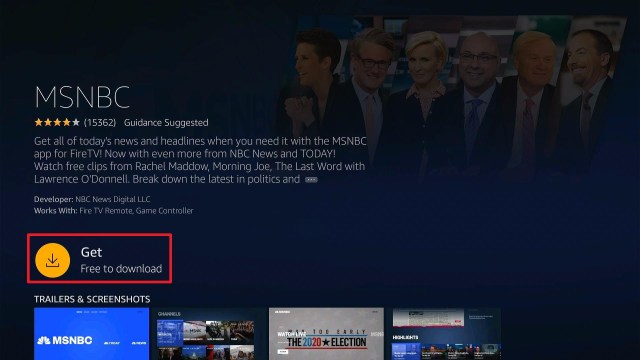
  4. Select the Get or Download button
  5. Wait for the app to be installed
  6. Click Open to launch the app


How to Install MSNBC on Firestick with Screenshots

1.   Click FIND.

Step 6 jailbreak firestick

2. Click Search.

Step 7 jailbreak firestick


3. Search for the MSNBC

MSNBC 2


4. Select the icon of MSNBC

MSNBC 3


5. Click the Get or Download button

MSNBC 4


6. Wait for the app to be installed

MSNBC 5


7. Launch the app by clicking the Open button

MSNBC 6


YOUR INTERNET ACTIVITY IS BEING WATCHED

ReviewVPN cannot attest to the legality, security and privacy of the applications discussed on this site. It is highly recommended that you use a VPN service while streaming or using Kodi.

Currently, your IP 216.73.216.102 is visible to everyone and your Browser is being tracked by Advertisers & ISP Provider.

Save 65% Now

Limited Time Offer

Here are the main reasons why you must use a VPN:

  • Your activities are hidden from your ISP, the government, and from the apps you are using.
  • You can access additional movies and TV streams.
  • ISP attempts to throttle are thrwarted thus reducing buffering issues.
  • Geographically restricted content like Netflix and Hulu can be unblocked.

A VPN works be replacing your ISP-assigned IP address and creating an encrypted tunnel. We recommend the no log service offered by IPVanish. It works well on a Firestick and offers the fastest possible speeds.

Special Limited Time Offer - Get IPVanish


Legal Disclaimer: ReviewVPN.com does not encourage or endorse any illegal activity involved in the usage of services and applications referenced on this site. We do not verify the licensing agreements of services. The end-user is wholly responsible for ensuring that any media accessed through these services does not violate copyright and/or licensing laws. ReviewVPN does not promote, link to, or receive compensation from any Apps and IPTV services.


Install SurfShark on Firestick

Best SurfShark Deal


MSNBC App Features

  • Supports TV provider linkage of account with other devices
  • Good quality interface
  • Updated content


Interface

  • Divided into four categories: Watch, Shows, Search, and Settings
  • Easy to navigate
  • Search engine available


Watch Section Includes:

  • MSNBC
  • TODAY
  • NBC News


Shows Section Includes:

  • Latest Episodes
  • MSNBC Shows
  • Today Shows
  • NBC News Shows


Settings Section Includes

  • TV Provider
  • Privacy
  • Terms
  • Do Not Sell My Info
  • CA Notice
  • Feedback


Content

  • High definition content
  • Updated shows
  • Clips and videos only


MSNBC Shows

  • Morning Joe
  • The Rachel Maddow Show
  • deadline: White House
  • MTP Daily
  • The Beat
  • All In
  • The Reidout
  • Am Joy
  • The Last Word
  • Am Joy
  • The 11th Hour
  • American Swamp


Today Shows

  • 3rd Hour of Today
  • Today
  • Weekend Today
  • Today with Hoda and Jenna
  • Sunday Today
  • Today Originals


NBC News Shows

  • Nightly News
  • Meet the Press
  • Dateline
  • Today
  • NBC News Now


MSNBC App Pros and Cons

Pros

  • Can use the app without signing in
  • Good quality of videos
  • Updated content


Cons

  • Bad cutting of clips
  • Buffer time during the transitions
  • Some shows are locked when you are not registered


Stream MSNBC Safely with a VPN

Surfshark vpn

When you are streaming, your Internet Service Provider (ISP) is throttling your bandwidth. That is why you are experiencing buffering and logging.

To stop this from happening, you need to have a VPN.

Be careful in choosing a good quality VPN because many free VPNs are harmful to your privacy, data, and devices.

That’s why we recommend our tested and proven VPN. None other than SurfShark.

SurfSharkis the VPN you can ever have on your devices and accounts. It promotes safety and satisfaction while streaming.

Take a look at some of the benefits that you can have when you use SurfShark:

  • Gives you an additional wall of protection especially from your ISP while surfing and streaming.
  • Serves as a bridge that connects you to other servers and destroys geo-blocks that hinder you from accessing different contents.
  • Protects your online identity from hackers, especially when you are using public wi-fi
  • Keeps your data and files from harmful malware
  • Your connections and data will be kept encrypted and anonymous
  • Makes your internet speed faster
  • Gives easy access and downloads from different torrent sites without being caught.
  • Prevents Firestick Buffering and Kodi Buffering


Grab your subscription now!

Click here to get the lowest price on SurfShark through our exclusive limited-time offer.


How to Install Surfshark on Firestick with Screenshots

If your Firestick still has the older interface, read this article to learn how to update it: Update Firestick Interface.

You can download Surfshark directly from the Amazon App store. It will be easy for you to find Surfshark with your Firestick’s Find feature. Refer to our screenshots below.

Follow our screenshots below to install the SurfShark VPN app on your Fire TV stick.

1. Go to the Home screen of your Firestick.

step 1 Install Surfshark VPN on Firestick


2. Navigate towards the Find tab. Press the Search button from the resulting dropdown.

step 2 Install Surfshark VPN on Firestick


3. Type in the keyword of SurfShark and select from the suggestions that will appear.

step 3 Install Surfshark VPN on Firestick


4. Click the official SurfShark icon from your search results.

step 4 Install Surfshark VPN on Firestick


5. Press the Download (You own it) button.

step 5 Install Surfshark VPN on Firestick


6. The SurfShark VPN installer will download on your device.

step 6 Install Surfshark VPN on Firestick


7. SurfShark VPN’s app will automatically install itself on your Fire TV stick.

step 7 Install Surfshark VPN on Firestick


8. Press the Open button after completing SurfShark VPN’s installation process.

step 8 Install Surfshark VPN on Firestick


9. Please wait for the SurfShark VPN to load its user interface.

step 9 Install Surfshark VPN on Firestick


10. You can now log in with your SurfShark VPN account credentials.

step 10 Install Surfshark VPN on Firestick

Learn more about Surfshark and Grab the Best Surfshark Deal Now!


Install Surfshark on Firestick

Best Surfshark Deal

Other VPNs to Consider

NordVPN (Best for Streaming)

Best Features

  • 5000+ Server in 50+ Countries 
  • Military-Grade Encryption
  • Fast Connection Speed
  • Suitable to a lot of devices
  • No-Log Policy

Prices
  • Complete $5.89 per month (64% Discount)
  • Plus $4.59 per month (56% Discount)
  • Standard $3.69 per month (55% Discount)

Best Features

  • 750+ High-speed VPN Servers in 43 Locations
  • Military-Grade Encryption
  • Fastest HD Streaming and Gaming
  • 30-Day Money-Back Guarantee
  • Unlimited Data & Devices
  • No-Log Policy

Prices
  • 3 Years $1.99 per month (82% Discount)
  • 1 Years $3.29 per month (70% Discount)
  • 1 Month $10.99 per month

IPVanish VPN (Most Secure)

Best Features

  • 1200+ Servers in 60+ Countries around the world
  • Unlimited Connections
  • No-Log Policy
  • Top Notch Military-Grade VPN Protocols and Encryptions
  • 100% Safe and Secured
  • Most Trusted VPN
  • Best VPN for Firestick
  • 30-Day Money-Back Guarantee

Prices
  • Yearly $3.99 per month (63% Discount) – 30 days risk free + Ransomware & Malware Protection
  • Quarterly $5.32 per month (51% Discount)
  • Monthly $10.99 per month

For more VPN discounts, go to ReviewVPN Deals and purchase the best VPN for you.


Alternative Applications for MSNBC

MSNBC focuses on News and a few Lifestyle channels for live TV. There are some other apps that you can rely on when it comes to live news and lifestyle

Check out this list of live TV apps that offers news and lifestyle :


Other Live TV Apps with unique content:


For more live tv apps that you can install on your firestick, see these two other articles: Best Free Live  TV Apps for Firestick and Best IPTV Apps for Firestick and Android.


FAQ

History

This app was launched last May 2019


Is this app free?

This app is 100% free for download. You can stream some content for free.


Are there any advertisements?

There are zero to minimal advertisements that are not bothersome


Is this app legal?

This application is 100% legal and available on the Amazon App Store


Is this app available for Android?

This app is available for android. It is also available on the Google Play Store.


Is there an official website for this app?

You can visit www.msnbc.com


Opinion

MSNBC has a very good interface which adds up to the enjoyment while streaming. Not to mention that the content is all up to date.

One thing that bothers us when we review this app is the cutting of the clips. But nonetheless, it is a very good app and is worth checking out.

So if you want to have an on-the-go news app with you, MSNBC is a good option.


Final Thoughts

We hope that this article helped you install MSNBC on your Firestick device


Note: ReviewVPN.com does not own or operate any app nor does it endorse any. The main purpose of this article is strictly for educational purposes only.


See also:

Best Firestick Apps

50 Best Free Movie Streaming Sites

40 Best TV Show Websites

Top Unlinked Codes

Best Adult Apps for Firestick

The Best Live TV Apps for Amazon Fire TV

Best Kissanime.RU Alternatives 

Install Swift Streamz on Firestick

The Best Adult Apps for Android

Install Live Lounge APK for Free Live TV, Sports, Adult Section, and Movies

Best Live TV (IPTV) Apps on Firestick and Android


What Is Your Favorite Streaming App? Cast Your Vote Below.

How to Install Stremium on Firestick – 2023

Stremium Overview

This article will tackle how to install Stremium on firestick devices.


Stremium app, formerly known as Fitzy TV, has the ability to make your Firestick into a live TV and internet TV DVR. You can watch shows from different famous channels with or without a subscription and provider.

On the first time that you launch the app, you will be given a code. You have to register and link this code to the Official Website of the Stremium App. Once you linked your account on the website and the app on your firestick, you will then be given a choice to choose a TV Provider. This app is available outside the USA. You can install it directly from the Amazon App Store. You don’t have to Jailbreak Your Firestick and Install the Downloader App.


ANONYMOUSLY

Install Stremium on Firestick Guide

  1. Go to Search
  2. Search for Stremium
  3. Tap the icon of the application when it appears
  4. Select the Get or Download button
  5. Wait for the app to be installed
  6. Click Open to launch the app


How to Install Stremium on Firestick with Screenshots

1.   Click FIND.

Step 6 jailbreak firestick


2. Click Search.

Step 7 jailbreak firestick


3. Search for the stremium app

Stremium 3


4. Select the icon of Stremium

Stremium 4


5. Click the “Get” or “Download” button

Stremium 5


6. Wait for the app to be installed

Stremium 6


7. Launch the app by clicking the “Open” button

Stremium 7


8. Take note of the code given and go to www.stremium.com/link, WQJFHV is just an example

Stremium 8


9. On your browser, register or login to your stremium account

Stremium 9


10. Type in the code given by the app, WQJFHV is just an example.

Stremium 10


11. Select “Link TV”

Stremium 11


12. Choose your preferred subscription

Stremium 12


YOUR INTERNET ACTIVITY IS BEING WATCHED

ReviewVPN cannot attest to the legality, security and privacy of the applications discussed on this site. It is highly recommended that you use a VPN service while streaming or using Kodi.

Currently, your IP 216.73.216.102 is visible to everyone and your Browser is being tracked by Advertisers & ISP Provider.

Save 65% Now

Limited Time Offer

Here are the main reasons why you must use a VPN:

  • Your activities are hidden from your ISP, the government, and from the apps you are using.
  • You can access additional movies and TV streams.
  • ISP attempts to throttle are thrwarted thus reducing buffering issues.
  • Geographically restricted content like Netflix and Hulu can be unblocked.

A VPN works be replacing your ISP-assigned IP address and creating an encrypted tunnel. We recommend the no log service offered by IPVanish. It works well on a Firestick and offers the fastest possible speeds.

Special Limited Time Offer - Get IPVanish


Legal Disclaimer: ReviewVPN.com does not encourage or endorse any illegal activity involved in the usage of services and applications referenced on this site. We do not verify the licensing agreements of services. The end-user is wholly responsible for ensuring that any media accessed through these services does not violate copyright and/or licensing laws. ReviewVPN does not promote, link to, or receive compensation from any Apps and IPTV services.


Install Surfshark on Firestick

Best Surfshark Deal


Stremium App Features

  • Support channel provider and subscriptions
  • Make your streaming device into a DVR (not for free subscriptions)
  • Offers live TV, series, and schedule recording
  • Has free and premium subscriptions
  • Link account on the website and other devices

Interface

  • Time frame schedule of different channels to choose from
  • Easily navigate from one channel to another
  • Lots of channels even with free subscription and no provider


Content

  • 54 live channels (without subscription and provider)
  • Scheduled shows to stream
  • International channels available


TV Provider Available on Stremium

  • I don’t have a provider
  • Locast.org
  • Philo
  • Spectrum
  • CBS All Access
  • Frndly TV
  • Sling TV
  • Vidgo


Channels Available (Free Subscription and No TV Provider)

  • ABC News Live
  • CBS News
  • Free Speech TV
  • NBC News Now
  • Newsmax TV
  • ET Live
  • Biz TV
  • Bloomberg
  • Cheddar Business
  • Aljazeera
  • France 24
  • British TV
  • Buzzr
  • Charge!
  • CombatGo
  • Comet
  • Court TV
  • Dust
  • Dove Channel
  • Fail Army
  • Game Show Central
  • Pop
  • People TV
  • TBD.
  • The Bob Ross Channel
  • Youtoo America
  • CONtv
  • TasteMade
  • C-SPAN
  • C-SPAN 2
  • PBS Kids
  • Dabl
  • Peacock LX
  • Outside tv
  • AMG tv
  • Doc Urama
  • The Film Detective
  • CMC
  • Folk TV
  • EWTN
  • JLTV
  • POSI tv
  • Catholic TV
  • TBN
  • NASA
  • HSN
  • QVC HD
  • SHOP HQ
  • CBS Sports HQ
  • EDGE
  • Fubo Sports Network
  • Stadium


Plan or Subscriptions Available

  • Free – $0 (Max of 1 provider, No cloud DVR Storage, No favorite Channels, No Custom Channels)
  • Premier 50 Annual – $100/year (Unlimited Provider, Save 20%, 50 hours of cloud DVR, Organised channel for favorites, Custom channels.)
  • Premier 50 Monthly – $10/month (Unlimited Provider, 50 hours of cloud DVR, Organised channel for favorites, Custom channels.)


Pros and Cons of Stremium

Pros

  • Lots of famous channels
  • Shows schedule of shows to tune in
  • Can access even without a subscription and tv provider
  • Zero to minimal ads


Cons

  • Buffering during transitions of shows


Stream Stremium Safely with a VPN

surfshark logo

Streaming videos from different channels using your internet is a red flag to your Internet Service Provider (ISP). With this, they will control your use of internet data which results in buffering.

To stop this, you need to have a VPN. It will protect you from bandwidth throttling and make your internet faster.

Here at reviewvpn.com, we always recommend Surfshark as the best VPN to use. It is 100% safe and working.

Here are some of the many benefits that we can get from subscribing to Surfshark:

  • Gives you an additional wall of protection especially from your ISP while surfing and streaming.
  • Serves as a bridge that connects you to other servers and destroys geo-blocks that hinder you from accessing different contents.
  • Protects your online identity from hackers, especially when you are using public wi-fi
  • Keeps your data and files from harmful malware
  • Your connections and data will be kept encrypted and anonymous
  • Makes your internet speed faster
  • Gives easy access and downloads from different torrent sites without being caught.
  • Prevents Firestick Buffering and Kodi Buffering

Note: For more information about Surfshark, please read our Surfshark Review.


Grab your subscription now!


How to Install Surfshark VPN on Firestick

If your Firestick still has the older interface, read this article to learn how to update it: Update Firestick Interface.

Follow our screenshots below to install the SurfShark VPN app on your Fire TV stick.

1. Go to the Home screen of your Firestick.

step 1 Install Surfshark VPN on Firestick


2. Navigate towards the Find tab. Press the Search button from the resulting dropdown.

step 2 Install Surfshark VPN on Firestick


3. Type in the keyword of SurfShark and select from the suggestions that will appear.

step 3 Install Surfshark VPN on Firestick


4. Click the official SurfShark icon from your search results.

step 4 Install Surfshark VPN on Firestick


5. Press the Download (You own it) button.

step 5 Install Surfshark VPN on Firestick


6. The SurfShark VPN installer will download on your device.

step 6 Install Surfshark VPN on Firestick


7. SurfShark VPN’s app will automatically install itself on your Fire TV stick.

step 7 Install Surfshark VPN on Firestick


8. Press the Open button after completing SurfShark VPN’s installation process.

step 8 Install Surfshark VPN on Firestick


9. Please wait for the SurfShark VPN to load its user interface.

step 9 Install Surfshark VPN on Firestick


10. You can now log in with your SurfShark VPN account credentials.

step 10 Install Surfshark VPN on Firestick

Learn more about Surfshark and Grab the Best Surfshark Deal Now!


Install Surfshark on Firestick

Best Surfshark Deal


Other VPNs to Consider

NordVPN (Best for Streaming)

Best Features

  • 5000+ Server in 50+ Countries 
  • Military-Grade Encryption
  • Fast Connection Speed
  • Suitable to a lot of devices
  • No-Log Policy

Prices
  • Complete $5.89 per month (64% Discount)
  • Plus $4.59 per month (56% Discount)
  • Standard $3.69 per month (55% Discount)

Best Features

  • 750+ High-speed VPN Servers in 43 Locations
  • Military-Grade Encryption
  • Fastest HD Streaming and Gaming
  • 30-Day Money-Back Guarantee
  • Unlimited Data & Devices
  • No-Log Policy

Prices
  • 3 Years $1.99 per month (82% Discount)
  • 1 Years $3.29 per month (70% Discount)
  • 1 Month $10.99 per month

IPVanish VPN (Most Secure)

Best Features

  • 1200+ Servers in 60+ Countries around the world
  • Unlimited Connections
  • No-Log Policy
  • Top Notch Military-Grade VPN Protocols and Encryptions
  • 100% Safe and Secured
  • Most Trusted VPN
  • Best VPN for Firestick
  • 30-Day Money-Back Guarantee

Prices
  • Yearly $3.99 per month (63% Discount) – 30 days risk free + Ransomware & Malware Protection
  • Quarterly $5.32 per month (51% Discount)
  • Monthly $10.99 per month


For more VPN discounts, go to ReviewVPN Deals and purchase the best VPN for you.


Alternative Applications for Stremium

Stremium offers great live tv from many different channels. Aside from this app, there are also other apps that offer good quality live TV for your firestick.

Check out this list of best free live tv apps that you can install on your firestick device:

For more live tv apps that you can install on your firestick, see these two other articles: Best Free Live  TV Apps for Firestick and Best IPTV Apps for Firestick and Android.


FAQ

History

Stremium was formerly known as Fitzy TV. It was then launched as Stremium last February 2020.


Is this app free?

This app is 100% free for download. You can subscribe to a free or premium version.


Are there any advertisements?

There are zero to minimal advertisements that are not bothersome


Is this app legal?

This application is 100% legal and available on the Amazon App Store


Is this app available for Android?

This app is available for android. It is also available on the Google Play Store.


Is there an official website for this app?

You can visit www.stremium.com


Opinion

We very much appreciate stremium for its features and famous channels to stream. Although it is much better to subscribe to a premium subscription, you can still enjoy the use of the free one.

Not all the time do the videos on this app are in high definition but we not saying that they are of bad quality.

You can even stream Sports from famous Sports channels, and the scheduling of shows is well shown on this app.

We can say that it is worth the try to check out this app.

We hope that this article helped you install Stremium on your Firestick device


Note: ReviewVPN.com does not own or operate any app nor does it endorse any. The main purpose of this article is strictly for educational purposes only.


See also:

Best Firestick Apps

50 Best Free Movie Streaming Sites

40 Best TV Show Websites

Top Filelinked Codes

Best Adult Apps for Firestick

The Best Live TV Apps for Amazon Fire TV

Best Kissanime.RU Alternatives 

Install Swift Streamz on Firestick

The Best Adult Apps for Android

Install Live Lounge APK for Free Live TV, Sports, Adult Section, and Movies

Best Live TV (IPTV) Apps on Firestick and Android


What Is Your Favorite Streaming App? Cast Your Vote Below.

How to Install Red Dragon Kodi Build

Red Dragon Kodi Build


Red Dragon is a third-party build within the Last Kingdom Repository.

This build has been around for a while now and still does a good job. It comes preinstalled with Slvo Lite skin and theme.

Red Dragon has a user-friendly interface with the standard layout.

Sections within this build include wizards, movies, tv shows, free links, live tv, sports, the crew, music, pick n mix, Grotto, Catch up, kids, apps, system, power fav, and lots more.


ANONYMOUSLY


Installing Red Dragon Kodi Build

Step 1. Launch your Kodi app. From the home screen, click on the setting icon.

Step 2. Select System option.

Step 3. Select add-ons 

Step 4. Select unknown sources.

Step 5. Select Yes.

Step 6. Go back to the home screen and select the setting icon.

Step 7. Select the file manager.

Step 8. Select add source 

Step 9. Select <none> 

Step 10. Type the media source URL: https://pedrokingdom.com/repo and then click OK

Step 11. Select “Enter a name for this media source” and type Red Dragon.

Step 12. Go back to the home screen and select add-ons

Step 13. Select addon installer icon.

Step 14. Select install from zip file

Step 15. Select Red Dragon

Step 16. Select repository.lk-1.1.zip

Step 17. Wait for the “last kingdom repo add-on installed” notification 

Step 18. Select Install from the repository

Step 19. Select last kingdom Repository 

Step 20. Select program add-ons

Step 21. Select last kingdom Wizard 

Step 22. Select install and select OK

Step 23. Wait for the Last kingdom Wizard Add-On installed notification.

Step 24. Select continue and select build menu 

Step 25. Select Red dragon

Step 26. On the list of builds that will appear, scroll down and select Red Dragon-t2k-Leia (v1.1.4)

Step 28. Select Fresh install and click Yes

Step 29. Select OK to force close


Grab your subscription now!

Click here to get the lowest price on Surfshark through our exclusive limited-time offer.


Features of Red Dragon Build

  • Regular build update
  • Amazing UI with a standard layout
  • Well organized sections
  • Customizable skins and themes
  • Easy installation
  • Allows you to choose subtitles in your preferred language

Addons within Red Dragon Kodi build

  • Asgards
  • The Crew
  • Rising tides
  • Fen


YOUR INTERNET ACTIVITY IS BEING WATCHED

ReviewVPN cannot attest to the legality, security and privacy of the applications discussed on this site. It is highly recommended that you use a VPN service while streaming or using Kodi.

Currently, your IP 216.73.216.102 is visible to everyone and your Browser is being tracked by Advertisers & ISP Provider.

Save 65% Now

Limited Time Offer

Here are the main reasons why you must use a VPN:

  • Your activities are hidden from your ISP, the government, and from the apps you are using.
  • You can access additional movies and TV streams.
  • ISP attempts to throttle are thrwarted thus reducing buffering issues.
  • Geographically restricted content like Netflix and Hulu can be unblocked.

A VPN works be replacing your ISP-assigned IP address and creating an encrypted tunnel. We recommend the no log service offered by IPVanish. It works well on a Firestick and offers the fastest possible speeds.

Special Limited Time Offer - Get IPVanish


What is Kodi?

The advancement in technology has made it easier to stream content even on the go. These days, you don’t need to spend a huge amount of money on a cable TV subscription. You can cut cords and enjoy free entertainment such as movies, live tv shows, anime, cartoons, and lots more by installing Kodi.

Kodi is an open-source software media that allows you to stream and watch free content. This software was first released in 2002 as Xbox Media Player. However, it was changed to Xbox media Player in 2003. In 2014, a nonprofit technology consortium, XBMC, renamed this software Kodi.

Kodi is free to download and install from the official Kodi website. You can install this software on any hardware platform and operating system. Compatible devices and operating systems include smartphones (iOS and Android), computers (Mac OS and Windows), tablets, iOS TV, Linux, Raspberry Pi, firestick, fire TV, and many others. 

Installing and using Kodi does not offer much content. You need to install a build or an add-on; in this case, a build is recommended.


What is a Kodi build?

In a nutshell, a Kodi build is a collection of addons and other functionalities such as settings, systems, and more. A build can be addressed as the higher version of Kodi in terms of content and features.

Installing a build like Red Dragon allows you to access a huge collection of addons, settings, systems, movies, tv shows, and many more. 


Frequently Asked Questions

Can I install the Red Dragon Kodi Build on my Firestick and Fire TV devices?

You can easily install this build on your firestick and fire TV device. Follow the above installation guide. Also, this build is compatible with computers, smartphones, tablets, Raspberry Pi, and more.


Should I use Red Dragon Kodi Build with a VPN?

This is a third-party Kodi build. Consequently, using this build with a VPN is recommended. A VPN like Surfshark will hide your identity while streaming with this build.


Is it safe to stream with Red Dragon Kodi Build?

This build is from a third-party repository. When I explored it after installation, I found no hidden file or virus within this build. So it is safe to install and stream with this build. That said it is much better to use Kodi with a VPN like Surfshark.


Is it free to install and stream with Red Dragon Build?

It is entirely free to install and stream with this build. All you need is a fast and strong internet connection.


Best alternative Builds

I recommend having an alternative build handy. This is because you don’t know when the build you are currently using will stop working. We have made a comprehensive list of the best Kodi builds. Check out our best alternative Kodi builds 2022 here.


Use Kodi with a VPN

A VPN (a virtual private network) is software that encrypts and masks your IP address to appear Anonymous. When this happens, no one on the internet service provider network will be able to track or monitor whatever activities you are doing.


Benefits of a VPN

Security

Installing a VPN gives peace of mind. You need not worry about your online privacy. A VPN like Surfshark will encrypt and mask your IP address to appear on the internet service provider network as a secure, private, and anonymous user.


Beat Location Restriction

Movie streaming websites and apps use geolocation a lot. They use this method to limit their content from unwanted audiences. It prevents anyone who is not a resident of the stipulated location from accessing its content.

A VPN like Surfshark gives you access to 3,200 VPN servers in 65 worldwide locations. This means that you can stream movies, live TV, sports, and more from anywhere around the world.


Install Surfshark on Firestick

Best Surfshark Deal


How to Install Surfshark VPN on Firestick

If your Firestick still has the older interface, read this article to learn how to update it: Update Firestick Interface.

You can download Surfshark directly from the Amazon App store. It will be easy for you to find Surfshark with your Firestick’s Find feature. Refer to our screenshots below.

1. Go to the Home screen of your Firestick.

step 1 Install Surfshark VPN on Firestick


2. Navigate towards the Find tab. Press the Search button from the resulting dropdown.

step 2 Install Surfshark VPN on Firestick


3. Type in the keyword of SurfShark and select from the suggestions that will appear.

step 3 Install Surfshark VPN on Firestick


4. Click the official SurfShark icon from your search results.

step 4 Install Surfshark VPN on Firestick


5. Press the Download (You own it) button.

step 5 Install Surfshark VPN on Firestick


6. The SurfShark VPN installer will download on your device.

step 6 Install Surfshark VPN on Firestick


7. SurfShark VPN’s app will automatically install itself on your Fire TV stick.

step 7 Install Surfshark VPN on Firestick


8. Press the Open button after completing SurfShark VPN’s installation process.

step 8 Install Surfshark VPN on Firestick


9. Please wait for the SurfShark VPN to load its user interface.

step 9 Install Surfshark VPN on Firestick


10. You can now log in with your SurfShark VPN account credentials.

step 10 Install Surfshark VPN on Firestick

Learn more about Surfshark and Grab the Best Surfshark Deal Now!


Other VPNs to Consider

NordVPN (Best for Streaming)

Best Features

  • 5000+ Server in 50+ Countries 
  • Military-Grade Encryption
  • Fast Connection Speed
  • Suitable to a lot of devices
  • No-Log Policy

Prices
  • Complete $5.89 per month (64% Discount)
  • Plus $4.59 per month (56% Discount)
  • Standard $3.69 per month (55% Discount)

Best Features

  • 750+ High-speed VPN Servers in 43 Locations
  • Military-Grade Encryption
  • Fastest HD Streaming and Gaming
  • 30-Day Money-Back Guarantee
  • Unlimited Data & Devices
  • No-Log Policy

Prices
  • 3 Years $1.99 per month (82% Discount)
  • 1 Years $3.29 per month (70% Discount)
  • 1 Month $10.99 per month

IPVanish VPN (Most Secure)

Best Features

  • 1200+ Servers in 60+ Countries around the world
  • Unlimited Connections
  • No-Log Policy
  • Top Notch Military-Grade VPN Protocols and Encryptions
  • 100% Safe and Secured
  • Most Trusted VPN
  • Best VPN for Firestick
  • 30-Day Money-Back Guarantee

Prices
  • Yearly $3.99 per month (63% Discount) – 30 days risk free + Ransomware & Malware Protection
  • Quarterly $5.32 per month (51% Discount)
  • Monthly $10.99 per month


For more VPN discounts, go to ReviewVPN Deals and purchase the best VPN for you.


Conclusion

Install Red Dragon Kodi build for non-stop streaming of free movies, tv shows, sports events, and many more. This build comes with nice Slvo themes. It has a user-friendly interface with amazing features that improve the streaming experience. Check out this build and share your thoughts in the comment section.

How to Install BreezZ BOOTY Build (v1.5)

BreezZ BOOTY Build (v1.5)


In this tutorial, you will learn how to install BreezZ BOOTY build.

This is a new build developed by breezZ and it’s within the Narcacist Wizard Repository.

It offers streaming links for movies and Tv shows. Just as the name sounds, this build Does Not contain any adult content. It is a child-friendly build.

Sections include addons, sports, app hub, ultra 4K, Asgards, Chains, The Crew, Base, fav, power, system, and more. This build comes with beautiful AEONI TERROR skin and theme. 


ANONYMOUSLY


Installing BreezZ BOOTY Build

Step 1. Launch your Kodi app. From the home screen, click on the setting icon.

Step 2. Select System option.

Step 3. Select add-ons 

Step 4. Select unknown sources.

Step 5. Select Yes.

Step 6. Go back to the home screen and select the setting icon.

Step 7. Select the file manager.

Step 8. Select add source 

Step 9. Select <none> 

Step 10. Type the media source URL: https://narcacist.com/repo and then click OK

Step 11. Select “Enter a name for this media source” and type BreezZ BOOTY build.

Step 12. Go back to the home screen and select add-ons

Step 13. Select addon installer icon.

Step 14. Select install from zip file

Step 15. Select BreezZ BOOTY build

Step 16. Select repository.NarcacistWizard.zip

Step 17. Wait for the “Narcacist repo add-on installed” notification 

Step 18. Select Install from the repository

Step 19. Select Narcacist Wizard Repository 

Step 20. On the next window that will appear, scroll down and select program add-ons.

Step 21. Click on BreezZWizard.

Step 22. On the new window that will appear, click on install

Step 23. Wait for BreezZWizard add-on installed notification.

Step 24. On the dialog box that will appear, click Continue.

Step 25. Select Build Menu

Step 26. On the list of build that will appear, click on BreezZ BOOTY build (v1.5)

Step 27. Scroll down and select Fresh Install

Step 28. On the dialog box, click on Continue


Grab your subscription now!

Click here to get the lowest price on Surfshark through our exclusive limited-time offer.


How to Integrate Real Debrid

Step 1. Create a Real debrid account here.

Step 2. Launch Breezz BOOTY and click on the system

Step 3. Select ResolveURL settings

Step 4. Select, (Re)Authorize My Account 

Step 5. Copy the code that will appear on your screen. 

Step 6. Open your browser and enter https://real-debrid.com/device

Step 7. Type the code you received in step 5 and select Continue.


YOUR INTERNET ACTIVITY IS BEING WATCHED

ReviewVPN cannot attest to the legality, security and privacy of the applications discussed on this site. It is highly recommended that you use a VPN service while streaming or using Kodi.

Currently, your IP 216.73.216.102 is visible to everyone and your Browser is being tracked by Advertisers & ISP Provider.

Save 65% Now

Limited Time Offer

Here are the main reasons why you must use a VPN:

  • Your activities are hidden from your ISP, the government, and from the apps you are using.
  • You can access additional movies and TV streams.
  • ISP attempts to throttle are thrwarted thus reducing buffering issues.
  • Geographically restricted content like Netflix and Hulu can be unblocked.

A VPN works be replacing your ISP-assigned IP address and creating an encrypted tunnel. We recommend the no log service offered by IPVanish. It works well on a Firestick and offers the fastest possible speeds.

Special Limited Time Offer - Get IPVanish


Features of BreezZ BOOTY Build

Sports section:

  • Football highlights
  • Sports channels
  • Live football, Live PPV events
  • Extra live content, Test area

Base sections:

  • Movies list, Tv shows list
  • Debrid 1 click section, Link Real Debrid here

The Crew:

  • 1 click, Cc collection
  • Stand up comedy
  • Radio, Additional addons
  • Tool, Search

Chains sections:

  • Chains, Ghost, Wasteland
  • Marvel Universe
  • Dc universe, WWE, UFC

Pros and Cons

Pros

  • Less than 300 MB; you can install this build on low-memory devices.
  • Easy installation
  • Allows you to choose subtitles in your preferred language
  • Regular build update
  • Amazing UI with AEONI Terror theme
  • Well organized sections
  • Customizable skins and themes

Cons

Videos take a long time to play (maybe due to my internet connection).


Addons within Red Dragon Kodi Build

  • Asgards
  • Chains
  • Ghost
  • Wasteland
  • The Crew


What is Kodi?

Kodi is an open-source software media that allows you to stream and watch free content. This software was first released in 2002 as Xbox Media Player. In 2003, it was changed to Xbox media Player. In 2014, a nonprofit technology consortium, XBMC, renamed this software Kodi.

You can install this software on the following devices smartphones (iOS and Android), computers (Mac OS and Windows), tablets, iOS TV, Linux, Raspberry Pi, firestick, fire TV, and many others. 

A Build is a collection of addons and other functionalities such as settings, systems, and more.


Frequently Asked Questions

Can I install the BreezZ BOOTY Build on my fire TV and Firestick devices?

This build is compatible with firestick and fire TV devices. Also, you can install this build on any hardware platform and operating system such as computers (Windows and MAC OS), smartphones (android and iOS), tablets, Raspberry Pi, Chromecast, and lots more. 


Should I use BreezZ BOOTY Build with a VPN?

I recommend using Kodi (especially third-party builds) with a VPN. This is because third-party Kodi builds do not copyright to most of the content they offer. And as such, it is best practice to use this build with a VPN.


Is it safe to stream with BreezZ BOOTY Build?

Installing and streaming with this build is safe. Even though it is from a third-party repository, the BreezZ BOOTY build is safe to use.  This build does not contain any hidden files or viruses. However, I recommend using this build with a VPN like Surfshark.


Do I have to pay to use BreezZ BOOTY Build?

Installing and using this build is free. You need not pay for any subscription for this build. However, you need to have a strong and fast internet connection.


Best Alternative Builds

Having alternative builds is good. This is because you don’t know when a build will stop working. We have compiled a list of working builds in 2021. Click here to see the list of our best alternative builds.


Use Kodi with a VPN

Streaming free movies with apps and websites can sometimes be risky. For someone who streams with Kodi, you may be streaming copyrighted content and consequently, you may land into trouble. This is why using Kodi with a VPN is recommended. 

A VPN is software that encrypts and masks your IP address to appear on the internet service provider network as an anonymous and secure server. That said, you will stream movies online and access the internet without your identity being visible on the network.


Benefits of a VPN

Privacy and Security

A VPN offers you protection and security by encrypting and masking your IP address. When this happens, you can access the internet and stream free movies without having your identity shown in the ISP network. Not only that, a VPN will hide your identity from potential hackers and online identity theft.


Bypass Location Restriction

Apps and Movie streaming websites hide their content from unintended audiences by using geolocation. Oftentimes, this method helps them to limit their content from unwanted audiences. It hinders anyone outside the approved location or region from accessing their content.

Using a VPN like Surfshark allows you to access over 3200+ servers in 65 countries giving you huge options to choose from.


Install Surfshark on Firestick

Best Surfshark Deal


How to Install Surfshark VPN on Firestick

If your Firestick still has the older interface, read this article to learn how to update it: Update Firestick Interface.

Follow our screenshots below to install the SurfShark VPN app on your Fire TV stick.

1. Go to the Home screen of your Firestick.

step 1 Install Surfshark VPN on Firestick


2. Navigate towards the Find tab. Press the Search button from the resulting dropdown.

step 2 Install Surfshark VPN on Firestick


3. Type in the keyword of SurfShark and select from the suggestions that will appear.

step 3 Install Surfshark VPN on Firestick


4. Click the official SurfShark icon from your search results.

step 4 Install Surfshark VPN on Firestick


5. Press the Download (You own it) button.

step 5 Install Surfshark VPN on Firestick


6. The SurfShark VPN installer will download on your device.

step 6 Install Surfshark VPN on Firestick


7. SurfShark VPN’s app will automatically install itself on your Fire TV stick.

step 7 Install Surfshark VPN on Firestick


8. Press the Open button after completing SurfShark VPN’s installation process.

step 8 Install Surfshark VPN on Firestick


9. Please wait for the SurfShark VPN to load its user interface.

step 9 Install Surfshark VPN on Firestick


10. You can now log in with your SurfShark VPN account credentials.

step 10 Install Surfshark VPN on Firestick

Learn more about Surfshark and Grab the Best Surfshark Deal Now!


Install Surfshark on Firestick

Best Surfshark Deal


Other VPNs to Consider

NordVPN (Best for Streaming)

Best Features

  • 5000+ Server in 50+ Countries 
  • Military-Grade Encryption
  • Fast Connection Speed
  • Suitable to a lot of devices
  • No-Log Policy

Prices
  • Complete $5.89 per month (64% Discount)
  • Plus $4.59 per month (56% Discount)
  • Standard $3.69 per month (55% Discount)

Best Features

  • 750+ High-speed VPN Servers in 43 Locations
  • Military-Grade Encryption
  • Fastest HD Streaming and Gaming
  • 30-Day Money-Back Guarantee
  • Unlimited Data & Devices
  • No-Log Policy

Prices
  • 3 Years $1.99 per month (82% Discount)
  • 1 Years $3.29 per month (70% Discount)
  • 1 Month $10.99 per month

IPVanish VPN (Most Secure)

Best Features

  • 1200+ Servers in 60+ Countries around the world
  • Unlimited Connections
  • No-Log Policy
  • Top Notch Military-Grade VPN Protocols and Encryptions
  • 100% Safe and Secured
  • Most Trusted VPN
  • Best VPN for Firestick
  • 30-Day Money-Back Guarantee

Prices
  • Yearly $3.99 per month (63% Discount) – 30 days risk free + Ransomware & Malware Protection
  • Quarterly $5.32 per month (51% Discount)
  • Monthly $10.99 per month


For more VPN discounts, go to ReviewVPN Deals and purchase the best VPN for you.

Click here to get the lowest price on Surfshark through our exclusive limited-time offer.


Conclusion

BreezZ BOOTY is a new build within the Narcacist repo. This build has a huge collection of add-on and other features that improve the streaming experience. Some movies took a long time to play. I don’t know if this is due to my internet connection or the internal links of the build. That said, you can still try this build and share your thoughts.

How to Install Asgards Realm Kodi Build

Asgards Realm Kodi Build


In this tutorial, you will learn how to install Asgards Realm Kodi Build.

This build is similar to the Asgards Kodi addon. It is a low-memory build of approximately 200 MB.

Asgards Realm is a third-party build within the Narcacist wizard repository.  

Asgards Realm build comes with unique ASGARDS skin and theme and has the following sections: system, power, as hard, black lightning, 4K, GoTo, Rogue One, METV, fav, and more. One good side of this build is that it scrapes streaming links from different sources. 


ANONYMOUSLY

Installation Guide of Asgards Realm

Step 1. Launch your Kodi app, on the home screen, click on the setting icon.

Step 2. Click on the System option.

Step 3. Click on add-ons 

Step 4. Click on unknown sources.

Step 5. Click on Yes.

Step 6. Return to the home screen and click on the setting icon.

Step 7. Click on the file manager.

Step 8. Click on add source 

Step 9. Click on <none> 

Step 10. Type the media source URL: https://narcacist.com/repo and then click OK

Step 11. Click on “Enter a name for this media source” and type Asgards Realm.

Step 12. Return to the home screen and select add-ons

Step 13. Click the addon installer icon.

Step 14. Click on install from zip file

Step 15. Click on Asgards Realm

Step 16. Click on repository.NarcacistWizard.zip

Step 17. Wait for the “Narcacist repo add-on installed” notification 

Step 18. Click on Install from repository.

Step 19. Now, on the new window, click on Narcacist Wizard repository.

Step 20. On the new screen, click on Program addons

Step 21. Now, select Narcacist wizard

Step 22. On the new window, click install and wait for the Narcacist wizard add-on installed notification. 

Step 23. Next, click on Continue 

Step 24. Next, select Click Here.

Step 25. Return to the home screen.

Step 26. On the home screen, click on add-ons

Step 27. Next, select program add-ons

Step 28. Now, click on Narcacist Wizard

 Step 29. On the new window, click on Build

Step 30. Scroll down and click on Asgards Realm

Step 31. Click Yes and wait for the installation to complete.


Grab your subscription now!

Click here to get the lowest price on Surfshark through our exclusive limited-time offer.


Features of Asgards Kodi Build

  • User-friendly interface
  • Allows you to download and customize skins and themes
  • Works on most hardware and operating systems that support Kodi
  • Well organized and arranged sections (each section has subsections).
  • Regular build update


4K Section

  • Movies A to Z, boxsets, genres, kids, by year.

Go to Section

  • New RLS, non-debrid, movies, Tv shows, TV rewind.

Rogue One Section

  • Movies, tv shows, non-debrid, docs, comedy.

METV Section

  • Box Set, 1 click movies, movies A to Z, black and white, westerns.

System Section

  • Interface, power, skin setting, Resolve URL, file manager, and more.

Addons with Asgards Realm build

  • 4K 
  • Goto 
  • Rogue One 
  • METV 


YOUR INTERNET ACTIVITY IS BEING WATCHED

ReviewVPN cannot attest to the legality, security and privacy of the applications discussed on this site. It is highly recommended that you use a VPN service while streaming or using Kodi.

Currently, your IP 216.73.216.102 is visible to everyone and your Browser is being tracked by Advertisers & ISP Provider.

Save 65% Now

Limited Time Offer

Here are the main reasons why you must use a VPN:

  • Your activities are hidden from your ISP, the government, and from the apps you are using.
  • You can access additional movies and TV streams.
  • ISP attempts to throttle are thrwarted thus reducing buffering issues.
  • Geographically restricted content like Netflix and Hulu can be unblocked.

A VPN works be replacing your ISP-assigned IP address and creating an encrypted tunnel. We recommend the no log service offered by IPVanish. It works well on a Firestick and offers the fastest possible speeds.

Special Limited Time Offer - Get IPVanish


What is Kodi?

You can cut cords and still enjoy your favorite tv shows, movies tv-series, and lots more with Kodi free of charge.

Kodi is an open-source media software that allows you to access and stream tons of free entertainment in different categories and subcategories. This software is free to download on the official Kodi website. You can store, share and access files on the network and storage using Kodi. 

This software works on any operating system and hardware platform. Compatible devices include tablets, firestick, fire tv, computer, Raspberry Pi, Chromecast, smartphones, Roku, and many more.

With Kodi, you can watch free movies, listen to live and prerecorded news, enjoy good music, and many more.


What is a Kodi Build?

A Kodi build allows you to access tons of add-ons, systems, settings, features, and more after installation. A build like Asgards Realm comes with many add-ons and features that improve the streaming experience.


Best Alternative Builds

You do not know when a build will stop working. Consequently, having an alternative build is crucial. Click Here to see the list of our best Kodi builds.

Frequently Asked Questions

How do I install Asgards Kodi Build on a Fire TV and Firestick Device?

The above installation guide will help you with how to install this build on firestick and fire TV devices. 


Do I need a VPN before using Asgards Build?

Yes. I recommend using this build with a VPN like Surfshark. If you are fond of streaming with Kodi, I recommend installing Surfshark for security and privacy reasons. 


Is it safe and legal to use Asgards Kodi Build?

It is safe to install this build. You will not find any hidden links or files within this build. Even though it’s a third-party build, installing and streaming with this build is safe and legal.


Is it free to use Asgards Build?

Installing and using this build is entirely free. No commitment, no hidden charges, no credit card required. 


Why should you use Kodi with a VPN?

Each time you access the net or stream movies/tv-shows/tv series, your internet service provider monitors and stores all your data. Often, you will browse about something on the internet, and the next minute, you will receive ads on that specific or related thing. 

This is because your internet service provider collects and sells your data to a third-party advertising company. This can be annoying and the only way to bypass this is by installing a VPN.

A VPN is software that encrypts and masks your IP address to a clear hidden. The sole aim of using a VPN is to be secure and private especially when. Accessing sensitive data online.


Bypass Geolocation

Installing a VPN allows you to stream from anywhere around the world. A VPN like Surfshark gives you access to over 2,000 servers in 70+ worldwide locations.


Minimize Throttling

Your internet service provider slows down your connection each time you stream movies, tv-series, or play online games. The only way to bypass this is to install a VPN like Surfshark.


Install Surfshark on Firestick

Best Surfshark Deal


How to Install Surfshark VPN on Firestick

If your Firestick still has the older interface, read this article to learn how to update it: Update Firestick Interface.

1. Go to the Home screen of your Firestick.

step 1 Install Surfshark VPN on Firestick


2. Navigate towards the Find tab. Press the Search button from the resulting dropdown.

step 2 Install Surfshark VPN on Firestick


3. Type in the keyword of SurfShark and select from the suggestions that will appear.

step 3 Install Surfshark VPN on Firestick


4. Click the official SurfShark icon from your search results.

step 4 Install Surfshark VPN on Firestick


5. Press the Download (You own it) button.

step 5 Install Surfshark VPN on Firestick


6. The SurfShark VPN installer will download on your device.

step 6 Install Surfshark VPN on Firestick


7. SurfShark VPN’s app will automatically install itself on your Fire TV stick.

step 7 Install Surfshark VPN on Firestick


8. Press the Open button after completing SurfShark VPN’s installation process.

step 8 Install Surfshark VPN on Firestick


9. Please wait for the SurfShark VPN to load its user interface.

step 9 Install Surfshark VPN on Firestick


10. You can now log in with your SurfShark VPN account credentials.

step 10 Install Surfshark VPN on Firestick

Learn more about Surfshark and Grab the Best Surfshark Deal Now!


Other VPNs to Consider

NordVPN (Best for Streaming)

Best Features

  • 5000+ Server in 50+ Countries 
  • Military-Grade Encryption
  • Fast Connection Speed
  • Suitable to a lot of devices
  • No-Log Policy

Prices
  • Complete $5.89 per month (64% Discount)
  • Plus $4.59 per month (56% Discount)
  • Standard $3.69 per month (55% Discount)

Best Features

  • 750+ High-speed VPN Servers in 43 Locations
  • Military-Grade Encryption
  • Fastest HD Streaming and Gaming
  • 30-Day Money-Back Guarantee
  • Unlimited Data & Devices
  • No-Log Policy

Prices
  • 3 Years $1.99 per month (82% Discount)
  • 1 Years $3.29 per month (70% Discount)
  • 1 Month $10.99 per month

IPVanish VPN (Most Secure)

Best Features

  • 1200+ Servers in 60+ Countries around the world
  • Unlimited Connections
  • No-Log Policy
  • Top Notch Military-Grade VPN Protocols and Encryptions
  • 100% Safe and Secured
  • Most Trusted VPN
  • Best VPN for Firestick
  • 30-Day Money-Back Guarantee

Prices
  • Yearly $3.99 per month (63% Discount) – 30 days risk free + Ransomware & Malware Protection
  • Quarterly $5.32 per month (51% Discount)
  • Monthly $10.99 per month


For more VPN discounts, go to ReviewVPN Deals and purchase the best VPN for you.


Conclusion

Install Asgards Realm build 24/7. On stop stream of movies, tv shows, and many more. This build has a user-friendly interface and offers lots of features. I recommend you check out this build and share your thoughts in the comments section.

How to Install Last Jedi Build

Last Jedi Build


In this tutorial, you are going to learn how to install the Last Jedi build. 

This build was named after the American Blockbuster movie “Star Wars: The Last Jedi” also known as Star Wars: Episode VIII directed by Rian Johnson. Ultimately, this build has a huge collection of DC universe, Marvel universe contents, and lots more. 

The Last Jedi is a third-party build within the Funstersplace repository and comes with HitMan Agent 47 skin and theme. It has a customizable UI and offers you the following main sections Marvel, DC universe, Crew, Mara, and Tools. 


ANONYMOUSLY


Installing Last Jedi Build

Step 1. Open your Kodi app. On the home screen, click the settings icon.

Step 2. Click System 

Step 3. Click add-ons 

Step 4. Click unknown sources.

Step 5. Click Yes.

Step 6. Go back to the home screen and click the settings icon.

Step 7. Click file manager.

Step 8. Select add source 

Step 9. Click <none> 

Step 10. Type the media source URL: https://funstersplace.net/funs and click OK

Step 11. Select “Enter a name for this media source” and type Last Jedi

Step 12. Return to the home screen and select add-ons.

Step 13. Click the addon installer icon.

Step 14. Select Install From Zip File.

Step 15. Click on Last Jedi 

Step 16. Select repository.funstersplace-1.0.zip

Step 17. Wait for the “Funstersplace add-on installed” notification 

Step 18. Click Install from the repository

Step 19. Select Funstersplace Repository 

Step 20. Select program add-ons

Step 21. Select Funstersplace Wizard 

Step 22. Click install.

Step 23. Wait for the Funstersplace Wizard Add-On installed notification. 

Step 24. Select “Click here” and Continue

Step 25. Click on builds 

Step 26. Scroll down and select Last Jedi.

Step 27. Select Fresh install and click Yes.

Step 28. Click OK to force close.


How to set up and active UptoBox

Step 1. Create a UptoBox account here

Step 2. Open the Last Jedi Kodi build

Step 3. Choose any of the section and play any movie/tv shows and copy the code that will appear

Step 4. Open your browser and go to https://uptobox.com/pin

Step 5. Enter the code you received in step 3 and click OK.


YOUR INTERNET ACTIVITY IS BEING WATCHED

ReviewVPN cannot attest to the legality, security and privacy of the applications discussed on this site. It is highly recommended that you use a VPN service while streaming or using Kodi.

Currently, your IP 216.73.216.102 is visible to everyone and your Browser is being tracked by Advertisers & ISP Provider.

Save 65% Now

Limited Time Offer

Here are the main reasons why you must use a VPN:

  • Your activities are hidden from your ISP, the government, and from the apps you are using.
  • You can access additional movies and TV streams.
  • ISP attempts to throttle are thrwarted thus reducing buffering issues.
  • Geographically restricted content like Netflix and Hulu can be unblocked.

A VPN works be replacing your ISP-assigned IP address and creating an encrypted tunnel. We recommend the no log service offered by IPVanish. It works well on a Firestick and offers the fastest possible speeds.

Special Limited Time Offer - Get IPVanish


Grab your subscription now!

Click here to get the lowest price on Surfshark through our exclusive limited-time offer.


Features of Last Jedi Build

  • Comes with HitMan Agent 47 skin and theme
  • Customizable interface with a standard layout.
  • Regular build update with the addition of latest movies, tv shows, and more.

Marvel section:

  • Message, search, testing

DC Universe Section:

  • Search, testings, and message

Crew Section:

  • Movies, tv shows, sports, IPTV, kids, 1 click, cc collection, stand up comedy, radio, additional add-ons, tools, search, and more.

Mara Section:

  • Movies, tv shows, IMDB top 250, the movie chest, hack the planet, box set, my movies, my tv shows, new movies, new episodes, channel, tools, and many more.

Tools Section:

  • Addons, interface, media, profiles, system, player, services, games, PVR, and system info.

Addons within Last Jedi Build

  • The Crew
  • DC Universe
  • Marauder
  • Chains sinister
  • Marvel Universe

Skin and Themes within Last Jedi Build

  • Agent 47.
  • Dim
  • Black
  • Estouchy
  • Estuary 


Pros and Cons

Pros

  • Well organized and arranged sections and subsections.
  • No mouse toggle for firestick and fire tv

Cons

No issues with this build. Everything is working so fine.


What is Kodi?

Oftentimes, the amount of money spent on cable TV subscription does not equate to the amount of service you will get. Why spend lots of money on cable TV while you can install Kodi and still enjoy all your fav tv series, TV shows, movies, and more all for free.

Kodi is open-source software that allows you to stream I watch free movies, shows, documentaries, cartoons, kids shows, and lots more.

This software was formerly known as an Xbox media player at the time of its launch in 2002. However, in 2003 the name was changed to Xbox media center. You can install this software on any hardware platform systems or operating systems. Compatible devices include smartphones, tablets computers, remote control devices such as firesticks, fire tv, Roku, and lots more.


What is Kodi Build?

Kodi itself as a stand-alone application does not offer much content. That is why there are many third-party repositories housing builds and add-ons that you can install to access more content within Kodi.

A Kodi build is a pre-canned packaged set up file from which addon, settings, skins, themes, and lots more. In a nutshell, a build is a higher version of an add-on. Whilst an add-on offers limited content, a build is a collection of addons and features.

Usually, a build may come from the official Kodi or third-party repository and is free to install. With a Kodi build, you can stream free movies, documentaries, and lots more.


Frequently Asked Questions

On what device can I install the Last Jedi Build?

This build can be installed on any hardware platform or operating system that supports Kodi. Last Jedi build works on smartphones, computers, tablets, Firestick, Fire TV, Roku, Raspberry Pi, iOS TV, Android tv, Chromecast, and more.


Is it free to use the Last Jedi Build?

Yes. It is entirely free to install and use this build. All you need is a fast and reliable internet connection.


Is it safe to use the Last Jedi Build?

It is safe to install and use this build. Although the last Jedi is a third-party Kodi build, it does not contain any virus or hidden files/content. That said, I recommend using Kodi with a VPN like Surfshark.


Why should you use Kodi with a VPN?

The rate at which hackers and third parties steal your online data has become something of great concern. You can not access the Internet or stream movies online without your data being monitored or tracked. That is why using a VPN like Surfshark is highly recommended.

A VPN is software that masks and encrypts your IP address to appear secure, anonymous, and private while streaming or accessing the Internet. The sole aim of using Kodi with a VPN is for security and privacy purposes.


Benefits of using a VPN

Allows you to switch to a different server or location. Yes, a VPN like Surfshark offers you over 3200+ servers in 65 countries. This means you have tons of options to choose from. So any time you want to access any website or app with location restrictions.


Privacy and security

It is unsafe to use third-party apps or websites to stream free movies. This is because the content they offer you might be copyrighted content. As we know, accessing content with copyrights might put you in real trouble. That is why I recommend using any third-party streaming apps or websites with a VPN.


Best Alternative Builds

Kodi builds don’t last for a long time and as such, having an alternative build is good. I have compiled a list of the best working Kodi builds in 2022. Click here to see the list of our best alternative builds.


Install Surfshark on Firestick

Best Surfshark Deal


How to Install Surfshark VPN on Firestick

If your Firestick still has the older interface, read this article to learn how to update it: Update Firestick Interface.

Follow our screenshots below to install the SurfShark VPN app on your Fire TV stick.

1. Go to the Home screen of your Firestick.

step 1 Install Surfshark VPN on Firestick


2. Navigate towards the Find tab. Press the Search button from the resulting dropdown.

step 2 Install Surfshark VPN on Firestick


3. Type in the keyword of SurfShark and select from the suggestions that will appear.

step 3 Install Surfshark VPN on Firestick


4. Click the official SurfShark icon from your search results.

step 4 Install Surfshark VPN on Firestick


5. Press the Download (You own it) button.

step 5 Install Surfshark VPN on Firestick


6. The SurfShark VPN installer will download on your device.

step 6 Install Surfshark VPN on Firestick


7. SurfShark VPN’s app will automatically install itself on your Fire TV stick.

step 7 Install Surfshark VPN on Firestick


8. Press the Open button after completing SurfShark VPN’s installation process.

step 8 Install Surfshark VPN on Firestick


9. Please wait for the SurfShark VPN to load its user interface.

step 9 Install Surfshark VPN on Firestick


10. You can now log in with your SurfShark VPN account credentials.

step 10 Install Surfshark VPN on Firestick

Learn more about Surfshark and Grab the Best Surfshark Deal Now!


Install Surfshark on Firestick

Best Surfshark Deal


Other VPNs to Consider

NordVPN (Best for Streaming)

Best Features

  • 5000+ Server in 50+ Countries 
  • Military-Grade Encryption
  • Fast Connection Speed
  • Suitable to a lot of devices
  • No-Log Policy

Prices
  • Complete $5.89 per month (64% Discount)
  • Plus $4.59 per month (56% Discount)
  • Standard $3.69 per month (55% Discount)

Best Features

  • 750+ High-speed VPN Servers in 43 Locations
  • Military-Grade Encryption
  • Fastest HD Streaming and Gaming
  • 30-Day Money-Back Guarantee
  • Unlimited Data & Devices
  • No-Log Policy

Prices
  • 3 Years $1.99 per month (82% Discount)
  • 1 Years $3.29 per month (70% Discount)
  • 1 Month $10.99 per month

IPVanish VPN (Most Secure)

Best Features

  • 1200+ Servers in 60+ Countries around the world
  • Unlimited Connections
  • No-Log Policy
  • Top Notch Military-Grade VPN Protocols and Encryptions
  • 100% Safe and Secured
  • Most Trusted VPN
  • Best VPN for Firestick
  • 30-Day Money-Back Guarantee

Prices
  • Yearly $3.99 per month (63% Discount) – 30 days risk free + Ransomware & Malware Protection
  • Quarterly $5.32 per month (51% Discount)
  • Monthly $10.99 per month


For more VPN discounts, go to ReviewVPN Deals and purchase the best VPN for you.

Click here to get the lowest price on Surfshark through our exclusive limited-time offer.


Conclusion

The last Jedi Kodi build offers you unlimited streaming of mostly Marvel Universe and DC Universe. This build comes with one of the best skin and themes you will find in a Kodi build. I recommend you check out this build and let me know your thoughts on the comment section.