How to Install The Mometu App on Firestick and Android

Mometu App

In this article, we will help you install Mometu on Firestick and Android

The Mometu app provides movies, TV shows, and channels for viewers. It is applicable on both Firestick and Android devices. You can stream and discover a lot of new titles on this app. It is very easy to use and you can instantly click the play button to watch.

The Mometu app is a third-party application. It means that you will not find it on the Amazon App Store, and the Google Playstore. Unlike any third-party apps, the Mometu app does not need to use a Mouse Toggle when clicking on any title.

In order to install this app on your Firestick, you need to jailbreak your device first and use the Downloader app. Jailbreaking your Firestick will allow you to install apps and files from unknown sources. It is easy to do, and you will find this on your Firestick settings which we will show you later in this article. This will make installing the Mometu app possible on your device.

When streaming on third-party apps, make sure to use a trusted VPN service. It will make your streaming safer and more private.


ANONYMOUSLY


Mometu APK Download for Android Devices


mometu app

Note: ReviewVPN.com does not host this APK file. It is hosted by Archive.org


How to Install Mometu on Firestick (Video)


How to Install Mometu on Firestick

1.  From your home screen, go to Settings.

Install Mometu on Firestick


2. Scroll down and to the right until you get to My Fire TV. Click on it.

Install Mometu on Firestick


3. Select Developer options.

Install Mometu on Firestick


4. Turn on ADB debugging and Apps from Unknown Sources.

Install Mometu on Firestick


5. Click Turn On when the pop-up appears.

Install Mometu on Firestick


6. Click Home, click FIND.

Install Mometu on Firestick


7. Click Search.

Install Mometu on Firestick


8. You can either say Downloader to your Alexa voice-enabled remote or start typing it. If you typed it, click on the suggestion when it appears.

Install Mometu on Firestick


9. Click on the Downloader Icon.

Install Mometu on Firestick


10. Click Download.

Install Mometu on Firestick


Install Mometu on Firestick


11. Click on Open.

Install Mometu on Firestick


12. Click on Allow.

Install Mometu on Firestick


13. Use the Downloader search tab.

Install Mometu on Firestick


14. Type https://reviewvpn.com/mom and click go.

Install Mometu on Firestick


15. Wait for the APK to be downloaded.
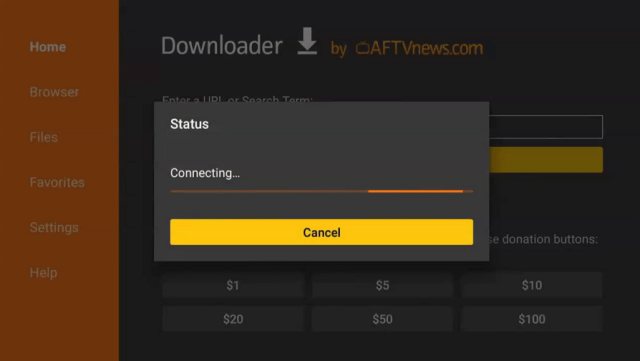
Install Mometu on Firestick

Install Mometu on Firestick


16. Click install

Install Mometu on Firestick


17. Click done.

Install Mometu on Firestick


18. Open your Apps Library and find Mometu APK to launch

Install Mometu on Firestick


18. Mometu is already installed. Enjoy!

Install Mometu on Firestick


YOUR INTERNET ACTIVITY IS BEING WATCHED

ReviewVPN cannot attest to the legality, security and privacy of the applications discussed on this site. It is highly recommended that you use a VPN service while streaming or using Kodi.

Currently, your IP 216.73.216.102 is visible to everyone and your Browser is being tracked by Advertisers & ISP Provider.

Save 65% Now

Limited Time Offer

Here are the main reasons why you must use a VPN:

  • Your activities are hidden from your ISP, the government, and from the apps you are using.
  • You can access additional movies and TV streams.
  • ISP attempts to throttle are thrwarted thus reducing buffering issues.
  • Geographically restricted content like Netflix and Hulu can be unblocked.

A VPN works be replacing your ISP-assigned IP address and creating an encrypted tunnel. We recommend the no log service offered by IPVanish. It works well on a Firestick and offers the fastest possible speeds.

Special Limited Time Offer - Get IPVanish


Legal Disclaimer: ReviewVPN.com does not encourage or endorse any illegal activity involved in the usage of services and applications referenced on this site. We do not verify the licensing agreements of services. The end-user is wholly responsible for ensuring that any media accessed through these services does not violate copyright and/or licensing laws. ReviewVPN does not promote, link to, or receive compensation from any Apps and IPTV services.


Install Surfshark on Firestick

Get the Best Surfshark Deal


Mometu App Features

  • 100% free
  • Applicable on Android and Firestick
  • Does not need Mouse Toggle
  • Offers movies and TV channels
  • Allows you to create your own profile


Pros and Cons

Pros

  • 100% free
  • Available on Firestick and Android
  • Does not need Mouse Toggle


Cons

  • Sometimes the videos are hard to play


Stream Safely With a VPN

Surfshark vpn

When streaming on any third-party apps, you need to have more privacy because there are many malicious domains and hosters that may track your every move. Even your Internet Service Provider can know what you are doing and throttle your connection at any time.

That is why you must have a Virtual Private Network, also known as VPN working on your device while streaming. It can protect you from any trackers, and help you bypass geo-restrictions,

Surfshark VPN is the best VPN for streaming on Mometu app. It can connect you to a server from a different country which can give you access to a lot of features, content, and apps that are not originally available in your location.

Surfshark VPN is the best VPN when it comes to bypassing geo-restriction. Aside from that, Surfshark can make sure that you are safe and private while accessing geo-restricted content. It has the best qualities that you can ask for when streaming. You can read them all here in our SurfShark review to know more about this amazing VPN.

Other SurfShark Features

  • 3200 servers available in 100+ countries
  • Best VPN for torrenting
  • Destroys geo-restriction
  • Dedicated IP
  • 30-day money-back guarantee
  • Cloud Storage
  • P2P friendly VPN
  • SOCKS5 Proxy
  • Allows Torrenting
  • Kill Switch
  • Split Tunneling
  • DNS Leak Protection
  • Prevents Firestick Buffering and Kodi Buffering

For more details about this VPN, read our SurfShark review.


Grab your subscription now!

Best Surfshark Deal


How to Install Surfshark on Firestick with Screenshots

If your Firestick still has the older interface, read this article to learn how to update it: Update Firestick Interface.

You can download Surfshark directly from the Amazon App Store. It will be easy for you to find Surfshark with your Firestick’s Find feature. Refer to our screenshots below.

Follow our screenshots below to install the SurfShark VPN app on your Fire TV stick.

1. Go to the Home screen of your Firestick.

step 1 Install Surfshark VPN on Firestick


2. Navigate toward the Find tab. Press the Search button from the resulting dropdown.

step 2 Install Surfshark VPN on Firestick


3. Type in the keyword of SurfShark and select from the suggestions that will appear.

step 3 Install Surfshark VPN on Firestick


4. Click the official SurfShark icon from your search results.

step 4 Install Surfshark VPN on Firestick


5. Press the Download (You Own it) button.

step 5 Install Surfshark VPN on Firestick


6. The SurfShark VPN installer will download on your device.

step 6 Install Surfshark VPN on Firestick


7. SurfShark VPN’s app will automatically install itself on your Fire TV stick.

step 7 Install Surfshark VPN on Firestick


8. Press the Open button after completing SurfShark VPN’s installation process.

step 8 Install Surfshark VPN on Firestick


9. Please wait for the SurfShark VPN to load its user interface.

step 9 Install Surfshark VPN on Firestick


10. You can now log in with your SurfShark VPN account credentials.

step 10 Install Surfshark VPN on Firestick

Learn more about Surfshark and Grab the Best Surfshark Deal Now!


Install Surfshark on Firestick

Best Surfshark Deal


Other VPNs to Consider

NordVPN (Best for Streaming)

Best Features

  • 5000+ Server in 50+ Countries 
  • Military-Grade Encryption
  • Fast Connection Speed
  • Suitable to a lot of devices
  • No-Log Policy

Prices
  • Complete $5.89 per month (64% Discount)
  • Plus $4.59 per month (56% Discount)
  • Standard $3.69 per month (55% Discount)

Best Features

  • 750+ High-speed VPN Servers in 43 Locations
  • Military-Grade Encryption
  • Fastest HD Streaming and Gaming
  • 30-Day Money-Back Guarantee
  • Unlimited Data & Devices
  • No-Log Policy

Prices
  • 3 Years $1.99 per month (82% Discount)
  • 1 Years $3.29 per month (70% Discount)
  • 1 Month $10.99 per month

IPVanish VPN (Most Secure)

Best Features

  • 1200+ Servers in 60+ Countries around the world
  • Unlimited Connections
  • No-Log Policy
  • Top Notch Military-Grade VPN Protocols and Encryptions
  • 100% Safe and Secured
  • Most Trusted VPN
  • Best VPN for Firestick
  • 30-Day Money-Back Guarantee

Prices
  • Yearly $3.99 per month (63% Discount) – 30 days risk free + Ransomware & Malware Protection
  • Quarterly $5.32 per month (51% Discount)
  • Monthly $10.99 per month


For more VPN discounts, go to ReviewVPN Deals and purchase the best VPN for you.

Click here for the lowest price on Surfshark through our exclusive limited-time offer.


Best Alternatives to Mometu App

There are so many great apps that offer movies and TV shows on your device. You can easily install them on Firestick. Here they are.


FAQs

What is Mometu App?

Mometu app is a streaming app that offers movies, shows, and live channels to stream on your device.


Is the Mometu app legal?

ReviewVPN.com cannot determine the legality of any app or website. This article is for educational purposes only. To make sure that you are safe from any legal matters regarding the apps and websites you are using, use a VPN service like Surfshark.


Is the Mometu app safe?

Yes, It is safe to install the Mometu apo on your device. You can ensure your safety while streaming by using a trusted VPN like Surfshark.


Is the Mometu appo Free?

You can install the app for free but it requires a paid subscription to enjoy the movies and TV shows that it offers.


Are there any ads?

There are no ads present on this app.


Conclusion

The Mometu app is a wonderful application that offers an interesting set of titles to stream. It is applicable on both Firestick and Android devices. Amazingly for Firestick, the Mometu app does not require the use of the Mouse Toggle.

The only problem we have encountered with this app is it is sometimes hard to play the videos when you click it. Overall, it is still worth the try, just make sure to use a trusted VPN service like Surfshark when using the Mometu app.

How to Stream Boxing Online

Stream Boxing Online

Are you an avid boxing fan? Are you searching for where you can watch the upcoming boxing matches on your device? In this article, we will show you how you can stream boxing online.

There are so many streaming websites where you can watch boxing matches. The best thing is that you can watch it on any device that you have. It may not be that easy because most streaming platforms are not for free. A lot of them are pay-per-view content and most are paid subscription-based.

Luckily for us, there are still a few free streaming websites that offer boxing for free. We will cover the best websites where we can stream boxing matches online.

Most of our readers are using Amazon Firestick. If you are using this device as well, you can also stream on different websites. You just have to use the good browser available for Firestick. The most common one is the Amazon Silk Browser. It is the official browser of Amazon Firestick, and you can install it directly from the Amazon App Store. Aside from the  Silk Browser, you can still use other browsers on your device like Mozilla Firefox, and more. We will show you how you can install the Amazon Silk Browser on your device in this article as well.

When streaming on different websites, and domains online, you need to be extra mindful of your privacy and security. We always remind our readers to use a trusted VPN service whenever they are streaming on any app or website.


ANONYMOUSLY


How to Install The Amazon Silk Browser on Firestick

Before we proceed with the best websites to stream boxing matches, let us first discuss how you can install the Amazon Silk Browser on your Firestick device.

If you are not using a Firestick or you already have this app on your device, you can skip this part and go to the next portion immediately.

The Amazon Silk Browser is an official Amazon app. It means that you can install it directly on your Amazon Firestick device. There is no need for you to jailbreak your Firestick and use the Downloader app to install it.

1.  Click Home on your remote and click “Find”.


2. Click “Search”


3. Type in Silk Browser and choose the item that appears on the results.


4. Click on the Silk Browser Icon.


5. Choose Download


6. Select Open to launch the browser.


7. You can now start browsing using Amazon Silk Browser.


YOUR INTERNET ACTIVITY IS BEING WATCHED

ReviewVPN cannot attest to the legality, security and privacy of the applications discussed on this site. It is highly recommended that you use a VPN service while streaming or using Kodi.

Currently, your IP 216.73.216.102 is visible to everyone and your Browser is being tracked by Advertisers & ISP Provider.

Save 65% Now

Limited Time Offer

Here are the main reasons why you must use a VPN:

  • Your activities are hidden from your ISP, the government, and from the apps you are using.
  • You can access additional movies and TV streams.
  • ISP attempts to throttle are thrwarted thus reducing buffering issues.
  • Geographically restricted content like Netflix and Hulu can be unblocked.

A VPN works be replacing your ISP-assigned IP address and creating an encrypted tunnel. We recommend the no log service offered by IPVanish. It works well on a Firestick and offers the fastest possible speeds.

Special Limited Time Offer - Get IPVanish

Legal Disclaimer: ReviewVPN.com does not encourage or endorse any illegal activity involved in the usage of services and applications referenced on this site. We do not verify the licensing agreements of services. The end-user is wholly responsible for ensuring that any media accessed through these services does not violate copyright and/or licensing laws. ReviewVPN does not promote, link to, or receive compensation from any Apps and IPTV services.

Install Surfshark on Firestick

Get the Best Surfshark Deal


Best Websites To Stream Boxing Online

This is the list of the best websites where you can stream boxing online. It is a mix of free and paid services. Choose the one that is best for you and your privacy.

If you are using Firestick, just type in the provided URLs on the Amazon Silk Browser to stream on the websites.


Box Live

stream boxing online

Website URL: https://box.live/

When it comes to boxing, the box live website is the most popular one to use. It features the best live matches, past fights, and highlights to stream. You will also find schedules of upcoming matches to look forward to.

Box Live is 100% free with a lot of advertisements present on the website.

Another great feature of Box Live is providing the stats of boxers worldwide. If you are an avid fan and want to know more about the fighters themselves, Box Live can provide the information for you. Even their rankings are based on their weight class in fighters.

Box Live is also applicable with a VPN like Surfshark. Using a VPN can help you access geo-restricted content, and remove annoying third-party ads that could track your every move.


SportRAR

stream boxing online

Website URL: https://www.sportrar.tv/

SportRAR is a wonderful website that offers a lot of sports. For a time, it focuses mostly on football, but then it still has more sports content to offer. Under the Fighting category, you will find upcoming boxing matches that you can certainly watch. This is the reason why we include this website as one of the best options to stream boxing online.

The only problem is not all videos available are in high definition. This is very common for those websites that offer free streaming of your favorite sports and shows.

Just like Box Live, SportRAR also allows the use of a VPN like Surfshark. It is useful for removing annoying ads while streaming on the website.


Sportsurge

Buffstream Alternative

website URL: https://sportsurge.club/

Another website where you can stream boxing online is SportSurge. It offers live streaming of the boxing matches. What Sportsurge does is provide vetted streams of free sporting live broadcasts.

The interface of SportSurge is easy-to-use and clean. You will find it easy to stream your favorite boxing matches any time you like. The only problem that most SportSurge users encounter is that the website is most of the time offline. You can read our article about SportSurge alternatives to know the best options.


BuffStreams

stream boxing online

website URL: https://buffstream.io/

Buffstream is also a great option to stream boxing online. It offers a lot of sports categories including boxing. You can also watch soccer, basketball, MMA, Football, and many more.

There are some advertisements present on this website. Sometimes it is in between shows. You might need to wait for a few seconds before you can continue to watch the match.


Stream2Watch

Buffstream Alternative

website URL: https://www.stream2watch.one/

You can also stream boxing online on Stream2watch. It allows you to search for certain categories on the main page of the website, or you can even search for specific matches or channels. Stream2Watch provides a search bar that says “Search Channel” for easy streaming.

Boxing is not just the only sport available on Stream2Watch. You can also watch the different tournaments and sports like baseball, basketball, football, and more.

There are so many great features that this website has to offer. It is 100% live free streaming, with no geo-restrictions at all. This website is also multi-lingual so you can catch the game from anywhere in the world.

Stream2Watch provides links for users to stream.


VIPRow Sports

Buffstream Alternative

website URL: https://www.viprow.me/

VIPRow Sports has a massive collection of sports streaming categories. One of these is boxing. It is one of the best websites where you can stream boxing online for free.

Aside from Boxing, you can also watch Football, UFC, WWE, Boxing, Tennis, Golf, American Football, Basketball, Baseball, and so many more.

VIP Row Sports is very easy to use, and it is not geo-restricted. You can search for any sports event, watch any category, wherever you are located.


VIPLeague

Buffstream Alternative

website URL: https://www.vipleague.st/

VIPLeague is very much similar to VIPRow. The two of them are also similar to a sports website called VIPBox. They all offer a massive collection of sports categories to stream including boxing. This is the reason why VIPLeague is one of the best options to stream boxing online.

Amazingly, you can really stream different categories like hockey, golf, baseball, American Football, racing, and many more.

It is very interesting that VIPLeague is one of the oldest websites for Sports because it has been present for quite some time now. Up until now, VIPLeague is still present and offers the best streaming links and content when it comes to sports.


Crackstreams

Buffstream Alternative

website URL: https://live11.crackstreams.me/

Crackstreams is a popular sports streaming website. Almost every day that Crackstreams update its content. You will definitely watch the latest events, highlights, and news about boxing. It is very impressive that is why we would not create a list of the best sites to stream boxing online without Crackstream.

Aside from boxing, you can also watch Football, MMA, Boxing, Basketball, and many more on this website.

There are times when Crackstream is offline. It is sad for most users, but good thing that there are some great alternatives that you can try. Read this article to know more: Best Crackstreams Alternatives


Stream Boxing Online Safely with a VPN

Surfshark vpn

Streaming sports like boxing is fun especially when there are no annoying ads and trackers who observe your every move. Most of the time, it is your Internet Service Provider or ISP who throttles your connection. This is why you may experience buffering while streaming. Sometimes, malicious domains can also track you while you are streaming. Because of this, you need to protect your privacy. You can stream boxing online privacy when you use a virtual private network or VPN.

A VPN is an online tool that hides your IP address, and online identity while providing you with a new and secured one. Through this, your ISP and other trackers won’t know your exact location and special information. You will also access geo-restricted content without getting on a plane and traveling to another country. This is how powerful a VPN could be. You just have to use the best one out there.

In choosing the best VPN service, make sure that you use a premium VPN. Free VPNs are tricky because they tend to get your information and sell it to third-party advertisers. So if you see that your VPN has ads, you should definitely uninstall it.

When choosing a premium VPN, Surfshark VPN is the best VPN for streaming. Aside from the security and anonymity that it provides, Surfshark can also unblock most streaming platforms like YouTube, Hulu, Netflix, and more. We wrote a complete review about this amazing VPN. Read our  Surfshark VPN review to know more.

Best SurfShark Features

  • 3,200+ available servers from 100+ locations around the world
  • Dedicated IP
  • Military-grade encryptions and VPN protocols
  • Unblocks all popular streaming platforms
  • Unlimited devices simultaneously
  • Zero-log policy
  • 30-day money-back guarantee
  • Cloud Storage
  • P2P friendly VPN
  • SOCKS5 Proxy
  • Allows Torrenting
  • Kill Switch
  • Split Tunneling
  • DNS Leak Protection
  • Prevents Firestick Buffering and Kodi Buffering


Grab your subscription now!

Best Surfshark Deal


How to Install Surfshark on Firestick with Screenshots

If your Firestick still has the older interface, read this article to learn how to update it: Update Firestick Interface.

You can download Surfshark directly from the Amazon App Store. It will be easy for you to find Surfshark with your Firestick’s Find feature. Refer to our screenshots below.

Follow our screenshots below to install the SurfShark VPN app on your Fire TV stick.

1. Go to the Home screen of your Firestick.

step 1 Install Surfshark VPN on Firestick


2. Navigate toward the Find tab. Press the Search button from the resulting dropdown.

step 2 Install Surfshark VPN on Firestick


3. Type in the keyword of SurfShark and select from the suggestions that will appear.

step 3 Install Surfshark VPN on Firestick


4. Click the official SurfShark icon from your search results.

step 4 Install Surfshark VPN on Firestick


5. Press the Download (You own it) button.

step 5 Install Surfshark VPN on Firestick


6. The SurfShark VPN installer will download on your device.

step 6 Install Surfshark VPN on Firestick


7. SurfShark VPN’s app will automatically install itself on your Fire TV stick.

step 7 Install Surfshark VPN on Firestick


8. Press the Open button after completing SurfShark VPN’s installation process.

step 8 Install Surfshark VPN on Firestick


9. Please wait for the SurfShark VPN to load its user interface.

step 9 Install Surfshark VPN on Firestick


10. You can now log in with your SurfShark VPN account credentials.

step 10 Install Surfshark VPN on Firestick

Learn more about Surfshark and Grab the Best Surfshark Deal Now!


Install Surfshark on Firestick

Best Surfshark Deal


Other VPNs to Consider

NordVPN (Best for Streaming)

Best Features

  • 5000+ Server in 50+ Countries 
  • Military-Grade Encryption
  • Fast Connection Speed
  • Suitable to a lot of devices
  • No-Log Policy

Prices
  • Complete $5.89 per month (64% Discount)
  • Plus $4.59 per month (56% Discount)
  • Standard $3.69 per month (55% Discount)

Best Features

  • 750+ High-speed VPN Servers in 43 Locations
  • Military-Grade Encryption
  • Fastest HD Streaming and Gaming
  • 30-Day Money-Back Guarantee
  • Unlimited Data & Devices
  • No-Log Policy

Prices
  • 3 Years $1.99 per month (82% Discount)
  • 1 Years $3.29 per month (70% Discount)
  • 1 Month $10.99 per month

IPVanish VPN (Most Secure)

Best Features

  • 1200+ Servers in 60+ Countries around the world
  • Unlimited Connections
  • No-Log Policy
  • Top Notch Military-Grade VPN Protocols and Encryptions
  • 100% Safe and Secured
  • Most Trusted VPN
  • Best VPN for Firestick
  • 30-Day Money-Back Guarantee

Prices
  • Yearly $3.99 per month (63% Discount) – 30 days risk free + Ransomware & Malware Protection
  • Quarterly $5.32 per month (51% Discount)
  • Monthly $10.99 per month


For more VPN discounts, go to ReviewVPN Deals and purchase the best VPN for you.

Click here to get the lowest price on Surfshark through our exclusive limited-time offer.


FAQs

How to Stream Boxing Online?

You can stream boxing online by streaming on different sports websites.


What are the Best Websites to Stream Boxing Online?

There are several great websites that you can use to stream boxing online. Some of them are Box Live, SportRAR, SportSurge, BuffStream, VIP Row, VIPLeague, Stream2Watch, and Crackstream.


Are the best websites to stream boxing online safe?

ReviewVPN.com cannot determine the legality of any app or website. This article is for educational purposes only. To make sure that you are safe from any legal matters regarding the apps and websites you are using, use a VPN service like Surfshark.


Conclusion

Streaming boxing online is possible with the help of different sports websites. You can watch on Box Live, SportRAR, SportSurge, BuffStream, VIP Row, VIPLeague, Stream2Watch, and Crackstream.

When streaming on different websites, make sure that your connection is private from any trackers and advertisers. You can do it with the help of a trusted VPN service like Surfshark.

We hope that you find this article helpful on streaming boxing online. If you have any suggestion and other great websites to watch boxing, feel free to write in the comment section below.

How to Install OnStream APK on Firestick

OnStream APK

In this article, we wil show you how you can install the OnStream APK on your Firestick and Android devices.

OnStream APK is a great streaming app that offers video-on-demand or VOD content to stream on your Firestick and Android devices. It offers popular titles for movies and TV series. You will find it easy to watch on this app because of its one-click play feature. Unlike most free apps for movies, it instantly plays any title and does not work with links from different sources.

The OnStream apk is not available in popular app stores like Amazon App Store, Google Play Store, and Apple App Store. It is a third-party application. In order to install this on your Firestick device, you need to jailbreak your device first and use the Downloader app.

When streaming on third-party apps like OnStream, it is best to have more privacy. Use a trusted VPN service anytime you watch on this app. Continue reading to learn more about this.


ANONYMOUSLY


How to Install OnStream on Firestick (Video)


How to Install OnStream on Firestick

1.  From your home screen, go to Settings.

Install OnStream on Firestick


2. Scroll down and to the right until you get to My Fire TV. Click on it.

Install OnStream on Firestick


3. Select Developer options.

Install OnStream on Firestick


4. Turn on ADB debugging and Apps from Unknown Sources.

Install OnStream on Firestick


5. Click Turn On when the pop-up appears.

Install OnStream on Firestick


6. Click Home, click FIND.

Install OnStream on Firestick


7. Click Search.

Install OnStream on Firestick


8. You can either say Downloader to your Alexa voice-enabled remote or start typing it. If you typed it, click on the suggestion when it appears.

Install OnStream on Firestick


9. Click on the Downloader Icon.

Install OnStream on Firestick


10. Click Download.

Install OnStream on Firestick


Install OnStream on Firestick


11. Click on Open.

Install OnStream on Firestick


12. Click on Allow.

Install OnStream on Firestick


13. Use the Downloader search tab.

Install OnStream on Firestick


14. Type onstream.to and click Go.

Install OnStream on Firestick


15. You are then presented with the official website for OnStream APK. Scroll down and click OnStream for Android TV.

Install OnStream on Firestick


16. Wait for the app to download.

Install OnStream on Firestick


17. Click Install.

Install OnStream on Firestick


18. Click done.

Install OnStream on Firestick


19. Open your Apps Library and find OnStream APK to launch.

Install OnStream on Firestick


20. Installation is now complete. Enjoy!

Install OnStream on Firestick


YOUR INTERNET ACTIVITY IS BEING WATCHED

ReviewVPN cannot attest to the legality, security and privacy of the applications discussed on this site. It is highly recommended that you use a VPN service while streaming or using Kodi.

Currently, your IP 216.73.216.102 is visible to everyone and your Browser is being tracked by Advertisers & ISP Provider.

Save 65% Now

Limited Time Offer

Here are the main reasons why you must use a VPN:

  • Your activities are hidden from your ISP, the government, and from the apps you are using.
  • You can access additional movies and TV streams.
  • ISP attempts to throttle are thrwarted thus reducing buffering issues.
  • Geographically restricted content like Netflix and Hulu can be unblocked.

A VPN works be replacing your ISP-assigned IP address and creating an encrypted tunnel. We recommend the no log service offered by IPVanish. It works well on a Firestick and offers the fastest possible speeds.

Special Limited Time Offer - Get IPVanish

Legal Disclaimer: ReviewVPN.com does not encourage or endorse any illegal activity involved in the usage of services and applications referenced on this site. We do not verify the licensing agreements of services. The end-user is wholly responsible for ensuring that any media accessed through these services does not violate copyright and/or licensing laws. ReviewVPN does not promote, link to, or receive compensation from any Apps and IPTV services.

Install Surfshark on Firestick

Get the Best Surfshark Deal


OnStream APK Features

  • Free streaming for movies and TV shows
  • One-click play
  • Does not integrate with Trakt TV and Real Debrid
  • High definition movies


Pros and Cons

Pros

  • 100% free
  • No registration
  • Easy to use
  • Instant play


Cons

  • Not available on popular app stores


Stream Safely With a VPN

Surfshark vpn

When streaming on third-party apps, make sure that you are always protected with a Virtual Private Network or VPN, A VPN can mask your online identity, which means that your identity is hidden from all who would want to track you, whether it may be your Internet Service Provider, malicious domains, apps, devices, and even the government.

Having a VPN to back you up while streaming is such a great advantage. Choose something with a great reviews from users and has the best line up of protection and protocols.

Surfshark VPN is the best VPN for streaming. It can connect you to a server from a different country which can give you access to a lot of features, content, and apps that are only available in that country. Surfshark VPN is the best VPN when it comes to bypassing geo-restriction. Aside from that, Surfshark can make sure that you are safe and private while accessing geo-restricted content. It has the best qualities that you can ask for when streaming. You can read them all here in our SurfShark review to know more about this amazing VPN.

Other SurfShark Features

  • 3200 servers available in 100+ countries
  • Best VPN for torrenting
  • Destroys geo-restriction
  • Dedicated IP
  • 30-day money-back guarantee
  • Cloud Storage
  • P2P friendly VPN
  • SOCKS5 Proxy
  • Allows Torrenting
  • Kill Switch
  • Split Tunneling
  • DNS Leak Protection
  • Prevents Firestick Buffering and Kodi Buffering

For more details about this VPN, read our SurfShark review.


Grab your subscription now!

Best Surfshark Deal


How to Install Surfshark on Firestick with Screenshots

If your Firestick still has the older interface, read this article to learn how to update it: Update Firestick Interface.

You can download Surfshark directly from the Amazon App Store. It will be easy for you to find Surfshark with your Firestick’s Find feature. Refer to our screenshots below.

Follow our screenshots below to install the SurfShark VPN app on your Fire TV stick.

1. Go to the Home screen of your Firestick.

step 1 Install Surfshark VPN on Firestick


2. Navigate toward the Find tab. Press the Search button from the resulting dropdown.

step 2 Install Surfshark VPN on Firestick


3. Type in the keyword of SurfShark and select from the suggestions that will appear.

step 3 Install Surfshark VPN on Firestick


4. Click the official SurfShark icon from your search results.

step 4 Install Surfshark VPN on Firestick


5. Press the Download (You Own it) button.

step 5 Install Surfshark VPN on Firestick


6. The SurfShark VPN installer will download on your device.

step 6 Install Surfshark VPN on Firestick


7. SurfShark VPN’s app will automatically install itself on your Fire TV stick.

step 7 Install Surfshark VPN on Firestick


8. Press the Open button after completing SurfShark VPN’s installation process.

step 8 Install Surfshark VPN on Firestick


9. Please wait for the SurfShark VPN to load its user interface.

step 9 Install Surfshark VPN on Firestick


10. You can now log in with your SurfShark VPN account credentials.

step 10 Install Surfshark VPN on Firestick

Learn more about Surfshark and Grab the Best Surfshark Deal Now!


Install Surfshark on Firestick

Best Surfshark Deal


Other VPNs to Consider

NordVPN (Best for Streaming)

Best Features

  • 5000+ Server in 50+ Countries 
  • Military-Grade Encryption
  • Fast Connection Speed
  • Suitable to a lot of devices
  • No-Log Policy

Prices
  • Complete $5.89 per month (64% Discount)
  • Plus $4.59 per month (56% Discount)
  • Standard $3.69 per month (55% Discount)

Best Features

  • 750+ High-speed VPN Servers in 43 Locations
  • Military-Grade Encryption
  • Fastest HD Streaming and Gaming
  • 30-Day Money-Back Guarantee
  • Unlimited Data & Devices
  • No-Log Policy

Prices
  • 3 Years $1.99 per month (82% Discount)
  • 1 Years $3.29 per month (70% Discount)
  • 1 Month $10.99 per month

IPVanish VPN (Most Secure)

Best Features

  • 1200+ Servers in 60+ Countries around the world
  • Unlimited Connections
  • No-Log Policy
  • Top Notch Military-Grade VPN Protocols and Encryptions
  • 100% Safe and Secured
  • Most Trusted VPN
  • Best VPN for Firestick
  • 30-Day Money-Back Guarantee

Prices
  • Yearly $3.99 per month (63% Discount) – 30 days risk free + Ransomware & Malware Protection
  • Quarterly $5.32 per month (51% Discount)
  • Monthly $10.99 per month


For more VPN discounts, go to ReviewVPN Deals and purchase the best VPN for you.

Click here for the lowest price on Surfshark through our exclusive limited-time offer.


Best Alternatives to OnStream APK

There are so many great apps that offer movies and TV shows on your device. You can easily install them on Firestick. Here they are.


FAQs

What is OnStream APK?

OnStream apk offers a one-click play set of titles for movies and TV shows to stream on your device.


Is OnStream APK legal?

ReviewVPN.com cannot determine the legality of any app or website. This article is for educational purposes only. To make sure that you are safe from any legal matters regarding the apps and websites you are using, use a VPN service like Surfshark.


Is OnStream safe?

Yes, It is safe to install OnStream on your device. You can ensure your safety while streaming by using a trusted VPN like Surfshark.


Is OnStream Free?

You can install the app for free but it requires a paid subscription to enjoy the movies and TV shows that it offers.


Conclusion

OnStream APK is new to the lime line yet it sets remarkable features against its main competitors. Compared with other streaming apps like Cinema HD, Terrarium, etc. OnStream apk does not work with scrapers, trackt TV, and real debris. It provides titles to watch with just one click.

We can say that with its great features, OnStream is something that you should definitely try. We hope that you find this article helpful in installing the app to your device.

Hidden Firestick Settings to Boost Device Performance

Hidden Firestick Settings

Do you want to boost your Firestick device’s performance? These hidden Firestick settings will surely help you out. We have here a lot of great hacks that you probably have no idea yet. Continue reading to learn more.

These hidden Firestick settings usually help your device to be at its best. Some of them are for sideloading third-party applications. This is so helpful to install the Best Firestick Apps on your device.

Other hidden Firestick settings focus on privacy, accessibility, and many more. Adjusting these settings will help you get rid of Firestick buffering, annoying advertisements, etc.

You might probably think that it is hard to adjust or change these hidden Firestick settings, but the truth is they are not. Most of them are simple instructions only. Just follow the instructions below and you will be able to activate or deactivate which is needed to boost your device’s performance.


ANONYMOUSLY


Hidden Firestick Settings to Boost Your Device Performance

Here are some of the hidden settings that you need to adjust in order to have the best streaming experience with your Firestick device.


1. Turn On Apps From Unknown Sources

This process is commonly known as jailbreak your Firestick. When you hear the word jailbreak, you might think that it is a bad thing, but actually, it is not. When you turn on Apps From Unknown Sources, you are enabling your device to sideload third-party applications. It means that you can install apps that are not from the Apple App Store. APKs from all over the net that offers a wide variety of content to stream for free.

If you see our app page which we will link below, most of them are third-party applications that you can install on your Firestick and Android devices. In order to install them on Firestick, you need to turn on the Apps From Unknown Sources.

Best Firestick Apps – ReviewVPN App Page


1.  Click Home on your remote and scroll once to your Right. Click Setting (Gear Wheel Icon)

Jailbreak Firestick and Install Downloader App


2. Scroll down and to the right until you get to My Fire TV. Click on it.

Jailbreak Firestick and Install Downloader App


3. Select Developer options.

Jailbreak Firestick and Install Downloader App


4. Turn on ADB debugging and Apps from Unknown Sources.

Jailbreak Firestick and Install Downloader App


5. Click Turn On when the pop-up appears.

Jailbreak Firestick and Install Downloader App


2. Turn Off Privacy Settings

You might not know it but Firestick can collect your information. It can also show you ads based on your algorithm. Make sure that you turn that off immediately.

1. First of all, you need to look out for Settings on your home page. You will see the wheel gear at the rightmost part of the screen.

Firestick Settings (2)


2. Most of the things that you need to turn off are located in the Preferences section of Settings. Click on Preferences to start disabling the Firestick settings.

Firestick Settings (3)


3. From Preferences, scroll down to Privacy Settings

Firestick Settings (7)


4. Click on Device Usage Data

Firestick Settings (8)


5. Choose Turn Off

Firestick Settings (9)


6. Then scroll down to Collect App Usage Data

Firestick Settings (10)


7. Choose Turn Off once more.

Firestick Settings (11)


8. Switch off the Interest-based Ads

Firestick Settings (12)


9. Once the Interest-based Ads function is off, you will no longer see the Your Advertising ID option.

Firestick Settings (13)


3. Close Apps That Are Running In the Background

If you really want to boost your device’s performance, you should always kill the apps running in the background. For instance, if you use a specific app and close it to use another, the first app is still running in the background of the device. It will consume cache and data that may result in your device’s low performance.

You can use an app like Taks Manager to easily kill apps working in the background or do it the normal way on the settings.

1. Go to Settings

task killer


2. Click Applications


3. Select Manage Installed Applications

kill 3


4. Choose the specific application that you want to kill

kill 4


5. You can choose Force to stop, Clear data, or Clear cache to kill the running application

kill 5


Use A VPN to Boost Your Device Performance

Surfshark vpn

In order to use your device safely and privately from any trackers online, you need to use Virtual Private Network or VPN. A VPN on Firestick can hide your real identity from your Internet Service Provider, malicious domains, and even the government.

A VPN can help you connect to a different server that will help you access geo-restricted content while having the best VPN protocol on your device.

Surfshark VPN is the best VPN for streaming. It can connect you to a server from a different country which can give you access to a lot of features, content, and apps that are only available in that country. Surfshark VPN is the best VPN when it comes to bypassing geo-restriction. Aside from that, Surfshark can make sure that you are safe and private while accessing geo-restricted content. It has the best qualities that you can ask for when streaming. You can read them all here in our SurfShark review to know more about this amazing VPN.

Other SurfShark Features

  • 3200 servers available in 100+ countries
  • Best VPN for torrenting
  • Destroys geo-restriction
  • Dedicated IP
  • 30-day money-back guarantee
  • Cloud Storage
  • P2P friendly VPN
  • SOCKS5 Proxy
  • Allows Torrenting
  • Kill Switch
  • Split Tunneling
  • DNS Leak Protection
  • Prevents Firestick Buffering and Kodi Buffering

For more details about this VPN, read our SurfShark review.


Grab your subscription now!

Best Surfshark Deal


How to Install Surfshark on Firestick with Screenshots

If your Firestick still has the older interface, read this article to learn how to update it: Update Firestick Interface.

You can download Surfshark directly from the Amazon App Store. It will be easy for you to find Surfshark with your Firestick’s Find feature. Refer to our screenshots below.

Follow our screenshots below to install the SurfShark VPN app on your Fire TV stick.

1. Go to the Home screen of your Firestick.

step 1 Install Surfshark VPN on Firestick


2. Navigate toward the Find tab. Press the Search button from the resulting dropdown.

step 2 Install Surfshark VPN on Firestick


3. Type in the keyword of SurfShark and select from the suggestions that will appear.

step 3 Install Surfshark VPN on Firestick


4. Click the official SurfShark icon from your search results.

step 4 Install Surfshark VPN on Firestick


5. Press the Download (You Own it) button.

step 5 Install Surfshark VPN on Firestick


6. The SurfShark VPN installer will download on your device.

step 6 Install Surfshark VPN on Firestick


7. SurfShark VPN’s app will automatically install itself on your Fire TV stick.

step 7 Install Surfshark VPN on Firestick


8. Press the Open button after completing SurfShark VPN’s installation process.

step 8 Install Surfshark VPN on Firestick


9. Please wait for the SurfShark VPN to load its user interface.

step 9 Install Surfshark VPN on Firestick


10. You can now log in with your SurfShark VPN account credentials.

step 10 Install Surfshark VPN on Firestick

Learn more about Surfshark and Grab the Best Surfshark Deal Now!


Install Surfshark on Firestick

Best Surfshark Deal


Other VPNs to Consider

NordVPN (Best for Streaming)

Best Features

  • 5000+ Server in 50+ Countries 
  • Military-Grade Encryption
  • Fast Connection Speed
  • Suitable to a lot of devices
  • No-Log Policy

Prices
  • Complete $5.89 per month (64% Discount)
  • Plus $4.59 per month (56% Discount)
  • Standard $3.69 per month (55% Discount)

Best Features

  • 750+ High-speed VPN Servers in 43 Locations
  • Military-Grade Encryption
  • Fastest HD Streaming and Gaming
  • 30-Day Money-Back Guarantee
  • Unlimited Data & Devices
  • No-Log Policy

Prices
  • 3 Years $1.99 per month (82% Discount)
  • 1 Years $3.29 per month (70% Discount)
  • 1 Month $10.99 per month

IPVanish VPN (Most Secure)

Best Features

  • 1200+ Servers in 60+ Countries around the world
  • Unlimited Connections
  • No-Log Policy
  • Top Notch Military-Grade VPN Protocols and Encryptions
  • 100% Safe and Secured
  • Most Trusted VPN
  • Best VPN for Firestick
  • 30-Day Money-Back Guarantee

Prices
  • Yearly $3.99 per month (63% Discount) – 30 days risk free + Ransomware & Malware Protection
  • Quarterly $5.32 per month (51% Discount)
  • Monthly $10.99 per month


For more VPN discounts, go to ReviewVPN Deals and purchase the best VPN for you.

Click here for the lowest price on Surfshark through our exclusive limited-time offer.


Conclusion

There are a lot of hidden Firestick settings that can boost your device performance and provide you with a wonderful streaming experience. Make sure that your device is open for sideloading so that you can install the best free Firestick apps. You should also protect your privacy even from the device itself. Another way to have a device that will definitely perform well is to kill the ongoing apps in the background. Lastly, you should always consider using a trusted VPN service like Surfshark to make sure that you are safe from all trackers online.

How to Install Surfshark on NVIDIA Shield

Surfshark on NVIDIA SHIELD

In this article, we will help you install Surfshark on NVIDIA Shield.

Surfshark VPN is indeed one of the best VPNs in the market today. It has great features that provide security and privacy to the users while destroying all geo-blocks along the way.

Most cord-cutters use third-party apps on their devices. This could be a little dangerous because there are so many malicious domains that track your every move. As for someone who likes to stream on their NVIDIA Shield device, using a VPN is really a must.

You might wonder why is it important to use a VPN when streaming on NVIDIA Shield. This is what we are going to discuss more in this article. We will also discuss why Surfshark VPN is the best VPN to use for NVIDIA Shield.

We also cover and wrote articles on how you can install Surfshark VPN on other devices.


ANONYMOUSLY


Importance of Using Surfshark on NVIDIA Shield

Why is it important to use Surfshark on NVIDIA Shield? There are some valid reasons why you should use a VPN in general when streaming on your NVIDIA Shield device.

1. You are being tracked. That is right. There are a lot of trackers out there. When you use different search engines like Google, Mozilla, and more, they tend to gather your information. The things you usually search for are added to your information. This is the reason why you usually see ads that is similar to the ones you already searched. Aside from search engines, your Internet Service Provider or ISP also tracks your every move. When you are streaming high-definition videos, it pings them and they can throttle your connection. This is the reason why you may experience some buffering while streaming. Some other trackers are those that you might not realize at all, they are the websites you visit, the devices you use, and the apps that you stream. They can collect your information and share it with third-party advertisers. The Government may also track you depending on your online activities and location which can be seen on your IP address, the one provided by your ISP.

2. The next reason why you should use a VPN when streaming is due to geo-restrictions. There are apps, content, and features that are not available everywhere. You need to be in a certain country or region to be able to access them. Using a trusted VPN service can provide you with a private network. It can hide your real IP address from any trackers while providing you with a new IP address which can help you bypass geo-restrictions and access features, content, and apps.


Why Surfshark VPN?

Surfshark vpn

Here is the reason why Surfshark VPN is the best VPN that you can use on NVIDIA Shield. Aside from the fact that Surfshark is applicable to a lot of other devices, it has so many great features that will surely promote privacy while you are online. Here are some of the reasons why you should choose Surfshark VPN:

  • Surfshark VPN promotes safety and privacy. It follows the no-log policy. This means that all of your information is safe with Surfshark. When you connect to a server, it will not leak your real location nor record anything that you provide the app. It is one of the safest VPNs on the market today.
  • When it comes to the number of available servers, Surfshark VPN does not disappoint. It has over 3200 available servers from 100+ locations worldwide. You can choose the city and location that you want.
  • Surfshark VPN is also one of the fastest VPNs in the market today. It is natural that using a VPN will affect your upload and download speed but when it comes to Surfshark VPN, it provides better results compared with other competitors.
  • This VPN recently launched its newer feature, something that is different from other VPNs. Surfshark Dedicated IP is a great feature that will provide users with a specific, unique, private, and safe IP address.
  • There is no limit when it comes to Surfshark VPN. You can use Surfshark on NVIDIA Shield, and other popular devices like Apple, Android, Firestick, and more. The best part is, you can use one account for an unlimited number of devices all at once.

To know more about this amazing VPN, read our SurfShark review.


Grab your subscription now!

Best Surfshark Deal


How to Install Surfshark on NVIDIA Shield

You can Download Surfshark on NVIDIA Shield directly from the Google Play Store. Make sure that you already have an account so that it will be easier for you to use and set up this VPN on your device.

1. From your Home Page, go to Apps

Surfshark on NVIDIA Shield


2. Select Open the Google Play Store

Surfshark on NVIDIA Shield


3. Hover down to the search bar

Surfshark on NVIDIA Shield


4. Search for Surfshark VPN

Surfshark on NVIDIA Shield


5. Click on Install

Surfshark on NVIDIA Shield


6. Once the app is installed, select Open

Surfshark on NVIDIA Shield


7. You can now use Surfshark on NVIDIA Shield. Make sure that you already have an account. If you still don’t have an account, click here.

Surfshark on NVIDIA Shield


8. Enter your login details

Surfshark on NVIDIA Shield


9. Choose which location you like to connect to and click Quick Connect

Surfshark on NVIDIA Shield


10. If there is a connection request that pops up, click OK

Surfshark on NVIDIA Shield


11. You are now connected to a different server using Surfshark on NVIDIA Shield

Surfshark on NVIDIA Shield


FAQs

Can I Install Surfshark on NVIDIA Shield?

You can install Surfshark VPN directly on your NVIDIA Shield device. Follow the steps above.


What is the Best VPN for NVIDIA Shield?

VPN choice is definitely based on the user’s preference, but as for someone who has a lot of experience with so many VPN services before, I can say that Surfshark VPN is one of the best choices for NVIDIA Shield.


Conclusion

When streaming on any device like NVIDIA Shield, it is best to have a Virtual Private Network or VPN. A VPN is something that can provide access, and privacy while streaming.

Surfshark VPN is one of the best VPNs that you can use for NVIDIA Shield. It is available in the Google Play Store, and you can install it directly on your NVIDIA Shield device.

We hope that you find this article helpful in install Surfshark on NVIDIA Shield.

Freestream Sling TV – How to Use It on Firestick

Freestream Sling TV

In this article, we will show you how you can watch the freestream Sling TV version of the app.

Sling TV is a well-known streaming platform that offers a massive collection of original and on-demand live TV titles, channels, movies and shows. It is available in some parts of the world and applies to many devices for streaming.

We already wrote an article about Sling TV and how you can easily install it on your Firestick anywhere in the world. As you may know, Sling TV is available in different app stores like Apple App Store, Google Play Store, and Amazon App Store, but it is geo-restricted. It means that there are places and countries where you could not search and access Sling TV. We will provide the best solution to this later in this article.

Before anything else, let’s focus first on the main topic of the article which is freestreams sling TV. Recently, Sling TV introduced its new feature which is the freestream.  Freesgream Sling TV offers a limited yet free library of Sling TV content to its users.

Most cord-cutters who jailbreak their firestick love free streaming. There is no doubt that Freestream sling tv will be the absolute best option when it comes to free live TV streaming.

Freestream sling tv is very easy to accomplish and try. Continue reading the article to learn more.


ANONYMOUSLY


How to Install Sling TV on Firestick

Before getting the Freestream sling TV, you must first install the app on your Firestick device.

If you can’t find the Sling TV app on your Amazon App Store, you can sideload it on your device by following the steps below:

1. Install the Downloader app and jailbreak your Firestick by enabling unknown sources. To learn more about the procedure, you may read How to Install the Downloader App and Enable Unknown Sources.


2. Open Downloader App. Type https://reviewvpn.com/sli and click Go.

Install Sling TV1


3. Click Install.

Install Sling TV2


4. Click Open.

Install Sling TV3


5.  Select Sign In to watch.

Install Sling TV4


How to Stream on Freestreams Sling TV

1. Go to https://www.sling.com/


2. Click Sling Freestram in the upper right corner

Freestream Sling TV


3. Select Stream Free

Freestream Sling TV


YOUR INTERNET ACTIVITY IS BEING WATCHED

ReviewVPN cannot attest to the legality, security and privacy of the applications discussed on this site. It is highly recommended that you use a VPN service while streaming or using Kodi.

Currently, your IP 216.73.216.102 is visible to everyone and your Browser is being tracked by Advertisers & ISP Provider.

Save 65% Now

Limited Time Offer

Here are the main reasons why you must use a VPN:

  • Your activities are hidden from your ISP, the government, and from the apps you are using.
  • You can access additional movies and TV streams.
  • ISP attempts to throttle are thrwarted thus reducing buffering issues.
  • Geographically restricted content like Netflix and Hulu can be unblocked.

A VPN works be replacing your ISP-assigned IP address and creating an encrypted tunnel. We recommend the no log service offered by IPVanish. It works well on a Firestick and offers the fastest possible speeds.

Special Limited Time Offer - Get IPVanish


Legal Disclaimer: ReviewVPN.com does not encourage or endorse any illegal activity involved in the usage of services and applications referenced on this site. We do not verify the licensing agreements of services. The end-user is wholly responsible for ensuring that any media accessed through these services does not violate copyright and/or licensing laws. ReviewVPN does not promote, link to, or receive compensation from any Apps and IPTV services.


Install Surfshark on Firestick

Get the Best Surfshark Deal


Freestream Sling TV Features

  • On-demand movies, TV series, and live TV channels
  • Limited yet wonderful selection of channels
  • 300+ channels available
  • 4000 available titles for movies and TV series
  • Freestream is 100% free forever
  • Popular channels like ABC News, Buzzr, VH1 I Love Reality, Nick Jr., and more


Pros and Cons

Pros

  • 100% free
  • Streams videos at 720p
  • Comes with multiple language options


Cons

  • Geo-restricted
  • Limited channels for freestream


Bypass Geo-restriction for Freestreams Sling TV

Surfshark vpn

Geo-restriction is one of the major problems when it comes to streaming. There are content, features, and apps that are only available in the US or in some parts of the world and are not available in some. If you are not from the US or you are traveling to another country, you won’t be able to access Sling TV. Good thing, because there is a great solution on how you can bypass geo-restrictions.

Using a Virtual Private Network or VPN can help you connect to a different server and destroy geoblocks so you can access apps like Sling TV wherever you are.

Surfshark VPN is the best VPN for streaming. It can connect you to a server from a different country which can give you access to a lot of features, content, and apps that are only available in that country. Surfshark VPN is the best VPN when it comes to bypassing geo-restriction. Aside from that, Surfshark can make sure that you are safe and private while accessing geo-restricted content. It has the best qualities that you can ask for when streaming. You can read them all here in our SurfShark review to know more about this amazing VPN.

Other SurfShark Features

  • 3200 servers available in 100+ countries
  • Best VPN for torrenting
  • Destroys geo-restriction
  • Dedicated IP
  • 30-day money-back guarantee
  • Cloud Storage
  • P2P friendly VPN
  • SOCKS5 Proxy
  • Allows Torrenting
  • Kill Switch
  • Split Tunneling
  • DNS Leak Protection
  • Prevents Firestick Buffering and Kodi Buffering

For more details about this VPN, read our SurfShark review.


Grab your subscription now!

Best Surfshark Deal


How to Install Surfshark on Firestick with Screenshots

If your Firestick still has the older interface, read this article to learn how to update it: Update Firestick Interface.

You can download Surfshark directly from the Amazon App Store. It will be easy for you to find Surfshark with your Firestick’s Find feature. Refer to our screenshots below.

Follow our screenshots below to install the SurfShark VPN app on your Fire TV stick.

1. Go to the Home screen of your Firestick.

step 1 Install Surfshark VPN on Firestick


2. Navigate toward the Find tab. Press the Search button from the resulting dropdown.

step 2 Install Surfshark VPN on Firestick


3. Type in the keyword of SurfShark and select from the suggestions that will appear.

step 3 Install Surfshark VPN on Firestick


4. Click the official SurfShark icon from your search results.

step 4 Install Surfshark VPN on Firestick


5. Press the Download (You Own it) button.

step 5 Install Surfshark VPN on Firestick


6. The SurfShark VPN installer will download on your device.

step 6 Install Surfshark VPN on Firestick


7. SurfShark VPN’s app will automatically install itself on your Fire TV stick.

step 7 Install Surfshark VPN on Firestick


8. Press the Open button after completing SurfShark VPN’s installation process.

step 8 Install Surfshark VPN on Firestick


9. Please wait for the SurfShark VPN to load its user interface.

step 9 Install Surfshark VPN on Firestick


10. You can now log in with your SurfShark VPN account credentials.

step 10 Install Surfshark VPN on Firestick

Learn more about Surfshark and Grab the Best Surfshark Deal Now!


Install Surfshark on Firestick

Best Surfshark Deal


Other VPNs to Consider

NordVPN (Best for Streaming)

Best Features

  • 5000+ Server in 50+ Countries 
  • Military-Grade Encryption
  • Fast Connection Speed
  • Suitable to a lot of devices
  • No-Log Policy

Prices
  • Complete $5.89 per month (64% Discount)
  • Plus $4.59 per month (56% Discount)
  • Standard $3.69 per month (55% Discount)

Best Features

  • 750+ High-speed VPN Servers in 43 Locations
  • Military-Grade Encryption
  • Fastest HD Streaming and Gaming
  • 30-Day Money-Back Guarantee
  • Unlimited Data & Devices
  • No-Log Policy

Prices
  • 3 Years $1.99 per month (82% Discount)
  • 1 Years $3.29 per month (70% Discount)
  • 1 Month $10.99 per month

IPVanish VPN (Most Secure)

Best Features

  • 1200+ Servers in 60+ Countries around the world
  • Unlimited Connections
  • No-Log Policy
  • Top Notch Military-Grade VPN Protocols and Encryptions
  • 100% Safe and Secured
  • Most Trusted VPN
  • Best VPN for Firestick
  • 30-Day Money-Back Guarantee

Prices
  • Yearly $3.99 per month (63% Discount) – 30 days risk free + Ransomware & Malware Protection
  • Quarterly $5.32 per month (51% Discount)
  • Monthly $10.99 per month


For more VPN discounts, go to ReviewVPN Deals and purchase the best VPN for you.

Click here for the lowest price on Surfshark through our exclusive limited-time offer.


Best Alternatives to Sling TV

Aside from Sling TV, there are so many great live TV apps that also offer video-on-demand (VOD) content. Here are some of the best Sling TV alternatives:

You can browse more similar apps from our Best Live TV Apps review.


FAQs

What is Freestreams Sling TV?

Freestream Sling TV is a version of the app that offers free yet limited content to stream. It has movies, TV shows, and great channels like ABC News, Buzzr, VH1 I Love Reality, Nick Jr., and more.


Is Sling TV free?

Sling TV is a subscription-based app that now offers a freestream version with limited content.


Is the Sling TV app legal?

Yes, it is 100% legal.


Are there ads?

Yes, there are ads when you stream on Sling TV. 


Where can I watch Sling TV?

Sling TV is available on Amazon Fire TV/Firestick, Apple TV, Roku, Xbox One, Chromecast, and Windows. 


Is there a Sling TV website?

Yes, you can browse through their website at https://www.sling.com/.


Is there a Sling TV contact number and customer service?

Yes, you may reach them for any concerns and assistance:

Phone: 1-888-363-1777

E-mail:  support@sling.com


Conclusion

Freestreams Sling TV is a great move for Sling TV. The app now offers a free version which most users will definitely love. Although the content is limited and most channels are only available on a paid subscription, Freestreams Sling TV is still worth the try.

Sling TV is geo-restricted so we suggest you use a trusted VPN service like Surfshark to watch on the app from anywhere.

We hope that you find this article helpful in learning more about Freestreams Sling TV.

How to Install Rakuten TV on Firestick and Android

Rakuten TV

In this article, we will show you how to install Rakuten TV on Firestick and Android

Rakuten TV is a streaming app that offers Video-On-Demand (VOD) content of different movie listings, and TV series. It is a paid subscription app that is only available in some parts of the world. Which means it is geo-restricted.

Rakuten TV is actually available on different devices like Android, Firestick, Roku, and many more. You can see this app on different app stores like Google Play Store, Amazon App Store, and Apple App Store.

Rakuten TV is an official app, you can install it directly on your Firestick device, but since it is not available everywhere, we will show you how to install it using the Downloader app. Installing from unknown sources will require you to Jailbreak your Firestick first. Jailbreaking firstick is a legal way that you can do it easily.

When streaming, it is best to use a trusted VPN service.


ANONYMOUSLY


Rakuten TV APK Download for Android Devices


rakuten TV

Note: ReviewVPN.com does not host this APK file. It is hosted by Archive.org


How to Install Rakuten TV on Firestick (Video)


How to Install Rakuten TV on Firestick

1.  From your home screen, go to Settings.

Install Rakuten TV on Firestick


2. Scroll down and to the right until you get to My Fire TV. Click on it.

Install Rakuten TV on Firestick


3. Select Developer options.

Install Rakuten TV on Firestick


4. Turn on ADB debugging and Apps from Unknown Sources.

Install Rakuten TV on Firestick


5. Click Turn On when the pop-up appears.

Install Rakuten TV on Firestick


6. Click Home, click FIND.

Install Rakuten TV on Firestick


7. Click Search.

Install Rakuten TV on Firestick


8. You can either say Downloader to your Alexa voice-enabled remote or start typing it. If you typed it, click on the suggestion when it appears.

Install Rakuten TV on Firestick


9. Click on the Downloader Icon.

Install Rakuten TV on Firestick


10. Click Download.

Install Rakuten TV on Firestick


Install Rakuten TV on Firestick


11. Click on Open.

Install Rakuten TV on Firestick


12. Click on Allow.

Install Rakuten TV on Firestick


13. Use the Downloader search tab.

Install Rakuten TV on Firestick


14. Type https://reviewvpn.com/rak and click go.

Install Rakuten TV on Firestick


15. Wait for the APK to be downloaded.

Install Rakuten TV on Firestick

Install Rakuten TV on Firestick


16. Click install

Install Rakuten TV on Firestick


17. Click open.

Install Rakuten TV on Firestick


18. Click on MAL REINSCHAUEN ( take a look ).

Install Rakuten TV on Firestick

Install Rakuten TV on Firestick


YOUR INTERNET ACTIVITY IS BEING WATCHED

ReviewVPN cannot attest to the legality, security and privacy of the applications discussed on this site. It is highly recommended that you use a VPN service while streaming or using Kodi.

Currently, your IP 216.73.216.102 is visible to everyone and your Browser is being tracked by Advertisers & ISP Provider.

Save 65% Now

Limited Time Offer

Here are the main reasons why you must use a VPN:

  • Your activities are hidden from your ISP, the government, and from the apps you are using.
  • You can access additional movies and TV streams.
  • ISP attempts to throttle are thrwarted thus reducing buffering issues.
  • Geographically restricted content like Netflix and Hulu can be unblocked.

A VPN works be replacing your ISP-assigned IP address and creating an encrypted tunnel. We recommend the no log service offered by IPVanish. It works well on a Firestick and offers the fastest possible speeds.

Special Limited Time Offer - Get IPVanish


Legal Disclaimer: ReviewVPN.com does not encourage or endorse any illegal activity involved in the usage of services and applications referenced on this site. We do not verify the licensing agreements of services. The end-user is wholly responsible for ensuring that any media accessed through these services does not violate copyright and/or licensing laws. ReviewVPN does not promote, link to, or receive compensation from any Apps and IPTV services.


Install Surfshark on Firestick

Get the Best Surfshark Deal


Rakuten TV Features

  • Offers movies and TV shows
  • Paid subscription
  • High-definition shows
  • Available on many devices
  • Thousands of titles available


Pros and Cons

Pros

  • Offers a wide range of popular titles for movies and tv shows
  • High definition shows


Cons

  • Not for free


Stream Safely With a VPN

Surfshark vpn

Always be mindful when streaming on different apps. You have to always protect your privacy. There are a lot of trackers online such as your ISP, and other malicious domains.

By using a trusted VPN service, you can get rid of so many online threats and trackers. A VPN is a high-end technology that can add extra layers of privacy to the users.

Surfshark VPN is the best VPN for streaming. It can connect you to a server from a different country which can give you access to a lot of features, content, and apps that are only available in that country. Surfshark VPN is the best VPN when it comes to bypassing geo-restriction. Aside from that, Surfshark can make sure that you are safe and private while accessing geo-restricted content. It has the best qualities that you can ask for when streaming. You can read them all here in our SurfShark review to know more about this amazing VPN.

Other SurfShark Features

  • 3200 servers available in 100+ countries
  • Best VPN for torrenting
  • Destroys geo-restriction
  • Dedicated IP
  • 30-day money-back guarantee
  • Cloud Storage
  • P2P friendly VPN
  • SOCKS5 Proxy
  • Allows Torrenting
  • Kill Switch
  • Split Tunneling
  • DNS Leak Protection
  • Prevents Firestick Buffering and Kodi Buffering

For more details about this VPN, read our SurfShark review.


Grab your subscription now!

Best Surfshark Deal


How to Install Surfshark on Firestick with Screenshots

If your Firestick still has the older interface, read this article to learn how to update it: Update Firestick Interface.

You can download Surfshark directly from the Amazon App Store. It will be easy for you to find Surfshark with your Firestick’s Find feature. Refer to our screenshots below.

Follow our screenshots below to install the SurfShark VPN app on your Fire TV stick.

1. Go to the Home screen of your Firestick.

step 1 Install Surfshark VPN on Firestick


2. Navigate toward the Find tab. Press the Search button from the resulting dropdown.

step 2 Install Surfshark VPN on Firestick


3. Type in the keyword of SurfShark and select from the suggestions that will appear.

step 3 Install Surfshark VPN on Firestick


4. Click the official SurfShark icon from your search results.

step 4 Install Surfshark VPN on Firestick


5. Press the Download (You Own it) button.

step 5 Install Surfshark VPN on Firestick


6. The SurfShark VPN installer will download on your device.

step 6 Install Surfshark VPN on Firestick


7. SurfShark VPN’s app will automatically install itself on your Fire TV stick.

step 7 Install Surfshark VPN on Firestick


8. Press the Open button after completing SurfShark VPN’s installation process.

step 8 Install Surfshark VPN on Firestick


9. Please wait for the SurfShark VPN to load its user interface.

step 9 Install Surfshark VPN on Firestick


10. You can now log in with your SurfShark VPN account credentials.

step 10 Install Surfshark VPN on Firestick

Learn more about Surfshark and Grab the Best Surfshark Deal Now!


Install Surfshark on Firestick

Best Surfshark Deal


Other VPNs to Consider

NordVPN (Best for Streaming)

Best Features

  • 5000+ Server in 50+ Countries 
  • Military-Grade Encryption
  • Fast Connection Speed
  • Suitable to a lot of devices
  • No-Log Policy

Prices
  • Complete $5.89 per month (64% Discount)
  • Plus $4.59 per month (56% Discount)
  • Standard $3.69 per month (55% Discount)

Best Features

  • 750+ High-speed VPN Servers in 43 Locations
  • Military-Grade Encryption
  • Fastest HD Streaming and Gaming
  • 30-Day Money-Back Guarantee
  • Unlimited Data & Devices
  • No-Log Policy

Prices
  • 3 Years $1.99 per month (82% Discount)
  • 1 Years $3.29 per month (70% Discount)
  • 1 Month $10.99 per month

IPVanish VPN (Most Secure)

Best Features

  • 1200+ Servers in 60+ Countries around the world
  • Unlimited Connections
  • No-Log Policy
  • Top Notch Military-Grade VPN Protocols and Encryptions
  • 100% Safe and Secured
  • Most Trusted VPN
  • Best VPN for Firestick
  • 30-Day Money-Back Guarantee

Prices
  • Yearly $3.99 per month (63% Discount) – 30 days risk free + Ransomware & Malware Protection
  • Quarterly $5.32 per month (51% Discount)
  • Monthly $10.99 per month


For more VPN discounts, go to ReviewVPN Deals and purchase the best VPN for you.

Click here for the lowest price on Surfshark through our exclusive limited-time offer.


Best Alternatives to Rakuten TV

There are so many great apps that offer movies and TV shows on your device. You can easily install them on Firestick. Here they are.


FAQs

What is Rakuten TV?

Rakuten TV is a streaming app that offers video-on-demand (VOD) content for movies and TV shows.


Is Rakuten TV legal?

ReviewVPN.com cannot determine the legality of any app or website. This article is for educational purposes only. To make sure that you are safe from any legal matters regarding the apps and websites you are using, use a VPN service like Surfshark.


Is Rakuten TV safe?

Yes, It is safe to install Rakuten TV on your device. You can ensure your safety while streaming by using a trusted VPN like Surfshark.


Is Rakuten TV Free?

You can install the app for free but it requires a paid subscription to enjoy the movies and TV shows that it offers.


Are there any ads?

There are no ads present on this app.


Conclusion

Rakuten TV is a paid subscription platform that offers a wider variety of popular titles to stream. It is a great application to use on different devices.

If you don’t mind paying for an app to watch movies and TV shows, then you can consider using Rakuten TV. Otherwise, you can still use the best Rakuten TV alternatives stated above.

How to Install LocalBTV App on Firestick

LocalBTV

In this article, we will show you how you can install the LocalBTV app on your Firestick and FireTV devices.

LocalBTV is a free streaming app that offers tons of local channels. It provides a great scope of channels for weather, news, and even movies and TV shows. This app is applicable and available in so many devices including Android, Firestick, Roku, Apple, and more. You can search for this app on popular app stores like Google Play Store, Amazon App Store, and many more.

Ever since Locast become unavailable, the LocalBTV became very popular as the best alternative. The app even stated that it works directly with station owners who grant them permission to stream their channels. The app is also making sure that every channel is available to stream.

Most of our readers are Firestick users, and LocalBTV can easily be installed on this device. You don’t need to jailbreak your Firestick and use the Downloader app to install it. Just make sure to use a trusted VPN service to access this app outside the USA.


ANONYMOUSLY


How to Install LocalBTV App on Firestick

  1. From Your Home Screen, go to Find.
  2. Scroll down to the Search option.
  3. Search for LocalBTV
  4. Click on the app icon
  5. Select Get/Download
  6. Wait for the app to be installed
  7. Click Open


How to Install LocalBTV on Firestick with Screenshots

1. From your Home screen, go to Find, and scroll down to Search.

LocalBTV


2. Search for LocalBTV

LocalBTV


3. Select the LocalBTV app

LocalBTV


4. Click the Get or Download button, and wait for the app to be installed.

LocalBTV


5. Once installed, click the Open button

LocalBTV


6. You can now enjoy the LocalBTV app on your Firestick device

LocalBTV


YOUR INTERNET ACTIVITY IS BEING WATCHED

ReviewVPN cannot attest to the legality, security and privacy of the applications discussed on this site. It is highly recommended that you use a VPN service while streaming or using Kodi.

Currently, your IP 216.73.216.102 is visible to everyone and your Browser is being tracked by Advertisers & ISP Provider.

Save 65% Now

Limited Time Offer

Here are the main reasons why you must use a VPN:

  • Your activities are hidden from your ISP, the government, and from the apps you are using.
  • You can access additional movies and TV streams.
  • ISP attempts to throttle are thrwarted thus reducing buffering issues.
  • Geographically restricted content like Netflix and Hulu can be unblocked.

A VPN works be replacing your ISP-assigned IP address and creating an encrypted tunnel. We recommend the no log service offered by IPVanish. It works well on a Firestick and offers the fastest possible speeds.

Special Limited Time Offer - Get IPVanish


Legal Disclaimer: ReviewVPN.com does not encourage or endorse any illegal activity involved in the usage of services and applications referenced on this site. We do not verify the licensing agreements of services. The end-user is wholly responsible for ensuring that any media accessed through these services does not violate copyright and/or licensing laws. ReviewVPN does not promote, link to, or receive compensation from any Apps and IPTV services.


Install Surfshark on Firestick

Get the Best Surfshark Deal


How to Register on LocalBTV

The LocalBTV app requires registration. Follow this guide to know how you can easily register your LocalBTV account.

  1. Go to the official website of LocalBTV – https://www.localbtv.com/
  2. Click the Download/Sign up button
  3. Enter your zip code
  4. Click Submit
  5. Select the Signup and Watch Now button
  6. Re-enter your zip code and choose Check availability
  7. Enter your email, and password to register
  8. Click Sign Up
  9. You now have an account on LocalBTV


LocalBTV App Features

  • Free streaming app
  • Local channels based on locations
  • High-quality videos
  • Thousands of channels
  • Available on different devices
  • Subtitles available


14 USA Markets That LocalBTV Broadcasts

  • New York City
  • Indianapolis
  • Atlanta
  • Las Vegas
  • Fresno
  • Louisville
  • Reno
  • Monterey (Santa Cruz)
  • Chicago
  • Phoenix
  • Bay Area (San Francisco)
  • Southern California (Los Angeles)
  • Philadelphia
  • San Diego


Pros and Cons

Pros

  • 100% free
  • Tons of channels to offer


Cons

  • Only available in the US


Unblock Geo-restrictions

Surfshark vpn

Geo-restriction is one of the major problems that most streamers face. There are shows, apps, and websites that are not available in some other countries. Just like the case with LocalBTV, it is not available outside the US. It even locates you by proving your zip code to them. It only shows that you allow the app to track your address, and know exactly which type of shows you are interested in.

You need to be more careful with your privacy. By using a trusted VPN service, you can unblock geo-restriction and have an extra layer of protection. It means that you can access apps like LocalBTV outside the US, and still be safe against all online trackers like apps, domains, and even your ISP.

Surfshark VPN is the best VPN for streaming. It can connect you to a server from a different country which can give you access to a lot of features, content, and apps that are only available in that country. Surfshark VPN is the best VPN when it comes to bypassing geo-restriction. Aside from that, Surfshark can make sure that you are safe and private while accessing geo-restricted content. It has the best qualities that you can ask for when streaming. You can read them all here in our SurfShark review to know more about this amazing VPN.

Other SurfShark Features

  • 3200 servers available in 100+ countries
  • Best VPN for torrenting
  • Destroys geo-restriction
  • Dedicated IP
  • 30-day money-back guarantee
  • Cloud Storage
  • P2P friendly VPN
  • SOCKS5 Proxy
  • Allows Torrenting
  • Kill Switch
  • Split Tunneling
  • DNS Leak Protection
  • Prevents Firestick Buffering and Kodi Buffering

For more details about this VPN, read our SurfShark review.


Grab your subscription now!

Best Surfshark Deal


How to Install Surfshark on Firestick with Screenshots

If your Firestick still has the older interface, read this article to learn how to update it: Update Firestick Interface.

You can download Surfshark directly from the Amazon App Store. It will be easy for you to find Surfshark with your Firestick’s Find feature. Refer to our screenshots below.

Follow our screenshots below to install the SurfShark VPN app on your Fire TV stick.

1. Go to the Home screen of your Firestick.

step 1 Install Surfshark VPN on Firestick


2. Navigate toward the Find tab. Press the Search button from the resulting dropdown.

step 2 Install Surfshark VPN on Firestick


3. Type in the keyword of SurfShark and select from the suggestions that will appear.

step 3 Install Surfshark VPN on Firestick


4. Click the official SurfShark icon from your search results.

step 4 Install Surfshark VPN on Firestick


5. Press the Download (You Own it) button.

step 5 Install Surfshark VPN on Firestick


6. The SurfShark VPN installer will download on your device.

step 6 Install Surfshark VPN on Firestick


7. SurfShark VPN’s app will automatically install itself on your Fire TV stick.

step 7 Install Surfshark VPN on Firestick


8. Press the Open button after completing SurfShark VPN’s installation process.

step 8 Install Surfshark VPN on Firestick


9. Please wait for the SurfShark VPN to load its user interface.

step 9 Install Surfshark VPN on Firestick


10. You can now log in with your SurfShark VPN account credentials.

step 10 Install Surfshark VPN on Firestick

Learn more about Surfshark and Grab the Best Surfshark Deal Now!


Install Surfshark on Firestick

Best Surfshark Deal


Other VPNs to Consider

NordVPN (Best for Streaming)

Best Features

  • 5000+ Server in 50+ Countries 
  • Military-Grade Encryption
  • Fast Connection Speed
  • Suitable to a lot of devices
  • No-Log Policy

Prices
  • Complete $5.89 per month (64% Discount)
  • Plus $4.59 per month (56% Discount)
  • Standard $3.69 per month (55% Discount)

Best Features

  • 750+ High-speed VPN Servers in 43 Locations
  • Military-Grade Encryption
  • Fastest HD Streaming and Gaming
  • 30-Day Money-Back Guarantee
  • Unlimited Data & Devices
  • No-Log Policy

Prices
  • 3 Years $1.99 per month (82% Discount)
  • 1 Years $3.29 per month (70% Discount)
  • 1 Month $10.99 per month

IPVanish VPN (Most Secure)

Best Features

  • 1200+ Servers in 60+ Countries around the world
  • Unlimited Connections
  • No-Log Policy
  • Top Notch Military-Grade VPN Protocols and Encryptions
  • 100% Safe and Secured
  • Most Trusted VPN
  • Best VPN for Firestick
  • 30-Day Money-Back Guarantee

Prices
  • Yearly $3.99 per month (63% Discount) – 30 days risk free + Ransomware & Malware Protection
  • Quarterly $5.32 per month (51% Discount)
  • Monthly $10.99 per month


For more VPN discounts, go to ReviewVPN Deals and purchase the best VPN for you.

Click here for the lowest price on Surfshark through our exclusive limited-time offer.


Best Alternatives to LocalBTV

Here are some of the best alternatives to LocalBTV


FAQs

What is LocalBTV?

LocakBTV is a free streaming app that offers local channels from all over the USA.


Is LocalBTV legal?

ReviewVPN.com cannot determine the legality of any app or website. This article is for educational purposes only. To make sure that you are safe from any legal matters regarding the apps and websites you are using, use a VPN service like Surfshark.


Is LocalBTV safe?

Yes, It is safe to install LocalBTV on your device. You can ensure your safety while streaming by using a trusted VPN like Surfshark.


Is LocalBTV Free?

Yes. LocalBTV is 100% free to install.


Are there any ads?

There are no ads present on this app.


Conclusion

LocalBTV is the best choice when you are looking for the best local channels to watch. It offers news, weather, and shows. You can choose from thousands of available channels depending on your zip code.

Ever since Locast became unavailable, the LocalBTV app is the best alternative.

We hope that you find this article helpful in installing the LocalBTV app on your Firestick and Fire TV devices.

How to Install HeroGo TV on Firestick and Android

HeroGo TV

In this article, we will show you how you can install HeroGo TV on Firestick and Android

HeroGo TV is a live TV streaming app that offers numerous live TV channels and videos. It has tons of great shows, and streaming now features. The app is available and applicable to a lot of streaming devices like Apple, Android, and Firestick.

HeroGo TV is a free streaming app. It requires a Mouse Toggle if you like to use it on Amazon Firestick. This version of the app is a third-party application. It means it will require you to jailbreak your Firestick first and use the Downloader app to install it. Most cord-cutters like jailbreaking their Firestick as it will allow them to install different apps from unknown sources on the internet. This is actually amazing since there are so many other great apps out there that are not available in the most commonly-known app stores like Apple App Store, Google Play Stores, and more.

In order to be safe while streaming on apps like HeroGo TV, make sure to use a trustworthy VPN service.


ANONYMOUSLY


HeroGo TV APK Download for Android Devices


herogo tv

Note: ReviewVPN.com does not host this APK file. It is hosted by Archive.org


How to Install Herogo TV on Firestick (Video)


How to Install Herogo TV on Firestick

1.  From your home screen, go to Settings.

Install Herogo TV on Firestick


2. Scroll down and to the right until you get to My Fire TV. Click on it.

Install Herogo TV on Firestick


3. Select Developer options.

Install Herogo TV on Firestick


4. Turn on ADB debugging and Apps from Unknown Sources.

Install Herogo TV on Firestick


5. Click Turn On when the pop-up appears.

Install Herogo TV on Firestick


6. Click Home, click FIND.

Install Herogo TV on Firestick


7. Click Search.

Install Herogo TV on Firestick


8. You can either say Downloader to your Alexa voice-enabled remote or start typing it. If you typed it, click on the suggestion when it appears.

Install Herogo TV on Firestick


9. Click on the Downloader Icon.

Install Herogo TV on Firestick


10. Click Download.

Install Herogo TV on Firestick


Install Herogo TV on Firestick


11. Click on Open.

Install Herogo TV on Firestick


12. Click on Allow.

Install Herogo TV on Firestick


13. Use the Downloader search tab.

Install Herogo TV on Firestick


14. Type https://reviewvpn.com/hgtv and click go.

Install Herogo TV on Firestick


15. Wait for the APK to be downloaded.

Install Herogo TV on Firestick

Install Herogo TV on Firestick


16. Click install

Install Herogo TV on Firestick


17. Click open.

Install Herogo TV on Firestick


18. HerogoTV is already installed. Enjoy!

Install Herogo TV on Firestick


YOUR INTERNET ACTIVITY IS BEING WATCHED

ReviewVPN cannot attest to the legality, security and privacy of the applications discussed on this site. It is highly recommended that you use a VPN service while streaming or using Kodi.

Currently, your IP 216.73.216.102 is visible to everyone and your Browser is being tracked by Advertisers & ISP Provider.

Save 65% Now

Limited Time Offer

Here are the main reasons why you must use a VPN:

  • Your activities are hidden from your ISP, the government, and from the apps you are using.
  • You can access additional movies and TV streams.
  • ISP attempts to throttle are thrwarted thus reducing buffering issues.
  • Geographically restricted content like Netflix and Hulu can be unblocked.

A VPN works be replacing your ISP-assigned IP address and creating an encrypted tunnel. We recommend the no log service offered by IPVanish. It works well on a Firestick and offers the fastest possible speeds.

Special Limited Time Offer - Get IPVanish


Legal Disclaimer: ReviewVPN.com does not encourage or endorse any illegal activity involved in the usage of services and applications referenced on this site. We do not verify the licensing agreements of services. The end-user is wholly responsible for ensuring that any media accessed through these services does not violate copyright and/or licensing laws. ReviewVPN does not promote, link to, or receive compensation from any Apps and IPTV services.


Install Surfshark on Firestick

Get the Best Surfshark Deal


HeroGo TV Features

  • No advertisements
  • 100% free
  • No registration
  • More applicable to Android devices
  • Requires Mouse Toggle for Firestick
  • Lots of channels to watch
  • Applicable with a VPN like Surfshark


Pros and Cons

Pros

  • 100% free
  • No advertisements


Cons

  • Requires Mouse Toggle
  • Has expanded user interface on Firestick


Stream Safely With a VPN

Surfshark vpn

When streaming on different apps, you need to focus on protecting your privacy. There are apps, websites, and devices that tend to track your every move. Even your Internet Service Provider or ISP can observe your every move online.

This is the reason why Virtual Private Networks are a must. A VPN can hide your identity from all possible trackers and mask your IP address with a new one. With this, you can ensure that your streaming is safe and private.

Surfshark VPN is the best VPN for streaming. It can connect you to a server from a different country which can give you access to a lot of features, content, and apps that are only available in that country. Surfshark VPN is the best VPN when it comes to bypassing geo-restriction. Aside from that, Surfshark can make sure that you are safe and private while accessing geo-restricted content. It has the best qualities that you can ask for when streaming. You can read them all here in our SurfShark review to know more about this amazing VPN.

Other SurfShark Features

  • 3200 servers available in 100+ countries
  • Best VPN for torrenting
  • Destroys geo-restriction
  • Dedicated IP
  • 30-day money-back guarantee
  • Cloud Storage
  • P2P friendly VPN
  • SOCKS5 Proxy
  • Allows Torrenting
  • Kill Switch
  • Split Tunneling
  • DNS Leak Protection
  • Prevents Firestick Buffering and Kodi Buffering

For more details about this VPN, read our SurfShark review.


Grab your subscription now!

Best Surfshark Deal


How to Install Surfshark on Firestick with Screenshots

If your Firestick still has the older interface, read this article to learn how to update it: Update Firestick Interface.

You can download Surfshark directly from the Amazon App Store. It will be easy for you to find Surfshark with your Firestick’s Find feature. Refer to our screenshots below.

Follow our screenshots below to install the SurfShark VPN app on your Fire TV stick.

1. Go to the Home screen of your Firestick.

step 1 Install Surfshark VPN on Firestick


2. Navigate toward the Find tab. Press the Search button from the resulting dropdown.

step 2 Install Surfshark VPN on Firestick


3. Type in the keyword of SurfShark and select from the suggestions that will appear.

step 3 Install Surfshark VPN on Firestick


4. Click the official SurfShark icon from your search results.

step 4 Install Surfshark VPN on Firestick


5. Press the Download (You Own it) button.

step 5 Install Surfshark VPN on Firestick


6. The SurfShark VPN installer will download on your device.

step 6 Install Surfshark VPN on Firestick


7. SurfShark VPN’s app will automatically install itself on your Fire TV stick.

step 7 Install Surfshark VPN on Firestick


8. Press the Open button after completing SurfShark VPN’s installation process.

step 8 Install Surfshark VPN on Firestick


9. Please wait for the SurfShark VPN to load its user interface.

step 9 Install Surfshark VPN on Firestick


10. You can now log in with your SurfShark VPN account credentials.

step 10 Install Surfshark VPN on Firestick

Learn more about Surfshark and Grab the Best Surfshark Deal Now!


Install Surfshark on Firestick

Best Surfshark Deal


Other VPNs to Consider

NordVPN (Best for Streaming)

Best Features

  • 5000+ Server in 50+ Countries 
  • Military-Grade Encryption
  • Fast Connection Speed
  • Suitable to a lot of devices
  • No-Log Policy

Prices
  • Complete $5.89 per month (64% Discount)
  • Plus $4.59 per month (56% Discount)
  • Standard $3.69 per month (55% Discount)

Best Features

  • 750+ High-speed VPN Servers in 43 Locations
  • Military-Grade Encryption
  • Fastest HD Streaming and Gaming
  • 30-Day Money-Back Guarantee
  • Unlimited Data & Devices
  • No-Log Policy

Prices
  • 3 Years $1.99 per month (82% Discount)
  • 1 Years $3.29 per month (70% Discount)
  • 1 Month $10.99 per month

IPVanish VPN (Most Secure)

Best Features

  • 1200+ Servers in 60+ Countries around the world
  • Unlimited Connections
  • No-Log Policy
  • Top Notch Military-Grade VPN Protocols and Encryptions
  • 100% Safe and Secured
  • Most Trusted VPN
  • Best VPN for Firestick
  • 30-Day Money-Back Guarantee

Prices
  • Yearly $3.99 per month (63% Discount) – 30 days risk free + Ransomware & Malware Protection
  • Quarterly $5.32 per month (51% Discount)
  • Monthly $10.99 per month


For more VPN discounts, go to ReviewVPN Deals and purchase the best VPN for you.

Click here for the lowest price on Surfshark through our exclusive limited-time offer.


Best Alternatives to HeroGo TV

Aside from HeroGo TV, there are also other live TV streaming apps that you can use on Firestick and here they are:


FAQs

What is HeroGo TV?

HeroGo TV is a live TV streaming application that offers tons of channels to stream.


Is HeroGo TV legal?

ReviewVPN.com cannot determine the legality of any app or website. This article is for educational purposes only. To make sure that you are safe from any legal matters regarding the apps and websites you are using, use a VPN service like Surfshark.


Is HeroGo TV safe?

Yes, It is safe to install HeroGo TV on your device. You can ensure your safety while streaming by using a trusted VPN like Surfshark.


Is HeroGo TV Free?

Yes. HeroGo TV is 100% free to install.


Are there any ads?

There are no ads present on this app.


Conclusion

HeroGo TV may not be the best app but it is still worth the try. It is more applicable on Android devices because it requires a Mouse Toggle when you use it on Firestick. Aside from that, the user interface of HeroGo TV on Firestick is not perfect.

We hope that you find this article helpful in installing the HeroGo TV on Firestick and Android.


How to Install rlaxx TV on Firestick and Android

rlaxx TV

In this article, we will help you install rlaxx TV on Firestick and Android.

rlaxx TV is a wonderful app that offers a wide variety of content to stream. It offers amazing titles, series, and live TV for its viewers. The motto of rlaxx TV is “Relaxed and flexible TV viewing in the streaming era”. It claims to be the best for everyone who wants to watch more and search less.

rlaxx TV is not available everywhere. There are only selected countries where you can stream on this app. But there is always a solution when it comes to geo-restriction. By using a trusted VPN service, you can access this app from anywhere. We will discuss more of this later in this article.

In this article, we will show you how to install rlaxx TV on your Firestick using the downloader app. First, you need to Jailbreak your Firestick and then install the Downloader app.


ANONYMOUSLY


rlaxx TV APK Download for Android Devices


Note: ReviewVPN.com does not host this APK file. It is hosted by Archive.org


How to Install rlaxx TV on Firestick (Video)


How to Install rlaxx TV on Firestick

1.  From your home screen, go to Settings.

Install RLAXX TV on Firestick


2. Scroll down and to the right until you get to My Fire TV. Click on it.

Install RLAXX TV on Firestick


3. Select Developer options.

Install RLAXX TV on Firestick


4. Turn on ADB debugging and Apps from Unknown Sources.

Install RLAXX TV on Firestick


5. Click Turn On when the pop-up appears.

Install RLAXX TV on Firestick


6. Click Home, click FIND.

Install RLAXX TV on Firestick


7. Click Search.

Install RLAXX TV on Firestick


8. You can either say Downloader to your Alexa voice-enabled remote or start typing it. If you typed it, click on the suggestion when it appears.

Install RLAXX TV on Firestick


9. Click on the Downloader Icon.

Install RLAXX TV on Firestick


10. Click Download.

Install RLAXX TV on Firestick


Install RLAXX TV on Firestick


11. Click on Open.

Install RLAXX TV on Firestick


12. Click on Allow.

Install RLAXX TV on Firestick


13. Use the Downloader search tab.

Install RLAXX TV on Firestick


14. Type https://reviewvpn.com/rlx and click go.

Install RLAXX TV on Firestick


15. Wait for the APK to be downloaded.

Install RLAXX TV on Firestick

Install RLAXX TV on Firestick


16. Click install

Install RLAXX TV on Firestick


17. Click open.

Install RLAXX TV on Firestick


18. Click Continue.

Install RLAXX TV on Firestick


19. Click Accept.

Install RLAXX TV on Firestick


20. Then tap Start watching now

Install RLAXX TV on Firestick


21. That’s it! Enjoy watching!

Install RLAXX TV on Firestick


YOUR INTERNET ACTIVITY IS BEING WATCHED

ReviewVPN cannot attest to the legality, security and privacy of the applications discussed on this site. It is highly recommended that you use a VPN service while streaming or using Kodi.

Currently, your IP 216.73.216.102 is visible to everyone and your Browser is being tracked by Advertisers & ISP Provider.

Save 65% Now

Limited Time Offer

Here are the main reasons why you must use a VPN:

  • Your activities are hidden from your ISP, the government, and from the apps you are using.
  • You can access additional movies and TV streams.
  • ISP attempts to throttle are thrwarted thus reducing buffering issues.
  • Geographically restricted content like Netflix and Hulu can be unblocked.

A VPN works be replacing your ISP-assigned IP address and creating an encrypted tunnel. We recommend the no log service offered by IPVanish. It works well on a Firestick and offers the fastest possible speeds.

Special Limited Time Offer - Get IPVanish


Legal Disclaimer: ReviewVPN.com does not encourage or endorse any illegal activity involved in the usage of services and applications referenced on this site. We do not verify the licensing agreements of services. The end-user is wholly responsible for ensuring that any media accessed through these services does not violate copyright and/or licensing laws. ReviewVPN does not promote, link to, or receive compensation from any Apps and IPTV services.


Install Surfshark on Firestick

Get the Best Surfshark Deal


rlaxx TV Features

  • 100% free
  • Tons of channels and titles to watch
  • Video-on-demand
  • Available on Firestick and Android
  • With advertisements
  • Applicable with a VPN like Surfshark


Pros and Cons

Pros

  • 100% free
  • VOD
  • Lots of shows to watch


Cons

  • With ads
  • geo-restricted


Stream Safely With a VPN

Surfshark vpn

As mentioned earlier, rlaxx TV is geo-restricted. It means that you won’t be able to access this app in some other countries. Good thing that there is a way to bypass geo-restrictions and access rlaxx TV safely. This is through the help of a Virtual Private Network or VPN.

A VPN can connect you to a server from a different country that can give you access to a lot of features, content, and apps that are only available in that country. Surfshark VPN is the best VPN when it comes to bypassing geo-restriction. Aside from that, Surfshark can make sure that you are safe and private while accessing geo-restricted content. It has the best qualities that you can ask for when streaming. You can read them all here in our SurfShark review to know more about this amazing VPN.

Other SurfShark Features

  • 3200 servers available in 100+ countries
  • Best VPN for torrenting
  • Destroys geo-restriction
  • Dedicated IP
  • 30-day money-back guarantee
  • Cloud Storage
  • P2P friendly VPN
  • SOCKS5 Proxy
  • Allows Torrenting
  • Kill Switch
  • Split Tunneling
  • DNS Leak Protection
  • Prevents Firestick Buffering and Kodi Buffering

For more details about this VPN, read our SurfShark review.


Grab your subscription now!

Best Surfshark Deal


How to Install Surfshark on Firestick with Screenshots

If your Firestick still has the older interface, read this article to learn how to update it: Update Firestick Interface.

You can download Surfshark directly from the Amazon App Store. It will be easy for you to find Surfshark with your Firestick’s Find feature. Refer to our screenshots below.

Follow our screenshots below to install the SurfShark VPN app on your Fire TV stick.

1. Go to the Home screen of your Firestick.

step 1 Install Surfshark VPN on Firestick


2. Navigate toward the Find tab. Press the Search button from the resulting dropdown.

step 2 Install Surfshark VPN on Firestick


3. Type in the keyword of SurfShark and select from the suggestions that will appear.

step 3 Install Surfshark VPN on Firestick


4. Click the official SurfShark icon from your search results.

step 4 Install Surfshark VPN on Firestick


5. Press the Download (You Own it) button.

step 5 Install Surfshark VPN on Firestick


6. The SurfShark VPN installer will download on your device.

step 6 Install Surfshark VPN on Firestick


7. SurfShark VPN’s app will automatically install itself on your Fire TV stick.

step 7 Install Surfshark VPN on Firestick


8. Press the Open button after completing SurfShark VPN’s installation process.

step 8 Install Surfshark VPN on Firestick


9. Please wait for the SurfShark VPN to load its user interface.

step 9 Install Surfshark VPN on Firestick


10. You can now log in with your SurfShark VPN account credentials.

step 10 Install Surfshark VPN on Firestick

Learn more about Surfshark and Grab the Best Surfshark Deal Now!


Install Surfshark on Firestick

Best Surfshark Deal


Other VPNs to Consider

NordVPN (Best for Streaming)

Best Features

  • 5000+ Server in 50+ Countries 
  • Military-Grade Encryption
  • Fast Connection Speed
  • Suitable to a lot of devices
  • No-Log Policy

Prices
  • Complete $5.89 per month (64% Discount)
  • Plus $4.59 per month (56% Discount)
  • Standard $3.69 per month (55% Discount)

Best Features

  • 750+ High-speed VPN Servers in 43 Locations
  • Military-Grade Encryption
  • Fastest HD Streaming and Gaming
  • 30-Day Money-Back Guarantee
  • Unlimited Data & Devices
  • No-Log Policy

Prices
  • 3 Years $1.99 per month (82% Discount)
  • 1 Years $3.29 per month (70% Discount)
  • 1 Month $10.99 per month

IPVanish VPN (Most Secure)

Best Features

  • 1200+ Servers in 60+ Countries around the world
  • Unlimited Connections
  • No-Log Policy
  • Top Notch Military-Grade VPN Protocols and Encryptions
  • 100% Safe and Secured
  • Most Trusted VPN
  • Best VPN for Firestick
  • 30-Day Money-Back Guarantee

Prices
  • Yearly $3.99 per month (63% Discount) – 30 days risk free + Ransomware & Malware Protection
  • Quarterly $5.32 per month (51% Discount)
  • Monthly $10.99 per month


For more VPN discounts, go to ReviewVPN Deals and purchase the best VPN for you.

Click here for the lowest price on Surfshark through our exclusive limited-time offer.


Best Alternatives to rlaxx TV

There are also other live TV streaming apps that you can use on Firestick and here they are:


FAQs

What is rlaxx TV?

rlaxx TV is a wonderful streaming application that offers a wide variety of content and channels to stream.


Is rlaxx TV legal?

ReviewVPN.com cannot determine the legality of any app or website. This article is for educational purposes only. To make sure that you are safe from any legal matters regarding the apps and websites you are using, use a VPN service like Surfshark.


Is rlaxx TV safe?

Yes, It is safe to install rlaxx TV on your device. You can ensure your safety while streaming by using a trusted VPN like Surfshark.


Is rlaxx TV Free?

Yes. SmartTube is 100% free to install.


Are there any ads?

There are some ads present on this app.


Conclusion

rlaxx TV is really worth the try. It is amazing and has a lot of great content to offer. The only problem is that there are some ads, and it is not available in all parts of the world, that is why it is best to use a VPN like Surfshark when using rlaxx TV.

We hope that we are able to help you install rlaxx TV on both Firestick and Android devices.