Install Weyd APK on Firestick and Android – 2023 Edition

Weyd APK Overview

This article will guide you on how to install Weyd APK on streaming devices such as Amazon Firestick, Android Smartphones, and Tablets.

Weyd APK is one of the new players in the cord-cutting game. Before it was a free streaming application, but now, the Weyd app is a subscription-based platform where you can watch movies and tv shows. Weyd offers a massive amount of content that streamers can choose from. Due to this, we have listed this newbie as one of the Best Firestick Apps.

The Weyd app offers 3-month, 6-month, and 12-month subscriptions with a payment that varies as well. Aside from that all subscriptions are limited to five devices only. We will discuss more of this later in this article. Aside from this, Weyd also allows Trakt TV and Real-Debrid integration, both paid platforms.

Weyd offers a 7-day free trial if you want to check out the app.

To successfully install Weyd APK on your Firestick it is imperative that you have it jailbroken. Kindly refer to this simple guide:

Jailbreak Amazon Firestick.

After jailbreaking your Firestick, sideloading Weyd onto it requires the Downloader App installed on your device. Here is how you do it:

Install Downloader App on Firestick.


ANONYMOUSLY


Is Weyd Safe and Virus-free?

We tested this app using VirusTotal and found no threats or any malicious files and malware.

Despite having good results, we still need to be vigilant in protecting our privacy while streaming.

A Virtual Private Network or VPN will definitely help us maintain our security and anonymity while using Weyd.

Here’s how you can Install The Best VPN For Firestick and All Devices.


How To Install Weyd APK on Android

 

Install Weyd APK Download Button

Note: ReviewVPN.com does not host this APK file. It is hosted on Archive.org.


How to Install Weyd APK on Firestick Guide

  1. Go to Settings and select Device.
  2. Choose Developer Options
  3. Turn on the ADB Debugging and Apps From Unknown Sources
  4. After turning these options on, launch the Amazon App Store on your device
  5. Search and Download Downloader
  6. Install Downloader and launch it after installing it.
  7. Choose Allow and Select Ok
  8. Type in https://reviewvpn.com/weyd and select Go
  9. Select Weyd after the installation
  10. Select Done
  11. This will automatically take you back to Downloader. Select Delete.
  12. Choose Delete one more time
  13. Head back to the home screen and under the Your Apps & Channels select Choose All
  14. Scroll down and select Weyd and select Options.
  15. Select Move to Front
  16. Weyd is going to your Apps and channels
  17. After this, you will see Weyd and click it to launch.

If your Firestick still has the older interface, read this article to learn how to update it: Update Firestick Interface.

Install Weyd APK on Firestick Sideloading Guide with Screenshots

1. Install the Downloader app and jailbreak your firestick by enabling unknown sources. To learn more about the procedure, you may read How to Install the Downloader App and Enable Unknown Sources.


2. Open Downloader. Type https://reviewvpn.com/weyd and click GO.

Install Weyd APK Step 11


3. Click Install.

Install Weyd APK Guide 1


4. Click on the hamburger button on the Firestick remote to quickly launch Weyd on your device.

Install Weyd APK Guide 2


5. When this notification appears, kindly click on OK.

Install Weyd APK Guide 3


6. There you have it, enjoy streaming with Weyd APK.

Install Weyd APK 1


Activate Weyd APK on Firestick

After you install Weyd APK on your device, you will need to activate it for you to be able to stream content. Kindly follow this step-by-step guide:

1. Launch Weyd on your device.

Install Weyd APK 1


2. Go to Settings.

Install Weyd APK 2


3. Choose Scraper

Install Weyd APK 3


4. Select the Scraper Source URL.

Install Weyd APK 4


5. Input https://tinyurl.com/weyd1 and click on Next.


6. Click on OK.

Install Weyd APK 6


7. There you go, you can now start streaming movies and TV Shows using Weyd.

Install Weyd APK 7


YOUR INTERNET ACTIVITY IS BEING WATCHED

ReviewVPN cannot attest to the legality, security and privacy of the applications discussed on this site. It is highly recommended that you use a VPN service while streaming or using Kodi.

Currently, your IP 216.73.216.144 is visible to everyone and your Browser is being tracked by Advertisers & ISP Provider.

Save 65% Now

Limited Time Offer

Here are the main reasons why you must use a VPN:

  • Your activities are hidden from your ISP, the government, and from the apps you are using.
  • You can access additional movies and TV streams.
  • ISP attempts to throttle are thrwarted thus reducing buffering issues.
  • Geographically restricted content like Netflix and Hulu can be unblocked.

A VPN works be replacing your ISP-assigned IP address and creating an encrypted tunnel. We recommend the no log service offered by IPVanish. It works well on a Firestick and offers the fastest possible speeds.

Special Limited Time Offer - Get IPVanish

Legal Disclaimer: ReviewVPN.com does not encourage or endorse any illegal activity involved in the usage of services and applications referenced on this site. We do not verify the licensing agreements of services. The end-user is wholly responsible for ensuring that any media accessed through these services does not violate copyright and/or licensing laws. ReviewVPN does not promote, link to, or receive compensation from any Apps and IPTV services.


Install SurfShark on Firestick

Best SurfShark Deal


Is It Any Good?

We can easily compare Weyd to the most popular free streaming apps like Cyberflix, Cinema HD, Nova TV, and FilmPlus APK.

It is very easy to use and has Trakt and Real-Debrid features that make it a very good option as your go-to streaming app.

We will show you how to integrate these features as we dig deeper into the article.


Weyd App Features

Two of the best features of Weyd are being able to sync up with Trakt and Real-Debrid.

These two play a pivotal role in making this app a very good choice for streamers.

These will allow users to keep track of the episodes that they watch and pick up where they left off and stream with nothing but the best links via Real-Debrid.

Below is the guide on how to Integrate these awesome services on Weyd APK:

Real Debrid Integration

Note: Please make sure that you have an existing Real-Debrid before integrating it into the app. If you do not have one yet, kindly sign-up using our Real-Debrid Referral Link for additional perks. 

1. Open Weyd on your Firestick.

Install Weyd APK 1


2. Select Settings.

Install Weyd APK 2


3. Choose Accounts.

Install Weyd APK RD 1


4. Scroll down and click on Real-Debrid.

Install Weyd APK RD 2


5. Please take note of the given code.

Install Weyd APK RD 3


6. On a separate device, launch your internet browser and go to real-debrid.com/device

Install Weyd APK RD 4


7. Input the code given earlier.

Install Weyd APK RD 5


8. Select Continue.

Install Weyd APK RD 6


9. There you go, Real-Debrid is now integrated on Weyd.
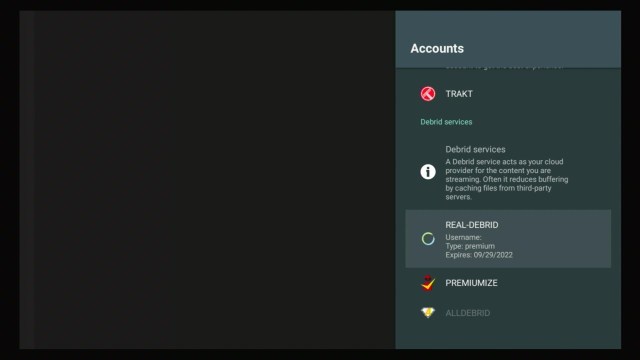
Install Weyd APK RD 7


Trakt TV Integration

1. Open Weyd on your Firestick.

Install Weyd APK 1


2. Select Settings.

Install Weyd APK 2


3. Choose Accounts.

Install Weyd APK RD 1


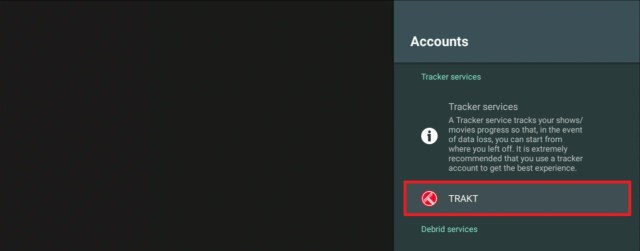
4. Select Trakt.

Install Weyd APK Trakt 1


5. Take note of the given code.

Install Weyd APK Trakt 2


6. Open a browser on another device and go to https://trakt.tv/activate

Install Weyd APK Trakt 3


7. Type in the code.

Install Weyd APK Trakt 4


8. Click on Continue.

Install Weyd APK Trakt 5


9. Grant Weyd access by clicking on Yes.

Install Weyd APK Trakt 6


10. This notification will appear when you have integrated successfully.


11. Once this notification appears on your screen, click on OK.

Install Weyd APK Trakt 8


12. You will see that Trakt has been signed in.

Install Weyd APK Trakt 9


Interface

The app is very easy to use. Navigating through it is very simple. You will not need the aid of an external app called Mouse Toggle to browse through content.


Content

As far as selections are concerned, Weyd provides the latest movies and TV Show episodes.

You can binge-watch numerous movies and TV Shows using the app.


Weyd Apk Paid Subscriptions

  • 3 Months – $5.00 – 5 devices
  • 6 months – $9.00 – 5 devices
  • 12 months – $15.00 – 5 devices


Pros and Cons

Pros

  • HD Streaming Links.
  • Little to no buffering whatsoever.
  • Subtitle Support and Closed Captioning.
  • Cloud Support (ideal for devices with huge memory capacity)
  • Regularly Updated
  • Auto-Play Next Episode for TV Shows.
  • Customizable streaming link options.
  • Grants users the ability to autoplay videos once there are 10 links available.
  • Compatible with premium link generators such as Real-Debrid, Premiumize, and All Debrid.
  • Ad-Free


Cons

  • Not free anymore
  • Subscription-based
  • Account limited to a number of devices depending on your subscription
  • The default audio for movies is not in English. You have to manually change it.
  • Non-Real-Debrid links are not working.


Stream Safely with a VPN

Surfshark vpn

The biggest hindrance when it comes to streaming (most especially in the US) is getting noticed by your ISP.

You see, streaming is a type of online activity that utilizes a huge amount of data. Once your ISP sees this, it will do everything in its power to disrupt your connection which leads to buffering and lags.

To prevent this from happening you will need to activate a VPN and here at Reviewvpn, we always recommend the best and that is SurfShark.

Aside from cloaking your online activities, here are the other advantages of subscribing to it:

  • Access to location-restricted content. This is handy when you want to stream content from other countries on paid streaming services like Netflix, Hulu, Amazon Prime, etc.
  • Re-routes your IP Address to another location so that nothing can be traced back to you.
  • Download through torrent sites without worrying about getting caught.
  • Provides safety and security when using public wifi connections that make your device susceptible to scams.
  • The ultimate solution to Firestick Buffering and Kodi Buffering too.

Note: For more information about SurfShark, please read our SurfShark REVIEW.


Grab your subscription now!


How to Install Surfshark on Firestick with Screenshots

If your Firestick still has the older interface, read this article to learn how to update it: Update Firestick Interface.

You can download Surfshark directly from the Amazon App store. It will be easy for you to find Surfshark with your Firestick’s Find feature. Refer to our screenshots below.

Follow our screenshots below to install the SurfShark VPN app on your Fire TV stick.

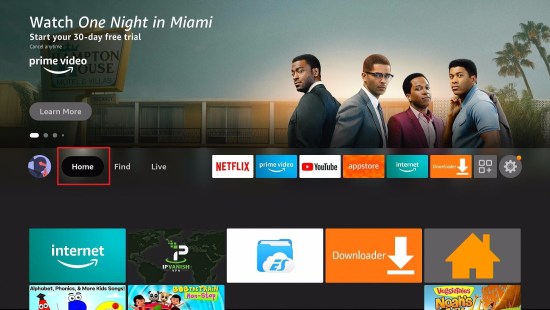
1. Go to the Home screen of your Firestick.

step 1 Install Surfshark VPN on Firestick


2. Navigate towards the Find tab. Press the Search button from the resulting dropdown.

step 2 Install Surfshark VPN on Firestick


3. Type in the keyword of SurfShark and select from the suggestions that will appear.

step 3 Install Surfshark VPN on Firestick


4. Click the official SurfShark icon from your search results.

step 4 Install Surfshark VPN on Firestick


5. Press the Download (You own it) button.

step 5 Install Surfshark VPN on Firestick


6. The SurfShark VPN installer will download on your device.

step 6 Install Surfshark VPN on Firestick


7. SurfShark VPN’s app will automatically install itself on your Fire TV stick.

step 7 Install Surfshark VPN on Firestick


8. Press the Open button after completing SurfShark VPN’s installation process.

step 8 Install Surfshark VPN on Firestick


9. Please wait for the SurfShark VPN to load its user interface.

step 9 Install Surfshark VPN on Firestick


10. You can now log in with your SurfShark VPN account credentials.

step 10 Install Surfshark VPN on Firestick

Learn more about Surfshark and Grab the Best Surfshark Deal Now!


Install Surfshark on Firestick

Best Surfshark Deal

Other VPNs to Consider

NordVPN (Best for Streaming)

Best Features

  • 5000+ Server in 50+ Countries 
  • Military-Grade Encryption
  • Fast Connection Speed
  • Suitable to a lot of devices
  • No-Log Policy

Prices
  • Complete $5.89 per month (64% Discount)
  • Plus $4.59 per month (56% Discount)
  • Standard $3.69 per month (55% Discount)

Best Features

  • 750+ High-speed VPN Servers in 43 Locations
  • Military-Grade Encryption
  • Fastest HD Streaming and Gaming
  • 30-Day Money-Back Guarantee
  • Unlimited Data & Devices
  • No-Log Policy

Prices
  • 3 Years $1.99 per month (82% Discount)
  • 1 Years $3.29 per month (70% Discount)
  • 1 Month $10.99 per month

IPVanish VPN (Most Secure)

Best Features

  • 1200+ Servers in 60+ Countries around the world
  • Unlimited Connections
  • No-Log Policy
  • Top Notch Military-Grade VPN Protocols and Encryptions
  • 100% Safe and Secured
  • Most Trusted VPN
  • Best VPN for Firestick
  • 30-Day Money-Back Guarantee

Prices
  • Yearly $3.99 per month (63% Discount) – 30 days risk free + Ransomware & Malware Protection
  • Quarterly $5.32 per month (51% Discount)
  • Monthly $10.99 per month

For more VPN discounts, go to ReviewVPN Deals and purchase the best VPN for you.


FAQs

Is Weyd APK safe to download?

It is 100% safe to install Weyd APK on any type of device. That includes Firestick, smartphones, and even tablets.


Is it legal?

Yes. It is legal to install Weyd APK on Firestick and other devices.


Is it free?

Weyd APK offers a 7-day free trial but it is now a paid subscription platform.


Are there ADS?

It is Ad-Free. You no longer need to use an ad-blocking app like Ad-Guard.


Is there a premium version?

Currently, there is no premium version. But there is chatter that in the future it will become a paid streaming service. We will let you know once that happens.


Is there an official website?

Go to https://weyd.app/ for more details regarding the app.


What other devices does it work on?

 As we have stated earlier, Weyd works well with other android-based streaming devices.


How does the app work?

Just like other streaming apps, Weyd scrapes the web for working links and sets it up so that users can watch content.


Minimum Version Required

At least version 5.0 and above is required.


Alternatives

If and when Weyd becomes a paid streaming service, we have a good set of alternative apps that you can use. They are as follows:

You can also check out the Best Free Movie Streaming Websites and Top Free TV Show Websites if you wish to go directly to where streaming links are being populated.


Our Opinion

We mentioned earlier that there are certain English films that are automatically set to different audio. You can fix this by clicking on the musical note on the player and setting it to English.

Aside from that minor setback, Weyd is a very solid app to use for streaming. We highly recommend it.

Please be sure to try it out and see what we are talking about.


Final Thoughts

We wish that this article provides the necessary guide and information on how to install Weyd APK on your Firestick and other devices. Thank you for reading! Happy new year!


Note: ReviewVPN.com does not own or operate any app nor does it endorse any. The main purpose of this article is strictly for educational purposes only.


Must Reads!

Best Firestick Apps

Top Unlinked Codes

Free Movie Streaming Websites

Best TV Show Websites

Best Adult Apps for Firestick

Top Live TV Apps

Install Swift Streamz on Firestick

Best Kissanime.RU Alternatives 


What Is Your Favorite Streaming App? Cast Your Vote Below.

How to Install rAven Kodi Build

How to Install rAven Kodi Build


RaVen is a build developed by Dre4Ever and Funsterbe.

This is a new build with so much free entertainment content. Currently, the rAven build is running on version 2.4 and it’s within the Funstersplace repository.

This build works so well on low memory devices like firestick and fire TV (it is approximately 280 MB).

It has a user-friendly interface with rAven skin and theme and offers you the following sections; add-ons, movies, tv shows, horror-sci-fi, the Crew, Death Star, documentaries, music, live tv, and more.


ANONYMOUSLY


Installation Guide of rAven Kodi Build

1. Launch the Kodi app on your Firestick. Click on the gear wheel icon (Settings)

rAven Kodi Build


2. Select “System

rAven Kodi Build

3. Scroll down to “Add-ons” Then Go to “Unknown sources” then toggle it on.

rAven Kodi Build


4. Select “Yes”. Then using your Firestick remote, press the return button to go back to the System page

rAven Kodi Build


5. Now choose “File Manager

rAven Kodi Build


6. Scroll down and select “Add source

rAven Kodi Build


7. Click “<None>

rAven Kodi Build


8. Type the media source URL: https://funstersplace.net/funs and click OK.

rAven Kodi Build


9. Highlight the box under the source to give the media source a name, and put “raven” or any other name that will help you identify it quickly. Click “OK”. Return to the System page by pressing the return button on your remote.

rAven Kodi Build


10. Select “Add-ons

rAven Kodi Build


11. Choose “Install from zip file

rAven Kodi Build


12. Click “Yes

rAven Kodi Build


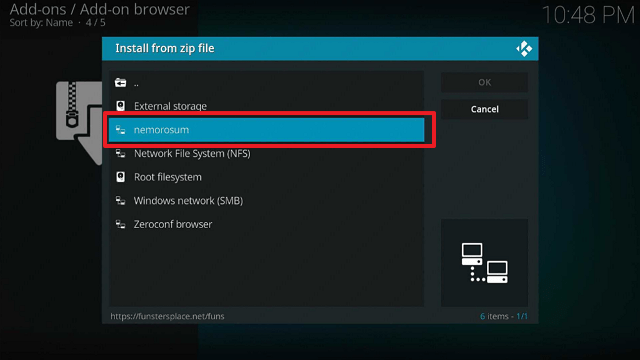
13. Click on Nemorosum 

rAven Kodi Build


14. Click repository.funstersplace-1.0.zip

rAven Kodi Build


15. Wait for the “Funstersplace add-on installed” notification 

rAven Kodi Build


16. Select Install from the repository

rAven Kodi Build


17. Click Funstersplace Repository 

rAven Kodi Build


18. Select program add-ons

rAven Kodi Build


19. Select THE BOYS WIZARD.

rAven Kodi Build


20. Click install.

rAven Kodi Build


21. Wait for THE BOYS WIZARD Add-On installed notification. 

rAven Kodi Build


22. Select “Remind me later”.

rAven Kodi Build


23. Click Continue.

rAven Kodi Build


24. Tap to Ignore.

rAven Kodi Build


25. Click once again THE BOYS WIZARD then click Open.

rAven Kodi Build


26. Click Builds

rAven Kodi Build


27. Scroll down until you reach for rAven. Then click the right button and click fresh install.

rAven Kodi Build


28. Click Yes

rAven Kodi Build


29. Click Yes Install.

rAven Kodi Build


30. Click OK tp forced close Kodi.

rAven Kodi Build


31. Relaunch Kodi.

rAven Kodi Build


32. That’s it, rAven Kodi Build is now successfully installed on your Firestick. Enjoy watching!

rAven Kodi Build


YOUR INTERNET ACTIVITY IS BEING WATCHED

ReviewVPN cannot attest to the legality, security and privacy of the applications discussed on this site. It is highly recommended that you use a VPN service while streaming or using Kodi.

Currently, your IP 216.73.216.144 is visible to everyone and your Browser is being tracked by Advertisers & ISP Provider.

Save 65% Now

Limited Time Offer

Here are the main reasons why you must use a VPN:

  • Your activities are hidden from your ISP, the government, and from the apps you are using.
  • You can access additional movies and TV streams.
  • ISP attempts to throttle are thrwarted thus reducing buffering issues.
  • Geographically restricted content like Netflix and Hulu can be unblocked.

A VPN works be replacing your ISP-assigned IP address and creating an encrypted tunnel. We recommend the no log service offered by IPVanish. It works well on a Firestick and offers the fastest possible speeds.

Special Limited Time Offer - Get IPVanish

Legal Disclaimer: ReviewVPN.com does not encourage or endorse any illegal activity involved in the usage of services and applications referenced on this site. We do not verify the licensing agreements of services. The end-user is wholly responsible for ensuring that any media accessed through these services does not violate copyright and/or licensing laws. ReviewVPN does not promote, link to, or receive compensation from any Apps and IPTV services.


Install Surfshark on Firestick

Best Surfshark Deal


Features of rAven Kodi Build

  • Regular build update
  • User-friendly interface with a standard layout.
  • Customizable skins and themes
  • Delivers videos of High Definition quality.
  • Scrapes streaming links from different sources.
  • Approximately 280 Mb making compatible with low memory devices 
  • Such as firestick and fire tv devices.
  • Well organized sections
  • Intelligent search bar and option.


How to Integrate Real Debrid

Step 1. Click here to create a Real Debrid account.

Step 2. Now Launch rAven build and click on any section that needs RD integration.

Step 3. Click on Authorize RD.

Step 4. Now, copy the code that will appear on your screen 

Step 5. Open your browser and enter https://real-debrid.com/device

Step 6. Enter the code you received in step 4 and click Continue


How to Set up Trakt TV

Step 1. Create a Trakt account here

Step 2. Launch rAven build

Step 3. Open any section you want to access and when prompted, copy the code that will appear on your screen.

Step 4. Next, open your browser and go to https://Trakt.tv/activate

Step 5. Enter the code you have and select Go


Addons within rAven Kodi Build

  • Number
  • Death Star
  • Marauder
  • Shadow
  • Ghost


Pros and Cons

Pros

  • Amazing UI
  • Customizable and unavailable Interface
  • The videos load fast and play in HD quality.

Cons

No issues with this build.


What is Kodi?

Kodi is an open-source media software that allows you to access and stream free entertainment in various categories and subcategories. With kodi, you can access and stream movies, anime, cartoons, documentaries, live events, and more. This software, however, helps you to save money spent on cable TV subscriptions. 

Kodi is compatible with all hardware platforms and operating systems such as Raspberry Pi, computers (Mac OS and Windows), smartphones (Android and iOS), remote control devices: firesticks, fire TV, tablets, and many more.


What is a Kodi Build?

A Kodi build is a pre-canned packaged set file from which systems, settings, tools, addons, and entertainment files are accessed after installation.

Best alternative build

No Kodi build lasts forever. At some point, a working Kodi build will stop working and as such, having an alternative build is recommended. Click here to see the list of our best alternative build 2021.


Frequently Asked Questions

Is it legal and safe to use the rAven Kodi Build?

Installing and streaming with this build is legal and safe. Although it is within a third-party repository, this build does not contain any harmful content or viruses. However, I recommend this build with a VPN for privacy and security reasons.


Is it free to use rAven Kodi Build?

You do not have to pay to use this build. Installing and streaming with this build is safe. All you need is a reliable and fast internet connection.


Can I install rAven Kodi Build on my Firestick and Fire TV Devices?

Yes. You can install this build on any device that supports Kodi such as firestick, fire TV, computer, smartphones, Raspberry Pi, Chromecast, tablets, and more.


Do I need a VPN to use the rAven Kodi Build?

Yes. I recommend using this build with a VPN like IP vanish VPN for security and privacy reasons.

A VPN is software that hides your online presence using masking and encryption. Benefits of using a vpn include;

  • Privacy, security, and anonymity
  • Bypass geolocation and stream from anywhere
  • Minimize throttling


Install Surfshark on Firestick

Best Surfshark Deal


How to Install Surfshark VPN on Firestick

If your Firestick still has the older interface, read this article to learn how to update it: Update Firestick Interface.

Follow our screenshots below to install the SurfShark VPN app on your Fire TV stick.

1. Go to the Home screen of your Firestick.

step 1 Install Surfshark VPN on Firestick


2. Navigate towards the Find tab. Press the Search button from the resulting dropdown.

step 2 Install Surfshark VPN on Firestick


3. Type in the keyword of SurfShark and select from the suggestions that will appear.

step 3 Install Surfshark VPN on Firestick


4. Click the official SurfShark icon from your search results.

step 4 Install Surfshark VPN on Firestick


5. Press the Download (You own it) button.

step 5 Install Surfshark VPN on Firestick


6. The SurfShark VPN installer will download on your device.

step 6 Install Surfshark VPN on Firestick


7. SurfShark VPN’s app will automatically install itself on your Fire TV stick.

step 7 Install Surfshark VPN on Firestick


8. Press the Open button after completing SurfShark VPN’s installation process.

step 8 Install Surfshark VPN on Firestick


9. Please wait for the SurfShark VPN to load its user interface.

step 9 Install Surfshark VPN on Firestick


10. You can now log in with your SurfShark VPN account credentials.

step 10 Install Surfshark VPN on Firestick

Learn more about Surfshark and Grab the Best Surfshark Deal Now!


Install Surfshark on Firestick

Best Surfshark Deal


Other VPNs to Consider

NordVPN (Best for Streaming)

Best Features

  • 5000+ Server in 50+ Countries 
  • Military-Grade Encryption
  • Fast Connection Speed
  • Suitable to a lot of devices
  • No-Log Policy

Prices
  • Complete $5.89 per month (64% Discount)
  • Plus $4.59 per month (56% Discount)
  • Standard $3.69 per month (55% Discount)

Best Features

  • 750+ High-speed VPN Servers in 43 Locations
  • Military-Grade Encryption
  • Fastest HD Streaming and Gaming
  • 30-Day Money-Back Guarantee
  • Unlimited Data & Devices
  • No-Log Policy

Prices
  • 3 Years $1.99 per month (82% Discount)
  • 1 Years $3.29 per month (70% Discount)
  • 1 Month $10.99 per month

IPVanish VPN (Most Secure)

Best Features

  • 1200+ Servers in 60+ Countries around the world
  • Unlimited Connections
  • No-Log Policy
  • Top Notch Military-Grade VPN Protocols and Encryptions
  • 100% Safe and Secured
  • Most Trusted VPN
  • Best VPN for Firestick
  • 30-Day Money-Back Guarantee

Prices
  • Yearly $3.99 per month (63% Discount) – 30 days risk free + Ransomware & Malware Protection
  • Quarterly $5.32 per month (51% Discount)
  • Monthly $10.99 per month


For more VPN discounts, go to ReviewVPN Deals and purchase the best VPN for you.

Click here to get the lowest price on Surfshark through our exclusive limited-time offer.


Conclusion

I believe this article has given you detailed information about the rAven Kodi build. This is a feature-rich build with a huge database of movies and tv shows in different categories and subcategories. What are you still waiting for? Install rAven Kodi build and share your thoughts in the comment section.

How to Install Nemorosum Kodi Build

Install Nemorosum Kodi Build


In this tutorial, I will teach you how to install the Nemorosum build.

The Nemorosum build was developed by joint efforts of Drea4Evera and Funsterbe. This is a lightweight build with approximately 170 Mb and currently runs on version 1.7. 

This build comes with scary NemorosuM skin and theme and is within the Funstersplace Repository. Nemorosum Kodi build has the following sections: TV shows, Real Debrid, documentaries, music, sports, fav, add-ons, power, system, and movies.


ANONYMOUSLY


Installation Guide of Neromosum Kodi Build

1. Launch the Kodi app on your Firestick. Click on the gear wheel icon (Settings)

Nemorosum Kodi Build


2. Select “System

Nemorosum Kodi Build

3. Scroll down to “Add-ons” Then Go to “Unknown sources” then toggle it on.

Nemorosum Kodi Build


4. Select “Yes”. Then using your Firestick remote, press the return button to go back to the System page

Nemorosum Kodi Build


5. Now choose “File Manager

Nemorosum Kodi Build


6. Scroll down and select “Add source

Nemorosum Kodi Build


7. Click “<None>

Nemorosum Kodi Build


8. Type the media source URL: https://funstersplace.net/funs and click OK.

Nemorosum Kodi Build


9. Highlight the box under the source to give the media source a name, and put “nemorosum” or any other name that will help you identify it quickly. Click “OK”. Return to the System page by pressing the return button on your remote

Nemorosum Kodi Build


10. Select “Add-ons

Nemorosum Kodi Build


11. Choose “Install from zip file

Nemorosum Kodi Build


12. Click “Yes

Nemorosum Kodi Build


13. Click on Nemorosum 

Nemorosum Kodi Build


14. Click repository.funstersplace-1.0.zip

Nemorosum Kodi Build


15. Wait for the “Funstersplace add-on installed” notification 

Nemorosum Kodi Build


16. Select Install from the repository

Nemorosum Kodi Build


17. Click Funstersplace Repository 

Nemorosum Kodi Build


18. Select program add-ons

Nemorosum Kodi Build


19. Select THE BOYS WIZARD.

Nemorosum Kodi Build


20. Click install.

Nemorosum Kodi Build


21. Wait for THE BOYS WIZARD Add-On installed notification. 

Nemorosum Kodi Build


22. Select “Remind me later”.

Nemorosum Kodi Build


23. Click Continue.

Nemorosum Kodi Build


24. Tap to Ignore.

Nemorosum Kodi Build


25. Click once again THE BOYS WIZARD then click Open.

Nemorosum Kodi Build


26. Click Builds

Nemorosum Kodi Build


27. Scroll down until you reach for nemorosum. Then click the right button and click fresh install.

Nemorosum Kodi Build


28. Click Yes

Nemorosum Kodi Build


29. Click Yes Install.

Nemorosum Kodi Build


30. Click OK tp forced close Kodi.

Nemorosum Kodi Build


31. Relaunch Kodi.

Nemorosum Kodi Build


32. That’s it, Nemorosum Kodi Build is now successfully installed on your Firestick

Nemorosum Kodi Build


YOUR INTERNET ACTIVITY IS BEING WATCHED

ReviewVPN cannot attest to the legality, security and privacy of the applications discussed on this site. It is highly recommended that you use a VPN service while streaming or using Kodi.

Currently, your IP 216.73.216.144 is visible to everyone and your Browser is being tracked by Advertisers & ISP Provider.

Save 65% Now

Limited Time Offer

Here are the main reasons why you must use a VPN:

  • Your activities are hidden from your ISP, the government, and from the apps you are using.
  • You can access additional movies and TV streams.
  • ISP attempts to throttle are thrwarted thus reducing buffering issues.
  • Geographically restricted content like Netflix and Hulu can be unblocked.

A VPN works be replacing your ISP-assigned IP address and creating an encrypted tunnel. We recommend the no log service offered by IPVanish. It works well on a Firestick and offers the fastest possible speeds.

Special Limited Time Offer - Get IPVanish

Legal Disclaimer: ReviewVPN.com does not encourage or endorse any illegal activity involved in the usage of services and applications referenced on this site. We do not verify the licensing agreements of services. The end-user is wholly responsible for ensuring that any media accessed through these services does not violate copyright and/or licensing laws. ReviewVPN does not promote, link to, or receive compensation from any Apps and IPTV services.


Install Surfshark on Firestick

Best Surfshark Deal


Features of Nemorosum Kodi Build

  • Provides multiple streaming links from different sources.
  • Well-arranged interface (all sections are arranged and organized accordingly).
  • Has meta description for movies
  • Lightweight: approximately 170 Mb making it compatible with low memory devices such as firestick, fire tv, and lots more.
  • Easy to customize themes and skins
  • User-friendly interface.
  • Huge collection of movies, tv shows, sports, live IPTV, and more.


How to Integrate Real Debrid

Step 1. Click here to create a Real Debrid account.

Step 2. Now Launch Nemorosum build and select Real Debrid

Step 3. Next, choose any of the options that will appear.

Step 4. Now, copy the code that will appear on your screen 

Step 5. Open your browser and enter https://real-debrid.com/device

Step 6. Enter the code you received in step 4 and click Continue


Pros and Cons

Pros

  • Nice UI
  • Customizable interface: skin and theme
  • Regular build update.

Cons

  • Everything about this build is working well.


What is Kodi?

Nowadays, you can still watch your favorite tv shows, movies, kids’ shows, anime, cartoons, and lots more even after cutting cords. Yes, you heard me right, you don’t have to spend a huge amount of money on a cable tv subscription while you can install Kodi and stream all kinds of content free of charge.

Kodi has been in existence since 2002. At the time of its first launching, this software was known as the Xbox media player. However, in 2003, the name was changed to Xbox media center until 2014 when Xbox Media Center (XBMC) Foundation, a nonprofit technology consortium took over the affairs of this software. Currently, this software is running on version 18.9 Leia and is Known now as Kodi.

With Kodi, you can access a huge database of entertainment such as movies, anime, kids’ shows, cartoons, music, live and pre-recorded news, and lots more. You can install this software on Raspberry Pi, computers, smartphones, tablets, firesticks, fire TV, and more.

However. Kodi as a standalone app does not offer much content. You need to install add-ons or build from a third-party repository. 

In summary, a Kodi build comes with many add-ons, features, settings, and lots more after installation. As well, you can access and stream free movies and lots more with a build.


Addons within Nemorosum Kodi Build

  • The Crew
  • Marauder
  • Chains sinister
  • Rising Tides


Frequently Asked Questions

Should I use Nemorosum Kodi with a VPN?

Yes. I recommend using this build with a VPN like Surfshark


How do I install Nemorosum Kodi Build on my Firestick and Fire TV Devices?

The installation guide in this article will guide you on how to install this build. You need to install Kodi on your firestick device and then follow the steps on this article to install this build.


Is it safe and legal to use Nemorosum Kodi Build?

It is safe to install and stream with this build. After installing this build, I found no hidden links, files, or content within this build. Also, all the contents are free from viruses. Even though Nemorosum is a third-party build, it is legal to use this build. That said, I recommend using this build with a VPN.


Is it free to use Nemorosum Kodi Build?

It is entirely free to install and stream with this build. All you need is just a fast and strong internet connection.


Why should you use Kodi with a VPN?

A VPN (a virtual private network) is software that encrypts and masks your IP address. The sole aim of using a VPN with Kodi is to protect you while you are streaming with Kodi.

The benefits of using a VPN can not be overemphasized. Below are the reasons why you need to use Kodi with VPN:


Bypass Geolocation

Installing a VPN as Surfshark offers you over 5,300 servers in 62 worldwide locations; this will allow you to switch your IP address to a different one and as such by location restriction and stream from anywhere around the world.


Security

Each time you access the Internet or stream movies online, your internet service provider collects and monitors your online data. That is why when you often receive unsolicited Ads; it’s because your ISP network shares your data with third parties. However, using a VPN will encrypt and keep your IP address and identity hidden on the ISP network.


Best Alternative Builds

Even though Nemorosum is an amazing build, no one knows when it will stop working. Consequently, having alternative builds is recommended. Check out our best alternative Kodi build for 2021 here.


Install Surfshark on Firestick

Best Surfshark Deal


How to Install Surfshark VPN on Firestick

If your Firestick still has the older interface, read this article to learn how to update it: Update Firestick Interface.

Follow our screenshots below to install the SurfShark VPN app on your Fire TV stick.

1. Go to the Home screen of your Firestick.

step 1 Install Surfshark VPN on Firestick


2. Navigate towards the Find tab. Press the Search button from the resulting dropdown.

step 2 Install Surfshark VPN on Firestick


3. Type in the keyword of SurfShark and select from the suggestions that will appear.

step 3 Install Surfshark VPN on Firestick


4. Click the official SurfShark icon from your search results.

step 4 Install Surfshark VPN on Firestick


5. Press the Download (You own it) button.

step 5 Install Surfshark VPN on Firestick


6. The SurfShark VPN installer will download on your device.

step 6 Install Surfshark VPN on Firestick


7. SurfShark VPN’s app will automatically install itself on your Fire TV stick.

step 7 Install Surfshark VPN on Firestick


8. Press the Open button after completing SurfShark VPN’s installation process.

step 8 Install Surfshark VPN on Firestick


9. Please wait for the SurfShark VPN to load its user interface.

step 9 Install Surfshark VPN on Firestick


10. You can now log in with your SurfShark VPN account credentials.

step 10 Install Surfshark VPN on Firestick

Learn more about Surfshark and Grab the Best Surfshark Deal Now!


Install Surfshark on Firestick

Best Surfshark Deal


Other VPNs to Consider

NordVPN (Best for Streaming)

Best Features

  • 5000+ Server in 50+ Countries 
  • Military-Grade Encryption
  • Fast Connection Speed
  • Suitable to a lot of devices
  • No-Log Policy

Prices
  • Complete $5.89 per month (64% Discount)
  • Plus $4.59 per month (56% Discount)
  • Standard $3.69 per month (55% Discount)

Best Features

  • 750+ High-speed VPN Servers in 43 Locations
  • Military-Grade Encryption
  • Fastest HD Streaming and Gaming
  • 30-Day Money-Back Guarantee
  • Unlimited Data & Devices
  • No-Log Policy

Prices
  • 3 Years $1.99 per month (82% Discount)
  • 1 Years $3.29 per month (70% Discount)
  • 1 Month $10.99 per month

IPVanish VPN (Most Secure)

Best Features

  • 1200+ Servers in 60+ Countries around the world
  • Unlimited Connections
  • No-Log Policy
  • Top Notch Military-Grade VPN Protocols and Encryptions
  • 100% Safe and Secured
  • Most Trusted VPN
  • Best VPN for Firestick
  • 30-Day Money-Back Guarantee

Prices
  • Yearly $3.99 per month (63% Discount) – 30 days risk free + Ransomware & Malware Protection
  • Quarterly $5.32 per month (51% Discount)
  • Monthly $10.99 per month


For more VPN discounts, go to ReviewVPN Deals and purchase the best VPN for you.


Conclusion

Install Nemorosum Kodi for nonstop streaming of free movies, tv shows, sports, and more. This build has user-friendly and comes with amazing features. I recommend you check out this build and share your thoughts.

8 Best Cinema HD Alternatives for Firestick and Android

Cinema HD Alternatives

This article aims to provide its readers with the best Cinema HD Alternatives for Firestick and Android.

Cinema HD is one of the best free movie streaming apps for Firestick and Android. It is still working at the moment but is not available for download. It is just a matter of time to declare that Cinema HD is 100% not working anymore.

Since this is the case for Cinema HD, we decided to list down the best Cinema HD alternatives that you can also use for streaming. All of these apps are applicable for Firestick and Android TV. Like Cinema HD, these are third-party applications. You need to Jailbreak your Firestick first and use the Downloader app to install each one of them.

In streaming with third-party apps like the best Cinema HD alternatives, we suggest using a VPN. This will protect you from trackers while streaming on different links from unknown sources on the internet. We will discuss more of this later in this article.

ANONYMOUSLY


Why are Cinema HD Alternatives Important?

It is imperative to always have a decent list of alternatives whenever our go-to streaming app malfunctions. Looking for the right ones is a task we took upon ourselves to make everything easier for our dear readers. We have tested several apps and websites and came to this compilation of Top Cinema HD Alternatives.


How to Jailbreak Firestick and Install The Downloader App

This part is essential with all the best Titanium TV alternatives because you use this process to install all of them.


1.  Click Home on your remote and scroll once to your Right. Click Setting (Gear Wheel Icon)

Titanium TV alternatives


2. Scroll down and to the right until you get to My Fire TV. Click on it.

Titanium TV alternatives


3. Select Developer options.

Titanium TV alternatives


4. Turn on ADB debugging and Apps from Unknown Sources.

Titanium TV alternatives


5. Click Turn On when the pop-up appears.

Titanium TV alternatives


6.  Go back to the Home page and click FIND.

Titanium TV alternatives


7. Click Search.

Titanium TV alternatives


8. Search for the Downloader app.

Titanium TV alternatives


9. Click on the Downloader icon

Titanium TV alternatives


10. Click Download

Titanium TV alternatives


11. Click on Open.

Titanium TV alternatives


12. Click on Allow.

Titanium TV alternatives


10 Best Cinema HD Alternatives

All of these apps are free to install on your Firestick and Android devices. Follow the link below to know how to jailbreak your Firestick and use the Downloader app to install the best Cinema HD alternatives.

Kodi

Kodi

Kodi is the most popular streaming platform today. It is applicable to many devices like Firestick, Android, and Windows. Different Kodi addons provide great content to stream. Most of them work like Cinema HD which provides links from unknown sources on the internet.

Kodi is an open-source app that also offers Music, Sports, Live TV, photo streaming, and more.

Best Kodi Addons

Best Kodi Builds

Learn how you can Install Kodi on Firestick.

1. Install the Downloader app and jailbreak your firestick by enabling unknown sources. To learn more about the procedure, you may read How to Install the Downloader App and Enable Unknown Sources.


2. Open the Downloader App. Type https://kodi.tv/download and click Go.

 Install Kodi


3. Scroll down the screen and select the Android icon once. Be patient because it might take it 30 seconds or so to load the next screen

 Install Kodi 1


4. Click on the 32-bit ARM version in the middle between Google Play and 64-bit ARM

 Install Kodi 2


5. The download should start (if it doesn’t, kick the screen a few times for good measure)

 Install Kodi 3


6. Click INSTALL.

 Install Kodi 4


7. After the Kodi App is installed, click OPEN (note, you will want to delete the APK in Downloader. You can do that at any point by going to Files and holding down on the APK file.)

 Install Kodi 5


8. Click Continue. 

 Install Kodi 6


9. Click Allow allowing Kodi to access files on your device.

 Install Kodi 7


10. Your new Kodi installed on your firestick should now load. Enjoy!

 Install Kodi 8


TeaTV

Tea TV Logo

TeaTV works very similarly to Cinema HD. This is why it has a spot when we say the best Cinema HD alternatives It works by providing links to stream free movies and TV shows.

As of the moment TeaTV is being sued by ACE. If it is not working, make sure to read the best TeaTV Alternatives.


How to Install TeaTV on Firestick

1. Install the Downloader app and jailbreak your firestick by enabling unknown sources. To learn more about the procedure, you may read How to Install the Downloader App and Enable Unknown Sources.


2.Open Downloader App. Type https://reviewvpn.com/tea and click Go.

TeaTV


3. TeaTV will start to download onto your Firestick!

teatv downloading on firestick step 12


4. Click on Install to start the installation process

installing teatv on a firestick step 13


5. Click on Open to open TeaTV on your Firestick

open teatv on a firestick step 14


6. Select your preferred language for subtitles on TeaTV

select you preferred language in teatv step 17


7. TeaTV installed on a Firestick!

teatv installed on a firestick step 17


ZiniTevi

ZiniTevi is fairly new to the scene but has grown in popularity since its launch. It gives users the same quality and quantity of content that a lot of people enjoy. This is why we include it as one of the best Cinema HD alternatives.

Features:

  • One-Click Play
  • High Definition Videos
  • Fast and Speedy Loading and Playing Time
  • Simple UI
  • Downloadable videos for Android users
  • Favorites allow users to bookmark videos
  • Pick up where you left off with Trak TV
  • No need to use Ad Guard because it is Ad-Free

How to Install ZiniTevi on Firestick

1. Install the Downloader app and jailbreak your firestick by enabling unknown sources. To learn more about the procedure, you may read How to Install the Downloader App and Enable Unknown Sources.


2. Open Downloader App. Type https://reviewvpn.com/zin and click Go.

install Top Cinema HD


3. Click Install.

Step 13 Install Zini Tevi on Firestick


4. Click Open.

Step 14 Install Zini Tevi on Firestick


5. ZiniTevi is installed. Enjoy Watching!

Step Install Zini Tevi on Firestick


Nova TV

Nova-TV-apk-mod-android

Nova TV has always been there when it comes to great apps for movies and TV series. Some say that it has similar features to Netflix. What’s amazing about it is that Nova TV also offers live TV. Nova TV is one of the best Cinema HD alternatives because of similar quality and features they provide

You can easily find the title you want to stream while using this app.

How to Install Nova TV on Firestick

1. Install the Downloader app and jailbreak your firestick by enabling unknown sources. To learn more about the procedure, you may read How to Install the Downloader App and Enable Unknown Sources.


2. Type https//reviewvpn.com/nova and click Go. (Note: ReviewVPN.com does not host this APK file)

Install Nova TV


3. Click Install.

Step 13 Install Nova TV on Firestick


4. Click Open.

Step 14 Install Nova TV on Firestick


5. Click Allow

Step 15 Install Nova TV on Firestick


6. Choose Default Player

Step 16 Install Nova TV on Firestick


7. Choose a Language

Step 17 Install Nova TV on Firestick


8. Enjoy Nova TV

Step 18 Install Nova TV on Firestick


FilmPlus

filmplus logo

FilmPlus is one of the best Cinema HD alternatives that offers content not only in English, but also in other languages also like Spanish, and Indian.

This app houses a wide variety of titles to stream on your device. It is also compatible with any Android device like mobile phones, and tablets.

How to Install FilmPlus on Firestick

1. Install the Downloader app and jailbreak your firestick by enabling unknown sources. To learn more about the procedure, you may read How to Install the Downloader App and Enable Unknown Sources.


2. Open Downloader. Type https://reviewvpn.com/film and click GO.


3. Click Install.


4. Click Open.


5. Select Allow


6. Click on Update


7. Wait for the Update to Finish


8. Select Install


9. Enjoy streaming with FilmPlus APK.


YOUR INTERNET ACTIVITY IS BEING WATCHED

ReviewVPN cannot attest to the legality, security and privacy of the applications discussed on this site. It is highly recommended that you use a VPN service while streaming or using Kodi.

Currently, your IP 216.73.216.144 is visible to everyone and your Browser is being tracked by Advertisers & ISP Provider.

Save 65% Now

Limited Time Offer

Here are the main reasons why you must use a VPN:

  • Your activities are hidden from your ISP, the government, and from the apps you are using.
  • You can access additional movies and TV streams.
  • ISP attempts to throttle are thrwarted thus reducing buffering issues.
  • Geographically restricted content like Netflix and Hulu can be unblocked.

A VPN works be replacing your ISP-assigned IP address and creating an encrypted tunnel. We recommend the no log service offered by IPVanish. It works well on a Firestick and offers the fastest possible speeds.

Special Limited Time Offer - Get IPVanish


Legal Disclaimer: ReviewVPN.com does not encourage or endorse any illegal activity involved in the usage of services and applications referenced on this site. We do not verify the licensing agreements of services. The end-user is wholly responsible for ensuring that any media accessed through these services does not violate copyright and/or licensing laws. ReviewVPN does not promote, link to, or receive compensation from any Apps and IPTV services.


Install Surfshark on Firestick

Get the Best Surfshark Deal


Terrarium TV

TerrariumTV-Logo

Terrarium TV is back and it is one of the best Cinema HD alternatives. It became popular for giving us the latest movies and TV shows. Not only that, you can easily find videos on-demand (VOD) to stream for free.

You also don’t have to worry about ads since the Terrarium TV app does not show any. 


How to Install Terrarium TV on Firestick

1. Use your downloader app’s Search Engine bar. 

Install the Terrarium TV app on your Fire TV Stick 13


2. Type in: reviewvpn.com/ter and press the Go button.

Install the Terrarium TV app on your Fire TV Stick 14


3. The installer APK of The Terrarium TV app will download.

Install the Terrarium TV app on your Fire TV Stick 15


4. Click on the Install button.

Install the Terrarium TV app on your Fire TV Stick 16


5. The Terrarium TV app will automatically install on your Fire TV stick.

Install the Terrarium TV app on your Fire TV Stick 17


6. Press the Open button to launch the Terrarium TV app.

Install the Terrarium TV app on your Fire TV Stick 18


7. Tap on the Allow button letting the Terrarium TV app access your media files.

Install the Terrarium TV app on your Fire TV Stick 19


8. Press on the OK button after viewing the app’s Change Log.

Install the Terrarium TV app on your Fire TV Stick 20


9. Choose any titles from the wide library of the Terrarium TV app.

Install the Terrarium TV app on your Fire TV Stick 21


Titanium TV

Titanium Logo

Titanium TV is easily one of the best Cinema HD alternatives. It is also compatible with Android TV box, Android Mobile, Amazon Fire Stick, Smart Amazon Fire TV, Amazon Kindle, Android TV, Nvidia Shield TV, etc. You can stream movies and TV shows on Titanium TV.

The Titanium TV app plays high-quality videos by fetching links. You can also find videos of better quality after linking the app with your Real Debrid account.

Providing us with videos of great quality and having an impressive collection, the Titanium TV app is unique. Also, the app is easy to use and features a user interface similar to Cinema HD.


How to Install Titanium TV on Firestick

1. Open Downloader App. Type https://reviewvpn.com/tit and click the Go button.

Install Titanium TV on Firestick Step 14


2. Press the Install button.

Install Titanium TV on Firestick Step 15


3. Click the Open button.

Install Titanium TV on Firestick Step 16


4. Enjoy Titanium TV!

Install Titanium TV on Firestick Step 17


Bee TV

beetv-app logo

Bee TV is one of the best Cinema HD alternatives since it gives us a wide library of content, such as movies and TV shows. The only problem is BeeTV along with TeaTV is being sued by ACE.

Bee TV has a lot of great features like built-in subtitles, real debris, trakt, and many more. It is applicable to  Android TV box, Android Mobile, Amazon Fire Stick, Smart Amazon Fire TV, Amazon Kindle, Android TV, NVidia Shield TV, etc.


How to Install Bee TV on Firestick 

1. Use your downloader app’s Search Engine bar. 

Install Bee TV on Firestick 13


2. Open Downloader App. Type https://reviewvpn.com/bee and click the Go button.

Install Bee TV on Firestick 14


3. Click the Install button.

Install Bee TV on Firestick 15


4. Press the Open button.

Install Bee TV on Firestick 16


5. Click the Allow button.

Install Bee TV on Firestick 17


6. Enjoy streaming media files with the Bee TV app!

Install Bee TV on Firestick 18


Use a VPN with The Best Cinema HD Alternatives

Surfshark vpn

Third-party streaming apps often require a huge amount of data to operate especially when viewing 4k content. ISPs do not turn a blind eye to this type of online activity. It will always result in throttling that will surely make your streaming experience intolerable. To circumvent this dilemma, you must use a premium VPN service like Surfshark. It will mask all of your online activity and also provide you protection from online threats that are invisible to the naked eye.

Best SurfShark Features

  • Has 3,200+ servers from 100+ locations worldwide
  • Top-notch security features
  • Unblocks all popular streaming platforms like Netflix, and Hulu
  • Connects unlimited devices simultaneously
  • Follows the zero-log policy
  • 30-day money-back guarantee
  • Cloud Storage
  • P2P friendly VPN
  • SOCKS5 Proxy
  • Allows Torrenting
  • Kill Switch
  • Split Tunneling
  • DNS Leak Protection
  • Prevents Firestick Buffering and Kodi Buffering

For more details about this VPN, read our SurfShark review.


Grab your subscription now!

Best Surfshark Deal

Click here to get the lowest price on Surfshark through our exclusive limited-time offer.


How to Install Surfshark VPN on Firestick

If your Firestick still has the older interface, read this article to learn how to update it: Update Firestick Interface.

Follow our screenshots below to install the SurfShark VPN app on your Fire TV stick.

1. Go to the Home screen of your Firestick.

step 1 Install Surfshark VPN on Firestick


2. Navigate toward the Find tab. Press the Search button from the resulting dropdown.

step 2 Install Surfshark VPN on Firestick


3. Type in the keyword of SurfShark and select from the suggestions that will appear.

step 3 Install Surfshark VPN on Firestick


4. Click the official SurfShark icon from your search results.

step 4 Install Surfshark VPN on Firestick


5. Press the Download (You own it) button.

step 5 Install Surfshark VPN on Firestick


6. The SurfShark VPN installer will download on your device.

step 6 Install Surfshark VPN on Firestick


7. SurfShark VPN’s app will automatically install itself on your Fire TV stick.

step 7 Install Surfshark VPN on Firestick


8. Press the Open button after completing SurfShark VPN’s installation process.

step 8 Install Surfshark VPN on Firestick


9. Please wait for the SurfShark VPN to load its user interface.

step 9 Install Surfshark VPN on Firestick


10. You can now log in with your SurfShark VPN account credentials.

step 10 Install Surfshark VPN on Firestick

Learn more about Surfshark and Grab the Best Surfshark Deal Now!


Install Surfshark on Firestick

Best Surfshark Deal


Other VPNs to Consider

NordVPN (Best for Streaming)

Best Features

  • 5000+ Server in 50+ Countries 
  • Military-Grade Encryption
  • Fast Connection Speed
  • Suitable to a lot of devices
  • No-Log Policy

Prices
  • Complete $5.89 per month (64% Discount)
  • Plus $4.59 per month (56% Discount)
  • Standard $3.69 per month (55% Discount)

Best Features

  • 750+ High-speed VPN Servers in 43 Locations
  • Military-Grade Encryption
  • Fastest HD Streaming and Gaming
  • 30-Day Money-Back Guarantee
  • Unlimited Data & Devices
  • No-Log Policy

Prices
  • 3 Years $1.99 per month (82% Discount)
  • 1 Years $3.29 per month (70% Discount)
  • 1 Month $10.99 per month

IPVanish VPN (Most Secure)

Best Features

  • 1200+ Servers in 60+ Countries around the world
  • Unlimited Connections
  • No-Log Policy
  • Top Notch Military-Grade VPN Protocols and Encryptions
  • 100% Safe and Secured
  • Most Trusted VPN
  • Best VPN for Firestick
  • 30-Day Money-Back Guarantee

Prices
  • Yearly $3.99 per month (63% Discount) – 30 days risk free + Ransomware & Malware Protection
  • Quarterly $5.32 per month (51% Discount)
  • Monthly $10.99 per month


For more VPN discounts, go to ReviewVPN Deals and purchase the best VPN for you.

Click here to get the lowest price on Surfshark through our exclusive limited-time offer.


FAQs

Does Cinema HD Still Work?

Yes, the Cinema HD app is still working but it is not available for download. It will come a time when it is completely not working.


Are the Best Cinema HD Alternatives Legal?

ReviewVPn cannot determine the legality of any apps. It is better to use a VPN like Surfshark to protect you from any legal issues.


What are the best Cinema HD Alternatives?

The best Cinema HD alternatives are:

  • Kodi
  • TeaTV
  • ZiniTevi
  • Nova TV
  • FilmPlus
  • Terrarium TV
  • Titanium TV
  • BeeTV


Conclusion

The TV Shows section of Cinema HD is currently down. We know it is unpleasant because this app has been reliable since day one. This shows the imperfect side of free streaming applications but what we can do is choose a worthy alternative to maintain our enjoyment. It is up to you what app you choose as an alternative because everything that is listed above is working and very competent.


Final Thoughts

We hope that this article helps you in choosing the Top Cinema HD Alternative for your Firestick. Thank you for reading!


Note: ReviewVPN.com does not own or operate any app nor endorse any. The main purpose of this article is strictly for educational purposes only.


What Is Your Favorite Streaming App? Cast Your Vote Below.

Kissanime.ru Alternatives – Best Sites to Watch Anime 2023

Kissanime.ru Alternatives Overview

We will be tackling the Best Kissanime.ru Alternatives whenever the Kissanime.ru is down and not working.


Kissanime.ru was a popular free Anime streaming website. It garnered more than 800k views a month and hosted over 100k streams.

Kissanime was a haven for anime fans all over the world. It provided up-to-date releases and gave users schedules and upcoming series.

Kissanime allowed users from Southeast Asia and other countries access to the most popular anime shows and movies as well.

Due to copyright violations and the alleged promotion of advertisements that contained malware, it was shut down permanently on August 14, 2020. A lot of fans were left with nowhere to go and searching for Kissanime Alternatives.

In this article, we will be featuring alternatives much like our Best Free Movie Streaming Websites with detailed information that will help you choose which are truly the best.


ANONYMOUSLY


If your Firestick still has the older interface, read this article to learn how to update it: Update Firestick Interface.


Free Kissanime.ru Streaming Websites

All of the following websites featured here are accessible through your web browsers.

If you want to watch them on a bigger screen and you have an Amazon Firestick, you will need the Silk Browser to do so. Please follow this guide:

1.   Click FIND.

Step 6 jailbreak firestick

2. Click Search.

Step 7 jailbreak firestick


3. Type in Silk Browser and choose this item that appears on the results.


4. Click on the Silk Browser Icon.


5. Choose Download


6. Wait for the installation to finish.


7. Select Open to launch the browser.


8. You can now start browsing using Amazon Silk Browser.


Grab your subscription now!

Click here to get the lowest price on SurfShark through our exclusive limited-time offer.


Animelon

Kissanime.ru Animelon

Watchability: 10/10

Do you want to learn Nihongo and watch Anime at the same time? If so, Animelon is the best site for you.

Animelon provides both the English translation and the Japanese hiragana subtitles that are visible on the screen. It was designed this way so that you can learn the translations more intently.

Aside from this feature, it also provides the most popular anime for the Fall Season.

Be sure to check it out for the ongoing anime series.

Features:

  • Uninterrupted streaming experience because of the absence of pop-up ads.
  • Incredible playing speed.
  • Updated regularly.


stream now 2


AnimeTV

Kissanime.ru Anime TV

Watchability: 10/10

If you are looking for a site that has no pop-ups, AnimeTV will do the job for you. You can watch Japanese-subbed and English-subbed titles on the most popular anime series today.

The only thing that we have noticed about it is that it is not as updated as the other sites. But you can still stream the best anime using AnimeTV.

Features:

  • No pop-ups will appear when you play a video.
  • Auto Subtitles
  • Excellent playback and loading time.
  • Auto-Play
  • Auto-Next


stream now 2


Anime Twist

Kissanime.ru Anime Twist

Watchability: 10/10

Anime Twist is not your conventional streaming website.

Once you reach the website’s homepage, there are no extravagant designs nor are there thumbnails to be seen. The only thing that you will see is a list of anime series that are either ongoing or finished series.

Anime Twist is a true rockstar because you don’t have to worry about annoying pop-up ads. A wonderful streaming experience awaits when you stream Anime with Anime Twist.

Features:

  • Excellent Loading and Playback.
  • No buffering.
  • No pop-ups.
  • You have the option to sign-up to access certain features but it is not required.

stream now 2


Gogoanime

Kissanime.ru Gogoanime

Watchability: 10/10

Similar to 9Anime, GogoAnime also boasts a similar interface, features, and contents.

You can spend hours and hours on anime marathons by using this site. It is home to the best anime offerings that you can stream for free.

Having said that, if Kissanime is down, Gogoanime is one of the best alternatives for it.

Features:

  • 2 pop-ups before the video start playing.
  • Favorites
  • Downloadable Content
  • HD Streams
  • Latest Episodes
  • Search Function
  • Aside from the series, it also offers movies and OVAs.


stream now 2


AnimeDao

Kissanime.ru Anime Dao

Watchability: 9/10

AnimeDao is a free streaming site that offers numerous anime shows and movies. It has a simple UI and features the latest anime releases.

Features:

  • Fast Playback and loading time.
  • Catalogs are grouped into popular, genres, Movies, and Alphabetical order.
  • Search Function
  • It provides a default main video stream that has no pop-up ads. The other three streams have 1 to 2 pop-ups.
  • Banner Ads that are not that intrusive.


stream now 2


Chia-Anime

Kissanime.ru Chia-Anime

Watchability: 9/10

Are you looking for an alternative when Kissanime is down or not working? Look no further because Chia-Anime is here.

Chia-Anime is of the best Kissanime alternatives because of the sheer number of offerings it has and how easy it is to use on any device.

Features:

  • 360p and 720p Video Quality.
  • Downloadable Content.
  • Offer Manga as well.
  • Once you click on a thumbnail, it will redirect you to a new page where you will be able to play the video.
  • 1 ad before you can play the video.


stream now 2


9Anime

Kissanime.ru 9anime

Watchability: 8/10

9Anime is one of the most sought-after free streaming websites when Kissanime is down.

It allows users to access thousands of Anime that are both Japanese-subbed and English-dubbed. It is one of the safest sites to stream because it does not host the streams it offers but only links to them.

9Anime keeps up with updates and provides a detailed schedule of daily, weekly, and monthly releases.

You get to enjoy videos with the highest quality because 9Anime videos go as high as 10180p.

Features:

  • Informative in terms of daily, weekly, and monthly releasers.
  • Intelligent search function.
  • Performs well on any device may it be touchscreen or android tv boxes.
  • Regular Updates
  • Subtitle Support
  • 2 pop-ups before the video start to play.

Note: To learn more about 9Anime, please refer to our 9Anime Review.


stream now 2


Anime Heaven

Kissanime.ru Anime Heaven

Watchability: 8/10

Anime Heaven is home to the most popular Anime series and Movies being offered this Fall Season. Enjoy the latest episodes of your favorite Anime by using Anime Heaven.

Aside from Japanese-subbed videos, it also offers English-dubbed anime which is favorable for those who prefer watching seamlessly without having to pause and read subtitles.

Features:

  • High-quality videos
  • Superb playing speeds
  • Automatic Subtitles
  • Search Function
  • 2 pop-ups before playing a video.
  • Notification ads
  • Non-intrusive banner ads


stream now 2


AnimeFrenzy

Kissanime.ru Anime Frenzy

Watchability: 8/10

AnimeFrenzy is an excellent site to stream the latest anime releases. It provides both Japanese-subbed and English-dubbed anime.

You also have the option of downloading content on your device. This feature is advisable for touchscreen and PC users. We do not recommend it for Firestick users because of the low storage it has.

Features:

  • One-Click Play
  • Automatic Subtitles
  • Subbed and Dubbed Content
  • Downloadable Media
  • Interactive Chatbox
  • Superb Playback
  • Provides a detailed EPG.
  • Pop-ups will appear when you access the media player’s functions.
  • Discord Page for fan interactions.


stream now 2


AnimePahe

Kissanime.ru Anime Pahe

Watchability: 7/10

AnimePahe has a funny tagline that says it is an “Okayish Website”. We admit that there is truth to this.

It is a decent website to stream Anime for free. Although you have to be patient with the pop-ups because there are quite a few that you need to close before the video plays.

Overall, it is still very good to use to watch your favorite Anime series.

Features:

  • You need to click the screen first to load the video.
  • 720p and 1080p HD videos.
  • Downloadable Videos
  • Auto-Embedded Subtitles.
  • Good loading time and playback.
  • Provides ongoing and finished anime series.
  • 3 to 4 pop-ups before you can play the video.
  • Notification ads will appear at the upper right portion of the screen every once in a while.


stream now 2


Animeland

Kissanime.ru Animeland

Watchability: 7/10

Animeland is a streaming site that provides English-dubbed Anime. This is good for anime fans that prefer watching dubbed series compared to reading subtitles. They can focus more on watching rather than reading and pausing videos all at the same time.

Features:

  • Downloadable Videos
  • 3 to 4 pop-ups before the video start playing.
  • It has non-intrusive banner ads.


stream now 2


Aniwatcher

Kissanime.ru Animewatcher

Watchability: 6/10

Previously known as Anilinkz, Aniwatcher is a popular streaming site that also offers the latest anime releases and updates daily.

It offers up to more than 10 streaming links that you can choose to watch your favorite anime online.

Features:

  • The UI design is a bit hard on the eyes.
  • 6 pop-ups before playing the video.
  • 2 pop-ups when you access the media player’s other functions.
  • Provides ongoing series, newly added, recommended, Movies, and OVAs.


stream now 2


AnimeTake

AnimeTake

Watchability: 10/10

AnimeTake is another one of the best sites to watch thousands of free anime content. This website has gained 5 stars from 3 reviews articles because of its quality service. It is also regularly updating its list of content to bring you fresh release episodes, upcoming and new anime to watch. 

This website contains thousands of content to watch in a wide variety of categories, you can watch on all-time favorites, the latest anime, and more from all over the world. The good thing is, it allows you to watch its contents without any registration needed.  

Features:

  • Less pop-up ads to interrupt. 
  • It brings you, different streaming providers. 
  • HD Quality of anime to watch. 
  • Wide selection of contents. 
  • Thousands of anime to watch from different countries. 
  • Regularly updated its list of contents. 


AnimeTake


Zoro.to

Zoro.to

Watchability: 10/10

 Zoro.to is a popular anime site that has a wide selection of anime content to watch. This site offers you both subbed and dubbed anime that you can watch in HD quality. The good thing is, it does not have any pop-up ads to interrupt your viewing and it has less buffering time. 

This site also brings you different streaming providers such as Vidstreaming, Vidcloud, StreamSB, and Streamtape. It has a simple and easy-to-navigate interface that works well on the Firestick browser. You can watch on Subbed, Dubbed, Most Popular, Movies, TV series, OVAs, ONAs, and more. 

Features:

  • The easy registration process to save your contents. 
  • It does not have pop-up ads to interrupt. 
  • Regularly updated its list of contents. 
  • A maximum of 1080p streaming quality. 
  • Available subtitles in a multi-language. 
  • Wide selection of contents. 
  • Large collection of anime. 


Zoro.to


ANIMEBEE.to

ANIMEBEE.to

Watchability: 8/10

AnimeBEE.to is an anime site that has a large collection of the all-time favorite, latest, popular, and more upcoming anime to watch for free. You can choose from their wide variety of categories such as Movies, Tv series, subbed and Dubbed, Top airing, Most Popular, The best Anime of 2021, and more. It allows you to watch their content for free and it brings you HD quality for videos. However, you need to be careful about this site because it has many click baits that may redirect you to a different site. 

Features:

  • Quick signup process. 
  • Brings you all of the latest and trending Animes. 
  • Available auto play and auto next. 
  • Watch on a maximum of 1080p streaming quality. 
  • Available subtitles in a multi-language. 
  • Thousands of contents to watch. 
  • You can choose from their wide variety of categories. 


ANIMEBEE.to


Legal Disclaimer: ReviewVPN.com does not encourage or endorse any illegal activity involved in the usage of services and applications referenced on this site. We do not verify the licensing agreements of services. The end-user is wholly responsible for ensuring that any media accessed through these services does not violate copyright and/or licensing laws. ReviewVPN does not promote, link to, or receive compensation from any Apps and IPTV services.


Install SurfShark on Firestick

Best SurfShark Deal


Paid Anime Streaming Services

Aside from the free kissanime.ru streaming websites, we must not forget that there are also paid streaming services that offer Anime.

If you don’t mind paying for the extra buck, then these services are the right choice for you.


Netflix

Kissanime.ru Netflix

Netflix is undoubtedly the most popular paid streaming platform today. It houses the best movies and TV Shows of all time.

Netflix also has anime offerings, but it is somewhat limited compared to the websites we have featured above.

Nonetheless, if you have a Netflix subscription, be sure to check out the anime it offers.

Plans:

$8.99 – Basic Plan Monthly

$12.99 – Standard Plan Monthly

$15.99 – Premium Plan Monthly

All of these plans include unlimited movies and TV shows. You can access all the anime content with any of the plans. The plans only differ with the no. of devices and video quality.


stream now 2


Crunchyroll

Kissanime.ru Crunchyroll

The leading site when it comes to anything Anime. It offers both a free and paid version. Albeit, the free version is very limited in content.

You can watch all of the latest releases and gather news on upcoming Anime, movies, and OVAs.

Plans:

$6.95 – Monthly

$19.95 – Three-Month Plan

$59.95 – Annual Plan

We highly suggest that you subscribe to the annual plan because it will save you as much as $23.52/annually. With that amount of savings, you can afford almost half of the next annual subscription.


stream now 2


Note: If you want a free version of Crunchyroll, please read this article:

Install Crunchyroll Premium Unlocked on Firestick.


VRV

Kissanime.ru vrv

VRV is one of the go-to paid streaming sites that Anime fans can use to always be on the loop for the latest anime.

Aside from providing content that fans will never find on Hulu or Netflix, it gives users access to same-day airing as Japan with its simulcast anime feature.

Plan:

$9.99 – Monthly

The downside with VRV is that the shows being provided do not have a permanent schedule.

Shows may arrive and leave, changing the contents offered. But if you are one heck of an anime fan, you can always be updated by watching every day. Make the best out of your money’s worth.


stream now 2


Funimation

Kissanime.ru funimation

Funimation is a streaming site that focuses more on finished anime shows rather than current and ongoing ones. It provides both subbed and dubbed versions of shows.

If you are a newbie to anime, then Funimation will help you get started and will guide you on the best shows that you have to watch.

It has an excellent platform that provides only the best quality videos that come in with superior subtitles and excellent loading speeds.

Plan:

$4.95 – Monthly


stream now 2


Websites to Avoid

Here at ReviewVPN, we always strive to provide authentically and with no BS reviews. Unlike other sites, we test sites and state facts as they are with no sugar coating.

The following websites are featured as Best Kissanime.ru Alternatives in other reviews but trust us, they are not good. Here they are:

  • https://www.animelab.com/ (Geo-Restricted even with a VPN)
  • https://www.masterani.me/ (Permanently Shut Down)
  • http://www.animeseason.com/ (Dead Site)
  • https://animestreams.tv/ (Dead Site)
  • http://www.daisuki.net/ (Dead Site)
  • https://www.animepark.net/ (Dead Site)
  • https://www.animetree.net/ formerly known as A2zanime (No Data/Content)
  • https://www.horriblesubs.info/ (Permanently Shut Down)
  • https://animesim.com/ (Permanently Shut Down)
  • http://animekarma.com/ (Asks for Credit Card Details. This is very shady. Beware of this site.)
  • http://animexd.su/ (No Data/Content)
  • https://beta.nwanime.tv/ (No Data/Content)


Stream Anime Safely with a VPN

Surfshark vpn

It is very important to use a premium VPN service like SurfShark whenever you stream especially when you do marathons using the Best Kissanime Alternatives. This will use up a lot of your data and may even exceed its maximum capacity.

Your ISP is vigilant in keeping track of your online activities. Once it finds out that streaming is one of your favorites, trust us, your connection will be subject to throttling.

To prevent this from happening, you must use SurfShark.


SurfShark Perks:

  • Allows access to Geo-Restricted content. If you are outside the US, you will not be able to access them. This is most helpful when you are trying to gain access to the paid streaming websites we have featured above.
  • Provides online anonymity.
  • Protects all of your data when accessing public wifi connections.
  • Stops ISP Throttling.


Grab your subscription now!

Click here to get the lowest price on SurfShark through our exclusive limited-time offer.


How to Install Surfshark on Firestick with Screenshots

If your Firestick still has the older interface, read this article to learn how to update it: Update Firestick Interface.

You can download Surfshark directly from the Amazon App store. It will be easy for you to find Surfshark with your Firestick’s Find feature. Refer to our screenshots below.

Follow our screenshots below to install the SurfShark VPN app on your Fire TV stick.

1. Go to the Home screen of your Firestick.

step 1 Install Surfshark VPN on Firestick


2. Navigate towards the Find tab. Press the Search button from the resulting dropdown.

step 2 Install Surfshark VPN on Firestick


3. Type in the keyword of SurfShark and select from the suggestions that will appear.

step 3 Install Surfshark VPN on Firestick


4. Click the official SurfShark icon from your search results.

step 4 Install Surfshark VPN on Firestick


5. Press the Download (You own it) button.

step 5 Install Surfshark VPN on Firestick


6. The SurfShark VPN installer will download on your device.

step 6 Install Surfshark VPN on Firestick


7. SurfShark VPN’s app will automatically install itself on your Fire TV stick.

step 7 Install Surfshark VPN on Firestick


8. Press the Open button after completing SurfShark VPN’s installation process.

step 8 Install Surfshark VPN on Firestick


9. Please wait for the SurfShark VPN to load its user interface.

step 9 Install Surfshark VPN on Firestick


10. You can now log in with your SurfShark VPN account credentials.

step 10 Install Surfshark VPN on Firestick

Learn more about Surfshark and Grab the Best Surfshark Deal Now!


Install Surfshark on Firestick

Best Surfshark Deal

Other VPNs to Consider

NordVPN (Best for Streaming)

Best Features

  • 5000+ Server in 50+ Countries 
  • Military-Grade Encryption
  • Fast Connection Speed
  • Suitable to a lot of devices
  • No-Log Policy

Prices
  • Complete $5.89 per month (64% Discount)
  • Plus $4.59 per month (56% Discount)
  • Standard $3.69 per month (55% Discount)

Best Features

  • 750+ High-speed VPN Servers in 43 Locations
  • Military-Grade Encryption
  • Fastest HD Streaming and Gaming
  • 30-Day Money-Back Guarantee
  • Unlimited Data & Devices
  • No-Log Policy

Prices
  • 3 Years $1.99 per month (82% Discount)
  • 1 Years $3.29 per month (70% Discount)
  • 1 Month $10.99 per month

IPVanish VPN (Most Secure)

Best Features

  • 1200+ Servers in 60+ Countries around the world
  • Unlimited Connections
  • No-Log Policy
  • Top Notch Military-Grade VPN Protocols and Encryptions
  • 100% Safe and Secured
  • Most Trusted VPN
  • Best VPN for Firestick
  • 30-Day Money-Back Guarantee

Prices
  • Yearly $3.99 per month (63% Discount) – 30 days risk free + Ransomware & Malware Protection
  • Quarterly $5.32 per month (51% Discount)
  • Monthly $10.99 per month

For more VPN discounts, go to ReviewVPN Deals and purchase the best VPN for you.


FAQs

How Do I Block Ads on Kissanime.ru

A lot of the featured websites above indeed have pop-ups and ads. Others might not mind and some will do. So, if you wish to remove these ads and have an uninterrupted streaming experience, please follow this guide:

Block Ads with AdGuard Pro.

We have tested it with all of the websites and it worked perfectly. Some sites will still have 1 or 2 pop-ups but that is a big improvement compared to not using AdGuard Pro.


Is Kissanime.ru Safe?

It was once the best of the best free streaming anime websites so it is only natural that it was safe to use on any device.


Are There a Kissanime.ru Alternatives 2020 Reddit Pages?

Yes. There are plenty. This just means how adamant Kissanime fans are in looking for the best alternatives.


Are There Anime Websites That Offer Reviews?

Totally. One of our favorite review sites is Anime-Planet. It provides detailed reviews on anything anime.


Is Kissanime.ru Down?

Yes. It was permanently shut down last August 14, 2020.


Are There Working Kissanime.ru Proxy Servers?

There are quite a few that we have tested out. But please bear in mind that we cannot guarantee you that these are Kissanime.ru real servers. They can be copycats and fakes. If you do not mind, please visit these sites:

  • https://kissanime.nz
  • https://www.kiss-anime.ws/
  • https://kissanime.ru.com/
  • https://kissanime.digital

Just be careful and make sure that you are using a VPN when accessing these sites.


Is There a Kissanime.ru App or Kissanime.ru APK?

Yes. You can search for it in Google but we do not recommend installing it/them on your device because of the harm it poses. Install at your own risk.


Other Anime Streaming Options

Torrent Sites

If you prefer downloading Anime, you can refer to our article Best Anime Torrent Sites.


Free Streaming Apps

The following apps also feature some anime content. Some of them are up to date and some of them are not. We can also consider them as Best Kissanime.ru Alternatives.

You can check them out by reading the following:

Note: For Smart Youtube, it works similarly to Youtube minus the Ads. Some channels feature full-length anime videos. Although, these channels are taken down after a season.


Conclusion

The only problem you will encounter with the Best Kissanime.ru Alternatives streaming websites is the presence of ads. Some of these sites have multiple pop-ups while most of the best do not. This can be easily solved by using AdGuard Pro on your device.

As for the paid streaming services, we highly recommend Crunchyroll because it is up to date and you get your money’s worth when you apply for the annual subscription. When you choose the annual subscription, your monthly bill will be $4.99 instead of $6.95.

We hope that this article helps you in choosing the Best Kissanime.ru Alternatives. Be a friend and drop a comment down below. Thank you for reading and stay safe!


Note: ReviewVPN.com does not own or operate any app nor does it endorse any. The main purpose of this article is strictly for educational purposes only.


Suggested Articles

AnimeGlare on Firestick

Install Fire Anime on Firestick

50 Best Free Movie Streaming Sites

Best Free TV Shows Websites

The Best Firestick Apps

Best Live TV Apps

Top Unlinked Codes

Install Swift Streamz on Firestick

How to Install Smart Youtube TV on a Firestick – 2023 Guide

Smart Youtube TV Overview

In this article, we will show you how to install Smart Youtube TV on a Firestick and watch videos without ads.


Imagine this, you are at the climax of the movie or TV show you are watching, and then poof, an ad pops up.

People deal with ads differently. Some people don’t mind and just wait for the ad to finish while others immediately try to close the ad.

Some people use an Ad Blocking app called AdGuard which proactively blocks incoming ads from interfering with your viewing experience.

What if there was a way to watch videos or short clips without ads? Sounds interesting right?

 We will show you the show in a bit but you must ensure first that your Firestick is jailbroken. Please follow this guide to do so:

Jailbreak the Amazon Firestick.

After the jailbreak, you will be needing the Downloader App since the app that we are going to install is not available on the Amazon App Store. Check out this tutorial:

Install Downloader App on Firestick.


ANONYMOUSLY

Is Smart YouTube TV Safe and Virus-free?

We tested this app using VirusTotal and found no threats or any malicious files and malware.

Despite having good results, we still need to be vigilant in protecting our privacy while streaming.

A Virtual Private Network or VPN will help us maintain our security and anonymity while using Smart YouTube TV.

Here’s how you can Install The Best VPN For Firestick and All Devices.


 Download SmartYoutube TV APK on Android


Download Smart Youtube TV


Note: ReviewVPN.com does not host this APK file. It is hosted on Archive.org.


Install Smart Youtube TV on Firestick Guide

  1. Go to Settings and select My Fire TV.
  2. Choose Developer Options.
  3. Turn on the ADB Debugging and Apps From Unknown Sources.
  4. After turning these options on, launch the Amazon App Store on your device.
  5. Search and Download Downloader.
  6. Install Downloader and launch it after installing it.
  7. Choose Allow and Select Ok.
  8. Type https://reviewvpn.com/sytv and select Go.
  9. Wait for it to finish and then select Install Smart Youtube.
  10. Select Done.
  11. This will automatically take you back to Downloader. Select Delete.
  12. Select Delete one more time.
  13. Head back to the home screen and under the Your Apps & Channels select Choose All.
  14. Scroll down and select Smart Youtube and select Options.
  15. Then select Move to Front. Smart Youtube will be moved forward to Your Apps and Channels.
  16. After this, you will see Smart Youtube and click it to launch.


If your Firestick still has the older interface, read this article to learn how to update it: Update Firestick Interface.

Video on How to Install Smart Youtube TV on a Firestick


Install Smart Youtube TV on Firestick with Screenshots

1. Install the Downloader app and jailbreak your firestick by enabling unknown sources. To learn more about the procedure, you may read How to Install the Downloader App and Enable Unknown Sources.


2.  Open Downloader. Type https://reviewvpn.com/sytv and select GO.


3. Select INSTALL.

Step 13 Install Smart Youtube TV on Firestick


4. Select OPEN.

Step 14 Install Smart Youtube TV on Firestick


5. Choose PRO Main.

Step 15 Install Smart Youtube TV on Firestick


6. Select YES.

Step 16 Install Smart Youtube TV on Firestick


7. Select NO.

Step 17 Install Smart Youtube TV on Firestick


8. Select Skip.

Step 18 Install Smart Youtube TV on Firestick


9. Smart Youtube TV is installed. Enjoy watching!

Step 19 Install Smart Youtube TV on Firestick


YOUR INTERNET ACTIVITY IS BEING WATCHED

ReviewVPN cannot attest to the legality, security and privacy of the applications discussed on this site. It is highly recommended that you use a VPN service while streaming or using Kodi.

Currently, your IP 216.73.216.144 is visible to everyone and your Browser is being tracked by Advertisers & ISP Provider.

Save 65% Now

Limited Time Offer

Here are the main reasons why you must use a VPN:

  • Your activities are hidden from your ISP, the government, and from the apps you are using.
  • You can access additional movies and TV streams.
  • ISP attempts to throttle are thrwarted thus reducing buffering issues.
  • Geographically restricted content like Netflix and Hulu can be unblocked.

A VPN works be replacing your ISP-assigned IP address and creating an encrypted tunnel. We recommend the no log service offered by IPVanish. It works well on a Firestick and offers the fastest possible speeds.

Special Limited Time Offer - Get IPVanish


Legal Disclaimer: ReviewVPN.com does not encourage or endorse any illegal activity involved in the usage of services and applications referenced on this site. We do not verify the licensing agreements of services. The end-user is wholly responsible for ensuring that any media accessed through these services does not violate copyright and/or licensing laws. ReviewVPN does not promote, link to, or receive compensation from any Apps and IPTV services.


Install Surfshark on Firestick

Best Surfshark Deal


What Does Smart Youtube TV Do?

Smart Youtube TV is specifically designed to operate on big screens.

It allows you to watch Youtube videos without the pesky ads interfering.

The interface has a very similar liking to Youtube so the whole viewing experience is just like using the official app. In the following section, we will demonstrate how to install Smart Youtube TV on a Firestick and android device.


Smart Youtube TV Features

Smart Youtube TV allows you to sync up your Google account so that you will gain access to all the things you have on your Youtube account.

When you look at the left side of the screen, you will see all the tabs and their content. Overall, there are six tabs that you will find and they are as follows:

Search

This feature allows you to search for any type of content as long as it is stored within Youtube’s database. It also gives you a history of the last ten searches you have made within the day or week.


Home

  • Listen Again – this will feature your recent plays.
  • Breaking News – this provides clips of relevant news all around the world.
  • Recommended – this section will suggest videos to watch based on the pattern of your searches and recently watched videos.
  • Genres and Mood Station For You – this part will show thumbnails of videos relevant to the ones you usually search for and the ones that you already listened to.
  • Recently Uploaded – This area shows you videos from uploaders you follow.
  • Browse by Topic – This category will break down all the videos you have searched for and divide them into subcategories. (Sports, Cooking, Entertainment, etc.)


Music

This portion has similar recommended videos to Home. The videos that will appear will also be based on your search and recent plays.


News

This section shows your local and international news.


Gaming

All the videos showcased are about the games you have played and searched for. Recommendations are mostly walkthroughs and tutorials on how to play games properly.


Subscriptions

The featured content here is videos of the Youtubers you keep up with.


Library

You can see your History, Your Videos, Watch Later, and Purchases in this section. 


Pros and Cons 

Pros

  • Completely Ad-Free
  • High Definition Videos (720p, 1080p, and even 4k)
  • Multiple Device Connections
  • You use Smart Youtube TV with a lot of devices. Just make sure to log in using your Google I.D.
  • Multiple Language Support
  • Location-Based Recommendations
  • Automatic Full Screen
  • The latest version fixed broken links and faulty advertisements regarding free movies.
  • Capable of being projected to larger screens when using tablets or mobile phones.


Cons

  • Difficult Navigation (Windows version)
  • There are reports of Smart Youtube TV having buffering issues. 


Should I use a VPN?

Smart Youtube TV is a third-party streaming application.

To be on the safe side of things, you have to use a VPN service to keep your online identity and activities cloaked.

ISPs are adamant in monitoring activities that are heavy on using data thus resulting in throttling. A good VPN service like Surfshark will prevent throttling and protect your online data as well.

Note:  In case you want to know more about a VPN service, please read our Surfshark Review.


Grab your subscription now!

Click here to get the lowest price on Surfshark through our exclusive limited-time offer.


How to Install Surfshark VPN on Firestick

If your Firestick still has the older interface, read this article to learn how to update it: Update Firestick Interface.

Follow our screenshots below to install the Surfshark VPN app on your Fire TV stick.

1. Go to the Home screen of your Firestick.

step 1 Install Surfshark VPN on Firestick


2. Navigate towards the Find tab. Press the Search button from the resulting dropdown.

step 2 Install Surfshark VPN on Firestick


3. Type in the keyword of Surfshark and select from the suggestions that will appear.

step 3 Install Surfshark VPN on Firestick


4. Click the official Surfshark icon from your search results.

step 4 Install Surfshark VPN on Firestick


5. Press the Download (You own it) button.

step 5 Install Surfshark VPN on Firestick


6. The Surfshark VPN installer will download on your device.

step 6 Install Surfshark VPN on Firestick


7. Surfshark VPN’s app will automatically install itself on your Fire TV stick.

step 7 Install Surfshark VPN on Firestick


8. Press the Open button after completing Surfshark VPN’s installation process.

step 8 Install Surfshark VPN on Firestick


9. Please wait for the Surfshark VPN to load its user interface.

step 9 Install Surfshark VPN on Firestick


10. You can now log in with your Surfshark VPN account credentials.

step 10 Install Surfshark VPN on Firestick

Learn more about Surfshark and Grab the Best Surfshark Deal Now!


Install Surfshark on Firestick

Best Surfshark Deal


Other VPNs to Consider

NordVPN (Best for Streaming)

Best Features

  • 5000+ Server in 50+ Countries 
  • Military-Grade Encryption
  • Fast Connection Speed
  • Suitable to a lot of devices
  • No-Log Policy

Prices
  • Complete $5.89 per month (64% Discount)
  • Plus $4.59 per month (56% Discount)
  • Standard $3.69 per month (55% Discount)

Best Features

  • 750+ High-speed VPN Servers in 43 Locations
  • Military-Grade Encryption
  • Fastest HD Streaming and Gaming
  • 30-Day Money-Back Guarantee
  • Unlimited Data & Devices
  • No-Log Policy

Prices
  • 3 Years $1.99 per month (82% Discount)
  • 1 Years $3.29 per month (70% Discount)
  • 1 Month $10.99 per month

IPVanish VPN (Most Secure)

Best Features

  • 1200+ Servers in 60+ Countries around the world
  • Unlimited Connections
  • No-Log Policy
  • Top Notch Military-Grade VPN Protocols and Encryptions
  • 100% Safe and Secured
  • Most Trusted VPN
  • Best VPN for Firestick
  • 30-Day Money-Back Guarantee

Prices
  • Yearly $3.99 per month (63% Discount) – 30 days risk free + Ransomware & Malware Protection
  • Quarterly $5.32 per month (51% Discount)
  • Monthly $10.99 per month


For more VPN discounts, go to ReviewVPN Deals and purchase the best VPN for you.


FAQ

How Does Smart Youtube Work?

Smart Youtube TV sort of works like an Ad Blocker. It features all the videos you have ever searched and watched on Youtube minus the ads.


Compatible Platforms

Smart Youtube TV works well with the Amazon Firestick, Android Devices, Windows via an Android emulator and other devices that run on a similar OS.


Is it safe to download?

Smart Youtube TV is relatively safe to download and install o your device.


Is it legal or grey?

It is 100% safe to download and use.


Is it free?

Smart Youtube TV is free. The new update removed traces of videos that you have to pay for.


Are there ADS?

The best feature of Smart Youtube TV is being completely ad-free.


Is there a premium version?

Smart Youtube TV has no premium version.


Is it a Terrarium Clone?

No, it is not. 


Is there an official website?

Smart Youtube TV has no official website.


What other devices does it work on?

It works on all Smart TVs and Led TV as long as you have an Amazon Firestick.


How does the app work?

Smart Youtube TV operates the same way as Youtube does.


Minimum Version Required

Version 5.0 and above is required.


How long has it been around?

Smart Youtube TV was released in 2018.


Alternatives

Smart Youtube TV is the only third-party streaming application that features the entirety of Youtube’s database. The following apps are alternatives in terms of being ad-free:

 Note: ReviewVPN.com does not host this APK file. It is hosted on Archive.org.


Our Opinion

Smart Youtube TV spares you from annoying ads. You have full access to features and content you usually use Youtube for. Follow this guide on how to install Smart Youtube TV and see for yourself.

We hope this article helps you with how to install Smart Youtube TV on a Firestick. Thank you for reading and stay safe!


Note: ReviewVPN.com does not own or operate any app nor does it endorse any. The main purpose of this article is strictly for educational purposes only.


What Is Your Favorite Streaming App? Cast Your Vote Below.

Best Pirate Bay Alternatives

Overview

In this article, we will be divulging important details on the best pirate bay alternatives.


Finding an interminable, stable, & reliable accessible website can be a difficult task for torrent users. However, they have to endure something distressing provided the strong action from the governments against torrent platforms.

Thus, you must look for the best alternatives when the all-powerful The Pirate becomes inaccessible. Fortunately, there are some best Pirate Bay alternatives out there. Hence, whether the almighty torrent platform is down for technical issues or you can’t access it because of legal matters, the Pirate Bay alternatives have your back.

Nonetheless, this article provides you with a list of the best Pirate Bay alternatives that you can utilize to download whatever you want.


ANONYMOUSLY

How to Install Amazon Silk Browser on Fire TV Stick

Let us now teach you how to install the Amazon Silk Browser on your Fire TV stick. Afterward, we will teach you how to use it for opening the RuTracker downloads website.

1. Open your Fire TV stick’s home screen.

Silk Browser Install 1


2. Navigate to the Find tab.

Silk Browser Install 2


3. Click on the Search button from the drop-down.

Silk Browser Install 3


4. Type in: Silk Browser Fire tv stick.

Silk Browser Install 4


5. Select the official Amazon Silk Browser app icon.

Silk Browser Install 5


6. Press on the ‘Get/ Download (You Own It)’ button that appears.

Silk Browser Install 6


7. The Amazon Silk Browser app will download its installation files.

Silk Browser Install 7


8. Its installation will begin shortly after download.

Silk Browser Install 8


9. You can then use the Amazon Silk Browser app for visiting websites with the Fire TV stick.

Silk Browser Install 9


YOUR INTERNET ACTIVITY IS BEING WATCHED

ReviewVPN cannot attest to the legality, security and privacy of the applications discussed on this site. It is highly recommended that you use a VPN service while streaming or using Kodi.

Currently, your IP 216.73.216.144 is visible to everyone and your Browser is being tracked by Advertisers & ISP Provider.

Save 65% Now

Limited Time Offer

Here are the main reasons why you must use a VPN:

  • Your activities are hidden from your ISP, the government, and from the apps you are using.
  • You can access additional movies and TV streams.
  • ISP attempts to throttle are thrwarted thus reducing buffering issues.
  • Geographically restricted content like Netflix and Hulu can be unblocked.

A VPN works be replacing your ISP-assigned IP address and creating an encrypted tunnel. We recommend the no log service offered by IPVanish. It works well on a Firestick and offers the fastest possible speeds.

Special Limited Time Offer - Get IPVanish


Legal Disclaimer: ReviewVPN.com does not encourage or endorse any illegal activity involved in the usage of services and applications referenced on this site. We do not verify the licensing agreements of services. The end-user is wholly responsible for ensuring that any media accessed through these services does not violate copyright and/or licensing laws. ReviewVPN does not promote, link to, or receive compensation from any Apps and IPTV services.


Install Surfshark on Firestick

Best Surfshark Deal


Best Pirate Bay Alternatives

EZTV

EZTV is one of the best torrent websites for TV program lovers across the globe. This torrent website comes with a user-friendly interface. However, to further make it easier for users, the torrent platform provides a comprehensive FAQ & support section. Also, EZTV comes with a built-in privacy checker that conceals users’ identities as well as real locations. Nonetheless, a VPN like Surfshark provides additional extensive protection, so it is recommended to use it instead.


Features

  • It comes with a built-in search bar
  • EZTV offers a direct download button
  • This torrent website includes TV series
  • List-style home page
  • Displays the IMDB rating 
  • It shows the top 3 categories of the latest torrent uploads
  • EZTV comes with the latest movie releases available for download
  • This torrent site recommends the best IMDB video titles


EZTV User Interface

  • Easy to use
  • Built-in search bar
  • Straightforward and offers a quick search option
  • Comes with an IMDB rating for TV shows & movie titles
  • Presents a Recent Movies window
  • Displays the newest TV series episodes
  • Comes with the latest TV series
  • Comes with Newest Movie Releases
  • Default night theme
  • Download or Watch series 
  • Recent TV shows & series


How to Open the EZTV Movie Torrents Website with the Amazon Silk Browser

Follow the steps below to visit the EZTV movie torrents website on your Fire TV stick:

1. Go to your Fire TV stick’s home screen.

EZTV Firestick 1


2. Scroll right towards the Amazon Silk browser’s icon.

EZTV Firestick 2


3. Type in: eztv.unblockit.ch

EZTV Firestick 3


4. Select from its wide library of movie titles and video uploads.

EZTV Firestick 4


Install Surfshark on Firestick

Best Surfshark Deal


1337x

The 1337x Torrenting Website comes with a nice user interface, well-structured media sections, and comprehensive torrent information. This torrenting site makes it easy for users to find the torrent file they need. It is one of the oldest & most famous torrent sites around the world. So, rest assured you’ll find nearly all types of torrents on the 1337x torrenting website. Nonetheless, what makes this torrent site a great The Pirate Bay alternative is that it features a listing of the top 100 of each category and the 100 most well-known torrents.


Features

  • Completely Free
  • It hosts tons of different torrent files from numerous uploaders
  • Movies are in High Definition Quality
  • You can download numerous media files
  • This torrent site lets you get quality music tracks
  • It contains tons of TV shows & series
  • Offers a dedicated Anime selection
  • 1337x Torrenting Website comes with a section for adult media content
  • Displays the details about torrent files you wish to download
  • It shows each movie’s brief description


How to Open the 1337x Torrenting Website on your Fire TV stick

Follow the steps below to visit the 1337x website on your Fire TV stick:

1. Go to your Fire TV stick’s home screen.

1337x - FS 1


2. Scroll right towards the Amazon Silk browser’s icon.

1337x - FS 2


3. Type in: 1337x.to

1337x - FS 3


4. The 1337x front webpage will open.

1337x - FS 4


5. Click on the ‘Full Home Page‘ button to access its main website.

1337x - FS 5


6. 1337x’s main webpage will open and display all the latest and available torrents.

1337x - FS 6


RARBG

RARBG torrent site is loved by many people since its launch in 2008. This torrent site provides all sorts of content and specializes in offering HD videos.  It is on this list of the best Pirate Bay alternatives due to indexing tons of torrents. For a lot of individuals, the RARBG torrent site is the first spot to look for TV shows as well as movies. 


Features

  • It contains torrent files for TV shows, movies, music, software, games, and many more.
  • This torrent site provides the most famous & recent torrent stuff
  • Users can see the date & time the torrent file was added 
  • Users can see the date & time the torrent file was uploaded
  • This torrent site enables users to view the size of the torrent file
  • It allows you to see the torrent file’s uploader to find out if it comes from a reliable, reputable source
  • RARBG comes with a search box that allows you to quickly find torrents
  • This torrent site has trailers for a number of films


How to Use RARBG on Firestick

To begin, you will need to install the Silk Browser so you can access RARBG on your Firestick device.

1. Go to your Fire TV stick’s home screen.

1337x - FS 1


2. Scroll right towards the Amazon Silk browser’s icon.

1337x - FS 2


3. Type in: https://rarbg.to/

RARBG Torrent Site


4. There you go, you have the RARBG torrent site on Firestick

RARBG on macOS


Limetorrents

LimeTorrents torrent site is one of the best Pirate Bay alternatives that quickly became famous. This torrent site boasts a clean interface alongside a great collection of movies, apps, music, TV shows, software, and many more. Nonetheless, the website navigation is simple, and it provides specialized tools like a cloud search, torrent health trackers, & top torrent lists.

Not only LimeTorrents website substitutes The Pirate Bay but it is also an amazing alternative to RARBG. LimeTorrents website brags an extremely similar speed & identical user interface to RARBG.


How to Launch Limetorrents on Amazon FireStick with Silk Browser

1. Go to your Fire TV stick’s home screen.

EZTV Firestick 1


2. Scroll right towards the Amazon Silk browser’s icon.

EZTV Firestick 2


3. Type limetorrents.info, then, click Go

LimeTorrents


4. There you go, you have the Limetorrents on Firestick

LimeTorrents site


FitGirl Repacks Torrent Site

The Fitgirl repacks site comes with the repack of mostly all the video games. This torrent platform contains an extensive list of games. It has the ability to shave off games’ enormous gigabytes. The Fitgirl repacks site has a great reputation. It is one of the best spots for repacked games.


Features

  • This torrent site is free to use
  • It is completely legal. However, you can’t download & browse legal content in the public domain
  • FitGirl Repacks’ site is extremely safe to use and contains no malware or viruses. 


How to Launch Fitgirl Repacks on Amazon FireStick with Silk Browser

1. Go to your Fire TV stick’s home screen.

EZTV Firestick 1


2. Scroll right towards the Amazon Silk browser’s icon.

EZTV Firestick 2


3. Type https://fitgirl-repacks.site/ then click Go.

FitGirl


4. There you go, you now have the FitGirl Repacks on Firestick.

FitGirl site


Install Surfshark on Firestick

Best Surfshark Deal


NYAA Torrent Site

Nyaa is a torrent site that offers anime videos. For animation video enthusiasts, there’s no better place for anime videos than the Nyaa torrent site. This torrent site along with its tons of proxies & mirrors is completely equipped with the latest and the best anime videos across the globe.

Fortunately, there are tons of online communities where you share your copies of your anime series. Nonetheless, you may come across like-minded individuals on torrent platforms, such as NYAA. However, the NYAA torrent site is one of the best Pirate Bay alternatives.


How to Launch NYAA Torrent Site on Amazon FireStick with Silk Browser

1. Go to your Fire TV stick’s home screen.

EZTV Firestick 1


2. Scroll right towards the Amazon Silk browser’s icon.

EZTV Firestick 2


3. Type https://nyaa.si/ – Then, click Go

NYAA


4. There you go, you now have the NYAA Torrent site on Firestick

NYAA torrent site


ETTV Torrent Site

ETTV is a great torrent site that contains an extensive torrent file database. This torrent site provides great TV shows & series. It offers its users the possibility to register for a paid membership. By registering in the premium plan, users will get a better browsing experience, displaying completely dynamic pages, & no ads/pop-ups. Nonetheless, the ETTV torrent site is one of the best Pirate Bay alternatives.


How to Launch ETTV Torrent Site on Amazon FireStick with Silk Browser

1. Go to your Fire TV stick’s home screen.

EZTV Firestick 1


2. Scroll right towards the Amazon Silk browser’s icon.

EZTV Firestick 2


3. Type https://www.ettvcentral.com/ then, click Go.

ETTV


4. There you go, you now have the ETTV Torrent site on Firestick

ETTV site


Install Surfshark on Firestick

Best Surfshark Deal


idope Torrent Website

The idope torrent website provides the latest torrent files. It offers a magnet link for each torrent file upload. This idope torrent platform shows the file upload date. However, the ETTV idope torrent website is one of the best Pirate Bay alternatives.


Features

  • Comes with tons of torrent files
  • It hosts numerous uploads from various contributors
  • Download files through a magnet link
  • Google-type front web page
  • In-built search option
  • It comes with torrents from various categories
  • Choose torrent files in various formats
  • Shows the torrent name & essential details


How to Open idope Website with the Amazon Silk Browser

Follow the steps below to visit the idope website on your Fire TV stick:

1. Go to your Fire TV stick’s home screen.

EZTV Firestick 1


2. Scroll right towards the Amazon Silk browser’s icon.

EZTV Firestick 2


3. Type in: idope.cyou

idope Firestick 3


4. Once the website opens, click on any main menu category to select torrents. (e.g. Top button)

idope Firestick 4


5. You may now select from many torrent folders representing different types of files.

idope Firestick 5


Stream Safely, Securely with VPN

https://get.surfshark.net/aff_c?offer_id=865&aff_id=12312

Torrenting without a VPN is looking for trouble. However, there is a number of confusing data on the top VPN services for torrenting. Some Virtual Private Network services leak the personal data they claim to protect. There are VPNs that don’t allow torrenting and others still are very slow.

Nonetheless, this is the reason it is important to use a reliable VPN while torrenting from any Android-powered device. A Virtual Private Network helps secure confidential data when accessing torrent sites or using a public Wi-Fi network. If you want the best VPN service for torrenting, the perfect option is Surfshark service. 

Surfshark Features:

  • Network particularly designed for torrenting
  • Anonymous signup & payment
  • It has a zero-logs policy
  • Easy to use with Amazon FireStick & Kodi

Note: For more information about Surfshark, please read our Surfshark Review.


Grab your subscription now!


How to Install Surfshark VPN on Firestick

If your Firestick still has the older interface, read this article to learn how to update it: Update Firestick Interface.

You can download Surfshark directly from the Amazon App store. It will be easy for you to find Surfshark with your Firestick’s Find feature. Refer to our screenshots below.

1. Go to the Home screen of your Firestick.

step 1 Install Surfshark VPN on Firestick


2. Navigate towards the Find tab. Press the Search button from the resulting dropdown.

step 2 Install Surfshark VPN on Firestick


3. Type in the keyword of SurfShark and select from the suggestions that will appear.

step 3 Install Surfshark VPN on Firestick


4. Click the official SurfShark icon from your search results.

step 4 Install Surfshark VPN on Firestick


5. Press the Download (You own it) button.

step 5 Install Surfshark VPN on Firestick


6. The SurfShark VPN installer will download on your device.

step 6 Install Surfshark VPN on Firestick


7. SurfShark VPN’s app will automatically install itself on your Fire TV stick.

step 7 Install Surfshark VPN on Firestick


8. Press the Open button after completing SurfShark VPN’s installation process.

step 8 Install Surfshark VPN on Firestick


9. Please wait for the SurfShark VPN to load its user interface.

step 9 Install Surfshark VPN on Firestick


10. You can now log in with your SurfShark VPN account credentials.

step 10 Install Surfshark VPN on Firestick

Learn more about Surfshark and Grab the Best Surfshark Deal Now!


Install Surfshark on Firestick

Best Surfshark Deal


Other VPNs to Consider

NordVPN (Best for Streaming)

Best Features

  • 5000+ Server in 50+ Countries 
  • Military-Grade Encryption
  • Fast Connection Speed
  • Suitable to a lot of devices
  • No-Log Policy

Prices
  • Complete $5.89 per month (64% Discount)
  • Plus $4.59 per month (56% Discount)
  • Standard $3.69 per month (55% Discount)

Best Features

  • 750+ High-speed VPN Servers in 43 Locations
  • Military-Grade Encryption
  • Fastest HD Streaming and Gaming
  • 30-Day Money-Back Guarantee
  • Unlimited Data & Devices
  • No-Log Policy

Prices
  • 3 Years $1.99 per month (82% Discount)
  • 1 Years $3.29 per month (70% Discount)
  • 1 Month $10.99 per month

IPVanish VPN (Most Secure)

Best Features

  • 1200+ Servers in 60+ Countries around the world
  • Unlimited Connections
  • No-Log Policy
  • Top Notch Military-Grade VPN Protocols and Encryptions
  • 100% Safe and Secured
  • Most Trusted VPN
  • Best VPN for Firestick
  • 30-Day Money-Back Guarantee

Prices
  • Yearly $3.99 per month (63% Discount) – 30 days risk free + Ransomware & Malware Protection
  • Quarterly $5.32 per month (51% Discount)
  • Monthly $10.99 per month


For more VPN discounts, go to ReviewVPN Deals and purchase the best VPN for you.

Click here to get the lowest price on Surfshark through our exclusive limited-time offer.


FAQs

Are Pirate Bay Alternatives legal?

Yes, these Pirate Bay alternatives are completely legal to download, install, & use. 


Are Pirate Bay Alternatives safe?

Yes, these Pirate Bay alternatives are safe to use and have no viruses & malware. 


What devices can the Pirate Bay alternatives be installed on?

These Pirate Bay Alternatives are compatible with devices running the Android OS. These alternatives run on Amazon Firestick, Google Chromecast, mobile phones, tablets, and lots more.


Conclusion

It’s easy to install the Pirate Bay alternatives on a Firestick device. The methods above should help you do so. After installing any of the Pirate Bay alternatives above, you’ll be able to download whatever you want. 

However, always remember to turn on a VPN every time you use your Firestick. Feel free to let us know what you think of our best Pirate Bay alternatives in the comments section below.

How to Install Surfshark on Firestick

Overview

This article will show you how to install Surfshark on your Fire TV stick. 

Surfshark is an amazing VPN that offers a cheap price for top-notch and world-class features. You will really get more than what you pay for when you purchase this VPN.

Surfshark has a consistently fast speed with all of its servers available. It has a user-friendly interface, zero log policy, secure VPN protocols, and can unblock a great number of platforms for streaming.

This VPN offers more than 3,200 servers from 65+ countries all over the world.

If you will read our in-depth review of this VPN, you will learn all of the important details that you need about Surfhark VPN.

You can install this VPN directly on your Firestick. Just follow the steps below to know how.


How to Install Surfshark on your Firestick

  1. Go to the Home screen of your Firestick.
  2. Navigate towards the Find tab.
  3. Press the Search button from the resulting dropdown.
  4. Type in the keyword of Surfshark and select from the suggestions that will appear.
  5. Click the official Surfshark icon from your search results.
  6. Press the Get (Free to Download) button.
  7. The Surfshark VPN installer will download on your device.
  8. Surfshark VPN’s app will automatically install itself on your Fire TV stick.
  9. Press the Open button after completing Surfshark VPN’s installation process.
  10. Please wait for the Surfshark VPN to load its user interface.
  11. You can now log in with your Surfshark VPN account credentials.


ANONYMOUSLY


How to Install Surfshark VPN on Firestick (Video)


How to Install Surfshark VPN on Firestick with Screenshots

Follow our screenshots below to install the Surfshark VPN app on your Fire TV stick.

1. Go to the Home screen of your Firestick.

step 1 Install Surfshark VPN on Firestick


2. Navigate towards the Find tab. Press the Search button from the resulting dropdown.

step 2 Install Surfshark VPN on Firestick


3. Type in the keyword of Surfshark and select from the suggestions that will appear.

step 3 Install Surfshark VPN on Firestick


4. Click the official SurfShark icon from your search results.

step 4 Install Surfshark VPN on Firestick


5. Press the Download (You own it) button.

step 5 Install Surfshark VPN on Firestick


6. The Surfshark VPN installer will download on your device.

step 6 Install Surfshark VPN on Firestick


7. SurfShark VPN’s app will automatically install itself on your Fire TV stick.

step 7 Install Surfshark VPN on Firestick


8. Press the Open button after completing Surfshark VPN’s installation process.

step 8 Install Surfshark VPN on Firestick


9. Please wait for the SurfShark VPN to load its user interface.

step 9 Install Surfshark VPN on Firestick


10. You can now log in with your Surfshark VPN account credentials.

step 10 Install Surfshark VPN on Firestick

Grab your subscription now!

Best Surfshark Deal


Why use a VPN on your Firestick?

surfshark logo

Using a VPN on Firestick will give your protection and access. By changing your IP address, your ISP and other online trackers won’t be able to observe what you are doing and gather data about your activities. On the other hand, this can also give you access to and unblock streaming platforms, content, and features that are originally not available in your area. These are the two important reasons why people should use a VPN.

Surfshark is the best VPN that we would like to recommend to all Firestick users. It is affordable and has a lot of great features that can help you while streaming.


YOUR INTERNET ACTIVITY IS BEING WATCHED

ReviewVPN cannot attest to the legality, security and privacy of the applications discussed on this site. It is highly recommended that you use a VPN service while streaming or using Kodi.

Currently, your IP 216.73.216.144 is visible to everyone and your Browser is being tracked by Advertisers & ISP Provider.

Save 65% Now

Limited Time Offer

Here are the main reasons why you must use a VPN:

  • Your activities are hidden from your ISP, the government, and from the apps you are using.
  • You can access additional movies and TV streams.
  • ISP attempts to throttle are thrwarted thus reducing buffering issues.
  • Geographically restricted content like Netflix and Hulu can be unblocked.

A VPN works be replacing your ISP-assigned IP address and creating an encrypted tunnel. We recommend the no log service offered by IPVanish. It works well on a Firestick and offers the fastest possible speeds.

Special Limited Time Offer - Get IPVanish


Install Surfshark on Firestick

Best Surfshark Deal


Surfshark VPN Features

1. Servers

This VPN might be one of the few VPNs with extensive coverage of worldwide servers. Today, it has more than 3,200 servers in 65 different worldwide locations.


2. Speed

This VPN consistently enhances your internet connection speed by connecting you to its servers. Aside from that, it also provides you with unlimited bandwidth and data. This VPN can boost your internet speed to 71 Mbps. It is one of the fastest VPNs for watching online videos in HD.


3. Encryption and Protocols

  • AES -256 Encryption – The AES-256 complies with FIPS regulations. It is the standard military-grade protocol for handling sensitive information.
  • WireGuard® protocol – WireGuard is a next-generation VPN feature that uses a fast cryptography code. If you disconnect WireGuard, it quickly reconnects with its servers. 
  • OpenVPN Surfshark VPN’s protocol for securing connections between two points or two sites is OpenVPN. 
  • IPSec/IKEv2 – IPSec stands for Internet Security Protocol responsible for encrypting data packets. IKEV2 is a protocol for securing a connection with an IPSec protocol suite.
  • ShadowsocksThe Shadowsocks protocol is an underground VPN project that provides developers with open-source encryption.

4. Strict No-Logs Policy

This VPN has a Strict No-Logs Policy. The headquarter is in the British Virgin Islands. They don’t have the legal right to expose user data logs to other parties.

  • No-Logs Policy:
  • Never records user connection.
  • Do not monitor traffic.
  • No tracking of user data.

5. Privacy and Security

Surfshark prioritizes User Privacy. All the apps and their past VPN versions always receive updates for keeping their features secure. We now have a reliable VPN to maintain our private activities.


6. P2P File Sharing Compatibility

P2P stands for Peer-to-Peer file-sharing activities. It is another term for downloading or uploading files with torrent networks. We suggest using a VPN while performing torrent downloads. Many cyber threats lurk in torrent sites, and downloading the wrong file can expose your system to malware or viruses.

Fortunately, this is one of the VPNs that support P2P file-sharing methods.


7. Affordable Price

We recommend the Surfshark VPN for users who like to pay for a VPN service in the long run. Its two-year plan is more affordable than its one-month or six months plan. The monthly fee of a Surfshark VPN service costs US$ 12.95, which is more expensive than other VPN services.

  • 2 Year: US$ 2.49/month
  • 6 Months: US$ 6.49/month
  • 1 Month: US$ 12.95/month
  • Surfshark VPN offers a 7-day trial compatible with Android, iOS, and macOS platforms.


8. Connect an Unlimited Number of Devices

This VPN stands out from other VPN services regarding all the devices you can connect with its app. One account lets you connect many devices at the same time.


9. Device Compatibility

This VPN is compatible with all devices. It has an app for Android, macOS, iOS, Linux, Windows, and of course Firestick.

It also has a browser extension for Firefox and Google Chrome.


10. Unblock Streaming Platforms

Amazingly, this VPN holds the title of the best VPN to unblock the most numbers of streaming platforms.

It can unblock:

  • Kodi
  • Netflix
  • Hulu
  • Disney+
  • HBO Max
  • HBO Go
  • Amazon Prime Video
  • BBC iPlayer
  • DAZN
  • Fubo TV
  • Hotstar
  • ESPN
  • YouTube TV
  • Crunchyroll


Other Important Features

  • Kill Switch
  • Split Tunneling
  • Data Leak Protection
  • Compatible With Torrenting
  • Socks5 Proxy
  • 24/7 Customer Support


Grab your subscription now!

Best Surfshark Deal


Alternative VPNs for Surfshark

Other VPNs to Consider

NordVPN (Best for Streaming)

Best Features

  • 5000+ Server in 50+ Countries 
  • Military-Grade Encryption
  • Fast Connection Speed
  • Suitable to a lot of devices
  • No-Log Policy

Prices
  • Complete $5.89 per month (64% Discount)
  • Plus $4.59 per month (56% Discount)
  • Standard $3.69 per month (55% Discount)

Best Features

  • 750+ High-speed VPN Servers in 43 Locations
  • Military-Grade Encryption
  • Fastest HD Streaming and Gaming
  • 30-Day Money-Back Guarantee
  • Unlimited Data & Devices
  • No-Log Policy

Prices
  • 3 Years $1.99 per month (82% Discount)
  • 1 Years $3.29 per month (70% Discount)
  • 1 Month $10.99 per month

IPVanish VPN (Most Secure)

Best Features

  • 1200+ Servers in 60+ Countries around the world
  • Unlimited Connections
  • No-Log Policy
  • Top Notch Military-Grade VPN Protocols and Encryptions
  • 100% Safe and Secured
  • Most Trusted VPN
  • Best VPN for Firestick
  • 30-Day Money-Back Guarantee

Prices
  • Yearly $3.99 per month (63% Discount) – 30 days risk free + Ransomware & Malware Protection
  • Quarterly $5.32 per month (51% Discount)
  • Monthly $10.99 per month

For more VPN discounts, go to ReviewVPN Deals and purchase the best VPN for you.


FAQs

If I experience some problems with Surfshark, who do I call?

We recommend contacting Surfshark VPN’s customer service. They offer a 24/7 live chat room. You can also submit your questions by emailing or calling their hotline.


What devices are compatible with Surfshark VPN?

Here is a list of all compatible devices that work well with Surfshark VPN:


Computer Operating Systems:

  • Windows
  • macOS
  • Linux
  • Chromebook


Mobile Devices:

  • Android 
  • Windows Phone
  • IOS
  • Amazon Fire TV


Wireless Routers:

  • Inbox
  • Synology
  • Linksys
  • GliNet
  • Asus


Can Surfshark unlock exclusive media content?

Yes. The Surfshark VPN connects you with many servers to access media from another country. Here is a list of streaming services that Surfshark can unlock:

  • Youtube
  • Netflix
  • Disney Plus
  • HBO Now
  • Amazon Prime Video
  • BBC iPlayer
  • DAZN
  • Hulu
  • Hotstar
  • Sky Go
  • YLE Areena
  • Abema TV


Conclusion

Surfshark gives us a reliable VPN service suitable for browsing the world wide web. It uses impressive protocols and encryption methods that protect our connection. Surfshark is also capable of unlocking exclusive media content from strict countries. We recommend Surfshark for users who pay a low price for a long-term VPN service.


Final Words

We hope that this article teaches you how to install Surfshark on your Firestick. Thank you for reading!

How to Watch the NFL 2023 Playoffs Even Without Cable

Overview

In this article, we will show you how to watch the NFL 2023 Playoffs even without cable.


In 2020, during the surge of the pandemic: The NFL increased the number of all playing teams from the traditional twelve to a groundbreaking fourteen. It is exhausting to observe all of the eighteen weeks where these teams met and battled each other.

Still, the NFL 2022-2023 is yet to wrap up. In the past few weeks, we have seen twelve teams make it to the event’s postseason. You might be anxiously wondering what is in store next for the remaining matches of NFL 2023.

We assure you that we’ll be getting the latest updates in our next section. The 2023 NFL Playoffs are set to begin on Saturday, January 14, and run through the 2023 Superbowl on February 12, then cast your worries aside! We will teach you how to watch the NFL 2023 Playoffs even without a cable connection.


ANONYMOUSLY


2023 NFL Playoff Schedule

The 2023 NFL Playoff schedule is as follows.

AFC

  • Jacksonville Jaguars (4 seed) vs. Los Angeles Chargers (5 seed)
  • Buffalo Bills (2 seed) vs. Miami Dolphins (7 seed)
  • Baltimore Ravens (6 seed) vs. Cincinnati Bengals (3 seed)


NFC

  • Tampa Bay Buccaneers (4 seed) vs. Dallas Cowboys (5 seed)
  • Minnesota Vikings (3 seed) vs. New York Giants (6 seed)
  • San Fransisco 49ers (2 seed) vs. Seattle Seahawks (7 seed)


Saturday, January 14

Matchup Start Time Network Streaming
Seattle Seahawks at San Fransisco 49ers 4:30 PM ET FOX FOX Sports App
Los Angeles Chargers at Jacksonville Jaguars 8:15 PM ET NBC Peacock

Sunday, January 15

Matchup Start Time Network Streaming
Miami Dolphins at Buffalo Bills 1:00 PM ET CBS, Nickelodeon Paramount+
New York Giants at Minnesota Vikings 4:30 PM ET FOX FOX Sports App

Monday, January 16

Matchup Start Time Network Streaming
Baltimore Ravens at Cincinnati Bengals 8:15 PM ET NBC Peacock


How to Watch the NFL 2023 Playoffs

You might be wondering how to stream the NFL 2023 Playoffs even without cable. Well, it is possible on your Firestick and Android smartphone. All you need is a reliable and consistent internet connection and to install the Downloader app.


Downloader App

Let us first show you how to Jailbreak your Fire TV Stick and install the Downloader app. 


1.  Click Home on your remote and scroll once to your Right. Click Setting (Gear Wheel Icon).

Step 1 jailbreak firestick

2. Scroll down and to the right until you get to My Fire TV. Click on it.

Step 2 jailbreak firestick


3. Select Developer options.

Step 3 jailbreak firestick


4. Turn on ADB debugging and Apps from Unknown Sources.

Step 4 jailbreak firestick


5. Click Turn On when the pop-up appears.

Step 5 jailbreak firestick


6. Click Home, click FIND.

Step 6 Install FitOn Pro App on Firestick


7. Click Search.

Step 7 Install FitOn Pro App on Firestick


8. You can either say Downloader to your Alexa voice-enabled remote or start typing it. If you typed it, click on the suggestion when it appears.

Step 8 Install FitOn Pro App on Firestick


9. Click on the Downloader Icon.

Step 9 Install FitOn Pro App on Firestick


10. Click Download.

Step 10 Install FitOn Pro App on Firestick


step 10 Install FitOn Pro App on Firestick


11. Click on Open.

Step 11 Install FitOn Pro App on Firestick


12. Click on Allow.

Step 12 Install FitOn Pro App on Firestick


13. Use the Downloader search tab.

Install the UPlayer App on Firestick Step 13


Third-Party Installation

The apps we will suggest below require you first to install the Downloader app.


Fubo TV

Streaming NFL annual events can be a difficult task for many people. It is one of the few TV shows and content providers we trust to bring us sports videos.

Aside from NFL, the Fubo TV app can also stream NHL, Cricket, and the UEFA Champions League. The Fubo TV app is also one of the few streaming services that offer sports channels. By watching these channels, there is no doubt you’ll be able to stream NFL Sports events.

A subscription to the Fubo TV app gives you more than 220 Live TV channels. It is generous in sharing with you DVR Storage that can support up to ten simultaneous connections.

Available in the North American region, Fubo TV is a reliable service for streaming sports. You will also enjoy streaming other sports like basketball, baseball, golf, football, and worldwide cricket events.


Features of the Fubo TV app:

  • Access to more than 220 live TV channels.
  • Offers to stream to major broadcasting networks and sports channels.
  • Supports 4K quality for video streaming of live sports channels.
  • Easy to navigate interface.
  • Offers 250 Hours of Cloud DVR for storage.
  • Create your playlist containing your favorite sports TV shows.


How to Install Fubo TV on your Fire TV Stick

1. Go to your Fire TV stick’s Downloader app search engine


Watch NFL even without cable


2. Type in the URL: https://reviewvpn.com/apt and click Go.

Watch NFL even without cable


3. Wait for the file download to finish.

Watch NFL even without cable


4. Click on the Install button.

Watch NFL even without cable


5. Select Open to launch the app.

Watch NFL even without cable


6. Press the OK button after opening the app.

Watch NFL even without cable


7. Choose Allow.

Watch NFL even without cable


8. Click on the Search button.

Watch NFL even without cable


9. Type in FuboTV as your search term.

Watch NFL even without cable


10. Click on the Install button on the front menu.

Watch NFL even without cable


11. Once the download is complete, press the Install button.

Watch NFL even without cable


12. Open the Fubo TV installer file with the Package Installer app.

Watch NFL even without cable


13. Click the Open button.

Watch NFL even without cable


14. You can now sign in with your account to start streaming.

Watch NFL even without cable

Visit our article about a Fubo TV App Review and Installation on Firestick and learn more about the Fubo TV app.


Hulu + Live TV

Another excellent app for streaming sports is the Hulu app. We all now know that the Hulu service is closely affiliated with Disney. This only means one thing. All of the app’s content matches up to standards. The app won’t disappoint you with your expectations.

One of the best things about the Hulu app is its library of more than 65 premium live TV channels. The Hulu app also contains many original Disney films, TV shows, and media content from its contributors. 

There is no doubt you will enjoy a variety of content while using the Hulu Live TV app. Whether you are using the Hulu app for streaming cartoons, shows, or sports, you will enjoy streaming with Hulu.

Some of the sports channels you will get with the Hulu app is CBS, Fox, Turner, and NBC Universal. The app also has tennis video channels such as ESPN and ESPN2. While using your Fire TV stick, you can also catch the ESPN3 channel. 


Features of the Hulu + Live TV app:

  • 30-Day Free Trial
  • Massive collection of VODs and movies
  • The Hulu app allows you to download and watch the content offline.
  • Watch Party feature: Connect you to all your favorite people
  • Offers Cloud DVR Storage up to 50 hours
  • Allows you to stream two screens
  • Create six profiles with one account


How to Install the Hulu+Live TV app on your Fire TV Stick

1. Go to your Fire TV stick’s Downloader app search engine

Watch NFL even without cable


2. Type in: reviewvpn.com/hul and click Go.

Watch NFL even without cable


3. Wait for the file download to finish.

Watch NFL even without cable


4. Click Install.

Watch NFL even without cable


5. Click on the Open button.

Watch NFL even without cable


6. Press the login button.

Watch NFL even without cable

Visit our article about Hulu App Review and Installation guide on your Fire TV stick and learn more about its features.


Sling TV

You might be a fan of the NFL but cannot make it to the stadium where your favorite teams battle each other. Let us remind you to cheer up and not to worry! The Sling TV app is one of the best services that offer some of the sports channels that cover the NFL 2023 sports event.

Famous sports channels like ESPN 1, ESPN 2, Fox, FS1, and FS2 are available with the Sling TV app. All of the media content that Sling TV shows us is from NBC Universal. This means you can enjoy a variety of content after streaming an NFL game event.

Today, you can get the Sling TV with two of its popular plans: Sling Blue and Sling Orange. Each of Sling TV’s subscription plans costs $35. If you want to add more sports content, you can add the Sports Extra on top of each Sling TV plan. It costs an additional $11 of payment.

Features of the Sling TV App

  • Sports Extra addition
  • Flexible payment plans.
  • Select from a variety of media content.
  • Cloud DVR Storage
  • Provides access to famous and reputable live TV channels.
  • Compatible with many streaming devices and OTT platforms.


How to Install the Sling TV app on your Fire TV Stick

1. Go to your Fire TV stick’s Downloader app search engine

Watch NFL even without cable


2. Type in: https://reviewvpn.com/sli and click on the Go button.

Watch NFL even without cable


3. Click on the Install button.

Watch NFL even without cable


4. Press the Open button.

Watch NFL even without cable


5. Tap on the Sign In button to watch.

Watch NFL even without cable

Learn more about the app’s features by visiting our article about Sling TV: App Review and Installation on your Fire TV stick.


YOUR INTERNET ACTIVITY IS BEING WATCHED

ReviewVPN cannot attest to the legality, security and privacy of the applications discussed on this site. It is highly recommended that you use a VPN service while streaming or using Kodi.

Currently, your IP 216.73.216.144 is visible to everyone and your Browser is being tracked by Advertisers & ISP Provider.

Save 65% Now

Limited Time Offer

Here are the main reasons why you must use a VPN:

  • Your activities are hidden from your ISP, the government, and from the apps you are using.
  • You can access additional movies and TV streams.
  • ISP attempts to throttle are thrwarted thus reducing buffering issues.
  • Geographically restricted content like Netflix and Hulu can be unblocked.

A VPN works be replacing your ISP-assigned IP address and creating an encrypted tunnel. We recommend the no log service offered by IPVanish. It works well on a Firestick and offers the fastest possible speeds.

Special Limited Time Offer - Get IPVanish


Direct Download Apps

The following apps do not require the downloader app. You can find them easily with your Fire TV stick’s search and find features.


YouTube TV

Fans of the NFL annual events will rejoice knowing that the popular YouTube TV app will stream the NFL 2023 Playoffs.

What excites us the most is that the app can live to stream some of its events. You won’t have a hard time streaming the NFL 2023 game with the YouTube TV app.

The YouTube TV app provides us with a simple interface nearly similar to its mother site. This makes it easier for NFL enthusiasts to find any match they want to stream.

You can even catch the Divisional Round of the NFL 2023 which will happen on January 23, 2023.

Like the famous website, there are many sports videos to select from. The app also has a search engine that will help you get results with each word you input. If it excites you, go ahead and type in NFL 2023 on its search bar!


Features of the YouTube TV app

  • Simple User Interface.
  • The YouTube TV app is easy to use.
  • Reputable online sources for streaming live NFL games.
  • Offers reliable streaming services for Fire TV device users.
  • Gives its users a sizable Cloud DVR storage
  • Built-in search engine.
  • Smooth navigation with its user interface.


How to Install the YouTube TV app on your Fire TV Stick

1. Go to the Home button from the main menu of your Fire TV stick’s interface.

Watch NFL even without cable


2. Navigate to the Find button of its main menu.

Watch NFL even without cable


3. Press on the Search tab from the resulting drop-down.

Watch NFL even without cable


4. On the search screen, type in YouTube or YouTube TV.

Watch NFL even without cable


5. Click on the primary YouTube icon that represents the YouTube TV app.

Watch NFL even without cable


6. Press on the Download – You Own It button just below the app’s description.

Watch NFL even without cable


7. YouTube TV app’s installer will download shortly.

Watch NFL even without cable


8. The YouTube TV app will automatically install itself on your Fire TV stick.

Watch NFL even without cable


9. After its installation process, you can now press the Open button to launch the YouTube TV app.

Watch NFL even without cable


Paramount Plus

Relatively new as a streaming service, it is an original app from the reputable CBS networks. If you are looking for more apps for watching the NFL 2023 Playoffs even without a cable, then the Paramount Plus app will answer your needs!

The Paramount Plus app is previously known as CBS All Access. From now on, the Paramount Plus app will stream content from the defunct CBS All Access app while adding new content.

Today, the Paramount Plus app continues to give us TV shows from its parent network which is CBS. All of the remarkable TV shows from CBS will also stream with the Paramount Plus app.

You may also use the Paramount Plus app to stream each game from the NFL 2023 sports event.

Paramount Plus can stream sports events like the Champions League, UEFA Champions League, Serie A, March Madness, Europa League, and many more.


Features of the Paramount Plus App:

  • 30,000+ TV Show episodes
  • Live Sports Videos
  • Watch original TV shows while using the Paramount Plus app
  • Expect blockbuster hits and fan-favorite movies
  • 24/7 News coverage and updates
  • Create 6 profiles with one account


How to Install the Paramount Plus App:

1. Navigate your Firestick’s Home screen.

Watch NFL even without cable


2. Press your remote’s scroll-right button to the Find tab.

Watch NFL even without cable


3. Choose Search from the dropdown.

Watch NFL even without cable


4. Type in Paramount Plus with your on-screen keyboard.

Watch NFL even without cable


5. Select the official Paramount Plus app.

Watch NFL even without cable


6. You can open the app and stream exclusive Paramount Plus programs and films.

Watch NFL even without cable

Visit our article showing you how to install the Paramount Plus app on your Fire TV stick and learn about its features.


Watch NFL 2023 Playoffs with a VPN

https://get.surfshark.net/aff_c?offer_id=865&aff_id=12312

Streaming the NFL events is a treat for many of its fans worldwide. Not all of us can actually attend each of its games. That is why we rely on apps to deliver our videos.

Whether live streaming or watching past matches, our viewing can be disturbed in unusual ways. For example, your ISP might throttle your connection if they notice a large request of traffic. You may also live in a country that applies strict geo-blocks.

To help you watch the NFL 2023 Playoffs even without cable, we suggest getting Surfshark.

Here are some advantages of using Surfshark:

  • All your online activities will remain hidden.
  • Access content with geo-restrictions.
  • Faster streaming of online videos.
  • Supports large file downloads.
  • Hide your identity while browsing the world wide web.
  • Prevent buffering and stuttering both on Kodi and Firestick.


Grab your subscription now!

Best Surfshark Deal


How to Install Surfshark VPN on Firestick

If your Firestick still has the older interface, read this article to learn how to update it: Update Firestick Interface.

You can download Surfshark directly from the Amazon App store. It will be easy for you to find Surfshark with your Firestick’s Find feature. Refer to our screenshots below.

1. Go to the Home screen of your Firestick.

step 1 Install Surfshark VPN on Firestick


2. Navigate towards the Find tab. Press the Search button from the resulting dropdown.

step 2 Install Surfshark VPN on Firestick


3. Type in the keyword of SurfShark and select from the suggestions that will appear.

step 3 Install Surfshark VPN on Firestick


4. Click the official SurfShark icon from your search results.

step 4 Install Surfshark VPN on Firestick


5. Press the Download (You own it) button.

step 5 Install Surfshark VPN on Firestick


6. The SurfShark VPN installer will download on your device.

step 6 Install Surfshark VPN on Firestick


7. SurfShark VPN’s app will automatically install itself on your Fire TV stick.

step 7 Install Surfshark VPN on Firestick


8. Press the Open button after completing SurfShark VPN’s installation process.

step 8 Install Surfshark VPN on Firestick


9. Please wait for the SurfShark VPN to load its user interface.

step 9 Install Surfshark VPN on Firestick


10. You can now log in with your SurfShark VPN account credentials.

step 10 Install Surfshark VPN on Firestick

Learn more about Surfshark and Grab the Best Surfshark Deal Now!


Install Surfshark on Firestick

Best Surfshark Deal


Other VPNs to Consider

NordVPN (Best for Streaming)

Best Features

  • 5000+ Server in 50+ Countries 
  • Military-Grade Encryption
  • Fast Connection Speed
  • Suitable to a lot of devices
  • No-Log Policy

Prices
  • Complete $5.89 per month (64% Discount)
  • Plus $4.59 per month (56% Discount)
  • Standard $3.69 per month (55% Discount)

Best Features

  • 750+ High-speed VPN Servers in 43 Locations
  • Military-Grade Encryption
  • Fastest HD Streaming and Gaming
  • 30-Day Money-Back Guarantee
  • Unlimited Data & Devices
  • No-Log Policy

Prices
  • 3 Years $1.99 per month (82% Discount)
  • 1 Years $3.29 per month (70% Discount)
  • 1 Month $10.99 per month

IPVanish VPN (Most Secure)

Best Features

  • 1200+ Servers in 60+ Countries around the world
  • Unlimited Connections
  • No-Log Policy
  • Top Notch Military-Grade VPN Protocols and Encryptions
  • 100% Safe and Secured
  • Most Trusted VPN
  • Best VPN for Firestick
  • 30-Day Money-Back Guarantee

Prices
  • Yearly $3.99 per month (63% Discount) – 30 days risk free + Ransomware & Malware Protection
  • Quarterly $5.32 per month (51% Discount)
  • Monthly $10.99 per month


For more VPN discounts, go to ReviewVPN Deals and purchase the best VPN for you.

Click here to get the lowest price on Surfshark through our exclusive limited-time offer.


FAQs

Are all the apps free?

No. If you are on a budget, some of these apps offer affordable plans. You can also try their free trial versions for streaming NFL 2023.


Are the apps above safe to use?

Yes. They do not contain malware and viruses. Be aware that some might contain ads and commercials.


Conclusion

The first game of all the upcoming NFL 2023 games will wrap up during its Divisional Round. We are excited to see the Cincinnati Bengals clash with the Tennessee Titans team! If you want to catch this match, then choose from all the apps we have above. You can then watch NFL 2023 Playoffs even without cable!

We hope this article helps you Watch the NFL 2023 Playoffs even without cable. Thank you for reading!

6+ Best Torrent Clients to Use For Free (Torrent Downloaders)

Torrent Clients Overview

Downloading straight from a host server will probably lead to a slow experience. However, with these torrent clients, you can download torrent files easily and for free.

This article will help you learn the best torrent clients to use on your device.


Torrenting is the best way to download exceptionally large files, such as a video or a large software/app. Torrent clients will do all the hard work and will put together those torrent files when paired with the best torrent websites.

Every torrent client contains features that help in downloading movies, TV shows, games, anime, and more. From the list of torrent clients below, you can choose the best for your needs. However, whether you want something that can fulfill the task, or more advanced that can extend via add-ons, you will absolutely find something here.


ANONYMOUSLY


Best Free Torrent Downloaders and Clients

qBitTorrent

torrent clients 1

qBitTorrent is a cross-platform free and open-source torrent client that prevents computers/PCs from malware-hiding advertisements. However, it comes along with a media player and an in-built search engine. 

qBitTorrent Features

  • This Torrent client has no ads
  • It contains RSS feed support with a state-of-the-art download filter
  • This Torrent client provides useful and additional tools
  • You can control and access this Torrent client remotely
  • It supports UPnP/NAT-PMP port forwarding
  • This Torrent client provides remote control by utilizing the internet user interface written in AJAX


BitTorrent

torrent clients 2

BitTorrent is one of the most popular & reliable torrent clients. It is still a favorite choice among new users. Bragging very fast file sharing capability, BitTorrent runs with an in-built bandwidth booster. Wherein, you can continue what you’re doing without worrying about the download process eating up tons of bandwidth.

BitTorrent is highly recommended to anyone who just started in the torrenting process due to the customizable user interface that can be made via its straightforward drag-and-drop feature.

Nonetheless, if you want to eliminate the annoying ads, secure your PCs, laptops, or Android-based device with antivirus protection, and play videos in High Definition while using the torrent downloader, you can use the BitTorrent Pro for a minimal fee.


Vuze

torrent clients 3

The Vuze is an awesome Torrent client that is very efficient for all torrent needs. It allows you to view, download, as well as share out digital content. One of the key selling points of Vuze is its interface that slices via jargon and makes more state-of-the-art features that can be accessed by new users.

Also, Vuze provides IP filtering, bandwidth limiting, as well as all the other features you would expect from a strong torrent client. However, Vuze is definitely one of the first choices you must consider.

Features of Vuze

  • This Torrent client  provides magnet link support
  • It supports meta-search content discovery integration
  • This Torrent client offers the option for torrent control
  • It is available with a plug-in library (customization options)
  • This Torrent client  supports media playback
  • This Torrent client is accessible remotely via the internet or mobile apps


YOUR INTERNET ACTIVITY IS BEING WATCHED

ReviewVPN cannot attest to the legality, security and privacy of the applications discussed on this site. It is highly recommended that you use a VPN service while streaming or using Kodi.

Currently, your IP 216.73.216.144 is visible to everyone and your Browser is being tracked by Advertisers & ISP Provider.

Save 65% Now

Limited Time Offer

Here are the main reasons why you must use a VPN:

  • Your activities are hidden from your ISP, the government, and from the apps you are using.
  • You can access additional movies and TV streams.
  • ISP attempts to throttle are thrwarted thus reducing buffering issues.
  • Geographically restricted content like Netflix and Hulu can be unblocked.

A VPN works be replacing your ISP-assigned IP address and creating an encrypted tunnel. We recommend the no log service offered by IPVanish. It works well on a Firestick and offers the fastest possible speeds.

Special Limited Time Offer - Get IPVanish


Legal Disclaimer: ReviewVPN.com does not encourage or endorse any illegal activity involved in the usage of services and applications referenced on this site. We do not verify the licensing agreements of services. The end-user is wholly responsible for ensuring that any media accessed through these services does not violate copyright and/or licensing laws. ReviewVPN does not promote, link to, or receive compensation from any Apps and IPTV services.


Install Surfshark on Firestick

Best Surfshark Deal


Deluge

torrent clients 4

Deluge is one of the oldest developed torrent clients. It is still a heavy favorite among many Torrent users. Tons of Deluge users have had no issues running the Torrent client with their device when they installed the software. The Torrent client has been recently updated to better let you build your own torrent downloader from scratch. 

In addition, Deluge is one of the most lightweight torrent clients available out there. Thus, it will not take much of the device’s storage. Some of the Deluge features include several plugins to enhance its functionality, awesome & simplified user interface, and its amazing capability to run as a standalone desktop app. It has a high similarity to the features of the BitTorrent client.

However, Deluge has 378,000 visitors every month. It is a VPN-friendly Torrent client and works well with the Surfshark VPN service provider.


µTorrent

torrent clients 5

µTorrent or uTorrent is among the most popular torrent downloaders available out there. You can search torrents & can easily download files, set up the limits of download & upload speed, and stream torrent files & magnet links. Also, you can add more bandwidth to particular downloads, customize the app, and verify the available total seeds.

For users who want a more organized user interface, you can set up your preferred info on the µTorrent downloader. The ads that appear on µTorrent are less vexing than on other ad-ridden Torrent platforms. However, this Torrent downloader works on most operating systems – excluding Mac OS Catalina Version 10.15 & above.


BiglyBT

torrent clients 6

BiglyBT is an ad-free, open-source, and feature-filled BitTorrent client. This BitTorrent client is Vuze & Azures’ upgrade version. BiglyBT BitTorrent client doesn’t contain any third-party tools, banners, advertisements, and bundles with installers. It lets the RSS (Really Simple Syndication) chat with publishers for sharing files or content streamed via chat. Nonetheless, it is the best free Torrent client for peer-to-peer (P2P) downloads.


BiglyBT Features

  • BiglyBT is available with Swarm Merging which will speed up downloading
  • The capacity limit of BiglyBT is supported to function with ISP limits
  • This Torrent client has a WebTorrent peers support
  • It has a built-in Web Torrent tracker
  • You can remotely control BiglyBT through Android-powered devices
  • It has a media playback & conversion 
  • This Torrent client can download & seed to Web Torrent peers
  • It automatically detects the VPN services for a much better integration
  • It can decentralize comments & ratings


Best VPN for Torrenting

Surfshark vpn

Torrenting is not 100% safe for your online presence. Not all torrent websites are secured. There are times when some of them use the user’s information and sell it to advertisers, and some might even be way worse. You need to protect yourself while torrenting.

Choose the best VPN for torrenting, not only does it protect your identity, but also had features suitable for torrenting.

Surfshark VPN is the best VPN because of its torrenting features. It is a P2P-friendly VPN that offers the best connection speed when downloading torrents. It also has a SOCKS5 Proxy feature that is very useful when torrenting. Aside from these. Surfshark works its ways in providing security and access for the users.

Note: For more information about Surfshark, please read our Surfshark Review.


Install Surfshark on Firestick

Best Surfshark Deal


How to Install Surfshark VPN on Firestick

If your Firestick still has the older interface, read this article to learn how to update it: Update Firestick Interface.

Follow our screenshots below to install the SurfShark VPN app on your Fire TV stick.

1. Go to the Home screen of your Firestick.

step 1 Install Surfshark VPN on Firestick


2. Navigate towards the Find tab. Press the Search button from the resulting dropdown.

step 2 Install Surfshark VPN on Firestick


3. Type in the keyword of SurfShark and select from the suggestions that will appear.

step 3 Install Surfshark VPN on Firestick


4. Click the official SurfShark icon from your search results.

step 4 Install Surfshark VPN on Firestick


5. Press the Download (You own it) button.

step 5 Install Surfshark VPN on Firestick


6. The SurfShark VPN installer will download on your device.

step 6 Install Surfshark VPN on Firestick


7. SurfShark VPN’s app will automatically install itself on your Fire TV stick.

step 7 Install Surfshark VPN on Firestick


8. Press the Open button after completing SurfShark VPN’s installation process.

step 8 Install Surfshark VPN on Firestick


9. Please wait for the SurfShark VPN to load its user interface.

step 9 Install Surfshark VPN on Firestick


10. You can now log in with your SurfShark VPN account credentials.

step 10 Install Surfshark VPN on Firestick

Learn more about Surfshark and Grab the Best Surfshark Deal Now!


Install Surfshark on Firestick

Best Surfshark Deal


Other VPNs to Consider

NordVPN (Best for Streaming)

Best Features

  • 5000+ Server in 50+ Countries 
  • Military-Grade Encryption
  • Fast Connection Speed
  • Suitable to a lot of devices
  • No-Log Policy

Prices
  • Complete $5.89 per month (64% Discount)
  • Plus $4.59 per month (56% Discount)
  • Standard $3.69 per month (55% Discount)

Best Features

  • 750+ High-speed VPN Servers in 43 Locations
  • Military-Grade Encryption
  • Fastest HD Streaming and Gaming
  • 30-Day Money-Back Guarantee
  • Unlimited Data & Devices
  • No-Log Policy

Prices
  • 3 Years $1.99 per month (82% Discount)
  • 1 Years $3.29 per month (70% Discount)
  • 1 Month $10.99 per month

IPVanish VPN (Most Secure)

Best Features

  • 1200+ Servers in 60+ Countries around the world
  • Unlimited Connections
  • No-Log Policy
  • Top Notch Military-Grade VPN Protocols and Encryptions
  • 100% Safe and Secured
  • Most Trusted VPN
  • Best VPN for Firestick
  • 30-Day Money-Back Guarantee

Prices
  • Yearly $3.99 per month (63% Discount) – 30 days risk free + Ransomware & Malware Protection
  • Quarterly $5.32 per month (51% Discount)
  • Monthly $10.99 per month


For more VPN discounts, go to ReviewVPN Deals and purchase the best VPN for you.


Other Torrent Clients to Checkout

Aside from the top 6 Best Torrent Clients above, here are also some that you can check out:


FAQs

What is a Torrent Client?

Torrent clients is an app or software that you can install on your Desktop or applicable devices. It initiates and manages the downloading of torrent files from torrent websites to your device.


Are Torrent Clients Safe?

Yes, torrent clients, especially those stated above, are safe to use and install on your device.


What are the Best Torrent Clients?

Here are our top torrent clients to check out:

  • qBitTorrent
  • BitTorrent
  • Vuge
  • Deluge
  • uTorrent
  • BiglyBT


Are Torrents Legal?

Torrents don’t have a good reputation because of piracy. Still, they are not illegal and contain tons of legitimate uses, which include getting open-source applications and things that are in the public domain.

It all matters on the content people are downloading. The copyright holder has permitted the file to be downloaded or shared this way. Nonetheless, using torrents to download files you would otherwise have to pay for the restricted content or files.


Does torrent software possess viruses?

Torrent software does not contain any viruses – it only acts as a mediator

Conclusion

Torrent Clients are great when you are using torrent sites. They will surely help you download torrent files on your device easily. We have named a few of the best ones that you can check out.

We hope that this article was able to help you learn the best torrent clients and downloaders for your device. If you have other torrent clients that are great and would help other readers feel free to write them down in the comment section below. Thank you for your time.