Online Leaks: Netflix, Facebook, Instagram, and Pandora Papers

Overview About The Article

In this article, we will discuss different leaks about popular platforms like Netflix, Facebook, and Instagram. We will also tell you something about the Pandora Papers. All that and more in just one article.


What is a leak?

Before we start discussing the latest news on platform leakage, it would be good if we talk about leaks first. So, what is a leak? We often hear this word in different types of categories like gas leaks, water leaks, and even online leaks. Moreover, it is also mostly used for leaked nude photos of a certain individual.

For online leaks, it happens when data or file in any form has been released to the public without the proper consent of the owner. Any important document that may harm the owner, or may benefit the end-user can be considered as leaked.

Most companies really need to protect themselves from hackers. Any leaked information that may harm or damage their business is a threat to them.

As for individuals, any personal information and news that people can feast on the internet may affect your life. Privacy is a key factor for both businesses and individuals. This must be protected every time.


ANONYMOUSLY


Movie Leak Before Official Release on Netflix

Netflix logo

Leaks are really not a new thing in the streaming world. Popular platforms such as Netflix are no exception. Recently, two of Netflix’s future movies, The Guilty and The Power of Dog was leaked before their official release date.

Netflix released The Guilty last September 11, 2021, but people have already seen the show firsthand before the said date. Unfortunately, the same thing happened with The Power of Dog. Netflix is planning to release this movie in December of 2021. Two months prior to that, people can illegally stream that title on the web.

They said that the leak happen because of a film festival that offers early screening of titles that will participate.

A lot of these things happen in the streaming world. We actually provide the latest news and updates about Firestick applications and other streaming-related topics. You can subscribe to our email campaign to receive the latest newsletters.


People Also Read:


Pandora Papers

This topic is a huge and massive one. It took the world by storm. The Pandora Paper leak is a collection of different types of documents such as files, data, photos, audios, videos, emails, presentations, spreadsheets, etc. This leak contains a total of 2.94 terabytes of data about secret properties and scams of a huge number of wealthy individuals from different countries. These people include politicians, billionaires, celebrities, fraudsters, world leaders, members of the royal family, drug dealers, and religious group leaders.

The main focus of this leak is to identify those that purchase properties and assets in secret without paying any tax. It is said that most of the transitions were given by providers to open bank accounts in countries with light financial regulations. Most of the records are registered in countries like the British Virgin Islands, Hong Kong, Panama, South Dakota, and other places with secrecy jurisdictions.

The International Consortium of Investigative Journalists (ICIJ) was responsible for documenting the whole structure of the investigation about these files. They’ve spent more than a year building the structure of the said investigation. For more details, you can visit their website and read the whole article about the Pandora Paper Leak.


YOUR INTERNET ACTIVITY IS BEING WATCHED

ReviewVPN cannot attest to the legality, security and privacy of the applications discussed on this site. It is highly recommended that you use a VPN service while streaming or using Kodi.

Currently, your IP 216.73.216.208 is visible to everyone and your Browser is being tracked by Advertisers & ISP Provider.

Save 65% Now

Limited Time Offer

Here are the main reasons why you must use a VPN:

  • Your activities are hidden from your ISP, the government, and from the apps you are using.
  • You can access additional movies and TV streams.
  • ISP attempts to throttle are thrwarted thus reducing buffering issues.
  • Geographically restricted content like Netflix and Hulu can be unblocked.

A VPN works be replacing your ISP-assigned IP address and creating an encrypted tunnel. We recommend the no log service offered by IPVanish. It works well on a Firestick and offers the fastest possible speeds.

Special Limited Time Offer - Get IPVanish


Legal Disclaimer: ReviewVPN.com does not encourage or endorse any illegal activity involved in the usage of services and applications referenced on this site. We do not verify the licensing agreements of services. The end-user is wholly responsible for ensuring that any media accessed through these services does not violate copyright and/or licensing laws. ReviewVPN does not promote, link to, or receive compensation from any Apps and IPTV services.


Install Surfshark on Firestick

Best Surfshark Deal


Facebook and Instagram Leaks

Facebook and Instagram are two of the most popular social media platforms in the world. Even these two did not escape issues because of various document leaks.

Recently, another leak about Facebook drove some users to go mad. The Wall Street Journal saw some documents stating that Facebook’s community guidelines and rules do not apply to a list of elite users/accounts. These elite personalities are usually celebrities and politicians with a huge audience reach. So we are talking about people with higher status and fame. The document says the rules do not apply to them to avoid bad publicity to the platform and the account owner.

The Cross-Check Program, also known as “XCheck” is another term for shielding which protects certain individuals from any policies and regulations whatever action they have taken within the platform. It simply means that they can violate the rules without any consequences.

Mark Zuckerberg, the founder of Facebook, contradicted this leak and said publicly that all users, no matter the status has an equal standing within the platform. He said that all rules apply to everyone.

This leak also applies to Instagram. The issue of body shaming among teenage girls is also brought out through this leak. From some online sources, here is how the Facebook document put it, ” We (Instagram) make body image issues worse in one out of three teen girls”. The issue goes on and on as the public claims that these two platforms are toxic as provided by the leaked document.


Protect Your Privacy With a VPN

https://get.surfshark.net/aff_c?offer_id=865&aff_id=12312

Businesses and even individuals should always protect their privacy online. Online hacking is such a big threat to people’s lives most especially today. When you click on links or use an app you are not sure how exposed your personal identity is. People, or other agencies even the government can track your location, monitor your activities, and even hack your accounts. People who hack accounts can leak important documents that can ruin our business or even our lives.

There is always a good way to stop all of these. You can use a Virtual Private Network or VPN while you are using the internet.

Here at reviewvpn.com, we always suggest using Surfshark. It is the best VPN for all of your online activities. Whether you are working, using public wifi, streaming, etc., your privacy is protected with Surfshark.

Here are some of the benefits when you use Surfshark:
  • It has 3,200 VPN servers in 65 counties.
  • Allows you to access geo-restricted contents that are originally not available in your country.
  • This is proven to work with popular streaming apps like  Netflix and Hulu.
  • Surfshark is available in all app stores like Apple, Amazon, and Android.
  • You can use it with any type of device.
  • It Has split tunneling and kill switch features.
  • Follows a no-log policy so you are sure that your activities are hidden private.
  • Do not allow people to track your location.
  • Encrypts your data securely.
  • Allows you to use one account for multiple devices.
  • Make your internet speed faster.
  • Works well for Torrenting.
  • Prevents Firestick Buffering and Kodi Buffering


Grab your subscription now!

Best Surfshark Deal


How to Install Surfshark VPN on Firestick

If your Firestick still has the older interface, read this article to learn how to update it: Update Firestick Interface.

You can download Surfshark directly from the Amazon App store. It will be easy for you to find Surfshark with your Firestick’s Find feature. Refer to our screenshots below.

1. Go to the Home screen of your Firestick.

step 1 Install Surfshark VPN on Firestick


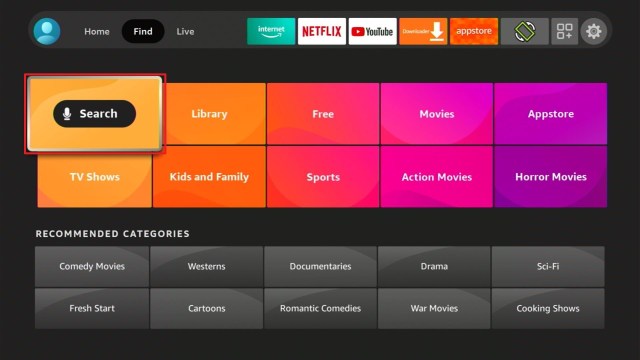
2. Navigate towards the Find tab. Press the Search button from the resulting dropdown.

step 2 Install Surfshark VPN on Firestick


3. Type in the keyword of SurfShark and select from the suggestions that will appear.

step 3 Install Surfshark VPN on Firestick


4. Click the official SurfShark icon from your search results.

step 4 Install Surfshark VPN on Firestick


5. Press the Download (You own it) button.

step 5 Install Surfshark VPN on Firestick


6. The SurfShark VPN installer will download on your device.

step 6 Install Surfshark VPN on Firestick


7. SurfShark VPN’s app will automatically install itself on your Fire TV stick.

step 7 Install Surfshark VPN on Firestick


8. Press the Open button after completing SurfShark VPN’s installation process.

step 8 Install Surfshark VPN on Firestick


9. Please wait for the SurfShark VPN to load its user interface.

step 9 Install Surfshark VPN on Firestick


10. You can now log in with your SurfShark VPN account credentials.

step 10 Install Surfshark VPN on Firestick

Learn more about Surfshark and Grab the Best Surfshark Deal Now!


Other VPNs to Consider

NordVPN (Best for Streaming)

Best Features

  • 5000+ Server in 50+ Countries 
  • Military-Grade Encryption
  • Fast Connection Speed
  • Suitable to a lot of devices
  • No-Log Policy

Prices
  • Complete $5.89 per month (64% Discount)
  • Plus $4.59 per month (56% Discount)
  • Standard $3.69 per month (55% Discount)

Best Features

  • 750+ High-speed VPN Servers in 43 Locations
  • Military-Grade Encryption
  • Fastest HD Streaming and Gaming
  • 30-Day Money-Back Guarantee
  • Unlimited Data & Devices
  • No-Log Policy

Prices
  • 3 Years $1.99 per month (82% Discount)
  • 1 Years $3.29 per month (70% Discount)
  • 1 Month $10.99 per month

IPVanish VPN (Most Secure)

Best Features

  • 1200+ Servers in 60+ Countries around the world
  • Unlimited Connections
  • No-Log Policy
  • Top Notch Military-Grade VPN Protocols and Encryptions
  • 100% Safe and Secured
  • Most Trusted VPN
  • Best VPN for Firestick
  • 30-Day Money-Back Guarantee

Prices
  • Yearly $3.99 per month (63% Discount) – 30 days risk free + Ransomware & Malware Protection
  • Quarterly $5.32 per month (51% Discount)
  • Monthly $10.99 per month


For more VPN discounts, go to ReviewVPN Deals and purchase the best VPN for you.


Grab the Best Surfshark Deal Now!


Conclusion

Leaks are really dangerous for your personal life. They trigger your loss of privacy and a bad image to the people. Whether you are your own brand or you own a business, any leaked document is bad for you. You have to be mindful all the time.

With regards to the stated leaks above, we have different takes on different issues. The issue with Netflix is not to give them bad publicity but to take advantage of their service. Netflix is a paid platform. Any free streaming activities of its content are considered illegal.

The Pandora Papers leak is such an eye-opener for the world. Although it is not that shocking as a lot of people under that umbrella are really capable of doing such drastic purchases of properties.  But the no-tax context is very alarming.

In the Facebook leak, this is where the public will really go mad and give bad press and images to the platform. All we can say is that the founder of Facebook should really be true to his words and all of the rules should apply equally to all.


Note: ReviewVPN.com does not own or operate any app nor does it endorse any. The main purpose of this article is strictly for educational purposes only.

Best Kodi Addons to Watch MLB for 2023

Overview

This article is about the best addons to watch MLB on Kodi.

Major League Baseball or MLB is a popular sport and a professional baseball organization that brings you a great match. It has a total of 30 teams, which are 15 teams in the National League (NL) and 15 America League (AL) competing with each other to be the best MLB team of the year. MLB team playoffs and game matches aired from different sports channels such as ESPN, Fox Sport, and more.


The good thing is, that there are lots of Kodi addons where you can watch MLB games for free. You don’t need to go out to watch it or get a monthly subscription from a paid streaming service because this add-on brings you Live and free to watch MLB game footage. Streaming online with Kodi is also a good option as it gives you a smooth streaming experience without any pop-up ads to interrupt.

There are official and unofficial Kodi add-ons that offer you free streaming on MLB and the good thing is they are all working on Kodi 18.9 and others are compatible with Kodi 19. This article will show you some of the best Kodi addons that you can choose to watch on MLB Live, Replays, Highlights, and more. However, we always suggest using a VPN such as Surfshark every time you stream online on free success. It is to ensure that you are secured while streaming online.


ANONYMOUSLY


Best Kodi Addons to Watch MLB

Here is the list of some best Kodi addons that you can watch on the MLB.

Official MLB Kodi Addon

Here are the official or legal sports addons where you can watch MLB. You can get these directly from Kodi’s official repository.


MLB TV

Kodi Addons for MLB

MLB TV is the official Kodi add-on that brings you Live footage, replays, highlights, and more footage about Major League Baseball games. This add-on is also connected to the official MLB website to give you the latest content. You can also watch MLB streams that are not nationally and locally televised, so you have the privilege to watch this content. MLB usually equates to over 1500 games per season and this footage was given to you to watch for free. It also has a simple and easy-to-use interface that works well on Kodi.


Features:

  • Compatible with Kodi 19 Matrix
  • Free access to their content.
  • No registration needed
  • Watch without any ads popping up.
  • Main section: Today’s Games, Yesterday’s Games, and Goto Date.
  • Regularly uploaded MLB videos.
  • Full-length high quality streaming links
  • 720p and 1080p of video quality.
  • Available English Subtitle
  • Allow background playing

If you want to know more about this add-on, kindly read our MLB.TV Review.


ESPN 3

Kodi Addons for MLB

ESPN 3 is another popular sports network/channel that brings you a large collection of sports footage and videos to watch for free. Thai addon also brings you a great lineup of sports coverage such as MLB. If you are looking for a great addon that covers MLB, then this addon is a good option for you. The good thing is, that ESPN has an official Kodi addon compatible with Kodi 18.9 and 19. It also covers different sports other than MLB, including Auto Racing, NCAA Football, NBA, NFL, NCAA, NHL, MLS, and more.


Features:

  • It is a very simple and user-friendly interface.
  • No registration is required.
  • Legal sports channels that bring you quality coverage of MLB
  • Watch on Live TV without any pop-up ads.
  • You can choose from the safeguards,480p, 720p, and 1080p quality of the video.
  • ESPN3 brings you all the latest updates about MLB.
Fox Sports Go

Kodi Addons for MLB

Fox Sports Go is one of the popular live sports channels that brings Live MLB footage. This add-on also covers different sports such as NFL, NHL, NBA, and more. It is one of the good options for sports lovers who want to watch their favorite sports in one service. However, not like another add-on, this add-on requires you to have a Fox Sports Go because you cannot access their content if you do not have any linked account. The good thing with this addon is you can get it on Kodi’s official repository that brings you MLB videos from Fox Sport Go. So if you want to watch high-quality MLB footage and stay updated on it, this addon is a good option for you.


Features:

  • Requires you to have a Fox Sports Go account.
  • Official Kodi addon is compatible with Kodi 19 matrix.
  • Bring you regular updates on MLB teams.
  • Allows you to stream in less buffering and without distraction on Kodi This footage.
  • It has Live TV to watch Live MLB games.
  • High resolution of videos.
  • Allows background playing.


DAZN

Kodi Addons for MLB

DAZN or Da Zone is a sports streaming service that offers you quality MLB sports game footage and highlights. You can also get updates on the latest reports, news, and game schedule of your favorite MLB team with this addon. The good thing is, that it is an official Kodi addon located at Kodi’s official repository. It is based in the UK but it is also available in different countries such as Germany, the US, Canada, and Japan. DAZN addon also covers different sports such as National Football League, NHL, Premier League matches, World Cup highlights, Hockey, WWE, NBA games, and more. However, this addon requires you to link your DAZN account to access your content.


Features:

  • Easy account linking process.
  • An official Kodi addon that brings you content from legitimate sources.
  • This add-on is supported by the official DAZN website.
  • Brings you Live sports footage, replays, highlights, and more about MLB.
  • Wide range coverage of sports content.
  • You can choose from 720p and 1080p video quality.

To know more about the add-on, kindly read our DAZN Addon review.


Install Surfshark on Firestick

Best Surfshark Deal


Legal Disclaimer: ReviewVPN.com does not encourage or endorse any illegal activity involved in the usage of services and applications referenced on this site. We do not verify the licensing agreements of services. The end-user is wholly responsible for ensuring that any media accessed through these services does not violate copyright and/or licensing laws. ReviewVPN does not promote, link to, or receive compensation from any Apps and IPTV services.


YOUR INTERNET ACTIVITY IS BEING WATCHED

ReviewVPN cannot attest to the legality, security and privacy of the applications discussed on this site. It is highly recommended that you use a VPN service while streaming or using Kodi.

Currently, your IP 216.73.216.208 is visible to everyone and your Browser is being tracked by Advertisers & ISP Provider.

Save 65% Now

Limited Time Offer

Here are the main reasons why you must use a VPN:

  • Your activities are hidden from your ISP, the government, and from the apps you are using.
  • You can access additional movies and TV streams.
  • ISP attempts to throttle are thrwarted thus reducing buffering issues.
  • Geographically restricted content like Netflix and Hulu can be unblocked.

A VPN works be replacing your ISP-assigned IP address and creating an encrypted tunnel. We recommend the no log service offered by IPVanish. It works well on a Firestick and offers the fastest possible speeds.

Special Limited Time Offer - Get IPVanish


Unofficial Sports Addon

We also list down some of the unofficial or third-party sports addons that cover the MLB. However, since they are not an official Kodi addon, we suggest using a VPN such as Surfshark before you stream on it.


Sportowa TV

Kodi Addons for MLB

Repository URL: https://mbebe.github.io/blomqvist

Sportowa is a third-party add-on that brings you international coverage of sports events. This add-on is also known as the replica of SportDevil because it has the same interface and contents to offer. You can watch live coverage, replays, highlights, news, interviews, and more about MLB. The good thing is this add-on also works on Kodi 18.9 Leia and Kodi 19 Matrix. You can choose content from the different categories such as Sport 365 Live, LiveOn score, VIPLeague, LiveTV, Crickfree, LiveSport, TVP Sport, Strims World, and more. It is a very simple and easy-to-use add-on that has a great collection of sports and MLB footage.


Features:

  • It has an easy-to-navigate interface
  • Replays, highlights, previews, and live sports footage.
  • Allow you to stream live on sport with an HD resolution.
  • The maximum quality of videos is up to 1080p.
  • This add-on covers international sports channels.
  • Bring you content from different sources.

To know more about it, kindly read this article — How to Install Sportowa TV Kodi Addon.


TV Tap

Kodi Addons for MLB

Repository URL:https://techecoyote.github.io/Install_LooNatics/

TvTap is another popular streaming service that brings you live footage on MLB. It is a third-party addon that you can get from the LooNatics Repository. This add-on also covers a lot of sports, such as the MLB, where you can watch Live sports and get updated on news. You can watch sports coverage from different sports networks such as Fox Sports, TSN, DAZN, BEin, SportsNet, Euro Sport, La Liga, NFL Network, NHL Network, and more. The main menu for this addon is documentaries, Entertainment, Food, Kids, movies, Music, News, Sports, and USA Ch.

This addon also brings you different sports coverage on Football, WWE, NHL, NFL, Tennis, Boxing, and more. It allows you to stream live, and at the same time, it brings you game replays if you miss the game.


Features;

  • It has a simple and user-friendly interface.
  • You can access and watch their content for free.
  • This add-on is not just about sports, you can also watch other content.
  • It has a one-click full stop button.
  • Available Live sports and live TV.
  • Provides you with high-quality streaming links.
  • Hundreds of sports channels to choose from.
  • Allows background playing.


Rising Tides

Kodi Addons for MLB

Repository URL: http://mullafabz.xyz/Repository/

Rising Tides is another excellent sports add-on that allows you to watch Live MLB sports coverage. This add-on is as great as Sportowa and TvTap because it has a large collection of sports videos that covers different sports other than MLB. Some of the sports it covers include NHL, NFL, NBA, Football, and more. This add-on collection of streaming links from different sports channels and sources such as ESPN, Fox Sports, BEin, and more. The good thing is it has a free IPTV stream of live sports events and lots of sports channels from all around the world. If you are looking for a sports addon to watch MLB this addon is one of the best.


Features:

  • No registration is required.
  • You can watch sports videos from different popular sports networks.
  • Watch Live Sports, Live Tv, Highlights, replays, interviews, and more.
  • Popular sports networks such as ESPN, Fox Sports, DAZN, SportsNet, and more.
  • Watch Live Sports with less buffering and no pop-up ads to interrupt on Kodi.
  • Choose from 480p, 720p, and 1080p quality of streaming links

Learn more about this addon by reading our Rising tides Review.


Why do I need a VPN?

We highly recommend using a Virtual Private Network such as the Surfshark on your device to have a:

https://get.surfshark.net/aff_c?offer_id=865&aff_id=12312

Secured Online Activity

Using a VPN such as Surfshark gives you a secured online activity by preventing your ISP from snooping and interfering with your connection. Surfshark has a military standard of encryption that safeguards your identity, IP Address, web traffic, and more. You can now safely and privately do anything that you want online without your ISP knowing.


Untraceable IP Address

Surfshark will automatically encrypt your real IP address and lets you connect to any servers of your choice. In this way, this VPN will allow you to connect to an untraceable IP Address. With it, you can do anything. anywhere in the world without anyone knowing it.


Access to Location-Restricted Content

As we have mentioned above, Surfshark allows you to connect on any server of your choice from different countries, which also means that you can access any restricted or geo-blocked content from other countries. Surfshark bypasses any restrictions and censorship to access their contents.


Online Anonymity

A VPN will automatically conceal your online identity and IP Address to keep you anonymous online. That is why whatever you do online you will remain anonymous on your ISP and it can never be traced back to you. You can also safely connect on any public network because a VPN will keep you anonymous online.


Increased Internet Speed

Surfshark is known as one of the fastest VPNs that gives its user a high-speed connection tighter with unlimited bandwidth to enjoy streaming online as much as you want. It has a recorded average download speed.

If you want to know more about this VPN, kindly read our Surfshark Review.


Grab your subscription now!

Click here to get the lowest price on Surfshark through our exclusive limited-time offer.


How to Install Surfshark VPN on Firestick

If your Firestick still has the older interface, read this article to learn how to update it: Update Firestick Interface.

1. Go to the Home screen of your Firestick.

step 1 Install Surfshark VPN on Firestick


2. Navigate towards the Find tab. Press the Search button from the resulting dropdown.

step 2 Install Surfshark VPN on Firestick


3. Type in the keyword of SurfShark and select from the suggestions that will appear.

step 3 Install Surfshark VPN on Firestick


4. Click the official SurfShark icon from your search results.

step 4 Install Surfshark VPN on Firestick


5. Press the Download (You own it) button.

step 5 Install Surfshark VPN on Firestick


6. The SurfShark VPN installer will download on your device.

step 6 Install Surfshark VPN on Firestick


7. SurfShark VPN’s app will automatically install itself on your Fire TV stick.

step 7 Install Surfshark VPN on Firestick


8. Press the Open button after completing SurfShark VPN’s installation process.

step 8 Install Surfshark VPN on Firestick


9. Please wait for the SurfShark VPN to load its user interface.

step 9 Install Surfshark VPN on Firestick


10. You can now log in with your SurfShark VPN account credentials.

step 10 Install Surfshark VPN on Firestick

Learn more about Surfshark and Grab the Best Surfshark Deal Now!


Install Surfshark on Firestick

Best Surfshark Deal


Other VPNs to Consider

NordVPN (Best for Streaming)

Best Features

  • 5000+ Server in 50+ Countries 
  • Military-Grade Encryption
  • Fast Connection Speed
  • Suitable to a lot of devices
  • No-Log Policy

Prices
  • Complete $5.89 per month (64% Discount)
  • Plus $4.59 per month (56% Discount)
  • Standard $3.69 per month (55% Discount)

Best Features

  • 750+ High-speed VPN Servers in 43 Locations
  • Military-Grade Encryption
  • Fastest HD Streaming and Gaming
  • 30-Day Money-Back Guarantee
  • Unlimited Data & Devices
  • No-Log Policy

Prices
  • 3 Years $1.99 per month (82% Discount)
  • 1 Years $3.29 per month (70% Discount)
  • 1 Month $10.99 per month

IPVanish VPN (Most Secure)

Best Features

  • 1200+ Servers in 60+ Countries around the world
  • Unlimited Connections
  • No-Log Policy
  • Top Notch Military-Grade VPN Protocols and Encryptions
  • 100% Safe and Secured
  • Most Trusted VPN
  • Best VPN for Firestick
  • 30-Day Money-Back Guarantee

Prices
  • Yearly $3.99 per month (63% Discount) – 30 days risk free + Ransomware & Malware Protection
  • Quarterly $5.32 per month (51% Discount)
  • Monthly $10.99 per month


For more VPN discounts, go to ReviewVPN Deals and purchase the best VPN for you.

Click here to get the lowest price on Surfshark through our exclusive limited-time offer.


FAQs

What is the difference between Official and unofficial Kodi addons?

Official add-ons are those legal add-ons that can be found and installed through Kodi’s official repository. However, unofficial add-ons or third-party add-ons are from unknown sources, and you need to use a repository link or URL.


Can I stream MLB live sports for free using these addons?

Yes, the addons we mentioned above allow you to stream live MLB sports events for free. However, some Kodi add-ons require you to have an existing account.


Is streaming on a third-party addon safe?

Yes, as long as the third-party addons do not offer any copyrighted content and to ensure your safety and privacy, we suggest using a VPN such as Surfshark.


Are these add-ons legal?

Add-ons in general are legal. However, Reviewvpn cannot guarantee the legality of the streams that it provides to its users. So again, it’s best to use Surfshark to avoid any legal complications.


Conclusion

All of the official and unofficial Kodi addons, we mentioned above bring you great coverage of MLB sports. These add-ons bring you high-quality streaming links from different sports networks. All of these add-ons are worth trying because you can access their content for free. However, if you are using a third-party add-on for free, we suggest using a VPN such as Surfshark. We hope that this article gives you the best sports add-on to watch MLB.

How To Stop Buffering on Firestick or Fire TV

Firestick Buffering Fix Overview

In this article, we will be discussing the root causes and how to stop buffering on Firestick and Fire TV.

The Amazon Firestick is arguably one of the best streaming devices we can ever find because of how affordable it is and how easy it is to use.

Whether the streaming apps you use are from the app store or third-party sources after you have apps installed, you can enjoy streaming Movies, TV Shows, and Live TV. But there is one inevitable thing that we will encounter, buffering. There are a plethora of reasons why this happens.

The good thing is, we know how to identify and solve them accordingly. 


What Causes Buffering Problems on Firestick?

If the apps installed buffer on Firestick, there are a multitude of reasons as to why.

Here we have listed all of the possible causes of why buffering occurs on your Amazon Firestick.


ANONYMOUSLY

ISP Throttle

As we have mentioned earlier, the Amazon Firestick is one of the best streaming devices but it is also prone to attacks including your ISP. One of the major reasons you encounter Firestick streaming problems is ISP Throttling. FYI, Streaming takes up a huge amount of data and this is a red flag on their end. Once this is noticed, your ISP will surely throttle down your internet connection. 

Slow-Moving Internet Connection

To give some perspective regarding how a slow internet connection contributes to buffering on Firestick, We would like to inform you that you need at least 5MB to play SD (Standard Definition) Quality Videos, 10MB to watch 1080p videos, and 25MB and above to stream 4k content.

So, if you have a 5MB internet connection, you cannot play videos that are high definition. 


Physical Distance between Modem and Firestick

One of the reasons why the Firestick buffer is the distance between the modem and the Firestick. If there are obstacles between the two, surely there will be buffering problems.


Full Memory Storage

As we all know, the Amazon Firestick does not have robust storage, unlike other Android devices that go as high as 128GB. The Firestick is only capable of storing apps up to 8GB. It is not recommended to maximize the storage because it will cause the Firestick to buffer and experience lags.


RAM is Running Low

The Firestick only has a RAM of 1.5GB and it can only accommodate two to three apps at a time. If multiple apps are running in the background, the Firestick will highly likely buffer.


Firestick Overheating

Just like any device, the Firestick is susceptible to overheating after prolonged use. Just think of it like a car running for more than four days without stop. The car will surely stop functioning properly.


The OS of the Firestick is not Updated

Whenever a new version of the operating system is released, there are crucial patches that are needed in order to make the Firestick work properly. If said patches are not installed, then other apps will likely malfunction as well, thus, the Firestick will buffer.


Multiple Devices Connected to the Wifi

If you have a 5MB connection and are trying to stream a 1080p video, it will buffer, right? What more if you have multiple devices connected to that connection all at the same time and performing data-intensive activities? Do you get it? The Firestick will experience buffering problems for sure. 


Virus Infections

The Firestick is prone to cyber-attacks like viruses and malware if you utilize untrusted third-party sources. Whenever one gets into the system of your device, it will definitely affect the performance of your streaming device.


Corrupted Links in Apps

Bad Links will result in buffering. This can be fixed by using a premium link generator like Real-Debrid.


Hardware Issues

This has to do with your other hardware like the modem/router, TV, ethernet cable, and others. They might need some updating or replacement.


YOUR INTERNET ACTIVITY IS BEING WATCHED

ReviewVPN cannot attest to the legality, security and privacy of the applications discussed on this site. It is highly recommended that you use a VPN service while streaming or using Kodi.

Currently, your IP 216.73.216.208 is visible to everyone and your Browser is being tracked by Advertisers & ISP Provider.

Save 65% Now

Limited Time Offer

Here are the main reasons why you must use a VPN:

  • Your activities are hidden from your ISP, the government, and from the apps you are using.
  • You can access additional movies and TV streams.
  • ISP attempts to throttle are thrwarted thus reducing buffering issues.
  • Geographically restricted content like Netflix and Hulu can be unblocked.

A VPN works be replacing your ISP-assigned IP address and creating an encrypted tunnel. We recommend the no log service offered by IPVanish. It works well on a Firestick and offers the fastest possible speeds.

Special Limited Time Offer - Get IPVanish


Install Surfshark on Firestick

Best Surfshark Deal


Best Solutions to Stop Buffering on Firestick or Fire TV


How to Stop Firestick Buffering


For Kodi users, there is a popular Kodi Add-on that helps in buffering issues and that is the Ares Wizard. If you are experiencing buffering on Kodi, our Kodi Buffering Issues Solution Article will help you out.

Now that we have covered the possible reasons as to why your Firestick is buffering, in this next section we will provide you the optimal ways on how to stop buffering on Firestick or Fire TV.


Solution 1 – Use A Good VPN to Stop Buffering

We mentioned that watching videos with streaming devices like the Firestick requires a hefty amount of data. Once your ISP notices this type of activity, it will throttle down your connection speed. In order to prevent this from happening, you will need a premium VPN service like Surfshark. It will prevent all of the attempts of your ISP to throttle your connection speed down. Aside from this, Surfshark will also hide all of your online activity by rerouting all of your traffic to another server. It will also give you access to geo-restricted content and give you online anonymity.

Note: We are offering one of the best Surfshark deals in town.


Install Surfshark on Firestick

Best Surfshark Deal


How to Install Surfshark VPN on Firestick

If your Firestick still has the older interface, read this article to learn how to update it: Update Firestick Interface.

Follow our screenshots below to install the SurfShark VPN app on your Fire TV stick.

1. Go to the Home screen of your Firestick.

step 1 Install Surfshark VPN on Firestick


2. Navigate towards the Find tab. Press the Search button from the resulting dropdown.

step 2 Install Surfshark VPN on Firestick


3. Type in the keyword of SurfShark and select from the suggestions that will appear.

step 3 Install Surfshark VPN on Firestick


4. Click the official SurfShark icon from your search results.

step 4 Install Surfshark VPN on Firestick


5. Press the Download (You own it) button.

step 5 Install Surfshark VPN on Firestick


6. The SurfShark VPN installer will download on your device.

step 6 Install Surfshark VPN on Firestick


7. SurfShark VPN’s app will automatically install itself on your Fire TV stick.

step 7 Install Surfshark VPN on Firestick


8. Press the Open button after completing SurfShark VPN’s installation process.

step 8 Install Surfshark VPN on Firestick


9. Please wait for the SurfShark VPN to load its user interface.

step 9 Install Surfshark VPN on Firestick


10. You can now log in with your SurfShark VPN account credentials.

step 10 Install Surfshark VPN on Firestick

Learn more about Surfshark and Grab the Best Surfshark Deal Now!


Install Surfshark on Firestick

Best Surfshark Deal


Other VPNs to Consider

NordVPN (Best for Streaming)

Best Features

  • 5000+ Server in 50+ Countries 
  • Military-Grade Encryption
  • Fast Connection Speed
  • Suitable to a lot of devices
  • No-Log Policy

Prices
  • Complete $5.89 per month (64% Discount)
  • Plus $4.59 per month (56% Discount)
  • Standard $3.69 per month (55% Discount)

Best Features

  • 750+ High-speed VPN Servers in 43 Locations
  • Military-Grade Encryption
  • Fastest HD Streaming and Gaming
  • 30-Day Money-Back Guarantee
  • Unlimited Data & Devices
  • No-Log Policy

Prices
  • 3 Years $1.99 per month (82% Discount)
  • 1 Years $3.29 per month (70% Discount)
  • 1 Month $10.99 per month

IPVanish VPN (Most Secure)

Best Features

  • 1200+ Servers in 60+ Countries around the world
  • Unlimited Connections
  • No-Log Policy
  • Top Notch Military-Grade VPN Protocols and Encryptions
  • 100% Safe and Secured
  • Most Trusted VPN
  • Best VPN for Firestick
  • 30-Day Money-Back Guarantee

Prices
  • Yearly $3.99 per month (63% Discount) – 30 days risk free + Ransomware & Malware Protection
  • Quarterly $5.32 per month (51% Discount)
  • Monthly $10.99 per month


For more VPN discounts, go to ReviewVPN Deals and purchase the best VPN for you.

Click here to get the lowest price on Surfshark through our exclusive limited-time offer.


Solution 2 – Oversee your Internet Connection Speed

We are assuming that you already have a top-notch internet broadband subscription and you do not have issues regarding your speed. But as an SOP, you have to check out signal strength to verify that it is you are really getting your money’s worth.

It usually takes 5MB for SD Quality Videos, 10MB for 1080p Videos, and 25MB for 4k Videos. If you are not receiving the commensurate MBs, contact your ISP and find out why this is happening.

Test your Internet Speed

If you find out that you are not being fairly given the internet speed that you paid for, here is what you do after-

Verify Wifi Signal Strenght

Signal Strenght is a major player when it comes to streaming. If it is high, the viewing experience will be superb. But if it is low, then buffering and other issues will arise.

Here is how you verify your Firestick’s Wifi Signal Strenght:

1. Go to the Home menu. Scroll to the right and click settings.


2. Select Network


3. Scroll to your Wifi name and Address.


4. Press this button on the remote to reveal the status of your wifi connection.


5. The necessary information regarding the Signal Strenght will be provided.


It will say Very Good if you are receiving the appropriate Wifi Signals Strenght If not, then there is something to be concerned about.

The most ideal distance between your Firestick and modem is about 15 to 30 feet to get the best Wifi Signal Strenght. For wider coverage, you can use as Wifi Extender.


Opt for Wired Connection via Ethernet Cable

Wired connections are faster than Wifi Connections. If you have the necessary hardware to pull this off, As long is it helps fix buffering on Firestick or Fire TV, then, by all means, do it.


Solution 3 – Restarting the Firestick

You may be thinking that it is hard with how to reboot the Firestick. Let us tell you, it is not. Here are the simple steps on how to reboot the Firestick:

1. Go to the Home menu. Scroll to the right and click settings.


2. Next is to select My Fire TV.


3. Select Restart.


4. Confirm by clicking on Restart.


5. Just wait until the Restart finishes.

Solution 4 – Reboot Your Router

This is one of the easiest ways of trying to fix buffering issues. Either you press on the restart button of your router or unplug it. After that, wait for at least 30 seconds to a minute before powering it up again. Check if this process improves your streaming experience and eliminates buffering issues.


Solution 5 – Make sure that the Firestick is within arm’s reach to your modem/router.

Physical obstacles such as other electronic devices surrounding the Firestick and modem interferes with the Wifi Signal Strenght. Be sure to clear other electronic devices between the two.


Solution 6 – Purge all running apps in the background

The Firestick only has a 1.5GB RAM. It was never built to sustain multiple apps running all at the same time.

Unlike Android smartphones and tablets which you can manually close applications, the Firestick does not have the same feature.

In order to kill apps running in the background, we must install an app called Background Apps and Processes List which is downloadable directly from the Amazon App Store.

Just make sure that you have an Amazon account to be able to download the app.


Here are the steps to download and install Background Apps and Processes List on your Firestick:

1. Turn on your Firestick.


2. From the Firestick Home Screen, click Find and select Search.


3. Using the Search Button, type in Background Apps and Processes List and scroll down and click on it


4. Click on the Background Apps and Processes List Icon


5. Choose Download


6, Click on Open to launch the app


7. After loading, a prompt will appear. be sure to unclick the box that says Open app on boot.


8. Select Got it!


9. Choose Close All Apps.


10. Click on Force Stop for the first app that appears during the process.


11. Click on the back button of the Firestick remote and repeat step 9 until all of the apps are forcefully stopped.


Aside from Background Apps and Process List, you can also use SD Maid Pro and DBTV Assistant to clean up and purge apps on the Firestick.

Here are the individual reviews and installation guides for them:

Install SD Maid Pro on Firestick

Install DBTV Assistant on Firestick


Solution 7 – Delete Cache and Data For Streaming Apps

Progress for streaming apps like Cinema APK, Cyberflix, and TV Zion was noticeable after their cache have been deleted.

Some reports claim that deleting the cache for streaming apps have greatly reduced buffering issues on the Firestick.

You can also choose to delete the data of streaming apps which will result in restoring the app into its default factory settings.

The process is this:

1. Go to the Home menu. Scroll to the right and click settings.


2. Select Applications.


3. Click Manage Installed Applications.


4. The list for Installed Applications will now appear.


5. Select the streaming app that has buffering problems.


6. There are two things you can do once the app is highlighted, you can either Clear Cache or Clear Data.


Clear Data will erase any relevant information including sign-ins while Clear Cache will delete the cache of the app and retain any relevant information.


Solution 8 – Make Sure that the Firestick has enough Breathing Space.

Just like any device, the Firestick tends to be worked up during prolonged usage which results in Firestick overheating. To remedy this, be sure to put a sufficient breathing room for the Firestick. You can also use an HDMI extender or a cooling unit to prevent the Firestick from overheating.


Solution 9 – Firestick OS Upgrade with Screenshots

It is a rare occurrence when you have to manually update the OS of your Firestick. It usually updates the OS on its own once there is a new version. If and when the auto-update fails, here is what you do:

1. Go to the Home menu. Scroll to the right and click settings.


2. Next is to select My Fire TV.


3. Choose About.


4. Select Check for Updates or if there is an update available, Install Update.


5. Wait for the update to finish.


Solution 10 – Reinstall Streaming App

There are rare instances when the installation of an app lacks certain patches which lead to buffering. What you can do is to reinstall the app. Here is how you do it.

1. Go to the Home menu. Scroll to the right and click settings.


2. Select Applications.


3. Click Manage Installed Applications.


4. All installed application will be shown.


5. Select the streaming app that you want to uninstall.


6. Click Uninstall.


7. Click Uninstall.


8.  From the Home page, click FIND.

Jailbreak Firestick and Install Downloader App


9. Click Search.

Jailbreak Firestick and Install Downloader App


10. You can either say Downloader to your Alexa voice-enabled remote or start typing it. If you typed it, click on the suggestion when it appears.

Jailbreak Firestick and Install Downloader App


11. Click on the Downloader icon

Jailbreak Firestick and Install Downloader App


12. Click Download

Jailbreak Firestick and Install Downloader App


13. Click on Open.

Jailbreak Firestick and Install Downloader App


14. Click on Allow.

Jailbreak Firestick and Install Downloader App


15. Open Downloader App. Type https://reviewvpn.com/tp and click Go.

Theater Plus 2


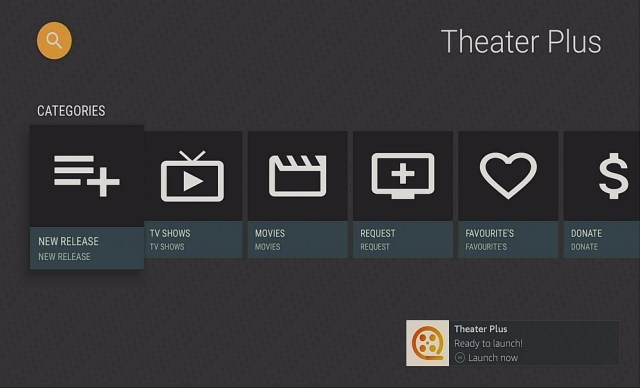
16. Click on Install and you should be all set. Remember to delete the APK file after installation to save space.

Step 14 Install Theater Plus APK on Firestick


17. Click Open

Step 15 Install Theater Plus APK on Firestick


18. Enjoy your Theater Plus APK on a Firestick.

Step 16 Install Theater Plus APK on Firestick


You can verify if the buffering issue is resolved by clicking on a movie or TV show of your choice.


Solution 11 – Make Sure That The Firestick is the only device connected to the Internet

Having multiple devices connected to the Wifi will ultimately result in buffering problems. If you are not using your other streaming devices, be sure to turn the Wifi off. In this way, you are assured of a smooth streaming experience.


Solution 12 – Scan your Firestick for Viruses and Malware

This happens most of the time when we use untrusted streaming apps. It opens up the Firestick for cyber-attacks which we rarely notice. These attacks will most likely yield buffering issues. So, the most important thing to remember when using third-party streaming applications is to always scan your Firestick for viruses and malware. Hence, this method is applauded as How To Stop Buffering on Firestick. The best antivirus app for the Firestick is Virus Total and here is how you download and install it on Firestick:

  1. Go to Settings and select Device.
  2. Choose Developer Options
  3. Turn on the ADB Debugging and Apps From Unknown Sources
  4. After turning these options on, launch the Amazon App Store on your device
  5. Search and Download Downloader
  6. Install Downloader and launch it after installing it.
  7. Choose Allow and Select Ok
  8. Type in https://reviewvpn.com/vir and select Go
  9. Wait for it to finish and then select Virus Total
  10. Select Done
  11. This will automatically take you back to Downloader. Select Delete
  12. Choose Delete one more time
  13. Head back to the home screen and under the Your Apps & Channels select Choose All
  14. Scroll down and select Virus Total and select the Options.
  15. Then select Move to Front
  16. Virus Total will be moved forward to Your Apps and Channels
  17. After this, you will see Virus Total and click it to launch.
  18. There you go, you can now enjoy using Virus Total.


Screenshots with Step by Step Instruction to Install Virus Total Antivirus on a Firestick

1. Go to the Home menu. Scroll to the right and click settings (gear icon).


2. Scroll down and to the right until you get to My Fire TV. Click on it.

Jailbreak Firestick and Install Downloader App


3. Select Developer options.

Jailbreak Firestick and Install Downloader App


4. Turn on ADB debugging and Apps from Unknown Source.

Jailbreak Firestick and Install Downloader App


5. Click Turn On when the pop-up appears.

Jailbreak Firestick and Install Downloader App


6.  From the Home page, click FIND.

Jailbreak Firestick and Install Downloader App


7. Click Search.

Jailbreak Firestick and Install Downloader App


8. You can either say Downloader to your Alexa voice-enabled remote or start typing it. If you typed it, click on the suggestion when it appears.

Jailbreak Firestick and Install Downloader App


9. Click on the Downloader icon

Jailbreak Firestick and Install Downloader App


10. Click Download

Jailbreak Firestick and Install Downloader App


11. Click on Open.

Jailbreak Firestick and Install Downloader App


12. Click on Allow.

Jailbreak Firestick and Install Downloader App


13. Open Downloader App. Type https://reviewvpn.com/vir  and click Go.


14. Click on “Click here” to start download quickly

Step 13 Install Virus Total Antivirus on Firestick


15. Click Install.

Step 14 Install Virus Total Antivirus on Firestick


16. Click Open.

Step 15 Install Virus Total Antivirus on Firestick


17. Enjoy your Virus Total Antivirus,

Step 16 Install Virus Total Antivirus on Firestick


Solution 13 – Troubleshoot your Hardware

There are times when the Firestick nor the streaming app is at fault. It can be because your hardware like your modem/router is not plugged in properly or it requires an upgrade. The same thing goes for your wires, be sure that they are intact and do not have dents on them. These simple things that we may overlook might cause buffering issues on the Firestick. So, this solution is considered as one of the best ways on How To Stop Buffering on Firestick. There is no harm in checking every nook and cranny right?


Solution 14 – Tinker with your Privacy Settings

There is one secret about the Amazon Firestick that never came in with the instruction manual and that is, collecting and monitoring your data in the ruse of marketing and upgrades. That is not the case fellas. This move actually gives the Firestick buffering issues but it can be resolved quickly. Thus, we consider this as one of the ideal options on How To Stop Buffering on Firestick.

Disable Data Monitoring and Collection

1. Go to the Home menu. Scroll to the right and click settings (gear icon).


2. Choose Preferences.


3. Select Privacy Settings.


4. Select Device Usage Data and click on Turn off.


5. Choose Collect App Usage Data and select Turn Off


6. Head back and click on Data Monitoring.


7. Shut off Data Monitoring.


That’s it easy peasy lemon squeezy.


Solution 14 – Real Debrid

Real-Debrid is a premium link generator that is compatible with the Best Firestick Apps and a bunch of the Best Kodi Add-ons.

Usually, streaming apps and Kodi Add-ons utilize public sources that end up having a great influx when it comes to traffic. This will lead to a number of problems like buffering issues.

Integrating Real-Debrid to your streaming apps and Kodi Add-ons is one of the ways on how to stop Buffering on Firestick. Once you obtain exclusive membership, you are assured of nothing but the best streaming links possible.

Real-Debrid is compatible with the most popular streaming apps like Cyberflix, Cinema HD APK, TV Zion, Bee TV, Viva TV, and a whole lot more.


Integrate Real-Debrid on Exodus Redux

1. Open Exodus Redux on your Kodi device

Github 25


2. Select Tools from the main menu

Real Debrid


3. Scroll down and chose ResolveURL Settings

Real Debrid How To Stop Buffering on Firestick


4. Click once to the left and down to get to Universal Resolvers

Real Debrid How To Stop Buffering on Firestick


5. Press the right button on your remote and scroll down to get to Real-Debrid

Real Debrid How To Stop Buffering on Firestick


6. Click on (Re)Authorize My Account

Real Debrid How To Stop Buffering on Firestick


7. After receiving the code, be sure to memorize it.

Real Debrid How To Stop Buffering on Firestick


8. Launch a web browser on your laptop or mobile device and type in real-debrid.com/device. Input the code you were given earlier and select Continue

Real Debrid How To Stop Buffering on Firestick


9. Wait for the authentication to finish

Real Debrid How To Stop Buffering on Firestick

There you go, you now have integrated Real-Debrid on Exodus Redux!


Conclusion

The solutions we have featured in this article are the best ways How To Stop Buffering on Firestick. Should you encounter issues not stated above please let us know briefly.


Final Thoughts

We hope that this article helps you with How To Stop Buffering on Firestick or Fire TV. Comment down below for suggestions and ways on how we can improve on how to help you with How To Stop Buffering on Firestick. Thank you for reading and stay safe!

Stream Look Movie Website On FireStick

Overview


There are few individuals who don’t love watching movies or TV shows. There are a lot of people around the world who love streaming movies online. Individuals use different means to stream their best-loved films.

However, there is a vast range of ways to stream movies, such as video streaming apps, movie streaming websites, and much more. One of the best video streaming platforms to watch your favorite movies is the Look Movie website.

Look Movie is among the best platforms to stream movies online for free in High Definition (HD). The Look Movie website provides the best quality entertainment content available on the internet. It offers tons of media links. Additionally, the Look Movie site provides really high-speed streaming.


ANONYMOUSLY


How to Stream Look Movie Website on FireStick with Silk Browser (Video)


How to Stream Look Movie Website on Amazon FireStick with Silk Browser

Streaming websites on Amazon Firestick should be done by installing the Silk Browser beforehand.

1. Go to the Home screen of your Firestick.

Stream Look Movie Website On FireStick Step 1


2. Click on Find.

Stream Look Movie Website On FireStick Step 2


3. Tap on the Search tab.

Stream Look Movie Website On FireStick Step 3


4. Type in Silk Browser and choose this item that appears on the results.

Stream Look Movie Website On FireStick Step 4


5. Click on the Silk Browser Icon.

Stream Look Movie Website On FireStick Step 5


6. Choose Download.

Stream Look Movie Website On FireStick Step 6


7. Silk Browser is Downloading into your Firestick.

Stream Look Movie Website On FireStick Step 7


8. The Silk Browser app will Install on Firestick.

Stream Look Movie Website On FireStick Step 8


9. Select Open to launch the browser.

Stream Look Movie Website On FireStick Step 9


10. You can now start using Amazon Silk Browser.

Stream Look Movie Website On FireStick Step 10


11. Enter the following URL – https://wwv.lookmovie.ws/ 

Stream Look Movie Website On FireStick Step 11


12. Click on Cancel.

Stream Look Movie Website On FireStick Step 12


13. Just click Okay.

Stream Look Movie Website On FireStick Step 13


14. Finally! You’ll be able to watch movies on the Look Movie website on your Firestick device using the Silk Browser.


Stream Look Movie Website On FireStick Step 14

Stream Look Movie Website On FireStick Step 15


YOUR INTERNET ACTIVITY IS BEING WATCHED

ReviewVPN cannot attest to the legality, security and privacy of the applications discussed on this site. It is highly recommended that you use a VPN service while streaming or using Kodi.

Currently, your IP 216.73.216.208 is visible to everyone and your Browser is being tracked by Advertisers & ISP Provider.

Save 65% Now

Limited Time Offer

Here are the main reasons why you must use a VPN:

  • Your activities are hidden from your ISP, the government, and from the apps you are using.
  • You can access additional movies and TV streams.
  • ISP attempts to throttle are thrwarted thus reducing buffering issues.
  • Geographically restricted content like Netflix and Hulu can be unblocked.

A VPN works be replacing your ISP-assigned IP address and creating an encrypted tunnel. We recommend the no log service offered by IPVanish. It works well on a Firestick and offers the fastest possible speeds.

Special Limited Time Offer - Get IPVanish


What is the Look Movie Website?

Look Movie is one of the most well-known websites for watching movies. The content on Look Movie is arranged in different categories, such as Action, Adventure, Drama, Animation, Horror, Biography, Documentary, Comedy, Family, Crime, Romance, Mystery, Sports, Sci-Fi, and many more. Look Movie offers all the latest movies. 


Look Movie Features

Before using the Look Movie website, it has certain features that you should know. Below are the things that you must know about the streaming platform. 

  • With the Look Movie website, you can watch a wide range of movies & TV shows.
  • The website’s servers are extremely fast. Thus, the possibility of server errors is extremely low.
  • Users don’t have to search on the web for information about the movie. There is some data about the film on the site.
  • Users don’t need to generate a list of their favorite content on the paper. The site lets users create a list of their favorite content.
  • Look Movie is a free streaming website without a subscription fee
  • It has a user-friendly interface
  • You can watch movies & TV shows without any charge
  • Movies of all categories & genres are available


User Interface

The Look Movie streaming website comes with an extremely easy-to-use interface. The user interface of the website entices movie enthusiasts to use this great service to stream their favorite films or TV shows.


Use A VPN To Stream Movies on Look Movies

Look Movie is a free video streaming service that offers tons of movies and TV shows. Nonetheless, to stream the videos, you must enable a VPN service due to geo-restrictions. Look Movie’s homepage is very easy to use and provides the latest, best videos. The website lets you easily sort the media entertainment according to the categories and genres.


Is Look Movie Website Safe To Use?

Look Movie could be a piracy website but still many individuals have used it very safely. Look Movie website users haven’t run into any kind of viruses or malware. There are no reports that someone has been arrested for streaming from the website which makes it very safe for you to use the site. However, it is highly suggested to use a Virtual Private Network or VPN before using the Look Movie website. 


Use The Best VPN To Stream Safely Online

A Virtual Private Network or VPN service enables you to use more streaming platforms by letting you bypass geo-restricted streaming services and content. Enabling a VPN service on your device means you can access video streaming platforms such as BBC iPlayer, Netflix, Hulu, and much more. 

One of the safest and most reliable VPN providers for streaming is the Surfshark service. It is popular for its security & privacy features. A VPN service is a great tool to stay anonymous and prevent accounts from being flagged while avoiding geo-restrictions.

Note: For more information about Surfshark, please read our Surfshark Review.


Grab your subscription now!


How to Install Surfshark VPN on Firestick

If your Firestick still has the older interface, read this article to learn how to update it: Update Firestick Interface.

Follow our screenshots below to install the SurfShark VPN app on your Fire TV stick.

1. Go to the Home screen of your Firestick.

step 1 Install Surfshark VPN on Firestick


2. Navigate towards the Find tab. Press the Search button from the resulting dropdown.

step 2 Install Surfshark VPN on Firestick


3. Type in the keyword of SurfShark and select from the suggestions that will appear.

step 3 Install Surfshark VPN on Firestick


4. Click the official SurfShark icon from your search results.

step 4 Install Surfshark VPN on Firestick


5. Press the Download (You own it) button.

step 5 Install Surfshark VPN on Firestick


6. The SurfShark VPN installer will download on your device.

step 6 Install Surfshark VPN on Firestick


7. SurfShark VPN’s app will automatically install itself on your Fire TV stick.

step 7 Install Surfshark VPN on Firestick


8. Press the Open button after completing SurfShark VPN’s installation process.

step 8 Install Surfshark VPN on Firestick


9. Please wait for the SurfShark VPN to load its user interface.

step 9 Install Surfshark VPN on Firestick


10. You can now log in with your SurfShark VPN account credentials.

step 10 Install Surfshark VPN on Firestick

Learn more about Surfshark and Grab the Best Surfshark Deal Now!


Install Surfshark on Firestick

Best Surfshark Deal


Other VPNs to Consider

NordVPN (Best for Streaming)

Best Features

  • 5000+ Server in 50+ Countries 
  • Military-Grade Encryption
  • Fast Connection Speed
  • Suitable to a lot of devices
  • No-Log Policy

Prices
  • Complete $5.89 per month (64% Discount)
  • Plus $4.59 per month (56% Discount)
  • Standard $3.69 per month (55% Discount)

Best Features

  • 750+ High-speed VPN Servers in 43 Locations
  • Military-Grade Encryption
  • Fastest HD Streaming and Gaming
  • 30-Day Money-Back Guarantee
  • Unlimited Data & Devices
  • No-Log Policy

Prices
  • 3 Years $1.99 per month (82% Discount)
  • 1 Years $3.29 per month (70% Discount)
  • 1 Month $10.99 per month

IPVanish VPN (Most Secure)

Best Features

  • 1200+ Servers in 60+ Countries around the world
  • Unlimited Connections
  • No-Log Policy
  • Top Notch Military-Grade VPN Protocols and Encryptions
  • 100% Safe and Secured
  • Most Trusted VPN
  • Best VPN for Firestick
  • 30-Day Money-Back Guarantee

Prices
  • Yearly $3.99 per month (63% Discount) – 30 days risk free + Ransomware & Malware Protection
  • Quarterly $5.32 per month (51% Discount)
  • Monthly $10.99 per month


For more VPN discounts, go to ReviewVPN Deals and purchase the best VPN for you.


Alternatives for Look Movies Website

Gostream 

GoStream is one of the most user-friendly and straightforward websites to stream movies. It has a wide range of high-quality TV shows and movies. You can watch the videos in either SD or High Definition mode from the website’s original or main link. 


Vumoo

On the Vumoo website, you can find an extensive collection of films of different languages as well as different genres along with numerous kinds of television shows. With the Vumoo website, you can find the latest to the oldest movies and TV shows. You can watch movies and TV shows in 720p from various servers. 


MoviesJoy

It is a free online video streaming platform that provides more than 10,000 movies as well as television shows. MoviesJoy lets you have uninterrupted streaming and it comes without annoying ads.

Features:

  • Plays quickly
  • High Definition Videos
  • Filter by country or genre
  • Subtitle Support
  • Android application available

Nonetheless, click the link to check out our list of the Best Free Movie Streaming Websites.


Wrapping Up

In this article, we have provided information on how to stream the Look Movie website on FireStick using Silk Browser. The data above should really help you boost your video streaming experience by watching your favorite movies & TV shows in High Definition. 

However, always remember to use A VPN every time you stream on the internet. If you have any thoughts about the article: “How to Stream Look Movie Website on Amazon FireStick using Silk Browser,” don’t hesitate to let us know in the comments section.

Stream ZMovies Website On FireStick

Overview

In this article, we will give you a review and guide on how to stream ZMovies on Firestick and Android.


Zmovies is another well-known name that stood for the fantastic movie streaming platforms. The Zmovies website lets you choose the content of your choice to watch immediately. All you have to do is, select a category, choose a movie and start streaming.

Thus, you don’t have to wait. However, all you need is to register to the platform and have a working, high-speed internet connection to watch your favorite movies. Whatever is you want in the world of various genres, the ZMovies website has you covered.

These genres include Action, Animation, Adventure, Comedy, Biography, Documentary, Crime, Family, Drama, Horror, Musical, History, Romance, Mystery, Sci-Fi, Sports, and more. All of Zmovies videos are in High Definition (HD).


ANONYMOUSLY

How to Stream ZMovies Website on Amazon FireStick with Silk Browser

Streaming websites on Amazon Firestick should be done by installing the Silk Browser beforehand.

1. Go to the Home screen of your Firestick.

Stream ZMovies Website On FireStick Step 1


2. Click on Find.

Stream ZMovies Website On FireStick Step 2


3. Tap on the Search tab.

Stream ZMovies Website On FireStick Step 3


4. Type in Silk Browser and choose this item that appears on the results.

Stream ZMovies Website On FireStick Step 4


5. Click on the Silk Browser Icon.

Stream ZMovies Website On FireStick Step 5


6. Choose Download.

Stream ZMovies Website On FireStick Step 6


7. Silk Browser is Downloading into your Firestick.

Stream ZMovies Website On FireStick Step 7


8. The Silk Browser app will Install on Firestick.

Stream ZMovies Website On FireStick Step 8


9. Select Open to launch the browser.

Stream ZMovies Website On FireStick Step 9


10. You can now start using Amazon Silk Browser.

Stream ZMovies Website On FireStick Step 10


11. Enter the following URL – https://zmovies.cc/

Stream ZMovies Website On FireStick Step 11


12. Finally! You’ll be able to watch movies on the ZMovies website on your Firestick device using the Silk Browser.

Stream ZMovies Website On FireStick Step 12


YOUR INTERNET ACTIVITY IS BEING WATCHED

ReviewVPN cannot attest to the legality, security and privacy of the applications discussed on this site. It is highly recommended that you use a VPN service while streaming or using Kodi.

Currently, your IP 216.73.216.208 is visible to everyone and your Browser is being tracked by Advertisers & ISP Provider.

Save 65% Now

Limited Time Offer

Here are the main reasons why you must use a VPN:

  • Your activities are hidden from your ISP, the government, and from the apps you are using.
  • You can access additional movies and TV streams.
  • ISP attempts to throttle are thrwarted thus reducing buffering issues.
  • Geographically restricted content like Netflix and Hulu can be unblocked.

A VPN works be replacing your ISP-assigned IP address and creating an encrypted tunnel. We recommend the no log service offered by IPVanish. It works well on a Firestick and offers the fastest possible speeds.

Special Limited Time Offer - Get IPVanish


Install Surfshark on Firestick

Best Surfshark Deal


What Is ZMovies Website?

Zmovies is a website that lets you stream your favorite movies & TV series without any charge. Zmovies is the legitimate and best way to watch movies. It allows you to watch various genre-based films, popular TV series, as well as other videos. The website is completely free to use. Zmovies doesn’t require you for any membership plan to stream the video on its website.

Zmovies is among the best free video streaming platforms that provide the easiest way for you to stream & download movies, TV series, etc., on the internet. The streaming website enables you to watch over numerous servers so that you will never have issues watching movies. 


User Interface

The ZMovies streaming site contains a very easy-to-use interface. Its user interface entices movie lovers to use this awesome platform to watch and download their favorite movies or TV series. Nonetheless, the website lets you search the entertainment content by its search section or you may use the platform’s various categories. Also, you can filter entertainment content but the platform offers a better idea for the movie you like to watch.

However, Zmovies is one of the most preferred videos streaming and downloading platforms across the world. You just have to enter your movie query on the site’s navigation bar’s search tab and simply click on the given links to watch or download your favorite TV series or movies.


Genres

The content on Zmovies is arranged in various genres, such as Action, Animation, Adventure, Comedy, Biography, Documentary, Crime, Family, Drama, Horror, Musical, Romance, Mystery, Sci-Fi, Sports, and more. Also, you can browse the platform to see the new release and most popular films and displays by clicking on the tabs. Zmovies work jointly with the M4uFree platform to host the television series.


Register To Stream Movies

Zmovies is a free video streaming platform that provides a huge collection of movies and TV series in various languages. However, to download or stream the videos, you need to register. Zmovies’ homepage is extremely easy to use and comes along with all the latest videos. You can easily sort the movies or TV series according to the genre & year.


Free To Download Movies

Zmovies is a great movie & TV series download platform. The streaming platform lets you download free content quickly while watching movies or TV series online. It lets you instantly, easily download various entertainment content. Even though the platform provides popular Hollywood movies, you can watch & download tons of TV series, documentaries, and more.

Nonetheless, you’ll be amazed by the website’s various genres, such as action, crime, fantasy, adventure, and many more.


Stream Safely with VPN – Use Surfshark Service

While Virtual Private Networks or VPNs are utilized for numerous reasons, streaming videos online is among the most well-known use cases. Because of the top streaming services’ geographical restrictions, it is common for people outside the United States, in particular, to use a Virtual Private Network service to ensure they can access their favorite movies and TV shows.

A Virtual Private Network or VPN service, such as Surfshark, encrypts your data or online activities. It effectively creates a tunnel between a person’s web connection and an outside network positioned elsewhere in the world. Wherein, your data is transmitted with the VPN you are utilizing and not through your personal network. A VPN service hides your personal IP address. Instead, you are using the VPN’s IP address.

Below are the major reasons for using a VPN service:

  • Unblocking streaming services or websites
  • Staying safe online
  • Bypassing censorship
  • Security on unsecured Public Wi-Fi
  • Streaming geo-restricted content
  • Data privacy from the Internet Service Provider (ISP), apps & services you use


Grab your subscription now!


How to Install Surfshark VPN on Firestick

If your Firestick still has the older interface, read this article to learn how to update it: Update Firestick Interface.

Follow our screenshots below to install the SurfShark VPN app on your Fire TV stick.

1. Go to the Home screen of your Firestick.

step 1 Install Surfshark VPN on Firestick


2. Navigate towards the Find tab. Press the Search button from the resulting dropdown.

step 2 Install Surfshark VPN on Firestick


3. Type in the keyword of SurfShark and select from the suggestions that will appear.

step 3 Install Surfshark VPN on Firestick


4. Click the official SurfShark icon from your search results.

step 4 Install Surfshark VPN on Firestick


5. Press the Download (You own it) button.

step 5 Install Surfshark VPN on Firestick


6. The SurfShark VPN installer will download on your device.

step 6 Install Surfshark VPN on Firestick


7. SurfShark VPN’s app will automatically install itself on your Fire TV stick.

step 7 Install Surfshark VPN on Firestick


8. Press the Open button after completing SurfShark VPN’s installation process.

step 8 Install Surfshark VPN on Firestick


9. Please wait for the SurfShark VPN to load its user interface.

step 9 Install Surfshark VPN on Firestick


10. You can now log in with your SurfShark VPN account credentials.

step 10 Install Surfshark VPN on Firestick

Learn more about Surfshark and Grab the Best Surfshark Deal Now!


Install Surfshark on Firestick

Best Surfshark Deal


Other VPNs to Consider

NordVPN (Best for Streaming)

Best Features

  • 5000+ Server in 50+ Countries 
  • Military-Grade Encryption
  • Fast Connection Speed
  • Suitable to a lot of devices
  • No-Log Policy

Prices
  • Complete $5.89 per month (64% Discount)
  • Plus $4.59 per month (56% Discount)
  • Standard $3.69 per month (55% Discount)

Best Features

  • 750+ High-speed VPN Servers in 43 Locations
  • Military-Grade Encryption
  • Fastest HD Streaming and Gaming
  • 30-Day Money-Back Guarantee
  • Unlimited Data & Devices
  • No-Log Policy

Prices
  • 3 Years $1.99 per month (82% Discount)
  • 1 Years $3.29 per month (70% Discount)
  • 1 Month $10.99 per month

IPVanish VPN (Most Secure)

Best Features

  • 1200+ Servers in 60+ Countries around the world
  • Unlimited Connections
  • No-Log Policy
  • Top Notch Military-Grade VPN Protocols and Encryptions
  • 100% Safe and Secured
  • Most Trusted VPN
  • Best VPN for Firestick
  • 30-Day Money-Back Guarantee

Prices
  • Yearly $3.99 per month (63% Discount) – 30 days risk free + Ransomware & Malware Protection
  • Quarterly $5.32 per month (51% Discount)
  • Monthly $10.99 per month


For more VPN discounts, go to ReviewVPN Deals and purchase the best VPN for you.

Click here to get the lowest price on Surfshark through our exclusive limited-time offer.


Alternatives for ZMovies

Free video streaming platforms frequently come and go. People will never know when the platform gets shut down. However, the best solution to this issue is to have alternative streaming websites. The internet provides tons of platforms that offer free movies. But, some free movie streaming platforms are not trustworthy. Some streaming platforms provide pirated videos and come along with malware and viruses.

Nonetheless, below are websites that are on the list of the Best Free Movie Streaming Websites:


Wrapping Up

In this article, we have provided information on how to stream the ZMovies website on FireStick using Silk Browser. The data above should really help you boost your streaming experience by watching anything you want. 

However, always remember to use A VPN every time you stream on the internet. If you have any thoughts about the article: “How to Stream ZMovies Website on Amazon FireStick using Silk Browser,” don’t hesitate to let us know in the comments section.

How to Unblock Pandora From Everywhere

Pandora Unblocked Overview

With this article, we will help you unblock Pandora on all of your devices.

We all know that Pandora is a good application to listen to music online. It has almost all of the popular music of all time. This is a very good application that is available on almost all types of devices. Despite having this great wonder as an application, it also has some flaws.

Pandora is not available outside the US. This means you are not allowed to access the app when you are nowhere near the country.


Good thing that there is a good way how to unblock Pandora from everywhere. Through the help of a virtual private network or VPN, you can be able to access Pandora outside of the US.

You have to take note that not all VPNs have the capabilities to unblock Pandora. Only a few can help you with this problem. One of which is Surfshark. And through the help of this article, we will help you install Surfshark on your devices.


ANONYMOUSLY


How to Create a Pandora Account

Of course, before we learn how to unblock Pandora, you need to have an account first. Here is a simple way on how to create an account with Pandora.

  1. Visit Pandora.com
  2. Click on the sign-up option.
  3. Enter your details: email, DOB, password, username, ETC. After that, check your email for a confirmation email from Pandora. If you already have an existing account, just click on log in and enter your details.
  4. Log in to your account.
  5. On the UI, navigate and click on View plans.
  6. Choose any of the available plans suitable for you.


How to Install Pandora on Firestick

Before helping you unblock Pandora, it is very much better to help install the app first on your device. Here is how you can install Pandora on your Firestick.


1. Install the Downloader app and jailbreak your firestick by enabling unknown sources. To learn more about the procedure, you may read How to Install the Downloader App and Enable Unknown Sources.


2. Type https://reviewvpn.com/pnd and click Go.

How to Unblock Pandora (1)


3. Then wait for the APK to download.

How to Unblock Pandora (2)


4. Choose “Install”.

How to Unblock Pandora (3)


5. Let the app be installed.

How to Unblock Pandora (4)


6. Click “Open”.

How to Unblock Pandora (5)


Reminder: If you are outside the USA, you will see this message:

How to Unblock Pandora (9)


YOUR INTERNET ACTIVITY IS BEING WATCHED

ReviewVPN cannot attest to the legality, security and privacy of the applications discussed on this site. It is highly recommended that you use a VPN service while streaming or using Kodi.

Currently, your IP 216.73.216.208 is visible to everyone and your Browser is being tracked by Advertisers & ISP Provider.

Save 65% Now

Limited Time Offer

Here are the main reasons why you must use a VPN:

  • Your activities are hidden from your ISP, the government, and from the apps you are using.
  • You can access additional movies and TV streams.
  • ISP attempts to throttle are thrwarted thus reducing buffering issues.
  • Geographically restricted content like Netflix and Hulu can be unblocked.

A VPN works be replacing your ISP-assigned IP address and creating an encrypted tunnel. We recommend the no log service offered by IPVanish. It works well on a Firestick and offers the fastest possible speeds.

Special Limited Time Offer - Get IPVanish


Legal Disclaimer: ReviewVPN.com does not encourage or endorse any illegal activity involved in the usage of services and applications referenced on this site. We do not verify the licensing agreements of services. The end-user is wholly responsible for ensuring that any media accessed through these services does not violate copyright and/or licensing laws. ReviewVPN does not promote, link to, or receive compensation from any Apps and IPTV services.


Install Surfshark on Firestick

Best Surfshark Deal


How to Unblock Pandora From Anywhere?

To remove the message that tells you that Pandora is currently not available in your country, you need to use a VPN. With a VON, you can change your IP address. Even if you are not in the US, you don’t have to travel and go to the country. You can be connected to a US server and access all the features and content of Pandora.

Be careful in choosing the right VPN for this app. Not all available VPNs are applicable or work well with Pandora.

There might be free VPNs but not all of them are safe to use. Some of them use their client’s profiles and sell them to third-party advertisers to earn money. That is why it is still better to use a premium VPN that assures quality while you are using their services.


Best VPN to Unblock Pandora

https://get.surfshark.net/aff_c?offer_id=865&aff_id=12312

Surfshark is one of a few VPNs that is tested and proven to unblock Pandora from everywhere. Since it originated from the US, we can say that any US-based applications really do work well with this VPN.

With Surfshark, you will have thousands of available servers located in different cities in the USA and other countries. This surely destroys geo-blocks that hinder you from accessing the features and content of certain apps like Pandora.

There are actually a lot of great benefits when you use Surfshark for streaming. It is not just the best VPN to unblock Pandora but also the best VPN overall.

Take a look at some of the benefits of Surfshark to Users:
  • This VPN provides 3,200 VPN servers in 65 counties.
  • Works by changing your IP address by connecting to a different server giving you access to geo-restricted content.
  • It works not only with Pandora but also with other popular movie streaming applications like  Netflix and Hulu.
  • This VPN is available in almost all app stores of different devices like Apple, Amazon, and Android.
  • Has a flexible VPN protocol depending on the type of device you are using.
  • It offers a lot of many advanced features like split tunneling and a kill switch.
  • Proven to keep your privacy 100% assured because of its No Log Policy.
  • Surfshark provides data encryption while using the app.
  • You can use one Surfshark account on multiple devices all at once.
  • Your internet bandwidth will become faster depending on the server you chose.
  • This VPN also works well with Torrenting.
  • Prevents Firestick Buffering and Kodi Buffering


Grab your subscription now!

Best Surfshark Deal


How to Install Surfshark VPN on Firestick

If your Firestick still has the older interface, read this article to learn how to update it: Update Firestick Interface.

You can download Surfshark directly from the Amazon App store. It will be easy for you to find Surfshark with your Firestick’s Find feature. Refer to our screenshots below.

1. Go to the Home screen of your Firestick.

step 1 Install Surfshark VPN on Firestick


2. Navigate towards the Find tab. Press the Search button from the resulting dropdown.

step 2 Install Surfshark VPN on Firestick


3. Type in the keyword of SurfShark and select from the suggestions that will appear.

step 3 Install Surfshark VPN on Firestick


4. Click the official SurfShark icon from your search results.

step 4 Install Surfshark VPN on Firestick


5. Press the Download (You own it) button.

step 5 Install Surfshark VPN on Firestick


6. The SurfShark VPN installer will download on your device.

step 6 Install Surfshark VPN on Firestick


7. SurfShark VPN’s app will automatically install itself on your Fire TV stick.

step 7 Install Surfshark VPN on Firestick


8. Press the Open button after completing SurfShark VPN’s installation process.

step 8 Install Surfshark VPN on Firestick


9. Please wait for the SurfShark VPN to load its user interface.

step 9 Install Surfshark VPN on Firestick


10. You can now log in with your SurfShark VPN account credentials.

step 10 Install Surfshark VPN on Firestick

Learn more about Surfshark and Grab the Best Surfshark Deal Now!


Other VPNs to Consider

NordVPN (Best for Streaming)

Best Features

  • 5000+ Server in 50+ Countries 
  • Military-Grade Encryption
  • Fast Connection Speed
  • Suitable to a lot of devices
  • No-Log Policy

Prices
  • Complete $5.89 per month (64% Discount)
  • Plus $4.59 per month (56% Discount)
  • Standard $3.69 per month (55% Discount)

Best Features

  • 750+ High-speed VPN Servers in 43 Locations
  • Military-Grade Encryption
  • Fastest HD Streaming and Gaming
  • 30-Day Money-Back Guarantee
  • Unlimited Data & Devices
  • No-Log Policy

Prices
  • 3 Years $1.99 per month (82% Discount)
  • 1 Years $3.29 per month (70% Discount)
  • 1 Month $10.99 per month

IPVanish VPN (Most Secure)

Best Features

  • 1200+ Servers in 60+ Countries around the world
  • Unlimited Connections
  • No-Log Policy
  • Top Notch Military-Grade VPN Protocols and Encryptions
  • 100% Safe and Secured
  • Most Trusted VPN
  • Best VPN for Firestick
  • 30-Day Money-Back Guarantee

Prices
  • Yearly $3.99 per month (63% Discount) – 30 days risk free + Ransomware & Malware Protection
  • Quarterly $5.32 per month (51% Discount)
  • Monthly $10.99 per month


For more VPN discounts, go to ReviewVPN Deals and purchase the best VPN for you.


Grab the Best Surfshark Deal Now!


Other VPNs to Unblock Pandora from Everywhere

Aside from Surfshark, we have tested another two VPNs that can also unblock Pandora even if you are not in the USA. Here are they:


FAQs

How to Unblock Pandora on School?

The same goes wherever you are. By using a VPN like Surfshark you can unblock Pandora from everywhere. Just connect to other US servers, and you can unblock Pandora even you are at school.


How to Unblock Pandora on a Chromebook?

Surfshark is a VPN that can work with any type of device. By using this VPN with your Chromebook, you can unblock any app like Pandora


Conclusion

Pandora is a great application to stream music on your device. One of its disadvantages is its unavailability outside the USA. Good thing that there are VPNs that work well with Pandora. There are Surfshark, Cyberghost, and ExpressVPN to name a few. But we always recommend and commend the services provided by Surfshark.

So with this article, we hope that you are able to learn how to unblock Pandora outside the USA.


Note: ReviewVPN.com does not own or operate any app nor does it endorse any. The main purpose of this article is strictly for educational purposes only.

How to Sideload or Install Apps on Fire TV from Android or Tablet

Overview

In this article, we will show you how to sideload apps on your Fire TV set with an Android device.

Do you want to learn how to sideload apps on your Fire TV set with your Android phone? We want to happily inform you that this trick is possible. Sideloading is the method for installing third-party apps on your Fire TV device. The Fire TV set is an amazing invention for streaming.


It lets you install a variety of apps serving different purposes. However, some apps do not appear on the official app stores. These are third-party apps from independent app developers. The good thing about third-party apps is that they are compatible with an Android operating system.

Your Fire TV operates on the famous Fire OS. The Fire operating system is similar to an Android OS. Now many people are wondering about ways to transfer third-party APKs to their Fire TV stick. This method can be done with the Sideloader for Fire TV. Let us first show you the technical specifications of the Sideloader for Fire TV app.


ANONYMOUSLY


Technical Specifications of the Sideloader for Fire TV App

Let us show you the technical specifications of the Sideloader for Fire TV app. You learn about its system requirements, the latest version, and the total size of its APK installer.

SFFTV Tech Specs 1

We will now give you a download link for your Android device. Afterward, we will teach you how to install the Sideloader for Fire TV app on your Android mobile device. 


Sideloader for Fire TV App for Android Devices


SFFTV DL Button 1

Note: ReviewVPN.com does not host this APK file. It is hosted by Archive.org


How to Install Sideloader for Fire TV App on your Android

We will now teach you how to install the Sideloader for Fire TV app on your Android mobile device. Just follow our simple guide below.

  1. Open your Windows Browser, for this example, we will use Google Chrome.
  2. Click on the URL bar and type in: reviewvpn.com/sft and press enter.
  3. The Sideloader for Fire TV APK file will download.
  4. Connect your Android Mobile Phone to your PC and open its directory.
  5. Open the Download folder of your Android phone with your PC.
  6. Transfer Sideloader for Fire TV app’s APK file to the Download directory of your Android.
  7. After the file transfer, use your Android mobile device, navigate to your File Manager folder.
  8. Open your Downloads folder that contains the Sideloader for Fire TV APK file.
  9. Tap once on the APK file then press the Install button.
  10. The Sideloader for Fire TV app will install.


How to Install Sideloader for Fire TV App on Your Android with Screenshots

For a successful installation of the Sideloader for Fire TV app on your Android mobile device, simply follow the screenshots we have for you:

1. Open your Windows Browser, for this example, we will use Google Chrome.

Install Sideloader for Fire TV App on Your Android 1

2. Click on the URL bar and type in: reviewvpn.com/sft and press enter.

Install Sideloader for Fire TV App on Your Android 2


3. The Sideloader for Fire TV APK file will download.

Install Sideloader for Fire TV App on Your Android 3


4. Connect your Android Mobile Phone to your PC and open its directory.

Install Sideloader for Fire TV App on Your Android 4


5. Open the Download folder of your Android phone with your PC.

Install Sideloader for Fire TV App on Your Android 5


6. Transfer Sideloader for Fire TV app’s APK file to the Download directory of your Android.

Install Sideloader for Fire TV App on Your Android 6


7. After the file transfer, use your Android mobile device, navigate to your File Manager folder.

Install Sideloader for Fire TV App on Your Android 7


8. Open your Downloads folder that contains the Sideloader for Fire TV APK file.

Install Sideloader for Fire TV App on Your Android 8


9. Tap once on the APK file then press the Install button.

Install Sideloader for Fire TV App on Your Android 9


10. The Sideloader for Fire TV app will install.

Install Sideloader for Fire TV App on Your Android 10


How to Transfer Apps to your Fire TV with Screenshots

After installing the Sideloader for Fire TV app on your Android mobile device, you can now transfer some apps. All the apps you have on your Android are transferrable to your Fire TV. Your Fire TV device operates on a Fire OS similar to the Android OS.


1. Tap on the Open button.

Install Sideloader for Fire TV App on Your Android 11


2. Allow Sideloader for Fire TV to access your media files.

Install Sideloader for Fire TV App on Your Android 12


3. Press on Continue.

Install Sideloader for Fire TV App on Your Android 13


4. Tap on the OK button.

Install Sideloader for Fire TV App on Your Android 14


5. Click on the Right arrow to finish the app introduction.

Install Sideloader for Fire TV App on Your Android 15


6. Tap on the (x) exit button at the end of the app intro.

Install Sideloader for Fire TV App on Your Android 16


7. Go to the Settings tab of the Sideloader for Fire TV app.

Install Sideloader for Fire TV App on Your Android 17


8. Press on the Select Fire TV button.

Install Sideloader for Fire TV App on Your Android 18


9. The Sideloader app will scan for Fire TV devices, click on the resulting Fire TV devices.

Install Sideloader for Fire TV App on Your Android 19


10. After the app links with your Fire TV, you can choose any app to send to its directory.

Install Sideloader for Fire TV App on Your Android 20


11. Select any app you want to send from your Android to your Fire TV.

Install Sideloader for Fire TV App on Your Android 21


12. Click on the send button after selecting an app to send from the Sideloader app to your Fire TV device.

Install Sideloader for Fire TV App on Your Android 22


Install Surfshark on Firestick

Best Surfshark Deal


Legal Disclaimer: ReviewVPN.com does not encourage or endorse any illegal activity involved in the usage of services and applications referenced on this site. We do not verify the licensing agreements of services. The end-user is wholly responsible for ensuring that any media accessed through these services does not violate copyright and/or licensing laws. ReviewVPN does not promote, link to, or receive compensation from any Apps and IPTV services.


YOUR INTERNET ACTIVITY IS BEING WATCHED

ReviewVPN cannot attest to the legality, security and privacy of the applications discussed on this site. It is highly recommended that you use a VPN service while streaming or using Kodi.

Currently, your IP 216.73.216.208 is visible to everyone and your Browser is being tracked by Advertisers & ISP Provider.

Save 65% Now

Limited Time Offer

Here are the main reasons why you must use a VPN:

  • Your activities are hidden from your ISP, the government, and from the apps you are using.
  • You can access additional movies and TV streams.
  • ISP attempts to throttle are thrwarted thus reducing buffering issues.
  • Geographically restricted content like Netflix and Hulu can be unblocked.

A VPN works be replacing your ISP-assigned IP address and creating an encrypted tunnel. We recommend the no log service offered by IPVanish. It works well on a Firestick and offers the fastest possible speeds.

Special Limited Time Offer - Get IPVanish


Features of the Sideloader for Fire TV App

  • Presents a brief introduction.
  • App introduction teaches you how to use the Sideloader for Fire TV app.
  • The Sideloader for Fire TV app will show you all the apps on your Android.
  • All the apps you have can be transferred to your Fire TV set.


Brief Instructions from the Sideloader for Fire TV App

  1. Enable ADB Debugging on your Fire TV.
  2. Go to Settings>Device>Developer Options>ADB Debugging: ON
  3. Apps from Unknown Source: ON
  4. Choose your Fire TV from the app’s navigation drawer.
  5. Select an existing app or an APK file that has been downloaded.
  6. Prompt for help.


Pros and Cons

Pros

  • 100% Free.
  • Easy to use.
  • Simple interface.
  • Easy interface navigation.
  • Shows you all the apps you have on your Android device.
  • Allows you to transfer apps from your Android to your Fire TV set.


Cons

  • The Sideloader for Fire TV app does not detect the Fire TV stick.


Transfer Your Apps between devices with a VPN

Transferring apps allows us to install many of them. Some apps cannot be downloaded from the official app stores. To solve this problem, you have to install apps that serve as a bridge between your Android mobile device and your Fire TV set.

Unfortunately, downloading some apps from online sources may cause you some difficulties. Your devices might malfunction or your connection speed might decrease. Our ISPs throttle our connections while we try to transfer some large files.

To speed things up, we recommend you install the Surfshark. Here are some benefits of using Surfshark.

  • Supports large file transfers.
  • Ensures that you have a smooth connection.
  • Protect your identity from prying eyes.
  • Prevents stuttering and buffering on your streaming devices.


Grab your subscription now!

Click here to get the lowest price on Surfshark through our exclusive limited-time offer.


How to Install Surfshark VPN on Firestick

If your Firestick still has the older interface, read this article to learn how to update it: Update Firestick Interface.

Follow our screenshots below to install the SurfShark VPN app on your Fire TV stick.

1. Go to the Home screen of your Firestick.

step 1 Install Surfshark VPN on Firestick


2. Navigate towards the Find tab. Press the Search button from the resulting dropdown.

step 2 Install Surfshark VPN on Firestick


3. Type in the keyword of SurfShark and select from the suggestions that will appear.

step 3 Install Surfshark VPN on Firestick


4. Click the official SurfShark icon from your search results.

step 4 Install Surfshark VPN on Firestick


5. Press the Download (You own it) button.

step 5 Install Surfshark VPN on Firestick


6. The SurfShark VPN installer will download on your device.

step 6 Install Surfshark VPN on Firestick


7. SurfShark VPN’s app will automatically install itself on your Fire TV stick.

step 7 Install Surfshark VPN on Firestick


8. Press the Open button after completing SurfShark VPN’s installation process.

step 8 Install Surfshark VPN on Firestick


9. Please wait for the SurfShark VPN to load its user interface.

step 9 Install Surfshark VPN on Firestick


10. You can now log in with your SurfShark VPN account credentials.

step 10 Install Surfshark VPN on Firestick

Learn more about Surfshark and Grab the Best Surfshark Deal Now!


Install Surfshark on Firestick

Best Surfshark Deal


Other VPNs to Consider

NordVPN (Best for Streaming)

Best Features

  • 5000+ Server in 50+ Countries 
  • Military-Grade Encryption
  • Fast Connection Speed
  • Suitable to a lot of devices
  • No-Log Policy

Prices
  • Complete $5.89 per month (64% Discount)
  • Plus $4.59 per month (56% Discount)
  • Standard $3.69 per month (55% Discount)

Best Features

  • 750+ High-speed VPN Servers in 43 Locations
  • Military-Grade Encryption
  • Fastest HD Streaming and Gaming
  • 30-Day Money-Back Guarantee
  • Unlimited Data & Devices
  • No-Log Policy

Prices
  • 3 Years $1.99 per month (82% Discount)
  • 1 Years $3.29 per month (70% Discount)
  • 1 Month $10.99 per month

IPVanish VPN (Most Secure)

Best Features

  • 1200+ Servers in 60+ Countries around the world
  • Unlimited Connections
  • No-Log Policy
  • Top Notch Military-Grade VPN Protocols and Encryptions
  • 100% Safe and Secured
  • Most Trusted VPN
  • Best VPN for Firestick
  • 30-Day Money-Back Guarantee

Prices
  • Yearly $3.99 per month (63% Discount) – 30 days risk free + Ransomware & Malware Protection
  • Quarterly $5.32 per month (51% Discount)
  • Monthly $10.99 per month


For more VPN discounts, go to ReviewVPN Deals and purchase the best VPN for you.

Click here to get the lowest price on Surfshark through our exclusive limited-time offer.


Alternatives to the Sideloader for Fire TV App

If you don’t like some of the app’s features, we have some apps that allow you to transfer files. These apps can connect your Fire TV devices either to your Android mobile device or PC.

Visit our article about the Best Legal Utility apps for your Fire TV devices.


FAQs

Is the app free?

Yes, you don’t have to pay for anything.


Is it safe to use?

Yes, there are no malicious programs, ads, or cyber threats while using the app.


Conclusion

Fire TV devices use the Fire OS. It means that for anyone wanting to install an app for Android, most would work fine with your Fire TV device. Transferring some apps from your Android mobile phone to the Fire TV is now possible. It can be done with the Sideloader for Fire TV app.

We hope this article helps you sideload apps from your Android to your Fire TV set.

How to Watch French Channels on Firestick Even You Are Not In France

How to Watch French Channels on Firestick

With this article, you will learn how to watch french channels on your Firestick device.


Wherever you are located, you can still watch a different set of channels, most specifically French. Through the use of an app called Live Net TV. Even if you are located in the USA, but still wish to watch any French live TV show, it is possible with a Virtual Private Network or VPN.

To help you, we will provide the easy steps on how you can install the Live Net TV app on your device. Since this app is a third-party apk, it is not available in the Amazon App Store. You will have to jailbreak your firestick first and use the Downloader app.

Once you have installed Live Net Tv, you should use a VPN. Connect your VPN to a french server to change your IP location and access geo-restricted French content on your device.

We will show you which VPN is best to access Frech channels on Firestick.


ANONYMOUSLY

How to Install Live NetTV on Firestick

1. Scroll to the right-most portion of your home screen and click the wheel gear button (Settings).

How to Watch French Channels on Firestick


2. Scroll down and to the right until you get to My Fire TV. Click on it.

How to Watch French Channels on Firestick


3. Select Developer options.

How to Watch French Channels on Firestick


4. Turn on ADB debugging and Apps from Unknown Sources.

How to Watch French Channels on Firestick


5. Click Turn On when the pop-up appears.

How to Watch French Channels on Firestick


Then, after jailbreaking your Firestick, you’ll need to install the Downloader app to sideload Live Net TV. Downloader is easily available on the Amazon App Store that allows you to download APK files.


6. Click Home, click FIND.

How to Watch French Channels on Firestick


7. Click Search.

How to Watch French Channels on Firestick


8. You can either say Downloader to your Alexa voice-enabled remote or start typing it. If you typed it, click on the suggestion when it appears.

How to Watch French Channels on Firestick


9. Click on the Downloader Icon.

How to Watch French Channels on Firestick


10. Click Download.

How to Watch French Channels on Firestick


How to Watch French Channels on Firestick


11. Click on Open.

How to Watch French Channels on Firestick


12. Click on Allow.

NCAA Football Live Streaming


13. Use the Downloader search tab.

NCAA College Football Live Streaming


14. Type https://reviewvpn.com/livenet and click Go.

Install Live NetTV


15. Then wait for the APK to download.

Install Live NetTV 1


16. Choose “Install”.

Install Live NetTV 2


17. Click “Open”.

Install Live NetTV 3


YOUR INTERNET ACTIVITY IS BEING WATCHED

ReviewVPN cannot attest to the legality, security and privacy of the applications discussed on this site. It is highly recommended that you use a VPN service while streaming or using Kodi.

Currently, your IP 216.73.216.208 is visible to everyone and your Browser is being tracked by Advertisers & ISP Provider.

Save 65% Now

Limited Time Offer

Here are the main reasons why you must use a VPN:

  • Your activities are hidden from your ISP, the government, and from the apps you are using.
  • You can access additional movies and TV streams.
  • ISP attempts to throttle are thrwarted thus reducing buffering issues.
  • Geographically restricted content like Netflix and Hulu can be unblocked.

A VPN works be replacing your ISP-assigned IP address and creating an encrypted tunnel. We recommend the no log service offered by IPVanish. It works well on a Firestick and offers the fastest possible speeds.

Special Limited Time Offer - Get IPVanish


Legal Disclaimer: ReviewVPN.com does not encourage or endorse any illegal activity involved in the usage of services and applications referenced on this site. We do not verify the licensing agreements of services. The end-user is wholly responsible for ensuring that any media accessed through these services does not violate copyright and/or licensing laws. ReviewVPN does not promote, link to, or receive compensation from any Apps and IPTV services.


Install Surfshark on Firestick

Best Surfshark Deal


Features of Live Net TV

To know how to watch French channels on Firestick, we must first identify the features of this app. Here are some of them:

  • It has more than 800 channels for different categories and genres
  • Provides video-on-demand (VOD) content
  • Accessible to different devices like Firestick and Chromecast
  • Has a lot of premium sports channels
  • Can be used with several external media players
  • 100% free
  • No advertisements
  • Easy to navigate
  • No need to register
  • Video playback depends on your media player
  • Scheduled Live Events


Best VPN to Use To Watch French Channels on Firestick


surfshark logo

If you are asking “How to Watch French Channels on Firestick” even if you are not in France, the answer is to connect your VPN to a French server. Your IP address will be changed and you will access a lot of french channels.

Now, all you need to do is to choose the best VPN for this. Although there are tons of great VPNs, one is remarkable enough to be considered the best. This is non-other than Surfshark. It is a VPN available in the Amazon app store that provides thousands of servers available worldwide.

Here are some of the great features of Surfshark:
  • Changing your IP will give you access to geo-restricted content that is originally not available in your country.
  • It is proven to be working with popular streaming apps like Netflix and Hulu
  • Available to use with all types of devices.
  • VPN protocols are flexible with any device.
  • Offers great features like split tunneling and a kill switch.
  • No log policy.
  • Encrypts all of your data.
  • Applicable to use one account on multiple devices.
  • Makes your internet speed faster.
  • Supports torrenting.
  • Prevents Firestick Buffering and Kodi Buffering

Note: For more information about Surfshark, please read our Surfshark Review.


Grab your subscription now!


How to Install Surfshark VPN on Firestick

If your Firestick still has the older interface, read this article to learn how to update it: Update Firestick Interface.

Follow our screenshots below to install the SurfShark VPN app on your Fire TV stick.

1. Go to the Home screen of your Firestick.

step 1 Install Surfshark VPN on Firestick


2. Navigate towards the Find tab. Press the Search button from the resulting dropdown.

step 2 Install Surfshark VPN on Firestick


3. Type in the keyword of SurfShark and select from the suggestions that will appear.

step 3 Install Surfshark VPN on Firestick


4. Click the official SurfShark icon from your search results.

step 4 Install Surfshark VPN on Firestick


5. Press the Download (You own it) button.

step 5 Install Surfshark VPN on Firestick


6. The SurfShark VPN installer will download on your device.

step 6 Install Surfshark VPN on Firestick


7. SurfShark VPN’s app will automatically install itself on your Fire TV stick.

step 7 Install Surfshark VPN on Firestick


8. Press the Open button after completing SurfShark VPN’s installation process.

step 8 Install Surfshark VPN on Firestick


9. Please wait for the SurfShark VPN to load its user interface.

step 9 Install Surfshark VPN on Firestick


10. You can now log in with your SurfShark VPN account credentials.

step 10 Install Surfshark VPN on Firestick

Learn more about Surfshark and Grab the Best Surfshark Deal Now!


Install Surfshark on Firestick

Best Surfshark Deal


Other VPNs to Consider

NordVPN (Best for Streaming)

Best Features

  • 5000+ Server in 50+ Countries 
  • Military-Grade Encryption
  • Fast Connection Speed
  • Suitable to a lot of devices
  • No-Log Policy

Prices
  • Complete $5.89 per month (64% Discount)
  • Plus $4.59 per month (56% Discount)
  • Standard $3.69 per month (55% Discount)

Best Features

  • 750+ High-speed VPN Servers in 43 Locations
  • Military-Grade Encryption
  • Fastest HD Streaming and Gaming
  • 30-Day Money-Back Guarantee
  • Unlimited Data & Devices
  • No-Log Policy

Prices
  • 3 Years $1.99 per month (82% Discount)
  • 1 Years $3.29 per month (70% Discount)
  • 1 Month $10.99 per month

IPVanish VPN (Most Secure)

Best Features

  • 1200+ Servers in 60+ Countries around the world
  • Unlimited Connections
  • No-Log Policy
  • Top Notch Military-Grade VPN Protocols and Encryptions
  • 100% Safe and Secured
  • Most Trusted VPN
  • Best VPN for Firestick
  • 30-Day Money-Back Guarantee

Prices
  • Yearly $3.99 per month (63% Discount) – 30 days risk free + Ransomware & Malware Protection
  • Quarterly $5.32 per month (51% Discount)
  • Monthly $10.99 per month


For more VPN discounts, go to ReviewVPN Deals and purchase the best VPN for you.

Click here to get the lowest price on Surfshark through our exclusive limited-time offer.


Other VPNs to Consider:

There are still other VPNs to use on How to Watch French Channels on Firestick aside from Surfshark. Here are a few to check out:


Conclusion

It is possible to watch French channels on Firestick even if you are not in France. All you have to do is to connect your VPN to a French server. Although there are a lot of VPNs available in the market, we always recommend using Surfshark. It is a tested and proven VPN that allows you to access geo-restricted content.

You will then use an app called Live Net TV. It is a third-party app that provides live channels from all over the world. The content varies depending on your location. And since your VPN will change your IP address, any tv shows would be applicable and that is how to watch French channels on Firestick.

So with this, we hope that you are able to learn how to watch French channels on Firestick.


Note: ReviewVPN.com does not own or operate any app nor does it endorse any. The main purpose of this article is strictly for educational purposes only.