Install Weather XL Pro APK On Firestick – Get Informed Of Weather Conditions

Overview About Weather XL Pro APK


Weather XL PRO APK is an awesome weather forecasting app. The app comes with many amazing functions to meet your weather forecasting needs. It is available with a great design. Users will be amazed to experience Weather XL PRO’s features because the app functions like other popular weather forecasting apps. Nonetheless, users will be able to acquire information in various places depending on their usage. Users can optimize the app’s interface.

Weather XL PRO is one of the best weather applications for your country and across the globe. It is available with realistic animations of atmospheric conditions. Weather XL PRO is an exceptionally easy-to-use application that provides updates on weather conditions.


Weather XL Pro APK Installation on FireStick

  1. Turn on the FireStick device, go to the top menu bar and choose > Settings
  2. Click My Fire TV > Developer Options
  3. Enable Apps from Unknown Sources 
  4. Go back to FireStick’s home screen and go to the menu bar
  5. Go to the Search option
  6. Search & install the Downloader app on FireStick
  7. After installing the Downloader app, launch it
  8. Enter the Weather XL Pro app download URL/APK – https://reviewvpn.com/wxp
  9. Click GO
  10. When the Weather XL Pro apk download is complete – click Install
  11. Now, you have successfully installed the Weather XL Pro app on FireStick


ANONYMOUSLY

Install Weather XL Pro on Firestick with Screenshots

1. Install the Downloader app and jailbreak your firestick by enabling unknown sources. To learn more about the procedure, you may read How to Install the Downloader App and Enable Unknown Sources.


2. After installing the Downloader app, launch it.

Install MXL TV on Firestick Step 13


3. Enter the Weather XL Pro app download URL/APK – https://reviewvpn.com/wxp and click GO

Weather XL Pro


4. When the Weather XL Pro apk download is complete – click Install

Weather XL Pro install


5. Now, you have successfully installed the Weather XL Pro app on FireStick

Weather XL Pro app


YOUR INTERNET ACTIVITY IS BEING WATCHED

ReviewVPN cannot attest to the legality, security and privacy of the applications discussed on this site. It is highly recommended that you use a VPN service while streaming or using Kodi.

Currently, your IP 216.73.216.102 is visible to everyone and your Browser is being tracked by Advertisers & ISP Provider.

Save 65% Now

Limited Time Offer

Here are the main reasons why you must use a VPN:

  • Your activities are hidden from your ISP, the government, and from the apps you are using.
  • You can access additional movies and TV streams.
  • ISP attempts to throttle are thrwarted thus reducing buffering issues.
  • Geographically restricted content like Netflix and Hulu can be unblocked.

A VPN works be replacing your ISP-assigned IP address and creating an encrypted tunnel. We recommend the no log service offered by IPVanish. It works well on a Firestick and offers the fastest possible speeds.

Special Limited Time Offer - Get IPVanish


Legal Disclaimer: ReviewVPN.com does not encourage or endorse any illegal activity involved in the usage of services and applications referenced on this site. We do not verify the licensing agreements of services. The end-user is wholly responsible for ensuring that any media accessed through these services does not violate copyright and/or licensing laws. ReviewVPN does not promote, link to, or receive compensation from any Apps and IPTV services.


Install Surfshark on Firestick

Best Surfshark Deal


Moving the newly installed app to the front

  1. Go back to FireStick’s Home Screen (you may click the Home Button on the Fire Stick remote)
  2. Go to Your Apps & Games/Channels
  3. Scroll once to the left
  4. Click See All
  5. All the newly installed apps are located at the bottom – you can move the Weather XL Pro app by clicking the Options button (at the right side of the Home Button)


What Is Weather XL Pro App?

Weather XL Pro is a weather application that actually provides weather forecasts. Users can choose the country they need (the entire world is at their disposal), and then obtain data in a timely manner. However, users will be able to find not only the wind speed for the next 10 days, but also fog, temperature, humidity, and much more. This will allow Weather XL Pro users to be prepared for any weather conditions.


Features

  • You’ll know the weather forecast for the next ten days
  • The app provides an hourly forecast 
  • A fast and easy-to-use app
  • It provides detailed forecasts for snow, rain, wind, & storms
  • The app offers daily dew, humidity, air pressure, & UV index
  • It provides the lowest & highest historical values
  • Users will get satellite & weather radar map animations
  • Optimized for smartphones, tablets, and Android devices
  • It has live wallpaper
  • The notification area provides weather and the status bar offers temperature
  • It has an amazing widget for a device home screen


Easy To Use Interface

Once you start using the Weather XL PRO app, you’ll definitely love its straightforward yet amazing design. The user interface follows the data they represent. Also, it helps you to grasp the app’s features the first time you use the app. Nonetheless, Weather XL PRO is a weather forecast app that you will download & install because it combines numerous exciting features and fulfills your curiosity.


Provides Accurate Weather Data

Once you install the Weather XL Pro weather forecast app on your device, you’ll find the necessary information regarding a certain place. These elements will clearly indicate and correlate with the signs that the weather forecast programs frequently refer to. Thus, aside from the app’s beautiful designs to represent weather data, it also becomes important and is created to help you see it with exceedingly careful attention.

Nonetheless, adding up to this data provided, the Weather XL PRO app also provides satellite imagery & radar functionality. These features are beneficial and depend on usage. Nevertheless, individuals who are most affected by typhoons or storms will know the storm’s progress or the climate’s evolution is shown on the map. Therefore, Weather XL PRO users will see what they need to do to get ready for possible situations.


Compatibility

With the Weather XL Pro app, you can easily know weather conditions on your Android device. Fortunately, the Weather XL Pro app works well on numerous Android devices, such as Amazon Firestick and lots more.


Pros & Cons

Pros

  • It’s a free app
  • Detailed weather forecasts

Cons

  • Not optimized for Android device


Always Use a VPN

A VPN’s primary use is to keep its users anonymous and safe online by concealing the IP addresses provided by their Internet Service Provider or ISP. A Virtual Private Network or VPN will change users’ IP addresses with the one from its servers. As a person’s new address will come from one of the VPN servers, he/she can pretend to be somewhere around the world. Wherein, a person can surpass geo-limitations and other problems that may bar his/her own location from gaining access to certain content.

The primary features of a VPN are privacy, security, & media content. However, if you’re utilizing the best VPN for FireStick, like Surfshark, you’ll have numerous additional aspects. Other reasons why you should utilize a VPN service are online surveillance, ISP throttling, and safety while using unsecured public Wi-Fi.

Note: For more information about Surfshark, please read our Surfshark Review.


Grab your subscription now!


How to Install Surfshark VPN on Firestick

If your Firestick still has the older interface, read this article to learn how to update it: Update Firestick Interface.

You can download Surfshark directly from the Amazon App store. It will be easy for you to find Surfshark with your Firestick’s Find feature. Refer to our screenshots below.

1. Go to the Home screen of your Firestick.

step 1 Install Surfshark VPN on Firestick


2. Navigate towards the Find tab. Press the Search button from the resulting dropdown.

step 2 Install Surfshark VPN on Firestick


3. Type in the keyword of SurfShark and select from the suggestions that will appear.

step 3 Install Surfshark VPN on Firestick


4. Click the official SurfShark icon from your search results.

step 4 Install Surfshark VPN on Firestick


5. Press the Download (You own it) button.

step 5 Install Surfshark VPN on Firestick


6. The SurfShark VPN installer will download on your device.

step 6 Install Surfshark VPN on Firestick


7. SurfShark VPN’s app will automatically install itself on your Fire TV stick.

step 7 Install Surfshark VPN on Firestick


8. Press the Open button after completing SurfShark VPN’s installation process.

step 8 Install Surfshark VPN on Firestick


9. Please wait for the SurfShark VPN to load its user interface.

step 9 Install Surfshark VPN on Firestick


10. You can now log in with your SurfShark VPN account credentials.

step 10 Install Surfshark VPN on Firestick

Learn more about Surfshark and Grab the Best Surfshark Deal Now!


Other VPNs to Consider

NordVPN (Best for Streaming)

Best Features

  • 5000+ Server in 50+ Countries 
  • Military-Grade Encryption
  • Fast Connection Speed
  • Suitable to a lot of devices
  • No-Log Policy

Prices
  • Complete $5.89 per month (64% Discount)
  • Plus $4.59 per month (56% Discount)
  • Standard $3.69 per month (55% Discount)

Best Features

  • 750+ High-speed VPN Servers in 43 Locations
  • Military-Grade Encryption
  • Fastest HD Streaming and Gaming
  • 30-Day Money-Back Guarantee
  • Unlimited Data & Devices
  • No-Log Policy

Prices
  • 3 Years $1.99 per month (82% Discount)
  • 1 Years $3.29 per month (70% Discount)
  • 1 Month $10.99 per month

IPVanish VPN (Most Secure)

Best Features

  • 1200+ Servers in 60+ Countries around the world
  • Unlimited Connections
  • No-Log Policy
  • Top Notch Military-Grade VPN Protocols and Encryptions
  • 100% Safe and Secured
  • Most Trusted VPN
  • Best VPN for Firestick
  • 30-Day Money-Back Guarantee

Prices
  • Yearly $3.99 per month (63% Discount) – 30 days risk free + Ransomware & Malware Protection
  • Quarterly $5.32 per month (51% Discount)
  • Monthly $10.99 per month


For more VPN discounts, go to ReviewVPN Deals and purchase the best VPN for you.


Alternatives for Weather XL Pro App

  • The Weather Channel
  • Dark Sky Weather
  • AccuWeather
  • WeatherBug
  • Wind Finder


FAQs

Is Weather XL Pro Good?

The Weather XL Pro app is good 


Is anyone having trouble with BritBox?

Weather XL Pro has no disruption to its service


Is the Weather XL Pro app free?

Yes, the Weather XL Pro application is free to download, install, & use


Wrapping Up

In this article, we have provided information on how to install the Weather XL Pro APK on Firestick. The information above should really help you know weather conditions on your Android device.

However, always remember to use A VPN service every time you’re online. If you have any thoughts about the Weather XL Pro app, don’t hesitate to let us know in the comments section.


Note: ReviewVPN.com does not own or operate any app nor does it endorse any. The main purpose of this article is strictly for educational purposes only.

How to Install Sports Plus Kodi Build

Sports Plus Kodi Build Overview

The article will help you on how to install Sports Plus Kodi Build.


Sports Plus is a Kodi build that mostly focuses on sports and brings you a wide coverage of sports content. This build is from the Chain Matrix Wizard that can be found on different repositories such as The Crew Repository.

It is one of the fewest builds compatible with both Kodi 19.2 Matrix and Kodi 18.9 Leia. You can watch different sports such as NFL, NHL, MLB, NBA, and more live sports. It brings you to live sports coverage, replays, highlights, and more about your favorite sports teams. 

The good thing with this build is, it does not purely focus on sports online because it also brings you other content such as Movies and TV shows. It is a lightweight build that works well on Kodi and has a user-friendly interface. This build also brings you a wide selection of categories and subcategories. So, if you are a sports addict, then this build is a good option for you, where you can watch smoothly without any ads interrupting. 


ANONYMOUSLY

How to Install Sports Plus Kodi Build with Screenshot

Installing a Kodi build has a lot of processes to take. That is why we will guide you step by step on how you can install it on Kodi.

 Follow the following steps below. 

1. On your Firestick, open Kodi and go to Settings.

Purely Wrestling Kodi Addon


2. Select on System

Purely Wrestling Kodi Addon


3. Click on the Add-ons menu and Turn ON Unknown Sources.

Purely Wrestling Kodi Addon


4. Select Yes when the box appears

Purely Wrestling Kodi Addon


5. Go back one step and click on File Manager.

Purely Wrestling Kodi Addon


6. Click Add Source

Purely Wrestling Kodi Addon


7. A box will pop up, so click on the ‘None’ option.

Purely Wrestling Kodi Addon


8. Now type in this URL https://team-crew.github.io/ and click OK.


9. Name this URL as crew and tap OK.


10. After that, go back to the system menu and select Add-ons.


11. Click Install from Zip File


12. Tap the Yes button


13. When the box pop-up, select crew or any name you have given. 


14. Choose repository.thecrew-0.3.4.zip


15. Wait a few minutes for the addon to be installed. After that, an icon will appear at the top menu.


16. Tap the  Install from Repository


17. Then select THE CREW REPO from the list


18. Select the Program add-ons

Black Widow Kodi Build


19. Click THE BOYS WIZARD

Black Widow Kodi Build


20. Tap the Install button

Black Widow Kodi Build


21. Wait for the Installed message to appear.

Black Widow Kodi Build


22. When a box pops up, click Dismiss

Black Widow Kodi Build


23. Tap the Continue button

Black Widow Kodi Build


24. Click on the Ignore button

Black Widow Kodi Build


25. Go back to the Kodi home screen and scroll down to Addon

Black Widow Kodi Build


26. From the Program add-ons, select THE BOYS WIZARD

Black Widow Kodi Build


27. Select Builds

Black Widow Kodi Build


28. Scroll down and click Sports Plus Build

Sports Plus Kodi Build

29. Click the Fresh Install

Sports Plus Kodi Build


30. When a box pop up, tap the Continue

Sports Plus Kodi Build


31. Wait for the build to download.

Sports Plus Kodi Build

32. Once it is done, it will automatically exit your Kodi. Now, launch your Kodi again

Sports Plus Kodi Build


33. That’s it! You have successfully installed the Sports Plus Build

Sports Plus Kodi Build


YOUR INTERNET ACTIVITY IS BEING WATCHED

ReviewVPN cannot attest to the legality, security and privacy of the applications discussed on this site. It is highly recommended that you use a VPN service while streaming or using Kodi.

Currently, your IP 216.73.216.102 is visible to everyone and your Browser is being tracked by Advertisers & ISP Provider.

Save 65% Now

Limited Time Offer

Here are the main reasons why you must use a VPN:

  • Your activities are hidden from your ISP, the government, and from the apps you are using.
  • You can access additional movies and TV streams.
  • ISP attempts to throttle are thrwarted thus reducing buffering issues.
  • Geographically restricted content like Netflix and Hulu can be unblocked.

A VPN works be replacing your ISP-assigned IP address and creating an encrypted tunnel. We recommend the no log service offered by IPVanish. It works well on a Firestick and offers the fastest possible speeds.

Special Limited Time Offer - Get IPVanish


Legal Disclaimer: ReviewVPN.com does not encourage or endorse any illegal activity involved in the usage of services and applications referenced on this site. We do not verify the licensing agreements of services. The end-user is wholly responsible for ensuring that any media accessed through these services does not violate copyright and/or licensing laws. ReviewVPN does not promote, link to, or receive compensation from any Apps and IPTV services.


Install Surfshark on Firestick

Best Surfshark Deal


Features of Sports Plus Kodi Build

Sports

  • You can watch different sports such as NFL, NHL, NBA, MLBA, NCAAF, NCAAB, UFC/MMA, WWE, BOXING, FIFA, Tennis, Moto-GP, and more. 
  • It also brings you exclusive footage on Formula 1, PGA, Cricket, NASCAR, MISC Sports, and more. 
  • Supported with different sports add-ons, such as The Crew, Mad Titan, The Loop, and others.
  • You can watch live sports coverage, Highlights, Replays, Interviews, and more about sports. 
  • It also offers you PPV or Pay-Per-View content. 
  • Brings you high-quality streaming links from different sports networks, such as ESPN, Fox Sports, DAZN, and more. 


Movies and TV Shows

  • Watch a large collection of Movies and TV shows. 
  • You can watch Popular, On The Air, Mot Voted, Box Office, Highly Rated, and more. 
  • An available advance content election where you can choose filter searching such a Year and Genre. 
  • Genres: Action & Adventures, Animation, Comedy, Crime, Documentary, Drama, Family, Kids, Mystery, News, Reality, Sci-fi & Fantasy, Soap and more. 
  • Contents collection from 1971 to 2021. 
  • Watch Classic, Western and 3D movies for free.
  • Over 10000 collections of movies and Tv shows to watch for free. 
  • Popular studios, such as Marvel, DC Studios, Lucasfilm, Warner Bros, Walt Disney Pictures, Pixar, Dreamworks, and more. 


Preloaded Addons/Repo

  • Octopus Repository, DejaVu Repo, THE CREW, THE CREW REPO, Rising Tides, Rising Tides Repo, Free, Replay me, The Endzone 19, Q Sports, Bugatsinho Repo, TheLoop Repo, AAC Encoder, Add That Source, ApeX Sports, Goto, and more.


Pros and Cons

Pros

  • It brings you almost all kinds of sports to watch for free. 
  • This build is compatible with the Kodi 19.2 Matrix.
  • You can choose from their wide variety of categories and subcategories.
  • It does not purely focus on sports because it also brings you a great lineup of movies and TV shows. 
  • A maximum of 1080pn video streaming quality. 

Cons

  • Some of this build content is an error or is not able to play. 


Fast and Safe Streaming with a VPN

If you are streaming live sports online on third-party addon or builds, then we recommend using a Virtual private network such as Surfshark to have a safe and fast streaming experience. Surfshark is one of the proven and tested VPNs trusted by millions of users around the world. This VPN ensures that its users are protected 24/7 with their military standard of encryption. So, before you steam online, we highly recommend using Surfshark on your device. 

Other features of Surfshark are:

  • Prevent ISPs from interfering with your connection and speed up your internet.
  • It gives you unlimited bandwidth and makes your internet speed faster. 
  • Keep your identity anonymous to protect you from hackers, especially when you are using public wi-fi.
  • Destroys geo-block and gains access to different content globally.
  • Bypass censorship and restrictions.
  • 100% zero logs and no IP address leaks. 
  • Keep your file protected from harmful malware.
  • Has a total of 3200+ servers in 65 countries


Note: For more information about Surfshark, please read our Surfshark Review.


Grab your subscription now!


How to Install Surfshark VPN on Firestick

If your Firestick still has the older interface, read this article to learn how to update it: Update Firestick Interface.

Follow our screenshots below to install the SurfShark VPN app on your Fire TV stick.

1. Go to the Home screen of your Firestick.

step 1 Install Surfshark VPN on Firestick


2. Navigate towards the Find tab. Press the Search button from the resulting dropdown.

step 2 Install Surfshark VPN on Firestick


3. Type in the keyword of SurfShark and select from the suggestions that will appear.

step 3 Install Surfshark VPN on Firestick


4. Click the official SurfShark icon from your search results.

step 4 Install Surfshark VPN on Firestick


5. Press the Download (You own it) button.

step 5 Install Surfshark VPN on Firestick


6. The SurfShark VPN installer will download on your device.

step 6 Install Surfshark VPN on Firestick


7. SurfShark VPN’s app will automatically install itself on your Fire TV stick.

step 7 Install Surfshark VPN on Firestick


8. Press the Open button after completing SurfShark VPN’s installation process.

step 8 Install Surfshark VPN on Firestick


9. Please wait for the SurfShark VPN to load its user interface.

step 9 Install Surfshark VPN on Firestick


10. You can now log in with your SurfShark VPN account credentials.

step 10 Install Surfshark VPN on Firestick

Learn more about Surfshark and Grab the Best Surfshark Deal Now!


Install Surfshark on Firestick

Best Surfshark Deal


Other VPNs to Consider

NordVPN (Best for Streaming)

Best Features

  • 5000+ Server in 50+ Countries 
  • Military-Grade Encryption
  • Fast Connection Speed
  • Suitable to a lot of devices
  • No-Log Policy

Prices
  • Complete $5.89 per month (64% Discount)
  • Plus $4.59 per month (56% Discount)
  • Standard $3.69 per month (55% Discount)

Best Features

  • 750+ High-speed VPN Servers in 43 Locations
  • Military-Grade Encryption
  • Fastest HD Streaming and Gaming
  • 30-Day Money-Back Guarantee
  • Unlimited Data & Devices
  • No-Log Policy

Prices
  • 3 Years $1.99 per month (82% Discount)
  • 1 Years $3.29 per month (70% Discount)
  • 1 Month $10.99 per month

IPVanish VPN (Most Secure)

Best Features

  • 1200+ Servers in 60+ Countries around the world
  • Unlimited Connections
  • No-Log Policy
  • Top Notch Military-Grade VPN Protocols and Encryptions
  • 100% Safe and Secured
  • Most Trusted VPN
  • Best VPN for Firestick
  • 30-Day Money-Back Guarantee

Prices
  • Yearly $3.99 per month (63% Discount) – 30 days risk free + Ransomware & Malware Protection
  • Quarterly $5.32 per month (51% Discount)
  • Monthly $10.99 per month


For more VPN discounts, go to ReviewVPN Deals and purchase the best VPN for you.


Alternatives for Sports Plus Kodi Build

We list down some Kodi builds compatible with Kodi 19 Matrix that you can try aside from Sports Plus. Kindly read their corresponding articles to know more about these add-ons. 


FAQ

Can I watch live sports in Sports Plus Kodi Builds for free?

Yes, this build allows you to watch live sports for free. 


Is the Sports Plus Kodi Build legal?

Yes, this addon is legal as long as it only offers non-copyright content. 


Is the Sports Plus Kodi Build safe to use?

Yes, this build is safe to use, but if you want to ensure your security, we suggest using a VPN such as Surfshark


Conclusion

Sports Plus is a third-party build that brings you a wide coverage of sports. It is one of the few sports builds that has a large coverage on sports and at the same time brings you a great lineup on entertainment such as movies and Tv shows. You can watch on different sports networks as this build brings you the quality of streaming links from different providers. We hope this article helps you install the Sports Plus Kodi Build. 


Note: ReviewVPN.com does not own or operate any app nor does it endorse any. The main purpose of this article is strictly for educational purposes only.

How to Install Arkham City Kodi Build

Arkham City Kodi Build Overview

The article will help you on how to install Arkham City Kodi Build.


Arkham City is a third-party build from The Boys Wizard inside the popular Crew Repository. This build is also one of the few latest builds compatible with Kodi 19.2 that offers you a massive collection of content to watch for free.

It brings you all of the latest, upcoming, and trending movies and TV shows today. If you want to keep track of your history and content library, you can integrate your Trakt account and customize your library. 

This build also supports Real Debrid integration, where you can link your debrid account to access high-quality streaming links. You can play content using different add ons such as the FEN, The Crew, The Boys, YouTube, and more. It is a simple and easy-to-use interface with a Batman-inspired theme. 


ANONYMOUSLY

How to Install Arkham City Kodi Build with Screenshot

Installing a Kodi build has a lot of processes to take. That is why we will guide you step by step on how you can install it on Kodi.

 Follow the following steps below. 

1. On your Firestick, open Kodi and go to Settings.

Purely Wrestling Kodi Addon


2. Select on System

Purely Wrestling Kodi Addon


3. Click on the Add-ons menu and Turn ON Unknown Sources.

Purely Wrestling Kodi Addon


4. Select Yes when the box appears

Purely Wrestling Kodi Addon


5. Go back one step and click on File Manager.

Purely Wrestling Kodi Addon


6. Click Add Source

Purely Wrestling Kodi Addon


7. A box will pop up, so click on the ‘None’ option.

Purely Wrestling Kodi Addon


8. Now type in this URL https://team-crew.github.io/ and click OK.


9. Name this URL as crew and tap OK.


10. After that, go back to the system menu and select Add-ons.


11. Click Install from Zip File


12. Tap the Yes button


13. When the box pop-up, select crew or any name you have given. 


14. Choose repository.thecrew-0.3.4.zip


15. Wait a few minutes for the addon to be installed. After that, an icon will appear at the top menu.


16. Tap the  Install from Repository


17. Then select THE CREW REPO from the list


18. Select the Program add-ons

Black Widow Kodi Build


19. Click THE BOYS WIZARD

Black Widow Kodi Build


20. Tap the Install button

Black Widow Kodi Build


21. Wait for the Installed message to appear.

Black Widow Kodi Build


22. When a box pops up, click Dismiss

Black Widow Kodi Build


23. Tap the Continue button

Black Widow Kodi Build


24. Click on the Ignore button

Black Widow Kodi Build


25. Go back to the Kodi home screen and scroll down to Addon

Black Widow Kodi Build


26. From the Program add-ons, select THE BOYS WIZARD

Black Widow Kodi Build


27. Select Builds

Black Widow Kodi Build


28. Scroll down and click Arkham City Build

Arkham City Kodi Build

29. Click the Fresh Install

Arkham City Kodi Build


30. When a box pop up, tap the Continue

Arkham City Kodi Build


31. Wait for the build to download.

Arkham City Kodi Build


32. Once it is done, it will automatically exit your Kodi. Now, launch your Kodi again

Sports Plus Kodi Build


33. That’s it! You have successfully installed the Arkham City Build

Arkham City Kodi Build


YOUR INTERNET ACTIVITY IS BEING WATCHED

ReviewVPN cannot attest to the legality, security and privacy of the applications discussed on this site. It is highly recommended that you use a VPN service while streaming or using Kodi.

Currently, your IP 216.73.216.102 is visible to everyone and your Browser is being tracked by Advertisers & ISP Provider.

Save 65% Now

Limited Time Offer

Here are the main reasons why you must use a VPN:

  • Your activities are hidden from your ISP, the government, and from the apps you are using.
  • You can access additional movies and TV streams.
  • ISP attempts to throttle are thrwarted thus reducing buffering issues.
  • Geographically restricted content like Netflix and Hulu can be unblocked.

A VPN works be replacing your ISP-assigned IP address and creating an encrypted tunnel. We recommend the no log service offered by IPVanish. It works well on a Firestick and offers the fastest possible speeds.

Special Limited Time Offer - Get IPVanish


Legal Disclaimer: ReviewVPN.com does not encourage or endorse any illegal activity involved in the usage of services and applications referenced on this site. We do not verify the licensing agreements of services. The end-user is wholly responsible for ensuring that any media accessed through these services does not violate copyright and/or licensing laws. ReviewVPN does not promote, link to, or receive compensation from any Apps and IPTV services.


Install Surfshark on Firestick

Best Surfshark Deal


Features of Arkham City Kodi Build

  • Arkham City interfaces theme. 
  • Bring you a large collection of content to watch for free. 
  • You can link your Trakt account to customize your library. 
  • The Main categories are Movies, Tv shows, Music, Factual, Horror, Comics, Apps, and systems. 
  • For the Movies section you can choose from Popular, Top Rated, Upcoming, Trending Today, Trending This Week, In Theaters, and more. 
  • Integrate your Trakt account to see your Recently Watched, In progress, Recommended For you, Watchlist, and even collection. 
  • It brings you all of the latest and Fresh release Movies every year. 
  • Choose your link provider and players such as The Fen, The Crew, IMDB Trailers, YouTube, UPNP, and more. 
  • Provides you high-quality streaming links of 1080p, 720p, 480p, and SD.
  • The Resolution is about 1920x1080p.
  • Genres: Action, Adventures, Animation, Comedy, Crime, Documentary, Drama, Family, Fantasy, History, Horror, Music, Mystery, Romance, and more. 
  • In Tv shows you can watch on the Airing Today, Trending this week, Currently Airing, Most Voted, and more.
  • It also brings you music from different popular Artists such as Nicki Minaj, Ariana Grande, Cheryl, Rihanna, and more. 
  • This build also provides you with lots of popular Comics movies and Series

Pre-loaded Addons/Repo

The Crew, The Crew Repo, The Crew Module, All Music Scrapers, Beautifulsoup4, Tiki Arts Module, Cosmic, Chains Repository, Fen, FenomScrapers, Funsterplace, IMDb Trailers, Magnetic Repo, The Oath, The boys, TMDB, and more. 


Pros and Cons

Pros

  • It has a simple and easy-to-use interface. 
  • You can watch their large collection of content. 
  • It is a new build compatible with the Kodi 19.2 Matrix.
  • A resolution of 1920x1080p and a maximum 4k video streaming links quality. 
  • You can watch different service providers and sources.


Cons

  • This build does not have many preloaded addons to use.
  •  Some of its contents are errors or not able to play. 


Do I need a VPN?

We always recommend using a Virtual Private Network to ensure safety and privacy while using any third-party addons or builds. Sometimes these third-party addon/builds are very risky to use because they have servers that use malicious files that can affect your device. That is why using a VPN will keep you anonymous and protected from these servers by encrypting your data and keeping you unknown online.

One of the best VPNs that we highly recommend is Surfshark, which has an advanced security feature that keeps you safe from any potential hackers and snooping ISP. Surfshark also uses a military standard of encryption to ensure that its users are safe from any harm and danger while streaming online for free. To learn more about this VPN, kindly read our Surfshark REVIEW.

Note: For more information about Surfshark, please read our Surfshark Review.


Install Surfshark on Firestick

Best Surfshark Deal


How to Install Surfshark VPN on Firestick

If your Firestick still has the older interface, read this article to learn how to update it: Update Firestick Interface.

Follow our screenshots below to install the SurfShark VPN app on your Fire TV stick.

1. Go to the Home screen of your Firestick.

step 1 Install Surfshark VPN on Firestick


2. Navigate towards the Find tab. Press the Search button from the resulting dropdown.

step 2 Install Surfshark VPN on Firestick


3. Type in the keyword of SurfShark and select from the suggestions that will appear.

step 3 Install Surfshark VPN on Firestick


4. Click the official SurfShark icon from your search results.

step 4 Install Surfshark VPN on Firestick


5. Press the Download (You own it) button.

step 5 Install Surfshark VPN on Firestick


6. The SurfShark VPN installer will download on your device.

step 6 Install Surfshark VPN on Firestick


7. SurfShark VPN’s app will automatically install itself on your Fire TV stick.

step 7 Install Surfshark VPN on Firestick


8. Press the Open button after completing SurfShark VPN’s installation process.

step 8 Install Surfshark VPN on Firestick


9. Please wait for the SurfShark VPN to load its user interface.

step 9 Install Surfshark VPN on Firestick


10. You can now log in with your SurfShark VPN account credentials.

step 10 Install Surfshark VPN on Firestick

Learn more about Surfshark and Grab the Best Surfshark Deal Now!


Install Surfshark on Firestick

Best Surfshark Deal


Other VPNs to Consider

NordVPN (Best for Streaming)

Best Features

  • 5000+ Server in 50+ Countries 
  • Military-Grade Encryption
  • Fast Connection Speed
  • Suitable to a lot of devices
  • No-Log Policy

Prices
  • Complete $5.89 per month (64% Discount)
  • Plus $4.59 per month (56% Discount)
  • Standard $3.69 per month (55% Discount)

Best Features

  • 750+ High-speed VPN Servers in 43 Locations
  • Military-Grade Encryption
  • Fastest HD Streaming and Gaming
  • 30-Day Money-Back Guarantee
  • Unlimited Data & Devices
  • No-Log Policy

Prices
  • 3 Years $1.99 per month (82% Discount)
  • 1 Years $3.29 per month (70% Discount)
  • 1 Month $10.99 per month

IPVanish VPN (Most Secure)

Best Features

  • 1200+ Servers in 60+ Countries around the world
  • Unlimited Connections
  • No-Log Policy
  • Top Notch Military-Grade VPN Protocols and Encryptions
  • 100% Safe and Secured
  • Most Trusted VPN
  • Best VPN for Firestick
  • 30-Day Money-Back Guarantee

Prices
  • Yearly $3.99 per month (63% Discount) – 30 days risk free + Ransomware & Malware Protection
  • Quarterly $5.32 per month (51% Discount)
  • Monthly $10.99 per month


For more VPN discounts, go to ReviewVPN Deals and purchase the best VPN for you.


Alternatives for Arkham City Kodi Build

We list down some of the Kodi builds compatible with Kodi 19 Matrix that you can try aside from Arkham City. Kindly read their corresponding articles to know more about these add-ons. 


FAQ

Is the Arkham City Kodi Build legal?

Yes, this addon is legal to download and use, as long as it only offers non-copyright content. 


Is the Arkham City Kodi Build safe to use?

Yes, this build is safe to use, but if you want to ensure your security, we recommend using a VPN such as Surfshark. 


Is the Arkham City Kodi Build free?

Yes, this build allows you to watch their content for free.


Does Arkham City Kodi build also work well on the Kodi 19.2 version?

Yes, this add-on is also compatible and works well on any Kodi 19 version. 


Conclusion

Arkham City is a new Kodi build compatible with Kodi 19.2 Matrix and brings you a large collection of content to watch for free. This build is also supported with the Trakt account, where it allows you to integrate your account and customize your content library. Since it is still a third-party build that uses different streaming links servers, we suggest using a VPN such as Surfshark. We hope this article helps you install the Arkham City Kodi Build. 


Note: ReviewVPN.com does not own or operate any app nor does it endorse any. The main purpose of this article is strictly for educational purposes only.

How to Install Deccan Delight Kodi Addon

Deccan Delight Kodi Addon Overview

The article will help you on how to install Deccan Delight Kodi Addon.


Deccan Delight is an Indian add-on that brings you a great lineup of Indian content in different languages such as Tamil, Telugu, Malayalam, Kannada, and more. You can get this add-on from Gujal Repository.

This add-on offers you a large collection of content from different languages and live Tv from the South Indian States. You can watch Indian movies, Tv series, and Live India Tv for free. The good thing with this addon is, it is compatible with Kodi 19.2 Matrix and lets you access their content for free.

It is also one of the popular Indian addons where you can access different Indian content. This add-on has a simple and easy-to-use interface that works well on Kodi. However, this is a third-party add-on which is why you need to use a VPN such as Surfshark


ANONYMOUSLY

How to Install Deccan Delight Kodi Addon with  Screenshots

Follow these simple steps:

1. On your Firestick, open Kodi and go to Settings.

Install Deccan Delight on Kodi 1


2. Select on System

Install Deccan Delight on Kodi 2


3. Click on the Add-ons menu and Turn ON the Unknown Sources

Install Deccan Delight on Kodi 3


4. Select Yes when the box appears

Install Deccan Delight on Kodi 4


5. Go back one step and click on File Manager.

Install Deccan Delight on Kodi 5


6. Select the Add Source

Install Deccan Delight on Kodi 6


7. A box will pop up, so click on the ‘None’ option.

Install Deccan Delight on Kodi 7


8. Now type in this URL https://gujal00.github.io/ and click OK.

Install Deccan Delight on Kodi 8


9. Name this URL as Deccan and tap OK.

Install Deccan Delight on Kodi 9


10. After that, go back to the system menu and select Add-ons.

Install Deccan Delight on Kodi 10


11. Click Install from Zip File

Install Deccan Delight on Kodi 11


12. When the box pop-up, tap the Yes button


13. Select the deccan or any name you have given. 


14. Choose repository.gujal-2.0.0.zip


15. Wait a few minutes for the addon to be installed. After that, an icon will appear at the top menu.


16. Tap the  Install from Repository


17. Then select Gujal Addons Repository from the list


18. Click on Video Add-ons 


19. Select Deccan Delight

Install Deccan Delight on Firestick 1


20. Click the Install button

Install Deccan Delight on Firestick 2


21. When a box Pop up, click OK

Install Deccan Delight on Firestick 3


22. Wait for Deccan Delight Add-on installed message to appear.

Install Deccan Delight on Firestick 4


23. Go back to the Kodi home screen and scroll down to Addon.

Install Deccan Delight on Firestick 5


24. From the Video Add-on, select the Deccan Delight Add-on icon

Install Deccan Delight on Firestick 6


25. That’s it! Choose from the categories and enjoy.

Install Deccan Delight on Firestick 7


YOUR INTERNET ACTIVITY IS BEING WATCHED

ReviewVPN cannot attest to the legality, security and privacy of the applications discussed on this site. It is highly recommended that you use a VPN service while streaming or using Kodi.

Currently, your IP 216.73.216.102 is visible to everyone and your Browser is being tracked by Advertisers & ISP Provider.

Save 65% Now

Limited Time Offer

Here are the main reasons why you must use a VPN:

  • Your activities are hidden from your ISP, the government, and from the apps you are using.
  • You can access additional movies and TV streams.
  • ISP attempts to throttle are thrwarted thus reducing buffering issues.
  • Geographically restricted content like Netflix and Hulu can be unblocked.

A VPN works be replacing your ISP-assigned IP address and creating an encrypted tunnel. We recommend the no log service offered by IPVanish. It works well on a Firestick and offers the fastest possible speeds.

Special Limited Time Offer - Get IPVanish


Legal Disclaimer: ReviewVPN.com does not encourage or endorse any illegal activity involved in the usage of services and applications referenced on this site. We do not verify the licensing agreements of services. The end-user is wholly responsible for ensuring that any media accessed through these services does not violate copyright and/or licensing laws. ReviewVPN does not promote, link to, or receive compensation from any Apps and IPTV services.


Install Surfshark on Firestick

Best Surfshark Deal


Features of Deccan Delight Kodi Addon

  • No registration required
  • You can watch Indian series from different languages such as Tamil, Telugu, Malayalam, Kannada, Hindi, Bengali, Marathi, and Punjabi. 
  • It also has Einthusan, MovieRulz, Movies Ghar, Bolly 2 Tolly, Online Movies Gold, Online Movies PK, Bharat Movies, Cine Vez, and more. 
  • You can also watch CatchUp TV content such as Sky, Desi, Plyam, Yo Deis, Geo TV, Humanities TV, and more. 
  • Genres: Lates, ACtion, Adventure, Comedy, Crime, Drama, Family, Fantasy, History, Horror, Sci-Fi, Thriller, and Romance.
  • Tamil: Watch on Tamil HD, Web Series, and Dubbed Movies. 
  • Telugu: It has the latest Movies, Trailers, and Short Films. 
  • It also has ANimation Movies, Biography, Documentary, English Movies dubbed into Tamil, and more. 
  • Bring you current, ongoing, and finished Indian dramas.
  • An excellent search function where you can browse movie titles, Yearwise and Singer.
  • It also brings you all of the famous and latest Indian music. 
  • You can watch up to 1080p video streaming quality.
  • One-click Previous, Pause/Play, Full stop, and Next button. 
  • Information button to see contents entails. 
  • You can search and add subtitles. 


Pros and Cons

Pros

  • It has a simple and user-friendly interface that works well on Kodi 19.2 Matrix. 
  • This add-on covers all Indian languages. 
  • You can watch movies, Tv series, and even Live Indian Tv for free. 
  • A maximum of 1080p video streaming quality of streaming.
  • Brings you a wide variety of categories and a large collection of content.

Cons

  • Some of this add-on content is not playable.


Stream Online with Surfshark

Streaming free content from third-party add-ons and builds can be risky because sometimes these add-ons offer you copyrights or use unprotected servers to give you free streaming links. Some third-party add-ons are also prone to malware and viruses that affect your devices, which is why we always recommend using a Virtual Private Network on your device. Having a VPN online is like having an online companion that will keep you safe and protected 24/7 while streaming online. 

One of the best and most reliable VPNs that you can choose online is Surfshark. This VPN has a military standard of security that will protect you from these servers. It also keeps you anonymous online by encrypting everything that can recognize you. Surfshark will safeguards any connection to handle personal data with uncrackable security. If you want to know some of the features and services this VPN offers, kindly read our Install Surfshark on Firestick

Note: For more information about Surfshark, please read our Surfshark Review.


Grab your subscription now!


How to Install Surfshark VPN on Firestick

If your Firestick still has the older interface, read this article to learn how to update it: Update Firestick Interface.

1. Go to the Home screen of your Firestick.

step 1 Install Surfshark VPN on Firestick


2. Navigate towards the Find tab. Press the Search button from the resulting dropdown.

step 2 Install Surfshark VPN on Firestick


3. Type in the keyword of Surfshark and select from the suggestions that will appear.

step 3 Install Surfshark VPN on Firestick


4. Click the official SurfShark icon from your search results.

step 4 Install Surfshark VPN on Firestick


5. Press the Download (You own it) button.

step 5 Install Surfshark VPN on Firestick


6. The Surfshark VPN installer will download on your device.

step 6 Install Surfshark VPN on Firestick


7. SurfShark VPN’s app will automatically install itself on your Fire TV stick.

step 7 Install Surfshark VPN on Firestick


8. Press the Open button after completing Surfshark VPN’s installation process.

step 8 Install Surfshark VPN on Firestick


9. Please wait for the SurfShark VPN to load its user interface.

step 9 Install Surfshark VPN on Firestick


10. You can now log in with your Surfshark VPN account credentials.

step 10 Install Surfshark VPN on Firestick

Learn more about Surfshark and Grab the Best Surfshark Deal Now!


Other VPNs to Consider

NordVPN (Best for Streaming)

Best Features

  • 5000+ Server in 50+ Countries 
  • Military-Grade Encryption
  • Fast Connection Speed
  • Suitable to a lot of devices
  • No-Log Policy

Prices
  • Complete $5.89 per month (64% Discount)
  • Plus $4.59 per month (56% Discount)
  • Standard $3.69 per month (55% Discount)

Best Features

  • 750+ High-speed VPN Servers in 43 Locations
  • Military-Grade Encryption
  • Fastest HD Streaming and Gaming
  • 30-Day Money-Back Guarantee
  • Unlimited Data & Devices
  • No-Log Policy

Prices
  • 3 Years $1.99 per month (82% Discount)
  • 1 Years $3.29 per month (70% Discount)
  • 1 Month $10.99 per month

IPVanish VPN (Most Secure)

Best Features

  • 1200+ Servers in 60+ Countries around the world
  • Unlimited Connections
  • No-Log Policy
  • Top Notch Military-Grade VPN Protocols and Encryptions
  • 100% Safe and Secured
  • Most Trusted VPN
  • Best VPN for Firestick
  • 30-Day Money-Back Guarantee

Prices
  • Yearly $3.99 per month (63% Discount) – 30 days risk free + Ransomware & Malware Protection
  • Quarterly $5.32 per month (51% Discount)
  • Monthly $10.99 per month


For more VPN discounts, go to ReviewVPN Deals and purchase the best VPN for you.


Alternatives for Deccan Delight Kodi Add-on

We list down some of the Kodi addons as an alternative for The Xstream Kodi Addon. Kindly read their corresponding articles to know more about these add-ons.


FAQs

Can I stream in this addon outside India?

Yes, this add-on allows you to access and watch their content anywhere for free.  


Can I stream on the Deccan Delight Kodi Addon safely?

Yes, streaming in this add-on is safe but we suggest using a VPN such as Surfshark to keep you safe. 


Is Deccan Delight Kodi Addon free?

Yes, this Add-on is free and allows you to watch their content for free.


Is Deccan Delight Kodi Addon legal?

Yes, this addon is not illegal to install and use. 


Conclusion

Deccan Delight is an Indian add-on that brings you a wide selection of Indian content such as movies, web series, music, TV series, and more. This add-on also covers different Indian languages to watch. You can now watch a great lineup of South Indian content for free on your Kodi without any ads to interrupt your viewing.  We hope this article helps you install Deccan Delight Kodi Addon.


Note: ReviewVPN.com does not own or operate any app nor does it endorse any. The main purpose of this article is strictly for educational purposes only.

How to Install The Xstream Kodi Addon

The Xstream Kodi Addon Overview

The article will help you on how to install The Xstream Kodi Addon.


The Xstream is a third-party add-on from the Where The Monster Live Repository, which brings you a large collection of content to watch. It is also a Debrid addon that provides you high-quality streaming links, but you need a Real Debrid account.

You can choose from their wide variety of categories and watch their great lineup of content such as Movies, Tv shows Comedy, Live Sports, TV rewind, and more. This addon works well with Debrid users because it has a regularly updated list of content and HD videos to watch.

The good thing with this add-on is, it is compatible with Kodi 19.2 Matrix. However, if you do not have any Real Debrid account then you cannot stream on it. So, if you want to access a wide selection of quality streaming links and have an excellent streaming experience on Kodi, then this addon is a good option for you. 


ANONYMOUSLY

How to Install The Xstream Kodi Addon with a Screenshot

Follow these simple steps:

1. On your Firestick, open Kodi and go to Settings.


2. Select on System


3. Click on the Add-ons menu and Turn ON the Unknown Sources


4. Select Yes when the box appears


5. Go back one step and click on File Manager.


6. Select the Add Source


7. A box will pop up, so click on the ‘None’ option.


8. Now type in this URL https://www.midian.appboxes.co/repo and click OK.


9. Name this URL as xstream and tap OK.


10. After that, go back to the system menu and select Add-ons.


11. Click Install from Zip File


12. When the box pop-up, tap the Yes button


13. Select the xstream or any name you have given. 


14. Choose repository.Wherethemonsterslive.zip


15. Wait a few minutes for the addon to be installed. After that, an icon will appear at the top menu.


16. Tap the  Install from Repository


17. Then select Where The Monsters Live Repository from the list


18. Click on Video Add-ons 


19. Select The Xstream


20. Click the Install button


21. When a box Pop up, click OK


22. Wait for The Xstream Add-on installed message to appear.


23. Go back to the Kodi home screen and scroll down to Addon.


24. From the Video Add-on, select The Xstream Add-on icon


25. That’s it! Choose from the categories and enjoy.


YOUR INTERNET ACTIVITY IS BEING WATCHED

ReviewVPN cannot attest to the legality, security and privacy of the applications discussed on this site. It is highly recommended that you use a VPN service while streaming or using Kodi.

Currently, your IP 216.73.216.102 is visible to everyone and your Browser is being tracked by Advertisers & ISP Provider.

Save 65% Now

Limited Time Offer

Here are the main reasons why you must use a VPN:

  • Your activities are hidden from your ISP, the government, and from the apps you are using.
  • You can access additional movies and TV streams.
  • ISP attempts to throttle are thrwarted thus reducing buffering issues.
  • Geographically restricted content like Netflix and Hulu can be unblocked.

A VPN works be replacing your ISP-assigned IP address and creating an encrypted tunnel. We recommend the no log service offered by IPVanish. It works well on a Firestick and offers the fastest possible speeds.

Special Limited Time Offer - Get IPVanish


Legal Disclaimer: ReviewVPN.com does not encourage or endorse any illegal activity involved in the usage of services and applications referenced on this site. We do not verify the licensing agreements of services. The end-user is wholly responsible for ensuring that any media accessed through these services does not violate copyright and/or licensing laws. ReviewVPN does not promote, link to, or receive compensation from any Apps and IPTV services.


Install Surfshark on Firestick

Best Surfshark Deal


Features of The Xstream Kodi Addon

  • Easy Real debrid account authorization.
  • It has a simple and well-organized list of contents. 
  • The main categories are Chamber of Horror, Movies, TV shows, TV Rewind, UK Soap Rewind, Live Sports, Sports Replays, Kids, and Comedy. 
  • You can watch a great lineup of Horror movies from the 90s up to the present. 
  • Watch on a collection of 1999 below up to 2021 Movies, 
  • It also brings you 4K movies, documentaries, Hallmark, Horror, Boxsets, and Collection.
  • This add-on also brings you a different collection of Movies, including The Troubles, The Scottish, The Disaster, Marvel Cinematic, and more. 
  • Alphabetically arrange the list of Tv series from the 90s to 20s.
  • Brings you a complete and ongoing Tv series. 
  • It also brings you Rewind Tv series such as the Eastenders, Coronation Street, Emmerdale, Hollyoaks, and more.
  • Watch on Live sports including MMA Live, Football, Wrestling, Boxing, Formula 1, Baseball, College Football, NASCAR, Hockey, and more.
  • If you miss the Live game, don’t worry because it also brings you Sports Replays. 
  • Kids’ content such as Movies, holiday Movies, Short Movies, and Collections. 
  • Authorize your Real Debrid account, Alldebrid, Linksnappy, and Premiumizeme.
  • Set your Trakt.tv account and monitor what you are watching.
  • Watch on a maximum of 4k video streaming quality.
  • Access high-quality streaming links. 
  • Subtitles in multiple languages.
  • Allows background playing.


Pros and Cons

Pros

  • This add-on is compatible with Kodi 19.2 Matrix. 
  • It has a simple and easy-to-use interface that allows you to access its content for free. 
  • You can access high quality streaming links on up to 4k video quality
  • Brings you a wide variety of categories and a large collection of content.

Cons

  • This addon requires you to have an existing Real debrid account.
  • You cannot stream on it without authorizing your Debrid account.


Do I need to use a VPN?

Surfshark vpn

In everything you do online like streaming using free streaming links on different servers, it is much safer if you use a Virtual Private Network on your device. This VPN will ensure that you have a safe and secure internet connection to safely stream and do online activities without anything to worry about.

In terms of this kind of discussion, the best VPN that we can recommend is Surfshark, whereas this VPN brings you quality and impressive features. 


Some of the features of Surfshark are:

  • It helps you keep your activity private and safe online by automatically encrypting everything about you, such as your real IP address, web traffic, personal data, identity, and activities. 
  • SurfShark prevents snooping ISP from interfering with your connection to avoid any buffering and lags while doing any activities online.  
  • Safely destroy any geo-block or geo-restriction by allowing you to connect to more than 3,200 servers in 65+ locations to choose from.  This will keep you anonymous online and avoid being tracked or attributed to any individual. 
  • It is also one of the fastest VPNs with unlimited bandwidth to stream as much as you want. 
  • Military-grade AES-256 encryption follows FIPS (Federal Information Processing Standards) that oversee the handling of sensitive data.

Note: For more information about Surfshark, please read our SURFSHARK REVIEW.


Grab your subscription now!


How to Install Surfshark on Firestick with Screenshots

If your Firestick still has the older interface, read this article to learn how to update it: Update Firestick Interface.

You can download Surfshark directly from the Amazon App store. It will be easy for you to find Surfshark with your Firestick’s Find feature. Refer to our screenshots below.

Follow our screenshots below to install the Surfshark VPN app on your Fire TV stick.

1. Go to the Home screen of your Firestick.

step 1 Install Surfshark VPN on Firestick


2. Navigate towards the Find tab. Press the Search button from the resulting dropdown.

step 2 Install Surfshark VPN on Firestick


3. Type in the keyword of Surfshark and select from the suggestions that will appear.

step 3 Install Surfshark VPN on Firestick


4. Click the official Surfshark icon from your search results.

step 4 Install Surfshark VPN on Firestick


5. Press the Download (You own it) button.

step 5 Install Surfshark VPN on Firestick


6. The Surfshark VPN installer will download on your device.

step 6 Install Surfshark VPN on Firestick


7. SurfsharkVPN’s app will automatically install itself on your Fire TV stick.

step 7 Install Surfshark VPN on Firestick


8. Press the Open button after completing Surfshark VPN’s installation process.

step 8 Install Surfshark VPN on Firestick


9. Please wait for the Surfshark VPN to load its user interface.

step 9 Install Surfshark VPN on Firestick


10. You can now log in with your Surfshark VPN account credentials.

step 10 Install Surfshark VPN on Firestick

Learn more about Surfshark and Grab the Best Surfshark Deal Now!


Install Surfshark on Firestick

Best Surfshark Deal

Other VPNs to Consider

NordVPN (Best for Streaming)

Best Features

  • 5000+ Server in 50+ Countries 
  • Military-Grade Encryption
  • Fast Connection Speed
  • Suitable to a lot of devices
  • No-Log Policy

Prices
  • Complete $5.89 per month (64% Discount)
  • Plus $4.59 per month (56% Discount)
  • Standard $3.69 per month (55% Discount)

Best Features

  • 750+ High-speed VPN Servers in 43 Locations
  • Military-Grade Encryption
  • Fastest HD Streaming and Gaming
  • 30-Day Money-Back Guarantee
  • Unlimited Data & Devices
  • No-Log Policy

Prices
  • 3 Years $1.99 per month (82% Discount)
  • 1 Years $3.29 per month (70% Discount)
  • 1 Month $10.99 per month

IPVanish VPN (Most Secure)

Best Features

  • 1200+ Servers in 60+ Countries around the world
  • Unlimited Connections
  • No-Log Policy
  • Top Notch Military-Grade VPN Protocols and Encryptions
  • 100% Safe and Secured
  • Most Trusted VPN
  • Best VPN for Firestick
  • 30-Day Money-Back Guarantee

Prices
  • Yearly $3.99 per month (63% Discount) – 30 days risk free + Ransomware & Malware Protection
  • Quarterly $5.32 per month (51% Discount)
  • Monthly $10.99 per month

For more VPN discounts, go to ReviewVPN Deals and purchase the best VPN for you.


Alternatives for The Xstream Kodi Add-on

We list down some of the Kodi addons as an alternative for The Xstream Kodi Addon. Kindly read their corresponding articles to know more about these add-ons.


FAQs

Is this addon required to have an existing real Debrid account?

Yes, this add-on requires you to have an existing Real Debrid account because you cannot access its contents if you do not authorize your account. It is a debrid addon that brings you paid streaming links.


Can I stream on the Xstream Kodi Addon safely?

Yes, streaming in this add-on is safe, but we suggest using a VPN such as Surfshark to keep you safe. 


Is The Xstream Kodi Addon free?

Yes, this Add-on is free and allows you to watch their content for free.


Is The Xstream Kodi Addon legal?

Yes, this addon is not illegal to install and use. 


Conclusion

The Xstream is a debrid addon that brings you high-quality of streaming links provided by Real Debrid. You can watch their large collection of contents, but if you do not have any Real Debrid account to authorize, then you cannot watch on this add-on. The good thing is, you can assure that this addon brings you a quality and great lineup of content. We hope this article helps you install The Xstream Kodi Addon.


Note: ReviewVPN.com does not own or operate any app nor does it endorse any. The main purpose of this article is strictly for educational purposes only.

How to Install Voot Kodi Addon

Voot Kodi Addon Overview

The article will help you on how to install Voot Kodi Addon.


Voot is another third-party and Indian add-on that brings you a wide selection of Indian content to watch for free. This add-on brings you a great lineup of content that covers different Indian languages, such as Kannada, Telugu, Marathi, Bangla, Tamil, and more.

You can watch VOOT Originals, MTV, Colors, Tv shows, Nickelodeon, eSports, and more. The good thing is, this add-on is also available and compatible with Kodi 19.2 Matrix and gives your free access to their contents. 

It has a simple and easy-to-use interface that works well on Kodi and with this add-on, you can now stream original Indian content for free without any ads to interrupt. Voot is also known as a video-on-demand platform that serves you with over 35,000 hours of exciting videos. However, this add-on’s other contents are geo-block, which is why you need to use a VPN such as Surfshark.  


ANONYMOUSLY

How to Install Voot Kodi Addon with a Screenshot

Follow these simple steps:

1. On your Firestick, open Kodi and go to Settings.


2. Select on System


3. Click on the Add-ons menu and Turn ON the Unknown Sources


4. Select Yes when the box appears


5. Go back one step and click on File Manager.


6. Select the Add Source


7. A box will pop up, so click on the ‘None’ option.


8. Now type in this URL https://gujal00.github.io/ and click OK.

9. Name this URL as gujal or any name you want to put, then tap OK.

10. After that, go back to the system menu and select Add-ons.


11. Click Install from Zip File


12. When the box pop-up, tap the Yes button


13. Select the gujal or any name you have given. 


14. Choose repository.gujal-2.0.0.zip


15. Wait a few minutes for the addon to be installed. After that, an icon will appear at the top menu.


16. Tap the  Install from Repository


17. Then select Gujal Addons Repository from the list


18. Click on Video Add-ons 


19. Select Voot


20. Click the Install button


21. When a box Pop up, click OK


22. Wait for the Voot Add-on installed message to appear.


23. Go back to the Kodi home screen and scroll down to Addon.


24. From the Video Add-on, select the Voot Add-on icon


25. Click OK


26. That’s it! Choose from the categories and enjoy.


YOUR INTERNET ACTIVITY IS BEING WATCHED

ReviewVPN cannot attest to the legality, security and privacy of the applications discussed on this site. It is highly recommended that you use a VPN service while streaming or using Kodi.

Currently, your IP 216.73.216.102 is visible to everyone and your Browser is being tracked by Advertisers & ISP Provider.

Save 65% Now

Limited Time Offer

Here are the main reasons why you must use a VPN:

  • Your activities are hidden from your ISP, the government, and from the apps you are using.
  • You can access additional movies and TV streams.
  • ISP attempts to throttle are thrwarted thus reducing buffering issues.
  • Geographically restricted content like Netflix and Hulu can be unblocked.

A VPN works be replacing your ISP-assigned IP address and creating an encrypted tunnel. We recommend the no log service offered by IPVanish. It works well on a Firestick and offers the fastest possible speeds.

Special Limited Time Offer - Get IPVanish


Legal Disclaimer: ReviewVPN.com does not encourage or endorse any illegal activity involved in the usage of services and applications referenced on this site. We do not verify the licensing agreements of services. The end-user is wholly responsible for ensuring that any media accessed through these services does not violate copyright and/or licensing laws. ReviewVPN does not promote, link to, or receive compensation from any Apps and IPTV services.


Install Surfshark on Firestick

Best Surfshark Deal


Features of Voot Kodi Addon

  • No registration and subscription are required.
  • The main categories are Channels and Movies. 
  • It has a one-click clear cache. 
  • For Channels, you can watch on Colors Hindi with over 162 Shows, MTV with 140 Shows, MTV Beats, and more. 
  • Available VOOT Originals and Voot Studios content to watch with over 50 shows.
  • Colors show in different Indian languages such as Hindi, Kannada, SUPER, Telugu Tamil, Marathi, Bangla, Gujarati, and more.
  • Watch Indian latest news updates such as News 18 India, Bangla, Gujarati, UP Uttarakhand, Rajasthan, Bihar Jharkhand, and more. 
  • It also brings you Nickelodeon videos to watch. 
  • This add-on also brings you Voot eSports in India.
  • If you want to watch movies, you can also choose from different Indian languages such as Hindi with 389 movies, Tamil, Telugu with 134 movies, Kannada with 93 movies, Bengali with 52 movies, and Gujarati.  
  • You can watch up to 1080p video streaming quality.
  • Information button to see contents entails. 
  • You can search and add subtitles. 
  • One-click Previous, Pause/Play, Full stop, and Next button. 


Pros and Cons

Pros

  • This add-on is compatible and works well on Kodi 19.2 Matrix. 
  • It brings you a large collection of Indian shows from different Indian languages. 
  • Watch over 35,000 hours of on-demand videos. 
  • A maximum of 1080p video streaming quality of streaming.

Cons

  • Other content on this addon is geo-blocks or not playable anywhere. 


Why do I need a VPN?

Some Kodi addons and builds bring you international contents to watch for free, such as India but some of these contents are not playable because of geo-restrictions. Whereas you cannot watch these contents anywhere you are and outside the specific area, that is why we recommend using a Virtual Private Network on your device before you stream online. This VPN will safely destroy geo-blocks and bypass any censorship/restrictions to let you access any content you want. 

One of the best VPNs that will safely destroy geo-blocks is Surfshark, whereas this VPN will let you safely connect to any servers of your choice and bypass any censorship put by the developer. Surfshark will automatically hide your real IP address and let you connect to over 2,000 servers, and 3,200 VPN servers in 65 countries to choose from. This will keep you anonymous online and avoid being tracked or attributed to any individual. If you want to know some of the features and services this VPN offers, kindly read our Surfshark Review.

Note: For more information about Surfshark, please read our Surfshark Review.


Grab your subscription now!

Click here to get the lowest price on Surfshark through our exclusive limited-time offer.


How to Install Surfshark VPN on Firestick

If your Firestick still has the older interface, read this article to learn how to update it: Update Firestick Interface.

1. Go to the Home screen of your Firestick.

step 1 Install Surfshark VPN on Firestick


2. Navigate towards the Find tab. Press the Search button from the resulting dropdown.

step 2 Install Surfshark VPN on Firestick


3. Type in the keyword of SurfShark and select from the suggestions that will appear.

step 3 Install Surfshark VPN on Firestick


4. Click the official SurfShark icon from your search results.

step 4 Install Surfshark VPN on Firestick


5. Press the Download (You own it) button.

step 5 Install Surfshark VPN on Firestick


6. The SurfShark VPN installer will download on your device.

step 6 Install Surfshark VPN on Firestick


7. SurfShark VPN’s app will automatically install itself on your Fire TV stick.

step 7 Install Surfshark VPN on Firestick


8. Press the Open button after completing SurfShark VPN’s installation process.

step 8 Install Surfshark VPN on Firestick


9. Please wait for the SurfShark VPN to load its user interface.

step 9 Install Surfshark VPN on Firestick


10. You can now log in with your SurfShark VPN account credentials.

step 10 Install Surfshark VPN on Firestick

Learn more about Surfshark and Grab the Best Surfshark Deal Now!


Other VPNs to Consider

NordVPN (Best for Streaming)

Best Features

  • 5000+ Server in 50+ Countries 
  • Military-Grade Encryption
  • Fast Connection Speed
  • Suitable to a lot of devices
  • No-Log Policy

Prices
  • Complete $5.89 per month (64% Discount)
  • Plus $4.59 per month (56% Discount)
  • Standard $3.69 per month (55% Discount)

Best Features

  • 750+ High-speed VPN Servers in 43 Locations
  • Military-Grade Encryption
  • Fastest HD Streaming and Gaming
  • 30-Day Money-Back Guarantee
  • Unlimited Data & Devices
  • No-Log Policy

Prices
  • 3 Years $1.99 per month (82% Discount)
  • 1 Years $3.29 per month (70% Discount)
  • 1 Month $10.99 per month

IPVanish VPN (Most Secure)

Best Features

  • 1200+ Servers in 60+ Countries around the world
  • Unlimited Connections
  • No-Log Policy
  • Top Notch Military-Grade VPN Protocols and Encryptions
  • 100% Safe and Secured
  • Most Trusted VPN
  • Best VPN for Firestick
  • 30-Day Money-Back Guarantee

Prices
  • Yearly $3.99 per month (63% Discount) – 30 days risk free + Ransomware & Malware Protection
  • Quarterly $5.32 per month (51% Discount)
  • Monthly $10.99 per month


For more VPN discounts, go to ReviewVPN Deals and purchase the best VPN for you.


Alternatives for Voot Kodi Add-on

We list down some of the Kodi addons as an alternative for Voot Kodi Addon. Kindly read their corresponding articles to know more about these add-ons.


FAQs

Can I stream Voot Kodi add-on content anywhere, even outside India?

Yes, some of these add-on contents are playable anywhere, but there is still geo-block content, which is why you need to use a VPN such as IPVanihs. 


Can I stream on the Voot Kodi Addon safely?

Yes, streaming in this add-on is safe but we suggest using a VPN such as Surfshark to keep you safe. 


Is the Voot Kodi Addon free?

Yes, this Add-on is free and allows you to watch their content for free.


Is Voot Kodi Addon legal?

Yes, this addon is not illegal to install and use, as long as it brings you only legal and non-copyrighted content. 


Conclusion

Voot is another Indian add-on that brings you quality and a great lineup of India videos to watch. This addon brings you a wide variety of content such as Movies, Tv shows, News, kids’ content, and more. The good thing is, it covers different Indian languages and it is compatible with Kodi 19,2 Matrix.  We hope this article helps you install Voot Kodi Addon.


Note: ReviewVPN.com does not own or operate any app nor does it endorse any. The main purpose of this article is strictly for educational purposes only.

FileLinked Not Working: What Are The Best Alternatives

FileLinked Not Working

In this article, we will discuss why  FileLinked Not Working and the best FileLinked alternatives.


FileLinked has been one of the best file-sharing apps. It was a sideloading tool for Amazon Firestick and Android devices.

Most people who Jailbreak Their Firestick used FileLinked. It helped install apps that are not available in the Amazon App Store.

This popular file-sharing app is no longer working. The Alliance for Creativity and Entertainment (ACE) ordered FileLinked to shut down due to their anti-piracy rule.

Most people are in shock at the sudden FileLinked shutdown. You may be able to still install the app but whatever code you enter, it will just say that “filelinked code not found”.

That is why we list down the best FileLinked alternatives for you to check out.


ANONYMOUSLY


FileLinked Not Working: Best Alternatives

Ever since FileLinked is Not Working, there are three FileLinked clones that we consider the best alternatives. Aside from them, we also consider some great apps that will help you sideload third-party applications to your Android and Firestick devices.


UnLinked

UnLinked is the best FileLinked clone so far. Now that FileLinked is not working, we use UnLinked as the best FileLinked alternative. It works just the same as FileLinked. 

Through the use of codes, you can install apps from different app stores. All you need to do is to type in the UnLinked code and choose the app you want to install.

You can make your own app store using UnLinked.

Check out the Best UnLinked Codes to use for the best apps to install on Firestick.

How to Install the UnLinked on Firestick

1. Install the Downloader app.


2. Use the search bar of the Downloader app.

Filelinked Alternatives


3. Type in: https://unlinked.link and click on Go.

Filelinked Alternatives


4. Scroll down and click “Download Android App”.

Filelinked Alternatives


5. Click on Install.

Filelinked Alternatives


6. Press Open when the installation is complete.

Filelinked Alternatives


FileSynced

Another FileLinked clone and a good alternative is the FileSynced app. Just like UnLinked, it also works almost the same as FileLinked.

Through the use of codes from different app stores, you will be able to sideload apps to your device.

Here are the Best FileSynced Codes that you can check.


How to Install the FileSynced on Firestick

1. Install the Downloader app.


2. Use the search bar of the Downloader app.

Filelinked Alternatives


3. Type in: filesynced.com and click on Go.

Filelinked Alternatives


4. Scroll down and press the Download Now button.

Filelinked Alternatives


5. Click on the Install button.

Filelinked Alternatives


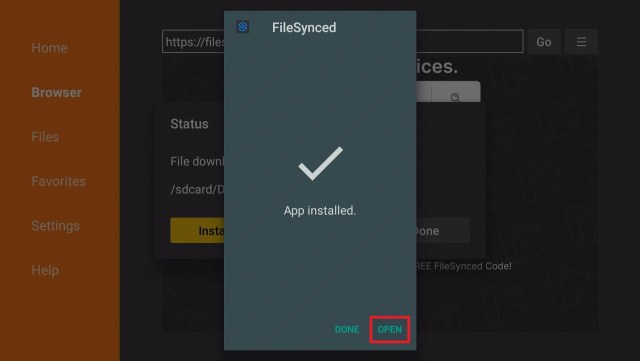
6. Press Open when the installation is complete.

Filelinked Alternatives


7. Click on Allow.

Filelinked Alternatives


8. On the FileSynced app home screen, input your FileSynced code then click on the Enter Code button. 

Filelinked Alternatives


AppLinked

The third FileLinked clone is AppLinked. Just like the first two, it also works just like the same as FileLinked.

In a personal opinion, this is the least FileLinked alternative to use. It went to a massive issue of being unsafe to use. Read this article to learn more: AppLinked Security Warning.

Nevertheless, we also list down the Best AppLinked Codes to use.


How to Install the AppLinked on Firestick

1. Install the Downloader app.


2. Use the search bar of the Downloader app.

Filelinked Alternatives


3. Type in: https://i4studio.co.uk/applinked and click on Go.

Filelinked Alternatives


4. Press the Download button from its webpage.

Filelinked Alternatives


5. The AppLinked APK will download.

Filelinked Alternatives


6. Click on the Install button.

Filelinked Alternatives


7. Select Open when the installation is complete.


8. Click on Allow.

Filelinked Alternatives


9. Use the AppLinked app to search for files on the internet. 

Filelinked Alternatives


YOUR INTERNET ACTIVITY IS BEING WATCHED

ReviewVPN cannot attest to the legality, security and privacy of the applications discussed on this site. It is highly recommended that you use a VPN service while streaming or using Kodi.

Currently, your IP 216.73.216.102 is visible to everyone and your Browser is being tracked by Advertisers & ISP Provider.

Save 65% Now

Limited Time Offer

Here are the main reasons why you must use a VPN:

  • Your activities are hidden from your ISP, the government, and from the apps you are using.
  • You can access additional movies and TV streams.
  • ISP attempts to throttle are thrwarted thus reducing buffering issues.
  • Geographically restricted content like Netflix and Hulu can be unblocked.

A VPN works be replacing your ISP-assigned IP address and creating an encrypted tunnel. We recommend the no log service offered by IPVanish. It works well on a Firestick and offers the fastest possible speeds.

Special Limited Time Offer - Get IPVanish


Legal Disclaimer: ReviewVPN.com does not encourage or endorse any illegal activity involved in the usage of services and applications referenced on this site. We do not verify the licensing agreements of services. The end-user is wholly responsible for ensuring that any media accessed through these services does not violate copyright and/or licensing laws. ReviewVPN does not promote, link to, or receive compensation from any Apps and IPTV services.


Install SurfShark on Firestick

Best SurfShark Deal


Downloader

We can say that the Downloader app is the most used app on Firestick when it comes to sideloading.

It is also the best alternative now that FileLinked is not working.

ReviewVPN and other popular websites that feature Firestick streaming use this app to install third-party applications.

By using a redirect URL, you can easily download the app to your device. These URLs serve as apk links most compatible with Android and Firestick devices.

Like the top FileLinked clones, you will use the Downloader app to install them. Most of the best Firestick Apps will actually need the Downloader app.

To be able to install a third-party application on your device using Downloader, please make sure that you already Jailbroke your Firestick.


How to Install the Downloader App on Firestick with Screenshots

1.  Click Home on your remote and scroll once to your Right. Click Setting (Gear Wheel Icon).

Step 1 jailbreak firestick


2. Scroll down and to the right until you get to My Fire TV. Click on it.

Step 2 jailbreak firestick


3. Select Developer options.

Step 3 jailbreak firestick


4. Turn on ADB debugging and Apps from Unknown Sources.

Step 4 jailbreak firestick


5. Click Turn On when the pop-up appears.

Step 5 jailbreak firestick


Then, after jailbreaking your Firestick, you’ll need to download the Downloader app to sideload. This app, which is easily available on the Amazon App Store, allows you to download APK files.


6. Click Home, click FIND.

Step 6 Install FitOn Pro App on Firestick


7. Click Search.

Step 7 Install FitOn Pro App on Firestick


8. You can either say Downloader to your Alexa voice-enabled remote or start typing it. If you typed it, click on the suggestion when it appears.

Step 8 Install FitOn Pro App on Firestick


9. Click on the Downloader Icon.

Step 9 Install FitOn Pro App on Firestick


10. Click Download.

Step 10 Install FitOn Pro App on Firestick


step 10 Install FitOn Pro App on Firestick


11. Click on Open.

Step 11 Install FitOn Pro App on Firestick


12. Click on Allow.

13_DL_Search_Engine


APKTime

This is one of the popular app stores that you can install on Firestick. It houses a lot of great apks for streaming. Most of the third-party apps available are for entertainment, sports, Live TV, Music, and Kodi. So now, FileLinked Not Working is the main issue, using app stores is a great alternative.

Navigation might be an issue when you use APKTime. We suggest using Mouse Toggle to easily click on the apks you want to install.


How to Install the APKTime on Firestick

1. Install the Downloader app.


2. Use the search bar of the Downloader app.

Install the APKTime on Firestick Step 1


3. Type in: https://reviewvpn.com/apk and click on Go.

Install the APKTime on Firestick Step 2


4. The APKTime APK will download.

Install the APKTime on Firestick Step 3


5. Click on Install.

Install the APKTime on Firestick Step 4


6. The APKTime APK will install on Firestick.

Install the APKTime on Firestick Step 5


7. Select Open when the installation is complete.

Install the APKTime on Firestick Step 6


8. You can now use the APKTime app.

Install the APKTime on Firestick Step 7


Aptoide

Aptoide has always been the best alternative to FileLinked. Now that FileLinked is not working, we will never put a list of alternatives without Aptoide.

The Aptoide app acts as a general marketplace for many apps. There is no central store of apps present in Aptoide. Instead, each user with an original app manages their store.

Aptoide has many app versions. Each version works for different purposes.

The Aptoide app is built for smartphones and tablets. The Aptoide TV app is their version for STBs and smart TVs. For virtual reality, you can use Aptoide VR. There is also an Aptoide Kids app for children’s gadgets.


How to Install the Aptoide on Firestick

1. Install the Downloader app.


2. Use the search bar of the Downloader app.

Install the Aptoide on Firestick Step 1


3. Type in: https://reviewvpn.com/apt and click on Go.

Install the Aptoide on Firestick Step 2


4. The Aptoide APK will download.

Install the Aptoide on Firestick Step 3


5. Click on Install.

Install the Aptoide on Firestick Step 3


6. The Aptoide APK will install on Firestick.

Install the Aptoide on Firestick Step 5


7. Select Open when the installation completes.

Install the Aptoide on Firestick Step 6


8. You can now use the Aptoide app.

Install the Aptoide on Firestick Step 7


Stream Safely With A VPN

Surfshark vpn

Many apps are built for modern devices. Each app has a different purpose. Looking for them can be a daunting task. Thankfully, some apps can help us look for various software.

 We have to warn you that downloading apps can decrease your internet speed. ISPs throttle your internet if your activities threaten to overload their servers. They do this to balance the distribution of your internet to many users. 

It results in a lagging connection. Stop this situation by installing SurfShark.

The SurfShark VPN is excellent for streaming since it offers you several features:

  • Hides your internet connection with virtual tunnels.
  • Cyber threats cannot breach your security.
  • Faster internet connection
  • No more stuttering and buffering while streaming.


Grab your subscription now!

Best SurfShark Deal


How to Install Surfshark on Firestick with Screenshots

If your Firestick still has the older interface, read this article to learn how to update it: Update Firestick Interface.

You can download Surfshark directly from the Amazon App store. It will be easy for you to find Surfshark with your Firestick’s Find feature. Refer to our screenshots below.

Follow our screenshots below to install the SurfShark VPN app on your Fire TV stick.

1. Go to the Home screen of your Firestick.

step 1 Install Surfshark VPN on Firestick


2. Navigate towards the Find tab. Press the Search button from the resulting dropdown.

step 2 Install Surfshark VPN on Firestick


3. Type in the keyword of SurfShark and select from the suggestions that will appear.

step 3 Install Surfshark VPN on Firestick


4. Click the official SurfShark icon from your search results.

step 4 Install Surfshark VPN on Firestick


5. Press the Download (You own it) button.

step 5 Install Surfshark VPN on Firestick


6. The SurfShark VPN installer will download on your device.

step 6 Install Surfshark VPN on Firestick


7. SurfShark VPN’s app will automatically install itself on your Fire TV stick.

step 7 Install Surfshark VPN on Firestick


8. Press the Open button after completing SurfShark VPN’s installation process.

step 8 Install Surfshark VPN on Firestick


9. Please wait for the SurfShark VPN to load its user interface.

step 9 Install Surfshark VPN on Firestick


10. You can now log in with your SurfShark VPN account credentials.

step 10 Install Surfshark VPN on Firestick

Learn more about Surfshark and Grab the Best Surfshark Deal Now!


Install Surfshark on Firestick

Best Surfshark Deal

Other VPNs to Consider

NordVPN (Best for Streaming)

Best Features

  • 5000+ Server in 50+ Countries 
  • Military-Grade Encryption
  • Fast Connection Speed
  • Suitable to a lot of devices
  • No-Log Policy

Prices
  • Complete $5.89 per month (64% Discount)
  • Plus $4.59 per month (56% Discount)
  • Standard $3.69 per month (55% Discount)

Best Features

  • 750+ High-speed VPN Servers in 43 Locations
  • Military-Grade Encryption
  • Fastest HD Streaming and Gaming
  • 30-Day Money-Back Guarantee
  • Unlimited Data & Devices
  • No-Log Policy

Prices
  • 3 Years $1.99 per month (82% Discount)
  • 1 Years $3.29 per month (70% Discount)
  • 1 Month $10.99 per month

IPVanish VPN (Most Secure)

Best Features

  • 1200+ Servers in 60+ Countries around the world
  • Unlimited Connections
  • No-Log Policy
  • Top Notch Military-Grade VPN Protocols and Encryptions
  • 100% Safe and Secured
  • Most Trusted VPN
  • Best VPN for Firestick
  • 30-Day Money-Back Guarantee

Prices
  • Yearly $3.99 per month (63% Discount) – 30 days risk free + Ransomware & Malware Protection
  • Quarterly $5.32 per month (51% Discount)
  • Monthly $10.99 per month

For more VPN discounts, go to ReviewVPN Deals and purchase the best VPN for you.


FileLinked Not Working – FAQs

History of FileLinked

FileLinked was known as DroidAdmin. It was used to install different apks on Android devices. It then became the popular app that we all know and love. If you have a Jailbroken Firestick, it is the best app to use. Through the use of codes for different FileLinked stores, users can easily navigate and install third-party apps. In the mid of 2021, FileLinked was shut down by the ACE and is currently not working.


Why is FileLinked Not Working?

FileLinked is no longer available. You may install the app but it won’t work anymore. It was shut down by ACE due to piracy issue.


What Are The Best FileLinked Alternatives

The best FileLinked alternatives are UnLinked, FileSyncec, AppLinked, and also the popular app, Downloader. You may also consider APKTime and Aptoide.


Are These FileLinked Alternatives Legal?

We cannot determine the legality of any application. ReviewVPN does not host nor promote any of them. This article is purely for educational purposes only. Although we can say that the Downloader app is legal because it is an official app from the Amazon App Store.


Do You Need a VPN to Use FileLinked Alternatives?

We recommend using a VPN like SurfShark every time you use and install third-party apps. This is to ensure the safety and privacy of the users for any legal issues that the app may face in the future.


Conclusion

FileLinked Not Working has been very bad and shocking news to almost all Firestick users. FileLinked was indeed a wonderful and helpful app to install third-party applications.

Now that it is not working, here are the best alternatives. The three FileLinked clones: UnLinked, FileSynced, and AppLinked are the top choices. The downloader app is the best one to consider as well. Apps that serve as app stores like APKTime and Aptoide are also among the best choices.

If you have any suggestions and information that we can add to the list of the best FileLinked alternatives, feel free to write them down in the comment section below. Thank you for your time.

How to Install F-Droid on Firestick

Overview

In this article, we will show you how to install the F-Droid app on your Fire TV stick.


Are you searching for an Android app provider similar to the Filelinked app? If yes, search no more. We just have a good app to recommend! Let us acquaint you with the wonderful features of F-Droid. Similar to other app providers, F-Droid is an installable app library.

An F-Droid app is an open-source software making it perfect for uploading different apps. Users can also download apps by getting their installer files. F-Droid functions as a client app for downloading the latest APK uploads.

All the apps available from the F-Droid repository are compatible both with Android and Fire OS devices. The F-Droid client app makes it easier for users to browse, install, and periodically update their devices. F-Droid features a wide collection of Free Open-Source Software (FOSS). 

We also provide an F-Droid APK download link for your Android device. Afterward, we will teach you how to install the F-Droid app on your Fire TV stick. You only have to Jailbreak your Fire TV Stick and sideload the app for its successful installation.


ANONYMOUSLY

How to Install F-Droid on your Fire TV stick

Follow our simple guide below to install the F-Droid app on your Fire TV stick. Use the downloader app for getting its APK file.

  1. Open your Firestick Settings Tab. (Gear Wheel Icon).
  2. Scroll down and to the right until you get to My Fire TV. Click on it.
  3. Select Developer options.
  4. Turn on ADB debugging and Apps from Unknown Sources.
  5. Press the Turn On when the pop-up appears.
  6. Click Home and press on FIND.
  7. Press on Search.
  8. You can either say Downloader to your Alexa voice-enabled remote or start typing it. If you typed it, click on the suggestion when it appears.
  9. Click on the Downloader Icon.
  10. Tap on Download.
  11. Click on Open.
  12. Press on the Allow button.
  13. You can now use the Downloader app.
  14. Type in reviewvpn.com/fdr and click on Go.
  15. The F-Droid app’s APK file will download on your device.
  16. Tap on the Install button after the download completes.
  17. The F-Droid app will automatically install on your Fire TV stick.
  18. Launch the F-Droid app by clicking on the Open button.
  19. Let us now click on an available app from the F-Droid app’s repository. [e.g. Simple Sudoku Game]
  20. When the download page for the Simple Sudoku Game app opens, click on the Install button.


F-Droid app for Android Devices


F-Droid app


Note: ReviewVPN.com does not host this APK file. It is hosted by Archive.org


How to Install F-Droid on your Fire TV stick (Screenshots)

To successfully install the F-Droid app on your Fire TV stick, just follow our screenshots below:


1. Open your Firestick Settings Tab. (Gear Wheel Icon).


2. Scroll down and to the right until you get to My Fire TV. Click on it.


3. Select Developer options.


4. Turn on ADB debugging and Apps from Unknown Sources.


5. Press the Turn On when the pop-up appears.


6. Click Home and press on FIND.


7. Press on Search.


8. You can either say Downloader to your Alexa voice-enabled remote or start typing it. If you typed it, click on the suggestion when it appears.


9. Click on the Downloader Icon.


10. Tap on Download.


11. Click on Open.


12. Press on the Allow button.


13. You can now use the Downloader app.


14. Type in reviewvpn.com/fdr and click on Go.

F-Droid app


15. The F-Droid app’s APK file will download on your device.

F-Droid app


16. Tap on the Install button after the download completes.

F-Droid app


17. The F-Droid app will automatically install on your Fire TV stick.

F-Droid app


18. Launch the F-Droid app by clicking on the Open button.

F-Droid app


19. Let us now click on an available app from the F-Droid app’s repository. [e.g. Simple Sudoku Game]

F-Droid app


20. When the download page for the Simple Sudoku Game app opens, click on the Install button.

F-Droid app


YOUR INTERNET ACTIVITY IS BEING WATCHED

ReviewVPN cannot attest to the legality, security and privacy of the applications discussed on this site. It is highly recommended that you use a VPN service while streaming or using Kodi.

Currently, your IP 216.73.216.102 is visible to everyone and your Browser is being tracked by Advertisers & ISP Provider.

Save 65% Now

Limited Time Offer

Here are the main reasons why you must use a VPN:

  • Your activities are hidden from your ISP, the government, and from the apps you are using.
  • You can access additional movies and TV streams.
  • ISP attempts to throttle are thrwarted thus reducing buffering issues.
  • Geographically restricted content like Netflix and Hulu can be unblocked.

A VPN works be replacing your ISP-assigned IP address and creating an encrypted tunnel. We recommend the no log service offered by IPVanish. It works well on a Firestick and offers the fastest possible speeds.

Special Limited Time Offer - Get IPVanish


Legal Disclaimer: ReviewVPN.com does not encourage or endorse any illegal activity involved in the usage of services and applications referenced on this site. We do not verify the licensing agreements of services. The end-user is wholly responsible for ensuring that any media accessed through these services does not violate copyright and/or licensing laws. ReviewVPN does not promote, link to, or receive compensation from any Apps and IPTV services.


Install Surfshark on Firestick

Best Surfshark Deal


Features of the F-Droid app

  • Free software provider.
  • Functions as a client app for downloading Android apps.
  • Users of the F-Droid app can donate various applications.
  • The F-Droid app functions as a catalog of FOSS (Free and Open Source Software).
  • F-Droid app users will find it easier to search and download files from its user interface.
  • Check out the latest app uploads for your Android and Fire TV device.
  • Helps you update your device periodically.


Technical Specifications of the F-Droid app

Here are the Technical Specifications of the F-Droid app. You will learn about its file size, latest version, and operating system requirements.


F-Droid app


F-Droid App User Interface

  • Clean and simple UI
  • Presents different Tab sections
  • Built-in search engine (Click on the Magnifying Glass icon for searching apps)
  • Latest Apps
  • Categories
  • Nearby
  • Updates
  • Settings
  • Click on any available app you want to install.
  • F-Droid provides an Install button for each available Android app.


Pros and Cons

Pros

  • 100% Free
  • Contains thousands of free or paid Android apps.
  • Functions as a client app for discovering new Android app uploads.
  • Users may contribute different Android apps.
  • Provides an easy Install button for the latest apps.
  • Easy to navigate user interface.
  • Presents minimal details for each app.

Cons

  • Do not feature some security settings like code protection.
  • Apps can easily be downloaded by any visitor.


Download Android Apps with a VPN

Searching for different apps for your Android device can sometimes be a difficult task. Either the app you want contains geo-restrictions, your ISP is reducing your internet speed, or you simply cannot find a working APK. Browsing apps on the web can lead you to visit websites with cyber threats.

For the best results when Android app hunting online – we recommend you to use Surfshark. The Surfshark is an excellent companion which will keep you safe. It will also share with you some benefits:

  • Faster Upload and Download speed.
  • Supports large file downloads (APKs, ZIP files, Game EXEs, etc.)
  • Make you anonymous while browsing the internet.
  • Provide you with an undetectable IP address.
  • Pass your internet traffic through virtual tunnels with encryption.
  • Prevent buffering and stuttering both on your Kodi and Fire TV stick.

Note: For more information about Surfshark, please read our Surfshark Review.


Grab your subscription now!

Click here to get the lowest price on Surfshark through our exclusive limited-time offer.


How to Install Surfshark VPN on Firestick

If your Firestick still has the older interface, read this article to learn how to update it: Update Firestick Interface.

1. Go to the Home screen of your Firestick.

step 1 Install Surfshark VPN on Firestick


2. Navigate towards the Find tab. Press the Search button from the resulting dropdown.

step 2 Install Surfshark VPN on Firestick


3. Type in the keyword of SurfShark and select from the suggestions that will appear.

step 3 Install Surfshark VPN on Firestick


4. Click the official SurfShark icon from your search results.

step 4 Install Surfshark VPN on Firestick


5. Press the Download (You own it) button.

step 5 Install Surfshark VPN on Firestick


6. The SurfShark VPN installer will download on your device.

step 6 Install Surfshark VPN on Firestick


7. SurfShark VPN’s app will automatically install itself on your Fire TV stick.

step 7 Install Surfshark VPN on Firestick


8. Press the Open button after completing SurfShark VPN’s installation process.

step 8 Install Surfshark VPN on Firestick


9. Please wait for the SurfShark VPN to load its user interface.

step 9 Install Surfshark VPN on Firestick


10. You can now log in with your SurfShark VPN account credentials.

step 10 Install Surfshark VPN on Firestick

Learn more about Surfshark and Grab the Best Surfshark Deal Now!


Other VPNs to Consider

NordVPN (Best for Streaming)

Best Features

  • 5000+ Server in 50+ Countries 
  • Military-Grade Encryption
  • Fast Connection Speed
  • Suitable to a lot of devices
  • No-Log Policy

Prices
  • Complete $5.89 per month (64% Discount)
  • Plus $4.59 per month (56% Discount)
  • Standard $3.69 per month (55% Discount)

Best Features

  • 750+ High-speed VPN Servers in 43 Locations
  • Military-Grade Encryption
  • Fastest HD Streaming and Gaming
  • 30-Day Money-Back Guarantee
  • Unlimited Data & Devices
  • No-Log Policy

Prices
  • 3 Years $1.99 per month (82% Discount)
  • 1 Years $3.29 per month (70% Discount)
  • 1 Month $10.99 per month

IPVanish VPN (Most Secure)

Best Features

  • 1200+ Servers in 60+ Countries around the world
  • Unlimited Connections
  • No-Log Policy
  • Top Notch Military-Grade VPN Protocols and Encryptions
  • 100% Safe and Secured
  • Most Trusted VPN
  • Best VPN for Firestick
  • 30-Day Money-Back Guarantee

Prices
  • Yearly $3.99 per month (63% Discount) – 30 days risk free + Ransomware & Malware Protection
  • Quarterly $5.32 per month (51% Discount)
  • Monthly $10.99 per month


For more VPN discounts, go to ReviewVPN Deals and purchase the best VPN for you.


Alternative Apps for the F-Droid App

Suppose you dislike some of its features, we have a list of alternative apps that work the same as the F-Droid app.

If you want more apps, check out our article showing you the Best App Store Archives.


FAQs

Is F-Droid free?

Yes. You don’t have to pay for anything to download and install the app.


Is it safe to use?

Yes, there are no cyber threats, viruses, or malware while using the F-Droid app.


How is the F-Droid app similar to the Filelinked app?

The F-Droid app allows its users to upload various Android apps. It differentiates itself by presenting a user-friendly interface without the hassle of typing codes.


Conclusion

For avid users of online app repositories, we recommend you download and install the F-Droid app. The F-Droid app is free to use. You will have a wide selection of Android apps to choose from. All of the apps are downloadable without the need for typing any code when launching the app.

We hope this article helps you install and use the F-Droid app on your Fire TV stick.


Note: ReviewVPN.com does not own or operate any app nor does it endorse any. The main purpose of this article is strictly for educational purposes only.

How to Install Simply Matrix Kodi Build

Simply Matrix Kodi Build Overview

The article will help you with how to install Simply MATRIX Kodi Build.


Simply Matrix is a third-party Kodi build that brings a wide selection of content to watch for free. You can get this build from the Where The Monsters Live Repository. The main sections are Tv Shows, Movies, Kids clubs, Sports, and more.

It brings you the quality of streaming links from different popular preloaded addons. This build has a simple yet attractive interface that works well on Kodi. It is also a feature-rich build that supports Real Debrid and Trakt account integration to make your streaming experience better. You can also use different preloaded add ons and watch their content such as Alvin, Asgard, Venom, Goto, Aliunde, TheOath, Wolfpack, and more.


ANONYMOUSLY

Install SIMPLY MATRIX Kodi Build with Screenshots

Follow these simple steps:

1. On your Firestick, open Kodi and go to Settings.


2. Select on System


3. Click on the Add-ons menu and Turn ON the Unknown Sources


4. Select Yes when the box appears


5. Go back one step and click on File Manager.


6. Select the Add Source


7. A box will pop up, so click on the ‘None’ option.


8. Now type in this URL https://www.midian.appboxes.co/repo and click OK.


9. Name this URL as gujal and tap OK.


10. After that, go back to the system menu and select Add-ons.


11. Click Install from Zip File


12. When the box pop-up, tap the Yes button


13. Select the gujal or any name you have given. 


14. Choose repository.Wherethemonsterslive.zip


15. Wait a few minutes for the addon to be installed. After that, an icon will appear at the top menu.


16. Tap the  Install from Repository


17. Then select Where The Monsters Live Repository from the list


18. Click on Program Add-ons 


19. Select the Badazz Matrix Wizard


20. Click the Install button


21. When a box Pop up, click OK


22. Wait for the Badazz Matrix Wizard installed message to appear.

23. When a box pops up, click the Continue button


24. Tap the Ignore button

25. Go back to the Kodi home screen and scroll down to Addon.


26. From the Video Add-on, select the Badazz Matrix Wizard Add-on icon


27. Select the Builds


28. Click on the Simply MATRIX


29. Tap the Install button

30. Click Yes, Install


31. Wait for the build to be installed.

31. When a box pop up after install, click the Fresh Install


32. Wait for a few minutes


33. Tap the OK button


34. Launch your Kodi again.


35. That’s it! You have successfully installed the SIMPLY MATRIX. 


YOUR INTERNET ACTIVITY IS BEING WATCHED

ReviewVPN cannot attest to the legality, security and privacy of the applications discussed on this site. It is highly recommended that you use a VPN service while streaming or using Kodi.

Currently, your IP 216.73.216.102 is visible to everyone and your Browser is being tracked by Advertisers & ISP Provider.

Save 65% Now

Limited Time Offer

Here are the main reasons why you must use a VPN:

  • Your activities are hidden from your ISP, the government, and from the apps you are using.
  • You can access additional movies and TV streams.
  • ISP attempts to throttle are thrwarted thus reducing buffering issues.
  • Geographically restricted content like Netflix and Hulu can be unblocked.

A VPN works be replacing your ISP-assigned IP address and creating an encrypted tunnel. We recommend the no log service offered by IPVanish. It works well on a Firestick and offers the fastest possible speeds.

Special Limited Time Offer - Get IPVanish


Legal Disclaimer: ReviewVPN.com does not encourage or endorse any illegal activity involved in the usage of services and applications referenced on this site. We do not verify the licensing agreements of services. The end-user is wholly responsible for ensuring that any media accessed through these services does not violate copyright and/or licensing laws. ReviewVPN does not promote, link to, or receive compensation from any Apps and IPTV services.


Install Surfshark on Firestick

Best Surfshark Deal


Features of Simply Matrix Kodi Addon


Interface

  • It has a simple and easy-to-use interface. 
  • You can easily navigate it on Kodi without even using a mouse toggle. 


Categories and Contents

  • The Main categories are Movies, Tv shows, Kids clubs, Sports, Live TV, Favorites, Wolf Pack, and System. 
  • For the Movies section, you can choose from different categories such as Popular, Top Rated, Upcoming, Trending Today, Trending This Week, In Theaters, Genres, and Most Voted. 
  • In the Kids Club, you can choose content on Latest Release, Latest Movies, Dubbed Anime, Cartoons, Subbed Anime, Movies, Ova Series, and more kids content. 
  • Sports Zone: You can choose from different categories such as International Sports, TV 4 Free SPorts, TV choice, Swiftstreamz Sports, Evil TEN TV sports, and more. 
  • Watch different sports such as NHL, NFL, MLB, NBA, Cricket, Hockey, Tennis.
  • It also has Live TV where you can stream on Live from different popular Live TV channels such as BBC One, Two, Three, Four, ITV1, Channel 5, CBS Reality, CBS Drama, 4seven, More4, and more
  • In TV shows: You can choose from Top-rated, Trending Today, Currently Airing, Airing Today, Top Rated, and more Tv series. 
  • Music: Enjoy their large collections of Songs and different albums.
  • Choose from their wide range of genres such as Action, Adventures, Animation, Comedy, Crime, Documentary, Drama, Family, Fantasy, History, Horror, Music, Mystery, Romance, and more. 


Settings

  • A maximum of 1080p video streaming quality. 
  • Integrate your Trakt and Real Debrid accounts.
  • My Addons/Repo section where you can try different addon, such as Aliunde Plus, Alvin, Octopus Repo, Cabal, Badazz Matrix Wizard, Asgard, Rising Tides, Venom, Odin, Torque Lite, Q sports, Bugatsinho Repo, Loop Repo, Venom Repo, Artix Ape, Goto, Catchup Tv & More, Dailymotion and more.


Pros and Cons

Pros

  • It is one of the few builds compatible with the Kodi 19.2 Matrix. 
  • This build brings you a lot of pre-loaded official and unofficial pre-loaded add-ons. 
  • You can access high quality streaming links on up to 4k video quality
  • Brings you a wide variety of categories and HD quality of streaming links. 

Cons

  • It requires you to install the addon first to watch its contents.


Do I need to use a VPN?

Yes, in everything you do online, especially when using any third-party addon or builds, then we recommend using a Virtual Private Network on your device to enhance your privacy and security. Having a VPN on your device will ensure your safety while streaming online using these third-party streaming services. 

In terms of privacy and security, we highly recommend Surfshark as your VPN, because it serves you with uncrackable security and a high standard of encryption. Surfshark is also proven and tested VPN committed to giving its users the quality of service and impressive features they deserve. It also offers you impressive security features of a US standard of AES-256-bit encryptions that will safeguard all of your data. The good thing is, it is not just about security because it also brings you a high speed of connection and unlimited bandwidth to enjoy streaming as much as you want. If you want to know about the other service and features this VPN has, kindly read our Surfshark Review.

Other features of Surfshark are: 

  • Prevent ISPs from interfering with your connection
  • Has a total of 3200+ servers in 65 countries to choose from
  • Advanced Encryption
  • Unlimited bandwidth 
  • Multi-Platform Protection
  • Zero logs and No IP leaks protocol
  • SOCKS5 Web Proxy
  • Geo-Locked Content Access

Note: For more information about Surfshark, please read our Surfshark Review.


Grab your subscription now!

Click here to get the lowest price on Surfshark through our exclusive limited-time offer.


How to Install Surfshark VPN on Firestick

If your Firestick still has the older interface, read this article to learn how to update it: Update Firestick Interface.

Follow our screenshots below to install the SurfShark VPN app on your Fire TV stick.

1. Go to the Home screen of your Firestick.

step 1 Install Surfshark VPN on Firestick


2. Navigate towards the Find tab. Press the Search button from the resulting dropdown.

step 2 Install Surfshark VPN on Firestick


3. Type in the keyword of SurfShark and select from the suggestions that will appear.

step 3 Install Surfshark VPN on Firestick


4. Click the official SurfShark icon from your search results.

step 4 Install Surfshark VPN on Firestick


5. Press the Download (You own it) button.

step 5 Install Surfshark VPN on Firestick


6. The SurfShark VPN installer will download on your device.

step 6 Install Surfshark VPN on Firestick


7. SurfShark VPN’s app will automatically install itself on your Fire TV stick.

step 7 Install Surfshark VPN on Firestick


8. Press the Open button after completing SurfShark VPN’s installation process.

step 8 Install Surfshark VPN on Firestick


9. Please wait for the SurfShark VPN to load its user interface.

step 9 Install Surfshark VPN on Firestick


10. You can now log in with your SurfShark VPN account credentials.

step 10 Install Surfshark VPN on Firestick

Learn more about Surfshark and Grab the Best Surfshark Deal Now!


Install Surfshark on Firestick

Best Surfshark Deal


Other VPNs to Consider

NordVPN (Best for Streaming)

Best Features

  • 5000+ Server in 50+ Countries 
  • Military-Grade Encryption
  • Fast Connection Speed
  • Suitable to a lot of devices
  • No-Log Policy

Prices
  • Complete $5.89 per month (64% Discount)
  • Plus $4.59 per month (56% Discount)
  • Standard $3.69 per month (55% Discount)

Best Features

  • 750+ High-speed VPN Servers in 43 Locations
  • Military-Grade Encryption
  • Fastest HD Streaming and Gaming
  • 30-Day Money-Back Guarantee
  • Unlimited Data & Devices
  • No-Log Policy

Prices
  • 3 Years $1.99 per month (82% Discount)
  • 1 Years $3.29 per month (70% Discount)
  • 1 Month $10.99 per month

IPVanish VPN (Most Secure)

Best Features

  • 1200+ Servers in 60+ Countries around the world
  • Unlimited Connections
  • No-Log Policy
  • Top Notch Military-Grade VPN Protocols and Encryptions
  • 100% Safe and Secured
  • Most Trusted VPN
  • Best VPN for Firestick
  • 30-Day Money-Back Guarantee

Prices
  • Yearly $3.99 per month (63% Discount) – 30 days risk free + Ransomware & Malware Protection
  • Quarterly $5.32 per month (51% Discount)
  • Monthly $10.99 per month


For more VPN discounts, go to ReviewVPN Deals and purchase the best VPN for you.

Click here to get the lowest price on Surfshark through our exclusive limited-time offer.


Alternatives for Simply Matrix Kodi Add-on

We list down some of the Kodi addons as an alternative for Simply Matrix Kodi Addon. Kindly read their corresponding articles to know more about these add-ons.


FAQs

Can I stream on the Simply Matrix Kodi Build safely?

Yes, streaming in this build is safe, but we suggest using a VPN such as Surfshark to keep you safe. 


Is the Simply Matrix Kodi Build free?

Yes, this build is free and allows you to watch their content for free.


Is the Simply Matrix Kodi Build legal?

Yes, this build is not illegal to install and use. 


Conclusion

Simply Matrix is a third-party Kodi build that brings you a large collection of content to watch for free. You can choose from their wide variety of categories and subcategories. This build also ensures that you get to watch on high-quality streaming links. It is also an AIO build where you can find almost all kinds of content to watch. We hope this article helps you install Simply Matrix Kodi Build.


Note: ReviewVPN.com does not own or operate any app nor does it endorse any. The main purpose of this article is strictly for educational purposes only.

How to Install Bozi Sports on Firestick

Overview

In this article, we will show you how to install the Bozi Sports app on your Fire TV stick.


Do you want an app for streaming live sports events this 2022? If you agree, we have just a wonderful app with many amazing features. Whether you like watching live sports videos from NBA, NHL, NFL, MLB, NCAAF, or any sports, the Bozi Sports app has it all.

The Bozi Sports app is now famously known as Bozi Live stream. It presents a variety of sports videos from the biggest names in the sports industry. The best thing about Bozi Sports is that the app is free to download and use. You do not have to pay for anything for streaming its sports content. Suppose you want to catch what is presently playing in the sports world, just use the Bozi Sports app.

All of its video content is available in HD resolutions. You won’t have a difficult time searching for sports videos to stream. We will now present to you the Bozi Sports app’s download link for your Android device. Later on, we will teach you how to install the Bozi Sports app on your Fire TV stick. To install it successfully, you only have to Jailbreak your Fire TV Stick and sideload the app.


ANONYMOUSLY

How to Install the Bozi Sports App on your Fire TV Stick

Follow this simple guide to successfully install the Bozi Sports app on your Fire TV stick. While doing this method, we recommend using the Downloader app.

  1. Open your Firestick Settings Tab. (Gear Wheel Icon).
  2. Scroll down and to the right until you get to My Fire TV. Click on it.
  3. Select Developer options.
  4. Turn on ADB debugging and Apps from Unknown Sources.
  5. Press the Turn On when the pop-up appears.
  6. Click Home and press on FIND.
  7. Press on Search.
  8. You can either say Downloader to your Alexa voice-enabled remote or start typing it. If you typed it, click on the suggestion when it appears.
  9. Click on the Downloader Icon.
  10. Tap on Download.
  11. Click on Open.
  12. Press on the Allow button.
  13. Use the Downloader app’s Search tab.
  14. Type in: reviewvpn.com/boz
  15. The Bozi Sports app’s APK file will download.
  16. Click on the Install button.
  17. The Bozi Sports app will install automatically on your Fire TV stick.
  18. Launch the Bozi Sports app by pressing the Open button after its installation.
  19. Press your Fire TV stick’s Select button to allow the Bozi Sports app access to your media files.
  20. After launching the app, Bozi Sports’ main interface will present different tabs of famous sports video providers.


Bozi Sports app for Android Devices


Bozi Sports

Note: ReviewVPN.com does not host this APK file. It is hosted by Archive.org


Install the Bozi Sports App on your Fire TV Stick (Screenshots)

Following the screenshots down below shows you the proper sequence of installing Bozi Sports on your Fire TV stick.

1. Open your Firestick Settings Tab. (Gear Wheel Icon).


2. Scroll down and select My Fire TV.


3. Select Developer options.


4. Turn on ADB debugging and Apps from Unknown Sources.


5. Press the Turn On when the pop-up appears.


6. Click Home and press on FIND.


7. Press the Search button from the dropdown.


8. You can either say Downloader to your Alexa voice-enabled remote or start typing it. If you typed it, click on the suggestion when it appears.


9. Click on the Downloader Icon.


10. Tap on Download and please wait while the app is installing itself on your device.


11. Click on Open.


12. Press on the Allow button.


13. You can now use the Downloader app.


14. Type in: reviewvpn.com/boz

Bozi Sports


15. The Bozi Sports app’s APK file will download.

Bozi Sports


16. Click on the Install button.

Bozi Sports


17. The Bozi Sports app will install automatically on your Fire TV stick.

Bozi Sports


18. Launch the Bozi Sports app by pressing the Open button after its installation.

Bozi Sports


19. Press your Fire TV stick’s Select button to allow the Bozi Sports app access to your media files.

Bozi Sports


20. After launching the app, Bozi Sports’ main interface will present different tabs of famous sports video providers.

Bozi Sports


YOUR INTERNET ACTIVITY IS BEING WATCHED

ReviewVPN cannot attest to the legality, security and privacy of the applications discussed on this site. It is highly recommended that you use a VPN service while streaming or using Kodi.

Currently, your IP 216.73.216.102 is visible to everyone and your Browser is being tracked by Advertisers & ISP Provider.

Save 65% Now

Limited Time Offer

Here are the main reasons why you must use a VPN:

  • Your activities are hidden from your ISP, the government, and from the apps you are using.
  • You can access additional movies and TV streams.
  • ISP attempts to throttle are thrwarted thus reducing buffering issues.
  • Geographically restricted content like Netflix and Hulu can be unblocked.

A VPN works be replacing your ISP-assigned IP address and creating an encrypted tunnel. We recommend the no log service offered by IPVanish. It works well on a Firestick and offers the fastest possible speeds.

Special Limited Time Offer - Get IPVanish


Legal Disclaimer: ReviewVPN.com does not encourage or endorse any illegal activity involved in the usage of services and applications referenced on this site. We do not verify the licensing agreements of services. The end-user is wholly responsible for ensuring that any media accessed through these services does not violate copyright and/or licensing laws. ReviewVPN does not promote, link to, or receive compensation from any Apps and IPTV services.


Install SurfShark on Firestick

Best SurfShark Deal


Features of the Bozi Sports App

  • 100% Free.
  • No Signup.
  • Do not require any registration.
  • No hidden payments.
  • Watch HD streams of your favorite sports.
  • Presents popular sports organizations.
  • Click on any tab representing a different type of sport.
  • Contains a wide collection of clickable links.
  • Each link opens a corresponding HD sports video.
  • Includes an Events Reminder feature.
  • The Bozi Sports app allows users to add events to their calendars.
  • Learn about the latest sports events.
  • Receive game statistics, scoreboard, team standings, with the most recent results.

Technical Specifications of the Bozi Sports App

Let us now show you the Technical Specifications of the Bozi Sports app. You will have an idea if the app is compatible with your device. Here is Bozi Sports app’s latest version, installer file size, and compatible OS requirement.


Bozi Sports


Bozi Sports App Interface

  • Bozi Sports app’s User Interface presents a straightforward architecture.
  • Simple layout which is easy to navigate.
  • Provides a Settings (Gear Wheel) Icon.
  • Add sports videos as your Favorite.
  • Save Event Reminders to your Calendar.
  • Events
  • Scoreboard
  • Standings
  • News


Sports Categories of the Bozi Sports App

  • NFL – National Football League
  • NBA – National Basketball Association
  • NCAAF – National Collegiate Athletic Association Football
  • MLB – Major League Baseball
  • NHL – National Hockey League


Pros and Cons

Pros

  • 100% Free.
  • No Signup.
  • Do not require any registration.
  • No hidden payments.
  • Provides clickable links for streaming the latest sports events.
  • Allows users to Add event reminders to their Calendars (Add Reminder Button)
  • Presents tabs where users can learn about game statistics (Events, Scoreboard, Standings, and News)

Cons

  • The Bozi Sports app should add more sports selections. However, the categories available are impressive.


Should You Use a VPN While Streaming Sports?

Surfshark vpn

Many sports enthusiasts have many app options to select from. Today, there is a wide variety of sports streaming apps available on the internet.

However, there might be some instances where problems occur while streaming live TV and sports videos. Maybe you are trying to access content with geo-restrictions or have a slow connection.

For watching online sports videos, we recommend you to get SurfShark. Here are some advantages of this VPN:

  • SurfShark is the best VPN for streaming media content.
  • Faster streaming speeds while watching live sports events.
  • Supports the downloading of large files such as videos, games, and sports streaming apps.
  • Allows you to access media content with geo-restrictions.
  • Prevents buffering, lagging, and stuttering both on Kodi and the Fire TV stick.


Grab your subscription now!

Best SurfShark Deal

How to Install Surfshark on Firestick with Screenshots

If your Firestick still has the older interface, read this article to learn how to update it: Update Firestick Interface.

You can download Surfshark directly from the Amazon App store. It will be easy for you to find Surfshark with your Firestick’s Find feature. Refer to our screenshots below.

Follow our screenshots below to install the SurfShark VPN app on your Fire TV stick.

1. Go to the Home screen of your Firestick.

step 1 Install Surfshark VPN on Firestick


2. Navigate towards the Find tab. Press the Search button from the resulting dropdown.

step 2 Install Surfshark VPN on Firestick


3. Type in the keyword of SurfShark and select from the suggestions that will appear.

step 3 Install Surfshark VPN on Firestick


4. Click the official SurfShark icon from your search results.

step 4 Install Surfshark VPN on Firestick


5. Press the Download (You own it) button.

step 5 Install Surfshark VPN on Firestick


6. The SurfShark VPN installer will download on your device.

step 6 Install Surfshark VPN on Firestick


7. SurfShark VPN’s app will automatically install itself on your Fire TV stick.

step 7 Install Surfshark VPN on Firestick


8. Press the Open button after completing SurfShark VPN’s installation process.

step 8 Install Surfshark VPN on Firestick


9. Please wait for the SurfShark VPN to load its user interface.

step 9 Install Surfshark VPN on Firestick


10. You can now log in with your SurfShark VPN account credentials.

step 10 Install Surfshark VPN on Firestick

Learn more about Surfshark and Grab the Best Surfshark Deal Now!


Install Surfshark on Firestick

Best Surfshark Deal

Other VPNs to Consider

NordVPN (Best for Streaming)

Best Features

  • 5000+ Server in 50+ Countries 
  • Military-Grade Encryption
  • Fast Connection Speed
  • Suitable to a lot of devices
  • No-Log Policy

Prices
  • Complete $5.89 per month (64% Discount)
  • Plus $4.59 per month (56% Discount)
  • Standard $3.69 per month (55% Discount)

Best Features

  • 750+ High-speed VPN Servers in 43 Locations
  • Military-Grade Encryption
  • Fastest HD Streaming and Gaming
  • 30-Day Money-Back Guarantee
  • Unlimited Data & Devices
  • No-Log Policy

Prices
  • 3 Years $1.99 per month (82% Discount)
  • 1 Years $3.29 per month (70% Discount)
  • 1 Month $10.99 per month

IPVanish VPN (Most Secure)

Best Features

  • 1200+ Servers in 60+ Countries around the world
  • Unlimited Connections
  • No-Log Policy
  • Top Notch Military-Grade VPN Protocols and Encryptions
  • 100% Safe and Secured
  • Most Trusted VPN
  • Best VPN for Firestick
  • 30-Day Money-Back Guarantee

Prices
  • Yearly $3.99 per month (63% Discount) – 30 days risk free + Ransomware & Malware Protection
  • Quarterly $5.32 per month (51% Discount)
  • Monthly $10.99 per month

For more VPN discounts, go to ReviewVPN Deals and purchase the best VPN for you.


Alternative Apps for Bozi Sports

Bozi Sports presents few reliable sources for streaming sports videos. Fortunately, we have a list of apps perfect for your sports streaming activities:

If you want more apps for free streaming of live sports videos in HD, visit our Best Free Sports Apps article.


FAQs

Is the Bozi Sports app free?

Yes. It does not require any user registration, sign-up, or payment.


Is it safe to use the Bozi Sports app?

Yes. The Bozi Sports app do not contain any malicious programs or cyber threat.


Are there ads while using the Bozi Sports app?

Yes. Unfortunately, while using a free streaming app or watching from various online sources, ads might occasionally appear.


Conclusion

The Bozi Sports app is suitable for sports enthusiasts worldwide. It presents clickable video links, upcoming events, and the ability to add a calendar reminder. Using the Bozi Sports app lets you stream HD videos from NHL, NBA, NFL, NCAAF, and MLB.

We hope this article helps you install the Bozi Sports app both on Kodi and your Fire TV stick. Thank you for reading!


Note: ReviewVPN.com does not own or operate any app nor does it endorse any. The main purpose of this article is strictly for educational purposes only.