How to Watch MLS on Firestick

Overview

In this article, we will show you how to watch MLS on your Fire TV stick.


Do you want to watch MLS online outside the US and Canada? If yes, we have the right app that suits your needs. First, we will discuss what MLS is all about. MLS is the acronym for Major League soccer.

It is the highest level of men’s professional soccer league both in the US and Canada. The governing body of Major League Soccer is the United States Soccer Foundation (USSF). This makes the MLS a major professional soccer league in North America.


What To Expect From MLS?

For fans of soccer, the Major Soccer League features the best teams and players both from the US and Canada. It includes a total of twenty-six teams. Three of these teams are from Canada. Since the 19th Century began, there have been many soccer leagues in America’s history. However, the Major Soccer League leaves its imprint as the most profitable of them all.

In 2020, the MLS receives over twenty-six thousand viewers every game. As a result, many people recognize its fame on par with the NFL (National Football League) and MLB (Major League Baseball).

Collecting thousands of fans, cable TV viewing of MLS continues to increase. In 2019, MLS gained 260,000 viewers amounting to 1.3 million viewers worldwide. If you want to watch MLS sports videos, we will provide you with all the apps for viewing all of its events with your Fire TV stick.


ANONYMOUSLY

How to Jailbreak Fire TV Stick and Install Downloader App with Screenshots

Before we will give you some apps to watch Major Soccer League events, first we will teach you how to Jailbreak your Fire TV stick and install the downloader app. You will need the downloader app to download some apps for streaming sports videos.

1. Open your Firestick Settings Tab. (Gear Wheel Icon).

MLS


2. Scroll down and to the right until you get to My Fire TV. Click on it.

MLS


3. Select Developer options.

MLS


4. Turn on ADB debugging and Apps from Unknown Sources.

MLS


5. Press the Turn On when the pop-up appears.

MLS


6. Click Home and press on FIND.

MLS


7. Press on Search.

MLS


8. You can either say Downloader to your Alexa voice-enabled remote or start typing it. If you typed it, click on the suggestion when it appears.

MLS


9. Click on the Downloader Icon.

MLS


10. Tap on Download.

MLS


MLS


11. Click on Open.

MLS


12. Press on the Allow button.

MLS


13. You can now use the Downloader app.

MLS


YOUR INTERNET ACTIVITY IS BEING WATCHED

ReviewVPN cannot attest to the legality, security and privacy of the applications discussed on this site. It is highly recommended that you use a VPN service while streaming or using Kodi.

Currently, your IP 216.73.216.156 is visible to everyone and your Browser is being tracked by Advertisers & ISP Provider.

Save 65% Now

Limited Time Offer

Here are the main reasons why you must use a VPN:

  • Your activities are hidden from your ISP, the government, and from the apps you are using.
  • You can access additional movies and TV streams.
  • ISP attempts to throttle are thrwarted thus reducing buffering issues.
  • Geographically restricted content like Netflix and Hulu can be unblocked.

A VPN works be replacing your ISP-assigned IP address and creating an encrypted tunnel. We recommend the no log service offered by IPVanish. It works well on a Firestick and offers the fastest possible speeds.

Special Limited Time Offer - Get IPVanish


Legal Disclaimer: ReviewVPN.com does not encourage or endorse any illegal activity involved in the usage of services and applications referenced on this site. We do not verify the licensing agreements of services. The end-user is wholly responsible for ensuring that any media accessed through these services does not violate copyright and/or licensing laws. ReviewVPN does not promote, link to, or receive compensation from any Apps and IPTV services.


Install Surfshark on Firestick

Best Surfshark Deal


How to Watch MLS on your Fire TV Stick

Let us now present you with some apps for streaming MLS on your Fire TV stick. All these apps are reputable streaming services. Some apps require the Downloader app while some are direct downloads.


DAZN

For the first app on our list of how to watch MLS on Firestick, we give you the DAZN app. DAZN is first on our list since you don’t have to Jailbreak your Fire TV stick and install the downloader app. You can easily find the DAZN app with the Search engine of your Fire TV stick.

DAZN is an app that requires your subscription. The app comes from Germany and focuses on presenting MMA sports videos. You can also view popular and upcoming MMA events with the DAZN app.

Aside from competitive sports, you may also use the DAZN app for watching MLS videos. It contains a variety of sports videos to select from. This includes the worldwide sport of soccer. If you reside in any European country but want to catch Major League Soccer, then DAZN is a good choice.

Before installing the DAZN app, we recommend you register and subscribe to their services while using your laptop, Android, or MAC smartphone.


How to Install the DAZN app on your Fire TV Stick

1. Go to the Home screen of your Fire TV stick.

MLS


2. Use the right scroll button of your remote and press the Find tab.

MLS


3. Click the Search tab below the Find tab.

MLS


4. Type in the keyword of “DAZN“.

MLS


5. Use the down scroll button of your Fire TV stick’s remote and press the “DAZN App” suggestion.

MLS


6. As a result, the DAZN app’s official icon will show, press on it.

MLS


7. Tap the ‘Get – Free to Download‘ button.

MLS


8. Wait for the DAZN app’s installer file to download.

MLS


9. After downloading the app, it will automatically install into your Fire TV stick (Does not require any user action).

MLS


10. When its installation finishes, press the Open button.

MLS


11. Wait for the DAZN app to load its UI (User Interface).

MLS


12. You may now input your DAZN credentials.

MLS

For more details, visit our How to Install DAZN on Firestick article.


ESPN

The ESPN Plus app should be your primary choice if you want to watch MLS on Firestick.

ESPN has been a popular sports network since the time of cable TV subscriptions. No wonder the ESPN Plus app is the official distributor of MLS sports videos. It is the main OTT-hybrid sports app to use with your Fire TV device and Android smartphone.

The ESPN network owns all the rights to distribute all Major League Soccer videos. Suppose you want to stream MLS sports events, then it is possible with the ESPN Plus app wherever you might be. If you want to enjoy ESPN’s full coverage of MLS games, you have to sign in with your cable TV subscription.


How to Install the ESPN Plus app on your Fire TV Stick

1. Use the Downloader app’s URL Search browser. To do this, first, you have to Jailbreak your Fire TV stick and install the Downloader app. You will need the Downloader app for downloading third-party apps for streaming sports videos.

MLS


2. Type in: https://reviewvpn.com/sli and click on the Go button.

MLS


3. Click on the Install button.

MLS


4. Press the Open button.

MLS


5. Tap on the Sign In button to watch.

MLS

You will learn more about the app if you visit our article about Sling TV: App Review and Installation for your Fire TV stick.


Hulu + Live TV

Being a famous app with many cord-cutters, the Hulu Live TV app is a good option for watching MLS.

Hulu offers you access to over 65 TV channels. Their flexible subscription plan starts at $6.99 per month. Suppose you want to upgrade to Hulu with Live TV, you have to pay $64.99 per month. You may get an upgrade giving you enhanced Cloud DVR storage with Limitless Viewing screens. The upgrade costs an additional $14.99 per month.

If you subscribe with their Hulu + Live TV (No ads) plan, you get 50 hours of cloud DVR. You may record your favorite MLS moments while using the app. Apart from sports, you also have access to its VOD (Video on demand) library.


How to Install the Hulu Live TV app on your Fire TV Stick

1. Use the Downloader app’s URL Search browser. To do this, first, you have to Jailbreak your Fire TV stick and install the Downloader app. You will need the Downloader app for downloading third-party apps for streaming sports videos.

MLS


2. Type in: reviewvpn.com/hul and click Go.

MLS


3. Wait for the file download to finish.

MLS


4. Click Install.

MLS


5. Click on the Open button.

MLS


6. Press the login button.

MLS

Learn more about the Hulu Live TV app by visiting our article about Hulu App Review and Installation guide.


Sling TV

The Sling TV app offers us an affordable service. Aside from its affordability, the Sling TV app provides us with complete coverage of MLS sports videos.

Their Sling Blue plan starts at $70.99 per month. However, if you want to watch MLS, then Sling Orange is a suitable plan for you. Similar to Blue, Sling Orange costs $70.99 per month. It contains more than 30 channels to watch sports.

The Sling Orange plan includes ESPN, ESPN 2, ABC, Fox, FS1, and FS2 channels. The channel selection overlaps between the Sling Orange and Blue plan. Fortunately, there is a mix between both subscriptions. The Sling Orange/Blue plan combination costs $50 per month. It is a good choice for watching MLS sports videos while getting the best of both plans.


How to Install the Sling TV app on your Fire TV Stick

1. Use the Downloader app’s URL Search browser. To do this, first, you have to Jailbreak your Fire TV stick and install the Downloader app. You will need the Downloader app for downloading third-party apps for streaming sports videos.

MLS


2. Type in: https://reviewvpn.com/sli and click on the Go button.

MLS


3. Click on the Install button.

MLS


4. Press the Open button.

MLS


5. Tap on the Sign In button to watch.

MLS

You will learn more about the app if you visit our article about Sling TV: App Review and Installation for your Fire TV stick.


Fubo TV

Fubo TV is a live TV provider with many types of channels. Expect a variety of live TV Channels with the Fubo TV app.

Watching MLS videos is possible with the Fubo TV app. It contains sports channels such as Fox, FS1, and FS2 channels. The plan costs $64.99 per month with 113 channels, 250 hours of Cloud DVR storage, and supports three devices for streaming.

The Fubo TV app also includes additional sports channels. We assure you won’t miss out on any MLS live streaming with popular sports channels such as ABC and ESPN. Fubo TV’s standard plan offers over 30 hours of Cloud DVR storage. It is then possible to record your favorite soccer moments while enjoying MLS live sports events.


How to Install the Fubo TV app on your Fire TV Stick:

1. Use the Downloader app’s URL Search browser. To do this, first, you have to Jailbreak your Fire TV stick and install the Downloader app. You will need the Downloader app for downloading third-party apps for streaming sports videos.

MLS


2. Type in the URL: https://reviewvpn.com/apt and click Go.

MLS


3. Wait for the file download to finish.

MLS


4. Click on the Install button.

MLS


5. Select Open to launch the app.

MLS


6. Press the OK button after opening the app.

MLS


7. Choose Allow.

MLS


8. Click on the Search button.

MLS


9. Type in FuboTV as your search term.

MLS


10. Click on the Install button on the front menu.

MLS


11. Once the download is complete, press the Install button.

MLS


12. Open the Fubo TV installer file with the Package Installer app.

MLS


13. Click the Open button.

MLS


14. You can now sign in with your account to start streaming.

MLS

Learn more about using the Fubo TV app by visiting Fubo TV App Review and Installation on Firestick.


ABC

In 2020, ESPN Network and ABC joined forces for streaming Major League Soccer events. The official ABC app is a popular TV network. Today it has an app we can use for streaming a variety of live TV channels.

The ABC app offers the 24/7 streaming of its main ABC channel. You can also select from its wide collection of on-demand media content. Users will enjoy selecting a show to watch from its original titles exclusive only with the ABC app.

One of the best things about the ABC app is its streaming performance. They update the content periodically parallel to the shows that their TV channel presents. ABC is the fifth oldest TV network in the world. While using its app, expect the same quality of content such as TV shows and live sports event coverage.


How to Install the ABC app on your Fire TV Stick:

1. Use the Downloader app’s URL Search browser. To do this, first, you have to Jailbreak your Fire TV stick and install the Downloader app. You will need the Downloader app for downloading third-party apps for streaming sports videos.

MLS


14. Type in https://reviewvpn.com/abc  and click Go.

MLS


15. Wait for the file download to finish.

MLS


16. Click Install.

MLS


17. ABC’s app will install on your Fire TV stick.

MLS


18. Select Open to launch the app.

MLS


19. Wait for the ABC app to load.

MLS

Check our article showing you how to install ABC on Firestick and Android devices.


Watch Live MLS Sports Videos with a VPN

MLS is one of the most profitable sports leagues in the US. No wonder millions of soccer fans wait for their next main event.

However, streaming sports videos can be difficult for soccer enthusiasts both inside and outside the North American region. As we all know, MLS includes both US and Canadian teams. These teams represent the best of both countries. Some fans may experience ISP throttling or encounter geo-restrictions while trying to watch these games.

As a solution, we recommend you use Surfshark. Here are some of its advantages:

  • Eliminates geo-restrictions.
  • Conceal your traffic with digital tunnels.
  • Assign you an undetectable IP address.
  • Prevent stuttering and buffering on your Android and Fire TV device.

Note: For more information about SurfShark, please read our SURFSHARK REVIEW.


Grab your subscription now!


How to Install Surfshark VPN on Firestick

If your Firestick still has the older interface, read this article to learn how to update it: Update Firestick Interface.

You can download Surfshark directly from the Amazon App store. It will be easy for you to find Surfshark with your Firestick’s Find feature. Refer to our screenshots below.

1. Go to the Home screen of your Firestick.

step 1 Install Surfshark VPN on Firestick


2. Navigate towards the Find tab. Press the Search button from the resulting dropdown.

step 2 Install Surfshark VPN on Firestick


3. Type in the keyword of SurfShark and select from the suggestions that will appear.

step 3 Install Surfshark VPN on Firestick


4. Click the official SurfShark icon from your search results.

step 4 Install Surfshark VPN on Firestick


5. Press the Download (You own it) button.

step 5 Install Surfshark VPN on Firestick


6. The SurfShark VPN installer will download on your device.

step 6 Install Surfshark VPN on Firestick


7. SurfShark VPN’s app will automatically install itself on your Fire TV stick.

step 7 Install Surfshark VPN on Firestick


8. Press the Open button after completing SurfShark VPN’s installation process.

step 8 Install Surfshark VPN on Firestick


9. Please wait for the SurfShark VPN to load its user interface.

step 9 Install Surfshark VPN on Firestick


10. You can now log in with your SurfShark VPN account credentials.

step 10 Install Surfshark VPN on Firestick

Learn more about Surfshark and Grab the Best Surfshark Deal Now!


Other VPNs to Consider

NordVPN (Best for Streaming)

Best Features

  • 5000+ Server in 50+ Countries 
  • Military-Grade Encryption
  • Fast Connection Speed
  • Suitable to a lot of devices
  • No-Log Policy

Prices
  • Complete $5.89 per month (64% Discount)
  • Plus $4.59 per month (56% Discount)
  • Standard $3.69 per month (55% Discount)

Best Features

  • 750+ High-speed VPN Servers in 43 Locations
  • Military-Grade Encryption
  • Fastest HD Streaming and Gaming
  • 30-Day Money-Back Guarantee
  • Unlimited Data & Devices
  • No-Log Policy

Prices
  • 3 Years $1.99 per month (82% Discount)
  • 1 Years $3.29 per month (70% Discount)
  • 1 Month $10.99 per month

IPVanish VPN (Most Secure)

Best Features

  • 1200+ Servers in 60+ Countries around the world
  • Unlimited Connections
  • No-Log Policy
  • Top Notch Military-Grade VPN Protocols and Encryptions
  • 100% Safe and Secured
  • Most Trusted VPN
  • Best VPN for Firestick
  • 30-Day Money-Back Guarantee

Prices
  • Yearly $3.99 per month (63% Discount) – 30 days risk free + Ransomware & Malware Protection
  • Quarterly $5.32 per month (51% Discount)
  • Monthly $10.99 per month


For more VPN discounts, go to ReviewVPN Deals and purchase the best VPN for you.


Grab the Best Surfshark Deal Now!

Click here to get the lowest price on Surfshark through our exclusive limited-time offer.


FAQs

Are all the apps safe to use?

Yes. No malicious and harmful programs are present while using these apps for streaming MLS events.


Are these apps for free?

No. Not all these apps are free to use. You can check out every app’s subscription plan that is suitable for your needs.


Conclusion

Major League Soccer (MLS) is the primary soccer league both in the US and Canada. It consists of over 26 teams with three Canadian teams. Expect the best soccer players to battle each other during MLS major events. To stream these events, refer to any of the apps that we recommend. We hope this article helps you watch MLS on your Fire TV stick.

How to Install Project JL Kodi Build

Project JL Kodi Build Overview

The article will help you on how to install Project JL Kodi Build.


Project JL (Justice League) is a third-party build from the CmaN Repository mainly for Real debrid users because it requires you to link your debrid account to access their contents. But the good thing is, it also has Free links for those who do not have a debrid account.

This build has a large collection of content in a wide variety of content categories. It will surely bring you high-quality streaming links as it is integrated with Real Debrid. Another good thing about this build is, it is compatible with Kodi 19.5 Matrix.

The main sections of this build are Movies, Free, TV, Sports, Trakt, Addons, and more. It also has a simple and easy-to-use interface that has a skin of Project Aura. Linking your Real debrid account is much better because you can access all of their contents. 


ANONYMOUSLY

How to Install Project JL Kodi Build with Screenshot Guide

Installing a Kodi build has a lot of processes to take. That is why we will guide you step by step on how you can install it on Kodi.

 Follow the following steps below.  

1. On your Firestick, open Kodi and go to Settings.

Install Project JL Kodi Build 1


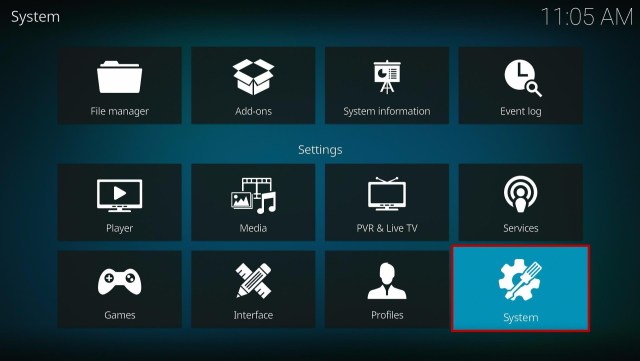
2. Select on System.

Install Project JL Kodi Build 2


3. Click on the Add-ons menu and Turn ON the Unknown Sources.

Install Project JL Kodi Build 3


4. Select Yes when the box appears.

Install Project JL Kodi Build 4


5. Go back one step and click on File Manager.

Install Project JL Kodi Build 5


6. Select the Add Source.

Install Project JL Kodi Build 6


7. A box will pop up, so click on the ‘None’ option.

Install Project JL Kodi Build 7


8. Now type in this URL http://cmanbuilds.com/repo and click OK. 

Install Project JL Kodi Build 8


9. Name this URL as cman and tap OK.

Install Project JL Kodi Build 9


10. After that, go back to the system menu and select Add-ons.

Install Project JL Kodi Build 10


11. Click Install from Zip File.

Install Project JL Kodi Build 11


12. When a box pop up, tap the Yes button

Install Project JL Kodi Build 12


13. Select cman or any name you have given.

Install Project JL Kodi Build 13


14. Choose repository.cMaNWizard.zip

Install Project JL Kodi Build 14


15. Wait a few minutes for the addon to be installed. After that, an icon will appear at the top menu.

Install Project JL Kodi Build 15


16. Tap the  Install from Repository.

Install Project JL Kodi Build 16


17. Then select cMaN’s Wizard Repository from the list.

Install Project JL Kodi Build 17


18. Select the Program add-ons.

Install Project JL Kodi Build 18


19. Click cMaN Wizard 19.

Install Project JL Kodi Build 19


20. Tap the Install button.

Install Project JL Kodi Build 20


21. Click the Ok button.

Install Project JL Kodi Build 21


22. Wait for the Installed message to appear and click the Continue.

Install Project JL Kodi Build 22


23. Tap the Close.

Install Project JL Kodi Build 23


24. Go back to the Kodi home screen and scroll down to Addon.

Install Project JL Kodi Build 24


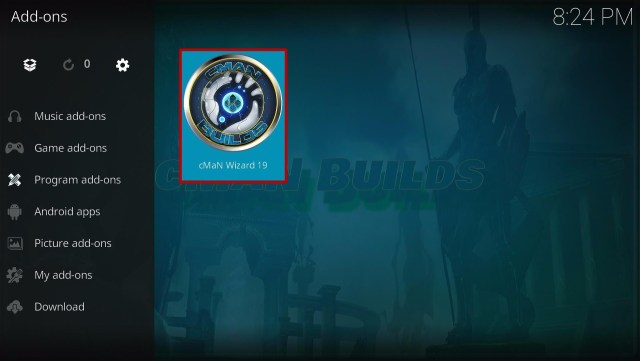
25. From the Program add-ons, select cMaN Wizard 19.

Install Project JL Kodi Build 25


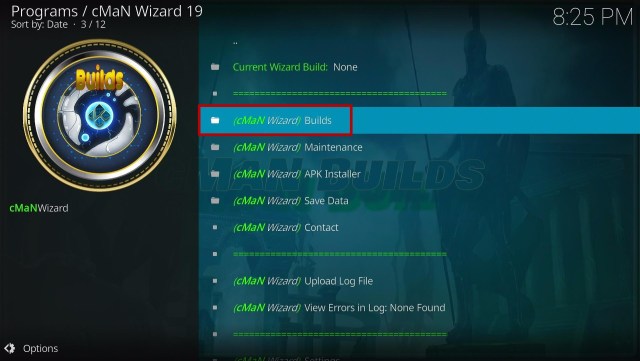
26. Select Builds.

Install Project JL Kodi Build 26


27. Scroll down and select Project JL.

Install Project JL Kodi Build 27


28.  Scroll down and click Install.

Install Project JL Kodi Build 28


29. Tap the Yes, Install.

Install Project JL Kodi Build 29


30. Wait for the Build To install.

Install Project JL Kodi Build 30


31. Click the Fresh Install.

Install Project JL Kodi Build 31


32. Wait for a few minutes to finish.

Install Project JL Kodi Build 32


33. Click the OK button.

Install Project JL Kodi Build 33


34. Launch your Kodi again.

Install Project JL Kodi Build 34


35. That’s it! You have successfully installed the Project JL Build. 

Install Project JL Kodi Build 35


YOUR INTERNET ACTIVITY IS BEING WATCHED

ReviewVPN cannot attest to the legality, security and privacy of the applications discussed on this site. It is highly recommended that you use a VPN service while streaming or using Kodi.

Currently, your IP 216.73.216.156 is visible to everyone and your Browser is being tracked by Advertisers & ISP Provider.

Save 65% Now

Limited Time Offer

Here are the main reasons why you must use a VPN:

  • Your activities are hidden from your ISP, the government, and from the apps you are using.
  • You can access additional movies and TV streams.
  • ISP attempts to throttle are thrwarted thus reducing buffering issues.
  • Geographically restricted content like Netflix and Hulu can be unblocked.

A VPN works be replacing your ISP-assigned IP address and creating an encrypted tunnel. We recommend the no log service offered by IPVanish. It works well on a Firestick and offers the fastest possible speeds.

Special Limited Time Offer - Get IPVanish


Legal Disclaimer: ReviewVPN.com does not encourage or endorse any illegal activity involved in the usage of services and applications referenced on this site. We do not verify the licensing agreements of services. The end-user is wholly responsible for ensuring that any media accessed through these services does not violate copyright and/or licensing laws. ReviewVPN does not promote, link to, or receive compensation from any Apps and IPTV services.


Install Surfshark on Firestick

Best Surfshark Deal


Features of Project JL Kodi Build

Interface

  • It has an easy-to-navigate interface with Justice League theme inspired. 
  • This build is compatible with Kodi 19.5 Matrix. 
  • Easy Real debrid account linking process. 


Categories

  • In the movies section, you can choose from the 4K One-click section, One-Click section, Non-Debrid Section, Movies, TV shows, Soaps, Documentaries, Kids, Sports, Stand up, and more. 
  • It also has kids’ content such as Kids’ movies/Tv shows, Kids Box Sets, Cartoons, and more.
  • This build also brings you Live sports game footage of MMA, Football, Boxing, Baseball, America Football, Wrestling, Live Races, UFC Replays, and more. 
  • Live TV: You can watch on different popular Live Tv channels such as USTVGO, TVONE, News, Fluxus TV, Documentary, and more.
  • Supports Trakt account linking to synchronize and access your library. 
  • It has a search history, RD history, and the Last link Played. 
  • You can also resume watching where you stopped off. 
  • This build brings you different Movie Boxsets and Collections.
  • It also has lots of movie collections and Box sets. 
  • Tv shows: It brings you On the Air, Popular, New Tv show, Complete Tv series and more,
  • Genres: Action, Adventures, Animation, Comedy, Crime, Documentary, Drama, Family, Fantasy, History, Horror, Music, Mystery, Romance, Science Fiction, TV Movies, Kids, Thriller and more. 
  • The Preloaded addons in this build are Asgard, Odin, Loop Repository, The Endzone 19, Q Sports, ApeX Sports, cMaN Wizard 19, Black, Black Lightning, Goto, Dailymotion.com, Fluxus TV, tvOne, the Movie Database, and more.


Pros and Cons

Pros

  • Project JL is one of the builds compatible with the Kodi 19.5 Matrix. 
  • It brings you a large collection of content to watch for free. 
  • This build is a combination of debrid and free links. 
  • You can access their wide selection of content with a wide variety of content categories. 
  • It brings you different links providers with 480p to 4k streaming quality.  


Cons

  • This build requires you to link your Real Debrid account to access their contents. 

Protect Your Privacy with a VPN

Some Kodi users were reportedly experiencing some malicious things while streaming online using a public network. These malicious things happen while being connected on a public network is merely because of your snooping Internet Service Provider that has access to your web traffic. In this way, everything you do online is known by your ISP, which somehow steals your privacy, so if you want to protect your privacy, we suggest using a Virtual Private Network.

 A VPN will give you the privacy you need by encrypting everything about you such as your Real IP address, identity, web traffic, and more. One of the trusted VPNs you can choose online is Surfshark, where this VPN uses a high standard of encryption that safeguards everything about you to keep you anonymous online. 

In this way, you can do anything you want online while being connected to a public network. Surfshark also has lots of impressive features and security services that will ensure your safety while streaming or doing any online activities.

Note: For more information about Surfshark, please read our Surfshark Review.


Grab your subscription now!

Click here to get the lowest price on Surfshark through our exclusive limited-time offer.


How to Install Surfshark VPN on Firestick

If your Firestick still has the older interface, read this article to learn how to update it: Update Firestick Interface.

Follow our screenshots below to install the SurfShark VPN app on your Fire TV stick.

1. Go to the Home screen of your Firestick.

step 1 Install Surfshark VPN on Firestick


2. Navigate towards the Find tab. Press the Search button from the resulting dropdown.

step 2 Install Surfshark VPN on Firestick


3. Type in the keyword of SurfShark and select from the suggestions that will appear.

step 3 Install Surfshark VPN on Firestick


4. Click the official SurfShark icon from your search results.

step 4 Install Surfshark VPN on Firestick


5. Press the Download (You own it) button.

step 5 Install Surfshark VPN on Firestick


6. The SurfShark VPN installer will download on your device.

step 6 Install Surfshark VPN on Firestick


7. SurfShark VPN’s app will automatically install itself on your Fire TV stick.

step 7 Install Surfshark VPN on Firestick


8. Press the Open button after completing SurfShark VPN’s installation process.

step 8 Install Surfshark VPN on Firestick


9. Please wait for the SurfShark VPN to load its user interface.

step 9 Install Surfshark VPN on Firestick


10. You can now log in with your SurfShark VPN account credentials.

step 10 Install Surfshark VPN on Firestick

Learn more about Surfshark and Grab the Best Surfshark Deal Now!


Install Surfshark on Firestick

Best Surfshark Deal


Other VPNs to Consider

NordVPN (Best for Streaming)

Best Features

  • 5000+ Server in 50+ Countries 
  • Military-Grade Encryption
  • Fast Connection Speed
  • Suitable to a lot of devices
  • No-Log Policy

Prices
  • Complete $5.89 per month (64% Discount)
  • Plus $4.59 per month (56% Discount)
  • Standard $3.69 per month (55% Discount)

Best Features

  • 750+ High-speed VPN Servers in 43 Locations
  • Military-Grade Encryption
  • Fastest HD Streaming and Gaming
  • 30-Day Money-Back Guarantee
  • Unlimited Data & Devices
  • No-Log Policy

Prices
  • 3 Years $1.99 per month (82% Discount)
  • 1 Years $3.29 per month (70% Discount)
  • 1 Month $10.99 per month

IPVanish VPN (Most Secure)

Best Features

  • 1200+ Servers in 60+ Countries around the world
  • Unlimited Connections
  • No-Log Policy
  • Top Notch Military-Grade VPN Protocols and Encryptions
  • 100% Safe and Secured
  • Most Trusted VPN
  • Best VPN for Firestick
  • 30-Day Money-Back Guarantee

Prices
  • Yearly $3.99 per month (63% Discount) – 30 days risk free + Ransomware & Malware Protection
  • Quarterly $5.32 per month (51% Discount)
  • Monthly $10.99 per month


For more VPN discounts, go to ReviewVPN Deals and purchase the best VPN for you.

Click here to get the lowest price on Surfshark through our exclusive limited-time offer.


Alternatives for Project JL Kodi Build

We list down some of the Kodi builds that you can try on your Kodi. If you want to know more about these builds, kindly read their corresponding articles. For more addon/build compatible with Kodi 19.5 visit this link  What’s working on Kodi 19.5.


FAQs

Can I watch Project JL Kodi Build for free?

Yes, this build is free and allows you to access their content for free.


Is the Project JL Kodi Build legal to use?

Yes, downloading this build is not illegal.


Is the Project JL Kodi Build safe to use?

Yes, this build is safe to use, but if you want to ensure your security, we suggest using a VPN such as Surfshark


Does this Kodi Build also work well on Kodi 18.9 Leia?

No, this build is only compatible with Kodi 19.5 Matrix.


Conclusion

Project JL is a third-party build from the Cman Repository that brings you quality streaming links provided by the Real Debrid. However, this build mainly serves debrid users because it requires you to link your Real debrid account, so if you do not have any real debrid account you cannot access all of their contents. The good thing is, it offers you a large collection of movies, tv shows, and more content. We hope this article helps you install the Project JL Kodi Build. 

How to Install Emby 19 Kodi Build

Overview

The article will help you on how to install Emby 19 Kodi Build.


Emby 19 is another Kodi build compatible with Kodi 19.5 and offers you a large collection of content to watch for free. This build brings you thousands of popular and latest content from paid streaming services. It also allows youtube stream access to their content anywhere you are without even registering or subscribing.

The main sections in this addon are Movies, Tv shows, Kids, Sports, and more. The good thing with this build is, it allows you to link your Trakt account to synchronize and access your library. You can watch this build in a maximum of 4k streaming quality. It will satisfy you with their list of contents you will choose from their wide variety of categories.

This builds continuously to satisfy its users by regularly updating and giving them all of the latest content to watch. You can also watch on different preloaded add ons such as The Fen, Q sports, Rising Tides, Dailymotion, Asgard, TheOath, and more. 


ANONYMOUSLY

How to Install Emby 19 Kodi Build with Screenshot Guide

Installing a Kodi build has a lot of processes to take. That is why we will guide you step by step on how you can install it on Kodi.

 Follow the following steps below.  

1. On your Firestick, open Kodi and go to Settings.

Install Emby 19 Kodi Build 1


2. Select on System.

Install Emby 19 Kodi Build 2


3. Click on the Add-ons menu and Turn ON the Unknown Sources.

Install Emby 19 Kodi Build 3


4. Select Yes when the box appears.

Install Emby 19 Kodi Build 4


5. Go back one step and click on File Manager.

Install Emby 19 Kodi Build 5


6. Select the Add Source.

Install Emby 19 Kodi Build 6


7. A box will pop up, so click on the ‘None’ option.

Install Emby 19 Kodi Build 7


8. Now type in this URL http://cmanbuilds.com/repo and click OK. 

Install Emby 19 Kodi Build 8


9. Name this URL as cman and tap OK.

Install Emby 19 Kodi Build 9


10. After that, go back to the system menu and select Add-ons.

Install Emby 19 Kodi Build 10


11. Click Install from Zip File.

Install Emby 19 Kodi Build 11


12. When a box pop up, tap the Yes button.

Install Emby 19 Kodi Build 12


13. Select cman or any name you have given.

Install Emby 19 Kodi Build 13


14. Choose repository.cMaNWizard.zip

Install Emby 19 Kodi Build 14


15. Wait a few minutes for the addon to be installed. After that, an icon will appear at the top menu.

Install Emby 19 Kodi Build 15


16. Tap the  Install from Repository.

Install Emby 19 Kodi Build 16


17. Then select cMaN’s Wizard Repository from the list.

Install Emby 19 Kodi Build 17


18. Select the Program add-ons.

Install Emby 19 Kodi Build 18


19. Click cMaN Wizard 19.

Install Emby 19 Kodi Build 19


20. Tap the Install button.

Install Emby 19 Kodi Build 20


21. Click the Ok button.

Install Emby 19 Kodi Build 21


22. Wait for the Installed message to appear and click the Continue.

Install Emby 19 Kodi Build 22


23. Tap the Close.

Install Emby 19 Kodi Build 23


24. Go back to the Kodi home screen and scroll down to Addon.

Install Emby 19 Kodi Build 24


25. From the Program add-ons, select cMaN Wizard 19.

Install Emby 19 Kodi Build 25


26. Select Builds.

Install Emby 19 Kodi Build 26


27. Scroll down and select Emby 19.

Install Emby 19 Kodi Build 27


28.  Scroll down and click Install.

Install Emby 19 Kodi Build 28


29. Tap the Yes, Install.

Install Emby 19 Kodi Build 29


30. Wait for the Build To install.

Install Emby 19 Kodi Build 30


31. Click the Fresh Install.

Install Emby 19 Kodi Build 31


32. Wait for a few minutes to finish.

Install Emby 19 Kodi Build 32


33. Click the OK button.

Install Emby 19 Kodi Build 33


34. Launch your Kodi again.

Install Emby 19 Kodi Build 34


35. That’s it! You have successfully installed the Emby 19 Build. 

Install Emby 19 Kodi Build 35


YOUR INTERNET ACTIVITY IS BEING WATCHED

ReviewVPN cannot attest to the legality, security and privacy of the applications discussed on this site. It is highly recommended that you use a VPN service while streaming or using Kodi.

Currently, your IP 216.73.216.156 is visible to everyone and your Browser is being tracked by Advertisers & ISP Provider.

Save 65% Now

Limited Time Offer

Here are the main reasons why you must use a VPN:

  • Your activities are hidden from your ISP, the government, and from the apps you are using.
  • You can access additional movies and TV streams.
  • ISP attempts to throttle are thrwarted thus reducing buffering issues.
  • Geographically restricted content like Netflix and Hulu can be unblocked.

A VPN works be replacing your ISP-assigned IP address and creating an encrypted tunnel. We recommend the no log service offered by IPVanish. It works well on a Firestick and offers the fastest possible speeds.

Special Limited Time Offer - Get IPVanish


Legal Disclaimer: ReviewVPN.com does not encourage or endorse any illegal activity involved in the usage of services and applications referenced on this site. We do not verify the licensing agreements of services. The end-user is wholly responsible for ensuring that any media accessed through these services does not violate copyright and/or licensing laws. ReviewVPN does not promote, link to, or receive compensation from any Apps and IPTV services.


Install Surfshark on Firestick

Best Surfshark Deal


Features of Emby 19 Kodi Build

Interface

  • It has a simple and easy-to-navigate interface compatible with Kodi 19.5 Matrix. 
  • Allows you to access their contents for free.
  • Skin is Aeon Tajo by default.


Movies and TV Shows

  • You can watch the latest and popular movies for free. 
  • Choose from different categories such as New Releases, 4K TV & Movies Section, 3D Movie Section, Movies, Tv shows, Classic Tv shows, Documentaries, Stand up, and more. 
  • It also has lots of movie collections and Box sets. 
  • Genres: Action, Adventures, Animation, Comedy, Crime, Documentary, Drama, Family, Fantasy, History, Horror, Music, Mystery, Romance, Science Fiction, TV Movies, Thriller and more. 
  • It has a resume watching to continue where you stopped off. 
  • Movie collection from 1970 up to the present. 
  • Available advanced content selection for quick content searching. 
  • Different streaming links providers, such as Vidembed, SBplay, Embedsito, Mixdrop, Dood, Upstream, and more. 


Kids Section

  • It also has a kids contest where you can watch Kids’ movies/Tv shows, Cartoons, Educational, and more. 
  • You can also choose from different children’s studios such as DC Cartoons, Disney, Nick Jr, Nickelodeon, Marvel Cartoons, Pixar, Dream Works, Universal Animation Studios, and more.


Sports

This build also covers different sports such as MMA, Wrestling, Boxing, Live Q Sports, Live Races, Super Bikes/Cars, Football, Baseball, UFC Replays, and more. 


Favorites

You can mark your favorite content and see them in one section. 


Addons

The Preloaded addons in this build are Q continuum, Asgard, TheOath, Fen, SMR Link Tester, Fen, Black Lightning, Rising Tides, The Endzone, Dailymotion, The Endzone 19, Goto, Odin, Project Mayhem, The Loop, Torque Lite, tvOne, Venom, The Xtream and more. 


Pros and Cons

Pros

  • This build allows you to watch their content on Kodi for free without any pop-up ads to interrupt. 
  • It is one of the few addons compatible with the new Kodi 19.5.
  • You can access their wide selection of content with a wide variety of content categories. 
  • It has different streaming links providers with a maximum of 4k streaming quality. 


Cons

  • Some addons do not work. 
  • Some streaming links are not working well. 


Do I Need A VPN While Streaming?

Yes, streaming online is much better if you are connected to a Virtual Private Network, which ensures that you are safe and protected from any harm online. A VPN is also one of the most popular software trusted by millions of users online because it will give you the security and privacy you deserve. Since there are lots of harm/ dangers online, it is much better if you are using a VPN such as Surfshark on your device. 

Surfshark is one of the proven and tested VPNs trusted by millions of users worldwide.  This VPN is a combination of fast and safe VPNs that gives you the quality of service you deserve. With this VPN you don’t need to worry about any lags or security threats.

Note: For more information about Surfshark, please read our Surfshark Review.


Grab your subscription now!

Click here to get the lowest price on Surfshark through our exclusive limited-time offer.


How to Install Surfshark VPN on Firestick

If your Firestick still has the older interface, read this article to learn how to update it: Update Firestick Interface.

Follow our screenshots below to install the SurfShark VPN app on your Fire TV stick.

1. Go to the Home screen of your Firestick.

step 1 Install Surfshark VPN on Firestick


2. Navigate towards the Find tab. Press the Search button from the resulting dropdown.

step 2 Install Surfshark VPN on Firestick


3. Type in the keyword of SurfShark and select from the suggestions that will appear.

step 3 Install Surfshark VPN on Firestick


4. Click the official SurfShark icon from your search results.

step 4 Install Surfshark VPN on Firestick


5. Press the Download (You own it) button.

step 5 Install Surfshark VPN on Firestick


6. The SurfShark VPN installer will download on your device.

step 6 Install Surfshark VPN on Firestick


7. SurfShark VPN’s app will automatically install itself on your Fire TV stick.

step 7 Install Surfshark VPN on Firestick


8. Press the Open button after completing SurfShark VPN’s installation process.

step 8 Install Surfshark VPN on Firestick


9. Please wait for the SurfShark VPN to load its user interface.

step 9 Install Surfshark VPN on Firestick


10. You can now log in with your SurfShark VPN account credentials.

step 10 Install Surfshark VPN on Firestick

Learn more about Surfshark and Grab the Best Surfshark Deal Now!


Install Surfshark on Firestick

Best Surfshark Deal


Other VPNs to Consider

NordVPN (Best for Streaming)

Best Features

  • 5000+ Server in 50+ Countries 
  • Military-Grade Encryption
  • Fast Connection Speed
  • Suitable to a lot of devices
  • No-Log Policy

Prices
  • Complete $5.89 per month (64% Discount)
  • Plus $4.59 per month (56% Discount)
  • Standard $3.69 per month (55% Discount)

Best Features

  • 750+ High-speed VPN Servers in 43 Locations
  • Military-Grade Encryption
  • Fastest HD Streaming and Gaming
  • 30-Day Money-Back Guarantee
  • Unlimited Data & Devices
  • No-Log Policy

Prices
  • 3 Years $1.99 per month (82% Discount)
  • 1 Years $3.29 per month (70% Discount)
  • 1 Month $10.99 per month

IPVanish VPN (Most Secure)

Best Features

  • 1200+ Servers in 60+ Countries around the world
  • Unlimited Connections
  • No-Log Policy
  • Top Notch Military-Grade VPN Protocols and Encryptions
  • 100% Safe and Secured
  • Most Trusted VPN
  • Best VPN for Firestick
  • 30-Day Money-Back Guarantee

Prices
  • Yearly $3.99 per month (63% Discount) – 30 days risk free + Ransomware & Malware Protection
  • Quarterly $5.32 per month (51% Discount)
  • Monthly $10.99 per month


For more VPN discounts, go to ReviewVPN Deals and purchase the best VPN for you.

Click here to get the lowest price on Surfshark through our exclusive limited-time offer.


Alternatives for Emby 19 Kodi Build

We list down some of the Kodi builds that you can try on your Kodi. If you want to know more about these builds, kindly read their corresponding articles. For more addon/build compatible with Kodi 19.5 visit this link  What’s working on Kodi 19.5.


FAQs

Does this Kodi Build also work well on Kodi 18.9 Leia?

No, this build is only compatible with Kodi 19.5 Matrix.


Can I watch Emby 19 Kodi Build for free?

Yes, this build is free and allows you to access their content for free.


Is the Emby 19 Kodi Build legal to use?

Yes, downloading this build is not illegal.


Is the Emby 19 Kodi Build safe to use?

Yes, this build is safe to use, but if you want to ensure your security, we suggest using a VPN such as Surfshark


Conclusion

Emby 19 is an amazing build that brings you almost all kinds of content to watch. It is also one of the builds that are compatible with Kodi 19.5. You can watch on this build without any ads to pop up ads to interrupt. The good thing is, it allows you to stream on their content without any account required. We hope this article helps you install the Emby 19 Kodi Build. 

Best Kodi Addons to Watch Fifa World Cup

Overview

This article is about the best addons to watch Fifa World Cup on Kodi.


The FIFA World Cup is also known as the World Cup is one of the prestigious soccer competitions in the world played by the senior men’s national teams of the Fédération Internationale de Football Association (FIFA). It is also an international association football competition that has been awarded yearly.  

This is the most widely viewed and followed angel sporting event in the world that is loved to be watched by millions of people around the globe. It hosted 17 countries, including Brazil, Italy, Germany, Mexico, France, Uruguay, Switzerland, Sweden, Chile, England, Argentina, Spain, the United States, Japan, and South Korea (jointly), South Africa, and Russia.

It is a much-awaited sport, where each county is competing with each other to give honor and pride to their homeland. FIFA is broadcast on different satellite channels worldwide and is officially available on lots of popular online streaming websites. This sport is also available to stream on Kodi, which gives you a better streaming experience with a less buffering experience and no distraction to interrupt. There are also lots of Kodi addons where you can stream FIFA World Cup live and access replays for each year. 

We have collected the best Kodi add-on that you can use to watch the Fifa World Cup. Some of these add-ons are official, which means you can get them on Kodi’s official Repository and unofficial or third-party add-ons. These addons will give you the best experience in streaming and give you easy access to Fifa World Cup live games. 


ANONYMOUSLY

Best Kodi Addons to Watch Fifa World Cup

Here is the list of some best Kodi addons that you can watch at the Fifa World Cup. 

ESPN 3

FIFA Kodi Addons

ESPN 3 is one of the popular sports networks, officially covering the Fifa World Cup and other sports. This popular sports network is now available on Kodi as an official Kodi addon. The ESPN add-on brings you lots of coverage about FIFA, such as news updates, fixtures, stats, schedules, teams, and more about it. You can also watch LIVE World Cup Games and even replay games on your Kodi with a less buffering experience. This addon will bring you all exclusive footage from the ESPN official website for free and all upcoming collections. Other sports that ESPN addon covers are NFL, NCAA, NHL, MLB, NBA, UEFA Football, WWE, Boxing, and more. However, you cannot access or use this and if you do not have an ESPN account because it requires you to log in and link your account. 


Features:

  • It has an easy-to-use interface.
  • An official Kodi Addon, compatible with Kodi 19 matrix. 
  • Easy log-in process. 
  • Updated list and videos of upcoming events on Fifa. 
  • Allows you to watch on Live SPorts in HD quality.
  • Videos were presented with the exact time and date it was uploaded. 
  • HD quality of videos to watch.


Fox Sports Go

FIFA Kodi Addons

Fox Sports Go is another popular sports network available on Kodi as an official add-on. It also covers FIFA World Cup sports, where you can watch live matches, highlights, scores, schedules, player bios, current standings, stats, replay games, and more. This add-on will keep you updated on everything about FIFA sports. Aside from Fifa, this add-on also covers other sports events such as MLB, NFL, NHL, WWE, Boxing, Cricket, Tennis, NBA, and more. 

It is one of the good sports networks that broadcast one of the world’s biggest sporting events. However, unlike other add-ons, this add-on requires you to have a Fox Sports Go because you cannot access their content if you do not have any linked account. 


 Features:

  • It requires you to have a Fox Sports Go account.
  • You can get it on Kodi’s official repository and is compatible with Kodi 19 matrix. 
  • Serves you with an update about FIFA
  • You can watch live matches, replays, and highlights.
  • Brings you not just FIFA live games, but also news updates about it.
  • Allows you to stream in less buffering and without distraction on Kodi 
  • High resolution of videos.
  • Allows background playing


iPlayer  WWW

FIFA Kodi Addons

iPlayer WWW is an official Kodi addon located in Kodis official repository and also a sports addon. This add-on brings you lots of sports content and coverages that come from the official iPlayer Website. BBC is also known as the official broadcaster of the FIFA World Cup in the UK. The good thing is, this add-on also updates on everything about FIFA, such as news updates, stats, scores, schedules, player bios, current standings, and more. However, the BBC iPlayer is only available for those who have a BBC Tv License. Another downside of this addon is, it is a geo-block where even if you have a valid BBC iPlayer, but you’re not a UK resident, you won’t be able to watch on it. This addon also covers different sports such as Football, Baseball, Basketball, Tennis, Cricket, Rugby, and more. 


Features:

  • It requires you to have a Valid BBC TV License.
  • Simple and easy-to-use interface. 
  • Available search function
  • Choose from different channels such as the BBC, CBBC, BBC News Channel, BBC Parliament, and more.
  • Wide range of content to watch. 
  • Allows you to add your preferred channels.
  • Coverage on LIVE FIFA game
  • HD Quality of videos.

To know more about this addon, read our iPlayer Addon Review


YOUR INTERNET ACTIVITY IS BEING WATCHED

ReviewVPN cannot attest to the legality, security and privacy of the applications discussed on this site. It is highly recommended that you use a VPN service while streaming or using Kodi.

Currently, your IP 216.73.216.156 is visible to everyone and your Browser is being tracked by Advertisers & ISP Provider.

Save 65% Now

Limited Time Offer

Here are the main reasons why you must use a VPN:

  • Your activities are hidden from your ISP, the government, and from the apps you are using.
  • You can access additional movies and TV streams.
  • ISP attempts to throttle are thrwarted thus reducing buffering issues.
  • Geographically restricted content like Netflix and Hulu can be unblocked.

A VPN works be replacing your ISP-assigned IP address and creating an encrypted tunnel. We recommend the no log service offered by IPVanish. It works well on a Firestick and offers the fastest possible speeds.

Special Limited Time Offer - Get IPVanish


Legal Disclaimer: ReviewVPN.com does not encourage or endorse any illegal activity involved in the usage of services and applications referenced on this site. We do not verify the licensing agreements of services. The end-user is wholly responsible for ensuring that any media accessed through these services does not violate copyright and/or licensing laws. ReviewVPN does not promote, link to, or receive compensation from any Apps and IPTV services.


Install Surfshark on Firestick

Best Surfshark Deal


The Loop

FIFA Kodi Addons

The Loop is a sport and unofficial add-on that brings you a wide variety of content categories to choose from. It covers different sports such as FIFA World Cup, whereas this add-on brings you quality footage on Live games with replays. It also brings you live and on-demand content of all sports events from different countries. You can see categories in this addon such as Auto Zone, 24/7, Copa America Zone, Euro 2020 Zone, Fan Zone, Fight Zone, MLB, NBA, NHL, and more. The good thing is that it gives you free access to their content without requiring you to create an account.


Features:

  • No registration and subscription are needed.
  • Wide variety of categories to choose from
  • Large collection sports content 
  • Provide you with high-quality streaming links.
  • Watch live FIFA matches in a less buffering experience. 
  • Brings you different videos about FIFA
  • Allows background playing

To know more about this addon, kindly read our article on The Loop.


TVN Sports

FIFA Kodi Addons

TVN Sports is a third-party streaming add-on from LooNatics Repository that brings you a large collection of sports videos and coverage. This addon also covers FIFA World Cup games and other sports events, where it brings its users quality streaming links to stream live matches. It has different sources of streaming links for sports, including LiveTV.sx, MLB66, NBAStreams, NHL66, Rojadirecta.me, SoccerStreams, Sportsurge, and Viprow. You can assure a high-quality video because this add-on is supported with a Real Debrid account that provides you with high-quality streaming links. It also has an excellent search function that gives you a one-click search function. 


Features:

  • Easy to navigate interface. 
  • Gives you free access to their contents. 
  • High-quality streaming links for Live sports.
  • Regular updates on FIFA World Cup games.
  • It also covers different sports such as NFL, MLB, NBA, NHL, and more.
  • Integrated with Real Debrid account
  • Excellent search function
  • You can set your own Time Zone


SportsDevil

FIFA Kodi Addons

Sports devil is a popular and well-known sports add-on that covers different sports events like the FIFA World Cup. This add-on brings you streaming links to watch live FIFA matches. It also brings you videos on FIFA news updates, highlights, replays, stats, scores, players’ interviews, and more about sports. Aside from FIFA, it also covers WWE, MLB, NCAA Football, NFL, NBA, NHL, UFC the Premier League, and more. This add-on is also considered as an ultimate Kodi sports add-on because it has a wide variety of game replays and live IPTV to stream for free. 


Features:

  • Simple and easy-to-use interface.
  • Watch on HD quality of the live FIFA World Cup game. 
  • It also has a Live Tv in a high-quality resolution.
  • Choose from 480p, 720p, 1080p, and 4k video quality.
  • Provide you with streaming links from different sources. 
  • Wide variety of content sources such as RojaDirecta, SportsStrean365, StopStream, and more.
  • Allows background playing.

Learn more about this addon by reading our SportsDevil Review.


Why Do I Need A VPN to stream the FIFA World Cup?

Some Kodi add-ons are not available worldwide, which means it is geo-block or it is only available in a specific area. That is why, you cannot stream on these services, anywhere you want, but with the use of a Virtual Private Network or VPN, it is now possible to stream anywhere you want with a geo-block service. A VPN is a reliable tool that helps you in any way, such as bypassing any censorship or restriction by the developer to access any geo-block content. 

One of the VPNs that will safely destroy geo-blocks and give you the security you need is Surfshark. This VPN will destroy geo-blocks by hiding your real IP address and letting you connect to any location servers of your choice. 

NordPVN also ensures that you are safe and protected while streaming online by keeping you anonymous so that everything you do online, will remain unknown and anonymous. It is also known as the most reliable and fastest service that brings its users the quality of service they deserve. To know more about this VPN, kindly read our Surfshark Review.


Grab your subscription now!


How to Install Surfshark VPN on Firestick

If your Firestick still has the older interface, read this article to learn how to update it: Update Firestick Interface.

Follow our screenshots below to install the Surfshark VPN app on your Fire TV stick.

1. Go to the Home screen of your Firestick.

step 1 Install Surfshark VPN on Firestick


2. Navigate towards the Find tab. Press the Search button from the resulting dropdown.

step 2 Install Surfshark VPN on Firestick


3. Type in the keyword of Surfshark and select from the suggestions that will appear.

step 3 Install Surfshark VPN on Firestick


4. Click the official SurfShark icon from your search results.

step 4 Install Surfshark VPN on Firestick


5. Press the Download (You own it) button.

step 5 Install Surfshark VPN on Firestick


6. The Surfshark VPN installer will download on your device.

step 6 Install Surfshark VPN on Firestick


7. Surfshark VPN’s app will automatically install itself on your Fire TV stick.

step 7 Install Surfshark VPN on Firestick


8. Press the Open button after completing Surfshark VPN’s installation process.

step 8 Install Surfshark VPN on Firestick


9. Please wait for the Surfshark VPN to load its user interface.

step 9 Install Surfshark VPN on Firestick


10. You can now log in with your Surfshark VPN account credentials.

step 10 Install Surfshark VPN on Firestick

Learn more about Surfshark and Grab the Best Surfshark Deal Now!


Install Surfshark on Firestick

Best Surfshark Deal


Other VPNs to Consider

NordVPN (Best for Streaming)

Best Features

  • 5000+ Server in 50+ Countries 
  • Military-Grade Encryption
  • Fast Connection Speed
  • Suitable to a lot of devices
  • No-Log Policy

Prices
  • Complete $5.89 per month (64% Discount)
  • Plus $4.59 per month (56% Discount)
  • Standard $3.69 per month (55% Discount)

Best Features

  • 750+ High-speed VPN Servers in 43 Locations
  • Military-Grade Encryption
  • Fastest HD Streaming and Gaming
  • 30-Day Money-Back Guarantee
  • Unlimited Data & Devices
  • No-Log Policy

Prices
  • 3 Years $1.99 per month (82% Discount)
  • 1 Years $3.29 per month (70% Discount)
  • 1 Month $10.99 per month

IPVanish VPN (Most Secure)

Best Features

  • 1200+ Servers in 60+ Countries around the world
  • Unlimited Connections
  • No-Log Policy
  • Top Notch Military-Grade VPN Protocols and Encryptions
  • 100% Safe and Secured
  • Most Trusted VPN
  • Best VPN for Firestick
  • 30-Day Money-Back Guarantee

Prices
  • Yearly $3.99 per month (63% Discount) – 30 days risk free + Ransomware & Malware Protection
  • Quarterly $5.32 per month (51% Discount)
  • Monthly $10.99 per month


For more VPN discounts, go to ReviewVPN Deals and purchase the best VPN for you.

Click here to get the lowest price on Surfshark through our exclusive limited-time offer.


FAQs – Fifa World Cup on Kodi

Is it free to watch Live FIFA World Cup using these addons?

Yes, all of the Kodi add-ons we have mentioned above bring you free access to the live FIFA World Cup, but some of these add-ons require you to have an existing account.  


Can I stream on the official addon for free?

Yes, but most of the official sports addon requires you to have an existing account on the official network. 


Is streaming on a third-party addon legal?

Yes, streaming on a third-party add-on is legal, as long as these add-ons offer you only legal content and do not offer any copyrighted content.


Is it safe to stream live on these addons?

Yes, streaming live on these add-ons is free, but some add-ons bring you unknown streaming links. That is why, to ensure your safety and privacy, we suggest using a VPN such as NordPVN. 


Conclusion

FIFA World Cup is the most viewed sport, that is why many sports networks services are covering these once-a-year sports. Streaming FIFA Live on Kodi is a good option, as it gives you not just a less buffering experience but also an uninterrupted viewing. All of the official and unofficial streaming addon that we have mentioned above cover FIFA World cup sport. However, if you are using an unofficial Kodi add-on, we suggest using a VPN such as Surfshark. We hope that this article gives you the best sports add-on to watch the FIFA World Cup. 

How to Watch Harry Potter on Firestick

Overview

In this article, we will show you how to watch the Harry Potter films on your Fire TV stick.


This month brings the Halloween season. As for many of us horror enthusiasts, one day of terror, magic, sci-fi, action, and fantasy is not enough. For people who like mystery, we love to explore subjects such as the paranormal, occult, and magic.

One way to feed our curiosity is by watching the Harry Potter films. The Harry Potter movie series is a collection of live-action films. These movies revolve around magic, witchcraft, and spells. Every movie is based on the books of J.K. Rowling, a notable writer.

If you are a fan of the Harry Potter books, you will be glad to point out some mistakes in the films. For other people, they are fond of the story and the different experiences that the movies bring. It is like visiting another world and placing us in the shoes of Harry as he begins the journey to become a wizard.

Do you want to give the Harry Potter movies another run of viewing? Then we just have the best apps for streaming these movies!


ANONYMOUSLY

Stream Harry Potter Movies Online on Fire TV Stick with Silk Browser

Here is the best browser app if you want to marathon the whole Harry Potter movie verse! Ride in with young Harry’s train ride to Hogwarts and relive the final battle between the forces of good and evil.

To watch Harry Potter movies with an online movie streaming website, we recommend the Silk Browser app. Let us show you first how to install the Silk Browser app on your Fire TV stick. Afterward, we will show you what website to visit with the Silk Browser.


How to Install Silk Browser on your Fire TV stick with Screenshots

1. Go to the Home screen of your Firestick.

Stream Harry Potter Movies Online on Fire TV Stick 1


2. Click on Find.

Stream Harry Potter Movies Online on Fire TV Stick 2


3. Tap on the Search tab.

Stream Harry Potter Movies Online on Fire TV Stick 3


4. Type in Silk Browser and choose this item that appears on the results.

Stream Harry Potter Movies Online on Fire TV Stick 4


5. Click on the Silk Browser Icon.

Stream Harry Potter Movies Online on Fire TV Stick 5


6. Choose Download.

Stream Harry Potter Movies Online on Fire TV Stick 6


7. Silk Browser is Downloading into your Firestick.

Stream Harry Potter Movies Online on Fire TV Stick 7


8. The Silk Browser app will Install on Firestick.

Stream Harry Potter Movies Online on Fire TV Stick 8


9. Select Open to launch the browser.

Stream Harry Potter Movies Online on Fire TV Stick 9


10. You can now start browsing using Amazon Silk Browser. 

Stream Harry Potter Movies Online on Fire TV Stick 10


YOUR INTERNET ACTIVITY IS BEING WATCHED

ReviewVPN cannot attest to the legality, security and privacy of the applications discussed on this site. It is highly recommended that you use a VPN service while streaming or using Kodi.

Currently, your IP 216.73.216.156 is visible to everyone and your Browser is being tracked by Advertisers & ISP Provider.

Save 65% Now

Limited Time Offer

Here are the main reasons why you must use a VPN:

  • Your activities are hidden from your ISP, the government, and from the apps you are using.
  • You can access additional movies and TV streams.
  • ISP attempts to throttle are thrwarted thus reducing buffering issues.
  • Geographically restricted content like Netflix and Hulu can be unblocked.

A VPN works be replacing your ISP-assigned IP address and creating an encrypted tunnel. We recommend the no log service offered by IPVanish. It works well on a Firestick and offers the fastest possible speeds.

Special Limited Time Offer - Get IPVanish


Legal Disclaimer: ReviewVPN.com does not encourage or endorse any illegal activity involved in the usage of services and applications referenced on this site. We do not verify the licensing agreements of services. The end-user is wholly responsible for ensuring that any media accessed through these services does not violate copyright and/or licensing laws. ReviewVPN does not promote, link to, or receive compensation from any Apps and IPTV services.


Install Surfshark on Firestick

Best Surfshark Deal


How to Use the Silk Browser to stream Harry Potter Movies

1. Go to your Fire TV stick’s home screen.

Stream Harry Potter Movies Online on Fire TV Stick 11


2. Navigate towards the Amazon Silk Browser icon and click.

Stream Harry Potter Movies Online on Fire TV Stick 12


3. Silk Browser’s app interface will launch.

Stream Harry Potter Movies Online on Fire TV Stick 13


4. Tap on Silk Browser’s URL box on the top left of your screen.

Stream Harry Potter Movies Online on Fire TV Stick 14


5. After clicking on the URL box, type in: soap2day.to

Stream Harry Potter Movies Online on Fire TV Stick 15


6. Upon launching its welcome page, click the Home button.

Stream Harry Potter Movies Online on Fire TV Stick 16


7. Tap on the Search/Find box on the website’s home page.

Stream Harry Potter Movies Online on Fire TV Stick 17


8. Type in: Harry Potter, and click the Next button.

Stream Harry Potter Movies Online on Fire TV Stick 18


9. Either press Enter or click the Search button (magnifying glass icon).

Stream Harry Potter Movies Online on Fire TV Stick 19


10. All the Harry Potter movies available will show on the screen.

Stream Harry Potter Movies Online on Fire TV Stick 20


Best Apps for Streaming Harry Potter Movies on your Fire TV Stick

Here are the apps you can install on your Fire TV stick for streaming all the Harry Potter movies. All these apps are free and ready to use.


Cinema HD

Cinema HD is a reputable streaming app for watching videos on your Fire TV stick. No wonder it makes our list of the Best apps for watching Harry Potter on your Fire TV stick.

The Cinema HD app is known for high-quality links and a wide library of media files. All of the content receives daily updates from its developers. Just in time for the Halloween season, you will find the full list of Harry Potter movies. Cinema HD also includes a large collection of movies, TV shows, and videos.


How to Install Cinema HD on your Fire TV Stick

1. Install the Downloader app and jailbreak your firestick by enabling unknown sources. To learn more about the procedure, you may read How to Install the Downloader App and Enable Unknown Sources.

Stream Harry Potter Movies Online on Fire TV Stick 21


2. Type in: reviewvpn.com/cin and press the Go button.

Stream Harry Potter Movies Online on Fire TV Stick 22


3. The installer APK of the Cinema HD app will download.

Stream Harry Potter Movies Online on Fire TV Stick 23


4. Click on the Install button.

Stream Harry Potter Movies Online on Fire TV Stick 24


5. The Cinema HD app will automatically install on your Fire TV stick.

Stream Harry Potter Movies Online on Fire TV Stick 25


6. Press the Open button to launch the Cinema HD app.

Stream Harry Potter Movies Online on Fire TV Stick 26


7. Wait for the Cinema HD app to load its interface or main menu.

Stream Harry Potter Movies Online on Fire TV Stick 27


8. Tap on the Allow button to let the Cinema HD app access your media files.

Stream Harry Potter Movies Online on Fire TV Stick 28


9. Click on the Accept button after reading its Disclaimer file.

Stream Harry Potter Movies Online on Fire TV Stick 29


10. Press on the OK button after reading the ChangeLog of the Cinema HD app.

Stream Harry Potter Movies Online on Fire TV Stick 30


11. Users can now click on any movie title they want to watch.

Stream Harry Potter Movies Online on Fire TV Stick 31

For more details, visit our link about Cinema HD: App Review and Installation Guide for your Fire TV device.


Bee TV

Bee TV is a great app for streaming various movies and videos with your Fire TV stick. It is an app clone relatively new to the streaming industry.

The Bee TV app is one of the good options for streaming Harry Potter films. It offers a slick and intuitive interface that is easy to navigate. Users will enjoy a wide selection of media content they can view with their Fire TV stick.

Bee TV app’s performance continues to gather positive reviews. Its wide collection of media reinforces its potential to be a great streaming application.


How to Install Bee TV on your Fire TV Stick

1. Install the Downloader app and jailbreak your firestick by enabling unknown sources. To learn more about the procedure, you may read How to Install the Downloader App and Enable Unknown Sources.

Install Bee TV on your Fire TV Stick 1


2. Type in: reviewvpn.com/bee and click the Go button.

Install Bee TV on your Fire TV Stick 2


3. Bee TV’s APK installer file will download on your device.

Install Bee TV on your Fire TV Stick 3


4. Press the Install button.

Install Bee TV on your Fire TV Stick 4


5. Wait for the Bee TV app’s installation process to complete.

Install Bee TV on your Fire TV Stick 5


6. Click the Open button to launch the Bee TV app.

Install Bee TV on your Fire TV Stick 6


7. Wait for the Bee TV app to load its user interface.

Install Bee TV on your Fire TV Stick 7


8. Press the Allow button letting Bee TV access your media files.

Install Bee TV on your Fire TV Stick 8


9. Bee TV app’s user interface will appear, click on the Search button on the top right for searching Harry Potter films.

Install Bee TV on your Fire TV Stick 9

To learn more, visit our Bee TV Review and its installation guide for your Fire TV stick.
 

CyberFlix

Upon checking some popular apps for streaming, we have discovered the CyberFlix app.

Another Terrarium TV clone, the CyberFlix app serves a community of over 8,000+ people on its Facebook page. This is what fuels the CyberFlix app in delivering the latest content and recent movie titles.

There is no doubt you will find the Harry Potter movie series available on CyberFlix’s wide library of films.


How to Install CyberFlix on your Fire TV Stick

1. Install the Downloader app and jailbreak your firestick by enabling unknown sources. To learn more about the procedure, you may read How to Install the Downloader App and Enable Unknown Sources.

Install CyberFlix on your Fire TV Stick 1


2. Type in: reviewvpn.com/cyber and click the Go button.

Install CyberFlix on your Fire TV Stick 2


3. CyberFlix app’s APK installer file will download on your device.

Install CyberFlix on your Fire TV Stick 3


4. Press the Install button.

Install CyberFlix on your Fire TV Stick 4


5. Wait for the CyberFlix app’s installation process to complete.

Install CyberFlix on your Fire TV Stick 5


6. Click the Open button to launch the CyberFlix app.

Install CyberFlix on your Fire TV Stick 6


7. Press on the Allow button letting CyberFlix access your media files.

Install CyberFlix on your Fire TV Stick 7


8. Tap the OK button when its Changelog screen shows on your screen.

Install CyberFlix on your Fire TV Stick 8


9. Choose your default player, you can easily select ExoPlayer if you don’t have any external media player on your device.

Install CyberFlix on your Fire TV Stick 9


10. Press the Accept button after viewing its Disclaimer page.

Install CyberFlix on your Fire TV Stick 10


11. Click on the Search button (magnifying glass icon) if you’re searching for Harry Potter movies.

Install CyberFlix on your Fire TV Stick 11

For more details, visit our link about CyberFlix Review and Installation Guide for your Fire TV stick.
 

Peacock TV

The Peacock TV app contains over 7,500 movies and TV shows. All of its media content is watchable with the Fire TV stick. Peacock TV differentiates itself by providing daily news, sports updates, game shows, and TV shows. All of its features are accessible without the need for providing your credit card details. For fans of the Harry Potter movie series, Peacock TV is your best choice for streaming the whole movie collection.


How to Install the Peacock TV app on your Fire TV Stick

1. Install the Downloader app and jailbreak your firestick by enabling unknown sources. To learn more about the procedure, you may read How to Install the Downloader App and Enable Unknown Sources.

Install the Peacock TV app on your Fire TV Stick 1


2. Type in: reviewvpn.com/pea and click the Go button.

Install the Peacock TV app on your Fire TV Stick 2


3. Click the Install button.

Install the Peacock TV app on your Fire TV Stick 3


4. Press the Open button.

Install the Peacock TV app on your Fire TV Stick 4


5. Enjoy watching the Harry Potter movies with the Peacock TV app.

Install the Peacock TV app on your Fire TV Stick 5

Learn more about the Peacock TV app with our installation guide for your Fire TV stick.


Terrarium TV

One of the popular apps for streaming, the Terrarium TV has its share of difficulties, trials, and problems. However, the Terrarium TV makes its return for our streaming convenience. Many people use Terrarium TV since it offers the latest movies and TV shows. All of its media content is watchable in HD resolutions. If you are a fan of the Harry Potter books, then Terrarium TV is the app perfect for streaming its movie adaptations.


How to Install Terrarium TV on your Fire TV stick

1. Install the Downloader app and jailbreak your firestick by enabling unknown sources. To learn more about the procedure, you may read How to Install the Downloader App and Enable Unknown Sources.

Install Terrarium TV on your Fire TV stick 1


2. Type in: https://reviewvpn.com/ter and click the Go button.

Install Terrarium TV on your Fire TV stick 2


3. Wait for the APK to be downloaded.

Install Terrarium TV on your Fire TV stick 3


4. Select the Install button.

Install Terrarium TV on your Fire TV stick 4


5. Wait for the app to be installed.

Install Terrarium TV on your Fire TV stick 5


6. Launch the app by clicking Open.

Install Terrarium TV on your Fire TV stick 6


7. Select Allow

Install Terrarium TV on your Fire TV stick 7


8. When the Change Logs pop up, just click OK.

Install Terrarium TV on your Fire TV stick 8


9. Input Harry Potter on its Search box (magnifying glass icon).

Install Terrarium TV on your Fire TV stick 9

Check out our article showing you how to install Terrarium TV on your Fire TV stick.


Titanium TV

Being a straight clone of the Terrarium TV app, you can expect the same features. Presenting a simple interface, clean layout, and elegant design, Titanium TV is a good app to use. Titanium TV offers some features that were not available with the Terrarium TV app during its hiatus.

You will easily search for media content with its sorting and filtering features. It will also give you access to a TV calendar in case you’re looking for your favorite TV show. We recommend Titanium TV for its wide selection of films. There is no doubt you will find the Harry Potter movies amongst its large library of films.


How to Install Titanium TV on your Fire TV stick

1. Use your downloader app’s Search Engine bar. Check out our article showing you How to Jailbreak your Fire TV stick and install the Downloader app. The Downloader app helps you install third-party apps.

Install Titanium TV on your Fire TV stick 1


2. Type in: reviewvpn.com/tit press on the Go button.

Install Titanium TV on your Fire TV stick 2


3. The installer APK of the Titanium TV app will download.

Install Titanium TV on your Fire TV stick 3


4. Click on the Install button.

Install Titanium TV on your Fire TV stick 4


5. The Titanium TV app will automatically install on your Fire TV stick.

Install Titanium TV on your Fire TV stick 5


6. Press on the Open button to launch The Titanium TV app.

Install Titanium TV on your Fire TV stick 6


7. The Titanium TV app’s interface will load.

Install Titanium TV on your Fire TV stick 7


8. Press on the Allow button to let Titanium TV access your media files.

Install Titanium TV on your Fire TV stick 8


9. Click on the Ok button after viewing its Change Log.

Install Titanium TV on your Fire TV stick 9


10. Press on the ExoPlayer (Native Media Player). You can also click on other external media player apps.

Install Titanium TV on your Fire TV stick 10


11. Tap on the Accept button after viewing its Disclaimer page.

Install Titanium TV on your Fire TV stick 11


12. Select from its wide library of TV shows and movies present as clickable tiles.

Install Titanium TV on your Fire TV stick 12

Visit our Titanium TV: App Review and Installation Guide for your Fire TV stick.


Popcorn Time

As the app name’s states, it is a great option for streaming the whole Harry Potter movie series. Popcorn Time contains movies from YIFY and EZTV sources. The Popcorn Time app is one of the oldest streaming apps in existence.

Previous estimates show that the Popcorn Time app is installed on over 1 million smartphones in the US alone. The content of Popcorn Time receives daily updates. You will find the latest TV shows and movies while using the app for streaming.


How to Install Popcorn Time on your Fire TV Stick

1. Use your downloader app’s Search Engine bar. Check out our article showing you How to Jailbreak your Fire TV stick and install the Downloader app. The Downloader app helps you install third-party apps.

Install Popcorn Time on your Fire TV Stick 1


2. Type in: reviewvpn.com/pop and click the Go button.

Install Popcorn Time on your Fire TV Stick 2


3. Popcorn Time app’s APK installer will download on your device.

Install Popcorn Time on your Fire TV Stick 3


4. Press the Install button after the download completes.

Install Popcorn Time on your Fire TV Stick 4


5. Wait for the app to install on your Fire TV stick.

Install Popcorn Time on your Fire TV Stick 5


6. Click the Open button to launch the Popcorn Time app.

Install Popcorn Time on your Fire TV Stick 6


7. Press the Allow button letting Popcorn Time access your media files.

Install Popcorn Time on your Fire TV Stick 7


8. You can now enjoy streaming all Harry Potter movies with the Popcorn Time app.

Install Popcorn Time on your Fire TV Stick 8

Check out our article showing you how to install the Popcorn Time app on your Fire TV stick.


Enjoy the Harry Potter Movies with a VPN

The Harry Potter films offer us a magical escape to the rich world of Hogwarts. Learn with Harry Potter, Ron Weasley, and Hermione Granger the best spells against the dark arts. However, some users will experience some disturbances such as geo-blocks, lagging, and screen freeze while streaming a Harry Potter movie.

To solve this, Hermione, being a smart and witty person, uses Surfshark. It serves her purposes while streaming movies on her laptop. She discovered the VPN while time traveling to the future. Be like Hermione, smart and intuitive to use the best features of Surfshark!

Here are the VPN’s features that are beneficial to many streamers:

  • Stream Harry Potter films without disturbances.
  • Protect your internet traffic with magic.
  • Surfshark hides your wizard identity through mystical tunnels.
  • Prevents stuttering and buffering while streaming Harry Potter spell guide videos.

Note: For more information about Surfshark, please read our Surfshark Review.


Grab your subscription now!


How to Install Surfshark VPN on Firestick

If your Firestick still has the older interface, read this article to learn how to update it: Update Firestick Interface.

Follow our screenshots below to install the SurfShark VPN app on your Fire TV stick.

1. Go to the Home screen of your Firestick.

step 1 Install Surfshark VPN on Firestick


2. Navigate towards the Find tab. Press the Search button from the resulting dropdown.

step 2 Install Surfshark VPN on Firestick


3. Type in the keyword of SurfShark and select from the suggestions that will appear.

step 3 Install Surfshark VPN on Firestick


4. Click the official SurfShark icon from your search results.

step 4 Install Surfshark VPN on Firestick


5. Press the Download (You own it) button.

step 5 Install Surfshark VPN on Firestick


6. The SurfShark VPN installer will download on your device.

step 6 Install Surfshark VPN on Firestick


7. SurfShark VPN’s app will automatically install itself on your Fire TV stick.
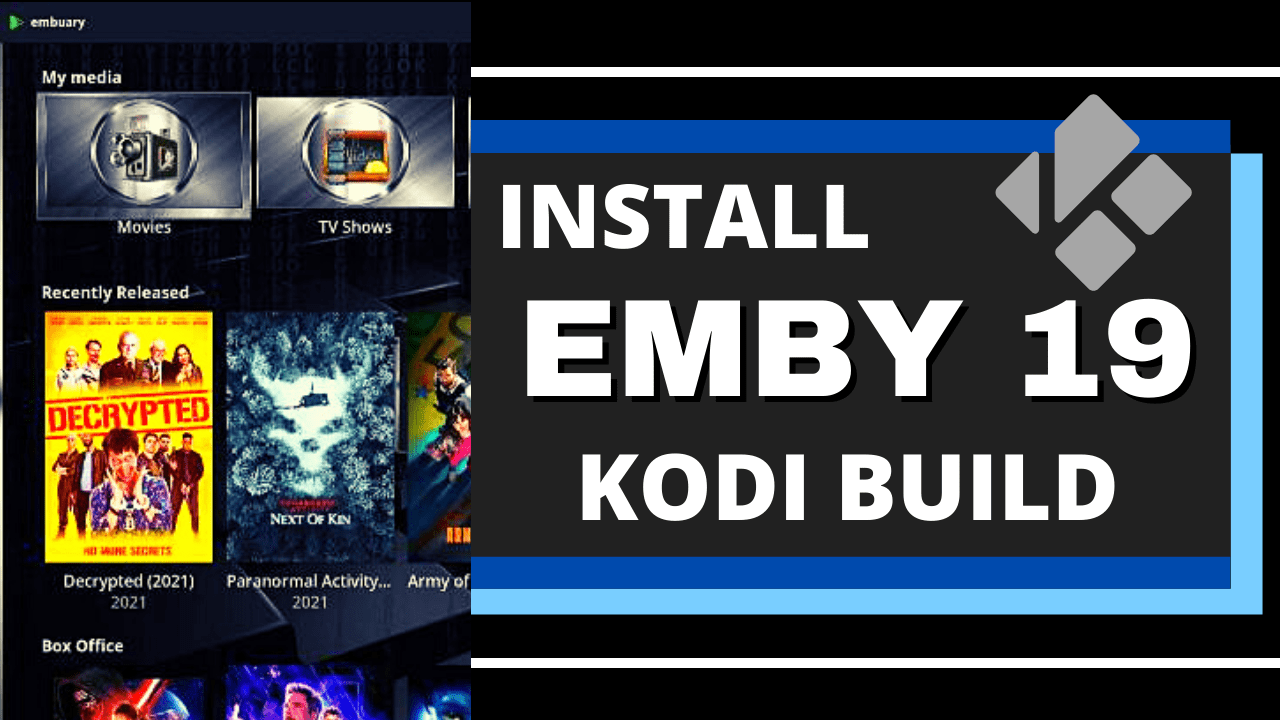
step 7 Install Surfshark VPN on Firestick


8. Press the Open button after completing SurfShark VPN’s installation process.

step 8 Install Surfshark VPN on Firestick


9. Please wait for the SurfShark VPN to load its user interface.

step 9 Install Surfshark VPN on Firestick


10. You can now log in with your SurfShark VPN account credentials.

step 10 Install Surfshark VPN on Firestick

Learn more about Surfshark and Grab the Best Surfshark Deal Now!


Install Surfshark on Firestick

Best Surfshark Deal


Other VPNs to Consider

NordVPN (Best for Streaming)

Best Features

  • 5000+ Server in 50+ Countries 
  • Military-Grade Encryption
  • Fast Connection Speed
  • Suitable to a lot of devices
  • No-Log Policy

Prices
  • Complete $5.89 per month (64% Discount)
  • Plus $4.59 per month (56% Discount)
  • Standard $3.69 per month (55% Discount)

Best Features

  • 750+ High-speed VPN Servers in 43 Locations
  • Military-Grade Encryption
  • Fastest HD Streaming and Gaming
  • 30-Day Money-Back Guarantee
  • Unlimited Data & Devices
  • No-Log Policy

Prices
  • 3 Years $1.99 per month (82% Discount)
  • 1 Years $3.29 per month (70% Discount)
  • 1 Month $10.99 per month

IPVanish VPN (Most Secure)

Best Features

  • 1200+ Servers in 60+ Countries around the world
  • Unlimited Connections
  • No-Log Policy
  • Top Notch Military-Grade VPN Protocols and Encryptions
  • 100% Safe and Secured
  • Most Trusted VPN
  • Best VPN for Firestick
  • 30-Day Money-Back Guarantee

Prices
  • Yearly $3.99 per month (63% Discount) – 30 days risk free + Ransomware & Malware Protection
  • Quarterly $5.32 per month (51% Discount)
  • Monthly $10.99 per month


For more VPN discounts, go to ReviewVPN Deals and purchase the best VPN for you.

Click here to get the lowest price on Surfshark through our exclusive limited-time offer.


FAQs

Are all the apps free?

Yes. All the apps are free and do not require any payment.


Are the apps safe to use?

Yes. There are no malicious websites, malware, and viruses while streaming movies.


Conclusion

The Harry Potter movie collection is one of the best film series to watch consecutively. You will notice how the young stars Daniel Radcliffe, Rupert Grint, Emma Watson, and other students mature with their Harry Potter movie characters. Watching the Harry Potter film series introduces you to a new universe filled with magic, fantasy, and mysticism.

We hope this article helps you watch the Harry Potter movies on your Fire TV stick.

How to Install Project BL Kodi Build

Project BL Kodi Build Overview

The article will help you on how to install Project BL Kodi Build.


 Project BL is a third-party build compatible with Kodi 19.5 located in the popular CmaN’s Repository. This build has a wide variety of content to choose from, such as Movies, Free, TV, Kids, Sports, Live Tv, and more. It also has a different interface design that is very simple and easy to navigate.

You can watch lots of popular and latest content from different addons and streaming services. It brings you a wide selection of high-quality streaming links provided by different sources. This build also allows you to integrate your Trakt account to access your personal contents libraries and monitor your watching history.

It also brings you a wide selection of preloaded addons to try along with their list of great lineup contents. Some of the preloaded addons you can use are Black Lighting, The Oath, Seren, The Xtream, Q Continuum, Asgard, and more. It is one of the best Kodi builds that brings you a wide variety of content to watch with well-organized categories to choose from. 


ANONYMOUSLY

How to Install Project BL Kodi Build with Screenshot Guide

Installing a Kodi build has a lot of processes to take. That is why we will guide you step by step on how you can install it on Kodi.

 Follow the following steps below.  

1. On your Firestick, open Kodi and go to Settings.

Install Project BL Kodi Build Step 1


2. Select on System.

Install Project BL Kodi Build Step 2


3. Click on the Add-ons menu and Turn ON the Unknown Sources.

Install Project BL Kodi Build Step 3


4. Select Yes when the box appears.

Install Project BL Kodi Build Step 4


5. Go back one step and click on File Manager.

Install Project BL Kodi Build Step 5


6. Select the Add Source.

Install Project BL Kodi Build Step 6


7. A box will pop up, so click on the ‘None’ option.

Install Project BL Kodi Build Step 7


8. Now type in this URL http://cmanbuilds.com/repo and click OK. 

Install Project BL Kodi Build Step 8


9. Name this URL as cman and tap OK.

Install Project BL Kodi Build Step 9


10. After that, go back to the system menu and select Add-ons.

Install Project BL Kodi Build Step 10


11. Click Install from Zip File.

Install Project BL Kodi Build Step 11


12. When a box pop up, tap the Yes button.

Install Project BL Kodi Build Step 12


13. Select cman or any name you have given.

Install Project BL Kodi Build Step 13


14. Choose repository.cMaNWizard.zip

Install Project BL Kodi Build Step 14


15. Wait a few minutes for the addon to be installed. After that, an icon will appear at the top menu.

Install Project BL Kodi Build Step 15


16. Tap the  Install from Repository.

Install Project BL Kodi Build Step 16


17. Then select cMaN’s Wizard Repository from the list.

Install Project BL Kodi Build Step 17


18. Select the Program add-ons.

Install Project BL Kodi Build Step 18


19. Click cMaN Wizard 19.

Install Project BL Kodi Build Step 19


20. Tap the Install button.

Install Project BL Kodi Build Step 20


21. Click the Ok button.

Install Project BL Kodi Build Step 21


22. Wait for the Installed message to appear and click the Continue.

Install Project BL Kodi Build Step 22


23. Tap the Close.

Install Project BL Kodi Build Step 23


24. Go back to the Kodi home screen and scroll down to Addon.

Install Project BL Kodi Build Step 24


25. From the Program add-ons, select cMaN Wizard 19.

Install Project BL Kodi Build Step 25


26. Select Builds.

Install Project BL Kodi Build Step 26


27. Scroll down and select Project BL.

Install Project BL Kodi Build Step 27


28. Tap the Install.

Install Project BL Kodi Build Step 28


29. Click the Yes, Install.

Install Project BL Kodi Build Step 29


30. Wait for the build to download.

Install Project BL Kodi Build Step 30


31. Tap on the Fresh Install.

Install Project BL Kodi Build Step 31


32. Wait a second for it to finish.

Install Project BL Kodi Build Step 32


33. Click the OK button.

Install Project BL Kodi Build Step 33


34. Launch your Kodi again.

Install Project BL Kodi Build Step 34


35. That’s it! You have successfully installed the Project BL Build. 

  Install Project BL Kodi Build Step 35


YOUR INTERNET ACTIVITY IS BEING WATCHED

ReviewVPN cannot attest to the legality, security and privacy of the applications discussed on this site. It is highly recommended that you use a VPN service while streaming or using Kodi.

Currently, your IP 216.73.216.156 is visible to everyone and your Browser is being tracked by Advertisers & ISP Provider.

Save 65% Now

Limited Time Offer

Here are the main reasons why you must use a VPN:

  • Your activities are hidden from your ISP, the government, and from the apps you are using.
  • You can access additional movies and TV streams.
  • ISP attempts to throttle are thrwarted thus reducing buffering issues.
  • Geographically restricted content like Netflix and Hulu can be unblocked.

A VPN works be replacing your ISP-assigned IP address and creating an encrypted tunnel. We recommend the no log service offered by IPVanish. It works well on a Firestick and offers the fastest possible speeds.

Special Limited Time Offer - Get IPVanish


Legal Disclaimer: ReviewVPN.com does not encourage or endorse any illegal activity involved in the usage of services and applications referenced on this site. We do not verify the licensing agreements of services. The end-user is wholly responsible for ensuring that any media accessed through these services does not violate copyright and/or licensing laws. ReviewVPN does not promote, link to, or receive compensation from any Apps and IPTV services.


Install SurfShark on Firestick

Best SurfShark Deal


Features of Project BL Kodi Build

  • The main sections are Movies, Free, TV, kids, Sports, Live TV, Trakt, Wizard, Add-ons, Settings, and Power. 
  • In the Movies section, you can watch the latest and popular movies from different add ons such as Q Continuum, The Xstream, Black Lightning, 4K, Asgard, and more. 
  • Watch the Theaters movies, Adventure, 1080p, 4K, and more.
  • In the Free section, you can watch free streaming links of movies, TV shows, Live Tv, Kids, Sports Replays, a List of Movies By year, and more.
  • It also allows you to stream Live TV from different popular channels such as Pluto TV, USTV Go, Tubi TV, and more.
  • Provides you with Kids’ content, such as Movies, Anime, Cartoons, Kids’ BoxSets, and more.
  • This build also covers different Live Sports events such as MMA Live, Football, Wrestling, Boxing, American Football, Formula 1, Baseball, and more.
  • Linked your Trakt account and see your TV Shows Collection, Movies Watchlist, Your Recent, and more.
  • Genres: Action, Adventures, Animation, Comedy, Crime, Documentary, Drama, Family, Fantasy, History, Horror, Music, Mystery, Romance, Science Fiction, TV Movies, Thriller and more. 
  • Wizard section, where you can see Build Menu, Maintenance, Addon Tools, Buffer Fix, System Info, and Save Options.
  • Provides you with SD to 4K quality streaming links.
  • Preload addons: Asgard, Rising Tides, Replay Me, The Endzone 19, ApeX Sports, Black Lightning, Dailimotion.com, Pluto.TV, Q Continuum, Seren, The Loop, The Xtream, TheMovieDB Helper, tvOne, Mad Titan Sports, YouTube, and more.


Pros and Cons

Pros

  • This build brings you both Free and Debrid links. 
  • You can choose from their wide selection and collection of contents. 
  • It has well-organized categories and subcategories. 
  • You can integrate your Trakt. tv account to monitor your watching history.
  • A maximum of 4k streaming links video quality. 


Cons

  • Some streaming links provided are not working at all.


Why do I need a VPN?

Surfshark vpn

One issue that always kills the fun in entertainment is geo-block content. Whereas some streaming services have geo-block content that is only playable and works within a specific area. You cannot watch these contents anywhere, that is why you need to use a Virtual Private Network or VPN to destroy geo-blocks. 

We highly suggest SurfShark as your best choice because it safely destroys geo-blocks to access their content anywhere you are. With SurfShark you can now watch any content you want without any problems at all and it bypasses censorship/restrictions put by the developers.

Note: For more information about SurfShark, please read our SurfShark REVIEW.


Grab your subscription now!


How to Install Surfshark on Firestick with Screenshots

If your Firestick still has the older interface, read this article to learn how to update it: Update Firestick Interface.

You can download Surfshark directly from the Amazon App store. It will be easy for you to find Surfshark with your Firestick’s Find feature. Refer to our screenshots below.

Follow our screenshots below to install the SurfShark VPN app on your Fire TV stick.

1. Go to the Home screen of your Firestick.

step 1 Install Surfshark VPN on Firestick


2. Navigate towards the Find tab. Press the Search button from the resulting dropdown.

step 2 Install Surfshark VPN on Firestick


3. Type in the keyword of SurfShark and select from the suggestions that will appear.

step 3 Install Surfshark VPN on Firestick


4. Click the official SurfShark icon from your search results.

step 4 Install Surfshark VPN on Firestick


5. Press the Download (You own it) button.

step 5 Install Surfshark VPN on Firestick


6. The SurfShark VPN installer will download on your device.

step 6 Install Surfshark VPN on Firestick


7. SurfShark VPN’s app will automatically install itself on your Fire TV stick.

step 7 Install Surfshark VPN on Firestick


8. Press the Open button after completing SurfShark VPN’s installation process.

step 8 Install Surfshark VPN on Firestick


9. Please wait for the SurfShark VPN to load its user interface.

step 9 Install Surfshark VPN on Firestick


10. You can now log in with your SurfShark VPN account credentials.

step 10 Install Surfshark VPN on Firestick

Learn more about Surfshark and Grab the Best Surfshark Deal Now!


Install Surfshark on Firestick

Best Surfshark Deal

Other VPNs to Consider

NordVPN (Best for Streaming)

Best Features

  • 5000+ Server in 50+ Countries 
  • Military-Grade Encryption
  • Fast Connection Speed
  • Suitable to a lot of devices
  • No-Log Policy

Prices
  • Complete $5.89 per month (64% Discount)
  • Plus $4.59 per month (56% Discount)
  • Standard $3.69 per month (55% Discount)

Best Features

  • 750+ High-speed VPN Servers in 43 Locations
  • Military-Grade Encryption
  • Fastest HD Streaming and Gaming
  • 30-Day Money-Back Guarantee
  • Unlimited Data & Devices
  • No-Log Policy

Prices
  • 3 Years $1.99 per month (82% Discount)
  • 1 Years $3.29 per month (70% Discount)
  • 1 Month $10.99 per month

IPVanish VPN (Most Secure)

Best Features

  • 1200+ Servers in 60+ Countries around the world
  • Unlimited Connections
  • No-Log Policy
  • Top Notch Military-Grade VPN Protocols and Encryptions
  • 100% Safe and Secured
  • Most Trusted VPN
  • Best VPN for Firestick
  • 30-Day Money-Back Guarantee

Prices
  • Yearly $3.99 per month (63% Discount) – 30 days risk free + Ransomware & Malware Protection
  • Quarterly $5.32 per month (51% Discount)
  • Monthly $10.99 per month

For more VPN discounts, go to ReviewVPN Deals and purchase the best VPN for you.


Alternatives for Project BL Kodi Build

We list down some Kodi builds that you can try on your Kodi aside from Project BL kindly read their corresponding articles to know more about these add-ons. If you want to know more about the addon build that is compatible with Kodi 19.5, kindly read our What’s working on Kodi 19.5 article.


FAQs

Do I need a Real Debrid account to access this build content?

No, Real Debrid is not required to access their content, but if you want to access high-quality streaming links, then you can link your Real Debrid account.


Can I watch Project BL Kodi Build for free?

Yes, this build is free and allows you to access their content for free.


Is the Project BL Kodi Build legal to use?

Yes, this build is legal as long as it only offers non-copyright content.


Is the Project BL Kodi Build safe to use?

Yes, this build is safe to use, but if you want to ensure your security, we suggest using a VPN such as SurfShark. 


Conclusion

Project BL is another third-party streaming build compatible with Kodi 19.5 This build brings you a large collection of content to watch for free. You will not be disappointed in this build because it brings you a well-organized list of content where you can easily choose your favorite Movies/Tv shows to watch.

We hope this article helps you install the Project BL Kodi Build. 

How to Install K19 Plus Kodi Build

Overview

The article will help you on how to install K19 Plus Kodi Build. 


K19 Plus is a third-party Kodi build that is very smooth to use and has an attractive kids theme interface. This build is from Cman’s Repository which is compatible with Kodi 19.5. It is also one of the builds appropriate for your kids cause it brings you a large collection of kids’ content such as Cartoons, Kids Live Tv, and more.

This build is supported by different popular kids channels and networks that bring you a great lineup of kids’ content to watch for free. The main sections in this build are Movies, Tv shows, Kids Live, Apps, systems, and Power. One thing that is very lovely about this build is its interface and an Aeon Tajo skin by default. Some of the popular children’s networks are Nick Toons, Disney, Nickelodeon, Nick Jr, and more. 


ANONYMOUSLY

How to Install K19 Plus Kodi Build with Screenshot Guide

Installing a Kodi build has a lot of processes to take. That is why we will guide you step by step on how you can install it on Kodi.

 Follow the following steps below. 

1. On your Firestick, open Kodi and go to Settings.

Install K19 Plus Kodi Build Step 1


2. Select on System.

Install K19 Plus Kodi Build Step 2


3. Click on the Add-ons menu and Turn ON the Unknown Sources.

Install K19 Plus Kodi Build Step 3


4. Select Yes when the box appears.

Install K19 Plus Kodi Build Step 4


5. Go back one step and click on File Manager.

Install K19 Plus Kodi Build Step 5


6. Select the Add Source.

Install K19 Plus Kodi Build Step 6


7. A box will pop up, so click on the ‘None’ option.

Install K19 Plus Kodi Build Step 7


8. Now type in this URL http://cmanbuilds.com/repo and click OK. 

Install K19 Plus Kodi Build Step 8


9. Name this URL as cman and tap OK.

Install K19 Plus Kodi Build Step 9


10. After that, go back to the system menu and select Add-ons.

Install K19 Plus Kodi Build 10


11. Click Install from Zip File.

Install K19 Plus Kodi Build 11


12. When a box pop up, tap the Yes button.

Install K19 Plus Kodi Build 12


13. Select cman or any name you have given.

Install K19 Plus Kodi Build Step 13


14. Choose repository.cMaNWizard.zip

Install K19 Plus Kodi Build Step 14


15. Wait a few minutes for the addon to be installed. After that, an icon will appear at the top menu.

Install K19 Plus Kodi Build Step 15


16. Tap the  Install from Repository.

Install K19 Plus Kodi Build Step 16


17. Then select cMaN’s Wizard Repository from the list.

Install K19 Plus Kodi Build Step 17


18. Select the Program add-ons.

Install K19 Plus Kodi Build Step 18


19. Click cMaN Wizard 19.

Install K19 Plus Kodi Build Step 19


20. Tap the Install button.

Install K19 Plus Kodi Build Step 20


21. Click the Ok button.

Install K19 Plus Kodi Build Step 21


22. Wait for the Installed message to appear and click the Continue.

Install K19 Plus Kodi Build Step 22


23. Tap the Close.

Install K19 Plus Kodi Build Step 23


24. Go back to the Kodi home screen and scroll down to Addon.

Install K19 Plus Kodi Build Step 24


25. From the Program add-ons, select cMaN Wizard 19.

Install K19 Plus Kodi Build Step 25


26. Select Builds.

Install K19 Plus Kodi Build Step 26


27. Scroll down and select K19 Plus.

Install K19 Plus Kodi Build Step 27


28. Tap the Install.

Install K19 Plus Kodi Build Step 28


29. Click the Yes, Install.

Install K19 Plus Kodi Build Step 29


30. Wait for the build to download.

Install K19 Plus Kodi Build Step 30


31. Click the OK button.

Install K19 Plus Kodi Build Step 31


32. Launch your Kodi again.

Install K19 Plus Kodi Build Step 32


33. That’s it! You have successfully installed the K19 Plus Build. 

Install K19 Plus Kodi Build Step 33


YOUR INTERNET ACTIVITY IS BEING WATCHED

ReviewVPN cannot attest to the legality, security and privacy of the applications discussed on this site. It is highly recommended that you use a VPN service while streaming or using Kodi.

Currently, your IP 216.73.216.156 is visible to everyone and your Browser is being tracked by Advertisers & ISP Provider.

Save 65% Now

Limited Time Offer

Here are the main reasons why you must use a VPN:

  • Your activities are hidden from your ISP, the government, and from the apps you are using.
  • You can access additional movies and TV streams.
  • ISP attempts to throttle are thrwarted thus reducing buffering issues.
  • Geographically restricted content like Netflix and Hulu can be unblocked.

A VPN works be replacing your ISP-assigned IP address and creating an encrypted tunnel. We recommend the no log service offered by IPVanish. It works well on a Firestick and offers the fastest possible speeds.

Special Limited Time Offer - Get IPVanish


Legal Disclaimer: ReviewVPN.com does not encourage or endorse any illegal activity involved in the usage of services and applications referenced on this site. We do not verify the licensing agreements of services. The end-user is wholly responsible for ensuring that any media accessed through these services does not violate copyright and/or licensing laws. ReviewVPN does not promote, link to, or receive compensation from any Apps and IPTV services.


Install Surfshark on Firestick

Best Surfshark Deal


Features of K19 Plus Kodi Build

Interface

  • No registration is needed and required.
  • It has a simple and easy-to-navigate interface.


Categories

  • The Main categories are Movies, TV Shows, Kids Live, Apps, Systems, and Power.
  • Kids Live section, you can choose from different kids networks such as Minika Go, Minika Cocuk, Disney Channel EN, Cartoon Network, Nick Toons, Disney Jr, Nick Jr, Sonic Nickelodeon, Hungama TV, Baby Tv and more.
  • In the Apps section, you can see different supported add-ons such as tvOne111, Free, PBS kids, Aliunde K19 Lite, The Oath, Mad Titan, DailyMotion, and more.  
  • The movie section contains the most recent and popular Kids and Family movies.
  • Tv shows bring you an ongoing and completed Kids Tv series.
  • You can also choose from different categories such as movies, Tv shows, music, Classic TV shows, Documentaries, Soap Catchup, YouTube, and more. 
  • This build contains Free New Movies, British Cinema, Family Movies, Documentaries, UK Soap Catchup, TV shows, Airt TV. Comedy 18+, Live In Concert, and more.
  • It has a resume to continue watching where you stopped off.
  • Available Skip steps and Playback button.
  • It also has Live Tv where you can watch it on different channels.
  • Brings you lots of 4K contents collection and Box sets. 
  • The maximum video streaming quality is up to 4k.


Pros and Cons

Pros

  • This build is compatible with Kodi 19.5 and has an easy-to-use interface.
  • It has a large collection of content to watch for free. 
  • You can stream your favorite kids’ content with less buffering and no interruption. 
  • It brings you kids collections that are appropriate to watch for kids. 
  • You can watch on a 4k streaming link video quality. 


Cons

  • There are some contents and addons that are not working well. 
  • Some streaming links provided are not working at all.


Streaming with a VPN

Whenever you stream online with a third-party build it is much better if you stream together with a Virtual Private Network. It is to ensure that you are safe from any harm or malicious acts from these servers. A VPN will give you a safe and protected connection so that every time you stream online, none of these potential hackers will know or access your activities. 

One of the best VPNs that will give you a safe connection is Surfshark. You can stream without anything to worry about with Surfshark because as you connect to it, it will automatically encrypt your Real IP address and keep you anonymous online. The good thing with this VPN is, that it uses a high standard of encryption with a quality security protocol to ensure your safeness. Surfshark also brings you an impressive list of features and services.

Note: For more information about Surfshark, please read our Surfshark Review.


Grab your subscription now!


How to Install Surfshark VPN on Firestick

If your Firestick still has the older interface, read this article to learn how to update it: Update Firestick Interface.

Follow our screenshots below to install the SurfShark VPN app on your Fire TV stick.

1. Go to the Home screen of your Firestick.

step 1 Install Surfshark VPN on Firestick


2. Navigate towards the Find tab. Press the Search button from the resulting dropdown.

step 2 Install Surfshark VPN on Firestick


3. Type in the keyword of SurfShark and select from the suggestions that will appear.

step 3 Install Surfshark VPN on Firestick


4. Click the official SurfShark icon from your search results.

step 4 Install Surfshark VPN on Firestick


5. Press the Download (You own it) button.

step 5 Install Surfshark VPN on Firestick


6. The SurfShark VPN installer will download on your device.

step 6 Install Surfshark VPN on Firestick


7. SurfShark VPN’s app will automatically install itself on your Fire TV stick.

step 7 Install Surfshark VPN on Firestick


8. Press the Open button after completing SurfShark VPN’s installation process.

step 8 Install Surfshark VPN on Firestick


9. Please wait for the SurfShark VPN to load its user interface.

step 9 Install Surfshark VPN on Firestick


10. You can now log in with your SurfShark VPN account credentials.

step 10 Install Surfshark VPN on Firestick

Learn more about Surfshark and Grab the Best Surfshark Deal Now!


Install Surfshark on Firestick

Best Surfshark Deal


Other VPNs to Consider

NordVPN (Best for Streaming)

Best Features

  • 5000+ Server in 50+ Countries 
  • Military-Grade Encryption
  • Fast Connection Speed
  • Suitable to a lot of devices
  • No-Log Policy

Prices
  • Complete $5.89 per month (64% Discount)
  • Plus $4.59 per month (56% Discount)
  • Standard $3.69 per month (55% Discount)

Best Features

  • 750+ High-speed VPN Servers in 43 Locations
  • Military-Grade Encryption
  • Fastest HD Streaming and Gaming
  • 30-Day Money-Back Guarantee
  • Unlimited Data & Devices
  • No-Log Policy

Prices
  • 3 Years $1.99 per month (82% Discount)
  • 1 Years $3.29 per month (70% Discount)
  • 1 Month $10.99 per month

IPVanish VPN (Most Secure)

Best Features

  • 1200+ Servers in 60+ Countries around the world
  • Unlimited Connections
  • No-Log Policy
  • Top Notch Military-Grade VPN Protocols and Encryptions
  • 100% Safe and Secured
  • Most Trusted VPN
  • Best VPN for Firestick
  • 30-Day Money-Back Guarantee

Prices
  • Yearly $3.99 per month (63% Discount) – 30 days risk free + Ransomware & Malware Protection
  • Quarterly $5.32 per month (51% Discount)
  • Monthly $10.99 per month


For more VPN discounts, go to ReviewVPN Deals and purchase the best VPN for you.

Click here to get the lowest price on Surfshark through our exclusive limited-time offer.


Alternatives for K19 Plus Kodi Build

We list down some Kodi builds that you can try on your Kodi aside from K19 Plus Kindly read their corresponding articles to know more about these add-ons. If you want to know more about the addon build that is compatible with Kodi 19.5, kindly read our What’s working on Kodi 19.5.


FAQs

Is the K19 Plus Kodi Build legal to use?

Yes, this build is legal as long as it only offers non-copyright content.


Is the K19 Plus Kodi Build safe to use?

Yes, this build is safe to use, but if you want to ensure your security, we suggest using a VPN such as Surfshark


Can I watch K19 Plus Kodi Build for free?

Yes, this build is free and allows you to access their content for free.


Conclusion

K19 Plus is a Kodi build that brings you a wide range of content to watch for free. This build is also compatible with Kodi 19.5 with an easy-to-use interface. It brings you a great lineup of kids’ content such as movies, Tv series, and more appropriate to watch for your kids. The good thing is, this build also brings you all of the latest and popular content. We hope this article helps you install the K19 Plus Kodi Build. 

How To Watch Movies on StreamLord Website On Amazon FireStick

Watch SreamLord Website on Firestick Overview


StreamLord is an amazing movie and TV show streaming platform. This streaming website provides Full high-definition films and TV series with an HD screen as well as sound quality. With the StreamLord website, you can easily stream your favorite entertainment content for free. Nonetheless, when you want to watch a movie or TV series at your desired time, you may play, pause, & restart the content.

The StreamLord website provides easily accessible videos to its users. The streaming platform has different tabs for various genres, such as comedy, drama, action, sci-fi, and many more. It has lots of options available. Nonetheless, if you want to watch an action movie, just click on the action tab and you get all the action films or TV series.


How to Stream StreamLord Website on Amazon FireStick Using Silk Browser
  1. Click Home on your remote.
  2. Select Find.
  3. Click Search.
  4. Type in Silk Browser and select this item that appears on the results.
  5. Click on the Silk Browser Icon.
  6. Choose Download.
  7. Select Open to launch the browser.
  8. Click on the URL section.
  9. Enter the following URL – www.streamlord.com
  10. Now! You’ll be able to watch movies & TV shows on StreamLord through a Firestick device using the Silk Browser.


ANONYMOUSLY

How to Stream StreamLord Website on FireStick With Screenshots

Streaming websites on Amazon Firestick should be done by installing the Silk Browser beforehand.

1. Go to the Home screen of your Firestick.

 Install StreamLord Website On Amazon FireStick Step 1


2. Click on Find.

 Install StreamLord Website On Amazon FireStick 2


3. Tap on the Search tab.

 Install StreamLord Website On Amazon FireStick 3


4. Type in Silk Browser and choose this item that appears on the results.

 Install StreamLord Website On Amazon FireStick 4


5. Click on the Silk Browser Icon.

 Install StreamLord Website On Amazon FireStick 5


6. Choose Download.

 Install StreamLord Website On Amazon FireStick 6


7. Silk Browser is Downloading into your Firestick.

 Install StreamLord Website On Amazon FireStick 7


8. The Silk Browser app will Install on Firestick.

 Install StreamLord Website On Amazon FireStick 8


9. Select Open to launch the browser.

 Install StreamLord Website On Amazon FireStick 9


10. You can now start using Amazon Silk Browser.

 Install StreamLord Website On Amazon FireStick 10


11. Enter the following URL – www.streamlord.com

 Install StreamLord Website On Amazon FireStick Step 11


12. Now! You’ll be able to watch movies & TV shows on StreamLord through a Firestick device using the Silk Browser.

 Install StreamLord Website On Amazon FireStick Step 12


YOUR INTERNET ACTIVITY IS BEING WATCHED

ReviewVPN cannot attest to the legality, security and privacy of the applications discussed on this site. It is highly recommended that you use a VPN service while streaming or using Kodi.

Currently, your IP 216.73.216.156 is visible to everyone and your Browser is being tracked by Advertisers & ISP Provider.

Save 65% Now

Limited Time Offer

Here are the main reasons why you must use a VPN:

  • Your activities are hidden from your ISP, the government, and from the apps you are using.
  • You can access additional movies and TV streams.
  • ISP attempts to throttle are thrwarted thus reducing buffering issues.
  • Geographically restricted content like Netflix and Hulu can be unblocked.

A VPN works be replacing your ISP-assigned IP address and creating an encrypted tunnel. We recommend the no log service offered by IPVanish. It works well on a Firestick and offers the fastest possible speeds.

Special Limited Time Offer - Get IPVanish


Legal Disclaimer: ReviewVPN.com does not encourage or endorse any illegal activity involved in the usage of services and applications referenced on this site. We do not verify the licensing agreements of services. The end-user is wholly responsible for ensuring that any media accessed through these services does not violate copyright and/or licensing laws. ReviewVPN does not promote, link to, or receive compensation from any Apps and IPTV services.


Install Surfshark on Firestick

Best Surfshark Deal


What Is StreamLord Website?

Streamlord is a streaming website where you can stream tons of Hollywood films for free. This streaming platform is completely free from malware or viruses. You can watch movies on Streamlord without ads.

Using StreamLord is very easy. All you have to do is go to the website. The home page displays some of the popular entertainment content. If you wish to start streaming one of them, just click on it and start streaming. The website’s top screen contains a search bar with the main categories.


Features

StreamLord has particular features that you should know. Below are the top features of the streaming website. 

  • With the StreamLord website, users can watch a huge collection of movies and TV series.
  • The website provides extremely fast servers. Thus, the likelihood of server errors is very low.
  • You don’t have to search online for data about the movie. The website has some information about the film.
  • StreamLord is a free streaming platform without a subscription fee
  • It comes with a user-friendly interface
  • It lets you watch movies & TV shows for free
  • Movies of all genres and categories are available


Free To Download Movies

StreamLord is an amazing movie & TV series download service. This streaming website allows you to download free videos quickly while you watch a movie or TV series on the internet. It allows you to easily download different media content. Even though this streaming website offers popular Hollywood films, you can stream and download lots of TV series and many more.

However, the website provides numerous genres, such as crime, action, adventure, fantasy, and lots more.


Genres

  • Drama
  • Comedy
  • Thriller
  • Action
  • Horror
  • Romance
  • Sport
  • Mystery
  • Thriller
  • Western
  • Adventure
  • Fantasy
  • History


Compatibility

The StreamLord website lets you easily stream your favorite movies & TV series on Android-powered devices. Nevertheless, this streaming website functions amazingly on numerous Android devices, such as Amazon Firestick, smartphones, tablets, PCs, and many more.


Pros & Cons

Pros

  • Extensive Choice of Content
  • Amazing user interface
  • Latest Movies & TV Shows
  • Numerous genres


Cons

  • Some reports of the app crashing


Stream Safely, Securely with VPN

Watching movies and TV shows online through streaming websites can raise some dangers with third parties, such as Internet Service Providers. Well, Internet Service Providers can log a user’s activity and share it with authorities. ISPs can also check internet connection speeds. However, if you want to keep safe from those issues then use a Virtual Private Network or VPN whenever you watch movies online. 

A great VPN service, like Surfshark, can conceal people’s online activities. This includes the search terms people lookup on Google, the URL links you use, and more. A VPN service masks the files you download, the web pages you visit, and all the content you stream. Nonetheless, a VPN service can work to mask the video games you play online, the apps you use, and the social media platforms you use. Wherein, a VPN service can make it impossible to trace what you do on the internet.

Note: For more information about Surfshark, please read our Surfshark Review.


Grab your subscription now!


How to Install Surfshark VPN on Firestick

If your Firestick still has the older interface, read this article to learn how to update it: Update Firestick Interface.

Follow our screenshots below to install the SurfShark VPN app on your Fire TV stick.

1. Go to the Home screen of your Firestick.

step 1 Install Surfshark VPN on Firestick


2. Navigate towards the Find tab. Press the Search button from the resulting dropdown.

step 2 Install Surfshark VPN on Firestick


3. Type in the keyword of SurfShark and select from the suggestions that will appear.

step 3 Install Surfshark VPN on Firestick


4. Click the official SurfShark icon from your search results.

step 4 Install Surfshark VPN on Firestick


5. Press the Download (You own it) button.

step 5 Install Surfshark VPN on Firestick


6. The SurfShark VPN installer will download on your device.

step 6 Install Surfshark VPN on Firestick


7. SurfShark VPN’s app will automatically install itself on your Fire TV stick.

step 7 Install Surfshark VPN on Firestick


8. Press the Open button after completing SurfShark VPN’s installation process.

step 8 Install Surfshark VPN on Firestick


9. Please wait for the SurfShark VPN to load its user interface.

step 9 Install Surfshark VPN on Firestick


10. You can now log in with your SurfShark VPN account credentials.

step 10 Install Surfshark VPN on Firestick

Learn more about Surfshark and Grab the Best Surfshark Deal Now!


Install Surfshark on Firestick

Best Surfshark Deal


Other VPNs to Consider

NordVPN (Best for Streaming)

Best Features

  • 5000+ Server in 50+ Countries 
  • Military-Grade Encryption
  • Fast Connection Speed
  • Suitable to a lot of devices
  • No-Log Policy

Prices
  • Complete $5.89 per month (64% Discount)
  • Plus $4.59 per month (56% Discount)
  • Standard $3.69 per month (55% Discount)

Best Features

  • 750+ High-speed VPN Servers in 43 Locations
  • Military-Grade Encryption
  • Fastest HD Streaming and Gaming
  • 30-Day Money-Back Guarantee
  • Unlimited Data & Devices
  • No-Log Policy

Prices
  • 3 Years $1.99 per month (82% Discount)
  • 1 Years $3.29 per month (70% Discount)
  • 1 Month $10.99 per month

IPVanish VPN (Most Secure)

Best Features

  • 1200+ Servers in 60+ Countries around the world
  • Unlimited Connections
  • No-Log Policy
  • Top Notch Military-Grade VPN Protocols and Encryptions
  • 100% Safe and Secured
  • Most Trusted VPN
  • Best VPN for Firestick
  • 30-Day Money-Back Guarantee

Prices
  • Yearly $3.99 per month (63% Discount) – 30 days risk free + Ransomware & Malware Protection
  • Quarterly $5.32 per month (51% Discount)
  • Monthly $10.99 per month


For more VPN discounts, go to ReviewVPN Deals and purchase the best VPN for you.

Click here to get the lowest price on Surfshark through our exclusive limited-time offer.


Alternatives for StreamLord Website

As free video streaming platforms come and go, the ideal solution to this problem is to have the best streaming website alternatives. The internet offers tons of streaming platforms that provide free entertainment content. However, you can’t trust all the free streaming websites. Some offer pirated videos that have malware & viruses.

Below are streaming platforms that are among the Best Free Movie Streaming Websites:


FAQs

Is the StreamLord website free?

You can use the streaming website for free.


Will the StreamLord website collect and use any private information?

No, the StreamLord website will not collect private data.


Is the StreamLord website safe?

The streaming website is very safe to use. 


Wrapping Up

In this article, we have provided information on how to stream StreamLord Website on Amazon FireStick using Silk Browser. The information above should really help you stream your favorite entertainment content on your Firestick.

However, always remember to use a VPN service every time you utilize your Firestick. If you have any thoughts about the article – “How to Stream StreamLord Website on Amazon FireStick using Silk Browser,” don’t hesitate to let us know in the comments section.

How To Stream 123Chill Website On Amazon FireStick Using Silk Browser

Stream 123Chill Website on Firestick Overview


Streaming media content on the internet has become very popular. You may find even one such family that does not stream videos online. Nowadays, only a few individuals rent movies or use DVD players. People can consume any entertainment content they want right at their fingertips. However, there are applications & websites that provide a quality streaming experience.

There is a misconception that high-quality videos are only provided on paid streaming platforms. Nonetheless, there are free websites, such as 123Chill, which boast better streaming than premium streaming websites out there.


How to Stream 123Chill on Amazon FireStick Using Silk Browser

  1. Click Home on your remote.
  2. Select Find.
  3. Click Search.
  4. Type in Silk Browser and select this item that appears on the results.
  5. Click on the Silk Browser Icon.
  6. Choose Download.
  7. Select Open to launch the browser.
  8. Click on the URL section.
  9. Enter the following URL – https://123chill.to/
  10. Finally! You’ll be able to watch movies & TV shows on 123Chill through a Firestick device using the Silk Browser.


ANONYMOUSLY

How to Stream 123Chill Website on FireStick With Screenshots

Streaming websites on Amazon Firestick should be done by installing the Silk Browser beforehand.

1. Go to the Home screen of your Firestick.

Stream 123Chill Website on FireStick Step 1


2. Click on Find.

Stream 123Chill Website on FireStickStep 2


3. Tap on the Search tab.

Stream 123Chill Website on FireStickStep 3


4. Type in Silk Browser and choose this item that appears on the results.

Stream 123Chill Website on FireStick Step 4


5. Click on the Silk Browser Icon.

Stream 123Chill Website on FireStick Step 5


6. Choose Download.

Stream 123Chill Website on FireStickStep 6


7. Silk Browser is Downloading into your Firestick.

Stream 123Chill Website on FireStick Step 7


8. The Silk Browser app will Install on Firestick.

Stream 123Chill Website on FireStick Step 8


9. Select Open to launch the browser.

Stream 123Chill Website on FireStick Step 9


10. You can now start using Amazon Silk Browser.

Stream 123Chill Website on FireStick Step 10


11. Enter the following URL – https://123chill.to/

Stream 123Chill Website on FireStick Step 11


12. Finally! You’ll be able to watch movies & TV shows on 123Chill through a Firestick device using the Silk Browser.

Stream 123Chill Website on FireStick Step 12


YOUR INTERNET ACTIVITY IS BEING WATCHED

ReviewVPN cannot attest to the legality, security and privacy of the applications discussed on this site. It is highly recommended that you use a VPN service while streaming or using Kodi.

Currently, your IP 216.73.216.156 is visible to everyone and your Browser is being tracked by Advertisers & ISP Provider.

Save 65% Now

Limited Time Offer

Here are the main reasons why you must use a VPN:

  • Your activities are hidden from your ISP, the government, and from the apps you are using.
  • You can access additional movies and TV streams.
  • ISP attempts to throttle are thrwarted thus reducing buffering issues.
  • Geographically restricted content like Netflix and Hulu can be unblocked.

A VPN works be replacing your ISP-assigned IP address and creating an encrypted tunnel. We recommend the no log service offered by IPVanish. It works well on a Firestick and offers the fastest possible speeds.

Special Limited Time Offer - Get IPVanish


Legal Disclaimer: ReviewVPN.com does not encourage or endorse any illegal activity involved in the usage of services and applications referenced on this site. We do not verify the licensing agreements of services. The end-user is wholly responsible for ensuring that any media accessed through these services does not violate copyright and/or licensing laws. ReviewVPN does not promote, link to, or receive compensation from any Apps and IPTV services.


Install Surfshark on Firestick

Best Surfshark Deal


What Is 123Chill  Website?

123Chill is a free movie & TV series streaming website that lets you watch uninterrupted videos without any annoying ads. Though 123Chill doesn’t come with banner ads, the website does have pre-roll ads just like YouTube. Nonetheless, that’s just a small thing against the amazing service that you obtain in return.

If you want to stream your favorite movies & TV series at the best quality free of charge, then the 123Chill website is your best option. The best thing about 123Chill is that users can find all the entertainment content in High Definition quality. But, you can’t download the content to watch it later. The 123Chill website offers many servers where users have the option to switch to any server they want if the video has issues.


Genres

  • Drama
  • Thriller
  • Comedy
  • Horror
  • Action
  • Music
  • Live Show
  • Romance
  • Mystery
  • Foreign
  • Sport
  • Soap
  • Thriller
  • Talk
  • Western
  • Fantasy
  • Adventure
  • History


User Interface

The 123Chill website is available with an amazing user-friendly interface. The streaming platform’s user interface allures individuals to utilize this awesome website to stream their favorite movies or television series. Nonetheless, the website lets users search for the entertainment content they want via its search section. Additionally, users may utilize the website’s numerous categories. You can filter films you like to watch.


Easiest Way To Watch Movies

123Chill is one of the best video streaming platforms that provide the easiest method to stream movies and TV series on the internet for free. However, the 123Chill website provides the best quality content available on the internet. This media streaming service has tons of high-quality video links. Additionally, the platform provides high-speed streaming.


Compatibility

With the 123Chill  website, you can easily stream movies & TV series free of charge on Android-powered devices. Nonetheless, this streaming platform functions great on many Android devices, such as Amazon Firestick, mobile phones tablets, PCs, Roku, and many more.


Hassle-free streaming experience

With the 123Chill  website, you don’t need to create IDs, subscribe to the service, or register. Just launch the website, select a movie or TV series title, and you are good to go. It lets you stream over 12,000 titles.


Pros & Cons

Pros

  • Extensive Content Library
  • Amazing user interface
  • Numerous genres
  • Sort feature


Cons

  • You are required to sign up to stream movies


Stream Safely, Securely with VPN

Nowadays, there are tons of options for watching your favorite movies & TV shows online for free. However, there are issues: lots of these platforms don’t work well with particular devices or in specific countries. Also, the premium options could be troublesome.

This is the reason it’s essential to use a Virtual Private Network or VPN while streaming movies or TV shows from any Android device. A VPN service helps secure your sensitive information when accessing social media services, using a public Wi-Fi network, and lots more. When choosing the best VPN service for video streaming online, the best choice is the Surfshark service. This VPN service is available with key features that a Virtual Private Network should possess, including:

  • Easy-to-use app for streaming devices
  • 30-day money-back guarantee
  • Fast download speeds
  • Compatible with streaming apps
  • No traffic logs
  • Offers secure VPN Protocols
  • Numerous servers located across the globe
  • 24/7 customer support
  • Allows simultaneous connections

Note: For more information about Surfshark, please read our Surfshark Review.


Grab your subscription now!


How to Install Surfshark VPN on Firestick

If your Firestick still has the older interface, read this article to learn how to update it: Update Firestick Interface.

Follow our screenshots below to install the SurfShark VPN app on your Fire TV stick.

1. Go to the Home screen of your Firestick.

step 1 Install Surfshark VPN on Firestick


2. Navigate towards the Find tab. Press the Search button from the resulting dropdown.

step 2 Install Surfshark VPN on Firestick


3. Type in the keyword of SurfShark and select from the suggestions that will appear.

step 3 Install Surfshark VPN on Firestick


4. Click the official SurfShark icon from your search results.

step 4 Install Surfshark VPN on Firestick


5. Press the Download (You own it) button.

step 5 Install Surfshark VPN on Firestick


6. The SurfShark VPN installer will download on your device.

step 6 Install Surfshark VPN on Firestick


7. SurfShark VPN’s app will automatically install itself on your Fire TV stick.

step 7 Install Surfshark VPN on Firestick


8. Press the Open button after completing SurfShark VPN’s installation process.

step 8 Install Surfshark VPN on Firestick


9. Please wait for the SurfShark VPN to load its user interface.

step 9 Install Surfshark VPN on Firestick


10. You can now log in with your SurfShark VPN account credentials.

step 10 Install Surfshark VPN on Firestick

Learn more about Surfshark and Grab the Best Surfshark Deal Now!


Install Surfshark on Firestick

Best Surfshark Deal


Other VPNs to Consider

NordVPN (Best for Streaming)

Best Features

  • 5000+ Server in 50+ Countries 
  • Military-Grade Encryption
  • Fast Connection Speed
  • Suitable to a lot of devices
  • No-Log Policy

Prices
  • Complete $5.89 per month (64% Discount)
  • Plus $4.59 per month (56% Discount)
  • Standard $3.69 per month (55% Discount)

Best Features

  • 750+ High-speed VPN Servers in 43 Locations
  • Military-Grade Encryption
  • Fastest HD Streaming and Gaming
  • 30-Day Money-Back Guarantee
  • Unlimited Data & Devices
  • No-Log Policy

Prices
  • 3 Years $1.99 per month (82% Discount)
  • 1 Years $3.29 per month (70% Discount)
  • 1 Month $10.99 per month

IPVanish VPN (Most Secure)

Best Features

  • 1200+ Servers in 60+ Countries around the world
  • Unlimited Connections
  • No-Log Policy
  • Top Notch Military-Grade VPN Protocols and Encryptions
  • 100% Safe and Secured
  • Most Trusted VPN
  • Best VPN for Firestick
  • 30-Day Money-Back Guarantee

Prices
  • Yearly $3.99 per month (63% Discount) – 30 days risk free + Ransomware & Malware Protection
  • Quarterly $5.32 per month (51% Discount)
  • Monthly $10.99 per month


For more VPN discounts, go to ReviewVPN Deals and purchase the best VPN for you.

Click here to get the lowest price on Surfshark through our exclusive limited-time offer.


Alternatives for 123Chill Website

Free video streaming platforms come & go every so often. You’ll never know when the platform shuts down. However, the ideal solution to this issue is to know the best streaming website alternatives. You can find tons of streaming services that offer free movies & TV shows. But, you can’t trust some of these free movie streaming platforms. There are video streaming services that offer pirated content that has viruses.

But, below are streaming platforms that are among the Best Free Movie Streaming Websites:


FAQs

Is the 123Chill website free?

You can use the 123Chill website for free.


Will the 123Chill  website collect and use any private information?

No, the streaming website will not collect private data.


Is the 123Chill website safe?

The 123Chill streaming website is very safe to use. 


Conclusion

In this article, we have provided information on how to stream the 123Chill Website on Amazon FireStick using Silk Browser. The information above should really help you stream your movies and TV series on your Firestick.

However, always remember to use a VPN service every time you utilize your Firestick. If you have any thoughts about the article – “How to Stream 123Chill Website on Amazon FireStick using Silk Browser,” don’t hesitate to let us know in the comments section.

Best Kodi Repositories

Overview

This article is about the Top 10 Best Kodi Repositories.


Kodi is known as a media player that allows you to stream thousands of content for free using Kodi addons and builds. There is an official and unofficial Kodi addon that you can try on your Kodi. However, third-party or unofficial addons are more popular than legal ones because they have thousands of free content from different sources.

You can watch Live TV, live sports, Movies, Tv shows, Kids’ content, sports, and more. Third-party addons are from the Kodi repository, which stores different addons and builds to install. These Kodi Repos contain dependencies files required for the addon to function properly, and to install them, you need to enable the unknown sources first.


What Are Kodi Repositories

Kodi Repositories is the main storehouse for different Kodi addons and builds. You can see lots of popular Kodi add-ons inside these repos, the developer creates a so-called Link that stores all kinds of add-ons such as videos, programs, Pictures, services, and more add-ons. A popular add-on is the video addons, where you can install lots of streaming addons to watch thousands of different content such as movies, Tv shows, and more. There are program add-ons with different wizards to install, whereas inside them are lots of Kodi builds, maintenance addons, and even utility services. 

Many developers have their own Kodi repositories, where you can install one specific addon, but some do not have one. Some of it stores more than 20+ Kodi addon sharing in one URL, which is why you can see some addons from different Kodi repos. Now, this article will show you some of the best working Kodi repositories and guide you on how to add sources on Kodi. There are also Kodi repositories with an addon that only works on Kodi 18.9 and Kodi 19. 


ANONYMOUSLY

How to Install Any Repository on Kodi

Now we will show you how you can add on a Kodi Repository and install a third-party addon using these repos. For this example, we used Cman’s Wizard Repository, which is also one of the popular working repo.

1. On your Firestick, open Kodi and go to Settings.

Top 10 Best Repo


2. Now, go and select System.

Top 10 Best Repo


3. Click on the Add-ons menu and Turn ON the Unknown Sources.

Top 10 Best Repo


4. Select Yes when the box appears.

Top 10 Best Repo


5. After that, go back one step and click on File Manager.

Top 10 Best Repo


6. Select the Add Source.

Top 10 Best Repo


7. A box will pop up, so click on the ‘None’ option.

Top 10 Best Repo


8. Now, type in the Kodi Repository URL as it is. You must be careful in typing it and check before you click OK

Type in http://cmanbuilds.com/repo and click OK

Top 10 Best Repo


9. Name this URL as cman and click OK.

Top 10 Best Repo


10. After that, go back to the system menu and click Add-ons.

Top 10 Best Repo


11. Select Install from Zip File.

Top 10 Best Repo


12. Click on the cman or any name you have given. 

Top 10 Best Repo


13. Choose repository.cMaNWizard.zip

Top 10 Best Repo


14. Wait a few minutes for the app to be installed. After that, an icon will appear at the top menu.

Top 10 Best Repo


15. Click on the Instal from Repository.

Top 10 Best Repo


16. Select on the cMaN’s Wizard Repository (or any Repo wizard you choose).

Top 10 Best Repo

After that, you will see different addon categories such as Video addon Program addons, and more. You’ll just need to choose and click on the Kodi addon or builds you want to install.


YOUR INTERNET ACTIVITY IS BEING WATCHED

ReviewVPN cannot attest to the legality, security and privacy of the applications discussed on this site. It is highly recommended that you use a VPN service while streaming or using Kodi.

Currently, your IP 216.73.216.156 is visible to everyone and your Browser is being tracked by Advertisers & ISP Provider.

Save 65% Now

Limited Time Offer

Here are the main reasons why you must use a VPN:

  • Your activities are hidden from your ISP, the government, and from the apps you are using.
  • You can access additional movies and TV streams.
  • ISP attempts to throttle are thrwarted thus reducing buffering issues.
  • Geographically restricted content like Netflix and Hulu can be unblocked.

A VPN works be replacing your ISP-assigned IP address and creating an encrypted tunnel. We recommend the no log service offered by IPVanish. It works well on a Firestick and offers the fastest possible speeds.

Special Limited Time Offer - Get IPVanish


Legal Disclaimer: ReviewVPN.com does not encourage or endorse any illegal activity involved in the usage of services and applications referenced on this site. We do not verify the licensing agreements of services. The end-user is wholly responsible for ensuring that any media accessed through these services does not violate copyright and/or licensing laws. ReviewVPN does not promote, link to, or receive compensation from any Apps and IPTV services.


Install Surfshark on Firestick

Best Surfshark Deal


Top 10 Best Kodi Repositories

EzzerMac Wizard Repository

EzzerMac Wizard Repository

Source: http://ezzer-mac.com/repo/

EzzerMacs is one of the popular Kodi Repos with lots of popular and good addons to use. It is also one of the best working repositories, with such a great lineup of Kodi addons and Builds to install for free. You can choose from different categories of addons, such as Music, Picture, Programs, Services, and Video.

This repo has a lot of great Kodi addons where you can watch sports, live tv, movies, Tv shows, kids’ content, and more. Some of the good Kodi addons you can find in it are the Destiny of Deathstar, Medusa, M-E-T-V, 4K, Q Continuum, SSTV, Torque, Asgard, Rogue One, Odin, Base, Q sports, and more.

EzzerMac is also the home of the great wizard that contains builds such as BreezzWizard, Wumpa Wizard, Brezz 19 Wizard, Funsterplace Wizard, and more.


How to Install EzzerMacs Repository on Kodi

1. On your Firestick, open Kodi and go to Settings.

2. Select System.

3. Click on the Add-ons menu and Turn ON the Unknown Sources.

4. Select Yes when the box appears.

5. Go back one step and click on File Manager.

6. Select the Add Source.

7. A box will pop up, so click on the ‘None’ option.

8. Type in http://ezzer-mac.com/repo and click OK.

9.  Name the URL- ezzer or any other name you want to. Then select OK.

10. Go back and Select Add-ons.

11.  Click Install from zip file.

12.  Choose ezzer or any other name you put.

13. Click  repository.EzzerMacsWizard.zip

14.  Wait for the EzzerMacs Wizard Repository installed text to appear.

15. After that, click the Install from repository.

16. Select the EzzerMacs Wizard Repository.


The Crew Repository

Source:  https://team-crew.github.io/

DejaVu Repository

The Crew is another popular repository and most known repository because of its amazing collections of add-ons. It is also one of the great repositories because it brings you almost all of the popular add-ons from a wide range of categories including, Music add-ons, Program add-ons, and Video add-ons.

For video addons, you can find some of the popular addons such as the Wasteland, SSTV, The Boys, Marauder, Pluto TV, THE CREW, Enigma, Chains, Base, Ghost Porn, Cumination, The boys, and more. It also has different wizards located in program add-ons such as the BreezzWizard, THE CREW WIZARD, Chains Build Wizard, Funsterplace Wizard, and more. 


How to Install The Crew Repository

1. From the home screen, select the cogwheel at the upper left.

2. Select System in the bottom right corner.

3. Then select Add-ons on the left side of the screen.

4. Choose Unknown sources.

5. Click Yes to allow unknown sources.

6. Select File manager.

7. Click Add source.

8. Then click on <None>.

9. Type exactly: https://team-crew.github.io

10. Click on OK.

11. Select enter a name for this media source.

12. Name it The Crew.

13. Click on OK.

14. Then click on OK again.

15. Take one step back and click on Add-ons.

16. Select install from zip file.

17. Click on The Crew (or whatever you named the source).

18. Then click on repository.the crew-0.0.8.zip

19. Select Install from repository.

20. Click on The Crew Repo.


cMaN Wizard Repository

Source: http://cmanbuilds.com/repo

cMaN Wizard Repository is one of the oldest and most popular Kodi repositories that contains lots of great addons and builds. This build is regularly updated to continuously serve its users a good quality of service. You can install and use this repo on any Kodi version. It offers you a great lineup of video and program addons that will bring you a massive collection of content such as Movies, Tv shows, Sports, Live TV, and more. 

You can install lots of popular video addons in this repo, including Asgard, Rogue One, Odin, Torque Lite, 4K, Black Lightning, Magic Dragon, Free TV, Fluxus TV, and more.

Under the program addon, you can install the cMaN Wizard 19 that contains different Kodi builds such as the Ghostbusters, Simples, Transcendent, Mad Dragon, Wave, Nito 19, The Lote 19, Mod 19, Apex 19, Reboot, and more. 


How to Install cMan Wizard Repository

1. Launch the Kodi app on your Firestick

2. Click on the gear wheel icon (Settings)

3. Select System

4. Scroll down to Add-ons

5. Go to Unknown sources then toggle it on

6. Select Yes

7. Then using your Firestick remote, press the return button to go back to the System page

8. Now choose File Manager

9. Scroll down and select Add source

10. Click <None>

11. Type in http://cmanbuilds.com/repo then click OK

12. Highlight the box under the source to give the media source a name, and put cman or any other name that will help you identify it quickly.

13. Click OK

14. Then click OK again

15. Return to the System page by pressing the return button on your remote

16. Select Add-ons

17. Choose Install from zip file

18. Click Yes

19. Select cman

20. Then click on the zip file URL – repository.cMaNWizard.zip

21. Wait for the notification cMaN’s Wizard Repository Add-on installed to appear on the upper right part of the screen

22. Then click Install from repository

23. Select cMaN’s Wizard Repository


Chains Repository

Chains Repository

Source: http://thechains24.com/ChainsRepo/

Chains repository is one of the best working Kodi repositories in 2021 with lots of working Kodi addon and build to use. This Repo brings you almost all kinds of content that you can watch on its addons. You can find here the popular Chains Sinisters that have a large collection of content. Other Addons that you can find in this repo are Marvel Universe, Black Tears, Ghost, Ghost Porn, DC Universe, and more. For program addons, you can find the Chains Build Wizard, Funsterplace, and more. 


How to Install Chains Repository

1. Launch the Kodi application on your Firestick

2. Then go to Settings (gear wheel icon)

3. Select System

4. Scroll down to Add-ons then hover to Unknown sources

5. A warning pop-up will then appear stating that “Add-ons will be given access to personal data stored on this device. By allowing, you agree that you are solely responsible for any loss of data, unwanted behavior, or damage to device. Proceed?”

6. Click Yes

7. Press the return button on your Firestick remote then go to File Manager

8. Select Add source

9. Click <None>

10. Type in http://thechains24.com/ChainsRepo then click OK

11. Once again, click OK

12. Then go back to the System screen by pressing the return button on your Firestick remote

13. Go to Add-ons

14. Choose Install from zip file

15. When a warning message pops up regarding manual update of add-ons, click Yes

16. Choose ChainsRepo

17. Hover to the zip file URL repository.chainsrepo-0.0.11.zip and click on it

18. Then select Install from repository

19. Choose Chains Repository


SouthPaw Repository

SouthPaw Repository

Source: https://southpawlefty2468rocky.com/repo 

The SouthPaw is also one of the amazing repositories that bring you a wide range of collections of Kodi addons. This repo brings you lots of Kodi addons, where you can watch Live Tv, Movies, and Tv shows for free. You can chase from Video and Program addons. 

In the Video addon, you can find Area 69, Seal Team 6, Seal K19 Lite, Bumblebee TV, Pluto TV, Popcornflix, Cartoon Network, TubiTV, tvOne, and more. You can also find some maintenance add-ons under program add-ons, such as the ARNU Box Speed tester, Navy Seal Force Refresh, and more.


How to Install The SouthPaw Repository

1. Open your Kodi app and click on the setting icon.

2. Click on the System option.

3. On the new window, click on addons.

4. Now, click on unknown sources.

5. On the warning dialog box that will appear, click on Yes.

6. Now, go back to the home screen and click on the setting icon.

7. Next, click on the file manager.

8. Click on add source. 

9. Click on <none>. 

10. Type the media source URL: https://southpawlefty2468rocky.com/repo and click OK.

11. Click on “Enter a name for this media source” and enter Seal Team 6.

12. Now, return to the home screen and scroll down and click on add-ons.

13. Select OK and then click on the addon installer icon.

14. Click on install from the zip file.

15. Click on Seal Team 6.

16. Click on Repository.southpaw-0.4.2.zip

17. Wait for the “SouthPaw Wizard Repository add-on installed” notification.

18. Click on Install from the repository.

19. Next, click on South Paw Repository. 


Stream Army Repo

Stream Army Repo

Source: http://streamarmy.co.uk/repo/

Stream Army Repo is one of the popular repo with lots of all-in-one addons that bring you a large collection of free movies, Tv shows, sports, music, and more.

This repo also has the same developer as the popular Nemesis AIO Kodi addon. It is also one shut down and blocked by Kodi because of some legal issues, but now Stream Army is back with lots of worthy add-ons to offer. You can find lots of Kodi addons in it that offer you a wide range of content such as Movies, Tv shows, Live Tv, and even adult content.

Some of the popular add-ons you can find in it are FapZone, Fight Club, FANime, Entertain Me, NemesisAIO, and more. 


How to Install Stream Army Repository

1. Launch your Kodi app

2. Scroll up to locate the setting icon and click on it

3. Click on File Manager

4. . Next, on the file manager menu, click on Add Source

5. On the new window that will appear, click on <None>

6. On the dialog box, enter exactly the media source URL: http://streamarmy.co.uk/repo and click on OK

7. Next, you should enter a name for this media source file. Click on the “Enter a name for this media source” and enter a name.

Note: if Kodi auto-populates a name for this add-on on your end, just click on Ok to continue with the installation process. Here we used “stream” as the name for this media source and select OK

8. Hit the back button or the backspace/escape key on your keyboard to go back to the home menu or home screen.

9. click on Add-ons found on the left side of your screen

10. On the new window that will appear, click on the add-on icon located at the top left corner of your screen

11. Next, click on Install from zip file

12. On the new window, scroll down to locate the stream or if you used a different name, navigate to locate it.

13. click on repository.StreamArmy-x.x.x.zip

14. Wait while the installation is completed. Once it is done, you will receive a notification at the top right corner of your screen that says “stream army repo Add-on installed. 

15. Click on Install from Repository

16. Next to the new window, navigate to Stream Army Repo and click on it.


Narcacist’s Wizard Repository

Narcacist’s Wizard

Source: http://www.narcacist.com/repo/

Narcacist is one of the best repositories that offer you another set of Kodi addons to use. You can see lots of Program add-ons and Video add-ons that offer you a large collection of content to watch for free.

Some of the popular add-ons that you can find in this repo are Asgard, Rogue 1, Q Continuum, Base, Black Lightning, Q Sports, and more.

You can also find lots of Wizard with a great lineup of Kodi build and some of these are cMan Wizard, Narcacist Wizard, and BreezzWizard


How to Install Narcacist Repository

1. Open your Kodi app on the home screen, scroll up, and click on the Setting icon.

2. Next, on the new screen that will appear, click on the option of the System.

3. Now, select add-ons and scroll rightward, click unknown sources, and then on the warning dialog box, select Yes.

4. Next, return to the home screen settings

5. Select the file manager.

6. Next, on the new window, scroll down and click on add source

7. Now, click on <none>

8. On the new window, type the media source file URL: http://narcacist.com/repo and then click OK

9. Next, click on “enter a name for this media source” use the onscreen keyboard and type narcacist and click ok.

10. Now, return to the home screen

11. Next, Select add-ons

12. Now, Click on install from zip file

13. On the new window, Select narcacist

14. A warning box appears just click yes.

15. Next, select repository.NarcacistWizard.zip.

16. Next, wait for the Narcacist Wizard Repository add-on installed notification that will appear at the top right corner of your screen.

17. Next, select Install from the repository

18. Select Narcacist Wizard Repository


TVAddons.co Repository

TVAddons.co Repository

Source: http://fusion.tvaddons.co 

TVAddons.co Repository is one of the finest and oldest repos with a large collection of quality add-ons from a variety of categories such as Video addon, Program addon, Subtitles, services, and music, and more. Back then this Repo was shut down because of legal issues, but now it is back with few but legal add-ons.

Some of the add-ons it offers are the popular maintenance addons which are the Indigo and Git browser. Other addons in this repo are the Jango, Adult Swim, UFO Tv, Mr. Bean, FilmOn, and more.


How to Install TVAddons Repository

1. Launch Kodi then select Settings.

2. Select System in the bottom right corner.

3. Then select Add-ons on the left side of the screen.

4. Choose Unknown sources.

5. Click Yes to allow unknown sources.

6. Select File manager.

7. Click Add source.

8. Then click on <None>.

9. Type exactly: http://fusion.tvaddons.co

10. Click on OK.

11. Select enter a name for this media source.

12. Name it Fusion.

13. Click on OK.

14. Then click on OK again.

15. Take one step back and click on Add-ons.

16. Select install from zip file.

17. Click on Fusion

18. Then click on repository.xmbchub.x.x.x.zip

19. Select Install from repository

20. Click on TVAddons Repository


Ghetto Astronaut Repo

Source: http://famdamnlyman.one/Matrix/Repo

Ghetto Astronaut is one of the latest repositories that have a large collection of Kodi builds to install for free. This Kodi repo might not be as popular as the cMan or The Crew repos, but it has a lot of the latest builds that you might be looking for. It is a compilation of top-shelf Kodi builds that provide you with a pleasing browsing experience with a lot of quality videos to watch for free. 

This repo provides you with a wide variety of streaming content such as Movies, TV shows, IPTV, sports, and more. 

From the Program addons, you can install over 39+ builds such as the 4K Hub, Aftermath, Endzone, Game of Thrones, The Crew, Chain Sinisters, Neuromancer, Sikflix Reloaded, and more. Aside from 1-click installation of Kodi builds, it also offers tools for Kodi maintenance, backup & restores, APK installation, and more.


How to Install Ghetto Astronaut Repository

1. Launch the Kodi app on your Firestick

2. Click on the gear wheel icon (Settings)

3. Select System

4. Scroll down to Add-ons

5. Go to Unknown sources then toggle it on

6. Select Yes

7. Then using your Firestick remote, press the return button to go back to the System page

8. Now choose File Manager

9. Scroll down and select Add source

10. Click <None>

11. Type in http://famdamnlyman.one/Matrix/Repo then click OK

12. Highlight the box under the source to give the media source a name, and put Ghetto or any other name that will help you identify it quickly.

13. Click OK

14. Then click OK again

15. Return to the System page by pressing the return button on your remote

16. Select Add-ons

17. Choose Install from zip file

18. Click Yes

19. Select Ghetto

20. Then click on the zip file URL – ghettomatrix-1.1.1.zip

21. Wait for the notification Ghetto Astronaut Matrix Repository Add-on installed to appear on the upper right part of the screen

22. Then click Install from repository

23. Select Ghetto Astronaut Matrix Repo

24. Then choose Program add-ons

25. Click on Ghetto Astronaut Wizard

26. Then click Install


Doomzday

Source: https://doomzdayteam.github.io/doomzday

Doomzday Wizard repo is an old repository that contains a great lineup of video and program addons. It has a wide range of Kodi builds to choose from. This repo also offers you a variety of alternatives, whether you want a lightweight, minimalist design or a feature-rich configuration. All of its builds have a good set of popular Kodi addons that provide you with a good quality of streaming options. 

This build has a great lineup of popular and working builds. Some of the popular builds in it are Nova TV, Dukes of Hazzard, Sports 101, Fabulous 50s, USA19, Aspire, BK19, NatureMan, and more. You can watch their large collection of content such as Live TV, movies, shows, sports, and more.


How to Install Doomzday Repository

1. On your Firestick, open Kodi and go to Settings.

2. Select System.

3. Click on the Add-ons menu and Turn ON the Unknown Sources.

4. Select Yes when the box appears.

5. Go back one step and click on File Manager.

6. Select the Add Source.

7. A box will pop up, so click on the ‘None’ option.

8. Type in https://doomzdayteam.github.io/dommzdayand tap the OK button.

9. Name the URL- doomzday or any other name you want to. Then select OK.

10. Go back and Select Add-ons.

11. Select Install from zip file.

12. Wen a box pop up, click Yes.

13. Select doomzday or any other name you put.

14. Click  repository.doomzday-1.0.7.zip

15. Wait for the Doomzday Repo installed text to appear.

16. Select Install from repository.

17. Choose Doomzday Repo.

18. Go to Program Addons.

19. Click the Doomzday 19 Wizard.

20. Tap the install button.


Keep Secured with Surfshark

All of the Kodi Repositories we have mentioned above bring you a third party or unofficial addon, that is why we recommend using a Virtual Private Network on your device before you add any source and install addons. It is to ensure that you and your devices are safe from any malware and viruses from these sources. The third party does not mean illegal but some addons use an unknown server to bring you free content. So if you are using a third-party addon, it is much better if you use a VPN.

One of the secured and reliable VPNs that you can use is Surfshark. This VPN has a military standard of encryption that safeguards your identity and keeps you anonymous online while streaming. With Surfshark, you don’t need to worry about your security because this VPN has uncrackable security of AES 256 bit of encryption.

Note: For more information about Surfshark, please read our Surfshark Review.


Grab your subscription now!


How to Install Surfshark VPN on Firestick

If your Firestick still has the older interface, read this article to learn how to update it: Update Firestick Interface.

Follow our screenshots below to install the SurfShark VPN app on your Fire TV stick.

1. Go to the Home screen of your Firestick.

step 1 Install Surfshark VPN on Firestick


2. Navigate towards the Find tab. Press the Search button from the resulting dropdown.

step 2 Install Surfshark VPN on Firestick


3. Type in the keyword of SurfShark and select from the suggestions that will appear.

step 3 Install Surfshark VPN on Firestick


4. Click the official SurfShark icon from your search results.

step 4 Install Surfshark VPN on Firestick


5. Press the Download (You own it) button.

step 5 Install Surfshark VPN on Firestick


6. The SurfShark VPN installer will download on your device.

step 6 Install Surfshark VPN on Firestick


7. SurfShark VPN’s app will automatically install itself on your Fire TV stick.

step 7 Install Surfshark VPN on Firestick


8. Press the Open button after completing SurfShark VPN’s installation process.

step 8 Install Surfshark VPN on Firestick


9. Please wait for the SurfShark VPN to load its user interface.

step 9 Install Surfshark VPN on Firestick


10. You can now log in with your SurfShark VPN account credentials.

step 10 Install Surfshark VPN on Firestick

Learn more about Surfshark and Grab the Best Surfshark Deal Now!


Install Surfshark on Firestick

Best Surfshark Deal


Other VPNs to Consider

NordVPN (Best for Streaming)

Best Features

  • 5000+ Server in 50+ Countries 
  • Military-Grade Encryption
  • Fast Connection Speed
  • Suitable to a lot of devices
  • No-Log Policy

Prices
  • Complete $5.89 per month (64% Discount)
  • Plus $4.59 per month (56% Discount)
  • Standard $3.69 per month (55% Discount)

Best Features

  • 750+ High-speed VPN Servers in 43 Locations
  • Military-Grade Encryption
  • Fastest HD Streaming and Gaming
  • 30-Day Money-Back Guarantee
  • Unlimited Data & Devices
  • No-Log Policy

Prices
  • 3 Years $1.99 per month (82% Discount)
  • 1 Years $3.29 per month (70% Discount)
  • 1 Month $10.99 per month

IPVanish VPN (Most Secure)

Best Features

  • 1200+ Servers in 60+ Countries around the world
  • Unlimited Connections
  • No-Log Policy
  • Top Notch Military-Grade VPN Protocols and Encryptions
  • 100% Safe and Secured
  • Most Trusted VPN
  • Best VPN for Firestick
  • 30-Day Money-Back Guarantee

Prices
  • Yearly $3.99 per month (63% Discount) – 30 days risk free + Ransomware & Malware Protection
  • Quarterly $5.32 per month (51% Discount)
  • Monthly $10.99 per month


For more VPN discounts, go to ReviewVPN Deals and purchase the best VPN for you.


FAQs

Are these Kodi repositories safe to use?

Yes, using any of these repositories is safe. However, if you want to ensure your safety while using these, we suggest using a VPN such as Surfshark.


Is it legal to use Kodi Repository and install addons from these?

Yes, using any of these repositories is legal, and also installing addons from these, as long as the addon you use offers only legal content. 


Are these Kodi Repositories free to use?

Yes, these repositories are free to use. 


Conclusion

The Kodi repository is a big help for every Kodi user who wants to try different Kodi addons and watch their content. All of the Kodi repositories we mentioned are all working and compatible with both Kodi 18.9 and 19. The good thing with these repositories is they have a great lineup of Kodi addons and builds to try. However, since they are still third parties, we highly suggest using Surfshark to keep you protected. We hope that this article shows you the Top 10 working Kodi Repositories in 2021.