Firefox 68.8.0 Browser for Firestick

Firefox Web browser Overview


Over two decades ago, the only browser that was available to use the internet was Internet Explorer. As time passed by, a lot of advances were made in Technology and thus resulted in the creation of other web browsers that are better than the ancient IE. One of the browsers that emerged before Google Chrome was Mozilla Firefox. The day of its launch paved the way for a lot of exciting discoveries the internet has to offer and made our daily lives better because it helped with communication, research, and entertainment. Today, Firefox is still one of the leading web browsers of choice because of its upgraded security and privacy. In this article, we will highlight the new and exciting features of this version. 


Is It Any Good

The version of Firefox that you can download on the Amazon App Store does not allow downloads and add-ons. This version though does allow downloads and add-ons but we must sideload it first using the downloader app. 


Is Firefox Web Browser Safe and Virus-free?

We tested this app using VirusTotal and found no threats or any malicious files and malware.

Despite having good results, we still need to be vigilant in protecting our privacy while streaming.

A Virtual Private Network or VPN will definitely help us maintain our security and anonymity while using Firefox Web Browser.

Here’s how you can Install The Best VPN For Firestick and All Devices.


ANONYMOUSLY


If your Firestick still has the older interface, read this article to learn how to update it: Update Firestick Interface.


Install Firefox On Firestick with Screenshots

1.  Click Home on your remote and scroll once to your Right. Click Setting (Gear Wheel Icon).

Step 1 Install Firefox On Firestick


2. Scroll down and to the right until you get to My Fire TV. Click on it.

Step 2 Install Firefox On Firestick


3. Select Developer options.

Step 3 Install Firefox On Firestick


4. Turn on ADB debugging and Apps from Unknown Sources.

Step 4 Install Firefox On Firestick


5. Click Turn On when the pop-up appears.

Step 5 Install Firefox On Firestick


6. Click Home, click FIND.

Step 6 Install Firefox On Firestick


7. Click Search.

Step 7 Install Firefox On Firestick


8. You can either say Downloader to your Alexa voice-enabled remote or start typing it. If you typed it, click on the suggestion when it appears.

Step 8 Install Firefox On Firestick


9. Click on the Downloader Icon.

Step 9 Install Firefox On Firestick


10. Click Download.

Step 10 Install Firefox On Firestick


step 10 Install Firefox On Firestick


11. Click on Open.

Step 11 Install Firefox On Firestick


12. Click on Allow.

Step 12 Install Firefox On Firestick


13. Use the Downloader search tab.

Install Firefox On Firestick Step 13


14. Type in https://reviewvpn.com/fox & Tap on the Go button.

Install Firefox On Firestick step 14


15. Wait for the file download to finish.
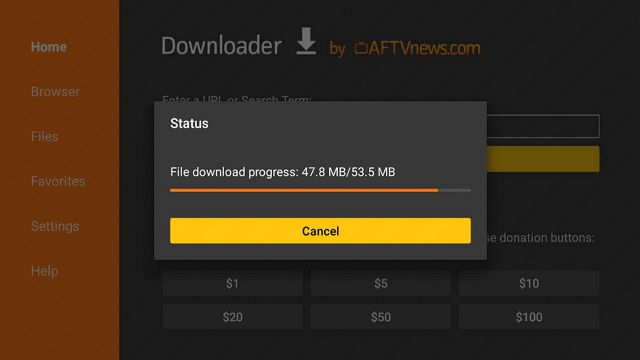
Install Firefox On Firestick step15


16. Click Install.

Install Firefox On Firestick step 16


17. Click on Open.

Install Firefox On Firestick step 17


18.

Install Firefox On Firestick step 18


Screenshots with Step by Step Instruction to Install Firefox 68.8.0 on a Firestick (Official)

1. Click FIND.

Trashy Movies1


2. Click Search.

Movie Nite2


3. You can either say Firefox to your Alexa’s voice-enabled remote or start typing it. If you typed it, click on the suggestion when it appears.

Step 2 Install Firefox On a Firestick


4. Click on the Firefox icon.

Step 3 Install Firefox On a Firestick


5. Click on Download.

Step 4 Install Firefox On a Firestick


6. Select Keep Turbo Mode Enabled.

Step 5 Install Firefox On a Firestick


7. Click on the “Ok, got it” button.

Step 6 Install Firefox On a Firestick


8. Select Not now

Step 7 Install Firefox On a Firestick new


9. There you go, Firefox is now installed on your Firestick.

Step 8 Install Firefox On a Firestick


YOUR INTERNET ACTIVITY IS BEING WATCHED

ReviewVPN cannot attest to the legality, security and privacy of the applications discussed on this site. It is highly recommended that you use a VPN service while streaming or using Kodi.

Currently, your IP 216.73.216.1 is visible to everyone and your Browser is being tracked by Advertisers & ISP Provider.

Save 65% Now

Limited Time Offer

Here are the main reasons why you must use a VPN:

  • Your activities are hidden from your ISP, the government, and from the apps you are using.
  • You can access additional movies and TV streams.
  • ISP attempts to throttle are thrwarted thus reducing buffering issues.
  • Geographically restricted content like Netflix and Hulu can be unblocked.

A VPN works be replacing your ISP-assigned IP address and creating an encrypted tunnel. We recommend the no log service offered by IPVanish. It works well on a Firestick and offers the fastest possible speeds.

Special Limited Time Offer - Get IPVanish


Legal Disclaimer: ReviewVPN.com does not encourage or endorse any illegal activity involved in the usage of services and applications referenced on this site. We do not verify the licensing agreements of services. The end-user is wholly responsible for ensuring that any media accessed through these services does not violate copyright and/or licensing laws. ReviewVPN does not promote, link to, or receive compensation from any Apps and IPTV services.


Install Surfshark on Firestick

Best Surfshark Deal


What Does It Do?

Firefox is a web browser that you can use to browse the internet for anything. This version gives you permission to download files and use the add-ons featured in-browser.


Compatible Platforms

This version is compatible with the Amazon Firestick, Fire TV, Mac OS, Windows, Linux, IOS, and Android


Features

  • Top Sites
  • Bookmarks
  • History
  • Private Mode
  • Thumbnails of sites you visit often


Pros and Cons

Pros

  • Secure browsing
  • Blocks ads and trackers via Privacy Badger
  • Reverse Image Search
  • Dark Mode via Dark Reader


Cons

  • Some ads and pop-ups still manage even though the add-on the blocks them is active
  • Mouse Toggle Required


FAQs

Is It Safe To Use?

Firefox is one of the safest browsers to use.

 
Is It Legal Or Grey?

It is 100% legal to download and use.


Should I Use A VPN?

This is interesting because you can legally download it without the help of a VPN but what you do afterward depends if you will be needing one. If you are going to download stuff, we recommend that you use one because it will conceal your online activity and identity from your ISP. You will also need one if you are going to access content that is location restricted. Lastly, the VPN will help you speed up your downloads because it will thwart the efforts of your ISP to throttle your connection.

 If you are in need of a VPN service, you can follow our step-by-step guide by clicking on this link.

Note: For more information about SurfShark, please read our SURFSHARK REVIEW.


Grab your subscription now!


How to Install Surfshark VPN on Firestick

If your Firestick still has the older interface, read this article to learn how to update it: Update Firestick Interface.

You can download Surfshark directly from the Amazon App store. It will be easy for you to find Surfshark with your Firestick’s Find feature. Refer to our screenshots below.

1. Go to the Home screen of your Firestick.

step 1 Install Surfshark VPN on Firestick


2. Navigate towards the Find tab. Press the Search button from the resulting dropdown.

step 2 Install Surfshark VPN on Firestick


3. Type in the keyword of SurfShark and select from the suggestions that will appear.

step 3 Install Surfshark VPN on Firestick


4. Click the official SurfShark icon from your search results.

step 4 Install Surfshark VPN on Firestick


5. Press the Download (You own it) button.

step 5 Install Surfshark VPN on Firestick


6. The SurfShark VPN installer will download on your device.

step 6 Install Surfshark VPN on Firestick


7. SurfShark VPN’s app will automatically install itself on your Fire TV stick.

step 7 Install Surfshark VPN on Firestick


8. Press the Open button after completing SurfShark VPN’s installation process.

step 8 Install Surfshark VPN on Firestick


9. Please wait for the SurfShark VPN to load its user interface.

step 9 Install Surfshark VPN on Firestick


10. You can now log in with your SurfShark VPN account credentials.

step 10 Install Surfshark VPN on Firestick

Learn more about Surfshark and Grab the Best Surfshark Deal Now!


Install Surfshark on Firestick

Best Surfshark Deal


Other VPNs to Consider

NordVPN (Best for Streaming)

Best Features

  • 5000+ Server in 50+ Countries 
  • Military-Grade Encryption
  • Fast Connection Speed
  • Suitable to a lot of devices
  • No-Log Policy

Prices
  • Complete $5.89 per month (64% Discount)
  • Plus $4.59 per month (56% Discount)
  • Standard $3.69 per month (55% Discount)

Best Features

  • 750+ High-speed VPN Servers in 43 Locations
  • Military-Grade Encryption
  • Fastest HD Streaming and Gaming
  • 30-Day Money-Back Guarantee
  • Unlimited Data & Devices
  • No-Log Policy

Prices
  • 3 Years $1.99 per month (82% Discount)
  • 1 Years $3.29 per month (70% Discount)
  • 1 Month $10.99 per month

IPVanish VPN (Most Secure)

Best Features

  • 1200+ Servers in 60+ Countries around the world
  • Unlimited Connections
  • No-Log Policy
  • Top Notch Military-Grade VPN Protocols and Encryptions
  • 100% Safe and Secured
  • Most Trusted VPN
  • Best VPN for Firestick
  • 30-Day Money-Back Guarantee

Prices
  • Yearly $3.99 per month (63% Discount) – 30 days risk free + Ransomware & Malware Protection
  • Quarterly $5.32 per month (51% Discount)
  • Monthly $10.99 per month


For more VPN discounts, go to ReviewVPN Deals and purchase the best VPN for you.

Click here to get the lowest price on Surfshark through our exclusive limited-time offer.


Is It Free?

Yes, it is free to download and install on your device.

 
Are There ADS?

There will be ads here and there depending on the website you visit. It can be minimized by integrating an ad-blocker add-on.

 
Is There A Premium Version?

There is no premium version but we believe that this version is already of such caliber for free.

 
Is There An Official Website?

Yes, there is an official website. You can go to https://www.mozilla.org/en-US/firefox/ and check out other related information regarding Firefox.


What Other Devices Does It Work On?

It can work with all devices that run on IOS and Android OS.

 
How Does The App Work?

Please follow the instructions we have stated above. It is pretty simple and you will get the hang of it in no time at all.


Minimum Version Required

Any Android device that has version 4.1 and above


History

How Long Has It Been Around?

Firefox was launched back on November 9, 2004, and has been running ever since. 

 
What Is The Development Team Like?

The website provided educational articles that can help you should issues arise. Just visit their support page which is https://support.mozilla.org/en-US/.


Alternatives

  • Google Chrome
  • Opera
  • Microsoft Edge

Our Opinion

Firefox withstood the test of time and is still one of the most reliable browsers people can use. With this version, you can freely use it to download anything using your firestick. You just have to get used to using it with a Mouse Toggle. It will be annoying at first but when you get the hang of it you will this dilemma tolerable. Just be careful with what you do with it and make sure that you are secured by a trusted VPN so that you won’t have any problems in the future. 

We hope this article was able to help you install the newest version of Firefox on your Firestick. Should you need help, feel free to message us down below and we will reply promptly. Thank you for reading and stay safe!

How To Install Deceit Kodi Addon on Firestick and Fire TV

Deceit Kodi Addon Overview

The article will help you with how to install Deceit Kodi Build.


Deceit

deceit add on image

Deceit comes as part of one of the best builds available for Kodi, One Nation. It also holds a category of its own being an all-in-one Addon. This means whatever type of media you can think of; you can probably get it on Deceit. Let’s check out what makes this one of the hottest add ons of 2019. 


ANONYMOUSLY

What is Kodi?

kodi logo

Kodi has grown from a niche product in 2002 which was targeted at turning the Xbox into a media center to a global phenomenon with tens of millions of downloads.

It’s now one of the most downloaded free and open-source media players in the whole world, and continue to grow with the support of the XMBC Foundation, which runs it as part of a non-profit initiative. It has continued to add services and features consistently and is now in its 18th Version.

Users have gravitated towards Kodi because it’s so versatile. Able to play a large range of media as well as store it. It also grew in popularity alongside smart TV’s, because you can use Kodi on an Android streaming device to turn your home TV into a media and entertainment center.

Kodi also has an enormous catalog of thousands of add ons, many are not officially supported by Kodi. These add ons give users the power to access almost any content and media they can think of, from a pay per view fight anywhere in the world to the latest blockbuster movie.


What is an Add On?

An add on gives added functionality to Kodi by providing a particular service. Many of the add ons we cover to allow you to access tv’s, movies or Live TV. 

They create media libraries by having inbuilt web scrapers that fetch content from a wide range of sites online and then provide the links within the add ons.

Add ons can vary in quality and stability, but they are a great way to access a large range of media in one place.


What is Deceit?

Deceit acts like an all in one entertainment center offering everything from movies and TV shows to Anime and UK Radio.

Features

  • Clean and easy to use
  • Massive library of media
  • Live TV
  • Live Sports
  • Anime
  • Radio
  • Music
  • Kids TV
  • Podcasts
  • TV Catchup
  • Open load sync
  • Real Debrid compatible
  • Pair function
  • Clear Cache
  • Extensive setting and configurability


YOUR INTERNET ACTIVITY IS BEING WATCHED

ReviewVPN cannot attest to the legality, security and privacy of the applications discussed on this site. It is highly recommended that you use a VPN service while streaming or using Kodi.

Currently, your IP 216.73.216.1 is visible to everyone and your Browser is being tracked by Advertisers & ISP Provider.

Save 65% Now

Limited Time Offer

Here are the main reasons why you must use a VPN:

  • Your activities are hidden from your ISP, the government, and from the apps you are using.
  • You can access additional movies and TV streams.
  • ISP attempts to throttle are thrwarted thus reducing buffering issues.
  • Geographically restricted content like Netflix and Hulu can be unblocked.

A VPN works be replacing your ISP-assigned IP address and creating an encrypted tunnel. We recommend the no log service offered by IPVanish. It works well on a Firestick and offers the fastest possible speeds.

Special Limited Time Offer - Get IPVanish


Legal Disclaimer: ReviewVPN.com does not encourage or endorse any illegal activity involved in the usage of services and applications referenced on this site. We do not verify the licensing agreements of services. The end-user is wholly responsible for ensuring that any media accessed through these services does not violate copyright and/or licensing laws. ReviewVPN does not promote, link to, or receive compensation from any Apps and IPTV services.


Install Surfshark on Firestick

Best Surfshark Deal


How to Install Deceit

install image

Follow our simple steps to get Deceit set up in less than 10 minutes on your Kodi device.

  1. Start on the Kodi Home screen
  2. Click on settings (the gear icon)
  3. Click System
  4. Turn on the toggle next to Unknown sources
  5. Press the back button to go back to the previous screen and click File Manager
  6. Click add source and then “Add None”
  7. A pop-up URL bar will appear with the following message “Enter the paths or browse for the media locations”, type the following URL exactly: http://onenation.info/Repo (Sometimes repository links can change if their original address is blocked. Simply Google “One Nation Repo official link”)
  8. Name the file Deceit 
  9. Click OK, to add the file to your file manager
  10. Click Add ons then install from .zip file
  11. Select your Deceit file
  12. Once you select the zip file it will take a few seconds 
  13. Now click install file from repository
  14. Click Deceit Repo
  15. Click Video Add ons and then install, also click install for additional add ons
  16. Go back to the home screen and Deceit will appear, or can also be found under video add ons


How to Install Deceit on Kodi with Screenshots

  1. From the home screen, select the cogwheel at the upper left.

Step 1 Installing Deceit on Kodi

2. Select System in the bottom right corner.

Step 2 Installing Deceit on Kodi


3. Select Add-ons on the left side of the screen.

Step 3 Installing Deceit on Kodi


4. Select Unknown sources.

Step 4 Installing Deceit on Kodi


5. Click Yes to allow unknown sources.

Step 5 Installing Deceit on Kodi


6. Select File manager.

Step 6 Installing Deceit on Kodi


7. Click Add source.

Step 7 Installing Deceit on Kodi


8. Click on <None>.

Step 8 Installing Deceit on Kodi


9. Type exactly: http://onenation.info/Repo

Step 9 Installing Deceit on Kodi


10. Click on OK.

Step 10 Installing Deceit on Kodi


11. Select enter a name for this media source.

Step 11 Installing Deceit on Kodi


12. Name is Deceit (this part isn’t critical as long as you remember the name).

Step 12 Installing Deceit on Kodi


13. Click on OK.

Step 13 Installing Deceit on Kodi


14. Click on OK.

Step 14 Installing Deceit on Kodi


15. Take one step back and click on Add-ons.

Step 15 Installing Deceit on Kodi


16. Select install from zip file.

Step 16 Installing Deceit on Kodi


17. Click on Deceit (or whatever you named the source).

Step 17 Installing Deceit on Kodi


18. Click on repository.onenation-1.05.zip

Step 18 Installing Deceit on Kodi


19. Select on Install from repository.

Step 19 Installing Deceit on Kodi


20. Click on OneNation Repo.

Step 20 Installing Deceit on Kodi


21. Pick Video add-ons.

Step 21 Installing Deceit on Kodi


22. Select Deceit again.

Step 22 Installing Deceit on Kodi


23. Click on Install.

Step 23 Installing Deceit on Kodi


24. Select OK after reviewing the add-ons that will be installed.

Step 24 Installing Deceit on Kodi


25. You should see a popup in the upper right corner saying Deceit has installed. There will actually be multiple popups for the various components.

Step 25 Installing Deceit on Kodi


26. Click on Open to start the Deceit add-on.

Step 26 Installing Deceit on Kodi


Install Surfshark on Firestick

Best Surfshark Deal


FAQs for Deceit Kodi Addon

Is it Safe to Use?

Deceit comes from one of the most respected repositories on Kodi, One Nation, and is perfectly safe if downloaded from the official link above.

We urge you not to download Deceit from an unknown source as you may end up infecting your device with a corrupted file.


Is it Free?

Yes


When Was It Released?

Deceit was released in 2019


Is it Legal or Grey?

Deceit operates in a grey area because they don’t store any content, or allow downloads. But that doesn’t mean it won’t be on most Internet Service Provider’s blacklist.

Always use Kodi with a VPN.


Should I Use This App With A VPN?

Surfshark vpn

100%, you may find that many of the addons just won’t work on Kodi. Deceit included. This is because your ISP may block your connection to an IP address that has been flagged for allowing people to watch copyrighted material.

Always use a trusted VPN to encrypt your connection, change your IP and stop your ISP from preventing you from watching restricted content.

Note: For more information about Surfshark, please read our Surfshark Review.


Install Surfshark on Firestick

Best Surfshark Deal


How to Install Surfshark VPN on Firestick

If your Firestick still has the older interface, read this article to learn how to update it: Update Firestick Interface.

Follow our screenshots below to install the SurfShark VPN app on your Fire TV stick.

1. Go to the Home screen of your Firestick.

step 1 Install Surfshark VPN on Firestick


2. Navigate towards the Find tab. Press the Search button from the resulting dropdown.

step 2 Install Surfshark VPN on Firestick


3. Type in the keyword of SurfShark and select from the suggestions that will appear.

step 3 Install Surfshark VPN on Firestick


4. Click the official SurfShark icon from your search results.

step 4 Install Surfshark VPN on Firestick


5. Press the Download (You own it) button.

step 5 Install Surfshark VPN on Firestick


6. The SurfShark VPN installer will download on your device.

step 6 Install Surfshark VPN on Firestick


7. SurfShark VPN’s app will automatically install itself on your Fire TV stick.

step 7 Install Surfshark VPN on Firestick


8. Press the Open button after completing SurfShark VPN’s installation process.

step 8 Install Surfshark VPN on Firestick


9. Please wait for the SurfShark VPN to load its user interface.

step 9 Install Surfshark VPN on Firestick


10. You can now log in with your SurfShark VPN account credentials.

step 10 Install Surfshark VPN on Firestick

Learn more about Surfshark and Grab the Best Surfshark Deal Now!


Install Surfshark on Firestick

Best Surfshark Deal


Other VPNs to Consider

NordVPN (Best for Streaming)

Best Features

  • 5000+ Server in 50+ Countries 
  • Military-Grade Encryption
  • Fast Connection Speed
  • Suitable to a lot of devices
  • No-Log Policy

Prices
  • Complete $5.89 per month (64% Discount)
  • Plus $4.59 per month (56% Discount)
  • Standard $3.69 per month (55% Discount)

Best Features

  • 750+ High-speed VPN Servers in 43 Locations
  • Military-Grade Encryption
  • Fastest HD Streaming and Gaming
  • 30-Day Money-Back Guarantee
  • Unlimited Data & Devices
  • No-Log Policy

Prices
  • 3 Years $1.99 per month (82% Discount)
  • 1 Years $3.29 per month (70% Discount)
  • 1 Month $10.99 per month

IPVanish VPN (Most Secure)

Best Features

  • 1200+ Servers in 60+ Countries around the world
  • Unlimited Connections
  • No-Log Policy
  • Top Notch Military-Grade VPN Protocols and Encryptions
  • 100% Safe and Secured
  • Most Trusted VPN
  • Best VPN for Firestick
  • 30-Day Money-Back Guarantee

Prices
  • Yearly $3.99 per month (63% Discount) – 30 days risk free + Ransomware & Malware Protection
  • Quarterly $5.32 per month (51% Discount)
  • Monthly $10.99 per month


For more VPN discounts, go to ReviewVPN Deals and purchase the best VPN for you.


Best Alternatives for Deceit Kodi Addon

For the best all in one alternative, there is only Death star, though it has shown signs recently of being down too often. Look at the new revamped version in Destiny of Death star.

Some other great alternatives include:

Seren: The newest implementation from the team that brought you the massively popular Incursion. You get great Netflix-like quality. Compatibility with Premiumize including cloud caching and plenty of customization. Read our article on Seren.

The Magic Dragon: if you want an add on that delivers a massive amount of content on a wide range of categories then look no further. The Magic Dragon makes it easy to find new episodes and links has a really active community and is constantly being updated. Make sure to read our article on The Magic Dragon.

Exodus Redux: Instead of going for a fork of an old code base, better to check the new and improved Exodus, you get access to super-fast scrapers, an active development team, and some great features. Make sure to read our article on Exodus Redux.

Or simply just regularly check Google for best Kodi Add ons which are updated sometimes daily.

Our Opinion

Deceit is a brilliant add on with unrivaled capability. The Live TV section works well as the clear cache and Real Debrid sync offer better features than most similar add ons.

It’s a must-have for anyone’s Kodi library.

How to Get on the Dark Web

How to Get on the Dark Web Overview

The internet is not what we see it to be. There are billions of data that the internet houses. These data oftentimes are housed either in the open or surface web which we all are aware of or the two hidden web which might be deep web or dark web. 

Just as the surface web is known by everyone using the internet space, the deep web and dark web is hidden. These two webs often portrays danger; which means it’s a place where most of the illegal and illicit kinds of stuff are done on the internet.

Be that as it may, popular sites such as Facebook and the CIA are known to house sites on the dark web. These sites are often called the onion version. To access the onion site, you need to use a browser called the “Tor browser”. 


The onion often is a router (network) that is used to run encryption on your online data each time you access the internet. When this happens, it will be very difficult for your identity to be tracked on the network. So using a Tor browser will, however, offer protection while enhancing your privacy in the highest other.

One common discussion about the dark web is the onion site; these onion sites are not searchable on any browser or Google. An example of such is; regular site with www.wired.co.uk will be normal on actual internet protocol address through DNS.

When you try using the Tor browser to access a surface site (a website under the surface wee), it provides the highest security and privacy; what this means is that Tor browser pops your IP address in to cloud the “onion space” and eventually pop out while having your location and identity hidden.

This means that when you use a Tor browser on an onion site, that you are on a higher level of security. Also, end-to-end encryption of messages, online data, and other forms are done on the Tor browser. 

Because of the top security of onion sites, top governmental and private organizations such as Facebook, New York, and the CIA often make use of its version of their organizations. Not only does the onion site offer privacy and encryption, but it also offers two more extra features such as ensuring that you are anonymous on the internet service provider network. 

This means that you can access any site without showing on the ISP network. For instance, when you try connecting to a site such as ‘facebookcorewwwi.onion’; this will connect you to the Facebook official site, which is a result of the onion address which means no certificate authority censorship or domain name system. 


ANONYMOUSLY


Dark Web Versus Deep Web: Any Difference? 

Both terms are often interwoven. Be that as it may, both are different from each other. To make it more clear and easy for you to understand; 

When we talk about deep web, it is referring to anything or stuff not indexed on the internet, and can be accessed by search engines; search engines here are Google or Bing. 

Deep web often is things that are behind a paywall or might require you to enter your credentials or information. To put it short, it also includes web content that has been blocked and can’t be indexed by web crawlers. 

You might be wondering what makes up the deep web, the contents are; membership site, fee-based content, medical records, confidential corporate web pages, and government data. A recent survey suggests that 96% or 99% of the internet data are on the deep web.  

What this means is that only a small portion of the internet data is available on the surface or clear web which can be accessed on a standard web browser. However, the dark web is a part of the deep web that is often hidden (intentionally). The dark web requires a special type of browser before accessing its content. 

The special type of browser we are talking about here it the Tor browser. Much information about the percentage of the dark web on the internet is not well known, however, a recent study suggests it at 5% of the whole internet. 

As often, it is used for illegal and illicit activities but it is also used to source for research and other important things. 


How to Get to Dark Web?

The only and easy way to Dark Web is via the Tor browser. The Tor Browser is a browser that is used to access both of this web and websites as well. On the Tor browser, the user’s internet network is encrypted and routed. 

The safest and most convenient way to access Dark Web sites is by downloading and installing Tor Browser on your device.

However, after you must have downloaded and installed the Tor browser, you also are required to install a VPN. 

This is to ensure that your internet traffics is routed via the virtual private network before reaching the Tor network and arriving at the final destination. When this happens, the internet service provider network will only see that your network is encrypted and appear on the network as private.

Steps on How to Get to Dark Web

Using a VPN

It is recommended to use a VPN with a zero log policy and with a leak protection policy. We recommend using Surfshark. All you have to do is run your VPN app and choose the location of your choice and click on connect. When this is done, your IP address will change to that chosen location of yours.


Downloading and Installing Tor Browser

tor logo

We recommend downloading and installing the Tor browser from the official Tor site. However, before you do, ensure that your CyberGhost VPN is actively running on your device. Once done, you will be prompted to connect your VPN via the Tor browser (this is after you must have installed the Tor Browser).


Grab your subscription now!

Click here to get the lowest price on Surfshark through our exclusive limited-time offer.


Start Accessing Dark Web .onion Websites

Install Duck Duck Go

Launch your Tor browser on your computer. When it is running, you will be redirected to DuckDuckGo. The DuckDuckGo is a search engine on Dark Web which provides encryption and top-notch security while you are accessing in this sites. However, you should be careful while on Dark Web sites and mind the type of pieces of information you are giving out.


Services and Dark Web Tools That Pose a Risk

Below are the lists of identified service or tools that often present this web as a risk:

  • Phishing
  • Trade secrets or intellectual threats
  • Refunds
  • Financial data
  • Access to the virus such as Trojans, (RATS), keylogging, and exploitative measures
  • Support services like tutorials
  • Customer data
  • Espionage such as customization, targeting, and services


 Also, according to a report, there are other three risks. They include:

Defrauding the Enterprise

  • This often is internet protocol theft and espionage which leads to a financial loss or impairing a company from competing. 
  • Disruption of the enterprise: This is a malware or DDoS attacks which often impede the smooth running of the business.
  • Devaluation of the enterprise; which is causing damage to reputations, enhancing competitors to take over or undermining business trust.


What Browser for the Dark Web?

On the dark web, everything seems to be in chaos; everyone on it seems to be a victim or suspect; this is because everyone is under anonymity and no one is willing to give out their information as well.

For you to safely and protectively access the web, it is recommended to use the Tor browser. As of writing this article, the Tor browser is the only browser that offers higher security and anonymity

What Tor browser does is to route and encrypts your web page via a set of proxy servers, thereby ensuring that your internet protocol address is hidden and cannot be seen by anyone on the internet. The Tor browser works perfectly well and the results it gives are awesome, but it has one downside which is it is slow and often unreliable.


Search Engines on the Dark Web

One would ask if the dark web has search engines. Yes, it has got search engines. However, there are some landscape issues on dark web search engines and some issues of timeout connections and often error messages.

The search engine experience on the web reminisces that of a search engine in the late ’90s. the best search engine on the dark web which is Gram often gives irrelevant answers to a query.

Another search engine on the dark web known as  Hidden Wiki often take lots of time to load and ends up giving the error message.


Dark Web Websites

Websites on this web often have a special feature; the normal website we see on other sites often ends with .co, or .com, however, in the dark web, websites end with .onion. 

This a special domain suffix meaning that the network is hidden and can only be reached using the Tor network. Another feature of the dark web site is its scrambled nature. This dark websites don’t have easy to remember names. For instance, Dream Market which is famous eCommerce sites has its domain name as “eajwlvm3z2lcca76.onion.”

For your information, you should know the sites are made by scammers or hackers. Government law enforcement agencies are fighting and clamping down most dark web sites such as the ones selling and dealing with illegal and illicit goods. 

To be certain, cybercops in 2017 shut down AlphaBay, which is the largest and most popular site on the dark web. However, the Tor network is anonymous, and often leads to DDoS vulnerability and many sites on dark web changes domain names; this is to avoid DDoS. 

However, most site materials on the dark web are outdated and often vary widely.


Dark Web Commerce

The secret to the dark web is related to its compatibility with bitcoin. Bitcoin is a platform; a cryptocurrency platform that allows two end-users to engage a transaction anonymously. Recent research suggests that bitcoin has been and continues to play a big role in the growth and sustenance.

Many eCommerce sites on the dark web use bitcoin as a medium of payment. Not the only bitcoin any cryptocurrency such as Etherium or Litecoin (lots of other coins) are used. Be that as it may, using cryptocurrency does not mean that transacting business on the dark web is safest. The high rate of anonymity on the dark web makes it susceptible to hackers and scammers.


Accessing the Dark Web: Is It Illegal?

It is often seen as being a danger den. However, it should be noted that not everything on Dark Web is illegal. The Tor browser is privacy and hidden communication channel services as a means and medium where people can share and air their thoughts and criticize a bad government. 

For anyone who plans to learn more about the cryptocurrencies such as bitcoin and other altcoins, It has got tones for you.

There are millions of sites on the Dark Web which you would not easily find on the surface web. Examples of such include but not limited to political news, Pirate Bay (a torrent website), Facebook, hard-to-find books, whistleblower Dark Web site, and steam tunnels

There are also eCommerce and legal companies Dark Web which offers legit service as well. However, using Dark Web is legal but depends on your intention. So the use of this site; its legal status will depend on one’s purpose of wanting to use Dark Web sites.


YOUR INTERNET ACTIVITY IS BEING WATCHED

ReviewVPN cannot attest to the legality, security and privacy of the applications discussed on this site. It is highly recommended that you use a VPN service while streaming or using Kodi.

Currently, your IP 216.73.216.1 is visible to everyone and your Browser is being tracked by Advertisers & ISP Provider.

Save 65% Now

Limited Time Offer

Here are the main reasons why you must use a VPN:

  • Your activities are hidden from your ISP, the government, and from the apps you are using.
  • You can access additional movies and TV streams.
  • ISP attempts to throttle are thrwarted thus reducing buffering issues.
  • Geographically restricted content like Netflix and Hulu can be unblocked.

A VPN works be replacing your ISP-assigned IP address and creating an encrypted tunnel. We recommend the no log service offered by IPVanish. It works well on a Firestick and offers the fastest possible speeds.

Special Limited Time Offer - Get IPVanish


Good Uses of Dark Web

It allows you to access the internet without censorship in countries with internet censorship. Many countries such as Cuba, China, Russia, Turkey, and Qatar have censorship issues. So using Dark Web allows one to anonymously enjoy sharing of pieces of information.


Monitor power abuse:

This web gives trained political activists and journalists to find information and stories from the inner government and anonymously share it. Whistleblower sites on it allow journalists to write about abuse of power by government officials.


Dark Web allows you to purchase restricted goods anonymously:

Some goods may be free to use a particular country and restricted in a different country. Using this web it will allow you to purchase goods.


Buying legal goods:

It also allows you to buy goods that are legal anonymously. This might be because the buyer wants to remain hidden from the seller.


Surfing the net anonymously:

Dark Web allows you to find any information on the internet while having your identity hidden on the internet service provider network.


Install Surfshark on Firestick

Best Surfshark Deal


How to Install Surfshark VPN on Firestick

If your Firestick still has the older interface, read this article to learn how to update it: Update Firestick Interface.

Follow our screenshots below to install the SurfShark VPN app on your Fire TV stick.

1. Go to the Home screen of your Firestick.

step 1 Install Surfshark VPN on Firestick


2. Navigate towards the Find tab. Press the Search button from the resulting dropdown.

step 2 Install Surfshark VPN on Firestick


3. Type in the keyword of SurfShark and select from the suggestions that will appear.

step 3 Install Surfshark VPN on Firestick


4. Click the official SurfShark icon from your search results.

step 4 Install Surfshark VPN on Firestick


5. Press the Download (You own it) button.

step 5 Install Surfshark VPN on Firestick


6. The SurfShark VPN installer will download on your device.

step 6 Install Surfshark VPN on Firestick


7. SurfShark VPN’s app will automatically install itself on your Fire TV stick.

step 7 Install Surfshark VPN on Firestick


8. Press the Open button after completing SurfShark VPN’s installation process.

step 8 Install Surfshark VPN on Firestick


9. Please wait for the SurfShark VPN to load its user interface.

step 9 Install Surfshark VPN on Firestick


10. You can now log in with your SurfShark VPN account credentials.

step 10 Install Surfshark VPN on Firestick

Learn more about Surfshark and Grab the Best Surfshark Deal Now!


Install Surfshark on Firestick

Best Surfshark Deal


Other VPNs to Consider

NordVPN (Best for Streaming)

Best Features

  • 5000+ Server in 50+ Countries 
  • Military-Grade Encryption
  • Fast Connection Speed
  • Suitable to a lot of devices
  • No-Log Policy

Prices
  • Complete $5.89 per month (64% Discount)
  • Plus $4.59 per month (56% Discount)
  • Standard $3.69 per month (55% Discount)

Best Features

  • 750+ High-speed VPN Servers in 43 Locations
  • Military-Grade Encryption
  • Fastest HD Streaming and Gaming
  • 30-Day Money-Back Guarantee
  • Unlimited Data & Devices
  • No-Log Policy

Prices
  • 3 Years $1.99 per month (82% Discount)
  • 1 Years $3.29 per month (70% Discount)
  • 1 Month $10.99 per month

IPVanish VPN (Most Secure)

Best Features

  • 1200+ Servers in 60+ Countries around the world
  • Unlimited Connections
  • No-Log Policy
  • Top Notch Military-Grade VPN Protocols and Encryptions
  • 100% Safe and Secured
  • Most Trusted VPN
  • Best VPN for Firestick
  • 30-Day Money-Back Guarantee

Prices
  • Yearly $3.99 per month (63% Discount) – 30 days risk free + Ransomware & Malware Protection
  • Quarterly $5.32 per month (51% Discount)
  • Monthly $10.99 per month


For more VPN discounts, go to ReviewVPN Deals and purchase the best VPN for you.

Click here to get the lowest price on Surfshark through our exclusive limited-time offer.


Final thought

The three types of web we have are the surface web, the deep web, and the Dark Web. The surface web is the one we often access and has a search engines such as Google and Bing. The Dark Web is a hidden part of the internet. The Dark Web is often seen as a danger-prone zone but however, but there are important and legal things one can do in Dark Web as well.

How to Install Typhoon TV on Firestick & Android in 5 Minutes – 2023

Typhoon TV App Overview

Typhoon TV is not working. Go to Best Typhoon TV Alternatives to know more.


Typhoon TV is one of the newer Android TV applications on the block but has attracted a wealth of attention for its great features, slick interface, and wide adoption.

The app itself has been downloaded over 10 million times which is impressive considering it only came around at the start of 2019.

Though we have noticed a string of copycat websites alleging their applications have been downloaded millions of times so we will take that with a big pinch of salt. But Typhoon TV does legitimately look exciting.

With an engaged developer and impressive functionality, installing Typhoon TV is a great addition to anyone’s library.

Having said that, Typhoon TV is listed as one of the Best Firestick Apps and Best Free Movie Apps.


Important Reminder:  A jailbroken firestick is required to be able to install Typhoon TV on your device. Please follow this tutorial:

Jailbreak Firestick Guide

To directly get the links from which Typhoon TV collects and utilizes, refer to our article on Best Free Movie Streaming Websites.


ANONYMOUSLY

Typhoon Tv Android Apk Download


download typhoon tv

Note: ReviewVPN.com does not host this APK file. It is hosted on Archive.org.

How to Install Typhoon TV on Firestick

Reminder: To install Typhoon TV on your Firestick, the Downloader App is needed. Follow this tutorial:

Install Downloader App on Firestick

  1. Go to Settings and select Device
  2. Choose Developer Options
  3. Turn on the ADB Debugging and Apps From Unknown Sources
  4. After turning these options on, launch the Amazon App Store on your device
  5. Search and Download Downloader
  6. Install Downloader and launch it after installing it.
  7. Choose Allow and Select Ok
  8. Type in https://reviewvpn.com/typhoon and select Go
  9. Wait for it to finish and then select Typhoon TV
  10. Select Done
  11. This will automatically take you back to Downloader. Select Delete
  12. Choose Delete one more time
  13. Head back to the home screen and under the Your Apps & Channels select Choose All
  14. Scroll down and select Typhoon TV and select the Options.
  15. Then select Move to Front
  16. Typhoon TV will be moved forward to Your Apps and Channels
  17. After this, you will see Typhoon TV and click it to launch.


If your Firestick still has the older interface, read this article to learn how to update it: Update Firestick Interface.


Step by Step Instructions with Screenshots

In this section, we will be showing you how to install Typhoon TV on a Firestick.

1. Install the Downloader app and jailbreak your firestick by enabling unknown sources. To learn more about the procedure, you may read How to Install the Downloader App and Enable Unknown Sources.


2. Open Downloader App. Type https://reviewvpn.com/typhoon and click Go.

typhoon tv1


3. Click Install.

Step 13 Install Typhoon TV on Firestick


4. Click Open.

Step 14 Install Typhoon TV on Firestick


5. Click Allow.

Step 15 Install Typhoon TV on Firestick


6. Click Exo Player

Step 16 Install Typhoon TV on Firestick


7. Click Accept.

Step 17 Install Typhoon TV on Firestick


8. Typhoon TV is Installed. Enjoy Watching.

Step 18 Install Typhoon TV on Firestick


YOUR INTERNET ACTIVITY IS BEING WATCHED

ReviewVPN cannot attest to the legality, security and privacy of the applications discussed on this site. It is highly recommended that you use a VPN service while streaming or using Kodi.

Currently, your IP 216.73.216.1 is visible to everyone and your Browser is being tracked by Advertisers & ISP Provider.

Save 65% Now

Limited Time Offer

Here are the main reasons why you must use a VPN:

  • Your activities are hidden from your ISP, the government, and from the apps you are using.
  • You can access additional movies and TV streams.
  • ISP attempts to throttle are thrwarted thus reducing buffering issues.
  • Geographically restricted content like Netflix and Hulu can be unblocked.

A VPN works be replacing your ISP-assigned IP address and creating an encrypted tunnel. We recommend the no log service offered by IPVanish. It works well on a Firestick and offers the fastest possible speeds.

Special Limited Time Offer - Get IPVanish


Legal Disclaimer: ReviewVPN.com does not encourage or endorse any illegal activity involved in the usage of services and applications referenced on this site. We do not verify the licensing agreements of services. The end-user is wholly responsible for ensuring that any media accessed through these services does not violate copyright and/or licensing laws. ReviewVPN does not promote, link to, or receive compensation from any Apps and IPTV services.


Install Surfshark on Firestick

Best Surfshark Deal


Integrate Real-Debrid on Typhoon TV Guide

1. Open Typhoon TV on your Firestick.


2. Click on the hamburger menu.


3. Select Settings.


4. Click on Login to Real-Debrid.


5. Take note of the given code.


6. Open a web browser on another device and go to realdebrid.com/device.


7. Type in the code.


8. Click on Continue.


9. Wait until this confirmation appears.


10. You will the status of Real Debrid being connected.


11. Yellow-orange links are from Real-Debrid.


Integrate Trakt TV on Typhoon TV

1. Launch the Typhoon TV app on Firestick.

Typhoon TV (1)


2. Navigate to the left and click on the hamburger button

Typhoon TV (2)


3. Scroll down to Settings

Typhoon TV (3)


4. Go to Login in Trakt.tv.

Typhoon TV (4)


5. Take note of the code that will appear on your screen. 6F5854B8 is just an example.

Typhoon TV (5)


6. On a separate device, open up a browser and go to https://trakt.tv/activate.

Typhoon TV (6)


7. Type in the code given to you earlier. 6F5854B8 is just an example.

Typhoon TV (7)


8. Select Continue.

Typhoon TV (8)


9. Click on Yes.

Typhoon TV (9)


10. There you go, Trakt.tv is now activated on the Typhoon TV App.

Typhoon TV (10)


How to Add Media to Favorites on Typhoon TV

1. Launch the Typhoon TV app

Typhoon Tv (1)


2. Pick a show or movie you want to add. You can also search for the title of the show. Navigate to the magnifying glass icon to search.

Typhoon Tv (2)


3. For this example, we will search for the Night of the Living Dead movie. Type the name of the movie and click on Next.

Typhoon Tv (3)


4. Click on the show you like to add.

Typhoon Tv (4)


5. Highlight the star button on the upper right corner.

Typhoon Tv (5)


6. To check your library, you need to go back to the home page of the app. You can either click on the star icon on the upper right corner or click the hamburger button on the upper left part.

Typhoon Tv (7)

or

Typhoon Tv (8)


7. If you click on the hamburger button, scroll down to favorites.

Typhoon Tv (9)


8. You will see the Night of the Living Dead under the movie category.

Typhoon Tv (10)


9. To remove the show from your library, remove the highlight of the star icon located in the upper right corner.

Typhoon Tv (6)


How to Set MX Player as Default Player for Typhoon TV

You can choose which video player is best for your Typhoon TV app. We will show you how to set up MX Player as the default player for Typhoon TV.

Before you proceed, you have to make sure that you install MX Player on your firestick device.

1. Launch the Typhoon TV app

Typhoon TV (1)


2. Click the hamburger button in the upper left corner.

Typhoon TV (2)


3. Scroll down to Settings

Typhoon TV (3)


4. Look for Choose default video player

Typhoon TV (4)


5. Choose MX Player

Typhoon TV (5)


6. Now you have MX Player as your default video player for Typhoon TV

Typhoon TV (6)


Stream Movies and Shows with Subtitles on Typhoon TV

1. Launch the Typhoon TV app

Typhoon TV (1)


2. Choose or search for a movie or show that you like to stream. For this example, we are going to use the Wonder Woman 1984 movie.

Typhoon TV (3)


3. Click on the play button in the upper right corner.

Typhoon TV (2)


4. Choose a link provided by the app.

Typhoon TV (4)


5. Select Play with subtitles.

Typhoon TV (5)


6. Chick on the subtitle link you want to use.

Typhoon TV (6)


Features

  • Clean and easy to use UI
  • Streams available in multiple quality types including HD, Full HD, and 4K
  • Multiple languages supported with open subtitles
  • No registration required
  • Ability to sort titles using multiple options
  • Mark episodes as watched
  • Compatible with most mainstream external media players including MX and VLC
  • Download content and watch offline
  • Live TV Calendar
  • Fast Servers for big files
  • A wide selection of genres
  • Supports Chrome Cast
  • Supports Real-Debrid and Trakt TV
  • Bookmark favorites
  • Chromecast support
  • Built-in video player in case your external media player is not supported


Pros and Cons

Pros

  • An enormous content library that continues to grow
  • Popular app with a lot of users supporting ad revenue
  • Active developer who is regularly releasing updates
  • In-app media player, means you don’t have to worry about compatibility with your own software
  • No registration gives anonymity
  • Compatibility with Trakt TV means you can pick up watching where you left off.
  • Real-Debrid Integration ensures nothing but the best quality streaming links
  • Downloading content for offline watching is becoming rarer, a great feature to have
  • TV calendar is Terrarium inspired and allows you to track recent episodes of your favorite TV shows
  • Bookmarks mean that you can build your own personalized content library
  • Easy to navigate with smart search
  • Open contributions from the community encourage the latest links to be available and working
  • Great community support
  • New application with traction and a huge number of downloads
  • Able to see popular categories as well as popular and trending now

Cons

  • No compatibility with Premiumize
  • The relatively new app sometimes can flag after initial support wanes


Should I Use Typhoon TV With a VPN?

surfshark logo

We always remind our readers that free streaming comes with great responsibility. You always have to ensure that you do it carefully and securely.

You can do this by using any free streaming app with a reliable and trustworthy VPN service like Surfshark.

Here are the following benefits of such service:

  1. Hides all of your online activity which is constantly monitored by your ISP. Streaming is one such activity that ISP’s take seriously. If it seems that you are exceeding your data cap, it will do everything in its power to throttle down your speed. This will result in buffering and lags. The reason why we need Surfshark is that it is one of the best solutions to Fix Buffering on Kodi and Firestick alike.
  2. Provides Access to location-based content.
  3. Gives security when accessing public wifi internet connections.
  4. Faster streaming speeds.

Note: For more information about Surfshark, please read our Surfshark Review.


Grab your subscription now!


How to Install Surfshark VPN on Firestick

If your Firestick still has the older interface, read this article to learn how to update it: Update Firestick Interface.

Follow our screenshots below to install the Surfshark VPN app on your Fire TV stick.

1. Go to the Home screen of your Firestick.

step 1 Install Surfshark VPN on Firestick


2. Navigate towards the Find tab. Press the Search button from the resulting dropdown.

step 2 Install Surfshark VPN on Firestick


3. Type in the keyword of Surfshark and select from the suggestions that will appear.

step 3 Install Surfshark VPN on Firestick


4. Click the official SurfShark icon from your search results.

step 4 Install Surfshark VPN on Firestick


5. Press the Download (You own it) button.

step 5 Install Surfshark VPN on Firestick


6. The Surfshark VPN installer will download on your device.

step 6 Install Surfshark VPN on Firestick


7. Surfshark VPN’s app will automatically install itself on your Fire TV stick.

step 7 Install Surfshark VPN on Firestick


8. Press the Open button after completing Surfshark VPN’s installation process.

step 8 Install Surfshark VPN on Firestick


9. Please wait for the SurfShark VPN to load its user interface.

step 9 Install Surfshark VPN on Firestick


10. You can now log in with your Surfshark VPN account credentials.

step 10 Install Surfshark VPN on Firestick

Learn more about Surfshark and Grab the Best Surfshark Deal Now!


Install Surfshark on Firestick

Best Surfshark Deal


Other VPNs to Consider

NordVPN (Best for Streaming)

Best Features

  • 5000+ Server in 50+ Countries 
  • Military-Grade Encryption
  • Fast Connection Speed
  • Suitable to a lot of devices
  • No-Log Policy

Prices
  • Complete $5.89 per month (64% Discount)
  • Plus $4.59 per month (56% Discount)
  • Standard $3.69 per month (55% Discount)

Best Features

  • 750+ High-speed VPN Servers in 43 Locations
  • Military-Grade Encryption
  • Fastest HD Streaming and Gaming
  • 30-Day Money-Back Guarantee
  • Unlimited Data & Devices
  • No-Log Policy

Prices
  • 3 Years $1.99 per month (82% Discount)
  • 1 Years $3.29 per month (70% Discount)
  • 1 Month $10.99 per month

IPVanish VPN (Most Secure)

Best Features

  • 1200+ Servers in 60+ Countries around the world
  • Unlimited Connections
  • No-Log Policy
  • Top Notch Military-Grade VPN Protocols and Encryptions
  • 100% Safe and Secured
  • Most Trusted VPN
  • Best VPN for Firestick
  • 30-Day Money-Back Guarantee

Prices
  • Yearly $3.99 per month (63% Discount) – 30 days risk free + Ransomware & Malware Protection
  • Quarterly $5.32 per month (51% Discount)
  • Monthly $10.99 per month


For more VPN discounts, go to ReviewVPN Deals and purchase the best VPN for you.


FAQ

Is Typhoon TV Safe to Use?

Typhoon TV may be new, but its wealth of community support and updates means it’s safe to use.

Just beware of copycat sites trying to take advantage of a rising star but offering you to download it from their site.

Stick to their official website or an alternative Android app provider like Aptoide or APK Time.


Is Typhoon Legal?

Yes. Just be sure to use it in conjunction with a premium VPN service like Surfshark. Get it at 65% off by clicking this link:

Best Surfshark Deal


Is Typhoon TV Free?

Yes, installing Typhoon TV is free and does not even require registration.


Are There Ads?

Yes, there are ads but not a massive amount.

You can use an app called Ad Guard Pro to avoid ads. Here is the tutorial:

Install Ad Guard Pro on Firestick


Is There a Premium Version?

No


Is There an Official Typhoon TV Website?

Typhoon TV had an official website, but it was taken offline. As of now, they have an active Facebook page and Discord channel.

Always be wary of visiting copycat websites, their apk may be infected with malware. If in doubt scan with Malwarebytes first.


What Other Devices Does it  Work On?

Typhoon TV will work on any Android device. You can also use an Android emulator to get Typhoon TV for PC compatibility.


Is Typhoon TV for iPhone?

Unfortunately, you cannot install Typhoon TV on iPhone and other iOS devices.

iOS is a very strict platform and only allows the installation of apps that are downloadable on the Apple App Store.


How Does Typhoon TV Work?

Simply download, install Typhoon TV, and go.


What is the Minimum Version of Android I Need?

Android 4.1


How Long Has Typhoon TV Been Around?

Typhoon TV’s Facebook page and first version date from February 2019, but we suspect the app is older and has been rebranded under a new name.


Is Typhoon TV a Terrarium Clone?

Yes


What is the Development Team Like?

There is a sole developer based in Bosnia and Herzegovina who seems very active and is cranking out the updates at the rate of once a month.

You can also find Typhoon TV Reddit Subreddits online. This will be a good platform where you can ask for other users’ opinions and perspectives regarding the app.


Is there a need for a password?

There is no need to have a typhoon tv password to stream the app.


Troubleshooting

If you encounter errors like “Typhoon TV No Links” or “Typhoon TV No Data”, this means two things:

  1. The links are already expired.
  2. A lot of users are already utilizing said links.

So, how do we resolve this?

The best way to resolve this is by using a premium link generator like Real-Debrid.

Real-Debrid is a file hosting program that is home to the best quality links available on the internet. You can gain access to HD links which are 720p, 1080p, and 4k.

Be sure to have at least a 10-20MBPS internet connection for a smooth viewing experience.

Note: Use our referral code http://real-debrid.com/?id=3699619 for a good incentive program. Once you get referrals, you will basically get Real-Debrid for free. 


How to Integrate Real-Debrid on Typhoon TV Guide

  1. Launch Typhoon TV on your device.
  2. Click on the hamburger menu that is located in the upper left corner of the home screen.
  3. Choose Settings
  4. Click on Login to Real-Debrid
  5. Write down or memorize the given code.
  6. On another device’s browser, type in https://real-debrid.com/device
  7. Input the code given earlier and select Continue
  8. Wait for a few seconds for the confirmation.
  9. There you go, Real-Debrid is fully integrated on Typhoon TV.

Note: Real-Debrid links are colored differently compared to the regular links.

Pro Tip: To know more about Real-Debrid, please read our Real-Debrid Review.


Typhoon TV Alternative/Replacement Apps

If your Typhoon TV has no links available, You might want to check out these Replacements or Alternatives.

                 APPS

               REVIEW

           DOWNLOAD

                 Nova TV

           Nova TV Review

                  Viva TV

            Viva TV Review

                PikaShow

          PikaShow Review

                  Bee TV

             Bee TV Review

            Media Lounge

ReviewVPN.com does not host any of these files. They are hosted on Archive.org.


Our Opinion

Typhoon TV is showing some really impressive functionality and usability, one to watch for the future and a definite backup.

There are lots to get excited about downloading offline content and a wealth of community support in the early stages of release for an application is always a good sign as it keeps the developer motivated.

If the updates keep rolling out it will be trading blows with Zion TV and Cyberflix soon.


Note: ReviewVPN.com does not own or operate any app nor does it endorse any. The main purpose of this article is strictly for educational purposes only.


You may also like:

The Best Filelinked Codes

50 Best Free Movie Streaming Websites

Top Free Sports Apps

Best Adult Apps for Firestick

How to Install Swift Streamz on Firestick


What Is Your Favorite Streaming App? Cast Your Vote Below.

Astro File Manager on Firestick

Astro File Manager on Firestick Overview

In this article, you are going to know and follow the steps on installing the Astro File Manager app on your Firestick.

You’d surely want to maximize your device’s performance by deleting unnecessary apps from its storage. Unlike other file manager apps, Astro File Manager does not only store and organize your files, but also cleans up your device’s memory all for free.

With its simple interface, it allows you to navigate and manage your internal, external, and cloud storage easily. If you have a limited space to download more apps, its sorting and recommending feature will help you identify which folders, apps, or files take up a larger space on your device memory. 

Since Astro File Manager is a third-party application, you cannot install it directly from the Amazon App Store. You need to jailbreak your Firestick and install the Downloader App.


How to Install File Browser by Astro on Firestick

  1. On your Firestick home screen, go to Settings.
  2. Choose My Fire TV.
  3. Navigate to Developer Options.
  4. Turn ON the ADB debugging and the Apps from Unknown Sources.
  5. Head back to Home.
  6. Go to Search.
  7. Type in “Downloader” then click the word from the suggested list.
  8. Select the Downloader icon.
  9. Click the Get or Download button.
  10.  Wait for the app to install.
  11.  Tap the Open button.
  12.  Choose Allow.
  13.  Click OK.
  14.  Hover to the search engine.
  15.  Type in https://reviewvpn.com/afm on the search engine.
  16.  Click on Go.
  17.  Wait for the APK to download.
  18.  Click Install.
  19.  Wait for the app to install.
  20.  Select Open to launch the app.


ANONYMOUSLY


If your Firestick still has the older interface, read this article to learn how to update it: Update Firestick Interface.


How to Install Astro File Manager on Firestick with Screenshots

1. Install the Downloader app and jailbreak your firestick by enabling unknown sources. To learn more about the procedure, you may read How to Install the Downloader App and Enable Unknown Sources.

2.Open Downloader App. Type https://reviewvpn.com/afm and click Go.

Install Astro File Manager


3. Click Install.

Step 13 Install Astro File Manager


4. Click OPEN.

Step 14 Install Astro File Manager


5. Select I Allow.

Step 15 Install Astro File Manager


6. Click I Agree.

Step 16 Install Astro File Manager


7. Click Allow.

Step 17 Install Astro File Manager


8. You have successfully installed the Astro File Manager.

Step 18 Install Astro File Manager


YOUR INTERNET ACTIVITY IS BEING WATCHED

ReviewVPN cannot attest to the legality, security and privacy of the applications discussed on this site. It is highly recommended that you use a VPN service while streaming or using Kodi.

Currently, your IP 216.73.216.1 is visible to everyone and your Browser is being tracked by Advertisers & ISP Provider.

Save 65% Now

Limited Time Offer

Here are the main reasons why you must use a VPN:

  • Your activities are hidden from your ISP, the government, and from the apps you are using.
  • You can access additional movies and TV streams.
  • ISP attempts to throttle are thrwarted thus reducing buffering issues.
  • Geographically restricted content like Netflix and Hulu can be unblocked.

A VPN works be replacing your ISP-assigned IP address and creating an encrypted tunnel. We recommend the no log service offered by IPVanish. It works well on a Firestick and offers the fastest possible speeds.

Special Limited Time Offer - Get IPVanish


Grab your subscription now!

Click here to get the lowest price on Surfshark through our exclusive limited-time offer.


Astro File Manager App Features

Quick App Features

  • Renames, copies, moves, deletes, shares, or  backs up files on internal storage, SD card, Local Area Network (LAN), SMB (Samba) network, and any major cloud storage
  • Sorts and categorizes files for faster access
  • Easily explores all recently opened files from the home screen
  • Comes with recommendations of memory-consuming apps or files for deletion
  • Easily restores all your apps after a factory reset or deleting multiple apps
  • Hides files and folders to protect sensitive information
  • Compresses and extracts files in Zip (WinZip) and RAR (WinRAR) formats
  • Downloads and opens files from the web


Interface:

  • Home
      • Search – a new feature that lets you search any media you wish to view
      • Settings – Customize Home (Detailed or Classic View of internal storage display, Arrange sections sequence), Default View Settings, Dark theme, Show Recent Items that you opened on the home screen, Search settings, App Manager, FAQs, Data cache and preferences, About (Build Version, User ID), and Privacy (Data Privacy Preferences)
      • Internal Storage – shows a more detailed view of your storage space
  • Categories
      • Apps
      • Videos
      • Documents
      • Images
      • Music
      • Downloads
  • Storage Locations
  • Recent
  • Files – shows your files by folder (Alarms, Android, DCIM, etc) with some viewing options:
      • Search
      • Sort by file type
      • View by name/size
      • View as list/thumbnails
  • Clean – to free up your Firestick storage space
    • Unused Apps – view your unused apps in a while
    • Downloads
    • Large files


Pros and Cons

Pros

  • Simple and organized interface
  • Multifunctional file manager

Cons

  • Not entirely visible cursor to easily see your selection
  • Lags at some functions such as in viewing the unused apps
  • User’s information, with the user’s consent, is collected for market analysis to show which apps are used in certain countries, how many people use a specific app, and how many times an app is used. However, the identity of the users with the collected information will not be shared or disclosed to third parties.


Legal Disclaimer: ReviewVPN.com does not encourage or endorse any illegal activity involved in the usage of services and applications referenced on this site. We do not verify the licensing agreements of services. The end-user is wholly responsible for ensuring that any media accessed through these services does not violate copyright and/or licensing laws. ReviewVPN does not promote, link to, or receive compensation from any Apps and IPTV services.


Why Use Astro File Manager on Firestick with Surfshark

As previously mentioned, this app collects users’ information for market analysis. A lot of users certainly do not want it, so we recommend using a VPN service to protect your information. 

By using Surfshark, you can avoid this from happening, and you will get the following benefits: 

  • Protected identity to stay anonymous online where your ISP can’t track you online
  • Secured personal data and information even when connected to public WiFI networks
  • Faster streaming speed by protecting you from your Internet Service Provider (ISP)
  • Access to some apps with geo-restriction anywhere by masking your IP address and making it look like you are streaming in an allowed location
  • Anti-detection of anti-VPN technology by regularly refreshing IP address


Install Surfshark on Firestick

Best Surfshark Deal


How to Install Surfshark VPN on Firestick

If your Firestick still has the older interface, read this article to learn how to update it: Update Firestick Interface.

Follow our screenshots below to install the SurfShark VPN app on your Fire TV stick.

1. Go to the Home screen of your Firestick.

step 1 Install Surfshark VPN on Firestick


2. Navigate towards the Find tab. Press the Search button from the resulting dropdown.

step 2 Install Surfshark VPN on Firestick


3. Type in the keyword of SurfShark and select from the suggestions that will appear.

step 3 Install Surfshark VPN on Firestick


4. Click the official SurfShark icon from your search results.

step 4 Install Surfshark VPN on Firestick


5. Press the Download (You own it) button.

step 5 Install Surfshark VPN on Firestick


6. The SurfShark VPN installer will download on your device.

step 6 Install Surfshark VPN on Firestick


7. SurfShark VPN’s app will automatically install itself on your Fire TV stick.

step 7 Install Surfshark VPN on Firestick


8. Press the Open button after completing SurfShark VPN’s installation process.

step 8 Install Surfshark VPN on Firestick


9. Please wait for the SurfShark VPN to load its user interface.

step 9 Install Surfshark VPN on Firestick


10. You can now log in with your SurfShark VPN account credentials.

step 10 Install Surfshark VPN on Firestick

Learn more about Surfshark and Grab the Best Surfshark Deal Now!


Install Surfshark on Firestick

Best Surfshark Deal


Other VPNs to Consider

NordVPN (Best for Streaming)

Best Features

  • 5000+ Server in 50+ Countries 
  • Military-Grade Encryption
  • Fast Connection Speed
  • Suitable to a lot of devices
  • No-Log Policy

Prices
  • Complete $5.89 per month (64% Discount)
  • Plus $4.59 per month (56% Discount)
  • Standard $3.69 per month (55% Discount)

Best Features

  • 750+ High-speed VPN Servers in 43 Locations
  • Military-Grade Encryption
  • Fastest HD Streaming and Gaming
  • 30-Day Money-Back Guarantee
  • Unlimited Data & Devices
  • No-Log Policy

Prices
  • 3 Years $1.99 per month (82% Discount)
  • 1 Years $3.29 per month (70% Discount)
  • 1 Month $10.99 per month

IPVanish VPN (Most Secure)

Best Features

  • 1200+ Servers in 60+ Countries around the world
  • Unlimited Connections
  • No-Log Policy
  • Top Notch Military-Grade VPN Protocols and Encryptions
  • 100% Safe and Secured
  • Most Trusted VPN
  • Best VPN for Firestick
  • 30-Day Money-Back Guarantee

Prices
  • Yearly $3.99 per month (63% Discount) – 30 days risk free + Ransomware & Malware Protection
  • Quarterly $5.32 per month (51% Discount)
  • Monthly $10.99 per month


For more VPN discounts, go to ReviewVPN Deals and purchase the best VPN for you.

Click here to get the lowest price on Surfshark through our exclusive limited-time offer.


Astro File Manager Alternative Apps

All apps have their own downsides, or there are inevitable errors that you might encounter along the way. You may also try the following alternatives for Astro File Manager that you can also download on your Firestick:

  • X-plore File Manager
  • TvExplorer
  • FileLinked
  • Total File Commander
  • Solid Explorer


FAQs

History

Astro File Manager has been available on Android devices since 2009.


Is it free?

Yes, this file manager is free and requires no subscription for the whole access of its features.


Is the app legal?

Yes, the app is 100% legal and available on Google Play Store, and also downloadable on Amazon via the Downloader app.


Where can I use the app?

You can use the Astro File manager across Amazon Fire TV, Firestick, Android TVs, and smartphones with SD cards, USB drives, and cloud storage apps.


Is there an app website?

Yes, you can read more about the app and how it works on its website at https://astrofilemanagerapp.zendesk.com/hc/en-us


Conclusion

Astro File Manager comes up strong among its users with its superior features and performance compared to similar file manager apps. However, just like any other app, it has some issues such as lags and unprotected information. This wouldn’t be a problem once you use a VPN service as we’ve recommended and provided installation as well. It has been one of the top file manager apps for years, and we say it’s worth a shot.


Final Words

We hope that you were able to successfully install the Astro File Manager app on your Firestick with this write-up. If there were some things we’ve missed, please feel free to comment below.


Note: ReviewVPN.com is not affiliated with any App or IPTV Service nor are we endorsing or promoting any. The sole purpose of this article is for educational purposes only.

How To Install Ace Stream Engine on Firestick

Ace Stream Engine on Firestick

In this article, we are going to help you install and explore the Ace Stream Engine App on your Firestick device.


Ace Stream Engine is simply a media player where you can play audio and video content from network sources or third-party applications compatible with any available player including remote devices.

Its main app, Ace Stream, needs Kodi to be played on Firestick, while this app conveniently comes with a built-in multimedia player that supports a wide range of multimedia formats including its main app’s content.

Before installing it, you will need to jailbreak and install the Downloader app on your Firestick. 


Is Ace Stream Engine Safe and Virus-free?

We tested this app using VirusTotal and found no threats or any malicious files and malware.

Despite having good results, we still need to be vigilant in protecting our privacy while streaming.

A Virtual Private Network or VPN will definitely help us maintain our security and anonymity while using Ace Stream Engine.

Here’s how you can Install The Best VPN For Firestick and All Devices.


How to Install Ace Stream Engine on Firestick

  1. On your Firestick home screen, go to Settings.
  2. Choose My Fire TV.
  3. Navigate to Developer Options.
  4. Turn ON the ADB debugging and the Apps from Unknown Sources.
  5. Head back to Home.
  6. Go to Search.
  7. Type in “Downloader” then click the word from the suggested list.
  8. Select the Downloader icon.
  9. Click the Get or Download button.
  10.  Wait for the app to install.
  11.  Tap the Open button.
  12.  Choose Allow.
  13.  Click OK.
  14.  Hover to the search engine.
  15.  Type in https://reviewvpn.com/ace on the search engine.
  16.  Click on Go.
  17.  Wait for the APK to download.
  18.  Click Install.
  19.  Wait for the app to install.
  20.  Select Open to launch the app.

Note: ReviewVPN.com does not host any of these apps.


ANONYMOUSLY

If your Firestick still has the older interface, read this article to learn how to update it: Update Firestick Interface.


Video on How to Install Ace Stream Engine on Firestick


How to Install Ace Stream Engine on Firestick with Screenshots

1. Install the Downloader app and jailbreak your firestick by enabling unknown sources. To learn more about the procedure, you may read How to Install the Downloader App and Enable Unknown Sources.


2.Open Downloader App. Type https://reviewvpn.com/ace and click Go.

Install Ace Stream Engine1


3. Click Install.

Step 13 Install Ace Stream Engine


4. Click OPEN.

Step 14 Install Ace Stream Engine


5. Click Allow.

Step 15 Install Ace Stream Engine


6. Click YES, I AGREE.

Step 16 Install Ace Stream Engine


7. Click Sign in.

Step 17 Install Ace Stream Engine


8. Sign in.

Step 18 Install Ace Stream Engine


9.You have successfully installed the Ace Stream Engine.

Step 19 Install Ace Stream Engine


YOUR INTERNET ACTIVITY IS BEING WATCHED

ReviewVPN cannot attest to the legality, security and privacy of the applications discussed on this site. It is highly recommended that you use a VPN service while streaming or using Kodi.

Currently, your IP 216.73.216.1 is visible to everyone and your Browser is being tracked by Advertisers & ISP Provider.

Save 65% Now

Limited Time Offer

Here are the main reasons why you must use a VPN:

  • Your activities are hidden from your ISP, the government, and from the apps you are using.
  • You can access additional movies and TV streams.
  • ISP attempts to throttle are thrwarted thus reducing buffering issues.
  • Geographically restricted content like Netflix and Hulu can be unblocked.

A VPN works be replacing your ISP-assigned IP address and creating an encrypted tunnel. We recommend the no log service offered by IPVanish. It works well on a Firestick and offers the fastest possible speeds.

Special Limited Time Offer - Get IPVanish


Legal Disclaimer: ReviewVPN.com does not encourage or endorse any illegal activity involved in the usage of services and applications referenced on this site. We do not verify the licensing agreements of services. The end-user is wholly responsible for ensuring that any media accessed through these services does not violate copyright and/or licensing laws. ReviewVPN does not promote, link to, or receive compensation from any Apps and IPTV services.


Grab your subscription now!

Click here to get the lowest price on Surfshark through our exclusive limited-time offer.


Ace Stream Engine App Features

Interface

  • “Upgrade” option to switch to the premium version
  • “Balance” – shows top-up in USD
  • Bonuses – 1 day=100 bonus when you activate “Proxy Server Activity”, the ability to playback content in the third party players or applications, including remote devices
  • Settings – Language, server selection, engine, player, and ads settings
  • Enter Content ID to play your media
  • Others (User Profile, Services, Clear cache, Report a problem, About, Quit application)


Key Features:

  • Comes with a built-in player, Ace Player, which supports many video and audio file formats:
  • MKV
  • MP4
  • AVI
  • MOV
  • Ogg
  • FLAC
  • TS
  • M2TS
  • Wv
  • AAC
  • ACC
  • Network streams broadcasted via protocols such as Ace Stream, BitTorrent, HTTP(S), RTMP, FTP, and more
  • All codecs included – no separate downloads needed
  • Volume control
  • Subtitles
  • Write descriptions about the media
  • Fullscreen or screen minimization option
  • Aspect ratio adjustments*
  • Brightness*
  • Auto-rotate*
  • Search*

*Applies only to Android mobile devices.


Premium Features:

  • $1.15/month or $8.96/year (33% savings)
  • Free and unlimited downloading over the Bittorent protocol
  • Provides online playback of torrent files with audio/video content
  • AVoD (audio/video on demand) and Live Stream (live broadcasts) over Ace Stream protocol
  • Multifunctional HD player
  • Broadcasting (streaming)
  • Media-catalog
  • No limit on registered devices
  • No ads
  • 500 hours limit playback hours for live stream


Pros and Cons

Pros

  • Supports multiple multimedia formats
  • Can choose among available players on Firestick (built-in Ace Player, Kodi, and other similar apps)

Cons

  • Cannot subscribe to premium via Firestick
  • Playback failure for some media played via content ID
  • Limited means of playing media – only via content ID on Firestick
  • Takes up a lot of time with typing in 40 characters of content ID on Firestick


Why Use Ace Stream Engine on Firestick with Surfshark

To enjoy limitless streaming with this media player, you will have to install a VPN service. This will give you unrestricted access to some content and other essential benefits:

  • Prevents the ISP from throttling your internet connection which will speed up your streaming experience
  • Protects your browsing activity and personal information from ISPs, potential hackers, and the government
  • Unblocks regional-restricted streaming channels
  • Bypass geo-restrictions which enables you to watch from any location
  • Access Torrent and other P2P websites


How to Install Surfshark VPN on Firestick

If your Firestick still has the older interface, read this article to learn how to update it: Update Firestick Interface.

1. Go to the Home screen of your Firestick.

step 1 Install Surfshark VPN on Firestick


2. Navigate towards the Find tab. Press the Search button from the resulting dropdown.

step 2 Install Surfshark VPN on Firestick


3. Type in the keyword of Surfshark and select from the suggestions that will appear.

step 3 Install Surfshark VPN on Firestick


4. Click the official Surfshark icon from your search results.

step 4 Install Surfshark VPN on Firestick


5. Press the Download (You own it) button.

step 5 Install Surfshark VPN on Firestick


6. The Surfshark VPN installer will download on your device.

step 6 Install Surfshark VPN on Firestick


7. Surfshark VPN’s app will automatically install itself on your Fire TV stick.

step 7 Install Surfshark VPN on Firestick


8. Press the Open button after completing Surfshark VPN’s installation process.

step 8 Install Surfshark VPN on Firestick


9. Please wait for the Surfshark VPN to load its user interface.

step 9 Install Surfshark VPN on Firestick


10. You can now log in with your Surfshark VPN account credentials.

step 10 Install Surfshark VPN on Firestick

Learn more about Surfshark and Grab the Best Surfshark Deal Now!


Install Surfshark on Firestick

Best Surfshark Deal


Other VPNs to Consider

NordVPN (Best for Streaming)

Best Features

  • 5000+ Server in 50+ Countries 
  • Military-Grade Encryption
  • Fast Connection Speed
  • Suitable to a lot of devices
  • No-Log Policy

Prices
  • Complete $5.89 per month (64% Discount)
  • Plus $4.59 per month (56% Discount)
  • Standard $3.69 per month (55% Discount)

Best Features

  • 750+ High-speed VPN Servers in 43 Locations
  • Military-Grade Encryption
  • Fastest HD Streaming and Gaming
  • 30-Day Money-Back Guarantee
  • Unlimited Data & Devices
  • No-Log Policy

Prices
  • 3 Years $1.99 per month (82% Discount)
  • 1 Years $3.29 per month (70% Discount)
  • 1 Month $10.99 per month

IPVanish VPN (Most Secure)

Best Features

  • 1200+ Servers in 60+ Countries around the world
  • Unlimited Connections
  • No-Log Policy
  • Top Notch Military-Grade VPN Protocols and Encryptions
  • 100% Safe and Secured
  • Most Trusted VPN
  • Best VPN for Firestick
  • 30-Day Money-Back Guarantee

Prices
  • Yearly $3.99 per month (63% Discount) – 30 days risk free + Ransomware & Malware Protection
  • Quarterly $5.32 per month (51% Discount)
  • Monthly $10.99 per month


For more VPN discounts, go to ReviewVPN Deals and purchase the best VPN for you.

Click here to get the lowest price on Surfshark through our exclusive limited-time offer.


Ace Stream Engine Alternative Apps

Several media players are also available and downloadable on your Firestick device:


FAQs

How does the app work?

The app allows you to watch media in different formats by typing in the content ID on Firestick.


Is it free?

Yes, the app is free but comes with a premium subscription.


Is the app legal?

Yes, it is legal and available on Google Play Store.


Are there ads?

Yes, there are ads playing on the free version.


Where can I use the app?

You can use it on Amazon Fire and Android devices.


Is there an app website?

Yes, you can learn more by visiting their website at http://www.acestream.org/.


Conclusion

From running the app, we can say that Ace Stream Engine is a normal and basic media player compared to other similar apps. Its interface is not as clean and simple as would help its users understand how it works the first time the app is installed. From its limited means of playing media just through content ID which are usually very long with alphanumeric characters, users would want to switch to other more convenient streaming means. To make the most out of the Ace Stream Engine, you will have to subscribe to a premium version. However, you can use this app to stream for basic functions such as switching to fullscreen.

We hope that you have successfully installed Ace Stream Engine on your Firestick with this write-up. Help us improve by commenting on your feedback or questions below. Thank you for reading!

Note: ReviewVPN.com is not affiliated with any App or IPTV Service nor are we endorsing or promoting any. The sole purpose of this article is for educational purposes only.

How To Install TvExplorer on Firestick

TvExplorer on Firestick

This article will help and guide you on installing the TvExplorer app on your Firestick device.

TvExplorer is a file manager application specifically made for a television streaming device, which in this case are the Amazon Fire devices. If you want to see some unnecessary files clogging your Firestick memory or storage, quickly rename, delete, move, open files like audio, video, photo, PDF, text, or code, then this app is one of the many files explorer apps that you can download.


Downloading and using TvExplorer is for free, including some additional features. This includes internet speed tests and quick file sharing from mobile or computer browsers by just connecting via QR code or URL. To unlock restricted uploads and install the app to compatible devices, you have to subscribe to the premium version. You can easily install TvExplorer on your Firestick where no jailbreaking or Downloader app will be needed.


ANONYMOUSLY


How to Install TvExplorer on Your Firestick

  1. On your Firestick home screen, press the center button of your Alexa remote control to select the “Search” icon.
  2. Type in “TvExplorer”, then click on the “TvExplorer” from the suggested list.
  3. Choose the TvExplorer by pressing the center button of the directional pad.
  4. Select “Get” to finally download the app.
  5. Once the download is complete, it will be automatically installed on your Firestick.
  6. Select “Open” to launch the TvExplorer app.


If your Firestick still has the older interface, read this article to learn how to update it: Update Firestick Interface.


How to Install TvExplorer on Firestick with Screenshots

1.   Click FIND.

Step 6 jailbreak firestick

2. Click Search.

Step 7 jailbreak firestick


3. Search for the TvExplorer.

Step 2 Install TvExplorer On Firestick


4. Select the icon of TvExplorer.

Step 3 Install TvExplorer On Firestick


5. Click Download.

Step 4 Install TvExplorer On Firestick


6. Click Open.

Step 5 Install TvExplorer On Firestick


7. Click Allow.

Step 6 Install TvExplorer On Firestick


8. TVExplorer is Installed.

Step 7 Install TvExplorer On Firestick


YOUR INTERNET ACTIVITY IS BEING WATCHED

ReviewVPN cannot attest to the legality, security and privacy of the applications discussed on this site. It is highly recommended that you use a VPN service while streaming or using Kodi.

Currently, your IP 216.73.216.1 is visible to everyone and your Browser is being tracked by Advertisers & ISP Provider.

Save 65% Now

Limited Time Offer

Here are the main reasons why you must use a VPN:

  • Your activities are hidden from your ISP, the government, and from the apps you are using.
  • You can access additional movies and TV streams.
  • ISP attempts to throttle are thrwarted thus reducing buffering issues.
  • Geographically restricted content like Netflix and Hulu can be unblocked.

A VPN works be replacing your ISP-assigned IP address and creating an encrypted tunnel. We recommend the no log service offered by IPVanish. It works well on a Firestick and offers the fastest possible speeds.

Special Limited Time Offer - Get IPVanish


Grab your subscription now!

Click here to get the lowest price on Surfshark through our exclusive limited-time offer.


TvExplorer App Features

Interface

  • Search bar to look for files and folders through Alexa remote control
  • Internal Storage containing apps, fonts, bin, media, and more
  • External Storage containing alarms, Android, DCIM, download, movies, music, pictures, podcasts, and ringtones
  • Downloads
  • Movies
  • Music
  • Images
  • Search Videos
  • Search Audio
  • Help
  • Search Images
  • About showing details of the app
  • Disk Space in both internal and external storage
  • Support
  • WIFI Share
    • 5MB limit for file sharing from mobile or computer browsers
    • Devices must be connected to the same WiFi network to share files
    • Shows details such as Sending/Receiving at X B/s, Total Sent (in kB), Total Received (in kB)
  • Speed Test: Download and upload speed


Other Key Features

  • Renames, deletes, and moves files
  • “Properties” displays the full path, size, and modified date of the file
  • Comes with built-in viewers of PDF, audio, video, photo, code, or text


Pros and Cons

Pros

  • A simple interface and remote-friendly navigation
  • No restriction on the number of devices that can connect to the Wifi Share server
  • No need to install the app on the sharing device to transfer files
  • Can upload multiple files from multiple devices simultaneously


Cons

  • Does not work over ethernet (only through WiFi)
  • In the “Disk Usage” section, no breakdown of specific directories is available to view the size of each file.
  • Unable to access files on actual external storage via the USB port, microSD card slot, or an OTG cable since the app treats internal storage as the system directory and the external storage as the /sdcard directory.
  • The maximum uploadable file size is half the size of available storage space since a copy of the file uploaded is created to check for any upload error. 
  • Playback issues


Legal Disclaimer: ReviewVPN.com does not encourage or endorse any illegal activity involved in the usage of services and applications referenced on this site. We do not verify the licensing agreements of services. The end-user is wholly responsible for ensuring that any media accessed through these services does not violate copyright and/or licensing laws. ReviewVPN does not promote, link to, or receive compensation from any Apps and IPTV services.


Use TvExplorer on Firestick with Surfshark

Firestick is an incredible device with an easy installation setup and inexpensive price. It makes it one of the top streaming devices today which gives you access to popular streaming services such as Netflix, Kodi, Hulu, and many others. 

However, there are restrictions and limitations by these streaming services, ISPs, and government that you may not be aware of: 

  • Internet Throttling by ISPs causing slow streaming and video buffering
  • Online surveillance where your personal information may be harmfully used by ISP, government, or third-parties such as hackers
  • Content geo-restriction that prohibits you from accessing the content in a specific location

By using Surfshark on your Firestick, you can enjoy a smooth, lag-free, secured, and protected browsing experience. 


Install Surfshark on Firestick

Best Surfshark Deal


How to Install Surfshark VPN on Firestick

If your Firestick still has the older interface, read this article to learn how to update it: Update Firestick Interface.

Follow our screenshots below to install the SurfShark VPN app on your Fire TV stick.

1. Go to the Home screen of your Firestick.

step 1 Install Surfshark VPN on Firestick


2. Navigate towards the Find tab. Press the Search button from the resulting dropdown.

step 2 Install Surfshark VPN on Firestick


3. Type in the keyword of SurfShark and select from the suggestions that will appear.

step 3 Install Surfshark VPN on Firestick


4. Click the official SurfShark icon from your search results.

step 4 Install Surfshark VPN on Firestick


5. Press the Download (You own it) button.

step 5 Install Surfshark VPN on Firestick


6. The SurfShark VPN installer will download on your device.

step 6 Install Surfshark VPN on Firestick


7. SurfShark VPN’s app will automatically install itself on your Fire TV stick.

step 7 Install Surfshark VPN on Firestick


8. Press the Open button after completing SurfShark VPN’s installation process.

step 8 Install Surfshark VPN on Firestick


9. Please wait for the SurfShark VPN to load its user interface.

step 9 Install Surfshark VPN on Firestick


10. You can now log in with your SurfShark VPN account credentials.

step 10 Install Surfshark VPN on Firestick

Learn more about Surfshark and Grab the Best Surfshark Deal Now!


Install Surfshark on Firestick

Best Surfshark Deal


Other VPNs to Consider

NordVPN (Best for Streaming)

Best Features

  • 5000+ Server in 50+ Countries 
  • Military-Grade Encryption
  • Fast Connection Speed
  • Suitable to a lot of devices
  • No-Log Policy

Prices
  • Complete $5.89 per month (64% Discount)
  • Plus $4.59 per month (56% Discount)
  • Standard $3.69 per month (55% Discount)

Best Features

  • 750+ High-speed VPN Servers in 43 Locations
  • Military-Grade Encryption
  • Fastest HD Streaming and Gaming
  • 30-Day Money-Back Guarantee
  • Unlimited Data & Devices
  • No-Log Policy

Prices
  • 3 Years $1.99 per month (82% Discount)
  • 1 Years $3.29 per month (70% Discount)
  • 1 Month $10.99 per month

IPVanish VPN (Most Secure)

Best Features

  • 1200+ Servers in 60+ Countries around the world
  • Unlimited Connections
  • No-Log Policy
  • Top Notch Military-Grade VPN Protocols and Encryptions
  • 100% Safe and Secured
  • Most Trusted VPN
  • Best VPN for Firestick
  • 30-Day Money-Back Guarantee

Prices
  • Yearly $3.99 per month (63% Discount) – 30 days risk free + Ransomware & Malware Protection
  • Quarterly $5.32 per month (51% Discount)
  • Monthly $10.99 per month


For more VPN discounts, go to ReviewVPN Deals and purchase the best VPN for you.

Click here to get the lowest price on Surfshark through our exclusive limited-time offer.


TvExplorer Alternative Apps

In case you encounter any trouble with this app, there are a lot of alternative file manager apps also available on Firestick:

  • ES File Explorer File Manager
  • Files Explorer for Fire Tablets and TV
  • File Explorer
  • X-plore File Manager
  • Total Commander
  • File Explorer File Manager Pro
  • File Manager BY KVB
  • Wireless File Manager
  • Downloader
  • SD Manager
  • Download Manager for Fire TV
  • Jellyfin for Fire TV


FAQs

History

TvExplorer was launched last January 2018 on the Amazon App Store.


Is it free?

Yes, you can download and use the app for free.


Is the app legal?

Yes, it is 100% legal and available on the Amazon App Store.


Are there ads?

There are no ads while you use TvExplorer.


Is there a premium version?

Yes, you can buy the premium version in the “Wifi Share” for $1.99 per month where the app will be available to your compatible devices registered to your Amazon account and share more than the 5MB limit.


How do I download multiple files from multiple devices using Wifi Share?

Just right click on the file in the Wifi Share File browser, select “Save As” and save it to a location to start with the download.


Where can I use the app?

Android and Apple devices can be used to share files with your Amazon Fire TV and Firestick.


Is there an app website?

It does not have its own website but you can refer to the Facebook page and its developer’s page. However, you may find it outdated.


What is the development team like?

Deepakpk is a tech lead and Android and Roku developer.


Conclusion

Upon running our test of TvExplorer on Firestick, this free app is definitely a decent alternative for users who want to do basic file management with its simple interface. You can quickly rename, move, view, or delete unnecessary files on your Firestick. Though some users report some playback issues with this app which the developer would address in its future updates, TvExplorer is worth downloading.

We hope that we’ve helped you install TvExplorer successfully on your Firestick. Please tell us what you think and leave us your feedback or questions below. Thanks for reading!

Note: ReviewVPN.com is not affiliated with any App or IPTV Service nor are we endorsing or promoting any. The sole purpose of this article is for educational purposes only.

How To Install Sleep Jar on Firestick

Sleep Jar on Firestick

In this article, you will be guided with an easy step-by-step procedure on how you can install the Sleep Jar app on your Firestick.


Sleep Jar is an app that transforms your Amazon Fire TV and Firestick into a white noise machine. Its goal is to help people sleep faster, sounder, and better, to relax, focus, meditate and drown out distracting noises with their large collection of sound content. 

If you’re bored of watching different videos or exhausted from working all day, then you might want to relax with this app. You’ll be amazed by more than 90 sounds from Sleep Jar, with dynamic backgrounds according to your chosen sound.

It will also help you sleep more comfortably with its dim screen while on sleep mode. For this app, you do not need to jailbreak or install the Downloader app on your Firestick. You can download it easily on your Firestick device since it is available on the Amazon App Store.


How to Install Sleep Jar on Firestick Guide

  1. On your home screen, use your remote control to click the “Search” icon.
  2. Type in “Sleep Jar” on the Search field, then click on the “Sleep Jar” from the suggested list below.
  3. Select the Sleep Jar by pressing the center button of the remote directional pad.
  4. Click “Get” to finally download the app.
  5. Once the app download is completed, it will be automatically installed on your Firestick.
  6. Select the “Open” button to launch the Sleep Jar app.


ANONYMOUSLY

If your Firestick still has the older interface, read this article to learn how to update it: Update Firestick Interface.

How to Install Sleep Jar on Firestick with Screenshots

1.   Click FIND.

Step 6 jailbreak firestick

2. Click Search.

Step 7 jailbreak firestick


3. Search for the Sleep Jar.

Step 2 Install Sleep jar on firestick


4. Select the icon of Sleep Jar.

Step 3 Install Sleep jar on firestick


5. Click Download.

Step 4 Install Sleep jar on firestick


6. Click Open.

Step 5 Install Sleep jar on firestick

7. Sleep Jar is Installed.

Step 6 Install Sleep jar on firestick


YOUR INTERNET ACTIVITY IS BEING WATCHED

ReviewVPN cannot attest to the legality, security and privacy of the applications discussed on this site. It is highly recommended that you use a VPN service while streaming or using Kodi.

Currently, your IP 216.73.216.1 is visible to everyone and your Browser is being tracked by Advertisers & ISP Provider.

Save 65% Now

Limited Time Offer

Here are the main reasons why you must use a VPN:

  • Your activities are hidden from your ISP, the government, and from the apps you are using.
  • You can access additional movies and TV streams.
  • ISP attempts to throttle are thrwarted thus reducing buffering issues.
  • Geographically restricted content like Netflix and Hulu can be unblocked.

A VPN works be replacing your ISP-assigned IP address and creating an encrypted tunnel. We recommend the no log service offered by IPVanish. It works well on a Firestick and offers the fastest possible speeds.

Special Limited Time Offer - Get IPVanish


Legal Disclaimer: ReviewVPN.com does not encourage or endorse any illegal activity involved in the usage of services and applications referenced on this site. We do not verify the licensing agreements of services. The end-user is wholly responsible for ensuring that any media accessed through these services does not violate copyright and/or licensing laws. ReviewVPN does not promote, link to, or receive compensation from any Apps and IPTV services.


Install Surfshark on Firestick

Best Surfshark Deal


Sleep Jar App Features

Interface

  • Available on Amazon Fire TV, Firestick (Alexa), Samsung (Bixby), Android (Google Assistant)
  • Comes with a 30-day free trial
  • “Loop” feature to play all night
  • Automatically turns off app within a specific time frame (e.g. 6 hours) with Alexa (Firestick)
  • Dims light while on a sleep mode
  • Contains more than 90 different sounds:
    • Thunderstorms
    • Fireplace
    • City
    • Frog
    • Rain
    • Airplane
    • Rainforest
    • Clock
    • Ocean
    • Fan
    • Cricket
    • Cat
    • Babbling Brook
    • Train
    • Bird
    • Pink Noise
    • Ukulele
    • Guitar
    • Music Box
    • Lullaby
    • Buzzing Light
    • Washing Machine
    • Hair Dryer
    • Heartbeat
    • Dripping Water
    • And more


Premium Version:

  • Available only on Firestick
  • $1.99/month
  • HD audio quality
  • No sound gaps for 10 hours
  • Mix sounds together

Other Special Features using Alexa on Firestick

  • Make Sleep Jar sound all night by saying “Alexa, loop on” and “Alexa, stop” if you wish it to stop.
  • Automatically turn off Sleep Jar by saying “Alexa, stop in X hours” while on Sleep Mode
  • Mix sounds together by saying “Alexa, ask Sleep Jar to play (1st sound) and 2nd sound” (e.g. “Alexa, ask Sleep Jar to play ocean waves and rain sound”)


Pros and Cons

Pros

  • Ad-free
  • Offers a wide variety of sound categories
  • Different background wallpapers when you switch from one sound to another
  • Can play sounds all night with the loop feature

Cons

  • Lag issues on some devices
  • Subscribing to premium via Alexa on Firestick is not working
  • The sleep timer feature does not work on some devices where Firestick is connected


Use Stream Sleep Jar with Surfsahrk

A lot of VPN links are being posted all over the internet, and you might wonder what these are for and how important it is to download one. With Surfshark, you don’t only get online protection and security, but also these benefits:

  • Log-free browsing and streaming to prevent hackers from stealing your sensitive data by encrypting your internet data, preventing hackers, advertisers, and data thieves 
  • Faster streaming speed by protecting you from your Internet Service Provider (ISP)
  • Protected identity to stay anonymous online where your ISP can’t track you online
  • Access to some apps with geo-restriction anywhere by masking your IP address and making it look like you are streaming in an allowed location
  • Anti-detection of anti-VPN technology by regularly refreshing IP address
  • Secured personal data and information even when connected to public WiFI networks

By using a great VPN such as Surfshark, you will now get access and a smooth listening experience on your Firestick.

Note: For more information about Surfshark, please read our Surfshark Review.


Install Surfshark on Firestick

Best Surfshark Deal


How to Install Surfshark VPN on Firestick

If your Firestick still has the older interface, read this article to learn how to update it: Update Firestick Interface.

Follow our screenshots below to install the SurfShark VPN app on your Fire TV stick.

1. Go to the Home screen of your Firestick.

step 1 Install Surfshark VPN on Firestick


2. Navigate towards the Find tab. Press the Search button from the resulting dropdown.

step 2 Install Surfshark VPN on Firestick


3. Type in the keyword of SurfShark and select from the suggestions that will appear.

step 3 Install Surfshark VPN on Firestick


4. Click the official SurfShark icon from your search results.

step 4 Install Surfshark VPN on Firestick


5. Press the Download (You own it) button.

step 5 Install Surfshark VPN on Firestick


6. The SurfShark VPN installer will download on your device.

step 6 Install Surfshark VPN on Firestick


7. SurfShark VPN’s app will automatically install itself on your Fire TV stick.

step 7 Install Surfshark VPN on Firestick


8. Press the Open button after completing SurfShark VPN’s installation process.

step 8 Install Surfshark VPN on Firestick


9. Please wait for the SurfShark VPN to load its user interface.

step 9 Install Surfshark VPN on Firestick


10. You can now log in with your SurfShark VPN account credentials.

step 10 Install Surfshark VPN on Firestick

Learn more about Surfshark and Grab the Best Surfshark Deal Now!


Install Surfshark on Firestick

Best Surfshark Deal


Other VPNs to Consider

NordVPN (Best for Streaming)

Best Features

  • 5000+ Server in 50+ Countries 
  • Military-Grade Encryption
  • Fast Connection Speed
  • Suitable to a lot of devices
  • No-Log Policy

Prices
  • Complete $5.89 per month (64% Discount)
  • Plus $4.59 per month (56% Discount)
  • Standard $3.69 per month (55% Discount)

Best Features

  • 750+ High-speed VPN Servers in 43 Locations
  • Military-Grade Encryption
  • Fastest HD Streaming and Gaming
  • 30-Day Money-Back Guarantee
  • Unlimited Data & Devices
  • No-Log Policy

Prices
  • 3 Years $1.99 per month (82% Discount)
  • 1 Years $3.29 per month (70% Discount)
  • 1 Month $10.99 per month

IPVanish VPN (Most Secure)

Best Features

  • 1200+ Servers in 60+ Countries around the world
  • Unlimited Connections
  • No-Log Policy
  • Top Notch Military-Grade VPN Protocols and Encryptions
  • 100% Safe and Secured
  • Most Trusted VPN
  • Best VPN for Firestick
  • 30-Day Money-Back Guarantee

Prices
  • Yearly $3.99 per month (63% Discount) – 30 days risk free + Ransomware & Malware Protection
  • Quarterly $5.32 per month (51% Discount)
  • Monthly $10.99 per month


For more VPN discounts, go to ReviewVPN Deals and purchase the best VPN for you.

Click here to get the lowest price on Surfshark through our exclusive limited-time offer.


Sleep Jar Alternative Apps

Should you experience any trouble with installing or using the Sleep Jar app on your devices, you can also try the following apps available on Firestick:

  • Restflix
  • The Relax Channel
  • Calm Radio
  • Relax Sleep Music
  • Relaxing Records
  • Rainy Sea HD
  • Seashore Sunset HD
  • Green Rainfall HD
  • Virtual Fireplace
  • Sleep Meditation and Calm Relaxing Music
  • Yoga Nidra For Sleep: Auto Meditation
  • Muziq.Rocks – Meditation and Relaxation Music


FAQs

History

The Sleep Jar app was launched last July 2020 on the Amazon App Store.


Is it free?

Yes, the download and installation are free and comes with a 30-day free trial.


Is there a premium version?

Yes, there is a monthly subscription of $1.99 which will let you enjoy HD audio quality, gapless sound playing for 10 hours, and mix sounds together.


Is the app legal?

Yes, the app is 100% legal and available on the Amazon App Store.


Are there ads?

Fortunately, the app plays no ads.


Is there an app website?

Yes, and you can also listen to their sounds at https://sleepjar.com.


What is the development team like?

Invoked Apps is a leading developer of voice applications for Amazon Alexa, Google Assistant, and Samsung Bixby. 


Conclusion

Sleep Jar indeed achieves its goal by helping its users sleep better and increase their focus and relaxation through a wide variety of sounds that it offers. Though some of its intended functions using the Alexa remote on Firestick do not work, you can still take advantage of its different sounds for any purpose you want. You can also view different backgrounds suitable for each sound you play. 

Installing this on your devices and making use of it is definitely worth a try. 

We hope that Sleep Jar has been successfully installed on your Firestick. Your feedback is important to us, so please comment on them below. Thank you for reading! 

Note: ReviewVPN.com is not affiliated with any App or IPTV Service nor are we endorsing or promoting any. The sole purpose of this article is for educational purposes only.

How To Install Neverthink on Firestick

Neverthink on Firestick

This article will help you install the Neverthink app on your Firestick device.

Neverthink is a free streaming app that compiles YouTube and Vimeo videos and its partner’s videos in one place and categorizes them according to their content. Unlike other streaming apps, it does not have a “search” bar.

Instead, you can enjoy random videos based on these categories 100% hand-picked by humans. With this app, you won’t have to run out of video ideas to watch on your favorite devices with more than 40 channels.

You just need to connect to the internet and enjoy streaming YouTube videos all day, and whenever you want it. Neverthink is available on the Amazon App Store, so you won’t have to jailbreak and install the Downloader app on your Firestick.


How to Install Neverthink on Your Firestick Guide

  1. On your Firestick Home Screen, use your Alexa remote to click on the select “Search”.
  2. Type in “Neverthink” using the directional pad.
  3. Choose the “Neverthink” from the search results by pressing the center button of the directional pad.
  4. Highlight the app, then select the app by pressing the center button of the directional pad.
  5. Choose “Get”.
  6. Once you complete your download, launch the Neverthink app.


ANONYMOUSLY


If your Firestick still has the older interface, read this article to learn how to update it: Update Firestick Interface.

How to Install Neverthink on Firestick with Screenshots

1.   Click FIND.

Step 6 jailbreak firestick

2. Click Search.

Step 7 jailbreak firestick


3. Search for the Neverthink.

Step 2 Install Neverthink On Firestick


4. Select the icon of  Neverthink.

Step3 Install Neverthink On Firestick


5. Click Download.

Step 4 Install Neverthink On Firestick


6. Click Open.

Step 5 Install Neverthink On Firestick


7. Enjoy Watching.

Step 6 Install Neverthink On Firestick


YOUR INTERNET ACTIVITY IS BEING WATCHED

ReviewVPN cannot attest to the legality, security and privacy of the applications discussed on this site. It is highly recommended that you use a VPN service while streaming or using Kodi.

Currently, your IP 216.73.216.1 is visible to everyone and your Browser is being tracked by Advertisers & ISP Provider.

Save 65% Now

Limited Time Offer

Here are the main reasons why you must use a VPN:

  • Your activities are hidden from your ISP, the government, and from the apps you are using.
  • You can access additional movies and TV streams.
  • ISP attempts to throttle are thrwarted thus reducing buffering issues.
  • Geographically restricted content like Netflix and Hulu can be unblocked.

A VPN works be replacing your ISP-assigned IP address and creating an encrypted tunnel. We recommend the no log service offered by IPVanish. It works well on a Firestick and offers the fastest possible speeds.

Special Limited Time Offer - Get IPVanish


Grab your subscription now!

Click here to get the lowest price on Surfshark through our exclusive limited-time offer.


Neverthink App Features

Interface

  • Full-screen YouTube, Vimeo, and other internet videos
  • Previous, pause, and next video options


Show Categories

  • Meme Radar
  • The Internet
  • LOL
  • Gamer Moment
  • Learn Something
  • Neverthink Partners
  • Neverthink Originals
  • Weird Toons
  • Rapid Fire
  • Take My Money
  • WTF
  • Instant Regret
  • Perfectly Cut Streams
  • Unusual Videos
  • Cringe
  • Memeternet Explorer
  • Animal
  • Oddly Satisfying
  • Caught on Cam
  • Gaming
  • True Crime
  • Documentaries
  • World News
  • Visual Music
  • Art Buffet
  • Time Machine
  • Cursed
  • Random Cool Stuff
  • Area 51


Legal Disclaimer: ReviewVPN.com does not encourage or endorse any illegal activity involved in the usage of services and applications referenced on this site. We do not verify the licensing agreements of services. The end-user is wholly responsible for ensuring that any media accessed through these services does not violate copyright and/or licensing laws. ReviewVPN does not promote, link to, or receive compensation from any Apps and IPTV services.


Pros and Cons

Pros

  • No need to log in or create an account to stream
  • No geo-restrictions
  • Ad-free
  • “Watch Later” feature on the Neverthink website
  • Share videos via link, Facebook, and Twitter on the Neverthink website

Cons

  • No sound level normalization for the videos where some may be too loud or too soft
  • Some playback issues in Android devices based on user reviews


Why use Surfshark with Neverthink

Poor video quality and playing are a major no-no when it comes to streaming. Buffering is often caused by poor internet connection where your Internet Service Provider (ISP) gets notified when you stream and then throttles your bandwidth. With Surfshark, this problem is given a solution, and you can get additional benefits when you subscribe to this VPN service:

  1. You can use the internet anonymously.
  2. Your internet connection will remain secure and safe. Your online activities are hidden and allow you to access more content by replacing your ISP with an assigned IP address.
  3. You can bypass Geo-restriction.
  4. You can unblock add-ons.
  5. The chance of your bandwidth being throttled is eliminated. 

With these VPN functions, you can enjoy lag-free and smooth Neverthink steaming. We recommend using Surfshark.


Install Surfshark on Firestick

Best Surfshark Deal


How to Install Surfshark VPN on Firestick

If your Firestick still has the older interface, read this article to learn how to update it: Update Firestick Interface.

Follow our screenshots below to install the SurfShark VPN app on your Fire TV stick.

1. Go to the Home screen of your Firestick.

step 1 Install Surfshark VPN on Firestick


2. Navigate towards the Find tab. Press the Search button from the resulting dropdown.

step 2 Install Surfshark VPN on Firestick


3. Type in the keyword of SurfShark and select from the suggestions that will appear.

step 3 Install Surfshark VPN on Firestick


4. Click the official SurfShark icon from your search results.

step 4 Install Surfshark VPN on Firestick


5. Press the Download (You own it) button.

step 5 Install Surfshark VPN on Firestick


6. The SurfShark VPN installer will download on your device.

step 6 Install Surfshark VPN on Firestick


7. SurfShark VPN’s app will automatically install itself on your Fire TV stick.

step 7 Install Surfshark VPN on Firestick


8. Press the Open button after completing SurfShark VPN’s installation process.

step 8 Install Surfshark VPN on Firestick


9. Please wait for the SurfShark VPN to load its user interface.

step 9 Install Surfshark VPN on Firestick


10. You can now log in with your SurfShark VPN account credentials.

step 10 Install Surfshark VPN on Firestick

Learn more about Surfshark and Grab the Best Surfshark Deal Now!


Install Surfshark on Firestick

Best Surfshark Deal


Other VPNs to Consider

NordVPN (Best for Streaming)

Best Features

  • 5000+ Server in 50+ Countries 
  • Military-Grade Encryption
  • Fast Connection Speed
  • Suitable to a lot of devices
  • No-Log Policy

Prices
  • Complete $5.89 per month (64% Discount)
  • Plus $4.59 per month (56% Discount)
  • Standard $3.69 per month (55% Discount)

Best Features

  • 750+ High-speed VPN Servers in 43 Locations
  • Military-Grade Encryption
  • Fastest HD Streaming and Gaming
  • 30-Day Money-Back Guarantee
  • Unlimited Data & Devices
  • No-Log Policy

Prices
  • 3 Years $1.99 per month (82% Discount)
  • 1 Years $3.29 per month (70% Discount)
  • 1 Month $10.99 per month

IPVanish VPN (Most Secure)

Best Features

  • 1200+ Servers in 60+ Countries around the world
  • Unlimited Connections
  • No-Log Policy
  • Top Notch Military-Grade VPN Protocols and Encryptions
  • 100% Safe and Secured
  • Most Trusted VPN
  • Best VPN for Firestick
  • 30-Day Money-Back Guarantee

Prices
  • Yearly $3.99 per month (63% Discount) – 30 days risk free + Ransomware & Malware Protection
  • Quarterly $5.32 per month (51% Discount)
  • Monthly $10.99 per month


For more VPN discounts, go to ReviewVPN Deals and purchase the best VPN for you.

Click here to get the lowest price on Surfshark through our exclusive limited-time offer.


Neverthink Alternative Apps

Some users may inevitably experience playback and other issues, so it would best that you have alternative apps ready. We have reviewed some free steaming apps in ReviewVPN.com that you can also download on your Firestick:

You can also see more similar apps on these write-ups: Best Free Movie Apps for Firestick and Android


FAQs

History

Neverthink was launched on Amazon last March 2019.


Is this a free app?

Yes, no subscription is needed to access the content of this app.


Is this app legal?

Yes, it is 100% legal and available on Amazon App Store.


Where can I watch Neverthink content?

You can watch this app’s content on iOS, Android, Jio, KaiOS apps, Apple TV, Android TV, Portal and Portal TV (Facebook), Oculus TV, Samsung Smart TV, its web app, and of course in Amazon Fire TV.


Does it have an official website?

Yes, you can visit https://neverthink.tv/.


Conclusion

Overall, we can highly recommend the Neverthink app given its features and functionality. It is an impressive free app that would not waste your time and even seconds of your download. As we have run a test on this app, it is definitely free from ads and lags. You just have to get your remote controls ready for different sound levels. While some experienced lag or crash issues in some devices, we always recommend using a VPN service to smoothen your streaming experience. Its developer also does their part in improving the app performance in Android devices.If you love watching random YouTube and Vimeo videos of the same kind, then don’t think twice about downloading Neverthink.


Final Words

We hope that you’ve successfully downloaded the Neverthink app on your Firestick with this article. Please don’t forget to comment with your questions or feedback below. Thanks for reading!

Note: ReviewVPN.com is not affiliated with any App or IPTV Service nor are we endorsing or promoting any. The sole purpose of this article is for educational purposes only.

How To Install Indie Film Hustle TV On Firestick

Indie Film Hustle TV on Firestick

This article is going to help you kickstart your film career by installing Indie Film Hustle TV on your Firestick device.


This app contains world-class education, documentaries, podcasts, short films, interviews with top filmmakers, screenwriters, and content creators. It features films about the film industry.

If you are an artist, filmmaker, filmtrepreneur, or screenwriter, then consider adding this app to your device.

When you subscribe for $99.95 annually, you can have access to workshops, online courses, and seminars. The ones who will facilitate those are film industry experts on Amazon Fire TV, Roku, Apple and Android devices.

Some of the skills you can enhance with its service are screenwriting, directing, film production, cinematography. Nonetheless, you can also enhance post-production, distribution or marketing, and even using cameras and lenses.

Known guests are invited from its podcasts. These include three-time Oscar-Winning Writer Oliver Stone, Alex Proyas (The Crow), Barry Sonnenfeld (Men in Black), and many more.

In this app, real film experiences of failure and success, and the app will share those with its viewers and listeners.  However, these will guide and help them make progress with their field. 


ANONYMOUSLY


Indie Film Hustle TV Installation Guide

Fortunately, it will be easy for you to install the Indie Film Hustle TV app since it is available on Amazon App Store. Just follow the step-by-step guide below:

  1. On your Firestick home screen, press the center button of your remote directional pad to click the Search icon.
  2. Type in “Indie Film Hustle TV” on the Search field. Then, click on the “Indie Film Hustle TV” from the list below.
  3. Select the Indie Film Hustle TV by pressing the center button of the directional pad.
  4. Click “Get” to finally download the app.
  5. Once the app download is complete, it will install automatically on your Firestick.
  6. Select the “Open” button to launch the Indie Film Hustle TV app.


Grab your subscription now!

Click here to get the lowest price on Surfshark through our exclusive limited-time offer.


Why Use VPN on Indie Film Hustle TV

surfshark logo

We highly recommend using Surfshark, a VPN service, in streaming apps such as Indie Film Hustle TV. Through VPN, you can take advantage of the following benefits in using your apps:

  • Secures Your Internet Connection

When connecting to free public WiFi, the risk of your personal information being leaked is high. However, using Surfshark’s state-of-the-art encryption system will prevent any middleman from hacking your information.

  • Protects Your Online Privacy

Installing Surfshark on your Firestick will remove all your digital fingerprints. It boosts up your online anonymity while streaming on Firestick, Morpheus, Popcorn Time, Kodi, Terrarium, and other streaming apps. However, when using a VPN, you mask your real IP address. 


  • Prevent Packet Sniffing

You might not know that your personal information can be stolen and sold to advertising companies. Your data is scanned upon crossing its network. ISPs use deep packet inspection to monitor your internet usage and throttle your internet speed. This then slows down your connection and makes it difficult to play online games or stream your favorite media. Surfshark will encrypt your traffic. At the same time, you will be able to enjoy a smooth and lag-free streaming experience on your Firestick.


  • Get Censorship Filters

With Surfshark, you have the power to explore the web without being censored online. This is usually taken advantage of by government agencies, employers, and universities from across the world.


  • Access to Apps and Websites with Geo-Restriction

Installing Surfshark will enable you to watch your favorite series or access some websites with country/regional restrictions.

With these VPN functions, you can enjoy lag-free, smooth, and secured video streaming while learning your film courses. However, we recommend using Surfshark, one of the best VPN services for Firestick.


Legal Disclaimer: ReviewVPN.com does not encourage or endorse any illegal activity involved in the usage of services and applications referenced on this site. We do not verify the licensing agreements of services. The end-user is wholly responsible for ensuring that any media accessed through these services does not violate copyright and/or licensing laws. ReviewVPN does not promote, link to, or receive compensation from any Apps and IPTV services.


YOUR INTERNET ACTIVITY IS BEING WATCHED

ReviewVPN cannot attest to the legality, security and privacy of the applications discussed on this site. It is highly recommended that you use a VPN service while streaming or using Kodi.

Currently, your IP 216.73.216.1 is visible to everyone and your Browser is being tracked by Advertisers & ISP Provider.

Save 65% Now

Limited Time Offer

Here are the main reasons why you must use a VPN:

  • Your activities are hidden from your ISP, the government, and from the apps you are using.
  • You can access additional movies and TV streams.
  • ISP attempts to throttle are thrwarted thus reducing buffering issues.
  • Geographically restricted content like Netflix and Hulu can be unblocked.

A VPN works be replacing your ISP-assigned IP address and creating an encrypted tunnel. We recommend the no log service offered by IPVanish. It works well on a Firestick and offers the fastest possible speeds.

Special Limited Time Offer - Get IPVanish


Indie Film Hustle TV Alternative Apps

This app is actually rare and unique than other streaming services. While most viewers watch solely for entertainment, some aspiring and professional film enthusiasts search for educational videos to upskill. However, below are some of the few film-related apps/websites:

With this app, doers, hustlers, and innovators are built through creative and communicative educational training. CreativeLive recently introduced CreativeLive TV for free from different homes. It streams musical performances, cooking, crafting, live Q&As, and shared experiences during this time of COVID-19.


  • Masterclass

Hundreds of video lessons are available from this app.  It includes writing, music, photography, acting, business, and leadership streamable on your smartphones, Amazon Fire TV, and Apple TV.  For a $180 annual subscription, you can have access to classes about 20 minutes long, HD videos, and downloadable class workbooks. However, you can get a full refund 30 days after your subscription. 


This online film school makes your stories come to life with a mix of imagination, technology, and more. Nonetheless, you can learn about master production and editing, documentaries, screenwriting, and more.


In a normal time, this website offers courses for Grades 6-12 students. It has 2,500 students from 52 states and territories of 44 countries. Expert instructors with real experience as writers and directors facilitate the learning about screenwriting, animation, documentary, and digital filmmaking. Nonetheless, these workshops are usually done during summer with campfires, field trips, swimming, and other activities.


  • Udemy

With over 130,000 online courses, Udemy offers filmmaking and other similar fields. You can enjoy lifetime access when you subscribe. However, using their app, you can also find the best instructor for your field.


Install Surfshark on Firestick

Best Surfshark Deal


How to Install Surfshark VPN on Firestick

If your Firestick still has the older interface, read this article to learn how to update it: Update Firestick Interface.

Follow our screenshots below to install the SurfShark VPN app on your Fire TV stick.

1. Go to the Home screen of your Firestick.

step 1 Install Surfshark VPN on Firestick


2. Navigate towards the Find tab. Press the Search button from the resulting dropdown.

step 2 Install Surfshark VPN on Firestick


3. Type in the keyword of SurfShark and select from the suggestions that will appear.

step 3 Install Surfshark VPN on Firestick


4. Click the official SurfShark icon from your search results.

step 4 Install Surfshark VPN on Firestick


5. Press the Download (You own it) button.

step 5 Install Surfshark VPN on Firestick


6. The SurfShark VPN installer will download on your device.

step 6 Install Surfshark VPN on Firestick


7. SurfShark VPN’s app will automatically install itself on your Fire TV stick.

step 7 Install Surfshark VPN on Firestick


8. Press the Open button after completing SurfShark VPN’s installation process.

step 8 Install Surfshark VPN on Firestick


9. Please wait for the SurfShark VPN to load its user interface.

step 9 Install Surfshark VPN on Firestick


10. You can now log in with your SurfShark VPN account credentials.

step 10 Install Surfshark VPN on Firestick

Learn more about Surfshark and Grab the Best Surfshark Deal Now!


Install Surfshark on Firestick

Best Surfshark Deal


Other VPNs to Consider

NordVPN (Best for Streaming)

Best Features

  • 5000+ Server in 50+ Countries 
  • Military-Grade Encryption
  • Fast Connection Speed
  • Suitable to a lot of devices
  • No-Log Policy

Prices
  • Complete $5.89 per month (64% Discount)
  • Plus $4.59 per month (56% Discount)
  • Standard $3.69 per month (55% Discount)

Best Features

  • 750+ High-speed VPN Servers in 43 Locations
  • Military-Grade Encryption
  • Fastest HD Streaming and Gaming
  • 30-Day Money-Back Guarantee
  • Unlimited Data & Devices
  • No-Log Policy

Prices
  • 3 Years $1.99 per month (82% Discount)
  • 1 Years $3.29 per month (70% Discount)
  • 1 Month $10.99 per month

IPVanish VPN (Most Secure)

Best Features

  • 1200+ Servers in 60+ Countries around the world
  • Unlimited Connections
  • No-Log Policy
  • Top Notch Military-Grade VPN Protocols and Encryptions
  • 100% Safe and Secured
  • Most Trusted VPN
  • Best VPN for Firestick
  • 30-Day Money-Back Guarantee

Prices
  • Yearly $3.99 per month (63% Discount) – 30 days risk free + Ransomware & Malware Protection
  • Quarterly $5.32 per month (51% Discount)
  • Monthly $10.99 per month


For more VPN discounts, go to ReviewVPN Deals and purchase the best VPN for you.

Click here to get the lowest price on Surfshark through our exclusive limited-time offer.


Conclusion

Based on our personal and other users’ reviews, Indie Film Hustle TV is indeed the best online streaming website/app.  It specializes in films and other courses. You can guarantee that you get what you pay for through the instructors with real-world experiences. These include filmmaking, screenwriting, cinematography, film production, and many others. With the Surfshark service, you can make the most out of its value by enjoying a smooth streaming experience. However,  just through videos and podcasts, you are already on your way to being a filmtrepreneur. 

We highly value your feedback for our improvement, so please feel free to leave us your comments down below. Thank you for reading!

Note: ReviewVPN.com is not affiliated with any App or IPTV Service nor are we endorsing or promoting any. The sole purpose of this article is for educational purposes only.


What Is Your Favorite Streaming App? Cast Your Vote Below.