Install HDMovies-Bing APK On Firestick

HDMovies-Bing APK Overview

In this article, we will be introducing HDMovies-Bing.


Sow what is HDMovies-Bing? This is a free online movie streaming app. It was formally named HD Movie v86. It offers a wide selection of popular movies from various places around the world, so it has movies from the US, Canada, Europe, etc.

HDMovies-Bing’s movies load up quickly and it has multiple subtitles in different languages. Moreover, this app is considered to be one of the best free movie streaming apps that you can stream without having to register for any subscriptions.

HDMovies-Bing is compatible with many devices including Android Smart TV, Android Smartphone, Amazon Fire TV, Firestick, and many more. It offers the best quality movies. This app is very easy to download and install because it has a small size of  3.2MB. Its movies are categorized by genres like Action, Animation, Comedy, Drama, Horror, Romance, and many more.


To guarantee a successful installation, you will have to jailbreak your Firestick. Here is a simple guide:

Jailbreak the Firestick.

After your Firestick is jailbroken, you need to download the Downloader app to sideload HDMovies-Bing on your Firestick. Here is a guide that will help you:

Install Downloader App on Firestick


ANONYMOUSLY

Is HDMovies-Bing Safe and Virus-free?

We tested this app using VirusTotal and found no threats or any malicious files and malware.

Despite having good results, we still need to be vigilant in protecting our privacy while streaming.

A Virtual Private Network or VPN will definitely help us maintain our security and anonymity while using HDMovies-Bing.

Here’s how you can Install The Best VPN For Firestick and All Devices.


How To Install HDMovies-Bing On Android

Because HDMovies-Bing is not available on the Google Play Store, you will need to sideload it by using its APK file.

  1. Get the APK file of HDMovies-Bing.
  2. Enable the Install Unknown Apps or Apps from Unknown Sources option since the app is not in the Google Play Store.
  3. Open up the Settings and click on Security or Apps.
  4. Enable the Apps from Unknown Sources or Install Unknown Apps option.
  5. After that, open the File Manager and click on the HDMovies-Bing APK file.
  6. Then click on Install and wait for it to complete its installation process.
  7. Once the installation is done, then click on the Open button to launch the app.

Note: ReviewVPN.com does not host this APK file. It is hosted on Archive.org.


How To Install HDMovies-Bing APK on Firestick Guide

HDMovies-Bing is not available in the Amazon App Store, so you will need to sideload it into your Firestick.

  1. Open the Settings of your Firestick device.
  2. Click on the Device or My Fire TV option.
  3. Now open Developers Option.
  4. Switch on or enable the Apps from Unknown Sources.
  5. Go back to the home screen of your Firestick and click on the search icon.
  6. Type in the word Downloader and then click on it to download and wait for it to install.
  7. After it has downloaded and installed, click on the Open button.
  8. At the notification click on Allow and then OK.
  9. Click open the Downloader app and go to its search bar.
  10. Carefully type in this URL: https://reviewvpn.com/mbing
  11. Wait for a while for the APK file to finish downloading.
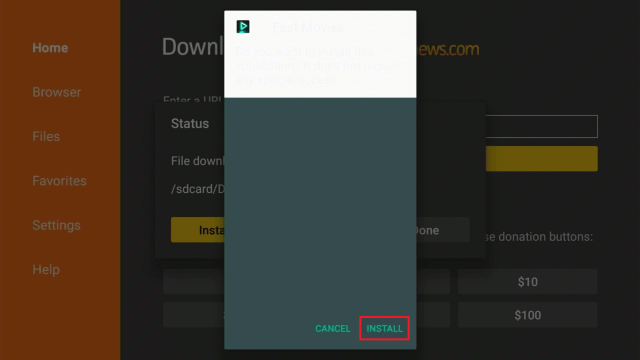
  12. Once downloaded, click Install.
  13. Click on the Done button.
  14. You will then be redirected to the Downloader app, then click on the Delete button.
  15. Then click on the Delete button again.
  16. Go back to your Firestick’s home screen and click on Your Apps & Channels and then open Choose All.
  17. Look for HDMovies-Bing and click on the Options button.
  18. Click on the Move to Front option.
  19. The app will now launch up and then click on Allow.
  20. HDMovies-Bing will now be displayed in your Apps list.


If your Firestick still has the older interface, read this article to learn how to update it: Update Firestick Interface.


Install HDMovies-Bing APK on Firestick with Screenshots

1. Install the Downloader app and jailbreak your firestick by enabling unknown sources. To learn more about the procedure, you may read How to Install the Downloader App and Enable Unknown Sources.


2.Open Downloader App. Type https://reviewvpn.com/mbing and click Go.

Install HDMovies-Bing


3. Click on INSTALL.

 HDMovies-Bing1


4. Click on OPEN.

 HDMovies-Bing2


5. HDMovies-Bing APK is installed. Enjoy Watching.

 HDMovies-Bing3

YOUR INTERNET ACTIVITY IS BEING WATCHED

ReviewVPN cannot attest to the legality, security and privacy of the applications discussed on this site. It is highly recommended that you use a VPN service while streaming or using Kodi.

Currently, your IP 216.73.216.208 is visible to everyone and your Browser is being tracked by Advertisers & ISP Provider.

Save 65% Now

Limited Time Offer

Here are the main reasons why you must use a VPN:

  • Your activities are hidden from your ISP, the government, and from the apps you are using.
  • You can access additional movies and TV streams.
  • ISP attempts to throttle are thrwarted thus reducing buffering issues.
  • Geographically restricted content like Netflix and Hulu can be unblocked.

A VPN works be replacing your ISP-assigned IP address and creating an encrypted tunnel. We recommend the no log service offered by IPVanish. It works well on a Firestick and offers the fastest possible speeds.

Special Limited Time Offer - Get IPVanish


Legal Disclaimer: ReviewVPN.com does not encourage or endorse any illegal activity involved in the usage of services and applications referenced on this site. We do not verify the licensing agreements of services. The end-user is wholly responsible for ensuring that any media accessed through these services does not violate copyright and/or licensing laws. ReviewVPN does not promote, link to, or receive compensation from any Apps and IPTV services.


Install Surfshark on Firestick

Best Surfshark Deal


Is It Any Good?

HDMovies-Bing is a free online streaming app that offers great streaming options from around the globe for any user. The app has a large collection of movies such as Ice on Fire, Skyscraper, Slender Man, and many more, and a simple and neat user interface.


HDMovies-Bing APK Features

  • The user interface is simple, neat, and professional. It works well for those who enjoy the content more and the app’s design. This app displays the most viewed movies and new releases.
  • It features a multi-view mode where you can zoom, fill, height, width, and fit the screen display to your device.
  • Has time-sync for subtitles.
  • There are no unwanted ads and banner ads.
  • You won’t need to sign up for an account to enjoy its free movie content.
  • You can save your favorite movies so that you can watch them later.
  • Customize the subtitles.
  • Movies are available in HD quality.
  • Movie trailers are available before you watch the full movie.
  • You can Chromecast the movies to a bigger screen.


How To Use HDMovies-Bing APK

This app is very easy to download and install due to its small file size. You can watch tons of movies right on this app and choose from its large category of movies. What’s great about HDMovies-Bing is that it can be installed and used on various Android devices like tablets, smartphones, TV Boxes, and including the Amazon Firestick. Using HDMovies-Bing is pretty straightforward, just like other streaming apps, like Cimabox, AZ Movies, etc, all you have to do is to pick the movie you want to watch and enjoy streaming with unlimited content.


Pros and Cons

Pros

  • Movies are available in HD resolution.
  • The subtitles are customizable.
  • You can adjust the position and font size of the subtitle.
  • Movie trailers are available.
  • Chromecast supported.
  • Let you save movies to watch later on.
  • Has no annoying ads.
  • Compatible with different Android devices.

Cons

  • Some movies load up longer than others.
  • Although there aren’t any annoying ads, there are still a few ones that pops-up before playing the movie.
  • Does not support Real-Debrid and Trakt integration.


FAQs

Is using HDMovies-Bing safe and legal?

Yes, this app is 100% safe and legal to use. The app offers free content from different popular sources and the app itself is legal.


How many movies can I watch on HDMovies-Bing?

HDMovies-Bing has a large library that offers tons of movies for you to watch. So you can watch as many movies as you want.


What devices is HDMovies-Bing compatible with?

HDMovies-Bing is compatible with many Android devices like Amazon Firestick, Fire TV, Fire TV Cube, Android smartphone, tablet, Android TV Boxes, and many more.


Is it safe from viruses?

So far, from using this app on my TV and PC, I have not experienced any viruses or malware. So, it is safe to say that there are no viruses in this app.


Does the app have ads?

The app does not have any annoying ads, but there are only a few small ads.


Does HDMovies-Bing need a VPN?

With every streaming app, it is advisable to use a VPN, specifically Surfshark, when using streaming apps to secure your online privacy.

Note: For more information about Surfshark, please read our Surfshark Review.


Grab your subscription now!


How to Install Surfshark VPN on Firestick

If your Firestick still has the older interface, read this article to learn how to update it: Update Firestick Interface.

Follow our screenshots below to install the SurfShark VPN app on your Fire TV stick.

1. Go to the Home screen of your Firestick.

step 1 Install Surfshark VPN on Firestick


2. Navigate towards the Find tab. Press the Search button from the resulting dropdown.

step 2 Install Surfshark VPN on Firestick


3. Type in the keyword of SurfShark and select from the suggestions that will appear.

step 3 Install Surfshark VPN on Firestick


4. Click the official SurfShark icon from your search results.

step 4 Install Surfshark VPN on Firestick


5. Press the Download (You own it) button.

step 5 Install Surfshark VPN on Firestick


6. The SurfShark VPN installer will download on your device.

step 6 Install Surfshark VPN on Firestick


7. SurfShark VPN’s app will automatically install itself on your Fire TV stick.

step 7 Install Surfshark VPN on Firestick


8. Press the Open button after completing SurfShark VPN’s installation process.

step 8 Install Surfshark VPN on Firestick


9. Please wait for the SurfShark VPN to load its user interface.

step 9 Install Surfshark VPN on Firestick


10. You can now log in with your SurfShark VPN account credentials.

step 10 Install Surfshark VPN on Firestick

Learn more about Surfshark and Grab the Best Surfshark Deal Now!


Install Surfshark on Firestick

Best Surfshark Deal


Other VPNs to Consider

NordVPN (Best for Streaming)

Best Features

  • 5000+ Server in 50+ Countries 
  • Military-Grade Encryption
  • Fast Connection Speed
  • Suitable to a lot of devices
  • No-Log Policy

Prices
  • Complete $5.89 per month (64% Discount)
  • Plus $4.59 per month (56% Discount)
  • Standard $3.69 per month (55% Discount)

Best Features

  • 750+ High-speed VPN Servers in 43 Locations
  • Military-Grade Encryption
  • Fastest HD Streaming and Gaming
  • 30-Day Money-Back Guarantee
  • Unlimited Data & Devices
  • No-Log Policy

Prices
  • 3 Years $1.99 per month (82% Discount)
  • 1 Years $3.29 per month (70% Discount)
  • 1 Month $10.99 per month

IPVanish VPN (Most Secure)

Best Features

  • 1200+ Servers in 60+ Countries around the world
  • Unlimited Connections
  • No-Log Policy
  • Top Notch Military-Grade VPN Protocols and Encryptions
  • 100% Safe and Secured
  • Most Trusted VPN
  • Best VPN for Firestick
  • 30-Day Money-Back Guarantee

Prices
  • Yearly $3.99 per month (63% Discount) – 30 days risk free + Ransomware & Malware Protection
  • Quarterly $5.32 per month (51% Discount)
  • Monthly $10.99 per month


For more VPN discounts, go to ReviewVPN Deals and purchase the best VPN for you.

Click here to get the lowest price on Surfshark through our exclusive limited-time offer.


Alternatives

  • Cimabox APK
  • AZ Movie APK
  • Fast Movies APK
  • Cyrose HD
  • MediaBox HD
  • Movie Hunt APK
  • Many more


Our Opinion

Our thoughts about HDMovies-Bing are that it’s excellent with it having tons of old and new movie content and it can be used on various Android devices. Even though there some movies that load up longer, there are still other movies that load up fast. HDMovies-Bing is a very basic APK but it functions well and delivers excellent movies.


Final Thoughts

Overall, if you want a streaming app that is simple and does not have a flashy design to it but offers movies without any hassle, then HDMovies-Bing is the right one for you. However, if you want an app that can be integrated with Real-Debrid and Trakt, then this is not the app for you. With HDMovies-Bing large library, you can enjoy streaming endlessly.

Note: ReviewVPN.com does not own or operate any app nor does it endorse any. The main purpose of this article is strictly for educational purposes only.

What Is Your Favorite Streaming App? Cast Your Vote Below.

Install Cimabox APK On Firestick

Cimabox APK Overview

In this article, we will be introducing the Cimabox APK. So what is Cimabox?


Cimabox is an online streaming app that provides you the option to choose from different movies and TV shows just by utilizing one app on your device.

If you like streaming movies and TV shows for free online, then Cimabox is the perfect app for you. Cimabox features the latest movies, latest TV shows, favorites, popular movies, and TV shows in different genres like horror, action, comedy, thriller, sci-fi, and many more in High-Definition quality.

It offers tons of TV shows and movies from Hollywood, and around the world. Cimabox is considered to be one of those functioning applications where you can stream all your favorite movies and TV shows for as long as you want. In today’s age, people prefer to watch their favorite movies and shows online, and with Cimabox, you can watch them either on your TV or smartphone without having to pay for any subscription. A great feature in Cimabox is that you can download a movie or TV show that you can watch offline or when you lose an internet connection.

The app regularly updates its movie and TV show links so that you can stream the latest shows and movies. Moreover, Cimabox’s developers keep checking older media links and update those links when they are not functioning.

For you to successfully install the app, you first need to jailbreak your Firestick device. Here is a quick guide that will help you:


Jailbreak the Firestick.

After you have jailbroken your Firestick, then you need to download an app called Downloader, for you to sideload Cimabox to your Firestick. Nonetheless, here is a quick guide to download and install the Downloader app:

Install Downloader App on Firestick.


ANONYMOUSLY

Is CimaBox Safe and Virus-free?

We tested this app using VirusTotal and found no threats or any malicious files and malware.

Despite having good results, we still need to be vigilant in protecting our privacy while streaming.

A Virtual Private Network or VPN will definitely help us maintain our security and anonymity while using CimaBox.

Here’s how you can Install The Best VPN For Firestick and All Devices.


How To Install Cimabox on Android

  1. Download the APK file of Cimabox.
  2. Since the app is not available in the Google Play Store, you will need to enable the Apps from Unknown Sources or Install Unknown Apps.
  3. Access the Settings of the device and click on Apps or Security.
  4. Then click on Apps from Unknown Sources or Install Unknown Apps to enable it.
  5. Once that is done, go to the File Manager and click on the Cimabox APK file.
  6. Click on the Install button and patiently wait for the installation to be complete.
  7. After the installation is done, then click on the Open button.

There you have it! You now have successfully installed Cimabox on your Android device.

Note: ReviewVPN.com does not host this APK file. It is hosted on Archive.org.


How To Install Cimabox APK on Firestick Guide

Because Cimabox is not available in the Google Play Store and the Amazon App Store, then you will need to sideload the app to install it on your Firestick.

  1. Go to your Firestick’s main menu and click on Settings.
  2. Click on My Fire TV or Device.
  3. Now, click on the Developer Options.
  4. Enable the Apps from Unknown Sources option.
  5. Return to your Firestick’s home screen and click on the search icon on the top of the screen.
  6. Search for the Downloader app and then download and install it.
  7. Click on the Open button once it has been installed.
  8. Then click on the Allow button and OK button.
  9. Open the Downloader app and click on the search bar.
  10. Now type in the URL carefully: https://reviewvpn.com/cima
  11. Patiently wait for a few moments for the APK file to download.
  12. Then click on the Install button.
  13. After that, click on the Done button.
  14. This will automatically return you to the Downloader app. Then you will click on Delete.
  15. Click on Delete again.
  16. Return to your Firestick’s home screen and open Your Apps & Channels and click Choose All.
  17. Scroll down and find Cimabox. Once found click on Options.
  18. Now, click on Move to Front.
  19. This will launch the app after you click on Allow when a notification appears.
  20. Finally, Cimabox will be displayed in your Apps & Channels.

Congratulations! You have now downloaded and installed the Cimabox APK on your Firestick device.


If your Firestick still has the older interface, read this article to learn how to update it: Update Firestick Interface.


Install Cimabox APK on Firesticks with Screenshots

1. Install the Downloader app and jailbreak your firestick by enabling unknown sources. To learn more about the procedure, you may read How to Install the Downloader App and Enable Unknown Sources.


2.Open Downloader App. Type https://reviewvpn.com/cima and click Go.

Install Cimabox


3. Click on INSTALL.

Install Cimabox1


4. Click on OPEN.

Install Cimabox2


5. Select ACCEPT.

Install Cimabox3


6. Click ALLOW.

Install Cimabox4


5. Cimabox is installed. Enjoy Watching.

Install Cimabox5

YOUR INTERNET ACTIVITY IS BEING WATCHED

ReviewVPN cannot attest to the legality, security and privacy of the applications discussed on this site. It is highly recommended that you use a VPN service while streaming or using Kodi.

Currently, your IP 216.73.216.208 is visible to everyone and your Browser is being tracked by Advertisers & ISP Provider.

Save 65% Now

Limited Time Offer

Here are the main reasons why you must use a VPN:

  • Your activities are hidden from your ISP, the government, and from the apps you are using.
  • You can access additional movies and TV streams.
  • ISP attempts to throttle are thrwarted thus reducing buffering issues.
  • Geographically restricted content like Netflix and Hulu can be unblocked.

A VPN works be replacing your ISP-assigned IP address and creating an encrypted tunnel. We recommend the no log service offered by IPVanish. It works well on a Firestick and offers the fastest possible speeds.

Special Limited Time Offer - Get IPVanish


Legal Disclaimer: ReviewVPN.com does not encourage or endorse any illegal activity involved in the usage of services and applications referenced on this site. We do not verify the licensing agreements of services. The end-user is wholly responsible for ensuring that any media accessed through these services does not violate copyright and/or licensing laws. ReviewVPN does not promote, link to, or receive compensation from any Apps and IPTV services.


Install Surfshark on Firestick

Best Surfshark Deal


Is It Any Good?

Cimabox is an excellent online service that offers links to tons of movies and TV shows. Cimabox is quite easy to use, the links provided are currently working, and has a modern design to its user interface. Nonetheless, the links provided in this app are from 480p to 1080 resolution. It also works well with a slow internet connection and surely it will provide a streaming experience free from buffering. Moreover, you can download any movie or TV show to watch them offline anytime and anywhere you want.


Cimabox APK Features

  • Cimabox supports various media players such as MX Player and VLC.
  • Video links are available in different resolutions from 480p to 1080p quality.
  • Has a small storage file of 1.22MB.
  • You can easily request a movie or TV show you want from its developer’s team.
  • Old links are updated regularly.
  • There is no need for you to register and pay for any subscription.
  • Cimabox’s user interface is very simple and minimal where you can easily move or swipe through different selections of movies and TV shows.
  • The media contents are organized based on ratings, year of release, and genres such as Action, Comedy, Drama, Horror, Romance, Sci-Fi, Thriller, and many more.
  • Has multiple languages in subtitles like English, Kannada, Tamil, Hindi, Marathi, Telegu, and many more.


How To Use Cimabox APK

To use Cimabox is similar to other movie and TV show streaming apps like Fast Movies, Morph Tv, and others. It provides users with top-rated links to the latest movies and TV shows. Nonetheless, when you click on a movie or show that you want to watch, it will load up for a few seconds and immediately plays the content.


Pros and Cons

Pros

  • Minimal and easy to use user interface.
  • Available media content from 480p to 1080p resolutions.
  • Easy and smooth to navigate.
  • No annoying ads.
  • Supports multiple languages in the subtitles.
  • Links are regularly updated.
  • Supports other media players like VLC and MX Player.
  • Downloadable content.

Cons

  • When tested, some of the HD Movie links are not working.
  • You will need to refresh the movie section to load up movies.


Stream Safely with a VPN

Internet Service Providers (ISP) can monitor your private online activities. The information they collect can be used for insidious methods. Accessing exclusive media content can disrupt your internet connection. Your IP requests subsequent loads from the main server. It may result in stuttering and buffering.

A slow connection may hinder your research assignments. It can also affect your internet speed. It is why we recommend a magnificent VPN like Surfshark. Many VPNs are available on the web. Surfshark is designed for the safe streaming of quality movies. Surfshark is the best companion while streaming multiple media files.


Note: For more information about SurfShark, please read our SURFSHARK REVIEW.


Grab your subscription now!


How to Install Surfshark VPN on Firestick

If your Firestick still has the older interface, read this article to learn how to update it: Update Firestick Interface.

You can download Surfshark directly from the Amazon App store. It will be easy for you to find Surfshark with your Firestick’s Find feature. Refer to our screenshots below.

1. Go to the Home screen of your Firestick.

step 1 Install Surfshark VPN on Firestick


2. Navigate towards the Find tab. Press the Search button from the resulting dropdown.

step 2 Install Surfshark VPN on Firestick


3. Type in the keyword of SurfShark and select from the suggestions that will appear.

step 3 Install Surfshark VPN on Firestick


4. Click the official SurfShark icon from your search results.

step 4 Install Surfshark VPN on Firestick


5. Press the Download (You own it) button.

step 5 Install Surfshark VPN on Firestick


6. The SurfShark VPN installer will download on your device.

step 6 Install Surfshark VPN on Firestick


7. SurfShark VPN’s app will automatically install itself on your Fire TV stick.

step 7 Install Surfshark VPN on Firestick


8. Press the Open button after completing SurfShark VPN’s installation process.

step 8 Install Surfshark VPN on Firestick


9. Please wait for the SurfShark VPN to load its user interface.

step 9 Install Surfshark VPN on Firestick


10. You can now log in with your SurfShark VPN account credentials.

step 10 Install Surfshark VPN on Firestick

Learn more about Surfshark and Grab the Best Surfshark Deal Now!


Install Surfshark on Firestick

Best Surfshark Deal


Other VPNs to Consider

NordVPN (Best for Streaming)

Best Features

  • 5000+ Server in 50+ Countries 
  • Military-Grade Encryption
  • Fast Connection Speed
  • Suitable to a lot of devices
  • No-Log Policy

Prices
  • Complete $5.89 per month (64% Discount)
  • Plus $4.59 per month (56% Discount)
  • Standard $3.69 per month (55% Discount)

Best Features

  • 750+ High-speed VPN Servers in 43 Locations
  • Military-Grade Encryption
  • Fastest HD Streaming and Gaming
  • 30-Day Money-Back Guarantee
  • Unlimited Data & Devices
  • No-Log Policy

Prices
  • 3 Years $1.99 per month (82% Discount)
  • 1 Years $3.29 per month (70% Discount)
  • 1 Month $10.99 per month

IPVanish VPN (Most Secure)

Best Features

  • 1200+ Servers in 60+ Countries around the world
  • Unlimited Connections
  • No-Log Policy
  • Top Notch Military-Grade VPN Protocols and Encryptions
  • 100% Safe and Secured
  • Most Trusted VPN
  • Best VPN for Firestick
  • 30-Day Money-Back Guarantee

Prices
  • Yearly $3.99 per month (63% Discount) – 30 days risk free + Ransomware & Malware Protection
  • Quarterly $5.32 per month (51% Discount)
  • Monthly $10.99 per month


For more VPN discounts, go to ReviewVPN Deals and purchase the best VPN for you.

Click here to get the lowest price on Surfshark through our exclusive limited-time offer.


FAQs

Is Cimabox safe to use?

Yes, Cimabox is 100% safe to use. However, to be more secure, we recommend using a VPN, especially Surfshark.


What other devices can Cimabox be installed on?

Cimabox can be installed on various devices like Android Smartphones, Android Smart TVs, Android TV Boxes, Android SmartWatches, Firestick, Fire TV, Fire TV Cube, Ruko, Kodi Android Box, NVIDIA Shield, etc.


Can Cimabox be installed on an iPhone?

Unfortunately, no. Cimabox can only be installed on Android devices.


Is the app safe from viruses?

Yes, it is safe from any viruses and malware.


Is a VPN needed when using Cimabox?

Yes, we highly suggest that you use a VPN when streaming with any media streaming app to secure your privacy online.


Does Cimabox have ads?

Although it does not have any annoying ads, there are still a few ads on the app.


Alternatives

  • Morph TV
  • Titanium TV
  • BeeTV
  • UnLockMyTV
  • Typhoon TV
  • CatMouse APK


Our Opinion

Cimabox is one of the safest movie streaming apps because it gathers video links from various popular servers across the globe. You can enjoy streaming with Cimabox right on your TV by installing it on your Firestick. However, if you want an app where you can stream the latest movies and TV shows without any hassle, then Cimabox is an excellent app for you to use.


Final Thoughts

Cimabox has tons of movies and TV shows in different genres for everyone to enjoy. The links provided do not disrupt the quality of the movie and offer them top-quality video resolutions. Based on testing the app, the content is excellent and any can be downloaded for offline viewing which makes it easier to watch them anywhere. Nonetheless, the app does not require large storage space.

What Is Your Favorite Streaming App? Cast Your Vote Below.

Install Fast Movies App On Firestick

Fast Movies App Overview

In this article, we will help you install Fast Movies app on Firestick.


Browsing and searching for any of your favorite movies online may be a bit hard at times. You sometimes search through tons of different websites and multiple servers just to download the content you want, however, you end up with slow-speed links and unwanted ads.

Nonetheless, there are other streaming apps like Hotstar, Netflix, and Amazon Prime that will provide you with any TV shows and movies, but you will need to pay every month to continue watching video content on your TV or smartphone. But if you wish to stream free movies without any ads and on an app, then Fast Movies is the right one for you.

In this article, we will be discussing the Fast Movies APK.  So, what is the Fast Movies app? Fast Movies APK is an app for online video streaming that offers the most recent movies all for free. With Fast Movies, you can enjoy many movies of different genres like Action, Romance, Drama, Horror, Comedy, Thriller, Sci-Fi, and many more. You may also search for specific movies by typing their title on the app’s search bar.

For a successful installation, you will first need to jailbreak your Firestick. Carefully follow this guide to do so:

Jailbreak the Firestick.

Once your device has been jailbroken, you will then download an app called Downloader to side-load Fast Movies APK onto your Firestick. Here is a simple and quick guide:

Install Downloader App on Firestick.


ANONYMOUSLY

Is Fast Movies Safe and Virus-free?

We tested this app using VirusTotal and found no threats or any malicious files and malware.

Despite having good results, we still need to be vigilant in protecting our privacy while streaming.

A Virtual Private Network or VPN will help us maintain our security and anonymity while using Fast Movies.

Here’s how you can Install The Best VPN For Firestick and All Devices.


How To Install Fast Movies APK on Android

Fast Movies is a very easy and simple app and it is compatible with any Android device. Since this app is not available on the Google Play Store, then you will need the APK file before you further follow the steps below:

  1. The first thing to do is to download the APK file of the Fast Movies app.
  2. Again, since the app is not available on the Google Play Store. Then you will need to enable the Apps from Unknown Sources.
  3. Open the Settings of your device.
  4. Then go to Apps or Security.
  5. Tap on Special Access.
  6. Then enable the Apps from Unknown Sources or Install Unknown Apps.
  7. After enabling. Open the File Manager and click on the APK file of Fast Movies.
  8. Click on the Install button.
  9. Patiently wait for the installation process to finish.
  10. Once the installation is done, click on the Open button to launch the app.

Congratulations! You have successfully installed Fast Movies APK onto your Android device.

Note: ReviewVPN.com does not host this APK file. It is hosted on Archive.org.


How To Install Fast Movies APK on Firestick Guide

Fast Movies is a great app because not only can you install it on Android devices and Smart TVs, but you can install it on external devices like Fire TV, Firestick, and many more.

  1. Open the Settings of your Firestick’s main menu.
  2. Click on the Device or the My Fire TV option.
  3. Click on the Developers Options.
  4. Switch on the ADB Debugging and enable the Apps from Unknown Sources.
  5. Once these options have been switched on, open the Amazon App Store, search and download the Downloader app.
  6. Once the Downloader app has been installed, launch it.
  7. Click on the Allow and OK button.
  8. Then carefully type in this URL on the search bar: https://reviewvpn.com/fmov
  9. Click on the Fast Movies app once it’s installed.
  10. Then click on the Done button.
  11. This will directly redirect you to the Downloader app. Click on the Delete button.
  12. Click on the Delete button again.
  13. Return to your Firestick’s main menu and then go to the Your Apps & Channels and then click on Choose All.
  14. Scroll down the page and click on the Fast Movies app and select Options.
  15. Now, choose to Move to Front.
  16. Then Fast Movies will be in your Apps & Channels.
  17. Finally, you will see Fast Movies displayed and click on the app to launch it.

Congratulations! You have successfully installed Fast Movies onto your Firestick device.


If your Firestick still has the older interface, read this article to learn how to update it: Update Firestick Interface.


Install Fast Movies on Firestick (Video)


Install Fast Movies on Firestick with Screenshots

1. Install the Downloader app and jailbreak your firestick by enabling unknown sources. To learn more about the procedure, you may read How to Install the Downloader App and Enable Unknown Sources.


2. Open Downloader App. Type https://reviewvpn.com/fmov and click Go.

Install Fast Movies

3. Click on INSTALL.

Install Fast Movies1

4. Click on OPEN.

Install Fast Movies2

5. Fast Movies is installed. Enjoy Watching.

Install Fast Movies3


Install Surfshark on Firestick

Best Surfshark Deal


Legal Disclaimer: ReviewVPN.com does not encourage or endorse any illegal activity involved in the usage of services and applications referenced on this site. We do not verify the licensing agreements of services. The end-user is wholly responsible for ensuring that any media accessed through these services does not violate copyright and/or licensing laws. ReviewVPN does not promote, link to, or receive compensation from any Apps and IPTV services.


YOUR INTERNET ACTIVITY IS BEING WATCHED

ReviewVPN cannot attest to the legality, security and privacy of the applications discussed on this site. It is highly recommended that you use a VPN service while streaming or using Kodi.

Currently, your IP 216.73.216.208 is visible to everyone and your Browser is being tracked by Advertisers & ISP Provider.

Save 65% Now

Limited Time Offer

Here are the main reasons why you must use a VPN:

  • Your activities are hidden from your ISP, the government, and from the apps you are using.
  • You can access additional movies and TV streams.
  • ISP attempts to throttle are thrwarted thus reducing buffering issues.
  • Geographically restricted content like Netflix and Hulu can be unblocked.

A VPN works be replacing your ISP-assigned IP address and creating an encrypted tunnel. We recommend the no log service offered by IPVanish. It works well on a Firestick and offers the fastest possible speeds.

Special Limited Time Offer - Get IPVanish


Is It Any Good?

If you are searching for an app that offers top-rated and latest released movies, then Fast Movies will most likely be the right one for you. Fast Movies are easy to use, effective, and functional. It searches the web for the best movies and provides the content in its original version.


Fast Movies Features

  • Gain access to a list of the most popular movies and the newest movies being added to the app.
  • Has a label system that organizes its content according to genres, like animation, action, comedy, adventure, sci-fi, horror, musical, and many more.
  • It has a search bar to find certain movies easier.
  • Each movie has a short synopsis from IMDb, year of release, time of duration, and streaming quality.
  • It has a very simple user interface and it displays the latest movies on its home page and it also displays various trailers for different popular movies.
  • Has a small file size of 4MB which makes it easier to download.


How To Use Fast Movies APK

Fast Movies APK is used as an online streaming platform similar to other streaming apps, such as Netflix, Hulu, HBO, Amazon Prime, and many more. However, unlike other popular streaming apps, Fast Movies APK offers all its movies in their original versions and for free. Once you click on a movie you want to watch, it will only take a few seconds to load up and then it will play directly.


Pros and Cons

Pros

  • It has a wide selection of movies in different genres.
  • Not only can you use its external player, but you can also choose your preferred player.
  • With its built-in search bar, you can find movies easier.
  • Provides subtitles in over 15 different languages.
  • One-click download option.
  • Has no annoying ads.
  • Chromecast supported.

Cons

  • Does not have Real-Debrid and Trakt integration options.
  • Not available in the Google Play Store and Amazon App Store.


Stream Safely with a VPN

Internet Service Providers (ISP) can monitor your private online activities. The information they collect can be used for insidious methods. Accessing exclusive media content can disrupt your internet connection. Your IP requests subsequent loads from the main server. It may result in stuttering and buffering.

A slow connection may hinder your research assignments. It can also affect your internet speed. It is why we recommend a magnificent VPN like Surfshark. Many VPNs are available on the web. Surfshark is designed for the safe streaming of quality movies. Surfshark is the best companion while streaming multiple media files.


Install Surfshark on Firestick

Best Surfshark Deal


How to Install Surfshark VPN on Firestick

If your Firestick still has the older interface, read this article to learn how to update it: Update Firestick Interface.

Follow our screenshots below to install the SurfShark VPN app on your Fire TV stick.

1. Go to the Home screen of your Firestick.

step 1 Install Surfshark VPN on Firestick


2. Navigate towards the Find tab. Press the Search button from the resulting dropdown.

step 2 Install Surfshark VPN on Firestick


3. Type in the keyword of SurfShark and select from the suggestions that will appear.

step 3 Install Surfshark VPN on Firestick


4. Click the official SurfShark icon from your search results.

step 4 Install Surfshark VPN on Firestick


5. Press the Download (You own it) button.

step 5 Install Surfshark VPN on Firestick


6. The SurfShark VPN installer will download on your device.

step 6 Install Surfshark VPN on Firestick


7. SurfShark VPN’s app will automatically install itself on your Fire TV stick.

step 7 Install Surfshark VPN on Firestick


8. Press the Open button after completing SurfShark VPN’s installation process.

step 8 Install Surfshark VPN on Firestick


9. Please wait for the SurfShark VPN to load its user interface.

step 9 Install Surfshark VPN on Firestick


10. You can now log in with your SurfShark VPN account credentials.

step 10 Install Surfshark VPN on Firestick

Learn more about Surfshark and Grab the Best Surfshark Deal Now!


Install Surfshark on Firestick

Best Surfshark Deal


Other VPNs to Consider

NordVPN (Best for Streaming)

Best Features

  • 5000+ Server in 50+ Countries 
  • Military-Grade Encryption
  • Fast Connection Speed
  • Suitable to a lot of devices
  • No-Log Policy

Prices
  • Complete $5.89 per month (64% Discount)
  • Plus $4.59 per month (56% Discount)
  • Standard $3.69 per month (55% Discount)

Best Features

  • 750+ High-speed VPN Servers in 43 Locations
  • Military-Grade Encryption
  • Fastest HD Streaming and Gaming
  • 30-Day Money-Back Guarantee
  • Unlimited Data & Devices
  • No-Log Policy

Prices
  • 3 Years $1.99 per month (82% Discount)
  • 1 Years $3.29 per month (70% Discount)
  • 1 Month $10.99 per month

IPVanish VPN (Most Secure)

Best Features

  • 1200+ Servers in 60+ Countries around the world
  • Unlimited Connections
  • No-Log Policy
  • Top Notch Military-Grade VPN Protocols and Encryptions
  • 100% Safe and Secured
  • Most Trusted VPN
  • Best VPN for Firestick
  • 30-Day Money-Back Guarantee

Prices
  • Yearly $3.99 per month (63% Discount) – 30 days risk free + Ransomware & Malware Protection
  • Quarterly $5.32 per month (51% Discount)
  • Monthly $10.99 per month


For more VPN discounts, go to ReviewVPN Deals and purchase the best VPN for you.

Click here to get the lowest price on Surfshark through our exclusive limited-time offer.


FAQ’s

What devices are compatible with Fast Movies APK?

Fast Movies is compatible with various Android devices. To be more specific, these devices are Amazon Firesticks, Fire TVs. Android Smartphones, Android Smart TVs, NVIDIA Shield, Fire Cube, Kodi Android Box, Ruko, Android SmartWatch, Android TV Box, etc.


Is Fast Movies APK free to use?

Yes, Fast Movies APK is 100% free to download, install, and use. You won’t need to pay a single coin to watch movies.


Can I install Fast Movies on an iPhone?

Unfortunately, Fast Movies APK is only available for Android devices.


Is this app safe from viruses?

Yes, Fast Movies APK is an app free from malware viruses, and also we do not offer any dangerous APK files to our readers.


Is a VPN needed when using Fast Movies?

Yes, it is highly recommended when using any movie streaming apps that you use a VPN, specifically Surfshark, to fully secure and protect your privacy online


Is it legal?

Yes, Fast Movies APK is legal to use by anyone.


Are there any Ads in this app?

Fortunately, there are no ads in this app. You can enjoy streaming completely for free without any ads.


Alternatives

  • Typhoon TV APK
  • Kodi
  • Morph TV
  • CatMouse APK
  • CyberFlix TV
  • BeeTV
  • And many more.


Our Opinion

Fast Movies APK is a great movie streaming app that provides free movies in high-definition resolution. This app is also supported by Chromecast, so you can easily cast movies on bigger screens. We suggest that you download Fast Movies APK and enjoy streaming the best movies in excellent quality for free.


Final Thoughts

Apart from other movie streaming apps that offer free movie content, Fast Movies APK is a very effective and easy-to-use app. Fast Movies not only has its own built-in media player, but it supports other players, like MX players and VLC players. The app offers a wide array of various selections of different Hollywood movies. If you wish to stream movies without paying a monthly subscription, then Fast Movies is the one for you. With it having no ads, then surely Fast Movies can satisfy any movie lover’s streaming experience.

What Is Your Favorite Streaming App? Cast Your Vote Below.

Best Stremio Add Ons

Best Stremio Add Ons Overview

This article names the best Stremio Add ons available for streaming.


Stremio often described as the best alternative for Kodi, mainly because they have one common denominator. It is the presence of addons that enhance the streaming capabilities of both apps.

The add-ons library of Stremio is not as big compared with Kodi’s. There are only a few available but most of them are great.

One good advantage of these addons is that they are so much easy to install. You can easily look for them in the Add-ons section of the application.

These addons are categorized into four types namely Movies, Series, Channels, TV channels, Others, Sports, Podcasts, Games, and Kyuchek.


ANONYMOUSLY

You can also check our article about Stremio.

On the other hand, Stremio is a third-party application. You need to jailbreak your firestick first before you can download the app. Follow these guides:

Jailbreak Firestick

Install Downloader on Firestick


If your Firestick still has the older interface, read this article to learn how to update it: Update Firestick Interface.


Best Stremio Add Ons

Stremio may not have as big a collection as the thousands of add ons offered by Kodi, but these add ons will give you all the content you could ever need. Quality trumps quantity every time.

Movies and TV Series Addons

Torrentio

Torrentio

Torrentio is a great addon when watching movies and series. When you click on a title, torrentio will find all the torrent streams available. It also provides data from scraped torrent providers. Mostly all of the addons that also available on Stremio are supported by Torrentio.


RARBG

RARBG

RARBG is a content aggregator that pulls streams from lots of different torrent sites and gives you the best option to download. Access a massive amount of content through this easy-to-use addon.

Worth saying that when you download torrents you will reveal your IP address, so this and all other sites that use torrents should always be used with a VPN to maintain your safety and anonymity.


The Pirate Bay +

The Pirate Bay

Probably the most well-known torrent website on the internet. Pirate Bay has been featured heavily in many countries’ efforts to crack down on illegally pirated material. However mostly to no avail. Pirate Bay remains one of the 200 most popular websites in the world.

Founded in 2002, Pirate Bay probably has the biggest library of content anywhere in the world. The site constantly moves, and many countries have blocked access to the site, making using a VPN an absolute must.

Pirate Bay offers magnet links, which provide an address to download content. Through the app, you can pretty much find anything from the latest movie blockbuster to adult content or anime.


Juan Carlos 2

Juan Carlos 2

Another high-quality torrent aggregator and a good back up. Works just like RARBG. But with Pirate Bay, you’ll never have to look anywhere else for a new title or content to watch.

This addon is only available in some other area. If you are using VPN and you cannot see this addon, try to turn off your VPN and look for it. Do a reverse process if you are encountering the opposite situation.


Popcorn Time

Popcorn Time

Probably one of the best Stremio add ons out there. Streaming users will be familiar with the awesome Popcorn Time and its massive library of content. Unlike the torrent sites, all the content is there for you to watch with fan art and reviews. A must-have if you want to navigate the content Netflix style. Popcorn time gets its library updated daily from the 2 biggest torrent sites YTS and EZTV.


IMDB Addon

IMDB

If you would like to stream movies and series under IMDb TV, you can easily search for the title and this addon will help you stream it.


Games and Sports Addons

Twitch

Twitch

Commonly associated with live streams for gamers, Twitch has become much more than a gamer’s paradise. You can now stream a lot of live sports, including e-sports and more fringe shows that you might not find on regular channels. Good for a giggle, and you’ll never be bored with Twitch. Also, D-tube a good way to support original content creators.


Extra Time

Extra Time

Extra Time is your Sports buddy when it comes to highlights of your favorite games. This addon features different streams to watch mainly football.


Maximum Sports

Maximum Sports

Maximum Sports stream almost all types of sports present in America. If you are looking for American Football, Basketball, Baseball, Soccer, Hockey, Rugby, AFL, and many more then you need to check out this addon.

This addon is also a torrent aggregator. Meaning to say that is still best to have a VPN while using this addon.


Adult Addons

Porn +

Porn +

Porn+ is a Stremio addon that you can rely on if you would like to have some adult content. This addon streams porn videos, and live cams from different porn sites such as RedTube, SpankWire, Chaturbate, and many more.


XNXX

XNXX

As we all know that XNXX.com is a porn site. It is also an addon that you can install on your stremio app. Using this addon you will have free access to stream all of the videos on xnxx.com.

Built-in Addons

These addons are available automatically when you install the Stremio app.

Cinemeta

Cinemeta

Cinemeta is another addon for movies and series. without installing any addon, you can still watch movies and series. This addon will help you find the best links and torrent sites for the title you wish to watch.


Watch Hub

WatchHub

Watch Hub unifies all the major premium online content providers, from HBO, iTunes, Amazon, Netflix, and Hulu. So, you can have all the titles in the same place. Before you get too excited, you will need to link all your accounts and pay for them before you can use the service.


YouTube

Youtube

Access the original streaming giant through Stremio, and navigate seamlessly through the add on rather than through the web, good way of putting your favorite fail videos up on your TV


Open Subtitles

Open Subtitles

Open Subtitles houses over 5 million subtitles in over 100 different languages. We take for granted speaking English, but this is a must-have addon for all the Spanish, Chinese, and other language users from all around the world.

This is the best addon for finding subtitles for content that has just come out in any language, you can almost request subtitles for a piece of content, as it’s supported by an enormous community. Through the addon you can stream content directly, do watch your favorite shows in your chosen language.

Great addon to have if you are learning a new language as well, to complement your other lessons.


Local Files

Local Files

Local Files is the addon that helps this application to find the playable files for each title you want to stream. Without this addon, your stremio app won’t have the ability to locate the local files for the movies or series.

This addon supports different types of file such as .torrent, .mp4, .mkv, and .avi.


Dead Addons

Zooqle

Zooqle Image

Zooqle is like Pirate Bay and was previously known as Bit Snooper. Founded in 2008 the site has become one of the largest torrent sites in the world, and only displays verified torrents for downloads that have been scanned and deemed safe and active.

Zooqle fetches torrents from many different torrent sites like YTS and RARBG and then orders the links in terms of quality and number of downloads. Acting like a torrent library aggregator.

Great for finding the best links for the newest episode of a tv show or a high-quality blockbuster movie still in the theatres.


DTube

DTube

DTube is an interesting concept. A decentralized application that mimics YouTube. Users upload videos and then other users can donate DToken, a form of cryptocurrency as a gesture of liking what that person has produced. In some way this like tokens on Reddit. A way for the community to stay independent and fund itself.

DTube features a lot of unique content, some interesting, some bizarre and seems to feature a lot of content from Asia. Worth checking out if only for the quirkiness aspect.


Film On + Film On VOD

Film On Image

These 2 add ons give you access to over 45,000 titles including movies, TV shows, and documentaries as well as 600+ live TV channels. Mainly from the US, UK, and Canada. Through Stremio you can watch for free, but through the web application, you would have to pay $19.95 per month. Ok as Live TV goes, but better to pay for Helix IPTV, Players Klub, or Eternal which will costs you anywhere from $5 – $9 a month, and get 2,000 – 6,000 Live TV Channels!

Make sure to read our article on Film On.


Iberian

IBERIAN Image

Another torrent provider, though notable because you tend to get a lot of content in high resolutions. From films and Tv shows to sports. Worth having if you are looking for the best resolution streams.


Open Videos

Open Videos Image

A good alternative to Pirate Bay and RARBG, though not quite as comprehensive. Good for finding popular content and searching by resolution.


Ex Add on

Ex Addon Image

A real cool add on to make the list. You won’t find the latest titles on Ex Add on. Instead, you can search any content that is no longer copyrighted, which means there is a vast material of public domain material that is free and legal to watch.

This gives you access to an enormous library of content, and some quality old school films, black and white titles and a real diverse range of content you would never think of. Just don’t expect too much made after 1960!


Netflix

Netflix Image

Although this addon is not available for installing, there are still a lot of Netflix shows available on Stremio and it works just the same when you have this addon.

Though you will need a paid account to watch anything on Netflix, you can access the content library for free. This is a good way of checking up and seeing if there is any content on there you would like to pay for before taking the plunge


YOUR INTERNET ACTIVITY IS BEING WATCHED

ReviewVPN cannot attest to the legality, security and privacy of the applications discussed on this site. It is highly recommended that you use a VPN service while streaming or using Kodi.

Currently, your IP 216.73.216.208 is visible to everyone and your Browser is being tracked by Advertisers & ISP Provider.

Save 65% Now

Limited Time Offer

Here are the main reasons why you must use a VPN:

  • Your activities are hidden from your ISP, the government, and from the apps you are using.
  • You can access additional movies and TV streams.
  • ISP attempts to throttle are thrwarted thus reducing buffering issues.
  • Geographically restricted content like Netflix and Hulu can be unblocked.

A VPN works be replacing your ISP-assigned IP address and creating an encrypted tunnel. We recommend the no log service offered by IPVanish. It works well on a Firestick and offers the fastest possible speeds.

Special Limited Time Offer - Get IPVanish


Legal Disclaimer: ReviewVPN.com does not encourage or endorse any illegal activity involved in the usage of services and applications referenced on this site. We do not verify the licensing agreements of services. The end-user is wholly responsible for ensuring that any media accessed through these services does not violate copyright and/or licensing laws. ReviewVPN does not promote, link to, or receive compensation from any Apps and IPTV services.


Install Surfshark on Firestick

Best Surfshark Deal


Install Stremio APK on Android


Stremio

Note: ReviewVPN.com does not host this APK file. It is hosted on Archive.org. 


Install Stremio on Firestick Guide

  1. Go to Settings and select Device.
  2. Choose Developer Options
  3. Turn on the ADB Debugging and Apps From Unknown Sources
  4. After turning these options on, launch the Amazon App Store on your device
  5. Search and Download Downloader
  6. Install Downloader and launch it after installing it.
  7. Choose Allow and Select Ok
  8. Type in http://reviewvpn.com/stremio and select Go
  9. Wait for it to finish and then select Cat Mouse
  10. Select Done
  11. This will automatically take you back to Downloader. Select Delete
  12. Choose Delete one more time
  13. Head back to the home screen and under the Your Apps & Channels select Choose All
  14. Scroll down and select Stremio and select the Options.
  15. Then select Move to Front
  16. Stremio will be moved forward to Your Apps and Channels
  17. After this, you will see Stremio and click it to launch.


If your Firestick still has the older interface, read this article to learn how to update it: Update Firestick Interface


How to Install Stremio on Firestick with Screenshots

1.  Install the Downloader app and jailbreak your firestick by enabling unknown sources. To learn more about the procedure, you may read How to Install the Downloader App and Enable Unknown Sources.

2. Open Downloader. Type https://reviewvpn.com/stremio and click Go.

Step 12 install stremio on firestock

3. Click on INSTALL

Step 13 install stremio on firestock

4. Click on OPEN

Step 14 install stremio on firestock

5. Click Allow.

Step 15 install stremio on firestock

6. Log-in.

Step 16 install stremio on firestock


FAQ

What is Stremio?

Stremio Image

Stremio is an increasingly popular alternative to Kodi. A partially open-source, free, and legal media player can unify all your media in one place.

For the less technically savvy user, Stremio is a great piece of software because it’s much easier to get started, find add ons, and get things installed unlike the more complex steps involved with Kodi. Stremio is still relatively young, released in 2016, most of the add ons are designed by the in-house development team, rather than contributed by third parties.

Stremio has several advantages over Kodi. It’s simple and easy to use, all your add ons and content is stored on the cloud, so it works well on low RAM devices like an Amazon Firestick or a Raspberry Pi.

You can search and sort content and add ons easily and use an intelligent recommendation feature like Netflix.

Though Stremio doesn’t give you access to as a wide range of add ons as Kodi, it still has a good selection including streaming directly from major torrent sites, video on demand, Live TV, and publicly available content that is copyright free.

Stremio is a good choice for a hobbyist streamer who prioritizes ease of use over the configuration and variety you would get with Kodi.


Grab your subscription now!

Click here to get the lowest price on Surfshark through our exclusive limited-time offer.


Should I use a VPN with Stremio?


Stremio is a free and legal platform, but like Kodi, it features several add ons that allow you to access content that isn’t legal. For that reason and several others, we recommend you use a VPN:

  • Your Internet Service Provider (ISP) monitors and logs every website you visit, as well as your browsing activity. If they can see you are frequenting IP addresses that are associated with distributing illegal content, they can do anything from blacklisting your account to slowing down your internet connection
  • If you plan to use Netflix through Stremio you will be limited to the country, in which you currently reside. Using a VPN, you can change your IP address and country of origin, to anywhere that VPN provider has servers. Meaning you can be in Asia watching US Netflix at your leisure, and access more content, as soon as it is released
  • Whether it be your ISP snooping on your browsing history, or a malicious third party trying to harvest your data a VPN can help you to browse online, anonymously and safely. All your data is encrypted using unbreakable 256-bit AES encryption, the same as the US Military, meaning no one can censor or monitor where you go and what you do


How to Install Surfshark VPN on Firestick

Follow our screenshots below to install the Surfshark VPN app on your Fire TV stick.

1. Go to the Home screen of your Firestick.

step 1 Install Surfshark VPN on Firestick


2. Navigate towards the Find tab. Press the Search button from the resulting dropdown.

step 2 Install Surfshark VPN on Firestick


3. Type in the keyword of Surfshark and select from the suggestions that will appear.

step 3 Install Surfshark VPN on Firestick


4. Click the official SurfShark icon from your search results.

step 4 Install Surfshark VPN on Firestick


5. Press the Download (You own it) button.

step 5 Install Surfshark VPN on Firestick


6. The Surfshark VPN installer will download on your device.

step 6 Install Surfshark VPN on Firestick


7. SurfShark VPN’s app will automatically install itself on your Fire TV stick.

step 7 Install Surfshark VPN on Firestick


8. Press the Open button after completing Surfshark VPN’s installation process.

step 8 Install Surfshark VPN on Firestick


9. Please wait for the SurfShark VPN to load its user interface.

step 9 Install Surfshark VPN on Firestick


10. You can now log in with your Surfshark VPN account credentials.

step 10 Install Surfshark VPN on Firestick

Learn more about Surfshark and Grab the Best Surfshark Deal Now!


Install Surfshark on Firestick

Best Surfshark Deal


Other VPNs to Consider

NordVPN (Best for Streaming)

Best Features

  • 5000+ Server in 50+ Countries 
  • Military-Grade Encryption
  • Fast Connection Speed
  • Suitable to a lot of devices
  • No-Log Policy

Prices
  • Complete $5.89 per month (64% Discount)
  • Plus $4.59 per month (56% Discount)
  • Standard $3.69 per month (55% Discount)

Best Features

  • 750+ High-speed VPN Servers in 43 Locations
  • Military-Grade Encryption
  • Fastest HD Streaming and Gaming
  • 30-Day Money-Back Guarantee
  • Unlimited Data & Devices
  • No-Log Policy

Prices
  • 3 Years $1.99 per month (82% Discount)
  • 1 Years $3.29 per month (70% Discount)
  • 1 Month $10.99 per month

IPVanish VPN (Most Secure)

Best Features

  • 1200+ Servers in 60+ Countries around the world
  • Unlimited Connections
  • No-Log Policy
  • Top Notch Military-Grade VPN Protocols and Encryptions
  • 100% Safe and Secured
  • Most Trusted VPN
  • Best VPN for Firestick
  • 30-Day Money-Back Guarantee

Prices
  • Yearly $3.99 per month (63% Discount) – 30 days risk free + Ransomware & Malware Protection
  • Quarterly $5.32 per month (51% Discount)
  • Monthly $10.99 per month


For more VPN discounts, go to ReviewVPN Deals and purchase the best VPN for you.


Opinion

Even though Stremio has a lesser amount of addons than Kodi, it is still rocking the streaming industry with the best ones that it offers. Sad to say that some great ones are not available anymore but still, the remaining add-ons are wonderful. Not to mention that these add-ons are so easy to install.

There are also other built-in addons as mentioned above, these addons are pretty great as well. They manage to work the app even without the help of other addons that are for installing, which is basically the user’s call to do so.

We hope that this article helps you obtain the necessary information about the best addons you can find on Stremio


See Also:

Best Firestick Apps

Top Filelinked Codes

Free Movie Streaming Websites

Best TV Show Websites

Best Adult Apps for Firestick

Top Live TV Apps

Install Swift Streamz on Firestick

Best Kissanime.RU Alternatives

Best Adult Apps for Firestick

The Best Adult Apps for Android

Install Live Lounge APK for Free Live TV, Sports, Adult Section and Movies

Best Filelinked Codes 2020

50 Best Free Movie Streaming Sites

Install LubeTube Kodi Addon

About LubeTube

This article will guide you to install the LubeTube Kodi Addon.

Repository URL source: http://fusion.tvaddons.co

LubeTube considers itself the youtube of free porn. You can stream thousands of porn videos under different categories.

There are 51 categories available in LubeTube. Although you cannot search for a certain genre or artist that you will like to stream.

LubeTube is one of the addons available under the XBMC-Adult Addon Repository. It exists together with Empflix, Fantasti.cc, Tube8, and Video Devil.

At this moment, we cannot play videos on LubeTube but we will update you if there will be any changes.

For more details about different adult addons for Kodi, you may check out these articles:

Best Adult Kodi Addons

Best Kodi Porn Addons

To enjoy the LubeTube addon on Kodi using your firestick, you need to jailbreak your firestick first.

How to Jailbreak Firestick.

If you haven’t installed Kodi yet on your firestick account, you need to have a downloader first before doing it so.

Install Downloader on Firestick

Guide to Install Kodi on Firestick


ANONYMOUSLY

Install LubeTube Kodi Addon Guide

  1. Make sure Kodi is up and running and that you have allowed add ons from unknown sources
  2. Click on settings which is the cog on the top left-hand corner of the home screen
  3. Go to System and Turn on Unknown Sources if you haven’t already done so
  4. Return to System and click File Manager
  5. Click Add source and then choose “Add None”
  6. A URL bar will pop up, enter the following exactly: https://fusion.tvaddons.co. If for any reason the URL does not work, enter it into Google and add the word mirror to find a working URL
  7. Name the Source Fusion TV Repo
  8. Return to the home screen and click add ons and then the box icon
  9.  Go to Install from Zip file
  10. Click on the Fusion TV Repository
  11. Choose Kodi-Repos
  12.  Select xxx-adult
  13. Click the repository.kodiadult-1.0.0.zip
  14. Go back to the add-on browser and click Install from Repository
  15.  Look for XBMC-Adult Addons
  16. Tap on Video Add-ons
  17. Select LubeTube Addon
  18. Click the Install button

How to Install LubeTube Kodi Addon with Screenshots

1. From the home screen, select the cogwheel at the upper left.

Step 1 Installing Fusion TV Repo addon on Kodi

2. Select System in the bottom right corner.

Step 2 Installing Fusion TV Repo addon on Kodi


3. Select Add-ons on the left side of the screen.

Step 3 Installing Fusion TV Repo addon on Kodi


4. Select Unknown sources.

Step 4 Installing Fusion TV Repo addon on Kodi


5. Click Yes to allow unknown sources.

Step 5 Installing Fusion TV Repo addon on Kodi


6. Select File manager.

Step 6 Installing Fusion TV Repo addon on Kodi


7. Click Add source.

Step 7 Installing Fusion TV Repo addon on Kodi


8. Click on .

Step 8 Installing Fusion TV Repo addon on Kodi


9. Type exactly: https://fusion.tvaddons.co

Step 9 Installing Fusion TV Repo addon on Kodi


10. Click on OK.

Step 10 Installing Video Devil Kodi addon on Kodi


11. Select enter a name for this media source.

Step 11 Installing Video Devil Kodi addon on Kodi


12. Name is Fusion TV (this part isn’t critical as long as you remember the name).

Step 12 Installing fusion addon on Kodi


13. Click on OK.

Step 13 Installing fusion addon on Kodi


14. Click on OK.

Step 14 Installing fusion addon on Kodi


15. Take one step back and click on Add-ons.

Step 15 Installing fusion addon on Kodi


16. Select install from zip file.

Step 16 Installing fusion addon on Kodi


17. Click on Fusion TV Repo

Step 17 Installing fusion addon on Kodi


18. Click on kodi-repos

Step 18 Installing fusion addon on Kodi


19. Select xxx-adult

Step 19 Installing fusion addon on Kodi


20. Select repository.kodiadult-1.0.0.zip

Step 20 Installing fusion addon on Kodi


21. You should see a popup in the upper right corner saying TVADDONS.CO Adult 18+ Addon Repository has installed/updated

Step 21 Installing fusion addon on Kodi


22. Go to Install from Repository

AdultFlix 1


23. Look for XBMC-Adult Addons Repository

Fantasti.cc 4


24. Click on video add-ons

Fantasti.cc 5


25. Choose LubeTube addon

LubeTube 1


26. Tap the Install option

LubeTube 2


27. Select the Open to launch the addon

LubeTube 3


Features of LubeTube Kodi Addon

Interface

  • easy-to-navigate
  • 51 folders available


Content

  • lots of genres available
  • tons of videos to offer


Categories Available

  • Most Recent
  • Amateur
  • Anal
  • Asian
  • Ass Licking
  • BBW
  • Big Butt
  • Blonde
  • Big Cocks
  • Blowjob
  • Big Tits
  • Bondage
  • Creampie
  • Cuckold
  • Cumshot
  • Cum Swapping
  • Double Penetration
  • Ebony
  • Facial
  • Fetish
  • Fingering
  • Fisting
  • Fucking Machine
  • Gagging
  • Gangbang
  • Group Sex
  • Handjob
  • Hardcore
  • Insertion
  • Interracial
  • Latex
  • Latina
  • Lesbian
  • Masturbation
  • MILF
  • Party
  • Pornstar
  • POV
  • Public
  • Reality
  • Redhead
  • Schoolgirl
  • Solo
  • Spanking
  • Squirting
  • Striptease
  • Teen
  • Threesome
  • Toys
  • Tranny
  • Voyeur


Install Surfshark on Firestick

Best Surfshark Deal


Legal Disclaimer: ReviewVPN.com does not encourage or endorse any illegal activity involved in the usage of services and applications referenced on this site. We do not verify the licensing agreements of services. The end-user is wholly responsible for ensuring that any media accessed through these services does not violate copyright and/or licensing laws. ReviewVPN does not promote, link to, or receive compensation from any Apps and IPTV services.


YOUR INTERNET ACTIVITY IS BEING WATCHED

ReviewVPN cannot attest to the legality, security and privacy of the applications discussed on this site. It is highly recommended that you use a VPN service while streaming or using Kodi.

Currently, your IP 216.73.216.208 is visible to everyone and your Browser is being tracked by Advertisers & ISP Provider.

Save 65% Now

Limited Time Offer

Here are the main reasons why you must use a VPN:

  • Your activities are hidden from your ISP, the government, and from the apps you are using.
  • You can access additional movies and TV streams.
  • ISP attempts to throttle are thrwarted thus reducing buffering issues.
  • Geographically restricted content like Netflix and Hulu can be unblocked.

A VPN works be replacing your ISP-assigned IP address and creating an encrypted tunnel. We recommend the no log service offered by IPVanish. It works well on a Firestick and offers the fastest possible speeds.

Special Limited Time Offer - Get IPVanish


Pros and Cons

Pros

  • free
  • easy to navigate
  • lots of categories

Cons

  • videos are not playing at the moment
  • no search engine is available


Alternative Addons for LubeTube:

There are a lot of porn addons available on Kodi. Here is the list of alternatives to choose from:


Should I Use Kodi with a VPN?

We always recommend that you use Kodi with a VPN for several reasons:

  • Much of the content that you will watch on Kodi using the unofficial add-on isn’t being streamed and shared legally. This means that over time many of the links that you use will be blocked, either because the content provider has served a DMCA notice, or the ISP has blocked the URL for other reasons
  • Up to 50% of all online content is blocked by your ISP. This could be because the material is illegal or of questionable origin. The problem is, that you don’t get to choose which half you see
  • A VPN helps to view any content by encrypting your connection with 256-bit AES encryption. The same type is used by the US military. This means that no one, not even your ISP can stop you from viewing content. Because they can’t see what URL your request is bound for. Only that your connection disappears into your VPN’s DNS and reappears later.
  • Watching adult content means you may come across country restrictions on content like the UK porn block, or region-restricted content. Your VPN allows you to log onto servers in countries without restrictions and access any content you want
  • You are also able to obscure and change your original IP address to stop any traffic from being traced back to you, providing your VPN has no DNS leaks and has a solid zero logs policy

We recommend installing an active VPN on your device before downloading and installing Adult Kodi addons. This is to keep your connection encrypted and anonymous.


Grab your subscription now!

Click here to get the lowest price on Surfshark through our exclusive limited-time offer.


How to Install Surfshark VPN on Firestick

If your Firestick still has the older interface, read this article to learn how to update it: Update Firestick Interface.

1. Go to the Home screen of your Firestick.

step 1 Install Surfshark VPN on Firestick


2. Navigate towards the Find tab. Press the Search button from the resulting dropdown.

step 2 Install Surfshark VPN on Firestick


3. Type in the keyword of SurfShark and select from the suggestions that will appear.

step 3 Install Surfshark VPN on Firestick


4. Click the official SurfShark icon from your search results.

step 4 Install Surfshark VPN on Firestick


5. Press the Download (You own it) button.

step 5 Install Surfshark VPN on Firestick


6. The SurfShark VPN installer will download on your device.

step 6 Install Surfshark VPN on Firestick


7. SurfShark VPN’s app will automatically install itself on your Fire TV stick.

step 7 Install Surfshark VPN on Firestick


8. Press the Open button after completing SurfShark VPN’s installation process.

step 8 Install Surfshark VPN on Firestick


9. Please wait for the SurfShark VPN to load its user interface.

step 9 Install Surfshark VPN on Firestick


10. You can now log in with your SurfShark VPN account credentials.

step 10 Install Surfshark VPN on Firestick

Learn more about Surfshark and Grab the Best Surfshark Deal Now!


Install Surfshark on Firestick

Best Surfshark Deal


Other VPNs to Consider

NordVPN (Best for Streaming)

Best Features

  • 5000+ Server in 50+ Countries 
  • Military-Grade Encryption
  • Fast Connection Speed
  • Suitable to a lot of devices
  • No-Log Policy

Prices
  • Complete $5.89 per month (64% Discount)
  • Plus $4.59 per month (56% Discount)
  • Standard $3.69 per month (55% Discount)

Best Features

  • 750+ High-speed VPN Servers in 43 Locations
  • Military-Grade Encryption
  • Fastest HD Streaming and Gaming
  • 30-Day Money-Back Guarantee
  • Unlimited Data & Devices
  • No-Log Policy

Prices
  • 3 Years $1.99 per month (82% Discount)
  • 1 Years $3.29 per month (70% Discount)
  • 1 Month $10.99 per month

IPVanish VPN (Most Secure)

Best Features

  • 1200+ Servers in 60+ Countries around the world
  • Unlimited Connections
  • No-Log Policy
  • Top Notch Military-Grade VPN Protocols and Encryptions
  • 100% Safe and Secured
  • Most Trusted VPN
  • Best VPN for Firestick
  • 30-Day Money-Back Guarantee

Prices
  • Yearly $3.99 per month (63% Discount) – 30 days risk free + Ransomware & Malware Protection
  • Quarterly $5.32 per month (51% Discount)
  • Monthly $10.99 per month


For more VPN discounts, go to ReviewVPN Deals and purchase the best VPN for you.

Click here to get the lowest price on Surfshark through our exclusive limited-time offer.


FAQs

What is Kodi?

kodi logo

Kodi first came around in 2002, when Xbox users hacked together software that would allow them to play and store media on their Xbox, since then the software has grown enormously, to become one of the most downloaded open-source media players in the world.

Kodi has become popular for several reasons, probably foremost amongst these are the thousands of addons, builds, and repositories that have been contributed by developers all around the world. These add-ons allow users to watch everything from blockbuster TV shows to obscure documentaries from foreign countries.

On top of this Kodi has had 17+ years of development and features, which means there really isn’t much it cannot do. It supports a wide range of codec or video formats and has almost 1,000 legal and legitimate add-ons to help users, as well as thousands more that are unsanctioned and added by third-party developers.

Kodi’s 10-foot user interface allows users to use the software to turn their TV into a home entertainment center and automatically scale and control Android applications effectively.


What is an Add On?

kodi add on image

An add on allows a user to carry out a specific function and can be downloaded either through the Kodi Store or for unofficial add ons you would allow access to unknown sources and download directly from a URL.

Think of Kodi as an iPhone, and the add ons as applications.

The add ons are what really bring Kodi to life, turning it from a media player into a diverse entertainment center.


Opinion

LubeTube Kodi Addon has a lot of videos to offer. The interface is good as well. But the videos are not playing. We tried playing them using Windows but still the same.

You can still try other addons that have a massive amount of videos to offer and perfectly work. You can try to choose from the list of alternative addons listed above.


Final Thoughts

We hope that this article helps you obtain the necessary information you need to install the LubeTube Kodi Addon


See Also:

Best Adult Apps for Firestick

The Best Adult Apps for Android

Install Live Lounge APK for Free Live TV, Sports, Adult Section and Movies

Top Unlinked Codes

50 Best Free Movie Streaming Sites

Watch GoStream on Firestick, Android, and iOS – 2023 Guide

GoStream Website Overview

We will show you how to watch GoStream on devices like the Firestick, Android Smartphones/tablets, and iOS.


One of the most annoying things, when you use free movie websites, is the several ads that suddenly pop up from your screen whenever you click on anything.

Luckily, we found one that has no pop-ups whatsoever and that is Go Stream.

GoStream is a free streaming website that gives streamers unlimited access to movies. Being ad-free, we decided that it is one of the Best Free Movie Streaming Websites here at Reviewvpn.

In this article, we will show you some of its good qualities and how you can navigate through the website.


ANONYMOUSLY

If your Firestick still has the older interface, read this article to learn how to update it: Update Firestick Interface.

Watch GoStream on Firestick

Using free streaming websites on Firestick should be done by installing the Silk Browser beforehand. This browser is the best when it comes to using streaming websites because it can block pop-up ads from showing app.

It is available at the Amazon App Store so there is no need to Jailbreak the Firestick or downloader the Downloader App on your Firestick.

If you do not know how to install it, here is an easy guide for you:

1.   Click FIND.

Step 6 jailbreak firestick


2. Click Search.

Step 7 jailbreak firestick

3. Type in Silk Browser. After it appears, click on it.

4. Click on the Amazon Silk – Web Browser icon.

5. Click on the Download Button.

6. Wait for it to finish downloading.

7. Select Open.

8.Using your Mouse Toggle, go to the upper left bar where you type in “http://gostream.site” then click “Go


How to Stream  on Android

  1. Open Google Chrome
  2. Type in “https://gostream.site” and enter.
  3. Stream AZMovies on your android phone or tablet.


How to Stream on IOS

  1. Launch the Safari Web Browser.
  2. Go to “https://gostream.site”
  3. You can now stream AZMovies on your iOS device.


YOUR INTERNET ACTIVITY IS BEING WATCHED

ReviewVPN cannot attest to the legality, security and privacy of the applications discussed on this site. It is highly recommended that you use a VPN service while streaming or using Kodi.

Currently, your IP 216.73.216.208 is visible to everyone and your Browser is being tracked by Advertisers & ISP Provider.

Save 65% Now

Limited Time Offer

Here are the main reasons why you must use a VPN:

  • Your activities are hidden from your ISP, the government, and from the apps you are using.
  • You can access additional movies and TV streams.
  • ISP attempts to throttle are thrwarted thus reducing buffering issues.
  • Geographically restricted content like Netflix and Hulu can be unblocked.

A VPN works be replacing your ISP-assigned IP address and creating an encrypted tunnel. We recommend the no log service offered by IPVanish. It works well on a Firestick and offers the fastest possible speeds.

Special Limited Time Offer - Get IPVanish

Legal Disclaimer: ReviewVPN.com does not encourage or endorse any illegal activity involved in the usage of services and applications referenced on this site. We do not verify the licensing agreements of services. The end-user is wholly responsible for ensuring that any media accessed through these services does not violate copyright and/or licensing laws. ReviewVPN does not promote, link to, or receive compensation from any Apps and IPTV services.


Install Surfshark on Firestick

Best Surfshark Deal


Features

Movie Section

GoStream Screenshot

If you are a movie enthusiast like us, you will be so happy that you have found this website. The movies that the site provides are top-quality and definitely the latest releases. You can binge-watch as long as you like because it is totally free.


Interface

We would say that the interface of GoStream is very user-friendly. The fact that it is free from pop-up ads makes it a good choice for unlimited movie streaming.


Video Quality

As far as quality is concerned, GoStream only provides the best. You will be given high-quality videos that are guaranteed to make your viewing time worth it.


Pros and Cons

Pros

  • Subtitles are already embedded in videos.
  • Playing speed is fantastic.
  • GoStream is totally free from pop-ups and other ads.
  • It recommends what are the best choices for movies.
  • You can also download the videos to your device. This is applicable to devices that have a large memory capacity.

Cons

  • This free movie website is perfect. We cannot find anything bad about it.


Is There a Need For a VPN?

Surely some streamers are not aware that you always have to use a VPN for streaming. This is needed to make sure that you are protected online. There are a lot of hackers out there that can trace your IP Address and use that to do scams. To prevent this, we always recommend that you use Surfshark. It will give you total protection from these trouble-makers.

Below are other benefits of Surfshark:

  • Surfshark will give streamers access to geo-restricted content.
  • Provides online security when using public wifi connections.
  • Protects you from ISP attacks by hiding your true IP Address and giving you a new one.
  • Surfshark prevents buffering problems on the Firestick and Kodi.

Please read our Surfshark Review to know all of the other features of the VPN. You can get Surfshark at a reasonable price, please click this Best Surfshark Deal.


Grab your subscription now!


How to Install Surfshark VPN on Firestick

If your Firestick still has the older interface, read this article to learn how to update it: Update Firestick Interface.

Follow our screenshots below to install the SurfShark VPN app on your Fire TV stick.

1. Go to the Home screen of your Firestick.

step 1 Install Surfshark VPN on Firestick


2. Navigate towards the Find tab. Press the Search button from the resulting dropdown.

step 2 Install Surfshark VPN on Firestick


3. Type in the keyword of SurfShark and select from the suggestions that will appear.

step 3 Install Surfshark VPN on Firestick


4. Click the official SurfShark icon from your search results.

step 4 Install Surfshark VPN on Firestick


5. Press the Download (You own it) button.

step 5 Install Surfshark VPN on Firestick


6. The SurfShark VPN installer will download on your device.

step 6 Install Surfshark VPN on Firestick


7. SurfShark VPN’s app will automatically install itself on your Fire TV stick.

step 7 Install Surfshark VPN on Firestick


8. Press the Open button after completing SurfShark VPN’s installation process.

step 8 Install Surfshark VPN on Firestick


9. Please wait for the SurfShark VPN to load its user interface.

step 9 Install Surfshark VPN on Firestick


10. You can now log in with your SurfShark VPN account credentials.

step 10 Install Surfshark VPN on Firestick

Learn more about Surfshark and Grab the Best Surfshark Deal Now!


Install Surfshark on Firestick

Best Surfshark Deal


Other VPNs to Consider

NordVPN (Best for Streaming)

Best Features

  • 5000+ Server in 50+ Countries 
  • Military-Grade Encryption
  • Fast Connection Speed
  • Suitable to a lot of devices
  • No-Log Policy

Prices
  • Complete $5.89 per month (64% Discount)
  • Plus $4.59 per month (56% Discount)
  • Standard $3.69 per month (55% Discount)

Best Features

  • 750+ High-speed VPN Servers in 43 Locations
  • Military-Grade Encryption
  • Fastest HD Streaming and Gaming
  • 30-Day Money-Back Guarantee
  • Unlimited Data & Devices
  • No-Log Policy

Prices
  • 3 Years $1.99 per month (82% Discount)
  • 1 Years $3.29 per month (70% Discount)
  • 1 Month $10.99 per month

IPVanish VPN (Most Secure)

Best Features

  • 1200+ Servers in 60+ Countries around the world
  • Unlimited Connections
  • No-Log Policy
  • Top Notch Military-Grade VPN Protocols and Encryptions
  • 100% Safe and Secured
  • Most Trusted VPN
  • Best VPN for Firestick
  • 30-Day Money-Back Guarantee

Prices
  • Yearly $3.99 per month (63% Discount) – 30 days risk free + Ransomware & Malware Protection
  • Quarterly $5.32 per month (51% Discount)
  • Monthly $10.99 per month


For more VPN discounts, go to ReviewVPN Deals and purchase the best VPN for you.

Click here to get the lowest price on Surfshark through our exclusive limited-time offer.


FAQs

Is it safe?

Yes, but we would like you to always use GoStream with Surfshark when watching movies on your device.


Is  GoStream live?

No, the only content that it gives streamers is Movies.


Is GoStream free to use?

GoStream is completely free to use. Streamers do not have to pay money to use it.


Are there ads?

The best quality of GoStream is being Ad-Free. No pop-ups or any other form of ads can be seen when you Watch GoStream on your device.


Is it available for streaming on Firestick?

Yes. Just install the Silk Browser and you can Watch GoStream on the Firestick.


Is it available for streaming on Android?

Watch GoStream on Android by launching Google Chrome and typing in its website on the URL box.


Is it available for streaming on IOS?

Yes. You can also Watch GoStream on iOS by opening the Safari browser and going to its website.


Alternatives

Should GoStream be taken down in the future, you can check these other websites that are a part of our Best Free Movie Streaming Websites. Here they are:


Conclusion

GoStream is a total treat to anyone that wishes to watch movies for free. The best thing about it is that it is ad-free, making your viewing experience non-stop without any interruption. Please check it out now! You will not be disappointed, we promise!

We hope that this guide helps you with how to Watch GoStream on Firestick, Android, and iOS. Thank you for giving the time in reading our article. Best Wishes!


Free Streaming Resources

Best Movie Streaming Websites

Top TV Shows Websites

Best Filelinked Codes

Kissanime Alternatives

Watch Yify TV on Firestick, Android, and iOS – 2023 Guide

Yify TV Website Overview

Please read this article on how to Stream Yify TV on streaming devices and be guided accordingly.


Yify TV is the streaming website of the popular Yify Torrent Site. It is a free website wherein you can watch all the most recent movies.

Comparing it to the torrent site, Yify TV offers the same quality of content and as such, it is included in the Best Free Movie Streaming Websites here at Reviewvpn.

We will show you in this article its features and the good and bad things about the website.


If your Firestick still has the older interface, read this article to learn how to update it: Update Firestick Interface.


ANONYMOUSLY

How to Watch Yify TV on Firestick

To watch movies and TV Shows on Yify TV, you have to set up the Silk Browser on your Firestick first. Take note that the Silk Browser is available at the Amazon App Store.

There will be no need to Jailbreak the Firestick or install the Downloader App on your Firestick.

Please check out the tutorial below:

1.   Click FIND.

Step 6 jailbreak firestick


2. Click Search.

Step 7 jailbreak firestick

3. Type in Silk Browser. After it appears, click on it.

4. Click on the Amazon Silk – Web Browser icon.

5. Click on the Download Button.

6. Wait for it to finish downloading.

7. Select Open.

8. Using your Mouse Toggle, go to the upper left bar where you type in “http://yifymovie.tv/” then click “Go

Watch Yify TV


How to Stream Yify TV on Android

  1. Open Google Chrome
  2. Type in “https://yifymovie.tv” and enter.
  3. Stream AZMovies on your android phone or tablet.

How to Stream Yify TV on IOS

  1. Launch the Safari Web Browser.
  2. Go to “https://yifymovie.tv”
  3. You can now stream AZMovies on your iOS device.


YOUR INTERNET ACTIVITY IS BEING WATCHED

ReviewVPN cannot attest to the legality, security and privacy of the applications discussed on this site. It is highly recommended that you use a VPN service while streaming or using Kodi.

Currently, your IP 216.73.216.208 is visible to everyone and your Browser is being tracked by Advertisers & ISP Provider.

Save 65% Now

Limited Time Offer

Here are the main reasons why you must use a VPN:

  • Your activities are hidden from your ISP, the government, and from the apps you are using.
  • You can access additional movies and TV streams.
  • ISP attempts to throttle are thrwarted thus reducing buffering issues.
  • Geographically restricted content like Netflix and Hulu can be unblocked.

A VPN works be replacing your ISP-assigned IP address and creating an encrypted tunnel. We recommend the no log service offered by IPVanish. It works well on a Firestick and offers the fastest possible speeds.

Special Limited Time Offer - Get IPVanish


Legal Disclaimer: ReviewVPN.com does not encourage or endorse any illegal activity involved in the usage of services and applications referenced on this site. We do not verify the licensing agreements of services. The end-user is wholly responsible for ensuring that any media accessed through these services does not violate copyright and/or licensing laws. ReviewVPN does not promote, link to, or receive compensation from any Apps and IPTV services.


Install SurfShark on Firestick

Best SurfShark Deal


Features

Movie Section

Watch Yify TV Movies Section

You will see that in the Movie Section, you have the choice to select the Genre and the time when a movie is released. The thumbnails will show you a combination of the newest and older movie releases.

Premium Section

Watch Yify TV VIP Section

One of the not-so-desirable things about Yify TV is that there are ads. You can remove all of these by subscribing to their VIP Section.

Here are the perks of being a VIP Member:

  • Excellent Speeds
  • High Definition Media Content (1080p/4k)
  • Ad-Free Viewing
  • Movie Requests

If you don’t mind the ads, do not register. You can always close these ads and still be able to watch movies for free.


Interface

It has a good interface that will allow you to easily see the featured content. The design also shows thumbnails that are in HD format.

Video Quality

We are glad to say that the video quality of Yify TV is very good. Since the videos are downloaded from the Yify Torrent site, you will be treated with videos of the highest quality.


Pros and Cons

Pros

  • Nice playing speed
  • High-Quality Media Content
  • Trailer
  • Cast Info

Cons

  • There are pop-ups and other types of ads. You can block these by becoming a VIP member.
  • The TV Show Section has no content.


Is There a Need For a VPN?

Surfshark vpn

To protect your privacy when you Watch Yify TV on your device, please use a reliable VPN like SurfShark. Here are the reasons why:

  • SurfShark will hide your true IP Address and will give you another one so that your streaming activity can not be tracked.
  • This VPN will give streamers access to media content that is geo-restricted.
  • It will secure your device when you use public wifi connections for browsing and watching movies on Yify TV.
  • SurfShark will also fix any buffering issues on the Firestick and Kodi.

Please read our SurfShark Review to know all of the other features of the VPN. You can get SurfShark at a reasonable price, please click this Best SurfShark Deal.


Grab your subscription now!


How to Install Surfshark on Firestick with Screenshots

If your Firestick still has the older interface, read this article to learn how to update it: Update Firestick Interface.

You can download Surfshark directly from the Amazon App store. It will be easy for you to find Surfshark with your Firestick’s Find feature. Refer to our screenshots below.

Follow our screenshots below to install the SurfShark VPN app on your Fire TV stick.

1. Go to the Home screen of your Firestick.

step 1 Install Surfshark VPN on Firestick


2. Navigate towards the Find tab. Press the Search button from the resulting dropdown.

step 2 Install Surfshark VPN on Firestick


3. Type in the keyword of SurfShark and select from the suggestions that will appear.

step 3 Install Surfshark VPN on Firestick


4. Click the official SurfShark icon from your search results.

step 4 Install Surfshark VPN on Firestick


5. Press the Download (You own it) button.

step 5 Install Surfshark VPN on Firestick


6. The SurfShark VPN installer will download on your device.

step 6 Install Surfshark VPN on Firestick


7. SurfShark VPN’s app will automatically install itself on your Fire TV stick.

step 7 Install Surfshark VPN on Firestick


8. Press the Open button after completing SurfShark VPN’s installation process.

step 8 Install Surfshark VPN on Firestick


9. Please wait for the SurfShark VPN to load its user interface.

step 9 Install Surfshark VPN on Firestick


10. You can now log in with your SurfShark VPN account credentials.

step 10 Install Surfshark VPN on Firestick

Learn more about Surfshark and Grab the Best Surfshark Deal Now!


Install Surfshark on Firestick

Best Surfshark Deal

Other VPNs to Consider

NordVPN (Best for Streaming)

Best Features

  • 5000+ Server in 50+ Countries 
  • Military-Grade Encryption
  • Fast Connection Speed
  • Suitable to a lot of devices
  • No-Log Policy

Prices
  • Complete $5.89 per month (64% Discount)
  • Plus $4.59 per month (56% Discount)
  • Standard $3.69 per month (55% Discount)

Best Features

  • 750+ High-speed VPN Servers in 43 Locations
  • Military-Grade Encryption
  • Fastest HD Streaming and Gaming
  • 30-Day Money-Back Guarantee
  • Unlimited Data & Devices
  • No-Log Policy

Prices
  • 3 Years $1.99 per month (82% Discount)
  • 1 Years $3.29 per month (70% Discount)
  • 1 Month $10.99 per month

IPVanish VPN (Most Secure)

Best Features

  • 1200+ Servers in 60+ Countries around the world
  • Unlimited Connections
  • No-Log Policy
  • Top Notch Military-Grade VPN Protocols and Encryptions
  • 100% Safe and Secured
  • Most Trusted VPN
  • Best VPN for Firestick
  • 30-Day Money-Back Guarantee

Prices
  • Yearly $3.99 per month (63% Discount) – 30 days risk free + Ransomware & Malware Protection
  • Quarterly $5.32 per month (51% Discount)
  • Monthly $10.99 per month

For more VPN discounts, go to ReviewVPN Deals and purchase the best VPN for you.


FAQs

Is Yify TV safe?

We always recommend using SurfShark when you are streaming using free movie websites. By doing this, Yify TV is safe to use.


Is Yify TV live?

Yify TV does not have a live tv section. It only gives movies and TV Shows.


Is Yify TV free to use?

Yes, it is free. There is a choice to become a VIP Member.


Are there ads?

There are about 2 pop-ups that you are going to encounter before you play a video. If you like to remove these ads, you can sign-up and become a VIP Member.


Is it available for streaming on Firestick?

Yes. Kindly follow the tutorial we have featured above.


Is it available for streaming on Android?

Yes. You can use your favorite browser to access it.


Is it available for streaming on IOS?

Just use the Safari Browser and go to the designated website.


Alternatives

The following websites are the best alternatives for Yify TV if it no longer works.

All of these sites are a part of our list of the Best Free Streaming Movie Websites.


Conclusion

We enjoyed watching movies using Yify TV. We hope that this article helped you uncover its best features. Please check out the website now and watch the latest movies on your Firestick, Android Device, and iOS device.

Thank you for reading our guide on how to watch Yify TV on any streaming device. Take care!


Free Streaming Resources

Best Movie Streaming Websites

Top TV Shows Websites

Best Unlinked Codes

Kissanime Alternatives

How To Install Lime Player On Firestick – 2023 Update

Lime Player on Firestick Overview

In this article, we will show how to install Lime Player on your Firestick and Android devices.


Lime Player is a multimedia player created by the Android developer – Lime Player Team. It is built as a lightweight app that plays nearly all standard video formats, which includes High Definition (HD) and 4K resolution videos. You can find the video of your choice as videos are displayed as thumbnails.

Lime Player possesses added processing power as it supports hardware acceleration. The key factor behind the support of hardware acceleration is the unified HW+ decoder. Wherein, video playbacks are smoother. You can play movies along with subtitles as the media player functions with every subtitle format for suitable dialog reading.


ANONYMOUSLY


Installation of Lime Player on Firestick

  • Turn on the FireStick device, go to Settings
  • Click My Fire TV > Developer Options
  • Enable Apps from Unknown Sources
  • Go back to FireStick’s home screen and go to the menu bar
  • Go to the Search option
  • Search & install the Downloader app on FireStick
  • After installing the Downloader application, launch it
  • Enter the Lime Player download URL/APK – https://reviewvpn.com/lime
  • Click GO
  • When the Lime Player app file download is complete – click Install
  • Click Done
  • Click Delete > click Delete again
  • Now, you have successfully installed the Lime Player app on FireStick

Note: ReviewVPN.com does not host any of these apps.


Moving the newly installed app to the front

  • Go back to Fire Stick Home Screen (you may click the Home Button on the Fire Stick remote)
  • Go to Your Apps & Games/Channels
  • Scroll once to the left
  • Click See All
  • All the newly installed apps are located at the bottom – you can move the Lime Player app by clicking the Options button (at the right side of the Home Button)
  • Click Move > move to front > and pick any spot you want to put the app

What is Lime Player?

Lime Player is a media player just like XPlayer & MX Player. This video player is light, fast, powerful, and has advanced hardware acceleration that makes it among the fastest video players available. It is used by applications to provide continuous movie & TV show streaming.

It supports numerous video formats. This media player even supports 4K resolution videos and offers most of the well-known features. However, the Lime Player’s only downside is its in-app advertisements.


YOUR INTERNET ACTIVITY IS BEING WATCHED

ReviewVPN cannot attest to the legality, security and privacy of the applications discussed on this site. It is highly recommended that you use a VPN service while streaming or using Kodi.

Currently, your IP 216.73.216.208 is visible to everyone and your Browser is being tracked by Advertisers & ISP Provider.

Save 65% Now

Limited Time Offer

Here are the main reasons why you must use a VPN:

  • Your activities are hidden from your ISP, the government, and from the apps you are using.
  • You can access additional movies and TV streams.
  • ISP attempts to throttle are thrwarted thus reducing buffering issues.
  • Geographically restricted content like Netflix and Hulu can be unblocked.

A VPN works be replacing your ISP-assigned IP address and creating an encrypted tunnel. We recommend the no log service offered by IPVanish. It works well on a Firestick and offers the fastest possible speeds.

Special Limited Time Offer - Get IPVanish


Features:

  • Plays all video files
  • Media and Movie player
  • Small file size
  • Supports numerous subtitle formats
  • Thumbnail of video files
  • Plays any types of video formats
  • Video format: MP3, AVI, AAC, WAV, MP4, MOV, RMVB, WMV, 3GP, FLAC, MKV, M4V, MPG, TS, FLV


Subtitle formats:

  • VobSub
  • MicroDVD
  • SubRip
  • SubViewer2.0
  • Teletext
  • TMPlayer
  • WebVTT
  • PJS
  • DVD, DVB, SSA/ASS subtitle tracks
  • MPL2(.mpl)
  • SubStation Alpha with full styling
  • SAMI with Ruby tag support


Play All Video Files

The Lime Player app allows you to play any video files. This media player only consumes a small amount of memory. Lime Player also features Media and Movie Player. Lime Player lets you play video formats of MP3, AVI, AAC, WAV, MP4, MOV, RMVB, WMV, 3GP, FLAC, MKV, M4V, MPG, TS, and FLV.


Hardware Acceleration

The hardware acceleration feature of Lime Player helps you play videos on an Android-powered device with no buffer or lag. The HW+ decoder of Lime Player will help you play high-resolution videos without buffering on your Firestick device. Thus, the Lime Player app allows you to watch any video and you can enjoy it on your Firestick device. This feature also helps you play High Definition videos on old Android-based devices.


Lightweight

Lime Player is very lightweight in size and a fast media player application. If you’re using an old Android-powered device, it is an ideal app to install on the device. After installing the Lime Player app on your Firestick device, you won’t encounter any performance drop. The Lime Player app provides a smooth video streaming experience on your Firestick.


Easy to Use

The Lime Player app is very easy to use on your Firestick or other Android-powered devices. As the media player is a lightweight app, it has a simple user interface. The media player’s simple and straightforward interface will help you to play videos on your Firestick easily without issues. It allows you to play any video on your Firestick even if you’re using it for the first time.


Subtitle Support

The Lime Player app supports various subtitles. If you’re watching a foreign language movie and you have its subtitle, you can set it to the video and watch the movie with subtitles.


Free

The Lime Player app is completely free to download, install, and use on your Firestick or any other Android device. You can easily download the app for free and use it. It doesn’t need any premium subscription.

Always remember to download Lime Player’s latest version on your device so that you’ll be able to play all video formats.


Pros & Cons

PROS

  • Small & lightweight
  • Plays every standard video formats
  • Compatible with subtitles
  • Hardware acceleration support


CONS

  • Difficulty in playing videos
  • Poor interface
  • Doesn’t work on Firestick


Alternatives

  • MX Player Pro
  • Wuffy Media
  • VLC
  • KokoTime
  • Ludio Player
  • VideoMix
  • MV Castplayer
  • XPlayer


Why Use A VPN While Streaming?

Contrary to people’s belief, their internet activities are not private. It’s not just the Internet Service Provider (ISP) that knows what they get up to, the government and the websites they visit record their online activities too. The good thing is that you can hinder this type of tracking and stream privately by connecting to a Virtual Private Network or VPN.

Surfshark is the best VPN service for streaming porn sites. It has more than 40,000 shared IPs, and over 2,000 VPN servers in more than 75 locations, and unblocks particularly stubborn platforms like Netflix abroad. Most importantly, the Surfshark VPN service keeps zero logs. It offers a 30-day money-back guarantee.


Features of Surfshark VPN

  • Has a total of 3200+ servers in 65 countries
  • Money-back guarantee up to 30 days
  • Unlimited bandwidth with military-grade encryption
  • Leak protection policy
  • Zero log policy
  • Multiple device connectivity.
  • It works on all unlimited simultaneous devices


Install Surfshark on Firestick

Best Surfshark Deal


How to Install Surfshark VPN on Firestick

If your Firestick still has the older interface, read this article to learn how to update it: Update Firestick Interface.

Follow our screenshots below to install the SurfShark VPN app on your Fire TV stick.

1. Go to the Home screen of your Firestick.

step 1 Install Surfshark VPN on Firestick


2. Navigate towards the Find tab. Press the Search button from the resulting dropdown.

step 2 Install Surfshark VPN on Firestick


3. Type in the keyword of SurfShark and select from the suggestions that will appear.

step 3 Install Surfshark VPN on Firestick


4. Click the official SurfShark icon from your search results.

step 4 Install Surfshark VPN on Firestick


5. Press the Download (You own it) button.

step 5 Install Surfshark VPN on Firestick


6. The SurfShark VPN installer will download on your device.

step 6 Install Surfshark VPN on Firestick


7. SurfShark VPN’s app will automatically install itself on your Fire TV stick.

step 7 Install Surfshark VPN on Firestick


8. Press the Open button after completing SurfShark VPN’s installation process.

step 8 Install Surfshark VPN on Firestick


9. Please wait for the SurfShark VPN to load its user interface.

step 9 Install Surfshark VPN on Firestick


10. You can now log in with your SurfShark VPN account credentials.

step 10 Install Surfshark VPN on Firestick

Learn more about Surfshark and Grab the Best Surfshark Deal Now!


Install Surfshark on Firestick

Best Surfshark Deal


Other VPNs to Consider

NordVPN (Best for Streaming)

Best Features

  • 5000+ Server in 50+ Countries 
  • Military-Grade Encryption
  • Fast Connection Speed
  • Suitable to a lot of devices
  • No-Log Policy

Prices
  • Complete $5.89 per month (64% Discount)
  • Plus $4.59 per month (56% Discount)
  • Standard $3.69 per month (55% Discount)

Best Features

  • 750+ High-speed VPN Servers in 43 Locations
  • Military-Grade Encryption
  • Fastest HD Streaming and Gaming
  • 30-Day Money-Back Guarantee
  • Unlimited Data & Devices
  • No-Log Policy

Prices
  • 3 Years $1.99 per month (82% Discount)
  • 1 Years $3.29 per month (70% Discount)
  • 1 Month $10.99 per month

IPVanish VPN (Most Secure)

Best Features

  • 1200+ Servers in 60+ Countries around the world
  • Unlimited Connections
  • No-Log Policy
  • Top Notch Military-Grade VPN Protocols and Encryptions
  • 100% Safe and Secured
  • Most Trusted VPN
  • Best VPN for Firestick
  • 30-Day Money-Back Guarantee

Prices
  • Yearly $3.99 per month (63% Discount) – 30 days risk free + Ransomware & Malware Protection
  • Quarterly $5.32 per month (51% Discount)
  • Monthly $10.99 per month


For more VPN discounts, go to ReviewVPN Deals and purchase the best VPN for you.

Click here to get the lowest price on Surfshark through our exclusive limited-time offer.


Wrap Up

Lime Player is an awesome media player app for Firestick or any other Android device. You can use the video player to play any media files. If you have any queries, please let us know in the comment section below. Also, you can provide any feedback in the comment section if you want.

How to Install Tube8 Kodi Addon

Tube8 Kodi Addon Overview

This article will guide you to install the Tube8 Kodi Addon.

Repository URL source: http://fusion.tvaddons.co

Tube8 Kodi Addon provides a wide variety of porn videos. It features the latest, most viewed. top-rated, and trending adult contexts in the porn world.

It offers not only straight porn but also gay porn as well.

You can easily search for any genre you’d like to stream.

This addon is another adult addon from XBMC-Adult Addon Repository together with Empflix, Lubetube, Fantasti.cc, and Video Devil.


For more details about different adult addons for Kodi, you may check out these articles:

Best Adult Kodi Addons

Best Kodi Porn Addons


To enjoy the Tube 8 addon on Kodi using your firestick, you need to jailbreak your firestick first.

How to Jailbreak Firestick.

If you haven’t installed Kodi yet on your firestick account, you need to have a downloader first before doing it so.

Install Downloader on Firestick

Guide to Install Kodi on Firestick


ANONYMOUSLY


Install Tube8 Kodi Addon Guide

  1. Make sure Kodi is up and running and that you have allowed add ons from unknown sources
  2. Click on settings which is the cog on the top left-hand corner of the home screen
  3. Go to System and Turn on Unknown Sources if you haven’t already done so
  4. Return to System and click File Manager
  5. Click Add source and then choose “Add None”
  6. A URL bar will pop up, enter the following exactly: https://fusion.tvaddons.co. If for any reason the URL does not work, enter it into Google and add the word mirror to find a working URL
  7. Name the Source Fusion TV Repo
  8. Return to the home screen and click add ons and then the box icon
  9.  Go to Install from Zip file
  10. Click on the Fusion TV Repository
  11. Choose Kodi-Repos
  12.  Select xxx-adult
  13. Click the repository.kodiadult-1.0.0.zip
  14. Go back to the add-on browser and click Install from Repository
  15.  Look for XBMC-Adult Addons
  16. Tap on Video Add-ons
  17. Select Tube8 Addon
  18. Click the Install button


How to Install Tube8 Kodi Addon with Screenshots

1. From the home screen, select the cogwheel at the upper left.

Step 1 Installing Fusion TV Repo addon on Kodi

2. Select System in the bottom right corner.

Step 2 Installing Fusion TV Repo addon on Kodi


3. Select Add-ons on the left side of the screen.

Step 3 Installing Fusion TV Repo addon on Kodi


4. Select Unknown sources.

Step 4 Installing Fusion TV Repo addon on Kodi


5. Click Yes to allow unknown sources.

Step 5 Installing Fusion TV Repo addon on Kodi


6. Select File manager.

Step 6 Installing Fusion TV Repo addon on Kodi


7. Click Add source.

Step 7 Installing Fusion TV Repo addon on Kodi


8. Click on <None>.

Step 8 Installing Fusion TV Repo addon on Kodi


9. Type exactly: https://fusion.tvaddons.co

Step 9 Installing Fusion TV Repo addon on Kodi


10. Click on OK.

Step 10 Installing Video Devil Kodi addon on Kodi


11. Select enter a name for this media source.

Step 11 Installing Video Devil Kodi addon on Kodi


12. Name is Fusion TV (this part isn’t critical as long as you remember the name).

Step 12 Installing fusion addon on Kodi


13. Click on OK.

Step 13 Installing fusion addon on Kodi


14. Click on OK.

Step 14 Installing fusion addon on Kodi


15. Take one step back and click on Add-ons.

Step 15 Installing fusion addon on Kodi


16. Select install from zip file.

Step 16 Installing fusion addon on Kodi


17. Click on Fusion TV Repo

Step 17 Installing fusion addon on Kodi


18. Click on kodi-repos

Step 18 Installing fusion addon on Kodi


19. Select xxx-adult

Step 19 Installing fusion addon on Kodi


20. Select repository.kodiadult-1.0.0.zip

Step 20 Installing fusion addon on Kodi


21. You should see a popup in the upper right corner saying TVADDONS.CO Adult 18+ Addon Repository has installed/updated

Step 21 Installing fusion addon on Kodi


22. Go to Install from Repository

AdultFlix 1


23. Look for XBMC-Adult Addons Repository

Fantasti.cc 4


24. Click on video add-ons

Fantasti.cc 5


25. Choose Tube8 addon

Tube8 1


26. Tap the Install option

Tube8 2


27. Select the Open to launch the addon

Tube8 3


Install Surfshark on Firestick

Best Surfshark Deal


Legal Disclaimer: ReviewVPN.com does not encourage or endorse any illegal activity involved in the usage of services and applications referenced on this site. We do not verify the licensing agreements of services. The end-user is wholly responsible for ensuring that any media accessed through these services does not violate copyright and/or licensing laws. ReviewVPN does not promote, link to, or receive compensation from any Apps and IPTV services.


YOUR INTERNET ACTIVITY IS BEING WATCHED

ReviewVPN cannot attest to the legality, security and privacy of the applications discussed on this site. It is highly recommended that you use a VPN service while streaming or using Kodi.

Currently, your IP 216.73.216.208 is visible to everyone and your Browser is being tracked by Advertisers & ISP Provider.

Save 65% Now

Limited Time Offer

Here are the main reasons why you must use a VPN:

  • Your activities are hidden from your ISP, the government, and from the apps you are using.
  • You can access additional movies and TV streams.
  • ISP attempts to throttle are thrwarted thus reducing buffering issues.
  • Geographically restricted content like Netflix and Hulu can be unblocked.

A VPN works be replacing your ISP-assigned IP address and creating an encrypted tunnel. We recommend the no log service offered by IPVanish. It works well on a Firestick and offers the fastest possible speeds.

Special Limited Time Offer - Get IPVanish


Tube8 Kodi Addon Features

  • Easy-to-use interface
  • Search Menu
  • Massive collection of porn videos
  • Updated content
  • Not for straight porn only


Options present in the interface of Tube8 Kodi Addon

  • Search
  • Categories
  • Most Viewed
  • Top Rated
  • Most Favorited
  • The Most Discussed
  • Most Voted
  • Longest


Alternative Addons for Tube8:

There are a lot of porn addons available on Kodi. Here is the list of alternatives to choose from:


Should I Use Kodi with a VPN?

surfshark logo

We always recommend that you use Kodi with a VPN for several reasons:

  • Much of the content that you will watch on Kodi using unofficial add on isn’t being streamed and shared legally. This means that over time many of the links that you use will be blocked, either because the content provider has served a DMCA notice, or the ISP has blocked the URL for other reasons
  • Up to 50% of all online content is blocked by your ISP. This could be because the material is illegal or of questionable origin. The problem is, that you don’t get to choose which half you see
  • A VPN helps to view any content by encrypting your connection with a 256-bit AES encryption. The same type used by the US military. This means that no one, not even your ISP can stop you from viewing content. Because they can’t see what URL your request is bound for. Only that your connection disappears into your VPN’s DNS and reappears later.
  • Watching adult content means you may come across country restrictions on content like the UK porn block, or region-restricted content. Your VPN allows you to log onto servers in countries without restrictions and access any content you want
  • You are also able to obscure and change your original IP address to stop any traffic from being traced back to you, providing your VPN has no DNS leaks and has a solid zero logs policy

We recommend installing an active VPN on your device before downloading and installing Adult Kodi addons. This is to keep your connection encrypted and anonymous.


Grab your subscription now!

Click here to get the lowest price on Surfshark through our exclusive limited-time offer.


How to Install Surfshark VPN on Firestick

If your Firestick still has the older interface, read this article to learn how to update it: Update Firestick Interface.

Follow our screenshots below to install the SurfShark VPN app on your Fire TV stick.

1. Go to the Home screen of your Firestick.

step 1 Install Surfshark VPN on Firestick


2. Navigate towards the Find tab. Press the Search button from the resulting dropdown.

step 2 Install Surfshark VPN on Firestick


3. Type in the keyword of SurfShark and select from the suggestions that will appear.

step 3 Install Surfshark VPN on Firestick


4. Click the official SurfShark icon from your search results.

step 4 Install Surfshark VPN on Firestick


5. Press the Download (You own it) button.

step 5 Install Surfshark VPN on Firestick


6. The SurfShark VPN installer will download on your device.

step 6 Install Surfshark VPN on Firestick


7. SurfShark VPN’s app will automatically install itself on your Fire TV stick.

step 7 Install Surfshark VPN on Firestick


8. Press the Open button after completing SurfShark VPN’s installation process.

step 8 Install Surfshark VPN on Firestick


9. Please wait for the SurfShark VPN to load its user interface.

step 9 Install Surfshark VPN on Firestick


10. You can now log in with your SurfShark VPN account credentials.

step 10 Install Surfshark VPN on Firestick

Learn more about Surfshark and Grab the Best Surfshark Deal Now!


Install Surfshark on Firestick

Best Surfshark Deal


Other VPNs to Consider

NordVPN (Best for Streaming)

Best Features

  • 5000+ Server in 50+ Countries 
  • Military-Grade Encryption
  • Fast Connection Speed
  • Suitable to a lot of devices
  • No-Log Policy

Prices
  • Complete $5.89 per month (64% Discount)
  • Plus $4.59 per month (56% Discount)
  • Standard $3.69 per month (55% Discount)

Best Features

  • 750+ High-speed VPN Servers in 43 Locations
  • Military-Grade Encryption
  • Fastest HD Streaming and Gaming
  • 30-Day Money-Back Guarantee
  • Unlimited Data & Devices
  • No-Log Policy

Prices
  • 3 Years $1.99 per month (82% Discount)
  • 1 Years $3.29 per month (70% Discount)
  • 1 Month $10.99 per month

IPVanish VPN (Most Secure)

Best Features

  • 1200+ Servers in 60+ Countries around the world
  • Unlimited Connections
  • No-Log Policy
  • Top Notch Military-Grade VPN Protocols and Encryptions
  • 100% Safe and Secured
  • Most Trusted VPN
  • Best VPN for Firestick
  • 30-Day Money-Back Guarantee

Prices
  • Yearly $3.99 per month (63% Discount) – 30 days risk free + Ransomware & Malware Protection
  • Quarterly $5.32 per month (51% Discount)
  • Monthly $10.99 per month


For more VPN discounts, go to ReviewVPN Deals and purchase the best VPN for you.


FAQs

What is Kodi?

kodi logo

Kodi first came around in 2002, when Xbox users hacked together software that would allow them to play and store media on their Xbox, since then the software has grown enormously, to become one of the most downloaded open-source media players in the world.

Kodi has become popular for several reasons, probably foremost amongst these are the thousands of addons, builds, and repositories that have been contributed by developers all around the world. These add-ons allow users to watch everything from blockbuster TV shows to obscure documentaries from foreign countries.

On top of this Kodi has had 17+ years of development and features, which means there really isn’t much it cannot do. It supports a wide range of codec or video formats and has almost 1,000 legal and legitimate add-ons to help users, as well as thousands more that are unsanctioned and added by third-party developers.

Kodi’s 10-foot user interface allows users to use the software to turn their TV into a home entertainment center and automatically scale and control Android applications effectively.


What is an Add On?

kodi add on image

An addon allows a user to carry out a specific function and can be downloaded either through the Kodi Store or for unofficial addons you would allow access to unknown sources and download directly from a URL.

Think of Kodi as an iPhone, and the add ons as applications.

The add ons are what really bring Kodi to life, turning it from a media player into a diverse entertainment center.


Opinion

Tube8 has a simple and easy-to-navigate interface. You will have a lot of porn videos immediately. You can also search for any genre, fetish, or artist that you like to watch.

One noticeable error only is that the category menu is empty. We were hoping to find a lot of genres to choose from, but nothing is in there.

Anyway, overall, this addon is wonderful. With its massive collection, you will surely enjoy yourself. You will have all the porn videos for free. Thus, this addon is worth checking out.


Final Thoughts

We hope that this article helps you obtain the necessary information you need to install the Tube8 Kodi Addon


See Also:

Best Adult Apps for Firestick

The Best Adult Apps for Android

Install Live Lounge APK for Free Live TV, Sports, Adult Section and Movies

Best Filelinked Codes 2020

50 Best Free Movie Streaming Sites

How to Install Fantasti.cc Kodi Addon

Addon Overview

This article will guide you to install the Fantasti.cc Kodi Addon.


Repository URL source: http://fusion.tvaddons.co

Fantasti.cc Kodi addon stores a collection of porn videos that are trending and popular for today, from the past week, from last month, and all time.

You can also search for a certain genre or fetish that you like to stream.

This addon features mostly straight porn, but you can also search for gay porn videos and they are available as well.

The length of the videos available on Fantasti.cc varies from 1 minute to more than 1 hour.

Fantasti.cc is another Kodi addon under XBMC-Adult Addon Repository together with Empflix, Lubetube, Tube8, and Video Devil.


For more details about different adult addons for Kodi, you may check out these articles:

Best Adult Kodi Addons

Best Kodi Porn Addons


To enjoy the Fantasti.cc addon on Kodi using your firestick, you need to jailbreak your firestick first.

How to Jailbreak Firestick.

If you haven’t installed Kodi yet on your firestick account, you need to have a downloader first before doing it so.

Install Downloader on Firestick

Guide to Install Kodi on Firestick


ANONYMOUSLY

Install Fantasti.cc Kodi Addon Guide

  1. Make sure Kodi is up and running and that you have allowed add ons from unknown sources
  2. Click on settings which is the cog on the top left-hand corner of the home screen
  3. Go to System and Turn on Unknown Sources if you haven’t already done so
  4. Return to System and click File Manager
  5. Click Add source and then choose “Add None”
  6. A URL bar will pop up, enter the following exactly: https://fusion.tvaddons.co. If for any reason the URL does not work, enter it into Google and add the word mirror to find a working URL
  7. Name the Source Fusion TV Repo
  8. Return to the home screen and click add ons and then the box icon
  9.  Go to Install from Zip file
  10. Click on the Fusion TV Repository
  11. Choose Kodi-Repos
  12.  Select xxx-adult
  13. Click the repository.kodiadult-1.0.0.zip
  14. Go back to the add-on browser and click Install from Repository
  15.  Look for XBMC-Adult Addons
  16. Tap on Video Add-ons
  17. Select Fantasti.cc Addon
  18. Click the Install button


How to Install Fantasti.cc Kodi Addon with Screenshots

1. From the home screen, select the cogwheel at the upper left.

Step 1 Installing Fusion TV Repo addon on Kodi


2. Select System in the bottom right corner.

Step 2 Installing Fusion TV Repo addon on Kodi


3. Select Add-ons on the left side of the screen.

Step 3 Installing Fusion TV Repo addon on Kodi


4. Select Unknown sources.

Step 4 Installing Fusion TV Repo addon on Kodi


5. Click Yes to allow unknown sources.

Step 5 Installing Fusion TV Repo addon on Kodi


6. Select File manager.

Step 6 Installing Fusion TV Repo addon on Kodi


7. Click Add source.

Step 7 Installing Fusion TV Repo addon on Kodi


8. Click on <None>.

Step 8 Installing Fusion TV Repo addon on Kodi


9. Type exactly: https://fusion.tvaddons.co

Step 9 Installing Fusion TV Repo addon on Kodi


10. Click on OK.

Step 10 Installing Video Devil Kodi addon on Kodi


11. Select enter a name for this media source.

Step 11 Installing Video Devil Kodi addon on Kodi


12. Name is Fusion TV (this part isn’t critical as long as you remember the name).

Step 12 Installing fusion addon on Kodi


13. Click on OK.

Step 13 Installing fusion addon on Kodi


14. Click on OK.

Step 14 Installing fusion addon on Kodi


15. Take one step back and click on Add-ons.

Step 15 Installing fusion addon on Kodi


16. Select install from zip file.

Step 16 Installing fusion addon on Kodi


17. Click on Fusion TV Repo

Step 17 Installing fusion addon on Kodi


18. Click on kodi-repos

Step 18 Installing fusion addon on Kodi


19. Select xxx-adult

Step 19 Installing fusion addon on Kodi


20. Select repository.kodiadult-1.0.0.zip

Step 20 Installing fusion addon on Kodi


21. You should see a popup in the upper right corner saying TVADDONS.CO Adult 18+ Addon Repository has installed/updated

Step 21 Installing fusion addon on Kodi


22. Go to Install from Repository

AdultFlix 1


23. Look for XBMC-Adult Addons Repository

Fantasti.cc 4


24. Click on video add-ons

Fantasti.cc 5


25. Choose Fantasti.cc addon

Fantasti.cc 1


26. Tap the Install option

Fantasti.cc 2


27. Select the Open to launch the addon

Fantasti.cc 3


YOUR INTERNET ACTIVITY IS BEING WATCHED

ReviewVPN cannot attest to the legality, security and privacy of the applications discussed on this site. It is highly recommended that you use a VPN service while streaming or using Kodi.

Currently, your IP 216.73.216.208 is visible to everyone and your Browser is being tracked by Advertisers & ISP Provider.

Save 65% Now

Limited Time Offer

Here are the main reasons why you must use a VPN:

  • Your activities are hidden from your ISP, the government, and from the apps you are using.
  • You can access additional movies and TV streams.
  • ISP attempts to throttle are thrwarted thus reducing buffering issues.
  • Geographically restricted content like Netflix and Hulu can be unblocked.

A VPN works be replacing your ISP-assigned IP address and creating an encrypted tunnel. We recommend the no log service offered by IPVanish. It works well on a Firestick and offers the fastest possible speeds.

Special Limited Time Offer - Get IPVanish


Legal Disclaimer: ReviewVPN.com does not encourage or endorse any illegal activity involved in the usage of services and applications referenced on this site. We do not verify the licensing agreements of services. The end-user is wholly responsible for ensuring that any media accessed through these services does not violate copyright and/or licensing laws. ReviewVPN does not promote, link to, or receive compensation from any Apps and IPTV services.


Install Surfshark on Firestick

Best Surfshark Deal


Fantasti.cc Kodi Addon Features

Interface

  • Easy to use
  • Elaborated names for each folder/menu
  • Has a search option


Contents

  • Video lengths vary from 1 minute to more than 1 hour
  • contents are not in full HD
  • Not only for straight porn


Featured Videos available on Fantasti.cc Kodi Addon:

  • Today (Popular)
  • Last 7 Days (Popular)
  • Popular All Time
  • Upcoming
  • Made Popular
  • Collections Upcoming
  • Popular (Collections Today)
  • Trending (Collections Today)
  • Most Discussed (Collections Today)
  • Top Rated (Collections Today)
  • Top Favorited (Collections Today)
  • Popular (Collections Last Week)
  • Trending (Collections Last Week)
  • Most Discussed (Popular Last Week)
  • Top Rated (Collections Last Week)
  • Top Favorited (Collections Last Week)
  • Popular (Collections Last Month)
  • Trending (Collections Last Month)
  • Most Discussed (Collections Last Month)
  • Top Rated (Collections Last Month)
  • Top Favorited (Collections Last Month)
  • Popular (Collections All-Time)
  • Trending (Collections All-Time)
  • Most Discussed (Collections All-Time)
  • Top Rated (Collections All-Time)
  • Top Favorited (Collections All-Time)


Alternative Addons for Fantasti.cc:

There are a lot of porn addons available on Kodi. Here is the list of alternatives to choose from:


Should I Use Kodi with a VPN?

We always recommend that you use Kodi with a VPN for several reasons:

  • Much of the content that you will watch on Kodi using the unofficial add-on isn’t being streamed and shared legally. This means that over time many of the links that you use will be blocked, either because the content provider has served a DMCA notice, or the ISP has blocked the URL for other reasons
  • Up to 50% of all online content is blocked by your ISP. This could be because the material is illegal or of questionable origin. The problem is, that you don’t get to choose which half you see
  • A VPN helps to view any content by encrypting your connection with 256-bit AES encryption. The same type is used by the US military. This means that no one, not even your ISP can stop you from viewing content. Because they can’t see what URL your request is bound for. Only that your connection disappears into your VPN’s DNS and reappears later.
  • Watching adult content means you may come across country restrictions on content like the UK porn block, or region-restricted content. Your VPN allows you to log onto servers in countries without restrictions and access any content you want
  • You are also able to obscure and change your original IP address to stop any traffic from being traced back to you, providing your VPN has no DNS leaks and has a solid zero logs policy

We recommend installing an active VPN on your device before downloading and installing Adult Kodi addons. This is to keep your connection encrypted and anonymous.

Here’s are the reasons why it is our VPN of choice:
  • Surfshark‘s protocols are perfect for use with Kodi.
  • This VPN will definitely hide all of your online activities. 
  • It has a military-grade level of encryption that will ensure your safety. 
  • You can access more content and even unblock Netflix and other platforms.
  • Supports P2p file-sharing activities which makes it applicable to torrenting
  • Strictly follows No-Log Policy.
  • Has a total of 3200+ servers in 65 countries
  • DNS Leak Protection is active by default.


YOUR INTERNET ACTIVITY IS BEING WATCHED

ReviewVPN cannot attest to the legality, security and privacy of the applications discussed on this site. It is highly recommended that you use a VPN service while streaming or using Kodi.

Currently, your IP 216.73.216.208 is visible to everyone and your Browser is being tracked by Advertisers & ISP Provider.

Save 65% Now

Limited Time Offer

Here are the main reasons why you must use a VPN:

  • Your activities are hidden from your ISP, the government, and from the apps you are using.
  • You can access additional movies and TV streams.
  • ISP attempts to throttle are thrwarted thus reducing buffering issues.
  • Geographically restricted content like Netflix and Hulu can be unblocked.

A VPN works be replacing your ISP-assigned IP address and creating an encrypted tunnel. We recommend the no log service offered by IPVanish. It works well on a Firestick and offers the fastest possible speeds.

Special Limited Time Offer - Get IPVanish


Legal Disclaimer: ReviewVPN.com does not encourage or endorse any illegal activity involved in the usage of services and applications referenced on this site. We do not verify the licensing agreements of services. The end-user is wholly responsible for ensuring that any media accessed through these services does not violate copyright and/or licensing laws. ReviewVPN does not promote, link to, or receive compensation from any Apps and IPTV services.


Install Surfshark on Firestick

Best Surfshark Deal


FAQs

What is Kodi?

kodi logo

Kodi first came around in 2002, when Xbox users hacked together software that would allow them to play and store media on their Xbox, since then the software has grown enormously, to become one of the most downloaded open-source media players in the world.

Kodi has become popular for several reasons, probably foremost amongst these are the thousands of addons, builds, and repositories that have been contributed by developers all around the world. These add-ons allow users to watch everything from blockbuster TV shows to obscure documentaries from foreign countries.

On top of this Kodi has had 17+ years of development and features, which means there really isn’t much it cannot do. It supports a wide range of codec or video formats and has almost 1,000 legal and legitimate add-ons to help users, as well as thousands more that are unsanctioned and added by third-party developers.

Kodi’s 10-foot user interface allows users to use the software to turn their TV into a home entertainment center and automatically scale and control Android applications effectively.


What is an Add On?

kodi add on image

An add on allows a user to carry out a specific function and can be downloaded either through the Kodi Store or for unofficial add ons you would allow access to unknown sources and download directly from a URL.

Think of Kodi as an iPhone, and the add ons as applications.

The add ons are what really bring Kodi to life, turning it from a media player into a diverse entertainment center.


How to Install Surfshark VPN on Firestick

If your Firestick still has the older interface, read this article to learn how to update it: Update Firestick Interface.

Follow our screenshots below to install the SurfShark VPN app on your Fire TV stick.

1. Go to the Home screen of your Firestick.

step 1 Install Surfshark VPN on Firestick


2. Navigate towards the Find tab. Press the Search button from the resulting dropdown.

step 2 Install Surfshark VPN on Firestick


3. Type in the keyword of SurfShark and select from the suggestions that will appear.

step 3 Install Surfshark VPN on Firestick


4. Click the official SurfShark icon from your search results.

step 4 Install Surfshark VPN on Firestick


5. Press the Download (You own it) button.

step 5 Install Surfshark VPN on Firestick


6. The SurfShark VPN installer will download on your device.

step 6 Install Surfshark VPN on Firestick


7. SurfShark VPN’s app will automatically install itself on your Fire TV stick.

step 7 Install Surfshark VPN on Firestick


8. Press the Open button after completing SurfShark VPN’s installation process.

step 8 Install Surfshark VPN on Firestick


9. Please wait for the SurfShark VPN to load its user interface.

step 9 Install Surfshark VPN on Firestick


10. You can now log in with your SurfShark VPN account credentials.

step 10 Install Surfshark VPN on Firestick

Learn more about Surfshark and Grab the Best Surfshark Deal Now!


Install Surfshark on Firestick

Best Surfshark Deal


Other VPNs to Consider

NordVPN (Best for Streaming)

Best Features

  • 5000+ Server in 50+ Countries 
  • Military-Grade Encryption
  • Fast Connection Speed
  • Suitable to a lot of devices
  • No-Log Policy

Prices
  • Complete $5.89 per month (64% Discount)
  • Plus $4.59 per month (56% Discount)
  • Standard $3.69 per month (55% Discount)

Best Features

  • 750+ High-speed VPN Servers in 43 Locations
  • Military-Grade Encryption
  • Fastest HD Streaming and Gaming
  • 30-Day Money-Back Guarantee
  • Unlimited Data & Devices
  • No-Log Policy

Prices
  • 3 Years $1.99 per month (82% Discount)
  • 1 Years $3.29 per month (70% Discount)
  • 1 Month $10.99 per month

IPVanish VPN (Most Secure)

Best Features

  • 1200+ Servers in 60+ Countries around the world
  • Unlimited Connections
  • No-Log Policy
  • Top Notch Military-Grade VPN Protocols and Encryptions
  • 100% Safe and Secured
  • Most Trusted VPN
  • Best VPN for Firestick
  • 30-Day Money-Back Guarantee

Prices
  • Yearly $3.99 per month (63% Discount) – 30 days risk free + Ransomware & Malware Protection
  • Quarterly $5.32 per month (51% Discount)
  • Monthly $10.99 per month


For more VPN discounts, go to ReviewVPN Deals and purchase the best VPN for you.


Opinion

Fanstasti.cc serves you right by bringing different fetish and some hardcore porn videos to stream on your Kodi.

The interface is easy and you can choose from so many videos. Although they are not in full HD.

But overall this addon is great and worth checking out.


Final Thoughts

We hope that this article helps you obtain the necessary information you need to install the Fantasti.cc Kodi Addon


See Also:

Best Adult Apps for Firestick

The Best Adult Apps for Android

Install Live Lounge APK for Free Live TV, Sports, Adult Section and Movies

Best Filelinked Codes 2020

50 Best Free Movie Streaming Sites