How To Install SwiftTv Kodi Addon on Firestick

Overview

You may learn how to set up SwiftTv on Firestick and Android devices by reading this article.


SwiftTv is a Kodi Addon that allows you to access local TV channels in over 20 countries across the world. This includes Pakistan, India, the UK, the United States, the Philippines, Canada, Indonesia, Spain, Belgium, and more. This means that if you’re on vacation and don’t want to miss your favorite show, you might be lucky enough to find it with the SwiftTv Kodi Addon.

In addition, it includes a section for movies, sports, kids, wildlife & science, and religion. So by using this addon, you will have a wide range of options to pick from. Furthermore, if you enjoy Bollywood movies, SwiftTv will not disappoint.

SwiftTv is also accessible via The WareHouse Repository. And, because it is not provided by the official Kodi Media Centre, we recommend using a VPN to ensure safe streaming when using the SwiftTv Kodi Addon.


ANONYMOUSLY


How To Install SwiftTv Kodi Addon on Firestick (Video)


How To Install SwiftTv Kodi Addon on Firestick

You can follow this tutorial to install the SwiftTv Kodi Addon on your Firestick.

1. Launch the Kodi app on your Firestick. Click on the gear wheel icon (Settings)

SwiftTv Kodi Addon


2. Select “System

SwiftTv Kodi Addon

3. Scroll down to “Add-ons” Then Go to “Unknown sources” then toggle it on.

SwiftTv Kodi Addon


4. Select “Yes”. Then using your Firestick remote, press the return button to go back to the System page

SwiftTv Kodi Addon


5. Now choose “File Manager

SwiftTv Kodi Addon


6. Scroll down and select “Add source

SwiftTv Kodi Addon


7. Click “<None>

SwiftTv Kodi Addon


8. Type in “https://warehousecrates.github.io/TheWareHouse/” then click “OK”

SwiftTv Kodi Addon


9. Highlight the box under the source to give the media source a name, and put “TheWareHouse” or any other name that will help you identify it quickly. Click “OK”. Return to the System page by pressing the return button on your remote

SwiftTv Kodi Addon


10. Select “Add-ons

SwiftTv Kodi Addon


11. Choose “Install from zip file

SwiftTv Kodi Addon


12. Click “Yes

SwiftTv Kodi Addon


13. Select “TheWareHouse”.

SwiftTv Kodi Addon


14. Then click on the zip file URL – repository.thewarehouse-xx.x.x..zip.

SwiftTv Kodi Addon


15. Wait for the notification “TheWareHouse Repository Add-on installed” to appear on the upper right part of the screen.

SwiftTv Kodi Addon


16. Afterward, select “Install from repository

SwiftTv Kodi Addon


17. Then click “TheWareHouse Repository

SwiftTv Kodi Addon


18. Select “Video add-ons

SwiftTv Kodi Addon


19. Click on “SwiftTv

SwiftTv Kodi Addon


20. Then click “Install

SwiftTv Kodi Addon


21. Then wait for it to install. It’s finished once you see the “SwiftTv Add-on Installed” message appears.
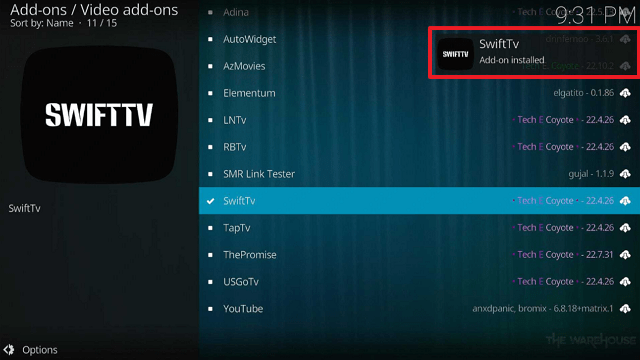
SwiftTv Kodi Addon


22. Select “SwiftTv”. Then select “Open

SwiftTv Kodi Addon


23. That’s it, SwiftTv Kodi Addon is already installed on your Firestick.

SwiftTv Kodi Addon


YOUR INTERNET ACTIVITY IS BEING WATCHED

ReviewVPN cannot attest to the legality, security and privacy of the applications discussed on this site. It is highly recommended that you use a VPN service while streaming or using Kodi.

Currently, your IP 216.73.216.158 is visible to everyone and your Browser is being tracked by Advertisers & ISP Provider.

Save 65% Now

Limited Time Offer

Here are the main reasons why you must use a VPN:

  • Your activities are hidden from your ISP, the government, and from the apps you are using.
  • You can access additional movies and TV streams.
  • ISP attempts to throttle are thrwarted thus reducing buffering issues.
  • Geographically restricted content like Netflix and Hulu can be unblocked.

A VPN works be replacing your ISP-assigned IP address and creating an encrypted tunnel. We recommend the no log service offered by IPVanish. It works well on a Firestick and offers the fastest possible speeds.

Special Limited Time Offer - Get IPVanish


Legal Disclaimer: ReviewVPN.com does not encourage or endorse any illegal activity involved in the usage of services and applications referenced on this site. We do not verify the licensing agreements of services. The end-user is wholly responsible for ensuring that any media accessed through these services does not violate copyright and/or licensing laws. ReviewVPN does not promote, link to, or receive compensation from any Apps and IPTV services.


Install Surfshark on Firestick

Best Surfshark Deal


Features

  • Allows you to view local stations from Pakistan, India, Bangladesh, the United Kingdom, and the United States, as well as Afghanistan, Arabia, South India, Canada, the Philippines, Nepal, France, Indonesia, Sri Lanka, Australia, Portugal, Germany, Italy, Turkey, the Netherlands, Poland, Belgium, Spain, Kurdistan, Albania, Romania, and Greece.
  • You can also find channels in the Sports TV, Religious TV, Kids TV, Wildlife & Science, OSN, and Punjabi TV categories.
  • Swift Movies, Punjabi Movies, Pakistani Movies, Web Series, Bollywood Movies 2021, and Bollywood Movies 2022 are among the movie and series options.
  • Swift movies include Pakistani movies, Indian movies, Punjabi, English movies, Telugu movies, Dubbed movies, Kids movies, and Covid-19 Live.
  • Its Sports TV section provides video content that you can stream in SD or HD.


Pros & Cons

Pros

  • Contains local channels from a variety of countries.
  • Dubbed movies are also available.
  • Provides free IPTV service


Cons

  • Several playback errors
  • There is no opportunity for integration with a more reliable service.


Stream Safely With a VPN

Surfshark vpn

Being a third-party Kodi addon, SwiftTv should always be used with a VPN. This is because you can never be sure what risks it might present to your device.

Additionally, it cautions you that Kodi won’t be liable for any device harm or data loss if you permit unknown sources. You will therefore be solely accountable for the safety of your device and your data.

You won’t ever want to endanger your safety and risk being held accountable for the harm and losses. That is when a VPN is beneficial.

An anonymous IP address is given to you by a VPN service like Surfshark to help you hide your connection. Consequently, it offers you the following security precautions:

  • This anonymous IP address will hide all of your online activities and your data because you will be using a different IP address.
  • The IP address will make you appear to be from another location, allowing you to access geo-restricted content.
  • If your VPN connection is abruptly lost, it contains a kill switch that will disconnect your device from the internet.
  • To prevent any breaches, Surfshark encrypts your connection with 256-bit military-grade encryption.
  • Due to its zero-logs policy, no data or IP addresses are ever revealed to the public.

Note: For more information about Surfshark, please read our Surfshark Review.


How to Install Surfshark VPN on Firestick

If your Firestick still has the older interface, read this article to learn how to update it: Update Firestick Interface.

Follow our screenshots below to install the SurfShark VPN app on your Fire TV stick.

1. Go to the Home screen of your Firestick.

step 1 Install Surfshark VPN on Firestick


2. Navigate toward the Find tab. Press the Search button from the resulting dropdown.

step 2 Install Surfshark VPN on Firestick


3. Type in the keyword of SurfShark and select from the suggestions that will appear.

step 3 Install Surfshark VPN on Firestick


4. Click the official SurfShark icon from your search results.

step 4 Install Surfshark VPN on Firestick


5. Press the Download (You own it) button.

step 5 Install Surfshark VPN on Firestick


6. The SurfShark VPN installer will download on your device.

step 6 Install Surfshark VPN on Firestick


7. SurfShark VPN’s app will automatically install itself on your Fire TV stick.

step 7 Install Surfshark VPN on Firestick


8. Press the Open button after completing SurfShark VPN’s installation process.

step 8 Install Surfshark VPN on Firestick


9. Please wait for the SurfShark VPN to load its user interface.

step 9 Install Surfshark VPN on Firestick


10. You can now log in with your SurfShark VPN account credentials.

step 10 Install Surfshark VPN on Firestick

Learn more about Surfshark and Grab the Best Surfshark Deal Now!


Install Surfshark on Firestick

Best Surfshark Deal


Other VPNs to Consider

NordVPN (Best for Streaming)

Best Features

  • 5000+ Server in 50+ Countries 
  • Military-Grade Encryption
  • Fast Connection Speed
  • Suitable to a lot of devices
  • No-Log Policy

Prices
  • Complete $5.89 per month (64% Discount)
  • Plus $4.59 per month (56% Discount)
  • Standard $3.69 per month (55% Discount)

Best Features

  • 750+ High-speed VPN Servers in 43 Locations
  • Military-Grade Encryption
  • Fastest HD Streaming and Gaming
  • 30-Day Money-Back Guarantee
  • Unlimited Data & Devices
  • No-Log Policy

Prices
  • 3 Years $1.99 per month (82% Discount)
  • 1 Years $3.29 per month (70% Discount)
  • 1 Month $10.99 per month

IPVanish VPN (Most Secure)

Best Features

  • 1200+ Servers in 60+ Countries around the world
  • Unlimited Connections
  • No-Log Policy
  • Top Notch Military-Grade VPN Protocols and Encryptions
  • 100% Safe and Secured
  • Most Trusted VPN
  • Best VPN for Firestick
  • 30-Day Money-Back Guarantee

Prices
  • Yearly $3.99 per month (63% Discount) – 30 days risk free + Ransomware & Malware Protection
  • Quarterly $5.32 per month (51% Discount)
  • Monthly $10.99 per month


FAQs

What is SwiftTv Kodi Addon?

SwiftTv is a Kodi Addon that allows you to watch free live TV stations from all around the world. Additionally, it has Bollywood, sports, and movie material.


Is SwiftTv Kodi Addon Safe?

Installing and using the SwiftTv Kodi Addon on any device is safe. However, when using and streaming from third-party addons, a VPN such as Surfshark is recommended to ensure safety.


Is SwiftTv Kodi Addon Legal?

Since SwiftTv pulls content from a variety of external providers, we cannot guarantee its legality.


Should I Use a VPN with SwiftTv Kodi Addon?

Undoubtedly, you need to use a VPN with SwiftTv. This is because Kodi cannot guarantee the addon’s safety, and you never know if hackers and phishers are lurking within.


Click here to get the lowest price on Surfshark through our exclusive limited-time offer.

For more VPN discounts, go to ReviewVPN Deals and purchase the best VPN for you.


Conclusion

SwiftTv gives its users access to several live TV stations from all around the world. However, there were numerous playback errors during my test, indicating that this add-on is unreliable. You can still check it out to satisfy your curiosity, but if you’re searching for a more dependable addon, you might want to check out our list of the best Kodi addons.

How To Install KimCartoon Kodi Addon on Firestick

Overview

This article will show you how to install KimCartoon on Firestick and everything else you should know about it.


KimCartoon is a Kodi Addon from the Mbebe Repository that offers a diverse range of Cartoon entertainment. You can find cartoon movies and series in a variety of categories such as Family, Musical, Drama, Comedy, Romance, Sports, and many others. Additionally, it permits unrestricted HD streaming for free on any Kodi-compatible hardware.

You can sort the content by alphabet, popularity, most recent update, and new cartoon to view movies and television shows. Furthermore, in addition to the newest cartoons, KimCartoon also features older animations. As a result, even if you’re just a kid at heart looking for happy cartoon choices, or if you simply want to recollect and rewatch your favorite cartoons as a child, KimCartoon is also for you.


ANONYMOUSLY


How To Install KimCartoon Kodi Addon on Firestick

You can follow this tutorial to install the KimCartoon Kodi Addon on your Firestick.


1. Launch the Kodi app on your Firestick. Click on the gear wheel icon (Settings)

KimCartoon Kodi Addon


2. Select “System

KimCartoon Kodi Addon

3. Scroll down to “Add-ons” Then Go to “Unknown sources” then toggle it on.

KimCartoon Kodi Addon


4. Select “Yes”. Then using your Firestick remote, press the return button to go back to the System page

KimCartoon Kodi Addon


5. Now choose “File Manager

KimCartoon Kodi Addon


6. Scroll down and select “Add source

KimCartoon Kodi Addon


7. Click “<None>

KimCartoon Kodi Addon


8.  Type in “https://mbebe.github.io/blomqvist/” then click “OK”.

KimCartoon Kodi Addon


9. Highlight the box under the source to give the media source a name, and put “mbebe” or any other name that will help you identify it quickly. Click “OK”. Return to the System page by pressing the return button on your remote

KimCartoon Kodi Addon


10. Select “Add-ons

KimCartoon Kodi Addon


11. Choose “Install from zip file

KimCartoon Kodi Addon


12. Click “Yes

KimCartoon Kodi Addon


13. Select “mbebe

KimCartoon Kodi Addon


14. Then click on the zip file URL – repository.mbebe..zip

KimCartoon Kodi Addon


15. Wait for the notification “mbebe Add-on installed” to appear on the upper right part of the screen

KimCartoon Kodi Addon


16. Afterward, select “Install from repository

KimCartoon Kodi Addon


17. Then click “mbebe

KimCartoon Kodi Addon


18. Select “Video add-ons

KimCartoon Kodi Addon


19. Click on “KimCartoon

KimCartoon Kodi Addon


20. Then click “Install

KimCartoon Kodi Addon


21. Then wait for it to install. It’s finished once you see the “KimCartoon Add-on Installed” message appears.

KimCartoon Kodi Addon


22. Select “KimCartoon”. Then select “Open

KimCartoon Kodi Addon


23. That’s it, KimCartoon Kodi Addon is already installed on your Firestick.

KimCartoon Kodi Addon


YOUR INTERNET ACTIVITY IS BEING WATCHED

ReviewVPN cannot attest to the legality, security and privacy of the applications discussed on this site. It is highly recommended that you use a VPN service while streaming or using Kodi.

Currently, your IP 216.73.216.158 is visible to everyone and your Browser is being tracked by Advertisers & ISP Provider.

Save 65% Now

Limited Time Offer

Here are the main reasons why you must use a VPN:

  • Your activities are hidden from your ISP, the government, and from the apps you are using.
  • You can access additional movies and TV streams.
  • ISP attempts to throttle are thrwarted thus reducing buffering issues.
  • Geographically restricted content like Netflix and Hulu can be unblocked.

A VPN works be replacing your ISP-assigned IP address and creating an encrypted tunnel. We recommend the no log service offered by IPVanish. It works well on a Firestick and offers the fastest possible speeds.

Special Limited Time Offer - Get IPVanish


Legal Disclaimer: ReviewVPN.com does not encourage or endorse any illegal activity involved in the usage of services and applications referenced on this site. We do not verify the licensing agreements of services. The end-user is wholly responsible for ensuring that any media accessed through these services does not violate copyright and/or licensing laws. ReviewVPN does not promote, link to, or receive compensation from any Apps and IPTV services.


Install Surfshark on Firestick

Best Surfshark Deal


Features

  • Alphabet, Genres, and Search are the available categories.
  • The Alphabet tab will display selections for each letter.
  • You can sort the shows alphabetically, by popularity, latest update, and new cartoons.
  • There are a variety of genres to choose from, including action, adventure, biography, comedy, crime, documentary, drama, epic, family, fantasy, game-show, history, horror, movie, music, musical, mystery, preschool, romance, sci-fi, short, sport, supernatural, thriller, and war.
  • You can perform a direct search for shows using the Search tab.
  • You can store your favorite movies and shows by creating a bookmark.
  • Subtitle support is available.
  • Provides videos in resolutions ranging from SD to HD.


Pros & Cons

Pros

  • Offers a variety of cartoon movies and series
  • Both recent and old cartoons are available.
  • The video choices are properly categorized.
  • Enables you to get free HD streaming of cartoons


Cons

  • I’ve had a lot of playback issues.
  • The Homepage only offers a limited number of categories.
  • Some cartoons only have trailers accessible for watching.


Stream Safely With a VPN

Surfshark vpn

The fact that the KimCartoon Kodi Add-on is a third-party add-on necessitates the use of a VPN while installing and using it. The official Kodi app will warn you about the risks of installing add-ons from sources other than their official repository even before you enable Unknown Sources.

Because of this, you’ll never know if your data is being recorded or stolen or what harm it may do. It can bring danger to the device or system that has your IP address. As a result, the easiest method to stop these things from happening is to use a VPN like Surfshark.

Surfshark allows you to connect to an anonymous IP address, which prevents your real IP address from being utilized to obtain access to the device. Listed below are a few of Surfshark’s more distinctive features:

  • Strictly complies with the zero logs policy.
  • Choose where you want to be seen in the world with 3,200+ servers spread over 100 locations.
  • Allows you to bypass censorship and access any app or website regardless of where you are.
  • It safeguards every device you own because it supports an unlimited number of concurrent connections.
  • Gives you unlimited bandwidth to stream and download any content you want.
  • It has a kill switch that, in the event of an unexpected VPN disruption, will immediately unplug your device from the internet.
  • A feature called Cleanweb prevents viruses and advertisements.
  • Surfshark also has a pop-up blocker for cookie consent.

Note: For more information about Surfshark, please read our Surfshark Review.


How to Install Surfshark VPN on Firestick

If your Firestick still has the older interface, read this article to learn how to update it: Update Firestick Interface.

Follow our screenshots below to install the SurfShark VPN app on your Fire TV stick.

1. Go to the Home screen of your Firestick.

step 1 Install Surfshark VPN on Firestick


2. Navigate toward the Find tab. Press the Search button from the resulting dropdown.

step 2 Install Surfshark VPN on Firestick


3. Type in the keyword of SurfShark and select from the suggestions that will appear.

step 3 Install Surfshark VPN on Firestick


4. Click the official SurfShark icon from your search results.

step 4 Install Surfshark VPN on Firestick


5. Press the Download (You own it) button.

step 5 Install Surfshark VPN on Firestick


6. The SurfShark VPN installer will download on your device.

step 6 Install Surfshark VPN on Firestick


7. SurfShark VPN’s app will automatically install itself on your Fire TV stick.

step 7 Install Surfshark VPN on Firestick


8. Press the Open button after completing SurfShark VPN’s installation process.

step 8 Install Surfshark VPN on Firestick


9. Please wait for the SurfShark VPN to load its user interface.

step 9 Install Surfshark VPN on Firestick


10. You can now log in with your SurfShark VPN account credentials.

step 10 Install Surfshark VPN on Firestick

Learn more about Surfshark and Grab the Best Surfshark Deal Now!


Install Surfshark on Firestick

Best Surfshark Deal


Other VPNs to Consider

NordVPN (Best for Streaming)

Best Features

  • 5000+ Server in 50+ Countries 
  • Military-Grade Encryption
  • Fast Connection Speed
  • Suitable to a lot of devices
  • No-Log Policy

Prices
  • Complete $5.89 per month (64% Discount)
  • Plus $4.59 per month (56% Discount)
  • Standard $3.69 per month (55% Discount)

Best Features

  • 750+ High-speed VPN Servers in 43 Locations
  • Military-Grade Encryption
  • Fastest HD Streaming and Gaming
  • 30-Day Money-Back Guarantee
  • Unlimited Data & Devices
  • No-Log Policy

Prices
  • 3 Years $1.99 per month (82% Discount)
  • 1 Years $3.29 per month (70% Discount)
  • 1 Month $10.99 per month

IPVanish VPN (Most Secure)

Best Features

  • 1200+ Servers in 60+ Countries around the world
  • Unlimited Connections
  • No-Log Policy
  • Top Notch Military-Grade VPN Protocols and Encryptions
  • 100% Safe and Secured
  • Most Trusted VPN
  • Best VPN for Firestick
  • 30-Day Money-Back Guarantee

Prices
  • Yearly $3.99 per month (63% Discount) – 30 days risk free + Ransomware & Malware Protection
  • Quarterly $5.32 per month (51% Discount)
  • Monthly $10.99 per month


FAQs

What is KimCartoon Kodi Addon?

KimCartoon is a Kodi addon available from the Mbebe Repository that offers its users cartoon material. It enables you to find both new and old cartoon options for watching in HD quality.


Is KimCartoon Kodi Addon Safe?

KimCartoon is risk-free. But for guaranteed safe access to content online, we constantly suggest to our readers to back up their connection with Surfshark.


Is KimCartoon Kodi Addon Legal?

In general, Kodi Addons are legal. However, because KimCartoon has such a large selection of cartoon shows, it is advisable to stream anonymously to avoid any legal repercussions when using this add-on.


Should I Use a VPN with KimCartoon Kodi Addon?

Yes, using the KimCartoon Kodi Addon is advised with a VPN. The reason for this is that it is a third-party addon that is not handled by Kodi. As a result, if you use KimCartoon, you will never know if there have been any data breaches or IP address leaks.


Click here to get the lowest price on Surfshark through our exclusive limited-time offer.

For more VPN discounts, go to ReviewVPN Deals and purchase the best VPN for you.


Conclusion

KimCartoon provides a wide range of cartoon programming. This addon contains a significant number of both recent and classic cartoons. This addon, however, is unreliable, since I observed multiple playback issues while trying this software. Therefore, I advise you to look through our list of the best Kodi addons for Kids and find an Addon that is more dependable than KimCartoon.

How to Stop IPTV Buffering on Firestick and Other Devices

How to Stop IPTV Buffering

This article will help you how to stop IPTV buffering on your Firestick and other devices. 


Most of our readers are avid IPTV supporters. It is not impossible that you will encounter some issues while streaming. One of the most common issues that IPTV users encounter is buffering.

Amazon Firestick is among the most common devices that IPTV subscribers use. Because it is affordable and has a jailbreaking feature. Jailbreaking your Firestick is one of the steps to install IPTV 0n your device.

There are factors why users encounter IPTV buffering. Most reasons are from your very own internet connection. Sometimes, it’s the IPTV provider that contributes more to the problem.

Whatever the reason is, we will show you the best ways how to stop IPTV buffering.

It is important that you use a trusted VPN service while streaming. We will discuss more of this in the later part of the article.


ANONYMOUSLY


How to Stop IPTV Buffering on Firestick and Other Devices

1. Have a Fast Internet Connection

One of the reasons why users are experiencing buffering while streaming on IPTV is because of their slow internet speed. IPTV services require at least 10 Mbps for live streaming.

If you are experiencing IPTV buffering, try to have a quick speed test to check if your connection is the main problem. For Firestick users, there are a lot of apps that you can use to have an easy speed test. The best one you can use is Analiti.

Here is How to Have a Quick Speed Test on Firestick.


2. Use a Good IPTV Service

There are thousands of IPTV apps that you can use. Let’s admit it, not all IPTV services are good. Some of the faces some legal issues, but there are still a few that we can trust and will surely provide the bests streaming service.

We list down all of the Best IPTV services to use on Firestick.


3. Use a Trusted and Quality VPN Provider

It is really important that you use a Virtual Private Network (VPN) when using an IPTV. There are great reasons why it is important. Its main function is for your safety and privacy while streaming.

VPN can abolish ISP throttling while streaming, and it can really eliminate buffering.

A VPN can also protect your history and online activities from all trackers, hackers, and malware.


4. Adjust your VPN Settings for your IPTV

If you already have a VPN, you can adjust its settings to make it more reliable for IPTV live streaming.

By changing your server location, and connection you will have less to zero buffering.

This works also depending on your IPTV. There are some IPTVs that have servers overseas, which means if you want to have a stronger connection, you can choose the location on your IPTV.


YOUR INTERNET ACTIVITY IS BEING WATCHED

ReviewVPN cannot attest to the legality, security and privacy of the applications discussed on this site. It is highly recommended that you use a VPN service while streaming or using Kodi.

Currently, your IP 216.73.216.158 is visible to everyone and your Browser is being tracked by Advertisers & ISP Provider.

Save 65% Now

Limited Time Offer

Here are the main reasons why you must use a VPN:

  • Your activities are hidden from your ISP, the government, and from the apps you are using.
  • You can access additional movies and TV streams.
  • ISP attempts to throttle are thrwarted thus reducing buffering issues.
  • Geographically restricted content like Netflix and Hulu can be unblocked.

A VPN works be replacing your ISP-assigned IP address and creating an encrypted tunnel. We recommend the no log service offered by IPVanish. It works well on a Firestick and offers the fastest possible speeds.

Special Limited Time Offer - Get IPVanish


Legal Disclaimer: ReviewVPN.com does not encourage or endorse any illegal activity involved in the usage of services and applications referenced on this site. We do not verify the licensing agreements of services. The end-user is wholly responsible for ensuring that any media accessed through these services does not violate copyright and/or licensing laws. ReviewVPN does not promote, link to, or receive compensation from any Apps and IPTV services.


Install SURFSHARK on Firestick

Best SURFSHARK Deal


5. Try Using Ethernet Connection

Do this process only if you really have a problem with your internet connection. You can try considering an Ethernet connection instead.

For Android TV users, the Android TV box usually comes with an Ethernet connection port. This will really improve your connection and stop buffering while streaming.

Sadly for Firestick users, there is no built-in ethernet port. But don’t worry, because ethernet adapters are available and applicable to your device.


6. Clear Cache

A lot of issues on different Firestick apps can be fixed by clearing the cache. It is very simple to do it so. You can clear the cache of a certain app through Settings.

Follow the link below to learn how to clear the cache on Firestick.

How to Clear Cache on Firestick


7. Use a Different Video Player

There are different video players that are available to stream IPTV on Firestick. You can check them out here: List of the Best IPTV Player on Firestick.

If you are having trouble with your current video player, try using others to eliminate buffering.


Best VPN to Stop IPTV Buffering

Surfshark vpn

SurfShark is the best VPN that will help you how to stop IPTV Buffering. It has great security features and military-grade encryptions that will surely protect you while streaming.

This VPN has 3,200+ servers from 100+ locations worldwide. You can easily choose the location you want. It is helpful if you really know the country most applicable to your IPTV service. This will definitely eliminate buffering.

One of the best features of SurfShark is that it can unblock all streaming platforms compared to its competitors. You can unblock not only IPTV content but also Netflix, Hulu, YouTube, DAZN, ESPN, and many more.

You can use this VPN for an unlimited number of devices. No need to worry, because you can have one account good for a whole family.

SurfSHark really promises a great security feature with its strict no-log policy.

You can try this with a 30-day money-back guarantee on your first month.

Some of the advanced features of SurfShark are Cloud Storage, P2P friendly VPN, SOCKS5 Proxy, Allows Torrenting, Kill Switch, Split Tunneling, DNS Leak Protection, and preventing Firestick Buffering and Kodi Buffering

You can read this Surfshark review to know more.


Grab your subscription now!

Best Surfshark Deal


How to Install Surfshark on Firestick with Screenshots

If your Firestick still has the older interface, read this article to learn how to update it: Update Firestick Interface.

You can download Surfshark directly from the Amazon App store. It will be easy for you to find Surfshark with your Firestick’s Find feature. Refer to our screenshots below.

Follow our screenshots below to install the SurfShark VPN app on your Fire TV stick.

1. Go to the Home screen of your Firestick.

step 1 Install Surfshark VPN on Firestick


2. Navigate toward the Find tab. Press the Search button from the resulting dropdown.

step 2 Install Surfshark VPN on Firestick


3. Type in the keyword of SurfShark and select from the suggestions that will appear.

step 3 Install Surfshark VPN on Firestick


4. Click the official SurfShark icon from your search results.

step 4 Install Surfshark VPN on Firestick


5. Press the Download (You own it) button.

step 5 Install Surfshark VPN on Firestick


6. The SurfShark VPN installer will download on your device.

step 6 Install Surfshark VPN on Firestick


7. SurfShark VPN’s app will automatically install itself on your Fire TV stick.

step 7 Install Surfshark VPN on Firestick


8. Press the Open button after completing SurfShark VPN’s installation process.

step 8 Install Surfshark VPN on Firestick


9. Please wait for the SurfShark VPN to load its user interface.

step 9 Install Surfshark VPN on Firestick


10. You can now log in with your SurfShark VPN account credentials.

step 10 Install Surfshark VPN on Firestick

Learn more about Surfshark and Grab the Best Surfshark Deal Now!


Install Surfshark on Firestick

Best Surfshark Deal


Other VPNs to Consider

NordVPN (Best for Streaming)

Best Features

  • 5000+ Server in 50+ Countries 
  • Military-Grade Encryption
  • Fast Connection Speed
  • Suitable to a lot of devices
  • No-Log Policy

Prices
  • Complete $5.89 per month (64% Discount)
  • Plus $4.59 per month (56% Discount)
  • Standard $3.69 per month (55% Discount)

Best Features

  • 750+ High-speed VPN Servers in 43 Locations
  • Military-Grade Encryption
  • Fastest HD Streaming and Gaming
  • 30-Day Money-Back Guarantee
  • Unlimited Data & Devices
  • No-Log Policy

Prices
  • 3 Years $1.99 per month (82% Discount)
  • 1 Years $3.29 per month (70% Discount)
  • 1 Month $10.99 per month

IPVanish VPN (Most Secure)

Best Features

  • 1200+ Servers in 60+ Countries around the world
  • Unlimited Connections
  • No-Log Policy
  • Top Notch Military-Grade VPN Protocols and Encryptions
  • 100% Safe and Secured
  • Most Trusted VPN
  • Best VPN for Firestick
  • 30-Day Money-Back Guarantee

Prices
  • Yearly $3.99 per month (63% Discount) – 30 days risk free + Ransomware & Malware Protection
  • Quarterly $5.32 per month (51% Discount)
  • Monthly $10.99 per month


For more VPN discounts, go to ReviewVPN Deals and purchase the best VPN for you.

Click here to get the lowest price on Surfshark through our exclusive limited-time offer.


FAQs

How to Stop IPTV Buffering?

There are many ways to stop IPTV buffering. You can do all of these ways below:

  • Have a fast internet connection
  • Use a good IPTV service
  • Use a Trusted and Quality VPN Provider
  • Adjust your VPN Settings for IPTV
  • Try Using Ethernet Connection
  • Clear Cache
  • Use a Different Video Player
  • Upgrade your device


Why am I Experiencing IPTV Buffering?

There are certain reasons why you are experiencing IPTV buffering. Some of them are:

  • Slow internet connection
  • IPTV service is not good
  • Too much cache
  • Error on your video player
  • Outdated device


Conclusion

There are ways how to stop IPTV buffering. Depending on the reason why you are having this problem, you can try to fix it by trying to have a better connection, device, and tools you can use for streaming.

We hope that we are able to help you how to stop IPTV buffering on your Firestick and other devices.

How To Install KodiVerse Kodi Addon on Firestick

Overview

You can learn how to set up KodiVerse on Firestick and Android devices by reading this article.


KodiVerse is a one-of-a-kind addon that incorporates content from various add-ons. You can watch media from other well-known Addons, including Asgard, Magic Dragon, Odin, 4K, Fights on Demand, and more. Additionally, it is an add-on that is simple to locate and download from the Narcacist Repository.

It allows you to watch movies and TV programs in a variety of genres on your Firestick or other devices. Therefore as result, you can watch soap operas, documentaries, children’s shows, sports, stand-up comedy, anime, and other shows. Among its sections, you can also find some of the most popular streaming services. Moreover, the KodiVerse Addon allows you to stream music and watch concerts.

Further, KodiVerse’s extensive library of video choices lets you watch both debrid and non-debrid options.


ANONYMOUSLY


How To Install KodiVerse Kodi Addon on Firestick

You can follow this tutorial to install the KodiVerse Kodi Addon on your Firestick.


1. Launch the Kodi app on your Firestick. Click on the gear wheel icon (Settings)

KodiVerse Kodi Addon


2. Select “System

KodiVerse Kodi Addon

3. Scroll down to “Add-ons” Then Go to “Unknown sources” then toggle it on.

KodiVerse Kodi Addon


4. Select “Yes”. Then using your Firestick remote, press the return button to go back to the System page

KodiVerse Kodi Addon


5. Now choose “File Manager

KodiVerse Kodi Addon


6. Scroll down and select “Add source

KodiVerse Kodi Addon


7. Click “<None>

KodiVerse Kodi Addon


8. Type in “http://www.narcacist.com/repo/” then click “OK”

KodiVerse Kodi Addon


9. Highlight the box under the source to give the media source a name, and put “kodiverse” or any other name that will help you identify it quickly. Click “OK”. Return to the System page by pressing the return button on your remote

KodiVerse Kodi Addon


10. Select “Add-ons

KodiVerse Kodi Addon


11. Choose “Install from zip file

KodiVerse Kodi Addon


12. Click “Yes

KodiVerse Kodi Addon


13. Select “kodiverse

KodiVerse Kodi Addon


14. Then click on the zip file URL – repository.NarcacistWizard-1.1.6.zip

KodiVerse Kodi Addon


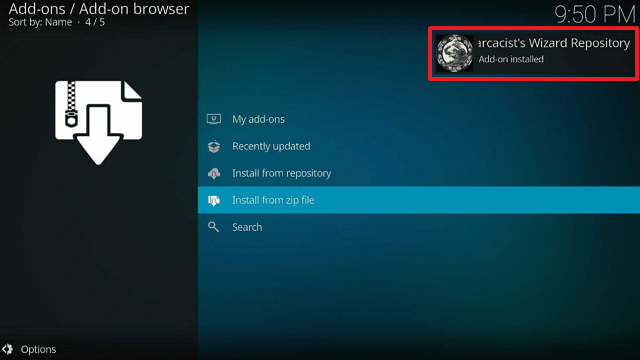
15. Wait for the notification “Narcacist’s Wizard Repository Add-on installed” to appear on the upper right part of the screen

KodiVerse Kodi Addon


16. Afterward, select “Install from repository

KodiVerse Kodi Addon


17. Then click “Narcacist’s Wizard Repository

KodiVerse Kodi Addon


18. Select “Video add-ons

KodiVerse Kodi Addon


19. Click on “KodiVerse

KodiVerse Kodi Addon


20. Then click “Install

KodiVerse Kodi Addon


21. Click “OK” for the additional add-ons that will be installed

KodiVerse Kodi Addon


22. Then wait for it to install. It’s finished once you see the “KodiVerse Add-on Installed” message appears.

KodiVerse Kodi Addon


23. Select “Kodiverse”. Then select “Open

KodiVerse Kodi Addon


24. That’s it, KodiVerse Kodi Addon is already installed on your Firestick.

KodiVerse Kodi Addon


YOUR INTERNET ACTIVITY IS BEING WATCHED

ReviewVPN cannot attest to the legality, security and privacy of the applications discussed on this site. It is highly recommended that you use a VPN service while streaming or using Kodi.

Currently, your IP 216.73.216.158 is visible to everyone and your Browser is being tracked by Advertisers & ISP Provider.

Save 65% Now

Limited Time Offer

Here are the main reasons why you must use a VPN:

  • Your activities are hidden from your ISP, the government, and from the apps you are using.
  • You can access additional movies and TV streams.
  • ISP attempts to throttle are thrwarted thus reducing buffering issues.
  • Geographically restricted content like Netflix and Hulu can be unblocked.

A VPN works be replacing your ISP-assigned IP address and creating an encrypted tunnel. We recommend the no log service offered by IPVanish. It works well on a Firestick and offers the fastest possible speeds.

Special Limited Time Offer - Get IPVanish


Legal Disclaimer: ReviewVPN.com does not encourage or endorse any illegal activity involved in the usage of services and applications referenced on this site. We do not verify the licensing agreements of services. The end-user is wholly responsible for ensuring that any media accessed through these services does not violate copyright and/or licensing laws. ReviewVPN does not promote, link to, or receive compensation from any Apps and IPTV services.


Install Surfshark on Firestick

Best Surfshark Deal


Features

  • There are several categories available, including Movie Scraper, TV Show Scraper, Direct Search, 4K Direct Search, Search, Search History, Resume Watching, Trakt, and more.
  • There are tabs for the ff Addons on KodiVerse: 4K, Asgard, Black Lightning, Essential, Fights on Demand, Magic Dragon, M.E.T.V, Odin, Patriot, Torque Lite, and Xtasy D
  • There are a variety of genres available, such as Action, Adventure, Animation, Comedy, Crime, Documentary, Drama, Family, Fantasy, History, Horror, Music, Mystery, Romance, Sci-Fi, TV Movie, Thriller, War, and Western.
  • General settings that can be customized include scanning TMDB pages and filtering out sources.
  • Order networks based on KodiVerse votes, release date, and popularity
  • Allows you to activate the Tmdb adult filter.
  • Allows for the integration of a Trakt account.
  • Real debrid, Alldebrid, and Premiumize are among the debrid services that are supported.


Pros & Cons

Pros

  • Includes free movie and TV show options.
  • There are numerous streaming options available.
  • One-click play options are available.


Cons

  • I had an issue with the app freezing while using it.
  • Several playback issues
  • To view most of its videos, you must have a real Debrid account.


Stream Safely With a VPN

Surfshark vpn

Since the KodiVerse Kodi Addon is not available through the official Kodi repository, using a VPN is crucial while installing and accessing it. By using this build, you agree that Kodi is not responsible for any damage or data breach that might follow. In addition, you’ll never know which external servers are monitoring or attempting to access your streaming behavior.

Therefore, if you want to conceal your online behavior, you’ll need a VPN like Surfshark. You won’t have to worry about your account being stolen or someone hacking into your device because it will guarantee complete anonymity. Here are a few of Surfshark’s benefits to help you understand it better:

  • You can connect to and use any of the over 3,200 servers to keep your identity hidden.
  • The ability to get around censorship and geo-restrictions is available from 100 different locations.
  • It adheres strictly to the zero log rule.
  • Your data is protected with unbreakable 256-bit military-grade encryption.
  • A kill switch function that Surfshark offers provides further security in the event of a VPN service interruption.
  • It contains a CleanWeb function that prevents ads and malware.
  • Also included is a built-in popup blocker for cookie consent.
  • You may secure your account by using two-factor authentication.

Note: For more information about Surfshark, please read our Surfshark Review.


How to Install Surfshark VPN on Firestick

If your Firestick still has the older interface, read this article to learn how to update it: Update Firestick Interface.

Follow our screenshots below to install the SurfShark VPN app on your Fire TV stick.

1. Go to the Home screen of your Firestick.

step 1 Install Surfshark VPN on Firestick


2. Navigate toward the Find tab. Press the Search button from the resulting dropdown.

step 2 Install Surfshark VPN on Firestick


3. Type in the keyword of SurfShark and select from the suggestions that will appear.

step 3 Install Surfshark VPN on Firestick


4. Click the official SurfShark icon from your search results.

step 4 Install Surfshark VPN on Firestick


5. Press the Download (You own it) button.

step 5 Install Surfshark VPN on Firestick


6. The SurfShark VPN installer will download on your device.

step 6 Install Surfshark VPN on Firestick


7. SurfShark VPN’s app will automatically install itself on your Fire TV stick.

step 7 Install Surfshark VPN on Firestick


8. Press the Open button after completing SurfShark VPN’s installation process.

step 8 Install Surfshark VPN on Firestick


9. Please wait for the SurfShark VPN to load its user interface.

step 9 Install Surfshark VPN on Firestick


10. You can now log in with your SurfShark VPN account credentials.

step 10 Install Surfshark VPN on Firestick

Learn more about Surfshark and Grab the Best Surfshark Deal Now!


Install Surfshark on Firestick

Best Surfshark Deal


Other VPNs to Consider

NordVPN (Best for Streaming)

Best Features

  • 5000+ Server in 50+ Countries 
  • Military-Grade Encryption
  • Fast Connection Speed
  • Suitable to a lot of devices
  • No-Log Policy

Prices
  • Complete $5.89 per month (64% Discount)
  • Plus $4.59 per month (56% Discount)
  • Standard $3.69 per month (55% Discount)

Best Features

  • 750+ High-speed VPN Servers in 43 Locations
  • Military-Grade Encryption
  • Fastest HD Streaming and Gaming
  • 30-Day Money-Back Guarantee
  • Unlimited Data & Devices
  • No-Log Policy

Prices
  • 3 Years $1.99 per month (82% Discount)
  • 1 Years $3.29 per month (70% Discount)
  • 1 Month $10.99 per month

IPVanish VPN (Most Secure)

Best Features

  • 1200+ Servers in 60+ Countries around the world
  • Unlimited Connections
  • No-Log Policy
  • Top Notch Military-Grade VPN Protocols and Encryptions
  • 100% Safe and Secured
  • Most Trusted VPN
  • Best VPN for Firestick
  • 30-Day Money-Back Guarantee

Prices
  • Yearly $3.99 per month (63% Discount) – 30 days risk free + Ransomware & Malware Protection
  • Quarterly $5.32 per month (51% Discount)
  • Monthly $10.99 per month


For more VPN discounts, go to ReviewVPN Deals and purchase the best VPN for you.

Click here to get the lowest price on Surfshark through our exclusive limited-time offer.


FAQs

What is KodiVerse Kodi Addon?

KodiVerse is a Kodi Addon that offers users both free and premium streaming. Its extensive collection of video sources allows you to find movies and TV episodes.


Is KodiVerse Kodi Addon Safe?

The KodiVerse addon is safe. However, we still recommend utilizing Surfshark to keep your data from being exposed to third parties while using KodiVerse. Particularly given that it also scrapes data from a wide variety of add-ons.


Is KodiVerse Kodi Addon Legal?

We can’t ensure that everything you access with the KodiVerse addon is legal because it links you to several other add-ons.


Should I Use a VPN with KodiVerse Kodi Addon?

We strongly advise using a VPN when using unofficial Kodi addons like KodiVerse. This is to provide increased security when accessing any content from your favorite Kodi add-ons.


Conclusion

KodiVerse is a great add-on because it connects you to several other well-known add-ons to give you entertainment from a variety of video options. You may consequently view movies, television programs, sports, news, and much more. Using this Addon will undoubtedly provide you with an incredible number of options. Additionally, it serves users who prefer the usage of premium services like real debrid as well as those who are looking for free streaming

How to Install Video Downloader on Firestick and Android

Video Downloader on Firestick

In this article, we will show you how you can install Video Downloader on your Firestick device.


Since it is hard to use and install Google Chrome on Firestick, most users use other compatible browsers like Amazon Silk Browser. But what if I tell you that there is a way that you can use Google Chrome on Firestick?

Video Downloader is an app that you can also use as a browser where you can easily browse websites on your Firestick. It uses Google Chrome as its official browser. You can also visit popular sites easily like YouTube, Facebook, Instagram, Twitter, and many more. Even adult websites are possible on Video Downloader.

There are some ads while using this app. It is also not that easy to navigate. You need to use Mouse Toggle in order to click on icons if you are using Firestick. Movie Downloader is also available on Android.

This is a third-party app. You need to Jailbreak your Firestick first and use the Downloader app to install Video Downloader.

We also suggest using a trusted VPN service whenever you are browsing this app.


ANONYMOUSLY


Install Video Downloader APK for Android


Video Downloader

Note: ReviewVPN.com does not host this APK file. It is hosted by Archive.org


If your Firestick still has the older interface, read this article to learn how to update it: Update Firestick Interface.


How to Install Video Downloader on Firestick

1.  From your home screen, go to Settings.

Video Downloader


2. Scroll down and to the right until you get to My Fire TV. Click on it.

Video Downloader


3. Select Developer options.

Video Downloader


4. Turn on ADB debugging and Apps from Unknown Sources.

Video Downloader


5. Click Turn On when the pop-up appears.

Video Downloader


6. Click Home, click FIND.

Video Downloader


7. Click Search.

Video Downloader


8. You can either say Downloader to your Alexa voice-enabled remote or start typing it. If you typed it, click on the suggestion when it appears.

Video Downloader


9. Click on the Downloader Icon.

Video Downloader


10. Click Download.

Video Downloader


Video Downloader


11. Click on Open.

Video Downloader


12. Click on Allow.

Video Downloader


13. Use the Downloader search tab.

Video Downloader


14. Type https://reviewvpn.com/vidd

Video Downloader


15. Wait for the apk to finished downloading.

Video Downloader


16. Click on install.

Video Downloader


17. Click open.

Video Downloader


18. You can now use the Video Downloader app on your Firestick

Video Downloader

Video Downloader


YOUR INTERNET ACTIVITY IS BEING WATCHED

ReviewVPN cannot attest to the legality, security and privacy of the applications discussed on this site. It is highly recommended that you use a VPN service while streaming or using Kodi.

Currently, your IP 216.73.216.158 is visible to everyone and your Browser is being tracked by Advertisers & ISP Provider.

Save 65% Now

Limited Time Offer

Here are the main reasons why you must use a VPN:

  • Your activities are hidden from your ISP, the government, and from the apps you are using.
  • You can access additional movies and TV streams.
  • ISP attempts to throttle are thrwarted thus reducing buffering issues.
  • Geographically restricted content like Netflix and Hulu can be unblocked.

A VPN works be replacing your ISP-assigned IP address and creating an encrypted tunnel. We recommend the no log service offered by IPVanish. It works well on a Firestick and offers the fastest possible speeds.

Special Limited Time Offer - Get IPVanish


Legal Disclaimer: ReviewVPN.com does not encourage or endorse any illegal activity involved in the usage of services and applications referenced on this site. We do not verify the licensing agreements of services. The end-user is wholly responsible for ensuring that any media accessed through these services does not violate copyright and/or licensing laws. ReviewVPN does not promote, link to, or receive compensation from any Apps and IPTV services.


Install SURFSHARK on Firestick

Best SURFSHARK Deal


Video Downloader Features

  • Serves as a browser (Google Chrome) for Firestick
  • Stream all websites
  • Ad-supported
  • Easy access to popular social media platforms
  • Works on Firestick


Pros and Cons

Pros

  • 100% free
  • No registration
  • Great alternative for Firestick browsers


Cons

  • Too many ads
  • Hard to navigate without Mouse Toggle


Stream Safely with a VPN

Surfshark vpn

When streaming on the internet, whatever browser you use, can track where you are. You’ll get ads based on your recent activities and searches. This is how Google and other browsers work. We have to be careful about how much information about ourselves we share online. Since Movie Downloader is the Google Chrome browser of Firestick, be careful while using it.

It is best that you use Virtual Private Network or VPN when using this app. This will help you hide your location and protect your identity. It can even give you access to geo-restricted content while staying safe.

A VPN works by hiding your official IP address and providing a new one. All of your traffics will be traced back to the one provided by the VPN. This is a very wonderful way to stay anonymous while doing the things you do online.

SurfShark VPN is the best VPN you can use for all of your online work. It can unblock all streaming platforms, and provide top notch security features. Read this Surfshark review to know more.

Best SurfShark Features

  • 3,200+ servers from 100+ locations
  • Free to choose a specific location
  • Military-grade VPN encryptions and protocols
  • Unblocks all popular streaming platforms
  • Connect unlimited devices simultaneously
  • No-Log Policy
  • 30-day money-back guarantee
  • Cloud Storage
  • P2P friendly VPN
  • SOCKS5 Proxy
  • Allows Torrenting
  • Kill Switch
  • Split Tunneling
  • DNS Leak Protection
  • Prevents Firestick Buffering and Kodi Buffering


Grab your subscription now!

Best Surfshark Deal


How to Install Surfshark on Firestick with Screenshots

If your Firestick still has the older interface, read this article to learn how to update it: Update Firestick Interface.

You can download Surfshark directly from the Amazon App store. It will be easy for you to find Surfshark with your Firestick’s Find feature. Refer to our screenshots below.

Follow our screenshots below to install the SurfShark VPN app on your Fire TV stick.

1. Go to the Home screen of your Firestick.

step 1 Install Surfshark VPN on Firestick


2. Navigate toward the Find tab. Press the Search button from the resulting dropdown.

step 2 Install Surfshark VPN on Firestick


3. Type in the keyword of SurfShark and select from the suggestions that will appear.

step 3 Install Surfshark VPN on Firestick


4. Click the official SurfShark icon from your search results.

step 4 Install Surfshark VPN on Firestick


5. Press the Download (You own it) button.

step 5 Install Surfshark VPN on Firestick


6. The SurfShark VPN installer will download on your device.

step 6 Install Surfshark VPN on Firestick


7. SurfShark VPN’s app will automatically install itself on your Fire TV stick.

step 7 Install Surfshark VPN on Firestick


8. Press the Open button after completing SurfShark VPN’s installation process.

step 8 Install Surfshark VPN on Firestick


9. Please wait for the SurfShark VPN to load its user interface.

step 9 Install Surfshark VPN on Firestick


10. You can now log in with your SurfShark VPN account credentials.

step 10 Install Surfshark VPN on Firestick

Learn more about Surfshark and Grab the Best Surfshark Deal Now!


Install Surfshark on Firestick

Best Surfshark Deal


Other VPNs to Consider

NordVPN (Best for Streaming)

Best Features

  • 5000+ Server in 50+ Countries 
  • Military-Grade Encryption
  • Fast Connection Speed
  • Suitable to a lot of devices
  • No-Log Policy

Prices
  • Complete $5.89 per month (64% Discount)
  • Plus $4.59 per month (56% Discount)
  • Standard $3.69 per month (55% Discount)

Best Features

  • 750+ High-speed VPN Servers in 43 Locations
  • Military-Grade Encryption
  • Fastest HD Streaming and Gaming
  • 30-Day Money-Back Guarantee
  • Unlimited Data & Devices
  • No-Log Policy

Prices
  • 3 Years $1.99 per month (82% Discount)
  • 1 Years $3.29 per month (70% Discount)
  • 1 Month $10.99 per month

IPVanish VPN (Most Secure)

Best Features

  • 1200+ Servers in 60+ Countries around the world
  • Unlimited Connections
  • No-Log Policy
  • Top Notch Military-Grade VPN Protocols and Encryptions
  • 100% Safe and Secured
  • Most Trusted VPN
  • Best VPN for Firestick
  • 30-Day Money-Back Guarantee

Prices
  • Yearly $3.99 per month (63% Discount) – 30 days risk free + Ransomware & Malware Protection
  • Quarterly $5.32 per month (51% Discount)
  • Monthly $10.99 per month


For more VPN discounts, go to ReviewVPN Deals and purchase the best VPN for you.

Click here to get the lowest price on Surfshark through our exclusive limited-time offer.


Best Alternatives for Video Downloader

Aside from Video Downloader, there are other great browsers that you can use on your Firestick.

Check out this list: Best Browsers for Firestick


FAQs

What is Video Downloader

Video Downloader is an app that serves as a browser that you can use on Firestick and Android. It has easy access to the most popular social media platforms. You can surf on any website using this app.


Is Video Downloader legal?

ReviewVPN.com cannot fully determine the legality of Video Downloader and any other apps that you can install on Firestick. This is completely for educational purposes only.


Is Video Downloader Free?

Yes. Video Downloader is 100% free.


Are there any ads?

There are ads when you use Video Downloader


Conclusion

Video Downloader is such a great app for your Firestick and Android. Since it is hard to use Google Chrome on Firestick, Video Downloader is such a great alternative. You’ll have easy access to popular social media platforms easily.

The only bad thing about this app is the presence of too many ads when you use it. But overall it is a must-try.

We hope that we are able to help you install Video Downloader on Firestick and Android.

How To Install Ezra Kodi Addon on Firestick

Overview

This article will cover everything you need to know about installing the Ezra Kodi Addon on a Firestick.


Ezra is a fantastic Kodi Addon that enables you to watch movies and TV episodes on your Firestick or other devices. It is also regarded as one of the forks of the well-known FEN Kodi Addon. Therefore, essentially speaking, it has the same interface and similar selections as FEN.

Additionally, Ezra offers support for some of the most popular premium link generator tools, including Real-Debrid, AllDebrid, Premiumize, and others. As a result, you may anticipate seeing movies and TV series in the highest streaming quality possible.

Furthermore, Ezra is a third-party Kodi Addon that cannot be found in the official Kodi repository. We thus want to recommend that you use a VPN, such as Surfshark, in advance so that you can access the content of this Addon safely.

So let’s start with how to install it on a Firestick or other device. This method is also suitable for Android, Mac, Windows, Nvidia Shield, and other Kodi-compatible devices.


ANONYMOUSLY


How To Install Ezra Kodi Addon on Firestick

You can follow this tutorial to install the Ezra Kodi Addon on your Firestick.


1. Launch the Kodi app on your Firestick. Click on the gear wheel icon (Settings)

Ezra Kodi Addon


2. Select “System

Ezra Kodi Addon

3. Scroll down to “Add-ons” Then Go to “Unknown sources” then toggle it on.

Ezra Kodi Addon


4. Select “Yes”. Then using your Firestick remote, press the return button to go back to the System page

Ezra Kodi Addon


5. Now choose “File Manager

Ezra Kodi Addon


6. Scroll down and select “Add source

Ezra Kodi Addon


7. Click “<None>

Ezra Kodi Addon


8. Type in “https://ezra-hubbard.github.io/” then click “OK”

Ezra Kodi Addon


9. Highlight the box under the source to give the media source a name, and put “Ezra” or any other name that will help you identify it quickly. Click “OK”. Return to the System page by pressing the return button on your remote

Ezra Kodi Addon


10. Select “Add-ons

Ezra Kodi Addon


11. Choose “Install from zip file

Ezra Kodi Addon


12. Click “Yes

Ezra Kodi Addon


13. Select “Ezra

Ezra Kodi Addon


14. Then click on the zip file URL – repository.ezra-0.0.1.zip

Ezra Kodi Addon


15. Wait for the notification “Ezra Repository Add-on installed” to appear on the upper right part of the screen

Ezra Kodi Addon


16. Afterward, select “Install from repository

Ezra Kodi Addon


17. Then click “Ezra Repository

Ezra Kodi Addon


18. Select “Video add-ons

Ezra Kodi Addon


19. Click on “Ezra

Ezra Kodi Addon


20. Then click “Install

Ezra Kodi Addon


21. Click “OK” for the additional add-ons that will be installed

Ezra Kodi Addon


22. Then wait for it to install. It’s finished once you see the “Ezra Add-on Installed” message appears.

Ezra Kodi Addon


23. Click Ezra again then click open.

Ezra Kodi Addon


24. That’s it, Ezra Kodi Addon is already installed on your Firestick.

Ezra Kodi Addon


YOUR INTERNET ACTIVITY IS BEING WATCHED

ReviewVPN cannot attest to the legality, security and privacy of the applications discussed on this site. It is highly recommended that you use a VPN service while streaming or using Kodi.

Currently, your IP 216.73.216.158 is visible to everyone and your Browser is being tracked by Advertisers & ISP Provider.

Save 65% Now

Limited Time Offer

Here are the main reasons why you must use a VPN:

  • Your activities are hidden from your ISP, the government, and from the apps you are using.
  • You can access additional movies and TV streams.
  • ISP attempts to throttle are thrwarted thus reducing buffering issues.
  • Geographically restricted content like Netflix and Hulu can be unblocked.

A VPN works be replacing your ISP-assigned IP address and creating an encrypted tunnel. We recommend the no log service offered by IPVanish. It works well on a Firestick and offers the fastest possible speeds.

Special Limited Time Offer - Get IPVanish


Legal Disclaimer: ReviewVPN.com does not encourage or endorse any illegal activity involved in the usage of services and applications referenced on this site. We do not verify the licensing agreements of services. The end-user is wholly responsible for ensuring that any media accessed through these services does not violate copyright and/or licensing laws. ReviewVPN does not promote, link to, or receive compensation from any Apps and IPTV services.


Install Surfshark on Firestick

Best Surfshark Deal


Features

  • Straightforward UI
  • Movies, TV Shows, Search, Discover, Popular People, Favorites, Downloads, My Lists, My Services, Tools, and Settings are among the categories you can choose from.
  • Using the Search Tab, you can search for people, movies, TV shows, and IMDb keywords (movies and TV shows).
  • The Discover tool allows you to discover Movies, TV Shows, Movies History, TV Shows History, and Help.
  • There’s a Popular People tab where you can find artist’s images, Biography, Movies, TV Shows, and Videos
  • Allows you to watch movie trailers.
  • You can choose to watch random movies and TV shows.
  • Integration between Trakt and IMDb is available
  • TV shows and movies can be added to your favorites.
  • Movies, TV series, premium files, and images are available for download.
  • Supports All Debrid, Premiumize, and Real Debrid


Pros & Cons

Pros

  • The Tools section contains tips on how to use Ezra.
  • Supports all premium link generators.
  • Integration with Trakt is available.


Cons

  • Navigating this add-on has occasional lags.
  • I’ve also had instances where Ezra suddenly stopped working.
  • No free streaming is offered.


Stream Safely With a VPN

Surfshark vpn

With programs like Kodi, streaming is seemingly endless. You have an unlimited amount of selections when looking for movies and television shows to watch on your smart devices. However, because there are numerous unofficial builds and add-ons available, you can never be sure of their safety.

First, you’re not sure whether the streams you get from these add-ons are legitimate. The worst scenario is that you might be apprehended and questioned about your streaming activity. Second, you are unaware that there may be invisible eyes behind those screens. Yes, you can watch free movies, TV series, and live TV, but we hope you’re not compromising your data. Because of this, you will require a strong tool to help you maintain your anonymity online.

We highly recommend choosing Surfshark as your VPN. It offers you the following security measures:

  • Unbreakable 256-bit military-grade encryption.
  • If your VPN connection is lost, its kill switch will automatically disconnect you.
  • More than 3,200 servers are located across 100 different locations.
  • There will be no logs and no IP address leaks.
  • Its Cleanweb feature blocks advertisements and malware.
  • It features a pop-up blocker for cookie consent.
  • Allows two-factor authentication to be used to safeguard your account.

Note: For more information about Surfshark, please read our Surfshark Review.


How to Install Surfshark VPN on Firestick

If your Firestick still has the older interface, read this article to learn how to update it: Update Firestick Interface.

Follow our screenshots below to install the SurfShark VPN app on your Fire TV stick.

1. Go to the Home screen of your Firestick.

step 1 Install Surfshark VPN on Firestick


2. Navigate toward the Find tab. Press the Search button from the resulting dropdown.

step 2 Install Surfshark VPN on Firestick


3. Type in the keyword of SurfShark and select from the suggestions that will appear.

step 3 Install Surfshark VPN on Firestick


4. Click the official SurfShark icon from your search results.

step 4 Install Surfshark VPN on Firestick


5. Press the Download (You own it) button.

step 5 Install Surfshark VPN on Firestick


6. The SurfShark VPN installer will download on your device.

step 6 Install Surfshark VPN on Firestick


7. SurfShark VPN’s app will automatically install itself on your Fire TV stick.

step 7 Install Surfshark VPN on Firestick


8. Press the Open button after completing SurfShark VPN’s installation process.

step 8 Install Surfshark VPN on Firestick


9. Please wait for the SurfShark VPN to load its user interface.

step 9 Install Surfshark VPN on Firestick


10. You can now log in with your SurfShark VPN account credentials.

step 10 Install Surfshark VPN on Firestick

Learn more about Surfshark and Grab the Best Surfshark Deal Now!


Install Surfshark on Firestick

Best Surfshark Deal


Other VPNs to Consider

NordVPN (Best for Streaming)

Best Features

  • 5000+ Server in 50+ Countries 
  • Military-Grade Encryption
  • Fast Connection Speed
  • Suitable to a lot of devices
  • No-Log Policy

Prices
  • Complete $5.89 per month (64% Discount)
  • Plus $4.59 per month (56% Discount)
  • Standard $3.69 per month (55% Discount)

Best Features

  • 750+ High-speed VPN Servers in 43 Locations
  • Military-Grade Encryption
  • Fastest HD Streaming and Gaming
  • 30-Day Money-Back Guarantee
  • Unlimited Data & Devices
  • No-Log Policy

Prices
  • 3 Years $1.99 per month (82% Discount)
  • 1 Years $3.29 per month (70% Discount)
  • 1 Month $10.99 per month

IPVanish VPN (Most Secure)

Best Features

  • 1200+ Servers in 60+ Countries around the world
  • Unlimited Connections
  • No-Log Policy
  • Top Notch Military-Grade VPN Protocols and Encryptions
  • 100% Safe and Secured
  • Most Trusted VPN
  • Best VPN for Firestick
  • 30-Day Money-Back Guarantee

Prices
  • Yearly $3.99 per month (63% Discount) – 30 days risk free + Ransomware & Malware Protection
  • Quarterly $5.32 per month (51% Discount)
  • Monthly $10.99 per month


For more VPN discounts, go to ReviewVPN Deals and purchase the best VPN for you.

Click here to get the lowest price on Surfshark through our exclusive limited-time offer.


FAQs

What is Ezra Kodi Addon?

Ezra is a FEN Kodi Addon fork that allows you to view movies and TV episodes in HD resolution. Moreover, it gives you access to a wide variety of videos via premium services like Real debrid.


Is Ezra Kodi Addon Safe?

The Ezra Kodi Addon is safe, yes. However, for increased safety, while using this addon, a VPN is recommended.


Is Ezra Kodi Addon Legal?

Kodi Addons in general are legal to use on any device. However, because Ezra Kodi Addon uses multiple online sources to get its content, we cannot guarantee that anything you find is legal.


Should I Use a VPN with Ezra Kodi Addon?

Yes, while using the Ezra Kodi Addon, a VPN like Surfshark is necessary. This is because Ezra is an unofficial Kodi Addon and is consequently run by independent developers.


For more VPN discounts, go to ReviewVPN Deals and purchase the best VPN for you.


Conclusion

You will undoubtedly appreciate the Ezra Kodi Addon if you enjoy the FEN Kodi Addon. However, if you want to watch movies and TV series for free, you’ll probably need to use other Addons. Nevertheless, to find the best streaming alternative for you, look through our list of the top Kodi Addons.

How to Install MovieBoxPro on Firestick and Android

MovieBoxPro

In this article, we will help you install MovieBoxPro on your Firestick and Android devices.

MovieBoxPro is an amazing app that offers a great library of movies and TV series to stream. It works better on Android devices. If you are using a Firestick, you need to have it on Android as well to play any title. This app requires registration and login. You can do so by clicking on play and then scanning the QR code to log in or get a code and input it on your Android MovieBoxPro app. In short, the MovieBoxPro apps on your Firestick and Android phone must be linked.

Since this is the case with MovieBoxPro, we will show you how you can install it both on Firestick and Android.

MovieBoxPro is a third-party app. It is not available on the Amazon App Store. In order to install it on your Firestick device, you have to sideload it through the Downloader app.

We also recommend using a trusted VPN while using any third-party app on your Firestick and Android devices.


ANONYMOUSLY


How to Install MovieBoxPro on Firestick (Video)


Best Surfshark Deal


How to Install MovieBoxPro on Firestick

1.  From your home screen, go to Settings.

MovieBoxPro on Firestick


2. Scroll down and to the right until you get to My Fire TV. Click on it.

MovieBoxPro on Firestick


3. Select Developer options.

MovieBoxPro on Firestick


4. Turn on ADB debugging and Apps from Unknown Sources.

MovieBoxPro on Firestick


5. Click Turn On when the pop-up appears.

MovieBoxPro on Firestick


6. Click Home, click FIND.

MovieBoxPro on Firestick


7. Click Search.

MovieBoxPro on Firestick


8. You can either say Downloader to your Alexa voice-enabled remote or start typing it. If you typed it, click on the suggestion when it appears.

MovieBoxPro on Firestick


9. Click on the Downloader Icon.

MovieBoxPro on Firestick


10. Click Download.

MovieBoxPro on Firestick


MovieBoxPro on Firestick


11. Click on Open.

MovieBoxPro on Firestick


12. Click on Allow.

MovieBoxPro on Firestick


13. Use the Downloader search tab.

MovieBoxPro on Firestick


14. Type https://reviewvpn.com/mbpro and click go.

MovieBoxPro on Firestick


15. Wait for the APK to be downloaded.

MovieBoxPro on Firestick


16. Select the Install button and wait for the app to be installed.

MovieBoxPro on Firestick


17. Launch the app by clicking Open.

MovieBoxPro on Firestick


18. Choose or select a movie you want to watch.

MovieBoxPro on Firestick


YOUR INTERNET ACTIVITY IS BEING WATCHED

ReviewVPN cannot attest to the legality, security and privacy of the applications discussed on this site. It is highly recommended that you use a VPN service while streaming or using Kodi.

Currently, your IP 216.73.216.158 is visible to everyone and your Browser is being tracked by Advertisers & ISP Provider.

Save 65% Now

Limited Time Offer

Here are the main reasons why you must use a VPN:

  • Your activities are hidden from your ISP, the government, and from the apps you are using.
  • You can access additional movies and TV streams.
  • ISP attempts to throttle are thrwarted thus reducing buffering issues.
  • Geographically restricted content like Netflix and Hulu can be unblocked.

A VPN works be replacing your ISP-assigned IP address and creating an encrypted tunnel. We recommend the no log service offered by IPVanish. It works well on a Firestick and offers the fastest possible speeds.

Special Limited Time Offer - Get IPVanish


Legal Disclaimer: ReviewVPN.com does not encourage or endorse any illegal activity involved in the usage of services and applications referenced on this site. We do not verify the licensing agreements of services. The end-user is wholly responsible for ensuring that any media accessed through these services does not violate copyright and/or licensing laws. ReviewVPN does not promote, link to, or receive compensation from any Apps and IPTV services.


Install SURFSHARK on Firestick

Best SURFSHARK Deal


How to Install MovieBoxPro on Android

For this example, we will use an Android mobile phone to install MovieBoxPro.


1. Go to your home screen and tap the browser you want.

MovieBoxPro on Mobile Android


2. Go to the search bar.

MovieBoxPro on Mobile Android


3. Type https://reviewvpn.com/mbpan

MovieBoxPro on Mobile Android


4. Click on Download or Download again.

MovieBoxPro on Mobile Android


5. Click open

MovieBoxPro on Mobile Android


6. Click Install.

MovieBoxPro on Mobile Android


7. Wait until its done.

MovieBoxPro on Mobile Android


8. Click open again.

MovieBoxPro on Mobile Android


9. Tap on this icon.

MovieBoxPro on Mobile Android


10. Sign in with your google accounts.

MovieBoxPro on Mobile Android


11. Click on login with google accounts.

MovieBoxPro on Mobile Android


How to Play Movies and TV Series on MovieBoxPro

For this process, you need to have a MovieBoxPro app both on your Android and Firestick devices.

1. Choose a title that you want to play

MovieBoxPro on Firestick


2. Click Play

step 20


3. Choose Scan QR to login

step 21

step 22


4. From your mobile device, go to the scanner

MovieBoxPro on Mobile Android


5. Click Allow Access

MovieBoxPro on Mobile Android


6. Scan the QR code from your Fire TV Stick

MovieBoxPro on Mobile Android


MovieBoxPro Features

  • Huge library of content
  • Must be paired with Android phones or tablets to play a movie
  • Updated content library
  • HD videos
  • Lots of genres
  • Required Log-in and Registration


Pros and Cons

Pros

  • Easy-to-use interface
  • No need for Mouse Toggle
  • Free to install


Cons

  • If you do not have an Android phone or tablet, you cannot play any title on your Fire TV.


Stream Safely with a VPN

Surfshark vpn

Not most people know that there are tons of trackers online. It can be a link, an app, a device, or even your Internet Service Provider (ISP). They do this in different ways and purposes. Most malicious domains will try to profile you, and some study your algorithm and provide you with ads that are related to your recent searches. Others can know your location. If you are trying to access content that is only available in a country that you are not in, you won’t be able to do it. It is all possible through your IP address.

Because of all of these, you might wonder, how to stay safe while streaming online. The best solution is by using a Virtual Private Network or VPN. A VPN will hide your original IP address and provide a new one that will protect you from all trackers. You will be safe from hackers and can be able to access geo-restricted content.

SurfShark VPN is the best VPN to use on all devices. It has the ability to bypass geo-restrictions for most countries and apps.

To know more about this VPN, read our  Surfshark review.

Best SurfShark Features

  • Provides 3,200+ servers from 100+ locations worldwide
  • Gives permission to choose a specific location
  • Military-grade VPN encryptions and protocols
  • Unblocks all popular streaming platforms
  • Connect unlimited devices simultaneously
  • Follows A Zero-log policy strictly
  • 100% guarantee for 30-day money-back on first trial
  • Cloud Storage
  • P2P friendly VPN
  • SOCKS5 Proxy
  • Allows Torrenting
  • Kill Switch
  • Split Tunneling
  • DNS Leak Protection
  • Prevents Firestick Buffering and Kodi Buffering


Grab your subscription now!

Best Surfshark Deal


How to Install Surfshark on Firestick with Screenshots

If your Firestick still has the older interface, read this article to learn how to update it: Update Firestick Interface.

You can download Surfshark directly from the Amazon App store. It will be easy for you to find Surfshark with your Firestick’s Find feature. Refer to our screenshots below.

Follow our screenshots below to install the SurfShark VPN app on your Fire TV stick.

1. Go to the Home screen of your Firestick.

step 1 Install Surfshark VPN on Firestick


2. Navigate toward the Find tab. Press the Search button from the resulting dropdown.

step 2 Install Surfshark VPN on Firestick


3. Type in the keyword of SurfShark and select from the suggestions that will appear.

step 3 Install Surfshark VPN on Firestick


4. Click the official SurfShark icon from your search results.

step 4 Install Surfshark VPN on Firestick


5. Press the Download (You own it) button.

step 5 Install Surfshark VPN on Firestick


6. The SurfShark VPN installer will download on your device.

step 6 Install Surfshark VPN on Firestick


7. SurfShark VPN’s app will automatically install itself on your Fire TV stick.

step 7 Install Surfshark VPN on Firestick


8. Press the Open button after completing SurfShark VPN’s installation process.

step 8 Install Surfshark VPN on Firestick


9. Please wait for the SurfShark VPN to load its user interface.

step 9 Install Surfshark VPN on Firestick


10. You can now log in with your SurfShark VPN account credentials.

step 10 Install Surfshark VPN on Firestick

Learn more about Surfshark and Grab the Best Surfshark Deal Now!


Install Surfshark on Firestick

Best Surfshark Deal


Other VPNs to Consider

NordVPN (Best for Streaming)

Best Features

  • 5000+ Server in 50+ Countries 
  • Military-Grade Encryption
  • Fast Connection Speed
  • Suitable to a lot of devices
  • No-Log Policy

Prices
  • Complete $5.89 per month (64% Discount)
  • Plus $4.59 per month (56% Discount)
  • Standard $3.69 per month (55% Discount)

Best Features

  • 750+ High-speed VPN Servers in 43 Locations
  • Military-Grade Encryption
  • Fastest HD Streaming and Gaming
  • 30-Day Money-Back Guarantee
  • Unlimited Data & Devices
  • No-Log Policy

Prices
  • 3 Years $1.99 per month (82% Discount)
  • 1 Years $3.29 per month (70% Discount)
  • 1 Month $10.99 per month

IPVanish VPN (Most Secure)

Best Features

  • 1200+ Servers in 60+ Countries around the world
  • Unlimited Connections
  • No-Log Policy
  • Top Notch Military-Grade VPN Protocols and Encryptions
  • 100% Safe and Secured
  • Most Trusted VPN
  • Best VPN for Firestick
  • 30-Day Money-Back Guarantee

Prices
  • Yearly $3.99 per month (63% Discount) – 30 days risk free + Ransomware & Malware Protection
  • Quarterly $5.32 per month (51% Discount)
  • Monthly $10.99 per month


For more VPN discounts, go to ReviewVPN Deals and purchase the best VPN for you.

Click here to get the lowest price on Surfshark through our exclusive limited-time offer.


Best Alternatives for MovieBoxPro

If you are still looking for other apps where you can stream movies and TV shows for free, then this is a list you must check out.


FAQs

What is MovieBoxPro?

MovieBoxPro is a third-party app that offers movies and TV series to stream. You need to have the app on your Android device in order to stream any title on your Firestick app.


Is MovieBoxPro legal?

ReviewVPN.com is not in the position to disclose any legal matter about any other website, app, and tool. This is for educational purposes only.


Is MovieBoxPro Free?

You can install the app for free but it requires registration of a google account.


Are there any ads?

There are no ads when you stream on MovieBoxPro


Conclusion

MovieBoxPro is another app to check out. Though it might be a little complicated compared to other movie apps. If you do not have an Android device, you won’t be able to stream on this app. That, I think, is a major con for this application.

The content on the other hand is mostly up-to-date. You can stream great content on this app.

We hope that we are able to help you install MovieBoxPro on your Android and Firestick devices.

How To Install Klix Kodi Build on Firestick

Klix Kodi Build

This guide will walk you through the process of installing Klix Kodi Build on Firestick.


If you’re looking for a streaming service where you can view the most recent and popular movies and TV shows, you should give the Klix Kodi Build a shot. Klix is a Kodi Build from the 709 Repository that enables free video streaming on your device.

You can choose from a large range of movies and shows because it contains media from the major streaming services currently available. In addition, it offers a variety of streaming links from some of the most well-liked add-ons, like Homelander, The Crew, Scrubs v2, Gratis, and more.

Furthermore, we’d want to let you know upfront that Klix is a third-party Kodi Build that is not part of the official Kodi Addon. Therefore, it is suggested to use a VPN before installation to guard against possible data compromise.


ANONYMOUSLY


How To Install Klix Kodi Build on Firestick

You can follow along with this tutorial to install the EndZone Kodi Addon on your Firestick.

1. Launch the Kodi app on your Firestick. Click on the gear wheel icon (Settings)

Install EndZone Kodi Addon on Firestick step 1


2. Select “System

Install EndZone Kodi Addon on Firestick step 2

3. Scroll down to “Add-ons” Then Go to “Unknown sources” then toggle it on.

Install EndZone Kodi Addon on Firestick step 3


4. Select “Yes”. Then using your Firestick remote, press the return button to go back to the System page

Install EndZone Kodi Addon on Firestick step 4


5. Now choose “File Manager

Install EndZone Kodi Addon on Firestick step 5


6. Scroll down and select “Add source

Install EndZone Kodi Addon on Firestick step 6


7. Click “<None>

Install EndZone Kodi Addon on Firestick step 7


8. Type in “https://zaxxon709.github.io/repo” then click “OK

step 8


9. Highlight the box under the source to give the media source a name, and put “klix” or any other name that will help you identify it quickly. Then click “OK” again. Return to the System page by pressing the return button on your remote.

step 9


10. Select “Add-ons

Install EndZone Kodi Addon on Firestick step 10


11. Choose “Install from zip file

Install EndZone Kodi Addon on Firestick step 11


12. Click “Yes

Install EndZone Kodi Addon on Firestick step 12


13. Select “klix

step 13


14. Then click on the zip file URL – 709-1.1.zip

step 14


15. Wait for the notification “The 709Repo Add-on installed” to appear on the upper right part of the screen

step 15


16. Then click “Install from repository

Install EndZone Kodi Addon on Firestick step 16


17. Select “The 709Repo


18. Then choose “Program add-ons

step 18


19. Click on “709Wizard

step 19


20. Then click “Install

step 20


21. Simply wait for the “709Wizard Add-on installed” notification

step 21


22. Select “Build Menu

step 23


23. Click “Klix Free

step 24


24. Choose “Install Build

step 25


25. Select “Yes, Install

step 26

26. Click “OK

27. Relaunch Kodi. That’s it, Klix Kodi Build is now successfully installed on your Firestick.


YOUR INTERNET ACTIVITY IS BEING WATCHED

ReviewVPN cannot attest to the legality, security and privacy of the applications discussed on this site. It is highly recommended that you use a VPN service while streaming or using Kodi.

Currently, your IP 216.73.216.158 is visible to everyone and your Browser is being tracked by Advertisers & ISP Provider.

Save 65% Now

Limited Time Offer

Here are the main reasons why you must use a VPN:

  • Your activities are hidden from your ISP, the government, and from the apps you are using.
  • You can access additional movies and TV streams.
  • ISP attempts to throttle are thrwarted thus reducing buffering issues.
  • Geographically restricted content like Netflix and Hulu can be unblocked.

A VPN works be replacing your ISP-assigned IP address and creating an encrypted tunnel. We recommend the no log service offered by IPVanish. It works well on a Firestick and offers the fastest possible speeds.

Special Limited Time Offer - Get IPVanish


Legal Disclaimer: ReviewVPN.com does not encourage or endorse any illegal activity involved in the usage of services and applications referenced on this site. We do not verify the licensing agreements of services. The end-user is wholly responsible for ensuring that any media accessed through these services does not violate copyright and/or licensing laws. ReviewVPN does not promote, link to, or receive compensation from any Apps and IPTV services.


Install Surfshark on Firestick

Best Surfshark Deal


Features

  • Movies, TV Shows, Netflix, Amazon, Hulu, AppleTV+, Disney+, and HBO Max are among the categories that you can find.
  • Tabs include 4K Releases, Trending, Genres, Years, Discover, and Trakt TV.
  • Top 25 Recommended Films and Weekend Box Office are Used in the Selection of Films
  • Top Premieres in the Last 30 Days and Top Rated in the Last 180 Days are the categories for TV shows.
  • Provides access to the latest movies and television shows on Netflix, Amazon Prime, Hulu, AppleTV+, Disney+, and HBO Max.
  • You can use the Search tab to look for movies, TV shows, box sets, track lists, actors, movies you’ve previously searched for, TV shows you’ve previously searched for, and a global search keyboard shortcut.
  • Included in the Live TV Section are TV Guide, Channels, Search, TVOne LiveTV, LiveTV Services, Rebuild EPG, TV Guide Genre Colors, and TV Guide Keyboard Shortcuts.
  • There are several different genres to choose from, including action, adventure, animation, comedy, crime, documentary, drama, family, fantasy, history, horror, music, mystery, romance, sci-fi, TV movie, Thriller, War, and Western.
  • You can view and play trailers.
  • The Watchlist feature lets you add movies and TV series.
  • Contains films dating back to 1922.
  • The Discover Tab offers choices from TMDB and Trakt.
  • Allows you to watch movies and TV shows from add-ons such as Homelander, The Crew, Scrubs v2, and Gratis.
  • There are choices for displaying actors, plot details, and other information.
  • You can bookmark movies and TV shows.
  • Subtitle support is available.


Pros & Cons

Pros

  • Movies and TV series are available for free.
  • Wide variety of movie and show selections.
  • Easy to use.
  • Offers HD video resolution.
  • There are numerous streaming links accessible.


Con

  • The only drawback I noticed with Klix is that it takes some time to load.


Should I Use Klix Kodi Build with a VPN?

Surfshark vpn

When using Kodi and its builds like Klix, it is recommended that you use a VPN like Surfshark. This is especially crucial if you’re running unauthorized builds like Klix, which aren’t available through the Kodi repository.

To start with, you can use Surfshark to secure your privacy. This is achieved by disguising your actual IP address, which stops them from using it for their gain. As a result, no information will be collected from you by any third-party Build servers.

In addition, the following are some further advantages of using Surfshark:

  • It protects your information from being stolen by hackers and phishers.
  • IP address leaks and data breaches are guarded against by strict zero-log policies.
  • Allows you to circumvent geographical and censorship barriers.
  • Employs 256-bit military-grade encryption to safeguard your device.
  • Protects an unlimited number of devices at once, allowing you to safeguard all of your accounts.

Note: For more information about Surfshark, please read our Surfshark Review.


How to Install Surfshark VPN on Firestick

If your Firestick still has the older interface, read this article to learn how to update it: Update Firestick Interface.

Follow our screenshots below to install the SurfShark VPN app on your Fire TV stick.

1. Go to the Home screen of your Firestick.

step 1 Install Surfshark VPN on Firestick


2. Navigate toward the Find tab. Press the Search button from the resulting dropdown.

step 2 Install Surfshark VPN on Firestick


3. Type in the keyword of SurfShark and select from the suggestions that will appear.

step 3 Install Surfshark VPN on Firestick


4. Click the official SurfShark icon from your search results.

step 4 Install Surfshark VPN on Firestick


5. Press the Download (You own it) button.

step 5 Install Surfshark VPN on Firestick


6. The SurfShark VPN installer will download on your device.

step 6 Install Surfshark VPN on Firestick


7. SurfShark VPN’s app will automatically install itself on your Fire TV stick.

step 7 Install Surfshark VPN on Firestick


8. Press the Open button after completing SurfShark VPN’s installation process.

step 8 Install Surfshark VPN on Firestick


9. Please wait for the SurfShark VPN to load its user interface.

step 9 Install Surfshark VPN on Firestick


10. You can now log in with your SurfShark VPN account credentials.

step 10 Install Surfshark VPN on Firestick

Learn more about Surfshark and Grab the Best Surfshark Deal Now!


Install Surfshark on Firestick

Best Surfshark Deal


Other VPNs to Consider

NordVPN (Best for Streaming)

Best Features

  • 5000+ Server in 50+ Countries 
  • Military-Grade Encryption
  • Fast Connection Speed
  • Suitable to a lot of devices
  • No-Log Policy

Prices
  • Complete $5.89 per month (64% Discount)
  • Plus $4.59 per month (56% Discount)
  • Standard $3.69 per month (55% Discount)

Best Features

  • 750+ High-speed VPN Servers in 43 Locations
  • Military-Grade Encryption
  • Fastest HD Streaming and Gaming
  • 30-Day Money-Back Guarantee
  • Unlimited Data & Devices
  • No-Log Policy

Prices
  • 3 Years $1.99 per month (82% Discount)
  • 1 Years $3.29 per month (70% Discount)
  • 1 Month $10.99 per month

IPVanish VPN (Most Secure)

Best Features

  • 1200+ Servers in 60+ Countries around the world
  • Unlimited Connections
  • No-Log Policy
  • Top Notch Military-Grade VPN Protocols and Encryptions
  • 100% Safe and Secured
  • Most Trusted VPN
  • Best VPN for Firestick
  • 30-Day Money-Back Guarantee

Prices
  • Yearly $3.99 per month (63% Discount) – 30 days risk free + Ransomware & Malware Protection
  • Quarterly $5.32 per month (51% Discount)
  • Monthly $10.99 per month


For more VPN discounts, go to ReviewVPN Deals and purchase the best VPN for you.

Click here to get the lowest price on Surfshark through our exclusive limited-time offer.


FAQs

What is Klix Kodi Build?

Klix is a Kodi build that offers the most recent movies and TV series from the top streaming services currently accessible. Additionally, some of the most well-known Kodi Addons, including Homelander, The Crew, and Scrubs v2, are pre-installed.


Is Klix Build Safe?

Klix Kodi Build is truly safe. However, it is still recommended to use Surfshark as an additional layer of security.


Is Klix Kodi Build Legal?

In general, Kodi builds are legal. However, because some of its free streams might be copyrighted, we cannot ensure their legality.


Conclusion

Klix Kodi Build is an excellent Build since it provides a wealth of free movies and TV shows. Additionally, it delivers buffer-free streaming and HD video content. It is actually among the best builds available on Kodi right now. Therefore, if you’re looking for the most recent movies and TV series, I would personally suggest that our readers try the Klix Kodi Build.

How To Install Chameleon Kodi Build on Firestick

Chameleon Kodi Build

This article will show how to set up the Chameleon Kodi Build on an Android or Firestick device.


The Chameleon Kodi Build is a feature-rich build found in the Dabutcher Repository. It has options for TV shows, sports, and movies that can be played with just one click. Having said that, one of its biggest features is that it gives you access to almost any sporting event you can think of. Therefore, the Chameleon Kodi Build has everything you could need to watch basketball, football, racing, or anything else.

Additionally, it includes a number of the most popular add-ons, including The Crew, Oath, Fen, and others.

However, as this Build is a third-party Build, it is advised that you utilize a VPN like Surfshark when installing and using it on your device. By doing this, any data breaches while using the Chameleon Kodi Build would be avoided.


ANONYMOUSLY


How To Install Chameleon Kodi Build on Firestick

1. Launch the Kodi app on your Firestick. Click on the gear wheel icon (Settings)

Chameleon Kodi Build


2. Select “System

Chameleon Kodi Build

3. Scroll down to “Add-ons” Then Go to “Unknown sources” then toggle it on.

Chameleon Kodi Build


4. Select “Yes”. Then using your Firestick remote, press the return button to go back to the System page

Chameleon Kodi Build


5. Now choose “File Manager

Chameleon Kodi Build


6. Scroll down and select “Add source

Chameleon Kodi Build


7. Click “<None>

Chameleon Kodi Build


8. Type in “http://dabutcher.org/repo” then click “OK

Chameleon Kodi Build


9. Highlight the box under the source to give the media source a name, and put “dabutcher” or any other name that will help you identify it quickly. Then click “OK”. Return to the System page by pressing the return button on your remote

Chameleon Kodi Build


10. Select “Add-ons

Chameleon Kodi Build


11. Choose “Install from zip file

Chameleon Kodi Build


12. Click “Yes

Chameleon Kodi Build


13. Select “dabutcher

Chameleon Kodi Build


14. Then click on the zip file URL – program.dab19wiz-1.0.2.zip

Chameleon Kodi Build


15. Wait for the notification “Dab 19 Wizard Add-on installed” to appear on the upper right part of the screen

Chameleon Kodi Build


16. Click “Close

Chameleon Kodi Build


17. Then click “My add-ons

Chameleon Kodi Build


18. Select “Program add-ons

Chameleon Kodi Build


19. Click on “DaB 19 Wizard

Chameleon Kodi Build


20.Then click “Open

Chameleon Kodi Build


21. Select “Build Menu

Chameleon Kodi Build


22. Click “Chameleon Build for 19 Version 1.6

Chameleon Kodi Build


23. Choose “Continue

Chameleon Kodi Build


24. Select “Fresh Start

Chameleon Kodi Build


25. Click “Fresh Start” again

Chameleon Kodi Build


26. The Build will then start to Download

Chameleon Kodi Build


27. Click “OK”

Chameleon Kodi Build


28. Relaunch Kodi. That’s it, Chameleon Kodi Build is now successfully installed on your Firestick.

Chameleon Kodi Build


YOUR INTERNET ACTIVITY IS BEING WATCHED

ReviewVPN cannot attest to the legality, security and privacy of the applications discussed on this site. It is highly recommended that you use a VPN service while streaming or using Kodi.

Currently, your IP 216.73.216.158 is visible to everyone and your Browser is being tracked by Advertisers & ISP Provider.

Save 65% Now

Limited Time Offer

Here are the main reasons why you must use a VPN:

  • Your activities are hidden from your ISP, the government, and from the apps you are using.
  • You can access additional movies and TV streams.
  • ISP attempts to throttle are thrwarted thus reducing buffering issues.
  • Geographically restricted content like Netflix and Hulu can be unblocked.

A VPN works be replacing your ISP-assigned IP address and creating an encrypted tunnel. We recommend the no log service offered by IPVanish. It works well on a Firestick and offers the fastest possible speeds.

Special Limited Time Offer - Get IPVanish


Legal Disclaimer: ReviewVPN.com does not encourage or endorse any illegal activity involved in the usage of services and applications referenced on this site. We do not verify the licensing agreements of services. The end-user is wholly responsible for ensuring that any media accessed through these services does not violate copyright and/or licensing laws. ReviewVPN does not promote, link to, or receive compensation from any Apps and IPTV services.


Install Surfshark on Firestick

Best Surfshark Deal


Features

  • Shows, Movies, TV Shows, Sports, and more are available with a single click.
  • It comes packed with add-ons such as The Crew, Asgard, Rogue, Fen, Odin, Kids, Oath, and Kaito.
  • 1 Click selections include Movies, TV Shows, Documentaries, Cam Movies, Stand Up, Kids Movies, Movie Box Sets, Brit Flix Movies, Classic Movies, Comedy Movies, Fantasy Movies, Horror, Martial Arts Movies, War Movies, and Western Movies
  • The NFL, NHL, NBA, MLB, NCAAF, NCAAB, UFC/MMA, WWE, Boxing, FIFA, Tennis, Moto-GP, Formula 1, PGA, Cricket, NASCAR, LFL, Misc Sports, and Sports Replays are all available to view in the Sports Section.
  • Interface customization options like Skin, Language, Screensaver, Master lock, and Start-Up
  • Allows you to automatically play the next video, audio, or DVD.
  • Subtitle support is available.
  • Has streaming options for the visually and hearing impaired
  • Allows you to update the library upon startup.
  • Parental Control is available for PVR and Live TV.


Pros & Cons

Pros

  • Includes a huge selection of movies and TV series.
  • A wide range of sports content
  • Offers one-click play


Cons

  • Encountered several playback errors
  • Integration with Debrid is required to access some of its content.


Should I Use Chameleon Kodi Build with a VPN?

Surfshark vpn

When using third-party Builds, such as Chameleon, a VPN is always recommended. By doing this, any unauthorized information breaches or IP address leaks that may occur while utilizing unofficial addons would be avoided.

Furthermore, we are aware of the sheer number of other parties—such as phishers, hackers, the authorities, or your ISP—that may be interested in obtaining your data. It is therefore best to maintain your anonymity by utilizing a VPN like Surfshark.

To hide your real IP address, Surfshark will provide you with an anonymous IP address. This will prevent any records from appearing anywhere on the internet because all of your traffic will be routed through a private and secure tunnel.

In addition, the following are some of its advantages:

  • It enables you to circumvent geo-restrictions.
  • Uses 256-bit military-grade encryption to guarantee impenetrable data security.
  • Its CleanWeb function blocks malware and advertisements.
  • It has a cookie consent popup blocker.
  • Allows for two-factor authentication to increase account security.
  • Gives you access to an unlimited number of device connections so you may secure all of your devices.
  • Includes a 30-day money-back guarantee.

Note: For more information about Surfshark, please read our Surfshark Review.


How to Install Surfshark VPN on Firestick

If your Firestick still has the older interface, read this article to learn how to update it: Update Firestick Interface.

Follow our screenshots below to install the SurfShark VPN app on your Fire TV stick.

1. Go to the Home screen of your Firestick.

step 1 Install Surfshark VPN on Firestick


2. Navigate toward the Find tab. Press the Search button from the resulting dropdown.

step 2 Install Surfshark VPN on Firestick


3. Type in the keyword of SurfShark and select from the suggestions that will appear.

step 3 Install Surfshark VPN on Firestick


4. Click the official SurfShark icon from your search results.

step 4 Install Surfshark VPN on Firestick


5. Press the Download (You own it) button.

step 5 Install Surfshark VPN on Firestick


6. The SurfShark VPN installer will download on your device.

step 6 Install Surfshark VPN on Firestick


7. SurfShark VPN’s app will automatically install itself on your Fire TV stick.

step 7 Install Surfshark VPN on Firestick


8. Press the Open button after completing SurfShark VPN’s installation process.

step 8 Install Surfshark VPN on Firestick


9. Please wait for the SurfShark VPN to load its user interface.

step 9 Install Surfshark VPN on Firestick


10. You can now log in with your SurfShark VPN account credentials.

step 10 Install Surfshark VPN on Firestick

Learn more about Surfshark and Grab the Best Surfshark Deal Now!


Install Surfshark on Firestick

Best Surfshark Deal


Other VPNs to Consider

NordVPN (Best for Streaming)

Best Features

  • 5000+ Server in 50+ Countries 
  • Military-Grade Encryption
  • Fast Connection Speed
  • Suitable to a lot of devices
  • No-Log Policy

Prices
  • Complete $5.89 per month (64% Discount)
  • Plus $4.59 per month (56% Discount)
  • Standard $3.69 per month (55% Discount)

Best Features

  • 750+ High-speed VPN Servers in 43 Locations
  • Military-Grade Encryption
  • Fastest HD Streaming and Gaming
  • 30-Day Money-Back Guarantee
  • Unlimited Data & Devices
  • No-Log Policy

Prices
  • 3 Years $1.99 per month (82% Discount)
  • 1 Years $3.29 per month (70% Discount)
  • 1 Month $10.99 per month

IPVanish VPN (Most Secure)

Best Features

  • 1200+ Servers in 60+ Countries around the world
  • Unlimited Connections
  • No-Log Policy
  • Top Notch Military-Grade VPN Protocols and Encryptions
  • 100% Safe and Secured
  • Most Trusted VPN
  • Best VPN for Firestick
  • 30-Day Money-Back Guarantee

Prices
  • Yearly $3.99 per month (63% Discount) – 30 days risk free + Ransomware & Malware Protection
  • Quarterly $5.32 per month (51% Discount)
  • Monthly $10.99 per month


For more VPN discounts, go to ReviewVPN Deals and purchase the best VPN for you.

Click here to get the lowest price on Surfshark through our exclusive limited-time offer.


FAQs

What is Chameleon Kodi Build?

Chameleon is a third-party Kodi build that allows you to watch movies, TV shows, and sports. It is from the Dabutcher repository and includes a ton of well-known Kodi addons.


Is Chameleon Kodi Build Safe?

Chameleon Kodi Build is safe. But for more security, while streaming, it’s still recommended to utilize it coupled with a VPN.


Is Chameleon Kodi Build Legal?

Chameleon Kodi Build is legal. However, we cannot ensure that all of the content it provides is legal. So it’s advisable to maintain your anonymity when using the Chameleon Kodi Build.


Conclusion

There are numerous streaming choices available to Chameleon Kodi Build users. The best feature is the variety of sports content that can be accessed. However, I consider this Build unstable because I’ve had numerous playback errors. And some of its content requires debrid to access.

How to Stream ShowboxMovies on Firestick

ShowboxMovies

In this article, we will show you how you can stream the showboxMovies website on your Firestick.

ShowboxMovies is a free online movie website that airs thousands of amazing titles. You can find a lot of movies and TV series on this website. We consider this a new part of our list of the Best Free Movie Streaming Websites.

You will experience some advertisements, banners, and pop-ups while streaming on ShowboxMovies.

ShowboxMovies.net is also available on Firestick. All you have to do is to use a reliable browser on your device. Amazon Silk Browser is the best browser you can use, but you can also try others like Firefox.

You can easily install Amazon Silk Browser on your device. It is an official Amazon app. There is no need for you to Jailbreak your Firestick and use the Downloader app to install it.

Keep in mind that streaming on different websites like ShowboxMovies could be dangerous to your online privacy. It is better to use a trustworthy VPN service whenever you are using the internet.


ANONYMOUSLY


How to Stream ShowboxMovies on Firestick (Video)


How to Stream ShowboxMovies on Firestick

1.  Click Home on your remote and click “Find”.

ShowboxMovies


2. Click “Search”

ShowboxMovies


3. Type in Silk Browser and choose the item that appears on the results.

ShowboxMovies


4. Click on the Silk Browser Icon.

ShowboxMovies


5. Choose Download

ShowboxMovies


6. Select Open to launch the browser.

ShowboxMovies


7. You can now start browsing using Amazon Silk Browser.

ShowboxMovies


8. Type: https://www.showboxmovies.net/ and click Go.

ShowboxMovies


9. Click cancel.

ShowboxMovies


10. That’s it! Have fun.

ShowboxMovies


YOUR INTERNET ACTIVITY IS BEING WATCHED

ReviewVPN cannot attest to the legality, security and privacy of the applications discussed on this site. It is highly recommended that you use a VPN service while streaming or using Kodi.

Currently, your IP 216.73.216.158 is visible to everyone and your Browser is being tracked by Advertisers & ISP Provider.

Save 65% Now

Limited Time Offer

Here are the main reasons why you must use a VPN:

  • Your activities are hidden from your ISP, the government, and from the apps you are using.
  • You can access additional movies and TV streams.
  • ISP attempts to throttle are thrwarted thus reducing buffering issues.
  • Geographically restricted content like Netflix and Hulu can be unblocked.

A VPN works be replacing your ISP-assigned IP address and creating an encrypted tunnel. We recommend the no log service offered by IPVanish. It works well on a Firestick and offers the fastest possible speeds.

Special Limited Time Offer - Get IPVanish


Legal Disclaimer: ReviewVPN.com does not encourage or endorse any illegal activity involved in the usage of services and applications referenced on this site. We do not verify the licensing agreements of services. The end-user is wholly responsible for ensuring that any media accessed through these services does not violate copyright and/or licensing laws. ReviewVPN does not promote, link to, or receive compensation from any Apps and IPTV services.


Install SURFSHARK on Firestick

Best SURFSHARK Deal


ShowboxMovies Features

  • Easy-to-use interface
  • Ad-supported
  • Full HD movies
  • Lots of genres
  • Offer different movies and TV shows per country
  • Top IMDb
  • Android app available


Pros and Cons

Pros

  • 100% free
  • No registration
  • Easy to use
  • HD content
  • Fast playback
  • Thousands of content from different genres and countries


Cons

  • Lots of advertisements


Stream Safely with a VPN

Surfshark vpn

Streaming on different websites like ShowboxMovies could bring danger to your online privacy. Some websites are hosted by malicious domains that can track and profile you. It would be best if you were mindful of everything you do online. Your IP address serves as your online fingerprint that your Internet Service Providers (ISP) and other trackers use to know what you are doing. Knowing this, the best thing you should do is to hide your IP address.

Using a Virtual Private Network or VPN can mask your IP address which protects your online identity, and promote anonymity. From a chosen location, your VPN will provide a new IP address. This is when the virtual network tool comes in. Since you are connected to a new server, you will be able to access geo-restricted content while hiding from your ISP and other trackers.

SurfShark VPN is the best VPN to use. It has all of the great VPN benefits that you need to hide from those that will try to profile you. This VPN can unblock most streaming platforms like Netflix, Hulu, YouTube, and many more.

Read our  Surfshark review to know more about this VPN.

Best SurfShark Features

  • It has 3,200+ available servers from 100+ locations worldwide
  • Allows you to connect to a specific country that you like
  • Provides top-notch military-grade encryptions and VPN security protocols
  • It can unblock all popular streaming platforms
  • Connect unlimited devices simultaneously
  • Strictly follows the No-log policy
  • 30-day money-back guarantee
  • Cloud Storage
  • P2P friendly VPN
  • SOCKS5 Proxy
  • Allows Torrenting
  • Kill Switch
  • Split Tunneling
  • DNS Leak Protection
  • Prevents Firestick Buffering and Kodi Buffering


Grab your subscription now!

Best Surfshark Deal


How to Install Surfshark on Firestick with Screenshots

If your Firestick still has the older interface, read this article to learn how to update it: Update Firestick Interface.

You can download Surfshark directly from the Amazon App store. It will be easy for you to find Surfshark with your Firestick’s Find feature. Refer to our screenshots below.

Follow our screenshots below to install the SurfShark VPN app on your Fire TV stick.

1. Go to the Home screen of your Firestick.

step 1 Install Surfshark VPN on Firestick


2. Navigate toward the Find tab. Press the Search button from the resulting dropdown.

step 2 Install Surfshark VPN on Firestick


3. Type in the keyword of SurfShark and select from the suggestions that will appear.

step 3 Install Surfshark VPN on Firestick


4. Click the official SurfShark icon from your search results.

step 4 Install Surfshark VPN on Firestick


5. Press the Download (You own it) button.

step 5 Install Surfshark VPN on Firestick


6. The SurfShark VPN installer will download on your device.

step 6 Install Surfshark VPN on Firestick


7. SurfShark VPN’s app will automatically install itself on your Fire TV stick.

step 7 Install Surfshark VPN on Firestick


8. Press the Open button after completing SurfShark VPN’s installation process.

step 8 Install Surfshark VPN on Firestick


9. Please wait for the SurfShark VPN to load its user interface.

step 9 Install Surfshark VPN on Firestick


10. You can now log in with your SurfShark VPN account credentials.

step 10 Install Surfshark VPN on Firestick

Learn more about Surfshark and Grab the Best Surfshark Deal Now!


Install Surfshark on Firestick

Best Surfshark Deal


Other VPNs to Consider

NordVPN (Best for Streaming)

Best Features

  • 5000+ Server in 50+ Countries 
  • Military-Grade Encryption
  • Fast Connection Speed
  • Suitable to a lot of devices
  • No-Log Policy

Prices
  • Complete $5.89 per month (64% Discount)
  • Plus $4.59 per month (56% Discount)
  • Standard $3.69 per month (55% Discount)

Best Features

  • 750+ High-speed VPN Servers in 43 Locations
  • Military-Grade Encryption
  • Fastest HD Streaming and Gaming
  • 30-Day Money-Back Guarantee
  • Unlimited Data & Devices
  • No-Log Policy

Prices
  • 3 Years $1.99 per month (82% Discount)
  • 1 Years $3.29 per month (70% Discount)
  • 1 Month $10.99 per month

IPVanish VPN (Most Secure)

Best Features

  • 1200+ Servers in 60+ Countries around the world
  • Unlimited Connections
  • No-Log Policy
  • Top Notch Military-Grade VPN Protocols and Encryptions
  • 100% Safe and Secured
  • Most Trusted VPN
  • Best VPN for Firestick
  • 30-Day Money-Back Guarantee

Prices
  • Yearly $3.99 per month (63% Discount) – 30 days risk free + Ransomware & Malware Protection
  • Quarterly $5.32 per month (51% Discount)
  • Monthly $10.99 per month


For more VPN discounts, go to ReviewVPN Deals and purchase the best VPN for you.

Click here to get the lowest price on Surfshark through our exclusive limited-time offer.


Best Alternatives for ShowboxMovies

There are hundreds of free movie streaming websites online. If you like to check other great sites aside from ShowboxMovies then here are our suggestions for you:

To know more interesting and free movie websites, read our 50+ Best Free Movie Streaming Websites.


FAQs

What is ShowboxMovies?

ShowboxMovies is a free movie streaming website that offers a huge library of different movies and TV shows to stream.


Is ShowboxMovies legal?

ReviewVPN.com cannot determine the legality of any other websites. We suggest using a VPN like SurfShark to make sure that you are protected whenever a website or app you are using face any legal issues in the future.


Is ShowboxMovies Free?

Yes. The website is 100% free and requires no registration.


Are there any ads?

Yes. You will encounter a lot of ads when you use ShowboxMovies.net.


Conclusion

ShowboxMovies is a wonderful website to stream your favorite shows and movies. It is 100% free which is why it is a must-try. Although you will encounter some ads while streaming which is very common on most websites like it.

Overall, this website is worth the try but make sure to use a reliable VPN service to protect you from trackers and malicious domains.