How To Install Viki on Firestick

Overview

In this article, I will be showing you how to install Viki on your Amazon Firestick.


Since it is a high-quality source for just about anything Asian entertainment-related, Viki is a prominent destination for Asian TV shows, movies, web series, as well as K-pop music and dramas. It offers free access to dramas, reality shows, entertainment shows, and variety shows. 

Viki also offers Asian entertainment with subtitles in a variety of languages. With its built-in subtitle support, you can watch K dramas (Korean dramas), C dramas (Chinese dramas), T dramas (Taiwanese dramas), J dramas (Japanese dramas), and KPOP comfortably on your device. To sum it up, Viki allows you to watch over 30,000 episodes of your favorite Asian media for free without having to download anything.


ANONYMOUSLY

Viki APK Download for Android Devices


Download Viki APK

Note: ReviewVPN.com does not host this APK file. It is hosted by Archive.org


If your Firestick still has the older interface, read this article to learn how to update it: Update Firestick Interface.


Installation Guide on Firestick

To begin, if your Firestick has not yet been jailbroken, follow the simple steps below to jailbreak it to install Viki on your device: 

1.  Click Home on your remote and scroll once to your Right. Click Setting (Gear Wheel Icon).

Step 1 jailbreak firestick


2. Scroll down and to the right until you get to My Fire TV. Click on it.

Step 2 jailbreak firestick


3. Select Developer options.

Step 3 jailbreak firestick


4. Turn on ADB debugging and Apps from Unknown Sources.

Step 4 jailbreak firestick


5. Click Turn On when the pop-up appears.

Step 5 jailbreak firestick


Then, after jailbreaking your Firestick, you’ll need to download the Downloader app to sideload Viki. This app, which is easily available on the Amazon App Store, allows you to download APK files.


1. Click Home, click FIND.

Step 1 jailbreak firestick


2. Click Search.

Step 2 jailbreak firestick


3. You can either say Downloader to your Alexa voice-enabled remote or start typing it. If you typed it, click on the suggestion when it appears.

Step 3 jailbreak firestick


4. Click on the Downloader icon

Step 4 jailbreak firestick


5. Click Download

Step 5 jailbreak firestick


6. Click on Open.

Step 6 jailbreak firestick


7. Click on Allow.

Step 7 jailbreak firestick


8. You will be asked to enter a download link. Type in “https://reviewvpn.com/vik” and select Go.

Install Viki


9. Depending on your internet connection, the APK will take a few seconds to download.

Install Viki3


10. After that, choose Install.

Install Viki1


11. Then click Open.

Install Viki2


YOUR INTERNET ACTIVITY IS BEING WATCHED

ReviewVPN cannot attest to the legality, security and privacy of the applications discussed on this site. It is highly recommended that you use a VPN service while streaming or using Kodi.

Currently, your IP 216.73.216.52 is visible to everyone and your Browser is being tracked by Advertisers & ISP Provider.

Save 65% Now

Limited Time Offer

Here are the main reasons why you must use a VPN:

  • Your activities are hidden from your ISP, the government, and from the apps you are using.
  • You can access additional movies and TV streams.
  • ISP attempts to throttle are thrwarted thus reducing buffering issues.
  • Geographically restricted content like Netflix and Hulu can be unblocked.

A VPN works be replacing your ISP-assigned IP address and creating an encrypted tunnel. We recommend the no log service offered by IPVanish. It works well on a Firestick and offers the fastest possible speeds.

Special Limited Time Offer - Get IPVanish


Legal Disclaimer: ReviewVPN.com does not encourage or endorse any illegal activity involved in the usage of services and applications referenced on this site. We do not verify the licensing agreements of services. The end-user is wholly responsible for ensuring that any media accessed through these services does not violate copyright and/or licensing laws. ReviewVPN does not promote, link to, or receive compensation from any Apps and IPTV services.


Install Surfshark on Firestick

Best Surfshark Deal


App Features

  • Watch movies from Asian countries such as Korea, Japan, Mainland China, and Taiwan for free in SD resolution 
  • Add movies and TV shows to your collection or watchlist
  • Built-in Subtitle support (English, Netherlands, Polski, Romana, Russian, Portuguese, Frech, Dutch, Turkish)
  • The one-click play app saves you time and eliminates the need to search for a streaming Link
  • Timed comments can be enabled through the player’s settings or by simply clicking the comment button at the bottom of the screen 
  • Report video issues including fuzzy or weird image quality, long loading times, subtitle availability, audio unsync or no sound, video stuck during the advertising, and subtitles that are out of sync or funky


Popular Genres

  • Romantic Comedy
  • Fantasy
  • Idol Drama
  • Costume & Period
  • Crime & Mystery
  • Romance
  • Supernatural
  • Variety Show
  • Medical Drama
  • Political


Categories

  • Viki Picks
  • Must-Watch Dramas
  • Top 10
  • Latest Releases
  • Romance With Celebrities
  • My High School ‘Love’ Diary
  • Our Favorite Actors
  • Trending Mainland China Shows
  • C-drama Beginners
  • Binge-Worthy Shows We Love
  • Trending Korean Shows
  • Trending Japanese Shows
  • Costume & Period
  • Crime & Mystery
  • Bite-Sized Dramas


In-App Purchases (Viki Pass)

  • $0.99/mo
    • HD Quality movies & TV shows
    • No ads
  • $4.99/mo
    • Unlock Standard shows and movies
    • First access to Viki Exclusives, Viki Originals, Movies, and Global Dramas
    • HD quality videos
    • No ads


Pros and Cons

Pros

  • Simple User Interface
  • Easy and free to download
  • Lets you watch your favorite Asianovelas for free
  • It has a lot of content for streaming
  • The app features the latest movies and TV shows 

Cons

  • The video takes few seconds to load
  • Free movies and TV shows are only available in SD quality


Stream Safely With a VPN

Viki allows you to stream your favorite Kdrama, Jdrama, Cdrama, and Tdrama, comfortably on your device anytime and anywhere. It also gives you unlimited access to all your favorite Asian movies and TV shows for free. But with that privilege, you should always remember to secure your data while streaming these shows on your device. Whether it’s in the app or through a website, you should always be cautious about the risks that you are putting your privacy in whenever you stream public content online. So with that, you’ll be needing a VPN like Surfshark to encrypt your connection and give you the following benefits:

  • Zero logs and no IP address leaks
  • Protects you from snooping and spying when using public Wi-Fi
  • ISP throttling is avoided by preventing ISPs from interfering with your connection
  • An anonymous IP address will protect your online identity and information
  • Bypass censorship and freely access geo-restricted content by connecting to an IP address from over 3200+ servers in 65 countries
  • Prevents your device from being infected by ransomware and malware 

Note: For more information about Surfshark, please read our Surfshark Review.


Grab your subscription now!


How to Install Surfshark VPN on Firestick

If your Firestick still has the older interface, read this article to learn how to update it: Update Firestick Interface.

Follow our screenshots below to install the SurfShark VPN app on your Fire TV stick.

1. Go to the Home screen of your Firestick.

step 1 Install Surfshark VPN on Firestick


2. Navigate towards the Find tab. Press the Search button from the resulting dropdown.

step 2 Install Surfshark VPN on Firestick


3. Type in the keyword of SurfShark and select from the suggestions that will appear.

step 3 Install Surfshark VPN on Firestick


4. Click the official SurfShark icon from your search results.

step 4 Install Surfshark VPN on Firestick


5. Press the Download (You own it) button.

step 5 Install Surfshark VPN on Firestick


6. The SurfShark VPN installer will download on your device.

step 6 Install Surfshark VPN on Firestick


7. SurfShark VPN’s app will automatically install itself on your Fire TV stick.

step 7 Install Surfshark VPN on Firestick


8. Press the Open button after completing SurfShark VPN’s installation process.

step 8 Install Surfshark VPN on Firestick


9. Please wait for the SurfShark VPN to load its user interface.

step 9 Install Surfshark VPN on Firestick


10. You can now log in with your SurfShark VPN account credentials.

step 10 Install Surfshark VPN on Firestick

Learn more about Surfshark and Grab the Best Surfshark Deal Now!


Install Surfshark on Firestick

Best Surfshark Deal


Other VPNs to Consider

NordVPN (Best for Streaming)

Best Features

  • 5000+ Server in 50+ Countries 
  • Military-Grade Encryption
  • Fast Connection Speed
  • Suitable to a lot of devices
  • No-Log Policy

Prices
  • Complete $5.89 per month (64% Discount)
  • Plus $4.59 per month (56% Discount)
  • Standard $3.69 per month (55% Discount)

Best Features

  • 750+ High-speed VPN Servers in 43 Locations
  • Military-Grade Encryption
  • Fastest HD Streaming and Gaming
  • 30-Day Money-Back Guarantee
  • Unlimited Data & Devices
  • No-Log Policy

Prices
  • 3 Years $1.99 per month (82% Discount)
  • 1 Years $3.29 per month (70% Discount)
  • 1 Month $10.99 per month

IPVanish VPN (Most Secure)

Best Features

  • 1200+ Servers in 60+ Countries around the world
  • Unlimited Connections
  • No-Log Policy
  • Top Notch Military-Grade VPN Protocols and Encryptions
  • 100% Safe and Secured
  • Most Trusted VPN
  • Best VPN for Firestick
  • 30-Day Money-Back Guarantee

Prices
  • Yearly $3.99 per month (63% Discount) – 30 days risk free + Ransomware & Malware Protection
  • Quarterly $5.32 per month (51% Discount)
  • Monthly $10.99 per month


For more VPN discounts, go to ReviewVPN Deals and purchase the best VPN for you.

Click here to get the lowest price on Surfshark through our exclusive limited-time offer.


FAQs

What is Viki?

Viki is a free online entertainment platform that allows users to watch Asian TV shows and movies with subtitles for free. It provides access to all of your favorite Korean dramas, Chinese dramas, Taiwanese dramas, and Japanese dramas in one convenient location.


Is Viki safe?

Yes, Viki is safe to install and use. But if you want a more secure connection then we suggest you have Surfshark


Is Viki free?

Yes, Viki has free content for streaming


Are there Ads?

Yes there are ads but only minimal


Is there a need for registration?

Yes, you will need to create an account before you can access the app


Is there a premium version?

Yes, it has a premium version called Viki Pass wherein you can unlock more shows, remove ads, and watch in HD. 


Does it have an official website?

Yes, you can visit them at https://www.viki.com/


Conclusion

Viki is a well-known app that allows users to watch free Asian tv shows online. Viki provides access to TvN, KBS, MBC, SBS, and plenty of other prominent Asian cable networks, allowing viewers to watch their favorite TV shows and films which are not available in their country. Even if the free version of Viki only offers SD quality videos, users may now watch the latest Asian drama TV shows and movies for free no matter where they live. To sum it up, Viki is still a good app to suggest because it includes a lot of free streaming content.

Thank you for reading our article on how to install Viki on your Firestick device. Aside from the installation, we hope we were able to give an overview of what Viki has to offer to its users. 


What Is Your Favorite Streaming App? Cast Your Vote Below.

Megatron Repo Alternatives

Overview


If you’re looking for a Megatron Repository alternatives, then this article is perfect for you! This article will provide you the Best Kodi repositories. With the help of these repositories, you’ll have access to numerous amazing Add-ons.

This article is about the best functioning Kodi Repositories. We know Kodi is a popular media player that functions with numerous streaming devices and portals. Kodi provides an extensive library of add-ons that you can access from its official repository. However, there are 3rd-party repos that are very handy and entertaining. Thus, with the 3rd-party repos, Kodi users are able to install tons of add-ons that provide them infinite content.


What is Kodi Repository?

Repository means a spot where information is placed on the PC – just like the Addons and builds are placed in these repositories which you download utilizing Kodi. A repository functions like a cloud PC where the Kodi acts as a downloader so when you type the source path of that repository it gives you the information saved in it.

Every repository has its own data saved in it. Nonetheless, some repositories contain the same Build or Add-on that is available in other repos. Wherein, having one repository is not enough for the reason that the more repo you have the more you’ll be able to acquire new Kodi Add-ons & builds.


ANONYMOUSLY

Best Megatron Repository Alternatives

Official Kodi Addon Repository

On top of the list, this article presents the Official Kodi Addon Repository. This repo provides a thousand addons that have the approval of Team Kodi and are discussed at the Kodi forum. These addons let you get to enjoy quality content that is legal & free – you don’t need to use a Virtual Private Network or VPN. This way of streaming online is a lot safer. The Official Kodi Addon Repository allows you to download & install numerous great add-ons such as Catchup TV, Pluto TV, BBC iPlayer, TMDb Helper, and many more.


Diamond Wizard Repo

Diamond Wizard Repo is one of the best newly developed repositories. Currently, this repository is maintained by team Diamond. This Kodi repo is the place for the popular 7 Of 9 Kodi Addon, The Magic Dragon, Greased Lightning Movie Cinema as well as many other great addons for streaming movies, TV shows, and music. Also, Diamond Wizard Repo presents four quadrants: Alpha Quadrant, Beta Quadrant, Delta Quadrant, & Gamma Quadrant that provide IPTV, sports, news movies, and TV shows. It is one of the Best Megatron Repository Alternatives that you can try.


The Crew Repository

The Crew Repository is getting some fame from across the globe because of providing multiple sorts of addons. This Kodi repo provides some wizards as well and provides the build that is available in the Program Add-on section.

With The Crew Repository, you’ll acquire video addons such as DC Universe, The Crew, BumbleBee TV, Marvel Universe, LiveStreamPro Ghosts, and lots more. In the Program Addon section, the Crew Repository offers BreezWizard, Djay Themes, Chains Build Wizard, Elekta Pairing, and The Crew Wizard tools.

Nonetheless, despite offering such amazing stuff it also provides some sort of repo that you can easily download. You’ll get not much but a few repositories that can be downloaded & installed through the Add-on Repository.


EzzerMacs Wizard Repository

EzzerMacs Wizard Repository is another Kodi repository that offers a variety of free Addons in nearly all categories. This Kodi repository is useful for those who want an Addon to stream free movies, TV shows, and much more.

With EzzerMacs Wizard Repository, you’ll get some popular video add-ons, such as The Magic Dragon, DeathStar, Luxray Video, SportsDevil, Kratos Reborn, and many more. Also, this Kodi repo lets you watch some live TV channels.

EzzerMacs Wizard Repository offers the wizards that come along with some builds, upon opening the Program Add-on section, you’ll obtain SG Wizard & EzzerMacs Wizzard. This repo also provides some maintenance tools to easily delete caches or restore the settings of Kodi to default. It is probably on eof the popular repo that you can have as a Megatron Repository Alternatives. 


Kodi Bae

Kodi Bae is the most popular repository among Kodi users. Thus, if you’ve used Kodi for quite some time, then you surely heard about the Kodi Bae repo. It is the best Kodi repo because the focus of its developers is on quality rather than quantity. Wherein, Kodi Bae repo doesn’t provide addons like other repos.

Nonetheless, Kodi Bae repo only offers famous add-ons and are having great value – including cCloud, Exodus Redux, Seren, Ultimate IPTV, and more. Kodi Bae could be the best repository for people who want to stream free movies, TV shows, Documentaries, and Cartoons. Also, the Kodi Bae repository provides some other categories such as Look & Feel, Music, Subtitles, Program, and many more.


Cy4Root Repository

Many Kodi users might not hear about the Cy4Root repository before as it was released recently. However, many individuals are aware of the repo. Even after Cy4Root being a new repository, it provides some awesome video add-ons. This means Kodi users have the opportunity to stream more free videos with it.

The famous addons that Cy4root repo offers are Covenant and Uranus. The Cy4root repo also offers some other selections such as SportsDevil, Sportowa, Adult Swim, and many more. The Cy4Root repo provides you with Live TV addons, Music, Programs, Subtitles, and more. 


Supremacy

If you are interested in adding some fantastic Kodi sports add-ons, then the Supremacy Repo is a perfect option for you! Apart from the fact that the Supremacy Repo is filled with numerous sports options, it also provides IPTV & Live TV choices.

Some of the very best Supremacy Repo add-ons are Supremacy Sports, Adult Swim, Electra Vault, Planet MMA,  SportsDevil, Supremacy, Sublime, Yoda, The Magic Dragon, YouTube, and many more.

Once you install the Supremacy Repo, you’ll discover that the add-on provides beyond more than just sport. Aside from the amazing listed add-ons, the Supremacy Repo also gives you access to Subtitles, Music, and many more. Thus, the Supremacy Repo is an awesome, all-around option for your streaming pleasure.


YOUR INTERNET ACTIVITY IS BEING WATCHED

ReviewVPN cannot attest to the legality, security and privacy of the applications discussed on this site. It is highly recommended that you use a VPN service while streaming or using Kodi.

Currently, your IP 216.73.216.52 is visible to everyone and your Browser is being tracked by Advertisers & ISP Provider.

Save 65% Now

Limited Time Offer

Here are the main reasons why you must use a VPN:

  • Your activities are hidden from your ISP, the government, and from the apps you are using.
  • You can access additional movies and TV streams.
  • ISP attempts to throttle are thrwarted thus reducing buffering issues.
  • Geographically restricted content like Netflix and Hulu can be unblocked.

A VPN works be replacing your ISP-assigned IP address and creating an encrypted tunnel. We recommend the no log service offered by IPVanish. It works well on a Firestick and offers the fastest possible speeds.

Special Limited Time Offer - Get IPVanish


Legal Disclaimer: ReviewVPN.com does not encourage or endorse any illegal activity involved in the usage of services and applications referenced on this site. We do not verify the licensing agreements of services. The end-user is wholly responsible for ensuring that any media accessed through these services does not violate copyright and/or licensing laws. ReviewVPN does not promote, link to, or receive compensation from any Apps and IPTV services.


Install Surfshark on Firestick

Best Surfshark Deal


Kodil repo

With numerous add-ons available in the Kodil Repo, it is an amazing option for Kodi users who are interested in a vast genre of entertainment choices. The Kodil repository allows you to access add-ons of various genres – such as movies, TV shows, sports, news, and many more. With the help of Kodil Repo’s carefully selected add-ons, you can access games and Live TV. 

All of Kodil Repo’s add-ons are arranged in alphabetical order so it will be easy for you to find your favorite Kodi add-on. This repository is a popular choice for the United Kingdom, Canadian, and United States users. Some of Kodil Repo’s add-ons include Nemesis, Fox sports, Peaky Blinders, Stream Hub, and lots more.


All Eyez On Me

The All Eyez On Me Repository is a new Kodi Repo with marvelous add-ons. This amazing add-on lets you access add-ons that are associated with Live TV, Music,  Kids content, and a lot more. The All Eyez On Me Repo will also provide access to some of the best add-ons for Kodi, such as Indigo, Genesis Reborn, FilmOn, Disney Junior, YouTube, and many more. Many Kodi users have tested and found the All Eyez On Me repository to be flawless without broken add-ons.


TVAddons Repository

TVAddons is a Kodi repo that is popular for having numerous Live TV Addons. Apart from that, the TVAddons repository also contains several other add-ons such as Subtitles, Program Add-on, Pictures, Services, Music, and lots more. Every add-on in the TVAddons repository is working completely fine and all of them are updated so Kodi users don’t have to update the addons by themselves.

The TVAddons repo provides various popular add-ons which include Tubi, Big Buck Bunny, YouMusic, Indigo, Netflix, CatTV, Free Live TV, and many more. Also, you’ll find several new add-ons in the TVAddons repo which you might not hear before such as MMA, DiasporaTV, SubLoader, Telly Ads, and more.


MetalChris Repository

If you’re looking for high-quality addons that you didn’t even realize you needed, download & install the MetalChrisRepository on your Kodi. This repository contains more than 30 distinctive addons. All of MetalChris Repository’s content is free of charge. Nonetheless, some of which have geographical restrictions, meaning you will need a Virtual Private Network or VPN to stream it abroad.


LazyKodi

The LazyKodi repository hosts add-ons like 13 Clowns, Rising Tides, and Exodus Redux, which are among the most famous unlicensed video streaming addons. However, the developers of the LazyKodi repo don’t have social media accounts, which means there’s no way of finding out whether the repository has been unlawfully seized in the future. 


Ares Project

The Ares Project repository has several handy add-ons like Plexus, YouTube, and Ares Wizard. Nonetheless, it also hosts a number of addons that utilize unofficial sources such as Planet MMA & SportsDevil. You can use the Ares Wizard if you like tweaking your Kodi installation.


Stream Anonymously With Kodi?

surfshark logo

When you use Kodi, an encrypted Virtual Private Network or VPN is highly recommended to conceal your location, online activities, and identity. Many Kodi users prefer the Surfshark service for speed, privacy, and price.

Offering the fastest server speeds as well as live chat support, Surfshark is an easy-to-use app. Make sure to have your VPN service connected when streaming online.


Grab your subscription now!

Click here to get the lowest price on Surfshark through our exclusive limited-time offer.


How to Install Surfshark VPN on Firestick

If your Firestick still has the older interface, read this article to learn how to update it: Update Firestick Interface.

Follow our screenshots below to install the SurfShark VPN app on your Fire TV stick.

1. Go to the Home screen of your Firestick.

step 1 Install Surfshark VPN on Firestick


2. Navigate towards the Find tab. Press the Search button from the resulting dropdown.

step 2 Install Surfshark VPN on Firestick


3. Type in the keyword of SurfShark and select from the suggestions that will appear.

step 3 Install Surfshark VPN on Firestick


4. Click the official SurfShark icon from your search results.

step 4 Install Surfshark VPN on Firestick


5. Press the Download (You own it) button.

step 5 Install Surfshark VPN on Firestick


6. The SurfShark VPN installer will download on your device.

step 6 Install Surfshark VPN on Firestick


7. SurfShark VPN’s app will automatically install itself on your Fire TV stick.

step 7 Install Surfshark VPN on Firestick


8. Press the Open button after completing SurfShark VPN’s installation process.

step 8 Install Surfshark VPN on Firestick


9. Please wait for the SurfShark VPN to load its user interface.

step 9 Install Surfshark VPN on Firestick


10. You can now log in with your SurfShark VPN account credentials.

step 10 Install Surfshark VPN on Firestick

Learn more about Surfshark and Grab the Best Surfshark Deal Now!


Install Surfshark on Firestick

Best Surfshark Deal


Other VPNs to Consider

NordVPN (Best for Streaming)

Best Features

  • 5000+ Server in 50+ Countries 
  • Military-Grade Encryption
  • Fast Connection Speed
  • Suitable to a lot of devices
  • No-Log Policy

Prices
  • Complete $5.89 per month (64% Discount)
  • Plus $4.59 per month (56% Discount)
  • Standard $3.69 per month (55% Discount)

Best Features

  • 750+ High-speed VPN Servers in 43 Locations
  • Military-Grade Encryption
  • Fastest HD Streaming and Gaming
  • 30-Day Money-Back Guarantee
  • Unlimited Data & Devices
  • No-Log Policy

Prices
  • 3 Years $1.99 per month (82% Discount)
  • 1 Years $3.29 per month (70% Discount)
  • 1 Month $10.99 per month

IPVanish VPN (Most Secure)

Best Features

  • 1200+ Servers in 60+ Countries around the world
  • Unlimited Connections
  • No-Log Policy
  • Top Notch Military-Grade VPN Protocols and Encryptions
  • 100% Safe and Secured
  • Most Trusted VPN
  • Best VPN for Firestick
  • 30-Day Money-Back Guarantee

Prices
  • Yearly $3.99 per month (63% Discount) – 30 days risk free + Ransomware & Malware Protection
  • Quarterly $5.32 per month (51% Discount)
  • Monthly $10.99 per month


For more VPN discounts, go to ReviewVPN Deals and purchase the best VPN for you.

Click here to get the lowest price on Surfshark through our exclusive limited-time offer.


Wrapping Up

Kodi is among the best media player portals, nonetheless, it becomes more useful when you have the best Kodi repositories to acquire add-ons from. After installing an add-on on Kodi, you can easily. stream your best-loved movies, TV shows, as well as other types of entertainment.

Since Kodi is a huge platform, you may obtain tons of repositories. That’s why this article listed some of the best repos that you can use. All of the repositories are completely safe & secure and you’ll never ever deal with any problem along with it.

Nonetheless, if you’re streaming online with these addons then make sure to use Virtual Private Network – because some of the add-ons might be providing pirated content that can lead to legal issues.

How To Install Kodi On A Raspberry Pi

Overview

Kodi is one of the most famous media player apps – developed by the XBMC Foundation. The open-source software makes it straightforward to organize local files and stream entertainment content on a wide variety of Android-based streaming devices.

Kodi also has a highly customizable interface as well as user-friendly features. And for all Kodi’s abilities, it is quite a lightweight app, perfectly suited for old computers and other devices – which include the tiny, low-cost, & credit-card-sized Raspberry Pi. 

Kodi is not an operating system (OS) but there are many lightweight operating systems that function on the Raspberry Pi while utilizing Kodi as the user interface. The most famous of these is LibreELEC as well as OSMC. This article will show the Kodi installation on the Raspberry Pi.


What is Raspberry Pi?

A Raspberry Pi is a tiny computer or PC that can fit in your hand. You can use it to gain knowledge about programming or to install an excessive amount of programs on it. Raspberry Pi can be used as a media player, as a games emulation platform, and anything you can think of provided that you can program the device, of course.


What’s Kodi?

Kodi is a free & open-source media player app that allows you to stream media content directly to your television. Kodi lets you stream tons of movies, TV shows, videos, and podcasts directly from a straightforward interface.

Even though Kodi is completely legal, you can use it to stream pirated or geo-restricted content, so you must always be cautious of what you’re streaming on the internet. The best thing about Kodi is that it provides tons of addons that can greatly enhance your video streaming experience.


ANONYMOUSLY

Methods to Install Kodi 19 on Any Raspberry Pi Device

Method 1: Collect the Needed Components

Assembling the Raspberry Pi PC does not need tons of components. Nonetheless, you’ll want to be completely sure that you have all the things you need. Thus, below are the needed components for assembling a Kodi-based Raspberry Pi computer.


Raspberry Pi Board –  This method kicks off with choosing an appropriate Raspberry Pi board. Although there are several options, it is worth checking out the Raspberry Pi 4 Model B board. Raspberry Pi board has several variants available, allowing you to choose 1GB, 2GB, or 4GB of RAM. However, if you want something more affordable, you should pick the Raspberry Pi 3 Model B+ board.


Case or Housing –  You’ll also need a case or housing for the Raspberry Pi board. There are tons of options that vary in design as well as functionality. Nonetheless, you must know that there are branded cases that you can get for $15.95. You may opt for the Kodi-branded Raspberry Pi 3 case or the Kodi-branded Raspberry Pi 4 case.


MicroSD Memory Card –  The Raspberry Pi computer is required to have a memory card to store movies, TV shows, as well as other types of media. Nonetheless, make sure to purchase the correct type of microSD card. The Raspberry Pi computer is not compatible with every microSD card, which is why you must buy a compatible one.


Power Adapter –  You’ll need a micro-USB power adapter for the Raspberry Pi. Ensure to purchase a high-quality adapter – a quality-made one can cost about $10. As the Raspberry Pi doesn’t have an ON/OFF switch – it means the device is powered ON all the time. Nonetheless, there is an ON/OFF switch built into the micro-USB cables.


Method 2: Assemble Your Raspberry Pi Device

Although there are various methods to assemble the Raspberry Pi, this article will provide a general guide that you can find below.

  • Open the case or housing & apply the thermal paste to the heatsink – if the case has this feature. Position the board until it clicks into its spot inside the housing or case.
  • You’ll need to ensure that you have aligned the board with ports and ensure all things are in their spot.
  • Then, insert all of the needed cables, and connect all the peripherals you will be using. Also, remember to supply power to the Raspberry Pi computer.


Method 3: Kodi Installation on Raspberry Pi

There are various ways to install Kodi on a Raspberry Pi. But, this article will show the easiest way by using OpenELEC.

  • First, format the microSD card – use the SD Formatter 5.0. Download & install the SD Formatter 5.0 to your computer, and launch it. Insert the microSD card, choose Quick Format & click the Format button to finalize the process.


  • You need to download & install LibreELEC using the USB-SD Creator tool. After successfully installing LibreELEC, launch it on your PC. LibreELEC is available for macOS, Linux, & Windows.


  • Double-click the USB-SD Creator and you’ll see a straightforward interface with 4 sections. Thus, let’s scan all of those areas to know what they mean.


  • First, choose a Raspberry Pi variant 1. Go to the second section where you can download the operating system or load it if you have kept it locally. Then, click on Download and select the place where you want to put the file. Then, choose a MicroSD card. 


  • Finally, click on the Write button. Now, you have successfully installed LibreELEC on the microSD card.


  • Put the memory card into the Raspberry Pi setup. Through the first startup, wait a couple of minutes for the operating system to be completely installed. Then, you’ll be greeted by Kodi and LibreELEC installation wizard.


  • Throughout this process, you must link to Wi-Fi, share services, and set up a hostname. If you’re unsure which option to choose with regards to sharing, you may use the default values – which is highly recommended.


  • Kodi’s default interface will greet you once you’re done setting up the installation wizard. You can then look around to find out its features.


YOUR INTERNET ACTIVITY IS BEING WATCHED

ReviewVPN cannot attest to the legality, security and privacy of the applications discussed on this site. It is highly recommended that you use a VPN service while streaming or using Kodi.

Currently, your IP 216.73.216.52 is visible to everyone and your Browser is being tracked by Advertisers & ISP Provider.

Save 65% Now

Limited Time Offer

Here are the main reasons why you must use a VPN:

  • Your activities are hidden from your ISP, the government, and from the apps you are using.
  • You can access additional movies and TV streams.
  • ISP attempts to throttle are thrwarted thus reducing buffering issues.
  • Geographically restricted content like Netflix and Hulu can be unblocked.

A VPN works be replacing your ISP-assigned IP address and creating an encrypted tunnel. We recommend the no log service offered by IPVanish. It works well on a Firestick and offers the fastest possible speeds.

Special Limited Time Offer - Get IPVanish


Install Surfshark on Firestick

Best Surfshark Deal


Configuring Kodi on Raspberry Pi

To utilize a media center to the fullest, you must have a dedicated server with video files you want to play on the Raspberry Pi. Also, there’s an option of streaming content straight from the web.

To add music, photo, and video sources you must:

  • Head to the videos tab & choose > Files
  • Select Add Videos & Browse 
  • Look for the folder where you kept your media content
  • You can change the name of the media source if you want to
  • Set the media to type you wish Kodi to scrape – choose from music, movies, or TV shows content
  • If your movie files are in separate folders, select the box that states Movies are in separate folders
  • Click Yes
  • Then, the home screen will have a new menu called – Movies. You’ll find the movies on the media server. 


Kodi can also check for new media files. In doing so, you need to:

  • Head to Settings, Library Settings, & Databases
  • Turn on Update library on startup
  • You can always hide the library update indicator by turning it on – Hide the progress of library updates


Installing Kodi Addons

Kodi lets you download & install add-ons. There are tons of add-ons that Kodi allows you to install. The installation procedure is the same for every single official Kodi add-on.

  • Head to Settings, Add-on Browser, & then Install from the repository
  • Choose category
  • Select your preferred add-on
  • Choose Install and Kodi will download & install the add-on


How to Get Video Addons for Kodi Using OSMC (Open Source Media Center)

 In doing so, you must install Kodi on OSMC

  • Put the SD card into the computer’s SD card reader
  • Download installer of OSMC for Mac or Windows
  • Launch OSMC after installation
  • Choose the language in the welcome screen and choose Raspberry Pi 2 or 3 to install OSMC on
  • Click the next button
  • Choose the latest version 
  • Click the next button
  • Choose On an SD card in the install options screen 
  • Click the next button
  • Choose if you have a wireless or wired connection. If you have a wireless connection, you must choose the network encryption (WPA or WPA2 PSK), enter the network name, & enter the password
  • Click the next button
  • Choose the SD card path where you will install the OSMC 
  • Click the next button
  • Accept the license agreement 
  • Click the next button
  • Click Yes 
  • Wait for the installation to finish
  • Click Quit
  • Get the SD from the PC and insert it into Raspberry Pi’s SD card reader
  • Plug the power cord to start the Raspberry Pi
  • OSMC will format the device and will install files
  • Choose language 
  • Click Yes
  • Choose time zone
  • You can change the device name or use the default name
  • Click Accept
  • Accept the license agreement
  • Select whether to use the skin of OSMC or the default skin of Kodi
  • Select whether to receive OSMC’s newsletter
  • Click Exit
  • Now, OSMC with Kodi is installed on your Raspberry Pi


So, you’ve successfully installed the OSMC on your device. However, Kodi is useless unless you install Addons on it.

  • While utilizing OSMC, head to Add-ons
  • There’s an Open Box Icon on the screen’s top left
  • Click on it then you’ll be taken to the next page
  • Select Install from Repository > Kodi Add-on Repository > Video Add-ons.
  • Look for the add-on you want and click Install
  • You’ll then see an Add-on Enabled Notification
  • From there, go back to the main screen 
  • Click > Add-on section again
  • Tap on the Video Add-ons 
  • Now, choose the video add-ons you’ve installed


Stay Safe Online with the of Use VPN

https://get.surfshark.net/aff_c?offer_id=865&aff_id=12312

Raspberry Pi computers are excellent for people who want to interfere with technology. Raspberry Pis are created for educational purposes. Nonetheless, being a small single-board computer does not omit the fact that threats on the internet will target the device. Every time you access the web, you must take proper precautions. However, the best way to keep your information secure is by using a Virtual Private Network or VPN.

With a good VPN, just like Surfshark, you can mask your IP address and anonymously browse the web. You can also use add-ons while not exposing your identity to risk or danger. 

A VPN service can bypass geo-restricted content. Tons of Kodi-addons have regional restrictions – meaning they are only accessible in particular countries. Nonetheless, if you use a VPN, you get to avoid these regional restrictions and obtain whatever you want. If you want to know more about this VPN, kindly read our Surfshark Review.

Note: For more information about SurfShark, please read our SURFSHARK REVIEW.


Grab your subscription now!


How to Install Surfshark VPN on Firestick

If your Firestick still has the older interface, read this article to learn how to update it: Update Firestick Interface.

You can download Surfshark directly from the Amazon App store. It will be easy for you to find Surfshark with your Firestick’s Find feature. Refer to our screenshots below.

1. Go to the Home screen of your Firestick.

step 1 Install Surfshark VPN on Firestick


2. Navigate towards the Find tab. Press the Search button from the resulting dropdown.

step 2 Install Surfshark VPN on Firestick


3. Type in the keyword of SurfShark and select from the suggestions that will appear.

step 3 Install Surfshark VPN on Firestick


4. Click the official SurfShark icon from your search results.

step 4 Install Surfshark VPN on Firestick


5. Press the Download (You own it) button.

step 5 Install Surfshark VPN on Firestick


6. The SurfShark VPN installer will download on your device.

step 6 Install Surfshark VPN on Firestick


7. SurfShark VPN’s app will automatically install itself on your Fire TV stick.

step 7 Install Surfshark VPN on Firestick


8. Press the Open button after completing SurfShark VPN’s installation process.

step 8 Install Surfshark VPN on Firestick


9. Please wait for the SurfShark VPN to load its user interface.

step 9 Install Surfshark VPN on Firestick


10. You can now log in with your SurfShark VPN account credentials.

step 10 Install Surfshark VPN on Firestick

Learn more about Surfshark and Grab the Best Surfshark Deal Now!


Other VPNs to Consider

NordVPN (Best for Streaming)

Best Features

  • 5000+ Server in 50+ Countries 
  • Military-Grade Encryption
  • Fast Connection Speed
  • Suitable to a lot of devices
  • No-Log Policy

Prices
  • Complete $5.89 per month (64% Discount)
  • Plus $4.59 per month (56% Discount)
  • Standard $3.69 per month (55% Discount)

Best Features

  • 750+ High-speed VPN Servers in 43 Locations
  • Military-Grade Encryption
  • Fastest HD Streaming and Gaming
  • 30-Day Money-Back Guarantee
  • Unlimited Data & Devices
  • No-Log Policy

Prices
  • 3 Years $1.99 per month (82% Discount)
  • 1 Years $3.29 per month (70% Discount)
  • 1 Month $10.99 per month

IPVanish VPN (Most Secure)

Best Features

  • 1200+ Servers in 60+ Countries around the world
  • Unlimited Connections
  • No-Log Policy
  • Top Notch Military-Grade VPN Protocols and Encryptions
  • 100% Safe and Secured
  • Most Trusted VPN
  • Best VPN for Firestick
  • 30-Day Money-Back Guarantee

Prices
  • Yearly $3.99 per month (63% Discount) – 30 days risk free + Ransomware & Malware Protection
  • Quarterly $5.32 per month (51% Discount)
  • Monthly $10.99 per month


For more VPN discounts, go to ReviewVPN Deals and purchase the best VPN for you.


Grab the Best Surfshark Deal Now!

Click here to get the lowest price on Surfshark through our exclusive limited-time offer.


Conclusion

Kodi is the perfect choice for Raspberry Pi where people can watch lots of entertainment content with ease. This article provided steps on how to install Kodi on your Raspberry Pi with easy steps. 

Hopefully, you have now gotten Kodi functioning on your Raspberry Pi. If you encounter any issues, don’t hesitate to let us know in the comment section below.

How to Install SaneFlix App‬ on Firestick and Android

Overview

This article will help you install the SaneFlix app‬ on Firestick and Android. 


SaneFlix is another great app for streaming movies, TV shows, and other videos online. It is a beautifully designed app with a huge collection of contents available to watch for free without registration.

You can find all the latest and popular HD quality movies in different categories. This app has a collection of movies from popular paid streaming services such as Netflix, Disney+, Amazon Prime, and more. 

It also has a simple and easy-to-use interface that works well on both android and firestick. However, this app is not an official Amazon app, so to install it on Firestick, you need to  Jailbreak Firestick and Install Downloader


ANONYMOUSLY

SaneFlix APK Download for Android

Download SaneFlix APK

Note: ReviewVPN.com does not host this APK file. It is hosted by Archive.org


How to Install SaneFlix app on Firestick

Here is a step-by-step guide on how you can jailbreak Firestick to install the SaneFlix app.

  1. On your firestick home screen, go to settings.
  2. Select the My Fire TV
  3. Click on Developer Options
  4. Choose the Apps from Unknown Sources
  5. Click on the Turn On
  6. Go back to your home screen and click on the Search icon.
  7. Type in Downloader
  8. Select the icon of the Downloader app.
  9. Click Get or Download
  10. Select  Open to launch the app
  11. Click Allow
  12. Choose OK
  13. In the search bar, type in https://reviewvpn.com/sane and click Go.
  14. Wait for the file download to finish.
  15. Click Install
  16. Select Open to launch the app.
  17. That’s it! You have successfully installed the SaneFlix app.


YOUR INTERNET ACTIVITY IS BEING WATCHED

ReviewVPN cannot attest to the legality, security and privacy of the applications discussed on this site. It is highly recommended that you use a VPN service while streaming or using Kodi.

Currently, your IP 216.73.216.52 is visible to everyone and your Browser is being tracked by Advertisers & ISP Provider.

Save 65% Now

Limited Time Offer

Here are the main reasons why you must use a VPN:

  • Your activities are hidden from your ISP, the government, and from the apps you are using.
  • You can access additional movies and TV streams.
  • ISP attempts to throttle are thrwarted thus reducing buffering issues.
  • Geographically restricted content like Netflix and Hulu can be unblocked.

A VPN works be replacing your ISP-assigned IP address and creating an encrypted tunnel. We recommend the no log service offered by IPVanish. It works well on a Firestick and offers the fastest possible speeds.

Special Limited Time Offer - Get IPVanish


Legal Disclaimer: ReviewVPN.com does not encourage or endorse any illegal activity involved in the usage of services and applications referenced on this site. We do not verify the licensing agreements of services. The end-user is wholly responsible for ensuring that any media accessed through these services does not violate copyright and/or licensing laws. ReviewVPN does not promote, link to, or receive compensation from any Apps and IPTV services.


Install Surfshark on Firestick

Best Surfshark Deal


App Features

Interface

  • No registration is needed.
  • User-friendly interface. 
  • Search button function.
  • Receive push notifications for every content update. 


Popular Actors

  • It allows you to search content by the actor’s name.
  • One tap on the actor’s picture and it will show you some info about that actor/actress and their films.
  • Some of the popular stars they cover are Sebastian Stan, Daniel Nelson, Ariana Grande, Anthony Mackie, Emily VanCamp, Miki Ishikawa, and more.


Contents

  • Watch TV shows and movies from popular streaming services. 
  • You can filter content viewing according to genre type, release date, ratings, title, and views.
  • Watch on India’s Live TV.
  • Allows you to download content for offline viewing. 
  • Available trailer video to watch.
  • Provided contents details such as a brief synopsis, genre type, ratings, release year, and runtime.
  • You can create your “My list”
  • Rate button for each content.
  • You can leave a comment for each content you watched.
  • Supported with customizable subtitles.
  • One tap 10 seconds playback and forward. 
  • HD quality with clear sounds of videos.


Categories

You can choose from different categories, including Top Rated, Popular, Netflix, Disney+, Amazon Prime, Sci-Fi, Comedy, Action, Horror, Fantasy, Mystery, Drama, Romance, Crime, Animation, Adventure, Thriller, Family, Reality, Talk, Documentary, History and more.


Compatible Devices

Here are some of the compatible devices for the SaneFlix app.

  • Windows PC
  • Android
  •  iOS
  • Amazon Fire TV
  • Chromecast
  • Roku TV
  • Android TV
  • Samsung TV


Pros and Cons

Pros

  • No Signup Process  
  • Free and unlimited content to view. 
  • Allows you to download content for offline viewing.
  • It offers a premium version with special features.
  • HD quality of videos.

Cons

  • It serves ads for non-premium accounts.
  • Buffering when playing.


Online Streaming with Surfshark

We recommend using Virtual Private Network on your device whenever you are streaming online. A VPN is a useful tool to use that gives you lots of benefits, such as a high-speed connection, preventing ISP from interfering with your connection, and a safe environment online. 

One of the VPNs that we highly recommend is Surfshark, which has impressive security features that will keep you protected online. This VPN will also ensure your privacy and keeps you away from potential hackers online. It is also known as the best and fastest VPN committed to giving its users the quality of service they deserve. Learn more about this VPN by reading our Surfshark Review.


Here is the reason why it is our VPN of choice:

  • Prevent ISPs from interfering with your connection and speed up your internet.
  • It gives you unlimited bandwidth and makes your internet speed faster. 
  • Keep your identity anonymous to protect you from hackers, especially when you are using public wi-fi.
  • Keep your file protected from harmful malware.
  • Destroys geo-block and gains access to different content globally.
  • Available at 3200+ servers in 65 countries.
  • 100% zero logs and no IP address leaks. 
  • Bypass censorship and restrictions.
  • Surfshark defaults to the IKEv2 protocol 
  • A high standard of AES 256-bit encryptions will safeguard all of your data.

Note: For more information about Surfshark, please read our Surfshark Review.


Grab your subscription now!


How to Install Surfshark VPN on Firestick

If your Firestick still has the older interface, read this article to learn how to update it: Update Firestick Interface.

Follow our screenshots below to install the SurfShark VPN app on your Fire TV stick.

1. Go to the Home screen of your Firestick.

step 1 Install Surfshark VPN on Firestick


2. Navigate towards the Find tab. Press the Search button from the resulting dropdown.

step 2 Install Surfshark VPN on Firestick


3. Type in the keyword of SurfShark and select from the suggestions that will appear.

step 3 Install Surfshark VPN on Firestick


4. Click the official SurfShark icon from your search results.

step 4 Install Surfshark VPN on Firestick


5. Press the Download (You own it) button.

step 5 Install Surfshark VPN on Firestick


6. The SurfShark VPN installer will download on your device.

step 6 Install Surfshark VPN on Firestick


7. SurfShark VPN’s app will automatically install itself on your Fire TV stick.

step 7 Install Surfshark VPN on Firestick


8. Press the Open button after completing SurfShark VPN’s installation process.

step 8 Install Surfshark VPN on Firestick


9. Please wait for the SurfShark VPN to load its user interface.

step 9 Install Surfshark VPN on Firestick


10. You can now log in with your SurfShark VPN account credentials.

step 10 Install Surfshark VPN on Firestick

Learn more about Surfshark and Grab the Best Surfshark Deal Now!


Install Surfshark on Firestick

Best Surfshark Deal


Other VPNs to Consider

NordVPN (Best for Streaming)

Best Features

  • 5000+ Server in 50+ Countries 
  • Military-Grade Encryption
  • Fast Connection Speed
  • Suitable to a lot of devices
  • No-Log Policy

Prices
  • Complete $5.89 per month (64% Discount)
  • Plus $4.59 per month (56% Discount)
  • Standard $3.69 per month (55% Discount)

Best Features

  • 750+ High-speed VPN Servers in 43 Locations
  • Military-Grade Encryption
  • Fastest HD Streaming and Gaming
  • 30-Day Money-Back Guarantee
  • Unlimited Data & Devices
  • No-Log Policy

Prices
  • 3 Years $1.99 per month (82% Discount)
  • 1 Years $3.29 per month (70% Discount)
  • 1 Month $10.99 per month

IPVanish VPN (Most Secure)

Best Features

  • 1200+ Servers in 60+ Countries around the world
  • Unlimited Connections
  • No-Log Policy
  • Top Notch Military-Grade VPN Protocols and Encryptions
  • 100% Safe and Secured
  • Most Trusted VPN
  • Best VPN for Firestick
  • 30-Day Money-Back Guarantee

Prices
  • Yearly $3.99 per month (63% Discount) – 30 days risk free + Ransomware & Malware Protection
  • Quarterly $5.32 per month (51% Discount)
  • Monthly $10.99 per month


For more VPN discounts, go to ReviewVPN Deals and purchase the best VPN for you.

Click here to get the lowest price on Surfshark through our exclusive limited-time offer.


Alternative Apps

We list down some alternative apps for SaneFlix that you can install on your Firestick and android. To know more about the app, kindly read their corresponding articles. 


FAQs

Is the SaneFlix app safe to use?

Yes, this app is safe to use.


Is the SaneFlix app free?

Yes, this app is free to download and use.


Is the SaneFlix app legal?

Yes, this app is 100% legal.


Are There ADS?

Yes, this app is supported with ads and if you want to remove ads, subscribe to their premium offers. 


Is There an Official Website?

No, this app does not have any official website. 


Can I download this app on my PC?

Yes, this app also works on a PC, and you can install it using an emulator such as Bluestacks.


Conclusion

SaneFlix is a streaming service that offers a great lineup of content available to watch in HD quality. This app also offers a premium version that will give you special features of playing and downloading premium content and turn off ads. It is also one of the beautifully designed interfaces that work well on Firestick, even without a mouse toggle. The good thing about this app is it has attractive and impressive features with unlimited content to enjoy for free. We hope that this article gives you information about the SaneFlix app and helps you with how to install it on Firestick and Android.


What Is Your Favorite Streaming App? Cast Your Vote Below.


How to Install Play Ultra HD App‬ on Firestick and Android

Play Ultra HD Overview

This article will help you install the Play Ultra HD app‬ on Firestick and Android. 


Play Ultra HD is a beautifully designed streaming service that offers its large collection of movies and TV shows to watch for free. All of its contents have ratings provided on their cover that let you know the top-rated contents available to watch.

The good thing about it is you can easily find your favorite movies and TV shows to watch because it has a well-organized list of content. However, this app serves ads, but if you want to watch without any ads to interrupt, you can get their exclusive offers of a VIP account that lets you remove ads and watch unlimited movies/shows as much as you want.  

It has a simple and easy-to-use interface that works well on android devices. In using this app on your Firestick, we suggest using a mouse toggle for easy navigation, and to know more about it, kindly read our mouse toggle review.  You can also get this app on Firestick, but since it’s not an official amazon app, you need to Jailbreak Firestick and Install Downloader to have it on Firestick. 


ANONYMOUSLY

Is Play Ultra HD Safe and Virus-free?

We tested this app using VirusTotal and found no threats or any malicious files and malware.

Despite having good results, we still need to be vigilant in protecting our privacy while streaming.

A Virtual Private Network or VPN will definitely help us maintain our security and anonymity while using Play Ultra HD.

Here’s how you can Install The Best VPN For Firestick and All Devices.


Play Ultra HD APK Download for Android

Download Play Ultra HD APK

Note: ReviewVPN.com does not host this APK file. It is hosted by Archive.org


How to Install Play Ultra HD App on Firestick

Here is a step-by-step guide on how you can jailbreak Firestick to install the Play Ultra HD app.


1. On your firestick home screen, go to settings.

Play Ultra HD


2. Select the My Fire TV

Play Ultra HD


3. Click on Developer Options

Play Ultra HD


4. Choose the Apps from Unknown Sources

Play Ultra HD


5. Click on the Turn On

Play Ultra HD


6. Go back to your home screen and click on the Find 


7. Select the Search

Play Ultra HD


8. Type in Downloader

Play Ultra HD


9. Select the icon of the Downloader app.

Play Ultra HD


10. Click Get or Download

Play Ultra HD


11. Wait for the app to be downloaded.

Play Ultra HD


12. Select  Open to launch the app

Play Ultra HD


13. Click Allow

Play Ultra HD


14. Tap the search bar

Play Ultra HD


15. In the search bar, type in https://reviewvpn.com/plul and click Go.

Play Ultra HD


16. Wait for the file download to finish.

Play Ultra HD


17. Click Install

Play Ultra HD


18. Select Open to launch the app.

Play Ultra HD


19. If there’s a pop-up box, Click Update later.

Play Ultra HD


20. That’s it! You have successfully installed the Play Ultra HD app.

Play Ultra HD


YOUR INTERNET ACTIVITY IS BEING WATCHED

ReviewVPN cannot attest to the legality, security and privacy of the applications discussed on this site. It is highly recommended that you use a VPN service while streaming or using Kodi.

Currently, your IP 216.73.216.52 is visible to everyone and your Browser is being tracked by Advertisers & ISP Provider.

Save 65% Now

Limited Time Offer

Here are the main reasons why you must use a VPN:

  • Your activities are hidden from your ISP, the government, and from the apps you are using.
  • You can access additional movies and TV streams.
  • ISP attempts to throttle are thrwarted thus reducing buffering issues.
  • Geographically restricted content like Netflix and Hulu can be unblocked.

A VPN works be replacing your ISP-assigned IP address and creating an encrypted tunnel. We recommend the no log service offered by IPVanish. It works well on a Firestick and offers the fastest possible speeds.

Special Limited Time Offer - Get IPVanish


Legal Disclaimer: ReviewVPN.com does not encourage or endorse any illegal activity involved in the usage of services and applications referenced on this site. We do not verify the licensing agreements of services. The end-user is wholly responsible for ensuring that any media accessed through these services does not violate copyright and/or licensing laws. ReviewVPN does not promote, link to, or receive compensation from any Apps and IPTV services.


Install Surfshark on Firestick

Best Surfshark Deal


App Features

Interface

  • No registration is needed.
  • Beautifully designed and user-friendly interface. 
  • Search button function.
  • Available night and day mode interface.


Contents

  • A well-organized list of contents. 
  • Each content has a rating shown on its covers.  
  • Allows you to download content for free. 
  • Different download servers are available.
  • Provided contents details such as a brief synopsis, genre type, ratings, release year, and runtime.
  • Available official trailer to watch.
  • You can mark on your favorite content and see them all together in one section.
  • Get notified of every movie suggestion and new episode alert.
  • 360p to 1080p of video quality. 
  • One tap 10 seconds playback and forward.


Content Tabs

You can see four tabs of contents, and they are as follows:


Discover

  • Each content is grouped according to their categories, such as Action, Adventure, Animation, Comedy, Crime, Documentary, Drama, Family, Fantasy, History, Horror, Music, Mystery, Romance, Science Fiction, TV movie, Thriller, War and Western.
  • You will never miss any trending movies because this app will regularly give you all trending movies to watch.
  • Watch the latest and most popular TV series.


Ranking

Contents are organized from highest to lowest ratings. 


Collections

Choose from different collections of content, including SciFi, Natural Disaster, 30 Most popular Korean movies, 47 best movies 2019, Marvel Collection, Netflix movies, DC Movies, Oscar movies, and more.


Favourite 

  • Create your personal watch list and see it here.
  • See what you have watched in the Viewing history section.
  • New episode alert section.


Compatible Devices

Here are some of the compatible devices for the Play Ultra HD app.

  • Android
  •  iOS
  • Amazon Fire TV
  • Chromecast
  • Roku TV
  • Android TV
  • Samsung TV


Pros and Cons

Pros

  • No registration is needed. 
  • Attractive and easy-to-use interface.
  • A well-organized list of contents.
  • Allows you to download content for offline viewing.
  • 1080 HD quality of videos.

Cons

  • It has pop-up ads that cannot be skipped before you can play the videos.
  • Too much buffering when playing.


Fast and Safe Streaming with Surfshark

We recommend using a Virtual Private Network on your device in order to have a smooth and less buffering streaming experience online. This VPN is a great help in speeding up your internet connection and, at the same time, keeps you safe from any potential hackers and trackers online. 

To enjoy a safe environment online, we advise you choose Surfshark as your VPN. This VPN is known as the most reliable and fastest VPN that will give you lots of benefits. 

Note: For more information about SurfShark, please read our SURFSHARK REVIEW.


Grab your subscription now!

Click here to get the lowest price on Surfshark through our exclusive limited-time offer.


How to Install Surfshark VPN on Firestick

If your Firestick still has the older interface, read this article to learn how to update it: Update Firestick Interface.

You can download Surfshark directly from the Amazon App store. It will be easy for you to find Surfshark with your Firestick’s Find feature. Refer to our screenshots below.

1. Go to the Home screen of your Firestick.

step 1 Install Surfshark VPN on Firestick


2. Navigate towards the Find tab. Press the Search button from the resulting dropdown.

step 2 Install Surfshark VPN on Firestick


3. Type in the keyword of SurfShark and select from the suggestions that will appear.

step 3 Install Surfshark VPN on Firestick


4. Click the official SurfShark icon from your search results.

step 4 Install Surfshark VPN on Firestick


5. Press the Download (You own it) button.

step 5 Install Surfshark VPN on Firestick


6. The SurfShark VPN installer will download on your device.

step 6 Install Surfshark VPN on Firestick


7. SurfShark VPN’s app will automatically install itself on your Fire TV stick.

step 7 Install Surfshark VPN on Firestick


8. Press the Open button after completing SurfShark VPN’s installation process.

step 8 Install Surfshark VPN on Firestick


9. Please wait for the SurfShark VPN to load its user interface.

step 9 Install Surfshark VPN on Firestick


10. You can now log in with your SurfShark VPN account credentials.

step 10 Install Surfshark VPN on Firestick

Learn more about Surfshark and Grab the Best Surfshark Deal Now!


Other VPNs to Consider

NordVPN (Best for Streaming)

Best Features

  • 5000+ Server in 50+ Countries 
  • Military-Grade Encryption
  • Fast Connection Speed
  • Suitable to a lot of devices
  • No-Log Policy

Prices
  • Complete $5.89 per month (64% Discount)
  • Plus $4.59 per month (56% Discount)
  • Standard $3.69 per month (55% Discount)

Best Features

  • 750+ High-speed VPN Servers in 43 Locations
  • Military-Grade Encryption
  • Fastest HD Streaming and Gaming
  • 30-Day Money-Back Guarantee
  • Unlimited Data & Devices
  • No-Log Policy

Prices
  • 3 Years $1.99 per month (82% Discount)
  • 1 Years $3.29 per month (70% Discount)
  • 1 Month $10.99 per month

IPVanish VPN (Most Secure)

Best Features

  • 1200+ Servers in 60+ Countries around the world
  • Unlimited Connections
  • No-Log Policy
  • Top Notch Military-Grade VPN Protocols and Encryptions
  • 100% Safe and Secured
  • Most Trusted VPN
  • Best VPN for Firestick
  • 30-Day Money-Back Guarantee

Prices
  • Yearly $3.99 per month (63% Discount) – 30 days risk free + Ransomware & Malware Protection
  • Quarterly $5.32 per month (51% Discount)
  • Monthly $10.99 per month


For more VPN discounts, go to ReviewVPN Deals and purchase the best VPN for you.


Alternative Apps

We list some alternative apps for Play Ultra HD that you can install on your Firestick and android. To know more about the app, kindly read their corresponding articles. 


FAQs

Is the Play Ultra HD app safe to use?

Yes, this app is safe to use.


Is the Play Ultra HD app free?

Yes, this app is free to download and use.


Is the Play Ultra HD app legal?

Yes, this app is 100% legal.


Is there a Premium version?

Yes, this app offers a premium version where you can have its special features.


Are There ADS?

Yes, this app is supported with ads.


Is There an Official Website?

No, this app does not have any official website. 


Can I download this app on my PC?

Yes, this app also works on a PC, and you can install it using an emulator such as Bluestacks.


Conclusion

Play Ultra HD app is one of the great streaming services online that offer you a great lineup of movies and TV series. This app has an excellent design interface that is easy to use. However, this app is supported with ads where you need to wait for an ad to finish before you can watch the content. Another downside of this app is, it’s too much buffering and stops while playing. But we can say that this app is really amazing from its features, interface, and list of contents. We hope that this article gives you information about the Play Ultra HD app and helps you how to install it on Firestick and Android.


What Is Your Favorite Streaming App? Cast Your Vote Below.

Best YouTube Alternatives to Stream Videos Online

YouTube Alternatives Overview

This article will show you the best YouTube alternatives to watch videos online.


YouTube is indeed one of the most popular and leading platforms today. We can learn a lot of things by watching online videos on YouTube. Even when searching for a topic, Google would recommend YouTube videos as top picks.

The most common problem that viewers face on YouTube is the presence of advertisements. Sometimes, it tends to be annoying and cut our streaming on bad timing. Because of this, and some other factors, we see there is a need to list down the best YouTube alternatives.

We can also recommend some YouTube applications that you can install on Firestick. These apps do not have annoying advertisements compared with the usual ones. Take your time to look out for this portion below.

Another complaint from Youtube users is censorship. This is also referred to as geo-restrictions. We can unblock a lot of websites using a VPN. It has become a major trend for destroying geo-blocks.


ANONYMOUSLY

List of Best YouTube Alternatives

You can stream the following websites using any device. To stream them on Firestick, you should use browsers like the Amazon Silk Browser or Firefox.


If your Firestick still has the older interface, read this article to learn how to update it: Update Firestick Interface.


DTube

YouTube Alternatives 1

Having almost the same interface as Youtube, DTube is listed as one of the best alternatives. It has the menu part at the left portion as well, very much identical to what Youtube has. The selections are Home, Upload, Hot Videos, Trending Videos, New Videos, Watch Later, Watch Again, Leaders, Settings, and Help.

Although this website is not that popular, it is very much worth the try. It has zero advertisements as of this moment. This is a very good feature that we are looking for in a streaming site.

But the funny thing is it suggest videos that direct to YouTube.


YouTube Alternatives (1)


Twitch

YouTube Alternatives 6

Twitch is not only an app that we can install on Firestick. It is also a good YouTube alternative, especially if you are into gaming or esports.

Over the past years, Twitch becomes more and more popular with millions of visitors daily.

Some of the amazing features of Twitch are:

  • Live Shows (gaming and esports)
  • Chat Box
  • Categories You’d Like
  • Fewer Advertisements compared to YouTube
  • Music contents
  • TV Series


YouTube Alternatives (7)


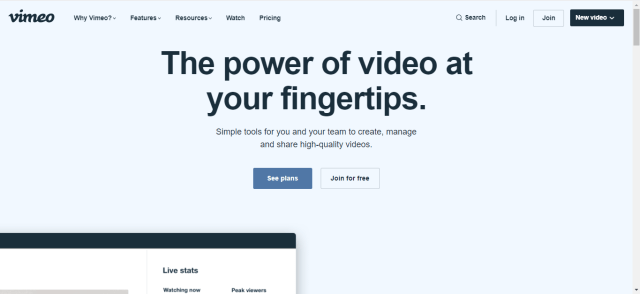
Vimeo

YouTube Alternatives 4

Vimeo is an OTT platform and at the same time one of the best alternatives for YouTube.

As an OTT platform, it is popular for video content creators all over the world. As a streaming website, it has tens of thousands of visitors monthly. The best qualities offered by Vimeo are good category selections, quality tools for content creation, and high-definition videos.

Please take note that there are a few advertisements when you stream on Vimeo.


YouTube Alternatives (4)


YOUR INTERNET ACTIVITY IS BEING WATCHED

ReviewVPN cannot attest to the legality, security and privacy of the applications discussed on this site. It is highly recommended that you use a VPN service while streaming or using Kodi.

Currently, your IP 216.73.216.52 is visible to everyone and your Browser is being tracked by Advertisers & ISP Provider.

Save 65% Now

Limited Time Offer

Here are the main reasons why you must use a VPN:

  • Your activities are hidden from your ISP, the government, and from the apps you are using.
  • You can access additional movies and TV streams.
  • ISP attempts to throttle are thrwarted thus reducing buffering issues.
  • Geographically restricted content like Netflix and Hulu can be unblocked.

A VPN works be replacing your ISP-assigned IP address and creating an encrypted tunnel. We recommend the no log service offered by IPVanish. It works well on a Firestick and offers the fastest possible speeds.

Special Limited Time Offer - Get IPVanish


Legal Disclaimer: ReviewVPN.com does not encourage or endorse any illegal activity involved in the usage of services and applications referenced on this site. We do not verify the licensing agreements of services. The end-user is wholly responsible for ensuring that any media accessed through these services does not violate copyright and/or licensing laws. ReviewVPN does not promote, link to, or receive compensation from any Apps and IPTV services.


Install Surfshark on Firestick

Best Surfshark Deal


Rumble

YouTube Alternatives 2

Rumble is indeed the best alternative for YouTube. Many YouTubers shift and transfer their videos on Rumble. This is because of the strict policies of YouTube that strike a lot of Youtubers lately.

The problem with this is that since it is becoming more and more popular over the past few months, it started gaining more advertisements as well. But if this isn’t the case we would really suggest that Rumble is our top pick for best YouTube alternatives.

Rumble categories include Editor’s Pick, Top Videos, Viral News, Sports, Live Shows, and many more.


YouTube Alternatives (6)


MetaCafe

YouTube Alternatives 7

Metacafe started about 2003 that features only 1 and a half minute videos. Over the past years, it grew into featuring larger content. This makes it a good fit for YouTube alternatives.

With this website, you will get a lot of good vibes as it promotes more comedy-oriented videos.

This website also provides fewer advertisements compared with the other alternatives on this list.


YouTube Alternatives (2)


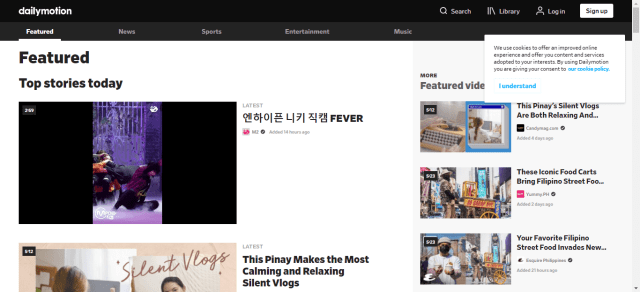
Daily Motion

YouTube Alternatives 3

Another great YouTube alternative, Daily Motion also has the same categories for the videos it offers. The website also has fewer to a little more advertisements which are somehow tolerable.

It has an easy-to-use interface, and a lower rate of restrictions compare to YouTube.

Categories of Daily Motion include:

  • Featured
  • News
  • Sports
  • Entertainment
  • Music


YouTube Alternatives (5)


TikTok

YouTube Alternatives 5

Last but definitely not the least is TikTok. It had an enormous increase in popularity as it sets the World into the newest trends on life hacks, music, dance, and many more.

This website has an available app for mobile devices which also helps to promote the name TikTok itself.

As TikTok only allows a few minutes for every video, people still tend to create their own content and absolutely the same content.

The main purpose of TikTok is for entertainment and yet somehow educational content to be shared.


YouTube Alternatives (3)


Stream Safely With A VPN

surfshark logo

As we said earlier, YouTube has a lot of restrictions. One of them is geo-blocking or the process of restricting people from another region to access content that is only available in another one.

Website unblocking has become a tactic by so many people because of this. It can only be done if you will use a VPN.

Premium VPNs like Surfshark guarantee your safety when you are streaming different websites, It will keep your identity safe and it will give access to a lot of content.

Surfshark is also applicable for Firestick, Kodi, Android, MAC, and a lot more. Not only does it destroys geo-blocks but also does the following:

  • Protects your online identity from your Internet Service Provider while streaming content and using more data than usual.
  • Serves as a tunnel that hides and yet connects you to a server from another region or country.
  • Do not allow malware to damage your devices.
  • Keep your data and information encrypted.
  • Block hackers when you are using public wifi
  • Makes your internet speed faster
  • It is the VPN for torrenting
  • Prevents Firestick Buffering and Kodi Buffering


Install Surfshark on Firestick

Best Surfshark Deal


How to Install Surfshark VPN on Firestick

If your Firestick still has the older interface, read this article to learn how to update it: Update Firestick Interface.

Follow our screenshots below to install the SurfShark VPN app on your Fire TV stick.

1. Go to the Home screen of your Firestick.

step 1 Install Surfshark VPN on Firestick


2. Navigate towards the Find tab. Press the Search button from the resulting dropdown.

step 2 Install Surfshark VPN on Firestick


3. Type in the keyword of SurfShark and select from the suggestions that will appear.

step 3 Install Surfshark VPN on Firestick


4. Click the official SurfShark icon from your search results.

step 4 Install Surfshark VPN on Firestick


5. Press the Download (You own it) button.

step 5 Install Surfshark VPN on Firestick


6. The SurfShark VPN installer will download on your device.

step 6 Install Surfshark VPN on Firestick


7. SurfShark VPN’s app will automatically install itself on your Fire TV stick.

step 7 Install Surfshark VPN on Firestick


8. Press the Open button after completing SurfShark VPN’s installation process.

step 8 Install Surfshark VPN on Firestick


9. Please wait for the SurfShark VPN to load its user interface.

step 9 Install Surfshark VPN on Firestick


10. You can now log in with your SurfShark VPN account credentials.

step 10 Install Surfshark VPN on Firestick

Learn more about Surfshark and Grab the Best Surfshark Deal Now!


Install Surfshark on Firestick

Best Surfshark Deal


Other VPNs to Consider

NordVPN (Best for Streaming)

Best Features

  • 5000+ Server in 50+ Countries 
  • Military-Grade Encryption
  • Fast Connection Speed
  • Suitable to a lot of devices
  • No-Log Policy

Prices
  • Complete $5.89 per month (64% Discount)
  • Plus $4.59 per month (56% Discount)
  • Standard $3.69 per month (55% Discount)

Best Features

  • 750+ High-speed VPN Servers in 43 Locations
  • Military-Grade Encryption
  • Fastest HD Streaming and Gaming
  • 30-Day Money-Back Guarantee
  • Unlimited Data & Devices
  • No-Log Policy

Prices
  • 3 Years $1.99 per month (82% Discount)
  • 1 Years $3.29 per month (70% Discount)
  • 1 Month $10.99 per month

IPVanish VPN (Most Secure)

Best Features

  • 1200+ Servers in 60+ Countries around the world
  • Unlimited Connections
  • No-Log Policy
  • Top Notch Military-Grade VPN Protocols and Encryptions
  • 100% Safe and Secured
  • Most Trusted VPN
  • Best VPN for Firestick
  • 30-Day Money-Back Guarantee

Prices
  • Yearly $3.99 per month (63% Discount) – 30 days risk free + Ransomware & Malware Protection
  • Quarterly $5.32 per month (51% Discount)
  • Monthly $10.99 per month


For more VPN discounts, go to ReviewVPN Deals and purchase the best VPN for you.

Click here to get the lowest price on Surfshark through our exclusive limited-time offer.


YouTube Applications that Do Not Have Advertisements

As promised earlier, we will show you YouTube applications for Android and Firestick that do not have annoying advertisements. But most of them are third-party applications, in order to install them, you need to Jailbreak your Firestick and Install the Downloader app.


FAQs

Is There an Alternative to YouTube?

Of course, there are so many alternatives you can choose from. Take a look at the top portion of the article to see the Best YouTube Alternatives for Streaming Online Videos.


What is the Alternative to YouTube?

We can say a lot but Rumble is the best alternative to YouTube.


Are The YouTube Alternatives Legal?

All of the featured websites in this article are legal and safe to use.


Do You Need A VPN?

When streaming to so many websites, we recommend using a VPN like Surfshark.


What are the Best YouTube Alternatives?

We recommend these top 7 YouTube Alternatives for you: Rumble, DailyMotion, Vimeo, Twitch, MetaCafe, DTube, and TikTok.


Opinion

YouTube is indeed one of the best, but it has a lot of restrictions now. We can say that Rumble is the best alternative to YouTube but it started gaining advertisements as well. But still, it is one of the best.

You can definitely check one after the other to know which alternative is best for you.


Final Words

We hope that this article was able to help you learn the best YouTube alternatives for watching videos online.


Must Read:

Best Firestick Apps

Top Filelinked Codes

Best TV Show Websites

Best Adult Apps for Firestick

How to Install Best Cinema App on Firestick

Overview

In this article, we will guide you on the Best Cinema App installation on your Firestick device. 


Your ultimate guide for your favorite films comes with an app. It is downloadable on your favorite streaming devices. Best Cinema App or Best Cinema-Movies and Trailers Guide is your go-to application to determine what you want to watch.

It shows you a catalog of movies with trailers and descriptions for your guide. It also provides details such as plot descriptions, the actors of the film, and its duration. As we read on, we will discuss more details about Best Cinema App. We will talk more about its benefit to the users.


ANONYMOUSLY

Best Cinema  App for Android Devices


Download Best Cinema App APK


Note: ReviewVPN.com does not host this APK file. It is hosted by Archive.org


 How to Install Best Cinema App on Firestick

Best Cinema App or Best Cinema –Movies and Trailers Guide does not have a direct download when you are using Firestick. You need to sideload it or use a third-party app to use its app features.

If this is the first time you hear about sideloading or using a third-party device for an app, you can read this article for reference: How to Install the Downloader App and Enable Unknown Sources.

Here is the step by step guide that you need to follow: 

1.  Click Home on your remote and scroll once to your Right. Click Setting (Gear Wheel Icon).

Step 1 Install Best Cinema App on Firestick


2. Scroll down and to the right until you get to My Fire TV. Click on it.

Step 2 Install Best Cinema App on Firestick


3. Select Developer options.

Step 3 Install Best Cinema App on Firestick


4. Turn on ADB debugging and Apps from Unknown Sources.

Step 4 Install Best Cinema App on Firestick


5. Click Turn On when the pop-up appears.

Step 5 Install Best Cinema App on Firestick


6. Click Home, click FIND.

Step 6 Install Best Cinema App on Firestick


7. Click Search.

Step 7 Install Best Cinema App on Firestick


8. You can either say Downloader to your Alexa voice-enabled remote or start typing it. If you typed it, click on the suggestion when it appears.

Step 8 Install Best Cinema App on Firestick


9. Click on the Downloader Icon.

Step 9 Install Best Cinema App on Firestick


10. Click Download.

Step 10 Install Best Cinema App on Firestick


step 10 Install Best Cinema App on Firestick


11. Click on Open.

Step 11 Install Best Cinema App on Firestick


12. Click on Allow.

Step 12 Install Best Cinema App on Firestick


13. Use the Downloader search tab.

Step 13 Install Best Cinema App on Firestick


14. In this case, type in: https://reviewvpn.com/bca & Click Go and wait for it to load.

Install Best Cinema App on Firestick 14


15. APK is now downloading.

Install Best Cinema App on Firestick 15


16. Select Install

Install Best Cinema App on Firestick 16


17. Click Open. You can now use the complete features of the Best Cinema App on your Firestick device.

Install Best Cinema App on Firestick 17


YOUR INTERNET ACTIVITY IS BEING WATCHED

ReviewVPN cannot attest to the legality, security and privacy of the applications discussed on this site. It is highly recommended that you use a VPN service while streaming or using Kodi.

Currently, your IP 216.73.216.52 is visible to everyone and your Browser is being tracked by Advertisers & ISP Provider.

Save 65% Now

Limited Time Offer

Here are the main reasons why you must use a VPN:

  • Your activities are hidden from your ISP, the government, and from the apps you are using.
  • You can access additional movies and TV streams.
  • ISP attempts to throttle are thrwarted thus reducing buffering issues.
  • Geographically restricted content like Netflix and Hulu can be unblocked.

A VPN works be replacing your ISP-assigned IP address and creating an encrypted tunnel. We recommend the no log service offered by IPVanish. It works well on a Firestick and offers the fastest possible speeds.

Special Limited Time Offer - Get IPVanish


Legal Disclaimer: ReviewVPN.com does not encourage or endorse any illegal activity involved in the usage of services and applications referenced on this site. We do not verify the licensing agreements of services. The end-user is wholly responsible for ensuring that any media accessed through these services does not violate copyright and/or licensing laws. ReviewVPN does not promote, link to, or receive compensation from any Apps and IPTV services.


Install Surfshark on Firestick

Best Surfshark Deal


App Features

Contents

  • Contains catalog of films to watch
  • Different new movies with complete descriptions and trailers
  • It shares a synopsis or summary plot of films you are interested in looking


Interface

  • It has a minimalist template and clean interface
  • Easy and simple to navigate
  • It has a search menu to find more detail about a certain film or filter unnecessary details


Pros and Cons

Pros

  • It is easy to use 
  • Clean interface
  • No need to sign up 
  • 100% free of charge

Cons

  • Instances of servers’ trouble
  • Accesses are often unstable
  • Search items redirect you to a search engine. Sometimes, the app does not include the film details.


 FAQs

What is the Best Cinema App?

Best Cinema App / Best Cinema – Movies and Trailer Guide allows you to find and view shows for stream checking. It provides film details for a better streaming experience.


Is Best Cinema App free?

Yes. Best Cinema App is free to use.


Do we need to register to use the Best Cinema App?

No. There is no need for the signup process. You will be redirected to the site after downloading.


What devices are compatible with Best Cinema App?

You can install it into your popular streaming devices such as Android, iOS, Windows, AppleTV, and Firestick TV.


Streaming Best Cinema App with a VPN

For a continuous experience of using the Best Cinema App on Firestick with no defaults of buffering and constant interruptions from your connection, you can stream safely with the use of a VPN.

VPN or Virtual Private Networks helps you stay in the zone of being anonymous and provides safety and security on your streaming activities. Note that this is highly advisable to avoid lags and glitches. There are different VPNs that you can use but, we strongly recommend the use of Surfshark. It is the best VPN when streaming and also has the best security with excellent speed.

Here are some of the reasons why:

  • VPN helps secure IPS on your devices while you stream.
  • It blocks hackers to make your identity remain safe.
  • You will stay anonymous while streaming. Any data, while you are streaming, is protected. 
  • Keeps your data from harmful malware
  • Faster use of internet connection

Note: For more information about SurfShark, please read our SURFSHARK REVIEW.


Grab your subscription now!


How to Install Surfshark VPN on Firestick

If your Firestick still has the older interface, read this article to learn how to update it: Update Firestick Interface.

You can download Surfshark directly from the Amazon App store. It will be easy for you to find Surfshark with your Firestick’s Find feature. Refer to our screenshots below.

1. Go to the Home screen of your Firestick.

step 1 Install Surfshark VPN on Firestick


2. Navigate towards the Find tab. Press the Search button from the resulting dropdown.

step 2 Install Surfshark VPN on Firestick


3. Type in the keyword of SurfShark and select from the suggestions that will appear.

step 3 Install Surfshark VPN on Firestick


4. Click the official SurfShark icon from your search results.

step 4 Install Surfshark VPN on Firestick


5. Press the Download (You own it) button.

step 5 Install Surfshark VPN on Firestick


6. The SurfShark VPN installer will download on your device.

step 6 Install Surfshark VPN on Firestick


7. SurfShark VPN’s app will automatically install itself on your Fire TV stick.

step 7 Install Surfshark VPN on Firestick


8. Press the Open button after completing SurfShark VPN’s installation process.

step 8 Install Surfshark VPN on Firestick


9. Please wait for the SurfShark VPN to load its user interface.

step 9 Install Surfshark VPN on Firestick


10. You can now log in with your SurfShark VPN account credentials.

step 10 Install Surfshark VPN on Firestick

Learn more about Surfshark and Grab the Best Surfshark Deal Now!


Other VPNs to Consider

NordVPN (Best for Streaming)

Best Features

  • 5000+ Server in 50+ Countries 
  • Military-Grade Encryption
  • Fast Connection Speed
  • Suitable to a lot of devices
  • No-Log Policy

Prices
  • Complete $5.89 per month (64% Discount)
  • Plus $4.59 per month (56% Discount)
  • Standard $3.69 per month (55% Discount)

Best Features

  • 750+ High-speed VPN Servers in 43 Locations
  • Military-Grade Encryption
  • Fastest HD Streaming and Gaming
  • 30-Day Money-Back Guarantee
  • Unlimited Data & Devices
  • No-Log Policy

Prices
  • 3 Years $1.99 per month (82% Discount)
  • 1 Years $3.29 per month (70% Discount)
  • 1 Month $10.99 per month

IPVanish VPN (Most Secure)

Best Features

  • 1200+ Servers in 60+ Countries around the world
  • Unlimited Connections
  • No-Log Policy
  • Top Notch Military-Grade VPN Protocols and Encryptions
  • 100% Safe and Secured
  • Most Trusted VPN
  • Best VPN for Firestick
  • 30-Day Money-Back Guarantee

Prices
  • Yearly $3.99 per month (63% Discount) – 30 days risk free + Ransomware & Malware Protection
  • Quarterly $5.32 per month (51% Discount)
  • Monthly $10.99 per month


For more VPN discounts, go to ReviewVPN Deals and purchase the best VPN for you.


Grab the Best Surfshark Deal Now!

Click here to get the lowest price on Surfshark through our exclusive limited-time offer.


Best Alternative Apps

Here are some applications that have the same functions as WakoTV. Check out the list below for the alternatives and your comparisons:


Conclusion

Streaming movies online can be easy when you have an app that can guide you to a better watching experience. Best Cinema App allows you to get the latest update on films and understand them better with trailers and film descriptions provided. It offers a wide range of movie catalogs you can check for your preference.

There are some features of the app that does not work due to incompatibility and bug issues. All you have to do is be patient and deal with the app get-go. If this is the app for you, install it now on your Firestick device.

We hope we provided you with the information you needed about Best Cinema App.


What Is Your Favorite Streaming App? Cast Your Vote Below.

How to Install OP Anime App‬ on Firestick and Android

Overview

This article will help you install the OP Anime app‬ on Firestick and Android. 


OP Anime is a free online streaming service that lets you watch huge anime movies and series for free.

It has an attractive feature that brings you an excellent streaming experience that will satisfy your passion for watching anime in a full HD quality. 

You can watch lots of the latest and all-time favorite subbed and dubbed anime movies and series. It also has a simple and easy-to-use interface that lets you browse any content easily. This app also offers you thousands of anime in different genres. The good thing is anime movies are uploaded in original and complete without cropping. 

This app works well on android devices, but you can also get this app on Firestick, and we suggest using mouse toggle for easy navigation. It is still not an official Amazon app. That is why to install it on Firestick, you need to Jailbreak Firestick and Install Downloader.


ANONYMOUSLY

OP Anime APK Download for Android


Download OP Anime APK

Note: ReviewVPN.com does not host this APK file. It is hosted by Archive.org


How to Install OP Anime App on Firestick

Here is a step-by-step guide on how you can jailbreak Firestick to install the OP Anime app.

1.  Click Home on your remote and scroll once to your Right. Click Setting (Gear Wheel Icon).

Step 1 Install OP Anime App on Firestick


2. Scroll down and to the right until you get to My Fire TV. Click on it.

Step 2 Install OP Anime App on Firestick


3. Select Developer options.

Step 3 Install OP Anime App on Firestick


4. Turn on ADB debugging and Apps from Unknown Sources.

Step 4 Install OP Anime App on Firestick


5. Click Turn On when the pop-up appears.

Step 5 Install OP Anime App on Firestick


6. Click Home, click FIND.

Step 6 Install OP Anime App on Firestick


7. Click Search.

Step 7 Install OP Anime App on Firestick


8. You can either say Downloader to your Alexa voice-enabled remote or start typing it. If you typed it, click on the suggestion when it appears.

Step 8 Install OP Anime App on Firestick


9. Click on the Downloader Icon.

Step 9 Install OP Anime App on Firestick


10. Click Download.

Step 10 Install OP Anime App on Firestick


step 10 Install OP Anime App on Firestick


11. Click on Open.

Step 11 Install OP Anime App on Firestick


12. Click on Allow.

Step 12 Install OP Anime App on Firestick


13. Use the Downloader search tab.

Step 13 Install OP Anime App on Firestick


14. In the search bar, type in https://reviewvpn.com/opn and click Go.

Step 14 Install OP Anime App on Firestick


15. Wait for the file download to finish.

Step 15 Install OP Anime App on Firestick


16. Click Install.

Step 16 Install OP Anime App on Firestick


17. Wait for the apps to be Installed.

Step 17 Install OP Anime App on Firestick


18. Select Open to launch the app.

Step 18 Install OP Anime App on Firestick


YOUR INTERNET ACTIVITY IS BEING WATCHED

ReviewVPN cannot attest to the legality, security and privacy of the applications discussed on this site. It is highly recommended that you use a VPN service while streaming or using Kodi.

Currently, your IP 216.73.216.52 is visible to everyone and your Browser is being tracked by Advertisers & ISP Provider.

Save 65% Now

Limited Time Offer

Here are the main reasons why you must use a VPN:

  • Your activities are hidden from your ISP, the government, and from the apps you are using.
  • You can access additional movies and TV streams.
  • ISP attempts to throttle are thrwarted thus reducing buffering issues.
  • Geographically restricted content like Netflix and Hulu can be unblocked.

A VPN works be replacing your ISP-assigned IP address and creating an encrypted tunnel. We recommend the no log service offered by IPVanish. It works well on a Firestick and offers the fastest possible speeds.

Special Limited Time Offer - Get IPVanish


Legal Disclaimer: ReviewVPN.com does not encourage or endorse any illegal activity involved in the usage of services and applications referenced on this site. We do not verify the licensing agreements of services. The end-user is wholly responsible for ensuring that any media accessed through these services does not violate copyright and/or licensing laws. ReviewVPN does not promote, link to, or receive compensation from any Apps and IPTV services.


Install Surfshark on Firestick

Best Surfshark Deal


App Features

Interface

  • User-friendly interface. 
  • Search button function.
  • No registration is needed.


Contents

  • Free and Unlimited content to watch.
  • HD video quality
  • Allows you to filter content according to the genre, release year, and country.
  • Latest and Popular subbed and dubbed anime movies and series.
  • Complete episodes of anime series. 
  • Alphabetically arranged list of contents.
  • It has a favorite section.


Compatible Devices

Here are some of the compatible devices for the OP Anime app.

  • Android
  •  iOS
  • Amazon Fire TV
  • Chromecast
  • Roku TV
  • Android TV
  • Samsung TV


Pros and Cons

Pros

  • No registration is needed. 
  • Easy to use interface.
  • Free and Unlimited content to watch. 
  • HD quality of videos.


Cons

  • It is littered with ads for every second. 
  • Too much buffering when playing.


Fast and Safe Streaming with Surfshark

We recommend using a Virtual Private Network on your device to give you a high-speed connection and enjoy a smooth streaming experience of anime online. Since one downside of this app is its buffering, a VPN is a great help for you. 

Having a VPN on your device will give you lots of benefits that you can enjoy, such as unlimited bandwidth, a safe environment online, and access to restricted content. Surfshark is one of the best VPNs you can use on your device, whereas this VPN is also known as the most reliable and fastest VPN with lots of impressive features. This VPN is also committed to giving its users the best quality of service worth paying for. 

One of the best features of this VPN is its high-speed connection and impressive security features that will ensure your safety and privacy online. To know more about this VPN, kindly read our Surfshark Review.


Here are the reasons why it is our VPN of choice:

  • Destroys geo-block and gains access to different content globally.
  • Available 3200+ servers in 65 countries
  • 100% zero logs and no IP address leaks. 
  • Bypass censorship and restrictions.
  • Surfshark defaults to the IKEv2 protocol 
  • A high standard of AES 256-bit encryptions will safeguard all of your data.
  • Prevent ISPs from interfering with your connection and speed up your internet.
  • It gives you unlimited bandwidth and makes your internet speed faster. 
  • Keep your identity anonymous to protect you from hackers, especially when you are using public wi-fi.
  • Keep your file protected from harmful malware.

Note: For more information about Surfshark, please read our Surfshark Review.


Grab your subscription now!


How to Install Surfshark VPN on Firestick

If your Firestick still has the older interface, read this article to learn how to update it: Update Firestick Interface.

Follow our screenshots below to install the SurfShark VPN app on your Fire TV stick.

1. Go to the Home screen of your Firestick.

step 1 Install Surfshark VPN on Firestick


2. Navigate towards the Find tab. Press the Search button from the resulting dropdown.

step 2 Install Surfshark VPN on Firestick


3. Type in the keyword of SurfShark and select from the suggestions that will appear.

step 3 Install Surfshark VPN on Firestick


4. Click the official SurfShark icon from your search results.

step 4 Install Surfshark VPN on Firestick


5. Press the Download (You own it) button.

step 5 Install Surfshark VPN on Firestick


6. The SurfShark VPN installer will download on your device.

step 6 Install Surfshark VPN on Firestick


7. SurfShark VPN’s app will automatically install itself on your Fire TV stick.

step 7 Install Surfshark VPN on Firestick


8. Press the Open button after completing SurfShark VPN’s installation process.

step 8 Install Surfshark VPN on Firestick


9. Please wait for the SurfShark VPN to load its user interface.

step 9 Install Surfshark VPN on Firestick


10. You can now log in with your SurfShark VPN account credentials.

step 10 Install Surfshark VPN on Firestick

Learn more about Surfshark and Grab the Best Surfshark Deal Now!


Install Surfshark on Firestick

Best Surfshark Deal


Other VPNs to Consider

NordVPN (Best for Streaming)

Best Features

  • 5000+ Server in 50+ Countries 
  • Military-Grade Encryption
  • Fast Connection Speed
  • Suitable to a lot of devices
  • No-Log Policy

Prices
  • Complete $5.89 per month (64% Discount)
  • Plus $4.59 per month (56% Discount)
  • Standard $3.69 per month (55% Discount)

Best Features

  • 750+ High-speed VPN Servers in 43 Locations
  • Military-Grade Encryption
  • Fastest HD Streaming and Gaming
  • 30-Day Money-Back Guarantee
  • Unlimited Data & Devices
  • No-Log Policy

Prices
  • 3 Years $1.99 per month (82% Discount)
  • 1 Years $3.29 per month (70% Discount)
  • 1 Month $10.99 per month

IPVanish VPN (Most Secure)

Best Features

  • 1200+ Servers in 60+ Countries around the world
  • Unlimited Connections
  • No-Log Policy
  • Top Notch Military-Grade VPN Protocols and Encryptions
  • 100% Safe and Secured
  • Most Trusted VPN
  • Best VPN for Firestick
  • 30-Day Money-Back Guarantee

Prices
  • Yearly $3.99 per month (63% Discount) – 30 days risk free + Ransomware & Malware Protection
  • Quarterly $5.32 per month (51% Discount)
  • Monthly $10.99 per month


For more VPN discounts, go to ReviewVPN Deals and purchase the best VPN for you.

Click here to get the lowest price on Surfshark through our exclusive limited-time offer.


Alternative Apps

We list down some alternative apps for OP Anime that you can install on your Firestick and android. To know more about the app, kindly read their corresponding articles. 


FAQs

Is It Safe To Use?

Yes, the OP Anime app is safe to use.


Is It Legal or Grey?

It is 100% safe to download and use.


Is It Free?

Yes, the OP Anime app is free to download and use.


Are There ADS?

Yes, this app is littered with ads everywhere.


Is There an Official Website?

No, this app does not have any official website. 


Can I download this app on my PC?

Yes, this app also works on a PC, and you can install it using an emulator such as Bluestacks.


Conclusion

OP Anime is a streaming anime online with a huge collection of anime movies and series to watch for free. You can watch your all-time favorite anime in HD quality. This app offers you thousands of contents in subbed and dubbed. However, the only downside of this app is it is littered with ads everywhere and pop-up ads when playing. You also need to have a high-speed connection to avoid buffering when playing. We also suggest that you download a VPN such as Surfshark on your device when streaming in this app. We hope that this article gives you information about the OP Anime app and helps you how to install it on Firestick and Android.


What Is Your Favorite Streaming App? Cast Your Vote Below.

How to Install MocaFilm HD App‬ on Firestick and Android

MocaFilm HD App Overview

This article will help you install the MocaFilm HD app‬ on Firestick and Android. 


MocaFilm HD is a free streaming service online developed by KingWorld Inc, that offers you a great lineup of popular and latest films to watch for free. It also has a huge collection of movies from great filmmakers worldwide. 

This app is supported with ads, so you need to be aware that there are some pop-up ads, but if you want to watch smoothly without ads interrupting, you can get their premium offers to remove ads. You can watch their contents in HD quality for free on any device, including Firestick, but we suggest using mouse toggle for easy navigation. This app is still not an official Amazon app, and to install it on Firestick you need to Jailbreak Firestick and Install Downloader.


ANONYMOUSLY

Is MocaFilm HD Safe and Virus-free?

We tested this app using VirusTotal and found no threats or any malicious files and malware.

Despite having good results, we still need to be vigilant in protecting our privacy while streaming.

A Virtual Private Network or VPN will definitely help us maintain our security and anonymity while using MocaFilm HD.

Here’s how you can Install The Best VPN For Firestick and All Devices.


MocaFilm HD APK Download for Android


Download MocaFilm HD APK


Note: ReviewVPN.com does not host this APK file. It is hosted by Archive.org


How to Install MocaFilm HD App on Firestick

Here is a step-by-step guide on how you can jailbreak Firestick to install the MocaFilm HD app.

1.  Click Home on your remote and scroll once to your Right. Click Setting (Gear Wheel Icon).

Step 1 Install MocaFilm HD App on Firestick


2. Scroll down and to the right until you get to My Fire TV. Click on it.

Step 2 Install MocaFilm HD App on Firestick


3. Select Developer options.

Step 3 Install MocaFilm HD App on Firestick


4. Turn on ADB debugging and Apps from Unknown Sources.

Step 4 Install MocaFilm HD App on Firestick


5. Click Turn On when the pop-up appears.

Step 5 Install MocaFilm HD App on Firestick


6. Click Home, click FIND.

Step 6 Install MocaFilm HD App on Firestick


7. Click Search.

Step 7 Install MocaFilm HD App on Firestick


8. You can either say Downloader to your Alexa voice-enabled remote or start typing it. If you typed it, click on the suggestion when it appears.

Step 8 Install MocaFilm HD App on Firestick


9. Click on the Downloader Icon.

Step 9 Install MocaFilm HD App on Firestick


10. Click Download.

Step 10 Install MocaFilm HD App on Firestick


step 10 Install MocaFilm HD App on Firestick


11. Click on Open.

Step 11 Install MocaFilm HD App on Firestick


12. Click on Allow.

Step 12 Install MocaFilm HD App on Firestick


13. Use the Downloader search tab.

Step 13 Install MocaFilm HD App on Firestick


14. In the search bar, type in https://reviewvpn.com/moc  and click Go.

Step 14 Install MocaFilm HD App on Firestick


15. Wait for the file download to finish.

Step 15 Install MocaFilm HD App on Firestick


16. Click Install

Step 16 Install MocaFilm HD App on Firestick


17. Select Open to launch the app.

Step 17 Install MocaFilm HD App on Firestick


18. That’s it! You have successfully installed the MocaFilm HD app.


YOUR INTERNET ACTIVITY IS BEING WATCHED

ReviewVPN cannot attest to the legality, security and privacy of the applications discussed on this site. It is highly recommended that you use a VPN service while streaming or using Kodi.

Currently, your IP 216.73.216.52 is visible to everyone and your Browser is being tracked by Advertisers & ISP Provider.

Save 65% Now

Limited Time Offer

Here are the main reasons why you must use a VPN:

  • Your activities are hidden from your ISP, the government, and from the apps you are using.
  • You can access additional movies and TV streams.
  • ISP attempts to throttle are thrwarted thus reducing buffering issues.
  • Geographically restricted content like Netflix and Hulu can be unblocked.

A VPN works be replacing your ISP-assigned IP address and creating an encrypted tunnel. We recommend the no log service offered by IPVanish. It works well on a Firestick and offers the fastest possible speeds.

Special Limited Time Offer - Get IPVanish


Legal Disclaimer: ReviewVPN.com does not encourage or endorse any illegal activity involved in the usage of services and applications referenced on this site. We do not verify the licensing agreements of services. The end-user is wholly responsible for ensuring that any media accessed through these services does not violate copyright and/or licensing laws. ReviewVPN does not promote, link to, or receive compensation from any Apps and IPTV services.


Install Surfshark on Firestick

Best Surfshark Deal


App Features

Interface

  • No signup process. 
  • User-friendly interface. 
  • Search button function.


Contents

  • An updated list of new and popular movies to watch. 
  • Available trailers videos.
  • 360p to 1080p video quality.
  • Available subtitles 
  • You can send them a request for a movie you want to watch.
  • It allows you to mark your favorite content and see them in the “Your Movies” section.
  • Provided content details such as summary, release year, ratings, IMDB review, and comment. 
  • You can download content for offline viewing.


Genre

  • Documentary 
  • Cinema 
  • Winners
  • Adventure 
  • Action
  • Cartoon
  • Criminal
  • Comedy
  • Family
  • Fiction
  • History 
  • Horror
  • Mythology 
  • Romance
  • Sports – Music
  • Hong Kong
  • Vietnam
  • Korean and more.


Compatible Devices

Here are some of the compatible devices for the MocaFilm HD app.

  • Windows PC
  • Android
  •  iOS
  • Amazon Fire TV
  • Chromecast
  • Roku TV
  • Android TV
  • Samsung TV


Pros and Cons

Pros

  • No registration is needed. 
  • Easy to use interface.
  • An updated list of contents
  • Allows users to download content for offline viewing.
  • HD quality of videos.


Cons

  • Supported with ads. 
  • Some contents are not full screen. 
  • Too much buffering when playing


Fast and Safe Streaming with Surfshark

https://get.surfshark.net/aff_c?offer_id=865&aff_id=12312

Streaming online requires lots of data to enjoy streaming without buffering and lags, but you’re not allowed to use more than the normal bandwidth because your ISP will notice it and interfere with your connection. That is why we recommend using Virtual Private Network on your device to avoid and help you to solve this kind of issue. 

One of the best VPNs that we highly suggest is Surfshark. This VPN provides you high-speed connection and prevents ISP from interfering with your connection to enjoy smooth streaming online. 

Note: For more information about SurfShark, please read our SURFSHARK REVIEW.


Grab your subscription now!

Click here to get the lowest price on Surfshark through our exclusive limited-time offer.


How to Install Surfshark VPN on Firestick

If your Firestick still has the older interface, read this article to learn how to update it: Update Firestick Interface.

You can download Surfshark directly from the Amazon App store. It will be easy for you to find Surfshark with your Firestick’s Find feature. Refer to our screenshots below.

1. Go to the Home screen of your Firestick.

step 1 Install Surfshark VPN on Firestick


2. Navigate towards the Find tab. Press the Search button from the resulting dropdown.

step 2 Install Surfshark VPN on Firestick


3. Type in the keyword of SurfShark and select from the suggestions that will appear.

step 3 Install Surfshark VPN on Firestick


4. Click the official SurfShark icon from your search results.

step 4 Install Surfshark VPN on Firestick


5. Press the Download (You own it) button.

step 5 Install Surfshark VPN on Firestick


6. The SurfShark VPN installer will download on your device.

step 6 Install Surfshark VPN on Firestick


7. SurfShark VPN’s app will automatically install itself on your Fire TV stick.

step 7 Install Surfshark VPN on Firestick


8. Press the Open button after completing SurfShark VPN’s installation process.

step 8 Install Surfshark VPN on Firestick


9. Please wait for the SurfShark VPN to load its user interface.

step 9 Install Surfshark VPN on Firestick


10. You can now log in with your SurfShark VPN account credentials.

step 10 Install Surfshark VPN on Firestick

Learn more about Surfshark and Grab the Best Surfshark Deal Now!


Other VPNs to Consider

NordVPN (Best for Streaming)

Best Features

  • 5000+ Server in 50+ Countries 
  • Military-Grade Encryption
  • Fast Connection Speed
  • Suitable to a lot of devices
  • No-Log Policy

Prices
  • Complete $5.89 per month (64% Discount)
  • Plus $4.59 per month (56% Discount)
  • Standard $3.69 per month (55% Discount)

Best Features

  • 750+ High-speed VPN Servers in 43 Locations
  • Military-Grade Encryption
  • Fastest HD Streaming and Gaming
  • 30-Day Money-Back Guarantee
  • Unlimited Data & Devices
  • No-Log Policy

Prices
  • 3 Years $1.99 per month (82% Discount)
  • 1 Years $3.29 per month (70% Discount)
  • 1 Month $10.99 per month

IPVanish VPN (Most Secure)

Best Features

  • 1200+ Servers in 60+ Countries around the world
  • Unlimited Connections
  • No-Log Policy
  • Top Notch Military-Grade VPN Protocols and Encryptions
  • 100% Safe and Secured
  • Most Trusted VPN
  • Best VPN for Firestick
  • 30-Day Money-Back Guarantee

Prices
  • Yearly $3.99 per month (63% Discount) – 30 days risk free + Ransomware & Malware Protection
  • Quarterly $5.32 per month (51% Discount)
  • Monthly $10.99 per month


For more VPN discounts, go to ReviewVPN Deals and purchase the best VPN for you.


Alternative Apps

We list down some alternative apps for MocaFilm HD that you can install on your Firestick and android. To know more about the app, kindly read their corresponding articles. 


FAQs

Is this app Free?

Yes, the MocaFilm HD app is free to download and use.


Is It Safe To Use?

Yes, the MocaFilm HD app is safe to use.


Is this app Legal?

Yes, the MocaFilm HD is 100% legal.


Is There an Official Website?

No, this app does not have any official website. 


Are There ADS?

Yes, this app is supported with ads, but you can get their Premium version.  if you want to watch without ads to interrupt, 


Can I download this app on my PC?

Yes, this app also works on a PC, and you can install it using an emulator such as Bluestacks.


Conclusion

MocaFilm HD is a great streaming service online that offers a great lineup of content to watch for free. This app is updated with every new release movie, so you will not miss any trending and fresh release content. The good thing about this app is it allows you to download content for free. However, the only downside of it is, that some movies are not full-length, and it serves ads. We hope that this article gives you information about the MocaFilm HD app and helps you with how to install it on Firestick and Android.


What Is Your Favorite Streaming App? Cast Your Vote Below.

How to Install CX File Explorer App on Firestick

Overview

In this article, we will guide you on how to install CX File Explorer.


Optimizing your device is a priority. It is a need if you want a clean and smooth interface. CX File Explorer is one of the many file manager apps that allows users to use their devices with ease. CX File Explorer app lets you quickly browse and manage your files.

This app is compatible with PC devices, mobile devices, and Firestick. It has rich features that set up clear space and excellent storage analysis. Also provides information about the consumption of storage spaces from your apps, large files, and cache files which is helpful to its users. As we discuss further, we will know how CX File Explorer is beneficial for us users. 


ANONYMOUSLY

CX File Explorer App for Android Devices


Download CX File Explorer APK

Note: ReviewVPN.com does not host this APK file. It is hosted by Archive.org


How to Install CX File Explorer App on Firestick

Unfortunately, there is no direct download of CX File Explorer on the Firestick device. You need to use a third-party app and sideload it. 

 If this is the first time you hear about sideloading or using a third-party device for an app, you can read this article for reference: How to Install the Downloader App and Enable Unknown Sources.

Here is the step by step guide that you need to follow: 

1.  Click Home on your remote and scroll once to your Right. Click Setting (Gear Wheel Icon).

Step 1 Install CX File Explorer App on Firestick


2. Scroll down and to the right until you get to My Fire TV. Click on it.

Step 2 Install CX File Explorer App on Firestick


3. Select Developer options.

Step 3 Install CX File Explorer App on Firestick


4. Turn on ADB debugging and Apps from Unknown Sources.

Step 4 Install CX File Explorer App on Firestick


5. Click Turn On when the pop-up appears.

Step 5 Install CX File Explorer App on Firestick


6. Click Home, click FIND.

Step 6 Install CX File Explorer App on Firestick


7. Click Search.

Step 7 Install CX File Explorer App on Firestick


8. You can either say Downloader to your Alexa voice-enabled remote or start typing it. If you typed it, click on the suggestion when it appears.

Step 8 Install CX File Explorer App on Firestick


9. Click on the Downloader Icon.

Step 9 Install CX File Explorer App on Firestick


10. Click Download.

Step 10 Install CX File Explorer App on Firestick


step 10 Install CX File Explorer App on Firestick


11. Click on Open.

Step 11 Install CX File Explorer App on Firestick


12. Click on Allow.

Step 12 Install CX File Explorer App on Firestick


13. Use the Downloader search tab.

Step 13 Install CX File Explorer App on Firestick


14. Type https://reviewvpn.com/cxf & Click Go and wait for it to load.

Step 14 Install CX File Explorer App on Firestick


15. APK is now downloading.

Step 15 Install CX File Explorer App on Firestick


16. Select Install. 

Step 16 Install CX File Explorer App on Firestick


17. After the installation, you can launch the product.

Step 17 Install CX File Explorer App on Firestick


18. Click open.

Step 18 Install CX File Explorer App on Firestick


19. Click Allow.

Step 19 Install CX File Explorer App on Firestick


20. CX File Explorer App is installed.

Step 20 Install CX File Explorer App on Firestick


YOUR INTERNET ACTIVITY IS BEING WATCHED

ReviewVPN cannot attest to the legality, security and privacy of the applications discussed on this site. It is highly recommended that you use a VPN service while streaming or using Kodi.

Currently, your IP 216.73.216.52 is visible to everyone and your Browser is being tracked by Advertisers & ISP Provider.

Save 65% Now

Limited Time Offer

Here are the main reasons why you must use a VPN:

  • Your activities are hidden from your ISP, the government, and from the apps you are using.
  • You can access additional movies and TV streams.
  • ISP attempts to throttle are thrwarted thus reducing buffering issues.
  • Geographically restricted content like Netflix and Hulu can be unblocked.

A VPN works be replacing your ISP-assigned IP address and creating an encrypted tunnel. We recommend the no log service offered by IPVanish. It works well on a Firestick and offers the fastest possible speeds.

Special Limited Time Offer - Get IPVanish


Legal Disclaimer: ReviewVPN.com does not encourage or endorse any illegal activity involved in the usage of services and applications referenced on this site. We do not verify the licensing agreements of services. The end-user is wholly responsible for ensuring that any media accessed through these services does not violate copyright and/or licensing laws. ReviewVPN does not promote, link to, or receive compensation from any Apps and IPTV services.


Install Surfshark on Firestick

Best Surfshark Deal


App Features

Organizational Skills

UI performs well on your streaming devices. It lets you arrange everything on your app with easy browsing, moving, copying, renaming, extracting, and sharing files. This also creates a folder for you to find unused and necessary files.


Manage Your Apps

You have access to files from your downloaded apps, PC installation, and mobile setup. It also provides storage analysis that you can scan to manage available space. There is a recycle bin that can help control the function of your storage. 


Pros and Cons

Pros

  • It is free to download
  • Fewer ads compared to other file manager apps
  • Easy interface and smooth navigation
  • Instant access on files 
  • Storage analysis available to check space availability


Cons

  • Analyzing files is time-consuming.
  • No bookmark feature
  • It does not have a multiple-selection interface.


Stream Safely with a VPN

Streaming online is a huge responsibility in terms of providing security on being anonymous. One should understand that it is still better to stream applications safely and securely. It is necessary to protect your privacy online.

You can do it with the use of a Virtual Private Network or VPN. It is needed because it allows you to hide your identity whenever you are streaming online. Choosing the right VPN can also be tricky because not every VPN promotes a hundred percent safety rate. Good thing, we can recommend you Surfshark

Here are the reasons why you should consider having it:

  • It secures protection on your ISP when you are streaming the app.
  • Provides safety measures from hackers that can track your identity.
  • Your data will be encrypted and be kept anonymous all the time
  • Keeps your data from harmful malware
  • It makes your internet speed faster

Note: For more information about Surfshark, please read our Surfshark Review.


Grab your subscription now!


How to Install Surfshark VPN on Firestick

If your Firestick still has the older interface, read this article to learn how to update it: Update Firestick Interface.

Follow our screenshots below to install the SurfShark VPN app on your Fire TV stick.

1. Go to the Home screen of your Firestick.

step 1 Install Surfshark VPN on Firestick


2. Navigate towards the Find tab. Press the Search button from the resulting dropdown.

step 2 Install Surfshark VPN on Firestick


3. Type in the keyword of SurfShark and select from the suggestions that will appear.

step 3 Install Surfshark VPN on Firestick


4. Click the official SurfShark icon from your search results.

step 4 Install Surfshark VPN on Firestick


5. Press the Download (You own it) button.

step 5 Install Surfshark VPN on Firestick


6. The SurfShark VPN installer will download on your device.

step 6 Install Surfshark VPN on Firestick


7. SurfShark VPN’s app will automatically install itself on your Fire TV stick.

step 7 Install Surfshark VPN on Firestick


8. Press the Open button after completing SurfShark VPN’s installation process.

step 8 Install Surfshark VPN on Firestick


9. Please wait for the SurfShark VPN to load its user interface.

step 9 Install Surfshark VPN on Firestick


10. You can now log in with your SurfShark VPN account credentials.

step 10 Install Surfshark VPN on Firestick

Learn more about Surfshark and Grab the Best Surfshark Deal Now!


Install Surfshark on Firestick

Best Surfshark Deal


Other VPNs to Consider

NordVPN (Best for Streaming)

Best Features

  • 5000+ Server in 50+ Countries 
  • Military-Grade Encryption
  • Fast Connection Speed
  • Suitable to a lot of devices
  • No-Log Policy

Prices
  • Complete $5.89 per month (64% Discount)
  • Plus $4.59 per month (56% Discount)
  • Standard $3.69 per month (55% Discount)

Best Features

  • 750+ High-speed VPN Servers in 43 Locations
  • Military-Grade Encryption
  • Fastest HD Streaming and Gaming
  • 30-Day Money-Back Guarantee
  • Unlimited Data & Devices
  • No-Log Policy

Prices
  • 3 Years $1.99 per month (82% Discount)
  • 1 Years $3.29 per month (70% Discount)
  • 1 Month $10.99 per month

IPVanish VPN (Most Secure)

Best Features

  • 1200+ Servers in 60+ Countries around the world
  • Unlimited Connections
  • No-Log Policy
  • Top Notch Military-Grade VPN Protocols and Encryptions
  • 100% Safe and Secured
  • Most Trusted VPN
  • Best VPN for Firestick
  • 30-Day Money-Back Guarantee

Prices
  • Yearly $3.99 per month (63% Discount) – 30 days risk free + Ransomware & Malware Protection
  • Quarterly $5.32 per month (51% Discount)
  • Monthly $10.99 per month


For more VPN discounts, go to ReviewVPN Deals and purchase the best VPN for you.


Best Alternatives App

If you are looking for the best music apps that you can install in your Firestick, here is a list of your alternative:


FAQs

What is CX File Explorer App?

It is a file manager app that helps you optimize your device for faster use.


Is CX File Explorer free?

Yes. It is free to use.


Is CX File Explorer safe?

CX File Explorer features shared storage servers that are safe to use.


What device is compatible with CX File Explorer?

Most of the popular devices are compatible with the app. You can install it on mobile, pc, and firestick devices.


Conclusion

Cx File Explorer is a powerful file manager app that is worth recommending. This is free and has fewer ads compared to its competitors. The app also offers organization and access to files so you can manage your files seamlessly. It also has a feature to analyze your storage and provide visual analysis. If you think this is the app for you, download it now and start optimizing your devices.

We hope we provided you with the correct information you needed about CX File Explorer.