Do you love watching shark movies? If yes, come along and play this fun and exciting game. The Hungry Shark Evolution is an offline survival game developed by Ubisoft Entertainment. It has an easy-to-use interface and a simple yet addictive game for everyone.
This game mechanics is very easy, you just need to control the Hungry shark and go on a frantic ocean rampage to eat everyone on your way. The shark must survive along with the game by avoiding other poisonous sea creatures. In this game, you will have the chance to explore the beautiful underwater world.
However, before you play this game, you need to verify your age first because of some inappropriate graphics. Since this game’s mechanics is to eat everyone in the way: even scuba divers, fish, and other creatures, it shows spill blood that children might not understand and need parental guidance.
Legal Disclaimer: ReviewVPN.com does not encourage or endorse any illegal activity involved in the usage of services and applications referenced on this site. We do not verify the licensing agreements of services. The end-user is wholly responsible for ensuring that any media accessed through these services does not violate copyright and/or licensing laws. ReviewVPN does not promote, link to, or receive compensation from any Apps and IPTV services.
Features of Hungry Shark Evolution
Interface
Impressive jaw-some 3D graphics and sound effects
It is easy to control.
You can save and sync your game using your Google account.
It allows you to change your interface language to English, French, Chinese, Dutch, Portuguese, Espanol, Turkish, Italiano, and more.
Game Stats
You can see your past game stats such as the highest score, longest swim, coins, total eats, distance, and more.
Tips
You can see lots of tips in playing that you can use.
Game Inclusion
This game will give you daily rewards, and you can double this reward by watching advertisement videos.
Unlock different unique sharks and other fantastic sea creatures.
Buy and equip sharks with awesome accessories like Jetpacks, Lasers, Missile launchers, and Top Hats.
Pass 24 levels, including the boss level, and get a reward for each level you pass.
Discover and be amazed by mysterious creatures underwater.
Pass all missions required and get coins rewards.
Boost your predatory powers by recruiting baby sharks.
Compatible Devices
This game works well on any device including:
iOs
Android
Amazon Fire TV
Android TV
Apple TV
Xbox
Window PC
YOUR INTERNET ACTIVITY IS BEING WATCHED
ReviewVPN cannot attest to the legality, security and privacy of the applications discussed on this site. It is highly recommended that you use a VPN service while streaming or using Kodi.
Currently, your IP 216.73.216.1 is visible to everyone and your Browser is being tracked by Advertisers & ISP Provider.
Your activities are hidden from your ISP, the government, and from the apps you are using.
You can access additional movies and TV streams.
ISP attempts to throttle are thrwarted thus reducing buffering issues.
Geographically restricted content like Netflix and Hulu can be unblocked.
A VPN works be replacing your ISP-assigned IP address and creating an encrypted tunnel. We recommend the no log service offered by IPVanish. It works well on a Firestick and offers the fastest possible speeds.
It is easy to control even without using any game controllers.
Lots of rewards to receive daily and for every game.
3D graphics and good quality sound effects.
Cons
It does not have any multiplayer mode.
Lots of advertisements.
FAQs
What is the latest version of this game?
Hungry Shark Evolution was updated on March 15, 2021, and the latest version is 8.4.2.
Is the Hungry Shark Evolution free?
Yes, this game is free to download and use.
Is the Hungry Shark Evolution safe to use?
Yes, it is safe to use, but to ensure your safety, we recommend using a Surfshark.
Is the Hungry Shark Evolution legal?
Yes, this game is 100% legal.
Is this game applicable to my PC?
Yes, this game also works on Windows PC, and you can install this game on your PC using an emulator such as Bluestcaks.
Can I play this game on my TV without a console?
Yes, it is now possible to play this game even without a game console. You can play and control it using your remote only.
Do I need to use a VPN?
Having a Virtual Private Network (VPN) is essential, especially if you value your identity and online privacy while doing online activities. This VPN will be your online companion that will ensure your safety and keep you anonymous every time you use a public network.
We highly recommend using Surfshark to provide all of the benefits you deserve. It is one of the best VPN services, and easy-to-use software offers secure and high-speed connections.
Here are the reasons why bit is our VPN of choice:
Enjoy surfing the internet without being tracked.
Keep your identity anonymous to protect you from hackers, especially when you are using public wi-fi.
Has a total of 3,200 VPN servers in 65 locations to choose from
Keep your file protected from harmful malware.
A high standard of AES 256-bit encryptions will safeguard all of your data.
Prevent ISPs from interfering with your connection and speed up your internet.
It provides a secure environment for everyday internet activity.
Bypass censorship and restrictions.
Destroys geo-block and gains access to different content globally.
Note: For more information about Surfshark, please read our Surfshark Review.
For more VPN discounts, go to ReviewVPN Deals and purchase the best VPN for you.
Alternatives for Hungry Shark Evolution
We list down some alternative games that you can find on your Firestick. You can directly install these games on your Firestick because they are an official app on Amazon.
Hungry Shark Evolution is an addictive game with impressive graphics. If you are looking for entertaining games, this is a good option for you. However, this game might not be suitable for children without parental guidance because of some graphics like blood. It is a good game with lots of amazing features. We hope that this article gives you information about Hungry Shark Evolution and helps you with how to install it on a firestick.
We must admit that although there are a lot of amazing free third-party streaming applications that work on the Amazon Firestick, there will always be issues that will arise such as not being a real one-click play, slow loading time, and the greatest issue of all, the presence of Ads.
Just like us, you can consider Ads as the most annoying part of free streaming. But do not worry, we already did all the research and testing, and, in this article, we will be highlighting all the Best Ad-Free Movie Apps.
Why Do Ads Exist?
If you use Youtube regularly, you would have already noticed the presence of Ads. These ads will appear every so often during the entirety of a video. To put it simply, Ads are how Youtubers, Bloggers, and App Developers generate income.
Ads are necessary to ensure the survival of FREE Streaming Applications. But this does not mean that we cannot enjoy an ad-free streaming experience. We can use Ad Blocking apps likeAd Guard Pro and other modified Movie streaming apps.
Ad-Free Streaming Apps
Viva TV
Viva TV is a popular free third-party streaming application that is compatible with the Amazon Firestick. Its content mainly focuses on Movies and TV Shows featured at popular paid streaming applications. Using Viva TV not only allows you to gain access to these contents but have an ad-free streaming experience as well.
Features:
–Subtitles and Closed Captioning.
–High Definition Movies and TV Shows.
–Huge Selection of Quality Movies and TV Shows.
–Fast Loading and Playing Time.
–The best links available through Real Debrid, All Debrid, and Premiumize.
–Mouse Toggle is not required making its User Interface easy to use.
–Watchlist feature to save videos that you would like to watch later.
–Trakt TV Support to make sure that you keep track of all the movies and TV Shows you are currently watching.
How to Install Viva TV on Firestick Guide
Go to Settings and select Device.
Choose Developer Options
Turn on the ADB Debugging and Apps From Unknown Sources
After turning these options on, launch the Amazon App Store on your device
Search and Download Downloader
Install Downloader and launch it after installing it.
Choose Allow and Select Ok
Type in https://reviewvpn.com/viva and select Go
Wait for it to finish and then select Viva TV
Select Done
This will automatically take you back to Downloader. Select Delete
Choose Delete one more time
Head back to the home screen and under the Your Apps & Channels select Choose All
Scroll down and select Viva TV and select the Options.
Then select Move to Front
Viva TV will be moved forward to Your Apps and Channels
After this, you will see Viva TVand click it to launch.
If your Firestick still has the older interface, read this article to learn how to update it: Update Firestick Interface.
2. Open Downloader App. Type https://reviewvpn.com/viva and click Go.
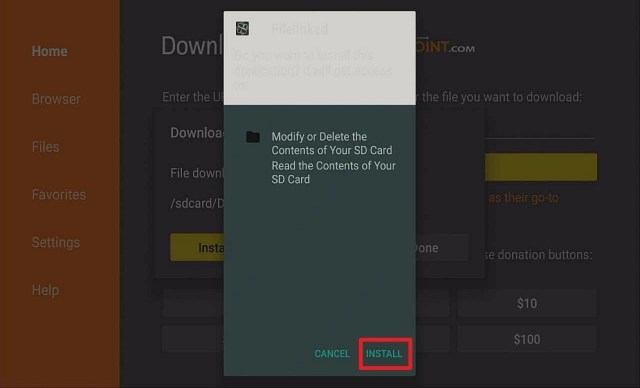
4. Click on Install.
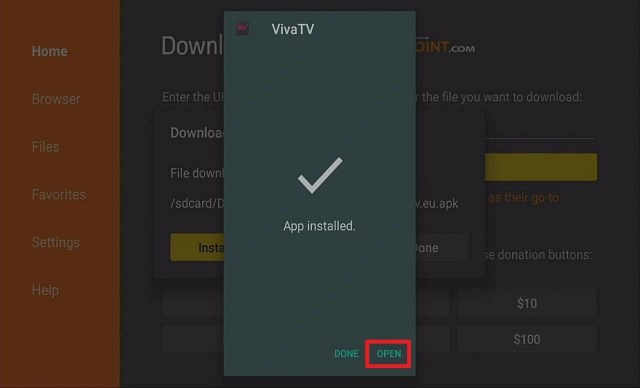
5. Click Open
6. Enjoy Watching Viva TV
How to Install Viva TV on Android
To download and install Viva TV on your Android device,click here.
Note: If you want to find out more about Viva TV, please read ourViva TV Review.
YOUR INTERNET ACTIVITY IS BEING WATCHED
ReviewVPN cannot attest to the legality, security and privacy of the applications discussed on this site. It is highly recommended that you use a VPN service while streaming or using Kodi.
Currently, your IP 216.73.216.1 is visible to everyone and your Browser is being tracked by Advertisers & ISP Provider.
Your activities are hidden from your ISP, the government, and from the apps you are using.
You can access additional movies and TV streams.
ISP attempts to throttle are thrwarted thus reducing buffering issues.
Geographically restricted content like Netflix and Hulu can be unblocked.
A VPN works be replacing your ISP-assigned IP address and creating an encrypted tunnel. We recommend the no log service offered by IPVanish. It works well on a Firestick and offers the fastest possible speeds.
Legal Disclaimer: ReviewVPN.com does not encourage or endorse any illegal activity involved in the usage of services and applications referenced on this site. We do not verify the licensing agreements of services. The end-user is wholly responsible for ensuring that any media accessed through these services does not violate copyright and/or licensing laws. ReviewVPN does not promote, link to, or receive compensation from any Apps and IPTV services.
Cat Mouse is a third-party streaming application that works much like Terrarium TV. It scrapes the web for working streaming links and gathers them in one place that is readily accessible to users. It allows users to watch a decent selection of popular Movies and TV Shows. The content it features is always up to date and you are assured of the best links because of its Real-Debrid Support.
Features:
–Subtitle Support
–HD Content
–Great Selection of Movies and TV Shows
–Fast in playing videos
–It is easy to use because Mouse Toggle is not required.
–Downloadable Content (for Android users).
–Favorites Function to tag all the videos you like.
–Ad-Free
–Real-Debrid Support ensures the highest quality of links.
–Trakt TV Support allows you to catch up where you left off.
–TV Calendar will give you all the scheduled TV Shows for the day.
How to Install Cat Mouse on Firestick Guide
Go to Settings and select Device.
Choose Developer Options
Turn on the ADB Debugging and Apps From Unknown Sources
After turning these options on, launch the Amazon App Store on your device
Search and Download Downloader
Install Downloader and launch it after installing it.
Choose Allow and Select Ok
Type in https://reviewvpn.com/cat and select Go
Wait for it to finish and then select Cat Mouse
Select Done
This will automatically take you back to Downloader. Select Delete
Choose Delete one more time
Head back to the home screen and under the Your Apps & Channels select Choose All
Scroll down and select Cat Mouse and select the Options.
Then select Move to Front
Cat Mouse will be moved forward to Your Apps and Channels
After this, you will see Cat Mouse and click it to launch.
2. Open Downloader App. Type https://reviewvpn.com/cat and click Go.
3. Click on Install.
4. Click Open
5. Click Allow.
6. Click OK.
7. Click ExoPlayer
8. Click Proceed.
9. Enjoy Watching.
How to Install Cat Mouse on Android
To download and install Cat Mouse on your Android device,click here.
Note: If you want to find out more about Cat Mouse, please read ourCat Mouse Review.
Bee TV (Modified Version)
Bee TV is another streaming application that comes from a long line of Terrarium clones. It works very similarly to all its contemporaries providing you with a huge list of TV Shows and Movies which are all updated regularly. You can either install the modified version which we are featuring to avoid ads, or you can choose the original version and use it in conjunction withAd Guard Pro to prevent ads from intruding your streaming experience.
Features:
–Subtitles are available.
–High Definition selection of Movies and TV Shows.
–Quick Loading and Playing Time.
–No Mouse Toggle needed so it is very easy to use.
–Downloadable Video (Android devices only)
–Tag a video as your Favorite
–Premium Links via Real-Debrid, All Debrid, and Premiumize.
–Trakt TV support to always be updated on the latest releases and keep track of your shows and movies.
How to Install Bee TV on Firestick Guide
Go to Settings and select Device.
Choose Developer Options
Turn on the ADB Debugging and Apps From Unknown Sources
After turning these options on, launch the Amazon App Store on your device
Search and Download Downloader
Install Downloader and launch it after installing it.
Choose Allow and Select Ok
Type in https://reviewvpn.com/bee and select Go
Wait for it to finish and then select Bee TV
Select Done
This will automatically take you back to Downloader. Select Delete
Choose Delete one more time
Head back to the home screen and under the Your Apps & Channels select Choose All
Scroll down and select Bee TVand select the Options.
Then select Move to Front
Bee TV will be moved forward to Your Apps and Channels
After this, you will see Bee TVand click it to launch.
2. Open Downloader App. Type https://reviewvpn.com/bee and click Go.
3. Click on Install.
4. Click Open
5. Click Allow.
6. Enjoy Watching Bee TV.
How to Install Bee TV on Android
To download and install Bee TV on your Android device,click here.
Note: Please read ourBee TV Review for other details regarding the application.
CyberFlix
Cyberflix is the heir apparent to Terrarium TV. It has been the go-to third-party streaming application by many users. Boasting high definition Movies and TV Shows that can be counted to the thousands, it is clear why this app is one of the leading terrarium clones out there. Aside from the quality it provides, you can also expect it to give you a seamless streaming experience because it is entirely ad-free. Given all of these reasons, CyberFlix is one of the best Ad-Free Movie Apps that we have encountered.
Features:
–It has subtitle support that makes streaming easier for many people.
–High Quality/Definition Videos through Real-Debrid.
–Relatively fast loading and playing time.
–Easy to use.
–Mouse Toggle is not required.
–Videos can be downloaded and watched offline (Android)
–Bookmark the shows you like by using the Favorites Feature.
–Trak TV Support to be updated on the latest Movie and TV Shows schedules and keep track of everything you are currently streaming.
–Ad-Free
How to Install CyberFlix on Firestick Guide
Go to Settings and select Device.
Choose Developer Options
Turn on the ADB Debugging and Apps From Unknown Sources
After turning these options on, launch the Amazon App Store on your device
Search and Download Downloader
Install Downloader and launch it after installing it.
Choose Allow and Select Ok
Type in https://reviewvpn.com/cyber and select Go
Wait for it to finish and then select CyberFlix
Select Done
This will automatically take you back to Downloader. Select Delete
Choose Delete one more time
Head back to the home screen and under the Your Apps & Channels select Choose All
Scroll down and select CyberFlix and select the Options.
Then select Move to Front
CyberFlix will be moved forward to Your Apps and Channels
After this, you will see CyberFlix and click it to launch.
Note: Cyberflix is now asking for a code. Code is: 1112
2. Open Downloader App. Type https://reviewvpn.com/cyber and click Go.
3. Click on INSTALL.
4. Click OPEN.
5. Click PASSWORD
Note: Cyberflix is now asking for a code.
6. Type 1112. Click NEXT.
7. Click DONE.
How to Install CyberFlix on Android
To download and install CyberFlix on your Android device,click here.
Note: Please read ourCyberFlix Review for more information about the app.
Zini Tevi APK
Among the list we have featured, we can say that Zini Tevi is the least popular. Please do not let its popularity fool you because this app is one to watch out for. It allows users to watch movies and TV shows of the highest quality. Aside from being one of the few streaming applications that have a One-Click Playability, it is also completely ad-free making it twice as lethal and can be considered as one of the Best Ad-Free Movie Apps.
Features:
–One-Click Play
–High-Definition Quality Links for Movies and TV Shows.
–Has a speedy Loading and Playing Time.
–Simple User Interface that makes it easy to use.
–All the videos can be downloaded to your device. (Android)
–Bookmark your favorites.
–Trakt TV Support to keep track of everything you are watching.
–Ad-free
How to Install Zini Tevi on Firestick Guide
Go to Settings and select Device.
Choose Developer Options
Turn on the ADB Debugging and Apps From Unknown Sources
After turning these options on, launch the Amazon App Store on your device
Search and Download Downloader
Install Downloader and launch it after installing it.
Choose Allow and Select Ok
Type in https://reviewvpn.com/zin and select Go
Wait for it to finish and then select Zini Tevi
Select Done
This will automatically take you back to Downloader. Select Delete
Choose Delete one more time
Head back to the home screen and under the Your Apps & Channels select Choose All
Scroll down and select Zini Teviand select the Options.
Then select Move to Front
Zini Tevi will be moved forward to Your Apps and Channels
After this, you will see Zini Teviand click it to launch.
2. Open Downloader App. Type https://reviewvpn.com/zin and click Go.
3. Click Install.
4. Click Open.
5. ZiniTevi is installed. Enjoy Watching!
How to Install Zini Tevi on Android
To download and install Zini Tevi on your Android device,click here.
Note: Please read ourZini Tevi Review for more information about the app.
Ad-Free Streaming with Smart Youtube
Although this app cannot be considered as an Ad-Free Movie Apps, it is the best alternative to ad-free streaming from the popular app of the same name minus Smart. You get the same number of videos and you can even sign in to your Google Account to sync all of your subscriptions.
How to Install Smart Youtube on Firestick Guide
Go to Settings and select Device.
Choose Developer Options
Turn on the ADB Debugging and Apps From Unknown Sources
After turning these options on, launch the Amazon App Store on your device
Search and Download Downloader
Install Downloader and launch it after installing it.
Choose Allow and Select Ok
Type in https://reviewvpn.com/sytv and select Go
Wait for it to finish and then select Smart Youtube
Select Done
This will automatically take you back to Downloader. Select Delete
Choose Delete one more time
Head back to the home screen and under the Your Apps & Channels select Choose All
Scroll down and select Smart Youtubeand select the Options.
Then select Move to Front
Smart Youtubewill be moved forward to Your Apps and Channels
After this, you will see Smart Youtubeand click it to launch.
Install Smart Youtube TV on Firesticks with Screenshots
Theater Plus recently went down for the Firestick and is only accessible to android users. The developer stated that he will release a Firestick version soon. Theater Plus deserves a shoutout because if not for the recent pullout from the Firestick, it is probably the Best Ad-Free streaming application out there. You check this out by installing it on your other android devices and see why it is one of the Best Ad-Free Movie Apps.
Features:
–Subtitle Support
–Dual Language
–One-Click Play
–HD Movies and TV Shows
–One of the fastest to load and play
–Simple user interface
–Does not require Mouse Toggle
–Favorites Function
–Ad-Free
How to Install Theater Plus on Android
To download and install Theater Plus on your Android device,click here.
Note: Please read ourTheater Plus Review for more information regarding the app.
Other Note-Worthy Ad-Free Apps
The following apps did not make it to the cream of the crop but also deserve special mention because they are compatible with the Firestick and are also ad-free.
This procedure is only applicable if you already have Filelinked installed to your Firestick.
How to Install Filelinked on Firestick Guide
Go to Settings and select Device.
Choose Developer Options
Turn on the ADB Debugging and Apps From Unknown Sources
After turning these options on, launch the Amazon App Store on your device
Search and Download Downloader
Install Downloader and launch it after installing it.
Choose Allow and Select Ok
Type in get.filelinked.com and select Go
Wait for the download to finish and select Install
Select Done
This will automatically take you back to Downloader. Select Delete
Choose Delete one more time
Head back to the home screen and under the Your Apps & Channels select Choose All
Scroll down and select Filelinked and select the Options.
Then select Move to Front
Filelinked will be moved forward to Your Apps and Channels
After this, you will see Filelinked and click it to launch.
Input Stream It All’s code which is 6764537 and click on Continue.
Dismiss all the pop-up messages.
Click on the search button and search for the applications we have listed above. i.e. CyberFlix.
Once the result comes back, go down and press on the dropdown button and wait for the download to finish.
After the download, click on the play button to install the app of your choice.
Click on Open to launch the app of your choice.
Note: Stream It All’s Filelinked Store is one of the most updated stores out there. Be sure to check it out using the code 67464537. You can also read ourBest Filelinked Codes for updates on the most popular Filelinked Stores.
2. Open Downloader App. Type https://get.filelinked.com and click Go.
3. Click Install.
4. Click Open.
5. Click Enter Code.
6. Type Code Number and Click Next.
7. Click Continue.
8. There you go, Filelinked is now installed.
Do You Need a VPN?
The most important thing to remember when you are streaming is that it will always be monitored by your ISP. Anything and everything you are being constantly watched by them and other online entities that we are unaware of. Streaming takes a lot of data, especially for HD and 4k content. When this type of activity is seen by your ISP, it will almost immediately throttle down your connection which results in buffering and lags. The only way to mitigate this is by using a premium VPN service likeSurfshark. It will conceal all of your online activity by only showing the ISP the amount of data your device is consuming but not the type of activity it is used for. Aside from this, Surfshark also gives you anonymity as another security feature most especially when you are accessing public WIFI when streaming.
Note: For more information about SurfShark, please read our SURFSHARK REVIEW.
If your Firestick still has the older interface, read this article to learn how to update it: Update Firestick Interface.
You can download Surfshark directly from the Amazon App store. It will be easy for you to find Surfshark with your Firestick’s Find feature. Refer to our screenshots below.
1. Go to the Home screen of your Firestick.
2. Navigate towards the Find tab. Press the Search button from the resulting dropdown.
3. Type in the keyword of SurfShark and select from the suggestions that will appear.
4. Click the official SurfShark icon from your search results.
5. Press the Download (You own it) button.
6. The SurfShark VPN installer will download on your device.
7. SurfShark VPN’s app will automatically install itself on your Fire TV stick.
8. Press the Open button after completing SurfShark VPN’s installation process.
9. Please wait for the SurfShark VPN to load its user interface.
10. You can now log in with your SurfShark VPN account credentials.
Selecting the Best Ad-free Movie Apps to download and install on your Firestick is a hard task. You must keep in mind that there are criteria that we should consider and one of which is Ad-free streaming. To maintain an uninterrupted streaming experience, this should be considered fully. The third-party streaming applications we have featured were all run and tested by us and we can attest to their capabilities. Please watch out for more of our BEST series to come.
We sincerely wish that this write-up helps you in choosing the Best Ad-Free Movie Apps for Firestick. Thank you for reading. Stay safe!
Note: ReviewVPN.com does not own or operate any app nor does it endorse any. The main purpose of this article is strictly for educational purposes only.
NHK (Nippon Hoso Kyokai) WORLD-JAPAN is a live streaming application by Japan’s only public media organization NHK available in the Amazon App Store. This app lets you stream world news, culture, travel, and the latest information about Japan and Asia. Though the headquarters of NHK is in Japan, streamers all over the world will like this app since programs are in English or have subtitles.
Install NHK World-Japan on Firestick Guide
Since NHK World-Japan is an official app on the Amazon App Store, you can directly download the app without having to jailbreak your Firestick. For the steps on how to install NHK World-Japan on your Firestick device, you may follow the guide below:
You may use the Alexa voice command or simply type in “NHK World-Japan”.
Tap on the icon of the application to download.
Select “Get”.
Then wait for the app to be installed.
Once done, click “Open” to launch the app.
Then, a Privacy Policy on Services will appear. Simply click on “I agree”.
There you have it, NHK World-Japan is already installed on your Firestick device.
If your Firestick still has the older interface, read this article to learn how to update it: Update Firestick Interface.
Install NHK World-Japan on Firestick with Screenshots
1. Click FIND.
2. Click Search.
3. Type in “NHK World-Japan”.
4. Tap on the icon of the application to download.
5. Select “Get”.
6. Then wait for the app to be installed.
7. Once done, click “Open” to launch the app.
8. Then, a Privacy Policy on Services will appear. Simply click on “I agree”.
9. There you have it, NHK World-Japan is already installed on your Firestick device.
Click here to get the lowest price on Surfshark through our exclusive limited-time offer.
App Features
Interface
Once you launch the app, a live stream will automatically start playing on the Homescreen.
It features NHK Top Docs, Coronavirus updates, Latest Shows, Playlists, Clips, and Programs.
The app has categories for Arts & Design, Biz/Tech, Culture & Lifestyle, Current Affairs, Debate, Disaster Preparedness, Documentary, Drama, Entertainment, Food, Interview, Learn Japanese, Pop Culture & Fashion, Science & Nature, Sport, and Travel.
It has a Search function.
Thumbnails of live channels can be seen on the Homescreen.
The app has subtitle support (i.e. Spanish, Chinese, French, Indonesian).
The primary language used in NHK World-Japan is English.
The TV show schedule is provided and can be seen on the app.
Has weather updates for countries such as Moscow, Kyiv, Vienna, Rome, and Athens.
Playing Speed
The live streaming video will take some time to load depending on the speed of your internet connection
Pros and Cons
Pros
Has the option to view live TV with subtitles
Though the app is for Japan, videos and news on the app are in English
It supports multilingual live captioning
It has playlists and short clips
Cons
None so far since the app is working fine and provides what it should be providing without bugs
YOUR INTERNET ACTIVITY IS BEING WATCHED
ReviewVPN cannot attest to the legality, security and privacy of the applications discussed on this site. It is highly recommended that you use a VPN service while streaming or using Kodi.
Currently, your IP 216.73.216.1 is visible to everyone and your Browser is being tracked by Advertisers & ISP Provider.
Your activities are hidden from your ISP, the government, and from the apps you are using.
You can access additional movies and TV streams.
ISP attempts to throttle are thrwarted thus reducing buffering issues.
Geographically restricted content like Netflix and Hulu can be unblocked.
A VPN works be replacing your ISP-assigned IP address and creating an encrypted tunnel. We recommend the no log service offered by IPVanish. It works well on a Firestick and offers the fastest possible speeds.
Even if NHK World-Japan is a legal and verified app available in the Amazon Appstore, we still encourage our readers to secure themselves a VPN for a more secure and safe live TV streaming experience. Below are some of the benefits of having a VPN like Surfshark when accessing live content online:
You can enjoy unlimited live streaming on your favorite live TV apps like NHK World-Japan without the fear of reaching the data cap set by your ISP. A VPN will avoid your online activity from being tracked by your ISP since you’ll be using a different IP address so lags and buffers will prevent.
Your online activity and information will be kept private since you are using an anonymous IP address. In this way, phishers and hackers will be prevented since they won’t be able to access your device and gain your personal information that they can use for malicious or monetary threats.
You’ll be able to access Geo-restricted contents since a VPN will give you an IP address that’s set in the US. You can also personally set your IP address in different countries where you want to access contents that are only available in their region.
To learn more about Surfshark and its benefits, clickhere.
If your Firestick still has the older interface, read this article to learn how to update it: Update Firestick Interface.
You can download Surfshark directly from the Amazon App store. It will be easy for you to find Surfshark with your Firestick’s Find feature. Refer to our screenshots below.
1. Go to the Home screen of your Firestick.
2. Navigate towards the Find tab. Press the Search button from the resulting dropdown.
3. Type in the keyword of SurfShark and select from the suggestions that will appear.
4. Click the official SurfShark icon from your search results.
5. Press the Download (You own it) button.
6. The SurfShark VPN installer will download on your device.
7. SurfShark VPN’s app will automatically install itself on your Fire TV stick.
8. Press the Open button after completing SurfShark VPN’s installation process.
9. Please wait for the SurfShark VPN to load its user interface.
10. You can now log in with your SurfShark VPN account credentials.
This app works on Amazon Fire TV, Android TV, and Apple TV.
Conclusion
Japan is one of the most well-loved countries worldwide because of its history, culture, and beauty. With this, many are interested in the country itself as well as in what’s happening there. So NHK World-Japan is an app that’s suitable and recommendable for people who are curious about Japan as well as past and potential tourists worldwide who want to remain updated on recent happenings. I also like that there are documentaries that you can watch aside from their live TV channels.
Thank you for reading our article on NHK World-Japan. We hope we were able to help you search and download the app on your Firestick device and gave you a helpful overview of what NHK World-Japan is and what it has to offer to its viewers.
This article will show you how to watch Pay-per-View (PPV) on Firestick.
Pay-per-view (PPV) is a popular television service that most people use to watch live boxing, MMA, Wrestlemania, NBA, NFL, UFC, Superbowl events, and more. While it requires viewers to pay a fee to acquire access to a specific program, it is a commonly endorsed streaming function provided by several internet and television show providers.
And because PPVs are only available during a live broadcast of a sporting event, viewers are willing to spend money solely to see a certain sporting event or well-known match. Furthermore, fans and avid viewers of a particular sport pay for well-known services for quality and exclusive coverage.
Above all, PPV streaming events are pretty comparable to people purchasing tickets to view a live arena match. The only difference is that viewers may watch these shows from the comfort of their own homes, using any high-quality home entertainment platform they own such as the Firestick.
And since PPV streaming choices have grown in scope and appeal to a wider range of users, we’ll provide you with a rundown of the best services currently available.
Watch PPV on Firestick
The following are the most popular and highly recommended streaming apps for quality Pay-per-View content. However, some of them only provide access to certain regions. But don’t worry, because a VPN can give you an IP address from any country, allowing you to seamlessly access any apps that offer live PPV streaming.
DAZN
You might think that DAZN is only accessible for Boxing matches if you look at the homepage. However, the following sports are also available on DAZN: MMA, Darts, Indoor Football, Extreme Sports, Soccer, Pool, and Golf. Aside from that, they have a boxing archive and documentaries that you may watch.
Moreover, you can choose between a $19.99 monthly subscription or a $14.99 annual subscription. Further, DAZN also works with a wide range of devices, including mobile phones, tv sets, and game consoles. So, whether you want to watch on your Firestick, Android/iOS, or Roku, DAZN is available on all of them for PPV streaming.
You can read more about how to install the DAZN app on your Firestick device in our article.
Showtime
Showtime is a popular Firestick app that offers exclusive material related to contact sports. In collaboration with HBO, Showtime focuses on competitive fighting such as Boxing and MMA. However, special competitive sports, such as NFL football games, are also available. Moreover, the Showtime app provides access to a variety of entertainment and media content.
In addition, the best part about Showtime is that it offers a free 30-day trial. So you may try it out first to see whether you like it before committing to a subscription. Furthermore, their monthly subscription plan costs $10.99.
Showtime is included in our list of the Best Sports Streaming Apps. You may learn more about it by reading our article.
ESPN Plus
ESPN+ is a US-based streaming service that allows users to watch and choose from thousands of sports videos and events. Once you’ve installed the ESPN app on your Firestick, you’ll be able to watch highlights of particular games, get updates, and keep track of your favorite teams and players. Moreover, it also has PPV access to Soccer, Combat, College, Baseball, Tennis, Golf, and other sports.
Further, the ESPN+ subscription costs $6.99 per month or $69.99 per year. You can also bundle ESPN+ with Disney+ and Hulu for $13.99/month.
ReviewVPN cannot attest to the legality, security and privacy of the applications discussed on this site. It is highly recommended that you use a VPN service while streaming or using Kodi.
Currently, your IP 216.73.216.1 is visible to everyone and your Browser is being tracked by Advertisers & ISP Provider.
Your activities are hidden from your ISP, the government, and from the apps you are using.
You can access additional movies and TV streams.
ISP attempts to throttle are thrwarted thus reducing buffering issues.
Geographically restricted content like Netflix and Hulu can be unblocked.
A VPN works be replacing your ISP-assigned IP address and creating an encrypted tunnel. We recommend the no log service offered by IPVanish. It works well on a Firestick and offers the fastest possible speeds.
Legal Disclaimer: ReviewVPN.com does not encourage or endorse any illegal activity involved in the usage of services and applications referenced on this site. We do not verify the licensing agreements of services. The end-user is wholly responsible for ensuring that any media accessed through these services does not violate copyright and/or licensing laws. ReviewVPN does not promote, link to, or receive compensation from any Apps and IPTV services.
FITE TV is a premier app developed for enthusiasts of competitive sports. It features wrestling, MMA, boxing, and knuckle mania. Furthermore, FITE TV allows users to watch live sporting events as well as a variety of on-demand entertainment.
Fite+ costs $4.99 per month or $49.99 per year, which is significantly less than the previously mentioned programs. These include unlimited on-demand PPV access, ad-free streaming, and two FITE credits every month for live PPV viewing.
You may read more about how to install the FITE TV on your Firestick device in our article.
Sky Sports
Sky Sports is another popular network, owing to its extensive sports channels. It has also established a reputation in the United Kingdom for presenting PPV events and sports. Furthermore, the Sky Sports Box Office allows you to watch the newest sporting events on your Sky+HD or Sky Q Box from the comfort of your own home. Some of the sports events that you can watch are Football, Rugby, Cricket, Golf, Formula 1, and more.
You can learn more about Sky Sports‘ content and subscription options by visiting their website.
YOUR INTERNET ACTIVITY IS BEING WATCHED
ReviewVPN cannot attest to the legality, security and privacy of the applications discussed on this site. It is highly recommended that you use a VPN service while streaming or using Kodi.
Currently, your IP 216.73.216.1 is visible to everyone and your Browser is being tracked by Advertisers & ISP Provider.
Your activities are hidden from your ISP, the government, and from the apps you are using.
You can access additional movies and TV streams.
ISP attempts to throttle are thrwarted thus reducing buffering issues.
Geographically restricted content like Netflix and Hulu can be unblocked.
A VPN works be replacing your ISP-assigned IP address and creating an encrypted tunnel. We recommend the no log service offered by IPVanish. It works well on a Firestick and offers the fastest possible speeds.
Now that we’ve identified the best applications for watching Pay-per-View on Firestick, let’s look at some of the benefits of streaming PPV.
Live Video Coverage
Pay-per-view programs have historically covered exclusive sports events in recent years. It has made it possible for people to watch many of these well-known sporting events in a high-definition video in real-time. Think about being able to watch your favorite athlete compete against a rival using live and exclusive footage from the arena.
Remote-Viewing
Imagine not needing to queue for tickets or the main event to witness your favorite players and matches. Aside from that, not everyone gets access to the venue to watch live matches. However, thanks to pay-per-view, you can watch any live sport from the comfort of your own home.
Saving Resources
Pay-per-View has become an international phenomenon after successfully covering significant sports milestones over the last decade. It is the most reasonable and practical option for people who want to witness a sporting event held in another country. Moreover, for some people with travel conflicts, work engagements, or priorities to fulfill, PPV may be the most efficient way.
Watch PPV Events with a VPN
Streaming high-quality footage of Pay-per-View (PPV) sports events can be monitored by your internet service provider (ISP). Streaming high-resolution videos can strain internet bandwidth.
It causes your IP to request additional loads from the server which may result in lags, stuttering, and buffering. These factors often result in an inconvenient streaming experience while watching intense close-quarter combat rounds.
As the best solution, we recommend having a powerful VPN like Surfshark. Surfshark VPN is designed to protect you while streaming dedicated PPV shows. Surfsharkis the best VPN and your ally while watching one-off PPV programs.
Here is a list of advantages that Surfshark may offer you:
Adds a virtual shield that prevents your ISP from monitoring your online activities.
Bridges you to digital tunnels in cyberspace that nullify the limits placed by geo-blocks stopping you from accessing exclusive online content.
Hides your identity from several online threats like hackers that want to steal your credentials, personal data, and valuable information.
Secures your information and crucial documents from malware and ransomware.
Keeps you anonymous while using the internet.
Boosts your connectivity rate.
Torrent downloads are faster and easily accessible.
Aids your device while preventing Firestick buffering and Kodi buffering.
Note: For more information about Surfshark, please read our Surfshark Review.
Pay-per-View, most commonly known as the acronym of PPV is a subscription-based limited offer from popular streaming services. It requires a viewer to pay a fee to be granted access to a certain sports event or celebrity fighting match. First introduced to cover boxing championships, PPV has earned millions of audiences worldwide. PPV with online streaming services often provides exclusive live footage covering competitive fighting sports.
Is Pay-per-View available in multiple languages?
From the time that PPV was premiered, some cable TV providers employ on-site translators to explain various moments occurring during Live Sports events. Transitioning to an online capability, the tradition of language translation has been kept so viewers from other countries can understand the actual situation happening within a live video feed.
What sports does PPV usually cover?
Originally launched by cable TV services to provide live boxing videos into the comfort of our homes, modern PPV programs cater to multiple sports events. PPVs have distributed live footage primarily from boxing, mixed martial arts, and wrestling, and have become a mainstay in fighting sports. Some applications available on the internet also provide PPV services for other sports events like basketball, volleyball, soccer, and baseball.
Can you watch a PPV show again?
Typical Pay-per-View live streams only last until the completion of the entire sports event. It is the reason why Pay-per-View shows are considered a one-off and a limited streaming session. In some cases, various applications that have dedicated PPV services provide their subscribers access to the sports video footage days after its initial debut.
Can you watch a PPV event on another device?
Yes. As long as you utilize the same account for registering with the PPV service provider, you can use it to log into another device and watch the live sports event coverage. You can also do this by installing the similar application you have downloaded and installed where you paid a fee to watch a limited live sports feed.
Conclusion
PPV capability has been launched by cable TV services to provide home viewers with fresh and live video feeds covering boxing championships. The Pay-per-View model is a one-off live streaming session where viewers are required to pay a fee to gain access to live video footage of a popularized sports event or competitive fighting sports duel. Several online streaming services have included PPV applications which can be downloaded to a variety of modern streaming devices.
We hope that this article has provided you with additional knowledge on how to watch PPV on Firestick.
In this article, we will discuss more on how you can watch Bravo App on your Firestick.
Whether you are a big fan of The Real Housewives of New York City or not, we all know there is not enough Bravo on your schedule per week.
The great news is that Bravo App is now available on multiple screens and devices depending on when or where you want to watch it.
Bravo App allows you to stream the most recent episodes of your favorite shows.
Anything that Live TV offers like trending videos, news, and others that meet your taste can now come in handy with just one download and no subscription cost.
It is a good thing to know that this is available on Amazon Firestick. Bravo App has a high rate of 4.0 out of 5-star recommendations in Amazon App Store and has consistent wide streamers in the US.
How to Install Bravo Live on Firestick
Bravo App is already available on Amazon Appstore, which gives you an easier way of installing it on your Firestick. You do not need to sideload the app because all you need is to follow the steps below:
On your Firestick home screen, look for the search button.
Type in Bravo and click the Bravo App that is suggested on your screen.
Click the Get icon and start downloading.
Wait for the application to complete its download and installation.
Click Open and your Bravo App are ready for streaming.
How to Activate Bravo Live on Firestick
To have complete navigation access on your application, you need to activate your Bravo App using your television provider app.
Here are the steps to follow:
Open the Bravo App on your Firestick
Bravo logo will appear, followed by its home screen. On the top bar options, click More.
Select My Profile. You need to sign in with your tv provider or using NBCUniversal Profile.
Click Sign In and wait for the generated activation code.
Using a different device, open this link: https://www.nbc.com/nbcuniversalfamily/activate?brand=bravo and enter the activation code
Click Continue
You will again Sign Up for your NBCUniversal Profile.
Enter your email address upon selecting to Sign Up with Email option.
Choose to Agree on the terms and conditions of NBCUniversal Profile’s policy, then click Sign Up to proceed.
Link your TV provider afterward. Enter your credentials to complete the activation process.
YOUR INTERNET ACTIVITY IS BEING WATCHED
ReviewVPN cannot attest to the legality, security and privacy of the applications discussed on this site. It is highly recommended that you use a VPN service while streaming or using Kodi.
Currently, your IP 216.73.216.1 is visible to everyone and your Browser is being tracked by Advertisers & ISP Provider.
Your activities are hidden from your ISP, the government, and from the apps you are using.
You can access additional movies and TV streams.
ISP attempts to throttle are thrwarted thus reducing buffering issues.
Geographically restricted content like Netflix and Hulu can be unblocked.
A VPN works be replacing your ISP-assigned IP address and creating an encrypted tunnel. We recommend the no log service offered by IPVanish. It works well on a Firestick and offers the fastest possible speeds.
Legal Disclaimer: ReviewVPN.com does not encourage or endorse any illegal activity involved in the usage of services and applications referenced on this site. We do not verify the licensing agreements of services. The end-user is wholly responsible for ensuring that any media accessed through these services does not violate copyright and/or licensing laws. ReviewVPN does not promote, link to, or receive compensation from any Apps and IPTV services.
There is a lot to explore using Bravo App. Being one of the oldest running channels in the US, it offers good content programming that you must check out now that it is on an application.
Content
NBCUniversal Content is available including, NBC, E, USA, SYFY, Oxygen, MSNBC, CNBC, Universal Kids, Universo and Telemundo
A vast catalog of different tv shows, films, and on-demand shows
Live streams and schedules are available 24/7
Watch the latest episode of a new TV show after they air on TV
Interface
Ease of accessibility
Clutter-free menus
You can easily sync your favorite shows and episodes on multiple devices.
Available in 1080p full HD resolution
TV on the go! You can pause your current watch and pick up what you left off anytime.
Can filter a show depending on the genre while you browse
Pros and Cons
Pros
You can watch whenever and wherever you wanted to
All shows of Bravo are in the application
Good HD resolutions
Easy interface
Faster access on recently aired episodes
Available on multiple devices such as iOS, Android App, Roku Channel, Apple TV App, Amazon TV
Cons
It can be very glitchy
The app takes a long time before finding the correct setup for the application to work
Ads are present
FAQs
What is Bravo App?
Bravo App is the application created by NBCUniversal Media Channel LLC and Bravo channel to expand their viewers through adapting modernization by acquiring access on a streaming device for their contents.
Is the application available on Amazon App?
Yes. It is available on the Amazon App.
Why do you need a TV Provider for the Bravo App?
This is for you to gain access to all the shows and contents available on Bravo App.
Can you watch Bravo App on Firestick without cable?
Yes. If you don’t have any tv providers, there are on-demand streaming services channels that can help you like Fubo TV, Youtube TV, and Sling TV.
Stream Safely with a VPN
Streaming online is a huge responsibility in terms of providing security on being anonymous. One should understand that it is still better to stream applications safely and securely. It is necessary to protect your privacy online.
You can do it with the use of a Virtual Private Network or VPN. It is needed because it allows you to hide your identity whenever you are streaming online. Choosing the right VPN can also be tricky because not every VPN promotes a hundred percent safety rate. Good thing, we can recommend you Surfshark.
Here are the reasons why you should consider having it:
It secures protection on your ISP when you are streaming the app.
It provides safety measures from hackers that can track your identity.
Your data will be encrypted and be kept anonymous all the time
Keeps your data from harmful malware
It makes your internet speed faster
Note: For more information about Surfshark, please read our Surfshark Review.
For more VPN discounts, go to ReviewVPN Deals and purchase the best VPN for you.
Alternative App for Bravo Live App
Bravo Live App may feature most of the shows you are looking for but, the thing about live TV streaming apps, you always need to see other applications for your reference. Most of the applications are already available on Amazon App and, all you need is to download them.
Here is the list of alternative applications you can choose from:
Bravo App is an application that allows you to get the latest on the recent content Bravo Channel provides on your regular television. Adapting through making it available on larger platforms such as this application is already a win if you are a big fan of Bravo.
The app comes with features that one might enjoy or consider, especially if you have TV providers. If you do not have any TV providers, you can still stream regular shows with other streaming channels with additional subscriptions. Nonetheless, it works just fine if all you want is to watch shows anytime you want to.
We hope this article provided you with the needed information on how you can watch Bravo App on your Firestick.
Every one of us is familiar with Facebook. It is one of the most used applications worldwide. We post, we share, and we comment on almost everything that is going on in our lives. Well, that is how social media works nowadays.
As the app upgrades and evolves throughout the year, new features have been added. Now, a new app emerged from Facebook called the Facebook Watch.
You can definitely sign in to your Facebook account with this app, but you can also use it without doing it so.
Using Facebook Watch, you can stream videos, music, live gaming, live shows, and even upload your own videos to share.
The best thing is, this app is 100% free and available on Firestick. But it uses cookies even so it is better to always be protective of your online privacy with a VPN.
If your Firestick still has the older interface, read this article to learn how to update it: Update Firestick Interface.
How to Install Facebook Watch on Firestick with Screenshots
1. Click FIND.
2. Click Search.
3. Search for Facebook Watch.
4. Select the icon of Facebook Watch when it appears.
5. Click the Get or Download button
6. Wait for the app to be installed
7. Launch the app by clicking the Open button
Legal Disclaimer: ReviewVPN.com does not encourage or endorse any illegal activity involved in the usage of services and applications referenced on this site. We do not verify the licensing agreements of services. The end-user is wholly responsible for ensuring that any media accessed through these services does not violate copyright and/or licensing laws. ReviewVPN does not promote, link to, or receive compensation from any Apps and IPTV services.
The interface of the Facebook Watch is nothing like the Facebook app.
It is still easy to navigate through the app.
When you are at the home screen of the app, it seems a lot like Youtube
The search engine is available
Tabs for Search, Home, Gaming, Live, You Videos, Settings, and Facebook login
Content
Original contents are available
You can upload your own videos but you need to log in first.
Videos auto-play when you launch the app
Not all videos are high definition
Game streams are available
Live shows
Music Videos
A lot of various videos are present
YOUR INTERNET ACTIVITY IS BEING WATCHED
ReviewVPN cannot attest to the legality, security and privacy of the applications discussed on this site. It is highly recommended that you use a VPN service while streaming or using Kodi.
Currently, your IP 216.73.216.1 is visible to everyone and your Browser is being tracked by Advertisers & ISP Provider.
Your activities are hidden from your ISP, the government, and from the apps you are using.
You can access additional movies and TV streams.
ISP attempts to throttle are thrwarted thus reducing buffering issues.
Geographically restricted content like Netflix and Hulu can be unblocked.
A VPN works be replacing your ISP-assigned IP address and creating an encrypted tunnel. We recommend the no log service offered by IPVanish. It works well on a Firestick and offers the fastest possible speeds.
Can use it even without logging in to your Facebook account
Lots of various videos are present
Zero to minimal advertisements
Cons
App uses cookies
Some videos are not in high definition
Lots of buffering time
FAQs
What is Facebook Watch?
Facebook Watch is an app from Facebook where you can watch live and on-demand content.
How to Watch Facebook Live?
Using Facebook Watch you can be able to watch Facebook live. You can also use it on the official Facebook app as an added feature but you can also install the app on Firestick.
What is a watch party on Facebook?
A Facebook watch party is live streaming where you can watch public videos with your friends or other people.
How to watch Facebook Live on TV?
Using Facebook Watch app you can be able to watch Facebook live on our TV.
How to Watch Live Stream on Facebook?
As an added feature and as an individual app, it lets you watch live streams on Facebook.
Stream Safely with a VPN
This app uses cookies. Although it might not be harmful, it is still better to protect your online privacy when you stream to different apps.
In order to protect your IP from hackers or even from your very own Internet Service Provider (ISP), you need to use a VPN. You just have to use the best premium VPN to do it so.
Here at reviewvpn.com, we recommend Surfshark. Personally speaking, we tested it and prove that it is the best one in the market. It is applicable to all types of devices and it surely provides great benefits to its users.
Some of these benefits are:
Provide an additional wall of protection from your ISP while streaming and from hackers when you are using public wi-fi.
Acts as a tunnel that connects you to other servers all over the world.
Demolishes geo-blocks that stop you from accessing some content.
Gives easy access and downloads from different torrent sites without being caught.
Your connections and data will be kept encrypted and anonymous
Click here to get the lowest price on Surfshark through our exclusive limited-time offer.
How to Install Surfshark VPN on Firestick
If your Firestick still has the older interface, read this article to learn how to update it: Update Firestick Interface.
You can download Surfshark directly from the Amazon App store. It will be easy for you to find Surfshark with your Firestick’s Find feature. Refer to our screenshots below.
1. Go to the Home screen of your Firestick.
2. Navigate towards the Find tab. Press the Search button from the resulting dropdown.
3. Type in the keyword of SurfShark and select from the suggestions that will appear.
4. Click the official SurfShark icon from your search results.
5. Press the Download (You own it) button.
6. The SurfShark VPN installer will download on your device.
7. SurfShark VPN’s app will automatically install itself on your Fire TV stick.
8. Press the Open button after completing SurfShark VPN’s installation process.
9. Please wait for the SurfShark VPN to load its user interface.
10. You can now log in with your SurfShark VPN account credentials.
For more VPN discounts, go to ReviewVPN Deals and purchase the best VPN for you.
Alternative Applications for Facebook Watch
This app lets you watch various content all over the internet. Although it is new and has a lot, you can still consider other apps like Facebook Watch.
Here are some of the best alternatives for this app:
Facebook Watch is a great deal. All of the wonderful content that you like to stream on Facebook is also available on this app.
We cannot emphasize enough how you can easily stream through the app even without login into your Facebook account. There are also zero advertisements present which makes it even better.
The bad side though is the usage of cookies by the app. Just always use a VPN to protect your identity whenever you are streaming on this app.
We hope that this article is a great help for you to learn about Facebook Watch, and how to install it on Firestick.
This article will help you install Crossy Road on Firestick.
Crossy Road is an arcade video game developed by Hipster Whale in 2014 that has the concept of “Why did the chicken cross the road?” and has been described as an “Endless Frogger”.
It is a fun game to cross an endless series of roads and avoid obstacles such as drivers, cars, and trains without getting killed. This game may seem very easy but an addictive game that needs a lot of focus to pass all obstacles.
Coins are scattered across the road. For every movement that you will earn coins, you can use them to make new characters playable. It has a simple and easy-to-use interface that you can have on your Firestick and other devices.
On your Firestick home screen, look for the Search button (Magnifying glass icon).
Type in Crossy Road.
Click on the suggestion.
Select the Icon of the Crossy Road.
Tap on the Get or Download button to install the app.
Wait a few minutes for the app to be installed.
Click Open to launch the app.
There you go! Enjoy playing Crossy Road.
If your Firestick still has the older interface, read this article to learn how to update it: Update Firestick Interface.
How to Install the Crossy Road on Firestick with a Screenshot
1. Click FIND.
2. Click Search.
3. In the search bar, type Crossy Road and click on the suggestions below.
3. Now, select Crossy Road.
4. Click on Get or Download
5. Wait for a few minutes for the app to be installed.
6. Tap on the Open button to launch the app.
7. Enter your Age for verification.
8. There you go! Enjoy playing Crossy Road.
YOUR INTERNET ACTIVITY IS BEING WATCHED
ReviewVPN cannot attest to the legality, security and privacy of the applications discussed on this site. It is highly recommended that you use a VPN service while streaming or using Kodi.
Currently, your IP 216.73.216.1 is visible to everyone and your Browser is being tracked by Advertisers & ISP Provider.
Your activities are hidden from your ISP, the government, and from the apps you are using.
You can access additional movies and TV streams.
ISP attempts to throttle are thrwarted thus reducing buffering issues.
Geographically restricted content like Netflix and Hulu can be unblocked.
A VPN works be replacing your ISP-assigned IP address and creating an encrypted tunnel. We recommend the no log service offered by IPVanish. It works well on a Firestick and offers the fastest possible speeds.
Legal Disclaimer: ReviewVPN.com does not encourage or endorse any illegal activity involved in the usage of services and applications referenced on this site. We do not verify the licensing agreements of services. The end-user is wholly responsible for ensuring that any media accessed through these services does not violate copyright and/or licensing laws. ReviewVPN does not promote, link to, or receive compensation from any Apps and IPTV services.
Collect 270 retro-styled, pop art-inspired characters.
Language
It supports different languages such as English, French, Dutch, Italiano, Español, Portuguese, Chinese, Thailand, Taiwanese, Korean, and more.
Customer Support
If you have any concerns regarding this game, you can directly email them at their official email support@crossyroad.com. They also provide a “support” button for you.
Conserve Battery
Since this app is also applicable on any device, they also provide a “Conserve Battery” button to lessen the graphics and save the battery.
Parental Controls Button
Disable Video Ads – Play smoothly without any ads and interruptions by enabling this button.
Disable Daily Level
Free Gift
Every 3 minutes, this game will give you a reward or a gift containing coins or new skin.
Compatible Devices
This game works well on any devices including:
iOs
Android
Amazon Fire TV
Android TV
Apple TV
Xbox
Window PC
Pros and Cons
Pros
It is easy to control without using any game controllers.
Game skin to buy using coins.
Series of obstacles to pass.
Good graphics and sounds.
Cons
It does not have any multiplayer mode.
FAQs
Who owns Crossy Road?
Matt Hall is the founder of indie studio Hipster Whale and the creator of Crossy Road.
Is the Crossy Road free?
Yes, this game is free to download and use.
Is Crossy Road safe to use?
Yes, it is safe to use, but to ensure your safety, we recommend using an Surfshark.
How to download Crossy Road on my PC?
You can download this game on your PC using an emulator such as Bluestcaks.
Can I play this game on my TV without a console?
Yes, it is now possible to play this game even without a game console. You can play and control it using your remote only.
Should I use a VPN?
Playing online games requires a high-speed connection, in order to play them smoothly and have a better experience in playing. That is why we recommend using a Virtual Private Network on your device and enjoying lots of benefits it gives to its users. A high-speed VPN provides a reliable and secure connection to give a better experience online and ensure your privacy online.
One of the proven and tested VPNs that we can recommend is Surfshark, known as the fastest and most reliable VPN, which provides its users the quality of service they deserve.
We list down some of the benefits that Surfshark has to offer
Keep your identity anonymous to protect you from hackers, especially when you are using public wi-fi.
Increases your internet speed with zero lags.
Lets you connect to an anonymous IP address with no IP address leaks.
Keep your file protected from harmful malware.
A high standard of AES 256-bit encryptions will safeguard all of your data.
Prevent ISPs from interfering with your connection and speed up your internet.
It provides a secure environment for everyday internet activity.
Bypass censorship and restrictions.
Destroys geo-block and gains access to different content globally.
Note: For more information about SurfShark, please read our SURFSHARK REVIEW.
We list down some alternative games that you can find on your Firestick. You can directly install these games on your Firestick because they are an official app on Amazon.
Crossy road is a simple yet addictive game with cute characters for everyone. It is an endless game that everyone will love playing, where you just need to pass obstacles to complete a level and get a new character and rewards. This game is very applicable and easy to control on any device, even on your TV. We hope that this article gives you information about Crossy Road and helps you with how to install it on a firestick.
PBA Bowling Challenge is an exciting virtual game to play bowling. This game allows you to challenge a virtual star from the Professional Bowling Association (PBA), and you can also play with your friends in multiplayer mode.
This game has a lot of opponents to beat and locations to unlock. You can choose from over 100+ different bowling balls and have real experience in bowling. It is easy to use and control, as you just need to move the ball right and left, and drag your fingers with the precise forces on where you want to throw the ball.
How to Install the PBA Bowling Challenge app on Firestick
Follow these simple steps below.
On your Firestick home screen, look for the Search button (Magnifying glass icon)
Type in PBA Bowling Challenge.
Click on the suggestion.
Select the Icon of the PBA Bowling Challenge.
Tap on the Get or Download button to install the app.
Wait a few minutes for the app to be installed.
Click Open to launch the app
There you go! Enjoy playing the PBA Bowling Challenge.
Features of PBA Bowling Challenge
Interface
Excellent graphics and good quality of sound.
Easy to control.
Customize your game ball and buy new balls, pins, oil patterns, and other equipment by increasing the level to get rewards.
Cloud Save
This game allows you to save your game by signing in with a Google account.
Bowling Balls
Keep on playing and increase your level up to level 999 and get the chance to use different kinds of balls.
Venues
It has 45 different venues to unlock using your rewards. You got the chance to try amazing venues, including Bowl-O-Rama, comet bowl, Club Sheik, the downtown, and more.
Different Game Modes:
Quick Match
Play the game alone and practice as much as you want for free.
Career Mode
Win against over 20 professional bowlers in the PBA.
Have a chance to participate in over 70 tournaments.
Unlock other modes, including; League, Pro-Am, PBA Regional East and West, PBA Tour, Worlds Series of Bowling, and Elias Cup.
Keep playing in Career mode and unlock different events such as Daily Challenge, Weekend Challenge, and Zodiac Strikes.
Multiplayer Mode
Invite your friends or random players and have a match to win rewards.
Legal Disclaimer: ReviewVPN.com does not encourage or endorse any illegal activity involved in the usage of services and applications referenced on this site. We do not verify the licensing agreements of services. The end-user is wholly responsible for ensuring that any media accessed through these services does not violate copyright and/or licensing laws. ReviewVPN does not promote, link to, or receive compensation from any Apps and IPTV services.
YOUR INTERNET ACTIVITY IS BEING WATCHED
ReviewVPN cannot attest to the legality, security and privacy of the applications discussed on this site. It is highly recommended that you use a VPN service while streaming or using Kodi.
Currently, your IP 216.73.216.1 is visible to everyone and your Browser is being tracked by Advertisers & ISP Provider.
Your activities are hidden from your ISP, the government, and from the apps you are using.
You can access additional movies and TV streams.
ISP attempts to throttle are thrwarted thus reducing buffering issues.
Geographically restricted content like Netflix and Hulu can be unblocked.
A VPN works be replacing your ISP-assigned IP address and creating an encrypted tunnel. We recommend the no log service offered by IPVanish. It works well on a Firestick and offers the fastest possible speeds.
It is easy to control without using any game controllers.
Variety of contents to unlock.
Good graphics and sounds.
Multiplayer mode.
Cons
It requires the user to sign in.
FAQs
History
This app is offered by Concrete Software, Inc and was released in 2018 with over 10,000,000+ downloads.
Is the PBA Bowling Challenge free?
Yes, it is free to download and use.
Is the PBA Bowling Challenge safe to use?
Yes, it is safe to use.
Is this game applicable to my PC?
Yes, this game also works on PC, and you can install it via emulators such as Bluestcaks.
Can I play this game on my TV without a console?
Yes, it is now possible to play this game even without a game console, and you can easily control it using your Firestick remote only.
Should I use a VPN?
Since this game requires you to sign in to save your game, you will need to use a Virtual Private Network to keep your data and online activities protected. A VPN will automatically encrypt your IP address every time you use a public network to keep you away from potential hackers. It is also recommendable that you choose the best VPN to provide you with the quality of service you deserve.
We highly recommend choosing Surfshark because it is one of the most reliable and safest VPNs committed to giving its users the best security and privacy you need.
Here is the reason why it is our VPN of choice:
Has a total of 3,200 VPN servers in 65 locations to choose from
Keep your file protected from harmful malware.
A high standard of AES 256-bit encryptions will safeguard all of your data.
Prevent ISPs from interfering with your connection and speed up your internet.
It provides a secure environment for everyday internet activity.
Keep your identity anonymous to protect you from hackers, especially when you are using public wi-fi.
Ensures zero lags and buffers.
Bypass censorship and restrictions.
Destroys geo-block and gains access to different content globally.
Note: For more information about Surfshark, please read our Surfshark Review.
Click here to get the lowest price on Surfshark through our exclusive limited-time offer.
How to Install Surfshark VPN on Firestick
If your Firestick still has the older interface, read this article to learn how to update it: Update Firestick Interface.
You can download Surfshark directly from the Amazon App store. It will be easy for you to find Surfshark with your Firestick’s Find feature. Refer to our screenshots below.
1. Go to the Home screen of your Firestick.
2. Navigate towards the Find tab. Press the Search button from the resulting dropdown.
3. Type in the keyword of SurfShark and select from the suggestions that will appear.
4. Click the official SurfShark icon from your search results.
5. Press the Download (You own it) button.
6. The SurfShark VPN installer will download on your device.
7. SurfShark VPN’s app will automatically install itself on your Fire TV stick.
8. Press the Open button after completing SurfShark VPN’s installation process.
9. Please wait for the SurfShark VPN to load its user interface.
10. You can now log in with your SurfShark VPN account credentials.
For more VPN discounts, go to ReviewVPN Deals and purchase the best VPN for you.
Alternatives for PBA Bowling Challenge
We list down some alternative games that you can find on your Firestick. You can directly install these games on your Firestick because they are an official app on the Amazon store.
If you love playing bowling but cannot go to any bowling center, then this game is for you. The PBA Bowling Challenge is an amazing game that allows you to play in the big leagues against the best bowlers worldwide or challenge your buddies and have a friendly online match. It is an exciting game that is easy to control with good graphics and impressive features. We hope that this article gives you information about the PBA Bowling Challenge and helps you with how to install it on a firestick.
In this article, we will help you install Fox Business News app on Firestick.
In today’s growing number of people who love watching and listening to business news, it is appropriate to have a specific application that runs in the market and is available for business enthusiasts.
Fox Business now comes with an application that you can easily download and be your go-to application whenever you are geeking about the latest trends on stock markets, massive events in the business world, or anything relevant to the business industry.
With Fox Business App, everything comes in handy and is convenient 24/7. It allows you to catch every highlight of your favorite Fox Business shows and their biggest stories of the day that are actually for FREE. You will also not worry about having a cable box anymore because this application is available in Firestick.
It has good graphics and a friendly user interface that this article will help you on, as we go discuss the features, installation, and everything that there is to know for you to experience the application with ease.
The Fox Business News App is already available on Amazon App Store. There is no need to sideload the application. No need to Jailbreak your Firestick or Install the Downloader App.
Install Fox Business News On Firestick
1)On your home screen, look for Search.
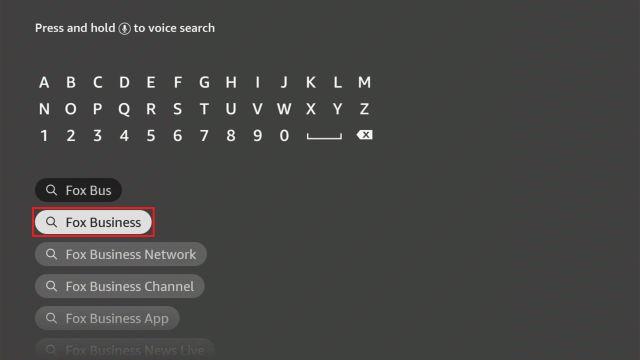
2)Type in Fox Business.
3)Choose Fox Business from the list of choices that will appear.
4)Start download and installation. Wait until it is completed.
5)Click Open to launch the app.
6)You can now start streaming Fox Business News on Firestick.
If your Firestick still has the older interface, read this article to learn how to update it: Update Firestick Interface.
Install Fox Business News On Firestick with Screenshots
1. Click FIND.
2. Click Search.
3. Choose Fox Business from the list of choices that will appear.
4. Start download and installation. Wait until it is completed.
5. Click Open to launch the app.
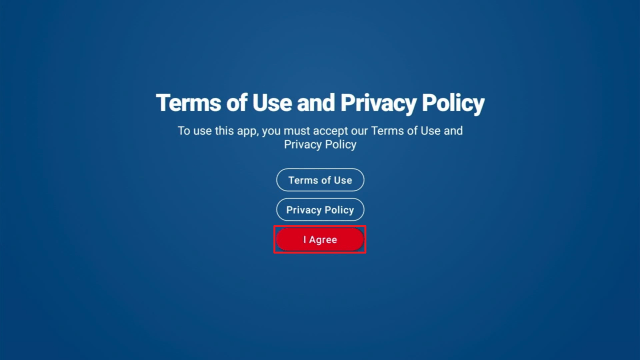
6. Click I Agree.
7. Fox Business News is now installed. Enjoy watching.
YOUR INTERNET ACTIVITY IS BEING WATCHED
ReviewVPN cannot attest to the legality, security and privacy of the applications discussed on this site. It is highly recommended that you use a VPN service while streaming or using Kodi.
Currently, your IP 216.73.216.1 is visible to everyone and your Browser is being tracked by Advertisers & ISP Provider.
Your activities are hidden from your ISP, the government, and from the apps you are using.
You can access additional movies and TV streams.
ISP attempts to throttle are thrwarted thus reducing buffering issues.
Geographically restricted content like Netflix and Hulu can be unblocked.
A VPN works be replacing your ISP-assigned IP address and creating an encrypted tunnel. We recommend the no log service offered by IPVanish. It works well on a Firestick and offers the fastest possible speeds.
Legal Disclaimer: ReviewVPN.com does not encourage or endorse any illegal activity involved in the usage of services and applications referenced on this site. We do not verify the licensing agreements of services. The end-user is wholly responsible for ensuring that any media accessed through these services does not violate copyright and/or licensing laws. ReviewVPN does not promote, link to, or receive compensation from any Apps and IPTV services.
There is a lot of content about Fox Business and stories on the home screen of the application.
Watch Tab is included as a category where you can watch live and on-demand of your favorite Fox show/personalities.
Market Tab directs you to the latest update on market data and news that is available on that day.
With the use of Firestick, you can now not worry about using a cable box 24/7.
Content
Watch any time of the day with Fox Business contents
Catch up on the highlights and watch out for your favorite episodes for free
Stream live for free with the major news events exclusively
Browse different categories of Fox Business News with the current business trend
Stay within the latest news directly from Fox Business Network
Pros and Cons
Pros
Free
Ease of access on its interface
No need for a cable TV
High-quality up-to-date contents
Cons
Limited on other areas of US
Can be very “laggy” or “buffery” depending on the setup
FAQs
What is Fox Business News App?
Fox Business News App allows you to get the latest information about the newest trend in the Business Industry.
Is this app for free?
Yes. The application is 100% free.
Where to find Fox Business News App?
It is available in Amazon Playstore and Google Playstore.
Is there an official website for this app?
You can go to www.foxbusiness.com
Who are the fox business anchors?
There are anchors in Fox Business like Trish Regan, Jenna Lee, Peter Barnes, and Kacie McDonnell.
Streaming Safely with a VPN
One of the constant interruptions that Fox Business App, and also other applications have, is the glitch from the internet connection and being monitored by the Internet Service Provider. These certain issues need certain measures to also stream everything online safely and securely.
To stop this from happening, you will need a VPN. Virtual Private Network serves as the wall that provides you with everything you need, mostly to keep your identity hidden and make you trust your internet connection without any hazards.
There are different VPNs that you can use to protect yourself. Most of them are showcasing 100% free but not everything is accurate. We strongly recommend the use of Surfshark. It is the best VPN when streaming and also has the best security with excellent speed. Here are some of the reasons why:
It secures protection on your ISP when you are streaming the app.
It provides safety measures from hackers that can track your identity.
Your data will be encrypted and be kept anonymous all the time
Keeps your data from harmful malware
It makes your internet speed faster
Note: For more information about SurfShark, please read our SURFSHARK REVIEW.
There are plenty of options you can choose from if you are still looking for other news channels. Most of the applications are already available on Amazon App and all you need is to download them.
Here is the list of alternative applications you can choose from:
Indeed, if you are a business lover and always want an update about the newest business trends, this application is for you. The functionality of its interface and the content it offers will surely be worth considering.
The more obvious reason is that this gives you enough time to watch highlights and recaps whenever you want to. And, with the use of Firestick, it will be easier because you will not need any cable box to interrupt your time.
This app is free and legal. Anything that comes to it is worth recommending.
I hope this article gave you the information you needed about Fox Business App and also helped you with how it can be easily installed.
In this article, you will learn how to install Unbound by Red 79 Kodi build on Android smart tv, iOS tv, windows, Amazon firestick, Chromecast, Linux, iOS phones, Android phones, and many more. Unbound by Red 79 is a third-rate build within the cMan Wizard 19 repository.
It is a lightweight build with approximately 200 Mb and currently running on version 1.0.1 and comes with Amber skin which can be customized. One good thing about this build is that it houses the hottest and best addons right now and scrapes streaming links in High Definition video quality. Sections include free addon, freer, fav, Asgard, unbound, power, addons, sports, family, etc.
Installing Unbound by Red 79 Kodi Build
Step 1. Open your Kodi app and click on the setting icon.
Step 2. Click on the System option.
Step 3. Click on addons.
Step 4. Click on unknown sources.
Step 5. Click on Yes.
Step 6. Go back to the home screen and click on the setting icon.
Step 7. Click on the file manager.
Step 8. Click on add source.
Step 9. Click on <none>.
Step 10. Type the media source URL: http://cmanbuilds.com/repo and click OK.
Step 11. Click on “Enter a name for this media source” and enter Unbound by Red 79.
Step 12. Return to the home screen and scroll down and click on addons.
Step 13. Select OK and then click on the addon installer icon.
Step 14. Click on Install from the zip file and select OK on the warning dialog box that will appear.
Step 15. Click on Unbound by Red 79.
Step 16. Click on repository.cmanwizard.zip
Step 17. Wait for the “cMaN 19 Wizard Repository addon installed” notification that will appear at the top right corner of your screen.
Step 18. Next, click on Install from the repository.
Step 19. On the new window that will appear, click on cMaN 19 Wizard Repository.
Step 20. Click on Program addons.
Step 21. Click on cMaN 19 Wizard Repository.
Step 22. Next, on the window that will appear, scroll down and click on Install and wait for the cMaN 19 Wizard addon enabled notification that will appear at the top right side of your screen.
Step 23. Click Dismiss.
Step 24. Select Build Menu.
Step 25. Select Build.
Step 26. On the list of builds that will appear, select Unbound by Red 79.
Step 27. Select freshInstall.
Step 28. Wait for the build to complete installation.
Step 29. Select OK to force close and save settings.
Click here to get the lowest price on Surfshark through our exclusive limited-time offer.
Features of Unbound by Red 79 Kodi Build
Lightweight: this build has approximately 200 Mb; consequently, this build works well on low memory devices like Amazon firestick and Chromecast.
Background play: this feature allows you to play videos in the background without having to exit the video entirely.
Update: this build is updated regularly. Each update comes with the addition of the latest movies, tv shows, and many more.
Sections within Unbound by Red 79 Kodi Build
Unbound Section
Interface setting, skin settings, player setting, media settings, PVR and live tv settings, etc.
Asgard’s Section
None debrid section, movies, tv shows, movies box sets, movies by a-z, horror box set, docos, random movies, etc.
Free Addon Section
Free classic British cinema, free kids movies one click, free-to-air tv, free docos, free WWE/aew/ufc, etc.
Family Section
The latest release, latest movies, popular and ongoing series, dubbed anime, cartoons, subbed anime, movies, ova series, search, and settings.
Sports Section
Live events, sports, best leagues, settings, etc.
Addons within Unbound by Red 79 Kodi Build
Asgard
Free
Cloud 9
PBS kids
Apex sports
SportHD
TVone
Navy seal big brother
Watchnixtoons2
YouTube
YOUR INTERNET ACTIVITY IS BEING WATCHED
ReviewVPN cannot attest to the legality, security and privacy of the applications discussed on this site. It is highly recommended that you use a VPN service while streaming or using Kodi.
Currently, your IP 216.73.216.1 is visible to everyone and your Browser is being tracked by Advertisers & ISP Provider.
Your activities are hidden from your ISP, the government, and from the apps you are using.
You can access additional movies and TV streams.
ISP attempts to throttle are thrwarted thus reducing buffering issues.
Geographically restricted content like Netflix and Hulu can be unblocked.
A VPN works be replacing your ISP-assigned IP address and creating an encrypted tunnel. We recommend the no log service offered by IPVanish. It works well on a Firestick and offers the fastest possible speeds.
No issues as of the moment with this build. It plays all videos well.
Frequently Asked Questions
What is Kodi?
Kodi is open-source software. With this software, you can access and stream free entertainment in various categories and subcategories. However, Kodi, as a stand-alone application, does not offer much content. You need to install a third-party build to explore the full potential of Kodi.
What is a Kodi Build?
A Kodi build is an application where you can access addons, skins, themes, entertainment, settings, wizards, and lots more after installation.
What is the cMan 19 Wizard Repository?
cMan 19 wizard is a repository developed and maintained by cMan. This repository works well on the new Kodi 19 Matrix.
Is it legal to install Unbound by Red 79 Kodi Build?
It is legal to install and use this build. But, whatever content you stream with this build may not be legal, and as such, we recommend using this build with a VPN.
Is it safe to install and stream with Unbound by Red 79 Kodi Build?
Installing and streaming with Unbound by red 79 is safe. However, we recommend using this build with a VPN.
Is it free to use Unbound by Red 79 Kodi Build?
Installing and streaming with this build is free.
Do I need a VPN to use Unbound by Red 79 Kodi Build?
We recommend using Unbound by red 79 Build with a VPN.
Use Kodi with a VPN
A VPN is software that uses encryption and masking to protect your online presence. When this happens, you will appear on the ISP network as a private, secure, and anonymous user.
Importance of using a VPN
Installing a VPN on your device will offer you the needed online security and privacy when you stream content or access the internet.
Geolocation
A VPN will keep you safe and protected while streaming, especially with Kodi builds and addons.
Bypass Third-Party Monitoring and Tracking
When you install a VPN on your device, it will encrypt your internet protocol address (IP). When this happens, your internet service provider or any other third party will not be able to track or monitor whatever activities you are doing online.
For more VPN discounts, go to ReviewVPN Deals and purchase the best VPN for you.
Click here to get the lowest price on Surfshark through our exclusive limited-time offer.
Best Alternative Build
No Kodi builds last forever. Today they are working; tomorrow, they have stopped. For that reason, we recommend having alternatives make handy. Click here to access the list of our best alternative builds for 2021.
Conclusion
If you love to stream nonstop movies, kids’ shows, family shows, this build is for you. It is a lightweight build with approximately 200 Mb. This build comes with tons of features for a smooth streaming experience. I recommend you check out this build and share your thoughts in the comment section.
Special offer
Get 80% Off for 29-Month Subscription + 5 Months Free on Surfshark VPN!