How to Install Volume Control on Firestick

Overview

In this article, we will show you how to install the Volume Control app on your Fire TV stick.


Adjusting your volume can be tiring if you have to manually adjust each setting. Are you looking for an app that shows you all the volumes you can adjust at once? Then you have come across the right article. Let us now talk about the Volume Control app.

The Volume Control app easily lets you control the volume of any gadget. Upon launching the app, you will be able to adjust the different audio volumes of your device. For example, if you want to decrease the sound of your alarm tone, then the Volume Control app contains a bar for this activity.

Aside from allowing you full control of your audio, the Volume Control app also supports different device features. The Volume Control app detects if you have inserted headphones, earphones, or speakers. You can also modify the app controls via a Bluetooth connection. The Volume Control app is easy to install on your Android and Fire TV stick. Let us first show you the technical specifications of the Volume Control app

We will now give you a download link for your Android device. Afterward, we will teach you how to install the Volume Control app on your Fire TV stick. You only have to Jailbreak your Fire TV Stick and sideload the app for its successful installation.


ANONYMOUSLY

How to Install the Volume Control App on your Fire TV Stick

Install the Volume Control app on your Fire TV stick by using the Downloader app. Just follow our simple guide below.

  1. Open your Firestick Settings Tab. (Gear Wheel Icon).
  2. Scroll down and to the right until you get to My Fire TV. Click on it.
  3. Select Developer options.
  4. Turn on ADB debugging and Apps from Unknown Sources.
  5. Press the Turn On when the pop-up appears.
  6. Click Home and press on FIND.
  7. Press on Search.
  8. You can either say Downloader to your Alexa voice-enabled remote or start typing it. If you typed it, click on the suggestion when it appears.
  9. Click on the Downloader Icon.
  10. Tap on Download.
  11. Click on Open.
  12. Press on the Allow button.
  13. Use the Downloader app’s Search tab.
  14. Type in: reviewvpn.com/vol
  15. The Volume Control app’s APK file will download.
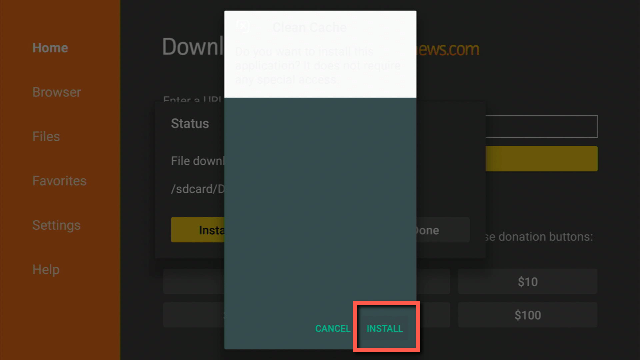
  16. Click on the Install button.
  17. The Volume Control app will install on Firestick.
  18. Press on the Open button if you want to launch the Volume Control app after its installation.
  19. For the prompts that appear after launching the app, just press the Next button.
  20. The Volume Control app interface will let you take full control of your audio with adjustable volume bars.


Volume Control App for Android Devices


Volume Control Button 1


Note: ReviewVPN.com does not host this APK file. It is hosted by Archive.org


How to Install the Volume Control App on your Fire TV Stick with Screenshots

For a successful installation of the Volume Control app, follow the screenshots we have for you:


1. Open your Firestick Settings Tab. (Gear Wheel Icon).

Viewbox


2. Scroll down and to the right until you get to My Fire TV. Click on it.

Viewbox


3. Select Developer options.

Viewbox


4. Turn on ADB debugging and Apps from Unknown Sources.

Viewbox


5. Press the Turn On when the pop-up appears.

Viewbox


6. Click Home and press on FIND.

Viewbox


7. Press on Search.

Viewbox


8. You can either say Downloader to your Alexa voice-enabled remote or start typing it. If you typed it, click on the suggestion when it appears.

Viewbox


9. Click on the Downloader Icon.

Viewbox


10. Tap on Download.

Viewbox


step 10 Install Insta IPTV App on your Fire TV stick


11. Click on Open.

Step 11 Install Insta IPTV App on your Fire TV stick


12. Press on the Allow button.

Step 12 Install Insta IPTV App on your Fire TV stick


13. You can now use the Downloader app.

Step 13 Install Insta IPTV App on your Fire TV stick


14. Type in: reviewvpn.com/vol

Volume Control Install (1)


15. The Volume Control app’s APK file will download.

Volume Control Install (2)


16. Click on the Install button.

Volume Control Install (3)


17. The Volume Control app will install on Firestick.

Volume Control Install (4)


18. Press the Open button if you want to launch the Volume Control app after its installation.

Volume Control Install (5)


19. For the prompts that appear after launching the app, just press the Next button.

Volume Control Install (6)


20. The Volume Control app interface will let you take full control of your audio with adjustable volume bars.

Volume Control Install (7)


YOUR INTERNET ACTIVITY IS BEING WATCHED

ReviewVPN cannot attest to the legality, security and privacy of the applications discussed on this site. It is highly recommended that you use a VPN service while streaming or using Kodi.

Currently, your IP 216.73.216.144 is visible to everyone and your Browser is being tracked by Advertisers & ISP Provider.

Save 65% Now

Limited Time Offer

Here are the main reasons why you must use a VPN:

  • Your activities are hidden from your ISP, the government, and from the apps you are using.
  • You can access additional movies and TV streams.
  • ISP attempts to throttle are thrwarted thus reducing buffering issues.
  • Geographically restricted content like Netflix and Hulu can be unblocked.

A VPN works be replacing your ISP-assigned IP address and creating an encrypted tunnel. We recommend the no log service offered by IPVanish. It works well on a Firestick and offers the fastest possible speeds.

Special Limited Time Offer - Get IPVanish


Legal Disclaimer: ReviewVPN.com does not encourage or endorse any illegal activity involved in the usage of services and applications referenced on this site. We do not verify the licensing agreements of services. The end-user is wholly responsible for ensuring that any media accessed through these services does not violate copyright and/or licensing laws. ReviewVPN does not promote, link to, or receive compensation from any Apps and IPTV services.


Install Surfshark on Firestick

Best Surfshark Deal


Features of the Volume Control App

  • Easy to use.
  • Provides volume bars for different audio features.
  • Allows you to change pre-existing audio profiles.
  • The Volume Control app detects if you insert a headphone, earphone, or speaker.
  • Allows you to create automatic schedule sets based on time of day, present location, or a calendar event.
  • Automatically turns off an audio setting (example: Device Alarm, Audio notifications, Receiving calls)

Technical Specifications of the Volume Control App

Here are the Technical Specifications of the Volume Control app. Learn about its file size, present version, and operating system requirements for your installation.


Volume Control Tech Specs 1


Volume Control App Interface

  • Adjustable volume control bars
  • Alarm
  • Media
  • Ringer
  • Notification
  • System
  • In-Call
  • Presets
  • Home Button


Pros and Cons

Pros

  • 100% Free.
  • Easy to Use.
  • Allows you to configure the volume of your device’s audio settings.
  • Provides adjustable volume bars for each audio feature.
  • Accurately turns off audio profiles based on time or personal presets.

Cons

  • Lacks a bass booster.
  • Should add extra features like an equalizer tab.
  • Basic volume control app.


Download Useful Apps with a VPN

Adjusting the volume of our devices can sometimes be an annoying activity. We sometimes need to find our remote, reach for our device, or manually press buttons. Fortunately, there are useful apps like Volume Control allowing us to make scheduled settings.

Unbeknownst to many people, getting apps from the internet can be a costly affair. Some websites contain malicious programs. Your ISP might even throttle your connection while downloading these apps.

To get useful apps easily, install Surfshark. It is the best VPN-supporting app download. Here are some advantages that Surfshark shares with its users:

  • Easier search results while exploring free tool apps on the internet.
  • Conceals your identity while browsing the web.
  • Supports the download of apps and various software.
  • Stops cyber threats in their tracks.
  • Gives you an untraceable IP address.

Note: For more information about SurfShark, please read our SURFSHARK REVIEW.


Grab your subscription now!

Click here to get the lowest price on Surfshark through our exclusive limited-time offer.


How to Install Surfshark VPN on Firestick

If your Firestick still has the older interface, read this article to learn how to update it: Update Firestick Interface.

You can download Surfshark directly from the Amazon App store. It will be easy for you to find Surfshark with your Firestick’s Find feature. Refer to our screenshots below.

1. Go to the Home screen of your Firestick.

step 1 Install Surfshark VPN on Firestick


2. Navigate towards the Find tab. Press the Search button from the resulting dropdown.

step 2 Install Surfshark VPN on Firestick


3. Type in the keyword of SurfShark and select from the suggestions that will appear.

step 3 Install Surfshark VPN on Firestick


4. Click the official SurfShark icon from your search results.

step 4 Install Surfshark VPN on Firestick


5. Press the Download (You own it) button.

step 5 Install Surfshark VPN on Firestick


6. The SurfShark VPN installer will download on your device.

step 6 Install Surfshark VPN on Firestick


7. SurfShark VPN’s app will automatically install itself on your Fire TV stick.

step 7 Install Surfshark VPN on Firestick


8. Press the Open button after completing SurfShark VPN’s installation process.

step 8 Install Surfshark VPN on Firestick


9. Please wait for the SurfShark VPN to load its user interface.

step 9 Install Surfshark VPN on Firestick


10. You can now log in with your SurfShark VPN account credentials.

step 10 Install Surfshark VPN on Firestick

Learn more about Surfshark and Grab the Best Surfshark Deal Now!


Other VPNs to Consider

NordVPN (Best for Streaming)

Best Features

  • 5000+ Server in 50+ Countries 
  • Military-Grade Encryption
  • Fast Connection Speed
  • Suitable to a lot of devices
  • No-Log Policy

Prices
  • Complete $5.89 per month (64% Discount)
  • Plus $4.59 per month (56% Discount)
  • Standard $3.69 per month (55% Discount)

Best Features

  • 750+ High-speed VPN Servers in 43 Locations
  • Military-Grade Encryption
  • Fastest HD Streaming and Gaming
  • 30-Day Money-Back Guarantee
  • Unlimited Data & Devices
  • No-Log Policy

Prices
  • 3 Years $1.99 per month (82% Discount)
  • 1 Years $3.29 per month (70% Discount)
  • 1 Month $10.99 per month

IPVanish VPN (Most Secure)

Best Features

  • 1200+ Servers in 60+ Countries around the world
  • Unlimited Connections
  • No-Log Policy
  • Top Notch Military-Grade VPN Protocols and Encryptions
  • 100% Safe and Secured
  • Most Trusted VPN
  • Best VPN for Firestick
  • 30-Day Money-Back Guarantee

Prices
  • Yearly $3.99 per month (63% Discount) – 30 days risk free + Ransomware & Malware Protection
  • Quarterly $5.32 per month (51% Discount)
  • Monthly $10.99 per month


For more VPN discounts, go to ReviewVPN Deals and purchase the best VPN for you.


FAQs

Does the Volume Control app require any payment?

No, the app is free to download and use. There are no hidden fees.


Is it safe to use the Volume Control app?

Yes, it helps you organize and adjust your volume. It does not contain harmful software, adware, or any malicious programs.


Conclusion

Controlling the volume of our device can be difficult at times. We might even experience this event during our meeting and our alarm suddenly rings. As a solution, we suggest you use the Volume Control app. The app contains adjustable volume bars and lets you create schedules to turn off or decrease some of your volume settings.


Final Words

We hope this article helps you install the Volume Control app on your Fire TV stick.


Note: ReviewVPN.com does not own or operate any app nor does it endorse any. The main purpose of this article is strictly for educational purposes only.

How to Install Castbox on Firestick

Overview

In this article, we will help you install the Castbox app on your Fire TV stick.


Are you searching for an app that focuses on providing podcasts? Then we have good news for podcast enthusiasts, today we will discuss the features of the Castbox app. Here at ReviewVPN, it is our pleasure to show you the best apps for various purposes. It is how we have come across the excellent capabilities of the Castbox app.

For podcast lovers out there, the Castbox app is suitable for your daily needs. However,  the Castbox app allows you to find, discover, and explore new podcasts from the top podcast distributors. It lets you save, download, and listen to your favorite podcast episodes whenever you are free.

The Castbox app provides the latest podcast series available online. It works as your number one podcast player compatible with your Android, smartphone, and Fire TV device. Providing a large collection of podcasts, you can easily choose from different podcast categories. Nonetheless, using the Castbox apps lets you listen to any podcast you prefer.

We will now give you a download link for your Android device. Afterward, we will teach you how to install the Castbox app on your Fire TV stick. You only have to Jailbreak your Fire TV Stick and sideload the app for its successful installation.


ANONYMOUSLY


Castbox App for your Android Device


CastBox Premium Button 1


Note: ReviewVPN.com does not host this APK file. It is hosted by Archive.org


How to Install the Castbox App on Fire TV Stick (Screenshots)

For a successful installation of the Castbox app, follow the screenshots we have for you:

1. Open your Firestick Settings Tab. (Gear Wheel Icon).

Viewbox


2. Scroll down and to the right until you get to My Fire TV. Click on it.

Viewbox


3. Select Developer options.

Viewbox


4. Turn on ADB debugging and Apps from Unknown Sources.

Viewbox


5. Press the Turn On when the pop-up appears.

Viewbox


6. Click Home and press on FIND.

Viewbox


7. Press on Search.

Viewbox


8. You can either say Downloader to your Alexa voice-enabled remote or start typing it. If you typed it, click on the suggestion when it appears.

Viewbox


9. Click on the Downloader Icon.

Viewbox


10. Tap on Download.

Viewbox


step 10 Install Insta IPTV App on your Fire TV stick


11. Click on Open.

Step 11 Install Insta IPTV App on your Fire TV stick


12. Press on the Allow button.

Step 12 Install Insta IPTV App on your Fire TV stick


13. You can now use the Downloader app.

Step 13 Install Insta IPTV App on your Fire TV stick


14. Type in: reviewvpn.com/cbox

CastBox Premium Install (1)


15. The Castbox app’s APK file will download.

CastBox Premium Install (2)


16. Click on the Install button.

CastBox Premium Install (3)


17. The Castbox app will install on your Fire TV stick.

CastBox Premium Install (4)


18. Click on the Open button if you want to launch the Castbox app after its installation.

CastBox Premium Install (5)


19. Wait for the Castbox app to load its main menu.

CastBox Premium Install (6)


20. Tap on the Continue button to learn about the features of the Castbox app.

CastBox Premium Install (7)


21. Press on the Select button of your Fire TV stick’s remote to allow the Castbox app access to your media directory.

CastBox Premium Install (8)


22. A prompt will appear asking you to log in with your Google account, you can opt to press the Not Now button.

CastBox Premium Install (9)


23. The Castbox app’s main menu will launch containing the latest podcasts available online.

CastBox Premium Install (10)


YOUR INTERNET ACTIVITY IS BEING WATCHED

ReviewVPN cannot attest to the legality, security and privacy of the applications discussed on this site. It is highly recommended that you use a VPN service while streaming or using Kodi.

Currently, your IP 216.73.216.144 is visible to everyone and your Browser is being tracked by Advertisers & ISP Provider.

Save 65% Now

Limited Time Offer

Here are the main reasons why you must use a VPN:

  • Your activities are hidden from your ISP, the government, and from the apps you are using.
  • You can access additional movies and TV streams.
  • ISP attempts to throttle are thrwarted thus reducing buffering issues.
  • Geographically restricted content like Netflix and Hulu can be unblocked.

A VPN works be replacing your ISP-assigned IP address and creating an encrypted tunnel. We recommend the no log service offered by IPVanish. It works well on a Firestick and offers the fastest possible speeds.

Special Limited Time Offer - Get IPVanish


Legal Disclaimer: ReviewVPN.com does not encourage or endorse any illegal activity involved in the usage of services and applications referenced on this site. We do not verify the licensing agreements of services. The end-user is wholly responsible for ensuring that any media accessed through these services does not violate copyright and/or licensing laws. ReviewVPN does not promote, link to, or receive compensation from any Apps and IPTV services.


Install SurfShark on Firestick

Best SurfShark Deal


Features of the Castbox App

  • Contains over 2 Billion Podcast episodes.
  • Winner of multiple awards.
  • Offers a wide category of podcasts to its users.
  • Gives users access to over 95 Million audio content (Podcasts, FM Radio, and audiobooks)
  • Allows you to download podcasts for offline listening.
  • The Castbox app lets you stream podcasts wherever you are.


Technical Specifications of the Castbox App

Here are the Technical Specifications of the Castbox app. Learn about its file size, present version, and operating system requirements for your installation.


CastBox Premium Tech Specs 2


Castbox App Awards

  • Most Entertaining App Award from Best Apps (Google Play).
  • Top Trending Apps Award from Global Best App (Google Play).
  • The Best Music + Audio App Award (Tabby Awards).
  • Nominee of Google Play Fan Favorite App.


CastBox App Interface

  • Super Clean layout
  • Simple interface
  • Easy to navigate
  • Presents the latest podcast episodes
  • Shows podcasts from reputable podcast distributors
  • Contains over 95 Million audio content
  • Provides access to 2 Billion podcast episodes


Pros and Cons

Pros

  • 100% Free.
  • Simple to use.
  • Clean interface.
  • Aims to provide the best podcast episodes to its users.
  • Provides a variety of audio files.
  • Contains over 95 Million audio content
  • Provides access to 2 Billion podcast episodes.
  • Winner of three app awards.


Cons

  • Requires you to sign in with your Google account.


Listen to Podcast Episodes with a VPN

Surfshark vpn

Listening to podcasts is an excellent hobby for many people. However, your podcast streaming might experience some disturbances. Your ISP might decrease your streaming speed, malicious software might infect your device, or you might stream the podcast in geo-restricted locations.

To easily stream podcasts, we recommend you install SurfShark. Here are some benefits that SurfShark offers to podcast lovers:

  • Faster streaming of podcast episodes.
  • Supports the download of podcast series.
  • Conceals your identity from prying eyes.
  • Unlocks media content with geo-restrictions.

Note: For more information about SurfShark, please read our SurfShark Review.


Grab your subscription now!


How to Install Surfshark on Firestick with Screenshots

If your Firestick still has the older interface, read this article to learn how to update it: Update Firestick Interface.

You can download Surfshark directly from the Amazon App store. It will be easy for you to find Surfshark with your Firestick’s Find feature. Refer to our screenshots below.

Follow our screenshots below to install the SurfShark VPN app on your Fire TV stick.

1. Go to the Home screen of your Firestick.

step 1 Install Surfshark VPN on Firestick


2. Navigate towards the Find tab. Press the Search button from the resulting dropdown.

step 2 Install Surfshark VPN on Firestick


3. Type in the keyword of SurfShark and select from the suggestions that will appear.

step 3 Install Surfshark VPN on Firestick


4. Click the official SurfShark icon from your search results.

step 4 Install Surfshark VPN on Firestick


5. Press the Download (You own it) button.

step 5 Install Surfshark VPN on Firestick


6. The SurfShark VPN installer will download on your device.

step 6 Install Surfshark VPN on Firestick


7. SurfShark VPN’s app will automatically install itself on your Fire TV stick.

step 7 Install Surfshark VPN on Firestick


8. Press the Open button after completing SurfShark VPN’s installation process.

step 8 Install Surfshark VPN on Firestick


9. Please wait for the SurfShark VPN to load its user interface.

step 9 Install Surfshark VPN on Firestick


10. You can now log in with your SurfShark VPN account credentials.

step 10 Install Surfshark VPN on Firestick

Learn more about Surfshark and Grab the Best Surfshark Deal Now!


Install Surfshark on Firestick

Best Surfshark Deal

Other VPNs to Consider

NordVPN (Best for Streaming)

Best Features

  • 5000+ Server in 50+ Countries 
  • Military-Grade Encryption
  • Fast Connection Speed
  • Suitable to a lot of devices
  • No-Log Policy

Prices
  • Complete $5.89 per month (64% Discount)
  • Plus $4.59 per month (56% Discount)
  • Standard $3.69 per month (55% Discount)

Best Features

  • 750+ High-speed VPN Servers in 43 Locations
  • Military-Grade Encryption
  • Fastest HD Streaming and Gaming
  • 30-Day Money-Back Guarantee
  • Unlimited Data & Devices
  • No-Log Policy

Prices
  • 3 Years $1.99 per month (82% Discount)
  • 1 Years $3.29 per month (70% Discount)
  • 1 Month $10.99 per month

IPVanish VPN (Most Secure)

Best Features

  • 1200+ Servers in 60+ Countries around the world
  • Unlimited Connections
  • No-Log Policy
  • Top Notch Military-Grade VPN Protocols and Encryptions
  • 100% Safe and Secured
  • Most Trusted VPN
  • Best VPN for Firestick
  • 30-Day Money-Back Guarantee

Prices
  • Yearly $3.99 per month (63% Discount) – 30 days risk free + Ransomware & Malware Protection
  • Quarterly $5.32 per month (51% Discount)
  • Monthly $10.99 per month

For more VPN discounts, go to ReviewVPN Deals and purchase the best VPN for you.


Alternative Apps for the Castbox App

Suppose you dislike some features of the app, we have a list of apps that work the same as the Castbox app:


FAQs

Is the Castbox app for free?

Yes, it is available for download and compatible with Android and Fire OS. You can also log in with your Google account credentials.


Is it safe to use the Castbox app?

Yes, there are no malicious software, cyber threats, and pop-up ads while using the Castbox app.


Conclusion

Containing over 2 billion podcast episodes, we recommend the Castbox app for podcast aficionados. However, the Castbox app aims to deliver quality podcasts to its users. It also lets you download, save, and listen to podcasts anywhere and anytime you like.

We hope this article helps you install the Castbox app on your Fire TV stick.


Note: ReviewVPN.com does not own or operate any app nor does it endorse any. The main purpose of this article is strictly for educational purposes only.

How To Install Snaptube APK On Firestick

Overview

Streaming YouTube videos is a famous entertainment choice for most individuals. Youtube is the most substantial and most well-known video-sharing platform across the globe. There, people can watch funny videos, listen to music, or stream vlogs. Most of what people want to know are on this enormous video-sharing website.


Sadly, YouTube comes without a download feature and only lets people watch offline for a particular period of time. Wherein, it is difficult for individuals who wish to download YouTube content to their devices. Nonetheless, SnapTube is available.

SnapTube allows people to download content from Youtube with a couple of simple steps. After launching the app, the screen will show users the most famous websites they can select to download media content, such as Youtube, Instagram, Facebook, Vimeo, and more.


ANONYMOUSLY


Snaptube APK Installation on FireStick
  1. Turn on the FireStick device, go to the top menu bar and choose > Settings
  2. Click My Fire TV > Developer Options
  3. Enable Apps from Unknown Sources 
  4. Go back to FireStick’s home screen and go to the menu bar
  5. Go to the Search option
  6. Search & install the Downloader app on FireStick
  7. After installing the Downloader app, launch it
  8. Enter the Snaptube app download URL/APK – https://reviewvpn.com/snapt
  9. Click GO
  10. When the Snaptube  file download is complete – click Install
  11. Now, you have successfully installed the Snaptube  app on FireStick


Install Snaptube App on Firestick (Video)


Install Snaptube App on Firestick with Screenshots

1. Install the Downloader app and jailbreak your firestick by enabling unknown sources. To learn more about the procedure, you may read How to Install the Downloader App and Enable Unknown Sources.

2. After installing the Downloader app, launch it.

Install Snaptube App on Firestick Step 13


3. Enter the Snaptube app download URL/APK – https://reviewvpn.com/snapt and Click GO

Install Snaptube App on Firestick Step 14


4. When the Snaptube  file download is complete – click Install

Install Snaptube App on Firestick Step 15


5. Now, you have successfully installed the Snaptube  app on FireStick

Install Snaptube App on Firestick Step 16


YOUR INTERNET ACTIVITY IS BEING WATCHED

ReviewVPN cannot attest to the legality, security and privacy of the applications discussed on this site. It is highly recommended that you use a VPN service while streaming or using Kodi.

Currently, your IP 216.73.216.144 is visible to everyone and your Browser is being tracked by Advertisers & ISP Provider.

Save 65% Now

Limited Time Offer

Here are the main reasons why you must use a VPN:

  • Your activities are hidden from your ISP, the government, and from the apps you are using.
  • You can access additional movies and TV streams.
  • ISP attempts to throttle are thrwarted thus reducing buffering issues.
  • Geographically restricted content like Netflix and Hulu can be unblocked.

A VPN works be replacing your ISP-assigned IP address and creating an encrypted tunnel. We recommend the no log service offered by IPVanish. It works well on a Firestick and offers the fastest possible speeds.

Special Limited Time Offer - Get IPVanish


Install SurfShark on Firestick

Best SurfShark Deal


Moving the newly installed app to the front

  1. Go back to FireStick’s Home Screen (you may click the Home Button on the Fire Stick remote)
  2. Go to Your Apps & Games/Channels
  3. Scroll once to the left
  4. Click See All
  5. All the newly installed apps are located at the bottom – you can move the Snaptube app by clicking the Options button (at the right side of the Home Button)


What Is Snaptube App?

Snaptube is a great app that allows people to easily download videos from huge and most well-known platforms, such as YouTube, TikTok, Facebook, WhatsApp, Instagram, and lots more. You can download the videos on your Android-powered device. However, Snaptube allows users to convert videos into MP3 format to have their favorite songs available for them at all times!

Snaptube is also a tool you can use if you don’t wish to have numerous apps installed on your device. With Snaptube, users can log in and download videos from a lot of platforms, such as YouTube, Vimeo, Instagram, TikTok, Facebook, and lots more. Thus, once a person installed Snaptube on his/her device, he/she can eliminate other apps to save that space on his/her Android device. Nonetheless, this video downloader app basically can function as a content aggregator.


App Features

  • Download videos quickly from Youtube, Instagram, Tiktok, Facebook, and more
  • All free
  • Download content at various resolutions
  • Safe, it comes without malware or keyloggers
  • Manage videos on mobile phone
  • Download and convert videos to MP3 file


User Interface

The interface of the Snaptube app is a bit similar to the interface of Youtube (on the mobile phone). Put the video name you wish to search, choose the video, and select the download button. Just wait a couple of seconds and you can have the video anywhere, anytime on your device. Nonetheless, you can choose the downloaded video’s quality to fit the memory of the device and the quality of the web connection. Choose the 1080s category of SnapTube if you wish to obtain 1080p content.


Supported Sites

  • Facebook
  • Instagram
  • Twitter
  • DailyMotion
  • 4shared
  • WhatsApp
  • Tiktok
  • Vimeo
  • MetaCafe
  • Vevo
  • Funnyordie
  • Animeq


HD Video and HQ Music

Snaptube provides different video resolutions and audio formats:

Video resolutions

  • 144p
  • 720p
  • 1080p HD
  • 2k HD
  • 4K HD

Audio formats 

  • MP3
  • M4A


Manage Your Channel

Adding up to downloading video, users can utilize the SnapTube app to manage their channel – similar to YouTube. Wherein, people can use this application instead of YouTube while downloading media content.


Compatibility

The Snaptube app allows people to easily download videos from huge and most well-known platforms, such as YouTube, TikTok, Facebook, and more. Nonetheless, this video downloader app works well on many Android-based devices, such as Roku, Google Chromecast, tablets, smartphones, and many more.


Pros and Cons

Pros

  • Completely Free
  • Fast Download 
  • Multi-format download
  • Simplified Search Function
  • A wide array of supported applications and websites
  • Unlimited downloading


Cons

  • Consumes a lot of storage space


Always Use a VPN To Stay Safe, Secure Online

Surfshark vpn

If you love watching videos on the internet, then it’s important for you to stay safe on the web. Thus, you must always use a Virtual Private Network or VPN. Nonetheless, some VPN services can slow internet speeds, which leads to annoying buffering & lag. To get rid of the stress, you should use a great VPN just like SurfShark.

A good VPN can save your video watching in your free time. It will protect people’s online activities from unwanted snoopers, which include your Internet service provider (ISP). A VPN gives people a fast connection when they are streaming or downloading videos. SurfSahark is one of the fastest and most reliable VPNs. It will change a person’s IP address and bypass geo-restricted streaming platforms on macOS, Windows, iOS, Android, Firestick, and more.


Grab your subscription now!

 Best SurfShark Deal


How to Install Surfshark on Firestick with Screenshots

If your Firestick still has the older interface, read this article to learn how to update it: Update Firestick Interface.

You can download Surfshark directly from the Amazon App store. It will be easy for you to find Surfshark with your Firestick’s Find feature. Refer to our screenshots below.

Follow our screenshots below to install the SurfShark VPN app on your Fire TV stick.

1. Go to the Home screen of your Firestick.

step 1 Install Surfshark VPN on Firestick


2. Navigate towards the Find tab. Press the Search button from the resulting dropdown.

step 2 Install Surfshark VPN on Firestick


3. Type in the keyword of SurfShark and select from the suggestions that will appear.

step 3 Install Surfshark VPN on Firestick


4. Click the official SurfShark icon from your search results.

step 4 Install Surfshark VPN on Firestick


5. Press the Download (You own it) button.

step 5 Install Surfshark VPN on Firestick


6. The SurfShark VPN installer will download on your device.

step 6 Install Surfshark VPN on Firestick


7. SurfShark VPN’s app will automatically install itself on your Fire TV stick.

step 7 Install Surfshark VPN on Firestick


8. Press the Open button after completing SurfShark VPN’s installation process.

step 8 Install Surfshark VPN on Firestick


9. Please wait for the SurfShark VPN to load its user interface.

step 9 Install Surfshark VPN on Firestick


10. You can now log in with your SurfShark VPN account credentials.

step 10 Install Surfshark VPN on Firestick

Learn more about Surfshark and Grab the Best Surfshark Deal Now!


Install Surfshark on Firestick

Best Surfshark Deal

Other VPNs to Consider

NordVPN (Best for Streaming)

Best Features

  • 5000+ Server in 50+ Countries 
  • Military-Grade Encryption
  • Fast Connection Speed
  • Suitable to a lot of devices
  • No-Log Policy

Prices
  • Complete $5.89 per month (64% Discount)
  • Plus $4.59 per month (56% Discount)
  • Standard $3.69 per month (55% Discount)

Best Features

  • 750+ High-speed VPN Servers in 43 Locations
  • Military-Grade Encryption
  • Fastest HD Streaming and Gaming
  • 30-Day Money-Back Guarantee
  • Unlimited Data & Devices
  • No-Log Policy

Prices
  • 3 Years $1.99 per month (82% Discount)
  • 1 Years $3.29 per month (70% Discount)
  • 1 Month $10.99 per month

IPVanish VPN (Most Secure)

Best Features

  • 1200+ Servers in 60+ Countries around the world
  • Unlimited Connections
  • No-Log Policy
  • Top Notch Military-Grade VPN Protocols and Encryptions
  • 100% Safe and Secured
  • Most Trusted VPN
  • Best VPN for Firestick
  • 30-Day Money-Back Guarantee

Prices
  • Yearly $3.99 per month (63% Discount) – 30 days risk free + Ransomware & Malware Protection
  • Quarterly $5.32 per month (51% Discount)
  • Monthly $10.99 per month

For more VPN discounts, go to ReviewVPN Deals and purchase the best VPN for you.


Alternative Apps for Snaptube


FAQs

Is the Snaptube Video Downloader App free?

Yes, you can download, install, and use the Snaptube app for free


Is Snaptube Legal?

The Snaptube app is safe. However, whether Snaptube is legal or not depends on a person’s purpose. If you utilize the video downloader app to download entertainment on the network to a gadget to watch, then it is totally fine.


Conclusion

In this article, we have provided information on How To Install Snaptube APK On Firestick. The information above should really help you to easily download videos from huge and most well-known platforms.

Nonetheless, always remember to turn on your VPN service every time you use the internet. If you have any thoughts, suggestions about this article – How To Install Snaptube APK On Firestick, don’t hesitate to let us know in the comments section.


How to Install IPTV Smarters on Any Device – Firestick, iOS, and Android devices

Overview

In this article, we will show you how to install the IPTV Smarters app on your Firestick, iOS, and Android devices.


The Amazon Fire TV stick allows us to stream a wide selection of online media content. If you want an app that lets you load your IPTV playlists, then the IPTV Smarters app will be perfect for your streaming.

We will first remind you that the IPTV Smarters Pro app does not host or contain media content. The apps’ users must provide their content. This is possible by getting M3U playlists and channel lists from reputable online sources.

Moreover, the IPTV Smarters Pro app lets you watch a wide variety of media. Enjoy your TV shows, movies, and films while using the app. You can also load live TV links on the IPTV Smarters Pro main interface. It also lets you watch live TV Catch-Up from an IPTV Service provider you prefer.

In addition, the IPTV Smarters Pro app is compatible for usage with your Android Box, Android smartphone, Fire TV device (Firestick, Cube, etc.), and the Nvidia Shield TV.

This article will also introduce you further to the app by providing the technical specifications of the IPTV Smarters Pro app.

We will now give you a download link for your Android device. Afterward, we will teach you how to install the IPTV Smarters Pro app on your Fire TV stick. You only have to Jailbreak your Fire TV Stick and sideload the app for its successful installation.


ANONYMOUSLY

Is IPTV Smarters Safe and Virus-free?

We tested this app using VirusTotal and found no threats or any malicious files and malware.

Despite having good results, we still need to be vigilant in protecting our privacy while streaming.

A Virtual Private Network or VPN will definitely help us maintain our security and anonymity while using IPTV Smarters.

Here’s how you can Install The Best VPN For Firestick and All Devices.


How to Install the IPTV Smarters Pro app on Firestick

Install the IPTV Smarters Pro app on your Fire TV stick by using the Downloader app. Just follow our simple guide below.

  1. Open your Firestick Settings Tab. (Gear Wheel Icon).
  2. Scroll down and to the right until you get to My Fire TV. Click on it.
  3. Select Developer options.
  4. Turn on ADB debugging and Apps from Unknown Sources.
  5. Press the Turn On when the pop-up appears.
  6. Click Home and press on FIND.
  7. Press on Search.
  8. You can either say Downloader to your Alexa voice-enabled remote or start typing it. If you typed it, click on the suggestion when it appears.
  9. Click on the Downloader Icon.
  10. Tap on Download.
  11. Click on Open.
  12. Press the Allow button.
  13. Use the Downloader app’s Search tab.
  14. Type in: reviewvpn.com/ismrt
  15. The IPTV Smarter Pro app’s APK file will download.
  16. Click on the Install button.
  17. IPTV Smarter Pro app will install automatically on your Fire TV stick.
  18. Press on the Open button if you want to launch the IPTV Smarter Pro app after its installation.
  19. Wait for the IPTV Smarter Pro app to load its interface.
  20. You can now choose any option for loading a wide selection of media with the IPTV Smarter Pro app.


How to Install the IPTV Smarters Pro app on your Firestick (Screenshots)

To successfully install the IPTV app on your Fire TV stick, just follow our screenshots below:

1. Open your Firestick Settings Tab. (Gear Wheel Icon).

Viewbox


2. Scroll down and to the right until you get to My Fire TV. Click on it.

Viewbox


3. Select Developer options.

Viewbox


4. Turn on ADB debugging and Apps from Unknown Sources.

Viewbox


5. Press the Turn On when the pop-up appears.

Viewbox


6. Click Home and press on FIND.

Viewbox


7. Press on Search.

Viewbox


8. You can either say Downloader to your Alexa voice-enabled remote or start typing it. If you typed it, click on the suggestion when it appears.

Viewbox


9. Click on the Downloader Icon.

Viewbox


10. Tap on Download.

Viewbox


step 10 Install Insta IPTV App on your Fire TV stick


11. Click on Open.

Step 11 Install Insta IPTV App on your Fire TV stick


12. Press on the Allow button.

Step 12 Install Insta IPTV App on your Fire TV stick


13. You can now use the Downloader app. Type in “https://reviewvpn.com/iptvs” then select Go.

Step 13 Install Insta IPTV App on your Fire TV stick


14. The IPTV Smarter Pro app’s APK file will download.

IPTV Smarters Pro (2)


15. Click on the Install button.

IPTV Smarters Pro (3)


16. IPTV Smarter Pro app will install automatically on your Fire TV stick.

IPTV Smarters Pro (4)


17. Press the Open button if you want to launch the IPTV Smarter Pro app after its installation.

IPTV Smarters Pro (5)


18. Wait for the IPTV Smarter Pro app to load its interface.

IPTV Smarters Pro (6)


19. You can now choose any option for loading a wide selection of media with the IPTV Smarter Pro app.

IPTV Smarters Pro (7)


How To Install IPTV Smarters Pro App on iPhone or iPad

For iOS users, you may follow the guide below on how you can use the IPTV Smarter App on your device:

1. On the Apple App Store, type in IPTV Smarters then click Get.


2. Then confirm the app installation by clicking the side button of your iOS device twice.


3. Simply wait for the file to install.


4. Click Open.


5. You’ll then have the option to use Bluetooth to discover nearby devices. Feel free to select whichever you prefer.


6. That’s it, IPTV Smarters app is ready to use on your iOS device.


Install IPTV Smarters Pro App on Android Devices


IPTV Smarters Pro DL Button 1


Note: ReviewVPN.com does not host this APK file. It is hosted by Archive.org


YOUR INTERNET ACTIVITY IS BEING WATCHED

ReviewVPN cannot attest to the legality, security and privacy of the applications discussed on this site. It is highly recommended that you use a VPN service while streaming or using Kodi.

Currently, your IP 216.73.216.144 is visible to everyone and your Browser is being tracked by Advertisers & ISP Provider.

Save 65% Now

Limited Time Offer

Here are the main reasons why you must use a VPN:

  • Your activities are hidden from your ISP, the government, and from the apps you are using.
  • You can access additional movies and TV streams.
  • ISP attempts to throttle are thrwarted thus reducing buffering issues.
  • Geographically restricted content like Netflix and Hulu can be unblocked.

A VPN works be replacing your ISP-assigned IP address and creating an encrypted tunnel. We recommend the no log service offered by IPVanish. It works well on a Firestick and offers the fastest possible speeds.

Special Limited Time Offer - Get IPVanish


Legal Disclaimer: ReviewVPN.com does not encourage or endorse any illegal activity involved in the usage of services and applications referenced on this site. We do not verify the licensing agreements of services. The end-user is wholly responsible for ensuring that any media accessed through these services does not violate copyright and/or licensing laws. ReviewVPN does not promote, link to, or receive compensation from any Apps and IPTV services.


Install SurfShark on Firestick

Best SurfShark Deal


Features of the IPTV Smarters Pro App

  • IPTV Smarters Pro supports live TV, TV shows, and the streaming of movies.
  • Built-in Master Search bar.
  • Presents a modern layout.
  • Modern design for its interface.
  • Supports device casting (Chromecast, etc.)
  • Provides Parental Controls that allow you to choose viewable content.
  • Supports TV Catch-Up streaming.
  • Continue Watching a media file from your last point of viewing.
  • Visit your recently viewed/added movies and TV series.
  • Supports multi-screening
  • Allows many users to stream with the IPTV Pro App.
  • Load M3u File and URL Playlists
  • The IPTV Pro app lets you add media files from your device for playing.
  • Let you add an external player.
  • The IPTV Pro app supports Speed Test Facility apps.
  • You can use the IPTV Pro app with a VPN.
  • Picture-in-Picture View
  • The IPTV Pro app supports the recording of video streaming.
  • Dynamic Language Switch


Technical Specifications of the IPTV Pro App

Here are the Technical Specifications of the IPTV Smarters Pro app. You will learn about its file size, present version, and operating system requirements.


IPTV Smarters Pro Tech Specs 1


IPTV Smarters Pro Interface

  • Modern and Colorful Layout
  • Four Options for loading media content
  • Load Your Playlist/URL, Data from your Device
  • Login with Xstream Codes API
  • Play Single Stream
  • List Users


Pros and Cons

Pros

  • 100% Free.
  • Easy to Use.
  • Modern Layout.
  • Provides four tab buttons for loading media files.
  • Supports multiple users wanting to stream files with the IPTV Pro app.


Cons

  • The IPTV Pro app does not contain or supply original content.
  • Users of the IPTV Pro app must load their media files.


Stream Online Media with a VPN

Surfshark vpn

There are a few IPTV apps that are compatible while using a VPN. One of these apps is the IPTV Pro app.

Many people encounter problems while streaming. Either their internet gets slow, their device experience buffering, or the videos suddenly stop for some unknown reason.

To solve these problems while streaming, we recommend you install SurfShark. It is the best VPN for streaming providing you with many advantages:

  • No disturbances while loading media content.
  • Smooth streaming of online videos and media files.
  • Supports the download of large files.
  • Prevents the onset of buffering and lagging on your Kodi and Fire TV device.


Install SurfShark on Firestick

Best SurfShark Deal


How to Install Surfshark on Firestick with Screenshots

If your Firestick still has the older interface, read this article to learn how to update it: Update Firestick Interface.

You can download Surfshark directly from the Amazon App store. It will be easy for you to find Surfshark with your Firestick’s Find feature. Refer to our screenshots below.

Follow our screenshots below to install the SurfShark VPN app on your Fire TV stick.

1. Go to the Home screen of your Firestick.

step 1 Install Surfshark VPN on Firestick


2. Navigate towards the Find tab. Press the Search button from the resulting dropdown.

step 2 Install Surfshark VPN on Firestick


3. Type in the keyword of SurfShark and select from the suggestions that will appear.

step 3 Install Surfshark VPN on Firestick


4. Click the official SurfShark icon from your search results.

step 4 Install Surfshark VPN on Firestick


5. Press the Download (You own it) button.

step 5 Install Surfshark VPN on Firestick


6. The SurfShark VPN installer will download on your device.

step 6 Install Surfshark VPN on Firestick


7. SurfShark VPN’s app will automatically install itself on your Fire TV stick.

step 7 Install Surfshark VPN on Firestick


8. Press the Open button after completing SurfShark VPN’s installation process.

step 8 Install Surfshark VPN on Firestick


9. Please wait for the SurfShark VPN to load its user interface.

step 9 Install Surfshark VPN on Firestick


10. You can now log in with your SurfShark VPN account credentials.

step 10 Install Surfshark VPN on Firestick

Learn more about Surfshark and Grab the Best Surfshark Deal Now!


Install Surfshark on Firestick

Best Surfshark Deal

Other VPNs to Consider

NordVPN (Best for Streaming)

Best Features

  • 5000+ Server in 50+ Countries 
  • Military-Grade Encryption
  • Fast Connection Speed
  • Suitable to a lot of devices
  • No-Log Policy

Prices
  • Complete $5.89 per month (64% Discount)
  • Plus $4.59 per month (56% Discount)
  • Standard $3.69 per month (55% Discount)

Best Features

  • 750+ High-speed VPN Servers in 43 Locations
  • Military-Grade Encryption
  • Fastest HD Streaming and Gaming
  • 30-Day Money-Back Guarantee
  • Unlimited Data & Devices
  • No-Log Policy

Prices
  • 3 Years $1.99 per month (82% Discount)
  • 1 Years $3.29 per month (70% Discount)
  • 1 Month $10.99 per month

IPVanish VPN (Most Secure)

Best Features

  • 1200+ Servers in 60+ Countries around the world
  • Unlimited Connections
  • No-Log Policy
  • Top Notch Military-Grade VPN Protocols and Encryptions
  • 100% Safe and Secured
  • Most Trusted VPN
  • Best VPN for Firestick
  • 30-Day Money-Back Guarantee

Prices
  • Yearly $3.99 per month (63% Discount) – 30 days risk free + Ransomware & Malware Protection
  • Quarterly $5.32 per month (51% Discount)
  • Monthly $10.99 per month

For more VPN discounts, go to ReviewVPN Deals and purchase the best VPN for you.


Alternative Apps for the IPTV Smarters Pro App

Suppose you don’t like IPTV Smarter Pro App’s features, we have a list of apps that serve as its alternatives:

If you want more live TV apps, visit our article about the Best Live TV Apps (IPTV) for Firestick and Android.


FAQs

Is the IPTV Smarters Pro app free?

Yes. However, we want to remind you that downloading m3u playlists may sometimes require payment.


Are there ads while using the app?

No, there are no pop-up ads while using the app. Beware that ads might appear if you stream from a variety of online sources.


Is it safe to use the IPTV Smarters Pro app?

Yes, there are no cyber threats or malicious programs associated with the app.


Conclusion

For fans of modern streaming, we recommend you to use the IPTV Smarters Pro app. We want to inform you that the app does not supply or contain original media files for streaming. Luckily, the app supports the loading of m3u playlists, media files from your device, and single streaming from various sources.

We hope this article helps you install the IPTV Smarters Pro app on your Fire TV stick.


Note: ReviewVPN.com does not own or operate any app nor does it endorse any. The main purpose of this article is strictly for educational purposes only.

How to Install BeSoccer on Firestick

Overview

In this article, we will show you how to install the BeSoccer app on your Fire TV stick. 


Do you want to have the best live soccer app showing you the latest news? Then you have come across the right article! Today, we want to introduce you to the BeSoccer app. Suitable for fans of soccer and football, the BeSoccer app aims to deliver updates right on your screen.

It is easy to install and use the BeSoccer app. For soccer enthusiasts wanting to receive soccer match results, then the BeSoccer app is there for you! The BeSoccer app contains the best database for all things related to soccer.

It gives you the latest soccer news, statistics, highlights, scores, and soccer match results. If you are following a soccer player or a team, then the BeSoccer app will help you track their activities with notifications. The BeSoccer app also presents live commentaries and soccer stories.


ANONYMOUSLY

BeSoccer for Android Devices


BeSoccer


Note: ReviewVPN.com does not host this APK file. It is hosted by Archive.org


How to Install BeSoccer App on Your Fire TV Stick (Video)


How to Install BeSoccer App on Your Fire TV Stick

Follow each step of our brief tutorial showing you how to install the BeSoccer app on your Fire TV stick. 

To successfully install it on your device, you only have to Jailbreak your Fire TV Stick and sideload the app. We advise you to use the Downloader app for getting third-party apps like the BeSoccer app.

  1. Open your Firestick Settings Tab. (Gear Wheel Icon).
  2. Scroll down and to the right until you get to My Fire TV. Click on it.
  3. Select Developer options.
  4. Turn on ADB debugging and Apps from Unknown Sources.
  5. Press the Turn On when the pop-up appears.
  6. Click Home and press on FIND.
  7. Press the Search button from the dropdown.
  8. You can either say Downloader to your Alexa voice-enabled remote or start typing it. If you typed it, click on the suggestion when it appears.
  9. Click on the Downloader Icon.
  10. Tap on Download.
  11. Click on Open.
  12. Press on the Allow button.
  13. You can now use the Downloader app.
  14. Type in: reviewvpn.com/besc and tap the Go button.
  15. The BeSoccer app will download on your device.
  16. Press the Install button.
  17. The BeSoccer app will install on your Fire TV stick.
  18. Press the Open button to launch the BeSoccer app.
  19. Wait for the BeSoccer app to load its user interface.
  20. After launching the BeSoccer app, it will show you the latest scores and stats of new soccer matches.


How to Install BeSoccer App on your Fire TV Stick with Screenshots

Follow our screenshots to successfully install the BeSoccer app on your Fire TV stick. While doing this method, we recommend using the Downloader app.


1. Open your Firestick Settings Tab. (Gear Wheel Icon).


2. Scroll down and select My Fire TV.


3. Select Developer options.


4. Turn on ADB debugging and Apps from Unknown Sources.


5. Press the Turn On when the pop-up appears.


6. Click Home and press on FIND.


7. Press the Search button from the dropdown.


8. You can either say Downloader to your Alexa voice-enabled remote or start typing it. If you typed it, click on the suggestion when it appears.


9. Click on the Downloader Icon.


10. Tap on Download and please wait while the app is installing itself on your device.


11. Click on Open.


12. Press on the Allow button.


13. You can now use the Downloader app.


14. Type in: reviewvpn.com/besc and tap the Go button.

Install BeSoccer App on your Fire TV Stick step 14


15. The BeSoccer app will download on your device.

Install BeSoccer App on your Fire TV Stick step 15


16. Press the Install button.

Install BeSoccer App on your Fire TV Stick step 16


17. The BeSoccer app will install on your Fire TV stick.

Install BeSoccer App on your Fire TV Stick step 17


18. Press the Open button to launch the BeSoccer app.

Install BeSoccer App on your Fire TV Stick step 18


19. Wait for the BeSoccer app to load its user interface.

Install BeSoccer App on your Fire TV Stick step 19


20. After launching the BeSoccer app, it will show you the latest scores and stats of new soccer matches.

Install BeSoccer App on your Fire TV Stick step 20


YOUR INTERNET ACTIVITY IS BEING WATCHED

ReviewVPN cannot attest to the legality, security and privacy of the applications discussed on this site. It is highly recommended that you use a VPN service while streaming or using Kodi.

Currently, your IP 216.73.216.144 is visible to everyone and your Browser is being tracked by Advertisers & ISP Provider.

Save 65% Now

Limited Time Offer

Here are the main reasons why you must use a VPN:

  • Your activities are hidden from your ISP, the government, and from the apps you are using.
  • You can access additional movies and TV streams.
  • ISP attempts to throttle are thrwarted thus reducing buffering issues.
  • Geographically restricted content like Netflix and Hulu can be unblocked.

A VPN works be replacing your ISP-assigned IP address and creating an encrypted tunnel. We recommend the no log service offered by IPVanish. It works well on a Firestick and offers the fastest possible speeds.

Special Limited Time Offer - Get IPVanish


Legal Disclaimer: ReviewVPN.com does not encourage or endorse any illegal activity involved in the usage of services and applications referenced on this site. We do not verify the licensing agreements of services. The end-user is wholly responsible for ensuring that any media accessed through these services does not violate copyright and/or licensing laws. ReviewVPN does not promote, link to, or receive compensation from any Apps and IPTV services.


Install Surfshark on Firestick

Best Surfshark Deal


Features of the BeSoccer App

Modify the App with your Interests

While using the BeSoccer app, you can set up or personalize the notifications you receive. Check out your favorite players, teams, and soccer matches.

  • Favorite Teams
  • Players
  • Soccer Competitions
  • Goals
  • Tables
  • Match Results
  • Player Lineups
  • Cards
  • Highlights
  • Statistics
  • Scores


Large Soccer Database

The BeSoccer app gives you the best information they can collect. Receive statistics and news updates straight from the world of soccer.

  • La Liga
  • Premier League
  • Serie A
  • Bundesliga
  • Ligue 1
  • MLS
  • Liga MX
  • Champions League
  • Europa League
  • Concacaf Champions League
  • European Championships


Technical Specifications of the BeSoccer App

Let us now show you the technical specifications of the BeSoccer app. Here you will learn about its latest version, file size, and installation requirements. It will help you determine if your device is compatible with the BeSoccer app.

BeSoccer


The Interface of the BeSoccer App

  • Simple Layout Design
  • Easy-to-navigate
  • Presents live scores and stats
  • Shows soccer match schedules in dropdown tabs
  • Displays a Profile Icon of many soccer players below the schedule tabs
  • Presents popular and live soccer match results in real-time


Pros and Cons

Pros

  • 100% Free
  • Legal to use
  • Displays the latest soccer competitions
  • Presents a tab for soccer match schedules
  • Notifies its user about the latest soccer results: scores, stats, and highlights
  • Read about commentaries and stories from the world of soccer
  • Presents soccer players as clickable icons
  • Allows you to modify its settings about your favorite soccer team or player


Cons

  • Does not contain live soccer match videos.


Receive Live Soccer news with a VPN

Sports enthusiasts worldwide appreciate an app that delivers the latest scores, stats, and highlights. These types of apps are best used with reputable sports streaming apps. By combining them both, you’ll get an immersive experience while watching your favorite sports genre.

Unfortunately, some users might have difficulties getting updates and notifications. They might experience a slow internet speed or encounter geo-restrictions.

To solve these problems, we recommend you use Surfshark. It is the best VPN out there to accompany you while streaming sports videos. Here are some benefits of using Surfshark:

  • Conceal all your online actions.
  • No hindrances while streaming sports videos.
  • Helps you stream sports videos.
  • Supports the download of large media files.
  • Keeps you hidden while browsing the internet.
  • Assigns you with a new IP address masking your activities.
  • Eliminates the effect of geo-blocks.
  • Protects your internet traffic by passing them through digital tunnels.
  • Prevents buffering and stuttering both on Kodi and Firestick.

Note: For more information about SurfShark, please read our SURFSHARK REVIEW.


Grab your subscription now!


How to Install Surfshark VPN on Firestick

If your Firestick still has the older interface, read this article to learn how to update it: Update Firestick Interface.

You can download Surfshark directly from the Amazon App store. It will be easy for you to find Surfshark with your Firestick’s Find feature. Refer to our screenshots below.

1. Go to the Home screen of your Firestick.

step 1 Install Surfshark VPN on Firestick


2. Navigate towards the Find tab. Press the Search button from the resulting dropdown.

step 2 Install Surfshark VPN on Firestick


3. Type in the keyword of SurfShark and select from the suggestions that will appear.

step 3 Install Surfshark VPN on Firestick


4. Click the official SurfShark icon from your search results.

step 4 Install Surfshark VPN on Firestick


5. Press the Download (You own it) button.

step 5 Install Surfshark VPN on Firestick


6. The SurfShark VPN installer will download on your device.

step 6 Install Surfshark VPN on Firestick


7. SurfShark VPN’s app will automatically install itself on your Fire TV stick.

step 7 Install Surfshark VPN on Firestick


8. Press the Open button after completing SurfShark VPN’s installation process.

step 8 Install Surfshark VPN on Firestick


9. Please wait for the SurfShark VPN to load its user interface.

step 9 Install Surfshark VPN on Firestick


10. You can now log in with your SurfShark VPN account credentials.

step 10 Install Surfshark VPN on Firestick

Learn more about Surfshark and Grab the Best Surfshark Deal Now!


Other VPNs to Consider

NordVPN (Best for Streaming)

Best Features

  • 5000+ Server in 50+ Countries 
  • Military-Grade Encryption
  • Fast Connection Speed
  • Suitable to a lot of devices
  • No-Log Policy

Prices
  • Complete $5.89 per month (64% Discount)
  • Plus $4.59 per month (56% Discount)
  • Standard $3.69 per month (55% Discount)

Best Features

  • 750+ High-speed VPN Servers in 43 Locations
  • Military-Grade Encryption
  • Fastest HD Streaming and Gaming
  • 30-Day Money-Back Guarantee
  • Unlimited Data & Devices
  • No-Log Policy

Prices
  • 3 Years $1.99 per month (82% Discount)
  • 1 Years $3.29 per month (70% Discount)
  • 1 Month $10.99 per month

IPVanish VPN (Most Secure)

Best Features

  • 1200+ Servers in 60+ Countries around the world
  • Unlimited Connections
  • No-Log Policy
  • Top Notch Military-Grade VPN Protocols and Encryptions
  • 100% Safe and Secured
  • Most Trusted VPN
  • Best VPN for Firestick
  • 30-Day Money-Back Guarantee

Prices
  • Yearly $3.99 per month (63% Discount) – 30 days risk free + Ransomware & Malware Protection
  • Quarterly $5.32 per month (51% Discount)
  • Monthly $10.99 per month


For more VPN discounts, go to ReviewVPN Deals and purchase the best VPN for you.


Grab the Best Surfshark Deal Now!


Alternative Apps for BeSoccer

If you dislike some features of the BeSoccer app, we have a list of apps that work the same way. Here is a list of apps that can work as alternatives for the BeSoccer app:

For more sports apps, check out our article about the Best Free Sports App for Android and Firestick. You can also learn about more sports apps if you visit our Sports Archive.


FAQs

Is the app free?

Yes. The BeSoccer app provides you with the latest notifications and updates about the world of soccer without requiring any type of payment.


Is the BeSoccer app safe to use?

Yes. The app does not contain any form of cyber threat.


Conclusion

The BeSoccer app is best used while watching soccer matches with reputable streaming services. It ensures that you receive the latest soccer match results such as scores, stats, and highlights. The app also lets you personalize all the notifications you receive by choosing your favorite soccer team and player.

We hope this article helps you install the BeSoccer app on your Fire TV stick. Thank you for reading!

How to Install AMPlayer on Firestick

AMPlayer Overview

In this article, we will show you how to install the AMPlayer app on your Firestick.


Do you want a player for playing any media files of your choice? If you agree, we just got the right media player for you. Before suggesting an app you can use, we test the app first if it is working. Here at ReviewVPN, we make sure that the app will work on your Firestick. Although it is an old app, we will now acquaint you with the AMPlayer app.

AMPlayer is a time-tested app that plays many video and audio files. The app has special features which we are certain you will enjoy using. The app will give you a wide choice of options for playing any media files you want.

You can also download files from the internet using the AMPlayer app. It is the best approach when you feel like replaying a file at a later time. You can find the file in your device storage and play it with the AMPlayer app.

Apart from playing media files, the AMPlayer app also has built-in gesture controls. You can adjust many interface elements that fit your personality. We will now show you how to install the AMPlayer app on your Firestick. However, it is not an official Amazon app. You have to jailbreak your Firestick and install the Downloader app.


ANONYMOUSLY

Is AMPlayer Safe and Virus-free?

We tested this app using VirusTotal and found no threats or any malicious files and malware.

Despite having good results, we still need to be vigilant in protecting our privacy while streaming.

A Virtual Private Network or VPN will definitely help us maintain our security and anonymity while using AMPlayer.

Here’s how you can Install The Best VPN For Firestick and All Devices.


AMPlayer App for Android Devices


AMPlayer

Note: ReviewVPN.com does not host this APK file. It is hosted by Archive.org


How to Install the AMPlayer App on Firestick

You can install the AMPlayer app by using the Downloader app on Firestick. Follow this simple guide below.

  1. Open your Firestick Settings Tab.
  2. Choose the My Fire TV icon.
  3. Go inside the Developer options.
  4. Turn On ADB Debugging and Apps from Unknown Sources.
  5. Return to your Home Screen and click Find.
  6. Use the Search Bar.
  7. Input Downloader app.
  8. Tap on the suggested result.
  9. Click on the Get or Download button.
  10. Open the Downloader app.
  11. Select Allow.
  12. Use the Downloader search tab.
  13. Type in: https://reviewvpn.com/ampl
  14. The AMPlayer app’s APK file will download.
  15. Click on Install.
  16. Complete its installation process.
  17. You can Open the AMPlayer app after installing it.
  18. Use the AMPlayer app to play any media files you want.


Video on How to Install AMPlayer on Firestick


How to Install the AMPlayer App on your Firestick with Screenshots

1.  Click Home on your remote and scroll once to your Right. Click Setting (Gear Wheel Icon).

Step 1 jailbreak firestick


2. Scroll down and to the right until you get to My Fire TV. Click on it.

Step 2 jailbreak firestick


3. Select Developer options.

Step 3 jailbreak firestick


4. Turn on ADB debugging and Apps from Unknown Sources.

Step 4 jailbreak firestick


5. Click Turn On when the pop-up appears.

Step 5 jailbreak firestick


Then, after jailbreaking your Firestick, you’ll need to download the Downloader app to sideload the AMPlayer app. This app, which is easily available on the Amazon App Store, allows you to download APK files.


6. Click Home, click FIND.

Step 6 Install FitOn Pro App on Firestick


7. Click Search.

Step 7 Install FitOn Pro App on Firestick


8. You can either say Downloader to your Alexa voice-enabled remote or start typing it. If you typed it, click on the suggestion when it appears.

Step 8 Install FitOn Pro App on Firestick


9. Click on the Downloader Icon.

Step 9 Install FitOn Pro App on Firestick


10. Click Download.

Step 10 Install FitOn Pro App on Firestick


step 10 Install FitOn Pro App on Firestick


11. Click on Open.

Step 11 Install FitOn Pro App on Firestick


12. Click on Allow.

Step 12 Install FitOn Pro App on Firestick


13. Use the Downloader search tab.

Install the UPlayer App on Firestick Step 13


14. Type in: https://reviewvpn.com/ampl

Install the AMPlayer App on your Firestick Step 14


15. The AMPlayer app’s APK file will download.

Install the AMPlayer App on your Firestick Step 15


16. Click on Install.

Install the AMPlayer App on your Firestick Step 16


17. Complete its installation process.

Install the AMPlayer App on your Firestick Step 17


18. You can Open the AMPlayer app after installing it.

Install the AMPlayer App on your Firestick Step 18


19. Use the AMPlayer app to play any media files you want.

Install the AMPlayer App on your Firestick Step 19


YOUR INTERNET ACTIVITY IS BEING WATCHED

ReviewVPN cannot attest to the legality, security and privacy of the applications discussed on this site. It is highly recommended that you use a VPN service while streaming or using Kodi.

Currently, your IP 216.73.216.144 is visible to everyone and your Browser is being tracked by Advertisers & ISP Provider.

Save 65% Now

Limited Time Offer

Here are the main reasons why you must use a VPN:

  • Your activities are hidden from your ISP, the government, and from the apps you are using.
  • You can access additional movies and TV streams.
  • ISP attempts to throttle are thrwarted thus reducing buffering issues.
  • Geographically restricted content like Netflix and Hulu can be unblocked.

A VPN works be replacing your ISP-assigned IP address and creating an encrypted tunnel. We recommend the no log service offered by IPVanish. It works well on a Firestick and offers the fastest possible speeds.

Special Limited Time Offer - Get IPVanish


Legal Disclaimer: ReviewVPN.com does not encourage or endorse any illegal activity involved in the usage of services and applications referenced on this site. We do not verify the licensing agreements of services. The end-user is wholly responsible for ensuring that any media accessed through these services does not violate copyright and/or licensing laws. ReviewVPN does not promote, link to, or receive compensation from any Apps and IPTV services.


Install Surfshark on Firestick

Best Surfshark Deal


Features

  • Free Multimedia player
  • Create personal playlists
  • Additional Tools for user
  • Play many media files
  • Can play many video file formats
  • Listen to any audio file formats
  • You can download files from the internet
  • Access files on your device storage
  • Re-open files for later entertainment
  • Playback speed control
  • View any images and pictures
  • Slideshow playing of albums
  • Manage many files on your device directory
  • Select any language from its multilingual interface


AMPlayer Interface

  • Easy-to-learn interface
  • Creative and Attractive Interface
  • Audio playback tool
  • Video playback ability
  • Control video playback options 
  • Multilanguage options


Video File Formats

  • MP4
  • AVI
  • MP3
  • WAV
  • WMV
  • 3GP
  • M4V
  • MKV
  • Rm
  • TS
  • MPEG
  • FLV


Audio File Formats

  • WAV
  • MP3
  • FLAC
  • M4A
  • OGG
  • AAC
  • AMR


Image File Formats

  • PNG
  • JPEG
  • TIFF
  • GIF
  • etc.


AMPlayer Language Options

  • English
  • German
  • Russian
  • French
  • Spanish
  • Italian
  • Hungarian
  • Danish
  • Turkish


AMPlayer Special Functions

  • Full Spectrum Video playing
  • Hardware acceleration
  • Smooth Playing of media files
  • Uses your video card if the computer connects with your Smart TV
  • Slick HD Playback capability
  • Playback Resumes from the last point
  • Create your video list
  • Download videos from the web
  • View your image collections as a slideshow
  • Quick Media file search
  • Store media files on your device storage


Pros and Cons

Pros

  • Uses a simple program
  • Basic user interface
  • Plays media files
  • Does not require device CPU power
  • Freeware coding into other programs
  • Simple playlist creation
  • Efficient management of media files (video, audio, and images)


Cons

  • Does not play modern A/V files
  • Limits sound-changing options
  • Old-style interface
  • Small buttons and icons


Play Media Files with a VPN

Surfshark vpn

AMPlayer is an old-fashioned media player. You can use it to download files from the internet. Unfortunately, your ISP tracks your connection for many downloads. They will control your internet speed to prevent server overload. It results in stuttering and buffering while adjusting your tools.

Prevent ISP throttling by getting the features of Surfshark. It can share many benefits:

  • Speeds up your bandwidth rate.
  • Conceals your online footprint.
  • Protects your device from cyber threats.
  • Expect smoother streaming with Kodi and Firestick.

Note: For more information about Surfshark, please read our Surfshark Review.


Grab your subscription now!


How to Install Surfshark on Firestick with Screenshots

If your Firestick still has the older interface, read this article to learn how to update it: Update Firestick Interface.

You can download Surfshark directly from the Amazon App store. It will be easy for you to find Surfshark with your Firestick’s Find feature. Refer to our screenshots below.

Follow our screenshots below to install the Surfshark VPN app on your Fire TV stick.

1. Go to the Home screen of your Firestick.

step 1 Install Surfshark VPN on Firestick


2. Navigate towards the Find tab. Press the Search button from the resulting dropdown.

step 2 Install Surfshark VPN on Firestick


3. Type in the keyword of Surfshark and select from the suggestions that will appear.

step 3 Install Surfshark VPN on Firestick


4. Click the official Surfshark icon from your search results.

step 4 Install Surfshark VPN on Firestick


5. Press the Download (You own it) button.

step 5 Install Surfshark VPN on Firestick


6. The Surfshark VPN installer will download on your device.

step 6 Install Surfshark VPN on Firestick


7. Surfshark VPN’s app will automatically install itself on your Fire TV stick.

step 7 Install Surfshark VPN on Firestick


8. Press the Open button after completing Surfshark VPN’s installation process.

step 8 Install Surfshark VPN on Firestick


9. Please wait for the Surfshark VPN to load its user interface.

step 9 Install Surfshark VPN on Firestick


10. You can now log in with your Surfshark VPN account credentials.

step 10 Install Surfshark VPN on Firestick

Learn more about Surfshark and Grab the Best Surfshark Deal Now!


Other VPNs to Consider

NordVPN (Best for Streaming)

Best Features

  • 5000+ Server in 50+ Countries 
  • Military-Grade Encryption
  • Fast Connection Speed
  • Suitable to a lot of devices
  • No-Log Policy

Prices
  • Complete $5.89 per month (64% Discount)
  • Plus $4.59 per month (56% Discount)
  • Standard $3.69 per month (55% Discount)

Best Features

  • 750+ High-speed VPN Servers in 43 Locations
  • Military-Grade Encryption
  • Fastest HD Streaming and Gaming
  • 30-Day Money-Back Guarantee
  • Unlimited Data & Devices
  • No-Log Policy

Prices
  • 3 Years $1.99 per month (82% Discount)
  • 1 Years $3.29 per month (70% Discount)
  • 1 Month $10.99 per month

IPVanish VPN (Most Secure)

Best Features

  • 1200+ Servers in 60+ Countries around the world
  • Unlimited Connections
  • No-Log Policy
  • Top Notch Military-Grade VPN Protocols and Encryptions
  • 100% Safe and Secured
  • Most Trusted VPN
  • Best VPN for Firestick
  • 30-Day Money-Back Guarantee

Prices
  • Yearly $3.99 per month (63% Discount) – 30 days risk free + Ransomware & Malware Protection
  • Quarterly $5.32 per month (51% Discount)
  • Monthly $10.99 per month


For more VPN discounts, go to ReviewVPN Deals and purchase the best VPN for you.


Install Surfshark on Firestick

Best Surfshark Deal

Other VPNs to Consider

NordVPN (Best for Streaming)

Best Features

  • 5000+ Server in 50+ Countries 
  • Military-Grade Encryption
  • Fast Connection Speed
  • Suitable to a lot of devices
  • No-Log Policy

Prices
  • Complete $5.89 per month (64% Discount)
  • Plus $4.59 per month (56% Discount)
  • Standard $3.69 per month (55% Discount)

Best Features

  • 750+ High-speed VPN Servers in 43 Locations
  • Military-Grade Encryption
  • Fastest HD Streaming and Gaming
  • 30-Day Money-Back Guarantee
  • Unlimited Data & Devices
  • No-Log Policy

Prices
  • 3 Years $1.99 per month (82% Discount)
  • 1 Years $3.29 per month (70% Discount)
  • 1 Month $10.99 per month

IPVanish VPN (Most Secure)

Best Features

  • 1200+ Servers in 60+ Countries around the world
  • Unlimited Connections
  • No-Log Policy
  • Top Notch Military-Grade VPN Protocols and Encryptions
  • 100% Safe and Secured
  • Most Trusted VPN
  • Best VPN for Firestick
  • 30-Day Money-Back Guarantee

Prices
  • Yearly $3.99 per month (63% Discount) – 30 days risk free + Ransomware & Malware Protection
  • Quarterly $5.32 per month (51% Discount)
  • Monthly $10.99 per month

For more VPN discounts, go to ReviewVPN Deals and purchase the best VPN for you.


Alternative Apps for AMPlayer

AMPlayer is an old-school app that plays many media files for your entertainment. It does have its share of shortcomings being an old-era application. If you do not like AMPlayer’s features, you can check out other media players. We have a list of media playing apps that can serve as alternatives for UPlayer:


FAQs

Is the AMPlayer free?

Yes. Installing it on Firestick does not require any payment.


Are there any ads while using the app?

No. There are no user reports that describe the appearance of ads and commercials.


Conclusion

The AMPlayer app is an efficient app to play many media files. It supports many video and audio file formats. You can also use the AMPlayer app to view your photos as a slideshow. The AMPlayer app is old and needs an update. It cannot play modern A/V media files.

We hope that this article helps with your installation of the AMPlayer app on your Firestick.

How to Install Audials Play Pro on Firestick

Overview

In this article, we will show you how to install the Audials Play Pro app on Firestick.


Are you looking for an app that functions as your radio? Probably one that works well on your Android and Fire TV stick? Then we have the best recommendation for you! Here at ReviewVPN, we test many apps you can use with your Android and Fire TV stick. It is how we’ve come across the Audials Play Pro app.

The Audials Play Pro app is excellent if you want to play radio. It helps you detect radio broadcast stations and different radio channels. You can also use its search feature and type in your favorite music genre, album, or music artist. As a result, the Audials Play Pro app will find the best radio broadcast station that is playing your favorite song live!

Suppose you are also into podcasts, the Audials Play Pro app not only plays radio stations, but you can also use the app to stream podcasts. It contains a wide selection of over 260,000 podcasts. We will now present to you the Audials Play Pro app download link for your Android device.


ANONYMOUSLY

Audials Play Pro App for Android Devices


Audials Play Pro


Note: ReviewVPN.com does not host this APK file. It is hosted by Archive.org


How to Install Audials Play Pro App on Your Fire TV Stick

Follow our brief guide showing you how to successfully install the Audials Play Pro app on your Fire TV stick. To successfully install it on your device, you only have to Jailbreak your Fire TV Stick and sideload the app. We advise you to use the Downloader app for getting third-party apps like the Audials Play Pro app.

  1. Open your Firestick Settings Tab. (Gear Wheel Icon).
  2. Scroll down and to the right until you get to My Fire TV. Click on it.
  3. Select Developer options.
  4. Turn on ADB debugging and Apps from Unknown Sources.
  5. Press the Turn On when the pop-up appears.
  6. Click Home and press on FIND.
  7. Press the Search button from the dropdown.
  8. You can either say Downloader to your Alexa voice-enabled remote or start typing it. If you typed it, click on the suggestion when it appears.
  9. Click on the Downloader Icon.
  10. Tap on Download.
  11. Click on Open.
  12. Press on the Allow button.
  13. You can now use the Downloader app.
  14. Type in: reviewvpn.com/arp and click the Go button.
  15. Audials Play Pro app’s installer file will download on your Fire TV stick.
  16. Press the Install button.
  17. The Audials Play Pro app will install on your Fire TV stick.
  18. Click the Open button to launch the Audials Play Pro app.
  19. Wait for the Audials Play Pro app to load its user interface.
  20. Select any radio station from the Audials Play Pro app’s recommendation library.


How to Install Audials Play Pro App on Your Fire TV Stick with Screenshots

Follow our screenshots to successfully install the Audials Play Pro app on your Fire TV stick. While doing this method, we recommend using the Downloader app.

1. Open your Firestick Settings Tab. (Gear Wheel Icon).

Install Audials Play Pro App on Your Fire TV Stick 1


2. Scroll down and to the right until you get to My Fire TV. Click on it.

Install Audials Play Pro App on Your Fire TV Stick 2


3. Select Developer options.

Install Audials Play Pro App on Your Fire TV Stick 3


4. Turn on ADB debugging and Apps from Unknown Sources.

Install Audials Play Pro App on Your Fire TV Stick 4


5. Press the Turn On when the pop-up appears.

Install Audials Play Pro App on Your Fire TV Stick 5


6. Click Home and press on FIND.

Install Audials Play Pro App on Your Fire TV Stick 6


7. Press the Search button from the dropdown.

Install Audials Play Pro App on Your Fire TV Stick 7


8. You can either say Downloader to your Alexa voice-enabled remote or start typing it. If you typed it, click on the suggestion when it appears.

Install Audials Play Pro App on Your Fire TV Stick 8


9. Click on the Downloader Icon.

Install Audials Play Pro App on Your Fire TV Stick 9


10. Tap on Download.

Install Audials Play Pro App on Your Fire TV Stick 10


Install Audials Play Pro App on Your Fire TV Stick 10


11. Click on Open.

Install Audials Play Pro App on Your Fire TV Stick 11


12. Press on the Allow button.

Install Audials Play Pro App on Your Fire TV Stick 12


13. You can now use the Downloader app.

Install Audials Play Pro App on Your Fire TV Stick 13


14. Type in: reviewvpn.com/arp and click the Go button.

Install Audials Play Pro App on Your Fire TV Stick 14


15. Audials Play Pro app’s installer file will download on your Fire TV stick.

Install Audials Play Pro App on Your Fire TV Stick 15


16. Press the Install button.

Install Audials Play Pro App on Your Fire TV Stick 16


17. The Audials Play Pro app will install on your Fire TV stick.

Install Audials Play Pro App on Your Fire TV Stick 17


18. Click the Open button to launch the Audials Play Pro app.

Install Audials Play Pro App on Your Fire TV Stick 18


19. Wait for the Audials Play Pro app to load its user interface.

Install Audials Play Pro App on Your Fire TV Stick 19


20. Select any radio station from the Audials Play Pro app’s recommendation library.

Install Audials Play Pro App on Your Fire TV Stick 20


YOUR INTERNET ACTIVITY IS BEING WATCHED

ReviewVPN cannot attest to the legality, security and privacy of the applications discussed on this site. It is highly recommended that you use a VPN service while streaming or using Kodi.

Currently, your IP 216.73.216.144 is visible to everyone and your Browser is being tracked by Advertisers & ISP Provider.

Save 65% Now

Limited Time Offer

Here are the main reasons why you must use a VPN:

  • Your activities are hidden from your ISP, the government, and from the apps you are using.
  • You can access additional movies and TV streams.
  • ISP attempts to throttle are thrwarted thus reducing buffering issues.
  • Geographically restricted content like Netflix and Hulu can be unblocked.

A VPN works be replacing your ISP-assigned IP address and creating an encrypted tunnel. We recommend the no log service offered by IPVanish. It works well on a Firestick and offers the fastest possible speeds.

Special Limited Time Offer - Get IPVanish


Legal Disclaimer: ReviewVPN.com does not encourage or endorse any illegal activity involved in the usage of services and applications referenced on this site. We do not verify the licensing agreements of services. The end-user is wholly responsible for ensuring that any media accessed through these services does not violate copyright and/or licensing laws. ReviewVPN does not promote, link to, or receive compensation from any Apps and IPTV services.


Install Surfshark on Firestick

Best Surfshark Deal


Features of the Audials Play Pro App

  • Find and play the best radio station for your favorite music.
  • Establish a connection with all available radio stations.
  • The Audials Play Pro app functions as your audio recorder.
  • Contains over 260,000 podcast episodes.
  • Stream your favorite radio station.
  • Quickly transition from one radio station to another.
  • Supports streaming with Airplay and Chromecast.
  • Compatible for vehicular use.
  • Includes an Audio Equalizer feature.
  • Sync your wireless music with the Audials Play Pro app.


Technical Specifications of the Audials Play Pro App

Let us now show you the technical specifications of the Audials Play Pro app. Here you will learn about its latest version, file size, and installation requirements. It will help you determine if your device is compatible with the Audials Play Pro app.

Audials Play Pro


The Interface of the Audials Play Pro App

  • Attractive Home Menu Background
  • Metal-chromium backdrop design.
  • Easy-to-use
  • Quick Navigation
  • Detects the best radio stations for your favorite audio.
  • Contains 260,000 podcasts.
  • Presents a Recommendation screen with famous radio stations.


Pros and Cons

Pros

  • Search and play radio stations in your area.
  • Helps you find radio stations with your favorite music.
  • Supports Airplay and Chromecast.
  • Let’s sync music through via a wireless connection.
  • Compatible with your car.
  • Lets you record music with its built-in music recorder.
  • Contains an equalizer for adjusting your audio, volume, and other settings.


Cons

  • Lack of multilingual support.
  • Do not play mp3 files.


Listen to FM Music with a VPN

https://get.surfshark.net/aff_c?offer_id=865&aff_id=12312

Although many people think that radio broadcasting is a thing of the past, many radio stations still exist and continue to serve us daily.

Whether you are driving your car, eating your breakfast, or working, the radio can provide you with news, updates, and even music. Today, many people are relying on radio apps installed on their portable devices. After all, we all prefer to use these devices for streaming with the help of the internet.

However, we might encounter a slow internet speed or radio stations with geo-restrictions.

As a solution, we recommend you use Surfshark while listening to the radio. It will share with you some advantages such as:

  • Faster streaming of radio broadcasts.
  • Helps you access media with geo-blocks.
  • Allows you to browse the internet while staying anonymous.
  • Protect your data with encrypted tunnels.
  • Prevents buffering and stuttering both on Kodi and the Fire TV stick.

Note: For more information about SurfShark, please read our SURFSHARK REVIEW.


Grab your subscription now!


How to Install Surfshark VPN on Firestick

If your Firestick still has the older interface, read this article to learn how to update it: Update Firestick Interface.

You can download Surfshark directly from the Amazon App store. It will be easy for you to find Surfshark with your Firestick’s Find feature. Refer to our screenshots below.

1. Go to the Home screen of your Firestick.

step 1 Install Surfshark VPN on Firestick


2. Navigate towards the Find tab. Press the Search button from the resulting dropdown.

step 2 Install Surfshark VPN on Firestick


3. Type in the keyword of SurfShark and select from the suggestions that will appear.

step 3 Install Surfshark VPN on Firestick


4. Click the official SurfShark icon from your search results.

step 4 Install Surfshark VPN on Firestick


5. Press the Download (You own it) button.

step 5 Install Surfshark VPN on Firestick


6. The SurfShark VPN installer will download on your device.

step 6 Install Surfshark VPN on Firestick


7. SurfShark VPN’s app will automatically install itself on your Fire TV stick.

step 7 Install Surfshark VPN on Firestick


8. Press the Open button after completing SurfShark VPN’s installation process.

step 8 Install Surfshark VPN on Firestick


9. Please wait for the SurfShark VPN to load its user interface.

step 9 Install Surfshark VPN on Firestick


10. You can now log in with your SurfShark VPN account credentials.

step 10 Install Surfshark VPN on Firestick

Learn more about Surfshark and Grab the Best Surfshark Deal Now!


Other VPNs to Consider

NordVPN (Best for Streaming)

Best Features

  • 5000+ Server in 50+ Countries 
  • Military-Grade Encryption
  • Fast Connection Speed
  • Suitable to a lot of devices
  • No-Log Policy

Prices
  • Complete $5.89 per month (64% Discount)
  • Plus $4.59 per month (56% Discount)
  • Standard $3.69 per month (55% Discount)

Best Features

  • 750+ High-speed VPN Servers in 43 Locations
  • Military-Grade Encryption
  • Fastest HD Streaming and Gaming
  • 30-Day Money-Back Guarantee
  • Unlimited Data & Devices
  • No-Log Policy

Prices
  • 3 Years $1.99 per month (82% Discount)
  • 1 Years $3.29 per month (70% Discount)
  • 1 Month $10.99 per month

IPVanish VPN (Most Secure)

Best Features

  • 1200+ Servers in 60+ Countries around the world
  • Unlimited Connections
  • No-Log Policy
  • Top Notch Military-Grade VPN Protocols and Encryptions
  • 100% Safe and Secured
  • Most Trusted VPN
  • Best VPN for Firestick
  • 30-Day Money-Back Guarantee

Prices
  • Yearly $3.99 per month (63% Discount) – 30 days risk free + Ransomware & Malware Protection
  • Quarterly $5.32 per month (51% Discount)
  • Monthly $10.99 per month


For more VPN discounts, go to ReviewVPN Deals and purchase the best VPN for you.


Alternative Apps for Audials Play Pro

These apps can work as alternatives in case you dislike some features of the Audials Play Pro app.

If you want apps for streaming music, you can visit our articles within our Music App Archives.


FAQs

Is the app free?

Yes. It does not require you to pay for anything.


Is it safe to use?

Yes. The app does not contain any cyber threat.


Conclusion

The radio has been a part of everyday life since it was invented. For people wanting to listen to something, we can now use modern apps that both function as a player and a radio. The Audials Play Pro app works to deliver us the best radio stations customized to our taste in music.

We hope this article helps you install the Audials Play Pro app on your Fire TV stick.


How To Install Area 51 IPTV – (October 2023 Update)

Overview

In this article, we will show you how to install the Area 51 IPTV app on your Fire TV stick.


It can be a daunting task to choose the proper IPTV application. Are you also looking for a reliable IPTV app for streaming? Then we would like to introduce you to the Area 51 IPTV app. This wonderful IPTV application.

It provides its users the live streaming of video content while using Internet Protocol Television features. It also lets you stream various live TV channels, TV shows, and movies. All that you need for the app to work is a reliable internet connection. Aside from that, you have to create an account with the Area 51 IPTV services.


What is an IPTV?

Internet Protocol Television, IPTV in short form, provides live streaming of video content or on-demand-video content via the internet. Just as the name, this platform utilizes the internet to deliver digital TV services. 

The IPT (Internet protocol technology) connects subscribers to digital television through broadband or data connectivity. IPTV, however, should not be mistaken as online sites or apps such as YouTube or Netflix. Even though they are different, they also share some similarities. 


Area 51 IPTV

Area 51 is an IPTV service provider. It offers its subscribers a wide range of services for MAC, Android, iOS, Linux, and windows. It is also compatible with streaming sticks, streaming box and lots more.

This IPTV 2000 channels include pay-per-view (PPV), Live TV, an entertainment channel, sports, kids shows, News, documentary, and lots more. Whatever is your niche or interest, Area 51 got you covered. 

Setting up Area 51 is very simple and fast, and has the same installing and configuration steps for devices such as Andriod TV and Fire TV. Area 51 IPTV has a user-friendly UI coupled with an easy-to-navigate EPG menu. We will now review Area 51 IPTV on the following; 


ANONYMOUSLY

How to Install Area 51 IPTV app on Your Fire TV Stick

Install the Area 51 IPTV app on your Fire TV stick by using the Downloader app. Just follow our simple guide below.

  1. Open your Firestick Settings Tab. (Gear Wheel Icon).
  2. Scroll down and to the right until you get to My Fire TV. Click on it.
  3. Select Developer options.
  4. Turn on ADB debugging and Apps from Unknown Sources.
  5. Press the Turn On when the pop-up appears.
  6. Click Home and press on FIND.
  7. Press on Search.
  8. You can either say Downloader to your Alexa voice-enabled remote or start typing it. If you typed it, click on the suggestion when it appears.
  9. Click on the Downloader Icon.
  10. Tap on Download.
  11. Click on Open.
  12. Press on the Allow button.
  13. Use the Downloader app’s Search tab.
  14. Type in: reviewvpn.com/a51
  15. The APK file will download.
  16. Click on the Install button.
  17. The Area 51 IPTV app will install automatically on your Fire TV stick.
  18. Launch the Area 51 IPTV app by pressing the Open button after its installation.
  19. You can now log in with your Area 51 IPTV app credentials to access the app’s features.


We will now give you a download link for your Android device. Afterward, we will teach you how to install the app on your Fire TV stick. You only have to Jailbreak your Fire TV Stick and sideload the app for its successful installation.


Area 51 IPTV APK for Android Devices


Area 51 IPTV


Note: ReviewVPN.com does not host this APK file. It is hosted by Archive.org


How to Install the Area 51 IPTV app on your Fire TV Stick With Screenshots

1. Open your Firestick Settings Tab. (Gear Wheel Icon).

Area 51 IPTV


2. Scroll down and to the right until you get to My Fire TV. Click on it.

Area 51 IPTV


3. Select Developer options.

Area 51 IPTV


4. Turn on ADB debugging and Apps from Unknown Sources.

Area 51 IPTV


5. Press the Turn On when the pop-up appears.

Area 51 IPTV


6. Click Home and press on FIND.

Area 51 IPTV


7. Press on Search.

Area 51 IPTV


8. You can either say Downloader to your Alexa voice-enabled remote or start typing it. If you typed it, click on the suggestion when it appears.

Area 51 IPTV


9. Click on the Downloader Icon.

Area 51 IPTV


10. Tap on Download.

Area 51 IPTV


Area 51 IPTV


11. Click on Open.

Area 51 IPTV


12. Press on the Allow button.

Area 51 IPTV


13. You can now use the Downloader app.

Area 51 IPTV


14. Type in: reviewvpn.com/a51

Area 51 IPTV


15. The Area 51 IPTV app’s APK file will download.

Area 51 IPTV


16. Click on the Install button.

Area 51 IPTV


17. The Area 51 IPTV app will install automatically on your Fire TV stick.

Area 51 IPTV


18. Launch the Area 51 IPTV app by pressing the Open button after its installation.

Area 51 IPTV


19. You can now log in with your Area 51 IPTV app credentials to access the app’s features.

Area 51 IPTV


YOUR INTERNET ACTIVITY IS BEING WATCHED

ReviewVPN cannot attest to the legality, security and privacy of the applications discussed on this site. It is highly recommended that you use a VPN service while streaming or using Kodi.

Currently, your IP 216.73.216.144 is visible to everyone and your Browser is being tracked by Advertisers & ISP Provider.

Save 65% Now

Limited Time Offer

Here are the main reasons why you must use a VPN:

  • Your activities are hidden from your ISP, the government, and from the apps you are using.
  • You can access additional movies and TV streams.
  • ISP attempts to throttle are thrwarted thus reducing buffering issues.
  • Geographically restricted content like Netflix and Hulu can be unblocked.

A VPN works be replacing your ISP-assigned IP address and creating an encrypted tunnel. We recommend the no log service offered by IPVanish. It works well on a Firestick and offers the fastest possible speeds.

Special Limited Time Offer - Get IPVanish


Legal Disclaimer: ReviewVPN.com does not encourage or endorse any illegal activity involved in the usage of services and applications referenced on this site. We do not verify the licensing agreements of services. The end-user is wholly responsible for ensuring that any media accessed through these services does not violate copyright and/or licensing laws. ReviewVPN does not promote, link to, or receive compensation from any Apps and IPTV services.


Install SurfShark on Firestick

Best SurfShark Deal


Area 51 IPTV Features

  • Offers you a wide selection of channels to choose from.
  • Provides live and video-on-demand (VOD) content.
  • Streams live IPTV channels from the US, Canada, UK, and different worldwide sources.
  • All of the video content is available for streaming in the English language.
  • It is a family-friendly IPTV provider.
  • Provides high-quality video streaming.

Technical Specifications of the Area 51 IPTV app

Here are the Technical Specifications of the Area 51 IPTV app. You will learn about its file size, present version, and operating system requirements.


Area 51 IPTV


Channels of the Area 51 IPTV app

  • UK Sports
  • MLB
  • Canadian Sports
  • EPL
  • Premium NFL
  • Nickelodeon
  • Cartoon Network
  • Superbook


Device Compatibility

  • Android
  • iOS
  • Mac
  • Windows
  • Linux
  • Fire TV OS (Fire TV, Amazon Fire TV stick, Fire TV cube)


Price and Subscription

The subscription plans for Area 51 IPTV may seem pricey, but the services it offers are in equilibrium. The lowest monthly subscription plan you will get in the IPTV industry is $15 per month, however, Area 51 IPTV offers an even lower price at $10 per month with excellent streaming and video-on-demand services.

  • One-month subscription: $5 
  • Three months subscription: $15
  • Six months subscription: $30
  • Twelve months subscription: $60.

Choosing any of the above plans gives you access to connect Area 51 IPTV on more than one device at a time which is good news. However, this feature requires an additional $8 service fee for each extra connection you make. It is advisable to choose the one-month plan as this helps you to cut down on the recurring charges.


Pros and Cons

Pros

  • 100% Free
  • Excellent IPTV provider
  • Contains live TV channels from the US, Canada, UK, and various worldwide sources.
  • Provides thousands of live TV channels to select.
  • Offers the streaming of high-quality video-on-demand content.


Cons

  • Requires you to create an account or login before using the features of the app.


Stream Safely With a VPN

As an IPTV app, the Area 51 IPTV service succeeds in letting its users access thousands of live TV channels. However, not all people will be able to stream from its wide pool of sources.

There might be app users living in countries with strict geo-restrictions. Aside from geo-blocks, people might experience a slow internet connection.

To fix some issues, we recommend you install SurfShark. It is the best VPN for streaming live TV channels. SurfShark also shares some excellent features with its users:

  • Access live TV channels from countries with geo-restrictions.
  • Protect your internet traffic with the help of virtual tunnels.
  • Supports the download and upload of large file sizes.
  • Prevents lagging, stuttering, and buffering both on your Kodi and Fire TV stick.

Note: For more information about SurfShark, please read our SurfShark REVIEW.


Grab your subscription now!


How to Install Surfshark on Firestick with Screenshots

If your Firestick still has the older interface, read this article to learn how to update it: Update Firestick Interface.

You can download Surfshark directly from the Amazon App store. It will be easy for you to find Surfshark with your Firestick’s Find feature. Refer to our screenshots below.

Follow our screenshots below to install the SurfShark VPN app on your Fire TV stick.

1. Go to the Home screen of your Firestick.

step 1 Install Surfshark VPN on Firestick


2. Navigate towards the Find tab. Press the Search button from the resulting dropdown.

step 2 Install Surfshark VPN on Firestick


3. Type in the keyword of SurfShark and select from the suggestions that will appear.

step 3 Install Surfshark VPN on Firestick


4. Click the official SurfShark icon from your search results.

step 4 Install Surfshark VPN on Firestick


5. Press the Download (You own it) button.

step 5 Install Surfshark VPN on Firestick


6. The SurfShark VPN installer will download on your device.

step 6 Install Surfshark VPN on Firestick


7. SurfShark VPN’s app will automatically install itself on your Fire TV stick.

step 7 Install Surfshark VPN on Firestick


8. Press the Open button after completing SurfShark VPN’s installation process.

step 8 Install Surfshark VPN on Firestick


9. Please wait for the SurfShark VPN to load its user interface.

step 9 Install Surfshark VPN on Firestick


10. You can now log in with your SurfShark VPN account credentials.

step 10 Install Surfshark VPN on Firestick

Learn more about Surfshark and Grab the Best Surfshark Deal Now!


Install Surfshark on Firestick

Best Surfshark Deal

Other VPNs to Consider

NordVPN (Best for Streaming)

Best Features

  • 5000+ Server in 50+ Countries 
  • Military-Grade Encryption
  • Fast Connection Speed
  • Suitable to a lot of devices
  • No-Log Policy

Prices
  • Complete $5.89 per month (64% Discount)
  • Plus $4.59 per month (56% Discount)
  • Standard $3.69 per month (55% Discount)

Best Features

  • 750+ High-speed VPN Servers in 43 Locations
  • Military-Grade Encryption
  • Fastest HD Streaming and Gaming
  • 30-Day Money-Back Guarantee
  • Unlimited Data & Devices
  • No-Log Policy

Prices
  • 3 Years $1.99 per month (82% Discount)
  • 1 Years $3.29 per month (70% Discount)
  • 1 Month $10.99 per month

IPVanish VPN (Most Secure)

Best Features

  • 1200+ Servers in 60+ Countries around the world
  • Unlimited Connections
  • No-Log Policy
  • Top Notch Military-Grade VPN Protocols and Encryptions
  • 100% Safe and Secured
  • Most Trusted VPN
  • Best VPN for Firestick
  • 30-Day Money-Back Guarantee

Prices
  • Yearly $3.99 per month (63% Discount) – 30 days risk free + Ransomware & Malware Protection
  • Quarterly $5.32 per month (51% Discount)
  • Monthly $10.99 per month

For more VPN discounts, go to ReviewVPN Deals and purchase the best VPN for you.


Alternative Apps for the Area 51 IPTV App

Suppose you are looking for more IPTV apps, you can check out our article about the Best Live TV apps for Firestick and Android devices.


FAQs

Is the Area 51 IPTV app free?

No. Here are the available prices.

  • $5 – Subscription for one month
  • $15 – Subscription for three month
  • $30 – Subscription for six months
  • $60 – Subscription for twelve months


Is it safe to use the Area 51 IPTV app?

Yes, you won’t find any malicious programs or cyber threats while using this app.


Verdict

As an IPTV service provider, this app provides you access to many IPTV contents. Users will enjoy streaming live TV channels from the US, Canada, UK, and worldwide sources. Aside from streaming, all the video content that the Area 51 IPTV app provides is available in high-quality resolutions.

With a recent increase in the number of IPTV providers, it has become very difficult selecting a good IPTV service provider. It is a popular IPTV provider that delivers High Definition video streaming services. 

You will experience zero buffering while streaming for as low as $5 per month. Over 2000 channels are available for your viewing pleasure. 

These channels include; international, local, news, sports, and lots more. With fewer lags, you will experience the best IPTV service. It also allows multiple device connectivity at the same time with an additional $8 charge.

We hope this article helps you in installing Area 51 IPTV on your device. Please feel free to drop a comment down below.


Note: ReviewVPN.com does not own or operate any app nor does it endorse any. The main purpose of this article is strictly for educational purposes only.

How to Watch NFL Live Stream on Firestick – 3 Easy Methods (2023)

NFL Live Stream Overview

In this article, we will show you how the 3 best methods to watch the NFL Live Stream on Firestick.


It is that time of the year again to watch the National Football League, commonly known as NFL. Fans all over the world are already getting pumped up and excited to know the current NFL scores, schedule, standings, and games.

There are a variety of options on how to watch the NFL live stream on the Firestick. We will show you 3 different methods for this. Some of them are paid services and some are free. There are also some other websites featured in this article. To know more about this year’s NFL, click here.

We will be providing you authentic details on how to do this whether you prefer paid services or not. This is a win-win for everyone. So grab your beer and let’s have fun!


People Also Search for NFL:


ANONYMOUSLY

Is NFL Live Streaming Safe and Virus-free?

We tested this app using VirusTotal and found no threats or any malicious files and malware.

Despite having good results, we still need to be vigilant in protecting our privacy while streaming.

A Virtual Private Network or VPN will definitely help us maintain our security and anonymity while using NFL Live Streaming.

Here’s how you can Install The Best VPN For Firestick and All Devices.


How to Watch NFL Live Stream on Firestick – 3 Methods

NFL Live Stream Method 1 – Paid Streaming Services

This method is the best option for those who don’t mind paying just to keep up with current updates on the NFL.


NFL App

Price: $99/Whole NFL Season

The NFL App is available at the Amazon App Store. The download itself is free of charge but you will need to shell out $99 to get the NFL Game Pass that is good to cover the whole season.

Install NFL App on Firestick Guide
  1. On your Firestick Home Screen, click once to the left and hit the center button to access the search function.
  2. Type in NFL
  3. Choose the NFL Game Pass International App Icon
  4. Click on Get
  5. Select Open
  6. Input your username and password


AT&TV via https://www.directv.com/

Price: $69.99/Monthly for 12 Months Taxes Included

AT&T TV is a cable subscription that provides channels like Fox Sports, NBC Sports, and CBS. These channels show Live feeds for matches.

NFL Sunday Ticket Sunday

Install AT&T TV on Firestick Guide
  1. On your Firestick Home Screen, click once to the left and hit the center button to access the search function.
  2. Type in AT&T TV
  3. Choose the AT&T TV App Icon
  4. Click on Get
  5. Select Open


Youtube TV

Price: $64.99/month

Youtube TV is a great app that provides a superb list of channels for Sports, Entertainment, and News channels. it has an excellent DVR function that you can use whenever you miss something.

Install Youtube TV on Firestick Guide
  1. On your Firestick Home Screen, click once to the left and hit the center button to access the search function.
  2. Type in Youtube TV
  3. Choose the Youtube TV App Icon
  4. Click on Get
  5. Select Open


Hulu + Live TV

Price: $54.99/Monthly

Hulu + Live TV is a paid streaming service that treats its subscribers to more than 50 channels for Live TV. This includes Sports, Food, Travel, Business, and many more.

This is the cheapest deal compared to the other ones on this list.

Install Hulu on Firestick Guide
  1. On your Firestick Home Screen, click once to the left and hit the center button to access the search function.
  2. Type in Hulu
  3. Choose the Hulu App Icon
  4. Click on Get
  5. Select Open


Amazon Prime Video

Price: Starts with a 3-day free trial and then it charges $5.99 per month.

Amazon Prime Video is Amazon’s video streaming service. It has acquired the rights to Thursday Night Football.

You can watch movies, TV Shows, and Live TV channels using it. This also includes live games like the NFL, MLB, and NBA.

The Prime Video service is already pre-installed on the Firestick so there will be no need to install it manually.


How to Watch NFL Live Stream on Amazon Prime Video
  1. Launch Amazon Prime Video on your Firestick
  2. Use the Search Function
  3. Type in NFL
  4. Scroll to the right and choose NFL
  5. Click on the NFL icon
  6. Navigate through the episodes and click on one.


Sling TV

Price: Sling Blue $30

Sling TV is a popular streaming service that offers up to 30 channels. It has 2 types of service packages, Sling Blue and Sling Orange.

The good thing about this service is it is customizable. You can combine both packages or you can have add-ons for Sports and Comedy.

The add-on Sports channels are applicable to the Blue package. But there will be no need to have the additional channels because the Blue package already has Fox Sports. That is good enough to let you watch NFL Live.


How to Watch NFL Live Stream on Sling TV
  1. Register for an account at https://news.sling.com/registration
  2. On your Firestick Home Screen, click once to the left and hit the center button to access the search function.
  3. Type in Sling TV
  4. Choose the Sling TV Icon
  5. Click on Get
  6. Select Open
  7. Login your credentials.
  8. You can now start watching the NFL.


NFL Live Stream Method 2 – Free Live TV Apps

If you are an avid fan of the NFL but are on a tight budget, this next section is the best bet for you.

Aside from paid streaming apps and services, the Amazon Firestick can also allow users to watch content for free. You can only do this by having your Firestick jailbroken. Follow this guide to do it:

Jailbreak Firestick

After jailbreaking the Firestick, you will be needing the Downloader App. Read this tutorial to install it on your Firestick:

Install Downloader App on Firestick.

After installing these apps on your Firestick, we can now proceed to install free Live TV Apps on your Firestick.

LiveNet TV

LiveNet TV is amongst our list of Best Live TV Apps.

This is no wonder because LiveNet TV has been in the game for so long. It is a reliable app for Live TV because of the robust list of channels it offers.

It provides 135 Sports channels and included in that list is Fox Sports USA. This channel has live feeds for NFL matches.

Having said that, LiveNet TV is one of the best NFL Live Stream APK for Firestick and also one of the Best Free Sports.

Note: You can refer to our article, Best Free Sports Apps, for other good Sports Apps.

YOUR INTERNET ACTIVITY IS BEING WATCHED

ReviewVPN cannot attest to the legality, security and privacy of the applications discussed on this site. It is highly recommended that you use a VPN service while streaming or using Kodi.

Currently, your IP 216.73.216.144 is visible to everyone and your Browser is being tracked by Advertisers & ISP Provider.

Save 65% Now

Limited Time Offer

Here are the main reasons why you must use a VPN:

  • Your activities are hidden from your ISP, the government, and from the apps you are using.
  • You can access additional movies and TV streams.
  • ISP attempts to throttle are thrwarted thus reducing buffering issues.
  • Geographically restricted content like Netflix and Hulu can be unblocked.

A VPN works be replacing your ISP-assigned IP address and creating an encrypted tunnel. We recommend the no log service offered by IPVanish. It works well on a Firestick and offers the fastest possible speeds.

Special Limited Time Offer - Get IPVanish


Legal Disclaimer: ReviewVPN.com does not encourage or endorse any illegal activity involved in the usage of services and applications referenced on this site. We do not verify the licensing agreements of services. The end-user is wholly responsible for ensuring that any media accessed through these services does not violate copyright and/or licensing laws. ReviewVPN does not promote, link to, or receive compensation from any Apps and IPTV services.


Install Surfshark on Firestick

Best Surfshark Deal


How to Install Live NetTV Firestick Guide

  1. Go to Settings and select Device.
  2. Choose Developer Options
  3. Turn on the ADB Debugging and Apps From Unknown Sources
  4. After turning these options on, launch the Amazon App Store on your device
  5. Search and Download Downloader
  6. Install Downloader and launch it after installing it.
  7. Choose Allow and Select Ok
  8. Type in https://reviewvpn.com/livenet and select Go
  9. Wait for it to finish and then select Live NetTV
  10. Select Done
  11. This will automatically take you back to Downloader. Select Delete
  12. Choose Delete one more time
  13. Head back to the home screen and under the Your Apps & Channels select Choose All
  14. Scroll down and select Live NetTV and select the Options.
  15. Then select Move to Front
  16. Live NetTV will be moved forward to Your Apps and Channels
  17. After this, you will see Live NetTV and click it to launch.


Install Live NetTV on Firestick Sideloading Guide with Screenshots

1. Install the Downloader app and jailbreak your firestick by enabling unknown sources. To learn more about the procedure, you may read How to Install the Downloader App and Enable Unknown Sources.


2.  Type https://reviewvpn.com/livenet and click Go.

NFL Live Stream


3. Click on INSTALL

NFL Live Stream


4. Click on OPEN

NFL Live Stream


5. Click Continue.

NFL Live Stream


6. Click Allow.

NFL Live Stream


7. Live NetTV is Installed. Enjoy Watching.

NFL Live Stream

Note: Please read our Live NetTV Review for more information.

Other Good Sports Apps

TV Tap Pro

TV Tap Image

Install TV Tap Pro on Firestick


Swift Streamz

Install Swift Streamz on Firestick

Media Lounge

media lounge logo

Install Media Lounge on Firestick

Free Flix HQ

freeflix hq logo

Install Free Flix HQ on Firestick

Strix

strix logo

Install Strix on Firestick

All of these aforementioned streaming apps are free and have a good Live TV Section. You can read our Best Sports Apps Review for further details regarding these apps.


Note: If you prefer using Kodi to stream on your Firestick, you can read our Best Kodi Sports Add-ons Article to help you choose which add-ons are the best to watch NFL Live on Firestick.


NFL Live Stream Method 3 – NFL Free Streaming Websites

The following websites feature Live feeds for the NFL. You can use these links on the Silk Browser on your Firestick. There will be some ads but they are not really annoying. You can still enjoy NFL Live streams using these sites.


Please avoid this site:

https://sports24.club/

This site is now requiring an account. The site is now asking for personal information and credit card details. We see this as a red flag that is why we are no longer recommending it.

Be sure to use a VPN like Surfshark whenever you access these websites.


Stream Safely with a VPN

surfshark logo

The most important thing to remember about streaming is that it consumes a lot of data. In the US, ISPs are adamant about monitoring all of your online activities. Once it sees most of your data, it will surely bring down your connection speed. To prevent this from happening, you will need a reliable VPN service like Surfshark.

Here are the other advantages of using it while streaming:

  • It hides your online identity and activities as well.
  • Provides users access to location-based content.
  • Fixes buffering on any device.
  • Prevents ISP Throttling
  • Provides users an extra layer of protection against online threats.
  • Keeps all of your personal data secured.
  • 3200+ servers in 65 countries

Note: For more information about Surfshark, please read our Surfshark Review.


Grab your subscription now!

Click here to get the lowest price on Surfshark through our exclusive limited-time offer.


How to Install Surfshark VPN on Firestick

If your Firestick still has the older interface, read this article to learn how to update it: Update Firestick Interface.

Follow our screenshots below to install the SurfShark VPN app on your Fire TV stick.

1. Go to the Home screen of your Firestick.

step 1 Install Surfshark VPN on Firestick


2. Navigate towards the Find tab. Press the Search button from the resulting dropdown.

step 2 Install Surfshark VPN on Firestick


3. Type in the keyword of SurfShark and select from the suggestions that will appear.

step 3 Install Surfshark VPN on Firestick


4. Click the official SurfShark icon from your search results.

step 4 Install Surfshark VPN on Firestick


5. Press the Download (You own it) button.

step 5 Install Surfshark VPN on Firestick


6. The SurfShark VPN installer will download on your device.

step 6 Install Surfshark VPN on Firestick


7. SurfShark VPN’s app will automatically install itself on your Fire TV stick.

step 7 Install Surfshark VPN on Firestick


8. Press the Open button after completing SurfShark VPN’s installation process.

step 8 Install Surfshark VPN on Firestick


9. Please wait for the SurfShark VPN to load its user interface.

step 9 Install Surfshark VPN on Firestick


10. You can now log in with your SurfShark VPN account credentials.

step 10 Install Surfshark VPN on Firestick

Learn more about Surfshark and Grab the Best Surfshark Deal Now!


Install Surfshark on Firestick

Best Surfshark Deal


Other VPNs to Consider

NordVPN (Best for Streaming)

Best Features

  • 5000+ Server in 50+ Countries 
  • Military-Grade Encryption
  • Fast Connection Speed
  • Suitable to a lot of devices
  • No-Log Policy

Prices
  • Complete $5.89 per month (64% Discount)
  • Plus $4.59 per month (56% Discount)
  • Standard $3.69 per month (55% Discount)

Best Features

  • 750+ High-speed VPN Servers in 43 Locations
  • Military-Grade Encryption
  • Fastest HD Streaming and Gaming
  • 30-Day Money-Back Guarantee
  • Unlimited Data & Devices
  • No-Log Policy

Prices
  • 3 Years $1.99 per month (82% Discount)
  • 1 Years $3.29 per month (70% Discount)
  • 1 Month $10.99 per month

IPVanish VPN (Most Secure)

Best Features

  • 1200+ Servers in 60+ Countries around the world
  • Unlimited Connections
  • No-Log Policy
  • Top Notch Military-Grade VPN Protocols and Encryptions
  • 100% Safe and Secured
  • Most Trusted VPN
  • Best VPN for Firestick
  • 30-Day Money-Back Guarantee

Prices
  • Yearly $3.99 per month (63% Discount) – 30 days risk free + Ransomware & Malware Protection
  • Quarterly $5.32 per month (51% Discount)
  • Monthly $10.99 per month


For more VPN discounts, go to ReviewVPN Deals and purchase the best VPN for you.


FAQ

How to Watch the NFL Games Live?

You can refer to our article on Best Free Sports Apps to get the top sports apps for the Firestick.


What are the Channels that feature Live NFL Games?

The most popular channels that feature NFL are Fox, CBS, ESPN, NBC, and NFL Network on Firestick. You can access these channels on apps featured in our Best Live TV Apps.


How to activate NFL on Amazon Fire Stick?

Install the NFL App on your Firestick. Be sure to get your NFL Game Pass here to activate NFL on Amazon Fire Stick.


How to Watch Football on Amazon Fire Stick?

The methods we have presented above are the best ways how you can watch Football on Amazon Fire Stick.


When does NFL Season Start?

The NFL season commonly starts at the end of August or the early weeks of September every year.


How to Live Stream the NFL Games?

You can live stream the NFL games by following the 3 methods stated above. You can use paid applications, free applications, and websites.


Conclusion

The NFL is indeed one of the most anticipated sports events during the year.

With the pandemic ongoing, the next best thing to watch it in the arena is by streaming it.

Any of the aforementioned methods are really good and working.

Try them out now so you can cheer for your favorite team. Enjoy the best matches with friends and family!

We hope that this article provides you with all the necessary information you will need to watch NFL Live on Firestick. Thank you for reading! Stay Safe!


Note: ReviewVPN.com does not own or operate any app nor does it endorse any. The main purpose of this article is strictly for educational purposes only.

You may also like:

Top Unlinked Codes

Best Free Streaming Movie Websites

Best Firestick Apps

Stop Buffering on Kodi


What Is Your Favorite Streaming App? Cast Your Vote Below.

How To Install Apollo Group TV On Firestick – 2023 Guide

Apollo Group TV On Firestick

In this article, we will show you how to install Apollo Group TV on Firestick and Android devices.


Apollo Group TV provides premium content services for connected Android-powered devices and smart televisions. It allows you to access TV shows from more than 17,000 trusted live TV channels, Pay-per-view (PPV) events, an extensive library of on-demand movies, and servers in High Definition (HD).

The Apollo Group TV is surpassing the traditional fields of Internet Protocol television (IPTV) entertainment that is controlled by satellite & cable services. You’ll have tons of ways to enjoy this IPTV platform.


ANONYMOUSLY


How to Install Apollo Group TV on Firestick (Video)


How to Install Apollo Group TV on Firestick

  1. Open your Firestick Settings Tab. (Gear Wheel Icon).
  2. Scroll down and to the right until you get to My Fire TV. Click on it.
  3. Select Developer options.
  4. Turn on ADB debugging and Apps from Unknown Sources.
  5. Press the Turn On when the pop-up appears.
  6. Click Home and press on FIND.
  7. Press the Search button from the dropdown.
  8. You can either say Downloader to your Alexa voice-enabled remote or start typing it. If you typed it, click on the suggestion when it appears.
  9. Click on the Downloader Icon.
  10. Tap on Download.
  11. Click on Open.
  12. Press on the Allow button.
  13. You will be asked to enter a download link. Type in https://reviewvpn.com/agtv and select Go.
  14. Depending on your internet connection, the APK will take a few seconds to download.
  15. After that, choose Install.
  16. Then click Open.
  17. Please wait while the Apollo Group TV app loads its user interface.
  18. Select your Language and tap the Next button.
  19. Customize the appearance of the app.
  20. Select your media player & connect your Trakt account.
  21. Review the app’s content suggestions.
  22. Press Allow letting the app access your media files.
  23. You can now enjoy streaming with the Apollo Group TV app!

Note: ReviewVPN.com does not host any of these apps.


How to Install Apollo Group TV on Firestick (Screenshots)

To successfully install the Apollo Group TV app on your Fire TV stick, just follow our screenshots below:

1.  Click Home on your remote and scroll once to your Right. Click Setting (Gear Wheel Icon).

Step 1 Install Apollo Group TV on Firestick


2. Scroll down and to the right until you get to My Fire TV. Click on it.

Step 2 Install Apollo Group TV on Firestick


3. Select Developer options.

Step 3 Install Apollo Group TV on Firestick


4. Turn on ADB debugging and Apps from Unknown Sources.

Step 4 Install Apollo Group TV on Firestick


5. Click Turn On when the pop-up appears.

Step 5 Install Apollo Group TV on Firestick


Then, after jailbreaking your Firestick, you’ll need to download the Downloader app to sideload Apollo Group TV. This app, which is easily available on the Amazon App Store, allows you to download APK files.


6. Click Home, click FIND.

Step 6 Install VerTV on Firestick


7. Click Search.

Step 7 Install VerTV on Firestick


8. You can either say Downloader to your Alexa voice-enabled remote or start typing it. If you typed it, click on the suggestion when it appears.

Step 8 Install VerTV on Firestick


9. Click on the Downloader Icon.

Step 9 Install VerTV on Firestick


10. Click Download.

Step 10 Install VerTV on Firestick


step 10 Install VerTV on Firestick


11. Click on Open.

Step 11 Install VerTV on Firestick


12. Click on Allow.

Step 12 Install VerTV on Firestick


13. Use the Downloader search tab.

Install VerTV on Firestick Step 13


14. You will be asked to enter a download link. Type in “https://reviewvpn.com/agtv” and select Go.

Apollo Group TV


15. Depending on your internet connection, the APK will take a few seconds to download.

Apollo Group TV 2


16. After that, choose Install.

Apollo Group TV 3


17. Then click Open.

Apollo Group TV 4


18. Please wait while the Apollo Group TV app loads its user interface.


19. Select your Language and tap the Next button.


20. Customize the appearance of the app.


21. Select your media player & connect your Trakt account.


22. Review the app’s content suggestions.


23. Press Allow letting the app access your media files.


24. You can now enjoy streaming with the Apollo Group TV app!

YOUR INTERNET ACTIVITY IS BEING WATCHED

ReviewVPN cannot attest to the legality, security and privacy of the applications discussed on this site. It is highly recommended that you use a VPN service while streaming or using Kodi.

Currently, your IP 216.73.216.144 is visible to everyone and your Browser is being tracked by Advertisers & ISP Provider.

Save 65% Now

Limited Time Offer

Here are the main reasons why you must use a VPN:

  • Your activities are hidden from your ISP, the government, and from the apps you are using.
  • You can access additional movies and TV streams.
  • ISP attempts to throttle are thrwarted thus reducing buffering issues.
  • Geographically restricted content like Netflix and Hulu can be unblocked.

A VPN works be replacing your ISP-assigned IP address and creating an encrypted tunnel. We recommend the no log service offered by IPVanish. It works well on a Firestick and offers the fastest possible speeds.

Special Limited Time Offer - Get IPVanish


Legal Disclaimer: ReviewVPN.com does not encourage or endorse any illegal activity involved in the usage of services and applications referenced on this site. We do not verify the licensing agreements of services. The end-user is wholly responsible for ensuring that any media accessed through these services does not violate copyright and/or licensing laws. ReviewVPN does not promote, link to, or receive compensation from any Apps and IPTV services.


Install Surfshark on Firestick

Best Surfshark Deal


Moving the newly installed app to the front

  • Go back to Fire Stick Home Screen (you may click the Home Button on the Fire Stick remote)
  • Go to Your Apps & Games/Channels
  • Scroll once to the left
  • Click See All
  • All the newly installed apps are located at the bottom – you can move the Apollo Group TV app by clicking the Options button (at the right side of the Home Button)
  • Click Move > move to front > and pick any spot you want to put the app


Apollo Group TV Features

Apollo Group TV provides essential features that promise a much better IPTV streaming experience on your Amazon Firestick or Android TV devices. Also, adding up to regularly updated content and a slick user interface, you’ll find the functions that it offers below:

  • Sort by date, popularity, climbing, rating, and many more
  • Visible list
  • Real debarred, tract, IMDB integration, and voice detection
  • TV shows, movie stars, and crew sections 
  • High-quality streaming
  • Delete or edit search history
  • Stay updated with the latest episodes of the programs
  • It is a free application


User Interface

Apollo TV App contains a clear user interface. Every aspect fits your needs. It provides customization options based on your preferences. Also, it has a server-based structure that makes sure that content is updated without a break.


Provides A Seamless Streaming Experience

With Terrarium TV out of the picture, the search for the best streaming application was in vain until Apollo Group TV rolled out. It is an app for cable cutters who are interested in watching on-demand media content. It has movies, television shows, and tons of entertainment content that will make your streaming experience enjoyable. The app supports Real Debrid, IMDB integration, and Trott – essential services that provide a smooth streaming experience.


Apollo Group TV Pricing and Packages

1 month – Starts at $15 (1 device)

  • More than 17,000 Live TV channels
  • Movies & TV shows on-demand
  • Full HD & HD & SD Channels
  • Anti-Freeze Stable Technology
  • TV Guide (EPG)
  • 24/7 active support

3 months – Starts at $49 (1 device)

  • More than 17,000 Live TV channels
  • Movies & TV shows on-demand
  • Full HD & HD & SD Channels
  • Anti-Freeze Stable Technology
  • TV Guide (EPG)
  • 24/7 active support


6 months – Starts at $54 (1 device)

  • More than 17,000 Live TV channels
  • Movies & TV shows on-demand
  • Full HD & HD & SD Channels
  • Anti-Freeze Stable Technology
  • TV Guide (EPG)
  • 24/7 active support


1 year – Starts $79 (1 device)

  • More than 17,000 Live TV channels
  • Movies & TV shows on-demand
  • Full HD & HD & SD Channels
  • Anti-Freeze Stable Technology
  • TV Guide (EPG)
  • 24/7 active support


Can channels, movies & TV shows be requested?

  • Apollo Group TV does NOT accept film requests
  • It does NOT provide Adult channels
  • Apollo Group TV does NOT only accept TV shows and Live TV channels through their email address – admin@apollogrouptv.info
  • The requested channels & TV Shows must meet the minimum IMDB rating & vote requirements
  • Before requesting any content, you must utilize the search function to find out if it’s already in the system
  • Requests will be answered within 10 days’ time
  • Request channels are only from the United States, Germany, Canada, Italy, Spain, Russia, and United Kingdom stations
  • When requesting from the United States local channels, it should only be ABC, CBS, FOX, or NBC
  • TV Shows Request is limited to three requests per user


Supported Platforms

  • Android
  • Android TV
  • Firestick
  • iOS
  • LG
  • Samsung
  • PC
  • MAC


Why Use a VPN Service For Firestick?

Surfshark vpn

Fire Stick users are highly recommended to use a Virtual Private Network while streaming. A VPN service will bypass Government surveillance, geo-restriction, and Internet Service Provider (ISP) throttling. It is strongly advised to connect to the Surfshark service on all your streaming devices. 

Surfshark is the fastest and most secure Virtual Private Network. The Surfshark VPN provider offers easy-to-use apps for nearly all devices, such as Android, Amazon Fire TV Stick, Windows, iOS, Apple TV, Linux, Mac, PlayStation, Xbox, and routers.


Surfshark Features

  • Amazing speed
  • Anonymous Torrenting
  • With owned server network
  • Unlimited P2P Traffic
  • Allows 10 devices at the same time
  • 256-Bit AES Encryption
  • Unlimited Bandwidth
  • SOCKS5 Web Proxy
  • Has additional privacy features
  • Geo-Locked Content Access
  • It works on all unlimited simultaneous devices
  • Zero Logs
  • Privacy & security features: OpenVPN, IKEv2, & L2TP/IPsec VPN protocols

Note: For more information about Surfshark, please read our Surfshark REVIEW.


Grab your subscription now!


How to Install Surfshark on Firestick with Screenshots

If your Firestick still has the older interface, read this article to learn how to update it: Update Firestick Interface.

You can download Surfshark directly from the Amazon App Store. It will be easy for you to find Surfshark with your Firestick’s Find feature. Refer to our screenshots below.

Follow our screenshots below to install the SurfShark VPN app on your Fire TV stick.

1. Go to the Home screen of your Firestick.

step 1 Install Surfshark VPN on Firestick


2. Navigate toward the Find tab. Press the Search button from the resulting dropdown.

step 2 Install Surfshark VPN on Firestick


3. Type in the keyword of Surfshark and select from the suggestions that will appear.

step 3 Install Surfshark VPN on Firestick


4. Click the official Surfshark icon from your search results.

step 4 Install Surfshark VPN on Firestick


5. Press the Download (You Own it) button.

step 5 Install Surfshark VPN on Firestick


6. The Surfshark VPN installer will download on your device.

step 6 Install Surfshark VPN on Firestick


7. Surfshark VPN’s app will automatically install itself on your Fire TV stick.

step 7 Install Surfshark VPN on Firestick


8. Press the Open button after completing Surfshark VPN’s installation process.

step 8 Install Surfshark VPN on Firestick


9. Please wait for the Surfshark VPN to load its user interface.

step 9 Install Surfshark VPN on Firestick


10. You can now log in with your Surfshark VPN account credentials.

step 10 Install Surfshark VPN on Firestick

Learn more about Surfshark and Grab the Best Surfshark Deal Now!


Install Surfshark on Firestick

Best Surfshark Deal

Other VPNs to Consider

NordVPN (Best for Streaming)

Best Features

  • 5000+ Server in 50+ Countries 
  • Military-Grade Encryption
  • Fast Connection Speed
  • Suitable to a lot of devices
  • No-Log Policy

Prices
  • Complete $5.89 per month (64% Discount)
  • Plus $4.59 per month (56% Discount)
  • Standard $3.69 per month (55% Discount)

Best Features

  • 750+ High-speed VPN Servers in 43 Locations
  • Military-Grade Encryption
  • Fastest HD Streaming and Gaming
  • 30-Day Money-Back Guarantee
  • Unlimited Data & Devices
  • No-Log Policy

Prices
  • 3 Years $1.99 per month (82% Discount)
  • 1 Years $3.29 per month (70% Discount)
  • 1 Month $10.99 per month

IPVanish VPN (Most Secure)

Best Features

  • 1200+ Servers in 60+ Countries around the world
  • Unlimited Connections
  • No-Log Policy
  • Top Notch Military-Grade VPN Protocols and Encryptions
  • 100% Safe and Secured
  • Most Trusted VPN
  • Best VPN for Firestick
  • 30-Day Money-Back Guarantee

Prices
  • Yearly $3.99 per month (63% Discount) – 30 days risk free + Ransomware & Malware Protection
  • Quarterly $5.32 per month (51% Discount)
  • Monthly $10.99 per month

For more VPN discounts, go to ReviewVPN Deals and purchase the best VPN for you.


Apollo Group TV Alternatives


Conclusion

With Apollo Group TV, you’ll get the latest live sports and you can stream your favorite movies and TV shows. The IPTV platform has on-demand video content so you will not miss any entertainment content that is essential to you. It functions on any Android device with a screen & web connection. Wherein, you can turn on and off your must-watch channel from your mobile phone to your tablet, laptop, and smart TV. In addition, it offers essential features that promise a great streaming experience on your Firestick, Fire TV, as well as Android TV devices.