How to Install SportEventz on Firestick

Overview

In this article, we will show you how to install the SportEventz app on your Fire TV stick.


Do you want an app for streaming a wide selection of sports videos? Probably an app that helps you find a sports genre to watch? Then you’ve come across the right article. Today, we will discuss the wonderful features of the SportEventz app. SportEventz is one of the most popular apps for streaming sports videos.

Whether you enjoy watching live TV sports videos or reviewing past sports matches, the SportEventz app has it all. The SportEventz app prides itself as one of the biggest sports streaming apps in existence. It provides us with a Sat-TV schedule along with satellite name, frequency, and encryption.

One of the best things about the SportEventz app is the information it contains. Expect to receive details about each of the 25,000 sports matches. For sports fans, the SportEventz app won’t let you miss the latest sports competitions. It includes over 30 sports from 100 countries worldwide. The SportEventz app is compatible both with your Android and the Fire TV stick. It is easy to install and use without requiring any form of payment or registration.


ANONYMOUSLY

SportEventz app for Android Devices


SportEventz


Note: ReviewVPN.com does not host this APK file. It is hosted by Archive.org


How to Install SportEventz App on Fire TV Stick

Follow each step of our brief tutorial showing you how to install the SportEventz app on your Fire TV stick. 

To successfully install it on your device, you only have to Jailbreak your Fire TV Stick and sideload the app. We advise you to use the Downloader app for getting third-party apps like the SportEventz app.

  1. Open your Firestick Settings Tab. (Gear Wheel Icon).
  2. Scroll down and to the right until you get to My Fire TV. Click on it.
  3. Select Developer options.
  4. Turn on ADB debugging and Apps from Unknown Sources.
  5. Press the Turn On when the pop-up appears.
  6. Click Home and press on FIND.
  7. Press the Search button from the dropdown.
  8. You can either say Downloader to your Alexa voice-enabled remote or start typing it. If you typed it, click on the suggestion when it appears.
  9. Click on the Downloader Icon.
  10. Tap on Download.
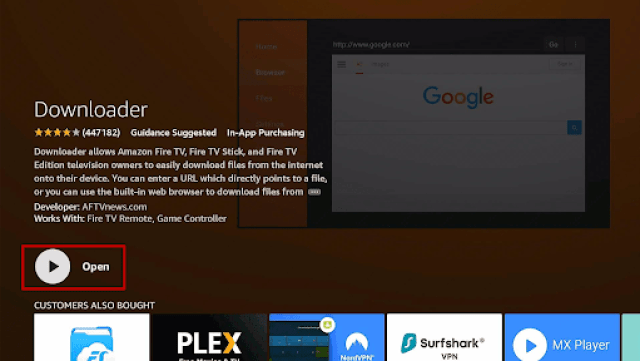
  11. Click on Open.
  12. Press on the Allow button.
  13. You can now use the Downloader app.
  14. Type in: reviewvpn.com/spev and tap the Go button.
  15. The SportEventz app will download on your device.
  16. Press the Install button.
  17. The SportEventz app will install on your Fire TV stick.
  18. Press the Open button to launch the SportEventz app.
  19. Wait for the SportEventz app to load its user interface.
  20. Press on any SportEventz app sports schedule for streaming sports videos. 


How to Install SportEventz App on Fire TV Stick With Screenshots

Follow our screenshots to successfully install the SportEventz app on your Fire TV stick. While doing this method, we recommend using the Downloader app.

1. Open your Firestick Settings Tab. (Gear Wheel Icon).


2. Scroll down and select My Fire TV.


3. Select Developer options.


4. Turn on ADB debugging and Apps from Unknown Sources.


5. Press the Turn On when the pop-up appears.

Jailbreak Firestick and Install Downloader App


6. Click Home and press on FIND.


7. Press the Search button from the dropdown.


8. You can either say Downloader to your Alexa voice-enabled remote or start typing it. If you typed it, click on the suggestion when it appears.


9. Click on the Downloader Icon.


10. Tap on Download.


11. Click on Open.


12. Press on the Allow button.


13. You can now use the Downloader app.


14. Type in: reviewvpn.com/spev and tap the Go button.

Install SportEventz App on Fire TV Stick step 14


15. The SportEventz app will download on your device.

Install SportEventz App on Fire TV Stick step 15


16. Press the Install button.

Install SportEventz App on Fire TV Stick step 16


17. The SportEventz app will install on your Fire TV stick.

Install SportEventz App on Fire TV Stick step 17


18. Press the Open button to launch the SportEventz app.

Install SportEventz App on Fire TV Stick step 18


19. Wait for the SportEventz app to load its user interface.

Install SportEventz App on Fire TV Stick step 19


20. Press on any SportEventz app sports schedule for streaming sports videos. 

Install SportEventz App on Fire TV Stick step 20


YOUR INTERNET ACTIVITY IS BEING WATCHED

ReviewVPN cannot attest to the legality, security and privacy of the applications discussed on this site. It is highly recommended that you use a VPN service while streaming or using Kodi.

Currently, your IP 216.73.216.52 is visible to everyone and your Browser is being tracked by Advertisers & ISP Provider.

Save 65% Now

Limited Time Offer

Here are the main reasons why you must use a VPN:

  • Your activities are hidden from your ISP, the government, and from the apps you are using.
  • You can access additional movies and TV streams.
  • ISP attempts to throttle are thrwarted thus reducing buffering issues.
  • Geographically restricted content like Netflix and Hulu can be unblocked.

A VPN works be replacing your ISP-assigned IP address and creating an encrypted tunnel. We recommend the no log service offered by IPVanish. It works well on a Firestick and offers the fastest possible speeds.

Special Limited Time Offer - Get IPVanish


Legal Disclaimer: ReviewVPN.com does not encourage or endorse any illegal activity involved in the usage of services and applications referenced on this site. We do not verify the licensing agreements of services. The end-user is wholly responsible for ensuring that any media accessed through these services does not violate copyright and/or licensing laws. ReviewVPN does not promote, link to, or receive compensation from any Apps and IPTV services.


Install Surfshark on Firestick

Best Surfshark Deal


Features of the SportEventz App

  • The SportEventz app is one of the biggest sports live streaming services in existence.
  • Frequently updates the user about the latest sports events.
  • Provides many sports and live TV channels both on Android and the Fire TV stick.
  • Contains satellite TV schedules, encryption, and satellite name.
  • Presents broadcasting details about each sports video stream.
  • The SportEventz app gives us information on more than 25000 sports competitions worldwide.
  • Clickable sports tabs complete with schedule and premiere date.
  • Includes 30 sports from more than 100 countries worldwide.
  • Presents a daily program guide from over 5000 broadcast stations and live TV services.
  • Contains a selection of 2000 live streamers and sports video sources.


Technical Specifications of the SportEventz app

Let us now show you the technical specifications of the SportEventz app. Here you will learn about its latest version, file size, and installation requirements. It will help you determine if your device is compatible with the SportEventz app.

SportEventz


The Interface of the SportEventz App

  • Daily and upcoming schedule of sports events.
  • Easy-to-navigate User Interface.
  • Simple layout design and navigation.
  • Details such as satellite TV provider, name, frequency, and encryption protocols.
  • Contains 2500 sports matches in 30 sports categories from 100 countries worldwide.
  • Daily program guide showing you 5000 live streamers and sports video providers.


Sports Available with the SportEventz App

  • Soccer
  • Ice hockey
  • Basketball
  • Tennis
  • Handball
  • Baseball
  • eSports
  • American football
  • Athletics
  • Aussie rules
  • Badminton
  • Bandy
  • Beach soccer
  • Volleyball (beach)
  • Boxing
  • Cricket
  • Curling
  • Cycling
  • Darts
  • Field hockey
  • Floorball
  • Futsal
  • Gaelic sports
  • Golf
  • MMA
  • Motorsport
  • Rugby
  • Snooker
  • Table tennis
  • Volleyball
  • Waterpolo
  • Wintersports


Pros and Cons

Pros

  • 100% Free
  • Legal to Use
  • No registration and payment requirements
  • Provides details such as satellite TV name, encryption, and frequency
  • Contains a wide selection of sports categories


Cons

  • Some links do not appear to work on the Fire TV stick.


Stream Many Sports Categories with a VPN

https://get.surfshark.net/aff_c?offer_id=865&aff_id=12312

While streaming sports, we might encounter some malfunctions and hindrances. These occurrences may range from unavailable links, slow streaming speeds, or geo-restricted content.

Fortunately, we have a solution to solve most of these difficulties. We recommend Surfshark for streaming sports videos, TV shows, and online movies. It is the best VPN for streaming a variety of media content from the internet.

Surfshark shares many benefits with its users:

  • Faster streaming of sports content.
  • Hide all your activities on the internet.
  • Masks your internet traffic by passing them through encrypted tunnels.
  • Provides you with a new IP address making you invisible to prying eyes.
  • Prevents buffering and stuttering both on Kodi and Firestick.

Note: For more information about SurfShark, please read our SURFSHARK REVIEW.


Grab your subscription now!


How to Install Surfshark VPN on Firestick

If your Firestick still has the older interface, read this article to learn how to update it: Update Firestick Interface.

You can download Surfshark directly from the Amazon App store. It will be easy for you to find Surfshark with your Firestick’s Find feature. Refer to our screenshots below.

1. Go to the Home screen of your Firestick.

step 1 Install Surfshark VPN on Firestick


2. Navigate towards the Find tab. Press the Search button from the resulting dropdown.

step 2 Install Surfshark VPN on Firestick


3. Type in the keyword of SurfShark and select from the suggestions that will appear.

step 3 Install Surfshark VPN on Firestick


4. Click the official SurfShark icon from your search results.

step 4 Install Surfshark VPN on Firestick


5. Press the Download (You own it) button.

step 5 Install Surfshark VPN on Firestick


6. The SurfShark VPN installer will download on your device.

step 6 Install Surfshark VPN on Firestick


7. SurfShark VPN’s app will automatically install itself on your Fire TV stick.

step 7 Install Surfshark VPN on Firestick


8. Press the Open button after completing SurfShark VPN’s installation process.

step 8 Install Surfshark VPN on Firestick


9. Please wait for the SurfShark VPN to load its user interface.

step 9 Install Surfshark VPN on Firestick


10. You can now log in with your SurfShark VPN account credentials.

step 10 Install Surfshark VPN on Firestick

Learn more about Surfshark and Grab the Best Surfshark Deal Now!


Other VPNs to Consider

NordVPN (Best for Streaming)

Best Features

  • 5000+ Server in 50+ Countries 
  • Military-Grade Encryption
  • Fast Connection Speed
  • Suitable to a lot of devices
  • No-Log Policy

Prices
  • Complete $5.89 per month (64% Discount)
  • Plus $4.59 per month (56% Discount)
  • Standard $3.69 per month (55% Discount)

Best Features

  • 750+ High-speed VPN Servers in 43 Locations
  • Military-Grade Encryption
  • Fastest HD Streaming and Gaming
  • 30-Day Money-Back Guarantee
  • Unlimited Data & Devices
  • No-Log Policy

Prices
  • 3 Years $1.99 per month (82% Discount)
  • 1 Years $3.29 per month (70% Discount)
  • 1 Month $10.99 per month

IPVanish VPN (Most Secure)

Best Features

  • 1200+ Servers in 60+ Countries around the world
  • Unlimited Connections
  • No-Log Policy
  • Top Notch Military-Grade VPN Protocols and Encryptions
  • 100% Safe and Secured
  • Most Trusted VPN
  • Best VPN for Firestick
  • 30-Day Money-Back Guarantee

Prices
  • Yearly $3.99 per month (63% Discount) – 30 days risk free + Ransomware & Malware Protection
  • Quarterly $5.32 per month (51% Discount)
  • Monthly $10.99 per month


For more VPN discounts, go to ReviewVPN Deals and purchase the best VPN for you.


Alternative Apps for the SportEventz App

Some of you might dislike the features of the SportEventz app, here is a list of apps that can work as viable alternatives.

Check out our article about the Best Free Sports apps for more apps that provide free sports streaming.


FAQs

Is the SportEventz app free?

Yes. You can download and install the app without worrying about payment or hidden fees.


Is it safe to use the SportEventz app?

Yes. It does not contain any form of modern cyber threats.


Conclusion

For sports enthusiasts worldwide, the SportEventz app can be the app you’re searching for. The SportEventz app provides sports videos, match details, and a schedule of events. You will easily find a sports category you want to watch while using the Sportz Eventz app.

We hope this article helps you install the SportEventz app on your Fire TV stick.

How to Install Noir Matrix Kodi Build

Noir Matrix Kodi Build Overview

The article will help you on how to install Noir Matrix Kodi Build.


Noir Matrix is the latest build located on cMaN’s repository and one of the few builds compatible with Kodi 19.5 Matrix. This build has a simple and easy-to-use interface with a modern look designed. It is also different from other builds as it has add-ons categories such as Sports, Xstream, Asgard, and more.

You can watch a few but a great lineup of content to watch for free such as Movies, Tv shows, Sports coverage, and more. This build also uses different add-ons to bring you a collection of content. Some of the Kodi addons it has are Asgard, Xstream, Loop, Goto, and more.

You can watch on up to 4k content as it has different streaming links providers. The good thing is, it also supports Treakt and Real Debrid account integration. So, you can assure a better streaming experience using this build on Kodi. 


ANONYMOUSLY

How to Install Noir Matrix Kodi Build with Screenshot

Installing a Kodi build has a lot of processes to take. That is why we will guide you step by step on how you can install it on Kodi.

 Follow the following steps below.  

1. On your Firestick, open Kodi and go to Settings.

Install Noir Matrix Kodi Build Step 1


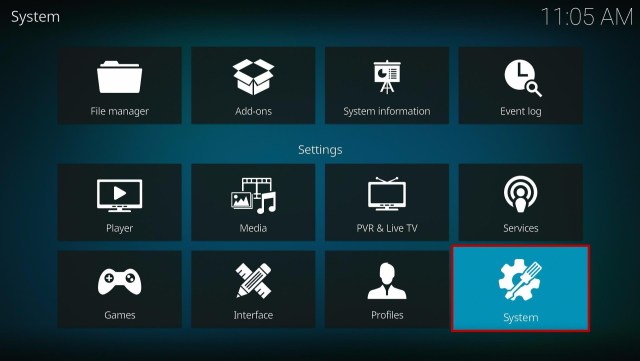
2. Select on System.

Install Noir Matrix Kodi Build Step 2


3. Click on the Add-ons menu and Turn ON the Unknown Sources.

Install Noir Matrix Kodi Build Step 3


4. Select Yes when the box appears.

Install Noir Matrix Kodi Build Step 4


5. Go back one step and click on File Manager.

Install Noir Matrix Kodi Build Step 5


6. Select the Add Source.

Install Noir Matrix Kodi Build Step 6


7. A box will pop up, so click on the ‘None’ option.

Install Noir Matrix Kodi Build Step 7


8. Now type in this URL http://cmanbuilds.com/repo and click OK. 

Install Noir Matrix Kodi Build Step 8


9. Name this URL as cman and tap OK.

Install Noir Matrix Kodi Build Step 9


10. After that, go back to the system menu and select Add-ons.

Install Noir Matrix Kodi Build Step 10


11. Click Install from Zip File.

Install Noir Matrix Kodi Build Step 11


12. When a box pop up, tap the Yes button.

Install Noir Matrix Kodi Build Step 12


13. Select cman or any name you have given.

Install Noir Matrix Kodi Build Step 13


14. Choose repository.cMaNWizard.zip

Install Noir Matrix Kodi Build Step 14


15. Wait a few minutes for the addon to be installed. After that, an icon will appear at the top menu.

Install Noir Matrix Kodi Build Step 15


16. Tap the  Install from Repository.

Install Noir Matrix Kodi Build Step 16


17. Then select cMaN’s Wizard Repository from the list.

Install Noir Matrix Kodi Build Step 17


18. Select the Program add-ons.

Install Noir Matrix Kodi Build Step 18


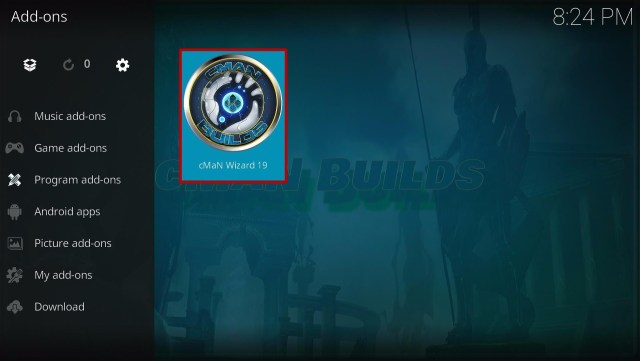
19. Click cMaN Wizard 19.

Install Noir Matrix Kodi Build Step 19


20. Tap the Install button.

Install Noir Matrix Kodi Build Step 20


21. Wait for the cMaN Wizard 19 installed notification.

Install Noir Matrix Kodi Build Step 21


22. Wait for the Installed message to appear and click the Continue

Install Noir Matrix Kodi Build Step 22


23. Tap the Close

Install Noir Matrix Kodi Build Step 23


24. Go back to the Kodi home screen and scroll down to Addon.

Install Noir Matrix Kodi Build Step 24


25. From the Program add-ons, select cMaN Wizard 19.

Install Noir Matrix Kodi Build Step 25


26. Click the Builds

Install Noir Matrix Kodi Build Step 26


27. Scroll down and select Noir Matrix

Install Noir Matrix Kodi Build Step 27


28. Click Fresh Install

Install Noir Matrix Kodi Build Step 28


29. Tap on the Yes button

Install Noir Matrix Kodi Build Step 29


30. Wait for the build to download.

Install Noir Matrix Kodi Build Step 30


31. Click the OK button

Install Noir Matrix Kodi Build Step 31


32. Launch your Kodi again

Install Noir Matrix Kodi Build Step 32


33. That’s it! You have successfully installed the Noir Matrix Kodi Build.

Install Noir Matrix Kodi Build Step 33


YOUR INTERNET ACTIVITY IS BEING WATCHED

ReviewVPN cannot attest to the legality, security and privacy of the applications discussed on this site. It is highly recommended that you use a VPN service while streaming or using Kodi.

Currently, your IP 216.73.216.52 is visible to everyone and your Browser is being tracked by Advertisers & ISP Provider.

Save 65% Now

Limited Time Offer

Here are the main reasons why you must use a VPN:

  • Your activities are hidden from your ISP, the government, and from the apps you are using.
  • You can access additional movies and TV streams.
  • ISP attempts to throttle are thrwarted thus reducing buffering issues.
  • Geographically restricted content like Netflix and Hulu can be unblocked.

A VPN works be replacing your ISP-assigned IP address and creating an encrypted tunnel. We recommend the no log service offered by IPVanish. It works well on a Firestick and offers the fastest possible speeds.

Special Limited Time Offer - Get IPVanish


Legal Disclaimer: ReviewVPN.com does not encourage or endorse any illegal activity involved in the usage of services and applications referenced on this site. We do not verify the licensing agreements of services. The end-user is wholly responsible for ensuring that any media accessed through these services does not violate copyright and/or licensing laws. ReviewVPN does not promote, link to, or receive compensation from any Apps and IPTV services.


Install Surfshark on Firestick

Best Surfshark Deal


Features of Noir Matrix Kodi Build

  • Simple and user-friendly interface. 
  • The main categories are Sports, Xstream, Asgard, System, Addons, and Power. 
  • Brings you all of the latest and highly rated Movies from different streaming services. 
  • In the sports category: you can watch TV rewind, UK Soap Rewind, Live Sports, and more. 
  • The sports it covers are Basketball, Football, Soccer, Baseball, Wrestling, Boxing, MMA live, Nascar, and more.  
  • It has a Santa’s place where you can watch different Christmas content such as XMAS Movies, Hallmark Xmas Movies, Xmas Music, Xmas Fireplaces, and more. 
  • Brings you both Debrid and Free streaming links.
  • Movies from 1900 to 2021. 
  • You can also watch on different Moveis collections and box sets such as The Troubles Collection, The Scottish Collection, War Collection, and more.  
  • It also has Kids Movies, Kids Holiday movies, and Short movies.
  • In the Asgard section, you can choose from the 4K One-Click Section, One-Click Section, Non-Debrid, Movies, TV shows, Soaps, Kids, Sports, Stand Up, Apps, Music, and more. 
  • Preloaded add ons – Asgard, Rising tides, Rising Tides Repo, Project Mayhem, Replay me, Loop Repository, Torque Lite, Black, AAC Encoder, Goto, Dailymotion, Loop Repository, SNES Controller, The Movie Database, The Xstream, and more.


Pros and Cons

Pros

  • This build is compatible with Kodi 19.5 Matrix. 
  • It brings you different streaming links from different providers. 
  • You can watch up to 4k video streaming quality. 
  • This build brings you a large collection of content from different addons. 


Cons

  • Some streaming links and providers in this build are not working. 


Do I need a VPN?

Having a VPN is a great matter when you need to ensure your primary and security online. This VPN helps you a lot in terms of security as it provides a high quality of protection from any harms and dangers online, such as privacy threats, tracking, hacking, and more. 

One of the good VPNs that we highly recommend is the IPVanihs, as it is proven and tested VPN that will always keep you protected. Thai VPN gives you a military standard of encryption that will safeguard everything about you. It is also an award-winning VPN with a list of impressive features to offer at a budget-friendly price.  


Here are the reasons why it is our VPN of choice:

  • Provides you with a high speed of connection and unlimited bandwidth to stream as much as you want. It also has a solid zero logs policy and no IP Leak. 
  • Surfshark helps you keep your activity online private and safe by encrypting your data. It also prevents your ISP from interfering with your connection and snooping ISP to give you privacy on whatever you do online. 
  • It will automatically hide your real IP address and let you connect to over 3200+ servers in 65 countries of your choice. This will keep you anonymous online and avoid being tracked or attributed to any individual. 
  • High standard of encryption with a 256 bit AES encryption. It is the same level of security used by the US military, so you can assure that all of your data is secured. 

Note: For more information about Surfshark, please read our Surfshark Review.


Grab your subscription now!

Click here to get the lowest price on Surfshark through our exclusive limited-time offer.


How to Install Surfshark VPN on Firestick

If your Firestick still has the older interface, read this article to learn how to update it: Update Firestick Interface.

Follow our screenshots below to install the SurfShark VPN app on your Fire TV stick.

1. Go to the Home screen of your Firestick.

step 1 Install Surfshark VPN on Firestick


2. Navigate towards the Find tab. Press the Search button from the resulting dropdown.

step 2 Install Surfshark VPN on Firestick


3. Type in the keyword of SurfShark and select from the suggestions that will appear.

step 3 Install Surfshark VPN on Firestick


4. Click the official SurfShark icon from your search results.

step 4 Install Surfshark VPN on Firestick


5. Press the Download (You own it) button.

step 5 Install Surfshark VPN on Firestick


6. The SurfShark VPN installer will download on your device.

step 6 Install Surfshark VPN on Firestick


7. SurfShark VPN’s app will automatically install itself on your Fire TV stick.

step 7 Install Surfshark VPN on Firestick


8. Press the Open button after completing SurfShark VPN’s installation process.

step 8 Install Surfshark VPN on Firestick


9. Please wait for the SurfShark VPN to load its user interface.

step 9 Install Surfshark VPN on Firestick


10. You can now log in with your SurfShark VPN account credentials.

step 10 Install Surfshark VPN on Firestick

Learn more about Surfshark and Grab the Best Surfshark Deal Now!


Install Surfshark on Firestick

Best Surfshark Deal


Other VPNs to Consider

NordVPN (Best for Streaming)

Best Features

  • 5000+ Server in 50+ Countries 
  • Military-Grade Encryption
  • Fast Connection Speed
  • Suitable to a lot of devices
  • No-Log Policy

Prices
  • Complete $5.89 per month (64% Discount)
  • Plus $4.59 per month (56% Discount)
  • Standard $3.69 per month (55% Discount)

Best Features

  • 750+ High-speed VPN Servers in 43 Locations
  • Military-Grade Encryption
  • Fastest HD Streaming and Gaming
  • 30-Day Money-Back Guarantee
  • Unlimited Data & Devices
  • No-Log Policy

Prices
  • 3 Years $1.99 per month (82% Discount)
  • 1 Years $3.29 per month (70% Discount)
  • 1 Month $10.99 per month

IPVanish VPN (Most Secure)

Best Features

  • 1200+ Servers in 60+ Countries around the world
  • Unlimited Connections
  • No-Log Policy
  • Top Notch Military-Grade VPN Protocols and Encryptions
  • 100% Safe and Secured
  • Most Trusted VPN
  • Best VPN for Firestick
  • 30-Day Money-Back Guarantee

Prices
  • Yearly $3.99 per month (63% Discount) – 30 days risk free + Ransomware & Malware Protection
  • Quarterly $5.32 per month (51% Discount)
  • Monthly $10.99 per month


For more VPN discounts, go to ReviewVPN Deals and purchase the best VPN for you.

Click here to get the lowest price on Surfshark through our exclusive limited-time offer.


Alternatives for Noir Matrix Kodi Build

We list down some of the Kodi builds that you can try on your Kodi. If you want to know more about these builds, kindly read their corresponding articles. For more addon/build compatible with Kodi 19.5, visit this link What’s working on Kodi 19.5.


FAQs

Is the Noir Matrix Kodi build-free?

Yes, this build is free to install and allows you to watch its contents for free. 


Is the Noir Matrix Kodi Build legal to use?

Yes, this build is legal, as long as it does not offer any copyrighted and restricted content.


Is the Noir Matrix Kodi Build safe to use?

Yes, this build is safe to use, but if you want to ensure your security, we suggest using a VPN such as Surfshark


Conclusion

Noir Matrix is a new build from the cMaN Repository that brings you a large collection of contents. This build also has a great lineup of content to offer. You can also ensure that this build will give you high-quality of streaming links as it is integrated with Real debrid. As the name suggests, this build is only compatible and works well on Kodi 19 Matrix versions. We hope this article helps you install the Noir Matrix Kodi Build.

How to Install Groguuu Madnox Kodi Build

Groguuu Madnox Kodi Build Overview

The article will help you on how to install Groguuu Madnox Kodi Build.


Groguuu Madnox is a third-party build from the Cman Repository and one of the fewest builds compatible with Kodi 19.5 Matrix. This build has thousands of content to watch for free such as movies, Tv shows, Sports coverage, and more. It also has a great lineup of popular and latest content to watch.

You can also watch on Live Tv from different networks and get updated with every latest happening around you. The good thing is this build supports Trakt account integration to synchronize and customize your content library.

You can now watch on your library or add some content from this build on your account. This build brings you a large collection of contents from different Kodi addons and some of the preloaded addons that you can see in this build are Asgard, Seren, The Xstream, TheOath, and more. 


ANONYMOUSLY

How to Install Groguuu Madnox Kodi Build with Screenshot

Installing a Kodi build has a lot of processes to take. That is why we will guide you step by step on how you can install it on Kodi.

 Follow the following steps below.  

1. On your Firestick, open Kodi and go to Settings.

Install Groguuu Madnox Kodi Build Step 1


2. Select on System.

Install Groguuu Madnox Kodi Build Step 2


3. Click on the Add-ons menu and Turn ON the Unknown Sources.

Install Groguuu Madnox Kodi Build Step 3


4. Select Yes when the box appears.

Install Groguuu Madnox Kodi Build Step 4


5. Go back one step and click on File Manager.

Install Groguuu Madnox Kodi Build Step 5


6. Select the Add Source.

Install Groguuu Madnox Kodi Build Step 6


7. A box will pop up, so click on the ‘None’ option.

Install Groguuu Madnox Kodi Build Step 7


8. Now type in this URL http://cmanbuilds.com/repo and click OK. 

Install Groguuu Madnox Kodi Build Step 8


9. Name this URL as cman and tap OK.

Install Groguuu Madnox Kodi Build Step 9


10. After that, go back to the system menu and select Add-ons.

Install Groguuu Madnox Kodi Build Step 10


11. Click Install from Zip File.

Install Groguuu Madnox Kodi Build Step 11


12. When a box pop up, tap the Yes button.

Install Groguuu Madnox Kodi Build Step 12


13. Select cman or any name you have given.

Install Groguuu Madnox Kodi Build Step 13


14. Choose repository.cMaNWizard.zip

Install Groguuu Madnox Kodi Build Step 14


15. Wait a few minutes for the addon to be installed. After that, an icon will appear at the top menu.

Install Groguuu Madnox Kodi Build Step 15


16. Tap the  Install from Repository.

Install Groguuu Madnox Kodi Build Step 16


17. Then select cMaN’s Wizard Repository from the list.

Install Groguuu Madnox Kodi Build Step 17


18. Select the Program add-ons.

Install Groguuu Madnox Kodi Build Step 18


19. Click cMaN Wizard 19.

Install Groguuu Madnox Kodi Build Step 19


20. Tap the Install button.

Install Groguuu Madnox Kodi Build Step 20


21. Wait for the cMaN Wizard 19 installed notification.

Install Groguuu Madnox Kodi Build Step 21


22. Wait for the Installed message to appear and click the Continue

Install Groguuu Madnox Kodi Build Step 22


23. Tap the Close

Install Groguuu Madnox Kodi Build Step 23


24. Go back to the Kodi home screen and scroll down to Addon.

Install Groguuu Madnox Kodi Build Step 24


25. From the Program add-ons, select cMaN Wizard 19.

Install Groguuu Madnox Kodi Build Step 25


26. Click the Builds

Install Groguuu Madnox Kodi Build Step 26


27. Scroll down and select Groguuu Madnox

Install Groguuu Madnox Kodi Build Step 27


28. Click Fresh Install

Install Groguuu Madnox Kodi Build Step 28


29. Tap on the Yes button

Install Groguuu Madnox Kodi Build Step 29


30. Wait for the build to download.

Install Groguuu Madnox Kodi Build Step 30


31. Click the OK button

Install Groguuu Madnox Kodi Build Step 31


32. Launch your Kodi again

Install Groguuu Madnox Kodi Build Step 32


33. That’s it! You have successfully installed the Groguuu Madnox Kodi Build.

Install Groguuu Madnox Kodi Build Step 33


YOUR INTERNET ACTIVITY IS BEING WATCHED

ReviewVPN cannot attest to the legality, security and privacy of the applications discussed on this site. It is highly recommended that you use a VPN service while streaming or using Kodi.

Currently, your IP 216.73.216.52 is visible to everyone and your Browser is being tracked by Advertisers & ISP Provider.

Save 65% Now

Limited Time Offer

Here are the main reasons why you must use a VPN:

  • Your activities are hidden from your ISP, the government, and from the apps you are using.
  • You can access additional movies and TV streams.
  • ISP attempts to throttle are thrwarted thus reducing buffering issues.
  • Geographically restricted content like Netflix and Hulu can be unblocked.

A VPN works be replacing your ISP-assigned IP address and creating an encrypted tunnel. We recommend the no log service offered by IPVanish. It works well on a Firestick and offers the fastest possible speeds.

Special Limited Time Offer - Get IPVanish


Legal Disclaimer: ReviewVPN.com does not encourage or endorse any illegal activity involved in the usage of services and applications referenced on this site. We do not verify the licensing agreements of services. The end-user is wholly responsible for ensuring that any media accessed through these services does not violate copyright and/or licensing laws. ReviewVPN does not promote, link to, or receive compensation from any Apps and IPTV services.


Install Surfshark on Firestick

Best Surfshark Deal


Features of Groguuu Madnox Kodi Build

  • Allows you to access their contents for free. 
  • It has an easy-to-navigate and simple interface that works well on Kodi 19.5.
  • The main sections are Movies, TV shows, Trakt, Live TV, Free, Addons, System, Weather, Sports, and One click. 
  • It brings you Popular Movies, Trending, Premiers, Latest Releases, Top 10 box Offices, Blockbusters, In Theaters, and more. 
  • In the Tv shows, you can watch Trending, Popular, Top Rated, Airing Today, On the Air, Upcoming, and more. 
  • Watch on Live TV from different TV networks such as ABC, ACC Network, AE, AMC, Animal, BBCAmerica, BigTen Network, BET, Boomerang, Bravo, C-SPAN, CBS, Cinemax, and more. 
  • Genres: Action Adventures, Animation, Comedy, Crime, Documentary, Drama, Family, Kids, Fantasy, History, Horror, Music, Mystery, Romance, Sci-Fi, Sport, Superhero, War and Western. 
  • Bring you Free streaming links/Non-debrid Section: Black & White Movies, Movies, TV shows, Christmas Hallmark, Christmas Movies, Movie Box Sets, Documentaries, Horror Box Sets, Movies 1969-2016, and more. 
  • Watch different sports such as MMA Live, Football, Hockey, Baseball, Basketball, American Football, Boxing, NASCAR, Wrestling, UFC, and more. 
  • Provide you with different streaming links from different providers with a maximum of 4K quality.
  • Preloaded add ons – Asgard, ApeX Sports, Fen, The Xstream, Seren, The MovieDb Helper, Torque Lite, TheOath, YouTube, Embuary Helper, Plex, cMan Wizard, FenomScrapers, OathScrapers, Madnox, and more.


Pros and Cons

Pros

  • This build has a simple and well-organized list of contents. 
  • You can choose from their wide variety of content categories. 
  • Watch on the high quality of streaming links from different providers. 
  • It brings you both Debrid and Non-Debrid streaming links. 
  • Supports Trakt and Real Debrid integration.


Cons

  • Few preloaded Kodi addons to try. 
  • Some of its streaming links are not working at all. 


Do I need a VPN?

For everything that you do online, we always suggest using a Virtual Private Network on your device to keep you safe and protected. A VPN is like an online companion that will ensure your safety and privacy while streaming on any provider, website, or platform. One of the best VPNs that you can use is Surfshark. This VPN has an amazing security service that will keep you safe 24/7 using a military standard of encryption. It also has an impressive list of features and security services to offer. 

Here are the reasons why it is our VPN of choice:

  • Destroys geo-block and gains access to different content globally.
  • Lets’ you connect to over 3200+ servers in 65 countries
  • Zero logs and no IP address leaks. 
  • Bypass censorship and restrictions.
  • A high standard of AES 256-bit encryptions will safeguard all of your data.
  • Prevent ISPs from interfering with your connection and speed up your internet.
  • It gives you unlimited bandwidth and makes your internet speed faster. 
  • Keep your identity anonymous to protect you from hackers, especially when you are using public wi-fi.
  • It provides a secure environment for everyday internet activity.
  • Keep your file protected from harmful malware.

Note: For more information about Surfshark, please read our Surfshark Review.


Grab your subscription now!

Click here to get the lowest price on Surfshark through our exclusive limited-time offer.


How to Install Surfshark VPN on Firestick

If your Firestick still has the older interface, read this article to learn how to update it: Update Firestick Interface.

Follow our screenshots below to install the SurfShark VPN app on your Fire TV stick.

1. Go to the Home screen of your Firestick.

step 1 Install Surfshark VPN on Firestick


2. Navigate towards the Find tab. Press the Search button from the resulting dropdown.

step 2 Install Surfshark VPN on Firestick


3. Type in the keyword of SurfShark and select from the suggestions that will appear.

step 3 Install Surfshark VPN on Firestick


4. Click the official SurfShark icon from your search results.

step 4 Install Surfshark VPN on Firestick


5. Press the Download (You own it) button.

step 5 Install Surfshark VPN on Firestick


6. The SurfShark VPN installer will download on your device.

step 6 Install Surfshark VPN on Firestick


7. SurfShark VPN’s app will automatically install itself on your Fire TV stick.

step 7 Install Surfshark VPN on Firestick


8. Press the Open button after completing SurfShark VPN’s installation process.

step 8 Install Surfshark VPN on Firestick


9. Please wait for the SurfShark VPN to load its user interface.

step 9 Install Surfshark VPN on Firestick


10. You can now log in with your SurfShark VPN account credentials.

step 10 Install Surfshark VPN on Firestick

Learn more about Surfshark and Grab the Best Surfshark Deal Now!


Install Surfshark on Firestick

Best Surfshark Deal


Other VPNs to Consider

NordVPN (Best for Streaming)

Best Features

  • 5000+ Server in 50+ Countries 
  • Military-Grade Encryption
  • Fast Connection Speed
  • Suitable to a lot of devices
  • No-Log Policy

Prices
  • Complete $5.89 per month (64% Discount)
  • Plus $4.59 per month (56% Discount)
  • Standard $3.69 per month (55% Discount)

Best Features

  • 750+ High-speed VPN Servers in 43 Locations
  • Military-Grade Encryption
  • Fastest HD Streaming and Gaming
  • 30-Day Money-Back Guarantee
  • Unlimited Data & Devices
  • No-Log Policy

Prices
  • 3 Years $1.99 per month (82% Discount)
  • 1 Years $3.29 per month (70% Discount)
  • 1 Month $10.99 per month

IPVanish VPN (Most Secure)

Best Features

  • 1200+ Servers in 60+ Countries around the world
  • Unlimited Connections
  • No-Log Policy
  • Top Notch Military-Grade VPN Protocols and Encryptions
  • 100% Safe and Secured
  • Most Trusted VPN
  • Best VPN for Firestick
  • 30-Day Money-Back Guarantee

Prices
  • Yearly $3.99 per month (63% Discount) – 30 days risk free + Ransomware & Malware Protection
  • Quarterly $5.32 per month (51% Discount)
  • Monthly $10.99 per month


For more VPN discounts, go to ReviewVPN Deals and purchase the best VPN for you.

Click here to get the lowest price on Surfshark through our exclusive limited-time offer.


Alternatives for Groguuu Madnox Kodi Build

We list down some Kodi builds that you can try on your Kodi. If you want to know more about these builds, kindly read their corresponding articles. For more addon/build compatible with Kodi 19.5, visit this link What’s working on Kodi 19.5.


FAQs

Can I also install this build on Kodi 18.9 Leia?

No, the Groguuu Madnox build only works and is compatible with the Kodi 19.5 Matrix.


Is the Groguuu Madnox Kodi Build for free?

Yes, this build is free and allows you to access their content for free.


Is the Groguuu Madnox Kodi Build legal to use?

Yes, this build is legal, as long as it does not offer any copyrighted and restricted content.


Is the Groguuu Madnox Kodi Build safe to use?

Yes, this build is safe to use, but if you want to ensure your security, we suggest using a VPN such as Surfshark


Conclusion

Groguuu Madnox is one of the latest builds that gives you a wide selection of content to watch for free. This build works well on Kodi 19.5 Matrix and has a well-organized list of contents. You can watch this build for free as it brings you both Debrid and Non-debrid streaming links from the Real Debrid. The good thing is, you can watch in this build without any hassle and any pop-up ads to interrupt. We hope this article helps you install the Groguu Madnox Kodi Build

How to Install Space Jam Kodi Build

Space Jam Kodi Build Overview

The article will help you on how to install Space Jam Kodi Build.


Space Jam is a very cute and amazing build that brings you a well-organized list of content to watch. This build has a simple and easy-to-use interface that works well on Kodi 19.5 Matrix. It also has a large collection of content to watch in a wide selection of categories.

You can watch the latest and trending movies/TV shows to watch from the different providers. This build will surely satisfy you with its great selection of content. The good thing is, it supports different Kodi addons that you can use to watch their contents.

Some of the preloaded addons are Asgard, Rogue One, THE CREW, HAL 9000, Unchained Horror, The Endzone 19, and more. You can get this build on cMan Repostiryt and enjoy watching on your Kodi 19.5. 


ANONYMOUSLY

How to Install Space Jam Kodi Build with Screenshot

Installing a Kodi build has a lot of processes to take. That is why we will guide you step by step on how you can install it on Kodi.

 Follow the following steps below.  

1. On your Firestick, open Kodi and go to Settings.

Install Space Jam Kodi Build Step 1


2. Select on System.

Install Space Jam Kodi Build Step 2


3. Click on the Add-ons menu and Turn ON the Unknown Sources.

Install Space Jam Kodi Build Step 3


4. Select Yes when the box appears.

Install Space Jam Kodi Build Step 4


5. Go back one step and click on File Manager.

Install Space Jam Kodi Build Step 5


6. Select the Add Source.

Install Space Jam Kodi Build Step 6


7. A box will pop up, so click on the ‘None’ option.

Install Space Jam Kodi Build Step 7


8. Now type in this URL http://cmanbuilds.com/repo and click OK. 

Install Space Jam Kodi Build Step 8


9. Name this URL as cman and tap OK.

Install Space Jam Kodi Build Step 9


10. After that, go back to the system menu and select Add-ons.

Install Space Jam Kodi Build Step 10


11. Click Install from Zip File.

Install Space Jam Kodi Build Step 11


12. When a box pop up, tap the Yes button.

Install Space Jam Kodi Build Step 12


13. Select cman or any name you have given.

Install Space Jam Kodi Build Step 13


14. Choose repository.cMaNWizard.zip

Install Space Jam Kodi Build Step 14


15. Wait a few minutes for the addon to be installed. After that, an icon will appear at the top menu.

Install Space Jam Kodi Build Step 15


16. Tap the  Install from Repository.

Install Space Jam Kodi Build Step 16


17. Then select cMaN’s Wizard Repository from the list.

Install Space Jam Kodi Build Step 17


18. Select the Program add-ons.

Install Space Jam Kodi Build Step 18


19. Click cMaN Wizard 19.

Install Space Jam Kodi Build Step 19


20. Tap the Install button.

Install Space Jam Kodi Build Step 20


21. Wait for the cMaN Wizard 19 installed notification.

Install Space Jam Kodi Build Step 21


22. Wait for the Installed message to appear and click the Continue

Install Space Jam Kodi Build Step 22


23. Tap the Close

Install Space Jam Kodi Build Step 23


24. Go back to the Kodi home screen and scroll down to Addon.

Install Space Jam Kodi Build Step 24


25. From the Program add-ons, select cMaN Wizard 19.

Install Space Jam Kodi Build Step 25


26. Click the Builds

Install Space Jam Kodi Build Step 26


27. Scroll down and select Space Jam

Install Space Jam Kodi Build Step 27


28. Click Fresh Install

Install Space Jam Kodi Build Step 28


29. Tap on the Yes button

Install Space Jam Kodi Build Step 29


30. Wait for the build to download.

Install Space Jam Kodi Build Step 30


31. Click the OK button

Install Space Jam Kodi Build Step 31


32. Launch your Kodi again

Install Space Jam Kodi Build Step 32


33. That’s it! You have successfully installed the Space Jam Kodi Build.

Install Space Jam Kodi Build Step 33


YOUR INTERNET ACTIVITY IS BEING WATCHED

ReviewVPN cannot attest to the legality, security and privacy of the applications discussed on this site. It is highly recommended that you use a VPN service while streaming or using Kodi.

Currently, your IP 216.73.216.52 is visible to everyone and your Browser is being tracked by Advertisers & ISP Provider.

Save 65% Now

Limited Time Offer

Here are the main reasons why you must use a VPN:

  • Your activities are hidden from your ISP, the government, and from the apps you are using.
  • You can access additional movies and TV streams.
  • ISP attempts to throttle are thrwarted thus reducing buffering issues.
  • Geographically restricted content like Netflix and Hulu can be unblocked.

A VPN works be replacing your ISP-assigned IP address and creating an encrypted tunnel. We recommend the no log service offered by IPVanish. It works well on a Firestick and offers the fastest possible speeds.

Special Limited Time Offer - Get IPVanish


Legal Disclaimer: ReviewVPN.com does not encourage or endorse any illegal activity involved in the usage of services and applications referenced on this site. We do not verify the licensing agreements of services. The end-user is wholly responsible for ensuring that any media accessed through these services does not violate copyright and/or licensing laws. ReviewVPN does not promote, link to, or receive compensation from any Apps and IPTV services.


Install SurfShark on Firestick

Best SurfShark Deal


Features of Space Jam Kodi Build

Interface

  • Allows you to access their content without any registration needed. 
  • It has a simple and well-organized interface.


Content Categories

  • Movies & TV shows: Watch on Trending, Popular, Premieres, Latest Release, Top 10 Box Office, Blockbusters, In theaters, Top Rated, Upcoming and more. 
  • It also has “Because you watched… recommendation contents. 
  • All of the popular and latest release contents are here. 
  • Genres: Action, Adventure, Animation, Comedy, Crime, Fantasy, History, Horror, Music, Mystery, Romance, Science Fiction, TV Movies, thrillers, and War. 
  • It brings you the On the Air, Airing Today, Popular, In Progress TV show, In Progress Episodes, and more. 
  • You can also watch on 4K content collections such as 4K wildlife, 4k A-Z Movies, 4K Back to the Future Box Set, 4K Beverly Hills Cop Box Set, and more. 
  • Brings you Horror content such as New Horror, Cult Classics, 4K Horror, The Haunted, 70s Horror, Gore Feast, and more.
  • You can also watch different sports such as MMA Live, Football, Wrestling, Boxing, American Football, Formula 1, Baseball, College Football, Basketball, NASCAR, Hockey, and more.


Addons

Preloaded add ons – Asgard, Rogue One, THE CREW, THE CREW REPO, HAL 9000, Unchained Horror, The Endzone 19, BASE 19, Chains, Black, Black Lightning, Chains, Goto, cMan’s Repo, Doomzday, Dailymotion, Loop TV 1, Mad Titan Sports, Magnetic Repo, Narcissist Wizard, Patriot, Phoenix Repo, Purely Wrestling, Space Jam, The Xstream, The Oath, and more. 


Pros and Cons

Pros

  • It has a simple and easy-to-use interface. 
  • You can watch their large collection of content. 
  • It brings you a great lineup of content from different Kodi addons. 
  • Streaming on Kodi is free and does not have any pop-up ads to interrupt. 
  • The maximum streaming quality is up to 4k.


Cons

  • Some streaming links and providers in this build are not working. 


Stream with a VPN

Surfshark vpn

Streaming online is much better if you are using a Virtual Private Network because sometimes streaming without any protection is very risky. There are lots of harm and dangers online because of unknown servers. That is why, before you stream online on any platform or server, we suggest using a VPN such as SurfShark. This VPN is one of the highly-rated VPNs that brings you a high standard of security features. It will surely ensure that everything about you is encrypted while you are streaming online. If you want to learn more about this VPN, kindly read our SURFSHARK REVIEW.


Here is the reason why it is our VPN of choice:

  • Prevent ISPs from interfering with your connection and speed up your internet.
  • It gives you unlimited bandwidth and makes your internet speed faster. 
  • Keep your identity anonymous to protect you from hackers, especially when you are using public wi-fi.
  • Keep your file protected from harmful malware.
  • Destroys geo-block and gains access to different content globally.
  • Lets’ you connect to thousands of anonymous IP addresses.
  • More than 3,200 servers and 65 locations.
  • 100% zero logs and no IP address leaks. 
  • Bypass censorship and restrictions.
  • SurfShark defaults to the IKEv2 protocol 
  • A high standard of AES 256-bit encryptions will safeguard all of your data.


Grab your subscription now!


How to Install Surfshark on Firestick with Screenshots

If your Firestick still has the older interface, read this article to learn how to update it: Update Firestick Interface.

You can download Surfshark directly from the Amazon App store. It will be easy for you to find Surfshark with your Firestick’s Find feature. Refer to our screenshots below.

Follow our screenshots below to install the SurfShark VPN app on your Fire TV stick.

1. Go to the Home screen of your Firestick.

step 1 Install Surfshark VPN on Firestick


2. Navigate towards the Find tab. Press the Search button from the resulting dropdown.

step 2 Install Surfshark VPN on Firestick


3. Type in the keyword of SurfShark and select from the suggestions that will appear.

step 3 Install Surfshark VPN on Firestick


4. Click the official SurfShark icon from your search results.

step 4 Install Surfshark VPN on Firestick


5. Press the Download (You own it) button.

step 5 Install Surfshark VPN on Firestick


6. The SurfShark VPN installer will download on your device.

step 6 Install Surfshark VPN on Firestick


7. SurfShark VPN’s app will automatically install itself on your Fire TV stick.

step 7 Install Surfshark VPN on Firestick


8. Press the Open button after completing SurfShark VPN’s installation process.

step 8 Install Surfshark VPN on Firestick


9. Please wait for the SurfShark VPN to load its user interface.

step 9 Install Surfshark VPN on Firestick


10. You can now log in with your SurfShark VPN account credentials.

step 10 Install Surfshark VPN on Firestick

Learn more about Surfshark and Grab the Best Surfshark Deal Now!


Install Surfshark on Firestick

Best Surfshark Deal

Other VPNs to Consider

NordVPN (Best for Streaming)

Best Features

  • 5000+ Server in 50+ Countries 
  • Military-Grade Encryption
  • Fast Connection Speed
  • Suitable to a lot of devices
  • No-Log Policy

Prices
  • Complete $5.89 per month (64% Discount)
  • Plus $4.59 per month (56% Discount)
  • Standard $3.69 per month (55% Discount)

Best Features

  • 750+ High-speed VPN Servers in 43 Locations
  • Military-Grade Encryption
  • Fastest HD Streaming and Gaming
  • 30-Day Money-Back Guarantee
  • Unlimited Data & Devices
  • No-Log Policy

Prices
  • 3 Years $1.99 per month (82% Discount)
  • 1 Years $3.29 per month (70% Discount)
  • 1 Month $10.99 per month

IPVanish VPN (Most Secure)

Best Features

  • 1200+ Servers in 60+ Countries around the world
  • Unlimited Connections
  • No-Log Policy
  • Top Notch Military-Grade VPN Protocols and Encryptions
  • 100% Safe and Secured
  • Most Trusted VPN
  • Best VPN for Firestick
  • 30-Day Money-Back Guarantee

Prices
  • Yearly $3.99 per month (63% Discount) – 30 days risk free + Ransomware & Malware Protection
  • Quarterly $5.32 per month (51% Discount)
  • Monthly $10.99 per month

For more VPN discounts, go to ReviewVPN Deals and purchase the best VPN for you.


Alternatives for Space Jam Kodi Build

We list down some of the Kodi builds that you can try on your Kodi. If you want to know more about these builds, kindly read their corresponding articles. For more addon/build compatible with Kodi 19.5, visit this link What’s working on Kodi 19.5.


FAQs

Is the Space Jam Kodi Build safe to use?

Yes, this build is safe to use, but if you want to ensure your security, we suggest using a VPN such as SurfShark. 


Can I watch Space Jam Kodi Build for free?

Yes, this build is free and allows you to access their content for free.


Is the Space Jam Kodi Build legal to use?

Yes, this build is legal, as long as it does not offer any copyrighted and restricted content.  


Conclusion

Space Jam is a very cute build with a large collection of content to watch. This build brings you almost all kinds of content to watch. You can watch on high-quality streaming links as provided by the Real Debrid. The good thing is, that it brings you a great lineup of content to watch on Kodi without any pop-up ads to interrupt. However, since it is a third-party build, we still suggest using a VPN such as SurfShark for your safety. We hope this article helps you install the Space Jam Kodi Build.

How to Install Volume Booster GOODEV on Firestick

Overview

In this article, we will show you how to install the Volume Booster GOODEV app on your Fire TV stick.


Are you looking for an app that boosts the volume of your audio? We all enjoy enhancing the bass of our music, especially at parties or just for our hobbies. Luckily for music enthusiasts, we have the right app for your needs. We will now tell you about the wonderful features of the Volume Booster GOODEV app.

The Volume Booster GOODEV app presents a simple and easy-to-use app interface. It works to boost the sound volume of your speakers and headphones. You can use the app to boost the volume of your movies, songs, audio tracks, podcasts, and music.

We want to warn you that boosting your audio can lead to hearing impairment. Using the Volume Booster GOODEV app for long periods may also damage your sound hardware. The Volume Booster GOODEV app works on many devices such as Android and Fire TV stick.


ANONYMOUSLY

Volume Booster GOODEV for Android Devices


Volume Booster GOODEV

Note: ReviewVPN.com does not host this APK file. It is hosted by Archive.org


How to Install Volume Booster GOODEV App on Fire TV Stick

Follow each step of our brief tutorial showing you how to install the Volume Booster GOODEV app on your Fire TV stick. 

To successfully install it on your device, you only have to Jailbreak your Fire TV Stick and sideload the app. We advise you to use the Downloader app for getting third-party apps like the Volume Booster GOODEV app.

  1. Open your Firestick Settings Tab. (Gear Wheel Icon).
  2. Scroll down and to the right until you get to My Fire TV. Click on it.
  3. Select Developer options.
  4. Turn on ADB debugging and Apps from Unknown Sources.
  5. Press the Turn On when the pop-up appears.
  6. Click Home and press on FIND.
  7. Press the Search button from the dropdown.
  8. You can either say Downloader to your Alexa voice-enabled remote or start typing it. If you typed it, click on the suggestion when it appears.
  9. Click on the Downloader Icon.
  10. Tap on Download.
  11. Click on Open.
  12. Press on the Allow button.
  13. You can now use the Downloader app.
  14. Type in: reviewvpn.com/vgb and tap the Go button.
  15. The Volume Booster GOODEV app will download on your device.
  16. Press the Install button.
  17. The Volume Booster GOODEV app will install on your Fire TV stick.
  18. Press the Open button to launch the Volume Booster GOODEV app.
  19. Tap the OK button when the Warning Window of the Volume Booster GOODEV app appears.
  20. The Volume Booster GOODEV app will now run, just swipe on the Boost bar to increase the volume of your music or audio.
  21. If you want to exit the Volume Booster GOODEV app, tap on the Close button.


How to Install Volume Booster GOODEV App on Fire TV Stick with Screenshots

Follow our screenshots to successfully install the Volume Booster GOODEV app on your Fire TV stick. While doing this method, we recommend using the Downloader app.

1. Open your Firestick Settings Tab. (Gear Wheel Icon).

Install Volume Booster GOODEV App on Fire TV Stick step 1


2. Scroll down and to the right until you get to My Fire TV. Click on it.

Install Volume Booster GOODEV App on Fire TV Stick step 2


3. Select Developer options.

Install Volume Booster GOODEV App on Fire TV Stick step 3


4. Turn on ADB debugging and Apps from Unknown Sources.

Install Volume Booster GOODEV App on Fire TV Stick step 4


5. Press the Turn On when the pop-up appears.

Install Volume Booster GOODEV App on Fire TV Stick step 5


6. Click Home and press on FIND.

Install Volume Booster GOODEV App on Fire TV Stick step 6


7. Press the Search button from the dropdown.

Install Volume Booster GOODEV App on Fire TV Stick step 7


8. You can either say Downloader to your Alexa voice-enabled remote or start typing it. If you typed it, click on the suggestion when it appears.

Install Volume Booster GOODEV App on Fire TV Stick step 8


9. Click on the Downloader Icon.

Install Volume Booster GOODEV App on Fire TV Stick step 9


10. Tap on Download.

Install Volume Booster GOODEV App on Fire TV Stick step 10


Install Volume Booster GOODEV App on Fire TV Stick step 10


11. Click on Open.

Install Volume Booster GOODEV App on Fire TV Stick step 11


12. Press on the Allow button.

Install Volume Booster GOODEV App on Fire TV Stick step 12


13. You can now use the Downloader app.

Install Volume Booster GOODEV App on Fire TV Stick step 13


14. Type in: reviewvpn.com/vgb and tap the Go button.

Install Volume Booster GOODEV App on Fire TV Stick step 14


15. The Volume Booster GOODEV app will download on your device.

Install Volume Booster GOODEV App on Fire TV Stick step 15


16. Press the Install button.

Install Volume Booster GOODEV App on Fire TV Stick step 16


17. The Volume Booster GOODEV app will install on your Fire TV stick.

Install Volume Booster GOODEV App on Fire TV Stick step 17


18. Press the Open button to launch the Volume Booster GOODEV app.

Install Volume Booster GOODEV App on Fire TV Stick step 18


19. Tap the OK button when the Warning Window of the Volume Booster GOODEV app appears.

Install Volume Booster GOODEV App on Fire TV Stick step 19


20. The Volume Booster GOODEV app will now run, just swipe on the Boost bar to increase the volume of your music or audio.

Install Volume Booster GOODEV App on Fire TV Stick step 20


21. If you want to exit the Volume Booster GOODEV app, tap on the Close button.

Install Volume Booster GOODEV App on Fire TV Stick step 21


YOUR INTERNET ACTIVITY IS BEING WATCHED

ReviewVPN cannot attest to the legality, security and privacy of the applications discussed on this site. It is highly recommended that you use a VPN service while streaming or using Kodi.

Currently, your IP 216.73.216.52 is visible to everyone and your Browser is being tracked by Advertisers & ISP Provider.

Save 65% Now

Limited Time Offer

Here are the main reasons why you must use a VPN:

  • Your activities are hidden from your ISP, the government, and from the apps you are using.
  • You can access additional movies and TV streams.
  • ISP attempts to throttle are thrwarted thus reducing buffering issues.
  • Geographically restricted content like Netflix and Hulu can be unblocked.

A VPN works be replacing your ISP-assigned IP address and creating an encrypted tunnel. We recommend the no log service offered by IPVanish. It works well on a Firestick and offers the fastest possible speeds.

Special Limited Time Offer - Get IPVanish


Legal Disclaimer: ReviewVPN.com does not encourage or endorse any illegal activity involved in the usage of services and applications referenced on this site. We do not verify the licensing agreements of services. The end-user is wholly responsible for ensuring that any media accessed through these services does not violate copyright and/or licensing laws. ReviewVPN does not promote, link to, or receive compensation from any Apps and IPTV services.


Install Surfshark on Firestick

Best Surfshark Deal


Features of the Volume Booster GOODEV App

  • Boost your volume and audio.
  • Applicable to any type of media content.
  • Enhances the volume of Movies, Music, and Audio tracks.
  • Plays your audio at high volume.
  • Can boost the audio of your audiobooks, songs, and other audio files.
  • App displays as a small window without consuming your whole screen.
  • After launch, the Volume Booster GOODEV app will run in the background of your device.
  • Easily boost your volume with the Volume Booster GOODEV app’s Boost bar feature.
  • Immediately cease using the Volume Booster GOODEV app by pressing the STOP SERVICE button.


Technical Specifications of the Volume Booster GOODEV App

Let us now show you the technical specifications of the Volume Booster GOODEV app. Here you will learn about its latest version, file size, and installation requirements. It will help you determine if your device is compatible with the Volume Booster GOODEV app.

Volume Booster GOODEV


The Interface of the Volume Booster GOODEV app

  • Simple Layout Design
  • Displays a Boost bar for increasing the volume of your audio
  • Appears as a thin window on your TV or device screen.
  • STOP SERVICE button for exiting the app.
  • Displays a warning window right below the Boost bar window.


Pros and Cons

Pros

  • 100% Free
  • Legal to Use
  • Easy to Open and Operate
  • Built-in Boost Bar window
  • Does not consume the space of your entire screen
  • The Volume Booster GOODEV app enhances the audio output of movies, music, podcasts, audiobooks, and audio files.


Cons

  • The Volume Booster GOODEV app does not include an equalizer feature.


Search for Useful App Tools with a VPN

As an example, the Volume Booster GOODEV app amplifies the sound output and volume of your audio tracks. The Volume Booster GOODEV app works in the background while you watch movies, TV shows, podcasts, music videos, or while listening to your playlist collection.

For people wanting more useful tools for both their Android and the Fire TV stick, it is best to look for them on reputable online sources. However, downloading these apps can sometimes become a daunting task. You might encounter geo-restrictions or experience slow internet speeds.

As a remedy, we recommend you use Surfshark as your VPN. Here are some benefits of Surfshark:

  • Surfshark is the best VPN for streaming a variety of media content.
  • Surfshark helps you browse the internet anonymously.
  • Conceals your internet traffic by passing it through encrypted tunnels.
  • Prevents buffering and stuttering both on Kodi, Android, and your Fire TV Stick.

Note: For more information about Surfshark, please read our Surfshark Review.


Grab your subscription now!

Click here to get the lowest price on Surfshark through our exclusive limited-time offer.


How to Install Surfshark VPN on Firestick

If your Firestick still has the older interface, read this article to learn how to update it: Update Firestick Interface.

Follow our screenshots below to install the SurfShark VPN app on your Fire TV stick.

1. Go to the Home screen of your Firestick.

step 1 Install Surfshark VPN on Firestick


2. Navigate towards the Find tab. Press the Search button from the resulting dropdown.

step 2 Install Surfshark VPN on Firestick


3. Type in the keyword of SurfShark and select from the suggestions that will appear.

step 3 Install Surfshark VPN on Firestick


4. Click the official SurfShark icon from your search results.

step 4 Install Surfshark VPN on Firestick


5. Press the Download (You own it) button.

step 5 Install Surfshark VPN on Firestick


6. The SurfShark VPN installer will download on your device.

step 6 Install Surfshark VPN on Firestick


7. SurfShark VPN’s app will automatically install itself on your Fire TV stick.

step 7 Install Surfshark VPN on Firestick


8. Press the Open button after completing SurfShark VPN’s installation process.

step 8 Install Surfshark VPN on Firestick


9. Please wait for the SurfShark VPN to load its user interface.

step 9 Install Surfshark VPN on Firestick


10. You can now log in with your SurfShark VPN account credentials.

step 10 Install Surfshark VPN on Firestick

Learn more about Surfshark and Grab the Best Surfshark Deal Now!


Install Surfshark on Firestick

Best Surfshark Deal


Other VPNs to Consider

NordVPN (Best for Streaming)

Best Features

  • 5000+ Server in 50+ Countries 
  • Military-Grade Encryption
  • Fast Connection Speed
  • Suitable to a lot of devices
  • No-Log Policy

Prices
  • Complete $5.89 per month (64% Discount)
  • Plus $4.59 per month (56% Discount)
  • Standard $3.69 per month (55% Discount)

Best Features

  • 750+ High-speed VPN Servers in 43 Locations
  • Military-Grade Encryption
  • Fastest HD Streaming and Gaming
  • 30-Day Money-Back Guarantee
  • Unlimited Data & Devices
  • No-Log Policy

Prices
  • 3 Years $1.99 per month (82% Discount)
  • 1 Years $3.29 per month (70% Discount)
  • 1 Month $10.99 per month

IPVanish VPN (Most Secure)

Best Features

  • 1200+ Servers in 60+ Countries around the world
  • Unlimited Connections
  • No-Log Policy
  • Top Notch Military-Grade VPN Protocols and Encryptions
  • 100% Safe and Secured
  • Most Trusted VPN
  • Best VPN for Firestick
  • 30-Day Money-Back Guarantee

Prices
  • Yearly $3.99 per month (63% Discount) – 30 days risk free + Ransomware & Malware Protection
  • Quarterly $5.32 per month (51% Discount)
  • Monthly $10.99 per month


For more VPN discounts, go to ReviewVPN Deals and purchase the best VPN for you.


Alternative Apps for Volume Booster Goodev

If you dislike some features of the Volume Booster GOODEV app, here is a list of viable apps that can serve as its alternatives:

Are you looking for more apps useful for your Android and Firestick? Visit our article about the Best Legal Utility Tools for Android and Firestick.


FAQs

Is the Volume Booster GOODEV app free?

Yes. You don’t have to pay for anything to download or use the app.


Is the Volume Booster GOODEV app safe to use?

Yes. The app does not contain viruses, malware, adware, and other threats.


Conclusion

Perfect for music lovers worldwide, the Volume Booster GOODEV app amplifies the volume of your audio system. You can use the app while watching movies, TV shows, podcasts, music videos, or listening to your playlists. The app is easy to use and presents a boost bar that increases your volume.

We hope this article helps you install the Volume Booster GOODEV app on your Fire TV stick.

How to Install Cobalt Kodi Build

Cobalt Kodi Build Overview

The article will help you on how to install Cobalt Kodi Build.


Cobalt is a lightweight build from the cMaN’s Repository and it is also one of the few builds compatible with Kodi 19.5 Matrix. This build has a different list of categories and subcategories that you can choose from. The main categories in this build are System, USA TV, World TV, Catchup TV, SPorts, and more.

It is not mainly focused on TV only because you can also watch movies, Tv series, Sports, kids’ content, international TV, and more. This build also uses different Kodi addons to bring you a great collection of content to watch. The good thing we love about this build is that it brings you lots of popular Tv channels that you can use to catch up on your favorite series.

All of their content is available to watch for free. You can assure that this build will bring you high-quality streaming links from different trusted providers. However, since it uses different providers, we suggest using a VPN such as Surfshark.


ANONYMOUSLY

How to Install Cobalt Kodi Build with Screenshot

Installing a Kodi build has a lot of processes to take. That is why we will guide you step by step on how you can install it on Kodi.

 Follow the following steps below.  

1. On your Firestick, open Kodi and go to Settings.

Install Cobalt Kodi Build Step 1


2. Select on System.

Install Cobalt Kodi Build Step 2


3. Click on the Add-ons menu and Turn ON the Unknown Sources.

Install Cobalt Kodi Build Step 3


4. Select Yes when the box appears.

Install Cobalt Kodi Build Step 4


5. Go back one step and click on File Manager.

Install Cobalt Kodi Build Step 5


6. Select the Add Source.

Install Cobalt Kodi Build Step 6


7. A box will pop up, so click on the ‘None’ option.

Install Cobalt Kodi Build Step 7


8. Now type in this URL http://cmanbuilds.com/repo and click OK. 

Install Cobalt Kodi Build Step 8


9. Name this URL as cman and tap OK.

Install Cobalt Kodi Build Step 9


10. After that, go back to the system menu and select Add-ons.

Install Cobalt Kodi Build Step 10


11. Click Install from Zip File.

Install Cobalt Kodi Build Step 11


12. When a box pop up, tap the Yes button.

Install Cobalt Kodi Build Step 12


13. Select cman or any name you have given.

Install Cobalt Kodi Build Step 13


14. Choose repository.cMaNWizard.zip

Install Cobalt Kodi Build Step 14


15. Wait a few minutes for the addon to be installed. After that, an icon will appear at the top menu.

Install Cobalt Kodi Build Step 15


16. Tap the  Install from Repository.

Install Cobalt Kodi Build Step 16


17. Then select cMaN’s Wizard Repository from the list.

Install Cobalt Kodi Build Step 17


18. Select the Program add-ons.

Install Cobalt Kodi Build Step 18


19. Click cMaN Wizard 19.

Install Cobalt Kodi Build Step 19


20. Tap the Install button.

Install Cobalt Kodi Build Step 20


21. Wait for the cMaN Wizard 19 installed notification.

Install Cobalt Kodi Build Step 21


22. Wait for the Installed message to appear and click the Continue

Install Cobalt Kodi Build Step 22


23. Tap the Close

Install Cobalt Kodi Build Step 23


24. Go back to the Kodi home screen and scroll down to Addon.

Install Cobalt Kodi Build Step 24


25. From the Program add-ons, select cMaN Wizard 19.

Install Cobalt Kodi Build Step 25


26. Click the Builds

Install Cobalt Kodi Build Step 26


27. Scroll down and select Cobalt

Install Cobalt Kodi Build Step 27


28. Click Fresh Install

Install Cobalt Kodi Build Step 28


29. Tap on the Yes button

Install Cobalt Kodi Build Step 29


30. Wait for the build to download.

Install Cobalt Kodi Build Step 30


31. Click the OK button

Install Cobalt Kodi Build Step 31


32. Launch your Kodi again

Install Cobalt Kodi Build Step 32


33. That’s it! You have successfully installed the Cobalt Kodi Build.

Install Cobalt Kodi Build Step 33


YOUR INTERNET ACTIVITY IS BEING WATCHED

ReviewVPN cannot attest to the legality, security and privacy of the applications discussed on this site. It is highly recommended that you use a VPN service while streaming or using Kodi.

Currently, your IP 216.73.216.52 is visible to everyone and your Browser is being tracked by Advertisers & ISP Provider.

Save 65% Now

Limited Time Offer

Here are the main reasons why you must use a VPN:

  • Your activities are hidden from your ISP, the government, and from the apps you are using.
  • You can access additional movies and TV streams.
  • ISP attempts to throttle are thrwarted thus reducing buffering issues.
  • Geographically restricted content like Netflix and Hulu can be unblocked.

A VPN works be replacing your ISP-assigned IP address and creating an encrypted tunnel. We recommend the no log service offered by IPVanish. It works well on a Firestick and offers the fastest possible speeds.

Special Limited Time Offer - Get IPVanish


Legal Disclaimer: ReviewVPN.com does not encourage or endorse any illegal activity involved in the usage of services and applications referenced on this site. We do not verify the licensing agreements of services. The end-user is wholly responsible for ensuring that any media accessed through these services does not violate copyright and/or licensing laws. ReviewVPN does not promote, link to, or receive compensation from any Apps and IPTV services.


Install Surfshark on Firestick

Best Surfshark Deal


Features of Cobalt Kodi Build

  • It has a simple and easy-to-navigate interface. 
  • The main sections are USA TV, World TV, Catchup TV, Sports, Free Movies, Scrapers, Family, and more. 
  • From the USA TV, you can watch on different popular TV networks such as ABC, FOX, NBC, A&E, AMC, AHC, Food Network, Fusion, FYI, History, and more. 
  • World Tv brings you different countries in one build, such as Pakistan TV, India TV, USA TV, Arabian TV, Philippine TV, Canada TV, Australia, and more. 
  • It also brings you a wide selection of content such as Sports, Entertainment, News, Music, Cooking, Kids, Religious, Documentaries, and more. 
  • You can watch the most popular and latest Movies/TV series from different streaming services. 
  • In the Sports section, you can access different sports networks such as PTU Sports, 1 Sports, Star Sports First, TEM 1,2,3 BeIn, and more. 
  • Watch different sports such as NFL, NHL, MLBA, NBA, NCAA, Boxing, Wrestling, UFC, and more. 
  • The catchup Tv category brings you Classic TV shows, Mini TV Series, and Stand Up comedy. 
  • Watch Christmas Movies, British Comedy, Recommended, Movie Box Sets, Kids Movies, Movies, Musical Movies, and more. 
  • Genres: Action Adventures, Animation, Comedy, Crime, Documentary, Drama, Family, Kids, Fantasy, History, Horror, Music, Mystery, Romance, Sci-Fi, Sport, Superhero, War and Western. 
  • It also has a Family section where you can watch with your family a great lineup of content such as Kids Movies, DCand Marvel Collections, Debrid Collections, Learning TV, Walt Disney Movies, Action Hero, and more. 
  • Provide you with different streaming links from different providers with a maximum of 4K quality. 
  • Preloaded add ons – Aliunder K19 Lite, Asgard, The cRew, Free, The End Zone, Black Lightning, DailyMotion, IMDB Trailers, Mad Titan Sports, PBS kids, Q continuum, The Loop, TMDB TV Shows, Youtube, and more.


Pros and Cons

Pros

  • It is a simple and easy-to-use build compatible with Kodi 19.5 Matrix. 
  • You can watch it on live Tv from different TV networks worldwide. 
  • It brings you a great lineup of content from lots of Kodi addons. 
  • Choose from a wide variety of content categories. 
  • Provide you with lots of streaming links from different providers. 
  • Watch on maximum video streaming quality of 4k. 


Cons

  • It is slightly focused on Live Tv rather than Movies. 
  • Some streaming links and providers in this build are not working. 


Why do I need a VPN?


Streaming Live on any platform requires a high-speed connection in order to have a smooth, fast, and free from buffering streaming experience. However, you are not allowed to use more than the normal bandwidth because your ISP will notice it and will throttle on your connection which can cause too much buffering. That is why we recommend using Virtual Private Network on your device to give you a high-speed and safe connection.

Surfshark is the best choice of VPN for us because it is known as the most reliable and fastest VPN that will give you a high-speed connection together with unlimited bandwidth. Surfshark is also known as an award-winning VPN with lots of impressive features and benefits to give to its users. If you want to know more about this VPN, kindly read our Surfshark Review.


Here are the reasons why it is our VPN of choice:

  • Destroys geo-block and gains access to different content globally.
  • Let you connect to an anonymous IP address from other regions.
  • Zero logs and no IP address leaks. 
  • Bypass censorship and restrictions.
  • A high standard of AES 256-bit encryptions will safeguard all of your data.
  • Prevent ISPs from interfering with your connection and speed up your internet.
  • It gives you unlimited bandwidth and makes your internet speed faster. 
  • Keep your identity anonymous to protect you from hackers, especially when you are using public wi-fi.
  • It provides a secure environment for everyday internet activity.
  • Keep your file protected from harmful malware.

Note: For more information about Surfshark, please read our Surfshark Review.


Grab your subscription now!


How to Install Surfshark VPN on Firestick

If your Firestick still has the older interface, read this article to learn how to update it: Update Firestick Interface.

Follow our screenshots below to install the SurfShark VPN app on your Fire TV stick.

1. Go to the Home screen of your Firestick.

step 1 Install Surfshark VPN on Firestick


2. Navigate towards the Find tab. Press the Search button from the resulting dropdown.

step 2 Install Surfshark VPN on Firestick


3. Type in the keyword of SurfShark and select from the suggestions that will appear.

step 3 Install Surfshark VPN on Firestick


4. Click the official SurfShark icon from your search results.

step 4 Install Surfshark VPN on Firestick


5. Press the Download (You own it) button.

step 5 Install Surfshark VPN on Firestick


6. The SurfShark VPN installer will download on your device.

step 6 Install Surfshark VPN on Firestick


7. SurfShark VPN’s app will automatically install itself on your Fire TV stick.

step 7 Install Surfshark VPN on Firestick


8. Press the Open button after completing SurfShark VPN’s installation process.

step 8 Install Surfshark VPN on Firestick


9. Please wait for the SurfShark VPN to load its user interface.

step 9 Install Surfshark VPN on Firestick


10. You can now log in with your SurfShark VPN account credentials.

step 10 Install Surfshark VPN on Firestick

Learn more about Surfshark and Grab the Best Surfshark Deal Now!


Install Surfshark on Firestick

Best Surfshark Deal


Other VPNs to Consider

NordVPN (Best for Streaming)

Best Features

  • 5000+ Server in 50+ Countries 
  • Military-Grade Encryption
  • Fast Connection Speed
  • Suitable to a lot of devices
  • No-Log Policy

Prices
  • Complete $5.89 per month (64% Discount)
  • Plus $4.59 per month (56% Discount)
  • Standard $3.69 per month (55% Discount)

Best Features

  • 750+ High-speed VPN Servers in 43 Locations
  • Military-Grade Encryption
  • Fastest HD Streaming and Gaming
  • 30-Day Money-Back Guarantee
  • Unlimited Data & Devices
  • No-Log Policy

Prices
  • 3 Years $1.99 per month (82% Discount)
  • 1 Years $3.29 per month (70% Discount)
  • 1 Month $10.99 per month

IPVanish VPN (Most Secure)

Best Features

  • 1200+ Servers in 60+ Countries around the world
  • Unlimited Connections
  • No-Log Policy
  • Top Notch Military-Grade VPN Protocols and Encryptions
  • 100% Safe and Secured
  • Most Trusted VPN
  • Best VPN for Firestick
  • 30-Day Money-Back Guarantee

Prices
  • Yearly $3.99 per month (63% Discount) – 30 days risk free + Ransomware & Malware Protection
  • Quarterly $5.32 per month (51% Discount)
  • Monthly $10.99 per month


For more VPN discounts, go to ReviewVPN Deals and purchase the best VPN for you.

Click here to get the lowest price on Surfshark through our exclusive limited-time offer.


Alternatives for Cobalt Kodi Build

We list down some of the Kodi builds that you can try on your Kodi. If you want to know more about these builds, kindly read their corresponding articles. For more addon/build compatible with Kodi 19.5, visit this link What’s working on Kodi 19.5.


FAQs

Can I watch Cobalt Kodi Build for free?

Yes, this build is free and allows you to access their content for free.


Is the Cobalt Kodi Build legal to use?

Yes, this build is legal, as long as it does not offer any copyrighted and restricted content.


Is the Cobalt Kodi Build safe to use?

Yes, this build is safe to use, but if you want to ensure your security, we suggest using a VPN such as Surfshark


Conclusion

Cobalt is the latest build from the popular Cman Repository. This build will never disappoint you with its list of supported Live Tv networks. Whereas, this build allows you to access and watch live TV in different countries. If you are looking for a build to stream live Tv on from popular networks, then this build is one of the good options for you. However, since it is a third-party build, we still suggest using a VPN such as Surfshark. We hope this article helps you install the Cobalt Kodi Build.

Learn More About Kodi With Kodiapps

Kodiapps‬ Overview

This article will help you install the Kodiapps‬ on Firestick and Android. 


Kodiapps is an android application that keeps you updated with every latest movie, Tv show, add-ons, and builds that you can get on your Kodi. This app is also known as your Kodi companion, which brings you everything about Kodi. It is also an amazing app that is very helpful for Kodi users.

You can get every newly released movie and TV show that you can add to your Trakt account to watch on your Kodi. This app is very useful for beginner Kodi users as it offers you all kinds of content information to have on Kodi. You will find lots of Trending Kodi addons and build with installation instructions to follow.

It is a great help for Kodi users to learn more about Kodi. However, it is not an official Amazon app which is why you need to Jailbreak Firestick and Install Downloader to have it on Firestick. It is also hard to navigate, so we suggest using a mouse toggle for easy navigation. 


ANONYMOUSLY


Kodiapps APK Download for Android


Note: ReviewVPN.com does not host this APK file. It is hosted by Archive.org


How to Install Kodiapps on Firestick

Here is a step-by-step guide on how you can jailbreak Firestick to install the Kodiapps.

  1. On your firestick home screen, go to settings.
  2. Select the My Fire TV.
  3. Click on Developer Options.
  4. Choose the Apps from Unknown Sources.
  5. Click on the Turn On.
  6. Go back to your home screen and click on the Search icon.
  7. Type in Downloader.
  8. Select the icon of the Downloader app.
  9. Click Get or Download.
  10. Select  Open to launch the app.
  11. Tap the Allow button.
  12. Choose OK.
  13. In the search bar, type in reviewvpn.com/kod and click Go.
  14. Wait for the file download to finish.
  15. Click Install.
  16. Select Open to launch the app.


How to Install Kodiapps on Firestick with Screenshot

Here is a step-by-step guide on how you can jailbreak Firestick to install the Kodiapps.

1. Open your Firestick and go to the Setting (Gear Wheel Icon).

Install Kodiapps on Firestick step 1


2. Scroll down and to the right until you get to My Fire TV. Click on it.

Install Kodiapps on Firestick step 2


3. Select Developer options.

Install Kodiapps on Firestick step 3


4. Turn on ADB debugging and Apps from Unknown Sources.

Install Kodiapps on Firestick step 4


5. Click Turn On when the pop-up appears.

Install Kodiapps on Firestick step 5


6. Go to Home, select FIND.

Install Kodiapps on Firestick step 6


7. Click Search.

Install Kodiapps on Firestick step 7


8. You can either say Downloader to your Alexa voice-enabled remote or start typing it. If you typed it, click on the suggestion when it appears.

Install Kodiapps on Firestick step 8


9. Click on the Downloader Icon.

Install Kodiapps on Firestick step 9


10. Tap the Download button.

Install Kodiapps on Firestick step 10


11. Wait for the app to be installed

Install Kodiapps on Firestick step 11


12. Tap the Open.

Install Kodiapps on Firestick step 12


13. Click on Allow.

Install Kodiapps on Firestick step 13


14. Use the Downloader search tab.

Install Kodiapps on Firestick step 14


15. In the search bar, type in reviewvpn.com/kod and click Go.

Install Kodiapps on Firestick step 15


16. Wait for the file download to finish.

Install Kodiapps on Firestick step 16


17. Click Install

Install Kodiapps on Firestick step 17


18. Wait for the installation process to be done.

Install Kodiapps on Firestick step 18


19. Select Open to launch the app.

Install Kodiapps on Firestick step 19


20.  That’s it! You have successfully installed the Kodiapps on your Firestick.

Install Kodiapps on Firestick step 20


YOUR INTERNET ACTIVITY IS BEING WATCHED

ReviewVPN cannot attest to the legality, security and privacy of the applications discussed on this site. It is highly recommended that you use a VPN service while streaming or using Kodi.

Currently, your IP 216.73.216.52 is visible to everyone and your Browser is being tracked by Advertisers & ISP Provider.

Save 65% Now

Limited Time Offer

Here are the main reasons why you must use a VPN:

  • Your activities are hidden from your ISP, the government, and from the apps you are using.
  • You can access additional movies and TV streams.
  • ISP attempts to throttle are thrwarted thus reducing buffering issues.
  • Geographically restricted content like Netflix and Hulu can be unblocked.

A VPN works be replacing your ISP-assigned IP address and creating an encrypted tunnel. We recommend the no log service offered by IPVanish. It works well on a Firestick and offers the fastest possible speeds.

Special Limited Time Offer - Get IPVanish


Legal Disclaimer: ReviewVPN.com does not encourage or endorse any illegal activity involved in the usage of services and applications referenced on this site. We do not verify the licensing agreements of services. The end-user is wholly responsible for ensuring that any media accessed through these services does not violate copyright and/or licensing laws. ReviewVPN does not promote, link to, or receive compensation from any Apps and IPTV services.


Install Surfshark on Firestick

Best Surfshark Deal


Features of Kodiapps

  • No registration or subscription process. 
  • This app brings you all of the News movies and Tv shows to add to your Trakt account. 
  • You can easily search for movies and Tv shows. 
  • For every movie and Tv shows it allows you to add to Trakt Collection, Watchlist, and Custom List.
  • Allows you to link your Trakt tv account. 
  • It has an Addons chart that shows you Trending Free Kodi 19 matrix addons. 
  • Installation and guides to the most popular add-ons available. 
  • Along with the addon it also has brief information about it and the installation process. 
  • It also shows you the different addon/build skins to use. 
  • You can also check on the trending list of Kodi builds to use. 
  • Sports zone: Where you can check all of the upcoming sports events to watch on Kodi. 
  • It also has a Tech Chart where you can check all hardware and devices on Kodi. 
  • Check on the Get A Kodi VPN section to know more about the best VPNs to use on Kodi. 


Compatible Devices

Here are some of the compatible devices for the Kodiapps app.

  • Android
  •  iOS
  • Amazon Fire TV
  • Android TV
  • Computer


Pros and Cons

Pros

  • It is free to install and use on Android and firestick. 
  • Brings you an updated list of the New Movies/TV shows. 
  • You can get the list of trending Kodi addons and builds. 
  • A very useful app for Kodi users.


Cons

  • It is hard to navigate and does not fit a firestick when it comes to interface. 


Stay Secured with a VPN

If you want to stay secure while using any application on Firestick and other devices, then we suggest using Virtual Private Network. This VPN is a trusted software that ensures your privacy and security online while doing any activities online. It is also a great help in speeding up your internet connection and, at the same time, keeps you safe from any potential hackers and trackers online. Surfshark is a trusted and proven VPN that will surely give you a safe and secure environment online. This VPN has a military standard of encryption that will safeguard everything about you, such as IP address, web traffic, identity, and more. Surfshark also has an impressive list of features with a quality security service to offer. To know more about this VPN, kindly read our Install Surfshark on Firestick.

Note: For more information about Surfshark, please read our Surfshark Review.


Grab your subscription now!

Click here to get the lowest price on Surfshark through our exclusive limited-time offer.


How to Install Surfshark VPN on Firestick

If your Firestick still has the older interface, read this article to learn how to update it: Update Firestick Interface.

Follow our screenshots below to install the SurfShark VPN app on your Fire TV stick.

1. Go to the Home screen of your Firestick.

step 1 Install Surfshark VPN on Firestick


2. Navigate towards the Find tab. Press the Search button from the resulting dropdown.

step 2 Install Surfshark VPN on Firestick


3. Type in the keyword of SurfShark and select from the suggestions that will appear.

step 3 Install Surfshark VPN on Firestick


4. Click the official SurfShark icon from your search results.

step 4 Install Surfshark VPN on Firestick


5. Press the Download (You own it) button.

step 5 Install Surfshark VPN on Firestick


6. The SurfShark VPN installer will download on your device.

step 6 Install Surfshark VPN on Firestick


7. SurfShark VPN’s app will automatically install itself on your Fire TV stick.

step 7 Install Surfshark VPN on Firestick


8. Press the Open button after completing SurfShark VPN’s installation process.

step 8 Install Surfshark VPN on Firestick


9. Please wait for the SurfShark VPN to load its user interface.

step 9 Install Surfshark VPN on Firestick


10. You can now log in with your SurfShark VPN account credentials.

step 10 Install Surfshark VPN on Firestick

Learn more about Surfshark and Grab the Best Surfshark Deal Now!


Install Surfshark on Firestick

Best Surfshark Deal


Other VPNs to Consider

NordVPN (Best for Streaming)

Best Features

  • 5000+ Server in 50+ Countries 
  • Military-Grade Encryption
  • Fast Connection Speed
  • Suitable to a lot of devices
  • No-Log Policy

Prices
  • Complete $5.89 per month (64% Discount)
  • Plus $4.59 per month (56% Discount)
  • Standard $3.69 per month (55% Discount)

Best Features

  • 750+ High-speed VPN Servers in 43 Locations
  • Military-Grade Encryption
  • Fastest HD Streaming and Gaming
  • 30-Day Money-Back Guarantee
  • Unlimited Data & Devices
  • No-Log Policy

Prices
  • 3 Years $1.99 per month (82% Discount)
  • 1 Years $3.29 per month (70% Discount)
  • 1 Month $10.99 per month

IPVanish VPN (Most Secure)

Best Features

  • 1200+ Servers in 60+ Countries around the world
  • Unlimited Connections
  • No-Log Policy
  • Top Notch Military-Grade VPN Protocols and Encryptions
  • 100% Safe and Secured
  • Most Trusted VPN
  • Best VPN for Firestick
  • 30-Day Money-Back Guarantee

Prices
  • Yearly $3.99 per month (63% Discount) – 30 days risk free + Ransomware & Malware Protection
  • Quarterly $5.32 per month (51% Discount)
  • Monthly $10.99 per month


For more VPN discounts, go to ReviewVPN Deals and purchase the best VPN for you.

Click here to get the lowest price on Surfshark through our exclusive limited-time offer.


Alternatives for Kodiapps

We list some alternative apps for Kodiapps that you can install on your Firestick and android. To know more about the app, kindly read their corresponding articles. 


FAQs

Does Kodiapps have an official website?

Yes, this app is based on an official Kodiapps website which is https://kodiapps.com.


Is the Kodiapps safe to use?

Yes, this app is safe to use. 


Is the Kodiapps app free?

Yes, this application is free to download and use.


Can I link my Trakt account on this app safely?

Yes, this app allows you to link your account safely and free.


Are There ADS?

None, this app does not have any supported ads.


Conclusion

Kodiapps is an amazing application that helps you know more about Kodi. This app is also great as it brings you the latest updates on the latest Movies and TV shows to add to your Trakt account. It also helps you know the trending add-ons and builds to use and guide you using a bid installation process. We hope that this article gives you information about the Kodipass and helps you to install it on Firestick and Android.

Best FMovies Websites and Alternatives – 2023 Update

Best FMovies Websites and Alternatives

In this article, we will discuss the best FMovies websites and alternatives.


We are very familiar with FMovies. It is one of the best streaming websites where you can watch movies and TV shows for free. You can visit this website with the use of any device.

Like any other website, FMovies can easily go down at any point in time. Good thing that there are FMovies mirror sites or even other alternative domains to choose from. Read along as we show all of them in this article.

If you are using Firestick, you can also stream FMovies or any other website through the use of Amazon Silk Browser. It is the best browser to use on Firestick, but you can also use others like Firefox.

Installing the Amazon Silk Browser to stream any FMovies websites and alternatives does not necessarily require you to Jailbreak your Firestick.


ANONYMOUSLY

Best FMovies Mirror Websites

If the FMovies website isn’t active right now, you don’t have to worry because there are some mirror sites that you can rely on. Take a look at these FMovies Mirror Sites:


  • https://fmovies.to/
  • https://ww2.fmovies.cab/
  • https://fmovies.cc/
  • https://ww1.fmoviefree.net/
  • https://fmovie.fm/
  • https://fmovies.mom/


Easy Guide to Install Amazon Silk Browser on Firestick (With Screenshots)

1.  Click Home on your remote and click “Find”.

Step 1 Install IPVanish


2. Click “Search”

Step 2 Install IPVanish


3. Type in Silk Browser and choose this item that appears on the results.


4. Click on the Silk Browser Icon.


5. Choose Download


6. Select Open to launch the browser.


7. You can now start browsing using Amazon Silk Browser.


YOUR INTERNET ACTIVITY IS BEING WATCHED

ReviewVPN cannot attest to the legality, security and privacy of the applications discussed on this site. It is highly recommended that you use a VPN service while streaming or using Kodi.

Currently, your IP 216.73.216.52 is visible to everyone and your Browser is being tracked by Advertisers & ISP Provider.

Save 65% Now

Limited Time Offer

Here are the main reasons why you must use a VPN:

  • Your activities are hidden from your ISP, the government, and from the apps you are using.
  • You can access additional movies and TV streams.
  • ISP attempts to throttle are thrwarted thus reducing buffering issues.
  • Geographically restricted content like Netflix and Hulu can be unblocked.

A VPN works be replacing your ISP-assigned IP address and creating an encrypted tunnel. We recommend the no log service offered by IPVanish. It works well on a Firestick and offers the fastest possible speeds.

Special Limited Time Offer - Get IPVanish


Legal Disclaimer: ReviewVPN.com does not encourage or endorse any illegal activity involved in the usage of services and applications referenced on this site. We do not verify the licensing agreements of services. The end-user is wholly responsible for ensuring that any media accessed through these services does not violate copyright and/or licensing laws. ReviewVPN does not promote, link to, or receive compensation from any Apps and IPTV services.


Install Surfshark on Firestick

Best Surfshark Deal


Best FMovies Alternative Websites

If any of the FMovies websites mentioned above is not working and you are looking for the best alternative, then we’ve got you covered. Here is the list of the best FMovies alternative websites.


Yes!Movies

FMovies Websites and Alternatives

URL: https://yesmovies.ag/

The first on our list of the best FMovies alternative websites is Yes!Movies. It has tons of viewers every month. Mainly because of the great variety of shows and genres it offers.

You can choose from Movies, TV Series, Top IMDb, and country. It also provides tons of genres like drama, sci-fi, romance, action, thriller, sitcom, adventures, comedy, and many more.


Tubi

FMovies Websites and Alternatives

URL: https://tubitv.com/

Tubi is one of the most popular best FMovies alternative websites. It provides a premium and quality streaming experience for the users. The website has an appealing and easy-to-use interface. Its features are great like easy navigation and playback.

Tubi also offers a wide variety of content to stream, but there are some advertisements present while streaming. You can also register for an account here on Tubi.

Watch Tubi Abroad


VHMovies

FMovies Websites and Alternatives

URL: https://vhmovies.com/

VHMovies is formerly known as SolarMovies. It is also a great FMovie alternative website. This provides top cinemas, movies, and TV series. You can look for the most recent addition and the most viewed titles.

There are some pop-ups that may be annoying, so we suggest using an ad blocker app to stop this.


YifyMovies

FMovies Websites and Alternatives

URL: https://yify.plus/

The YifyMovies website, also known as Yify TV, is a great addition to the list of the best FMovies alternative websites. Although there are some banner ads, and pop-ups when you stream this website, you can still have great titles to watch.

Yify offers almost all of the trending movies and TV series with high quality. It also has a simple, easy-to-use interface. We still suggest using a good VPN like Surfshark when streaming on websites like Yify.


LookMovie

FMovies Websites and Alternatives

URL: https://lookmovie.io/

One of the new but great FMovies alternatives is the LookMovie website. It has a massive selection of genres, years, ratings, and the latest ones. You can easily filter what type of shows you are looking for on the home page of the LookMovie website.

We noticed that this website also allows users to donate through bitcoins. Make sure to be safe while doing such a thing. We suggest using a VPN like IPanish when streaming and even when transacting bitcoins.


MovieWatcher

FMovies Websites and Alternatives

URL: https://moviewatcher.is/

You can have a lot of the latest titles through MovieWatcher. That is why we consider this as one of the best FMovies website alternatives. On the home page of the website, you can easily spot the movies that are currently available in cinemas, the most viewed, and the recently added movies and TV series.

There are some advertisements and pop-ups available on this website. Again, you can always use an ad blocker app to prevent these.


GoStream

FMovies Websites and Alternatives

URL: https://gostream.site/

To finish off our list of the best FMovies alternatives is GoStream. It provides the latest movie titles and TV shows. You can also check different genres, most viewed, and top IMDb.

The only problem is that it is not hard to search titles per year, but you won’t need an account to go stream any shows you like. We cannot promise that GoStream provides the best video quality but you can still check it out.


Stream Safely With a VPN

https://get.surfshark.net/aff_c?offer_id=865&aff_id=12312

When you are streaming, especially these best FMovies websites and alternatives, you will encounter a lot of links, pop-ups, and advertisements. Besides these pop-ups being annoying, they can also bring harm to your privacy. You should always take good care of your online security. Don’t just click on unknown links or http websites.

The best way to protect your privacy is by using a Virtual Private Network or VPN. This software will connect you to a different server in any country of your choice. It will change your IP address and mask your online presence, giving your a good layer of protection. You can definitely stream any websites you like with a VPN.

There are some free VPNs, but it is better to invest in premium ones. Because free VPNs find their way to earn money, sometimes through ads. There are also instances when free VPNs sell user information to third-party advertisers. We suggest using the premium ones for assurance.

We always recommend a very trusted VPN, Surfshark. It has great features and it will definitely protect your online visibility.

Note: For more information about SurfShark, please read our SURFSHARK REVIEW.


Grab your subscription now!


How to Install Surfshark VPN on Firestick

If your Firestick still has the older interface, read this article to learn how to update it: Update Firestick Interface.

You can download Surfshark directly from the Amazon App store. It will be easy for you to find Surfshark with your Firestick’s Find feature. Refer to our screenshots below.

1. Go to the Home screen of your Firestick.

step 1 Install Surfshark VPN on Firestick


2. Navigate towards the Find tab. Press the Search button from the resulting dropdown.

step 2 Install Surfshark VPN on Firestick


3. Type in the keyword of SurfShark and select from the suggestions that will appear.

step 3 Install Surfshark VPN on Firestick


4. Click the official SurfShark icon from your search results.

step 4 Install Surfshark VPN on Firestick


5. Press the Download (You own it) button.

step 5 Install Surfshark VPN on Firestick


6. The SurfShark VPN installer will download on your device.

step 6 Install Surfshark VPN on Firestick


7. SurfShark VPN’s app will automatically install itself on your Fire TV stick.

step 7 Install Surfshark VPN on Firestick


8. Press the Open button after completing SurfShark VPN’s installation process.

step 8 Install Surfshark VPN on Firestick


9. Please wait for the SurfShark VPN to load its user interface.

step 9 Install Surfshark VPN on Firestick


10. You can now log in with your SurfShark VPN account credentials.

step 10 Install Surfshark VPN on Firestick

Learn more about Surfshark and Grab the Best Surfshark Deal Now!


Other VPNs to Consider

NordVPN (Best for Streaming)

Best Features

  • 5000+ Server in 50+ Countries 
  • Military-Grade Encryption
  • Fast Connection Speed
  • Suitable to a lot of devices
  • No-Log Policy

Prices
  • Complete $5.89 per month (64% Discount)
  • Plus $4.59 per month (56% Discount)
  • Standard $3.69 per month (55% Discount)

Best Features

  • 750+ High-speed VPN Servers in 43 Locations
  • Military-Grade Encryption
  • Fastest HD Streaming and Gaming
  • 30-Day Money-Back Guarantee
  • Unlimited Data & Devices
  • No-Log Policy

Prices
  • 3 Years $1.99 per month (82% Discount)
  • 1 Years $3.29 per month (70% Discount)
  • 1 Month $10.99 per month

IPVanish VPN (Most Secure)

Best Features

  • 1200+ Servers in 60+ Countries around the world
  • Unlimited Connections
  • No-Log Policy
  • Top Notch Military-Grade VPN Protocols and Encryptions
  • 100% Safe and Secured
  • Most Trusted VPN
  • Best VPN for Firestick
  • 30-Day Money-Back Guarantee

Prices
  • Yearly $3.99 per month (63% Discount) – 30 days risk free + Ransomware & Malware Protection
  • Quarterly $5.32 per month (51% Discount)
  • Monthly $10.99 per month


For more VPN discounts, go to ReviewVPN Deals and purchase the best VPN for you.


Grab the Best Surfshark Deal Now!


FAQs

What Happened to FMovies Website?

There are times when you visit FMovies and it is currently down. This thing happens to any other website with similar functions. You can check the above list for the best FMovies mirror websites and alternatives.


Is FMovies a Legal Movie streaming website?

ReviewVPN does not have the capability to determine the legality of any streaming website nor does it encourage any illegal or copyright works they commit.


Should I Use A VPN for FMovies Websites?

Yes, you should always use a VPN when streaming or using the internet. This will make you stay anonymous online.


What is the best FMovies alternative?

We have a lot of websites to mention for this query. You can check the list above, but Tubi, YesMovies, and VHMovies are just three of the best ones to consider.


Conclusion

We can say that FMovies is a very wonderful website where you can watch movies and TV series. Often, this website is down so we list down the best mirror sites you can rely on. Hopefully, this will help you a lot when you struggle to access the official FMovies website. We also provide some suggestions for the best FMovies Alternative websites.  But make sure to always use a VPN when streaming on different websites. You can always choose IPVansh. For us, it is the best VPN for streaming.


Note: ReviewVPN.com does not own or operate any app nor does it endorse any. The main purpose of this article is strictly for educational purposes only.

How to Install TikiLive App on Firestick and Android

TikiLive App‬ Overview

This article will help you install the TikiLive app‬ on Firestick and Android. 


TikiLive is a streaming service known as the Cable Alternative app that brings you over 100+ Live HD TV channels to access for free. This app brings you a wide variety of content categories to choose from, such as Live Sports, Live News, Thousand of Hours of Movies, and more.

You can watch thousands of HD videos provided to you by popular channels such as Free HD movies, NewsMaxTV, Axs TV Now, and more. This app will surely bring you the latest update about the latest happenings and events around the world. 

It is known as the popular alternative for cable users, as it brings you quality and lives videos for free. You will also enjoy streaming on unlimited movies and tv series from different genres and topics. The good thing is, it is free to install on firestick and android, but since it’s not an official amazon app, you need to Jailbreak Firestick and Install Downloader to have it on Firestick. 


ANONYMOUSLY

TikiLive APK Download for Android


Note: ReviewVPN.com does not host this APK file. It is hosted by Archive.org


How to Install TikiLive App on Firestick

Here is a step-by-step guide on how you can jailbreak Firestick to install the TikiLive app.

  1. On your firestick home screen, go to settings.
  2. Select the My Fire TV
  3. Click on Developer Options
  4. Choose the Apps from Unknown Sources
  5. Click on the Turn On
  6. Go back to your home screen and click on the Search icon.
  7. Type in Downloader
  8. Select the icon of the Downloader app.
  9. Click Get or Download
  10. Select  Open to launch the app
  11. Tap the Allow button
  12. Choose OK
  13. In the search bar, type in reviewvpn.com/tiki and click Go.
  14. Wait for the file download to finish.
  15. Click Install
  16. Select Open to launch the app.


How to Install TikiLive on Firestick with a Screenshot

Here is a step-by-step guide on jailbreaking Firestick to install the TikiLive.

1. Open your Firestick and go to the Setting (Gear Wheel Icon).

Install TikiLive on Firestick Step 1


2. Scroll down and to the right until you get to My Fire TV. Click on it.

Install TikiLive on Firestick Step 2


3. Select Developer options.

Install TikiLive on Firestick Step 3


4. Turn on ADB debugging and Apps from Unknown Sources.

Install TikiLive on Firestick Step 4


5. Click Turn On when the pop-up appears.

Install TikiLive on Firestick Step 5


6. Go to Home, select FIND.

Install TikiLive on Firestick Step 6


7. Click Search.

Install TikiLive on Firestick Step 7


8. You can either say Downloader to your Alexa voice-enabled remote or start typing it. If you typed it, click on the suggestion when it appears.

Install TikiLive on Firestick Step 8


9. Click on the Downloader Icon.

Install TikiLive on Firestick Step 9


10. Tap the Download button.

Install TikiLive on Firestick Step 10


11. Wait for the app to be installed

Install TikiLive on Firestick Step 11


12. Tap the Open.

Install TikiLive on Firestick Step 12


13. Click on Allow.

Install TikiLive on Firestick Step 13


14. Use the Downloader search tab.

Install TikiLive on Firestick Step 14


15. In the search bar, type in reviewvpn.com/tiki and click Go.

Install TikiLive on Firestick Step 15


16. Wait for the file download to finish.

Install TikiLive on Firestick Step 16


17. Click Install

Install TikiLive on Firestick Step 17


18. Wait for the installation process to be done.

Install TikiLive on Firestick Step 18


19. Select Open to launch the app.

Install TikiLive on Firestick Step 19


20. Tap the Login

Install TikiLive on Firestick Step 20


21. Click Login if you have an existing account and if none, click the Register to create an account.

Install TikiLive on Firestick Step 21


22.  That’s it! You have successfully created an account on TikiLive. Enjoy watching on Firestick!

Install TikiLive on Firestick Step 22


YOUR INTERNET ACTIVITY IS BEING WATCHED

ReviewVPN cannot attest to the legality, security and privacy of the applications discussed on this site. It is highly recommended that you use a VPN service while streaming or using Kodi.

Currently, your IP 216.73.216.52 is visible to everyone and your Browser is being tracked by Advertisers & ISP Provider.

Save 65% Now

Limited Time Offer

Here are the main reasons why you must use a VPN:

  • Your activities are hidden from your ISP, the government, and from the apps you are using.
  • You can access additional movies and TV streams.
  • ISP attempts to throttle are thrwarted thus reducing buffering issues.
  • Geographically restricted content like Netflix and Hulu can be unblocked.

A VPN works be replacing your ISP-assigned IP address and creating an encrypted tunnel. We recommend the no log service offered by IPVanish. It works well on a Firestick and offers the fastest possible speeds.

Special Limited Time Offer - Get IPVanish


Legal Disclaimer: ReviewVPN.com does not encourage or endorse any illegal activity involved in the usage of services and applications referenced on this site. We do not verify the licensing agreements of services. The end-user is wholly responsible for ensuring that any media accessed through these services does not violate copyright and/or licensing laws. ReviewVPN does not promote, link to, or receive compensation from any Apps and IPTV services.


Install Surfshark on Firestick

Best Surfshark Deal


Features of TikiLive App

  • Easy signup process. 
  • It has both free and paid offers to its users. 
  • Enjoy their large collection of content in a vast variety of categories. 
  • It has a large VOD library. 
  • You can choose from Trending Videos, Premium, Live TV, Series, and On Demand.
  • The trending Videos, it has over 467+ items and you can choose from categories such as What’s new, Thriller, Sports, Short Film, Series, Sci-Fi, Latin Films, kids &Family, and more. 
  • Popular Categories are Premium, Stingray, Karaoke, and Trending, where each category has subcategories of thousands of videos. 
  • You can also watch International content. 
  • Brings you over 82+ OTT Channels to watch on Live TV and they are Free HD Movies, Tiki ACtion, Tiki Drama, Tiki Comedy, One America News, NewsmaxTV, ESTV, Fight Network, AXS TV Now, Show Business TV, EURO NEWS, and more. 
  • It has a Built-In Speed Test to check your internet connection speed. 
  • Available Schedule for TV programming. 
  • A DVR Features where you can record live programs and watch them anytime, anywhere you want. 
  • You can watch HD Videos with good quality sounds. 


Compatible Devices

Here are some of the compatible devices for the TikiLive app.

  • Android
  •  iOS
  • Amazon Fire TV
  • Chromecast
  • Roku TV
  • Android TV


Pros and Cons

Pros

  • Easy registration and account activations process. 
  • It brings you a wide selection of content. 
  • Watch this app Live without any ads popping up. 
  • You can choose from different streaming channels to watch on HD Live TV. 
  • This app allows you to access their content for free. 
  • It has its DVR features.


Cons

  • You can experience freezing and lags sometimes. 


Fast and Safe Streaming with Surfshark

The only cons of this app are, some users reportedly experience buffering and freezing while streaming. That is why we always suggest using Virtual Private Network on your device for everything you stream online to experience smooth streaming online. 

Waldo highly recommends Surfshark as your best choice as it is known as the fastest and most reliable VPN. IPVnaoish also ensures your privacy while streaming by preventing your ISP from interfering and snooping on your activities.


Here are the reasons why it is our VPN of choice:

  • It bypasses restrictions and geo-blocks to let you access any restricted content. 
  • This VPN service offers over 3200+ servers in 65 countries
  • Military-grade AES-256 encryption adheres to FIPS (Federal Information Processing Standards), which controls how sensitive data is handled.
  • One of the fastest, with a great speed.
  • It adheres to a strict no-log policy.
  • By default, DNS Leak Protection is enabled.
  • There are no bandwidth restrictions, so you can use your VPN connection at maximum speed without any throttling.
  • It can secure an unlimited number of devices and works on all of them.
  • Customer service is available around the clock.
  • More content is available, and you can even unblock Netflix and other platforms.
  • Supports peer-to-peer file sharing, making it suitable for torrenting.

Note: For more information about Surfshark, please read our Surfshark Review.


Grab your subscription now!


How to Install Surfshark VPN on Firestick

If your Firestick still has the older interface, read this article to learn how to update it: Update Firestick Interface.

Follow our screenshots below to install the SurfShark VPN app on your Fire TV stick.

1. Go to the Home screen of your Firestick.

step 1 Install Surfshark VPN on Firestick


2. Navigate towards the Find tab. Press the Search button from the resulting dropdown.

step 2 Install Surfshark VPN on Firestick


3. Type in the keyword of SurfShark and select from the suggestions that will appear.

step 3 Install Surfshark VPN on Firestick


4. Click the official SurfShark icon from your search results.

step 4 Install Surfshark VPN on Firestick


5. Press the Download (You own it) button.

step 5 Install Surfshark VPN on Firestick


6. The SurfShark VPN installer will download on your device.

step 6 Install Surfshark VPN on Firestick


7. SurfShark VPN’s app will automatically install itself on your Fire TV stick.

step 7 Install Surfshark VPN on Firestick


8. Press the Open button after completing SurfShark VPN’s installation process.

step 8 Install Surfshark VPN on Firestick


9. Please wait for the SurfShark VPN to load its user interface.

step 9 Install Surfshark VPN on Firestick


10. You can now log in with your SurfShark VPN account credentials.

step 10 Install Surfshark VPN on Firestick

Learn more about Surfshark and Grab the Best Surfshark Deal Now!


Install Surfshark on Firestick

Best Surfshark Deal


Other VPNs to Consider

NordVPN (Best for Streaming)

Best Features

  • 5000+ Server in 50+ Countries 
  • Military-Grade Encryption
  • Fast Connection Speed
  • Suitable to a lot of devices
  • No-Log Policy

Prices
  • Complete $5.89 per month (64% Discount)
  • Plus $4.59 per month (56% Discount)
  • Standard $3.69 per month (55% Discount)

Best Features

  • 750+ High-speed VPN Servers in 43 Locations
  • Military-Grade Encryption
  • Fastest HD Streaming and Gaming
  • 30-Day Money-Back Guarantee
  • Unlimited Data & Devices
  • No-Log Policy

Prices
  • 3 Years $1.99 per month (82% Discount)
  • 1 Years $3.29 per month (70% Discount)
  • 1 Month $10.99 per month

IPVanish VPN (Most Secure)

Best Features

  • 1200+ Servers in 60+ Countries around the world
  • Unlimited Connections
  • No-Log Policy
  • Top Notch Military-Grade VPN Protocols and Encryptions
  • 100% Safe and Secured
  • Most Trusted VPN
  • Best VPN for Firestick
  • 30-Day Money-Back Guarantee

Prices
  • Yearly $3.99 per month (63% Discount) – 30 days risk free + Ransomware & Malware Protection
  • Quarterly $5.32 per month (51% Discount)
  • Monthly $10.99 per month


For more VPN discounts, go to ReviewVPN Deals and purchase the best VPN for you.

Click here to get the lowest price on Surfshark through our exclusive limited-time offer.


Alternatives for TikiLive App

We list some alternative apps for TikiLive that you can install on your Firestick and android. To know more about the app, kindly read their corresponding articles. 


FAQs

Is the TikiLive app safe and legal to use?

Yes, this app is safe and legal to use. 


How can I Activate my TikiLive account?

Upon registration, this app will require you to give a valid email address because they will send you a confirmation email where you can activate your account. Just tap the “click here” and follow the next steps for activation. 


Is the TikiLive app free?

Yes, this application is free to download and use.


Does the Cloud DVR feature for free?

Yes, this app provides you a free unlimited Cloud DVR to record as many Live Tv videos as you want. 


Is there a Premium version?

Yes, this app offers a premium version where you can have its special features.


Are There ADS?

None, this app does not have any supported ads.


Conclusion

TikiLive is an amazing Live Tv app that provides you with a wide range of content categories. This app allows you to watch on Live HD TV for free that consists of 100+ channels. It is very smooth and easy to use with a quality of videos to serve. We hope that this article gives you information about the TikiLive app and helps you to install it on Firestick and Android.

How to Install Trancendent Kodi Build

Trancendent Kodi Build Overview

The article will help you on how to install Trancendent Kodi Build.


Transcendent is a third-party build that has an extraordinary yet attractive design of the interface. This build is different from other builds as it brings you a well-organized list of contents.

You can choose from this wide variety of categories such as Movies, TV shows, Kids, Free, Sports, Live TV, and more. It brings you all of the latest and popular content from different streaming services. The good thing is, this build is feature-rich as it supports Real Debrid and Trakt.tv account integration.

This build also supports different popular channels to bring you a quality of content to watch. It has a sleek design and easy-to-use interface that works well on Kodi 19.5 Matrix. However, since it is a third-party build, we suggest using a VPN before you stream on it. 


ANONYMOUSLY

How to Install Trancendent Kodi Build with Screenshot

Installing a Kodi build has a lot of processes to take. That is why we will guide you step by step on how you can install it on Kodi.

 Follow the following steps below.  

1. On your Firestick, open Kodi and go to Settings.

Install Trancendent Kodi Build Step 1


2. Select on System.

Install Trancendent Kodi Build Step 2


3. Click on the Add-ons menu and Turn ON the Unknown Sources.

Install Trancendent Kodi Build Step 3


4. Select Yes when the box appears.

Install Trancendent Kodi Build Step 4


5. Go back one step and click on File Manager.

Install Trancendent Kodi Build Step 5


6. Select the Add Source.

Install Trancendent Kodi Build Step 6


7. A box will pop up, so click on the ‘None’ option.

Install Trancendent Kodi Build Step 7


8. Now type in this URL http://cmanbuilds.com/repo and click OK. 

Install Trancendent Kodi Build Step 8


9. Name this URL as cman and tap OK.

Install Trancendent Kodi Build Step 9


10. After that, go back to the system menu and select Add-ons.

Install Trancendent Kodi Build Step 10


11. Click Install from Zip File.

Install Trancendent Kodi Build Step 11


12. When a box pop up, tap the Yes button.

Install Trancendent Kodi Build Step 12


13. Select cman or any name you have given.

Install Trancendent Kodi Build Step 13


14. Choose repository.cMaNWizard.zip

Install Trancendent Kodi Build Step 14


15. Wait a few minutes for the addon to be installed. After that, an icon will appear at the top menu.

Install Trancendent Kodi Build Step 15


16. Tap the  Install from Repository.

Install Trancendent Kodi Build Step 16


17. Then select cMaN’s Wizard Repository from the list.

Install Trancendent Kodi Build Step 17


18. Select the Program add-ons.

Install Trancendent Kodi Build Step 18


19. Click cMaN Wizard 19.

Install Trancendent Kodi Build Step 19


20. Tap the Install button.

Install Trancendent Kodi Build Step 20


21. Wait for the cMaN Wizard 19 installed notification.

Install Trancendent Kodi Build Step 21


22. Wait for the Installed message to appear and click the Continue

Install Trancendent Kodi Build Step 22


23. Tap the Close

Install Trancendent Kodi Build Step 23


24. Go back to the Kodi home screen and scroll down to Addon.

Install Trancendent Kodi Build Step 24


25. From the Program add-ons, select cMaN Wizard 19.

Install Trancendent Kodi Build Step 25


26. Click the Builds

Install Trancendent Kodi Build Step 26


27. Scroll down and select Trancendent

Install Trancendent Kodi Build Step 27


28. Click Fresh Install

Install Trancendent Kodi Build Step 28


29. Tap on the Yes button

Install Trancendent Kodi Build Step 29


30. Wait for the build to download.

Install Trancendent Kodi Build Step 30


31. Click the OK button

Install Trancendent Kodi Build Step 31


32. Launch your Kodi again

Install Trancendent Kodi Build Step 32


33. That’s it! You have successfully installed the Ghostbusters Build.

Install Trancendent Kodi Build Step 33

Install Surfshark on Firestick

Best Surfshark Deal


Legal Disclaimer: ReviewVPN.com does not encourage or endorse any illegal activity involved in the usage of services and applications referenced on this site. We do not verify the licensing agreements of services. The end-user is wholly responsible for ensuring that any media accessed through these services does not violate copyright and/or licensing laws. ReviewVPN does not promote, link to, or receive compensation from any Apps and IPTV services.


YOUR INTERNET ACTIVITY IS BEING WATCHED

ReviewVPN cannot attest to the legality, security and privacy of the applications discussed on this site. It is highly recommended that you use a VPN service while streaming or using Kodi.

Currently, your IP 216.73.216.52 is visible to everyone and your Browser is being tracked by Advertisers & ISP Provider.

Save 65% Now

Limited Time Offer

Here are the main reasons why you must use a VPN:

  • Your activities are hidden from your ISP, the government, and from the apps you are using.
  • You can access additional movies and TV streams.
  • ISP attempts to throttle are thrwarted thus reducing buffering issues.
  • Geographically restricted content like Netflix and Hulu can be unblocked.

A VPN works be replacing your ISP-assigned IP address and creating an encrypted tunnel. We recommend the no log service offered by IPVanish. It works well on a Firestick and offers the fastest possible speeds.

Special Limited Time Offer - Get IPVanish


Features of Trancendent Kodi Build

  • Allows you to access their contents for free. 
  • It has a simple and attractive design with an easy-to-navigate interface. 
  • The main sections are Movies, TV shows, Kids, Free, Sports, Live TV, Trakt, Wizard, Favourites, Settings, and Power. 
  • Brings you all of the latest and highly rated Movies from different streaming services. 
  • This build brings you Movies from different Video add-ons such as Seren, Asgard, and more.
  • It also brings you TV shows from different Tv channels. 
  • You can also watch Kids’ content such as Movies, Tv series, and more from different kids’ studios.
  • Covers different sports such as Baseball, Basketball, MMA Live, Hockey, Football, Boxing, American Football, Wrestling, and more. 
  • It also has Live Tv where you can watch it on different networks such as Syfy, ABC, AMC, HBO Zone, AMC USA, Fox News, HGTV, and more.
  • Movies and TV shows by genres are Action Adventures, Animation, Comedy, Crime, Documentary, Drama, Family, Kids, Fantasy, History, Horror, Music, Mystery, Romance, Sci-Fi, Sport, Superhero, War and Western. 
  • You can watch on up to 4k streaming quality in a less buffering experience.
  • Preloaded add ons – Dejavu Repo, Asgard, Rising tides, Rising Tides Repo, Replay me, Odin, Maverick, Loop Repository, Torque Lite, The End Zone, Q Sports, ApeX Sports, Black, Black Lightning, cMaN Wizard, Daily Motion, Goto and more.


Pros and Cons

Pros

  • It has a simple interface with a sleek design theme that is compatible with Kodi 19.5 Matrix. 
  • You can access this build content for free without any registration required. 
  • It brings you a large collection of content in a wide variety of categories. 
  • This build brings you high-quality streaming links from different providers.  
  • You can watch up to 1080p video streaming quality.


Cons

  • Some streaming links and providers in this build are not working. 


Fast and Safe streaming with a VPN

If you are streaming online, we suggest using a Virtual private network on your device to have a smooth and safe streaming experience. Surfshark is one of the best VPNs that we highly suggest because it is known as the fastest and most reliable. You can assure that this VPN will give you the best quality of service as it has an average download speed of 94Mbps and gives its users unlimited bandwidth. Surfshark also gives you the privacy you need by preventing your ISP from interfering with your connection and keeping you anonymous online. It is also proven and tested VPN that brings you an impressive list of features with quality of service.

Here are some of the reasons why it is our VPN of choice:

  • Bypass restrictions and geo-blocks to access lots of content.
  • Has a total of 2,000 servers, and 40,000 IP addresses in 70+ locations to choose from
  • Military-grade AES-256 encryption follows FIPS (Federal Information Processing Standards) that oversee the handling of sensitive data.
  • It follows a strict No-Logs Policy
  • No Bandwidth limits – you can enjoy a full-speed VPN connection without any throttling.
  • One of the Fastest as its raging speed
  • It works on all devices and can secure unlimited simultaneous connections.
  • 24/7 customer support.

Note: For more information about Surfshark, please read our Surfshark Review.


Grab your subscription now!


How to Install Surfshark VPN on Firestick

If your Firestick still has the older interface, read this article to learn how to update it: Update Firestick Interface.

Follow our screenshots below to install the SurfShark VPN app on your Fire TV stick.

1. Go to the Home screen of your Firestick.

step 1 Install Surfshark VPN on Firestick


2. Navigate towards the Find tab. Press the Search button from the resulting dropdown.

step 2 Install Surfshark VPN on Firestick


3. Type in the keyword of SurfShark and select from the suggestions that will appear.

step 3 Install Surfshark VPN on Firestick


4. Click the official SurfShark icon from your search results.

step 4 Install Surfshark VPN on Firestick


5. Press the Download (You own it) button.

step 5 Install Surfshark VPN on Firestick


6. The SurfShark VPN installer will download on your device.

step 6 Install Surfshark VPN on Firestick


7. SurfShark VPN’s app will automatically install itself on your Fire TV stick.

step 7 Install Surfshark VPN on Firestick


8. Press the Open button after completing SurfShark VPN’s installation process.

step 8 Install Surfshark VPN on Firestick


9. Please wait for the SurfShark VPN to load its user interface.

step 9 Install Surfshark VPN on Firestick


10. You can now log in with your SurfShark VPN account credentials.

step 10 Install Surfshark VPN on Firestick

Learn more about Surfshark and Grab the Best Surfshark Deal Now!


Install Surfshark on Firestick

Best Surfshark Deal


Other VPNs to Consider

NordVPN (Best for Streaming)

Best Features

  • 5000+ Server in 50+ Countries 
  • Military-Grade Encryption
  • Fast Connection Speed
  • Suitable to a lot of devices
  • No-Log Policy

Prices
  • Complete $5.89 per month (64% Discount)
  • Plus $4.59 per month (56% Discount)
  • Standard $3.69 per month (55% Discount)

Best Features

  • 750+ High-speed VPN Servers in 43 Locations
  • Military-Grade Encryption
  • Fastest HD Streaming and Gaming
  • 30-Day Money-Back Guarantee
  • Unlimited Data & Devices
  • No-Log Policy

Prices
  • 3 Years $1.99 per month (82% Discount)
  • 1 Years $3.29 per month (70% Discount)
  • 1 Month $10.99 per month

IPVanish VPN (Most Secure)

Best Features

  • 1200+ Servers in 60+ Countries around the world
  • Unlimited Connections
  • No-Log Policy
  • Top Notch Military-Grade VPN Protocols and Encryptions
  • 100% Safe and Secured
  • Most Trusted VPN
  • Best VPN for Firestick
  • 30-Day Money-Back Guarantee

Prices
  • Yearly $3.99 per month (63% Discount) – 30 days risk free + Ransomware & Malware Protection
  • Quarterly $5.32 per month (51% Discount)
  • Monthly $10.99 per month


For more VPN discounts, go to ReviewVPN Deals and purchase the best VPN for you.

Click here to get the lowest price on Surfshark through our exclusive limited-time offer.


Alternatives for Trancendent Kodi Build

We list down some of the Kodi builds that you can try on your Kodi. If you want to know more about these builds, kindly read their corresponding articles. For more addon/build compatible with Kodi 19.5, visit this link What’s working on Kodi 19.5.


FAQs

Is the Trancendent Kod build free?

Yes, this build is free to install and allows you to watch its contents for free. 


Is the Trancendent Kodi Build legal to use?

Yes, this build is legal, as long as it does not offer any copyrighted and restricted content.


Is the Trancendent Kodi Build safe to use?

Yes, this build is safe to use, but if you want to ensure your security, we suggest using a VPN such as Surfshark


Conclusion

Trancendent is an amazing Kodi build compatible with Kodi 19.5 Matrix. This build brings you a massive collection of content to watch. The good thing is it supports Real Debrid and Trakt account integration for a better streaming experience. You can assure that this build will bring you high-quality streaming links from different providers as it supports Real Debrid. We hope this article helps you install the Trancendent Kodi Build.