The article will help you on how to install Ted Talk Kodi Addon.
Ted Talk is one of the popular video-sharing platforms that gives its viewers good vibes, and short but powerful talks to inspire them. The amazing platform is now a legal Kodi add-on that works well on Kodi. This site is dedicated to “Ideas Worth Spreading” as you can watch hundreds of speakers and groundbreaking scientists spreading and sharing their ideas with you.
This Kodi addon has over a hundred influential videos from expert speakers from different sectors such as education, science, creativity, arts, business, technology, and more. It also has a simple and easy-to-use interface. The good thing is this addon is an official Kodi addon that is located in the Kodi official repository. You don’t need to worry about any legal matters because this add-on is 100% legal and is affiliated with Ted Talks’ official website.
How to Install Ted Talk Kodi Addon
Here is a step-by-step guide on how you can install Ted Talk on Kodi.
Launch Kodi and click the Settings icon
Select Addons.
Click Install from the repository.
Scroll down and select Video add-ons.
Select TED Talk.
Click Install.
Tap OK button.
Wait for the TED Talk Add-on installed message to appear.
Go back to the Kodi home screen and click Addon. After that,
Select the TED Talk Kodi Addon.
That’s it! You can now watch any content that you want.
How to Install TED Talk Kodi Addon with Screenshot
Follow the steps below:
1. Launch Kodi and click the Settings icon.
2. Select Addons.
3. Click Install from the repository.
4. Scroll down and select Video add-ons.
5. Select TED Talk.
6. Click Install.
7. Tap the OK button.
8. Wait for the TED Talk Add-on installed message to appear.
9. Go back to the Kodi home screen and scroll down to Addon.
10. Then Select the TED Talk Kodi Addon.
11. That’s it! You can now watch any content that you want.
Legal Disclaimer: ReviewVPN.com does not encourage or endorse any illegal activity involved in the usage of services and applications referenced on this site. We do not verify the licensing agreements of services. The end-user is wholly responsible for ensuring that any media accessed through these services does not violate copyright and/or licensing laws. ReviewVPN does not promote, link to, or receive compensation from any Apps and IPTV services.
YOUR INTERNET ACTIVITY IS BEING WATCHED
ReviewVPN cannot attest to the legality, security and privacy of the applications discussed on this site. It is highly recommended that you use a VPN service while streaming or using Kodi.
Currently, your IP 216.73.216.84 is visible to everyone and your Browser is being tracked by Advertisers & ISP Provider.
Your activities are hidden from your ISP, the government, and from the apps you are using.
You can access additional movies and TV streams.
ISP attempts to throttle are thrwarted thus reducing buffering issues.
Geographically restricted content like Netflix and Hulu can be unblocked.
A VPN works be replacing your ISP-assigned IP address and creating an encrypted tunnel. We recommend the no log service offered by IPVanish. It works well on a Firestick and offers the fastest possible speeds.
There’s no need for registration and subscription to access their content.
It has a simple and easy-to-navigate interface.
An excellent search function.
Fast and less buffering experience.
It has a shortlist of categories to choose such as Newest Talks, Speakers, and Topics.
Watch the discussion about different matters, such as business, education, technology, creativity, inspiration, design, innovation, Social Change, and more.
You can choose from up to 110 categories of speakers.
Some influential speakers you can watch are Sandra Aamodit, Morra Aarons-Mele, Trevor Aaronson, Chris Abani, Shameran Abed, Marina Abramovic, Eve Abrams, and more.
Topics to choose are from Activism, Addiction, Agriculture, Anthropology, Bacteria, Beauty, Biotech, and more alphabetically-organized topics.
The meta description for each content.
Up to 1080p of video streaming quality
Available subtitles in over 100+ languages.
Allows background playing
Pros and Cons
Pros
It has a simple and easy-to-use interface.
An official Kodi addon that offers only legal content from the official TED Talk website.
Wide variety of topics to choose from.
You can get inspiration and knowledgeable ideas from different great speakers.
Up to 1080p streaming quality.
This add-on is available worldwide, which means it is not geo-blocked.
Cons
Some of their content isn’t available to play and errors.
Fast and Safe streaming with Surfshark
Streaming online can be frustrating, especially when you experience too much buffering and lags because of poor internet connection. That is why we recommend using a Virtual Private Network on your device to give you a fast and safe internet connection. A VPN is a good option to enjoy smooth streaming online.
One of the fastest VPNs that we can recommend is the Surfshark, as it gives you a high speed of connection and unlimited bandwidth to enjoy. Surfshark gives you an average download speed of 63 Mbps and even prevents your ISP from interfering with your connection. This VPN is not just about high-speed connection, but it also has impressive security features that will keep you away from any harm online.
Here are some of the services Surfshark offers:
Destroys geo-block and gains access to different content globally.
Bypass censorship and restrictions.
A high standard of AES 256-bit encryptions will safeguard all of your data.
100% zero logs and no IP address leaks.
Surfshark has over 3200+ servers in 65 countries to choose from.
Keep your file protected from harmful malware.
Prevent ISPs from interfering with your connection and speed up your internet.
It gives you unlimited bandwidth and makes your internet speed faster.
Keep your identity anonymous to protect you from hackers, especially when you are using public wi-fi.
You can get the TED Talk add-on on Kodi’s official repository.
Can I get a TED Talk on my Firestick?
Yes, this add-on is also available on Firestick, and you can get it on its official market.
Is the TED Talk Kodi addon legal?
Yes, this add-on is 100% legal and only offers content from legitimate sources.
Is it safe to stream in the TED Talk Kodi addon?
Yes, streaming in this addon is safe, but to ensure your safety, we suggest using a VPN such as Surfshark.
Is it free to use the TED Talk Kodi add-on?
Yes, streaming in this add-on is free.
Conclusion
Ted talk is an interesting video platform that offers you hundreds of powerful videos to watch. If you want to know more about different things and ideas, this add-on is a great option for you. The good thing is this addon is 100% legal. That is why you don’t need to worry about any legal issues because this add-on offers you content from legitimate sources. We hope this article helps you install the TED Talk Kodi addon.
The article will help you on how to install PBS Kids Kodi Addon.
PBS Kids Kodi addon is a video streaming service for children, as it offers you child-friendly content to watch for free. It is an official Kodi addon that is affiliated with the official PBS Kids website. That is why you can assure that they only give you the best most legal content. This add-on has over 35+ cartoon titles with hundreds of episodes. PBS Kids is a brilliant and amazing Kodi addon for every parent who wants to ensure that their kids watch appropriate content.
This add-on is also the number one educational media brand for children and is trusted by millions of parents to let their kids watch it on this website. You can find here different popular cartoons and animated series content to watch. It has a very simple and easy-to-use interface that works well on Kodi.
How to Install PBS Kids Kodi Addon
Here is a step-by-step guide on how you can install PBS Kids on Kodi.
Launch Kodi and click the Settings icon
Select Addons.
Click Install from the repository.
Scroll down and select Video add-ons.
Select PBS Kids.
Click Install.
Tap the OK button.
Wait for the PBS Kids Add-on installed message to appear.
Go back to the Kodi home screen and click Addon. After that,
Select the PBS Kids Kodi Addon
That’s it! You can now watch any content that you want.
How to Install PBS Kids Kodi Addon with Screenshot
Follow the steps below:
1. Launch Kodi and click the Settings icon
2. Select Addons.
3. Click Install from the repository.
4. Scroll down and select Video add-ons.
5. Select PBS Kids.
6. Click Install.
7. Tap OK button.
8. Wait for the PBS Kids Add-on installed message to appear.
9. Go back to the Kodi home screen and scroll down to Addon.
10. Then Select the PBS Kids Kodi Addon.
11. That’s it! You can now watch any content that you want.
YOUR INTERNET ACTIVITY IS BEING WATCHED
ReviewVPN cannot attest to the legality, security and privacy of the applications discussed on this site. It is highly recommended that you use a VPN service while streaming or using Kodi.
Currently, your IP 216.73.216.84 is visible to everyone and your Browser is being tracked by Advertisers & ISP Provider.
Your activities are hidden from your ISP, the government, and from the apps you are using.
You can access additional movies and TV streams.
ISP attempts to throttle are thrwarted thus reducing buffering issues.
Geographically restricted content like Netflix and Hulu can be unblocked.
A VPN works be replacing your ISP-assigned IP address and creating an encrypted tunnel. We recommend the no log service offered by IPVanish. It works well on a Firestick and offers the fastest possible speeds.
Legal Disclaimer: ReviewVPN.com does not encourage or endorse any illegal activity involved in the usage of services and applications referenced on this site. We do not verify the licensing agreements of services. The end-user is wholly responsible for ensuring that any media accessed through these services does not violate copyright and/or licensing laws. ReviewVPN does not promote, link to, or receive compensation from any Apps and IPTV services.
PBS Kids on Kodi do not require you to register and subscribe to access their content.
It has a series and movies of child-friendly content.
You can choose from Summer of Possibilities- STORYTELLING, Donkey Hodie, Daniel Tiger’s Neighborhood, Wild Kratts, Odd Squad, Pinkalicious and Peterrific, Elinor Wonders Why, Hero Elementary, Molly of Denali, and more.
Complete episodes of Cartoon series.
Allows you to bookmark your favorite content.
Available one-click button to pause, play, full stop, backward, and forward.
Simple and easy-to-use interface.
A well-organized list of contents.
The meta description for each content.
You can watch cartoons and animated videos.
720p, 1080p, and 4k cartoon videos streaming quality
Allows background playing
Pros and Cons
Pros
Simple and user-friendly interface.
An official Kodi addon that offers only legal content from the official PBS kids website.
A great selection of cartoons and animated content to choose from.
Up to 4K video streaming quality.
Cons
Some of their content isn’t available to play and errors.
Do I need a VPN?
Yes, Whatever you do online, we always recommend using a Virtual Private Network on your device, to keep you safe and protected. A VPN is an amazing tool that will keep you protected from any harm online. This VPN will ensure that you are safe from any harm while being connected to a public network.
Surfshark is one of the best VPNs that you can rely on, in terms of security and privacy. This VPN serves you a high standard of encryption that will safeguard your data and at the same time keep you anonymous online to keep you away from potential hackers. It is also proven and tested VPN committed to giving its users the best quality of service they deserve. If you want to know more about this VPN, kindly read ourSurfshark Review.
Here are some of the services Surfshark offers:
Destroys geo-block and gains access to different content globally.
Bypass censorship and restrictions.
A high standard of AES 256-bit encryptions will safeguard all of your data.
100% zero logs and no IP address leaks.
It has over 2,000 servers in 60+ locations worldwide.
Keep your file protected from harmful malware.
Prevent ISPs from interfering with your connection and speed up your internet.
It gives you unlimited bandwidth and makes your internet speed faster.
Keep your identity anonymous to protect you from hackers, especially when you are using public wi-fi.
Note: For more information about Surfshark, please read our Surfshark Review.
You can get the PBS Kids add-on on Kodi’s official repository.
Is it free to use the PBS Kids Kodi add-on?
Yes, streaming in this add-on is free.
Is the PBS Kids Kodi addon legal?
Yes, this add-on is 100% legal and only offers content from legitimate sources.
Is it safe to stream in the PBS Kids Kodi addon?
Yes, streaming in this addon is safe, but to ensure your safety, we suggest using a VPN such as Surfshark.
Conclusion
PBS Kids is a great option for those who want to let their kids watch appropriate and educational videos. It is a brilliant add-on that gives you lots of consent to watch for free. The good thing with this addon is it is an official Kodi addon that offers you only legal content from the official PBS Kids website. We hope this article helps you install the PBS Kids Kodi addon.
This article will list down the must-have Firestick apps that you should consider having on your device.
There are a lot of things that we can do using Firestick on our television. And no matter if it’s for streaming or merely to make use of the utility apps available, we can’t help but be grateful that the Firestick was created for us. However, have you ever wondered what the must-have Firestick apps are, given that the device allows us to do so much?
These are usually the ones that help us make the best use of our Firestick device. Here, we’ve provided a list for you to know and see whether you already have them installed on your device or if you still need to verify and consider adding them.
Rest assured that all of the apps that will be featured in this article have been thoroughly tested and are highly recommended. We’ll also show you how to install them on your device fast and easily. So now, let’s get started with the list of the must-have firestick apps.
Must-Have Firestick Apps
The Must-Have Firestick Apps will be divided into two categories: verified/legal apps and third-party apps.
Note: If you’re still using the older version of your Firestick, you can learn how to upgrade it by reading this article: Update Firestick Interface.
Verified / Legal Apps
These are apps that may be readily found and downloaded through the Amazon Appstore.
Background Apps and Process List
Backgrounds Apps and Process List, which is also featured in ourBest Legal Utility Apps for Firestick, is the first app on our Must-Have Firestick Apps list. Because it efficiently cleans up background programs, this app is a must-have app for Firestick devices. Background Apps and Process List allows you to force-quit apps and processes that you didn’t know are still running even after you’ve stopped using them. And, you must remember that it is important to close these unnecessary apps because they eat up your RAM, causing your Firestick device to slow down. And, of course, who wants a sluggish Firestick?
Apart from that, it also notifies you when an app is consuming CPU or RAM in the background, ensuring that your device’s RAM and processing power are not depleted. As a result, you wouldn’t have to keep the app open all the time only to detect and delete running apps and processes from your background.
If your Firestick still has the older interface, read this article to learn how to update it: Update Firestick Interface.
Step by Step Instruction to Install Background Apps and Process List
1. Click FIND.
2. Click Search.
3. You can either say Background Apps and Process List to your Alexa’s voice-enabled remote or start typing it. If you typed it, click on the suggestion when it appears.
4. Click on the Background Apps and Process List icon.
5. Click on Download
6. Click Open.
7. Click Got it.
8. Background Apps and Process List is now installed and ready to use on your Firestick.
If you wish to learn more about Background Apps and Process List, you may readhere.
App Info Manager
Without a file manager like App Info Manager, your Firestick experience would pretty much be incomplete. By managing your installed applications, App Info Manager also helps you delete unnecessary data on your device by allowing you to force stop background apps, clear data, and clear cache. Apart from that, it allows you to quickly navigate and manage all of the apps on your device by sorting them alphabetically by name, size, or permissions. You can also display apps in a mosaic or linear layout to easily see all of your apps and manage or open them. Moreover, App Info Manager also allows you to backup your favorite APKs on your Firestick device, which is one of its most useful features.
How to Install the App Info Manager on your Fire TV stick with Screenshots
Follow the pictures below to install the App Info Manager on your Fire TV stick.
1. Go to your Fire TV stick’s Home screen.
2. Navigate towards the Find tab.
3. Click on the Search tab from the resulting drop-down.
4. Type in: App Info Manager with your Fire TV stick’s screen keyboard.
5. Select the official icon of App Info Manager from the search results.
6. Click on the Get button.
7. Wait until the app’s installer downloads to your Fire TV stick.
8. Complete its installation process which will begin after download.
9. Press on Open if you want to use the app.
10. Wait for its application list to load. (Do not press the Home or Return button).
11. Tap on the Got It! button which will appear.
12. You can now access the app’s features.
13. For searching apps easier, click on the Sort tab.
14. Many app filters will appear from its drop-down.
15. For managing apps, press on the Manage Applications tab.
16. You will be immediately redirected to the Apps Menu of your Fire TV stick.
Legal Disclaimer: ReviewVPN.com does not encourage or endorse any illegal activity involved in the usage of services and applications referenced on this site. We do not verify the licensing agreements of services. The end-user is wholly responsible for ensuring that any media accessed through these services does not violate copyright and/or licensing laws. ReviewVPN does not promote, link to, or receive compensation from any Apps and IPTV services.
YOUR INTERNET ACTIVITY IS BEING WATCHED
ReviewVPN cannot attest to the legality, security and privacy of the applications discussed on this site. It is highly recommended that you use a VPN service while streaming or using Kodi.
Currently, your IP 216.73.216.84 is visible to everyone and your Browser is being tracked by Advertisers & ISP Provider.
Your activities are hidden from your ISP, the government, and from the apps you are using.
You can access additional movies and TV streams.
ISP attempts to throttle are thrwarted thus reducing buffering issues.
Geographically restricted content like Netflix and Hulu can be unblocked.
A VPN works be replacing your ISP-assigned IP address and creating an encrypted tunnel. We recommend the no log service offered by IPVanish. It works well on a Firestick and offers the fastest possible speeds.
These are apps that aren’t available on the Amazon Appstore, so you’ll have to sideload them onto your Firestick. But first, you must jailbreak your Firestick and install the Downloader app.
VPN Safety Dot
Have you ever wondered if your VPN is functioning properly? Yes, you may see that you are connected to your VPN, but how confident are you that your VPN is providing you with the service for which you have paid? Fortunately, there is an app called VPN Safety Dot that displays a red or green dot in the upper right corner of your TV screen to let you know if you are truly connected to the VPN. It is also one way of alerting you if you have been disconnected from the VPN, so you could stop what you are doing and reconnect to your VPN service. This is a good and recommendable app for daily internet use, especially if you have active subscriptions to VPN services that don’t include a Kill Switch feature.
For those who are unfamiliar, a kill switch is a function that automatically disconnects you from the internet in the event of accidental disconnection or any interruption with your VPN service. This prevents you from accessing content without the VPN’s encryption, as well as avoiding data breaches and IP address leaks.
This app is something I recommend because I also use it as an extra layer of security when using my VPN service, which is Surfshark.
Install VPNSafetyDot on Firestick with Screenshots
2. On the Downloader App, type in “https://reviewvpn.com/sado” and select Go.
3. Depending on your internet connection, the APK will take a few seconds to download.
4. After that, choose Install.
5. Then click Open.
6. Click “Start”.
7. Toggle to turn ON VPNSafetyDot Monitoring Service. That’s it, you can now start testing VPNSafetyDot by browsing through your Firestick.
To learn more about VPNSafetyDot, you may readhere.
Mouse Toggle
Since there are third-party apps that cannot be accessed using a remote, Mouse Toggle is one of the must-have firestick apps. You’ll need a Mouse Toggle for Firestick to navigate and click on buttons on these apps, therefore you won’t be able to use them without one. So, if you haven’t downloaded it yet or if you’re a new Firestick user, you should do so right now.
Steps to Install Mouse Toggle on a Fire TV Stick with Screenshots
2. On the Downloader App type in “https://reviewvpn.com/mouse” then click “Go”
3. The app will automatically install. Click on Open after installation (note delete the apk files after installation to save space on the Firestick)
4. On the Mouse Toggle screen wait until you see Status changed to started before trying to use the app
5. A popup should appear that asks if you want to allow USB debugging. Check the box that says always allow and click ok
Note: To use the Mouse Toggle on Firestick, simply press the Play/Pause button 2 consecutive times. You’ll know it is activated once you see a bluish-purple circle appear on your screen. And to deactivate, all you have to do is also press the Play/Pause button twice.
DB Assistant
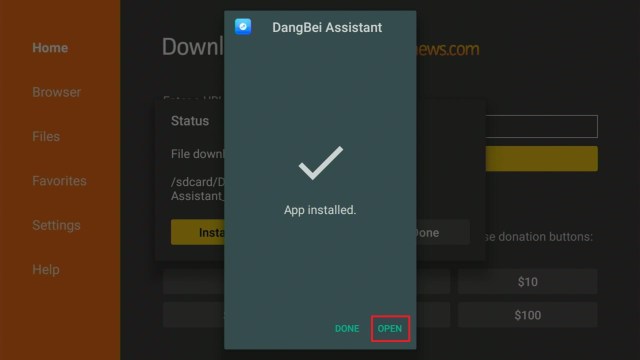
DangBei Assistant, also known as DB Assistant, is a professional TV management software that cleans and optimizes your Firestick to make it work faster and more efficiently. It allows you to uninstall multiple apps on one screen by displaying all available apps on your device alongside an uninstall button.
Apart from that, you can see how much storage is used and how much is free to help you manage your Firestick storage. That way, you’ll know when you’ve deleted enough apps to either speed up your Firestick or download new files. Moreover, it also contains an autorun kill feature that allows you to force close any background software by clicking the “Disable” button.”
And lastly, it displays all relevant information about your Firestick, including the device name, Android version, CPU, RAM, Internal Storage, and Render.
Install DBTV Assistant on a Firestick with Screenshots
To learn more about DBTV Assistant, you may readhere.
Firestick Fast Task Killer
Firestick Fast Task Killer is also one of the must-have Firestick apps because it allows you to force stop background apps with a single click. All you have to do is click the app on your screen, and it will immediately terminate processes on your running apps. And as a result, it will prevent lags, buffers, and slowdown on your Firestick device.
To sum up, Firestick Fast Task Killer is a simple method that allows you to speed up your Firestick with a single click of your Firestick remote. And, as the name suggests, it lives up as a fast task killer for your Firestick.
How to Install the Fast Task Killer App on your Fire TV stick with Screenshots
What better way to bring the list to a close than with a virus scanner? Of course, every device, particularly the Firestick, requires a virus scanner to detect viruses in apps that are being installed. With a single click on the “Scan” button on Virus Total, you can quickly scan all of your apps on your device. It will then display the applications report, which will show you app detections as well as statistics for suspicious files, programs, and URLs. As a result, you can rest assured that your device is secure and that no data breaches will occur when using your favorite apps.
Screenshots with Step by Step Instruction to Install Virus Total Antivirus on a Firestick
Streaming and viewing content on your Firestick would be incomplete without a VPN service to protect your online activity. And the best VPN service currently available on the market is Surfshark, which is the most popular and extensively tested. Surfshark utilizes end-to-end encryption to ensure that no IP addresses or data are leaked when using their service. They use AES 256-bit encryption to secure their connections, which is the same standard encryption used by the military and the US government. Surfshark also owns all of its networks and servers, ensuring that no third-party server has access to your personal information or online activity.
Aside from those, here are some other advantages of using Surfshark:
It enables users to access geo-restricted content by connecting to one of its 70+ locations, allowing you to view any content and apps you want from anywhere in the world.
Surfshark has a Kill switch feature that will automatically disconnect your device from the internet if the VPN is accidentally interrupted.
Enjoy the benefits of unlimited bandwidth to stream and download any content from the internet.
You can have an unlimited number of simultaneous connections to ensure that all of your devices are protected with Surfsharkencryption.
It helps you protect your personal information from prying eyes and cyber criminals such as hackers and phishers.
For more VPN discounts, go to ReviewVPN Deals and purchase the best VPN for you.
Click here to get the lowest price on Surfshark through our exclusive limited-time offer.
Conclusion
Even though there are a variety of legal and third-party apps available for Firestick, there are still few that set it apart. These are the must-have Firestick apps that help users get the most out of their device, whether it’s for file management, storage cleaner, virus scanner, VPN service, and the like. And, thankfully, most of them are free to download and use on your device.
With that, we’d like to thank you for taking the time to read our article on the must-have Firestick apps. We hope we were able to provide you with the most useful ones for both beginners and experienced Firestick users.
In this article, we will teach you how to install App Info Manager on your Fire TV stick.
Are you having a hard time managing your apps with your mobile and Fire TV stick? If yes, then we have a proper recommendation for you. Not only will it clear out any confusion, the app we will tell you about will help you organize your Fire TV stick.
Here at ReviewVPN, we want our readers to have the best apps to help them with different purposes. In this case, we will show you an app for organizing your mobile device. Let us now introduce you to the App Info Manager software.
Great news for Fire TV stick users! The App Info Manager is an android application compatible with Android devices and your Fire TV stick. Say goodbye to confusion and have a great time sorting all your digital stuff. The App Info Manager helps you manage all the apps you have on your Fire TV stick.
While using the App Info Manager, you can sort out different apps for various purposes. Easily find any app you want to use, or immediately be directed to your Fire TV stick’s app folder. The App Infor Manager does all these things for you!
Apart from its easy use, managing your apps is made faster and more convenient. Upon pressing the Sort button, you will recognize different filters that assist with your search.
If you want to install it on your Fire TV stick, the App Info Manager is an official Amazon release. You won’t have to jailbreak your Fire TV stick to install the application. Let us now show you how to install the App Info Manager on your Fire TV stick.
How to Install the App Info Manager on your Fire TV stick
To successfully install the App Info Manager on your Fire TV stick, just follow our guide down below.
Go to your Fire TV stick’s Home screen.
Navigate towards the Find tab.
Click on the Search tab from the resulting drop-down.
Type in: App Info Manager with your Fire TV stick’s screen keyboard.
Select the official icon of App Info Manager from the search results.
Click on the Get button.
Wait until the app’s installer downloads to your Fire TV stick.
Complete its installation process which will begin after download.
Press on Open if you want to use the app.
Wait for its application list to load. (Do not press the Home or Return button)
Tap on the Got It! button which will appear.
You can now access the app’s features.
For searching apps easier, click on the Sort tab.
Many app filters will appear from its drop-down.
For managing apps, press on the Manage Applications tab.
You will be immediately redirected to the Apps Menu of your Fire TV stick.
How to Install the App Info Manager on your Fire TV stick with Screenshots
Follow the pictures below to install the App Info Manager on your Fire TV stick.
1. Go to your Fire TV stick’s Home screen.
2. Navigate towards the Find tab.
3. Click on the Search tab from the resulting drop-down.
4. Type in: App Info Manager with your Fire TV stick’s screen keyboard.
5. Select the official icon of App Info Manager from the search results.
6. Click on the Get button.
7. Wait until the app’s installer downloads to your Fire TV stick.
8. Complete its installation process which will begin after download.
9. Press on Open if you want to use the app.
10. Wait for its application list to load. (Do not press the Home or Return button).
11. Tap on the Got It! button which will appear.
12. You can now access the app’s features.
13. For searching apps easier, click on the Sort tab.
14. Many app filters will appear from its drop-down.
15. For managing apps, press on the Manage Applications tab.
16. You will be immediately redirected to the Apps Menu of your Fire TV stick.
It Lets users manage apps on their mobile devices.
Allows quick access to an app’s settings on your device.
Opens all activities involved with any installed apps with a detailed screen.
Compatible with Android devices and the Fire TV stick.
Gallery-style display of apps on your device.
Loads all the apps available from your device.
Easily sort through many apps.
Directs you to your Fire TV stick’s app menu.
Organize your apps with a comprehensive application.
Lists all the apps it can find on your device.
YOUR INTERNET ACTIVITY IS BEING WATCHED
ReviewVPN cannot attest to the legality, security and privacy of the applications discussed on this site. It is highly recommended that you use a VPN service while streaming or using Kodi.
Currently, your IP 216.73.216.84 is visible to everyone and your Browser is being tracked by Advertisers & ISP Provider.
Your activities are hidden from your ISP, the government, and from the apps you are using.
You can access additional movies and TV streams.
ISP attempts to throttle are thrwarted thus reducing buffering issues.
Geographically restricted content like Netflix and Hulu can be unblocked.
A VPN works be replacing your ISP-assigned IP address and creating an encrypted tunnel. We recommend the no log service offered by IPVanish. It works well on a Firestick and offers the fastest possible speeds.
Should include a day mode as a default screen option
Use a VPN while Managing your Apps
Many people do not know how to manage and organize their apps. Luckily for us, we have the App Info Manager. It can be installed on your mobile device or Fire TV stick.
Heavy internet traffic may cause you to experience disturbances while managing your files. Your ISP will throttle your internet which decreases the rate of your connection.
As a solution, installing Surfshark can eliminate most malfunctions while streaming. It has many features to share:
Click here to get the lowest price on Surfshark through our exclusive limited-time offer.
How to Install Surfshark VPN on Firestick
If your Firestick still has the older interface, read this article to learn how to update it: Update Firestick Interface.
You can download Surfshark directly from the Amazon App store. It will be easy for you to find Surfshark with your Firestick’s Find feature. Refer to our screenshots below.
1. Go to the Home screen of your Firestick.
2. Navigate towards the Find tab. Press the Search button from the resulting dropdown.
3. Type in the keyword of SurfShark and select from the suggestions that will appear.
4. Click the official SurfShark icon from your search results.
5. Press the Download (You own it) button.
6. The SurfShark VPN installer will download on your device.
7. SurfShark VPN’s app will automatically install itself on your Fire TV stick.
8. Press the Open button after completing SurfShark VPN’s installation process.
9. Please wait for the SurfShark VPN to load its user interface.
10. You can now log in with your SurfShark VPN account credentials.
The App Info Manager finds all your apps and puts them in one place. However, some features might be missing that you require when managing your apps. We have some apps that can become alternatives for the App Info Manager.
Is the App Info Manager free to download and install on a Fire TV stick?
Yes. The App Info Manager is an official Amazon app release. It means that you can find the app by using your Fire TV stick’s search tab. All you have to do is type in App Info Manager.
Does the app have ads while using it?
No. There are no pop-up ads or commercials while using the App Info Manager software.
Conclusion
We all have encountered the problem of having too many apps on our devices. If you have a difficult time managing all of them, then the App Info Manager software is perfect for your needs. The App Info Manager places all your apps into one comprehensive gallery. It also lets you sort through your apps or direct you to your Fire TV stick’s app menu.
We hope that this article helps with your installation of the App Info Manager on your Fire TV stick.
In this article, we will teach you how to install the Fast Task Killer app on your Fire TV stick.
All of us have encountered a malfunctioning device due to several apps running in the background. When many apps are running at the same time, it can cause your device to freeze. Furthermore, it can eat up your valuable device memory without you noticing the culprit.
A frozen device may disturb some of our daily activities. Imagine your Fire TV stick freezing due to the low memory available. Background tasks can cause your Fire TV to stick to spending most of its memory. All of these situations may occur when many tasks are running on your device.
Why does this happen? For example, to open a video on a website, you will need the help of a media playing app. For your Fire TV stick to playing the video, it will run both the media player and the website at the same time. Both apps are now considered tasks that your Fire TV stick will juggle.
Do you want an app that can instantly stop some background tasks? If yes, then we just got the right app for you! Let us now introduce you to the Fast Task Killer app.
The Fast Task Killer app is not an official Amazon store application. You have to Jailbreak your Fire TV stick and install the downloader app for its Fire TV stick installation. We will now teach you how to install the Fast Task Killer app on your Fire TV stick.
Fast Task Killer app for Android Devices
Note: ReviewVPN.com does not host this APK file. It is hosted by Archive.org
How to Install the Fast Task Killer App on your Fire TV stick
Follow our guide below to install the Fast Task Killer app using the Downloader app of your Fire TV stick.
Open your Firestick Settings Tab.
Choose the My Fire TV icon.
Go inside the Developer options.
Turn On ADB Debugging and Apps from Unknown Sources.
15. The Fast Task Killer app’s APK file will download.
16. Click on Install.
17. Complete its installation process.
18. You can open the Fast Task Killer app after installing it.
19. Use the Fast Task Killer app for stopping any background tasks causing device malfunctions.
YOUR INTERNET ACTIVITY IS BEING WATCHED
ReviewVPN cannot attest to the legality, security and privacy of the applications discussed on this site. It is highly recommended that you use a VPN service while streaming or using Kodi.
Currently, your IP 216.73.216.84 is visible to everyone and your Browser is being tracked by Advertisers & ISP Provider.
Your activities are hidden from your ISP, the government, and from the apps you are using.
You can access additional movies and TV streams.
ISP attempts to throttle are thrwarted thus reducing buffering issues.
Geographically restricted content like Netflix and Hulu can be unblocked.
A VPN works be replacing your ISP-assigned IP address and creating an encrypted tunnel. We recommend the no log service offered by IPVanish. It works well on a Firestick and offers the fastest possible speeds.
Legal Disclaimer: ReviewVPN.com does not encourage or endorse any illegal activity involved in the usage of services and applications referenced on this site. We do not verify the licensing agreements of services. The end-user is wholly responsible for ensuring that any media accessed through these services does not violate copyright and/or licensing laws. ReviewVPN does not promote, link to, or receive compensation from any Apps and IPTV services.
Lists all the tasks running on your Fire TV stick and Android device
Requires only one tap for the app icon to instantly free memory.
The latest app updates remove functionalities that take three seconds for processing a task.
Achieve processing of many tasks.
The Fast Task Killer App helps people who want the speedy resolution of background tasks.
100% free and requires no payments.
Do not require an account or any registration.
Does not contain troublesome advertisements.
A must-have app for the maintenance of your Fire TV stick and Android device.
Results in a faster device.
Enhances your device’s processing speed.
Fast Task Killer Interface
Lists all the tasks running in the background.
Easily tap on any app you want to stop.
Quick-release of device memory.
Fast availability of device storage.
Lets you know which app requires additional storage space.
Immediately stops many processes.
Default Night mode.
Pros and Cons
Pros
One tap release of memory
Results in a faster device.
Enhances your processing speed.
Stops background tasks.
Informs you of all the tasks running on your device.
Releases memory for smoother app functionality.
Cons
In some cases, the app boots itself while the user attempts to force stop some tasks.
Optimize your Device with a VPN
The Fast Task Killer app is a wonderful app for optimizing your Fire TV stick. It lets you free up some memory while stopping any background tasks causing a malfunction.
In some cases, a freezing Fire TV stick may be caused by a slow internet speed.
To improve your internet connection, we recommend Surfshark for enhancing your streaming speeds. The VPN provides you with several features:
Speeds up your internet connection.
Cloaks your identity while browsing the internet.
Protects your device from forms of malware.
Firestick and Kodi users will no longer encounter malfunctions.
Note: For more information about SurfShark, please read our SURFSHARK REVIEW.
How do background tasks cause my Fire TV stick to freeze?
When many apps are inside your device, they will consume your storage space. If your Fire TV stick runs many apps at the same time, it will result in freezes or malfunctions.
Is the Fast Task Killer similar to the other Task Managing apps?
Yes. In some cases, many people resort to opening the task manager app on their devices. Luckily, users of the Fire TV stick can have a Task Manager app similar to the emergency app found on Windows and other Android devices.
Is the Fast Task Killer app free to download?
Yes, the Fast Task Killer app is free and does not require any form of payment.
Are there ads while using the Fast Task Killer app?
No. There are no annoying pop-up ads or commercials while using the Fast Task Killer app.
Conclusion
The Fire TV stick has over 8 GB of local storage space. Furthermore, it has powerful components that let you install and enjoy many streaming apps. However, your Fire TV stick is still vulnerable to hanging or freezing. Some cases may involve many tasks running on your Firestick device. To immediately stop tasks and release memory, we recommend using the Fast Task Killer app.
We hope this article helps with your installation of the Fast Task Killer app on your Fire TV stick.
In this article, we will teach you how to install the Best Kids Channels on your Fire TV stick.
Kids of today have the latest gadgets for watching many television channels. Thankfully, all these channels have shows made for children’s viewing. Parents can relax since these shows are safe for the youth. They also offer some features you won’t find on other channels.
Television was the main source of electronic entertainment before the internet became a worldwide phenomenon. We can still remember some of the TV shows from our childhood. Fortunately, the technologies of today bring us a new era for cartoons and 3D animations.
As we all know, the movie and television industries are focusing on CGI. There is nothing more enjoyable than watching giant robots or fictional characters play their roles on our wide TV monitors. Furthermore, we can watch them in high resolution.
The magic of television streaming is now at the fingertips of our children. Many streaming devices and platforms help bring kids’ TV shows right on our screens. All of these are made possible with a reliable internet connection. Your kids may now watch child-friendly television shows on their devices without you worrying about the content of these programs.
If you are looking for the Best Kids’ Channels for the viewing of children, you’ve come across the right article. Let us now introduce you to the Best Kids’ Channels available on your Fire TV stick.
Best Kids’ Channels on the Fire TV stick
You can find all these kids’ channels easily while using your Fire TV stick. Children around you will enjoy watching a variety of TV shows and video clips from these channels.
Happy Kids
As parents and guardians of the youth, we all want a TV channel that respects their age. The TV shows we like them to watch should feature safe content. As a result, we can relax and enjoy our time watching these shows with our kids.
Luckily for both kids and adults, the Fire TV stick has some apps and channels tailored for kids’ viewing. These channels contain safe content perfect for the youth. For example, the Happy Kids channel contains cartoons, 3D animations, and live-action shows.
The Happy Kids channel has over fifty-five thousand episodes of free video content. All of them are free for streaming and available to over 75 million monthly visitors. You only have to own a mobile and TV set with a reliable internet connection.
Apart from its content, kids and adults can find other videos easily. Upon opening the app, you will find kids’ TV shows such as Bakugan, Barbie Dreamtopia, Cocomelon, Diana Kids Show, LEGO Friends, LEGO Ninjago, Molang, Paw Patrol Pup Tales, Pororo, Pokemon, Ryan and Friends, Sonic the Hedgehog, and many more!
YouTube Kids
Great news for the youth! The website giant known as YouTube has developed an app made for children. As we all know, YouTube is the main service where we can upload many videos. It can be original video footage or videos clips from our favorite shows.
Today, the appearance of streaming devices and services gives way to the distribution of more content. To set itself apart, YouTube has a children’s app known as YouTube Kids. The YouTube Kids Channel offers a variety of videos meant for the viewing of children. All the videos are safe to watch and are parent-friendly.
When you open the YouTube Kids app, you can either register, log in, or continue as a guest. Either way, you choose, a selection of age sets is shown. When you click on an age set for toddlers, all the YouTube videos for toddlers will be present in gallery style. You won’t have a hard time searching for videos to entertain your kids.
ChuChu TV
Singing nursery rhymes is the classical way where people taught their offspring the basics of our language. It has been quite some time since nursery rhymes became available on the internet. Typically, many parents resort to the old TV set when looking for channels playing nursery rhymes.
Nursery rhymes are also played by our nursery school teachers. Some of these memorable songs offer colorful stories and lessons meant for the youth. Today, with many streaming services across the world, nursery rhymes can easily be found. Whether you visit a website or listen to an app, classic nursery rhymes are still difficult to find.
If you are looking for an app that plays nursery rhymes, then we got your back. The Fire TV stick contains a TV app known as ChuChu TV. The app’s purpose is to play old and new nursery rhymes for your kids. You won’t experience the hard process of searching the internet for classic and new nursery rhymes.
Many parents and guardians stress the need for safe content. Television plays an important role in a child’s development. The TV shows and characters they watch set an example that a child can follow. It is crucial to search for safe kids’ channels while developing their personalities.
Many people opt for channels that dedicate themselves to showing safe content for children. For example, the KidsBee TV channel prides itself on showing safe and educational videos for kids. All their content is safe and easy to stream.
The KidsBee TV channel includes videos that are safe for kids. The streaming app contains popular baby games, cartoons, 3D animations, songs, stories, arts, crafts, Yoga videos, and TV shows. All of the media are carefully designed for children’s consumption. The app also has quizzes for teaching kids about the alphabet, numbers, colors, emotions, and more.
PopcornFlix Kids
Are you looking for a free app that has kids’ TV shows and movies? Then we just got the right app for you. The PopcornFlix Kids app only shows videos that are safe for the viewing of children. Aside from Kids’ TV shows, your entire family may join you in watching these programs.
The good thing about PopcornFlix is that the show is free and does not require any payment. It also does not contain annoying pop-up ads that disturb your movie time. Grab your popcorn and stream movies with PopcornFlix Kids Channel! Here you will find high-quality movies in HD resolutions.
PopcornFlix is perfect if you want shows that do not contain violence. All the movies are safe to watch and friendly to both kids and adults. The feature films found on PopcornFlix Kids Channel show the biggest stars from Hollywood. You may also find some videos and independent movies that suit your preference.
The library of PopcornFlix Kids has thousands of titles to choose from. Streaming videos with the app is fast and does not have glitches. There are lots of Kids’ TV shows to select from. Select from different genres of adventure, 3D animations, Comedy, Sci-Fi, and fairy tales.
Kidoodle TV
Do you want a channel that only contains cartoons and animations? If yes, then the Kidoodle TV app is perfect for your needs. Suppose you want a safe channel for your kids, the Kidoodle TV app has user-friendly content great for all ages.
The Kidoodle TV app presents you with a wide selection of cartoons and kids’ TV shows. It hosts over twenty-five thousand episodes of the latest and popular cartoon series for your children. Kidoodle TV is an official app from the Amazon app store. You can easily find the app and install it on your Fire TV stick.
The best thing about Kidoodle TV is that it caters to a wide audience. Many children worldwide will easily recognize the characters on each show. When you download the app, you do not have to pay hidden fees or subscribe to its services. Playing the media content is fast and easy.
Upon opening the Kidoodle TV app, your children will be treated with colorful animations and cartoon series. Let them enjoy world-famous shows like Peppa Pig Minis, PAW Patrol, Pup tales, LEGO City, Talking Tom, My Little Pony, Masha & The Bear, Roblox, and many more.
Kids First
Parents and teachers appreciate that early education matters to a child’s development. Television plays a huge role while a child is growing. Many people know that TV shows and their characters can influence the attitude of a child. It is why many adults opt for the safest TV channels meant for kids.
If you combine both television and education in one app, you will get the Kids First TV app. It is the best kids’ channel that offers TV shows where your child can learn about the alphabet, basic math, nursery rhymes, colors, and wonderful stories.
The Kids First TV app lets you play songs and videos that contain memorable lyrics from famous nursery rhymes. As a result, your child may learn early about shapes, colors, and emotions. The Kids First channel has a compilation of entertaining videos. Aside from its enjoyable content, the videos are very educational and comprehensive for your kids.
Kids Preschool Nursery Rhymes
We all remember the time when we first heard the tunes of classic nursery rhymes. The lyrics and tone are memorable and nostalgic. Aside from their meaning, they provide a basic insight which your kids can learn. It is why nursery rhymes are typically shown to kids at an early age.
If you are looking for an app with many nursery rhymes, then the Kids Preschool Nursery Rhymes app is perfect for your needs. When you open the app, your children can enjoy preschool educational games. Kids may also play puzzles, videos, TV shows, and learn from kids’ stories.
The app also contains interactive games made for the development of your child’s brain. All the games and videos are crucial in improving their imagination, cognitive skills, and reasoning skills. Aside from educating children, you can easily put a baby to sleep by its wide selection of nursery rhymes and baby songs.
When we were children, most of us enjoyed family campfires where stories are told by our grandparents. Today, with the development of streaming services. Many creative and new stories can be easily found on our mobile devices. Some of these stories may involve live-action scenes and 3D animations which are safe for kids.
The Happy Stories app delivers child-friendly content while using your Fire TV stick. Children always enjoy watching their heroes and favorite characters play their roles on the big screen. Unfortunately, some of the stories are often concluded without leaving satisfaction.
Happy Stories attempt to bring new stories to life with the help of famous cartoon characters and realistic playsets. Children with their wild imaginations can easily add their own stories to their toys. Luckily, the Happy Stories app can assist them in creating their dream worlds.
Enjoy Watching Kids Channels with a VPN
Kids and toddlers would want to watch shows and movies with their parents. It is why most adults prefer to let them watch channels meant for children. All the media content found on these channels is safe for all ages.
The Fire TV stick has many apps and channels meant for the viewing of kids. However, some of them have geo-restrictions.
Surfshark is the best VPN for accessing live TV channels with restrictions. It also has many features to share:
Decreases the chances of stuttering.
Keeps you hidden from many online threats.
Excellent VPN for streaming channels for kids.
Fast streaming speeds and consistent bandwidth rate.
For more VPN discounts, go to ReviewVPN Deals and purchase the best VPN for you.
Click here to get the lowest price on Surfshark through our exclusive limited-time offer.
FAQs
Do the kids’ channels mentioned above require any payment?
No. All the channels present in this article are free to download and use.
Does every channel contain safe content for kids?
Yes. Every kid’s channel we feature provides TV shows and videos with safe content meant for the viewing of children.
Are there ads while watching these channels?
Yes, but only a few of them contain annoying pop-up ads and commercials. Most of the channels we recommend are free and do not suddenly play ads.
Conclusion
Television plays a crucial role during the early stages of a child’s growth. Watching TV shows may expose them to adorable and honorable characters which can help mold their attitude and personalities. It is why many adults prefer kids’ channels with safe content and are parent-friendly. All the kids’ channels we recommend present TV shows with cartoons, adventure, fiction, and 3D animations that your children will enjoy.
We hope this article has given you the best kids’ channels on your Fire TV stick.
In this article, we will tell you about the best Plex Kids channels.
Are you searching for channels that children might enjoy? If yes, you have come across the right article. Today, we will tell you about the best channels for kids that are available on the Plex app. As a result, you can use the Plex app to entertain your children.
Watching TV plays an important role when a child is growing up. Additionally, letting your kids watch TV fosters their imagination. After long hours from school, it is a good idea to let them catch their favorite shows. It is an effective way that allows them to relax.
When watching television shows, children are exposed to superheroes, they can also follow science fiction stories, or learn from educational TV channels. They undergo a deep experience that can shape their personalities. However, a child’s guardian should be aware of the shows that they watch.
Kids’ TV show protagonists set a good example for children. Programs meant for kids can help in building their characters. These TV shows can shape their attitudes and perspectives. Therefore, letting your kid watch these channels plays a crucial role in their development.
Let us now discuss Kids’ Channels which are available on the Plex app. The Plex app is compatible with your Fire TV stick.
Best Plex Channels for Kids
The channels we will recommend are official Plex channels, you don’t have to download or load them on the Plex server.
Skwad TV
Skwad is one of the available channels for kids. Whenever they find themselves stuck in a game level, the Skwad channel can assist them out. It provides non-stop gaming videos that guide many people. Watching the channel does not require any payment.
Skwad TV is a channel that offers the best from the gaming industry. There are many shows that your kid might enjoy. The Skwad channel is also available within the Plex application. You can watch the channel anywhere you are.
The best thing about the Skwad TV channel is that it brings you footage from expert players. Their in-game experiences are caught on cam and available for viewing. You won’t have a hard time playing any video game with the guidance of Skwad.
Skwad allows you to stream high-quality videos anywhere with any device. The channel is available any time of the day. Users of Plex can create an account to access bonus features. They can then watch any video where they left off. It also lets users create custom playlists for convenient streaming. You can expect a high-definition video playback feature in 4K resolutions.
Tankee
Tankee is created by Austin-based TV channel developers. They aim to bring kids the best TV shows and gaming footage from the internet. Moreover, the content you can find on the Tankee channel entertains both young adults and kids. Tankee’s main goal is the development of a channel for the future of kid’s digital entertainment.
If you are looking for a gaming and kids’ channel in one package, then Tankee is perfect for you. The channel is available on your Plex app. To install the Plex app, it is already available on your Fire TV stick. You won’t have a hard time searching for an excellent kids’ channel.
Tankee has many video genres made for the youth. The channel also develops its original series aside from game videos and digital guides. They also feature fan artworks from enthusiasts of their shows. Tankee is a good source of entertainment for children.
Click here to get the lowest price on SurfShark through our exclusive limited-time offer.
Kidoodle TV
We all have seen a person who likes to doodle on the back of their notebooks. The talent is natural for kids and teens. You can even see doodles on the notes of your child. While doodle art is growing in popularity, there is a channel that shows doodle cartoons perfect for the youth.
We now introduce you to Kidoodle TV. The Kidoodle TV shows content that is safe for children’s consumption. The air shows in 3D animations and includes content perfect for kids. There is no mature content or violent scenes that can cause nightmares. The channel is dedicated to the viewing of kids.
All the content found on Kidoodle TV is handpicked by parents. The developers understand the needs of parents when letting their children watch TV. If you want a safe channel for your kids, then the Kidoodle TV channel is suited for your preferences. The Kidoodle TV channel is available on your Plex app. Watch the kids’ channel with your Fire TV stick.
Toon Goggles Jr.
Toon Goggles is an excellent kids’ channel that allows them to enjoy colorful content. Children and adults may find the channel appealing for both their needs. You can have peace of mind when letting your child watch shows from the Toon Goggles Jr. channel.
The Toon Goggles Jr. kids’ channel mixes live TV shows and many channels. All you have to do is sit back and let your child enjoy the show. You may also explore is a vast collection of live-action, 3D animations, and cartoons made for the viewing of children. All the content is safe and free to watch.
Toon Goggles Jr. aims to deliver content to kids between the ages of eight and thirteen. All the shows are one-hundred percent safe for kids. The programs are completely parent-friendly. Viewers may also find shows they want from their large library of kids’ shows and series.
Toon Goggles
Toon Goggles is the main channel where its Toon Goggles Jr. counterpart comes from. It has more content meant for the viewing of toddlers and kids. All the television shows feature a mellow nature that is safe for the viewing of your children. Toon Goggles do not place shows in their library which is harmful to the minds of kids.
The Toon Goggles channel offers a vast collection of cartoons and television shows. Even adults may find their childhood calling again when watching the channel. Toon Goggles is home to thousands of live-action shows and 3D animations.
Upon opening the Toon Goggles channel, viewers may find pop-up channels regarding the present season. There is a wide collection of content to select from. Toon Goggles even offer on-demand TV shows which are great for children and are one-hundred percent parent-friendly. The Toon Goggles channel and Toon Goggles Jr. channel are both available on the Plex app. Enjoy a variety of kids’ content with your Fire TV stick.
Fantawild
Do you enjoy Asian-style animation while watching television? Then we got you covered. Let us now discuss the Fantawild channel. The channel of Fantawild incorporates Chinese animation and western Kid’s TV shows into a singular channel.
Recently, the Cinedigm company partnered with Fantawild Animation to create the kids’ channel. It is the producer of all the kids’ TV shows in Asia. All the famous shows like Boonie Bears and Kung Fu: Masters of the Zodiac are set to appear on the channel. Every content they include is safe for kids and is parent-friendly.
The content on the Fantawild channel is updated monthly. They will soon include many shows for the viewing of the youth. The developers want to expand their content and introduce it to many streaming platforms. As a result, many TV shows meant for kids and teens will be present when watching the kid’s channel.
YOUR INTERNET ACTIVITY IS BEING WATCHED
ReviewVPN cannot attest to the legality, security and privacy of the applications discussed on this site. It is highly recommended that you use a VPN service while streaming or using Kodi.
Currently, your IP 216.73.216.84 is visible to everyone and your Browser is being tracked by Advertisers & ISP Provider.
Your activities are hidden from your ISP, the government, and from the apps you are using.
You can access additional movies and TV streams.
ISP attempts to throttle are thrwarted thus reducing buffering issues.
Geographically restricted content like Netflix and Hulu can be unblocked.
A VPN works be replacing your ISP-assigned IP address and creating an encrypted tunnel. We recommend the no log service offered by IPVanish. It works well on a Firestick and offers the fastest possible speeds.
It is widely known that laughter is the best medicine for stress and illnesses. This is a good reason to let your kids enjoy the AFV Family channel. Not only does it entertain the youth, but it is also great for the viewing of your family members. The AFV Family channel contains many videos meant for the viewing of many people.
You can invite your relatives to join you while watching the AFV Family channel. AFV stands for America’s Funniest Videos. Today, the brand has its Youtube channel and a streaming channel. There is nothing better than to let your kids watch and develop their sense of humor.
AFV Family aims to cater to the needs of many family members. You can cook up some popcorn while enjoying all the video compilations found on the AFV Family channel. It is home to many funny family videos which you can watch with your children, relatives, and friends.
The AFV Family channel is perfect for viewing with your Plex application. Hence, you can then open it with your Fire TV stick. The AFV Family channel is an official Plex channel found within the Kids’ Channel tab.
Do you want a Kids’ channel available on a 24/7 schedule? If yes, then the KidsFlix channel is right for you! KidsFlix is the children’s Netflix channel. The KidsFlix TV channel allows young people to enjoy colorful TV series meant for their entertainment.
KidsFlix has over two million viewers per month. Most of these viewers are families and kids. The TV channel offers a vast selection of kids’ shows and animated series. Your children will enjoy watching the KidsFlix television channel.
The KidsFlix channel features cartoons and TV shows presented in 3D animations. Watching these shows are comparable to the animations made by Pixar and Disney animators. All the content and storylines are created for the viewing of children. It is why many people of all ages enjoy watching TV shows from the KidsFlix channel.
KidsFlix is free and is a dedicated video service for kids of all ages. They can discover new content or watch colorful video clips. Your kids may enjoy any cartoon genre. From episodes of cars, trucks, planes, cartoons, and other adorable characters, any youngster may find the content funny and appealing. All of the episodes from the KidsFlix channel are meant to develop emotional and intellectual growth for both toddlers and preschoolers.
Game Toon
All of the kids today have handheld mobile devices or probably have access to laptops and personal computers. This means that they can play any games they find on the internet. Given the assistance of a powerful CPU and computer set-up, your child may enjoy a variety of video games right at their fingertips.
We now bring you a kids’ channel which can bring entertainment to your child. The Game Toon channel offers the daily streaming of cartoons and gaming videos. All the videos found on the channel are gaming guides and animated TV shows. Your child may enjoy watching these shows if they are technically inclined.
Game Toon is a famous TV channel for both gamers and the youth. It combines video game guides and cartoon series into one singular channel. The channel offers its viewers tips, tricks, and techniques to overcome any game level that kids want to cross. All the content is safe for the viewing of kids and is parent-friendly.
The Game Toon channel allows people to watch many types of videos. All of its content is meant for the youth that enjoys video games and shows during their free time. Game Toon also includes videos from the eSports industry. The kids’ channel presents highlights of popular video games, entertaining videos made by gaming YouTubers, and covers online video game tournaments (eSports) with million-dollar prizes.
Watch Plex Kids’ Channels with a VPN
The Plex app includes many channels for children. As a result, all the content is safe for kids to watch and parent-friendly. These channels can even bring your families close together. Many kids’ channels on Plex contain TV shows, 3D animations, funny videos, and gaming guides meant for the consumption of the youth.
Unfortunately, the Plex app contains geo-restrictions. It will prevent you from accessing content if you live in another country. Installing a VPN like SurfShark before using Plex is the best method to implement.
SurfShark has many abilities to share:
Access kid’s channels worldwide.
Safe and consistent streaming.
Faster file downloads.
Watch TV shows without disturbances.
No lagging, stuttering, and buffering while watching with the Fire TV stick.
Click here to get the lowest price on SurfShark through our exclusive limited-time offer.
How to Install Surfshark on Firestick with Screenshots
If your Firestick still has the older interface, read this article to learn how to update it: Update Firestick Interface.
You can download Surfshark directly from the Amazon App store. It will be easy for you to find Surfshark with your Firestick’s Find feature. Refer to our screenshots below.
Follow our screenshots below to install the SurfShark VPN app on your Fire TV stick.
1. Go to the Home screen of your Firestick.
2. Navigate towards the Find tab. Press the Search button from the resulting dropdown.
3. Type in the keyword of SurfShark and select from the suggestions that will appear.
4. Click the official SurfShark icon from your search results.
5. Press the Download (You own it) button.
6. The SurfShark VPN installer will download on your device.
7. SurfShark VPN’s app will automatically install itself on your Fire TV stick.
8. Press the Open button after completing SurfShark VPN’s installation process.
9. Please wait for the SurfShark VPN to load its user interface.
10. You can now log in with your SurfShark VPN account credentials.
For more VPN discounts, go to ReviewVPN Deals and purchase the best VPN for you.
FAQs
Are all the Plex channels for kids free?
Yes, they are free. None of them requires any kind of payment.
Do ads appear while watching these channels?
Yes, some ads might appear while watching these channels.
Conclusion
The Plex app on your Fire TV stick contains channels made for kids. Typically, many parents and guardians let their children watch television as their form of entertainment. Watching TV shows appropriately is crucial for a child’s development.
We hope this article gives you the best Plex channels for kids.
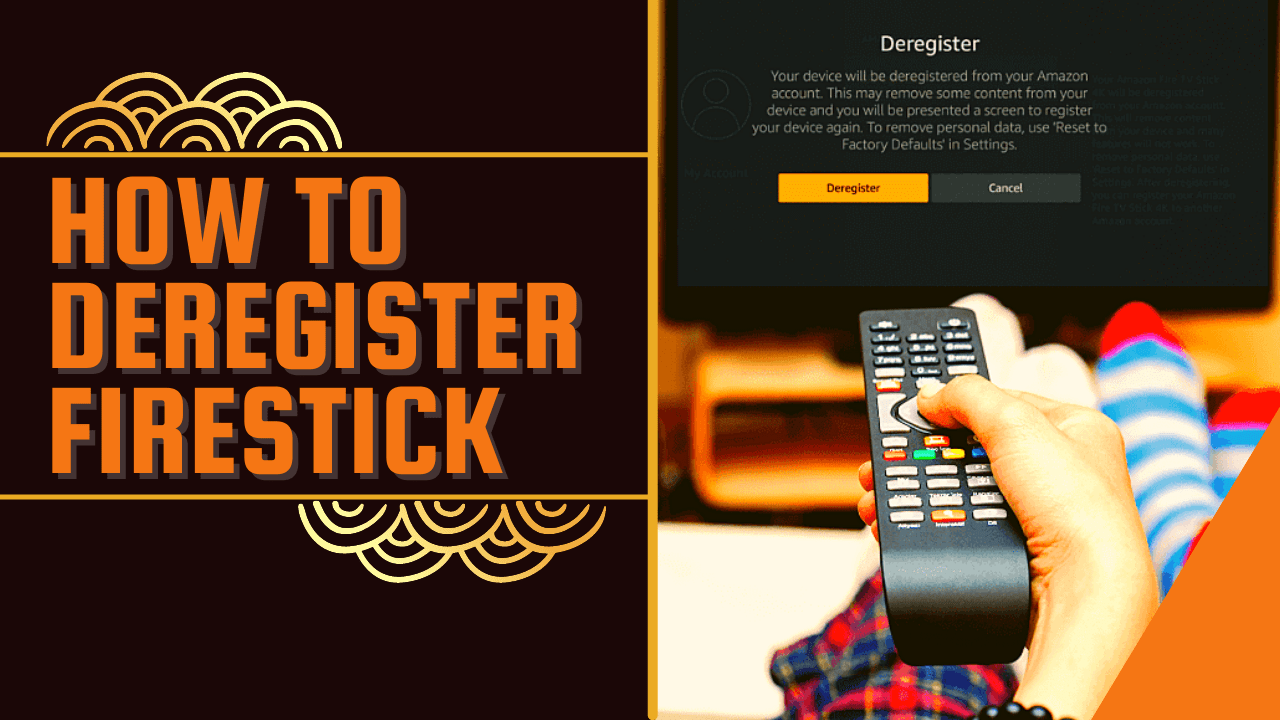
This article will show you how to deregister Firestick on your Amazon Account.
Because your Amazon account is linked to your Firestick, it stores a lot of personal data, including your name and credit card details.
It saves more information than you’ll ever realize. Because in addition to the information you’ve provided on your account, some data is saved on your Firestick merely by using it.
In case you don’t know, Firestick collects data from your device as it’s set to the Firestick’s default settings.
And if it hasn’t been turned off after weeks, months, or years of use, your device has most likely gathered enough data and app usage through data monitoring.
Furthermore, if you need to deregister your account for any reason, simply follow our guide below on how to easily deregister Firestick on your Amazon account.
You may have other reasons for deregistering Firestick, but below are the primary situations that will require you to deregister Firestick on your Amazon Account.
Lost or Stolen Firestick device
One of the most common reasons for people to deregister their Firestick is that their device has been lost or stolen.
You must never forget to deregister your Firestick if this happens because your device saves confidential data about you. This includes your personal information and even your credit card details.
And if you do this after you’ve lost your Firestick, you won’t have to worry about unauthorized credit card transactions.
To Use Another Account on Your Firestick
Unfortunately, Firestick only supports one Amazon account per device. So, if you wish to use a new account, you must first deregister your current account to use a new account.
But don’t worry, you can re-register your account if you want to use it on your Firestick again.However, even while apps are saved in the cloud, you will never be able to retrieve your previous data.
How to Deregister Firestick
The Firestick can be deregistered from your Amazon account in two methods. You are free to choose which one is the most convenient for you.
Directly on Your Amazon Firestick
The first option is the most simple approach of deregistering Firestick. This is because you will be doing so using your Firestick device.
1. On the Home page, simply go to “Settings” (Gearwheel icon).
2. Then select “Account & Profile Settings”.
3. Click on “Amazon Account”.
4. Then click “Deregister”.
5. A warning message will then appear regarding the deregistering and the removal of apps on your device. Simply click “Deregister”.
6. That’s it, you have successfully deregistered your Firestick device.
ReviewVPN cannot attest to the legality, security and privacy of the applications discussed on this site. It is highly recommended that you use a VPN service while streaming or using Kodi.
Currently, your IP 216.73.216.84 is visible to everyone and your Browser is being tracked by Advertisers & ISP Provider.
Your activities are hidden from your ISP, the government, and from the apps you are using.
You can access additional movies and TV streams.
ISP attempts to throttle are thrwarted thus reducing buffering issues.
Geographically restricted content like Netflix and Hulu can be unblocked.
A VPN works be replacing your ISP-assigned IP address and creating an encrypted tunnel. We recommend the no log service offered by IPVanish. It works well on a Firestick and offers the fastest possible speeds.
If you don’t have your Firestick and need to deregister it immediately, you can use a web browser to log into your Amazon account.
1. Go to Amazon’s official site “https://www.amazon.com/”.
2. Then proceed with logging in to your Amazon username and password.
3. Hover over to “Account & Lists” on the upper right part of the screen.
4. On the “Your Account” option Click on “Account”.
5. Then choose “Your devices and content”.
6. Click “Manage devices”.
7. Select “Fire TV”.
8. Your device summary will then appear, simply click on “Deregister”.
Secure Your Connection With A VPN
The Firestick is one of the best devices that you can have because it gives us access to a variety of apps for our various online needs which includes streaming. However, even if you have this access, you should never compromise your privacy in exchange for the free content that comes with your Firestick.
In order to protect all of your internet traffic, whether incoming or outgoing, you’ll need a Virtual Private Network (VPN). A VPN service, such as Surfshark, can conceal your online activities so that no one on the internet knows about your personal information or other data that could jeopardize your privacy.
It will encrypt all incoming and outgoing traffic and safeguard all data stored on your device with uncrackable AES-256 military-grade encryption to ensure that no data breaches occur.
Moreover, to provide you with more information about what Surfsharkcan do for you, below are some of its benefits:
Has a total of 3200+ servers in 65 countries to choose from
You can get beyond censorship and geo-restrictions, allowing you to stream and download as much as you want.
Through Surfshark’s unlimited number of simultaneous connections, you can secure all of your devices with the same level of encryption.
Available for all major platforms, you can ensure that all of your devices are Surfshark-compatible.
It has a kill switch feature that will disconnect your device from the internet in case of a VPN connection interruption.
Surfshark will automatically connect you to the fastest internet connection accessible in your location, ensuring that you have the fastest network possible.
For more VPN discounts, go to ReviewVPN Deals and purchase the best VPN for you.
Click here to get the lowest price on Surfshark through our exclusive limited-time offer.
FAQs
What happens if I deregister Firestick?
When you deregister your Firestick, it will no longer appear in your Amazon account. And, following deregistration, all installed apps and data from your previous account will be removed. However, if you change your mind and want to re-use your Amazon Account with your Firestick, you can re-register your device.
Furthermore, even after deregistration, the apps are still available in the cloud and can be reinstall.
How can I deregister Firestick if I don’t have a remote?
Option 2 in this tutorial does not require a Firestick remote because you will be deregistering on the Amazon website. However, Firestick remote apps are available on both the Apple Appstore and the Google Playstore that you can easily download for free on your mobile (i.e. Amazon Fire TV, Remote for Firestick & Fire TV ).
Once installed, simply open the app and you can begin using your device as a remote and follow the steps in Option 1.
Conclusion
Fortunately, there are two simple ways to deregister your Firestick.
You may do it straight on your Firestick as well as through your Amazon account, so you can deregister whether you’re at home or not.
Deregistering will also delete your data, which is important if you need to deregister due to a lost or stolen device.
That way, you won’t have to be concerned about strangers gaining access to your personal information and possibly harming you for it.
Finally, we’d like to thank you for taking the time to read our article on how to deregister Firestick. We hope we were able to help you and provide you with some additional information.
In this article, we will tell you about the IPVanish kill switch feature.
Virtual Private Networks or VPN have a lot of features to offer. Some of these features are not available on all brands of VPN. One example is Kill Switch. Only several VPNs have a verified kill switch feature. One example of a VPN that has good kill switch features is IPVanish.
IPVanish Kill Switch makes sure that your IP address is not exposed accidentally and unexpectedly. It is important because a VPN should really work on the user’s anonymity, security, and privacy.
To further elaborate on how does kill switch works, we tested IPVanish on Windows 10. But IPVanish is also available on other types of devices like Android, iOS, Mac, Linux, and Amazon Firestick.
2. After clicking the link, click on the IPVanish banner to go to the home page.
3. Tap on Apps.
4. Scroll down until you reach the device options, click on Windows.
5. Select Download Windows App.
6. The apk will now be downloaded on your pc. Click the apk once finished.
7. Click on Install.
Make sure to have an IPVanish account to test the IPVanish Kill Switch.
Legal Disclaimer: ReviewVPN.com does not encourage or endorse any illegal activity involved in the usage of services and applications referenced on this site. We do not verify the licensing agreements of services. The end-user is wholly responsible for ensuring that any media accessed through these services does not violate copyright and/or licensing laws. ReviewVPN does not promote, link to, or receive compensation from any Apps and IPTV services.
1. Using your browser, go to https://reviewvpn.com/deal. This link contains a discount for the IPVanish account that you would like to purchase.
2. Choose the best plan for you. Since you use the link we stated on step number 1, you are entitled to have a huge discount for a plan. Choose between VPN or VPN + Storage. You can also select if your plan is monthly or yearly whatever type of service you like.
3. You will then be redirected to the signup page, and still, confirm the plan that you really like.
4. Complete the details under create an account bar with your email address and password.
5. Pick a payment term that is best for you. You can choose between a credit card or PayPal.
6. Complete the details regarding the payment terms, like the name of the credit card owner, card number, country, etc. In terms of PayPal payment, details to include are different.
or
7. Upon settling the payment terms, take your time to review the Terms of Service and Privacy Policy. Click on I agree to the automatic renewal terms above. Note: You can always stop the renewal any time you like.
8. Your payment is encrypted. Upon settling down, click on Subscribe Now.
9. Upon subscribing, IPVanish will email you about your account details and subscription. Confirm your email, and you can now use your IPVanish account on your devices.
How to Use IPVanish Kill Switch
IPVanish Kill Switch is a more secure feature. When it is activated, IPVanish will send information to your device if you become disconnected from a VPN server. It will also prevent you from connecting to any unsafe and unsecured Network.
Here is how you can activate your Kill Switch feature on your IPVanish VPN:
1. Launch the IPVanish app.
2. Select the Kill Switch box to activate the feature.
3. Click on Connect.
4. You are now connected to a VPN server with a special security feature of a Kill Switch.
Best VPN for Amazon Firestick
IPVanish is considered one of the best VPNs for Amazon Firestick. Aside from its kill switch feature, it also provides numerous amount of amazing functions for streaming. It serves as a bridge that connects you to another country or region so you can access their content. This can also hide your identity from your Internet Service Provider or ISP when you reach your speed limit. It will stop them from throttling your bandwidth.
Here are the other features offered by IPVanish:
2,000 servers with 40,000 IP addresses in over 70+ locations worldwide available.
Allows you to choose the best server depending on what country and city you choose.
Disable geo-restrictions to help you access content from other countries.
IPVanish has VPN protocols for all types of devices.
Kill Switch is one of the many advanced features offered by IPVanish. It prevents users to be connected to an unsafe and unsecured server.
Does IPVanish have a kill switch?
Yes. IPVanish is one of the several VPNs with a kill switch feature.
What is a Kill Switch?
In the VPN world, a kill switch is a feature that provides more security for the users. Once a VPN has a kill switch activated, it prevents your IP to be seen even you have been disconnected from a server. This feature will keep you disconnected as long as you’re VPN is restored.
Conclusion
Not all VPNs have a kill switch. It is a great feature that makes your anonymity and security become better. Luckily, IPVanish is one of those VPNs that has a kill switch.
IPVanish kill switch is verified working. Take a look above at how you can activate your kill switch in just seconds.
We hope that this article was able to help you learn more about the IPVanish kill switch.
Note: ReviewVPN.com does not own or operate any app nor does it endorse any. The main purpose of this article is strictly for educational purposes only.
In this article, we will tell you about the best sports channels on the Plex app.
Plex is a wonderful media streaming app that many people enjoy using. Today, it is gaining more attention from people who like to stream online videos. The Plex app allows you to watch online videos in excellent resolutions.
The usefulness of the Plex app comes with its special features. It is a well-known fact that the Plex app can show you many television shows and movies. Generally, people can access many channels with the app.
The Plex service has been around for quite some time. Originally, it is a client-server service that lets users organize all of their media files with one app. When viewing a Plex official channel, you can enjoy a variety of videos in one category.
To add channels that can be viewed with the app, you can download and set up the Plex Media Server on your favorite device. From there, you can download media file bundles and place them inside the storage of the server app.
The Plex app also provides many sports streaming channels. All these channels are available within the Live TV section of the Plex app. Fortunately for sports fans, these are official channels that deliver quality sports footage, videos, and Live feeds.
Best Plex Sports Channels
The channels we will recommend are official Plex channels, you don’t have to download or load them on the Plex server.
Poker Night America
For fans and avid players of Poker, there is a channel for you. It is known as the Poker Night America show. The TV program covers exclusive videos of people playing poker. Aside from the main game, it also covers cash games and sits and go’s.
Production in the series began in 2014. It immediately became a big hit with fans of the poke game. As a result, it grew in popularity which continues to expand. Overall, the show has over six seasons in total with more coming. The show covers various cash games at local casinos. All of the locations are spread across the United States. 888Poker is the main sponsor of the show.
Originally, Poker Night in America was a television series. Today, with many streaming devices, Poker Night in America can be downloaded via its official app. It also has an official channel with the Fire TV stick’s Plex application. Enjoy watching various casino games with your Fire TV stick.
Sports 24
Sports24 is a popular channel for viewing sports from different sources. It has a website that is perfect for sports enthusiasts all over the world. It offers many sports links available per season. Visitors to the website may also select from a wide range of sports.
The website’s address has recently changed to sport24.stream. Fortunately for athletes and sports fans, the Sports24 channel is available for viewing with the Plex application. All you have to do is scroll down and search for its official icon under the Sports Channel tab.
Upon clicking on the icon, viewers can watch many sports videos that the channel is playing. Available within the Plex app, the Sports 24 channel allows you to watch remarkable sports videos even if you are traveling.
The Sports 24 service began in 2012. The developers of the channel primarily cater to travelers. They want to deliver quality sports media content to every location 24/7. The streaming service aims to deliver all the drama and excitement from the most competitive sporting events, as they happen, to passengers worldwide.
Many people from different continents enjoy spending time going outdoors. Getting a glimpse of nature and a method to relieve stress are some reasons why people go on wilderness adventures. Apart from that, people have the inner longing to explore the world.
A lot of American citizens want to explore the wide territory of the American continent. Luckily for them, there is a TV show perfect for their needs. If you are an outdoor enthusiast and want to go out exploring the various types of terrain, you learn from watching the Outdoor America Channel.
The Outdoor America channel aims to inspire its viewers to go out and explore the vast American continent. While watching shows on the channel, you can learn tricks about craftsmanship, hunting, and fishing. On top of that, be familiar with the Western lifestyle. Users can also watch off-road motorsports while learning to navigate rough terrain.
NHRA Classics
NHRA is an acronym for National Hot Rod Association. It is a big organization that governs all official events of the drag racing community. They are responsible for setting all the ground rules of drag racing. The organization also hosts many racing events across the United States.
The NHRA is the largest community of drag racers in the entire world. It has a large roster containing over forty thousand drag race drivers. The organization claims to be the largest motorsports sanctioning body hosting many racing events.
If you are an avid fan of motorsports, then the NHRA channel is perfect for you. The NHRA Classics channel is available for viewing with the Plex application. You only have to install the Plex app on your Fire TV stick. By using the app, you can enjoy a collection of classic drag racing videos from the vaults of the NHRA organization.
YOUR INTERNET ACTIVITY IS BEING WATCHED
ReviewVPN cannot attest to the legality, security and privacy of the applications discussed on this site. It is highly recommended that you use a VPN service while streaming or using Kodi.
Currently, your IP 216.73.216.84 is visible to everyone and your Browser is being tracked by Advertisers & ISP Provider.
Your activities are hidden from your ISP, the government, and from the apps you are using.
You can access additional movies and TV streams.
ISP attempts to throttle are thrwarted thus reducing buffering issues.
Geographically restricted content like Netflix and Hulu can be unblocked.
A VPN works be replacing your ISP-assigned IP address and creating an encrypted tunnel. We recommend the no log service offered by IPVanish. It works well on a Firestick and offers the fastest possible speeds.
MAVTV is originally known as Maverick Television. It began as an American cable television company that offers many TV shows about motorsports. The famous motorsports company of Lucas Oil created MAVTV as a television network. It aims to bring quality racing videos right to your TV screen.
For fans of motorsports, the MAVTV channel can cater to your needs. It hosts many racing events including famous racing organizations. To add variety to their content, MAVTV struck a deal with King of the Cage to broadcast martial arts events.
Today, with the launching of many streaming platforms and gadgets, the MAVTV network is available as a sports channel. For owners of the Fire TV stick, you can catch the latest MAVTV events by installing the Plex application. When opening the MAVTV channel, users can watch all kinds of racing events with different racing vehicles.
Sports Grid
Sports Grid is an excellent source of sports videos. It began as a 24/7 broadcasting network featuring original and live TV programs. The Sports Grid network also has a radio broadcasting network for listening to the latest sports updates.
The twenty-four-hour streaming of Sports Grid covers fantasy sports and major sports events. Sports Grid’s website also provides a daily eighteen hours of sports video feeds. It also gives you special insights complete with commentaries. The Sports Grid network offers the actual delivery of news, data, statistics, and betting advice.
Sports Grid has partnerships with popular sports channels and networks. Their website includes media content from NBA, ESPN, WNBA, New York Daily News, NFL team websites, Focus 360, and Sports Byline USA. Fans of the network can receive media content from Sports Grid by using apps and devices such as Tune In, iHeartRadio, Amazon Fire TV, Apple TV, Twitch, and Xbox.
Sports Pulse
Are you a fan of exclusive sports videos? perhaps learn from your favorite teams? Then the Sports Pulse channel is perfect for you! The Sports Pulse channel offers live TV and sports videos from the Washington Metropolitan area. It provides many sports footage and videos from the local sports community.
If you want to land a job in the sports industry, then Sports Pulse can help you. The Sports Pulse network works with high-school athletes, professional athletes, journalists, and young athletes to bring local sports videos to your TV monitors. Suppose you want a chance in the sports industry, then Sports Pulse can assist you with your dreams.
Sport pulse brings youth athletes together. Young athletes may discover more interests and join sports events. They can also attend classes or participate in local competitions. Sports Pulse hosts a variety of sports events including high-school athletes and many sports enthusiasts.
Fuel TV
Fuel TV is the global center for action sports. When visiting the network, you can expect videos of combative sports and action duels. Apart from combat, you can watch many videos about extreme sports. There are videos about surfing, skating, motor cross, and exploring the wilderness.
The best thing about Fuel TV is that it caters to people wanting an adrenaline rush in their veins. All the videos are both exciting and thrilling at the same time. Imagine watching your favorite athlete or TV show character take on nature with their equipment and skill set. This is what Fuel TV offers, it has enough daring videos that deliver jolts to your system.
Fuel TV specializes in delivering dynamic forms of sports. Apart from that, you can learn about the proper techniques when it comes to exploring the outdoors or operating heavy machinery. Watching Fuel TV may inspire you to break free from your comfort zone.
Combat Go
There is nothing more thrilling than watching your favorite martial artist fight with a new challenger. This is what the Combat Go channel provides. Watching its videos ensures enough adrenaline flows through your veins. It is the best source for viewing combative sports videos.
If you are a fan, practitioner, or student of martial arts, then practicing your moves is the best way to learn. Repetition can help you master any technique. While watching the Combat Go channel, you can learn new moves from the best martial arts competitors, mentors, and commentators.
Luckily for combat sports enthusiasts, the Combat Go channel is available on Fire TV stick. All you have to do is install the Plex app on your device. From the home screen, just navigate to the Live TV menu option and scroll towards the Sports channels tab. You will find Combat Go as an official Plex channel.
Sports Wire
Sports Wire is a dedicated streaming service created by the USA Today Sports Media Group. After observing the viewing activity of fans, they decided to produce a streaming service and application. Today, with the appearance of new streaming services and platforms, Sports Wire can help sports fans follow the daily activities of their favorite sports teams.
The Sports Wire channel offers exclusive sports video content. It lets people watch the latest sports events while keeping tabs on their favorite athletes. The channel also includes in-depth coverage of sports competitions available in quality resolutions.
Fortunately for sports enthusiasts, the Sports Wire channel is available in their Fire TV sticks. All they have to do is install the Plex application. They can then enjoy watching sports videos with the Sports Wire channel. Opening the channel is easy since it is an official Plex sports channel.
Watch Plex Sports Channels with a VPN
The Plex app is an excellent source for watching sports channels. It contains a collection of live TV channels that offers a variety of sports videos and events coverage. You can select any sports channel whether you are into basketball, fishing, surfing, racing, motorsports, and even extreme sports.
Unfortunately, the Plex app contains geo-restrictions.
To circumvent geo-restrictions, we recommend Surfshark while using the Plex application. The VPN has many advantages to share:
Surfshark helps you stream content with geo-restrictions.
Conceals all your online activities.
Keeps you hidden from online threats.
Guards your device from harmful software.
Eliminates buffering and stuttering.
Improves streaming speeds.
Note: For more information about Surfshark, please read our Surfshark Review.
For more VPN discounts, go to ReviewVPN Deals and purchase the best VPN for you.
Click here to get the lowest price on Surfshark through our exclusive limited-time offer.
FAQs
Does the Plex app require an account?
Yes. It will require you to create an account for the easy accessibility of media bundles.
Is the Plex app geo-restricted?
Yes. The Plex app only shows its contents to a limited region. Beyond that region, users of the app cannot access its features.
Are there ads while using the Plex app?
No. Ads do not appear while using the Plex application. Ads might appear when watching different sports channels.
Can you add your media content with the Plex app?
Yes. You only have to visit its download site at https://www.plex.tv/media-server-downloads/ to install its server app on your PC. Choose the app compatible with your operating system. Here you can input some channels and media bundles you like to view the Plex application.
How can I install the Plex app on my Fire TV stick?
To install the Plex app on your Fire TV stick, visit our article about installing Plex on Firestick and gain some insight about operating the app.
Conclusion
The Plex app is a versatile application for your Fire TV stick. It allows you to stream many television shows and movies. The app even includes sports channels for the entertainment of sports enthusiasts.
We hope that this article shows you enough sports channels available in different sports categories.
Special offer
Get 80% Off for 29-Month Subscription + 5 Months Free on Surfshark VPN!