The Best VPN To Unblock Disney Plus on Firestick (2023)

Overview About The Article

In this article, we will discuss the best VPN to Unblock Disney Plus on Firestick.


People of all ages are familiar with Disney. It provides its own channel, Disney Plus, on the Amazon App Store. The only problem with this is that it is not available outside the USA.

Good thing, there is a right way to stream this platform wherever you are. But you still need to have login details to access it completely.

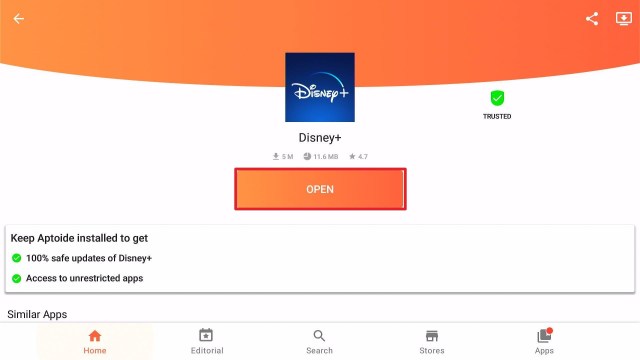
Disney Plus is one of the official Amazon apps. You can install it directly by just searching for it and choosing the download button.

If you cannot find the app when you search for it, you need to use the Aptoide App. But first, you need to Jailbreak your Firestick and use the Downloader app. Later in this article, we’ll show you the option to install Disney Plus through Aptoide. It is the best way to Unblock Disney Plus.

Even if you have successfully installed the app, you still need to have a VPN. This way, you can completely access the content within the app and truly unblock it.

If your Firestick still has the older interface, read this article to learn how to update it: Update Firestick Interface.


ANONYMOUSLY


2 Ways to Install Disney Plus on Firestick

Install Disney Plus on Firestick

  1. From your home page, move one step to the right and click Find.
  2. Scroll down one time and select Search.
  3. Search for Disney Plus. Type in the Keyword and tap on the suggestion.
  4. Click on the Disney Plus application when it appears on the screen.
  5. Select the Get or Download button
  6. Wait for the app to be installed.
  7. Click Open to launch the app.

This process is only applicable if you are in the United States. If you cannot find the Disney Plus application, take a look at the next process.


Legal Disclaimer: ReviewVPN.com does not encourage or endorse any illegal activity involved in the usage of services and applications referenced on this site. We do not verify the licensing agreements of services. The end-user is wholly responsible for ensuring that any media accessed through these services does not violate copyright and/or licensing laws. ReviewVPN does not promote, link to, or receive compensation from any Apps and IPTV services.


Install Surfshark on Firestick

Best Surfshark Deal


Install Disney Plus Outside the USA Using Aptoide

We simplified this process for you. Instead of going a long way 0f install Downloader, then Aptoide, before Disney Plus, we’ll show you a continuous process of installing Disney Plus.

Please take note that this app is updated from time to time. Make sure to update it to its most recent version to lessen some problems while streaming.

1. Scroll to the right-most portion of your home screen and click the wheel gear button (Settings).

Best VPN To Unblock Disney Plus

2. Scroll down and to the right until you get to My Fire TV. Click on it.

Best VPN To Unblock Disney Plus


3. Select Developer options.

Best VPN To Unblock Disney Plus


4. Turn on ADB debugging and Apps from Unknown Sources.

Best VPN To Unblock Disney Plus


5. Click Turn On when the pop-up appears.

Best VPN To Unblock Disney Plus


Then, after jailbreaking your Firestick, you’ll need to install the Downloader app. This app, which is easily available on the Amazon App Store, allows you to download APK files.


6. Click Home, click FIND.

Best VPN To Unblock Disney Plus


7. Click Search.

Best VPN To Unblock Disney Plus


8. You can either say Downloader to your Alexa voice-enabled remote or start typing it. If you typed it, click on the suggestion when it appears.

Best VPN To Unblock Disney Plus


9. Click on the Downloader Icon.

Best VPN To Unblock Disney Plus


10. Click Download.

Best VPN To Unblock Disney Plus


Best VPN To Unblock Disney Plus


11. Click on Open.

Best VPN To Unblock Disney Plus


12. Click on Allow.

Best VPN To Unblock Disney Plus


13. Use the Downloader search tab.

Best VPN To Unblock Disney Plus


14. Type in https://reviewvpn.com/disn and click Go

Best VPN To Unblock Disney Plus


15. Wait for the APK to be downloaded.

Best VPN To Unblock Disney Plus


16. Click Install.

Best VPN To Unblock Disney Plus


17. Select Open.

Best VPN To Unblock Disney Plus


18. Aptoide App will launch directly to Disney plus. There might be some possibility that you need to use Mouse Toggle. Click on Install.

Best VPN To Unblock Disney Plus


19. Choose OK.

Best VPN To Unblock Disney Plus


20. Select Allow.

Best VPN To Unblock Disney Plus


21. The apk is now downloading.

Best VPN To Unblock Disney Plus


22. Select Install.

Best VPN To Unblock Disney Plus


23. Wait for the app to be installed

Best VPN To Unblock Disney Plus


24. Click Open.

Best VPN To Unblock Disney Plus


25. You can now use Disney Plus wherever you are.


Best VPN to Unblock Disney Plus

surfshark logo

When you install Disney Plus, even outside the USA, you won’t still be able to access its content unless you have a VPN.

Not all VPNs work well with this app. Only a few, and one of them is Surfshark. It is actually the best VPN for streaming. Surfshark works well with Amazon Firestick. Once you turn this on, you will be connected to a different server without being caught by your Internet Service Provider (ISP). Thus, giving you access to a lot of other content.

In other words, Surfshark is the best VPN to Unblock Disney Plus.

Other than that, Surfshark also provides tons of great features like:

  • You can pick a specific city and country to connect your IP.
  • Automatically provides access to a new set of content depending on your chosen location.
  • Works well with other apps like Netflix, and Hulu.
  • Adjustable VPN protocols depending on your device’s needs.
  • Provides new and more advanced features like split tunneling and kill switch.
  • Surfshark follows the no-log policy giving you 100% privacy on your online activities while using it.
  • Masks your identity from your ISP by changing your IP address without being noticed.
  • Protects you from hackers, especially when using public wi-fi.
  • An assured data encryptions.
  • Allows you to use one account for multiple devices.
  • Helps you strengthen and speed up your bandwidth depending on the server location of your choice.
  • This is the best VPN for torrenting.
  • Prevents Firestick Buffering and Kodi Buffering


Install Surfshark on Firestick

Best Surfshark Deal


How to Install Surfshark VPN on Firestick

If your Firestick still has the older interface, read this article to learn how to update it: Update Firestick Interface.

Follow our screenshots below to install the SurfShark VPN app on your Fire TV stick.

1. Go to the Home screen of your Firestick.

step 1 Install Surfshark VPN on Firestick


2. Navigate towards the Find tab. Press the Search button from the resulting dropdown.

step 2 Install Surfshark VPN on Firestick


3. Type in the keyword of SurfShark and select from the suggestions that will appear.

step 3 Install Surfshark VPN on Firestick


4. Click the official SurfShark icon from your search results.

step 4 Install Surfshark VPN on Firestick


5. Press the Download (You own it) button.

step 5 Install Surfshark VPN on Firestick


6. The SurfShark VPN installer will download on your device.

step 6 Install Surfshark VPN on Firestick


7. SurfShark VPN’s app will automatically install itself on your Fire TV stick.

step 7 Install Surfshark VPN on Firestick


8. Press the Open button after completing SurfShark VPN’s installation process.

step 8 Install Surfshark VPN on Firestick


9. Please wait for the SurfShark VPN to load its user interface.

step 9 Install Surfshark VPN on Firestick


10. You can now log in with your SurfShark VPN account credentials.

step 10 Install Surfshark VPN on Firestick

Learn more about Surfshark and Grab the Best Surfshark Deal Now!


Other VPNs to Consider

NordVPN (Best for Streaming)

Best Features

  • 5000+ Server in 50+ Countries 
  • Military-Grade Encryption
  • Fast Connection Speed
  • Suitable to a lot of devices
  • No-Log Policy

Prices
  • Complete $5.89 per month (64% Discount)
  • Plus $4.59 per month (56% Discount)
  • Standard $3.69 per month (55% Discount)

Best Features

  • 750+ High-speed VPN Servers in 43 Locations
  • Military-Grade Encryption
  • Fastest HD Streaming and Gaming
  • 30-Day Money-Back Guarantee
  • Unlimited Data & Devices
  • No-Log Policy

Prices
  • 3 Years $1.99 per month (82% Discount)
  • 1 Years $3.29 per month (70% Discount)
  • 1 Month $10.99 per month

IPVanish VPN (Most Secure)

Best Features

  • 1200+ Servers in 60+ Countries around the world
  • Unlimited Connections
  • No-Log Policy
  • Top Notch Military-Grade VPN Protocols and Encryptions
  • 100% Safe and Secured
  • Most Trusted VPN
  • Best VPN for Firestick
  • 30-Day Money-Back Guarantee

Prices
  • Yearly $3.99 per month (63% Discount) – 30 days risk free + Ransomware & Malware Protection
  • Quarterly $5.32 per month (51% Discount)
  • Monthly $10.99 per month


For more VPN discounts, go to ReviewVPN Deals and purchase the best VPN for you.


Install Surfshark on Firestick

Best Surfshark Deal


FAQs

How to Unblock Disney Plus?

You can unblock Disney Plus by using a VPN like Surfshark.


Can I Use VPN for Disney Plus?

Yes. You can use a VPN for Disney Plus. But not all VPNs work well with this app. We recommend using Surfshark.


Is it Illegal to Use a VPN for Disney Plus?

That depends on the VPN you are using. Use only the premium ones if you want to unblock Disney Plus with a VPN


Executive Summary

It is really a bummer if you want to access an app and it is not available in your region. One great example is Disney Plus. The good thing is, you can install it wherever you are through the use of the Aptoide App.

Even though you have installed the app, you cannot access it unless you use a VPN. Through the help of a VPN, you can connect to an American server and access Disney Plus completely.

The best VPN for Disney Plus is Surfshark. We have tested and proven this VPN for a long time and never fails. You can still use other VPNs of your choice as well. Make sure that it also works well with Disney Plus.

With this article, we hope that you learned how to unblock Disney Plus.


Note: ReviewVPN.com does not own or operate any app nor does it endorse any. The main purpose of this article is strictly for educational purposes only.


Others Also Read:

How to Install Decades Kodi Build

Overview

The article will help you with how to install Decades Kodi Build.


Decades is another golden age-inspired Kodi build that brings you a great selection of content and lots of popular add-ons to try. You can find this build on the Grindhouse repository along with other popular Kodi builds such as Cityscapes, DeathStar, F19, Spaced Out, and more. You can watch their large collection and hundreds of 4K movies, 3D Movies, and TV shows for free. 

This build interface is also Aeon Nox: SiLVO by default, which makes it great and easy to use. It is also a feature-rich build integrated with Real debrid to give you high-quality of streaming links. The good thing is, it has a very easy-to-use and user-friendly interface that works well on Kodi. It also works well on Kodi 19.5 Matrix. 


ANONYMOUSLY

How to Install Decades Kodi Build with Screenshot

1. On your Firestick, open Kodi and go to Settings.

Install Decades Kodi Build 1


2. Select on System.

Install Decades Kodi Build 2


3. Click on the Add-ons menu and Turn ON the Unknown Sources.

Install Decades Kodi Build 3


4. Select Yes when the box appears.

Install Decades Kodi Build 4


5. Go back one step and click on File Manager.

Install Decades Kodi Build 5


6. Select the Add Source.

Install Decades Kodi Build 6


7. A box will pop up, so click on the ‘None’ option.

Install Decades Kodi Build 7


8. Type in http://grindhousekodi.tk/repo and click OK.

Install Decades Kodi Build 8


9. Name the URL- grind or any other name you want to. Then select OK.

Install Decades Kodi Build 9

10. Go back and Select Add-ons.

Install Decades Kodi Build 10


11. Click Install from zip file.

Install Decades Kodi Build 11


12. Choose grind or any other name you put.

Install Decades Kodi Build 12


13. Click  repository.grindhousekodi-1.7.zip

Install Decades Kodi Build 13


14. Wait for the Grindhouse Repository installed text to appear.

Install Decades Kodi Build 14


15. After that, click the Install from repository.

Install Decades Kodi Build 15


16. Select the Grindhouse Repository.

Install Decades Kodi Build 16


17. Go to Programs add-ons.

Install Decades Kodi Build 17


18. Choose the Grindhouse Wizard.

Install Decades Kodi Build 18


19. Click the Install button.

Install Decades Kodi Build 19


20. Wait for Grindhouse Wizard Add-On Installed text to appear.

Install Decades Kodi Build 20


21. When a box pop up, click Continue.

Install Decades Kodi Build 21


22. Click Not Used.

Install Decades Kodi Build 22


23. Go back to the main menu and select Add-ons.

Install Decades Kodi Build 23


24. On the program add-ons, click the GrindHouse Wizard icon.

Install Decades Kodi Build 24


25. Select the Builds

Install Decades Kodi Build 25


26. Choose Decades.

Install Decades Kodi Build 26


27. Click the Fresh Install.

Install Decades Kodi Build 27


28. When a box pop up, select the Yes.

Install Decades Kodi Build 28


29. Another box will pop up, click on Yes, Install.

Install Decades Kodi Build 29


30. Wait for the build to finish its download.

Install Decades Kodi Build 30


31. Tap OK.

Install Decades Kodi Build 31


32. Exit your Kodi and reopen it again.

Install Decades Kodi Build 32


33. That’s it! You have successfully installed the Decades Kodi Build.

Install Decades Kodi Build 33

YOUR INTERNET ACTIVITY IS BEING WATCHED

ReviewVPN cannot attest to the legality, security and privacy of the applications discussed on this site. It is highly recommended that you use a VPN service while streaming or using Kodi.

Currently, your IP 216.73.216.144 is visible to everyone and your Browser is being tracked by Advertisers & ISP Provider.

Save 65% Now

Limited Time Offer

Here are the main reasons why you must use a VPN:

  • Your activities are hidden from your ISP, the government, and from the apps you are using.
  • You can access additional movies and TV streams.
  • ISP attempts to throttle are thrwarted thus reducing buffering issues.
  • Geographically restricted content like Netflix and Hulu can be unblocked.

A VPN works be replacing your ISP-assigned IP address and creating an encrypted tunnel. We recommend the no log service offered by IPVanish. It works well on a Firestick and offers the fastest possible speeds.

Special Limited Time Offer - Get IPVanish


Legal Disclaimer: ReviewVPN.com does not encourage or endorse any illegal activity involved in the usage of services and applications referenced on this site. We do not verify the licensing agreements of services. The end-user is wholly responsible for ensuring that any media accessed through these services does not violate copyright and/or licensing laws. ReviewVPN does not promote, link to, or receive compensation from any Apps and IPTV services.


Install Surfshark on Firestick

Best Surfshark Deal


Features of Decades Kodi Build

Interface

  • A well-designed AEON NOX:SiLVO interface 
  • Easy to navigate the interface without using mouse toggle
  • Simple yet attractive interface.
  • Available advance contents selection.
  • The excellent search function (Search History, One-Click Search, and Advanced search.


Categories

  • You can choose from different kinds of content such as Movies, TV Shows, Music, Kids, Anime, Sports, Soaps, Stand Up, Documentaries, and more. 
  • Genre: You can choose genres such as Action, Adventure, Animation, Animation, Comedy, Crime, Documentary, Drama, Family, Fantasy, History, Horror, Music, Mystery, Romance, Sci-fi, Sport, TV Movie, Thriller, War, and Western.
  • You can choose from different movie categories such as 4K Movies, 3D Movies, Theaters, Popular Movies, Cam Movies, Classic, Westerns Movies, and more. 
  • Watch movies from 2014 to 2022.
  • It has a regularly updated list of content to watch.
  • Watch from different popular studios such as Marvel, DC Studios, Lucasfilm, Warner Bros, Walt Disney Pictures, Pixar, Paramount, Columbia Pictures, DreamWorks, Miramax, and more.
  • Watch sports: Wrestling, Boxing, UFC Replays, Sports Documentaries, and Sports Catch Up.


Preloaded Addons

Here is the preloaded Kodi addon in this build: DejaVu Repo, Asgard, Twisted 19, Twisted Nutz Repo, THE CREW, THE CREW REPO, Rising Tides, Free, Replay Me, Maverick, Simple Sports, Torque Lite, The Endzone 19, Revolution, Q Sports, Bugatsinho Repository, AAC encoder, BewsandBeer, Black, C:/>Goto, Cumination, DailyMotion.com, Odds N’ Ends, SportHD, TheOath, TMDb TV Shows, and YouTube. 


Video Quality

  • Up to UHD 4K video quality
  • Available subtitles in multi-language
  • Supported with a Trakt account to monitor what you are watching.
  • Integrated with Real debrid to provide you with high-quality streaming links.


Pros and Cons

Pros

  • It has a simple and attractive interface.
  • Lots of content to watch for free.
  • 4K video streaming quality.  
  • Lots of popular preloaded Kodi addons to try.
  • Wide variety of content categories to choose from.


Cons

  • Some Kodi addons and contents aren’t working properly.
  • Some content is not able to be played at all.


Why do I need a VPN?

We always recommend using a Virtual Private Network on your device, every time you are using a third-party Kodi build or add-ons. This VPN is to ensure that you are protected while streaming with their servers and keep you away from any potential hackers online. A VPN is a trusted tool that will automatically encrypt your IP Address and personal data to keep you anonymous online.

Surfshark is one of the best VPNs that you can rely on when it comes to these kinds of issues. It is also a proven and tested VPN, committed to giving its users the best quality of service worth paying for. Surfshark also has impressive security features such as AES-256 bit of encryption and a US standard that will keep you protected 24/7. If you want to know about this VPN, just read our  Surfshark Review.

Other features of Surfshark are: 

  • Prevent ISPs from interfering with your connection and speed up your internet.
  • It gives you unlimited bandwidth and makes your internet speed faster. 
  • Keep your identity anonymous to protect you from hackers, especially when you are using public wi-fi.
  • Destroys geo-block and gains access to different content globally.
  • Bypass censorship and restrictions.
  • Let you connect to over 3200+ servers in 65 countries
  • 100% zero logs and no IP address leaks. 
  • Keep your file protected from harmful malware.


Grab your subscription now!

Click here to get the lowest price on Surfshark through our exclusive limited-time offer.


How to Install Surfshark VPN on Firestick

If your Firestick still has the older interface, read this article to learn how to update it: Update Firestick Interface.

Follow our screenshots below to install the SurfShark VPN app on your Fire TV stick.

1. Go to the Home screen of your Firestick.

step 1 Install Surfshark VPN on Firestick


2. Navigate towards the Find tab. Press the Search button from the resulting dropdown.

step 2 Install Surfshark VPN on Firestick


3. Type in the keyword of SurfShark and select from the suggestions that will appear.

step 3 Install Surfshark VPN on Firestick


4. Click the official SurfShark icon from your search results.

step 4 Install Surfshark VPN on Firestick


5. Press the Download (You own it) button.

step 5 Install Surfshark VPN on Firestick


6. The SurfShark VPN installer will download on your device.

step 6 Install Surfshark VPN on Firestick


7. SurfShark VPN’s app will automatically install itself on your Fire TV stick.

step 7 Install Surfshark VPN on Firestick


8. Press the Open button after completing SurfShark VPN’s installation process.

step 8 Install Surfshark VPN on Firestick


9. Please wait for the SurfShark VPN to load its user interface.

step 9 Install Surfshark VPN on Firestick


10. You can now log in with your SurfShark VPN account credentials.

step 10 Install Surfshark VPN on Firestick

Learn more about Surfshark and Grab the Best Surfshark Deal Now!


Install Surfshark on Firestick

Best Surfshark Deal


Other VPNs to Consider

NordVPN (Best for Streaming)

Best Features

  • 5000+ Server in 50+ Countries 
  • Military-Grade Encryption
  • Fast Connection Speed
  • Suitable to a lot of devices
  • No-Log Policy

Prices
  • Complete $5.89 per month (64% Discount)
  • Plus $4.59 per month (56% Discount)
  • Standard $3.69 per month (55% Discount)

Best Features

  • 750+ High-speed VPN Servers in 43 Locations
  • Military-Grade Encryption
  • Fastest HD Streaming and Gaming
  • 30-Day Money-Back Guarantee
  • Unlimited Data & Devices
  • No-Log Policy

Prices
  • 3 Years $1.99 per month (82% Discount)
  • 1 Years $3.29 per month (70% Discount)
  • 1 Month $10.99 per month

IPVanish VPN (Most Secure)

Best Features

  • 1200+ Servers in 60+ Countries around the world
  • Unlimited Connections
  • No-Log Policy
  • Top Notch Military-Grade VPN Protocols and Encryptions
  • 100% Safe and Secured
  • Most Trusted VPN
  • Best VPN for Firestick
  • 30-Day Money-Back Guarantee

Prices
  • Yearly $3.99 per month (63% Discount) – 30 days risk free + Ransomware & Malware Protection
  • Quarterly $5.32 per month (51% Discount)
  • Monthly $10.99 per month


For more VPN discounts, go to ReviewVPN Deals and purchase the best VPN for you.

Click here to get the lowest price on Surfshark through our exclusive limited-time offer.


Alternatives for Decades Kodi Build

We list down some of the Kodi builds that you can try. Kindly read their corresponding articles to know more about these add-ons.


FAQs

Do the Decades Kodi Build work on Kodi 19.5 Matrix?

Yes, this build also works well and is compatible with Kodi 19.5 Matrix. 


Is the Decades Kodi Build legal?

Yes, downloading this build is not illegal.


Is the Decades Kodi Build free?

Yes, this Build is free and allows you to access their content for free.


Is the Decades Kodi Build safe to use?

Yes, this build is safe to use. However, since it is still a third-party build, we suggest using a VPN such as Surfshark to keep you safe. 


Conclusion

Decades is one of the attractive and easy-to-use Kodi builds with a great collection of content to watch for free. This build will surely give you all of the latest and popular content to watch for free. The good thing with this build is, it is integrated with real debrid and Trakt accounts to give you an amazing experience in streaming. We hope this article helps you install the Decades Kodi Build.

How to Install SteamPunk Kodi Build

Overview

The article will help you on how to install SteamPunk Kodi Build.

SteamPunk is one of the latest Kodi that is located on the Phoenix Repository. The good thing with this news build is, it is compatible and works well on Kodi 19 Matrix. This robotic-inspired build offers you their large collection of content to watch for free and their preloaded Kodi addons to try.


You can watch hundreds of 4K content without paying any cents. The good thing about this build is, that it is integrated with Real Debrid, which is why you can assure that they will serve you high-quality streaming links. 

It also has a simple and easy-to-use interface that works well on Kodi. This build is also a feature-rich build that brings you lots of popular add-ons to try such as the Aliunde, Octopus, DejaVu, Asgard, and more. However, since it is still a third-party build, we suggest using Surfshark to ensure your safety. 


ANONYMOUSLY


How to Install SteamPunk Kodi Build with Screenshot

Installing a Kodi build has a lot of processes to take. That is why we will guide you step by step on how you can install it on Kodi.

 Follow the following steps below. 

1. On your Firestick, open Kodi and go to Settings.

Install SteamPunk Kodi Build 1

2. Select on System.

Install SteamPunk Kodi Build 2


3. Click on the Add-ons menu and Turn ON the Unknown Sources.

Install SteamPunk Kodi Build 3


4. Select Yes when the box appears.

Install SteamPunk Kodi Build 4


5. Go back one step and click on File Manager.

Install SteamPunk Kodi Build 5


6. Select the Add Source.

Install SteamPunk Kodi Build 6


7. A box will pop up, so click on the ‘None’ option.

Install SteamPunk Kodi Build 7


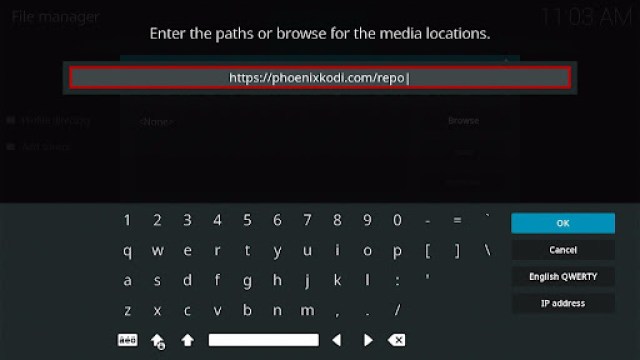
8. Type in https://phoenixkodi.com/repo and click OK.

Install SteamPunk Kodi Build 8


9. Name the URL- phoenix or any other name you want to. Then select OK.

Install SteamPunk Kodi Build 9


10. Go back and select Add-ons.

Install SteamPunk Kodi Build 10


11. Click Install from zip file.

Install SteamPunk Kodi Build 11


12. Tap the Yes button.

Install SteamPunk Kodi Build 12


13. Choose phoenix or any other name you put.

Install SteamPunk Kodi Build 13


14. Click repository. Phoenix-1.0.zip

Install SteamPunk Kodi Build 14


15. Wait for the Phoenix Repository installed text to appear.

Install SteamPunk Kodi Build 15


16. After that, click the Install from repository.

Install SteamPunk Kodi Build 16


17. Select the Phoenix Repository.

Install SteamPunk Kodi Build 17


18. Go to Programs add-ons.

Install SteamPunk Kodi Build 18


19.Choose the Phoenix Wizard Kodi 19.

Install SteamPunk Kodi Build 19


20. Click the Install button.

Install SteamPunk Kodi Build 20


21. Tap the OK button.

Install SteamPunk Kodi Build 21


22. Wait for Phoenix Wizard Kodi 19 Add-On Installed text to appear.

Install SteamPunk Kodi Build 22


23. When a box pop up, click Continue.

Install SteamPunk Kodi Build 23


24. Click Ignore.

Install SteamPunk Kodi Build 24


25. Go back to the main menu and select Add-ons.

Install SteamPunk Kodi Build 25


26. On the program add-ons, click the Phoenix Wizard Kodi 19 icon.

Install SteamPunk Kodi Build 26


27. Select the Builds.

Install SteamPunk Kodi Build 27


28. Choose [19.0] SteamPunk 19 Build.

Install SteamPunk Kodi Build 28


29. Click the Install.

Install SteamPunk Kodi Build 29


30. When a box pop up, select the Yes, Install.

Install SteamPunk Kodi Build 30


31. Wait for the build to finish its download.

Install SteamPunk Kodi Build 31


32. Another box will pop up, click on No Thanks.

Install SteamPunk Kodi Build 32


33. Tap OK.

Install SteamPunk Kodi Build 33


34. Exit your Kodi and reopen it again.

Install SteamPunk Kodi Build 34


35. That’s it! You have successfully installed the SteamPunk Kodi Build.

Install SteamPunk Kodi Build 35


YOUR INTERNET ACTIVITY IS BEING WATCHED

ReviewVPN cannot attest to the legality, security and privacy of the applications discussed on this site. It is highly recommended that you use a VPN service while streaming or using Kodi.

Currently, your IP 216.73.216.144 is visible to everyone and your Browser is being tracked by Advertisers & ISP Provider.

Save 65% Now

Limited Time Offer

Here are the main reasons why you must use a VPN:

  • Your activities are hidden from your ISP, the government, and from the apps you are using.
  • You can access additional movies and TV streams.
  • ISP attempts to throttle are thrwarted thus reducing buffering issues.
  • Geographically restricted content like Netflix and Hulu can be unblocked.

A VPN works be replacing your ISP-assigned IP address and creating an encrypted tunnel. We recommend the no log service offered by IPVanish. It works well on a Firestick and offers the fastest possible speeds.

Special Limited Time Offer - Get IPVanish


Features of Decades Kodi Build

Interface

  • The default skin interface is AEON NOX:SiLVO 
  • An easy navigate the interface without using mouse toggle
  • It also has a user interface that is compatible with Kodi 19 Matrix. 
  • The excellent search function (Search History, One-Click Search, and Advanced search.


Categories

  • You can choose from different kinds of categories such as Movies, TV Shows, Sports, Favourites, and systems.
  • Choose from content categories such as 4K One-Click Section, One-Click Section, Non-Debrid Section, Movies, Tv shows, Soaps, Documentaries, Anime, Sports, Music, and more. You can also watch their collection of 4K movies, 3D movies, Popular Movies, Theaters, Classic Movies, Western Movies, and more.
  • Genre: You can choose genres such as Action & Adventure, Animation, Animation, Comedy, Crime, Documentary, Drama, Family, Kids, Mystery, News, Reality, Sci-Fi & Fantasy, Soap, Talk, War & Politics, and Western.
  • Watch content from 1971 to 2021.
  • You can also choose different networks such as Disney+, Apple TV+, NetFlix, HBO, CBS, SyFy, The CW, ABC, NBC, AMAZON, Hulu, ShowTime, BBC One, BBC Two, BBC Three, ITV, and more. 
  • They also have special footage on Wrestling, Boxing, UFC Replays, Sports Documentaries, and Sports Catch Up.
  • You can also watch different TV shows such as the Most voted, Highly Rated, International, Airing Today, Trending, Most Popular, and more popular Tv shows. 
  • Watch from different popular studios such as Marvel, DC Studios, Lucasfilm, Warner Bros, Walt Disney Pictures, Pixar, Paramount, Columbia Pictures, DreamWorks, Miramax, and more.
  • It has a resume watching to continue where you stopped off.


Preloaded Addons

Here is the preloaded Kodi addon in this build: Aliunde Repository, Octopus Repository, DejaVu Repo, Asgard, Rogue One, THE CREW, THE CREW REPO, Dobbelina Repository, HAL 9000, Free, Venom, Chains, Cloud 9, DejaVu, Maverick, Loop Repository, Torque Lite, The Endzone 19, Q Sports, Bugatsinho Repository, 4K, AAC Encoder, Black Lightning, Chains, Cumination, DailyMotion, FEnomScrapers, Mad Titan Sports, Magnetic Repo, mbebe, Nixgates Repo, Narcissists Repo, Q COntinuum, Shadow, Seren. Release BB and more.


Install Surfshark on Firestick

Best Surfshark Deal


Legal Disclaimer: ReviewVPN.com does not encourage or endorse any illegal activity involved in the usage of services and applications referenced on this site. We do not verify the licensing agreements of services. The end-user is wholly responsible for ensuring that any media accessed through these services does not violate copyright and/or licensing laws. ReviewVPN does not promote, link to, or receive compensation from any Apps and IPTV services.


Pros and Cons

Pros

  • It has a simple and attractive interface.
  • Integrated with Real Debrid and Trakt account. 
  • A great selection of content to watch on high-quality videos. 
  • Up to 4K video streaming quality.  
  • Lots of popular preloaded Kodi addons to try.
  • Wide variety of content categories to choose from.

Cons

  • Some Kodi addons and contents aren’t working properly.
  • Some content is not able to be played at all.


Why do I need a VPN?

Having a Virtual Private Network on your device is like having an online companion, which keeps you away from any potential hackers and harms online. A VPN also gives you a safe online environment using a high standard of security. Since there are lots of VPNs online, we highly recommend Surfshark as your best choice.

Surfshark has a lot of impressive features and good security services to offer to its users. The good thing with this VPN is, it is proven and tested when it comes to service. If you want to know more about this VPN, kindly read our Surfshark Review.

Other features of Surfshark are: 

  • Prevent ISPs from interfering with your connection and speed up your internet.
  • It gives you unlimited bandwidth and makes your internet speed faster. 
  • Keep your identity anonymous to protect you from hackers, especially when you are using public wi-fi.
  • Destroys geo-block and gains access to different content globally.
  • Bypass censorship and restrictions.
  • Let you connect to over 3200+ servers in 65 countries worldwide.
  • 100% zero logs and no IP address leaks. 
  • Keep your file protected from harmful malware.


Grab your subscription now!

Click here to get the lowest price on Surfshark through our exclusive limited-time offer.


How to Install Surfshark VPN on Firestick

If your Firestick still has the older interface, read this article to learn how to update it: Update Firestick Interface.

Follow our screenshots below to install the SurfShark VPN app on your Fire TV stick.

1. Go to the Home screen of your Firestick.

step 1 Install Surfshark VPN on Firestick


2. Navigate towards the Find tab. Press the Search button from the resulting dropdown.

step 2 Install Surfshark VPN on Firestick


3. Type in the keyword of SurfShark and select from the suggestions that will appear.

step 3 Install Surfshark VPN on Firestick


4. Click the official SurfShark icon from your search results.

step 4 Install Surfshark VPN on Firestick


5. Press the Download (You own it) button.

step 5 Install Surfshark VPN on Firestick


6. The SurfShark VPN installer will download on your device.

step 6 Install Surfshark VPN on Firestick


7. SurfShark VPN’s app will automatically install itself on your Fire TV stick.

step 7 Install Surfshark VPN on Firestick


8. Press the Open button after completing SurfShark VPN’s installation process.

step 8 Install Surfshark VPN on Firestick


9. Please wait for the SurfShark VPN to load its user interface.

step 9 Install Surfshark VPN on Firestick


10. You can now log in with your SurfShark VPN account credentials.

step 10 Install Surfshark VPN on Firestick

Learn more about Surfshark and Grab the Best Surfshark Deal Now!


Install Surfshark on Firestick

Best Surfshark Deal


Other VPNs to Consider

NordVPN (Best for Streaming)

Best Features

  • 5000+ Server in 50+ Countries 
  • Military-Grade Encryption
  • Fast Connection Speed
  • Suitable to a lot of devices
  • No-Log Policy

Prices
  • Complete $5.89 per month (64% Discount)
  • Plus $4.59 per month (56% Discount)
  • Standard $3.69 per month (55% Discount)

Best Features

  • 750+ High-speed VPN Servers in 43 Locations
  • Military-Grade Encryption
  • Fastest HD Streaming and Gaming
  • 30-Day Money-Back Guarantee
  • Unlimited Data & Devices
  • No-Log Policy

Prices
  • 3 Years $1.99 per month (82% Discount)
  • 1 Years $3.29 per month (70% Discount)
  • 1 Month $10.99 per month

IPVanish VPN (Most Secure)

Best Features

  • 1200+ Servers in 60+ Countries around the world
  • Unlimited Connections
  • No-Log Policy
  • Top Notch Military-Grade VPN Protocols and Encryptions
  • 100% Safe and Secured
  • Most Trusted VPN
  • Best VPN for Firestick
  • 30-Day Money-Back Guarantee

Prices
  • Yearly $3.99 per month (63% Discount) – 30 days risk free + Ransomware & Malware Protection
  • Quarterly $5.32 per month (51% Discount)
  • Monthly $10.99 per month


For more VPN discounts, go to ReviewVPN Deals and purchase the best VPN for you.

Click here to get the lowest price on Surfshark through our exclusive limited-time offer.


Alternatives for SteamPunk Kodi Build

We list down some of the Kodi builds that you can try. Kindly read their corresponding articles to know more about these add-ons.


FAQs

Does the SteamPunk Kodi Build work on Kodi 19 Matrix?

Yes, this build also works well and is compatible with Kodi 19 Matrix. 


Is the SteamPunk Kodi Build legal?

Yes, downloading this build is not illegal.


Is the SteamPunk Kodi Build safe to use?

Yes, this build is safe to use. However, since it is still a third-party build, we suggest using a VPN such as Surfshark to keep you safe. 


Is the SteamPunk Kodi Build free?

Yes, this build is free and allows you to access their content for free.


Do I need to use a VPN for this?

Yes, we always suggest using a VPN such as Surfshark to keep you safe and protected. 


Conclusion

SteamPunk is a great Kodi Build that brings you impressive service and lots of good collections of content to watch. This build also works well on Kid 19 matrix, which makes it very interesting to use. You can also watch this build content for free and in high quality. The good thing is, this build is integrated with a Real debrid and Trakt account to give you an amazing experience in streaming. We hope this article helps you install the SteamPunk Kodi Build.

Everything You Need to Know About the Dark Web

Overview

In this article, we will tell you everything you need to know about the dark web.


The internet has given us a new way to communicate with other people worldwide. Ever since the beginning of the internet, many individuals enjoy all of its benefits.

However, issues revolving around online privacy are still held high up to this day. It is why the dark web came into existence. Are you curious to learn more about the mysteries of the dark web? If yes, then read on.

Here in this article, we will cover some of the basic information about the dark web. We will also cover its origins, purpose, and advantages. This article also contains how you can access the dark web. First, we will discuss what the dark web is all about.


ANONYMOUSLY


What is the Dark Web?

The dark web is a secret collection of websites that people can only access when using a special web browser. It is also known as the dark web. If you want to attain more privacy while browsing the internet, then the dark web is a good option for your needs. The dark web is effective in keeping your online activities anonymous and private.

As the internet continues to expand, the dark web’s function serves the requirements of many secretive factions. The privacy that the dark web possesses provides benefits to both legal and illegal operations. Many people use the dark web to outwit government censorship. However, the dark web is also a hub for many illegal activities.


What is Inside the Dark Web?

Inside the dark web, you may find content that is not available through traditional means. The dark web contains online content with high levels of encryption. This means that if you want to find exclusive content, you may visit the dark web with a special browser.

The dark web is only a fraction of the deep web. All the websites inside the dark web may not appear if you search them with typical search engines. Almost all of the dark web’s contents are private files that famous cloud storage services are hosting for their users. This collection of data is only available with their subscribers and is not accessible by anyone else.


The Structure of the Dark Web

The dark web’s crucial advantage lies in staying hidden. Many sites inside the dark web are not part of search engine indexing. This means that the sites inside the dark web have a lesser chance of discovery than normal internet browsing. The size of the dark web is comparably small if we compare it to the size of the surface web.

The dark web is only a portion of the deep web with high levels of concealment. Only a few people will ever interact with the dark web during their lifetimes. Simply put, the dark web contains every internet content which lurks just beneath the surface of the conventional internet. Although covered, parts of the dark web may still be accessible by using adequate software.

  • Undiscoverable – All the contents and websites inside the dark web are not a part of search engine indexing.
  • Secure Tunnels – Similar to a VPN, the dark web has virtual tunnels which process traffic through a network with random structuring.
  • Inaccessibility – The dark web consists of websites not accessible with conventionally browsing the internet. All of these sites are hidden with the help of multiple layers of security and encryption protocols.


Install Surfshark on Firestick

Best Surfshark Deal


Features of the Dark Web

  • Not accessible with typical search engines.
  • Websites are protected by many layers of encryption.
  • Contains virtual tunnels which function with a randomized structure.
  • Maintains user privacy.
  • Keeps anyone anonymous while using the dark web.
  • Only a small portion of the deep web and the entire internet.
  • Can provide exclusive content.
  • May serve as a platform for concealed sales and when searching exotic products.

How to Visit the Dark Web

If you are curious about the dark web, you can celebrate since there are special browsers you can use. The dark web, also called the dark web, was once the central market for hackers, cybercriminals, and rogue factions. Many law enforcement agencies are also using the dark web for tracing illegal activities.

Placing the sensitivity of privacy into consideration, research organizations working for the government began developing the Tor browser. Tor stands for “The Onion Routing” project. Its purpose is to route the requests of users with the ‘.onion’ registry operator. The first version of the Tor function was to protect the communications of US spies.

Here are some of the browsers you can use for browsing the dark web:

  • Onion link
  • Not Evil


Pros and Cons

Pros

  • Maintenance of user privacy
  • Provide a platform for activities under the public eye
  • Provides a safe place for spies to communicate
  • Free expression of views and opinions
  • Avoids government censorship
  • Contains the sales of exotic products
  • Provide a platform for secret deals
  • Contains private files with famous file hosting services
  • Inaccessible with conventional search engines


Cons

  • Malicious software lurks in the dark web (they are part of its defense system).
  • Became a virtual place for government monitoring.
  • Scammers are prevalent on the dark web.
  • Can become a tool to violate the privacy and rights of other people.


Grab your subscription now!

Click here to get the lowest price on Surfshark through our exclusive limited-time offer.


YOUR INTERNET ACTIVITY IS BEING WATCHED

ReviewVPN cannot attest to the legality, security and privacy of the applications discussed on this site. It is highly recommended that you use a VPN service while streaming or using Kodi.

Currently, your IP 216.73.216.144 is visible to everyone and your Browser is being tracked by Advertisers & ISP Provider.

Save 65% Now

Limited Time Offer

Here are the main reasons why you must use a VPN:

  • Your activities are hidden from your ISP, the government, and from the apps you are using.
  • You can access additional movies and TV streams.
  • ISP attempts to throttle are thrwarted thus reducing buffering issues.
  • Geographically restricted content like Netflix and Hulu can be unblocked.

A VPN works be replacing your ISP-assigned IP address and creating an encrypted tunnel. We recommend the no log service offered by IPVanish. It works well on a Firestick and offers the fastest possible speeds.

Special Limited Time Offer - Get IPVanish


Access the Dark Web with a VPN

The dark web always catches the curiosity of many people. Not all of us are brave enough to explore its depths. If you want to, we have to warn you that it is dangerous to visit the dark web without additional protection.

To accompany you as you explore the dark web, we recommend Surfshark to keep you safe. The VPN offers you several advantages:


  • Provides you maximum security while browsing the dark web.
  • Conceals your identity while visiting the dark web.
  • Protects your device from cyber threats prevalent on the dark web.
  • Helps you unlock geo-blocks.
  • Best VPN to use while browsing the dark web.


How to Install Surfshark VPN on Firestick

If your Firestick still has the older interface, read this article to learn how to update it: Update Firestick Interface.

Follow our screenshots below to install the SurfShark VPN app on your Fire TV stick.

1. Go to the Home screen of your Firestick.

step 1 Install Surfshark VPN on Firestick


2. Navigate towards the Find tab. Press the Search button from the resulting dropdown.

step 2 Install Surfshark VPN on Firestick


3. Type in the keyword of SurfShark and select from the suggestions that will appear.

step 3 Install Surfshark VPN on Firestick


4. Click the official SurfShark icon from your search results.

step 4 Install Surfshark VPN on Firestick


5. Press the Download (You own it) button.

step 5 Install Surfshark VPN on Firestick


6. The SurfShark VPN installer will download on your device.

step 6 Install Surfshark VPN on Firestick


7. SurfShark VPN’s app will automatically install itself on your Fire TV stick.

step 7 Install Surfshark VPN on Firestick


8. Press the Open button after completing SurfShark VPN’s installation process.

step 8 Install Surfshark VPN on Firestick


9. Please wait for the SurfShark VPN to load its user interface.

step 9 Install Surfshark VPN on Firestick


10. You can now log in with your SurfShark VPN account credentials.

step 10 Install Surfshark VPN on Firestick

Learn more about Surfshark and Grab the Best Surfshark Deal Now!


Install Surfshark on Firestick

Best Surfshark Deal


Other VPNs to Consider

NordVPN (Best for Streaming)

Best Features

  • 5000+ Server in 50+ Countries 
  • Military-Grade Encryption
  • Fast Connection Speed
  • Suitable to a lot of devices
  • No-Log Policy

Prices
  • Complete $5.89 per month (64% Discount)
  • Plus $4.59 per month (56% Discount)
  • Standard $3.69 per month (55% Discount)

Best Features

  • 750+ High-speed VPN Servers in 43 Locations
  • Military-Grade Encryption
  • Fastest HD Streaming and Gaming
  • 30-Day Money-Back Guarantee
  • Unlimited Data & Devices
  • No-Log Policy

Prices
  • 3 Years $1.99 per month (82% Discount)
  • 1 Years $3.29 per month (70% Discount)
  • 1 Month $10.99 per month

IPVanish VPN (Most Secure)

Best Features

  • 1200+ Servers in 60+ Countries around the world
  • Unlimited Connections
  • No-Log Policy
  • Top Notch Military-Grade VPN Protocols and Encryptions
  • 100% Safe and Secured
  • Most Trusted VPN
  • Best VPN for Firestick
  • 30-Day Money-Back Guarantee

Prices
  • Yearly $3.99 per month (63% Discount) – 30 days risk free + Ransomware & Malware Protection
  • Quarterly $5.32 per month (51% Discount)
  • Monthly $10.99 per month


For more VPN discounts, go to ReviewVPN Deals and purchase the best VPN for you.

Click here to get the lowest price on Surfshark through our exclusive limited-time offer.


FAQs

Is it illegal to visit the dark web?

Apart from its bad reputation, the dark web has some legal services to offer. It is not illegal to visit or surf the dark web.


Is it illegal to use the Tor browser?

The Tor browser was meant for US spies to communicate freely without compromise. Today, the Tor browser is now a public browser similar to Google and Yahoo. Therefore, it is not illegal to use the Tor browser.


Conclusion

The modern-day internet is chock full of mysteries. To protect information from their spies, the US government invented the dark web to secure their communication channels. However, it became a hub for both legal and illegal activities. Today, the dark web is only accessible with a special browser known as Tor.

We hope this article has given you some additional knowledge about the dark web.

How to Install Cheddar Kodi Addon

Overview

The article will help you on how to install Cheddar Kodi Addon.

Cheddar is a popular post-cable Live TV network that serves you informational videos, innovative products, and technologies videos that can change your life. This popular channel is now on Kodi and the good thing is, it is an official Kodi addon. It is a useful add-on that brings you a great selection of content to watch for free. 

The official cheddar Kodi addon is located at Kodi’s official repository and offers you both live stream and on-demand video clips to watch in high quality. It also has a simple and easy-to-use interface that works well on Kodi. If you want to learn and know different ideas, this add-on is a good option for you. 


How to Install Cheddar Kodi Addon

Here is a step-by-step guide on how you can install Cheddar on Kodi.

  1. Launch Kodi and click the Settings icon.
  2. Select Addons.
  3. Click Install from the repository.
  4. Scroll down and select Video add-ons
  5. Select Cheddar.
  6. Click Install.
  7. Tap the OK button.
  8. Wait for the Cheddar Add-on installed message to appear.
  9. Go back to the Kodi home screen and click Addon. After that, 
  10. Select the Cheddar Kodi Addon.
  11.  That’s it! You can now watch any content that you want.


ANONYMOUSLY


How to Install Cheddar Kodi Addon with Screenshot

 Follow the steps below:

1. Launch Kodi and click the Settings icon.

Install Cheddar Kodi Addon 1

2. Select Addons.

Install Cheddar Kodi Addon 2


3. Click Install from repository.

Install Cheddar Kodi Addon 3


4. Scroll down and select Video add-ons.

Install Cheddar Kodi Addon 4


5. Select Cheddar.

Install Cheddar Kodi Addon 5


6. Click Install.

Install Cheddar Kodi Addon 6


7. Tap the OK button.

Install Cheddar Kodi Addon 7


8. Wait for the Cheddar Add-on installed message to appear.

Install Cheddar Kodi Addon 8


9. Go back to the Kodi home screen and scroll down to Addon.

Install Cheddar Kodi Addon 9


10. From the Video add-ons, select the Cheddar Kodi Addon.

Install Cheddar Kodi Addon 10


11. That’s it! You can now watch any content that you want.

Install Cheddar Kodi Addon 11


Features of Cheddar Kodi Addon

Access

  • No registration and even subscription are needed.


Interface

  • It has a simple ad user-friendly interface.


Categories

Live

  • Stream live on the Cheddar channel. 
  • One-click full-stop button for Cheddar live streaming.
  • You can watch Cheddar’s Big news updates. 


Browse

Browse different contents you want to watch. In just one click, this addon will show you all related searches.


Shows

  • Watch on cheddar shows such as Free Clips, The Crypto Craze, The Long and the Short, VF Hive, Your Cheddar, and Your Future Home.
  • You can choose any content from these categories and watch them for free. 
  • The good thing is this addon is regularly updated on what Cheddar Network offers.\


Originals

  • Watch on cheddar originals programs, including Cheddar Explains, Cheddar features, Cheddar Tries, Money Menu, The business of Going Viral, and the point with Hon Steinberg.
  • Innovative and informational programs that you can apply to your life.  


Video

  • Up to 1080p videos streaming quality
  • Available one-click stop, pause, play, playback, and forward button.
  • Allows background playing
  • Information button for content description
  • Create and Clear bookmark button.


YOUR INTERNET ACTIVITY IS BEING WATCHED

ReviewVPN cannot attest to the legality, security and privacy of the applications discussed on this site. It is highly recommended that you use a VPN service while streaming or using Kodi.

Currently, your IP 216.73.216.144 is visible to everyone and your Browser is being tracked by Advertisers & ISP Provider.

Save 65% Now

Limited Time Offer

Here are the main reasons why you must use a VPN:

  • Your activities are hidden from your ISP, the government, and from the apps you are using.
  • You can access additional movies and TV streams.
  • ISP attempts to throttle are thrwarted thus reducing buffering issues.
  • Geographically restricted content like Netflix and Hulu can be unblocked.

A VPN works be replacing your ISP-assigned IP address and creating an encrypted tunnel. We recommend the no log service offered by IPVanish. It works well on a Firestick and offers the fastest possible speeds.

Special Limited Time Offer - Get IPVanish


Legal Disclaimer: ReviewVPN.com does not encourage or endorse any illegal activity involved in the usage of services and applications referenced on this site. We do not verify the licensing agreements of services. The end-user is wholly responsible for ensuring that any media accessed through these services does not violate copyright and/or licensing laws. ReviewVPN does not promote, link to, or receive compensation from any Apps and IPTV services.


Install Surfshark on Firestick

Best Surfshark Deal


Pros and Cons

Pros

  • It is a legal Kodi add-on that you can get on Kodi’s official Repository.
  • A simple and easy-to-use interface.
  • Affiliated with the official Cheddar Live Tv network.
  • Great selection of content to watch in the High quality of the video.

Cons

  • It requires you to download another add-on to watch the other content.
  • Other categories are empty and error videos. 


Do I need a VPN?

surfshark logo

Streaming online is not safe, because you are vulnerable to other servers which can cause privacy issues. However, having a Virtual Private Network lets you establish a private and protected network while being connected to a public network. A VPN also ensures that you are safe from anyone by encrypting your internet traffic and keeping your identity anonymous. 

The best VPN that we can recommend is Surfshark, as it is a proven and tested VPN committed to giving its users the best quality of service they deserve. Surfshark uses a high standard of security that will encrypt your identity and traffic jams online to keep you anonymous while streaming online. Read our Surfshark Review, if you want to learn more about this VPN.

Here are the reasons why it is our VPN of choice:
  • Bypass restrictions and geo-blocks to access lots of content.
  • This VPN service has more than 3200+ servers in 65 countries. 
  • Military-grade AES-256 encryption follows FIPS (Federal Information Processing Standards) that oversee the handling of sensitive data.
  • It follows a strict No-Logs Policy
  • No Bandwidth limits – you can enjoy a full-speed VPN connection without any throttling.
  • It makes your internet speed faster.
  • It works on all unlimited simultaneous devices.
  • 24/7 customer support.


Grab your subscription now!

Click here to get the lowest price on Surfshark through our exclusive limited-time offer.


How to Install Surfshark VPN on Firestick

If your Firestick still has the older interface, read this article to learn how to update it: Update Firestick Interface.

Follow our screenshots below to install the SurfShark VPN app on your Fire TV stick.

1. Go to the Home screen of your Firestick.

step 1 Install Surfshark VPN on Firestick


2. Navigate towards the Find tab. Press the Search button from the resulting dropdown.

step 2 Install Surfshark VPN on Firestick


3. Type in the keyword of SurfShark and select from the suggestions that will appear.

step 3 Install Surfshark VPN on Firestick


4. Click the official SurfShark icon from your search results.

step 4 Install Surfshark VPN on Firestick


5. Press the Download (You own it) button.

step 5 Install Surfshark VPN on Firestick


6. The SurfShark VPN installer will download on your device.

step 6 Install Surfshark VPN on Firestick


7. SurfShark VPN’s app will automatically install itself on your Fire TV stick.

step 7 Install Surfshark VPN on Firestick


8. Press the Open button after completing SurfShark VPN’s installation process.

step 8 Install Surfshark VPN on Firestick


9. Please wait for the SurfShark VPN to load its user interface.

step 9 Install Surfshark VPN on Firestick


10. You can now log in with your SurfShark VPN account credentials.

step 10 Install Surfshark VPN on Firestick

Learn more about Surfshark and Grab the Best Surfshark Deal Now!


Install Surfshark on Firestick

Best Surfshark Deal


Other VPNs to Consider

NordVPN (Best for Streaming)

Best Features

  • 5000+ Server in 50+ Countries 
  • Military-Grade Encryption
  • Fast Connection Speed
  • Suitable to a lot of devices
  • No-Log Policy

Prices
  • Complete $5.89 per month (64% Discount)
  • Plus $4.59 per month (56% Discount)
  • Standard $3.69 per month (55% Discount)

Best Features

  • 750+ High-speed VPN Servers in 43 Locations
  • Military-Grade Encryption
  • Fastest HD Streaming and Gaming
  • 30-Day Money-Back Guarantee
  • Unlimited Data & Devices
  • No-Log Policy

Prices
  • 3 Years $1.99 per month (82% Discount)
  • 1 Years $3.29 per month (70% Discount)
  • 1 Month $10.99 per month

IPVanish VPN (Most Secure)

Best Features

  • 1200+ Servers in 60+ Countries around the world
  • Unlimited Connections
  • No-Log Policy
  • Top Notch Military-Grade VPN Protocols and Encryptions
  • 100% Safe and Secured
  • Most Trusted VPN
  • Best VPN for Firestick
  • 30-Day Money-Back Guarantee

Prices
  • Yearly $3.99 per month (63% Discount) – 30 days risk free + Ransomware & Malware Protection
  • Quarterly $5.32 per month (51% Discount)
  • Monthly $10.99 per month


For more VPN discounts, go to ReviewVPN Deals and purchase the best VPN for you.

Click here to get the lowest price on Surfshark through our exclusive limited-time offer.


Alternatives for Cheddar Kodi Addon

We list down some of the alternative legal Kodi addons for Cheddar. Kindly read their corresponding articles to know more about these add-ons.


FAQs

Where can I watch Cheddar?

You can watch Cheddar on your Kodi, Firestick, and other streaming services such as Sling TV, Hulu, Live TV, Philo, YouTube Tv, and more. 


How much does Cheddar Tv cost?

Cheddar TV subscription prices are $6.99 a month. 


Who owns the Cheddar TV channel?

Cheddar TV channels is a multichannel company and the parent organization of Altice USA.


Is the Cheddar Kodi add-on legal?

Yes, this add-on is 100% legal and only offers content from legitimate sources. 


Is it safe to stream in the Cheddar Kodi add-on?

Yes, streaming in this add-on is safe, but to ensure your safety, we suggest using a VPN such as Surfshark


Conclusion

Cheddar is an amazing Kodi add-on that brings you useful videos to watch for free. It is an Official Kodi addon, so you do not need to worry about any legal matters or issues. This add-on will bring you Live video streaming on Cheddar and other video highlights to watch. It is probably one of the useful Kodi addons that brings you lots of innovative and knowledgeable videos to watch. We hope this article helps you install the Cheddar Kodi addon.

How to Unblock Hulu Anywhere

Overview

This article will show you how to Unblock Hulu anywhere.

Hulu allows you to watch television shows and movies both live and on-demand. But as we all know, Hulu is geo-restricted to the United States, putting it at a competitive disadvantage when compared to other streaming providers. 


Cord-cutters, on the other hand, are constantly on the lookout for ways to get content, even if they are on the other side of the world. Moreover, many individuals want to be able to access any app that appears to be popular or as the latest. And as a result, people are constantly in search of new ways to obtain these apps such as Hulu. 

Fortunately, there is a simple method for quickly and efficiently accessing Hulu on a smartphone, tablet, or TV. So without further ado, you may continue reading this article to learn how to unblock Hulu from anywhere.


ANONYMOUSLY


How to Unblock Hulu Anywhere

The method for unblocking Hulu is quite simple. You simply need to bypass censorship and geo-restrictions to gain access to Hulu’s content. And, because Hulu’s technology identifies both foreign IP addresses and hidden IP addresses, the only way to unblock Hulu is through the use of a Virtual Private Network.

A Virtual Private Network, or VPN for short, will provide you with an anonymous IP address from the location in which you wish to be detected, such as the United States. This allows you to be viewed as a local in the geo-restricted area that you are trying to access. This way, you can access Hulu using a US IP address that is not hidden. Apart from that, it’s worth noting that Hulu has advanced technology for detecting legitimate IP addresses, which means you must use the best VPN to unblock Hulu from anywhere.

How to Choose the Best VPN to Unblock Hulu Anywhere

When it comes to choosing the best VPN service for unblocking Hulu, there are several factors to consider. Furthermore, the following factors should always be evaluated before making a purchase:

  • Number of anonymous IP addresses and servers
  • A large number of covered locations
  • Number of simultaneous connections
  • Bandwidth / Data caps
  • Availability on different platforms
  • Customer support
  • Price / Value for Money 
  • Money-back guarantee


YOUR INTERNET ACTIVITY IS BEING WATCHED

ReviewVPN cannot attest to the legality, security and privacy of the applications discussed on this site. It is highly recommended that you use a VPN service while streaming or using Kodi.

Currently, your IP 216.73.216.144 is visible to everyone and your Browser is being tracked by Advertisers & ISP Provider.

Save 65% Now

Limited Time Offer

Here are the main reasons why you must use a VPN:

  • Your activities are hidden from your ISP, the government, and from the apps you are using.
  • You can access additional movies and TV streams.
  • ISP attempts to throttle are thrwarted thus reducing buffering issues.
  • Geographically restricted content like Netflix and Hulu can be unblocked.

A VPN works be replacing your ISP-assigned IP address and creating an encrypted tunnel. We recommend the no log service offered by IPVanish. It works well on a Firestick and offers the fastest possible speeds.

Special Limited Time Offer - Get IPVanish


The Best VPN to Unblock Hulu – Surfshark

Surfshark has already established itself as the top VPN service provider across the board, particularly when it comes to unblocking geo-restricted apps such as Hulu. It makes use of strong protocols and encryption to ensure that you not only have access to content from anywhere in the globe but also have the utmost level of security that a VPN service can provide. Here are the specific features of Surfshark that you can utilize:

  • Has a network of over 3200+ servers in 65 countries.
  • You may access content from more than 70 countries worldwide, including the United States, ensuring that you can access Hulu’s content.
  • Strictly adheres to zero logs and no IP address leaks, ensuring that your traffic is entirely safe.
  • Utilizes AES-256 bit military-grade encryption, the same as that utilized by the US government and banks, to provide complete end-to-end encryption.
  • Includes an unlimited number of simultaneous connections, allowing you to sync your streaming activity across many devices.
  • Utilizes WireGuard, IKEv2, OpenVPN, L2TP, IPSec, and PPTP to ensure a secure connection while maintaining the highest possible speed.
  • Includes a kill switch that automatically disconnects your device from the internet in the event of a VPN service interruption.
  • Enjoy the benefits of unlimited bandwidth, which enables you to stream and download any content.
  • Surfshark owns and operates its whole network, which means that your data will never be sold to advertising companies or other third parties.
  • Available on a variety of popular platforms, including Fire TV, iOS, macOS, Android, Windows, and Linux.
  • Has a 24/7 customer support team available via live chat, email, and phone, ensuring your concerns are addressed at all times.
  • Provides a 30-day money-back guarantee.
  • For as low as $2.62 per month, you can have complete VPN protection with Surfshark.


How to Install Surfshark VPN on Firestick

If your Firestick still has the older interface, read this article to learn how to update it: Update Firestick Interface.

Follow our screenshots below to install the SurfShark VPN app on your Fire TV stick.

1. Go to the Home screen of your Firestick.

step 1 Install Surfshark VPN on Firestick


2. Navigate towards the Find tab. Press the Search button from the resulting dropdown.

step 2 Install Surfshark VPN on Firestick


3. Type in the keyword of SurfShark and select from the suggestions that will appear.

step 3 Install Surfshark VPN on Firestick


4. Click the official SurfShark icon from your search results.

step 4 Install Surfshark VPN on Firestick


5. Press the Download (You own it) button.

step 5 Install Surfshark VPN on Firestick


6. The SurfShark VPN installer will download on your device.

step 6 Install Surfshark VPN on Firestick


7. SurfShark VPN’s app will automatically install itself on your Fire TV stick.

step 7 Install Surfshark VPN on Firestick


8. Press the Open button after completing SurfShark VPN’s installation process.

step 8 Install Surfshark VPN on Firestick


9. Please wait for the SurfShark VPN to load its user interface.

step 9 Install Surfshark VPN on Firestick


10. You can now log in with your SurfShark VPN account credentials.

step 10 Install Surfshark VPN on Firestick

Learn more about Surfshark and Grab the Best Surfshark Deal Now!


Install Surfshark on Firestick

Best Surfshark Deal


Other VPNs to Consider

NordVPN (Best for Streaming)

Best Features

  • 5000+ Server in 50+ Countries 
  • Military-Grade Encryption
  • Fast Connection Speed
  • Suitable to a lot of devices
  • No-Log Policy

Prices
  • Complete $5.89 per month (64% Discount)
  • Plus $4.59 per month (56% Discount)
  • Standard $3.69 per month (55% Discount)

Best Features

  • 750+ High-speed VPN Servers in 43 Locations
  • Military-Grade Encryption
  • Fastest HD Streaming and Gaming
  • 30-Day Money-Back Guarantee
  • Unlimited Data & Devices
  • No-Log Policy

Prices
  • 3 Years $1.99 per month (82% Discount)
  • 1 Years $3.29 per month (70% Discount)
  • 1 Month $10.99 per month

IPVanish VPN (Most Secure)

Best Features

  • 1200+ Servers in 60+ Countries around the world
  • Unlimited Connections
  • No-Log Policy
  • Top Notch Military-Grade VPN Protocols and Encryptions
  • 100% Safe and Secured
  • Most Trusted VPN
  • Best VPN for Firestick
  • 30-Day Money-Back Guarantee

Prices
  • Yearly $3.99 per month (63% Discount) – 30 days risk free + Ransomware & Malware Protection
  • Quarterly $5.32 per month (51% Discount)
  • Monthly $10.99 per month


For more VPN discounts, go to ReviewVPN Deals and purchase the best VPN for you.

Click here to get the lowest price on Surfshark through our exclusive limited-time offer.


FAQs

How do I unblock the device on Hulu?

To unblock a device on Hulu, simply link it to a VPN service such as Surfshark. Once a connection and an active IP address have been established, you can begin accessing Hulu. That’s the most efficient want on how to unblock a device on Hulu easily.
 

How do I unblock Hulu on iPhone?

Surfshark, fortunately, is available on iOS. Therefore, if you already have a Surfshark subscription, you can just visit the Apple App Store and search for the Surfshark app. After the installation is complete, you can log into your account and connect to a US-based anonymous IP address.


How to unblock Hulu on iPad?

Because the iPad has the same operating system as the iPhone, unblocking Hulu on the iPad is likewise identical. You’ll need a VPN subscription from a service such as Surfshark, which you can easily install on your iPad by logging in to your account and tapping the connect button. You can then obtain a US-based IP address and use it to unblock Hulu on your iPad.


How do I unblock Hulu on my phone?

Fortunately, certain VPN companies, such as Surfshark, support major platforms, ensuring that any device you own is compatible. To easily unblock Hulu on your phone, you’ll need to use a VPN to obtain a US IP address.


How to use Hulu with VPN

Using Hulu with a VPN is a breeze. All you need to do is connect your device to a VPN service such as Surfshark, and you’ll be able to unblock Hulu from anywhere in the world. That’s it, you’re now free to watch Hulu through VPN.


How to use VPN on Hulu?

Using a VPN to access Hulu is likewise simple. Simply remember to connect to your VPN provider before attempting to access Hulu. This way, you can be certain that you can access Hulu without any interruption.


Final Thoughts

Thankfully, there is a simple way on how to unblock Hulu from anywhere, which is to utilize a VPN. And, while you will have to spend some money, you will gain access to a wide range of streaming content on any of your devices.

With that, we’d want to extend our thanks for taking the time to read our article on how to unblock Hulu from anywhere. We hope we were able to assist you in gaining access to Hulu and enjoying its content. Have fun streaming!


Related articles:

Best Hulu Alternatives

Hulu vs Netflix: Which is Better

Best VPNs with Kill Switch

How to Install FrostWire on Firestick

Overview

This article will teach you how to install the FrostWire app on your Fire TV stick.

Torrenting allows you to download or upload files from the internet. There are many websites you can visit for torrenting purposes. We have a list of sites where you can choose from the best websites for Torrenting. Take a look at our article about the Best Torrent Sites and learn about the latest and active sites on the web.

Are you looking for a torrent app for your Fire TV stick? The app we will suggest you have different features and abilities to share. Let us now introduce you to the FrostWire app.


The FrostWire app is a user-friendly torrent client app for both Android and Fire TV stick devices. It has many special features combined into one package. Unlike other torrent apps, the FrostWire app has a built-in torrent search engine, an easy-to-use download manager, a music player, and a media library for organizing your files.

All these features are built into the FrostWire app. As a result, users can find files they want to get. You can download music tracks, TV shows, movies, and videos directly to your Android or Fire TV stick. Downloading with the FrostWire app is fast. It does not limit the file size or download speeds.

Avid fans of music can create their playlists with the FrostWire app. You can play your music offline even without access to Wi-Fi or spending precious mobile data.

The FrostWire app is not an official Amazon store application. You have to Jailbreak your Fire TV stick and install the downloader app for its Fire TV stick installation. We will now teach you how to install the FrostWire app on your Fire TV stick.


ANONYMOUSLY


How to Install FrostWire App on your Fire TV Stick

Follow our guide below to install the FrostWire app using the Downloader app of your Fire TV stick.

  1. Open your Firestick Settings Tab.
  2. Choose the My Fire TV icon.
  3. Go inside the Developer options.
  4. Turn On ADB Debugging and Apps from Unknown Sources.
  5. Return to your Home Screen and click on Find.
  6. Use the Search Bar.
  7. Input Downloader app.
  8. Tap on the suggested result.
  9. Click on the Get or Download button.
  10. Open the Downloader app.
  11. Select Allow.
  12. Use the Downloader search tab.
  13. Type in: https://reviewvpn.com/fro
  14. The FrostWire app’s APK file will download.
  15. Click on Install.
  16. Complete its installation process.
  17. You can open the FrostWire app after installing it.
  18. Use the FrostWire app with the Fire TV stick for downloading various media files from the internet.


How to Install the FrostWire app on your Fire TV stick with Screenshots

Follow our guide below to install the FrostWire app using the Downloader app of your Fire TV stick.

1.  Click Home on your remote and scroll once to your Right. Click Setting (Gear Wheel Icon).

Step 1 jailbreak firestick

2. Scroll down and to the right until you get to My Fire TV. Click on it.

Step 2 jailbreak firestick


3. Select Developer options.

Step 3 jailbreak firestick


4. Turn on ADB debugging and Apps from Unknown Sources.

Step 4 jailbreak firestick


5. Click Turn On when the pop-up appears.

Step 5 jailbreak firestick


6. Click Home, click FIND.

Step 6 Install FitOn Pro App on Firestick


7. Click Search.

Step 7 Install FitOn Pro App on Firestick


8. You can either say Downloader to your Alexa voice-enabled remote or start typing it. If you typed it, click on the suggestion when it appears.

Step 8 Install FitOn Pro App on Firestick


9. Click on the Downloader Icon.

Step 9 Install FitOn Pro App on Firestick


10. Click Download.

Step 10 Install FitOn Pro App on Firestick


step 10 Install FitOn Pro App on Firestick


11. Click on Open.

Step 11 Install FitOn Pro App on Firestick


12. Click on Allow.

Step 12 Install FitOn Pro App on Firestick


13. Use the Downloader search tab.

Install the UPlayer App on Firestick Step 13


14. Type in: https://reviewvpn.com/fro

Install FrostWire on Firestick 14


15. The FrostWire app’s APK file will download.

Install FrostWire on Firestick 15


16. Click on Install.

Install FrostWire on Firestick 16


17. Complete its installation process.

Install FrostWire on Firestick 17


18. You can open the FrostWire app after installing it.

Install FrostWire on Firestick 18


19. Use the FrostWire app with the Fire TV stick for downloading various media files from the internet.

Install FrostWire on Firestick 19


FrostWire App for Android Devices


FrostWire App for Android Devices

Note: ReviewVPN.com does not host this APK file. It is hosted by Archive.org


Install SurfShark on Firestick

Best SurfShark Deal


YOUR INTERNET ACTIVITY IS BEING WATCHED

ReviewVPN cannot attest to the legality, security and privacy of the applications discussed on this site. It is highly recommended that you use a VPN service while streaming or using Kodi.

Currently, your IP 216.73.216.144 is visible to everyone and your Browser is being tracked by Advertisers & ISP Provider.

Save 65% Now

Limited Time Offer

Here are the main reasons why you must use a VPN:

  • Your activities are hidden from your ISP, the government, and from the apps you are using.
  • You can access additional movies and TV streams.
  • ISP attempts to throttle are thrwarted thus reducing buffering issues.
  • Geographically restricted content like Netflix and Hulu can be unblocked.

A VPN works be replacing your ISP-assigned IP address and creating an encrypted tunnel. We recommend the no log service offered by IPVanish. It works well on a Firestick and offers the fastest possible speeds.

Special Limited Time Offer - Get IPVanish


FrostWire App Features

  • Fast file downloads
  • Uses a distributed peer-to-peer (P2P) torrent network for file sharing
  • Download media files in various sizes (high-quality)
  • Supports downloading of music tracks
  • Downloads entire music albums
  • Built-in torrent search engine
  • One-tap downloading and seeding (File sharing)
  • Users can play media files while downloading (Simultaneous downloading)
  • Immediately play media files after download (Sequential downloading)
  • Built-in media library for browsing your files
  • Rename, Move, or Delete your files while using the app
  • Opens any Torrent file
  • Paste magnet link in the Transfers section to download any file you want
  • Select File Storage Location (Internal Storage or SD Card)
  • Download on Wi-Fi only (preserve mobile data)
  • Auto-pause downloads with VPN drop
  • Built-in music player with gesture controls


FrostWire App Interface

  • User-Friendly Interface
  • Gives users the option to seed a torrent file
  • Displays the latest media files you can download
  • Shows special FrostWire media releases
  • Either Download or Play a media file


Pros and Cons

Pros

  • A quick download of torrent files
  • Plays media files
  • Gives you the option to seed torrent files
  • Built-in torrent search engine
  • FrostWire Media Player
  • Access to its media library
  • Allows users to organize their files while using the app
  • Distributes many music files and media content

Cons

  • Too many pop-up ads interrupt media file playing.


Download Torrent Files with a VPN

Surfshark vpn

Torrent files are available when visiting the best and most famous torrent sites. From these sites, you can use torrent client apps that let you download their files. One example is the FrostWire app.

FrostWire helps you find and download any media file formats. It also lets you stream music tracks and videos while downloading other files. However, playing videos can be interrupted by slow streaming speeds.

To improve your internet connection, we recommend SurfShark for your streaming activities.

SurfShark offers you several benefits:

  • Improves the rate of your internet connection.
  • Keeps you safe from online threats.
  • Hides your data.
  • Allows access to online material with geo-restrictions.
  • Users of Firestick and Kodi will not encounter lagging and stuttering.


Grab your subscription now!

Click here to get the lowest price on SurfShark through our exclusive limited-time offer.


How to Install Surfshark on Firestick with Screenshots

If your Firestick still has the older interface, read this article to learn how to update it: Update Firestick Interface.

You can download Surfshark directly from the Amazon App store. It will be easy for you to find Surfshark with your Firestick’s Find feature. Refer to our screenshots below.

Follow our screenshots below to install the SurfShark VPN app on your Fire TV stick.

1. Go to the Home screen of your Firestick.

step 1 Install Surfshark VPN on Firestick


2. Navigate towards the Find tab. Press the Search button from the resulting dropdown.

step 2 Install Surfshark VPN on Firestick


3. Type in the keyword of SurfShark and select from the suggestions that will appear.

step 3 Install Surfshark VPN on Firestick


4. Click the official SurfShark icon from your search results.

step 4 Install Surfshark VPN on Firestick


5. Press the Download (You own it) button.

step 5 Install Surfshark VPN on Firestick


6. The SurfShark VPN installer will download on your device.

step 6 Install Surfshark VPN on Firestick


7. SurfShark VPN’s app will automatically install itself on your Fire TV stick.

step 7 Install Surfshark VPN on Firestick


8. Press the Open button after completing SurfShark VPN’s installation process.

step 8 Install Surfshark VPN on Firestick


9. Please wait for the SurfShark VPN to load its user interface.

step 9 Install Surfshark VPN on Firestick


10. You can now log in with your SurfShark VPN account credentials.

step 10 Install Surfshark VPN on Firestick

Learn more about Surfshark and Grab the Best Surfshark Deal Now!


Install Surfshark on Firestick

Best Surfshark Deal

Other VPNs to Consider

NordVPN (Best for Streaming)

Best Features

  • 5000+ Server in 50+ Countries 
  • Military-Grade Encryption
  • Fast Connection Speed
  • Suitable to a lot of devices
  • No-Log Policy

Prices
  • Complete $5.89 per month (64% Discount)
  • Plus $4.59 per month (56% Discount)
  • Standard $3.69 per month (55% Discount)

Best Features

  • 750+ High-speed VPN Servers in 43 Locations
  • Military-Grade Encryption
  • Fastest HD Streaming and Gaming
  • 30-Day Money-Back Guarantee
  • Unlimited Data & Devices
  • No-Log Policy

Prices
  • 3 Years $1.99 per month (82% Discount)
  • 1 Years $3.29 per month (70% Discount)
  • 1 Month $10.99 per month

IPVanish VPN (Most Secure)

Best Features

  • 1200+ Servers in 60+ Countries around the world
  • Unlimited Connections
  • No-Log Policy
  • Top Notch Military-Grade VPN Protocols and Encryptions
  • 100% Safe and Secured
  • Most Trusted VPN
  • Best VPN for Firestick
  • 30-Day Money-Back Guarantee

Prices
  • Yearly $3.99 per month (63% Discount) – 30 days risk free + Ransomware & Malware Protection
  • Quarterly $5.32 per month (51% Discount)
  • Monthly $10.99 per month

For more VPN discounts, go to ReviewVPN Deals and purchase the best VPN for you.


Alternative Apps for the FrostWire Torrent Client

FrostWire is a wonderful app with many features. You can either play or download torrent files you like. However, its capabilities might not suit your needs. If this is the case, then we have alternative apps that can download torrent files from the internet.

Visit our article about the Best Torrent Clients for different device compatibilities.


FAQs

Does the FrostWire app require any payment?

No. Downloading the app and installing it on a Fire TV stick is free. You don’t have to pay for anything. Users can also agree to their Premium deals to access other special features of the FrostWire app.


Are there ads while using the FrostWire app?

Yes. It is one of the weaknesses present while using the FrostWire app.


Conclusion

Torrenting allows you to access various media files from the internet. Getting torrent client apps helps you download these files to your device. After downloading these files, you can use them for later use even without an internet connection. The FrostWire app combines downloading and streaming media files with its media player and torrent search engine.

We hope this article helps with your installation of the FrostWire app on your Fire TV stick.

How To Watch the Tokyo Paralympics 2020

Overview

This article will show how to watch the Tokyo Paralympics 2020.

Finally, the 16th Paralympic Games is rapidly approaching. And you’re undoubtedly wondering if you’ll be able to witness the entire event, from the opening ceremonies to the closing ceremonies.

As a result, there are several ways to watch the Paralympics, all of which will be outlined below.


2020 Summer Paralympics is a major international multi-sport event for athletes with disabilities that will be held this August. And more than 4,400 participants are anticipated to compete in 540 events in 23 sports organized by the International Paralympic Committee (IPC) this year.

Furthermore, the 2020 Summer Paralympics, which will be the 16th season, will be held in Tokyo’s Olympic Stadium. And this is from August 24, 2021 (Tuesday) until September 5, 2021. (Sunday). Moreover, it occurs a few weeks after the Olympics ends which allows athletes and spectators sufficient time to prepare for the event.

So now, let’s go on to discussing the 2020 Tokyo Paralympics and how you can watch them.


ANONYMOUSLY


How To Watch The Tokyo 2020 Paralympics

To begin, let us first look at the Paralympics 2020 opening ceremony.

When is Tokyo Paralympics 2020 – Opening Ceremony and Main Events

The Paralympics 2020 Opening Ceremony will take place at Tokyo’s Olympic Stadium on August 24, 2021. And it will take place from 8 p.m. until 11 p.m. local time (JST). Meanwhile, if you are outside Japan, you can check the opening ceremony’s ff time in your area:

  • BST – 12:00 p.m.
  • EST – 7:00 a.m.
  • PDT – 4:00 a.m.

Therefore, be prepared and set an alarm to ensure that you do not miss the opening of the Paralympics.


Paralympics Schedule


Following the opening of the Paralympics on August 24, the major event for the Paralympics will take place the following day, August 25, until September 5, 2021. And provided below is the schedule for the 23 sports events scheduled for the Tokyo Paralympics 2020:


Cycling track 25 August to 28 August
Wheelchair fencing 25 August to 29 August
Wheelchair rugby 25 August to 29 August
Goalball 25 August to 3 September
Swimming 25 August to 3 September
Table tennis 25 August to 3 September
Wheelchair basketball 25 August to 5 September
Equestrian 26 August to 30 August
Powerlifting 26 August to 30 August
Judo 27 August to 29 August
Rowing 27 August to 29 August
Archery 27 August to 4 September
Wheelchair tennis 27 August to 4 September
Athletics 27 August to 5 September
Sitting volleyball 27 August to 5 September
Triathlon 28 August to 29 August
Boccia 28 August to 4 September
Football five-a-side 29 August to 4 September
Shooting 30 August to 5 September
Cycling road 31 August to 4 September
Badminton 1 September to 5 September
Canoe sprint 2 September to 4 September
Taekwondo 2 September to 4 September


Note: The games will take place in ff time in the following timezones:

  • JST – 10:00 a.m.
  • BST – 2:00 a.m.
  • EST – 9:00 p.m.
  • PDT – 6:00 p.m.

Where can I watch the Tokyo Paralympics 2020 opening ceremony and main event?

Fortunately, several network companies will broadcast the Tokyo Paralympics live. And these include the following:


NBC

The first way on how to watch the Paralympics is through NBC App. NBC is the leading network for Olympic and Paralympic coverage. And it will air 1,200 hours of Paralympic coverage this year. Furthermore, their NBC Sports App will include coverage of the upcoming Paralympics as well.

You can read more about how to install it on your device here.


NBCSN

Secondly, NBCSN will also carry live coverage of the Paralympics from the opening ceremony to the closing ceremony. And therefore, this guarantees that you will not miss anything related to the Paralympics with NBSCN.

To learn how to install NBSCN on your device, please refer to this post.


Olympic Channel

https://olympics.com/en/live/

Third and fortunately, the Olympic Channel will also broadcast the 2020 Paralympics, so you can count on them for coverage as well. Meanwhile, you can watch Olympic reruns to get pumped up for the upcoming Paralympics.


NBC Olympics

https://www.nbcolympics.com/paralympic-games

Fourth is the NBC Olympics which has already begun releasing short videos of Paralympians. And this is to give viewers a preview of who will compete at the upcoming Tokyo Paralympics 2020. Moreover, this website features Paralympic replays which allow you to catch up on prior Paralympic highlights.


Peacock TV

https://www.peacocktv.com/

Lastly, although Peacock TV is geo-restricted in some areas, you can watch the Paralympics 2020 on their app or website if you are in the United States. However, you can also use a VPN so you could watch Peacock TV outside the US.

If you intend to use the app, you can find instructions on how to install it here.


Install Surfshark on Firestick

Best Surfshark Deal


Legal Disclaimer: ReviewVPN.com does not encourage or endorse any illegal activity involved in the usage of services and applications referenced on this site. We do not verify the licensing agreements of services. The end-user is wholly responsible for ensuring that any media accessed through these services does not violate copyright and/or licensing laws. ReviewVPN does not promote, link to, or receive compensation from any Apps and IPTV services.


YOUR INTERNET ACTIVITY IS BEING WATCHED

ReviewVPN cannot attest to the legality, security and privacy of the applications discussed on this site. It is highly recommended that you use a VPN service while streaming or using Kodi.

Currently, your IP 216.73.216.144 is visible to everyone and your Browser is being tracked by Advertisers & ISP Provider.

Save 65% Now

Limited Time Offer

Here are the main reasons why you must use a VPN:

  • Your activities are hidden from your ISP, the government, and from the apps you are using.
  • You can access additional movies and TV streams.
  • ISP attempts to throttle are thrwarted thus reducing buffering issues.
  • Geographically restricted content like Netflix and Hulu can be unblocked.

A VPN works be replacing your ISP-assigned IP address and creating an encrypted tunnel. We recommend the no log service offered by IPVanish. It works well on a Firestick and offers the fastest possible speeds.

Special Limited Time Offer - Get IPVanish


Secure Your Tokyo Paralympics Streaming With a VPN

We know how excited you are about the upcoming Paralympic Games in Tokyo. However, before the Paralympics begin, we must remind you to always safeguard your connection when streaming through your favorite app or website. Certainly, the last thing you want is to be cheering on your favorite athletes while unaware that cyber threats are already taking your personal information. 

As a result, it is advisable to get a Virtual Private Network (VPN) before the major event. And by connecting to an anonymous IP address over a VPN such as Surfshark, you can help safeguard your data. This way, your true IP address will be completely hidden on every streaming application or website you visit.

It will encrypt your traffic using AES-256 bit military-grade encryption, ensuring that no IP address leaks or data breaches occur. And apart from that, a VPN will enable you to access geo-restricted apps and websites if you are not located in the United States and wish to view Peacock TV’s coverage. 

Moreover, the following are some additional benefits that you can have from Surfshark:

  • Over 3200+ servers in 65 countries.
  • Enjoy unlimited bandwidth to stream and download any content you desire; not just during the Paralympics, but for any other streaming demands, you may have.
  • An unlimited number of simultaneous connections provided by Surfsharkcan safeguard all of your devices.
  • By hiding your internet activity from your ISP, you may avoid ISP throttling and prevent internet slowdown, lags, and buffers when streaming the Paralympics.
  • Automatically links you to the fastest available connection in your location, ensuring the quickest possible internet speed.
  • It aids in the prevention of ransomware from invading your device.


FAQs

History of Paralympics

Sir Ludwig Guttman is a Jewish neurosurgeon who arrived in Oxford in 1939 as a refugee from Nazi Germany. Thereafter, he was the driving force behind the creation of the Paralympics. Since during World War II, he was looking for a means to assist his paraplegic patients in healing faster.

Moreover, the Paralympic Games was originally known as the International Stoke Mandeville Games. It is since the hospital where Sir Guttman treated patients was at Stoke Mandeville Hospital in England. And eventually, The 9th International Stoke Mandeville Games, held in Rome from September 18th to 25th 1960, became the first Paralympics. Furthermore, it occurred six days after the end of the Olympic Games in Rome, Italy.


What are the Tokyo Paralympics 2020 dates?

Following the Olympics 2020 Paralympics will be held from August 24 until September 5. 


What sports debut in the Paralympics in Tokyo in 2020?

At least two sports will be making their Paralympic debuts. Conversely, these are badminton and Taekwondo. 


What sports are at the Paralympic Games 2020?

In summary, this year’s Paralympics will feature a total of 23 sports. Accordingly, they are as follows:

  • Cycling Track
  • Wheelchair Rugby
  • Goalball
  • Swimming
  • Table tennis
  • Wheelchair basketball
  • Equestrian
  • Powerlifting
  • Judo, Rowing
  • Archery
  • Wheelchair Tennis
  • Athletics
  • Triathlon
  • Boccia
  • Football five-a-side
  • Shooting
  • Cycling Road
  • Badminton
  • Canoe Sprint
  • Taekwondo


Where can I buy Tokyo Paralympics 2020 tickets?

Tokyo Paralympics 2020 tickets are sold by official ticket sellers in every country, as well as online. In Japan, however, you can buy from convenience stores and ticket offices.


How many days until Tokyo 2020 Paralympics?

Presently, the Tokyo Paralympics are 7 days away from their official opening ceremony. Which is exactly one week till the Paralympics begin.


Conclusion

To sum up, the Paralympics is another highly anticipated event After the Olympics. Since it shows that people with impairments can participate in sports on an equal level with everyone else. Moreover, this highlights how one person can be self-motivated enough to engage in such events despite the obstacles they face.

Furthermore, it’s heartening to see how excited the public is in supporting these Paralympians in their efforts to boost their self-esteem and morale.

Finally, we’d like to express our sincere thanks for taking the time to read our article on how to watch the Tokyo Paralympics 2020. In addition to providing you with credible sources, we hope that we were able to provide you with information on the schedule for the Paralympics.

How To Install SPBTV World App on Firestick

Overview

People’s Android-based devices are fast becoming their media hub. Some individuals consume music, movies, & TV shows on their Android devices, such as smartphones, tablets, and many more. However, the SPB TV World app is another example of expanding Android-powered devices’ entertainment capabilities.


While the app itself provides tons of features, it can definitely provide users hours of entertainment media free of charge. Some of the SPB TV World app’s channels are extremely entertaining. It has a great video quality on several channels, however, others are average to stream.

The SPB TV World app is well designed and has a relatively easy-to-use user interface. It has well-managed options and provides explanations when needed. SPB TV World’s in-video controls are touch-based and can function without disrupting the playing content.

The best thing about this video streaming platform is its user-friendly interface. You can quickly slide down the TV channels, and bookmark some of the channels as your favorites for much faster access. The SPB TV World is a multimedia app through which you can see tons of videos on your Android-based device.


ANONYMOUSLY


SPB TV World App Installation on FireStick

1. Click Home on your remote and scroll once to your Right. Click Setting (Gear Wheel Icon)

Jailbreak Firestick and Install Downloader App

2. Scroll down and to the right until you get to My Fire TV. Click on it.

Jailbreak Firestick and Install Downloader App


3. Select Developer options.

Jailbreak Firestick and Install Downloader App


4. Turn on ADB debugging and Apps from Unknown Sources.

Jailbreak Firestick and Install Downloader App


5. Click Turn On when the pop-up appears.

Jailbreak Firestick and Install Downloader App


6.  From the Home page, click FIND.

Jailbreak Firestick and Install Downloader App


7. Click Search.

Jailbreak Firestick and Install Downloader App


8. You can either say Downloader to your Alexa voice-enabled remote or start typing it. If you typed it, click on the suggestion when it appears.

Jailbreak Firestick and Install Downloader App


9. Click on the Downloader icon

Jailbreak Firestick and Install Downloader App


10. Click Download

Jailbreak Firestick and Install Downloader App


11. Click on Open.

Jailbreak Firestick and Install Downloader App


12. Click on Allow.

Jailbreak Firestick and Install Downloader App

13. Enter the SPB TV World download URL/APK – https://reviewvpn.com/spb & click GO

SPB TV


15. Now, you have successfully installed the SPB TV World app on FireStick

SPBTV


Install Surfshark on Firestick

Best Surfshark Deal


YOUR INTERNET ACTIVITY IS BEING WATCHED

ReviewVPN cannot attest to the legality, security and privacy of the applications discussed on this site. It is highly recommended that you use a VPN service while streaming or using Kodi.

Currently, your IP 216.73.216.144 is visible to everyone and your Browser is being tracked by Advertisers & ISP Provider.

Save 65% Now

Limited Time Offer

Here are the main reasons why you must use a VPN:

  • Your activities are hidden from your ISP, the government, and from the apps you are using.
  • You can access additional movies and TV streams.
  • ISP attempts to throttle are thrwarted thus reducing buffering issues.
  • Geographically restricted content like Netflix and Hulu can be unblocked.

A VPN works be replacing your ISP-assigned IP address and creating an encrypted tunnel. We recommend the no log service offered by IPVanish. It works well on a Firestick and offers the fastest possible speeds.

Special Limited Time Offer - Get IPVanish


Moving the Newly Installed App to the Front

  • Go back to FireStick’s Home Screen (you may click the Home Button on the Fire Stick remote)
  • Go to Your Apps & Games/Channels
  • Scroll once to the left
  • Click See All
  • All the newly installed apps are located at the bottom – you can move the SPB TV World by clicking the Options button (at the right side of the Home Button)


What Is SPB TV World?

The SPB TV World app will turn your Android device into a real satellite TV. After installing SPB TV World on your Android device, you can enjoy more than 200 TV channels in various languages. The video streaming service doesn’t need you to pay any fee or even create/register an account. Just download & install the app, right after installation, launch it to enjoy more than 200 free live television channels in awesome quality.

Nonetheless, to offer free TV channels legally, the app runs advertisements. But, it barely affects your streaming experience.


Features of SPB TV World

  • Lets you look through the TV Guide and stream TV simultaneously
  • Catch-up TV for a number of channels available up to 1 week after the broadcast
  • Allows you to listen to TV with only audio mode to save web traffic
  • Lest you create a Favorite channels list
  • The parental control feature makes television safe for children


SPBTV World Channels

It provides well-known TV from the best broadcasters – France 24, Miami TV DW, Russia Today, CGTN, CNC World, Channel One, NASA TV, Fashion TV, and many more. The SPB TV World app has collections of TV channels in various languages. The streaming platform can fit everyone’s taste as it provides news, hockey, football, fishing, extreme sports, cartoons, hunting, movies, TV shows, and lots more. 


Always Use The Best VPN When Streaming Online – Surfshark Service

Using Virtual Private Network or VPN service can be very useful. Thanks to a VPN service, web users can access platforms, services, or websites that are unavailable in their country or bypass restrictions that numerous platforms sometimes impose. When you utilize the internet, an encrypted Virtual Private Network service provider is highly recommended to conceal your activities, location, as well as identity. Tons of internet users choose Surfshark for privacy, price, and speed.

Offering superfast servers and astounding live chat support, the Surfshark service is also an easy-to-use app. Ensure to turn the Surfshark on when you’re streaming on the internet.

Surfshark Features:

  • Unlimited simultaneous devices
  • Strict NO log policy
  • Unblocks Disney+, Hulu, Netflix, and many more
  • Great customer service
  • 30-day money-back guarantee
  • Great download speed
  • Robust encryption
  • Compatible with Android, Windows, Linux,  iOS, and other routers


Grab your subscription now!

Click here to get the lowest price on Surfshark through our exclusive limited-time offer.


How to Install Surfshark VPN on Firestick

If your Firestick still has the older interface, read this article to learn how to update it: Update Firestick Interface.

1. Go to the Home screen of your Firestick.

step 1 Install Surfshark VPN on Firestick


2. Navigate towards the Find tab. Press the Search button from the resulting dropdown.

step 2 Install Surfshark VPN on Firestick


3. Type in the keyword of SurfShark and select from the suggestions that will appear.

step 3 Install Surfshark VPN on Firestick


4. Click the official SurfShark icon from your search results.

step 4 Install Surfshark VPN on Firestick


5. Press the Download (You own it) button.

step 5 Install Surfshark VPN on Firestick


6. The SurfShark VPN installer will download on your device.

step 6 Install Surfshark VPN on Firestick


7. SurfShark VPN’s app will automatically install itself on your Fire TV stick.

step 7 Install Surfshark VPN on Firestick


8. Press the Open button after completing SurfShark VPN’s installation process.

step 8 Install Surfshark VPN on Firestick


9. Please wait for the SurfShark VPN to load its user interface.

step 9 Install Surfshark VPN on Firestick


10. You can now log in with your SurfShark VPN account credentials.

step 10 Install Surfshark VPN on Firestick

Learn more about Surfshark and Grab the Best Surfshark Deal Now!


Install Surfshark on Firestick

Best Surfshark Deal


Other VPNs to Consider

NordVPN (Best for Streaming)

Best Features

  • 5000+ Server in 50+ Countries 
  • Military-Grade Encryption
  • Fast Connection Speed
  • Suitable to a lot of devices
  • No-Log Policy

Prices
  • Complete $5.89 per month (64% Discount)
  • Plus $4.59 per month (56% Discount)
  • Standard $3.69 per month (55% Discount)

Best Features

  • 750+ High-speed VPN Servers in 43 Locations
  • Military-Grade Encryption
  • Fastest HD Streaming and Gaming
  • 30-Day Money-Back Guarantee
  • Unlimited Data & Devices
  • No-Log Policy

Prices
  • 3 Years $1.99 per month (82% Discount)
  • 1 Years $3.29 per month (70% Discount)
  • 1 Month $10.99 per month

IPVanish VPN (Most Secure)

Best Features

  • 1200+ Servers in 60+ Countries around the world
  • Unlimited Connections
  • No-Log Policy
  • Top Notch Military-Grade VPN Protocols and Encryptions
  • 100% Safe and Secured
  • Most Trusted VPN
  • Best VPN for Firestick
  • 30-Day Money-Back Guarantee

Prices
  • Yearly $3.99 per month (63% Discount) – 30 days risk free + Ransomware & Malware Protection
  • Quarterly $5.32 per month (51% Discount)
  • Monthly $10.99 per month


For more VPN discounts, go to ReviewVPN Deals and purchase the best VPN for you.

Click here to get the lowest price on Surfshark through our exclusive limited-time offer.


SPB TV World’s responsive support team

SPB TV World app has the most responsive support team that users can reach at support@spbtv.com. Also, users can reach them through the app’s Feedback section. It is important for the SPB TV World app to know what users appreciate and what they would love to improve.


Advantages to Sign Up

Sign up to the SPBTV World streaming service to sync your watch progress on all your devices. Users can always access their favorite movies & TV channels on the app’s main page. The SPBTV World will remind users at what moment they have stopped watching. Also, the streaming service will assist users in learning new languages. 


FAQs

Is SPBTV World app legal?

Yes, it is completely legal to download, install, and use. Nonetheless, you are only allowed to browse & stream legal content in the public domain.


Is the SPBTV World safe?

Yes, the TV Bro browser is safe to use and has no viruses & malware. 


What devices can the TV Bro browser be installed on?

The SPBTV World app is compatible and functions the best with devices running the Android operating system, such as Amazon Firestick, Nvidia Shield, smartphones, & tablets.


Wrapping Up

In this article, we have provided information on how to install the SPBTV World app on Firestick. The information above should really help you boost your streaming experience by watching nearly anything you want. 

However, always remember to use A VPN every time you use the Amazon Firestick. If you have any thoughts about the SPBTV World app, don’t hesitate to let us know in the comments section.


What Is Your Favorite Streaming App? Cast Your Vote Below.

How To Install ApowerMirror-Screen Mirroring for TV On Firestick

Overview

ApowerMirror is a great screen mirroring application for both Android & iOS devices. It lets screen mirroring with audio. ApowerMirror provides an utmost mirroring experience as it makes a formal application of the mainstream mirroring technology.


With ApowerMirror – Screen Mirroring, you can screen mirror Android devices & iOS devices to computers through USB. Or, use Wi-Fi and cast the mobile device to your television without lag. ApowerMirror lets you mirror 4 devices to a computer/PC simultaneously.

You can connect your iOS/Android device to a PC and control your device from the computer by utilizing a mouse & keyboard. The ApowerMirror Screen Mirroring app lets you play mobile games on a computer/PC even without emulators. Nonetheless, with the pre-set virtual keys of the app, you can effortlessly show your godlike skills as well as performance.


ANONYMOUSLY


How to Install ApowerMirror – Screen Mirroring App on FireStick

1. Click Home on your remote & Select Find.

2. Click Search.


3. Type ApowerMirror – Screen Mirroring for TV.

ApowerMirror


4. Select the ApowerMirror – Screen Mirroring icon.

ApowerMirror icon


5. Then, click Download.

ApowerMirror download


6. After the download is complete, click open to launch the app.

Launch ApowerMirror


7. Now, you have installed the ApowerMirror – Screen Mirroring on your Firestick device.

ApowerMirror app


Install Surfshark on Firestick

Best Surfshark Deal


Moving the newly Installed App to the Front

  • Go back to FireStick’s Home Screen (you may click the Home Button on the Fire Stick remote)
  • Go to Your Apps & Games/Channels
  • Scroll once to the left
  • Click See All
  • All the newly installed apps are located at the bottom. You can move the ApowerMirror – Screen Mirroring app by clicking the Options button (at the right side of the Home Button)


What Is ApowerMirror Screen Mirroring App?

ApowerMirror is an awesome wireless screen mirroring application that is compatible with various devices & platforms. The screen mirroring app allows users to cast iOS device screens to Mac, PC, Smart TV, mobile phone, & tablet in high quality. But, it is also a practical iPhone screen mirroring app that supports several protocols like Miracast as well as AirPlay.


Features

  • The app performs well when screen sharing photos, documents, & videos saved on the device
  • ApowerMirror screen mirrors iOS devices to other Android mobile devices
  • Screen share & control PC or Mac from an iOS device
  • Cast PDF & PowerPoint to the Smart TV & PC. Also, users can control PowerPoint from their mobile phone during the presentation
  • Easy Setup (Wireless connection)
  • Allows screencast live streaming applications on the TV or computer. It lets you wirelessly connect an iOS mobile device to the TV
  • AirPlay game streaming on TV & computer to share with friends
  • Its screenshot & screen recording features let you capture precious moments 
  • It has video streaming support from all DLNA-compatible applications
  • Video streaming
  • HD Quality (No Delay)
  • Compatible with all iOS & Android devices


Key Functions

  • Screen mirroring – It enables users to cast their Android or iOS screen to their TV so that they can share their phone screen with their family members & friends. Users can achieve screen sharing easily and they can cast their phone by PIN code, QR code, or auto-detection. However, game enthusiasts can share their gameplay with others on a big TV screen.
  • Video streaming – It has multiple protocols support, which include DLNA & Chromecast. The app supports streaming videos from Android or iOS devices to the TV, which includes local videos & video apps. It allows you to cast local videos after mirroring the mobile phone to TV. Also, it lets you stream videos to television from particular video applications.
  • Control TV with your phone – With the ApowerMirror app, users may access the apps on their phone from their TV and can use those apps on television. After mirroring the Android screen to the TV, users can use their mobile phone as a remote control to adjust the volume, play/pause, forward/rewind the video, etc.


Always Use The Best VPN – Surfshark Service

Using Virtual Private Network or VPN service can be very useful. Thanks to a VPN service, web users can access platforms, services, or websites that are unavailable in their country or bypass restrictions that numerous platforms sometimes impose. When you utilize the internet, an encrypted Virtual Private Network service provider is highly recommended to conceal your activities, location, as well as identity. However, tons of internet users choose Surfshark for privacy, price, and speed.

Offering superfast servers and astounding live chat support, the Surfshark service is also an easy-to-use app. Ensure to turn the Surfshark on when you’re streaming on the internet.

Surfshark Features:

  • Unlimited simultaneous devices
  • Strict NO log policy
  • Unblocks Disney+, Hulu, Netflix, and many more
  • Great customer service
  • 30-day money-back guarantee
  • Great download speed
  • Robust encryption
  • Compatible with Android, Windows, Linux,  iOS, as well as other routers


Grab your subscription now!

Click here to get the lowest price on Surfshark through our exclusive limited-time offer.


How to Install Surfshark VPN on Firestick

If your Firestick still has the older interface, read this article to learn how to update it: Update Firestick Interface.

Follow our screenshots below to install the SurfShark VPN app on your Fire TV stick.

1. Go to the Home screen of your Firestick.

step 1 Install Surfshark VPN on Firestick


2. Navigate towards the Find tab. Press the Search button from the resulting dropdown.

step 2 Install Surfshark VPN on Firestick


3. Type in the keyword of SurfShark and select from the suggestions that will appear.

step 3 Install Surfshark VPN on Firestick


4. Click the official SurfShark icon from your search results.

step 4 Install Surfshark VPN on Firestick


5. Press the Download (You own it) button.

step 5 Install Surfshark VPN on Firestick


6. The SurfShark VPN installer will download on your device.

step 6 Install Surfshark VPN on Firestick


7. SurfShark VPN’s app will automatically install itself on your Fire TV stick.

step 7 Install Surfshark VPN on Firestick


8. Press the Open button after completing SurfShark VPN’s installation process.

step 8 Install Surfshark VPN on Firestick


9. Please wait for the SurfShark VPN to load its user interface.

step 9 Install Surfshark VPN on Firestick


10. You can now log in with your SurfShark VPN account credentials.

step 10 Install Surfshark VPN on Firestick

Learn more about Surfshark and Grab the Best Surfshark Deal Now!


Install Surfshark on Firestick

Best Surfshark Deal


Other VPNs to Consider

NordVPN (Best for Streaming)

Best Features

  • 5000+ Server in 50+ Countries 
  • Military-Grade Encryption
  • Fast Connection Speed
  • Suitable to a lot of devices
  • No-Log Policy

Prices
  • Complete $5.89 per month (64% Discount)
  • Plus $4.59 per month (56% Discount)
  • Standard $3.69 per month (55% Discount)

Best Features

  • 750+ High-speed VPN Servers in 43 Locations
  • Military-Grade Encryption
  • Fastest HD Streaming and Gaming
  • 30-Day Money-Back Guarantee
  • Unlimited Data & Devices
  • No-Log Policy

Prices
  • 3 Years $1.99 per month (82% Discount)
  • 1 Years $3.29 per month (70% Discount)
  • 1 Month $10.99 per month

IPVanish VPN (Most Secure)

Best Features

  • 1200+ Servers in 60+ Countries around the world
  • Unlimited Connections
  • No-Log Policy
  • Top Notch Military-Grade VPN Protocols and Encryptions
  • 100% Safe and Secured
  • Most Trusted VPN
  • Best VPN for Firestick
  • 30-Day Money-Back Guarantee

Prices
  • Yearly $3.99 per month (63% Discount) – 30 days risk free + Ransomware & Malware Protection
  • Quarterly $5.32 per month (51% Discount)
  • Monthly $10.99 per month


For more VPN discounts, go to ReviewVPN Deals and purchase the best VPN for you.

Click here to get the lowest price on Surfshark through our exclusive limited-time offer.


How to Connect

  • Connect your mobile phone and TV or PC to the same WiFi network
  • Launch the ApowerMirror app on your phone and TV or PC
  • On your mobile phone, launch the Control Center 
  • Then, tap Screen Mirroring
  • Choose the name of Apowersoft & your device 
  • Now, your mobile phone screen will be mirrored


FAQs

Is the ApowerMirror – Screen Mirroring app Free?

Yes, the ApowerMirror – Screen Mirroring app is free to download, install, & use


Is the ApowerMirror – Screen Mirroring app legal?

Yes, the ApowerMirror – Screen Mirroring app is 100% legal. Nonetheless, you are only allowed to browse & stream legal content in the public domain.


Is the Airbeam TV app safe?

Yes, the ApowerMirror – Screen Mirroring app is very safe to use and has no viruses or malware. 


What devices can the ApowerMirror – Screen Mirroring app be installed on?

Aside from iOS devices, the ApowerMirror – Screen Mirroring app is compatible and functions the best with Android-powered devices, such as Amazon Firestick, smartphones, & tablets.


Wrapping Up

In this article, we have provided information on how to install the ApowerMirror – Screen Mirroring app on your Firestick. The information above should really help you screen mirror your device on the TV. 

Nevertheless, always remember to use A VPN every time you use the internet. If you have any thoughts about the ApowerMirror – Screen Mirroring app, don’t hesitate to let us know in the comments section.