Everything You Need to Know About Proxy

Overview

In this article, we will tell you everything you need to know about Proxy sites.

Are you an avid traveler who loves to watch shows on your favorite streaming service? If yes, then you’ve probably met difficulties in playing some TV shows.

Aside from that, you discover that accessing some sites is not possible. Furthermore, you cannot get some services as you connect with different Wi-Fi networks. If this is the case, then you’re not alone. The modern internet is a great source of information.

Millions of people use it every day for researching, streaming, or downloading various files. However, the web is also crawling with many cyber threats. Malicious software can get into your device and steal your data. All of the problems you encounter may be due to the presence of a proxy server. Let us now discuss proxy servers and how they function.


What are Proxy Servers?

The modern internet connects us to websites for learning purposes. Many people also use the web for watching TV shows and streaming movies. However, people are not aware of the risks present while using the internet. They are vulnerable to cybercrimes, identity theft, and security breaches.

To have an additional layer of protection, many people use VPNs or proxy servers. A proxy server translates your traffic between networks. It uses protocols to filter your connection. The proxy server functions like a third-party location where your search request lands. It will then connect you to the website you are attempting to access.

The information you send will go through the filters of a proxy. Afterward, it will resend your queries with a different IP address. For example, if you are shopping for products online, the proxy receives all the keywords you type. It will then make your connection seem like it is coming from another location. This ability is what makes proxy servers powerful tools for protection.

Today, there are many proxies available for your use. We will now give you some Proxy sites that offer an additional layer of security.


ANONYMOUSLY


Best Proxy Sites

If you like an additional shield for your online privacy, one of the easiest ways is by using a proxy host.

A proxy site functions as a gateway between your device and the world wide web. If you are using a proxy host, all the details about the websites you visit along with all your online data are kept in its server. This is an effective method that hides your computer’s IP address.

Having a proxy host allows users to browse anonymously. However, there is a little bit of a catch, proxy hosts will frequently save tidbits of your online history. Proxies do this to gain an evaluation of the host records while making it easier for them to identify you.


Smart Proxy

smart proxy

When you use Smart Proxy, you will find both local and information center proxies. It consists of nearly forty million rotating commercial IP addresses. All these addresses are used to mask mobile and desktop devices which are almost shared between all of its users.

Using Smart Proxy may put you at a disadvantage with the danger of getting flagged IP addresses. Fortunately, the developer ensures the fast rotation of its proxies which can avoid detection. The Smart Proxy server limits programs by reducing bandwidth. It also lets you function with multiple threads.

When you use Smart Proxy, it shows you each of the various proxies available for every city and country. You can filter the proxies based upon useful parameters like the location, and type of session. The dashboard will present the proper proxy gateway which you could use.


Oxylabs

Oxylabs

Oxylabs is a proxy provider from Lithuania. The site has been available since 2015 and continues to operate. The creators of Oxylabs have years of experience with data harvesting. They offer different products to their clients. Everything about the site seems to focus on online trading.

When people visit the website, they will see a tidy interface. The website will also show all the proxy servers they have in every country. They also claim to have bouncing servers in each major city. Oxylabs provides you with an interactive map so you can see all their active servers. You will then glimpse all the IPs they have worldwide.

If you use Oxylabs, you will be treated with an excellent proxy. It allows you fast download and upload speeds. You can also use it for streaming and accessing media content from different sources. The good thing about Oxylabs is that it makes you appear to come from another location while protecting your online footprint.

Bright Data

Bright Data

Bright Data is the former famous proxy provider known as Luminati. The proxy provider is a leading platform used for data collection. It allows businesses to collect important structural data from many websites on the internet. Bright Data uses its technology for your overall protection.

The website aims to provide you with more security while building trust with your customers. All proxy hosts that they provide can give you access to many websites. This is made possible with their implementation of precise geo-targeting techniques. When you use the services of Bright Data, you won’t have a hard time opening websites from the internet.

The services of Bright Data are also suitable for the needs of modern companies. They help many companies achieve goals by creating pricing strategies. Bright Data is also handy in making an inventory with the modern market. The website is useful for tracking ads while protecting your brand.


YOUR INTERNET ACTIVITY IS BEING WATCHED

ReviewVPN cannot attest to the legality, security and privacy of the applications discussed on this site. It is highly recommended that you use a VPN service while streaming or using Kodi.

Currently, your IP 65.48.159.141 is visible to everyone and your Browser is being tracked by Advertisers & ISP Provider.

Save 65% Now

Limited Time Offer

Here are the main reasons why you must use a VPN:

  • Your activities are hidden from your ISP, the government, and from the apps you are using.
  • You can access additional movies and TV streams.
  • ISP attempts to throttle are thrwarted thus reducing buffering issues.
  • Geographically restricted content like Netflix and Hulu can be unblocked.

A VPN works be replacing your ISP-assigned IP address and creating an encrypted tunnel. We recommend the no log service offered by IPVanish. It works well on a Firestick and offers the fastest possible speeds.

Special Limited Time Offer - Get IPVanish


ProxyAqua

ProxyAqua

ProxyAqua offers you a massive pool of over seventy-two IPs. The service provides all types of proxy servers. They have rotating commercial IPs and static IPs which can be set from either 6 to 100 residential addresses. Setting up these IPs is based on your usage. This is possible if the addresses are not used with your intended domain.

ProxyAqua offers you many portable IP addresses. These IPs are more expensive than normal residential IPs. However, if you choose their portable IPs, they are more difficult to track. They will also function around the clock to meet your goals.

If you target special websites, you will enjoy the ProxyAqua service. You can use their filters with ASN (Autonomous System Number) for getting access to difficult websites. Users can also have more targeting options like town, nation, and country.

To access more of its proxy servers, you can use the ProxyAqua Proxy Manager (LPM). It is an open-source tool that is compatible with Windows, Apple, and Linux. LPM helps you to adjust specifications for IP spinning, blacklisting IPs, and optimizing your bandwidth performance. Your requests pass through links that are not used in past proxies.


NetNut

NetNut

NetNut is an Israeli proxy provider. The proxy provider is a newcomer in the worldwide industry. Although brand new with its operation, the biggest advantage it has lain in its speed. To be able to get excellent speeds, NetNut bounces their IP addresses by using existing ISPs.

NetNut functions with the support of many ISPs. As a result, they have the stability of normal IP addresses. Aside from that, they get the stealthy features of residential IPs. Every person using the services of NetNut can access any website they want to open.

On top of efficient speeds, the services of NetNut allow you to have IPs at any time. All of the IPs they provide their clients are active 24/7. This way, NetNut differentiates itself from other IP providers that rely on P2P IP networks.

If you submit a search query, NetNut bounces them to one of its proxy servers. They won’t send it directly to a website you target. This method is effective in hiding your online presence while making you anonymous. Your queries will be sent to the website with another IP address.


Install Surfshark on Firestick

Best Surfshark Deal


Browse the Internet with a VPN

Many people across the world enjoy traveling to different places. Unfortunately, they will soon discover that the TV shows they follow cannot be accessed in various locations. Some internet services are inaccessible, and their favorite programs won’t play.

All of these difficulties stem from geo-restrictions. To counter geo-blocks preventing you from opening your favorite TV show, people also use proxy servers. However, playing videos can still be interrupted by slow streaming speeds.

In some cases, you might be experiencing ISP throttling. Cancelling the effects of ISP throttling is possible with the Surfshark VPN service. It also has many features to share with its users.


  • Cancels out the effects of ISP throttling.
  • Results in faster connection speeds.
  • Allows users to watch content with geo-restrictions.
  • Enhances your streaming speeds while eliminating most disturbances.


How to Install Surfshark VPN on Firestick

If your Firestick still has the older interface, read this article to learn how to update it: Update Firestick Interface.

Follow our screenshots below to install the SurfShark VPN app on your Fire TV stick.

1. Go to the Home screen of your Firestick.

step 1 Install Surfshark VPN on Firestick


2. Navigate towards the Find tab. Press the Search button from the resulting dropdown.

step 2 Install Surfshark VPN on Firestick


3. Type in the keyword of SurfShark and select from the suggestions that will appear.

step 3 Install Surfshark VPN on Firestick


4. Click the official SurfShark icon from your search results.

step 4 Install Surfshark VPN on Firestick


5. Press the Download (You own it) button.

step 5 Install Surfshark VPN on Firestick


6. The SurfShark VPN installer will download on your device.

step 6 Install Surfshark VPN on Firestick


7. SurfShark VPN’s app will automatically install itself on your Fire TV stick.

step 7 Install Surfshark VPN on Firestick


8. Press the Open button after completing SurfShark VPN’s installation process.

step 8 Install Surfshark VPN on Firestick


9. Please wait for the SurfShark VPN to load its user interface.

step 9 Install Surfshark VPN on Firestick


10. You can now log in with your SurfShark VPN account credentials.

step 10 Install Surfshark VPN on Firestick

Learn more about Surfshark and Grab the Best Surfshark Deal Now!


Install Surfshark on Firestick

Best Surfshark Deal


Other VPNs to Consider

NordVPN (Best for Streaming)

Best Features

  • 5000+ Server in 50+ Countries 
  • Military-Grade Encryption
  • Fast Connection Speed
  • Suitable to a lot of devices
  • No-Log Policy

Prices
  • Complete $5.89 per month (64% Discount)
  • Plus $4.59 per month (56% Discount)
  • Standard $3.69 per month (55% Discount)

Best Features

  • 750+ High-speed VPN Servers in 43 Locations
  • Military-Grade Encryption
  • Fastest HD Streaming and Gaming
  • 30-Day Money-Back Guarantee
  • Unlimited Data & Devices
  • No-Log Policy

Prices
  • 3 Years $1.99 per month (82% Discount)
  • 1 Years $3.29 per month (70% Discount)
  • 1 Month $10.99 per month

IPVanish VPN (Most Secure)

Best Features

  • 1200+ Servers in 60+ Countries around the world
  • Unlimited Connections
  • No-Log Policy
  • Top Notch Military-Grade VPN Protocols and Encryptions
  • 100% Safe and Secured
  • Most Trusted VPN
  • Best VPN for Firestick
  • 30-Day Money-Back Guarantee

Prices
  • Yearly $3.99 per month (63% Discount) – 30 days risk free + Ransomware & Malware Protection
  • Quarterly $5.32 per month (51% Discount)
  • Monthly $10.99 per month


For more VPN discounts, go to ReviewVPN Deals and purchase the best VPN for you.

Click here to get the lowest price on Surfshark through our exclusive limited-time offer.


FAQs

What is a residential IP?

A residential IP is the public IP address assigned to each internet user based on their home location. The assignment of your residential IP is done by your ISP (Internet Service Provider). Roaming residential IPs are made by many proxy providers to mask all their clients.


What is a data center?

A data center is a physical location where servers are stored. All proxy providers use many data centers in different locations across the globe. This is useful in creating a network where search queries can be bounced towards their private servers. In return, they will send your request to your target website with another IP address.


What is a crawler?

The term crawler represents web crawlers and spider bots. Their entire purpose is to scan the internet. Spider bots are useful programs offered by proxy providers. Famous search engines also use web crawlers for easier indexing.


Do proxy providers require payment?

Yes, some of them are free while others require the creation of an account and payment for their services.


Conclusion

When you browse the world wide web, you are vulnerable to the attacks of harmful software. These programs can steal your identity or your data. To protect themselves, people use proxy servers and VPNs. Proxy providers bounce your search queries to one of their servers. They will then send your queries to the website with another IP address. As a result, your identity and location are hidden from the latest threats.

We hope this article shows you the best proxy servers and teaches you how they function.

Best VPNs With Verified No Log Policy

Overview

In this article, we will tell you about the best VPNs with a No Log policy.

Many people using the internet are now using VPNs. They can install VPNs on almost any portable device that connects to the internet. VPN is the main acronym for Virtual Private Network. Their purpose is to make us anonymous while we surf the web.


VPNs are handy in making us invisible from our Internet Service Providers (ISPs), government trackers, hackers, and other online threats. They ensure that snoopers lurking on the internet cannot access our data. But, how would you know if the VPN you use does not collect your data?

Some VPNs perform data collection so they could sell it to other third parties. Many VPNs available today do this trick. It is one of their ways to collect revenue while earning money from their subscribers. This is not the proper way to go.

The VPN you should get should be reliable and trustworthy while protecting your online identity. It is why we recommend our readers to get a VPN having a strict No Logs Policy.


ANONYMOUSLY


Why should you get a VPN with a No Logs Policy?

A VPN with a No Log Policy means that it is a virtual private network that does not perform the logging of any user information passing through their network.

These VPNs strictly do not save the information you have as a subscriber. The data in concern is about your details, online history, files that you download, and most of your search engine queries. As a result, they maintain your anonymity while surfing the web from other parties — even from the VPN that you use.

There are many VPNs available on the internet. However, not all of them are trustworthy VPNs. Several VPN services claim to have a No-logs policy even if they collect your information.

A VPN should work to keep you anonymous while browsing the internet. To do this, they will create a private network from your public internet connection. Apart from that, they prevent online threats trying to breach your security. VPNs will mask your internet protocol (IP) address to seem like it is another IP address. They render all of your online activities virtually untraceable.

While reading this guide, you will learn about the famous VPNs which keep you anonymous and do not record any of your information. So, read on to learn the best and most trustworthy VPNs having a strict No Logs Policy.


Surfshark

Surfshark vpn

When talking about the best VPNs with a no logs policy, Surfshark is the first that comes to mind. It does not keep track of, monitor, or store anything you do online, nor does it keep track of your connections or activity. This is due, in part, to the fact that the Netherlands is its place of jurisdiction. It does not fall under any eye alliance, so guaranteeing that they have no obligation to gather user information and turn it over to the government.

Moreover, it enables you to utilize the Open Internet. This is to prevent lurkers like the government and other third-party monitoring from browsing the open web.

In addition, you can rest easy knowing that only you will be able to access your account thanks to Surfshark’s use of two-factor authentication. This ensures that your account will not be hacked or used by anyone other than you, and that all of your information will remain private.

Surfshark Features:

Log Policy:

  • Strict no-logs policy.
  • Does not monitor, track, or store what you do online.
  • No connection or activity logs.


Privacy:

  • Within the jurisdiction that does not require user logs from VPN services


DNS Leak Protection

  • Private DNS on each server.
  • Leak protection when using IPv4 stack.


Surfshark Protocols and Encryptions:

  • IKEv2/IPSec
  • OpenVPN
  • WireGuard
  • Shadowsocks


Surfshark Pricing:

  • 24 Months: US$ 2.49/month
  • 12 Months: US$ 3.99/month
  • 1 Month: US$ 12.95/month


Kill Switch:

Surfshark includes a Kill Switch feature.


Bandwidth:

Unlimited Bandwidth and data


Speed:

  • Up to 2x10Gbps per server


Surfshark Country of Origin:

Netherlands


Compatible Streaming Services with Surfshark:

  • Netflix
  • Hulu
  • Disney+
  • HBO Max
  • HBO Go
  • Amazon Prime Video
  • BBC iPlayer
  • DAZN
  • Fubo TV
  • Hotstar
  • ESPN
  • YouTube TV
  • Crunchyroll


P2P (Peer-to-peer Torrenting):

Surfshark allows P2P torrenting.


Compatible Torrent Sites with Surfshark:

  • BitTorrent
  • uTorrent
  • qbitTorrent
  • Deluge
  • Vuze


Surfshark Additional Details:

Available Surfshark Servers:

3,200+ servers in 99 countries


Compatible Devices with Surfshark:

Computer Operating Systems:

  • Windows
  • macOS
  • Linux
  • Chromebook


Mobile Devices:

  • Android 
  • Windows Phone
  • iOS
  • Amazon Fire TV


Router and Firmware Support:

  • DD-WRT
  • AsusWRT
  • GL.iNet
  • OpenWRT
  • Tomato


Money-Back Guarantee:

Surfshark offers a 30-day money-back guarantee.


Install SURFSHARK on Firestick

Best SURFSHARK Deal


How to Install Surfshark VPN on Firestick with Screenshots

Follow our screenshots below to install the SurfShark VPN app on your Fire TV stick.

1. Go to the Home screen of your Firestick.

step 1 Install Surfshark VPN on Firestick


2. Navigate towards the Find tab. Press the Search button from the resulting dropdown.

step 2 Install Surfshark VPN on Firestick


3. Type in the keyword of SurfShark and select from the suggestions that will appear.

step 3 Install Surfshark VPN on Firestick


4. Click the official SurfShark icon from your search results.

step 4 Install Surfshark VPN on Firestick


5. Press the Download (You own it) button.

step 5 Install Surfshark VPN on Firestick


6. The SurfShark VPN installer will download on your device.

step 6 Install Surfshark VPN on Firestick


7. SurfShark VPN’s app will automatically install itself on your Fire TV stick.

step 7 Install Surfshark VPN on Firestick


8. Press the Open button after completing SurfShark VPN’s installation process.

step 8 Install Surfshark VPN on Firestick


9. Please wait for the SurfShark VPN to load its user interface.

step 9 Install Surfshark VPN on Firestick


10. You can now log in with your SurfShark VPN account credentials.

step 10 Install Surfshark VPN on Firestick

Grab your subscription now!

Best Surfshark Deal


NordVPN

NordVPN features the abilities of typical VPNs. However, NordVPN differentiates itself by adding a mix of the latest technologies available for VPNs. As a result, the VPN offers a formula not seen in other services. It gives you an exclusive set of tools that is handy for the protection of its users.

The modern internet has many online threats lurking in the shadows. Viruses, malware, adware, and ransomware breach your device through various methods. These programs aim to steal your personal information. After recording your data, they can sell it for revenue. 

Having a VPN with a No-Logs policy is the best defense to prevent these threats. For example, NordVPN is an excellent option for guarding your device. As you browse the web, the VPN keeps you invisible while keeping you secure. NordVPN applies strict privacy policies and does not keep a record of your online actions. 


NordVPN Features:

Log Policy:

  • Strict No-Logs policy:
  • No recording of user activity.
  • Never store connection logs.
  • Do not monitor user browser history.


Privacy:

  • NordVPN prioritizes user protection and privacy. 
  • Operates in Panama – No laws require the retainment of user data.


DNS Leak Protection

  • All of the DNS queries travel through encrypted tunnels to NordVPN servers.
  • DNS Leak Protection is activated by default.


NordVPN Protocols and Encryptions:

  • NordLynx
  • IPSec/IKev2
  • OpenVPN
  • AES-256-GCM (Advanced Encryption Protocol) with 256-bit
  • PFS (Perfect Forward Secrecy) with 3072-bit Diffie-Hellman keys
  • SHA2-384 (Integrity Assurance)


NordVPN Pricing:

  • 2 Year plan: US$4.13/month
  • 1 Year plan: US$ 4.92/month
  • 6 Months: US$ 9.00/month
  • 1 Month: US$ 11.95/month


Kill Switch:

NordVPN has two built-in Kill Switches.

  • System-Wide Kill Switch (iOS, Linux, macOS)
  • App Level Kill Switch (Windows and macOS)


Bandwidth:

Unlimited Bandwidth and data


Speed Enhancement:

  • 115 Mbps Average Speed
  • 4K UHD Video Streaming Support


NordVPN Country of Origin:

Republic of Panama


Customer Support:

24/7 Live Chat Room/ email/ phone


NordVPN Video Streaming Support:

  • 4K resolution
  • UHD Video Streaming Support


Compatible Streaming Sites with NordVPN:

  • Youtube
  • Netflix
  • Amazon Prime Video
  • HBO Now
  • BBC iPlayer
  • ABC iView
  • Hulu
  • P2P Networks
  • Hulu
  • P2P Networks


P2P (Peer-to-peer Torrenting):

Allows P2P activity on their network.


NordVPN Supported Torrent Sites:

  • BitTornado
  • µTorrent
  • BitTorrent
  • Deluge
  • rTorrent
  • Transmission


NordVPN Additional Details:

Available NordVPN Servers:

NordVPN has 5400 servers in 59 countries.


Compatible Devices with NordVPN:

Computer Operating Systems:

  • Windows
  • macOS
  • Linux
  • Chromebook


Mobile Devices:

  • Android 
  • Windows Phone
  • iOS
  • Amazon Fire TV


Router and Firmware Support:

  • Netgear
  • Linksys
  • Asus
  • DD-WRT


Money-Back Guarantee:

NordVPN features a 30-day money-back guarantee.


How to Setup NordVPN:

  1. Download and Install NordVPN.
  2. Create a NordVPN account.
  3. Open the NordVPN application.
  4. Login in your NordVPN account credentials.
  5. Select an option from their privacy plans.
  6. Enable NordVPN Cybersec feature.
  7. Quick connect to any NordVPN server.
  8. Activate the NordVPN Kill Switch Feature.
  9. Run NordVPN in the background.
  10. You can use any browsing or streaming application.


IPVanish

ipvanish-logo

IPVanish is one of the best VPNs having a strict No-Logs policy. Users can easily modify the VPN’s settings to enable some of its special features. It has many features and tools that ensure you have a private connection.

Many internet visitors are vulnerable to security breaches. In the past few years, many people have their devices become infected with viruses, malware, adware, etc. One of the best ways to prevent cyber threats from infiltrating our gadgets is by installing a VPN. Furthermore, a VPN with a No Logs Policy keeps you hidden from dangerous online parties.

IPVanish strictly adheres to their No Logs Policy and they do not record your online actions. Users can navigate the internet without worrying about snoopers. The VPN follows strict privacy policies. It means that they do not monitor your history or share your information for their benefit.

IPVanish Features:

Log Policy:

  • Strict No-Logs Policy
  • Do not monitor user traffic.
  • No tracking of user data.
  • Do not record your personal information.


Privacy:

  • Prioritizes User Privacy


DNS Leak Protection

  • DNS Leak Protection is activated by default.
  • User DNS requests are processed by IPVanish servers.


IPVanish Protocols and Encryptions:

  • IPSec
  • IKEv2
  • L2TP
  • OpenVPN
  • TCP
  • UDP
  • SSTP
  • PPTP


IPVanish Pricing:

  • 1 Year: US$ 6.49/month
  • 3 Months: US$ 8.99/month
  • 1 Month: US$ 10.00/month


Kill Switch:

IPVanish has a Kill Switch feature.


Bandwidth:

Unlimited Bandwidth and data


Speed:

  • 10 Gbps Average Speed


IPVanish Country of Origin:

United States


Compatible Streaming Services with IPVanish:

  • Netflix
  • ESPN
  • HBO Now
  • IPTV
  • Amazon Prime Video
  • Kodi
  • Hulu
  • P2P Networks


P2P (Peer-to-peer Torrenting):

Allows P2P activity on their network.


Compatible Torrent Sites with IPVanish:

  • BitTorrent
  • uTorrent
  • qbitTorrent
  • Deluge
  • Vuze


IPVanish Additional Details:

Available IPVanish Servers:

2,000+ worldwide servers


Compatible Devices with IPVanish:

Computer Operating Systems:

  • Windows
  • macOS
  • Linux
  • Chromebook


Mobile Devices:

  • Android 
  • Windows Phone
  • iOS
  • Amazon Fire TV


Router and Firmware Support:

  • Netgear
  • Linksys
  • Asus
  • DD-WRT (v2 and v3)
  • Tomato
  • Merlin


Money-Back Guarantee:

IPVanish features a 30-day money-back guarantee.


Atlas VPN

atlas vpn

Even though Atlas VPN is a new player to the market compared to the other VPNs mentioned in this post, it does not fall short when it comes to privacy. They make privacy one of their key values because they think that everyone has the right to use the internet privately and securely.

Further, they have a rigorous zero-log policy and do not gather information about users’ internet activities, DNS queries, or other personal information. They use no records, anonimity, encryption, and independent security auditing as their primary privacy features as support for this.

Additionally, they have a monitor for data breaches. Their comprehensive detection systems comb the web to see whether your personal information has been leaked. As a result, you can be confident in your absolute privacy and security when using Atlas VPN.


YOUR INTERNET ACTIVITY IS BEING WATCHED

ReviewVPN cannot attest to the legality, security and privacy of the applications discussed on this site. It is highly recommended that you use a VPN service while streaming or using Kodi.

Currently, your IP 65.48.159.141 is visible to everyone and your Browser is being tracked by Advertisers & ISP Provider.

Save 65% Now

Limited Time Offer

Here are the main reasons why you must use a VPN:

  • Your activities are hidden from your ISP, the government, and from the apps you are using.
  • You can access additional movies and TV streams.
  • ISP attempts to throttle are thrwarted thus reducing buffering issues.
  • Geographically restricted content like Netflix and Hulu can be unblocked.

A VPN works be replacing your ISP-assigned IP address and creating an encrypted tunnel. We recommend the no log service offered by IPVanish. It works well on a Firestick and offers the fastest possible speeds.

Special Limited Time Offer - Get IPVanish


Atlas VPN Features:

Log Policy:

  • Solid no-logs policy
  • Do not collect details on users’ activities
  • No collection of DNS queries


Privacy:

  • Atlas VPN takes caution in preserving its users privacy thus it adheres to a solid no-logs policy. They claim to not collect user activities, DNS queries, and any other data linked to their users.


DNS Leak Protection

  • Apart from Atlas VPN having its private internet address book to assure no DNS logs, it also assures there are no leaks and disables IPv6 successfully.


Atlas VPN Protocols and Encryptions:

  • IPsec
  • IKEv2
  • WireGuard


Atlas VPN Pricing:

  • 2 Years: US$ 2.05/month
  • 1 Year: US$ 3.29/month
  • 1 Month: US$ 10.99/month


Kill Switch:

Atlas VPN has a Kill Switch feature.


Bandwidth:

Unlimited Bandwidth and data


Speed:

  • 247 Mbps Average Speed


Atlas VPN Country of Origin:

  • Based in United States of America


Compatible Streaming Services with Atlas VPN:

  • Netflix
  • Hulu
  • BBC iPlayer
  • YouTube
  • HBO Max
  • HBO Go
  • Amazon Prime
  • Disney+


P2P (Peer-to-peer Torrenting):

Atlas VPN supports Peer-to-peer torrenting.


Atlas VPN Additional Details:

Available Atlas VPN Servers:

Atlas VPN offers 750+ VPN servers in 48 locations.


Compatible Devices with NortonVPN:

Computer Operating Systems:

  • Windows
  • macOS
  • Linux


Mobile Devices:

  • Android 
  • Windows Phone
  • iOS
  • Amazon


Money-Back Guarantee:

Atlas VPN provides you a 30-day Money Back Guarantee for their premium version.


FAQs

What is a No-Logs Policy?

A VPN with a No-Logs Policy does not keep any record of your personal information. They do not keep track of your online history and search queries.

Many VPNs claim that they have a No-Logs Policy. But take note that some VPNs record some of your information for connectivity purposes. Unfortunately, some of these VPNs also record your online actions and information and sell them for revenue.


Why is a No-Logs Policy important?

A No-Logs Policy will keep any VPN service from recording your data and information. They will not monitor your online activities or keep tabs on your search history. This is crucial in maintaining their relations with their subscribers while keeping them safe from the latest threats.


Conclusion

The modern-day internet keeps us occupied every day. It is a valuable source of information. Through the internet, people can learn about anything under the sun. We can also download files, watch videos, and play games. However, cyber threats use these activities to infiltrate our devices. Having a VPN that adheres to a strict No-Log Policy can keep us safe from these malicious programs.

We hope that this article has given you the best VPNs that adhere to a strict No-Log Policy while keeping you safe.


How to Install IPTV Pro on Firestick

Overview

In this article, we will show you how to install the IPTV Pro app on your Fire TV stick.

Are you searching for an IPTV app that plays any local video file or live stream channel? If yes, then you’ve found the right article. Here at ReviewVPN, we ensure that our readers are satisfied with the apps we recommend. After performing some app installations, we also test if they are functioning with the Fire TV stick.


Let us now introduce you to the IPTV Pro app. For a brief background, the IPTV term is an acronym for Internet Protocol Television. Any apps that rely on IPTV use internet protocol networks to distribute many television channels. As a result, users of IPTV apps do not have to subscribe to traditional satellite and cable services.

Having an IPTV app can save you more money. Imagine watching a dozen TV channels with the help of a reliable internet connection. Aside from that, you can enjoy videos, TV shows, and movies in high-resolutions. All these abilities are present with the IPTV Pro app.

Do you want to get an app that can access many TV channels? If yes, then we just got the right app for you! Let us show you the wonderful features of the IPTV Pro app. 

The IPTV Pro app is not an official Amazon store application. You have to Jailbreak your Fire TV stick and install the downloader app for its Fire TV stick installation. We will now teach you how to install the IPTV Pro app on your Fire TV stick.


ANONYMOUSLY


IPTV Pro app for Android Devices


IPTV Pro

Note: ReviewVPN.com does not host this APK file. It is hosted by Archive.org


How to Install the IPTV Pro App on your Fire TV Stick

Follow our guide below to install the IPTV Pro app using the Downloader app of your Fire TV stick.

  1. Open your Firestick Settings Tab.
  2. Choose the My Fire TV icon.
  3. Go inside the Developer options.
  4. Turn On ADB Debugging and Apps from Unknown Sources.
  5. Return to your Home Screen and click on Find.
  6. Use the Search Bar.
  7. Input Downloader app.
  8. Tap on the suggested result.
  9. Click on the Get or Download button.
  10. Open the Downloader app.
  11. Select Allow.
  12. Use the Downloader search tab.
  13. Type in: https://reviewvpn.com/ippr
  14. The IPTV Pro app’s APK file will download.
  15. Click on Install.
  16. Complete its installation process.
  17. You can open the IPTV Pro app after installing it.
  18. Use the IPTV Pro app to open your M3U playlists or watch live TV channels.


How to Install the IPTV Pro App on your Fire TV Stick With Screenshots

Follow our guide below to install the IPTV Pro app using the Downloader app of your Fire TV stick.

1.  Click Home on your remote and scroll once to your Right. Click Setting (Gear Wheel Icon).

Step 1 jailbreak firestick

2. Scroll down and to the right until you get to My Fire TV. Click on it.

Step 2 jailbreak firestick


3. Select Developer options.

Step 3 jailbreak firestick


4. Turn on ADB debugging and Apps from Unknown Sources.

Step 4 jailbreak firestick


5. Click Turn On when the pop-up appears.

Step 5 jailbreak firestick


6. Click Home, click FIND.

Step 6 Install FitOn Pro App on Firestick


7. Click Search.

Step 7 Install FitOn Pro App on Firestick


8. You can either say Downloader to your Alexa voice-enabled remote or start typing it. If you typed it, click on the suggestion when it appears.

Step 8 Install FitOn Pro App on Firestick


9. Click on the Downloader Icon.

Step 9 Install FitOn Pro App on Firestick


10. Click Download.

Step 10 Install FitOn Pro App on Firestick


step 10 Install FitOn Pro App on Firestick


11. Click on Open.

Step 11 Install FitOn Pro App on Firestick


12. Click on Allow.

Step 12 Install FitOn Pro App on Firestick


13. Use the Downloader search tab.

Install the UPlayer App on Firestick Step 13


14. Type in: https://reviewvpn.com/ippr.

Install the IPTV Pro App 14


15. The IPTV Pro app’s APK file will download.

Install the IPTV Pro App 15


16. Click on Install.

Install the IPTV Pro App 16


17. Complete its installation process.

Install the IPTV Pro App 17


18. You can open the IPTV Pro app after installing it.

Install the IPTV Pro App 18


19. Use the IPTV Pro app to open your M3U playlists or watch live TV channels.

Install the IPTV Pro App 19


How to Use the IPTV Pro App on your Fire TV Stick With Screenshots

1. The IPTV Pro app requires you to add a playlist with M3U Files:

Use the IPTV Pro app 1


2. Visit the ittechjuice.com website on your gadget’s web browser to download M3U files.

Use the IPTV Pro App 2


3. Select a channel you like from their lists:

Use the IPTV Pro App 3


4. Download the channel as an M3U file.

Use the IPTV Pro App 4


5. Open the ES File Explorer on your Firestick:

Use the IPTV Pro App 5


6. Click on View on PC.

Use the IPTV Pro App 6


7. Press on the Turn On button.

Use the IPTV Pro App 7


8. Write down on a piece of paper the IP Address shown on your ES File Explorer screen.

Use the IPTV Pro App 8


9. Open a new window on your Windows Explorer on your PC or laptop.

Use the IPTV Pro App 9


10. Write down the IP Address from your ES File Explorer screen to the Windows Explorer’s address bar.

Use the IPTV Pro App 10


11. You have now access to your Fire TV stick’s internal files – add a new folder and name it as “M3U Playlists”.

Use the IPTV Pro App 11


12. Copy your downloaded M3U file to your Fire TV stick’s “M3U Playlists”.

Use the IPTV Pro App 12


13. Return to your Fire TV stick’s home screen.

Use the IPTV Pro App 13


14. Open the IPTV Pro app and click on the add playlist icon (+) on the upper right portion of your screen.

Use the IPTV Pro App 14


15. Press on the Select File option.

Use the IPTV Pro App 15


16. Choose the M3U Playlists folder you have created moments ago.

Use the IPTV Pro App 16


17. Select any M3U file you want to load.

Use the IPTV Pro App 17


18. The M3U File will open with a list of channels you can watch.

Use the IPTV Pro App 18


19. Press on any channel you like to view.

Use the IPTV Pro App 19


20. You can now watch the channel.

Use the IPTV Pro App 20


Install Surfshark on Firestick

Best Surfshark Deal


IPTV Pro App Features

  • 100% Ad and commercial-free
  • Starts the IPTV Pro app after booting your device (Applicable for set-top boxes)
  • Auto-play feature from the last channel visited.
  • Multiple Playlists Support (M3U and XSPF playlists)
  • Playlists history
  • Enables users with Parental controls
  • Extends your playlists history
  • Gallery style display (Shows your TV Channels in a grid, list, or tile view)
  • Built-in support for internal and external video players
  • EPG support for XMLTV and JTV file formats
  • Allows multicast streaming with UDP proxy (UDP proxy should be installed and activated on your LAN)


IPTV Pro Interface

  • Gallery style view
  • Easy to use interface
  • Responsive Menu
  • Add your M3U Files
  • Access URLs that play TV channels
  • TV Channels are shown either in Grid, Tile, or List view
  • Displays all the playlists you have on your device
  • Quick access of M3U files
  • Default Night Mode
  • Displays a video’s progress bar
  • Shows details about a Channel, TV show, or M3U file


Pros and Cons

Pros

  • 100% Free
  • No ads
  • Lets you watch many TV channels
  • Searches your device for M3U files/playlists
  • Add any URL where you want to watch live TV streams

Cons

  • Requires the download of M3U file playlists from other sites.
  • You should have another app that has Live TV streaming capabilities.
  • Requires you to input a URL where it can fetch Live TV channels.


Grab your subscription now!

Click here to get the lowest price on Surfshark through our exclusive limited-time offer.


Watch Live TV Channels with a VPN

https://get.surfshark.net/aff_c?offer_id=865&aff_id=12312

The invention of IPTV services and apps gave way for people to stream many live TV channels. Unfortunately, not all live TV channels are accessible. Some channels are unavailable or under the protection of geo-restrictions.

In some cases, your ISP reduces your internet speed.

To improve your internet connection, we recommend Surfshark for enhancing your streaming speeds. The VPN offers you several advantages:


  • Provides a faster internet connection.
  • Hides you from harmful cyber threats.
  • Protects and conceals your data.
  • Users of Kodi and Firestick will experience no buffering and stuttering.


How to Install Surfshark VPN on Firestick

If your Firestick still has the older interface, read this article to learn how to update it: Update Firestick Interface.

1. Go to the Home screen of your Firestick.

step 1 Install Surfshark VPN on Firestick


2. Navigate towards the Find tab. Press the Search button from the resulting dropdown.

step 2 Install Surfshark VPN on Firestick


3. Type in the keyword of Surfshark and select from the suggestions that will appear.

step 3 Install Surfshark VPN on Firestick


4. Click the official Surfshark icon from your search results.

step 4 Install Surfshark VPN on Firestick


5. Press the Download (You own it) button.

step 5 Install Surfshark VPN on Firestick


6. The Surfshark VPN installer will download on your device.

step 6 Install Surfshark VPN on Firestick


7. Surfshark VPN’s app will automatically install itself on your Fire TV stick.

step 7 Install Surfshark VPN on Firestick


8. Press the Open button after completing Surfshark VPN’s installation process.

step 8 Install Surfshark VPN on Firestick


9. Please wait for the Surfshark VPN to load its user interface.

step 9 Install Surfshark VPN on Firestick


10. You can now log in with your Surfshark VPN account credentials.

step 10 Install Surfshark VPN on Firestick

Learn more about Surfshark and Grab the Best Surfshark Deal Now!


Install Surfshark on Firestick

Best Surfshark Deal


Other VPNs to Consider

NordVPN (Best for Streaming)

Best Features

  • 5000+ Server in 50+ Countries 
  • Military-Grade Encryption
  • Fast Connection Speed
  • Suitable to a lot of devices
  • No-Log Policy

Prices
  • Complete $5.89 per month (64% Discount)
  • Plus $4.59 per month (56% Discount)
  • Standard $3.69 per month (55% Discount)

Best Features

  • 750+ High-speed VPN Servers in 43 Locations
  • Military-Grade Encryption
  • Fastest HD Streaming and Gaming
  • 30-Day Money-Back Guarantee
  • Unlimited Data & Devices
  • No-Log Policy

Prices
  • 3 Years $1.99 per month (82% Discount)
  • 1 Years $3.29 per month (70% Discount)
  • 1 Month $10.99 per month

IPVanish VPN (Most Secure)

Best Features

  • 1200+ Servers in 60+ Countries around the world
  • Unlimited Connections
  • No-Log Policy
  • Top Notch Military-Grade VPN Protocols and Encryptions
  • 100% Safe and Secured
  • Most Trusted VPN
  • Best VPN for Firestick
  • 30-Day Money-Back Guarantee

Prices
  • Yearly $3.99 per month (63% Discount) – 30 days risk free + Ransomware & Malware Protection
  • Quarterly $5.32 per month (51% Discount)
  • Monthly $10.99 per month


For more VPN discounts, go to ReviewVPN Deals and purchase the best VPN for you.

Click here to get the lowest price on Surfshark through our exclusive limited-time offer.


Alternative apps for IPTV Pro

IPTV Pro allows you to access many live TV channels. However, not all of its features are compatible with the needs of all viewers. We have a list of other apps that can serve as alternatives to the IPTV Pro app.

If you want more suggestions and learn more about IPTV apps, visit our article about the Best IPTV apps for Fire TV stick and android devices.


FAQs

Is the IPTV Pro app free?

Yes. You only have to sideload it on your Fire TV stick since it is not an official app from the Amazon app store.


Are there ads while using the app?

No. There are no ads while using the app. Ads only appear when you watch channels from different sources.


Conclusion

IPTV stands for Internet Protocol Television. Applications that rely on IPTV technology require the installation of other streaming apps and a reliable internet connection. IPTV apps let you open downloadable M3U playlists or load other live TV channels from other streaming apps.

We hope this article teaches you how to install and use the IPTV Pro app on your Fire TV stick.

How to Watch UFC Fights Online in 2023

Overview

In this article, we will teach you how to watch UFC Fights on the internet.


Are you fond of watching close-quarter combat and hand-to-hand cage fights? Then the UFC program is perfect for your needs. UFC stands for Unlimited Fighting Championships. It hosts many events showing our favorite mixed martial artists dish it out atop the UFC Octagon.

UFC is the world-famous MMA promoter. Around the world, many fans impatiently wait for its weekly Fight Night events. Avid MMA enthusiasts excite themselves to get their PPV cards for the next UFC monthly blockbuster.


Why Watching UFC is a Unique Experience


UFC


Watching UFC is quite close to the real thing. You see when it comes to real-life hand-to-hand combat, everything becomes a blur. Your glands pump adrenaline into your blood as your body gets excited. During the first moments of facing a potential threat, your body is triggering either your fight-or-flight response.

When engaging an opponent, you can either take a defensive stance or perform an attacking maneuver. In-ground combat, your main objective is to disarm or injure your enemy so you can escape. Well, if you escape, let’s hope you leave the scene without any injuries.

What surprises people the most after finishing an actual hand-to-hand fight is the blood, pain, and shock. You’ll remember each moment, every move you took. Your mind recounts all the punches, kicks, and blocks you threw at your opponent. However, we still recommend avoiding fights though!

All the things above remain unknown to most people. It is why many individuals relish the experience of watching cage fighters. There’s just something savage and exciting about it – something rooted between us and our ancestors. That is why we will now bring you the best online sources where you can watch UFC fight videos.


ANONYMOUSLY


How to Watch UFC Online in Different Continents

While watching UFC Fight videos, your brain tries to track the movements of your favorite fighter. Hopefully, you can learn from them as they are highly-trained combatants. The world of MMA involves a mix of different disciplines. You can master one discipline yet strive to apply other techniques from the other martial art forms.

Fortunately, you can catch your favorite fighters if they have an upcoming fight.

Watch UFC 2022 in the US

CBS Sports

CBS Sports 1

CBS Sports is one of the top options for streaming sports and UFC videos. The website provides live coverage of UFC Fight Nights and titular events. While visiting the site, expect the latest sports updates along with the best MMA clips.

All of the footage available on the CBS Sports website features MMA, NBA, MLB, NFL, Football, NHL, NCAA, NGO, and many more. Competition schedules, scores, statistics, highlights, trivia, sports events, and match results, are also present on the CBS Sports website.

Apart from having a web portal, fans of UFC can also get the CBS Sports app on their wide TV screens. The CBS Sports app is compatible with installation with your Fire TV stick. CBS Sports’ mobile app is also available for various operating systems of the newest mobile devices.

Watch UFC Fight Nights and events on CBS Sports with high-quality resolutions. Listen to the latest reviews and statistics covering each fighting event. 


FOX Sports

Fox Sports 1

FOX Sports is the main Fox Network website focusing on the sports industry. The site provides us with 24/7 streaming of sports videos. If you are a fan of UFC events, you can catch their latest bouts on the website.

Many contributors sponsor the website for continuous live streaming. As a result, visitors of the website may enjoy actual footage of the latest UFC Fight Nights. You may also choose to navigate between its homepage and live TV section.

To catch up with the newest UFC match, just click on the website’s live TV tab. Users may scroll down and select a program they fancy. The website will then show you the hottest sports coverage like UFC fighting events fresh from the sports industry. They also provide a search engine icon in case you’re looking for other sports videos.


ESPN Player

ESPN 1

ESPN is one of the popular news networks in the western hemisphere. They are also famous for streaming quality sports videos and live TV coverage. Fortunately for fans of MMA, you can get the ESPN Player. ESPN’s official web player allows you to watch many sports events online. Catch the latest UFC match like the UFC 265 on August 7, 2021.

The ESPN Player is the newest web-based digital software from ESPN networks. It provides us top-notch sports videos while keeping us on track with the latest sports news. Expect Live TV, actual video footage, competition updates, and reviews covering the world of UFC.

Fans of UFC may get the ESPN Player through their online domain. However, the website containing the ESPN Player has geo-restrictions. It means that getting the ESPN Player is not possible in every country. If you live in a country without access to the ESPN Player, we recommend purchasing a VPN to increase your chances.


USTVGo

USTVGo 1

Upon visiting the USTVGo website, you will be surprised by its long list of available channels. USTVGo is one of the famous online television websites. It allows for the diverse streaming of many TV shows from different channels. Apart from having a wide channel selection, it is an excellent choice for watching sports videos.

Visitors of the USTVGo’s website will find it easy to use and navigate. On the left side of your screen, the website displays all available live TV channels. The list also presents the best sports channels available for live TV viewing. You won’t have a hard time catching up with the latest UFC events.

USTVGo also gives you access to famous fighting networks. The website allows you to access ESPN, Fox Sports, and the WWE network. If you are looking for a good live TV website, then USTVGo can stream you the latest UFC fighting match.


Watch UFC 2022 in the UK

BT Sport

BT Sports 1

In the UK, fans of UFC may celebrate since there are websites they can visit. These websites can allow them access to the exciting world of MMA and UFC. One of the best websites to watch UFC while in the UK is by visiting the BT Sport website.

BT Sport is a sports streaming website that owns the rights of showing live TV coverage of the latest UFC Fight Nights and PPV events. For viewers in the UK, we recommend you always check your TV listings before each event. This method will give you the exact channel and schedule of each match. Watching with BT Sports will always be complete with preliminary fight footage and post-fight analysis.

For fans having a nomadic approach in life, the BT Sport website also has an app. You can install the app on your mobile devices and live TV streaming platforms. Live coverage of UFC fighting events is also available by getting the BT Sport app. It is available on their website.

While using the BT Sport app, you can stream live UFC fights and matches. You can also watch UFC with the BT Sport app without having to pay expensive fees. All of this is possible with the BT Sport Monthly Pass.

BBC iPlayer – Sports

BBC iPlayer 1

BBC iPlayer is the main source for sports videos catering to the massive sports base in the UK. It is a remarkable website that allows you to watch the latest sports videos. The website contains a sports section that delivers quality sports video clips. Featuring a simple user interface, sports fans will enjoy watching live UFC matches with the BBC iPlayer website.

The website will grant you a gallery-style interface. It will show you the latest sports events like the 2021 Olympics, and various sports videos worldwide. Avid MMA enthusiasts can get their needs satisfied with Bellator MMA which is available on BBC iPlayer.

For fans of UFC, visiting the main BBC Sports website is the best course of action. It gives us details about the latest UFC and Bellator MMA news and notifications. You will get a good look at the most recent UFC Fight Nights and even revisit some of its highlights.


BBC Sports 1


Install Surfshark on Firestick

Best Surfshark Deal


Watch UFC 2022 in Canada

TSN

TSN 1

MMA is a popular sport with millions of fans all over the world. If you are residing in Canada, you can still catch the latest UFC videos with the best sports streaming websites available in your region. The TSN Sports website is the best portal that can stream live sports TV coverage of the latest UFC fights.

TSN’s sports website also delivers a snappy interface that visitors may easily navigate. To get to the UFC section, simply hover your mouse cursor on the ‘More’ tab of its main menu. From the dropdown, search for the UFC term and click on it. Afterward, you may get the latest news from the world of UFC.

The UFC section of TSN delivers a YouTube-style appearance. If you want the latest videos, the UFC section shows the best UFC fighters in the page’s spotlight. You can also visit other videos with TSN’s gallery by scrolling down to the bottom of the webpage.


Watch UFC 2022 in Australia

Kayo Sports

Kayo Website 1

For fans of MMA living in Australia, watching UFC is possible with the Kayo Sports website. Kayo Sports is a popular Australian sports streaming service. Its website features a variety of sports videos to watch.

When visiting its Live TV, the Foxtel Sports channel is where UFC fans can get their taste for Fight Night video coverage. The only requirement is to get the network’s Sports Package, streaming UFC videos is smooth after subscribing. Subscribers of the Foxtel Sports channels may also watch the latest UFC fighting events with the Foxtel Now streaming app.

Kayo Sports is a famous sports streaming website for Australian UFC fans. They can get the latest news, reviews, and post-fight analysis from the website. The Kayo Sports website also offers a premium package where subscribers can access more features and enjoy more content. Kayo Sports also provides an app that is compatible with PCs, laptops, macOS, Android, smartphones, tablets, iOS, smart TVs, and more.


Watch UFC 2022 in New Zealand

Sky Arena

Sky Arena 1

New Zealand might be a distant country to most of us. However, the worldwide popularity of MMA knows no limits. Even people living in New Zealand may experience the PPV action only available through the UFC events. For fans of MMA in New Zealand, they can catch the latest UFC match with the Sky Arena website.

The Sky Arena website is the country’s main source of Live PPV content. Once a subscriber avails access, they may enjoy exclusive live video footage from UFC, Boxing, WWE, live concerts, and other events. For fans of MMA and UFC, Sky Arena offers a PPV package where they can enjoy continuous Fight Night events and UFC matches.


Watch UFC 2022 in Russia

more.tv

more tv 1

The largest landmass occupying the world happens to belong to the Russians. Many invaders tried to, yes, invade their motherland, but to no avail. All of us have heard of the toughness and invincibility of Russians. We also want to break it to you that many Russian women fought in the second world war. It’s no surprise to us that there are fans of MMA and UFC in Russia.

For Russian fans of UFC, we have the best website you can visit to watch the latest UFC fighting events. The website of more. tv is the best website to catch UFC 265. Not only will they give you access to one event, but they will also show you the latest articles and news from the UFC Octagon.


Watch UFC 2022 in Asia

Fox Sports – Asia

Fox Sports Asia 1

The Asian continent is known as the main contributor to martial arts. Spanning from Chinese martial arts disciplines, Filipino Kali, and the famous Pencak Silat of Southeast Asia. There are many martial art practitioners on the continent.

It is no wonder that MMA is a combination of different techniques. The MMA sport also has a wide following in the Asian continent. For fans of UFC residing in any Asian country, we just got the right website for you. Let us now acquaint you with the Fox Sports Asia website.

Fox Sports Asia is the main sports website available in the Asian continent. It delivers quality sports videos and lives TV coverage to fifteen Asian countries. Fans of UFC ranging from the countries of Brunei to Vietnam may catch up with the latest UFC Fight Night happening a day away. Enthusiasts of MMA may watch UFC 265 on live TV with the Fox Sports Asia website.


Grab your subscription now!

Click here to get the lowest price on Surfshark through our exclusive limited-time offer.


Watch UFC Fighting Events with a VPN

surfshark logo

MMA is a challenging contact sport to practice. It calls for the mastery of different disciplines and the execution of techniques. No wonder many individuals around the world enjoy streaming UFC PPV events.

ISPs can cause disturbances while we are watching UFC PPV events. They decrease the rate of our internet connections.

As an effective solution, we recommend installing Surfshark on your device. Here are some excellent features of Surfshark:

  • Conceals your entire internet traffic.
  • Quick streaming of live UFC PPV events with malfunctions.
  • Keeps you anonymous from hackers.
  • Prevents cyber threats from infecting your device.
  • No more buffering and lagging while watching live TV PPV events.


Note: For more information about Surfshark, please read our Surfshark Review.


Grab your subscription now!

Click here to get the lowest price on Surfshark through our exclusive limited-time offer.


How to Install Surfshark VPN on Firestick

If your Firestick still has the older interface, read this article to learn how to update it: Update Firestick Interface.

Follow our screenshots below to install the SurfShark VPN app on your Fire TV stick.

1. Go to the Home screen of your Firestick.

step 1 Install Surfshark VPN on Firestick


2. Navigate towards the Find tab. Press the Search button from the resulting dropdown.

step 2 Install Surfshark VPN on Firestick


3. Type in the keyword of SurfShark and select from the suggestions that will appear.

step 3 Install Surfshark VPN on Firestick


4. Click the official SurfShark icon from your search results.

step 4 Install Surfshark VPN on Firestick


5. Press the Download (You own it) button.

step 5 Install Surfshark VPN on Firestick


6. The SurfShark VPN installer will download on your device.

step 6 Install Surfshark VPN on Firestick


7. SurfShark VPN’s app will automatically install itself on your Fire TV stick.

step 7 Install Surfshark VPN on Firestick


8. Press the Open button after completing SurfShark VPN’s installation process.

step 8 Install Surfshark VPN on Firestick


9. Please wait for the SurfShark VPN to load its user interface.

step 9 Install Surfshark VPN on Firestick


10. You can now log in with your SurfShark VPN account credentials.

step 10 Install Surfshark VPN on Firestick

Learn more about Surfshark and Grab the Best Surfshark Deal Now!


Install Surfshark on Firestick

Best Surfshark Deal


Other VPNs to Consider

NordVPN (Best for Streaming)

Best Features

  • 5000+ Server in 50+ Countries 
  • Military-Grade Encryption
  • Fast Connection Speed
  • Suitable to a lot of devices
  • No-Log Policy

Prices
  • Complete $5.89 per month (64% Discount)
  • Plus $4.59 per month (56% Discount)
  • Standard $3.69 per month (55% Discount)

Best Features

  • 750+ High-speed VPN Servers in 43 Locations
  • Military-Grade Encryption
  • Fastest HD Streaming and Gaming
  • 30-Day Money-Back Guarantee
  • Unlimited Data & Devices
  • No-Log Policy

Prices
  • 3 Years $1.99 per month (82% Discount)
  • 1 Years $3.29 per month (70% Discount)
  • 1 Month $10.99 per month

IPVanish VPN (Most Secure)

Best Features

  • 1200+ Servers in 60+ Countries around the world
  • Unlimited Connections
  • No-Log Policy
  • Top Notch Military-Grade VPN Protocols and Encryptions
  • 100% Safe and Secured
  • Most Trusted VPN
  • Best VPN for Firestick
  • 30-Day Money-Back Guarantee

Prices
  • Yearly $3.99 per month (63% Discount) – 30 days risk free + Ransomware & Malware Protection
  • Quarterly $5.32 per month (51% Discount)
  • Monthly $10.99 per month


For more VPN discounts, go to ReviewVPN Deals and purchase the best VPN for you.

Click here to get the lowest price on Surfshark through our exclusive limited-time offer.


FAQs

Are all the websites free of charge?

No. Not all websites can stream free UFC videos. Some websites require a subscription or pay a fee for each upcoming fight event.


Are there ads while visiting these websites?

Yes. Some of the websites mentioned above will contain ads that support their continuous live Tv streaming.


Conclusion

Many of us enjoy watching the fight between two skilled combatants. The sports industry and UFC give us raw footage of the best MMA fighters from around the world. We can then share the experience of their training, struggles, and live TV competitions. There is nothing more exciting than waiting for our favorite fighter to take on a new opponent inside the UFC Octagon

We hope this article gives you the best websites for watching live UFC fighting events.

List of the Best CrackStreams Alternatives for 2023

CrackStreams Alternatives

In this article, we will discuss the best Crackstreams alternatives. 


We all know that one of the most popular websites for Sports is Crackstreams. But over the past months, it went down and even had different domain changes. Because of this, we have decided to look for some other websites like it.

Along with Sportsurge, and USTVGo, it was part of the Best Sports Streaming Sites. Meaning to say that there are really other great alternatives for Crackstreams.

The alternatives included on this list can be streamed on different devices like PC, Android, iOS, and Firestick. If you are using Amazon Firestick, it is better to use the Silk Browser or any other browser like Firefox.

Since we are not 100% sure about other websites’ licensing agreements, we suggest using a VPN when streaming. Later in this article, we will discuss the best VPN to use while streaming on different apps and websites like Crackstreams.

If your Firestick still has the older interface, read this article to learn how to update it: Update Firestick Interface.


ANONYMOUSLY

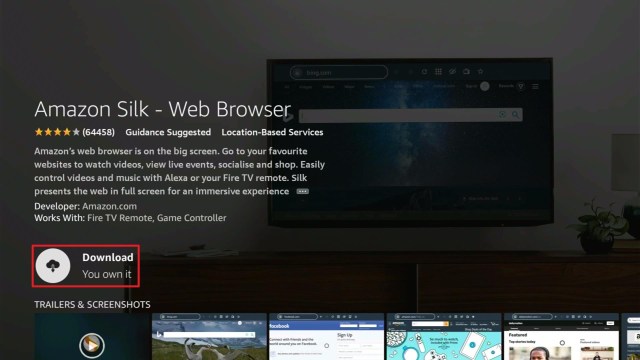
How to Install Silk Browser on Firestick

As mentioned above, one of the best browsers to use on Firestick is Silk Browser. It is a direct app that you can easily install on your device. There is no need for you to Jailbreak your Firestick and use the Downloader App.

1.  Click Home on your remote and click “Find”.

crackstreams alternatives


2. Click “Search”

crackstreams alternatives


3.Type in Silk Browser and choose this item that appears on the results.

crackstreams alternatives


4. Click on the Silk Browser Icon.

crackstreams alternatives


5. Choose Get or Download

crackstreams alternatives


6. Select Open to launch the browser.

crackstreams alternatives


7. You can now start browsing using Amazon Silk Browser.

crackstreams alternatives


Legal Disclaimer: ReviewVPN.com does not encourage or endorse any illegal activity involved in the usage of services and applications referenced on this site. We do not verify the licensing agreements of services. The end-user is wholly responsible for ensuring that any media accessed through these services does not violate copyright and/or licensing laws. ReviewVPN does not promote, link to, or receive compensation from any Apps and IPTV services.


Install Surfshark on Firestick

Best Surfshark Deal


Best CrackStreams Alternatives

Sportsurge

crackstreams alternatives 1

website URL: https://sportsurge.net/#/groups/0

Another popular sports streaming site is Sportsurge. It is one of the best Crackstreams alternatives. You can pick which sport you want to stream from the moment you launch this website.

The type of sports included in Sportsurge are Football, Basketball, Hockey, MMA, Boxing, Baseball, and Motor Sports.

You may experience minimal advertisements while streaming. This is even when you are in the middle of a live show.

Refer to these articles below to learn more about Sportsurge.

How to Stream Sportsurge on Different Devices

Websites like Sportsurge


VIPRow Sports

crackstreams alternatives 5

website URL: https://www.viprow.me/

The second in our list of alternatives is VIPRow Sports. It houses a lot of genres to stream. You can choose from Football, UFC, WWE, Boxing, Tennis, Golf, and many many more.

VIPRow also provides tabs for live channels.

To know more about this website, read How to Watch on VIPRow Sports Using Any Device.


FootyBite

crackstreams aternatives 9

website URL: http://www.footybite.tv/

Another Crackstream alternative that got the spotlight by featuring football events. But now, you can stream both NFL and NBA on this website. The only problem is the presence of advertisements. But this depends on your streaming.

Since there are pop-ups and links present, we encourage using a VPN like Surfshark.

For more information, go to Footybite Details and Review.


VIP League

crackstreams alternatives 2

website URL: https://www.vipleague.lc/

Another best website to add to our list of Crackstreams alternatives is VIPLeague. It has a lot of genres to offer as well. This website has been around for so long and still working very great.

Live chat is available on this website to be connected and learn the latest news and updates from other sports fans.

There has to be a live sport going on when you stream on this website.


CricHD

crackstreams alternatives 2

website URL: https://fc4.crichd.com/new-home7

This crackstreams alternative is an easy-to-use website that has a full list of ongoing/live sports events. Most of its content is focused on live cricket streams after launching. This makes the name of the website CricHD.

There is also a live chat where you can message other streamers, and look for updates.

For more details, read How to Stream on CricHD Using Any Device.


Stream Safely with a VPN

In the United States, a website licensing agreement is really a big deal. Streaming unauthorized content, especially from other websites is really a big misdemeanor. You really have to protect yourself when streaming.

The number one thing that you really need to do is to have a premium VPN. Surfshark is the best VPN for streaming. It provides access to geo-restricted content and websites while protecting the user’s IP address. This works by completely changing your IP which serves as your online fingerprints. For any other spying eyes, even your Internet Service Provider (ISP) won’t be able to control and monitor your activities.

Not only those, but Surfshark also provides the following benefits to its users:

  • Connecting to other servers from different countries entitles you to access content and app features that are not available in your region.
  • Has the best VPN protocols for all types of devices.
  • Develops a lot of great added features like Kill Switch and Split Tunneling.
  • Does not record any online activities when using the software.
  • Hides your identity which makes you safe and protected from your ISP, hackers, and any malicious domains.
  • Encrypts all of your data with the best safety and protection features.
  • Allows you to use a single account for multiple devices.
  • Makes your bandwidth better and faster.
  • You can use this VPN for torrenting.
  • Prevents Firestick Buffering and Kodi Buffering


Grab your subscription now!


How to Install Surfshark VPN on Firestick

If your Firestick still has the older interface, read this article to learn how to update it: Update Firestick Interface.

Follow our screenshots below to install the SurfShark VPN app on your Fire TV stick.

1. Go to the Home screen of your Firestick.

step 1 Install Surfshark VPN on Firestick


2. Navigate towards the Find tab. Press the Search button from the resulting dropdown.

step 2 Install Surfshark VPN on Firestick


3. Type in the keyword of SurfShark and select from the suggestions that will appear.

step 3 Install Surfshark VPN on Firestick


4. Click the official SurfShark icon from your search results.

step 4 Install Surfshark VPN on Firestick


5. Press the Download (You own it) button.

step 5 Install Surfshark VPN on Firestick


6. The SurfShark VPN installer will download on your device.

step 6 Install Surfshark VPN on Firestick


7. SurfShark VPN’s app will automatically install itself on your Fire TV stick.

step 7 Install Surfshark VPN on Firestick


8. Press the Open button after completing SurfShark VPN’s installation process.

step 8 Install Surfshark VPN on Firestick


9. Please wait for the SurfShark VPN to load its user interface.

step 9 Install Surfshark VPN on Firestick


10. You can now log in with your SurfShark VPN account credentials.

step 10 Install Surfshark VPN on Firestick

Learn more about Surfshark and Grab the Best Surfshark Deal Now!


Install Surfshark on Firestick

Best Surfshark Deal


Other VPNs to Consider

NordVPN (Best for Streaming)

Best Features

  • 5000+ Server in 50+ Countries 
  • Military-Grade Encryption
  • Fast Connection Speed
  • Suitable to a lot of devices
  • No-Log Policy

Prices
  • Complete $5.89 per month (64% Discount)
  • Plus $4.59 per month (56% Discount)
  • Standard $3.69 per month (55% Discount)

Best Features

  • 750+ High-speed VPN Servers in 43 Locations
  • Military-Grade Encryption
  • Fastest HD Streaming and Gaming
  • 30-Day Money-Back Guarantee
  • Unlimited Data & Devices
  • No-Log Policy

Prices
  • 3 Years $1.99 per month (82% Discount)
  • 1 Years $3.29 per month (70% Discount)
  • 1 Month $10.99 per month

IPVanish VPN (Most Secure)

Best Features

  • 1200+ Servers in 60+ Countries around the world
  • Unlimited Connections
  • No-Log Policy
  • Top Notch Military-Grade VPN Protocols and Encryptions
  • 100% Safe and Secured
  • Most Trusted VPN
  • Best VPN for Firestick
  • 30-Day Money-Back Guarantee

Prices
  • Yearly $3.99 per month (63% Discount) – 30 days risk free + Ransomware & Malware Protection
  • Quarterly $5.32 per month (51% Discount)
  • Monthly $10.99 per month


For more VPN discounts, go to ReviewVPN Deals and purchase the best VPN for you.

Click here to get the lowest price on Surfshark through our exclusive limited-time offer.


FAQs

What is Crackstreams?

Crackstreams is one of the most popular sports streaming websites before. It underwent a lot of domain change and is currently not working.


Is Crackstreams Safe?

We cannot fully determine if this is 100% safe. Now that it is down, it is better to rely on other websites for Sports.


Is Crackstreams Legal?

We cannot fully state anything about the legality of this website. For your safety and security, please use a VPN like Surfshark.


What are the Best Crackstreams alternatives?

We provided the top 5 choices for you. They are Sportsurge, VIPRow Sports, Footybite, VIPLeague, and CricHD.


Are these Crackstreams alternatives legal?

ReviewVPN does not have the full capacity to determine the legality of any of these Crackstreams alternatives. That is why we suggest using a VPN like Surfshark when streaming.


Conclusion

All good things must come to an end, and Crackstreams is one of them. Good thing there are the top alternatives that you can still rely on for streaming the best sports events all over the world.

We cannot fully guarantee that all of these alternatives are working. Those that we listed here in this article are all working when we tested them. Make sure to use a VPN like Surfshark when streaming any website for safety purposes.

With this, we hope that you are able to learn which is the best Crackstreams alternative for you.


Note: ReviewVPN.com does not own or operate any app nor does it endorse any. The main purpose of this article is strictly for educational purposes only.


People Also Read:

How To Stream FIFA Club World Cup On Firestick

Overview

Over 160 TV networks are broadcasting the FIFA Club World Cup and football enthusiasts are hoping to stream the football matches on their Amazon Firestick.


There are many individuals who may miss the FIFA Club World matches because of broadcast restrictions.

However, if there’s no broadcast available in your country and you wish to stream FIFA Club World, don’t fret because this article is exactly for you!

You can stream the FIFA Club World football matches on your Amazon Firestick through online streaming TV channels. Numerous TV channels are broadcasting the entire tournament live on the internet. You can stream all the football matches on Firestick with complete ease.


ANONYMOUSLY


How to Stream FIFA Club World Cup on Amazon FireStick with Silk Browser

1. Click Home on your remote & Select Find.

2. Click Search.


3. Type in Silk Browser and select this item that appears on the results.


4. Click on the Silk Browser Icon.


5. Choose Download.


6. Select Open to launch the browser.


7. Click on the URL section of the app.


8. Type ustvgo.tv/category/sports then click Go.

Soccer


9. Choose Fox Sports 2 from the list.

Fox 2


10. Click Play to start streaming.

watch


Install Surfshark on Firestick

Best Surfshark Deal


What is the FIFA Club World?

The FIFA Club World Cup is an international men’s soccer competition that is created to bring the champions of different countries of the world into an extremely good tournament. The tournament typically consists of seven teams, such as winners of the European, South American, Asian, Oceania, African Champions, and North American Leagues. It also involves the champions from Brazil’s domestic league.

FC Bayern Munich, a German professional sports club, was the 17th edition of the FIFA Club World Cup champion. By winning the 2020 FIFA Club World Cup, the German professional sports club became only the second international soccer team to win the sextuple.


Teams in the 2021 FIFA Club World Cup

The German professional sports club Bayern Munich gained the 2020 FIFA Club World Cup title. They hoped to notch a second victory this year. However, they can’t defend their title after being eliminated in the UEFA Champions League (2020–21) quarter-finals.

The FIFA Club World Cup planned to kick off in 2021, will be held every 4 years instead of every year. The tournament would feature 24 teams & 31 matches. It will include UEFA Champions League winners & runners-up, Copa Libertadores, & UEFA Europa League winners.


Watch FIFA Club World Cup on Firestick with BBC

BBC is the perfect choice for fanatics who want to watch FIFA Club World Cup on Amazon Firestick via the internet. Firestick users can easily stream matches online through the BBC website or the BBC iPlayer app on Amazon FireStick. Nonetheless, you can’t access the streaming links on BBC until you configure your Firestick with a Virtual Private Network or VPN, such as Surfshark.

After configuring the Firestick with a VPN, you’ll have access to BBC coverage of FIFA Club World Cup soccer matches available through the web browser. Also, access BBC through the app for smartphones, consoles, tablets, smart TVs, set-top boxes, and more.

How To Install BBC iPlayer on Firestick


YOUR INTERNET ACTIVITY IS BEING WATCHED

ReviewVPN cannot attest to the legality, security and privacy of the applications discussed on this site. It is highly recommended that you use a VPN service while streaming or using Kodi.

Currently, your IP 65.48.159.141 is visible to everyone and your Browser is being tracked by Advertisers & ISP Provider.

Save 65% Now

Limited Time Offer

Here are the main reasons why you must use a VPN:

  • Your activities are hidden from your ISP, the government, and from the apps you are using.
  • You can access additional movies and TV streams.
  • ISP attempts to throttle are thrwarted thus reducing buffering issues.
  • Geographically restricted content like Netflix and Hulu can be unblocked.

A VPN works be replacing your ISP-assigned IP address and creating an encrypted tunnel. We recommend the no log service offered by IPVanish. It works well on a Firestick and offers the fastest possible speeds.

Special Limited Time Offer - Get IPVanish


Stream FIFA Club World Cup on FireStick with Sling TV

If you’re residing in the U.S. then Sling TV is the best & inexpensive live streaming platform that can aid you to stream FIFA Club World Cup (without cable) on the Firestick. The Sling TV service provides three different plans – Sling Orange, Sling Blue, as well as Sling Orange + Blue. The most inexpensive one costs $35. However, with this plan, you will not obtain any sports channel. To acquire the sports channel needed, you need to pay an additional $10 to acquire the extra sports add-on.

Sling TV: Installation Guide And Review On Firestick


Stream the FIFA Club World from outside your country

If you want to watch FIFA Club World Cup matches from home then you will probably run into issues. When trying to watch domestic coverage on the internet it will probably have geo-restrictions.

That’s where a Virtual Private Network or VPN comes into the picture. A VPN service lets you virtually change the IP address to countries that don’t have geo-restrictions to stream FIFA Club World Cup matches. You’ll be able to watch as if you are in that country.


Stream FIFA Club World Cup on your FireStick with FuboTV

FuboTV is an awesome option for people who love to stream sports channels on their television. This American streaming television platform is the best live TV streaming platform for sports fanatics and particularly for FIFA Club World Cup enthusiasts. The FIFA Club World Cup is only provided by a couple of TV channels and that is why it is suggested to use FuboTV.

FuboTV: Installation Guide and Review on Firestick


Always Use A VPN While Using The Amazon Firestick

Using Virtual Private Network or VPN can be very handy on a Firestick. Thanks to a VPN service, you can access platforms or services that are unavailable in your country or bypass the meaningless restrictions that several platforms sometimes impose. When you use Amazon Firestick, an encrypted Virtual Private Network service provider is highly recommended to hide your online activities, identity, and location. Many Firestick or Fire TV Stick users prefer Surfshark service for privacy, price, and speed.

Providing the fastest server speeds and amazing live chat support, Surfshark is also an easy-to-use VPN app. Make sure to enable the VPN service when you are streaming on the internet.

Surfshark Features:

  • Unblocks Netflix, Disney+, and lots more
  • Unlimited simultaneous devices
  • 30-day money-back guarantee
  • Robust encryption
  • Great download speed
  • Zero log policy
  • Great customer service
  • Compatible with Android, Windows, Linux, iOS, Mac, and other routers


Grab your subscription now!

Click here to get the lowest price on Surfshark through our exclusive limited-time offer.


How to Install Surfshark VPN on Firestick

If your Firestick still has the older interface, read this article to learn how to update it: Update Firestick Interface.

Follow our screenshots below to install the SurfShark VPN app on your Fire TV stick.

1. Go to the Home screen of your Firestick.

step 1 Install Surfshark VPN on Firestick


2. Navigate towards the Find tab. Press the Search button from the resulting dropdown.

step 2 Install Surfshark VPN on Firestick


3. Type in the keyword of SurfShark and select from the suggestions that will appear.

step 3 Install Surfshark VPN on Firestick


4. Click the official SurfShark icon from your search results.

step 4 Install Surfshark VPN on Firestick


5. Press the Download (You own it) button.

step 5 Install Surfshark VPN on Firestick


6. The SurfShark VPN installer will download on your device.

step 6 Install Surfshark VPN on Firestick


7. SurfShark VPN’s app will automatically install itself on your Fire TV stick.

step 7 Install Surfshark VPN on Firestick


8. Press the Open button after completing SurfShark VPN’s installation process.

step 8 Install Surfshark VPN on Firestick


9. Please wait for the SurfShark VPN to load its user interface.

step 9 Install Surfshark VPN on Firestick


10. You can now log in with your SurfShark VPN account credentials.

step 10 Install Surfshark VPN on Firestick

Learn more about Surfshark and Grab the Best Surfshark Deal Now!


Install Surfshark on Firestick

Best Surfshark Deal


Other VPNs to Consider

NordVPN (Best for Streaming)

Best Features

  • 5000+ Server in 50+ Countries 
  • Military-Grade Encryption
  • Fast Connection Speed
  • Suitable to a lot of devices
  • No-Log Policy

Prices
  • Complete $5.89 per month (64% Discount)
  • Plus $4.59 per month (56% Discount)
  • Standard $3.69 per month (55% Discount)

Best Features

  • 750+ High-speed VPN Servers in 43 Locations
  • Military-Grade Encryption
  • Fastest HD Streaming and Gaming
  • 30-Day Money-Back Guarantee
  • Unlimited Data & Devices
  • No-Log Policy

Prices
  • 3 Years $1.99 per month (82% Discount)
  • 1 Years $3.29 per month (70% Discount)
  • 1 Month $10.99 per month

IPVanish VPN (Most Secure)

Best Features

  • 1200+ Servers in 60+ Countries around the world
  • Unlimited Connections
  • No-Log Policy
  • Top Notch Military-Grade VPN Protocols and Encryptions
  • 100% Safe and Secured
  • Most Trusted VPN
  • Best VPN for Firestick
  • 30-Day Money-Back Guarantee

Prices
  • Yearly $3.99 per month (63% Discount) – 30 days risk free + Ransomware & Malware Protection
  • Quarterly $5.32 per month (51% Discount)
  • Monthly $10.99 per month


For more VPN discounts, go to ReviewVPN Deals and purchase the best VPN for you.

Click here to get the lowest price on Surfshark through our exclusive limited-time offer.


Wrapping Up

In this article, we have provided information for streaming FIFA Club World Cup on Amazon Firestick. The information above should help you boost your sports entertainment by streaming nearly anything you want. 

However, always remember to use A VPN every time you use the Amazon Firestick. If you have any other streaming platforms in mind that provide similar streams on Amazon Firestick, don’t hesitate to let us know in the comments section.

How to Install File Explorer For Fire TV & Tablets

Overview

Files Explorer For Fire TV & Tablets is among the most well-known file manager for Android-based devices. This popular file manager can install, delete, manage apps, and more within Android-powered devices.


The Files Explorer For Fire TV & Tablets is an all-around tool that Firestick, Fire tablets, and other Amazon Fire devices can take full advantage of.

If you use your Firestick & Fire Tablet often, install tons of applications, and copy various files to it (such as movies, music, etc.) then eventually you’ll need a file manager application. In the absence of a good file manager, you will not be able to effectively manage all your files.

There are tons of file manager applications in Amazon’s official App Store, and it can be hard to choose which app to use. Thus, this article will show you the best free file manager (Files Explorer For Fire TV & Tablets) to be installed on Firestick.


ANONYMOUSLY


Files Explorer For Fire TV & Tablets App Installation on FireStick

1. Click Home on your remote & Select Find.

2. Click Search.


3. Type File Explorer For Fire TV & Tablets, and select the File Explorer icon.

Files Explorer


4. Click Download.

download


5. After the download is complete, click open to launch the app.

Click open


6. Now, you have installed the Files Explorer For Fire TV & Tablets.

Launch app


Install Surfshark on Firestick

Best Surfshark Deal


Moving the Newly Installed App to the Front

  • Go back to Fire Stick Home Screen (you may click the Home Button on the Fire Stick remote)
  • Go to Your Apps & Games/Channels
  • Scroll once to the left
  • Click See All
  • All the newly installed apps are located at the bottom – you can move the Files Explorer For Fire TV & Tablets app by clicking the Options button (at the right side of the Home Button)


YOUR INTERNET ACTIVITY IS BEING WATCHED

ReviewVPN cannot attest to the legality, security and privacy of the applications discussed on this site. It is highly recommended that you use a VPN service while streaming or using Kodi.

Currently, your IP 65.48.159.141 is visible to everyone and your Browser is being tracked by Advertisers & ISP Provider.

Save 65% Now

Limited Time Offer

Here are the main reasons why you must use a VPN:

  • Your activities are hidden from your ISP, the government, and from the apps you are using.
  • You can access additional movies and TV streams.
  • ISP attempts to throttle are thrwarted thus reducing buffering issues.
  • Geographically restricted content like Netflix and Hulu can be unblocked.

A VPN works be replacing your ISP-assigned IP address and creating an encrypted tunnel. We recommend the no log service offered by IPVanish. It works well on a Firestick and offers the fastest possible speeds.

Special Limited Time Offer - Get IPVanish


Why Should You Use Files Explorer On Firestick & Fire Tablets?

Imagine using your Firestick or Fire Tablet without an app that allows you to explore all your files. Much the same working on a Mac without the Finder app or utilizing a Windows PC without a File Explorer.

The Files Explorer For Fire TV & Tablets is among the most famous file manager apps available on the internet. It comes along with an extensive file manager that can do more than the basic file management tasks.

You can use Files Explorer For Fire TV & Tablets to manage files, apps, and multimedia. According to its developers, this free local & network file manager app has been downloaded millions of times.

Files Explorer For Fire TV & Tablets provides the following features:

  • Easy-to-use file & app manager
  • You can browse multimedia such as videos, pictures, music, and other documents
  • It is compatible with cloud storage clients, such as OneDrive, Google Drive, Yandex, Dropbox, Ubuntu One, Amazon S3, Sugarsync, SkyDrive, and more
  • Install or uninstall applications & see compressed files
  • Can be used as an FTP (File Transfer Protocol) & LAN Samba client
  • Lightweight size – 15.7 MB
  • Allows access to your music, photos, videos, documents, & files
  • Filter files utilizing Search
  • Supports over 30 languages
  • Document type settings
  • Allows login utilizing SFTP (Secure File Transfer Protocol) key file
  • Lets you analyze the directory in the property
  • Allows to be launched or shared in browser menu in internet view
  • Clean & organized design


Best File Manager For Firestick & Fire Tablets

Files Explorer For Fire TV & Tablets is most likely the most popular file manager for Firestick, Fire TV, Fire Tablets, and other Android devices. This file manager app has a rating of 4.2 stars out of 5 & over 25k reviews on Amazon.

Also, Files Explorer For Fire TV & Tablets is probably one of the most advanced apps providing tons of features & options. Some of the file manager app’s main features:

  • Files Explorer For Fire TV & Tablets is FREE 
  • Ideal for novices
  • The app will organize your files into various categories for easier management
  • You can choose & manage numerous files and folders simultaneously
  • With its Logger feature, users can track their device’s memory and look at all their recent photos or applications added to it.


Always Use A VPN While Using The Amazon Firestick

Using Virtual Private Network or VPN can be very handy on a Firestick. Thanks to a VPN service, you can access platforms or services that are unavailable in your country or bypass the meaningless restrictions that several platforms sometimes impose. When you use Amazon Firestick, an encrypted Virtual Private Network service provider is highly recommended to hide your online activities, identity, and location. Many Firestick or Fire TV Stick users prefer Surfshark service for privacy, price, and speed.

Providing the fastest server speeds and amazing live chat support, Surfshark is also an easy-to-use VPN app. Make sure to enable the VPN service when you are streaming on the internet.

Surfshark Features:

  • Unblocks Netflix, Disney+, and lots more
  • Unlimited simultaneous devices
  • 30-day money-back guarantee
  • Robust encryption
  • Great download speed
  • Zero log policy
  • Great customer service
  • Compatible with Android, Windows, Linux, iOS, Mac, and other routers


Grab your subscription now!

Click here to get the lowest price on Surfshark through our exclusive limited-time offer.


How to Install Surfshark VPN on Firestick

If your Firestick still has the older interface, read this article to learn how to update it: Update Firestick Interface.

Follow our screenshots below to install the SurfShark VPN app on your Fire TV stick.

1. Go to the Home screen of your Firestick.

step 1 Install Surfshark VPN on Firestick


2. Navigate towards the Find tab. Press the Search button from the resulting dropdown.

step 2 Install Surfshark VPN on Firestick


3. Type in the keyword of SurfShark and select from the suggestions that will appear.

step 3 Install Surfshark VPN on Firestick


4. Click the official SurfShark icon from your search results.

step 4 Install Surfshark VPN on Firestick


5. Press the Download (You own it) button.

step 5 Install Surfshark VPN on Firestick


6. The SurfShark VPN installer will download on your device.

step 6 Install Surfshark VPN on Firestick


7. SurfShark VPN’s app will automatically install itself on your Fire TV stick.

step 7 Install Surfshark VPN on Firestick


8. Press the Open button after completing SurfShark VPN’s installation process.

step 8 Install Surfshark VPN on Firestick


9. Please wait for the SurfShark VPN to load its user interface.

step 9 Install Surfshark VPN on Firestick


10. You can now log in with your SurfShark VPN account credentials.

step 10 Install Surfshark VPN on Firestick

Learn more about Surfshark and Grab the Best Surfshark Deal Now!


Install Surfshark on Firestick

Best Surfshark Deal


Other VPNs to Consider

NordVPN (Best for Streaming)

Best Features

  • 5000+ Server in 50+ Countries 
  • Military-Grade Encryption
  • Fast Connection Speed
  • Suitable to a lot of devices
  • No-Log Policy

Prices
  • Complete $5.89 per month (64% Discount)
  • Plus $4.59 per month (56% Discount)
  • Standard $3.69 per month (55% Discount)

Best Features

  • 750+ High-speed VPN Servers in 43 Locations
  • Military-Grade Encryption
  • Fastest HD Streaming and Gaming
  • 30-Day Money-Back Guarantee
  • Unlimited Data & Devices
  • No-Log Policy

Prices
  • 3 Years $1.99 per month (82% Discount)
  • 1 Years $3.29 per month (70% Discount)
  • 1 Month $10.99 per month

IPVanish VPN (Most Secure)

Best Features

  • 1200+ Servers in 60+ Countries around the world
  • Unlimited Connections
  • No-Log Policy
  • Top Notch Military-Grade VPN Protocols and Encryptions
  • 100% Safe and Secured
  • Most Trusted VPN
  • Best VPN for Firestick
  • 30-Day Money-Back Guarantee

Prices
  • Yearly $3.99 per month (63% Discount) – 30 days risk free + Ransomware & Malware Protection
  • Quarterly $5.32 per month (51% Discount)
  • Monthly $10.99 per month


For more VPN discounts, go to ReviewVPN Deals and purchase the best VPN for you.

Click here to get the lowest price on Surfshark through our exclusive limited-time offer.


FAQs

Is Files Explorer For Fire TV & Tablets legal?

Yes, the File manager app is 100% legal to download, install, & use. 


Is Files Explorer For Fire TV & Tablets safe?

Yes, the Files Explorer For Fire TV & Tablets is safe to use and contains no viruses & malware. 


What devices can Files Explorer For Fire TV & Tablets be installed on?

The Files Explorer For Fire TV & Tablets is compatible and functions the best with Android operating system devices.


How often is the Files Explorer For Fire TV & Tablets updated?

Developers regularly update the Files Explorer For Fire TV & Tablets, keeping the app running at optimum performance.


Can I uninstall applications simultaneously?

Yes, the Files Explorer For Fire TV & Tablets lets you uninstall apps at the same time. Overall, this file manager has a limitless amount of abilities & tools ideal for any streaming device.


Wrapping Up

In this article, we have provided information on Files Explorer For Firestick & Fire Tablets. The information above should really help you boost your Firestick & Fire Tablets. 

However, always remember to use A VPN every time you use the Firestick or Fire Tablets. Please let us know what you think about this article in the comments section.

How to Install Base Kodi Addon

Overview

The article will help you on how to install Base Kodi Addon.


Base Kodi Addon is one of the interesting addons from the popular Team Crew repository. This add-on has an attractive and easy-to-use interface that gives you a handy place to choose different content. It also gives you a great lineup of content to watch in a wide variety of categories. However, this add-on does not work on the Kodi 19 matrix. That is why we suggest you use the Kodi 18 Leia if you want to try it. 

This addon is also rich in features as it is integrated with Real Debrid to serve you a high-quality of streaming links. It is also integrated with Trakt. tv to monitor what you are watching. However, it is still a third-party Kodi add-on, so we suggest using a VPN to ensure your safety. 


ANONYMOUSLY


How to Install Base Kodi Addon with Screenshot

Follow these simple steps:

1. On your Firestick, open Kodi and go to Settings.

Install Base Kodi Addon 1

2. Select on System.

Install Base Kodi Addon 2


3. Click on the Add-ons menu and Turn ON Unknown Sources.

Install Base Kodi Addon 3


4. Select Yes when the box appears.

Install Base Kodi Addon 4


5. Go back one step and click on File Manager.

Install Base Kodi Addon 5


6. Click Add Source.

Install Base Kodi Addon 6


7. A box will pop up, so click on the ‘None’ option.

Install Base Kodi Addon 7


8. Now type in this URL https://team-crew.github.io and click OK.

Install Base Kodi Addon 8


9. Name this URL as a crew and tap OK.

Install Base Kodi Addon 9


10. After that, go back to the system menu and select Add-ons.

Install Base Kodi Addon 10


11. Click Install from Zip File.

Install Base Kodi Addon 11


12. Tap the Yes button.

Install Base Kodi Addon 12


13. When the box pop-up, select crew or any name you have given. 

Install Base Kodi Addon 13


14. Select repository.thecrew-0.3.4.zip 

Install Base Kodi Addon 14


15. Wait a few minutes for the addon to be installed. After that, an icon will appear at the top menu.

Install Base Kodi Addon 15


16. Click Install from Repository.

Install Base Kodi Addon 16


17. Then select THE CREW REPO from the list.

Install Base Kodi Addon 17


18. Click on Video Add-ons.

Install Base Kodi Addon 18


19. Tap the Base. 

Install Base Kodi Addon 19


 20. Click the Install button.

Install Base Kodi Addon 20


21. When a box Pops up, click OK.

Install Base Kodi Addon 21


22. Wait for the Base Add-on installed message to appear.

Install Base Kodi Addon 22


23. Go back to the Kodi home screen and scroll down to Addon.

Install Base Kodi Addon 23


24. Then Select the Base icon.

Install Base Kodi Addon 24


25. That’s it! Choose any of the categories and enjoy watching.

Install Base Kodi Addon 25


Install Surfshark on Firestick

Best Surfshark Deal


Legal Disclaimer: ReviewVPN.com does not encourage or endorse any illegal activity involved in the usage of services and applications referenced on this site. We do not verify the licensing agreements of services. The end-user is wholly responsible for ensuring that any media accessed through these services does not violate copyright and/or licensing laws. ReviewVPN does not promote, link to, or receive compensation from any Apps and IPTV services.


YOUR INTERNET ACTIVITY IS BEING WATCHED

ReviewVPN cannot attest to the legality, security and privacy of the applications discussed on this site. It is highly recommended that you use a VPN service while streaming or using Kodi.

Currently, your IP 65.48.159.141 is visible to everyone and your Browser is being tracked by Advertisers & ISP Provider.

Save 65% Now

Limited Time Offer

Here are the main reasons why you must use a VPN:

  • Your activities are hidden from your ISP, the government, and from the apps you are using.
  • You can access additional movies and TV streams.
  • ISP attempts to throttle are thrwarted thus reducing buffering issues.
  • Geographically restricted content like Netflix and Hulu can be unblocked.

A VPN works be replacing your ISP-assigned IP address and creating an encrypted tunnel. We recommend the no log service offered by IPVanish. It works well on a Firestick and offers the fastest possible speeds.

Special Limited Time Offer - Get IPVanish


Features of Base Kodi Addon

Access

  • No subscriptions and registration are required.


Interface

  • Attractive and user-friendly interface
  • Easy navigation even without using mouse toggle
  • The excellent search function of TMDB, IMDB, and Trakt.


Categories

  • A well-organized list of categories and subcategories. 
  • You can see sections such as the Movies List, TV Shows List, Debrid 1 Click Section, Link Real Debrid Here, and Pair Trakt. 
  • You can choose from different movie categories such as the New Movies, Movies Boxsets, Marvel Movies, Trending, Popular, Genres, Top Rated, TMDB/IMDB/TRAKT list, Years, Studios, Actors, Actress, and more.
    • They also cover different movies from the years 1980 and 2020.


Genres

Choose from different genres such as Action, Adventure, Animation, Comedy, Crime, Documentary, Drama, Family, Fantasy, History, Horror, Music, Mystery, Romance, Science Fiction, TV Movie, Thriller, War, and Western.


Video Quality

  • Integrated with Real Debrid to provide you with high-quality streaming links.
  • UHD 4k and HD 1080p video quality.
  • Available resume watching that allow you to continue where you stopped off
  • Provided meta Description of contents.
  • One-click Full stop button
  • Available subtitles in multi-language.
  • Closed captions are available  
  • It allows background playing


Pros and Cons

Pros

  • No registration and subscription required
  • Integrated with Real Debrid and Trakt account
  • Wide variety of content categories.
  • 4K quality of videos 

Cons

  • This add-on is not compatible with all versions of Kodi.
  • Some contents are unavailable to play.


Why do I need a VPN?

If you love using third-party Kodi Builds, we recommend using a Virtual Private Network to ensure that you are safe and protected while using these addons and builds. Having a VPN is very important because it minimizes the chances of getting hacked and other malicious things. A VPN is also one of the reliable tools that are popular worldwide in terms of securing your connection and keeping you protected from any harm online. 

In terms of privacy and security, we highly recommend Surfshark as your best choice. This VPN is also one of the proven and tested VPNs committed ing giving its users the quality of service they deserve.Surfshark also has a lot of impressive features to enjoy, including:

  • This VPN uses a high standard of AES-256 Bit of encryption and uncrackable security that safeguards your data and activities. 
  • It destroys Geo-block and bypasses any censorship and restriction by letting you connect to over 2,000 servers, and 40,000 IP addresses in 70+ locations to choose from. 
  • Surfshark also prevents ISPs from interfering with your connection to avoid lags and buffering. It also stops snooping on ISP and keeps you protected while being connected on a public network. 
  • Keep your identity anonymous by hiding your real IP address and identity to protect you from hackers. 


Grab your subscription now!

Click here to get the lowest price on Surfshark through our exclusive limited-time offer.


How to Install Surfshark VPN on Firestick

If your Firestick still has the older interface, read this article to learn how to update it: Update Firestick Interface.

Follow our screenshots below to install the SurfShark VPN app on your Fire TV stick.

1. Go to the Home screen of your Firestick.

step 1 Install Surfshark VPN on Firestick


2. Navigate towards the Find tab. Press the Search button from the resulting dropdown.

step 2 Install Surfshark VPN on Firestick


3. Type in the keyword of SurfShark and select from the suggestions that will appear.

step 3 Install Surfshark VPN on Firestick


4. Click the official SurfShark icon from your search results.

step 4 Install Surfshark VPN on Firestick


5. Press the Download (You own it) button.

step 5 Install Surfshark VPN on Firestick


6. The SurfShark VPN installer will download on your device.

step 6 Install Surfshark VPN on Firestick


7. SurfShark VPN’s app will automatically install itself on your Fire TV stick.

step 7 Install Surfshark VPN on Firestick


8. Press the Open button after completing SurfShark VPN’s installation process.

step 8 Install Surfshark VPN on Firestick


9. Please wait for the SurfShark VPN to load its user interface.

step 9 Install Surfshark VPN on Firestick


10. You can now log in with your SurfShark VPN account credentials.

step 10 Install Surfshark VPN on Firestick

Learn more about Surfshark and Grab the Best Surfshark Deal Now!


Install Surfshark on Firestick

Best Surfshark Deal


Other VPNs to Consider

NordVPN (Best for Streaming)

Best Features

  • 5000+ Server in 50+ Countries 
  • Military-Grade Encryption
  • Fast Connection Speed
  • Suitable to a lot of devices
  • No-Log Policy

Prices
  • Complete $5.89 per month (64% Discount)
  • Plus $4.59 per month (56% Discount)
  • Standard $3.69 per month (55% Discount)

Best Features

  • 750+ High-speed VPN Servers in 43 Locations
  • Military-Grade Encryption
  • Fastest HD Streaming and Gaming
  • 30-Day Money-Back Guarantee
  • Unlimited Data & Devices
  • No-Log Policy

Prices
  • 3 Years $1.99 per month (82% Discount)
  • 1 Years $3.29 per month (70% Discount)
  • 1 Month $10.99 per month

IPVanish VPN (Most Secure)

Best Features

  • 1200+ Servers in 60+ Countries around the world
  • Unlimited Connections
  • No-Log Policy
  • Top Notch Military-Grade VPN Protocols and Encryptions
  • 100% Safe and Secured
  • Most Trusted VPN
  • Best VPN for Firestick
  • 30-Day Money-Back Guarantee

Prices
  • Yearly $3.99 per month (63% Discount) – 30 days risk free + Ransomware & Malware Protection
  • Quarterly $5.32 per month (51% Discount)
  • Monthly $10.99 per month


For more VPN discounts, go to ReviewVPN Deals and purchase the best VPN for you.

Click here to get the lowest price on Surfshark through our exclusive limited-time offer.


Alternatives for Base Kodi Addon

We list down some of the Kodi addons as an alternative for Base Kodi Addon. Kindly read their corresponding articles to know more about these add-ons.


FAQs

Is the Base Kodi Add-on legal?

Yes, downloading this addon is not illegal. 


Is the Base Kodi Add safe?

Yes, this Add-on is safe, but we suggest using a VPN such as Surfshark to keep you safe. 


Is the Base Kodi Addon free?

Yes, this Add-on is free and allows you to watch their content for free.


Conclusion

Base Kodi addon offers you a large collection of content to watch in a less buffering experience. The good thing with this addon is that it is feature-rich to ensure that they offer you high-quality streaming links. However, this addon does not work well on all Kodi versions, and it is still a third-party addon, which is why we suggest using a VPN to ensure your safety. We hope this article helps you install the Base Kodi addon.

How to Install Cityscapes Kodi Build

Cityscapes Kodi Build Overview

The article will help you on how to install Cityscapes Kodi Build.

Cityscapes is a city-inspired Kodi build from the Grindhouse Repository. It is a great Kodi build that offers you a great selection of content to watch and lots of preloaded popular Kodi addons to try.


You can try on their vast collection of music, movies, TV shows, and more. The best thing about this addon is, it has an attractive and scenic interface that is easy to use. This addon is regularly uploading the latest and hottest content to watch in high quality.

It also has a simple and easy-to-use interface that works well on Kodi. However, we suggest resetting your Kodi to its default to avoid any technical issues. 


ANONYMOUSLY


How to Install Cityscapes Kodi Build with Screenshot

Installing a Kodi build has a lot of processes to take. That is why we will guide you step by step on how you can install it on Kodi.

 Follow the following steps below. 

1. On your Firestick, open Kodi and go to Settings.

Install Cityscapes Kodi Build 1

2. Select on System.

Install Cityscapes Kodi Build 2


3. Click on the Add-ons menu and Turn ON the Unknown Sources.

Install Cityscapes Kodi Build 3


4. Select Yes when the box appears.

Install Cityscapes Kodi Build 4


5. Go back one step and click on File Manager.

Install Cityscapes Kodi Build 5


6. Select the Add Source.

Install Cityscapes Kodi Build 6


7. A box will pop up, so click on the ‘None’ option.

Install Cityscapes Kodi Build 7


8. Type in http://grindhousekodi.tk/repo and click OK.

Install Cityscapes Kodi Build 8


9. Name the URL- grindhouse or any other name you want to. Then select OK.

Install Cityscapes Kodi Build 9


10. Go back and Select Add-ons.

Install Cityscapes Kodi Build 10


11. Click Install from zip file.

Install Cityscapes Kodi Build 11


12. Choose grindhouse or any other name you put.

Install Cityscapes Kodi Build 12


13. Click  repository.grindhousekodi-1.7.zip

Install Cityscapes Kodi Build 13


14. Wait for the Grindhouse Repository installed text to appear.

Install Cityscapes Kodi Build 14


15. After that, click the Install from repository.

Install Cityscapes Kodi Build 15


16. Select the Grindhouse Repository.

Install Cityscapes Kodi Build 16


17. Go to Programs add-ons.

Install Cityscapes Kodi Build 17


18. Choose the Grindhouse Wizard.

Install Cityscapes Kodi Build 18


19. Click the Install button.

Install Cityscapes Kodi Build 19


20. Wait for Grindhouse Wizard Add-On Installed text to appear.

Install Cityscapes Kodi Build 20


21. When a box pop up, click Continue.

Install Cityscapes Kodi Build 21


22. Click Not Used.

Install Cityscapes Kodi Build 22


23. Go back to the main menu and select Add-ons.

Install Cityscapes Kodi Build 23


24. On the program add-ons, click the GrindHouse Wizard icon.

Install Cityscapes Kodi Build 24


25. Select the Builds.

Install Cityscapes Kodi Build 25


26. Choose Cityscapes.

Install Cityscapes Kodi Build 26


27. Click the Fresh Install.

Install Cityscapes Kodi Build 27


28. When a box pops up, select the Yes.

Install Cityscapes Kodi Build 28


29. Another box will pop up, click on Yes, Install.

Install Cityscapes Kodi Build 29


30. Wait for the build to finish its download.

Install Cityscapes Kodi Build 30


31. Tap OK.

Install Cityscapes Kodi Build 31


32. Exit your Kodi and reopen it again.

Install Cityscapes Kodi Build 32


33. That’s it! You have successfully installed the Cityscapes Kodi Build.

Install Cityscapes Kodi Build 33

Install Surfshark on Firestick

Best Surfshark Deal


Legal Disclaimer: ReviewVPN.com does not encourage or endorse any illegal activity involved in the usage of services and applications referenced on this site. We do not verify the licensing agreements of services. The end-user is wholly responsible for ensuring that any media accessed through these services does not violate copyright and/or licensing laws. ReviewVPN does not promote, link to, or receive compensation from any Apps and IPTV services.


YOUR INTERNET ACTIVITY IS BEING WATCHED

ReviewVPN cannot attest to the legality, security and privacy of the applications discussed on this site. It is highly recommended that you use a VPN service while streaming or using Kodi.

Currently, your IP 65.48.159.141 is visible to everyone and your Browser is being tracked by Advertisers & ISP Provider.

Save 65% Now

Limited Time Offer

Here are the main reasons why you must use a VPN:

  • Your activities are hidden from your ISP, the government, and from the apps you are using.
  • You can access additional movies and TV streams.
  • ISP attempts to throttle are thrwarted thus reducing buffering issues.
  • Geographically restricted content like Netflix and Hulu can be unblocked.

A VPN works be replacing your ISP-assigned IP address and creating an encrypted tunnel. We recommend the no log service offered by IPVanish. It works well on a Firestick and offers the fastest possible speeds.

Special Limited Time Offer - Get IPVanish


Features of Cityscapes Kodi Build

Interface

  • Scenic and attractive interface 
  • It has a well-designed build theme.
  • Easy to navigate the interface without using mouse toggle


Categories

  • You can see categories such as Movies, TV Shows, Music, Kids, systems, Favourites, AIO, and Apps. 
  • Genre: You can choose genres such as Action, Adventure, Animation, Anime, Comedy, Crime, Documentary, Drama, Family, History, Horror, Mystery, Sci-fi, Sport, Thriller, War, and more.
  • Contents are alphabetically organized.
  • You can choose different content from its preloaded addons. 


Preloaded Addons

Here is the preloaded Kodi addon in this build: Jor-EI, AFA 1 Click, Athena, Magic Dragon, Enigma, Shadow, DejaVu Repo, The Crew Repo, Number, Mad Titan, Grindhouse Wizard, Decades, Spaced Out, and more.


Video Quality

  • Up to UHD 4K video quality
  • Available subtitles in multi-language
  • Supported with a Trakt account to monitor what you are watching.
  • Integrated with Real debrid to provide you with high-quality streaming links.


Pros and Cons

Pros

  • Attractive and city-inspired interface. 
  • Lots of preloaded addons to try. 
  • It has a well-organized list of contents.
  • A large collection of contents from a wide variety of categories, 
  • Integrated with Trakt and Real Debrid account


Cons

  • You need to download the add-on and the content before you can watch it.
  • Some Kodi addons and contents aren’t working properly.


Why do I need a VPN?

If you are using a third-party Kodi build, we recommend using a Virtual Private Network on your device to ensure your safety and privacy. Whereas, sometimes these builds are prone to malware and viruses that will affect your device. It can also be a threat to your privacy as they will use your identity for personal benefits.

One of the best VPNs that you can rely on when it comes to these kinds of issues, is Surfshark. This VPN is a proven and tested VPN committed to giving its users the best quality of service they deserve. Surfshark also has impressive security features that will keep you protected 24/7. If you want to know about this VPN, just read our Surfshark Review.

Other features of Surfshark are:

  • Prevent ISPs from interfering with your connection and speed up your internet.
  • It gives you unlimited bandwidth and makes your internet speed faster. 
  • Keep your identity anonymous to protect you from hackers, especially when you are using public wi-fi.
  • Destroys geo-block and gains access to different content globally.
  • Bypass censorship and restrictions.
  • Let you connect over 3,200 VPN servers in 65 countries to choose from
  • 100% zero logs and no IP address leaks. 
  • Keep your file protected from harmful malware.


Grab your subscription now!

Click here to get the lowest price on Surfshark through our exclusive limited-time offer.


How to Install Surfshark VPN on Firestick

If your Firestick still has the older interface, read this article to learn how to update it: Update Firestick Interface.

1. Go to the Home screen of your Firestick.

step 1 Install Surfshark VPN on Firestick


2. Navigate towards the Find tab. Press the Search button from the resulting dropdown.

step 2 Install Surfshark VPN on Firestick


3. Type in the keyword of Surfshark and select from the suggestions that will appear.

step 3 Install Surfshark VPN on Firestick


4. Click the official Surfshark icon from your search results.

step 4 Install Surfshark VPN on Firestick


5. Press the Download (You own it) button.

step 5 Install Surfshark VPN on Firestick


6. The Surfshark VPN installer will download on your device.

step 6 Install Surfshark VPN on Firestick


7. Surfshark VPN’s app will automatically install itself on your Fire TV stick.

step 7 Install Surfshark VPN on Firestick


8. Press the Open button after completing Surfshark VPN’s installation process.

step 8 Install Surfshark VPN on Firestick


9. Please wait for the Surfshark VPN to load its user interface.

step 9 Install Surfshark VPN on Firestick


10. You can now log in with your Surfshark VPN account credentials.

step 10 Install Surfshark VPN on Firestick

Learn more about Surfshark and Grab the Best Surfshark Deal Now!


Install Surfshark on Firestick

Best Surfshark Deal


Other VPNs to Consider

NordVPN (Best for Streaming)

Best Features

  • 5000+ Server in 50+ Countries 
  • Military-Grade Encryption
  • Fast Connection Speed
  • Suitable to a lot of devices
  • No-Log Policy

Prices
  • Complete $5.89 per month (64% Discount)
  • Plus $4.59 per month (56% Discount)
  • Standard $3.69 per month (55% Discount)

Best Features

  • 750+ High-speed VPN Servers in 43 Locations
  • Military-Grade Encryption
  • Fastest HD Streaming and Gaming
  • 30-Day Money-Back Guarantee
  • Unlimited Data & Devices
  • No-Log Policy

Prices
  • 3 Years $1.99 per month (82% Discount)
  • 1 Years $3.29 per month (70% Discount)
  • 1 Month $10.99 per month

IPVanish VPN (Most Secure)

Best Features

  • 1200+ Servers in 60+ Countries around the world
  • Unlimited Connections
  • No-Log Policy
  • Top Notch Military-Grade VPN Protocols and Encryptions
  • 100% Safe and Secured
  • Most Trusted VPN
  • Best VPN for Firestick
  • 30-Day Money-Back Guarantee

Prices
  • Yearly $3.99 per month (63% Discount) – 30 days risk free + Ransomware & Malware Protection
  • Quarterly $5.32 per month (51% Discount)
  • Monthly $10.99 per month


For more VPN discounts, go to ReviewVPN Deals and purchase the best VPN for you.

Click here to get the lowest price on Surfshark through our exclusive limited-time offer.


Alternatives for Cityscapes Kodi Build

We list down some of the Kodi builds that you can try. Kindly read their corresponding articles to know more about these add-ons.


FAQs

Do the Cityscapes Kodi Build work on Kodi 19 Matrix?

No, this build is not compatible with Kodi 19 Matrix. 


Is the Cityscapes Kodi Build legal?

Yes, downloading this build is not illegal.


Is the Cityscapes Kodi Build safe to use?

Yes, this build is safe to use. However, since it is still a third-party build, we suggest using a VPN such as Surfshark to keep you safe. 


Is the Cityscapes Kodi Build free?

Yes, this Build is free and allows you to access their content for free.


Do I need to use a VPN for this?

Yes, we always suggest using a VPN such as Surfshark to keep you safe and protected. 


Conclusion

Cityscape is an interesting and attractive Kodi build that brings you a wide variety of content to watch for free. The best thing about this build is its scenic and attractive interface that works well on Kodi. You will never be disappointed in this add-on because it will give you all of the latest and hottest content to watch. However, before you use this build, we suggest using a VPN such as Surfshark. We hope this article helps you install the Cityscapes Kodi Build.

How to Install Twitch Kodi Addon

Overview

The article will help you with how to install Twitch Kodi Addon.

Twitch is a popular online gaming video-sharing platform that is now available on Kodi. This add-on is all about online games and streaming gamers who want to share their live gameplay. You can watch hundreds of players who broadcast their game in different online games such as Call of Duty, Minecraft, Valorant, and more.

It is a good option for online players who want to watch their favorite players while playing their game. The good thing is, it is an official add-on, and you can get it on Kodi’s official repository. That is why you don’t need to worry about any legal or copyright issues. It is also a feature-rich add-on that allows you to browse any categories to stream. You can watch their content for free and in a less buffering experience. 


How to Install Twitch Kodi Addon

Here is a step-by-step guide on how you can install Twitch on Kodi.

  1. Launch Kodi and click the Settings icon
  2. Select Addons.
  3. Click Install from repository
  4. Scroll down and select Video add-ons
  5. Select Twitch
  6. Click Install
  7. Tap OK button
  8. Wait for the Twitch Add-on installed message to appear.
  9. Go back to the Kodi home screen and click Addon. After that, 
  10. Select the Twitch Kodi Addon
  11.  That’s it! You can now watch any content that you want.


ANONYMOUSLY


How to Install Twitch Kodi Addon with Screenshot

 Follow the steps below:

1. Launch Kodi and click the Settings icon.

Install Twitch Kodi Addon 1

2. Select Addons.

Install Twitch Kodi Addon 2


3. Click Install from repository.

Install Twitch Kodi Addon 3


4. Scroll down and select Video add-ons.

Install Twitch Kodi Addon 4


5. Select Twitch.

Install Twitch Kodi Addon 5


6. Click Install.

Install Twitch Kodi Addon 6


7. Tap the OK button.

Install Twitch Kodi Addon 7


8. Wait for the Twitch Add-on installed message to appear.

Install Twitch Kodi Addon 8


9. Go back to the Kodi home screen and scroll down to Addon.

Install Twitch Kodi Addon 9


10. From the Video add-ons, select the Twitch Kodi Addon.

Install Twitch Kodi Addon 10


11. That’s it! You can now watch any content that you want.

Install Twitch Kodi Addon 11


Features of Twitch Kodi Addon

  • It has a simple and easy-to-use interface.
  • No registration and even subscription are required.
  • An excellent search function.
  • You can see from the section which is the featured Streams, Browse, Search, and Settings. 
  • In featured shows: you can watch different online game matches, such as the NBC Olympics, Twitch Rivals, Felicia Day, General Andrews, Ariel jade live, Behind the Rhyme, and more.
  • Up to 1080p video streaming quality.
  • One-click Full stop button
  • Information button to see what the video is all about.
  • Clear and create a Bookmark button
  • You can also browse different videos such as Live Channels, Xbox One, Playstation 4, Videos, Clips, and Games.
  • They offer you past broadcasts and a live stream of online games.
  • It also allows you to upload your best-winning game footage.
  • You can also watch lots of Video Highlights. 


Games to choose from:

Just Chatting, Grand Theft Auto V, Call of Duty: Warzone, Fortnite, Valorant, Apex legend, Counter-Strike: Global Offensive, New World, Garry’s Mod, Minecraft, Dead by Daylight, Final Fantasy XIV Online, Escape from Tarkov, World of Warcraft and more.


Install Surfshark on Firestick

Best Surfshark Deal


Legal Disclaimer: ReviewVPN.com does not encourage or endorse any illegal activity involved in the usage of services and applications referenced on this site. We do not verify the licensing agreements of services. The end-user is wholly responsible for ensuring that any media accessed through these services does not violate copyright and/or licensing laws. ReviewVPN does not promote, link to, or receive compensation from any Apps and IPTV services.


YOUR INTERNET ACTIVITY IS BEING WATCHED

ReviewVPN cannot attest to the legality, security and privacy of the applications discussed on this site. It is highly recommended that you use a VPN service while streaming or using Kodi.

Currently, your IP 65.48.159.141 is visible to everyone and your Browser is being tracked by Advertisers & ISP Provider.

Save 65% Now

Limited Time Offer

Here are the main reasons why you must use a VPN:

  • Your activities are hidden from your ISP, the government, and from the apps you are using.
  • You can access additional movies and TV streams.
  • ISP attempts to throttle are thrwarted thus reducing buffering issues.
  • Geographically restricted content like Netflix and Hulu can be unblocked.

A VPN works be replacing your ISP-assigned IP address and creating an encrypted tunnel. We recommend the no log service offered by IPVanish. It works well on a Firestick and offers the fastest possible speeds.

Special Limited Time Offer - Get IPVanish


Pros and Cons

Pros

  • It has a simple and easy-to-use interface.
  • An official Kodi addon that offers only legal content from the official Twitch website.
  • Different online games to choose from. 
  • Large collection of online game live streams from popular players.

Cons

  • Some of their content isn’t available to play and errors. 


Fast and Safe streaming with Surfshark

To enjoy smooth streaming online with less buffering to occur, we recommend using a Virtual Private Network on your device. A VPN will provide you with a high-speed connection and ensure that you are protected from any harm online. 

We also highly recommend Surfshark as your best choice, as it is one of the best and fastest VPNs committed to serving its users the quality of service they deserve. In fact, this VPN is award-winning for its impressive features and is trusted by millions of users worldwide. This VPN gives you unlimited bandwidth and makes your internet speed faster. 

Here are some of the services Surfshark offers:

  • Destroys geo-block and gains access to different content globally.
  • Bypass censorship and restrictions.
  • A high standard of AES 256-bit encryptions will safeguard all of your data.
  • 100% zero logs and no IP address leaks. 
  • Has a total of 3200+ servers in 65 countries to choose from
  • Keep your file protected from harmful malware.
  • Prevent ISPs from interfering with your connection and speed up your internet.
  • It gives you unlimited bandwidth and makes your internet speed faster. 
  • Keep your identity anonymous to protect you from hackers, especially when you are using public wi-fi.


Grab your subscription now!

Click here to get the lowest price on Surfshark through our exclusive limited-time offer.


How to Install Surfshark VPN on Firestick

If your Firestick still has the older interface, read this article to learn how to update it: Update Firestick Interface.

Follow our screenshots below to install the SurfShark VPN app on your Fire TV stick.

1. Go to the Home screen of your Firestick.

step 1 Install Surfshark VPN on Firestick


2. Navigate towards the Find tab. Press the Search button from the resulting dropdown.

step 2 Install Surfshark VPN on Firestick


3. Type in the keyword of SurfShark and select from the suggestions that will appear.

step 3 Install Surfshark VPN on Firestick


4. Click the official SurfShark icon from your search results.

step 4 Install Surfshark VPN on Firestick


5. Press the Download (You own it) button.

step 5 Install Surfshark VPN on Firestick


6. The SurfShark VPN installer will download on your device.

step 6 Install Surfshark VPN on Firestick


7. SurfShark VPN’s app will automatically install itself on your Fire TV stick.

step 7 Install Surfshark VPN on Firestick


8. Press the Open button after completing SurfShark VPN’s installation process.

step 8 Install Surfshark VPN on Firestick


9. Please wait for the SurfShark VPN to load its user interface.

step 9 Install Surfshark VPN on Firestick


10. You can now log in with your SurfShark VPN account credentials.

step 10 Install Surfshark VPN on Firestick

Learn more about Surfshark and Grab the Best Surfshark Deal Now!


Install Surfshark on Firestick

Best Surfshark Deal


Other VPNs to Consider

NordVPN (Best for Streaming)

Best Features

  • 5000+ Server in 50+ Countries 
  • Military-Grade Encryption
  • Fast Connection Speed
  • Suitable to a lot of devices
  • No-Log Policy

Prices
  • Complete $5.89 per month (64% Discount)
  • Plus $4.59 per month (56% Discount)
  • Standard $3.69 per month (55% Discount)

Best Features

  • 750+ High-speed VPN Servers in 43 Locations
  • Military-Grade Encryption
  • Fastest HD Streaming and Gaming
  • 30-Day Money-Back Guarantee
  • Unlimited Data & Devices
  • No-Log Policy

Prices
  • 3 Years $1.99 per month (82% Discount)
  • 1 Years $3.29 per month (70% Discount)
  • 1 Month $10.99 per month

IPVanish VPN (Most Secure)

Best Features

  • 1200+ Servers in 60+ Countries around the world
  • Unlimited Connections
  • No-Log Policy
  • Top Notch Military-Grade VPN Protocols and Encryptions
  • 100% Safe and Secured
  • Most Trusted VPN
  • Best VPN for Firestick
  • 30-Day Money-Back Guarantee

Prices
  • Yearly $3.99 per month (63% Discount) – 30 days risk free + Ransomware & Malware Protection
  • Quarterly $5.32 per month (51% Discount)
  • Monthly $10.99 per month


For more VPN discounts, go to ReviewVPN Deals and purchase the best VPN for you.

Click here to get the lowest price on Surfshark through our exclusive limited-time offer.


Alternatives for Twitch Kodi Addon

We list down some of the alternative legal Kodi addons for Twitch. Kindly read their corresponding articles to know more about these add-ons.


FAQs

Where can I get this addon?

You can get the Twitch add-on on Kodi’s official repository. 


Is there a Twitch application?

Yes, there is an official twitch application, and you can get it on the Amazon app store. 


Can I use Twitch on my Firestick?

Yes, this add-on is also available on Firestick, and you can get it on its official market. 


Is the Twitch Kodi addon legal?

Yes, this add-on is 100% legal and only offers content from legitimate sources. 


Is it safe to stream in the Twitch Kodi addon?

Yes, streaming in this addon is safe, but to ensure your safety, we suggest using a VPN such as Surfshark


Is it free to use the Twitch Kodi add-on?

Yes, streaming in this add-on is free. 


Conclusion

Twitch Kodi Addon is a good option for online gamers who want to watch their favorite players play their favorite games. This add-on offers you a good selection of game live-stream footage to watch. It is an official Kodi addon that brings you content from legitimate sources.

We hope this article helps you install the Twitch Kodi addon.