HDO Box on IOS – 2023 Review and Installation

HDO Box on IOS Review

In this article, I will be showing you an HDO Box on IOS review.


As an IOS user, finding a free movie streaming app is not that easy.

Apple has this privacy setting wherein third-party applications are restricted for download due to security purposes. It gives you the complacency of not getting a virus on your IOS device but at the same time, it limits the capabilities of your device.

You have the option to jailbreak but of course, you would opt to retain the original specs of your IOS device since you’ve spent every penny just to get the latest iPhone/iPad in the market. 

Luckily, there are free streaming apps available in the Apple Appstore. You just have to dig in to find the best and working ones like HDO Box.

HDO Box is one of the best and free streaming apps that you could find in the Apple Appstore. It is fast-loading and has updated movies and TV shows that you could stream online for free.  


ANONYMOUSLY


How To Install HDO Box on IOS

1. On the Apple App Store, type “HDO Box” on the Search bar

2. Click on the Install icon


3. Click on Open

4. There you have it, you can now browse your favorite movies and TV shows on HDO Box.


Features

Interface

Upon opening the app, the first thing that you will see is the HomeScreen carousel which contains trending movies available for streaming. It’s quite easy to navigate since there are separate tabs for Movies and TV shows. It also has a Watchlist tab for movies and TV shows that you have added to your Favorites.


Video Quality

You can choose the video quality depending on the speed of your internet connection. There are 360p, 480p, 720p, and 1080p selections available so you could either watch it in SD or HD quality. 


Selections

Movies and TV shows available in HDO Box are much like the same content that other streaming apps in the Apple Appstore offer. They have SuperHero movies & TV shows, Crime movies & TV shows, Fantasy movies, and Science Fiction TV shows.


To add up, the best way to enjoy the app is to integrate the following:

Trakt TV

Trakt TV is a platform that allows you to track movies and TV shows that you watch online. And fortunately, HDO Box has a watchlist wherein you could sign-up for your Trakt account.

To integrate your Trakt account to HDO Box, you may follow the guide below:

1. Go to Settings, then tap on Sync Trakt.


2. A pop-up will appear, just tap on Continue.


3. You will then be redirected to trakt.tv wherein you will need to sign in. If you already have an account, just input your username or email and password. You also have the option to sign in via your Apple ID, Twitter, or Google account.


If you don’t have a Trakt account yet, tap on Join now. 


4. If you click on Join now, you’ll then be asked to fill in your email, username, and password. After filling them out and accepting the terms and conditions, just click on Join Trakt to set up your account.  


5. Now for the last step, just tap on YES.

6. There you have it, your Trakt account is now synced to HDO Box.


Real Debrid

You could also log in to your Real Debrid account in HDO Box to access real debrid content for a better streaming experience. We recommend that you use Real Debrid to access faster links on HDO Box. To integrate your Real Debrid account to HDO Box, just follow the steps below:


Note: If you don’t have a real-debrid account yet, you may click here


1. On the App Settings, tap on Log in Real Debrid.


2. Then you’ll get an activation code that you’ll need to enter on their website.


3. Here, I am using a laptop to set up my Real Debrid account on HDO Box. As stated in the screenshot, just enter the code displayed on your device.


4. After typing in the given code, click on Continue.


5. Then, type in your Real Debrid username and password and tap on Login.


6. After logging in, you will be notified that the application is allowed and that you can close the page. You can also set a name for the device you are using or you could just simply close the page.


Install Surfshark on Firestick

Best Surfshark Deal


Legal Disclaimer: ReviewVPN.com does not encourage or endorse any illegal activity involved in the usage of services and applications referenced on this site. We do not verify the licensing agreements of services. The end-user is wholly responsible for ensuring that any media accessed through these services does not violate copyright and/or licensing laws. ReviewVPN does not promote, link to, or receive compensation from any Apps and IPTV services.


YOUR INTERNET ACTIVITY IS BEING WATCHED

ReviewVPN cannot attest to the legality, security and privacy of the applications discussed on this site. It is highly recommended that you use a VPN service while streaming or using Kodi.

Currently, your IP 216.73.216.208 is visible to everyone and your Browser is being tracked by Advertisers & ISP Provider.

Save 65% Now

Limited Time Offer

Here are the main reasons why you must use a VPN:

  • Your activities are hidden from your ISP, the government, and from the apps you are using.
  • You can access additional movies and TV streams.
  • ISP attempts to throttle are thrwarted thus reducing buffering issues.
  • Geographically restricted content like Netflix and Hulu can be unblocked.

A VPN works be replacing your ISP-assigned IP address and creating an encrypted tunnel. We recommend the no log service offered by IPVanish. It works well on a Firestick and offers the fastest possible speeds.

Special Limited Time Offer - Get IPVanish


Pros and Cons of HDO Box

Pros

  • There are a lot of links available for streaming.
  • Subtitles are available.
  • You have the option to use it in normal mode or night mode.
  • Real-debrid integrated.
  • Trakt TV support.
  • Has a watchlist section for your favorite movies and TV shows.


Cons

  • It doesn’t have a search function on the Homescreen. 
  • There are times wherein the app hangs, so you have to restart the app.


Is there a need for VPN?

No, there is no need for a VPN when streaming in HDO Box.

But if you are a heavy movie or TV show streamer, you might need to consider getting a VPN like Surfshark.

VPN avoids getting your internet activity logged so it will also avoid ISP throttling which causes lagging and buffering while streaming your favorite movies or TV shows online.

To know more about Surfshark, click here.


How to Install Surfshark VPN on Firestick

If your Firestick still has the older interface, read this article to learn how to update it: Update Firestick Interface.

1. Go to the Home screen of your Firestick.

step 1 Install Surfshark VPN on Firestick


2. Navigate towards the Find tab. Press the Search button from the resulting dropdown.

step 2 Install Surfshark VPN on Firestick


3. Type in the keyword of SurfShark and select from the suggestions that will appear.

step 3 Install Surfshark VPN on Firestick


4. Click the official SurfShark icon from your search results.

step 4 Install Surfshark VPN on Firestick


5. Press the Download (You own it) button.

step 5 Install Surfshark VPN on Firestick


6. The SurfShark VPN installer will download on your device.

step 6 Install Surfshark VPN on Firestick


7. SurfShark VPN’s app will automatically install itself on your Fire TV stick.

step 7 Install Surfshark VPN on Firestick


8. Press the Open button after completing SurfShark VPN’s installation process.

step 8 Install Surfshark VPN on Firestick


9. Please wait for the SurfShark VPN to load its user interface.

step 9 Install Surfshark VPN on Firestick


10. You can now log in with your SurfShark VPN account credentials.

step 10 Install Surfshark VPN on Firestick

Learn more about Surfshark and Grab the Best Surfshark Deal Now!


Install Surfshark on Firestick

Best Surfshark Deal


Other VPNs to Consider

NordVPN (Best for Streaming)

Best Features

  • 5000+ Server in 50+ Countries 
  • Military-Grade Encryption
  • Fast Connection Speed
  • Suitable to a lot of devices
  • No-Log Policy

Prices
  • Complete $5.89 per month (64% Discount)
  • Plus $4.59 per month (56% Discount)
  • Standard $3.69 per month (55% Discount)

Best Features

  • 750+ High-speed VPN Servers in 43 Locations
  • Military-Grade Encryption
  • Fastest HD Streaming and Gaming
  • 30-Day Money-Back Guarantee
  • Unlimited Data & Devices
  • No-Log Policy

Prices
  • 3 Years $1.99 per month (82% Discount)
  • 1 Years $3.29 per month (70% Discount)
  • 1 Month $10.99 per month

IPVanish VPN (Most Secure)

Best Features

  • 1200+ Servers in 60+ Countries around the world
  • Unlimited Connections
  • No-Log Policy
  • Top Notch Military-Grade VPN Protocols and Encryptions
  • 100% Safe and Secured
  • Most Trusted VPN
  • Best VPN for Firestick
  • 30-Day Money-Back Guarantee

Prices
  • Yearly $3.99 per month (63% Discount) – 30 days risk free + Ransomware & Malware Protection
  • Quarterly $5.32 per month (51% Discount)
  • Monthly $10.99 per month


For more VPN discounts, go to ReviewVPN Deals and purchase the best VPN for you.

Click here to get the lowest price on Surfshark through our exclusive limited-time offer.


FAQs

Is it Safe?

Yes, it is safe to download on your IOS device.


Is it Legal?

Yes, considering that it is available on the Apple App Store.


Is it Free?

Yes, it is free.


Are there Ads?

Considering that HBO Box is free, you’ll be surprised that it is Ad-free.


Alternatives

In streaming apps especially for IOS, it’s always best to have alternatives just in case the app crashes or gets deleted by the Apple App Store. So here, we listed the best alternative free movie and TV show streaming apps available on the Apple AppStore:

  • BlackBox 
  • Yeezio
  • Plex
  • VOZEE
  • Dramatics


Conclusion

HDO Box is a good free streaming app available on IOS. The navigation is easy so users of any age can easily access and watch movies and TV shows at the comfort of their IOS devices. They also have the latest movies and TV shows available for streaming which makes it an updated and competitive streaming application. 


Final Thoughts

Thank you for taking the time to read this review on HDO Box for IOS. I hope you enjoy streaming on the app and were able to set up the integrations available to maximize its usage and in-app support. 

Best Firestick Remote Apps – 2023 Review

Best Firestick Remote Apps

The Amazon Firestick is a streaming device that allows you to watch all types of media content directly onto your television set through Wi-Fi. This streaming device approximately turns television into a smart TV, and it is available with remote control with which users can navigate the apps and programs.


While Fire Stick does come with remote control, pairing the streaming device with a remote application instead can provide you better control over particular features and aid you to enhance your Firestick experience. If the remote of your Firestick is not working or you just lost it at your home, then don’t worry – below is the list of some best Fire Stick Remote Apps that will completely solve that issue.

In this article, we will discuss the best Amazon Fire Stick remote apps and you’re sure to find one that will be very useful.


ANONYMOUSLY


Prerequisites for FireStick Remote Apps

Before you can download or install the remote apps for your Fire Stick, there are some essential prerequisites that you must do. You must enable ADB Debugging & Apps from Unknown Sources on your Fire Stick or Fire TV.


  • Launch Fire Stick
  • Select Fire Stick Settings 
  • Go to My Fire TV
  • Choose Developer Options
  • Enable ADB Debugging and Apps from Unknown Sources


Best Firestick Remote Apps

Amazon Fire TV Remote

Fire TV Remote App is the remote app of Amazon for controlling the Firestick or Fire TV device. You can get the app on your mobile phone’s store.  The app functions just like the typical Fire Stick remote control. It comes along with a few added features. After you download this app on your smartphone, it’s important that your Firestick device and your smartphone are connected to the same Wi-Fi network. If done properly, the phone will link to the streaming device when opening the app on the phone. Then, follow the steps to set up the app.

CetusPlay Remote 

This app is one of the best FireStick remote apps in the market. This remote app has a diverse range of features and can be utilized for a great number of things. For example, the app can be used through several modes:

  • Mouse mode – use of the app on your mobile phone to control the Firestick device just like using a mouse on a PC
  • Touchpad mode – control the Firestick device through the TouchPad approach
  • Keyboard mode 
  • Direction pad mode

All the modes are ways to use the CetusPlay application to control the Firestick device. The Firestick remote app has an amazing, and simple user interface that can be easily understood and navigate. Another incredible feature of the remote app is that it supports functionalities for numerous languages. Wherein, people from different countries can use the app in their languages for similar purposes.


Kore Remote

Kore Remote is yet another app for controlling the Firestick device, even though it is limited to the Kodi app. For individuals who are huge fans of the Kodi media app services, this remote app comes in very useful. It can’t be utilized to control any apps apart from Kodi. The Kore Remote app contains tons of great features such as library browsing abilities, various language support, numerous color themes, and a lot more.


YOUR INTERNET ACTIVITY IS BEING WATCHED

ReviewVPN cannot attest to the legality, security and privacy of the applications discussed on this site. It is highly recommended that you use a VPN service while streaming or using Kodi.

Currently, your IP 216.73.216.208 is visible to everyone and your Browser is being tracked by Advertisers & ISP Provider.

Save 65% Now

Limited Time Offer

Here are the main reasons why you must use a VPN:

  • Your activities are hidden from your ISP, the government, and from the apps you are using.
  • You can access additional movies and TV streams.
  • ISP attempts to throttle are thrwarted thus reducing buffering issues.
  • Geographically restricted content like Netflix and Hulu can be unblocked.

A VPN works be replacing your ISP-assigned IP address and creating an encrypted tunnel. We recommend the no log service offered by IPVanish. It works well on a Firestick and offers the fastest possible speeds.

Special Limited Time Offer - Get IPVanish


Install Surfshark on Firestick

Best Surfshark Deal


Limitless Remote

Limitless Remote is another remote app that can be used to control the Firestick. This remote app comes with tons of features that are very convenient & fun. There are many ways to make use of this app, such as:

  • T4-way D-pad mode
  • keyboard mode
  • joystick mode
  • mouse mode

This remote app allows users to launch the applications on their Firestick conveniently from their mobile phone by loading them all up on their phone.


DroidMote

DroidMote is an awesome app for controlling the Firestick device. This app allows you to navigate your favorite programs and applications. It comes along with a D-pad mode that can be used to navigate the apps on your television.


Harmony Remote

This remote app is also great for controlling the Firestick from your mobile phone. This remote application is different from most of the other Firestick remote apps – they connect to the streaming device through Wi-Fi, this one connects through Bluetooth. 

Users can encrypt this Firestick remote application with a password that helps them control access to their device, and it also allows Fire Stick users to do a voice search of their favorite movies, TV shows, and many more. You just have to do the one-time pairing connection, and the app is good to go. Then, you can navigate utilizing keypad mode and direct mode.


AnyMote Universal Remote

AnyMote Universal Remote is an all-in-one remote control app that supports numerous Android-powered devices. AnyMote Universal Remote is the only Fire Stick remote app available that supports tons of Android devices. This app can be used on Mi TV, Roku, Kodi, Yamaha, Firestick, FireTV, and many more.

Although this remote app supports tons of devices, it has a downfall. It doesn’t support some mobile phones, which include Sony, Vizio, Huawei, LG G3 A, and LG G3 S.


Why Use a VPN Service For Fire Stick?

Fire Stick users are highly recommended to use a Virtual Private Network while streaming. A VPN service will bypass Government surveillance, geo-restriction, and Internet Service Provider (ISP) throttling. It is strongly advised to connect to the Surfshark service on all your streaming devices. 

Surfshark is the fastest and most secure Virtual Private Network. The Surfshark VPN provider offers easy-to-use apps for nearly all devices, such as Android, Amazon Fire TV Stick, Windows, iOS, Apple TV, Linux, Mac, PlayStation, Xbox, and routers.


Surfshark Features:

  • Amazing speed
  • With owned server network
  • Anonymous Torrenting
  • Allows unlimited devices at the same time
  • Unlimited P2P Traffic
  • Unlimited Bandwidth
  • 256-Bit AES Encryption
  • Zero Logs
  • Has additional privacy features
  • SOCKS5 Web Proxy
  • Platforms: Android, IOS, Windows, Mac
  • Geo-Locked Content Access


Grab your subscription now!

Click here to get the lowest price on Surfshark through our exclusive limited-time offer.


How to Install Surfshark VPN on Firestick

If your Firestick still has the older interface, read this article to learn how to update it: Update Firestick Interface.

Follow our screenshots below to install the SurfShark VPN app on your Fire TV stick.

1. Go to the Home screen of your Firestick.

step 1 Install Surfshark VPN on Firestick


2. Navigate towards the Find tab. Press the Search button from the resulting dropdown.

step 2 Install Surfshark VPN on Firestick


3. Type in the keyword of SurfShark and select from the suggestions that will appear.

step 3 Install Surfshark VPN on Firestick


4. Click the official SurfShark icon from your search results.

step 4 Install Surfshark VPN on Firestick


5. Press the Download (You own it) button.

step 5 Install Surfshark VPN on Firestick


6. The SurfShark VPN installer will download on your device.

step 6 Install Surfshark VPN on Firestick


7. SurfShark VPN’s app will automatically install itself on your Fire TV stick.

step 7 Install Surfshark VPN on Firestick


8. Press the Open button after completing SurfShark VPN’s installation process.

step 8 Install Surfshark VPN on Firestick


9. Please wait for the SurfShark VPN to load its user interface.

step 9 Install Surfshark VPN on Firestick


10. You can now log in with your SurfShark VPN account credentials.

step 10 Install Surfshark VPN on Firestick

Learn more about Surfshark and Grab the Best Surfshark Deal Now!


Install Surfshark on Firestick

Best Surfshark Deal


Other VPNs to Consider

NordVPN (Best for Streaming)

Best Features

  • 5000+ Server in 50+ Countries 
  • Military-Grade Encryption
  • Fast Connection Speed
  • Suitable to a lot of devices
  • No-Log Policy

Prices
  • Complete $5.89 per month (64% Discount)
  • Plus $4.59 per month (56% Discount)
  • Standard $3.69 per month (55% Discount)

Best Features

  • 750+ High-speed VPN Servers in 43 Locations
  • Military-Grade Encryption
  • Fastest HD Streaming and Gaming
  • 30-Day Money-Back Guarantee
  • Unlimited Data & Devices
  • No-Log Policy

Prices
  • 3 Years $1.99 per month (82% Discount)
  • 1 Years $3.29 per month (70% Discount)
  • 1 Month $10.99 per month

IPVanish VPN (Most Secure)

Best Features

  • 1200+ Servers in 60+ Countries around the world
  • Unlimited Connections
  • No-Log Policy
  • Top Notch Military-Grade VPN Protocols and Encryptions
  • 100% Safe and Secured
  • Most Trusted VPN
  • Best VPN for Firestick
  • 30-Day Money-Back Guarantee

Prices
  • Yearly $3.99 per month (63% Discount) – 30 days risk free + Ransomware & Malware Protection
  • Quarterly $5.32 per month (51% Discount)
  • Monthly $10.99 per month


For more VPN discounts, go to ReviewVPN Deals and purchase the best VPN for you.

Click here to get the lowest price on Surfshark through our exclusive limited-time offer.


Wrapping Up

So, if you do have a problem with the remote control of your Firestick, remember this list of the best FireStick remote apps. You may download these apps on your mobile devices ( iOS, Android, Kindle) and you can easily control your FireStick device. These applications function with any Amazon Fire TV device you use.

If ever you’ve tried any of the Firestick remote applications from the list above, please share your experience here.

Best ShowBox Alternatives – 2023 Review

Best ShowBox Alternatives

If you’ve been looking for some great ways to watch all of your favorite movies or TV shows on the internet, then this is exactly the perfect article for you!


Read on to know some of the best alternatives for Showbox that you can use.

Showbox offers a wide array of movies and TV shows, and won’t require any logins. However, the extensive amount of advertisements on Showbox and the application’s complicated nature makes it hard to use. 

Fortunately, this article provides many ShowBox alternatives when you want a movie streaming application to function for you. Let’s take a look at some of the best ShowBox alternatives that you can use when you need help with finding a perfect spot that offers great movies and TV shows for you to watch.


ANONYMOUSLY

Top Streaming Apps – Best ShowBox Alternatives


Cinema HD

cinema hd logo

To start, you can download & install Cinema HD when finding a helpful ShowBox alternative. Cinema HD allows you to stream tons of movies and TV shows. 

You can even use Cinema HD on Amazon Fire Stick, Roku, Kodi, or other Android-powered devices.

Cinema HD Features:

  • Allows you to download media content for offline viewing
  • Zero ads 
  • It has a user-friendly interface
  • Tons of movies & TV shows
  • Play videos in the external video player
  • Provides High Definition (HD) videos
  • Offers fast streaming service


Mobdro

Mobdro logo


Mobdro is an easy-to-use streaming app that helps you find high-quality media content online. This video streaming app lists all possible servers for a particular movie or a TV show and offers streaming access. Mobdro will constantly search the internet for free entertainment content and allows you to access it on your Fire Stick, Google Chromecast, Roku, or other Android-based devices. 

Thus, this streaming app doesn’t provide its own media content, rather it will fetch the content from the internet. With the Mobdro streaming application, you can enjoy watching videos in various categories. This app includes documentaries, news, sports, music, games, and many more.


Mobdro Features:

  • It contains a user-friendly interface
  • It contains detailed categories for searching
  • Media content sharing is an amusing new feature
  • It lets you access a large number of videos
  • You can organize your streams under bookmarks 
  • You can find media content listed on every other topic worldwide.
  • You can stream media content in different languages
  • Channel streams are steady
  • You can filter your streams by language or topic


Stremi

Stremio Logo

If you’re not happy with ShowBox anymore, Stremio is yet another similar streaming application to try out. Stremio collects content from verified sources for all your video streaming needs. That’s a bit amazing as most streaming apps utilize various streams to get their media content. All of Stremio’s videos are well organized due to its slick user interface. This video streaming app works well on any platform, such as iOS, Android, Windows, Linux, or Mac. 


Stremio Features:

  • It has a unified platform of videos with an open dashboard
  • Allows you to search & sort easily with intelligent functions, which include recency, popularity, and category
  • It lets you access content and finds out about upcoming shows
  • Easy access to extensive add-ons, which include huge Torrent websites
  • You can easily discover new content
  • All contents are stored in the cloud, which means it is easily usable on Amazon Fire Stick or other streaming devices
  • Watch videos from various sources utilizing add ons
  • Cast to device easily


YOUR INTERNET ACTIVITY IS BEING WATCHED

ReviewVPN cannot attest to the legality, security and privacy of the applications discussed on this site. It is highly recommended that you use a VPN service while streaming or using Kodi.

Currently, your IP 216.73.216.208 is visible to everyone and your Browser is being tracked by Advertisers & ISP Provider.

Save 65% Now

Limited Time Offer

Here are the main reasons why you must use a VPN:

  • Your activities are hidden from your ISP, the government, and from the apps you are using.
  • You can access additional movies and TV streams.
  • ISP attempts to throttle are thrwarted thus reducing buffering issues.
  • Geographically restricted content like Netflix and Hulu can be unblocked.

A VPN works be replacing your ISP-assigned IP address and creating an encrypted tunnel. We recommend the no log service offered by IPVanish. It works well on a Firestick and offers the fastest possible speeds.

Special Limited Time Offer - Get IPVanish


Grab your subscription now!

Click here to get the lowest price on Surfshark through our exclusive limited-time offer.


FreeFlix HQ

freeflix hq logo

Freeflix HQ allows you to download movies or TV series. The ability to download media content frees the users of the need for an internet connection. The Freeflix app keeps users engaged with a huge collection of new & old entertainment content. The video streaming app works effectively on iPhone, Android, Mac, Windows, and Firestick Freeflix has a user-friendly interface and updates regularly to provide access to all the brand new films and TV shows.


FreeFlix HQ Features:

  • Functions across a platform with numerous apps
  • Access to High Definition streams
  • Support Real Debrian & Trakt.Tv
  • Optimized for TV casting
  • Allows you to download videos to watch offline
  • Easy-to-use interface
  • Watch trailers 
  • Access to Live TV channels and PPV – including wrestling & music


Tubi TV

TUBI TV

TubiTV is an amazing video streaming app that contains an interesting interface. Users can rely on this streaming app being the best one on the market. Over 1,000,000 people have downloaded the Tubi TV app. Users will not be tired of this streaming app because it provides over 40,000 films. 

The content of the Tubi TV app is well organized, mainly based on the genre that you can navigate quickly. The app updates weekly to offer all the latest or newest films and TV shows for unlimited entertainment. 


Popcorn Time

Popcorn Time app is as efficient & distinctive as its moniker itself. The streaming app is another amazing Showbox alternative. One other advantage of this streaming application is that it provides support for iOS, Linux OS, and Android. The app is very quick with regard to efficiency, and you can modify its settings in a jiffy. Thus, Popcorn Time is among the best Showbox alternatives and is worthwhile to have.


Popcorn Time Features:

  • Huge range of content
  • Huge community
  • Constantly updated
  • Sort by trending & popularity 
  • Functions on numerous media players
  • Stream straight from a drag & drop torrent
  • Subtitles available in different languages
  • Multi-platform
  • Allows you to stream HD and high-quality content


Why Do You Need a VPN When Streaming Online?

As ShowBox alternatives above offer you to watch free movies and TV shows on the internet, that’s unsafe to do. Streaming content on ShowBox alternatives is much different from watching content on Netflix or Hulu.

By connecting to a Virtual Private Network or VPN server, you conceal your IP by utilizing a new one, which prevents your Internet Service Provider from tracking what you’re doing on the internet. A VPN will mask your identity on the web, which makes you anonymous. Nonetheless, the best VPN service to use while streaming on the web is Surfshark.


Surfshark Features:

  • Amazing speed
  • With owned server network
  • Anonymous Torrenting
  • Allows unlimited devices at the same time
  • Unlimited P2P Traffic
  • Unlimited Bandwidth
  • 256-Bit AES Encryption
  • Zero Logs
  • Has additional privacy features
  • SOCKS5 Web Proxy
  • Platforms: Android, IOS, Windows, Mac
  • Geo-Locked Content Access


Install Surfshark on Firestick

Best Surfshark Deal


How to Install Surfshark VPN on Firestick

If your Firestick still has the older interface, read this article to learn how to update it: Update Firestick Interface.

You can download Surfshark directly from the Amazon App store. It will be easy for you to find Surfshark with your Firestick’s Find feature. Refer to our screenshots below.

1. Go to the Home screen of your Firestick.

step 1 Install Surfshark VPN on Firestick


2. Navigate towards the Find tab. Press the Search button from the resulting dropdown.

step 2 Install Surfshark VPN on Firestick


3. Type in the keyword of SurfShark and select from the suggestions that will appear.

step 3 Install Surfshark VPN on Firestick


4. Click the official SurfShark icon from your search results.

step 4 Install Surfshark VPN on Firestick


5. Press the Download (You own it) button.

step 5 Install Surfshark VPN on Firestick


6. The SurfShark VPN installer will download on your device.

step 6 Install Surfshark VPN on Firestick


7. SurfShark VPN’s app will automatically install itself on your Fire TV stick.

step 7 Install Surfshark VPN on Firestick


8. Press the Open button after completing SurfShark VPN’s installation process.

step 8 Install Surfshark VPN on Firestick


9. Please wait for the SurfShark VPN to load its user interface.

step 9 Install Surfshark VPN on Firestick


10. You can now log in with your SurfShark VPN account credentials.

step 10 Install Surfshark VPN on Firestick

Learn more about Surfshark and Grab the Best Surfshark Deal Now!


Install Surfshark on Firestick

Best Surfshark Deal


Other VPNs to Consider

NordVPN (Best for Streaming)

Best Features

  • 5000+ Server in 50+ Countries 
  • Military-Grade Encryption
  • Fast Connection Speed
  • Suitable to a lot of devices
  • No-Log Policy

Prices
  • Complete $5.89 per month (64% Discount)
  • Plus $4.59 per month (56% Discount)
  • Standard $3.69 per month (55% Discount)

Best Features

  • 750+ High-speed VPN Servers in 43 Locations
  • Military-Grade Encryption
  • Fastest HD Streaming and Gaming
  • 30-Day Money-Back Guarantee
  • Unlimited Data & Devices
  • No-Log Policy

Prices
  • 3 Years $1.99 per month (82% Discount)
  • 1 Years $3.29 per month (70% Discount)
  • 1 Month $10.99 per month

IPVanish VPN (Most Secure)

Best Features

  • 1200+ Servers in 60+ Countries around the world
  • Unlimited Connections
  • No-Log Policy
  • Top Notch Military-Grade VPN Protocols and Encryptions
  • 100% Safe and Secured
  • Most Trusted VPN
  • Best VPN for Firestick
  • 30-Day Money-Back Guarantee

Prices
  • Yearly $3.99 per month (63% Discount) – 30 days risk free + Ransomware & Malware Protection
  • Quarterly $5.32 per month (51% Discount)
  • Monthly $10.99 per month


For more VPN discounts, go to ReviewVPN Deals and purchase the best VPN for you.

Click here to get the lowest price on Surfshark through our exclusive limited-time offer.


Install GSE Smart IPTV on Firestick – 2023 Edition

GSE Smart IPTV on Firestick


In this article, you are going to learn how to install GSE Smart IPTV on Amazon Fire TV and Firestick devices. You will also find in this article, detailed instructions on how to install GSE Smart IPTV on smart Android TV, Android TV Box, tablets, iOS (iPad, iPhone, iPod touch), Android phones (phone and tablets), and many more.


ANONYMOUSLY


How to Install GSE Smart IPTV on Firestick and Fire TV with Screenshots

GSE Smart IPTV is available on both Apple and Google play stores. However, this app is not available on the Amazon app store. So to install this on Firestick or Fire TV, you need to use the Sideloading method.

1.  Click Home on your remote and scroll once to your Right. Click Setting (Gear Wheel Icon).

Install GSE Smart IPTV on Firestick step 1

2. Scroll down and to the right until you get to My Fire TV. Click on it.

Install GSE Smart IPTV on Firestick step 2


3. Select Developer options.

Install GSE Smart IPTV on Firestick step 3


4. Turn on ADB debugging and Apps from Unknown Sources.

Install GSE Smart IPTV on Firestick step 4


5. Click Turn On when the pop-up appears.

Install GSE Smart IPTV on Firestick step 5


6. Click Home, click FIND.

Install GSE Smart IPTV on Firestick step 6


7. Click Search.

Install GSE Smart IPTV on Firestick step 7


8. You can either say Downloader to your Alexa voice-enabled remote or start typing it. If you typed it, click on the suggestion when it appears.

Install GSE Smart IPTV on Firestick step 8


9. Click on the Downloader Icon.

Install GSE Smart IPTV on Firestick step 9


10. Click Download.

Install GSE Smart IPTV on Firestick step 10


Install GSE Smart IPTV on Firestick step 10


11. Click on Open.

Install GSE Smart IPTV on Firestick step 11


12. Click on Allow.

Install GSE Smart IPTV on Firestick step 12


13. Use the Downloader search tab.

Install GSE Smart IPTV on Firestick step 13


14. Open the Downloader app and type this URL https://reviewvpn.com/gse then Click GO.

Install GSE Smart IPTV on Firestick step 14


15. When the APk file has been downloaded, click install.

Install GSE Smart IPTV on Firestick step 15


Install GSE Smart IPTV on Firestick step 15


16. Click Open.

Install GSE Smart IPTV on Firestick step 16


17. Now, you have successfully installed GSE Smart IPTV on your Firestick device. On the next box that appears just simply click “ok“, “allow” and “agree” to proceed.

Install GSE Smart IPTV on Firestick step 17


Install GSE Smart IPTV on Firestick step 17


Install Surfshark on Firestick

Best Surfshark Deal


How to Access GSE Smart IPTV on Firestick

After installing this app on your firestick device, follow the below steps to access the app:

  1. On your firestick home screen, click on settings.
  2. Click on Application and then select Manage Application. Here you will see a list of apps, select GSE Smart IPTV, and then click on Launch application.

Or

  1. Click on the second row on your Amazon firestick home screen. Navigate until you see See All
  2. Scroll down to click on GSE Smart IPTV.


How to Install GSE Smart IPTV on an iOS Device

You can install it from the official Apple App Store.

  1. Open your Apple App store
  2. On the search bar, type GSE Smart IPTV
  3. Next, you need to follow the on-screen guide and instructions to complete the guide.


YOUR INTERNET ACTIVITY IS BEING WATCHED

ReviewVPN cannot attest to the legality, security and privacy of the applications discussed on this site. It is highly recommended that you use a VPN service while streaming or using Kodi.

Currently, your IP 216.73.216.208 is visible to everyone and your Browser is being tracked by Advertisers & ISP Provider.

Save 65% Now

Limited Time Offer

Here are the main reasons why you must use a VPN:

  • Your activities are hidden from your ISP, the government, and from the apps you are using.
  • You can access additional movies and TV streams.
  • ISP attempts to throttle are thrwarted thus reducing buffering issues.
  • Geographically restricted content like Netflix and Hulu can be unblocked.

A VPN works be replacing your ISP-assigned IP address and creating an encrypted tunnel. We recommend the no log service offered by IPVanish. It works well on a Firestick and offers the fastest possible speeds.

Special Limited Time Offer - Get IPVanish


How to Install GSE Smart IPTV on Android Box TV, Android smart TV, Android tablets, and Android Phones

On the Google play store app;

  1. Type on the search bar, GSE Smart IPTV.
  2. Click on install (if you are using a phone or tablet). For Andriod Box TV users, smart TV users, follow the onscreen instructions to complete the installation process.


What is GSE Smart IPTV?

GSE Smart is an internet protocol television platform offering advanced IPTV solutions. This IPTV allows you to import Electronic Program Guide (EPG) and channel playlist from your already existing IPTV subscriptions. In other words, GSE Smart IPTV offers you an easy way to access and stream your channels on your device.

GSE Smart IPTV is not an internet protocol television service provider and as such, you need to provide your own if you are using this IPTV service. It may interest you to know that GSE Smart IPTV is not affiliated with any IPTV or third-party IPTV service provider.

To use GSE Smart IPTV, you need to have an active IPTV subscription package from your IPTV service provider. That said, GSE Smart IPTV works perfectly well with IPTV services that support EPG guide, Xtreme codes API, and playlist. Also, GSE Smart IPTV serves as a media player. You can play audio and video files from your device’s local storage.


Features of GSE Smart IPTV

  • Allows you to import Electronic Program Guide guides.
  • Functions as an IPTV management tool and allows you to use the Xtream codes API.
  • You can import playlists from multiple IPTV service providers.
  • The app also allows you to integrate multiple IPTV service providers.
  • Supports EPG and remote and local (Url based).
  • This app supports local media playback from your device storage.
  • Supports Amazon Firestick, Fire TV, Android TV, Smart Tv, iOS (iPads, iPods, iPhones), Android phones and tablets devices
  • Easy integration of external media player.
  • Supports JSON playlist and M3U formats.
  • Do not host any IPTV, rather you have to provide your content.


Protect yourself with a VPN

It is imperative to install a VPN on your device as this will offer much-needed security and privacy while you stream content online. As we know, using the Internet in recent times has got tons of challenges ranging from privacy, tracking, and monitoring of your online activities by the internet service provider and censorship issues.

All of the above challenges can be bypassed by installing a VPN. A virtual private network is software that uses a process known as encryption to hide your IP address on the internet service provider network.

Installing a VPN will enable you to bypass location restrictions, third-party monitoring and tracking, and many more. We recommend Surfshark for unlimited online protection.

Note: For more information about Surfshark, please read our Surfshark Review.


Grab your subscription now!

Click here to get the lowest price on Surfshark through our exclusive limited-time offer.


How to Install Surfshark VPN on Firestick

If your Firestick still has the older interface, read this article to learn how to update it: Update Firestick Interface.

Follow our screenshots below to install the SurfShark VPN app on your Fire TV stick.

1. Go to the Home screen of your Firestick.

step 1 Install Surfshark VPN on Firestick


2. Navigate towards the Find tab. Press the Search button from the resulting dropdown.

step 2 Install Surfshark VPN on Firestick


3. Type in the keyword of SurfShark and select from the suggestions that will appear.

step 3 Install Surfshark VPN on Firestick


4. Click the official SurfShark icon from your search results.

step 4 Install Surfshark VPN on Firestick


5. Press the Download (You own it) button.

step 5 Install Surfshark VPN on Firestick


6. The SurfShark VPN installer will download on your device.

step 6 Install Surfshark VPN on Firestick


7. SurfShark VPN’s app will automatically install itself on your Fire TV stick.

step 7 Install Surfshark VPN on Firestick


8. Press the Open button after completing SurfShark VPN’s installation process.

step 8 Install Surfshark VPN on Firestick


9. Please wait for the SurfShark VPN to load its user interface.

step 9 Install Surfshark VPN on Firestick


10. You can now log in with your SurfShark VPN account credentials.

step 10 Install Surfshark VPN on Firestick

Learn more about Surfshark and Grab the Best Surfshark Deal Now!


Install Surfshark on Firestick

Best Surfshark Deal


Other VPNs to Consider

NordVPN (Best for Streaming)

Best Features

  • 5000+ Server in 50+ Countries 
  • Military-Grade Encryption
  • Fast Connection Speed
  • Suitable to a lot of devices
  • No-Log Policy

Prices
  • Complete $5.89 per month (64% Discount)
  • Plus $4.59 per month (56% Discount)
  • Standard $3.69 per month (55% Discount)

Best Features

  • 750+ High-speed VPN Servers in 43 Locations
  • Military-Grade Encryption
  • Fastest HD Streaming and Gaming
  • 30-Day Money-Back Guarantee
  • Unlimited Data & Devices
  • No-Log Policy

Prices
  • 3 Years $1.99 per month (82% Discount)
  • 1 Years $3.29 per month (70% Discount)
  • 1 Month $10.99 per month

IPVanish VPN (Most Secure)

Best Features

  • 1200+ Servers in 60+ Countries around the world
  • Unlimited Connections
  • No-Log Policy
  • Top Notch Military-Grade VPN Protocols and Encryptions
  • 100% Safe and Secured
  • Most Trusted VPN
  • Best VPN for Firestick
  • 30-Day Money-Back Guarantee

Prices
  • Yearly $3.99 per month (63% Discount) – 30 days risk free + Ransomware & Malware Protection
  • Quarterly $5.32 per month (51% Discount)
  • Monthly $10.99 per month


For more VPN discounts, go to ReviewVPN Deals and purchase the best VPN for you.

Click here to get the lowest price on Surfshark through our exclusive limited-time offer.


Conclusion

GSE Smart IPTV Allows you to import Electronic Program Guide guides. This app Functions as an IPTV management tool and allows you to use the Xtream codes API. You can import playlists from multiple IPTV service providers. GSE Smart IPTV app also allows you to integrate multiple IPTV service providers and it supports EPG and remote and local (Url based).

Install VUit on Firestick and Android – 2023

Application Overview

This article will help you install the VUit App on your Firestick and Android devices.


VUit app provides hundreds of local live channels for on-demand news, sports, and weather forecasts across the United States.

Lately, this app has collaborated with other local channels to bring some original content. It also offers documentaries, original short films, concerts, and cultural events.

This app is only applicable and available for download in the USA but it is free of charge.


How to Download the VUit App on Android

If you are outside of the US, you can also install VUit by clicking on the button below. Take note that this version is only available for android devices such as smartphones and tablets only.

Upon checking, it is not applicable for Amazon Firestick.


ANONYMOUSLY

Vuit APK Download for Android Devices:

VUit apk

Note: ReviewVPN.com does not host this APK file. It is hosted on Archive.org.

Install VUit on Firestick with Screenshots

If your Firestick still has the older interface, read this article to learn how to update it: Update Firestick Interface.

1.   Click FIND.

Step 6 jailbreak firestick


2. Click Search.

Step 7 jailbreak firestick


3. Type in VUit on your search engine and click on the suggested word

VUit 3


4. Choose the VUit icon when it pops up on your screen

VUit 4


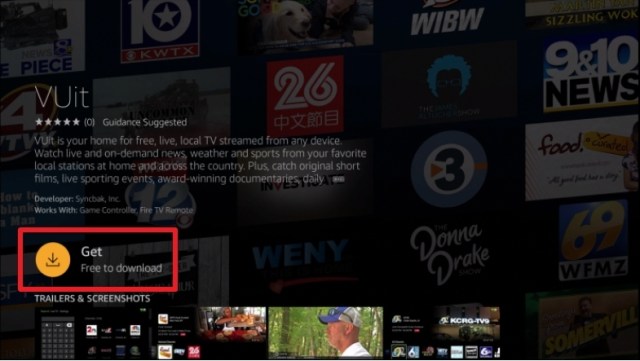
5. Click on the Download or Get button

VUit 5


6. Let the VUit app be downloaded on your device

VUit 6


7. Once the app has been downloaded, click Open to launch it.

VUit 7


YOUR INTERNET ACTIVITY IS BEING WATCHED

ReviewVPN cannot attest to the legality, security and privacy of the applications discussed on this site. It is highly recommended that you use a VPN service while streaming or using Kodi.

Currently, your IP 216.73.216.208 is visible to everyone and your Browser is being tracked by Advertisers & ISP Provider.

Save 65% Now

Limited Time Offer

Here are the main reasons why you must use a VPN:

  • Your activities are hidden from your ISP, the government, and from the apps you are using.
  • You can access additional movies and TV streams.
  • ISP attempts to throttle are thrwarted thus reducing buffering issues.
  • Geographically restricted content like Netflix and Hulu can be unblocked.

A VPN works be replacing your ISP-assigned IP address and creating an encrypted tunnel. We recommend the no log service offered by IPVanish. It works well on a Firestick and offers the fastest possible speeds.

Special Limited Time Offer - Get IPVanish


Legal Disclaimer: ReviewVPN.com does not encourage or endorse any illegal activity involved in the usage of services and applications referenced on this site. We do not verify the licensing agreements of services. The end-user is wholly responsible for ensuring that any media accessed through these services does not violate copyright and/or licensing laws. ReviewVPN does not promote, link to, or receive compensation from any Apps and IPTV services.


Install Surfshark on Firestick

Best Surfshark Deal


App Features

For Viewing Experience:

  • Easy access from one channel to another
  • High definition resolution
  • Has both local and national channels
  • It has a recently viewed feature if the viewer would like to replay some shows
  • Has some featured shows and documentaries
  • Recommends shows and channels based on viewing history
  • The app has Nearby Channel Suggestions based on the user’s location
  • Full Spectrum of 172 channels on the All Channels section


Most-Viewed Channels on VUit app:

Though there are about 200 local and national channels present on this app, here is the list of the top and most-viewed channels on VUit:

  • VUit Live – a New York City Live Street Camera if you like to check on the latest traffic situation in the city.
  • VUit eSports – a 24 / 7 channel that gives an always-on stream shows from eSports.
  • Politics Uncut – another 24 / 7 channel about US government
  • VUit High School Sports 
  • Fly-Over Music Hour


List of 15 out of 172 (all channels) available on the VUit app:

  • Battleground States
  • KTUU
  • KTVF11
  • KXDF 13
  • WBRC Fox 6 News
  • WRGX Wiregrass
  • WTVY 4
  • 48 WAFF
  • FOX 10 News
  • 12 WSFA
  • KAIT 8 abc
  • KOLD News 13
  • KKCO 11
  • WCJB abc
  • WJHG 17


Other must-watch contents on the VUit app:

  • Backlash
  • Crossing the Great Lake
  • Business First AM
  • Iditarod 2020
  • Food curated
  • Investigate TV
  • Onaway Speedway Racing


Other good features:

  • 100% free of charge
  • Available also on iOS, Apple TV, and Roku devices
  • Has over 200 television station partners
  • Dedicated to add more and more contents for the viewers each year


Stream Safely with a VPN

surfshark logo

Vuit is so strict when it comes to location. Since it is only available in the USA, most of the contents are geo-restricted.

A VPN serves as a bridge that connects you to a different server inside the USA. It will give you access to all the contents that are not available in your area.

Here at reviewvpn.com, we recommend nothing but the best VPN for you. None other than Surfshark.

Surfshark gives you the following benefits:

Note: For more information about Surfshark, please read our Surfshark Review.


Grab your subscription now!


How to Install Surfshark VPN on Firestick

If your Firestick still has the older interface, read this article to learn how to update it: Update Firestick Interface.

Follow our screenshots below to install the SurfShark VPN app on your Fire TV stick.

1. Go to the Home screen of your Firestick.

step 1 Install Surfshark VPN on Firestick


2. Navigate towards the Find tab. Press the Search button from the resulting dropdown.

step 2 Install Surfshark VPN on Firestick


3. Type in the keyword of SurfShark and select from the suggestions that will appear.

step 3 Install Surfshark VPN on Firestick


4. Click the official SurfShark icon from your search results.

step 4 Install Surfshark VPN on Firestick


5. Press the Download (You own it) button.

step 5 Install Surfshark VPN on Firestick


6. The SurfShark VPN installer will download on your device.

step 6 Install Surfshark VPN on Firestick


7. SurfShark VPN’s app will automatically install itself on your Fire TV stick.

step 7 Install Surfshark VPN on Firestick


8. Press the Open button after completing SurfShark VPN’s installation process.

step 8 Install Surfshark VPN on Firestick


9. Please wait for the SurfShark VPN to load its user interface.

step 9 Install Surfshark VPN on Firestick


10. You can now log in with your SurfShark VPN account credentials.

step 10 Install Surfshark VPN on Firestick

Learn more about Surfshark and Grab the Best Surfshark Deal Now!


Install Surfshark on Firestick

Best Surfshark Deal


Other VPNs to Consider

NordVPN (Best for Streaming)

Best Features

  • 5000+ Server in 50+ Countries 
  • Military-Grade Encryption
  • Fast Connection Speed
  • Suitable to a lot of devices
  • No-Log Policy

Prices
  • Complete $5.89 per month (64% Discount)
  • Plus $4.59 per month (56% Discount)
  • Standard $3.69 per month (55% Discount)

Best Features

  • 750+ High-speed VPN Servers in 43 Locations
  • Military-Grade Encryption
  • Fastest HD Streaming and Gaming
  • 30-Day Money-Back Guarantee
  • Unlimited Data & Devices
  • No-Log Policy

Prices
  • 3 Years $1.99 per month (82% Discount)
  • 1 Years $3.29 per month (70% Discount)
  • 1 Month $10.99 per month

IPVanish VPN (Most Secure)

Best Features

  • 1200+ Servers in 60+ Countries around the world
  • Unlimited Connections
  • No-Log Policy
  • Top Notch Military-Grade VPN Protocols and Encryptions
  • 100% Safe and Secured
  • Most Trusted VPN
  • Best VPN for Firestick
  • 30-Day Money-Back Guarantee

Prices
  • Yearly $3.99 per month (63% Discount) – 30 days risk free + Ransomware & Malware Protection
  • Quarterly $5.32 per month (51% Discount)
  • Monthly $10.99 per month


For more VPN discounts, go to ReviewVPN Deals and purchase the best VPN for you.

Click here to get the lowest price on Surfshark through our exclusive limited-time offer.


Alternative Applications for Vuit

Aside from the VUit app, there are a lot of other live TV apps that you can stream on firestick. Check out this list of free live tv apps.

You can also see these links: Best Free Live TV Apps For Firestick and Best Live TV Apps (IPTV) for Firestick.


FAQ

History

VUit app is a brand new app that was recently launched in early 2020


Is it Free?

Yes, this app is 100% free to download


Is it legal?

Yes, the VUit app is an official application that you can see on the Amazon App Store


What other devices does VUit app applicable to?

The VUit app is also available for download on iOS, Apple TV, and Roku


Are there any ads?

Yes, the VUit app is one of those apps that are free but with advertisements


How can I use this app on Firestick?

This app is very easy to use and navigate on your firestick device. Once you launch it for the first time, it won’t require you to have any registration. If you want to open it from your home screen, go to Apps, and look for the VUit app. Once you have opened the app, you will find three options on top: Search, Live TV, and Settings. You can use your remote to navigate and explore the app to find the show you like to stream.


Is there an official website?

Yes, the official website of this app is www.vuit.com


Our Opinion

The VUit app is a great application for so many reasons. One of these is being free. You can be able to watch a lot of local news or even nationwide happenings using this app. We can say that it is worth it. 

Although, some might find it weird having a live channel that covers some streets of New York. It’s like watching people walk and cars rolling on the street just to kill time. Surprisingly, that channel is one of the most viewed channels on this app.

Vuit is great but there are also other applications out there that are similar and you might like to check out. But if you are really leaning towards News, we can say that VUit is one of our top picks. Through VUit, there are a lot of local and national news channels and shows even replay and live, that you can choose from.


Final Thoughts

We hope that this article helps you in installing the VUit app on your firestick device.


Note: ReviewVPN.com does not own or operate any app nor does it endorse any. The main purpose of this article is strictly for educational purposes only.


See Also:

Best Firestick Apps

Top Filelinked Codes

Free Movie Streaming Websites

Best TV Show Websites

List of Best Adult Apps for Firestick

Top Live TV Apps

Install Swift Streamz on Firestick

Best Kissanime.RU Alternatives


What Is Your Favorite Streaming App? Cast Your Vote Below.

How To Install aDrama on Firestick

aDrama Overview

In this article, I will be teaching you how to install aDrama on your Amazon Firestick.


Currently, aDrama is the only streaming application available on Firestick wherein you can solely watch movies and TV shows from Asian Countries like Korea, Taiwan, and Japan.

If you are a huge fan of KDrama and other TV Shows from Asia, this app will satisfy all of your cravings.


Is aDrama Safe and Virus-free?

We tested this app using VirusTotal and found no threats or any malicious files and malware.

Despite having good results, we still need to be vigilant in protecting our privacy while streaming.

A Virtual Private Network or VPN will help us maintain our security and anonymity while using aDrama.

Here’s how you can Install The Best VPN For Firestick and All Devices.


ANONYMOUSLY

How to Install aDrama on Android


Install aDrama on Firestick

Note: ReviewVPN does not host the file. It is hosted by archive.org


If your Firestick still has the older interface, read this article to learn how to update it: Update Firestick Interface.


Installation Guide on Firestick

1. Install the Downloader app and jailbreak your firestick by enabling unknown sources. To learn more about the procedure, you may read How to Install the Downloader App and Enable Unknown Sources.


2. Open Downloader.  Type in “https://reviewvpn.com/adrama” and select “Go”.


3. The APK would take a few seconds to download depending on your internet connection.


4. After that, choose “Install”.


5. Then click “Open”.


6. When this notification appears, click on “Allow”.


7. aDrama is finally installed on your Firestick.


YOUR INTERNET ACTIVITY IS BEING WATCHED

ReviewVPN cannot attest to the legality, security and privacy of the applications discussed on this site. It is highly recommended that you use a VPN service while streaming or using Kodi.

Currently, your IP 216.73.216.208 is visible to everyone and your Browser is being tracked by Advertisers & ISP Provider.

Save 65% Now

Limited Time Offer

Here are the main reasons why you must use a VPN:

  • Your activities are hidden from your ISP, the government, and from the apps you are using.
  • You can access additional movies and TV streams.
  • ISP attempts to throttle are thrwarted thus reducing buffering issues.
  • Geographically restricted content like Netflix and Hulu can be unblocked.

A VPN works be replacing your ISP-assigned IP address and creating an encrypted tunnel. We recommend the no log service offered by IPVanish. It works well on a Firestick and offers the fastest possible speeds.

Special Limited Time Offer - Get IPVanish


Legal Disclaimer: ReviewVPN.com does not encourage or endorse any illegal activity involved in the usage of services and applications referenced on this site. We do not verify the licensing agreements of services. The end-user is wholly responsible for ensuring that any media accessed through these services does not violate copyright and/or licensing laws. ReviewVPN does not promote, link to, or receive compensation from any Apps and IPTV services.


Install SurfShark on Firestick

Best SurfShark Deal


How to use aDrama on the Firestick

If you open the aDrama application, a pop-up saying “aDrama won’t run without Google Play services, which are not supported by your device” will appear.

Just click on the “Ok” button because you will still be directed to the aDrama home page.

Then you can now start browsing on what movie or TV show you would want to stream.


aDrama Features

On the Home screen, you will see the following categories:

Watching

These are the movies and TV shows that you are currently watching.


Updated

These are movies and TV shows with new episodes released on aDrama.


Newest

These are new movies and TV shows available on aDrama.


Suggestions

These are movies or TV show suggestions based on your history of watching. Movies or TV shows with the same genre would most likely appear here. 


Years

It will give you an option to select which year of movie or TV show release you would want to watch. For example, if you select “2020”, all released movies and TV shows in 2020 will appear.


Alphabet

If you select a letter, movies or TV shows with titles starting with that letter will be shown.


More

If you click on this category, three choices will appear:

  1. All – All movies and TV shows available on aDrama will be seen here in alphabetical order.
  2. Favorite – Movies and TV shows you have added to Favorites will be visible here.
  3. Category – since this application contains a wide array of movies and TV shows from Asia, this option will allow you to choose which type of content you would want to sort. This includes:
    • All
    • Hong Kong
    • Chinese
    • Korean
    • Taiwanese
    • Japanese
    • Movies
    • TV Shows


Settings

From here you will be able to toggle the following:

  • High Quality
  • English Subtitle
  • Sort Descending
  • Clear History
  • Language
  • Check Update


Moreover, if you are going to click on a TV Show, you will see the following options:

  1. Play – If you click on play, you will be given the following options:
    • Resume 
    • Start from beginning
    • Move to the next episode
  2. Episodes – this option will let you choose an episode so you could skip or go back to an episode that you would want to watch.
  3. Add/Remove Favorite – this option will allow you to add or remove the selected movie or TV show on your Favorites section. I highly suggest that you make use of this feature so it will be easier for you to re-watch a TV show or movie or if you are planning to watch a TV show or movie in the future.
  4. Go to Episode – this option will let you type the episode that you would want to watch.


Pros and Cons

Pros

  • Navigation is easy because you won’t need to use Mouse Toggle.
  • Has an option for higher quality video streaming.
  • A wide array of movies and TV shows are available for streaming.


Cons

  • Not all movies have English subtitles.


Is There a Need for a VPN?

Surfshark vpn

There is no need for a VPN when installing aDrama on your Firestick. However, if you are from the US with strict internet protocols and you are a binge-watcher like me, you might need to consider getting a VPN.

This is so your streaming will not be traced by your ISP which could result in lagging or buffering.

Also, if you would like to watch in HD, it will consume more data so your ISP most probably will notice your streaming activities.

So to prevent that, I would recommend that you use a VPN like SurfShark to anonymously stream your favorite movies and TV shows. 

Note: For more information about SurfShark, please read our SurfShark REVIEW.


Grab your subscription now!


How to Install Surfshark on Firestick with Screenshots

If your Firestick still has the older interface, read this article to learn how to update it: Update Firestick Interface.

You can download Surfshark directly from the Amazon App store. It will be easy for you to find Surfshark with your Firestick’s Find feature. Refer to our screenshots below.

Follow our screenshots below to install the SurfShark VPN app on your Fire TV stick.

1. Go to the Home screen of your Firestick.

step 1 Install Surfshark VPN on Firestick


2. Navigate towards the Find tab. Press the Search button from the resulting dropdown.

step 2 Install Surfshark VPN on Firestick


3. Type in the keyword of SurfShark and select from the suggestions that will appear.

step 3 Install Surfshark VPN on Firestick


4. Click the official SurfShark icon from your search results.

step 4 Install Surfshark VPN on Firestick


5. Press the Download (You own it) button.

step 5 Install Surfshark VPN on Firestick


6. The SurfShark VPN installer will download on your device.

step 6 Install Surfshark VPN on Firestick


7. SurfShark VPN’s app will automatically install itself on your Fire TV stick.

step 7 Install Surfshark VPN on Firestick


8. Press the Open button after completing SurfShark VPN’s installation process.

step 8 Install Surfshark VPN on Firestick


9. Please wait for the SurfShark VPN to load its user interface.

step 9 Install Surfshark VPN on Firestick


10. You can now log in with your SurfShark VPN account credentials.

step 10 Install Surfshark VPN on Firestick

Learn more about Surfshark and Grab the Best Surfshark Deal Now!


Install Surfshark on Firestick

Best Surfshark Deal

Other VPNs to Consider

NordVPN (Best for Streaming)

Best Features

  • 5000+ Server in 50+ Countries 
  • Military-Grade Encryption
  • Fast Connection Speed
  • Suitable to a lot of devices
  • No-Log Policy

Prices
  • Complete $5.89 per month (64% Discount)
  • Plus $4.59 per month (56% Discount)
  • Standard $3.69 per month (55% Discount)

Best Features

  • 750+ High-speed VPN Servers in 43 Locations
  • Military-Grade Encryption
  • Fastest HD Streaming and Gaming
  • 30-Day Money-Back Guarantee
  • Unlimited Data & Devices
  • No-Log Policy

Prices
  • 3 Years $1.99 per month (82% Discount)
  • 1 Years $3.29 per month (70% Discount)
  • 1 Month $10.99 per month

IPVanish VPN (Most Secure)

Best Features

  • 1200+ Servers in 60+ Countries around the world
  • Unlimited Connections
  • No-Log Policy
  • Top Notch Military-Grade VPN Protocols and Encryptions
  • 100% Safe and Secured
  • Most Trusted VPN
  • Best VPN for Firestick
  • 30-Day Money-Back Guarantee

Prices
  • Yearly $3.99 per month (63% Discount) – 30 days risk free + Ransomware & Malware Protection
  • Quarterly $5.32 per month (51% Discount)
  • Monthly $10.99 per month

For more VPN discounts, go to ReviewVPN Deals and purchase the best VPN for you.


FAQs

Is it legal?

 Yes. It is legal to download and install on the Firestick.


Is it safe? 

Yes. It is safe to download and install on the Firestick.


Conclusion

Although aDrama is great for K-drama fans like me, I would prefer to see content from Thailand and the Philippines. But overall, it is a great streaming app for Asian Dramas.


Final Thoughts

Thank you for taking the time to finish this tutorial. I hope you were able to successfully install aDrama on Firestick and that this article helped you with navigating the application. Enjoy! 


Note: ReviewVPN.com does not own or operate any app nor does it endorse any. The main purpose of this article is strictly for educational purposes only.


Best Firestick Streaming Reads

Best Firestick Apps

Top Filelinked Codes

Free TV Show Websites

Best Adult Apps for Firestick

Top Live TV Apps

Install Swift Streamz on Firestick

Best Kissanime.RU Alternatives


What Is Your Favorite Streaming App? Cast Your Vote Below.

How To Install VideoMix On Firestick – 2023 Edition

VideoMix on Firestick Overview

In this article, we will be divulging important details on how to install VideoMix on Firestick and other devices that run on the android platform.


If you want to see movies and other related entertainment content for free, then, VideoMix has the perfect solution. This media player app provides access to millions of films and TV shows for free on your Amazon Fire Stick. 

Most of the VideoMix app’s content is hosted on external servers. The streaming sites supported by this media player app include NowVideo, YouTube, PutLocker, and a lot more. Simply choose a provider from the list in the app and enjoy watching your favorite media content.


Is VideoMix Safe and Virus-free?

We tested this app using VirusTotal and found no threats or any malicious files and malware.

Despite having good results, we still need to be vigilant in protecting our privacy while streaming.

A Virtual Private Network or VPN will definitely help us maintain our security and anonymity while using VideoMix.

Here’s how you can Install The Best VPN For Firestick and All Devices.


ANONYMOUSLY

VideoMix App Installation on FireStick

  • Turn on the FireStick device, go to the top menu bar and choose > Settings
  • Click My Fire TV > Developer Options
  • Enable Apps from Unknown Sources 
  • Go back to FireStick’s home screen and go to the menu bar
  • Go to the Search option
  • Search & install the Downloader app on FireStick
  • After installing the Downloader application, launch it
  • Enter the VideoMix app download URL – https://reviewvpn.com/vdm
  • Click GO
  • When the Moviebase app’s file download is complete – click Install
  • Click Done
  • Click Delete > click Delete again
  • Now, you have successfully installed the VideoMix app on FireStick


Note: ReviewVPN.com does not host any of these apps.


If your Firestick still has the older interface, read this article to learn how to update it: Update Firestick Interface.


Install VideoMix on Firestick with Screenshots

1. Install the Downloader app and jailbreak your firestick by enabling unknown sources. To learn more about the procedure, you may read How to Install the Downloader App and Enable Unknown Sources.


2. Open the Downloader app and type –  https://reviewvpn.com/vdm and click GO

Step 2 Install Videomix


3. Click Install.

Step 13 Install vidmix


4. Click OPEN.

Step 14 Install vidmix


5. Select Language, and click OK.

Step 15 Install vidmix


YOUR INTERNET ACTIVITY IS BEING WATCHED

ReviewVPN cannot attest to the legality, security and privacy of the applications discussed on this site. It is highly recommended that you use a VPN service while streaming or using Kodi.

Currently, your IP 216.73.216.208 is visible to everyone and your Browser is being tracked by Advertisers & ISP Provider.

Save 65% Now

Limited Time Offer

Here are the main reasons why you must use a VPN:

  • Your activities are hidden from your ISP, the government, and from the apps you are using.
  • You can access additional movies and TV streams.
  • ISP attempts to throttle are thrwarted thus reducing buffering issues.
  • Geographically restricted content like Netflix and Hulu can be unblocked.

A VPN works be replacing your ISP-assigned IP address and creating an encrypted tunnel. We recommend the no log service offered by IPVanish. It works well on a Firestick and offers the fastest possible speeds.

Special Limited Time Offer - Get IPVanish


Legal Disclaimer: ReviewVPN.com does not encourage or endorse any illegal activity involved in the usage of services and applications referenced on this site. We do not verify the licensing agreements of services. The end-user is wholly responsible for ensuring that any media accessed through these services does not violate copyright and/or licensing laws. ReviewVPN does not promote, link to, or receive compensation from any Apps and IPTV services.


Install Surfshark on Firestick

Best Surfshark Deal


What is Video Mix?

VideoMix is an amazing app for watching your favorite movies and TV shows directly on your Firestick, Google Chromecast, and other Android-powered devices. It allows you to watch your favorite media content anywhere with a web connection on your Android mobile phone.

VideoMix is an organized application with a bunch of streaming websites listed. The media player app allows you to easily find movies and TV shows. The app is well categorized so users are taken to their favorite spot via straightforward navigation. Also, the VideoMix app lets you choose the video quality you wish to download.


Features

  • This app contains tons of movies and TV shows
  • It will publish new films’ latest news
  • More than 50 third-party providers
  • All movies and TV shows are in 720p and 1080p resolution
  • The application has a very attractive user interface 
  • Very straightforward and easy to use
  • Share movie links and launch them through the app
  • Allows you to navigate from one option to another and filter the media content on Genre, Language, Title, etc
  • It lets you create a wishlist to watch later 


Pros

  • Supports numerous different video sharing websites
  • Provides additional information about the entertainment content


Cons

  • It has no option to change the language
  • English is not the default language


Alternatives

  • VLC
  • MX Player Pro
  • Wuffy Media Player
  • KokoTime
  • Ludio Player
  • MV Castplayer
  • XPlayer


Clean Interface

One of the best features of the VideoMix app is the clean interface that makes it easy for you to find the content you want to watch. As the movies and TV shows are well ordered by genre, you can easily search for certain content via the application’s helpful search function.

As a bonus, each of the files on VideoMix provides additional data related to the media content you’re streaming. Among the data included are video links to the IMDB page, related movies or TV shows, as well as various other stuff.


VideoMix Provides Better Online Streaming Experience

The VideoMix app provides different types of movies, TV shows, trending movies, most-watched movies, and most popular movies. Thus, it gives you a better online streaming experience. Nonetheless, some new release movies take some time to be available on the app.


Regularly Updated

The VideoMix app is regularly updated with new entertainment content. Users will always find something new for their viewing pleasure – an important factor for people spending more time streaming media content.

Also, a great feature is it provides access to related information and suggestions for related content. Thus, this app is definitely for movie enthusiasts. While the app is not available on the Google Play store, movie aficionados can easily download the app from here: https://reviewvpn.com/best-firestick-apps-2/, simply download & install the APK file of the VideoMix app.


Stream Safely Online

If you stream entertainment content on the VideoMix app using your FireStick Lite, FireStick 2020, FireStick 4k, or Fire TV Cube, you must use a Virtual Private Network or VPN. The Surfshark app provides you all the privacy and security benefits of a Virtual Private Network while streaming: IP masking, and strong encryption, and it allows you to choose from various locations in different countries.


VideoMix Content

The entertainment content on the VideoMix app will always pull you towards it. You can play the media file within just a couple of seconds without any interruption. Even though all the contents on the VideoMix app are hosted by external servers, the links that it offers are available with all the relevant data. Thus, you can easily read the reviews of the content before you start watching it.


VideoMix Price

The VideoMix app is free and you don’t need any subscription to stream the content.


VideoMix Search and sorting

The VideoMix app has an amazing search option where users can see the entertainment content they want by just typing the title. The media contents are very well organized in all genres. The Catalogue tabs hold the genre feature where users can select & explore video links. Users can also refine their search by country or year to swiftly find their required movie link to watch on the app.


VideoMix Frequently Asked Questions (FAQs)

What are the VideoMix Apk compatible devices?

The Application runs on Android-powered devices


Is the content on the VideoMix app free of cost?

Yes, all content on the VideoMix app is free 


Is the app safe to use?

Yes, the app is completely safe and will not harm Android devices.


Why do you need a VPN for VideoMix?

Virtual Private Network or VPN services have become a crucial tool today, particularly for individuals who love streaming entertainment content on the web, as well as other internet users. Privacy appears to be becoming a thing of the past, with Internet Service Providers (ISP) and governments intensifying their spying game every day.

If you want your internet activities not to be spied on by your ISP or the government, you must have a VPN on your device. When you enable your VPN, on your Firestick device, all your web traffic will be encrypted and transmitted via a secure tunnel to a server of your choice.

Nonetheless, the Surfshark app provides you all the privacy and security benefits of a Virtual Private Network while streaming: IP masking, strong encryption, and it allows you to choose from various locations in different countries.

Note: For more information about SurfShark, please read our SURFSHARK REVIEW.


Grab your subscription now!


How to Install Surfshark VPN on Firestick

If your Firestick still has the older interface, read this article to learn how to update it: Update Firestick Interface.

You can download Surfshark directly from the Amazon App store. It will be easy for you to find Surfshark with your Firestick’s Find feature. Refer to our screenshots below.

1. Go to the Home screen of your Firestick.

step 1 Install Surfshark VPN on Firestick


2. Navigate towards the Find tab. Press the Search button from the resulting dropdown.

step 2 Install Surfshark VPN on Firestick


3. Type in the keyword of SurfShark and select from the suggestions that will appear.

step 3 Install Surfshark VPN on Firestick


4. Click the official SurfShark icon from your search results.

step 4 Install Surfshark VPN on Firestick


5. Press the Download (You own it) button.

step 5 Install Surfshark VPN on Firestick


6. The SurfShark VPN installer will download on your device.

step 6 Install Surfshark VPN on Firestick


7. SurfShark VPN’s app will automatically install itself on your Fire TV stick.

step 7 Install Surfshark VPN on Firestick


8. Press the Open button after completing SurfShark VPN’s installation process.

step 8 Install Surfshark VPN on Firestick


9. Please wait for the SurfShark VPN to load its user interface.

step 9 Install Surfshark VPN on Firestick


10. You can now log in with your SurfShark VPN account credentials.

step 10 Install Surfshark VPN on Firestick

Learn more about Surfshark and Grab the Best Surfshark Deal Now!


Install Surfshark on Firestick

Best Surfshark Deal


Other VPNs to Consider

NordVPN (Best for Streaming)

Best Features

  • 5000+ Server in 50+ Countries 
  • Military-Grade Encryption
  • Fast Connection Speed
  • Suitable to a lot of devices
  • No-Log Policy

Prices
  • Complete $5.89 per month (64% Discount)
  • Plus $4.59 per month (56% Discount)
  • Standard $3.69 per month (55% Discount)

Best Features

  • 750+ High-speed VPN Servers in 43 Locations
  • Military-Grade Encryption
  • Fastest HD Streaming and Gaming
  • 30-Day Money-Back Guarantee
  • Unlimited Data & Devices
  • No-Log Policy

Prices
  • 3 Years $1.99 per month (82% Discount)
  • 1 Years $3.29 per month (70% Discount)
  • 1 Month $10.99 per month

IPVanish VPN (Most Secure)

Best Features

  • 1200+ Servers in 60+ Countries around the world
  • Unlimited Connections
  • No-Log Policy
  • Top Notch Military-Grade VPN Protocols and Encryptions
  • 100% Safe and Secured
  • Most Trusted VPN
  • Best VPN for Firestick
  • 30-Day Money-Back Guarantee

Prices
  • Yearly $3.99 per month (63% Discount) – 30 days risk free + Ransomware & Malware Protection
  • Quarterly $5.32 per month (51% Discount)
  • Monthly $10.99 per month


For more VPN discounts, go to ReviewVPN Deals and purchase the best VPN for you.

Click here to get the lowest price on Surfshark through our exclusive limited-time offer.


Conclusion

VideoMix is ​​an awesome app for streaming movies and TV shows online on your Firestick or other Android-powered devices. Aside from having a clean interface, its other features are worth your time. The app’s catalog is updated regularly, so you can always watch new movies, TV shows, and more.

The app functions in a way of getting video links from online sources and offering them to its users with easy-to-search media content. It has a catalog description of entertainment content.

How To Install SoundHound On Firestick

SoundHound On FireStick

In this article, we will be divulging important details on how to install SoundHound on Firestick and other devices that run on the android platform.


Have you experienced having a song stuck in your head and you can’t remember its title? A simple music app, SoundHound, can be really useful for those times, since the app can recognize a song if you just play it near your device.

SoundHound is a free music application for Android-powered devices that identifies music from movies, TV shows, advertisements, and more – you just have to tap the orange button!

Just say Okay Hound when you hear a song and the application will start up, ensuring to capture the song before it ends. The SoundHound app can identify most songs in seconds as it only needs the song’s quick snippet to identify it.

Once the music app figures out the song’s name, it allows you to listen to the full track, sing along with lyrics, and watch the music video. The app is an easy way to recognize music, even if it only has a couple of seconds of it.


ANONYMOUSLY

Is SoundHound Safe and Virus-free?

We tested this app using VirusTotal and found no threats or any malicious files and malware.

Despite having good results, we still need to be vigilant in protecting our privacy while streaming.

A Virtual Private Network or VPN will definitely help us maintain our security and anonymity while using SoundHound.

Here’s how you can Install The Best VPN For Firestick and All Devices.

Note: ReviewVPN.com does not host any of these apps.


If your Firestick still has the older interface, read this article to learn how to update it: Update Firestick Interface.


Install SoundHound on Firesticks with Screenshots

1. Install the Downloader app and jailbreak your firestick by enabling unknown sources. To learn more about the procedure, you may read How to Install the Downloader App and Enable Unknown Sources.


2. Open Downloader App. Type https://reviewvpn.com/sound and click Go.

Install SoundHound


3. Click on INSTALL.

Install SoundHound1


4. Click on OPEN.

Install SoundHound2


5. SoundHound is installed. Enjoy listening your favorite music!

Install SoundHound3

YOUR INTERNET ACTIVITY IS BEING WATCHED

ReviewVPN cannot attest to the legality, security and privacy of the applications discussed on this site. It is highly recommended that you use a VPN service while streaming or using Kodi.

Currently, your IP 216.73.216.208 is visible to everyone and your Browser is being tracked by Advertisers & ISP Provider.

Save 65% Now

Limited Time Offer

Here are the main reasons why you must use a VPN:

  • Your activities are hidden from your ISP, the government, and from the apps you are using.
  • You can access additional movies and TV streams.
  • ISP attempts to throttle are thrwarted thus reducing buffering issues.
  • Geographically restricted content like Netflix and Hulu can be unblocked.

A VPN works be replacing your ISP-assigned IP address and creating an encrypted tunnel. We recommend the no log service offered by IPVanish. It works well on a Firestick and offers the fastest possible speeds.

Special Limited Time Offer - Get IPVanish


Legal Disclaimer: ReviewVPN.com does not encourage or endorse any illegal activity involved in the usage of services and applications referenced on this site. We do not verify the licensing agreements of services. The end-user is wholly responsible for ensuring that any media accessed through these services does not violate copyright and/or licensing laws. ReviewVPN does not promote, link to, or receive compensation from any Apps and IPTV services.


Install Surfshark on Firestick

Best Surfshark Deal


Moving the newly installed app to the front

  • Go back to Fire Stick Home Screen (you may click the Home Button on the Fire Stick remote)
  • Go to Your Apps & Games/Channels
  • Scroll once to the left
  • Click See All
  • All the newly installed apps are located at the bottom – you can move the SoundHound app by clicking the Options button (at the right side of the Home Button)
  • Click Move > move to front > and pick any spot you want to put the app


Features

  • Super-fast song or music recognition
  • Singing & humming recognition
  • Allows you to see lyrics move in time with the song
  • Home screen widget lets you identify music without opening the app
  • No banner ads
  • Brings free song streams, new artists, & more


Save Your Music/Music Map

All the songs and lyrics that Soundhound discover will be stored in your personal history, and you will have a Music Map to search for exactly where you heard the song. Also, you can connect Soundhound to your Spotify account to explore music across genres, generate playlists, and search for new favorites – all with lyrics.


SoundHound Provides Real-time Lyrics

Explore the song lyrics of all the recently discovered music. You can memorize the words, sing along, and become a karaoke master. Also, you can unwrap lyrics that top the app’s charts across numerous categories and genres. 


Discover Music

  • Tap the orange button to know the details of the song playing around you, which includes artist, album, lyrics, and song title
  • Press the orange button, hum or sing the tune, and discover the song stuck in your head
  • Keep track of all music discoveries with your personal history page
  • Find out the hottest new music across Global & Popular charts
  • Discover the song being played near you or across the globe with the app’s Music Map


Play

  • The songs or music that are discovered can be played through SoundHound’s built-in YouTube music player
  • Link Spotify to SoundHound to stream music directly in the app


Usage

To use the SoundHound app, you need to perform a couple of simple actions. First, you need to download the application then install it on your device. Next, you need to launch the app so that it can complete what it needs as part of the installation process and start functioning. The app will ask your permission during the installation process to work properly. You don’t need to fret about being compromised when providing the app these permissions for the reason that it only needs access to memory. The app needs to have access to your device’s memory so it can keep the songs or updates. 

The last step that you need to do is to search for your favorite song and start listening. That’s all you need to do to enjoy the SoundHound app.


SoundHound Recommends Songs Of The Day or Week

The SoundHound app allows you to discover a number of new stuff that you have never seen like new singers or new albums. This music app can endorse tons of featured songs of the day or week. The content will be gathered into a playlist so you can enjoy it. Every day there’ll be a new playlist for you to discover new stuff. You won’t be bored when using the app and listen to songs.


Pros & Cons

Pros

  • Identify songs or music with one Tap – Just tap the orange button and you will know the name of the song, album, artist, and lyrics within a couple of seconds.
  • Play songs & watch music videos 
  • Voice activation allows you to identify songs or music while on the go


Cons

  • Runs slow on some devices 
  • Some songs are not in the database 


Alternatives

  • Spotify
  • Deezer Music Player
  • Fildo Music
  • YMusic
  • AudioRave


Why Use a VPN Service For Streaming Music?

Using a VPN service for music streaming is an ideal thing to do. It allows you to get access to tons of songs on the biggest music streaming platforms on the internet. When you use the servers of the VPN, it seems like you access the web from the IP address of your choice.

Surfshark is the fastest and most secure Virtual Private Network. The Surfshark provider offers easy-to-use apps for nearly all devices, such as Android, Amazon Fire TV Stick, Windows, iOS, Apple TV, Linux, Mac, PlayStation, Xbox, and routers.

Note: For more information about Surfshark, please read our Surfshark Review.


Grab your subscription now!

Click here to get the lowest price on Surfshark through our exclusive limited-time offer.


How to Install Surfshark VPN on Firestick

If your Firestick still has the older interface, read this article to learn how to update it: Update Firestick Interface.

Follow our screenshots below to install the SurfShark VPN app on your Fire TV stick.

1. Go to the Home screen of your Firestick.

step 1 Install Surfshark VPN on Firestick


2. Navigate towards the Find tab. Press the Search button from the resulting dropdown.

step 2 Install Surfshark VPN on Firestick


3. Type in the keyword of SurfShark and select from the suggestions that will appear.

step 3 Install Surfshark VPN on Firestick


4. Click the official SurfShark icon from your search results.

step 4 Install Surfshark VPN on Firestick


5. Press the Download (You own it) button.

step 5 Install Surfshark VPN on Firestick


6. The SurfShark VPN installer will download on your device.

step 6 Install Surfshark VPN on Firestick


7. SurfShark VPN’s app will automatically install itself on your Fire TV stick.

step 7 Install Surfshark VPN on Firestick


8. Press the Open button after completing SurfShark VPN’s installation process.

step 8 Install Surfshark VPN on Firestick


9. Please wait for the SurfShark VPN to load its user interface.

step 9 Install Surfshark VPN on Firestick


10. You can now log in with your SurfShark VPN account credentials.

step 10 Install Surfshark VPN on Firestick

Learn more about Surfshark and Grab the Best Surfshark Deal Now!


Install Surfshark on Firestick

Best Surfshark Deal


Other VPNs to Consider

NordVPN (Best for Streaming)

Best Features

  • 5000+ Server in 50+ Countries 
  • Military-Grade Encryption
  • Fast Connection Speed
  • Suitable to a lot of devices
  • No-Log Policy

Prices
  • Complete $5.89 per month (64% Discount)
  • Plus $4.59 per month (56% Discount)
  • Standard $3.69 per month (55% Discount)

Best Features

  • 750+ High-speed VPN Servers in 43 Locations
  • Military-Grade Encryption
  • Fastest HD Streaming and Gaming
  • 30-Day Money-Back Guarantee
  • Unlimited Data & Devices
  • No-Log Policy

Prices
  • 3 Years $1.99 per month (82% Discount)
  • 1 Years $3.29 per month (70% Discount)
  • 1 Month $10.99 per month

IPVanish VPN (Most Secure)

Best Features

  • 1200+ Servers in 60+ Countries around the world
  • Unlimited Connections
  • No-Log Policy
  • Top Notch Military-Grade VPN Protocols and Encryptions
  • 100% Safe and Secured
  • Most Trusted VPN
  • Best VPN for Firestick
  • 30-Day Money-Back Guarantee

Prices
  • Yearly $3.99 per month (63% Discount) – 30 days risk free + Ransomware & Malware Protection
  • Quarterly $5.32 per month (51% Discount)
  • Monthly $10.99 per month


For more VPN discounts, go to ReviewVPN Deals and purchase the best VPN for you.

Click here to get the lowest price on Surfshark through our exclusive limited-time offer.


How To Install KokoTime On Firestick – 2023 Edition

KokoTime Overview

In this article, we will be divulging important details on how to install KokoTime on Firestick and other devices that run on the android platform.


Kokotime is a free, simple, and elegantly designed media player app that allows you to watch all your favorite entertainment content in a distinctive and user-friendly design.

It comes along with unique features such as Universal Cast that will give you an amazing media experience. Also, the Kokotime app allows you to cast your content to your Chromecast in the application. The app lets you enjoy different types of content, such as movies, TV shows, etc.

Even though the media player app doesn’t provide its own content, it’s a very smooth app that makes streaming movies, TV shows, and other related entertainment content much more enjoyable. If you have a huge library of media files, the Kokotime application is worthwhile to download on your Firestick.


ANONYMOUSLY

Is KokoTime Safe and Virus-free?

We tested this application using VirusTotal and found that there is/are malicious file/files. You can see the above result for your reference.

Because of this, we highly recommend using a VPN that can protect your privacy against any threat from KokoTime.

Here’s how you can Install The Best VPN For Firestick and All Devices.


Kokotime App Installation on FireStick

  • Turn on the FireStick device, go to the top menu bar and choose > Settings
  • Click My Fire TV > Developer Options
  • Enable Apps from Unknown Sources 
  • Go back to FireStick’s home screen and go to the menu bar
  • Go to the Search option
  • Search & install the Downloader app on FireStick
  • After installing the Downloader application, launch it
  • Enter the Kokotime app download URL – https://reviewvpn.com/koko
  • Click GO
  • When the Moviebase app’s file download is complete – click Install
  • Click Done
  • Click Delete > click Delete again
  • Now, you have successfully installed the Kokotime app on FireStick

Note: ReviewVPN.com does not host any of these apps


If your Firestick still has the older interface, read this article to learn how to update it: Update Firestick Interface.

How to Install KokoTime on Firestick with Screenshots

1. Install the Downloader app and jailbreak your firestick by enabling unknown sources. To learn more about the procedure, you may read How to Install the Downloader App and Enable Unknown Sources.


2. Open the Downloader app and type –  ttps://reviewvpn.com/koko and click GO

Step 2 Install Koko time


3. Click Install.

Step 13 Install kokotime


4. Click OPEN.

Step 14 Install kokotime


5. Click Allow.

Step 15 Install kokotime


6. You have successfully installed the KokoTime app.

Step 16 Install kokotime


YOUR INTERNET ACTIVITY IS BEING WATCHED

ReviewVPN cannot attest to the legality, security and privacy of the applications discussed on this site. It is highly recommended that you use a VPN service while streaming or using Kodi.

Currently, your IP 216.73.216.208 is visible to everyone and your Browser is being tracked by Advertisers & ISP Provider.

Save 65% Now

Limited Time Offer

Here are the main reasons why you must use a VPN:

  • Your activities are hidden from your ISP, the government, and from the apps you are using.
  • You can access additional movies and TV streams.
  • ISP attempts to throttle are thrwarted thus reducing buffering issues.
  • Geographically restricted content like Netflix and Hulu can be unblocked.

A VPN works be replacing your ISP-assigned IP address and creating an encrypted tunnel. We recommend the no log service offered by IPVanish. It works well on a Firestick and offers the fastest possible speeds.

Special Limited Time Offer - Get IPVanish


Legal Disclaimer: ReviewVPN.com does not encourage or endorse any illegal activity involved in the usage of services and applications referenced on this site. We do not verify the licensing agreements of services. The end-user is wholly responsible for ensuring that any media accessed through these services does not violate copyright and/or licensing laws. ReviewVPN does not promote, link to, or receive compensation from any Apps and IPTV services.


Install Surfshark on Firestick

Best Surfshark Deal


Kokotime Features

  • Support for third-party add-ons
  • Auto subtitles in over 187 languages
  • Indexes local media and arranged by recently added, genre, top-rated. Also, it displays media like posters or backdrops for local files without the need to download
  • It allows you to get reviews, cast, and summaries for all your media
  • It has a built-in video player with support for live streams
  • It contains multiple video extensions for local & online streaming
  • Filemanager
  • Chromecast support
  • Automatic subtitles loading with custom subtitle styling
  • M3u playlist parser – allowing you to add m3u playlists or watch them directly
  • Lets you continue watching where you left off
  • Universal Cast – a unique feature that allows you to cast media to any device without an external device
  • Subtitle synchronization
  • Awesome streaming media app
  • The app is great for a media organization


Cast media anywhere with the Kokotime app

Kokotime is a media streaming app developed by Devko LLC. The media player app provides a well-designed and user-friendly interface that lets you watch all of your favorite movies and TV shows. It contains an in-app file manager that allows you to conveniently explore all of your media files. The Kokotime app allows you to cast media files to Chromecast straight from the application. 


Installing Addons on Kokotime

The soul of the Kokotime app resides in the add-ons developed by the Kokotime community. However, the drawback is that when utilizing the addons users can access content with copyright restrictions.

  • First, turn on your Virtual Private Network or VPN
  • Open the Kokotime app on your Firestick device
  • Select Addon Store
  • A pop-up box will appear saying Enter a store repository URL
  • Enter the add-on URL – get it from the official Kokotime addon repository server link or any trusted website
  • You’ll then see 3rd-party add-ons
  • Click on the addon to download & install it
  • Head back to the Kokotime app’s home screen.
  • Now, open the addon you’ve just downloaded & installed.


The Kokotime app is an amazing Kodi alternative, and you’ll get to experience the app’s extra features and awesome performance on your Amazon Fire Stick device. After installing Kokotime on your Fire Stick, just remember to stay private & secure by installing a VPN service on your device too.


Why do you need a VPN for Kokotime?

Virtual Private Network or VPN services have become a crucial tool today, particularly for individuals who love streaming entertainment content on the web, as well as other internet users. Privacy appears to be becoming a thing of the past, with Internet Service Providers (ISP) and governments intensifying their spying game every day.

If you want your internet activities not to be spied on by your ISP or the government, you must have a VPN on your device. When you enable your VPN, on your Firestick device, all your web traffic will be encrypted and transmitted via a secure tunnel to a server of your choice.

Nonetheless, the Surfshark app provides you all the privacy and security benefits of a Virtual Private Network while streaming: IP masking, and strong encryption, and it allows you to choose from various locations in different countries.

Note: For more information about Surfshark, please read our Surfshark Review.


Grab your subscription now!


How to Install Surfshark VPN on Firestick

If your Firestick still has the older interface, read this article to learn how to update it: Update Firestick Interface.

You can download Surfshark directly from the Amazon App store. It will be easy for you to find Surfshark with your Firestick’s Find feature. Refer to our screenshots below.

1. Go to the Home screen of your Firestick.

step 1 Install Surfshark VPN on Firestick


2. Navigate towards the Find tab. Press the Search button from the resulting dropdown.

step 2 Install Surfshark VPN on Firestick


3. Type in the keyword of SurfShark and select from the suggestions that will appear.

step 3 Install Surfshark VPN on Firestick


4. Click the official SurfShark icon from your search results.

step 4 Install Surfshark VPN on Firestick


5. Press the Download (You own it) button.

step 5 Install Surfshark VPN on Firestick


6. The SurfShark VPN installer will download on your device.

step 6 Install Surfshark VPN on Firestick


7. SurfShark VPN’s app will automatically install itself on your Fire TV stick.

step 7 Install Surfshark VPN on Firestick


8. Press the Open button after completing SurfShark VPN’s installation process.

step 8 Install Surfshark VPN on Firestick


9. Please wait for the SurfShark VPN to load its user interface.

step 9 Install Surfshark VPN on Firestick


10. You can now log in with your SurfShark VPN account credentials.

step 10 Install Surfshark VPN on Firestick

Learn more about Surfshark and Grab the Best Surfshark Deal Now!


Install Surfshark on Firestick

Best Surfshark Deal


Other VPNs to Consider

NordVPN (Best for Streaming)

Best Features

  • 5000+ Server in 50+ Countries 
  • Military-Grade Encryption
  • Fast Connection Speed
  • Suitable to a lot of devices
  • No-Log Policy

Prices
  • Complete $5.89 per month (64% Discount)
  • Plus $4.59 per month (56% Discount)
  • Standard $3.69 per month (55% Discount)

Best Features

  • 750+ High-speed VPN Servers in 43 Locations
  • Military-Grade Encryption
  • Fastest HD Streaming and Gaming
  • 30-Day Money-Back Guarantee
  • Unlimited Data & Devices
  • No-Log Policy

Prices
  • 3 Years $1.99 per month (82% Discount)
  • 1 Years $3.29 per month (70% Discount)
  • 1 Month $10.99 per month

IPVanish VPN (Most Secure)

Best Features

  • 1200+ Servers in 60+ Countries around the world
  • Unlimited Connections
  • No-Log Policy
  • Top Notch Military-Grade VPN Protocols and Encryptions
  • 100% Safe and Secured
  • Most Trusted VPN
  • Best VPN for Firestick
  • 30-Day Money-Back Guarantee

Prices
  • Yearly $3.99 per month (63% Discount) – 30 days risk free + Ransomware & Malware Protection
  • Quarterly $5.32 per month (51% Discount)
  • Monthly $10.99 per month


For more VPN discounts, go to ReviewVPN Deals and purchase the best VPN for you.

Click here to get the lowest price on Surfshark through our exclusive limited-time offer.


Pros and Cons

Pros

  • Contains third party add-on support
  • Contains Universal Cast
  • Comes along with a Chromecast remote
  • In-app file manager

Cons

  • Contains log-in problems
  • Scrolling is tedious
  • Third-party apps can cause issues
  • Frequent download errors


Alternatives

  • VLC
  • MX Player Pro
  • Wuffy Media Player
  • VideoMix
  • Ludio Player
  • MV Castplayer
  • XPlayer


Important Note

Kokotime doesn’t contain any media content whatsoever. Wherein, you must provide your own media content from a DVD, Blu-Ray, local/remote storage location, or other media carriers. Also, the KokoTime app lets you download & install third-party plugins that may give access to media content that is available for free on the website of the official content provider. Any other ways of streaming copyright content are not endorsed by Kokotime.

Nonetheless, the media player also supports add-ons to add media libraries or add media from a public media service or local servers. KokoTime will then display the media content in a distinctive layout while also showcasing additional information in a stunning design.


Conclusion

The Kokotime application is a multimedia file manager that comes along with a native player. It allows you to easily and comfortably browse via its various menus & functions. Kokotime functions on the Android operating system.  You can easily download and install the KokoTime app on your FireStick device and have a unique experience in multimedia. 

As you can see the installation process above is quite simple and it does not take too much time. Some of the addons could be blocked by your Internet Service Provider, but using Surfshark service helps you to avoid those issues with ease.

How To Install TeaTV On Google Chromecast

TeaTV On Google Chromecast

TeaTV is a video streaming app that offers you tons of movies and TV shows.


This streaming app provides a wide array of entertainment content for video streaming enjoyment. The TeaTV app features an amazing interface and lots of categories.

Not only the TeaTV app allows you to watch movies & TV shows, but it also offers some Live TV options.

The TeaTV app provides an extensive list of movies and TV shows from all across the world in one spot. Users don’t have to fret about not having content to stream.

As you browse via the streaming app’s extensive catalog of entertainment content, you will realize that the app is a goldmine of free movies and TV shows.

Also, the TeaTV app offers other paid features that are unavailable to even the leading streaming apps. 


ANONYMOUSLY


Note: ReviewVPN.com does not host any of these apps.


Install TeaTV App on Google Chromecast with Screenshots

1. Turn on the Google Chromecast device and scroll to your account from the home screen.

Step 1 Google Chromecast home screen

2. On the upper right of the screen, choose > Settings.


3. Once in Settings, scroll down to System > About.

12a


4. Scroll down to Android TV OS Build & click on it seven times until it goes into Developer options and it’s gonna say “you are now a developer”.


5. Click the Back Button, scroll down to see the Developer options.


6. Go back to Settings and select > Apps.


7. Scroll down to Security & Restriction – to turn on Unknown Sources.


8. Go back to the home screen and hover over the Search icon.


9. Type in Downloader app.

c1


10. Select the Downloader.


11. Click Install.

c4


12. Open the Downloader app.

c5


13. Type in the Tea TV app download URL/APK – https://reviewvpn.com/teaaf


14. Wait for a few seconds for the file download progress.


15. Click Install.


16. Click Done.


17. Click Delete > click Delete again


18. Go back to the Home screen. Click SEE ALL.


19. Click the TeaTV icon.


20. Select Allow.


21. Click ACCEPT.


22. Enjoy Watching.


Install Surfshark on Google Chromecast

Best Surfshark Deal


Features

TeaTV app is equipped with features that will entice any movie lover to download it. Below are some of the TeaTV app’s key features:


  • Wide Range of Media Content – The streaming app provides a wide array of movies & TV shows of various genres, such as comedy, action, romance, thriller, and horror
  • Available in Various Qualities – The TeaTV app provides multiple links to a single film or TV show, for various qualities from 360p to 1080p and 4K resolution. Users can select any of the video links
  • Outstanding User Interface – The video streaming app provides an excellent user interface that is very straightforward to use. The app’s clean user interface helps users to browse the app faster and have an amazing video streaming experience.
  • Completely Free – The app is absolutely free to download, install, and use. It functions on your behalf and makes movies & TV shows free for you.
  • No Need Sign-In or Register – TeaTV allows you to stream your favorite entertainment content without any type of registration or sign in. Also, it has no hidden subscription either.
  • Cross Platforms – You can install the TeaTV app on any Android-powered device, such as Google Chromecast, Amazon Fire Stick, PCs, tablets, smartphones, or smart TV. However, you can install the Tea TV app on your PC using an emulator, and by installing it on Chromecast and FireStick to run the app on your smart TV.
  • Live Option – The app provides a number of live options other than providing access to tons of movies & TV shows 
  • Frequent Uploads – The streaming app has new movies & TV shows nearly every day and provides users access to new media content
  • Make Requests feature – One of the TeaTV app’s best features is that you can request any media contents that are unavailable in the app and the app will add the entertainment content for you.


YOUR INTERNET ACTIVITY IS BEING WATCHED

ReviewVPN cannot attest to the legality, security and privacy of the applications discussed on this site. It is highly recommended that you use a VPN service while streaming or using Kodi.

Currently, your IP 216.73.216.208 is visible to everyone and your Browser is being tracked by Advertisers & ISP Provider.

Save 65% Now

Limited Time Offer

Here are the main reasons why you must use a VPN:

  • Your activities are hidden from your ISP, the government, and from the apps you are using.
  • You can access additional movies and TV streams.
  • ISP attempts to throttle are thrwarted thus reducing buffering issues.
  • Geographically restricted content like Netflix and Hulu can be unblocked.

A VPN works be replacing your ISP-assigned IP address and creating an encrypted tunnel. We recommend the no log service offered by IPVanish. It works well on a Firestick and offers the fastest possible speeds.

Special Limited Time Offer - Get IPVanish


Use and Navigation

The TeaTV app interface contains a refined aesthetic that sets the app apart from other streaming applications. The TeaTV app has all the typical filtering options of the genre, release year, and more plus Real Debrid & Trakt TV support for a completely suitable streaming experience.


FAQs

What is a TeaTV app?

TeaTV is a user-friendly video streaming app. Anyone can download, install, and use the app for free and enjoy unlimited movie and TV show streaming


What devices can the TeaTV app be installed on?

You can install the TeaTV app on tons of devices, which include the Amazon Firestick, Roku, and Google Chromecast which are the most popular video streaming devices available. You can also download & install the Tea TV app on other Android-powered devices.


How to download the TeaTV app on Android-based devices?

There are a number of steps to successfully download & install TeaTV, which depend on the device. You just have to download the TeaTV app’s APK (Android application package). Ensure to follow the installation instruction to enable unknown sources onto your Android-powered device.


Is the TeaTV app free to use?

Yes, the TeaTV app is completely free to download, install, and use. 


What are the video qualities on TeaTV?

TeaTV allows you to stream movies and TV shows in 360p, 1080p, and 4K resolution – on all platforms and devices


Pros and Cons

Pros

  • Huge library of high-quality media
  • Free
  • Supports various languages & Open Subtitle accounts
  • Support from numerous developers
  • Powerful sort & filter functions
  • Clean & easy user interface
  • No registration needed

Cons

  • Has no built-in virus scanner
  • No streaming from torrents
  • Contains Ads


Tea TV Alternatives

  • Cinema HD APK
  • Nova TV
  • Titanium TV
  • ZiniTevi
  • TVZion
  • Stremio
  • Strix
  • BeeTV 
  • UnlockMyTV
  • Sofa TV


Why Do You Need a VPN When Using TeaTV?

As TeaTV offers you to stream free movie shows online, that’s not a safe thing to do. That’s much different from streaming content on Hulu or Netflix, where you pay for the service. 

By connecting to a Virtual Private Network or VPN server, you hide your IP by using a new one, which prevents your Internet Service Provider (ISP) from monitoring what you’re doing on the web. A VPN will conceal your identity on the internet, which makes you completely anonymous. However, the best VPN service to use while streaming on the internet is Surfshark.


Surfshark Features

  • Amazing speed
  • With owned server network
  • Anonymous Torrenting
  • It works on all unlimited simultaneous devices
  • Unlimited P2P Traffic
  • Unlimited Bandwidth
  • 256-Bit AES Encryption
  • Zero Logs
  • Has additional privacy features
  • SOCKS5 Web Proxy
  • Platforms: Android, IOS, Windows, Mac
  • Geo-Locked Content Access


Grab your subscription now!

Click here to get the lowest price on Surfshark through our exclusive limited-time offer.


Install Surfshark VPN on Google Chromecast with Screenshots

1. Click Home on your remote then select Search.

Surfshark VPN on Google Chromecast step 1


2. On the search bar, you can use google voice assistant to find Surfshark VPN or by typing it.

Surfshark VPN on Google Chromecast step 2


3. Click on Surfshark VPN icon.

Surfshark VPN on Google Chromecast step 3


4. Click on Install.

Surfshark VPN on Google Chromecast step 4


5. Surfshark VPN is now installing just wait for it until it’s done.

Surfshark VPN on Google Chromecast step 5


6. Click open.

Surfshark VPN on Google Chromecast step 6


7. Input your username and password to log in

Surfshark VPN on Google Chromecast step 7

Learn more about Surfshark and Grab the Best Surfshark Deal Now!


Install Surfshark on Google Chromecast

Best Surfshark Deal


Other VPNs to Consider

NordVPN (Best for Streaming)

Best Features

  • 5000+ Server in 50+ Countries 
  • Military-Grade Encryption
  • Fast Connection Speed
  • Suitable to a lot of devices
  • No-Log Policy

Prices
  • Complete $5.89 per month (64% Discount)
  • Plus $4.59 per month (56% Discount)
  • Standard $3.69 per month (55% Discount)

Best Features

  • 750+ High-speed VPN Servers in 43 Locations
  • Military-Grade Encryption
  • Fastest HD Streaming and Gaming
  • 30-Day Money-Back Guarantee
  • Unlimited Data & Devices
  • No-Log Policy

Prices
  • 3 Years $1.99 per month (82% Discount)
  • 1 Years $3.29 per month (70% Discount)
  • 1 Month $10.99 per month

IPVanish VPN (Most Secure)

Best Features

  • 1200+ Servers in 60+ Countries around the world
  • Unlimited Connections
  • No-Log Policy
  • Top Notch Military-Grade VPN Protocols and Encryptions
  • 100% Safe and Secured
  • Most Trusted VPN
  • Best VPN for Firestick
  • 30-Day Money-Back Guarantee

Prices
  • Yearly $3.99 per month (63% Discount) – 30 days risk free + Ransomware & Malware Protection
  • Quarterly $5.32 per month (51% Discount)
  • Monthly $10.99 per month


For more VPN discounts, go to ReviewVPN Deals and purchase the best VPN for you.

Click here to get the lowest price on Surfshark through our exclusive limited-time offer.


Wrapping Up

TeaTV is an amazing entertainment app that provides free movies and TV shows.

This lightweight streaming app is the perfect solution for all your online video streaming needs.

TeaTV app offers various categories, such as Fantasy, Love, War, action movies, History, Adventure, film swordplay, cartoons, comedy, drama, historical drama, Sci-fi, and more.