How to Install Kidjo TV on Firestick and Android

Kidjo TV

This article will show you how to install Kidjo TV on your Android and Firestick devices.

Kidjo TV is a wonderful app for kids. It offers popular kids’ cartoons like Paw Patrol, Song Song Museum, and more. Kidjo Tv also offers games for your kids to enjoy. The content varies depending on the age of the child that you will register. You can also add a picture of your baby if you like.

Kidjo TV is a very child-friendly app that you can use and install for free. It is applicable on Android and Firestick devices.

Kidjo TV is a third-party application, which means that you need to jailbreak your Firestick and use the Downloader app in order to install it on your device.

Make sure that you are protected against all trackers by using a reliable VPN service.


ANONYMOUSLY


Kidjo TV APK Download for Android Devices


Kidjo TV

Note: ReviewVPN.com does not host this APK file. It is hosted by Archive.org


How to Install Kidjo TV On Firestick & Fire TV

1.  Click Home on your remote and scroll once to your Right. Click Setting (Gear Wheel Icon).

Kidjo TV


2. Scroll down and to the right until you get to My Fire TV. Click on it.

Kidjo TV


3. Select Developer options.

Kidjo TV


4. Turn on ADB debugging and Apps from Unknown Sources.

Kidjo TV


5. Click Turn On when the pop-up appears.

Kidjo TV


6. Click Home, click FIND.

Kidjo TV


7. Click Search.

Kidjo TV


8. You can either say Downloader to your Alexa voice-enabled remote or start typing it. If you typed it, click on the suggestion when it appears.

Kidjo TV


9. Click on the Downloader Icon.

Kidjo TV


10. Click Download.

Kidjo TV

Kidjo TV


11. Click on Open.

Kidjo TV


12. Click on Allow.

Kidjo TV


13. Use the Downloader search tab.

Kidjo TV


14. Open the Downloader App. Type https://reviewvpn.com/kdtv and click Go.

Kidjo TV


15. Wait for the APK to be downloaded.
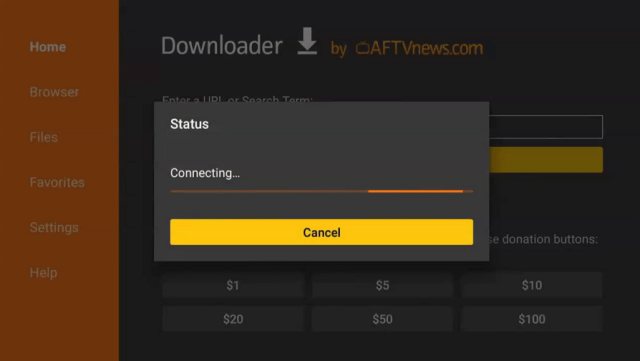
Kidjo TV

Kidjo TV


16. Click install

Kidjo TV


17. Click open.

Kidjo TV


18. Type your kid’s name and age then click begin exploring.

Kidjo TV


19. Kidjo TV is already installed! That’s it, Enjoy!

Kidjo TV


YOUR INTERNET ACTIVITY IS BEING WATCHED

ReviewVPN cannot attest to the legality, security and privacy of the applications discussed on this site. It is highly recommended that you use a VPN service while streaming or using Kodi.

Currently, your IP 216.73.216.1 is visible to everyone and your Browser is being tracked by Advertisers & ISP Provider.

Save 65% Now

Limited Time Offer

Here are the main reasons why you must use a VPN:

  • Your activities are hidden from your ISP, the government, and from the apps you are using.
  • You can access additional movies and TV streams.
  • ISP attempts to throttle are thrwarted thus reducing buffering issues.
  • Geographically restricted content like Netflix and Hulu can be unblocked.

A VPN works be replacing your ISP-assigned IP address and creating an encrypted tunnel. We recommend the no log service offered by IPVanish. It works well on a Firestick and offers the fastest possible speeds.

Special Limited Time Offer - Get IPVanish


Legal Disclaimer: ReviewVPN.com does not encourage or endorse any illegal activity involved in the usage of services and applications referenced on this site. We do not verify the licensing agreements of services. The end-user is wholly responsible for ensuring that any media accessed through these services does not violate copyright and/or licensing laws. ReviewVPN does not promote, link to, or receive compensation from any Apps and IPTV services.


Install Surfshark on Firestick

Get the Best Surfshark Deal


Kidjo TV Features

  • 100% free
  • Child-friendly
  • Needs to register to child’s name and age
  • Works perfectly for Android and Firestick devices
  • Allows to Upload pics for your child’s profile
  • Offers cartoons based on the child’s age

Pros and Cons

Pros

  • 100% Free
  • Child-friendly


Cons

  • Require’s information


Stream Safely With A VPN

Surfshark vpn

Be careful when putting too much information on different apps and websites because they can use this to build your algorithm and track your every move.

A lot of different apps and websites can know your information and location using your IP address. It serves as your online fingerprints and malicious trackers can use this to benefit their own. Make sure that you value your privacy when streaming on different apps, websites, and devices.

The best way to do this is to use a Virtual Private Network or VPN. A VPN can help you hide your IP address and have a new one which will make trackers have a hard time profiling and locating you.

Surfshark VPN is the best VPN in the market today. It has a powerful military-grade VPN encryption to all of its servers and available IP making sure that you are safe and private when streaming. Surfshark is also the only VPN that can unblock all streaming platforms and apps like Netflix, Hulu, YouTube TV, and more.

If you want to know more, read our  SurfShark VPN review.

Other SurfShark Features

  • 3200 servers available in 100+ countries
  • Best VPN for torrenting
  • Destroys geo-restriction
  • Dedicated IP
  • 30-day money-back guarantee
  • Cloud Storage
  • P2P friendly VPN
  • SOCKS5 Proxy
  • Allows Torrenting
  • Kill Switch
  • Split Tunneling
  • DNS Leak Protection
  • Prevents Firestick Buffering and Kodi Buffering

For more details about this VPN, read our SurfShark review.


Grab your subscription now!

Best Surfshark Deal


How to Install Surfshark on Firestick with Screenshots

If your Firestick still has the older interface, read this article to learn how to update it: Update Firestick Interface.

You can download Surfshark directly from the Amazon App Store. It will be easy for you to find Surfshark with your Firestick’s Find feature. Refer to our screenshots below.

Follow our screenshots below to install the SurfShark VPN app on your Fire TV stick.

1. Go to the Home screen of your Firestick.

step 1 Install Surfshark VPN on Firestick


2. Navigate toward the Find tab. Press the Search button from the resulting dropdown.

step 2 Install Surfshark VPN on Firestick


3. Type in the keyword of SurfShark and select from the suggestions that will appear.

step 3 Install Surfshark VPN on Firestick


4. Click the official SurfShark icon from your search results.

step 4 Install Surfshark VPN on Firestick


5. Press the Download (You Own it) button.

step 5 Install Surfshark VPN on Firestick


6. The SurfShark VPN installer will download on your device.

step 6 Install Surfshark VPN on Firestick


7. SurfShark VPN’s app will automatically install itself on your Fire TV stick.

step 7 Install Surfshark VPN on Firestick


8. Press the Open button after completing SurfShark VPN’s installation process.

step 8 Install Surfshark VPN on Firestick


9. Please wait for the SurfShark VPN to load its user interface.

step 9 Install Surfshark VPN on Firestick


10. You can now log in with your SurfShark VPN account credentials.

step 10 Install Surfshark VPN on Firestick

Learn more about Surfshark and Grab the Best Surfshark Deal Now!


Install Surfshark on Firestick

Best Surfshark Deal


Other VPNs to Consider

NordVPN (Best for Streaming)

Best Features

  • 5000+ Server in 50+ Countries 
  • Military-Grade Encryption
  • Fast Connection Speed
  • Suitable to a lot of devices
  • No-Log Policy

Prices
  • Complete $5.89 per month (64% Discount)
  • Plus $4.59 per month (56% Discount)
  • Standard $3.69 per month (55% Discount)

Best Features

  • 750+ High-speed VPN Servers in 43 Locations
  • Military-Grade Encryption
  • Fastest HD Streaming and Gaming
  • 30-Day Money-Back Guarantee
  • Unlimited Data & Devices
  • No-Log Policy

Prices
  • 3 Years $1.99 per month (82% Discount)
  • 1 Years $3.29 per month (70% Discount)
  • 1 Month $10.99 per month

IPVanish VPN (Most Secure)

Best Features

  • 1200+ Servers in 60+ Countries around the world
  • Unlimited Connections
  • No-Log Policy
  • Top Notch Military-Grade VPN Protocols and Encryptions
  • 100% Safe and Secured
  • Most Trusted VPN
  • Best VPN for Firestick
  • 30-Day Money-Back Guarantee

Prices
  • Yearly $3.99 per month (63% Discount) – 30 days risk free + Ransomware & Malware Protection
  • Quarterly $5.32 per month (51% Discount)
  • Monthly $10.99 per month


For more VPN discounts, go to ReviewVPN Deals and purchase the best VPN for you.

Click here for the lowest price on Surfshark through our exclusive limited-time offer.


Best Kidjo TV Alternatives

There are a lot of great kid-friendly apps that you can use on your Android and Firestick devices. Here are the best Kidjo TV alternatives that you can install and your kids will enjoy.


FAQs

What is Kidjo TV?

Kidjo TV is a kid-friendly app that offers kids’ cartoons and games depending on your kid’s age.


Is Kidjo TV legal?

ReviewVPN.com cannot determine the legality of any app or website. This article is for educational purposes only. To ensure that you are safe from any legal matters regarding the apps and websites you are using, use a VPN service like Surfshark.


Is Kidjo TV safe?

To ensure your safety and security when using the Kidjo TV app on your devices, use a reliable VPN service like Surfshark VPN.


Is Kidjo TV Free?

Kidjo TV is 100% free.


Conclusion

To all parents out there, Kidjo TV is such a wonderful application for your kids. It is a little interactive with lots of games and kid-friendly cartoons that your child will surely love.

Make sure that your privacy is safe when using third-party apps on Firestick and other devices by using a reliable VPN service like Surfshark.

How to Install VideoBuddy on Firestick and Android

VideoBuddy

This article will show you how to install VideoBuddy on your Amazon Firestick and Android devices.

VideoBuddy is a third-party app that offers movies and TV shows to stream on your Android and Firestick devices. This app is 100% free and does not require any registration. Most of the time, when you search for a title, the app will link you to a different website like Holliwood.com.

To launch the app before installing you need to click some buttons on your Amazon Firestick remote. We will include the code in the process below.

VideoBuddy is more applicable to Android devices like mobile phones and tablets as compared to Amazon Firestick. If you use it on Firestick, it has an expanded interface.

Since VideoBuddy is a third-party app, you need to jailbreak your Firestick first and use the Downloader app in order to install it.

We suggest using a reliable VPN service when streaming on different third-party applications, especially on VideoBuddy because we are not sure of the exact sources of the content it offers. Continue reading to know more.


ANONYMOUSLY


VideoBuddy APK Download for Android Devices


VideoBuddy

Note: ReviewVPN.com does not host this APK file. It is hosted by Archive.org


How to Install VideoBuddy On Firestick & Fire TV

1.  Click Home on your remote and scroll once to your Right. Click Setting (Gear Wheel Icon).

VideoBuddy


2. Scroll down and to the right until you get to My Fire TV. Click on it.

VideoBuddy


3. Select Developer options.

VideoBuddy


4. Turn on ADB debugging and Apps from Unknown Sources.

VideoBuddy


5. Click Turn On when the pop-up appears.

VideoBuddy


6. Click Home, click FIND.

VideoBuddy


7. Click Search.

VideoBuddy


8. You can either say Downloader to your Alexa voice-enabled remote or start typing it. If you typed it, click on the suggestion when it appears.

VideoBuddy


9. Click on the Downloader Icon.

VideoBuddy


10. Click Download.

VideoBuddy

VideoBuddy


11. Click on Open.

VideoBuddy


12. Click on Allow.

VideoBuddy


13. Use the Downloader search tab.

VideoBuddy


14. Open the Downloader App. Type https://reviewvpn.com/vbu and click Go.

videobuddy


15. Wait for the APK to be downloaded.

VideoBuddy

videobuddy


16. Click install

videobuddy


17. Click open.

videobuddy


18. Just follow the indicated numbers on the remote to click allow.

VideoBuddy

videobuddy


19. VideoBuddy is now installed!

videobuddy

videobuddy

videobuddy


YOUR INTERNET ACTIVITY IS BEING WATCHED

ReviewVPN cannot attest to the legality, security and privacy of the applications discussed on this site. It is highly recommended that you use a VPN service while streaming or using Kodi.

Currently, your IP 216.73.216.1 is visible to everyone and your Browser is being tracked by Advertisers & ISP Provider.

Save 65% Now

Limited Time Offer

Here are the main reasons why you must use a VPN:

  • Your activities are hidden from your ISP, the government, and from the apps you are using.
  • You can access additional movies and TV streams.
  • ISP attempts to throttle are thrwarted thus reducing buffering issues.
  • Geographically restricted content like Netflix and Hulu can be unblocked.

A VPN works be replacing your ISP-assigned IP address and creating an encrypted tunnel. We recommend the no log service offered by IPVanish. It works well on a Firestick and offers the fastest possible speeds.

Special Limited Time Offer - Get IPVanish


Legal Disclaimer: ReviewVPN.com does not encourage or endorse any illegal activity involved in the usage of services and applications referenced on this site. We do not verify the licensing agreements of services. The end-user is wholly responsible for ensuring that any media accessed through these services does not violate copyright and/or licensing laws. ReviewVPN does not promote, link to, or receive compensation from any Apps and IPTV services.


Install Surfshark on Firestick

Get the Best Surfshark Deal


VideoBuddy Features

  • 100% free
  • Stream Hollywood movies
  • Works perfectly for Android devices
  • No registration requires
  • Need to click some buttons on your Amazon Firestick Remote before launching
  • Better with a Mouse Toggle on Firestick

Pros and Cons

Pros

  • 100% Free


Cons

  • Not a good interface for Firestick
  • Hard to install APK


Stream Safely With A VPN

Surfshark vpn

When using third-party applications, the sources of the content they offer are all unknown. This could be malicious domains. It means that they tend to track your every move online. They also gather and leak your information and location. It is all possible using your IP address.

When your IP address is exposed, your personal data can also be exposed to the apps, websites, and devices you are using. Even your Internet Service Provider (ISP), and government can track you.

The best thing to do is to use a reliable VPN service like Surfshark. Surfshark can hide your real IP and provide an encrypted IP address so that all trackers won’t be able to know your information. Surfshark has powerful security and military-grade encryption making you safe and private while streaming. It can also help you bypass geo-restriction and stream anonymously.

If you want to know more, read our  SurfShark VPN review.

Other SurfShark Features

  • 3200 servers available in 100+ countries
  • Best VPN for torrenting
  • Destroys geo-restriction
  • Dedicated IP
  • 30-day money-back guarantee
  • Cloud Storage
  • P2P friendly VPN
  • SOCKS5 Proxy
  • Allows Torrenting
  • Kill Switch
  • Split Tunneling
  • DNS Leak Protection
  • Prevents Firestick Buffering and Kodi Buffering

For more details about this VPN, read our SurfShark review.


Grab your subscription now!

Best Surfshark Deal


How to Install Surfshark on Firestick with Screenshots

If your Firestick still has the older interface, read this article to learn how to update it: Update Firestick Interface.

You can download Surfshark directly from the Amazon App Store. It will be easy for you to find Surfshark with your Firestick’s Find feature. Refer to our screenshots below.

Follow our screenshots below to install the SurfShark VPN app on your Fire TV stick.

1. Go to the Home screen of your Firestick.

step 1 Install Surfshark VPN on Firestick


2. Navigate toward the Find tab. Press the Search button from the resulting dropdown.

step 2 Install Surfshark VPN on Firestick


3. Type in the keyword of SurfShark and select from the suggestions that will appear.

step 3 Install Surfshark VPN on Firestick


4. Click the official SurfShark icon from your search results.

step 4 Install Surfshark VPN on Firestick


5. Press the Download (You Own it) button.

step 5 Install Surfshark VPN on Firestick


6. The SurfShark VPN installer will download on your device.

step 6 Install Surfshark VPN on Firestick


7. SurfShark VPN’s app will automatically install itself on your Fire TV stick.

step 7 Install Surfshark VPN on Firestick


8. Press the Open button after completing SurfShark VPN’s installation process.

step 8 Install Surfshark VPN on Firestick


9. Please wait for the SurfShark VPN to load its user interface.

step 9 Install Surfshark VPN on Firestick


10. You can now log in with your SurfShark VPN account credentials.

step 10 Install Surfshark VPN on Firestick

Learn more about Surfshark and Grab the Best Surfshark Deal Now!


Install Surfshark on Firestick

Best Surfshark Deal


Other VPNs to Consider

NordVPN (Best for Streaming)

Best Features

  • 5000+ Server in 50+ Countries 
  • Military-Grade Encryption
  • Fast Connection Speed
  • Suitable to a lot of devices
  • No-Log Policy

Prices
  • Complete $5.89 per month (64% Discount)
  • Plus $4.59 per month (56% Discount)
  • Standard $3.69 per month (55% Discount)

Best Features

  • 750+ High-speed VPN Servers in 43 Locations
  • Military-Grade Encryption
  • Fastest HD Streaming and Gaming
  • 30-Day Money-Back Guarantee
  • Unlimited Data & Devices
  • No-Log Policy

Prices
  • 3 Years $1.99 per month (82% Discount)
  • 1 Years $3.29 per month (70% Discount)
  • 1 Month $10.99 per month

IPVanish VPN (Most Secure)

Best Features

  • 1200+ Servers in 60+ Countries around the world
  • Unlimited Connections
  • No-Log Policy
  • Top Notch Military-Grade VPN Protocols and Encryptions
  • 100% Safe and Secured
  • Most Trusted VPN
  • Best VPN for Firestick
  • 30-Day Money-Back Guarantee

Prices
  • Yearly $3.99 per month (63% Discount) – 30 days risk free + Ransomware & Malware Protection
  • Quarterly $5.32 per month (51% Discount)
  • Monthly $10.99 per month


For more VPN discounts, go to ReviewVPN Deals and purchase the best VPN for you.

Click here for the lowest price on Surfshark through our exclusive limited-time offer.


Best VideoBuddy Alternatives

Aside from VideoBuddy, here are the best apps that you can use to watch movies and TV shows on your Firestick and Android devices.


FAQs

What is VideoBuddy?

VideoBuddy is a free third-party application that helps you watch movies and shows on Android and Firestick devices.


Is VideoBuddy legal?

ReviewVPN.com cannot determine the legality of any app or website. This article is for educational purposes only. To ensure that you are safe from any legal matters regarding the apps and websites you are using, use a VPN service like Surfshark.


Is VideoBuddy safe?

To ensure your safety and security when using the VideoBuddy app on your devices, use a reliable VPN service like Surfshark VPN.


Is VideoBuddy Free?

VideoBuddy is 100% free.


Conclusion

VideoBuddy is a great app to use for Android devices like mobile phones and tablets. If you are going to use it on Firestick, you’ll have to deal with an expanded interface.

Make sure to use a VPN like Surfshark when streaming on VideoBuddy or any other apps on Firestick and Android.

Best Ways to Watch NCAAF on Amazon Firestick

NCAAF

This article will show you all of the best ways to watch the NCAAF on your Amazon Firestick device.

The National Collegiate Athletic Association Football or NCAAF is a widely popular and one of the most watched football tournaments in the US. It is 2nd overall to the mostly anticipated NFL or the National Football League.

The NCAAF is sometimes referred to as North American Football where universities, colleges, and military schools compete with each other.

For this year, it is said that 131 teams are registered for the NCAAF tournament. You can watch the NCAAF on Firestick for free and paid subscription. We will show you all of them in this article.

For free live streaming, you can use the Amazon Silk Browser to watch on a website called Strikeout.

You can also watch it for free on Rapid Streamz, a third-party application that offers sports streaming. You need to jailbreak your Firestick first and use the Downloader app to install it.

Another option is by using premium or paid subscription apps like YouTube TV, ESPN, CBS, Fox NetworkNBC, and more.

Make sure to use a reliable VPN service to stream privately against trackers and bypass geo-restriction if an app or website is not available in your country or region. Continue reading for more information.


ANONYMOUSLY


How to Watch NCCAF on Firestick Using the Amazon Silk Browser

One free way to watch NCCAF on Firestick is by using the Amazon Silk Browser or any applicable browser on your device. This will help you stream on the Strikeout website. It is one of a few websites that offer NCAAF.

Follow the steps below to know how you can stream it on Firestick.

1. Go to the Home screen of your Firestick.

NCAAF


2. Click on Find.

NCAAF


3. Tap on the Search tab.

NCAAF


4. Type in Silk Browser and choose the item that appears on the results.

NCAAF


5. Click on the Silk Browser Icon.

NCAAF


6. Choose Download.

NCAAF


7. Silk Browser is Downloading into your Firestick.

NCAAF


8. The Silk Browser app will Install on Firestick.

NCAAF


9. Select Open to launch the browser.

NCAAF


10. You can now start using Amazon Silk Browser.

NCAAF


11. Type https://ko.strikeout.cc/ncaaf then click GO.

NCAAF


12. Tap on Cancel then Click Okay.

NCAAF


13. Check if there is an available live game for NCAAF

NCAAF


YOUR INTERNET ACTIVITY IS BEING WATCHED

ReviewVPN cannot attest to the legality, security and privacy of the applications discussed on this site. It is highly recommended that you use a VPN service while streaming or using Kodi.

Currently, your IP 216.73.216.1 is visible to everyone and your Browser is being tracked by Advertisers & ISP Provider.

Save 65% Now

Limited Time Offer

Here are the main reasons why you must use a VPN:

  • Your activities are hidden from your ISP, the government, and from the apps you are using.
  • You can access additional movies and TV streams.
  • ISP attempts to throttle are thrwarted thus reducing buffering issues.
  • Geographically restricted content like Netflix and Hulu can be unblocked.

A VPN works be replacing your ISP-assigned IP address and creating an encrypted tunnel. We recommend the no log service offered by IPVanish. It works well on a Firestick and offers the fastest possible speeds.

Special Limited Time Offer - Get IPVanish


Legal Disclaimer: ReviewVPN.com does not encourage or endorse any illegal activity involved in the usage of services and applications referenced on this site. We do not verify the licensing agreements of services. The end-user is wholly responsible for ensuring that any media accessed through these services does not violate copyright and/or licensing laws. ReviewVPN does not promote, link to, or receive compensation from any Apps and IPTV services.


Install Surfshark on Firestick

Get the Best Surfshark Deal


How to Watch NCAAF Using Paid Subscription Apps

It is still better to use premium subscription apps when streaming live sports on any device. This way we can assure that it is legal, not pirated, and safe. You just have to pay a monthly subscription in order to enjoy these apps.

For this year, you can watch the NCAAF on these channels: ESPN, CNS, NBC, and Fox Network. There are separate apps that you can install for these channels or you can use live TV apps that offer these channels like YouTube TV, Hulu, and more.


Youtube TV

youtube-tv-logo-2000px

Youtube TV is a great app that provides a superb list of channels for Sports, Entertainment, and News. This app has an excellent DVR function that you can use whenever you miss something.

It is one of the best apps to watch NCAAF on Firestick.

YouTube TV offers 70 channels for  $64.99 a month. Follow the steps below to know how you can install YouTube TV on Firestick easily

How to Install YouTube TV on Firestick

Install Youtube TV on Firestick Guide
  1. On your Firestick Home Screen, click once to the left and hit the center button to access the search function.
  2. Type in Youtube TV
  3. Choose the Youtube TV App Icon
  4. Click on Get
  5. Select Open


Hulu + Live TV

hulu logo

Hulu + Live TV is another app that you can use to stream NCAAF on your Amazon Firestick device. It is a paid streaming service that treats its subscribers to more than 50 channels for Live TV. This includes Sports, Food, Travel, Business, and many more.

This is the cheapest deal compared to the other ones on this list. It requires $54.99 a month with live TV features. Read the article below and know how you can easily install Hulu on your Firestick device.

How to Install Hulu on Firestick

Install Hulu on Firestick Guide
  1. On your Firestick Home Screen, click once to the left and hit the center button to access the search function.
  2. Type in Hulu
  3. Choose the Hulu App Icon
  4. Click on Get
  5. Select Open


Sling TV

Sling TV Logo

When it comes to live TV and sports, Sling TV is one of the best choices. It also offers live streaming for NCAAF.

Sling TV is a popular streaming service that offers up to 30 channels. Currently, it has 2 types of service packages, Sling Blue and Sling Orange. The Sling Blue costs $30 a month.

The good thing about this service is it is customizable. You can combine both packages or you can have add-ons for Sports and Comedy.

The add-on Sports channels are applicable to the Blue package. But there will be no need to have the additional channels because the Blue package already has Fox Sports. That is good enough to let you watch NFL Live.

How to Install Sling TV Firestick


CBS Sports

CBS Sports 1

CBS Sports is one of the best channels or apps to watch NCAAF on your Amazon Firestick device.

This app is the best if you are looking for some game highlights, replays, live events, and more.

This app is also available for other devices like Android and Roku.

The app covers many sports categories. Aside from Football, you can expect content from basketball, soccer, hockey, golf, and many more.

Follow our guide to easily install this on your device.

How to Install CBS Sports on Firestick


NBC Sports

This app is really a great stop if you are looking for Sports. It is why we include this as one of the best choices when streaming the NCAAF on your Firestick device.

You can use the full potential of this app if you have a TV provider that you can integrate with this app.

It is also available on Android and Roku as well.

NBC Sports also offers highlights, updates, live events, and more for all sorts of Sports categories.

How to Install NBC Sports on Firestick


ESPN+

ESPN_Plus App Icon 1

ESPN+ is a very popular app when it comes to Sports. It offers tons of great sports content. You can watch the latest Boxing match, MMA, and UFC pay-per-view events. It also offers live streaming of the NCAAF, which makes it one of the best options for this category.

You can also have this app with your Android or Roku devices.

It can easily be downloaded on your Firestick or Fire TV. Just follow the link below.

How to Install ESPN+ on Firestick


Fox Sports

fox sports logo

Fox is such an amazing app where you can watch live TV channels including Fox Sports 1 and 2, Big Ten, and many others. Take note that some of these channels might require TV providers.

Use this app on Firestick, Android, and Roku as well.

How to Install Fox Sports on Firestick


Stream The NCAAF Safely With A VPN

Surfshark vpn

When streaming sports on different websites and apps, using a Virtual Private Network is a must. Many websites are not safe, there are malicious domains, and we are not sure of the safety of the sources of the links that they provide. Most of them may track you using your IP address and they can know your personal information and location which is dangerous to your privacy.

Some apps are geo-restricted. This means that they are only accessible if you are in a specific country or region. It is one of the most common problems that cord-cutters face today. But by using a VPN, you can bypass geo-restriction and make you seem like you are located in a different country without hopping on a plane.

Surfshark VPN is the best VPN in the market today. It is a great combination of safety and accessibility. This VPN has the best military-grade encryption to all of its available servers and IPs. This can make sure that users are safe from trackers and any malicious domains. It is also the only VPN to unblock all streaming platforms even the most strict ones like Netflix, Hulu, YouTube TV, and more.

If you want to know more, read our  SurfShark VPN review.

Other SurfShark Features

  • 3200 servers available in 100+ countries
  • Best VPN for torrenting
  • Destroys geo-restriction
  • Dedicated IP
  • 30-day money-back guarantee
  • Cloud Storage
  • P2P friendly VPN
  • SOCKS5 Proxy
  • Allows Torrenting
  • Kill Switch
  • Split Tunneling
  • DNS Leak Protection
  • Prevents Firestick Buffering and Kodi Buffering

For more details about this VPN, read our SurfShark review.


Grab your subscription now!

Best Surfshark Deal


How to Install Surfshark on Firestick with Screenshots

If your Firestick still has the older interface, read this article to learn how to update it: Update Firestick Interface.

You can download Surfshark directly from the Amazon App Store. It will be easy for you to find Surfshark with your Firestick’s Find feature. Refer to our screenshots below.

Follow our screenshots below to install the SurfShark VPN app on your Fire TV stick.

1. Go to the Home screen of your Firestick.

step 1 Install Surfshark VPN on Firestick


2. Navigate toward the Find tab. Press the Search button from the resulting dropdown.

step 2 Install Surfshark VPN on Firestick


3. Type in the keyword of SurfShark and select from the suggestions that will appear.

step 3 Install Surfshark VPN on Firestick


4. Click the official SurfShark icon from your search results.

step 4 Install Surfshark VPN on Firestick


5. Press the Download (You Own it) button.

step 5 Install Surfshark VPN on Firestick


6. The SurfShark VPN installer will download on your device.

step 6 Install Surfshark VPN on Firestick


7. SurfShark VPN’s app will automatically install itself on your Fire TV stick.

step 7 Install Surfshark VPN on Firestick


8. Press the Open button after completing SurfShark VPN’s installation process.

step 8 Install Surfshark VPN on Firestick


9. Please wait for the SurfShark VPN to load its user interface.

step 9 Install Surfshark VPN on Firestick


10. You can now log in with your SurfShark VPN account credentials.

step 10 Install Surfshark VPN on Firestick

Learn more about Surfshark and Grab the Best Surfshark Deal Now!


Install Surfshark on Firestick

Best Surfshark Deal


Other VPNs to Consider

NordVPN (Best for Streaming)

Best Features

  • 5000+ Server in 50+ Countries 
  • Military-Grade Encryption
  • Fast Connection Speed
  • Suitable to a lot of devices
  • No-Log Policy

Prices
  • Complete $5.89 per month (64% Discount)
  • Plus $4.59 per month (56% Discount)
  • Standard $3.69 per month (55% Discount)

Best Features

  • 750+ High-speed VPN Servers in 43 Locations
  • Military-Grade Encryption
  • Fastest HD Streaming and Gaming
  • 30-Day Money-Back Guarantee
  • Unlimited Data & Devices
  • No-Log Policy

Prices
  • 3 Years $1.99 per month (82% Discount)
  • 1 Years $3.29 per month (70% Discount)
  • 1 Month $10.99 per month

IPVanish VPN (Most Secure)

Best Features

  • 1200+ Servers in 60+ Countries around the world
  • Unlimited Connections
  • No-Log Policy
  • Top Notch Military-Grade VPN Protocols and Encryptions
  • 100% Safe and Secured
  • Most Trusted VPN
  • Best VPN for Firestick
  • 30-Day Money-Back Guarantee

Prices
  • Yearly $3.99 per month (63% Discount) – 30 days risk free + Ransomware & Malware Protection
  • Quarterly $5.32 per month (51% Discount)
  • Monthly $10.99 per month


For more VPN discounts, go to ReviewVPN Deals and purchase the best VPN for you.

Click here for the lowest price on Surfshark through our exclusive limited-time offer.


FAQs

What is NCAAF?

The NCAAF is the abbreviation for The National Collegiate Athletic Association Football. It is one of the widely-known and most-watched football tournaments in the USA. Teams from different colleges, universities, and military schools compete to win this national tournament.


How can I Watch the NCAAF on Firestick?

You can watch the NCAAF on Firestick using different apps and websites. The best website to use is Strikeout, which you can access using the Amazon Silk Browser.

You can also use popular premium streaming apps like YouTube TV, Hulu+Live TV, Sling TV, NBC Sports, ESPN, CBS, and Fox Sports to watch the NCAAF on Firestick.


Is it Safe to Watch the NCAAF on Firestick for Free?

To ensure your safety when streaming the NCAAF on other sports and live TV channels for free, then you need to use a Virtual Private Network or VPN. A VPN like Surfshark can make sure that you are safe from any malicious trackers that would like to know your information and location.


Conclusion

It is possible to watch the NCAAF on Firestick for a free and paid subscription. Using any browser such as the Amazon Silk Browser, you can stream on the Stikeout website all live streaming of the NCAAF.

You can also use paid subscription apps like YouTube TV, Hulu+Live TV, Sling TV, NBC Sports, ESPN, CBS, and Fox Sports to watch the NCAAF on Firestick.

Make sure that you use a reliable VPN like Surfshark when streaming on any device to make sure that your privacy and information are safe from trackers.

How to Install Ullu on Android and Firestick

Ullu

This article will show you how to install Ullu on your Firestick and Android devices.

Ullu is a third-party app that offers Indian movies and shows to stream. It is 100% free and more applicable on Android devices rather than Firestick. Just in case you are using Ullu on Amazon Firestick, it is better to have a Mouse Toggle to easily navigate through the app. There are actually some buttons on your Amazon Firestick remote control that you need to click first to start launching the app once you’ve installed it.

Like any other third-party application, you need to jailbreak your Firestick first and use the Downloader app to install Ullu on your device.

Make sure that you are using a reliable VPN service when using Ullu or any other app to make sure that you are safe from trackers. Continue reading to learn more.


ANONYMOUSLY


Ullu APK Download for Android Devices


Ullu

Note: ReviewVPN.com does not host this APK file. It is hosted by Archive.org


How to Install Ullu On Firestick & Fire TV (Video)


How to Install Ullu On Firestick & Fire TV

1.  Click Home on your remote and scroll once to your Right. Click Setting (Gear Wheel Icon).

Ullu


2. Scroll down and to the right until you get to My Fire TV. Click on it.

Ullu


3. Select Developer options.

Ullu


4. Turn on ADB debugging and Apps from Unknown Sources.

Ullu


5. Click Turn On when the pop-up appears.

Ullu


6. Click Home, click FIND.

Ullu


7. Click Search.

Ullu


8. You can either say Downloader to your Alexa voice-enabled remote or start typing it. If you typed it, click on the suggestion when it appears.

Ullu


9. Click on the Downloader Icon.

Ullu


10. Click Download.

Ullu

Ullu


11. Click on Open.

Ullu


12. Click on Allow.

Ullu


13. Use the Downloader search tab.

Ullu


14. Open the Downloader App. Type https://reviewvpn.com/ull and click Go.

Ullu


15. Wait for the APK to be downloaded.

Install Hentaiser On Firestick

Ullu


16. Click install

Ullu


17. Click open.

Ullu


18. Click OK and continue. Just follow the indicated numbers on the remote to click allow.

Install Airtel TV on Firestick

Ullu


19. Ullu is already installed! That’s it, Enjoy!

Ullu


YOUR INTERNET ACTIVITY IS BEING WATCHED

ReviewVPN cannot attest to the legality, security and privacy of the applications discussed on this site. It is highly recommended that you use a VPN service while streaming or using Kodi.

Currently, your IP 216.73.216.1 is visible to everyone and your Browser is being tracked by Advertisers & ISP Provider.

Save 65% Now

Limited Time Offer

Here are the main reasons why you must use a VPN:

  • Your activities are hidden from your ISP, the government, and from the apps you are using.
  • You can access additional movies and TV streams.
  • ISP attempts to throttle are thrwarted thus reducing buffering issues.
  • Geographically restricted content like Netflix and Hulu can be unblocked.

A VPN works be replacing your ISP-assigned IP address and creating an encrypted tunnel. We recommend the no log service offered by IPVanish. It works well on a Firestick and offers the fastest possible speeds.

Special Limited Time Offer - Get IPVanish


Legal Disclaimer: ReviewVPN.com does not encourage or endorse any illegal activity involved in the usage of services and applications referenced on this site. We do not verify the licensing agreements of services. The end-user is wholly responsible for ensuring that any media accessed through these services does not violate copyright and/or licensing laws. ReviewVPN does not promote, link to, or receive compensation from any Apps and IPTV services.


Install Surfshark on Firestick

Get the Best Surfshark Deal


Ullu Features

  • 100% free
  • Stream Indian movies
  • Works perfectly for Android devices
  • Paid and Free Subscriptions
  • Need to click some buttons on your Amazon Firestick Remote before launching
  • Better with a Mouse Toggle on Firestick

Pros and Cons

Pros

  • 100% Free


Cons

  • Not a good interface for Firestick
  • Hard to install APK


Stream Safely With A VPN

Surfshark vpn

There are so many trackers online. They use your IP address to track you like knowing your personal information and location. Sometimes, there are malicious trackers that will leak your information and DNS in order to benefit or gain money by selling your information to third-party advertisers.

That is why you need to protect your privacy when streaming online. The best thing to do is to use a reliable Virtual Private Network or VPN. A VPN can hide your real IP and provide an encrypted IP so you can stream anonymously and even bypass geo-restrictions.

Surfshark is the best VPN in the market today. With all of its advance and safety features, you can make sure that you are protected as you stream on different third-party apps like Ullu.

If you want to know more, read our  SurfShark VPN review.

Other SurfShark Features

  • 3200 servers available in 100+ countries
  • Best VPN for torrenting
  • Destroys geo-restriction
  • Dedicated IP
  • 30-day money-back guarantee
  • Cloud Storage
  • P2P friendly VPN
  • SOCKS5 Proxy
  • Allows Torrenting
  • Kill Switch
  • Split Tunneling
  • DNS Leak Protection
  • Prevents Firestick Buffering and Kodi Buffering

For more details about this VPN, read our SurfShark review.


Grab your subscription now!

Best Surfshark Deal


How to Install Surfshark on Firestick with Screenshots

If your Firestick still has the older interface, read this article to learn how to update it: Update Firestick Interface.

You can download Surfshark directly from the Amazon App Store. It will be easy for you to find Surfshark with your Firestick’s Find feature. Refer to our screenshots below.

Follow our screenshots below to install the SurfShark VPN app on your Fire TV stick.

1. Go to the Home screen of your Firestick.

step 1 Install Surfshark VPN on Firestick


2. Navigate toward the Find tab. Press the Search button from the resulting dropdown.

step 2 Install Surfshark VPN on Firestick


3. Type in the keyword of SurfShark and select from the suggestions that will appear.

step 3 Install Surfshark VPN on Firestick


4. Click the official SurfShark icon from your search results.

step 4 Install Surfshark VPN on Firestick


5. Press the Download (You Own it) button.

step 5 Install Surfshark VPN on Firestick


6. The SurfShark VPN installer will download on your device.

step 6 Install Surfshark VPN on Firestick


7. SurfShark VPN’s app will automatically install itself on your Fire TV stick.

step 7 Install Surfshark VPN on Firestick


8. Press the Open button after completing SurfShark VPN’s installation process.

step 8 Install Surfshark VPN on Firestick


9. Please wait for the SurfShark VPN to load its user interface.

step 9 Install Surfshark VPN on Firestick


10. You can now log in with your SurfShark VPN account credentials.

step 10 Install Surfshark VPN on Firestick

Learn more about Surfshark and Grab the Best Surfshark Deal Now!


Install Surfshark on Firestick

Best Surfshark Deal


Other VPNs to Consider

NordVPN (Best for Streaming)

Best Features

  • 5000+ Server in 50+ Countries 
  • Military-Grade Encryption
  • Fast Connection Speed
  • Suitable to a lot of devices
  • No-Log Policy

Prices
  • Complete $5.89 per month (64% Discount)
  • Plus $4.59 per month (56% Discount)
  • Standard $3.69 per month (55% Discount)

Best Features

  • 750+ High-speed VPN Servers in 43 Locations
  • Military-Grade Encryption
  • Fastest HD Streaming and Gaming
  • 30-Day Money-Back Guarantee
  • Unlimited Data & Devices
  • No-Log Policy

Prices
  • 3 Years $1.99 per month (82% Discount)
  • 1 Years $3.29 per month (70% Discount)
  • 1 Month $10.99 per month

IPVanish VPN (Most Secure)

Best Features

  • 1200+ Servers in 60+ Countries around the world
  • Unlimited Connections
  • No-Log Policy
  • Top Notch Military-Grade VPN Protocols and Encryptions
  • 100% Safe and Secured
  • Most Trusted VPN
  • Best VPN for Firestick
  • 30-Day Money-Back Guarantee

Prices
  • Yearly $3.99 per month (63% Discount) – 30 days risk free + Ransomware & Malware Protection
  • Quarterly $5.32 per month (51% Discount)
  • Monthly $10.99 per month


For more VPN discounts, go to ReviewVPN Deals and purchase the best VPN for you.

Click here for the lowest price on Surfshark through our exclusive limited-time offer.


Best Ullu Alternatives Alternatives

Here are the best free third-party apps that offer movies and TV shows for Amazon Firestick.


FAQs

What is Ullu?

Ullu is a third-party app that offers Indian movies and shows to stream.


Is Ullu legal?

ReviewVPN.com cannot determine the legality of any app or website. This article is for educational purposes only. To ensure that you are safe from any legal matters regarding the apps and websites you are using, use a VPN service like Surfshark.


Is Ullu safe?

To ensure your safety and security when using the Ullu app on your devices, use a reliable VPN service like Surfshark VPN.


Is Ullu Free?

Ullu is 100% free.


Conclusion

Ullu is a great app to consider if you are looking for some Indian movies and TV shows to watch. It is more applicable on Android rather than Firestick.

The only problem we’ve encountered is that Ullu is hard to install compared to other apks.

Make sure that you use a reliable VPN like Surfshark when you use Ullu on your device.


How to Install HD Match on Firestick and Android

HD Match

This article will show you how to install the HD Match App on your Amazon Firestick and Android devices.

HD Match is an app that provides both live and delayed streaming of different sports tournaments all over the world. It is a very simple app that works on Android and Fire TV devices.

HD Match offers streaming of different sports events like World Championship Women, EFL Cup, UEFA Super Cup, Saudi Professional League, J1 League, Superliga, Bundesliga, Laliga, Eredivisie, Stoiximan Super League, and many more.

The HD Match app is a free third-party application that works with ads before you can be able to watch any games.

In order to install HD Match on your device, you need to jailbreak your Firestick first and use the Downloader app. We will show you the full process later in this article.

Make sure that you use a reliable VPN service when you are using any third-party application like HD Match. Continue reading for more.


ANONYMOUSLY


HD Match APK Download for Android Devices


HD Match

Note: ReviewVPN.com does not host this APK file. It is hosted by Archive.org


How to Install HD Match On Firestick & Fire TV

1. From your Home Screen, go to Setting (Gear Wheel Icon).

HD Match


2. Scroll down to My Fire TV

HD Match


3. Select Developer options.

HD Match


4. Turn on ADB debugging and Apps from Unknown Sources.

HD Match


5. Click Turn On when the pop-up appears.

HD Match


6. Click Home, click FIND.

HD Match


7. Click Search.

HD Match


8. You can either say Downloader to your Alexa voice-enabled remote or start typing it. If you typed it, click on the suggestion when it appears.

HD Match


9. Click on the Downloader Icon.

HD Match


10. Click Download.

HD Match

HD Match


11. Click on Open.

HD Match


12. Click on Allow.

HD Match


13. Use the Downloader search tab.

HD Match


14. Open the Downloader App. Type https://reviewvpn.com/hdm and click Go.

HD Match


15. Wait for the APK to be downloaded.

HB Player

HD Match


16. Click install

HD Match


17. Click open.

HD Match


18. Click Allow.

HD Match


19. HD Match is now installed!

HD Match


YOUR INTERNET ACTIVITY IS BEING WATCHED

ReviewVPN cannot attest to the legality, security and privacy of the applications discussed on this site. It is highly recommended that you use a VPN service while streaming or using Kodi.

Currently, your IP 216.73.216.1 is visible to everyone and your Browser is being tracked by Advertisers & ISP Provider.

Save 65% Now

Limited Time Offer

Here are the main reasons why you must use a VPN:

  • Your activities are hidden from your ISP, the government, and from the apps you are using.
  • You can access additional movies and TV streams.
  • ISP attempts to throttle are thrwarted thus reducing buffering issues.
  • Geographically restricted content like Netflix and Hulu can be unblocked.

A VPN works be replacing your ISP-assigned IP address and creating an encrypted tunnel. We recommend the no log service offered by IPVanish. It works well on a Firestick and offers the fastest possible speeds.

Special Limited Time Offer - Get IPVanish


Legal Disclaimer: ReviewVPN.com does not encourage or endorse any illegal activity involved in the usage of services and applications referenced on this site. We do not verify the licensing agreements of services. The end-user is wholly responsible for ensuring that any media accessed through these services does not violate copyright and/or licensing laws. ReviewVPN does not promote, link to, or receive compensation from any Apps and IPTV services.


Install Surfshark on Firestick

Get the Best Surfshark Deal


HD Match Features

  • Streams live sports
  • Delayed telecast
  • Simple interface
  • Easy to use
  • Lots of available sports tournaments all over the world
  • Ad-supported

Pros and Cons

Pros

  • 100% Free
  • Compatible with Firestick


Cons

  • There are so many ads before you can stream


Stream Safely With A VPN

Surfshark vpn

Firestick is one of a few devices that has a feature where you can allow yourself to install third-party apps or apps from unknown sources. This means that these apps are not from the official Amazon App Store. The only main concern when using third-party apps is that the sources for the content they offer are unknown as well. It could be linked to a pirated website and later can face legal matters.

In order to stay safe while streaming on different third-party applications, you need to use a reliable Virtual Private Network or VPN. A VPN can hide your real IP address. Since trackers use your IP address to know your information, and locations, hiding it with a VPN is the best thing to do.

Surfshark is the best VPN for safe streaming. It provides the best encryption with a new IP address that will make you bypass geo-restrictions and seems like you are located in another country.

If you want to know more, read our  SurfShark VPN review.

Other SurfShark Features

  • 3200 servers available in 100+ countries
  • Best VPN for torrenting
  • Destroys geo-restriction
  • Dedicated IP
  • 30-day money-back guarantee
  • Cloud Storage
  • P2P friendly VPN
  • SOCKS5 Proxy
  • Allows Torrenting
  • Kill Switch
  • Split Tunneling
  • DNS Leak Protection
  • Prevents Firestick Buffering and Kodi Buffering

For more details about this VPN, read our SurfShark review.


Grab your subscription now!

Best Surfshark Deal


How to Install Surfshark on Firestick with Screenshots

If your Firestick still has the older interface, read this article to learn how to update it: Update Firestick Interface.

You can download Surfshark directly from the Amazon App Store. It will be easy for you to find Surfshark with your Firestick’s Find feature. Refer to our screenshots below.

Follow our screenshots below to install the SurfShark VPN app on your Fire TV stick.

1. Go to the Home screen of your Firestick.

step 1 Install Surfshark VPN on Firestick


2. Navigate toward the Find tab. Press the Search button from the resulting dropdown.

step 2 Install Surfshark VPN on Firestick


3. Type in the keyword of SurfShark and select from the suggestions that will appear.

step 3 Install Surfshark VPN on Firestick


4. Click the official SurfShark icon from your search results.

step 4 Install Surfshark VPN on Firestick


5. Press the Download (You Own it) button.

step 5 Install Surfshark VPN on Firestick


6. The SurfShark VPN installer will download on your device.

step 6 Install Surfshark VPN on Firestick


7. SurfShark VPN’s app will automatically install itself on your Fire TV stick.

step 7 Install Surfshark VPN on Firestick


8. Press the Open button after completing SurfShark VPN’s installation process.

step 8 Install Surfshark VPN on Firestick


9. Please wait for the SurfShark VPN to load its user interface.

step 9 Install Surfshark VPN on Firestick


10. You can now log in with your SurfShark VPN account credentials.

step 10 Install Surfshark VPN on Firestick

Learn more about Surfshark and Grab the Best Surfshark Deal Now!


Install Surfshark on Firestick

Best Surfshark Deal


Other VPNs to Consider

NordVPN (Best for Streaming)

Best Features

  • 5000+ Server in 50+ Countries 
  • Military-Grade Encryption
  • Fast Connection Speed
  • Suitable to a lot of devices
  • No-Log Policy

Prices
  • Complete $5.89 per month (64% Discount)
  • Plus $4.59 per month (56% Discount)
  • Standard $3.69 per month (55% Discount)

Best Features

  • 750+ High-speed VPN Servers in 43 Locations
  • Military-Grade Encryption
  • Fastest HD Streaming and Gaming
  • 30-Day Money-Back Guarantee
  • Unlimited Data & Devices
  • No-Log Policy

Prices
  • 3 Years $1.99 per month (82% Discount)
  • 1 Years $3.29 per month (70% Discount)
  • 1 Month $10.99 per month

IPVanish VPN (Most Secure)

Best Features

  • 1200+ Servers in 60+ Countries around the world
  • Unlimited Connections
  • No-Log Policy
  • Top Notch Military-Grade VPN Protocols and Encryptions
  • 100% Safe and Secured
  • Most Trusted VPN
  • Best VPN for Firestick
  • 30-Day Money-Back Guarantee

Prices
  • Yearly $3.99 per month (63% Discount) – 30 days risk free + Ransomware & Malware Protection
  • Quarterly $5.32 per month (51% Discount)
  • Monthly $10.99 per month


For more VPN discounts, go to ReviewVPN Deals and purchase the best VPN for you.

Click here for the lowest price on Surfshark through our exclusive limited-time offer.


Best HD Match Alternatives

Aside from HD Match, here are the best free sports apps that let you stream live sports on your Firestick and Android devices:


FAQs

What is HD Match?

HD Match is an app that provides both live and delayed streaming of different sports tournaments all over the world.


Is HD Match legal?

ReviewVPN.com cannot determine the legality of any app or website. This article is for educational purposes only. To ensure that you are safe from any legal matters regarding the apps and websites you are using, use a VPN service like Surfshark.


Is HD Match safe?

To ensure your safety and security when using the HD Match app on your devices, use a reliable VPN service like Surfshark VPN.


Is HD Match Free?

HD Match is 100% free.


Are there any ads?

There are some ads when you stream sports on the HD Match app.


Conclusion

HD Match is yet another sports app for those who are interested in so many sports tournaments all over the world. You can install this on your Firestick and Android devices.

Make sure to use a reliable VPN like Surfshark when streaming third-party apps on any device.

How to Install and Play Tetris on Amazon Firestick

Tetris on Firestick

This article will show you how you can install and play Tetris on Firestick.

Tetris is a popular puzzle game that started in 1985. There are so many versions of this video game and it is probably a huge part of so many people’s childhoods. This video game is applicable on different devices and platforms, even on TV devices like Fire TV.

Tetris is the best game to kill time and play solo. But there is actually a competition for Tetris. It is definitely a great conversation starter for most people.

Tetris is also available on Amazon Firestick. You can install it for free. There are just some features and levels that you need to purchase within the game.

It is an official Amazon app. You can easily search and install this game on your device. There is no need to jailbreak your Firestick and use the Downloader app to install it.

Whichever app you are using, you should always use a reliable VPN service to get rid of annoying and malicious trackers. Continue reading for more.


ANONYMOUSLY


How to Install Tetris on Firestick

1. Go to the Home screen of your Firestick.

Install Tetris on Firestick


2. Click on Find.

Install Tetris on Firestick


3. Tap on the Search tab.

Install Tetris on Firestick


4. Search for Tetris

Install Tetris on Firestick


5. Click the icon of the app

Install Tetris on Firestick


6. Select Get or Download to install the app, then tap OK.

Install Tetris on Firestick

Install Tetris on Firestick


7. Downloading and installing the app will take a few seconds or minutes, depending on your internet connection.

Install Tetris on Firestick


8. After downloading the app, click Open to launch and set up the app.

Install Tetris on Firestick


9. That’s it! Enjoy!

Install Tetris on Firestick

Install Tetris on Firestick


YOUR INTERNET ACTIVITY IS BEING WATCHED

ReviewVPN cannot attest to the legality, security and privacy of the applications discussed on this site. It is highly recommended that you use a VPN service while streaming or using Kodi.

Currently, your IP 216.73.216.1 is visible to everyone and your Browser is being tracked by Advertisers & ISP Provider.

Save 65% Now

Limited Time Offer

Here are the main reasons why you must use a VPN:

  • Your activities are hidden from your ISP, the government, and from the apps you are using.
  • You can access additional movies and TV streams.
  • ISP attempts to throttle are thrwarted thus reducing buffering issues.
  • Geographically restricted content like Netflix and Hulu can be unblocked.

A VPN works be replacing your ISP-assigned IP address and creating an encrypted tunnel. We recommend the no log service offered by IPVanish. It works well on a Firestick and offers the fastest possible speeds.

Special Limited Time Offer - Get IPVanish


Legal Disclaimer: ReviewVPN.com does not encourage or endorse any illegal activity involved in the usage of services and applications referenced on this site. We do not verify the licensing agreements of services. The end-user is wholly responsible for ensuring that any media accessed through these services does not violate copyright and/or licensing laws. ReviewVPN does not promote, link to, or receive compensation from any Apps and IPTV services.


Install Surfshark on Firestick

Get the Best Surfshark Deal


Tetris On Firestick App Features

  • In-game purchase
  • Free to install
  • Easy to play using Amazon remote control
  • Other game modes are not free
  • Upgrading the app costs $5.99
  • On-going game
  • Applicable on different devices and platforms
  • Immersive gameplay
  • Low Spec Requirements
  • No Score Restriction


Pros and Cons

Pros

  • Applicable on Firestick
  • Easy to install and play


Cons

  • Other features are not free


Stream Safely With a VPN

Surfshark vpn

You might just install all types of apps on your device not knowing that all apps can track your online move. When you purchase an app or example, your personal information is exposed and could be leaked to different types of trackers. Beware of malicious trackers because they will try to gain money out of your information.

This is why you need to take care of your privacy when streaming or using any application. The best way to do that is by using a Virtual Private Network or VPN.

A VPN is software that can hide your IP address. Trackers use your IP address to know your locations and online information. By using a VPN, your IP address is hidden, and you can use an encrypted new IP address that will make you look like you are located in some other parts of the world without going out of your home.

The most trusted VPN service is Surfshark. It has the best military-grade encryption that promotes safety and security while streaming different apps and devices.

Surfshakr is the best VPN to bypass geo-restriction without leaking any important information about the user. It is the only VPN to unblock all streaming platforms even the most strict ones such as Netflix, Hulu, YouTube TV, and more.

To know more about this amazing VPN, read our  SurfShark review.

Other SurfShark Features

  • 3200 servers available in 100+ countries
  • Best VPN for torrenting
  • Destroys geo-restriction
  • Dedicated IP
  • 30-day money-back guarantee
  • Cloud Storage
  • P2P friendly VPN
  • SOCKS5 Proxy
  • Allows Torrenting
  • Kill Switch
  • Split Tunneling
  • DNS Leak Protection
  • Prevents Firestick Buffering and Kodi Buffering

For more details about this VPN, read our SurfShark review.


Grab your subscription now!

Best Surfshark Deal


How to Install Surfshark on Firestick with Screenshots

If your Firestick still has the older interface, read this article to learn how to update it: Update Firestick Interface.

You can download Surfshark directly from the Amazon App Store. It will be easy for you to find Surfshark with your Firestick’s Find feature. Refer to our screenshots below.

Follow our screenshots below to install the SurfShark VPN app on your Fire TV stick.

1. Go to the Home screen of your Firestick.

step 1 Install Surfshark VPN on Firestick


2. Navigate toward the Find tab. Press the Search button from the resulting dropdown.

step 2 Install Surfshark VPN on Firestick


3. Type in the keyword of SurfShark and select from the suggestions that will appear.

step 3 Install Surfshark VPN on Firestick


4. Click the official SurfShark icon from your search results.

step 4 Install Surfshark VPN on Firestick


5. Press the Download (You Own it) button.

step 5 Install Surfshark VPN on Firestick


6. The SurfShark VPN installer will download on your device.

step 6 Install Surfshark VPN on Firestick


7. SurfShark VPN’s app will automatically install itself on your Fire TV stick.

step 7 Install Surfshark VPN on Firestick


8. Press the Open button after completing SurfShark VPN’s installation process.

step 8 Install Surfshark VPN on Firestick


9. Please wait for the SurfShark VPN to load its user interface.

step 9 Install Surfshark VPN on Firestick


10. You can now log in with your SurfShark VPN account credentials.

step 10 Install Surfshark VPN on Firestick

Learn more about Surfshark and Grab the Best Surfshark Deal Now!


Install Surfshark on Firestick

Best Surfshark Deal


Other VPNs to Consider

NordVPN (Best for Streaming)

Best Features

  • 5000+ Server in 50+ Countries 
  • Military-Grade Encryption
  • Fast Connection Speed
  • Suitable to a lot of devices
  • No-Log Policy

Prices
  • Complete $5.89 per month (64% Discount)
  • Plus $4.59 per month (56% Discount)
  • Standard $3.69 per month (55% Discount)

Best Features

  • 750+ High-speed VPN Servers in 43 Locations
  • Military-Grade Encryption
  • Fastest HD Streaming and Gaming
  • 30-Day Money-Back Guarantee
  • Unlimited Data & Devices
  • No-Log Policy

Prices
  • 3 Years $1.99 per month (82% Discount)
  • 1 Years $3.29 per month (70% Discount)
  • 1 Month $10.99 per month

IPVanish VPN (Most Secure)

Best Features

  • 1200+ Servers in 60+ Countries around the world
  • Unlimited Connections
  • No-Log Policy
  • Top Notch Military-Grade VPN Protocols and Encryptions
  • 100% Safe and Secured
  • Most Trusted VPN
  • Best VPN for Firestick
  • 30-Day Money-Back Guarantee

Prices
  • Yearly $3.99 per month (63% Discount) – 30 days risk free + Ransomware & Malware Protection
  • Quarterly $5.32 per month (51% Discount)
  • Monthly $10.99 per month


For more VPN discounts, go to ReviewVPN Deals and purchase the best VPN for you.

Click here for the lowest price on Surfshark through our exclusive limited-time offer.


FAQs

What is Tetris?

Tetris is a popular puzzle video game that you can install on different devices and platforms including the Amazon Firestick.


Is Tetris on Firestick legal?

ReviewVPN.com cannot determine the legality of any app or website. This article is for educational purposes only. To ensure that you are safe from any legal matters regarding the apps and websites you are using, use a VPN service like Surfshark.


Is Tetris on Firestick safe?

It is safe to install and use the Tetris app on your Amazon Firestick device.


Is Tetris on Firestick Free?

You can install the Tetris app on Firestick for free but with limited features and game modes. To access all features of the game, you need to upgrade and pay a total of $5.99.


Conclusion

Tetris is the best video game to use just to kill time and also to have a friendly and enjoyable competition with your peers. The best part is that this game is available on all devices and platforms including the Amazon Firestick.

Although it is free to install and play trial games on Tetris, your need to pay some extra cash in order to enjoy the full potential of the app.

Always make sure that your online identity is private and anonymous when using different types of apps. Use a reliable VPN service like Surfshark.

How to Install and Stream TSN on Firestick

TSN

This article will show you how to install and stream TSN on your Amazon Firestick device.

TSN, or The Sports Network, is a famous Canadian Sports channel. It streams sports content like live sports games, news, and highlights. You can watch NHL, UEFA, NFL, F1, PGA, and many more on this app.

It also offers various feeds like TSN1, TSN2, TSN3, TSN4, and TSN5 where you watch exclusive sports content and updates.

TNS is available on Firestick only if you are in Canada. This app is geo-restricted. You can also stream on its official website, but still, you need to use a reliable VPN service in order to access and destroy geo-restriction for both the TSN app and website.

TNS offers both free and premium subscriptions. The free subscription has limited features which is very typical of most apps with the same condition.

For direct installation on Firestick, you don’t need to jailbreak your device and use the Downloader app. You can easily search for TSN and install it easily.

We will show you the direct installation process and also how you can stream on the TSN website using your Amazon Firestick.


ANONYMOUSLY


How to Install TSN on Firestick

This process is only applicable if you are in Canada. To access the TSN app, outside of Canada, use a reliable VPN service.

  1. From your Home screen, go to the Find.
  2. Scroll down and click Search
  3. Search for the TSN app.
  4. Select the TSN app when it appears on the screen. (If you are outside Canada, you won’t see the TSN app on your search screen).
  5. Click Get or Download
  6. Wait for the app to be installed
  7. Click Open to launch the app and enjoy streaming.


How to Stream on the TSN Website on Firestick

If you are streaming on the TSN website outside of Canada, you need a VPN service to access the website.

Make sure to turn on your VPN service when you stream on the TSN website on Firestick.

1. Go to the Home screen of your Firestick.

TSN


2. Click on Find.

TSN


3. Tap on the Search tab.

TSN


4. Type in Silk Browser and choose the item that appears on the results.

TSN


5. Click on the Silk Browser Icon.

TSN


6. Choose Download.

TSN


7. Silk Browser is Downloading into your Firestick.

TSN


8. The Silk Browser app will Install on Firestick.

TSN


9. Select Open to launch the browser.

TSN


10. You can now start using Amazon Silk Browser.

TSN


11. Type https://www.tsn.ca/ on the search bar and click Go.

Take note that TSN requires a subscription plan in order to stream any content on its website. Make sure that your VPN is also turned on especially if you are not in Canada.

TSN


12. You can now enjoy watching sports on the TSN website.

TSN


YOUR INTERNET ACTIVITY IS BEING WATCHED

ReviewVPN cannot attest to the legality, security and privacy of the applications discussed on this site. It is highly recommended that you use a VPN service while streaming or using Kodi.

Currently, your IP 216.73.216.1 is visible to everyone and your Browser is being tracked by Advertisers & ISP Provider.

Save 65% Now

Limited Time Offer

Here are the main reasons why you must use a VPN:

  • Your activities are hidden from your ISP, the government, and from the apps you are using.
  • You can access additional movies and TV streams.
  • ISP attempts to throttle are thrwarted thus reducing buffering issues.
  • Geographically restricted content like Netflix and Hulu can be unblocked.

A VPN works be replacing your ISP-assigned IP address and creating an encrypted tunnel. We recommend the no log service offered by IPVanish. It works well on a Firestick and offers the fastest possible speeds.

Special Limited Time Offer - Get IPVanish


Legal Disclaimer: ReviewVPN.com does not encourage or endorse any illegal activity involved in the usage of services and applications referenced on this site. We do not verify the licensing agreements of services. The end-user is wholly responsible for ensuring that any media accessed through these services does not violate copyright and/or licensing laws. ReviewVPN does not promote, link to, or receive compensation from any Apps and IPTV services.


Install Surfshark on Firestick

Get the Best Surfshark Deal


TSN Features

  • Offers Free and Paid subscription plans
  • Only available in Canada
  • Works perfectly with Surfshark VPN
  • Offers live sports streaming, documentaries, scores, highlights, and more
  • Offers 3 types of Plans (24-hour plan, monthly, and 6 months)
  • Multiplex features that allow streaming of 6 feeds all at once
  • Multi-screen feature

Pros and Cons

Pros

  • Offers free subscription


Cons

  • Limited feature for a free subscription
  • Only available in Canada


TSN is Geo-restricted – What to Do?

Surfshark vpn

Geo-restriction is a major problem for most cord-cutters. There are so many apps, websites, features, etc. that are only available in certain countries and regions. One of these is the case of TSN. It is only accessible if you are in Canada. There are so many great features and content that TSN offers but you won’t be able to see them since you are in a different country.

The best way to bypass geo-restriction is by using a Virtual Private Network or VPN. A VPN can hide your IP address, making your identity safe from any malicious trackers, and giving you access to any geo-restricted content, app, website, and more.

Surfshark is the best VPN for streaming. Aside from its military-grade encrypted servers for safety and security, it is the only VPN that can access all streaming platforms including TSN. Not all VPNs can do what Surfshark can with popular and strict apps such as Netflix, Hulu, YouTube TV, and more.

If you want to know more, read our  SurfShark VPN review.

Other SurfShark Features

  • 3200 servers available in 100+ countries
  • Best VPN for torrenting
  • Destroys geo-restriction
  • Dedicated IP
  • 30-day money-back guarantee
  • Cloud Storage
  • P2P friendly VPN
  • SOCKS5 Proxy
  • Allows Torrenting
  • Kill Switch
  • Split Tunneling
  • DNS Leak Protection
  • Prevents Firestick Buffering and Kodi Buffering

For more details about this VPN, read our SurfShark review.


Grab your subscription now!

Best Surfshark Deal


How to Install Surfshark on Firestick with Screenshots

If your Firestick still has the older interface, read this article to learn how to update it: Update Firestick Interface.

You can download Surfshark directly from the Amazon App Store. It will be easy for you to find Surfshark with your Firestick’s Find feature. Refer to our screenshots below.

Follow our screenshots below to install the SurfShark VPN app on your Fire TV stick.

1. Go to the Home screen of your Firestick.

step 1 Install Surfshark VPN on Firestick


2. Navigate toward the Find tab. Press the Search button from the resulting dropdown.

step 2 Install Surfshark VPN on Firestick


3. Type in the keyword of SurfShark and select from the suggestions that will appear.

step 3 Install Surfshark VPN on Firestick


4. Click the official SurfShark icon from your search results.

step 4 Install Surfshark VPN on Firestick


5. Press the Download (You Own it) button.

step 5 Install Surfshark VPN on Firestick


6. The SurfShark VPN installer will download on your device.

step 6 Install Surfshark VPN on Firestick


7. SurfShark VPN’s app will automatically install itself on your Fire TV stick.

step 7 Install Surfshark VPN on Firestick


8. Press the Open button after completing SurfShark VPN’s installation process.

step 8 Install Surfshark VPN on Firestick


9. Please wait for the SurfShark VPN to load its user interface.

step 9 Install Surfshark VPN on Firestick


10. You can now log in with your SurfShark VPN account credentials.

step 10 Install Surfshark VPN on Firestick

Learn more about Surfshark and Grab the Best Surfshark Deal Now!


Install Surfshark on Firestick

Best Surfshark Deal


Other VPNs to Consider

NordVPN (Best for Streaming)

Best Features

  • 5000+ Server in 50+ Countries 
  • Military-Grade Encryption
  • Fast Connection Speed
  • Suitable to a lot of devices
  • No-Log Policy

Prices
  • Complete $5.89 per month (64% Discount)
  • Plus $4.59 per month (56% Discount)
  • Standard $3.69 per month (55% Discount)

Best Features

  • 750+ High-speed VPN Servers in 43 Locations
  • Military-Grade Encryption
  • Fastest HD Streaming and Gaming
  • 30-Day Money-Back Guarantee
  • Unlimited Data & Devices
  • No-Log Policy

Prices
  • 3 Years $1.99 per month (82% Discount)
  • 1 Years $3.29 per month (70% Discount)
  • 1 Month $10.99 per month

IPVanish VPN (Most Secure)

Best Features

  • 1200+ Servers in 60+ Countries around the world
  • Unlimited Connections
  • No-Log Policy
  • Top Notch Military-Grade VPN Protocols and Encryptions
  • 100% Safe and Secured
  • Most Trusted VPN
  • Best VPN for Firestick
  • 30-Day Money-Back Guarantee

Prices
  • Yearly $3.99 per month (63% Discount) – 30 days risk free + Ransomware & Malware Protection
  • Quarterly $5.32 per month (51% Discount)
  • Monthly $10.99 per month


For more VPN discounts, go to ReviewVPN Deals and purchase the best VPN for you.

Click here for the lowest price on Surfshark through our exclusive limited-time offer.


Best TSN Alternatives

Here are the best TSN alternatives that you can also use on your Amazon Firestick device.


FAQs

What is TSN?

TSN is the short term for The Sports Network. It is the most famous sports network in Canada. TSN offers sports content like live streaming, documentaries, news, highlights, scores, and many more.


Is TSN legal?

ReviewVPN.com cannot determine the legality of any app or website. This article is for educational purposes only. To ensure that you are safe from any legal matters regarding the apps and websites you are using, use a VPN service like Surfshark.


Is TSN safe?

It is safe to install and use the TSN sports app on your Amazon Firestick device.


Is TSN Free?

TSN offers both free and paid subscriptions. You can only watch live sports streaming using the paid subscription.


Can I watch TSN in The US?

TSN is only accessible if you are in Canada, but you can still watch it in the US or other countries by using a reliable VPN like Surfshark.


Does Surfshark Work With TSN?

Surfshark is one of the very few VPNs that can bypass the geo-restriction of TSN.


Conclusion

TSN is an amazing sports app, but it is only available in Canada. You won’t be able to install it on Firestick if you are located in another country. You can stream on its website instead, but you still have to use a reliable VPN service like Surfshark.

How to Install Nodi on Firestick and Android

Nodi

This article will show you how to install Nodi on your Android, and Amazon Firestick device.

Nodi is a popular Kodi fork. It works similarly to the popular Kodi app and provides various content in different categories.

Since Nodi is a Kodi fork, it also works with different Kodi addons and builds to provide movies, shows, live TV, music, and many more.

Even though Nodi is a Kodi fork, there are still more features that you can see on Kodi which are not available on Nodi. But some similar features include the integration of your personal Trakt TV and Real-debrid accounts.

Nodi is a third-party application that you can install on your device. You need to Jailbreak your Firestick first and use the Downloader app in order to install this app.

It might be safe to install Nodi on your device, but the content from addons and builds might be illegal or pirated. We suggest you use a reliable VPN service to keep your identity safe from any illegal issues that this app might face in the future.


ANONYMOUSLY


Nodi APK Download for Android Devices


Nodi

Note: ReviewVPN.com does not host this APK file. It is hosted by Archive.org


How to Install Nodi On Firestick & Fire TV

1. From your Home screen, go to Settings (Gear Wheel Icon).

Nodi


2. Scroll down to My Fire TV.

Nodi


3. Select Developer options.

Nodi


4. Turn on ADB debugging and Apps from Unknown Sources.

Nodi


5. Click Turn On when the pop-up appears.

Nodi


6. Click Home, click FIND.

Nodi


7. Click Search.

Nodi


8. You can either say Downloader to your Alexa voice-enabled remote or start typing it. If you typed it, click on the suggestion when it appears.

Nodi


9. Click on the Downloader Icon.

Nodi


10. Click Download.

Nodi

Nodi


11. Click on Open.

Nodi


12. Click on Allow.

Nodi


13. Use the Downloader search tab.

Nodi


14. Type https://reviewvpn.com/nod and click Go.

Nodi


15. Wait for the APK to be downloaded.

HB Player

Nodi


16. Click install

Nodi


17. Click open.

Nodi


18. Click Continue.

Nodi


19. Click Allow.

Nodi


20. Nodi is installed.

Nodi


YOUR INTERNET ACTIVITY IS BEING WATCHED

ReviewVPN cannot attest to the legality, security and privacy of the applications discussed on this site. It is highly recommended that you use a VPN service while streaming or using Kodi.

Currently, your IP 216.73.216.1 is visible to everyone and your Browser is being tracked by Advertisers & ISP Provider.

Save 65% Now

Limited Time Offer

Here are the main reasons why you must use a VPN:

  • Your activities are hidden from your ISP, the government, and from the apps you are using.
  • You can access additional movies and TV streams.
  • ISP attempts to throttle are thrwarted thus reducing buffering issues.
  • Geographically restricted content like Netflix and Hulu can be unblocked.

A VPN works be replacing your ISP-assigned IP address and creating an encrypted tunnel. We recommend the no log service offered by IPVanish. It works well on a Firestick and offers the fastest possible speeds.

Special Limited Time Offer - Get IPVanish


Legal Disclaimer: ReviewVPN.com does not encourage or endorse any illegal activity involved in the usage of services and applications referenced on this site. We do not verify the licensing agreements of services. The end-user is wholly responsible for ensuring that any media accessed through these services does not violate copyright and/or licensing laws. ReviewVPN does not promote, link to, or receive compensation from any Apps and IPTV services.


Install Surfshark on Firestick

Get the Best Surfshark Deal


Nodi Features

  • Very similar to Kodi
  • User-friendly interface
  • Categories include Movies, TV shows, Music, Music videos, TV, Radio, Games, Add-ons, Pictures, and others.
  • Allows customization to change color
  • Supports different IPTV services
  • Applicable on Firestick
  • Integrates Real Debrid and Trakt TV accounts
  • Works with Kodi Addons and Kodi Builds

Pros and Cons

Pros

  • 100% Free
  • Compatible with Firestick


Cons

  • Not that many features compared to Kodi
  • Errors occur like Parsing the Package Error


Stream Safely With A VPN

Surfshark vpn

Although it is safe and legal to install third-party apps on your Android and Amazon Firestick devices, the content they offer might be pirated, or illegal. The base side of this is that the users are more reliable when it comes to any legal matters that the app may face. Since your IP address is exposed, your location and information are exposed too. Any legal issues might be connected to your identity if you keep on using these apps with an exposed IP address.

You have to stream safely by hiding your real IP address. This way, your identity, location, and information are also hidden from any trackers or spying eyes.

To conceal your IP address, you need to use a reliable VPN service like Surfshark. Surfshark offers the best military-grade encryption on all of its servers. You can connect to a preferred location with a new and encrypted IP address which will help you get rid of trackers and stream on different apps anonymously.

Even though you are using any third-party application, as long as you have a VPN like Surfshark, your identity is safe and secure.

If you want to know more, read our  SurfShark VPN review.

Other SurfShark Features

  • 3200 servers available in 100+ countries
  • Best VPN for torrenting
  • Destroys geo-restriction
  • Dedicated IP
  • 30-day money-back guarantee
  • Cloud Storage
  • P2P friendly VPN
  • SOCKS5 Proxy
  • Allows Torrenting
  • Kill Switch
  • Split Tunneling
  • DNS Leak Protection
  • Prevents Firestick Buffering and Kodi Buffering

For more details about this VPN, read our SurfShark review.


Grab your subscription now!

Best Surfshark Deal


How to Install Surfshark on Firestick with Screenshots

If your Firestick still has the older interface, read this article to learn how to update it: Update Firestick Interface.

You can download Surfshark directly from the Amazon App Store. It will be easy for you to find Surfshark with your Firestick’s Find feature. Refer to our screenshots below.

Follow our screenshots below to install the SurfShark VPN app on your Fire TV stick.

1. Go to the Home screen of your Firestick.

step 1 Install Surfshark VPN on Firestick


2. Navigate toward the Find tab. Press the Search button from the resulting dropdown.

step 2 Install Surfshark VPN on Firestick


3. Type in the keyword of SurfShark and select from the suggestions that will appear.

step 3 Install Surfshark VPN on Firestick


4. Click the official SurfShark icon from your search results.

step 4 Install Surfshark VPN on Firestick


5. Press the Download (You Own it) button.

step 5 Install Surfshark VPN on Firestick


6. The SurfShark VPN installer will download on your device.

step 6 Install Surfshark VPN on Firestick


7. SurfShark VPN’s app will automatically install itself on your Fire TV stick.

step 7 Install Surfshark VPN on Firestick


8. Press the Open button after completing SurfShark VPN’s installation process.

step 8 Install Surfshark VPN on Firestick


9. Please wait for the SurfShark VPN to load its user interface.

step 9 Install Surfshark VPN on Firestick


10. You can now log in with your SurfShark VPN account credentials.

step 10 Install Surfshark VPN on Firestick

Learn more about Surfshark and Grab the Best Surfshark Deal Now!


Install Surfshark on Firestick

Best Surfshark Deal


Other VPNs to Consider

NordVPN (Best for Streaming)

Best Features

  • 5000+ Server in 50+ Countries 
  • Military-Grade Encryption
  • Fast Connection Speed
  • Suitable to a lot of devices
  • No-Log Policy

Prices
  • Complete $5.89 per month (64% Discount)
  • Plus $4.59 per month (56% Discount)
  • Standard $3.69 per month (55% Discount)

Best Features

  • 750+ High-speed VPN Servers in 43 Locations
  • Military-Grade Encryption
  • Fastest HD Streaming and Gaming
  • 30-Day Money-Back Guarantee
  • Unlimited Data & Devices
  • No-Log Policy

Prices
  • 3 Years $1.99 per month (82% Discount)
  • 1 Years $3.29 per month (70% Discount)
  • 1 Month $10.99 per month

IPVanish VPN (Most Secure)

Best Features

  • 1200+ Servers in 60+ Countries around the world
  • Unlimited Connections
  • No-Log Policy
  • Top Notch Military-Grade VPN Protocols and Encryptions
  • 100% Safe and Secured
  • Most Trusted VPN
  • Best VPN for Firestick
  • 30-Day Money-Back Guarantee

Prices
  • Yearly $3.99 per month (63% Discount) – 30 days risk free + Ransomware & Malware Protection
  • Quarterly $5.32 per month (51% Discount)
  • Monthly $10.99 per month


For more VPN discounts, go to ReviewVPN Deals and purchase the best VPN for you.

Click here for the lowest price on Surfshark through our exclusive limited-time offer.


Best Nodi Alternatives

Nodi is a wonderful app but there are times when it faces a lot of errors. Here are the best Nodi alternatives that you can also check out.


FAQs

What is Nodi?

Nodi is a popular Kodi fork that also has a similar interface and lets users use various Kodi addons, and builds to offer movies, TV shows, music, and more of different categories.


Is Nodi legal?

ReviewVPN.com cannot determine the legality of any app or website. This article is for educational purposes only. To ensure that you are safe from any legal matters regarding the apps and websites you are using, use a VPN service like Surfshark.


Is Nodi safe?

To ensure your safety and security when using the Nodi app on your devices, use a reliable VPN service like Surfshark VPN.


Is Nodi Free?

Nodi is 100% free.


Conclusion

Nodi is very similar to Kodi. It has the same interface with different colors. Although it allows users to choose a customized color for them.

Even though Nodi is a Kodi fork, It has fewer features compared to Kodi. It also faces some errors while using it.

It might be legal to install Nodi, but we are not sure if it is legal to stream content provided by different Addons, and Builds. Make sure to use a reliable VPN service like Surfshark when using Nodi.

How to Install HB Player on Android and Firestick

HB Player

In this article, we will show you how you can install HB Player on Android and Firestick.

HB Player is a free multimedia player that can help you play your videos, and other files online and offline. All file formats are compatible with HB Player. It can also play even high-resolution and high-definition videos in 4K.

HB Player is very easy and simple to use. It also allows network streaming and video playlist features.

You can install HB Player on any device like Android, and Amazon Firestick. It is a third-party application, which means you need to jailbreak your Firestick first and use the Downloader app in order to install this app.

Make sure that you are protected with a reliable VPN service to avoid trackers and stream privately and anonymously whichever device and app you are using. Continue reading to learn more.


ANONYMOUSLY


HB Player APK Download for Android Devices


HB Player

Note: ReviewVPN.com does not host this APK file. It is hosted by Archive.org


How to Install HB Player On Firestick & Fire TV

1.  Click Home on your remote and scroll once to your Right. Click Setting (Gear Wheel Icon).

HB Player


2. Scroll down and to the right until you get to My Fire TV. Click on it.

HB Player


3. Select Developer options.

HB Player


4. Turn on ADB debugging and Apps from Unknown Sources.

HB Player


5. Click Turn On when the pop-up appears.

HB Player


6. Click Home, click FIND.

HB Player


7. Click Search.

HB Player


8. You can either say Downloader to your Alexa voice-enabled remote or start typing it. If you typed it, click on the suggestion when it appears.

HB Player


9. Click on the Downloader Icon.

HB Player


10. Click Download.

HB Player

HB Player


11. Click on Open.

HB Player


12. Click on Allow.

HB Player


13. Use the Downloader search tab.

HB Player


14. Type https://reviewvpn.com/hbp and click Go.

HB Player


15. Wait for the APK to be downloaded.

HB Player

HB Player


16. Click install

HB Player


17. Click open.

hb player


19. Click Allow.

HB Player

hb player


20. You can now use the HB Player on your Amazon Firestick device.

hb player


YOUR INTERNET ACTIVITY IS BEING WATCHED

ReviewVPN cannot attest to the legality, security and privacy of the applications discussed on this site. It is highly recommended that you use a VPN service while streaming or using Kodi.

Currently, your IP 216.73.216.1 is visible to everyone and your Browser is being tracked by Advertisers & ISP Provider.

Save 65% Now

Limited Time Offer

Here are the main reasons why you must use a VPN:

  • Your activities are hidden from your ISP, the government, and from the apps you are using.
  • You can access additional movies and TV streams.
  • ISP attempts to throttle are thrwarted thus reducing buffering issues.
  • Geographically restricted content like Netflix and Hulu can be unblocked.

A VPN works be replacing your ISP-assigned IP address and creating an encrypted tunnel. We recommend the no log service offered by IPVanish. It works well on a Firestick and offers the fastest possible speeds.

Special Limited Time Offer - Get IPVanish


Legal Disclaimer: ReviewVPN.com does not encourage or endorse any illegal activity involved in the usage of services and applications referenced on this site. We do not verify the licensing agreements of services. The end-user is wholly responsible for ensuring that any media accessed through these services does not violate copyright and/or licensing laws. ReviewVPN does not promote, link to, or receive compensation from any Apps and IPTV services.


Install Surfshark on Firestick

Get the Best Surfshark Deal


HB Player Features

  • 100% Free
  • Easy to use
  • Simple user-interface
  • Compatible with different file formats
  • Provides a history of recent videos played
  • Can play high-resolution videos
  • Network Streaming
  • Video Playlist

Pros and Cons

Pros

  • 100% Free
  • Compatible with any device and file format


Cons

  • Not that many features compared to other competitors


Stream Safely With A VPN

Surfshark vpn

Always stay private when streaming on different applications. Trackers can use your IP address to know your location and personal information.

You need to hide your IP address. There are many ways to do it but the safest one is by using a Virtual Private Network or VPN. A VPN can provide a new and encrypted IP address from a different server location. This can also help you bypass geo-restriction and get rid of malicious trackers all at once.

The best VPN to use is Surfshark. It has thousands of available servers and is the only VPN that can unblock even the most popular streaming services like Netflix, Hulu, and YouTube TV.

If you want to know more, read our  SurfShark VPN review.

Other SurfShark Features

  • 3200 servers available in 100+ countries
  • Best VPN for torrenting
  • Destroys geo-restriction
  • Dedicated IP
  • 30-day money-back guarantee
  • Cloud Storage
  • P2P friendly VPN
  • SOCKS5 Proxy
  • Allows Torrenting
  • Kill Switch
  • Split Tunneling
  • DNS Leak Protection
  • Prevents Firestick Buffering and Kodi Buffering

For more details about this VPN, read our SurfShark review.


Grab your subscription now!

Best Surfshark Deal


How to Install Surfshark on Firestick with Screenshots

If your Firestick still has the older interface, read this article to learn how to update it: Update Firestick Interface.

You can download Surfshark directly from the Amazon App Store. It will be easy for you to find Surfshark with your Firestick’s Find feature. Refer to our screenshots below.

Follow our screenshots below to install the SurfShark VPN app on your Fire TV stick.

1. Go to the Home screen of your Firestick.

step 1 Install Surfshark VPN on Firestick


2. Navigate toward the Find tab. Press the Search button from the resulting dropdown.

step 2 Install Surfshark VPN on Firestick


3. Type in the keyword of SurfShark and select from the suggestions that will appear.

step 3 Install Surfshark VPN on Firestick


4. Click the official SurfShark icon from your search results.

step 4 Install Surfshark VPN on Firestick


5. Press the Download (You Own it) button.

step 5 Install Surfshark VPN on Firestick


6. The SurfShark VPN installer will download on your device.

step 6 Install Surfshark VPN on Firestick


7. SurfShark VPN’s app will automatically install itself on your Fire TV stick.

step 7 Install Surfshark VPN on Firestick


8. Press the Open button after completing SurfShark VPN’s installation process.

step 8 Install Surfshark VPN on Firestick


9. Please wait for the SurfShark VPN to load its user interface.

step 9 Install Surfshark VPN on Firestick


10. You can now log in with your SurfShark VPN account credentials.

step 10 Install Surfshark VPN on Firestick

Learn more about Surfshark and Grab the Best Surfshark Deal Now!


Install Surfshark on Firestick

Best Surfshark Deal


Other VPNs to Consider

NordVPN (Best for Streaming)

Best Features

  • 5000+ Server in 50+ Countries 
  • Military-Grade Encryption
  • Fast Connection Speed
  • Suitable to a lot of devices
  • No-Log Policy

Prices
  • Complete $5.89 per month (64% Discount)
  • Plus $4.59 per month (56% Discount)
  • Standard $3.69 per month (55% Discount)

Best Features

  • 750+ High-speed VPN Servers in 43 Locations
  • Military-Grade Encryption
  • Fastest HD Streaming and Gaming
  • 30-Day Money-Back Guarantee
  • Unlimited Data & Devices
  • No-Log Policy

Prices
  • 3 Years $1.99 per month (82% Discount)
  • 1 Years $3.29 per month (70% Discount)
  • 1 Month $10.99 per month

IPVanish VPN (Most Secure)

Best Features

  • 1200+ Servers in 60+ Countries around the world
  • Unlimited Connections
  • No-Log Policy
  • Top Notch Military-Grade VPN Protocols and Encryptions
  • 100% Safe and Secured
  • Most Trusted VPN
  • Best VPN for Firestick
  • 30-Day Money-Back Guarantee

Prices
  • Yearly $3.99 per month (63% Discount) – 30 days risk free + Ransomware & Malware Protection
  • Quarterly $5.32 per month (51% Discount)
  • Monthly $10.99 per month


For more VPN discounts, go to ReviewVPN Deals and purchase the best VPN for you.

Click here for the lowest price on Surfshark through our exclusive limited-time offer.


Best HB Player Alternatives

Here are the best HB Players alternatives that you can use on your Amazon Firestick device.


FAQs

What is HB Player?

HB Player is a multimedia player that can host any file format for videos and high-resolution content in 4K.


Is HB Player legal?

ReviewVPN.com cannot determine the legality of any app or website. This article is for educational purposes only. To ensure that you are safe from any legal matters regarding the apps and websites you are using, use a VPN service like Surfshark.


Is HB Player safe?

To ensure your safety and security when using the HB Player app on your devices, use a reliable VPN service like Surfshark VPN.


Is HB Player Free?

The YoWindow app is 100% free.


Conclusion

HB Player is a free multimedia player that you can use on any device. It is easy to use but has a small amount of features to offer. The best thing is that it can host any file format and even high-resolutions videos.

Make sure to use a reliable VPN service like Surfshark to ensure safety and privacy when using any app on your device.

How to Install Hill Climb Racing on Amazon Firestick

Hill Climb Racing

In this article, we will show you how you can install and play the Hill Climb Racing game on your Amazon Firestick.

Hill Climb Racing is a fun hill-racing physics game that you can install on different devices. There are different levels, and hills that you need to drive your way through without killing your driver.

Hill Climb Racing is free to install and use on any device. You can search for it on any app store like Google Play Store, Apple App Store, and Amazon App Store. Since it is free you will encounter minimal advertisements but they won’t pop up during your game time.

It is easy to play Hill Climb Racing on your Amazon Firestick. All you need to use is your remote control. The right button is for the gas, while the left button is for the brake.

Hill Climb Racing is an official Amazon app. There is no need to jailbreak your Firestick and use the Downloader app in order to install it.

Make sure to use a reliable VPN service to avoid trackers and stream on your Firestick privately.


ANONYMOUSLY


How to Install Hill Climb Racing on Firestick

1. Go to the Home screen of your Firestick.

VidAngel


2. Click on Find.

VidAngel


3. Tap on the Search tab.

VidAngel


4. Search for Hill Climb Racing Hill Climb Racing


5. Click the icon of the app

Hill Climb Racing


6. Select Get or Download to install the app. Wait for the app to be installed then click OK

Hill Climb Racing

Hill Climb Racing


7. Downloading and installing the app will take a few seconds or minutes, depending on your internet connection.

Hill Climb Racing


8. After downloading the app, click Open to launch and set up the app.

Hill Climb Racing


9. Click accept.

Hill Climb Racing


10. Click I agree.

Hill Climb Racing


11. Click start.

Hill Climb Racing


12. Enjoy!

Hill Climb Racing


YOUR INTERNET ACTIVITY IS BEING WATCHED

ReviewVPN cannot attest to the legality, security and privacy of the applications discussed on this site. It is highly recommended that you use a VPN service while streaming or using Kodi.

Currently, your IP 216.73.216.1 is visible to everyone and your Browser is being tracked by Advertisers & ISP Provider.

Save 65% Now

Limited Time Offer

Here are the main reasons why you must use a VPN:

  • Your activities are hidden from your ISP, the government, and from the apps you are using.
  • You can access additional movies and TV streams.
  • ISP attempts to throttle are thrwarted thus reducing buffering issues.
  • Geographically restricted content like Netflix and Hulu can be unblocked.

A VPN works be replacing your ISP-assigned IP address and creating an encrypted tunnel. We recommend the no log service offered by IPVanish. It works well on a Firestick and offers the fastest possible speeds.

Special Limited Time Offer - Get IPVanish


Legal Disclaimer: ReviewVPN.com does not encourage or endorse any illegal activity involved in the usage of services and applications referenced on this site. We do not verify the licensing agreements of services. The end-user is wholly responsible for ensuring that any media accessed through these services does not violate copyright and/or licensing laws. ReviewVPN does not promote, link to, or receive compensation from any Apps and IPTV services.


Install Surfshark on Firestick

Get the Best Surfshark Deal


Hill Climb Racing  Features

  • 100% Free
  • Applicable on all devices
  • Easy to use on Firestick
  • Use your remote control to play the game
  • Ad-supported
  • Lots of Games and Levels to Unlock
  • In-app purchases for different vehicles


Pros and Cons

Pros

  • 100% free
  • Fun to play
  • Applicable on different apps


Cons

  • ad-supported


Stream Safely With a VPN

Surfshark vpn

It is ok to use different apps on your Amazon Firestick, but you have to be aware of trackers. Some apps, domains, websites, etc. can track your every move online. They can know your location and information using your IP address.

Your IP address serves as your online fingerprint, and when it is exposed to different trackers, they can benefit from your own personal information without you knowing.

To avoid trackers, make sure to use a Virtual Private Network or VPN. It is a powerful tool that can hide your own IP address and provide an encrypted one to make sure you are safe from any trackers online.

Surfshark is the best and safest VPN to use. It has the best security protocols, and VPN features that can help you stream anonymously and privately.

To know more about this amazing VPN, read our  SurfShark review.

Other SurfShark Features

  • 3200 servers available in 100+ countries
  • Best VPN for torrenting
  • Destroys geo-restriction
  • Dedicated IP
  • 30-day money-back guarantee
  • Cloud Storage
  • P2P friendly VPN
  • SOCKS5 Proxy
  • Allows Torrenting
  • Kill Switch
  • Split Tunneling
  • DNS Leak Protection
  • Prevents Firestick Buffering and Kodi Buffering

For more details about this VPN, read our SurfShark review.


Grab your subscription now!

Best Surfshark Deal


How to Install Surfshark on Firestick with Screenshots

If your Firestick still has the older interface, read this article to learn how to update it: Update Firestick Interface.

You can download Surfshark directly from the Amazon App Store. It will be easy for you to find Surfshark with your Firestick’s Find feature. Refer to our screenshots below.

Follow our screenshots below to install the SurfShark VPN app on your Fire TV stick.

1. Go to the Home screen of your Firestick.

step 1 Install Surfshark VPN on Firestick


2. Navigate toward the Find tab. Press the Search button from the resulting dropdown.

step 2 Install Surfshark VPN on Firestick


3. Type in the keyword of SurfShark and select from the suggestions that will appear.

step 3 Install Surfshark VPN on Firestick


4. Click the official SurfShark icon from your search results.

step 4 Install Surfshark VPN on Firestick


5. Press the Download (You Own it) button.

step 5 Install Surfshark VPN on Firestick


6. The SurfShark VPN installer will download on your device.

step 6 Install Surfshark VPN on Firestick


7. SurfShark VPN’s app will automatically install itself on your Fire TV stick.

step 7 Install Surfshark VPN on Firestick


8. Press the Open button after completing SurfShark VPN’s installation process.

step 8 Install Surfshark VPN on Firestick


9. Please wait for the SurfShark VPN to load its user interface.

step 9 Install Surfshark VPN on Firestick


10. You can now log in with your SurfShark VPN account credentials.

step 10 Install Surfshark VPN on Firestick

Learn more about Surfshark and Grab the Best Surfshark Deal Now!


Install Surfshark on Firestick

Best Surfshark Deal


Other VPNs to Consider

NordVPN (Best for Streaming)

Best Features

  • 5000+ Server in 50+ Countries 
  • Military-Grade Encryption
  • Fast Connection Speed
  • Suitable to a lot of devices
  • No-Log Policy

Prices
  • Complete $5.89 per month (64% Discount)
  • Plus $4.59 per month (56% Discount)
  • Standard $3.69 per month (55% Discount)

Best Features

  • 750+ High-speed VPN Servers in 43 Locations
  • Military-Grade Encryption
  • Fastest HD Streaming and Gaming
  • 30-Day Money-Back Guarantee
  • Unlimited Data & Devices
  • No-Log Policy

Prices
  • 3 Years $1.99 per month (82% Discount)
  • 1 Years $3.29 per month (70% Discount)
  • 1 Month $10.99 per month

IPVanish VPN (Most Secure)

Best Features

  • 1200+ Servers in 60+ Countries around the world
  • Unlimited Connections
  • No-Log Policy
  • Top Notch Military-Grade VPN Protocols and Encryptions
  • 100% Safe and Secured
  • Most Trusted VPN
  • Best VPN for Firestick
  • 30-Day Money-Back Guarantee

Prices
  • Yearly $3.99 per month (63% Discount) – 30 days risk free + Ransomware & Malware Protection
  • Quarterly $5.32 per month (51% Discount)
  • Monthly $10.99 per month


For more VPN discounts, go to ReviewVPN Deals and purchase the best VPN for you.

Click here for the lowest price on Surfshark through our exclusive limited-time offer.


FAQs

What is Hill Climb Racing?

Hill Climb Racing is a fun game that features racing and the simple rules for gas and brake while driving through a bumpy hill.


Is Hill Climb Racing legal?

ReviewVPN.com cannot determine the legality of any app or website. This article is for educational purposes only. To ensure that you are safe from any legal matters regarding the apps and websites you are using, use a VPN service like Surfshark.


Is Hill Climb Racing safe?

It is safe to install and use the Hill Climb Racing app on your Amazon Firestick device.


Is The Hill Climb Racing App Free?

Yes, the app is 100% free to use.


Are there any Ads?

Yes, there are ads present on the Hill Climb Racing app.


Conclusion

It is fun and enjoyable to use the Hill Climb Racing on your device. It is available on Android, Apple, and more including your Amazon Firestick.

You can have the Hill Climbe Racing app for free without any registration. It is very easy to use with your Amazon Firestick remote.

There are some ads present but they won’t annoy you while you are playing. Make sure to use a reliable VPN like Surfshark to avoid trackers and information leaks.