How To Install Seren Kodi Addon on Firestick & Fire TV

Seren Kodi Addon

Seren Logo

This article will show you how to install Seren Kodi Addon on Firestick & Fire TV. 


Seren is a Kodi Addon from the Nixgate Repository that allows you to watch movies and TV shows. It is one of the most anticipated add-ons for Kodi and has quickly become one of the most popular. Anyone, even newbie Kodi users, may simply become familiar with it due to its simple interface and ease of use.

It contains the most popular, trending, and latest movies and episodes, making it one of the best Kodi add-ons available today.

Moreover, Seren does not disappoint because it is regularly coded and is always available even when Kodi continues upgrading its version. This means that it offers features and flexibility that are unique to it.

So without further ado, let’s get Seren up and running in minutes using our simple step-by-step guide. We recommend you have a VPN enabled if you want to use all the features Seren has to offer. Your Internet Service Provider may block some or all of them if you try to use them with an unencrypted connection.


ANONYMOUSLY

Install Seren Kodi Addon (Video Guide)


How to Install Seren Kodi Addon

  1. Start on the Kodi home screen
  2. Click on settings (top left-hand corner gear icon)
  3. Click System
  4. Turn on Unknown sources so that your Kodi application can use sources outside of their official repository
  5. Go back to the previous screen and click File Manager
  6. Click add source and then “Add None”
  7. In the “Enter the paths or browse for the media locations” URL bar that comes up type in:  https://nixgates.github.io/packages (If this URL does not work, copy and paste it into Google Search with “+ working URL”)
  8. Name the source Seren
  9. Click OK, Seren will now be added to your Kodi file manager
  10. Click add-ons and install frothe m zip file. Seren needs to be unzipped before being installed
  11. Select your Seren file and wait for it to unzip
  12. Now you can install Seren from the Seren Repositor
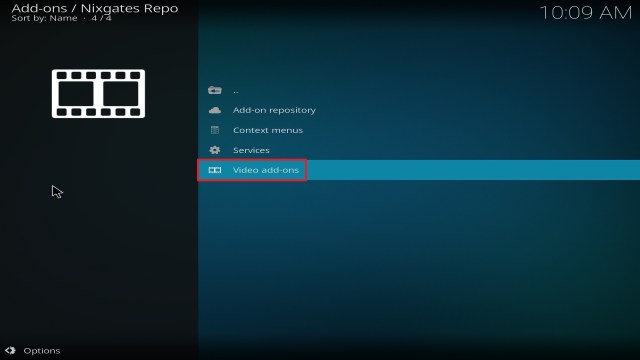
  13. Click Video Add-ons and then install, also click install for additional add ons
  14. Go back to the home screen and Seren should be installed and ready to go


How to Install Seren Kodi Addon with Screenshots

  1. From the home screen, select the cogwheel at the upper left.

Step 1 Installing Seren on Kodi

2. Select System in the bottom right corner.

Step 2 Installing Seren on Kodi


3. Select Add-ons on the left side of the screen.

Step 3 Installing Seren on Kodi


4. Select Unknown sources.

Step 4 Installing Seren on Kodi


5. Click Yes to allow unknown sources.

Step 5 Installing Seren on Kodi


6. Select File manager.

Step 6 Installing Seren on Kodi


7. Click Add source.

Step 7 Installing Seren on Kodi


8. Click on <None>.

Step 8 Installing Seren on Kodi


9. Type exactly: https://nixgates.github.io/packages

Step 9 Installing Seren on Kodi


10. Click on OK.

Step 10 Installing Seren on Kodi


11. Select enter a name for this media source.

Step 11 Installing Seren on Kodi


12. Name is Seren (this part isn’t critical as long as you remember the name).

Step 12 Installing Seren on Kodi


13. Click on OK.

Step 13 Installing Seren on Kodi


14. Click on OK.

Step 14 Installing Seren on Kodi


15. Take one step back and click on Add-ons.

Step 15 Installing Seren on Kodi


16. Select install from zip file.

Step 16 Installing Seren on Kodi


17. Click on Seren (or however you named the source).

Step 17 Installing Seren on Kodi


18. Click on nixgates.repository.zip

install seren on kodi step 18


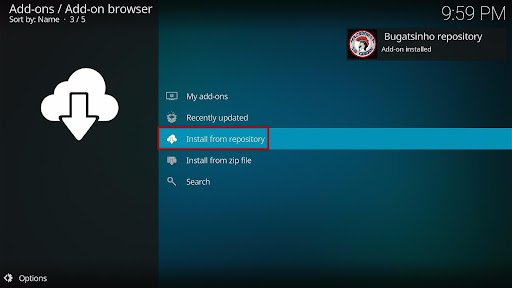
19. Selecn Install from repository.

Step 19 Installing Seren on Kodi


20. Click on Nixgates Repo.

Step 20 Installing Seren on Kodi


21. Pick Video add-ons.

Step 21 Installing Seren on Kodi


22. Select Seren again.

Step 22 Installing Seren on Kodi


23. Click on Install.

Step 23 Installing Seren on Kodi


24. Select OK after reviewing the add-ons that will be installed.

Step 24 Installing Seren on Kodi


25. You should see a popup in the upper right corner saying Seren has been s installed. There will be multiple popups for the various components.

Step 25 Installing Seren on Kodi


26. Click on Open to start the Seren add-on.

Step 26 Installing Seren on Kodi


YOUR INTERNET ACTIVITY IS BEING WATCHED

ReviewVPN cannot attest to the legality, security and privacy of the applications discussed on this site. It is highly recommended that you use a VPN service while streaming or using Kodi.

Currently, your IP 216.73.216.171 is visible to everyone and your Browser is being tracked by Advertisers & ISP Provider.

Save 65% Now

Limited Time Offer

Here are the main reasons why you must use a VPN:

  • Your activities are hidden from your ISP, the government, and from the apps you are using.
  • You can access additional movies and TV streams.
  • ISP attempts to throttle are thrwarted thus reducing buffering issues.
  • Geographically restricted content like Netflix and Hulu can be unblocked.

A VPN works be replacing your ISP-assigned IP address and creating an encrypted tunnel. We recommend the no log service offered by IPVanish. It works well on a Firestick and offers the fastest possible speeds.

Special Limited Time Offer - Get IPVanish


Legal Disclaimer: ReviewVPN.com does not encourage or endorse any illegal activity involved in the usage of services and applications referenced on this site. We do not verify the licensing agreements of services. The end-user is wholly responsible for ensuring that any media accessed through these services does not violate copyright and/or licensing laws. ReviewVPN does not promote, link to, or receive compensation from any Apps and IPTV services.


Install Surfshark on Firestick

Best Surfshark Deal


Features

  • Menus and scrapers are very fast and highly responsive
  • As a user, you can build, add or subtract your scrape lists giving a new level of customization
  • Compatible with Real Debrid and Premiumize so you can access high-quality links
  • Compatible with Trakt.tv
  • Cache torrents
  • Download offline
  • Automatic caching for Premiumize users, meaning you can play straight from the Cloud without delay
  • Next up
  • Shuffle Play
  • A lot of very similar Netflix-like capabilities but delivered to a higher standard than most other add ons


Pros & Cons

Pros

  • Allows for Trakt integration
  • The user interface is simple.
  • You can delete the cache, local torrent cache, and search history.


Cons

  • No free content is available.
  • There are only a few categories.


FAQs

Is it Safe to Use?

Seren comes from Nixgate a trusted developer and is safe to use. Your biggest threat will come from trying to download the file from an unofficial repository. Always check the URL before downloading and then installing a file.


Is it Legal or Grey?

Seren operates in a grey area, though it does not distribute illegal copyrighted content it acts as a content library. Linking up users and providers. For that reason, we always recommend that you use a VPN.


Should I Use This App With a VPN?

https://get.surfshark.net/aff_c?offer_id=865&aff_id=12312

Always use Seren with a VPN. Without it, the addon may not work. Also, you leave yourself open to being tracked by your ISP, having your traffic logged, and potentially more serious consequences if you are a heavy user. Better to be safe than sorry.

Moreover, here are some of the advantages of using Surfshark:

  • Enables you to get around geo-restrictions and censorship.
  • It safeguards an unlimited number of devices.
  • Allows you to stream with a limitless amount of bandwidth.
  • It has a Cleanweb function that prevents advertisements, viruses, and cookie consents.
  • Ensures zero logs and no IP address leaks
  • Enables anonymous streaming on any online platform.

Note: For more information about Surfshark, please read our Surfshark Review.


Install Surfshark on Firestick

Best Surfshark Deal


How to Install Surfshark VPN on Firestick

If your Firestick still has the older interface, read this article to learn how to update it: Update Firestick Interface.

1. Go to the Home screen of your Firestick.

step 1 Install Surfshark VPN on Firestick


2. Navigate toward the Find tab. Press the Search button from the resulting dropdown.

step 2 Install Surfshark VPN on Firestick


3. Type in the keyword of SurfShark and select from the suggestions that will appear.

step 3 Install Surfshark VPN on Firestick


4. Click the official SurfShark icon from your search results.

step 4 Install Surfshark VPN on Firestick


5. Press the Download (You own it) button.

step 5 Install Surfshark VPN on Firestick


6. The SurfShark VPN installer will download on your device.

step 6 Install Surfshark VPN on Firestick


7. SurfShark VPN’s app will automatically install itself on your Fire TV stick.

step 7 Install Surfshark VPN on Firestick


8. Press the Open button after completing SurfShark VPN’s installation process.

step 8 Install Surfshark VPN on Firestick


9. Please wait for the SurfShark VPN to load its user interface.

step 9 Install Surfshark VPN on Firestick


10. You can now log in with your SurfShark VPN account credentials.

step 10 Install Surfshark VPN on Firestick

Learn more about Surfshark and Grab the Best Surfshark Deal Now!


Install Surfshark on Firestick

Best Surfshark Deal


Other VPNs to Consider

NordVPN (Best for Streaming)

Best Features

  • 5000+ Server in 50+ Countries 
  • Military-Grade Encryption
  • Fast Connection Speed
  • Suitable to a lot of devices
  • No-Log Policy

Prices
  • Complete $5.89 per month (64% Discount)
  • Plus $4.59 per month (56% Discount)
  • Standard $3.69 per month (55% Discount)

Best Features

  • 750+ High-speed VPN Servers in 43 Locations
  • Military-Grade Encryption
  • Fastest HD Streaming and Gaming
  • 30-Day Money-Back Guarantee
  • Unlimited Data & Devices
  • No-Log Policy

Prices
  • 3 Years $1.99 per month (82% Discount)
  • 1 Years $3.29 per month (70% Discount)
  • 1 Month $10.99 per month

IPVanish VPN (Most Secure)

Best Features

  • 1200+ Servers in 60+ Countries around the world
  • Unlimited Connections
  • No-Log Policy
  • Top Notch Military-Grade VPN Protocols and Encryptions
  • 100% Safe and Secured
  • Most Trusted VPN
  • Best VPN for Firestick
  • 30-Day Money-Back Guarantee

Prices
  • Yearly $3.99 per month (63% Discount) – 30 days risk free + Ransomware & Malware Protection
  • Quarterly $5.32 per month (51% Discount)
  • Monthly $10.99 per month


For more VPN discounts, go to ReviewVPN Deals and purchase the best VPN for you.

Click here to get the lowest price on Surfshark through our exclusive limited-time offer.


Is it Free?

Yes


When Was It Released?

Seren was released in 2018 by the highly respected Nixgate development team, who had great success with the Covenant fork they named Incursion. Seren is their in-house coded improvement to Incursion


What is Kodi?

Kodi has been around since 2002 and has been adopted by millions of users around the world, becoming one of the most widely used open-source, free, and legal media players around.

Kodi remains popular first and foremost because no other media player has such a wide and extensive library of add-ons. Numbering in the thousands these add-ons give access to most of the media known to man, and mostly for free.

In addition, Kodi can play almost any media format and has a 10-foot user interface that allows you to scale any Android application to be seen and used on your Tv using the remote provided with your Android Tv device.


What is an Add On?

An add-on provides extended functionality. Think of Kodi as a media player, a Swiss army knife. An add-on gives you an added tool. To access a certain type of media or give additional support in the form of web scrapers coded to scrape particular websites and find new sources of media.


Best Alternatives

Though Seren may deliver everything you could want in an add-on, it always pays to have multiple downloaded that may appear to serve the same function. This speaks to the nature of add-ons and what they do. Due to the content users can watch on them, they have a habit of going down, being blocked, becoming unstable, or being abandoned.

Here are a few alternatives we recommend you keep:

Don’t forget to stay on top of new add-ons by regularly checking Google and looking for “best Kodi add ons” new ones pop up every month and a few sticks.


Our Opinion

Seren is impressive with its functionality, sleek interface, and also improved compatibility with Real Debrid and Premiumize. 

By coding the add-on from the ground up rather than forking someone else’s project they have created a better product that they can modify quickly and easily.

The add-on removes a lot of the bloat that you find in other addons and a fresh code base gives the developers the unlimited potential to expand the add-on based on new features that may become available in the coming years.

Seren is a keeper.

How To Install Franks Build By Frank

Franks Build By Frank

This article will guide you on how to install Franks Build by Frank on Firestick/Android.


Franks Kodi Build is a build that Frank regularly updates and maintains. This build is a third-party build that you can find within the Funstersplace Wizard repository.

It has categories for Movies, Series, Live TV, Systems, and lots of subsections. It comes pre-installed with some of the most popular addons available today, like Gratis, Homelander, Ghost, Seren, Fen, The Crew, Scrubs v2, Umbrella, Mad Titan, Sports HD, and many more.

One good side of this build is that it has add-ons dedicated to providing streaming links for each section. You can also link your Real-Debrid and AllDebrid accounts to receive the greatest streaming link available.

Also, because this is a third-party Build, we recommend that you always use a VPN such as Surfshark when using this Build. This is to prevent any unintended data breaches or leaks while using Frank Build.


ANONYMOUSLY

Install Franks Kodi Build with Screenshots

1. Open your Kodi app on the home screen, scroll up, and click the setting icon.

Install Franks Kodi Build 1


2. Next, on the new screen that will appear, click on the option of the system.

Install Franks Kodi Build 2


3. Now, select add-ons and scroll rightward, click unknown sources, and then on the warning dialog box, select Yes.

Install Franks Kodi Build 3

Install Franks Kodi Build


4. Next, return to the home screen settings

Install Franks Kodi Build 4


5. Select the file manager.

Install Franks Kodi Build 5


6. Next, on the new window, scroll down and click on add source

Install Franks Kodi Build 6


7. Now, click on <none>

Install Franks Kodi Build 7


8. Type the media source URL: https://funstersplace.net/funs and then click OK

Install Franks Kodi Build 8


9. Select “Enter a name for this media source” and type Franks

Install Franks Kodi Build 9


10. Return to the home screen and select add-ons.

Install Franks Kodi Build step 10


11. Next, on the new window, select install from the zip file.

Install Franks Kodi Build step 11


12. Click yes.

Install Franks Kodi Build step 12


13. Click on Franks

Install Franks Kodi Build step 13


14. Select repository.funstersplace.x.x.zip

Install Franks Kodi Build step 14


15. Wait for the “Funstersplace wizard add-on installed” notification.

Install Franks Kodi Build step 15


16. Click Install from the repository

Install Franks Kodi Build step 16


17. Click Funstersplace 19 Repository 

Install Franks Kodi Build step 17


18. Select program add-ons

Install Franks Kodi Build step 18


19. Click The Boyz Wizard. 

Install Franks Kodi Build step 19


20. Click install.

Install Franks Kodi Build step 20


21. Wait for the funstersplace Wizard Add-On downloading and installed notification (This will appear at the top right-hand side of your screen).

Install Franks Kodi Build step 21


22. Select Open

Install Franks Kodi Build step 22


23. Click on builds 

Install Franks Kodi Build step 23


24. Scroll down and select Franks and select Fresh install.

Install Franks Kodi Build step 24


25. Click yes.

Install Franks Kodi Build step 25


26. Wait for it until downloading is done.

Install Franks Kodi Build step 26


27. That’s it! Enjoy!


YOUR INTERNET ACTIVITY IS BEING WATCHED

ReviewVPN cannot attest to the legality, security and privacy of the applications discussed on this site. It is highly recommended that you use a VPN service while streaming or using Kodi.

Currently, your IP 216.73.216.171 is visible to everyone and your Browser is being tracked by Advertisers & ISP Provider.

Save 65% Now

Limited Time Offer

Here are the main reasons why you must use a VPN:

  • Your activities are hidden from your ISP, the government, and from the apps you are using.
  • You can access additional movies and TV streams.
  • ISP attempts to throttle are thrwarted thus reducing buffering issues.
  • Geographically restricted content like Netflix and Hulu can be unblocked.

A VPN works be replacing your ISP-assigned IP address and creating an encrypted tunnel. We recommend the no log service offered by IPVanish. It works well on a Firestick and offers the fastest possible speeds.

Special Limited Time Offer - Get IPVanish


Legal Disclaimer: ReviewVPN.com does not encourage or endorse any illegal activity involved in the usage of services and applications referenced on this site. We do not verify the licensing agreements of services. The end-user is wholly responsible for ensuring that any media accessed through these services does not violate copyright and/or licensing laws. ReviewVPN does not promote, link to, or receive compensation from any Apps and IPTV services.


Install Surfshark on Firestick

Best Surfshark Deal


Features of Franks Kodi Build

  • Contains Movies, Series, and Live TV.
  • User-friendly interface.
  • Less than 300 MB makes this build compatible with low-memory devices.
  • Customizable theme and skin. You can as well download more if you wish so.
  • Well-organized sections and subsections.
  • A large collection of entertainment in various categories and subcategories. 
  • Preloaded with the ff add-ons for Movies and Series: Gratis, Homelander, Seren, Fen, Ghost, Scrubs v2, and Umbrella.
  • Add-ons available for Live TV are Tv One, Mad Titan, Sports HD, Ghost Replays, Daddy, Pure Wrestling, Gratis Replays, and Live Sports.
  • Sports content you can find includes NFL, NHL, NBA, MLB, NCAAF, UFC/MMA, WWE, Boxing, and more.


Pros and Cons

Pros

  • Preloaded with the best add-ons for streaming.
  • You can select which addon to use upon selecting a title.
  • Provides HD quality streams.
  • Enables you to stream for free

Con

  • The only drawback that I find in this Build is that there are some delays when navigating.


How to Integrate Real Debrid

Step 1. Create a real debrid account here: https://real-debrid.com/signup

Step 2. Open Franks build and then on the home screen, select Real Debrid.

Step 3. Select Authorize and copy the code that will appear on your screen.

Step 4. Open your browser and then go to https://real-debrid.com/device and enter the code received in step 3 and select Go.


How to Activate Trakt TV

Step 1. If you don’t already have a Trakt TV account, create one here.

Step 2. Open Franks build. On any section or movie that requires Trakt TV activate, copy the codes shown on your screen.

Step 3. Launch your browser and then go to https://Trakt.tv/activate

Step 4. Enter the code you received in step 3 and then click activate.


What is Kodi?

Kodi is an open-source software media. It allows you to access and stream movies, tv shows, comedies, music, and lots more. You can download and install this software free from the official Kodi website.


Frequently Asked Questions

Is it safe and legal to use Franks Kodi Build?

Although this build is from a third-party repository, it is safe to install and stream with this build. 


Is it free to use Franks Kodi Build?

You are not required to purchase any subscription to use this build. Installing and streaming with this build is 100% free. No commitment, no credit card, and no billings are required. However, you need to have a fast and reliable internet connection.


Why do you need a VPN while streaming?

A VPN hides your online identity by masking and encrypting your IP address on the internet service provider network. When this happens, no one on the internet service provider network will be able to track, monitor, or even see what you are doing online. A VPN is a software that uses a process known as Encryption to keep your ID secure, anonymous, and private while streaming content or accessing the internet.


Benefits of Installing a VPN

Bypass Monitoring and Tracking

Each time you access the Internet without a VPN, your internet service provider keeps a log of the sites you visited. Even though you may use a personal computer and private internet connection, still your data is public on the ISP network. However, streaming content (movies, tv shows, kids’ shows, etc) and accessing the Internet with a VPN are safe and private. A VPN will keep your IP address hidden while you access the net or stream movies online.

Geolocation

Often, streaming apps and websites use geolocation or location restrictions to protect their content from unintended audiences. This means that someone not within the stipulated region or location will not be permitted to access content from such an app or website. Nevertheless, a VPN like Surfshark will provide over 3,200 servers in 100 worldwide locations. With this, you have nothing to worry about. You can change locations simultaneously and stream from anywhere around the world.


Minimize Throttling

Each time you stream movies or play online games, your internet service provider slows down your connection. You can beat this by installing a VPN on your device. After reviewing several VPN service providers, I present to you Surfshark. They offer the best VPN service with pocket-friendly plans.

Note: For more information about Surfshark, please read our Surfshark Review.


Install Surfshark on Firestick

Best Surfshark Deal


How to Install Surfshark VPN on Firestick

If your Firestick still has the older interface, read this article to learn how to update it: Update Firestick Interface.

Follow our screenshots below to install the SurfShark VPN app on your Fire TV stick.

1. Go to the Home screen of your Firestick.

step 1 Install Surfshark VPN on Firestick


2. Navigate toward the Find tab. Press the Search button from the resulting dropdown.

step 2 Install Surfshark VPN on Firestick


3. Type in the keyword of SurfShark and select from the suggestions that will appear.

step 3 Install Surfshark VPN on Firestick


4. Click the official SurfShark icon from your search results.

step 4 Install Surfshark VPN on Firestick


5. Press the Download (You own it) button.

step 5 Install Surfshark VPN on Firestick


6. The SurfShark VPN installer will download on your device.

step 6 Install Surfshark VPN on Firestick


7. SurfShark VPN’s app will automatically install itself on your Fire TV stick.

step 7 Install Surfshark VPN on Firestick


8. Press the Open button after completing SurfShark VPN’s installation process.

step 8 Install Surfshark VPN on Firestick


9. Please wait for the SurfShark VPN to load its user interface.

step 9 Install Surfshark VPN on Firestick


10. You can now log in with your SurfShark VPN account credentials.

step 10 Install Surfshark VPN on Firestick

Learn more about Surfshark and Grab the Best Surfshark Deal Now!


Install Surfshark on Firestick

Best Surfshark Deal


Other VPNs to Consider

NordVPN (Best for Streaming)

Best Features

  • 5000+ Server in 50+ Countries 
  • Military-Grade Encryption
  • Fast Connection Speed
  • Suitable to a lot of devices
  • No-Log Policy

Prices
  • Complete $5.89 per month (64% Discount)
  • Plus $4.59 per month (56% Discount)
  • Standard $3.69 per month (55% Discount)

Best Features

  • 750+ High-speed VPN Servers in 43 Locations
  • Military-Grade Encryption
  • Fastest HD Streaming and Gaming
  • 30-Day Money-Back Guarantee
  • Unlimited Data & Devices
  • No-Log Policy

Prices
  • 3 Years $1.99 per month (82% Discount)
  • 1 Years $3.29 per month (70% Discount)
  • 1 Month $10.99 per month

IPVanish VPN (Most Secure)

Best Features

  • 1200+ Servers in 60+ Countries around the world
  • Unlimited Connections
  • No-Log Policy
  • Top Notch Military-Grade VPN Protocols and Encryptions
  • 100% Safe and Secured
  • Most Trusted VPN
  • Best VPN for Firestick
  • 30-Day Money-Back Guarantee

Prices
  • Yearly $3.99 per month (63% Discount) – 30 days risk free + Ransomware & Malware Protection
  • Quarterly $5.32 per month (51% Discount)
  • Monthly $10.99 per month


For more VPN discounts, go to ReviewVPN Deals and purchase the best VPN for you.


Best Alternative Builds

Nothing lasts forever so do Kodi builds. As you and I know, Kodi builds are unpredictable and that is why having an alternative build is very important. Click here to see the list of our best Kodi Builds for 2023.


Conclusion

Install Franks Build by Frank for 24/7 streaming of movies and other entertainment. This build is one of the best builds you will find within the Funstersplace Wizard repository. It comes with a unique skin and theme. You can as well customize the interface to suit your taste. I recommend installing this build and sharing your thoughts in the comment section.

How To Install SportHD Addon On Kodi 20 Nexus

SportHD Addon on Kodi 20 Nexus

In this article, you will learn how to install SportHD addon on Firestick, Chromecast, Raspberry Pi, tablet, windows, MAC OS, Android, and many more.


SportHD is an add-on offering only sports content in various categories and subcategories.

This addon is a must-have for sports lovers as it allows you to stream sports content in High Definition video quality.

This addon comes from the Bugatsinho repository.

With this addon, you can stream live sports matches, match highlights, and many more.

SportHD provides streaming links for football, basket, handball, wrestling, and more. Sections include live events, sports, best leagues, settings, and versions.


ANONYMOUSLY


How to Install SportHD Addon on Kodi 20 Nexus with Screenshots

Follow these simple steps:

1. On your Firestick, open Kodi and go to Settings.

Install SportHD Addon on Kodi 1

2. Select on System.

Install SportHD Addon on Kodi 2


3. Click on the Add-ons menu and Turn ON the Unknown Sources.

Install SportHD Addon on Kodi 3


4. Select Yes when the box appears.

Install SportHD Addon on Kodi 4


5. Go back one step and click on File Manager.

Install SportHD Addon on Kodi 5


6. Select the Add Source.

Install SportHD Addon on Kodi 6


7. A box will pop up, so click on the ‘None’ option.

Install SportHD Addon on Kodi 7


8. Now type in this URL https://bugatsinho.github.io/repo/ and click OK.

Install SportHD Addon on Kodi 8


9. Name this URL as bugatsinho and tap OK.

Install SportHD Addon on Kodi 9


10. After that, go back to the system menu and select Add-ons.

Install SportHD Addon on Kodi 10


11. Click Install from Zip File.

Install SportHD Addon on Kodi 11


12. Select the bugatsinho or any name you have given. 

Install SportHD Addon on Kodi 12


13. Choose repository.bugatsinho-x.x.zip

Install SportHD Addon on Kodi 13


14. Wait a few minutes for the addon to be installed. After that, an icon will appear at the top menu.

Install SportHD Addon on Kodi 14


15. Tap the  Install from Repository.

Install SportHD Addon on Kodi 15


16. Then select Bugatsinho Repository from the list.

Install SportHD Addon on Kodi 16


17. Click on Video Add-ons.

Install SportHD Addon on Kodi 17


18. Select SportHD.

Install SportHD Addon on Kodi 18


19. Click the Install button.

Install SportHD Addon on Kodi 19


20. When a box Pop up, click OK.

Install SportHD Addon on Kodi 20


21. Wait for SportHD Add-on installed message to appear.

Install SportHD Addon on Kodi 21


22. Go back to the Kodi home screen and scroll down to Addon.

Install SportHD Addon on Kodi 21


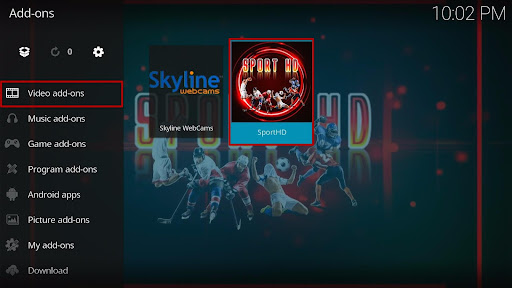
23. From the Video Add-on, select the SportHD Add-on icon.

Install SportHD Addon on Kodi 23


24. That’s it! Choose from the categories and enjoy.

Install SportHD Addon on Kodi 24


Install Surfshark on Firestick

Best Surfshark Deal


How to use SportHD Addon

Step 1. Return to the home screen after installation.

Step 2. Click on add-ons and click on video add-ons.

Step 3. Click on SportHD.


Features of SportHD Addon

  • Has the following categories: Live Events, Alternative Live Events, Sports, and Best Leagues.
  • Scrapes streaming links from different sources.
  • Offers fast playback.
  • Allows you to stream live sports such as basketball, football, and many more.
  • Enables you to select Timezone.
  • Allows you to preview sports events.


Sports Section

  • Football, Basketball, Motorsport, Handball, Rugby, NFL, UFC, Wrestling, Hockey, Volleyball, Darts, Tennis, Boxing, Cricket, Baseball, Snooker, and Chess.


Best League Section

  • Uefa Champions league, Uefa Europa League, Premier League, Bundesliga, Laliga, Serie A, France Ligue 1, Eredivisie, Australian A League, MLS, Rugby Top 14, Greece Super League, Argentina Superliga, Portuguese Primeira Liga, Primera Division Apertura, Bundesliga 2, Greece Super League 2, and Belarus Vysheyshaya Liga.


YOUR INTERNET ACTIVITY IS BEING WATCHED

ReviewVPN cannot attest to the legality, security and privacy of the applications discussed on this site. It is highly recommended that you use a VPN service while streaming or using Kodi.

Currently, your IP 216.73.216.171 is visible to everyone and your Browser is being tracked by Advertisers & ISP Provider.

Save 65% Now

Limited Time Offer

Here are the main reasons why you must use a VPN:

  • Your activities are hidden from your ISP, the government, and from the apps you are using.
  • You can access additional movies and TV streams.
  • ISP attempts to throttle are thrwarted thus reducing buffering issues.
  • Geographically restricted content like Netflix and Hulu can be unblocked.

A VPN works be replacing your ISP-assigned IP address and creating an encrypted tunnel. We recommend the no log service offered by IPVanish. It works well on a Firestick and offers the fastest possible speeds.

Special Limited Time Offer - Get IPVanish


Pros and Cons

Pros

  • Fast playback.
  • Allows you to watch live sports matches in the background: you can minimize a video.
  • Huge collection of live sports events.


Cons

  • Several links were unavailable upon testing the app. 
  • I’ve also experienced playback failure wherein one or more items failed to play.


Frequently Asked Questions

Is it free to use SportHD Addon?

Yes. It is entirely free to install and stream with this Addon. No credit card or billing requirements. Just install and stream. However, you need to have a strong internet connection to use this build.


Is it legal and safe to use SportHD Addon?

It is safe and legal to use this Addon. However, this is a third-party addon, so most of its content does not have a copyright. So for privacy and security reasons, we recommend using Kodi with a VPN.


Can I install SportHD on my Firestick and Android Devices?

Yes, you can install this addon on any device that supports Kodi such as Firestick, Android, Raspberry Pi, Chromecast, and many more.


What is Kodi?

Kodi is an open-source software streaming media that allows you to access and stream free entertainment in different categories and subcategories. Kodi was released in 2002 and since then, it has transformed into a world-class streaming software.

At the moment, Kodi is running on version 19 Matrix. One good thing about this software is that you can install it on different hardware platforms and operating systems such as Firestick, tablet, Chromecast, Mac OS, Smart TV, Android-iOS, and many more.


What is Kodi Addon?

Kodi addon is an application on Kodi in zip file format. When installed, it provides streaming links from different sources. For example, an addon like SportHD provides streaming links for live sports events and recorded sports shows. 


Why should you use Kodi with a VPN?

Surfshark vpn

A VPN such as Surfshark will encrypt and mask your IP address to appear as a secure and anonymous user on the internet. When this happens, no one will be able to track or monitor whatever activities you are doing online. The importance of installing a VPN on your device can not be overemphasized. With a VPN on your device, you will have peace of mind and access to the Internet or stream any content online.


Importance of using a VPN

Private and Secure Internet Connection

A VPN encrypts and masks your IP address to appear secure and private each time you are using the internet. This way, no one will be able to track or monitor whatever activities you are doing online.


Stream From Anywhere

A VPN will help you bypass censorship. Some websites and apps use censorship or location restrictions to limit their audience. However, installing a VPN will offer you tons of VPN servers to choose from and as such, you can bypass location restrictions or censorship and stream from anywhere around the world.


Reduce ISP Throttling

Each time you stream content online or play an online game, you will notice that your internet connection is slow. However, installing a VPN will help reduce ISP-triggered throttling.


Grab your subscription now!

Click here to get the lowest price on Surfshark through our exclusive limited-time offer.


How to Install Surfshark VPN on Firestick

If your Firestick still has the older interface, read this article to learn how to update it: Update Firestick Interface.

Follow our screenshots below to install the SurfShark VPN app on your Fire TV stick.

1. Go to the Home screen of your Firestick.

step 1 Install Surfshark VPN on Firestick


2. Navigate towards the Find tab. Press the Search button from the resulting dropdown.

step 2 Install Surfshark VPN on Firestick


3. Type in the keyword of SurfShark and select from the suggestions that will appear.

step 3 Install Surfshark VPN on Firestick


4. Click the official SurfShark icon from your search results.

step 4 Install Surfshark VPN on Firestick


5. Press the Download (You own it) button.

step 5 Install Surfshark VPN on Firestick


6. The SurfShark VPN installer will download on your device.

step 6 Install Surfshark VPN on Firestick


7. SurfShark VPN’s app will automatically install itself on your Fire TV stick.

step 7 Install Surfshark VPN on Firestick


8. Press the Open button after completing SurfShark VPN’s installation process.

step 8 Install Surfshark VPN on Firestick


9. Please wait for the SurfShark VPN to load its user interface.

step 9 Install Surfshark VPN on Firestick


10. You can now log in with your SurfShark VPN account credentials.

step 10 Install Surfshark VPN on Firestick

Learn more about Surfshark and Grab the Best Surfshark Deal Now!


Install Surfshark on Firestick

Best Surfshark Deal


Other VPNs to Consider

NordVPN (Best for Streaming)

Best Features

  • 5000+ Server in 50+ Countries 
  • Military-Grade Encryption
  • Fast Connection Speed
  • Suitable to a lot of devices
  • No-Log Policy

Prices
  • Complete $5.89 per month (64% Discount)
  • Plus $4.59 per month (56% Discount)
  • Standard $3.69 per month (55% Discount)

Best Features

  • 750+ High-speed VPN Servers in 43 Locations
  • Military-Grade Encryption
  • Fastest HD Streaming and Gaming
  • 30-Day Money-Back Guarantee
  • Unlimited Data & Devices
  • No-Log Policy

Prices
  • 3 Years $1.99 per month (82% Discount)
  • 1 Years $3.29 per month (70% Discount)
  • 1 Month $10.99 per month

IPVanish VPN (Most Secure)

Best Features

  • 1200+ Servers in 60+ Countries around the world
  • Unlimited Connections
  • No-Log Policy
  • Top Notch Military-Grade VPN Protocols and Encryptions
  • 100% Safe and Secured
  • Most Trusted VPN
  • Best VPN for Firestick
  • 30-Day Money-Back Guarantee

Prices
  • Yearly $3.99 per month (63% Discount) – 30 days risk free + Ransomware & Malware Protection
  • Quarterly $5.32 per month (51% Discount)
  • Monthly $10.99 per month


For more VPN discounts, go to ReviewVPN Deals and purchase the best VPN for you.


Best Alternative Addons

Install any of our best add-ons for continued streaming of free movies, sports, and lots more. Click here to access the list of our best add-ons for 2023.


Conclusion

For sports freaks, SportHD is a must-have add-on. It scrapes streaming links for live sports events in different categories and subcategories. This addon is one of the best and hottest sports addons right now. I recommend you install this add-on and share your thoughts in the comment section.

Install KodiMan Build – 2023 Edition

KodiMan Build


In this article, you will learn how to download, install, and use KodiMan Build on any of your streaming devices.  

KodiMan Build allows you to access and stream entertainment in various categories and subcategories and sections include TV shows, Movies, Sports, Live TV, Kids shows, Music, Cartoons, Documentaries, and many more.


ANONYMOUSLY


It works well on Kodi versions17.6 krypton and Leia 18.8 and other streaming devices. 

You can install this build on your: 

  • Smartphone  
  • Roku
  • Chromecast 
  • Apple TV
  • Android TV boxes
  • Computers
  • Firestick

This build comes to a huge collection of addons with 24/7 streaming links for movies and lots more. One good side of this Kodi build is that it works on most of the operating systems including MAC, Linux, Windows, Android, iOS, and Amazon-powered devices.


Features:

  • Requires Real-Debrid integration for the improved streaming experience.
  •  KodiMan Build comes with a well-structured, clutter-free, user-friendly, and colorful interface with a neat layout. This Build Comes with tons of content to keep you entertained 24/7 and allows you to customize the themes and skin (download more themes as you wish). Houses apps you can download as well.
  •  KodiMan Build scrapes links from different sources (which allows you to choose a source that has the best streaming quality).  KodiMan Build has low memory: it only occupies a few memory spaces on your device. This makes this build work well on low memory devices such as Amazon Firestick and lots more.


Kodi

Kodi is an open-source streaming media that give you access to stream entertainment such as music, live TV (pay per view), movies (in various categories and subcategories), documentaries, kids shows, anime, cartoons, adult (no porn), and adult (porn), sports and many more. 

The entry of Kodi has drastically changed the streaming industry. Nowadays, you Don’t have to spend lots of money on paying for cable television subscriptions. This is because most of the content being offered by cable TV channels is also available on most of the streaming apps especially Kodi.

Kodi, during the days of its launch in 2002, was known as an Xbox media player. Nevertheless, the name “Xbox media player” was changed to Xbox media center in 2003 and remained so till 2014. However, it was renamed Kodi by the XBMC foundation which is the brain behind Kodi’s development and media content.

With Kodi, you can store, share, access, and stream files with anyone around your household. That said, there are some concerns when It comes to using Kodi. One such concern includes security issues. This is because houses third-party addons.

These addons do not have the copyright to most of their offer. That is why we advise installing and using a VPN on your device when you are streaming with Kodi. Some people still find using Kodi technical because of the installation process most Kodi build.

However, reading through this article will clear most of the FAQs you may have about installing and using Kodi. The following are compatible devices; Roku, Android, Mac, Linux, Apple TV, Firestick, Windows, and lots more.


FAQs

Is the use of Kodi legal?

Yes. Using Kodi is legal. That, whatever involved Kodi, be it the downloading and installing and running the app on your device, is legal. However, while streaming with Kodi, watch out for addons with permission issues.


Is it free to use Kodi?

Yes, downloading Kodi is free. However, if you are using the official Kodi website, you might donate some money to support their good work. Using Kodi on your device is completely free. Nevertheless, there are some addons offering pay-per-view content that often require subscription plans.


Is it safe to use Kodi?

Using Kodi is safe. The downloading, installing, and using of Kodi on your device is safe. That said, we highly recommend protecting yourself with a VPN. This is because most of the addons on Kodi offer content with copyright issues. 


Is Kodiman free to use?

Yes, you can use this build for free.


Is  KodiMan Build safe?

Yes, using  KodiMan Build is safe and legal. However, you are advised to install a VPN on your device.


What is Kodi Build

For easier understanding, a Kodi build is all in one addon. Instead of downloading and installing add-ons one by one, a Kodi build has got all the add-ons, features, skins, themes, and lots more in just one installation. A Kodi build has the same similarity with addons and goes beyond just an addon.


A Kodi Build has the following features:

  • Houses large library of addons. Kodi build comes with an Electronic Program guide (EPG). Allows you to customize the interface.
  • User friendly, well organized, neat, clutter-free, and easy to navigate interface.
  • Improves streaming experience by scraping links from various sources.
  • Kodi builds are compatible with many operating systems such as iOS, Windows, MAC, Android, and lots more. You can customize the themes and skins to suit your taste. Compatible with different streaming devices such as Amazon Firestick, Roku, smart TVs, Apple TV, Chromecast, computers, smartphones, tablets, and lots more.


How To Install KodiMan Kodi Build on Firestick

The installation process of KodiMan Builds is quite easy and straightforward. That said, you will need to first and foremost, to enable unknown sources. 

Below is the step-by-step guide on how you can install Game On Kodi Build on Kodi Nexus 20:

1. Launch the Kodi app on your Firestick. Click on the gear wheel icon (Settings)

KodiMan Kodi Build


2. Select “System

KodiMan Kodi Build

3. Scroll down to “Add-ons” Then Go to “Unknown sources” then toggle it on.

KodiMan Kodi Build


4. Select “Yes”. Then using your Firestick remote, press the return button to go back to the System page

KodiMan Kodi Build


5. Now choose “File Manager

KodiMan Kodi Build


6. Scroll down and select “Add source

KodiMan Kodi Build


7. Click “<None>

KodiMan Kodi Build


8. Type in “http://cmanbuilds.com/repo” then click “OK

KodiMan Kodi Build


9. Highlight the box under the source to give the media source a name, and put “kodiman” or any other name that will help you identify it quickly. Click “OK”. Return to the System page by pressing the return button on your remote

KodiMan Kodi Build


10. Select “Add-ons

KodiMan Kodi Build


11. Choose “Install from zip file

KodiMan Kodi Build


12. Click “Yes

KodiMan Kodi Build


13. Select “kodiman

KodiMan Kodi Build


14. Then click on the zip file URL for Kodi 20 Nexus – repository cMaNWizard-1.0.6.zip

KodiMan Kodi Build


15. Wait for the notification “cMaN’s Wizard Repository Add-on installed” to appear on the upper right part of the screen

KodiMan Kodi Build


16. Then click “Install from repository

KodiMan Kodi Build


17. Click cMaN’s Wizard Repository

KodiMan Kodi Build


18. Then choose “Program add-ons

KodiMan Kodi Build


19. Click on “cMan Wizard 19

KodiMan Kodi Build


20. Then click “Install

KodiMan Kodi Build


21. Simply wait for the “cMaN Wizard 19 Add-on installed” notification

KodiMan Kodi Build


22. Click continue.

KodiMan Kodi Build


23. Choose close.

KodiMan Kodi Build


24. Click open.

KodiMan Kodi Build


25. Click on Builds.

KodiMan Kodi Build


26. Scroll down until you reach the KODI MAN 20 and click the right button then click Fresh Install.

KodiMan Kodi Build


27. Click Yes.

KodiMan Kodi Build


28. Click “OK” to force close Kodi

KodiMan Kodi Build


29. Relaunch Kodi

KodiMan Kodi Build


30. That’s it, KODI MAN 20 Kodi Build is now successfully installed on your Firestick.

KodiMan Kodi Build


YOUR INTERNET ACTIVITY IS BEING WATCHED

ReviewVPN cannot attest to the legality, security and privacy of the applications discussed on this site. It is highly recommended that you use a VPN service while streaming or using Kodi.

Currently, your IP 216.73.216.171 is visible to everyone and your Browser is being tracked by Advertisers & ISP Provider.

Save 65% Now

Limited Time Offer

Here are the main reasons why you must use a VPN:

  • Your activities are hidden from your ISP, the government, and from the apps you are using.
  • You can access additional movies and TV streams.
  • ISP attempts to throttle are thrwarted thus reducing buffering issues.
  • Geographically restricted content like Netflix and Hulu can be unblocked.

A VPN works be replacing your ISP-assigned IP address and creating an encrypted tunnel. We recommend the no log service offered by IPVanish. It works well on a Firestick and offers the fastest possible speeds.

Special Limited Time Offer - Get IPVanish

Legal Disclaimer: ReviewVPN.com does not encourage or endorse any illegal activity involved in the usage of services and applications referenced on this site. We do not verify the licensing agreements of services. The end-user is wholly responsible for ensuring that any media accessed through these services does not violate copyright and/or licensing laws. ReviewVPN does not promote, link to, or receive compensation from any Apps and IPTV services.


Install Surfshark on Firestick

Best Surfshark Deal


How to use the  KodiMan Build  Build

Once you are done with the installation of  KodiMan Build, follow these steps to enjoy  KodiMan Build.

Step 1. Open your Kodi app

Step 2.KodiMan Build will load automatically.

Step 3. Navigate through the interface and select whatever you want to explore on KodiMan Build.


Video Guide on How to Install KodiMan Build on Firestick


Use a VPN

Nowadays, it is not safe to access the internet or stream content online. This is as a result of security breaches. Even though you are using a personal computer with your private connection, you will realize that your Internet service provider spies and monitors things you are doing online. To make matters worse, if you are using a public internet connection let’s say WiFi or data, everyone on the network can see your identity. However, you can keep your identity private by installing a VPN. A VPN will hide and keep your IP address safe over the internet service provider network by encrypting and masking your IP address.


Installing a VPN offers you the following benefits

Security

The only way to stay secure while online is to install a VPN. This way, a VPN will mask and encrypt your IP address and it will appear as a private, anonymous, and secure user over the ISP network.


You can bypass restrictions due to location. Once you install a VPN on your device, it uses encryption to alter your IP address. When this happens, you can stream from anywhere around the world. Often, a VPN comes with numerous servers and countries for you to choose from.


You can minimize throttling caused by your internet service provider by having a VPN installed on your device. It’s frustrating to see your movies or live TV shows lag or buffer while streaming. However, installing a VPN on your device helps to minimize throttling and improve streaming quality. For the best VPN experience, Surfshark is all you need for 24/7 online security. They offer affordable subscription plans and come with 30-day money-back guarantee policy.


Install Surfshark on Firestick

Best Surfshark Deal


Features of Surfshark

Surfshark features 3,200 VPN servers in 65 worldwide locations. This VPN comes with a zero log policy and lots more.

Get Surfshark here.


Alternative Builds to  KodiMan Build

Digzz Xenon Build

 Xanax Kodi Build 


How to Install Surfshark VPN on Firestick

If your Firestick still has the older interface, read this article to learn how to update it: Update Firestick Interface.

You can download Surfshark directly from the Amazon App store. It will be easy for you to find Surfshark with your Firestick’s Find feature. Refer to our screenshots below.

1. Go to the Home screen of your Firestick.

step 1 Install Surfshark VPN on Firestick


2. Navigate towards the Find tab. Press the Search button from the resulting dropdown.

step 2 Install Surfshark VPN on Firestick


3. Type in the keyword of SurfShark and select from the suggestions that will appear.

step 3 Install Surfshark VPN on Firestick


4. Click the official SurfShark icon from your search results.

step 4 Install Surfshark VPN on Firestick


5. Press the Download (You own it) button.

step 5 Install Surfshark VPN on Firestick


6. The SurfShark VPN installer will download on your device.

step 6 Install Surfshark VPN on Firestick


7. SurfShark VPN’s app will automatically install itself on your Fire TV stick.

step 7 Install Surfshark VPN on Firestick


8. Press the Open button after completing SurfShark VPN’s installation process.

step 8 Install Surfshark VPN on Firestick


9. Please wait for the SurfShark VPN to load its user interface.

step 9 Install Surfshark VPN on Firestick


10. You can now log in with your SurfShark VPN account credentials.

step 10 Install Surfshark VPN on Firestick

Learn more about Surfshark and Grab the Best Surfshark Deal Now!


Install Surfshark on Firestick

Best Surfshark Deal


Other VPNs to Consider

NordVPN (Best for Streaming)

Best Features

  • 5000+ Server in 50+ Countries 
  • Military-Grade Encryption
  • Fast Connection Speed
  • Suitable to a lot of devices
  • No-Log Policy

Prices
  • Complete $5.89 per month (64% Discount)
  • Plus $4.59 per month (56% Discount)
  • Standard $3.69 per month (55% Discount)

Best Features

  • 750+ High-speed VPN Servers in 43 Locations
  • Military-Grade Encryption
  • Fastest HD Streaming and Gaming
  • 30-Day Money-Back Guarantee
  • Unlimited Data & Devices
  • No-Log Policy

Prices
  • 3 Years $1.99 per month (82% Discount)
  • 1 Years $3.29 per month (70% Discount)
  • 1 Month $10.99 per month

IPVanish VPN (Most Secure)

Best Features

  • 1200+ Servers in 60+ Countries around the world
  • Unlimited Connections
  • No-Log Policy
  • Top Notch Military-Grade VPN Protocols and Encryptions
  • 100% Safe and Secured
  • Most Trusted VPN
  • Best VPN for Firestick
  • 30-Day Money-Back Guarantee

Prices
  • Yearly $3.99 per month (63% Discount) – 30 days risk free + Ransomware & Malware Protection
  • Quarterly $5.32 per month (51% Discount)
  • Monthly $10.99 per month


For more VPN discounts, go to ReviewVPN Deals and purchase the best VPN for you.

Click here to get the lowest price on Surfshark through our exclusive limited-time offer.


Conclusion

 KodiMan Build features low memory and works on most streaming devices. It comes with a huge collection of addons that allows you to stream movies, sports, music, and many more.

Install The Magic Dragon Kodi Addon Install With Screenshots – 2023

The Magic Dragon Kodi Addon

The Magic Dragon Kodi Addon has had quite a few names, including The Dogs Bollocks. It has made a triumphant return of late and is one of the best scrapers for Kodi. In this review, we look through its features, give full instructions on how to install The Magic Dragon as well as commonly asked questions.


What is Kodi?

Kodi is a free and open-source media player that is free to download. The software is run and managed by the XMBC Foundation, and the software itself was not always known by the name Kodi. It’s been around since 2002 and originates from a piece of homebrew software to allow Xbox gamers to play and store media directly on their device.

Now Kodi is used worldwide and has been downloaded tens of millions of times. Its popularity stems not just from its age or regularity of updates, but mainly from its enormous library of add ons. Officially it has around a thousand add ons which provide legal services, but unofficially there are thousands of add ons from unknown sources. Though not endorsed by Kodi these add ons open the doorway to any form of media you could think of.


What is an Add On?

An add on is simply an added feature that when downloaded on Kodi gives you the ability to stream a particular type of media or make Kodi look a certain way with a skin.

The ability to change Kodi and what it can do and access is virtually unlimited.


ANONYMOUSLY


What is The Magic Dragon Kodi Addon?

The Magic Dragon was previously known as Pyramid and The Dogs Bollocks. The original developer decided to move and handed over the codebase to a new developer. 


Features

  • Intelligent search by categories, popularity, and rating
  • Clean and easy to use UI
  • Compatible with Real Debrid as well as the number of other third-party services like Open load
  • You can see how many other people are watching the same show or movie as you, also handy for finding links that work
  • Easily find new releases
  • In application trailers
  • Access to high-quality stream and 4K movies
  • Catch up on the latest episodes for your favorite shows with Catch UP TV
  • A wide selection of categories
  • Kids TV
  • Access music, radio as well as live sport
  • Good depth for fringe TV and miscellaneous categories including Manga


How to Install The Magic Dragon Kodi Addon

Get the Magic Dragon up and running in a few minutes using these easy-to-follow steps

  1. Open Kodi
  2. From the home screen click on settings and then the system
  3. Turn on Unknown sources which will allow Kodi to install and run add ons outside of its official library
  4. Go back to click File Manager
  5. Click add source and then click “Add None”
  6. A pop-up will then appear saying “Enter the paths or browse for the media locations” enter the following URL exactly: http://repo.rubyjewelwizard.com (Sometimes URLs may stop working or be blocked if that happens to type the URL into Google and look for mirror URLs)
  7. Name the source Magic Dragon, the zip file has now been added to your repository as a zip file
  8. Click Addons and then install from .zip file
  9. Select you’re The Magic Dragon file, it takes a few seconds to unzip the file
  10. Now click install file from the repository
  11. Click the Magic Dragon Repo
  12. Click Video Addons and then install, also click install for additional add ons
  13. Magic Dragon is now ready to go and launch from your home screen


YOUR INTERNET ACTIVITY IS BEING WATCHED

ReviewVPN cannot attest to the legality, security and privacy of the applications discussed on this site. It is highly recommended that you use a VPN service while streaming or using Kodi.

Currently, your IP 216.73.216.171 is visible to everyone and your Browser is being tracked by Advertisers & ISP Provider.

Save 65% Now

Limited Time Offer

Here are the main reasons why you must use a VPN:

  • Your activities are hidden from your ISP, the government, and from the apps you are using.
  • You can access additional movies and TV streams.
  • ISP attempts to throttle are thrwarted thus reducing buffering issues.
  • Geographically restricted content like Netflix and Hulu can be unblocked.

A VPN works be replacing your ISP-assigned IP address and creating an encrypted tunnel. We recommend the no log service offered by IPVanish. It works well on a Firestick and offers the fastest possible speeds.

Special Limited Time Offer - Get IPVanish


Instructions with Screenshots

1. Launch the Kodi app on your Firestick. Click on the gear wheel icon (Settings)

OneFlix Kodi Build


2. Select “System

OneFlix Kodi Build

3. Scroll down to “Add-ons” Then Go to “Unknown sources” then toggle it on.

OneFlix Kodi Build


4. Select “Yes”. Then using your Firestick remote, press the return button to go back to the System page

OneFlix Kodi Build


5. Now choose “File Manager

OneFlix Kodi Build


6. Scroll down and select “Add source

OneFlix Kodi Build


7. Click “<None>

OneFlix Kodi Build


8. Make sure you name the source exactly: http://www.narcacist.com/repo then click OK.

8


9. Highlight the box under the source to give the media source a name, and put “dragon” or any other name that will help you identify it quickly. Click “OK”. Return to the System page by pressing the return button on your remote

9


10. Select “Add-ons

OneFlix Kodi Build


11. Choose “Install from zip file

OneFlix Kodi Build


12. Select dragon

12


13. Then click on the zip file URL for Kodi 20 Nexus – repository.NarcacistWizard-1.1.7.zip

13


14. Wait for the notification “Narcacist’s Wizard Repository” to appear on the upper right part of the screen

14


15. Then click “Install from repository

OneFlix Kodi Build


16. Select “Narcacist’s Wizard Repository

16


17. Then choose Video add-ons.

17


18. Click on Magic Dragon

18


19. Click Install.

19


20. Click OK for the additional add-ons installed.

20


21. Wait for the Magic Dragon Add-on installed” notification

21


22. Click Open.

22


23. That’s it, The Magic Dragon Kodi Addon is now successfully installed on your Firestick.

23

24


YOUR INTERNET ACTIVITY IS BEING WATCHED

ReviewVPN cannot attest to the legality, security and privacy of the applications discussed on this site. It is highly recommended that you use a VPN service while streaming or using Kodi.

Currently, your IP 216.73.216.171 is visible to everyone and your Browser is being tracked by Advertisers & ISP Provider.

Save 65% Now

Limited Time Offer

Here are the main reasons why you must use a VPN:

  • Your activities are hidden from your ISP, the government, and from the apps you are using.
  • You can access additional movies and TV streams.
  • ISP attempts to throttle are thrwarted thus reducing buffering issues.
  • Geographically restricted content like Netflix and Hulu can be unblocked.

A VPN works be replacing your ISP-assigned IP address and creating an encrypted tunnel. We recommend the no log service offered by IPVanish. It works well on a Firestick and offers the fastest possible speeds.

Special Limited Time Offer - Get IPVanish


Legal Disclaimer: ReviewVPN.com does not encourage or endorse any illegal activity involved in the usage of services and applications referenced on this site. We do not verify the licensing agreements of services. The end-user is wholly responsible for ensuring that any media accessed through these services does not violate copyright and/or licensing laws. ReviewVPN does not promote, link to, or receive compensation from any Apps and IPTV services.


Install Surfshark on Firestick

Best Surfshark Deal


FAQ

Is it Safe to Use?

The Magic Dragon is perfectly safe to use when installed and downloaded from the official repository. Only use the link above or one similar. Using files downloaded from 3rd party servers leaves you open to infected files.


Is it Legal or Grey?

The Magic Dragon is definitely in the grey area when it comes to watching content. Though it acts as an aggregator of scrapers from across the web the large majority of the content that you watch will have come from illegal sources. Chances are if you are using The Magic Dragon then you know you’re going to be accessing pirated content, we just advise against using it without a VPN as some or all of the services may be blocked.


Should I Use This App With a VPN?

https://get.surfshark.net/aff_c?offer_id=865&aff_id=12312

Always use the Magic Dragon with a VPN, without it you may find the add on does not work or has reduced functionality which you could mistake for being the fault of the developers.

The Internet Service provider works actively with media companies to block the IP address that distributes copyrighted content illegally. A VPN helps you to stay anonymous online and retain your privacy through encrypted connections and an obscured IP.


How to Install Surfshark VPN on Firestick

If your Firestick still has the older interface, read this article to learn how to update it: Update Firestick Interface.

You can download Surfshark directly from the Amazon App store. It will be easy for you to find Surfshark with your Firestick’s Find feature. Refer to our screenshots below.

1. Go to the Home screen of your Firestick.

step 1 Install Surfshark VPN on Firestick


2. Navigate towards the Find tab. Press the Search button from the resulting dropdown.

step 2 Install Surfshark VPN on Firestick


3. Type in the keyword of SurfShark and select from the suggestions that will appear.

step 3 Install Surfshark VPN on Firestick


4. Click the official SurfShark icon from your search results.

step 4 Install Surfshark VPN on Firestick


5. Press the Download (You own it) button.

step 5 Install Surfshark VPN on Firestick


6. The SurfShark VPN installer will download on your device.

step 6 Install Surfshark VPN on Firestick


7. SurfShark VPN’s app will automatically install itself on your Fire TV stick.

step 7 Install Surfshark VPN on Firestick


8. Press the Open button after completing SurfShark VPN’s installation process.

step 8 Install Surfshark VPN on Firestick


9. Please wait for the SurfShark VPN to load its user interface.

step 9 Install Surfshark VPN on Firestick


10. You can now log in with your SurfShark VPN account credentials.

step 10 Install Surfshark VPN on Firestick

Learn more about Surfshark and Grab the Best Surfshark Deal Now!


Install Surfshark on Firestick

Best Surfshark Deal


Other VPNs to Consider

NordVPN (Best for Streaming)

Best Features

  • 5000+ Server in 50+ Countries 
  • Military-Grade Encryption
  • Fast Connection Speed
  • Suitable to a lot of devices
  • No-Log Policy

Prices
  • Complete $5.89 per month (64% Discount)
  • Plus $4.59 per month (56% Discount)
  • Standard $3.69 per month (55% Discount)

Best Features

  • 750+ High-speed VPN Servers in 43 Locations
  • Military-Grade Encryption
  • Fastest HD Streaming and Gaming
  • 30-Day Money-Back Guarantee
  • Unlimited Data & Devices
  • No-Log Policy

Prices
  • 3 Years $1.99 per month (82% Discount)
  • 1 Years $3.29 per month (70% Discount)
  • 1 Month $10.99 per month

IPVanish VPN (Most Secure)

Best Features

  • 1200+ Servers in 60+ Countries around the world
  • Unlimited Connections
  • No-Log Policy
  • Top Notch Military-Grade VPN Protocols and Encryptions
  • 100% Safe and Secured
  • Most Trusted VPN
  • Best VPN for Firestick
  • 30-Day Money-Back Guarantee

Prices
  • Yearly $3.99 per month (63% Discount) – 30 days risk free + Ransomware & Malware Protection
  • Quarterly $5.32 per month (51% Discount)
  • Monthly $10.99 per month


For more VPN discounts, go to ReviewVPN Deals and purchase the best VPN for you.

Click here to get the lowest price on Surfshark through our exclusive limited-time offer.


Is it Free?

Yes.


History

When Was It Released?

The Magic Dragon as a codebase has been around since 2017, but its current format was only released in 2019.


Best Alternatives

It’s always best to have multiple add ons installed on Kodi as chances are good that one or more will be down every day. So, you should always have a number of backups to make sure nothing interrupts your Kodi experience.

Our favorite add ons right now are:

  • Deathstar
  • Destiny
  • Exodus Redux
  • Gaia (needs Real Debrid)
  • Seren (needs Real Debrid)
  • Yoda

You can always search out new add-ons, on Kodi through Google which are being added every day. Only use add ons that have been reviewed or talked about on Reddit.


Our Opinion

The Magic Dragon is one of our favorite Kodi add-ons.

Its integration with a wide number of third-party applications means that you can also get the best functionality out of it.

Best Firestick Alternatives in 2023

Best Firestick Alternatives Overview

In this article, we will help you learn the best Firestick alternatives.

There are so many streaming devices that you can use aside from Firestick. These best Firestick alternatives are very similar when it comes to function and features.

Most cord-cutters lean towards Firestick for quite some time because of its Jailbreak ability. Jailbreaking your Firestick means allowing third-party applications from unknown sources to be installed on the device. It is amazing for a lot of streamers because they can watch tons of different content on their device.

The problem nowadays is that Amazon is continuously modifying its features making it hard for some users to enjoy other apps on their devices. This gives the best Firestick alternatives a place in the spotlight. Take a look at the different devices that you can also use aside from Amazon Firestick.


ANONYMOUSLY


Best Firestick Alternatives

The new Fire TV Stick device does not include a 4K playback feature. The only noticeable difference from the 2020 Fire TV Stick is the new remote control. Apart from the remote, it shows the company’s all-new Fire TV user interface.

Unfortunately, it does not add the powerful Fire OS 7 as its operating system. We cannot expand our internal storage while we are stuck with the old Fire OS 6. The lack of internal storage has been an issue with many of their customers. Disappointing as it is, there are still other devices that can stream online videos.

When looking for a Fire TV stick alternative, we have a list of features to look out for. These are:

  • Addition of more internal storage
  • Expandable storage
  • Stream 4K videos
  • Playback of 4K videos
  • Powerful processor
  • Can play many audio file formats
  • Run sideloading apps (Cinema, IPTV, etc.)
  • Rapid download speeds
  • Consistent Streaming of Quality videos

The streaming platforms we will share have different features than the Fire TV stick. They are products made by other companies. This means that they have abilities that are not common with the Fire TV product line-up.

Let us now introduce you to some alternative devices that can stream online content.


Roku Streaming Stick Plus

best firestick alternatives

Roku is a famous alternative to the Amazon Fire TV stick. In 2017, we all saw the first Roku streaming stick. Today, it is known as the Roku Streaming Stick Plus. It delivers 4K and HDR video in a compact package. You can get a Roku stick at an affordable price.

The Roku interface is simple and very easy to use. Many people using Roku enjoy the balancing of all the streaming services while using its interface. The response of the device is incredibly fast. You can use it to find streaming apps of your choice.

Overall, Roku plays 4K and HDR videos from the famous streaming services. You can watch content from popular services such as Netflix, Amazon, Disney Plus, Apple TV, and Vudu. The device comes with many features like its voice remote which was a game-changer at the time.

The Roku remote has buttons you can use to control your TV. Roku’s Streaming stick also improves your streaming experience with its first-class streaming. It has all the best stuff you will need when it comes to streaming your favorite shows and movies.

Roku has an edge over Amazon and Google streaming devices. It has built-in support for Apple’s AirPlay system. The AirPlay system allows iPhones and other Apple devices to wirelessly connect to your Roku. You can mirror screens, display photos, control, and transfer apps, etc.


Features

  • High-performance streaming
  • Portable
  • Brilliant picture quality
  • Smooth streaming of online content
  • Long-range wireless receiver
  • Find media content to stream
  • Enjoy 4K movies with the 4K Spotlight channel.
  • Share videos, photos, and music from your Apple device using AirPlay.
  • Voice remote with TV controls.


Apple TV

best firestick alternatives

Fortunately for streaming gadget lovers, Apple TV has its streaming device. It is popularly known as the Apple TV 4K. The new version of the device has a new mild upgrade keeping it on par with its competitors.

It has been four years since the launch of the first Apple TV. Evolving from its predecessor, there is a new Apple TV 4K. There might not be major changes in the design of the device. If you want to spot the difference, you want to look closely at their specifications.

Apart from the upgrades to its capabilities, the Apple TV Plus has a new remote control. The best thing about Apple’s remote is that you can pair it with their last models.

The original Apple TV was once the top streaming device. Experiencing regular updates with bugs and glitches, the device was functional throughout its lifespan. Now that it has a second model, it does not break from the current design.

Instead of performing many changes to the original features, there are only a few additions that Apple has performed. Now, we get a new Apple 4K TV that does not break tradition but is still ready for the next half-decade. This is the case until a new model comes along.


Features

  • Apple TV OS (similar to iOS for iPhone and iPad users)
  • App/icon takes up the whole home screen
  • Voice remote control
  • AirPlay System: Stream content to and from other Apple devices (iPhone, iPad, Mac computers)
  • Access to all iTunes content
  • Wi-Fi antenna supports 4K streaming and 802.11ac
  • Design: Sleek and small box
  • HDR 10 and Dolby Vision technology


YOUR INTERNET ACTIVITY IS BEING WATCHED

ReviewVPN cannot attest to the legality, security and privacy of the applications discussed on this site. It is highly recommended that you use a VPN service while streaming or using Kodi.

Currently, your IP 216.73.216.171 is visible to everyone and your Browser is being tracked by Advertisers & ISP Provider.

Save 65% Now

Limited Time Offer

Here are the main reasons why you must use a VPN:

  • Your activities are hidden from your ISP, the government, and from the apps you are using.
  • You can access additional movies and TV streams.
  • ISP attempts to throttle are thrwarted thus reducing buffering issues.
  • Geographically restricted content like Netflix and Hulu can be unblocked.

A VPN works be replacing your ISP-assigned IP address and creating an encrypted tunnel. We recommend the no log service offered by IPVanish. It works well on a Firestick and offers the fastest possible speeds.

Special Limited Time Offer - Get IPVanish


Legal Disclaimer: ReviewVPN.com does not encourage or endorse any illegal activity involved in the usage of services and applications referenced on this site. We do not verify the licensing agreements of services. The end-user is wholly responsible for ensuring that any media accessed through these services does not violate copyright and/or licensing laws. ReviewVPN does not promote, link to, or receive compensation from any Apps and IPTV services.


Install Surfshark on Firestick

Get the Best Surfshark Deal


Nvidia Shield TV

best firestick alternatives

Suppose you want a streaming device with a futuristic design, then the Nvidia Shield TV is right for you. Nvidia’s device is a unique product. A remarkable trait of the streaming gadget is its perfect representation of the Nvidia company’s trademark: the display of high-quality graphics.

The Nvidia Shield TV has a compact design. It features a creative design and color scheme that perfectly blends with your TV set. One other thing is that the Nvidia set has a smart and compact look. It is sleek and smooth to look at. Everyone that comes across the Nvidia Shield TV will be impressed by its outward appearance.

The Nvidia company is one of the biggest names when it comes to producing graphic cards. Applying their expertise to Smart TVs, they now have a product that can compete with other devices.

Nvidia produces the chip known as Tegra. The two Nvidia Shield TV versions have a built-in Tegra chip that processes its main display.

The first Nvidia Shield TV was launched in 2015. Unlike many of its streaming counterparts, the device receives periodic updates making it the best Android TV box with constant support.

Apart from all its impressive features, the Nvidia Shield TV fields its 4K Upscaling technology which is AI-controlled. To explain the 4K Upscaling feature, the built-in AI scales the resolution of a video to fit your television’s natural resolution. In other words, the Nvidia Shield TV adapts the resolution of online videos it receives to the display of your TV. It makes your streaming faster, consistent, and enjoyable.


Features

  • 4K HDR Entertainment
  • AI-assisted Upscaling of non-4K Tech
  • 4K Dolby Atmos
  • Ray Casting enhancements
  • USB-C Hubs
  • MicroSD Ports
  • Voice Control: Alexa/Google Assistant
  • NVIDIA GeForce NOW
  • Smart home
  • Gigabit Ethernet
  • WiFi 802.11ac 2×2 MIMO (2.4 Ghz – 5 Ghz WiFi)
  • Processor: NVIDIA Tegra X1+
  • GPU: NVIDIA 256-core 2GB RAM GPU
  • Storage: 8 GB


Google Chromecast

best firestick alternatives

Chromecast is a streaming device made by Google. It allows many users to stream online shows and movies. All of the media are available from the Google app store. Google is known to offer shows from reliable sources. They ensure that you receive quality media from the top providers.

Google’s Chromecast is a dongle you can plug into your TV set. It connects with any Smart TV with the use of HDMI plugs and ports. Users can then power the device for long streaming periods by attaching a USB power cord.

The Google Chromecast remains competitive with its rivals. It is compatible with many operating systems. A feature that other streaming devices lack.

Chromecast is designed to work with the company’s original Chromecast app. The app is also compatible with many devices. When installed on a smartphone, the app transforms your device to act as a remote for the Google Chromecast.

The interface of Google Chromecast is easy to use. It provides a simple and basic interface that can be understood by many people.


Features

  • Plays 1080p resolution
  • Dual Casting
  • Conventional Streaming
  • HDMI Port Connectivity
  • Micro USB
  • Google support
  • Online Content Streaming from Google Sources
  • Expandable Storage
  • Mobile App Compatibility: (Smartphone, Tablet, Laptop, Desktop Computer)
  • Transforms your device as its remote with the Chromecast App
  • Chromebook
  • Chromecast can be used simultaneously with the Chromecast App.
  • Excellent Price


Stream Safely with a VPN

Surfshark vpn

Streaming videos such as films and TV shows can be a thrilling experience. However, your ISP monitors your connection for traffic they dislike. They throttle your internet to prevent server overload. It results in stuttering and buffering while adjusting your tools.

To prevent your ISP from reducing your bandwidth, we recommend Surfshark for your viewing purposes. The VPN can smoothen your video streaming. It also works well with media file downloads.


Surfshark is one of the best for your streaming purposes. The VPN offers you several advantages:

  • Increases your bandwidth rate.

Surfshark creates virtual bridges that act as secure tunnels. These bridges hide your traffic from ISPs. They redirect your connection to its server network. Your online footprint is hidden from ISPs.

  • Hides your online activity.

The virtual tunnels that Surfshark creates protect your entire traffic. Your online history stays hidden.

  • Guards your device from cyber threats.

Surfshark has many security protocols. It guards your device against malicious software.

  • Improves streaming speeds.

The VPN maintains great streaming speeds. It drives your traffic through efficient channels. Your streaming speed rate is therefore increased.

  • Prevents stuttering and buffering with Kodi and Firestick.


Grab your subscription now!

Click here to get the lowest price on Surfshark through our exclusive limited-time offer.


How to Install Surfshark VPN on Firestick

If your Firestick still has the older interface, read this article to learn how to update it: Update Firestick Interface.

Follow our screenshots below to install the SurfShark VPN app on your Fire TV stick.

1. Go to the Home screen of your Firestick.

step 1 Install Surfshark VPN on Firestick


2. Navigate towards the Find tab. Press the Search button from the resulting dropdown.

step 2 Install Surfshark VPN on Firestick


3. Type in the keyword of SurfShark and select from the suggestions that will appear.

step 3 Install Surfshark VPN on Firestick


4. Click the official SurfShark icon from your search results.

step 4 Install Surfshark VPN on Firestick


5. Press the Download (You own it) button.

step 5 Install Surfshark VPN on Firestick


6. The SurfShark VPN installer will download on your device.

step 6 Install Surfshark VPN on Firestick


7. SurfShark VPN’s app will automatically install itself on your Fire TV stick.

step 7 Install Surfshark VPN on Firestick


8. Press the Open button after completing SurfShark VPN’s installation process.

step 8 Install Surfshark VPN on Firestick


9. Please wait for the SurfShark VPN to load its user interface.

step 9 Install Surfshark VPN on Firestick


10. You can now log in with your SurfShark VPN account credentials.

step 10 Install Surfshark VPN on Firestick

Learn more about Surfshark and Grab the Best Surfshark Deal Now!


Install Surfshark on Firestick

Best Surfshark Deal


Other VPNs to Consider

NordVPN (Best for Streaming)

Best Features

  • 5000+ Server in 50+ Countries 
  • Military-Grade Encryption
  • Fast Connection Speed
  • Suitable to a lot of devices
  • No-Log Policy

Prices
  • Complete $5.89 per month (64% Discount)
  • Plus $4.59 per month (56% Discount)
  • Standard $3.69 per month (55% Discount)

Best Features

  • 750+ High-speed VPN Servers in 43 Locations
  • Military-Grade Encryption
  • Fastest HD Streaming and Gaming
  • 30-Day Money-Back Guarantee
  • Unlimited Data & Devices
  • No-Log Policy

Prices
  • 3 Years $1.99 per month (82% Discount)
  • 1 Years $3.29 per month (70% Discount)
  • 1 Month $10.99 per month

IPVanish VPN (Most Secure)

Best Features

  • 1200+ Servers in 60+ Countries around the world
  • Unlimited Connections
  • No-Log Policy
  • Top Notch Military-Grade VPN Protocols and Encryptions
  • 100% Safe and Secured
  • Most Trusted VPN
  • Best VPN for Firestick
  • 30-Day Money-Back Guarantee

Prices
  • Yearly $3.99 per month (63% Discount) – 30 days risk free + Ransomware & Malware Protection
  • Quarterly $5.32 per month (51% Discount)
  • Monthly $10.99 per month


For more VPN discounts, go to ReviewVPN Deals and purchase the best VPN for you.

Click here to get the lowest price on Surfshark through our exclusive limited-time offer.


Best Firestick Alternatives FAQs

Does each of these streaming devices require an account?

Yes. When using streaming devices and services, we recommend creating an account for your overall privacy and security. You can also monitor all the people using your device.


Are there affordable Cable alternatives for the Fire TV stick?

Yes. You can subscribe with Philo, Hulu with Live TV, and Sling TV. All of them have flexible pricing plans that can fit your budget and requirements.


Conclusion

The third generation of the Amazon Fire TV Stick is an amazing device to use. However, not all of us will be fond of the features of one streaming device. If you are looking for other streaming devices, there are other powerful streaming devices similar to the functions of the Fire TV stick.

We hope that this article has given you alternative devices for the Fire TV stick.

Install Sportowa TV Kodi Addon

Sportowa TV Kodi Addon

In this article, we will help you install Sportowa TV Kodi Addon on Firestick.


sportowa tv image

Source: http://mbebe.github.io/blomqvist/ 

Sportowa TV Kodi Addon is shaping up to look like the new Sports Devil. Recently Sports Devil was removed form the Kodi add on library and users were directed to download Sportowa. In fact, many of their section resemble Sports Devil closely though the amount of sports and streams being offered isn’t the same.

Sports Devil remains active, but Sportowa is fast becoming a firm favorite for many sports nuts. With a massive range of streams, including a dedication scraper section straight from the Sport 365 add on, Sportowa is ticking all the right boxes.

The addon has also received regular updates from the developer and looks set to become the go-to sports addon for Kodi.


ANONYMOUSLY

Common Errors

These are the 3 most common errors you are likely to come across with Sportowa TV. We included some quick fixes as well as links to in-depth fix guides:

  • Source not working/slow/frozen: Sportowa concentrates solely on Live Sports TV and replays, so the most common error you will get is a streaming source that doesn’t work or has an assorted error related to it. When connecting to a source, if it doesn’t work at all. Make sure you give the stream 10 seconds to connect and load. Also, if you are watching a popular match, you’d be well advised to try and refresh the stream 2 or 3 times to see if you are just getting a connection error. If the problem, persists and you can’t get a stream at all then read our in-depth guide linked above.
  • Kodi check log error. After you have been using Kodi for a while to stream content, you’ll start getting check log errors. This will happen more frequently if you use a Kodi device with a low amount of storage space, like an Amazon Firestick. 9 times out of 10, the error will come from your media cache being full. You can either clear the cache manually with a Firestick or download some helpful system tools. To learn how to do this and more read our guide linked above.
  • Add-on won’t install/start: When downloading Sportowa TV check that you have typed the URL correctly and exactly. Also, you are downloading it from the correct source that we have provided. The add-on may be hosted at multiple sources, but only one will have the most up-to-date version. If everything seems in order, then read our guide for more fixes linked above.

Review

Sportowa is a great add-on and looks like it has been forked from Sports Devil which means that the developer is either in communication or one and the same, we can only speculate.

Sports Devil is the go-to for most sports add-ons to get streams and links, so if Sportowa is looking like the new and improved version of Sports Devil then we are all for it.

Sports Devil is great but is starting to look dated and is positively ancient at 5 years old. Sportowa doesn’t have the same breadth of sports and streams as Sports Devil but it only seems like a matter of time.

Sportowa is a must-have add-on for anyone into sports, with a massive range of links, working sections, an updated user interface, and good stability.

Categories include:

  • LiveOnScore
  • VipLeague
  • LiveTV.sx
  • TVP Sport
  • Crikfree
  • Strims World
  • LiveSport.ws
  • SportsBay
  • TVCOM
  • rojadirecta
  • Crackstreams
  • Live channels

Some of the sports covered by Sportowa TV include:

  • Basketball
  • NFL
  • Football
  • Baseball
  • Cricket
  • Table Tennis
  • Tennis
  • Pool
  • Snooker
  • Volleyball


YOUR INTERNET ACTIVITY IS BEING WATCHED

ReviewVPN cannot attest to the legality, security and privacy of the applications discussed on this site. It is highly recommended that you use a VPN service while streaming or using Kodi.

Currently, your IP 216.73.216.171 is visible to everyone and your Browser is being tracked by Advertisers & ISP Provider.

Save 65% Now

Limited Time Offer

Here are the main reasons why you must use a VPN:

  • Your activities are hidden from your ISP, the government, and from the apps you are using.
  • You can access additional movies and TV streams.
  • ISP attempts to throttle are thrwarted thus reducing buffering issues.
  • Geographically restricted content like Netflix and Hulu can be unblocked.

A VPN works be replacing your ISP-assigned IP address and creating an encrypted tunnel. We recommend the no log service offered by IPVanish. It works well on a Firestick and offers the fastest possible speeds.

Special Limited Time Offer - Get IPVanish


Legal Disclaimer: ReviewVPN.com does not encourage or endorse any illegal activity involved in the usage of services and applications referenced on this site. We do not verify the licensing agreements of services. The end-user is wholly responsible for ensuring that any media accessed through these services does not violate copyright and/or licensing laws. ReviewVPN does not promote, link to, or receive compensation from any Apps and IPTV services.


Install Surfshark on Firestick

Best Surfshark Deal


How to Install Sportowa TV Addon on Kodi with Screenshots

  1. From the home screen, select the cogwheel at the upper left.

Step 1 Installing Sportowa TV addon on Kodi


2. Select System in the bottom right corner.

Step 2 Installing Sportowa TV addon on Kodi


3. Select Add-ons on the left side of the screen.

Step 3 Installing Sportowa TV addon on Kodi


4. Select Unknown sources.

Step 4 Installing Sportowa TV addon on Kodi


5. Click Yes to allow unknown sources.

Step 5 Installing Sportowa TV addon on Kodi


6. Select File manager.

Step 6 Installing Sportowa TV addon on Kodi


7. Click Add source.

Step 7 Installing Sportowa TV addon on Kodi


8. Click on <None>.

Step 8 Installing Sportowa TV addon on Kodi


9. Type exactly: http://mbebe.github.io/blomqvist/

Step 9 Installing Sportowa TV addon on Kodi


10. Click on OK.

Step 10 Installing Sportowa TV addon on Kodi


11. Select enter a name for this media source.

Step 11 Installing Sportowa TV addon on Kodi


12. Name is Sportowa TV (this part isn’t critical as long as you remember the name).

Step 12 Installing Sportowa TV addon on Kodi


13. Click on OK.

Step 13 Installing Sportowa TV addon on Kodi


14. Click on OK.

Step 14 Installing Sportowa TV addon on Kodi


15. Take one step back and click on Add-ons.

Step 15 Installing Sportowa TV addon on Kodi


16. Select install from zip file.

Step 16 Installing Sportowa TV addon on Kodi


17. Click on Sportowa TV (or whatever you named the source).

Step 17 Installing Sportowa TV addon on Kodi


18. Click on repository.mbebe.zip.

Step 18 Installing Sportowa TV addon on Kodi


19. Select on Install from repository.

Step 19 Installing Sportowa TV addon on Kodi


20. Click on mbebe Repo

Step 20 Installing Sportowa TV addon on Kodi


21. Pick Video add-ons.

sportowa


22. Select Sportowa TV.

Step 22 Installing Sportowa TV addon on Kodi


23. Click on Install. 

Step 23 Installing Sportowa TV addon on Kodi


24. Select OK after reviewing the add-ons that will be installed.

Step 24 Installing Sportowa TV addon on Kodi


25. You should see a popup in the upper right corner saying Sportowa TV has been installed. There will actually be multiple popups for the various components.

Step 25 Installing Sportowa TV addon on Kodi


26. Click on Open to start the Sportowa TV add-on.

Step 26 Installing Sportowa TV addon on Kodi


Should I Use This App With a VPN?

surfshark logo

We recommend you use a VPN for the following reasons:

  • Many of the add-ons you will access in Streamline will direct you to links for illegally distributed content. Without a VPN you may find many of these links do not work because your ISP is blocking your access
  • If you try to access Live TV Channels in other countries through Streamline your access may also be blocked. This is because these channels can detect your IP is not in that country and will block you from accessing their channels.
  • Using a VPN, you can encrypt your requests, change your IP, and also the location where your IP originates from. Thus, allowing you to circumvent any blocks or firewalls in place to do your accessing most restricted content
  • A VPN also helps you maintain anonymity, safety, and privacy online from unwanted third parties.

Note: For more information about Surfshark, please read our Surfshark Review.


Grab your subscription now!


How to Install Surfshark VPN on Firestick

If your Firestick still has the older interface, read this article to learn how to update it: Update Firestick Interface.

Follow our screenshots below to install the SurfShark VPN app on your Fire TV stick.

1. Go to the Home screen of your Firestick.

step 1 Install Surfshark VPN on Firestick


2. Navigate towards the Find tab. Press the Search button from the resulting dropdown.

step 2 Install Surfshark VPN on Firestick


3. Type in the keyword of SurfShark and select from the suggestions that will appear.

step 3 Install Surfshark VPN on Firestick


4. Click the official SurfShark icon from your search results.

step 4 Install Surfshark VPN on Firestick


5. Press the Download (You own it) button.

step 5 Install Surfshark VPN on Firestick


6. The SurfShark VPN installer will download on your device.

step 6 Install Surfshark VPN on Firestick


7. SurfShark VPN’s app will automatically install itself on your Fire TV stick.

step 7 Install Surfshark VPN on Firestick


8. Press the Open button after completing SurfShark VPN’s installation process.

step 8 Install Surfshark VPN on Firestick


9. Please wait for the SurfShark VPN to load its user interface.

step 9 Install Surfshark VPN on Firestick


10. You can now log in with your SurfShark VPN account credentials.

step 10 Install Surfshark VPN on Firestick

Learn more about Surfshark and Grab the Best Surfshark Deal Now!


Install Surfshark on Firestick

Best Surfshark Deal


Other VPNs to Consider

NordVPN (Best for Streaming)

Best Features

  • 5000+ Server in 50+ Countries 
  • Military-Grade Encryption
  • Fast Connection Speed
  • Suitable to a lot of devices
  • No-Log Policy

Prices
  • Complete $5.89 per month (64% Discount)
  • Plus $4.59 per month (56% Discount)
  • Standard $3.69 per month (55% Discount)

Best Features

  • 750+ High-speed VPN Servers in 43 Locations
  • Military-Grade Encryption
  • Fastest HD Streaming and Gaming
  • 30-Day Money-Back Guarantee
  • Unlimited Data & Devices
  • No-Log Policy

Prices
  • 3 Years $1.99 per month (82% Discount)
  • 1 Years $3.29 per month (70% Discount)
  • 1 Month $10.99 per month

IPVanish VPN (Most Secure)

Best Features

  • 1200+ Servers in 60+ Countries around the world
  • Unlimited Connections
  • No-Log Policy
  • Top Notch Military-Grade VPN Protocols and Encryptions
  • 100% Safe and Secured
  • Most Trusted VPN
  • Best VPN for Firestick
  • 30-Day Money-Back Guarantee

Prices
  • Yearly $3.99 per month (63% Discount) – 30 days risk free + Ransomware & Malware Protection
  • Quarterly $5.32 per month (51% Discount)
  • Monthly $10.99 per month


For more VPN discounts, go to ReviewVPN Deals and purchase the best VPN for you.

Click here to get the lowest price on Surfshark through our exclusive limited-time offer.


Amazon Firestick Vs Roku Streaming Stick

Amazon Firestick vs Roku Streaming Stick +

In this article, we will be giving you detailed information regarding Firestick vs Roku.


When it comes to small and cheap streaming devices, the market is dominated by 2 names. Amazon and Roku.
These 2 have dominated the industry, and not even Google’s Chromecast can make a dent in their supremacy in the streaming realm.

Both are cost-effective, cheap, and highly versatile. So how can you choose between the two?

In this Firestick vs Roku guide, we have an in-depth look at 11 different categories picking a winner for each and seeing who comes out on top.


Specifications

Feature

Amazon Fire TV Stick 4K

Roku Streaming Stick +

Size

3.4” x 1.2” x 0.5” 3.7” x 0.8” x 0.5”

Weight

32g 32g

Processor

Quad-Core ARM 1.7 GHz with 1GB RAM Quad-Core with 512MB RAM

Remote

Yes Yes + Controller

Storage

8 GB Internal + Cloud for Amazon bought media 256MB

Picture Quality

1080p 4K HDR

Supported Audio

Dolby Atmos Dolby Atmos

Voice

Amazon Alexa Roku Voice Assist


ANONYMOUSLY

Firestick vs Roku in Terms of Price

Both Amazon and Roku have pursued the same strategy of offering low-cost consumer devices which come in at $50-60 or less.

In terms of price, the Fire Stick tends to come in slightly cheaper than the Roku.  But both often have giveaways with more expensive items, good brand integration with lots of other brands, and an aggressive pricing strategy which has made them numbers 1 and 2.

But you are going to get a lot of bang for your buck with both devices.

Winner: Draw

Firestick vs Roku in Terms of Reviews

Based on Amazon:

Roku Streaming Stick +: 4.3/5 with 1,100+ reviews

Amazon Fire Stick:  4.7/5 with 7,000+ reviews

The Firestick was always going to have the most reviews on Amazon, it’s a parent. And of course, it is heavily pushed and marketed by Amazon as a top search term if anyone searches for a streaming device.

That hasn’t stopped Roku from still selling heavily through Amazon.

The reviews are most helpful when we look at the worst reviews and the most helpful of them. With people upvoting ideas that they agree with.

The Firestick had quite a lot of less bad reviews of 1- and 2-star ratings, as well as a much better rating overall. Though both scored over 4.

The Firestick had only 6% of its ratings as 1 and 2 stars, with the biggest reported problems being:

  • Poorly constructed remote control which is difficult to put batteries in
  • Connectivity issues with the Amazon Echo
  • A basic interface that can be confusing

Roku faired worse, with 11% of its reviews at 1 star and 4% at 2 stars, with the biggest problems being:

  • Devices failing after a few months and then being charged shipping to send it back under warranty
  • Having to sign up countless times for different streaming services
  • The locked nature of their operating system
  • Geo-Blocking, make sure to check services are available in your country before ordering a Roku

Amazon comes out on top as the clear winner when it comes to customer satisfaction and reviews.

Winner: Amazon

Firestick vs Roku in Terms of Operating System

The Amazon Firestick runs on Android Oreo 8.0 and runs its own system through Amazon TV.

The interface is basic, and you will need to sideload the application, plus not have access to the Google Play Store. An inconvenience but at least it has a workaround.

Roku has its own proprietary operating system. Now on Roku OS 7.0. This is a completely closed system, which means you cannot download and install 3rd party applications.

Great if you want to take advantage of the 5,000+ channels as opposed to the Firesticks 3,000+. Not so good if you want to do anything else with it.

The Roku interface is a cleaner layout and is nicer to interact with and use.

We call it a draw, as Amazon wins for using third-party software, but Roku wins for the ease of use of its OS.

Winner: Draw


YOUR INTERNET ACTIVITY IS BEING WATCHED

ReviewVPN cannot attest to the legality, security and privacy of the applications discussed on this site. It is highly recommended that you use a VPN service while streaming or using Kodi.

Currently, your IP 216.73.216.171 is visible to everyone and your Browser is being tracked by Advertisers & ISP Provider.

Save 65% Now

Limited Time Offer

Here are the main reasons why you must use a VPN:

  • Your activities are hidden from your ISP, the government, and from the apps you are using.
  • You can access additional movies and TV streams.
  • ISP attempts to throttle are thrwarted thus reducing buffering issues.
  • Geographically restricted content like Netflix and Hulu can be unblocked.

A VPN works be replacing your ISP-assigned IP address and creating an encrypted tunnel. We recommend the no log service offered by IPVanish. It works well on a Firestick and offers the fastest possible speeds.

Special Limited Time Offer - Get IPVanish


Install Surfshark on Firestick

Best Surfshark Deal


Firestick vs Roku in Terms of Hardware

First, Roku is frustrating when it comes to finding out the technical specifications of its device. It doesn’t list the processor or cores that it has which makes a pound-for-pound comparison hard. As a technical user, we found this suspicious and irritating.

The devices seem similar and have the same number of ports, 1 for USB and 1 for HDMI.

But the Firestick delivers much bigger RAM and storage, what you get with the Roku is laughable, and again part of having a closed system. They don’t want you to store stuff on the device. They want you to stream

But this means the Roku is not as flexible when it comes to processing a high graphics load, thus it’s more prone to freeze or stall.

The new Streaming Stick + promised a WIFI extender to increase range up to 4 times from your router. But it doesn’t make up for woefully small specs and a lack of transparency on the device.

Winner: Amazon


Firestick vs Roku in Terms of Performance

Both devices perform well, and there is a negligible difference between them.

The Streaming Stick + is designed to stream 4K and HD just like the newer Amazon Firestick 4K, and the reduced RAM seems to make no difference to actual streaming.

Both feature Dolby Surround Sound and Atmos as standard.

Winner: Draw


Firestick vs Roku in Terms of Storage

The Roku doesn’t have any storage, and it doesn’t even have a native browser, unlike Amazon Firestick where you can use Facebook and play some simple games.

Roku is a missile fixed on course for streaming and nothing else. You don’t even have the option to download content. Which is a shame. Though for someone just wanting to stream the amount of storage should make no difference.

The 8GB that Amazon gives isn’t massive, but at least you could download a film or 2 to watch offline.

Winner: Amazon


Firestick vs Roku in Terms of Speed

Both are fast and responsive considering the price tag. Amazon Firestick used to have an advantage with Alexa, but the newest version of Roku now has voice control.

Both do exactly what they say on the tin and do it well

Winner: Draw

Firestick vs Roku in Terms of Voice Control

Though Roku has introduced voice control, Alexa still wins. With a wider range of commands and a more sophisticated AI, not to mention more data points.

Roku is catching up, but only Google is in any position to defy Alexa’s dominance when it comes to voice control

Winner: Amazon


Firestick vs Roku in Terms of Sound

Both devices run Dolby Atmos. But Roku has a sneaky trick up its sleeve. Like the Nvidia Shield, you can plug your headphones into the remote and watch TV quietly while the kids sleep.

A nice touch.

Winner: Roku


Firestick vs Roku in Terms of Accessories

Both devices come with a remote, though Roku does have the major streamers buttons on the remote.

That’s fine for Netflix, but I wouldn’t want Hulu and Sling on my remote.

The problem with pre-defined buttons is that it assumes you are using that service, plus the button is useless for anything else.

We find Amazon’s remote to be much simpler and to the point, placing instead the emphasis on using Alexa instead.

Winner: Amazon


Firestick vs Roku in Terms of Kodi Compatibility

Amazon Firestick may be frustrating in that you need to sideload applications, but at least you can. It’s not too much fuss to get Kodi up and running on your Fire Stick. Even though you don’t want to overload it with too many add ons or big builds over 250MB.

On Roku, you can’t use Kodi at all. You could cast an Android device to Roku, but for us, this is just more gaffe than it’s worth. Considering most Smart TVs you can cast directly to them anyway.

Winner: Amazon


Firestick vs Roku Final Score

Amazon:8.5

Roku: 7.5

Best VPN For Firestick And Roku

surfshark logo

Whichever device you like to use for streaming, you should always protect your privacy. Firestick and Roku are both great devices but they are also both prone to trackers. The best thing you can do is to use a Virtual Private Network that will help you destroy geo-restrictions while having peace of mind that there will be no one monitoring your every move.

Surfshark VPN is the best VPN you can use with both Firestick and Roku. It has great security ability and speed for streaming. You don’t have to worry about your ISP throttling your internet whenever you are watching some high-definition videos on these two devices.

Here are some of the best Surfshark VPN features:

  • 3200+ servers all over the world
  • Bypass Geo-restrictions
  • Gives you an additional wall of protection from your ISP
  • Allows you to access content from other countries
  • Protects your online privacy
  • Keeps your data and files from harmful malware with its very own Surfshark Antivirus software
  • Your connections and data will be kept encrypted and anonymous
  • No log policy
  • Makes your internet speed faster
  • Gives easy access and downloads from different torrent sites without being caught.
  • Prevents Firestick Buffering and Kodi Buffering

To learn more, read our Surfshark VPN review.


Install Surfshark on Firestick

Best Surfshark Deal

Other VPNs to Consider

NordVPN (Best for Streaming)

Best Features

  • 5000+ Server in 50+ Countries 
  • Military-Grade Encryption
  • Fast Connection Speed
  • Suitable to a lot of devices
  • No-Log Policy

Prices
  • Complete $5.89 per month (64% Discount)
  • Plus $4.59 per month (56% Discount)
  • Standard $3.69 per month (55% Discount)

Best Features

  • 750+ High-speed VPN Servers in 43 Locations
  • Military-Grade Encryption
  • Fastest HD Streaming and Gaming
  • 30-Day Money-Back Guarantee
  • Unlimited Data & Devices
  • No-Log Policy

Prices
  • 3 Years $1.99 per month (82% Discount)
  • 1 Years $3.29 per month (70% Discount)
  • 1 Month $10.99 per month

IPVanish VPN (Most Secure)

Best Features

  • 1200+ Servers in 60+ Countries around the world
  • Unlimited Connections
  • No-Log Policy
  • Top Notch Military-Grade VPN Protocols and Encryptions
  • 100% Safe and Secured
  • Most Trusted VPN
  • Best VPN for Firestick
  • 30-Day Money-Back Guarantee

Prices
  • Yearly $3.99 per month (63% Discount) – 30 days risk free + Ransomware & Malware Protection
  • Quarterly $5.32 per month (51% Discount)
  • Monthly $10.99 per month


For more VPN discounts, go to ReviewVPN Deals and purchase the best VPN for you.

Click here to get the lowest price on Surfshark through our exclusive limited-time offer.


Our Overall Winner and Final Thoughts

On the face of it, it doesn’t seem like there is much to choose between the two, but they could not be more different.

In short, Roku offers a great closed system that is fixated on doing one thing and doing it well. Namely, get a Roku stick if you just want access to the most TV channels and streaming services that you can. And you don’t care about storage, Kodi, internet explorer, games, or anything apart from streaming. Roku is great at that.

But, if like us you want a bit of variability and would like the choice of browsing online from your device or downloading Kodi and getting some cool add-ons, or God forbid, downloading something you have paid for onto your device then Amazon wins.

Personally, we found Roku to be really, really limited. Plus, the slew of bad reviews about it breaking after a few months. To have so little RAM and storage is just a poor show, and there are glaring hallmarks of cutting corners when it comes to the device.

You would pay less for more by buying the Amazon Fire Stick. Roku may be great for grandma, but for anyone who is even a little tech-savvy, save your money.

We really don’t understand the appeal that Roku has and why it has gone on to be so successful.

Netflix Secret Codes

Overview

Learn all of the Netflix Secret Codes to stream all of the best-hidden Netflix movies and TV shows.

As all Netflix subscribers or users realize the streaming portal has exceptionally particularized sub-genres of movies & TV shows.

However, the sub-genres are sometimes difficult to access. The streaming service will only recommend particular genres and films if you have previously streamed something similar.

It all depends on the algorithm the streaming platform uses, which gathers information about what users are watching.

If Netflix has not recommended a particular subgenre, it is a bit hard to find the content on your own. Fortunately, there’s an easy way to find available subgenres by using these Netflix secret codes.


ANONYMOUSLY

Netflix Secret Codes

With tons of movies packed into generic genre categories such as Horror, Children, and Drama – you could be spending hours trying to find a movie you want to watch. Fortunately, Netflix has over 70,000 very precise sub-genres that are associated with a certain number code – for instance, 2535 is the Netflix code for Witty movies helmed by Woody Allen.

Other secret categories are Campy Zombie Movies, Heartfelt Tearjerkers, Mind-Bending Fantasy Movies, Film Noir, Scary Italian Crime Movies from the 1970s, and Quirky Independent Movies Based on Books.  Now, we present you a list of Netflix secret codes that you can try on your home. 


How to Use Netflix Secret Codes

The numeric code that goes with every Netflix genre or subgenre lets you get a list of all Netflix movies within that category. For instance, Spanish-Language Biographical Documentaries have a 52855 code, and the 4571 code is for Dramas directed by Sidney Lumet.

Netflix has a webpage for every genre or code, and users can either use the links or type the code on the page. For the Spanish-Language Biographical Documentaries, the webpage URL would be https://www.netflix.com/browse/genre/52855

Just change the code at the end of the webpage URL for whichever Netflix code you wish to watch, and you will see the available content in your country in the same category.


YOUR INTERNET ACTIVITY IS BEING WATCHED

ReviewVPN cannot attest to the legality, security and privacy of the applications discussed on this site. It is highly recommended that you use a VPN service while streaming or using Kodi.

Currently, your IP 216.73.216.171 is visible to everyone and your Browser is being tracked by Advertisers & ISP Provider.

Save 65% Now

Limited Time Offer

Here are the main reasons why you must use a VPN:

  • Your activities are hidden from your ISP, the government, and from the apps you are using.
  • You can access additional movies and TV streams.
  • ISP attempts to throttle are thrwarted thus reducing buffering issues.
  • Geographically restricted content like Netflix and Hulu can be unblocked.

A VPN works be replacing your ISP-assigned IP address and creating an encrypted tunnel. We recommend the no log service offered by IPVanish. It works well on a Firestick and offers the fastest possible speeds.

Special Limited Time Offer - Get IPVanish


Legal Disclaimer: ReviewVPN.com does not encourage or endorse any illegal activity involved in the usage of services and applications referenced on this site. We do not verify the licensing agreements of services. The end-user is wholly responsible for ensuring that any media accessed through these services does not violate copyright and/or licensing laws. ReviewVPN does not promote, link to, or receive compensation from any Apps and IPTV services.


Install Surfshark on Firestick

Get the Best Surfshark Deal


Netflix Secret Codes (Video)


List of Netflix Secret Codes Per Genre

Action & Adventure (1365)

  • Classic Action and Adventure (46576)
  • Asian Action Movies (77232)
  • Action Thrillers (43048)
  • Adventures (7442)
  • Action Comedies (43040)
  • Comic Book and Superhero Movies (10118)
  • Spy Action & Adventure (10702)
  • Westerns (7700)
  • Foreign Action and Adventure (11828)
  • Military Action and Adventure (2125)
  • Crime Action and Adventure (9584)
  • Martial Arts Movies (8985)


Children and Family Movies (783)

  • Aime for Kids (4698)
  • Movies
    • ages 11 to 12 (6962)
    • 8 to 10 (561)
    • 5 to 7 (5455)
    •  2 to 4 (6218)
    • 0 to 2 (6796)
  • Disney (67673)
  • Education for Kids (10659)
  • Family Features (51056)
  • Kids Music (52843)
  • Movies based on children’s books (10056)
  • Kids’ TV (27346)
  • TV Cartoons (11177)
  • Animal Tales (5507)


Comedies (6548)

  • Foreign Comedies (4426)
  • Dark Comedies (869)
  • Mockumentaries (26)
  • Late Night Comedies (1402)
  • Screwball Comedies (9702)
  • Political Comedies (2700)
  • Stand-up Comedy (11559)
  • Romantic Comedies (5475)
  • Sports Comedies (5286)
  • Satires (4922)
  • Teen Comedies (3519)
  • Slapstick Comedies (10256)


Documentaries (6839)

  • Crime Documentaries (9875)
  • Biographical Documentaries (3652)
  • Historical Documentaries (5349)
  • Foreign Documentaries (5161)
  • Sports Documentaries (180)
  • Military Documentaries (4006)
  • Travel & Adventure Documentaries (1159)
  • Music & Concert Documentaries (90361
  • Science & Nature Documentaries (2595))
  • Religious Documentaries (10005)
  • Political Documentaries (7018)
  • Social & Cultural Documentaries (3675)


Dramas (5763)

  • Classic Dramas (29809)
  • Biographical Dramas (3179)
  • Crime Dramas (6889)
  • Courtroom Dramas (528582748)
  • Dramas based on real-life (3653)
  • Foreign Dramas (2150)
  • Dramas based on Books (4961)
  • Tearjerkers (6384)
  • Gay & Lesbian Dramas (500)
  • Sports Dramas (7243)
  • Social Issue Dramas (3947)
  • Independent Dramas (384)
  • Military Dramas (11)
  • Teen Dramas (9299)
  • Political Dramas (6616)
  • Period Pieces (12123)
  • Showbiz Dramas (5012)
  • Romantic Dramas (1255)


Foreign Movies (7462)

  • Foreign Action & Adventure (11828)
  • Art House Movies (29764)
  • Foreign Comedies (4426)
  • Classic Foreign Movies (32473)
  • Foreign Dramas (2150)
  • Romantic Foreign Movies (7153)
  • Foreign Gay & Lesbian Movies (8243)
  • Latin American Movies (1613)
  • Foreign Sci-Fi & Fantasy (6485)
  • African Movies (3761)
  • Foreign Horror Movies (8654)
  • Belgian Movies (262)
  • Foreign Documentaries (5161)
  • Australian Movies (5230)
  • Korean Movies (5685)
  • Foreign Thrillers (10306)
  • New Zealand Movies (63782)
  • Middle Eastern Movies (5875)
  • Scandinavian Movies (9292)
  • Russian (11567)
  • Spanish Movies (58741)
  • British Movies (10757)
  • Southeast Asian Movies (9196)
  • German Movies (58886)
  • Greek Movies (61115)
  • Eastern European Movies (5254)
  • French Movies (58807)
  • Irish Movies (58750)
  • Dutch Movies (10606)
  • Italian Movies (8221)
  • Japanese Movies (10398)
  • Chinese Movies (3960)
  • Indian Movies (10463)


Horror Movies (8711)

  • Creature Features (6895)
  • B-Horror Movies (8195)
  • Deep-Sea Horror Movies (45028)
  • Cult Horror Movies (10944)
  • Horror Comedy (89585)
  • Foreign Horror Movies (8654)
  • Slasher & Serial Killer Movies (8646)
  • Monster Movies (947)
  • Zombie Horror Movies (75405)
  • Teen Screams (52147)
  • Supernatural Horror Movies (42023)
  • Werewolf Horror Movies (75930)
  • Vampire Horror Movies (75804)
  • Satanic Stories (6998)


Sci-Fi & Fantasy (1492)

  • Alien Sci-Fi (3327)
  • Action Sci-Fi & Fantasy (1568)
  • Cult Sci-Fi & Fantasy (4734)
  • Sci-Fi Thrillers (11014)
  • Classic Sci-Fi & Fantasy (47147)
  • Sci-Fi Adventure (6926)
  • Fantasy Movies (9744)
  • Sci-Fi Horror Movies (1694)
  • Foreign Sci-Fi & Fantasy (6485)
  • Sci-Fi Dramas (3916)


Sports Movies (4370)

  • Basketball Movies (12762)
  • Sports Documentaries (180) 
  • Baseball Movies (12339)
  • Sports Dramas (7243)
  • Boxing Movies (12443)
  • Sports Comedies (5286)
  • Football Movies (12803)
  • Martial Arts, Boxing, and Wrestling (6695)
  • Soccer Movies (12549)
  • Sports & Fitness (9327)


Netflix Alternatives

  • Amazon Prime Video – comes along with TV shows and movie options.
  • Sky – you can get Entertainment packages for £22 or $30.28 per month. It is the home to shows such as the big HBO series & Big Little Lies.
  • iTunes – lets you download TV series, TV shows, and movies.


Always Use A VPN While Streaming Online

You should always use a Virtual Private Network or VPN when streaming movies or TV shows on the internet to protect you as well as your data. With a VPN service, like Surfshark, you will be protected from any legal issue because your Internet Service provider (ISP) can’t trace your internet activities. VPN services will help in concealing whatever you do on the internet. Also, a VPN service unlocks more add-ons and television channels, particularly for content with geo-restrictions.

Note: For more information about Surfshark, please read our Surfshark Review.


Grab your subscription now!


How to Install Surfshark VPN on Firestick

If your Firestick still has the older interface, read this article to learn how to update it: Update Firestick Interface.

Follow our screenshots below to install the SurfShark VPN app on your Fire TV stick.

1. Go to the Home screen of your Firestick.

step 1 Install Surfshark VPN on Firestick


2. Navigate towards the Find tab. Press the Search button from the resulting dropdown.

step 2 Install Surfshark VPN on Firestick


3. Type in the keyword of SurfShark and select from the suggestions that will appear.

step 3 Install Surfshark VPN on Firestick


4. Click the official SurfShark icon from your search results.

step 4 Install Surfshark VPN on Firestick


5. Press the Download (You own it) button.

step 5 Install Surfshark VPN on Firestick


6. The SurfShark VPN installer will download on your device.

step 6 Install Surfshark VPN on Firestick


7. SurfShark VPN’s app will automatically install itself on your Fire TV stick.

step 7 Install Surfshark VPN on Firestick


8. Press the Open button after completing SurfShark VPN’s installation process.

step 8 Install Surfshark VPN on Firestick


9. Please wait for the SurfShark VPN to load its user interface.

step 9 Install Surfshark VPN on Firestick


10. You can now log in with your SurfShark VPN account credentials.

step 10 Install Surfshark VPN on Firestick

Learn more about Surfshark and Grab the Best Surfshark Deal Now!


Install Surfshark on Firestick

Best Surfshark Deal


Other VPNs to Consider

NordVPN (Best for Streaming)

Best Features

  • 5000+ Server in 50+ Countries 
  • Military-Grade Encryption
  • Fast Connection Speed
  • Suitable to a lot of devices
  • No-Log Policy

Prices
  • Complete $5.89 per month (64% Discount)
  • Plus $4.59 per month (56% Discount)
  • Standard $3.69 per month (55% Discount)

Best Features

  • 750+ High-speed VPN Servers in 43 Locations
  • Military-Grade Encryption
  • Fastest HD Streaming and Gaming
  • 30-Day Money-Back Guarantee
  • Unlimited Data & Devices
  • No-Log Policy

Prices
  • 3 Years $1.99 per month (82% Discount)
  • 1 Years $3.29 per month (70% Discount)
  • 1 Month $10.99 per month

IPVanish VPN (Most Secure)

Best Features

  • 1200+ Servers in 60+ Countries around the world
  • Unlimited Connections
  • No-Log Policy
  • Top Notch Military-Grade VPN Protocols and Encryptions
  • 100% Safe and Secured
  • Most Trusted VPN
  • Best VPN for Firestick
  • 30-Day Money-Back Guarantee

Prices
  • Yearly $3.99 per month (63% Discount) – 30 days risk free + Ransomware & Malware Protection
  • Quarterly $5.32 per month (51% Discount)
  • Monthly $10.99 per month


For more VPN discounts, go to ReviewVPN Deals and purchase the best VPN for you.

Click here to get the lowest price on Surfshark through our exclusive limited-time offer.


Conclusion

If you’re bored of re-viewing your most-like shows on Netflix or you wish for some inspiration for the next time you binge-watch, this article has given you the solution. There are tons of hidden subgenres that you can access on Netflix by using 4 or 5-digit codes. We hope that this article helps you in discovering the Netflix Secret Codes.

Best Video Players for Firestick, Android, and iOS

Overview

In this article, I will be showing you a list of the Best Video Players for Firestick, Android, and iOS devices.


Smart devices have evolved into the most adaptable method for daily use.

Nowadays, you can do almost anything with your device because it has become indispensable for both business and leisure.

Since media streaming has become versatile thanks to the use of smart devices, you can now browse, view, and play audio from anywhere and at any time. 

Video streaming services have also gained popularity at a faster pace than television did in the 1960s, so you’ll need a reliable media player app to keep up with your digital life.

So here, we’ve listed down some of the best video players that we’ve tried and checked before publishing.


ANONYMOUSLY

Best Video Players Lists

MX Player

MX Player is a popular free media player for Android, Windows, iOS, Mac, and Amazon Fire devices, with over 500 million downloads. It reproduces Full-HD and 4K/Ultra HD videos while also reading, editing, and syncing subtitles. It can read and edit subtitles in SSA/ASS, SMI, SRT, SUB, MPL, TXT, PJS, and VTT file extensions and supports all video and subtitle file formats, including MP4, WMV, MKV, AVI, 3GP.

Features:

  • Hardware acceleration with the help of new HW+ decoder
  • Multi-core decoding is 70% better than single-core devices
  • Pinch or expand to zoom in and out, and pan across the screen
  • Subtitle gestures
  • MX File Sharing includes music, video, photos, files, and apps
  • Kids Lock
  • Move files to a new folder


VLC Media Player

VLC Media Player, which has been around since 2001, is one of the most popular cross-platform media players. It can play all types of video and audio files, as well as network streams, shares and drives, and DVD ISOs. It works on Fire TV, Windows, Linux, Unix, iOS, and Android, among other platforms. It’s also totally free, with no spyware, premium features, advertisements, or user monitoring.

Features:

  • Supports all formats including MKV, MP4, AVI, MOV, TS, Ogg, AAC, FLAC, Wv, and M2TS files
  • Most codecs like MPEG-2, MPEG-4, H.264, MKV, WebM, WMV, and MP3 are also supported without the need for codec packs 
  • Files, Discs, Webcams, Devices, and Streams are all supported
  • Fast-hardware decoding
  • Advanced control for video, subtitle, synchronization, video, and audio filters
  • Has a media library for audio and video files
  • Multi-track audio and subtitle gestures
  • Widget for audio control


XPlayer

XPlayer is one of the best media players since it can play all video formats, including 4K/ultra HD video files, in high definition. It is an all-in-one media player that supports MKV, MP4, M4V, AVI, MOV, 3GP, FLV, WMV, RMVB, and TS video formats. It also recognizes all video files on your device and SD card, making managing and sharing videos even easier. In addition, XPlayer has a security feature that allows you to limit access to specific videos, preventing other users from watching your videos when using your computer. 

Features:

  • HD Player with speed control lets you change media speed from 1.5 to 2.0 
  • The floating video player allows you to watch videos on pop-up window, split-screen, or background so you can still use other apps 
  • Multi playback option includes auto-rotation, aspect-ratio, and screen-lock
  • Hardware acceleration
  • Conveniently cast videos to your Android TV with Chromecast
  • Control brightness and sounds on the playback screen
  • Create a private folder for the security of your videos 


Vimu

Vimu is a powerful media player for Android TV, Amazon Fire TV, and Google TV. It helps you to stream media directly to your TV from a Windows, Mac, Linux, or NAS/Router device. It supports file formats such as MKV, AVI, MP4, MOV, TS, WMV, FLV, MPTS, DIVX, MP3, JPEG, 3GP, VOB, FLAC, and ALAC and uses standard protocols such as SMB, UPnP/DLNA, and NFS. Alarms, Android, DCIM, Download, Downloader, Movies, Music, Notifications, Pictures, Podcasts, and Ringtones are all stored on the device’s internal storage.

Features:

  • Hardware decoding up to 4k (HEVC/VP9)
  • Works as UPnP Renderer (DLNA receiver)
  • Android TV Picture-in-Picture mode support (7.0+)
  • Internal storage, SD cards, and USB drives are available for navigation and playback.
  • Navigation and playback from SMB, UPnP/DLNA, WebDAV, and NFS servers.
  • Pass-through of AC3, EAC3, and DTS on Android TV
  • MKV, MP4 in SSA/ASS, SRT, DVBSub, and VOBSub formats are all supported
  • Streaming (progressive download) from HTTP/HTTPS sources


YOUR INTERNET ACTIVITY IS BEING WATCHED

ReviewVPN cannot attest to the legality, security and privacy of the applications discussed on this site. It is highly recommended that you use a VPN service while streaming or using Kodi.

Currently, your IP 216.73.216.171 is visible to everyone and your Browser is being tracked by Advertisers & ISP Provider.

Save 65% Now

Limited Time Offer

Here are the main reasons why you must use a VPN:

  • Your activities are hidden from your ISP, the government, and from the apps you are using.
  • You can access additional movies and TV streams.
  • ISP attempts to throttle are thrwarted thus reducing buffering issues.
  • Geographically restricted content like Netflix and Hulu can be unblocked.

A VPN works be replacing your ISP-assigned IP address and creating an encrypted tunnel. We recommend the no log service offered by IPVanish. It works well on a Firestick and offers the fastest possible speeds.

Special Limited Time Offer - Get IPVanish


Legal Disclaimer: ReviewVPN.com does not encourage or endorse any illegal activity involved in the usage of services and applications referenced on this site. We do not verify the licensing agreements of services. The end-user is wholly responsible for ensuring that any media accessed through these services does not violate copyright and/or licensing laws. ReviewVPN does not promote, link to, or receive compensation from any Apps and IPTV services.


Install Surfshark on Firestick

Best Surfshark Deal


Lime Player

Lime Player is a multimedia player developed by the Lime Player Team for Android. It’s a lightweight app that can play almost any standard video format, including High Definition (HD) and 4K resolution videos. It features advanced hardware acceleration with the help of the HW+ decoder, making it one of the fastest and smoothest video players on the market. It supports video formats such as MP3, AVI, AAC, WAV, MP4, MOV, RMVB, WMV, 3GP, FLAC, MKV, M4V, MPG, TS, and FLV. 

Features:

  • Simple and easy to navigate User Interface 
  • Play all video files 
  • Hardware acceleration helps you to play videos in HD with no buffer or lags
  • It is a lightweight app so it will only consume a small space on your device
  • Subtitle support includes formats such as VobSub, MicroDVD, SubRip, SubViewer2.0, Teletext, TMPlayer, WebVTT, PJS, DVD, DVB, SSA/ASS subtitle tracks, MPL2(.mpl), SubStation Alpha with full styling, and SAMI with Ruby tag support
  • It is 100% free without the need for a premium subscription


Wuffy Media Player

Wuffy Media Player is a free media player that can play almost any kind of media file as well as network streaming protocols. DIVX, FLV, M3U8, MKV, MOV, MP3, MP4, MPG, MTS, Ogg, RM, RMVP, TS, WMV, ACC, AC3, AMR, H263, H264, HEVC, MPEG2, MPEG4, SPEEX, and VP9 are among the supported media formats. It also includes an internal HW+ decoder, which speeds up and smooths out playback.

Features:

  • Media library for audio and video files
  • Hardware acceleration
  • Multi-core CPU decoding
  • Multi-track audio and subtitles
  • Screen settings include automatic screen rotation and adjustment of volume and brightness


YesPlayer

YesPlayer is a video player for Amazon Fire TV, Android, iOS, Android TV, Apple TV, and Windows PC that supports several formats such as MP4, MKV, FLV, WMV, MOV, AVI, Ogg, FLAC, TS, M2TS, and AAC. It also lets you load subtitles in different formats such as VTT, SRT, SSA, TTML, SBV, DFXP, and TXT.

Features:

  • Easy to use
  • It is lightweight so it wouldn’t take up much from your storage
  • Automatically syncs all the videos you have stored on your device
  • It plays HD quality videos and sounds
  • Allows network stream
  • Option to zoom in or full-screen   


TPlayer

TPlayer is a lightweight and fast video player that allows you to enjoy music and videos. It’s a simple media player with advanced hardware acceleration and subtitle support, as well as versatile audio and video decoding capabilities. Videos in AVI, H.264, MPEG4, MP4, 3GP, M4V, MKV, FLV, MOV, and audio in DTS, AAC, FLAC, MP3, MIDI, WAV, Vorbis, M4A, ALAC, and APE formats can be played.

Features:

  • Supports all formats including MKV, MP4, AVI, MOV, Ogg, FLAC, TS, M2TS, Wv, and AAC.
  • Multi-track audio and subtitle support
  • Allows you to play videos, audio files, and network streams
  • Auto-rotation and aspect-ratio adjustments 
  • Gestures to control brightness, volume, and seeking
  • Auto syncs video files from your device and SD card 

OttPlayer

With OttPlayer, you can watch IPTV on your Android, iOS, Smart TV, NetCast, and WebOS devices. To improve your video viewing experience, it allows you to compile videos into a single playlist, change channel order, and obtain an electronic program guide.

Features:

  • Play videos and audio across multi-platforms
  • Playlist management allows you to upload and edit playlists, add or delete channels, and adjust channel order
  • Supports protocols such as HLS, RTSP, TS by UDP, RTMP
  • Playlist support using M3U/M3U8, XML, and XSPF
  • Allows you to select video scale (fit to screen, stretch, crop)
  • Receive EPG (Electronic Program Guide)
  • Ad-free


SO Player

SO Player is a video player app that works well with Amazon Fire TV, Fire Cube, Firestick, AndroidTV, AppleTV, Nvidia Shield, Android, iOS, Mac, Mag Box, and Windows PC. It’s a user-friendly video player that’s completely customizable and uses cutting-edge codec playback and protection technologies. It manages radios, live channels, catch-up TV, Electronic Programming Guides, and video-on-demand content.

Features:

  • Simple User Interface
  • Serves as a media content library
  • Has a file size of 17.5MB
  • Fully customizable to provide audience’s video streaming needs
  • The EPG (Electronic Program Guide) tab provides a detailed overview of the schedules and programs available.
  • Log-in is required
  • Rewind and fast forward live TV
  • Video quality will depend on ISP


Perfect Player

Perfect Player is an external media player that allows you to watch IPTV on different platforms in a variety of formats. It can also be used to watch videos from your library, making it a versatile video player. It also supports several languages and automatically scales the OSD.

Features:

  • IPTV Data Server Integration
  • Automatic OSD Scaling
  • Udpxy (UDP-TO-HTTP proxy) Compatible
  • Provides EPG (Electronic Program Guide) List
  • Local files watching for SD Card and USB
  • Multiple Language Support (29 Languages)
  • Supports playlist and EPG formats such as M3U, XSPF, XMLTV and JTV 


XCIPTV Player

XCIPTV Player is an Android video player with a basic user interface for easy navigation. It is simple to use, completely customizable, and brandable for OTT service providers. No third-party apps or players are needed because it has built-in ExoPlayer and VLC players with adaptive HLS streaming.

Features:

  • Electronic Program Guide (EPG) supported
  • Manage different panel types such as Xtream Codes API, EZ HomeTech, API, and M3U URL
  • Settings can be backed up, restored, and synced through various devices.
  • Provides Favorites section for your favorite TV, videos, and series
  • Shows video on demand (VOD) including IMDb rating
  • Recordings can be scheduled for internal or external storage (DVR)
  • Built-in VPN support and speed test


Stream Safely With A VPN

You should always be aware that your connection is not private when downloading or accessing public content online. And as a result, attackers can be able to access information stored on your accounts, such as passwords, messages, and credit cards, using your IP address. To hide these details, you’ll need a VPN (Virtual Private Network) like Surfshark, which will give you an anonymous IP address and encrypt your connection to give you complete online anonymity. Aside from that, it gives you the following detailed benefits:

  • Connect to 3200+ servers in 65 countries
  • No logs and no IP address leaks
  • AES 256-bit encryptions will safeguard your personal information
  • Get an unlimited data cap so you can download and stream all the content that you want
  • Speed up your internet connection and avoid lags and buffers
  • Prevents malware and ransomware
  • Have unlimited simultaneous connections from different devices
  • Access geo-restricted content by connecting to an anonymous IP address from 75 countries
  • Retains your internet activity hidden from your Internet Service Provider (ISP)     

Note: For more information about Surfshark, please read our Surfshark Review.


Grab your subscription now!

Click here to get the lowest price on Surfshark through our exclusive limited-time offer.


How to Install Surfshark VPN on Firestick

If your Firestick still has the older interface, read this article to learn how to update it: Update Firestick Interface.

Follow our screenshots below to install the SurfShark VPN app on your Fire TV stick.

1. Go to the Home screen of your Firestick.

step 1 Install Surfshark VPN on Firestick


2. Navigate towards the Find tab. Press the Search button from the resulting dropdown.

step 2 Install Surfshark VPN on Firestick


3. Type in the keyword of SurfShark and select from the suggestions that will appear.

step 3 Install Surfshark VPN on Firestick


4. Click the official SurfShark icon from your search results.

step 4 Install Surfshark VPN on Firestick


5. Press the Download (You own it) button.

step 5 Install Surfshark VPN on Firestick


6. The SurfShark VPN installer will download on your device.

step 6 Install Surfshark VPN on Firestick


7. SurfShark VPN’s app will automatically install itself on your Fire TV stick.

step 7 Install Surfshark VPN on Firestick


8. Press the Open button after completing SurfShark VPN’s installation process.

step 8 Install Surfshark VPN on Firestick


9. Please wait for the SurfShark VPN to load its user interface.

step 9 Install Surfshark VPN on Firestick


10. You can now log in with your SurfShark VPN account credentials.

step 10 Install Surfshark VPN on Firestick

Learn more about Surfshark and Grab the Best Surfshark Deal Now!


Install Surfshark on Firestick

Best Surfshark Deal


Other VPNs to Consider

NordVPN (Best for Streaming)

Best Features

  • 5000+ Server in 50+ Countries 
  • Military-Grade Encryption
  • Fast Connection Speed
  • Suitable to a lot of devices
  • No-Log Policy

Prices
  • Complete $5.89 per month (64% Discount)
  • Plus $4.59 per month (56% Discount)
  • Standard $3.69 per month (55% Discount)

Best Features

  • 750+ High-speed VPN Servers in 43 Locations
  • Military-Grade Encryption
  • Fastest HD Streaming and Gaming
  • 30-Day Money-Back Guarantee
  • Unlimited Data & Devices
  • No-Log Policy

Prices
  • 3 Years $1.99 per month (82% Discount)
  • 1 Years $3.29 per month (70% Discount)
  • 1 Month $10.99 per month

IPVanish VPN (Most Secure)

Best Features

  • 1200+ Servers in 60+ Countries around the world
  • Unlimited Connections
  • No-Log Policy
  • Top Notch Military-Grade VPN Protocols and Encryptions
  • 100% Safe and Secured
  • Most Trusted VPN
  • Best VPN for Firestick
  • 30-Day Money-Back Guarantee

Prices
  • Yearly $3.99 per month (63% Discount) – 30 days risk free + Ransomware & Malware Protection
  • Quarterly $5.32 per month (51% Discount)
  • Monthly $10.99 per month


For more VPN discounts, go to ReviewVPN Deals and purchase the best VPN for you.

Click here to get the lowest price on Surfshark through our exclusive limited-time offer.


Conclusion

You can download a lot of free video players from the Appstore or the Downloader app (if you are using a Firestick). The majority of them compete for a wide range of installations by offering a smoother and higher-quality video streaming experience. But what I like most about video players is that they allow you to access a variety of file formats from a single app, and you can even integrate them with your favorite IPTV or movie services for more convenient audio and video playing.

Thank you for reading this far and trusting us to be your source for the best video players for Firestick, Android, iOS, and other platforms. We hope we were able to help you in finding the best video streaming service that fits your preferences.