Install Showbox on Firestick, Fire TV, & Android for Free Movies

Is it Any Good?

Show Box is an app mentioned in the same sentence as Terrarium and Popcorn Time. Around since 2014, Show Box has been downloaded millions of times and has also at times been steeped into controversy.

A number of sites linked to Show Box had to agree to settlements with US copyright lawyers, and there have been a whole host of copycat apps riddled with malware and viruses.

By far one of the most popular apps of all time for Android TV, it is still going strong with a supportive development team and regular update.


Still a great app if you use the official version which has a ton of support and a massive community.

Show Box Facebook: https://www.facebook.com/sshowbox/ (50,000+ likes)

Show Box Reddit: https://www.reddit.com/r/showbox/ (10K+ members)


ANONYMOUSLY


Screenshots with Step by Step Instruction to Install Cinema HD on a Firestick

  1. Scroll to Settings from the home screen.

Step 1 Install Showbox on Firestick

2. Scroll down and to the right until you get to My Fire TV. Click on it.

Step 2 Install Showbox on Firestick


3. Select Developer options.

Step 3 Install Showbox on Firestick


4. Turn on ADB debugging and Apps from Unknown Source.

Step 4 Install Showbox on Firestick


5. Click Turn On when the pop-up appears.

Step 5 Install Showbox on Firestick


6. Click home on your remote and scroll once to your left. It will be the search icon.

Step 6 Install Showbox on Firestick


7. You can either say Downloader to your Alexa voice enabled remote or start typing it. If you typed it, click on the suggestion when it appears.

Step 7 Install Showbox on Firestick


8. Click on the Downloader icon

Step 8 Install Showbox on Firestick


9. Click Download

Step 9 Install Showbox on Firestick


10. Click on Open

Step 10 Install Showbox on Firestick


11. Click on Allow.

Step 11 Install Showbox on Firestick


12. Type https://showbox.buzz/download/

Step 12 Install Showbox on Firestick


13. Click on Showbox apk Download

Step 13 Install Showbox on Firestick


14. Click on Download Showbox apk

Step 14 Install Showbox on Firestick


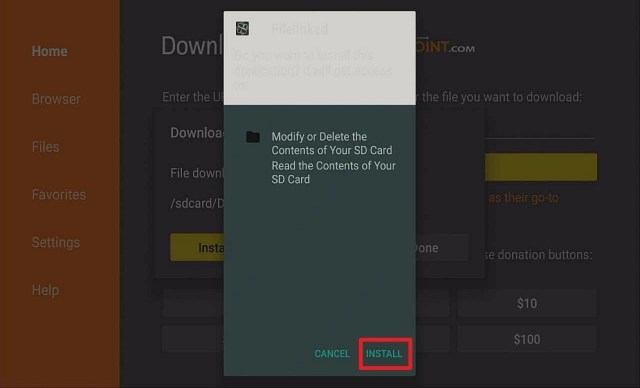
15. Click Install.

Step 15 Install Showbox on Firestick


16. Click Open.

Step 16 Install Showbox on Firestick


YOUR INTERNET ACTIVITY IS BEING WATCHED

ReviewVPN cannot attest to the legality, security and privacy of the applications discussed on this site. It is highly recommended that you use a VPN service while streaming or using Kodi.

Currently, your IP 216.73.216.208 is visible to everyone and your Browser is being tracked by Advertisers & ISP Provider.

Save 65% Now

Limited Time Offer

Here are the main reasons why you must use a VPN:

  • Your activities are hidden from your ISP, the government, and from the apps you are using.
  • You can access additional movies and TV streams.
  • ISP attempts to throttle are thrwarted thus reducing buffering issues.
  • Geographically restricted content like Netflix and Hulu can be unblocked.

A VPN works be replacing your ISP-assigned IP address and creating an encrypted tunnel. We recommend the no log service offered by IPVanish. It works well on a Firestick and offers the fastest possible speeds.

Special Limited Time Offer - Get IPVanish


Install Surfshark on Firestick

Best Surfshark Deal


What Does It Do?

Showbox uses updated web scrapers to find the best content online and deliver it through a slick User Interface, enabling easy search, click and watch.

Show Box clearly states that it works as a media index tool and does not host any content on its site directly.

What Platforms Does It Work On?

Show Box works on Android and iOS devices. A bonus for those tired of finding good streaming applications that only work on Android.

Features

  • Buffer free steaming
  • Works with a wide variety of external media players
  • Enormous library of movies and TV shows
  • Download content and watch offline
  • Intelligent search interface allows you to search by multiple terms and keywords
  • Create your own library with favorites
  • Sort content functions
  • Access multiple servers including fast servers for HD
  • Multiple languages are supported as well as open subtitles
  • Access multiple resolutions including HD and Ultra HD
  • Newly added Show box Music meaning you listen to music on the go
  • Inbuilt games 
  • Clean and intelligent user interface


Pros and Cons

Pros

  • The UI is hard to fault, with one of the best experiences around
  • Enormous library with 5 years’ worth of content
  • Download and watching offline is a great feature
  • Show box Music is like Spotify but free, with great added functionality not available anywhere else
  • Access to a wide range of links and high-quality sources
  • Massive community
  • Regular updates and developer support
  • Ultra-fast servers
  • Intelligent search makes it easy to sift through the large library


Cons

  • No compatibility with Premiumize
  • A lot of copycat apps and misinformation means caution is needed
  • As a high-profile app, it is subject to going down and vulnerable to copyright lawyers
  • Reports of some apps from websites having malware


FAQ

Is it Safe to Use?

Showbox couldn’t be safer, just be wary of copycat sites and application with similar names, there has been plenty of report of corrupted apk files going around.


Is it Legal or Grey?

A number of Show Box collaborators who were distributing content have been forced to settle with copyright litigators and had their websites shut down. Show Box operates in the grey are of providing links but not hosting content.

If you are using Show Box you are almost definitely watching copyrighted material. Use caution and a VPN to stop you from becoming a target.


Should I Use This App With a VPN?

Always use Showbox with a VPN, considering the grief that they have received over the years and that they are a well-known application, both they and their users will be subject to scrutiny by third parties.

Using a VPN will stop you from being tracked and monitored by both your ISP and also anyone watching incoming and outgoing traffic to Show Box’s servers. VPNs do this by encrypting the data in your requests using a 256-bit AES key, which is unbreakable and used by the US Military.

A VPN’s abilities extend beyond this by allowing your IP to become that of the VPN DNS Server you are using which could be based in a wide range of countries and cities around the world making tracing your original address almost impossible. 


How to Install Surfshark VPN on Firestick

If your Firestick still has the older interface, read this article to learn how to update it: Update Firestick Interface.

You can download Surfshark directly from the Amazon App store. It will be easy for you to find Surfshark with your Firestick’s Find feature. Refer to our screenshots below.

1. Go to the Home screen of your Firestick.

step 1 Install Surfshark VPN on Firestick


2. Navigate towards the Find tab. Press the Search button from the resulting dropdown.

step 2 Install Surfshark VPN on Firestick


3. Type in the keyword of SurfShark and select from the suggestions that will appear.

step 3 Install Surfshark VPN on Firestick


4. Click the official SurfShark icon from your search results.

step 4 Install Surfshark VPN on Firestick


5. Press the Download (You own it) button.

step 5 Install Surfshark VPN on Firestick


6. The SurfShark VPN installer will download on your device.

step 6 Install Surfshark VPN on Firestick


7. SurfShark VPN’s app will automatically install itself on your Fire TV stick.

step 7 Install Surfshark VPN on Firestick


8. Press the Open button after completing SurfShark VPN’s installation process.

step 8 Install Surfshark VPN on Firestick


9. Please wait for the SurfShark VPN to load its user interface.

step 9 Install Surfshark VPN on Firestick


10. You can now log in with your SurfShark VPN account credentials.

step 10 Install Surfshark VPN on Firestick

Learn more about Surfshark and Grab the Best Surfshark Deal Now!


Install Surfshark on Firestick

Best Surfshark Deal


Other VPNs to Consider

NordVPN (Best for Streaming)

Best Features

  • 5000+ Server in 50+ Countries 
  • Military-Grade Encryption
  • Fast Connection Speed
  • Suitable to a lot of devices
  • No-Log Policy

Prices
  • Complete $5.89 per month (64% Discount)
  • Plus $4.59 per month (56% Discount)
  • Standard $3.69 per month (55% Discount)

Best Features

  • 750+ High-speed VPN Servers in 43 Locations
  • Military-Grade Encryption
  • Fastest HD Streaming and Gaming
  • 30-Day Money-Back Guarantee
  • Unlimited Data & Devices
  • No-Log Policy

Prices
  • 3 Years $1.99 per month (82% Discount)
  • 1 Years $3.29 per month (70% Discount)
  • 1 Month $10.99 per month

IPVanish VPN (Most Secure)

Best Features

  • 1200+ Servers in 60+ Countries around the world
  • Unlimited Connections
  • No-Log Policy
  • Top Notch Military-Grade VPN Protocols and Encryptions
  • 100% Safe and Secured
  • Most Trusted VPN
  • Best VPN for Firestick
  • 30-Day Money-Back Guarantee

Prices
  • Yearly $3.99 per month (63% Discount) – 30 days risk free + Ransomware & Malware Protection
  • Quarterly $5.32 per month (51% Discount)
  • Monthly $10.99 per month


For more VPN discounts, go to ReviewVPN Deals and purchase the best VPN for you.

Click here to get the lowest price on Surfshark through our exclusive limited-time offer.


Is it Free?

Yes, Show Box is free and down not even require a registration


Are There Ads? (If it has ads is there a modded version)

Yes, there are ads but not a massive amount


Is There a Premium Version?

No


Is There an Official Website?

Yes, Show Box TV has a great official website with plenty of guides : https://showbox.fun/

Refreshing to see this as many basic Android TV applications give you no help or support at all through guides.  Another benefit of using a provider which has a long history.


What Other Devices Does it Work On?

Show Box works on all Android and iOS , and could even be used on Windows with an emulator.


How Does The App Work?

You can download the application on the Amazon store, or directly download the apk file from the Show Box website


What is The Minimum Version of Android I Need?

Android 4.2


History

How Long Has it Been Around?

Show Box has been around since 2014, according to the date on their Facebook page. They are one of the oldest surviving Android TV apps still in operation


Is it a Terrarium Clone?

No


What is The Development Team Like?

Developed reputedly by Ivan Nichiporuk , their development team or general support is pretty active on Facebook and Reddit.


Best Alternatives

There are quite a few great alternatives to Show Box including Cinema HD, Zion TV, Cyberflix, Tea TV, and Bee TV


Our Opinion

Show Box is around and still has staying power, with more than 60 million downloads it is probably the most prolific application of its time with the exception of PopCorn Time.

The development and community seem to be going strong, and rumors of its early demise seem to have been exaggerated. Looks like Show Box is here to stay and a great addition to anyone’s app library even if they aren’t the first choice.

Install Tubi TV on Firestick, Fire TV & Android for Free & Legal Movies

Tubi TV Overview

In this article, we will be divulging important details on how to install Tubi TV on Firestick and other devices that run on the android platform.


Is it Any Good?

Tubi TV is a lot like Pluto TV. A massive free and legal streaming application that you have never heard of. To put it into perspective they have over 5 over 550K reviews and 50 million downloads on the Google Play Store. Outstripping even Pluto TV as the biggest and most used free  Android TV streaming application on the planet.

Like Pluto, they make their money from ads which you can expect every 15 minutes during the shows and films.

The company has raised $4M in funding since it started in 2014 and shows no signs of slowing down having recently signed a distribution deal with NBC Universal as well as output deals with almost all the big American TV providers.

A great application, the only drawback is because of GDPR is not available in Europe so it must be used with a VPN that has servers outside of the EU.

Oh, in 2019 Tubi TV has promised to spend $100M on licensed content. Unlike Netflix, they will use this for licensing agreements rather than creating their own content.


What Does it Do?

Tubi TV has signed distribution deals with a host of big-ticket US media distributors. The UI has a real Netflix feel to it, and they make money through adverts, saying they show less adverts than you see on TV. This is probably true when compared to US Cable which seems to run ads every 5 minutes.

Movies and TV Shows are updated with new content every Friday


ANONYMOUSLY

Is Tubi TV Safe and Virus-free?

We tested this app using VirusTotal and found no threats or any malicious files and malware.

Despite having good results, we still need to be vigilant in protecting our privacy while streaming.

A Virtual Private Network or VPN will definitely help us maintain our security and anonymity while using Tubi TV.

Here’s how you can Install The Best VPN For Firestick and All Devices.


If your Firestick still has the older interface, read this article to learn how to update it: Update Firestick Interface.


Install Tubi TV on Firesticks with Screenshots

1. Install the Downloader app and jailbreak your firestick by enabling unknown sources. To learn more about the procedure, you may read How to Install the Downloader App and Enable Unknown Sources.


2. Open Downloader App. Type https://reviewvpn.com/tub and click Go.

 Tubi TV1


3. Click Install.

 Tubi TV2


4. Click Open.

 Tubi TV3


5. Click Skip

Tubi TV5


6. Tubi TV is installed. Enjoy watching.

 Tubi TV4


YOUR INTERNET ACTIVITY IS BEING WATCHED

ReviewVPN cannot attest to the legality, security and privacy of the applications discussed on this site. It is highly recommended that you use a VPN service while streaming or using Kodi.

Currently, your IP 216.73.216.208 is visible to everyone and your Browser is being tracked by Advertisers & ISP Provider.

Save 65% Now

Limited Time Offer

Here are the main reasons why you must use a VPN:

  • Your activities are hidden from your ISP, the government, and from the apps you are using.
  • You can access additional movies and TV streams.
  • ISP attempts to throttle are thrwarted thus reducing buffering issues.
  • Geographically restricted content like Netflix and Hulu can be unblocked.

A VPN works be replacing your ISP-assigned IP address and creating an encrypted tunnel. We recommend the no log service offered by IPVanish. It works well on a Firestick and offers the fastest possible speeds.

Special Limited Time Offer - Get IPVanish


Legal Disclaimer: ReviewVPN.com does not encourage or endorse any illegal activity involved in the usage of services and applications referenced on this site. We do not verify the licensing agreements of services. The end-user is wholly responsible for ensuring that any media accessed through these services does not violate copyright and/or licensing laws. ReviewVPN does not promote, link to, or receive compensation from any Apps and IPTV services.


Install SurfShark on Firestick

Best SurfShark Deal


What Platforms Does it Work On?

Tubi TV works on all Android-based devices

Features

  • Enormous catalog of movies and tv shows
  • Free and legal to watch
  • Available to download from the Google Play Store
  • New content added every Friday
  • Media available in HD quality
  • Create a personal library
  • In app media created by Tubi
  • Compatible with Chromecast, Airplay, and Roku
  • Pick up watching where you left off
  • Easy to navigate UI
  • Intelligent search functions and genre selection
  • Compatible with Xbox and PlayStation
  • Wide range of international media
  • Download the app or watch straight from the website
  • 50,000+ titles to choose from


Pros and Cons

Pros

  • An established but young company pushing boundaries and adding content at a prolific rate
  • If you can put up with ads every 15 minutes it’s an ideal platform
  • A large array of titles
  • Compatibility across a wide range of devices as well as being available to access from the website
  • Has the money and the development team to keep upgrading and updating
  • Creating a personal library means you don’t have to search every time
  • New content is added regularly is refreshing compared to even paid services like Amazon Prime
  • Completely free and legal for those who don’t want the hassle of using a VPN
  • Massive community and a growing user base mean more money for better content

Cons

  • Not available in the EU without the use of a VPN
  • Titles can be a bit hit and miss
  • Unlikely to get the latest releases
  • Ads may annoy some


FAQ

Is it Safe to Use?

Yes, you can download it from the Google Play Store or watch it directly from their website

Is it Legal or Grey?

Tubi TV is 100% legal. There are no grey areas as all content is fully licensed with their respective owners. It’s the same as watching Netflix or Hulu


Should I Use This App With a VPN?

Surfshark vpn

Always use Tubi TV with a VPN. Using a VPN will allow you to change your IP and physical location as well by providing an encrypted tunnel for you to stream any content. This way you can browse anonymously as long as you sign up with a provider with unlimited bandwidth, good speeds, and a solid zero logs policy.

Any VPN will allow you to access Tubi if you are based inside Europe.

Note: For more information about SurfShark, please read our SurfShark Review.


Grab your subscription now!

Click here to get the lowest price on SurfShark through our exclusive limited-time offer.


How to Install Surfshark on Firestick with Screenshots

If your Firestick still has the older interface, read this article to learn how to update it: Update Firestick Interface.

You can download Surfshark directly from the Amazon App store. It will be easy for you to find Surfshark with your Firestick’s Find feature. Refer to our screenshots below.

Follow our screenshots below to install the SurfShark VPN app on your Fire TV stick.

1. Go to the Home screen of your Firestick.

step 1 Install Surfshark VPN on Firestick


2. Navigate towards the Find tab. Press the Search button from the resulting dropdown.

step 2 Install Surfshark VPN on Firestick


3. Type in the keyword of SurfShark and select from the suggestions that will appear.

step 3 Install Surfshark VPN on Firestick


4. Click the official SurfShark icon from your search results.

step 4 Install Surfshark VPN on Firestick


5. Press the Download (You own it) button.

step 5 Install Surfshark VPN on Firestick


6. The SurfShark VPN installer will download on your device.

step 6 Install Surfshark VPN on Firestick


7. SurfShark VPN’s app will automatically install itself on your Fire TV stick.

step 7 Install Surfshark VPN on Firestick


8. Press the Open button after completing SurfShark VPN’s installation process.

step 8 Install Surfshark VPN on Firestick


9. Please wait for the SurfShark VPN to load its user interface.

step 9 Install Surfshark VPN on Firestick


10. You can now log in with your SurfShark VPN account credentials.

step 10 Install Surfshark VPN on Firestick

Learn more about Surfshark and Grab the Best Surfshark Deal Now!


Install Surfshark on Firestick

Best Surfshark Deal

Other VPNs to Consider

NordVPN (Best for Streaming)

Best Features

  • 5000+ Server in 50+ Countries 
  • Military-Grade Encryption
  • Fast Connection Speed
  • Suitable to a lot of devices
  • No-Log Policy

Prices
  • Complete $5.89 per month (64% Discount)
  • Plus $4.59 per month (56% Discount)
  • Standard $3.69 per month (55% Discount)

Best Features

  • 750+ High-speed VPN Servers in 43 Locations
  • Military-Grade Encryption
  • Fastest HD Streaming and Gaming
  • 30-Day Money-Back Guarantee
  • Unlimited Data & Devices
  • No-Log Policy

Prices
  • 3 Years $1.99 per month (82% Discount)
  • 1 Years $3.29 per month (70% Discount)
  • 1 Month $10.99 per month

IPVanish VPN (Most Secure)

Best Features

  • 1200+ Servers in 60+ Countries around the world
  • Unlimited Connections
  • No-Log Policy
  • Top Notch Military-Grade VPN Protocols and Encryptions
  • 100% Safe and Secured
  • Most Trusted VPN
  • Best VPN for Firestick
  • 30-Day Money-Back Guarantee

Prices
  • Yearly $3.99 per month (63% Discount) – 30 days risk free + Ransomware & Malware Protection
  • Quarterly $5.32 per month (51% Discount)
  • Monthly $10.99 per month

For more VPN discounts, go to ReviewVPN Deals and purchase the best VPN for you.


Is it Free?

Yes, Tubi TV is free

Are There Ads? (If it has ads is there a modded version)

Yes, you can expect ads every 15 minutes

Is There a Premium Version?

The  free version is the premium version

Is there an Official Website?

Yes, Tubi TV has a simple website like Netflix: https://tubi.tv

There are also heaps of information guides and forums online.

What Other Devices Does it Work On?

Tubi TV works on all Android devices as well as Chromecast, Roku, Air TV, PlayStation, and Xbox

How Does The App Work?

Download from the official website or watch it online

What is the Minimum Version of Android I Need?

Android 4.1

History

How Long Has it Been Around?

Tubi TV has been around since 2014

Is it a Terrarium Clone?

No

What is the Development Team Like?

AdRise has a small team of staff and is the brainchild behind Tubi TV. They essentially have built an innovative TV ad platform to monetize TV shows and films. They have also been pioneers of advertising video on demand. This means unlike paying for ad space on regular TV, advertisers can have their videos screen when a certain type of demographic is watching and switch between thousands of tv shows and films

Best Alternatives

                 APPS

               REVIEW

           DOWNLOAD

                 Nova TV

           Nova TV Review

                  Viva TV

            Viva TV Review

                   Bee TV

             Bee TV Review

                  FilmPlus

            FilmPlus Review

                 Cyberflix

           Cyberflix Review

ReviewVPN.com does not host any of these files. They are hosted on Archive.org.


Our Opinion

Tubi TV is the biggest free provider of online TV in the game and it’s a good application to have in the arsenal simply because it’s so easy to use and has a massive range of titles to choose from.

The $100M commitment to content in 2019 also shows that they have pretty deep pockets to go after more popular content, rather than cheaper content which has become less costly to license since the rise of Netflix.

Install USTV Hub on Firestick, Fire TV, & Android for Free Live TV

USTV Hub

This post will provide you with an overview of USTV Hub as well as instructions on how to install it on your Firestick. Moreover, you’ll also find the best USTV Hub alternatives to consider.


USTV Hub formerly provided access to over 500 ancient channels and many of which were US channels.  And though it was once a popular option for those who are looking to watch TV while abroad, it appears that the app is coming to an end. 

That is to say, USTV Hub is dying out. Subsequently, even a cursory look at their website will help anyone to see that the device they have used for the installation guide is 2-3 years old.

Furthermore, many Reddit users report endless buffering on channels, broken links, and a lack of any support, updates, or even comments from the developer.

Nonetheless, you can find the necessary information about USTV Hub in this article. So read on to learn more about it.


ANONYMOUSLY

Is USTV Hub Safe and Virus-free?

We tested this application using VirusTotal and found that there is/are malicious file/files. Meanwhile, you can see the above result for your reference.

Because of this, we highly recommend using a VPN that can protect your privacy against any threat from USTV Hub.

Moreover, here’s how you can Install The Best VPN For Firestick and All Devices.


Download USTV Hub


Install USTV Hub on Firesticks with Screenshots

  1. Step 1. Click Settings from the home screen of your Firestick

Step 1 Install USTV Hub on Firestick


2.  Scroll down and to the right until you reach My Fire TV

Step 2 Install USTV Hub on Firestick


3. Scroll down one and click on Developer Options

Step 3 Install USTV Hub on Firestick


4. Turn on ADB Debugging and Apps from Unknown Sources

Step 5 Install USTV Hub on Firestick


5. Turning on Apps from Unknown Sources will trigger a confirmation popup. Click Turn On to Confirm

Step 5 Install USTV Hub on Firestick


6. Click the home button on your remote and scroll once to the left to click on the magnifying glass icon

Step 6 Install USTV Hub on Firestick


7.  Search for Downloader either by saying it to your voice-enabled remote or typing. If typing, scroll to the suggested word “Downloader” and click on it

Step 7 Install USTV Hub on Firestick


8.  Click on the bright orange Downloader icon

Step 8 Install USTV Hub on Firestick


9.  Click on Download (it might say get on your device. Same difference)

Step 9 Install USTV Hub on Firestick


10. Then click on Allow

Step 10 Install USTV Hub on Firestick


11. Afterward, click on OK

Step 11 Install USTV Hub on Firestick


12. Type https://reviewvpn.com/ust and click go. (Note: ReviewVPN.com does not host this APK file.)

Step 12 Install USTV Hub on Firestick


13. Click Install.

Step 13 Install USTV Hub on Firestick


14. Click Open.

Step 14 Install USTV Hub on Firestick


15. USTV Hub is installed. Enjoy watching.

Step 15 Install USTV Hub on Firestick


YOUR INTERNET ACTIVITY IS BEING WATCHED

ReviewVPN cannot attest to the legality, security and privacy of the applications discussed on this site. It is highly recommended that you use a VPN service while streaming or using Kodi.

Currently, your IP 216.73.216.208 is visible to everyone and your Browser is being tracked by Advertisers & ISP Provider.

Save 65% Now

Limited Time Offer

Here are the main reasons why you must use a VPN:

  • Your activities are hidden from your ISP, the government, and from the apps you are using.
  • You can access additional movies and TV streams.
  • ISP attempts to throttle are thrwarted thus reducing buffering issues.
  • Geographically restricted content like Netflix and Hulu can be unblocked.

A VPN works be replacing your ISP-assigned IP address and creating an encrypted tunnel. We recommend the no log service offered by IPVanish. It works well on a Firestick and offers the fastest possible speeds.

Special Limited Time Offer - Get IPVanish


Legal Disclaimer: ReviewVPN does not encourage or endorse any illegal activity involved in the usage of services and applications referenced on this site. We do not verify the licensing agreements of services. The end-user is wholly responsible for ensuring that any media accessed through these services does not violate copyright and/or licensing laws. ReviewVPN does not host the applications and addons mentioned herein and all material presented on the site is for educational purposes only.


Install Surfshark on Firestick

Best Surfshark Deal


What Does USTV Hub Do?

USTV Hub specifically targets US Tv channels. It uses a scraper to aggregate all of the working links for US TV including HBO, CBS, ESPN, Showtime, and other big names and then puts them all in a simple user interface.

Subsequently, all you have to do is simply click the channel, find a link that works and get live TV streamed straight onto your phone, tablet, or TV.


What Platforms Does USTV Hub Work On?

USTV Hub works on all Android devices

android devices image


Features

  • Access to over 500 US Channels
  • Friendly and clean user interface
  • Bookmark your favorite channels to return to them when you want
  • Works with a number of external video players
  • Has its own internal media player
  • Compatible with Chromecast for casting to your television
  • Offers a League pass to access all sports channels and watch games from the NFL, NBA, NHL and MLB
  • Easy categories to navigate
  • Sort and search function


Pros and Cons

Pros

  • Friendly and easy-to-use interface
  • Access to a wide range of US Channels
  • Premium pass for sports nuts
  • Ability to bookmark favorite channels
  • Internal media players reduce the need for external compatibility
  • Compatible with Chromecast

Cons

  • A number of reports that the TV channels don’t work, or you can connect for a short time before getting the endless buffering wheel of death
  • Lots of the links don’t work pointing toward scrapers that are not being updated
  • Aged and dated website and lack of updates
  • No obvious community on Facebook or Reddit


Should I Use This App With a VPN?

Using a VPN will allow you to remain safe, private, and anonymous online. Furthermore, using an encrypted tunnel through to your VPN’s DNS server will prevent anyone from snooping on your traffic and keep your IP safe.


Note: For more information about Surfshark, please read our Surfshark Review.


Grab your subscription now!


How to Install Surfshark VPN on Firestick

If your Firestick still has the older interface, read this article to learn how to update it: Update Firestick Interface.

1. Go to the Home screen of your Firestick.

step 1 Install Surfshark VPN on Firestick


2. Navigate towards the Find tab. Press the Search button from the resulting dropdown.

step 2 Install Surfshark VPN on Firestick


3. Type in the keyword of SurfShark and select from the suggestions that will appear.

step 3 Install Surfshark VPN on Firestick


4. Click the official SurfShark icon from your search results.

step 4 Install Surfshark VPN on Firestick


5. Press the Download (You own it) button.

step 5 Install Surfshark VPN on Firestick


6. The SurfShark VPN installer will download on your device.

step 6 Install Surfshark VPN on Firestick


7. SurfShark VPN’s app will automatically install itself on your Fire TV stick.

step 7 Install Surfshark VPN on Firestick


8. Press the Open button after completing SurfShark VPN’s installation process.

step 8 Install Surfshark VPN on Firestick


9. Please wait for the SurfShark VPN to load its user interface.

step 9 Install Surfshark VPN on Firestick


10. You can now log in with your SurfShark VPN account credentials.

step 10 Install Surfshark VPN on Firestick

Learn more about Surfshark and Grab the Best Surfshark Deal Now!


Install Surfshark on Firestick

Best Surfshark Deal


Other VPNs to Consider

NordVPN (Best for Streaming)

Best Features

  • 5000+ Server in 50+ Countries 
  • Military-Grade Encryption
  • Fast Connection Speed
  • Suitable to a lot of devices
  • No-Log Policy

Prices
  • Complete $5.89 per month (64% Discount)
  • Plus $4.59 per month (56% Discount)
  • Standard $3.69 per month (55% Discount)

Best Features

  • 750+ High-speed VPN Servers in 43 Locations
  • Military-Grade Encryption
  • Fastest HD Streaming and Gaming
  • 30-Day Money-Back Guarantee
  • Unlimited Data & Devices
  • No-Log Policy

Prices
  • 3 Years $1.99 per month (82% Discount)
  • 1 Years $3.29 per month (70% Discount)
  • 1 Month $10.99 per month

IPVanish VPN (Most Secure)

Best Features

  • 1200+ Servers in 60+ Countries around the world
  • Unlimited Connections
  • No-Log Policy
  • Top Notch Military-Grade VPN Protocols and Encryptions
  • 100% Safe and Secured
  • Most Trusted VPN
  • Best VPN for Firestick
  • 30-Day Money-Back Guarantee

Prices
  • Yearly $3.99 per month (63% Discount) – 30 days risk free + Ransomware & Malware Protection
  • Quarterly $5.32 per month (51% Discount)
  • Monthly $10.99 per month


For more VPN discounts, go to ReviewVPN Deals and purchase the best VPN for you.

Click here to get the lowest price on Surfshark through our exclusive limited-time offer.


FAQ

Is USTV Hub Safe to Use?

Yes. However, you just have to make sure you download it from the official site or through the Amazon store.

Is USTV Hub Legal or Grey?

It’s a grey area but we recommend that you use a VPN with the service or you may find many of the links blocked.

Is USTV Hub Free?

Yes, USTV Hub is certainly free.

Are There Ads? (If it has ads is there a modded version)

Yes, USTV Hub serves ads in the application. On the other hand, there are a number of modded versions available

Is There a Premium Version?

You can pay for a Sport’s Pass so you can access certain big-ticket TV channels.

Is There an Official Website?

Yes, they’ve got a basic website with an FAQ and download and installation instructions here: http://ustvhub.com/

Moreover, always make sure you download the apk from the official website only.

What Other Devices Does it Work on?

USTV Hub only works on Android Devices but it is compatible with Chrome Cast

How Does The App Work?

You can download the application on the Amazon store. Similarly, you can directly download the apk file from the USTV Hub website

What is the Minimum Version of Android I Need?

Android 4.0

History

How Long Has USTV Hub Been Around?

USTV Hub has been around a while since early 2018

Is USTV Hub a Terrarium Clone?

No

What is the Development Team Like?

We trawled around Reddit and Facebook but couldn’t find any information about US TV Hub’s developer, updates, or comments and feedback.

Therefore, this is never a good sign, as a developer who isn’t engaging with their audience is more likely to disappear and not be aware of glitches or problems with their application.


USTV Hub Best Alternatives

There is a heap of much better alternatives that we recommend, but 2 are at the top of our list:

Mobdro

Mobdro Logo

  • Well over a thousand channels and live streams
  • You can turn off live adverts
  • As opposed to paying for a USTV pass which may or may not work, you could pay as little as $2.99 per year to stream offline
  • Option to turn off adverts
  • Also supports Chromecast
  • Really easy to use User Interface with a sleek design
  • You can also find TV and movie shows to download and watch later
  • Compatible with Kodi if you use it
  • See an up-to-date calendar of live TV
  • HD and high-quality streams are available

Make sure to read our article on Mobdro to know further.


Red Box

  • 1000 channels
  • Really nice layout, which is intuitive and easy to use
  • Very light application suitable for the Amazon Fire Series
  • Choose TV channels from over 17 different countries including the US, broadening your options
  • A separate Kids section to keep the rug rats entertained
  • Flag dead links as well as request TV channels that show an engaged development team
  • Activate password protection if you want to keep the kids from watching inappropriate content

You can also read our article on Red Box to know more about it.


Our Opinion

Mobdro and Red Box are certainly doing a much better job of providing uptime and access to live TV. For instance, they cover thousands of channels which means you get a wider selection of media and aren’t just limited to US TV Hub.

Above all, we’ve seen enough bad reviews that show that US TV is dying and best to be avoided.

Moreover, Pluto TV is a great up-and-coming legal application.

Finally, you always want to commit to an application that has a dedicated and responsive development team. And an active community like the one that Mobdro has is also a bonus as you can go somewhere when you have problems or connection issues.

Install Yoda Kodi Addon on Firestick, Fire TV, Android & Computer – 2023

Yoda Kodi Addon

yoda image

Yoda Kodi addon has been one of the most popular addons since 2017. It went down earlier this year but as of July has been back up and running with a vengeance. As a fork of the popular Covenant/Exodus addons, it has proved to be a highly effective and stable add on.


What is Kodi?

Kodi Image

Kodi was first released in 2002 as a piece of homebrew software, allowing Xbox users to stream and play media on their devices. Since then it’s used has exploded, the software is now on its 18th versions and has been downloaded around the world tens of millions of times.

The open-source media player has grown in popularity due to its being cross-platform, open-source and also having an inbuilt 10-foot user interface. On top of this, it also has an extensive library of thousands of addons. Many of them unofficial. These addons add a multitude of capabilities including the ability to access the latest tv shows, movies and thousands of live TV channels across the world.

There is no other media player that has as many addons, combined with users, developers and the support of a core development team.


ANONYMOUSLY


What is an Addon?

An add on is basically an additional program that gives you added features on top of what Kodi provides.

Though Kodi is a lovely feature-rich piece of software you need addons to access the latest movies and streams from scrapers that are contained within add ons.

There are literally thousands available from unknown sources, meaning they are not offered on the official Kodi add on library. This doesn’t mean the sources can’t be trusted, just that the content they provide cannot be officially sanctioned by Kodi.

What is Yoda Kodi Addon?

Yoda is a multi-source scraper add on and can be found in the Supremacy repo. It’s also one of the oldest and most respected addons on Kodi and can be found in most builds.

Features

  • Clean and easy to use UI
  • Compatible with Real Debrid
  • Movies
  • TV Shows
  • Personal library
  • New episodes
  • Documentaries
  • Networks
  • Tools
  • Inbuilt updates
  • Torrent scrapers
  • API key

Install Surfshark on Firestick

Best Surfshark Deal


Legal Disclaimer: ReviewVPN.com does not encourage or endorse any illegal activity involved in the usage of services and applications referenced on this site. We do not verify the licensing agreements of services. The end-user is wholly responsible for ensuring that any media accessed through these services does not violate copyright and/or licensing laws. ReviewVPN does not promote, link to, or receive compensation from any Apps and IPTV services.


YOUR INTERNET ACTIVITY IS BEING WATCHED

ReviewVPN cannot attest to the legality, security and privacy of the applications discussed on this site. It is highly recommended that you use a VPN service while streaming or using Kodi.

Currently, your IP 216.73.216.208 is visible to everyone and your Browser is being tracked by Advertisers & ISP Provider.

Save 65% Now

Limited Time Offer

Here are the main reasons why you must use a VPN:

  • Your activities are hidden from your ISP, the government, and from the apps you are using.
  • You can access additional movies and TV streams.
  • ISP attempts to throttle are thrwarted thus reducing buffering issues.
  • Geographically restricted content like Netflix and Hulu can be unblocked.

A VPN works be replacing your ISP-assigned IP address and creating an encrypted tunnel. We recommend the no log service offered by IPVanish. It works well on a Firestick and offers the fastest possible speeds.

Special Limited Time Offer - Get IPVanish


How to Install Yoda Kodi Addon with Screenshots

  1. From the home screen, select the cogwheel at the upper left.

Step 1 Installing Yoda on Kodi

2. Select System in the bottom right corner.

Step 2 Installing Yoda on Kodi


3. Select Add-ons on the left side of the screen.

Step 3 Installing Yoda on Kodi


4. Select Unknown sources.

Step 4 Installing Yoda on Kodi


5. Click Yes to allow unknown sources.

Step 5 Installing Yoda on Kodi


6. Select File manager.

Step 6 Installing Yoda on Kodi


7. Click Add source.

Step 7 Installing Yoda on Kodi


8. Click on <None>.

Step 8 Installing Yoda on Kodi


9. Type exactly: http://www.lvtvv.com/repo/

Step 9 Installing Yoda on Kodi


10. Click on OK.

Step 10 Installing Yoda on Kodi


11. Select enter a name for this media source.

Step 11 Installing Yoda on Kodi


12. Name is Yoda (this part isn’t critical as long as you remember the name).

Step 12 Installing Yoda on Kodi


13. Click on OK.

Step 13 Installing Yoda on Kodi


14. Click on OK.

Step 14 Installing Yoda on Kodi


15. Take one step back and click on Add-ons.

Step 15 Installing Yoda on Kodi


16. Select install from zip file.

Step 16 Installing Yoda on Kodi


17. Click on Yoda (or whatever you named the source).

Step 17 Installing Yoda on Kodi


18. Click on repository.kodil-1.3.zip


19. Select on Install from repository.

Step 19 Installing Yoda on Kodi


20. Click on Kodil Repository.

Step 20 Installing Yoda on Kodi


21. Pick Video add-ons.

Step 21 Installing Yoda on Kodi


22. Select Yoda again.

Step 22 Installing Yoda on Kodi


23. Click on Install.

Step 23 Installing Yoda on Kodi


24. Select OK after reviewing the add-ons that will be installed.

Step 24 Installing Yoda on Kodi


25. You should see a popup in the upper right corner saying Yoda has installed. There will actually be multiple popups for the various components.

Step 25 Installing Yoda on Kodi


26. Click on Open to start the Yoda add-on.

Step 26 Installing Yoda on Kodi


Grab your subscription now!

Click here to get the lowest price on Surfshark through our exclusive limited-time offer.


FAQ

Is it Safe to Use?

Yoda is one of the safest and most highly respected and used addons in the Kodiverse.

Just beware of websites that say you can download it from them instead of the official repository. You are opening yourself up to corrupted files, viruses, or malware. Be safe and stay official.


Is it Legal or Grey?

Yoda operates in a grey area, but anyone who uses it is clearly not fussed about being legal. Much of the content is brand new, copyrighted, and not meant to be free.

Be aware that if you try and use Yoda without a VPN, some or all of their services and links may stop working overtime when your Internet Service Provider realizes you may be accessing copyrighted content illegally.


Should I Use This Add-On With a VPN?

Always use a VPN with Kodi.

VPNs keep your connection encrypted and your data safe. With a VPN, even your ISP can’t see your online activities. Therefore, they can’t restrict what you are doing. Your will IP address won’t be connected with what you do online. 

Using a VPN allows you to browse the Internet and use Yoda without fear of being blocked or logged in. You may be surprised to hear that almost half of all content online is actually blocked by your ISP. Because of agreements, they have trusted providers of media and other content.

If you want to know more about this VPN, kindly read our Surfshark Review.

Surfshark Features:
  • Surfshark protocols are perfect for use with Kodi.
  • This VPN will definitely hide all of your online activities. 
  • It has a military-grade level of encryption that will ensure your safety. 
  • With this VPN you can access more content and even unblock Netflix and other platforms.
  • It also supports P2p file-sharing activities which makes it applicable to torrenting
  • Strictly follows No-Log Policy.
  • This VPN is one of the Fastest in its raging speed.
  • Has a total of 3,200 VPN servers in 65 locations to choose from
  • DNS Leak Protection is active by default.

Grab your subscription now!

Click here to get the lowest price on Surfshark through our exclusive limited-time offer.


How to Install Surfshark VPN on Firestick

If your Firestick still has the older interface, read this article to learn how to update it: Update Firestick Interface.

You can download Surfshark directly from the Amazon App store. It will be easy for you to find Surfshark with your Firestick’s Find feature. Refer to our screenshots below.

1. Go to the Home screen of your Firestick.

step 1 Install Surfshark VPN on Firestick


2. Navigate towards the Find tab. Press the Search button from the resulting dropdown.

step 2 Install Surfshark VPN on Firestick


3. Type in the keyword of SurfShark and select from the suggestions that will appear.

step 3 Install Surfshark VPN on Firestick


4. Click the official SurfShark icon from your search results.

step 4 Install Surfshark VPN on Firestick


5. Press the Download (You own it) button.

step 5 Install Surfshark VPN on Firestick


6. The SurfShark VPN installer will download on your device.

step 6 Install Surfshark VPN on Firestick


7. SurfShark VPN’s app will automatically install itself on your Fire TV stick.

step 7 Install Surfshark VPN on Firestick


8. Press the Open button after completing SurfShark VPN’s installation process.

step 8 Install Surfshark VPN on Firestick


9. Please wait for the SurfShark VPN to load its user interface.

step 9 Install Surfshark VPN on Firestick


10. You can now log in with your SurfShark VPN account credentials.

step 10 Install Surfshark VPN on Firestick

Learn more about Surfshark and Grab the Best Surfshark Deal Now!


Install Surfshark on Firestick

Best Surfshark Deal


Other VPNs to Consider

NordVPN (Best for Streaming)

Best Features

  • 5000+ Server in 50+ Countries 
  • Military-Grade Encryption
  • Fast Connection Speed
  • Suitable to a lot of devices
  • No-Log Policy

Prices
  • Complete $5.89 per month (64% Discount)
  • Plus $4.59 per month (56% Discount)
  • Standard $3.69 per month (55% Discount)

Best Features

  • 750+ High-speed VPN Servers in 43 Locations
  • Military-Grade Encryption
  • Fastest HD Streaming and Gaming
  • 30-Day Money-Back Guarantee
  • Unlimited Data & Devices
  • No-Log Policy

Prices
  • 3 Years $1.99 per month (82% Discount)
  • 1 Years $3.29 per month (70% Discount)
  • 1 Month $10.99 per month

IPVanish VPN (Most Secure)

Best Features

  • 1200+ Servers in 60+ Countries around the world
  • Unlimited Connections
  • No-Log Policy
  • Top Notch Military-Grade VPN Protocols and Encryptions
  • 100% Safe and Secured
  • Most Trusted VPN
  • Best VPN for Firestick
  • 30-Day Money-Back Guarantee

Prices
  • Yearly $3.99 per month (63% Discount) – 30 days risk free + Ransomware & Malware Protection
  • Quarterly $5.32 per month (51% Discount)
  • Monthly $10.99 per month


For more VPN discounts, go to ReviewVPN Deals and purchase the best VPN for you.

Click here to get the lowest price on Surfshark through our exclusive limited-time offer.


Is it Free?

Yes

History

When Was It Released?

Yoda was originally released in 2017

Best Alternatives

Yoda is a great add on but has been down recently for a sustained period of time, luckily there are a number of great addons out there:

You could also try:

  • 7 of 9
  • Destiny
  • Deathstar of Destiny
  • Seren
  • The Magic Dragon
  • Exodus Redux

Or simply just regularly check Google for the best Kodi addons which are updated sometimes daily

Our Opinion

Yoda has been a great add on for some years but had significant downtime this year. We are glad to see it back and working well. Use it in a mix with other video addons and you should have an excellent Kodi setup.

Their updated scrapers and simple interface make it a real dream to use, tied in with Real Debrid you can get high-quality links as well.

How to Install Filelinked on a Firestick or Android Device in 3 Minutes

Click here for the Best Filelinked Codes.

What is Filelinked?


Filelinked was formerly known as Droid Admin and is an excellent tool for those wanting to access and download media online whether that be Firestick apps, Android apps, photos, videos, or music.

Filelinked is a great free way for you to share files while also being one of the best resources to obtain new files. The beauty of the app is that Filelinked doesn’t host the files, they are hosted on Dropbox, Telegram, and across the Web. In short, it’s an easy way to connect a user to a batch of files, by using a simple code.

It is also great for maintaining anonymity when combined with using a VPN.

Filelinked is great because it’s free, fast, and really easy to use.


What Does Filelinked Do?

Filelinked is used as a file messenger service.

User A has a batch of files of different servers and locations that they want to share with User B.

They use the Filelinked website, create an account and then copy and paste the links of the files that they want to share. You can name them and even provide cover art. Once all the files have been added, they create a unique Filelinked code, which will allow User B to access the files. User A also can send User B a pin code if they set their Filelinked store to require one.

User B then downloads the Filelinked app, enters the unique URL within the application, and then types in the PIN. They can then access and download all the files.


ANONYMOUSLY

What Platforms Does it Work On?

Filelinked works on all Android devices (phones, tablets, Android TVs, etc) and Amazon Firesticks.


Features

  • No limits on how many files you can link to or how many files you download
  • Easy to use interface and system
  • PIN means you can protect files for everyone apart from the intended user
  • Plenty of tutorials and guides on how to use them


How to Install Filelinked on an Amazon Firestick

The following steps can be followed on an Amazon Firestick, or any Android device that internet is capable of, it also covers the steps for you to download Downloader and ES File Explorer which you need to use Filelinked:

  1. Whatever your device, go to setting and Developer options and allow apps from unknown sources
  2. Download Downloader from the Amazon Store
  3. Run Downloader
  4. Click the URL field
  5. Type get.filelinked.com
  6. Click “Install”
  7. Once downloaded, click delete, to get rid of the APK file which you no longer need
  8. Go back to the home screen and find Filelinked in your apps and channels


Install Filelinked on Firestick with Screenshots

If your Firestick still has the older interface, read this article to learn how to update it: Update Firestick Interface

Note: Steps 1-5 are the process of Jailbreaking the Firestick. Steps 6-12 are How to Download Downloader App

1.  Click Home on your remote and scroll once to your Right. Click Setting (Gear Wheel Icon)

Step 1 Install Filelinked on a Firestick


2. Scroll down and to the right until you get to My Fire TV. Click on it.

Step 2 Install Filelinked on a Firestick


3. Select Developer options.

Step 3 Install Filelinked on a Firestick


4. Turn on ADB debugging and Apps from Unknown Sources.

Step 4 Install Filelinked on a Firestick


5. Click Turn On when the pop-up appears.

Step 5 Install Filelinked on a Firestick


6.  Click Home, click FIND.

Step 6 Install Filelinked on a Firestick


7. Click Search.

Step 7 jailbreak firestick


8. You can either say Downloader to your Alexa voice-enabled remote or start typing it. If you typed it, click on the suggestion when it appears.

Step 8 jailbreak firestick


9. Click on the Downloader icon

Step 9 jailbreak firestick


10. Click Download

Step 10 jailbreak firestick


11. Click on Open.

Step 11 jailbreak firestick


12. Click on Allow.

Step 12 jailbreak firestick


13.  Open Downloader. Type http://get.filelinked.com and click GO.

Step 12 Install Filelinked on a Firestick


13. Click Install.

Step 13 Install Filelinked on a Firestick


14. Click Open.

Step 14 Install Filelinked on a Firestick


15. Click Enter Code.

Step 15 Install Filelinked on a Firestick


16. Type Code Number and Click Next.

Step 16 Install Filelinked on a Firestick


17. Click Continue.

Step 17 Install Filelinked on a Firestick


18. There you go, Filelinked is now installed.

Step 18 Install Filelinked on a Firestick


YOUR INTERNET ACTIVITY IS BEING WATCHED

ReviewVPN cannot attest to the legality, security and privacy of the applications discussed on this site. It is highly recommended that you use a VPN service while streaming or using Kodi.

Currently, your IP 216.73.216.208 is visible to everyone and your Browser is being tracked by Advertisers & ISP Provider.

Save 65% Now

Limited Time Offer

Here are the main reasons why you must use a VPN:

  • Your activities are hidden from your ISP, the government, and from the apps you are using.
  • You can access additional movies and TV streams.
  • ISP attempts to throttle are thrwarted thus reducing buffering issues.
  • Geographically restricted content like Netflix and Hulu can be unblocked.

A VPN works be replacing your ISP-assigned IP address and creating an encrypted tunnel. We recommend the no log service offered by IPVanish. It works well on a Firestick and offers the fastest possible speeds.

Special Limited Time Offer - Get IPVanish


How to Install Filelinked on an Android Device

  1. Open a web browser with download capabilities
  2. Type get.filelinked.com in the URL section of the web browser
  3. Alternatively, there is a download button on the homepage of filelinked.com


Should I Use This Filelinked with a VPN?

It depends on what you are downloading from Filelinked. If it is your uncle Bob’s latest update to his travel site app, you are fine not using a VPN. However, any time you might be downloading content in the grey area, such as many streaming apps, it’s always best to be safe and turn on the VPN first. Dropbox and Telegram typically host the files so you are unlikely to get in trouble without using one, but you never know for certain unless you set up the path.

There are several reasons you should always use a VPN:

  • Using a VPN, you can encrypt your data with 256-bit AES military-grade encryption meaning that your connection is unbreakable
  • Your Internet Service Provider works actively to prevent users from accessing pirated content. In the UK it’s estimated that 50% of online content may be restricted by ISPs. You also run the risk of having your browsing history logged and stored for up to a year, as well as the possibility in extreme cases of a fine 
  • VPNs help you to stay safe online, both from the watchful eyes of your ISP, preventing your traffic from being logged, but also malicious third parties who want to track you or insert malware onto your system
  • A VPN encrypts all of your data between your client and their server, meaning that your Internet Service Provider can’t know what you are doing or whether your browsing history needs to be logged


Install Surfshark on Firestick

Best Surfshark Deal


How to Install Surfshark VPN on Firestick

If your Firestick still has the older interface, read this article to learn how to update it: Update Firestick Interface.

1. Go to the Home screen of your Firestick.

step 1 Install Surfshark VPN on Firestick


2. Navigate towards the Find tab. Press the Search button from the resulting dropdown.

step 2 Install Surfshark VPN on Firestick


3. Type in the keyword of SurfShark and select from the suggestions that will appear.

step 3 Install Surfshark VPN on Firestick


4. Click the official SurfShark icon from your search results.

step 4 Install Surfshark VPN on Firestick


5. Press the Download (You own it) button.

step 5 Install Surfshark VPN on Firestick


6. The SurfShark VPN installer will download on your device.

step 6 Install Surfshark VPN on Firestick


7. SurfShark VPN’s app will automatically install itself on your Fire TV stick.

step 7 Install Surfshark VPN on Firestick


8. Press the Open button after completing SurfShark VPN’s installation process.

step 8 Install Surfshark VPN on Firestick


9. Please wait for the SurfShark VPN to load its user interface.

step 9 Install Surfshark VPN on Firestick


10. You can now log in with your SurfShark VPN account credentials.

step 10 Install Surfshark VPN on Firestick

Learn more about Surfshark and Grab the Best Surfshark Deal Now!


Install Surfshark on Firestick

Best Surfshark Deal


Other VPNs to Consider

NordVPN (Best for Streaming)

Best Features

  • 5000+ Server in 50+ Countries 
  • Military-Grade Encryption
  • Fast Connection Speed
  • Suitable to a lot of devices
  • No-Log Policy

Prices
  • Complete $5.89 per month (64% Discount)
  • Plus $4.59 per month (56% Discount)
  • Standard $3.69 per month (55% Discount)

Best Features

  • 750+ High-speed VPN Servers in 43 Locations
  • Military-Grade Encryption
  • Fastest HD Streaming and Gaming
  • 30-Day Money-Back Guarantee
  • Unlimited Data & Devices
  • No-Log Policy

Prices
  • 3 Years $1.99 per month (82% Discount)
  • 1 Years $3.29 per month (70% Discount)
  • 1 Month $10.99 per month

IPVanish VPN (Most Secure)

Best Features

  • 1200+ Servers in 60+ Countries around the world
  • Unlimited Connections
  • No-Log Policy
  • Top Notch Military-Grade VPN Protocols and Encryptions
  • 100% Safe and Secured
  • Most Trusted VPN
  • Best VPN for Firestick
  • 30-Day Money-Back Guarantee

Prices
  • Yearly $3.99 per month (63% Discount) – 30 days risk free + Ransomware & Malware Protection
  • Quarterly $5.32 per month (51% Discount)
  • Monthly $10.99 per month


For more VPN discounts, go to ReviewVPN Deals and purchase the best VPN for you.

Click here to get the lowest price on Surfshark through our exclusive limited-time offer.


FAQ

Is it Safe to Use?

Yes, the application is available to download from the official website of the Amazon Store. Always make sure you download from a trusted site or the Amazon store.

As a popular application, there will be a host of websites, letting you download Filelinked for free which may deliver infected files to your computer.

We always recommend that you use Malwarebytes to scan files from unknown sources.


Is it Legal or Grey?

Filelinked is legal, but many of the sources may not be, so we always advise using it with a VPN.


Is it Free?

Yes.


Are There Ads? (If it has ads is there a modded version)

No ads


Is There a Premium Version?

No.


Is there an official website?

Yes, they have a lovely-looking site and tutorials: https://www.filelinked.com


What Other Devices Does it Work On?

Filelinked works on Android devices or can be used on Windows or iOS using an Android emulator.


Is There an Alternative?

FireDL is the main alternative to Filelinked. That said, FireDL is dimensioning in popularity as the superior features of Filelinked allow it to grow its rightful dominance.


What is the Minimum Version of Android I Need?

Android 5.0


History

How Long Has it Been Around?

Filelinked has been around since 2016 and used to be known as Droid Admin.


Review

Filelinked is awesome, and a clever solution to a problem a lot of people have with files all over the place.

It’s also a great place to find new apps and other useful content. We don’t recommend the alternative because Filelinked is the best in class. We give this app a big 5/5.

Thank you for reading! If you have any ideas whatsoever on how to improve this article, please leave a comment.

Install Redflix on Firestick – Complete Guide

Is it Any Good?

Note: This App is currently not working.

Redflix is relatively new with the first version released in November 2018.

Unlike its name suggests it’s not a portal for watching porn but a parody of Netflix. They offer a Netflix like UI and a range of services including Live TV.

A great application that has proven to be consistent over time and slowly gaining in popularity. One annoying thing is that it’s pretty difficult to pin down an official source link for them, so probably better off downloading it directly from Amazon or an official APK site like Aptoide, Mobilism or APK Time


What Does it Do?

Redflix works by using a library of scrapers to assemble links from across the web and then attach them to titles with fan art in their library. They never actually store content on their own servers as that’s a quick way to get shut down.

User then interacts with the library and can work through the links provided for each title. Sometimes you may need to work through multiple links if some of them are broken.

Note: ReviewVPN.com does not host this APK file


Download Redlfix


ANONYMOUSLY


What Platforms Does it Work On?

Redflix works on Android only

Features

  • A large amount of content on offer
  • Live TV
  • Netflix websites
  • Bollywood and a number of cultural shows on offer
  • TV Shows
  • Movies
  • Slick UI in a Netflix like a style
  • Works with adblockers to remove ads
  • No adverts
  • Advanced search and sort function
  • Updated regularly
  • Popular for Hindi serials and Bollywood

Pros and Cons

Pros

  • Big library of content
  • Access to a wide range of Live TV Channels
  • Easy to use UI which is clean 
  • Works on a wide range of external video players
  • Access to lots of shows not seen elsewhere like Hindi and Hoichoi
  • 100% advert free
  • Works well on smartphones

Cons

  • Relatively new application which has only had 1 update since coming out in 2018
  • Difficult to pin down an official website, or any presence apart from their Telegram group
  • The feeling that the app may not last long, normally when apps are released they have a flurry of updates to meet user demands but this hasn’t been the case with Redflix
  • No obvious community presence on Reddit or Facebook


YOUR INTERNET ACTIVITY IS BEING WATCHED

ReviewVPN cannot attest to the legality, security and privacy of the applications discussed on this site. It is highly recommended that you use a VPN service while streaming or using Kodi.

Currently, your IP 216.73.216.208 is visible to everyone and your Browser is being tracked by Advertisers & ISP Provider.

Save 65% Now

Limited Time Offer

Here are the main reasons why you must use a VPN:

  • Your activities are hidden from your ISP, the government, and from the apps you are using.
  • You can access additional movies and TV streams.
  • ISP attempts to throttle are thrwarted thus reducing buffering issues.
  • Geographically restricted content like Netflix and Hulu can be unblocked.

A VPN works be replacing your ISP-assigned IP address and creating an encrypted tunnel. We recommend the no log service offered by IPVanish. It works well on a Firestick and offers the fastest possible speeds.

Special Limited Time Offer - Get IPVanish


Install Surfshark on Firestick

Best Surfshark Deal


FAQ

Is it Safe to Use?

Redflix has been used enough to be deemed safe and has built a small following. Bit of a question for us over the lack of an official website.

We prefer applications that have an official source you can download it from, but you would be able to find it on Aptoide or APK Time.


Is it Legal or Grey?

It’s a grey area, but just like a lot of other streaming applications, Redflix is well and truly in a grey area. Though it may not store any illegal content on its servers, users are given access to a wide range of copyrighted content.

This is why we always recommend using Redflix with a VPN, otherwise, it probably won’t work without it.


Should I Use This App With a VPN?

surfshark logo

You should always use Kodi with a VPN for a number of reasons:

  • Using a VPN, allows you to encrypt your data with 256-bit AES military-grade encryption making your traffic untraceable and unbreakable
  • Your Internet Service Provider works closely with large media companies to close down services that are allowing copyrighted content to be streamed illegally, this means that any application which allows a user to access this content has their IP blocked. Without a VPN most unsanctioned Kodi add ons won’t work 
  • VPN’s improve your safety and anonymity online by not only keeping your identity private but also masking your IP to any snooping parties.


How to Install Surfshark VPN on Firestick

If your Firestick still has the older interface, read this article to learn how to update it: Update Firestick Interface.

Follow our screenshots below to install the SurfShark VPN app on your Fire TV stick.

1. Go to the Home screen of your Firestick.

step 1 Install Surfshark VPN on Firestick


2. Navigate towards the Find tab. Press the Search button from the resulting dropdown.

step 2 Install Surfshark VPN on Firestick


3. Type in the keyword of SurfShark and select from the suggestions that will appear.

step 3 Install Surfshark VPN on Firestick


4. Click the official SurfShark icon from your search results.

step 4 Install Surfshark VPN on Firestick


5. Press the Download (You own it) button.

step 5 Install Surfshark VPN on Firestick


6. The SurfShark VPN installer will download on your device.

step 6 Install Surfshark VPN on Firestick


7. SurfShark VPN’s app will automatically install itself on your Fire TV stick.

step 7 Install Surfshark VPN on Firestick


8. Press the Open button after completing SurfShark VPN’s installation process.

step 8 Install Surfshark VPN on Firestick


9. Please wait for the SurfShark VPN to load its user interface.

step 9 Install Surfshark VPN on Firestick


10. You can now log in with your SurfShark VPN account credentials.

step 10 Install Surfshark VPN on Firestick

Learn more about Surfshark and Grab the Best Surfshark Deal Now!


Install Surfshark on Firestick

Best Surfshark Deal


Other VPNs to Consider

NordVPN (Best for Streaming)

Best Features

  • 5000+ Server in 50+ Countries 
  • Military-Grade Encryption
  • Fast Connection Speed
  • Suitable to a lot of devices
  • No-Log Policy

Prices
  • Complete $5.89 per month (64% Discount)
  • Plus $4.59 per month (56% Discount)
  • Standard $3.69 per month (55% Discount)

Best Features

  • 750+ High-speed VPN Servers in 43 Locations
  • Military-Grade Encryption
  • Fastest HD Streaming and Gaming
  • 30-Day Money-Back Guarantee
  • Unlimited Data & Devices
  • No-Log Policy

Prices
  • 3 Years $1.99 per month (82% Discount)
  • 1 Years $3.29 per month (70% Discount)
  • 1 Month $10.99 per month

IPVanish VPN (Most Secure)

Best Features

  • 1200+ Servers in 60+ Countries around the world
  • Unlimited Connections
  • No-Log Policy
  • Top Notch Military-Grade VPN Protocols and Encryptions
  • 100% Safe and Secured
  • Most Trusted VPN
  • Best VPN for Firestick
  • 30-Day Money-Back Guarantee

Prices
  • Yearly $3.99 per month (63% Discount) – 30 days risk free + Ransomware & Malware Protection
  • Quarterly $5.32 per month (51% Discount)
  • Monthly $10.99 per month


For more VPN discounts, go to ReviewVPN Deals and purchase the best VPN for you.

Click here to get the lowest price on Surfshark through our exclusive limited-time offer.


Is it Free?

Yes, Redflix is free


Are There Ads? (If it has ads is there a modded version)

No ads


Is There a Premium Version?

There is no premium version, as Redflix is 100% ad-free


Is There an Official Website?

No, we did find one website: https://www.red-flix.com/register

But it looked like a bit of a scam and wanted you to pay for a subscription which Redflix doesn’t ask for, better to look through Aptoide or APK Pure.


What Other Devices Does it Work On?

Redflix only works on devices that use an Android operating system. Alternatively, you can find a working Android emulator for your Windows or Mac computer


How Does The App Work?

You can download the application from a trusted alternative Android application provider like APK Time or Aptoide. Alternatively, you can find it on the Amazon store


What is the Minimum Version of Android I Need?

Android 4.6


History

How Long Has it Been Around?

Articles around Redflix first appeared in 2018. Like a lot of add ons, it’s difficult to pin down an exact date, as these add ons thrive on floating under the radar


Is it a Terrarium Clone?

No


What is the Development Team Like?

We couldn’t find any information about the development team. They do have a Telegram group but that’s about it. No mention of anyone on Facebook or Reddit.


Best Alternatives

There are a lot of much better alternatives out there.

Top of our list has to be Zion TV which is probably leading the field when it comes to Android TV applications. With a host of features, the ability to stream directly from Torrents, regularly updated content and a hard-working developer. You can even pay a small subscription fee and get access to high-speed streams every time.

To get the very best Android TV streaming application we recommend TV Zion. It’s absolutely jam-packed with features. Including compatibility with Real Debrid, and access to the high-quality premium source. You can download torrents to watch offline and get an autoplay and auto next function. For a minuscule subscription fee of $1.50 you can always access high-speed links which aren’t broken

Cyberflix is one of the most popular alternatives if you are looking for a 100% ad-free alternative with a Netflix style interface.


Our Opinion

Redflix is just ok. We suspect it won’t be around very long due to the lack of chatter and updates that the application has had. There are other better applications out there and we would only use Redflix if we needed a backup.


What Is Your Favorite Streaming App? Cast Your Vote Below.

Install Popcorn Time on Firestick & Android in 5 minutes – 2023

Popcorn Time on Firestick & Android

In this article, we will be divulging important details on how to install Popcorn Time on Firestick and other devices that run on the android platform.


Popcorn Time is one of the longest-running Android TV apps around. It first hit the scenes in 2014 to rave reviews and a lot of pressure and scrutiny from media copyright lawyers and regulators.

It was estimated that Popcorn Time was installed on well over a million phones in the US alone. The development team has changed many times over, as developers fade out and new members take their place. But the application is still going strong with an inbuilt VPN and bursting at the seams with features.


What Does it Do?

Popcorn Time has proven to be one of the most consistent providers of high-quality movies over the years. They draw from the EZTV and YTS torrent libraries, which are two of the most heavily used servers globally. This means that Popcorn Time connects you directly to their library of content, which means titles are constantly being updated.


What Platforms Does it Work On?

Popcorn Time works on iOS, Android, Mac, Linux, and Windows


ANONYMOUSLY

Is Popcorn Time Safe and Virus-free?

We tested this app using VirusTotal and found no threats or any malicious files and malware.

Despite having good results, we still need to be vigilant in protecting our privacy while streaming.

A Virtual Private Network or VPN will definitely help us maintain our security and anonymity while using Popcorn Time.

Here’s how you can Install The Best VPN For Firestick and All Devices.


You can download the application directly from their website: https://getpopcorntime.is

Download Popcorn Time

Note: ReviewVPN.com does not host this APK file. It is hosted on Archive.org. 


Install Popcorn Time Complete Guide with Screenshots

1. Scroll to Settings from the home screen.

Step 1 Install Popcorn Time


2. Scroll down and to the right until you get to My Fire TV. Click on it.

Step 2 Install Popcorn Time


3. Select Developer options.

Step 3 Install Popcorn Time


4. Turn on ADB debugging and Apps from Unknown Sources.

Step 4 Install Popcorn Time


5. Click Turn On when the pop-up appears.

Step 5 Install Popcorn Time


How to Install Popcorn Time using the Downloader App

After successfully jailbreaking the Firestick, you need to install another app called Downloader. Downloader App will allow you to sideload these free porn apps onto your Firestick. Kindly refer to the guide below:

1. Click Home on your remote and scroll once to your left. It will be the search icon.

Step 6 Install Popcorn Time


2. You can either say Downloader to your Alexa voice-enabled remote or start typing it. If you typed it, click on the suggestion when it appears.

Step 7 Install Popcorn Time


3. Click on the Downloader icon

Step 8 Install Popcorn Time


4. Click Download

Step 9 Install Popcorn Time


5. Click on Open

Step 10 Install Popcorn Time


6. Click on Allow.

Step 11 Install Popcorn Time


7. Type https://reviewvpn.com/pop and click Go.

Step 12 Install Popcorn Time


8. Wait for it to download.

Step 13 Install Popcorn Time


9. Click on INSTALL

Step 14 Install Popcorn Time


10. Click on OPEN

Step 15 Install Popcorn Time


11. Click on ALLOW

Step 16 Install Popcorn Time


12. PopcornTime is Installed. Enjoy Watching.

Step 17 Install Popcorn Time


YOUR INTERNET ACTIVITY IS BEING WATCHED

ReviewVPN cannot attest to the legality, security and privacy of the applications discussed on this site. It is highly recommended that you use a VPN service while streaming or using Kodi.

Currently, your IP 216.73.216.208 is visible to everyone and your Browser is being tracked by Advertisers & ISP Provider.

Save 65% Now

Limited Time Offer

Here are the main reasons why you must use a VPN:

  • Your activities are hidden from your ISP, the government, and from the apps you are using.
  • You can access additional movies and TV streams.
  • ISP attempts to throttle are thrwarted thus reducing buffering issues.
  • Geographically restricted content like Netflix and Hulu can be unblocked.

A VPN works be replacing your ISP-assigned IP address and creating an encrypted tunnel. We recommend the no log service offered by IPVanish. It works well on a Firestick and offers the fastest possible speeds.

Special Limited Time Offer - Get IPVanish


Legal Disclaimer: ReviewVPN.com does not encourage or endorse any illegal activity involved in the usage of services and applications referenced on this site. We do not verify the licensing agreements of services. The end-user is wholly responsible for ensuring that any media accessed through these services does not violate copyright and/or licensing laws. ReviewVPN does not promote, link to, or receive compensation from any Apps and IPTV services.


Install Surfshark on Firestick

Best Surfshark Deal


Features

  • Massive range of content
  • Constantly being updated
  • Massive community
  • A wide range of developers support this open-source project
  • Works on a wide range of media players
  • RARGB search
  • Sort by popularity and trending
  • Stream directly from a drag and drop torrent
  • Subtitles available in a wide range of languages
  • If you can’t find your language you can drag and drop subtitle files
  • HD and high-quality stream available
  • Multi-platform


Popcorn Time Pros and Cons

Pros

  • An application that has seen more versions than Netflix
  • Massive content library
  • An active community of contributing developers to the open-source codebase
  • Uses the most widely used torrent servers
  • 100% free
  • Sophisticated search and sort function using multiple parameters
  • An active community of millions of users contributing to suggestions, feedback, and updates
  • Stream directly from torrents
  • Access a wide range of subtitles or import your own
  • Rare to find an application available across all platforms including Linux
  • A rich history
  • Access to HD streams
  • Watched eye showing when an episode or movie has been watched
  • Auto next and autoplay function

Cons

  • A high level of visibility and scrutiny means Popcorn Time is a target for malicious third parties and copyright trolls


FAQs

Is Popcorn Time Safe to Use?

Absolutely Popcorn Time has been around for a long time and is well respected and known in the community.  Make sure you use the official website. The biggest problem with add ons which are well known is that a host of copycats spring up, using websites that have very similar names and may even clone part of the original website. They tend to contain files that are infected with viruses. We always recommend that you use Malware scanning software like Malwarebytes if you have any doubts about the validity of the source that you are downloading the file from.

Is Popcorn Time Legal or Grey?

Popcorn Time has been in several high-profile legal cases. Only for the development team to be replaced by another. Call it an occupational hazard, always playing cat and mouse with large media providers.

Is Popcorn Time Free?

Yes, Popcorn Time is free

Are There Ads? (If it has ads is there a modded version)?

Yes, there are ads but they are bearable

Is There a Premium Version?

No

Is There an Official Website?

Yes, Popcorn Time has a great website and one-pager with links to all the media articles that have covered the application: https://getpopcorntime.is 

What Other Devices Does Popcorn Time Work On?

Popcorn Time literally works on every operating system, which is a breath of fresh air. It is one of the few applications to work on Linux. This is a testament to the passion of the open-source developers who contribute to the project.

How Does Popcorn Time Work?

You can download the application through your Amazon Fire device, or directly download the apk file from the Popcorn Time website.

What is the Minimum Version of Android I Need?

Android 4.4

How Long Has Popcorn Time Been Around?

Popcorn Time has been around since 2014

Is Popcorn Time a Terrarium Clone?

No

What is the Development Team Like?

The development is massive and decentralized. Due to the high-profile nature of the application, the original development team stepped away from the project in 2014.


Should I Use Popcorn Time With a VPN?

You should always use streaming apps with a VPN for a number of reasons:

  • Reliable sources estimate that as much as 50% of the online content on the internet is blocked by your ISP’s. By maintaining a large database of IPs that have been known to distribute content illegally. Using a VPN, you can circumvent the connection as your ISP can only track your IP to the server of your VPN
  • Your data is also encrypted using military-grade security, 256-bit AES encryption is unbreakable and used by the US government to keep their data secure.
  • A VPN will also enable you to access a wide range of restricted content and circumvent any form of throttling or slowing down your connection. ISP’s reserve the right to slow down connections that appear to be using more bandwidth than the surrounding area.

Note: For more information about Surfshark, please read our Surfshark Review.


Grab your subscription now!


How to Install Surfshark VPN on Firestick

If your Firestick still has the older interface, read this article to learn how to update it: Update Firestick Interface.

You can download Surfshark directly from the Amazon App store. It will be easy for you to find Surfshark with your Firestick’s Find feature. Refer to our screenshots below.

1. Go to the Home screen of your Firestick.

step 1 Install Surfshark VPN on Firestick


2. Navigate towards the Find tab. Press the Search button from the resulting dropdown.

step 2 Install Surfshark VPN on Firestick


3. Type in the keyword of SurfShark and select from the suggestions that will appear.

step 3 Install Surfshark VPN on Firestick


4. Click the official SurfShark icon from your search results.

step 4 Install Surfshark VPN on Firestick


5. Press the Download (You own it) button.

step 5 Install Surfshark VPN on Firestick


6. The SurfShark VPN installer will download on your device.

step 6 Install Surfshark VPN on Firestick


7. SurfShark VPN’s app will automatically install itself on your Fire TV stick.

step 7 Install Surfshark VPN on Firestick


8. Press the Open button after completing SurfShark VPN’s installation process.

step 8 Install Surfshark VPN on Firestick


9. Please wait for the SurfShark VPN to load its user interface.

step 9 Install Surfshark VPN on Firestick


10. You can now log in with your SurfShark VPN account credentials.

step 10 Install Surfshark VPN on Firestick

Learn more about Surfshark and Grab the Best Surfshark Deal Now!


Install Surfshark on Firestick

Best Surfshark Deal


Other VPNs to Consider

NordVPN (Best for Streaming)

Best Features

  • 5000+ Server in 50+ Countries 
  • Military-Grade Encryption
  • Fast Connection Speed
  • Suitable to a lot of devices
  • No-Log Policy

Prices
  • Complete $5.89 per month (64% Discount)
  • Plus $4.59 per month (56% Discount)
  • Standard $3.69 per month (55% Discount)

Best Features

  • 750+ High-speed VPN Servers in 43 Locations
  • Military-Grade Encryption
  • Fastest HD Streaming and Gaming
  • 30-Day Money-Back Guarantee
  • Unlimited Data & Devices
  • No-Log Policy

Prices
  • 3 Years $1.99 per month (82% Discount)
  • 1 Years $3.29 per month (70% Discount)
  • 1 Month $10.99 per month

IPVanish VPN (Most Secure)

Best Features

  • 1200+ Servers in 60+ Countries around the world
  • Unlimited Connections
  • No-Log Policy
  • Top Notch Military-Grade VPN Protocols and Encryptions
  • 100% Safe and Secured
  • Most Trusted VPN
  • Best VPN for Firestick
  • 30-Day Money-Back Guarantee

Prices
  • Yearly $3.99 per month (63% Discount) – 30 days risk free + Ransomware & Malware Protection
  • Quarterly $5.32 per month (51% Discount)
  • Monthly $10.99 per month


For more VPN discounts, go to ReviewVPN Deals and purchase the best VPN for you.

Click here to get the lowest price on Surfshark through our exclusive limited-time offer.


Best Alternatives

                 APPS

               REVIEW

           DOWNLOAD

                 Nova TV

           Nova TV Review

                  Viva TV

            Viva TV Review

                PikaShow

          PikaShow Review

                  Bee TV

             Bee TV Review

            Media Lounge

ReviewVPN.com does not host any of these files. They are hosted on Archive.org.


Our Opinion

It’s hard to find a better application when Popcorn Time is working. It suffers regular outages due to the number of users and its high-profile nature. But it’s pretty awesome and hard to beat. You really do get everything you could need with Popcorn Time apart from downloading content.

Install SG Wizard Kodi Build in 5 Minutes

SG Wizard Kodi Build

The SG Wizard Kodi build gives you access to a couple of different builds varying in size. From SG Professional coming in as small as 172MB to SG Upscon at just over 230MB.

A little-known repository, their builds tend to be stripped down, light and very fast and responsive. This means you don’t get the most appealing UI but you will get a snappy delivery.


What is Kodi?

Kodi Logo

Kodi is one of the most popular pieces of open-source software in the world. First designed in 2002 by hobbyist Xbox gamers who wanted to be able to play media on their Xbox, it’s not used by over 50 million people worldwide since it’s inception in 2002.

The software gained popularity due to its versatility and the enormous amount of media it can play, with its codec library. In addition, Kodi was specially developed to enable application and media to be cast onto a TV screen, using a 10-foot user interface. Allowing applications to be scaled effectively.

The software is legal and run by a non-profit foundation, but also contains thousands of illegal add ons which can allow you to access a wide range of copyrighted content for free.


ANONYMOUSLY


What is a Build?

A Kodi Build is like installing Windows on your brand-new laptop. Think of Kodi as a blank slate and a Build as predefined setup, which means you need only install the build once and you get the add ons which you want, skins, settings and other additional features including syncing up your Trakt.TV, Real Debrid and Premiumize accounts if you have them.

Builds are a great place to start for beginners who either don’t have the time to install individual addons, or just want to have someone choose out their add ons and look for them.

What is SG Wizard Kodi Build?

SG Wizard is a library of various builds, which come in different sizes. Some are lightweight and others include more features and add ons.

Features

  • Various lightweight builds
  • Fast
  • Responsive
  • Very simple UI
  • Live TV
  • Movies
  • TV Shows
  • Music
  • Kids
  • Sport
  • Add ons
  • My Q

Add ons included:

  • Fire cat
  • Monster Munch
  • P-Cypher
  • Angelus
  • Tap TV
  • cCloud TV
  • SGTV
  • Live Net TV
  • Supremacy
  • YouTube
  • Aspis
  • DAB Radio
  • M-Dragon

How to Install SG Wizard Kodi Build

install image

Run through these steps to get SG Wizard installed on Kodi. Remember to use the precise URL that we give you, and also have a VPN installed and connected prior to installation, otherwise, SG Wizard may not work.

  1. Open up Kodi
  2. Clock on settings (the gear icon in the top left-hand corner)
  3. Click System
  4. Turn on Unknown sources
  5. Go back to the previous screen using the back button and click File Manager
  6. Click add source
  7. Click “Add None”
  8. In the “Enter the paths or browse for the media locations” URL bar that comes up type in: http://sgwizard.96.lt (If for any reason this link stops working use Google to find a working link/mirror site for the latest working version)
  9. Name the source SG
  10. Go back to the Add ons menu
  11. Click the box icon above the video add ons selection on the menu
  12. Install from Zip file
  13. Click the file named SG Wizard then install from repository
  14. Select the Build menu once the installation completes
  15. Choose the build which you prefer
  16. Choose Force close once the build has installed and restart Kodi
  17. You have your brand-new SG Wizard Build


YOUR INTERNET ACTIVITY IS BEING WATCHED

ReviewVPN cannot attest to the legality, security and privacy of the applications discussed on this site. It is highly recommended that you use a VPN service while streaming or using Kodi.

Currently, your IP 216.73.216.208 is visible to everyone and your Browser is being tracked by Advertisers & ISP Provider.

Save 65% Now

Limited Time Offer

Here are the main reasons why you must use a VPN:

  • Your activities are hidden from your ISP, the government, and from the apps you are using.
  • You can access additional movies and TV streams.
  • ISP attempts to throttle are thrwarted thus reducing buffering issues.
  • Geographically restricted content like Netflix and Hulu can be unblocked.

A VPN works be replacing your ISP-assigned IP address and creating an encrypted tunnel. We recommend the no log service offered by IPVanish. It works well on a Firestick and offers the fastest possible speeds.

Special Limited Time Offer - Get IPVanish


Install Surfshark on Firestick

Best Surfshark Deal


FAQ

Is it Safe to Use?

SG Wizard is a well know repository with good reviews and a history of featuring quality builds.

Just make sure that you use the URL above, or search for a reviewed and official link through Google or Reddit.

The internet is full of links from libraries that may contain malicious files. We recommend using a quality Malware scanning program like Malwarebytes to scan all files that you download.


Is it Legal or Grey?

SG Wizard is in a grey area. Builds that contain multiple add ons are pretty susceptible to either being taken down or add ons which stop working.

If you use SG Wizard through a normal internet connection you may find some of all of their services are blocked or unusable as they have been blocked by your internet provider.


Should I Use This App With a VPN?

surfshark logo

We always recommend that you use Kodi and SG Wizard with a VPN for the following reasons:

  • Your internet provider works closely with media producers to ban and restrict access to content that has been illegally distributed. So everything that you browse is logged and then certain IP addresses are blocked, depending on if they are known distributors of banned content. By using a VPN you can circumvent these IP blocks and access restricted content
  • A VPN encrypt all of your data, preventing your browsing habits from being logged and keeping your identity anonymous and secure
  • Using a VPN allows you to access region-restricted content and also obscure your IP address meaning any provider can also see your IP originated from a location that could be based in another country


How to Install Surfshark VPN on Firestick

If your Firestick still has the older interface, read this article to learn how to update it: Update Firestick Interface.

Follow our screenshots below to install the SurfShark VPN app on your Fire TV stick.

1. Go to the Home screen of your Firestick.

step 1 Install Surfshark VPN on Firestick


2. Navigate towards the Find tab. Press the Search button from the resulting dropdown.

step 2 Install Surfshark VPN on Firestick


3. Type in the keyword of SurfShark and select from the suggestions that will appear.

step 3 Install Surfshark VPN on Firestick


4. Click the official SurfShark icon from your search results.

step 4 Install Surfshark VPN on Firestick


5. Press the Download (You own it) button.

step 5 Install Surfshark VPN on Firestick


6. The SurfShark VPN installer will download on your device.

step 6 Install Surfshark VPN on Firestick


7. SurfShark VPN’s app will automatically install itself on your Fire TV stick.

step 7 Install Surfshark VPN on Firestick


8. Press the Open button after completing SurfShark VPN’s installation process.

step 8 Install Surfshark VPN on Firestick


9. Please wait for the SurfShark VPN to load its user interface.

step 9 Install Surfshark VPN on Firestick


10. You can now log in with your SurfShark VPN account credentials.

step 10 Install Surfshark VPN on Firestick

Learn more about Surfshark and Grab the Best Surfshark Deal Now!


Install Surfshark on Firestick

Best Surfshark Deal


Other VPNs to Consider

NordVPN (Best for Streaming)

Best Features

  • 5000+ Server in 50+ Countries 
  • Military-Grade Encryption
  • Fast Connection Speed
  • Suitable to a lot of devices
  • No-Log Policy

Prices
  • Complete $5.89 per month (64% Discount)
  • Plus $4.59 per month (56% Discount)
  • Standard $3.69 per month (55% Discount)

Best Features

  • 750+ High-speed VPN Servers in 43 Locations
  • Military-Grade Encryption
  • Fastest HD Streaming and Gaming
  • 30-Day Money-Back Guarantee
  • Unlimited Data & Devices
  • No-Log Policy

Prices
  • 3 Years $1.99 per month (82% Discount)
  • 1 Years $3.29 per month (70% Discount)
  • 1 Month $10.99 per month

IPVanish VPN (Most Secure)

Best Features

  • 1200+ Servers in 60+ Countries around the world
  • Unlimited Connections
  • No-Log Policy
  • Top Notch Military-Grade VPN Protocols and Encryptions
  • 100% Safe and Secured
  • Most Trusted VPN
  • Best VPN for Firestick
  • 30-Day Money-Back Guarantee

Prices
  • Yearly $3.99 per month (63% Discount) – 30 days risk free + Ransomware & Malware Protection
  • Quarterly $5.32 per month (51% Discount)
  • Monthly $10.99 per month


For more VPN discounts, go to ReviewVPN Deals and purchase the best VPN for you.

Click here to get the lowest price on Surfshark through our exclusive limited-time offer.


Is it Free?

Yes

History

When Was It Released?

2017

Best Alternatives

There are plenty of great builds out there:

  • One Nation
  • 1 Amazing
  • Equinox
  • Xontech
  • Silvo
  • Lobo

If you have any problems, just use Google and search for the best Kodi add ons to find a list of working add ons for that day or check our list of Best Kodi Builds.


Our Opinion

SG Wizard is pretty basic and the add ons included are good but not great. There are quite a few big names that are missing, which for us reflects a repo that hasn’t seen an update in some time.

But if you are looking for a stripped-down and lightweight addon then you are in luck. Personally, there are much better builds out there at around the same size.

Install Xontech Kodi Build in 5 Minutes [2023]

Xontech Kodi Build

In this article, we will help you install Xontech Kodi Build on Firestick.


Xontech Kodi build is one of the heavier builds, with interchangeable skins and also an improved UI on most bog-standard builds, though not quite the Netflix interface of 1Amazing.

Coming in at around ~330MB it’s neither the smallest nor the largest build out there. Meaning you can get away with running it on a low RAM device and shouldn’t see much if any lag.


What is Kodi?

Kodi Logo

Kodi is free to download a piece of open-source software that can turn your TV into an all-in-one media and entertainment center. The software first came around in 2002 Kodi and has gone on to become one of the leading media players in the world. It has an inbuilt 10-foot user interface that allows Kodi to effectively scale any Android application which is being run on your Android streaming device

Kodi is 100% free and legal, but in the library, you can find 1,000’s of add-ons from unknown sources which give you access to a world of free media from the latest movies to the newest episode of your favorite TV show.


ANONYMOUSLY

What is a Build?

Installing a build is the quickest way for you to start watching all the great content that Kodi addons have to offer.

Builds bring together the best addons in the Kodiverse which are presented in cool skins which could range from Fortnite to Super Mario.

What’s better is that you only need to do one installation, instead of manually installing 30 or 40 different addons, some of which may at any time stop working or go down altogether.

Some repositories will also automatically update builds as well as add and remove addons based on what is popular and working. This means you don’t even have to manually update or check the addons yourself.


What is Xontech Kodi Build?

Xontech is a medium-weight build that packs a punch. A great selection of add ons including some heavy emphasis on live TV.

Features

  • Nice interface
  • Easy to use
  • The wide selection of add ons not normally seen together
  • Packs a lot of add ons though smaller in size than other comparable builds
  • Movies
  • TV Shows
  • Music
  • Access to 3D and 4K streams
  • A-Team
  • Live TV

Add ons included:

  • World of Wrestling
  • Sports Devil
  • Deathstar
  • Gen-X
  • Rising Tides
  • Monster Munch
  • Deceit
  • Destiny
  • Exodus Redux
  • HootLoop V2
  • The Magic Dragon
  • T2K IPTV Kingdom
  • A Pirate’s Life
  • cCloud TV
  • Mobdro
  • Skynet
  • Star-Tec
  • WOW
  • Sanity
  • Invasion
  • Ct Sports
  • Arena Sports
  • Bein Sports
  • ESPN
  • Fox
  • Tap TV


How to Install Xontech Kodi Build

install image

Follow these simple steps to install Xontech on your Kodi application. Always have a VPN installed and running before you install your build, without it, your Build may seem to not work as many of the IP’s it is trying to connect with are being blocked by your Internet Provider.

  1. Open up Kodi
  2. Clock on settings (the gear icon in the top left-hand corner)
  3. Click System
  4. Turn on Unknown sources
  5. Go back to the previous screen using the back button and click File Manager
  6. Click add source
  7. Click “Add None”
  8. In the “Enter the paths or browse for the media locations” URL bar that comes up type in: http://ajbuilds.uk/repo/ (If for any reason this link stops working use Google to find a working link/mirror site for the latest working version)
  9. Name the source Xontech
  10. Go back to the Add ons menu
  11. Click the box icon above the video add ons selection on the menu
  12. Then install from Zip file
  13. Click the file named Xontech then install from repository
  14. Click Build Menu once the installation completes
  15. Choose the build which you prefer
  16. Choose Force close once the build has installed and restart Kodi
  17. You have your brand-new Xontech Build


YOUR INTERNET ACTIVITY IS BEING WATCHED

ReviewVPN cannot attest to the legality, security and privacy of the applications discussed on this site. It is highly recommended that you use a VPN service while streaming or using Kodi.

Currently, your IP 216.73.216.208 is visible to everyone and your Browser is being tracked by Advertisers & ISP Provider.

Save 65% Now

Limited Time Offer

Here are the main reasons why you must use a VPN:

  • Your activities are hidden from your ISP, the government, and from the apps you are using.
  • You can access additional movies and TV streams.
  • ISP attempts to throttle are thrwarted thus reducing buffering issues.
  • Geographically restricted content like Netflix and Hulu can be unblocked.

A VPN works be replacing your ISP-assigned IP address and creating an encrypted tunnel. We recommend the no log service offered by IPVanish. It works well on a Firestick and offers the fastest possible speeds.

Special Limited Time Offer - Get IPVanish


Install Surfshark on Firestick

Best Surfshark Deal


FAQ

Is it Safe to Use?

AJ Build’s repository has been around a while and is a trusted source.

Make sure you download Xontech directly from AJ Builds and not an untrusted third-party website.

Any download should be scanned using Malware software to check the file is not infected. We recommend Malwarebytes.


Is it Legal or Grey?

Xontech is in a grey area. Though it down not store content themselves, or allow you to download content from their servers, through the Build you are able to access content that is not being legally distributed.

When using Builds they bring together many add ons that may be on your ISP’s watch list and therefore won’t work through their cabled connection if your connection is not secure.


Should I Use This App with a VPN?

surfshark logo

We recommend you use Xontech with a VPN for the following reasons:

  • A VPN uses cutting-edge military encryption to encrypt your data. This is unbreakable and cannot be read or decoded by your internet provider. Only by your VPN’s receiving the DNS server. This means that all your traffic is hidden and can only be seen as secure files
  • VPNs stop you from being tracked by Google, or your ISP as well as other interested third parties including advertisers
  • You can fully assert your right to privacy. With a VPN your IP, data, and personal identity are protected so you are free to browse and stream as you please

Note: For more information about Surfshark, please read our Surfshark Review.


Grab your subscription now!


How to Install Surfshark VPN on Firestick

If your Firestick still has the older interface, read this article to learn how to update it: Update Firestick Interface.

Follow our screenshots below to install the SurfShark VPN app on your Fire TV stick.

1. Go to the Home screen of your Firestick.

step 1 Install Surfshark VPN on Firestick


2. Navigate towards the Find tab. Press the Search button from the resulting dropdown.

step 2 Install Surfshark VPN on Firestick


3. Type in the keyword of SurfShark and select from the suggestions that will appear.

step 3 Install Surfshark VPN on Firestick


4. Click the official SurfShark icon from your search results.

step 4 Install Surfshark VPN on Firestick


5. Press the Download (You own it) button.

step 5 Install Surfshark VPN on Firestick


6. The SurfShark VPN installer will download on your device.

step 6 Install Surfshark VPN on Firestick


7. SurfShark VPN’s app will automatically install itself on your Fire TV stick.

step 7 Install Surfshark VPN on Firestick


8. Press the Open button after completing SurfShark VPN’s installation process.

step 8 Install Surfshark VPN on Firestick


9. Please wait for the SurfShark VPN to load its user interface.

step 9 Install Surfshark VPN on Firestick


10. You can now log in with your SurfShark VPN account credentials.

step 10 Install Surfshark VPN on Firestick

Learn more about Surfshark and Grab the Best Surfshark Deal Now!


Install Surfshark on Firestick

Best Surfshark Deal


Other VPNs to Consider

NordVPN (Best for Streaming)

Best Features

  • 5000+ Server in 50+ Countries 
  • Military-Grade Encryption
  • Fast Connection Speed
  • Suitable to a lot of devices
  • No-Log Policy

Prices
  • Complete $5.89 per month (64% Discount)
  • Plus $4.59 per month (56% Discount)
  • Standard $3.69 per month (55% Discount)

Best Features

  • 750+ High-speed VPN Servers in 43 Locations
  • Military-Grade Encryption
  • Fastest HD Streaming and Gaming
  • 30-Day Money-Back Guarantee
  • Unlimited Data & Devices
  • No-Log Policy

Prices
  • 3 Years $1.99 per month (82% Discount)
  • 1 Years $3.29 per month (70% Discount)
  • 1 Month $10.99 per month

IPVanish VPN (Most Secure)

Best Features

  • 1200+ Servers in 60+ Countries around the world
  • Unlimited Connections
  • No-Log Policy
  • Top Notch Military-Grade VPN Protocols and Encryptions
  • 100% Safe and Secured
  • Most Trusted VPN
  • Best VPN for Firestick
  • 30-Day Money-Back Guarantee

Prices
  • Yearly $3.99 per month (63% Discount) – 30 days risk free + Ransomware & Malware Protection
  • Quarterly $5.32 per month (51% Discount)
  • Monthly $10.99 per month


For more VPN discounts, go to ReviewVPN Deals and purchase the best VPN for you.

Click here to get the lowest price on Surfshark through our exclusive limited-time offer.


Is it Free?

Yes


History

When Was It Released?

Xontech was released in 2018


Best Alternatives

There are plenty of great builds out there:

  • Lobo
  • Nefarious
  • Equinox
  • One Nation
  • 1 Amazing
  • Titanium

If for any reason any of these builds don’t work, just browse Google for the latest top builds. Due to the nature of the content builds regularly go down but there are always 3 to take their place.

Check our list of Best Kodi Builds.


Our Opinion

Xontech is a surprising build. For the number of addons, it packs it should be bigger. We haven’t seen many other builds with T2K and Tap TV as well as a number of fringe add ons which would normally need to be downloaded separately.

The UI is nice but nothing to write home about, but this build was a pleasant surprise.

Install Red Wizard Matrix Kodi Build in 5 Minutes [2023]

Red Wizard Matrix Kodi Build

Red Wizard Matrix Kodi build is yet another build from the One Alliance Reborn team and is meant specifically for adults. So, if you were hoping to get some TV for the kids then there are plenty of other builds out there which are child-friendly.

Lightweight coming in at around 200MB is a great build for small devices with low RAM like the Amazon Fire Stick.


What is Kodi?

Kodi Logo

Kodi is a 100% free and legal piece of open-source software that was developed and run by the XMBC Foundation, a non-profit committed to keeping the internet an open and fair place to watch content.

The software first became popular upon its release in 2002, and since then has rocketed to tens of millions of users. Due to its long history and many iterations, Kodi can be used to watch almost any form of media, due to the massive library of Codecs inbuilt into the system.

Also, it’s one of the few open-source and free software that has an effective 10-foot user interface, meaning that Android applications are automatically rescaled to be watched on television.

In addition to a limited library of legal add-ons, there are also thousands of unknown developers’ add-ons that open the doorway to watching any media for free online.


ANONYMOUSLY


What is a Build?

If you are a beginner to Kodi or even have spent some time using the software. You’ll want to get working add-ons as quickly as possible.

One route is searching through Google, finding the best add-ons, and then downloading them one at a time. Alternatively, you could just download a build and have someone else more proficient than you do it for you.

A build comes packed with all the best add-ons, as well as a redesigned interface with a wide variety of cool skins.

Builds are a great way to save time and get going quickly.

What is Red Wizard Matrix Kodi Build?

Red Wizard Matrix is a light build that features a clean and quick user interface with channels and addons specifically targeted at adults.

Features

  • Easy to use
  • Lightweight
  • Fast
  • Video add ons
  • Sport
  • Tv shows
  • Movies
  • Favorites

Add-ons included:

  • Sports Devil
  • The Loop
  • Gaia
  • Exodus Redux
  • Deceit
  • At the Flix
  • Yoda
  • The Magic Dragon
  • Rising Tides
  • UK Turk


Video on How to Install Red Wizard Matrix Build on Kodi (Any Device)


How to Install Red Wizard Matrix Kodi Build

install image

Here are the steps to install Red Wizard Matrix on Kodi. Use the exact link that we give you and bear in mind if you try to run Red Wizard Matrix without a VPN some or all of their services may not work

Step 1. On your Firestick, open Kodi and go to Settings.

Step 1 How to Install Red Wizard Matrix Kodi Build

Step 2. Select on System.

Step 2 How to Install Red Wizard Matrix Kodi Build


Step 3. Click on the Add-ons menu and Turn ON Unknown Sources.

Step 3 How to Install Red Wizard Matrix Kodi Build


Step 4. Select Yes when the box appears

Step 4 How to Install Red Wizard Matrix Kodi Build


Step 5. Go back one step and click on File Manager.

Step 5 How to Install Red Wizard Matrix Kodi Build


Step 6. Click Add Source

Step 6 How to Install Red Wizard Matrix Kodi Build


Step 7. A box will pop up, so click on the ‘None’ option.

Step 7 How to Install Red Wizard Matrix Kodi Build


Step 8.  Type in https://repo.1ar.cc and tap the OK button.

Step 8 How to Install Red Wizard Matrix Kodi Build


Step 9. Name the URL- red or any other name you want to. Then select OK.

Step 9 How to Install Red Wizard Matrix Kodi Build


Step 10. Go back and Select Add-ons.

Step 10 How to Install Red Wizard Matrix Kodi Build


Step 11. Select Install from zip file.

Step 11 How to Install Red Wizard Matrix Kodi Build


Step 12. When a box pop up, click Yes.

Step 12 How to Install Red Wizard Matrix Kodi Build


Step 13. Select red or any other name you put.

Step 13 How to Install Red Wizard Matrix Kodi Build


Step 14. Click repository.onealliancereborn-6.0.2.zip

Step 14 How to Install Red Wizard Matrix Kodi Build


Step 15. Wait for the OneAlliance Reborn Repo installed text to appear.

Step 15 How to Install Red Wizard Matrix Kodi Build


Step 16. Select Install from repository.

Step 16 How to Install Red Wizard Matrix Kodi Build


Step 17. Choose OneAlliance Reborn Repo.

Step 17 How to Install Red Wizard Matrix Kodi Build


Step 18. Go to Program Addons.

Step 18 How to Install Red Wizard Matrix Kodi Build


Step 19. Click the OneAlliance Reborn Wizard.

Step 19 How to Install Red Wizard Matrix Kodi Build


Step 20. Tap the install button.

Step 20 How to Install Red Wizard Matrix Kodi Build


Step 21. When a box pop up, Tap OK.

Step 21 How to Install Red Wizard Matrix Kodi Build


Step 22. Another box will pop up, select Continue.

Step 22 How to Install Red Wizard Matrix Kodi Build


Step 23. When a box pop up, click on Ignore.

Step 23 How to Install Red Wizard Matrix Kodi Build


Step 24. Go back to the main menu and scroll down to the Add-ons.

Step 24 How to Install Red Wizard Matrix Kodi Build


Step 25. On the Program add-ons, click on the OneAlliance Reborn Wizard.

Step 25 How to Install Red Wizard Matrix Kodi Build


Step 26. After that, click on Builds.

Step 26 How to Install Red Wizard Matrix Kodi Build


Step 27. Find and click [19.1] Red Wizard Matrix Build.

Step 27 How to Install Red Wizard Matrix Kodi Build


Step 28. Scroll down and Click Install.

Step 28 How to Install Red Wizard Matrix Kodi Build


Step 29. When a box pops up, Click Yes, Install.

Step 29 How to Install Red Wizard Matrix Kodi Build


Step 30. Wait for the OneAlliance Reborn Wizard to download.

Step 30 How to Install Red Wizard Matrix Kodi Build


Step 31. When a message pop up, Select OK.

Step 31 How to Install Red Wizard Matrix Kodi Build


Step 32. Exit and Reopen Kodi.

Step 32 How to Install Red Wizard Matrix Kodi Build


Step 33. That’s it! You have successfully installed the Red Wizard Matrix Build.

Step 33 How to Install Red Wizard Matrix Kodi Build


Install Surfshark on Firestick

Best Surfshark Deal


YOUR INTERNET ACTIVITY IS BEING WATCHED

ReviewVPN cannot attest to the legality, security and privacy of the applications discussed on this site. It is highly recommended that you use a VPN service while streaming or using Kodi.

Currently, your IP 216.73.216.208 is visible to everyone and your Browser is being tracked by Advertisers & ISP Provider.

Save 65% Now

Limited Time Offer

Here are the main reasons why you must use a VPN:

  • Your activities are hidden from your ISP, the government, and from the apps you are using.
  • You can access additional movies and TV streams.
  • ISP attempts to throttle are thrwarted thus reducing buffering issues.
  • Geographically restricted content like Netflix and Hulu can be unblocked.

A VPN works be replacing your ISP-assigned IP address and creating an encrypted tunnel. We recommend the no log service offered by IPVanish. It works well on a Firestick and offers the fastest possible speeds.

Special Limited Time Offer - Get IPVanish


FAQs

Is it Safe to Use?

The One Alliance Reborn Repository is one of the largest on Kodi and home to some of the best builds out there. This means it’s a good place to return to if you fancy a change.

Beware that many malicious third parties will try to offer downloads that appear to be from One Alliance but may contain Malware. So we always recommend you download from an official source and scan the download using Malwarebytes before executing it.


Is it Legal or Grey?

Red Wizard features a heap of add-ons that give you access to non-legal copyrighted content, so though it operates in a grey area, many of the add-ons may not work with a VPN.

Many ISPs block the IPs of the add-ons when trying to connect from an unsecured device.


Should I Use This App With a VPN?

Surfshark vpn

We always recommend you use Red Wizard using a VPN

  • Anywhere up to 50% of online content is actively blocked by your ISP. Working in conjunction with other agencies and media providers, ISPs block the IP addresses of these providers. Making them unusable for people trying to connect without a VPN
  • A VPN allows you to obscure your IP address and also encrypt your connection, making sure that your ISP cannot log what IP addresses you browse or restrict what you view
  • A VPN also prevents any parties from tracking you, serving you ads, or collecting data that you do not wish to share

We recommend installing an active VPN on your device before downloading and installing Red Wizard. This is to keep your connection encrypted and anonymous. We recommend Surfshark.


Grab your subscription now!

Click here to get the lowest price on Surfshark through our exclusive limited-time offer.


How to Install Surfshark on Firestick with Screenshots

If your Firestick still has the older interface, read this article to learn how to update it: Update Firestick Interface.

You can download Surfshark directly from the Amazon App store. It will be easy for you to find Surfshark with your Firestick’s Find feature. Refer to our screenshots below.

Follow our screenshots below to install the Surfshark VPN app on your Fire TV stick.

1. Go to the Home screen of your Firestick.

step 1 Install Surfshark VPN on Firestick


2. Navigate towards the Find tab. Press the Search button from the resulting dropdown.

step 2 Install Surfshark VPN on Firestick


3. Type in the keyword of Surfshark and select from the suggestions that will appear.

step 3 Install Surfshark VPN on Firestick


4. Click the official Surfshark icon from your search results.

step 4 Install Surfshark VPN on Firestick


5. Press the Download (You own it) button.

step 5 Install Surfshark VPN on Firestick


6. The Surfshark VPN installer will download on your device.

step 6 Install Surfshark VPN on Firestick


7. Surfshark VPN’s app will automatically install itself on your Fire TV stick.

step 7 Install Surfshark VPN on Firestick


8. Press the Open button after completing Surfshark VPN’s installation process.

step 8 Install Surfshark VPN on Firestick


9. Please wait for the Surfshark VPN to load its user interface.

step 9 Install Surfshark VPN on Firestick


10. You can now log in with your Surfshark VPN account credentials.

step 10 Install Surfshark VPN on Firestick

Learn more about Surfshark and Grab the Best Surfshark Deal Now!


Install Surfshark on Firestick

Best Surfshark Deal

Other VPNs to Consider

NordVPN (Best for Streaming)

Best Features

  • 5000+ Server in 50+ Countries 
  • Military-Grade Encryption
  • Fast Connection Speed
  • Suitable to a lot of devices
  • No-Log Policy

Prices
  • Complete $5.89 per month (64% Discount)
  • Plus $4.59 per month (56% Discount)
  • Standard $3.69 per month (55% Discount)

Best Features

  • 750+ High-speed VPN Servers in 43 Locations
  • Military-Grade Encryption
  • Fastest HD Streaming and Gaming
  • 30-Day Money-Back Guarantee
  • Unlimited Data & Devices
  • No-Log Policy

Prices
  • 3 Years $1.99 per month (82% Discount)
  • 1 Years $3.29 per month (70% Discount)
  • 1 Month $10.99 per month

IPVanish VPN (Most Secure)

Best Features

  • 1200+ Servers in 60+ Countries around the world
  • Unlimited Connections
  • No-Log Policy
  • Top Notch Military-Grade VPN Protocols and Encryptions
  • 100% Safe and Secured
  • Most Trusted VPN
  • Best VPN for Firestick
  • 30-Day Money-Back Guarantee

Prices
  • Yearly $3.99 per month (63% Discount) – 30 days risk free + Ransomware & Malware Protection
  • Quarterly $5.32 per month (51% Discount)
  • Monthly $10.99 per month

For more VPN discounts, go to ReviewVPN Deals and purchase the best VPN for you.


Is it Free?

Yes.


History

When Was It Released?

Red Wizard Matrix was released in 2018.


Best Alternatives

There are plenty of great builds out there

  • No Limits Magic
  • Silvo
  • Equinox
  • Lobo
  • 1Amazing
  • One Nation

If you have any problems, just use Google and search for the best Kodi add-ons to find a list of working add-ons for that day. Check our list of Best Kodi addons.


Our Opinion

Red Wizard Matrix is a standard build with good functionality and is easy to use. The One Alliance repository is a great reference point for all types of builds small and large.

Also, you can cut down on some bloat if you don’t need add-ons for kids. The name shouldn’t be mistaken for being laden down with porn add-ons. Just a place to enjoy some adult time.